In This Article
What’s new on the Samsung Keyboard?
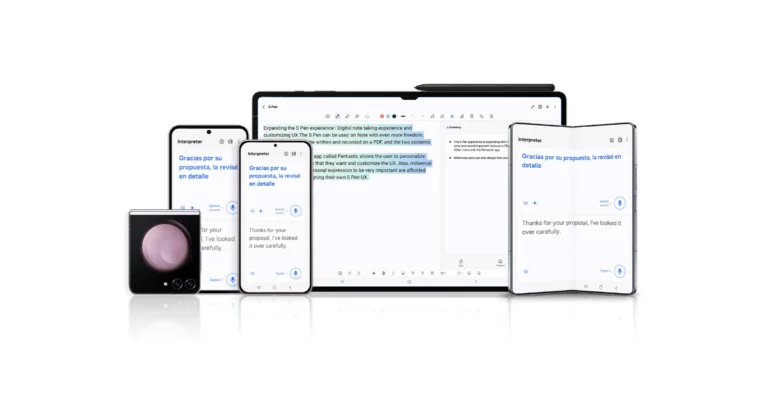
Samsung’s Galaxy AI has rejuvenated the native keyboard app on select Galaxy smartphones with fun and helpful features. The most important of them all is ‘Chat Translate’, which you can trigger on any conversation thread on your device. Once enabled, this feature translates the conversation to any language of your choice. The translator tool in Samsung Keyboard is capable of auto-translating your messages to another language. The entire process is seamless and smooth. Apart from translating your messages, Galaxy AI also performs a basic spell check and corrects the grammar of your messages before you hit send. This feature can also be accessed by tapping the Galaxy AI icon on the Samsung Keyboard. On top of that, you can use the AI to change the tone and style of your messages. You can read more about these new features in this article.Set Samsung Keyboard as the default keyboard app
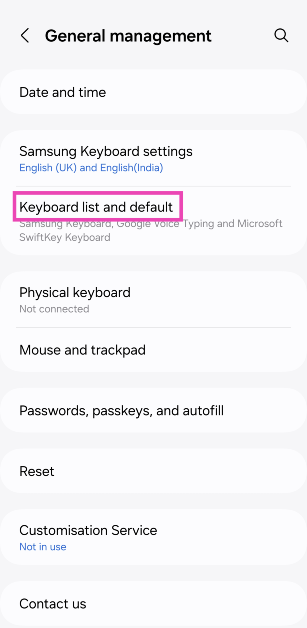
Step 1: Go to Settings and select General management.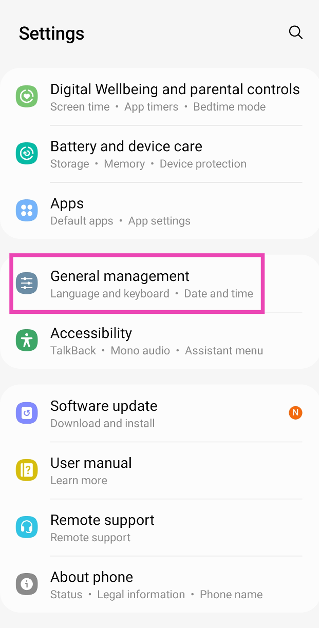 Step 2: Select Keyboard list and default.
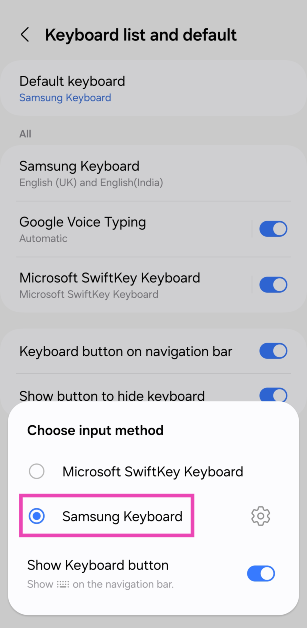
 Step 3: Tap on Default keyboard and select Samsung Keyboard.
Restart your smartphone
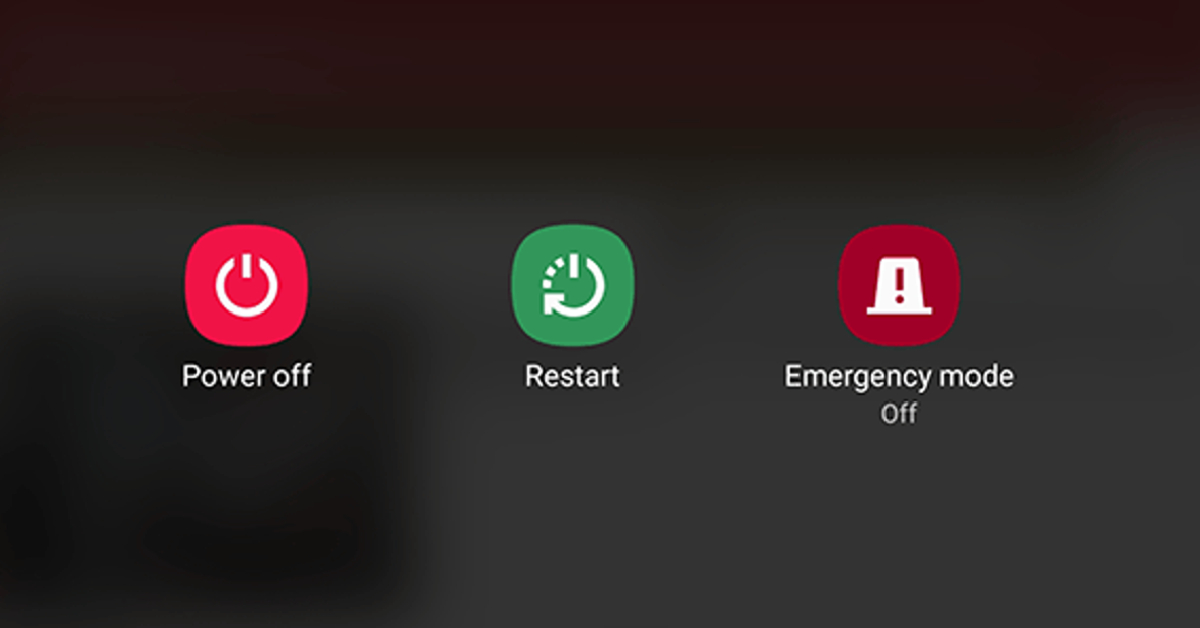 If tapping on a text field doesn’t trigger the onscreen keyboard, a quick restart of your device can help fix the problem. Rebooting your phone resolves any minor background glitches that may be causing it to malfunction. Press and hold the side button on your Samsung smartphone and hit the ‘Restart’ sign on the screen. You can also access the power menu by swiping down from the status bar and tapping the power icon in the Quick Settings Menu.
Remove third-party keyboard apps
Sometimes, a third-party keyboard app may interfere with the functioning of your phone’s native keyboard. Uninstall the third-party keyboard and check if it resolves the issue. To do this, locate the keyboard’s app icon in the app drawer, long-press it, and select ‘Uninstall’.Optimise your phone with Device Care
Step 1: Go to Settings and tap on Device care.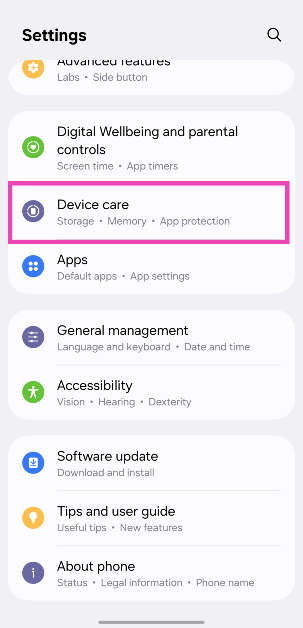 Step 2: Select Optimise now.
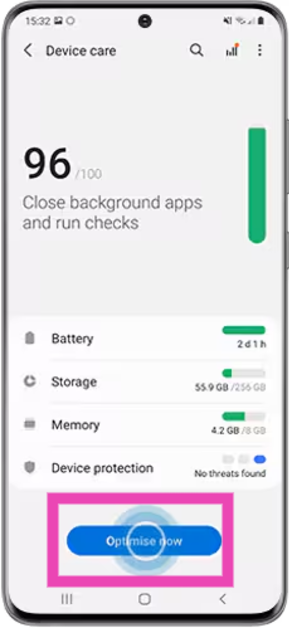 The background apps will be closed and the device’s settings will be optimised.
Restart your phone in Safe Mode
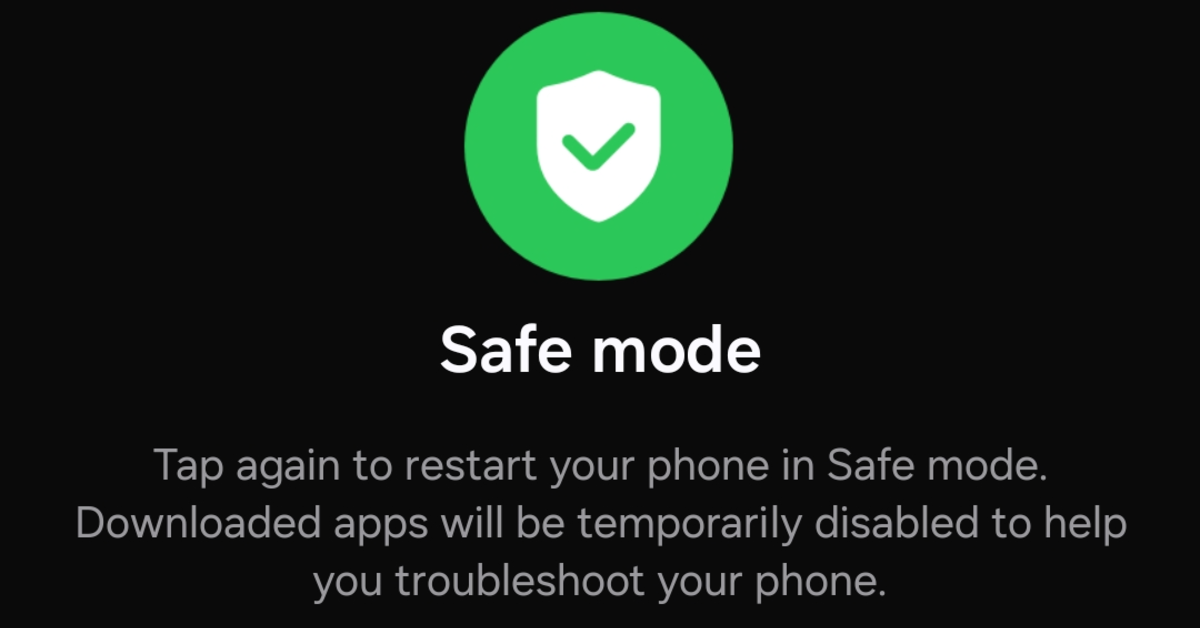 If an intrusive third-party app is causing your Samsung keyboard to malfunction, you will have to remove it from your device to resume normalcy. To confirm whether the issue with the keyboard is caused by a third-party app, restart your smartphone in Safe Mode. You can do this by going to the power menu, tapping and holding the power icon, and then selecting Safe Mode. If your keyboard is working fine in Safe Mode, it means that one of the third-party apps is at fault.
Disconnect your Bluetooth keyboard
Once you pair a Bluetooth keyboard with your smartphone, it keeps the onscreen keyboard from popping up whenever you select a text field. If you want to go back to using the onscreen keyboard on your Samsung smartphone, disconnect the Bluetooth keyboard. You can do this by swiping down from the status bar and long-pressing the Bluetooth tile in the Quick Settings Menu. Tap the name of the keyboard to disconnect it from your phone. Disabling the Bluetooth altogether works too.Use the default home launcher
Do you use a third-party launcher to give your smartphone’s home screen a unique look? It may be the reason why the Samsung Keyboard is not working. Switch to the default home launcher and check if the issue has been resolved. Here’s how. Step 1: Go to Settings and select Apps. Step 2: Tap on Choose default apps.
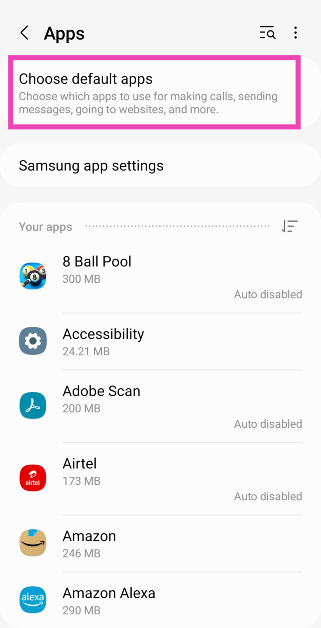 Step 3: Tap on Home app.
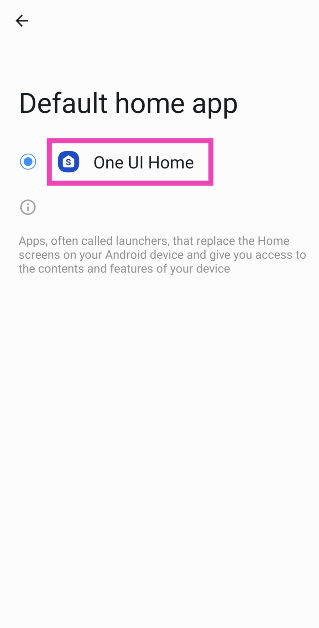
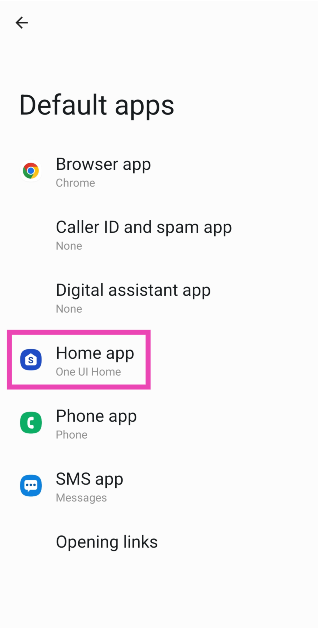 Step 4: Select One UI Home.
Clear Samsung Keyboard’s cache
Step 1: Tap on a text field to trigger the Samsung Keyboard. Step 2: Hit the cog wheel icon to access keyboard settings.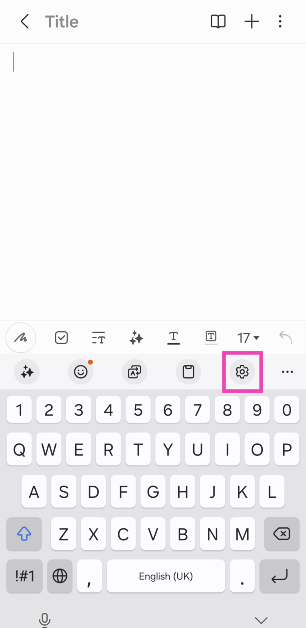 Step 3: Tap on Reset to default settings.
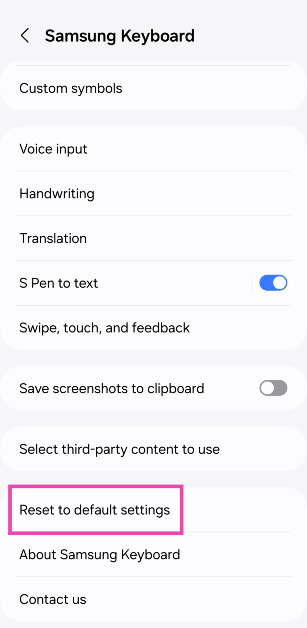 Step 4: Hit Clear cache.
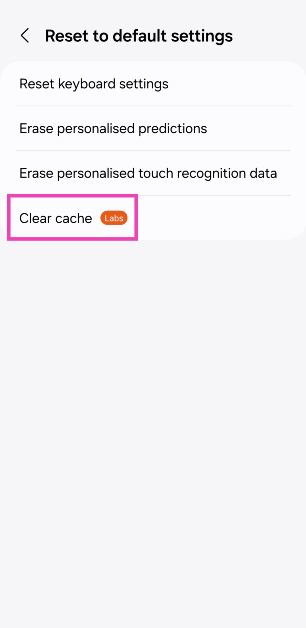
Force Stop and Restart the Samsung Keyboard
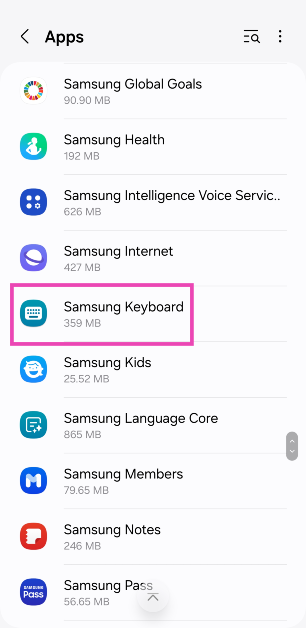
Step 1: Go to Settings and select Apps.
Step 2: Select Samsung Keyboard.
 Step 3: Hit Force Stop.
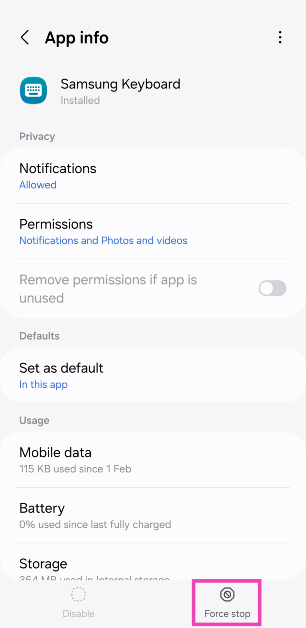 Step 4: Tap on a text field to restart it.
Reset keyboard settings
Step 1: Tap on a text field to trigger the Samsung Keyboard. Step 2: Hit the cog wheel icon to access keyboard settings.
Step 3: Tap on Reset to default settings.
Step 4: Hit Reset keyboard settings.
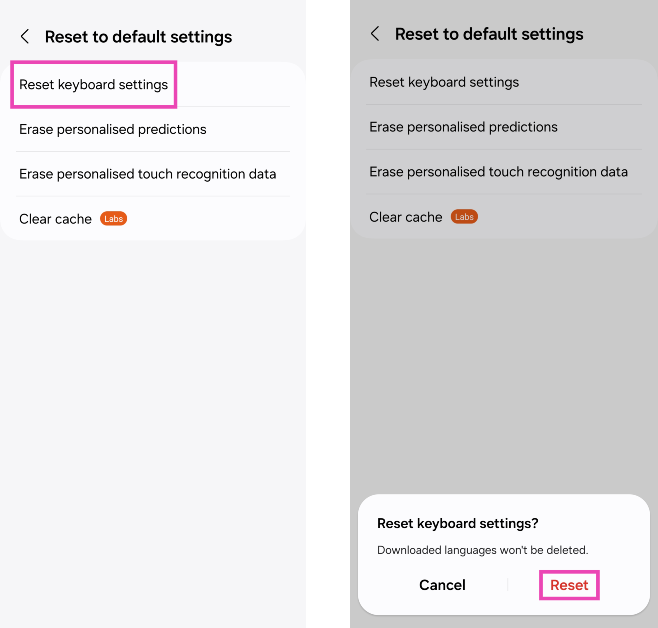 Step 5: Confirm your selection in the pop-up box.
Remove and re-add your Samsung account
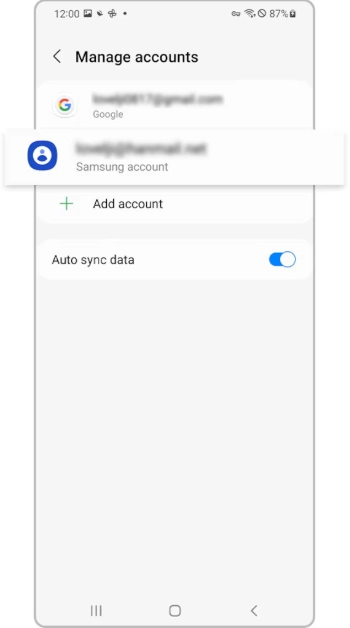
Step 1: Go to Settings and select Accounts and backup.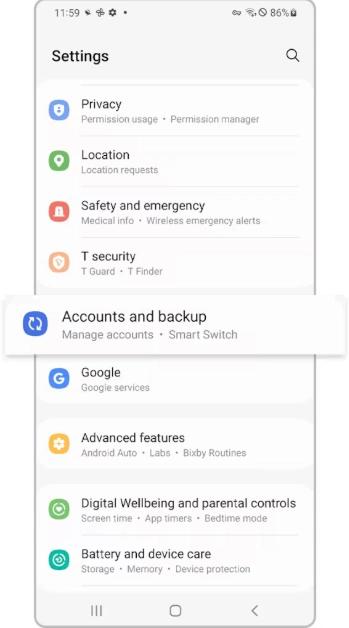 Step 2: Tap on Manage accounts and select your Samsung account.
 Step 3: Tap on Remove account and confirm your selection in the pop-up box.
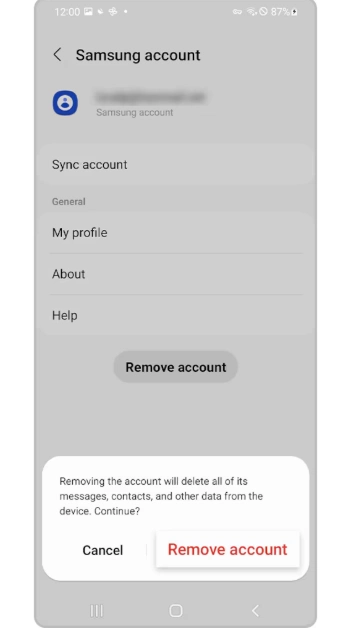 Step 4: Hit Sign out.
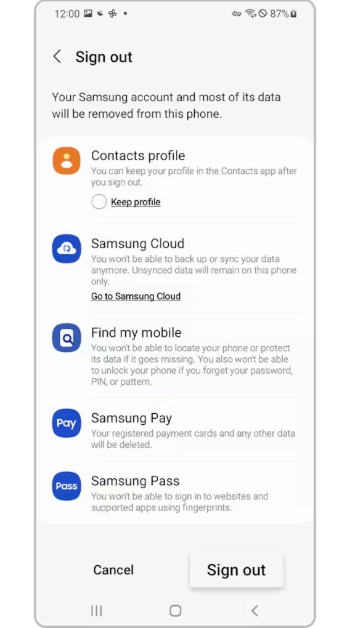 Step 5: Once you’ve been signed out, go to Settings and tap the Samsung option at the top of the screen to log back in.
Clear your phone’s internal storage
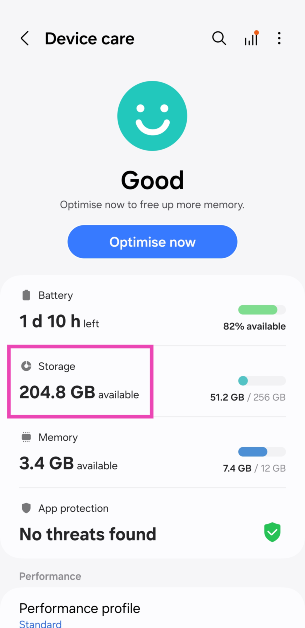
If your phone’s internal storage is full, it can keep the onscreen keyboard from working properly. Here’s how you can manage the storage. Step 1: Go to Settings and select Device care.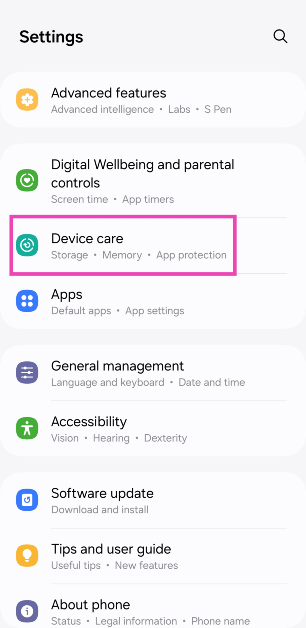 Step 2: Tap on Storage.
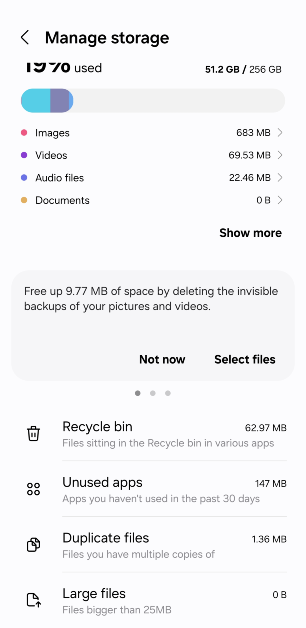
 Step 3: Empty the recycle bin and delete the unused apps, large files, and duplicate files.
Update OS
If a bug-related problem is the reason why the Samsung Keyboard is not working, a software update can fix it. Developers are quick to push these OTA updates to wipe out any unexpected bugs from the system. Here’s how you can go about it. Step 1: Go to Settings, scroll down and select Software update. Step 2: Tap on Download and install.
 Step 3: Hit Install Now.

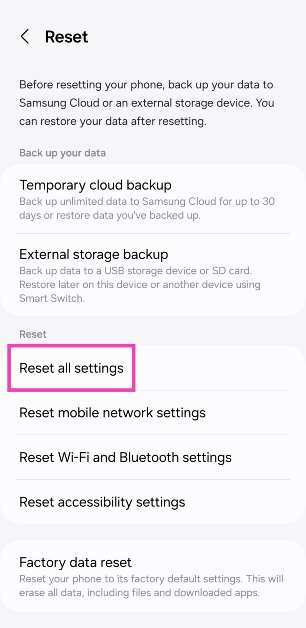
Reset all settings
If you customised a system setting recently and suspect it is causing the keyboard to malfunction, resetting it can help fix the issue. But what if you don’t remember which setting you changed? Luckily, your phone allows you to reset all settings at once. Here’s how. Step 1: Go to Settings and select General Management.
Step 2: Tap on Reset.
Step 3: Select Reset all settings.
 Also Read:








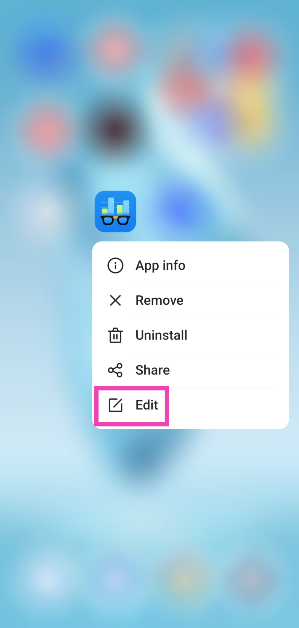 Step 3:
 Step 4:
 Step 5:
 Step 2:
 Step 3:
 Step 4:
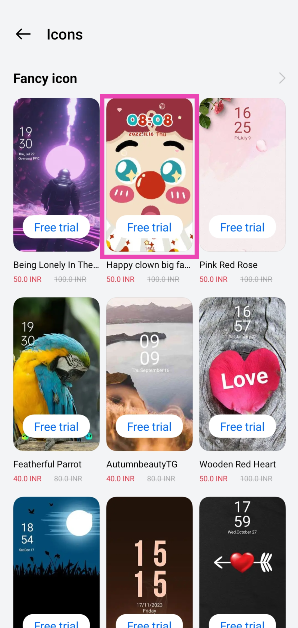 Step 5:
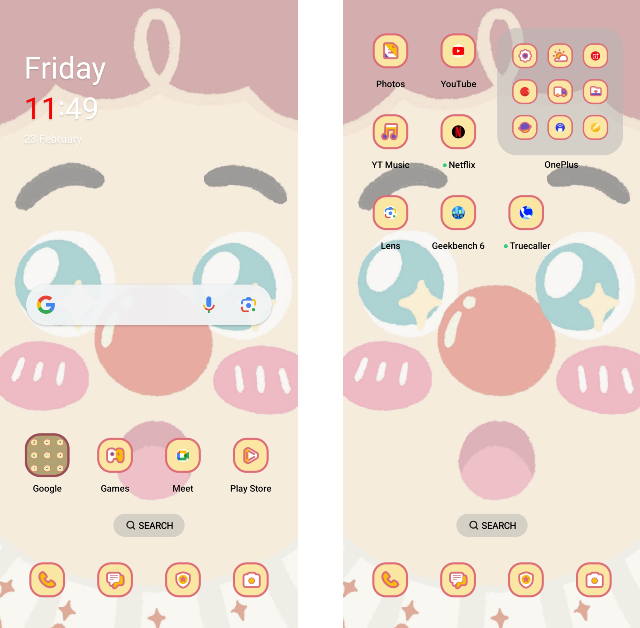
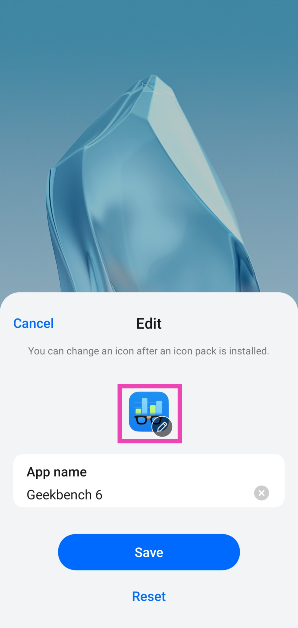
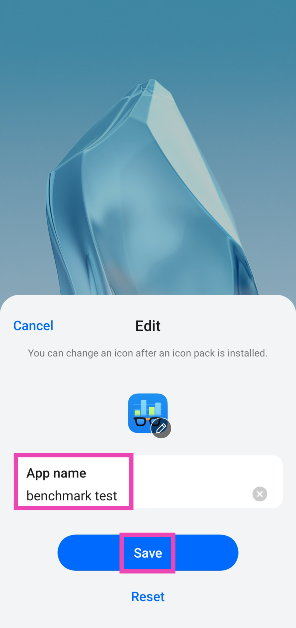
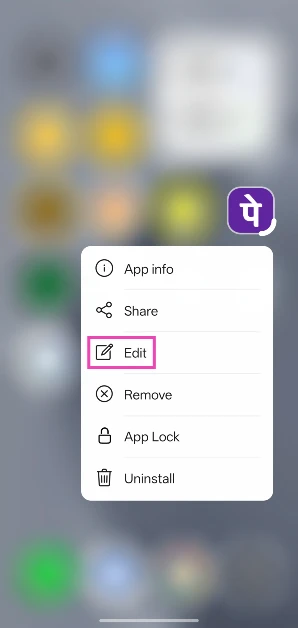 Step 3: Tap the text box and enter the new name.
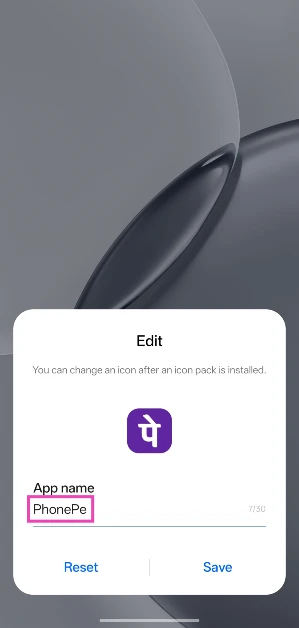 Step 4: Hit Save.
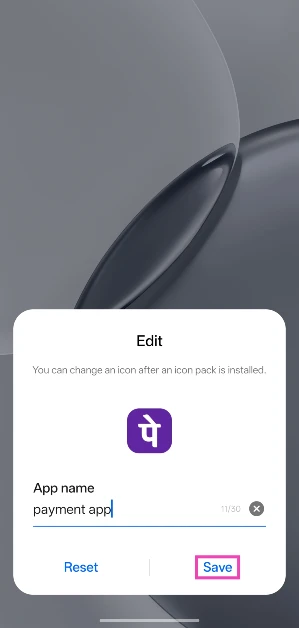
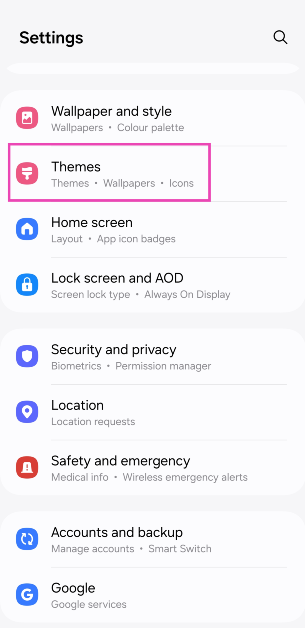 Step 2:
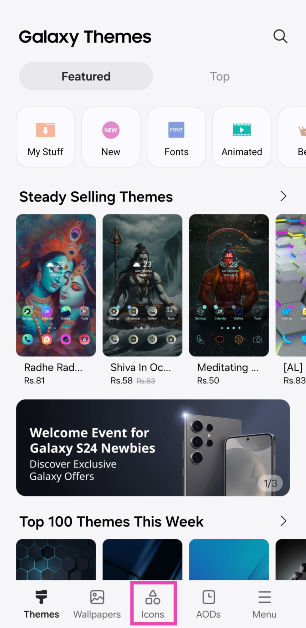 Step 3:
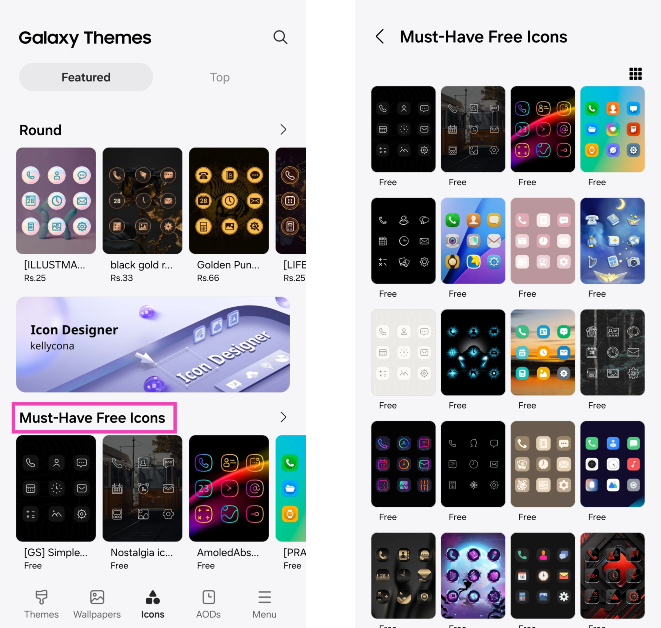 Step 4:
 Step 5:
 Step 2:
 Step 3:
 Step 4:
 Step 5:
 Step 3:
 Step 4:
 Step 5:















 Step 3:
 Step 4:
  Step 5: Wait

 Step 3:
 Step 6:
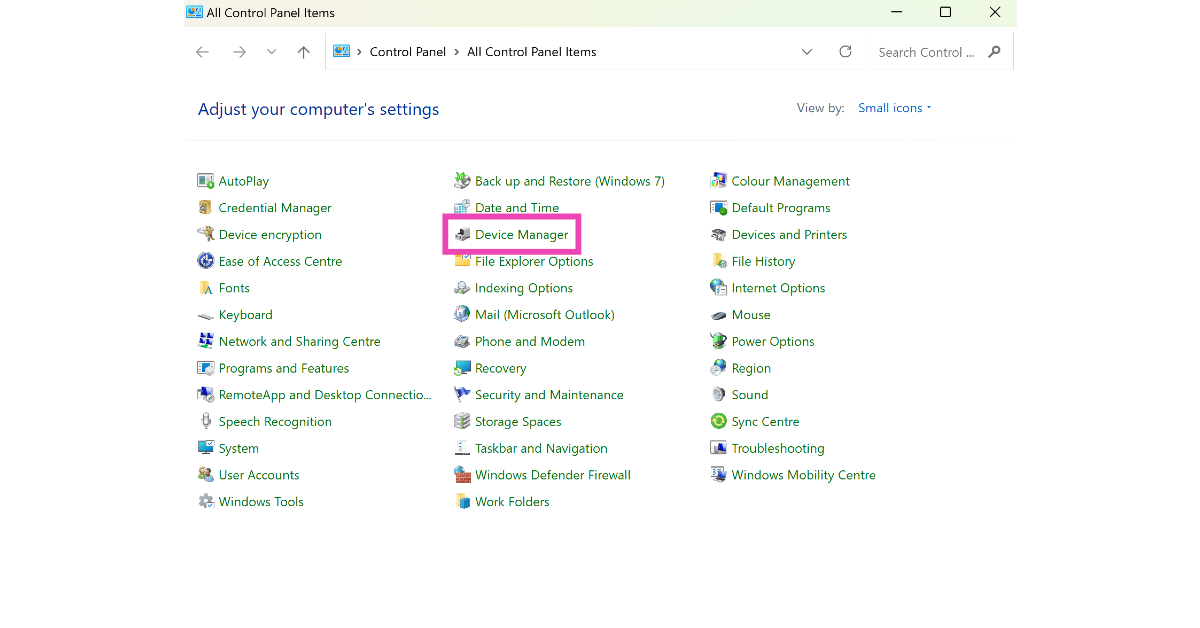 Step 2:
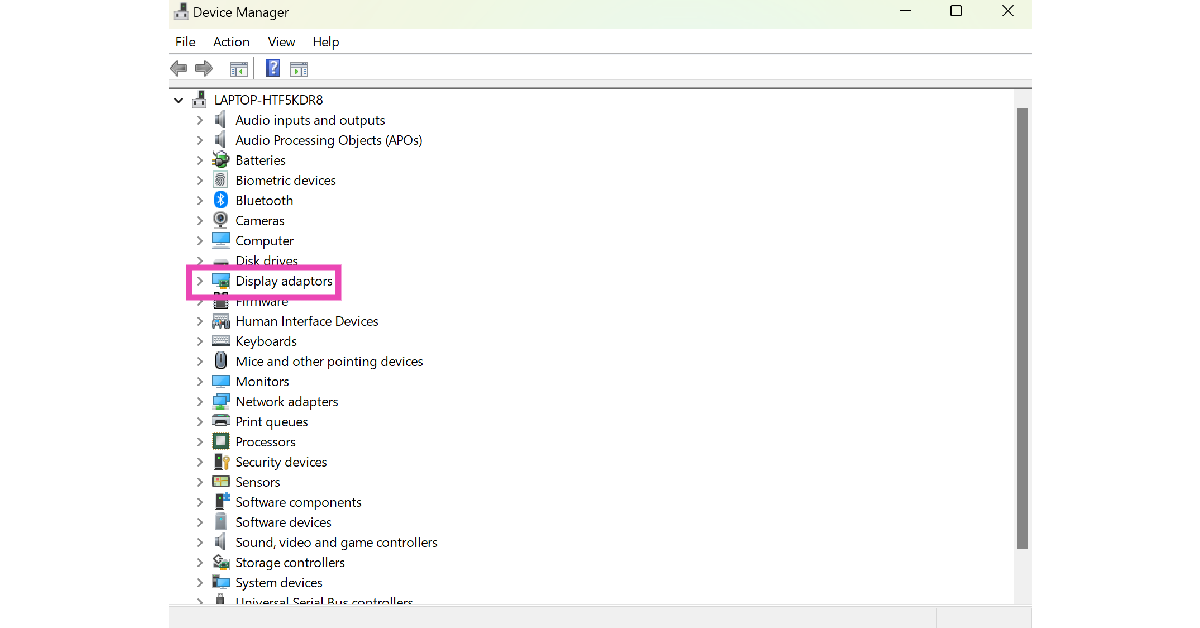 Step 3: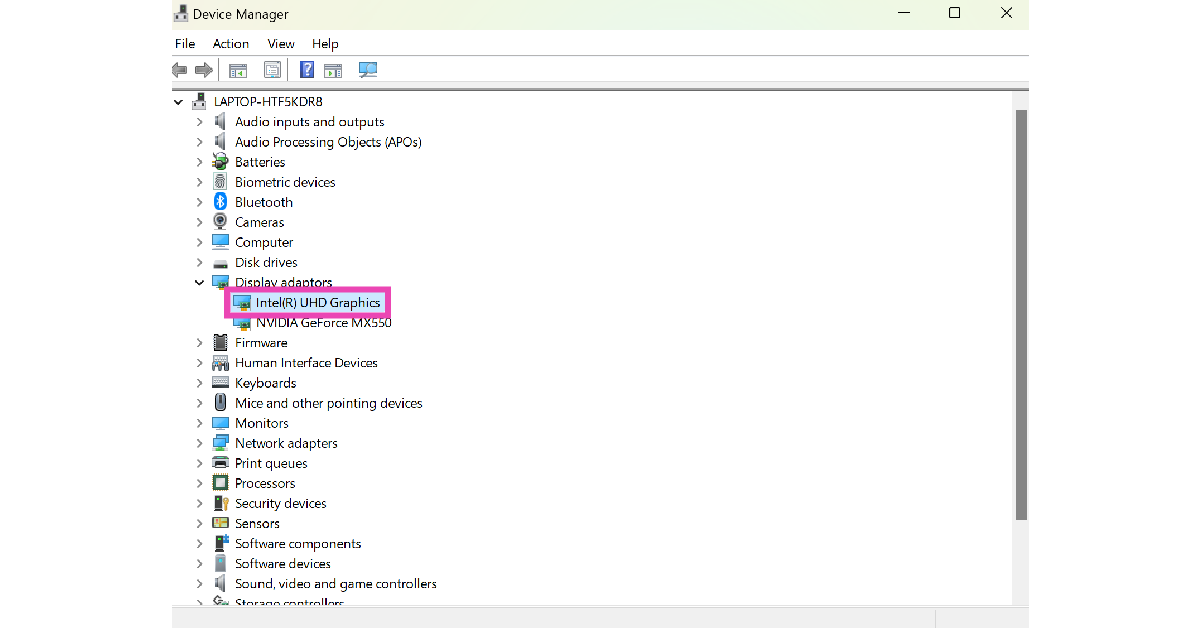
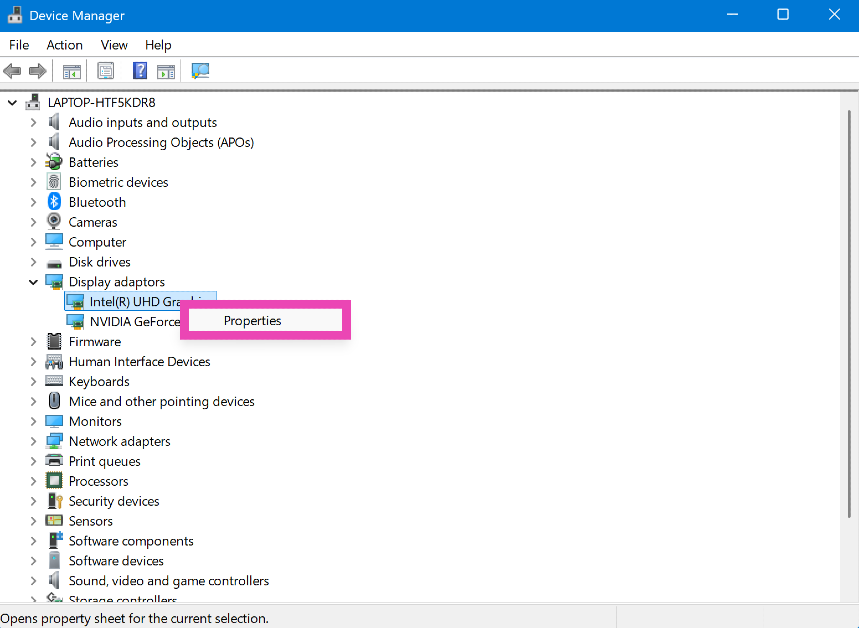 Step 4: Go to the Driver tab and select Roll Back Driver.
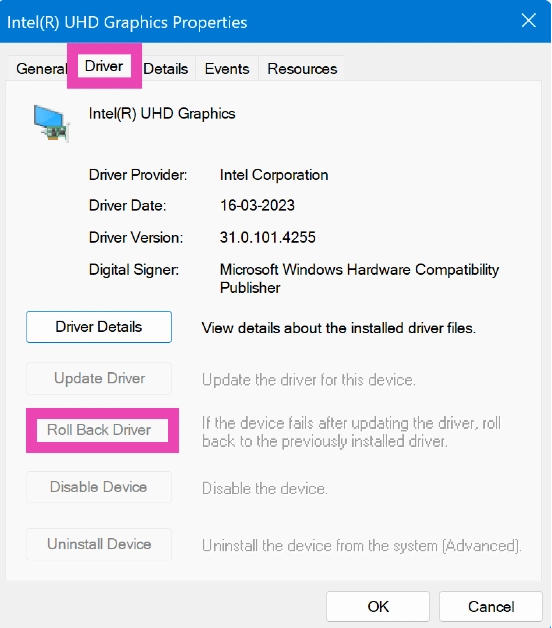
 Step 3:
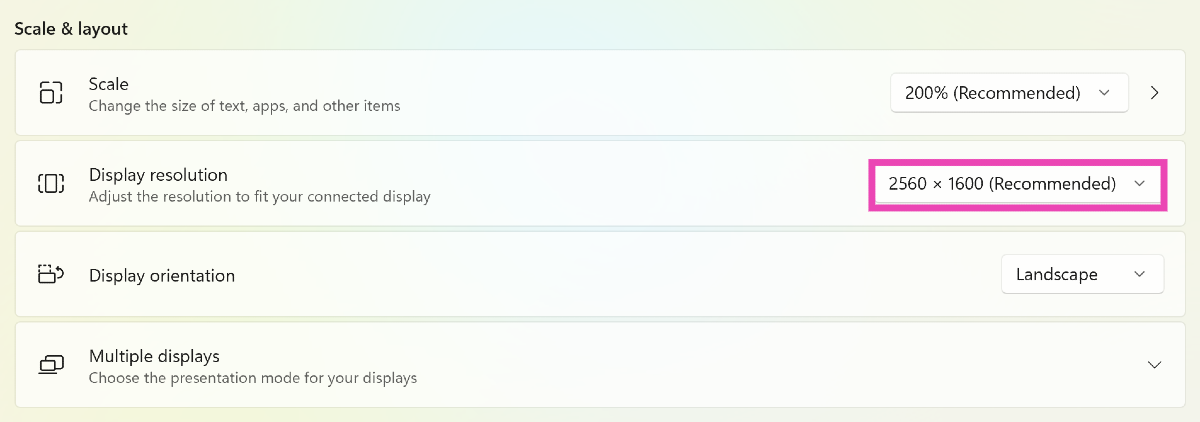 Step 4: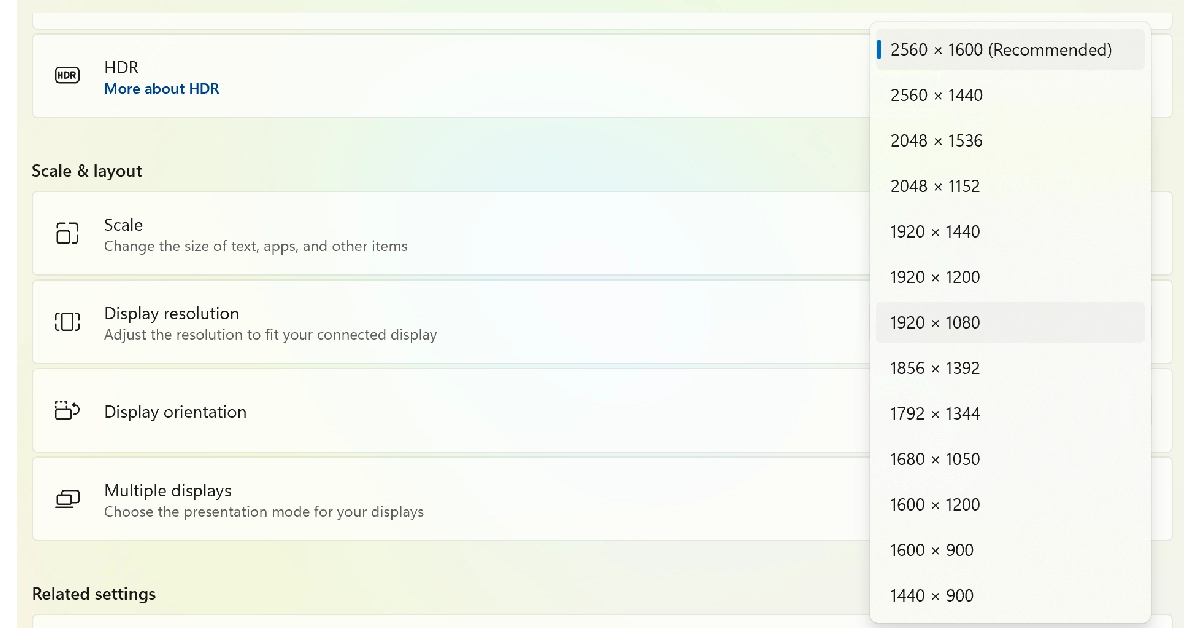
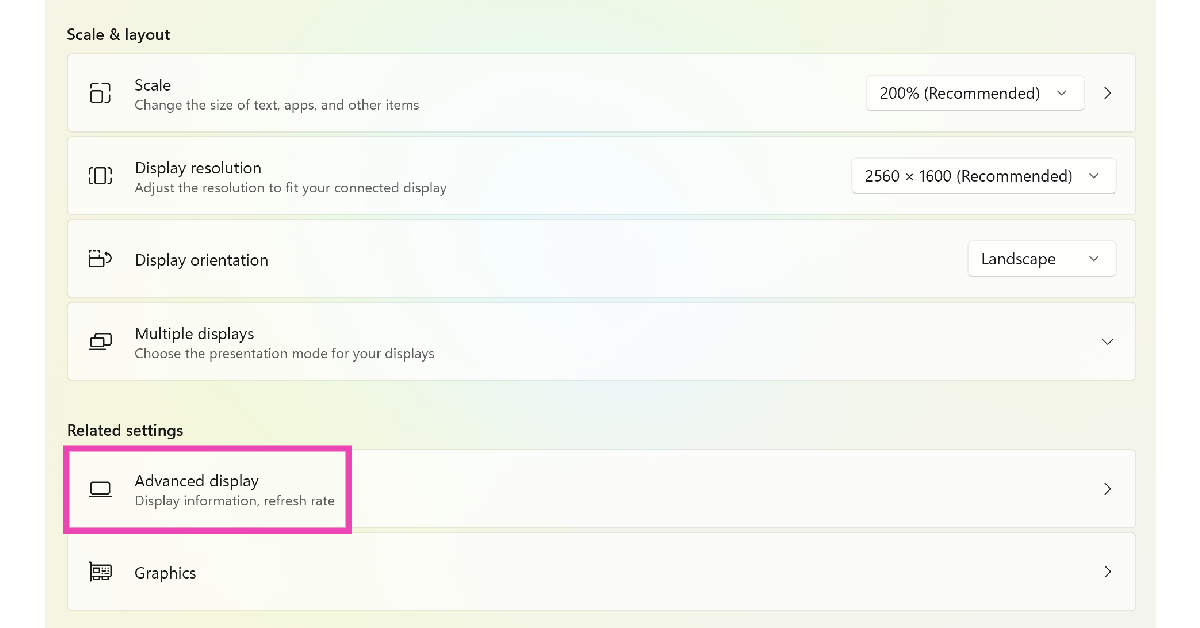 Step 4:
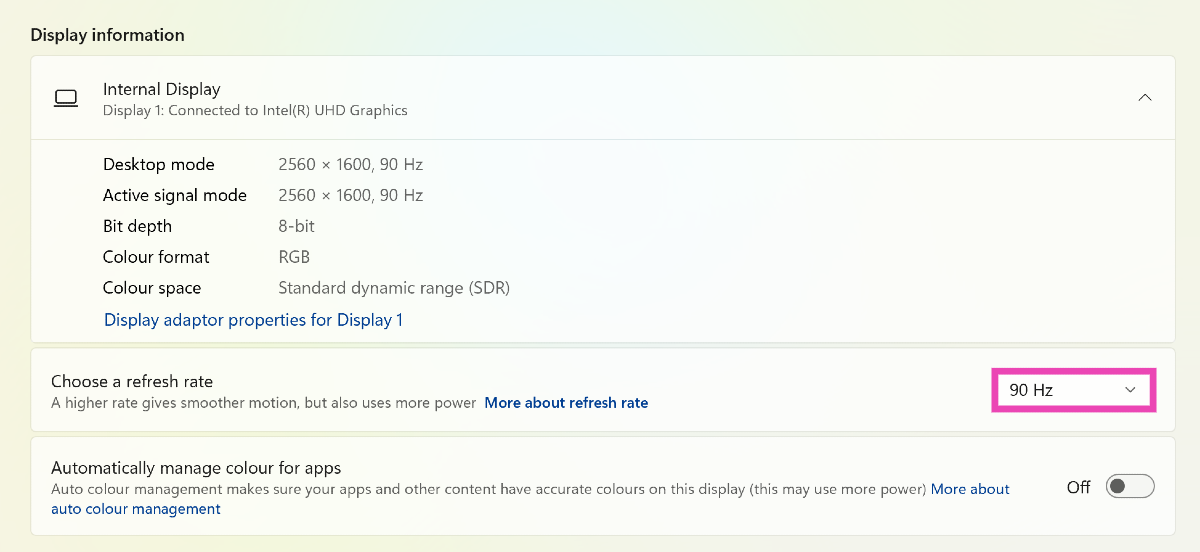 Step 5: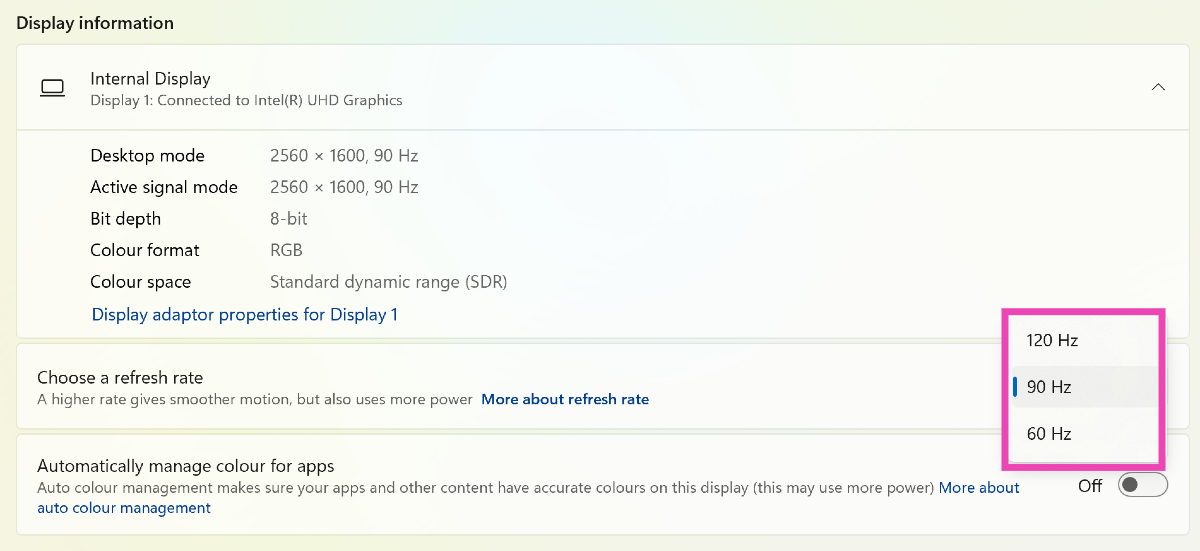
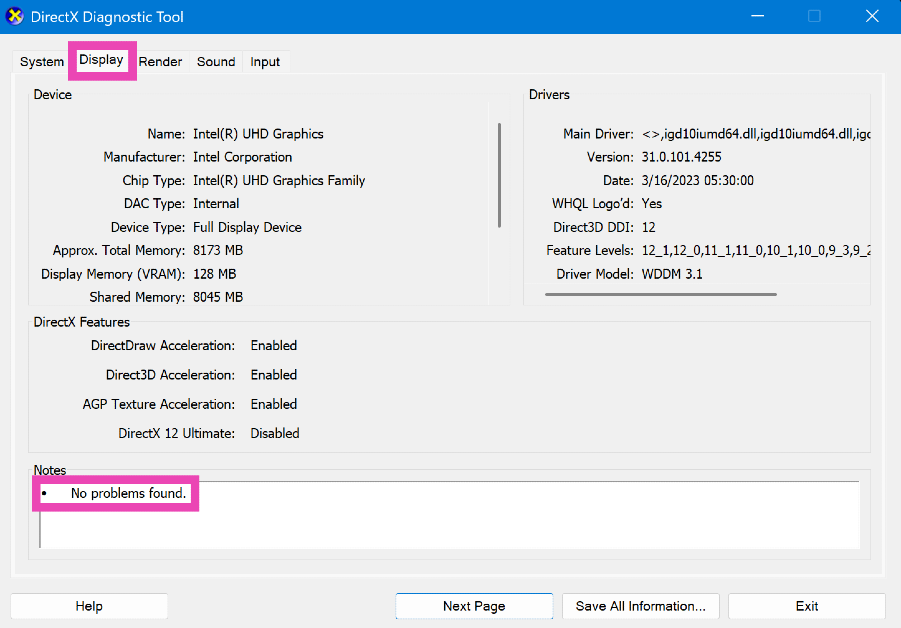
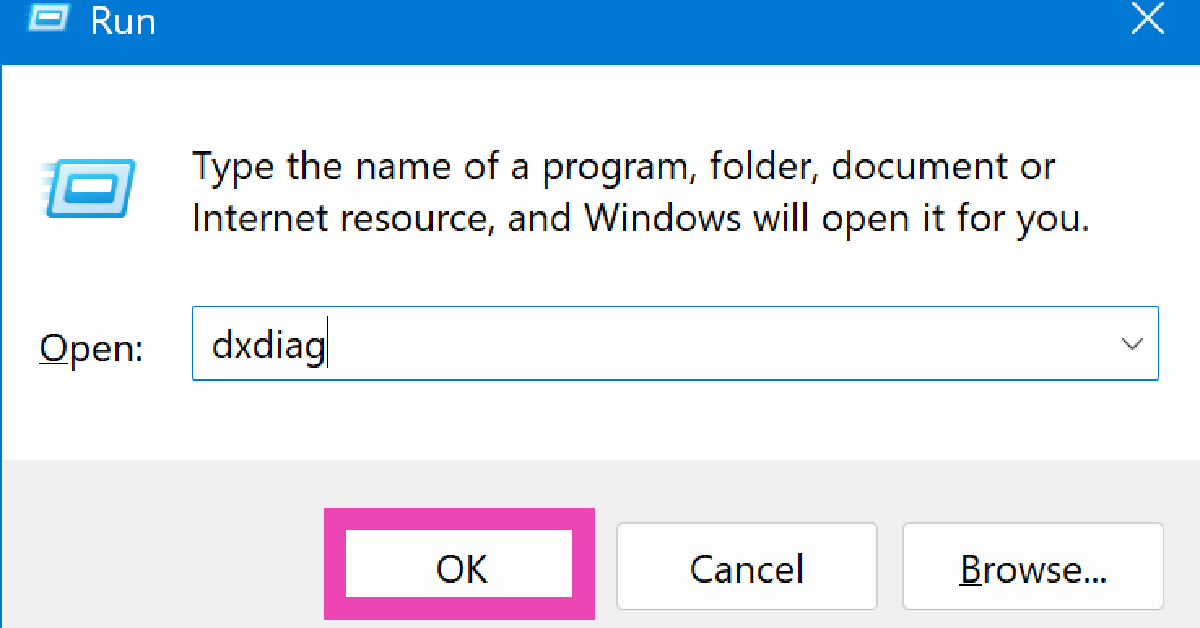 Step 3: Switch to the Display tab to find out what’s causing the vertical lines on your monitor.
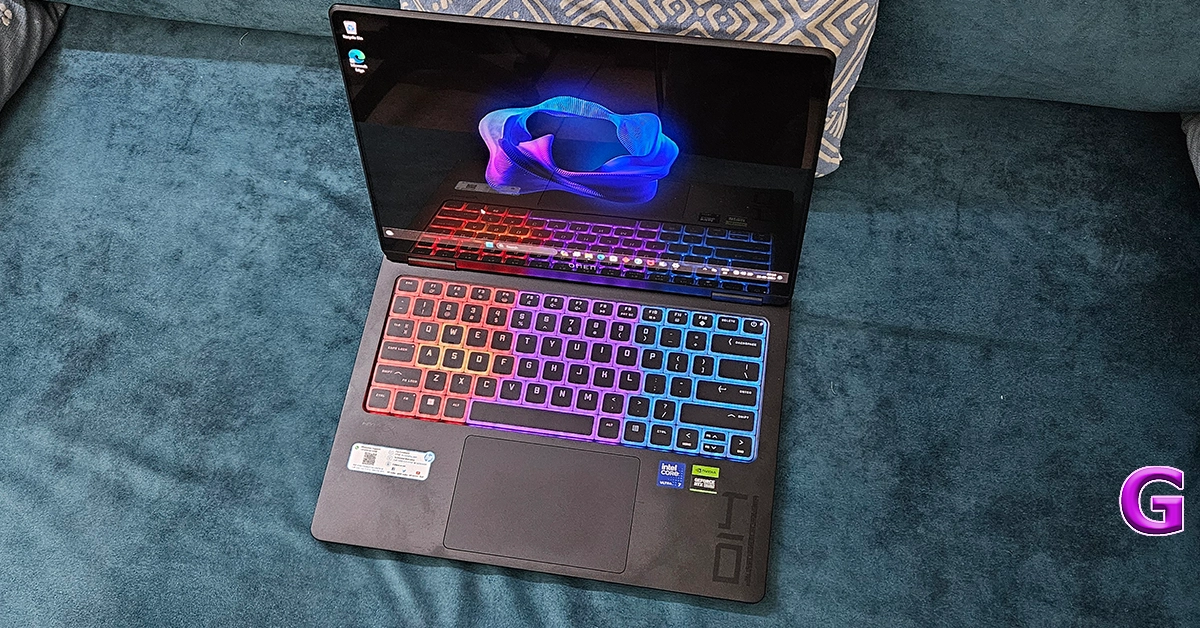 If you’re facing this issue on a laptop, make sure you’re using it on a hard surface. Surfaces like beds and blankets can cover the air vents and cause the device to overheat. This overheating often results in screen flickering and horizontal lines on the display. Move your laptop to a table and let it cool down before you resume using it.
 If there are magnets and electronic devices near your PC’s monitor, remove them to fix the horizontal lines. These objects are known to cause interference. If they’re present near your PC’s monitor, they can induce horizontal lines on it. Eliminate any source of interference to fix this issue.
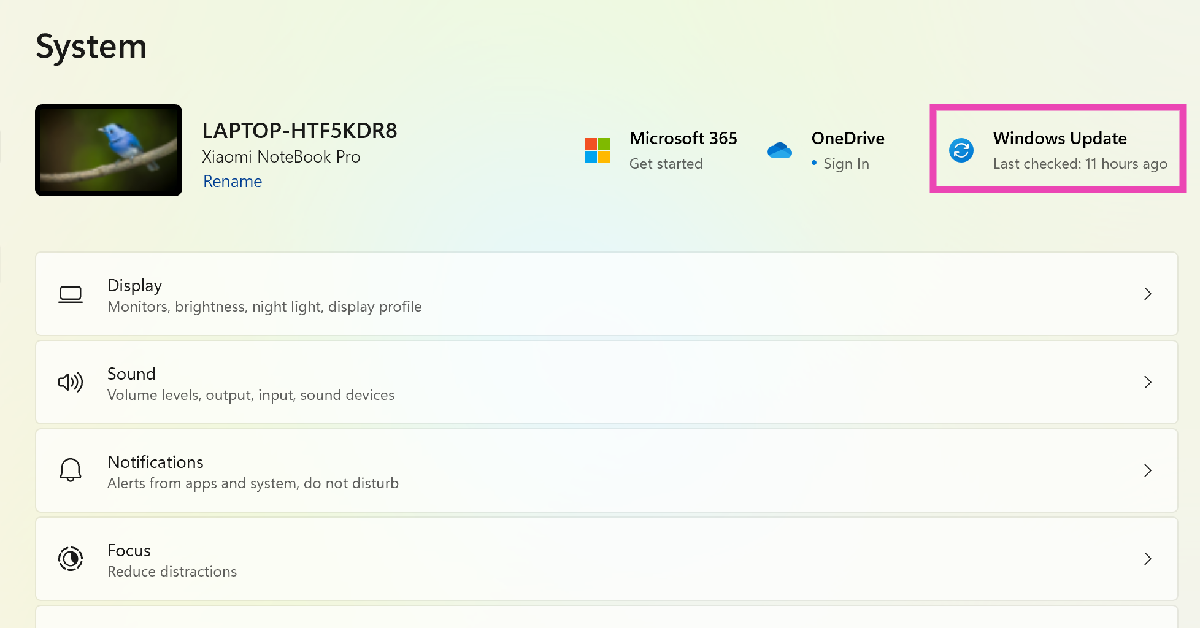 Step 3: