In This Article
Before you begin
There are 3 major ways you can go about disabling the lock screen on your PC. Tweaking the Registry Editor is a universal method that works on all Windows editions. You don’t need to install any third-party app or software for this method. It is a little time-consuming, but it gets the job done. Users with a ‘Professional’ Windows edition can also use the Group Policy Editor to disable the lock screen. This option is not available to Home edition users. For Professional edition users it is a great native method as it does not require any third-party apps or software either. Lastly, if you don’t want to use the 2 methods mentioned above, you are left with third-party options. Apps like Winaero Tweaker and Ultimate Windows Tweaker let you customise intricate aspects of your Windows PC. These two apps also have the option to disable the lock screen.Disable the lock screen using the Registry Editor
 Step 1: Press Windows + R to trigger the Run box.
Step 2: Type regedit and hit Enter. Alternatively, you can launch Registry Editor using the search box on the taskbar.
Step 3: Copy the following path and paste it into the Registry Editor’s address bar:
Computer\HKEY_LOCAL_MACHINE\SOFTWARE\Policies\Microsoft\Windows
Step 4: Right-click on the Windows category in the sidebar and select New>Key. Name it Personalization.
Step 5: Right-click the ‘Personalization’ key you just created and select New>DWORD (32-bit) Value. Name it NoLockScreen.
Step 6: Double-click NoLockScreen and enter 1 under Value Data.
Step 7: Hit OK and restart your PC.
Note: To enable the lock screen, double-click NoLockScreen and reset Value Data to 0.
Step 1: Press Windows + R to trigger the Run box.
Step 2: Type regedit and hit Enter. Alternatively, you can launch Registry Editor using the search box on the taskbar.
Step 3: Copy the following path and paste it into the Registry Editor’s address bar:
Computer\HKEY_LOCAL_MACHINE\SOFTWARE\Policies\Microsoft\Windows
Step 4: Right-click on the Windows category in the sidebar and select New>Key. Name it Personalization.
Step 5: Right-click the ‘Personalization’ key you just created and select New>DWORD (32-bit) Value. Name it NoLockScreen.
Step 6: Double-click NoLockScreen and enter 1 under Value Data.
Step 7: Hit OK and restart your PC.
Note: To enable the lock screen, double-click NoLockScreen and reset Value Data to 0.
Disable the lock screen using the Group Policy Editor
 Step 1: Press Windows + R to trigger the Run box.
Step 2: Type gpedit.msc and hit Enter.
Step 3: Go to Computer Configuration>Administrative Templates>Control Panel>Personalization.
Step 4: Double-click Do not display the lock screen.
Step 5: Select Disabled and hit Apply.
Step 6: Click OK and restart your PC.
Step 1: Press Windows + R to trigger the Run box.
Step 2: Type gpedit.msc and hit Enter.
Step 3: Go to Computer Configuration>Administrative Templates>Control Panel>Personalization.
Step 4: Double-click Do not display the lock screen.
Step 5: Select Disabled and hit Apply.
Step 6: Click OK and restart your PC.
Use the Ultimate Windows Tweaker app to disable the lock screen
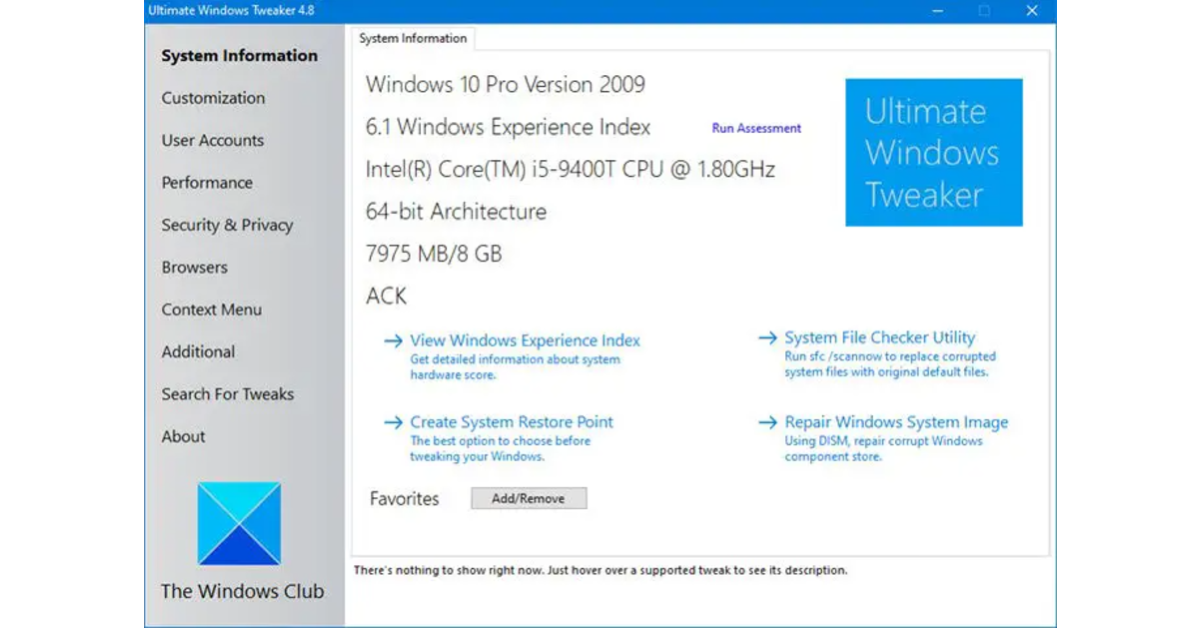 Step 1: Download and install the Ultimate Windows Tweaker app on your Windows PC.
Step 2: Once the app has been installed, run it as an administrator.
Step 3: Select Search For Tweaks from the sidebar.
Step 4: Type ‘disable lock screen’ in the search bar and hit Enter.
Step 5: Double-click the Disable Lock Screen search result.
Step 6: Hit the checkbox next to Disable Lock Screen.
Step 7: Click on Apply Tweaks and hit Close.
Step 8: Restart your PC.
Step 1: Download and install the Ultimate Windows Tweaker app on your Windows PC.
Step 2: Once the app has been installed, run it as an administrator.
Step 3: Select Search For Tweaks from the sidebar.
Step 4: Type ‘disable lock screen’ in the search bar and hit Enter.
Step 5: Double-click the Disable Lock Screen search result.
Step 6: Hit the checkbox next to Disable Lock Screen.
Step 7: Click on Apply Tweaks and hit Close.
Step 8: Restart your PC.
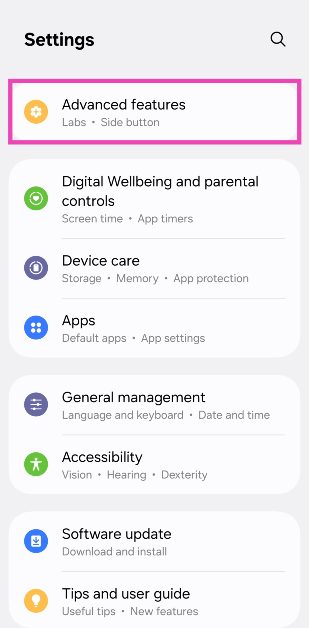 Step 2:
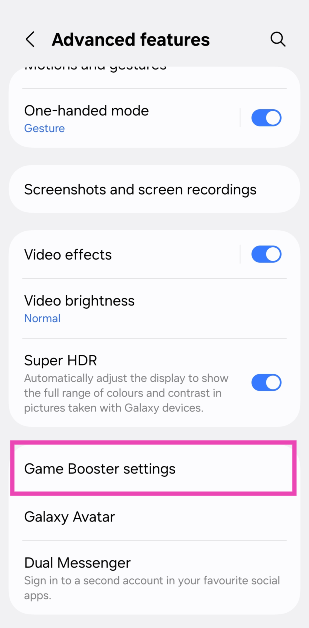 Step 3:
 Note:
Note: Step 3:
  Step 4:

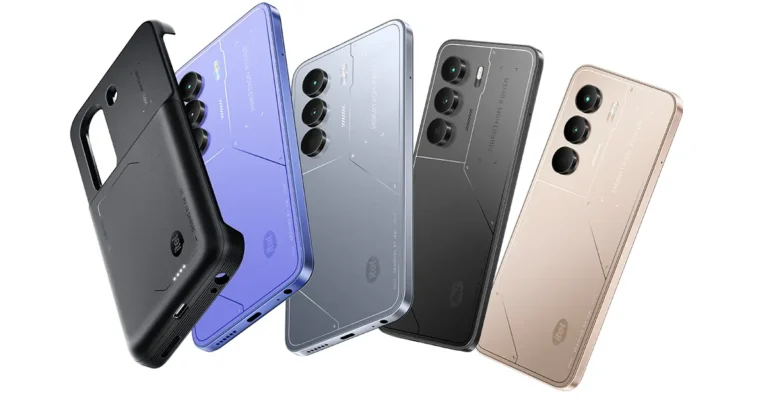
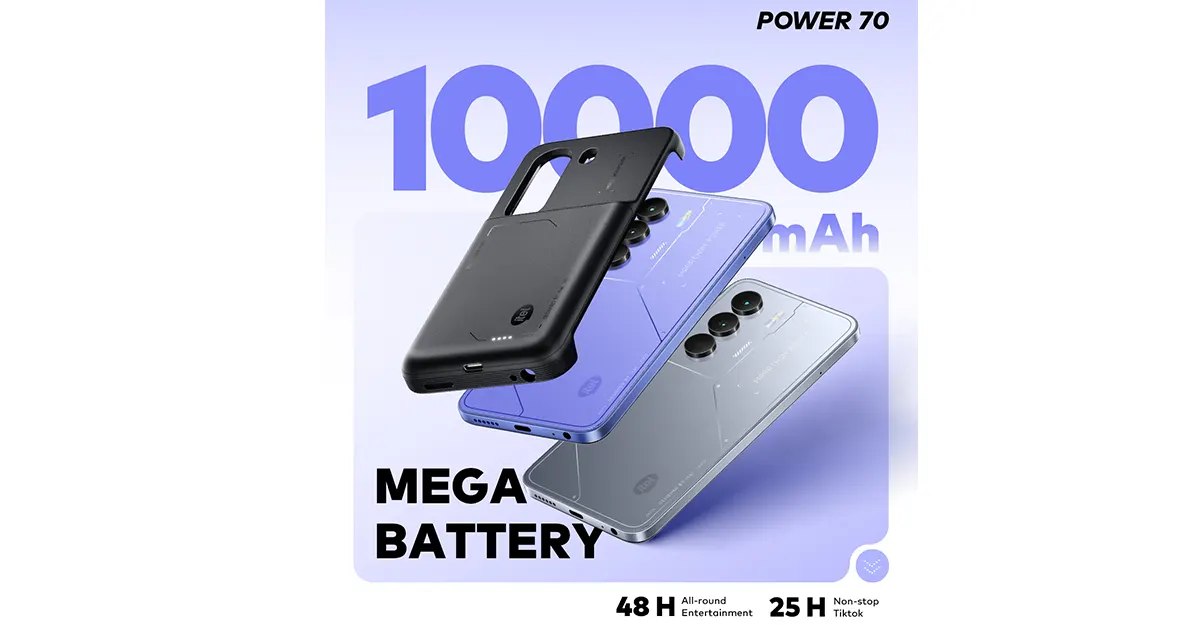 itel is clearly tired of battery anxiety, and honestly, so are we. The Power 70 comes packing a 10,000mAh dual-power solution, meaning you’re basically carrying a power station everywhere you go.
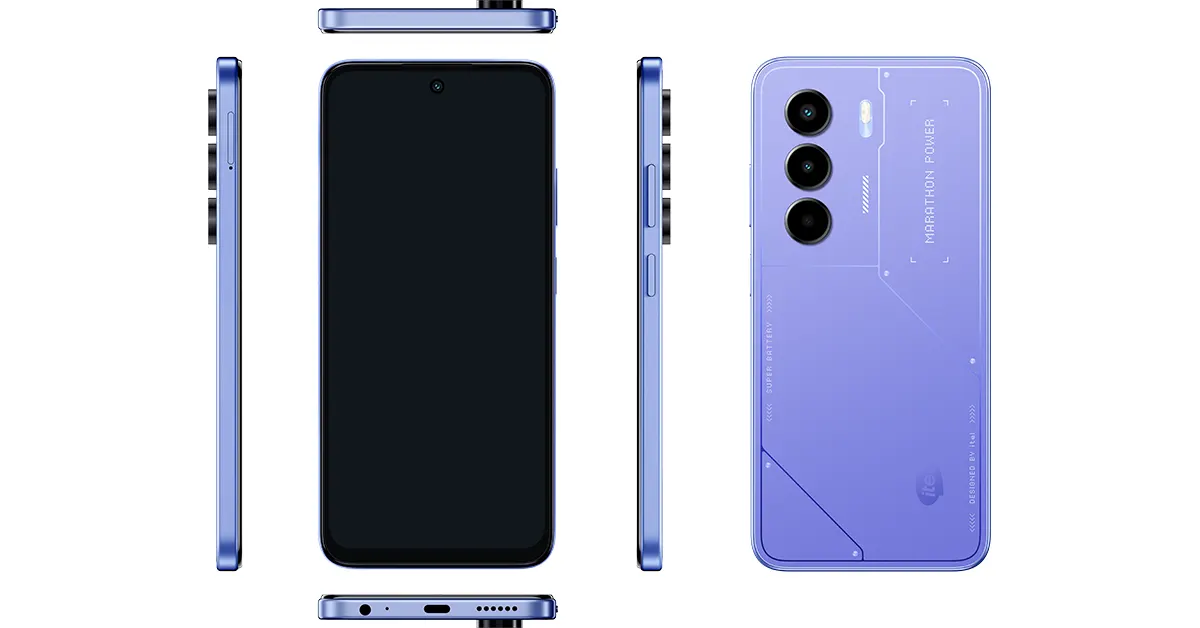 Phones are fragile. Life is not. But with IP54 dust and water resistance, drop protection, and an airbag case design, the itel Power 70 is made to survive. Whether you’re commuting through unpredictable weather or just someone who treats their phone like a basketball, this rugged budget smartphone stands up to the challenge.


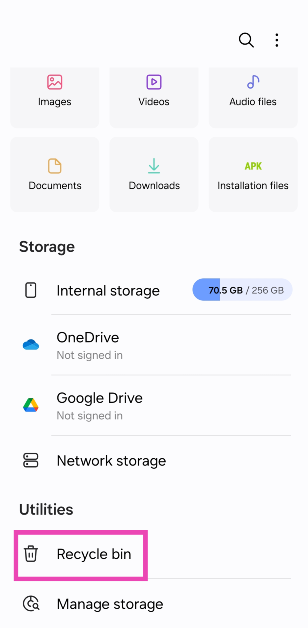
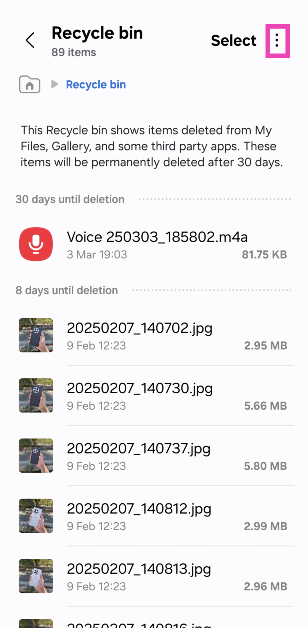
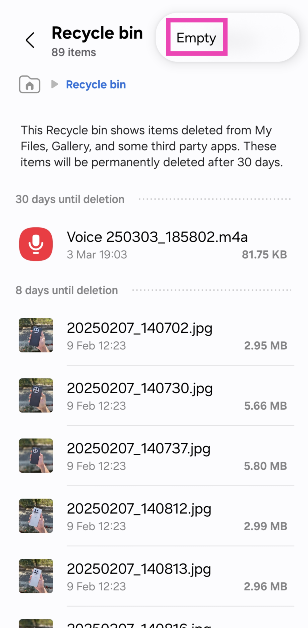
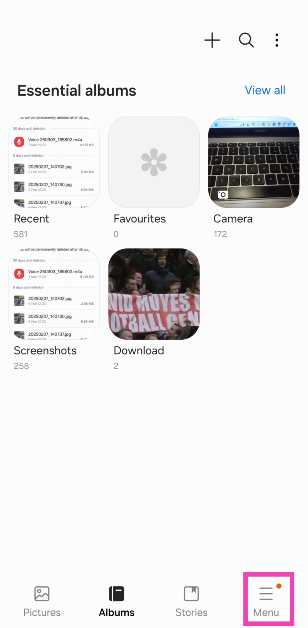
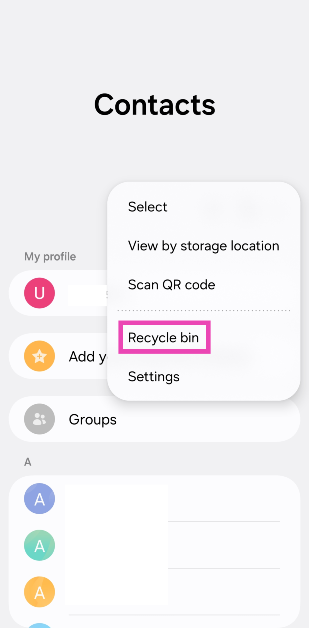
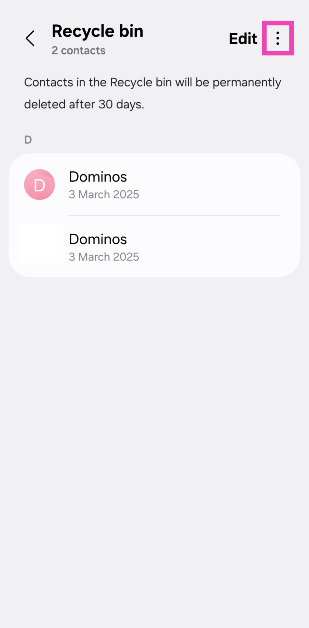
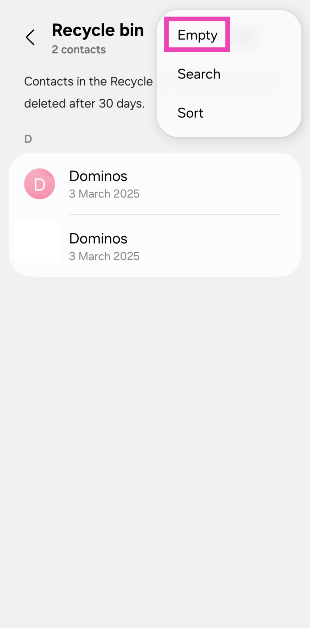
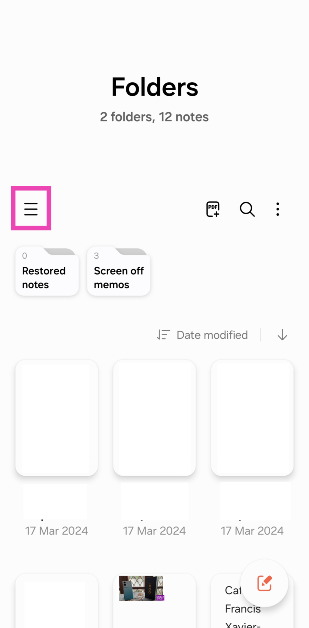
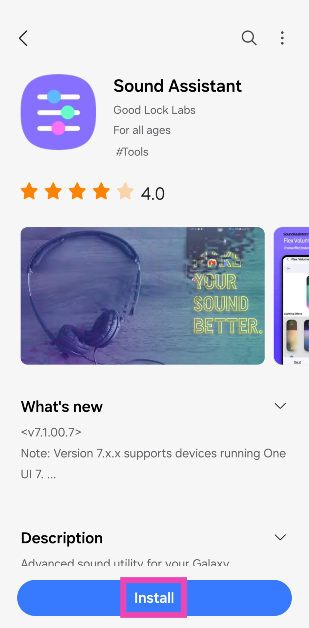 Step 2: Launch
 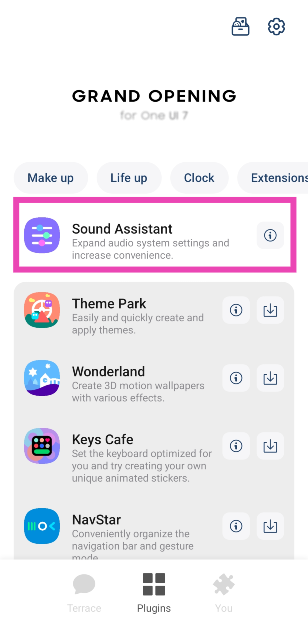 Step 3:
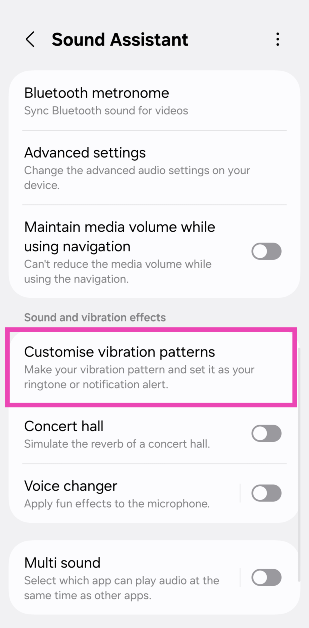 Step 4:
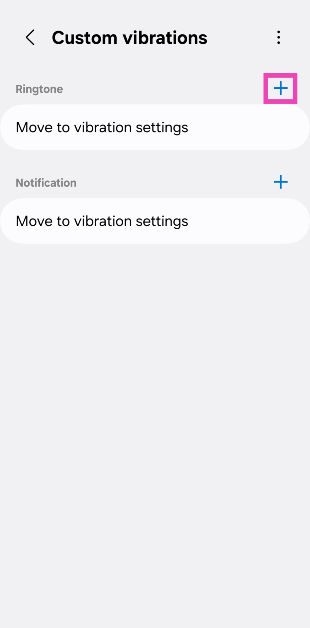 Step 5: Tap
 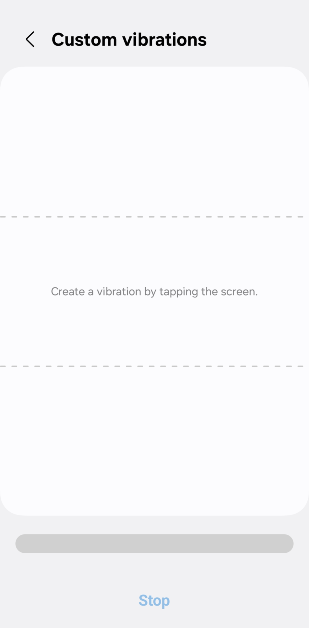 Step 6:
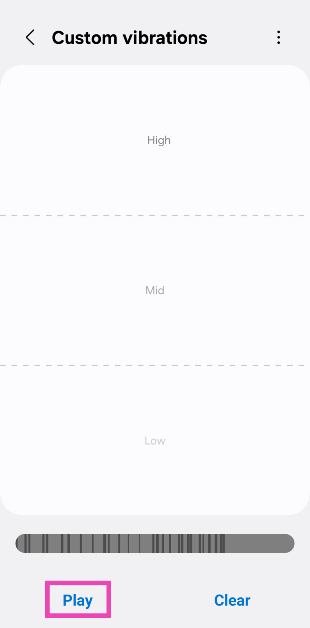 Step 8:
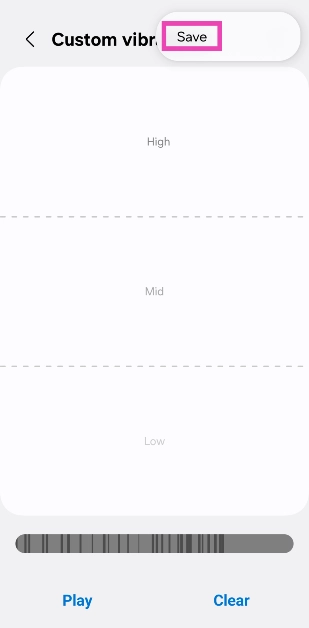 Step 9: Name
 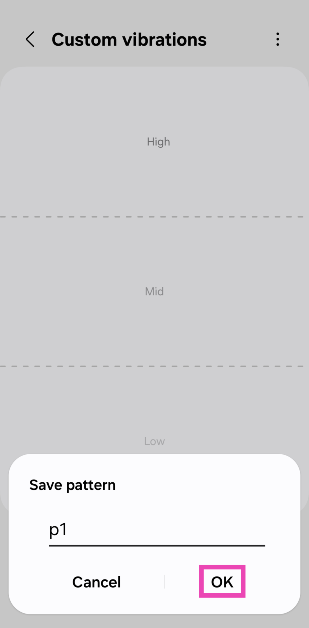 Step 10: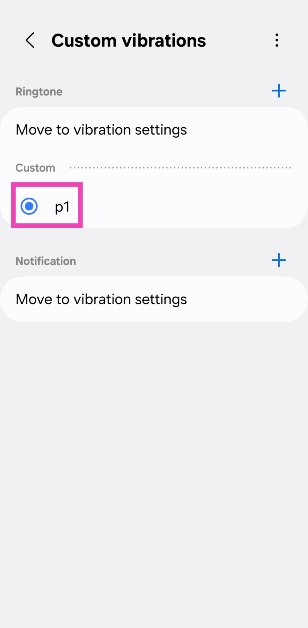
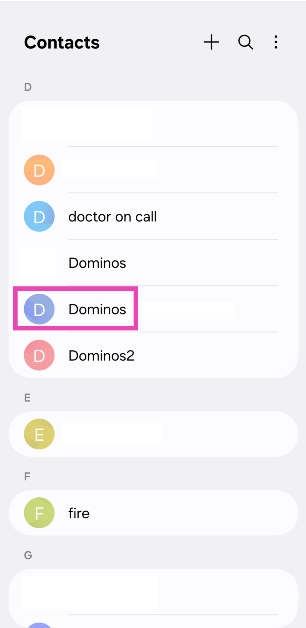 Step 3:
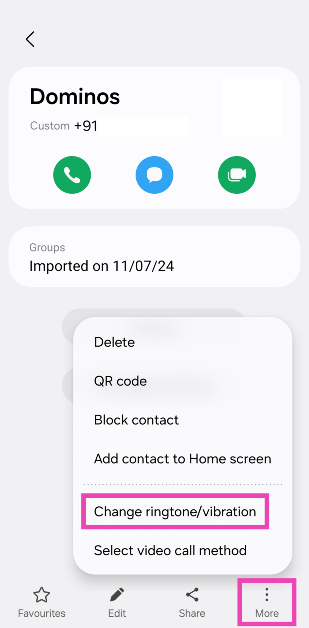 Step 4:
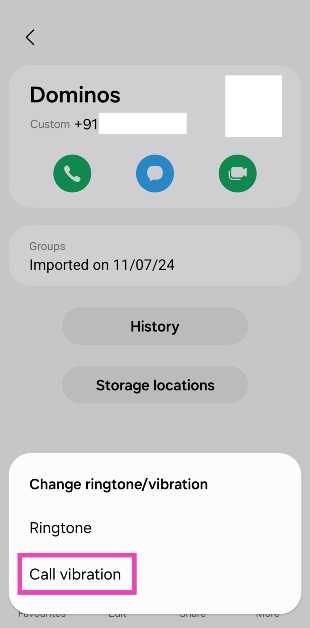 Step 5: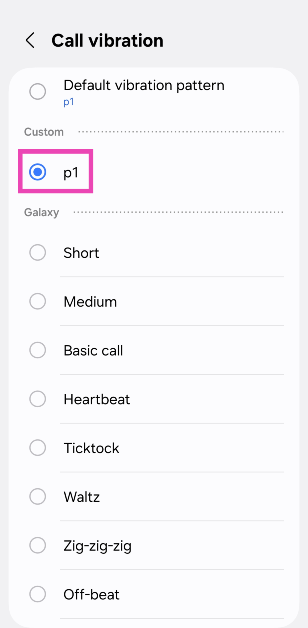

 Step 1:
 Step 1: