Garena Free Fire is a battle royale game with regular awards and tournaments to keep players interested. If you play Garena Free Fire, you should be aware of the redeem codes that are released on a daily basis. However, because the battle royale game is banned in India, players from other countries can use the Free Fire Redeem codes daily. If you’re unfamiliar with the Garena Free Fire redeem codes or don’t know how to get them, we’ve put together a step-by-step guide to help you redeem them. Check out Garena Free Fire Redeem Codes for 26 October 2023.The Free Fire redeem codes are a great way to get free stuff. These are 12-digit codes that contain alphabets and numbers, as well as an expiration date and time. Because the Garena FF redeem codes cannot be used more than once, you should hurry to the redemption page to claim your free reward before someone else does. To get a free reward, all you have to do is go to reward.ff.garena.com/en, which is the official redemption page. Also, keep an eye on this space for daily updates on Garena Free Fire redemption codes and rewards.
Garena Free Fire Redeem Codes Today 26 October2023
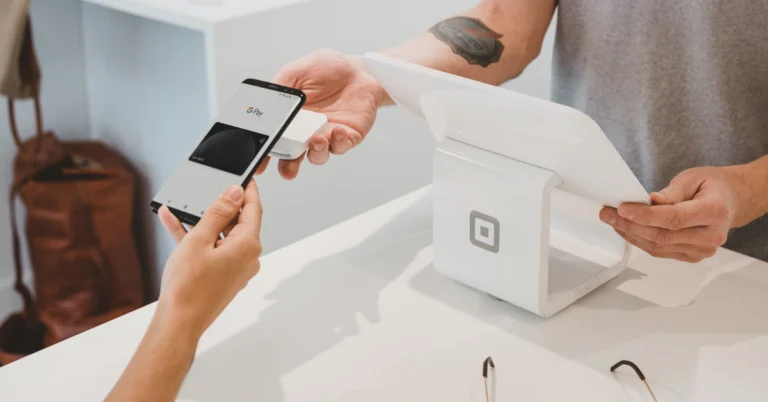
Scanning a QR Code is one of the most efficient ways to make a UPI payment. Apps like Google Pay and Paytm make it incredibly easy to scan a QR code and quickly send money to the contact. While making a payment to a vendor, it is a lot quicker to simply scan a spot code rather than ask them for their phone number. In this article, we show you how to scan a QR code to send money from GPay to any contact in India.Read Also:Top ways to watch videos in Incognito Mode on YouTube
Use a QR Code to send money to any contact on GPay
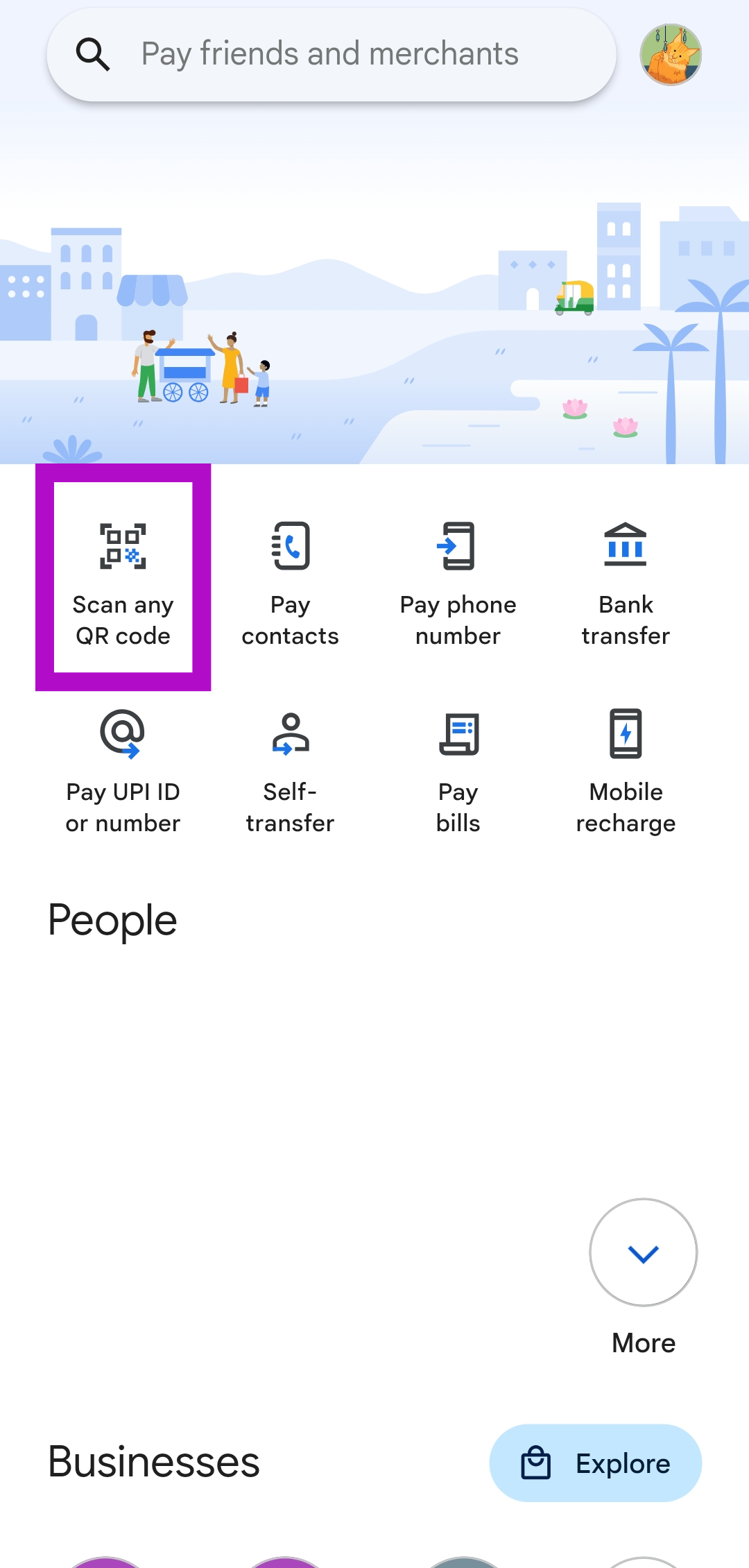
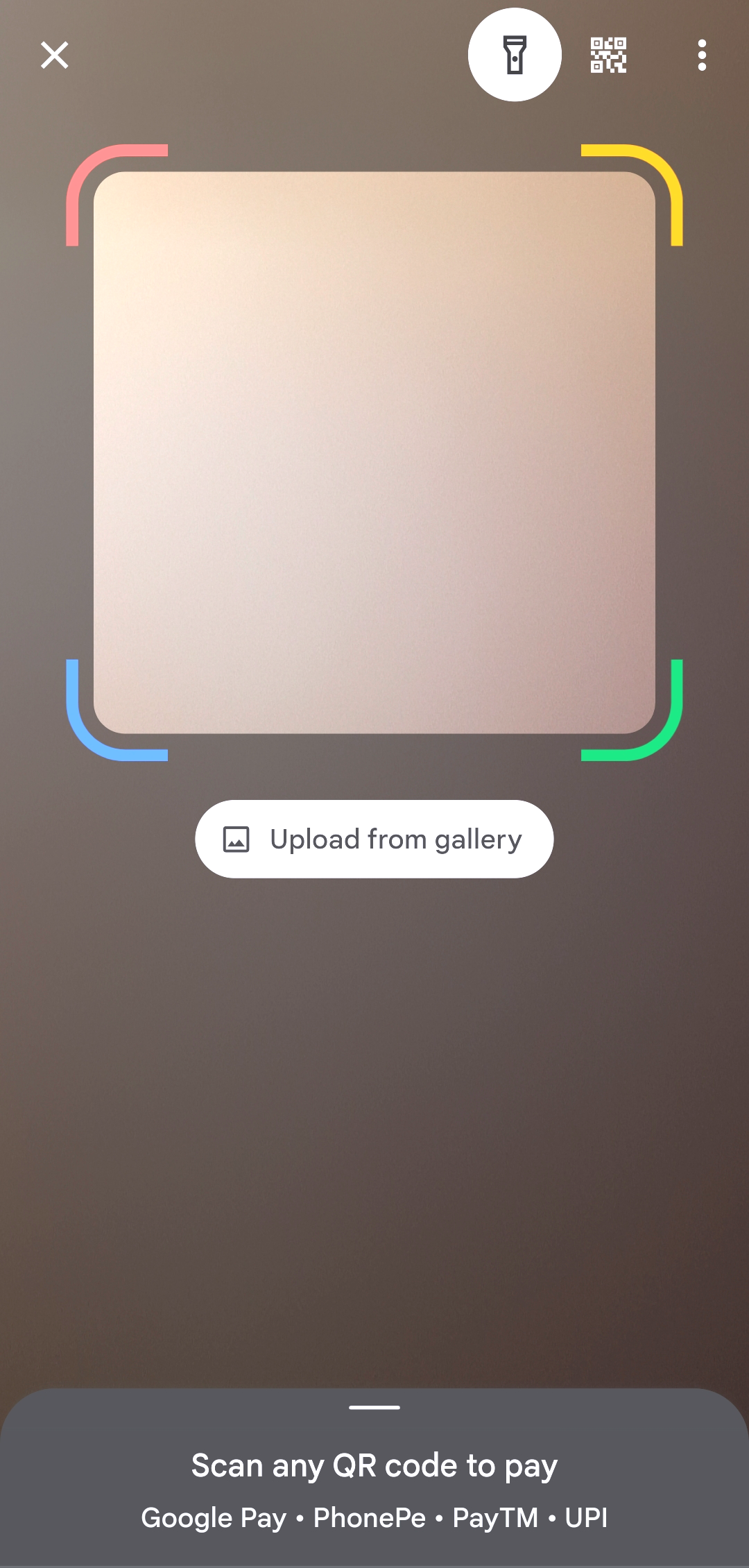
Step 1: On the contact’s smartphone, launch the GPay app and tap on the profile picture to access their unique QR code.Step 2:Launch the GPay app on your smartphone.Step 3: Tap on Scan any QR code.Step 4: Scan the QR code on the contact’s phone. You can also choose to send money on GPay using the contact’s phone number.Step 5: Enter the amount you want to pay. Hit the arrow icon at the bottom right corner of the screen.Step 6: Select your bank account and tap on Pay.Step 7: Enter your UPI PIN.The money will be transferred to the contact in a few seconds.
Frequently Asked Questions (FAQs)
How do I send money on GPay using a QR code that is saved on my phone’s gallery?
If the QR code of the recipient is saved on your phone’s gallery, you can still send them money on GPay. Simply, launch the GPay app and select Scan any QR Code>Upload from gallery and select the image with the QR code.
How do I access my QR code on Gpay?
Launch the GPay app on your smartphone and tap your profile picture at the top right corner of the screen. Tap on the profile picture with the small QR code icon to view your UPI QR Code. You can also choose the ‘Your QR Code’ option to achieve the same result.
This is how you can send someone money by scanning their UPI QR Code on GPay. While you can make a payment to the recipient’s phone number, using a QR Code is the best way to go about it. This is because the recipient may have multiple accounts linked to their number, meanwhile, the QR code corresponds to a single UPI ID.
Qualcomm at its Snapdragon Summit 2023 announced the newest mobile processor Snapdragon 8 Gen 3 SoC for premium smartphones. According to the company generative AI was considered in the creation of its flagship SoC with an AI engine supporting multi-modal generative AI models along with large language models (LLMs). iQoo, Vivo, and Xiaomi are some of the first companies to announce their upcoming phones to be powered by the new processor let’s find out other smartphones to come with Snapdragon 8 Gen 3 SoC.With the announcement of the Snapdragon 8 Gen 3 chipset by Qualcomm, iQoo became the first company to announce that its upcoming iQoo 12 will feature the latest flagship chipset. Other brands like OnePlus, Vivo, Xiaomi, Oppo, Sony, MEIZU, NIO, Honor, Redmi, Asus Realme and more are likely to adopt the latest SoC as they will be launching their flagship models in the next few months.Also Read: iQoo 12 Series to use Snapdragon 8 Gen 3 SoC, China launch confirmed for November 7 and India soonBesides iQoo, Xiaomi is another smartphone brand to announce Xiaomi 14 with Snapdragon 8 Gen 3 SoC. The smartphone launch is set to launch on October 26 in China. OnePlus has not announced but has been teasing the OnePlus 12 on Weibo. As this phone is the company’s most premium phone it is likely to use Qualcomm’s latest SoC. Oppo which is a sister company of OnePlus also confirmed that Oppo Find X7 Pro will come equipped with Snapdragon 8 Gen 3 SoC.Another smartphone brand Vivo is confirmed to launch with Snapdragon’s latest flagship mobile processor.Samsung Galaxy S24 Series will debut next year and will also use Qualcomm’s chipset but it’s yet to be confirmed. Qualcomm Snapdragon 8 Gen 3 specificationsThe Qualcomm Snapdragon 8 Gen 3 will be based on 4nm processing technology. In addition to this, there will be a Qualcomm Kryo CPU with up to 3.3 GHz which is said to be 30% faster and 20 percent more efficient. It includes 5 performance cores (up to 3.2 GHz) and two efficiency cores (up to 3.2 GHz). It comes with Hexagon process NPU which is claimed with 98% faster and 40% more efficient performance. Moreover, the chipset is said to come integrated with Qualcomm Adreno GPU with 25% faster performance. The mobile processor will support 240 fps gaming along with hardware-accelerated ray tracing in addition to global illumination. For photos and videos, the Qualcomm Snapdragon 8 Gen 3 SOC will powered by Samsung’s 200-megapixel image sensor. In addition to 2X and 4X zoom with object tracking the chip will also allow multiple video capture with support for Dolby HDR. According to Qualcomm, the AI will help in filling up photos using the Photo Expansion feature while the Video Object Eraser by Arcsoft will remove items in a video. For connectivity, the Qualcomm Snapdragon 8 Gen 3 processor will include Qualcomm FastConnect 7800 that will provide support for Bluetooth 5.4, Wi-Fi 7 802.11be, 802.11ax, 802.11ac, 802.11a/b/g/n. It will also have a Snapdragon X75 5G Modem-RF System with AI tensor
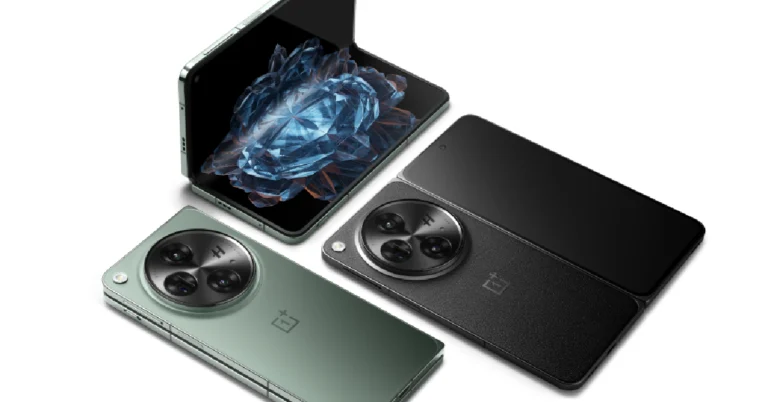
OnePlus’ debut folding phone, Open, was launched last week at the price of Rs 1,39,999. Already being hailed as the best folding phone on the market, the OnePlus Open features the latest Snapdragon 8 Gen 2 SoC, a 7.82-inch LTPO AMOLED inner display with 2K resolution, and a 6.31-inch cover display. Its book-like form factor is a departure from the tall orientation of the Samsung Fold and the passport-size Google Pixel Fold. If you recently got your hands on the device, here are the top 10 apps you need to download first on the OnePlus Open.Read Also:Apple Event: Apple set to host “Scary Fast” event on October 30
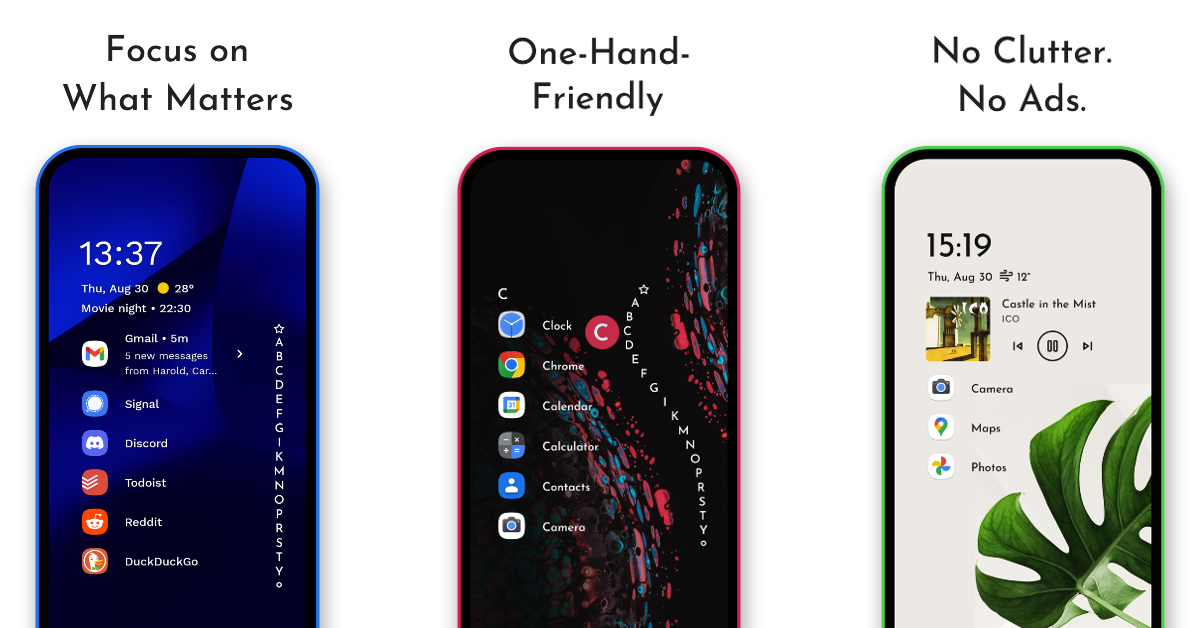
Niagara Launcher
Download from Google Play StoreNot only does the Niagara Launcher rearrange your phone’s home screen layout in a more minimal fashion, but it also makes the device more accessible for one-handed use. If you recently made the switch to a folding phone, reaching those far corners with your thumb can prove to be a challenge. This is truer than ever for the massive 7.82-inch inner display of the OnePlus Fold. The ‘wave’ animation lets you navigate the phone with ease and access your favourite apps instantly. Another big advantage of using the Niagara Launcher is that it doesn’t lace its interface with intrusive ads.
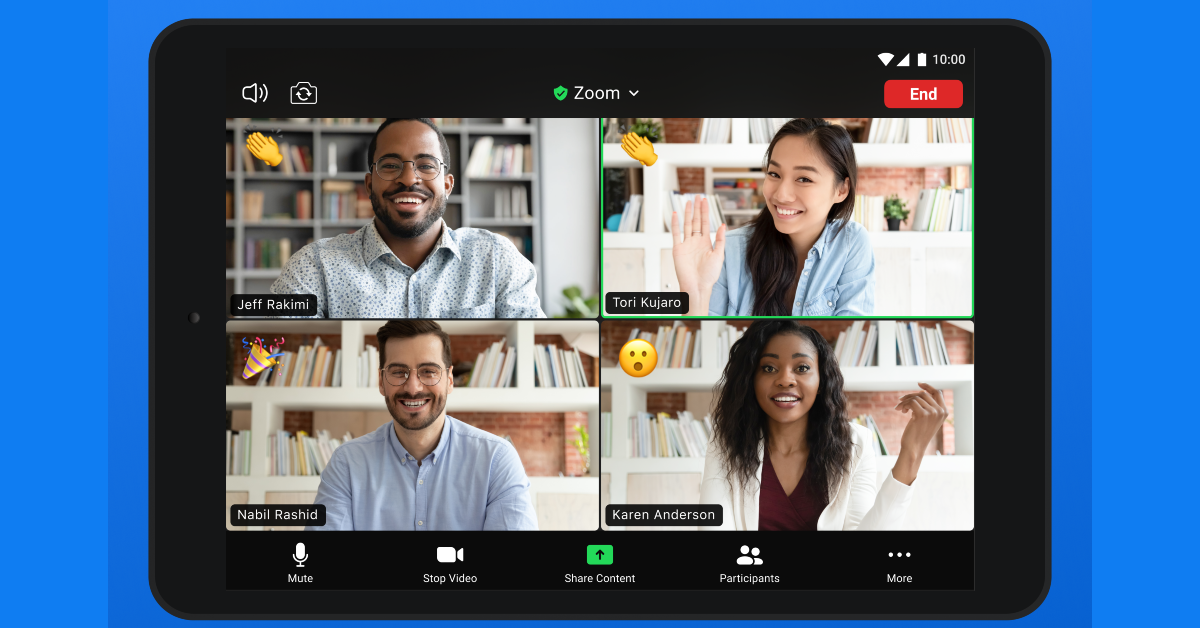
Zoom
Download from Google Play StoreAs far as virtual meeting clients go, Zoom is one of the best apps for foldable devices. The platform is perfectly optimised to be used on a large display. It mimics the desktop app when used on the inner display. The controls menu at the bottom comes very handy when you want to put your audio on mute, turn off the camera, share a slideshow, or simply view other call participants. You can also prop your OnePlus Fold in landscape orientation and take a call without needing to hold the phone.
Apple Music
Download from Google Play StoreEven though Apple hasn’t come out with a foldable iPhone yet, the Apple Music app is brilliantly optimised for foldable devices. This is because your folding phone uses the tablet version of the app. The larger screen real estate lets you browse your music library with ease, giving the album artworks a larger room to shine. The music player can easily be minimised at the bottom of the screen and accessed with one tap at any given time.
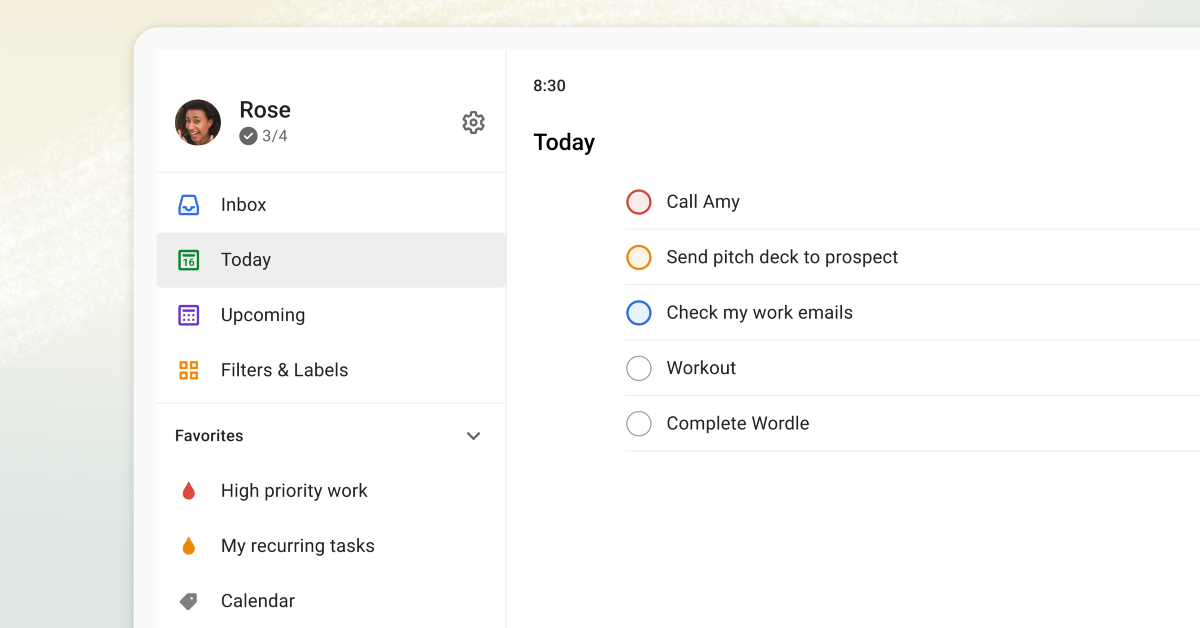
Todoist
Download from Google Play StoreTodoist is one of our favourite productivity apps and one of the best ones you can download on your new OnePlus Open. The app is well-optimised for foldable devices and makes good use of the screen size on offer. Todoist brings much-needed clarity to your daily tasks with its beautiful visual themes and the amazing ability to integrate with other apps on your phone. You can also collaborate with other people on a particular task and track it to its completion.
Kindle
Download from Google Play StoreOne of our favourite things about the new OnePlus Open is its ideal form factor. It is neither too tall nor does it conform to the stocky passport-size layout. Its squarish inner display makes it ideal to read books on. And what better app to carry out this activity other than Kindle? The Kindle app for folding phones aligns two pages side by side, much like an actual book. In some ways, reading on the Kindle app on a foldable can be a more fulfilling experience than reading on the actual e-reader.
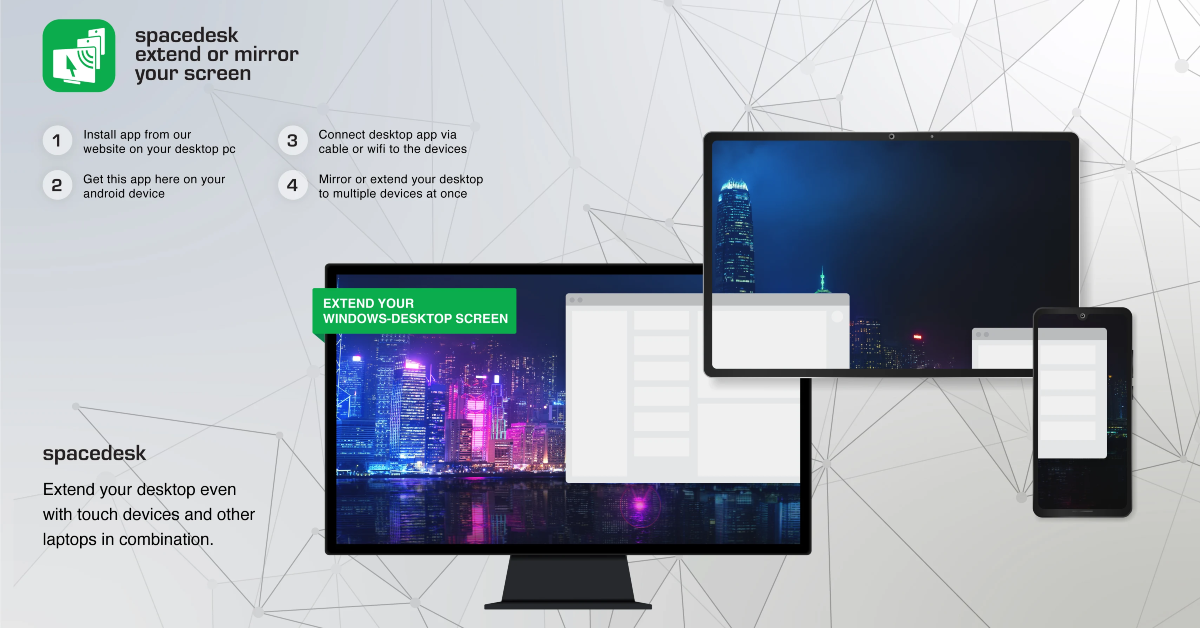
Spacedesk
Download from Google Play StoreA lot of users prefer using a second monitor for their PC to maximise productivity. But what if you don’t have a spare monitor lying around? You can simply use your Android smartphone as the secondary display. It’s even better if it’s a foldable. The Spacedesk app allows you to extend and mirror your monitor’s display on your phone. It works just as well for foldable devices as it does for tablets and other Android phones.
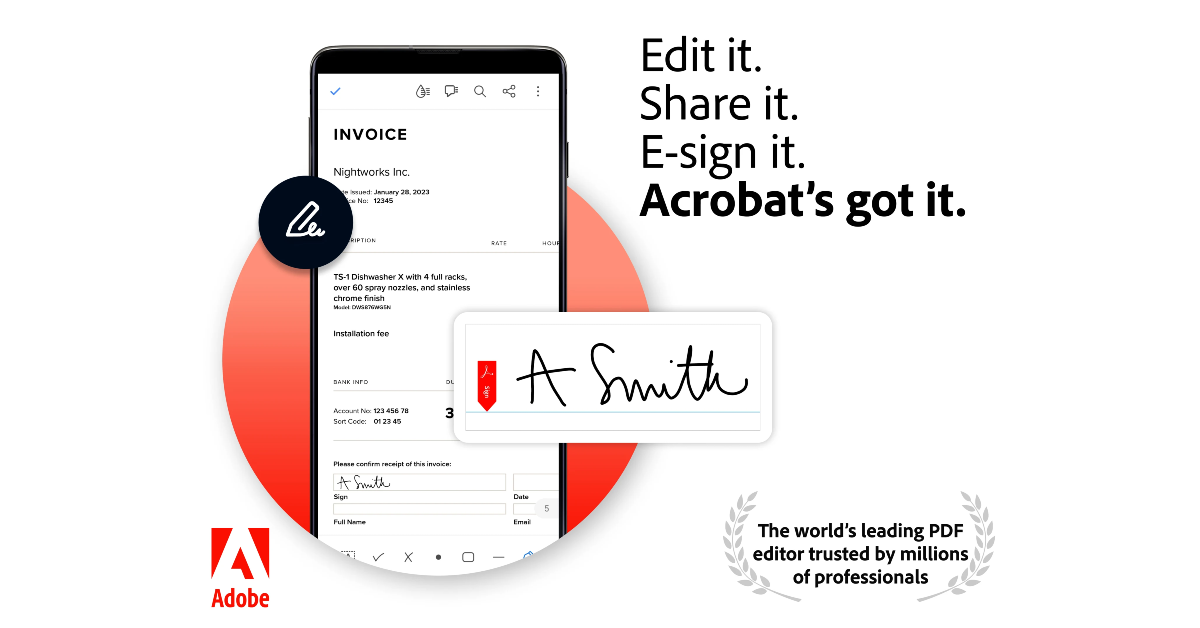
Adobe Acrobat Reader
Download from Google Play StoreThe Adobe Acrobat Reader app for OnePlus Open lets you access two PDF files side by side and edit them at once. When the Acrobat Reader is opened in split screen mode, you can drag any PDF from another app and it will easily open it up for you. The split-screen functionality also lets you handle multiple tasks at once. If you quickly need to browse the web in order to double-check a detail on the PDF file, you can do it with Adobe Acrobat Reader.
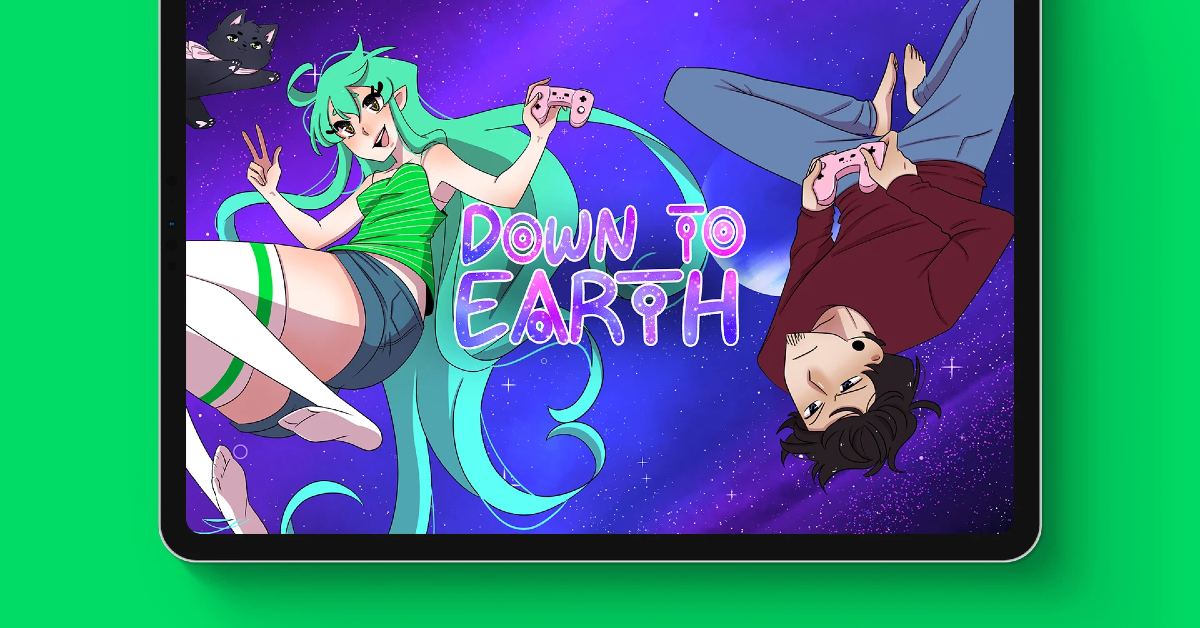
Webtoon
Download from Google Play StoreWhile e-readers like Kindle are more suited to reading books, your Android foldable is much better for enjoying comics and manga. The wide inner display replicates the layout of a comic book and produces brilliant, detailed images and sketches. Webtoon is a great app to download on your OnePlus Open if you enjoy reading comic books and mangas. The app’s exhaustive library lets you choose from over 20 genres and contains well-known titles like Tower of God, Noblesse, and more!
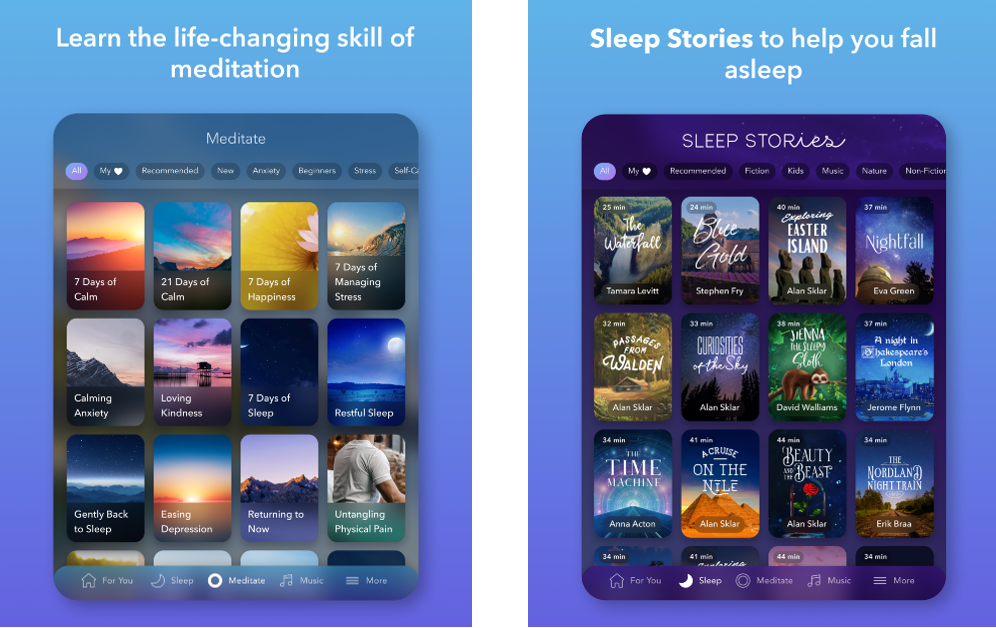
Calm
Download from Google Play StoreCalm is one of the best meditation and relaxation apps that you can install on your OnePlus Open. This app has comprehensive routines for meditation, breathwork, stretching, relaxation, and sleeping. There are a lot of beginner exercises on the app for people who are new to meditation. Seasoned meditators can take on expert courses. The app also features ‘Sleep Stories’ voiced by famous artists like Cillian Murphy, Rosé, and Jerome Flynn.
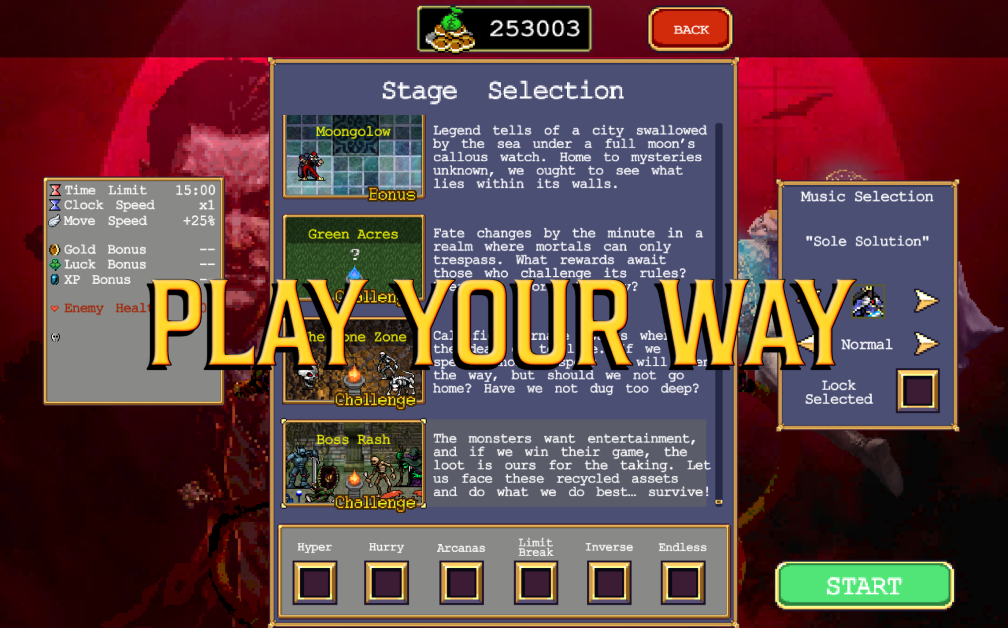
Vampire Survivors
Download from Google Play StoreVampire Survivors is one of the best games for the foldable format. This rogue-lite time survival game tests your skills against all kinds of creepy creatures. Choose from an arsenal of weapons, upgrade your skills, and smartly use the power-ups to defeat the creatures from hell. Vampire Survival works best on the large screen of your OnePlus Open foldable. Once you download it on your device, fun is all but guaranteed.Read Also:Top 4 Ways to Blur Out a Part of Picture on Android
Conclusion
These are the top 10 apps that you should download first on your new OnePlus Open. All of the apps mentioned on this list are optimised to make the most out of your phone’s large inner display. Think there’s an app that deserves to be on this list? Let us know in the comments!
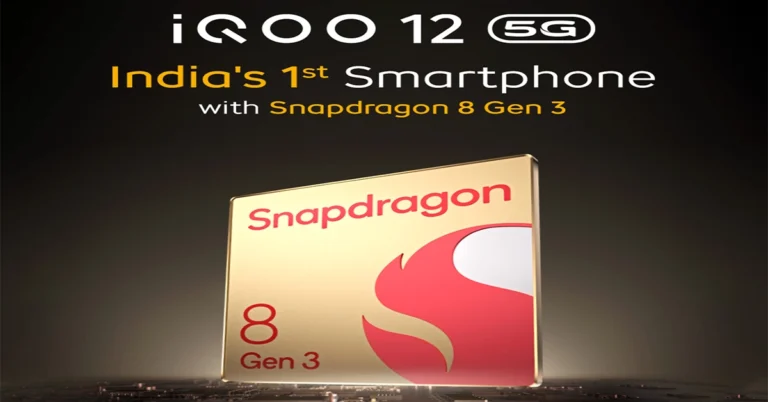
Soon after Qualcomm unveiled its latest flagship processor Snapdragon 8 Gen 3 SoC iQoo confirmed that its next smartphone series will use the same chipset. iQoo 12 Series is set for release on November 7 in China. Not just that the company has also revealed that its gaming smartphone series will make its debut in India as well.The iQoo 12 Series is set to release in China on November 7. The company has not confirmed the India launch date but it says launching soon. In China, the launch event will start at 7 PM which is 4:40 PM IST.Also, it will be India’s first phone to come equipped with Snapdragon 8 Gen 3 SoC which means the India launch may take place as soon as it gets released in its home market. The upcoming series will include two smartphones a basic iQoo 12 and iQoo 12 Pro. The iQoo India CEO Nipun Marya took to X to announce the upcoming smartphones.Also Read:Apple Event: Apple set to host “Scary Fast” event on October 30The leaks previously suggested that the iQoo 12 Series would have Samsung E7 AMOLED displays. The screen will support 2K resolution and a refresh rate of up to 144Hz. It will run on Android 14 out of the box and come with a Snapdragon 8 Gen 3 SoC. Both iQoo 12 and iQoo 12 Pro are rumoured to be available with up to 24GB RAM and 1TB of internal storage.In terms of photography, the iQoo 12 Series is speculated to feature a triple rear camera setup. The camera system is said to include a primary 50-megapixel OmniVision OV50H lens with optical image stabilisation (OIS). It might also consist of a 50-megapixel Samsung ISOCELL JN1 sensor for taking ultra-wide angle photos and a 64-megapixel OV64B telephoto supporting 3x zoom and OIS.The iQoo 12 is claimed to boast a dual-cell 4,880mAh battery with 120W fast charging support. On the other hand, iQoo 12 Pro could sport a 4,980mAh battery with support for 120W wired and 50W wireless charging.
Qualcomm today at its Snapdragon Summit 2023 unveiled Snapdragon 8 Gen 3 SoC. This is the company’s next-gen flagship processor designed for the most premium Android smartphones. The Mobile Processor will be powered by Generative AI to support multi-modal generative AI models, including popular large language models (LLM), language vision models (LVM), and more. According to the company, the processors will feature in the upcoming handsets in the coming weeks.
Qualcomm Snapdragon 8 Gen 3 specifications
The Qualcomm Snapdragon 8 Gen 3 will be based on 4nm processing technology. In addition to this, there will be a Qualcomm Kryo CPU with up to 3.3 GHz which is said to be 30% faster and 20 percent more efficient. It includes 5 performance cores (up to 3.2 GHz) and two efficiency cores(up to 3.2 GHz).Also Read:Apple Event: Apple set to host “Scary Fast” event on October 30The chipset is the company’s first to focus on Generative AI. It supports multi-modal generative AI models, including popular large language models (LLM), language vision models (LVM), and transformer network-based automatic speech recognition (ASR) up to 10B parameters. The LLM models are said to run up to 20 tokens/sec, allowing personal AI assistant can respond to you quickly.It comes with Hexagon process NPU which is claimed with 98% faster and 40% more efficient performance. Moreover, the chipset is said to come integrated with Qualcomm Adreno GPU with 25% faster performance. The mobile processor will support 240 fps gaming on 240 Hz displays along with hardware-accelerated ray tracing in addition to global illumination.For photography, the Qualcomm Snapdragon 8 Gen 3 SOC will powered by Samsung’s 200-megapixel image sensor. In addition to 2X and 4X zoom, all in 4K with object tracking the chip will also allow multiple video capture with support for Dolby HDR. According to Qualcomm, the AI will help in filling up photos using the Photo Expansion feature while the Video Object Eraser by Arcsoft will remove items in a video.“Thanks to our leading Cognitive ISP, you can intelligently snap one-of-a-kind content with generative AI voice-activated photo and video editing. Plus, individually optimize different components of your shots in real-time in up to 12 layers for more detail, vibrancy, and authenticity with Semantic Segmentation— available on front and back cameras. Even in the darkest of dark, Night Vision video capture powered by AI lets you achieve incredible content, ” Qualcomm said.Two always-sensing cameras in the front and back allow for easy QR code scanning, face unlock, and more. Whereas Two always-sensing cameras in the front and back allow for easy QR code scanning, face unlock, and more. It will also include Vlogger’s View will also allow you to share both your selfie camera and rear camera video simultaneously, putting you in the action as you share and narrate.On the connectivity front, the Qualcomm Snapdragon 8 Gen 3 processor will include Qualcomm FastConnect 7800 that will provide support for Bluetooth 5.4, Wi-Fi 7 802.11be, 802.11ax, 802.11ac, 802.11a/b/g/n. It will also have a Snapdragon X75 5G Modem-RF System with AI tensor accelerator that achieves better speeds, coverage, mobility, link robustness, and location accuracy.
Every video you watch on YouTube gets entered in your watch history on the app. This helps YouTube come up with better suggestions for your home feed and also lets you revisit the content that you’ve watched in the past. Sometimes, watching a particular video can throw a wrench in your curated feed. This happens more often when you view a video from a popular creator or check out an ongoing trend that is being pushed by the platform. To preserve your video suggestions, you can watch videos in an incognito tab. And no, you don’t need to switch to the web browser, since YouTube has an integrated Incognito Mode within the app. In this article, we show you how to watch videos in Incognito Mode on the YouTube app and website.Read Also:Vivo Y200 with Snapdragon 4 Gen 1 processor launched in India
Should you use Incognito Mode for YouTube?
The Incognito Mode for YouTube comes in handy in a wide range of situations. Here are some common scenarios when you might want to use this tool:
You don’t want your search query to be tied to your account
You don’t want the video to be recorded in your watch history
You don’t want your feed to be filled with suggestions similar to the video
You don’t want to view ads related to the video you are about to watch
Someone asked to watch a video on your phone and you don’t want them to look at your feed
However, there are certain downsides to using Incognito Mode as well.
Your current feed does not show up in Incognito Mode
You can’t go back and check which videos you watched
You cannot like or comment on videos in Incognito Mode
Your views in Incognito Mode are not included in the analytics and data
Switch to Incognito Mode in the YouTube app
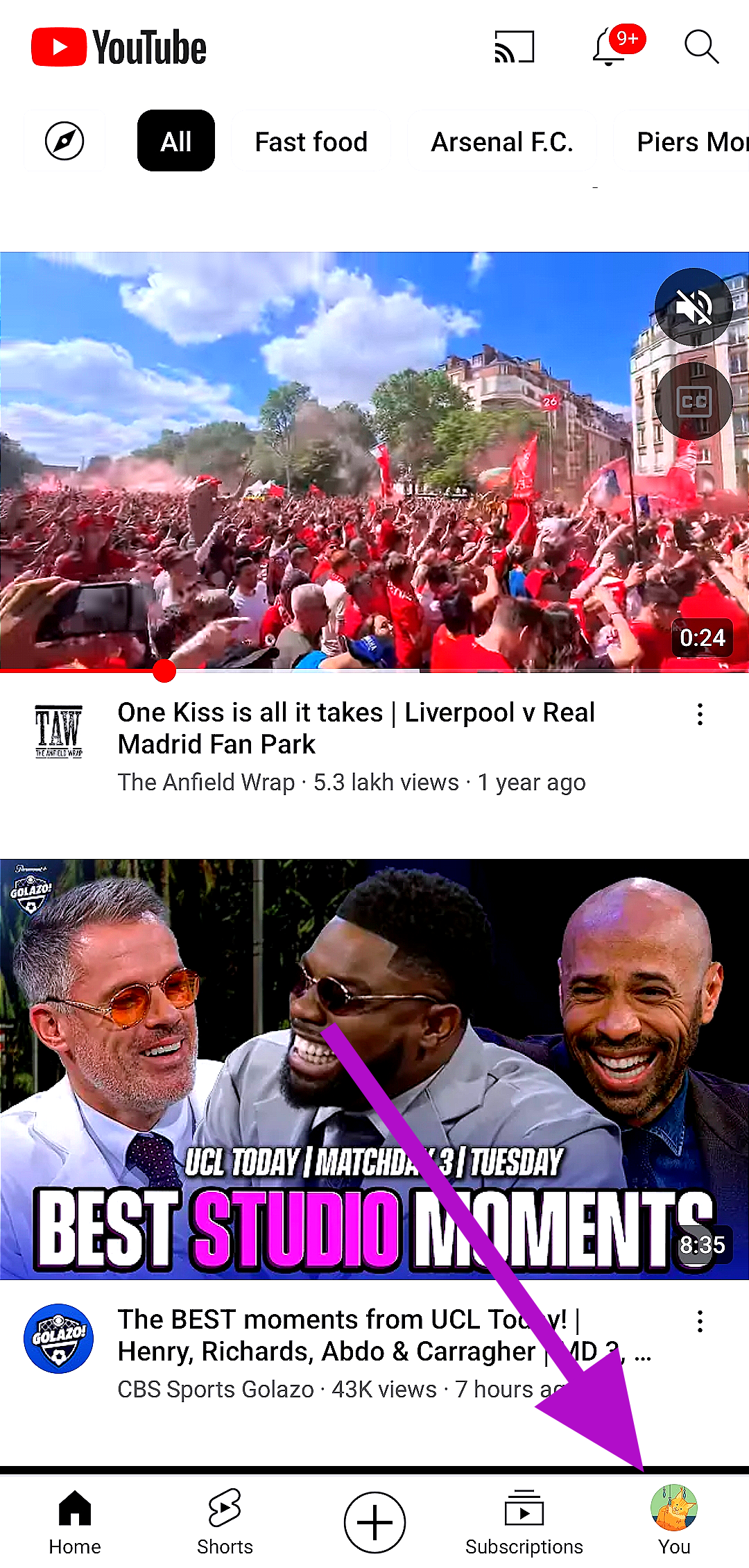
Step 1:Launch the YouTube app.Step 2: Tap on the You tab at the bottom right corner of the screen.Step 3: Select Turn on Incognito from the list of options.Once you are in incognito mode, the videos you watch will not be reflected in your watch history. Your suggestions and feed will not be influenced by the videos you watch. To switch back to your account, tap on the You tab again and select Turn off.
Use Incognito Mode for YouTube on your web browser
Since YouTube’s mobile site does not have an incognito mode, you will have to rely on your web browser’s incognito function. To switch to the incognito tab on Google Chrome, simply tap the ellipses at the top right corner of the screen and select New Incognito Tab.Samsung users can use the incognito tab on their phone’s native browser by tapping the tabs icon at the bottom toolbar and selecting ‘Turn on Secret mode’. To make sure no one else gets access to the Secret tabs, set up a password for them. Vivo and iQOO users can also select incognito mode after tapping on the tabs icon at the bottom right corner of the native browser window.Once you are in Incognito Mode, you can watch videos without signing into your account. Once you switch back to the regular tab, you will not need to sign in again. This allows users a quick way to watch YouTube videos without having them reflect on the browser or account history.
Pause your watch history
If you’re unable to switch to an incognito tab on your web browser, the next best thing you can do is pause your watch history. This ensures that the videos you watch on YouTube do not get recorded on your Google account. Here’s how you can go about it.
Step 1: Open the web browser on your PC and go to YouTube.
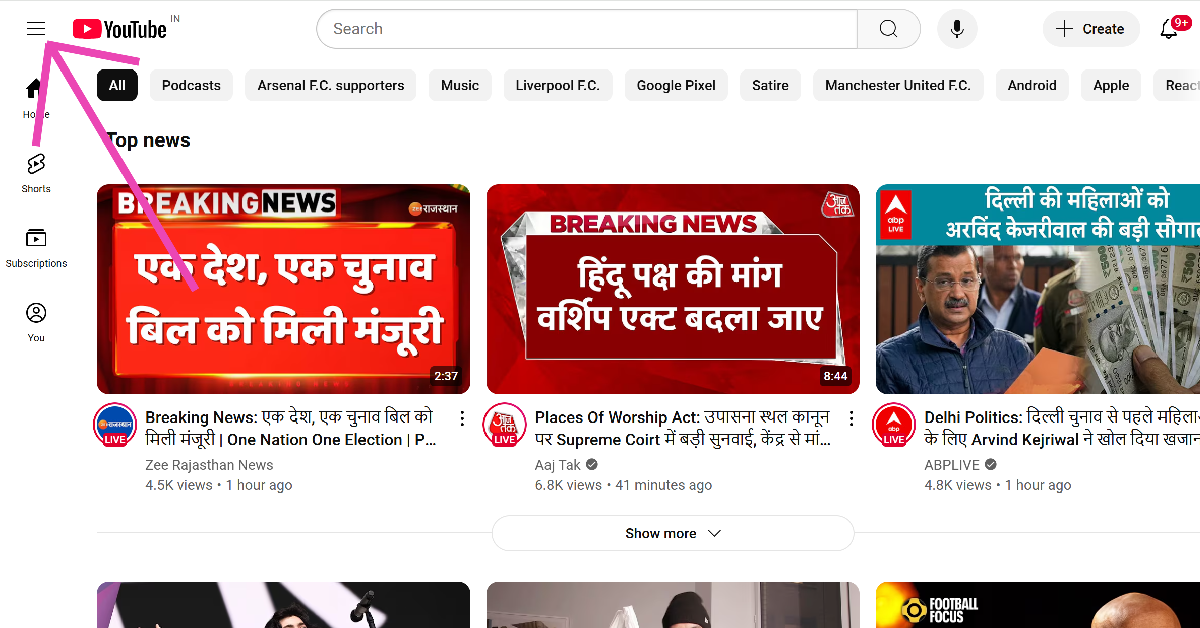
Step 2: Hit the hamburger menu in the top left corner of the screen.
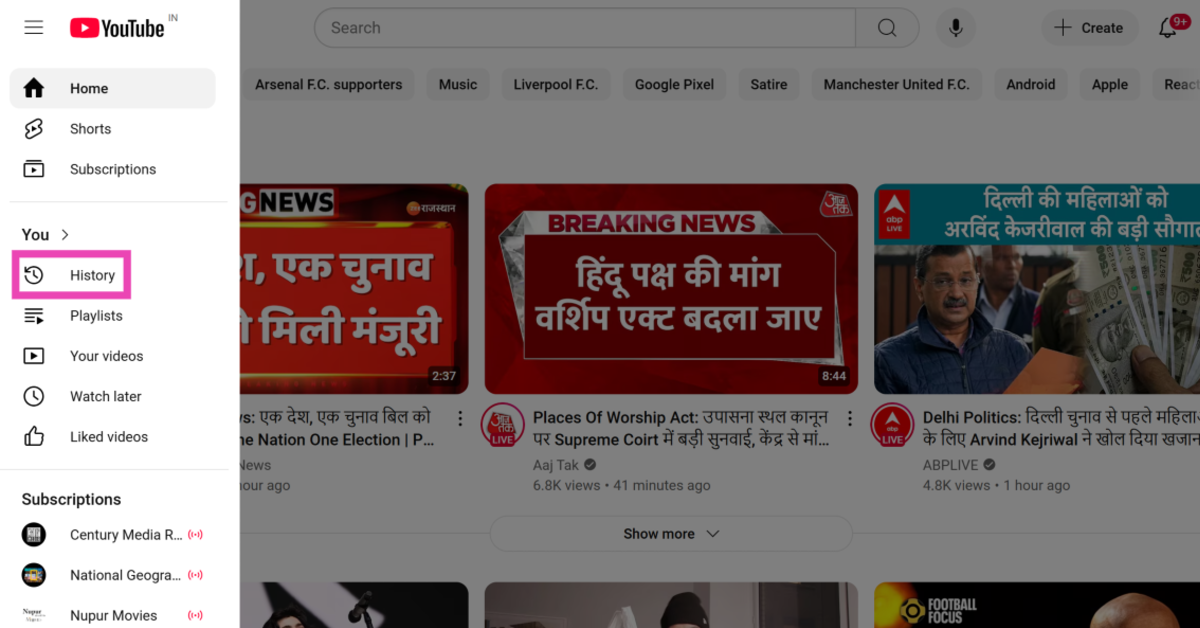
Step 3: Click on History.
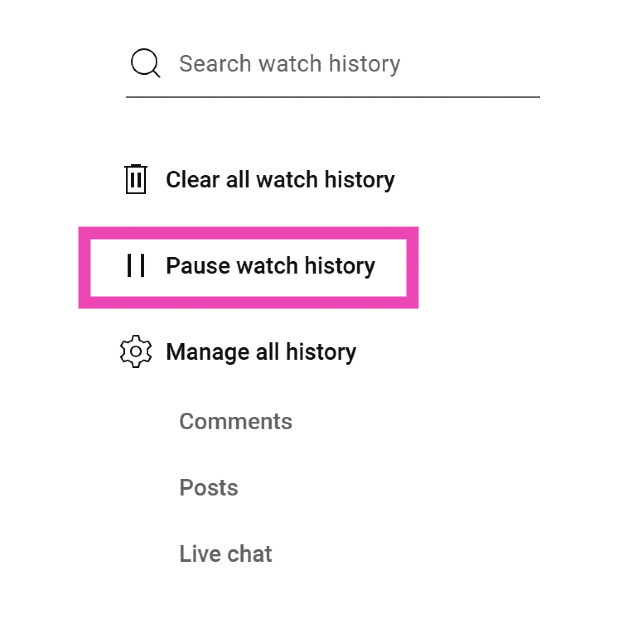
Step 4: Click on Pause watch history.
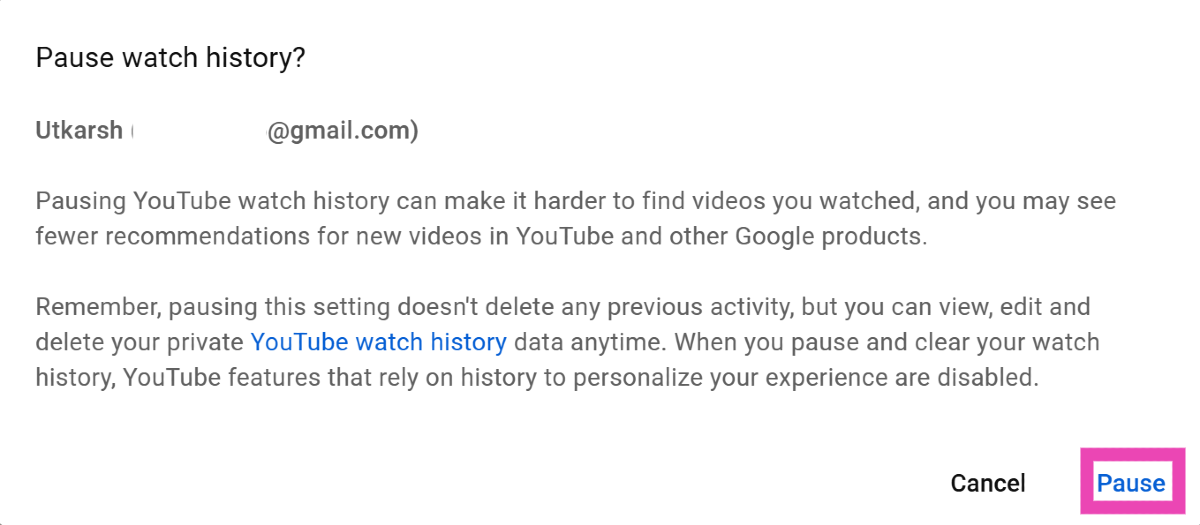
Step 5:Confirm your selection in the popup box.
Frequently Asked Questions (FAQs)
Does the YouTube app have an Incognito Mode?
You can access the incognito mode on the YouTube app by tapping on the ‘You’ tab and selecting ‘Turn on Incognito’.
YouTube only offers an incognito mode on its mobile apps. Desktop users will need to rely on their browser’s incognito mode to view videos discreetly.
Can a YouTuber see who viewed their video in Incognito Mode?
Since incognito views are not counted while compiling the data and analytics for a video, YouTube creators have no way of knowing how many people watched their videos in incognito mode.
These are the top 3 ways to watch videos in Incognito Mode on the YouTube app and website. Watching a video in incognito mode still contributes towards its view count, given you watch the video for more than 30 seconds. Since you are logged out of your account in incognito mode, you will not be able to view your subscriptions or curated home feed.
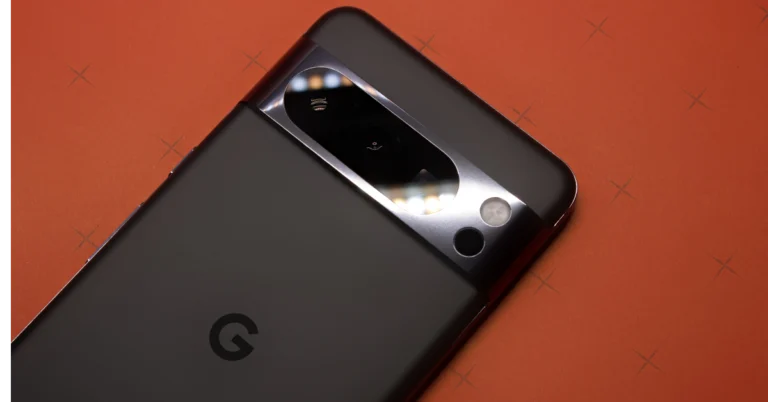
The Magic Eraser tool is undoubtedly one of the coolest features of a Google Pixel smartphone. Every year, Google improves upon this tool and makes it more efficient and versatile. The new Google Pixel 8 series also gets a new Audio Magic Eraser that lets you suppress unwanted noises in your videos. The magic eraser is one of the pieces of software magic on the Pixel that everyone raves about. If you’re a Pixel user it is essential you know how to tap into the potential of this clever tool. In this article, we show you how to use the magic eraser tool on Google Pixel 8 series smartphones.Read Also:Best mobile deal on iPhone 13, now priced under 50k on Amazon
Use Magic Eraser for images on Google Pixel 8 Series
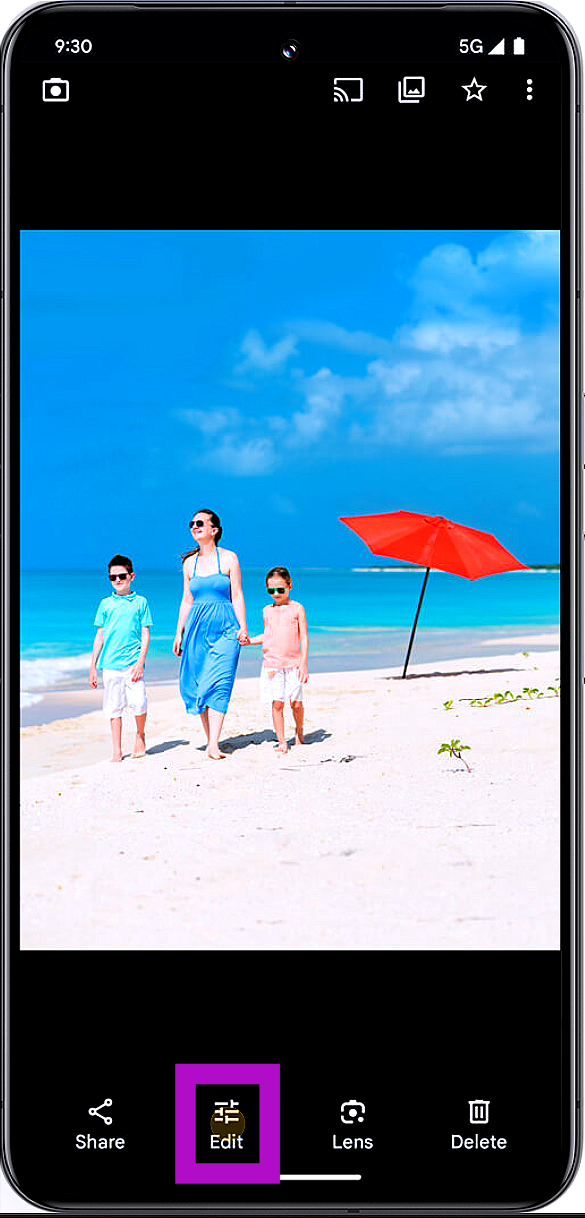
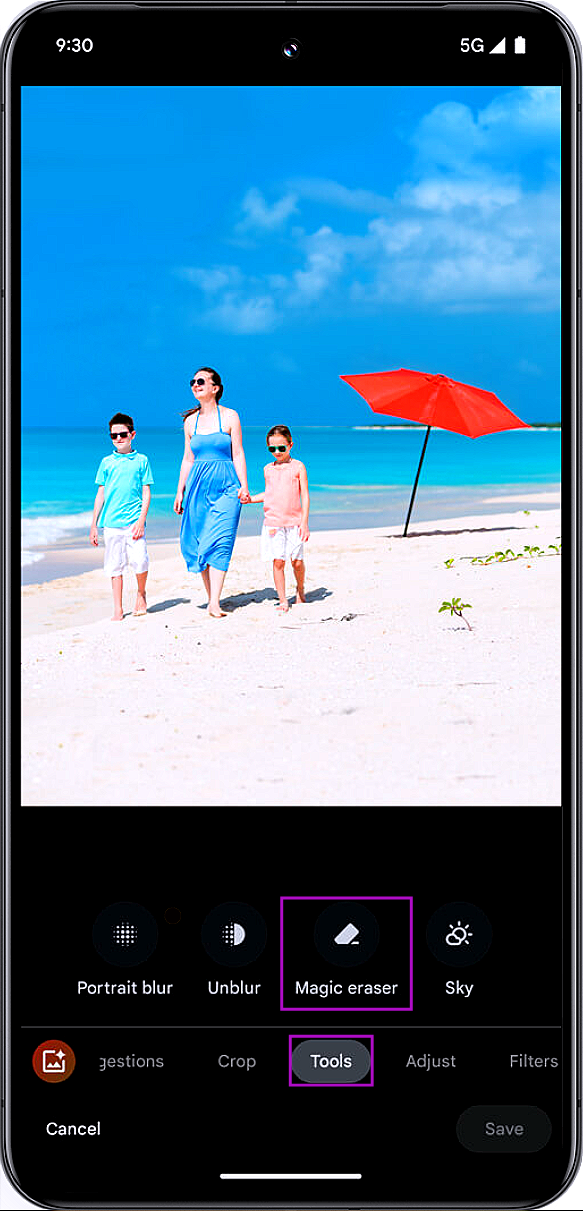
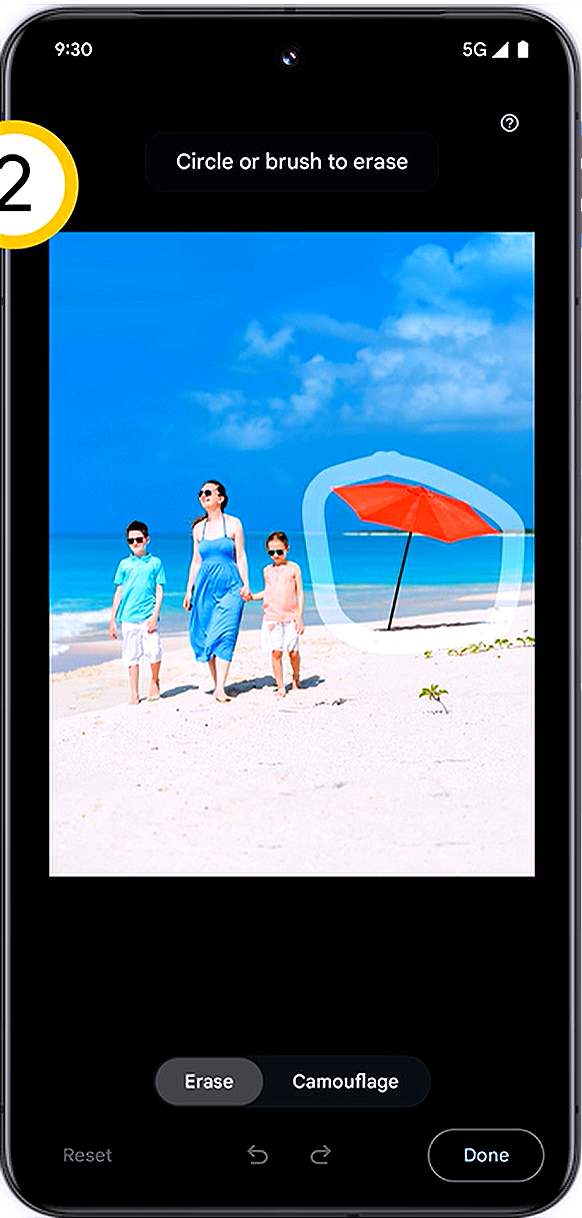
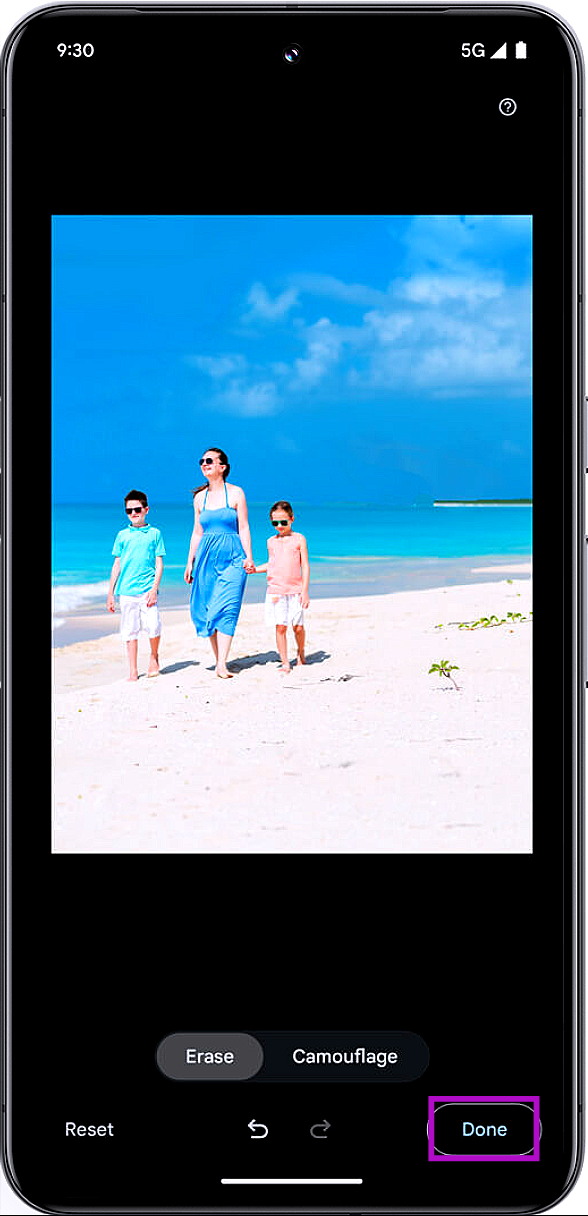
Step 1:Launch the Google Photos app and open the image you want to edit.Step 2: Tap Edit at the bottom of the screen.Step 3: Switch to the Tools tab.Step 4: Select Magic Eraser.Step 5: Use Google’s suggestion to remove an object from the image. If the object you want to remove isn’t suggested by the software, simply draw a circle around it. You can also cover the object with brush strokes to remove it from the image.Step 6: Tap Done once the object has been removed.Step 7: Select Save copy to save the image on your device.
Use Audio Magic Eraser to reduce distracting sounds
Step 1:Launch the Google Photos app and select the video you want to edit.Step 2: Tap Edit at the bottom of the screen.Step 3: Switch to the Audio tab and tap on Audio Eraser.Step 4: The video editor will separate all the different noises in the video and classify them into different categories.Step 5: Select a noise and move the slider to change its intensity in the overall mix.Step 6: Tap on Done once you’ve reached the ideal background noise level.Step 7: Select Save copy.
Frequently Asked Questions (FAQs)
Is Magic Eraser a free tool on Google Pixel?
Yes, the object eraser is a free tool for Google Pixel smartphones. However, other Android smartphone users need to subscribe to Google One in order to access the tool in the Google Photos app.
Do Android smartphones other than Google Pixel have the magic eraser tool?
Android smartphone manufacturers other than Google have their own versions of the magic eraser tool. This tool can be accessed from the default gallery app on the device.
What does the new Audio Magic Eraser on the Google Pixel 8 series do?
This is how you can use the two magic eraser tools on the Google Pixel 8 series smartphones. Google Photos also has a cool ‘Magic Editor’ tool that uses regenerative AI to make clever edits on your images. You can bring objects closer, improve the lighting, change the colour of the sky, and do a lot of other things with this tool.
Apple is set to host its second launch event “Scary Fast” on October 30. Since iPhone 15, Apple Watch, and AirPods have already been released, it is anticipated that the tech giant may unveil its new MacBooks and iMacs.Apple is preparing for another tech event namely “Scary Fast” that is said to be held on October 30. The start time for the Apple Event is 5 PM PT, or 5.30 AM IST. Apple usually hosts their events on Tuesdays at 10 AM PST, so this is the first time the company has held one on a Monday. According to Indian timings it will be held on October 31 (Tuesday) at 5:50 AM. The “Scary Fast” event will be streamed live via the company’s website and also via the company’s official YouTube channel and Apple TV app.Also Read:iPhone 14 Plus price on Flipkart starts at Rs 64,999, best time to buy the deviceEarlier this month, Apple unveiled its latest iPhone 15 series models along with AirPods and Apple Watch Series. Numerous reports about the company’s next MacBooks and iMacs launch have been circulating everywhere; however, the company chose to keep its devices under wraps until October 30. A recent report by Bloomberg’s Mark Gurman already predicted that the 24-inch iMac will debut at the end of this month. He further mentioned that the existing iMac was running low in Apple retail outlets which is why it may introduce a refreshed model. Note that the Apple 24-inch iMac has not been refreshed since 2021. The firm introduced this model in a new colour option at its ‘Spring Loaded event. It is now available in seven colourways. The 24-inch iMac model comes equipped with M1 chip. It features a 4.5K retina display. The screen offers 500 nits of peak brightness. The device is 11.5mm thick.It is still not confirmed if the upcoming iMac model will be powered by M2 or M3 chips. Regarding MacBook Pro which is already available in two models 14-inch and 16-inch sizes. These two models were introduced with the M2 chipset earlier this year.Bloomberg’s Mark Gurman newsletter also states that a bigger version of the iMac might get launched later in 2024 and 2025.
Garena Free Fire is a battle royale game offering its players awards and tournaments to keep players interested. If you play Garena Free Fire, you should be aware of the redeem codes that are released on a daily basis. However, because the battle royale game is banned in India, players from other countries can use the Free Fire Redeem codes daily. If you’re unfamiliar with the Garena Free Fire redeem codes or don’t know how to get them, we’ve put together a step-by-step guide to help you redeem them. Check out Garena Free Fire Redeem Codes for 25 October 2023.The Free Fire redeem codes are a great way to get free stuff. These are 12-digit codes that contain alphabets and numbers, as well as an expiration date and time. Because the Garena FF redeem codes cannot be used more than once, you should hurry to the redemption page to claim your free reward before someone else does. To get a free reward, all you have to do is go to reward.ff.garena.com/en, which is the official redemption page. Also, keep an eye on this space for daily updates on Garena Free Fire redemption codes and rewards.
Garena Free Fire Redeem Codes Today 25 October2023



 Step 2: Launch
 Step 4:
 Step 5:



 Step 3:
 Step 3: Click on History.
 Step 4: Click on Pause watch history.
 Step 5: Confirm your selection in the popup box.
 Step 3:
 Step 5:
 Step 6:
 Step 7:
 Step 1: Launch