iOS 17 won’t install on your iPhone? Try these 4 quick fixes

0
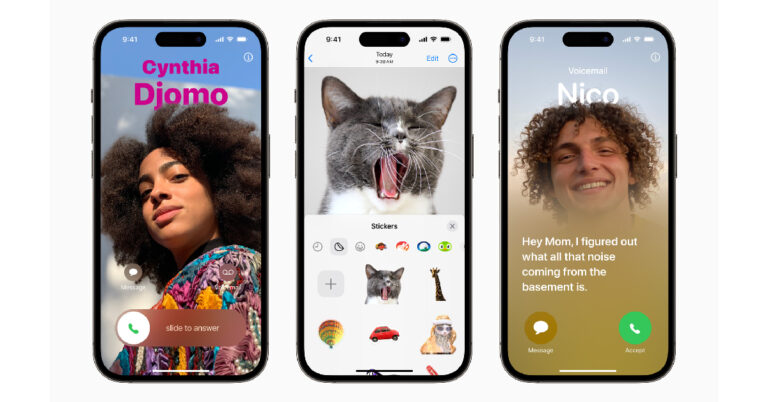
Apple’s latest iOS 17 for iPhone has been officially released for all eligible iPhone users. If you own an iPhone XS or above, you can install the new update on your device. The new update comes with fun features like Namedrop, Stand By, Journal, and more. While installing an OS update is a pretty straightforward process, some users often come across unexpected issues that can be pretty confusing to resolve. In this article, we bring you the top 4 methods to fix the ‘iOS 17 won’t install’ issue on your iPhone. Read Also: How to hide and unhide apps on a Vivo smartphone?

Make sure your iPhone has ample storage

Your phone’s operating system takes up a significant portion of the internal memory. If your phone is lacking enough storage space, you may experience an error while installing the new OS. This is valid for iOS 17 as well. To fix this issue, go to Settings>General>iPhone Storage and check if your phone’s internal memory has enough storage space left. Typically, you need at least 5GB of storage space to install a new OS. Delete some bulky files to free up space on your iPhone.

Are you connected to a stable network?

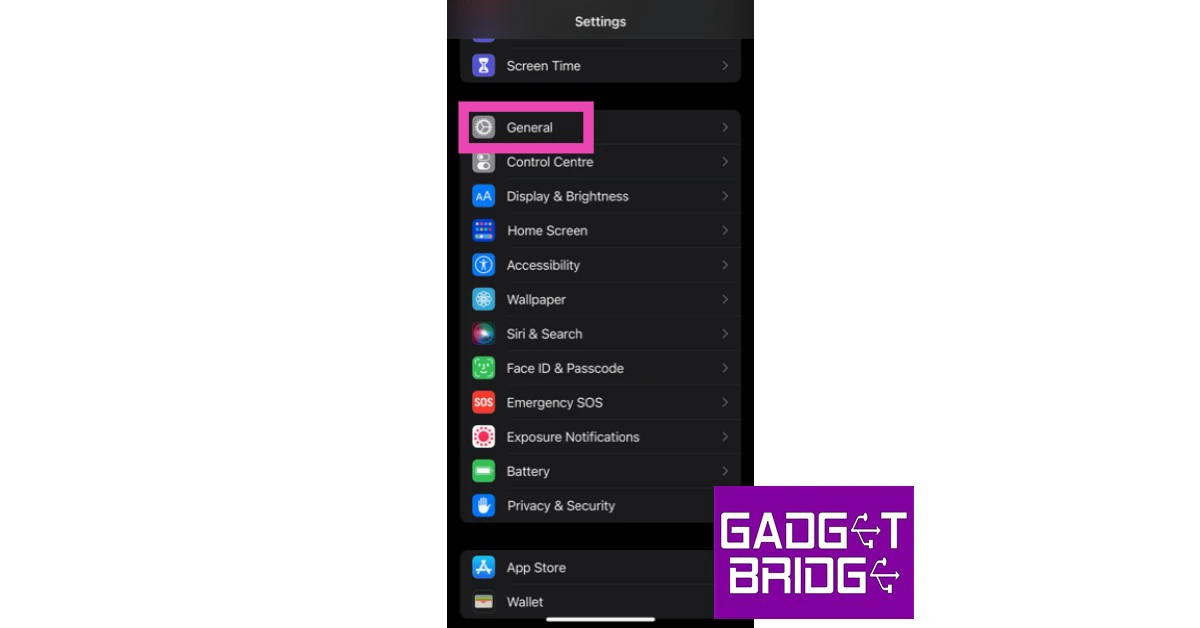
Downloading a new OS requires a stable WiFi connection. If your internet connection is not up to the mark, the OS can take a lot of time to download. Switch to a better network or perform a network settings refresh on your iPhone to improve the existing connection. Here’s how you can go about it. Step 1: Go to Settings and select General. Step 1: Go to Settings and select General. how to fix iphone dictation not working on ios 16. whatsapp call not ringing when iphone is locked. 10 Easy Ways to Fix ‘Call Failed’ Error on iPhone (2023) Step 2: Scroll down and select Transfer or reset iPhone. Step 2: Scroll down and select ‘Transfer or Reset iPhone’. 10 Easy Ways to Fix ‘Call Failed’ Error on iPhone (2023) Step 3: Select Reset followed by Reset Network Settings. Step 3: Select ‘Reset’ followed by ‘Reset Network Settings’. whatsapp call not ringing when iphone is locked. 10 Easy Ways to Fix ‘Call Failed’ Error on iPhone (2023)

Can’t install iOS 17 on your iPhone? Delete the update and try again

If you’re facing issues during the iOS 17 installation phase on your iPhone, try deleting the OS file and downloading it again. Here’s how. Step 1: Go to Settings and select General. Step 1: Go to Settings and select General. how to fix iphone dictation not working on ios 16. whatsapp call not ringing when iphone is locked. 10 Easy Ways to Fix ‘Call Failed’ Error on iPhone (2023) Step 2: Tap on iPhone Storage. Step 2: Tap on iPhone Storage. Step 4: Hit Delete. Can’t delete apps on your iPhone ios? Try these 7 fixes iOS 17 won’t install on your iPhone? Try these 4 quick fixes Step 3: Select iOS 17. Step 3: Select iOS 17. iOS 17 won’t install on your iPhone? Try these 4 quick fixes Step 4: Tap on Delete Update. Step 5: Now, go to General>Software Update to download iOS 17 again. Step 3: Select Software Update. Best Ways to Update Your Phone OS: iPhone and Android. iOS 17 won’t install on your iPhone? Try these 4 quick fixes

Install iOS 17 on your iPhone using iTunes

How to install iTunes on a Chromebook laptop_ If you’re unable to install iOS 17 on your iPhone from the Software Update page in device settings, try using iTunes instead. You will need to connect your iPhone to your Mac to carry out this process. Step 1: Connect your iPhone to your Mac using a lightning cable. Step 2: Click on your iPhone’s device name from the menu. Step 3: Go to the Summary tab and click on Check for updates. Step 4: Hit Update to download and install iOS 17 on your iPhone.

Frequently Asked Questions (FAQs)

Why can’t I install iOS 17 on my iPhone?

If you cannot see the option to install iOS 17 on your iPhone, it means your device has run out of the promised software updates coverage period. Only iPhone XS, XR and above can run the new iOS 17.

Why am I unable to download iOS 17 on my iPhone?

If you’re facing issues with downloading the iOS 17 update on your iPhone, make sure your device is connected to a stable WiFi network and has at least 5GB of free storage space.

Why won’t iOS 17 install on my iPhone after I have downloaded it?

If the iOS 17 update won’t install on your iPhone after being downloaded, you will have to delete the OS file and download it again. Go to Settings>General>iPhone Storage>iOS 17 and select Delete Update. Then, go to General>Software Update to download it again. Read Also: Top 9 Ways to Fix ‘YouTube Keeps Lagging’ on Google Chrome and Other Browsers

Conclusion

This is how you can fix the ‘iOS 17 won’t install’ issue on your iPhone. Want to know what’s new on iOS 17? Here is our list of the best iOS 17 features. Which aspect of the OS do you like the most? Let us know in the comments! For the latest gadget and tech news, and gadget reviews, follow us on Twitter, Facebook and Instagram. For newest tech & gadget videos subscribe to our YouTube Channel. You can also stay up to date using the Gadget Bridge Android App. You can find the latest car and bike news here.

iPhone 15 series can be bought at the Apple stores in Mumbai and Delhi at a Discount

Let’s acknowledge that the majority of us Indians still prefer to purchase our mobile phones from physical stores since it allows us to hold the device in our hands and have some experience with it. Most of the top online retailers are presently taking pre-orders for the recently released iPhone 15. However, as everyone is aware, Apple Stores BKC (Mumbai) and Saket (Delhi) made their debuts in India a few months ago, so you can now reserve your iPhone 15 both online and at Apple offline stores at a discount. The best ways to purchase from Apple online and at the BKC (Mumbai) and Saket (Delhi) Apple stores are listed below. Pre-orders for the iPhone 15 series are now open, and the devices will be available at Apple Stores on September 22. With HDFC Bank Credit Cards, customers may take advantage of exclusive instant savings on a number of products. EMI offers reduced monthly payments, or No Cost EMI for 3 or 6 months offers upfront savings to pay your interest. Additionally, you may trade in your old smartphone for instant credit if you’re buying a new iPhone. Also Read: iPhone 15 Price in India vs Rest of the World: Where can you get the best deal on iPhone 15?

Apple special offers on the iPhone 15 series

When using eligible HDFC Bank cards, buyers can receive instant discounts of Rs 6,000 on the iPhone 15 Pro and Pro Max, Rs 5000 on the iPhone 15 and 15 Plus, Rs 4,000 on the iPhone 14 and 14 Plus, Rs 3,000 on the iPhone 13, and Rs 2000 on the iPhone SE. Additionally, purchasers who trade in an eligible smartphone will receive an instant trade-in credit. The majority of top banks will even offer you No-cost EMI over 3 or 6 months to pay off your interest on eligible products. Simply select your new iPhone, then choose to trade in your old smartphone to get the new one. Enter your bank information during checkout, and your immediate savings will be applied immediately. Notably, business clients can choose to invoice for GST at the point of checkout. Additionally, while using qualifying HDFC Bank cards, you may instantly save Rs 3000 on the Apple Watch Ultra 2, Rs 2500 on the Apple Watch Series 9, and Rs 1500 on the Apple Watch SE. up to 3 or 6 no-cost EMI months. Apple claims that it will offer a trade-in value to reduce the cost of a new iPhone. Additionally, it will complete your trade-in at your door and deliver your new iPhone.

How Apple Trade In works:

  • Visit here to learn more and see what your device is worth.
  • Select your new device and then answer a few questions to get your estimated trade-in value.
  • You can use that value as instant credit to save on your new iPhone.
  • Doorstep pickup and delivery. No need to go anywhere. Just exchange your smartphone when we deliver your new iPhone.
  • Note that trade-in values vary based on the condition, year and configuration of your trade-in device.
Also Read: OnePlus Pad Go India launch scheduled for October 6

Personalise your new Apple product for free

Additionally, Apple gives you the free option to customise your iPhone. With a particular combination of emojis, numbers, and text, you may add a personal message with free engraving to our iPad, AirPods, AirTag, or Apple Pencil (2nd generation). English, Bengali, Marathi, Tamil, Kannada, Gujarati, Telugu, and Hindi are all options. Free of charge.

About delivery of your Apple product

There are a few delivery and pickup options from which to choose, making it simple and quick for you to get your new Apple devices. On things that are in stock, the business also offers express delivery. As soon as they become available, items will instantly ship. Delivery may call for a signature. The courier will send a  one-time password for pre-paid orders to the phone number supplied at the time of checkout. Additionally, for each item in your order, you can select a scheduled delivery method, however, this option is only accessible for some PIN codes. For the latest gadget and tech news, and gadget reviews, follow us on TwitterFacebook and Instagram. For newest tech & gadget videos subscribe to our YouTube Channel. You can also stay up to date using the Gadget Bridge Android App. You can find the latest car and bike news here.

How to hide and unhide apps on a Xiaomi smartphone?

0
Android’s privacy and security features allow users to protect the important stuff on their phones in different ways. While some smartphones may have a secret ‘App Safe’, others allow you to hide the apps on your phone and lock them with a password. You can use this trick to secure any personal or important apps on your phone. In this article, we show you how to hide and unhide apps on a Xiaomi or Redmi smartphone. Read Also: Top 9 Ways to Fix ‘YouTube Keeps Lagging’ on Google Chrome and Other Browsers

Hide and unhide apps on a Xiaomi smartphone

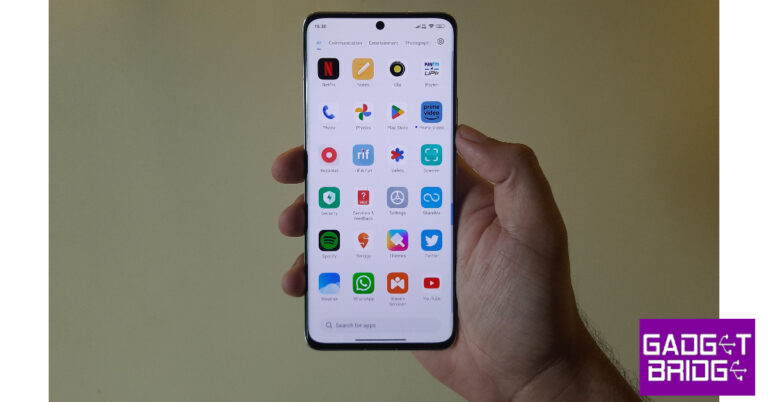
  Xiaomi 11i review: Design and Display. How to hide and unhide apps on a Xiaomi smartphone? Step 1: Go to Settings and select Apps. Step 2: Select App lock. Step 3: Set up a password or enter the pre-existing password. Step 4: Switch to the Hidden Apps tab. Step 5: Turn on the toggle switch for the apps you want to hide. Step 6: Turn off the toggle switch for the apps you want to unhide. Step 7: To view the hidden apps on your Xiaomi phone, swipe two fingers in opposite directions on the home screen. You will be asked for your fingerprint or the password that you’ve set up for the app lock.

Frequently Asked Questions (FAQs)

How do I hide apps on my Xiaomi smartphone?

Go to Settings>Apps>App lock>Hidden Apps and turn on the toggle switch for the apps you want to hide.

How do I unhide apps on my Xiaomi smartphone?

Go to Settings>Apps>App lock>Hidden Apps and turn off the toggle switch for the apps you want to unhide.

How do I view hidden apps on my Xiaomi smartphone?

To view the hidden apps folder on your Xiaomi phone, simply swipe two fingers in opposite directions on the phone’s home screen. Before you access the hidden folder, you will be asked to verify your identity with a fingerprint or a password. Read Also: iOS 17 and iPadOS 17 rollout today: Details Inside

Conclusion

This is how you can hide and unhide apps on your Xiaomi and Redmi smartphones. Apart from hiding apps, you can also use Xiaomi’s privacy settings to password-protect them. You can lock an app using a password or your fingerprint. This method will also work on all Redmi and POCO devices. For the latest gadget and tech news, and gadget reviews, follow us on Twitter, Facebook and Instagram. For newest tech & gadget videos subscribe to our YouTube Channel. You can also stay up to date using the Gadget Bridge Android App. You can find the latest car and bike news here.
OnePlus Pad Go India launch scheduled for October 6

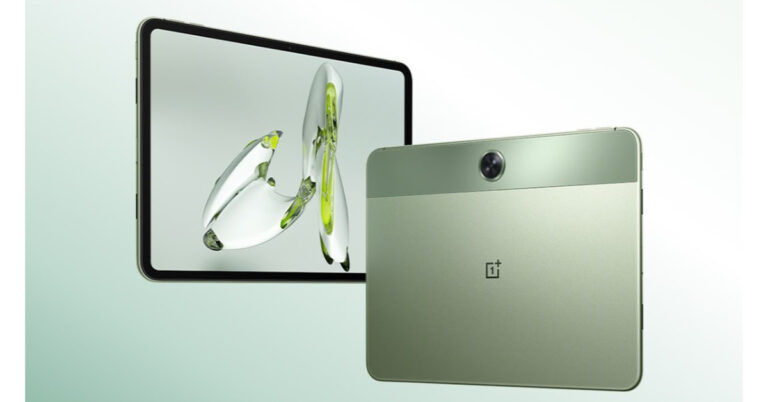
The OnePlus Pad was unveiled by the OnePlus firm earlier this year. OnePlus teased its new tablet last week; saying it will soon be available in India. The firm has been keeping the name and release date of its upcoming Android tablet a secret, but today it made the announcement. OnePlus Pad Go is confirmed to launch in India on October 6, the tablet was anticipated to debut in early 2024. The design of the OnePlus tablet has also been revealed. OnePlus’s next Android tablet will be called OnePlus Pad Go. OnePlus has officially announced that the Pad Go will arrive exclusively in India next month. The tablet will probably be sold on Flipkart and the Amazon India website, similar to the OnePlus Pad unveiled earlier this year. Also Read: OnePlus’s new tablet coming soon to India, launch teased The company has now hinted at the future tablet’s appearance and stated that Twin Mint will be one of its available colour options. The OnePlus Pad Go’s rear design skillfully combines two different green hues, and it is finished with a collage of textures that includes both a glossy and a bright matte metal finish.  On the top rear of the tablet, the back camera is positioned in the centre. According to the company, the OnePlus Pad Go intends to expand the user base of the OnePlus ecosystem without sacrificing the overall usability or design. It features an identical design to the OnePlus Pad (Review). This includes the rounded edges, recognisable green colour, and centred camera architecture, which was chosen for its ability to accurately capture the user’s viewpoint.  The OnePlus Pad Go was previously expected to go on sale in the early months of 2024 alongside new OnePlus headphones and the speculated OnePlus 12 and OnePlus 12R smartphones. The OnePlus Pad Go is likely to replace the OnePlus Pad at a lower cost. The OnePlus Pad was unveiled in January but just went on sale in May. The OPD2304 and OPD2305 model numbers for the OnePlus Android Tablet were also featured on the BIS website. There are suggestions that both cellular and Wi-Fi versions will be offered.

OnePlus Pad price and specifications

The 11.61-inch screen on the OnePlus Pad has a 144Hz refresh rate. The MediaTek Dimensity 9000 chipset, which is its power source, can accommodate up to 12GB of LPDDR5 RAM. Android 13 is the tablet’s default operating system. A quad-speaker system with compatibility with Dolby Atmos and Dolby Vision is included with the OnePlus Pad. A single 13-megapixel back camera with an LED flash and an 8-megapixel selfie camera are also included. The tablet’s 9,510mAh battery also boasts a 67W SUPERVOOC capacity. The 8GB RAM with 128GB storage option of the OnePlus Pad costs Rs 37,999, and the 12GB RAM with 256GB storage option costs Rs 39,999. For the latest gadget and tech news, and gadget reviews, follow us on TwitterFacebook and Instagram. For newest tech & gadget videos subscribe to our YouTube Channel. You can also stay up to date using the Gadget Bridge Android App. You can find the latest car and bike news here.
BGMI redeem codes for 19 September 2023, claim and receive rewards and benefits

After being banned for nearly ten months, Battleground Mobile India, aka BGMI, is officially available again in India. BGMI fans are looking for ways to improve their game experience and one such method is the usage of redemption codes, which offers a variety of rewards and advantages using BGMI redeem codes players can gain access to new skins, outfits, loot crates, weapons and free UC and diamonds. As mentioned earlier, these codes give users the chance to earn unique rewards and gain extra benefits while playing the game. This includes GUN SKINS (M4, AKM, M416, AWM, M24, UZI, KAR98K), free character voucher, Andy, Carlo, Sara, Victor character for free, free Anna Character on completing the mission and UC or Royal Pass Discount. So here we have gathered a list of the most recent BGMI redeem codes as of 19 September 2023. Also, redeem these codes asap as these are only valid for a limited duration.

BGMI Redeem Codes for 19 September 2023

updating soon…

How to get free Redeem Codes for BGMI on 19 September 2023?

  • Launch BGMI on your device.
  • Then select the Redeem Code option from the main menu.
  • Next, click on the Redeem code tab.
  • A new window will open, requesting the redemption code.
  • Now enter your BGMI code.
  • Confirm and click on the “Redeem” tab.
  • If your redeem code is valid then you will get a message confirming that your rewards were successfully redeemed.
(Note that these codes are case-sensitive, so be sure to type them correctly to prevent any errors.) For the latest gadget and tech news, and gadget reviews, follow us on TwitterFacebook and Instagram. For newest tech & gadget videos subscribe to our YouTube Channel. You can also stay up to date using the Gadget Bridge Android App. You can find the latest car and bike news here.

Garena Free Fire Redeem Codes Today 19 September 2023: Here is how to claim them

Garena Free Fire is a battle royale game with regular awards and tournaments to keep players interested. If you play Garena Free Fire, you should be aware of the redeem codes that are released on a daily basis. However, because the battle royale game is banned in India, players from other countries can use the Free Fire Redeem codes daily. If you’re unfamiliar with the Garena Free Fire redeem codes or don’t know how to get them, we’ve put together a step-by-step guide to help you redeem them. Check out Garena Free Fire Redeem Codes for 19 September 2023. The Free Fire redeem codes are a great way to get free stuff. These are 12-digit codes that contain alphabets and numbers, as well as an expiration date and time. Because the Garena FF redeem codes cannot be used more than once, you should hurry to the redemption page to claim your free reward before someone else does. To get a free reward, all you have to do is go to reward.ff.garena.com/en, which is the official redemption page. Also, keep an eye on this space for daily updates on Garena Free Fire redemption codes and rewards.

Garena Free Fire Redeem Codes Today 19 September 2023

FO84JU1HG02F365 F8G6R5H4T6J18UL F03L6KJ5H8G1TEH FR2JT68K5Y92BFD F58XSAQ2AQ23456 FTYHTFY5TYHU758 FK2MHG5GS8H4JK1 FL019YO5KTIFDB4 FI9O25L8412AQ22 FJN2B5GF8TY41IO F0P25L2KJHG0T63 F6798958O04PL2K F1VRG2HJYK5UI2L F0OKJB2365R84J6 F18TK70Y8U2P568 F8YUIOK4L1M2N5G F68TY477U1890O2 FL698M5N47H1Y2U F8I98OKL741MN2G F65R8T6Y7U4I1K2

How to Get Free Fire Redeem Codes for Garena on 19 September 2023?

  • Visit the Garena Free Fire game’s official website at reward.ff.garena.com.
  • Use your Facebook, Google, VK, Apple ID, Huawei ID, or Twitter account to log in.
  • You’ll be taken to a valid redemption code (s)
  • Copy and paste the 12-digit redemption code into the text box.
  • On the screen, a dialogue box will appear.
  • ‘Ok’ should be selected.
For the latest gadget and tech news, and gadget reviews, follow us on TwitterFacebook and Instagram. For newest tech & gadget videos subscribe to our YouTube Channel. You can also stay up to date using the Gadget Bridge Android App. You can find the latest car and bike news here.

The Intersection of Technology and Cryptocurrency: Bitcoin Gaming in Focus

Gone are the days when gambling was reserved for the smoky rooms of Vegas-style physical casinos. The arrival of the digital era has paved the way for new possibilities in the world of gaming. Now, thanks to the rise in cryptocurrency popularity, players can gamble remotely with Bitcoin – the tech industry’s true disruptor.

Bitcoin: The Game Changer

Bitcoin is a decentralized digital currency, created and held electronically, absent of any government or bank control. Wanting to reduce the need for a middleman while also making online transactions faster, a pseudonymous person or group of people named Satoshi Nakamoto implemented the first-ever Bitcoin transaction in the year 2009. Since then, Bitcoin has significantly affected numerous industries, with the gaming sector feeling this impact hugely. Bitcoin has ushered in a new breed of casinos, aptly termed “Bitcoin casinos”. In the US, bitcoin casino us stands out as a choice destination for game lovers looking to bet with their digital assets.

Bitcoin Casinos: A Trend Guided by Technology

Bitcoin as a currency could not have thrived without technology. Likewise, Bitcoin casinos owe much of their popularity to the digital revolution. As it stands, Bitcoin casinos are popular for several reasons.

1. Enhanced transaction speed:

One of the biggest advantages of Bitcoin casinos is swiftness. Traditional online casinos often take several business days to process withdrawals due to various banking and regulatory processes. Contrarily, Bitcoin casinos simplify this process since those transactions are peer-to-peer.

2. Lesser transaction fee:

Thanks to Bitcoin’s decentralized nature, players are not charged exorbitant fees for their transactions. Traditional banks or credit cards typically charge a percentage of the withdrawal or deposit as a transaction fee. Now, Bitcoin casinos provide a more affordable option.

3. Anonymity:

Bitcoin casinos offer a level of privacy that traditional casinos can’t. With no banks involved and encrypted transactions, players can remain anonymous, ensuring a private gaming experience.

Stakes are High: Technology’s Influence on Bitcoin Casinos

Technology’s influence on Bitcoin casinos extends past the use of Bitcoin as a payment option. It has elevated the gaming experience by introducing superior programming, high-grade graphics, and progressive jackpots.

Technology Use-Case in Bitcoin Casinos

Good graphics, seamless play, and exceptional game variety: the fundamentals of an extraordinary gaming journey. Fortunately, these are precisely what technology delivers to Bitcoin casinos. Developers use HTML5 technology to create games that are aesthetically pleasing and easy to play. The results are engaging games with high-resolution graphics and superb sound effects. Moreover, technology enables Bitcoin casinos to offer a wider game variety. Through machine learning algorithms, these casinos analyze player behaviour and tailor their offerings to player preferences, thereby improving the player’s overall experience.

Emphasis on Fair Play: Enter Blockchain

Blockchain technology, the bedrock of Bitcoin, is another significant technological adoption in Bitcoin casinos. It has enhanced security and fair play, two aspects that have been recurring issues in the online gaming industry.

Provably Fair Games

In Bitcoin casinos, blockchain backs a system known as “Provably Fair,” which lets players verify the randomness and fairness of the game results. This transparency is unprecedented in the gambling sphere and has contributed significantly to reassuring players of the fairness of Bitcoin casino games.

Looking Forward: The Future of Bitcoin Casinos

All signs point to a bright future for Bitcoin casinos. Given the accelerated digital shift caused by the pandemic, more people are finding comfort in online activities, including gambling. As Bitcoin and other cryptocurrencies gain mainstream acceptance, more players will likely choose Bitcoin casinos. In conclusion, the impact of technology on Bitcoin casinos is immense. From recreating Las Vegas on a computer screen with superior graphics, guaranteeing swift transactions, and ensuring fair play, technology’s impact on Bitcoin casinos is far from over. As it stands, Bitcoin casinos might just be the future of the gambling industry in the digital age. For the latest gadget and tech news, and gadget reviews, follow us on TwitterFacebook and Instagram. For newest tech & gadget videos subscribe to our YouTube Channel. You can also stay up to date using the Gadget Bridge Android App. You can find the latest car and bike news here.

How to hide and unhide apps on a Vivo smartphone?

1
Like most Android skins, Vivo’s Funtouch OS allows users to hide certain apps that they don’t want to be displayed on their phone’s home screen. If you are concerned about someone getting unauthorised access to your phone, you can keep all your banking and financial apps stashed away in a hidden folder. In this article, we show you how to hide and unhide apps on a Vivo smartphone. Read Also: Here are the best offers on the iPhone 15 series: Details

Hide and Unhide apps on a Vivo smartphone

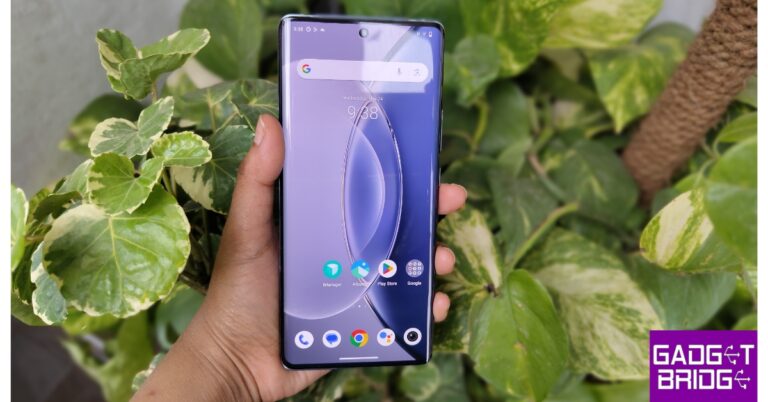
Step 1: Go to Settings and select Security. Step 1: Go to Settings and select Security. Step 2: Tap on Privacy & app encryption. Step 2: Tap on Privacy & app encryption. How to hide and unhide apps on a Vivo smartphone? Step 3: Enter your password or verify your fingerprint. Step 4: Select App hiding. Step 4: Select App hiding. How to hide and unhide apps on a Vivo smartphone? Step 5: Turn on the toggle toggle switch for the apps you want to hide. Step 5: Turn on the toggle toggle switch for the apps you want to hide. How to hide and unhide apps on a Vivo smartphone? Step 6: Turn off the toggle switch for the apps you want to unhide. Step 7: If you quickly want to access the hidden apps from your home screen, turn on the toggle switch for View hidden apps. Step 8: To password-protect the hidden folder, turn on the toggle switch for Verify privacy password. Step 8: To password-protect the hidden folder, turn on the toggle switch for Verify privacy password. How to hide and unhide apps on a Vivo smartphone?

Frequently Asked Questions (FAQs)

How do I hide apps on a Vivo smartphone?

Go to Settings>Privacy & app encryption>App hiding and turn on the toggle switch for the apps you want to hide.

How do I find hidden apps on my Vivo smartphone?

To access the hidden app folder on your Vivo smartphone, simply swipe up with two fingers on the home screen and enter your password.

How do I unhide apps on my Vivo smartphone?

Go to Settings>Privacy & app encryption>App hiding and turn off the toggle switch for the apps you want to unhide. Read Also: Tecno Pova 5 Pro 5G Review: A good value-for-money smartphone

Conclusion

This is how you can hide and unhide apps on a Vivo smartphone. Apart from hiding an app, you can also use the app encryption feature to password-protect any app of your choice. You can find this option in the Privacy & app encryption settings. To learn how to hide or unhide apps on a Samsung device, check out this article. For the latest gadget and tech news, and gadget reviews, follow us on Twitter, Facebook and Instagram. For newest tech & gadget videos subscribe to our YouTube Channel. You can also stay up to date using the Gadget Bridge Android App. You can find the latest car and bike news here.

Top 12 Ways to Fix ‘YouTube Keeps Lagging’ on Google Chrome (2024)

0
Over the years, YouTube has become the home of digital video content. The platform boasts the largest number of independent content creators and offers seamless video playback with no hiccups. However, sometimes users report unusual lags that severely depreciate their viewing experience. In this article, we bring you the top 12 ways to fix the ‘YouTube videos keep lagging’ issue on Google Chrome. Read Also: Tecno Pova 5 Pro 5G Review: A good value-for-money smartphone

Check your internet connection

Speed Test by Cloudflare The most likely culprit behind YouTube videos lagging on Google Chrome (and other browsers) is a faulty internet connection. YouTube demands a stable connection while streaming HD-quality videos. Inconsistencies in the strength of the connection can lead to unwanted lags in playback. To confirm that it is your internet connection that is at fault, run a quick speed test. Most speed tests not only record the speed but also give you an idea of how strong your connection is.

Switch to a lower video quality to keep YouTube from lagging on Chrome

If your internet connection is weak, you might want to try decreasing the quality of the video. YouTube allows users to watch videos in multiple resolutions. You can even watch some videos in 8K resolution. Naturally, higher-resolution videos demand more from your internet connection and can take some time to buffer. For a lag-free playback, switch to a lower resolution. You can do this by hitting the gear icon in the video player and selecting ‘Quality’.

Disable ad-blocking extensions

Google has started cracking down on tools that bypass the ads on YouTube videos. These tools include third-party video downloaders and ad-blocking extensions for Chrome. If you notice a sudden drop in speed, your ad-blocking extension is the likely culprit behind it. If you use Adblock Plus on Chrome, we recommend substituting it with uBlock Origin for now. Given Google’s tenacity towards fighting adblockers, you may have to replace uBlock Origin with another tool in future.

Clear your web browser’s cache and cookies

Step 1: Launch Google Chrome on your PC and click on the ellipses (three dots) at the top right corner of the screen. Step 2: Click on Settings. Step 2: Click on the ellipses (three dots) at the top right corner of the screen and select ‘Settings’. Step 3: Switch to the Privacy and Security tab. Step 3: Switch to the ‘Privacy and security’ tab. How to clear the cache and cookies of just one site on Google Chrome? Step 4: Click on Clear Browsing Data. Step 5: Select Clear Data.

Disable corrupt extensions

Sometimes a corrupt extension on your web browsing can interfere with other tasks. If you first noticed the lag issue after installing a third-party extension on your browser, it is likely the extension that is at fault. Uninstall this extension and try again. Once Google Chrome, you can simply do this by clicking the puzzle piece icon next to the address bar, then hitting the ellipses next to the corrupt extension and selecting ‘Remove from Chrome’.

End resource-draining processes on Chrome

Step 1: Hit the ellipses at the top right corner of the screen. Step 2: Go to More Tools>Task Manager. Step 2: Go to More Tools>Task Manager. Step 3: Select the tab or extension with the most Memory Footprint. Step 3: Select the tab or extension with the most Memory Footprint. Step 4: Hit End Process.

Fix lagging YouTube videos on Google Chrome by disabling hardware acceleration

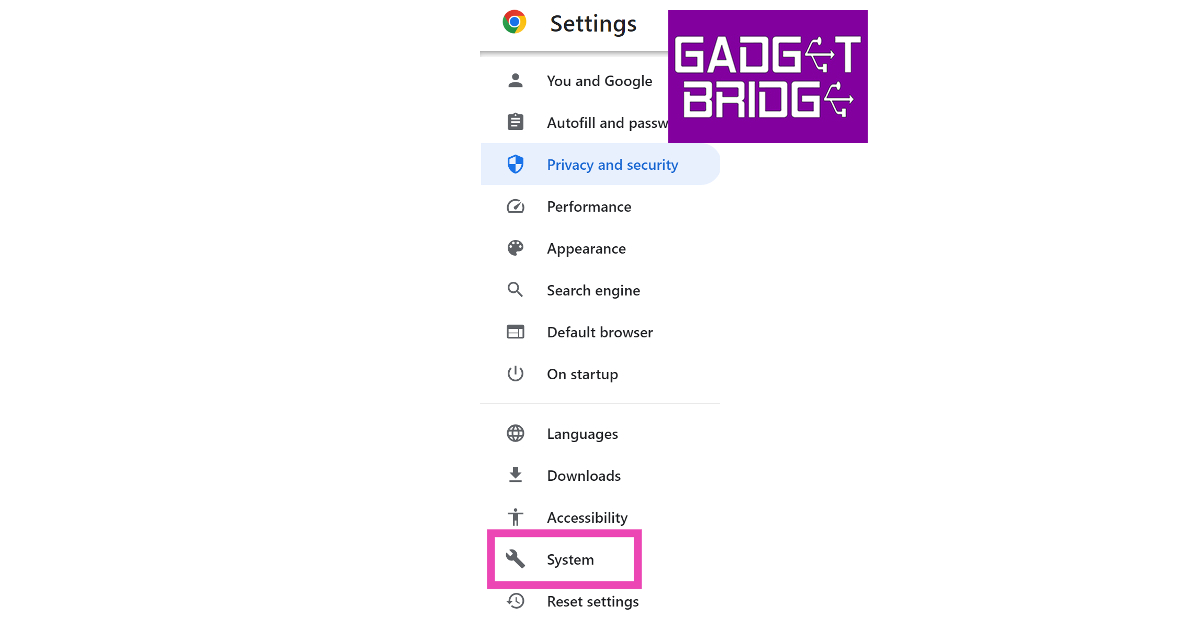
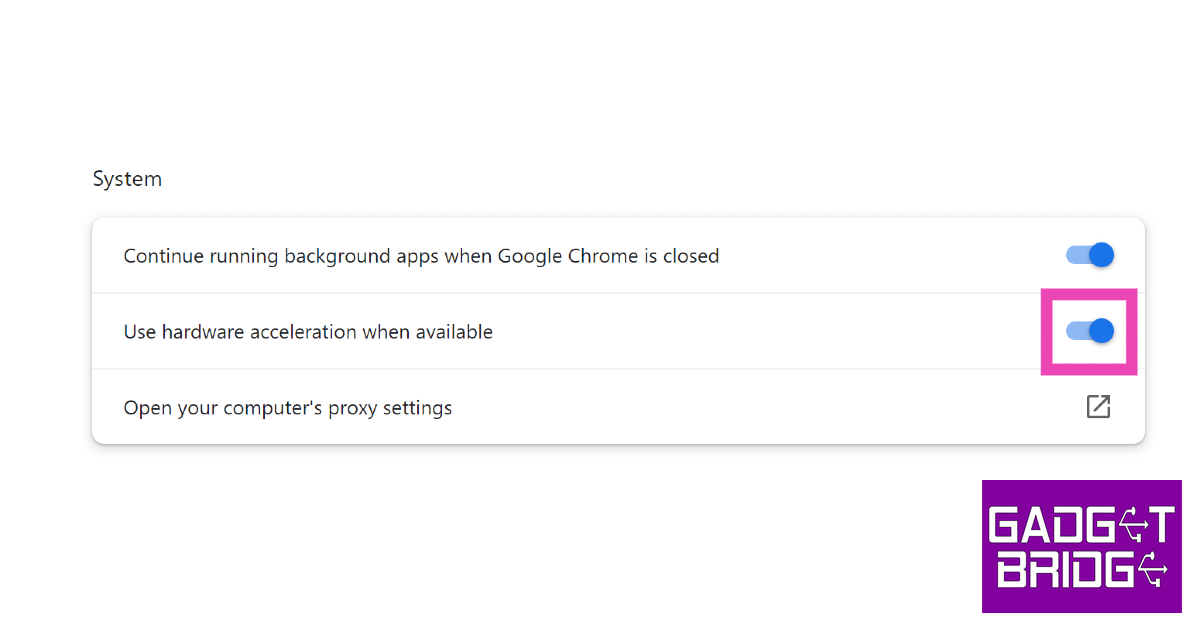
To handle more graphic-intensive tasks, Google Chrome employs a technique called hardware acceleration. In some situations, this can be counterproductive and lead to lag in YouTube videos. Here’s how you can disable it. Step 1: Hit the ellipses at the top right corner of the screen. Step 2: Select Settings. Step 2: Click on the ellipses (three dots) at the top right corner of the screen and select ‘Settings’. Top 9 Ways to Fix ‘YouTube Keeps Lagging’ on Google Chrome and Other Browsers Step 3: Switch to the System tab. Step 3: Switch to the System tab. Top 9 Ways to Fix ‘YouTube Keeps Lagging’ on Google Chrome and Other Browsers Step 4: Turn off the toggle switch for Use hardware acceleration when available. Step 4: Turn off the toggle switch for Use hardware acceleration when available. Top 9 Ways to Fix ‘YouTube Keeps Lagging’ on Google Chrome and Other Browsers

Close other tabs to stop YouTube videos from lagging on Chrome

Active tabs can hoard a lot of RAM and resources for themselves, without leaving enough memory for the task you’re trying to complete. If you have multiple YouTube videos running on different tabs, close them and stick to the video you want to watch. This also applies to other tabs that aren’t necessarily running videos. Any active tasks can use up memory on your device.

Reset flags on Chrome

Chrome flags allow users to tinker with experimental features that haven’t made their way to the final product yet. Sometimes a flag can interfere with video playback on YouTube. Here’s how you can reset them. Step 1: Launch a new tab in Chrome and enter chrome://flags/ in the address bar. Step 2: Hit Reset All. Step 2: Hit Reset All. Top 9 Ways to Fix ‘YouTube Keeps Lagging’ on Google Chrome and Other Browsers

Disable your VPN

Use a VPN VPN services can often connect to non-functional servers, leading to lags in YouTube videos. Switch to a different server or disable the VPN entirely. Simply hit the puzzle piece icon and click on the VPN  extension to disable it.

Update Google Chrome

Google TV update released: Improves GTV UI loading time at startup, Live tab loading speed and more If you’re using an older version of Google Chrome, it may keep YouTube videos from loading at an acceptable speed. Older versions are typically laggy and full of bugs. Click the red arrow icon in the top-right corner of the screen to update Google Chrome to its latest version. If you don’t see this red arrow, click the ellipses and go to Help>About Google Chrome to check for new updates.

Restart your PC

Dell XPS 13 AI laptop powered by Intel Core Ultra CPUs Series 2 It is possible that the issue does not lie with Google Chrome but with your PC. You can check the task manager to find out which programs are occupying the RAM or simply restart the PC to give it a quick refresh. Rebooting the PC also takes care of background glitches and quirks that may be causing issues with Google Chrome.
Frequently Asked Questions (FAQs)

Why is YouTube so laggy on Chrome?

YouTube may be lagging on Chrome due to a slow internet internet connection, faulty extension, power hungry tabs, or due to the lack of free space on the RAM.

Why is YouTube so slow on Chrome in 2024?

Google’s recent crackdown on adblockers has reduced the speed of YouTube on Chrome. If you use Adblock Plus on your web browser, replace it with uBlock Origin.

Why does YouTube keep lagging even when my internet is fast?

If your internet connection is fine but the YouTube videos are still stuck on buffering, try closing the power-consuming tabs on your browser, clear its cache, and disable any VPN service that you may be using.

How do I fix YouTube buffering?

To fix YouTube buffering, switch to a lower video resolution. Read Also: Enhancing Home Tech with Digital Signage

Conclusion

These are the top 12 ways to fix the ‘YouTube keeps lagging’ issue on Google Chrome. If these methods do not work out for you, it is possible that YouTube’s servers are down. Go to the DownDetector website to figure out whether YouTube is experiencing a server outage.

iPhone 15 Price in India vs Rest of the World: Where can you get the best deal on iPhone 15?

Launched at Apple’s ‘Wonderlust’ event last week, the new iPhone 15 finally gets the USB Type-C charging port. The Dynamic Island, which was introduced on the iPhone 14 Pro and Pro Max last year, has now been extended to the non-Pro models. The flagship A17 Bionic chipset is available on the Pro models only, with the base variants getting last year’s A16 Bionic chip. Apart from specs, what matters for a lot of buyers is the price of the iPhone. Unfortunately, the iPhone demands a significant premium in India compared to other markets. In this article, we compare the price of the iPhone 15 Series in India with other major markets across the world. Read Also: Enhancing Home Tech with Digital Signage

iPhone 15 base variants’ prices compared

Country iPhone 15 Price iPhone 15 Plus Price
USA Rs 66,208 (USD 799) Rs 74,495 (USD 899)
China Rs 69,124 (RMB 5,999) Rs 80,646 (RMB 6,999)
Thailand Rs 76,472 (฿ 32,900) Rs 88,094 (฿ 37,900)
Dubai Rs 76,687 (AED 3,399) Rs 85,712 (AED 3,799)
Australia Rs 80,314 (AUD 1,499) Rs 88,350 (AUD 1,649)
Vietnam Rs 79,047 (VND 22,999,000) Rs 89,358 (VND 25,999,000)
United Kingdom Rs 82,770 (GBP 799) Rs 93,129 (GBP 899)
Spain Rs 85,131 (€ 959) Rs 98,446 (€ 1,109)
The base iPhone 15 variant is priced at Rs 79,900 in India while the iPhone 15 Plus costs Rs 89,900. As you can see in the chart above, the iPhone is priced the lowest in the USA. However, the biggest drawback of buying the new iPhone from the USA is that you won’t be able to use your physical SIM card with it. Since the iPhone 14 series, the US models of the smartphone have switched to eSIM connectivity only.

iPhone 15 Pro variants’ prices compared

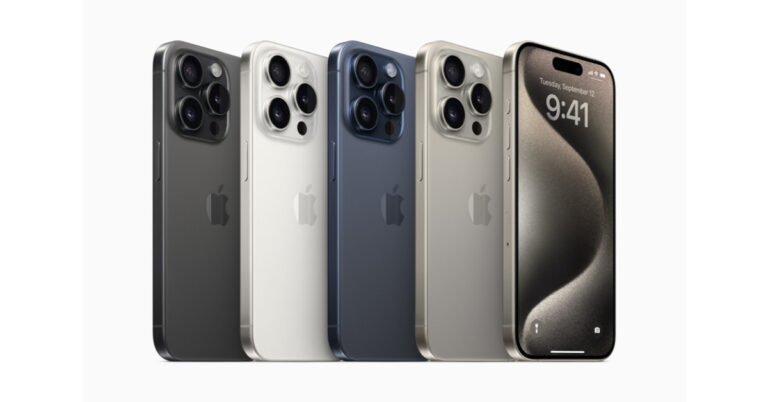
iPhone 15 Pro and iPhone 15 Pro Plus
Country iPhone 15 Pro Price iPhone 15 Pro Max Price
USA Rs 82,781 (USD 999) Rs 99,534 (USD 1,199)
China Rs 92,169 (RMB 7,999) Rs 1,15,214 (RMB 9,999)
Thailand Rs 97,392 (฿ 41,900) Rs 1,13,662 (฿ 48,900)
Dubai Rs 96,993 (AED 4,299) Rs 1,15,043 (AED 5,099)
Australia Rs 99,066 (AUD 1,849) Rs 1,17,819 (AUD 2,199)
Vietnam Rs 99,669 (VND 28,999,000) Rs 1,20,290 (VND 34,999,000)
United Kingdom Rs 1,03,488 (GBP 999) Rs 1,24,206 (GBP 1,199)
Spain Rs 1,08,211 (€ 1,219) Rs 1,30,404 (€ 1,469)
The price difference between the iPhone 15 Pro and Pro Max in India and other countries is far greater than the base variants. In India, the iPhone 15 Pro and Pro Max are priced at Rs 1,34,900 and Rs 1,59,900 respectively. While the Pro models are also priced the lowest in the USA, countries like China and Thailand offer a far better deal than India.

Frequently Asked Questions (FAQs)

What is the price of the iPhone 15 in India?

In India, prices for the iPhone 15 series start at Rs 79,900. The iPhone 15 Plus is priced at Rs 89,900 while the Pro and Pro Max variants cost Rs 1,34,900 and Rs 1,59,900 respectively.

Which country offers the iPhone 15 for the cheapest amount?

The iPhone 15 is the cheapest in the USA, with prices starting at just Rs 66,208 (USD 799).

Which country in Asia is best for buying an iPhone?

In Asia, you can get the new iPhone 15 for the cheapest amount in China (Rs 69,124) and Thailand (Rs 76,472). Read Also: Crossbeats Monarch BT calling smartwatch launched in India

Conclusion

Apart from getting a better deal on the price, you also get full Apple Care coverage on your iPhone when you buy it from outside of India. Apple’s warranty extends globally and you will not need to register the product again in order to retain the coverage. What do you think of the iPhone 15’s pricing in India compared to the rest of the world? Let us know in the comments! For the latest gadget and tech news, and gadget reviews, follow us on Twitter, Facebook and Instagram. For newest tech & gadget videos subscribe to our YouTube Channel. You can also stay up to date using the Gadget Bridge Android App. You can find the latest car and bike news here.