In This Article
List of eligible devices
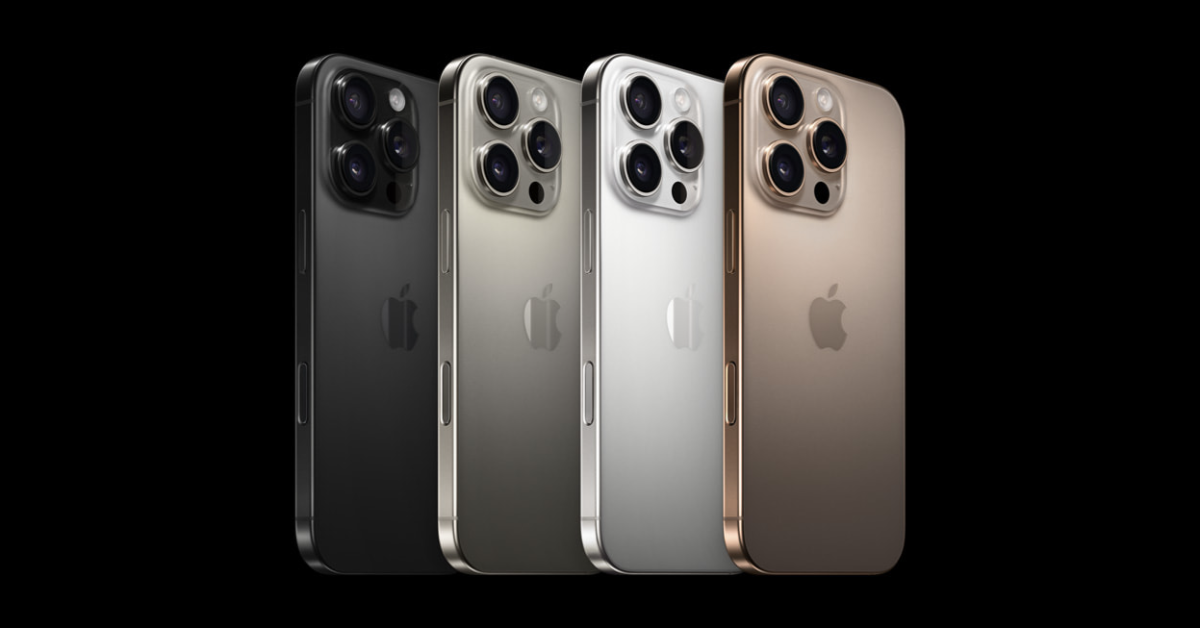
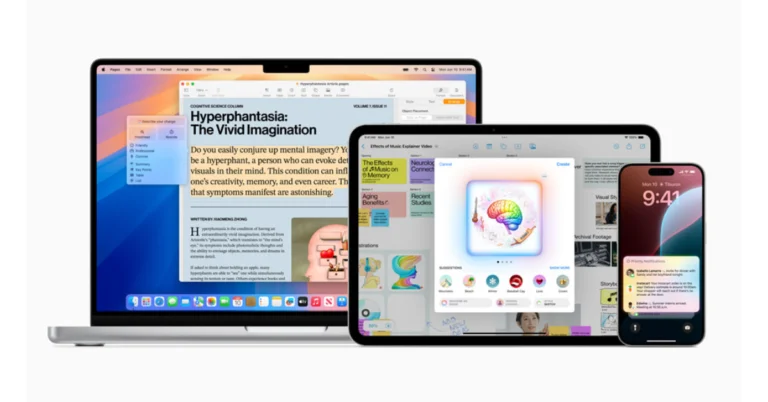
Only these devices have received the Apple Intelligence update.- iPhone 15 Pro
- iPhone 15 Pro Max
- iPad Pro (M1 and later)
- iPad Air (M1 and later)
- Macbook Air (M1 and later)
- Macbook Pro (M1 and later)
- iMac (M1 and later)
- Mac mini (M1 and later)
- Mac Studio (M1 Max and later)
- Mac Pro (M2 Ultra)
Our favourite Apple Intelligence features
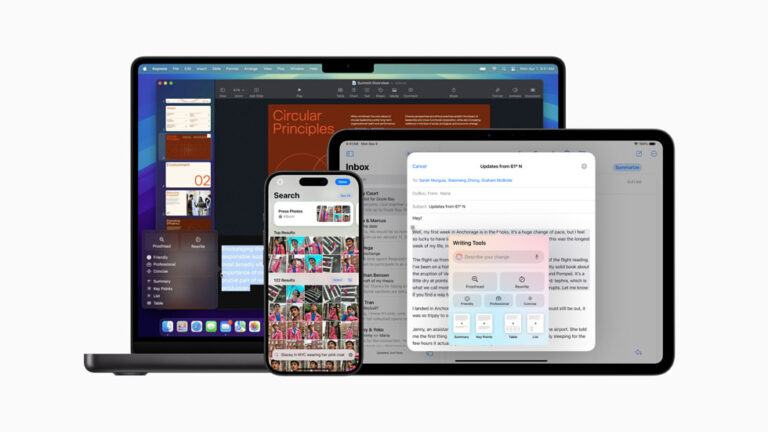
Apple Intelligence touches upon all the vital functions of your iPhone. Apple has made it an opt-in feature to keep the experience AI-free for those who aren’t fans of it. But there is a lot that Apple Intelligence has to offer. Here are some of our favourite features. Writing Tools: AI tools for proofreading, summarising, and rewriting are embedded across your iPhone’s interface. You can access them whenever you type anything on the screen, be it in the Mail or Notes app. You can use Writing Tools to scan the text for errors, condense the content, or change the tone of the message. Siri: With the infusion of Apple Intelligence, Siri has become a lot smarter and more conversational. You are no longer restricted to using specific voice commands without any weird pauses. The conversational capability of Siri is more fluid, it can gauge the flow of your voice better and accommodate for errors in speech as well. Photos: If the thousands of pictures in your phone’s gallery make it hard for you to navigate to your desired image, you will like this new Apple Intelligence feature. Simply launch the Photos app and enter the description of the picture you’re looking for. Apple Intelligence will dive into your photo library with the provided information and bring up matching results.How to get Apple Intelligence on iPhone and iPad
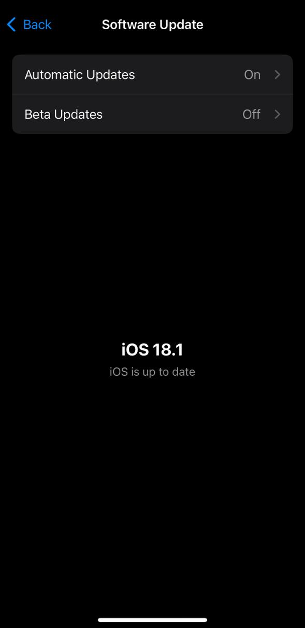
Step 1: Go to Settings and tap on General.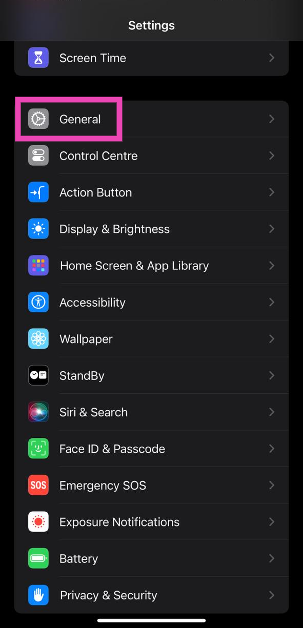 Step 2: Tap on Software Update.
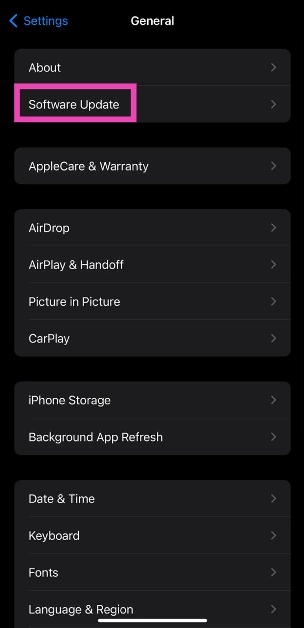 Step 3: You will see the iOS 18.1 update waiting to be downloaded. Hit Update Now.
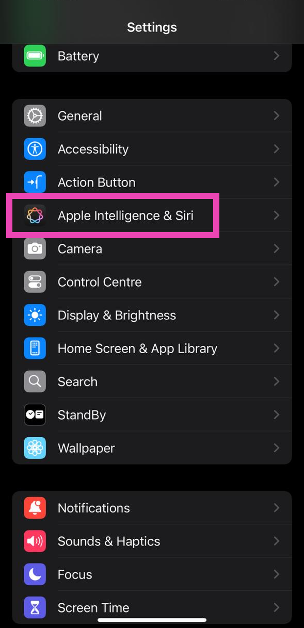
 Step 4: Go back to Settings and select Apple Intelligence & Siri.
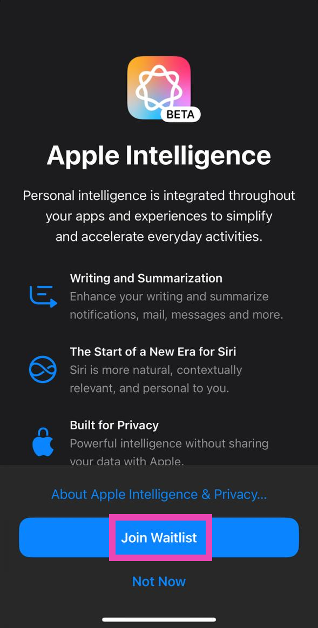
 Step 5: Tap on Join Waitlist.
How to get Apple Intelligence on Mac
 Step 1: Click the Apple logo in the top menu.
Step 2: Go to System Settings.
Step 3: Select Software Update.
Step 4: Once your Mac’s software has been updated to macOS Sequoia 15.1, go back to System Settings.
Step 5: Click Apple Intelligence & Siri.
Step 6: Click Turn on Apple Intelligence.
Step 1: Click the Apple logo in the top menu.
Step 2: Go to System Settings.
Step 3: Select Software Update.
Step 4: Once your Mac’s software has been updated to macOS Sequoia 15.1, go back to System Settings.
Step 5: Click Apple Intelligence & Siri.
Step 6: Click Turn on Apple Intelligence.
Not in the US? Use this trick to get Apple Intelligence on your device
As of now, Apple Intelligence is only available in US English. If you use a localised version of English (like the UK, India, New Zealand, and Australia), you will need to change your device’s language to the United States version of English. Once that’s done, you can use the steps mentioned above to gain access to Apple Intelligence. Here’s how you can change the language of your device.iPhone and iPad
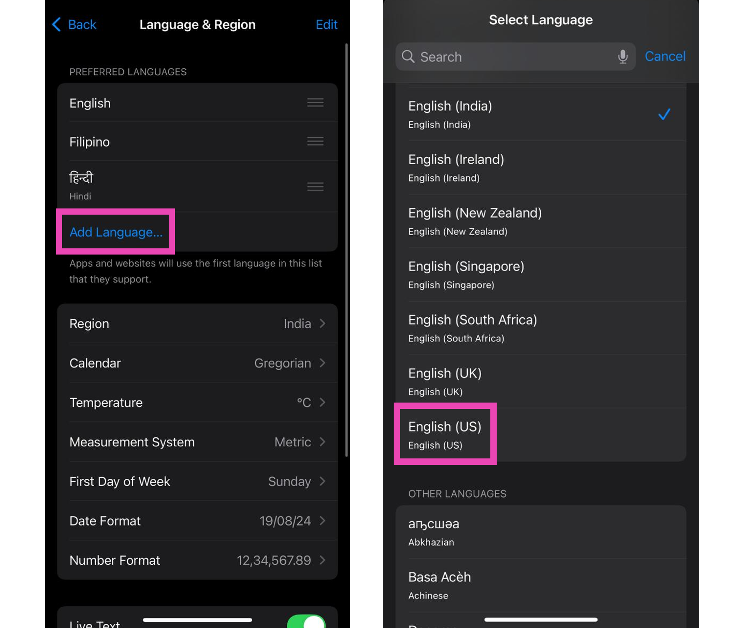
Step 1: Go to Settings and select General.
Step 2: Tap on Language & Region.
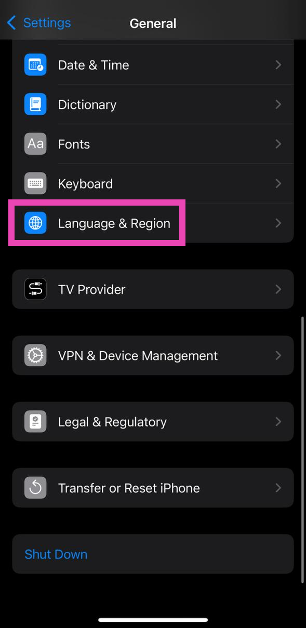 Step 3: Hit Add Language and select English (United States).
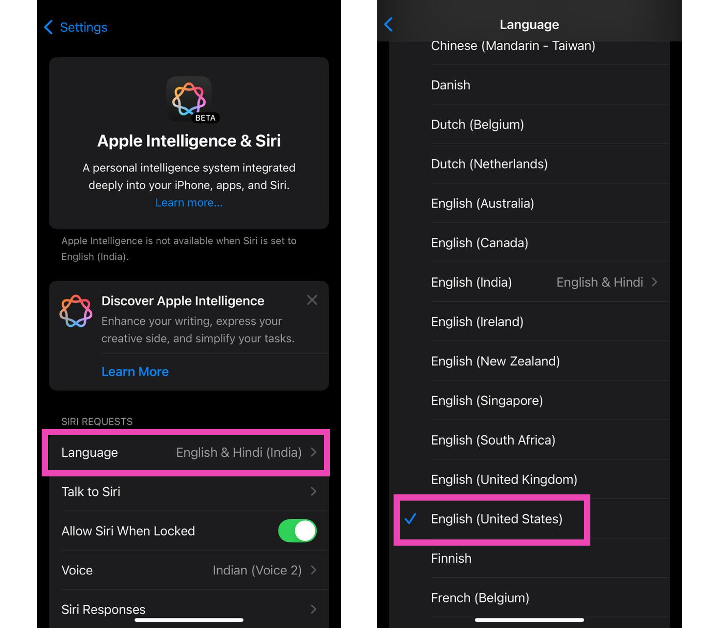
 Step 4: Go back to Settings and select Apple Intelligence & Siri.
Step 5: Tap on Language and change it to English (United States).
Step 4: Go back to Settings and select Apple Intelligence & Siri.
Step 5: Tap on Language and change it to English (United States).
Mac
 Step 1: Hit the Apple logo and select System Settings.
Step 2: Click General and select Language & Region.
Step 3: Click the plus icon and select English (United States).
Step 4: Hit Add.
Step 5: Drag it to the top of the list.
Step 6: Restart your Mac.
Step 1: Hit the Apple logo and select System Settings.
Step 2: Click General and select Language & Region.
Step 3: Click the plus icon and select English (United States).
Step 4: Hit Add.
Step 5: Drag it to the top of the list.
Step 6: Restart your Mac.






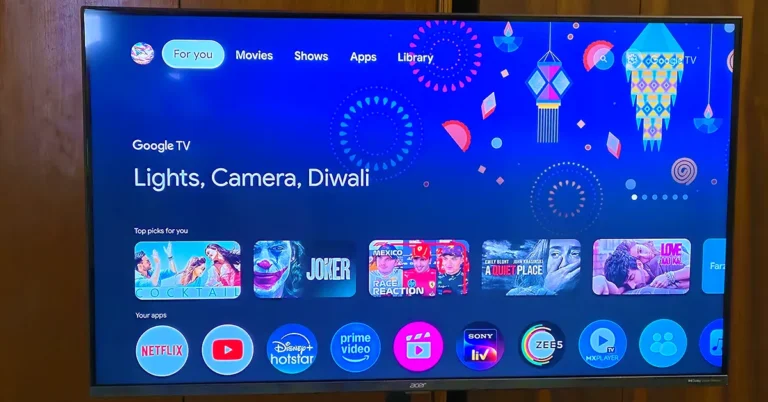
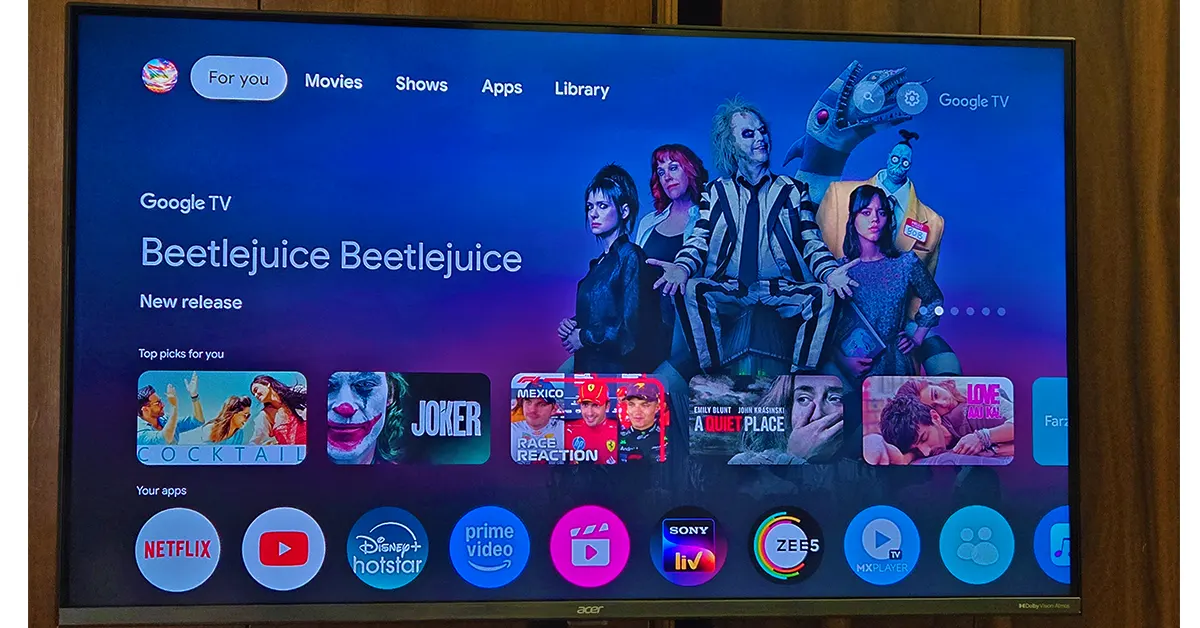 But let’s talk about the real star—the 43-inch 4K UHD QLED panel. With features like Micro Dimming, MEMC, ALLM, and VRR, the display promises vibrant colours and deep blacks. During my binge-watching sessions on
 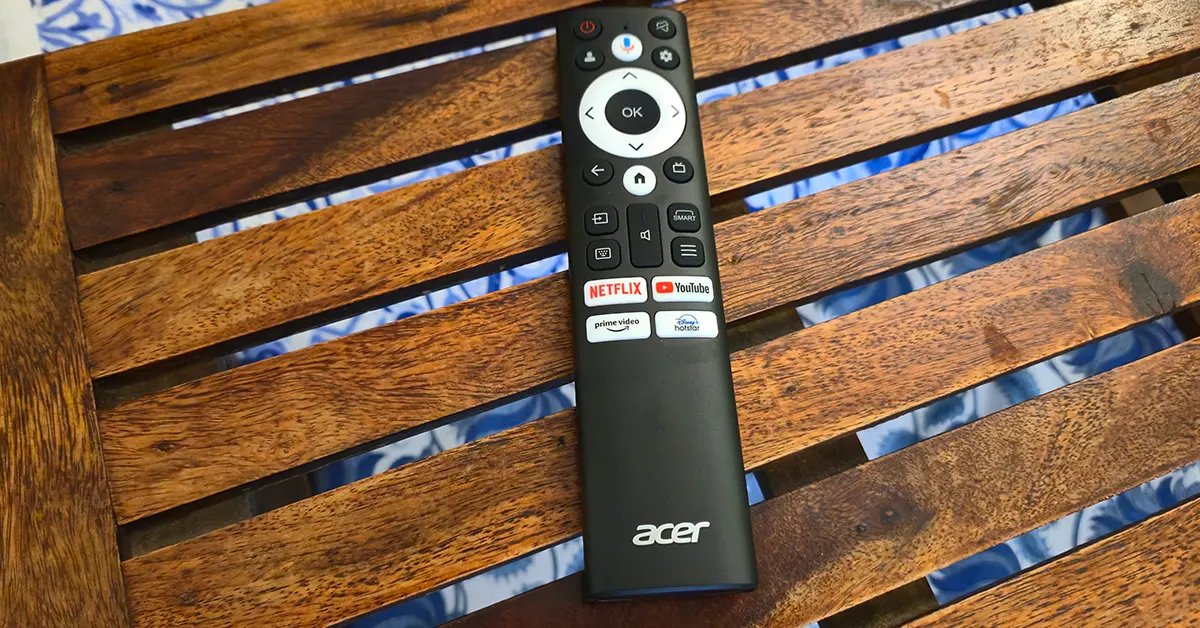 The remote control is user-friendly, featuring dedicated buttons for popular streaming platforms and a voice assistant. The FastCast feature is a neat addition, allowing seamless casting from various devices. Gamers will appreciate the HDMI 2.1 ports and features like ALLM and VRR, making casual gaming a pleasant experience.

 On the audio front, the 80W HiFi Pro speakers with Giga Bass and Dolby Atmos support deliver a surprisingly robust sound. The sound is clear, and the bass adds depth to action scenes and music alike.
Read Also:
On the audio front, the 80W HiFi Pro speakers with Giga Bass and Dolby Atmos support deliver a surprisingly robust sound. The sound is clear, and the bass adds depth to action scenes and music alike.
Read Also: 
 Also Read: