In This Article
Music videos on Spotify
Since music videos are still a beta feature on Spotify, there are some issues that the platform needs to iron out. For starters, some of the music videos have a different mix than the corresponding audio track. This leads to an inconsistent audio quality when you switch back and forth between the video and the audio track. Furthermore, some of the music videos have been lifted from live recordings. The video library is pretty limited, with some of the big names (like Taylor Swift) missing from the list. Spotify has mentioned that it will expand the video library in the next few weeks. What Spotify has gotten right is the implementation of this feature on the platform. Music videos do not take centre stage in the app. If you want to keep using Spotify for audio streaming, the presence of MVs will have no effect on your experience. Switching between the studio and video versions of a track is a very intuitive process.Watch music videos on the Spotify mobile app
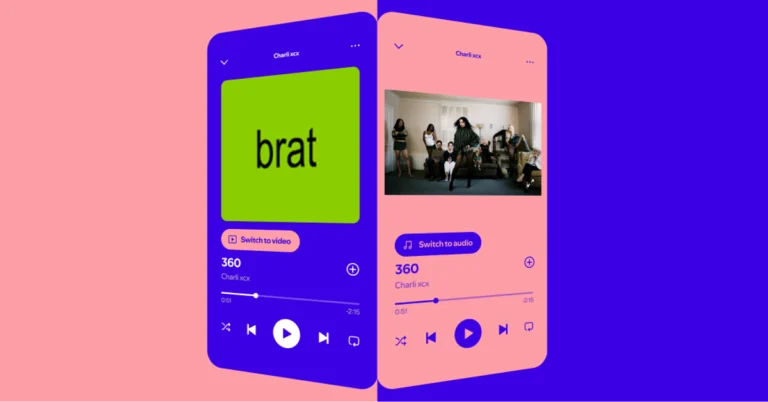
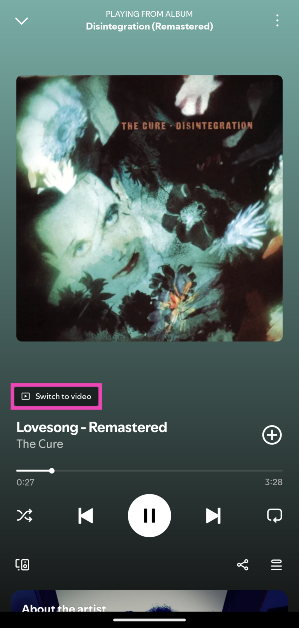
Step 1: Make sure the Spotify app on your phone is updated to the latest version. Step 2: Launch the Spotify app on your smartphone. Step 3: Go to an artist’s page and tap a song with the Video tag in the subtitle.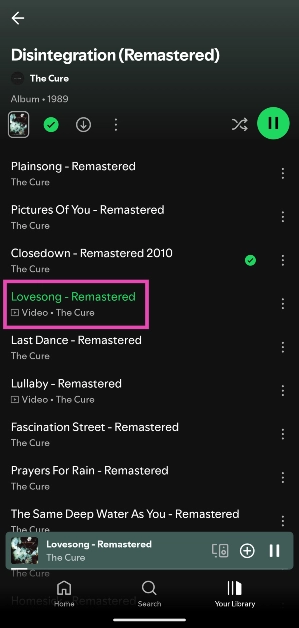 Step 4: Once the music player pops up, tap on Switch to video.
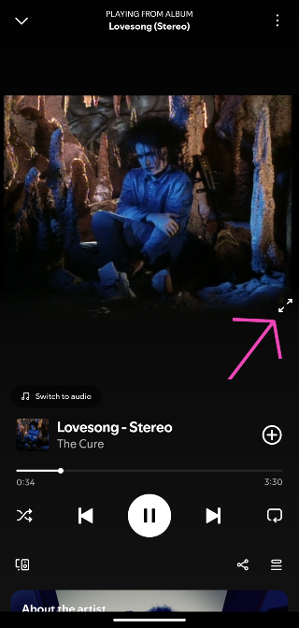
 Step 5: Tap the video and hit the arrow icon to go full screen.
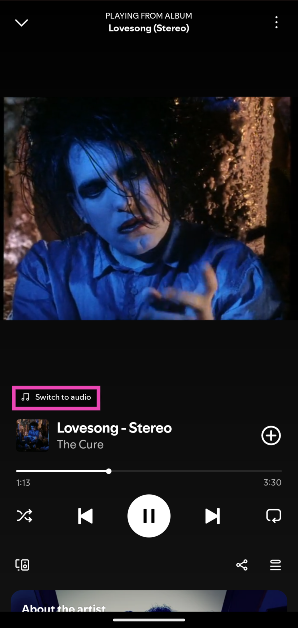
 Step 6: Tap on Switch to audio to turn off the video.
Watch music videos on the Spotify desktop app
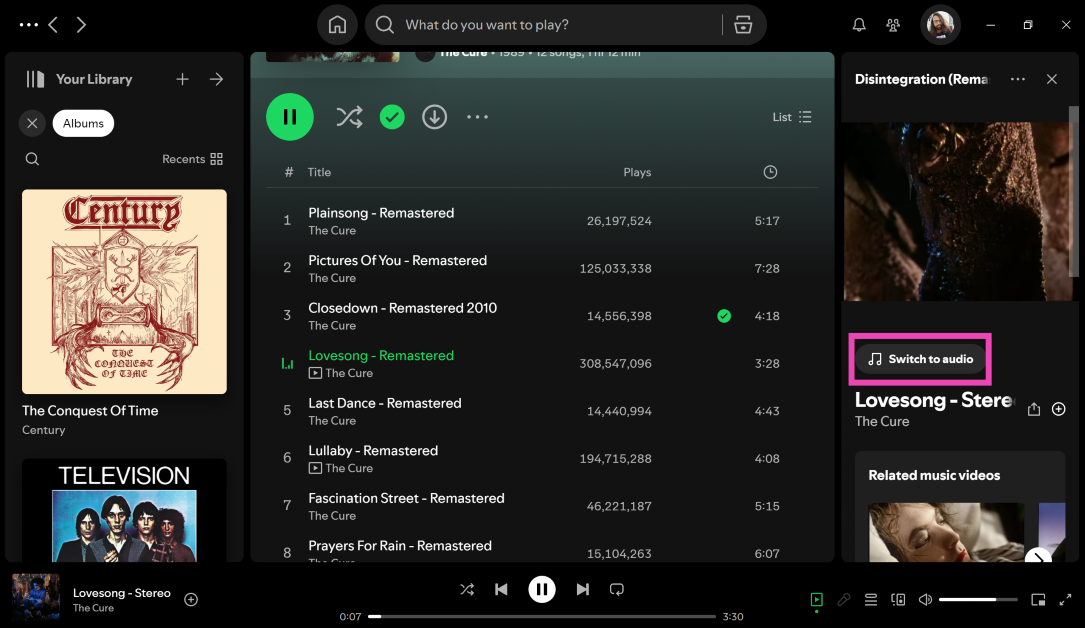
Step 1: Launch the Spotify app on your PC or laptop. Step 2: Play a song. Step 3: On the right panel with the song canvas/album art, click on Switch to video.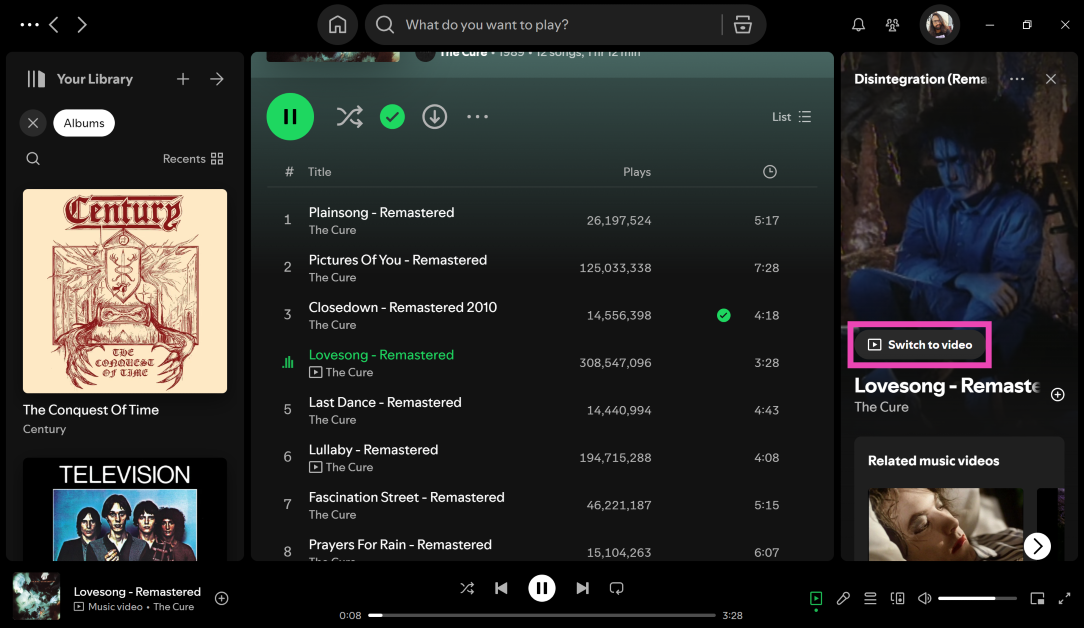 Step 4: Move the cursor to the video player and click the icon in the top right corner of the panel to expand the video to full screen.
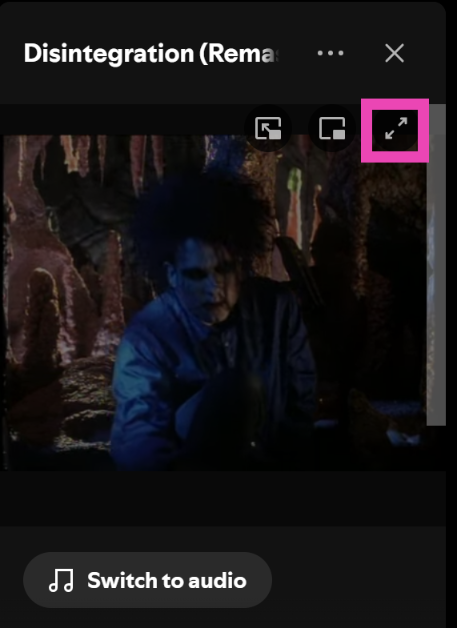 Step 5: You can also choose to open the video in Cinema Mode and Mini Mode (Picture-in-Picture).
Step 6: Click on Switch to audio to go back to the audio version of the song.
Step 5: You can also choose to open the video in Cinema Mode and Mini Mode (Picture-in-Picture).
Step 6: Click on Switch to audio to go back to the audio version of the song.
Can’t access music videos on Spotify? Try these fixes
- Subscribe to Spotify Premium.
- Make sure your region supports this feature.
- Update the Spotify app to the latest version.
- Make sure the song you’re playing has a music video.
- Choose your device as the audio output. Do not use smart speakers like Alexa.

 Step 3:
 Step 4:
 Step 5:
 Step 6:




 Also Read:




 Step 3:
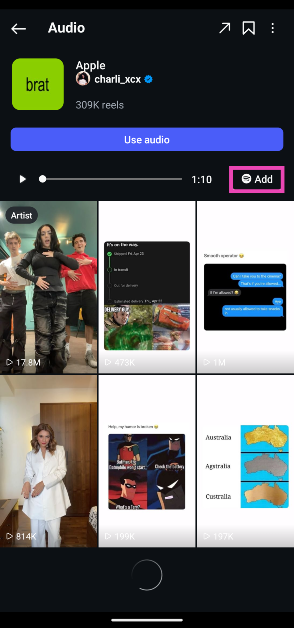 Step 4:
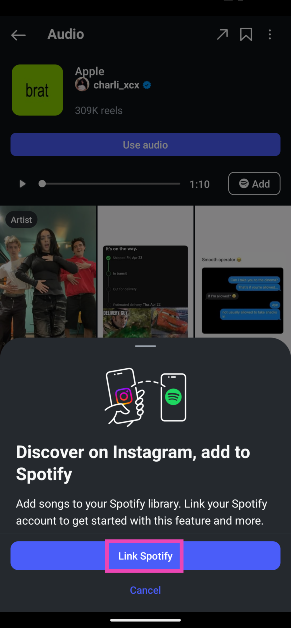 Step 5: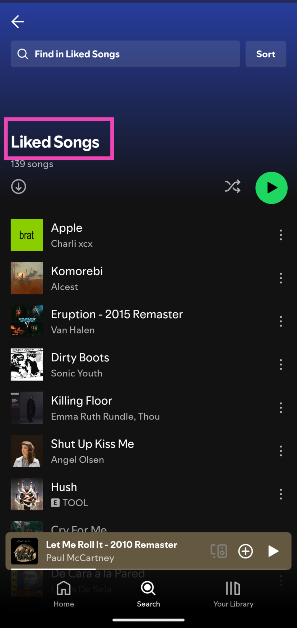

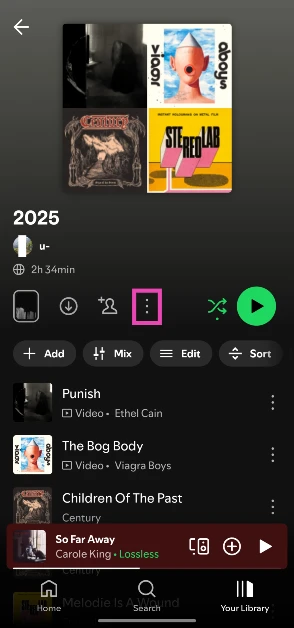 Step 3:
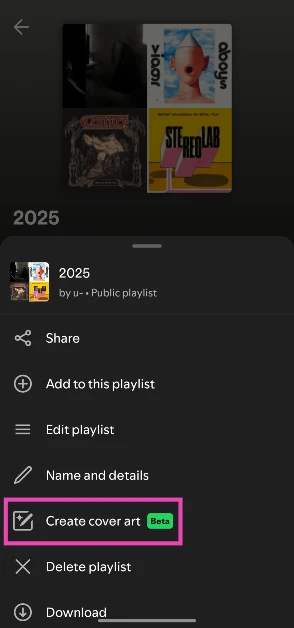 Step 4: Tap on Create cover art again.
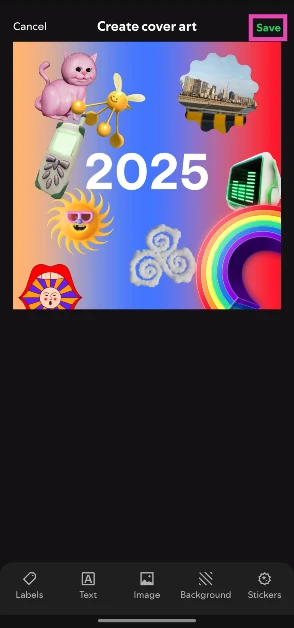
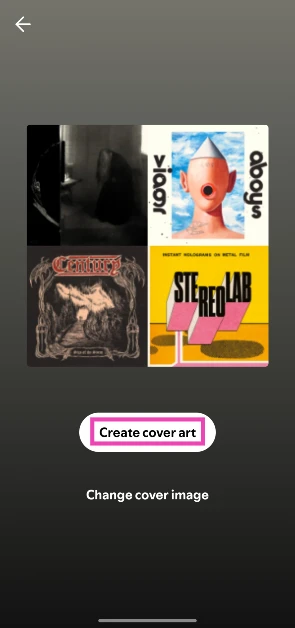 Step 5: The cover art will contain the name of your playlist by default. Tap on Text to edit it.
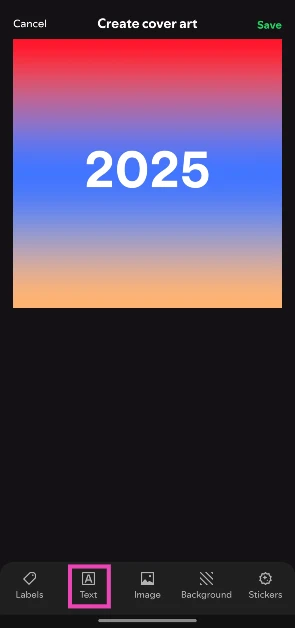 Step 6: You can add an image to the cover art by going to Image>Add Image and selecting a picture from your phone’s gallery. You can drag, resize, reshape, and add effects to the image.
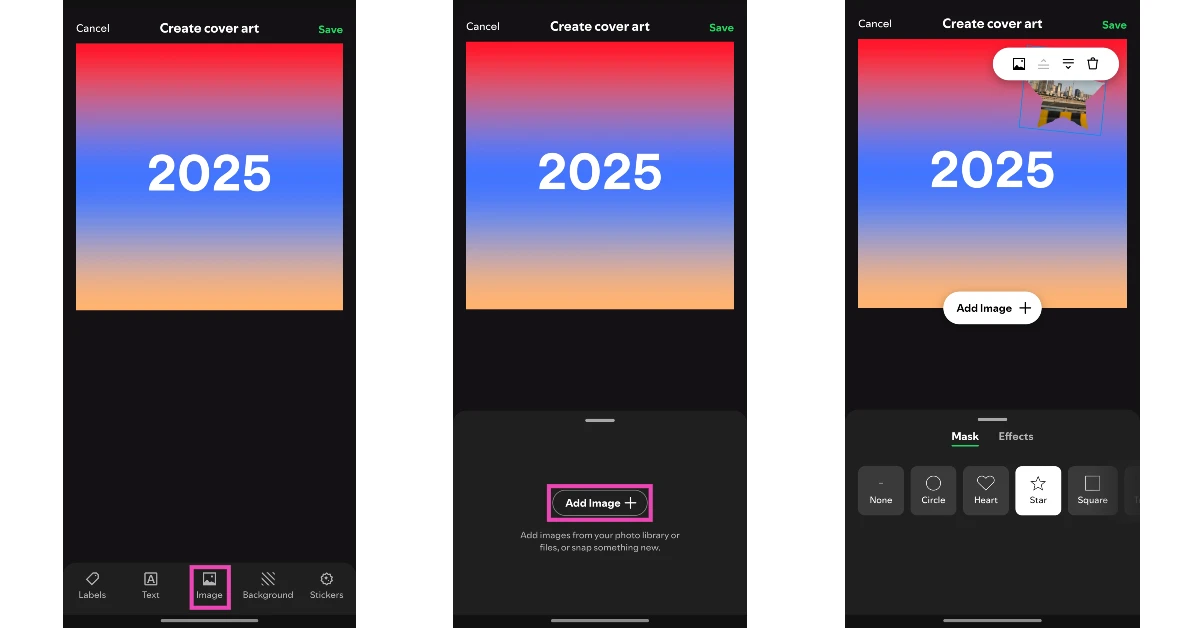 Step 7: Tap on Background to edit the background colour and style.
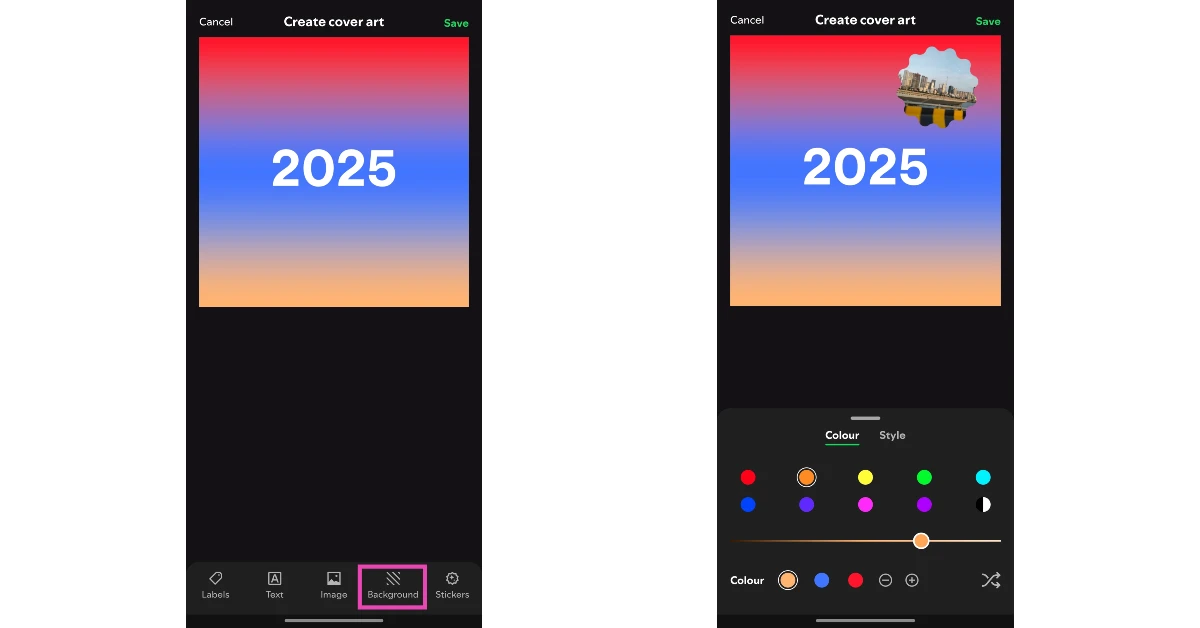 Step 8: Tap on Stickers to add fun stickers to the art.
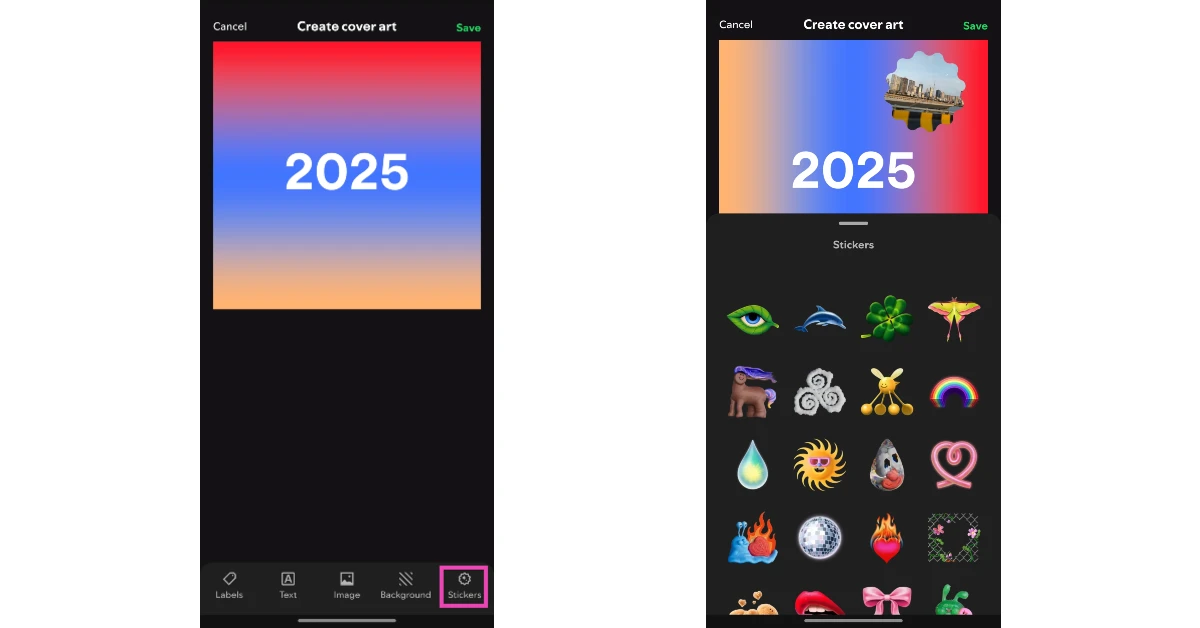 Step 9: Hit Save when you’re done.