

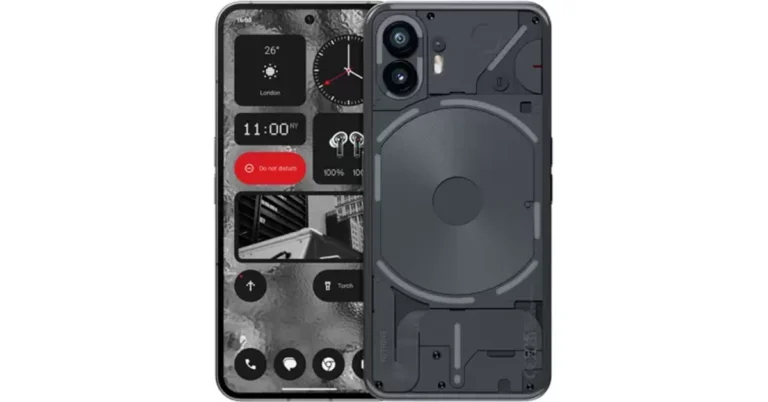
- The Nothing Phone 2 was launched in India in July.
- The device comes with a Glyph interface.
- It was launched with a starting price of Rs 44,999.
Price Drop Alert: Nothing Phone 2 price in India getting a massive price cut
Key Highlights
Realme released realme UI 5.0 early access for realme 11 Pro 5G users in India

Key Highlights
- In May the company released the realme UI 5.0 Early Access for Android 14 beta to realme GT 2 Pro.
- In October it announced the realme UI 5.0 early access roadmap for other devices.
Threads expanding Keyword Search Feature to all its users, will support all languages

Key Highlights
 The keyword search feature on Threads is now being expanded. Meta’s Chief Mark Zuckerberg via Threads announced the upcoming feature for all its users. He said, “Get excited — search is coming to Threads.” He further added, “Rolling out to most English and Spanish speaking countries today. More to come soon.”
On the other hand, Instagram Head Adam Mosseri also confirmed about the forthcoming Threads feature. He confirmed more enhancements will come to the search action soon although he did not specify which features would be included.
He stated, “Today, we’re expanding keyword search everywhere Threads is available. This feature is supported in all languages – we hope this makes it easier to find and join conversations you’re interested in. More improvements are coming to search soon, let me know in the replies if you have feedback.”
For those who are unaware, the keyword search feature on Threads was first made available in Australia and New Zealand in August even before it was rolled out in the United States, in September.
Recently Threads released the option to delete Threads profile without deleting Instagram account altogether. To delete Threads Go to Settings → Account → Delete or Deactivate Profile, then select delete.
It also rolled out the feature tags just like hashtags. The Threads Tags are based on theme or area of interest, indicating that they will function similarly to Twitter hashtags but without a hash.
The keyword search feature on Threads is now being expanded. Meta’s Chief Mark Zuckerberg via Threads announced the upcoming feature for all its users. He said, “Get excited — search is coming to Threads.” He further added, “Rolling out to most English and Spanish speaking countries today. More to come soon.”
On the other hand, Instagram Head Adam Mosseri also confirmed about the forthcoming Threads feature. He confirmed more enhancements will come to the search action soon although he did not specify which features would be included.
He stated, “Today, we’re expanding keyword search everywhere Threads is available. This feature is supported in all languages – we hope this makes it easier to find and join conversations you’re interested in. More improvements are coming to search soon, let me know in the replies if you have feedback.”
For those who are unaware, the keyword search feature on Threads was first made available in Australia and New Zealand in August even before it was rolled out in the United States, in September.
Recently Threads released the option to delete Threads profile without deleting Instagram account altogether. To delete Threads Go to Settings → Account → Delete or Deactivate Profile, then select delete.
It also rolled out the feature tags just like hashtags. The Threads Tags are based on theme or area of interest, indicating that they will function similarly to Twitter hashtags but without a hash.
- Threads has about 100 million users.
- The microblogging platform is not expanding the keyword search feature to all markets.
- The feature was under testing in the US, Australia and New Zealand.
 The keyword search feature on Threads is now being expanded. Meta’s Chief Mark Zuckerberg via Threads announced the upcoming feature for all its users. He said, “Get excited — search is coming to Threads.” He further added, “Rolling out to most English and Spanish speaking countries today. More to come soon.”
On the other hand, Instagram Head Adam Mosseri also confirmed about the forthcoming Threads feature. He confirmed more enhancements will come to the search action soon although he did not specify which features would be included.
He stated, “Today, we’re expanding keyword search everywhere Threads is available. This feature is supported in all languages – we hope this makes it easier to find and join conversations you’re interested in. More improvements are coming to search soon, let me know in the replies if you have feedback.”
For those who are unaware, the keyword search feature on Threads was first made available in Australia and New Zealand in August even before it was rolled out in the United States, in September.
Recently Threads released the option to delete Threads profile without deleting Instagram account altogether. To delete Threads Go to Settings → Account → Delete or Deactivate Profile, then select delete.
It also rolled out the feature tags just like hashtags. The Threads Tags are based on theme or area of interest, indicating that they will function similarly to Twitter hashtags but without a hash.
The keyword search feature on Threads is now being expanded. Meta’s Chief Mark Zuckerberg via Threads announced the upcoming feature for all its users. He said, “Get excited — search is coming to Threads.” He further added, “Rolling out to most English and Spanish speaking countries today. More to come soon.”
On the other hand, Instagram Head Adam Mosseri also confirmed about the forthcoming Threads feature. He confirmed more enhancements will come to the search action soon although he did not specify which features would be included.
He stated, “Today, we’re expanding keyword search everywhere Threads is available. This feature is supported in all languages – we hope this makes it easier to find and join conversations you’re interested in. More improvements are coming to search soon, let me know in the replies if you have feedback.”
For those who are unaware, the keyword search feature on Threads was first made available in Australia and New Zealand in August even before it was rolled out in the United States, in September.
Recently Threads released the option to delete Threads profile without deleting Instagram account altogether. To delete Threads Go to Settings → Account → Delete or Deactivate Profile, then select delete.
It also rolled out the feature tags just like hashtags. The Threads Tags are based on theme or area of interest, indicating that they will function similarly to Twitter hashtags but without a hash. Top 4 Ways to Detect AI-Generated Fake Audio and Voice Recordings

Over the years, deepfake audio and voice recordings have become scary good. Using generative AI models and a large sample size (when it comes to celebrities), malicious entities on the Internet are able to recreate immaculate recreations of someone’s voice in order to purposely mislead or scam an audience. You must have seen these deepfake audios floating around, trying to target people with ads for counterfeit products that are most likely snake oil. The alarming thing is that these tools are getting better as time passes by and the recordings they produce can fool just about anyone. With that in mind, let’s take a look at the top 4 ways to detect AI-generated fake audio and voice recordings.
Read Also: Vivo Y100i with 50-megapixel dual rear camera launched
 While audio deepfakes have come a long way in terms of replication of the source voice, the most frequent scams you come across on social media may not be crafted flawlessly. The truth is that scammers don’t need to manipulate everyone who listens to the deepfake, they just need to convince a handful of people to believe that what they’re listening to is legitimate. Oftentimes, botched deepfakes which are easy to spot are peddled around the Internet. Their easiest tell is unexpected and harsh cuts throughout the recording. More professional scammers and malicious entities usually iron out these cuts before publishing the recording.
Most AI models rely on a small sample size of someone’s voice to create a fake recording. Through deep learning, the AI model can effectively recreate the pitch, tone, accent, timbre, and other attributes of the person’s voice. But where it may fail is in recreating the special quirks. If you’re listening to an audio recording of someone you know personally, always look out for the quirks in their speech. If you feel that their pronunciation of certain words is a bit off, you may want to look further into the legitimacy of the recording.
Audio recordings created using AI models are rarely ever free of background noise. While some amount of background noise always manages to creep in regular voice recordings as well, it is much more organic – like the sound of people chatting in the background, ceiling fans, general humdrum, etc. Whereas, deepfake audios may have a different kind of static that is only present in processed recordings. If you suspect that you are listening to a fake audio recording, always pay close attention to the background noise.
While the methods mentioned above can give you a fair idea about the legitimacy of the audio, the only way to confirm if it is a deepfake is by using a detection tool specially designed for the task. Resemble.AI is one of the tools you can do for this job. This tool integrates with popular media services and detects AI-generated fake audio on the fly. You can also use Resemble.AI to watermark your audio data and determine whether it has been used to train a generative AI model.
While audio deepfakes have come a long way in terms of replication of the source voice, the most frequent scams you come across on social media may not be crafted flawlessly. The truth is that scammers don’t need to manipulate everyone who listens to the deepfake, they just need to convince a handful of people to believe that what they’re listening to is legitimate. Oftentimes, botched deepfakes which are easy to spot are peddled around the Internet. Their easiest tell is unexpected and harsh cuts throughout the recording. More professional scammers and malicious entities usually iron out these cuts before publishing the recording.
Most AI models rely on a small sample size of someone’s voice to create a fake recording. Through deep learning, the AI model can effectively recreate the pitch, tone, accent, timbre, and other attributes of the person’s voice. But where it may fail is in recreating the special quirks. If you’re listening to an audio recording of someone you know personally, always look out for the quirks in their speech. If you feel that their pronunciation of certain words is a bit off, you may want to look further into the legitimacy of the recording.
Audio recordings created using AI models are rarely ever free of background noise. While some amount of background noise always manages to creep in regular voice recordings as well, it is much more organic – like the sound of people chatting in the background, ceiling fans, general humdrum, etc. Whereas, deepfake audios may have a different kind of static that is only present in processed recordings. If you suspect that you are listening to a fake audio recording, always pay close attention to the background noise.
While the methods mentioned above can give you a fair idea about the legitimacy of the audio, the only way to confirm if it is a deepfake is by using a detection tool specially designed for the task. Resemble.AI is one of the tools you can do for this job. This tool integrates with popular media services and detects AI-generated fake audio on the fly. You can also use Resemble.AI to watermark your audio data and determine whether it has been used to train a generative AI model.
Why is it important to detect AI-generated fake audio and voice?
With the sudden rise of generative AI models, the tools to create counterfeit audio recordings have become easily accessible to willing users. These AI models rely on a small sample of someone’s voice to recreate it near-flawlessly. While the social repercussions of these tools are yet to be determined in their totality, they are being increasingly used to scam people out of money in the short term. For example, someone may use a deepfake audio recording of your spouse or close relative to make you wire them a substantial amount of money over a phone call. The quality of these recordings depends on the effort that scammers have put into them. Typically, professional scammers cover all bases and have fake audio recordings for every kind of situation that the conversation may drift into. Before you realise that there’s something odd with the audio, it might be too late. So, it’s always best to be prepared for every kind of situation by knowing which cues to look out for.Are there any weird cuts in the audio?
 While audio deepfakes have come a long way in terms of replication of the source voice, the most frequent scams you come across on social media may not be crafted flawlessly. The truth is that scammers don’t need to manipulate everyone who listens to the deepfake, they just need to convince a handful of people to believe that what they’re listening to is legitimate. Oftentimes, botched deepfakes which are easy to spot are peddled around the Internet. Their easiest tell is unexpected and harsh cuts throughout the recording. More professional scammers and malicious entities usually iron out these cuts before publishing the recording.
Listen closely for any mispronunciation
 Most AI models rely on a small sample size of someone’s voice to create a fake recording. Through deep learning, the AI model can effectively recreate the pitch, tone, accent, timbre, and other attributes of the person’s voice. But where it may fail is in recreating the special quirks. If you’re listening to an audio recording of someone you know personally, always look out for the quirks in their speech. If you feel that their pronunciation of certain words is a bit off, you may want to look further into the legitimacy of the recording.
Something wrong with the background?
 Audio recordings created using AI models are rarely ever free of background noise. While some amount of background noise always manages to creep in regular voice recordings as well, it is much more organic – like the sound of people chatting in the background, ceiling fans, general humdrum, etc. Whereas, deepfake audios may have a different kind of static that is only present in processed recordings. If you suspect that you are listening to a fake audio recording, always pay close attention to the background noise.
Use a Deepfake detection tool
 While the methods mentioned above can give you a fair idea about the legitimacy of the audio, the only way to confirm if it is a deepfake is by using a detection tool specially designed for the task. Resemble.AI is one of the tools you can do for this job. This tool integrates with popular media services and detects AI-generated fake audio on the fly. You can also use Resemble.AI to watermark your audio data and determine whether it has been used to train a generative AI model.
Frequently Asked Questions (FAQs)
How do I detect an AI-generated fake audio recording?
AI-generated audio detection tools analyse spectrograms of audio recordings to determine whether they are fake. However, these tools may not be available free of cost. If you doubt the legitimacy of a voice recording, listen closely for inconsistencies in pronunciation, harsh cuts, and weird background noises.How do I detect AI-generated deepfake videos?
Deepfake videos are often easier to analyse and examine in comparison to their audio counterparts. You can tell a video is fake by paying close attention to the facial cues, lip movements, and any weird quirks.Is creating a deepfake video or audio illegal?
If the deepfake video or audio recording is used to harass, defame, or incite violence against someone, it can lead to legal action being taken against the perpetrator. Read Also: Price of iQoo 12 5G in India tipped ahead of the launch: Details insideConclusion
These are the top 4 ways to AI-generated fake audio or voice recordings. If you ever come across a deepfake that is being used to scam people or spread disinformation, make sure you report it to the relevant authority in your area. Know some other useful ways to detect fake audio recordings? We’d love to know in the comments!Top 5 Ways to Remove Editing Restrictions If You Can’t Edit Word Document

One of the major reasons behind Microsoft Word’s popularity is that it is extremely easy to work with. Even though it packs every editing and formatting feature under the sun, it is very accessible to the average user and doesn’t confuse them with a plethora of features. However, sometimes even a simple hang-up can put a wrench in the usability of the software. Users often experience this when they aren’t able to edit a document. So, let’s take a look at what you can do about it. Here are the top 5 ways to remove editing restrictions if you can’t edit a Microsoft Word document.
Read Also: Boat Immortal Katana Blade TWS earbuds with up to 50 hours of playback launched in India
 Once a read-only Word document opens in Protected View, you get a banner message letting you know that the file was downloaded from the Internet and that it may contain viruses. If you need to edit it still, simply click on the ‘Enable Editing’ option within this message. It’s that easy. If you don’t see this message at the top of the screen, check out the other methods below.
Step 2: Hit Info.
Step 3: In the Protected View box, select Enable Editing.
Once a read-only Word document opens in Protected View, you get a banner message letting you know that the file was downloaded from the Internet and that it may contain viruses. If you need to edit it still, simply click on the ‘Enable Editing’ option within this message. It’s that easy. If you don’t see this message at the top of the screen, check out the other methods below.
Step 2: Hit Info.
Step 3: In the Protected View box, select Enable Editing.
 Step 3: Switch to the Security tab and make sure you are allowed all permissions for the file.
 Step 4: Click on OK.
You will now be able to edit the Word document.
Step 3: Click on Stop Protection.
Step 4: Enter the password for the document to begin editing it.
Step 4: Click on OK.
You will now be able to edit the Word document.
Step 3: Click on Stop Protection.
Step 4: Enter the password for the document to begin editing it.
Why can’t you edit a Word Document?
There are a couple of major reasons why you may not be able to edit a Word document. Usually, when you encounter something like this, it is because the document author has restricted editing access for the Word file. This is done to preserve the contents of the file and ensure that no one is able to tamper with it. Only users with the password to the document can unlock its editing features. Users also come across editing restrictions on Word documents that they download from the Internet. This is a precautionary measure taken by Microsoft Word to protect your PC against viruses. It is surprisingly easy to get users to download a Word file since it feels pretty innocuous. However, malicious entities can still manage to find their way into your system. Microsoft Word’s ‘Protected View’ feature prevents this from happening by opening the file in Read-only mode.Remove editing restrictions in Microsoft Word
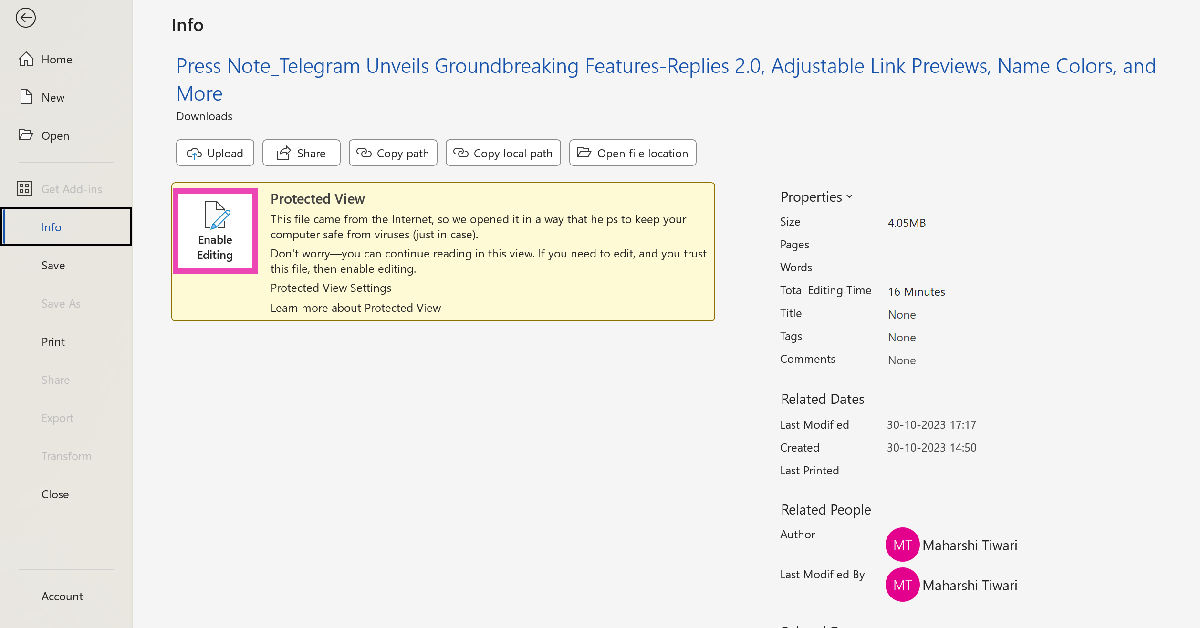
 Once a read-only Word document opens in Protected View, you get a banner message letting you know that the file was downloaded from the Internet and that it may contain viruses. If you need to edit it still, simply click on the ‘Enable Editing’ option within this message. It’s that easy. If you don’t see this message at the top of the screen, check out the other methods below.
Enable Editing in Protected View
Step 1: Select File from the top menu.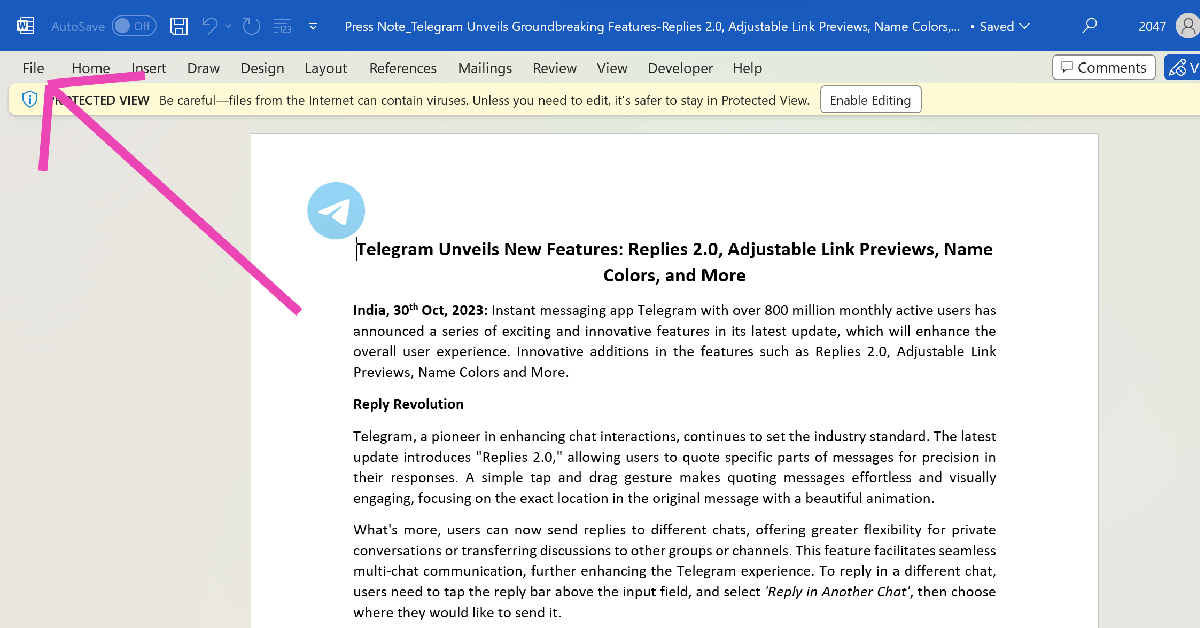 Step 2: Hit Info.
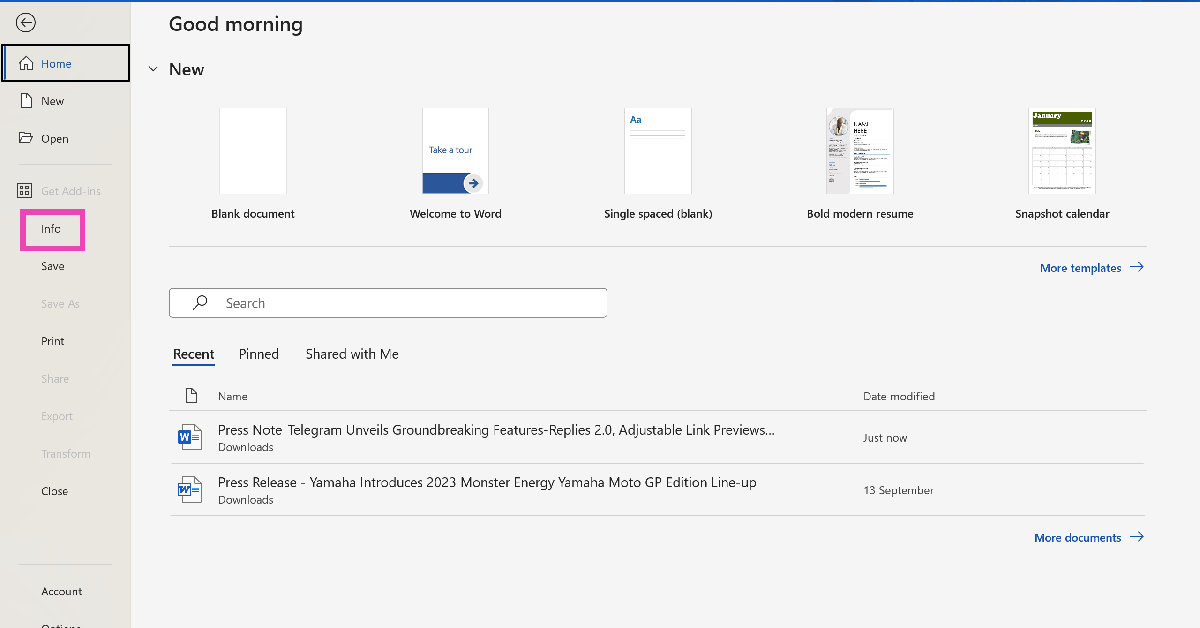 Step 3: In the Protected View box, select Enable Editing.
Remove editing restrictions in Word by changing the file properties
Step 1: Locate the Word file on your PC. Right-click on it and select Properties. Step 2: Uncheck the box for Unblock in the General tab. Make sure the box for Read-only is not selected either.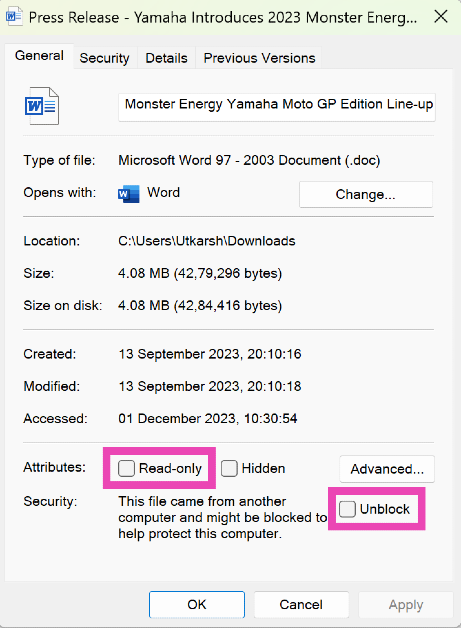 Step 3: Switch to the Security tab and make sure you are allowed all permissions for the file.
 Step 4: Click on OK.
You will now be able to edit the Word document.
Step 4: Click on OK.
You will now be able to edit the Word document.
Edit a Restricted document
Step 1: Open the Word document and go to the Review tab. Step 2: Click on Protect and select Restrict Editing.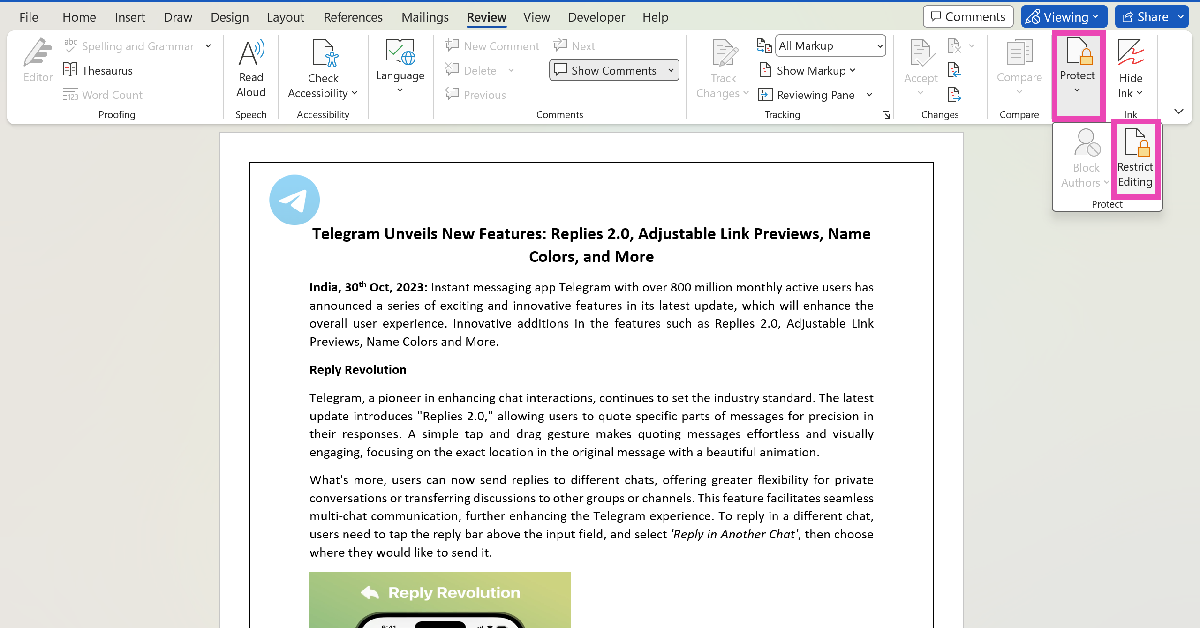 Step 3: Click on Stop Protection.
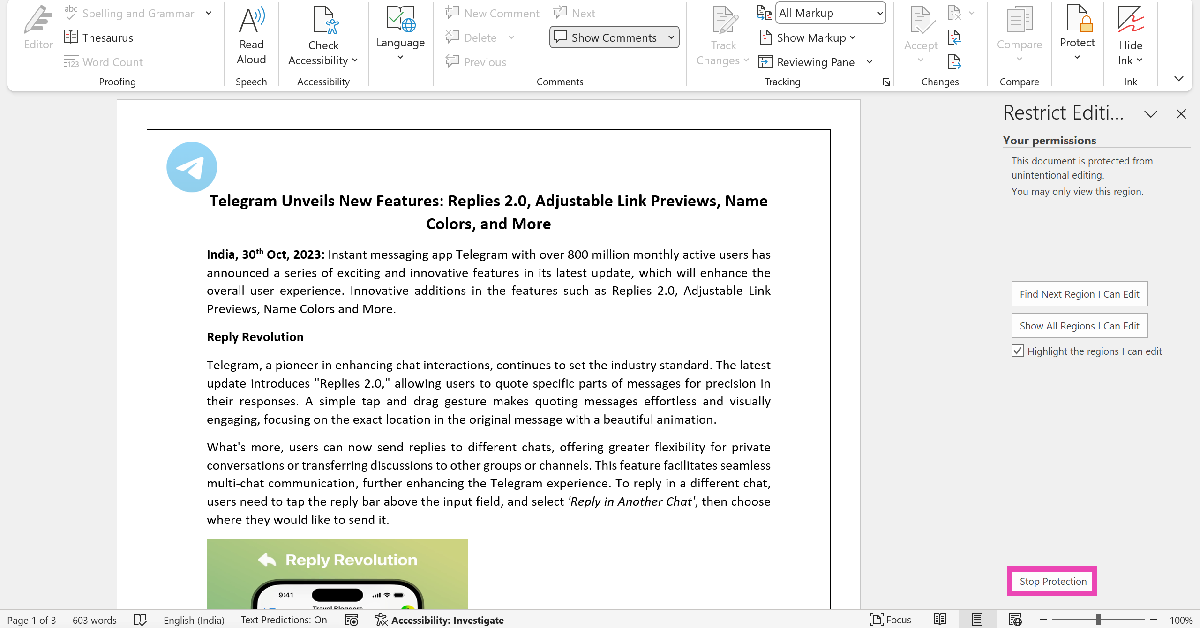 Step 4: Enter the password for the document to begin editing it.
Copy and paste the text to another document
If the methods mentioned above didn’t work for you, you can simply copy the text of the Word document and paste it into a new document. You can also choose to edit the text in Notepad or any other text editor of your choice. There are some universal keyboard shortcuts you can use to make your job easier. Press Ctrl+A to select the entire text in the document and Ctrl+C to copy it to the clipboard. Open a fresh document by pressing Ctrl+N, then press Ctrl+V to paste the text.Frequently Asked Questions (FAQs)
How do I edit a password-protected Word document?
It is easy to edit a password-protected Word document if you know its password. Go to the Review tab, select Protect>Restrict Editing, and click on Stop Protection. You will need to enter the password to the document to edit it. If you don’t know the password, simply copy and paste the text into a new document to edit it.How do I remove editing restrictions in Microsoft Word?
Microsoft Word restricts editing on documents downloaded from the web by opening them in Protected View. This is done to protect your PC against viruses. To remove editing restrictions in Word, go to File>Info and hit Enable Editing in the Protected View box.How do I disable Read-only mode on a Word file?
Right-click on the Word file and uncheck the box for Read-only. Switch to the Security tab and make sure you have access to all the permissions. Read Also: OnePlus Nord CE 3 5G price reduced, gets a price cut of Rs 2,000Conclusion
These are the top 5 ways to remove editing restrictions if you can’t edit a Microsoft Word document. While enabling editing in Protected View mode, ensure that the Word file was downloaded from a trustworthy source. If that isn’t the case, your PC may be exposed to harmful viruses, malware, or ransomware. You can also choose to disable Protected View altogether from Trust Center Settings.Apple Declared 2023 App Store Award Winners

Key highlights
- This year Apple announced a total of 14 apps and games winners.
- These winners have been selected from 40 finalists based on their exceptional technical innovation, user experience, and design.
2023 App Store Award Winners
Apps
- iPhone App of the Year: AllTrails, from AllTrails, Inc.
- iPad App of the Year: Prêt-à-Makeup, from Prêt-à-Template.
- Mac App of the Year: Photomator, from UAB Pixelmator Team.
- Apple TV App of the Year: MUBI, from MUBI, Inc.
- Apple Watch App of the Year: SmartGym, from Mateus Abras.
Games
- iPhone Game of the Year: Honkai: Star Rail, from COGNOSPHERE PTE. LTD.
- iPad Game of the Year: Lost in Play, from Snapbreak Games.
- Mac Game of the Year: Lies of P, from NEOWIZ.
- Apple Arcade Game of the Year: Hello Kitty Island Adventure, from Sunblink.
Garena Free Fire Redeem Codes Today 1 December 2023: Here is how to claim them

Garena Free Fire is a battle royale game with regular awards and tournaments to keep players interested. If you play Garena Free Fire, you should be aware of the redeem codes that are released on a daily basis. However, because the battle royale game is banned in India, players from other countries can use the Free Fire Redeem codes daily. If you’re unfamiliar with the Garena Free Fire redeem codes or don’t know how to get them, we’ve put together a step-by-step guide to help you redeem them. Check out Garena Free Fire Redeem Codes for 1 December 2023.
The Free Fire redeem codes are a great way to get free stuff. These are 12-digit codes that contain alphabets and numbers, as well as an expiration date and time. Because the Garena FF redeem codes cannot be used more than once, you should hurry to the redemption page to claim your free reward before someone else does. To get a free reward, all you have to do is go to reward.ff.garena.com/en, which is the official redemption page. Also, keep an eye on this space for daily updates on Garena Free Fire redemption codes and rewards.
Garena Free Fire Redeem Codes Today 1 December 2023
FRT5HYR56JU65Y4E FUYFTHUJR67URYH4 F7UJT7UKYI67U34S FOGFUYJN67UR6OBI FV7CYTGDRBWNMJEK FDYGTH6R567UE56K FYUJT67U6JT67UTH FNJU87RIU6Y56YIU FUTYJT5I78OI78F2 F3BG4N5MTK6YLHOI FBVYHDNEKE46O5IT FUGYHVBC9XMS8UE4 FV7YFHDN4M496LYP F6T78KJHGSERFF87 FYHR6TYHJ67YJ7TC FGDGFYJ76T97UTI7 FDYHR6Y7SUR674U3 FFYUFJU778SU7YTGHow to Get Free Fire Redeem Codes for Garena on 1 December 2023?
- Visit the Garena Free Fire game’s official website at reward.ff.garena.com.
- Use your Facebook, Google, VK, Apple ID, Huawei ID, or Twitter account to log in.
- You’ll be taken to a valid redemption code (s)
- Copy and paste the 12-digit redemption code into the text box.
- On the screen, a dialogue box will appear.
- ‘Ok’ should be selected.
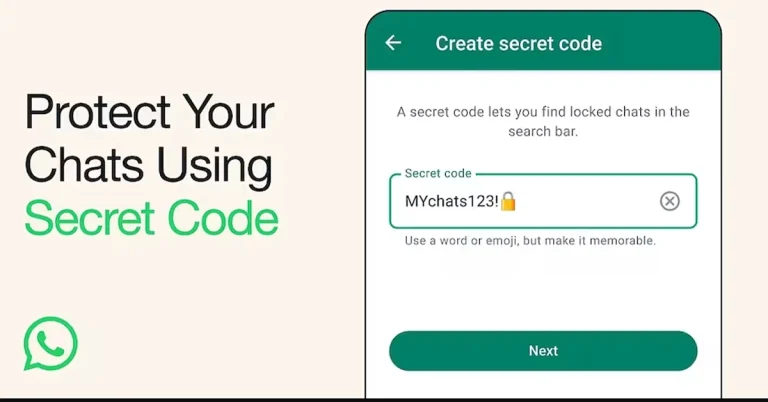
WhatsApp’s new Secret Code feature now lets you hide your private chats from snooping eyes
Key highlights
- WhatsApp chat lock feature can be accessed easily using a password, PIN, fingerprint or face scanning.
- But the new Secret Code feature will keep your chats hidden and locked.
- Your lock chats can now be accessed only by entering a Secret Code.
Availability of Secret Code feature
WhatsApp has started rolling out the Secret Code feature for users and it will gradually drop on your device in the coming weeks or months.Vivo Y100i with 50-megapixel dual rear camera launched

Key highlights

- Vivo Y100i comes with a 5,000mAh battery.
- It is powered by MediaTek Dimensity 6020 SoC.
- The device is likely to launch in India.
Vivo Y100i price and availability
Vivo Y100i has been released in China. There, the Y-Series phone is priced at CNY 1,599 which translates to Rs 15,000 for a single 12GB RAM with 512GB storage. The handset is available in three colour options of Blue, pink and black. The device is currently listed on the company’s official online store in China for purchase. The device is likely to arrive in India as well but the company is yet to confirm about the Indian availability.
Vivo Y100i specifications
Vivo Y100i features a 6.64-inch full-HD+ display with 1,080×2,388 pixels of resolution. The device comes with a 91.6 screen-to-body ratio and supports a standard refresh rate of 60Hz. The phone operates on OriginOS 3 skinned on top of Android 13 out of the box. In addition to this, the handset comes equipped with an octa-core 7nm MediaTek Dimensity 6020 SoC and Mali-G57 MC2. It has 12GB of LPDDR4X RAM that can be further expanded up to 24GB. The device also includes 512GB UFS2.2 storage. For photography and videography, there is a dual rear camera setup on the Vivo Y100i. The camera system includes a 50-megapixel primary camera with f/1.8 aperture and a 2-megapixel sensor with an f/2.4 aperture. There is an 8-megapixel front-facing camera for taking selfies and video calling. The smartphone sports a 5,000mAh battery with 44W fast charging support. In addition to this, there is Wi-Fi, Bluetooth 5.1, a 3.5mm audio jack, a USB Type-C port, GPS, and A-GPS for connectivity. The device also includes a side-mounted fingerprint sensor and a face unlock feature for unlocking the phone. The sensors on the phone include an ambient light sensor, e-compass, accelerometer and proximity sensor.Price of iQoo 12 5G in India tipped ahead of the launch: Details inside

Key highlights
- The smartphone is set to arrive in India on December 12.
- The gaming phone is powered by the Snapdragon 8 Gen 3 SoC processor.
- The device comes with a triple rear camera setup.