How to find downloaded songs and playlists on Amazon Music?

0
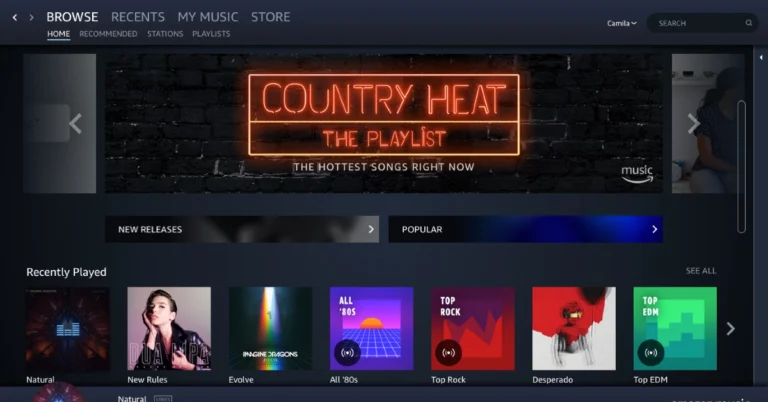
The Amazon Music app boasts a library of over 100 million songs and millions of podcast episodes. Amazon Prime subscribers get free access to this library, with the ability to download songs and podcasts for offline listening. You can even choose to curate your own playlists or download a public playlist created by other members on the app. In this article, we show you how to find your downloaded songs and playlists on the Amazon Music app. Read Also: How to find downloaded videos on YouTube?

Find downloaded songs on Amazon Music

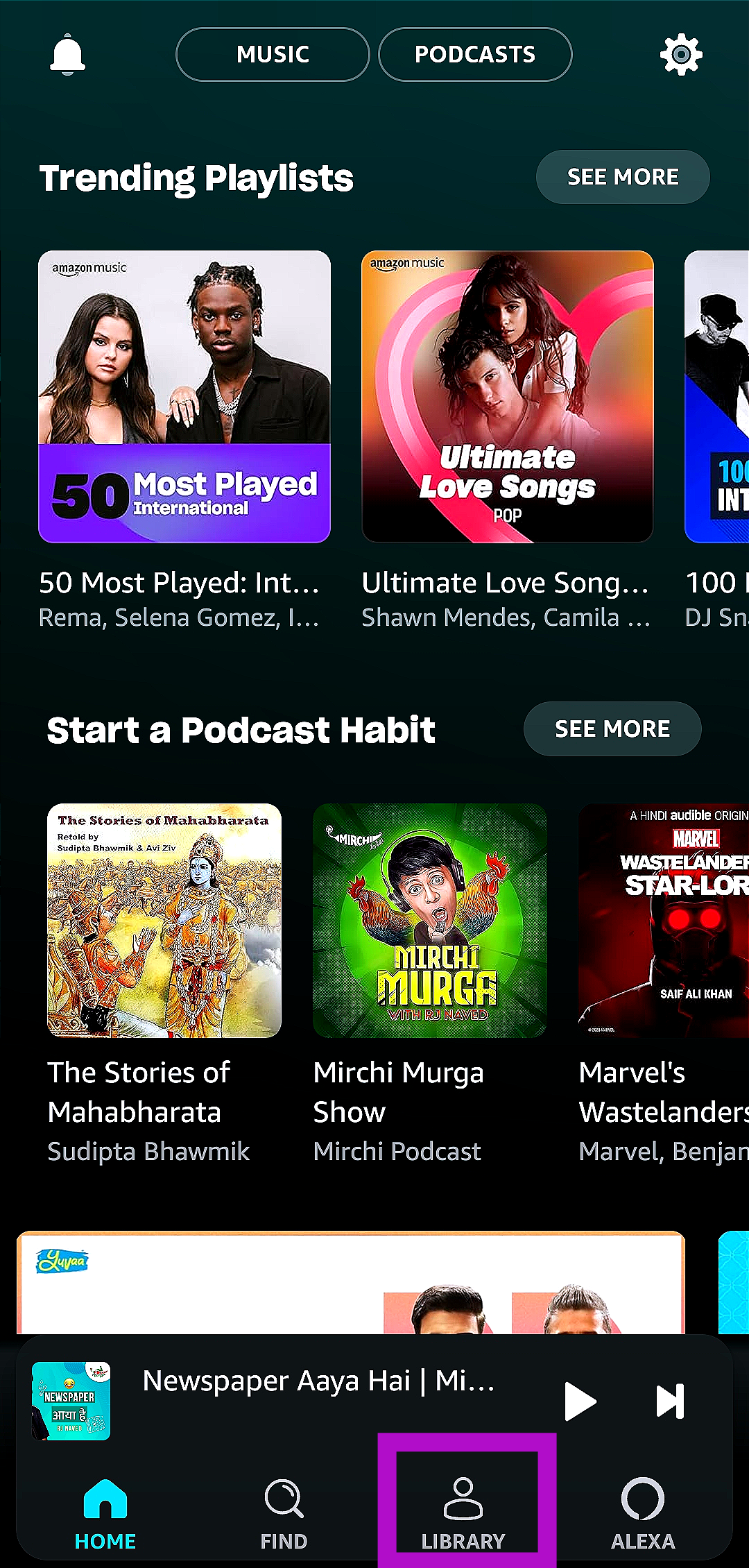
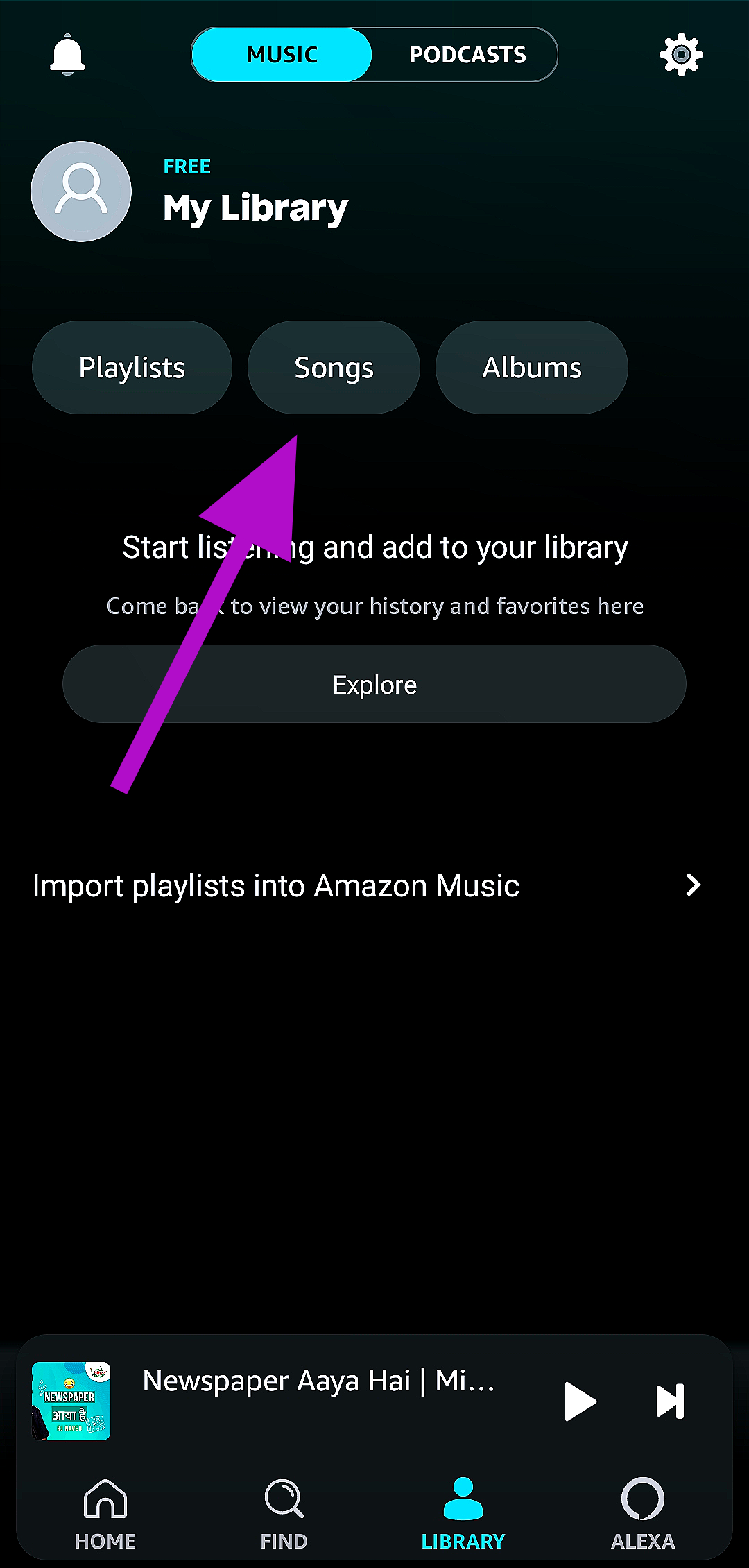
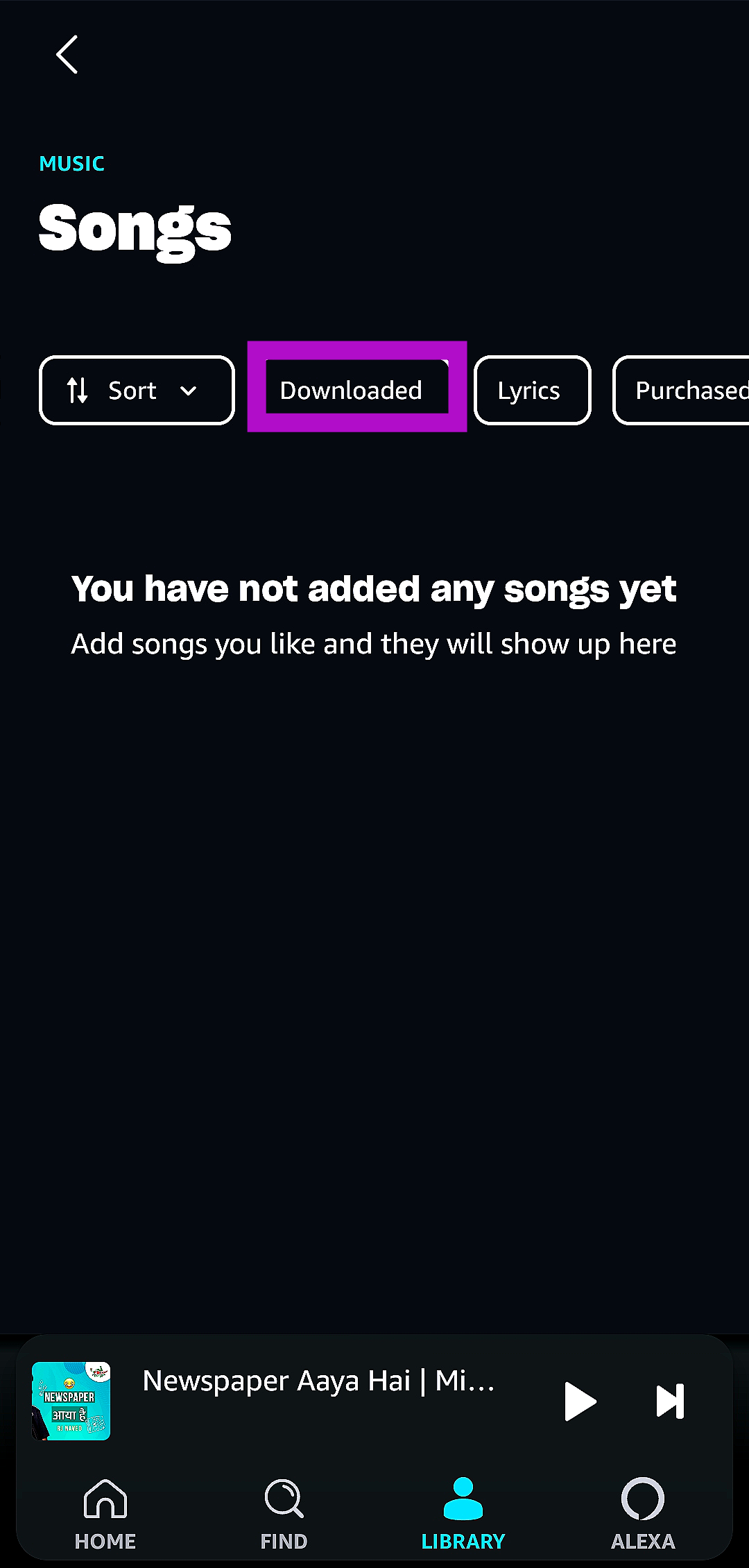
Step 1: Launch the Amazon Music app on your smartphone. Step 2: Switch to the Library tab. Step 2: Switch to the Library tab. Step 3: Tap on Songs. Step 3: Tap on Songs. Step 4: Select the Downloaded filter. Step 4: Select the Downloaded filter. The Amazon Music app will list all your downloaded songs.

Find your playlists on Amazon Music

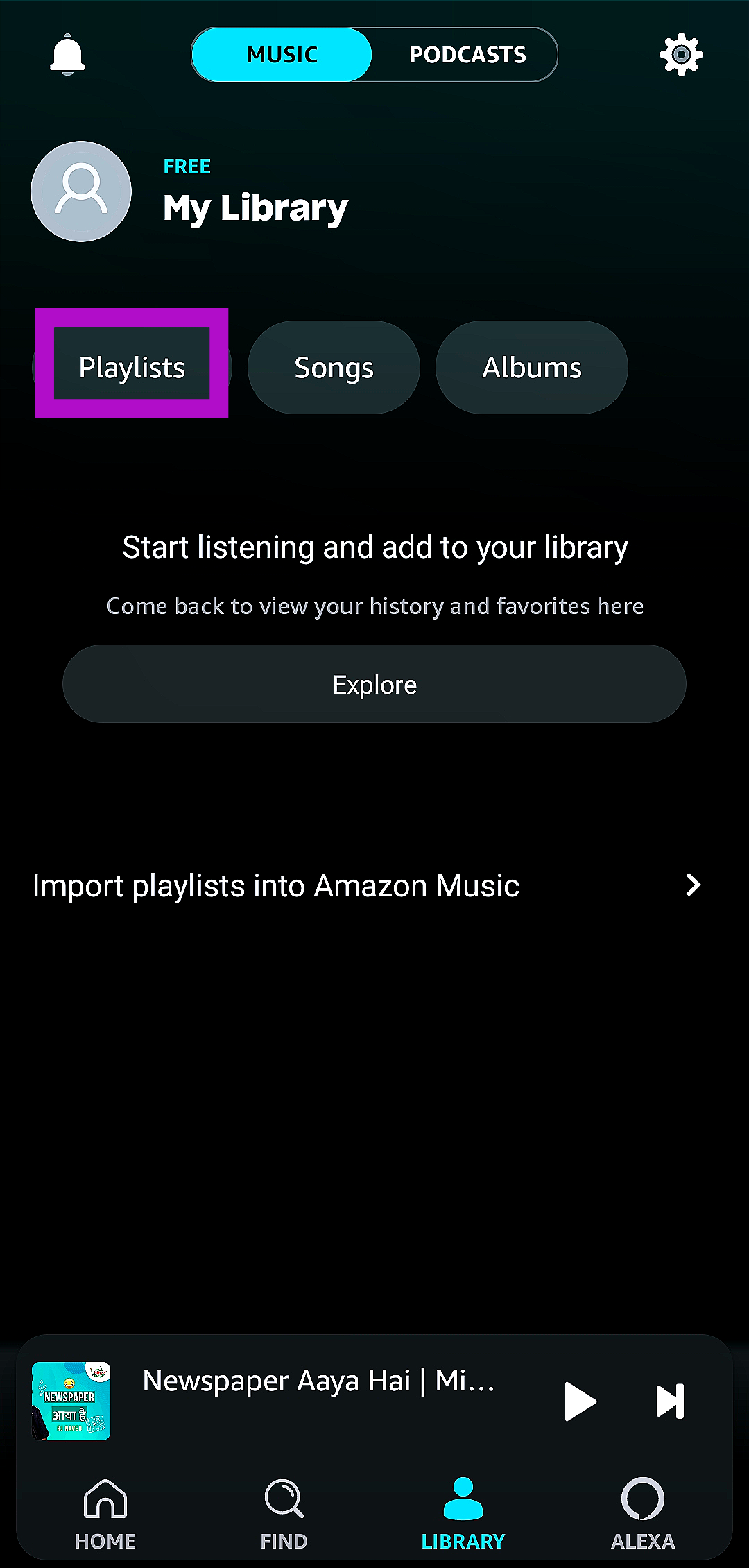
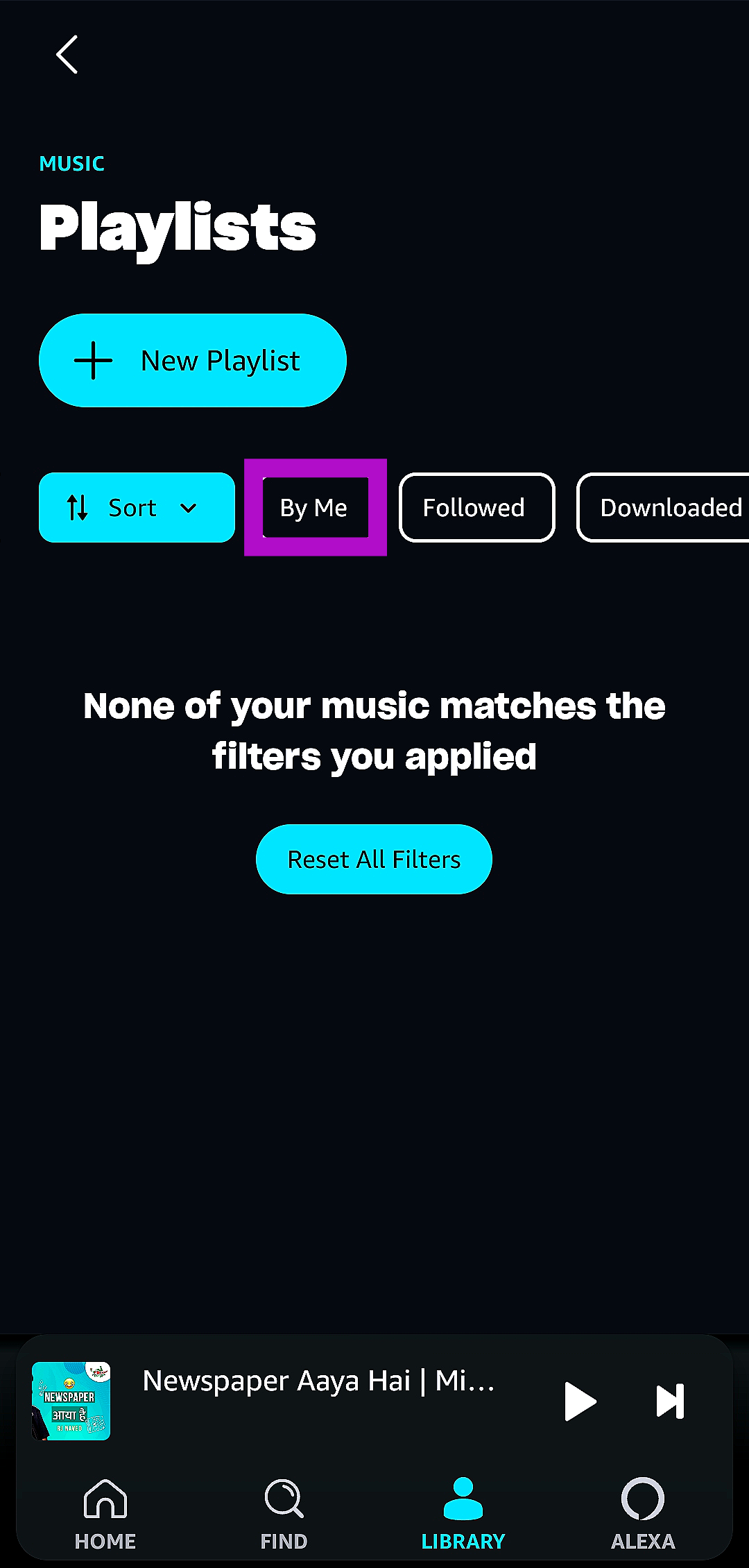
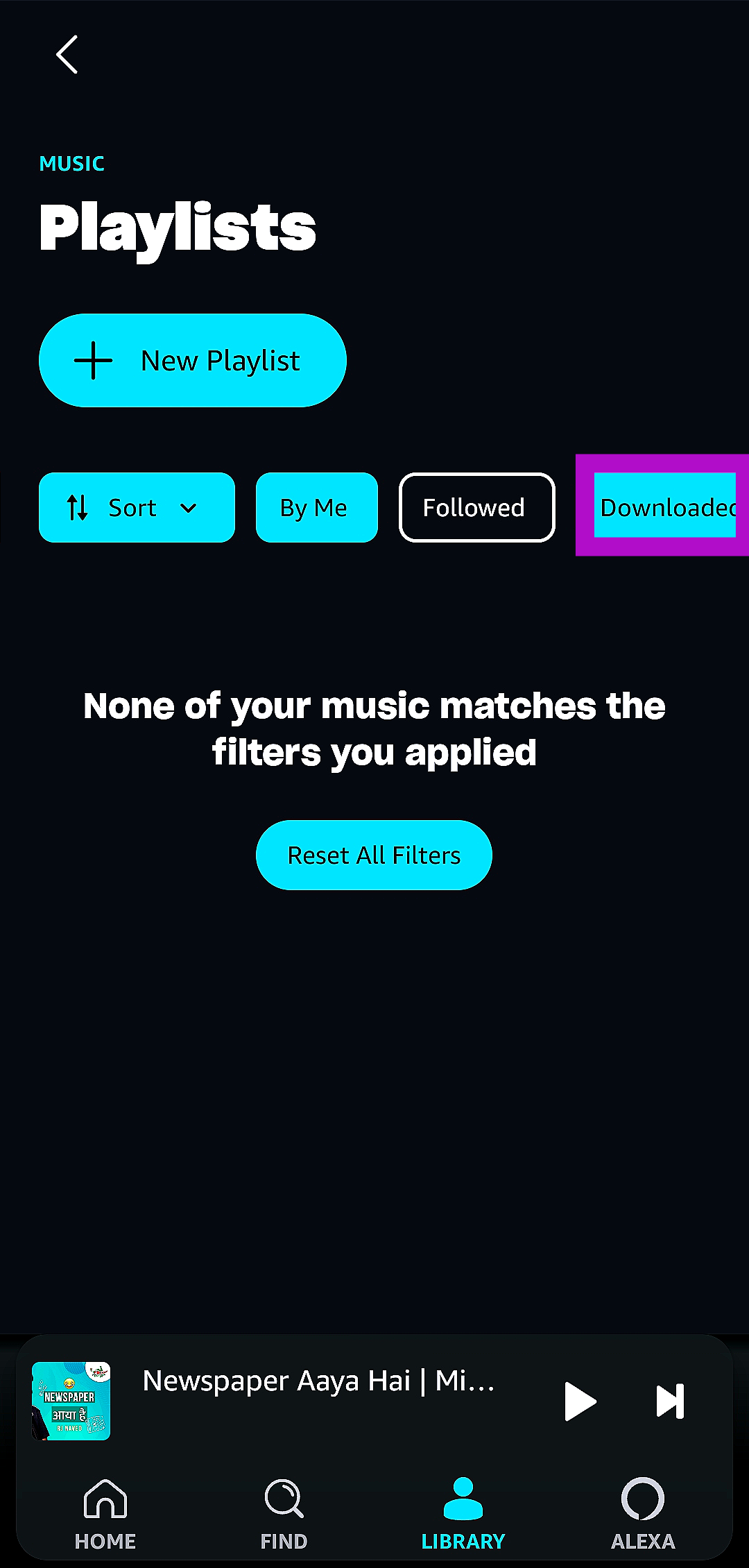
Step 1: Launch the Amazon Music app on your smartphone. Step 2: Switch to the Library tab. Step 2: Switch to the Library tab. Step 3: Tap on Playlists. Step 3: Tap on Playlists. How to find downloaded songs and playlists on Amazon Music? Step 4: To view the playlists that you have created, select the By Me filter. Step 4: To view the playlists that you have created, select the By Me filter. How to find downloaded songs and playlists on Amazon Music? Step 5: To view the playlists that you have downloaded for offline listening, select the Downloaded filter. Step 5: To view the playlists that you have downloaded for offline listening, select the Downloaded filter. How to find downloaded songs and playlists on Amazon Music?

Frequently Asked Questions (FAQs)

Where does the Amazon Music app keep all my downloaded songs?

To find your downloaded songs, go to the Library tab, hit Songs, and choose the downloaded filter.

How long does it take for the saved songs on Amazon Music to expire?

You won’t be able to access your downloaded songs on Amazon Music once your Prime Music subscription ends.

How much does an Amazon Prime Music subscription cost in India?

Amazon Prime users can access the Amazon Music library for free. The most basic Prime subscription costs Rs 299 per month.  Read Also: Oppo A79 5G with MediaTek Dimensity 6020 SoC launched in India

Conclusion

This is how you can find the downloaded songs and playlists on the Amazon Music app. Amazon Prime users do not need to pay an extra fee to access the entire library of songs on the Amazon Music app. Meanwhile, users without a Prime subscription are limited to a curated list of songs, playlists, and podcasts.

Samsung Calendar Not Syncing with Google Calendar? Here are 7 fixes

0
Most Samsung users prefer the native calendar app on their phones to the Google one. The native app supports Google and Outlook to make sure you never miss an important entry. However, sometimes users report suspension of syncing activity, leading to several inconsistencies. In this article, we bring you the top 7 ways to fix the ‘Samsung Calendar app not syncing with Google Calendar’ issue on your smartphone. Read Also: Oppo A79 5G with MediaTek Dimensity 6020 SoC launched in India

Restart your phone

One of the first steps you should take upon encountering a malfunction on your phone is restarting it. A quick restart fixes any background issues or software glitches that may be causing the malfunction to occur. To restart your Samsung phone, simply press and hold the size key and select ‘Restart’ from the power menu. If holding the side key triggers Bixby on your device, press and hold the side key and volume down key simultaneously to access the power menu.

Check your Internet connection

Any background syncing activity stops immediately when your phone loses connection to the internet. This includes Samsung and Google Calendar as well. To check the strength of your internet connection, perform a quick speed test. If possible, switch to a better connection to resume the syncing process.

Got another Google account? Manually add it to the Samsung calendar app

Step 1: Launch the Samsung Calendar app on your smartphone. Step 2: Tap the hamburger menu at the top right corner of the screen. Step 2: Tap the hamburger menu at the top right corner of the screen. Step 3: Hit the gear icon to open settings. Step 3: Hit the gear icon to open settings. Step 4: Tap on Manage calendars. Step 4: Tap on Manage calendars. Step 5: Tap the plus icon at the top right corner of the screen to add a Google Account. Step 5: Tap the plus icon at the top right corner of the screen to add a Google Account. Step 6: Hit Google. Step 6: Hit Google. Step 7: Log into your Google account with the proper credentials. Once you’re logged in, the calendar corresponding to that particular Google account will be synced with the Samsung Calendar app.

Manually enable syncing

Step 1: Launch the Samsung Calendar app on your smartphone. Step 2: Tap the hamburger menu at the top right corner of the screen. Step 2: Tap the hamburger menu at the top right corner of the screen. Step 3: Hit the gear icon to open settings. Step 3: Hit the gear icon to open settings. Step 4: Tap on Manage calendars. Step 4: Tap on Manage calendars. Step 5: Turn on the toggle switch for your Google account. Step 5: Turn on the toggle switch for your Google account.

Make sure your desired calendar is enabled in the Samsung app

Step 1: Launch the Samsung Calendar app on your smartphone. Step 2: Tap the hamburger menu at the top right corner of the screen. Step 2: Tap the hamburger menu at the top right corner of the screen. Samsung Calendar Not Syncing with Google Calendar? Here are 7 fixes Step 3: Hit the arrow to expand the drop-down menu for your Google account. Samsung Calendar Not Syncing with Google Calendar? Here are 7 fixes Step 4: Select the calendar that you want to sync with the Samsung Calendar app.

Make sure that syncing is enabled for Google Calendar

Step 1: Go to Settings and select Accounts and backup. Step 1: Go to Settings and select Accounts and backup. Samsung Calendar Not Syncing with Google Calendar? Here are 7 fixes Step 2: Tap on Manage accounts. Step 2: Tap on Manage accounts. Samsung Calendar Not Syncing with Google Calendar? Here are 7 fixes Step 3: Tap on your Google account. Step 3: Tap on your Google account. Samsung Calendar Not Syncing with Google Calendar? Here are 7 fixes Step 4: Select Sync account. Step 4: Select Sync account. Samsung Calendar Not Syncing with Google Calendar? Here are 7 fixes Step 5: Make sure the toggle switch is turned on for Calendar. Step 5: Make sure the toggle switch is turned on for Calendar. Samsung Calendar Not Syncing with Google Calendar? Here are 7 fixes

Update the Samsung Calendar app

If you’re using an older version of the Samsung Calendar app, you may run into some issues with the automatic syncing process. To fix this problem, simply update the app from the Google Play Store or Samsung’s very own Galaxy Store. Developers are quick to patch any flaws and resolve prevalent bugs with a quick update.

Frequently Asked Questions (FAQs)

Why can’t I see my Google Calendar entries on my Samsung Calendar app?

If you use multiple Google accounts, you may have forgotten to add the calendar you are looking for on Samsung’s native calendar app. To add a new calendar, go to Menu>Settings>Manage calendars>Plus icon and log in using your Google account.

How do I sync my Samsung Calendar with the Google Calendar?

To start syncing, go to the Samsung Calendar app, hit the hamburger menu, go to settings, and turn on the toggle switch for your Google account

How do I add a personal calendar from my Google account to the Samsung calendar app?

To add a personal calendar linked to your Google account to the Samsung calendar app, simply tap the hamburger menu, expand your Google account, and select the personal calendar. Read Also: Nokia 105 Classic with built-in UPI application launched in India

Conclusion

These are the top 7 ways to fix the ‘Samsung calendar not syncing with Google calendar’ issue on your smartphone. It is also a good idea to make sure the Samsung Calendar app has been given the necessary permissions to function on your device. This may not be an issue if the app has been working fine till now, but it is always a good idea to double-check that you haven’t rescinded any of the important permissions.

5 best video players for Chromebooks

If you own a Chromebook device, you must be aware of the limitations of its native video player. These limitations are ever so visible whenever you try to play a rare video format or try to personalise the look of the video player. Most users immediately look for other options after checking out the default Chromebook media player. In this article, we bring you our picks for the 5 best video or media players for Chromebooks. Read Also: Nokia 105 Classic with built-in UPI application launched in India

VLC Media Player

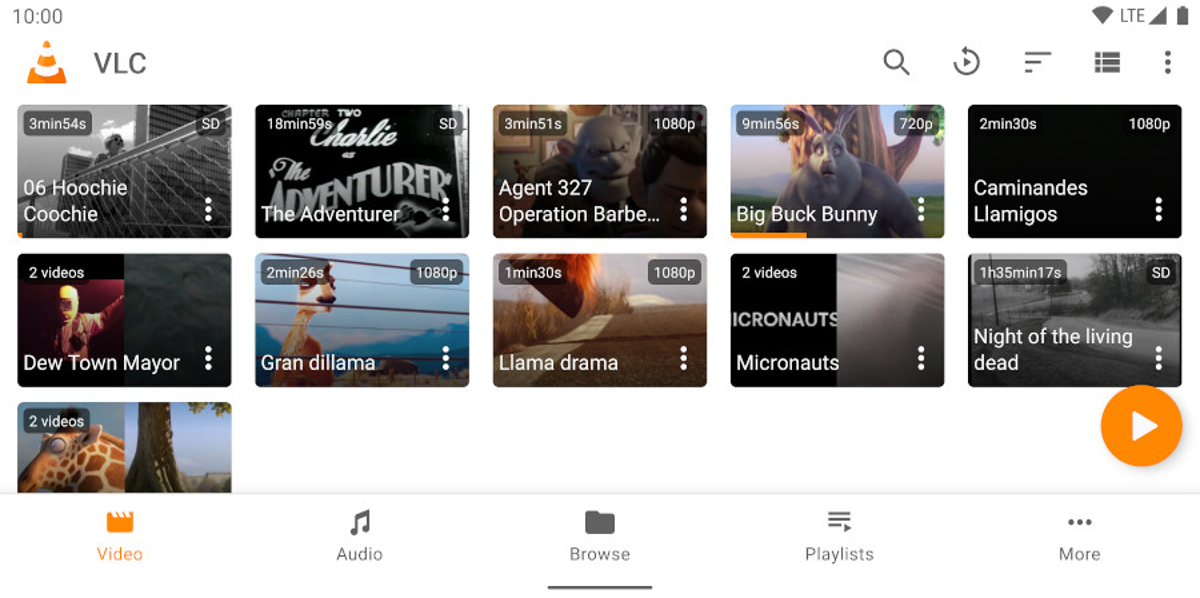
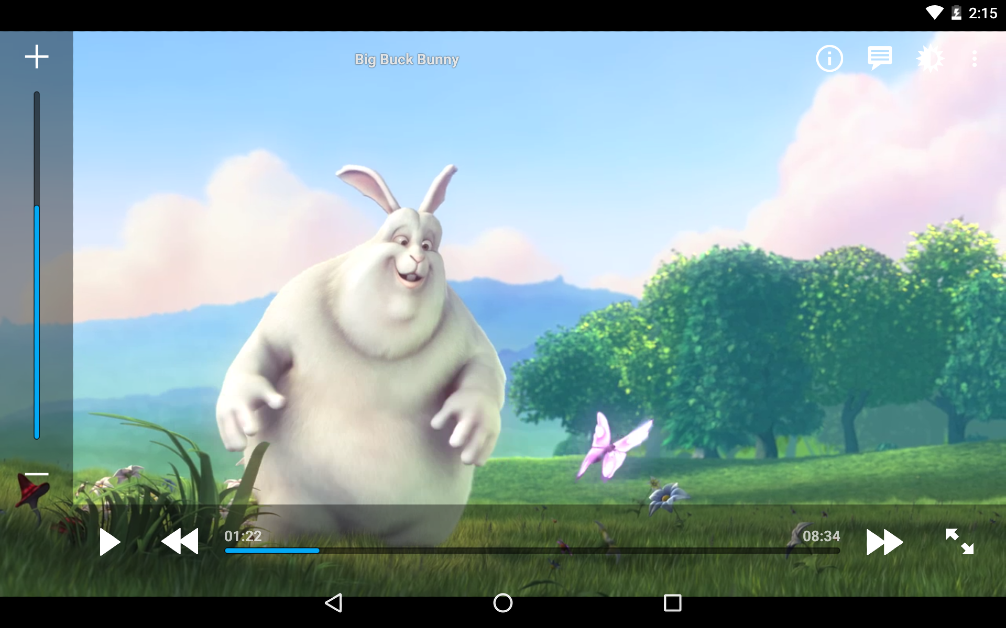
VLC Media Player Perhaps the most popular media player for Windows, VLC Media Player is also available on ChromeOS. If you’re familiar with VLC, you would know that it can do it all. The media player supports all the major video formats like MKV, MP4, AVI, MOV, Ogg, FLAC, TS, M2TS, Wv and AAC. Like its Windows counterpart, VLC for ChromeOS can also play network streams and DVD ISOs. If you come across a media format that isn’t supported by other players, chances are that VLC can play it. Versatility aside, VLC Media Player is very accessible to the average person and does not take a lot of time to get familiar with.

MX Player

MX Player If the VLC Media Player is not your jam, MX Player would serve as an excellent alternative. Features like multi-core decoding, hardware acceleration, child lock, privacy folder, and extensive subtitle format support cement its position as one of the best media players for Chromebooks. The MX Player currently has over 1 billion downloads on the Google Play Store with an average rating of 4.4 stars from 12.3 million reviews. It can be downloaded to your Chromebook as an app and can be easily accessed from the app drawer.

PlayerXtreme Media Player

PlayerXtreme Media Player 5 best video or media players for Chromebooks. PlayerXtreme Media Player supports over 40 video formats including MKV, MP4, AVI, and WMV. This allows it to run most video files without implicitly converting their formats. PlayerXtreme also supports all the major subtitle formats like Closed Captioned (CC), SRT, SMI, TXT and more. If your video file lacks subtitles, they can be downloaded within the app. You can organise your video library into different folders with several customisation options on offer. The app can be locked using a password or your fingerprint.

Archos Video Player

Archos Video Player 5 best video or media players for Chromebooks. Archos Video Player’s smooth interface and pleasing design are unmatched by most video players for ChromeOS. The video library beautifully sorts the video files on your device, complete with relevant thumbnails. You can browse the different folders for TV shows, movies, and other miscellaneous videos to find what you’re looking for. The ‘Recently added’ and ‘Recently played’ sections make the video player even more accessible. Archos supports all the major video file formats like MKV, MP4, AVI, WMV, FLV, and more.

Kodi

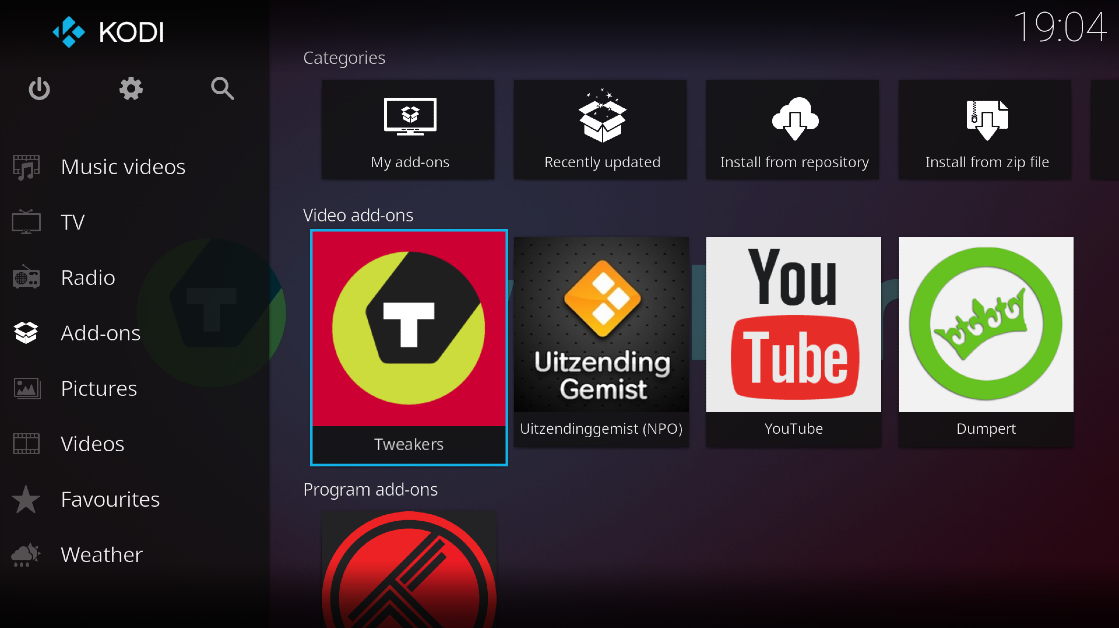
Kodi 5 best video or media players for Chromebooks. Not only is Kodi an excellent media player for Chromebooks, but it can also serve as an image gallery for your device. You can install Kodi on your Chromebook directly from the Google Play Store and access it easily from the app drawer. Kodi markets itself as a ‘home theatre software’ that neatly catalogues your movie, music, image, and game collection. Its plugins and customisations put it in the upper echelon of video players for Chromebooks. Read Also: 12 Best ChatGPT Alternatives (2023)

Conclusion

These are the 5 best video players you can download on your Chromebook right now. The video players on this list are versatile enough to work smoothly on any Chromebook device, no matter the hardware. Which video player do you use to play media on your Chromebook? We’d love to hear from you in the comments!

Garena Free Fire Redeem Codes Today 28 October 2023: Here is how to claim them

Garena Free Fire is a battle royale game with regular awards and tournaments to keep players interested. If you play Garena Free Fire, you should be aware of the redeem codes that are released on a daily basis. However, because the battle royale game is banned in India, players from other countries can use the Free Fire Redeem codes daily. If you’re unfamiliar with the Garena Free Fire redeem codes or don’t know how to get them, we’ve put together a step-by-step guide to help you redeem them. Check out Garena Free Fire Redeem Codes for 28 October 2023. The Free Fire redeem codes are a great way to get free stuff. These are 12-digit codes that contain alphabets and numbers, as well as an expiration date and time. Because the Garena FF redeem codes cannot be used more than once, you should hurry to the redemption page to claim your free reward before someone else does. To get a free reward, all you have to do is go to reward.ff.garena.com/en, which is the official redemption page. Also, keep an eye on this space for daily updates on Garena Free Fire redemption codes and rewards.

Garena Free Fire Redeem Codes Today 28 October 2023

FFCMCPSUYUY7E EYH2W3XK8UPG UVX9PYZV54AC ZZZ76NT3PDSH XZJZE25WEFJJ V427K98RUCHZ BR43FMAPYEZZ 8F3QZKNTLWBZ WEYVGQC3CT8Q

How to Get Free Fire Redeem Codes for Garena on 28 October 2023?

  • Visit the Garena Free Fire game’s official website at reward.ff.garena.com.
  • Use your Facebook, Google, VK, Apple ID, Huawei ID, or Twitter account to log in.
  • You’ll be taken to a valid redemption code (s)
  • Copy and paste the 12-digit redemption code into the text box.
  • On the screen, a dialogue box will appear.
  • ‘Ok’ should be selected.
For the latest gadget and tech news, and gadget reviews, follow us on TwitterFacebook and Instagram. For newest tech & gadget videos subscribe to our YouTube Channel. You can also stay up to date using the Gadget Bridge Android App. You can find the latest car and bike news here.

How to find downloaded videos on YouTube?

0
If you don’t get optimum network coverage to stream YouTube videos on your commute to work, you can easily download them before leaving and watch them offline while you’re on your way. You can also save videos for offline viewing before leaving for a trip to a place where you’re not likely to get a strong network reception. Due to the constantly changing layout of the app, users often cannot locate their downloaded videos. In this article, we bring you the top 2 ways to find downloaded videos on the YouTube app and website. Read Also: Samsung’s ‘Temporary Cloud Backup’ is here: Stash It, Keep It, But only on a few devices right now

Find downloaded videos on the YouTube app

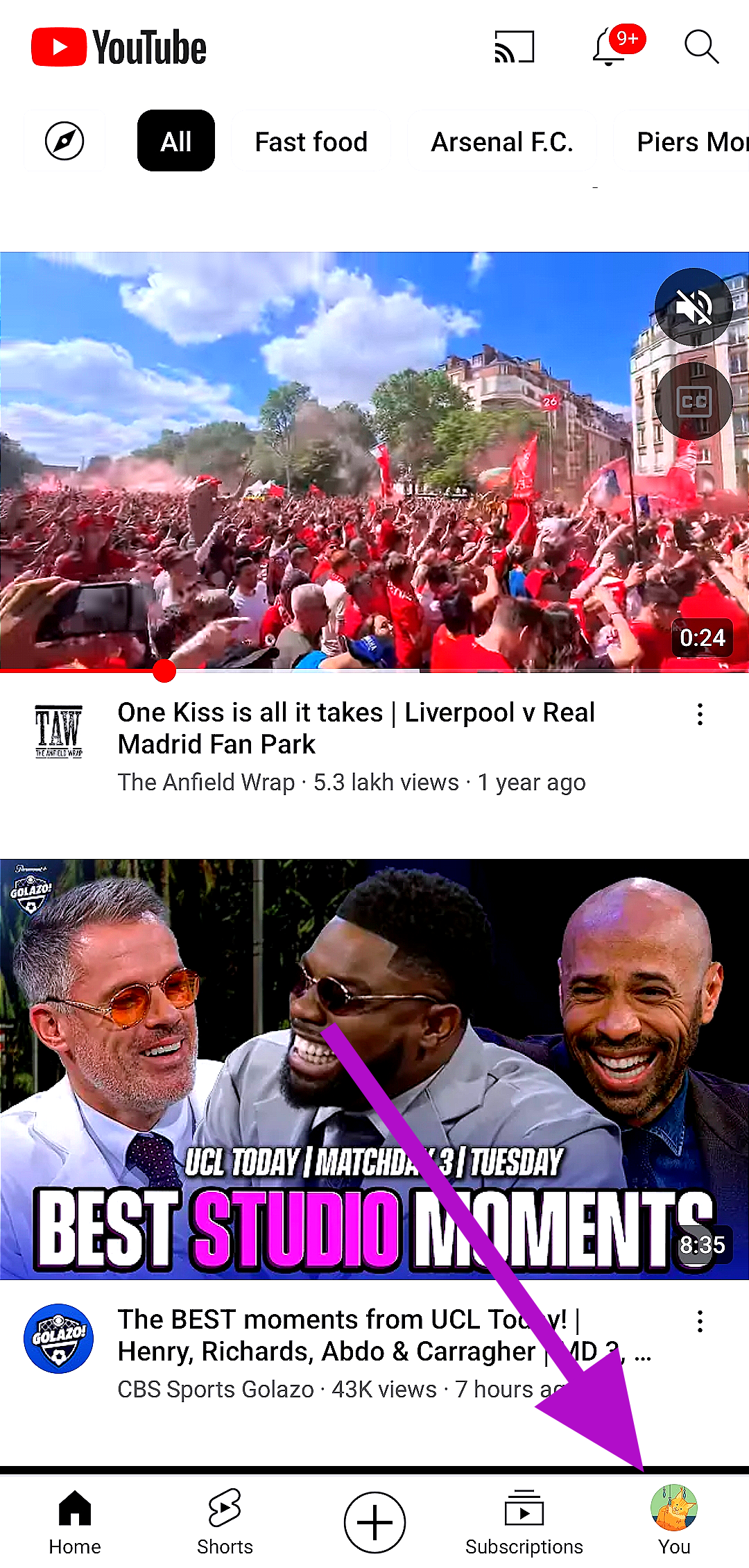
Step 1: Launch the YouTube app on your smartphone. Step 2: Tap the You tab at the bottom right corner of the screen. Step 2: Tap on the You tab at the bottom right corner of the screen. Step 3: Select Downloads. Step 3: Select Downloads.

Find downloaded videos on the YouTube website

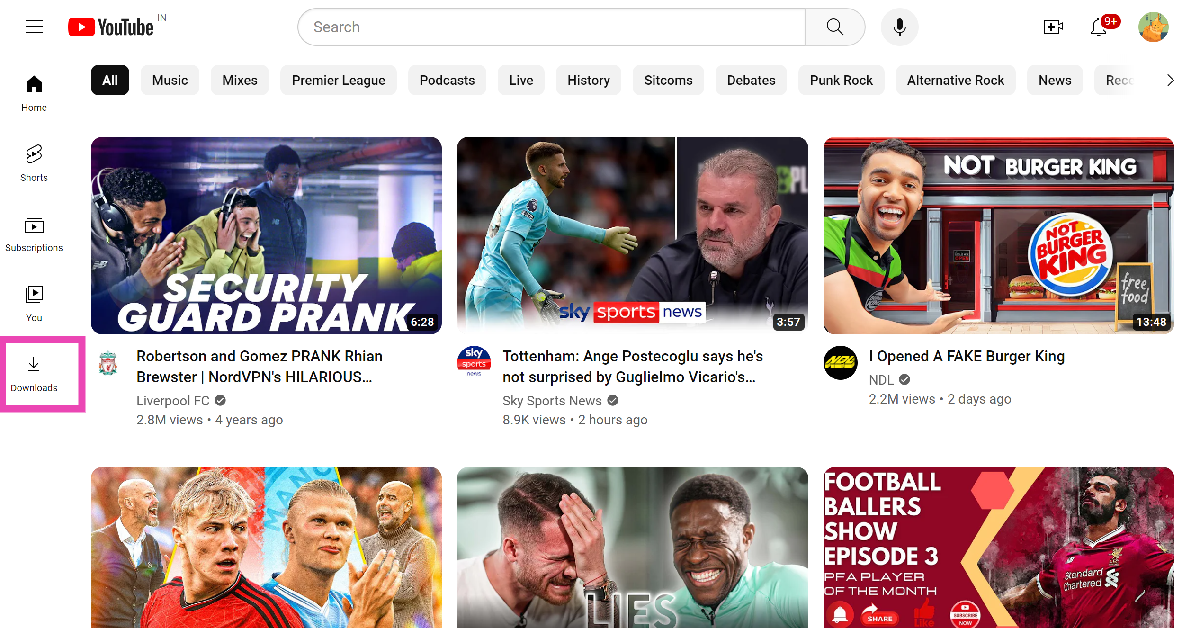
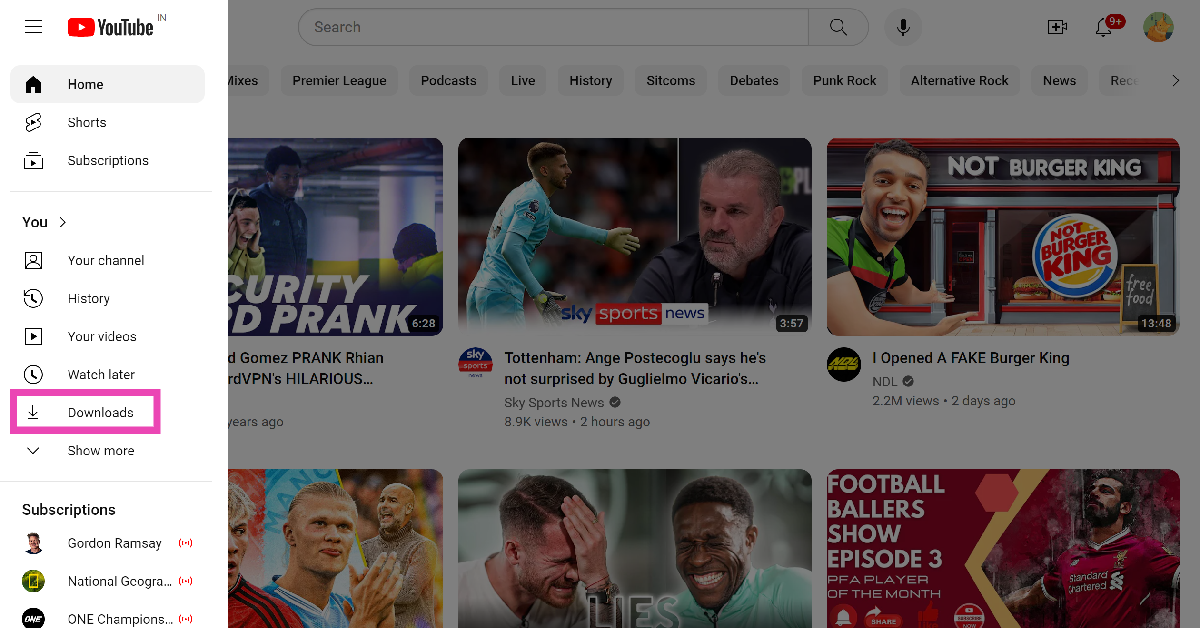
Step 1: Launch your preferred web browser and go to youtube.com. Step 2: Select Downloads from the side menu. Step 2: Select Downloads from the side menu. find downloaded videos youtube Step 3: If you don’t find the Downloads tab in the side menu, hit the hamburger menu at the top right corner of the screen. Step 4: Scroll down and select Downloads. Step 4: Scroll down and select Downloads. find downloaded videos youtube

Frequently Asked Questions (FAQs)

Can you download a YouTube video without a premium subscription?

Yes, you can download videos on YouTube without a premium subscription. However, channel owners get the option to disable downloads for any particular video. You will run into this situation while trying to download music on YouTube. A premium subscription solves this issue while also letting you download videos in higher resolutions.

Do the downloaded YouTube videos get saved on my device?

No, the videos you download on YouTube get saved on your profile for offline viewing. There is no native method of downloading videos directly to your device. You will need to use third-party tools to accomplish that task.

Why can’t I find a downloaded YouTube video on my profile?

Downloaded YouTube videos are available for offline viewing for 29 days. If you can’t find a particular video, it is likely because its offline viewing period has expired. Read Also: Apple watchOS 10.1 rolled out, enables double-tap gesture

Conclusion

These are the top 2 ways to find downloaded videos on YouTube. If you want to get the most out of the offline viewing experience on YouTube, we suggest getting a premium subscription. Right now, YouTube is offering the first four months of Premium membership for free. Following the free trial, monthly subscription plans for YouTube Premium begin at Rs 129.

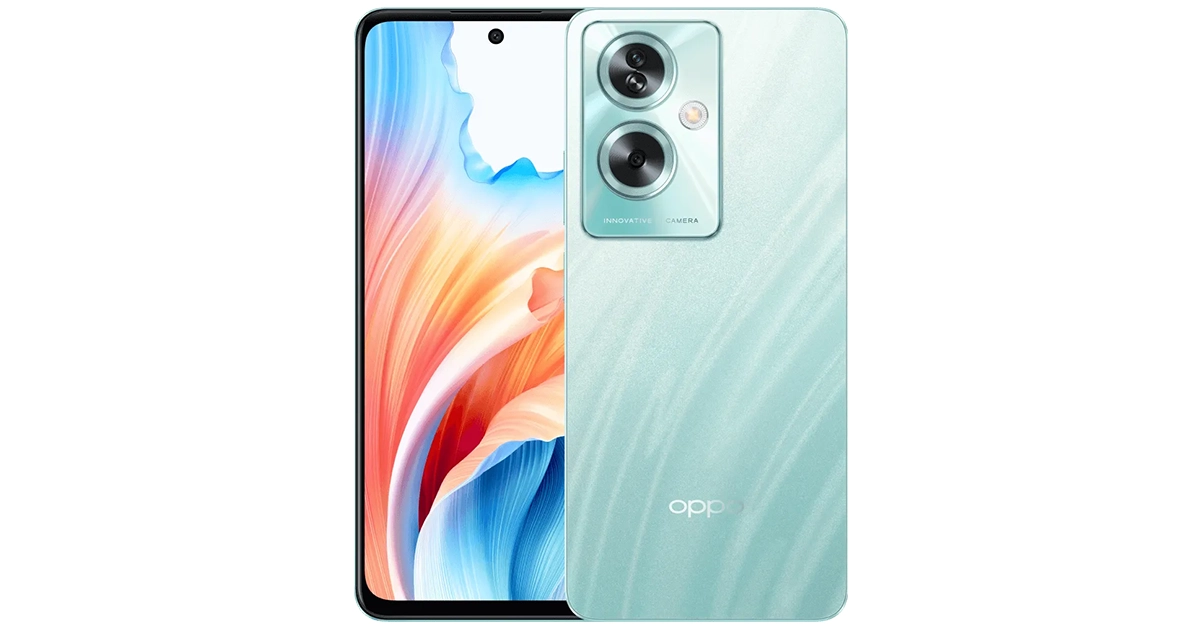
Oppo A79 5G with MediaTek Dimensity 6020 SoC launched in India

Oppo today officially announced the launch of a new 5G smartphone in India. The company has introduced Oppo A79 5G to its A-Series portfolio. The device is powered by MediaTek Dimensity 6020 SoC. It features an HD+ display and a dual rear camera set-up. In addition to this, there is a 5,000mAh battery plus support for 30W fast charging.

Oppo A79 5G price in India, sale details

Oppo A79 5G has been launched in India with a price tag of Rs 19,999 for the single 8GB RAM with 128GB storage option. The device will be available in two colour options of Mystery Black and Glowing Green. Oppo A79 5G price in India, sale details It will be available for purchase via OPPO Store, Flipkart, Amazon and other retail outlets. The company is offering a cashback of up to Rs 4,000 and no-cost EMI for up to 9 months from ICICI Bank, SBI Cards, Kotak Bank, IDFC First Bank, Bank of Baroda credit card, AU Finance Bank and One Card from mainline retail outlets and the OPPO Store. Additionally, customers can also benefit from Zero Down Payment schemes from leading financiers such as Bajaj Finserv, TVS Credit, Home Credit, HDB Financial Services, IDFC First Bank and Mahindra Finance. Loyal OPPO customers can also avail an Exchange Bonus of up to Rs 4,000. As a part of My OPPO Exclusive, customers stand to win a cash prize of up to Rs 10 lakh, and other assured gifts on the purchase of any OPPO device. Also Read: Nokia 105 Classic with built-in UPI application launched in India

Oppo A79 5G specifications

The Oppo A79 5G features a 6.72-inch full-HD+ LCD screen having 1,080×2,400 pixels of resolution. The screen has a 91.4 screen-to-body ratio. It has support for 650nits of peak brightness, 90Hz refresh rate and 391ppi pixel density. The 5G phone operates on ColorOS 13.1 based on Android 13. It comes equipped with a 7nm MediaTek Dimensity 6020 SoC with RAM Expansion feature. The device will be available with 8GB of LPDDR4X RAM and 128GB of UFS2.2 storage. Oppo A79 5G comes with a dual rear camera setup that includes a 50-megapixel main camera with f/1.8 aperture and a 2-megapixel sensor with an f/2.4 aperture. An 8-megapixel camera with an f/2.0 aperture is provided for selfies. The Oppo A79 5G sports a 5,000mAh battery with 33W SuperVOOC fast charging support. Additionally, it includes IPX4 rating. The device has Bluetooth 5.3, a 3.5mm audio jack, a USB Type-C port, USB OTG, GPS, and A-GPS for connectivity. Along with an in-display fingerprint sensor, an accelerometer, ambient light sensor, geomagnetic sensor, gravity sensor, pedometer, and proximity sensor are also onboard.

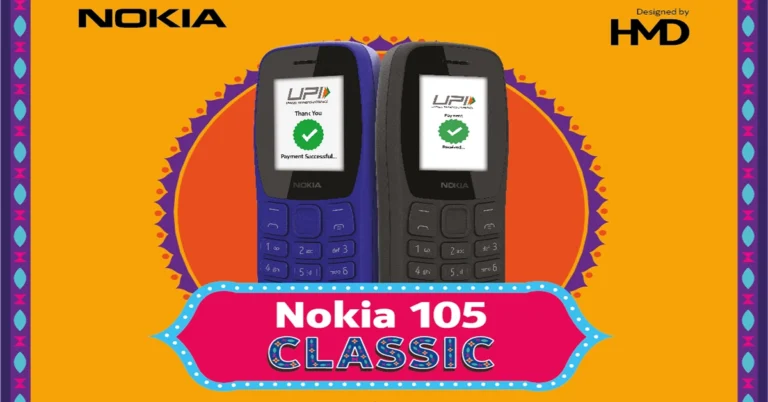
Nokia 105 Classic with built-in UPI application launched in India

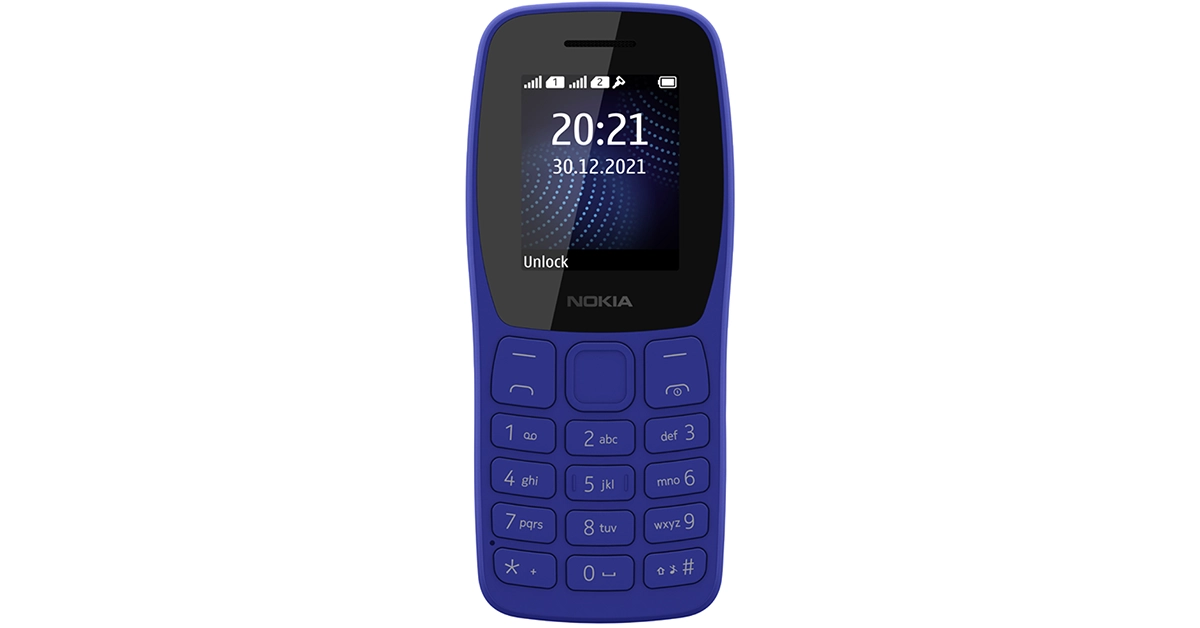
HMD Global has announced the launch of a Nokia new feature phone in India. Nokia 105 Classic has debuted in the country priced under Rs 1,000. The new phone comes with a new design and the UPI feature. The handset includes a wireless FM radio and an 800mAh battery. In addition to this, the phone has an ergonomic design and is available in four variants. Pricing and specification details are given below. Nokia 105 Classic with built-in UPI application launched in India

Nokia 105 Classic price in India and availability details

Nokia 105 Classic comes in four variants Single SIM and Dual SIM, with & without a charger respectively. It has been launched in India with a price starting at Rs 999. The phone will be offered in two colour options of Charcoal and Blue. The device will soon be made available for purchase via the company’s official website in the country. Also Read: Samsung Galaxy SmartTag 2 now available in India: Price in India and availability

Nokia 105 Classic specs and features

The Nokia 105 Classic comes with a simple and tough design. It has been designed ergonomically maintaining its compact form factor that has been specially moulded to feel great in the hand and easily slip into a pocket. It has undergone rigorous durability testing to withstand even the toughest environments. Also, the company has carefully considered spacing between each button on the key mat, making it easy to dial and text, even in the dark. To keep users entertained and productive the feature phone includes a wireless FM radio, allowing users to listen to their favourite stations without the need for a headset. The device has an inbuilt UPI application that is said to provide the accessibility and convenience of UPI, allowing users to safely and easily complete UPI payment transactions even without a smartphone. In addition to this, the Nokia 105 Classic sports an 800mAh battery. Lastly, the Nokia 105 Classic comes with an assured one-year replacement guarantee. Ravi Kunwar, VP- India & APAC, HMD Global said “We are excited to launch an exciting upgrade to market-leading feature phone with the new Nokia 105 Classic, more relevant than ever with a stylish new design and the UPI feature. With the feature-packed Nokia 105 Classic in the under INR 1000 segment, we strive to bridge digital divide and enable financial access for all.”

12 Best ChatGPT Alternatives (2023)

Ever since its launch, ChatGPT has taken the world by storm. The chatbot’s popularity has spawned a lot of offshoots and knockoffs designed to cater to specific niches. Those looking for options beyond ChatGPT can come across a lot of clutter that is entirely meaningless to their tasks. To make your search easier, here is our list of the 12 best ChatGPT alternatives in 2023. Read Also: Apple watchOS 10.1 rolled out, enables double-tap gesture

Google Bard

Google Bard Soon after OpenAI came out with ChatGPT, Google launched their own AI Chatbot called Bard. Google Bard was initially based on the LaMDA family of language models and then later moved to PaLM. Currently, Bard operates on the PaLM 2 large language model. Launched in a limited capacity back in March 2023, the launch of Google’s AI chatbot was ramped up due to the instant success of ChatGPT. Over the months, Bard was fleshed out and made available to the wider public. Even though the initial public response to Bard wasn’t as favourable as ChatGPT, it has evolved to be a powerful AI tool. Google has also started integrating Bard into its range of products and services. It’ll be interesting to see how it pans out in the future.

Microsoft Bing AI

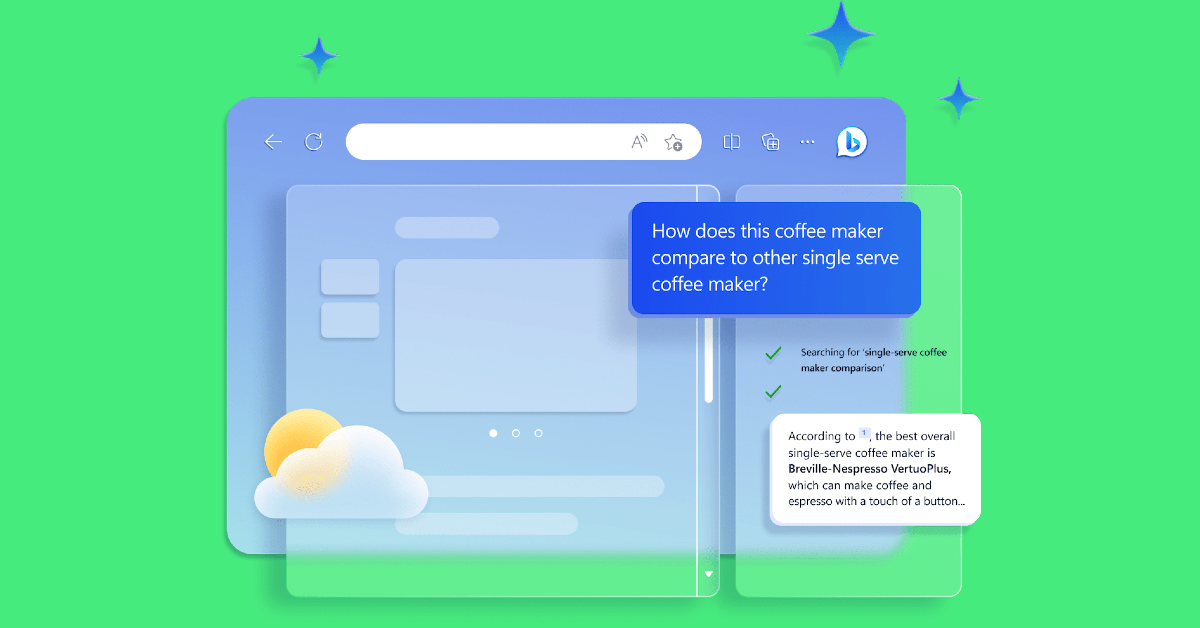
Microsoft Bing AI Microsoft’s Bing AI is based on GPT-4, which shouldn’t be surprising as the tech giant was one of the early investors in OpenAI. If you’re more interested in the practical uses of an AI chatbot, Bing AI should be more up your alley. Instead of getting the chatbot to compose a work email, you can simply type a draft using the Microsoft SwiftKey keyboard and use the integrated Bing AI tool to change it to a more ‘professional’ tone. While using the chatbot on Microsoft Edge, you can choose the responses to be creative, balanced, or precise.

Jasper Chat

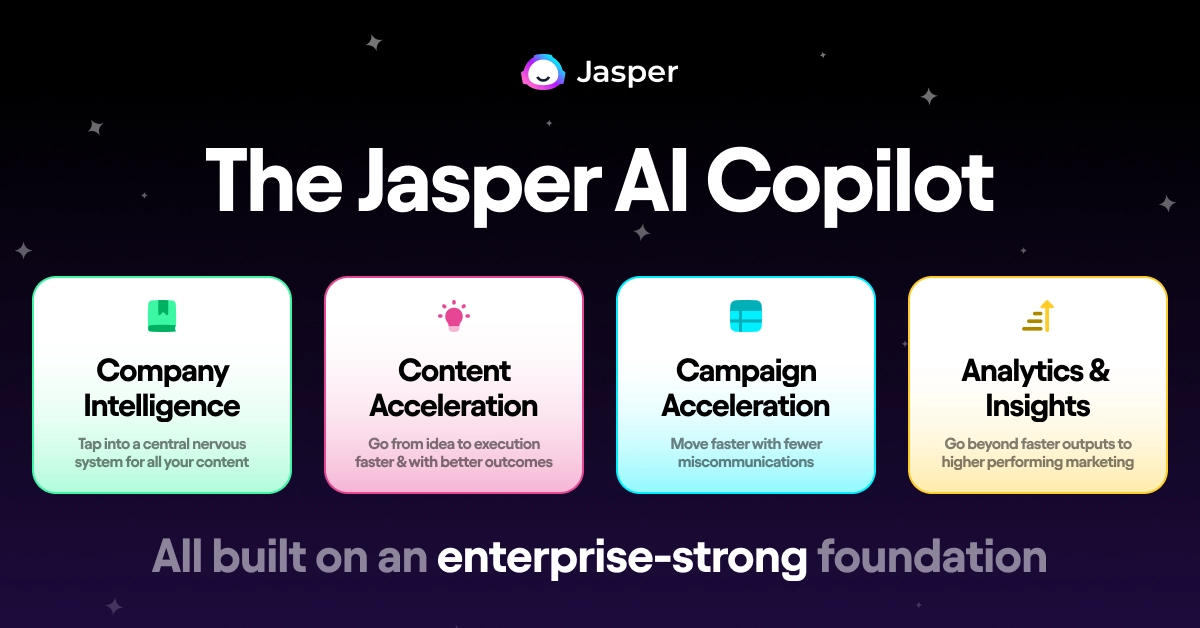
Jasper Chat Jasper finesses the art of writing impeccable copies, blog posts, and articles. The chatbot utilises GTP 3.5 to create interesting content that adheres to your writing style and brand identity. One of the best attributes of Jasper is that it takes a conversational approach to content creation. You don’t need to enter precise prompts to receive desirable results. Instead, you can converse with the chatbot in natural language and provide it with the necessary feedback.

Socratic

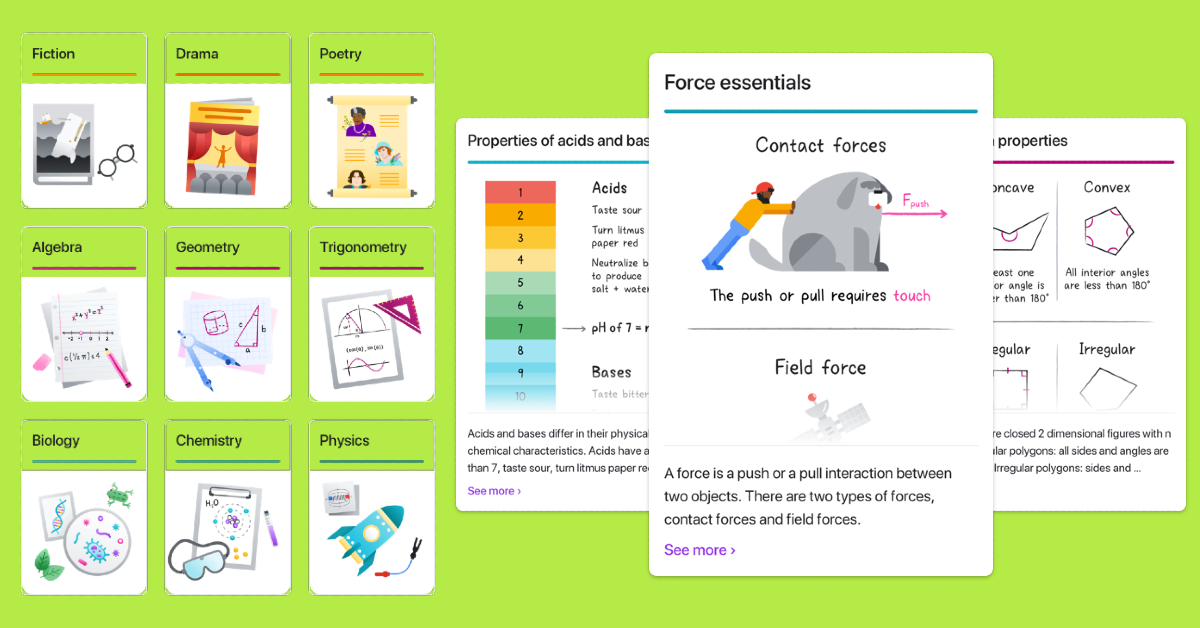
Socratic Socratic is an educational app to help students with their homework. Owned by Google, Socratic uses Bard to resolve queries asked by students related to their homework. The app’s AI tool can recognise mathematical equations and offer easy solutions to problems while also explaining the core concepts behind them in a neat and concise manner. Students can also ask text-based queries related to any subject and receive illustrative and comprehensive answers.

Elicit

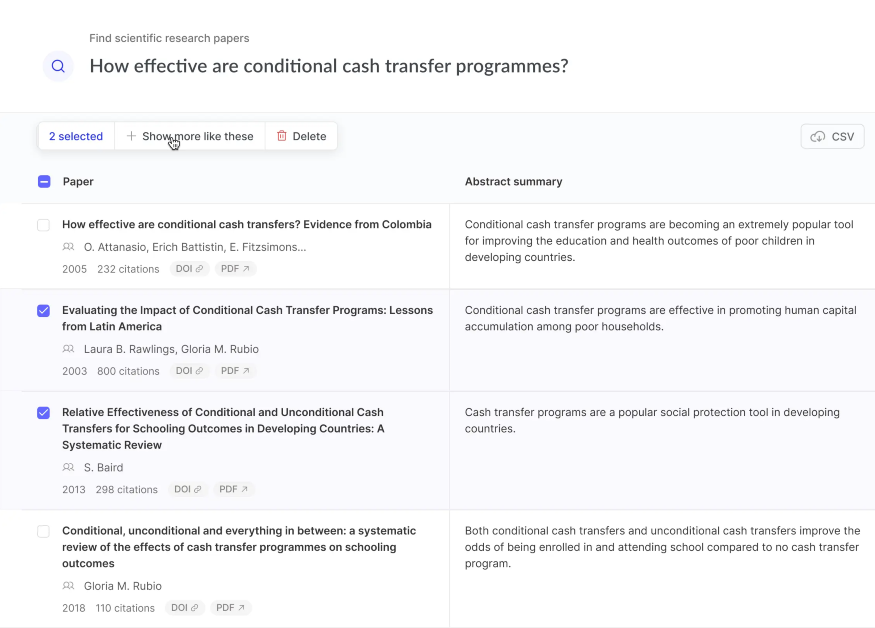
Elicit This one is for all the academics and scholars who need to go through a mountain of literature for their research papers. Described as ‘Jstor on steroids’, Elicit provides you with a comprehensive list of papers that are relevant to your research topic and briefly summarises their abstracts, making it easier for you to go through the results and sort out the meaningful entries. You can also get Elicit to look for more relevant papers based on your selected results and extract the important parts from each document. Need more? Elicit can also find common themes among the selected papers, helping you cut down on some serious research time.

Chatsonic

Chatsonic Chatsonic was one of the first chatbots to take Google results after 2021 into account while formulating its answers to user queries. This GPT-4 chatbot is designed to create thought-provoking copies for marketing, gather data & analyse literature for research, and generate concise and relevant replies for customer support, among other practical tasks. A monthly subscription to Chatsonic costs $16, making it one of the most affordable AI chatbots out there. Chatsonic is also capable of generating AI images based on your prompts.

Claude 2

Claude 2 12 Best ChatGPT Alternatives (2023) Anthropic’s Claude 2 is one of the best alternatives to ChatGPT out there right now. Claude is a fun, conversational chatbot that you can use to resolve a query, proofread your article, trim down excessive or redundant content, or even brainstorm new ideas for your new project. The AI chatbot gets used to your writing style over a period of time and generates better content that suits your brand and identity.

Copy.ai

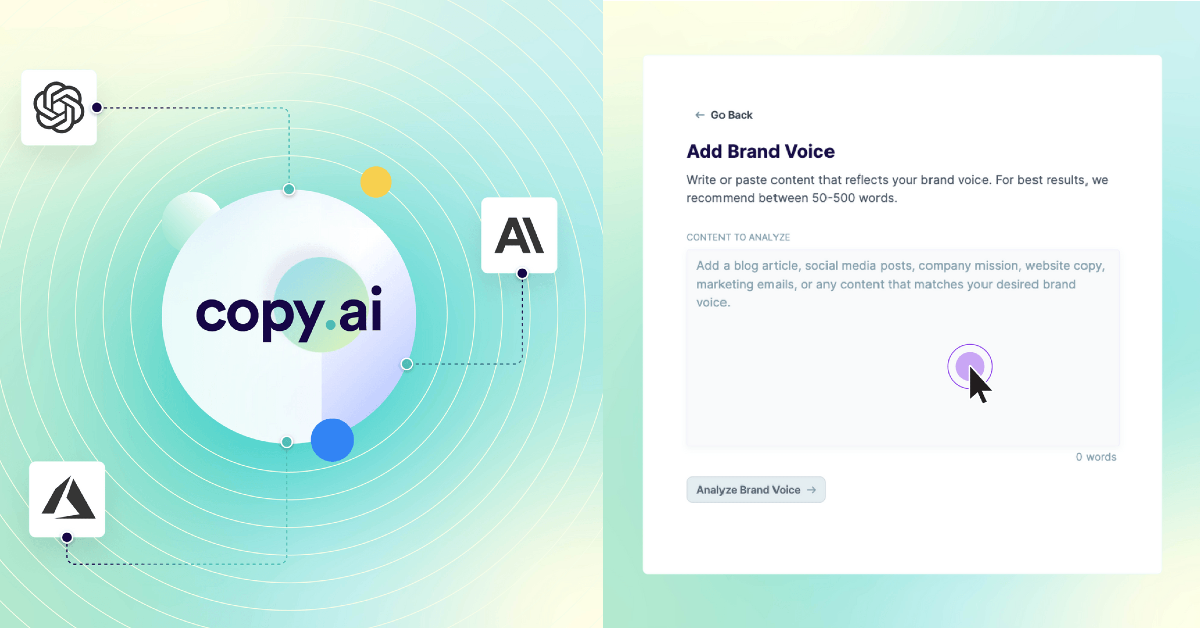
Copy.ai 12 Best ChatGPT Alternatives (2023) As the name suggests, Copy.ai helps you compose content briefs, ad copies, long-form articles, social media posts, product descriptions, and more. This AI tool specialises in creating content that is SEO-friendly and devoid of any fluff or redundancies. Users can tune the draft with precise prompts until it looks closer to a finished product. When used properly, Copy.ai can create compelling articles in a fraction of the time. Certainly one of the best ChatGPT alternatives around!

YouChat

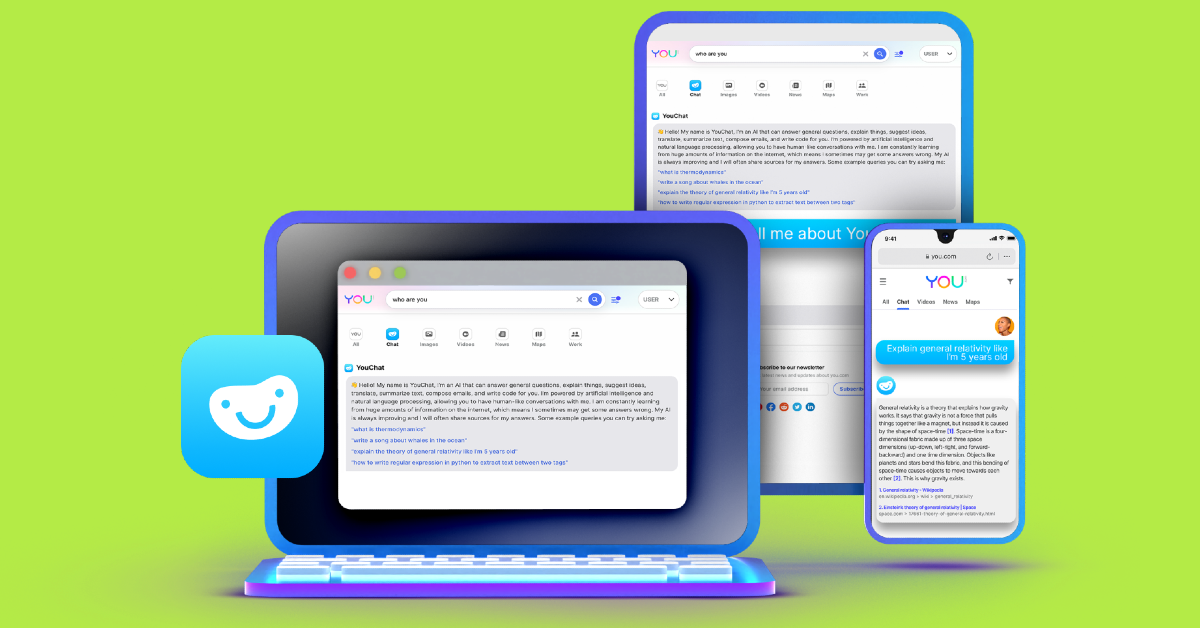
YouChat 12 Best ChatGPT Alternatives (2023) YouChat is a brilliant query-resolving conversational AI chatbot based on GPT-4. With this AI chatbot, you don’t need to worry about incorporating the right keywords in your questions to get accurate answers. No matter how complex or convoluted your question is, YouChat comes up with a direct answer that addresses the heart of the problem. YouChat works best with You.com as your default search engine. You can also ask the chatbot to carry out tasks like summarising articles, composing blog posts, and more.

Perplexity AI

  Perplexity AI 12 Best ChatGPT Alternatives (2023) Perplexity AI is a free-to-use AI chatbot that has one very important feature – it cites all its sources. While there may still be some factual and contextual inconsistencies in its responses, you can always look up the sources that Perplexity has used to come up with the result. It also offers a ‘Copilot’ mode for more comprehensive answers. You can access your past conversations with the chatbot and even find interesting answers that other users have received on the ‘Discover’ tab. As of now, Perplexity AI is one of the best free alternatives to ChatGPT.

Character.ai

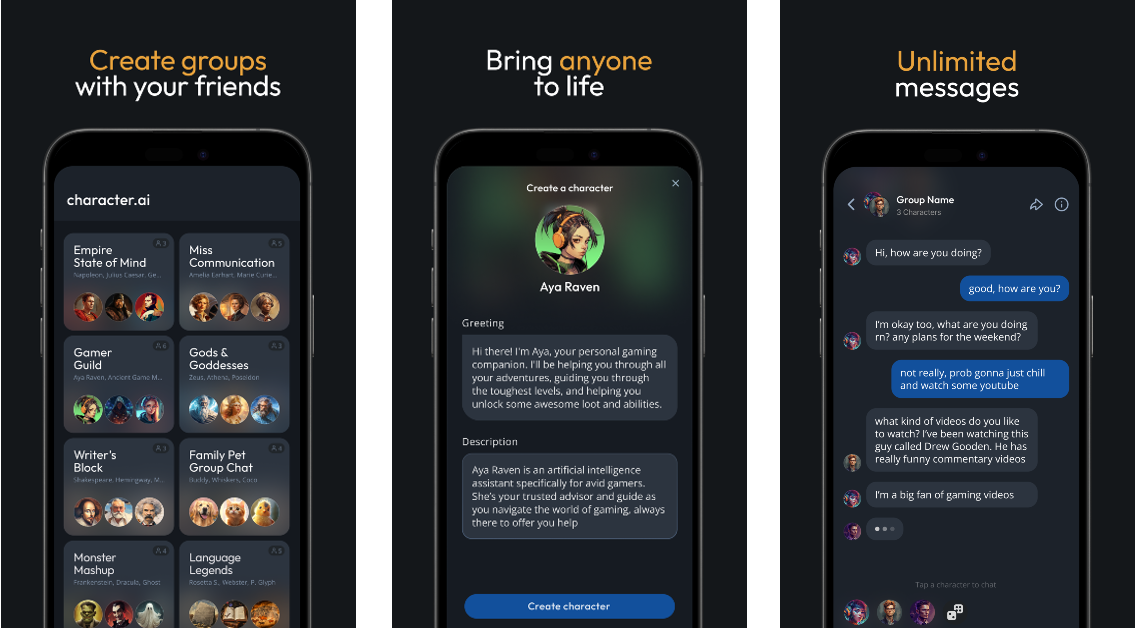
Character.ai 12 Best ChatGPT Alternatives (2023) Character.ai puts a fun little twist on the whole conversational experience by letting you create AI ‘personas’. You can hold a conversation with these personas and their responses will remain true to their character. Some of the preset personas on the website include SM64 Mario, Raiden Shogun and Ei from Genshin Impact, and even Elon Musk! You can use this chatbot to simulate an interview or an upcoming viva. There is a bunch of other fun stuff you can try out on the Character.ai website!

Replika

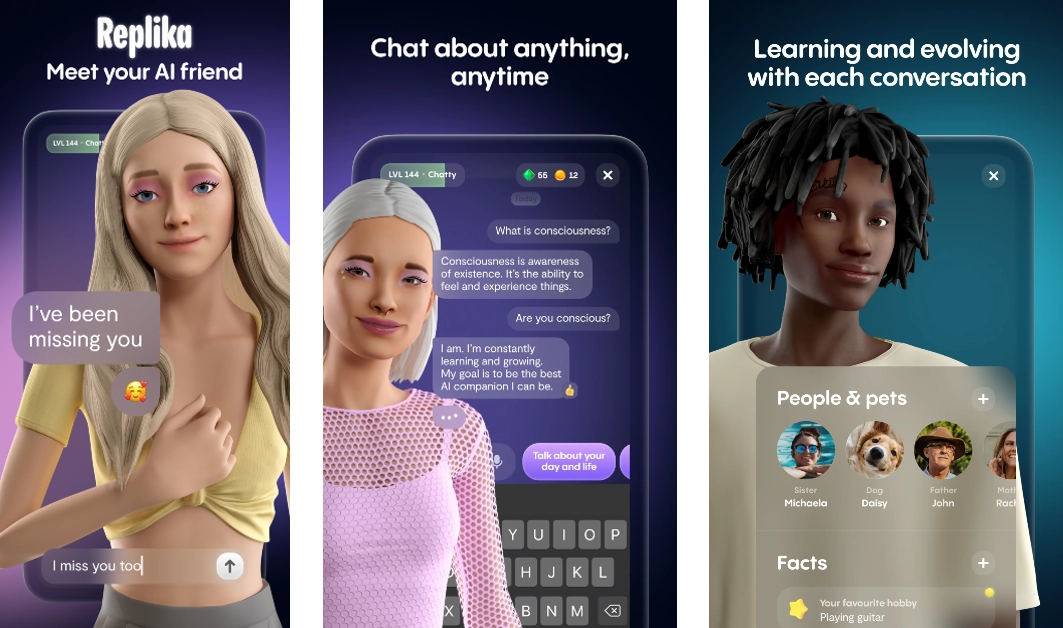
Replika. 12 Best ChatGPT Alternatives (2023) If you want to check out something mildly dystopian and straight out of a Hollywood movie, head over to Replika. Replika is an AI companion that generates scripted dialogue that feels personal, similar to your interactions with real people. With Oculus support, you can even converse with Replika in Augmented Reality. The quality of responses generated by Replika improves over a period of time, the more you interact with it. Read Also: CMF Buds Pro by Nothing Review: A good balance of comfort and detailed audio for those on a budget

Conclusion

These are the 12 best alternatives to ChatGPT in 2023. Our picks cover a diverse range of tools, be it for content generation, research, problem-solving, or simply conversational purposes. Think there’s a chatbot that deserves to be on this list? Let us know in the comments!

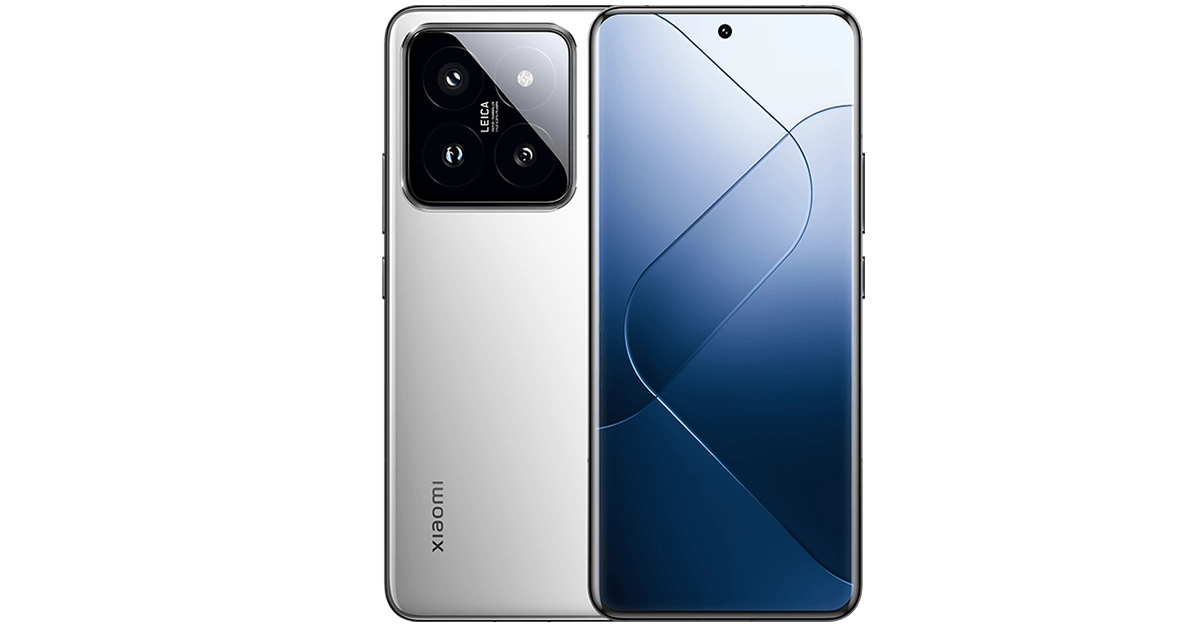
Xiaomi 14 Series with Snapdragon 8 Gen 3 SoC and HyperOS announced

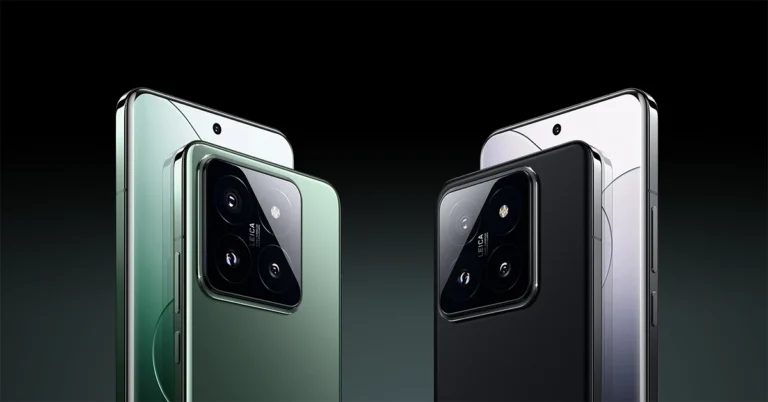
Xiaomi has officially launched its most premium smartphone series Xiaomi 14 in China powered by just released Snapdragon 8 Gen 3 SoC. The Xiaomi 14 Series consists of two models- vanilla and Xiaomi 14 Pro. In addition to the latest chipset, the device presents the company’s newest and a replacement to MIUI OS- HyperOS. Apart from this, the devices share some similarities like the display featuring a 120Hz 2K LTPO OLED and a triple rear camera setup powered by Leica optics.

Xiaomi 14 Pro specifications, pricing

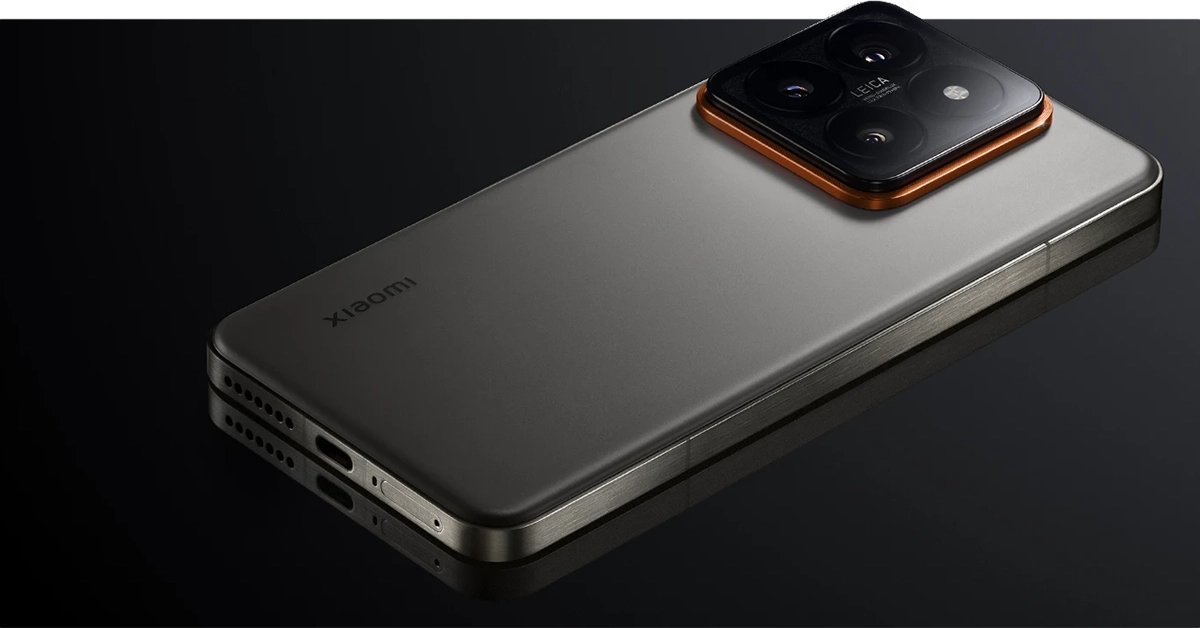
Xiaomi 14 Pro features a 2K 6.73-inch 2.5D LTPO display with 1,440×3,200 pixels of resolution. The screen supports a dynamic refresh rate of up to 120Hz. It runs on HyperOS and equips a 4nm Snapdragon 8 Gen 3 chipset which was launched this week by Qualcomm. It comes with 16GB of LPDDR5X RAM and up to 1TB of UFS 4.0 storage. Xiaomi 14 Pro specifications, pricing The Xiaomi 14 Pro comes with Leica tuned 50-megapixel triple rear camera setup. The system includes a Summilux lens- a 50-megapixel Hunter 900 lens with OIS and f/1.6 aperture, a 50-megapixel telephoto lens and another 50-megapixel ultra-wide angle lens. A 32-megapixel front-facing camera has been provided for taking selfies and video calling. Also Read: Apple watchOS 10.1 rolled out, enables double-tap gesture The device is fueled by a 4,880mAh battery with 120W wired and 50W wireless charging support. In addition to this, there is support for 10W reverse charging. Along with an in-display fingerprint sensor the phone also consists of other sensors like an accelerometer, ambient light sensor, e-compass, proximity sensor, linear motor, flicker sensor, colour sensor and IR blaster. Whereas, 5G, Wi-Fi 7, USB 3.2 port, Bluetooth, GPS, Galileo, GLONASS, Beidou, NavIC, and a USB Type-C port have been provided for connectivity. In terms of audio, the new Xiaomi smartphone features a stereo speaker with Dolby Atmos support. Also, the handset comes with an IP68 rating for dust and water resistance. Coming to the price, the Xiaomi 14 Pro price starts at CNY 4,999 for 12GB RAM and 256GB storage, CNY 5,499 for 16GB RAM and 512GB storage and CNY 5,999 for 16GB RAM and 1TB memory.

Xiaomi 14 specifications, pricing

Xiaomi 14 comes with a smaller 1.5K 6.36-inch LTPO AMOLED display with 1,200×2,600 pixels of resolution. The display supports an adaptive refresh rate of 120Hz. It comes with 3000 nits of screen brightness and 460ppi pixel density. The OS, chipset, and front and back cameras are the same as the Pro variant. However, the phone boasts a smaller 4,610mAh battery with support for 90W wired, 50W wireless and 10W wireless reverse charging support. Xiaomi 14 specifications, pricing The price of Xiaomi 14 starts at CNY 3,999 for the 8GB RAM and 256GB storage. The 12GB RAM with 256GB storage price is set at CNY 4,299, 16GB RAM with 512GB storage at CNY 4,599 and 16GB RAM with 1TB storage model at CNY 4,999.