Top 3 Ways to View Saved WiFi Passwords on a Windows 10/11 PC

0
Your Windows PC makes it easy to view the saved WiFi password of a connected network. Unlike your smartphone, you don’t have to jump through any hoops or install any third-party apps. In fact, there are a bunch of ways you can go about this task. In this article, we bring you the top 3 ways to view saved WiFi passwords on a Windows 10 or 11 PC. Read Also: Compare: iQoo Neo 7 Pro Vs OnePlus Nord 3

View the WiFi password on a Windows 10/11 PC from the Control Panel

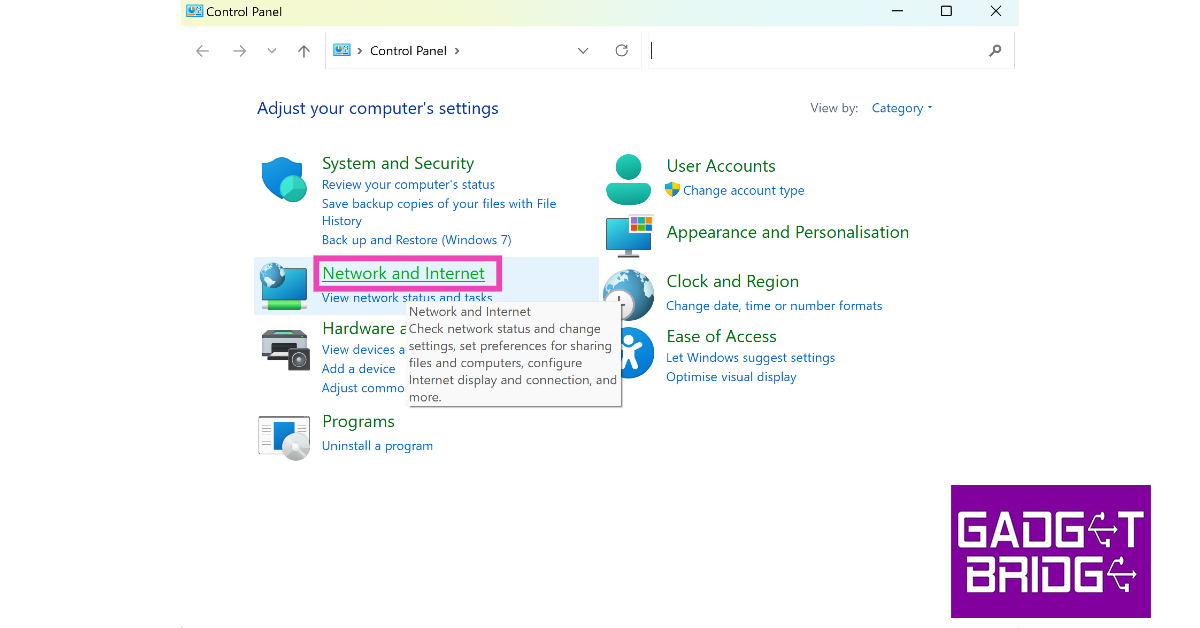
Step 1: Go to the Control Panel and select Network and Internet. Step 1: Go to the Control Panel and select Network and Internet. Step 2: On a Windows 11 PC, click on Network and Sharing Centre. Windows 10 users need to click on Status>Network and Sharing Centre. Step 2: On a Windows 11 PC, click on Network and Sharing Centre. Windows 10 users need to click on Status>Network and Sharing Centre. Step 3: Click on your WiFi network’s name. You will find it next to ‘Connections’. Step 3: Click on your WiFi network’s name. You will find it next to ‘Connections’. Step 4: Click on Wireless Properties. Step 4: Click on Wireless Properties. Step 5: Switch to the Security tab. Step 5: Switch to the Security tab. Step 6: Click the check box for Show Characters under the Network Security Key field. Step 6: Click the check box for Show Characters under the Network Security Key field.

View the WiFi password from Settings

Step 1: Go to Settings and select Network and Internet. Step 1: Go to Settings and select Network and Internet. Step 2: Click on Advanced Network Settings. Step 2: Click on Advanced Network Settings. Step 3: Select More network adapter options. Step 3: Select More network adapter options. Step 4: Click on your WiFi network. Step 5: Hit the two small arrows on the toolbar at the top. Step 6: Select the View status of this connection option. Step 6: Select the View status of this connection option. Top 3 Ways to View Saved WiFi Passwords on a Windows 10/11 PC Step 7: Click on Wireless Properties. Step 4: Click on Wireless Properties. Top 3 Ways to View Saved WiFi Passwords on a Windows 10/11 PC Step 8: Switch to the Security tab. Step 5: Switch to the Security tab. Top 3 Ways to View Saved WiFi Passwords on a Windows 10/11 PC Step 9: Click the check box for Show Characters under the Network Security Key field. Step 6: Click the check box for Show Characters under the Network Security Key field. Top 3 Ways to View Saved WiFi Passwords on a Windows 10/11 PC

Use Command Prompt to find the WiFi password

This method will work even if you don’t have admin access on the PC. Step 1: Launch Command Prompt on your PC. Step 2: Enter the following command: netsh wlan show profile name=”enter the wifi network’s name here” key=clear Make sure you enter the WiFi network’s name within the quotes. Step 2: Enter the following command: Top 3 Ways to View Saved WiFi Passwords on a Windows 10/11 PC Step 3: Look next to ‘Key Content’ to view the WiFi password. Step 3: Look next to ‘Key Content’ to view the WiFi password. Top 3 Ways to View Saved WiFi Passwords on a Windows 10/11 PC

Frequently Asked Questions

How do I find the WiFi password of the network I am connected to on my Windows PC?

To find the saved WiFi password, go to Control Panel>Network and Internet>Network and Sharing Centre>WiFi name>Wireless Properties>Security and click on Show Characters.

How do I find the WiFi password on a Windows PC without admin access?

To view the WiFi password on a Windows PC without obtaining admin access, simply go to Command Prompt and enter the following line. netsh wlan show profile name=”enter the wifi network’s name here” key=clear. The WiFi password will be listed next to ‘Key Content’.

How do I view the WiFi password on a Windows 10 PC?

On a Windows 10 PC, go to Control Panel>Network and Internet>Status>Network and Sharing Status and view the WiFi password from network properties. Read Also: Top 9 Ways To Fix ‘Android Apps Crashing and Closing Suddenly’

Conclusion

These are the three best ways to view the saved WiFi password on a Windows 10 or 11 PC. You can also use a third-party app to view the passwords of all the saved networks on your PC. However, since there are multiple native ways of going about this task, we wouldn’t suggest sharing your network information with a third-party app. For the latest gadget and tech news, and gadget reviews, follow us on Twitter, Facebook and Instagram. For newest tech & gadget videos subscribe to our YouTube Channel. You can also stay up to date using the Gadget Bridge Android App. You can find the latest car and bike news here.

Lenovo Tab M10 5G With 10.61-inch LCD display and 7,700mAh battery launched in India

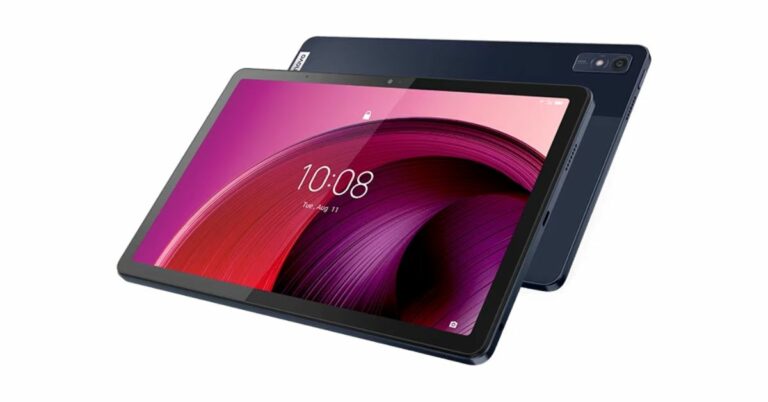
The Chinese electronics brand Lenovo has announced the launch of the Lenovo Tab M19 5G in India. The new Android Tablet features and 10.61-inch LCD display and packs a 7,700mAh battery. It comes with dual stereo speakers that support Dolby Atmos. Under the hood, there is Snapdragon 695 5G SoC. Lenovo Tab M10 5G price in India and availability details

Lenovo Tab M10 5G price in India and availability details

Lenovo Tab M10 5G has been launched in India at Rs 24,999 for the 4GB RAM with 128GB storage option. There is another 6GB RAM with a 128GB storage option priced at Rs 26,999. With this pricing, the device will compete with Xiaomi and OnePlus devices. The device will be available in a single Abyss Blue colour option. The device is currently available for purchase via Flipkart, Lenovo’s official website and at the nearest Lenovo Exclusive Stores. Also Read: Google Play Games beta launched in India, making Android games accessible on PCs

Lenovo Tab M10 5G specifications

The 10.61-inch LCD screen of the Lenovo Tab M10 5G has a resolution of 1200 x 2000 pixels. The screen may be as bright as 400 nits. The tablet comes pre-installed with Android 13. The Snapdragon 695 5G SoC, which has eight cores, powers the Android tablet. The company offers it in two different configurations of 4GB RAM with 128GB storage and 6GB RAM with 128GB storage options. Lenovo Tab M10 5G specifications The Lenovo Tab M10 5G is equipped with a 13-megapixel back camera as well as an 8-megapixel front camera. Additionally, it has two stereo speakers that are boosted by Dolby Atmos. A 7,700mAh battery within the tablet is said to provide up to 12 hours of video playback and up to 55 hours of music playback. The Lenovo Tab M10 5G has Bluetooth 5.1, USB Type-C, and a 3.5 mm audio jack as its connectivity options. The latest Android tablet weighs 490g and has dimensions of 252.74×8.30 mm. For the latest gadget and tech news, and gadget reviews, follow us on TwitterFacebook and Instagram. For newest tech & gadget videos subscribe to our YouTube Channel. You can also stay up to date using the Gadget Bridge Android App. You can find the latest car and bike news here.

How to Record Facebook Video Calls on Android, iPhone, and PC?

0
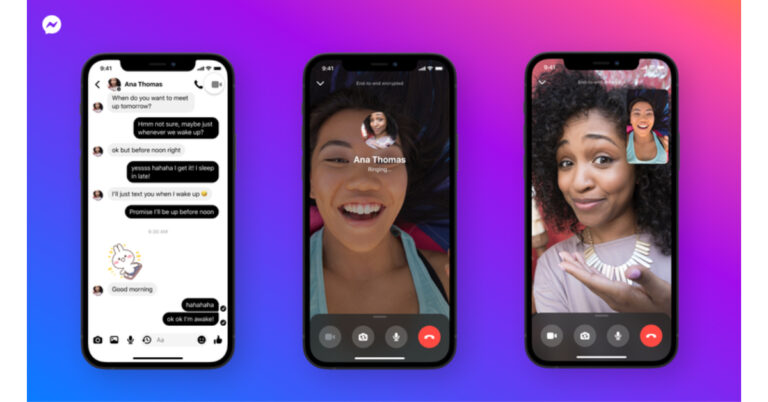
Facebook Messenger does not offer a native way to record your calls. In order to record the calls you make on the platform, you will need to use external recording tools. Luckily, most devices have a native screen recording feature that makes this task super easy. In this article, we show you how to record Facebook video calls on an Android phone, iPhone, and a PC. Read Also: Top 9 Ways To Fix ‘Android Apps Crashing and Closing Suddenly’

How to record a Facebook video call on Android

Step 1: Swipe down from the status bar to access the quick settings menu. Step 2: Tap the screen recording tile. Step 2: Tap the screen recording tile. Step 3: Hit the record icon. Make sure your microphone’s input is being recorded as well. Step 3: Hit the record icon. Make sure your microphone’s input is being recorded as well. Step 4: Launch the Facebook Messenger app. Step 5: Select the contact you want to call. Step 6: Hit the video call icon to initiate the call. Step 7: Hit the stop recording icon once the call has ended. Step 7: Hit the stop recording icon once the call has ended. The recording will be saved in your phone’s gallery.

How to record a Facebook video call on an iPhone

Step 1: Go to Settings and select Control Center. Step 1: Go to Settings and select Control Center. Step 2: Go to More Controls. Step 3: Hit the green plus icon next to Screen Recording. Step 3: Hit the green plus icon next to Screen Recording. Step 4: Go to the home page. Swipe down from the top edge to reveal the Control Center. Step 5: Hit the screen recording tile Step 5: Hit the screen recording tile.  How to Record Facebook Video Calls on Android, iPhone, and PC? Step 6: Launch the Facebook Messenger app and select the contact you want to call. Step 7: Hit the video call icon. Step 8: Once the video call has ended hit the screen recording icon from the Control Center again. Step 8: Once the video call has ended hit the screen recording icon from the quick settings menu again. The recorded video call will be saved in your phone’s gallery.

How to record a Facebook video call on a PC

Step 1: Launch the Messenger desktop app and initiate a video call. Step 2: Launch the Snipping Tool app on your PC. Step 3: Select the video recording icon from the toolbar. Step 4: Click on New. Step 4: Click on New. How to Record Facebook Video Calls on Android, iPhone, and PC? Step 5: Select the portion of the screen that you want to record. In this case, that should be the call window. Step 6: Hit Start. Step 6: Hit Start. How to Record Facebook Video Calls on Android, iPhone, and PC? Step 7: Hit the stop recording icon when the call has ended. The recording will be saved on your PC. You can access it instantly from the Snipping Tool app.

Frequently Asked Questions (FAQs)

Is there a native way to record video calls on Facebook Messenger?

There is no native way to record calls on Messenger. You will have to rely on screen recording tools and third-party apps for this task.

How do I record a Facebook video call on Android?

Use the screen recording tile from the quick settings menu to capture your phone’s screen while you’re on a video call.

How do I record a Facebook video call on a PC?

The Snipping Tool on your PC lets you record the screen on top of taking screenshots. Simply hit the recording icon followed by ‘New’ to record the screen while you’re on call. Read Also: Google Play Games beta launched in India, making Android games accessible on PCs

Conclusion

This is how you can record a Facebook video call on an Android phone, iPhone, and a PC. Once the recording has been saved on your device, you may want to edit it to trim out the extra bits at the start and end. The recording will occupy significantly less storage space on your device if you edit out the unnecessary bits. For the latest gadget and tech news, and gadget reviews, follow us on Twitter, Facebook and Instagram. For newest tech & gadget videos subscribe to our YouTube Channel. You can also stay up to date using the Gadget Bridge Android App. You can find the latest car and bike news here.
Logitech M240 Silent Bluetooth Mouse Review: Replace your trackpad with this mouse

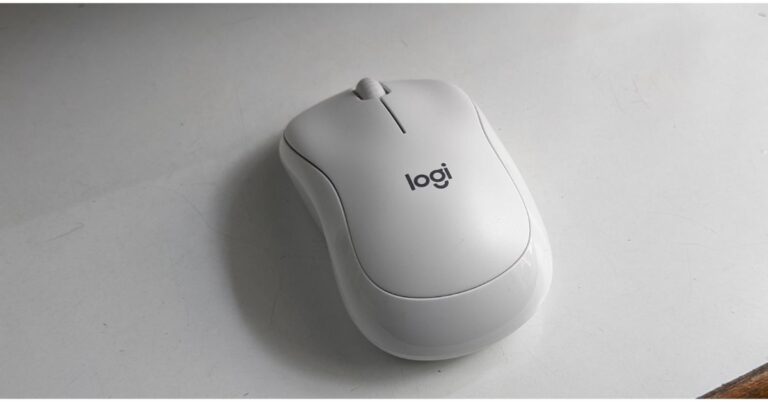
The Logitech M240 Silent Bluetooth Mouse made its debut in India recently. The Swiss company’s mouse has ultra-quiet clicks with 90% less click noise, as the name would imply. Wireless technology also frees up desk space for better, more productive work. Most significantly, it quickly establishes a secure pair-and-play Bluetooth connection without the need for a dongle or port. In this Logitech M240 Silent Bluetooth Mouse review, we’ll talk about that. Also Read: Asus TUF gaming F15 laptop review: 11 Gen Intel CPU with RTX 2050 under 60K, worth buying?

Logitech M240 Silent Bluetooth Mouse Review: Design

We received the Logitech M240 Silent Bluetooth Mouse in white colour. There are two additional colour choices for the device: graphite and rose. The design is cute and has the Logitech logo on it and a scroll wheel is located between the left and right-click buttons. This is a 2D optical scroll wheel.  Logitech M240 Silent Bluetooth Mouse Review: Replace your trackpad with this mouse The battery compartment is also provided at the bottom, and there is a slider to turn it on or off. The Bluetooth functioning is indicated by the LED indication. The Mouse is made up of plastic material. As per the company, Post-consumer recycled (PCR) plastic makes up 37% of the off-white and rose portions and 48% of the graphite parts. Logitech M240 Silent Bluetooth Mouse Review: Replace your trackpad with this mouse The design resembles a typical mouse, in which the bottom boundaries of the side sides are somewhat curved. This provides us with a solid grip while using it, and it is also comfortable to use. The wireless, portable mouse weighs just 73.8 grammes, and you can carry it wherever you go to work because it is compact and easily fits in a backpack with your laptop.

Logitech M240 Silent Bluetooth Mouse Review: Performance

Well, your laptop, desktop, and tablet may all be connected to the Logitech M240 Silent using Bluetooth. Its wireless range reaches a maximum of 10 metres (33 ft). You don’t need a dongle or physical connection to connect it. It works with Windows, macOS, ChromeOS, Linux, and Android. It is supported by Logi Options+ on macOS 11 or later and Windows 10, 11 or later. Logitech M240 Silent Review The palm rests nicely when using it thanks to the nice curvature. The scroll wheel is also quite good, and the mouse can be used for hours without experiencing any form of problems. Logitech M240 Silent is designed to be as comfortable for right-handed as it is for left-handed ones. Additionally, it has a smooth optical tracking system with a nominal value of DPI range is 400 to 4,000 in steps of 100 DPI. Controlled line-by-line scrolling makes it simpler to navigate. It offers smooth and precise cursor control on practically any surface.  The Logitech M240 Silent Bluetooth Mouse’s noise reduction is its key feature. The mouse has SilentTouch Technology, which reduces clicking noises by 90% (as said) compared to a regular mouse while keeping the familiar, satisfying clicking sensation. You therefore barely hear anything but can feel every little click. Logitech M240 Silent Review The Logitech M240 Silent is a great alternative if you want a very quiet mouse that won’t disturb you as you click because a mouse click can be annoying occasionally, especially if you use a mouse a lot. A single AA battery, which is used to power this mouse, is said to last for 18 months. We have been using it for almost a month, we are really happy with its performance. The 18-month battery life of the Logitech wireless mouse with auto sleep enables you to go longer between battery changes,

Verdict

At Gadget Bridge, we use our laptops a lot, and typing for hours on end can be incredibly taxing on the hands so we are always looking for such devices that make our life easier and The Logitech M240 Silent Bluetooth mouse is unquestionably one of those gadgets to have around for professionals. It is much more ergonomic than a trackpad, and pairing and playing are both simple. It also clicks quietly. You should definitely check it out.

Logitech M240 Silent Bluetooth Mouse Pros

  • Small
  • Portable
  • Lightweight
  • Clicks silently

Logitech M240 Silent Bluetooth Mouse Cons

  • There are hardly any
For the latest gadget and tech news, and gadget reviews, follow us on TwitterFacebook and Instagram. For newest tech & gadget videos subscribe to our YouTube Channel. You can also stay up to date using the Gadget Bridge Android App. You can find the latest car and bike news here.
BGMI redeem codes for 17 July 2023, claim and receive rewards and benefits

After being banned for nearly ten months, Battleground Mobile India, aka BGMI, is officially available again in India. BGMI fans are looking for ways to improve their game experience and one such method is the usage of redemption codes, which offers a variety of rewards and advantages using BGMI redeem codes players can gain access to new skins, outfits, loot crates, weapons and free UC and diamonds. As mentioned earlier, these codes give users the chance to earn unique rewards and gain extra benefits while playing the game. This includes GUN SKINS (M4, AKM, M416, AWM, M24, UZI, KAR98K), free character voucher, Andy, Carlo, Sara, Victor character for free, free Anna Character on completing the mission and UC or Royal Pass Discount. So here we have gathered a list of the most recent BGMI redeem codes as of 17 July 2023. Also, redeem these codes asap as these are only valid for a limited duration.

BGMI Redeem Codes for 17 July 2023

  • updating…

How to get free Redeem Codes for BGMI on 17 July 2023?

  • Launch BGMI on your device.
  • Then select the Redeem Code option from the main menu.
  • Next, click on the Redeem code tab.
  • A new window will open, requesting the redemption code.
  • Now enter your BGMI code.
  • Confirm and click on the “Redeem” tab.
  • If your redeem code is valid then you will get a message confirming that your rewards were successfully redeemed.
(Note that these codes are case-sensitive, so be sure to type them correctly to prevent any errors.) For the latest gadget and tech news, and gadget reviews, follow us on TwitterFacebook and Instagram. For newest tech & gadget videos subscribe to our YouTube Channel. You can also stay up to date using the Gadget Bridge Android App. You can find the latest car and bike news here.

Garena Free Fire Redeem Codes Today 17 July 2023: Here is how to claim them

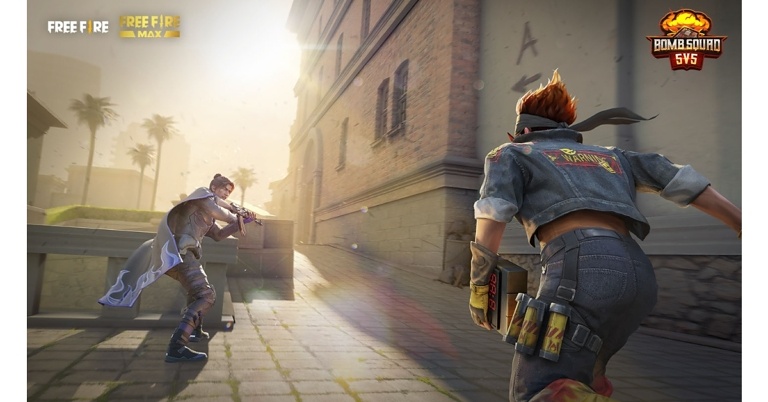
Garena Free Fire is a battle royale game with regular awards and tournaments to keep players interested. If you play Garena Free Fire, you should be aware of the redeem codes that are released on a daily basis. However, because the battle royale game is banned in India, players from other countries can use the Free Fire Redeem codes daily. If you’re unfamiliar with the Garena Free Fire redeem codes or don’t know how to get them, we’ve put together a step-by-step guide to help you redeem them. Check out Garena Free Fire Redeem Codes for 17 July 2023. The Free Fire redeem codes are a great way to get free stuff. These are 12-digit codes that contain alphabets and numbers, as well as an expiration date and time. Because the Garena FF redeem codes cannot be used more than once, you should hurry to the redemption page to claim your free reward before someone else does. To get a free reward, all you have to do is go to reward.ff.garena.com/en, which is the official redemption page. Also, keep an eye on this space for daily updates on Garena Free Fire redemption codes and rewards.

Garena Free Fire Redeem Codes Today 17 July 2023

FFAC2YXE6RF2 FAGTFQRDE1XCF FFCMCPSBN9CU BR43FMAPYEZZ NPYFATT3HGSQ FFCMCPSJ99S3 XZJZE25WEFJJ V427K98RUCHZ MCPW2D1U3XA3 FFCMCPSGC9XZ 6KWMFJVMQQYG FFCMCPSUYUY7E MCPW3D28VZD6 EYH2W3XK8UPG MCPW2D2WKWF2 ZZZ76NT3PDSH FFCMCPSEN5MX HNC95435FAGJ

How to Get Free Fire Redeem Codes for Garena on 17 July 2023?

  • Visit the Garena Free Fire game’s official website at reward.ff.garena.com.
  • Use your Facebook, Google, VK, Apple ID, Huawei ID, or Twitter account to log in.
  • You’ll be taken to a valid redemption code (s)
  • Copy and paste the 12-digit redemption code into the text box.
  • On the screen, a dialogue box will appear.
  • ‘Ok’ should be selected.
For the latest gadget and tech news, and gadget reviews, follow us on TwitterFacebook and Instagram. For newest tech & gadget videos subscribe to our YouTube Channel. You can also stay up to date using the Gadget Bridge Android App. You can find the latest car and bike news here.

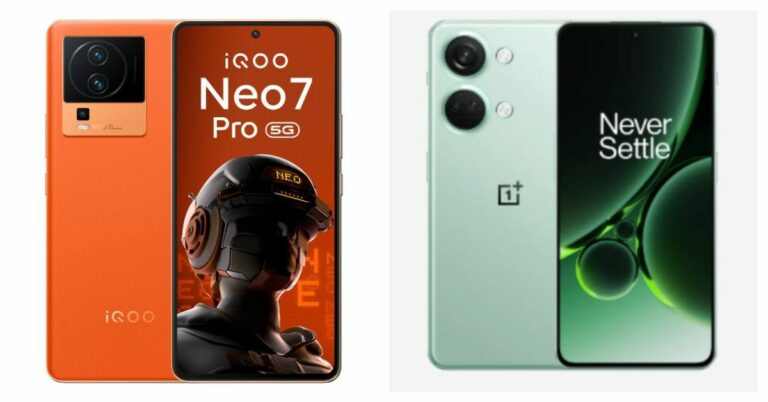
Compare: iQoo Neo 7 Pro Vs OnePlus Nord 3

Earlier this month, the iQoo Neo 7 Pro was introduced in India. Amazon began selling the smartphone. The OnePlus Nord 3 first sale started and is competing with the Neo 7 Pro by being priced at around Rs 40,000 while providing nearly the same specifications. So, in order to decide which is the better option, we compared their specifications and differences. Here is our comparison between the iQoo Neo 7 Pro and OnePlus Nord 3. Also Read: Compare: OnePlus Nord 3 Vs OnePlus 11R

Display

iQoo Neo 7 Pro: 6.78-inch full-HD+ AMOLED screen OnePlus Nord 3: 6.74-inch AMOLED screen

Processor

iQoo Neo 7 Pro: Snapdragon 8+ Gen 1 chip OnePlus Nord 3: MediaTek Dimensity 9000 SoC

Rear camera(s)

iQoo Neo 7 Pro: A triple rear camera setup that includes a 50-megapixel primary Samsung GN5 sensor, an 8-megapixel ultra-wide-angle camera and a 2-megapixel macro camera. OnePlus Nord 3: Triple rear camera setup includes a 50-megapixel Sony IMX890 sensor with OIS support, an 8-megapixel ultra-wide angle Sony IMX355 sensor with a 112-degree FoV, and a 2-megapixel macro lens.

Selfie camera

iQoo Neo 7 Pro: 16-megapixel front-facing camera OnePlus Nord 3: 16-megapixel front-facing camera

RAM and storage

iQoo Neo 7 Pro: 8GB RAM with 128GB of storage/ 12GB RAM with 256GB internal storage OnePlus Nord 3: 8GB RAM with 128GB of storage/ 16GB RAM with 256GB internal storage

Battery

iQoo Neo 7 Pro: 5,000mAh battery with 120W Flash Charge support OnePlus Nord 3: 5,000mAh battery with 80W SuperVOOC charging

Operating system

iQoo Neo 7 Pro: Funtouch OS 13 on top of Android 13 OnePlus Nord 3: OxygenOS 13.1 with Android 13

Price

iQoo Neo 7 Pro: Rs 34,999 OnePlus Nord 3: Rs 33,999

Our Take

Although the iQoo Neo 7 Pro’s display is significantly larger than the Nord’s, both phones feature a 120Hz refresh rate. However, the Nord 3 grabs a lead by cramming more resolution into that screen; the Nord 3’s resolution is 2,772 x 1240 as opposed to the Neo 7 Pro’s 2,400 x 1,080. The OnePlus Nord 3 features a noticeable alert slider on the side, which is not present on the iQoo. Additionally, Nord looks more expensive due to its minimalist design. But the orange colour of the Fearless Flame in vegan leather on the iQoo Neo 7 Pro will undoubtedly grab your attention. On the other hand, the Nord 3 does have an IP54 rating, whilst the iQOO Neo 7 Pro does not. Both of the devices’ chipsets are flagship-level, but when it comes to overall performance, the Snapdragon 8+ Gen 1 slightly outperforms the MediaTek Dimensity 9000. On both devices, the cameras are identical. Both devices run Android 13, but OnePlus earns bonus marks for providing a nearly stock Android experience. The iQoo Neo 7 Pro‘s Snapdragon 8+ Gen 1 chip dominates since it provides more dependable performance, despite the fact that the OnePlus Nord 3 is undoubtedly a fantastic value for the money. For the latest gadget and tech news, and gadget reviews, follow us on TwitterFacebook and Instagram. For newest tech & gadget videos subscribe to our YouTube Channel. You can also stay up to date using the Gadget Bridge Android App. You can find the latest car and bike news here.

10 Ways To Fix ‘Android Apps Crashing and Closing Suddenly’ (2024)

0
App crashes and malfunctions are common on old Android phones. This is something that every smartphone faces after a few years of use. Luckily, you can minimise these crashes and run your device quite efficiently. This task may require some time and effort as you will need to figure out the reason behind the crashes. If you want to save yourself some time, here are 10 quick fixes for the ‘Android apps keep crashing and closing suddenly’ issue on your device. Read Also: Viewsonic OMNI VX28 Series 180 Hz gaming monitors launched in India

Restart your device

Restart your phone Sometimes a background glitch in the software can keep apps from loading properly. If you notice multiple apps shutting down immediately after being launched, you need to restart your smartphone. Press and hold the side key and select Restart from the power menu. If your phone triggers the voice assistant upon pressing the side key, press hold the volume up key + side key simultaneously and select Restart.

Force Stop the app that is crashing

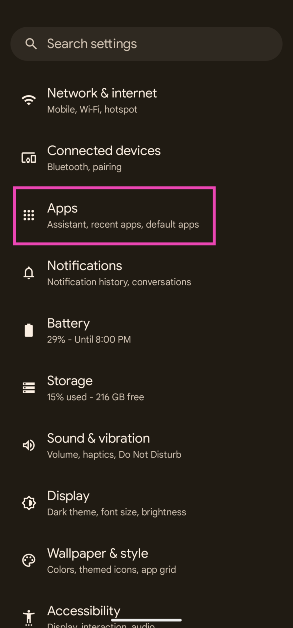
Step 1: Go to Settings. Step 2: Scroll down and select Apps. Step 2: Scroll down and select ‘Apps’. how to fix instagram crashing on android Step 3: Scroll down and select the app that’s crashing. Step 3: Scroll down and tap on ‘Instagram’. how to fix instagram crashing on android Step 4: Select Force Stop from the bottom menu. Step 4: Select ‘Force Stop’ from the bottom menu. how to fix instagram crashing on android

Clear app data and cache

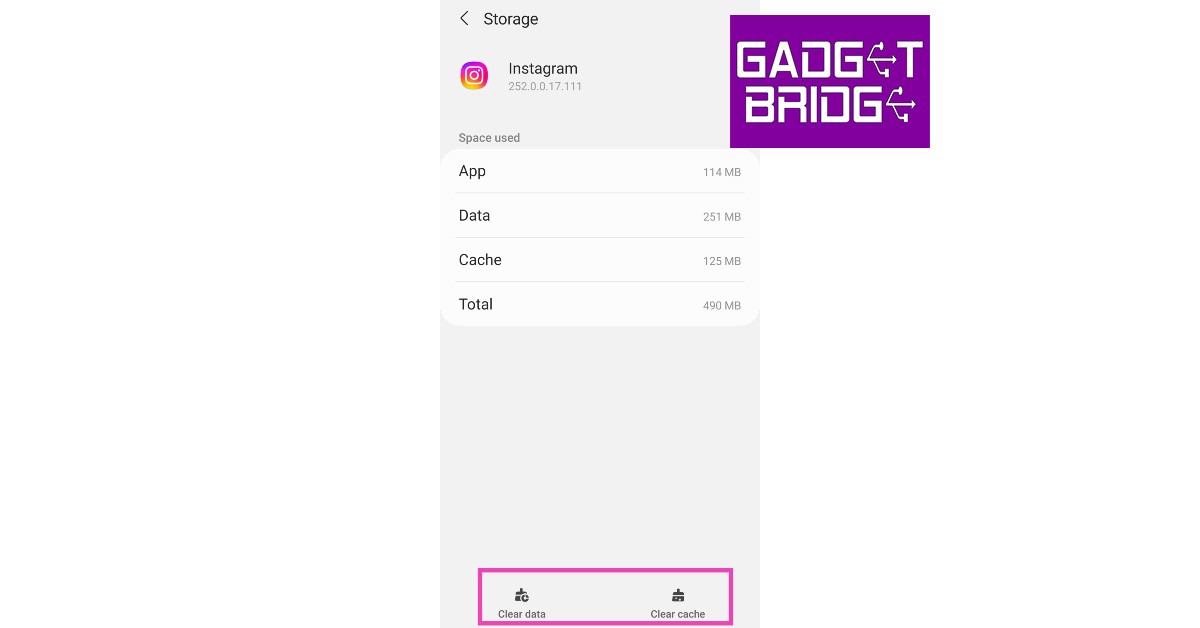
Step 1: Go to Settings. Step 2: Scroll down and select Apps. Step 2: Scroll down and select ‘Apps’. Step 3: Scroll down and select the app that keeps crashing. Step 3: Scroll down and tap on ‘Instagram’. Step 4: Select Storage. Step 4: Select ‘Storage’. Step 5: Select Clear Data and Clear Cache. Step 5: Select ‘Clear Data’ and ‘Clear Cache’.

Check the app’s permissions

Every app needs a certain set of permissions to function properly. If an keeps crashing upon startup, check if it has been granted the permissions that are essential to its functioning. Step 1: Go to Settings and select Apps. Step 1: Go to Settings and select Apps. Step 2: Scroll down and select the app that is malfunctioning. Step 2: Scroll down and select Microsoft Teams. Step 3: Tap on Permissions. Step 3: Tap ‘Permissions’. Step 4: Allow the app access to the necessary permissions. Step 4: Allow access to the necessary permissions.

Check your phone’s storage

Android apps may fail to load if your phone is running low on storage space. To free up some space, delete duplicate files and images, unused apps, and other clutter from your phone. Go to Settings>Battery and Device Care>Storage to manage your phone’s storage. If your phone supports external storage, insert a memory card to expand the storage capacity.

Force Stop Google Play Services

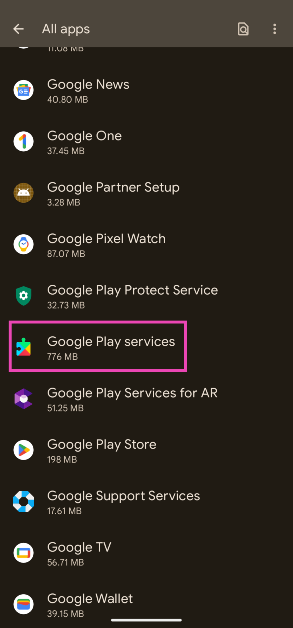
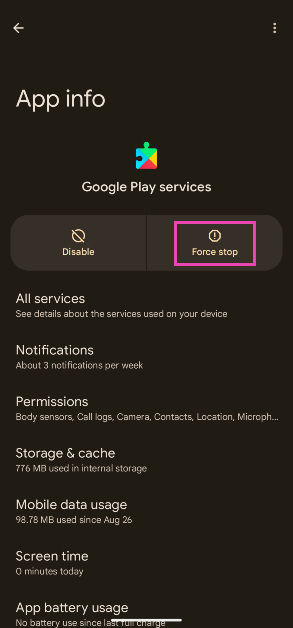
Step 1: Go to Settings and select Apps. Step 1: Go to Settings and select Apps. Step 2: Tap on Google Play Services. Step 2: Tap on Google Play Services. Step 3: Tap on Force Stop. Step 3: Tap on Force Stop.
Update your phone’s OS

Step 1: Go to Settings and select Software Updates. Step 2: Scroll down and select Software Update. Step 2: Tap on Download and Install. Your smartphone will check for any new updates. Step 3: Tap on ‘Download and Install’. Top 9 ways To Fix ‘Android Apps Crashing and Closing Suddenly’ Step 3: If an update is available, tap on Install Now. You can also schedule the update for later. Step 4: Select ‘Install now’. Top 9 ways To Fix ‘Android Apps Crashing and Closing Suddenly’

Keep the apps updated

Older versions of apps are more prone to crashes and malfunctions. In order to minimise the chances of coming across a bug, make sure all the apps on your phone are updated at all times. You can turn on Auto Updates from Play Store settings. Make sure you select the ‘Over WiFi Only’ option to keep your mobile data from depleting.

Check the Internet connection

It is possible that app crashes may not have anything to do with your device. Sometimes a faulty internet connection can keep an app from launching properly. Connect to a different network to verify if this is the case. You can also check the strength of the connection using an online tool.

Perform a Factory Reset

Before you perform a factory reset on your smartphone, make sure you back up all your data either on an external storage device or on an online data backup service. Step 1: Go to Settings, scroll down and select General Management. Step 1: Go to Settings, scroll down and select General management. Top 9 ways To Fix ‘Android Apps Crashing and Closing Suddenly’ Step 2: Tap on Reset. Step 2: Tap on ‘Reset.’ Top 9 ways To Fix ‘Android Apps Crashing and Closing Suddenly’ Step 3: Select Factory data reset. Step 3: Select ‘Factory data reset.’ Top 9 ways To Fix ‘Android Apps Crashing and Closing Suddenly’ Step 4: Scroll down and tap on Reset. Step 4: Scroll down and tap on ‘Reset.’ Top 9 ways To Fix ‘Android Apps Crashing and Closing Suddenly’

Frequently Asked Questions (FAQs)

Why do apps keep crashing on my Android phone?

If your phone is running out of storage space, it can cause the apps to unexpectedly crash. A faulty internet connection can also be responsible for this.

How do I fix the apps that keep crashing on my Android phone?

Delete the cache and app data of the apps that keep crashing on your phone. Make sure you restart your device as well.

What should I do if my phone doesn’t have enough storage?

If your phone is running low on storage, you can create a backup of the bulky files and delete them from your device. If your phone supports expandable storage, insert a memory card to boost the storage capacity. Read Also: Top 3 Ways to Get a Refund for App Store and iTunes Purchases

Conclusion

This is how you can fix the ‘Android apps keep crashing and closing suddenly’ issue on your device. If you decide on performing a factory reset of the device, make sure you back up all the data on a cloud service or an external hard drive first. A factory reset will clear your phone’s data. This includes all the apps, media, documents, contacts, and more.

Garena Free Fire Redeem Codes Today 16 July 2023: Here is how to claim them

Garena Free Fire is a battle royale game with regular awards and tournaments to keep players interested. If you play Garena Free Fire, you should be aware of the redeem codes that are released on a daily basis. However, because the battle royale game is banned in India, players from other countries can use the Free Fire Redeem codes daily. If you’re unfamiliar with the Garena Free Fire redeem codes or don’t know how to get them, we’ve put together a step-by-step guide to help you redeem them. Check out Garena Free Fire Redeem Codes for 16 July 2023. The Free Fire redeem codes are a great way to get free stuff. These are 12-digit codes that contain alphabets and numbers, as well as an expiration date and time. Because the Garena FF redeem codes cannot be used more than once, you should hurry to the redemption page to claim your free reward before someone else does. To get a free reward, all you have to do is go to reward.ff.garena.com/en, which is the official redemption page. Also, keep an eye on this space for daily updates on Garena Free Fire redemption codes and rewards.

Garena Free Fire Redeem Codes Today 16 July 2023

GTYHB8VUSYHQU27 G63R4FR5GTHV87Y GTCGDSWH8E4RUYT GGHJCIXSWTG8E4B GRTHGDRTGDR6TAR GTDYUR67YHAYQTR G2F3EGHDFUC7TGD GUQYTTH5R6Y5ESG GVI98YTCGFSVWGB GH3E4J5TYJGDYET GGBTHNGIUVYG9B7 GFE4JTGNBVEH45R GRH5JTGI8BYVGCB GDSTHDRTGDRTGRG

How to Get Free Fire Redeem Codes for Garena on 16 July 2023?

  • Visit the Garena Free Fire game’s official website at reward.ff.garena.com.
  • Use your Facebook, Google, VK, Apple ID, Huawei ID, or Twitter account to log in.
  • You’ll be taken to a valid redemption code (s)
  • Copy and paste the 12-digit redemption code into the text box.
  • On the screen, a dialogue box will appear.
  • ‘Ok’ should be selected.
For the latest gadget and tech news, and gadget reviews, follow us on TwitterFacebook and Instagram. For newest tech & gadget videos subscribe to our YouTube Channel. You can also stay up to date using the Gadget Bridge Android App. You can find the latest car and bike news here.

Google Play Games beta launched in India, making Android games accessible on PCs

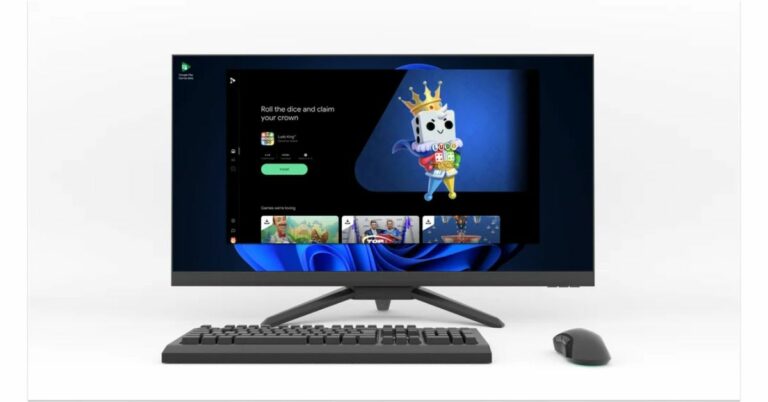
Google Play Games for PC beta has been officially announced in India allowing Windows users to play Android games. The open beta test for Android games on Windows is already accessible in 50 nations and has been expanded to more than 60 regions across the world. With this addition, there would be 120 altogether. Google Play Games beta is now accessible to users in India, according to the internet search behemoth. Mobile games are playable on PCs, Chromebooks, tablets, phones, and other mobile devices for beta testers. Both English and Hindi users in India have access to this. Also Read: Nothing Drops debuts in India, customers may now experience and preorder the Nothing Phone 2 Players can browse, download, and play mobile games on their PCs using Google Play Games for PC, which enables users to take advantage of larger screens and greater controls with mouse and keyboard inputs. Due to the fact that game libraries and progress are synced between devices, players can also take up where they left off. In addition to India, Google is introducing Play Games beta in over 60 additional areas. With this, gamers in more than 120 regions can now access the Google Play Games beta on PCs. According to Arjun Dayal, Director of Product for Google Play Games, the business has collaborated with developers from around the world to bring their amazing games to bigger displays for players everywhere. Note that the Google Play Games for PCs was released to beta testers as part of a limited beta earlier last year. Since its debut last year, Google has added hundreds of new games to the Google Play Games library, all of which have been enhanced for larger displays and have better controls. In addition to internationally famous games like Eversoul, Lords Mobile, and Evony: The King’s Return, players may access well-known titles from Indian creators like Ludo King and Hitwicket Games. Google has also included multiple new features like keyboard remapping and lowered the minimum PC spec requirements to make Google Play Games more widely available and customizable for our users For the latest gadget and tech news, and gadget reviews, follow us on TwitterFacebook and Instagram. For newest tech & gadget videos subscribe to our YouTube Channel. You can also stay up to date using the Gadget Bridge Android App. You can find the latest car and bike news here.