

 Also Read: Compare: OnePlus Nord 3 Vs OnePlus 11R
Flipkart will be the only place in the country where customers can buy it. The Nothing Phone 2 will also be sold directly from Nothing Drops pop-up shops in Bengaluru, India. The business’s first Nothing Drops location in the nation is here. According to the company, customers who make in-person purchases are also qualified for rewards and have the opportunity to speak with the staff. The Nothing Phone 2, Nothing Power 45W charger, and Nothing Phone 2 accessories will be available for purchase on July 21 beginning at 12 PM IST at the Nothing Drop store in Bengaluru located at Lulu Mall, Gopalapura, Binnipete. First come, first served would be the only restriction. The opportunity to own a Phone (2) arrives with an exclusive launch offer price of Rs 39,999 on Flipkart (inclusive of bank, exchange, and EMI offers).
The Nothing Phone 2 was launched in three different configurations of 8GB RAM with 256GB storage, 12GB RAM with 256GB and 12GB RAM with 512GB storage model. The price of the device is set at Rs 44,999 and Rs 49,999 and Rs 54,999 respectively.
For the latest gadget and tech news, and gadget reviews, follow us on Twitter, Facebook and Instagram. For newest tech & gadget videos subscribe to our YouTube Channel. You can also stay up to date using the Gadget Bridge Android App. You can find the latest car and bike news here.
Also Read: Compare: OnePlus Nord 3 Vs OnePlus 11R
Flipkart will be the only place in the country where customers can buy it. The Nothing Phone 2 will also be sold directly from Nothing Drops pop-up shops in Bengaluru, India. The business’s first Nothing Drops location in the nation is here. According to the company, customers who make in-person purchases are also qualified for rewards and have the opportunity to speak with the staff. The Nothing Phone 2, Nothing Power 45W charger, and Nothing Phone 2 accessories will be available for purchase on July 21 beginning at 12 PM IST at the Nothing Drop store in Bengaluru located at Lulu Mall, Gopalapura, Binnipete. First come, first served would be the only restriction. The opportunity to own a Phone (2) arrives with an exclusive launch offer price of Rs 39,999 on Flipkart (inclusive of bank, exchange, and EMI offers).
The Nothing Phone 2 was launched in three different configurations of 8GB RAM with 256GB storage, 12GB RAM with 256GB and 12GB RAM with 512GB storage model. The price of the device is set at Rs 44,999 and Rs 49,999 and Rs 54,999 respectively.
For the latest gadget and tech news, and gadget reviews, follow us on Twitter, Facebook and Instagram. For newest tech & gadget videos subscribe to our YouTube Channel. You can also stay up to date using the Gadget Bridge Android App. You can find the latest car and bike news here. Nothing Drops debuts in India, customers may now experience and preorder the Nothing Phone 2

Nothing recently announced the Nothing Phone 2 will be sold in India through Flipkart. In addition to being available online, Nothing is now letting customers purchase the Nothing Phone 2 in person at temporary shops called Nothing Drops. Through a pop-up shop in Bengaluru, customers in India can buy the most recent phone and the Nothing Ear 2 black colour option.
Beginning on Friday, July 21 at 12 PM, the Nothing Phone (2) will be available for purchase in India. Before then, individuals who are keen to try Phone (2) can pre-order it at the Bengaluru Nothing Drop store LULU Mall through Sunday, July 16.
Also Read: Nothing Phone 2 launched in India, equipped with Snapdragon 8+ Gen 1 SoC and tweaked design
For the first time ever, the London-based tech company Nothing organised a Nothing Drops event in India where attendees got away with the much-anticipated Phone (2), Ear (2) black, and related accessories. Hundreds of people lined up outside their SOHO stores in London and New York for the first incredibly successful drops, which were followed by an exhilarating drop today in Bengaluru, India.
While announcing Nothing Drops in India the company said, “The Phone (2) has generated a remarkable buzz, starting from sold out pre-order passes on Flipkart, to an incredible turnout of over 500 customers who patiently queued for hours, waiting to experience and own its latest offering. The overwhelming response speaks volumes about the anticipation surrounding Phone (2) and the unparalleled excitement it has generated among tech enthusiasts and smartphone aficionados alike.”
 Also Read: Compare: OnePlus Nord 3 Vs OnePlus 11R
Flipkart will be the only place in the country where customers can buy it. The Nothing Phone 2 will also be sold directly from Nothing Drops pop-up shops in Bengaluru, India. The business’s first Nothing Drops location in the nation is here. According to the company, customers who make in-person purchases are also qualified for rewards and have the opportunity to speak with the staff. The Nothing Phone 2, Nothing Power 45W charger, and Nothing Phone 2 accessories will be available for purchase on July 21 beginning at 12 PM IST at the Nothing Drop store in Bengaluru located at Lulu Mall, Gopalapura, Binnipete. First come, first served would be the only restriction. The opportunity to own a Phone (2) arrives with an exclusive launch offer price of Rs 39,999 on Flipkart (inclusive of bank, exchange, and EMI offers).
The Nothing Phone 2 was launched in three different configurations of 8GB RAM with 256GB storage, 12GB RAM with 256GB and 12GB RAM with 512GB storage model. The price of the device is set at Rs 44,999 and Rs 49,999 and Rs 54,999 respectively.
For the latest gadget and tech news, and gadget reviews, follow us on Twitter, Facebook and Instagram. For newest tech & gadget videos subscribe to our YouTube Channel. You can also stay up to date using the Gadget Bridge Android App. You can find the latest car and bike news here.
Also Read: Compare: OnePlus Nord 3 Vs OnePlus 11R
Flipkart will be the only place in the country where customers can buy it. The Nothing Phone 2 will also be sold directly from Nothing Drops pop-up shops in Bengaluru, India. The business’s first Nothing Drops location in the nation is here. According to the company, customers who make in-person purchases are also qualified for rewards and have the opportunity to speak with the staff. The Nothing Phone 2, Nothing Power 45W charger, and Nothing Phone 2 accessories will be available for purchase on July 21 beginning at 12 PM IST at the Nothing Drop store in Bengaluru located at Lulu Mall, Gopalapura, Binnipete. First come, first served would be the only restriction. The opportunity to own a Phone (2) arrives with an exclusive launch offer price of Rs 39,999 on Flipkart (inclusive of bank, exchange, and EMI offers).
The Nothing Phone 2 was launched in three different configurations of 8GB RAM with 256GB storage, 12GB RAM with 256GB and 12GB RAM with 512GB storage model. The price of the device is set at Rs 44,999 and Rs 49,999 and Rs 54,999 respectively.
For the latest gadget and tech news, and gadget reviews, follow us on Twitter, Facebook and Instagram. For newest tech & gadget videos subscribe to our YouTube Channel. You can also stay up to date using the Gadget Bridge Android App. You can find the latest car and bike news here.
Also Read: Compare: OnePlus Nord 3 Vs OnePlus 11R
Flipkart will be the only place in the country where customers can buy it. The Nothing Phone 2 will also be sold directly from Nothing Drops pop-up shops in Bengaluru, India. The business’s first Nothing Drops location in the nation is here. According to the company, customers who make in-person purchases are also qualified for rewards and have the opportunity to speak with the staff. The Nothing Phone 2, Nothing Power 45W charger, and Nothing Phone 2 accessories will be available for purchase on July 21 beginning at 12 PM IST at the Nothing Drop store in Bengaluru located at Lulu Mall, Gopalapura, Binnipete. First come, first served would be the only restriction. The opportunity to own a Phone (2) arrives with an exclusive launch offer price of Rs 39,999 on Flipkart (inclusive of bank, exchange, and EMI offers).
The Nothing Phone 2 was launched in three different configurations of 8GB RAM with 256GB storage, 12GB RAM with 256GB and 12GB RAM with 512GB storage model. The price of the device is set at Rs 44,999 and Rs 49,999 and Rs 54,999 respectively.
For the latest gadget and tech news, and gadget reviews, follow us on Twitter, Facebook and Instagram. For newest tech & gadget videos subscribe to our YouTube Channel. You can also stay up to date using the Gadget Bridge Android App. You can find the latest car and bike news here. Compare: OnePlus Nord 3 Vs OnePlus 11R
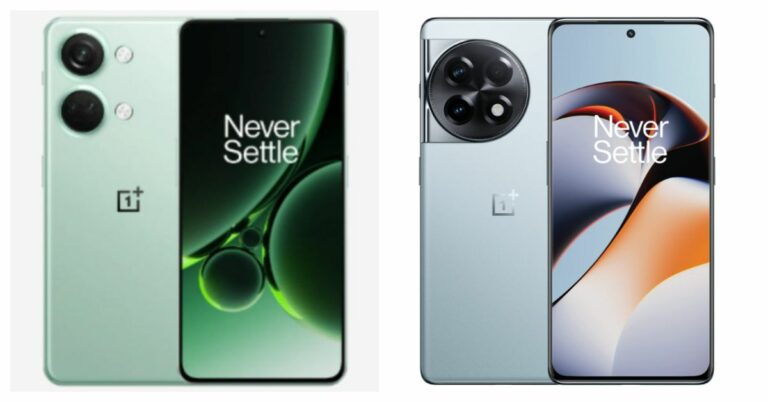
OnePlus Nord 3 which was recently launched in India has today gone on sale for the public. The device is a strong rival to the OnePlus 11 5G. The cost of the two phones differs significantly, though. Would you like to learn more about how the OnePlus 11R and OnePlus Nord 3 compare? We have analysed the technical details of both smartphones, which will undoubtedly help you choose wisely if you decide to buy one of them.
Display
OnePlus Nord 3: 6.74-inch AMOLED screen OnePlus 11R: 6.74-inch Full-HD+ curved AMOLED displayProcessor
OnePlus Nord 3: MediaTek Dimensity 9000 SoC OnePlus 11R: Snapdragon 8+ Gen 1 5G Also Read: OnePlus 11R pre-orders open in India: Details insideRear camera(s)
OnePlus Nord 3: Triple rear camera setup includes a 50-megapixel Sony IMX890 sensor with OIS support, an 8-megapixel ultra-wide angle Sony IMX355 sensor with a 112-degree FoV, and a 2-megapixel macro lens. OnePlus 11R: Triple rear camera setup includes a 50MP Sony IMX890 main sensor, 2MP macro camera with a 120-degree ultra-wide lens, an 8 MP ultra wide-angle sensorSelfie camera
OnePlus Nord 3: 16-megapixel front-facing camera OnePlus 11R: 16MP front cameraRAM and storage
OnePlus Nord 3: 8GB RAM with 128GB of storage/ 16GB RAM with 256GB internal storage OnePlus 11R: 8GB RAM with 128GB storage/16GB RAM with 256GB storageBattery
OnePlus Nord 3: 5,000mAh battery with 80W SuperVOOC charging OnePlus 11R: 5,000mAh battery with 100W SuperVOOC chargingOperating system
OnePlus Nord 3: OxygenOS 13.1 with Android 13 OnePlus 11R: OxygenOS 13 with Android 13 Also read: OnePlus Nord 3 with tri-state alert slider debuts in IndiaPrice
OnePlus Nord 3: Rs 33,999 OnePlus 11R: Rs 39,999Our Take
Both smartphones have AMOLED displays, although the one on the 11R is curved when compared to the Nord 3’s flat display. The OnePlus 11R has a Qualcomm Snapdragon 8+ Gen 1 5G SoC, whilst the Nord has a MediaTek Dimensity 9000 SoC. On the software front, both come pre-installed with Android 13; however, the Nord 3 runs OxygenOS 13.1 as opposed to the OxygenOS 13 of the 11R. On these phones, the battery capacities and cameras are identical. In contrast to Nord’s 80W SuperVOOC charging, the 11R offers 100W SuperVOOC charging. For the pricing, there is a nearly Rs 6,000 price difference between both devices. If your budget is tight, you should consider the Nord 3, but if you want a better flagship processor with a curved screen that looks expensive, you should consider the OnePlus 11R. For the latest gadget and tech news, and gadget reviews, follow us on Twitter, Facebook and Instagram. For newest tech & gadget videos subscribe to our YouTube Channel. You can also stay up to date using the Gadget Bridge Android App. You can find the latest car and bike news here.BGMI redeem codes for 15 July 2023, claim and receive rewards and benefits
After being banned for nearly ten months, Battleground Mobile India, aka BGMI, is officially available again in India. BGMI fans are looking for ways to improve their game experience and one such method is the usage of redemption codes, which offers a variety of rewards and advantages using BGMI redeem codes players can gain access to new skins, outfits, loot crates, weapons and free UC and diamonds.
As mentioned earlier, these codes give users the chance to earn unique rewards and gain extra benefits while playing the game. This includes GUN SKINS (M4, AKM, M416, AWM, M24, UZI, KAR98K), free character voucher, Andy, Carlo, Sara, Victor character for free, free Anna Character on completing the mission and UC or Royal Pass Discount. So here we have gathered a list of the most recent BGMI redeem codes as of 15 July 2023. Also, redeem these codes asap as these are only valid for a limited duration.
BGMI Redeem Codes for 15 July 2023
- Updating…
How to get free Redeem Codes for BGMI on 15 July 2023?
- Launch BGMI on your device.
- Then select the Redeem Code option from the main menu.
- Next, click on the Redeem code tab.
- A new window will open, requesting the redemption code.
- Now enter your BGMI code.
- Confirm and click on the “Redeem” tab.
- If your redeem code is valid then you will get a message confirming that your rewards were successfully redeemed.
Garena Free Fire Redeem Codes Today 15 July 2023: Here is how to claim them

Garena Free Fire is a battle royale game with regular awards and tournaments to keep players interested. If you play Garena Free Fire, you should be aware of the redeem codes that are released on a daily basis. However, because the battle royale game is banned in India, players from other countries can use the Free Fire Redeem codes daily. If you’re unfamiliar with the Garena Free Fire redeem codes or don’t know how to get them, we’ve put together a step-by-step guide to help you redeem them. Check out Garena Free Fire Redeem Codes for 15 July 2023.
The Free Fire redeem codes are a great way to get free stuff. These are 12-digit codes that contain alphabets and numbers, as well as an expiration date and time. Because the Garena FF redeem codes cannot be used more than once, you should hurry to the redemption page to claim your free reward before someone else does. To get a free reward, all you have to do is go to reward.ff.garena.com/en, which is the official redemption page. Also, keep an eye on this space for daily updates on Garena Free Fire redemption codes and rewards.
Garena Free Fire Redeem Codes Today 15 July 2023
- V427K98RUCHZ 6KWMFJVMQQYG FFCMCPSUYUY7E MCPW3D28VZD6 BR43FMAPYEZZ NPYFATT3HGSQ FFCMCPSGC9XZ XZJZE25WEFJJ EYH2W3XK8UPG FFCMCPSJ99S3 MCPW2D2WKWF2 ZZZ76NT3PDSH FFCMCPSEN5MX HNC95435FAGJ FAGTFQRDE1XCF FFCMCPSBN9CU MCPW2D1U3XA3 FFAC2YXE6RF2
How to Get Free Fire Redeem Codes for Garena on 15 July 2023?
- Visit the Garena Free Fire game’s official website at reward.ff.garena.com.
- Use your Facebook, Google, VK, Apple ID, Huawei ID, or Twitter account to log in.
- You’ll be taken to a valid redemption code (s)
- Copy and paste the 12-digit redemption code into the text box.
- On the screen, a dialogue box will appear.
- ‘Ok’ should be selected.
How to install Google Play Games Beta on your PC?
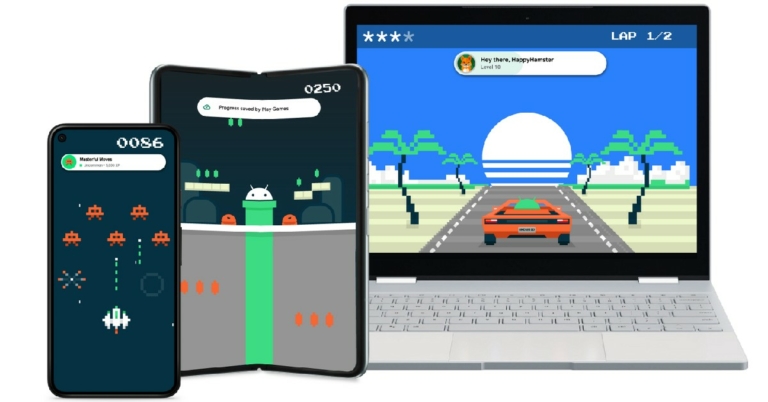
For the longest time, Windows users had to rely on using Android emulators to play their favourite mobile games on a PC. That changed when Google Play Games (Beta) was launched for PC last year. Initially launched in only a few countries, the gaming platform is now being introduced to other locations as well. Users in India can now download and play Android games on their PC using Google Play Games. If you’re wondering how to install Google Play Games Beta on your PC, here is a quick guide.
Read Also: Viewsonic OMNI VX28 Series 180 Hz gaming monitors launched in India
 Step 5: Click OK.
Step 6: Restart your PC.
Step 3: Run the installation suite as administrator.
Step 4: Once Google Play Games has been installed on your PC, sign in using your Google account.
Step 5: Search for the Android game you want to play on your PC.
Step 5: Click OK.
Step 6: Restart your PC.
Step 3: Run the installation suite as administrator.
Step 4: Once Google Play Games has been installed on your PC, sign in using your Google account.
Step 5: Search for the Android game you want to play on your PC.
Minimum PC Requirements
- OS: Windows 10 (v2004) or higher
- Storage: SSD with at least 10GB of available space
- Memory: 8GB of RAM
- Graphics: Intel UHD Graphics GPU or comparable ( Gaming-class GPU like Nvidia GeForce MX450 for better performance)
- Processor: 4 CPU physical cores (8 logical cores for better gameplay)
Enable Virtualization on your PC
Some Android games may require Windows Hypervisor Program to be enabled on your PC. Here’s how you can turn it on. Step 1: Click the search icon on the taskbar. Step 2: Type ‘Turn Windows features on or off’. Step 3: Select Open. Step 4: Tick the boxes for Virtual Machine Platform and Windows Hypervisor Program. Step 5: Click OK.
Step 6: Restart your PC.
Step 5: Click OK.
Step 6: Restart your PC.
Here’s how you can install Google Play Games Beta on your Windows PC
Step 1: Launch the web browser on your PC and go to https://play.google.com/googleplaygames. Step 2: Click on Download beta. Step 3: Run the installation suite as administrator.
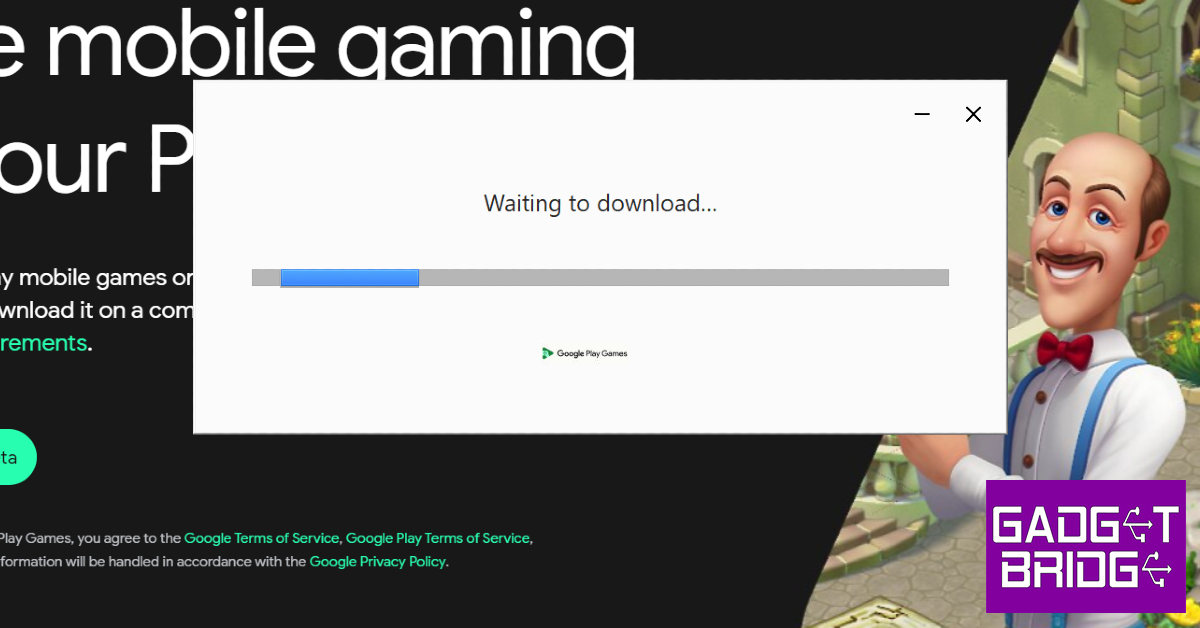 Step 4: Once Google Play Games has been installed on your PC, sign in using your Google account.
Step 5: Search for the Android game you want to play on your PC.
Step 4: Once Google Play Games has been installed on your PC, sign in using your Google account.
Step 5: Search for the Android game you want to play on your PC.
Frequently Asked Questions (FAQs)
What games are available on Google Play Games Beta?
There are over 100 gaming titles currently available on Google Play Games Beta for Windows. Users can download games like Eversoul, Evony: The Kings Return, and Ludo King on their PC using Google Play Games.Is Google Play Games Beta available in India?
Launched in 2022, Google Play Games Beta was first available only in Australia, Brazil, Canada, Hong Kong, Indonesia, South Korea, Malaysia, Taiwan, Thailand, Mexico, the Philippines, and the USA. Google has now launched its Android gaming platform for PC in several other countries including India.Can I sync Google Play Games for PC with my Android phone?
If you don’t want to lose any in-game progress, log in to Google Play Games on your PC using the same account as your Android smartphone. This will sync the in-game progress between the two platforms. Read Also: iOS 17 public beta version now available for downloadConclusion
This is how you can install Google Play Games Beta on your Windows PC. Since this is a Beta version, you may encounter frequent bugs on the platform. If you aren’t impressed by the gaming titles on offer, you can always go back to using an Android emulator for your PC and wait until Google releases the full desktop version of its Gaming platform. For the latest gadget and tech news, and gadget reviews, follow us on Twitter, Facebook and Instagram. For newest tech & gadget videos subscribe to our YouTube Channel. You can also stay up to date using the Gadget Bridge Android App. You can find the latest car and bike news here.How to view saved WiFi passwords on any iPhone?
Unlike certain Android smartphones, the iPhone makes it very easy for users to view their saved WiFi passwords. However, this was not always the case. The feature was first introduced on iOS 16. Older iOS versions allowed users access to WiFi passwords only through Keychain. In this article, we show you how to view the saved WiFi passwords on any iPhone (iOS 16 and below).
Read Also: iOS 17 public beta version now available for download
Step 2: Tap the info icon next to the active WiFi network.
Step 3: Tap the password field.
Step 4: Verify your identity using passcode, Face ID, or Touch ID.
The saved WiFi password will be revealed to you.
 If Keychain is enabled on your iPhone, you will be able to view saved WiFi passwords. While Keychain is primarily used for social media and email accounts, it is also capable of saving the passwords of the WiFi networks you connect to using your iPhone. For iPhones running iOS 15 – iOS 11, this is the only way users can view a saved WiFi password.
Step 1: Go to Settings and select Passwords & Accounts.
Step 2: Tap on Website & App Passwords.
Step 3: All your saved passwords will be displayed on the following page.
Step 4: Scroll through the list and find the WiFi network for which you want the password. Tap on it.
Step 5: Verify your identity using passcode, Face ID, or Touch ID.
The saved WiFi password will be revealed to you.
If Keychain is enabled on your iPhone, you will be able to view saved WiFi passwords. While Keychain is primarily used for social media and email accounts, it is also capable of saving the passwords of the WiFi networks you connect to using your iPhone. For iPhones running iOS 15 – iOS 11, this is the only way users can view a saved WiFi password.
Step 1: Go to Settings and select Passwords & Accounts.
Step 2: Tap on Website & App Passwords.
Step 3: All your saved passwords will be displayed on the following page.
Step 4: Scroll through the list and find the WiFi network for which you want the password. Tap on it.
Step 5: Verify your identity using passcode, Face ID, or Touch ID.
The saved WiFi password will be revealed to you.
View saved WiFi passwords on iOS 16 and above
Step 1: Go to Settings and select WiFi. Step 2: Tap the info icon next to the active WiFi network.
 Step 3: Tap the password field.
 Step 4: Verify your identity using passcode, Face ID, or Touch ID.
The saved WiFi password will be revealed to you.
Step 4: Verify your identity using passcode, Face ID, or Touch ID.
The saved WiFi password will be revealed to you.
View saved WiFi passwords on iOS 15 and below
 If Keychain is enabled on your iPhone, you will be able to view saved WiFi passwords. While Keychain is primarily used for social media and email accounts, it is also capable of saving the passwords of the WiFi networks you connect to using your iPhone. For iPhones running iOS 15 – iOS 11, this is the only way users can view a saved WiFi password.
Step 1: Go to Settings and select Passwords & Accounts.
Step 2: Tap on Website & App Passwords.
Step 3: All your saved passwords will be displayed on the following page.
Step 4: Scroll through the list and find the WiFi network for which you want the password. Tap on it.
Step 5: Verify your identity using passcode, Face ID, or Touch ID.
The saved WiFi password will be revealed to you.
If Keychain is enabled on your iPhone, you will be able to view saved WiFi passwords. While Keychain is primarily used for social media and email accounts, it is also capable of saving the passwords of the WiFi networks you connect to using your iPhone. For iPhones running iOS 15 – iOS 11, this is the only way users can view a saved WiFi password.
Step 1: Go to Settings and select Passwords & Accounts.
Step 2: Tap on Website & App Passwords.
Step 3: All your saved passwords will be displayed on the following page.
Step 4: Scroll through the list and find the WiFi network for which you want the password. Tap on it.
Step 5: Verify your identity using passcode, Face ID, or Touch ID.
The saved WiFi password will be revealed to you.
Frequently Asked Questions (FAQs)
How do I view a saved WiFi password on my iPhone?
iPhones running iOS 16 and above offer a direct way to view the WiFi password. Go to Settings>WiFi and select the active WiFi network. Tap on the password field and enter your iPhone’s passcode. On iOS 15, you will need to use Keychain to access a saved WiFi password.Can I view a saved WiFi password on iOS 15?
On iOS 15, you can view the WiFi password of the network you are connected to, but not where you expect it. The only way to view a saved WiFi password on iOS 15 is by going to Settings>Passwords & Accounts>Website & App Passwords>WiFi Network.Can I view a saved WiFi password on my iPhone using my Mac?
Yes, you can view the WiFi password of the network your iPhone is connected to, using your Mac. Simply search for the WiFi network in Keychain Access and click on the password field. For this to work, iCloud Keychain needs to be enabled on your iPhone as well as your Mac. Read Also: Best handheld gaming consoles available in IndiaConclusion
These are the best ways to view saved WiFi passwords on any iPhone. Instead of viewing a WiFi password, you can simply share it with a friend who is trying to connect to the network. All you need to do is turn on the Bluetooth and WiFi on both devices and tap on ‘Share Password’ on your device. The two devices need to be in close proximity to each other for this to work. For the latest gadget and tech news, and gadget reviews, follow us on Twitter, Facebook and Instagram. For newest tech & gadget videos subscribe to our YouTube Channel. You can also stay up to date using the Gadget Bridge Android App. You can find the latest car and bike news here.How to Install iOS 17 Public Beta on Your iPhone?
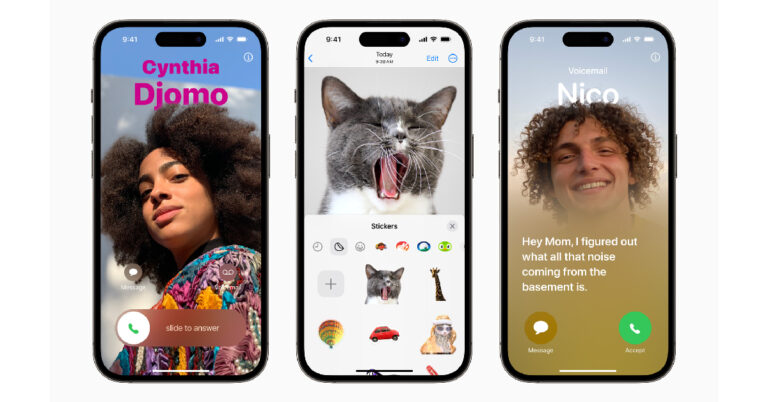
Apple’s iOS 17 Developer Beta has been floating around for some time now. This year, Apple did not charge its users the $99 fee to sign up for the Apple Developer Program. While using the new iOS is pretty fun, the Developer Beta versions are not known to be stable. For those who have been waiting for the Public Beta version to come out, the wait is now over. If this is your first time installing a beta version of iOS on your iPhone, here’s a quick guide to installing the iOS 17 Public Beta.
Read Also: Best handheld gaming consoles available in India
Step 2: Sign up using your Apple ID. If you have already signed up, sign in using your Apple ID.
Step 3: Select Get Started.
Step 4: Tap on Enroll your iOS Device.
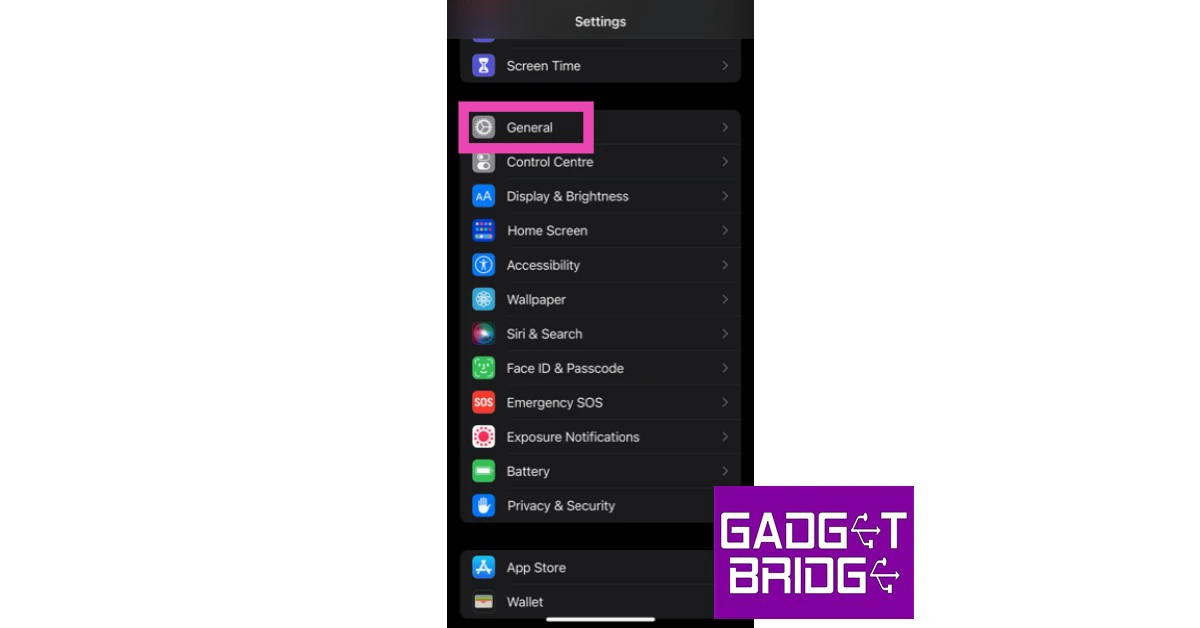
Step 5: Go to Settings and select General.
Step 6: Tap on Software Update.
Step 7: Go to Beta Updates and select iOS 17 Public Beta.
Here’s how you can install iOS 17 Public Beta on your iPhone
Before you begin, make sure your iPhone is running the latest version of iOS 16 (16.4). Step 1: Go to the Apple Beta Page. Step 2: Sign up using your Apple ID. If you have already signed up, sign in using your Apple ID.
 Step 3: Select Get Started.
Step 4: Tap on Enroll your iOS Device.
Step 5: Go to Settings and select General.
Step 3: Select Get Started.
Step 4: Tap on Enroll your iOS Device.
Step 5: Go to Settings and select General.
 Step 6: Tap on Software Update.
Step 7: Go to Beta Updates and select iOS 17 Public Beta.
Step 6: Tap on Software Update.
Step 7: Go to Beta Updates and select iOS 17 Public Beta.
Frequently Asked Questions (FAQs)
How do I install iOS 17 beta version on my iPhone?
To install the Public Beta version on your iPhone, you need to sign into Apple’s Beta Page and enrol your device. Once that’s done, go to Settings>General>Software Update and select iOS 17 Public Beta.Is iOS 17 Public Beta free to download?
Yes, you can download the iOS 17 Public Beta for free.Which iPhones are getting iOS 17?
All iPhone models above (and including) iPhone XR are getting the new iOS 17 upgrade. This means that iPhone 8 and iPhone X will not receive the new software update. Read Also: Snapchat Keeps Logging You Out? Try these 9 fixesConclusion
This is how you can install the latest iOS beta version on your iPhone. The Public Beta version is more stable than Developer Beta, but you may encounter an odd bug while using it. If you want to go back to iOS 16, you can remove the Public Beta version by going to Settings>General>Device Management>iOS 17 Beta Software Profile>Remove Profile. If you’re sticking with the Public Beta version, check out its top features here. For the latest gadget and tech news, and gadget reviews, follow us on Twitter, Facebook and Instagram. For newest tech & gadget videos subscribe to our YouTube Channel. You can also stay up to date using the Gadget Bridge Android App. You can find the latest car and bike news here.What does clearing Steam’s Download cache do?
While looking for the fixes for any issue you’re facing with Steam, you may have come across the suggestion to clear the download cache. Many users are reluctant to go through with this option, fearing that it will clear their download progress or remove the game from the library altogether. While that may not be true, there are certain changes that you may notice on your Steam account. Let’s take a close look at how you can clear Steam’s download cache and what it does.
Read Also: Best handheld gaming consoles available in India
Step 4: Confirm your selection in the popup box.
How to clear Steam’s download cache?
Step 1: Launch the Steam desktop client on your PC. Step 2: Click on Steam at the top left corner of the screen and select Settings. Step 3: Select Downloads from the side menu and click on Clear Download Cache. Step 4: Confirm your selection in the popup box.

I’ve cleared Steam’s download cache. What happens now?
If you’re worried that you will lose all your in-game progress after clearing the download cache on Steam, you can rest easy. This action does not have any effect on the saved progress in any of the gaming titles. However, any unsaved progress will be lost. This is because Steam stores the saved progress in a separate folder while the unsaved progress is stashed in the cached memory. No changes will be made to your installed games upon clearing the cache. They will remain as is. However, any games in the process of being installed will be cleared. You will have to install them again. Once the download cache is cleared, you will also need to log into the Steam app again. Clearing the cache boosts the speed of the app by clearing all the files in its temporary memory. Think of it as refreshing the memory on your phone. If you’re facing any trouble with the Steam app, it is likely that one of these temporary files has gone corrupt. Clearing the download cache will flush it out and fix any issues that you are facing with the desktop client.Frequently Asked Questions
How do I clear the download cache on Steam?
Go to Steam>Settings>Downloads>Clear Download Cache and confirm your selection in the popup box.What does clearing the download cache on Steam do?
Clearing the download cache on Steam removes all the temporary files downloaded by the app. This will fix the slow download speed or any other functional issues.Will I lose my installed games after clearing the download cache on Steam?
No, you will not lose your installed games or in-game progress after clearing the download cache on Steam. However, any ongoing installations and unsaved in-game progress will be deleted. Read Also: Asus ROG Ally ( RC71L) handheld gaming console debuts in IndiaConclusion
Typically, it is suggested you clear the download cache on Steam when a game won’t download or an installed title doesn’t start. If this action doesn’t fix the problem you are facing, you can always contact the Steam support staff. It is also advised that you check your internet connection when dealing with incomplete downloads. For the latest gadget and tech news, and gadget reviews, follow us on Twitter, Facebook and Instagram. For newest tech & gadget videos subscribe to our YouTube Channel. You can also stay up to date using the Gadget Bridge Android App. You can find the latest car and bike news here.Top 3 Ways to Get a Refund for App Store and iTunes Purchases
There are a plethora of free apps on Apple’s App Store that cover all kinds of tasks, ranging from photo and video editing to taking measurements for floor plans. For more specialised apps that can handle advanced tasks, you may need to splurge a little. Purchasing apps on Apple’s native app market is super easy, especially if your bank details are saved on your phone. However, sometimes the app you purchased may not act as advertised. In this case, you are well within your rights to claim a refund. In this article, we bring you the top 3 ways to get a refund for App Store and iTunes purchases on an iPhone and Mac.
Read Also: Top 5 ways to view saved WiFi passwords on any Android phone
Step 3: Select Purchased. If you have enabled Family Sharing, select My Purchases.
Step 4: Select the purchased app that needs to be refunded.
Step 5: Scroll down and select Report A Problem.
Step 6: You will be redirected to Apple’s website. Log in using your Apple ID.
Step 7: Tap the box that says ‘I would like to…’ and select Request a Refund.
Step 8: State your reason for requesting the refund in the following box.
Step 9: Tap Next, then select Submit.
Step 1: Go to Apple’s Report A Problem page.
Step 2: Sign in using your Apple ID.
Step 3: Click the ‘I would like to…’ box and select Request A Refund.
Step 4: State your reason for requesting the refund in the following box.
Step 5: Tap Next.
Step 6: Select the app in question.
Step 7: Select Submit.
Step 1: Launch the App Store on your Mac.
Step 2: Click on your profile icon at the bottom left corner of the screen.
Step 3: Select the app that needs to be refunded.
Step 4: Scroll down and select Report A Problem.
Step 5: You will be redirected to Apple’s website. Log in using your Apple ID.
Step 6: Tap the box that says ‘I would like to…’ and select Request a Refund.
Step 7: State your reason for requesting the refund in the following box.
Step 8: Tap Next, then select Submit.
Get a refund for App Store and iTunes Purchases on your iPhone
Step 1: Launch the App Store on your iPhone. Step 2: Tap the profile icon at the top right corner of the screen. Step 3: Select Purchased. If you have enabled Family Sharing, select My Purchases.
 Step 4: Select the purchased app that needs to be refunded.
 Step 5: Scroll down and select Report A Problem.
 Step 6: You will be redirected to Apple’s website. Log in using your Apple ID.
Step 7: Tap the box that says ‘I would like to…’ and select Request a Refund.
Step 6: You will be redirected to Apple’s website. Log in using your Apple ID.
Step 7: Tap the box that says ‘I would like to…’ and select Request a Refund.
 Step 8: State your reason for requesting the refund in the following box.
Step 9: Tap Next, then select Submit.
Step 8: State your reason for requesting the refund in the following box.
Step 9: Tap Next, then select Submit.
Get a refund for App Store and iTunes Purchases using a Web Browser
 Step 1: Go to Apple’s Report A Problem page.
Step 2: Sign in using your Apple ID.
Step 3: Click the ‘I would like to…’ box and select Request A Refund.
Step 4: State your reason for requesting the refund in the following box.
Step 5: Tap Next.
Step 6: Select the app in question.
Step 7: Select Submit.
Step 1: Go to Apple’s Report A Problem page.
Step 2: Sign in using your Apple ID.
Step 3: Click the ‘I would like to…’ box and select Request A Refund.
Step 4: State your reason for requesting the refund in the following box.
Step 5: Tap Next.
Step 6: Select the app in question.
Step 7: Select Submit.
Get a refund for App Store and iTunes Purchases on your Mac
 Step 1: Launch the App Store on your Mac.
Step 2: Click on your profile icon at the bottom left corner of the screen.
Step 3: Select the app that needs to be refunded.
Step 4: Scroll down and select Report A Problem.
Step 5: You will be redirected to Apple’s website. Log in using your Apple ID.
Step 6: Tap the box that says ‘I would like to…’ and select Request a Refund.
Step 7: State your reason for requesting the refund in the following box.
Step 8: Tap Next, then select Submit.
Step 1: Launch the App Store on your Mac.
Step 2: Click on your profile icon at the bottom left corner of the screen.
Step 3: Select the app that needs to be refunded.
Step 4: Scroll down and select Report A Problem.
Step 5: You will be redirected to Apple’s website. Log in using your Apple ID.
Step 6: Tap the box that says ‘I would like to…’ and select Request a Refund.
Step 7: State your reason for requesting the refund in the following box.
Step 8: Tap Next, then select Submit.
Frequently Asked Questions (FAQs)
How do I refund an App Store purchase on my iPhone?
To refund an app go to App Store>Account>My Purchases>App>Report a Problem and select Refund on Apple’s Report a Problem page.Can all App Store purchases be refunded?
Not all apps purchased through App Store are refundable. If you try to refund a non-refundable app, the ‘Submit’ option in Apple’s Report A Problem page will be greyed out.How long does it take for Apple to make a refund?
It takes around 48 hours for Apple to process your refund request. The time required to refund the amount back to your account varies depending on your location. Read Also: Asus ROG Ally ( RC71L) handheld gaming console debuts in IndiaConclusion
This is how you can get a refund for App Store and iTunes purchases on your iPhone and Mac. Once you submit your refund request, it will take about 48 hours to process. There is no strict limit on the time it takes for Apple to refund the amount back to your account. In some cases, it can take up to 60 days. If your reason for requesting a refund is not valid, your request may not be processed at all. For the latest gadget and tech news, and gadget reviews, follow us on Twitter, Facebook and Instagram. For newest tech & gadget videos subscribe to our YouTube Channel. You can also stay up to date using the Gadget Bridge Android App. You can find the latest car and bike news here.Viewsonic OMNI VX28 Series 180 Hz gaming monitors launched in India
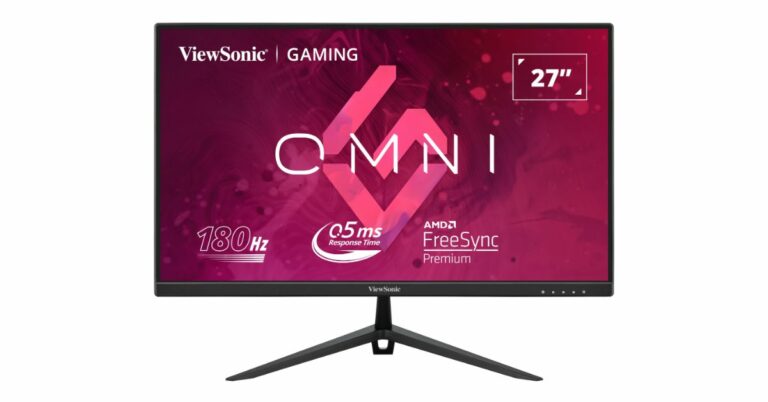
Viewsonic has launched a new gaming monitor series- OMNI VX28 Series in India. Under the lineup, four models having 27-inch and 24-inch monitors are included. The display supports a 180Hz refresh rate with 0.5ms (MPRT) response time ensuring immaculate gaming and pristine video editing without needing to overclock. The gaming monitors offer a tear-free gaming experience and support HDR10.
Also Read: Best handheld gaming consoles available in India
Today, ViewSonic Corp. announced the introduction of the new OMNI VX28 gaming monitors. The monitor’s fast IPS panels deliver exceptional colour consistency and accuracy from all viewing angles. They are available in two sizes 27-inch and 24-inch, the OMNI VX28 monitors offer a choice of FHD or QHD fast IPS displays. The OMNI VX28 monitors have a refresh rate of up to 180Hz, and a super-fast 0.5ms (MPRT) response time, which minimizes motion blur and smearing, ensuring seamless pixel transitions.
Additionally, the newest HDR10 offers remarkable control over gamma adjustments, resulting in an entirely new level of image clarity and details with deep contrast, rich, and brilliant colours. The displays have a number of cutting-edge features, such as AMD and VESA-certified anti-tearing and anti-blur technologies and a blue light filter, which guarantee a stutter-free and eye-friendly experience when used all day. The gaming monitors have received certification from AMD FreeSyn Premium, VESA Adaptive Sync, and VESA ClearMR.
This gives players a seamless and immersive experience by removing visual tearing, reducing stuttering, and lowering input lag. The most recent video games and movies, particularly first-person shooters and role-playing games, appear and feel more natural and realistic thanks to the smooth, blur-free graphics.
Users may adjust the monitor’s height, tilt it back or forth, swivel it for a different field of vision, or even rotate it vertically for a completely different perspective thanks to its ergonomic design.
Also Read: iOS 17 public beta version now available for download
The new 27-inch and 24-inch monitors will be available on Amazon and MDComputer.
The new monitors will have a special price during the Amazon Prime Day Sale with all card offers available. The price of the monitors is listed below.
For the latest gadget and tech news, and gadget reviews, follow us on Twitter, Facebook and Instagram. For newest tech & gadget videos subscribe to our YouTube Channel. You can also stay up to date using the Gadget Bridge Android App. You can find the latest car and bike news here.
 Additionally, the newest HDR10 offers remarkable control over gamma adjustments, resulting in an entirely new level of image clarity and details with deep contrast, rich, and brilliant colours. The displays have a number of cutting-edge features, such as AMD and VESA-certified anti-tearing and anti-blur technologies and a blue light filter, which guarantee a stutter-free and eye-friendly experience when used all day. The gaming monitors have received certification from AMD FreeSyn Premium, VESA Adaptive Sync, and VESA ClearMR.
This gives players a seamless and immersive experience by removing visual tearing, reducing stuttering, and lowering input lag. The most recent video games and movies, particularly first-person shooters and role-playing games, appear and feel more natural and realistic thanks to the smooth, blur-free graphics.
Users may adjust the monitor’s height, tilt it back or forth, swivel it for a different field of vision, or even rotate it vertically for a completely different perspective thanks to its ergonomic design.
Also Read: iOS 17 public beta version now available for download
The new 27-inch and 24-inch monitors will be available on Amazon and MDComputer.
The new monitors will have a special price during the Amazon Prime Day Sale with all card offers available. The price of the monitors is listed below.
Additionally, the newest HDR10 offers remarkable control over gamma adjustments, resulting in an entirely new level of image clarity and details with deep contrast, rich, and brilliant colours. The displays have a number of cutting-edge features, such as AMD and VESA-certified anti-tearing and anti-blur technologies and a blue light filter, which guarantee a stutter-free and eye-friendly experience when used all day. The gaming monitors have received certification from AMD FreeSyn Premium, VESA Adaptive Sync, and VESA ClearMR.
This gives players a seamless and immersive experience by removing visual tearing, reducing stuttering, and lowering input lag. The most recent video games and movies, particularly first-person shooters and role-playing games, appear and feel more natural and realistic thanks to the smooth, blur-free graphics.
Users may adjust the monitor’s height, tilt it back or forth, swivel it for a different field of vision, or even rotate it vertically for a completely different perspective thanks to its ergonomic design.
Also Read: iOS 17 public beta version now available for download
The new 27-inch and 24-inch monitors will be available on Amazon and MDComputer.
The new monitors will have a special price during the Amazon Prime Day Sale with all card offers available. The price of the monitors is listed below.
| Model | MRP | |
| 1 | VX2428 – 24” | ₹ 23,900 |
| 2 | VX2428J – 24” | ₹29,000 |
| 3 | VX2728 – 27” | ₹23,000 |
| 4 | VX2728J – 27” | ₹ 25,000 |