Being one of the biggest messaging platforms in the world, it is very uncommon to experience any account-related issues on Snapchat. The media-based messenger handles a huge volume of monthly traffic without any hiccups. However, sometimes users report that the Snapchat app keeps logging them out. If you are facing the same issue, here are 10 potential fixes.Read Also:Top 3 Ways to Disable TalkBack on Android Devices
Turn off Background App Refresh
Whenever the Snapchat app receives a major update, it logs you out of your account. Once the app is updated, you are required to log in again using your Snap ID/Phone Number/Email and password. A problem may arise when the app gets stuck in the update loop due to an unexpected bug or glitch. You can fix this issue by turning off background app refresh by disabling background data usage. Here’s how.Step 1: Go to Settings and select Apps.Step 2: Scroll down and select Snapchat.Step 3: Tap on Mobile Data.Step 4: Switch off the toggle bar for Allow Background Data Usage.
Restart your smartphone
Any minor background glitch affecting the apps in your phone can be resolved with a quick reboot of the device. Press and hold the side key and select ‘Restart’ from the power options. If pressing the side key triggers the voice assistant, press and hold the side key and volume up key simultaneously to access the power menu. You can also access the power menu by tapping the power icon in the quick settings panel.
Use Snapchat on just one device
One of the common reasons why Snapchat keeps logging you out of the app is multi-device access. Snapchat does not give you the option to log out of all devices at once. If you use the ephemeral messenger on two smartphones, logging out of one device will log you out from the other one as well. This applies to Snapchat’s web interface and the desktop as well. To avoid this problem, use Snapchat on one device only or do not log out of other devices.
Remove third-party access
Step 1: Launch Snapchat on your device.Step 2: Tap the profile icon at the top left corner of the screen.Step 3: Tap the gear icon at the top right corner of the screen.Step 4: Scroll down and select Partner Connections.Step 5: Tap the app that you think is the culprit.Step 6: Select Remove App.
Check if Snapchat is down
Snapchat may log you out of your account if its servers are down. Although server issues are very rare they are not out of the realm of possibility. To check if there’s any outage, go to DownDetector.in and search for Snapchat. The website will let you know if other users are experiencing similar issues as well.
Disable the VPN
VPN apps are known to mess with the functioning of certain messenger and social media apps on your phone. If you keep getting logged out of Snapchat, try disabling the VPN and try again. If this doesn’t fix the issue, move on to the other methods in this list.
Clear Snapchat Cache
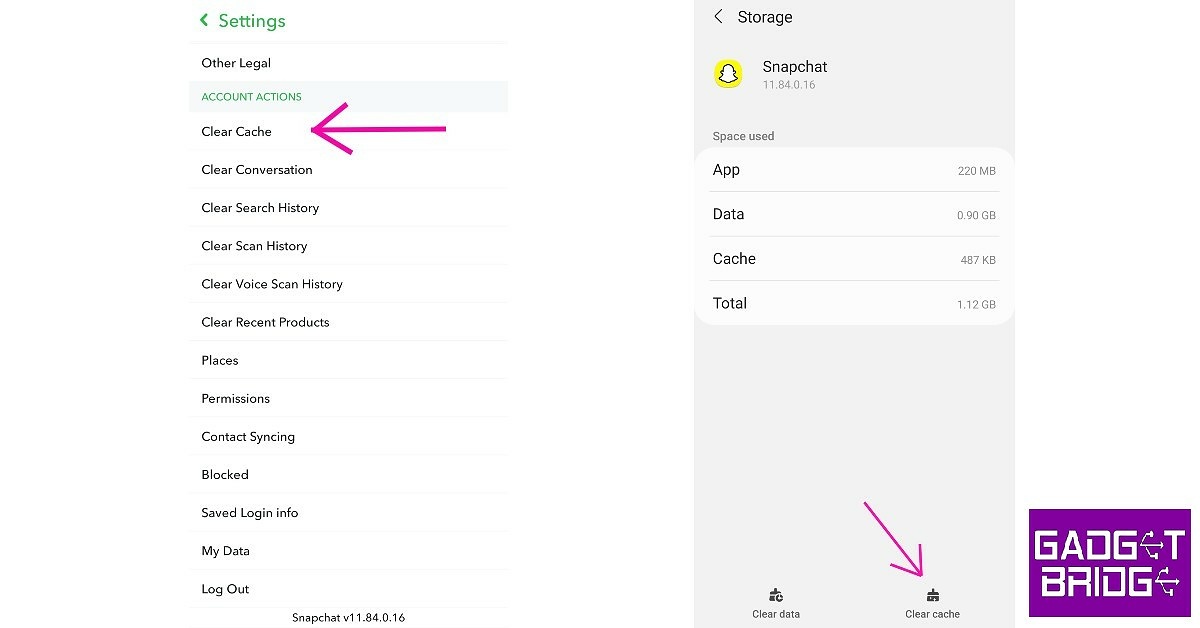
Snapchat’s app cache contains temporary files that the app doesn’t want to download every time you launch it. This optimises the performance of the app and reduces the load time by a considerable margin. Oftentimes, the temporary files in the cache can get corrupted and cause unexpected issues. To clear these files, launch the Snapchat app on your phone and go to Profile>Settings>Clear Cache.
Update the app
An outdated version of the Snapchat app may no longer be functional on your device. As a result, you keep getting logged out as soon as you launch the app. Go to Google Play Store and search for Snapchat. Open the app page and select ‘Update’ to install the latest version of the app.Update your phone’s OSStep 1: Go to Settings and select Software update.
Step 2: Tap on Download and install.
Step 3: Select Install now.
Your Snapchat account is locked
Snapchat is quick to take action when it notices any suspicious or malicious activity going on your account. To safeguard you from hackers, Snapchat locks your account and logs you out of the app. If your account is locked, you will get the option to unlock it the next time you log in. Once you get access to your access, make sure you change your password.
Frequently Asked Questions (FAQs)
Why does Snapchat keep logging me out?
If you log out of Snapchat on one device, you get logged out on all devices. To ensure this doesn’t happen, either use Snapchat on just one device or do not log out of other devices.
Why is my Snapchat account locked?
Snapchat locks your account when you perform an action that goes against the community guidelines. If your account has been hacked, Snapchat may suspend it until you take back control.
These are the top 10 ways to fix the ‘Snapchat keeps logging me out’ error on your Android device. If you are still experiencing this error after trying the fixes mentioned in this article, you should contact Snapchat support and find out what’s wrong with your account. Snapchat may have suspended your account if you were found in violation of their community guidelines.
It’s exciting to witness the coming back of handheld games. One of the most popular gaming genres is handheld consoles, and as technology has advanced, more potent portable gaming devices have been made available. High-end gaming computers and consoles, like the PlayStation 5 and Xbox One Series, are great players but difficult to move and can’t be used when travelling. Portable gaming consoles can be useful in this type of scenario. We have put together a list of handheld gaming consoles that you may pack in your carry-on bag easily when travelling.
Nintendo Switch OLED
A 7-inch OLED screen is included with the Nintendo Switch OLED. OLED Model comes with a large adjustable stand for better viewing angles when used in tabletop mode. The OLED model of the Nintendo Switch is compatible with all Joy-Con controllers and Nintendo Switch software. You may utilise For 64GB of internal storage, a wired internet connection, and improved audio in handheld and tabletop modes using the system’s speakers, use the dock’s LAN connector when playing in TV mode. A LAN cable is offered separately.
GPD Win 4 Handheld Gaming PC
AMD Ryzen 7 6800U Radeon 680M ZEN3 and a 16GB LPDDR5 1TB PCI-E 4.0 NVME SSD power the GPD Win 4 Handheld Gaming PC. Additionally, it contains AMD Radeon 680M integrated graphics, which guarantees 45–60 frames per second when playing AAA games at 19201080 resolution. It employs 32-bit, 4-channel, LPDDR5 memory in either 16GB or 32GB of capacity. It has a 6-inch eye-safe screen with a native landscape screen mode. The display has a 1920 x 1080 resolution, a 16:9 aspect ratio, a 368 PPI, and two selectable refresh rates of 60Hz and 40Hz.Also Read:Asus ROG Ally ( RC71L) handheld gaming console debuts in IndiaDual ALPS 3D joysticks, which are equivalent to the best Japanese Shimizu and Sanwa joysticks and have a typical staggered configuration, are among the important features. Two customisable physical back buttons that can be mapped and programmed, a 6-axis gyroscope for location, and dual vibration motors for the controller with changeable vibration strength (strong, weak, or off) are additional features. These elements improve the sensation of motion for gaming.
Asus ROG Ally
The 7-inch full-HD IPS LCD screen on the Asus ROG Ally offers a 1,920×1,080 pixel resolution. The display supports refresh rates of 120Hz and reaction times of 7ms. The display is shielded by Corning Gorilla Glass Victus and Gorilla Glass DX and has a maximum brightness of 500 nits. Windows 11 is already preinstalled on the portable gaming computer. With an octa-core AMD Z1 Extreme processor manufactured on a 4nm process technology and AMD RDNA3 graphics with 4GB of VRAM, the company has released the RC71L model in India.Also Read:The best gaming gadgets to use in 2023It is possible to upgrade the RAM to 8GB. The gadget offers 512GB of extendable NVMe storage with a UHS-II MicroSD 4.0 card slot and 16GB of LPDDR5 RAM. In addition to the USB Type-C port, the Asus ROG Ally features Bluetooth 5.2 and Wi-Fi 6E for connectivity. The console has thumbsticks, ABXY buttons, a D-pad, analogue triggers, and bumpers.
Steam Deck 64 GB Console
When it comes to playing video games, Steam Deck is fantastic. Like any other PC, the whole Steam Library is displayed. The device’s back has been designed to accommodate every kind of hand comfortably. Keep in mind that because this console is imported, the cost varies. Although the product has not yet been formally introduced in the nation, it is nonetheless available through unofficial channels. There are some restrictions when purchasing an imported Steam Deck. First off, forget about claiming a warranty in the event that something goes wrong with your equipment since there would be no official after-sale support. Second, because you are getting the equipment imported, you will have to fork over a significant sum of money.
Ayaneo Air Handheld Game Console
Ayaneo Air Handheld Game Console is the following item on this list of the finest video game consoles. AMD Ryzen 5 5560U processor, 6 Cores/ 12 Threads, Base Frequency 2.3 GHz, Max Turbo Frequency Up to 4 GHz, powers the gadget. The AMD Radeon graphics package is built-in. The gaming console has a 5.5-inch OLED screen with a 1920 x 1080 native landscape resolution and 404 PPI.
GSH X20 Mini Handheld Game Console
The GSH X20 Mini Handheld Game Console has a 4.3-inch screen, as the name would imply. A high-spec microswitch structure with 360° high precision controllability and agile response is made possible by the 360° rocker design. Furthermore, it supports both wired and wireless controller connections. The console supports ten emulators, ten emulator formats, and ten thousand games, all of which you may download independently. For the latest gadget and tech news, and gadget reviews, follow us on Twitter, Facebook and Instagram. For newest tech & gadget videos subscribe to our YouTube Channel. You can also stay up to date using the Gadget Bridge Android App. You can find the latest car and bike news here.
WiFi passwords are notoriously easy to forget. Since you don’t get into the habit of typing it every time you need to connect to the network, your brain doesn’t register the WiFi password the same way as your phone’s PIN. The problem only arises when you need to share the password with someone else. It can be a little embarrassing to forget your home WiFi network‘s password, something that is paired with all the smart devices in your house. To avoid this situation, here are the top 6 ways to view saved WiFi passwords on any Android phone.Read Also:Top 3 Ways to Disable TalkBack on Android Devices
View the saved WiFi password on a Samsung phone
Samsung smartphones don’t let you view the WiFi password of the network you are connected to, but you can share it with another device using a QR code. To view the password, all you need to do is scan the QR code on your phone. This trick works for most Android devices that do not let you view the WiFi password directly. Here’s how you can go about it.Step 1: Go to Settings and select ‘Connections’.Step 2: Select WiFi and tap on the gear icon next to the WiFi network you’re connected to.
Step 3: From the bottom menu select ‘QR Code’ and take a screenshot or select ‘Save as image’.Step 4: Download a QR code scanner app and load the screenshot to read it. Step 5: You will be able to see the WiFi password. Look for it below the WiFi network name and WPA security tag.
View the saved WiFi password on a Xiaomi device
Step 1: Go to Settings.Step 2: Select WiFi and tap on the active WiFi network to share its password.Step 3: Take a screenshot of the QR code.Step 4:Install any QR Code Scanner app on your device.Step 5: Launch the app and select the option to scan a QR Code from your device’s gallery.Step 6: Select the image containing the QR code.Step 7: The app will scan the QR code and show you the password.
View the saved WiFi password on Google Pixel (Stock Android)
Google Pixel smartphones and other devices running stock Android let you view the WiFi directly from settings. Here’s how you can look for it.Step 1: Go to Settings and select ‘Network and Internet’.Step 2: Tap on Internet and select the WiFi network you’re connected to.Step 3: Select Share and type in the pin or scan your fingerprint for verification.Step 4: The WiFi password will be displayed just below the QR Code.
View the saved WiFi password on Google Pixel (using the Quick Start Menu)
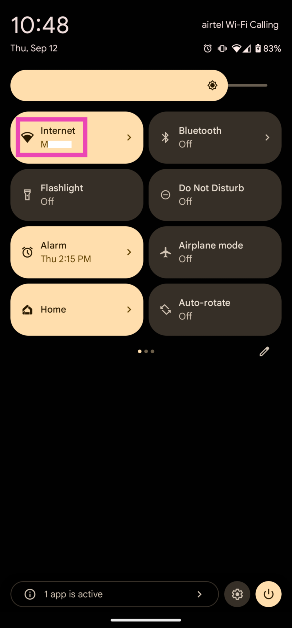
Step 1: Swipe down from the status bar to reveal the Quick Settings Menu.
Step 2: Tap on Internet.
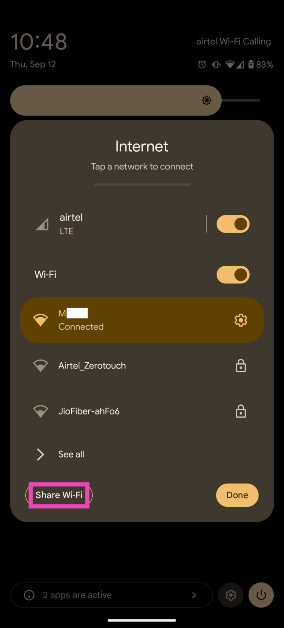
Step 3: Make sure your smartphone is connected to a WiFi network. Tap on Share Wi-Fi.
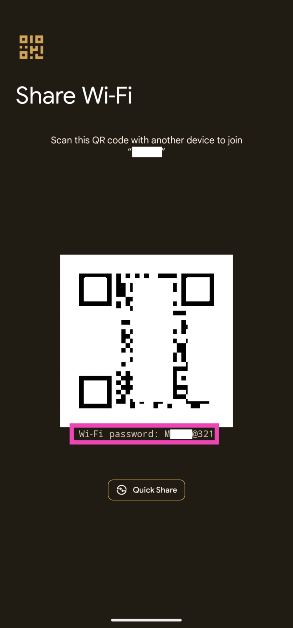
Step 4: The QR code for sharing the network will appear on the next page. The WiFipassword will be mentioned below the QR code.
View the saved WiFi password on a OnePlus smartphone
Step 1: Go to Settings and select WiFi.Step 2: Tap on the active WiFi network.Step 3: Select Share.Step 4: Verify your identity by entering the phone’s PIN or scanning your fingerprint.Step 5: The WiFi password will be listed above the QR code.
Use a third-party app (on a rooted phone)
Devices running Android 9 or older do not let you view or share the password of any saved WiFi network. The only way you can extract the WiFi password of any network is by rooting the device. For a complete guide on rooting your Android smartphone, check out this article. Once your phone has been rooted, you can view the saved WiFi password using a File Explorer app. Simply launch the app, head over to data/misc/wifi and open wpa_supplicant.conf. The WiFi password will be listed next to ‘psk’.Read Also:Redmi Buds 4 Active Review: Very close to a perfect deal
Frequently Asked Questions (FAQs)
Can I view the saved WiFi password on my Android phone?
Smartphones running the stock Android OS (like Google Pixel) let you view the WiFi password on your device. Simply go to Settings>Network and Internet>Internet and the gear icon next to the connected network. Select ‘Share’ to view the network’s password.
Can I view the saved WiFi password on my old Android phone?
Older Android smartphones do not let you view the WiFi password unless they have been rooted. On a rooted smartphone, you can simply use the file explorer to go to data/misc/wifi and open wpa_supplicant.conf to see the WiFi password.
How do I view the WiFi password on my Samsung smartphone?
Samsung smartphones do not let you directly view the password, but give you the option to share it with other devices as a QR code. You can save this QR code on your phone itself and scan it using a QR scanner app to reveal the password.Read Also:Redmi Buds 4 Active Review: Very close to a perfect deal
Conclusion
These are the top 6 ways to view the saved WiFi password on any Android phone. Since every smartphone running Android 10 or above lets you share the WiFi using a QR code, you won’t need root access to the device in order to view the network credentials. If you want to connect to the network using another device, simply go to Settings>Connections>WiFi and select the QR scanner option.
The much-awaited handheld gaming console of 2023, the ROG Ally, has successfully made its international debut and is now available in India. ASUS ROG hopes to revolutionise gaming in India’s esports scene with its portable Windows PC console. The ROG Ally makes for the ideal portable gaming companion because of its amazing performance, adaptability, and small size and is made to run both 1080p AAA games and basic games. The Indian model will have an AMD Z1 Extreme processor. It also features a 7-inch LCD screen. The handheld gaming PC also runs on Windows 11.Also Read:Asus TUF gaming F15 laptop review: 11 Gen Intel CPU with RTX 2050 under 60K, worth buying?
Asus ROG Ally ( RC71L) price in India, sale details
Asus ROG Ally has been launched in India at Rs 69,999. The device will be available for purchase via ASUS Exclusive Stores, ASUS Eshop & Flipkart in the country. Launch offer includes a Rs 2,000 cashback incentive on no-cost EMI transactions. Also, customers who purchase the ROG Ally from ASUS Eshop or ASUS Stores on July 15 will receive a complimentary ROG Ally Case worth Rs 2000. To redeem this offer, customers can visit asuspromo.in.
Asus ROG Ally ( RC71L) specifications
Asus ROG Ally has a 7-inch full-HD IPS LCD screen with a resolution of 1,920×1,080 pixels. The screen can support a refresh rate of 120Hz and reaction times of 7ms. The display has a maximum brightness of 500 nits and is protected by Corning Gorilla Glass Victus and Gorilla Glass DX. The handheld gaming PC comes pre-installed with Windows 11. The business has introduced the RC71L model in India, which comes with an octa-core AMD Z1 Extreme processor made on a 4nm process technology and AMD RDNA3 graphics with 4GB of VRAM.Also Read:Samsung Odyssey G9 OLED Gaming Monitor (2023) with dual QHD OLED screen launched in IndiaThe RAM can be increased further to 8GB. The device has 16GB of LPDDR5 RAM and 512GB of expandable NVMe storage with a UHS-II MicroSD 4.0 card slot. The Asus ROG Ally supports Bluetooth 5.2 and Wi-Fi 6E for connectivity in addition to USB Type-C port. Thumbsticks, ABXY buttons, a D-pad, analogue triggers, and bumpers are all included with the console.The portable gaming device comes with a 40Whr battery that can be charged at 65W. It contains two stereo speakers with Dolby Atmos. In addition to this, there is a noise-cancelling array microphone powered by AI.
For the latest gadget and tech news, and gadget reviews, follow us on Twitter, Facebook and Instagram. For newest tech & gadget videos subscribe to our YouTube Channel. You can also stay up to date using the Gadget Bridge Android App. You can find the latest car and bike news here.
After being banned for nearly ten months, Battleground Mobile India, aka BGMI, is officially available again in India. BGMI fans are looking for ways to improve their game experience and one such method is the usage of redemption codes, which offers a variety of rewards and advantages using BGMI redeem codes players can gain access to new skins, outfits, loot crates, weapons and free UC and diamonds.As mentioned earlier, these codes give users the chance to earn unique rewards and gain extra benefits while playing the game. This includes GUN SKINS (M4, AKM, M416, AWM, M24, UZI, KAR98K), free character voucher, Andy, Carlo, Sara, Victor character for free, free Anna Character on completing the mission and UC or Royal Pass Discount. So here we have gathered a list of the most recent BGMI redeem codes as of 13 July 2023. Also, redeem these codes asap as these are only valid for a limited duration.
Garena Free Fire is a battle royale game with regular awards and tournaments to keep players interested. If you play Garena Free Fire, you should be aware of the redeem codes that are released on a daily basis. However, because the battle royale game is banned in India, players from other countries can use the Free Fire Redeem codes daily. If you’re unfamiliar with the Garena Free Fire redeem codes or don’t know how to get them, we’ve put together a step-by-step guide to help you redeem them. Check out Garena Free Fire Redeem Codes for 13 July 2023.The Free Fire redeem codes are a great way to get free stuff. These are 12-digit codes that contain alphabets and numbers, as well as an expiration date and time. Because the Garena FF redeem codes cannot be used more than once, you should hurry to the redemption page to claim your free reward before someone else does. To get a free reward, all you have to do is go to reward.ff.garena.com/en, which is the official redemption page. Also, keep an eye on this space for daily updates on Garena Free Fire redemption codes and rewards.
Among all other CMS, WordPress is one of the most prominent CMS used for developing websites and blogs. On that note, WordPress security is one of the essential aspects every website owner should know. Since developers cannot build all the functionalities from scratch in WordPress, it is necessary to keep various security measures and best practices in mind. This article is a quick walkthrough of the different security tips & best practices site owners should follow.
About WordPress Security
More than 43.2 per cent of all websites run on WordPress. WordPress security is the methodology to secure the WordPress CMS website from malicious threats and attack vectors. Various attacks like Cross-Site Request Forgery (CSRF), Distributed Denial of Service (DDoS), SQL injection (SQLi), Local file inclusion (LFI), etc., are what attackers use to access the data and backend of a WordPress website. Thus, various tools, plugins, and security best practices work together to provide WordPress security.
Why do WordPress Sites Get Hacked?
Before diving deep into WordPress security techniques and best practices, it is essential to understand how these websites are hacked. From a general perspective, cybercriminals target websites for different reasons:
Stealing personally identifiable information (PII)
Taking user emails to deliver spam
Trick users into installing malware on their machines
Stop customers and users from accessing the website by flooding it with unsolicited requests
Here are some WordPress attacks:
Cross-site request forgery (CSRF): It compels the user to execute unwanted actions on a trusted WordPress site.
DDoS: It floods any online service or application with unsolicited data packets. Hence the WordPress site becomes inaccessible to genuine visitors.
Bypassing authentication: Cybercriminals can bypass authentication to access and admin account or other visitors’ accounts. Attackers can also use tricks to extract passwords from you.
Cross-Site Scripting (XSS): Attackers can inject unwanted code into WordPress sites, making the site/app a malware carrier. It often damages brand reputation.
SQL Injection: Cybercriminals can execute malicious SQL queries to view & manipulate the data in a database as unauthorized individuals.
Local file inclusion: Attackers often use this technique to force a website to process malicious files by placing them on the web server.
Common cyber attacks on WordPress sites are listed below.
WordPress Security Tips and Best Practices
Here are some well-known WordPress security tips and best practices website and WordPress site owners must ponder while developing WordPress-based sites.
Keep all WordPress elements up-to-date: Web developers and WordPress CMS owners often use various WordPress Elements. These are plugins, themes, etc. To boost your WordPress website’s security, owners must keep them updated. Plugin and theme creators often patch these elements to prevent vulnerabilities. Revamping these plugins can be tedious, especially if you manage multiple WordPress sites. Website owners and admins can install Smart Plugin Manager to check for updates automatically.
App security tools: Application load balancers or DDoS detection & mitigation tools are other essential WordPress security tips and best practices WordPress website owners should consider. Load balancers detect unbidden SYN floods or UDP packets by absorbing fake traffic or separating them for handling to other associated servers. Load balancers detect unnecessary data packets & separate them for handling to other associated servers. Modern DDoS mitigation tools use ML algorithms to prevent bot-based DDoS attacks. It can intelligently identify spoofed data packets through IP addresses, patterns, & geolocations.
Secure the Website with HTTPS
Your website must have HTTPS in its URL and a padlock sign to win the trust of customers as well as to secure the data shared by online website visitors. All these indicators will be there in your website URL if you buy SSL Certificate and install it on your website. SSL (Secure Socket Layer) certificate is nothing but a certificate that will help to encrypt the data shared through your website.
WAF is also necessary: Web Application Firewalls are powerful security tools that monitor, filter, and block HTTP traffic from unauthorized systems. It can also identify attacks and malware exploits and prevent WordPress sites from getting hacked. WAF inspects each data packet & uses a rule to filter out malicious data packets. WAF can prevent WordPress sites and server data from malware infections, zero-day exploits, impersonation, etc.
Use password best practices: Unique passwords or paraphrases with symbols, upper and lower caps, numbers, etc., play a significant role in providing WordPress security. Do not keep any password that is a dictionary word or something easy to guess. Also, it is a good practice to update the password frequently.
Limit Login attempts: Another best practice and WordPress security tip that helps protect accounts from password guessing, credential stuffing, and brute force attacks are to limit login attempts. WordPress is rich with plugins. Website owners can use “Limit Login Attempts” plugins to limit the number of providing login credentials (3 or 5 times). Then it will block the account for 20 minutes or so. That way, attackers cannot use automated scripts or brute force tools to break the password.
Use CAPTCHA before filling Forms and Text Boxes: Attackers often use forms and text boxes in web applications to perform local file inclusion, SQL injection, and other web attacks. Modern attack vectors have become automated through scripts. The script fetches data from a database and tries different ways to exploit a system. That is where CAPTCHA comes in for preventing websites from automatically submitting forms and other requests. Website owners can use Google Captcha (reCAPTCHA) plugins to enable CAPTCHA on WordPress forms, logins, and registration pages.
Backup your site: Often attackers try to infect your WordPress website data with malware. If they can execute any script or inject malware on the server side, chances are such malware might erase all your website data. It can pause your business work and pose losses to revenue. Therefore, backing up your WordPress site is another best practice owners can follow.
Conclusion
We Hope the Above security tips will help you to secure your WordPress website. Other than all these WordPress security tips and practices, website owners can disable the file editing option from the WordPress dashboard, log user activities, change database file prefixes, etc. to make a more secure website.
For the latest gadget and tech news, and gadget reviews, follow us on Twitter, Facebook and Instagram. For the newest tech & gadget videos subscribe to our YouTube Channel. You can also stay up to date using the Gadget Bridge Android App. You can find the latest car and bike news here.
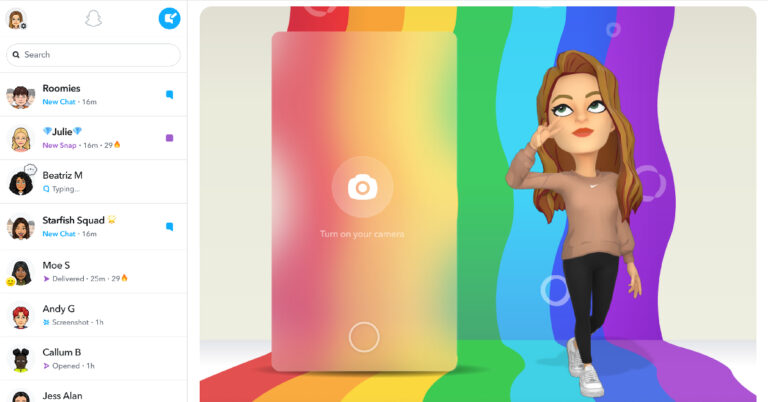
Most instant messengers have dedicated web portals for PC and Mac users. For a lot of people, this is a non-compromisable feature. Using a web portal for an IM on your laptop reduces the distractions that you’re met with every time you pick up your phone to check a message. Snapchat has a web portal where you can not only send and receive texts but also exchange snaps with your friends. In this article, we bring you the top 3 ways you can use Snapchat on a PC and Mac.Read Also:Top 4 Ways to Mirror Your Android Or iPhone Screen to Amazon Fire Stick
Use Snapchat Web
Snapchat’s web interface offers all the essential features of the ephemeral messenger on your PC and Mac. Simply go to web.snapchat.com and log in using your Snapchat account to access the web portal. Once logged in, you can send and receive snaps, view stories, send texts, and make video and audio calls. However, if you want to add a new friend to Snapchat or post a story, you will need to use the mobile app. You also cannot view the Spotlight tab on Snapchat for PC. Another major drawback of this web portal is that it is currently only available for Google Chrome and Microsoft Edge.
Use the desktop app for Snapchat
Don’t want Snapchat to occupy an additional tab on your web browser? Download the desktop app instead. Go to the Microsoft Store and search for Snapchat. Open the app page and click on ‘Get’ to install it. Snapchat’s desktop app is the same as its web portal. The only advantage of using the app is that it can be accessed in its separate window, which declutters your web browser and gives you a bit of privacy.
Use an Android Emulator
Before Snapchat had a desktop app of its own, the only way to make it work on a PC or Mac was through an Android emulator. You can still explore that option if the web portal and desktop app don’t work for you. Bluestacks is one of the best Android emulators for this task. Once you’ve installed Bluestacks on your PC or Mac, simply log in using your Google account and download Snapchat from the Play Store. The app will operate like its Android version.
Frequently Asked Questions (FAQs)
How do I use Snapchat on my laptop?
You can access Snapchat on your laptop through its web portal. You can also download the desktop app from Snapchat’s website.
Can I send snaps using Snapchat Web?
You can send and receive snaps using Snapchat Web. However, you won’t be able to add new friends or upload a story using the web portal.
TalkBack is a very helpful accessibility tool on all Android phones that lets visually impaired people interact with their devices. Using the screen reader and audio & haptic feedback, TalkBack not only lets users navigate their phones but also use a plethora of apps and services. The feature has gotten better with every update and now allows users to set up a Braille keyboard as well. If you don’t feel the need to use TalkBack but can’t figure out how to turn it off, you’ve come to the right place. In this article, we bring you the top 3 ways to disable TalkBack on Android devices.Read Also:Redmi 12 India launch to happen on August 1
Turn off Talk Back from Settings
Step 1: Go to Settings and select Accessibility.Step 2: Select TalkBack.Step 3:Switch off the toggle bar by double tapping it.Step 4: Confirm your selection in the popup box by double tapping the ‘Turn Off’ option.
Turn off TalkBack using Volume Keys
If you accidentally enabled TalkBack on your Android smartphone, it was probably by pressing the volume keys for more than three seconds. Luckily, you can turn off TalkBack in a similar fashion. Simply press and hold both volume keys for three seconds to turn off TalkBack on your Android phone. To make sure you don’t accidentally trigger TalkBack on your phone again, go to Settings>Accessibility>TalkBack and switch off the toggle bar next to the TalkBack shortcut.
Use Google Assistant
Navigating your phone when TalkBack is enabled can be an arduous process. Your phone narrates the function of every icon when you tap on it. To make a selection, you need to double-tap the icon on the screen. If you don’t want to navigate all the way to accessibility settings on your device, you can simply ask Google Assistant to turn it off for you. Trigger the Google Assistant using the side key and say “Hey Google, turn off TalkBack”.
Frequently Asked Questions (FAQs)
What is the TalkBack feature on my phone?
TalkBack is a very helpful tool on Android devices that lets visually impaired people navigate the software’s interface. Once enabled, TalkBack uses the screen reader to let the users know what’s on their phone’s screen.
How do I turn off TalkBack on my Android phone?
To turn off TalkBack on your device, go to Settings>Accessibility>TalkBack and switch off the toggle bar by double tapping it. You can also press and hold the volume keys together for 3 seconds to disable this feature.
2023 has seen a lot of affordable TWS releases already. A couple of years ago you would have been hard-pressed to find a decent pair of wireless earbuds under Rs 2,000. But with a slew of releases from (relatively) new players like Mivi and Truke, the budget TWS segment is going through a very important shift. Enter Xiaomi, which has had a stronghold on the budget smartphones market in India over the last decade. The new Redmi Buds 4 Active TWS seeks to replicate the same quality and value for money that Xiaomi offers on its smartphones. Priced at just Rs 1,399, the Buds 4 Active could easily be the go-to choice for consumers buying their first pair of TWS. We’ve been using these wireless earbuds for the last few days as our daily driver for music, voice calls, and even a fair bit of gaming. If you’re thinking of buying the Redmi Buds 4 Active, you may want to read this in-depth review.Read Also:Apple MacBook Air 15-inch Review: We Apple-solutely Love It!
Redmi Buds 4 Active review: Design
The Redmi Buds 4 Active are available in two colour options – Air White and Bass Black. We used the Air White variant for this review. The retail box has two extra pairs of ear tips inside but surprisingly lacks a USB charging cable. Nevertheless, if you have a USB Type-C cable lying around, you don’t have to worry about it too much.The pebble-shaped charging case has a matte-like texture with a glossy strip running across its circumference. We don’t get to say this quite often for entry-level earbuds, but the build quality here is amazing. Even though it’s an all-plastic case, it can easily absorb a few knocks. But what’s really impressive is the strength of the hinge, which is easily the best we’ve seen in this segment. You can fidget with the case all you want without worrying about the hinge loosening up.At the bottom of the case, you will find the USB Type-C charging port along with a white notification light. The Redmi branding is engraved in the back panel, right underneath the hinge. The front of the case has no markings, recesses, or indents. While the design may be minimal, it doesn’t get in the way of functionality – you can easily flip open the case using just one finger.The two earbuds are magnetically locked in a vertical position inside the charging case. The earbud housing panel is coloured grey, offering a nice contrast to the white exterior. The earbuds replicate the build quality of the charging case. You don’t have to worry about handling them with care. Xiaomi has gone for a standard in-ear design for the stem earbuds. A safe choice but a welcome one. The default medium-sized ear tips worked perfectly for us. For those struggling with the fit, there are two extra pairs of small and large size ear tips inside the retail box. We wore these earbuds while working out and did not face any problems with the fit even when things got sweaty. An IPX4 rating ensures that minor splashes and sweat won’t do any damage to the TWS.Redmi Buds 4 Active has touch-sensitive outer panels for music playback and call controls. No controls have been assigned to single touches, which greatly reduces the risk of accidentally pausing the music or hanging up on a call while adjusting the earbuds. A very intelligent solution that we would like to see on other TWS as well.
Redmi Buds 4 Active review: Performance
As is the case with every audio product, the design takes a backseat to the quality of the audio output. While we were impressed with the form factor, comfortable fit, and smooth controls of the Buds 4, it would have been completely undone with an underwhelming sound quality. Luckily, that is not the case with Redmi Buds 4 Active.Let’s get the specs out of the way first. These earbuds use 12mm drivers to deliver the audio output. The frequency range on offer is 20Hz – 24KHz. While the TWS offers Bluetooth 5.3 support, our minor complaint is that it does not support the AAC codec. It gets Google’s Fast Pair feature though, which is nice to see. There is also a low latency mode for gaming. Once connected to your device, these earbuds have a functional range of 10 metres.We played a variety of artists and genres on the Redmi Buds 4 Active and never once felt like we were using an entry-level TWS. The audio output is very clearly bass-driven, but it makes for a fun listening experience. If your musical palate majorly comprises pop music, these earbuds won’t leave much room for complaints. While the low end may be boosted, the high and mid frequencies get the appropriate representation on the soundstage. We listened to King Gizzard and the Lizard Wizard’s newest release and were pleased with the overall output produced by the TWS.The sound clarity can still be worked upon, even though it doesn’t stifle the listening experience in a major way. While listening to slowcore and ambient artists like Grouper and Aphex Twin, the gaps in detail were quite noticeable. The is a slight distortion in sound at the maximum volume. We’d suggest sticking within the 60-80% range.There is also a low latency mode on offer, although we won’t recommend these earbuds strictly for gaming purposes. If you look around, there are a plethora of entry-level gaming TWS on offer, which would be more suited to your needs. The Redmi Buds 4 Active TWS does not claim to be a gaming TWS either. We put on the Buds 4 Active for a couple of COD Mobile sessions. The crip sounds were relayed really well on the earbuds, but the noticeable lag deterred us from keeping them on.Moving on, the Redmi Buds 4 Active provides decent audio quality on voice calls in an indoor environment. We used the earbuds on cellular as well as WhatsApp calls. The ENC does a passable job of extracting the caller’s voice from the surrounding noise, but the relayed audio isn’t entirely devoid of disturbances. As is the case with most entry-level TWS, the quality of the microphones undermined the overall calling experience.The Redmi Buds 4 Active can also be paired with the Xiaomi Earbuds app, but there’s not a whole lot of stuff you can do on it. Apart from toggling the low latency mode and renaming the earbuds the app offers no other options. We’d like to see Xiaomi flesh out this app with an update, allowing users to assign custom controls and even mess around with the equaliser settings.Since we only used the Redmi Buds 4 Active for a few days, we cannot speak to its battery performance. We had the earbuds on for at least 2-3 hours every day and they never ran out of juice. Xiaomi claims a battery backup of almost 5 hours on the earbuds and an additional 30 hours in the case. This is in line with what we observed during our time with the TWS.Read Also:Samsung Galaxy S21 FE Snapdragon 888 SoC variant today debuted in India
Verdict
For first-time TWS buyers looking for an entry-level pair of earbuds, the Redmi Buds 4 Active is a very easy recommendation. The trifecta of minimal design, seamless touch controls, and good audio output is perfectly matched by these earbuds. We also like the durability of the charging case – something that gets glossed over in this price range. If you’re primarily concerned with listening to music, the Redmi Buds 4 Active is a solid buy at Rs 1,399.



 Step 4: Switch off the toggle bar for Allow Background Data Usage.

 Step 4: Scroll down and select Partner Connections.
 Step 5: Tap the app that you think is the culprit.
Step 6: Select Remove App.
Step 5: Tap the app that you think is the culprit.
Step 6: Select Remove App.
 Snapchat may log you out of your account if its servers are down. Although server issues are very rare they are not out of the realm of possibility. To check if there’s any outage, go to DownDetector.in and search for Snapchat. The website will let you know if other users are experiencing similar issues as well.
 Snapchat’s app cache contains temporary files that the app doesn’t want to download every time you launch it. This optimises the performance of the app and reduces the load time by a considerable margin. Oftentimes, the temporary files in the cache can get corrupted and cause unexpected issues. To clear these files, launch the Snapchat app on your phone and go to Profile>Settings>Clear Cache.
 Step 2: Tap on Download and install.
 Step 3: Select Install now.





 Step 2: Select WiFi and tap on the gear icon next to the WiFi network you’re connected to.
 Step 3:
 Step 4:
 Step 5:
 Step 3:
 Step 4: Install
 Step 6:
 Step 2:
 Step 3:
 Step 4:
 Step 3: Make sure your smartphone is connected to a WiFi network. Tap on Share Wi-Fi.
 Step 4: The QR code for sharing the network will appear on the next page. The WiFi password will be mentioned below the QR code.
 Step 2:
 Step 3:
 Step 4:




 Common cyber attacks on WordPress sites are listed below.



 Step 2:
 Step 3: Switch off the toggle bar
 Step 4: