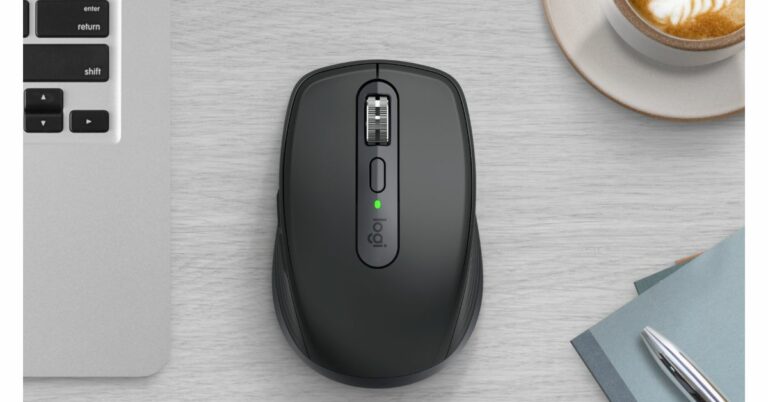
Logitech has announced the launch of a new keyboard and mouse in India. Logitech MX Keys S Combo, MX Keys S, and MX Anywhere 3S were all introduced by the company. In addition to this, all the devices have been updated with Smart Actions, a new feature in Logi Options+.
Pricing and availability
The cost of the MX Keys S Combo is Rs 22,995. For Rs 13,295 the MX Keys S is available in graphite and grey. The cost of the MX Anywhere 3S is Rs 9,225. The Logi Options+ app is available for download for free at logi.com/optionsplus.
Smart Actions
Logi Options+ App now has smart actions feature that enables users to avoid repeated actions by automating multiple tasks with a single keystroke so you can streamline your workflow with macros. In addition to this, it also offers predefined customizable Smart Actions to help automate common tasks to get more done.
MX Keys S Combo
The new MX Keys S keyboard, MX Master 3S mouse, and MX palm rest are included in the MX Keys S Combo. This duo enables quick and precise operations, perfect for experts focused on high levels of creativity and maximum production. The keyboard comes with intelligent backlighting and programmable keys. The 8K DPI sensor, which tracks on all surfaces—including glass—complements the mouse’s silent clicks and quick scrolling.
MX Keys S
The MX Keys S features a wireless illuminated keyboard with curved keys. It offers a superior low-profile typing experience. This keyboard offers fast, fluid, and Perfect Stroke typing in a cosy design. Smart illumination is built-in, and the backlighting senses when hands are about to reach the keyboard to illuminate it. It can adjust automatically based on the lighting situation in the room, which can now be customised in the Logi Options+ app. The MX buttons S, which come in two colours—Graphite and Pale Gray—offer an enhanced keyboard layout with three new buttons for maximum efficiency and teamwork: talk to text, mute/unmute the microphone, and emoji.
MX Anywhere 3S
The MX Anywhere 3S is a wireless mouse which is perfect for expert users looking for performance, portability, and comfort. Additionally, Logitech Quiet Click technology is included making clicking quieter than its predecessor (MX Anywhere 3). MX Anywhere 3S features an 8,000 DPI optical sensor that tracks on virtually any surface, including glass, as you move it to varied workspaces around the home or office.
For the latest gadget and tech news, and gadget reviews, follow us on Twitter, Facebook and Instagram. For newest tech & gadget videos subscribe to our YouTube Channel. You can also stay up to date using the Gadget Bridge Android App. You can find the latest car and bike news here.
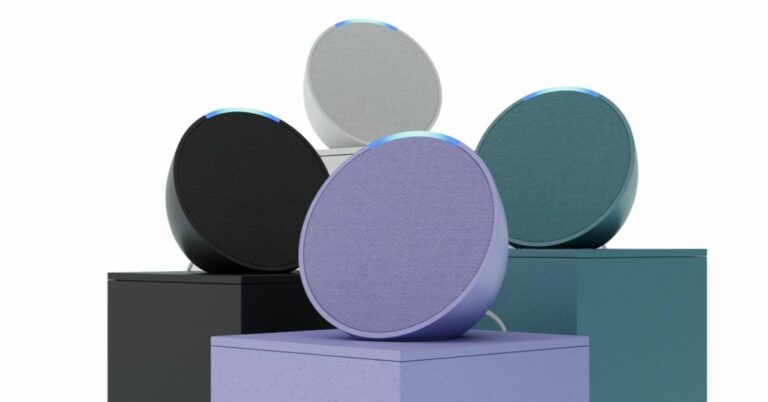
Amazon Echo Pop was introduced in India on Thursday. The device is the latest addition to the Echo family and is basically a drum-shaped smart speaker that comes with a new semi-sphere form factor. A Z2 Neural Edge processor powers the Echo Pop and includes Alexa built-in.
Amazon Echo Pop price in India and sale details
The price of the Amazon Echo Pop is set at Rs 4,999 in India. This smart speaker will be available in Green, Purple, in addition to White and Black colour options. It can now be purchased via Amazon.in as well as Croma, Reliance Digital, Poorvika and Amazon devices kiosks across India.Echo Pop
Amazon Echo Pop specifications
The Echo Pop has an innovative semi-sphere design with a custom-designed 1.95-inch front-facing directional speaker. Since it is an Echo product, Alexa is already included. Customers can just ask Alexa to play songs from Amazon Prime Music, Hungama, Spotify, JioSaavan, Apple Music, and others (some apps might need a subscription). By connecting Echo Pop via Bluetooth to the phone, customers can also stream their favourite music. It can be used to read audiobooks, track the record of a favourite sports team, control smart lights and plugs, or reorder household essentials.The Amazon Echo Pop has eero Built-in and an Amazon AZ2 Neural Edge processor, allowing it to extend the coverage of an existing eero wifi network by up to 1,000 square feet. Users will have access to thousands of compatible devices from top Indian manufacturers like Wipro, Syska, Xiaomi, and many others, including smart lights and other electrical appliances. Simply say “Alexa, turn on the AC” or “Alexa, dim the living room lights.” In order to enjoy a genuinely ambient experience, consumers can also extend the experience to non-smart products using smart plugs, which can be purchased separately.Kids can study and have fun with Echo Pop without using a screen. Kids can develop abilities like curiosity and communication by interacting with Alexa. In addition, parents may access thousands of Alexa skills for children and ask Alexa to play bedtime stories, nursery rhymes, games, quizzes, amusing facts, and English lessons. Simply ask Alexa, “Alexa, why is the sky blue?” or say “Alexa, open 1-2-3 Math” to begin.
For the latest gadget and tech news, and gadget reviews, follow us on Twitter, Facebook and Instagram. For newest tech & gadget videos subscribe to our YouTube Channel. You can also stay up to date using the Gadget Bridge Android App. You can find the latest car and bike news here.
Apple revealed the names of the three winners of the Apple Swift Student Challenge just before WWDC23. This challenge for a healthcare app was won by a 20-year-old Indore girl out of three. Using Apple’s Swift coding language, Madhya Pradesh resident Asmi Jain developed an app to assist her friend’s uncle who underwent brain surgery. She will now be present at the WWDC23 both virtually and physically.All the participants use coding to share their passions with the world on a wide range of subjects, including healthcare, sports, entertainment, and the environment. Asmi Jain, Yemi Agesin, and Marta Michelle Caliendo are three first-time winners of the Apple Swift Student Challenge.Asmi Jain, a 20-year-old student at Medi-Caps University in Indore, India found out that her friend’s uncle needed brain surgery. As a result, he was left with eye misalignment and facial paralysis. Jain sprung into action, designing her winning playground to track a user’s eye movements as they try to follow a ball moving around the screen.Though it was inspired by her friend’s uncle, Jain hopes that people with a variety of eye illnesses and injuries will be able to use the playground to help strengthen their eye muscles.“It was important for me to create an app playground that could positively impact the lives of people like him,” says Jain. “My next goal is to get feedback and make sure it’s effective and user-friendly, and then release it on the App Store. Ultimately, I want to expand it so that it helps strengthen all of the muscles in the face, and I hope it can one day serve as a therapy tool that people like my friend’s uncle can use at their own pace.”In addition, Jain’s aspiration to use coding to address issues in the healthcare sector springs from many years spent volunteering to help those around her. She recently set up a forum at her university with the help of a few other students so that their classmates had a support system for working through tough coding problems.“When you feel as though you’re part of something bigger, it motivates you and drives you to do better. Coding lets me create things that help my friends and my community. And it gives me a sense of independence that is very empowering,” she further added.Every year before its annual conference WWDC Apple challenges students worldwide to build an original software playground using the Swift coding language. This year’s World Wide Developers Conference (WWDC) 2023 will begin on June 5 and go until June 9.The challenge winners will be among those present both physically and virtually when WWDC23 begins on June 5 to view the keynote, events, laboratories, and activities made available to the world’s Apple developers this year. According to the company this year instead of awarding 350 winners as in previous years, Apple upped the number to 375. For the latest gadget and tech news, and gadget reviews, follow us on Twitter, Facebook and Instagram. For newest tech & gadget videos subscribe to our YouTube Channel. You can also stay up to date using the Gadget Bridge Android App. You can find the latest car and bike news here.
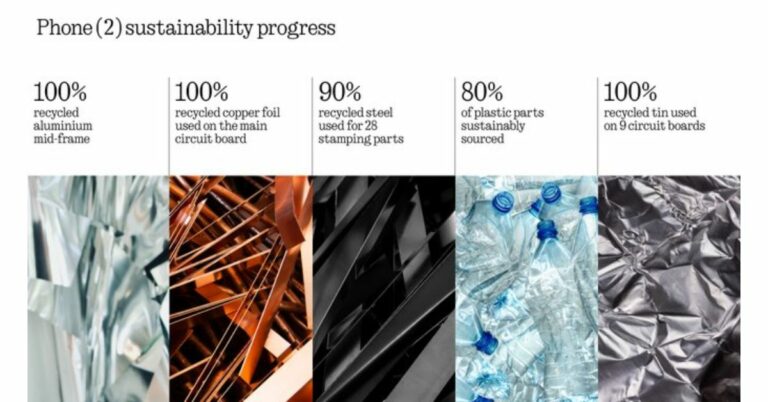
The global launch of Nothing Phone 2 is set for July. The next smartphone from Carl Pei’s Nothing has been slowly getting its specifications out there. The company previously disclosed information about the battery and chipset, but the display size and other specifications have now been confirmed. The forthcoming phone will be the replacement for the Nothing Phone 1, which was introduced last July and was the first phone ever made by the firm.According to a Tweet, the Nothing Phone 2’s screen size will be 0.15-inch larger than its predecessor. The device is likely to feature a 6.7-inch display. Note that the Nothing Phone 1 featured a 6.55-inch FHD+ display. Additionally, the firm also revealed that it will provide the Nothing Phone 2 with 3 years of Android updates and 4 years of security patches.Nothing has also confirmed that despite increasing the phone size and battery capacity of Phone (1), Phone (2) boasts an SGS-certified carbon footprint of 53.45kg, which is 8.6% lower than that of Phone (1).Also Read:Nothing Phone 2 global launch set for July, more specs revealedAccording to Nothing, the Phone (2) has been designed to be one of the most sustainable smartphones on the market, with an emphasis on recycled and biobased components, renewable energy, and product lifespan.Pei earlier revealed that the Nothing Phone 2 will have a 4,700mAh battery, which is 200mAh more than the 4,500mAh battery of the Phone 1. He also confirmed the phone will launch in July. The octa-core Qualcomm Snapdragon 8+ Gen 1 SoC will power the upcoming phone which is a significant leap from the Phone 1’s Qualcomm Snapdragon 778G+.The information on the India launch and the exact launch date is yet to be confirmed. However, the company also did confirm that for the first time, the company will make its debut in the US market with the launch of Nothing Phone 2.The phone was also spotted listed on the BIS certification site with model number AIN065 hinting at the imminent launch in India. According to the listing the upcoming phone is likely to feature a FHD+ AMOLED display with a refresh rate of 120Hz. The smartphone may also include a 5,000mAh battery with 67W fast charging support. The BIS listing also revealed that the Phone 2 will house a Snapdragon 8+ Gen 1 SoC with up to 12GB RAM and up to 256GB storage.
For the latest gadget and tech news, and gadget reviews, follow us on Twitter, Facebook and Instagram. For newest tech & gadget videos subscribe to our YouTube Channel. You can also stay up to date using the Gadget Bridge Android App. You can find the latest car and bike news here.
Garena Free Fire is a battle royale game with regular awards and tournaments to keep players interested. If you play Garena Free Fire, you should be aware of the redeem codes that are released on a daily basis. However, because the battle royale game is banned in India, players from other countries can use the Free Fire Redeem codes daily. If you’re unfamiliar with the Garena Free Fire redeem codes or don’t know how to get them, we’ve put together a step-by-step guide to help you redeem them. Check out Garena Free Fire Redeem Codes for 1 June 2023.The Free Fire redeem codes are a great way to get free stuff. These are 12-digit codes that contain alphabets and numbers, as well as an expiration date and time. Because the Garena FF redeem codes cannot be used more than once, you should hurry to the redemption page to claim your free reward before someone else does. To get a free reward, all you have to do is go to reward.ff.garena.com/en, which is the official redemption page. Also, keep an eye on this space for daily updates on Garena Free Fire redemption codes and rewards.
Garena Free Fire Redeem Codes Today 1 June 2023
FKO9I8UYHGR5JK6
FOLYHIUYD5TRSFE
FB4NJKITGUYTVBS
FFSERE5GR5JTYUT
F678KATRQD2X3V
FYGHJSI8EYTGTBN
FGJKIVUYTA4QEDC
F2V3B4RJTGBUGBN
FSRKITJHNYGVTYH
FB4NHRJUF7TRFDS
FVBWNEJ456YNMH
FNMWKEI4U5HGTB
FFNJUDYTGEBNJGU
How to Get Free Fire Redeem Codes for Garena on 1 June 2023?
1 June 2023 Amazon Quiz has gone live on its mobile app platform. Customers from different parts of the country are participating in the daily quiz. The daily quiz is conducted by the company brings an opportunity for the customers to win exciting prizes. The quiz begins from 12 AM to 11:59 PM. In today’s quiz participants have a chance to win Rs 2,500 Amazon Pay Balance by answering all the questions correctly.Every day Amazon brings a fresh set of questions for its customers that contains five easy questions. Amazon quiz brings an opportunity for its customers to win Amazon Pay Balance ranging from Rs 1,000 to Rs 50,000. which consists of five questions related to general knowledge and current affairs.The participants need to answer all the questions correctly and their names will be selected for a lucky draw. The winner will be announced at the end of the month. One wrong answer could eliminate you from the quiz. If you manage to answer all the questions correctly you can stand a chance to win Rs 1,000 Amazon Pay Balance today. Only app users are eligible to participate in the Quiz. Check Out 1 June 2023 Amazon Quiz Answers.Amazon Quiz Today Prize – Rs 2,500 Amazon Pay BalanceQuiz Date – 1 June 2023Daily Timing – 12 AM to 11:59 PMWinner Announcement – Today at 12 PM
Amazon Quiz Answers Today 1 June 2023
Question 1: Chief Minister of Telangana K Chandrasekhar Rao inaugurated whose 125 feet tall statue in April 2023?Answer: BR AmbedkarQuestion 2: In 2023, who has broken the record of taking the most hat-tricks in T20 cricket?Answer: Rashid KhanQuestion 3: Since May 2023, Lachhman Das Mittal is India’s _______ billionaire.Answer: OldestQuestion 4: This bird is the mascot of which North American City’s baseball team?
Answer: TorontoQuestion 5: Where is the oldest operating brewery of this drink located?Answer: Germany
How To Play Amazon Quiz
Only app users are eligible to play the Amazon quiz every morning from 12 AM to 11:59 PM. The quiz is not available on the desktop. For those who are unaware of how to play the Amazon quiz below are the steps, you can follow to take the quiz.
Firstly download the Amazon app from Google Play Store or App Store
Now fill in the required information through the Sign Up option.
You need to log in to the Amazon app and scroll down on the home screen to find the Amazon Quiz banner.
Tap on the Amazon Quiz banner and tap on the Start button to start the Quiz.
Now you will get 5 questions and you need to answer them correctly. One wrong answer will eliminate you from the Quiz.
After answering all the questions correctly you are now eligible for a Lucky Draw.
The winner’s name will be announced today at 12 PM.
Troubleshooting your Android smartphone is not a difficult task, but sometimes the most basic problems can be the trickiest to fix. Your Android smartphone displays the ‘Invalid SIM card’ error when there’s no SIM inside it. It can get confusing when you receive that error message even after inserting a SIM. In this article, we bring you the 8 best ways to fix the ‘Invalid SIM card’ error on an Android smartphone.Read Also:5 best camera smartphones under Rs 50,000 (May 2023)
Restart your smartphone
Restarting your smartphone is the first step you should take upon encountering any SIM-related problem. A simple restart stops all the background processes and refreshes the mobile connection on your device. To restart your Android smartphone, press and hold the side key and select ‘Power off’ from the power options. If long pressing the side key triggers the Google Assistant on your device, simply press and hold the side key and volume up key to access power options.
Toggle Airplane Mode
Switching your phone to Airplane Mode turns off the cellular network on your device. Once you turn off Airplane Mode, your device starts receiving network signals again. Turning off the Airplane and then turning it back on refreshes the network on your device. It can come in handy when your phone displays the ‘Invalid SIM card’ error. If it doesn’t work, move on to other fixes.
Manually select a network operator
Most of the time, your smartphone is connected to your SIM’s network carrier. Most service providers tie up with other carriers to increase their coverage in a region. This means that even though you may be using the SIM card of a specific service provider, your phone may be utilising the network of another carrier. This is a smooth process that your smartphone carries out automatically. But on some occasions, it may cause some issues. Here’s how you can switch back to your network operator.Step 1: Go to Settings and select Connections.Step 2: Select Mobile Networks.Step 3: Tap on Network Operators.Step 4: Turn off the toggle bar for Select automatically.Step 5: Your phone will scan available operators near you. Choose your service provider from the list.
Reinsert your SIM card
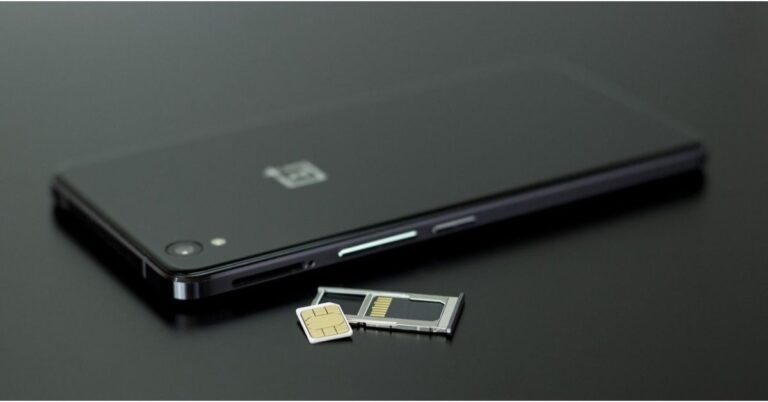
If you recently dropped your phone, the impact may have caused the SIM card to change its position slightly. Your smartphone may not be able to read it anymore, thus displaying the ‘Invalid SIM card’ error. To fix this, simply take out the SIM card from your phone and place it in its correct position again. Use the SIM ejector in the retail box to pop out the SIM tray. Make sure there is no dust on the SIM card or the slot. Push the tray back in and restart your device.
Contact the network provider
If the problem isn’t resolved after cleaning and reinserting the SIM card, it might be time to contact the network provider. Call the customer care helpline using another phone and register your complaint with a customer executive. If the problem is related to the network coverage or infrastructure in your area, the network provider will try to fix it. If that is not the case, move on to other fixes.
Buy a new SIM card
If your smartphone fails to read the SIM card even after it has been reinserted, there may be something wrong with the SIM card. This is a very common issue that surfaces after years of use. Even though the SIM card is not subject to any wear, it can still become outdated. Go to your network carrier’s nearest support centre and request a replacement. You will be charged a very nominal fee for the new SIM card.
Reset Network Settings
If none of the fixes mentioned in this list were helpful, your last resort is resetting the network settings on your device. Your phone will forget all established WiFi and Bluetooth connections and you will need to carry out the pairing process again. You will also lose your custom settings, as all the network settings will be set to default. Here’s how you can go about it.Step 1: Go to Settings and select General Management.Step 2: Scroll down and select Reset.Step 3: Tap on Reset Network Settings.Step 4: Select Reset Settings.Step 5: Enter your PIN to confirm your selection.
Update your phone’s OS
Step 1:Connect your phone to a WiFi network and plug in its charger.
Step 2: Go to Settings and select Software update.
Step 3: Tap on Download and Install. Your smartphone will check for any new updates.
Step 4: If an update is available, tap on Install Now. You can also schedule the update for a later time.
Frequently Asked Questions
How do you fix an invalid SIM card on Android?
To fix an invalid SIM card, simply pop out the SIM tray and reinsert the card into your device. Perform a quick restart and check if you are still getting the error message.
Why does my phone say that my SIM card is invalid?
When your smartphone is not able to correctly read the SIM card, it displays the ‘Invalid SIM card’ message. To fix this, reinsert the SIM card into your device and make sure it is not a loose fit.
Why is my phone not getting any network signal?
If you are not getting any network signal on your Android smartphone, go to Settings>Connections>Mobile Network>Network Operator and manually select a network operator.Read Also:Best 6 Ways to Unlock Your Android Device?
Conclusion
These are the 8 best ways to fix the ‘Invalid SIM card’ error on your Android smartphone. Most of the time, when you get the ‘Invalid SIM’ error, it is because the SIM card is placed in the wrong position. Always keep a SIM ejector tool handy for these situations. If your SIM card is faulty, you will need to present your verification documents to the network provider in order to receive a replacement SIM card.
Indkal Technologies has introduced a new lineup of Acer Google TVs with QLED & OLED in India. The firm has introduced the O, H, G, I, V, and W lineups, with the O series serving as the group’s flagship model.While announcing the new range of Google TVs from Acer the company said, “Indkal Technologies, today announced the launch of the new Google TV lineup from Acer in India through a mega event in New Delhi where it revealed a wide product range across screen sizes, display technologies, and price segments. Among the products announced, the flagship O series with an OLED display and a 60-watt speaker system with large woofers really caught the eye. The OLEDs will be launched in two sizes, a 55-inch, and a 65-inch variant.”The O series of OLED TVs comes in two sizes, a 55-inch, and a 65-inch variant. The TVs include a 60-watt speaker system with large woofers. On the other hand, the V Series is available in a 32-inch entry QLED variant along with the regular 43-inch, 50-inch, and 55-inch variants.The I and G series comes in 32-inch and 40-inch variants with MEMC, Dolby Atmos and Vision, and UHD Upscaling. In addition to this, they are offered with 16 GB internal memory on both models. The I series now features a new audio system with 30-watt speakers in its 32-inch and 40-inch versions, as well as 36-watt and 40-watt speakers in its UHD models, which come in sizes 43-inch, 50-inch, 55-inch, 65-inch, and 75-inch.The well-known H series comes with a 76-watt speaker system with better bass and treble and a more immersive audio setup. The W series of premium QLEDs, which feature the exclusive Anti-Glare Display, Wallpaper Design, Aural Sound, and Motion Sensors, is now also compatible with Google TV.All of the new Acer Google TV models include Dolby Atmos as a significant value enhancement to all UHD versions across all six series, along with dual-band WiFi, 2-way Bluetooth 5.0, HDMI 2.1 connectors, and USB 3.0.According to Indkal the I series going online for sale across channels on June 6.
For the latest gadget and tech news, and gadget reviews, follow us on Twitter, Facebook and Instagram. For newest tech & gadget videos subscribe to our YouTube Channel. You can also stay up to date using the Gadget Bridge Android App. You can find the latest car and bike news here.
Xiaomi has moved up two spots from the previous year to be rated 29th on Boston Consulting Group’s (BCG) list of the “50 Most Innovative Companies of 2023.”Xiaomi claims that the accreditation is an acknowledgement that the firm prioritises innovation, devotes resources and personnel to it, and tries to turn resources into outcomes.In addition to this Xiaomi’s research and development (R&D) expenses increased by 17.7% in the first quarter of this year compared to the same period last year, totalling RMB4.1 billion. About 16,500 people worked in R&D as of March 31, 2023, which was more than 50% of Xiaomi‘s workforce. As of March 31, 2023, the company’s R&D activities have resulted in more than 32,000 patents being issued globally. Moreover, over RMB20 billion is expected to be invested in R&D overall in 2023.In addition to embracing technical change, Xiaomi has also embraced artificial intelligence (AI). Over 1,200 people work in the AI industry, and a team based on the AI Lab Foundation Model was formally founded in April. It will keep growing user scenarios relating to AI, making the most of technological developments, and looking into collaboration prospects.Based on a survey of more than 1000 worldwide innovation executives conducted in December 2022 and January 2023, BCG’s ranking of the Most Innovative Companies is derived. Four categories—global mindshare, industry peer opinion, industry disruption, and value creation—are used in the poll to evaluate a company’s performance.The BCG list of the Most Innovative Companies is based on a poll of more than 1000 global innovation professionals that was performed in December 2022 and January 2023. The survey uses four criteria to assess a company’s performance: global mindshare, industry peer opinion, industry disruption, and value creation.BCG has published an annual report on innovation every year since 2003. Amazon, Alphabet, Microsoft, Siemens, Pfizer, SpaceX, Nike, IBM, and more companies are also on the 2023 list.Xiaomi claims that 2023 will be crucial to the company’s continued growth. The company will keep up its unyielding pursuit of technological advancement and dedication to ensuring that everyone in the globe has access to improved technologies while putting a strong emphasis on high-quality development.
For the latest gadget and tech news, and gadget reviews, follow us on Twitter, Facebook and Instagram. For newest tech & gadget videos subscribe to our YouTube Channel. You can also stay up to date using the Gadget Bridge Android App. You can find the latest car and bike news here.
If you want to remotely use your smartphone using your PC, your options are very limited. There is no native Android interface that lets you send/receive messages or make calls using your PC. However, Microsoft’s Phone Link is able to bridge this gap in functionality. Some Android smartphone manufacturers like Samsung have their own connectivity apps for PC. In this article, we bring you the 6 best ways to sync an Android device to your Windows PC.Read Also:Samsung Galaxy M14 5G review: Brilliant in the budget segment
Use Microsoft Phone Link
While there are a lot of third-party tools to manage your smartphone from your PC, the closest thing you’ve got to a native interface is Microsoft’s Phone Link. Using Phone Link you can sync your phone’s messages and notifications with your PC. The interface allows you to respond to texts, make & receive calls, browse the gallery, and a lot of other stuff. Here’s how you can sync your Android device with a PC using Microsoft Phone Link.Step 1: Download and install the ‘Link to Windows’ app on your Android smartphone.Step 2: Go to your PC settings and select ‘Phone’.Step 3: Click on ‘Add a phone’ and choose whether you want to pair your phone manually or with a QR code.Step 4: Launch the Link to Windows app on your smartphone and select ‘Link your Phone and PC’.Step 5: Select ‘Continue’ and scan the QR Code on your PC.Step 6: Select ‘Try another way’ to link your phone manually.Step 7: Sign in using your Microsoft account.Step 8: Click on ‘Create PIN code’ on your PC to generate a PIN for manual linking.Step 9: Enter the PIN on your smartphone.Step 10: Give the app the necessary permissions to function.Step 11: Use the sidebar on the Phone Link on your PC to connect your phone and computer via Bluetooth.You will now be able to send and receive calls and messages while accessing your phone’s personal data on your PC.
Use Samsung Flow
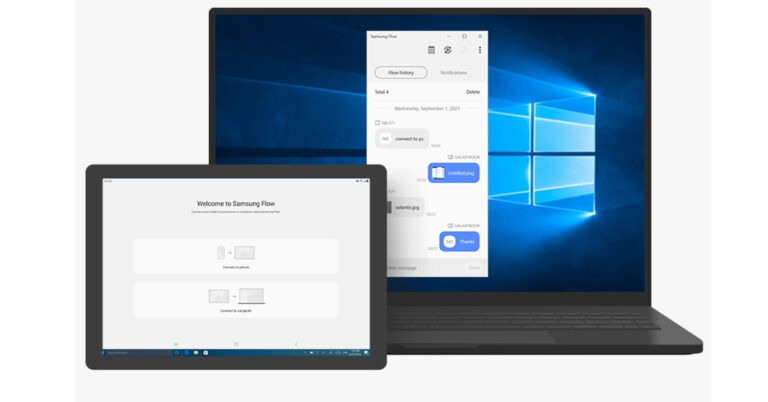
Samsung users can use the Samsung Flow app to sync their devices to a PC. You can find the Flow app on Microsoft Store. Here’s how you can link your Samsung device to your PC using Flow.Step 1: Install Samsung Flow on your smartphone and PC and hit ‘Start’.Step 2: Select your Samsung device.Step 3: Launch the Flow app on your Samsung device.Step 4: Confirm the pass key to sync your phone with your PC.Step 5: Pair your PC and smartphone via Bluetooth or WiFi to complete the syncing process.Once the two devices are linked you can view your phone’s notifications on your PC, send and respond to messages, share mobile internet, sync the clipboard, and do a lot of other stuff.
Use a third-party tool
There are plenty of third-party tools like Pushbullet, Coolmuster, and AirDroid that let you sync your phone with your PC. These apps are generally reliable and do a good job of syncing messages and notifications. The process to set up these tools is mostly similar. First, you need to install the PC and Android clients on the respective devices. Make sure your PC and smartphone are on the same network. Once that is done, you will need to create a profile on the application and then link your device via a QR code.
Use OneDrive or Google Drive to sync files
If you want to sync the personal data on your smartphone to your PC, there is no better way of going about it that using a cloud storage service. Upon signing up for Google Drive, you get up to 15GB of free storage, which is optimum to create a backup of all the essential files on your device. You can sign into Google Drive using your PC to access those files. You can also use Google Drive to create an online backup of your WhatsApp conversations and media.
Use Google Calendar to sync calendar entries
Most Android smartphones have Google’s app suite preinstalled in them. Google Calendar is one of those apps. You can use Google Calendar to sync your calendar entries across multiple devices. All you need to do to access the entries on your PC is sign into Google Calendar using the same Google Account that you use on your smartphone.
Use Sync for Chrome
For a lot of people, syncing the passwords to different web services is more important than syncing media and calendar entries. Luckily, Google Chrome is able to achieve this with ease. The only prerequisite is that you must be using the same Google Account for Chrome on all devices. To begin syncing, launch Chrome on your smartphone, go to Settings, and turn on Sync. Once that is done, you will be able to access your saved passwords, browsing history, bookmarks, and more across multiple devices.
Frequently Asked Questions
How do I sync files between Android and Windows?
You can use Microsoft Phone Link to sync files, messages, calls, and more between Android and Windows. To access the media on your device across multiple devices, back up your data on Google Drive or OneDrive.
How do I sync photos from Android to PC automatically?
To sync your photos from Android to PC use the Microsoft Photos app to import all the images from your phone to your PC. You can also use Microsoft Phone Link on your PC to view the contents of your phone’s gallery at any given time.










 Step 2:
 Step 3:
 Step 4:
 Step 5:


 Step 2:
 Step 3:
 Step 4:
 Step 5:
 Step 3: Tap on Download and Install. Your smartphone will check for any new updates.
 Step 4: If an update is available, tap on Install Now. You can also schedule the update for a later time.


 Step 4:
 Step 5:
 Step 6:
 Step 7:
 Step 9:
 Step 10:
 Step 11:
 Step 2:
 Step 3:
 Step 5:


