

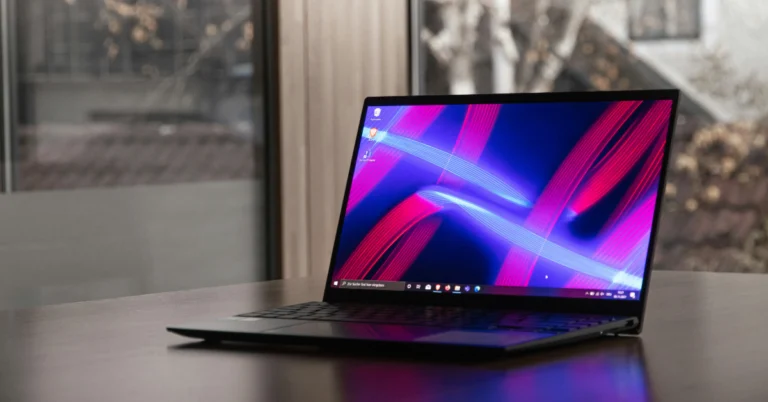
What does the error code 0xc00000e mean on Windows 10?
Before we move on to the fixes, let’s understand what the 0xc00000 error code really means. Typically, this error code is prefixed with the ‘A required device isn’t connected or can’t be accessed’ error message. Users also report that there are multiple variations of this error message, like ‘Required device is inaccessible’ or ‘The selected entry could not be loaded’. Your Windows 10 PC displays this error when it is unable to detect or access an essential piece of hardware which is required for the computer to boot. This includes your PC’s hard drive since your PC needs it to boot the OS. You may also encounter this error when the winload.exe file cannot be accessed or has been corrupted.Remove any external hard drives attached to your PC
 The first thing you should do when you encounter the ‘0xc00000e’ error on your Windows 10 PC is check whether there are any external hard drives connected to your PC. At the time of startup, the BIOS may confuse the external storage as your PC’s primary hard drive and use it to boot the device. Since the external hard drive does not contain the Windows operating system, your PC will throw the 0xc00000 error.
Use Windows Startup Repair tool
 Step 1: Go to the boot menu by restarting your PC and pressing F2 when the OEM’s logo appears on the screen.
Step 2: Select Boot from USB.
Step 3: Connect your USB drive containing Windows 10 OS and restart your PC.
Step 4: Press any key to boot from the USB you just connected.
Step 5: Enter your time zone, language, and keyboard input method.
Step 6: Click on Repair your computer.
Step 7: Go to Troubleshooting>Advanced options>Automatic repair.
Step 1: Go to the boot menu by restarting your PC and pressing F2 when the OEM’s logo appears on the screen.
Step 2: Select Boot from USB.
Step 3: Connect your USB drive containing Windows 10 OS and restart your PC.
Step 4: Press any key to boot from the USB you just connected.
Step 5: Enter your time zone, language, and keyboard input method.
Step 6: Click on Repair your computer.
Step 7: Go to Troubleshooting>Advanced options>Automatic repair.
Reset BIOS
Step 1: Go to the boot menu by restarting your PC and pressing F2 when the OEM’s logo appears on the screen. Step 2: Navigate to Load Setup Defaults and hit Enter to reset BIOS. Step 3: Hit F10 to exit BIOS.Rebuild BCD File
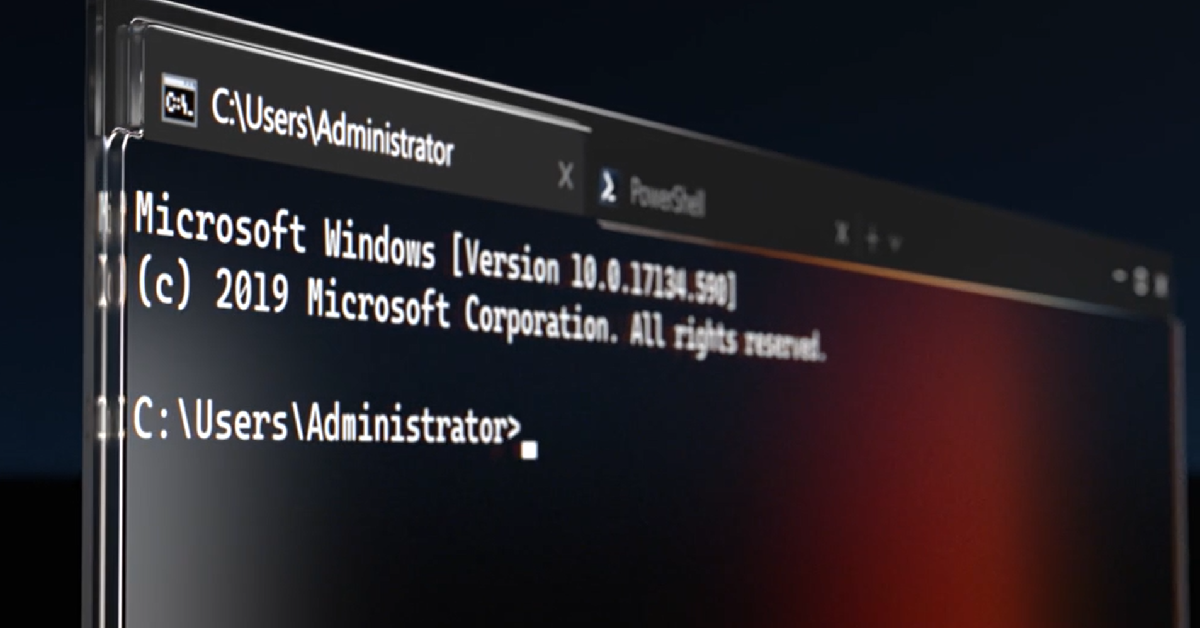 Step 1: Boot your PC using an external hard drive or Windows installation CD.
Step 2: Enter your time zone, language, keyboard input method, and hit Next.
Step 3: Click on Repair your computer.
Step 4: Go to Troubleshooting>Advanced options>Command Prompt.
Step 5: Enter the following commands:
Step 1: Boot your PC using an external hard drive or Windows installation CD.
Step 2: Enter your time zone, language, keyboard input method, and hit Next.
Step 3: Click on Repair your computer.
Step 4: Go to Troubleshooting>Advanced options>Command Prompt.
Step 5: Enter the following commands:
bootrec /scanos
bootrec /fixmbr
bootrec /fixboot
bootrec /rebuildbcd
Step 6: Exit and restart your PC.Perform a factory reset
 Step 1: Go to Settings and switch to the Update & Security tab.
Step 2: Scroll down and select Recovery.
Step 3: Click on Get Started under Reset this PC.
Step 4: You will be presented with two options. You can choose to keep your personal files and remove apps & settings or remove all of your personal files, apps, and settings. Choose the option you want.
Step 5: Select how you would like to reinstall Windows. You can choose between Cloud download or Local download.
Step 6: After you’ve made your choice, click on next to confirm your selection and then click on reset to begin the factory reset process.
Step 1: Go to Settings and switch to the Update & Security tab.
Step 2: Scroll down and select Recovery.
Step 3: Click on Get Started under Reset this PC.
Step 4: You will be presented with two options. You can choose to keep your personal files and remove apps & settings or remove all of your personal files, apps, and settings. Choose the option you want.
Step 5: Select how you would like to reinstall Windows. You can choose between Cloud download or Local download.
Step 6: After you’ve made your choice, click on next to confirm your selection and then click on reset to begin the factory reset process.
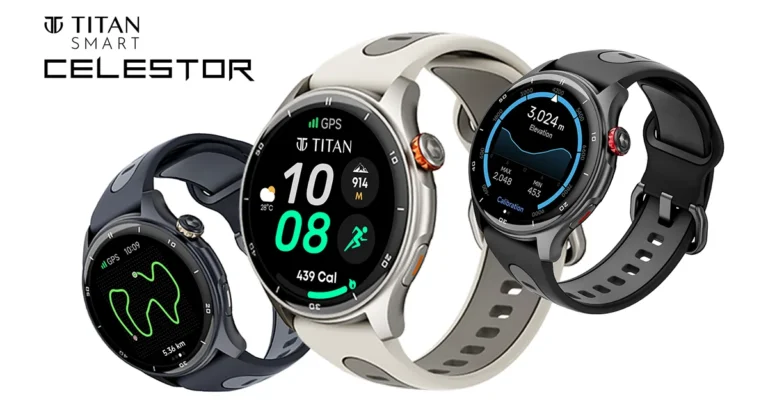
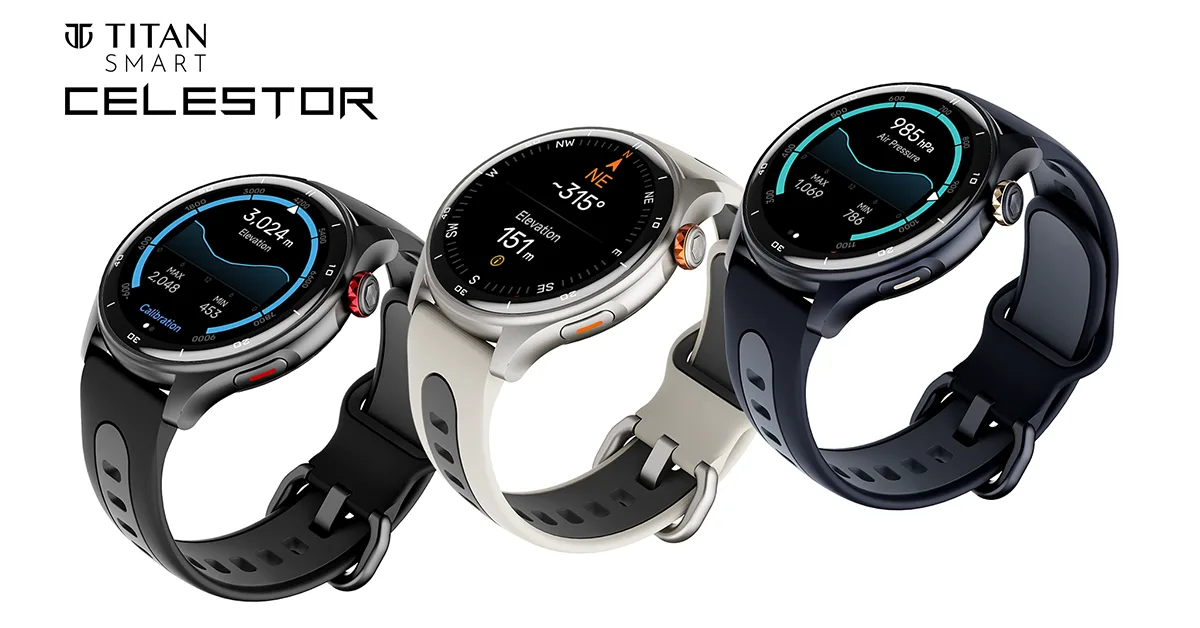 The Celestor introduces Today’s Highlights, an AI-powered dashboard that consolidates daily health data, activity reports, and frequently used apps into one accessible location. This personalized feature provides a holistic view of your day with a single swipe.
Read Also:
The Celestor introduces Today’s Highlights, an AI-powered dashboard that consolidates daily health data, activity reports, and frequently used apps into one accessible location. This personalized feature provides a holistic view of your day with a single swipe.
Read Also: 
 Step 2:
 Step 3:
 Step 5:
 Step 1:
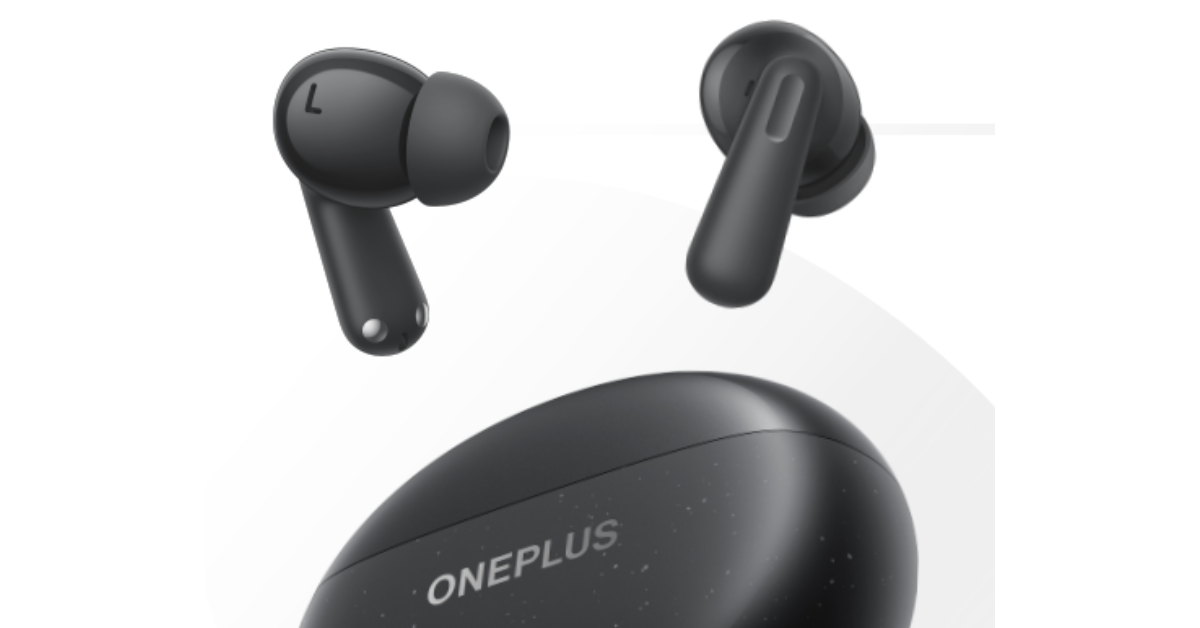
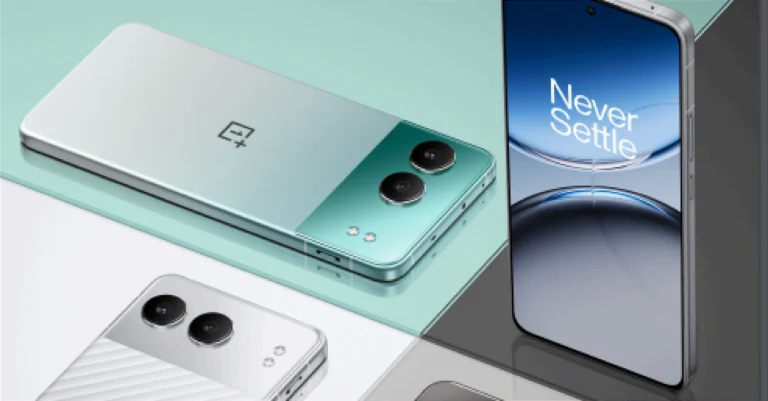
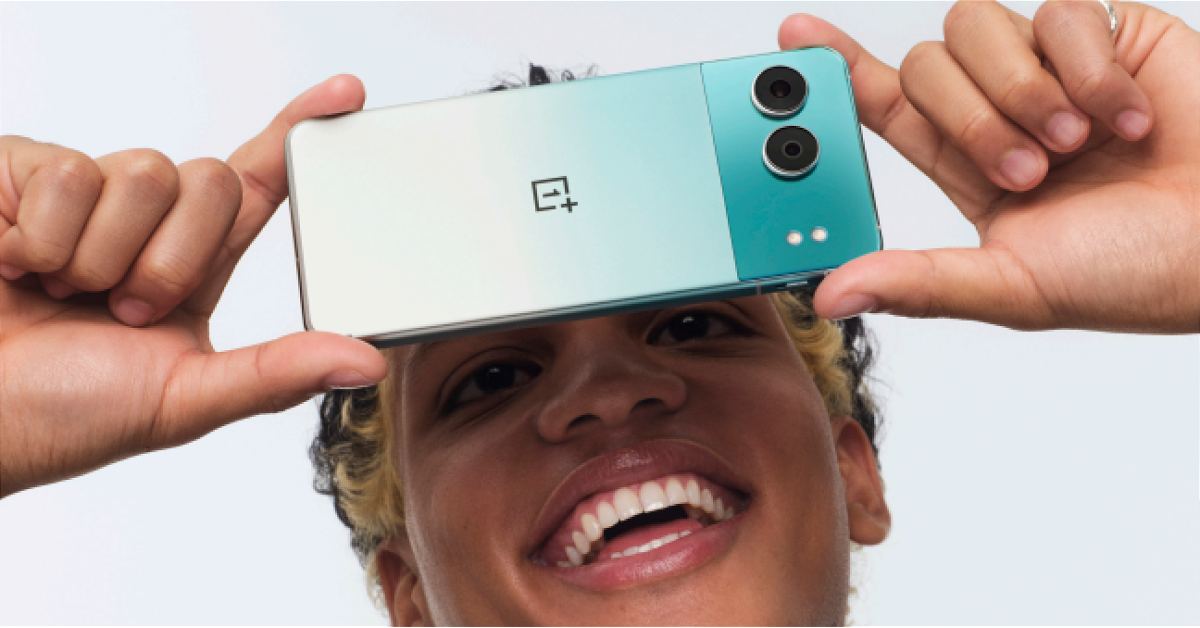
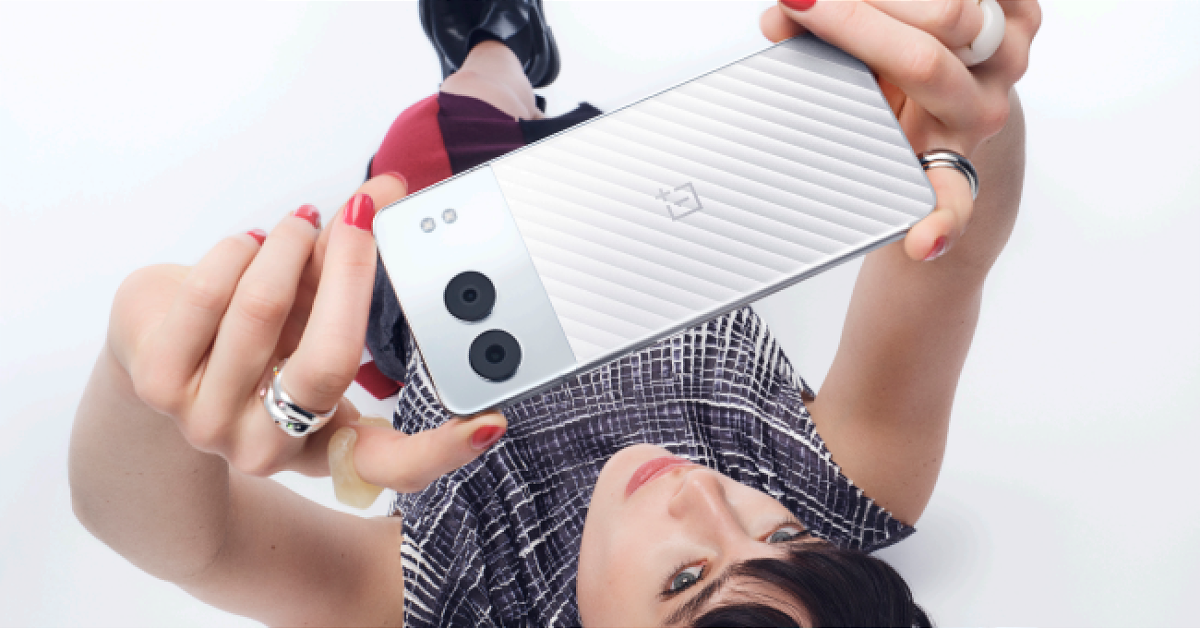
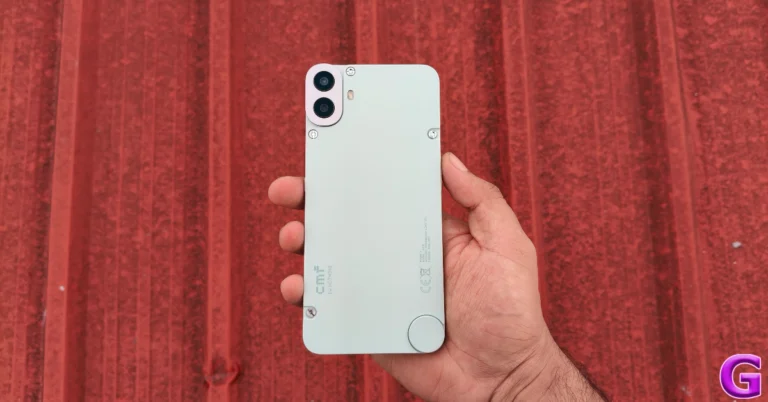
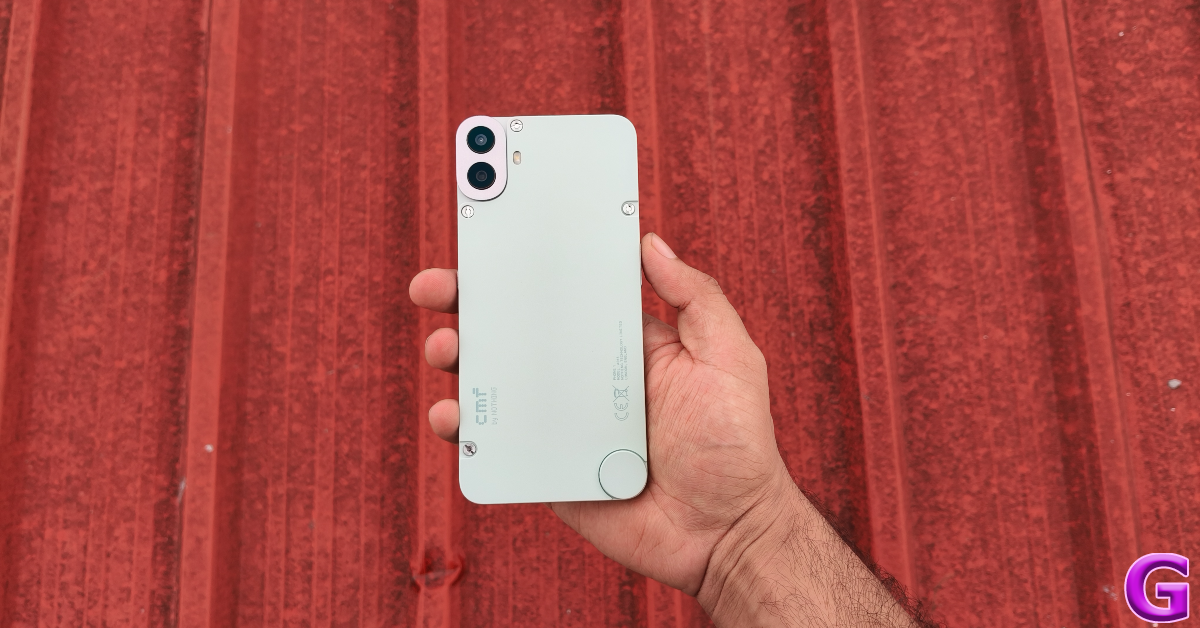
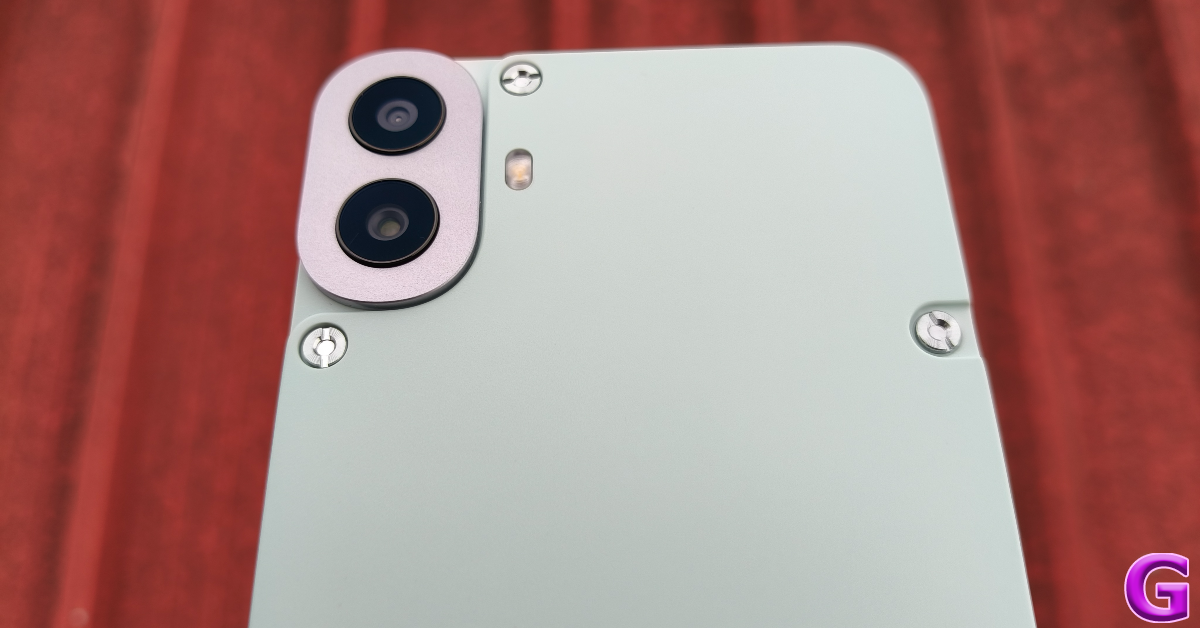
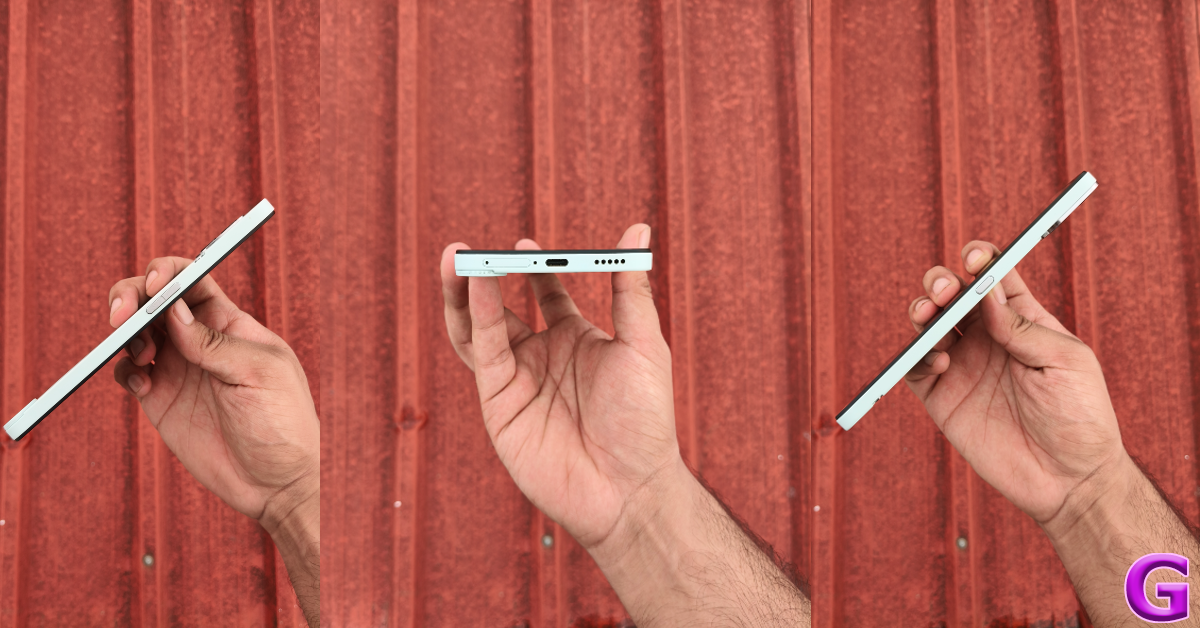







 Also Read:
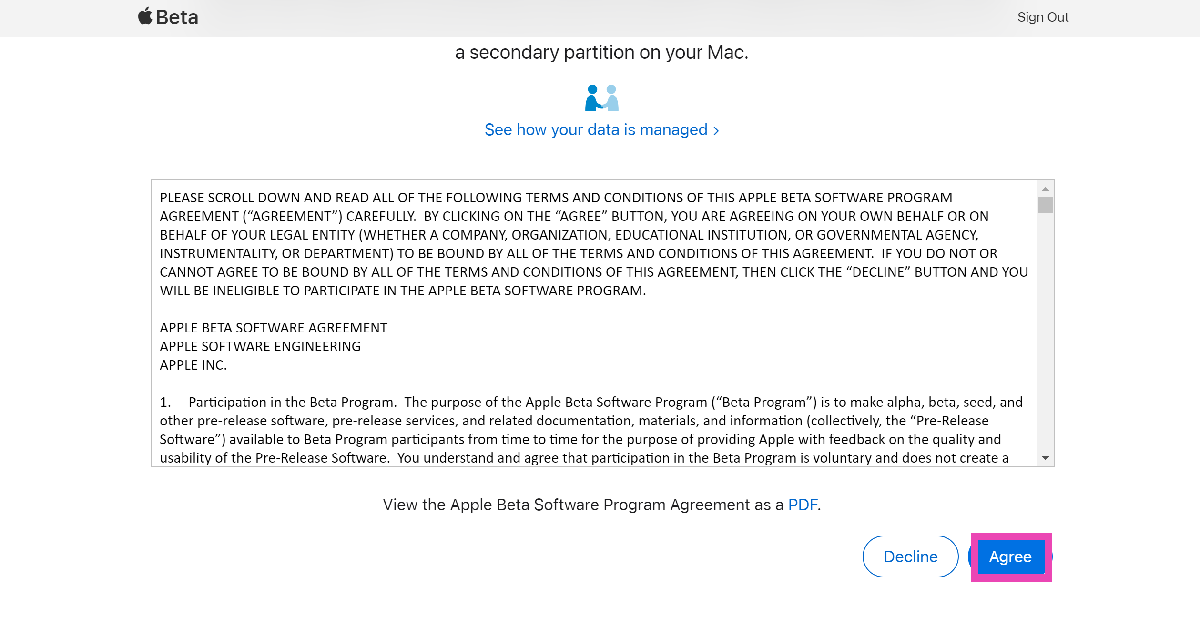
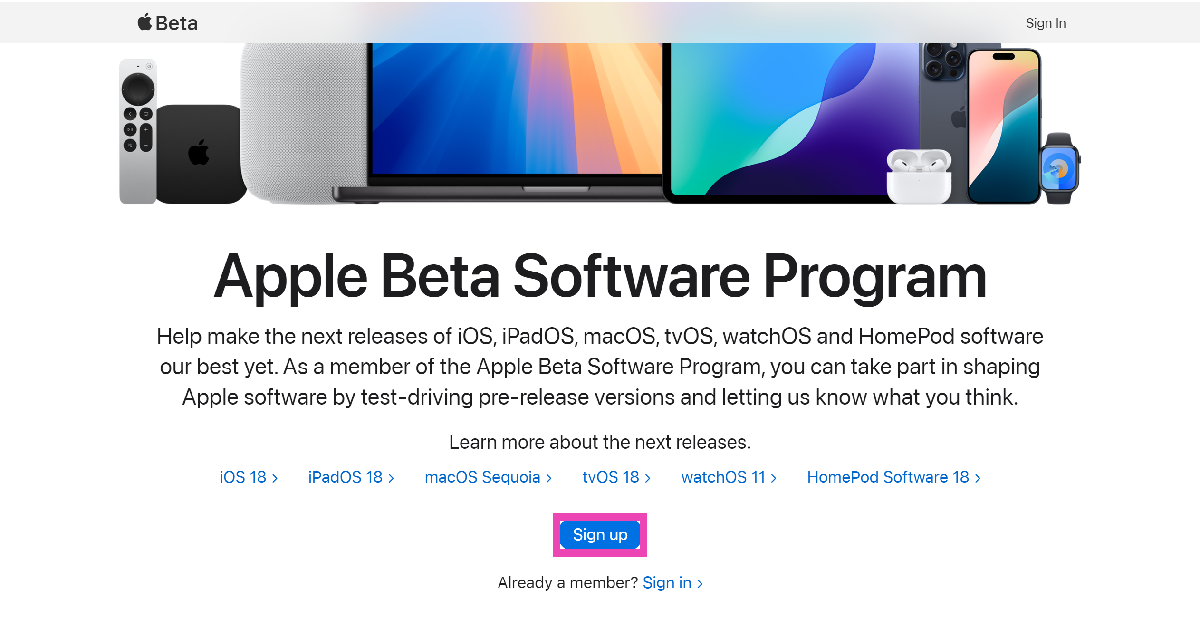 Step 2: Agree to the Apple Beta Software Program Agreement.
 Step 3:
 Step 4:
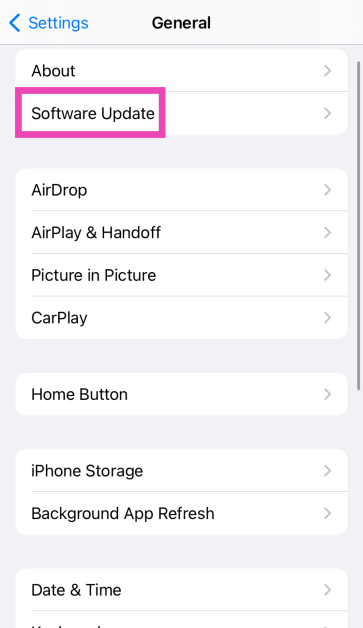 Step 5:
 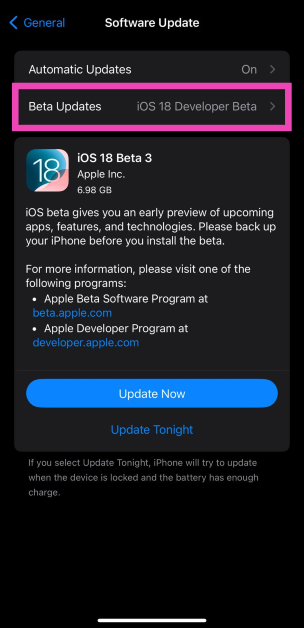 Step 6:
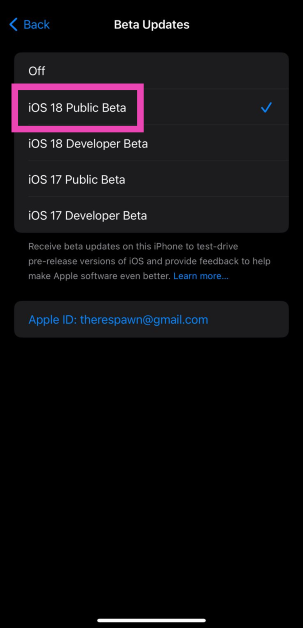 Step 7: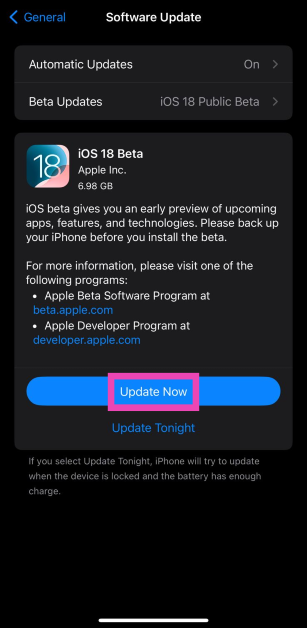




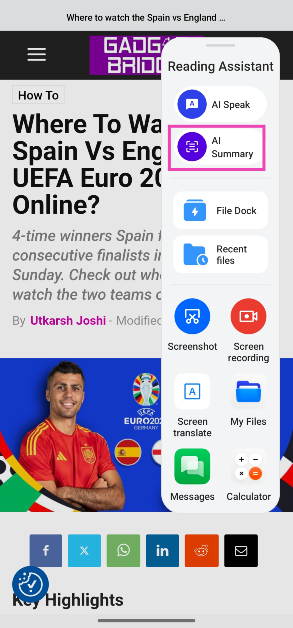 Step 4:
 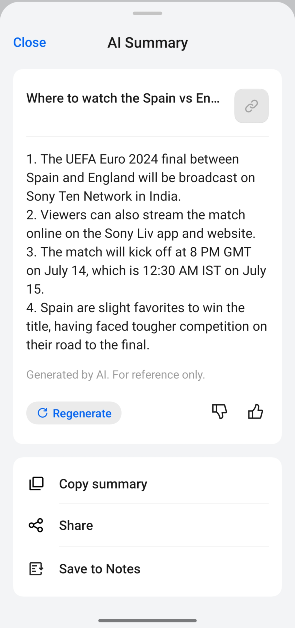 Step 5:
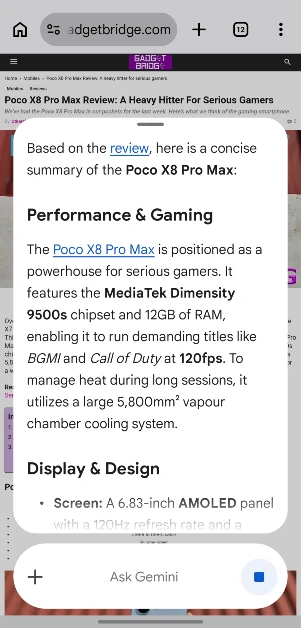
 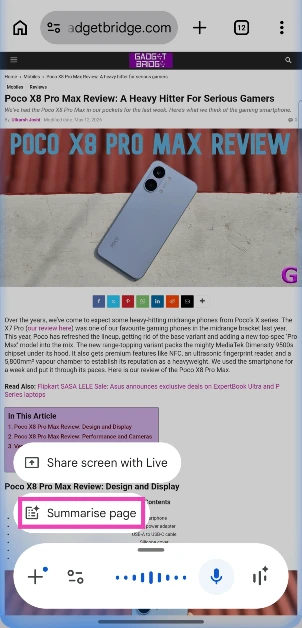 Step 4: Gemini will create a summary and display it in a pop-up panel within seconds.






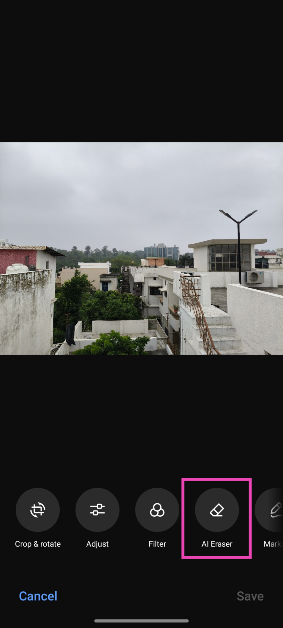
 Step 3:
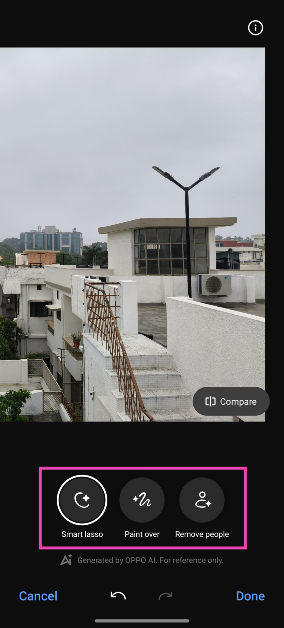
 Step 4:
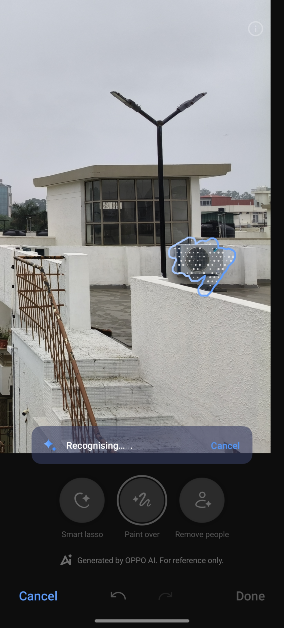
 Step 5:
 Step 6:
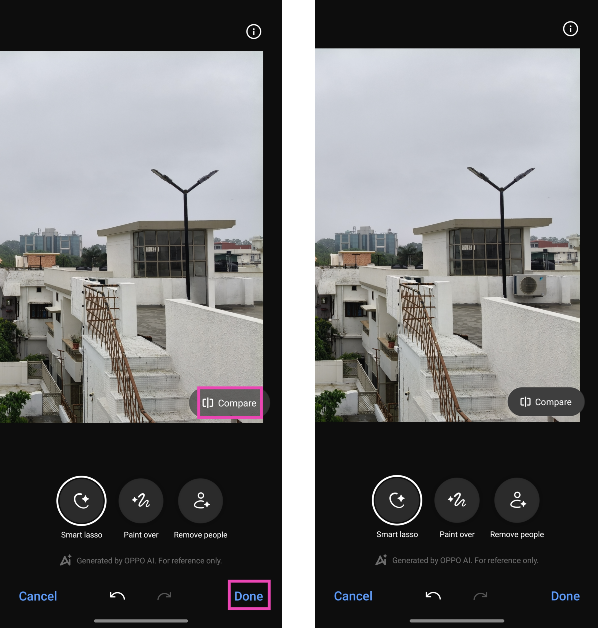 Step 7:
  Step 8:
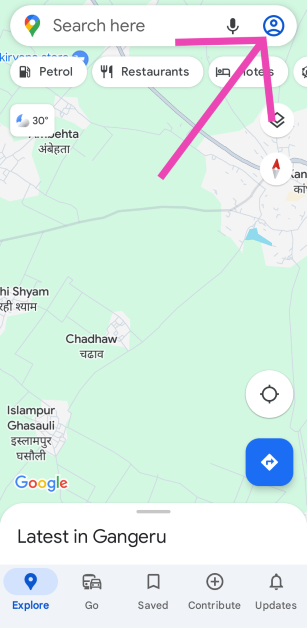 Step 3:
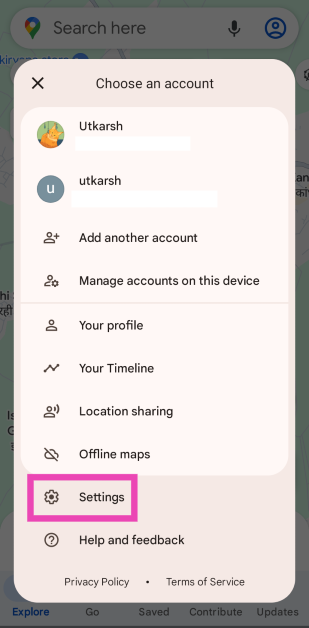 Step 4:
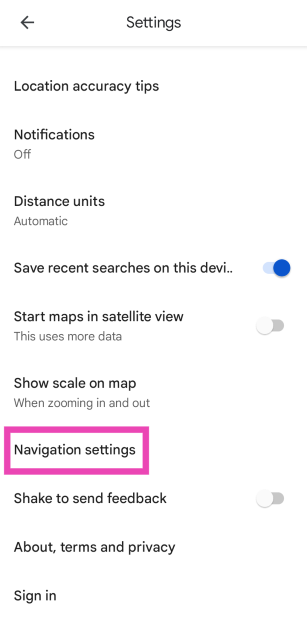 Step 5: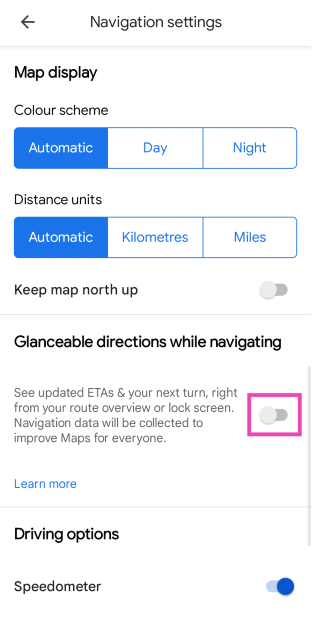

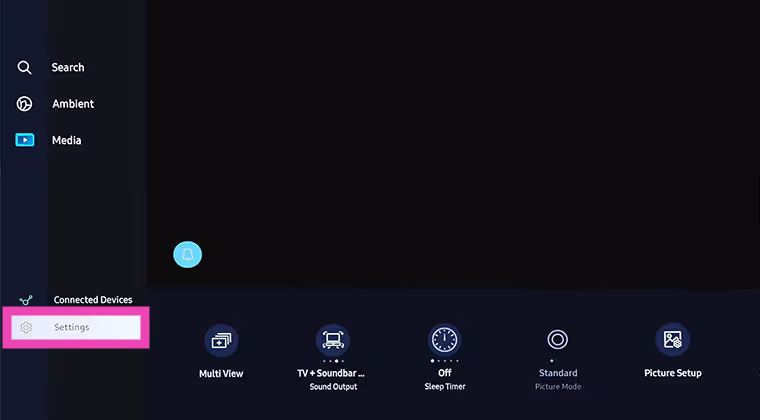 Step 2:
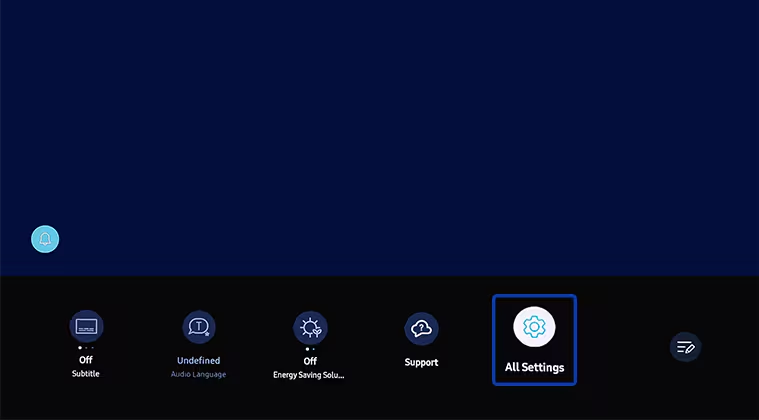 Step 3:
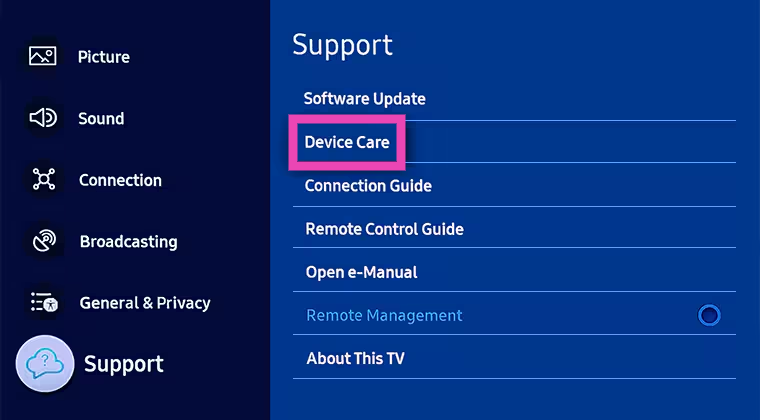 Step 4:
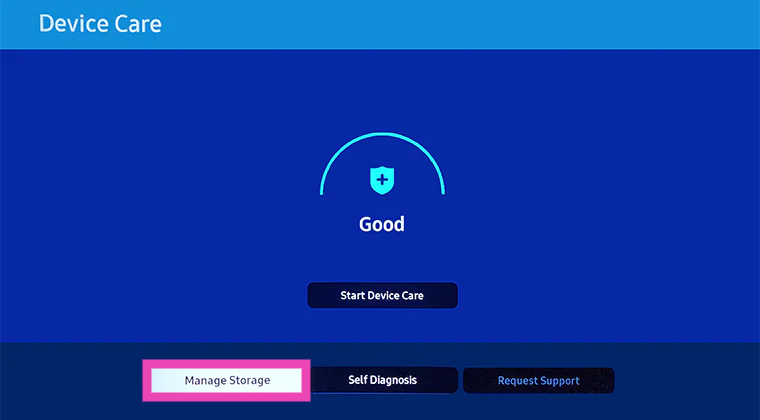 Step 5:
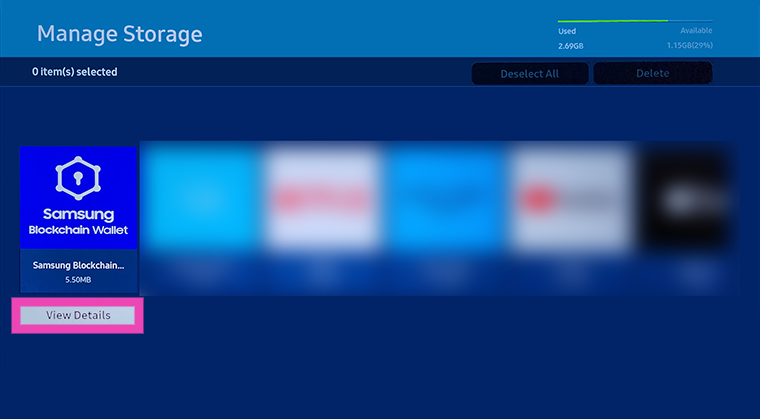 Step 6: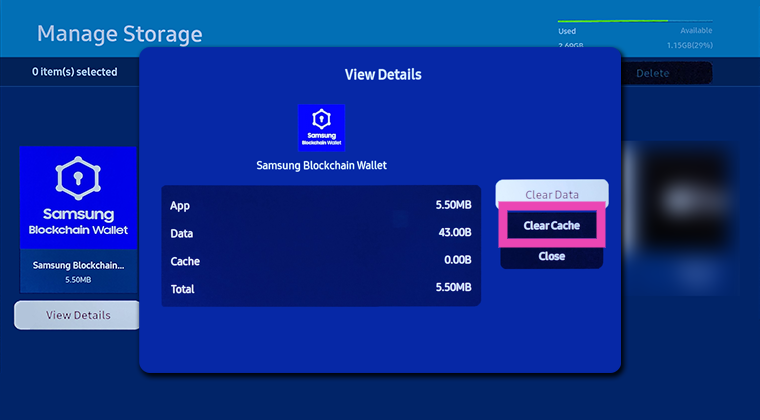
 Step 1:
 Step 1: Press the home button on the remote.
Step 2: Go to Settings and select General.
Step 3: Go to Storage.
Step 4: Select Clear Cache.
Step 1: Press the home button on the remote.
Step 2: Go to Settings and select General.
Step 3: Go to Storage.
Step 4: Select Clear Cache.
 Step 1: Select the Gmail icon on the home screen.
Step 2: On the Google TV page, go to Screen.
Step 3: Select Settings.
Step 4: Click on Apps.
Step 5: Select See All Apps.
Step 6: Select your preferred app.
Step 7: Select Clear Cache.
Step 1: Select the Gmail icon on the home screen.
Step 2: On the Google TV page, go to Screen.
Step 3: Select Settings.
Step 4: Click on Apps.
Step 5: Select See All Apps.
Step 6: Select your preferred app.
Step 7: Select Clear Cache.