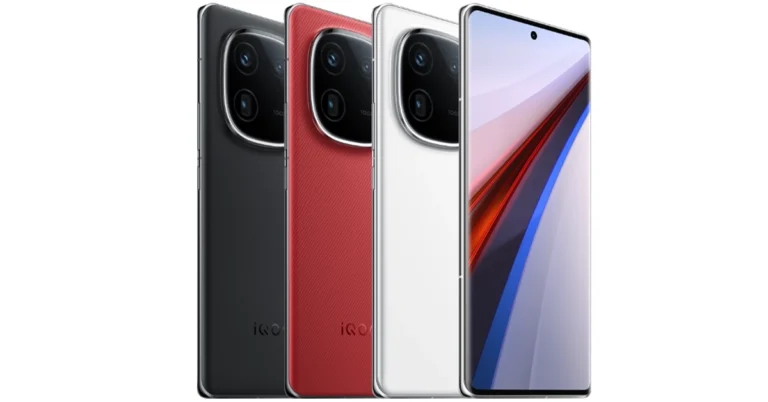
iQoo 12 Series with Snapdragon 8 Gen 3 SoC launched

Key Highlights
  • The smartphone series includes two models: iQoo 12 and iQoo 12 Pro.
  • Both phones are powered by the same Snapdragon 8 Gen 3 processor.
  • They run on Android 14.
iQoo 12 Series has officially made its debut in China. The latest lineup includes two gaming smartphones iQoo 12 and iQoo 12 Pro. Both devices share a lot of similarities. Both are powered by Snapdragon 8 Gen 3 SoC. They feature a 144Hz AMOLED displays. In addition to this, the phones have a triple rear camera setup led by a 50-megapixel primary sensor and support 120W wired fast charging.

iQoo 12 specifications and price

iQoo 12 is highlighted with a 6.78-inch 1.5K AMOLED display with 1,260×2,800 pixels of resolution. The screen supports a variable refresh rate of 144Hz and a 20:9 aspect ratio. In addition to this, the display comes with HDR10+ support. The device runs on OriginOS 4 on top of Android 14. It is powered by a 4nm Snapdragon 8 Gen 3 SoC processor.
iQoo 12 specifications and price
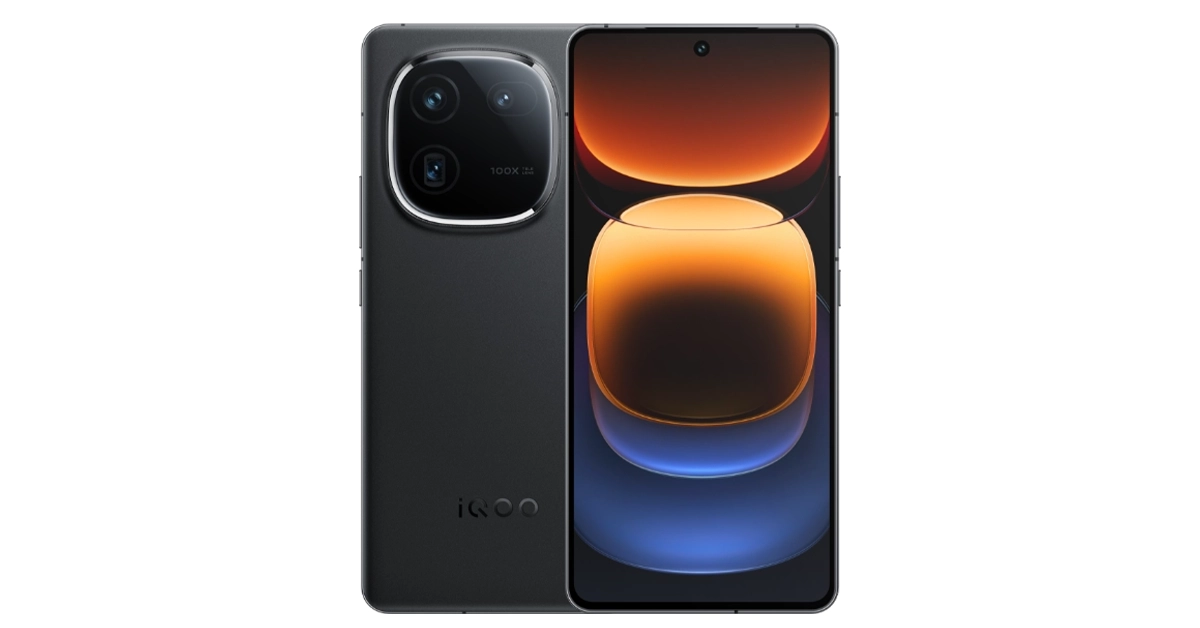
iQoo 12
For selfies, the device features a 16-megapixel front-facing camera with f/2.45 aperture. The triple rear camera setup includes the following:
  • A 1/1.3-inch 50-megapixel primary sensor (f/1.68 aperture)
  • A 64-megapixel periscope telephoto (f/2.57 aperture and 100X digital zoom)
  • A 50-megapixel ultra wide-angle sensor (f/2.0 aperture)
iQoo 12 packs a 5,000mAh battery, with 120W fast charging support. Also, there is an in-display fingerprint sensor for biometrics. Also Read: Vivo announces Diwali offers for Vivo X90 Series, Vivo V29 Series, and more The phone is made available in three colour options. In terms of pricing iQoo 12 comes with a starting price of:
  • 12GB RAM with 256GB storage: CNY 3,999
  • 16GB RAM with 512GB storage: CNY 4,299
  • 16GB RAM with 1TB storage: CNY 4,699

iQoo 12 Pro specifications and price

The iQoo 12 Pro features a 6.78-inch 2K AMOLED E7 display with 1,440×3,200 pixels of resolution. The screen has a 92.42 percent screen-to-body ratio. In addition to this, it supports up to 144Hz refresh rate, HDR and 20:9 aspect ratio. The software and processor are the same as mentioned above.
iQoo 12 Pro specifications and price
iQoo 12 Pro
It has a 16-megapixel selfie with f/2.45 aperture. The triple rear camera setup includes:
  • A 1/1.3-inch 50-megapixel primary sensor (f/1.68)
  • A 64-megapixel periscope telephoto lens (100X digital zoom and f/2.57 lens)
  • A 50-megapixel ultra-wide angle lens (f/2.0)
Apart from this, the device includes a 5,100mAh battery with 120W fast wired support and 50W wireless charging support. The iQoo 12 Pro offers an in-display fingerprint sensor along with an accelerometer, ambient light sensor, e-compass, gyroscope, and proximity sensor. For connectivity, there is 5G, Wi-Fi 7, Bluetooth 5.4, USB OTG, NFC, Beidou, USB Type-C port, GPS, GLONASS and GALILEO. The price of iQoo 12 Pro starts at:
  • 16GB RAM with 256GB storage: CNY 4,999
  • 16GB RAM with 512GB storage: CNY 5,499
  • 16GB RAM with 1TB storage: CNY 5,999

Garena Free Fire Redeem Codes Today 9 November 2023: Here is how to claim them

Garena Free Fire is a battle royale game with regular awards and tournaments to keep players interested. If you play Garena Free Fire, you should be aware of the redeem codes that are released on a daily basis. However, because the battle royale game is banned in India, players from other countries can use the Free Fire Redeem codes daily. If you’re unfamiliar with the Garena Free Fire redeem codes or don’t know how to get them, we’ve put together a step-by-step guide to help you redeem them. Check out Garena Free Fire Redeem Codes for 9 November 2023. The Free Fire redeem codes are a great way to get free stuff. These are 12-digit codes that contain alphabets and numbers, as well as an expiration date and time. Because the Garena FF redeem codes cannot be used more than once, you should hurry to the redemption page to claim your free reward before someone else does. To get a free reward, all you have to do is go to reward.ff.garena.com/en, which is the official redemption page. Also, keep an eye on this space for daily updates on Garena Free Fire redemption codes and rewards.

Garena Free Fire Redeem Codes Today 9 November 2023

FXDYHJTF67JUHGH F5GBDTYHR6Y7UYH FRFUJKGY8UIHRUJ FTFTUJMGMYH96RF FADYHR67YU66YCV FIRERTF65TV7RUH FYJHUY4H5BG6NYH FMKOUYJ6550TDEB FTHGR6YHR56DF6T FIYUJY6HR6RYDSU F7FGYHFT6Y7H6HK FIHYYHR67YU8FHF FYHTHFT6Y5R6Y53 FNRH67UTHTN7BYV FNCTYHR67BHGQED F2UJT78KI7YI8CR FRBYHTF67UJTFVE FTYHFY7JT6756YB

How to Get Free Fire Redeem Codes for Garena on 9 November 2023?

  • Visit the Garena Free Fire game’s official website at reward.ff.garena.com.
  • Use your Facebook, Google, VK, Apple ID, Huawei ID, or Twitter account to log in.
  • You’ll be taken to a valid redemption code (s)
  • Copy and paste the 12-digit redemption code into the text box.
  • On the screen, a dialogue box will appear.
  • ‘Ok’ should be selected.
For the latest gadget and tech news, and gadget reviews, follow us on TwitterFacebook and Instagram. For newest tech & gadget videos subscribe to our YouTube Channel. You can also stay up to date using the Gadget Bridge Android App. You can find the latest car and bike news here.

Will Bitcoin experience a new drop or will it start gaining?

Bitcoin, the world’s most popular cryptocurrency, has been navigating a challenging time, with prices that continue stagnating. Investors have continued to buy Bitcoin on exchanges such as Binance, convinced that digital gold remains resilient and able to maintain its value. The continuous presence of cryptocurrencies remains essential during times of economic volatility and higher inflation rates. People want the certainty that there’s something they can rely on in case fiat currency starts struggling with devaluation.

Rise or fall

Recent data shows that BTC is still 60% down compared to its all-time high in November 2021. These figures have created apprehension among traders, who are unsure of what they can expect over the following months. Bitcoin has always been changeable, but it seems now that it’s almost impossible to figure out its direction. Bitcoin remains under the yoke of a bullish reversal. After hitting a new low in November 2022, when it went below $17,000, BTC started gaining, taking back approximately 70% of its previous value. It was an astronomic climb, and BTC moved against the woes of macroeconomics and hike rates and was primarily fueled by optimism regarding the possibility of the exchange-traded fund approval. However, investors didn’t manage to hold the momentum to hold the price in the $30k area and managed to surpass these levels. Now, many expect that the price will start picking up speed shortly, owing to the approach of the next Bitcoin halving.

Fibonacci fractal 

Looking at it from a technical standpoint, Bitcoin has been stabilized around the 0.236 Fib line of the Fibonacci retracement graph. This tool is used within the Bitcoin ecosystem, similar to how it is in stocks, and many investors have started looking to it for guidance. The graph is drawn from the $69,000 swing high, representing the top of the market, to the swing low, the market bottom of $15,900. There’s a historical precedent for the current price stagnation witnessed during the Bitcoin price correction in 2018. Back then, the Bitcoin/dollar pair managed to stabilize somewhere around the 0.236 Fib line, or $6,790, for several months. Afterward, it dropped to the $3,000 level in December. This also coincided with the multiyear ascending support. Bitcoin is, as of September, around halfway through that same tendency. The price has been flatlining, and a breakdown could mean that the values could drop as low as $21,500. That means that Bitcoin could go down by almost 20% compared to its current levels.

Continuous stagnation

Over the course of September 2023, Bitcoin experienced something akin to a decline, as neither the bulls nor the bears were able to support any cohesive trend. This isn’t surprising, as the first fall month is typically associated with plummeting prices. Large-volume investors have elected to remain on the sidelines, so the area around $26k became increasingly popular for BTC as the year progressed. Currently, the spot price is surrounded by trendlines, and analysts believe that this has contributed to inhibiting volatility. The trend began in August when BTC suddenly lost around 10% of its price in one fell swoop. However, it’s also noteworthy to remember that the price cycles have acted differently over the last four years than in the more distant past. In March 2020, Bitcoin was below the 200-week MA but still maintained its support. BTC managed to form an accumulation zone. It recently got into new resistance, suggesting that the price could also remain beneath the MA during the upcoming weeks.

Dollar strength 

The relationship between cryptocurrencies and traditional finance has historically been a challenging one. The DXY, which measures the strength of the greenback against several other currencies, is currently at the highest level it has recorded since November 2022. That’s no small feat, especially given that the US Dollar Index has been negatively correlated with Bitcoin throughout the current year. The Federal Reserve’s interest rate decision on September 20th has only accelerated the decision, so the DXY is currently in its 11th consecutive green candle. Bitcoin’s prospects could become even more limited if the dollar continues growing. Read Also: Twitter adds Bitcoin support to Tips, now allows Spaces users to record

Old Bitcoin 

The on-chain metrics paint a convoluted portrait of Bitcoin’s current and future movements. The CDD metric, which aims to measure long-term actions, had a momentary spike on September 19th, showing that some hodlers have moved their coins. This could indicate repositioning and profit-taking, but investors should be particularly mindful of these movements since they have typically preceded value declines. The Bitcoin reserves have continued to decline across exchanges, pointing towards a gradual but consistent and considerably-sized movement towards hodling to the detriment of speculative activities. This is no surprise, especially since the latest data shows that price fluctuations have caused short-term holders to incur losses of nearly 100% while long-term holders have emerged largely unscathed.

Expert opinions 

Analysts are divided on how the Bitcoin price could change in the future. While some anticipate a considerable decline before the next rally, others are more optimistic. Some predictions include the possibility of Bitcoin climbing to $30,000 in October. One of the critical indicators for this movement is the thin ask liquidity around $27k, which could signify a breakout. Nonetheless, the beaker estimations go even below those supported by the Fib line and show that Bitcoin might slump as far down as $18,000 as part of the pre-halving fractal action. The next one hundred days are crucial for the dollar-cost-averaging levels, and if Bitcoin is to retract, it will most likely be during this timeframe.

Mining costs 

Miners can face some issues as well, and the consequences in the aftermath of the 2024 halving could be severe. The competition is becoming more intense as hash rates reach record-high levels. This shows unprecedented conditions for the miners. So far, Ordinal inscriptions have managed to help by turning empty blockspace into returns, but as the demand increases, the miners will also be affected. The income received from these fees has been between 1% and 4%, which is low compared to historical standards but quite elevated when considering the previous bear markers. Things haven’t been easy for Bitcoin, but investors are convinced that things will ultimately change. After all, BTC experienced slowdowns before but always managed to return to its former strength.

How to measure the distance between two points on Google Maps?

0
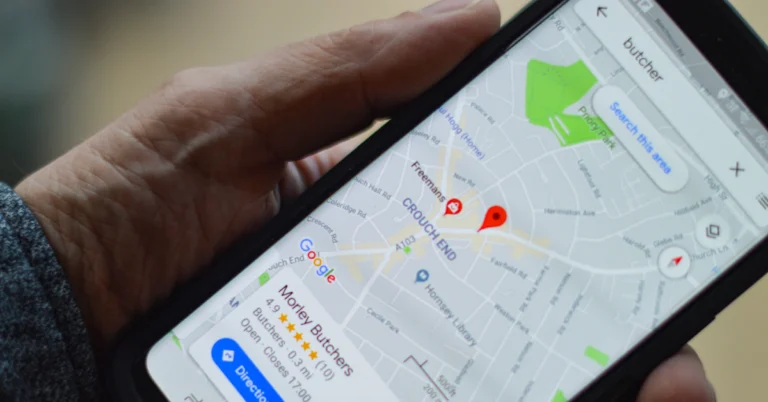
Google Maps is an excellent tool for navigation and route planning. If you want to find the distance between two towns, all you need to do is enter their names in the map and the app will do the rest for you. But what if you want to find the distance of a hiking trail that isn’t listed on the map? Or a random plot of land by the side of a road? You will be surprised to know that Google Maps can help you with that too. In this article, we show you how to measure the distance between two points on Google Maps. Read Also: Best Air Purifiers under Rs 10,000 you can buy right now (2023)

Measure the distance between two points on Google Maps

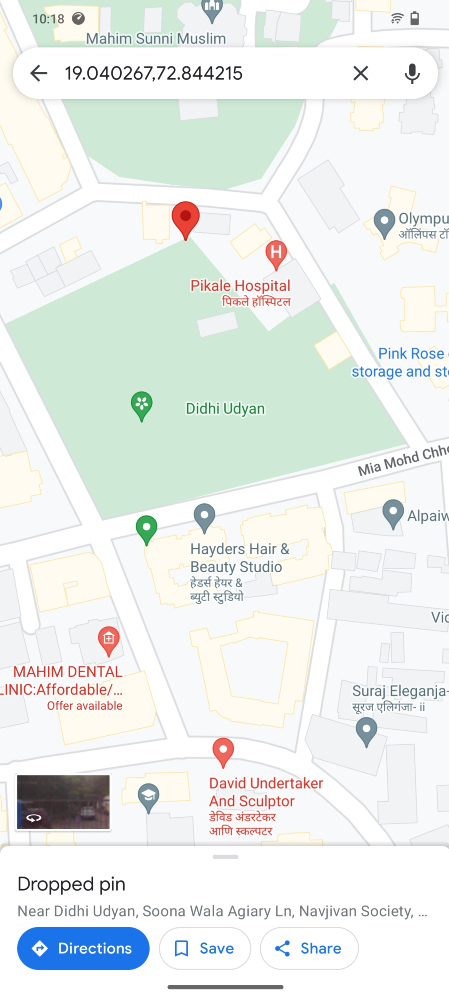
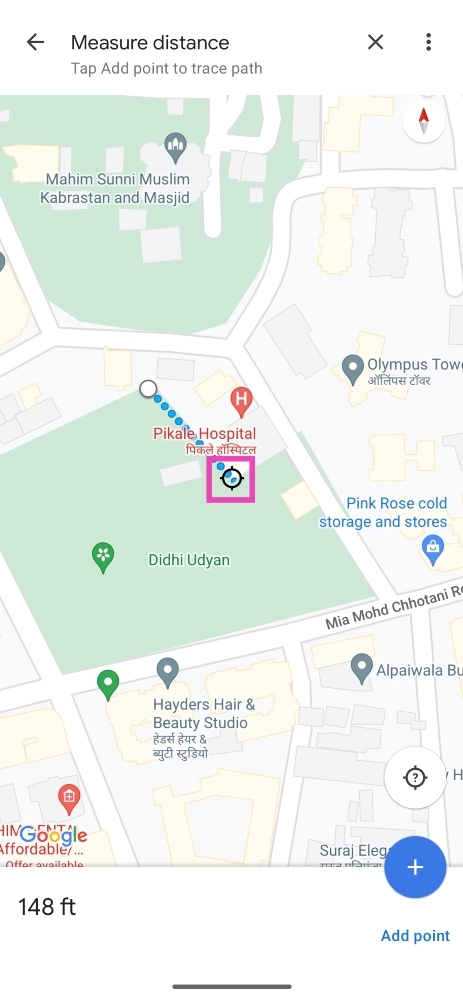
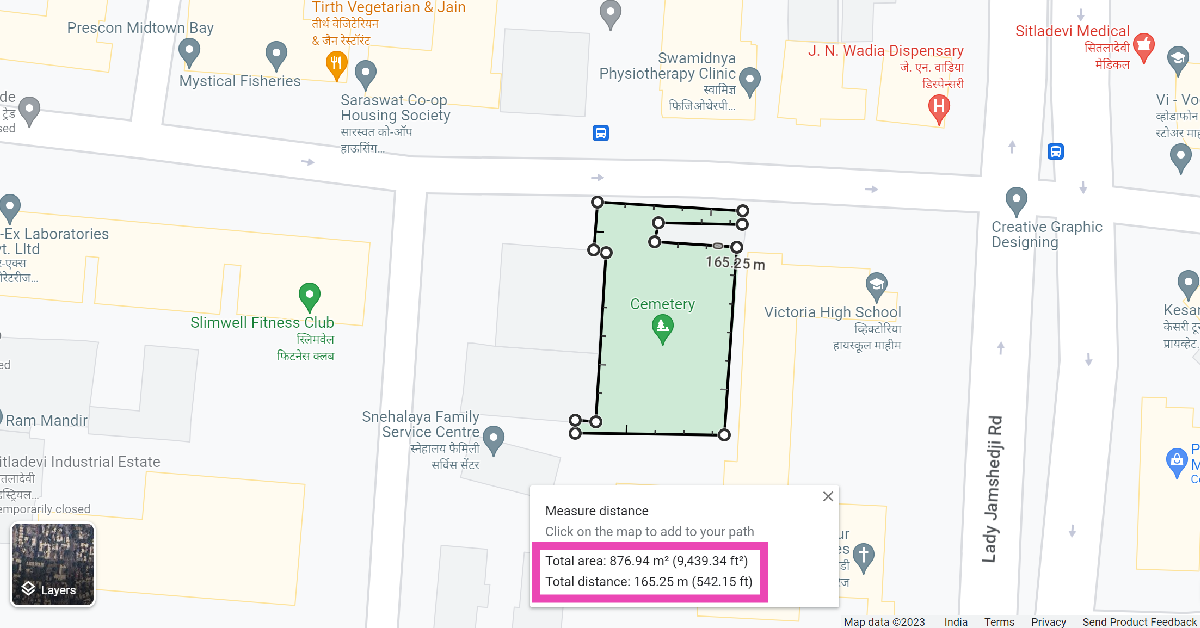
Step 1: Launch the Google Maps app on your smartphone. Step 2: Long press on the starting point to drop the red pin. Step 2: Long press on the starting point to drop the red pin. Step 3: Swipe up and select Measure Distance. Step 3: Swipe up and select Measure Distance. Step 4: Now, drag the map to your destination. Step 4: Now, drag the map to your destination. Step 5: Google Maps will display the distance between the two points. Step 6: To find the area of a particular location, simply tap on Add Point after dropping the pin and drag the map along every corner.

Measure distance on Google Maps for PC

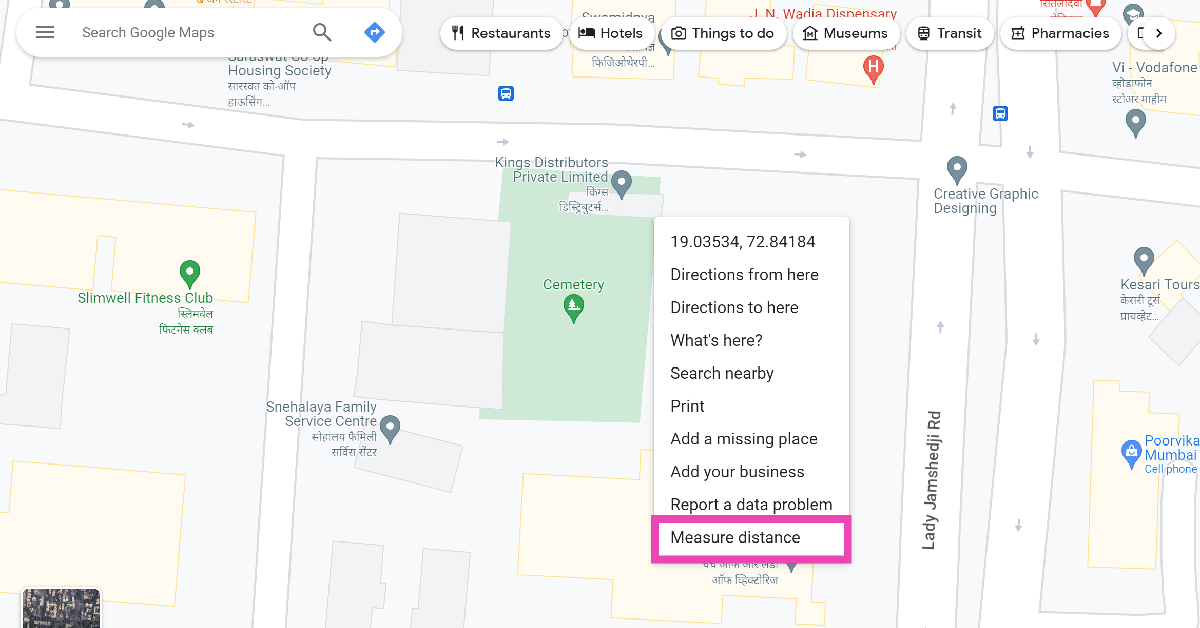
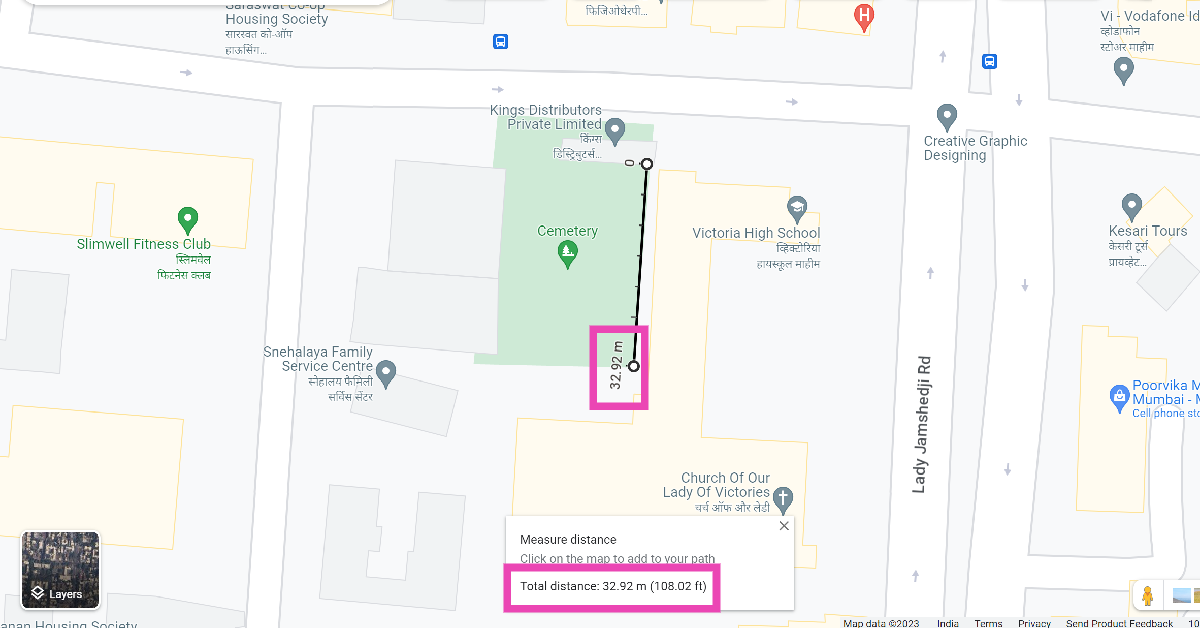
Step 1: On your PC, go to https://www.google.com/maps. Step 2: Right-click on the starting point and select Measure Distance. Step 2: Right-click on the starting point and select Measure Distance. Step 3: Click on the destination point. Step 3: Click on the destination point. Step 4: You will be able to view the distance between the two points at the bottom of the screen. Step 5: To calculate the area of a plot, keep adding points along its boundary until it is enclosed by a polygon. Step 5: To calculate the area of a plot, keep adding points along its boundary until it is enclosed by a polygon. Step 6: You will be able to view the area of the plot at the bottom of the screen.

Frequently Asked Questions (FAQs)

How do I measure the distance between two random points on the Google Maps app?

Tap and hold to drop the pin on Point A and drag the map until you reach Point B. The app will display the distance between the two points.

How do I measure the area of a plot of land on Google Maps?

Go to the Google Maps website, right-click on the starting point and select Measure Distance. Keep adding points along the corners of the selected plot of land to measure its area.

How do I save a random location on Google Maps?

To save a random, unnamed location on Google Maps, simply press and hold it on the map and hit Save. Read Also: Samsung Galaxy A05s new variant launched in India

Conclusion

This is how you can measure the distance between two points on Google Maps. You can use this feature to find the distance of any unnamed plot of land or hiking trail anywhere on the map. The readings from Google Maps are generally very accurate and reliable. They are very close to the industry standard and can be used for casual tasks.

How to move your Spotify Playlists to Amazon Music or Apple Music?

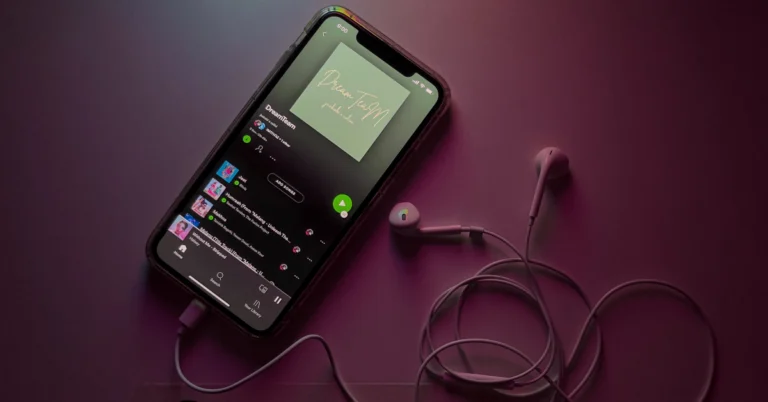
Spotify is one of the biggest music streaming platforms in the world, along with Apple Music, YouTube Music, and Amazon Music. Over the years, the Swedish streaming giant has garnered its fair share of controversies, from hosting Covid misinformation to barely paying the creators on the platform. This has rightfully driven a lot of users to other platforms with relatively better policies. Users who have curated their special playlists on Spotify are reluctant to switch to another streaming service due to the enormous hassle of creating those playlists again. Luckily, there is a way around this situation. In this article, we show you how to move or transfer your Spotify playlists to Amazon Music or Apple Music. Read Also: Samsung Galaxy A05s new variant launched in India

Move your Spotify playlists to Amazon Music or Apple Music using TuneMyMusic

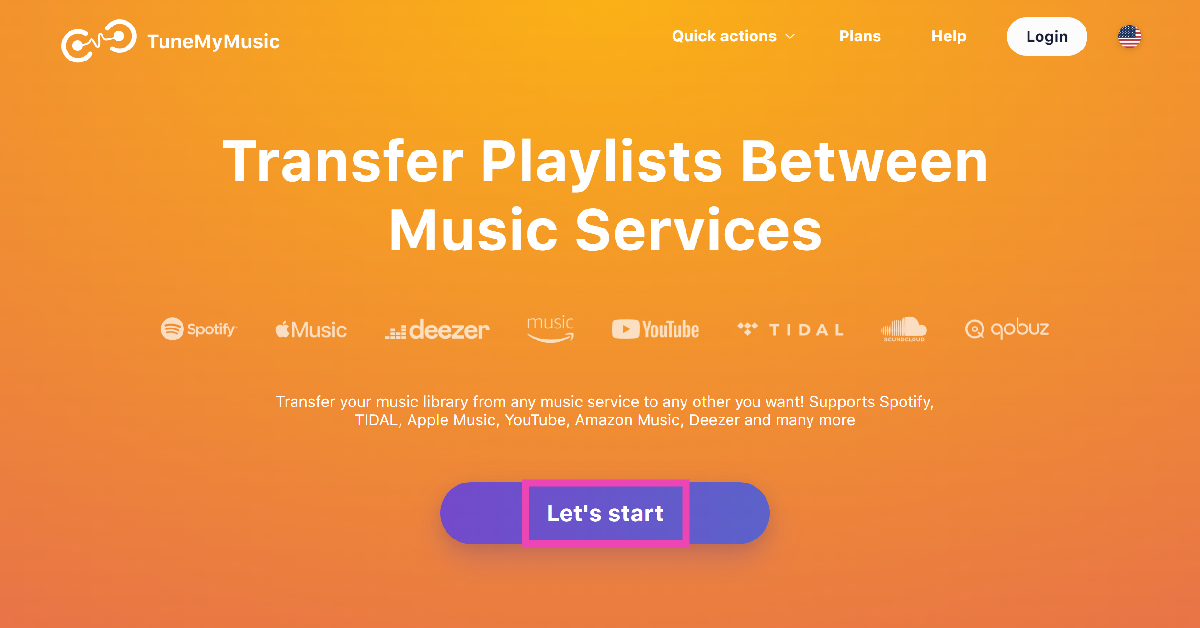
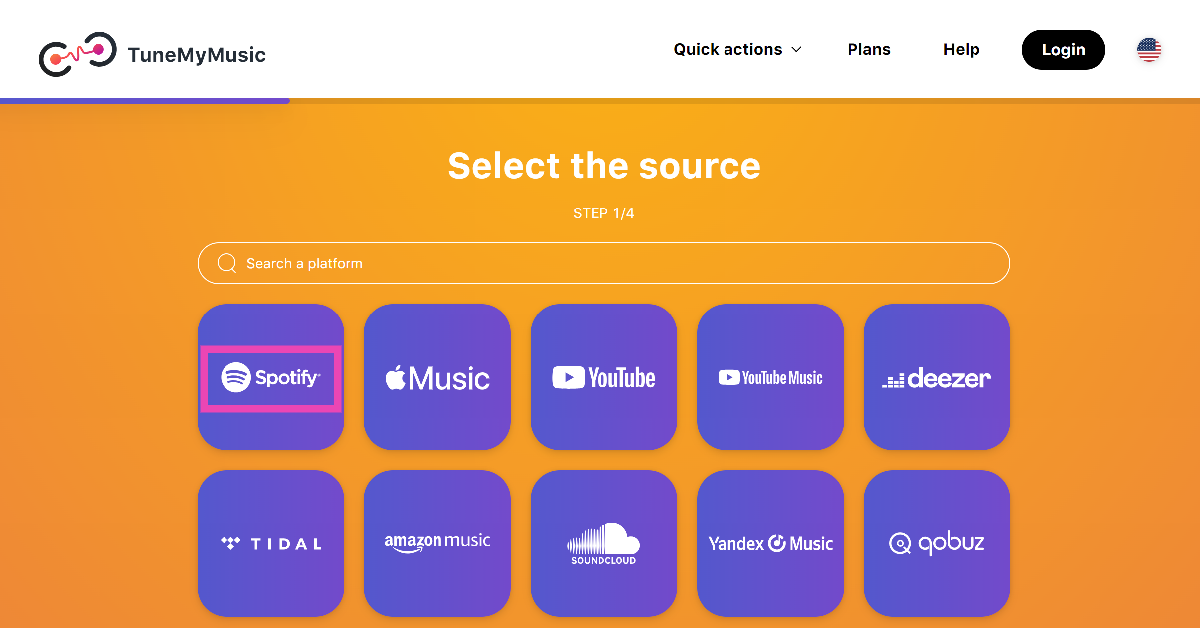
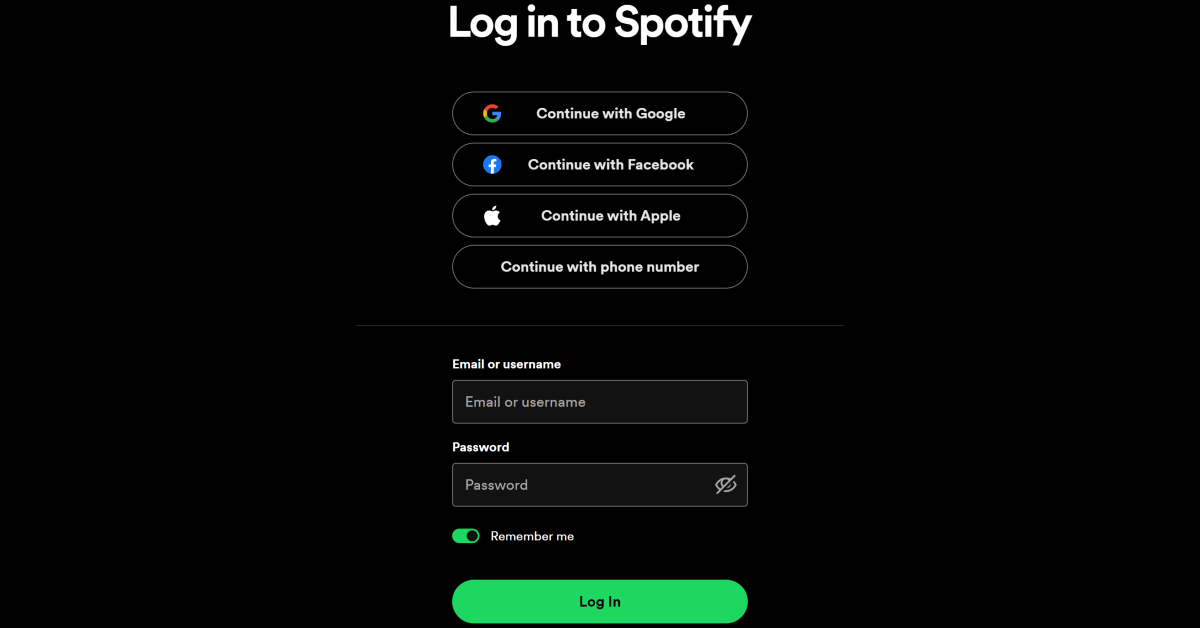
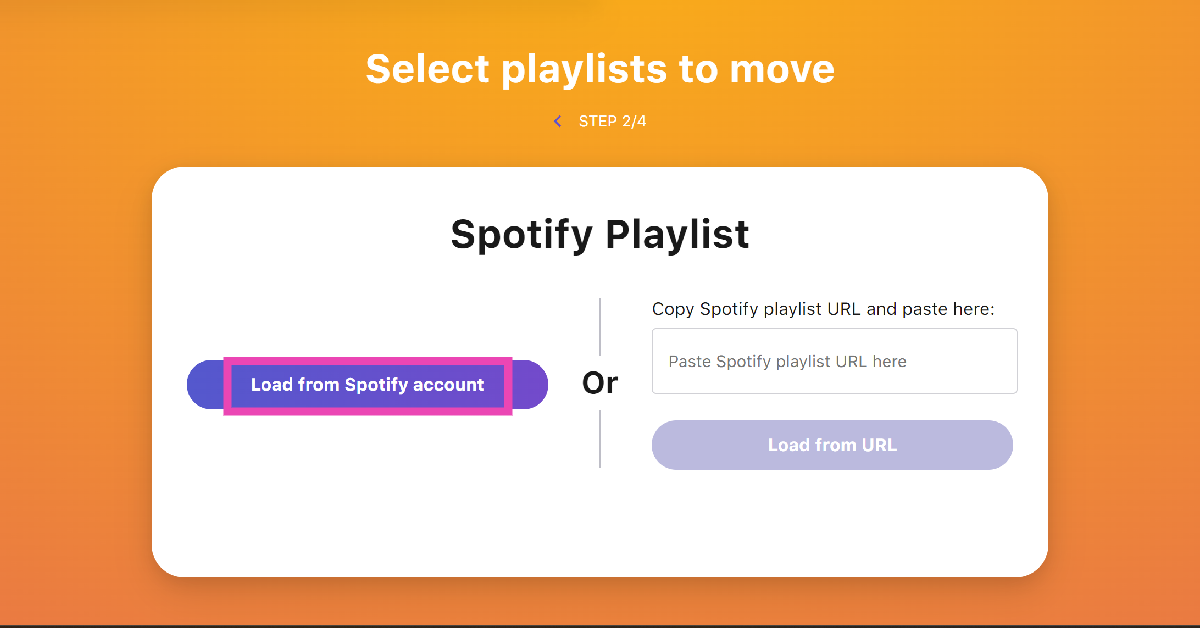
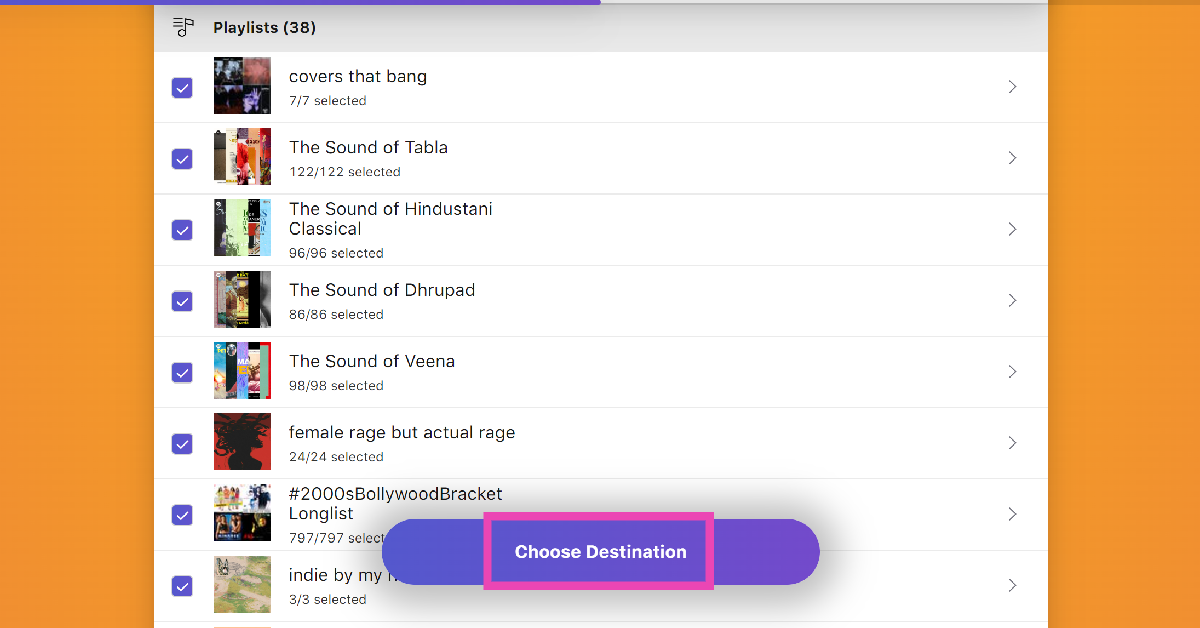
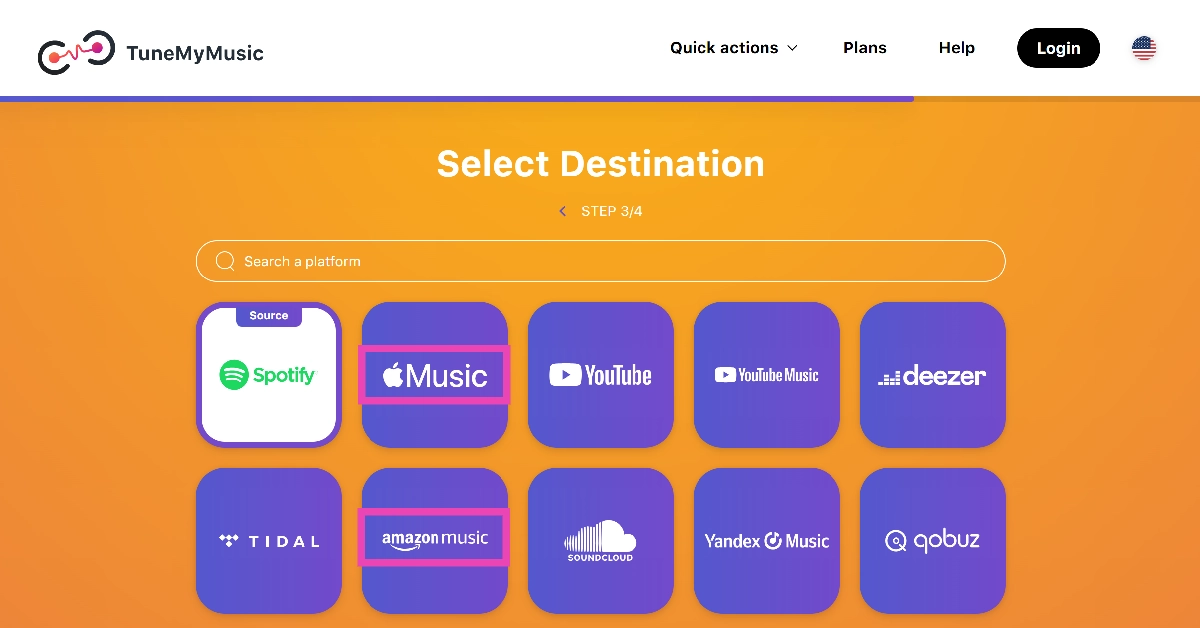
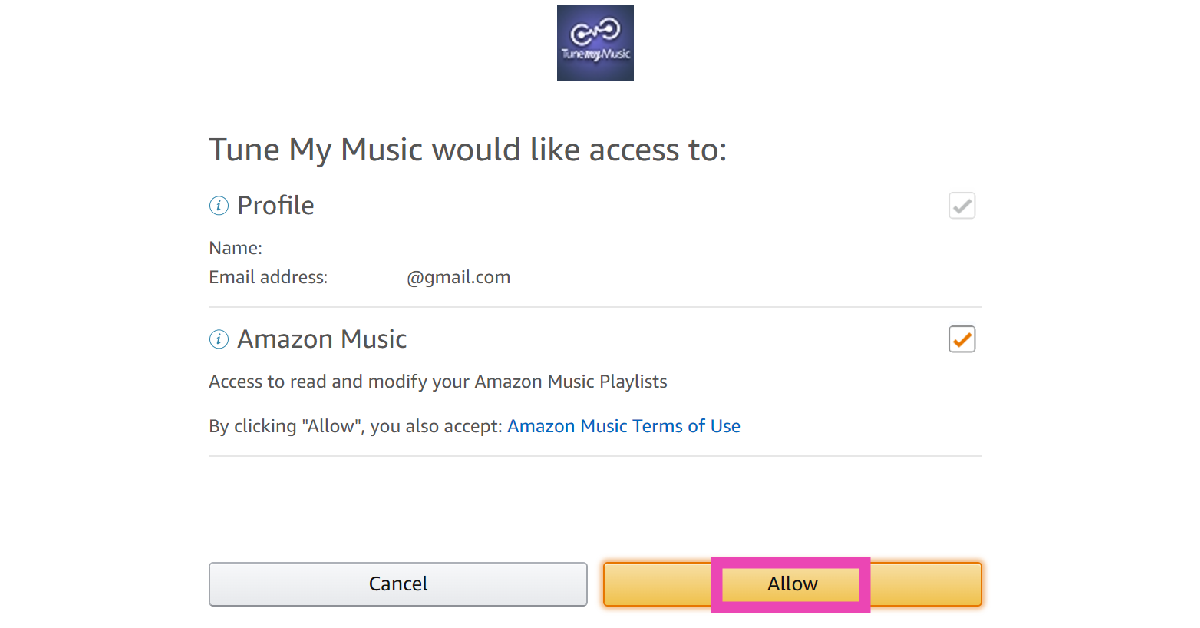
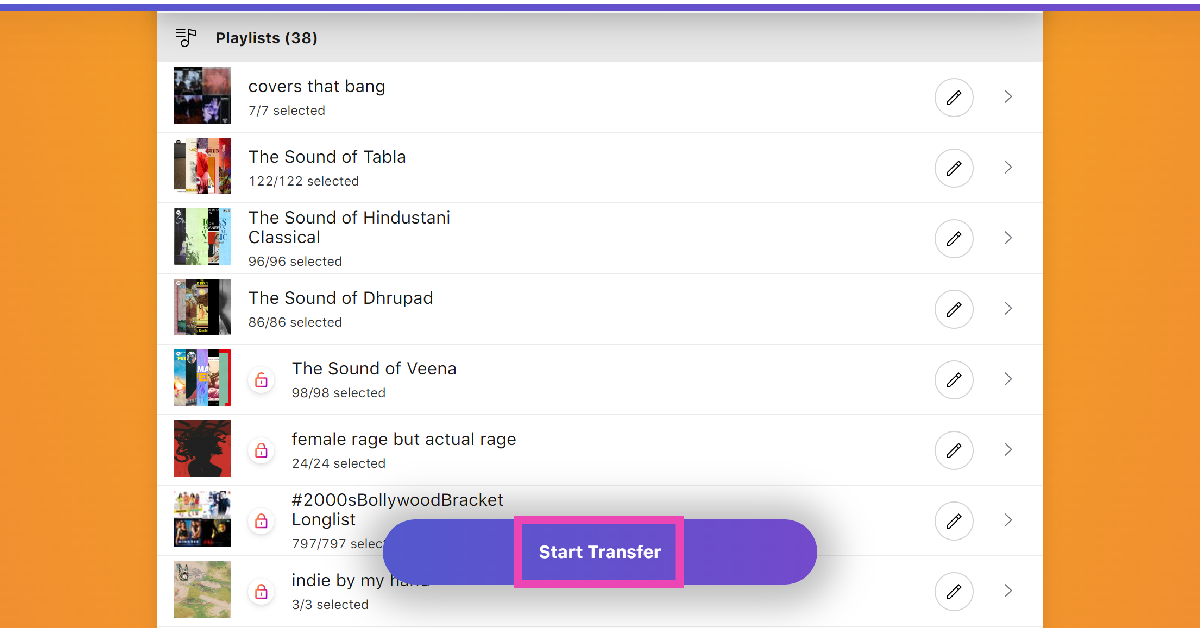
Step 1: Launch your preferred web browser on your PC and go to https://www.tunemymusic.com/. Step 2: Click on Let’s Start. Step 2: Click on Let’s Start. Step 3: On the following page, select Spotify as the source platform. Step 3: On the following page, select Spotify as the source platform. Step 4: Log into your Spotify account. Step 4: Log into your Spotify account. Step 5: If you want to transfer a particular playlist, paste its link in the box. If you want to transfer multiple playlists, click on Load from Spotify account. Step 5: If you want to transfer a particular playlist, paste its link in the box. If you want to transfer multiple playlists, click on Load from Spotify account. Step 6: Select the playlists you want to transfer and hit Choose Destination. Step 6: Select the playlists you want to transfer and hit Choose Destination. Step 7: Set Amazon Music or Apple Music as the destination. Step 7: Set Amazon Music or Apple Music as the destination. Step 8: Log into your Amazon Music/Apple Music account. Step 9: Allow TuneMyMusic to access your Amazon/Apple Music account. Step 8: Log into your Amazon Music/Apple Music account. Step 10: Hit Start Transfer. Step 10: Hit Start Transfer.

Move your Spotify playlists to Amazon Music using FreeYourMusic app

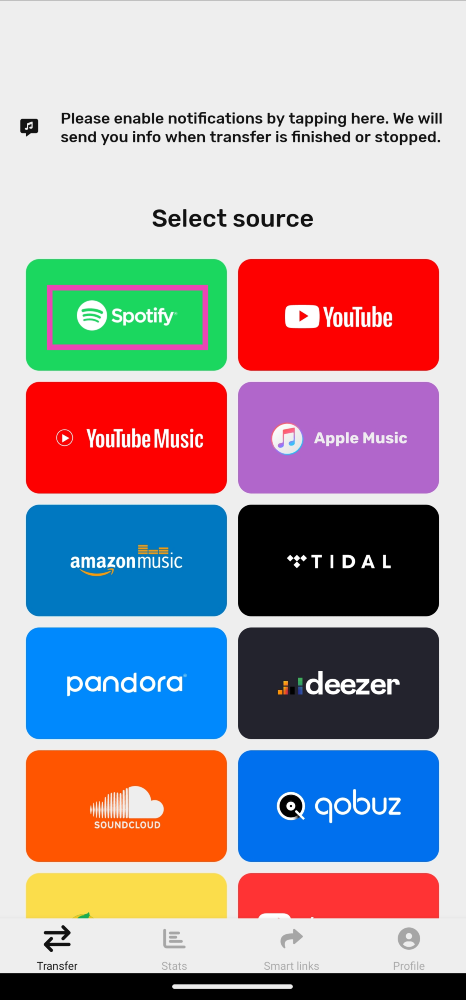
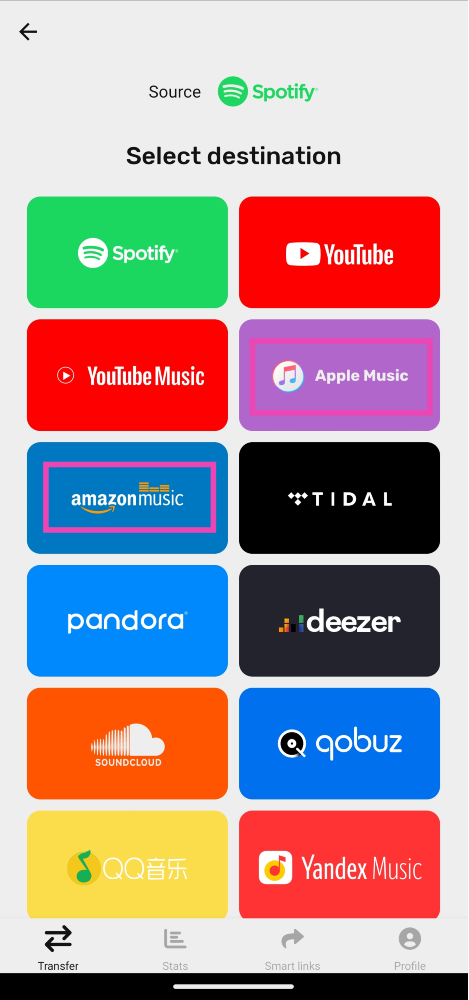
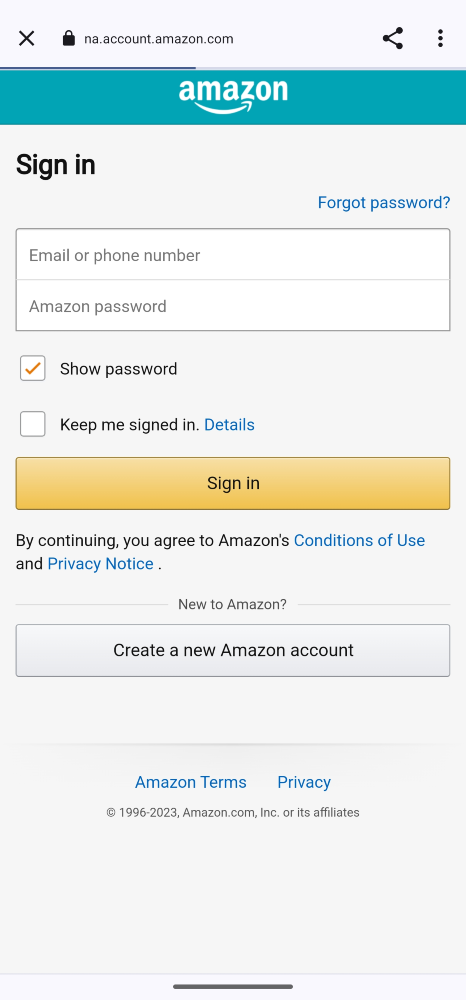
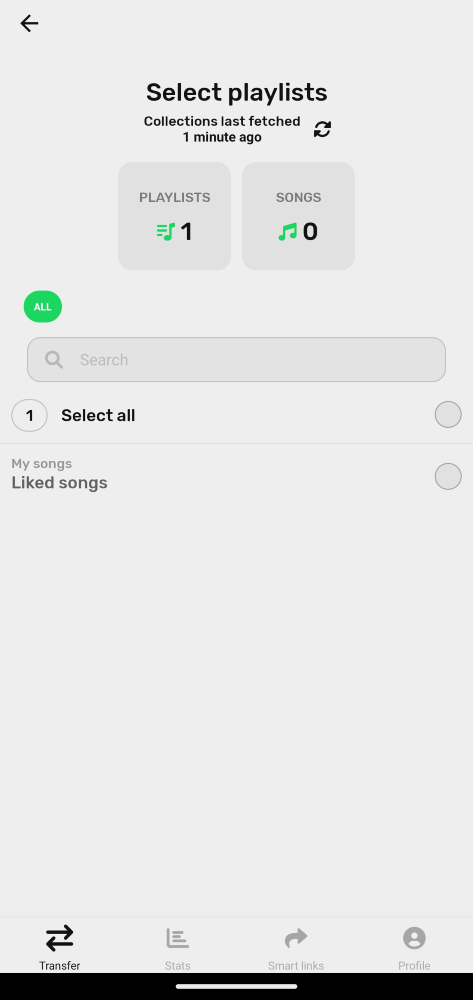
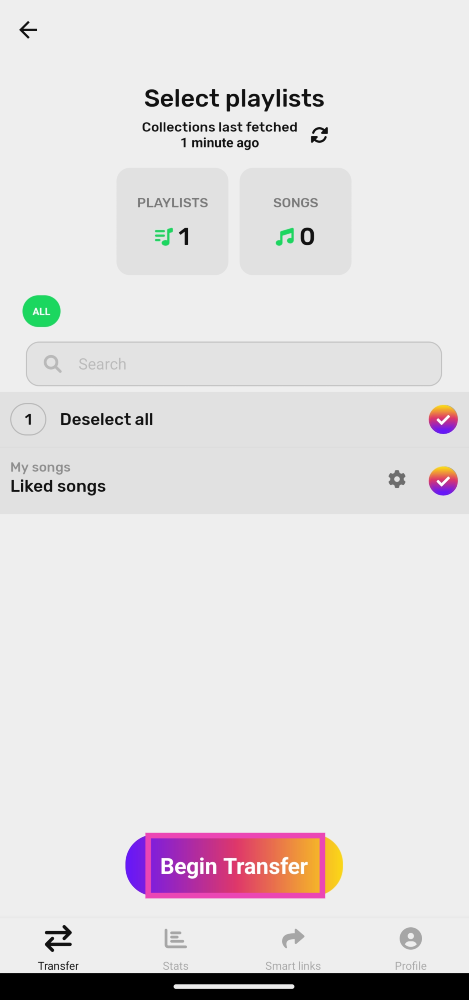
Step 1: Download the FreeYourMusic app on your Android smartphone. Step 2: Launch the app and select Spotify as the source platform. Step 2: Launch the app and select Spotify as the source platform. Step 3: Select Amazon/Apple Music as your destination. Step 3: Select Amazon/Apple Music as your destination. Step 4: Log into your Amazon/Apple Music account. Step 4: Log into your Amazon/Apple Music account. Step 5: Select the playlists that you want to transfer. Step 5: Select the playlists that you want to transfer. Step 6: Hit Begin Transfer. Step 6: Hit Begin Transfer.

Frequently Asked Questions (FAQs)

How much does Spotify pay its artists per stream?

Spotify pays out anywhere between $0.003 – $0.005 per stream.

How much does Spotify Premium cost?

A Spotify Premium subscription costs Rs 119/month. Spotify also has a single-day plan that costs Rs 7. Users can also opt for Duo (Rs 149/month for 2 accounts) and Family (Rs 179/ month for 6 accounts) plans.

How do I transfer my Spotify playlists to Apple Music on my iPhone?

iPhone users can use the Songshift app to transfer their Spotify playlists to Apple Music on their devices. Read Also: Easy Ways to Blur Out Part of a Picture on iPhone

Conclusion

This is how you can move or transfer your Spotify playlists to Amazon or Apple Music. You can also use these services to transfer your playlists to other services like Soundcloud, Tidal, YouTube, and more. While this is a great way to move your playlists, it does not work for your liked albums and artists. You will have to save them manually on Amazon/Apple Music.

Vivo announces Diwali offers for Vivo X90 Series, Vivo V29 Series, and more

Key Highlights
  • The sale is on and will be live until November 15.
  • Smartphones from the X, V, and Y series will be on sale.
Vivo is hosting a Big Joy Diwali sale for which it has announced exciting Diwali offers on its smartphone range. The Vivo Diwali Sale offers will be applicable across X, V, and Y-series smartphones. Smartphones like the Vivo X90 series, and Vivo V29 series will be part of the sale. There will be up to 8,500 instant discounts plus buyers can win holiday tickets and more. The sale is currently live on the company’s online platform. Also read: Apple’s special Diwali offer: Here is how to get 50% off on Apple AirPods The Chinese smartphone manufacturer Vivo launched its festive sale in India- Big Joy Diwali on November 1. It will go on till November 15. Most of its smartphones across X, V, and Y-series will have a temporary price cut thanks to the festive sale. In addition to offering its latest smartphones at lower prices along with additional discounts, the company is also offering a chance to win flight tickets to Goa. These exciting festive deals are available at all mainline and partner retail locations till November 15 in the country. Buyers can avail of a number of attractive deals listed below during the offer period:

Vivo festive offers on Vivo X and V Series

Customers can use ICICI, SBI, HSBC, Yes Bank, Bank of Baroda, IDFC First Bank, and OneCard to get Cashback offers. The company will be offering up to Rs 10,000 and Rs 4,000 cashback on the Vivo X90 Series and Vivo V29 Series respectively. In addition to this during the Big Joy Diwali sale Vivo will also let customers purchase the smartphone under X and V Series with just INR 101/-down payment. Furthermore, buyers can also take advantage of an exchange discount of up to Rs 8,000 on their old devices. Also, the firm is offering 40 percent off on Vivo V-Shield Plans.

Vivo festive offers on Vivo Y Series smartphones

Apart from this during the Vivo Diwali Sale buyers have the opportunity to get discounts on Vivo Y-Series smartphones. Those buying Vivo Y200 5G can receive a discount of Rs 2,500. In addition to this, Vivo is offering Rs 1000 cashback on the Y56 and Y27 smartphones if ICICI, SBI, Kotak Mahindra, OneCard, and AU Small Finance Bank are used for making transactions. You can also get a Vivo Y Series smartphone above 15K by paying 101.

8 Ways to Find if Someone Blocked You on Instagram

0
Finding out if someone has blocked you on Instagram can be a tricky task. The third-party apps that claim to let you know who has blocked you on the platform are mostly fake and malicious. The only way to go about this is by looking out for certain signs and making an informed deduction. You will also need a secondary account and some common friends with the user to help you out. So, let’s take a look at what you should do to find out if someone has blocked you on Instagram. Read Also: Easy Ways to Blur Out Part of a Picture on iPhone

Before you begin

If you want to confirm that you have been blocked by another user on Instagram, using your throwaway may no longer work. This is because Instagram gives users the option to block all your existing accounts at once. Other accounts that you may create on your device will be blocked right away. This feature reduces the risk of stalking and cyber harassment. The good news is that you don’t need to create a new account solely to confirm whether you’ve been blocked by someone. Using Incognito Mode on your phone’s web browser will do the trick. Since the incognito tab is not linked to your Instagram profile, you can access anyone’s profile to confirm that they are still on the platform. If the profile still does not show up, it means they have deactivated their account.

Search for their username on the Instagram app

Instagram no longer supports automatic feed refresh, removed "rug pull" feature see if i'm blocked on instagram dm Once someone blocks you on Instagram, their profile does not show up in the immediate results once you search for their username. Go to the explore tab on the Instagram app, and hit the search bar at the top of the page to look up the profile of the person you suspect has blocked you. Their profile will only show up once you switch to the ‘Accounts’ tab in the full search results.

Visit the Instagram profile

Instagram no longer supports automatic feed refresh, removed "rug pull" feature see if i'm blocked on instagram dm When you visit an Instagram profile that you have been blocked from accessing, you will not be able to view or interact with any content on it. Furthermore, you won’t get access to the posts, followers, and following counters on the profile. All three counters will display 0 if you have been blocked by the owner of the handle.

Visit the Instagram profile using a web browser

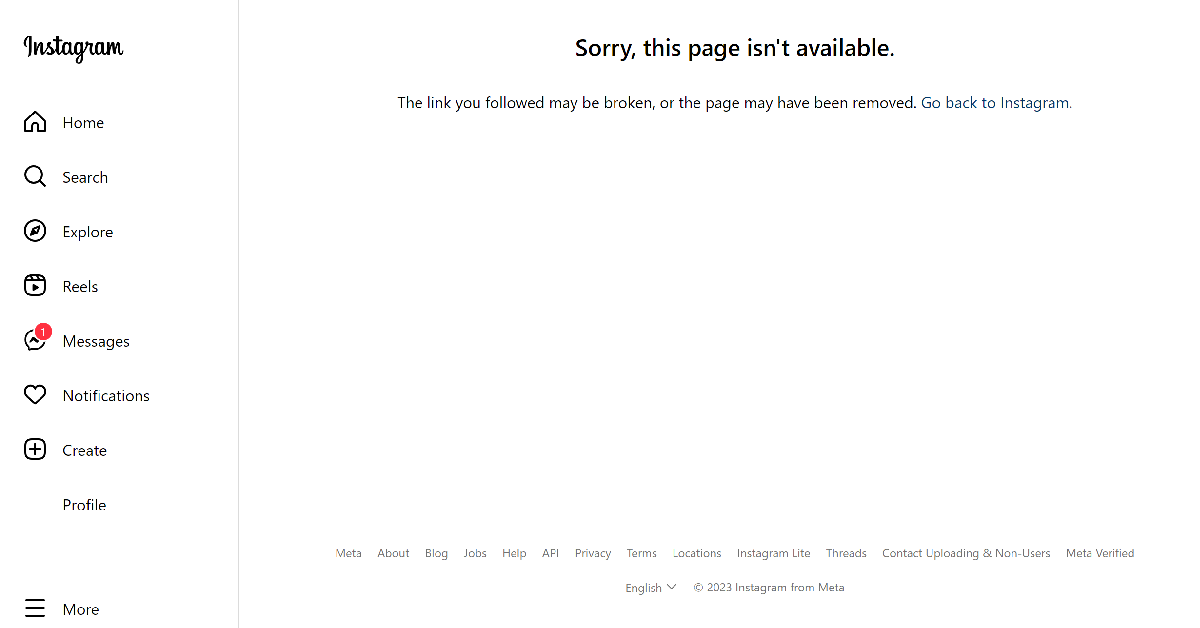
Visit the Instagram profile using a web browser If you suspect a user has blocked you on Instagram, look up their profile on your phone’s web browser. Make sure you are logged into Instagram through your primary account. Then go to https://www.instagram.com/(username). Substitute (username) with the Instagram handle of the user. If you get the ‘Sorry, this page isn’t available message’, it means you have been blocked by the user.

Check their Threads profile

Check their Threads profile Once someone blocks you on Instagram, you also get blocked from accessing their Threads profile. Launch the Threads app on your phone and search for the person’s username. Since the Threads and Instagram handle is the same for every user, this won’t be hard. If you cannot view the user’s Threads profile, they have likely blocked you on Instagram.

Are you two not following each other on Instagram?

Are you two not following each other? This method will only work if you were previously ‘mutuals’ with the Instagram user. Instagram automatically removes the user as your follower once they block your profile. The user is also removed from your following list. Go through both lists and search for the user’s profile. If you can’t find them there, you may be blocked.

Are your DMs not being read?

How to pin chats and personalise them on Instagram? Once someone blocks you on Instagram, your messages no longer reach them on the app. You will stop receiving read receipts. You can ask a mutual friend to check if their messages are being read by the user. If that is the case, it is probable that they have blocked you. Instagram does not delete the chat history once you have been blocked by someone on the platform.

Check their profile name in DMs

Top 7 ways to fix Instagram crashing on Android and iOS When someone blocks you on Instagram, your conversation with them does not display their name anymore. Instead, it will be listed as ‘Instagram User’. This is one of the strongest signs that someone has blocked you on Instagram. You will be able to view the user’s profile picture but tapping on it in their profile won’t maximise it.
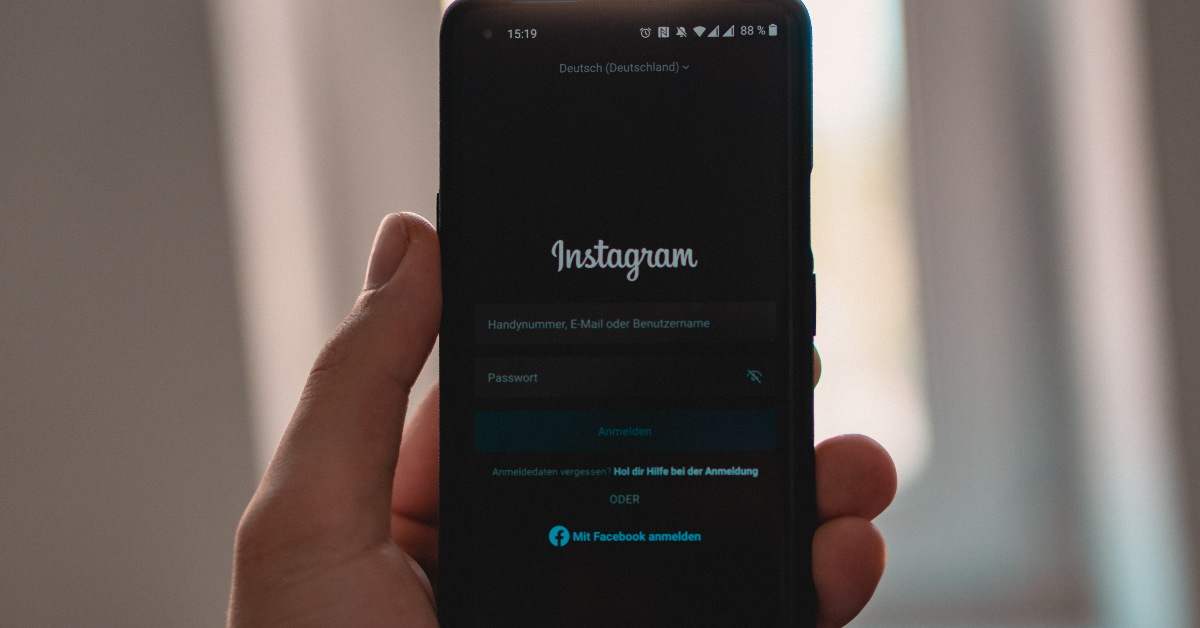

Visit the Instagram profile using a throwaway account

Visit the profile using a throwaway account This is the best way to confirm whether you have been blocked by someone. After carrying out the steps mentioned above, simply make a secondary account on Instagram and visit the profile of the person who you suspect has blocked you. If their profile shows up in the search results and you can view the counters on their profile, it means your primary account has been blocked by the user.

Frequently Asked Questions (FAQs)

How do I know if someone has blocked me on Instagram?

If you can’t view the user’s profile on your main account but it is accessible on a secondary or throwaway account, it means they have blocked you on the platform.

Was I blocked or did they deactivate Instagram?

If you can view the user’s profile in incognito mode on your web browser but not on the Instagram app, it means they have blocked your profile.

Can I see who’s blocked me on Instagram?

No, Instagram does not let you view the list of people who have blocked you on Instagram.

Does Instagram notify people when I block them?

No, Instagram does not notify anyone when you block them on the platform.

Can I still access chat history with the person that I have blocked on Instagram?

Yes, you can view your chat history with your blocked contacts on Instagram. Read Also: Top 10 Ways to Fix Microsoft Teams Notifications Not Working in Windows 10 and 11

Conclusion

These are the top 8 ways to find out if someone has blocked you on Instagram. When you’re using a throwaway account to check the user’s profile, make sure that it is not linked to the email or phone number used by your primary account. This is because once you are blocked by a user, all your secondary accounts linked to that particular email and phone number are blocked as well.

Apple’s special Diwali offer: Here is how to get 50% off on Apple AirPods

Key highlights
  • The deal is valid from November 8 to November 14.
  • The AirPods Pro (3rd generation) with Lightning charging case, the AirPods (3rd generation) with MagSafe charging case, and the Pro (2nd generation) with MagSafe charging case (USB Type-C) are all discounted.
  • The offers can only be availed through the official website and Apple Stores in Mumbai and Delhi.
Apple is offering up to 50 percent off on its AirPods. As a part of a special Diwali offer from Apple online and at offline Apple stores, customers buying iPhones will only be eligible to take advantage of the special deal. In addition to this, the firm will also offer more to the buyers though this offer is only time-limited. So let’s quickly find out how to avail of these offers. Also Read: Here is how to get Rs 43,500 off on iPhone 14 Plus on Flipkart Apple today officially announced a special Diwali offer for its fans this festive season. The thing is that Apple is giving up to 50 percent off on its AirPods to its customers who buy an iPhone 14 or iPhone 14 Plus. The offer is available on Apple online and at Apple stores in BKC (Mumbai) and Saket (Delhi). Apple's special Diwali offer: Here is how to get 50% off on Apple AirPods In addition to offering a flat 50% discount on AirPods, customers will also be eligible for a free six-month subscription to Apple Music. Note that this offering is for a limited duration valid through November 14 in Apple stores in Saket, Delhi, and BKC, Mumbai, as well as on Apple’s website. Also, this offer applies only when you purchase any iPhone 14 or iPhone 14 Plus with a pair of AirPods (3rd generation) with Lightning Charging Case, or AirPods (3rd generation) with MagSafe Charging Case or AirPods Pro (2nd generation). These devices are all discounted as part of Apple’s Diwali offer. Also read: iPhone 14 is now available for as low as 15k during Flipkart’s Big Diwali Sale Apple iPhone 14 is currently listed at Rs 69,900. Whereas the iPhone 14 Plus now comes for Rs 79,900.
  • AirPods (3rd generation) with Lightning charging case- Rs 9,950 (Buy)
  • AirPods (3rd generation) with MagSafe charging case- Rs 10,950 (Buy)
  • AirPods Pro (2nd generation) with MagSafe charging case (USB‑C)- Rs 14,950 (Buy)

Best Air Purifiers under Rs 10,000 you can buy right now (2023)

It’s that time of the year when the Air Quality Index spikes across North India, reaching hazardous levels. The situation is much worse in the capital, New Delhi, where the AQI even reaches 999 in some areas. To mitigate the toxic effects of rising air pollution levels, air purifiers have become the need of the hour. In this article, we bring you the best air purifiers under Rs 10,000 that you can buy right now. Read Also: Bixby Text Call feature is now available in India, Here is how to enable it

Philips Ac1215/20 Air Purifier

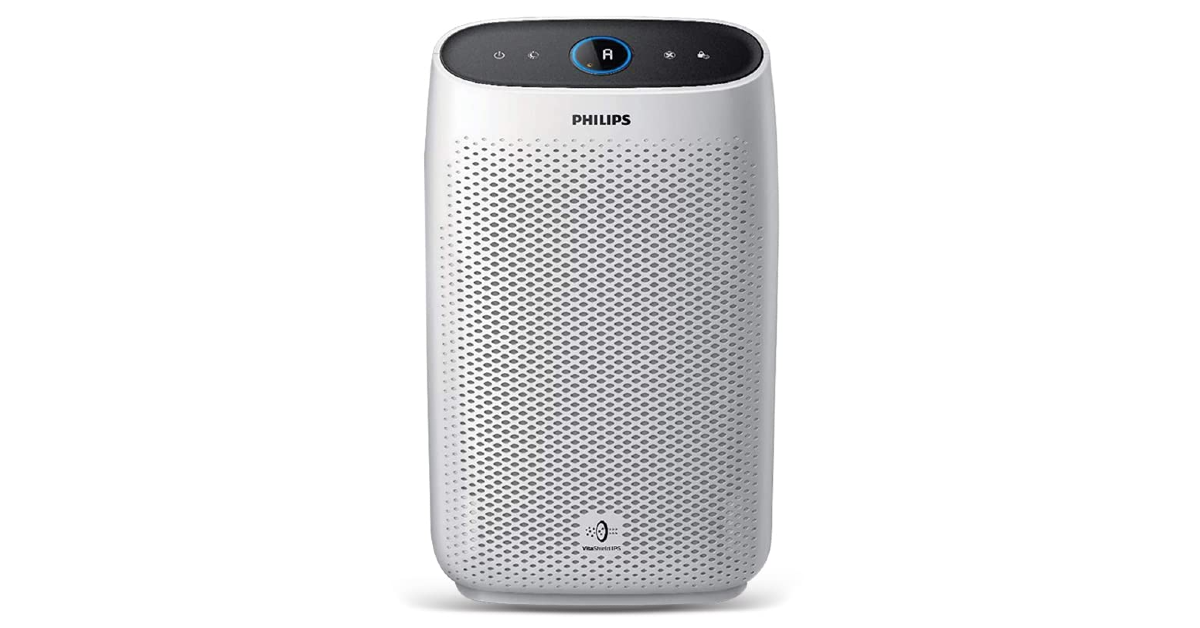
Price: Rs 9,499 on Amazon Philips Ac1215/20 Air Purifier The Ac1215/20 air purifier from Philips can filter out 99.97% of airborne pollutants as small as 0.003 microns. This includes bacteria, viruses, pollen, and dust mites. It can purify an average room (18ft x 12ft x 8ft) in under 12 minutes, with a CADR of 270 m³/hour. The air is passed through three layers of filtration – pre-layer, activated carbon filter, and true HEPA filter. You can also view the air quality in real-time on the Ac1215/20’s 4-colour indicator. The air purifier is also equipped with multiple lighting levels if you want to keep it turned on throughout the night.

Honeywell Air Touch V2 Air Purifier

Price: Rs 7,298 on Amazon Honeywell Air Touch V2 Air Purifier Rs 10,000 2023 The Honeywell Air Touch V2 has a coverage area of 388 sq. ft. and a CADR of up to 250 m³/hour. It can filter out 99.99% of micro allergens and airborne pollutants from the air including PM10 and PM2.5. The air is first passed through a pre-filter, followed by an activated carbon filter, and finally a high-grade H13 HEPA filter. The air purification cycle is carried out every 12 minutes. There is a real-time PM2.5 level indicator on the air purifier as well. When it’s working at its highest speed, the air purifier reaches a maximum noise level of 47.5 dB/a. The Honeywell Air Touch V2 is one of the best air purifiers you can buy right now under Rs 10,000.

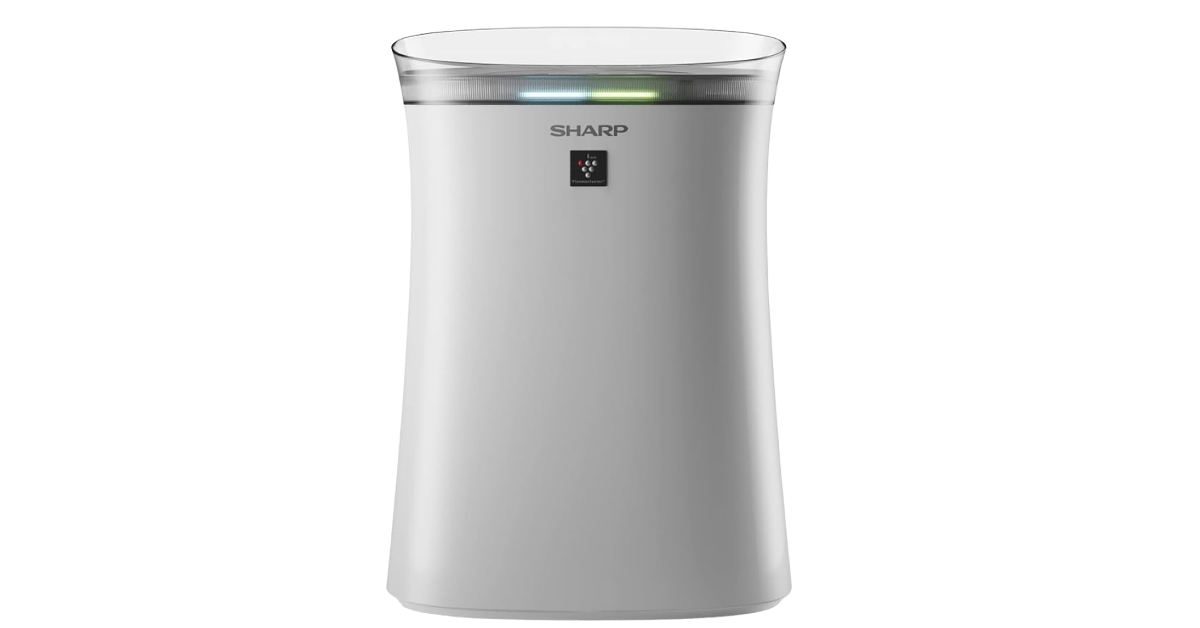
Sharp Room Air Purifier

Price: Rs 9,490 on Amazon Sharp Room Air Purifier Rs 10,000 2023 The Sharp Air Purifier has dimensions of 20.9 x 38.3 x 54cm and a functional range of 320 sq. ft. This air purifier uses Sharp’s patented plasmacluster purification process in conjunction with the three-step filtration (pre-filter, activated carbon filter, and HEPA filter) mechanism. It can filter out 99.97% allergens and microscopic dust as small as 0.3 microns. The active carbon filter also deodorizes the room of cigarette smoke and pet odour, while also removing Volatile Organic Compounds (VOCs) from the air. There are two modes on this air purifier – Auto mode and Haze mode. Sharp claims a filter life of 2 years.

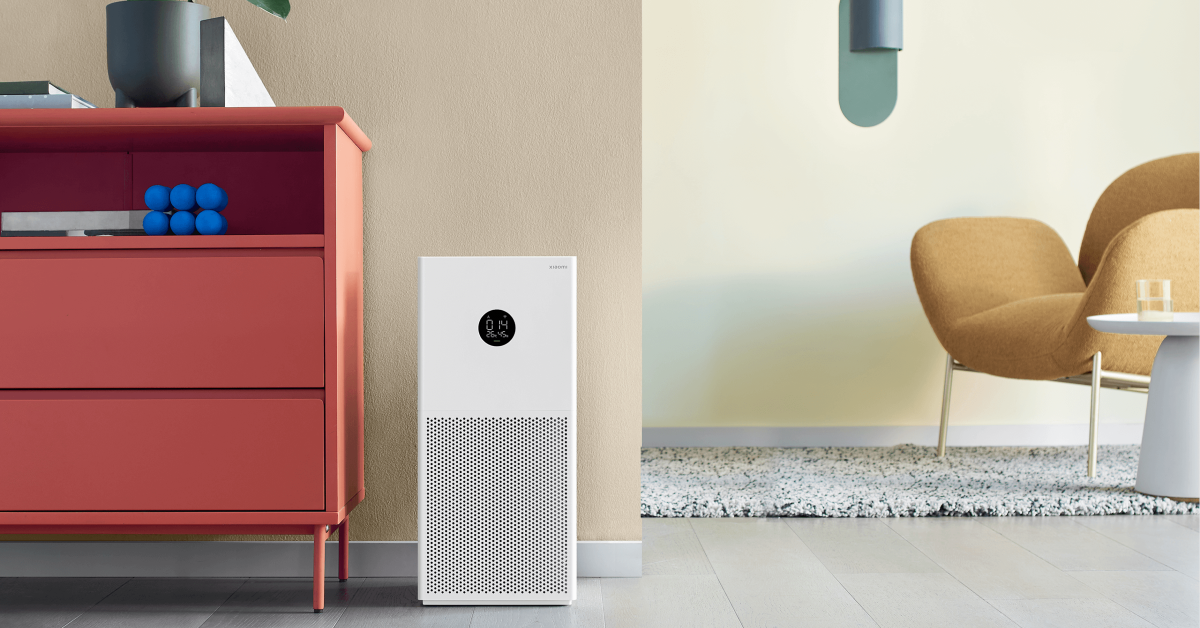
Xiaomi Smart Air Purifier 4 Lite

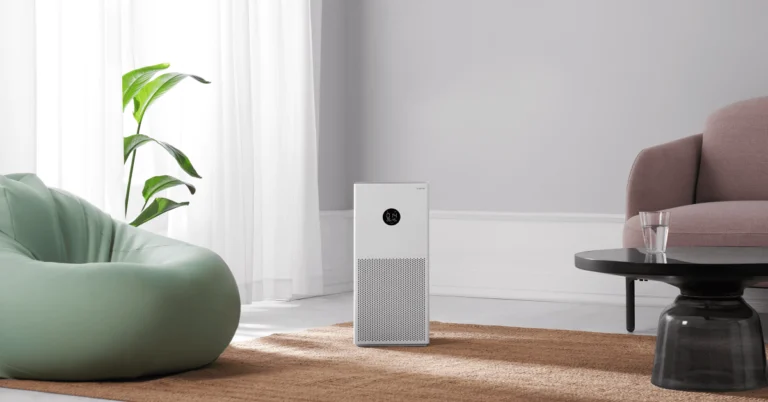
Price: Rs 10,999 on Mi.com xiaomi air purifier The Xiaomi Smart Air Purifier 4 Lite is priced slightly above Rs 10,000, but we have to include it on this list solely because of its amazing purifying capability. This air purifier is one of the most popular ones around. It can take in air from all directions and has an effective coverage area of 269 – 463 sq. ft. This air purifier has a CADR of up to 360 m³/h and can provide 6000L of clean air per minute. Xiaomi’s triple-layer filtration system can remove 99.99% allergens and dust particles as small as 0.1 microns. The Xiaomi Smart Air Purifier 4 Lite has a dedicated app that can be used to toggle between different modes and set up voice control.

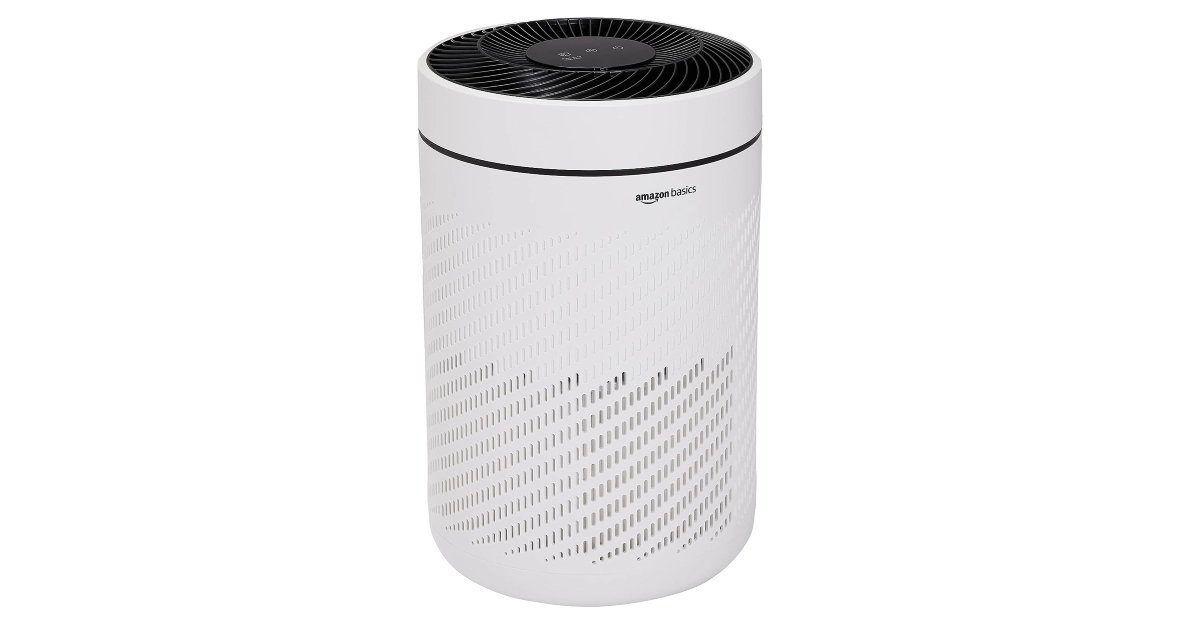
Amazon Basics Air Purifier

Price: Rs 4,712 on Amazon Amazon Basics The Amazon Basics Air Purifier has a CADR of 250 m³/h and a coverage area of up to 300 sq. ft. Its 4-colour LED display can indicate air quality level in real-time. The H13 True HEPA filter on this purifier can filter out 99.97% of harmful air particles including PM2.5. The HEPA filter has a functional life of around 4,000 – 5,500 hours. It can also trap cigarette smoke, dust, pet odour, and pollen. There are three modes on this air purifier – Auto, Turbo, and Night Mode. In Night Mode, the device turns down the noise and curbs the noise level while also effectively keeping the air pure. 

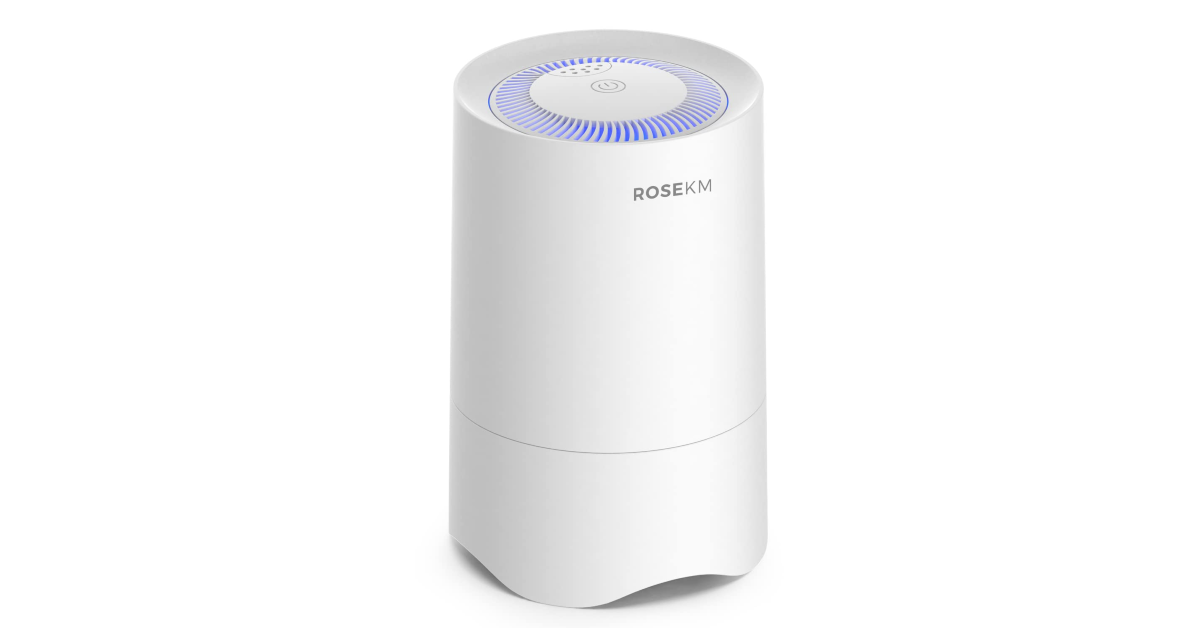
Rosekm Small Air Purifier

Price: Rs 1,798 on Amazon Rosekm Small This compact air purifier is perfect for small rooms, cubicles, bed stands, work desks, and kitchens. If you want fresh air around you while you sleep, place this air purifier on your nightstand and let it do its thing. Apart from air filtration, the Rosekm Small Air Purifier also offers aromatherapy. You can pour a few drops of your favourite essential oil on the purifier’s aroma pad to refresh the air with pleasant scents. The H13 HEPA filter on this device can capture 99.97% of allergens from the air. The air purifier comes with a one-year warranty.  Read Also: Oppo Reno 8T 5G price slashed, now available for Rs 12,765

Conclusion

These are the best air purifiers under Rs 10,000 that you can buy right now. Apart from checking out the air filtration system and functional range, also make sure you know about the warranty period and maintenance support offered by the manufacturer on the product. Since the HEPA filter needs to be changed every 6-12 months, any product with good maintenance support is more favourable.

Samsung Galaxy A05s new variant launched in India

Key highlights
  • Samsung Galaxy A05s was launched in October.
  • The 6GB RAM with 128GB storage option was announced at the time of launch.
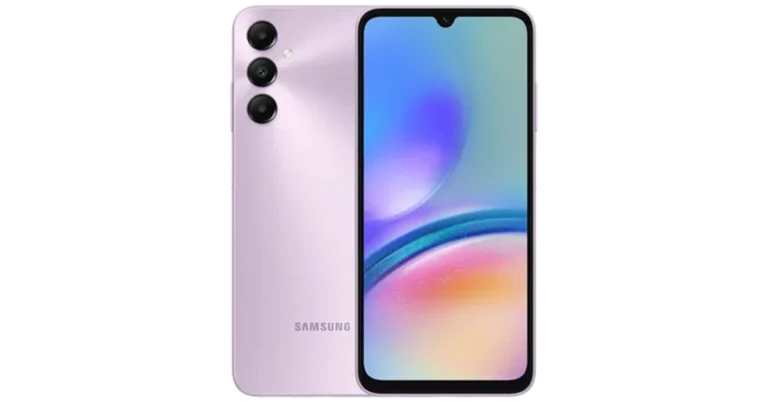
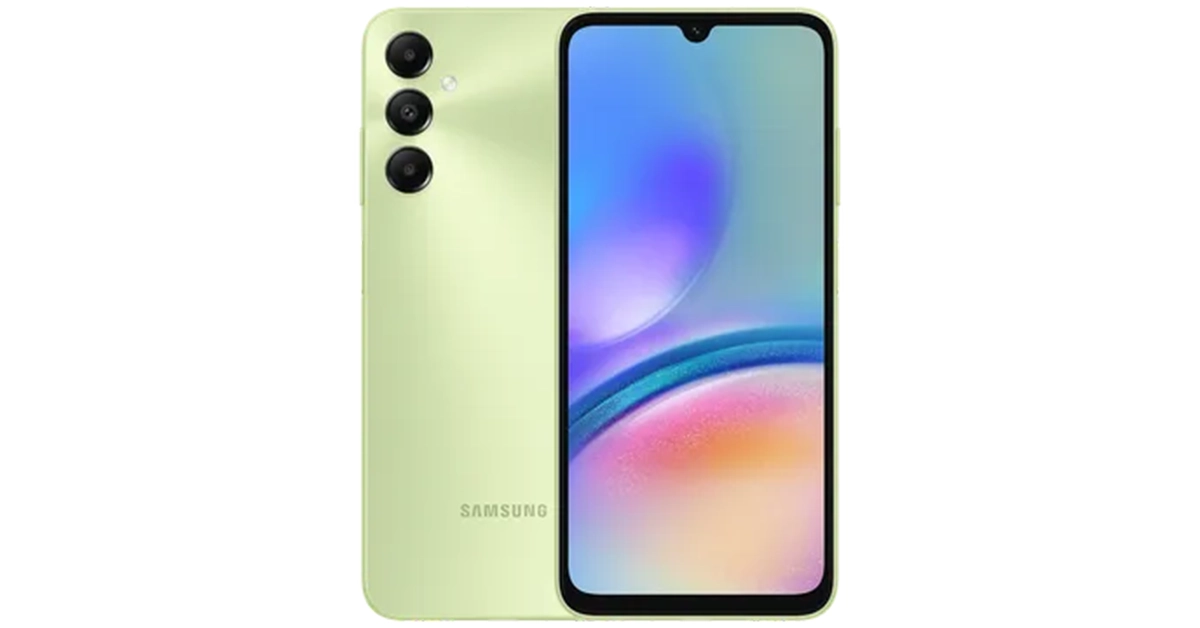
Samsung Galaxy A05s was launched in India last month. The device was then introduced in a single variant priced under 15k. The company has now launched another model for the phone therefore providing customers with more options at a lower cost. The phone has a 6.7-inch full-HD+ LCD display. The device comes equipped with a Snapdragon 680 SoC. It runs on Android 13 with OneUI. There is a 5,000mAh battery onboard. Samsung has introduced a new 4GB RAM with 128GB storage option for the Galaxy A05s. This is now the new base model and its price starts at Rs 13,499. There is another 6GB RAM with 128GB storage option that was launched last month priced at Rs 14,999. Samsung Galaxy A05s new variant launched in India The smartphone is offered in three colour options Black, Light Green, and Light Violet. Customers will get an instant discount of Rs 1,000 on SBI Bank credit card EMI transactions. The company will also offer EMI options starting at Rs 1,150 per month by Samsung Finance+, select banks and NBFC’s. The device will be available for purchase via the company’s website in the country. Also Read: Bixby Text Call feature is now available in India, Here is how to enable it

Samsung Galaxy A05s specifications

The Samsung Galaxy A05s features a 6.7-inch full-HD+ PLS LCD with 1,080×2,4000 pixels of resolution. The bezels on the sides are slim while the chin is noticeable. It operated on One UI 5.1 with Android 13 out-of-the-box. Under its hood, there is an octa-core Snapdragon 680 SoC with up to 6GB RAM and a 128GB storage option. The storage can be expanded up to 1TB using a microSD card. The device has an Adreno 610 GPU for graphics. The Samsung smartphone comes with a triple rear camera set up positioned vertically at the left corner along with a circular LED flash unit. The camera setup includes a 50-megapixel primary shooter with an f/1.8 aperture. Furthermore, the system includes a secondary 2-megapixel macro lens with an f/2.4 aperture and a tertiary 2-megapixel depth sensor with an f/2.4 aperture. For selfies, the smartphone features a 13-megapixel front-facing camera with f/2.0 aperture housed inside a centre-aligned waterdrop notch. The Samsung Galaxy A05s is fuelled by a 5,000mAh battery with 25W charging support. For connectivity, there is a 3.5mm audio jack, 4G LTE, dual-band Wi-Fi, Bluetooth 5.1, GPS, and a USB Type-C port. Along with a fingerprint sensor the handset includes an accelerometer, light sensor and proximity sensor.

Garena Free Fire Redeem Codes Today 8 November 2023: Here is how to claim them

Garena Free Fire is a battle royale game with regular awards and tournaments to keep players interested. If you play Garena Free Fire, you should be aware of the redeem codes that are released on a daily basis. However, because the battle royale game is banned in India, players from other countries can use the Free Fire Redeem codes daily. If you’re unfamiliar with the Garena Free Fire redeem codes or don’t know how to get them, we’ve put together a step-by-step guide to help you redeem them. Check out Garena Free Fire Redeem Codes for 8 November 2023. The Free Fire redeem codes are a great way to get free stuff. These are 12-digit codes that contain alphabets and numbers, as well as an expiration date and time. Because the Garena FF redeem codes cannot be used more than once, you should hurry to the redemption page to claim your free reward before someone else does. To get a free reward, all you have to do is go to reward.ff.garena.com/en, which is the official redemption page. Also, keep an eye on this space for daily updates on Garena Free Fire redemption codes and rewards.

Garena Free Fire Redeem Codes Today 8 November 2023

FF11DAKX4WHV FF10GCGXRNHY YXY3EGTLHGJX FF119MB3PFA5 ZRJAPH294KV5 FF7MUY4ME6SC WLSGJXS5KFYR B6IYCTNH4PV3 FF10617KGUF9 FF1164XNJZ2V FF11NJN5YS3E X99TK56XDJ4X

How to Get Free Fire Redeem Codes for Garena on 8 November 2023?

  • Visit the Garena Free Fire game’s official website at reward.ff.garena.com.
  • Use your Facebook, Google, VK, Apple ID, Huawei ID, or Twitter account to log in.
  • You’ll be taken to a valid redemption code (s)
  • Copy and paste the 12-digit redemption code into the text box.
  • On the screen, a dialogue box will appear.
  • ‘Ok’ should be selected.
For the latest gadget and tech news, and gadget reviews, follow us on TwitterFacebook and Instagram. For newest tech & gadget videos subscribe to our YouTube Channel. You can also stay up to date using the Gadget Bridge Android App. You can find the latest car and bike news here.

Easy Ways to Blur Out Part of a Picture on iPhone

0
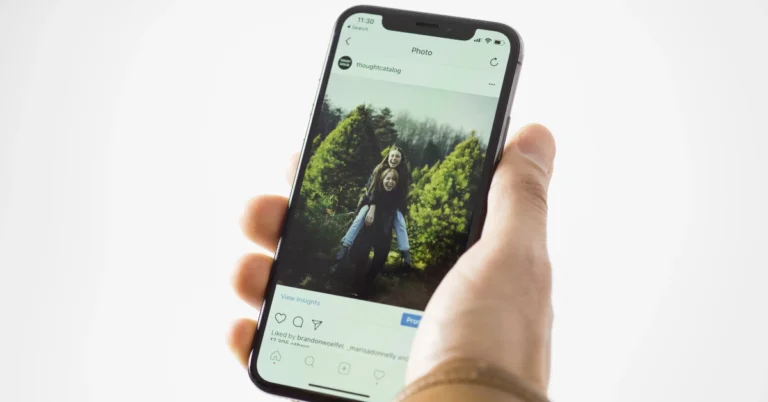
Your iPhone’s photo editor can easily control the background blur on portrait shots. But what if you want to blur out a specific portion of the image that is not in the background? The answer may not be as simple. While native Android editors can accomplish this task, you will need to rely on third-party apps for iPhone. In this article, we bring you some easy ways to blur out part of a picture on your iPhone. Read Also: Facebook’s back button not working? Here’s how you can fix it

Use Snapseed to blur out a part of a picture on iPhone

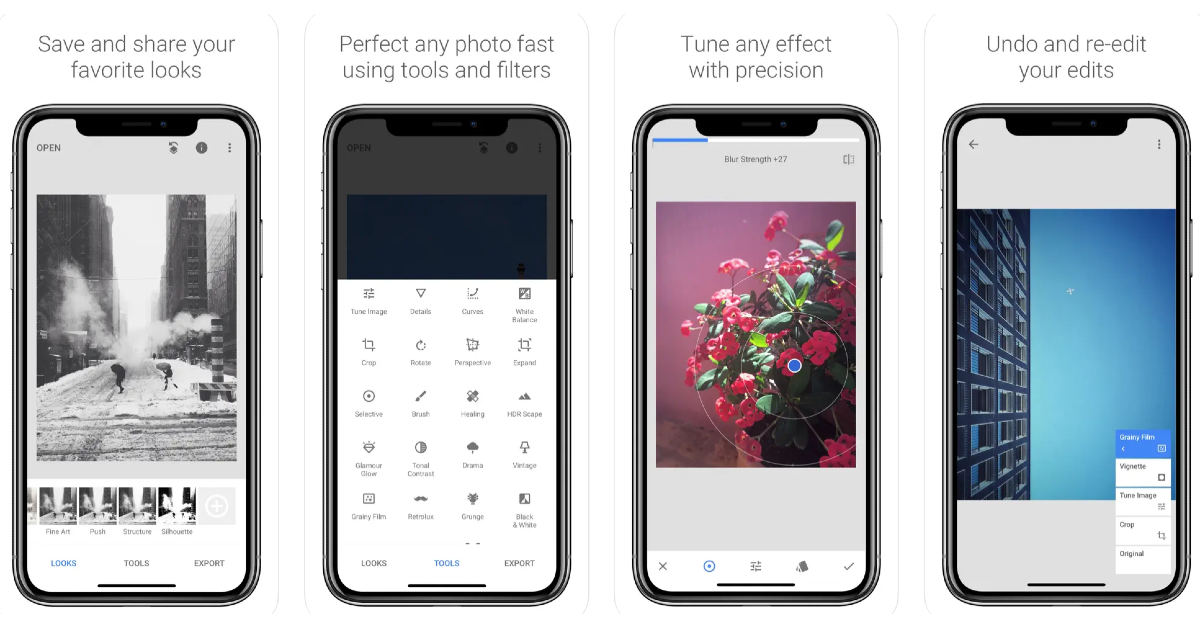
Use Snapseed to blur out a part of a picture on iPhone Step 1: Download and install the Snapseed app on your iPhone. Step 2: Load the picture you want to edit on Snapseed. Step 3: Tap on Tools. Step 4: Select Lens Blur. Step 5: Drag the circle on the photo to the area that you want to blur. You can even adjust the size of the circle. Step 6: Tap the Checkmark once you’re done. Step 7: Hit the Export icon and save the image to your iPhone’s camera roll.

Use WhatsApp to pixelate any image

These iOS and Android phones will stop running WhatsApp from next month: Check if yours is on the list WhatsApp’s native picture edit has a pixelation feature that can help you blur out personal details from any picture. Here’s how you can use it. Step 1: Launch the WhatsApp app on your iPhone and open your conversation with the person you want to send the image. Step 2: Tap the plus icon at the bottom left corner of the screen and select Photo & Video Library. Select the picture. Step 3: On the editing page, hit the pencil icon at the top right corner of the screen. Step 4: Tap the blur pen at the bottom right corner of the screen. Step 5: Brush the area that you want to blur. Step 6: Your selected area will be pixelated. Hit Done at the top left corner of the screen.

Bonus Tip: Use the Markup tool to hide sensitive information from your pictures and screenshots

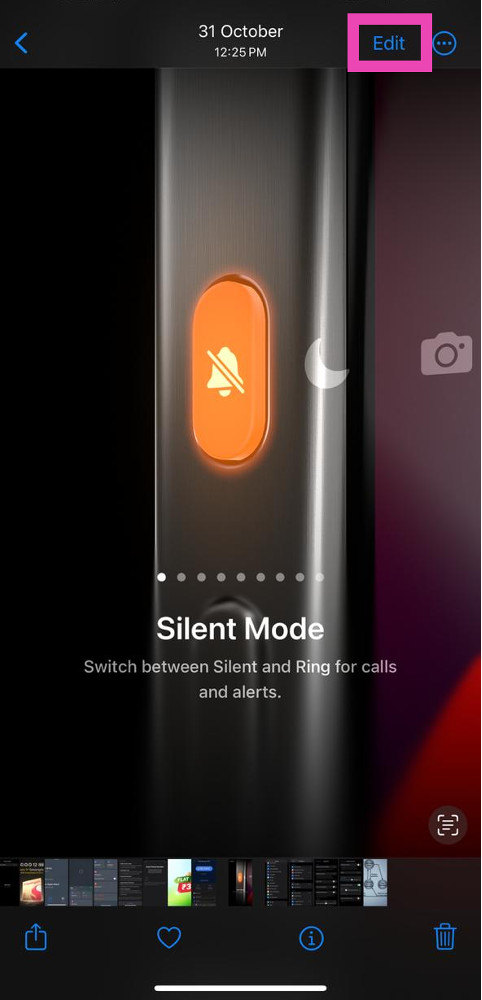
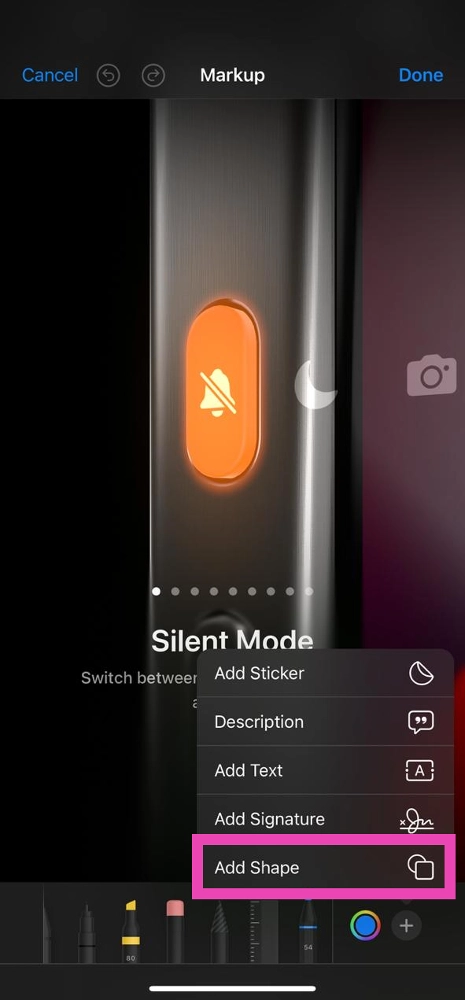
Step 1: Open the picture you want to blur in the Photos app. Step 2: Hit the Edit option at the top right section of the screen. Step 2: Hit the Edit option at the top right section of the screen. Step 3: Hit the marker icon at the top right section of the screen to access the Markup tool. Step 4: Hit the plus icon at the bottom right corner of the screen and select the square shape. Step 4: Hit the plus icon at the bottom right corner of the screen and select the square shape. Step 5: Adjust the size of the square box and move it to the part of the picture that you want to hide. Step 6: Select the colour that you want to fill inside the box. Step 7: Hit Done at the top right corner of the screen.

Frequently Asked Questions (FAQs)

How do I blur a part of a picture on my iPhone?

To blur a part of a picture on your iPhone, download a third-party editing app like Snapseed and use its blur tool.

How do I hide sensitive information on my iPhone screenshots?

iPhone’s native Markup tool can hide any sensitive information from your pictures and screenshots. Once you open the image in the Photos app, go to Edit>Markup>Plus icon>Square share and move it to the area you want to cover. Then, select the colour you want to fill into the shape.

How do I apply the blur portrait effect to my pictures on my iPhone?

You can apply the portrait effect and blur the background of any image on your iPhone by using the depth control tool. Simply tap the Edit option at the top right corner of the screen and hit the focal length option on the left to control the background blur. Read Also: Diwali Gifting Guide 2023: Best tech gifts for your loved ones

Conclusion

This is how you can blur out part of a picture on your iPhone. Read this article to learn how to blur out part of a picture on Android. If there’s a specific third-party editing tool that you like to use for this task, let us know in the comments!

Top 10 Ways to Fix Microsoft Teams Notifications Not Working in Windows 10 and 11

0
Microsoft Teams is one of the better alternatives to Zoom and Google Meet for online meetings and video calls. Apart from video meetings, Teams also lets you communicate with your workmates using channels and private conversations. Since Teams is mostly used for work-related stuff, it is essential that your notifications for the app are turned on and working at all times. In this article, we bring you the top 10 ways to fix the ‘Microsoft Teams notifications not working’ issue on Windows 10 and 11 laptops and PCs. Read Also: Diwali Gifting Guide 2023: Best tech gifts for your loved ones

Check Microsoft Teams notifications settings

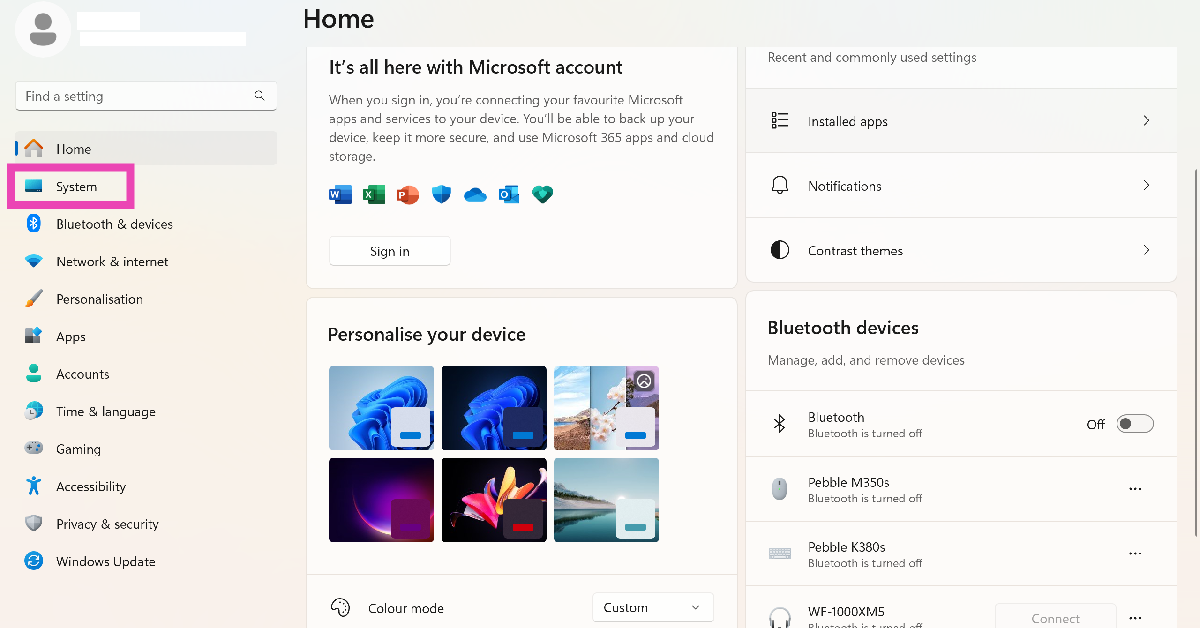
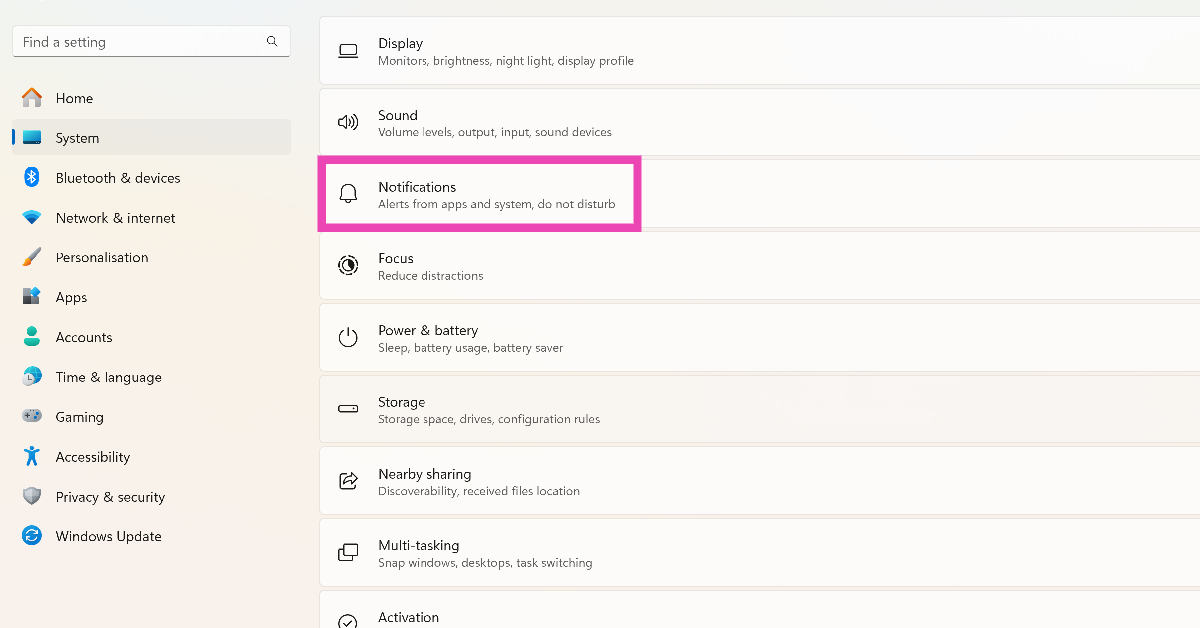
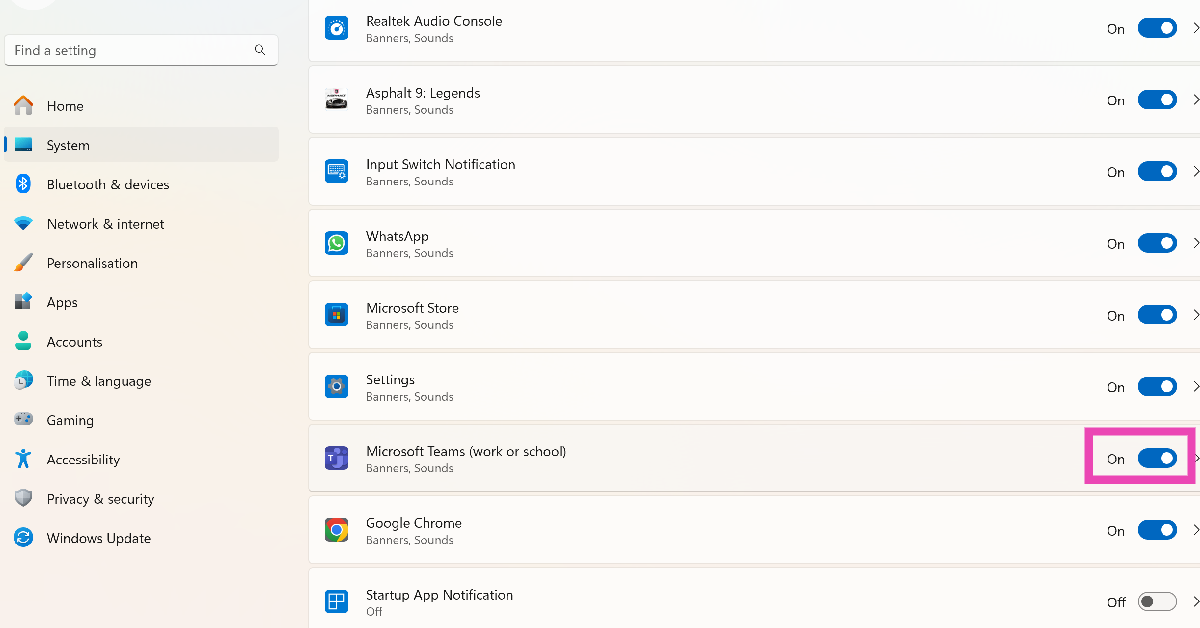
Step 1: Launch the Settings app and select System from the side menu. Step 1: Launch the Settings app and select System from the side menu. Step 2: Click on Notifications. Step 2: Click on Notifications. Step 3: Scroll down and turn on the toggle switch for Microsoft Teams. Step 3: Scroll down and turn on the toggle switch for Microsoft Teams.

Turn off Do Not Disturb

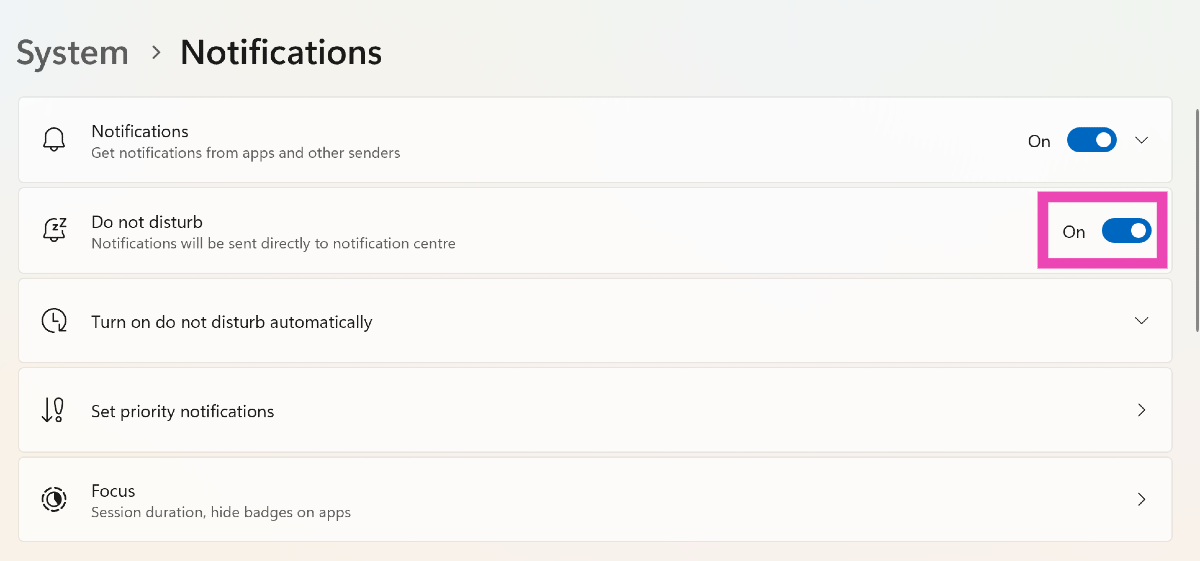
Step 1: Launch the Settings app and select System from the side menu. Step 1: Launch the Settings app and select System from the side menu. Step 2: Click on Notifications. Step 2: Click on Notifications. Step 3: Scroll down and turn off the toggle switch for Do Not Disturb. Step 3: Scroll down and turn off the toggle switch for Do Not Disturb.

Change your Microsoft Teams status

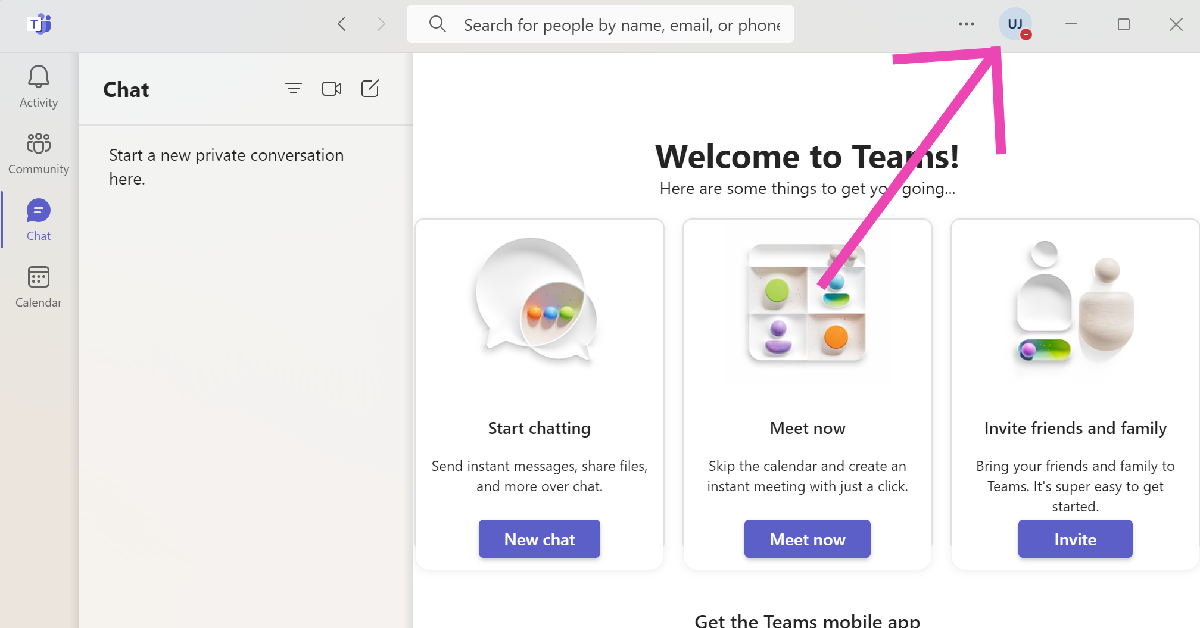
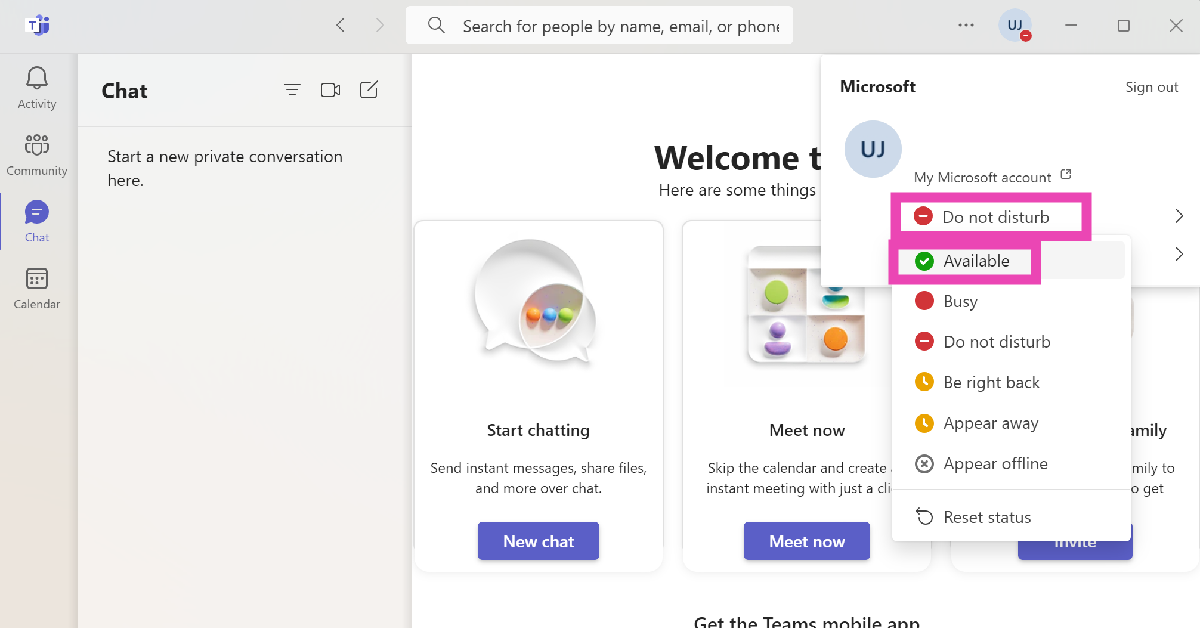
The Microsoft Teams app does not send you any notifications when your status is set to Busy or Do Not Disturb. Here is how you can change it back to Available. Step 1: Launch the Microsoft Teams app on your PC or laptop. Step 2: Click the profile icon at the top of the screen. Step 2: Click the profile icon at the top of the screen. Step 3: Click on your activity status and change it to anything else other than Busy or Do Not Disturb. Step 3: Click on your activity status and change it to anything else other than Busy or Do Not Disturb.

Turn on Notifications for a particular channel on Microsoft Teams

Step 1: Launch the Microsoft Teams app on your PC or laptop. Step 2: Right-click on a channel. Step 3: Move the cursor to Channel Notifications and select All Activity.

End your Focus Session

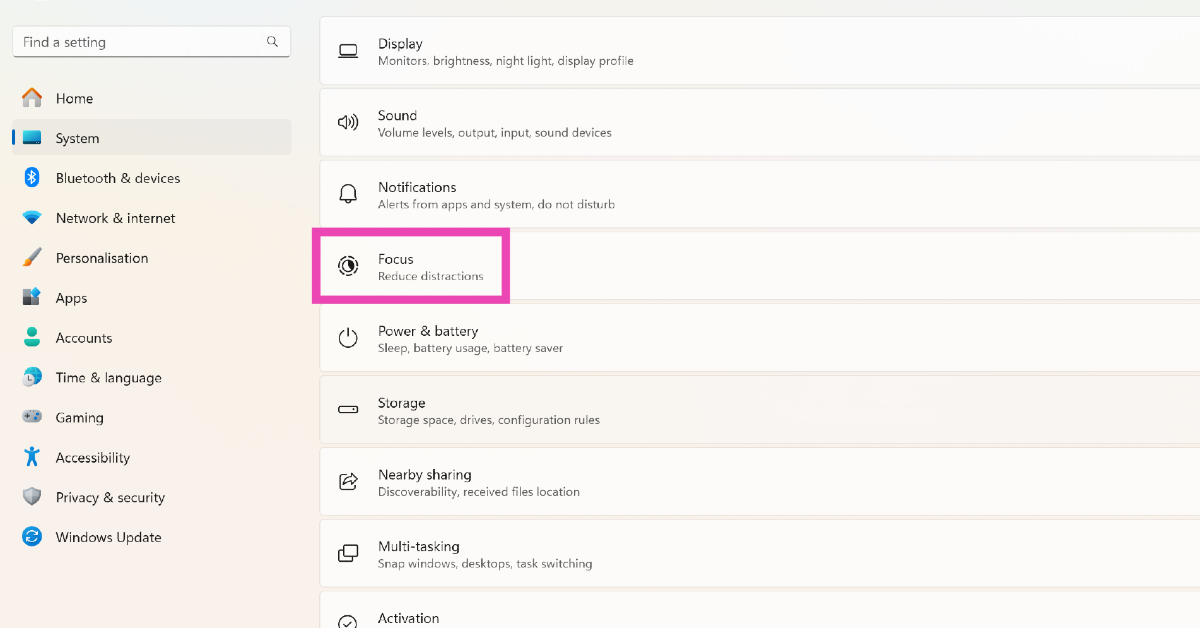
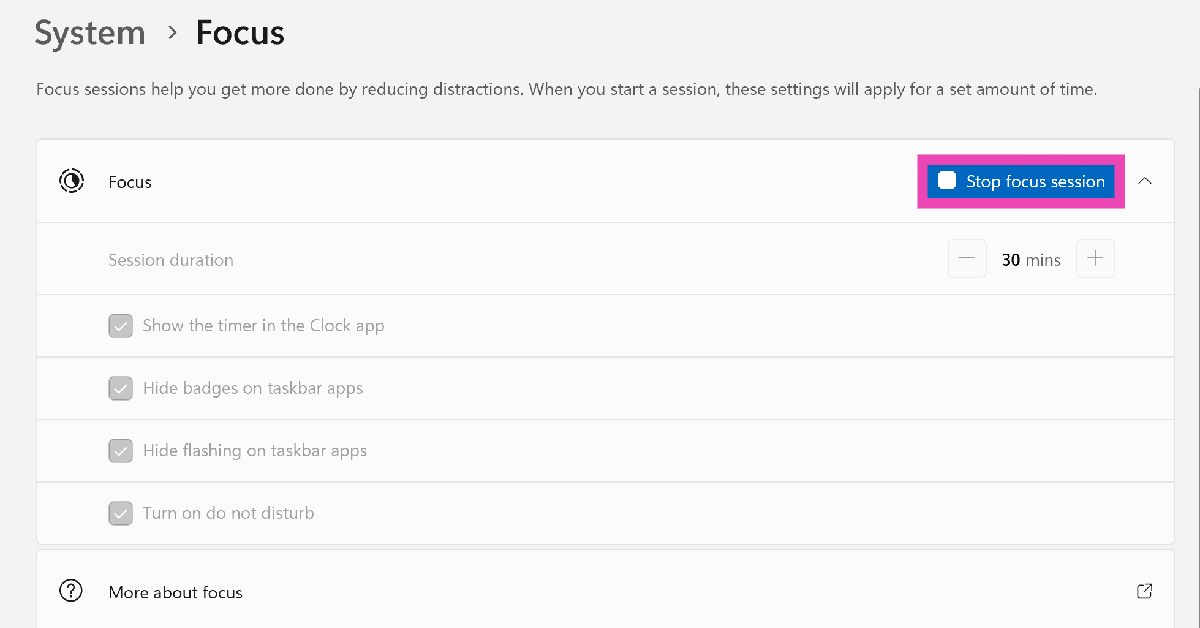
When you start a Focus Session on your Windows PC or laptop, all notification alerts are paused until the session lasts. Here’s how you can turn it off. Step 1: Launch the Settings app and select System from the side menu. Step 1: Launch the Settings app and select System from the side menu. Step 2: Click on Focus. Step 2: Click on Focus. Top 10 Ways to Fix Microsoft Teams Notifications Not Working in Windows 10 and 11 Step 3: Click on Stop focus session. Step 3: Click on Stop focus session. Top 10 Ways to Fix Microsoft Teams Notifications Not Working in Windows 10 and 11

Update the Microsoft Teams app

If you are unable to receive notifications from the Microsoft Teams app due to a bug-related issue, check the app for any updates. Usually, these kinds of bugs are quickly fixed by the developers with a swift update. Hit the ellipses in the Microsoft Teams app and select Check for Updates.

Turn off your PC’s battery saver

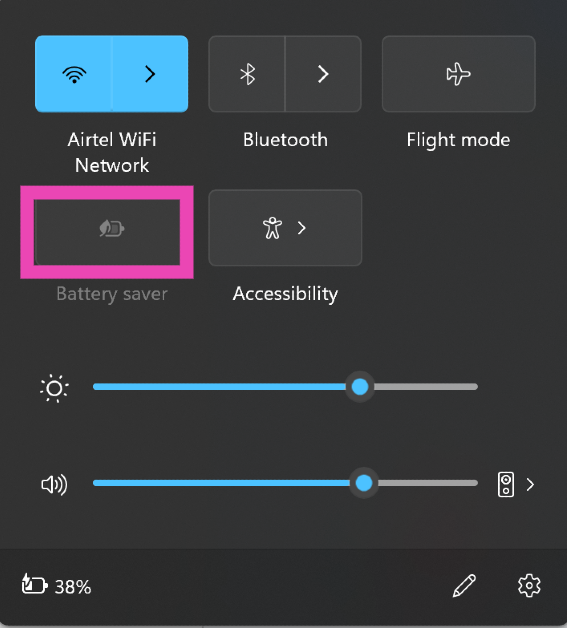
Turn off your PC’s battery saver Top 10 Ways to Fix Microsoft Teams Notifications Not Working in Windows 10 and 11 Once your PC or laptop hits a low battery level, it triggers the battery saver. In battery saver mode, all notification alerts to your PC are paused. You can turn off the battery saver even when your PC is low on charge. Hit the battery icon in the bottom right section of the taskbar and click on battery saver to turn it off. You can also go to Settings>System>Power and Battery to turn off the battery saver.

Log out and log into Microsoft Teams

If you aren’t able to receive Microsoft Teams notifications due to an account-related issue, logging out and then logging back into the app will help. Click your profile icon on the top of the screen and select Sign out. Log back in using your phone number or Microsoft account.

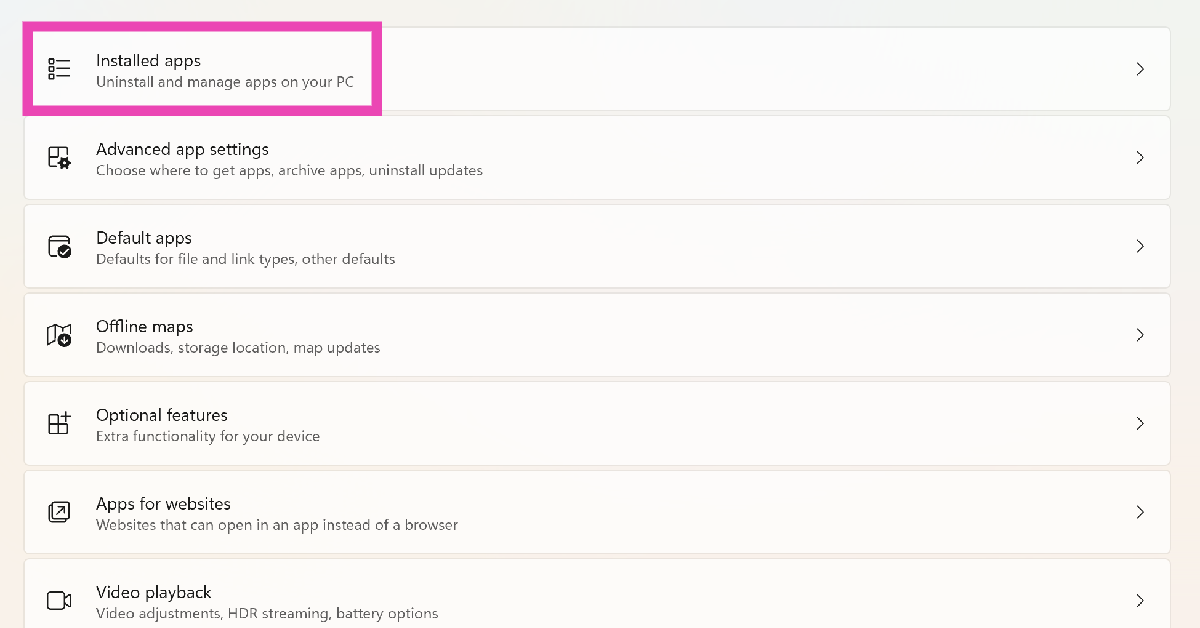
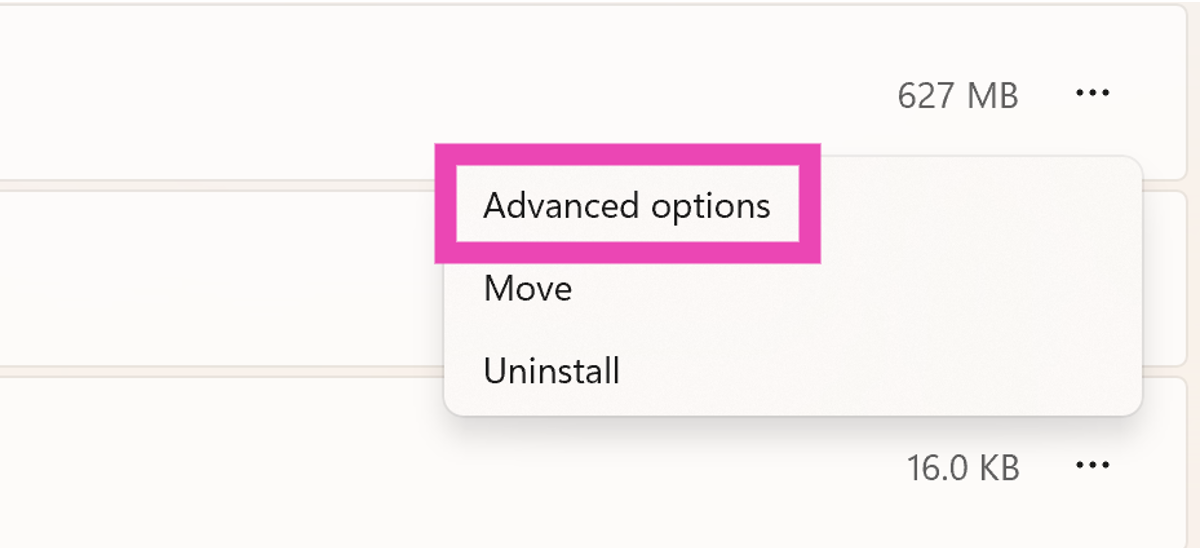
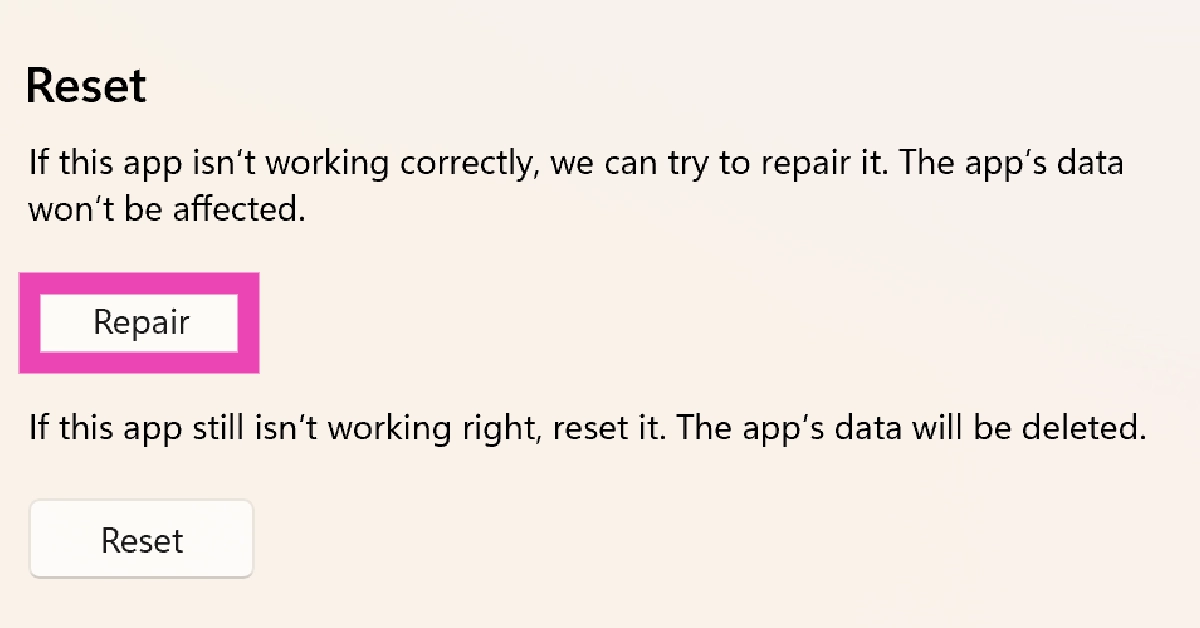
Repair the Microsoft Teams app

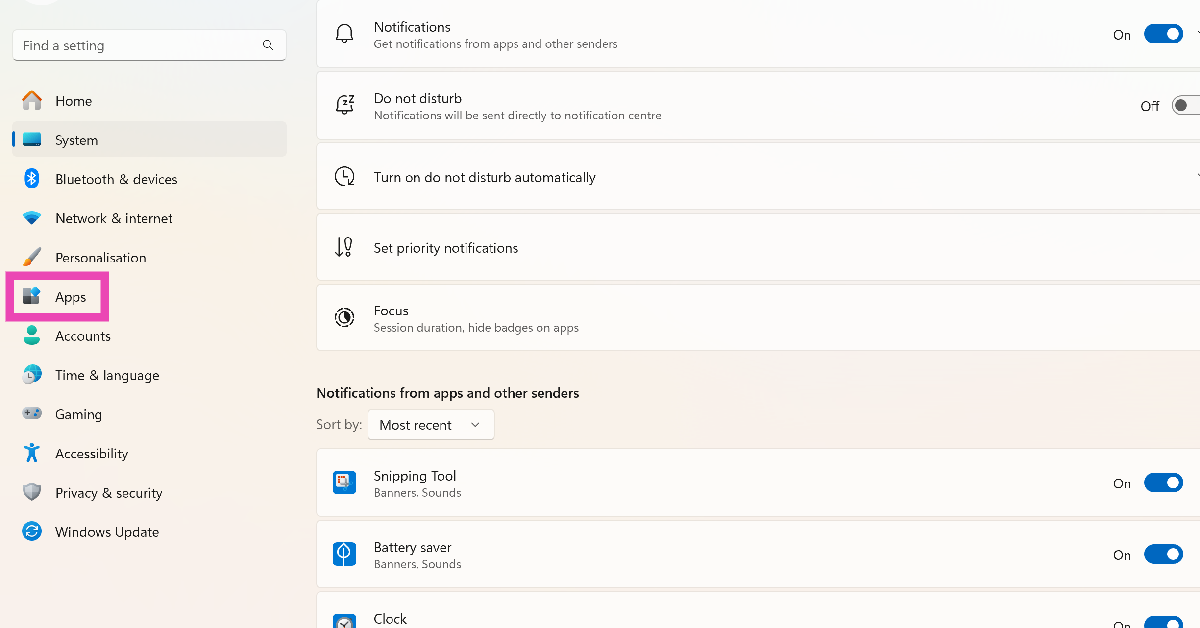
Step 1: Go to Settings and select Apps. Step 1: Go to Settings and select Apps. Top 10 Ways to Fix Microsoft Teams Notifications Not Working in Windows 10 and 11 Step 2: Click on Installed apps. Step 2: Click on Installed apps. Top 10 Ways to Fix Microsoft Teams Notifications Not Working in Windows 10 and 11 Step 3: Scroll down to Microsoft Teams and click on the ellipses next to it. Step 4: Select Advanced Options. Step 3: Scroll down to Microsoft Teams and click on the ellipses next to it. Step 5: Scroll down and select Repair. Step 5: Scroll down and select Repair. Top 10 Ways to Fix Microsoft Teams Notifications Not Working in Windows 10 and 11

Check if Microsoft Team’s servers are down

The Microsoft Teams notifications may not be working because it is experiencing a server outage. To confirm this, go to DownDetector.in and search for Microsoft Teams. If you see a spike in user reports, it is very likely that the app’s servers are down.

Frequently Asked Questions (FAQs)

How do I fix the Microsoft Teams app if it is malfunctioning on my PC?

Go to Settings>Apps>Installed Apps and click the ellipses next to Microsoft Teams. Go to Advanced Options, scroll down and hit Repair.

How do I turn on the notifications to Microsoft Teams?

Go to Settings>System>Notifications and turn on the toggle switch next to Microsoft Teams.

Why am I not receiving any notifications from Microsoft Teams?

If your availability status is set to Busy or Do Not Disturb, you will not receive any notifications from Microsoft Teams. To change your status, hit your profile icon at the top of the screen and select Available. Read Also: Poco C65 with 50-megapixel dual camera setup launched globally

Conclusion

This is how you can fix the ‘Microsoft Teams notifications not working’ issue on Windows 10 and 11. Microsoft Teams also has a very handy web portal that you can use if the app is still blocking notification alerts on your Windows PC or laptop. Make sure you allow notification access to the web portal before proceeding. If any of these fixes worked for you, let us know in the comments!

Bixby Text Call feature is now available in India, Here is how to enable it

Key Highlights
  • Bixby is an AI assistant for Samsung smartphones.
  • Bixby will now answer your calls.
  • Incoming calls will be answered by Bixby’s automated voice
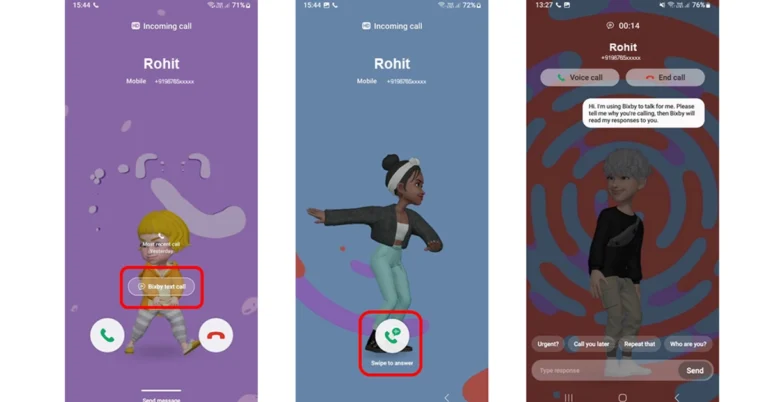
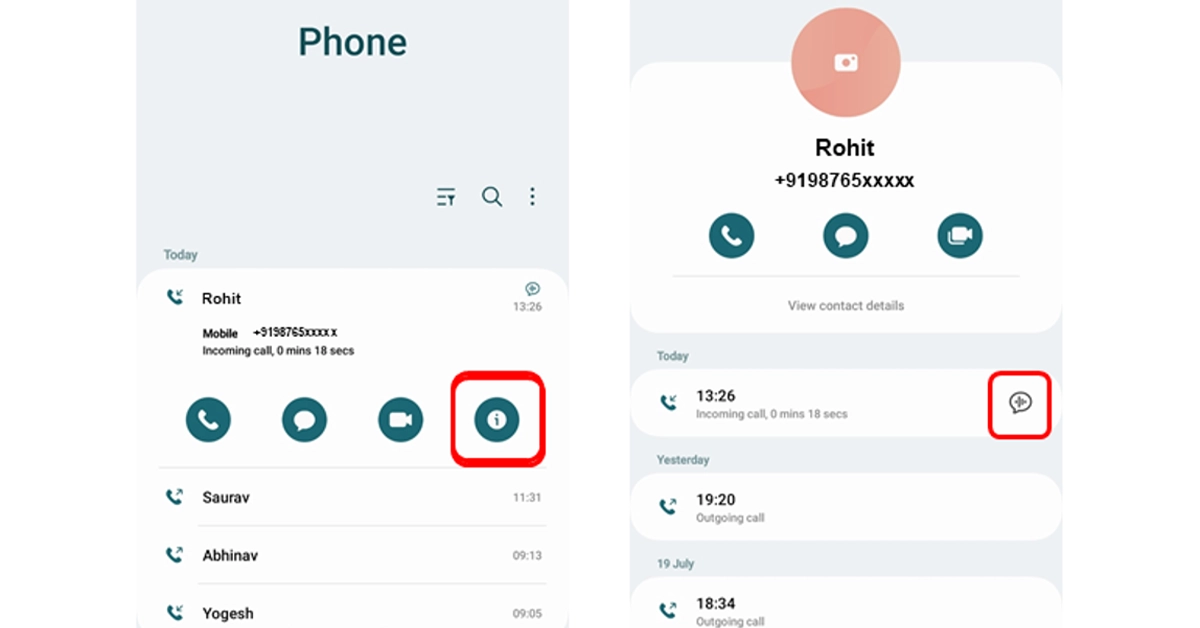
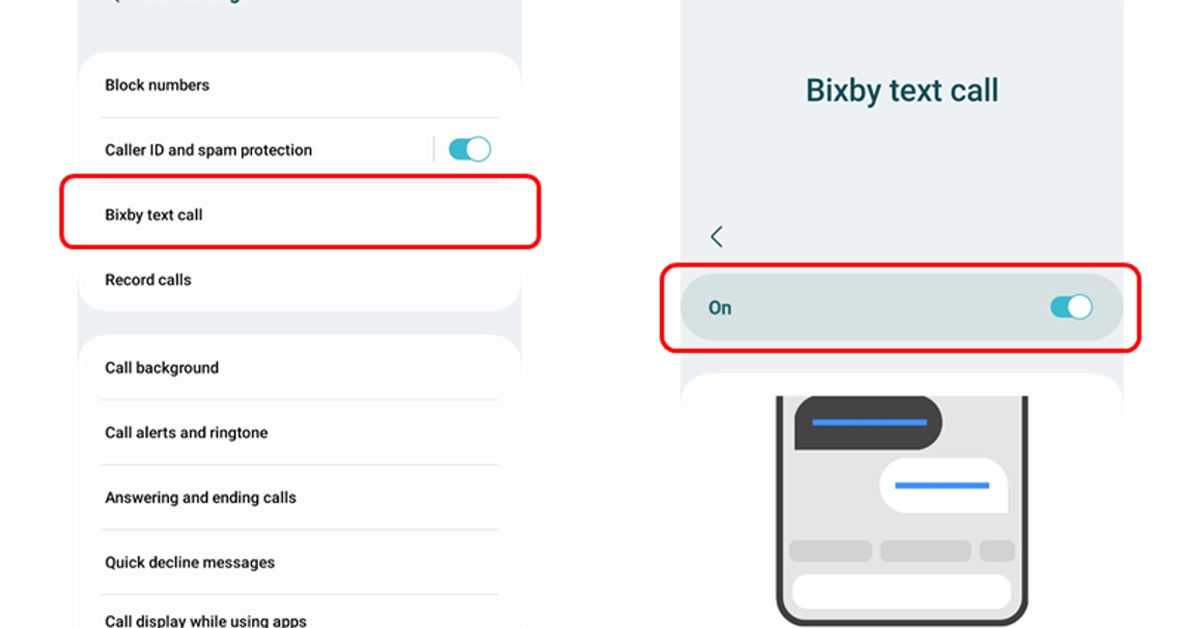
Samsung recently brought Auto Blocker for Galaxy devices. Now it has started rolling out an update for Bixyby. Samsung’s AI assistant is getting some upgrades featuring the Bixby Text Call feature in English. Samsung’s latest upgrade for its AI assistant brings Bixby Text Call to India. The latest feature is only being made available for a select few Galaxy smartphones. The feature allows Bixyby to answer and respond to your incoming calls. how to setup Bixby Text Call feature Note that incoming calls will be answered by Bixby’s automated voice. After that, it is up to you if you want to simply start typing with the keyboard or select a quick response, and Bixby will read your messages to the caller. Once Bixby Text Call ends you can review your conversations if necessary. Also Read: Oppo Reno 8T 5G price slashed, now available for Rs 12,765 You can read the messages sent during the call although you won’t be able to hear the conversation. The caller will only hear an automated voice. When you receive a call tap on that and then on the next screen, swipe up on the green coloured icon to initiate a Bixby text call. Note that the caller will know about an automated voice. Bixby will also ask the caller who they are and why they are calling. Know that whatever caller speaks will be transcribed and displayed on the screen. Also, you can respond by selecting a quick response at the bottom of the screen, or typing what you would like to say. Tap Send. Bixby will then read your response to the caller. Users can also switch from Bixby text call to a voice call by tapping Voice Call at the top of the screen. To end the call, tap End Call at the top of the screen. As mentioned earlier this feature will be supported by a few Samsung smartphones and can be used only during incoming calls. Galaxy Z Fold 5, Galaxy Z Flip 5 Galaxy Z Fold 4, Galaxy Z Flip 4 Galaxy Z Fold 3, Galaxy Z Flip 3 Galaxy Z Fold 2/ Galaxy Z Flip 2 Galaxy Z Flip 5G, Galaxy Z Fold 5G Galaxy S23 series, Galaxy S22 series Galaxy S21 series, Galaxy S20 series Galaxy A34, Galaxy A54, Galaxy A52s 5G Galaxy A82 5G, Galaxy A53 5G, Galaxy A33 5G Galaxy S20 FE, Galaxy Note 20, Galaxy Note 20+ Galaxy A71 5G, and Galaxy A51 5G How to enable Bixby Text Call

How to enable Bixby Text Call

Step 1: Open the Phone app on your supported phone. Step 2: Tap on More Options. Step 3: Go to Settings. Step 4: Turn on the Bixby text call feature in the Bixby text call window. Step 5: If a language package is not installed on your device then download a language package when asked. Step 6: Tap Download and then click on Continue to go to the Galaxy Store where you can Install the language package. Step 7: After enabling the Bixby text call, edit Bixby text call settings such as language and voice. Step 8: You can also add new quick responses or customize existing ones for Bixby text calls.

Oppo Reno 8T 5G price slashed, now available for Rs 12,765

Key Highlights
  • The Oppo Reno 8T 5G features a 6.7-inch micro-curved AMOLED screen.
  • The display supports a 120Hz refresh rate.
  • The device comes with a 4,800mAh battery and supports 67W fast charging.
  • It is powered by Qualcomm Snapdragon 695 5G.
Oppo Reno 8T 5G price has significantly decreased in India. This phone is available at half price on Croma. Surprisingly this smartphone was launched in India just a few months ago, yet how did its price become so low? The details are provided below.

Oppo Reno 8T 5G price and sale details

Croma is running a Festival of Dreams sale on its platform. During which the Oppo Reno 8T 5G is available with a massive discount of Rs 12,765. In addition to this, the e-commerce platform is also offering up to Rs 750 instant discount on IDFC Bank credit card and EMI transactions. Note that this smartphone is available at the pricing only on Croma. There is now a price cut on Flipkart and Oppo Store. Oppo Reno 8T 5G was launched in India at Rs 29,999 in February this year. The device comes in a single 8GB RAM with a 128GB storage option. Also Read: Reliance Jio launches JioMotive GPS tracker for your vehicles

Oppo Reno 8T 5G specifications

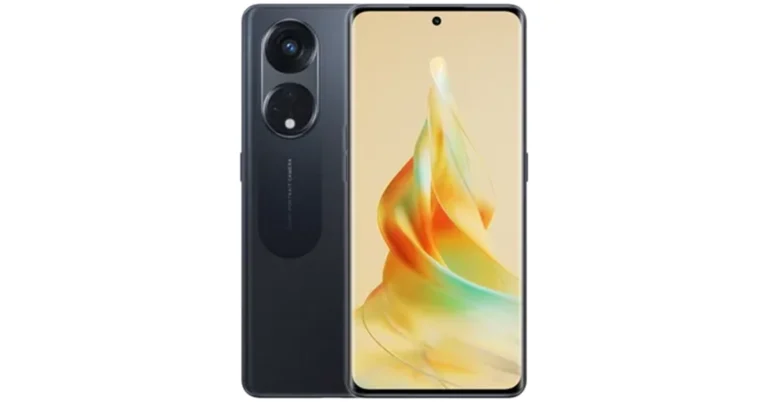
Oppo Reno 8T comes with a 6.7-inch micro-curved AMOLED with a 1,080 x 2,412-pixel resolution. The screen supports a refresh rate of 120Hz, a screen-to-body ratio of 93% and uses an AI Adaptive Eye Protection System. Additionally, it has Widevine L1 certification. The smartphone runs on ColorOS 13.0 and is powered by Qualcomm Snapdragon 695 5G SoC. There is a provision for a microSD card slot supporting up to 1TB of storage expansion. Oppo Reno 8T 5G features a triple rear camera setup that includes a 108MP primary sensor, a 2MP macro sensor as well as a 2MP depth sensor. It comes with a selfie camera with a 32MP resolution on the front for video calls. The smartphone has a 4,800mAh battery supporting 67W SUPERVOOC fast-charging technology.

Reliance Jio launches JioMotive GPS tracker for your vehicles

Key Highlights
  • JioMotive is a Plug-and-Play 4G GPS Tracker.
  • It is used to track your cars.
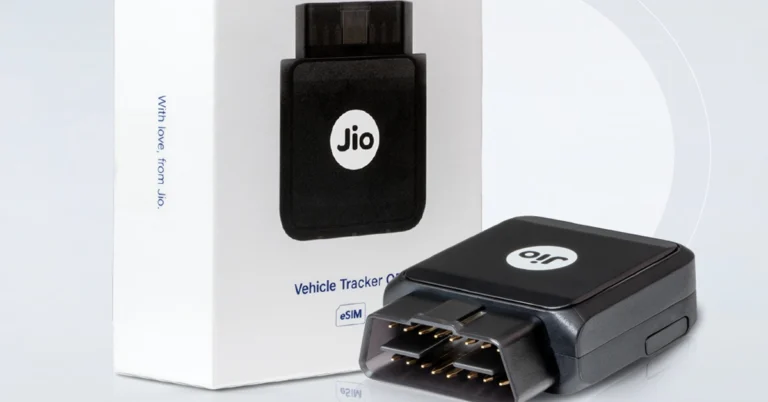
Reliance Jio has announced the launch of a new tracker in India. After launching a Bluetooth tracker JioTag the company has introduced JioMotive, a plug-and-play 4G GPS tracker for cars. It can be plugged into an OBD port in your car to track its real-time location. In addition to this, the GPS tracker also works as a WiFi hotspot for your car. Not only it can track the real-time location of your car it can also do speed tracking and route tracking.

JioMotive Plug-and-Play 4G GPS Tracker price and availability

The JioMotive Plug-and-Play 4G GPS Tracker has been launched with a price tag of Rs 11,999. But it can be purchased for Rs 4,999 as an introductory offer. The device is currently available for purchase via Reliance Digital store and Jio official store. Reliance Jio is also giving away first-year subscriptions for free. From the second year, one has to pay an annual amount of Rs 599. Also Read: Poco C65 with 50-megapixel dual camera setup launched globally

JioMotive Plug-and-Play 4G GPS Tracker features

JioMotive Plug-and-Play 4G GPS Tracker easily connects your car’s OBD-II port, which is normally found under the dashboard, close to the steering wheel. It can be used to get the real-time location of your car and work as a WiFi hotspot for your vehicle. In addition to this, the device also gives you access to important data about performance, health and more. To keep your family and your car protected the tacker can also check real-time speed, track your vehicle’s route and do much more. Here are some more features of the JioMotive Plug-and-Play 4G GPS Tracker: Geo-Fencing Geo-Fencing is an important feature that your car must have if you hand over your vehicle to someone not known to you or your driver. It allows you to set up parimeters, or geofences around specific areas like your home, office or your kid’s school. Whenever your car enters or exits these predefined areas you will receive instant notification, keeping you updated on vehicle movements. Vehicle Health Diagnostics JioMotive Plug-and-Play 4G GPS Tracker will also keep a close eye on your car’s battery voltage, air intake temperature, engine load and coolant temperature at all times. It also sends alerts on hundreds of DTC codes, that allow you to take better care of your car and save on maintenance costs. Driving Behaviour Analysis JioMotive alerts you to instances of over-speeding harsh braking, rapid acceleration and sudden turns, promoting safer driving. Plus, you can review your past trip history to understand your driving patterns. Time Fencing Set up time-specific fencing on the JioThings app and if your car is started or moved within that time frame you will receive immediate notifications. Anti-theft, anti-tow, accident alerts These safety features make use of JiMotive’s inbuilt 3D gyroscope and accelerometer in case of such untoward events and get instant alerts on your phone to take steps. Even if the device is removed or tampered with from the OBD port you will receive notifications to take quick action. In-car Wi-Fi hotspot You can now stay connected with your loved ones thanks to JioMotive which also works as a car hotspot. It allows you to connect up to 8 devices at the same time.

Facebook’s back button not working? Here’s how you can fix it

0
Facebook’s most recent bug is getting on everyone’s nerves, and for good reason. The new bug renders the back button on the app completely unresponsive. If you want to go back to the previous page, your only option is to use the back arrow at the top of the current page. For users with large smartphones, this option is not feasible. While this issue will only be properly resolved in the next update, we may have some temporary fixes that may work for you. In this article, we bring you 5 possible fixes to the ‘Back button not working’ issue on the Facebook app. Read Also: Best 65-inch TVs to enjoy watching movies with your family

Tap and hold the back button

  This fix may not work for everyone, but some users report that they are able to navigate to the previous page on the Facebook app by simply tapping and holding the back button. You may need to keep your finger pressed against the back button on your screen for this to work. If you use, swipe gestures on your smartphone, go to Settings>Display>Navigation bar and switch to the navigation buttons.

Restart your phone

A quick restart can fix the background issues on your phone causing the malfunction. Hold the side key for a few seconds and select Restart from the power menu. If holding the power key triggers the voice assistant on your phone, press and hold the volume up or down key along with it to access the power menu.

Close all background apps

Sometimes, an app can go rogue in the background, causing other apps to malfunction. If this is the case on your device, close all the background apps from the app switcher. Launch Facebook and check if you are able to use the back button again.

Update the app

Update the app Since this is a relatively new issue, chances are that Facebook app developers are already working on it. It will likely be patched in the next update. Make sure you install that update as soon as it arrives. To update the Facebook app, launch the Google Play Store, go to Profile>Manage apps and device>Updates available, and hit the Update button next to Facebook.

Uninstall recently installed apps

Top 4 ways to hide apps on an Android smartphone (2023) If you noticed the back button issue after installing some other third-party apps on your device, uninstall them and check if the problem is resolved. Typically we’d suggest restarting your phone in Safe Mode, but that would temporarily disable the Facebook app on your device as well. Go to the Google Play Store and check your recently installed apps. If you suspect an app to be the culprit, delete it from your phone and check if the back button is working on the Facebook app again.

Frequently Asked Questions (FAQs)

Why is the back button not working on Facebook?

The back button seems to be malfunctioning on the Facebook app due to a bug-related issue. This problem will likely be fixed with a quick update.

How do I get the back button to work on Facebook?

Some users have reported that the back button on the Facebook app works if you press and hold it for 5 seconds. If this doesn’t work for you, try clearing all the background apps and restarting your device.

How do I go to the previous page on the Facebook app?

To visit the previous page on the Facebook app, simply hit the back arrow at the top of the page. Read Also: Here is how to get Rs 43,500 off on iPhone 14 Plus on Flipkart

Conclusion

These are the top 5 fixes for the ‘Back button not working’ issue on the Facebook app. These fixes are worth giving a shot even if they may not work for everyone. Since this is a bug-related issue, it will only be properly fixed for all users in the next app update. Got any other tricks that you think may work? Let us know in the comments!

Diwali Gifting Guide 2023: Best tech gifts for your loved ones

Diwali is just around the corner, which means it’s time to bust out the credit card and start gift shopping! If you’re thinking of getting your loved ones a tech gift this year, you have landed on the right page. At Gadgetbridge, we keep an eye on all the interesting tech releases throughout the year. So, without further ado, check out our 2023 Diwali gifting guide for the best tech gifts to give your loved ones! Read Also: Here is how to get Rs 43,500 off on iPhone 14 Plus on Flipkart

iPhone 15 Pro

Price: Rs 1,34,900 on Apple.com iphone 15 pro max review The new iPhone 15 series builds upon some of the interesting attributes we saw in the last iteration of the smartphone. The Dynamic Island has been extended to the non-Pro models this year. However, the biggest change comes in the form of a USB Type-C port, which replaces Apple’s lightning charging port. The Pro models of the iPhone 15 series have a titanium case, making them more rugged and durable. Under the hood, the iPhone 15 Pro (and Pro Max) gets the powerful A17 Pro Bionic chipset. 

OnePlus Open

Price: Rs 1,39,999 OnePlus.in OnePlus Open performance OnePlus has cracked the foldable code, that too on their debut folding phone! The new OnePlus Open would make an exciting tech gift this Diwali. Powering this gargantuan smartphone is the flagship Snapdragon 8 Gen 2 SoC. In its unfolded form, the OnePlus Open offers a screen real estate of 7.82 inches. The 6.31-inch cover display is well integrated with the phone’s form factor. The OnePlus Open is also one of the fastest-charging folding phones around, with a peak charging speed of 67W. It is currently available in a single RAM and storage variant of 16GB + 512GB. Read our full review of the smartphone here.

Sony WF-1000XM5

Price: Rs 29,990 on Sony.co.in Sony WF-1000XM5: Performance We recently reviewed the Sony WF-1000XM5, which is considered by many to be the best TWS on the block. While it may cost a pretty penny, the WF-1000XM5 offers an exquisite soundstage with a special ‘Sony’ flair. The ANC chops of these wireless earbuds are way ahead of the competition. We were able to completely nullify ambient sounds like ceiling fans, air conditioners, and general humdrum. On top of that, you also get features like multi-device connection, head tracking, reality audio, and more.

CMF Watch Pro

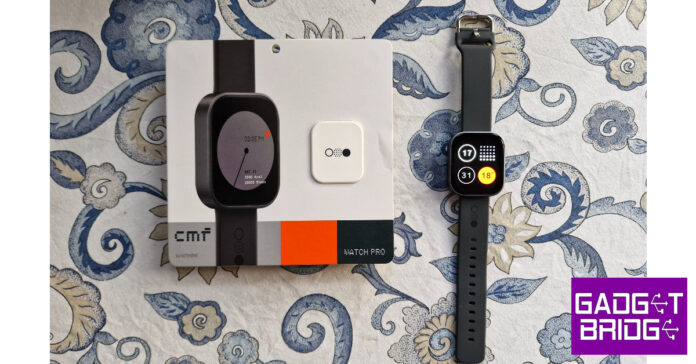
Price: Rs 4,499 on Flipkart CMF Watch Pro Review: A ‘Nothing’ special rather than nothing special Nothing’s venture into budget tech products with its subsidiary brand CMF has paid off quite well. We got our hands on its smartwatch a few weeks back and were thoroughly impressed with its clean, minimal look and comfortable fit. The 1.96-inch AMOLED display offers a great touch response and is quite snappy. The black and orange colour palette that dominates Nothing smartphones’ OS is also present on this watch, as is the dot matrix font. The CMF Watch Pro would make an excellent tech Diwali gift for the fitness freaks you know!

Philips HSP3500 Indoor Security Camera

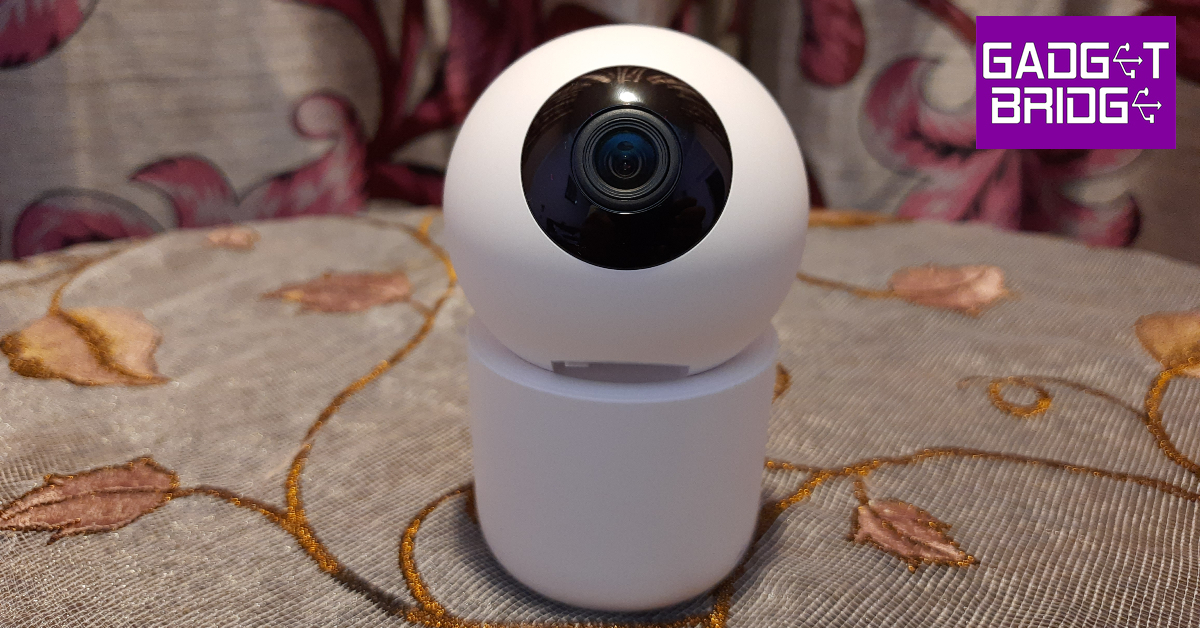
Price: Rs 3,699 on Philips.co.in Diwali Gifting Guide 2023: Best tech gifts for your loved ones This indoor security camera from Philips captures incredible 2K footage with exceptional clarity. We reviewed the HSP 3500 back in September and were pleased to see the range of functionality that Philips has offered on this security camera. It can be remotely controlled from the Philips Home Safety app. The controls are super accessible and easy to use. The camera has a 360° horizontal and 96° vertical field of view. The infrared LED lights on the camera boost its visibility when it is pitch dark.

HP Victus 16

Price: Rs 1,29,990 on HP.com HP Victus 16 2023 review: Perfect for work and gaming Diwali Gifting Guide 2023: Best tech gifts for your loved ones The new HP Victus 16 (2023) is powered by the Intel Core i5 13500HX and gets a 16.1-inch FHD display along with 32GB of RAM. GPU duties are handled by the Nvidia GeForce RTX 4050. The laptop comes with Windows 11 Home preinstalled on it. The 512GB PCIe Gen4 NVMe TLC M.2 SSD on this gaming laptop is swift and ultra-responsive. In our review, the HP Victus 16 scored 1,381 points on the single-core benchmark test and 7,851 on the multi-core test (Geekbench 6). The laptop returned an OpenCL score of 75,173 points. While its price may be a bit steep, the Victus 16 is one of the finer gaming devices out there.

Xiaomi Pad 6

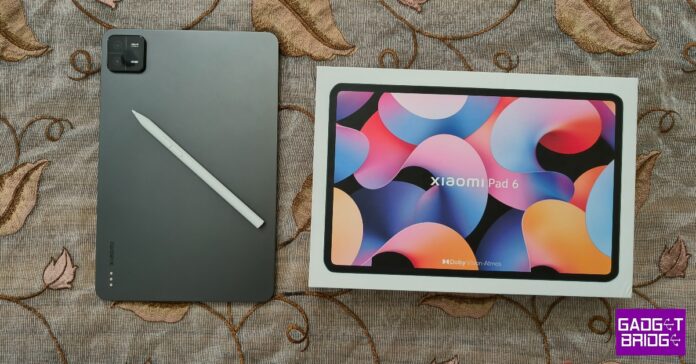
Price: Rs 26,999 on Mi.com Xiaomi Pad 6 Review Android tablets have seen a resurgence lately, and Xiaomi is well ahead of the pack. The Pad 6 from the Chinese manufacturer impresses on several fronts, be it the build quality or the 11-inch IPS LCD display. The Snapdragon 870 SoC under the hood of this tablet performs really well. The Xiaomi Pad 6 (our review here) is an excellent device for performing everyday tasks like web browsing, emailing, content watching, and video calling. Xiaomi’s Smart Pen works like a charm with this tablet. At Rs 26,999 the Pad 6 would make a great tech Diwali gift.

Kindle 2022

Price: Rs 9,999 on Amazon.in Kindle 2022 review: Performance Diwali Gifting Guide 2023: Best tech gifts for your loved ones Last year’s entry-level Kindle remains one of the best e-readers around. We reviewed it soon after it came out and were pleased to see it matched most of the specs found on the flagship Paperwhite. The Kindle has a 6-inch display and a screen resolution of 300 ppi (similar to Paperwhite and Oasis). What we really like about this variant of the Kindle is its portability which makes it the perfect travel companion. The 4 LED lights surrounding the screen are enough to light it up perfectly in pitch-dark surroundings. The 16GB internal storage space can accommodate up to 2 million books. Read our full review here.

JBL Go 2

Price: Rs 1,799 on Amazon JBL Go 2 Diwali Gifting Guide 2023: Best tech gifts for your loved ones Looking for affordable tech gifts this Diwali? The JBL Go 2 is a great option. Priced at just Rs 1,799, this ultra-portable Bluetooth speaker delivers a sound output of 3W and can easily fit inside your pocket. The speaker is completely waterproof, which means you can take it to pool parties without worrying about any water damage. The noise-cancelling speakerphone ensures disturbance-free calls with minimal noise. You can also plug in your phone to this speaker using an AUX cable if you don’t have the option to use Bluetooth. The JBL Go 2 offers a total playtime of 5 hours.

Sony WH-CH520

Price: Rs 5,990 Sony.co.in Sony WH-CH520 Review: A needed update that brings helpful features Diwali Gifting Guide 2023: Best tech gifts for your loved ones Ending our Diwali tech gift guide is the Sony WH-CH520. This pair of wireless headphones offers a comfortable fit along with a great sound output that can easily match any of the top-performing audio products in its price category. The audio output is delivered through 30mm dynamic drivers on either earcup. The functional range of the WH-CH520 is 10 metres. We really like that Sony has gone for physical buttons instead of touch-sensitive panels on these headphones. This completely eliminates any accidental triggers. Read our review here. Read Also: How to use Visual Lookup on your iPhone to find out what’s wrong with your car and other things?

Conclusion

These are our picks for the best tech gifts this Diwali festive season. Make sure you keep an eye on all the festive discounts this Diwali. Make sure to check GadgetBridge.com to know about all the lucrative deals across the board. Done with festive shopping already? Let us know about your tech haul in the comments!

Poco C65 with 50-megapixel dual camera setup launched globally

Key Highlights
  • The Poco C55 is a successor to Poco C55.
  • The smartphone includes a processor and battery similar to its predecessor.
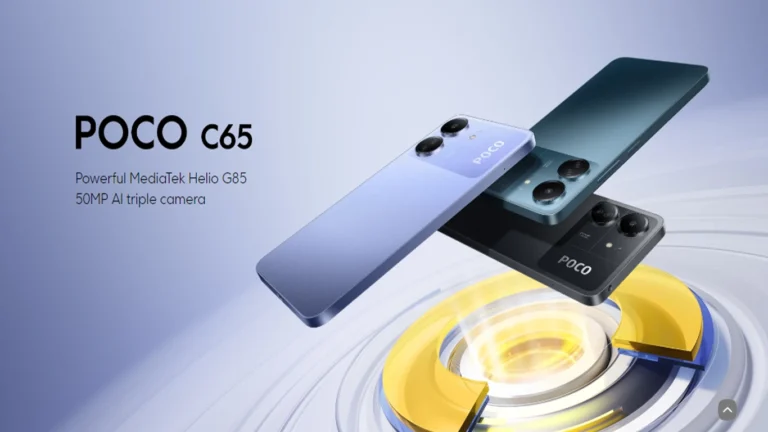
Xiaomi’s spin-off Poco has introduced a new smartphone to its C-Series. The company has launched Poco C65 globally. It is a successor to the Poco C55 which was released earlier this year. The smartphone comes with the same MediaTek Helio G85 SoC which powered its predecessor. In addition to this, the battery capacity is also the same as the C55. There is improvement in the camera department though.

Poco C65 pricing and availability

Poco C65 has been launched in two different configurations of 6GB RAM with 128GB storage priced at $129 which converts to Rs 10,700. Whereas the price of the 8GB RAM with 256GB storage is set at $149 which is approximately Rs 12,400. The device is being made available in three colour options of Black, Blue, and Purple. Poco C65 pricing and availability The company is also offering the 6GB RAM variant at $109 and the 8GB model at $129 which translates to Rs 9,100 and Rs 10,700 respectively as early bird offers. Also Read: Apple iPhone 14 can now be purchased for just Rs 6,749: Find out how

Poco C65 specifications, features

Poco C65 features a 6.74-inch HD+ display, with 1,600 x 720 pixels of resolution. It comes with an aspect ratio. Also, the phone supports a refresh rate of 90Hz. In addition to this, The display gets Corning Gorilla Glass protection. The budget smartphone is shipped with MIUI 14 for Poco on top of Android 13. It is powered by MediaTek Helio G85 SoC paired with an ARM Mali-G52 2EEMC2 GPU. The device is available with up to 8GB of LPDDR4X RAM and up to 256GB of eMMC 5.1 storage. The internal storage can be expanded up to 1TB via a microSD card. For photos and videos, Poco C65 sports a dual rear camera setup that includes a 50-megapixel primary sensor with an aperture of f/1.8. Additionally, it includes a 2-megapixel macro sensor with an aperture of f/2.4. The waterdrop notch at the centre of the display plays house to an 8-megapixel sensor with an aperture of f/2.0. In terms of connectivity, there is 4G VoLTE, Wi-Fi, Bluetooth 5.1, GPS, GLONASS, a 3.5mm audio jack and support for FM radio. The Poco phone comes equipped with a 5,000mAh battery that supports 18W wired fast charging via a micro USB port. A side-mounted fingerprint sensor is given to unlock the device.

Garena Free Fire Redeem Codes Today 7 November 2023: Here is how to claim them

Garena Free Fire is a battle royale game with regular awards and tournaments to keep players interested. If you play Garena Free Fire, you should be aware of the redeem codes that are released on a daily basis. However, because the battle royale game is banned in India, players from other countries can use the Free Fire Redeem codes daily. If you’re unfamiliar with the Garena Free Fire redeem codes or don’t know how to get them, we’ve put together a step-by-step guide to help you redeem them. Check out Garena Free Fire Redeem Codes for 7 November 2023. The Free Fire redeem codes are a great way to get free stuff. These are 12-digit codes that contain alphabets and numbers, as well as an expiration date and time. Because the Garena FF redeem codes cannot be used more than once, you should hurry to the redemption page to claim your free reward before someone else does. To get a free reward, all you have to do is go to reward.ff.garena.com/en, which is the official redemption page. Also, keep an eye on this space for daily updates on Garena Free Fire redemption codes and rewards.

Garena Free Fire Redeem Codes Today 7 November 2023

B4NR5J6IYUHJNMK IO9S8U7EY4H56JY KIH87UYTDGSBENR JK5I68YU7HGBNSM KIEUR5YTGBNVMCJ F8UYHGHTGK6LOIJ KWIE8UYFG8TBHZU AY76QT52RFD3VEB GKVI87EY6TGB5N6 YMUKHI8UB7TJHYI TUFMGK6IOF8D76T FFHNFTY6U5RGRJ6 HDFJCUY6TXRSEFV 4B5NTJYHUYTGDEV KI8S7UEYH45NYKH I876S5A4REQDFV2 B3J4URT7GY6TGBN DJEKI58U6JHNYHM

How to Get Free Fire Redeem Codes for Garena on 7 November 2023?

  • Visit the Garena Free Fire game’s official website at reward.ff.garena.com.
  • Use your Facebook, Google, VK, Apple ID, Huawei ID, or Twitter account to log in.
  • You’ll be taken to a valid redemption code (s)
  • Copy and paste the 12-digit redemption code into the text box.
  • On the screen, a dialogue box will appear.
  • ‘Ok’ should be selected.
For the latest gadget and tech news, and gadget reviews, follow us on TwitterFacebook and Instagram. For newest tech & gadget videos subscribe to our YouTube Channel. You can also stay up to date using the Gadget Bridge Android App. You can find the latest car and bike news here.

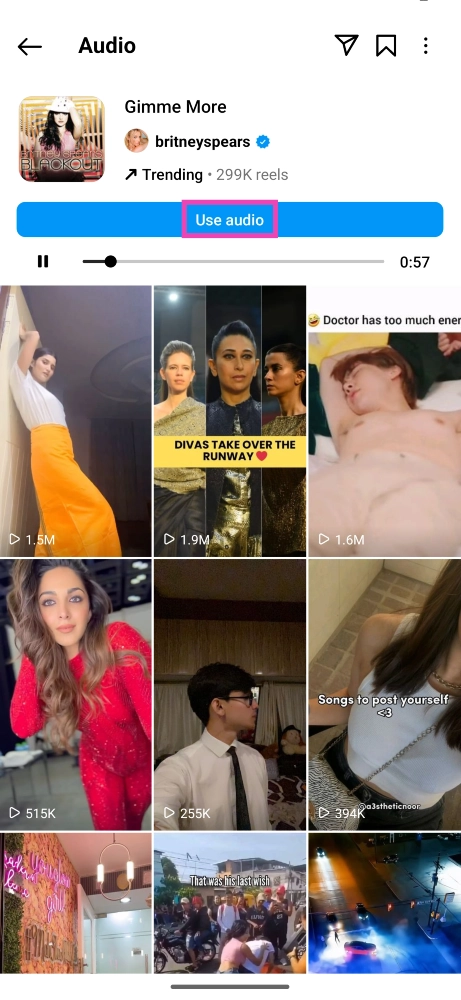
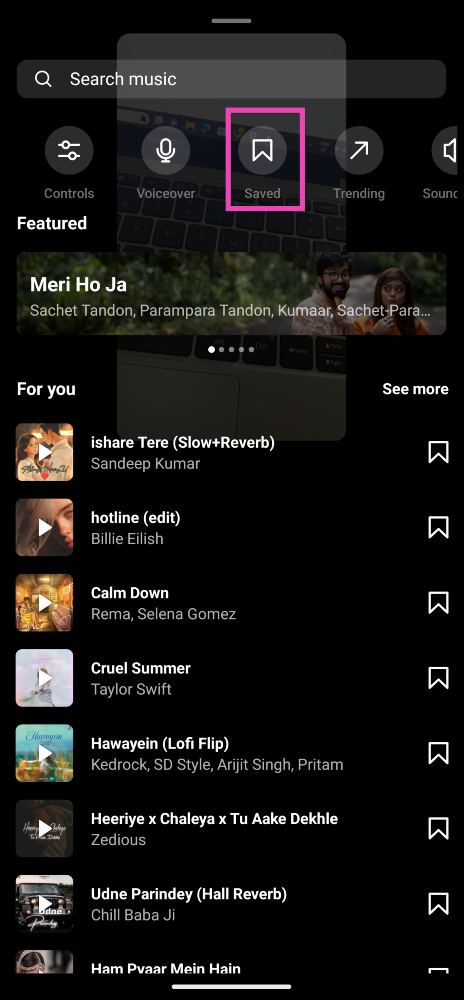
7 Best Ways to Add Music or Audio to Reels on Instagram

0
Your Reel’s background music or audio plays a crucial part in determining the number of viewers it will reach. Instagram promotes content that uses trending songs and audio bites. Once a song goes viral, viewers are more likely to stay on the Reels that use it. In this article, we bring you the top 7 ways to add music, audio, and voiceover to your Instagram Reels. Read Also: 6 Easy Ways to Fix the ‘Phone Date is Inaccurate’ Error on WhatsApp

Add music to your Instagram Reels

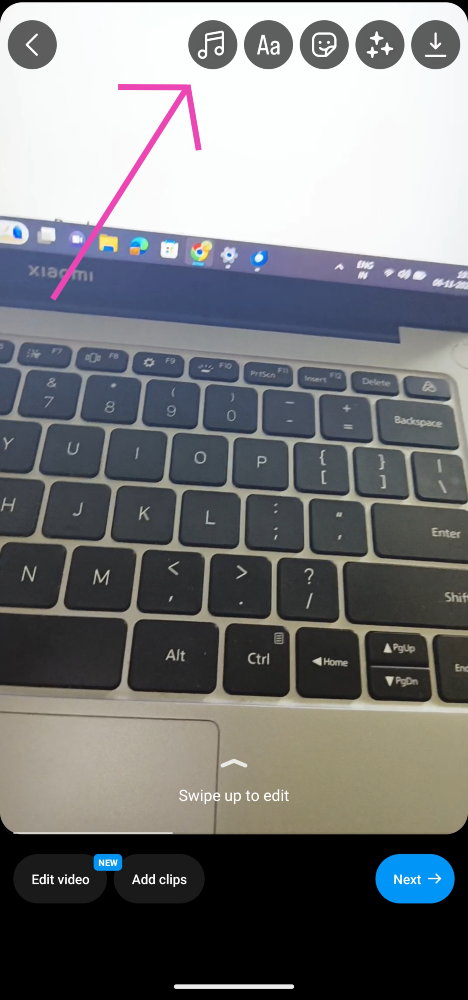
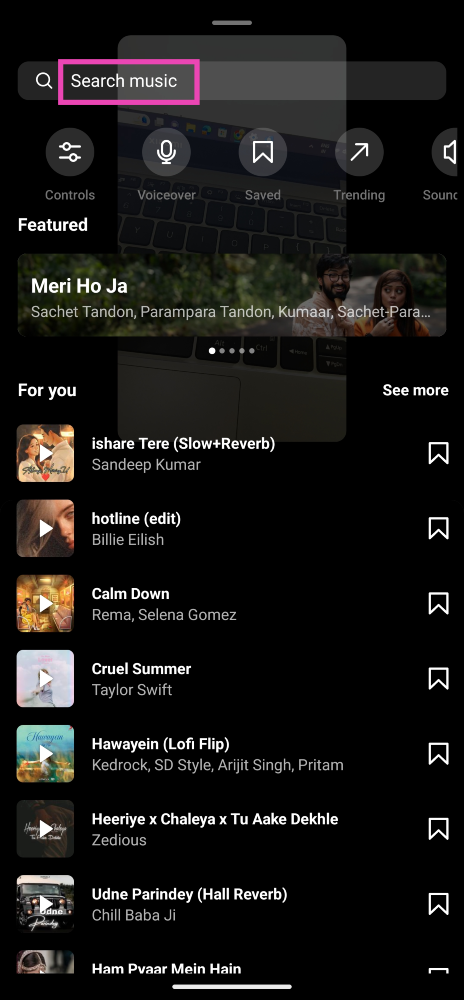
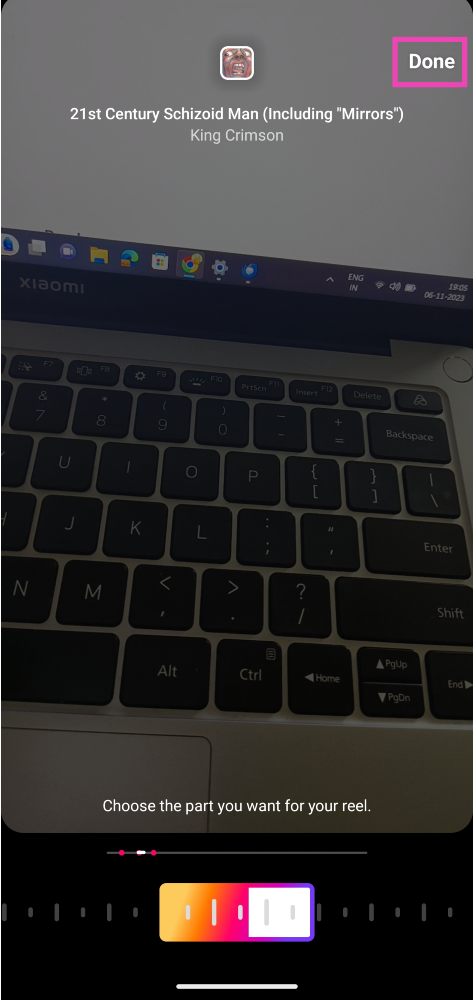
Step 1: Launch the Instagram app on your device and shoot a Reel. Step 2: Hit the music note icon at the top of the editing page. Step 2: Hit the music note icon at the top of the editing page. Step 3: Tap the search bar and enter the name of the song that you want to use on your Reel. Step 3: Tap the search bar and enter the name of the song that you want to use on your Reel. Step 4: Use the seek bar to select the portion of the song that you want as background music for your Reel. Step 4: Use the seek bar to select the portion of the song that you want as background music for your Reel. Step 5: Hit Done.

Add music before shooting the Reel

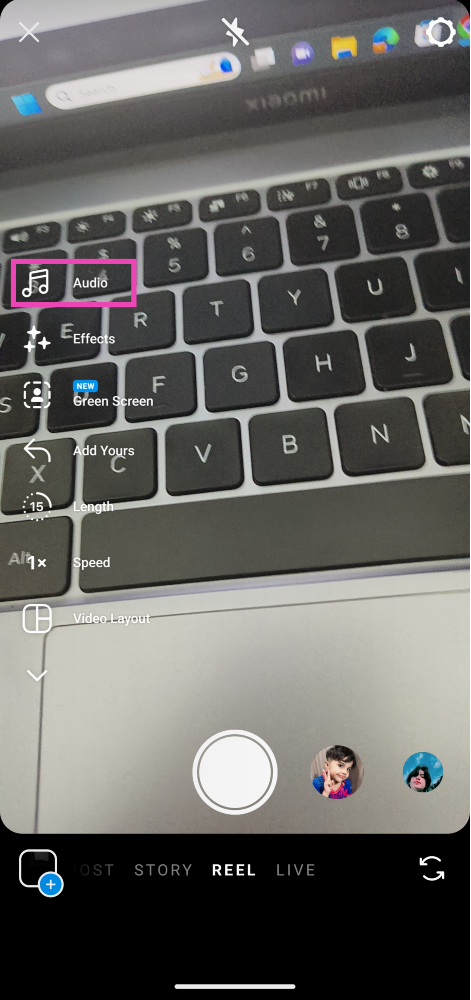
Some creators find it better to add music before shooting the Reel. This helps in matching the visuals with the background music. Here’s how you can do it. Step 1: Launch the Instagram app and swipe right to the creation page. Step 2: Switch to the Reel tab. Step 3: Hit the Audio option on the left of the page. Step 3: Hit the Audio option on the left of the page. Step 4: Select a trending song from the list or search for your desired song. Step 4: Select a trending song from the list or search for your desired song. Step 5: Use the seek bar to select the portion of the song that you want as background music for your Reel. Step 4: Use the seek bar to select the portion of the song that you want as background music for your Reel. Step 6: Hit Done.

Add trending music to your Reels

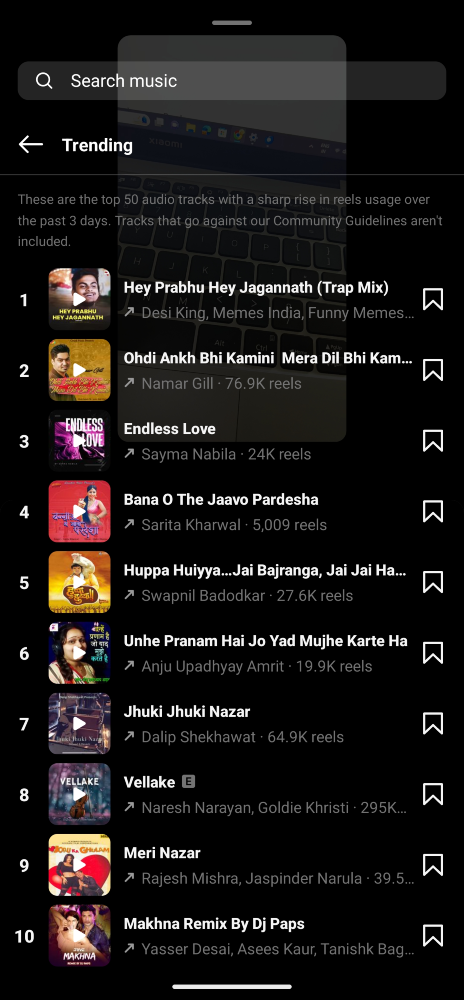
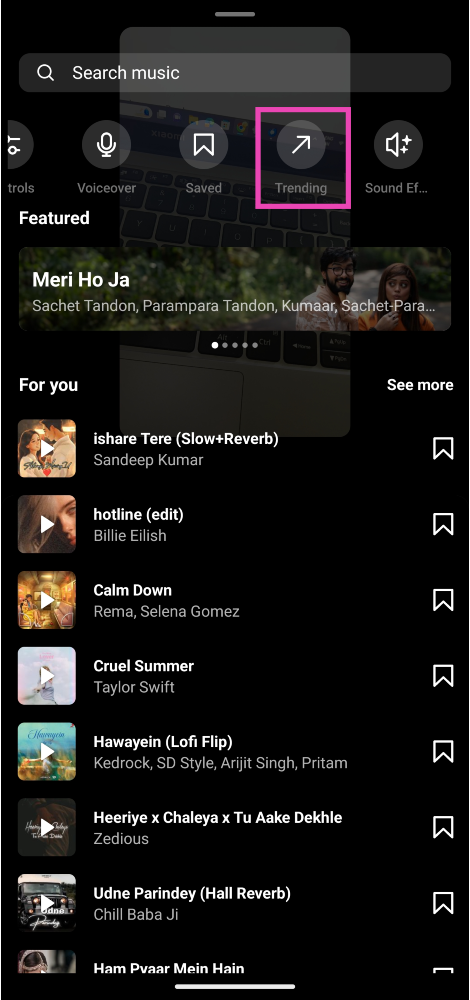
Instagram has a curated section for trending music that will help your Reels reach a wider audience. Here’s how you can use it on your phone. Step 1: Launch the Instagram app on your device and shoot a Reel. Step 2: Hit the music note icon at the top of the editing page. Step 2: Hit the music note icon at the top of the editing page. Step 3: Tap on Trending. Step 3: Tap on Trending. Step 4: Select a song from the list. Step 4: Select a trending song from the list or search for your desired song. Step 5: Use the seek bar to select the portion of the song that you want as background music for your Reel. Step 4: Use the seek bar to select the portion of the song that you want as background music for your Reel. Step 6: Hit Done.

Add a voiceover to your Reels

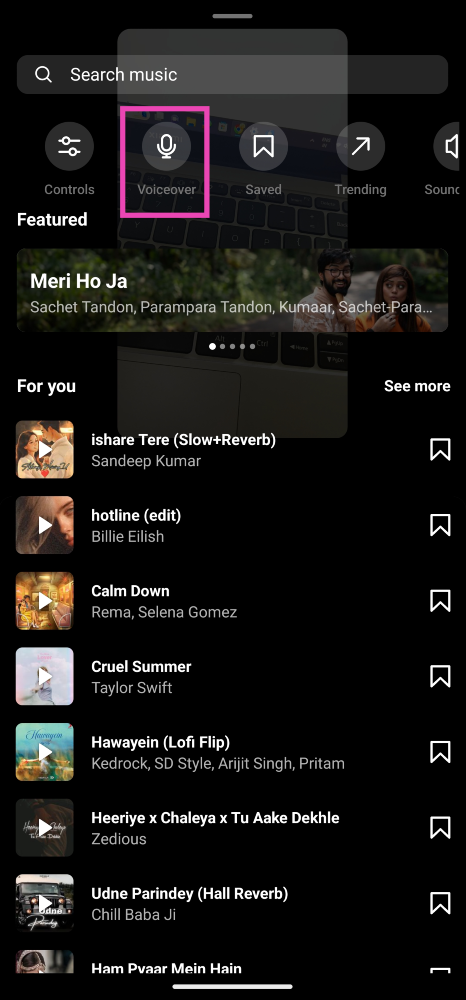
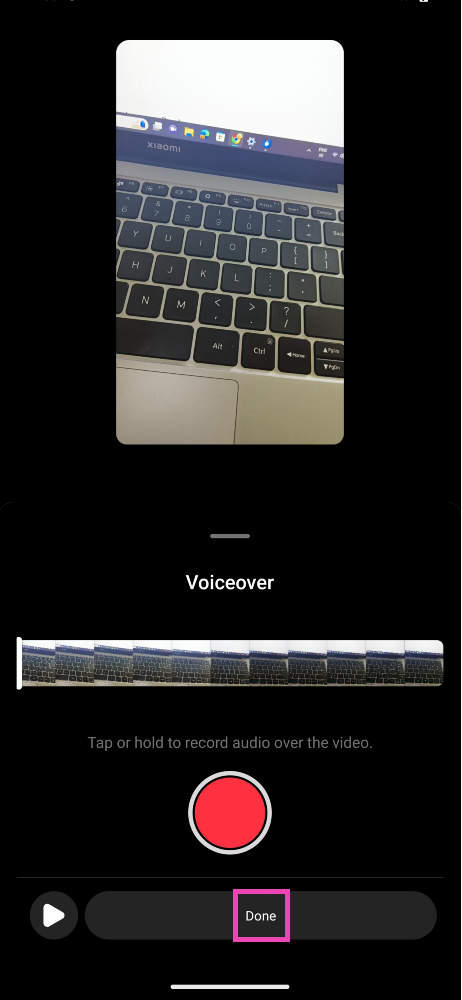
Step 1: Launch the Instagram app on your device and shoot a Reel. Step 2: Hit the music note icon at the top of the editing page. Step 2: Hit the music note icon at the top of the editing page. Step 3: Tap on Voiceover. Step 3: Tap on Voiceover. Step 4: Tap or hold the red button to record a voiceover for your Reel. Step 4: Tap or hold the red button to record a voiceover for your Reel. Step 5: Hit Done.

Add music from another Reel

Step 1: Launch the Instagram app and open the Reel from which you want to lift the music or audio. Step 2: Tap on the song title at the bottom of the page. Step 2: Tap on the song title at the bottom of the page. 7 Best Ways to Add Music or Audio to Reels on Instagram Step 3: Tap on Use audio. Step 3: Tap on Use audio. 7 Best Ways to Add Music or Audio to Reels on Instagram Step 4: Start shooting your Reel. The music or audio will be added to the background.

Add music from another streaming service

Can’t find your desired song in Instagram’s music library? There’s no need to worry. All you need to do is play the song on your phone while shooting the Reel and it will be incorporated as background music on the finished video. You can stream a song on Spotify or even play a saved audio file on your phone while shooting the Reel. This is a great way of adding your own music to your Reels.

Add music from your saved files on Instagram

Step 1: Launch the Instagram app on your device and shoot a Reel. Step 2: Hit the music note icon at the top of the editing page. Step 2: Hit the music note icon at the top of the editing page. 7 Best Ways to Add Music or Audio to Reels on Instagram Step 3: Tap on Saved. Step 3: Tap on Saved. 7 Best Ways to Add Music or Audio to Reels on Instagram Step 4: Select an audio file. Step 4: Select an audio file. 7 Best Ways to Add Music or Audio to Reels on Instagram Step 5: Use the seek bar to select the portion of the song that you want as background music for your Reel. Step 6: Hit Done.

Frequently Asked Questions (FAQs)

How do I add trending music to my Instagram Reels?

Once you’ve shot a Reel, hit the music note icon on the editing page, tap on trending, and select a song. On the next page, use the slider to select the portion of the song that you want as background music for your Reel. Hit Done once you’re satisfied with the result.

Can I add my original music to an Instagram Reel?

You can add your original music to your Reel by playing the song on your phone, then launching the Instagram app and recording the Reel. Instagram will use the song as background music.

How do I use the audio from another Reel as the background music for my own?

Open the Reel on Instagram and tap on the song or audio title at the bottom of the page. Select ‘Use audio’ on the following page and start shooting your Reel. Read Also: iPhone 14 is now available for as low as 15k during Flipkart’s Big Diwali Sale

Conclusion

These are the top 7 ways to add music, audio, and voiceover to your Instagram Reels. Instagram also gives you the option to add special sound effects to your Reels. You can find them on the editing page. To get ahead of the trend, find out which songs are on the rise on global charts and other apps like TikTok and use them for your Reels.

Best 65-inch TVs to enjoy watching movies with your family

Living rooms are built around the television set, so why not go for a large display to maximise your viewing experience? Unlike your bedroom or office, living room TVs are meant for group viewing, be it a movie or live sports. There are several large-screen TVs across different brands that can fill the void on your wall but if you’re looking for the best picks in every price category, you have landed on the right page. In this article, we bring you our picks for the best 65-inch TVs for enjoying watching movies with your family. Read Also: iPhone 14 is now available for as low as 15k during Flipkart’s Big Diwali Sale

Samsung S90C OLED (QA65S90CAKLXL)

Price: Rs 2,02,490 on Samsung.in Samsung S90C OLED (QA65S90CAKLXL) Samsung S90C OLED is one of the best 65-inch TVs you can buy right now. The OLED display panel on this TV generates deep blacks and stunning, vivid colours. The Neural Quantum Processor 4K brings the best out of the 4K pictures produced on the screen. What sets apart this TV from the competition is its ultra-slim form factor that oozes a lot of personality. Gamers will be pleased to know that the S90C supports motion enhancements up to 4K 144Hz, resulting in smooth, lag-free gameplay.

Sony Bravia X82L (KD-65X82L IN5)

Price: Rs 1,64,900 on Sony.co.in Sony Bravia X82L (KD-65X82L IN5) Powered by the 4K HRD Processor X1, Sony Bravia X82L produces stunning visuals and massively amps up the viewing experience. The X82L can upscale 2K videos to 4K using a unique 4K database to fill in the missing details. Sony continues to impress with the incredible surround sound to go along with the stunning visuals. The X82L uses Acoustic Auto Calibration to optimise the sound of the TV according to the positions of the objects in your room. Smart features like Google TV, Chromecast, and AirPlay support make this TV a complete package.

LG UR90 (65UR9050PSK)

Price: Rs 98,431 on LG.com LG UR90 (65UR9050PSK) LG UR90 employs the α5 AI Processor 4K Gen6 to deliver life-like visuals on screen. It can even upscale non-4K content to 4K resolution. The slim form factor ensures that the UR90 blends seamlessly into your living room like a perfectly placed portrait. One of our favourite features on the LG UR90 is the Game Optimiser 7 Dashboard. This is where you can find all your game-related settings without going through the hassle of navigating the TV’s display menu. You can also change the game genre settings very quickly from this dashboard.

Hisense 65A7H Tornado 2.0

Price: Rs 44,990 on Amazon Hisense 65A7H Tornado 2.0 Best 65-inch TVs for enjoying watching movies with your family Talking about more affordable options, the Hisense Tornado 2.0 is a good pick. Apart from delivering 4K resolution visuals, the 65A7H also rocks a 61W 3-speaker system from JBL. There are 3 HDMI ports on this TV to connect to set-top boxes, Blu-Ray players, and gaming consoles. Adding to the connectivity options are 2 USB ports, Dual Band Wi-Fi, and Bluetooth 5.1. With pixel tuning onboard, the Hisense 65A7H adjusts the visual output frame-by-frame in real-time, leading to a more immersive viewing experience.

TCL C645

Price: Rs 59,990 on Amazon TCL C645 Best 65-inch TVs for enjoying watching movies with your family If you’re looking for a good midrange 65-inch TV for your gaming needs, the TCL C645 fits the bill perfectly. This Smart TV supports 4K resolution and a refresh rate of 60Hz. Offering a response time of 6.5ms, the C645 ensures there are no lags, delays, or latency issues during gameplay. TCL’s Game Master unlocks this TV’s gaming potential with advanced display & audio tech and a smoother streaming experience. The bezel-less design of the C645 is perfect to go along with the immersive visuals.

Redmi X65

Price: Rs 57,999 on Mi.com Redmi X65 Best 65-inch TVs for enjoying watching movies with your family Over the years, Redmi has put out great Smart TVs that offer incredible value for money. The Redmi X65 is no exception. Belonging to the ‘X’ family of Redmi Smart TVs, the X65 offers a premium 4K viewing experience with HDR10+ support. The X65 is able to create a seamless flow of visuals with the MEMC Reality Flow which uses intelligent frame insertion to bring smoothness to sport footage. The two 30W speakers on this TV generate a solid sound output that envelopes the viewers perfectly. Redmi’s PatchWall TV OS brings all your favourite content to your home screen, eliminating the need to navigate to different OTT platforms. At Rs 57,999, the Redmi X65 is an excellent deal in our book.

OnePlus TV 65 Q2 Pro

Price: Rs 94,999 on OnePlus.in OnePlus TV 65 Q2 Pro Best 65-inch TVs for enjoying watching movies with your family OnePlus’ foray into the premium TV segment was something we could have all seen coming after the brand gained a solid footing in the midrange category. The 65-inch Q2 Pro is OnePlus at its best – a great mix of exemplary hardware and clever tuning. The Q2 Pro offers a variable refresh rate of 120Hz and syncs the frame rate to match it. The Advanced MEMC tech aids the smooth flow of visuals on the screen. The sound system on this TV delivers a combined 70W output, with 40W coming from the Horizon Soundbar and 30W from the subwoofer. OnePlus smartphone, tablet, and TWS users will also be able to access the special ecosystem features on the Q2 Pro. Read Also: 10 Cool Gadgets Every College Student Must Have to Help Make Campus Living a Breeze

Conclusion

These are our picks for the best 65-inch TVs for enjoying watching movies with your family. Since the festive season is upon us, you will be able to get significant Diwali discounts on some of these picks. Make sure to check GadgetBridge.com for Diwali gifting guides! If you think we missed out on a TV that deserves a spot on this list, let us know in the comments!

Elon Musk launched its first AI chatbot, Grok

Key Highlights
  • xAI started developing Grok four months ago.
  • It is the company’s first AI model based on a new large language model (LLM).
  • The AI chatbot went through many iterations.
  • It is only available to a small number of users.
Microblogging platform X, previously known as Twitter’s owner, Elon Musk, has entered the world of artificial intelligence. He has introduced its first AI model, called Grok. The new AI model has been developed by xAI. Elon Musk has officially announced the rollout of its first AI model, Grok. The chatbot is designed to answer anything and is modelled after the Hitchhiker’s Guide to the Galaxy. As per the blog post, the AI model will not only answer but will also suggest questions to ask. It is said that Grok has all the real-time knowledge of the world thanks to the X platform. Moreover, the AI chatbot will also answer spicy questions that are rejected by most other AI systems. As per the company, the new AI model, Grok, is a prototype and is available to selected users. “Grok is still a very early beta product—the best we could do with 2 months of training—so expect it to improve rapidly with each passing week with your help,” the xAI Team noted. Grok is powered by LLM, which was developed over the last four months. As per the startup, it trained a prototype LLM (Grok-0) with 33 billion parameters. Its capability was tested with a series of evaluations using a few standard machine learning benchmarks designed to measure math and reasoning abilities. Also Read: Apple iPhone 14 can now be purchased for just Rs 6,749: Find out how It managed to score 62 percent on GSM8k, 73 percent on MMLU, and 63.2 percent on HumanEval. Furthermore, on MATH, it managed to score 23.9 percent. The xAI said, “On these benchmarks, Grok-1 displayed strong results, surpassing all other models in its compute class, including ChatGPT-3.5 and Inflection-1. It is only surpassed by models that were trained with a significantly larger amount of training data and compute resources, like GPT-4. This showcases the rapid progress we are making at xAI in training LLMs with exceptional efficiency.” In addition to this, the AI chatbot was able to score a C (59%) on the Hungarian National High School Math Exam (May 2023). According to the company, it has given Grok access to search tools and real-time information; however, there are still chances that the AI model can generate false or contradictory information. As mentioned earlier, Grok is in the developmental phase, so the company is asking for human feedback, which will help improve the overall experience.

Grok Availability

As of now, Grok Chatbot’s features are being offered to a limited number of users in the United States. Users can access the Grok prototype and provide valuable feedback. Those who are interested can join the Grok waitlist here. The company said that it will be rolling out a new feature in the coming month, but it didn’t open up about the wider release of the AI model.

Here is how to get Rs 43,500 off on iPhone 14 Plus on Flipkart

Key Highlights
  • The e-commerce platform is offering up to Rs 42,000 exchange discount on the iPhone.
  • The original price of the iPhone 14 Plus is Rs 79,990.
Flipkart’s Big Diwali Sale is live. The company is offering a lot of offers on iPhones. The e-commerce platform is now providing up to Rs 42,000 off on iPhone 14 at the same time you can also avail Rs 43,500 off on iPhone 14 Plus. To know how, check out the details below. Here is how to get Rs 43,500 off on iPhone 14 Plus on Flipkart The iPhone 14 Plus was originally priced at Rs 79,990. During the ongoing Flipkart Big Diwali Sale, you can now purchase it for as low as Rs 20,499. Flipkart is selling the iPhone 14 Plus for Rs 63,999 after a discount of Rs 15,991. Besides this, customers can also receive a Rs 1,500 instant discount using SBI credit card EMI transactions. In addition to this, if you are upgrading from an older smartphone, you can get an exchange discount of up to Rs 42,000. However, this additional exchange discount depends on the build and state of your old smartphone. After applying all the above-mentioned offers, the price of your iPhone 14 Plus will come down to Rs 20,499. Also Read: How to use Visual Lookup on your iPhone to find out what’s wrong with your car and other things? The device comes in four colour options: blue, purple, midnight, starlight, and red. It features a 6.7-inch Super Retina XDR OLED screen. The display offers a wide colour gamut, HDR, and 1200 nits of brightness. In addition to this, it comes with a pixel density of 460 ppi, and there is support for a 60 Hz refresh rate. The screen is protected with a ceramic shield front cover that is water- and dust-resistant. The iPhone 14 Plus also includes Face ID and is built to IP68 standards for water and dust protection. Under the hood, there is an Apple A15 Bionic SoC and up to 512GB of internal storage. The device runs on iOS 16. For taking photos and videos, the iPhone 14 Plus sports a dual rear camera setup with a 12MP wide-angle sensor with a bigger f/1.5 aperture, sensor-shift OIS, and a secondary 12MP ultra-wide-angle sensor. The ultra-wide camera provides a distinctive viewpoint for broader views and enhances low-light images using a Photonic Engine. For selfies and video calls, the front camera has a 12 MP sensor with autofocus.

How to use Visual Lookup on your iPhone to find out what’s wrong with your car and other things?

0
First introduced in iOS 16, Visual Lookup is Apple’s answer to Google Lens. This nifty feature lets you know more about the objects in the images you take. This year, Apple has expanded Visual Lookup’s object detection and even added support for special scenarios. The result is a more seamless and intuitive tool that works perfectly in tandem with real-life objects. People who aren’t accustomed to their car’s display are going to love this feature as it can easily recognise all the signs and symbols on the dashboard and tell you what’s wrong with your car. In this article, we show you how to use Visual Lookup on your iPhone. Read Also: Google Pixel 8 Pro 256GB storage variant listed on Flipkart, now available for purchase

Use Visual Lookup on your iPhone

Use Visual Lookup on your iPhone You can use Visual Lookup on your iPhone to identify any tag, sign, or instructional diagram. It can be put to good use if you want to decipher the washing instructions on the back of your sweater or can’t understand the confusing signs on your car’s display. Here’s what you need to do. Step 1: Take a picture of the signs that you need to decipher. If you don’t know what’s wrong with your car, take a picture of the driver’s display. Step 2: Open the picture in the Photos app on your iPhone. Step 3: Tap the info icon at the bottom toolbar. For images of the driver’s display, you will see a steering wheel icon instead of the info icon. Step 3: Tap the info icon at the bottom toolbar. For images of the driver’s display, you will see a steering wheel icon instead of the info icon. Step 4: You will be able to view the image metadata and other details on the pop-up page. Your iPhone will also detect the objects in the picture. To know more about them, tap on ‘Look up’. Step 5: Once you select Look Up, your iPhone will give you more details about the picture.

Frequently Asked Questions (FAQs)

What is Visual Lookup on iPhone?

Introduced on iOS 16, Visual Lookup allows iPhone users to know more about the objects, pets, signs, and symbols in the photos they take. Apple expanded this feature on iOS 17, giving it the ability to completely decipher common templates like washing instructions, car displays, and more.

Does Visual Lookup work on videos?

Yes, you can pause the video to learn more about the objects and signs on a particular frame using visual lookup.

Can Apple’s Visual Lookup identify signs in languages other than English?

Visual Lookup currently works for Spanish, Italian, Japanese, French, German, and English. Apple will be adding support for other languages soon. Read Also: Instagram users can now add Song Lyrics to their Reels just like Stories

Conclusion

This is how you can use Visual Lookup on your iPhone to identify common objects, signs, symbols, and more in pictures. Once your iPhone recognises an object, the info icon on the bottom toolbar changes into a customised icon reflecting the theme of the object. For pictures of pets, it will turn into a dog icon. Similarly, it will get special icons for wash manuals and car displays.