Samsung Galaxy S24 Series is now up for sale in India.
The series includes Samsung Galaxy S24, Galaxy S24+, and Galaxy S24 Ultra.
The Galaxy S24 series is being manufactured at Samsung’s Noida factory in the country.
Samsung Galaxy S24 Series was recently announced in India and today it has gone on sale for the first time. The company has not only announced the sale it even revealed the launch offers. The lineup includes three models Samsung Galaxy S24, Galaxy S24+, and Galaxy S24 Ultra. All the models in the Galaxy S24 Series are powered by the Snapdragon 8 Gen 3 Mobile Platform for Galaxy. They operate on Android 14-based One UI 6.1. The AMOLED screen on the devices supports a 120Hz refresh rate. All the phones come with Galaxy AI features including Live Translate, Interpreter, Chat Assist, Note Assist and Transcript Assist features.
In This Article
Samsung Galaxy S24 Series price in India, launch offers
Samsung Galaxy S24, Galaxy S24+, and Galaxy S24 Ultra are now up for sale in India.
The Galaxy S24 Ultra will come in three different configurations:
Benefits worth Rs 12,000 are offered to customers who buy Galaxy S24 Ultra and Galaxy S24+, while incentives worth Rs 10000 or Rs 5000 Upgrade Bonus + Rs 5000 Bank Cashback are available to those who buy Galaxy S24. On the purchase of the S24 Series, customers can also choose No Cost EMI for up to 24 months.
For online buyers, Samsung will offer three exclusive colours for Ultra: Titanium Blue, Titanium Green and Titanium Orange. Whereas, those buying the Galaxy S24 and S24 Plus from samsung.com will get the option of two exclusive colours: Sapphire Blue and Jade Green.
However, the Galaxy S24 is available in Amber Yellow, Cobalt Violet, Onyx, and Black colour options. The Galaxy S24 Plus comes in Cobalt Violet and Onyx Black whereas the Ultra variant is offered in Titanium Gray, Titanium Violet, Titanium Black and Titanium Gray colourways.
Samsung Galaxy S24 Series specifications
The Samsung Galaxy S24 Ultra sports a 6.8-inch QHD+ Dynamic AMOLED 2X Display with a Super Smooth 120Hz refresh rate (1~120Hz), 2,600nit peak brightness, and a Vision booster. The screen has a layer of Corning Gorilla Armor for protection. In contrast, the Galaxy S24 and S24+ come with 6.2-inch FHD+ and 6.7-inch QHD+ Dynamic AMOLED 2X displays, respectively.
Galaxy S24 Ultra
The Galaxy S24 Ultra comes with a S Pen stylus. In addition to this, all the variables include Samsung Knox, Knox Vault, and Passkeys.
Samsung Galaxy S24 Series comes equipped with Snapdragon 8 Gen 3 Mobile Platform for Galaxy. Only the Ultra Variant is powered by the Qualcomm processor in India, whereas the other two models house an Exynos 2400 SoC. The smartphone will be shipped with Android 14 with UI 6.1. The company will provide seven generations of OS upgrades and seven years of security updates.
Galaxy S24 Ultra features a quad rear camera setup that includes a 12MP Ultra-Wide Camera (F2.2 aperture, FOV-120˚), 200MP Wide Camera (OIS, F1.7 Aperture, and FOV-85˚), 50MP Telephoto Camera (5x Optical Zoom, OIS, F3.4 aperture, and FOV of 22˚) and a 10MP Telephoto Camera (3x Optical Zoom, OIS, F2.4 aperture, and FOV 36˚).
Whereas both the Galaxy S24 and Galaxy S24+ come with a triple rear camera setup that includes a 12MP Ultra-Wide Camera (F2.2, FOV 120˚), 50MP Wide Camera (OIS F1.8, FOV 85˚) and a 10MP Telephoto Camera (3x Optical Zoom, F2.4, FOV 36˚). All the models come with a 12MP selfie camera (F2.2, FOV 80˚).
Galaxy S24 Ultra+
Besides this, all the phones in the Galaxy S24 Series come pre-loaded with Live Translate, Interpreter, Chat Assist, Note Assist, Transcript Assist, and Circle to Search, powered by built-in AI features. AI built into Samsung Keyboard can also translate messages in real-time in 13 languages, including Hindi. In the car, Android Auto will automatically summarise incoming messages and suggest relevant replies and actions.
The device will be available via Amazon in the country.
The phone comes with a triple rear camera setup and a 90 Hz display.
The Chinese smartphone brand Tecno has introduced a new smartphone Tecno Spark 20 in India. The new phone’s greatest feature is that it is reasonably priced and includes 25GB of internal storage. A MediaTek Helio G85 chipset powers the device. It packs a 5,000mAh battery with 18W charging support. The phone features a 90Hz display and a dual rear camera set up with a 50-megapixel sensor.
In This Article
Tecno Spark 20 price in India and sale details
The Tecno Spark 20 has launched in India in a single 8GB RAM with 256GB of internal storage option priced at Rs 10,499. The device comes in four colour options of Cyber White, Gravity Black, Magic Skin 2.0 Blue, and Neon Gold. The smartphone is scheduled to go on sale via Amazon in the country on February 2.
With the purchase of every Tecno Spark 20, the company is offering an extended free annual OTTPlay subscription worth Rs. 4,897. This subscription includes access to 19 OTT sites, including Fancode, SonyLIV, Zee5, and Lionsgate Play.
Tecno Spark 20 specifications
Tecno Spark 20 is highlighted with a 6.6-inch HD+ LCD screen with 720 x 1,612 pixels of resolution. The screen supports a refresh rate of 90Hz. The screen also features a Dynamic Port similar to Apple’s Dynamic Island. It displays notifications and animations. Under its hood, there is MediaTek Helio G85 SoC with 8GB of RAM that can additionally expand up to 16GB via RAM expansion feature. The device includes 256GB of storage that can be further expanded up to 1TB using a microSD card. For the software, the phone comes pre-installed with HiOS 13 with Android 13 on top.
Tecno Spark 20 sports a triple rear camera setup that includes a 50-megapixel primary rear sensor and an unnamed sensor. For selfies and video calling the device features a 32-megapixel front-facing camera.
The mobile phone also includes stereo speakers with DTS audio and has an IP53 rating for dust and splash resistance. The smartphone houses a 5,000mAh battery with 18W wired charging support.
Third-party apps to download YouTube aren’t as common on the App Store as they were before. If you want to download a YouTube video, your options are pretty limited. Most of the online tools push a lot of ads, which can get super annoying when you want to download a video quickly. Fortunately, there are some methods that do the job without creating a hassle or pushing intrusive ads on your device. Today, we bring you the top 4 ways to download YouTube videos on an iPhone.
Strictly speaking, no. But that doesn’t mean you will get in trouble for it. YouTube’s copyright policy strictly disallows users to download videos from the platform. Any ‘downloader’ apps for YouTube are swiftly taken down from the App Store and the Google Play Store. With a YouTube Premium subscription, users can officially ‘download’ a video, but they can only access it from the YouTube app. There is no legal way to download the video file on your device’s storage.
Luckily, a couple of workarounds make it easy to save any video file on your iPhone. While these methods aren’t ‘legal’, you won’t get in trouble as long as you are using the downloaded files for personal entertainment. Distributing or publishing the videos somewhere else is a direct violation of YouTube’s copyright laws.
Use the JAYD Shortcut
Step 1: Download the Just Another YouTube Downloader (JAYD) Shortcut on your iPhone using this link.
Step 2:Paste the YouTube video link in the download box.
Step 3:Long press the download button and select Download Linked File.
The video will be saved in the Downloads folder. While this method works fine, it is still better to use the Documents app by Readdle as it offers a much smoother way to save the video file on your iPhone. On Safari, you may get exposed to intrusive ads.
Use YouTube Premium
If you’re looking for an official way to download YouTube videos, you will need a Premium membership. YouTube Premium subscribers can download any video on the platform and access it on the app even without internet access. The videos are stored in the ‘Downloads’ folder in the YouTube app. After 30 days, the videos are removed from the folder unless you download them again. The only downside to using this method is that the video file doesn’t get downloaded to your iPhone’s camera roll and you lose access to your downloads as soon as your Premium subscription expires.
Frequently Asked Questions (FAQs)
How do I download YouTube videos on my iPhone?
The easiest way to download YouTube videos on your iPhone is by using the JAYD Shortcut. This shortcut requires you to install the Scriptable app on your iPhone for proper functioning. Once Scriptable is downloaded, copy the YouTube video link and tap the JAYD shortcut to initiate the download.
How do I save a YouTube video to the camera roll on my iPhone?
Launch the Documents app by Readdle and use its browser to download a YouTube video. Once the video has been saved in the Downloads folder, use the app to move it to your iPhone’s camera roll.
How much does a YouTube Premium subscription cost?
The standard YouTube Premium subscription costs Rs 129 per month. The family plan is priced at Rs 189 per month for 5 members while the student package fetches Rs 89 per month.
These are the top 4 ways to download YouTube videos on your iPhone. If you don’t want the hassle of selecting a website that downloads YouTube videos and then going through all the ads, the JAYD shortcut should suit you well. If you know of any other way to accomplish this task, let us know in the comments!
The laptop is available in two processor options, Intel Core Ultra 5 125H and Intel Core Ultra 7 155H.
The laptop supports 100W charging.
Acer has updated the Swift Go 14 model in India with Intel’s most recent Intel Core Ultra 5 & 7 CPUs offering enhanced AI capabilities. The machine also features an OLED panel with a resolution of 2.8K. The laptop is claimed to offer up to 12.5 hours of battery life.
In This Article
Acer Swift Go 14 price in India, sale details
Acer Swift Go 14 comes in a single Pure Silver colour variant. The device comes in two models:
Price of Acer Swift Go 14 with Intel Core Ultra 5 CPU: Rs 84,990
Price of Acer Swift Go 14 with Intel Core Ultra 7 CPU: Rs 99,990
Both variants will be available exclusively on Flipkart.
Acer Swift Go 14 specifications
Acer Swift Go 14 is the first laptop with AI capabilities, in India. The new Intel Core Ultra processors and Intel AI Boost, which combine power-efficient AI acceleration with an Intel Arc GPU, power the AI features of the device. These features are enhanced by Acer AlterView, Acer AI Zone, Microsoft Copilot in Windows, Acer PurifiedVoice 2.0’s noise reduction, and Acer PurifiedView video enhancement technology.
The laptop has a 14-inch OLED panel with a 2.8K (2,880 x 18,000 pixels) resolution and a 16:10 aspect ratio. The IPS LED supports a 90Hz refresh rate and 400 nits peak brightness. Acer Swift Go 14 comes with two processor options, Intel Core Ultra 5 125H and Intel Core Ultra 7 155H. The models also come integrated with Intel Arc GPU with 16GB of LPDDR5X RAM and up to 1TB of PCIe 4.0 NVMe SSD storage.
It introduces Applied AI features like Acer QuickPanel, streamlining adjustments for PurifiedView and PurifiedVoice AI effects during e-meetings. Users may customise options within the app, and it offers quick settings with automatic launch and camera integration.
LifeConnect efficiently manages Wifi resources, and the Generative AI features, coupled with GIMP free & open-source raster graphics editor, enable seamless integration with the Intel Stable Diffusion Plugin for effortless generation of art, illustrations, and images using simple text input. Instant background removal is possible with Acer LiveArt, a feature of Acer AI Zone.
The Swift Go is equipped with Alter View, generating depth maps for 2D images, enabling users to personalise live wallpapers with an engaging dynamic parallax effect. The laptop also has an AI Assistant feature and an AcerSense utility app for effortless navigation and maintenance.
It also has the Intel Killer Intelligence Centre, which allows users to customise quick settings, receive system improvement recommendations, and effortlessly switch between multimedia and creator modes.
The Swift Go 14 features a 1440p QHD webcam and USB-C port up to 100W quick charging capacity.
Garena Free Fire is a battle royale game with regular awards and tournaments to keep players interested. If you play Garena Free Fire, you should be aware of the redeem codes that are released on a daily basis. However, because the battle royale game is banned in India, players from other countries can use the Free Fire Redeem codes daily. If you’re unfamiliar with the Garena Free Fire redeem codes or don’t know how to get them, we’ve put together a step-by-step guide to help you redeem them. Check out Garena Free Fire Redeem Codes for 31 January 2024.
The Free Fire redeem codes are a great way to get free stuff. These are 12-digit codes that contain alphabets and numbers, as well as an expiration date and time. Because the Garena FF redeem codes cannot be used more than once, you should hurry to the redemption page to claim your free reward before someone else does. To get a free reward, all you have to do is go to reward.ff.garena.com/en, which is the official redemption page. Also, keep an eye on this space for daily updates on Garena Free Fire redemption codes and rewards.
In This Article
Garena Free Fire Redeem Codes Today 31 January 2024
Have you ever wanted to limit someone’s access to your smartphone? If you’re confronted with a situation where someone needs to use your phone for a while, you don’t need to rely on good faith that they will not access anything else on your device. Instead, you can simply limit their access to a particular app on your phone. In this scenario, the touch gestures that minimise the app will be rendered unresponsive. Today, we show you how to disable your iPhone’s touchscreen.
Guided Access is the iOS equivalent of Android’s app pinning. The idea is simple – once turned on, Guided Access locks the app on the phone’s display, preventing the user from browsing to other apps. This comes in useful when you need to hand over your phone to someone else, but don’t want them snooping on your phone.
It can also be used to limit the content that your kids have access to on the iPhone. To make sure they don’t stray to other apps while watching YouTube, you can lock a particular video using Guided Access. This can also be used to prevent accidental touches while binge-watching content on your smartphone.
Disable your iPhone’s touchscreen using Guided Access
Step 1: Go to Settings.
Step 2: Tap on Accessibility.
Step 3: Scroll down and select Guided Access.
Step 4: Turn on the toggle switch for Guided Access.
Step 5:Launch the app that you wish to lock.
Step 6: On an iPhone X or later device, triple-press the side button. On an iPhone 8 or earlier, triple-press the Home button.
Step 7: Turn off the toggle switch for Touch to disable the touchscreen.
Step 8: Hit Start at the top right corner of the screen. If you haven’t set up a Guided Access passcode, make one now.
Step 1: Triple-press the side key/home button on your iPhone.
Step 2: Enter the Guided Access passcode.
Step 3: Hit End at the top left corner of the screen.
Frequently Asked Questions (FAQs)
Is there a way to disable my iPhone’s touchscreen?
You can disable your iPhone’s touchscreen using Guided Access. Go to Settings>Accessibility>Guided Access and turn on its toggle switch. Then, go to an app and triple-press the side button. In the popup menu, turn on the toggle switch for ‘Touch’ and hit ‘Save’.
How do I turn off Guided Access?
Triple-press the side key and hit ‘End’ at the top left corner of the screen. Enter your Guided Access passcode to validate your action.
How do I disable my Android phone’s display?
Go to Settings>Biometrics and security>Other security settings>Pin windows. Open an app and pin it to the screen to disable the swipe gestures for it. This app will be locked on your phone’s display.
This is how you can disable the touchscreen on your iPhone. You can use Guided Access to freeze any app on your phone’s display. If you want to prevent accidental touches while watching movies and TV shows on your iPhone, use the native screen lock feature provided by major OTT apps like Netflix, Prime Video, and Hotstar.
Flagship smartphones are getting more expensive by the year. If you’re a casual user, a $1200 premium smartphone may not be for you. At half the price you can buy a solid smartphone that produces flagship-grade results with its main camera and sports an impressive AMOLED display. While the SoCs are still a step behind in this price range, they are perfectly equipped to handle routine tasks without any hiccups. So, without further ado, let’s take a look at the top 10 smartphones you can buy for under $500 in the USA (2024).
Released alongside the flagship OnePlus 12, the 12R is a low-cost alternative that packs a lot of power. Last year’s flagship Snapdragon 8 Gen 2 chipset is an excellent addition to the OnePlus 12R. It gets a premium 6.74-inch LTPO4 AMOLED display which is only a fraction smaller than the one on the OnePlus 12. Regarding cameras, the OnePlus 12R gets a 50MP primary shooter, an 8MP ultrawide lens, and a 2MP macro sensor which replaces the telephoto lens in the camera module. The smartphone comes with an 80W charging brick which can fully charge it in just 30 minutes.
Samsung’s 2022 mid-ranger, Galaxy A54, remains one of the best smartphones you can buy under $500 right now. Sure, the Exynos 1380 may not be the most powerful chipset out there, but it delivers a decent performance on this smartphone. We reviewed the smartphone back when it was released and were pleased with how it handled routine tasks. The primary camera’s performance was very close to flagship grade. The stunning 6.4-inch Super AMOLED display is as smooth as it gets. On top of that, the smartphone is rated IP67 for dust and water resistance. With 4 years of OS upgrades and 5 years of security patches promised by Samsung, the Galaxy A54 is an incredible deal at this price point.
Google’s new affordable flagship alternative smartphone is priced at $500. It retains the Tensor G3 processor from the Pixel 8 Series. The form factor isn’t too dissimilar either as the 8a sports the familiar rounded edges. The 6.1-inch OLED display is surrounded by thick bezels but it rocks a refresh rate of 120Hz and 2,000 nits of peak brightness. The dual camera array at the back comprises a 64MP primary shooter and a 13MP ultrawide lens. The battery gets a slight boost too, as the Pixel 8a sports a 4,492 mAh unit. The smartphone also supports 7.5W wireless charging.
Nothing’s affordable offering, 2a, has all the makings of a rock-solid smartphone. It is powered by the efficient MediaTek Dimensity 7200 Pro SoC and flaunts a 6.7-inch AMOLED display with a maximum refresh rate of 120Hz. Being a Nothing product, it gets a see-through back, although not as transparent and well-defined as the company’s flagship Phone (2). Talking about the cameras, the Phone 2a gets a 50MP primary shooter and another 50MP ultrawide lens. It packs a 5,000 mAh battery which can be charged up to 50% in 23 minutes. Read our review of the smartphone here.
Looking for a folding phone under $500? The 3rd-gen Motorola Razr is your best option. This smartphone features a 1.5-inch AMOLED cover display and a 6.9-inch LTPO AMOLED inner display. Powering this foldable is the Snapdragon 7 Gen 1 SoC. Camera duties are handled by a 64MP wide lens and a 13MP ultrawide lens. A 32MP selfie camera is housed inside a punch-hole cutout on the display. The front and rear cameras can record 4K videos at 30fps. The smartphone is equipped with a 4,200 mAh battery which can be wirelessly charged at 5W. The Razr+ variant of the foldable gets a bigger 3.6-inch cover display, a glass back, and a more powerful Snapdragon 8+ Gen 1 SoC.
2022’s iPhone SE looks dated but it is the only iPhone listed on Apple’s website that’s under $500. This 3rd generation ‘Special Edition’ iPhone gets a 4.7-inch IPS LCD panel surrounded by thick bezels. It is the only iPhone currently retailed by Apple which has a dedicated home button along with Touch ID. Powering the smartphone is the A15 Bionic chipset. As far as camera specs go, the iPhone SE gets a single 12MP rear camera and a 7MP selfie camera. The good thing is that the smartphone is set to receive software updates till 2029. Check our review of the smartphone.
The newly launched Moto G Stylus 2024 rocks a 6.7-inch pOLED display with a maximum refresh rate of 120Hz and 1,200 nits of peak brightness. Powering the smartphone is the Snapdragon 6 Gen 1 SoC. As the name suggests, the smartphone comes with a stylus nestled within its bottom frame. The eco-leather back is a nice touch too. Handling the camera duties is a 50MP primary shooter and a 13MP macro sensor. The 5,000mAh battery supports 30W wired charging and 30W wireless charging.
Samsung’s latest offering in its A series makes a lot of improvements over its 2023 counterpart. While the A55 may not be available in the USA, the Samsung Galaxy A35 is a smartphone you should certainly consider in the ‘under $500’ price bracket. Samsung has gotten rid of the outdated waterdrop notch and replaced it with a punch-hole cutout for the selfie camera. The processor has also been upgraded to Exynos 1380. The triple camera array at the back features a 50MP primary shooter, an 8MP ultrawide lens, and a 5MP macro shooter. Samsung claims that the 5,000mAh inside the smartphone can last two days, but we found that to be the case only with conservative usage. If you’re interested in the device, read our full review here.
Motorola’s newest smartphone in the USA, G Power 5G, is an excellent offering under $300. It flaunts a 6.7-inch IPS LCD panel and is powered by the MediaTek Dimensity 7020 SoC. The G Power 5G also supports 15W wireless charging, which is an excellent feature in this price range. Its vegan leather back has a brilliant in-hand feel. Talking about the cameras, the Motorola G Power 5G (2024) has a 50MP primary shooter and an 8MP ultrawide lens. The 16MP selfie camera is housed inside a punch-hole cutout on the display. Another great thing we like about this smartphone is that it still rocks the 3.5mm headphone jack.
Released by the end of 2023, Samsung Galaxy A25 is one of the best smartphones you can buy for under $500. The smartphone features a smooth 6.5-inch Super AMOLED display and Samsung’s in-house Exynos 1280 SoC. The camera panel follows the vertical layout design language. This module consists of a 50MP wide lens, an 8MP ultrawide lens, and a 2MP macro sensor. The primary camera can record 4K videos at 30fps. The 13MP selfie camera is housed in a waterdrop notch on the display and can record 1080p videos at 30fps.
Google Pixel 7a costs $425 after the launch of the new 8a. At this price, the Pixel 7a offers great value for money and is one of the best smartphones you can buy under $500. The smartphone follows the design language of its flagship 7 Series counterparts while housing the same Tensor G2 SoC. The 6.1-inch OLED display has a 90Hz refresh rate – a significant improvement over the 60Hz display of the Pixel 6a. Google’s smartphones are all about the cameras and software. The 64MP primary sensor and 13MP ultrawide lens deliver a rock-solid performance on the Pixel 7a. You can read our full review here.
The affordable $299 phone from OnePlus features a 6.72-inch IPS LCD with an impressive 120Hz refresh rate. Under the hood, it is powered by the Snapdragon 695 SoC. OS duties are handled by Android 13 out of the box. The back panel sports two individual cutouts – one for the 108MP primary shooter and the other for the 2MP macro and depth sensors. Up front, the 16MP selfie camera is housed in a punch-hole cutout. The smartphone gets a 5,000 mAh battery and 50W fast charging support. It is available in a single 8GB RAM + 128GB storage variant.
The 2023 Motorola Edge rocks a 6.6-inch OLED display with a maximum refresh rate of 144Hz and a peak brightness of 1,200 nits. The back panel of this smartphone is made out of eco-leather, which is a nice change from all the glass/plastic backs. What’s impressive is that the Moto Edge has an IP68 rating, something we only get to see in flagship smartphones. Out of the box, the Edge runs Android 13, which can be upgraded to Android 14. There is also support for 15W wireless charging. The Moto Edge is available in a single 8GB RAM + 256GB storage variant.
If we’re talking about older smartphones, 2021’s TCL 20 Pro is still one of the better smartphones you can buy under $500. The smartphone features a 6.67-inch curved AMOLED display with HDR10 support. This curved display seamlessly blends into the curved glass back panel. Being an older smartphone, one of the downsides of TCL 20 Pro is that it boots with Android 11 out of the box. However, as far as cameras are concerned, the smartphone rocks a pretty decent rear module featuring a 48MP primary shooter, a 16MP ultrawide lens, a 5MP macro camera, and a 2MP depth sensor. The 32 selfie camera can record 4K videos at 30fps.
Motorola’s Edge 30 Fusion has a glass back, aluminium frame, and 6.5-inch OLED display. This display has a maximum refresh rate of 144Hz and supports HDR10+. The rear camera module of the smartphone comprises a 50MP primary shooter, a 13MP ultrawide lens, and a 2MP depth sensor. The smartphone can record 8K videos at 30fps, which is incredible. The 4,400 mAh battery on the Edge 30 Fusion can be charged up to 50% in just 10 minutes with 68W fast charging support onboard.
These are the top 10 smartphones you can buy right now for under $500 in the USA. If you don’t mind splurging some extra cash, the Samsung Galaxy S23 FE, Google Pixel 8, and Nothing Phone 2 are good options in the $600 price range.
Performing a reverse image search on your smartphone takes less than a couple of minutes. The Google app is integrated with Google Lens, which comes up with accurate and useful search results for any image that you feed into it. You can use Google Lens to reverse image search on your PC as well. Popular search engines like Yandex and Bing also offer dedicated reverse image search tools. Today, we bring you the top 8 ways to reverse image search on a desktop or PC.
An ordinary image search brings up pictures from the internet that match your search query. A reverse image search lets you look up an image and find where it has been posted on the internet. This is a very handy tool that can help you find the source of any image. If you suspect someone has been using your artwork or images, you can perform a reverse image search to find out where they have been posting them. Once you visit the website where the images have been posted, you can look for additional information like the username of the person who posted the pictures, the time of posting, etc.
Reverse image search is also useful in busting misinformation online. The internet is full of misleading posts and images that can be used to galvanise public opinion regarding a particular subject. If notice an image that doesn’t look right, you can reverse-search it to see its origins and check whether it has been edited to suit a narrative.
Step 2: Drag an image into the box or upload one from your desktop. You can also choose to take a live picture using your PC’s webcam.
Step 3: Once the image has been uploaded, Bing will produce the results on the following page. Switch to the ‘Pages with this image’ tab for more accurate results.
Step 5: Yandex will display the matching results on the following page.
Pros
Vibrant design
Accurate results
Cons
Requires uploading the image or posting its link
Reverse search an image from the native Photos app (Using Bing Visual Search)
Step 1:Open the image in the native Photos app on your PC.
Step 2:Right-click anywhere on the image.
Step 3: Select Visual search with Bing.
Step 4: The search results will open in a new tab on your default web browser. Go through the results to find a match.
Pros
Native support
Easy to use
Cons
Requires going through a lot of results to find a match
Reverse search an image from the native Photos app (Using Bing Visual Search)
Step 1:Open the image in the native Photos app on your PC.
Step 2: Hit the Copilot icon at the top of the screen.
Step 3: Enter the following prompt: Find the source of this image.
Step 4: Copilot will conduct a search and list possible matches.
Pros
Native support
Seamless operation
Cons
Results may be off sometimes
Can’t find the source of an image using popular search engines? Ask Reddit!
Let’s be honest, search engines can only help you to a certain degree. If the image you’re trying to look up is very obscure and old or caters to a particular niche, the chances of you finding its source using a reverse search engine are very slim. However, you can always turn to Reddit to find the answer. Subreddits like r/HelpMeFind and r/TipOfMyTongue are big communities determined to find what you’re looking for. Just upload the image, provide some additional information and context, and you’ll likely get a response from someone after a period of time.
Pros
Last resort when search engines don’t work
Cons
Can take time
Frequently Asked Questions (FAQs)
How do I reverse-search an image on my desktop or PC?
Popular search engines like Google, Bing, Yandex and others have a dedicated reverse image search option which can help you find the source of any image. You can also use third-party tools like TinEye for this task.
How do I find the source of a video?
While there is no option to reverse search a video, you can take a bunch of screenshots from it and reverse search them on Google to find the source of the video.
How do I find the source of an image if reverse searching doesn’t work?
Subreddits like r/HelpMeFind and r/TipOfMyTongue can help you find the source of obscure, niche images.
Can I use Google Lens on Chrome?
Google Chrome for PC has an in-built Google Lens tool. You can access it by hitting the ellipses in the top-right corner of the browser.
How do I reverse image search on my smartphone?
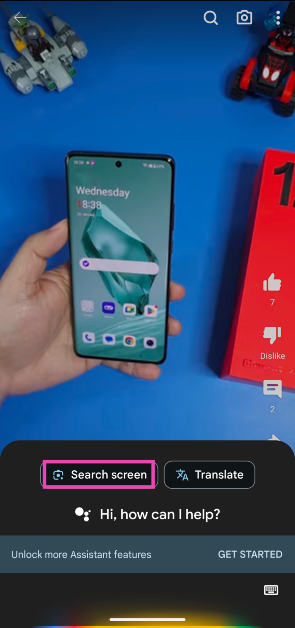
Long-press the navigation bar or the home icon on your Android phone to trigger Circle to Search. Draw a circle around the image you wish to search.
These are the top 8 ways to reverse image search on your desktop or PC. If you’re an Android user, Google’s newest ‘Circle to Search’ feature lets you search for anything on your phone’s screen by simply circling it. You can use it to find any object from an image or video, detect an unrecognised script, decipher an unknown symbol, and more.
Moto G24 Power has a dual rear camera setup with a 50-megapixel sensor.
The phone supports 33W fast charging.
The device’s display supports a 90Hz refresh rate.
Lenovo-owned smartphone brand Motorola has announced its new G-Series phone in India today. Moto G24 Power has been introduced in the country. The phone is priced under 10k and powered by MediaTek Helio G85 SoC. The device features a 90Hz LCD display and a dual rear camera setup with a 50-megapixel primary sensor. Also, it packs a 6,000mAh battery and comes with an IP52 rating.
In This Article
Moto G24 Power price in India, sale details
Moto G24 Power has launched in India with a starting price of Rs 8,999 for the 8GB RAM with 128GB storage option. The price of the 8GB RAM with 128GB storage variant is set at Rs 9,999. The device is being offered in two colour options Glacier Blue and Ink Blue, featuring a 3D Acrylic glass (PMMA) finish.
The phone is scheduled to go on sale on February 7 via Flipkart and the company’s official site at noon. The company will offer an additional Rs 750 off on exchange.
The 6.56-inch HD+ IPS LCD display on the Moto G24 Power has a peak brightness of 537 NITS. Moreover, with a high 90 Hz refresh rate. It has an Auto Mode in action, the screen refresh rate flexibly switches between 90 Hz and 60 Hz, improving the overall battery efficiency of the smartphone. The phone runs on Android 14 with My UX on top. It is powered by an octa-core MediaTek Helio G85 SoC with up to 8GB of LPDR4x RAM which can be expanded up to 16GB with RAM boost feature. The device comes with GB of built-in Storage which can be expanded up to 1TB using a microSD card.
Moto G24 Power features a dual rear camera setup that includes a 50-megapixel primary sensor with Quad Pixel technology and f/1.8 aperture and a 2-megapixel macro shooter with f/2.4 aperture. For selfies and video calling, there is a 16-megapixel front-facing camera with f/2.45 aperture. Furthermore, the camera system also comes with various features and software, such as Auto Night Vision, HDR, and Portrait mode.
The handset is backed by a 6,000mAh battery with 33W TurboPower fast charging support. The phone also includes a side-mounted fingerprint sensor for unlocking. The stereo speakers are tuned by Dolby Atmos. In terms of connectivity, there is Bluetooth, GPS, A-GPS, GLONASS, Galileo, LTEPP, SUPL, Beidu, a 3.5mm headphone jack, Wi-Fi 802.11 a/b/g/n/ac, and a USB Type-C port. The phones include sensors like accelerometer, ambient light, e-compass, gyroscope, proximity, sensor hub, and SAR sensor.
Samsung Galaxy S24 Series is the first to introduce several Galaxy AI features including Live Translate, Chat Assist, Note Assist, and Circle to Search.
These features are not confirmed to be released across 100 million Galaxy phones
Samsung has officially declared that Galaxy AI will land on more Galaxy devices this year. Samsung Galaxy S24 Series which launched recently was the first to receive the AI features. Samsung Galaxy S24, Galaxy S24+, and Galaxy S24 Ultra are three models of the latest flagship series unveiled. A previous report also suggested that new AI features will also land on previously released Samsung devices including foldables and tablets.
TM Roh, President and Head of MX business, Samsung Electronics was in India said, “This year, we have changed the industry paradigm by integrating the power of AI with Galaxy S24 series. Mobile phones were created to bring people together, and we use them in so many parts of our lives. We believe mobiles will become the primary access point for AI technology as people already use their smartphones for just about everything, making it the perfect vessel. With the Galaxy S24 series, we strongly believe in revolutionizing user experience through Galaxy AI. Samsung is the leader in the mobile industry with over 1 billion Galaxy customers. By using customer insights accumulated over decades, years of innovation to optimize AI for mobiles and open collaboration with industry leaders, we have come up with Galaxy AI, which will become the ‘global standard for mobile AI.”
The company has confirmed that along with the Galaxy S24 Series, it will bring Galaxy AI to approximately 100 million Galaxy mobile devices worldwide this year. This will also amplify mobile AI usage and bring benefits to Galaxy customers that cannot be found anywhere else.
Previously it was also reported that several AI features that were first seen on the Galaxy S24 series will be available on previously released Samsung devices. Reports claimed that Galaxy AI features will roll out earlier models in the first half of this year, including the Galaxy S23 series, Galaxy S23 FE, Galaxy Z Fold 5, Galaxy Z Flip 5, and Galaxy Tab S9 series.
Amazon’s reliable and timely delivery process is the reason why so many users choose it over other e-commerce platforms. If you choose One-Day Delivery, the wheels are set in motion as soon as you place your order. The great thing is that Amazon keeps you updated every step along the way. Every time your package checks into an Amazon facility, it gets recorded in the tracking details. So, let’s take a close look at the top 4 ways to track your Amazon order or package in the USA.
There are two major types of Amazon deliveries – Fulfilled by Amazon & Fulfilled by Merchant. While browsing through products on the platform, you may have noticed the ‘Amazon Fulfilled’ badge on certain products. These products are often eligible for free deliveries if you meet the minimum order criteria.
So what is the difference between FBA and FBM? The former is used by big-scale merchants on the platform. Since these deliveries are fulfilled by Amazon, the sellers on the platform ship their products in bulk to Amazon. These products are kept in Amazon warehouses. When you place the order, they are sent to you instantly. Amazon makes sure that you can track these products at all times. Every time a package enters a new facility, it is scanned and its tracking info is updated on the app.
Meanwhile, FBM is used by small sellers who do not necessarily produce in bulk. They rely on third-party shipping services to fulfil the deliveries. Once you place an order, the seller will ship your package using a third-party service and share the tracking ID with you. You can use this tracking ID to find out where your package is.
Track your order from the Amazon Website
Step 1: Go to the Amazon webpage and log into your account.
Step 2: Hover the cursor over Accounts & Lists and select Orders.
Step 3: Now, click on Track package next to the product you want to track.
Step 4: On the following page, Amazon show you the status of the shipment.
Step 5: Click on See all updates to view every recorded status of the order. This page will have the name of the current Amazon facility that the package is in.
Track your order from the Amazon app
Step 1:Launch the Amazon app on your smartphone and switch to the You tab.
Step 2: Tap on Your Orders.
Step 3: Select the product you wish to track.
Step 4: Tap on Track package.
Step 5: Hit See all updates.
Use Alexa to track your Amazon package
Amazon’s Echo devices are programmed to notify you about your Amazon packages that are out for delivery. You can also ask Alexa about the status of your package. Simply say “Alexa, when is my package arriving?” and the voice assistant will give you an ETA of your order. If the LED light around the device turns yellow, it means you have a pending notification. Since your Echo speaker is registered with your Amazon account, it can access all the details about your order.
Parcels is a unique app that tracks your packages from services like Amazon, Wish, eBay, Aliexpress, Shein, and more. This is a useful app for people who not only order from big e-commerce platforms like Amazon and eBay but also from independent third-party sellers. Parcels can track orders that are shipped to you using national postal services like USPS, Royal Mail, China Post, & India Post, and private services like UPS, FedEx, DHL, and more. You don’t need to register to the app to track your order, but some premium features may be locked behind a paywall. You can use this app to track FBA as well as FBM packages.
Frequently Asked Questions (FAQs)
How do I track my Amazon order or package in USA?
Go to the Amazon webpage or app and select Your Orders. Hit ‘Track package’ next to your order to find out its current location.
What does ‘Attempted Delivery’ mean on Amazon?
If the package tracking page mentioned ‘Attempted Delivery’ it means the delivery executive was at the location to deliver the order but couldn’t find the recipient to complete the delivery process.
How many times does Amazon attempt redeliveries?
If your order is eligible for redeliveries, Amazon will attempt to deliver it to your location on three consecutive days. If the third attempt falls through, your package will be returned to Amazon and you will be awarded a refund.
These are the top 4 ways to track your Amazon order or package in the USA. Once the delivery executive is headed to your location, the tracking info will show that the package is ‘out for delivery’. This is when the details of the delivery executive will be shared with you. You can call them to coordinate the pickup or ask them to leave the package with a neighbour if you aren’t home.
It is said to get support for the USB Power Delivery (PD) standard.
Nothing is prepping up to introduce a new mid-range phone. The company is likely to introduce Nothing Phone 2a, a toned-down variant of Phone 2 which was launched last year. The company is speculated to present it first later next month during the MWC 2024. The company will be hosting a Nothing to See event that will take place on February 27. Ahead of the release, the alleged smartphone was spotted listed on the TUV certification website, revealing the charging speed.
Nothing Phone 2a has been discovered listed on the TUV certification website. As per a report the upcoming phone bears model number A142. The TUV certification site has revealed the charging specifications of the device. As per the listing, the Nothing Phone 2a will come with a 45W charging speed. It will also get USB Power Delivery (PD) standard support. This implies that the Nothing Phone 2a should be able to be charged using any USB PD-compliant charger.
Earlier the upcoming handset also appeared listed on the Bureau of Indian Standards(BIS) site.
A previous leak suggests that the Nothing Phone 2 is likely to be available in two colour options Black and White. Additionally, it could come in two different configurations: 8GB of RAM with 128GB storage and 12GB RAM with 256GB of storage. The price of the phone is speculated below EUR 400 (approx Rs 36,800).
As per a report, the device is likely to feature a 6.7-inch AMOLED display manufactured by BOE and Visionox under the product number rm692h5. The screen is expected to have 1,084 x 2,412 pixels of resolution. The display may also support a refresh rate of 120Hz.
The Smartprix previously reported that a MediaTek Dimensity 7200 chipset might power the phone.
The Nothing Phone 2a may come with a dual rear camera setup that may include a 50-megapixel Samsung S5KNG9 1/1.5-inch main sensor and the 50-megapixel Samsung S5KJN1 1/2.76-inch ultrawide lens. The phone is anticipated to feature a 32-megapixel Sony IMX615 sensor on the front. According to her, the phone will be available in two colour options Black and White. Seven wallpapers from the alleged Nothing Phone 2a were leaked namely “Ruxe,” “Nexul,” “Azunim White,” “Orbique,” “Rubrane Black,” “Ambra,” and “Virmar.” Reportedly, the default wallpaper for the Black variant is likely to be Rubrane Black, while the White variant’s wallpaper will probably be Azunim White.
About 7 per cent of Swiggy employees will lose their jobs.
In January 2023, the company laid off 380 workers as part of a corporate reorganisation.
Flipkart has also fired 5% of its workforce.
Indian online food ordering and delivery platform Swiggy has laid off approx. 7%, affecting 350–400 employees. According to Source, the company has cut its workforce by 6 percent, which includes roles across technology, call centres, and corporate roles. Besides Swiggy, other tech companies like Flipkart, Microsoft, Amazon, and Google have also announced employee layoffs.
Swiggy and Flipkart have announced staff layoffs. Approximately 350–400 workers, or about 7% of the company, will be fired by Swiggy. According to speculations and sources, people from tech, a portion of the customer service division, and corporate will lose their jobs. Notably, the company has 6,000 employees, and the staff layoff is part of an effort for efficient operations. However, sources say that the Bangalore-based firm is laying off its employees because of its planned IPO.
A person aware of the matter said, “Mostly people who had a lot of Esops, or a higher package were let go, keeping the upcoming IPO in mind.”
Additionally, Swiggy is alleged to have demanded in writing from its employees that they resign on their own. In addition, a laptop and remuneration for two months plus the number of years x 15 days are allegedly provided.
Meanwhile, Swiggy is actively hiring for a recently introduced role (ASDEs) with a pay range of 8 to 11 LPA.
The food delivery major has laid off its employees before. In January 2023, the company that oversees Instamart slayed 380 workers as part of a corporate reorganisation that was prompted by the declining growth of its food delivery division.
These layoffs are the latest in a string of significant IT sector cutbacks that will continue through 2024. Another home-grown e-commerce platform, Flipkart, has fired approximately 1,000 workers, or 5% of its workforce. There are about 22,000 people employed by the company.
Whereas Microsoft owned Activision Blizzard and Xbox, they also lost 1,900 workers. The greatest number of layoffs will be made at Activision Blizzard and account for roughly 8% of the entire Microsoft Gaming.
Garena Free Fire is a battle royale game with regular awards and tournaments to keep players interested. If you play Garena Free Fire, you should be aware of the redeem codes that are released on a daily basis. However, because the battle royale game is banned in India, players from other countries can use the Free Fire Redeem codes daily. If you’re unfamiliar with the Garena Free Fire redeem codes or don’t know how to get them, we’ve put together a step-by-step guide to help you redeem them. Check out Garena Free Fire Redeem Codes for 30 January 2024.
The Free Fire redeem codes are a great way to get free stuff. These are 12-digit codes that contain alphabets and numbers, as well as an expiration date and time. Because the Garena FF redeem codes cannot be used more than once, you should hurry to the redemption page to claim your free reward before someone else does. To get a free reward, all you have to do is go to reward.ff.garena.com/en, which is the official redemption page. Also, keep an eye on this space for daily updates on Garena Free Fire redemption codes and rewards.
In This Article
Garena Free Fire Redeem Codes Today 30 January 2024
Netflix offers a wide range of popular TV shows and movies. Unfortunately, the Netflix official doesn’t provide downloading Netflix movies to watch offline but only online streaming on Mac. However, online streaming can bring a bad watching experience when the network connection is unstable. Consequently, it is necessary to find workable methods to download Netflix movies on Mac to watch offline. Rest assured, read on to get practical solutions in this article.
In This Article
Can I Download Movies from Netflix on My Mac?
Yes, you can. Although Netflix has not developed an app for Mac, allowing only online streaming, there are still workable methods to save Netflix shows and movies offline on your Mac:
Use third-party Netflix video downloaders to download movies from Netflix on your Mac.
Install Windows on your Mac and use the Netflix Windows app to download movies.
Screen record Netflix shows and movies to keep them offline on Mac.
Below, we will explain how to use these three methods to download movies from Netflix on Mac. You can choose the method that best suits your situation.
Method 1: Using a Netflix Downloader – MovPilot Netflix Video Downloader (Recommended)
The most reliable and effective method to download movies from Netflix on Mac is to directly use a third-party downloader. Here we recommend MovPilot Netflix Video Downloader. This program can assist you in downloading any Netflix video on Mac, even with ad-supported plans. Additionally, videos downloaded through MovPilot can surpass Netflix’s official download restrictions. The downloads are common video files that can be played using any local player on your preferred devices.
Read on to explore the key features of MovPilot Netflix Video Downloader.
Key Features of MovPilot Netflix Video Downloader
High-Quality Downloads: MovPilot ensures the FHD resolution of the original video and lossless audio is preserved in the downloaded content. This means you can enjoy your offline viewing in the best possible quality.
Fast Download Pace: MovPilot helps download your preferred Netflix material 5 times quicker than the typical speed. This translates to more watching and less waiting.
DRM Protection Removed: The MovPilot Netflix Video Downloader can remove the DRM protection of Netflix videos, allowing you to store movies on your device permanently.
Multilingual Support: The MovPilot Netflix Video Downloader can retain multiple languages for the audio and the subtitles, ensuring that language is no longer a barrier for your watching,
User-Friendly Interface: MovPilot’s easy-to-use interface guarantees a better user experience, making the process of downloading straightforward even for first-time users.
How to Download Netflix Movies on Mac with MovPilot Netflix Video Downloader
After we have a preliminary understanding of MovPilot Netflix Video Downloader, let’s delve into how to download movies on Netflix on Mac by using it.
Step 1: Download, install, and launch MovPilot Netflix Video Downloader on your Mac. Sign in with your active Netflix account.
Step 2: Type the keyword or paste the URL of your desired movie or show, and check the search result.
Step 3: Download your selected Netflix videos. For a single movie, simply click the Download button on the right. For TV series or shows, select the episodes you want to watch and click on the Download button to keep them offline on your Mac.
Method 2: Install Windows on Mac
Unwilling to install a third-party App to download Netflix videos? How to download movies on Netflix on Mac via the official Netflix App? Can you download Netflix on Mac? The answer is YES. There is an alternative option for you: install Windows OS on your Mac OS device. The Windows system can allow your Mac OS device to install the Netflix App and download movies for offline watching. However, honestly speaking, this method is relatively complex and not as convenient as using a third-party App. You can follow these steps to have a try if you have confidence about your computer skill level.
Step 1. Download the Windows system disk image from the Microsoft store.
Step 2. Insert the Windows installation media into your computer. Launch the Boot Camp Assistant and change the partition size.
Step 3. Begin to install Windows on a Mac. Input the password, and pick the language.
Step 4. Next, you can proceed by following the wizard. The entire procedure may take several minutes, so be patient. When all steps are completed, you have successfully installed the Windows system on Mac.
Method 3: Using a Screen Recorder
Can you watch Netflix offline without any outer installations? Indeed, for Mac users, the built-in screen recorder can be another alternative option. You can use it to record Netflix movies, but this method is quite time-consuming, and your time matters.
Here is a basic instruction:
Step 1: Open QuickTime Player. You may locate QuickTime Player in the Applications folder. After launching the application, navigate to the menu bar, choose ‘File,’ and then pick ‘New Screen Recording.’
Step 2: A little record window will appear. You may select whether to record the full screen or a piece of it. If you wish to record audio as well, ensure sure the appropriate microphone is selected.
Step 3: Click on the ‘Record’ button to start recording. A new window will appear, instructing you to click anywhere to record the full screen or drag to record part of the screen.
Step 4: Now, navigate to Netflix and begin playing the movie you wish to record. Stop recording. When the video is finished, you may stop the recording by pressing the ‘Stop’ button in the menu.
Step 5: Save Your Recording After stopping the recording, QuickTime Player will automatically open the recorded video. You can now save it by going to ‘File’ > “’Save’.
Final Verdict
After reading this article, you may understand how to download movies on Netflix on Mac. You can select one of these three approaches based on your requirements and skills, each offers advantages of its own. But generally speaking, I would order them using the table below.
Method
Rating
Pros
Cons
MovPilot Netflix Video Downloader
9/10
• Easy to use
• High video quality
• Permanent preservation
• Some features require a purchase to unlock
Install Windows on Mac
4/10
• Can use the original Netflix App
• Complicated
• Higher computer level required
• Low success rate
Screen Recorder
6/10
• Easy to use
• No extra application is needed
• Time-consuming
• Low video quality
So among all the three methods, MovPilot Netflix Video Downloader stands out for its convenience and efficiency. We encourage readers to download and experience the superior performance of MovPilot Netflix Video Downloader, especially for those who are beginners.
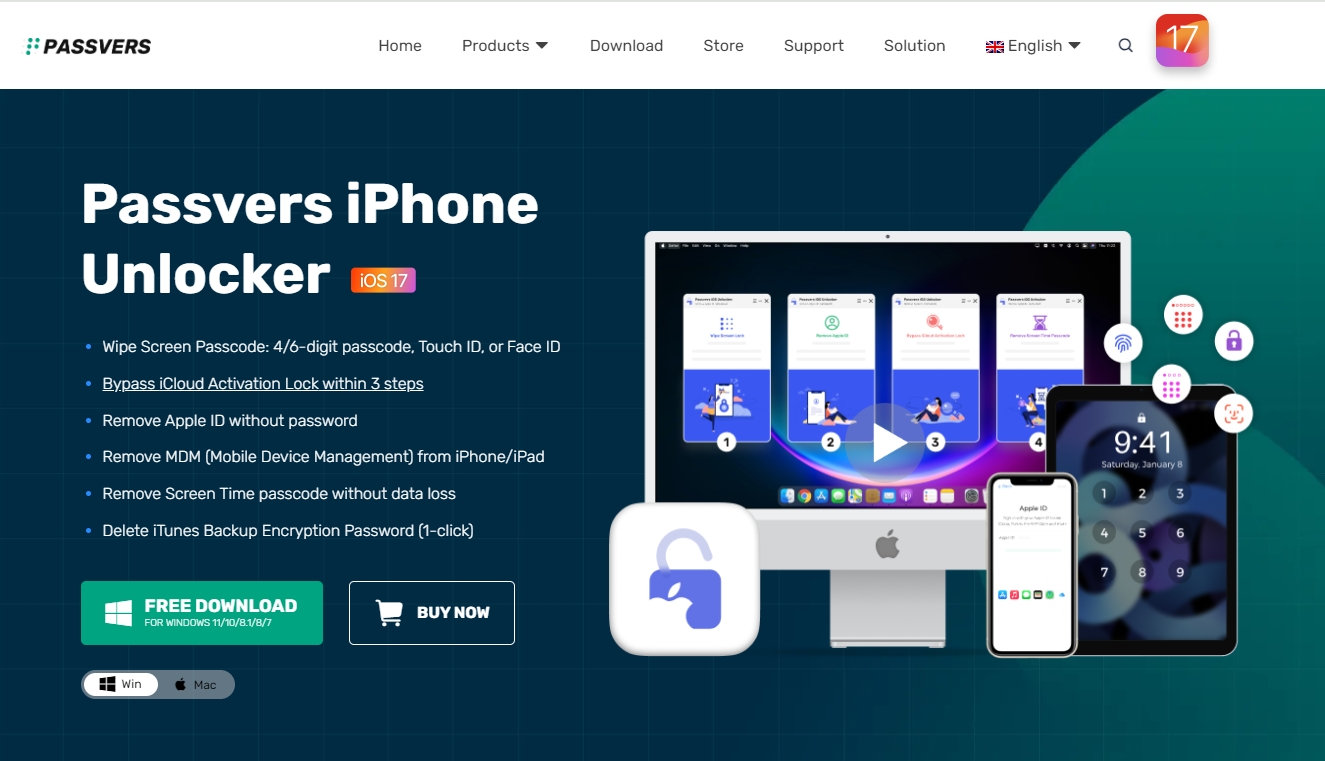
When you have mistakenly disabled your iPhone, or simply forgotten about passcodes to unlock it, you may consider seeking a third-party unlocking software to help. Passvers iPhone Unlocker has been a well-known solution to deal with troubles related to all kinds of iOS locks, with a large group of loyal users from all over the world.
Why Passvers iPhone Unlocker is popular? How can it help me bypass screen locks, iCloud activation locks, or other iOS locks? Is Passvers iPhone Unlocker safe to use? You may get such questions wanting to ask.
So before installing the software, this latest 2024 article on Passvers iPhone Unlocker will first introduce all the details to you. Now, scroll down and have a look!
In This Article
Passvers iPhone Unlocker Functionality Overview
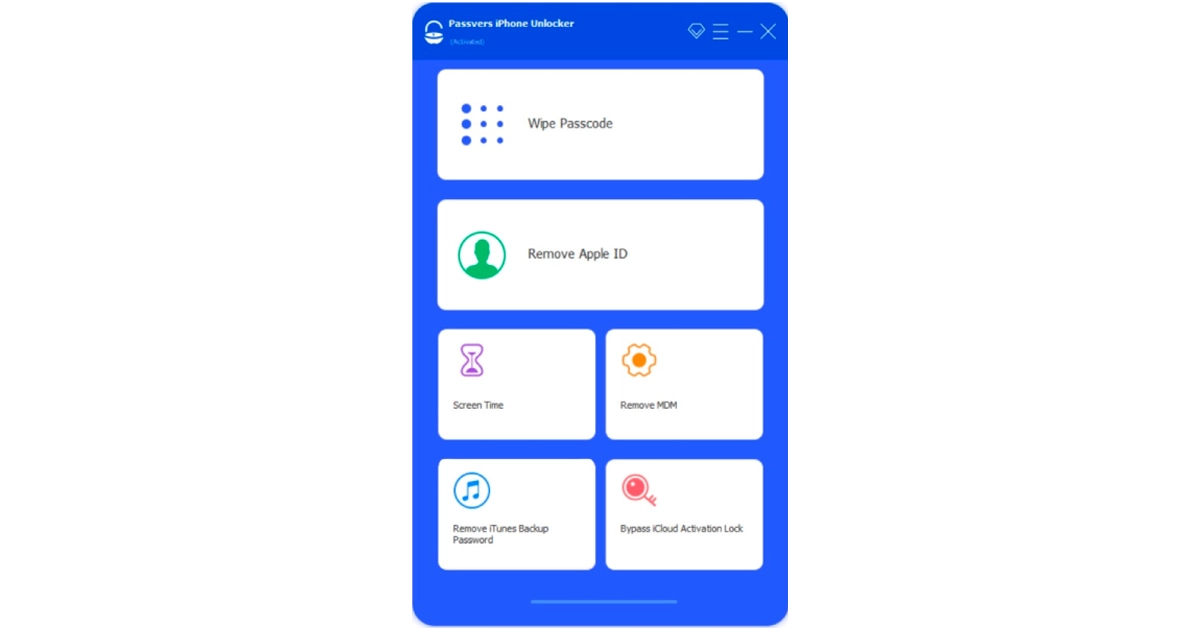
Passvers iPhone Unlocker is developed as a piece of professional software, mainly working to resolve iOS locks and help you bypass them to use devices without any limitations. It can work to deal with iOS screen locks, iCloud activation locks, Apple IDs, MDM profiles, screen time passcodes, and also iTunes backup encryption locks by very simple operations.
For years of development, today Passvers iPhone Unlocker can maintain great stability and fast performance to deal with iOS lock removal, offering you quite a user-friendly process to get rid of all troubles related to them. It is also ranked as the best iOS unlocking software with the highest success rate, never failing to help!
You can keep reading to learn more details about the built-in unlocking functions of Passvers iPhone Unlocker below.
Unlock Screen Locks
Passvers iPhone Unlcoker can help deal with all kinds of iOS screen locks, including digital passcodes (both 4-digit and 6-digit ones), Face ID, and also Touch ID. It won’t ask for two-factor authentication to remove them at all.
Bypass iCloud Activation Lock
Without needing authorization from previous owners, the software can help you bypass the iCloud activation lock even if you get stuck because of it while setting up a newly bought second-hand iPhone.
Remove MDM Profiles
Passvers iPhone Unlcoker has added support for all popular MDM merchants, helping you to bypass different types of MDM profiles on iOS devices to get out monitors from third-party organizations or individuals, without letting administrators of the devices know at all!
Wipe Apple IDs
If you unfortunately forget about passwords about the linked old Apple IDs on your iOS devices, use the software or wipe it with one tap without entering passcodes! By removing old Apple IDs, you can immediately link with new ones and use all functions on devices without limitations.
Cancel iTunes Backup Encryption Password
If you have set an encryption password to process iTunes backup, you will need to enter it every time while backing up data. Now, get rid of the password with one tap using Passvers iPhone Unlcoker! After that, you no longer need to remember such a password while storing data using iTunes.
Removes Screen Time Passcodes
Passvers iPhone Unlocker can also be used to delete added screen time passcodes and free all installed apps on your iPhone for use without limitations. Especially when you forget them, the software can help remove them at once quickly for you.
Passvers iPhone Unlocker Availability
Pay attention that Passvers iPhone Unlcoker is a desktop software which not only works on Windows and Mac computers. Before getting started with it, you should check the hardware requirements to confirm whether Passvers iPhone Unlocker supports running on your devices in advance:
Windows OS: Windows 11/10/8.1/8/7/Vista (32-bit or 64-bit)
Mac OS: Mac OS X 10.7 or above (macOS Big Sur and macOS Monterey)
CPU: 1GHz (32-bit or 64-bit)
RAM: 256 MB or more of RAM (1024MB Recommended)
Hard Disk Space: 200 MB and above free space
Also, check the supported iOS devices that Passvers iPhone Unlocker can offer services to help you bypass iOS locks on them:
iPhone
iPhone 15 Pro Max/15 Pro/15 Plus/15, iPhone 14 Pro Max/14 Pro/14 Plus/14, iPhone 13 Pro Max/13 Pro/13/13 mini, iPhone SE 3/2/1, iPhone 12 Pro Max/12 Pro/12/12 mini, iPhone 11 Pro Max/11 Pro/11, iPhone XS/XS Max/XR/X, iPhone 8 Plus/8, iPhone 7 Plus/7, iPhone 6s Plus/6s/6 Plus/6, iPhone 5s/5c/5, iPhone 4S/4
iPod
iPod touch 7/6/5/4/3/2/1
iPad
All models of iPad Pro, iPad Air, iPad mini and iPad
Passvers iPhone Unlocker: Security and Privacy
Some of you will worry about the security of Passvers iPhone Unlcoker and are afraid of leading your privacy disclosure in the future. But feel relief that the software is 100% safe to use! Its simple setup process won’t ask you to install extra software or bundled extensions at all. Meanwhile, the developed security system within Passvers iPhone Unlcoker will encrypt all data to strictly protect your privacy. The software will also not store any data before getting your permission. So to conclude, Passvers iPhone Unlocker is surely a 100% safe software to use.
Pricing Information of Passvers iPhone Unlocker
However, it has to be admitted that Passvers iPhone Unlocker is not free software, and it needs a subscription to process iOS lock removal completely. There are 3 pricing plans offered by Passvers iPhone Unlcoker on its online store. You can select the one to subscribe based on your needs:
Plans
Price
One-Month License
USD 35.95
One-Year License
USD 45.95
Lifetime License
USD 65.95
For most users, the monthly option costs the least. Although Passvers iPhone Unlocker also releases the Refund Policy to protect users’ rights, you’d better check under what situations you are eligible to get a refund before deciding to subscribe to the service.
Final Verdict
The multifunctional iOS unlocking software, Passvers iPhone Unlocker can surely be the best choice if you just get into any troubles related to iOS locks and need an immediate method to get rid of them. Although it takes cost to complete the lock removal, more importantly, it is of great safety and high success rate! Try it today and you won’t regret it!
Tecno Spark 20 will launch in India on January 30.
The smartphone will come in four colour options.
The smartphone has a 32-megapixel selfie camera.
Tecno is all set to launch a new smartphone in India. Tecno Spark 20 is scheduled to debut in India tomorrow. The device will be on sale via Amazon in the country. The device is listed on the e-commerce platform which also highlights the key specs of the upcoming phone. Just ahead of the release, the company has also revealed the RAM and storage option of the phone as well as the camera specifications.
The Tecno Spark 20 India launch will take place tomorrow, January 30. The device has been listed on Amazon to confirm its availability post-launch. But before the phone gets officially released the company has revealed that the device will come in 8GB of RAM and 256GB of internal storage. The device will also support RAM expansion of 8GB. The internal storage can be expanded using a microSD card to up to 1TB.
Additionally, the triple rear camera setup will be led by a 50-megapixel primary sensor. Also, there will be a 32-megapixel front-facing camera for taking selfies.
Tecno Spark 20 will also include a complimentary OTT Play premium subscription valued at Rs 5604.
Besides Amazon, the device will go on sale via nearby retail outlets as well.
Previously the Amazon landing page revealed that the Tecno Spark 20 will be priced under Rs 10,499. Also, the device will be available in Cyber White, Gravity Black, Magic Skin Blue, and Neon Gold colour options. The phone will come with a 90Hz LCD screen featuring a Dynamic Port that will display notifications and animations. The handset is confirmed to be powered by MediaTek Helio G85 chipset.
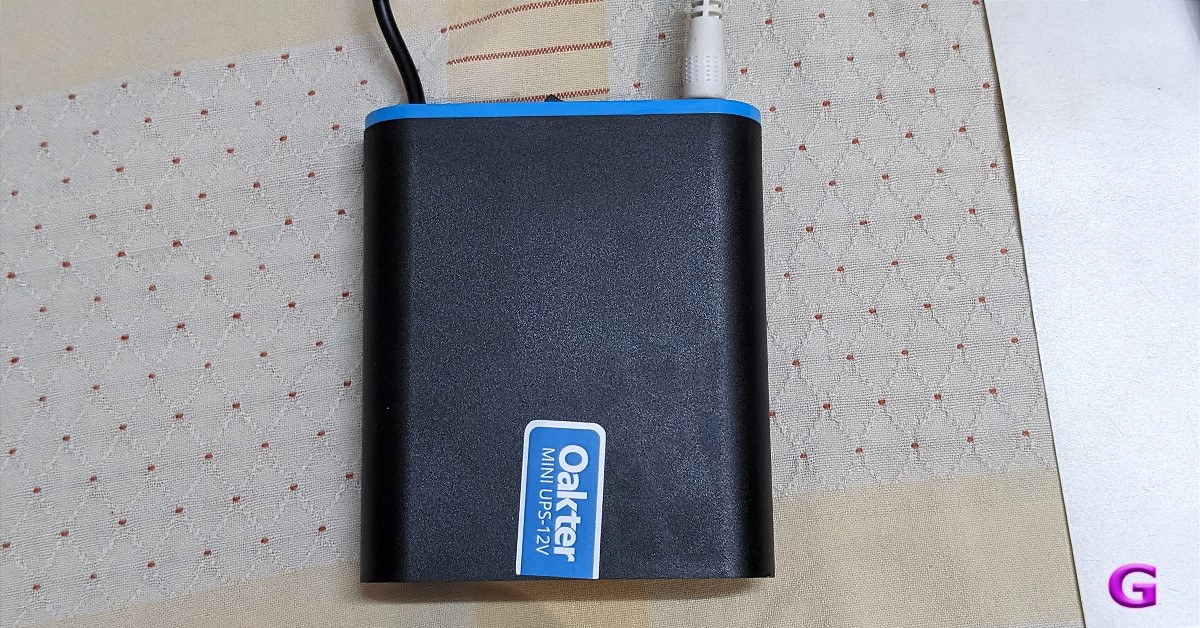
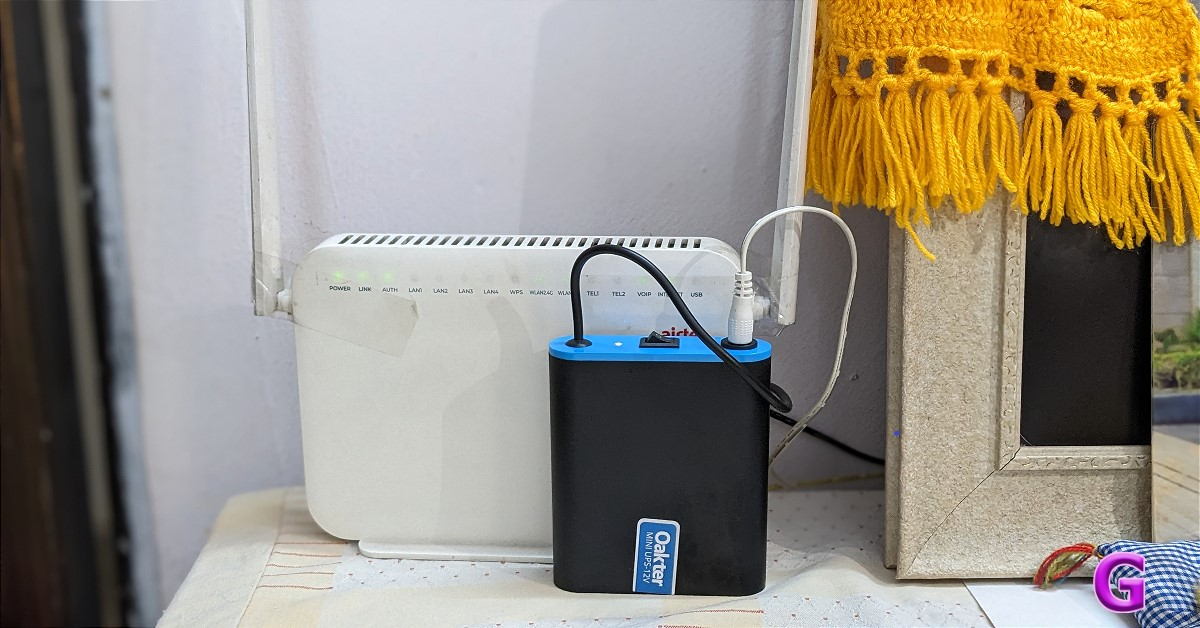
Whether working from home or the office, a WiFi router UPS is one such gadget that is really important to us at the time of a power cut. Indeed, a UPS is a crucial component for a WiFi router since it allows users to continue using the network even in the event of an electricity outage, which happens frequently in India. We got an Oakter Mini UPS, a portable tiny UPS that connects to your Wi-Fi router and offers backup power in the event of an outage. After using it for around a month, this is our full review of the Oakter Mini UPS-12V.
In This Article
Oakter Mini UPS-12V Review: Design
For the past few months, there have been frequent power outages around our household. Although there is a power backup option, but our work gets interrupted after a long outage. The WiFi router has to be reconnected after being disconnected due to the power outage, which takes roughly four to five minutes. When you have a class or a meeting online, for example, it can be really frustrating at times and lead to blunders during the meeting.
Oakter Mini UPS for WiFi router is a new product for individuals who depend on continuous internet access. For those looking for a reliable power backup solution for their modems and routers, it is an absolute necessity.
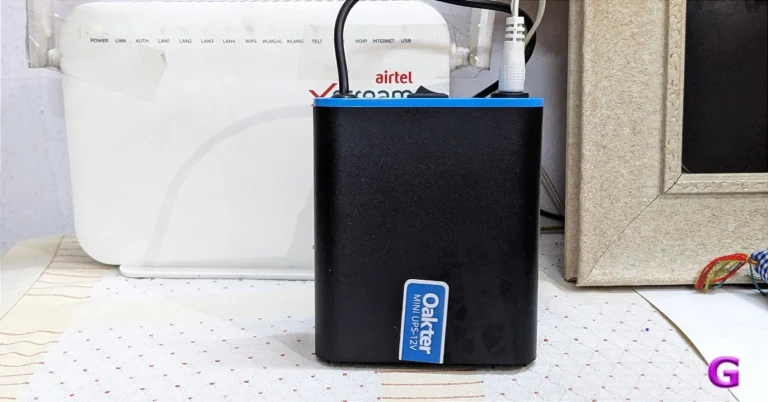
From its appearance, the Oakter Mini UPS-12v resembles a tiny power bank. It is small and portable and can also be carried along.
You don’t need to worry about your Wi-Fi socket because two different types of plugs are available here. You do not need to purchase an adapter separately, the firm has not included one with the UPS. The mini UPS has a power rating of 12V.
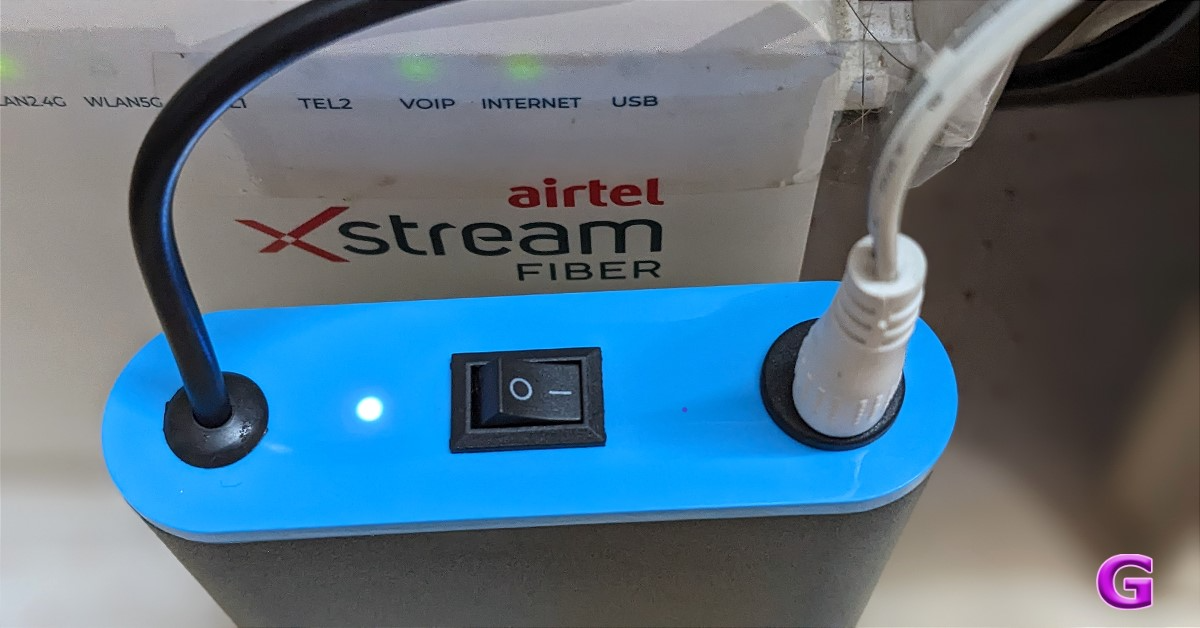
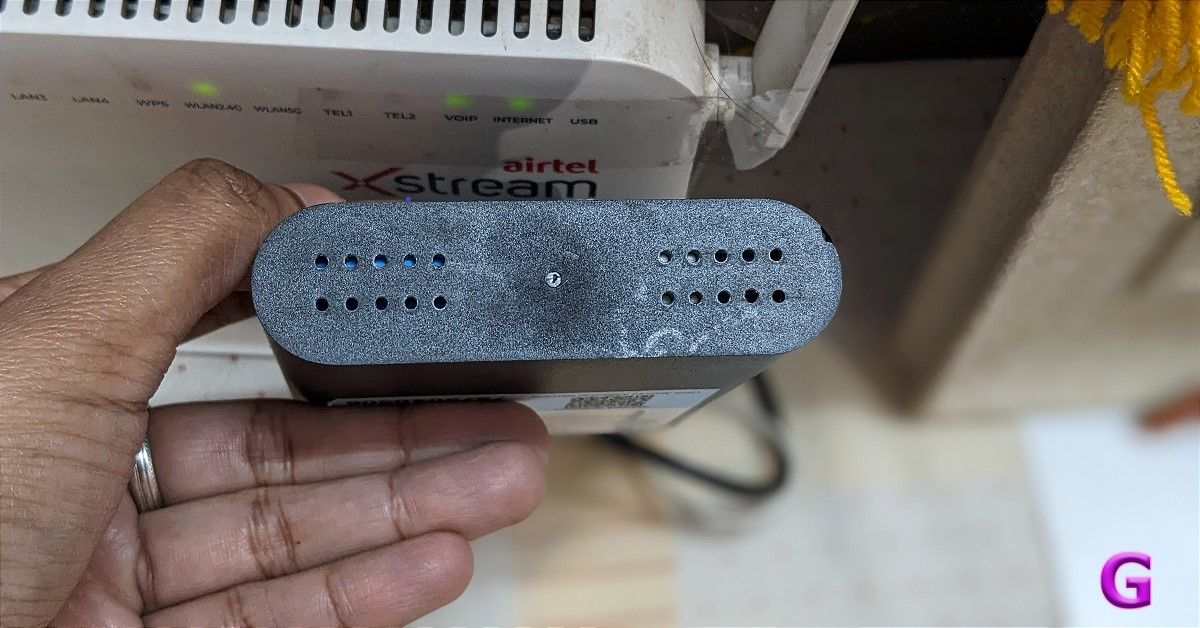
In terms of build quality, it appears to be average. Vents are located on one side of the UPS. A power switch, an LED indicator, a power input port, and a power output cord are located on the opposite side.
Oakter Mini UPS-12V Review: Performance
Since Oakter MiniUPS is pre-charged and ready to use immediately out of the box, there is no need for a first charge.
Setting up Oakter Mini UPS is quite simple, quick, and hassle-free. The LED indication will show that the power supply is adequate when you plug the device into the power socket.
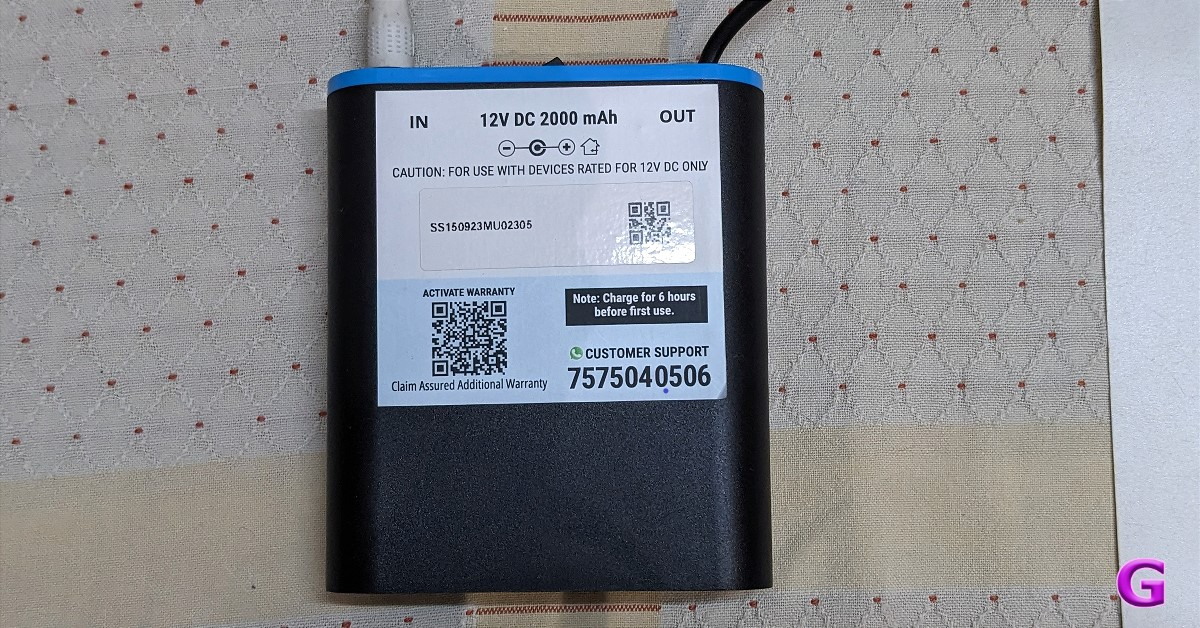
Oakter MiniUPS is available in 9v and 12v options. It supports 9v DC and 12v DC routers of all major brands like D-Link, TP-Link, Airtel, Jio Fiber, etc.
It works just similar to any other power backup option. Not only its job is to maintain a steady internet connection in the event of a power outage, but Oakter MiniUPS also has the ability to power small gadgets like biometric systems, CCTV cameras, smartphones, and set-top boxes.
Mini UPS can establish a connection with your modem and WiFi router. Your router will operate solely on battery power in the case of a power outage. Additionally, a Mini UPS can guard your router from fluctuations or spikes in power.
As per the company, the Oakter Mini UPS delivers an uninterruptible power supply that may provide you with up to 4 hours of battery backup in the event of a power outage. It packs a 2,000 mAh battery, which should be able to provide that many hours.
In our tests, it operated for three hours during an extremely long power failure, and depending on the router make, it may operate for longer.
Verdict
Officially, working remotely is the new standard. The requirement for this new standard is uninterrupted internet connectivity.
At such a point, a UPS router becomes useful. Power outages are becoming a common issue across the nation, so it’s essential to have a power backup for your WiFi router—like Oakter MiniUPS, which retails for Rs 1,290. Its backup duration is good for our needs and we don’t have to worry about power cuts anymore and the internet going off with it.
There is no complicated installation procedure to begin using the device. All you need to do is plug the device in and get going!
If you’re travelling to a place with low network reception, getting your daily YouTube fix can be challenging. If you don’t want to put up with terrible buffering speed, you can download your favourite videos directly to your smartphone’s internal storage. This may be a violation of YouTube’s content policy, but as long as you are using the downloaded videos for personal viewing purposes, you will not get in trouble. So, without further ado, here are the top 8 ways to download YouTube videos on your Android smartphone.
There are several ways you can go about downloading a YouTube video on your Android phone. Here are the two major ones that can accomplish the task in no time.
Using an app that specialises in downloading YouTube videos
Using an online tool
Due to Google’s strict copyright and content policy, it is very hard to find an app on the Play Store that downloads YouTube videos to your device. Your only option remains to download the app from other marketplaces. If you don’t trust other platforms with app downloads, you are left with the option to use an online tool.
Websites like SSYouTube and Paste Download offer efficient tools to download videos from any platform across the internet. Not only do you not need to download an app, but the whole process takes less than a few minutes. If you’re looking for other methods, scroll to the end of the article to find out how you can download a YouTube video using Telegram.
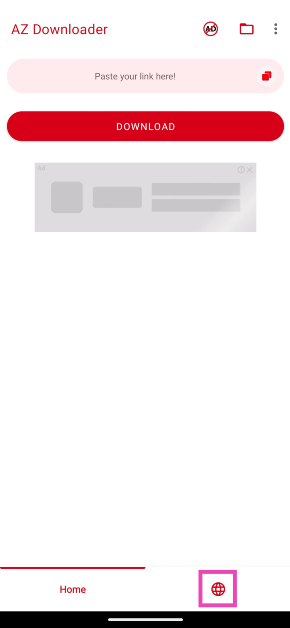
Step 2:Launch the app and switch to the browser tab.
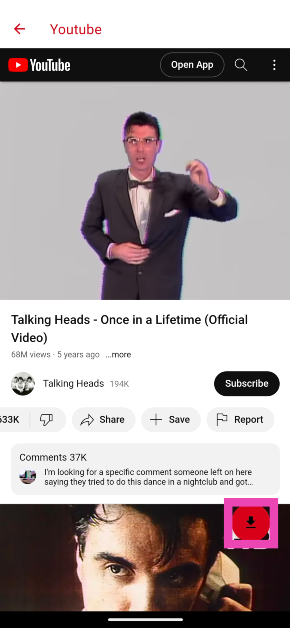
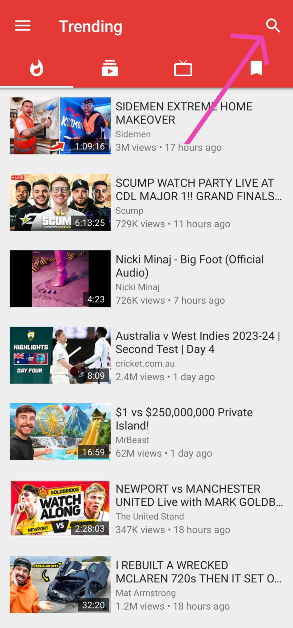
Step 3: Search the YouTube video you wish to download.
Step 4: Open the video and tap the red download button.
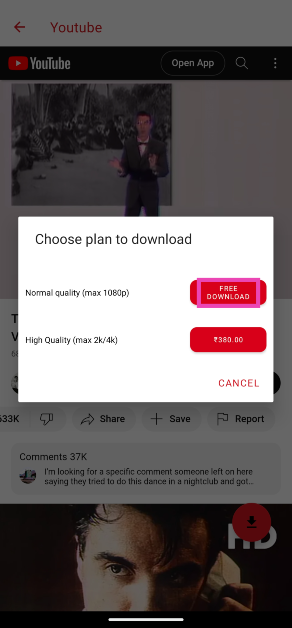
Step 5: Select Free Download. Watch a couple of ads to download the video.
Once the video has been downloaded, you can access it from your phone’s gallery.
Pros
Available on the Google Play Store
Accessible to the average user
Cons
Risks losing the download feature so as to remain in the Play Store
Use NewPipe
Like AZ Video Downloader, there are several other third-party apps you can use to download YouTube videos on your Android phone. Due to YouTube’s content policy, these apps are not available on the Google Play Store. However, you can either sideload them on your phone or use your OEM’s marketplace to install them. NewPipe is one of the better apps for downloading videos. Here’s how you can use it.
Step 1:Launch Newpipe and search for the video you want to download.
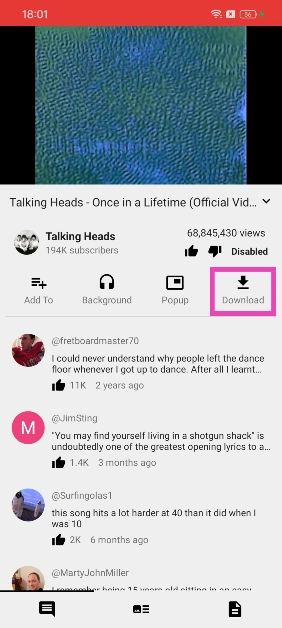
Step 2: Play the video and hit the download button.
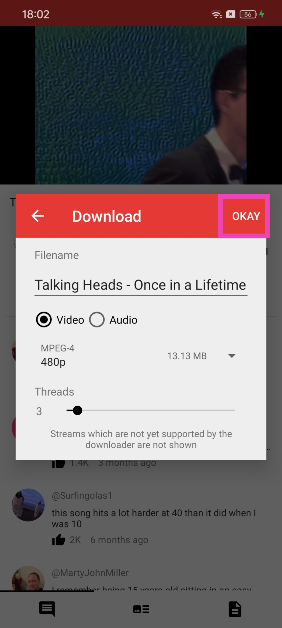
Step 3: Select the resolution and tap on OKAY.
Pros
Reliable
Quick downloads
Cons
Needs to be sideloaded
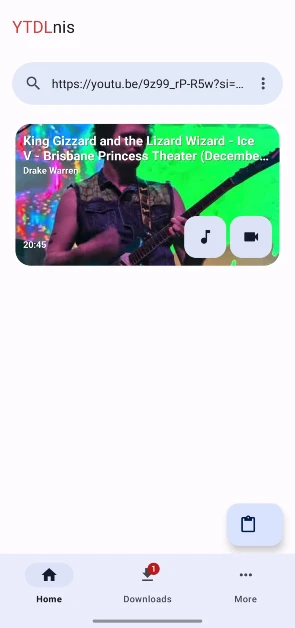
Use YTDLnis
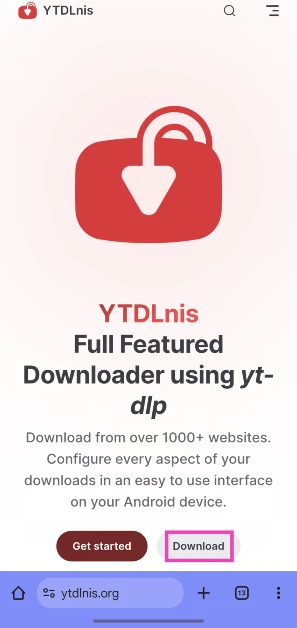
Step 1: Go to https://ytdlnis.org/ and hit Download.
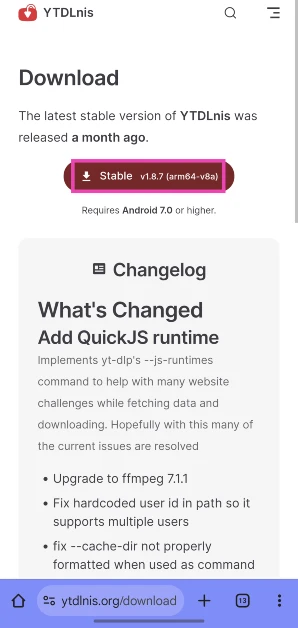
Step 2: Download the stable APK from the website and install it on your phone.
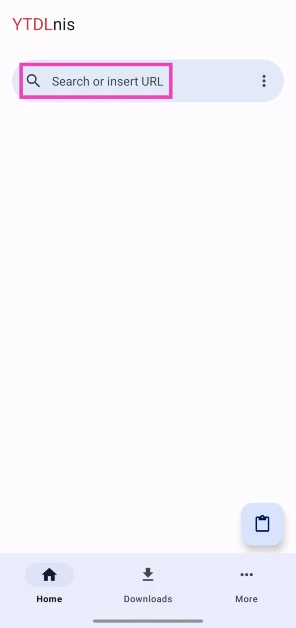
Step 3:Launch the app and paste the link to the YouTube video you wish to install in the text box.
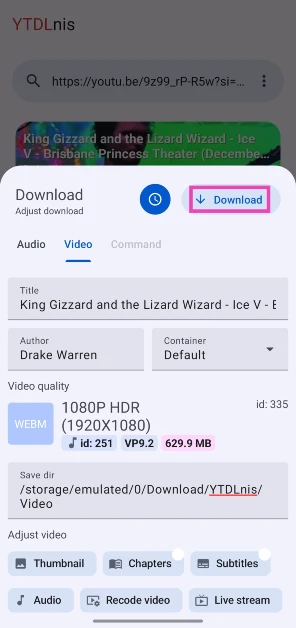
Step 4: Hit Download.
Step 5: The video will pop up in the Downloads tab when it is downloaded.
Pros
Fast downloads
Reliable
Cons
Requires downloading the app
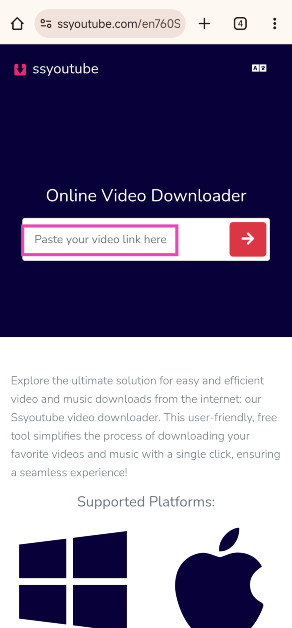
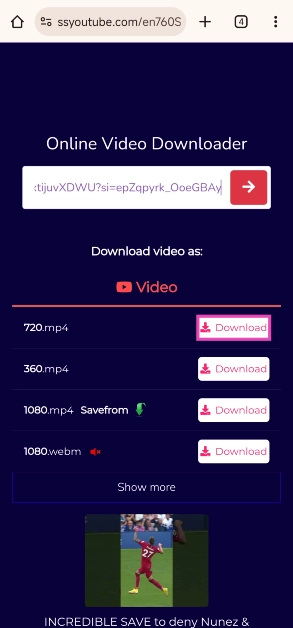
Use SSYouTube Downloader
If you don’t wish to download an app, there are plenty of third-party online tools you can use to download a YouTube video on your Android phone. Our favourite tool is SSYouTube. Here’s how you can use it.
Step 1:Play the video on YouTube and hit the Share button.
Step 5: Hit Download next to the resolution of your choice.
Pros
Ads aren’t obtrusive
Reliable downloads
Cons
Not available as an app
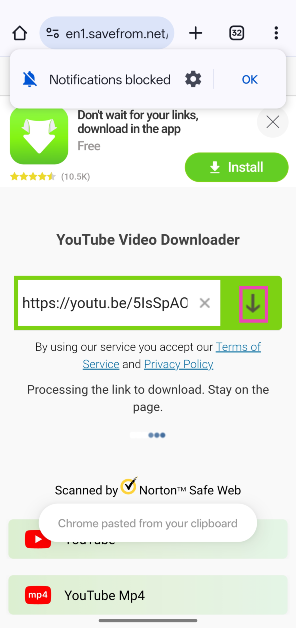
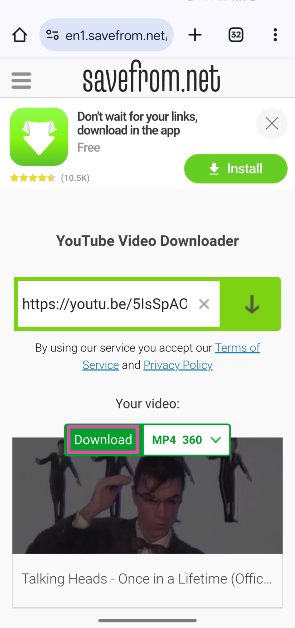
Use SaveFrom.net
Step 1:Go to https://en1.savefrom.net/2ol/.
Step 2: Enter the link to the video and hit the arrow icon.
Step 3: Select the video format and resolution. Hit Download.
Step 4: The video will be saved on your device.
Pros
Easy process to download videos
Available as an app
Cons
Downloads may take time
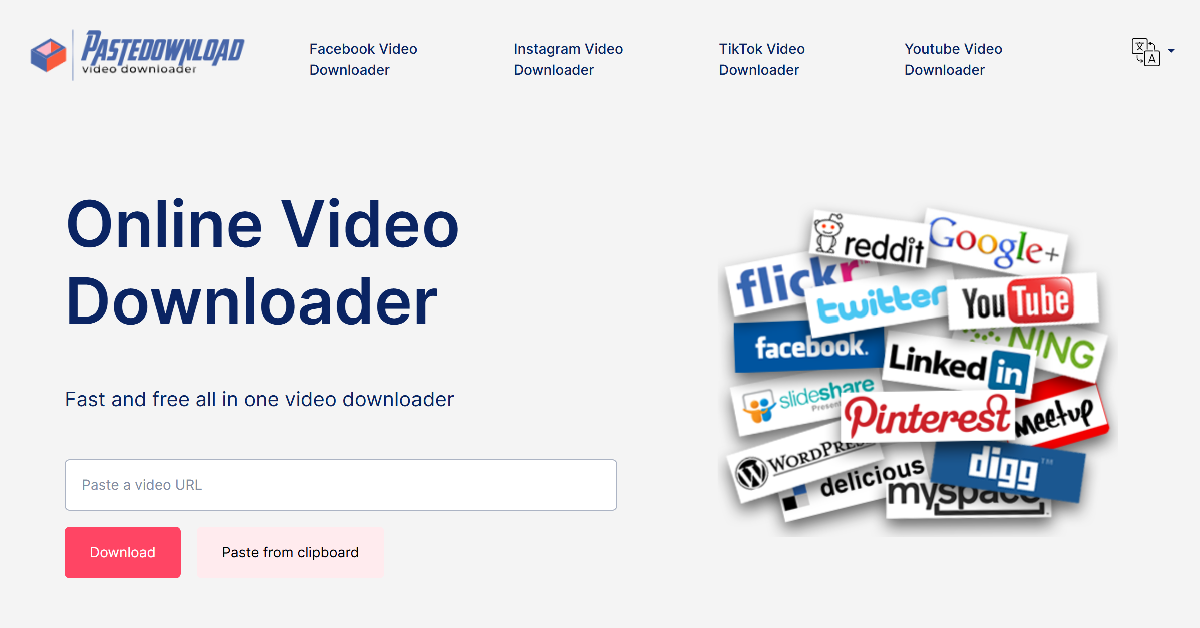
Use PasteDownload
PasteDownload is another light online tool that can be used to download YouTube videos. The process of downloading videos remains the same. Copy the link to the YouTube video you wish to download and paste it into the download box on the website. Select a format and resolution from the list of options. The video will be downloaded to your device’s gallery.
Pros
Quick downloads
Works for a wide range of platforms
Cons
Contains ads
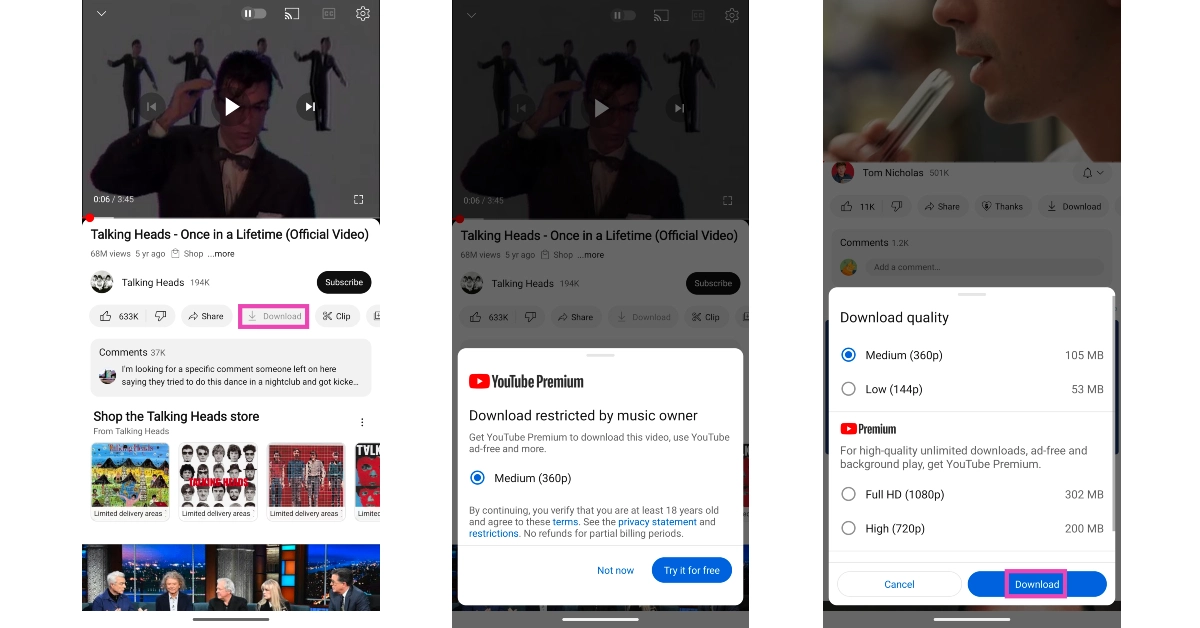
Save videos within the YouTube app
While the methods mentioned above effortlessly download YouTube videos directly to your Android phone’s gallery, they are in violation of YouTube’s content policy. The most legitimate way to download videos on YouTube is by saving them within the app. You will need a YouTube Premium subscription to use this feature. While some content creators may allow non-premium subscribers to download their videos, YouTube restricts the video quality of the video to 360p. Premium users can save the videos in HD resolutions as well. The saved videos can be accessed from the ‘Downloads’ folder in the app.
Pros
Legitimate way to download YouTube videos
Can download HD videos
Cons
Requires a YouTube Premium membership
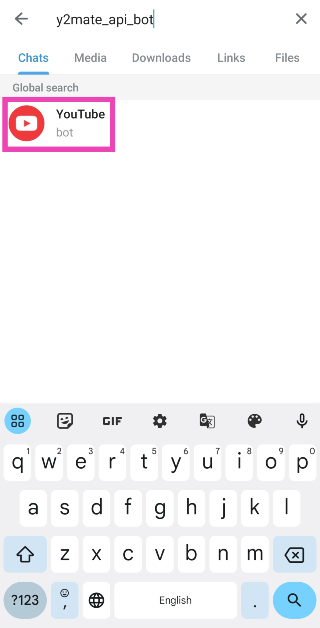
Use a Telegram Bot
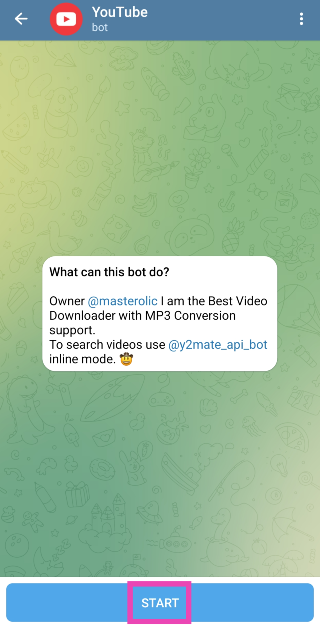
Step 1:Launch the Telegram app and search for @y2mate_api_bot.
Step 2: Tap on the bot and hit Start.
Step 3: Copy the link of the YouTube video you wish to download.
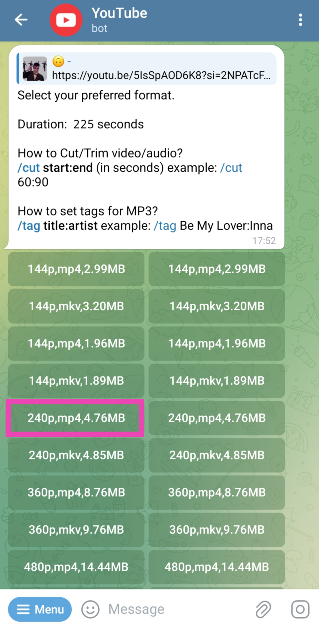
Step 4:Send the link in the chat.
Step 5: Select a resolution and format from the list of options.
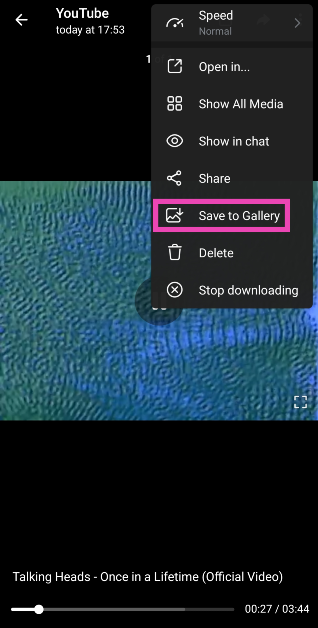
Step 6: The video will be downloaded and sent to you in the chat. Open it and select Save to Gallery.
Pros
Does not require installing a third-party tool
Great for in-app sharing
Cons
Not ideal for users who don’t have Telegram
Frequently Asked Questions (FAQs)
How do I download YouTube videos on my Android videos for free?
Online tools like SSYouTube and Paste Download can be used to download YouTube videos on your phone for free. You can also use third-party apps like AZ Video Downloader and Newpipe.
Is there an app to download YouTube videos on Android?
Google Play Store restricts apps that allow users to download YouTube videos. However, you can sideload apps like TubeMate and NewPipe to download the videos on your phone.
Which is the best online tool to download YouTube videos on my phone?
SSYouTube Downloader and SaveFrom are 2 of the best online tools to download YouTube videos on PC and smartphone.
How much does a YouTube Premium Subscription cost in India?
The standard YouTube Premium subscription is priced at Rs 129 per month. The family plan costs Rs 189 per month for 5 members while the student package costs Rs 89 per month.
Can I download YouTube videos on Telegram?
There are several bots that let you save YouTube videos on Telegram. Our favourite is the Y2Mate bot.
These are the top 8 ways to download YouTube videos on your Android smartphone. The AZ Downloader app can be downloaded from the Google Play Store, but due to the platform’s stringent copyright policy, it may get taken down in the future. If you can’t find the app in the Google Play Store, look for it on your OEM’s app marketplace or a third-party website like APKMirror.
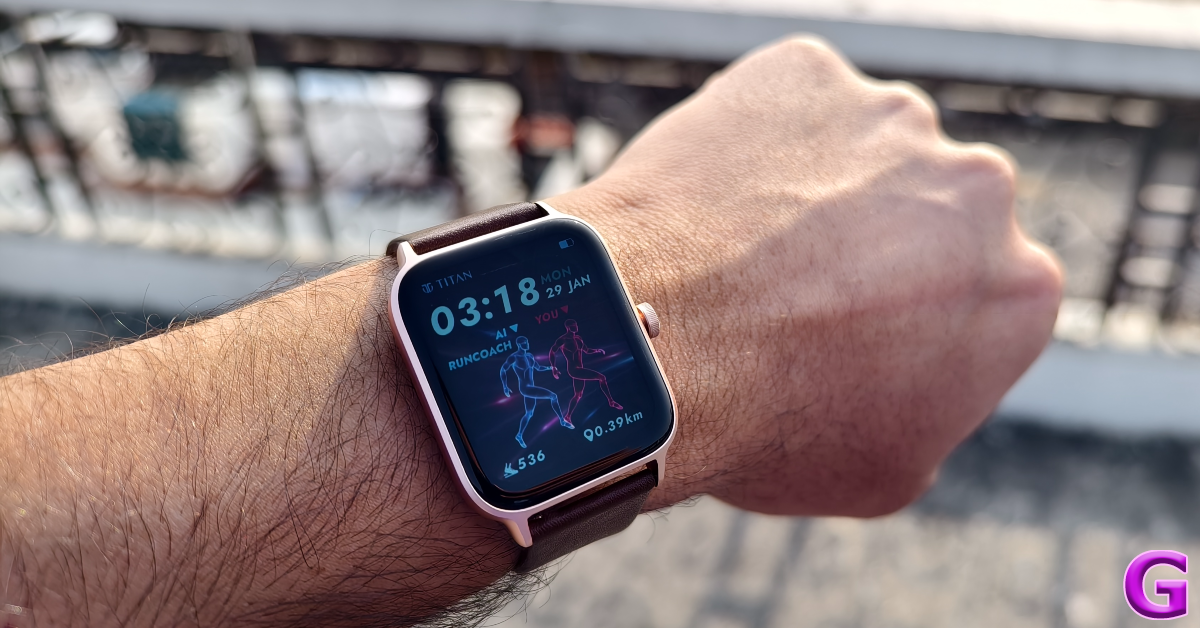
One of the biggest watchmakers in India, Titan, also has a niche smartwatch catalogue with some interesting products. Although its sub-brand Fastrack is the more active player in the smartwatch category, Titan’s smartwatches do not compromise on the ‘premium’ factor while covering all the health and fitness tracking bases. Launched in November 2023, the new Titan Traveller is currently priced at Rs 12,995. Its ‘FitVerse’ feature is something we’ve been looking forward to trying ever since the watch was announced. So, after using the Titan Traveller for 10 days, here is our in-depth review of the smartwatch.
Titan Traveller Smartwatch Review: Design and Display
Titan Traveller’s retail box packs the smartwatch, a leather strap, a plastic strap, a magnetic charger, a quick start guide, a welcome card, and warranty registration. The model we received was shipped with brown (leather) and pink (silicone) watch straps.
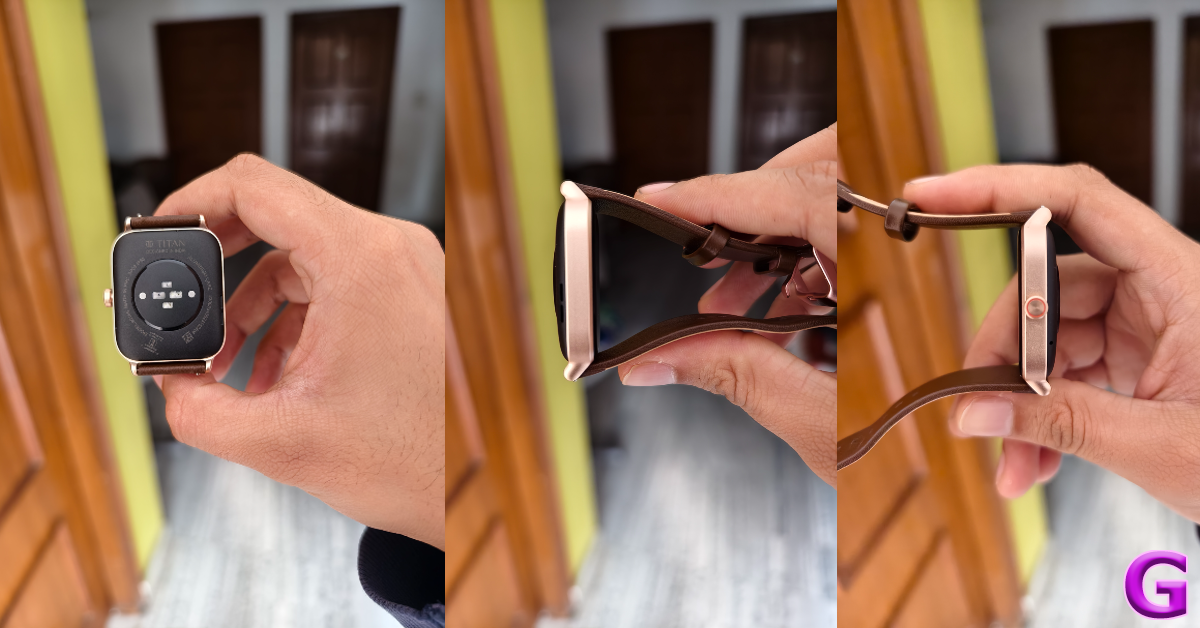
The design of the Titan Traveller is pretty standard as far as smartwatches go. The aluminium case has dimensions of 45.66mm x 37.54mm x 11.42mm. There is just one crown button on the right edge of the case. Turning the watch around, you will find the sensors for heart rate and SpO2 measurement. A small microphone and speaker grille are also placed on the bottom panel.
The 1.78-inch AMOLED display is covered by thick bezels on four sides. The good thing is that these bezels are uniform. The display is bright and colourful, presenting no issues while operating in bright outdoor conditions. The touch response is snappy and fun. With Panda Glass protection onboard, it can easily withstand a good knock. The only letdown is that it does not have adaptive brightness. Both the straps provided with the smartwatch are comfortable to wear and offer a snug fit. The silicone strap is meant to be worn during intense workouts, hikes, and other physical activities. If you want to wear the watch casually, the default leather strap should be your choice.
An IP68 rating for dust and water resistance means that you can swim while wearing the smartwatch. Splashing around in the water will not damage the smartwatch, but it is not suited for deep diving.
Titan Traveller Smartwatch Review: Performance
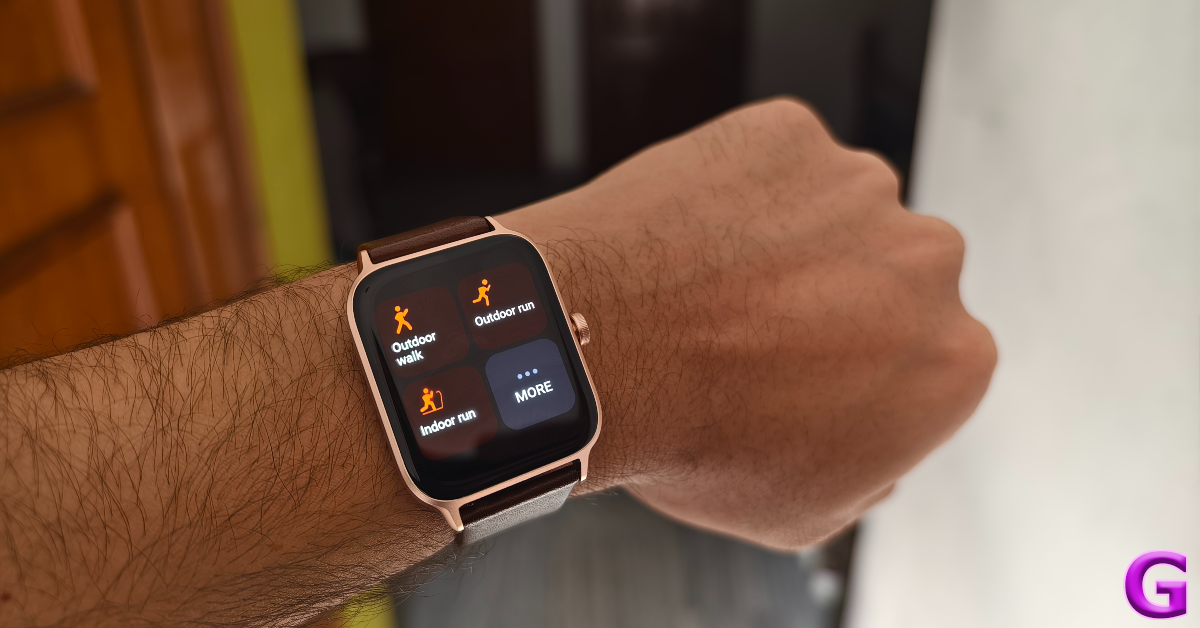
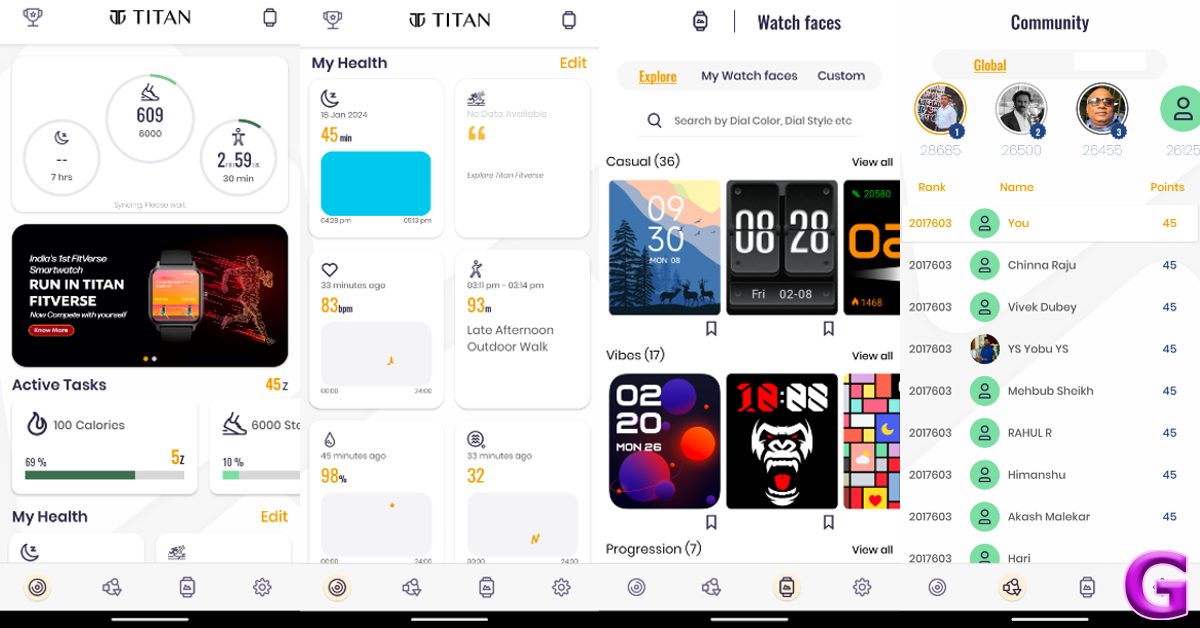
We used the Titan Traveller smartwatch for a plethora of exercises as well as sleep tracking during the review period. Pairing the watch with our Android smartphone was a very smooth experience. The start-up process required installing the Titan Smart World app on your device. Before we move on to the smartwatch’s performance, it is worth mentioning that Titan Smart World is one of the best smartwatch companion apps we have seen in a while. Its user-friendly interface and accessible layout have been designed tastefully.
The smartwatch’s interface is very easy to get used to. Swiping left on the home screen reveals all the health and fitness widgets. A bottom swipe gives you access to all your notifications. Swiping up brings up the quick settings panel. Once you have paired your phone with the smartwatch, you can easily make and accept calls. The audio quality is good enough to not create any hassle while calling.
Our only issue with the software is that it doesn’t make full use of the crown button on the watch. This crown may as well be the home button. Turning this crown does not perform any action watch. At the very least, it could have been used to scroll through the menu and the general interface. When you’re deep in the smartwatch’s settings, you have to rely on swipe gestures to go to the previous page. Pressing the crown will always take you to the home screen. Hopefully, Titan can add more functionality to this button in a future update.
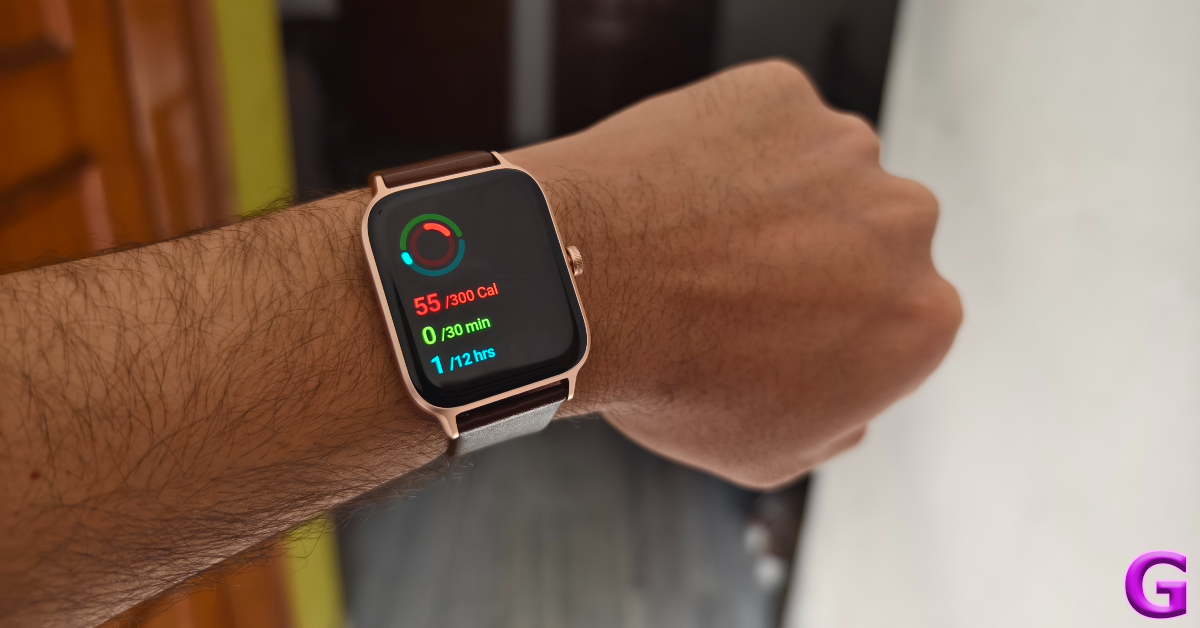
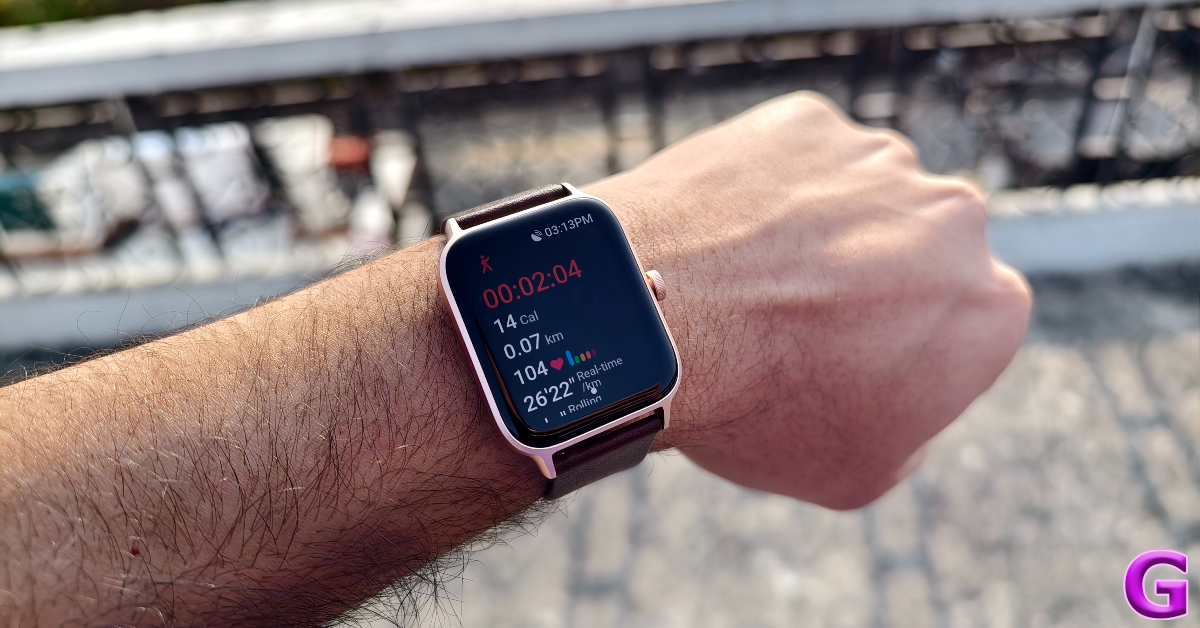
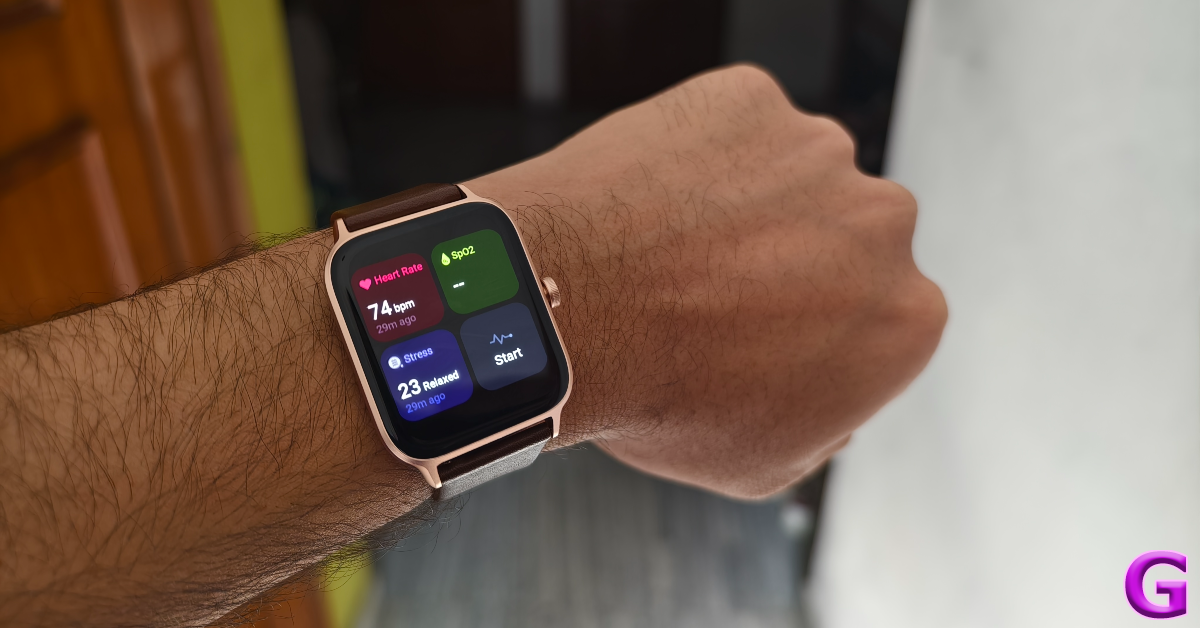
The health and fitness tracking on this smartwatch is precise and reliable. You can turn on the background heart rate monitoring and get notified when it crosses a certain level. The watch also gathers a lot of sleep data while you’re snoozing. However, our favourite feature of the watch has to be the FitVerse. It takes a while to set up the FitVerse on the watch, but it is a complete game changer.
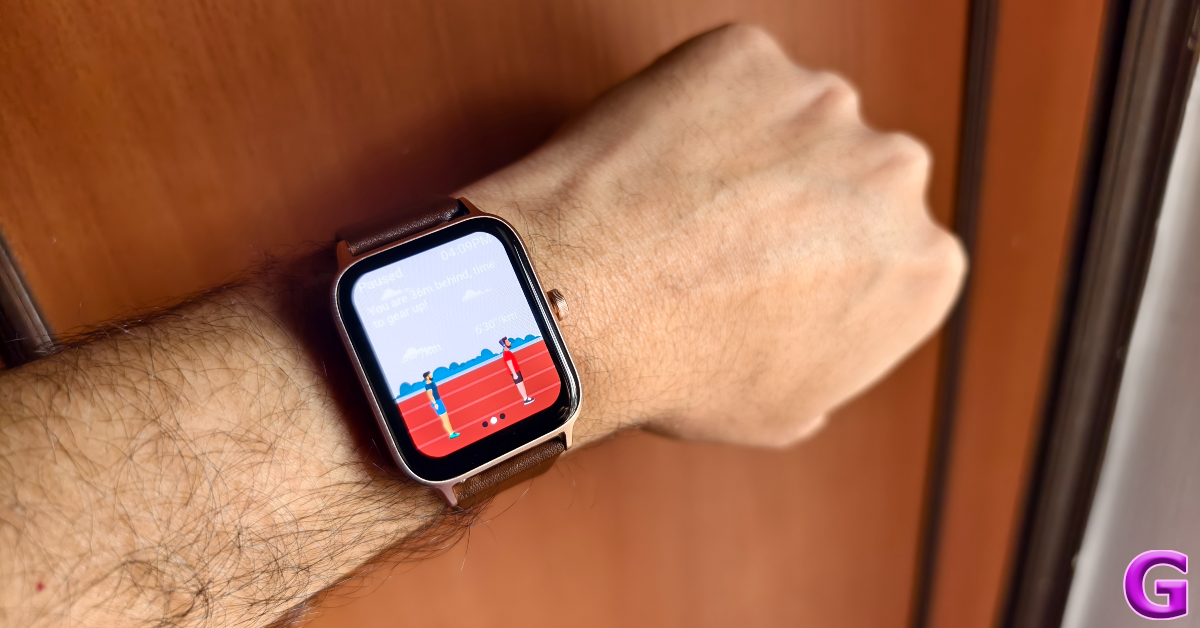
The FitVerse essentially gamifies the fitness aspect of the watch. Your avatar competes against the ‘AI Runcoach’ in the sport of your choice. You can compete in an outdoor race with the AI Runcoach or see how you fare in an indoor walk. The two avatars along with the running background can be customised in the Titan Smart World app. Even though Titan is the only company to offer this feature, we can see other brands incorporating something similar as AI integration becomes the norm on smart wearables.
As you go about your daily exercises, the smartwatch assigns you certain points. These points determine your rank in the community leaderboards. As of now, there are two leaderboards, one global and the other specific to your city. This feature feels like it is in its rudimentary stages, we’d like to see Titan build upon it in future.
Moving on to the battery performance, we got a solid 3-4 days out of the smartwatch on a full charge. We primarily used the smartwatch for tracking hikes, heart rate and SpO2 measurements, Bluetooth calling, and sleep tracking. On standby, the watch can easily last for 3 to 4 weeks. However, if you use the Always On Display and background health tracking, the battery life will drop by a significant factor.
So, the question remains – is the Titan Traveller worth the Rs 12,995 price tag? Well, if you’re dead set on an Android smartwatch that runs Google’s Wear OS, you should look elsewhere. If that isn’t something you are looking for, then the Titan Traveller is a great smartwatch that nails all the basics. Its clean OS and interactive app design are aesthetically pleasing. The star of the show is the Fitverse, which makes you compete against an AI coach, effectively gamifying the fitness experience and getting you to work out more often. The lack of scrolling functionality on the crown feels a little weird, but you get used to it after a while.
Titan Traveller Smartwatch: Pros
Bright AMOLED display
Comes with an additional strap
Good battery life
Built-in GPS
Fitverse makes working out more fun
Titan Traveller Smartwatch: Cons
No adaptive brightness
The crown button is not integrated well into the OS
If you want your smartphone to look a certain way and stand apart from the rest, customising the home screen is one way to go about it. Not only does it bring a lot of flair to your device, but you can even adjust the positioning of the apps to suit your general usage. Sometimes, users report that they can’t find an app on the home screen. This does not mean the app is no longer on your phone. It could be an issue related to its icon on the home screen. Today, we bring you the top 11 ways to fix missing app icons on Android phones.
Why can’t I find certain app icons on my Android phone’s home screen?
Before you begin, you need to know that your phone’s home screen and the app drawer are two different things. The home screen is the panel you see when you unlock your device. You can add multiple pages to the home screen and customise it to look a certain way. You can change the orientation of the apps on this screen. Once you remove an app from the home screen, it doesn’t get uninstalled from your device.
The app drawer contains all the apps on your phone. You can access the app drawer by swiping up from the home screen. The only apps that don’t appear here are the ones that you’ve hidden from the system. Other than that, any app you can’t spot on the home screen can be found in the app drawer.
There are several reasons why you can’t find an app icon on the home screen. Mostly, it’s because you accidentally removed the icon, dropped it inside a folder, or deleted the app entirely. But sometimes, the problem may be deeper than that. Let’s take a look at the common fixes.
Check if you deleted the app
The most common reason behind app icons going missing on Android smartphones is accidental deletion. A quick check will let you know if the app is still installed on your smartphone. Go to the Google Play Store and search for the app. If it says ‘Open’ or ‘Update’ on the app’s page, it means the app is still installed on your phone. If it says ‘Install’ it means the app was removed from your device. Install it again to bring back the app icon to your home screen.
Check the folders on your home screen
If the app isn’t deleted but you still can’t locate its icon on your phone’s home screen, it’s time to scan more thoroughly. It is possible you accidentally dropped it into one of the app folders. If you drag an icon and drop it on another one, your phone’s OS automatically forms a folder. Go through every folder on the screen to look for the missing app icon.
Add the app icon from the app drawer
If the app icon is removed from the home screen, it doesn’t delete the app. You can still find it in the app drawer. Press and hold the app icon in the app drawer and drop it on the home screen to restore it. You can also drop it inside a folder. The great part is that you can add as many icons for one app on the home screen as you want.
Automatically add newly installed apps to the home screen
Step 1:Long-press any empty spot on your phone’s home screen and select More or Settings.
Step 2: Tap on Home Screen.
Step 3: Turn on the toggle switch next to Add new apps to Home Screen.
Check if the app is hidden
Hidden apps don’t appear in the home screen or the app drawer. Every Android skin has its way of hiding an app. Here’s how you can check for hidden apps on Samsung’s One UI.
Step 1: Go to Settings and select Home screen.
Step 2: Tap on Hide apps.
Step 3: The apps that have been hidden will appear in the top row. Tap the app that you want to unhide.
Step 4: Hit Done.
Restore the app
If you can’t find a system app on the home screen, you may have disabled it. Here’s how you can enable it.
Step 1: Go to Settings and select Apps.
Step 2: Scroll down to the app you are looking for and tap on it.
Step 3: Hit Enable at the bottom of the screen.
Turn off the Game Launcher
Can’t find a particular game on your phone? Most Android smartphones offer a special ‘Game launcher’ which creates a new portal for all the installed games on the device. The gaming apps are removed from the home screen. Turn off the Game launcher to get them back.
Step 1: Go to Settings and select Advanced features.
Step 2: Turn off the toggle switch for Game Launcher.
Switch to system app icons
One of the unique things about Android OS is that it lets you change how app icons look on your phone’s screen. You can pick a colour theme for the icons or draw the colours from your phone’s wallpaper. If you don’t want to use the native icon pack, there are third-party themes you can apply to your phone as well. One of the downsides of using icon packs is that they make the apps look similar. If you’re used to traditional icons, it will become harder to spot a particular app until you get used to the new theme. A third-party app icon pack may hide an app if it can’t change its icon. Here’s how you can disable it.
Step 1:Long-press on your phone’s home screen.
Step 2: Tap on Colour and style.
Step 3: Scroll down and turn off the toggle switch for ‘Apply colour to icons’.
Reset app icon settings
Step 1: Go to Settings.
Step 2: Tap on Home screen, lock screen, & wallpaper.
Step 3: Tap on Icons.
Step 4: Hit Reset.
Clear your phone launcher’s cache
Your Android phone’s default launcher app can sometimes be responsible for the app icons going missing from the home screen. Clearing its cache will help fix this issue. This fix also works for third-party launchers.
Step 1: Go to Settings and select Apps.
Step 2: Select the default home screen launcher app.
Step 3: Tap on Storage.
Step 4: Select Clear cache.
Change the default launcher app
If you use a third-party launcher app for your Android smartphone, it can sometimes malfunction and hide app icons. To fix this, switch to the native launcher app.
Step 1: Go to Settings and select Apps.
Step 2: Tap on Choose default apps.
Step 3: Tap on Home app.
Step 4: Select the native launcher.
Frequently Asked Questions (FAQs)
How do I restore a missing app icon on my Android phone’s home screen?
Make sure you didn’t accidentally delete the app or move it inside a folder on the home screen. If that isn’t the case, go to hidden apps and unhide the app. If the app isn’t hidden, your phone’s launcher app may be causing trouble.
Is there any fix to the missing app icons issue on Android?
If the icons to newly installed apps don’t show up on the home screen of your phone, long-press any empty spot on the home screen, tap on More/Settings, then go to Home Screen, and turn on the toggle switch next to ‘Add new apps to Home Screen’.
Why have my app icons disappeared?
If you installed a custom home screen launcher like Niagara or Nova, it could lead to the app icons disappearing from the home screen.
How do I restore an app icon’s colour to its system default?
Go to Settings>Lock screen and wallpaper>Colour and style and turn off the toggle switch for ‘Apply colour to icons’.
How do I change my phone’s default launcher app?
Go to Settings>Apps>Choose default apps>Home app and select a launcher from the list.
This is how you can fix and restore missing app icons from your Android phone’s home screen. As a last-ditch measure, you can also try resetting your smartphone to its factory settings. However, this method will erase all your personal data from the device. If you know any other way to fix this problem, let us know in the comments!
WhatsApp backups on Android will soon start counting toward your Google Account cloud storage limit.
Google offers 15GB of free storage to all Google Accounts.
The changes have been implemented in the Beta version of the app.
If you have been using WhatsApp’s beta version for Android then your chat backup has begun taking up space in Google Drive. Soon this change will be implemented for all the users in the future update.
Chat backups have begun taking up storage space for Android users of the WhatsApp beta, regardless of whether they are using Google’s cloud storage service at no cost or for a fee. Google last year announced that it would put an end to the free WhatsApp storage backups on Google Drive. WhatsApp users either have to manually store their chat history on their Android device or have to pay for additional storage in Google Drive.
WhatsApp beta for Android users has already started to see how much storage space is backed up in their Google account. In its announcement Google last year noted that the upcoming change will first start rolling out to WhatsApp Beta users starting in December 2023, then gradually to all WhatsApp users on Android starting in early 2024.
Note that all Google accounts come with a meagre 15GB of free cloud storage. However, eventually, this amount of storage won’t be sufficient to hold all of your smartphone’s data because WhatsApp chats and media backups eat up space on Google accounts.
However, as long as there is space in your Google Account storage you will be able to backup WhatsApp storage or have to remove things you don’t need to free up space on your storage so that backups may continue. Users can also delete items directly from WhatsApp. Keep in mind that removing items from WhatsApp also removes them from your cloud storage, which lowers the amount of space needed for your subsequent backup.
According to WhatsApp, it will start notifying users 30 days before this change happens with a banner in WhatsApp Settings > Chats > Chat backup. Also one can still transfer your chats between Android devices using WhatsApp Chat Transfer if you don’t want to back up chats to your Google Account.
Garena Free Fire is a battle royale game with regular awards and tournaments to keep players interested. If you play Garena Free Fire, you should be aware of the redeem codes that are released on a daily basis. However, because the battle royale game is banned in India, players from other countries can use the Free Fire Redeem codes daily. If you’re unfamiliar with the Garena Free Fire redeem codes or don’t know how to get them, we’ve put together a step-by-step guide to help you redeem them. Check out Garena Free Fire Redeem Codes for 29 January 2024.
The Free Fire redeem codes are a great way to get free stuff. These are 12-digit codes that contain alphabets and numbers, as well as an expiration date and time. Because the Garena FF redeem codes cannot be used more than once, you should hurry to the redemption page to claim your free reward before someone else does. To get a free reward, all you have to do is go to reward.ff.garena.com/en, which is the official redemption page. Also, keep an eye on this space for daily updates on Garena Free Fire redemption codes and rewards.
In This Article
Garena Free Fire Redeem Codes Today 29 January 2024
FFBBCVQZ4MWA
VNY3MQWNKEGU
FFAC2YXE6RF2
ZZATXB24QES8
FFCMCPSBN9CU
U8S47JGJH5MG
FFIC33NTEUKA
How to Get Free Fire Redeem Codes for Garena on 29 January 2024?
Google’s newest ‘Circle to Search’ made its debut on the Samsung Galaxy S24 Series earlier this month. This new feature harnesses the power of AI and adds a visual and interactive element to the way you search for things. Available only on premium Android smartphones, Circle to Search will launch on January 31. It is unlikely that this feature will ever be rolled out for older midrange and budget Android phones. If you’re excited to use this feature, there is one way you can get a feel of how it works. Check out how you can use Circle to Search on any Android phone.
Google’s newest Circle to Search feature elevates the game to a whole new level. Typically, finding something on Google does not take a lot of effort. All you need to do is enter a few keywords and you’ll land on the desired result in no time. But what if you know very little about the thing you’re searching for? It could be anything from a random symbol on a webpage to a piece of clothing someone is wearing in a YouTube video. The Circle to Search feature fixes this situation.
If you ever come across something you want to know more about, simply long-press the home button or gesture bar and circle the area containing the object or text. Google will produce the relevant results immediately. For more precise results, add to the query by typing something about the object. For example, if you circle the image of a smartphone, you can add ‘where to buy’ to find the e-stores that stock the device.
Google’s Circle to Search feature is only available for the Samsung Galaxy S24 Series and Google Pixel 8 Series right now. The Galaxy S23 series will get this feature via an OTA update later this year. However, if you own a midrange to budget smartphone, it is unlikely that it will be made available for your device. Luckily, there’s another feature you can use that mimics Circle to Search.
Use Circle to Search on any Android phone
Step 1: Go to the page that contains the object you want to search.
Step 2: Press and hold the side key to trigger the Google Assistant. If the side key opens up the power menu, say ‘Okay Google’ to launch the voice assistant.
Step 3: Tap on Search screen.
Step 4: Google Lens will scan the page for searchable objects. Crop the window around a particular entry to search for it.
Step 5: The search results will be published on the following page.
Frequently Asked Questions (FAQs)
How do I use the Circle to Search feature on an Android smartphone?
Press and hold the home button or gesture bar and circle the object you want to search. If your phone doesn’t have Circle to Search, trigger the Google Assistant and tap on ‘Search screen’.
Which Android smartphone will get the Circle to Search feature?
As of now, only the Samsung Galaxy S24 series and Google Pixel 8 series are confirmed to get the Circle to Search feature. The Galaxy S23 series and Galaxy Z 5 series are expected to get the feature soon.
When will the Circle to Search feature launch?
Google will launch the Circle to Search feature on January 31.
This is how you can use Google’s Circle to Search feature on Android smartphones that don’t have it yet. While Google Assistant’s ‘search screen’ may not let you draw a line over an object, you can crop the search window around it. However, the option to add a text query along with the image is only available on Circle to Search.
The National Highways Authority of India has set January 31 as the deadline to update your FASTag KYC (Know Your Customer) details. Failure to update details within the deadline period will lead to the termination of your FASTag account. NHAI says this policy is being brought in to limit one FASTag account to one car. Similarly, one car cannot have more than one FASTag account. If that is the case with you, update the KYC for the most recent account. Don’t know how you go about the process? Here is how you can update your FASTag KYC details online and offline.
If you remember completing the KYC process for FASTag earlier, you can check its current status from the official IHMCL website. This will make it clear whether you need to update your KYC details before the January 31 deadline.
Step 6: Upload your profile picture and the identity/address proof.
Step 7: Fill out all the details in the relevant fields.
Step 8: Tick the message declaring the validity of the documents.
Step 9: Hit Submit.
How to update your FASTag KYC offline
If the online process isn’t working out for you, you can simply walk into the bank that issued you the FASTag and carry out the process offline. Ask for the Customer Relationship form and fill out the necessary details. Make sure you are carrying copies of the required documents as well. If you have multiple FASTag accounts, update the KYC for the most recent one. You can seek the help of the Relationship Manager at the bank to walk you through the process. Once the form has been submitted and your documents have been verified by the bank, the KYC will be updated within 4 working days. You will be alerted by an email and SMS from your bank.
Frequently Asked Questions (FAQ)
When is the last date for the completion of FASTag KYC?
The National Highway Association of India (NHAI) has set January 31 as the deadline for the FASTag KYC completion.
How do I check if my FASTag KYC is updated?
Go to https://fastag.ihmcl.com/, log in using your mobile number, click on My Profile, and check the KYC update status from the Dashboard.
How do I update my FASTag KYC?
Go to https://fastag.ihmcl.com/, log in using your mobile number, then go to My Profile>KYC>Customer type and upload all the necessary documents. Fill out the details in the form and hit ‘Submit’. You can also carry out this process offline at the bank that issued you the FASTag.
This is how you can complete and update your FASTag KYC. Following January 31, only one FASTag account can be linked to a vehicle and vice-versa. In case there are multiple FASTags linked to your car, you need to update the KYC for the most recent ones. The older ones will be terminated after the deadline.


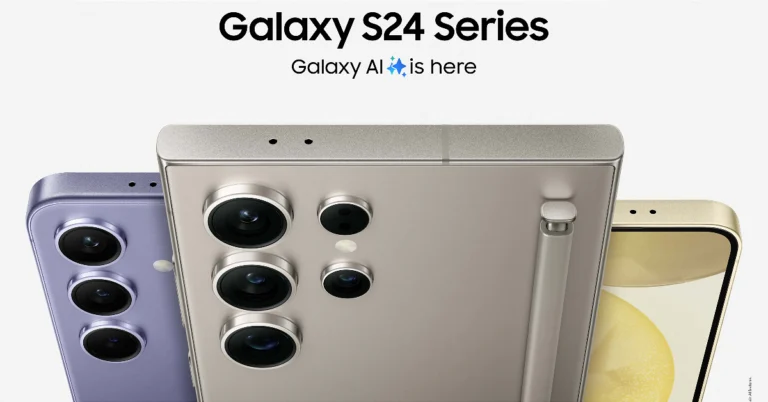
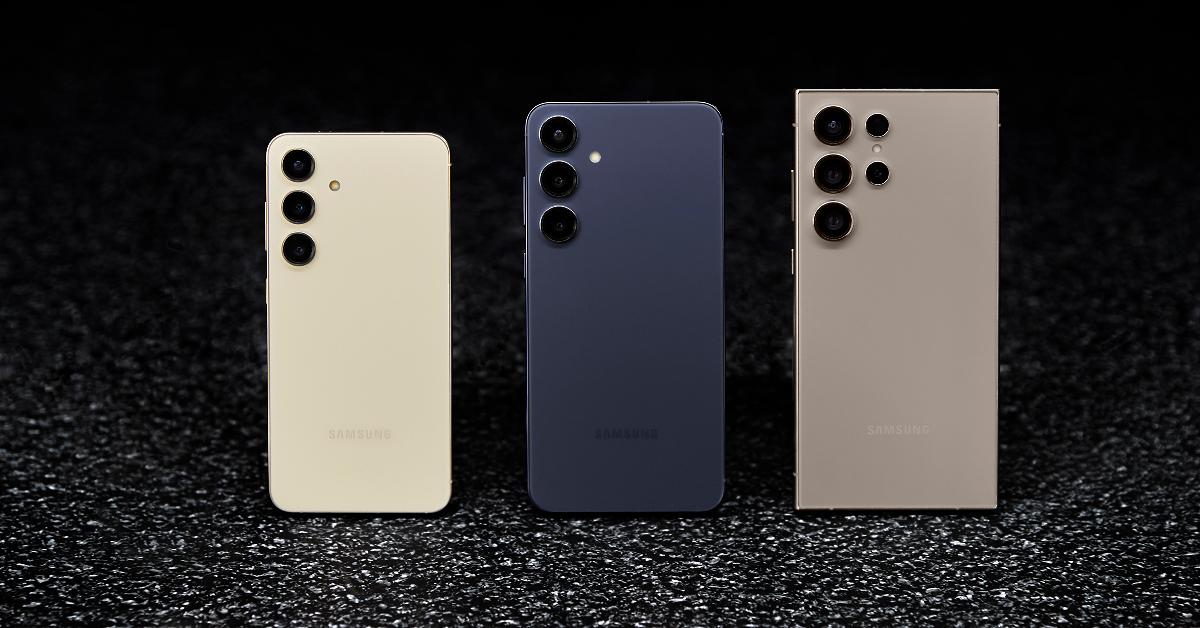
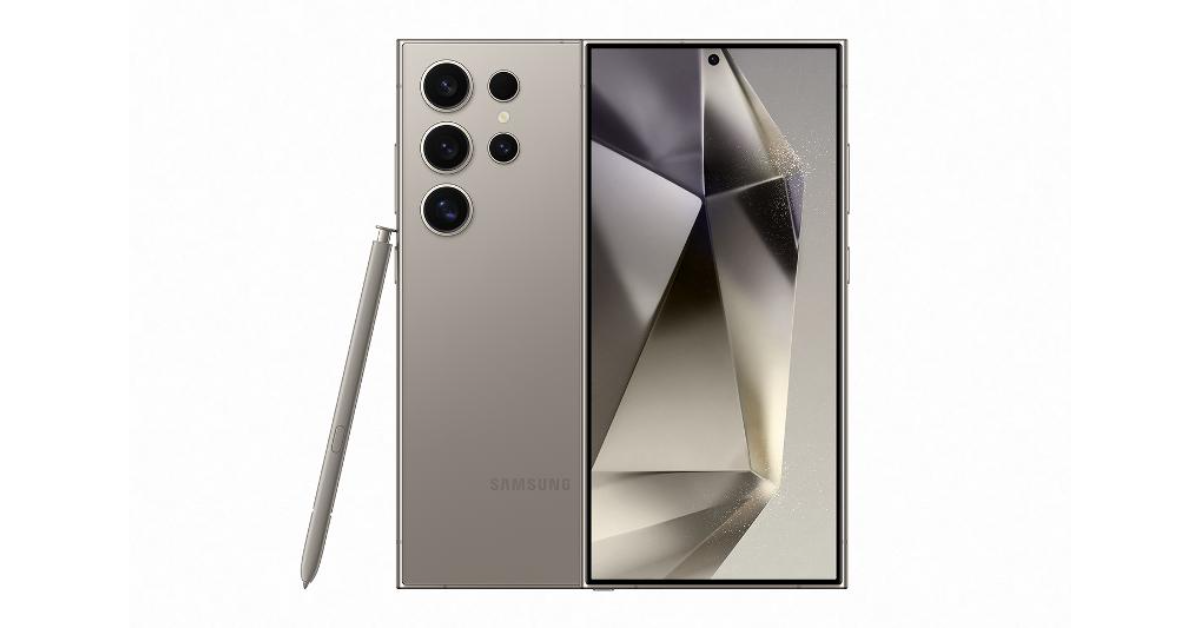
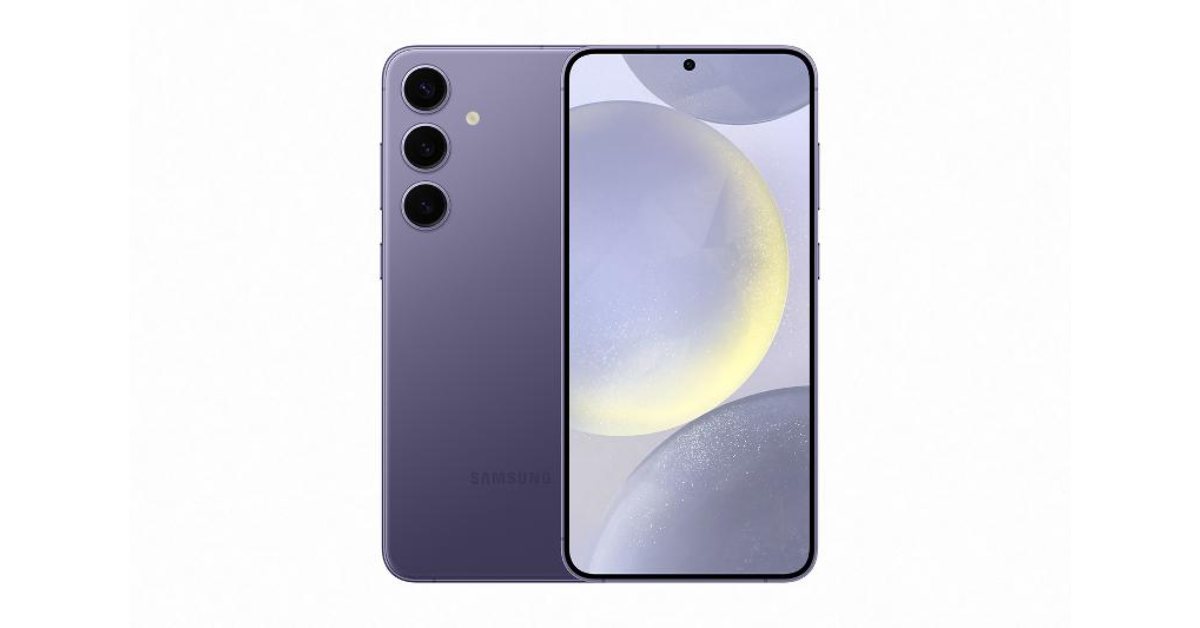
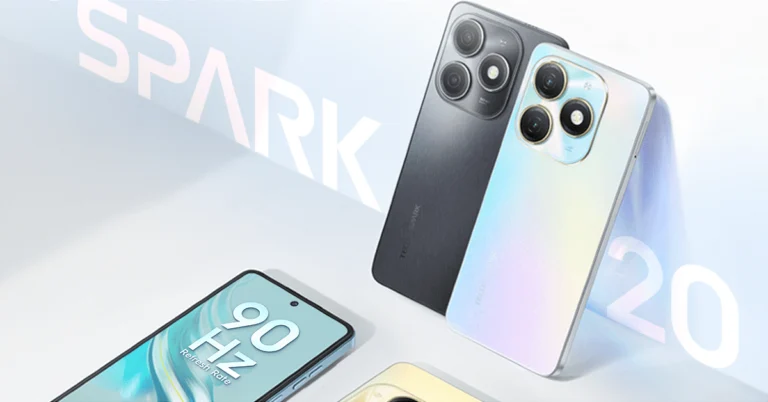
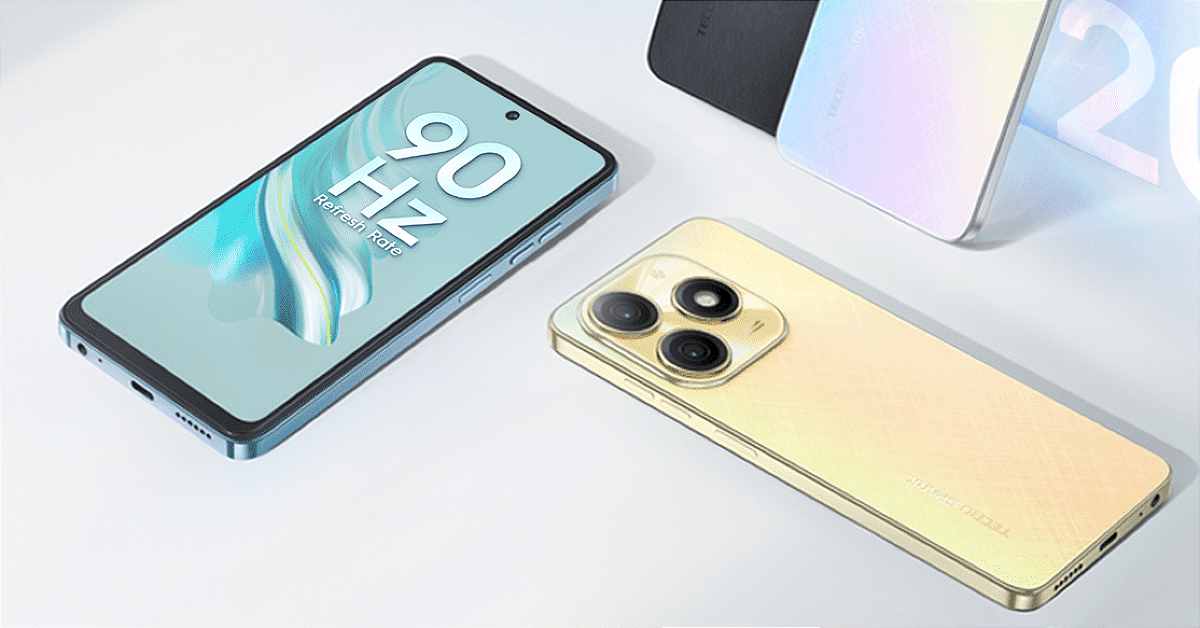

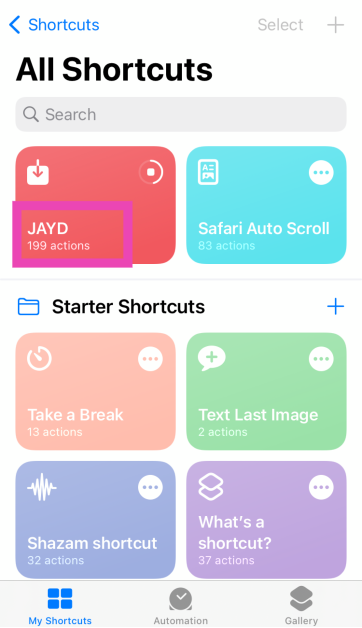

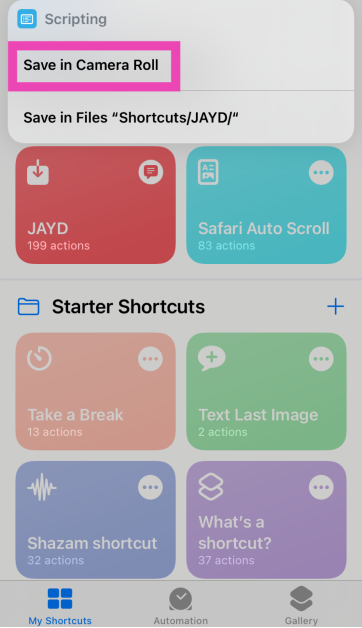
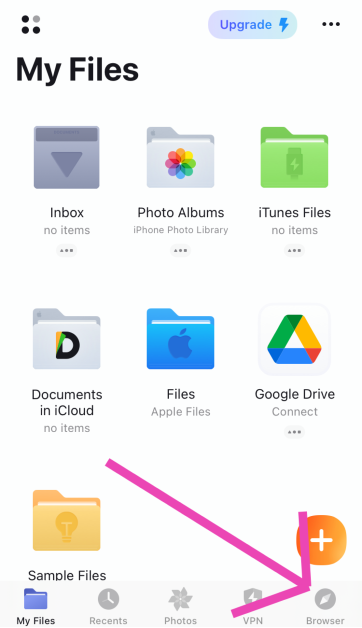
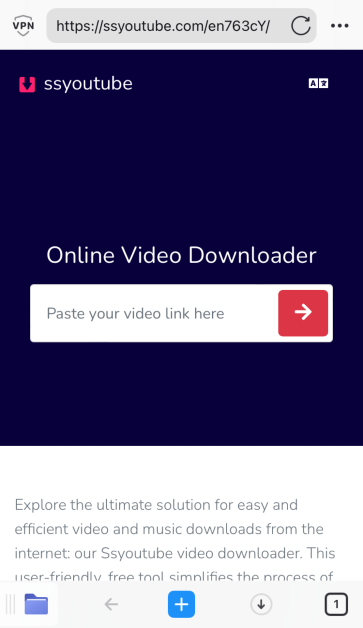
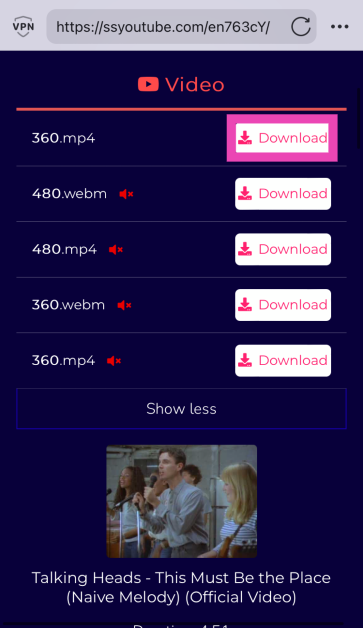
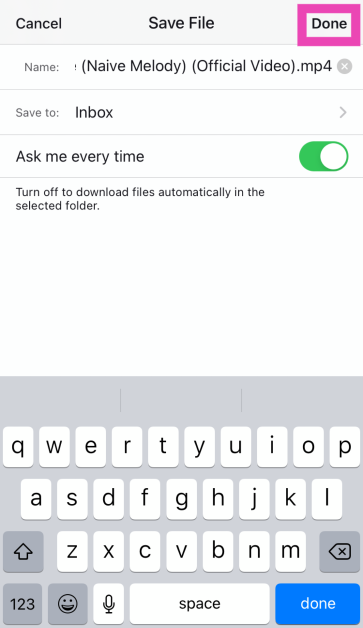
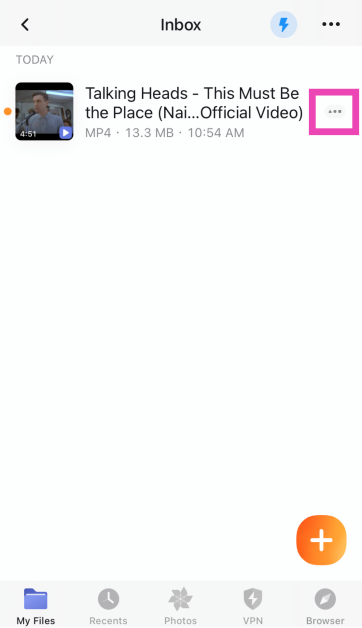
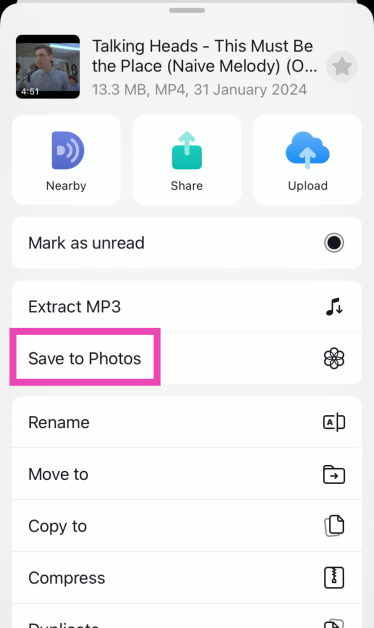
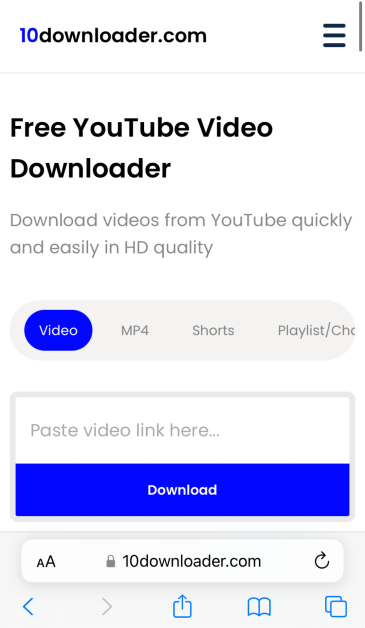
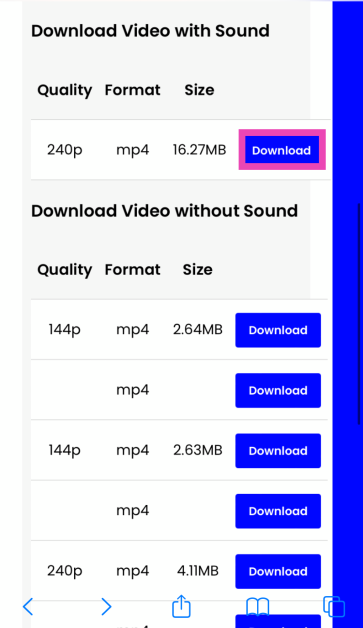
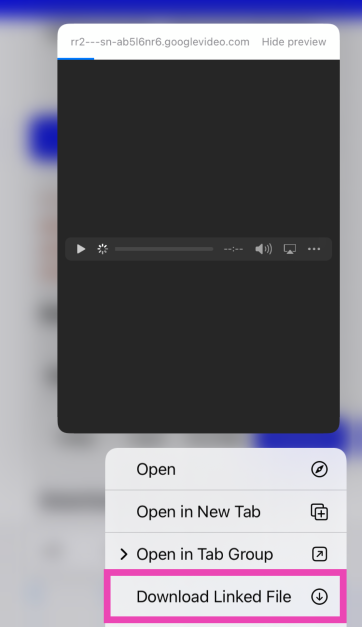

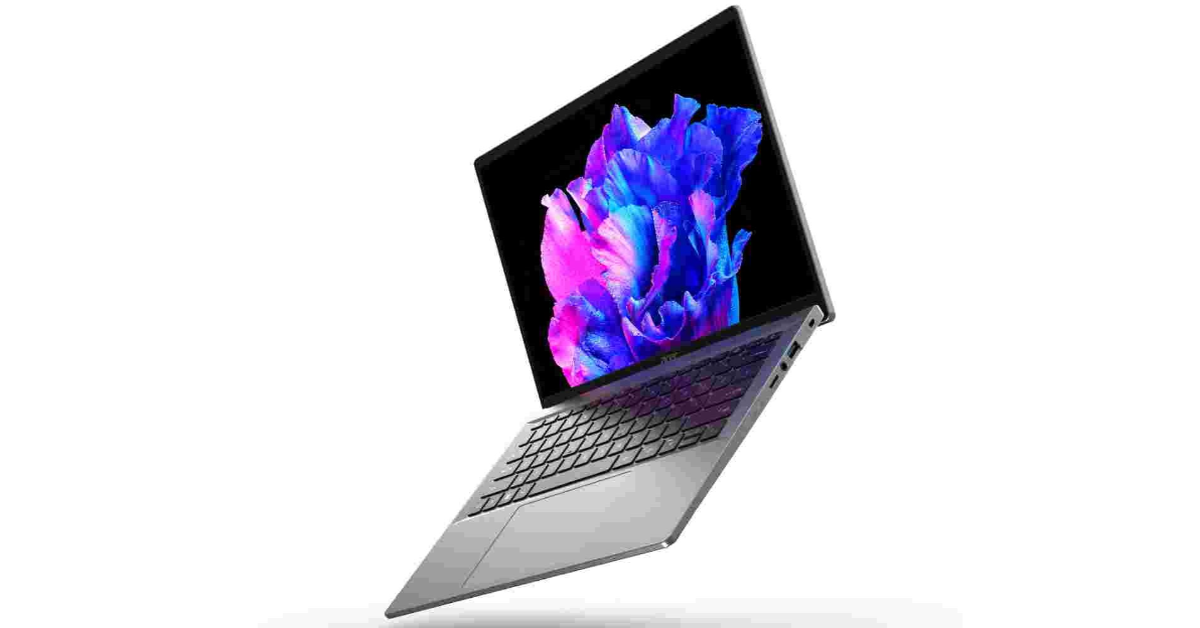
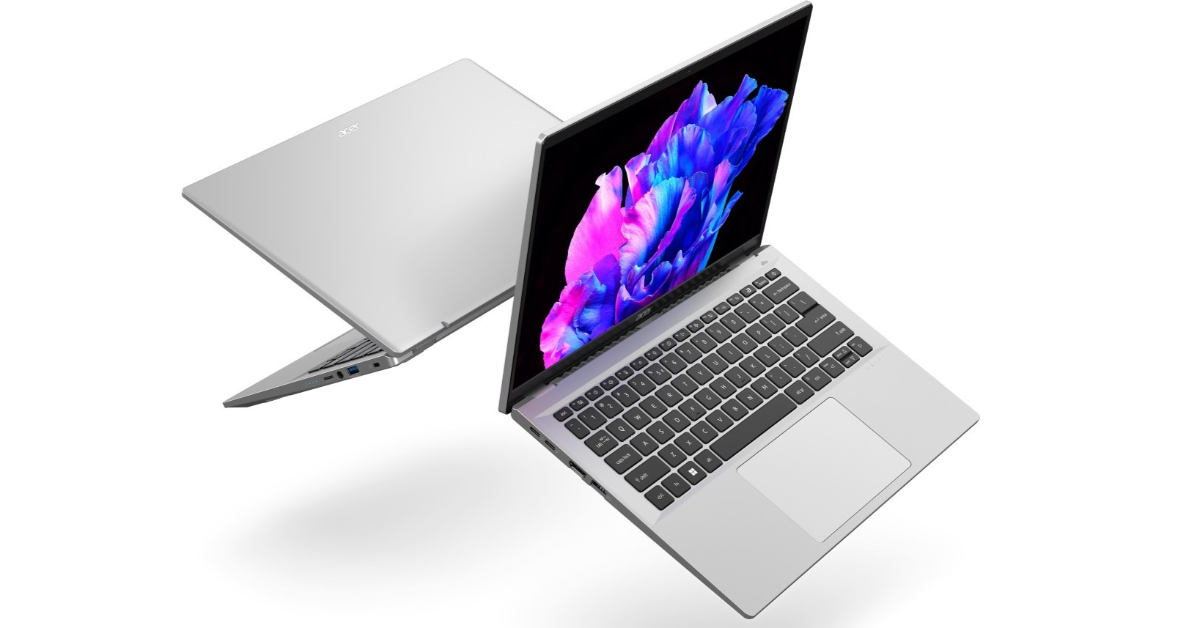

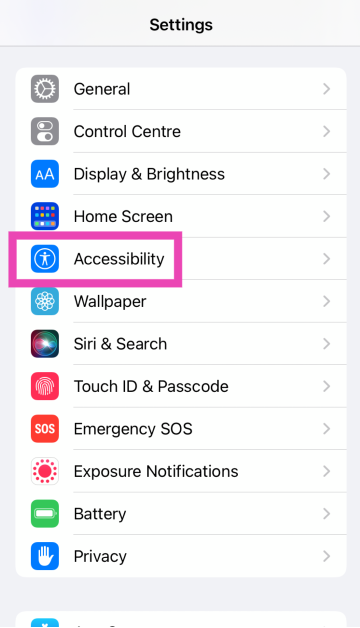
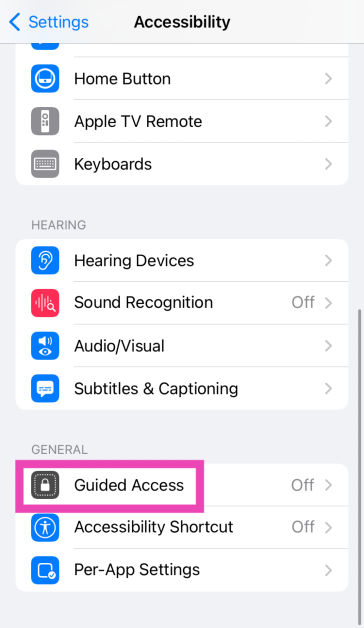
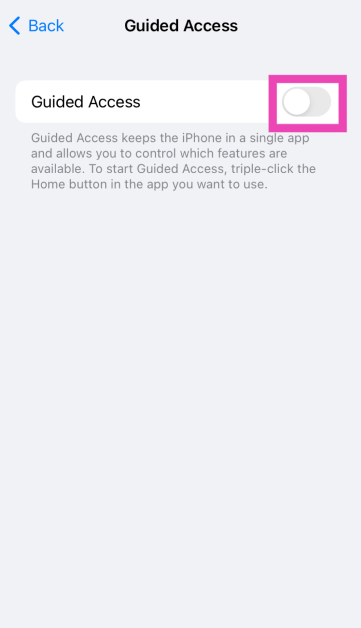
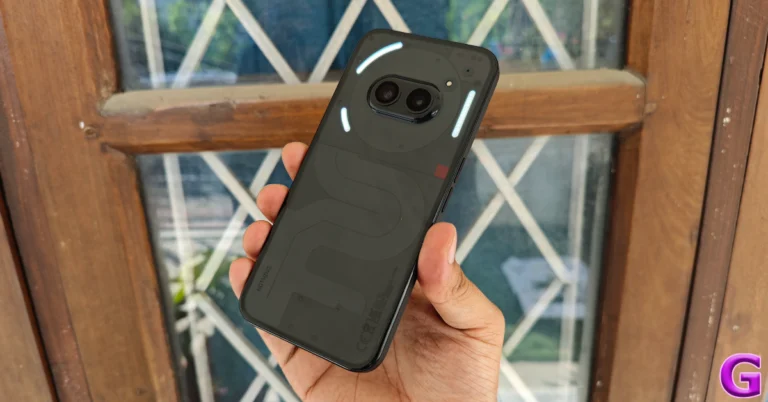
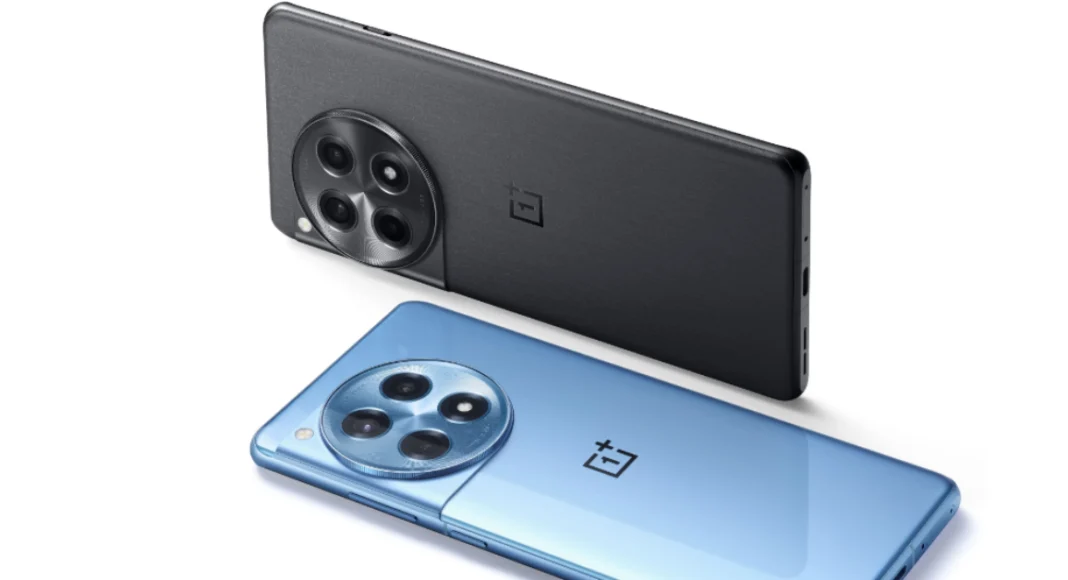


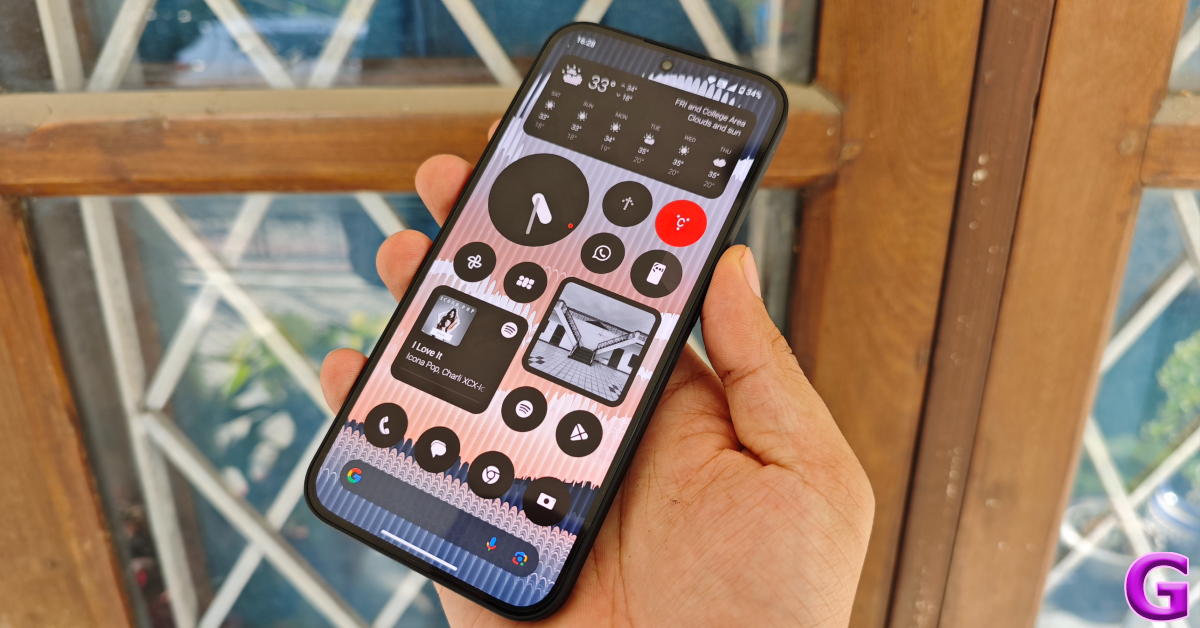

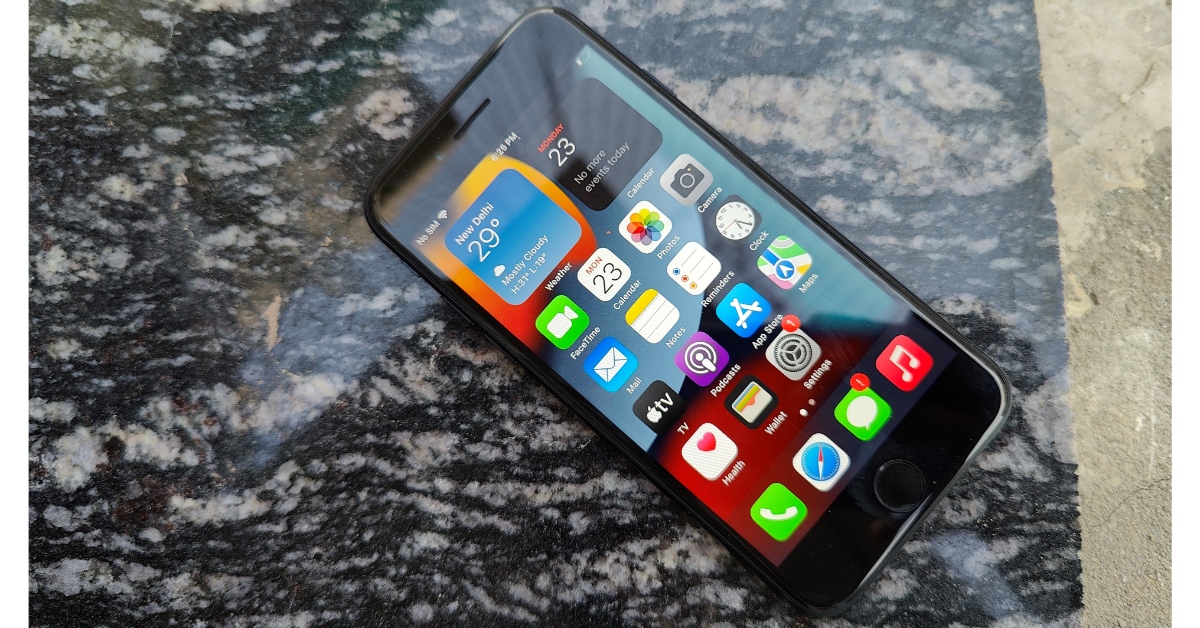
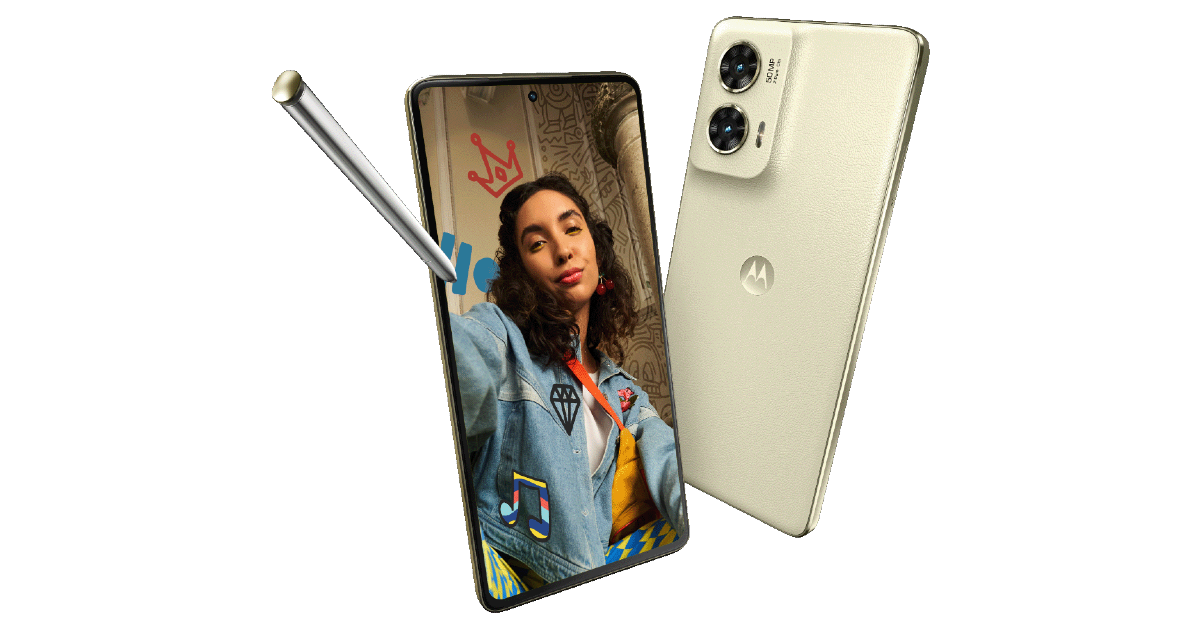
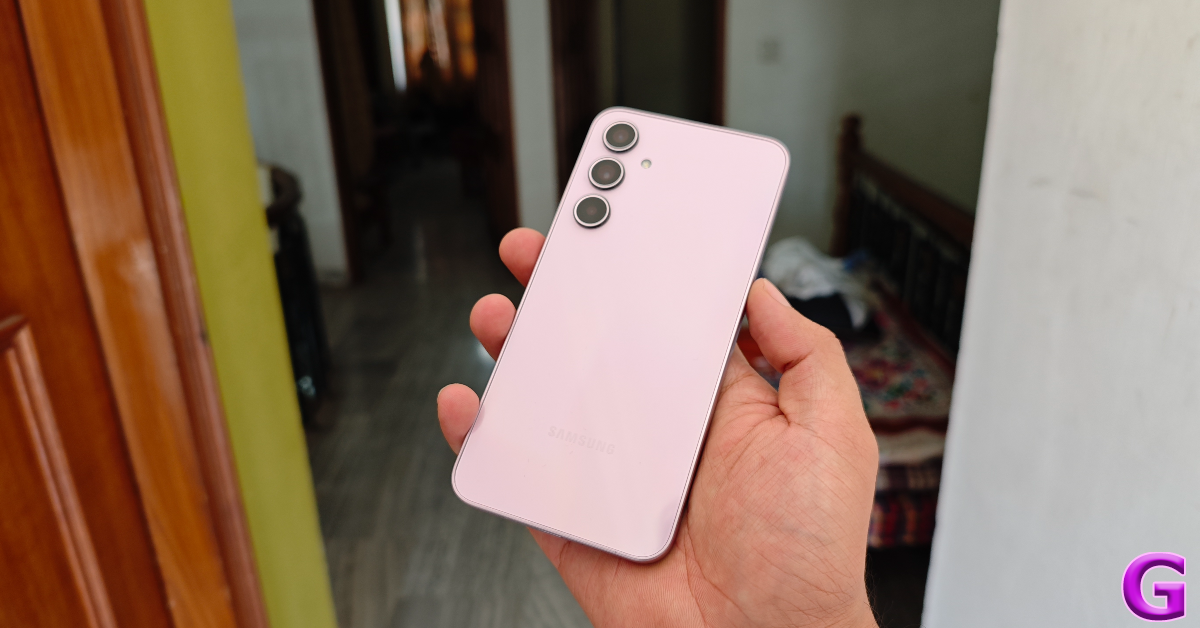
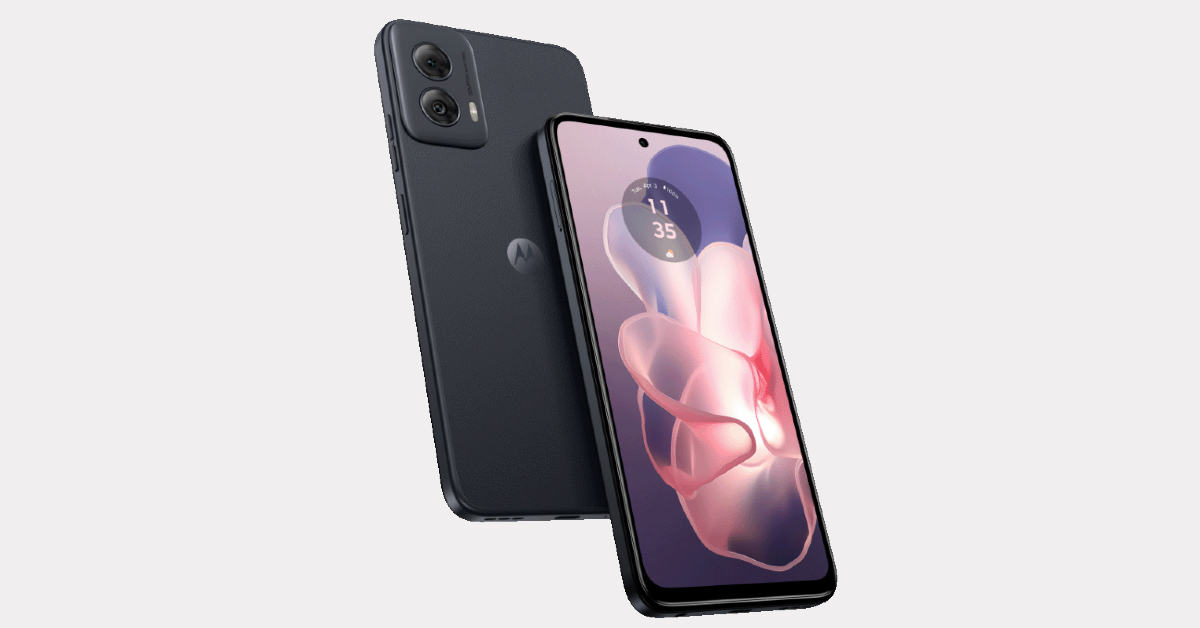
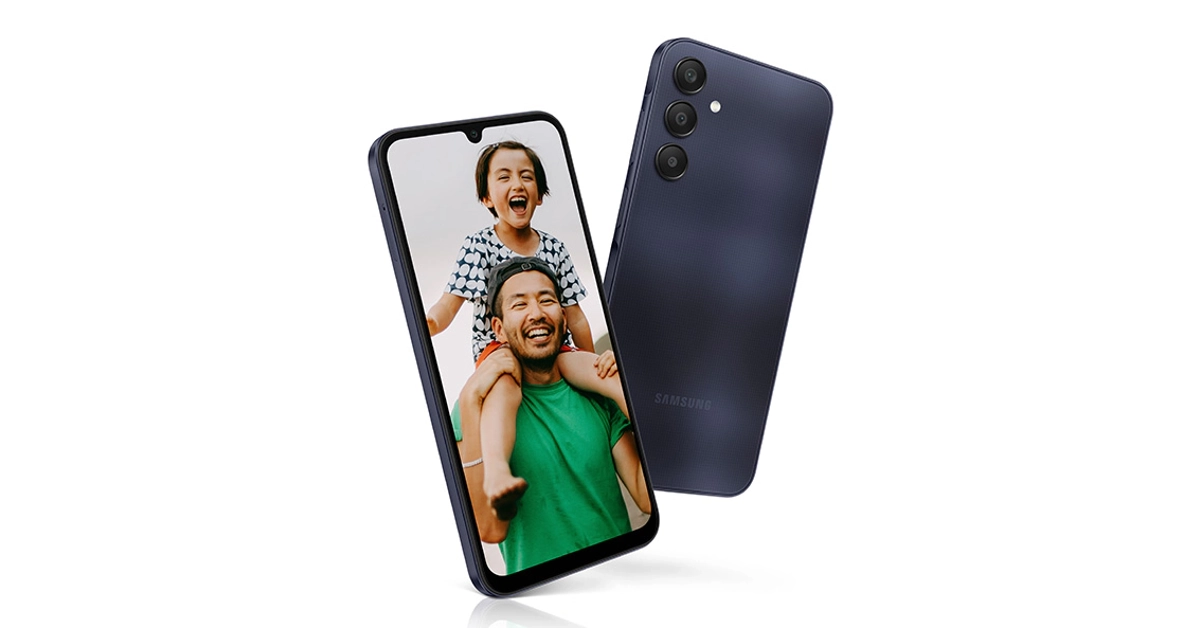


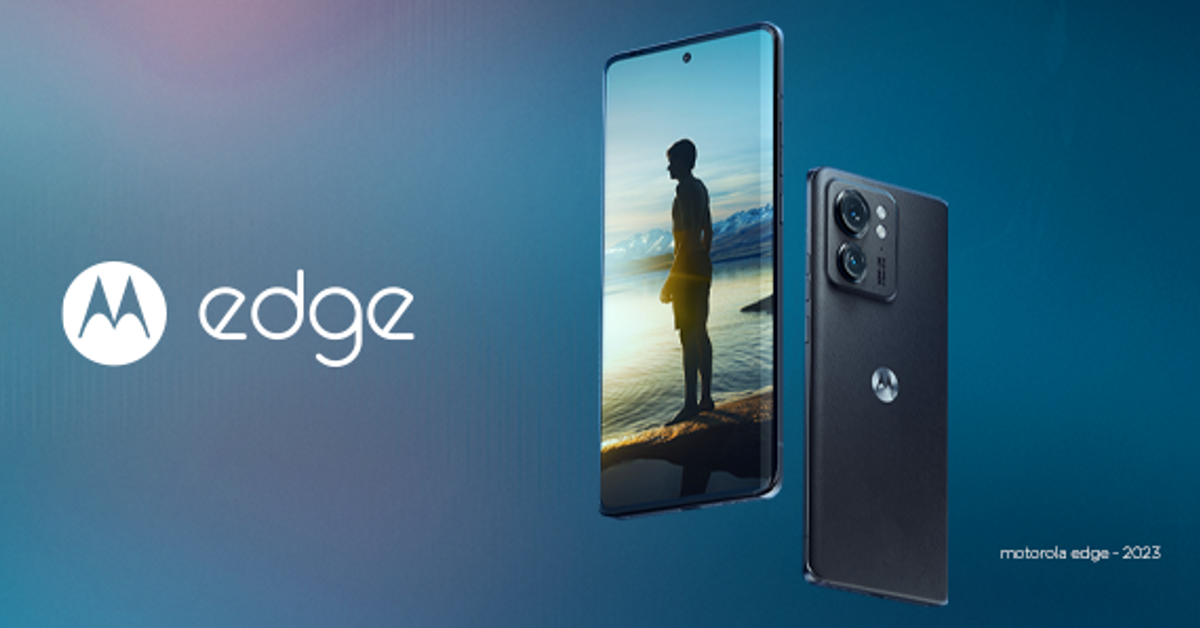


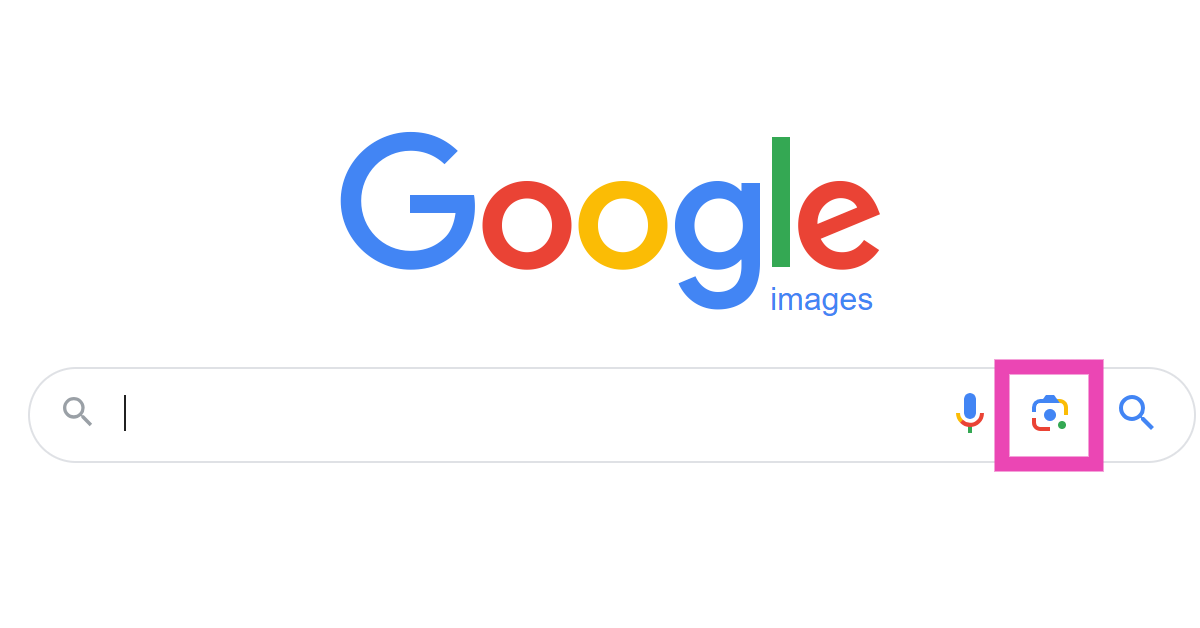
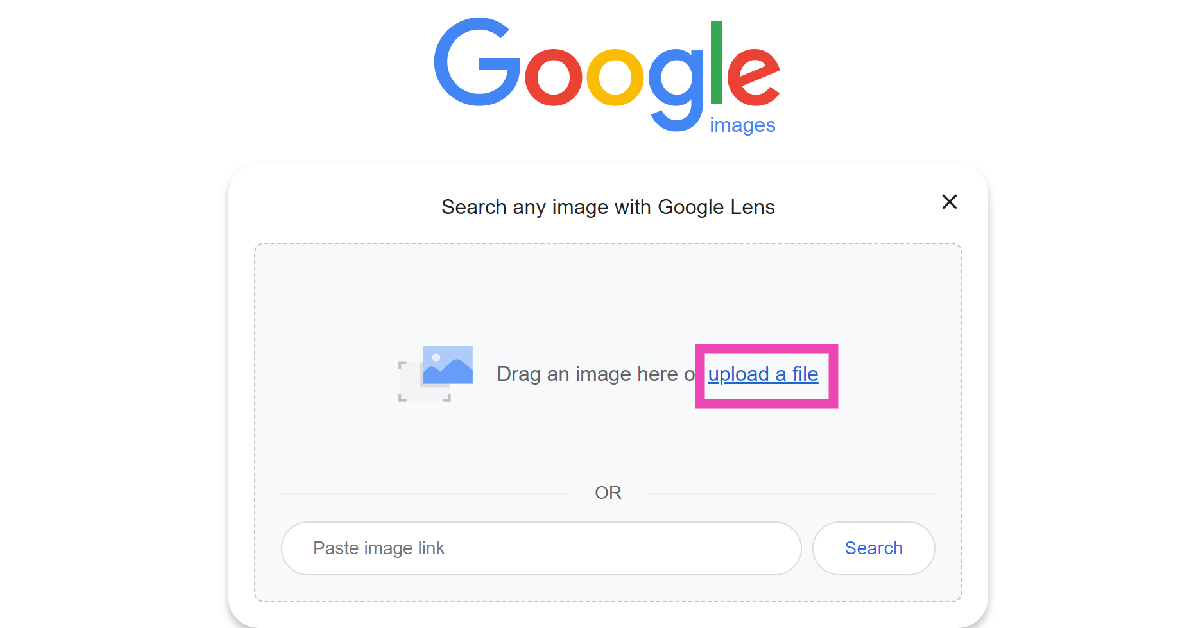
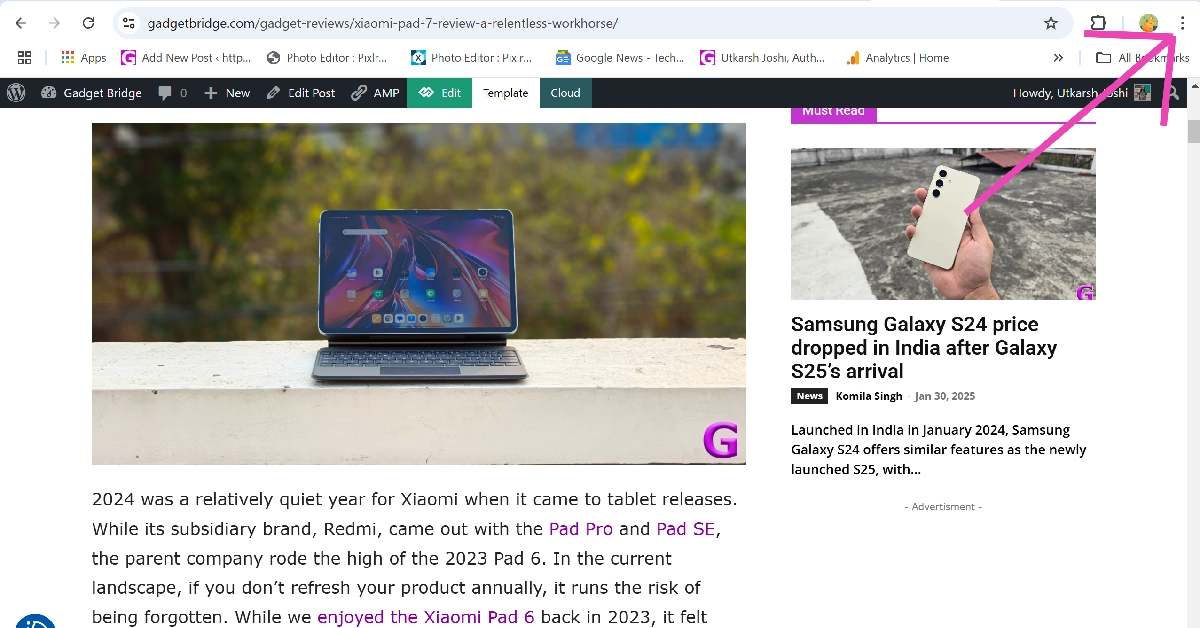
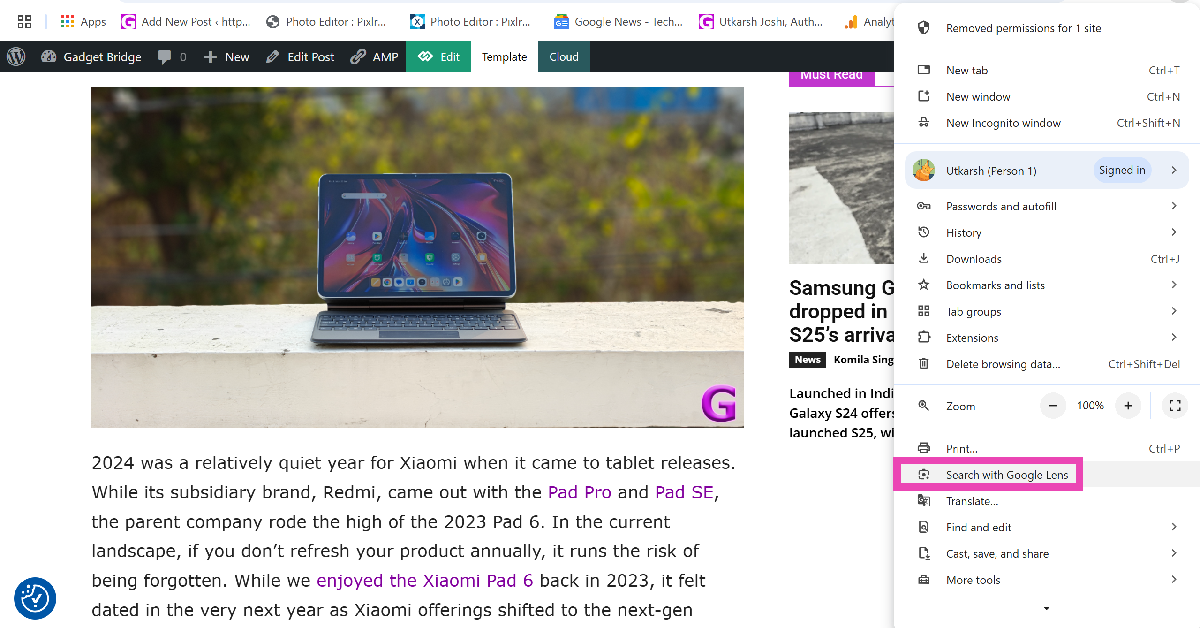
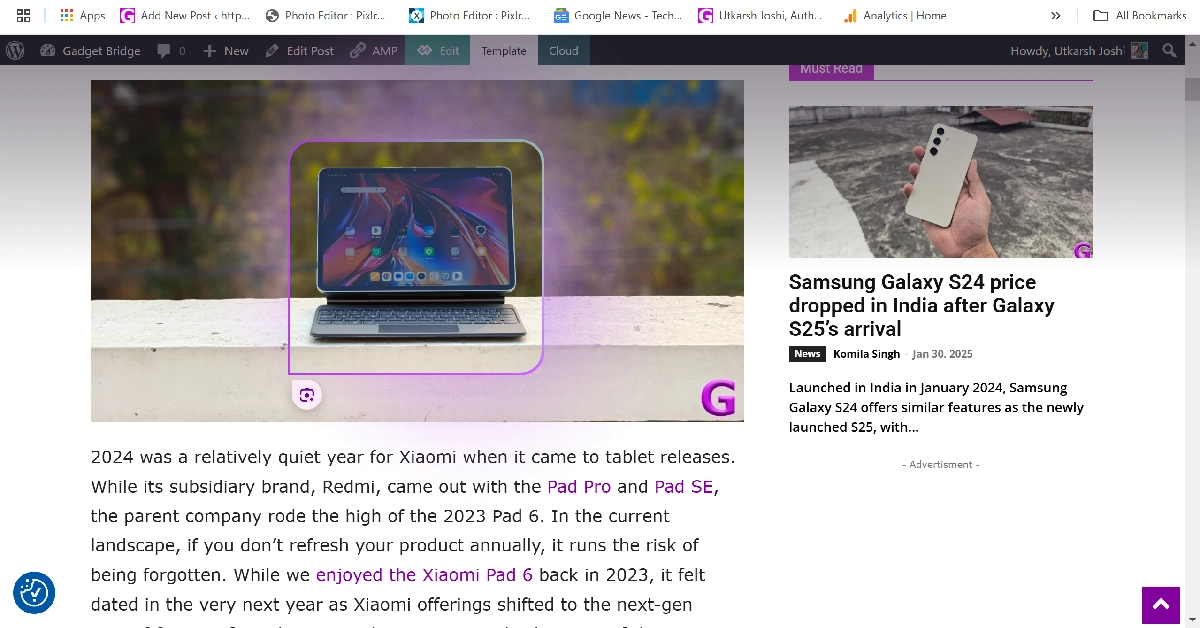
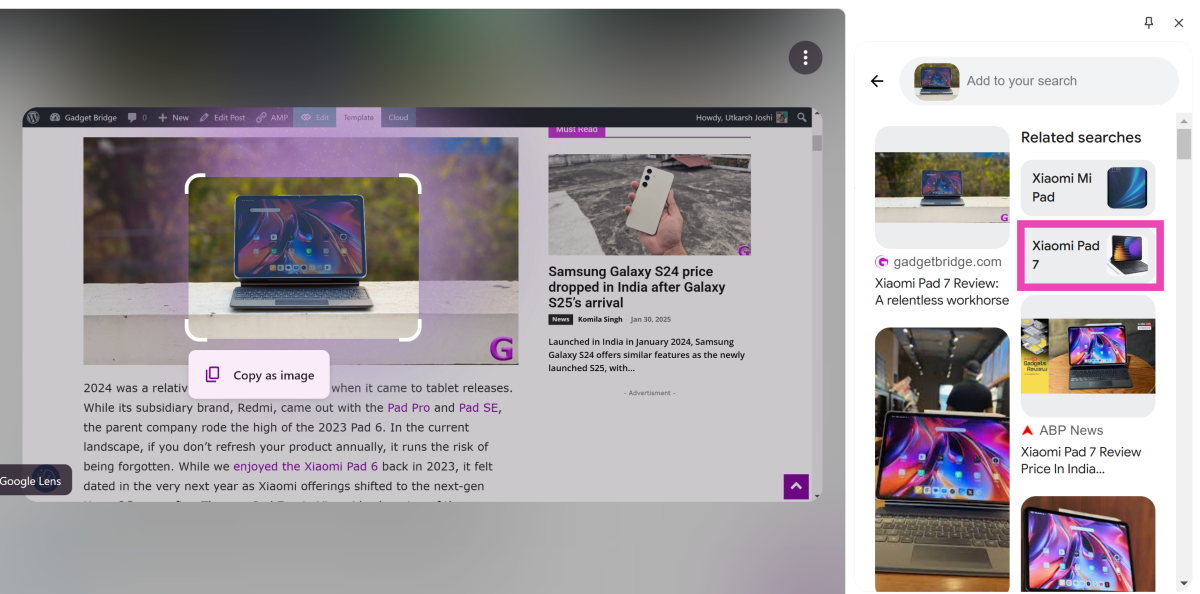
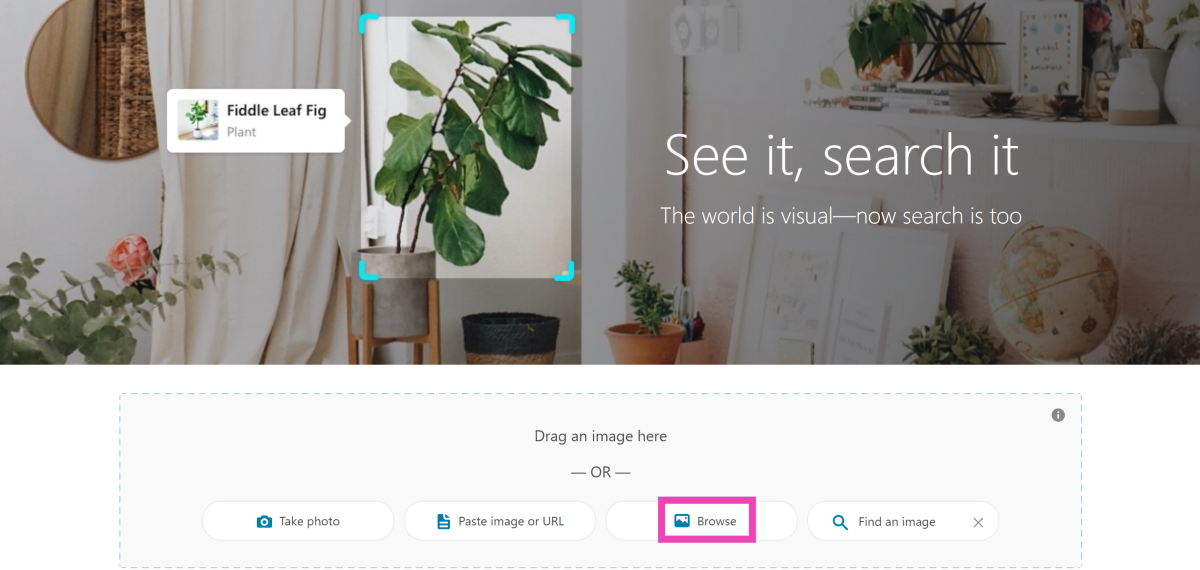
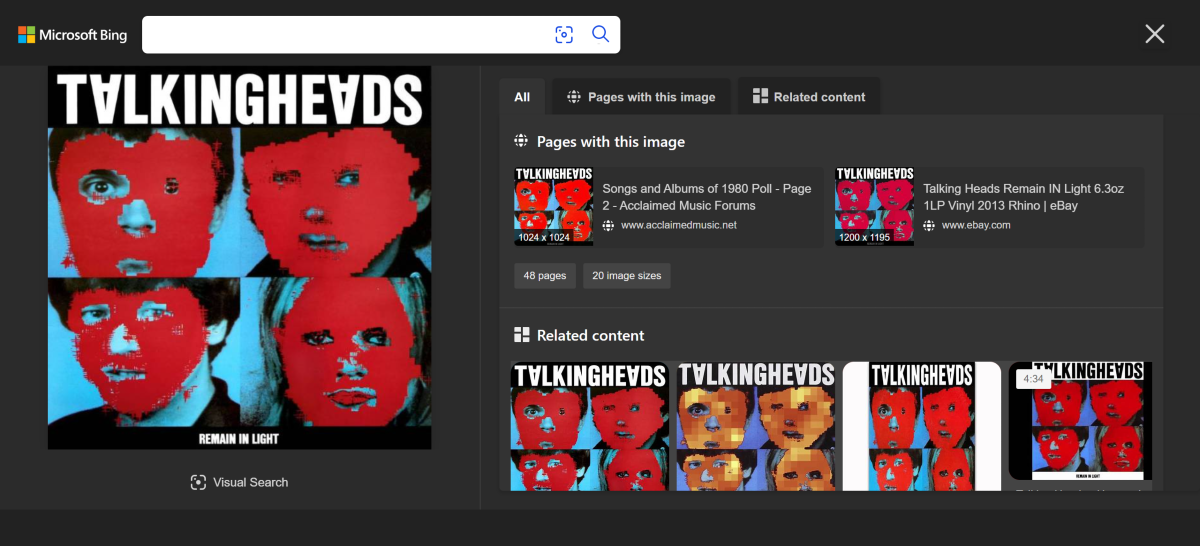
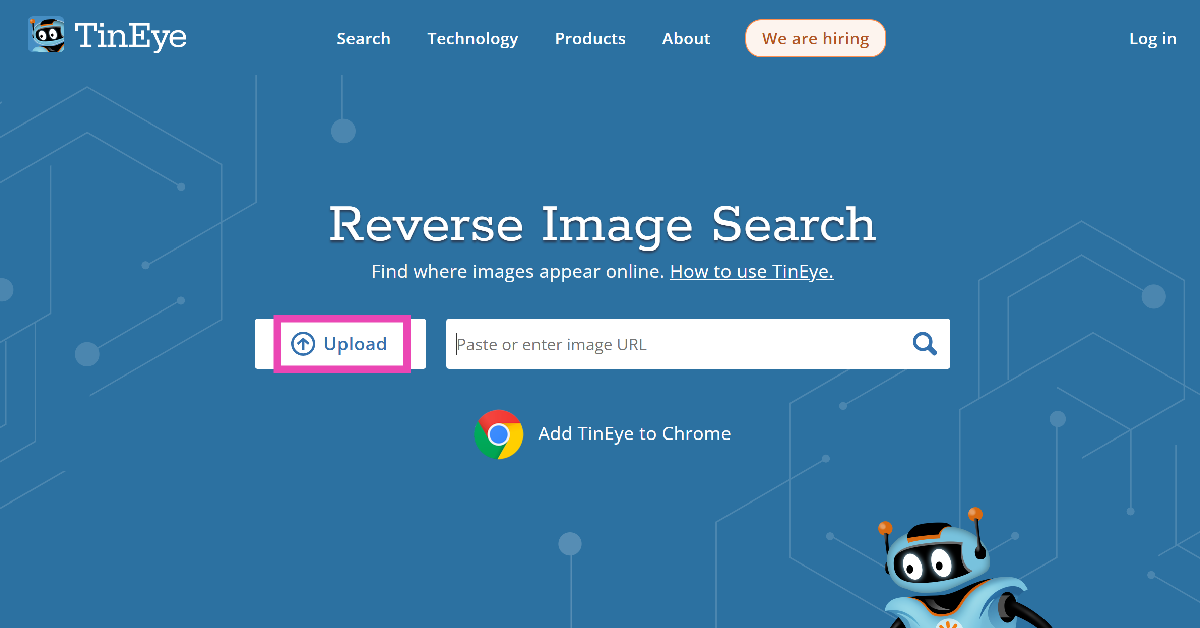
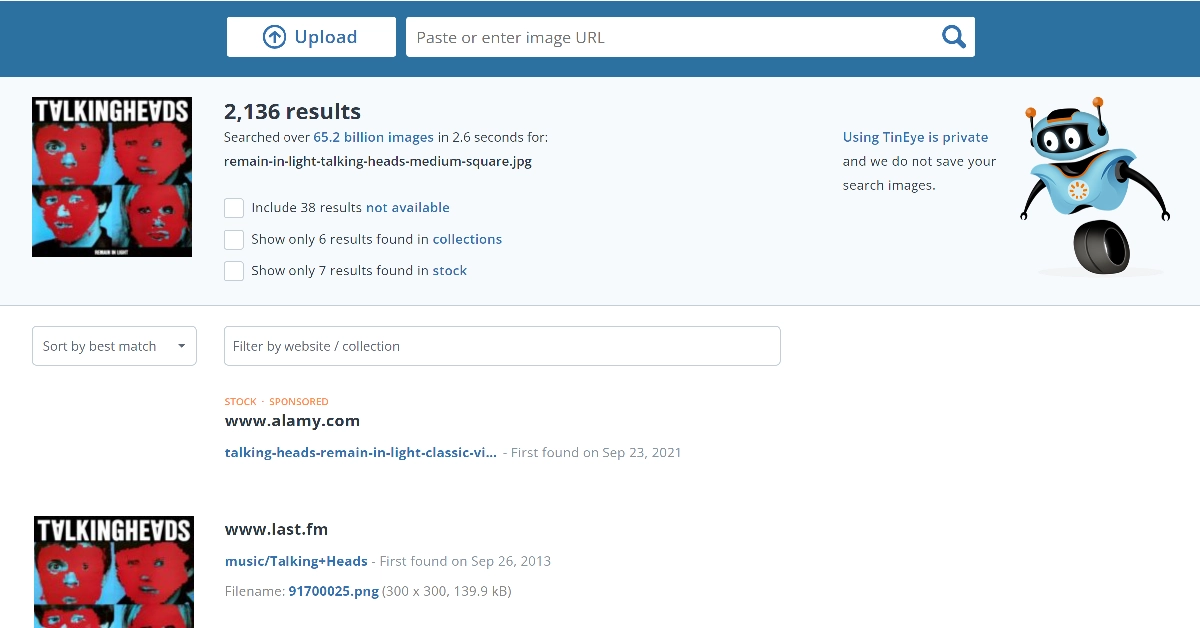
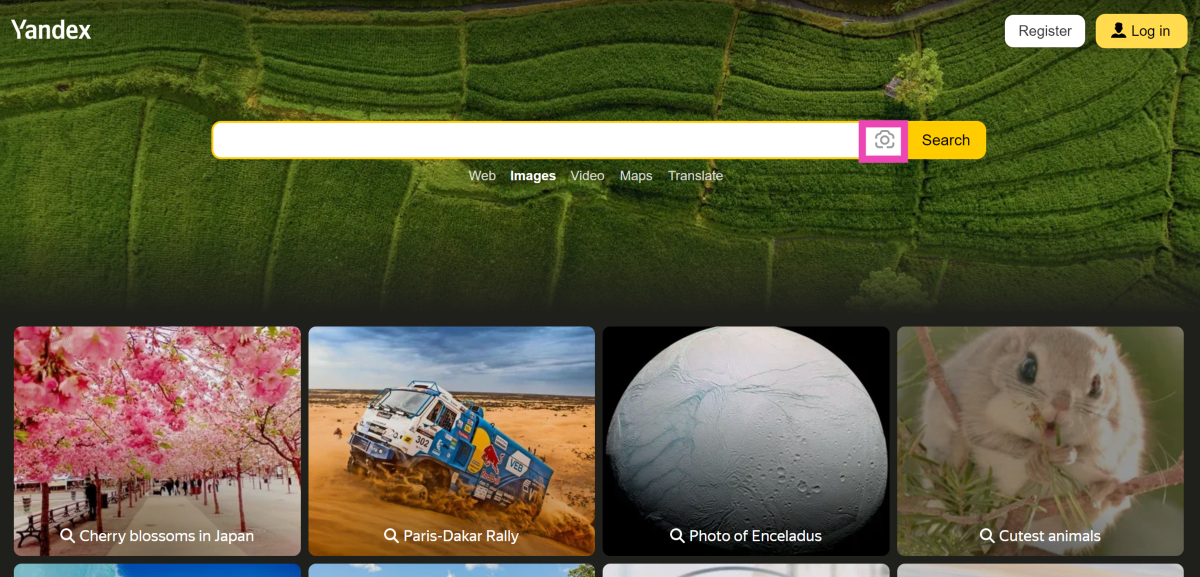
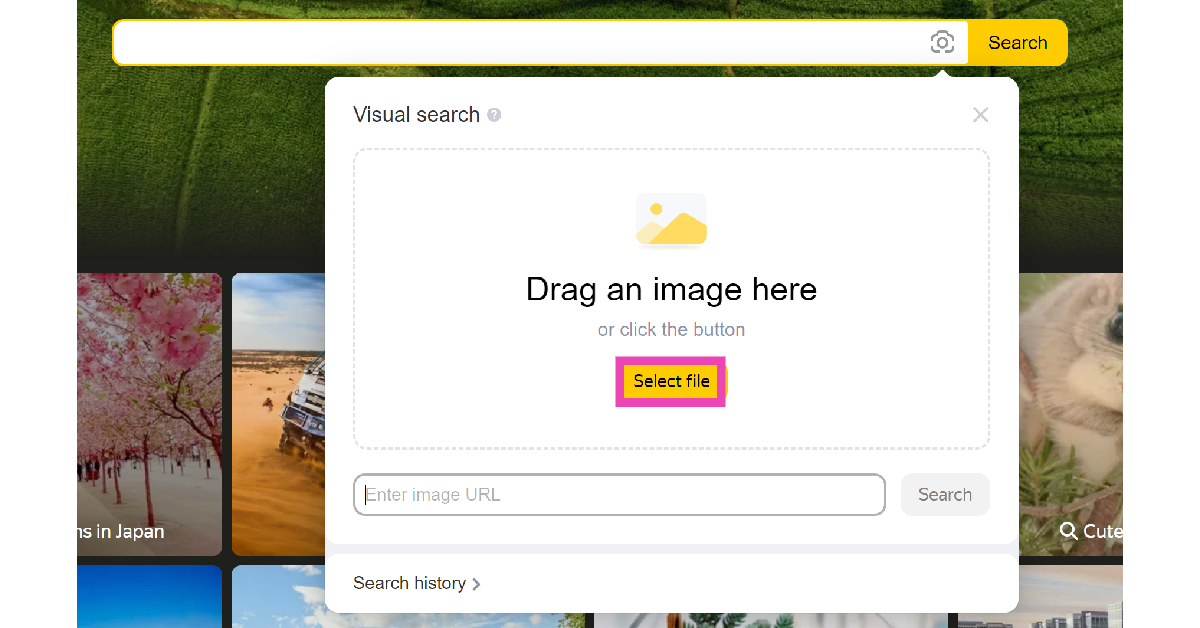
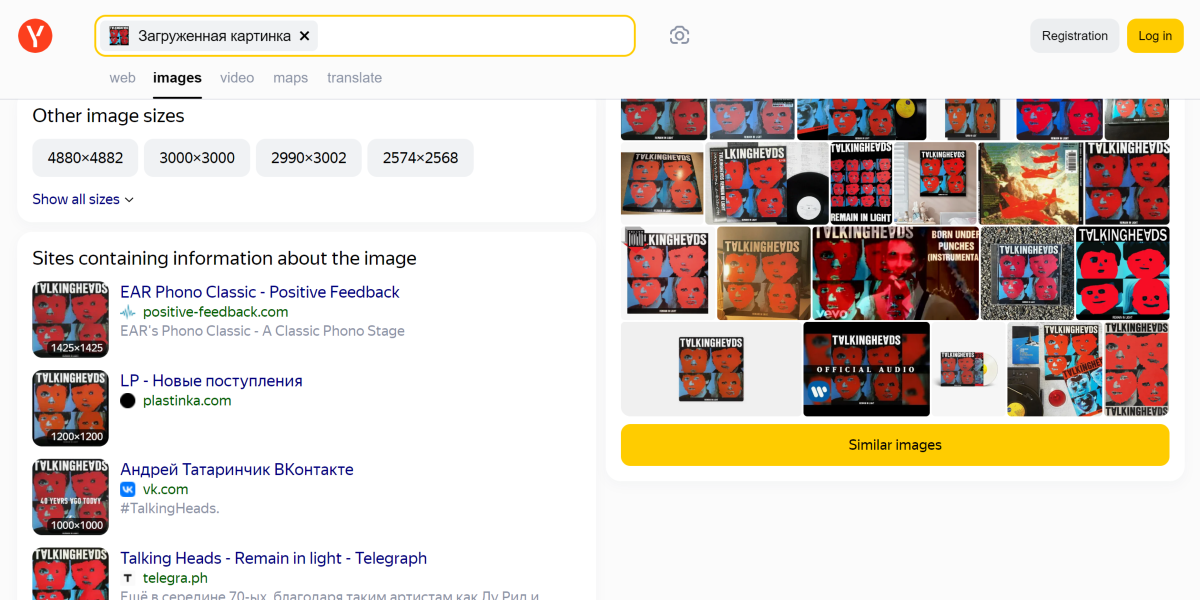
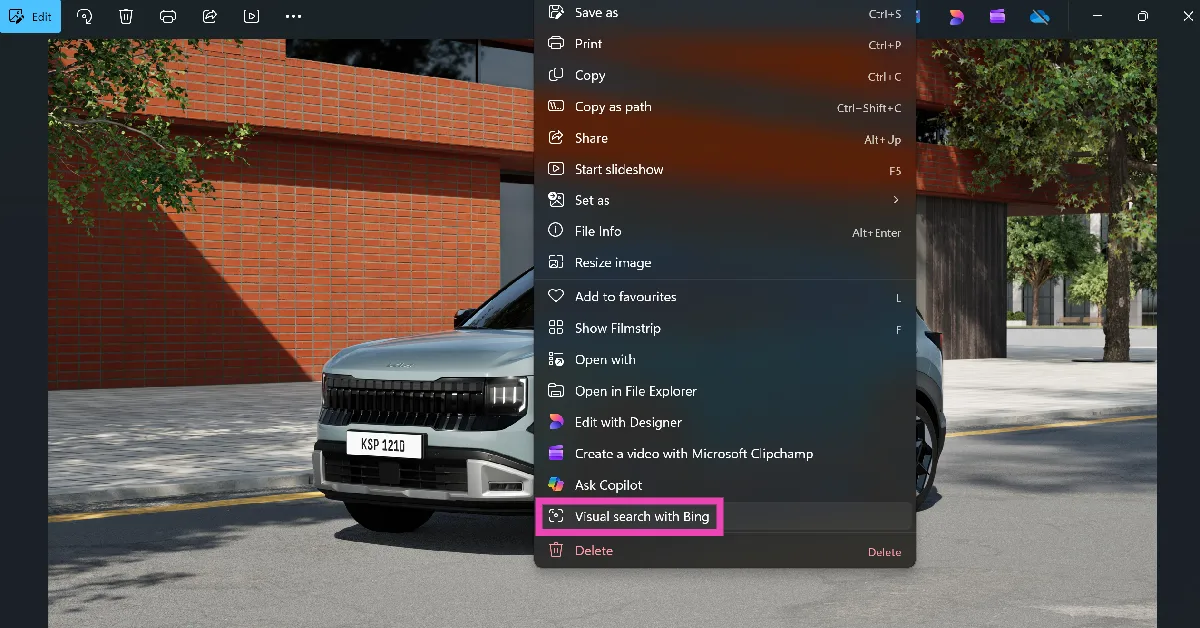
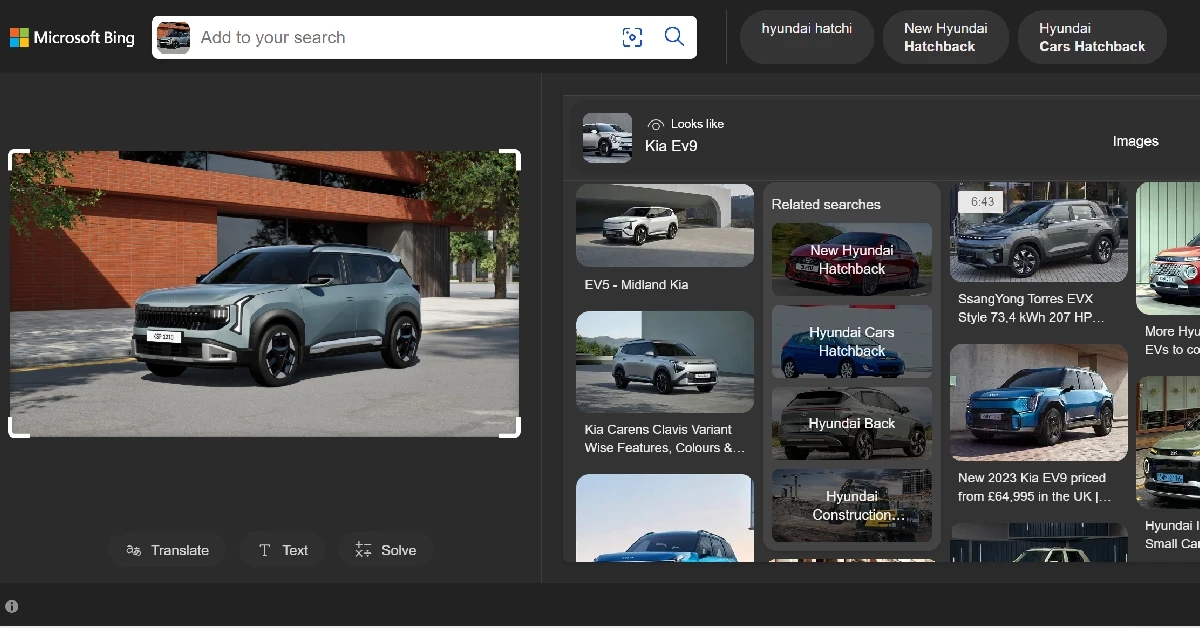
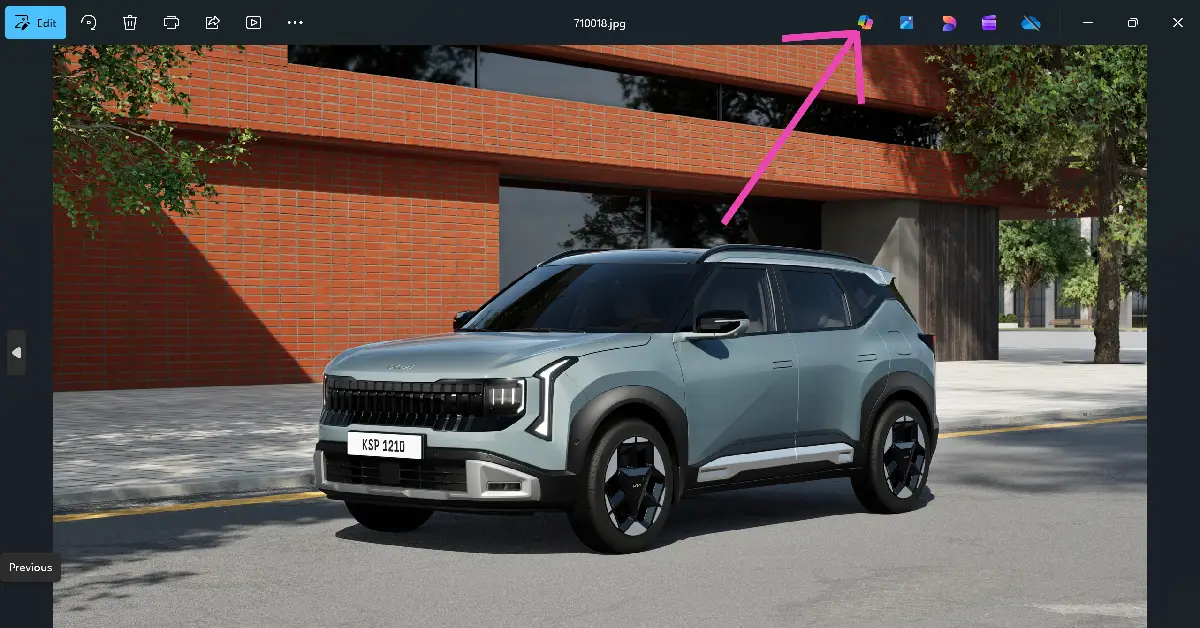
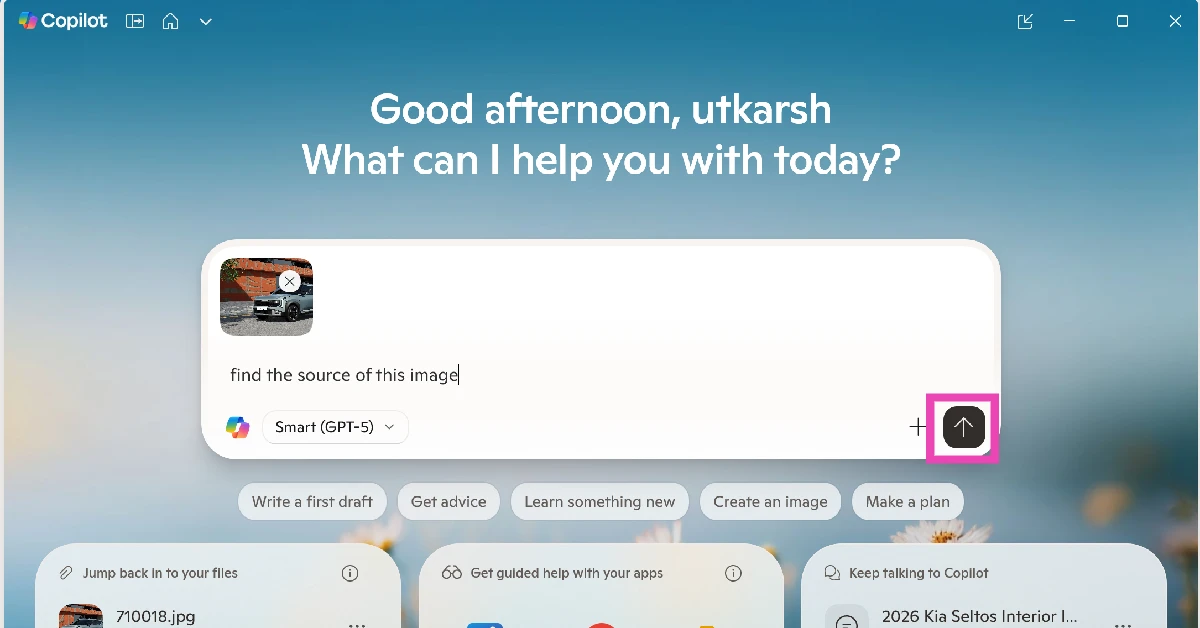
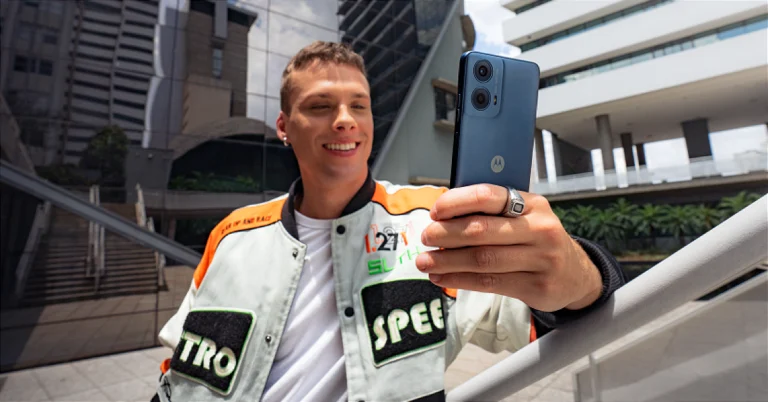
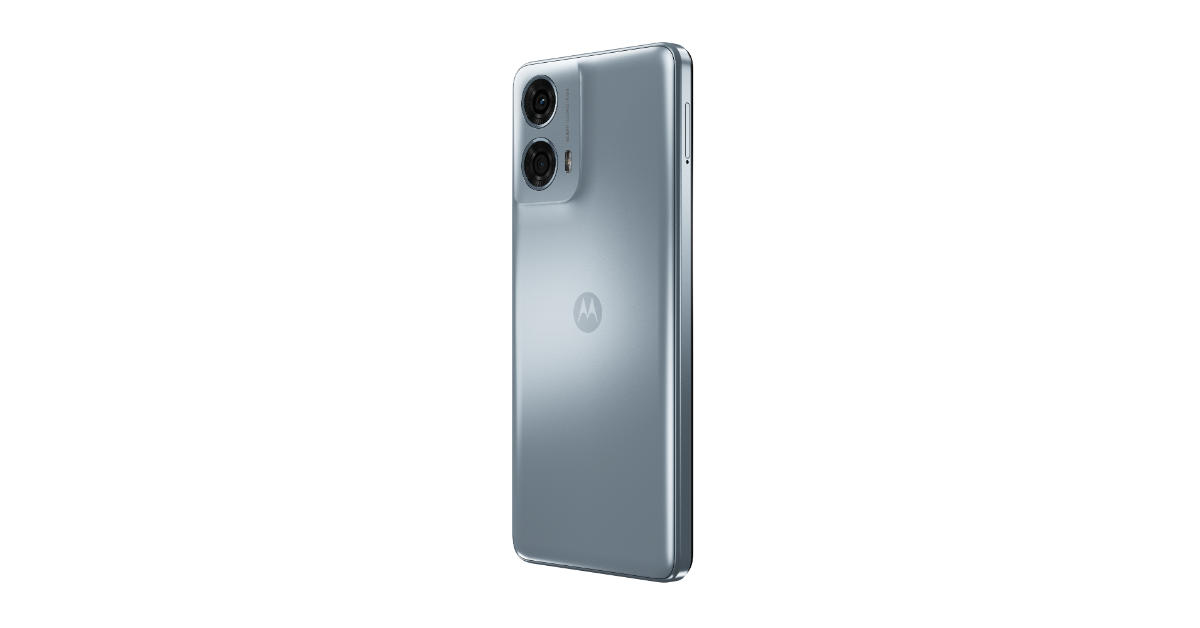
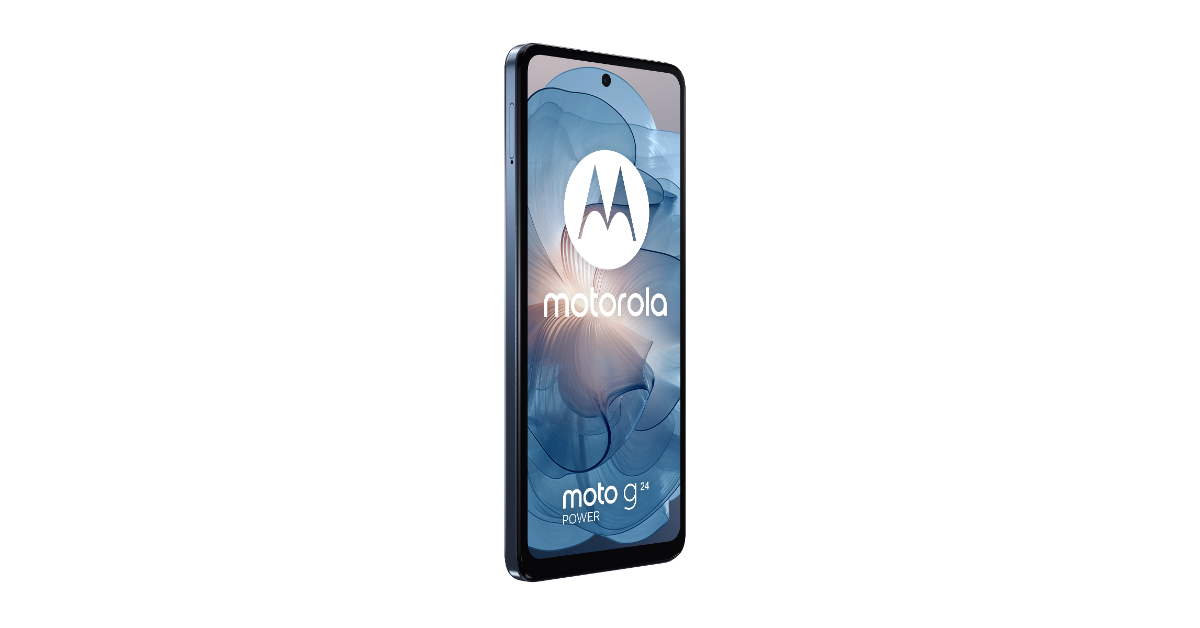
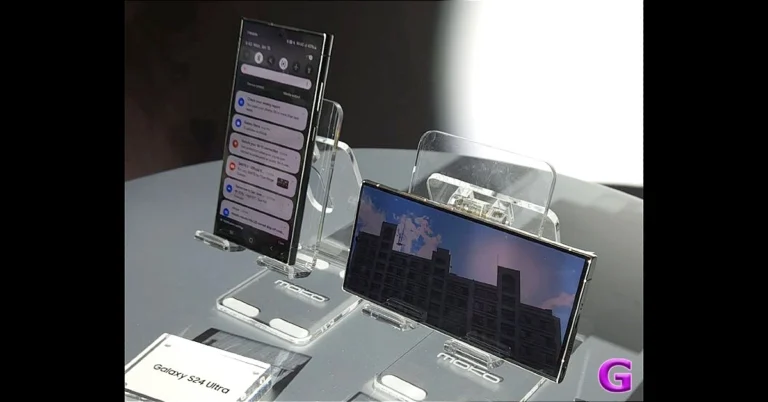

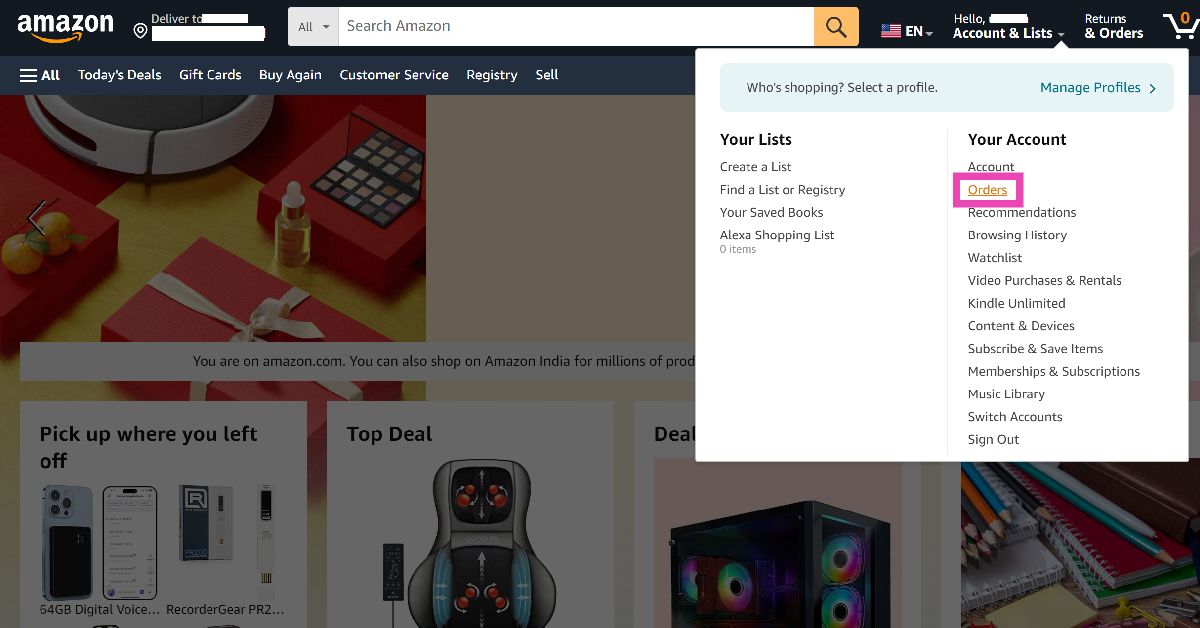
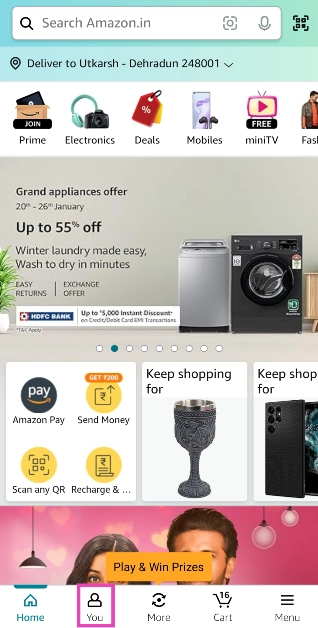
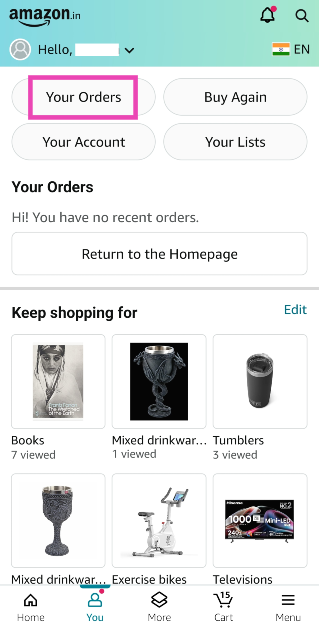
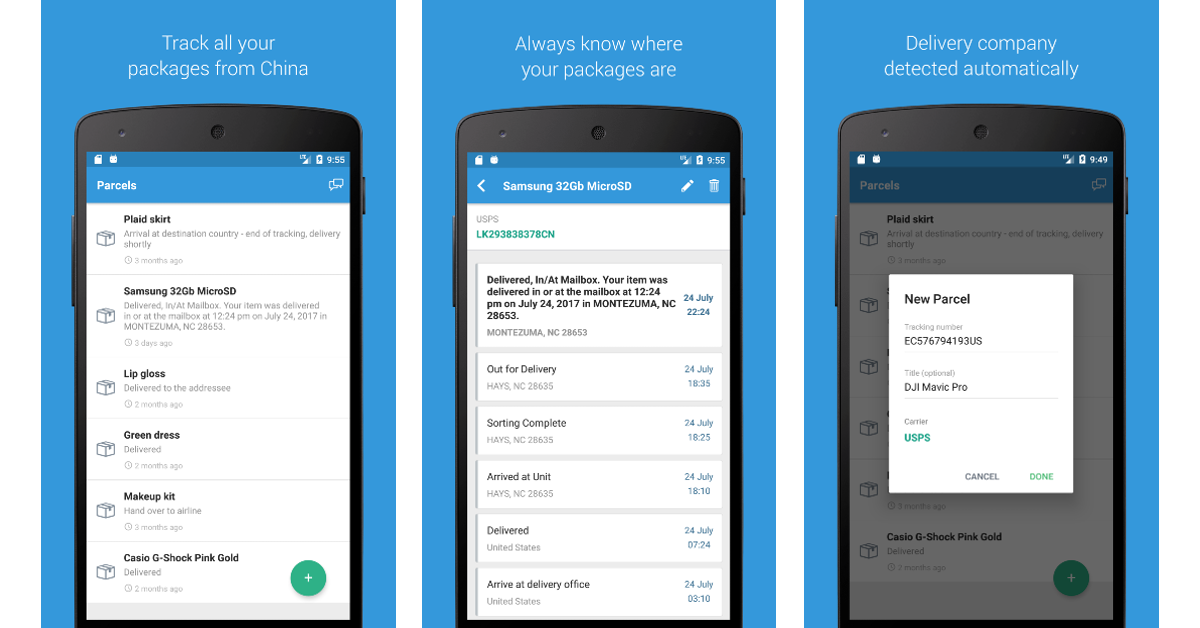
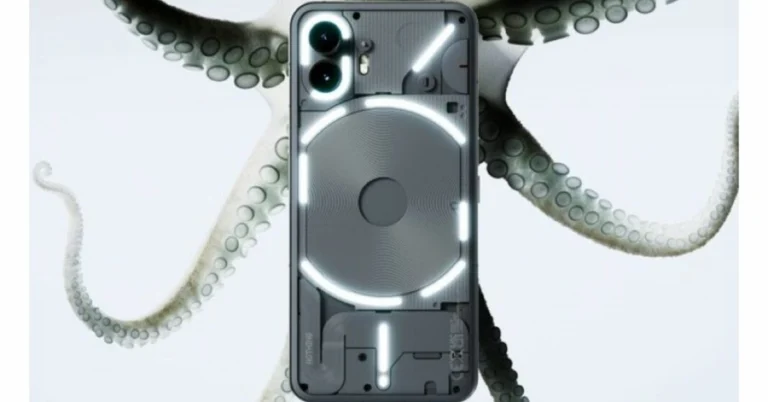
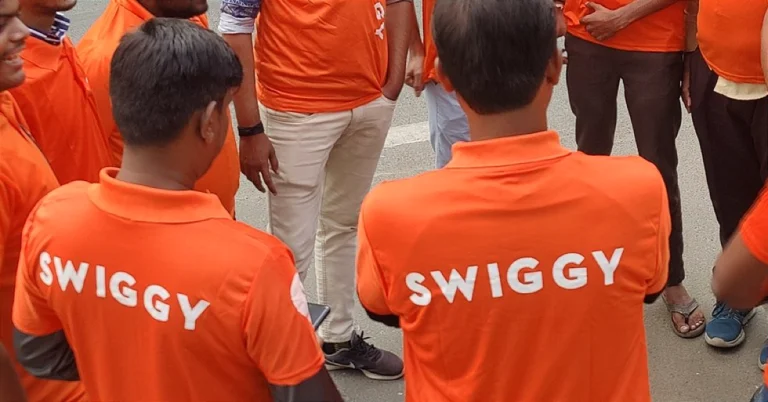



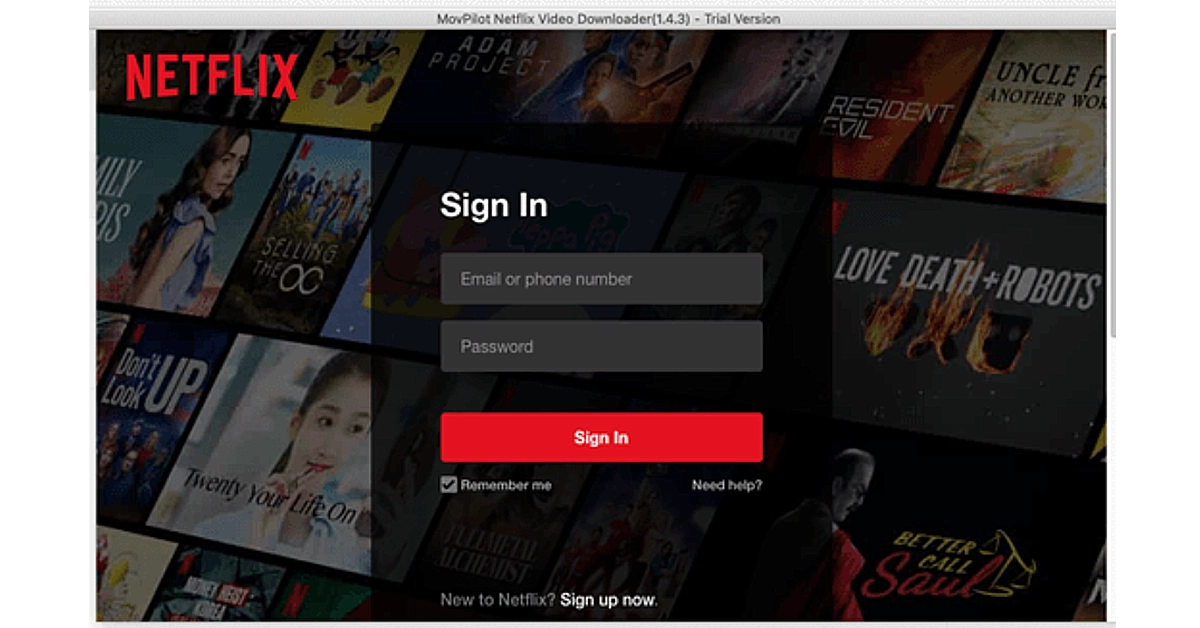
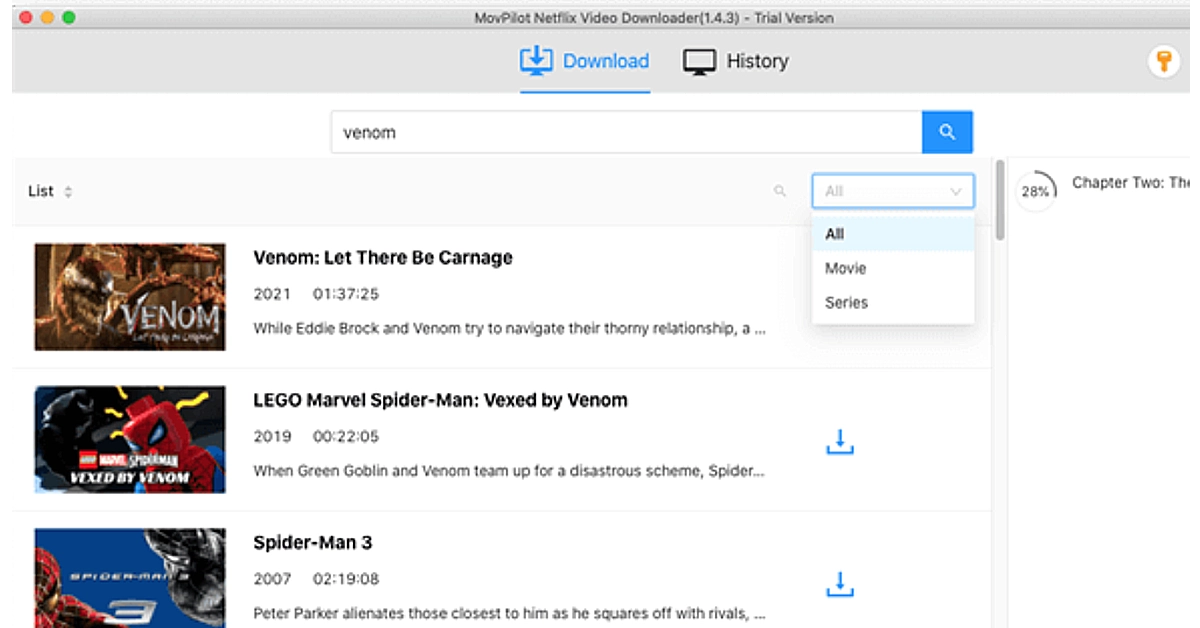
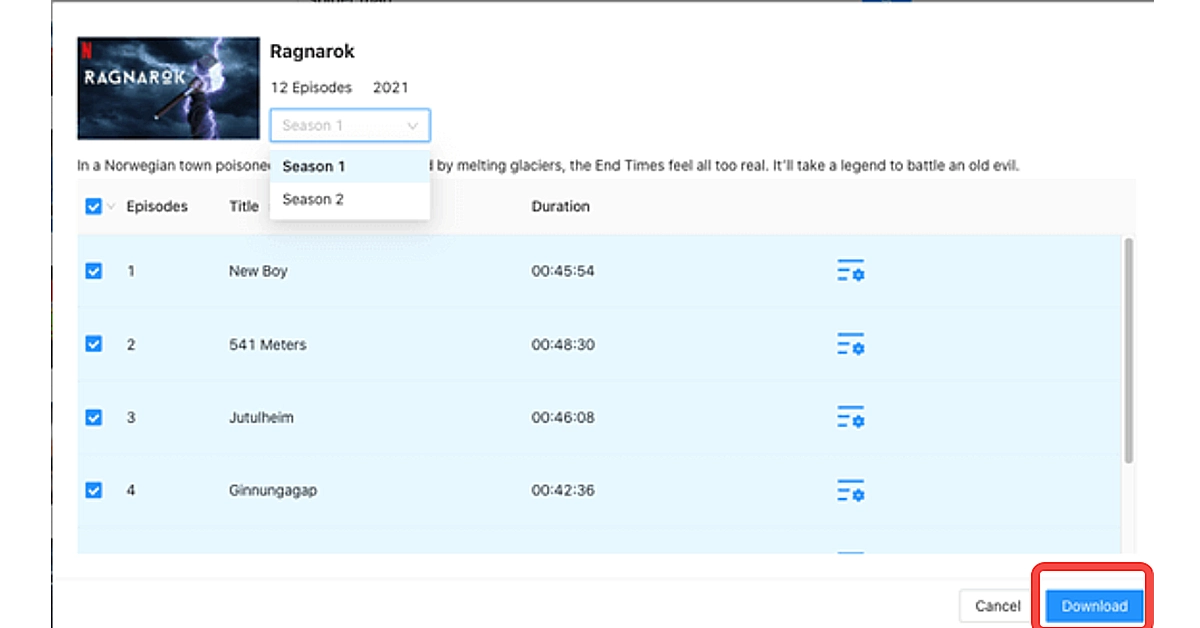
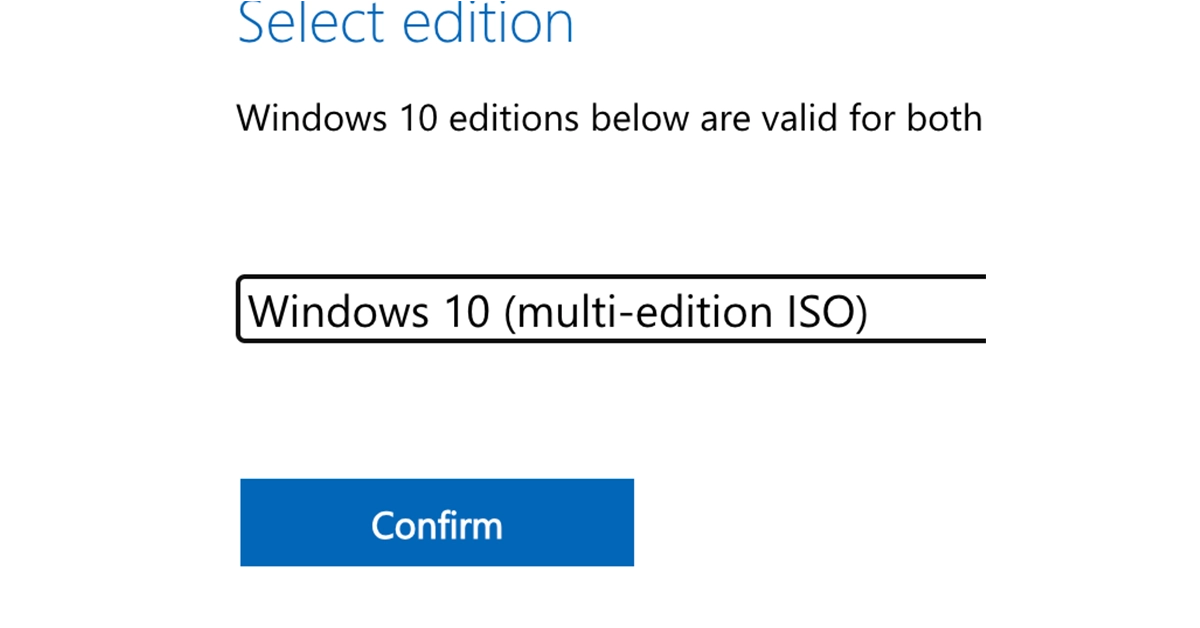
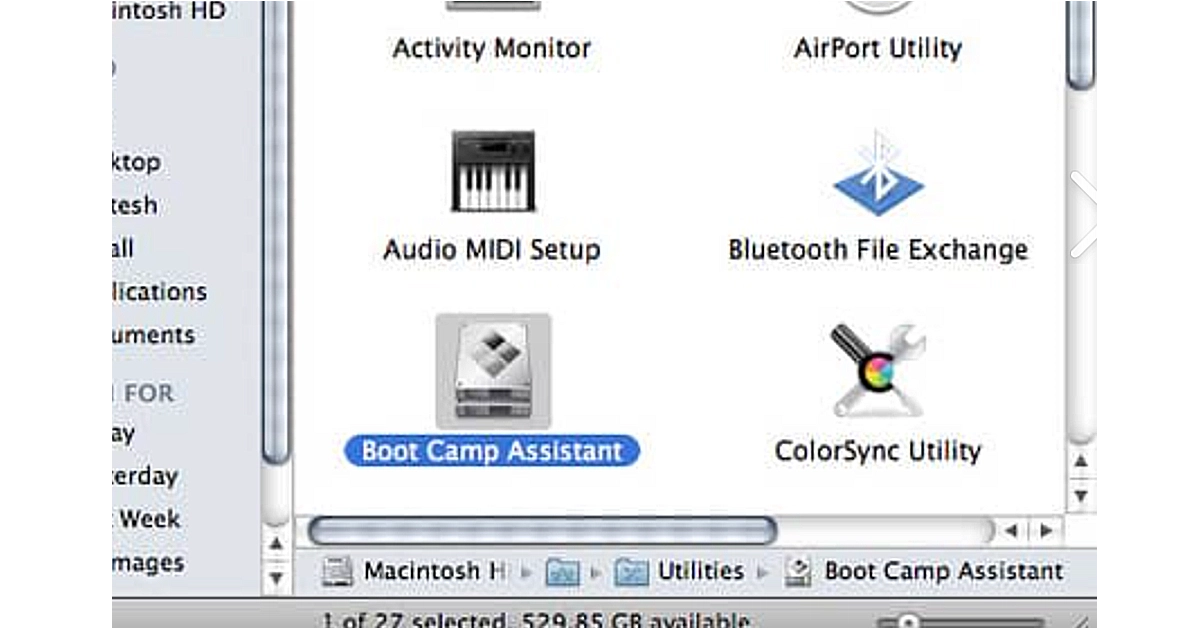
 Step 4. Next, you can proceed by following the wizard. The entire procedure may take several minutes, so be patient. When all steps are completed, you have successfully installed the Windows system on Mac.