Garena Free Fire Redeem Codes Today 13 December 2023: Here is how to claim them

Garena Free Fire is a battle royale game with regular awards and tournaments to keep players interested. If you play Garena Free Fire, you should be aware of the redeem codes that are released on a daily basis. However, because the battle royale game is banned in India, players from other countries can use the Free Fire Redeem codes daily. If you’re unfamiliar with the Garena Free Fire redeem codes or don’t know how to get them, we’ve put together a step-by-step guide to help you redeem them. Check out Garena Free Fire Redeem Codes for 13 December 2023. The Free Fire redeem codes are a great way to get free stuff. These are 12-digit codes that contain alphabets and numbers, as well as an expiration date and time. Because the Garena FF redeem codes cannot be used more than once, you should hurry to the redemption page to claim your free reward before someone else does. To get a free reward, all you have to do is go to reward.ff.garena.com/en, which is the official redemption page. Also, keep an eye on this space for daily updates on Garena Free Fire redemption codes and rewards.

Garena Free Fire Redeem Codes Today 13 December 2023

WD2ATK3ZEA55 E2F86ZREMK49 HFNSJ6W74Z48 2FG94YCW9VMV MCPTFNXZF4TA FF11HHGCGK3B FF11WFNPP956 FF10GCGXRNHY 8F3QZKNTLWBZ FF10617KGUF9 HHNAT6VKQ9R7 TDK4JWN6RD6 FFDBGQWPNHJX V44ZZ5YY7CBS XFW4Z6Q882WY 4TPQRDQJHVP4 FF119MB3PFA5 W0JJAFV3TU5E SARG886AV5GR FF1164XNJZ2V B6IYCTNH4PV3 X99TK56XDJ4X ZYPPXWRWIAHD YXY3EGTLHGJX FF11DAKX4WHV WLSGJXS5KFYR FF11NJN5YS3E ZRJAPH294KV5 Y6ACLK7KUD1N

How to Get Free Fire Redeem Codes for Garena on 13 December 2023?

  • Visit the Garena Free Fire game’s official website at reward.ff.garena.com.
  • Use your Facebook, Google, VK, Apple ID, Huawei ID, or Twitter account to log in.
  • You’ll be taken to a valid redemption code (s)
  • Copy and paste the 12-digit redemption code into the text box.
  • On the screen, a dialogue box will appear.
  • ‘Ok’ should be selected.
For the latest gadget and tech news, and gadget reviews, follow us on TwitterFacebook and Instagram. For newest tech & gadget videos subscribe to our YouTube Channel. You can also stay up to date using the Gadget Bridge Android App. You can find the latest car and bike news here.

How to adjust the volume of an alarm on iPhone (2024)

0
You would think that changing the volume of an alarm on your iPhone is an easy task, but that isn’t the case. The option to alter the alarm volume is missing from the ‘Alarm’ tab in the Clock app. This may throw some users for a loop. If you are a heavy sleeper, setting the alarm volume at the highest possible setting must be crucial for you. So, how do you go about this task? Let’s take a look at how you can adjust the volume of an alarm on an iPhone. Read Also: Top 2 Ways to Reset Your Forgotten Apple Watch Passcode

Before you begin, here’s how you can set an alarm on your iPhone

How to use Visual Lookup on your iPhone to find out what’s wrong with your car and other things? Step 1: Launch the Clock app on your iPhone. Step 2: Hit the plus icon at the top right corner of the screen. Step 3: Swipe up and down on the hour and minutes dials to set the time for the alarm to ring. Step 4: Use the Repeat option to set the days on which you want the alarm to ring. Step 5: Hit Label to name your alarm. Step 6: Tap on Sounds to set an alarm tone. Step 7: Use the toggle switch for Snooze to turn it on for this particular alarm. Step 8: Once you’re done, hit Save at the top right corner of the screen.

Adjust the volume of an alarm on your iPhone

iphone 15 pro max review Step 1: Go to Settings. Step 2: Select Sound and Haptics. Step 3: Drag the slider under Ringtone and Alert Volume to change the intensity of the alarm sound. Dragging the slider to the left will decrease the volume while dragging it to the right will increase it. Your iPhone will play a sample tone to give you an idea of the volume at every level. Step 4: Turn on the toggle switch for Change with Buttons to alter the alarm volume using the volume rocker keys. 

Can’t hear your alarm sound? Make sure you’ve set the right tone

Step 1: Launch the Clock app on your iPhone. Step 2: Switch to the Alarm tab. Step 3: Tap the Edit option at the top left corner of the screen. Step 4: Select the alarm in question. Step 5: Tap on Sound and select a tone from the list. If you do not have any tone for the alarm, it will vibrate without making any sound.

Frequently Asked Questions (FAQs)

How do I set an alarm on my iPhone?

Open the Clock app on your iPhone, switch to the Alarm tab, and hit the plus icon at the top right corner of the screen to set an alarm.

Where is the option to adjust the volume of an alarm on an iPhone?

If you want to adjust the volume of an alarm on your iPhone, you will need to go to Settings>Sound and Haptics and drag the slider under Ringtone and Alert Volume. If you want to change the volume using the volume rocker keys, turn on the toggle switch for Change with Buttons.

If my iPhone is connected to my AirPods will the alarm ring through my phone?

If your iPhone is paired to your AirPods or wired headphones, the alarm will ring on the audio accessory as well as the phone. Read Also: Infinix INBOOK Y2 Plus laptop arriving in India soon

Conclusion

This is how you can adjust the alarm volume on your iPhone. For ease of access, turn on the ‘Change with Buttons’ option in the Sound and Haptics settings to control the ringer volume with the volume rocker keys. You can also use a third-party alarm app on your iPhone. Do you have a favourite? Let us know in the comments!

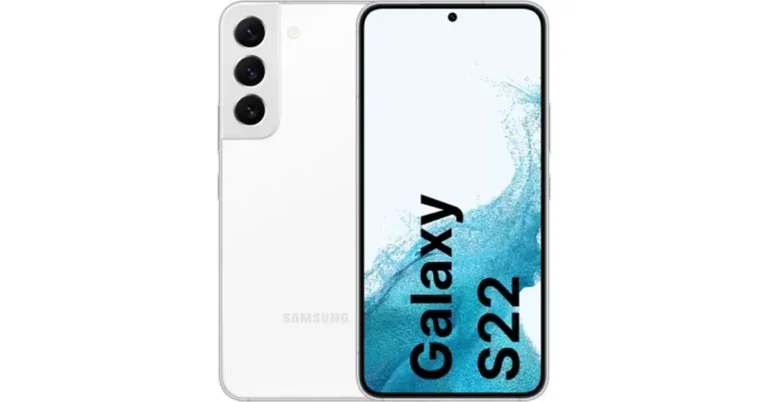
Samsung Galaxy S22 is now available for as low as Rs 39,999

Key Highlights
  • Samsung Galaxy S22 was launched in India last year.
  • The device originally cost Rs 64,999.
  • Flipkart is providing additional bank discounts on the smartphone.
Flipkart Year End Sale for 2023 is currently on and will run till December 16. During the sale, lots of Android smartphones including iPhones are getting massive discounts. As a part of the sale, the Samsung Galaxy S22 which was introduced in India last year is also seeing a price drop. The e-commerce platform is offering fabulous deals on the purchase of the device. Samsung Galaxy S22 was launched last year with a starting price of Rs 72,999. A few months ago the handset received a massive price cut of Rs 8,000. The price came down to Rs 64,999 for the base variant. But now its price has been lowered again thanks to the Flipkart Year End Sale. The price of the Android phone has been lowered by Rs 33,000. It is now selling for Rs 39,999. The e-commerce platform is also offering an additional Rs 2,000 off of Credit and Debit Card Transactions.

Samsung Galaxy S22 specifications

The Samsung Galaxy S22 (Review) is highlighted with a 6.1-inch full-HD+ Dynamic AMOLED 2X display with an adaptive refresh rate 120Hz refresh rate that can be lowered to 10Hz. The display has been protected with Gorilla Glass Victus+ and an Armor Aluminium chassis. The smartphone runs on Android 12 and One UI 4.1. Under its hoof, there is an octa-core Snapdragon 8 Gen 1 SoC and 8GB of RAM, with up to 256GB of internal storage. The Galaxy S22 features a triple rear camera system for optics. The camera module is equipped with a 50MP main Dual Pixel wide-angle sensor, an f/1.8 aperture, and autofocus. There is also a 12MP ultra-wide-angle camera with an f/2.2 aperture and a 120-degree field of view, as well as a 10MP telephoto lens with an f/2.4 aperture (3x optical zoom and OIS). There is also a 10MP selfie camera with an f/2.2 aperture (80 degrees of FoV). The Galaxy S22 is backed by a 3,700mAh, and it supports 25W fast charging, 15W wireless charging, and Wireless PowerShare for reverse wireless charging.

iQoo 12 5G powered by Snapdragon 8 Gen 3 launched in India

Key Highlights
  • The iQoo 12 5G runs on OriginOS 4 on top of Android 14.
  • The company is promising to provide years of OS updates and 4 years of security updates.
  • iQoo 12 5G houses a 5,000mAh battery that supports 120W fast charging.
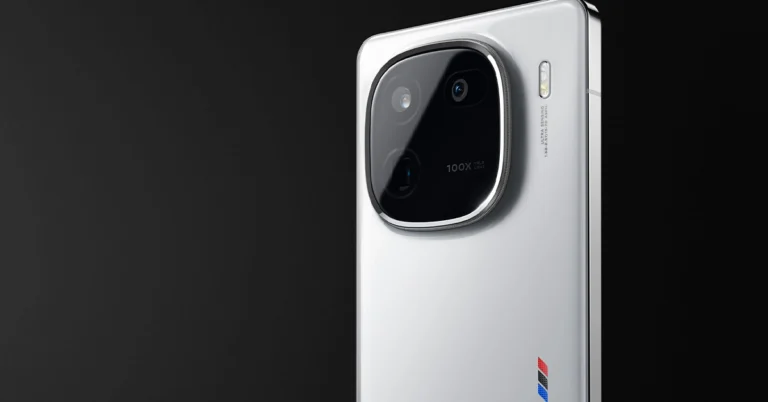
Finally, iQoo 12 5G has debuted in India today. The device is the first smartphone to come to India featuring Qualcomm’s latest flagship chipset- Snapdragon 8 Gen 3. The device operates on Android 14 OS. It further includes a 144Hz AMOLED display. iQoo 12 powered by Snapdragon 8 Gen 3 launched in India

iQoo 12 5G specifications

A 6.78-inch 1.5K AMOLED display with 1,260×2,800 pixels of resolution is the main highlight of the phone. The screen comes with an adaptive refresh rate of 144Hz and a 20:9 aspect ratio. Moreover, the screen has 2160Hz PWM dimming and a peak brightness of up to 3000 nits support. In addition to this, the display comes with HDR10+ support. The device runs on OriginOS 4 on top of Android 14. The company is promising 3 years of OS updates and 4 years of security updates. At its heart, there is Qualcomm’s 4nm Snapdragon 8 Gen 3 SoC processor.
Price of iQoo 12 5G in India tipped ahead of the launch: Details inside
iQoo 12
iQoo 12 5G features a triple rear camera setup that includes a 1/1.3-inch 50-megapixel primary sensor (f/1.68 aperture). The camera system further includes a 64-megapixel periscope telephoto (f/2.57 aperture and 100X digital zoom) and a 50-megapixel ultra wide-angle sensor (f/2.0 aperture). For selfies, the device features a 16-megapixel front-facing camera with f/2.45 aperture. iQoo 12 5G houses a 5,000mAh battery, with 120W fast charging support. Also, there is an in-display fingerprint sensor for biometrics. The smartphone also includes an accelerometer, ambient light sensor, e-compass, gyroscope, and proximity sensor. In terms of connectivity, there is 5G, Wi-Fi 7, Bluetooth 5.4, USB OTG, NFC, Beidou, USB Type-C port, GPS, GLONASS and GALILEO. For gaming, there is a 6010 mm² ultra-large VC vapor chamber to keep thermals in check. Also, it includes 11 temperature sensors and is equipped with a Q1 Self-developed chip.

iQoo 12 5G price in India and availability details

iQoo 12 5G has been launched in India in two colour variants Legend and Alpha. The price of the gaming phone starts at Rs 52,999 for the 12GB RAM with 256GB storage option and the 16GB RAM with 512GB internal storage options comes with a price tag of Rs 57,999. In terms of availability, priority pass holders can get their hands on iQoo’s latest smartphone from December 13 a day before the actual sale begins that is December 14. The phone can be available via the company’s official website as well as via Amazon in the country. 

Itel A05s with 4,000mAh battery launched in India

Key Highlights
  • Itel A05s was first launched in October.
  • The new variant of Itel A05s comes with changed internals.
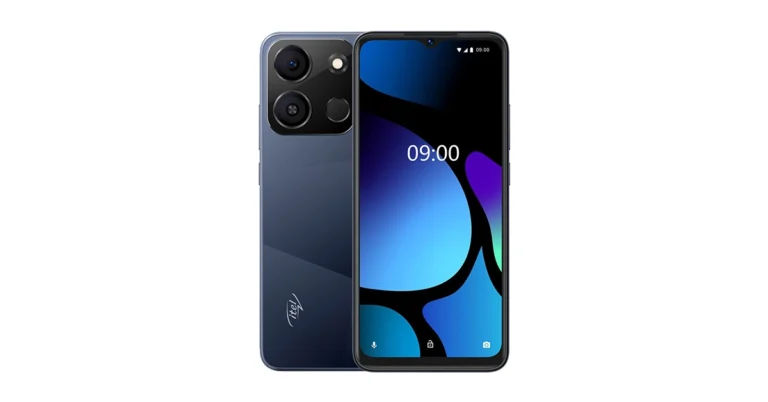
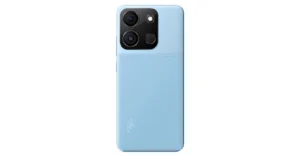
Itel A05s was launched in India in October this year. At the time of the launch, the company introduced the 2GB RAM with 32GB storage. Now the company has launched another 4GB RAM with 64GB variety. The latest model comes with modifications. The handset packs a 4,000mAh battery and is powered by a 1.6GHz UNISOC Octa-Core processor. Note that the smartphone now includes a single 8-megapixel rear camera. The phone features a 6.6-inch HD+ display.

Itel A05s price in India, availability

The price of Itel A05s 4GB RAM with 64GB storage variant is priced at Rs 6,099. The phone will come in several colour options of Crystal Blue, Glorious Orange, Meadow Green and Nebula Black. The device will be sold via leading retail stores in the country. In October the company introduced the 4GB RAM with 64GB storage variant priced at Rs 6,499. Itel A05s with 4,000mAh battery launched in India

Itel A05s specifications

Itel A05s features a 6.6-inch HD+ display with 1600 x 720 pixels of resolution. The screen supports a refresh rate of 60Hz and 120Hz touch sampling rate. In addition to this, the display has 270PPI. Under its hood, there is a 1.6GHz Octa-Core Unisoc processor with 4GB RAM (comes with 4GB RAM expansion feature) and 64GB storage. The internal storage can be expanded up to 1TB using a microSD card. In addition to this, the handset runs on Android 13 Go Edition. For the photos and videos, Itel A05s feature an 8-megapixel rear camera set up with an LED flash. For selfies and video calling the phone has a 5-megapixel front-facing camera with f/2.0 aperture. Itel A05s is backed by a 4000mAh battery with a 5W charger. For connectivity, there is Dual 4G, VoLTE, Wi-Fi 802.11 b/g/n, Bluetooth, GPS + GLONASS, and a 3.5mm jack. The mobile phone includes a fingerprint sensor and face unlock for authentication.

Best ways to find your Apple ID on iPhone, iPad or Mac

0
If you haven’t used your iPhone or Mac in a long time, it is pretty easy to forget your Apple ID. Maybe you used to own an iPhone and then switched to Android for a while. If you’re planning on using an iPhone again, having access to your old Apple ID will save you a lot of time. If you are an active iPhone user and want to use your Apple ID on another device, finding it on your phone is pretty easy. So, let’s take a quick look at the best ways to find your Apple ID on an iPhone, iPad, Mac, or PC. Read Also: Top 2 Ways to Change the Default Web Browser on iPhone and iPad

What is my Apple ID?

When you set up an Apple device for the first time, you are asked to create an Apple ID. You can do it by registering your email address with Apple. Your unique Apple ID is your gateway to Apple’s services like iCloud, FaceTime, iMessage, Apple Music, and more. If you use more than one Apple product, having one Apple ID for all of them brings a seamlessness and continuity to the entire experience. Perhaps the most important aspect of having an Apple ID is the ability to track your lost iPhone. As soon as you notice your iPhone is missing, log into iCloud on another device using your Apple ID and track the whereabouts of your lost phone. This is why you should always know what your Apple ID is.

Find your Apple ID on your iPhone or iPad

Step 1: Open Settings on your iPhone. Step 2: Tap your name. You can find it at the top of the screen. Step 3: Look for your Apple ID right below your name and profile picture.

Find your Apple ID on a Mac or PC

Mac

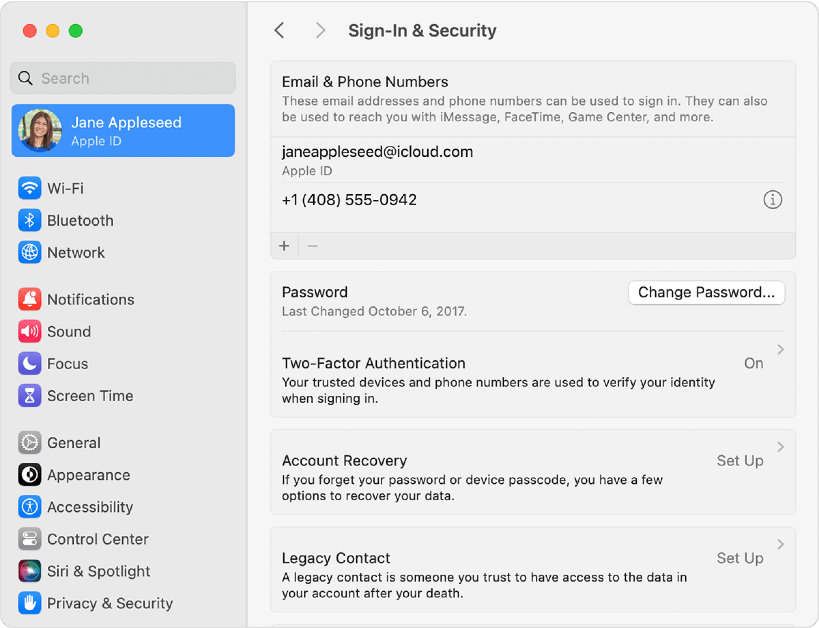
Step 1: Hit the Apple logo at the top left corner of the screen. Step 2: Select System Preferences. Step 3: Click on Apple ID. Step 4: You will find your Apple ID under your name and profile picture. In macOS Ventura or later, go to Apple menu>System settings, click on your name, and then click on Sign-in and Security. You will find your Apple ID under ‘Emails & Phone Numbers’. In macOS Ventura or later, go to Apple menu>System settings, click on your name, and then click on Sign-in and Security. You will find your Apple ID under ‘Emails & Phone Numbers’.

PC

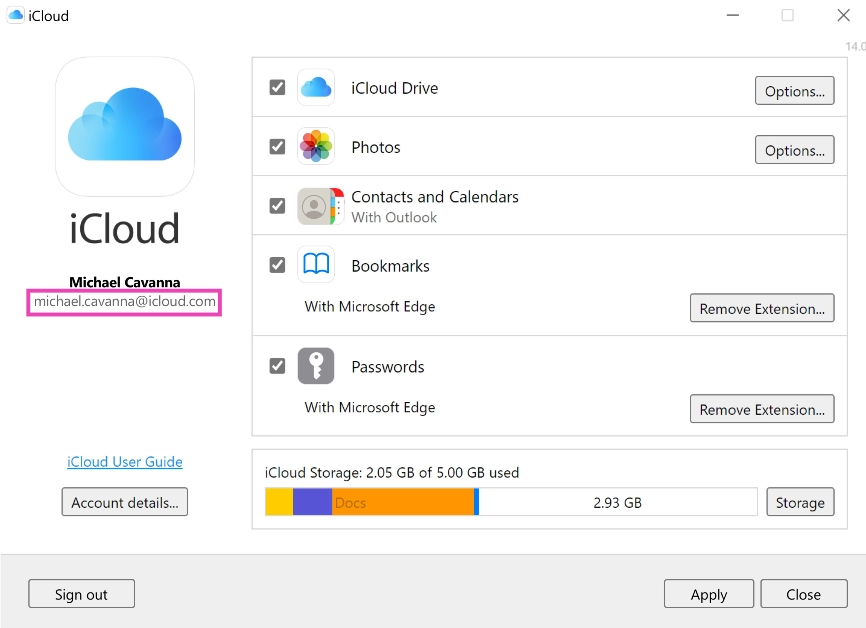
Open the iCloud app for Windows. You will find your Apple ID under your name in the left section of the page. Open the iCloud app for Windows. You will find your Apple ID under your name in the left section of the page.

How to find your Apple ID if you’ve forgotten it?

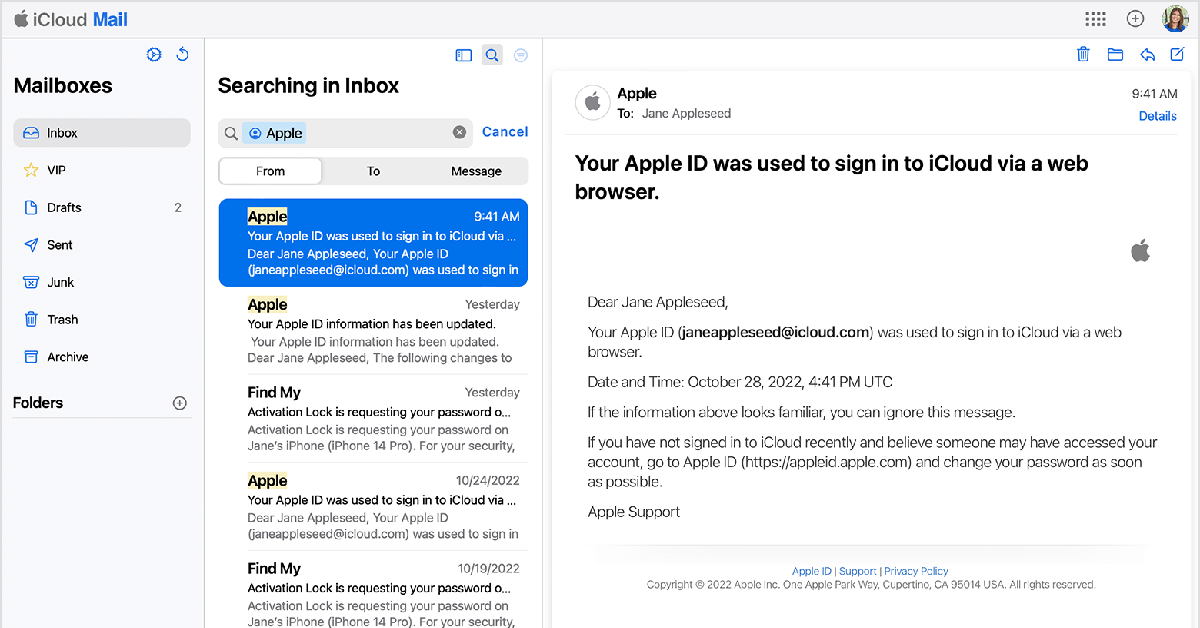
If you have access to your iPhone or Apple device, finding the registered Apple ID is not a big deal. However, if you lose your device or perform a factory reset on it, you will need your Apple ID to restore your data. But what happens if you forget it? Well, there is still some hope. Go to iforgot.apple.com and enter your first name, last name, and your registered email address. Now, the last part may require a fair bit of hit and trial. If you don’t remember which email address you used for your Apple ID, go through all of them until you find a match. To regain access to your account you will be asked a few security questions and an authentication code may be sent to your recovery email address (if you had provided it at the time of creating your Apple ID). simply go through all your email accounts If you can’t access the iForgot page, simply go through all your email accounts and search for any emails sent from Apple. You get an email from Apple every time you create an Apple ID. Once you find this email, you will know which email address is associated with your Apple ID. This will make the task of restoring your account much easier. If you have forgotten your password, go to the Apple password recovery page, enter your registered Apple ID or phone number, and the captcha provided on the screen. The link to reset your password will be sent to your email.

Frequently Asked Questions (FAQs)

How do I find my Apple ID on my iPhone?

Go to Settings, tap on your name at the top, and look below your profile picture for your Apple ID.

How do I find my Apple ID if I don’t remember it?

If you don’t remember your Apple ID, go through all your email inboxes and look for official emails from Apple. The one that contains the email notifying you about the creation of your Apple ID is your registered email.

How do I reset my Apple ID password?

Go to the Apple Password Recovery page, enter your email address and the provided captcha. You will get a link to reset the password in your email inbox. Read Also: Best ways to force quit apps on iPhone and iPad

Conclusion

This is how you can find your Apple ID on your iPhone, iPad, Mac, and PC. To maintain total control over your Apple ID, make sure to provide a recovery email address. This will come in quite handy in case you forget your registered email or password and want to gain access to your account. If you found this article helpful, let us know in the comments!

Top 2 Ways to Reset Your Forgotten Apple Watch Passcode

Passcodes are easy to forget, especially when you use a different one for every device you have. Your Apple Watch makes the unlocking process easy by offering features like Simple Passcode, Wrist Detection, and Unlock with iPhone. Even with all these neat features, it is not uncommon to forget your Apple Watch passcode, more so when it’s different to the one on your iPhone. So, what happens next? Check out these two ways to reset your forgotten Apple Watch passcode. Read Also: Best ways to force quit apps on iPhone and iPad

Before you reset your Apple Watch passcode

Your Apple Watch passcode can be changed from the device itself. Simply go to Settings>Passcode on the Apple Watch to change it. The same process can be carried out on the Watch app on your iPhone. However, if you forgot the passcode and want to reset it, the process may be a bit complicated. For starters, your Apple Watch does not give you the option to reset its passcode. You can either change the passcode or disable it. Both options require entering your current passcode. If you’ve forgotten your password, the only choice you are left with is resetting your Apple Watch, restoring the most recent backup, and setting up a new passcode.

Reset your Apple Watch Passcode using your iPhone

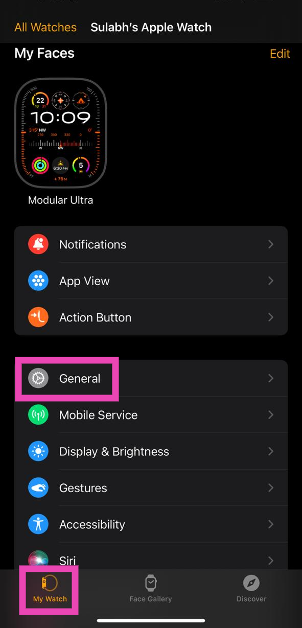
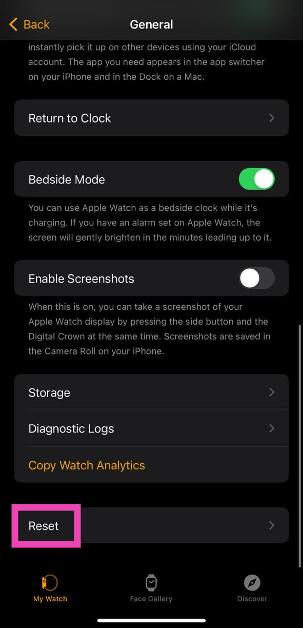
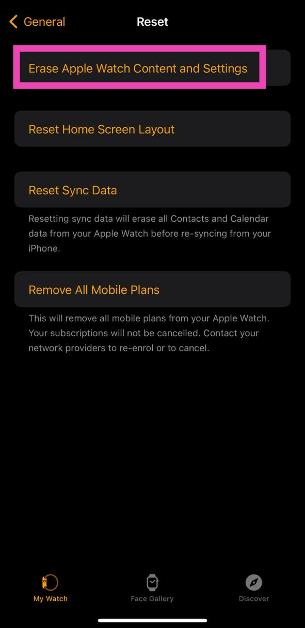
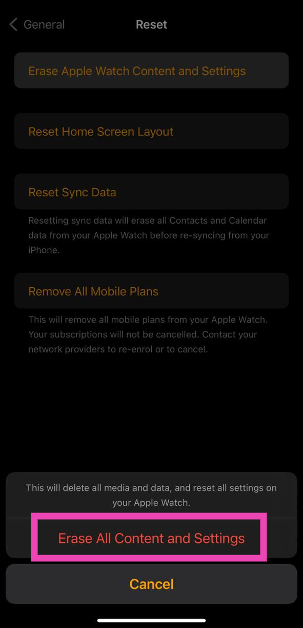
Before you begin, make sure your Apple Watch is near your iPhone. Step 1: Launch the Apple Watch app on your iPhone and switch to the My Watch tab. Step 2: Tap on General. Step 2: Tap on General. Step 3: Select Reset. Step 3: Select Reset. Step 4: Select Erase Apple Watch Content and Settings. Step 4: Select Erase Apple Watch Content and Settings. Step 5: Confirm your selection in the popup box. Step 5: Confirm your selection in the popup box. Top 2 Ways to Reset Your Forgotten Apple Watch Passcode Step 6: Enter your Apple ID password to verify your identity. Once the reset process is over, set up the Apple Watch again and restore your content using a backup. When asked, set up a new passcode.

Reset your Apple Watch Passcode without an iPhone

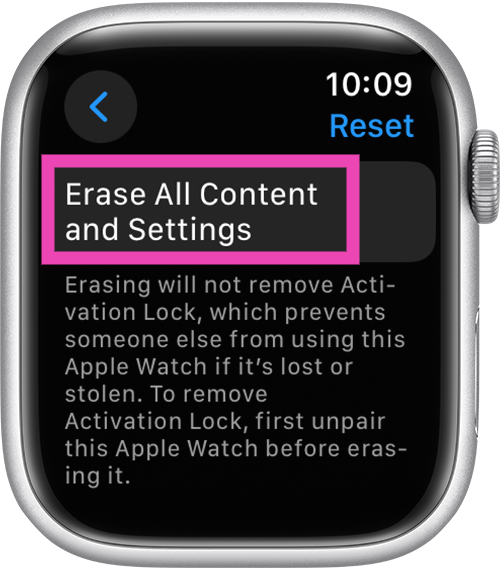
Step 1: Connect your Apple Watch to its charger. Step 2: Press and hold the side button until you see the power icon at the top right corner of the screen. Step 2: Press and hold the side button until you see the power icon at the top right corner of the screen. Top 2 Ways to Reset Your Forgotten Apple Watch Passcode Step 3: Press and hold the Digital Crown until you see Erase all content and settings. Step 3: Press and hold the Digital Crown until you see Erase all content and settings. Top 2 Ways to Reset Your Forgotten Apple Watch Passcode Step 4: Hit Reset and confirm your selection. Your Apple Watch will reset itself in a few minutes. To set it up again, you will need to enter your Apple ID and password. When asked, enter a new passcode for the Watch.

Bonus Tip: Turn off your Apple Watch Passcode

Use your Apple Watch

Step 1: On your Apple Watch go to Settings. Step 2: Select Passcode. Step 3: Hit Turn Passcode Off. Step 4: Select Turn Off.

Use your iPhone

Step 1: Launch the Watch app on your iPhone. Step 2: Switch to the My Watch tab. Step 3: Scroll down and hit Passcode. Step 4: Select Turn Passcode Off. Step 5: Hit Turn Off.

Frequently Asked Questions (FAQs)

How do I reset my Apple Watch passcode if I don’t have my iPhone?

Press and hold the side button on your Apple Watch until you see the power icon at the top right corner of the screen. Then, press and hold the Digital Crown until you see ‘Erase all content and settings’. Hit Reset to reset your Apple Watch. Now set up your Watch again and restore your backup.

How do I reset my Apple Watch passcode using the Watch app on my iPhone?

Launch the Watch app on your iPhone, go to My Watch>General>Reset>Erase Apple Watch Content and Settings and confirm your selection in the popup box. Enter your Apple ID to authenticate the action. Set up the Watch again and restore your backup. You will be able to enter a new passcode.

How do I turn off my Apple Watch passcode?

On your Apple Watch, go to Settings>Turn Passcode Off and hit Turn Off. On the Watch app on your iPhone, go to My Watch>Passcode>Turn Passcode Off and hit Turn Off. Read Also: Endefo Enfit NEO and Enfit NEO PRO smartwatches with BT calling launched in India

Conclusion

These are the best ways to reset your Apple Watch passcode. Make sure you create a complete backup of all your personal data on the Watch before performing a complete reset of it. You can also use ‘Simple Passcode’ to unlock your Apple Watch with a 4-digit PIN. If you know of any other method, let us know in the comments!

Infinix INBOOK Y2 Plus laptop arriving in India soon

Key Highlights
  • The Infinix INBOOK Y2 Plus laptop has already been launched in Bangladesh.
  • It features a sleek design.
  • The device comes with a Metal body.
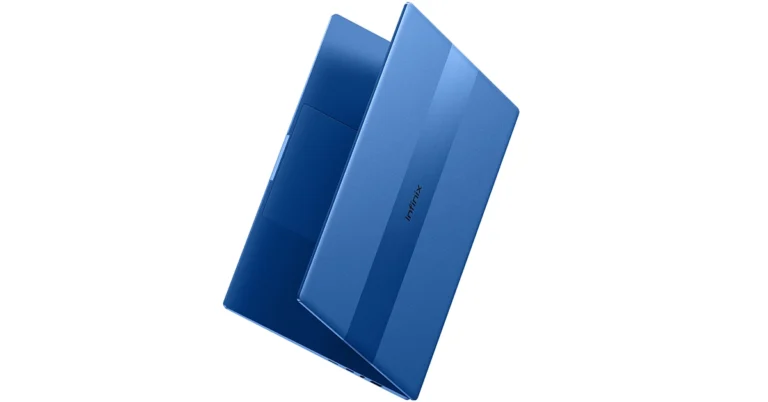
Chinese tech company Infinix is all set to launch a new budget laptop in India soon. The company has announced to introduce the Infinix INBOOK Y2 Plus laptop in the country but the company is yet to reveal the launch date. According to the firm, the upcoming laptop will feature a sleek design with premium features. For those who are unaware, the Infinix INBOOK Y2 Plus is headed to India after landing in Bangladesh. Infinix is gearing up to launch its next budget laptop Infinix INBOOK Y2 Plus in India. The company has revealed that the device is expected to be priced under 30K. It will carry a sleek and lightweight design. Infinix has further revealed that the machine has a thin and light metal body with a “rugged brush metal design that adds a touch of sophistication.” Not just that Infinix INBOOK Y2 Plus is stated to come with an ultra-narrow bezel providing an immersive viewing experience with maximised screen space. There will be a backlit Keyboard, making it convenient for users to work in low-light environments. Moreover, the forthcoming budget laptop from Infinix will be made available in three colour options: Silver, Grey, and Blue. Also Read: iQoo 12 5G launching in India today: Here is how to watch the event live As we mentioned before Infinix INBOOK Y2 Plus has already launched in Bangladesh so we are quite aware of its specification. As far as pricing is concerned, it will be revealed at the time of launch only. However, in Bangladesh, the laptop is priced for 56,990 BDT which translates to Rs 43,000 for the 8GB RAM, and 512GB SSD variant. The Infinix INBOOK Y2 Plus is powered by Intel Core i5 11th Gen processor and runs on Windows 12 Home edition. The laptop features a 5.6-inch IPS display with a resolution of 1920×1080 pixels. In addition to this, there is a backlit keybeast with a multi-touch trackpad. Besides this, an FHD camera with Dual-Star light has been provided for making video calls. Apart from this INBOOK Y2 Plus comes with dual speakers with 2W sound output. In terms of connectivity, there is Wi-Fi – IEEE 802.11a/b/g/n/ac, Bluetooth v5.1, one USB-C port, USB 3.0 ports, HDMI 1.4, an SD card slot, a 13.5mm jack.

How to Find Saved Passwords On Your iPhone? Top 5 Password Managers for iPhone in 2023

To stay on top of online security, it is recommended that you use a different password for every account you use. Given how many apps and services an average person uses these days, remembering every unique password is a hard ask. Luckily, your iPhone’s password manager remembers them for you. If you don’t fancy the native password manager on your iPhone, you can always use a third-party app to do the job. Typically, the password manager auto-fills it wherever necessary, but if you’re curious, you can always look up your saved passwords in just a few simple steps. So, here are the top 2 ways to find saved passwords on your iPhone and our top 5 password managers for your iPhone in 2023. Read Also: Endefo Enfit NEO and Enfit NEO PRO smartwatches with BT calling launched in India

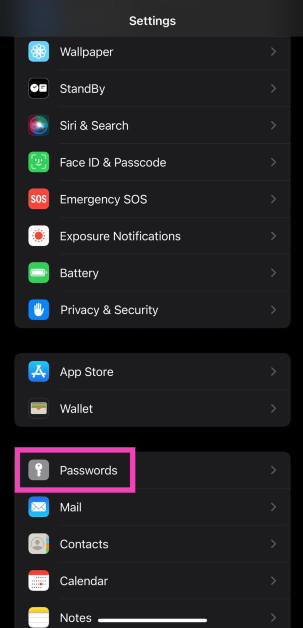
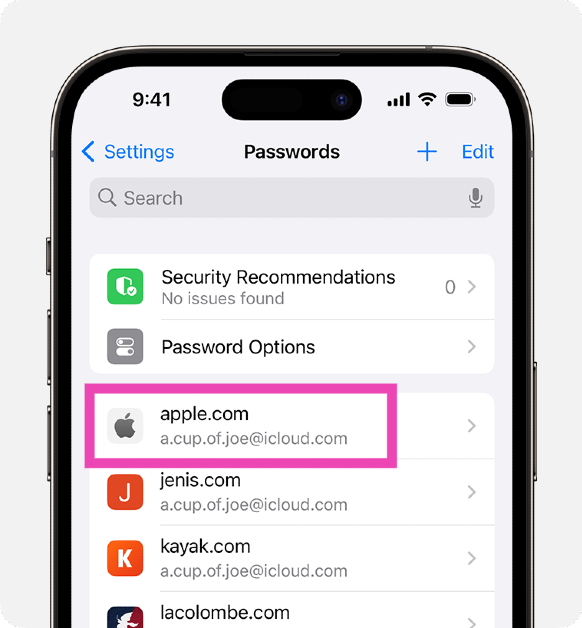
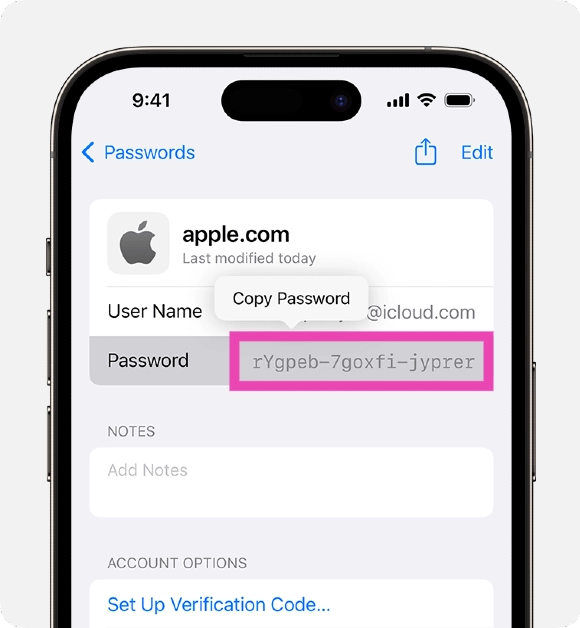
Find saved passwords and passkeys on your iPhone

Step 1: Go to Settings and select Passwords. Step 1: Go to Settings and select Passwords. Step 2: Verify your identity using Face ID or device passcode. Step 3: Select the website or app for which you want to view the password or passkey. Step 3: Select the website or app for which you want to view the password or passkey. Step 4: On the following page, you can change the password or delete it entirely. Step 4: On the following page, you can change the password or delete it entirely.

Use Siri to find saved passwords on your iPhone

If you don’t want to navigate your way through settings, ask Siri for a particular password. For example, if you want to know your Facebook password, simply say “Hey Siri, what is my Facebook password?” After verifying your identity, Siri will display your password on the screen. You can try this for all the saved passwords on your iPhone.

Best Password Managers for iPhone in 2023

The native password manager on your iPhone gets the basics right, but if you want your password-managing app to go the extra mile, check out our recommendations below.

Bitwarden

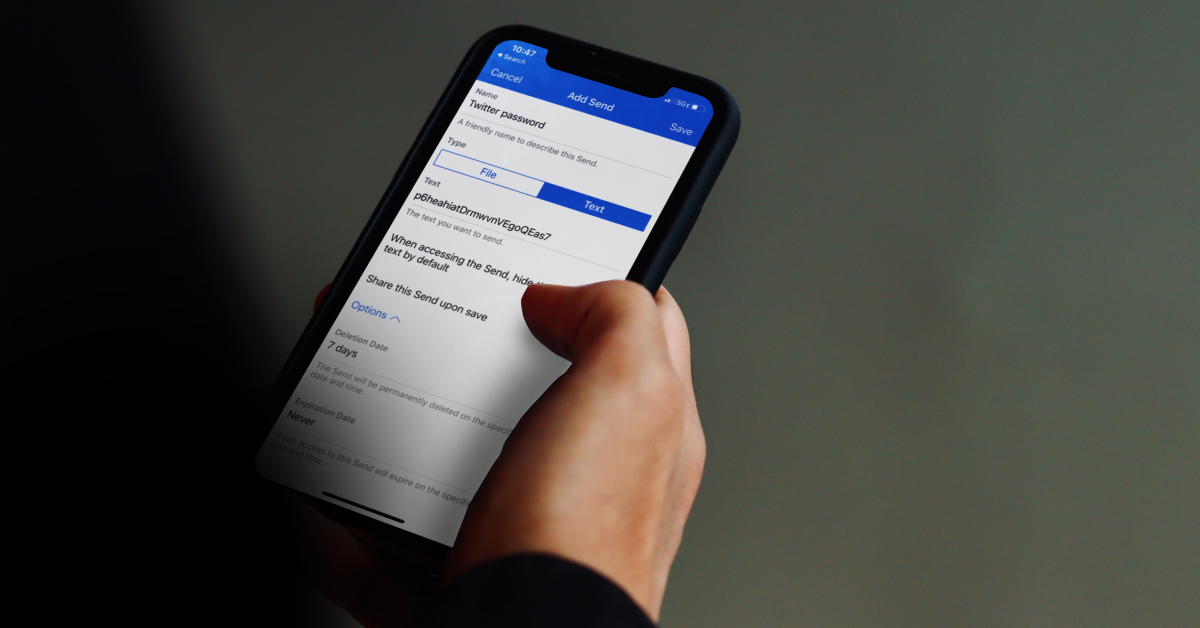
Download from the App Store Bitwarden Bitwarden lets you store unlimited passwords on your iPhone and syncs them across all your devices. If you forgot your iPhone at home, you can use Bitwarden to access all your passwords on your work PC. Not only does it store your passwords, but it also helps you create new ones. You can generate a strong string for your password using Bitwarden and never have to remember it again. The app will autofill the password in the appropriate spots. All your passwords on this app are secured by end-to-end encryption (AES-256 bit, salted hashtag, and PBKDF2 SHA-256).

NordPass

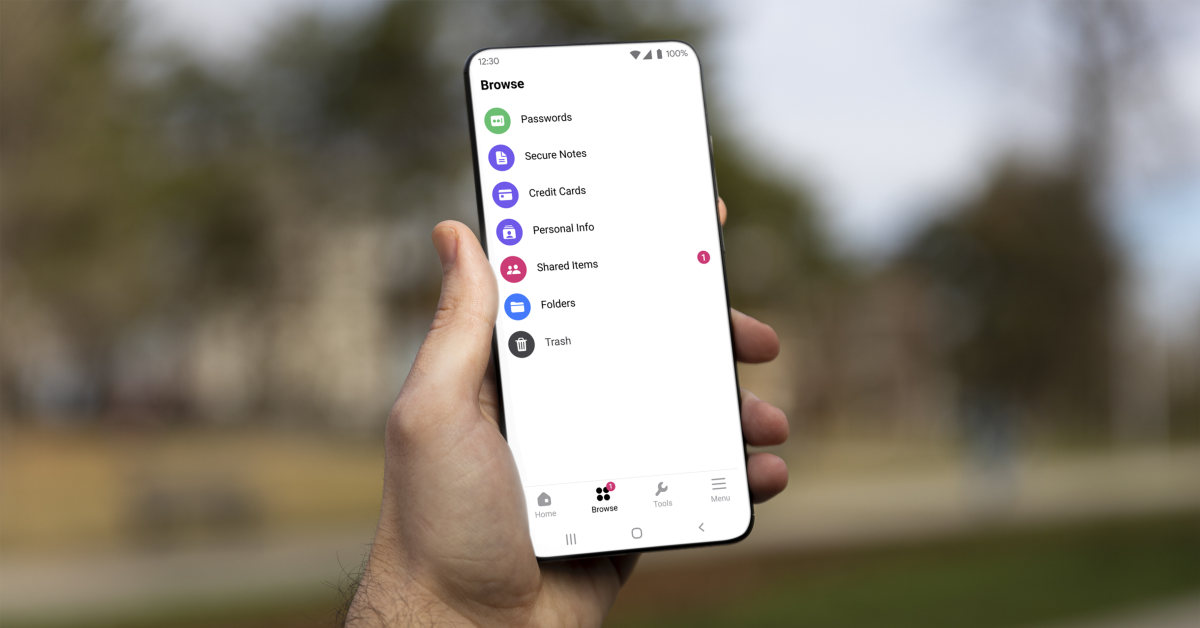
Download from the App Store NordPass NordPass saves your passwords, credit card info, WiFi passwords, alarm codes, and more. You can add a password to NordPass with just one tap right when you’re logging into your account. You can even save your card details on the app and autofill them in the relevant places while checking out your e-cart. One of our favourite features of NordPass is password sharing with other users. If you want to share your Netflix password with your friends and family, you can allow them access to it using NordPass. This access can be revoked at any time. Another thing that we like about this password manager is that it assesses your existing passwords and lets you know how strong they are. If you are using the same password for multiple accounts, NordPass will prompt you to generate new ones.

1Password

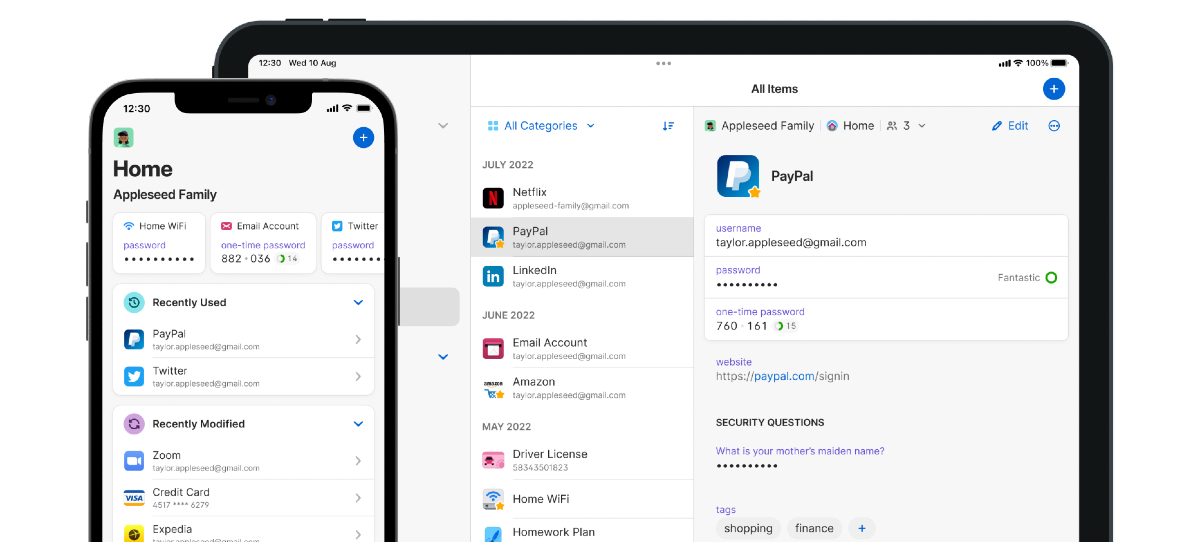
Download from the App Store 1Password How to Find Saved Passwords On Your iPhone? Top 5 Password Managers for iPhone in 2023 1Password is one of the most comprehensive password-managing apps for iPhone. Not only does it save your passwords, but it also secures your Notes, WiFi connection, Social Security Number, Passport, Driver’s License, and more. Once you save a password on 1Password, you can access it across all your devices. Access to this app is guarded by Face ID and biometrics. If you want to share a password with your friends and family, 1Password creates a special vault that can be shared with anyone.

Dashlane

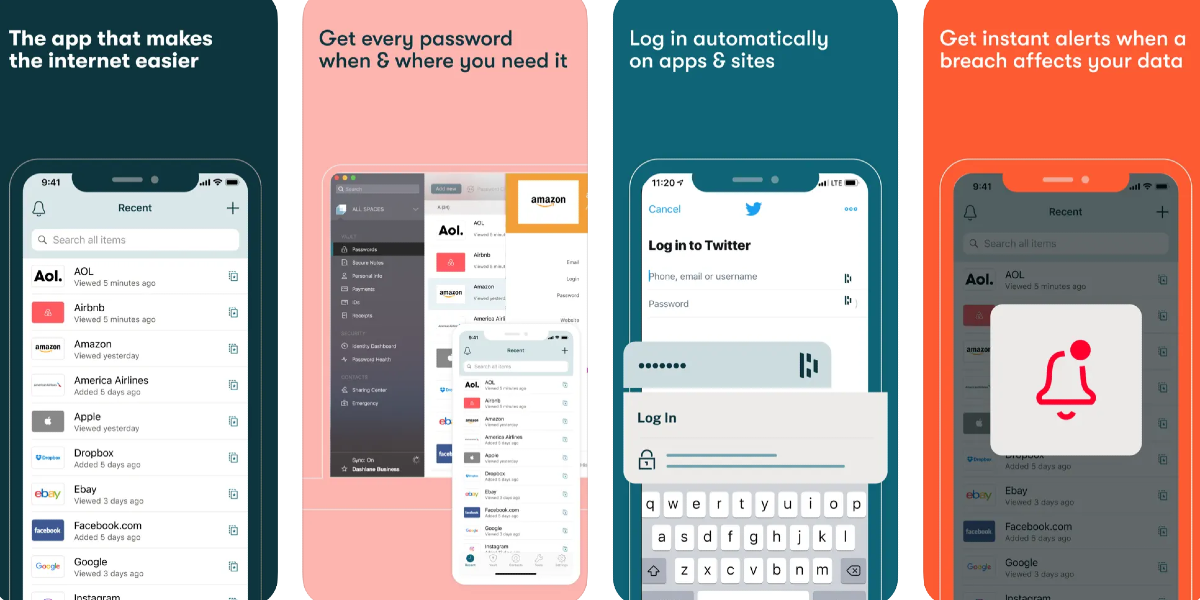
Download from the App Store Dashlane How to Find Saved Passwords On Your iPhone? Top 5 Password Managers for iPhone in 2023 Dashlane is one of the most popular password managers around, used by over 15 million users and 20,000+ businesses. Apart from regular storing and autofill functions, Dashlane also notifies you when your password is affected by a data breach or a hack. Its Dark Web Monitoring feature lets you know if your data is on the dark web. Dashlane employs state-of-the-art encryption to protect your passwords and autofill data. Certainly, one of the best password managers for your iPhone that you can download right now.

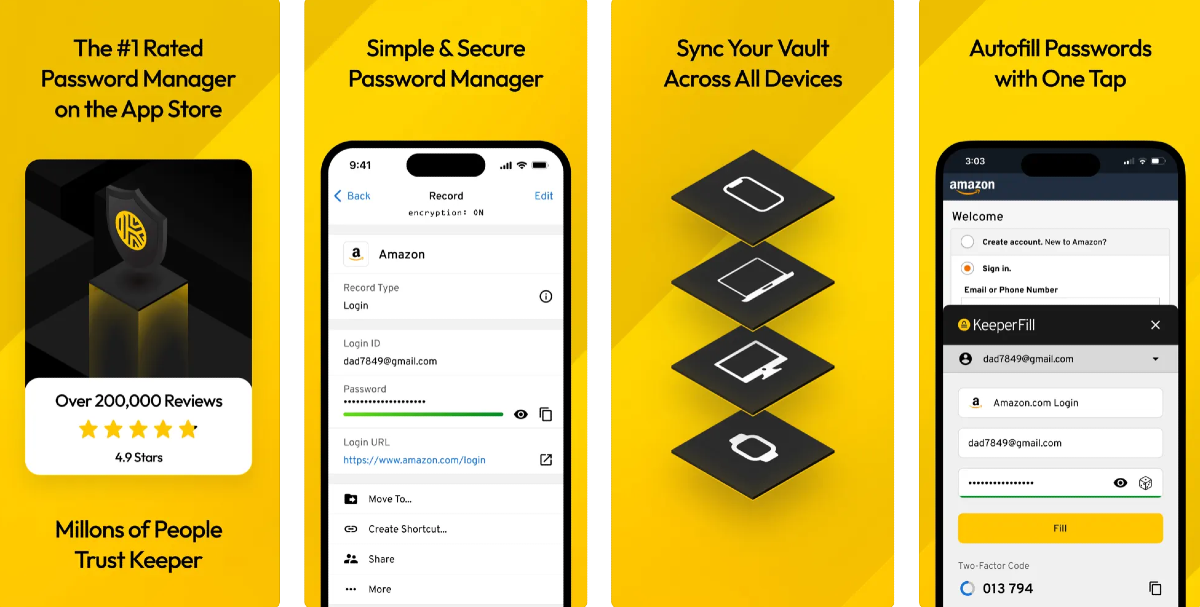
Keeper

Download from the App Store Keeper How to Find Saved Passwords On Your iPhone? Top 5 Password Managers for iPhone in 2023 Generate strong passwords, save preexisting passwords, and secure them with world-class encryption on Keeper. Used by millions of people across the world, Keeper is a very simple password manager that offers a few additional vital features that separate it from the competition. ‘One-Time Share’ is one of them. Using this feature you can share any password with family or friends that don’t have a Keeper account. Other than saving passwords, Keeper can also generate Two-Factor Authentication codes for all your accounts. The ‘BreachWatch’ function monitors the Dark Web and alerts you if your data is ever found on it.

Frequently Asked Questions (FAQs)

How do I find a saved password on my iPhone?

Go to Settings>Passwords and verify your identity using Face ID. Now, tap the website or app for which you want to see the password. 

What are some good password managers for iPhones?

Keeper, Bitwarden, 1Password, Dashlane, and NordPass are some of the best password managers for iPhones in 2023.

How do I change a password in my iPhone’s password manager?

Once you have selected a website or app in the password manager, simply hit Edit at the top right corner of the screen to save a new password. Read Also: Poco C65 India launch confirmed: Here is when the phone will launch

Conclusion

This is how you can find your saved passwords on your iPhone. Once you change a password in your iPhone’s password manager, it doesn’t change it for the account itself. Once you autofill the password while logging in, you will be denied access to your account. To change the login credentials, you will need to access your account settings within the website or app. If you found this article, useful, let us know in the comments!

iQoo 12 5G launching in India today: Here is how to watch the event live

Key Highlights
  • iQoo 12 5G will launch in India today in the evening.
  • It will feature a 144Hz AMOLED display.
  • It also will come preinstalled with OriginOS 4 on top of Android 14.
iQoo 12 5G is all set to make its India debut today. Before launching in India the device was introduced in China last month. There the company introduced two models iQoo 12 and iQoo 12 Pro. But today the company has announced to introduced the former one. It comes with some notable features like Qualcomm’s latest flagship chipset Snapdragon 8 Gen 3 and an OLED screen that supports a 144Hz refresh rate for smooth high-end gaming performance. However, we know the specs of the upcoming smartphone but India price details will be revealed at the time of the launch event. But the price of the smartphone has already leaked ahead of the launch. To know about it keep on reading.

How to watch the iQoo 12 5G launch Livestream?

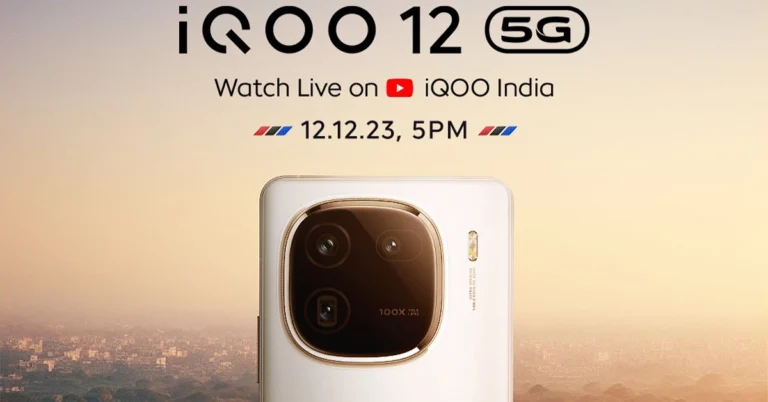
iQoo 12 5G will launch in India today. The livestream will begin at 5 PM IST via the company’s official YouTube Channel. The launch event will also be webcast through the company’s social media channels including X. Interested ones can also catch the event live on our website, as we have embedded a link below.

iQoo 12 5G price in India expected and specifications

iQoo 12 5G is tipped to be made available in two variants 12GB and 16GB RAM. The 12GB RAM with 256GB storage is said to come at Rs 52,999 whereas the price of 16GB RAM with 512GB storage will be set at Rs 57,999. The device will be available for purchase via Amazon in the country. The iQoo 12 5G comes with a 6.78-inch 1.5K AMOLED display with 1,260×2,800 pixels of resolution. The screen supports a 144Hz refresh rate, HDR10+ and a 20:9 aspect ratio. The device runs on OriginOS 4 on Android 14 and is powered by a 4nm Snapdragon 8 Gen 3 SoC processor.
Price of iQoo 12 5G in India tipped ahead of the launch: Details inside
iQoo 12
The smartphone has a triple rear camera setup that includes a 1/1.3-inch 50-megapixel primary sensor (f/1.68 aperture), 64-megapixel periscope telephoto (f/2.57 aperture and 100X digital zoom) and 50-megapixel ultra wide-angle sensor (f/2.0 aperture). For selfies, the device features a 16-megapixel front-facing camera with f/2.45 aperture. iQoo 12 5G is backed by a 5,000mAh battery, with 120W fast charging support. Also, there is an in-display fingerprint sensor for biometrics.