An echo in a voice call can prove to be very grating and annoying. While shifting to a place with a better network reception is the most obvious solution to this issue, it doesn’t work all of the time. Sometimes the echo may originate from a software malfunction on your phone. In this article, we bring you the top 10 ways to fix a phone call echo on Android.Read Also:Top Gaming Monitors with 120Hz refresh rate under Rs 15,000
Request the receiver to take the call off the speaker
The most likely reason behind an echo on a phone call is the speaker phone. When the receiver decides to go hands-free on a call, their phone’s microphone picks up the voice being emitted by the speaker, causing an echo. This situation is pretty common while driving. If the phone is connected to the car’s infotainment system, the microphone receives it as a part of the background noise. Request the other party to take the call off the speaker in order to fix the phone call echo.
Restart your phone
If the echo problem keeps persisting even after taking the call off speaker, try restarting your phone. If the issue is caused by a software glitch, restarting your phone will quickly resolve it. To restart your Android phone, simply press and hold the side key and select ‘Restart’ from the power menu. If pressing the side key triggers the voice assistant, press and hold the volume key along with it to access the power menu.
Disable WiFi Calling
Sometimes, WiFi Calling can interfere with a regular cellular call and cause a malfunction. It can even lead to an echo being generated on the call. Here’s how you can turn off WiFi calling on your Android phone.Step 1: Go to Settings and select Connections.Step 2: Turn off the toggle switch for WiFi Calling.Alternatively, you can also disable WiFi Calling from the Quick Settings Menu.
Turn off Call Recording
Sometimes, recording a phone call can lead to an unwanted echo developing in the line. You can stop recording a phone call by tapping the option to end the recording in the call menu. If you have turned on auto-recording for all your phone calls, here’s how you can turn it off.
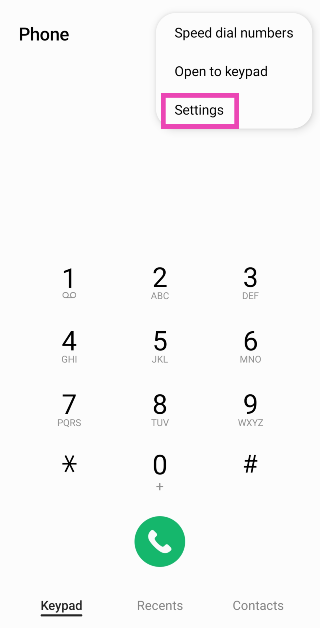
Step 1: Launch the dialer app and tap the ellipses at the top right corner of the screen.
Step 2: Tap on Settings.
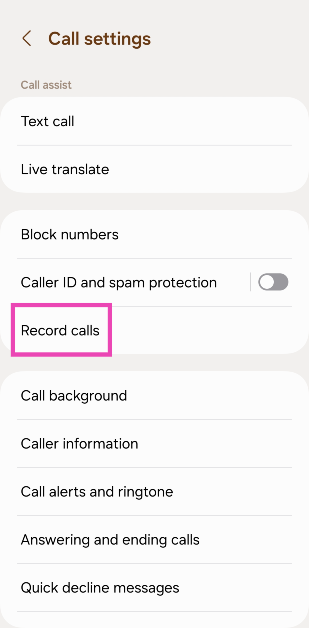
Step 3: Select Record calls.
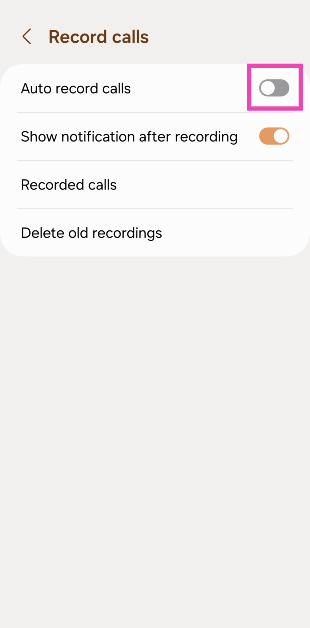
Step 4: Turn off the toggle switch for Auto record calls.
Clear dialer cache
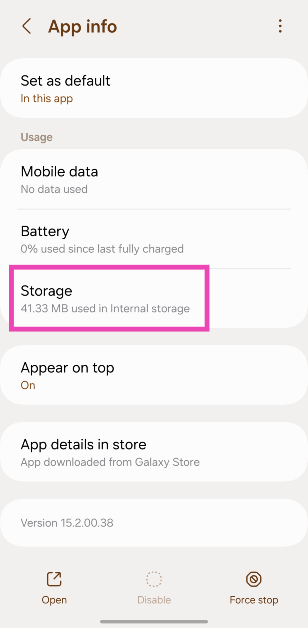
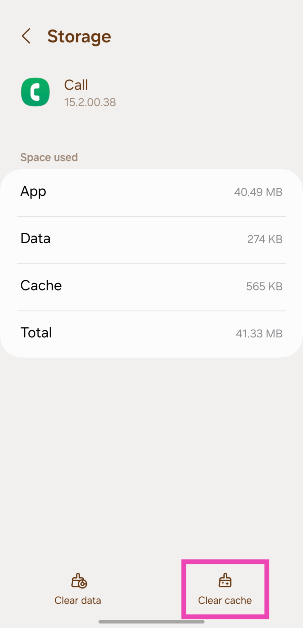
If the echo is arising due to a corrupt file in the dialer’s cache, clearing it will fix the issue. Here’s how you can do it.
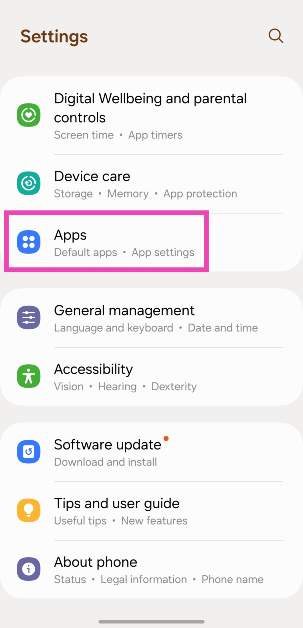
Step 1: Go to Settings and select Apps.
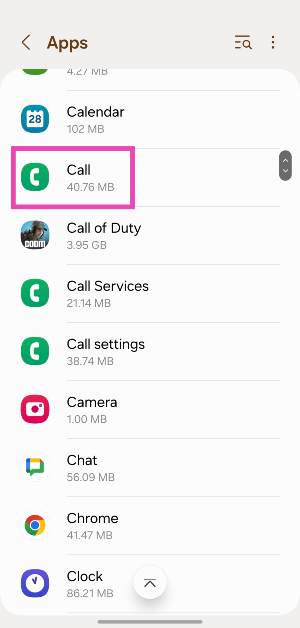
Step 2: Select the dialer app.
Step 3: Tap on Storage.
Step 4: Hit Clear Cache.
Reset Network Settings
If a weak network reception is the reason behind the echo you’re facing on voice phone calls, you can try performing a network settings reset on your Android device. Doing so will reset all your customised network settings and unpair all your Bluetooth devices. All the saved WiFi passwords will also be lost. A network settings reset ensures that any customised settings don’t get in the way of your device’s network reception. Here’s how you can go about it.Step 1: Go to Settings and select General Management.Step 2: Scroll down and select Reset.Step 3: Tap on Reset Network Settings.Step 4: Select Reset Settings.Step 5: Enter your PIN to confirm your selection.
Use VoIP calling
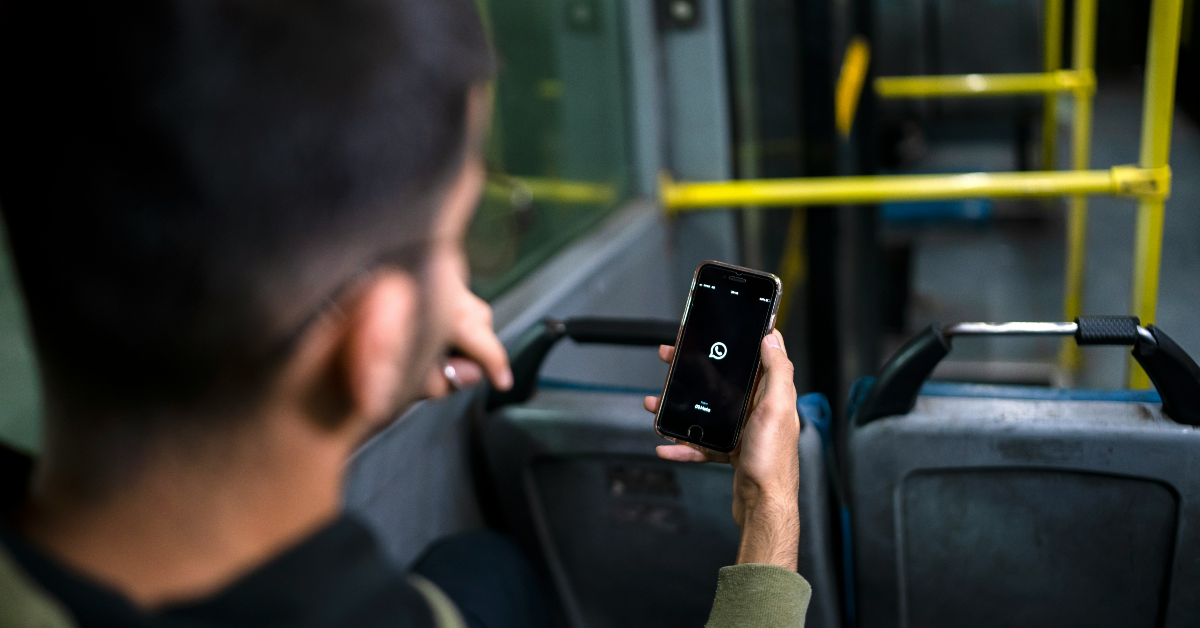
If a weak network reception is the reason behind the echo on a cellular call, switch to a WiFi connection and make a call over the internet. The easiest way to go about this is by calling the other person on WhatsApp. Since WhatsApp is very popular among Android users, chances are that the person you’re calling is already on it. Initiate a chat with them on WhatsApp and hit the call icon at the top of the screen to call them. You can also use other services like Telegram, Instagram, Facebook Messenger, Google Meet, Zoom, Skype, and more.
Move to another room
If you’re in a group call with some members sharing the same spot as you, it can create an unwanted echo. You can fix this by requesting other people to mute their microphones. This will prevent their phones from picking up the voice emanating from your device, thereby curbing the echo. If muting isn’t possible, ask the members to move to different places so their phones aren’t able to pick up the audio from other devices.
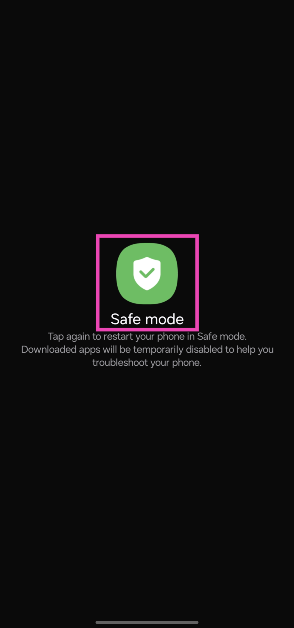
Set your phone to safe mode
It is possible that a rogue third-party app may be causing the echo on your phone calls. To confirm this, restart your phone in safe mode and try calling someone. If you do not notice an echo, it means that a third-party app is to blame.
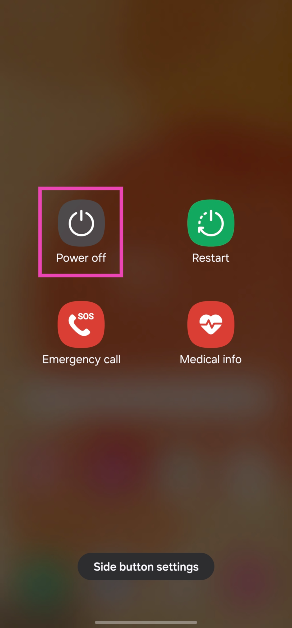
Step 1: Long press the side button. If the side button is programmed to trigger the voice assistant, press and hold it along with the volume-up key to trigger the power menu.
Step 2: Tap and hold the Power off icon.
Step 3: Tap on Safe Mode.
Update OS
Step 1: Go to Settings and select Software update.
Step 2: Tap on Download and install.
Step 3: Select Install now.
Frequently Asked Questions (FAQs)
How do I fix the phone call echo on Android?
Ask the person on the other end of the line to take the call off the speakerphone in order to fix the echo.
How do I get rid of echo on audio calls?
If you’re in a group call with some members present in your near vicinity, ask them to spread out so their phones don’t pick up the audio emanating from other devices.
Why do people hear an echo when they call me?
If you want to fix the issue on your end, stop picking up calls using the speaker phone and troubleshoot your microphone.
How do I turn off WiFi calling on Android?
You can turn off WiFi calling from the Quick Settings Menu or go to Settings>Connections and turn off its toggle switch.
How do I perform a network settings reset on Android?
This is how you can fix the phone call echo issue on Android. If you are facing a similar issue on WhatsApp calls, switch to a better WiFi network or turn on mobile data on your Android device. If you found this article helpful, let us know in the comments!
Gaming laptops can sometimes turn out to be way more expensive than gaming PCs. If you’re looking for state-of-the-art cooling on a laptop, you will need to splurge some extra cash. However, there are some really good gaming laptops on the market that offer incredible value for money. Today, we bring you our picks for the best midrange gaming laptops you can buy right now.Read Also:3 Methods to Download Multiple Photos or Videos from WhatsApp
Acer Aspire 5 Gaming Laptop
Price: Rs 54,990 on AmazonAcer Aspire 5 is powered by the 12th Gen Intel Core i5 processor consisting of 12 cores. It also gets NVIDIA GeForce RTX 2050, which does a good job of handling the graphics. The dual fans and copper thermal pipes keep the laptop cool even when it’s functioning at its peak capacity. The 15.6-inch FHD IPS display has a screen-to-body ratio of 81.8% and gets features like Acer Color Intelligence and Acer BlueLightShield. The Aspire 5 is available in a 16GB RAM + 512GB storage variant.
MSI GF63 Thin
Price: Rs 58,990 on AmazonMSI is known for its high-end gaming laptops, but its midrange offerings are some of the best in the segment. The MSI GF63 Thin gets the 11th Gen Intel Core i7-11800H processor under the hood and the NVIDIA GeForce GTX1650 Max GPU for the graphics. The 15.6-inch FHD IPS display panel has a resolution of 1920 x 1080p and a refresh rate of 144Hz. On top of that, the MSI GF13 Thin rocks 8GB of DDR4 3200MHz RAM that is upgradeable up to 64GB. In terms of storage, this laptop gets 512GB of NVMe PCIe Gen3x4 SSD.
Acer Nitro 5 Gaming Laptop
Price: Rs 66,750 on AmazonAcer Nitro 5 is powered by the 11th Gen Intel Core i5-11400H along with an NVIDIA GeForce GTX 1650 GPU. It gets Acer CoolBoost technology that improves the overall cooling performance by 25%. The 15.6-inch LED IPS display has a resolution of 1920 x 1080p and a refresh rate of 144Hz. There is a dedicated button on the keyboard to trigger the NitroSense UI, allowing users to instantly view live metrics for fan speed, loading performance, power plan, and internal temperature. The Nitro 5 gets 16GB of RAM and 512GB of internal storage space.
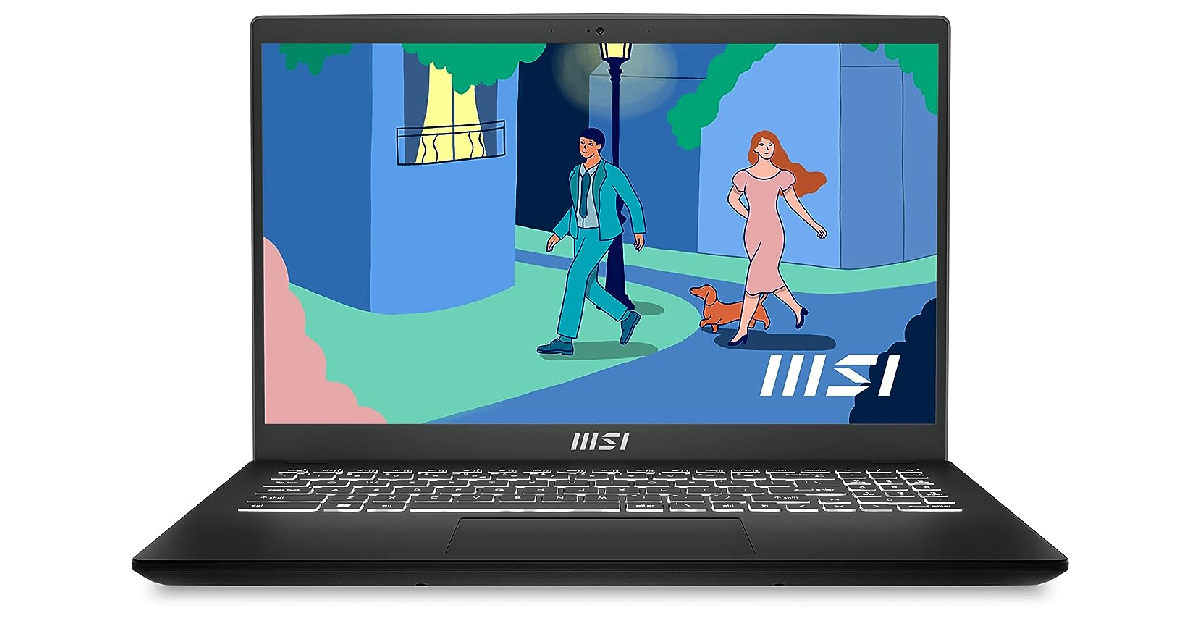
MSI Modern 15
Price: Rs 57,990 on AmazonMSI Modern 15 gets the AMD Ryzen 7-7730U processor along with AMD Radeon Graphics. The 15.6-inch IPS display has a resolution of 1920 x 1080p and a refresh rate of 60Hz. This laptop comes with a massive 1TB NVMe PCIe Gen3x4 SSD storage and 16GB DDR4 Onboard Dual Channel RAM. It weighs just 1.7kg and has dimensions of 35.9 x 24.1 x 1.9 cm. OS duties are handled by Windows 11 Home.
Lenovo Ideapad Gaming 3
Price: Rs 55,499 on AmazonPriced just over Rs 55,000, the Lenovo Ideapad Gaming 3 is one of the best value-for-money laptops you can buy right now. It gets the 11th Gen Intel Core i5-11300H CPU and NVIDIA GeForce GTX 1650 4GB GDDR6 Dedicated Graphics. The 15.6-inch IPS LCD display has a 120Hz refresh rate and can reach up to 250 nits of peak brightness. The Ideapad Gaming 3 comes with 8GB of RAM (upgradeable to 16GB) and 512GB SSD storage.
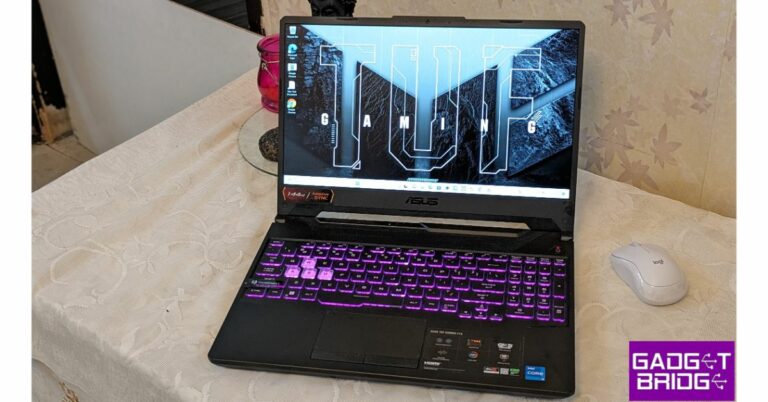
Asus TUF Gaming F15
Price: Rs 50,990 on AmazonThis 2021 gaming laptop is still a solid device 2 years down the line. The Asus TUF Gaming F15 is powered by the 10th Gen Intel Core i5-10300H processor. It also gets a dedicated NVIDIA GeForce GTX 1650 GDDR6 4GB VRAM. The 15.6-inch IPS display panel has a refresh rate of 144Hz and a 1920 x 1080p resolution. The laptop comes preloaded with Windows 11 Home, but MS Office will cost you Rs 3,000 more. It has an internal storage of 512GB and 8GB of RAM.
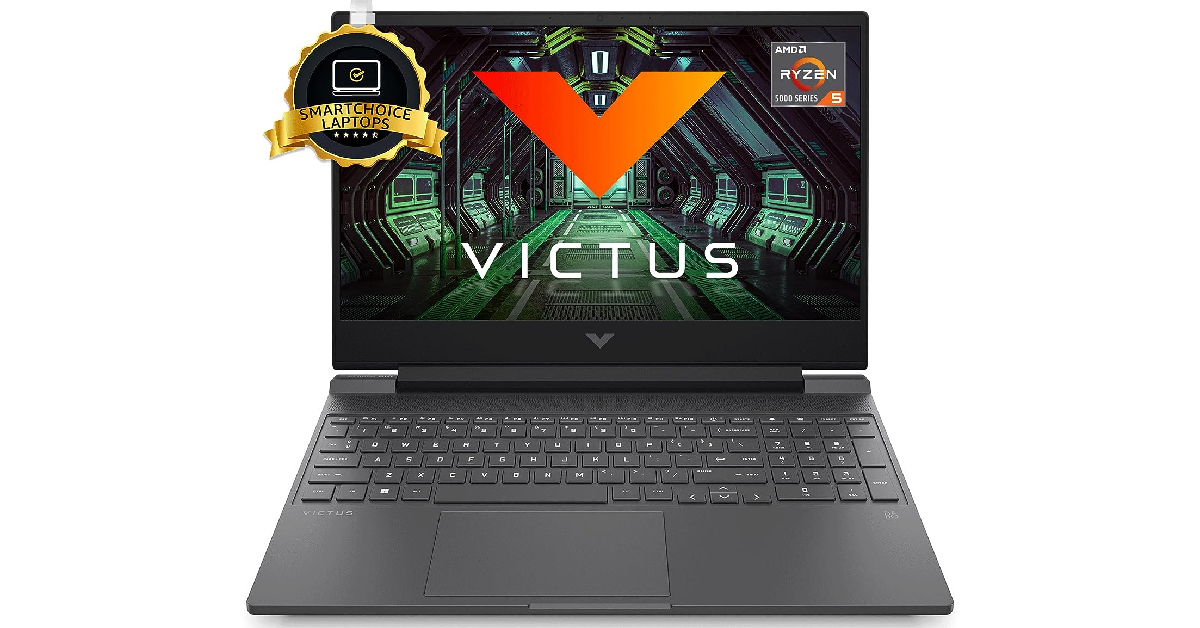
HP Victus Gaming Laptop
Price: Rs 56,990 on AmazonHP Victus Gaming Laptop gets the AMD Ryzen 5 5600H processor under the hood. GPU duties are handled by AMD Radeon RX 6500M Graphics (4 GB GDDR6). One of our favourite things about this laptop is the integrated speaker setup powered by B&O. The 15.6-inch IPS FHD display has a refresh rate of 144Hz for seamless gaming. It also gets anti-glare and 1080p resolution. The Victus Gaming Laptop from HP comes with 512GB of SSD storage and 8GB RAM. The 16GB RAM variant costs Rs 2,000 more.Read Also:Top Gaming Monitors with 120Hz refresh rate under Rs 15,000
Conclusion
These are our picks for the best midrange gaming laptops you can buy right now. Outside of the GPU and screen refresh rate, we would also suggest trying out the laptop keyboard before making a purchase. A good tactile, keyboard is what you should be looking for. While you can always connect a superior gaming keyboard of your choice to your laptop, a good laptop keyboard is pivotal for gaming when you’re on the go.For the latest gadget and tech news, and gadget reviews, follow us on Twitter, Facebook and Instagram. For newest tech & gadget videos subscribe to our YouTube Channel. You can also stay up to date using the Gadget Bridge Android App. You can find the latest car and bike news here.
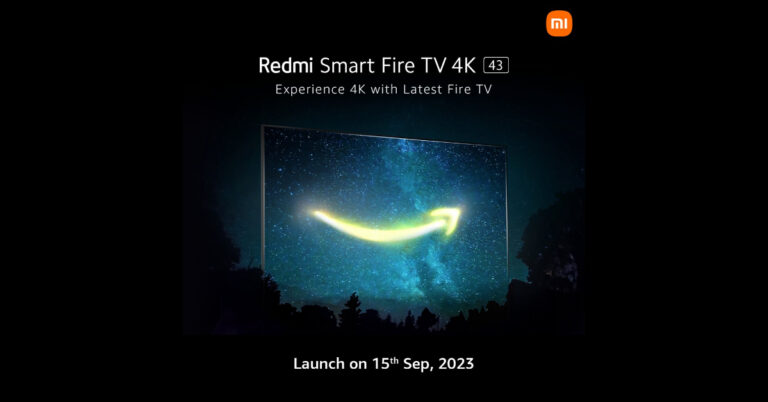
On September 15, Redmi will formally introduce a brand-new smart TV in India. Through a press release and an official tweet, the Chinese electronics company verified the upcoming product launch. The new smart TV, known as Redmi Smart Fire TV 4K, which will run on Amazon Fire OS and is anticipated to be on sale just through the online store. Some important details about the Redmi Fire TV’s projected specifications are also revealed on a dedicated microsite.Also Read:WhatsApp new toggle for instant video messages for Android and iOS rolling outXiaomi states that it is preparing to introduce the Redmi Smart Fire TV 4K on September 15 in India. The launch event will begin streaming at 12 PM IST. Following this, Xiaomi made an official announcement on X (Twitter).Even though it hasn’t been officially confirmed, we can anticipate that the 43-inch Redmi Smart Fire TV model sold in India will have many of the same capabilities as the model sold worldwide.The upcoming Redmi Fire TV will run on Amazon Fire OS. This will enable users to access streaming services like Netflix, Amazon Prime Video, Disney+ Hotstar, YouTube, and more similar to its sibling the 32-inch Redmi Smart Fire TV that was launched at the beginning of the year. Also Read:3 Methods to Download Multiple Photos or Videos from WhatsAppThe upcoming TV will probably run the most recent Fire TV software, according to the landing page. Additionally, it will have a slick appearance and minimal bezels. Furthermore, the TV will offer seamless connectivity and additional features. The TV will be powered by Amazon Fire OS and come with a voice-activated control that works with Alexa.According to sources, the device is likely to be sold in retail establishments, on Amazon, and on the company’s own website.
For the latest gadget and tech news, and gadget reviews, follow us on Twitter, Facebook and Instagram. For newest tech & gadget videos subscribe to our YouTube Channel. You can also stay up to date using the Gadget Bridge Android App. You can find the latest car and bike news here.
Fitbit’s influence on smart wearables cannot be overstated. Before the industry giants stepped into the smartwatch market, Fitbit’s name was already synonymous with fitness trackers. Since then, the company has been acquired by Google, but it still makes fitness wearables and smartwatches. Its flagship product, Fitbit Versa, is one of the most versatile smart wearables out there. In this article, we bring you 9 methods to fix your Fitbit Versa if it won’t turn on.Read Also:Top Gaming Monitors with 120Hz refresh rate under Rs 15,000
Here’s why your Fitbit Versa won’t turn on
If your Fitbit Versa refuses to turn on, it could be due to one of these reasons.
The device’s battery is drained: If your Fitbit had been stashed away in a drawer somewhere for months, its battery probably drained out. Even if the device was at a 100% charge when you stashed it away, the battery can discharge in standby mode.
The battery has worn out: The battery pack of a device is susceptible to wear and tear over a period of time. Every battery pack has a fixed number of charge cycles that it is designed to go through. Once it passes that number, its performance starts depreciating. It is possible your Fitbit Versa’s battery has worn out.
Faulty charger: Maybe the problem does not lie with the battery but with the charger. If the charger isn’t able to deliver current to the device, it won’t charge at all. If you have another charger at hand, you use hit and trial to confirm if this is the case.
Software glitches: While software glitches are uncommon, they are not unheard of. If you manually flashed your wearable with a faulty OS, it could render the device unusable.
Charge your device
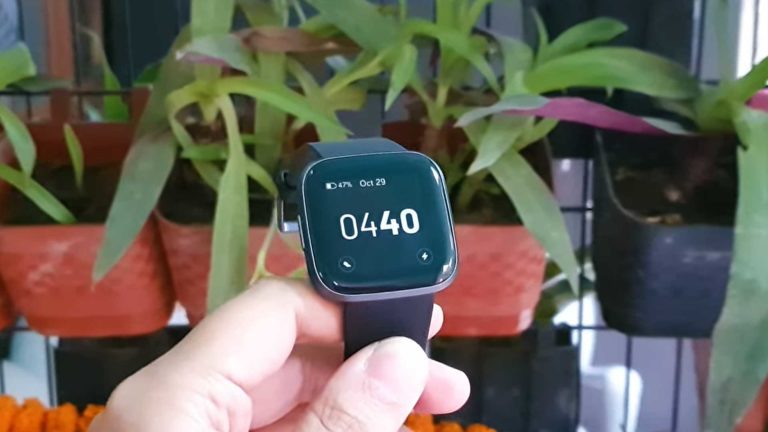
If your Fitbit Versa won’t turn on, it is likely because its battery has drained out. On a full charge, Versa’s battery lasts a little over 4 days. With the Always On Display turned on, the battery life gets cut down in half. Connect your Fitbit Versa to its charger. Make sure it has been plugged in for at least 20 minutes before turning it on.
Use a wall outlet to charge the Fitbit Versa
Make sure that you use a power adapter to charge your Fitbit device. An adapter drawing power from a wall outlet will charge your device faster than a cable connected to your PC or laptop. In the latter scenario, your Fitbit gets trickle-charged. If your device has been inactive for a long time, trickle charging it may not be enough.
Make sure the charger is working
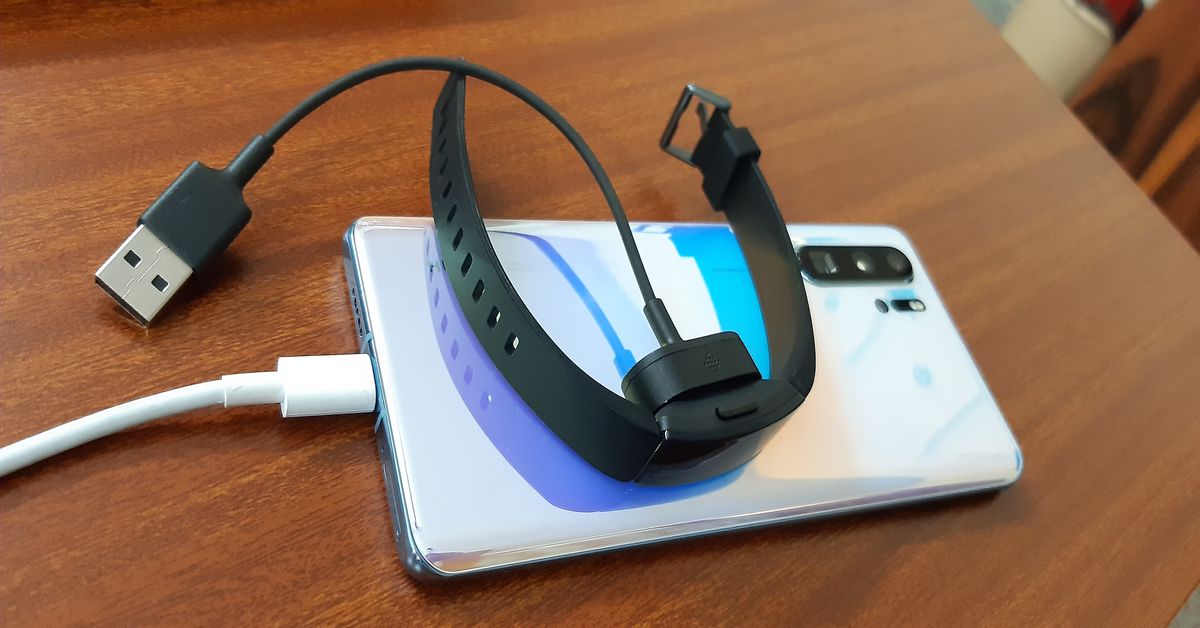
If plugging in your Fitbit Versa to charge does not fix the issue, inspect the charger for any faults. If you don’t see the charging notification a few seconds after connecting the smartwatch to the charger, it means that the device is struggling to charge. The fault may lie with the charger or the smartwatch itself. Connect the Fitbit to a spare charger. If it starts charging, the problem lies with the primary charger.
Troubleshoot your Fitbit Versa
Step 1: Connect your Fitbit device to its charger. Make sure the charger is plugged into a wall outlet.
Step 2: Press the power button 3 times within 8 seconds. Hold each press for about 1 second.
Step 3: Wait for 10 seconds. The Fitbit logo will appear on the screen.
Clean the charging port
If your Fitbit Versa does not respond after being plugged into a charger, make sure its pin connectors are clean and dirt-free. Oftentimes, the charging port can accumulate dirt and grime, leading to a faulty connection with the charger. If you just got done with a workout, give the smartwatch a good wipe before charging it.
Restart your Fitbit Versa
Did you try restarting your Fitbit Versa after it shut down? To restart the Versa, press and hold the back button on your smartwatch until the Fitbit logo appears on the screen. Once the logo is displayed on the screen, release the button. Your smartwatch will take a few seconds to start up.
Inspect the power button
The physical buttons on smartphones and smart wearables are known to get stuck due to the collection of dirt and grime under them. If your Fitbit’s power button is jammed, it can cause the device to shut down and not turn on. Use isopropyl alcohol and a clean microfibre cloth to remove the debris under the power button.
Change the Watch Face
Sometimes a corrupt watch face can turn black, giving the impression that the watch has shut down. If you can still control your Fitbit Versa using the app on your phone, try changing its watch face to fix the issue. Here’s how.Step 1:Launch the Fitbit app on your smartphone.Step 2: Tap the profile icon at the top right corner of the screen.Step 3:Select your Fitbit device from the menu.Step 4: Tap on Gallery.Step 5: Select a watch face from the My Clocks section. In order to install a new watch face, tap the plus icon.Step 6: You can choose from a range of paid and free watch faces across categories like Digital, Stats Heavy, Analog, and more.Step 7: Choose a watch face you like and tap on Install.
Hard reset your Fitbit Versa
If you still can’t turn on your Fitbit Versa, performing a hard reset is your only option. This will clear your personal data from the device and log you out of all accounts.
Step 1:Press and hold all the buttons on the Fitbit for 10-15 seconds.
Step 2: When the Fitbit logo appears and disappears on the screen, release the bottom right button.
Step 3: When you feel a vibration, release the rest of the buttons.
Step 4: Your device will restart and you will land on the setup page.
Frequently Asked Questions (FAQs)
How do I restart my Fitbit Versa?
To restart your Fitbit Versa, press and hold the back button until the Fitbit logo appears on the screen. If your Fitbit watch has more than one button, press and hold all of them to restart it.
Why won’t my Fitbit Versa turn on?
If your Fitbit Versa doesn’t turn on, it is likely because it ran out of charge. Connect it to the charger to fix this issue.
How do I change my Fitbit Versa’s watch face?
Go to the Fitbit app on your phone, select Profile>Fitbit>Gallery>My Clocks, and tap the plus icon to add a new watch face.
Why has my Fitbit stopped working?
Your Fitbit may have stopped working due to insufficient charge, software-related bugs, physical damage, interference from other devices, or an incorrect software update.
These are the top 9 ways to fix your Fitbit Versa when it doesn’t turn on. If the issue is related to the device’s hardware, you need to take your smartwatch to a professional repair centre. Contact Fitbit support if your device is still under warranty.
With the most recent software updates, WhatsApp already made it possible for anybody to record and share video chats, but the company is still working on fresh improvements for this feature. The company is currently rolling out a new toggle for instant video messages. The new feature allows video messages to be recorded and sent in real-time. The most recent WhatsApp beta update for iOS and Android, however, is said to have incorporated the new feature in the settings. The function is turned on by default in the app’s settings and lets users share a quick video of up to 60 seconds.Following the launch of a feature that enables users to send instant video messages on WhatsApp for iOS and Android, WhatsApp has continued to enhance it by adding a toggle to control the capability directly from the app’s settings. According to a report by WABetaInfo, some beta testers who install the most recent versions of WhatsApp beta for Android and iOS can use the functionality.Specifically, certain beta testers may discover a new option directly within the app settings after installing the most recent WhatsApp beta updates for iOS 23.18.1.70 via the TestFlight app and WhatsApp beta updates for Android 2.23.18.21 from the Google Play Store.Image Courtesy: WABetaInfoWith the most recent updates to WhatsApp beta for Android and iOS, it is now able to control the feature to exchange instant video messages, as shown in the shared screenshot. This functionality was previously activated by default, therefore it could not be turned off. Users may now control this feature and, if they so choose, disable it thanks to the new toggle.As per the report, users of WhatsApp have the option to totally turn off this feature with this toggle, while still being able to send and receive video messages. It’s important to note that even if you don’t want to turn off video messaging, you should still check that option because some users have reported finding it switched off despite sending video messages in the past.Some beta testers who install the most recent updates of WhatsApp beta for Android from the Google Play Store and WhatsApp beta for iOS from the TestFlight app can access the toggle to control the instant video messages functionality, and it will be made available to more beta testers over the next few days.
For the latest gadget and tech news, and gadget reviews, follow us on Twitter, Facebook and Instagram. For newest tech & gadget videos subscribe to our YouTube Channel. You can also stay up to date using the Gadget Bridge Android App. You can find the latest car and bike news here.
After being banned for nearly ten months, Battleground Mobile India, aka BGMI, is officially available again in India. BGMI fans are looking for ways to improve their game experience and one such method is the usage of redemption codes, which offers a variety of rewards and advantages using BGMI redeem codes players can gain access to new skins, outfits, loot crates, weapons and free UC and diamonds.As mentioned earlier, these codes give users the chance to earn unique rewards and gain extra benefits while playing the game. This includes GUN SKINS (M4, AKM, M416, AWM, M24, UZI, KAR98K), free character voucher, Andy, Carlo, Sara, Victor character for free, free Anna Character on completing the mission and UC or Royal Pass Discount. So here we have gathered a list of the most recent BGMI redeem codes as of 6 September 2023. Also, redeem these codes asap as these are only valid for a limited duration.
BGMI Redeem Codes for 6 September2023
updating soon…
How to get free Redeem Codes for BGMI on 6 September2023?
Launch BGMI on your device.
Then select the Redeem Code option from the main menu.
Next, click on the Redeem code tab.
A new window will open, requesting the redemption code.
Now enter your BGMI code.
Confirm and click on the “Redeem” tab.
If your redeem code is valid then you will get a message confirming that your rewards were successfully redeemed.
Garena Free Fire is a battle royale game with regular awards and tournaments to keep players interested. If you play Garena Free Fire, you should be aware of the redeem codes that are released on a daily basis. However, because the battle royale game is banned in India, players from other countries can use the Free Fire Redeem codes daily. If you’re unfamiliar with the Garena Free Fire redeem codes or don’t know how to get them, we’ve put together a step-by-step guide to help you redeem them. Check out Garena Free Fire Redeem Codes for 6 September 2023.The Free Fire redeem codes are a great way to get free stuff. These are 12-digit codes that contain alphabets and numbers, as well as an expiration date and time. Because the Garena FF redeem codes cannot be used more than once, you should hurry to the redemption page to claim your free reward before someone else does. To get a free reward, all you have to do is go to reward.ff.garena.com/en, which is the official redemption page. Also, keep an eye on this space for daily updates on Garena Free Fire redemption codes and rewards.
Garena Free Fire Redeem Codes Today 6 September2023
updating soon…
How to Get Free Fire Redeem Codes for Garena on 6 September2023?
Obtaining permits for iGaming is an important step when starting an online casino or a sportsbook . “In order to apply for a license, it is necessary to prepare an application for a license, copies of the company’s statutory documents, an audit document on the size of the company’s authorized capital, and pay all relevant fees. This complex process may be intimidating for some entrepreneurs, but in the long run the investment of time and resources pays off. This approach will not only pay dividends in the future, but is also important in terms of legislation compliance,” BetB2B experts commented.
Gambling regulation rules vary from country to country, but the license is a paramount issue for operators wishing to open an online casino.
Application fees, license fees and taxes can be a significant burden on a casino’s budget and affect profits. Moreover, the process of obtaining a license in many jurisdictions is complex. Some try to avoid this process and the associated costs, but the benefits of licensing far outweigh the costs.
A representative of the world’s leading sports betting and online casino platform, BetB2B, emphasizes that it is important to think about the long term when obtaining a license: “iGaming opens up opportunities for cooperation with financial institutions and quality game developers. It is also a sign of a reliable reputation, which is very important for players.”
Licensing is one of the key indicators that determine the reliability of a casino. When choosing a site for registration, players are advised to pay attention only to legal operators who have the appropriate documents confirming their safety. The reliability of such information can be checked on the official website of the casino, where an active validator badge leading to the certificate is usually placed. When using licensed sites, users can be sure that they are playing on genuine slots created by trusted manufacturers and without the risk of scripted modifications.
International Jurisdictions Granting Licenses for Online Casinos and Betting Sites – BetB2B
Many governments require licenses from local regulators to run an online casino or betting websites. BetB2B clarified that there are offshore jurisdictions that issue iGaming licenses that allow attracting an international audience.
Such licenses are granted by Malta, Curacao, Gibraltar, Isle of Man and Kahnawake. Among the most common foreign regulators are the following:
Curacao Gambling Commission.
The organization issues licenses through companies that have the authority to license other operators. There are four master license holders in Curacao: Cyberluck Curacao, Gaming Curacao (GC), Curacao Interactive Licensing (CIL) and Antillephone.
Malta Gaming Authority (MGA).
The commission issues two types of licenses: for developers of gambling software and owners of online casinos. Companies wishing to obtain a Maltese license must be audited by eCOGRA.
Isle of Man Gambling Supervision Commission (GSC).
The regulator issues several types of licenses, including gambling and betting. The license obtained in the Isle of Man has no regional restrictions and can be used in any place where gambling is legal.
Gibraltar Gaming Commission.
“The territory of Gibraltar is considered one of the most respected jurisdictions, therefore only the best casinos that have already established themselves in the market, have a clear development plan and have permissions from other regulators can obtain a license on this island,” commented BetB2B.
UK Gambling Commission.
This regulator is the most stringent and expensive on the list. They carefully monitor their reputation and the reliability of licensees. The Commission issues three types of licenses covering a wide range of iGaming services, including live casino games, lotteries, bookmakers, software development and others.
After the operator has decided on the jurisdiction and has gone through all the bureaucratic processes to obtain a license, it is necessary to build an efficient infrastructure for business. A company can try to build its own platform from scratch. This is an extremely costly and time-consuming process. In addition, you will have to face a lot of mistakes and high competition from more experienced market participants.
Turnkey solution BetB2B will help you quickly and efficiently start working in iGaming.
IT solutions for betting sites with a license – Bet b2b betting platform
Turnkey solution BetB2B is a comprehensive offer for betting and casino site operators, which includes software and the following products: Sportsbook with Virtual Sports, Toto, casino content: Live Casino, Slots, own games and others. Also includes tools as a back office system, content management (CMS), client relationship management (CRM) and 2-line support.
CRM BetB2B is a tool for analyzing player activity, saving their preferences, providing relevant bonuses within advertising campaigns, evaluating the effectiveness of promotions, as well as providing detailed statistics and reports on key metrics, information about players, their rates, popular games and other aspects, as well as player segmentation, communication and alert settings.
CMS BetB2B allows you to manage the content of the site, allows you to configure the location of its elements, create user profiles, manage access rights, and generate support tickets. The tool also provides the ability to manage banners, rules, promotional materials and create promotional landings.
Affiliate program is a complete tool for creating your own affiliate network, including network setup and management, reporting and statistics, and flexible commission settings.
Agent scheme is a multi-level agent program with flexible commission settings, available in several languages.
Back-office is a tool that allows you to track financial flows, create various employee profiles and manage their access rights.
“Our ready-made platform demonstrates the highest level of quality services in the gambling and betting market”, note in BetB2B, – Therefore, any team working with our platform makes a minimum of mistakes due to our professional experience. We continue to support the client’s business even after the company has been launched, helping to grow the business.”
For the latest gadget and tech news, and gadget reviews, follow us on Twitter, Facebook and Instagram. For newest tech & gadget videos subscribe to our YouTube Channel. You can also stay up to date using the Gadget Bridge Android App. You can find the latest car and bike news here.
One of the major reasons behind WhatsApp’s popularity is its seamless media-sharing capability. The platform now allows users to share HD images with each other. If you are a member of several WhatsApp groups, keeping the auto-downloads for media turned on can eat into a sizeable portion of the available mobile data. This is why it is suggested to manually download the media you want. In this article, we bring you the top 3 ways to download multiple photos and videos from WhatsApp using a PC, iPhone, and Android phone.Read Also: Top 8 ways to fix ‘WhatsApp images not showing in gallery’
Download multiple photos or videos from WhatsApp Web Portal
Step 1: Go to web.whatsapp.com and scan the QR codeusing the WhatsApp app on your smartphone. You can also log in using your phone number.Step 2: Once you are logged in, open the chat from which you want to download the images and videos.Step 3: Hit the ellipses at the top right corner of the chat window and click on Select Messages.Step 4:Select the images and videos you want to download.Step 5: Hit the download icon at the bottom right corner of the screen.
Download multiple photos or videos on WhatsApp for iOS
Step 1:Launch WhatsApp on your iPhone.Step 2: Select the conversation from which you want to download the images and videos.Step 3: Tap on the name of the contact.Step 4: Select Media, Links, and Docs.Step 5: Tap on the Select option at the top right corner of the screen.Step 6: Select the images and videos that you want to download.Step 7: Tap the Share icon at the bottom right corner of the screen.Step 8: Select Save images.
Download multiple photos or videos on WhatsApp for Android
Step 1:Launch WhatsApp on your Android smartphone.Step 2: Hit the ellipses at the top right corner of the screen and tap on Settings.Step 3: Select Chats.Step 4: Turn on the toggle switch for Media visibility.Step 5: Go to the Gallery app on your device to find the images downloaded from WhatsApp.
Frequently Asked Questions (FAQs)
How do I download media from WhatsApp Web?
Open the conversation from which you want to download the images/videos, hit the ellipses, and click on ‘select messages’. Once you have selected the images and videos, click the download icon at the bottom right corner of the screen.
How do I download multiple WhatsApp images on an iPhone?
To download multiple WhatsApp images and videos on your iPhone, simply go to the media section of the chat, select the images, and hit the save option from the sharing menu.
How do I download WhatsApp images and videos on Android?
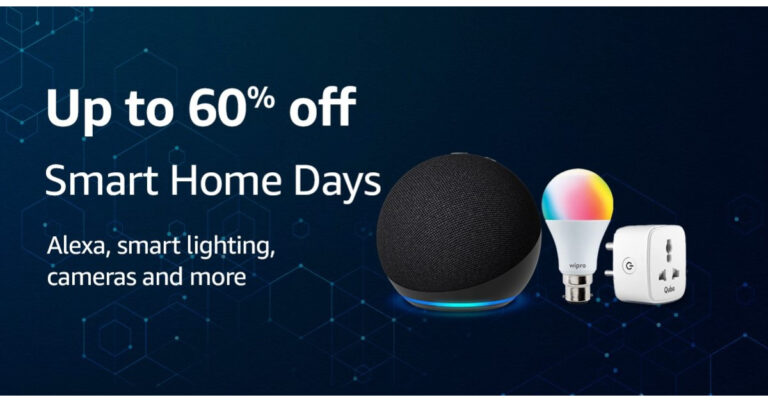
Amazon has announced the dates for the Smart Home Days Sale in India. The upcoming sale will kick off on September 7 and will go on till September 13 in the country. During the sale period, Amazon customers will be able to purchase Alexa-compatible products and smart home combos at amazing discounts.Amazon Smart Home Days Sale has been announced to begin on September 7 and will run through September 13. Customers may take advantage of exclusive discounts and offers on Alexa smart home combos with Echo smart speakers, smart lamps, smart plugs, smart cameras, and more during “Smart Home Days”! Customers can also choose from a selection of high-quality smart home gadgets from leading manufacturers including Wipro, Philips, Qubo, HomeMate, TP-link, Mi, RealMe, and Havells.Also Read:Amazon Echo Dot 5th Gen Review: Should you upgrade?As per Amazon, there will be a flat 60 percent off on the Alexa Smart Home combo that includes Echo Dot (3rd Gen) and Wipro smart bulb. You can buy it for just Rs 2,099. With 55 percent off you can get Alexa Smart Home combo – Echo Dot (4th Gen) + Wipro smart bulb for Rs 2,899. The Combo pack of Echo Dot with clock (4th Gen) and Wipro smart bulb can be purchased for Rs 2,899.Together Echo Dot (5th Gen) and Wipro smart bulb will be available at Rs 5,799 and Echo (4th Gen) with Wipro smart bulb will be up for sale at Rs 10,349.Also Read: Poco C51 new variant launched in India: Price and availabilityIn addition to this, there will be up to 60% off on top smart lighting brands such as Wipro, Philips, Qubo, Halonix, Havells and more during Amazon Smart Home Days. Also top smart camera brands such as Qubo, TP-Link, Philips, Xiaomi, Zebronics and more. Moreover, Amazon will provide up to 75% off on HomeMate’s selection of smart home products – get smart plugs, touch switches, and smart lighting at attractive prices. For the latest gadget and tech news, and gadget reviews, follow us on Twitter, Facebook and Instagram. For newest tech & gadget videos subscribe to our YouTube Channel. You can also stay up to date using the Gadget Bridge Android App. You can find the latest car and bike news here.


 The most likely reason behind an echo on a phone call is the speaker phone. When the receiver decides to go hands-free on a call, their phone’s microphone picks up the voice being emitted by the speaker, causing an echo. This situation is pretty common while driving. If the phone is connected to the car’s infotainment system, the microphone receives it as a part of the background noise. Request the other party to take the call off the speaker in order to fix the phone call echo.
 If the echo problem keeps persisting even after taking the call off speaker, try restarting your phone. If the issue is caused by a software glitch, restarting your phone will quickly resolve it. To restart your Android phone, simply press and hold the side key and select ‘Restart’ from the power menu. If pressing the side key triggers the voice assistant, press and hold the volume key along with it to access the power menu.
 Step 2: Turn off the toggle switch for WiFi Calling.
 Alternatively, you can also disable WiFi Calling from the Quick Settings Menu.
 Step 3: Select Record calls.
 Step 4: Turn off the toggle switch for Auto record calls.
 Step 2: Select the dialer app.
 Step 3: Tap on Storage.
 Step 4: Hit Clear Cache.
 Step 2: Scroll down and select Reset.
 Step 3: Tap on Reset Network Settings.
 Step 4: Select Reset Settings.
 Step 5: Enter your PIN to confirm your selection.
 If a weak network reception is the reason behind the echo on a cellular call, switch to a WiFi connection and make a call over the internet. The easiest way to go about this is by calling the other person on WhatsApp. Since WhatsApp is very popular among Android users, chances are that the person you’re calling is already on it. Initiate a chat with them on WhatsApp and hit the call icon at the top of the screen to call them. You can also use other services like Telegram, Instagram, Facebook Messenger, Google Meet, Zoom, Skype, and more.
 Step 3: Tap on Safe Mode.
 Step 2: Tap on Download and install.
 Step 3: Select Install now.






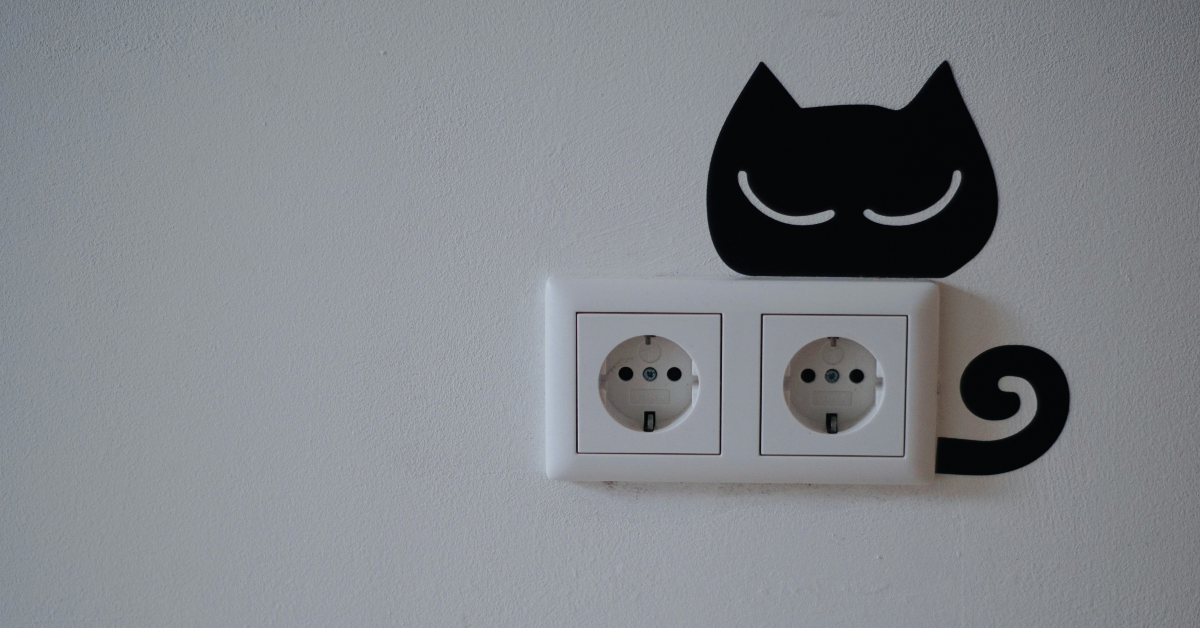 Make sure that you use a power adapter to charge your Fitbit device. An adapter drawing power from a wall outlet will charge your device faster than a cable connected to your PC or laptop. In the latter scenario, your Fitbit gets trickle-charged. If your device has been inactive for a long time, trickle charging it may not be enough.
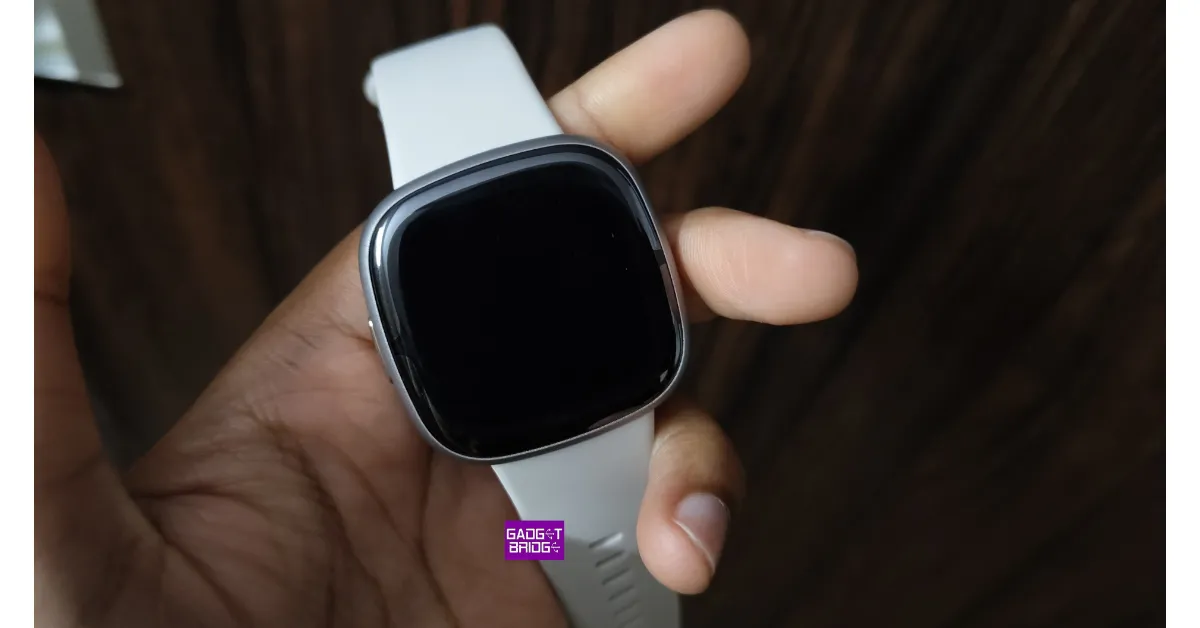 Step 1: Connect your Fitbit device to its charger. Make sure the charger is plugged into a wall outlet.
Step 2: Press the power button 3 times within 8 seconds. Hold each press for about 1 second.
Step 3: Wait for 10 seconds. The Fitbit logo will appear on the screen.
Step 1: Connect your Fitbit device to its charger. Make sure the charger is plugged into a wall outlet.
Step 2: Press the power button 3 times within 8 seconds. Hold each press for about 1 second.
Step 3: Wait for 10 seconds. The Fitbit logo will appear on the screen.


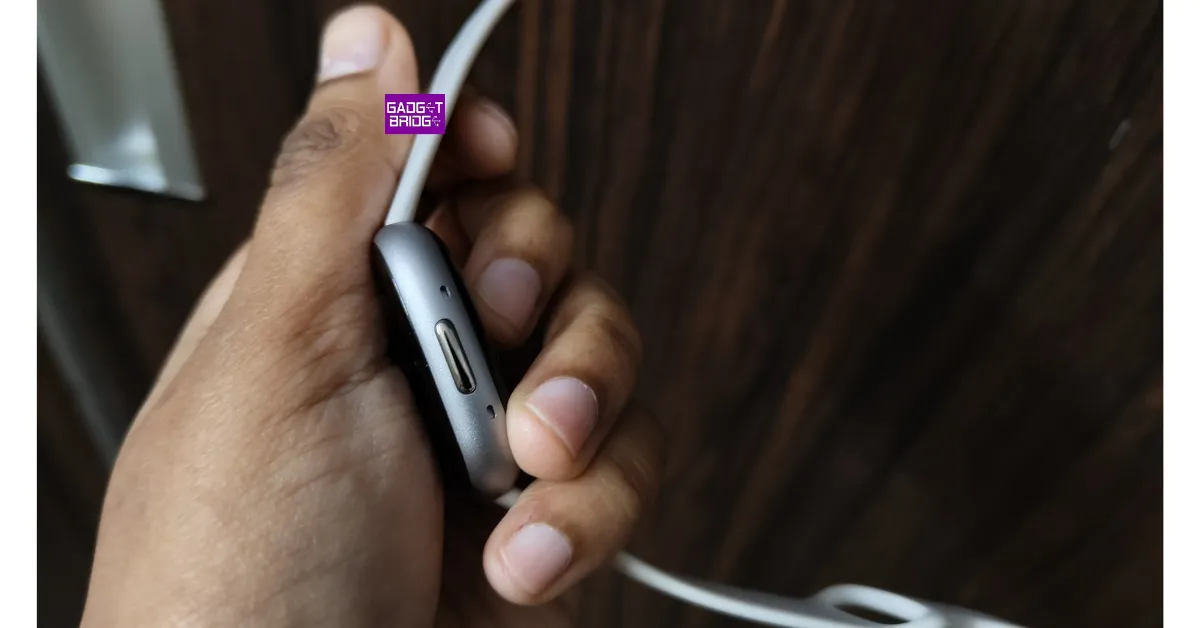 The physical buttons on smartphones and smart wearables are known to get stuck due to the collection of dirt and grime under them. If your Fitbit’s power button is jammed, it can cause the device to shut down and not turn on. Use isopropyl alcohol and a clean microfibre cloth to remove the debris under the power button.
 Step 3: Select
 Step 4:
 Step 5:
 Step 6:
 Step 7:
 If you still can’t turn on your Fitbit Versa, performing a hard reset is your only option. This will clear your personal data from the device and log you out of all accounts.
Step 1: Press and hold all the buttons on the Fitbit for 10-15 seconds.
Step 2: When the Fitbit logo appears and disappears on the screen, release the bottom right button.
Step 3: When you feel a vibration, release the rest of the buttons.
Step 4: Your device will restart and you will land on the setup page.
If you still can’t turn on your Fitbit Versa, performing a hard reset is your only option. This will clear your personal data from the device and log you out of all accounts.
Step 1: Press and hold all the buttons on the Fitbit for 10-15 seconds.
Step 2: When the Fitbit logo appears and disappears on the screen, release the bottom right button.
Step 3: When you feel a vibration, release the rest of the buttons.
Step 4: Your device will restart and you will land on the setup page.




 Turnkey solution BetB2B will help you quickly and efficiently start working in iGaming.
 Step 4: Select
 Step 5:
 Step 1: Launch
 Step 3:
 Step 4:
 Step 5: