

Share your own Instagram Reel as your WhatsApp Status
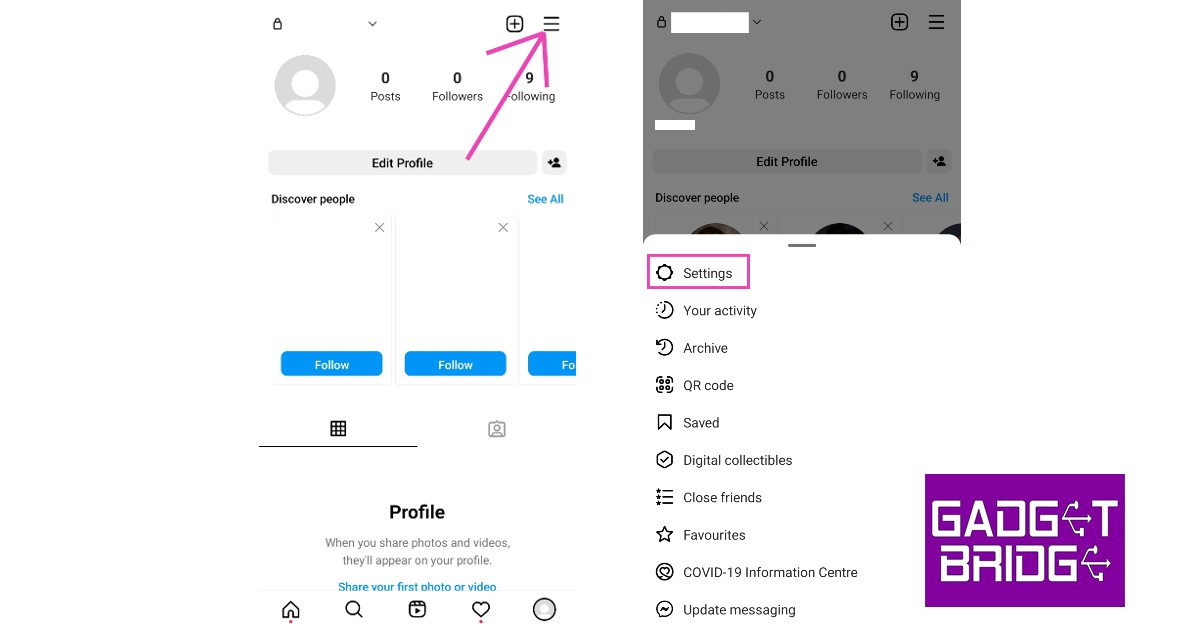
If you want to share a Reel you’ve created as your status on WhatsApp, the process is fairly simple. Instagram lets you save your Reels to Camera Roll. Once it is saved in your phone’s storage, you can easily share it on WhatsApp. Here’s how you can do it. Step 1: Go to your profile and select the Reel you want to share. Step 2: Tap on the three dots at the bottom right corner of the screen and select ‘Save to your device’.
 The Reel will be saved to camera roll.
Step 3: Now, open WhatsApp and swipe right to the status tab.
Step 4: Select the camera icon.
The Reel will be saved to camera roll.
Step 3: Now, open WhatsApp and swipe right to the status tab.
Step 4: Select the camera icon.
 Step 5: Select the Reel from your phone’s storage and hit share.
 The Reel will be shared as your WhatsApp status.
Share an Instagram Reel as your WhatsApp Status using a third-party app
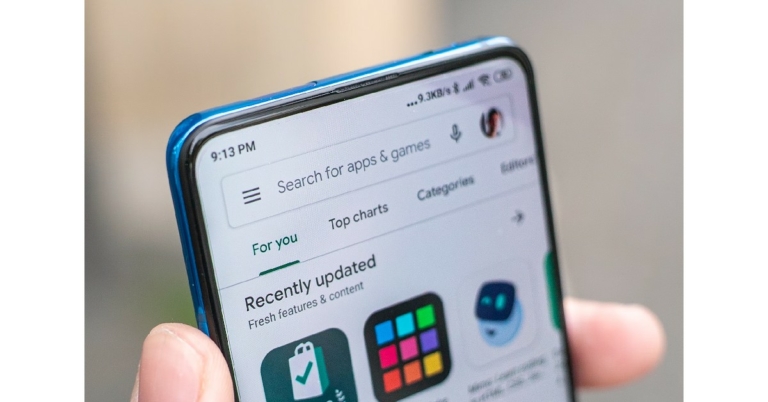
Unlike TikTok, Instagram doesn’t let you save videos directly from the app. You will have to download a third-party app to save Instagram Reels to your device. Step 1: Install ‘Video Downloader For Instagram’ from the Play Store to your Android device. Step 2: Open the app and set it up. It will require access to your gallery and a few other permissions.
Step 3: Go to Instagram and open the Reel you want to download.
Step 4: Click on the three dots at the bottom right corner of the screen and copy the link to the Reel.
Step 2: Open the app and set it up. It will require access to your gallery and a few other permissions.
Step 3: Go to Instagram and open the Reel you want to download.
Step 4: Click on the three dots at the bottom right corner of the screen and copy the link to the Reel.
 Step 5: Open the ‘Video Downloader for Instagram’ app and it will automatically start the download.
 Step 6: The Reel will be downloaded and saved to your phone gallery.
 Now, upload the Reel you’ve just downloaded as your WhatsApp status using the steps mentioned previously.
Share an Instagram Reel as your WhatsApp status without using a third-party app
Some users avoid using third-party apps for Instagram as much as they can. Using a third-party app puts your user data at risk and exposes you to a lot of adware. Luckily, you can share an Instagram Reel as your WhatsApp Status without needing to download a third-party app. Here’s how. Step 1: Before opening the Reel, hit screen record from the drop-down menu on your phone. You can always edit out the extra seconds before sharing the Reel on WhatsApp. Step 2: Open the Reel and let your phone record the screen until it plays out.
Step 3: Stop the recording as soon as the Reel ends.
Step 2: Open the Reel and let your phone record the screen until it plays out.
Step 3: Stop the recording as soon as the Reel ends.
 Step 4: Open WhatsApp and swipe right to the status tab.
Step 5: Select the camera icon.
Step 6: Select the screen recording and trim out the additional footage from the beginning and end of the video using the seek bar.
Step 4: Open WhatsApp and swipe right to the status tab.
Step 5: Select the camera icon.
Step 6: Select the screen recording and trim out the additional footage from the beginning and end of the video using the seek bar.
 Step 7: Hit share. The Reel will be shared as your WhatsApp status.
Share the link to the Reel on your WhatsApp Status
Step 1: Open the Reel and hit the share icon. Step 2: Scroll to the right and select WhatsApp.
 Step 3: Tap on ‘My Status’ and hit share.
 Read Also: Fast and simple methods to check Internet speed on your Android smartphone (2022)
Conclusion
These are the 4 simple ways you can share any Instagram Reel as your WhatsApp Status. Apart from the 4 methods mentioned above, you can also share a Reel as your Instagram Story and then download it directly to your device. While this Instagram feature comes in handy, it downloads only a snippet of the reel. To put up an entire Reel as your status, the best methods are mentioned above.
For the latest gadget and tech news, and gadget reviews, follow us on Twitter, Facebook and Instagram. For newest tech & gadget videos subscribe to our YouTube Channel. You can also stay up to date using the Gadget Bridge Android App. You can find the latest car and bike news here.



 For Google Play Store to work on your phone, the date and time need to be accurate. Usually, your phone auto-updates the time when it is connected to the internet. However, if your phone has been switched off for a long time, the date and time may be off once it is turned on again. To fix this, go to Settings>General Mangement>Date and Time and manually set the date and time. You can also turn on auto updates from this page.


 If you’re not connected to a WiFi network, Google Play Store may not download new apps in order to save mobile data. This option is not turned on by default, so you may have enabled it earlier and forgotten about it. If the data saver is turned on, your phone may not download new apps after hitting the stipulated data usage limit. To fix this, go to Settings>Apps>Google Play Store>Mobile Data and switch on the toggle bar for ‘Allow background data’ and ‘Allow data usage while Data saver is on’.


 Step 2:
 Step 3:
 Step 4:

 Step 2:
  Step 3:
 Read Also:
 Step 2:
 Step 3:


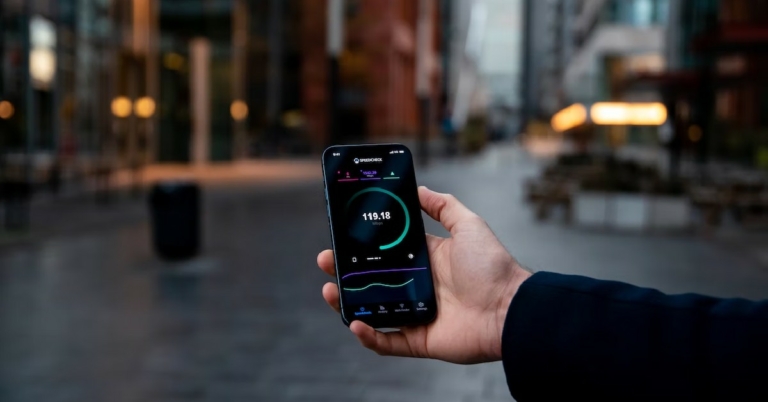
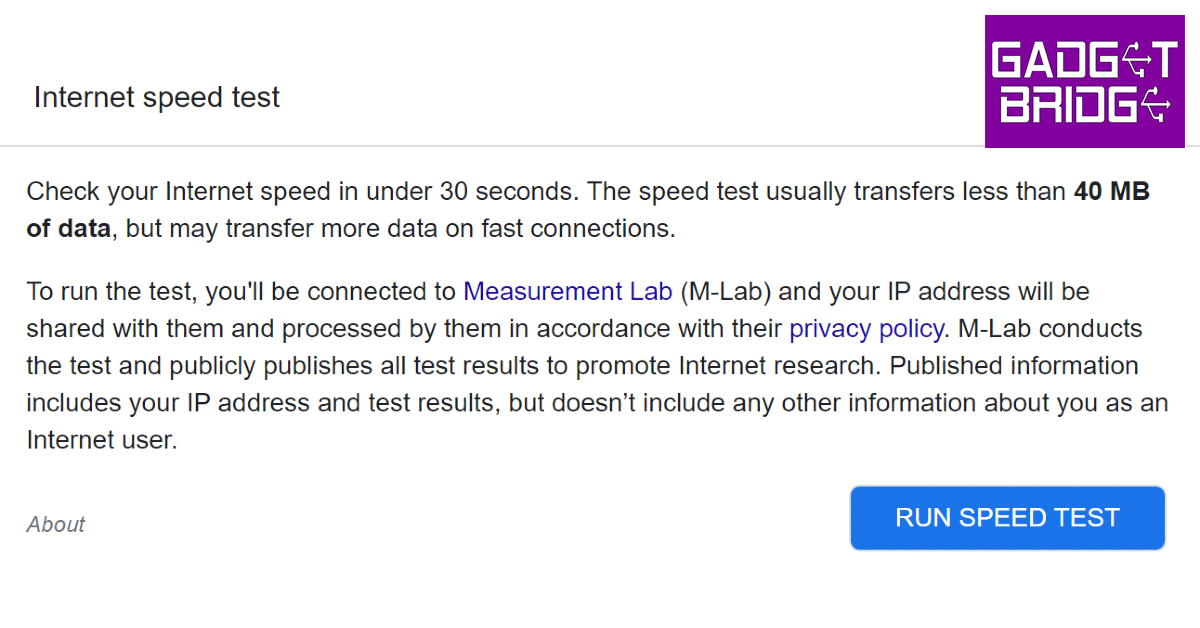 The internet speed test by Google can be accessed directly from the search engine. All you need to do is search for ‘internet speed test’ and hit ‘Run Speed Test’. Google partners with Measurement Lab (M-Lab) to perform the speed test. The advantage of using Google’s speed test is that it doesn’t use more than 40MB of your data and does not pester you with annoying ads. The interface is clean and easy to use.
 Powered by Netflix,
  Cloudflare offers a very comprehensive