A recent report claims that WhatsApp has given select beta testers access to the ability to check status updates within the chat list. Users will reportedly be able to check status updates by clicking on a contact’s display photo in the chat list thanks to the new feature. The report also made note of the fact that all status updates can be muted to turn off the new functionality. Earlier, the functionality apparently was under development. Reportedly the new functionality allegedly debuted with WhatsApp beta for Android version 2.22.18.17.The option to view status updates within the chat list is now available to a few beta testers on WhatsApp beta for Android after some upgrades for status updates, such as the ability to reply to status updates by selecting one from 8 available emojis, were released.The instant messaging service has reportedly given select beta testers access to WhatsApp beta for Android version 2.22.18.17, according to a claim by WABetainfo. Users will now be able to check contacts’ status updates in the chat list in the latest beta version of WhatsApp, according to reports.Image Courtesy: WabetainfoAs per a screenshot shared when a contact uploads a new status update, it will also be shown in the chat list. Simply tap their profile picture to view the status update. Furthermore, you can just mute all status updates so they won’t appear in the chat list if you don’t even post or view status updates and you don’t like this feature.This functionality is currently being rolled out by WhatsApp to a select group of beta testers, with additional activations scheduled for the upcoming weeks. It should be noted that since this functionality has already been made available to WhatsApp beta testers on Android, it may soon be made available to certain iOS beta testers as well.
For the latest gadget and tech news, and gadget reviews, follow us on Twitter, Facebook and Instagram. For newest tech & gadget videos subscribe to our YouTube Channel. You can also stay up to date using the Gadget Bridge Android App. You can find the latest car and bike news here.
We haven’t seen anything out of the ordinary in the smartphone market in the last few years, which is getting fairly monotonous in terms of design and form factor. To drive bigger volumes, businesses are repackaging and releasing smartphones under new names. So, certainly, all of this has made smartphones much more dull. It seemed only natural that Nothing, owned by Carl Pei, released its first-ever smartphone, the Nothing Phone 1. Even before it was released, the Nothing Phone did something that very few smartphones had been able to do in a very long time: it generated buzz and enthusiasm among fans of mobile devices.Since the moment the manufacturer unveiled the phone’s design, we have been quite eager to discover what it has to offer. We must admit, though, that it does appear quite interesting, much like Nothing’s first pair of TWS Ear 1. The smartphone is an upper mid-range device that costs Rs 32,999 rather than a flagship model. Having said that, let’s deep dive into the review to see if the Nothing Phone 1 lives up to the hype.
In This Article
Nothing Phone 1 Review: Design and Display
We are aware that appreciating a design might be a matter of taste, but we admire the brand’s concept and they dared to try something new—or, as we like to say, NOTHING more than—SOMETHING out of the ordinary.The Nothing Phone has an exceptional design. When viewed from the sides, it will appear to be an iPhone 12 model, giving it the look and feel of an Apple phone—a highly daring move. The gadget definitely stands out and looks high-end and polished. And the translucent back design is undoubtedly flashy.The gadget has a boxy shape and metal frames that are made from recycled aluminium. However, we advise using it with the rear cover that comes packaged within the box. Our choice is white, which is actually our favourite colour because it looks much better than the black colour option.Even when used without a case, the Nothing phone has a great grip and is not at all slippery. The gadget is easy to use with one hand because it is lightweight and pretty thin. A little more on the design, the phone has an IP53 rating, which is amazing considering that most smartphones, including those from premium brands like OnePlus and Vivo, lack this protection.The power and volume buttons are located on either side of the frames. While the bottom part has a Type C port, speaker grille and a SIM tray slot. The Nothing Phone 1’s Glyph interface is the one characteristic that distinguishes it from all other flagship phones, including iPhones. Among fans of smartphones, this particular feature has generated a lot of buzz, and believe us when we say it looks really gorgeous. Users can customise the lighting effects for certain contacts and other notifications on the phone’s back using the Glyph Interface. 900 LEDs were used to construct the Glyph Interface for this. Additionally, this may be turned off via the notification panel.Numerous features, including custom ringtones, vibration, and lighting effects, can be changed from a separate settings menu. For certain contacts, you can even upload your own ringtones. The flip to glyph feature turns the phone face down so that the only thing that works is the glyph and there is no sound or vibration, which is once again really cool.When a phone is plugged into a charger, the Glyph can also display the charge level of the phone by simply moving it about.That being said, let’s discuss the display for the Nothing Phone 1 immediately. The Nothing Phone 1 has a 6.55-inch, 10-bit, 2,400 x 1,080 pixel resolution OLED display. The display features 402PPI, HDR10+, and a maximum brightness of 1200 nits. The Nothing phone (1)’s four sides each have a bezel that is the same size as the chin, which is usually thicker. The phone’s flexible OLED panel, a feature seen in only a few high-end flagship models, according to Pei, enables this.While watching HDR videos, the peak brightness only reaches 1,200 nits, compared to the typical usage peak brightness of 500 nits. The videos played on this phone have incredibly vivid colours and brightness. The touch reaction rate is 240Hz, and the haptic feedback is excellent.When compared to other smartphones, the bottom-firing speaker on the Nothing Phone 1 is fairly loud.
Nothing Phone 1 Review: Performance and Camera
The Nothing Phone 1 runs on Nothing OS, an Android 12 OS clone that essentially offers the stock Android experience with a few tweaks. It includes four years of security updates delivered once every two months in addition to three years of software updates.You do receive a stock Android experience, as we previously stated, but the notification panel has also undergone minimal adjustment. You can see two sizable rings that are provided separately on the top for Bluetooth and network connectivity. Additionally, you can receive custom widgets in the striking dot matrix font. Notably, the settings and camera may both be seen using this font style .To get your most important apps or folders displayed on the home screen, you may also have your icons and folders enlarged. Nothing OS is truly the most bloatware-free and pristine piece of software we have ever encountered. The gadget has a remarkably small number of pre-installed apps. Also quick and slick is the animation response. Since using this phone as our main device, we haven’t had any app crashes or lags.When it comes to performance, the Snapdragon 778G+ is what the Nothing Phone 1 is equipped with. The graphics needs are handled by an Adreno 642L GPU. Additionally, it offers up to 12GB of LPDDR5 RAM and 256GB of UFS 3.1 storage. It absolutely delivers when it comes to everyday use, including gaming. The nicest aspect is that it doesn’t overheat when gaming or throttle excessively. You can put your phone on DND by using the specific game mode on the device. Numerous graphically demanding games, like Call of Duty, may be played on a smartphone. We played it on the highest and highest settings.The smartphone contains an optical fingerprint sensor that is both quick and reliable. Additionally, you get support for face unlocking with the front camera and another option to unlock with a mask, which is a function that is only available on iPhones.When it comes to cameras, the Nothing Phone 1 just offers a dual back camera arrangement without any unnecessary sensors. As we previously mentioned, we used this as our main phone while conducting the testing, and every time we went outside, numerous individuals approached us and inquired about the phone’s (iPhone) cover. Despite having a completely different appearance, the camera module gives it an iPhone 12-like sensation.A second 50MP Samsung JN1 ultrawide sensor with a 140-degree field of view and an additional 50MP Sony IMX766 sensor with OIS and EIS make up the camera module. Up to 4K footage can be captured using the gadget. The 16MP Sony IMX471 sensor on the front camera has a /2.45 aperture and is intended for selfies and video calls.Primary lensPrimary lens shotThe primary sensor captures incredibly fine, clear images that appear extremely realistic. It also captures the most true-to-life colours without oversaturating them. The photographs have a terrific contrast and a strong dynamic range.Low lightWith night modeThe camera does a fantastic job taking pictures in low light, and we had no problems. The nighttime photos have excellent noise reduction and are crisp and detailed.Portrait shotPortraitIt didn’t overly sharpen or smoothen the skin texture, which can often look quite unnatural in selfies, so the skin colour and details looked completely natural.In terms of portraits, both rear-facing shots and selfies preserve details, and the colour and background separation are also flawless and natural. The ultrawide sensor captures clear, detailed images in daylight as well.macroThe front and rear cams of the device record videos in 1080p and the back in 4K 30 frames per second. The 4K videos are incredibly realistic, maintaining crispness, a good dynamic range, and quite steady.The 4,500mAh battery of the Nothing Phone 1 offers good battery life. With moderate usage, you may obtain more than 8 hours of screen time thanks to the battery’s strong performance. We got roughly 6 hours of screen time when using it heavily, which included playing games, using the camera, browsing the internet, making calls, and watching videos, which is really decent.The Phone 1, unfortunately, does not come with a charger, but it does enable 15W wireless charging and 5W reverse wireless charging, which is excellent in this price range. The smartphone can charge at a maximum rate of 33 watts, and it takes an hour to charge from zero to 100 percent.The Nothing Phone 1 supports 4G aggregation as well as 12 5G bands in terms of connectivity. No calling or network issues occurred for us.
Verdict
In truth, we adored Nothing Phone 1. It appears high-end, and the glyph interface gives it a very stylish and eye-catching appearance. The software experience, performance, cameras, and display are all excellent. The software experience you receive is well-designed and tidy, despite the fact that this is the company’s first effort at a smartphone. However, we are still unsure of the phone’s long-term performance. The design and all of that are great, however since the phone is all about design first, what about the LEDs on the back panel chips? Will they become yellow? Therefore, it is still unknown how the post-purchase support will be. The phone is reasonably priced in terms of pricing. Nevertheless, for us, experience matters more than specs most of the time, and Nothing Phone 1 delivers on that.If you upgrade your gadget every year or two, this phone is a terrific choice overall, and we wouldn’t hesitate to suggest it.ProsEye-catching designSuper clean OSThe glyph interface is coolLoved the Notification soundsPhotos are goodConsThe case may turn yellowYou don’t get a charger inside the box
For the latest gadget and tech news, and gadget reviews, follow us on Twitter, Facebook and Instagram. For newest tech & gadget videos subscribe to our YouTube Channel. You can also stay up to date using the Gadget Bridge Android App. You can find the latest car and bike news here.
It’s no secret that more and more people are working remotely. If you’re thinking about making the switch to remote work, or if you’ve been working remotely for a while but want to make sure you’re doing it right, these tech tips will help you get started.
In This Article
1. Use A VPN
If you’re going to be working remotely, it’s important to use a VPN (a virtual private network). A VPN will encrypt your internet connection and help to keep your data safe. There are many different VPNs for PC available, so do some research to find the one that’s right for you. This step is particularly important if you plan to use public WiFi when working remotely.
2. Get The Right Tools
The first step to success with remote work is to make sure you have the right tools in place. That means having a fast and reliable internet connection, a comfortable workspace, and the right software for the job.
For example, if you need to stay in touch with coworkers or clients, you’ll need a good chat or video conferencing tool like Slack or Zoom. And if you need to share files or collaborate on projects, you’ll need something like Google Drive or Dropbox.
3. Stay Organised
One of the challenges of working remotely is staying organised. With no one looking over your shoulder, it’s easy to let things slip through the cracks. But there are a few things you can do to stay on top of things.
First, make sure you have a good task management system in place. That could be something as simple as a to-do list app like Todoist or Wunderlist. Or you could use a more powerful project management tool like Asana or Trello.
Second, set aside some time each day or week to plan and review your tasks and priorities. This will help you stay focused and on track.
4. Take Breaks
When you’re working remotely, it’s easy to get so caught up in the work that you forget to take breaks. But it’s important to step away from your desk and take a break every now and then.
Get up and move around, take a quick walk outside, or just step away from your computer for a few minutes. This will help you stay refreshed and focused throughout the day.
5. Get Out of The House
Just because you’re working remotely doesn’t mean you have to stay at home all the time. In fact, one of the great things about remote work is that you can work from anywhere.
So if you’re starting to feel antsy or cabin feverish, get out of the house and work from a coffee shop, co-working space, or even the local library. Just be sure to find a quiet spot where you can focus and get your work done.
6. Stay Connected
When you’re working remotely, it’s easy to feel isolated and disconnected from your coworkers. But there are a few things you can do to stay connected.
First, make an effort to keep in touch with your coworkers. Set up regular check-ins via chat or video conferencing, and make sure you’re active in any team or company chat rooms.
Second, try to socialise outside of work. If you can, meet up with coworkers for lunch or after-work drinks. Or join a remote worker meetup group in your area.
By following these tech tips, you’ll be well on your way to mastering remote work. So what are you waiting for? Get started today!
For the latest gadget and tech news, and gadget reviews, follow us on Twitter, Facebook and Instagram. For newest tech & gadget videos subscribe to our YouTube Channel. You can also stay up to date using the Gadget Bridge Android App. You can find the latest car and bike news here.
22 August 2022 Amazon Quiz has gone live. Customers from different parts of the country are participating in the daily quiz. The quiz begins from 12 AM to 11:59 PM. Those participating in the quiz can win exciting prizes by answering all the questions correctly. Today participants have a chance to win a Rs 5,000 Amazon Pay Balance.Amazon quiz brings an opportunity for its customers to win Amazon Pay Balance ranging from Rs 1,000 to Rs 50,000. The Quiz can be played from 12 AM to 11:59 PM. The e-commerce platform brings a fresh quiz on a daily basis which consists of five questions related to general knowledge and current affairs. The participants need to answer all the questions correctly and their names will be selected for a lucky draw. The winner will be announced at the end of the month.One wrong answer could eliminate you from the quiz. If you manage to answer all the questions correctly you can stand a chance to win a Rs 5,000 Amazon Pay Balance today. Only app users are eligible to participate in the Quiz. Check Out 22 August 2022 Amazon Quiz Answers.Amazon Quiz Today Prize – Rs 5,000 Amazon Pay BalanceQuiz Date – 22 August 2022Daily Timing – 12 AM to 11:59 PMWinner Announcement – Today 12 PM
In This Article
Amazon Quiz Answers Today 22 August 2022
Question 1: Who among these claimed 3 gold medals at the recently concluded Commonwealth Games?Answer: Achanta Sharath KamalQuestion 2: Advait Chandan is in the news for recently directing a Hindi remake of which famous Hollywood movie?
Answer: Forrest Gump
Question 3: This year’s third and final supermoon was visible between August 11 and 12, it was also called what?
Answer: Sturgeon MoonQuestion 4: What is this shape of Christmas ornament called?Answer: BaublesQuestion 5: This monument, called Palau de les Arts Reina Sofia, in Spain is a what?Answer: Opera House
How To Play Amazon Quiz
Only app users are eligible to play the Amazon quiz every morning from 12 AM to 11:59 PM. The quiz is not available on the desktop. For those who are unaware of how to play the Amazon quiz below are the steps, you can follow to take the quiz.
Firstly download the Amazon app from Google Play Store or App Store
Now fill in the required information through the Sign Up option.
You need to log in to the Amazon app and scroll down on the home screen to find the Amazon Quiz banner.
Tap on the Amazon Quiz banner and tap on the Start button to start the Quiz.
Now you will get 5 questions and you need to answer them correctly. One wrong answer will eliminate you from the Quiz.
After answering all the questions correctly you are now eligible for a Lucky Draw.
The winner’s name will be announced today at 12 PM.
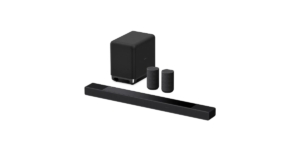
The SA-RS5 wireless rear speakers, compatible with the HT-A7000 premium soundbar, are now available from Sony India. Up-firing speakers on the Sony SA-RS5 wireless rear speakers give realistic overhead audio, while wide directivity woofers and soft dome tweeters produce a wide-open soundscape. Sony’s HT-A7000 Soundbar and the SA-Omnidirectional RS5’s Block concept design are complementary. The SA-RS5 delivers richer and more immersive 360 Spatial Sound with built-in battery power for up to 10 hours of playback and up-firing speakers.To complement Sony’s HT-A7000 soundbar, these speakers were created following the Omnidirectional Block design concept. Their flat back surface fits perfectly against a wall, and their cylindrical shape symbolises a single, solid block.The new Sony SA-RS5 wireless rear speakers work in tandem with the HT-A7000 Soundbar to provide 360° spatial sound with the best possible sound quality and wide directivity. The overhead audio is more immersive thanks to the up-firing speakers’ reflection of sound off the ceiling. Wide directivity woofers and soft dome tweeters combine to produce an exceptionally clear, spacious, and rich soundstage. The two passive radiators strengthen bass by enhancing low-end tones.The Sony SA-RS5 wireless rear speakers enable flexible installation and may be positioned asymmetrically to accommodate any living room design. They have a battery life of up to 10 hours when completely charged. The speakers can easily be powered up and charged out of sight so that they may connect wirelessly and automatically to the HT-A7000 soundbar. There are no messy cords required during installation, making it quick and simple. Just 10 minutes of charging will provide 90 minutes of use if you’re in a rush. The SA-RS5 rear speakers have dual-use AC power connections.Each speaker on the SA-RS5 has two microphones and OPTIMISE buttons. By clicking the OPTIMISE button on the device, users can turn on Sound Field optimization. The speakers and HT-A7000 soundbar will then autonomously measure the distance between the speakers and ceiling using dual microphones.
If you’ve forgotten your Yahoo mail password, you don’t need to fret. You can create a new password with ease. The process is simply easy if you have a phone number registered on your Yahoo account. In this article, we will present a simple step-by-step guide to changing your Yahoo mail password. If you remember your password but want to change it anyway, you can still follow the instructions listed below to create a new password. Read Also: How to Unlock Android Phone without Password
In This Article
How to change your Yahoo mail password on a web browser
Step 1: Go to Yahoo mail.Step 2: Enter your email address.Step 3: When prompted to enter your password, select ‘Forgotten Password?’Step 4: Yahoo will ask you to confirm your phone number in order to send you a recovery code. If you’re still using that number, click ‘Yes, send me a code’.Step 5: Enter the code. Yahoo will ask you to create a new password. Type in a new password and click on ‘Continue’.Yahoo will change your password successfully.
How to change your Yahoo mail password on the Yahoo mail app
Step 1: Enter your email address on the Yahoo mail app and tap on ‘Continue’.Step 2: Select ‘Forgot Password?’Step 3: Verify your registered phone number by entering the penultimate digits.Step 4: Enter the recovery code.Step 5: Enter the new password.Read Also: How to recover your Facebook password when you can’t log inThis is how you can change your Yahoo mail password using a web browser or the Yahoo mail app. You can also change your password from the Yahoo Account Security Page without needing to verify your phone number. If you don’t have a phone number registered to your Yahoo account, you will be sent the recovery code to the secondary email address registered on your account.
Taking a screenshot on your smartphone is a simple process, but it may get confusing trying to do the same on your laptop. Luckily, there are a bunch of in-built tools in both Windows and Macbook laptops that are super accessible and can take a screenshot in no time. In this article, we bring you the 6 simple ways to take a screenshot on a laptop.Read Also: Smartphone comparison: Vivo V25 Pro Vs OnePlus 10R
In This Article
How to take a screenshot on a Windows laptop
There are a bunch of ways to take a screenshot on a Windows laptop. You can either use the ‘print screen’ key or the in-built snipping tool on your Windows laptop. Here are some of the easiest ways you can take a screenshot.
Use the Print Screen key
The ‘print screen’ key can be found near the backspace and the delete key on your laptop’s keyboard. It may be named ‘prt sc’ on your keyboard. All you need to do is load the screen you want to take a screenshot of, and press the print screen key. Windows will take a quick screenshot which can be previewed and saved on Microsoft Paint or any other image editing software. All you need to do is open MS Paint and press ‘Ctrl +V’ or right-click and select ‘Paste’. You can also carry out the same procedure on a photo editing tool like Photoshop or Pixlr.Note: Some laptops may require pressing the Windows key along with the ‘prt sc’ key to take a screenshot. Upon pressing this combination the screenshot will automatically be saved in the Screenshots folder. You can access it by going to File Explorer>Pictures>Screenshots.
Use the Snipping Tool
If you’re looking for other ways to take a screenshot, the Snipping Tool can come in quite handy. Simply search ‘Snipping Tool’ in the Windows search bar and once you’ve opened the app, select ‘New’. Select the area on the screen you want to capture. Once you’ve selected the area, the Snipping Tool will open the screenshot on a preview window where you can further edit it. The screenshot can then be saved in whichever format you want.
Use the Snip and Sketch Tool
The ‘Snip and Sketch Tool’ is another in-built app on your Windows laptop that allows you to take a screenshot. It works similar to the snipping tool, with added options of selecting from multiple shapes and the availability of different brushes and colours to edit the screenshot. Once you’re done editing the screenshot, press Ctrl+S to save it.
Use the Xbox Game Bar
You can use the Xbox Game Bar on your Windows laptop to record the screen or even take a quick screenshot. Simply launch the Xbox Game Bar and click the Camera icon at the top left corner of your screen. The Xbox Game Bar will take a screenshot and notify you. Click on the notification to access the screenshot.
How to take a screenshot on your Macbook
If you’re using a Macbook, there are a couple of easy ways to take a screenshot of your laptop’s screen. We’ve listed two methods that do not require any third-party app or software.
Use the Screenshot Tool
Your Macbook has a built-in tool to take screenshots and even record the laptop’s screen. All you need to do is select Launchpad>Other>Screenshot or simply press Shift+Command+5. Once the screenshot tool has been launched, all you need to do is select the screenshot option from the toolbar. You can even select a portion of the screen to capture or record the screen. Using other options you can even take a screenshot after a short delay. The screenshot will be saved to your Desktop.
Use Shift+Command combinations
There are a few key combinations that let you take a screenshot on your Macbook. Here are the most important ones.
Shift+Command+3 captures your entire screen and saves the image on the Desktop.
Shift+Command+4 captures a portion of the screen. You will need to select the screen area before the screenshot is taken.
Shift+Command+4+Space will launch a Camera icon. Launch the window you want to take a screenshot of and click on the Camera icon to capture it.
Shift+Command+Control+4 saves the screenshot to the clipboard, and it can be pasted on any image editing app or software.
Read Also: Top 10 Cheapest 5G Smartphones you can buy right nowThese are the 6 simple ways of taking a screenshot on your laptop. Apart from these built-in tools, you can also download software like ShareX and SnagIt to take a screenshot on Windows and Macbook respectively. If you want to record the screen on your Windows laptop, you can read our complete guide here.
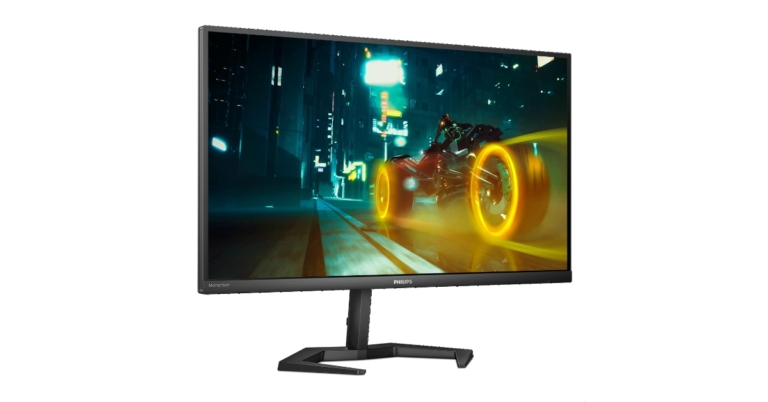
Philips Momentum 3000 series gaming monitors were introduced in India. The new portfolio includes two models 27M1N3200ZA and 24M1N3200ZA. Both the monitors come with a full-HD IPS display panel with a 165Hz refresh rate and support Adaptive-Sync technology.
In This Article
Philips Momentum 3000 series gaming monitors price in India
Philips Momentum 3000 27M1N3200ZA is presently offered at an introductory price of Rs 22,799. Whereas on Amazon it is listed at Rs 34,990. Along with this monitor, buyers also receive a one-month subscription to Xbox Game Pass Ultimate. We have not yet received pricing or availability information on the Philips Momentum 3000 24M1N3200ZA from the company.
Philips Momentum 3000 series gaming monitors specifications
For demanding PC games, the Philips Monitors M3000 series monitors have an optimal all-around display with lag-free, ultra-smooth visuals that guarantees a high-performance gaming experience. The Philips 24M1N3200ZA has a 23.8-inch display and the Philips 27M1N3200ZA has a 27-inch display, both with immersive slim-frame technology and Ultra Wide-Color.These monitors feature Adaptive-Sync technology, a quick 165Hz refresh rate, and a 1ms reaction time to provide a clear image and fluid gameplay. Thanks to the Full HD 16:9 display and 1920 x 1080 resolution, visuals are dependable and compelling. A greater variety of colours are also made available by the Ultra Wide-Color technology for stunning images. These monitors’ Smart Contrast technology automatically adjusts colour temperature and lighting intensity to provide the best possible digital photos and videos. Because of its reduced input lag, adaptive-Sync allows for smooth, tear-free gameplay while also shortening the time between devices and the monitor. The LowBlue Mode and Flicker-free technology on the display reduce eye strain and fatigue often caused by long hours in front of a monitor.The models also include a new, strong stand design with a metal texture for a minimalist appearance that blends in with any setting, setup, or even home offices. To suit the needs of the customer on a daily basis, they also have ergonomic stands and built-in stereo speakers for multimedia. For an ergonomic user experience, the height, swivel, and pivot are all easily adjustable. The monitors have an IPS display panel, one Display port, and two HDMI connectivity connectors. Additionally, they include an EasySelect menu toggle key for rapid access to the on-screen menu.
For the latest gadget and tech news, and gadget reviews, follow us on Twitter, Facebook and Instagram. For newest tech & gadget videos subscribe to our YouTube Channel. You can also stay up to date using the Gadget Bridge Android App. You can find the latest car and bike news here.
Garena Free Fire is a battle royale game with regular awards and tournaments to keep players interested. If you play Garena Free Fire, you should be aware of the redeem codes that are released on a daily basis. However, because the battle royale game is banned in India, players from other countries can use the Free Fire Redeem codes daily. If you’re unfamiliar with the Garena Free Fire redeem codes or don’t know how to get them, we’ve put together a step-by-step guide to help you redeem them. Check out Garena Free Fire Redeem Codes for August 19.The Free Fire redeem codes are a great way to get free stuff. These are 12-digit codes that contain alphabets and numbers, as well as an expiration date and time. Because the Garena FF redeem codes cannot be used more than once, you should hurry to the redemption page to claim your free reward before someone else does. To get a free reward, all you have to do is go to reward.ff.garena.com/en, which is the official redemption page. Also, keep an eye on this space for daily updates on Garena Free Fire redemption codes and rewards.
In This Article
Garena Free Fire Redeem Codes Today 19 August 2022
FJO9-4TAS-D3FT
FF11-NJN5-YS3E
FF9M-J31C-XKRG
FBJY-RY56-MLOT
YXY3-EGTL-HGJX
ST5K-JCRF-VBHT
S5JT-UGVJ-Y5Y4
HTY3-RIFG-OR3F
FBJY-RY56-MLOT
X99T-K56X-DJ4X
FIIF-GI8E-O49F
FV5B NJ45 IT8U
F4N5 K6LY OU9I
FH2G YFDH E34G
F7YG T1BE 456Y
FJBH VFS4 TY23
F87G YF3D GE6B
F5J6 YUH7 6GVT
FJO9-4TAS-D3FT
PQR3-BKUI-7LT7
FSDR-FKUI-YVGR
FBTU-6BFY-TBT7
FBJU-T6RF-T1RT
FBTU-6JKI-E8E7
FLU8-HG8R-BHT4
How to Get Free Fire Redeem Codes for Garena on August 19?
Over the last decade, digital journalism has grown by leaps and bounds in India. While the legacy media houses still dominate television news, several independent journalists and media outlets have forged a path for themselves in the online space. In this article, we bring you the top 10 YouTube channels to watch for the daily news in India.Read Also: World Photography Day: Top standalone cameras to buy under Rs 75,000
In This Article
Faye D’Souza
Faye D’Souza’s YouTube channel provides daily news coverage stripped of any opinion, spin, or outrage. Presenting just the facts with appropriate context, Faye D’Souza’s ‘Just The News’ segment delivers the day’s news in around 10 minutes. Apart from covering the daily news, Faye D’Souza also hosts well-balanced panel discussions that platform voices across the spectrum.
Newsclickin
Having been around since 2009, Newsclick is one of the oldest YouTube news outlets in India. Newsclick covers news and offers analysis from a worker-centric worldview and is a consistent chronicler of diverse people’s movements and struggles. At Newsclick you will find diverse viewpoints that are often ignored by corporate media. Newsclick also focuses extensively on science, technology, and data journalism.
Dalit Dastak
Dalit Dastak is one of the biggest YouTube channels covering India’s marginalised Dalit voices. With daily uploads, Dalit Dastak covers caste-based news across the country and gives voice to issues that are often missing from the TV newsrooms. Dalit Dastak has been around since 2012 and also publishes a monthly magazine.
The Lallantop
With over 22 million subscribers, Lallantop is one of the biggest YouTube news channels in India. While most of Lallantop’s content is covering the daily news, they also carry out exclusive interviews and host panel discussions. With a great volume of content being posted every day, Lallantop covers everything from politics, entertainment, sports, and social media. Lallantop is owned by the India Today Group.
Abhisar Sharma
Formerly of ABP News, Abhisar Sharma’s switch to independent journalism has amassed him over a million followers on YouTube. Having won multiple awards and published four books, Abhisar is one of the leading voices in Hindi journalism on YouTube.
Sansad TV
Sansad TV is a public broadcast channel that airs the parliamentary proceedings of both houses. It was formed in 2021 by merging house channels, Lok Sabha TV and Rajya Sabha TV. Sansad TV’s YouTube channel broadcasts live coverage of parliamentary proceedings and a diverse range of public affairs programming.
The News Minute
The News Minute is a digital news platform based in Bangalore and brings ground-breaking stories from Andhra Pradesh, Karnataka, Kerala, Tamil Nadu, and Telangana. The News Minute covers topics ranging from politics, society, education, health, law and policy, entertainment, pop culture, and lifestyle. Special focus is paid to the local news coming out of South India. Apart from the daily news, you’ll also find documentaries, interviews, analyses, and explainers on The News Minute.
Cobrapost
Cobrapost is a non-profit media outlet known for its investigative journalism and high-profile breaks. One of the major breaks that pushed Cobrapost into the limelight was Operation Duryodhana back in 2005 when Cobrapost eleven MPs for taking money to table questions in the Parliament. This investigation lead to the expulsion of the 11 MPs from Parliament.
HW News English
HW News covers events from India and around the world in a balanced and nuanced manner. With its vision being ‘Unbiased, Real, and Honest’, HW News aims to incorporate multiple viewpoints in its reporting and give a platform to diverse voices. Apart from political news, HW also covers sports and entertainment. The channel posts multiple stories daily, so you won’t miss out on any major event.
Mint
Mint is a popular news publication that covers the latest business and financial news. Mint’s YouTube channel presents studio debates, interviews with key government and business individuals, and features stories focusing on a range of topics from health to personal technology.Read Also: Top 10 YouTube Channels to watch for the daily news in USAThere are the top 10 YouTube channels to watch for the daily news in India. If you think we missed out on some channel that carries out excellent reporting of contemporary issues, let us know in the comments!



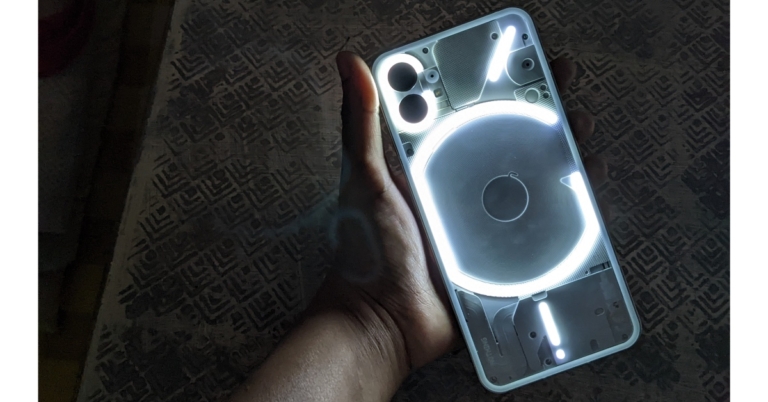
 The gadget has a boxy shape and metal frames that are made from recycled aluminium. However, we advise using it with the rear cover that comes packaged within the box. Our choice is white, which is actually our favourite colour because it looks much better than the black colour option.
Even when used without a case, the Nothing phone has a great grip and is not at all slippery. The gadget is easy to use with one hand because it is lightweight and pretty thin. A little more on the design, the phone has an IP53 rating, which is amazing considering that most smartphones, including those from premium brands like OnePlus and Vivo, lack this protection.
The gadget has a boxy shape and metal frames that are made from recycled aluminium. However, we advise using it with the rear cover that comes packaged within the box. Our choice is white, which is actually our favourite colour because it looks much better than the black colour option.
Even when used without a case, the Nothing phone has a great grip and is not at all slippery. The gadget is easy to use with one hand because it is lightweight and pretty thin. A little more on the design, the phone has an IP53 rating, which is amazing considering that most smartphones, including those from premium brands like OnePlus and Vivo, lack this protection.
 The power and volume buttons are located on either side of the frames. While the bottom part has a Type C port, speaker grille and a SIM tray slot.
 The Nothing Phone 1’s Glyph interface is the one characteristic that distinguishes it from all other flagship phones, including iPhones. Among fans of smartphones, this particular feature has generated a lot of buzz, and believe us when we say it looks really gorgeous. Users can customise the lighting effects for certain contacts and other notifications on the phone’s back using the Glyph Interface. 900 LEDs were used to construct the Glyph Interface for this. Additionally, this may be turned off via the notification panel.
 Numerous features, including custom ringtones, vibration, and lighting effects, can be changed from a separate settings menu. For certain contacts, you can even upload your own ringtones. The flip to glyph feature turns the phone face down so that the only thing that works is the glyph and there is no sound or vibration, which is once again really cool.
When a phone is plugged into a charger, the Glyph can also display the charge level of the phone by simply moving it about.
That being said, let’s discuss the display for the Nothing Phone 1 immediately. The Nothing Phone 1 has a 6.55-inch, 10-bit, 2,400 x 1,080 pixel resolution OLED display. The display features 402PPI, HDR10+, and a maximum brightness of 1200 nits. The Nothing phone (1)’s four sides each have a bezel that is the same size as the chin, which is usually thicker. The phone’s flexible OLED panel, a feature seen in only a few high-end flagship models, according to Pei, enables this.
Numerous features, including custom ringtones, vibration, and lighting effects, can be changed from a separate settings menu. For certain contacts, you can even upload your own ringtones. The flip to glyph feature turns the phone face down so that the only thing that works is the glyph and there is no sound or vibration, which is once again really cool.
When a phone is plugged into a charger, the Glyph can also display the charge level of the phone by simply moving it about.
That being said, let’s discuss the display for the Nothing Phone 1 immediately. The Nothing Phone 1 has a 6.55-inch, 10-bit, 2,400 x 1,080 pixel resolution OLED display. The display features 402PPI, HDR10+, and a maximum brightness of 1200 nits. The Nothing phone (1)’s four sides each have a bezel that is the same size as the chin, which is usually thicker. The phone’s flexible OLED panel, a feature seen in only a few high-end flagship models, according to Pei, enables this.
 While watching HDR videos, the peak brightness only reaches 1,200 nits, compared to the typical usage peak brightness of 500 nits. The videos played on this phone have incredibly vivid colours and brightness. The touch reaction rate is 240Hz, and the haptic feedback is excellent.
When compared to other smartphones, the bottom-firing speaker on the Nothing Phone 1 is fairly loud.
While watching HDR videos, the peak brightness only reaches 1,200 nits, compared to the typical usage peak brightness of 500 nits. The videos played on this phone have incredibly vivid colours and brightness. The touch reaction rate is 240Hz, and the haptic feedback is excellent.
When compared to other smartphones, the bottom-firing speaker on the Nothing Phone 1 is fairly loud.
 To get your most important apps or folders displayed on the home screen, you may also have your icons and folders enlarged. Nothing OS is truly the most bloatware-free and pristine piece of software we have ever encountered. The gadget has a remarkably small number of pre-installed apps. Also quick and slick is the animation response. Since using this phone as our main device, we haven’t had any app crashes or lags.
When it comes to performance, the Snapdragon 778G+ is what the Nothing Phone 1 is equipped with. The graphics needs are handled by an Adreno 642L GPU. Additionally, it offers up to 12GB of LPDDR5 RAM and 256GB of UFS 3.1 storage. It absolutely delivers when it comes to everyday use, including gaming. The nicest aspect is that it doesn’t overheat when gaming or throttle excessively.
You can put your phone on DND by using the specific game mode on the device. Numerous graphically demanding games, like Call of Duty, may be played on a smartphone. We played it on the highest and highest settings.
The smartphone contains an optical fingerprint sensor that is both quick and reliable. Additionally, you get support for face unlocking with the front camera and another option to unlock with a mask, which is a function that is only available on iPhones.
When it comes to cameras, the Nothing Phone 1 just offers a dual back camera arrangement without any unnecessary sensors. As we previously mentioned, we used this as our main phone while conducting the testing, and every time we went outside, numerous individuals approached us and inquired about the phone’s (iPhone) cover. Despite having a completely different appearance, the camera module gives it an iPhone 12-like sensation.
A second 50MP Samsung JN1 ultrawide sensor with a 140-degree field of view and an additional 50MP Sony IMX766 sensor with OIS and EIS make up the camera module. Up to 4K footage can be captured using the gadget. The 16MP Sony IMX471 sensor on the front camera has a /2.45 aperture and is intended for selfies and video calls.
To get your most important apps or folders displayed on the home screen, you may also have your icons and folders enlarged. Nothing OS is truly the most bloatware-free and pristine piece of software we have ever encountered. The gadget has a remarkably small number of pre-installed apps. Also quick and slick is the animation response. Since using this phone as our main device, we haven’t had any app crashes or lags.
When it comes to performance, the Snapdragon 778G+ is what the Nothing Phone 1 is equipped with. The graphics needs are handled by an Adreno 642L GPU. Additionally, it offers up to 12GB of LPDDR5 RAM and 256GB of UFS 3.1 storage. It absolutely delivers when it comes to everyday use, including gaming. The nicest aspect is that it doesn’t overheat when gaming or throttle excessively.
You can put your phone on DND by using the specific game mode on the device. Numerous graphically demanding games, like Call of Duty, may be played on a smartphone. We played it on the highest and highest settings.
The smartphone contains an optical fingerprint sensor that is both quick and reliable. Additionally, you get support for face unlocking with the front camera and another option to unlock with a mask, which is a function that is only available on iPhones.
When it comes to cameras, the Nothing Phone 1 just offers a dual back camera arrangement without any unnecessary sensors. As we previously mentioned, we used this as our main phone while conducting the testing, and every time we went outside, numerous individuals approached us and inquired about the phone’s (iPhone) cover. Despite having a completely different appearance, the camera module gives it an iPhone 12-like sensation.
A second 50MP Samsung JN1 ultrawide sensor with a 140-degree field of view and an additional 50MP Sony IMX766 sensor with OIS and EIS make up the camera module. Up to 4K footage can be captured using the gadget. The 16MP Sony IMX471 sensor on the front camera has a /2.45 aperture and is intended for selfies and video calls.


 The primary sensor captures incredibly fine, clear images that appear extremely realistic. It also captures the most true-to-life colours without oversaturating them. The photographs have a terrific contrast and a strong dynamic range.


 In terms of portraits, both rear-facing shots and selfies preserve details, and the colour and background separation are also flawless and natural. The ultrawide sensor captures clear, detailed images in daylight as well.
 The gadget has a boxy shape and metal frames that are made from recycled aluminium. However, we advise using it with the rear cover that comes packaged within the box. Our choice is white, which is actually our favourite colour because it looks much better than the black colour option.
Even when used without a case, the Nothing phone has a great grip and is not at all slippery. The gadget is easy to use with one hand because it is lightweight and pretty thin. A little more on the design, the phone has an IP53 rating, which is amazing considering that most smartphones, including those from premium brands like OnePlus and Vivo, lack this protection.
The gadget has a boxy shape and metal frames that are made from recycled aluminium. However, we advise using it with the rear cover that comes packaged within the box. Our choice is white, which is actually our favourite colour because it looks much better than the black colour option.
Even when used without a case, the Nothing phone has a great grip and is not at all slippery. The gadget is easy to use with one hand because it is lightweight and pretty thin. A little more on the design, the phone has an IP53 rating, which is amazing considering that most smartphones, including those from premium brands like OnePlus and Vivo, lack this protection.
 The power and volume buttons are located on either side of the frames. While the bottom part has a Type C port, speaker grille and a SIM tray slot.
 The Nothing Phone 1’s Glyph interface is the one characteristic that distinguishes it from all other flagship phones, including iPhones. Among fans of smartphones, this particular feature has generated a lot of buzz, and believe us when we say it looks really gorgeous. Users can customise the lighting effects for certain contacts and other notifications on the phone’s back using the Glyph Interface. 900 LEDs were used to construct the Glyph Interface for this. Additionally, this may be turned off via the notification panel.
 Numerous features, including custom ringtones, vibration, and lighting effects, can be changed from a separate settings menu. For certain contacts, you can even upload your own ringtones. The flip to glyph feature turns the phone face down so that the only thing that works is the glyph and there is no sound or vibration, which is once again really cool.
When a phone is plugged into a charger, the Glyph can also display the charge level of the phone by simply moving it about.
That being said, let’s discuss the display for the Nothing Phone 1 immediately. The Nothing Phone 1 has a 6.55-inch, 10-bit, 2,400 x 1,080 pixel resolution OLED display. The display features 402PPI, HDR10+, and a maximum brightness of 1200 nits. The Nothing phone (1)’s four sides each have a bezel that is the same size as the chin, which is usually thicker. The phone’s flexible OLED panel, a feature seen in only a few high-end flagship models, according to Pei, enables this.
Numerous features, including custom ringtones, vibration, and lighting effects, can be changed from a separate settings menu. For certain contacts, you can even upload your own ringtones. The flip to glyph feature turns the phone face down so that the only thing that works is the glyph and there is no sound or vibration, which is once again really cool.
When a phone is plugged into a charger, the Glyph can also display the charge level of the phone by simply moving it about.
That being said, let’s discuss the display for the Nothing Phone 1 immediately. The Nothing Phone 1 has a 6.55-inch, 10-bit, 2,400 x 1,080 pixel resolution OLED display. The display features 402PPI, HDR10+, and a maximum brightness of 1200 nits. The Nothing phone (1)’s four sides each have a bezel that is the same size as the chin, which is usually thicker. The phone’s flexible OLED panel, a feature seen in only a few high-end flagship models, according to Pei, enables this.
 While watching HDR videos, the peak brightness only reaches 1,200 nits, compared to the typical usage peak brightness of 500 nits. The videos played on this phone have incredibly vivid colours and brightness. The touch reaction rate is 240Hz, and the haptic feedback is excellent.
When compared to other smartphones, the bottom-firing speaker on the Nothing Phone 1 is fairly loud.
While watching HDR videos, the peak brightness only reaches 1,200 nits, compared to the typical usage peak brightness of 500 nits. The videos played on this phone have incredibly vivid colours and brightness. The touch reaction rate is 240Hz, and the haptic feedback is excellent.
When compared to other smartphones, the bottom-firing speaker on the Nothing Phone 1 is fairly loud.
 To get your most important apps or folders displayed on the home screen, you may also have your icons and folders enlarged. Nothing OS is truly the most bloatware-free and pristine piece of software we have ever encountered. The gadget has a remarkably small number of pre-installed apps. Also quick and slick is the animation response. Since using this phone as our main device, we haven’t had any app crashes or lags.
When it comes to performance, the Snapdragon 778G+ is what the Nothing Phone 1 is equipped with. The graphics needs are handled by an Adreno 642L GPU. Additionally, it offers up to 12GB of LPDDR5 RAM and 256GB of UFS 3.1 storage. It absolutely delivers when it comes to everyday use, including gaming. The nicest aspect is that it doesn’t overheat when gaming or throttle excessively.
You can put your phone on DND by using the specific game mode on the device. Numerous graphically demanding games, like Call of Duty, may be played on a smartphone. We played it on the highest and highest settings.
The smartphone contains an optical fingerprint sensor that is both quick and reliable. Additionally, you get support for face unlocking with the front camera and another option to unlock with a mask, which is a function that is only available on iPhones.
When it comes to cameras, the Nothing Phone 1 just offers a dual back camera arrangement without any unnecessary sensors. As we previously mentioned, we used this as our main phone while conducting the testing, and every time we went outside, numerous individuals approached us and inquired about the phone’s (iPhone) cover. Despite having a completely different appearance, the camera module gives it an iPhone 12-like sensation.
A second 50MP Samsung JN1 ultrawide sensor with a 140-degree field of view and an additional 50MP Sony IMX766 sensor with OIS and EIS make up the camera module. Up to 4K footage can be captured using the gadget. The 16MP Sony IMX471 sensor on the front camera has a /2.45 aperture and is intended for selfies and video calls.
To get your most important apps or folders displayed on the home screen, you may also have your icons and folders enlarged. Nothing OS is truly the most bloatware-free and pristine piece of software we have ever encountered. The gadget has a remarkably small number of pre-installed apps. Also quick and slick is the animation response. Since using this phone as our main device, we haven’t had any app crashes or lags.
When it comes to performance, the Snapdragon 778G+ is what the Nothing Phone 1 is equipped with. The graphics needs are handled by an Adreno 642L GPU. Additionally, it offers up to 12GB of LPDDR5 RAM and 256GB of UFS 3.1 storage. It absolutely delivers when it comes to everyday use, including gaming. The nicest aspect is that it doesn’t overheat when gaming or throttle excessively.
You can put your phone on DND by using the specific game mode on the device. Numerous graphically demanding games, like Call of Duty, may be played on a smartphone. We played it on the highest and highest settings.
The smartphone contains an optical fingerprint sensor that is both quick and reliable. Additionally, you get support for face unlocking with the front camera and another option to unlock with a mask, which is a function that is only available on iPhones.
When it comes to cameras, the Nothing Phone 1 just offers a dual back camera arrangement without any unnecessary sensors. As we previously mentioned, we used this as our main phone while conducting the testing, and every time we went outside, numerous individuals approached us and inquired about the phone’s (iPhone) cover. Despite having a completely different appearance, the camera module gives it an iPhone 12-like sensation.
A second 50MP Samsung JN1 ultrawide sensor with a 140-degree field of view and an additional 50MP Sony IMX766 sensor with OIS and EIS make up the camera module. Up to 4K footage can be captured using the gadget. The 16MP Sony IMX471 sensor on the front camera has a /2.45 aperture and is intended for selfies and video calls.


 The primary sensor captures incredibly fine, clear images that appear extremely realistic. It also captures the most true-to-life colours without oversaturating them. The photographs have a terrific contrast and a strong dynamic range.


 In terms of portraits, both rear-facing shots and selfies preserve details, and the colour and background separation are also flawless and natural. The ultrawide sensor captures clear, detailed images in daylight as well.


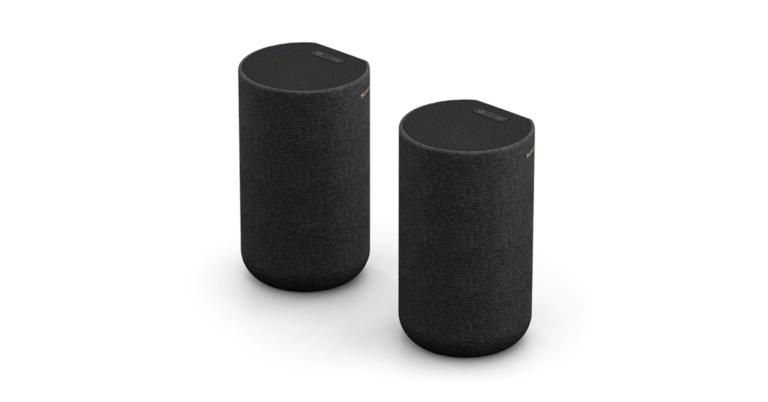
 The new Sony SA-RS5 wireless rear speakers work in tandem with the HT-A7000 Soundbar to provide 360° spatial sound with the best possible sound quality and wide directivity. The overhead audio is more immersive thanks to the up-firing speakers’ reflection of sound off the ceiling. Wide directivity woofers and soft dome tweeters combine to produce an exceptionally clear, spacious, and rich soundstage. The two passive radiators strengthen bass by enhancing low-end tones.
The Sony SA-RS5 wireless rear speakers enable flexible installation and may be positioned asymmetrically to accommodate any living room design. They have a battery life of up to 10 hours when completely charged. The speakers can easily be powered up and charged out of sight so that they may connect wirelessly and automatically to the HT-A7000 soundbar. There are no messy cords required during installation, making it quick and simple. Just 10 minutes of charging will provide 90 minutes of use if you’re in a rush. The SA-RS5 rear speakers have dual-use AC power connections.
The new Sony SA-RS5 wireless rear speakers work in tandem with the HT-A7000 Soundbar to provide 360° spatial sound with the best possible sound quality and wide directivity. The overhead audio is more immersive thanks to the up-firing speakers’ reflection of sound off the ceiling. Wide directivity woofers and soft dome tweeters combine to produce an exceptionally clear, spacious, and rich soundstage. The two passive radiators strengthen bass by enhancing low-end tones.
The Sony SA-RS5 wireless rear speakers enable flexible installation and may be positioned asymmetrically to accommodate any living room design. They have a battery life of up to 10 hours when completely charged. The speakers can easily be powered up and charged out of sight so that they may connect wirelessly and automatically to the HT-A7000 soundbar. There are no messy cords required during installation, making it quick and simple. Just 10 minutes of charging will provide 90 minutes of use if you’re in a rush. The SA-RS5 rear speakers have dual-use AC power connections.
 Each speaker on the SA-RS5 has two microphones and OPTIMISE buttons. By clicking the OPTIMISE button on the device, users can turn on Sound Field optimization. The speakers and HT-A7000 soundbar will then autonomously measure the distance between the speakers and ceiling using dual microphones.
 The new Sony SA-RS5 wireless rear speakers work in tandem with the HT-A7000 Soundbar to provide 360° spatial sound with the best possible sound quality and wide directivity. The overhead audio is more immersive thanks to the up-firing speakers’ reflection of sound off the ceiling. Wide directivity woofers and soft dome tweeters combine to produce an exceptionally clear, spacious, and rich soundstage. The two passive radiators strengthen bass by enhancing low-end tones.
The Sony SA-RS5 wireless rear speakers enable flexible installation and may be positioned asymmetrically to accommodate any living room design. They have a battery life of up to 10 hours when completely charged. The speakers can easily be powered up and charged out of sight so that they may connect wirelessly and automatically to the HT-A7000 soundbar. There are no messy cords required during installation, making it quick and simple. Just 10 minutes of charging will provide 90 minutes of use if you’re in a rush. The SA-RS5 rear speakers have dual-use AC power connections.
The new Sony SA-RS5 wireless rear speakers work in tandem with the HT-A7000 Soundbar to provide 360° spatial sound with the best possible sound quality and wide directivity. The overhead audio is more immersive thanks to the up-firing speakers’ reflection of sound off the ceiling. Wide directivity woofers and soft dome tweeters combine to produce an exceptionally clear, spacious, and rich soundstage. The two passive radiators strengthen bass by enhancing low-end tones.
The Sony SA-RS5 wireless rear speakers enable flexible installation and may be positioned asymmetrically to accommodate any living room design. They have a battery life of up to 10 hours when completely charged. The speakers can easily be powered up and charged out of sight so that they may connect wirelessly and automatically to the HT-A7000 soundbar. There are no messy cords required during installation, making it quick and simple. Just 10 minutes of charging will provide 90 minutes of use if you’re in a rush. The SA-RS5 rear speakers have dual-use AC power connections.
 Each speaker on the SA-RS5 has two microphones and OPTIMISE buttons. By clicking the OPTIMISE button on the device, users can turn on Sound Field optimization. The speakers and HT-A7000 soundbar will then autonomously measure the distance between the speakers and ceiling using dual microphones.
 Step 4: Yahoo will ask you to confirm your phone number in order to send you a recovery code. If you’re still using that number, click ‘Yes, send me a code’.
 Step 4: Yahoo will ask you to confirm your phone number in order to send you a recovery code. If you’re still using that number, click ‘Yes, send me a code’.
 Step 5: Enter the code. Yahoo will ask you to create a new password. Type in a new password and click on ‘Continue’.
 Yahoo will change your password successfully.

 Step 4: Enter the recovery code.
Step 5: Enter the new password.
Step 4: Enter the recovery code.
Step 5: Enter the new password.

 The ‘print screen’ key can be found near the backspace and the delete key on your laptop’s keyboard. It may be named ‘prt sc’ on your keyboard. All you need to do is load the screen you want to take a screenshot of, and press the print screen key. Windows will take a quick screenshot which can be previewed and saved on Microsoft Paint or any other image editing software. All you need to do is open MS Paint and press ‘Ctrl +V’ or right-click and select ‘Paste’. You can also carry out the same procedure on a photo editing tool like Photoshop or Pixlr.
Note: Some laptops may require pressing the Windows key along with the ‘prt sc’ key to take a screenshot. Upon pressing this combination the screenshot will automatically be saved in the Screenshots folder. You can access it by going to File Explorer>Pictures>Screenshots.
The ‘print screen’ key can be found near the backspace and the delete key on your laptop’s keyboard. It may be named ‘prt sc’ on your keyboard. All you need to do is load the screen you want to take a screenshot of, and press the print screen key. Windows will take a quick screenshot which can be previewed and saved on Microsoft Paint or any other image editing software. All you need to do is open MS Paint and press ‘Ctrl +V’ or right-click and select ‘Paste’. You can also carry out the same procedure on a photo editing tool like Photoshop or Pixlr.
Note: Some laptops may require pressing the Windows key along with the ‘prt sc’ key to take a screenshot. Upon pressing this combination the screenshot will automatically be saved in the Screenshots folder. You can access it by going to File Explorer>Pictures>Screenshots.
 If you’re looking for other ways to take a screenshot, the Snipping Tool can come in quite handy. Simply search ‘Snipping Tool’ in the Windows search bar and once you’ve opened the app, select ‘New’. Select the area on the screen you want to capture. Once you’ve selected the area, the Snipping Tool will open the screenshot on a preview window where you can further edit it. The screenshot can then be saved in whichever format you want.
 The ‘Snip and Sketch Tool’ is another in-built app on your Windows laptop that allows you to take a screenshot. It works similar to the snipping tool, with added options of selecting from multiple shapes and the availability of different brushes and colours to edit the screenshot. Once you’re done editing the screenshot, press Ctrl+S to save it.
 You can use the Xbox Game Bar on your Windows laptop to record the screen or even take a quick screenshot. Simply launch the Xbox Game Bar and click the Camera icon at the top left corner of your screen. The Xbox Game Bar will take a screenshot and notify you. Click on the notification to access the screenshot.
 Your Macbook has a built-in tool to take screenshots and even record the laptop’s screen. All you need to do is select Launchpad>Other>Screenshot or simply press Shift+Command+5. Once the screenshot tool has been launched, all you need to do is select the screenshot option from the toolbar. You can even select a portion of the screen to capture or record the screen. Using other options you can even take a screenshot after a short delay. The screenshot will be saved to your Desktop.
 There are a few key combinations that let you take a screenshot on your Macbook. Here are the most important ones.


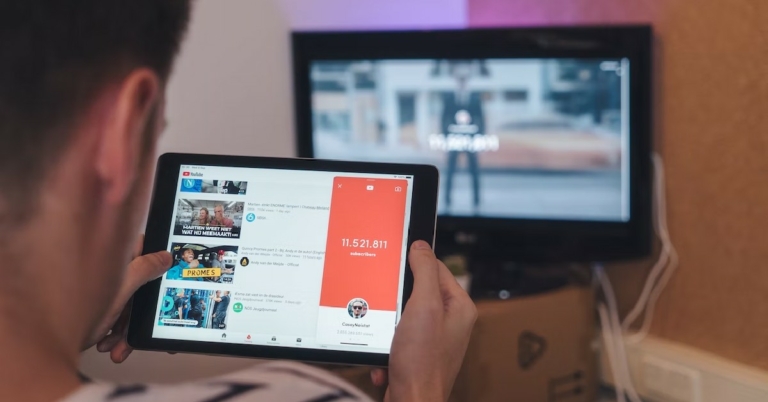
 Faye D’Souza’s YouTube channel provides daily news coverage stripped of any opinion, spin, or outrage. Presenting just the facts with appropriate context, Faye D’Souza’s ‘Just The News’ segment delivers the day’s news in around 10 minutes. Apart from covering the daily news, Faye D’Souza also hosts well-balanced panel discussions that platform voices across the spectrum.
 Having been around since 2009, Newsclick is one of the oldest YouTube news outlets in India. Newsclick covers news and offers analysis from a worker-centric worldview and is a consistent chronicler of diverse people’s movements and struggles. At Newsclick you will find diverse viewpoints that are often ignored by corporate media. Newsclick also focuses extensively on science, technology, and data journalism.
 Dalit Dastak is one of the biggest YouTube channels covering India’s marginalised Dalit voices. With daily uploads, Dalit Dastak covers caste-based news across the country and gives voice to issues that are often missing from the TV newsrooms. Dalit Dastak has been around since 2012 and also publishes a monthly magazine.
 With over 22 million subscribers, Lallantop is one of the biggest YouTube news channels in India. While most of Lallantop’s content is covering the daily news, they also carry out exclusive interviews and host panel discussions. With a great volume of content being posted every day, Lallantop covers everything from politics, entertainment, sports, and social media. Lallantop is owned by the India Today Group.
 Formerly of ABP News, Abhisar Sharma’s switch to independent journalism has amassed him over a million followers on YouTube. Having won multiple awards and published four books, Abhisar is one of the leading voices in Hindi journalism on YouTube.
 Sansad TV is a public broadcast channel that airs the parliamentary proceedings of both houses. It was formed in 2021 by merging house channels, Lok Sabha TV and Rajya Sabha TV. Sansad TV’s YouTube channel broadcasts live coverage of parliamentary proceedings and a diverse range of public affairs programming.
 The News Minute is a digital news platform based in Bangalore and brings ground-breaking stories from Andhra Pradesh, Karnataka, Kerala, Tamil Nadu, and Telangana. The News Minute covers topics ranging from politics, society, education, health, law and policy, entertainment, pop culture, and lifestyle. Special focus is paid to the local news coming out of South India. Apart from the daily news, you’ll also find documentaries, interviews, analyses, and explainers on The News Minute.
 Cobrapost is a non-profit media outlet known for its investigative journalism and high-profile breaks. One of the major breaks that pushed Cobrapost into the limelight was Operation Duryodhana back in 2005 when Cobrapost eleven MPs for taking money to table questions in the Parliament. This investigation lead to the expulsion of the 11 MPs from Parliament.
 HW News covers events from India and around the world in a balanced and nuanced manner. With its vision being ‘Unbiased, Real, and Honest’, HW News aims to incorporate multiple viewpoints in its reporting and give a platform to diverse voices. Apart from political news, HW also covers sports and entertainment. The channel posts multiple stories daily, so you won’t miss out on any major event.
 Mint is a popular news publication that covers the latest business and financial news. Mint’s YouTube channel presents studio debates, interviews with key government and business individuals, and features stories focusing on a range of topics from health to personal technology.
Read Also: Top 10 YouTube Channels to watch for the daily news in USA
There are the top 10 YouTube channels to watch for the daily news in India. If you think we missed out on some channel that carries out excellent reporting of contemporary issues, let us know in the comments!
Mint is a popular news publication that covers the latest business and financial news. Mint’s YouTube channel presents studio debates, interviews with key government and business individuals, and features stories focusing on a range of topics from health to personal technology.
Read Also: Top 10 YouTube Channels to watch for the daily news in USA
There are the top 10 YouTube channels to watch for the daily news in India. If you think we missed out on some channel that carries out excellent reporting of contemporary issues, let us know in the comments!