

In This Article
3 Amazing Ways Tech Has Simplified 21st Century Life

Since the first human civilizations were initially erected, humans have set themselves apart from the rest of the animal kingdom as the smartest. Though our strength, instincts, and natural predisposition towards hunting are lacking, it is our minds that have kept us in the game and have led to our eventual conquest of the planet (and hopefully, one day, beyond it).
The apex of our existence as a scientific species was hit with the industrial revolution, and it has only been developing and growing since. Today, technology is an inescapable aspect of our everyday life. And in many ways, it has made our lives a lot more tolerable, simple, and easier. We aren’t talking about advancements in medicine, agriculture, and transportation, without which our world could not function. But rather, we are talking about the simple, small, seemingly irrelevant things, that make our lives just a bit easier in the 21st century.
Sony HT-S400 soundbar with two-channel bar speaker and wireless subwoofer launched in India
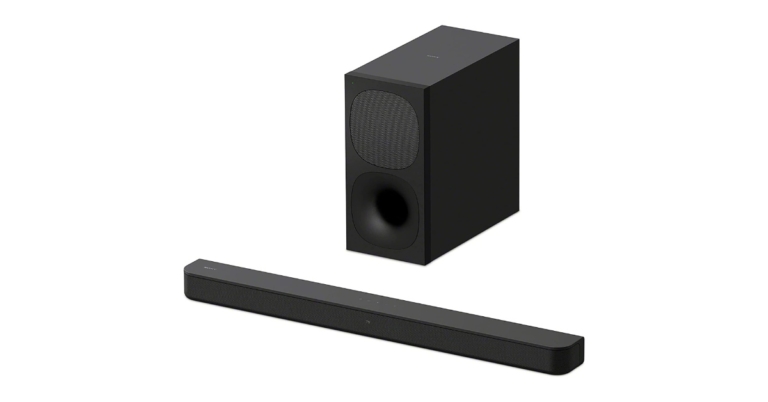
Today, Sony unveiled the 2.1-channel HT-S400 soundbar with a potent wireless subwoofer in the Indian market. The Sony soundbar system includes a 2.1-channel layout with a two-channel bar speaker and a separate wireless subwoofer. With the X-Balanced Speaker Unit, enjoy 2.1ch front surround sound and crystal-clear conversations. The audio device has a stated sound output of 330W. Cinematic surround sound is produced by S-Force PRO Front Surround and Dolby Digital.
In This Article
Sony HT-S400 soundbar price in India, sale details
The Sony HT-S400 soundbar has been launched in India with a price tag of Rs 21,990. The device will be available for purchase via Sony Center stores, well-known electronics merchants, significant e-commerce portals, and Sony’s own ShopAtSC online store in a single Black colour option.Sony HT-S400 specifications
The Sony HT-front S400’s speakers are equipped with an X-Balanced Speaker Unit, which has a distinctive rectangular form that maximises the diaphragm. Additionally, it maintains sound pressure while lowering driver excursion, which leads to less distortion and better vocal clarity. The X-Balanced Speaker Unit’s Separated Notch Edge enhances vertical amplitude symmetry, a crucial component of clear sound clarity. It accomplishes this by deliberately placing cuts along the edge, which help to reduce tension both inside and outside the diaphragm’s edge. Customers won’t ever miss a conversation during a fast-paced action scene or a subtly heated conversation thanks to these two characteristics. A huge 160mm speaker unit and a strong wireless subwoofer are included with the soundbar to produce a deeper, richer bass sound. Watching movies and TV is more immersive thanks to a wireless subwoofer, 330W of total output, and an HDMI ARC one-cable connection. It is ideal for the fundamental home theatre because of its deeper, more engrossing bass performance in movies, music, and games. High-quality Dolby Digital combined with Sony’s own virtual surround sound technology, S-Force PRO Front Surround, allows users of the Sony HT-S400 to hear sound from all sides. With sounds arriving at you from all sides, Sony’s innovative digital sound field processing technology virtually recreates the surround sound field using only the front speakers. A cinematic surround sound experience is available. The soundbar’s simple remote control, which blends a comfortable hand-fit design with simple operation, has been developed to give an intuitive user experience. Additionally, it makes it simple to choose between Night mode, which allows users to watch TV without waking the home, and Voice mode, which enhances speech clarity. The easy OLED display window on the soundbar, which provides status information on remote control tasks such as input source, volume, and sound settings, contributes to the convenience of use as well. The Sony HT-S400 connects quickly and easily to Sony’s BRAVIA TV. The BRAVIA TV’s Quick Settings menu immediately displays the soundbar settings thanks to an integrated user interface, making it simple to adjust the sound settings and volume with the TV’s remote. The HT-S400 soundbar has been designed to easily receive audio wirelessly from a BRAVIA TV in order to reduce cable clutter. For the latest gadget and tech news, and gadget reviews, follow us on Twitter, Facebook and Instagram. For newest tech & gadget videos subscribe to our YouTube Channel. You can also stay up to date using the Gadget Bridge Android App. You can find the latest car and bike news here.Simple guide: How to Drop a Pin on Google Maps on Mobile and Desktop like a pro?
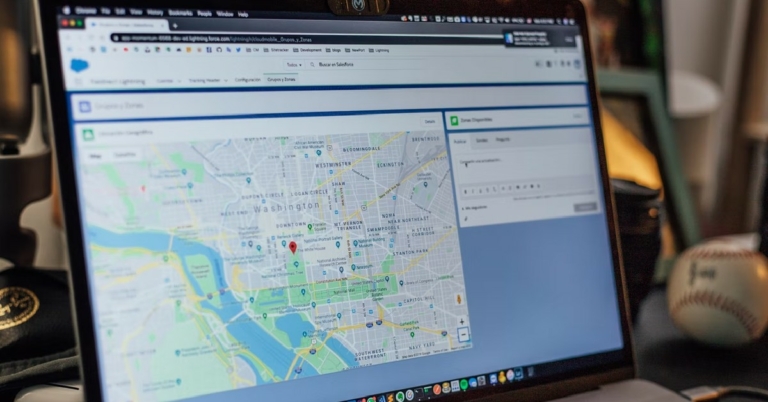
‘Dropping a pin’ on a particular location in Google Maps is the most effective way of marking the place. This comes in handy when the location isn’t listed on the Google Maps address network and you have to search it by yourself. You can save the pin so you can look up the location in future. You can even share the pin with your friends so they can easily find their way to the place. Dropping a pin is also very helpful when the location is large in area and you need to mark a particular spot. You can drop a pin on an exact coordinate anywhere on the map. In this article, we show you how to drop a pin on Google Maps on mobile and desktop like a pro.
Read Also: How to best Download YouTube Videos For Offline Viewing? Simple and easy ways (2022)
 Step 4: Right-click on the pin to find directions to the place.
This pin can also be saved to a ‘List’ on Google Maps. No one else can see these lists but you, unless you choose to share them with someone.
Step 4: After the pin is dropped you can view the exact coordinates, save the pin, or even share it with your friends.
Read Also: WhatsApp now lets users view status updates in chat lists: Report
Step 4: Right-click on the pin to find directions to the place.
This pin can also be saved to a ‘List’ on Google Maps. No one else can see these lists but you, unless you choose to share them with someone.
Step 4: After the pin is dropped you can view the exact coordinates, save the pin, or even share it with your friends.
Read Also: WhatsApp now lets users view status updates in chat lists: Report
In This Article
How to drop a pin on Google Maps on Desktop
Step 1: Open Google Maps on your web browser. Step 2: Look up a particular location on the search bar or drag and zoom in on the map to find the location. Step 3: Click on the location your want to mark. A small grey pin will appear on the spot you marked. Click on the grey pin to reveal the exact coordinates. Step 4: Right-click on the pin to find directions to the place.
 This pin can also be saved to a ‘List’ on Google Maps. No one else can see these lists but you, unless you choose to share them with someone.
How to drop a pin on Google Maps on Mobile
Step 1: Open Google Maps on your mobile. Step 2: Look up a particular location using the search bar or browse the map for a particular spot. Step 3: Long press on the spot to drop a pin. Step 4: After the pin is dropped you can view the exact coordinates, save the pin, or even share it with your friends.
Read Also: WhatsApp now lets users view status updates in chat lists: Report
Step 4: After the pin is dropped you can view the exact coordinates, save the pin, or even share it with your friends.
Read Also: WhatsApp now lets users view status updates in chat lists: Report
Frequently Asked Questions
Can I send a location saved in Google Maps on my desktop to my phone?
Yes, you can send a location saved on your desktop to your phone. Simply click on the ‘Send to phone’ option on the information window on the right and select the medium of delivery (share via maps, text, or email).
Can I share a dropped pin with friends?
Yes, you can share a dropped pin or saved locations with friends. Simply click on the ‘Share’ option in the information window and Google Maps will generate a link to the location that you can share with your friends.
For the latest gadget and tech news, and gadget reviews, follow us on Twitter, Facebook and Instagram. For newest tech & gadget videos subscribe to our YouTube Channel. You can also stay up to date using the Gadget Bridge Android App. You can find the latest car and bike news here.
Asus ZenFone 9 likely to launch in India as Asus 9z on August 23
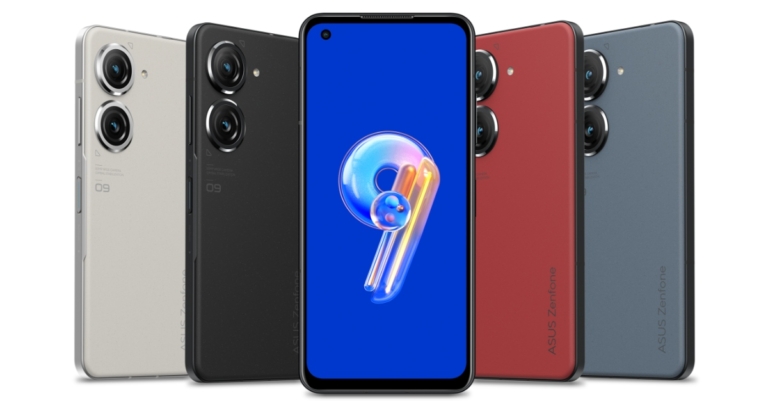
According to a tip, the Asus ZenFone 9 could be released in India on August 23. It might make its debut in the nation under the name Asus 9z. The alleged phone debuted in July this year. However, Asus is yet to formally confirm the launch date and costs for India. The gadget has a 5.92-inch AMOLED display with a 120Hz refresh rate and is powered by a Snapdragon 8+ Gen 1 SoC. The phone’s 50-megapixel dual rear camera setup with a 6-axis hybrid gimbal OIS/EIS stabiliser is its major USP.
According to a post from YouTuber Sahil Karoul, the Asus ZenFone 9 will be launched in India tomorrow, which is on August 23. Due to trademark concerns, Asus does not release phones under the ZenFone brand, therefore the device may arrive in India under the name Asus 9z.
Previously, the Asus Zenfone 9 was tipped to launch in India by August 31. The phone is likely to cost slightly less in the Indian market, with a base price of Rs 60,557. Asus has not yet made a statement regarding the date and cost of the India launch.
Asus Zenfone 9 specifications
The 5.92-inch AMOLED screen on the Asus Zenfone 9 boasts a resolution of 1,080 x 2,400, a refresh rate of 120Hz, and Gorilla Glass Victus protection. Along with a bright display that offers 800 nits at 100% APL and peaks at 1,100 nits, the screen also features a 240Hz touch sampling rate. Both an Always On mode and a DC dimming at low brightness levels are supported. The Snapdragon 8+ Gen 1 SoC and up to 16GB of RAM in the Asus Zenfone 9 give it an internal storage capacity of up to 256GB. The phone will come pre-installed with Android 12 that is nearly stock, two significant OS updates, and at least two years’ worth of security updates.
The back of the Asus Zenfone 9 features a 50-megapixel Sony IMX766 primary sensor and a 12-megapixel ultra-wide camera with an IMX368 sensor. It comes equipped with a 12-megapixel Sony IMX663 sensor with dual PDAF for selfies and video chats. The camera system also supports 8K recording. The primary sensor is a 6-axis hybrid gimbal OIS/EIS stabiliser. The primary camera’s stabiliser uses data from the gyro sensor to adjust for abrupt z-axis forward and backward motions in addition to adjusting for movement on the x- and y-axes. whereas a macro camera can be used with the secondary ultrawide lens.
A 4,300mAh battery powers the device. The smartphone is bundled with a 30W USB-C charger as well. Instead of being right below the screen, the fingerprint scanner on the Zenfone 9 is now on the side of the phone.
For the latest gadget and tech news, and gadget reviews, follow us on Twitter, Facebook and Instagram. For newest tech & gadget videos subscribe to our YouTube Channel. You can also stay up to date using the Gadget Bridge Android App. You can find the latest car and bike news here.
What is TRP and how is it calculated?

The term ‘TRP’ gets thrown around a lot when talking about the popularity of certain channels and broadcast programmes, but what does it actually mean? The term itself stands for Television Rating Point and is a useful metric in determining the viewership of a programme. While it is not a flawless system, a closer look into its working can reveal the validity of the data it gathers and the limits of its usage. In this article, we explain what TRP actually is and how it is calculated.
Read Also: Nothing Phone 1 Review: A statement piece
Television Rating Point (TRP) is a tool to determine how many people are watching a particular programme at a certain time. This data can be used to gauge the popularity of a TV show, which further helps the broadcaster to make executive decisions and garner advertising revenue. Advertisers use the TRPs to increase the reach of their ads by targeting programmes that attract the most eyeballs. Since the data also factors in the time duration of viewership, advertisers can also decide on the most beneficial time slots to run ads.
The broadcaster can also use the TRP data to decide if a certain show needs a change in programming to appeal to a wider audience. If a show has promising TRPs, the broadcaster can also change its time slot to compete with shows on other networks. It is also integral in determining the revenue a show brings in.
The Broadcast Audience Research Council (BARC) is an industry body set up by various stakeholders that represent the broadcasters, advertisers, and advertising and media agencies. BARC calculates the TRPs on a weekly basis and works along the guidelines issued by the Telecom Regulatory Authority of India (TRAI) and the Ministry of Information and Broadcasting (MIB).
BARC employs several different methods to calculate the TRPs. The most common method uses the ‘BAR-O-meter’, which is a device that is installed in the television sets of the same audience to study what they’re watching at any given time. The data is measured every week and used to calculate the TRP.
Another method called ‘Picture Matching’ uses the BAR-O-meter to record a small part of the video being watched on the television set. These pictures are later collected from the sample audience and used to derive TRP data.
In This Article
What is TRP?
 Television Rating Point (TRP) is a tool to determine how many people are watching a particular programme at a certain time. This data can be used to gauge the popularity of a TV show, which further helps the broadcaster to make executive decisions and garner advertising revenue. Advertisers use the TRPs to increase the reach of their ads by targeting programmes that attract the most eyeballs. Since the data also factors in the time duration of viewership, advertisers can also decide on the most beneficial time slots to run ads.
The broadcaster can also use the TRP data to decide if a certain show needs a change in programming to appeal to a wider audience. If a show has promising TRPs, the broadcaster can also change its time slot to compete with shows on other networks. It is also integral in determining the revenue a show brings in.
Television Rating Point (TRP) is a tool to determine how many people are watching a particular programme at a certain time. This data can be used to gauge the popularity of a TV show, which further helps the broadcaster to make executive decisions and garner advertising revenue. Advertisers use the TRPs to increase the reach of their ads by targeting programmes that attract the most eyeballs. Since the data also factors in the time duration of viewership, advertisers can also decide on the most beneficial time slots to run ads.
The broadcaster can also use the TRP data to decide if a certain show needs a change in programming to appeal to a wider audience. If a show has promising TRPs, the broadcaster can also change its time slot to compete with shows on other networks. It is also integral in determining the revenue a show brings in.
How is TRP calculated?
 The Broadcast Audience Research Council (BARC) is an industry body set up by various stakeholders that represent the broadcasters, advertisers, and advertising and media agencies. BARC calculates the TRPs on a weekly basis and works along the guidelines issued by the Telecom Regulatory Authority of India (TRAI) and the Ministry of Information and Broadcasting (MIB).
BARC employs several different methods to calculate the TRPs. The most common method uses the ‘BAR-O-meter’, which is a device that is installed in the television sets of the same audience to study what they’re watching at any given time. The data is measured every week and used to calculate the TRP.
Another method called ‘Picture Matching’ uses the BAR-O-meter to record a small part of the video being watched on the television set. These pictures are later collected from the sample audience and used to derive TRP data.
The Broadcast Audience Research Council (BARC) is an industry body set up by various stakeholders that represent the broadcasters, advertisers, and advertising and media agencies. BARC calculates the TRPs on a weekly basis and works along the guidelines issued by the Telecom Regulatory Authority of India (TRAI) and the Ministry of Information and Broadcasting (MIB).
BARC employs several different methods to calculate the TRPs. The most common method uses the ‘BAR-O-meter’, which is a device that is installed in the television sets of the same audience to study what they’re watching at any given time. The data is measured every week and used to calculate the TRP.
Another method called ‘Picture Matching’ uses the BAR-O-meter to record a small part of the video being watched on the television set. These pictures are later collected from the sample audience and used to derive TRP data.
How accurate is the TRP?
The strength of the data collected depends on the size and quality of the sample audience. When talking about a national metric, the sample audience has to be representative of the national population. Currently, BARC records data from 44,000 households to calculate the TRP. Many critics doubt the validity of this sample size for a population of over a billion people. In order to make the data more accurate, TRAI has recommended that BARC increase the sample size to 100,000 by the end of 2022. Read Also: Master Remote Working With These Tech Tips BARC is not the only body that calculates TRPs, although its ratings are considered to be the industry standard and are used by the majority of the stakeholders. Organisations like the Indian National Television Audience Measurement (INTAM) and Doordarshan Audience Research Team (DART) also carry out research on national TV viewership.
For the latest gadget and tech news, and gadget reviews, follow us on Twitter, Facebook and Instagram. For newest tech & gadget videos subscribe to our YouTube Channel. You can also stay up to date using the Gadget Bridge Android App. You can find the latest car and bike news here.
Audio Technica ATH-M20xBT review: Featherweight headphones with heavyweight sound
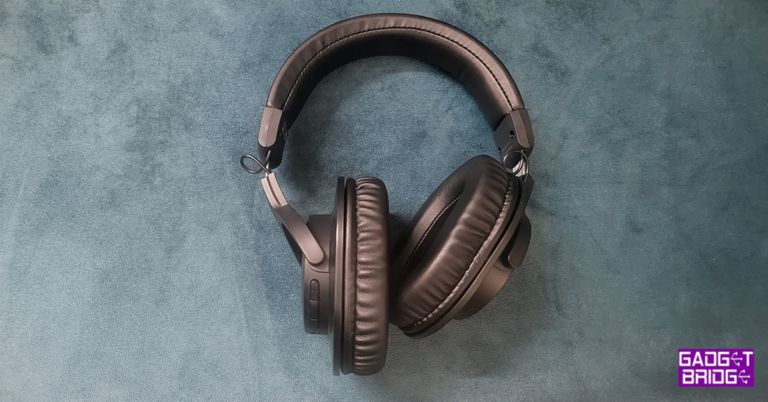
There is a surfeit of audio headphones these days, but many do not deliver premium audio, even at a premium price. Breaking the barriers is a mid-segment audio headphone by a Japanese company called Audio Technica. They sent over the Audio Technica ATH-M20xBT to be accessed. We played around with them for over 2 weeks and this is our Audio Technica ATH-M20xBT review you should not miss, if you are planning to buy wireless headphones around the Rs 10,000 or USD $150 price point.
Available in just one (Black) colour, we quickly took to assess its looks. These do look like most of the Audio Technica headphones in the category with its own differences. You get a fairly well-padded headband and ear cups. These are very comfortable to wear and not once did we feel a sense of flimsiness from them. Audio Technica branding can be found in the headband as well as its logos on the ear cups.
Each ear cup has a large 40mm audio driver within, more on them in the performance part. The left ear cup is where all the “key” action is. You get a power button, which is also the play/pause/voice call switch. With that, users get the volume control +/- keys, USB Type-C charging port as well as the 3.5mm audio port. A LED indicator and single microphone can also be found here.
The Audio Technica ATH-M20xBT come with a robust metal slider to adjust the headphones onto any type of head. Overall, we loved the look, size and fit of the Audio Technica ATH-M20xBT, we would have loved them even more if a carry case was also provided in the box.
In This Article
Audio Technica ATH-M20xBT review: Design
These come in a large cardboard box, which also has a USB charging cable, manuals and a 3.5mm auxiliary cable (to connect with an aux port), apart from the Audio Technica ATH-M20xBT headphones. When we saw the box, we thought these would be really heavy to wear, but once we got them on, they are not heavy at all, these are featherweight headphones with heavyweight sound. Available in just one (Black) colour, we quickly took to assess its looks. These do look like most of the Audio Technica headphones in the category with its own differences. You get a fairly well-padded headband and ear cups. These are very comfortable to wear and not once did we feel a sense of flimsiness from them. Audio Technica branding can be found in the headband as well as its logos on the ear cups.
 Each ear cup has a large 40mm audio driver within, more on them in the performance part. The left ear cup is where all the “key” action is. You get a power button, which is also the play/pause/voice call switch. With that, users get the volume control +/- keys, USB Type-C charging port as well as the 3.5mm audio port. A LED indicator and single microphone can also be found here.
 The Audio Technica ATH-M20xBT come with a robust metal slider to adjust the headphones onto any type of head. Overall, we loved the look, size and fit of the Audio Technica ATH-M20xBT, we would have loved them even more if a carry case was also provided in the box.
Audio Technica ATH-M20xBT review: Performance
Coming to how the Audio Technica ATH-M20xBT perform. We had a mixed bag of emotions. Let us start by first the setting up process. The setup of these audio headphones is very easy. You just have to turn them on and they will fast pair with any Bluetooth device. We had a great time listening to our favourite tunes with them. We played everything from rock to classical and it gave us very less chance to bicker. The sound is quite nice when it comes to mids and lows, highs, as well as the bass, could have been better. But our phone’s built-in audio equaliser did a mighty fine job in boosting both segments. Also, you can pair the Audio Technica ATH-M20xBT with 2 devices at once, yes it supports multi-point pairing. Just pair it with the first device, and turn off the first device’s BT. Pair it with the second device and then turn on the first device’s BT. Simple process. So, now you can enjoy listening to music on your laptop and receive calls from your smartphone, without switching devices. There is passive noise cancellation available on the Audio Technica ATH-M20xBT. Active noise cancellation (ANC) is not there. These do a good job of keeping the outside noise out, which is the case with most over-the-ear headphones in the category. If they would have added ANC to the mix, it would have been a boon. Also Read: Samsung’s original Galaxy Buds get three key new features update We played music via Amazon music, watched a movie on Netflix and played Asphalt 9: Legends and BGMI games using Audio Technica ATH-M20xBT. The experience was quite nice on the first two, but even better when gaming. The company does recommend them for gaming use as the latency is low. The shot-to-sound latency is actually very low and these did help us get that much-needed extra kill when gaming thanks to its fast sound. A place where the Audio Technica ATH-M20xBT excels is battery life. The company claims users will get 60 hours of playback time and we got just about that. We used them for over 2 weeks and they ran out of battery after 12 days, which is not bad at all. Over that, they support rapid charge. A 10-minute charge gives its users 3 hours of battery life. It gets fully charged in about 1.75 hours. The LED indicator on the headphones will tell you if it needs a charge when it turns red. A voice also tells you each time you turn them on indicating medium, full or low battery.Verdict
Overall, as said, the Audio Technica ATH-M20xBT did leave us with mixed bag of emotions. We did take them out for a run and slight rain fell on them, nothing happened to them, but we would not recommend splashing water on them as there is no IP rating on it. Nevertheless, when running these stayed firmly in place and we quite liked it. Also, the sound kept growing on us. Things like ANC and a carry case are missing, which could have been perfect for the price. At Rs 13,500 Audio Technica ATH-M20xBT do have a great number of positives that outweigh the cons. If you want good sound or are looking for low latency wireless gaming headphones for professional gaming, you can pick them without thinking twice.Audio Technica ATH-M20xBT Pros
Good audio and multi-point pairing Comfortable and light to wear SturdyAudio Technica ATH-M20xBT Cons
No Carrying Case For the latest gadget and tech news, and gadget reviews, follow us on Twitter, Facebook and Instagram. For newest tech & gadget videos subscribe to our YouTube Channel. You can also stay up to date using the Gadget Bridge Android App. You can find the latest car and bike news here.The launch date for the iPhone 14 Series is reportedly set for September 7
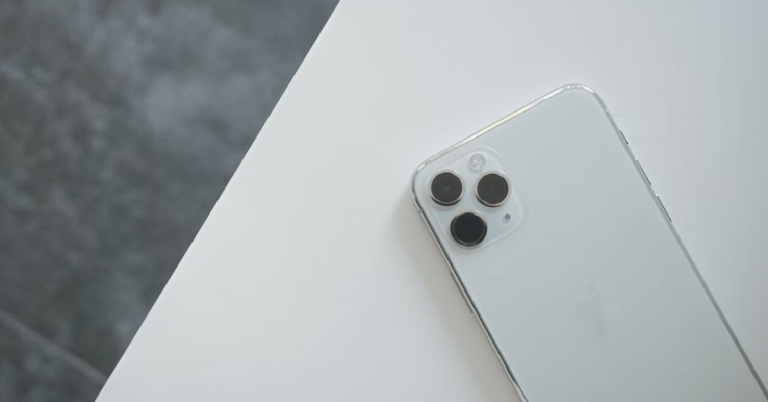
Apple appears to have fixed the dates for its upcoming major event. Apple is apparently planning to introduce its newest line of iPhones next month. According to renowned tech journalist Mark Gurman Apple intends to have a launch event on September 7 to introduce the iPhone 14 series. In addition to the most recent smartphones, we can also see the introduction of numerous new Macs, iPads, and three Apple Watch models.
According to Gurman Apple was preparing for the eagerly anticipated debut at a time when smartphone sales were collapsing globally. However, compared to its rivals, Apple has been performing well in terms of sales. The latest quarter’s iPhone sales were remarkable, and according to reports, Apple has warned suppliers that it doesn’t expect demand to decline.
The iPhone 14, iPhone 14 Max, iPhone 14 Pro, and iPhone 14 Pro Max are anticipated to be the four new versions in the iPhone 14 lineup. The iPhone Mini, which debuted alongside the iPhone 12 lineup, will no longer be sold by the tech giant.
Faster chips will be included in the upcoming iPhones. While the A15 Bionic chipset is anticipated to be present in the iPhone 14 and iPhone 14 Max, the A16 Bionic chipset will be present in the Pro models.
Two of Apple’s handsets will have 6.1-inch screens, while two will have 6.7-inch screens. Moreover, it is anticipated that the iPhone 14 Pro and iPhone 14 Pro Max would include the redesigned notch and pill design with significant camera improvements. According to some rumours, the new iPhone 14 Pro models will include a larger camera module with a 48MP main camera, a 12MP ultrawide camera, and a 12MP telephoto camera as its focal points.
Similarly the Apple Watch Series 8 is likely to have a variety of new functions and a redesign. At the same time, the regular watch is expected to resemble the Watch Series 7. The Apple Watch Pro variant is anticipated to have a fresh style. Additionally, the business intends to release a redesigned Apple Watch SE with a speedier chip.
Women’s health features and a body-temperature sensor will be included in Apple’s newest Series 8 Apple Watches. A larger display, rugged titanium housing, improved fitness monitoring functions, and longer battery life will all be included.
Additionally, Apple is anticipated to release watchOS 9 for its line of smartwatches and iOS 16 for iPhones.
For the latest gadget and tech news, and gadget reviews, follow us on Twitter, Facebook and Instagram. For newest tech & gadget videos subscribe to our YouTube Channel. You can also stay up to date using the Gadget Bridge Android App. You can find the latest car and bike news here.
How to best Download YouTube Videos For Offline Viewing? Simple and easy ways (2022)

Downloading a YouTube video can save a great amount of internet data if you plan on viewing it multiple times. Streaming a video multiple times consumes a lot of internet data, especially if you’re viewing it in HD. In this case, you’re better off downloading the video and watching it offline. In this article, we bring you the best ways to download YouTube videos for offline viewing.
Read Also: How to download Instagram reels in gallery on Android?
YouTube Premium is the only ‘official’ way to watch YouTube videos offline. You can read our detailed article on the benefits of YouTube Premium and the various subscription plans on offer here. Once you’re subscribed to YouTube Premium you can save any video for offline viewing by simply clicking on the download icon below every video. You can access the saved video in the YouTube app on your phone or the website on your desktop. Downloading a video using YouTube Premium does not save the video file on your device, it simply saves the video in the ‘Downloads’ folder on the YouTube app. Watching an offline video does not use any internet data. Once you download a video, it is available for offline viewing for 30 days, after which you’ll have to download it again.
There are tons of YouTube video downloaders online that you can use to download any video for offline viewing. Using these tools will save the video file on your device. PasteDownload, Free Video Downloader, Video Grabber, and KeepVid are some of the popular video download tools. Every video download tool follows the same process, copy the link of the YouTube video you want to download and paste it into the download box on the website. The download tool will save the video on your device.
While most online tools work just fine on your smartphone browser, you can also download an app to do the same job. Apps like AZ Video Downloader do a good job of downloading YouTube videos at any resolution. All you need to do is search for the video in the downloader app and press download. The video will be saved to your smartphone.
If you mostly use YouTube on your desktop browser, using a browser extension is the easiest way to download YouTube videos on your device. There are several extensions like Addoncrop, YouTube ByClick, and Video Downloader Professional that will do the job. Once you add a browser extension, it will give you a download option alongside every YouTube video. Once you click on the download button, the video will be saved on your device in a resolution of your liking.
Read Also: Here are 10 Easy To Use Free Video Editing Apps for iPhone and iPad
In This Article
Save videos offline using YouTube Premium
 YouTube Premium is the only ‘official’ way to watch YouTube videos offline. You can read our detailed article on the benefits of YouTube Premium and the various subscription plans on offer here. Once you’re subscribed to YouTube Premium you can save any video for offline viewing by simply clicking on the download icon below every video. You can access the saved video in the YouTube app on your phone or the website on your desktop. Downloading a video using YouTube Premium does not save the video file on your device, it simply saves the video in the ‘Downloads’ folder on the YouTube app. Watching an offline video does not use any internet data. Once you download a video, it is available for offline viewing for 30 days, after which you’ll have to download it again.
Download a YouTube video using an online video downloader
 There are tons of YouTube video downloaders online that you can use to download any video for offline viewing. Using these tools will save the video file on your device. PasteDownload, Free Video Downloader, Video Grabber, and KeepVid are some of the popular video download tools. Every video download tool follows the same process, copy the link of the YouTube video you want to download and paste it into the download box on the website. The download tool will save the video on your device.
Download a YouTube video using a video download app
 While most online tools work just fine on your smartphone browser, you can also download an app to do the same job. Apps like AZ Video Downloader do a good job of downloading YouTube videos at any resolution. All you need to do is search for the video in the downloader app and press download. The video will be saved to your smartphone.
Download YouTube videos for offline viewing using a browser extension
 If you mostly use YouTube on your desktop browser, using a browser extension is the easiest way to download YouTube videos on your device. There are several extensions like Addoncrop, YouTube ByClick, and Video Downloader Professional that will do the job. Once you add a browser extension, it will give you a download option alongside every YouTube video. Once you click on the download button, the video will be saved on your device in a resolution of your liking.
Read Also: Here are 10 Easy To Use Free Video Editing Apps for iPhone and iPad
If you mostly use YouTube on your desktop browser, using a browser extension is the easiest way to download YouTube videos on your device. There are several extensions like Addoncrop, YouTube ByClick, and Video Downloader Professional that will do the job. Once you add a browser extension, it will give you a download option alongside every YouTube video. Once you click on the download button, the video will be saved on your device in a resolution of your liking.
Read Also: Here are 10 Easy To Use Free Video Editing Apps for iPhone and iPad
Frequently Asked Questions
Is it legal to download videos from YouTube?
The only ‘legal’ way of viewing YouTube videos online is by subscribing to YouTube Premium. Downloading a video as a file using any third-party tool or app is considered piracy. However, as long as you’re downloading the video for personal use and not distributing it, you will be fine.Are third-party download tools safe?
The apps and tools we have mentioned in this article are safe to use. However, it is always a good idea to be on the side of caution and not allow these apps any permissions you deem unnecessary.
For the latest gadget and tech news, and gadget reviews, follow us on Twitter, Facebook and Instagram. For newest tech & gadget videos subscribe to our YouTube Channel. You can also stay up to date using the Gadget Bridge Android App. You can find the latest car and bike news here.
Garena Free Fire Redeem Codes Today 22 August 2022: Here is how to claim them

Garena Free Fire is a battle royale game with regular awards and tournaments to keep players interested. If you play Garena Free Fire, you should be aware of the redeem codes that are released on a daily basis. However, because the battle royale game is banned in India, players from other countries can use the Free Fire Redeem codes daily. If you’re unfamiliar with the Garena Free Fire redeem codes or don’t know how to get them, we’ve put together a step-by-step guide to help you redeem them. Check out Garena Free Fire Redeem Codes for August 22.
The Free Fire redeem codes are a great way to get free stuff. These are 12-digit codes that contain alphabets and numbers, as well as an expiration date and time. Because the Garena FF redeem codes cannot be used more than once, you should hurry to the redemption page to claim your free reward before someone else does. To get a free reward, all you have to do is go to reward.ff.garena.com/en, which is the official redemption page. Also, keep an eye on this space for daily updates on Garena Free Fire redemption codes and rewards.
In This Article
Garena Free Fire Redeem Codes Today 22 August 2022
FFX60C2IIVYU FFXVGG8NU4YB FFE4EODIKX2D FF22NYW94AOO FF5XZSZM6LEF FFTQT5IRMCNX FF7WSMOCN44Z FFA9UVHX4H7D FFAOES11YL2D ERTYHJNBVCDS F9IUJHGVCDSE F7UIJHBGFDFR FXCVBNMKDSXC FOKMJNBVCXSDHow to Get Free Fire Redeem Codes for Garena on August 22?
- Visit the Garena Free Fire game’s official website at reward.ff.garena.com.
- Use your Facebook, Google, VK, Apple ID, Huawei ID, or Twitter account to log in.
- You’ll be taken to a valid redemption code (s)
- Copy and paste the 12-digit redemption code into the text box.
- On the screen, a dialogue box will appear.
- ‘Ok’ should be selected.
How to Manage Saved Passwords on Android With Google and use them like a pro? (2022 guide)
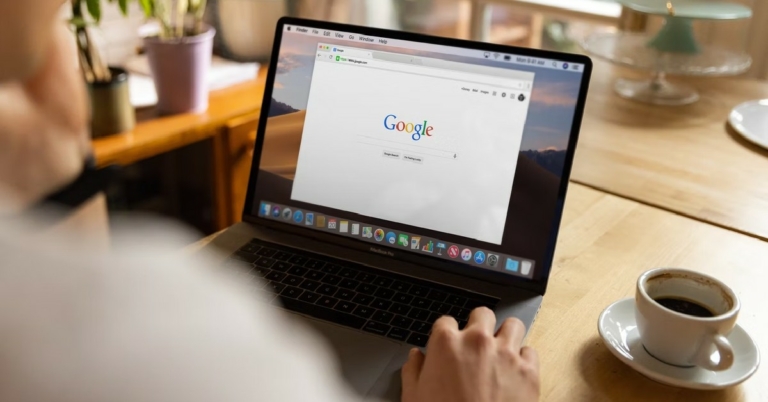
Google password manager is one of the most trusted services around. It allows you to save your passwords and auto-fills them for you the next time you log in. Saving a password is really easy, as a dialogue box pops up every time you enter a password, prompting you to save it. All you need to do is select ‘save’. Your passwords can be synced and used across multiple devices as well. In this article, we show you how to manage saved passwords on Android with Google and use them like a pro.
Read Also: How to take a screenshot on a laptop? Simple 6 ways.
Step 4: Google will ask for verification by prompting you to enter your lock screen password or your Google account password. Once you’re verified, you will get access to the desired password.
Step 5: Click on the eye icon on the password bar to view the password.
Step 3: Follow the verification process by providing your lock screen password or Google Account password.
Step 4: Select the ‘Edit’ option under your password.
Step 5: Enter the new password and save it.
Step 3: Follow the verification process by providing your lock screen password or Google Account password.
Step 4: Select ‘Delete’.
Step 2: Select ‘Auto-fill service from Google’.
Step 3: Select ‘Passwords’.
Step 4: Tap on the gear icon for settings and select ‘Add shortcut to your home screen’.
The shortcut will be added to your home screen. While this is an easy way to access your saved passwords, there is no way to add it to the app drawer.
Read Also: Top 10 YouTube Channels to watch for the daily news in India
In This Article
View a saved password
Once you save your passwords using Google, you can view them all in one place. While using auto-fill it is quite common to forget your password, since you’re not always typing it out. If you’re trying to log in to your account on another device and don’t remember the password, you can easily view them using the password manager. Just follow these simple steps. Step 1: Go to passwords.google.com. Step 2: Sign in using your Google Account. Step 3: Select the account you want the password for. Step 4: Google will ask for verification by prompting you to enter your lock screen password or your Google account password. Once you’re verified, you will get access to the desired password.
 Step 5: Click on the eye icon on the password bar to view the password.

Update a saved password
Changing your passwords regularly is an effective way to secure your account against any threats. Once you enter the changed password to log in, the password manager will pop up again, asking you to update it. Simply clicking on ‘Update’ will change the password. You can also update the password by following these simple steps. Step 1: Go to passwords.google.com. Step 2: Select the account you want to update the password for.
Step 3: Follow the verification process by providing your lock screen password or Google Account password.
Step 4: Select the ‘Edit’ option under your password.
 Step 5: Enter the new password and save it.

Delete a password
If you don’t use a certain account anymore, you can always delete its login credentials from Google’s password manager. Just follow these easy steps. Step 1: Go to passwords.google.com. Step 2: Select the account you want to delete the credentials for.
Step 3: Follow the verification process by providing your lock screen password or Google Account password.
Step 4: Select ‘Delete’.

Access the password manager on your smartphone’s home screen
One of the biggest issues with Google’s password manager is that it does not have an app. While it does an excellent job of syncing your passwords across devices, you still have to access it through its webpage. However, there is a workaround to this issue. While Google may not offer a password manager app, you can still add the password manager shortcut to your smartphone’s home screen. Step 1: Open Settings and go to ‘Privacy’. Step 2: Select ‘Auto-fill service from Google’.
 Step 3: Select ‘Passwords’.
 Step 4: Tap on the gear icon for settings and select ‘Add shortcut to your home screen’.
 The shortcut will be added to your home screen. While this is an easy way to access your saved passwords, there is no way to add it to the app drawer.
Read Also: Top 10 YouTube Channels to watch for the daily news in India
The shortcut will be added to your home screen. While this is an easy way to access your saved passwords, there is no way to add it to the app drawer.
Read Also: Top 10 YouTube Channels to watch for the daily news in India
Frequently asked questions
Are my passwords secure with Google Password Manager?
The security of Google Password Manager is airtight and no one but you is given access to your passwords. If you want to make it even more secure, you can add two-factor authentication. This way, no one will be able to access your passwords even when they have your phone.What is the benefit of using Google Password Manager?
Google password manager makes it really easy to log in to services and websites while browsing the internet. Its autofill feature comes in quite handy while logging in to websites. You can even sync your passwords across multiple devices, so you won’t have to go through the trouble of logging in over and over again.
For the latest gadget and tech news, and gadget reviews, follow us on Twitter, Facebook and Instagram. For newest tech & gadget videos subscribe to our YouTube Channel. You can also stay up to date using the Gadget Bridge Android App. You can find the latest car and bike news here.