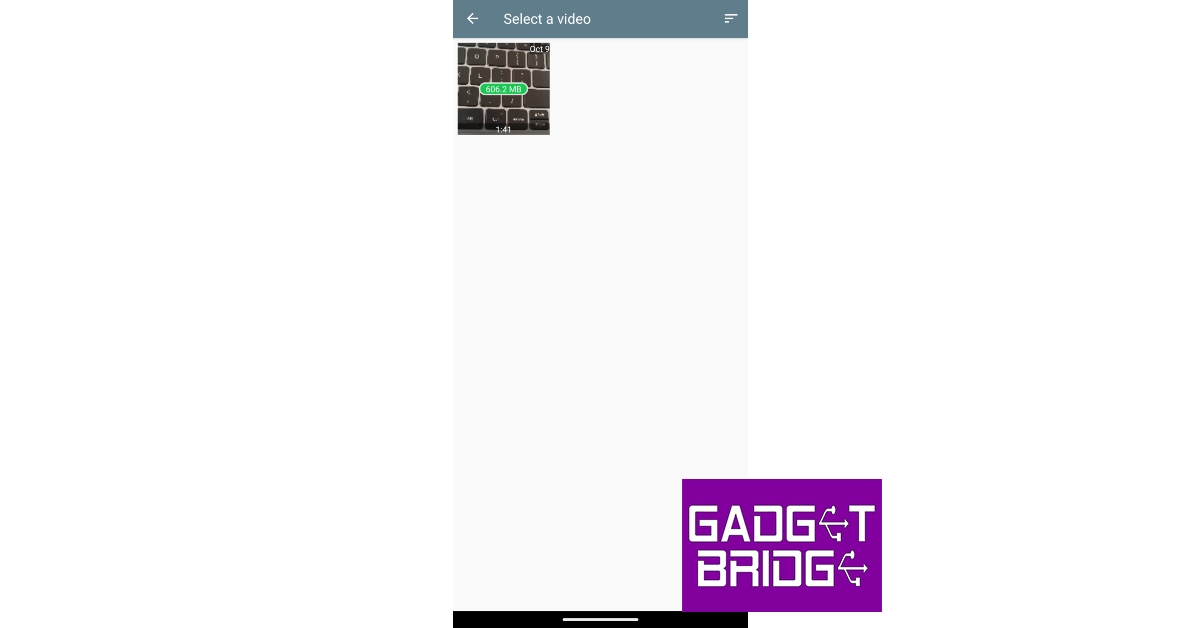
 Step 3: Select the resolution for the final video.
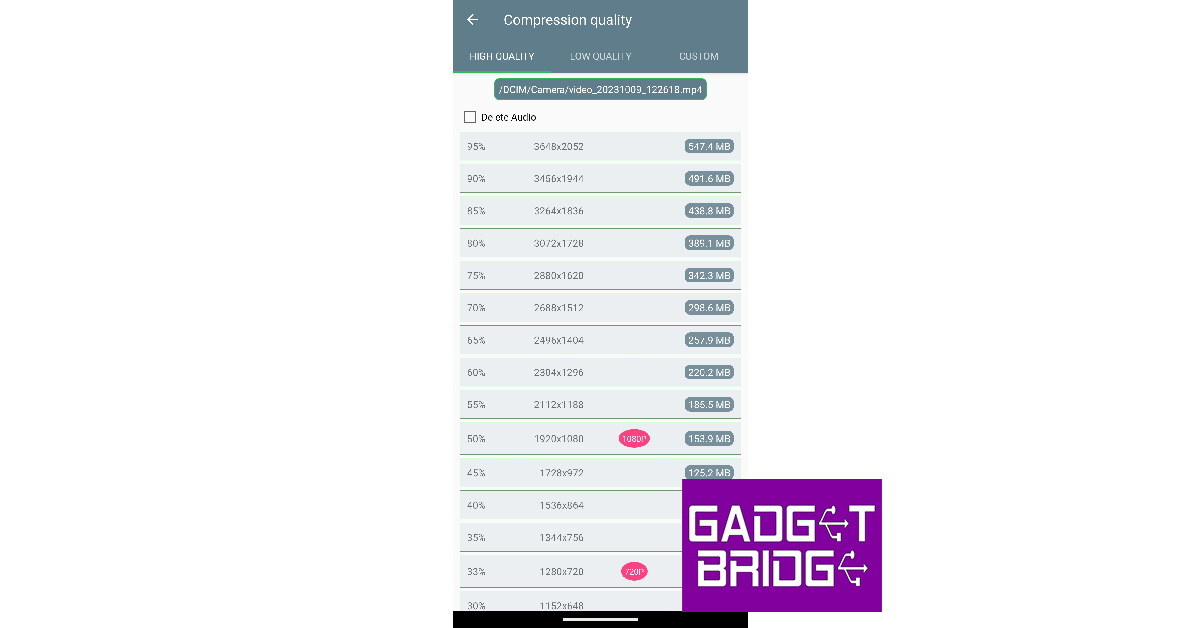 Step 4: The app will take a few minutes to compress and resize the video.
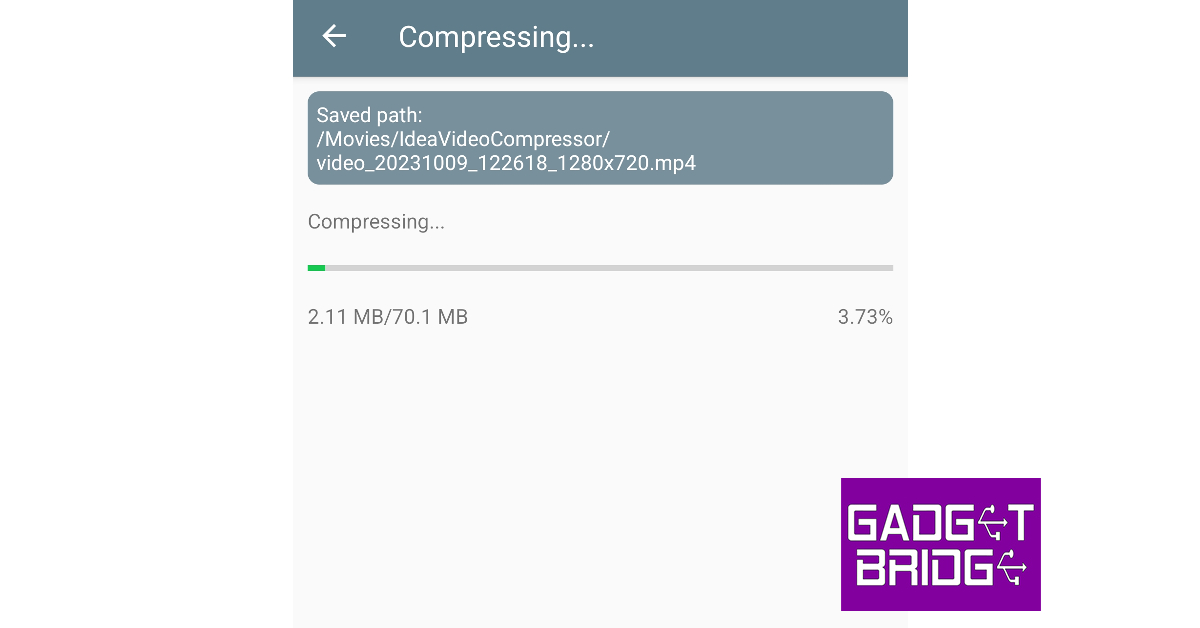 Step 5: The compressed video will be saved in your device’s gallery. You can preview the video within the app itself.
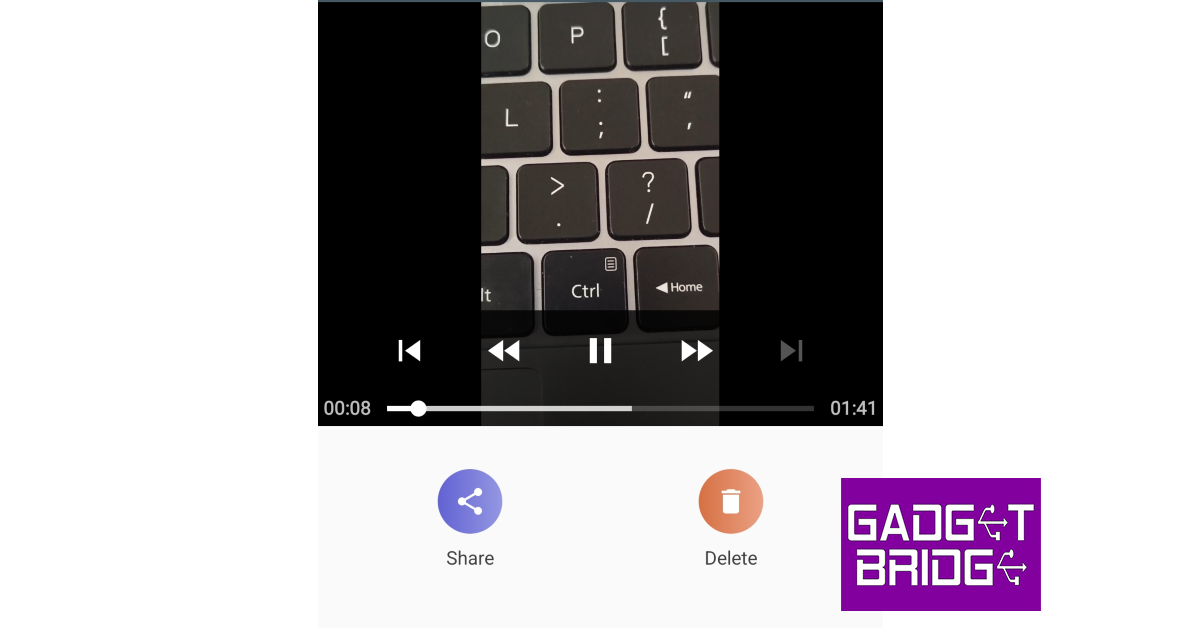 Step 6: Hit Share to send the video to your contacts directly from the app. You can also choose to delete the video if it doesn’t meet your quality requirements.
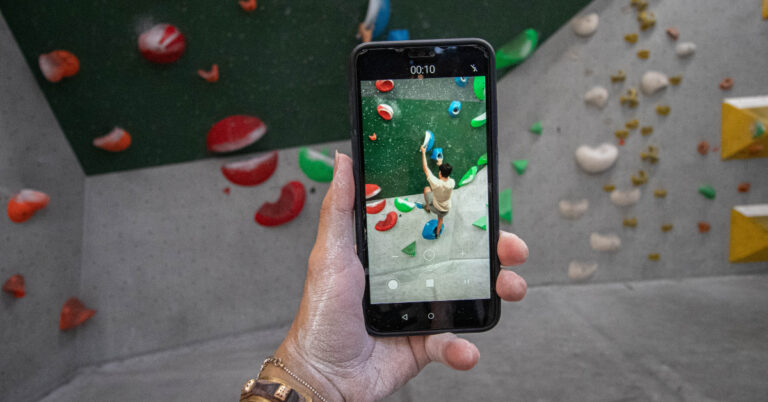
Now that you’ve learnt how to compress a video, let us take a look at the best Android apps for the task.
Step 6: Hit Share to send the video to your contacts directly from the app. You can also choose to delete the video if it doesn’t meet your quality requirements.
Now that you’ve learnt how to compress a video, let us take a look at the best Android apps for the task.
In This Article
Video Compressor Panda Resizer
Download from Google Play Store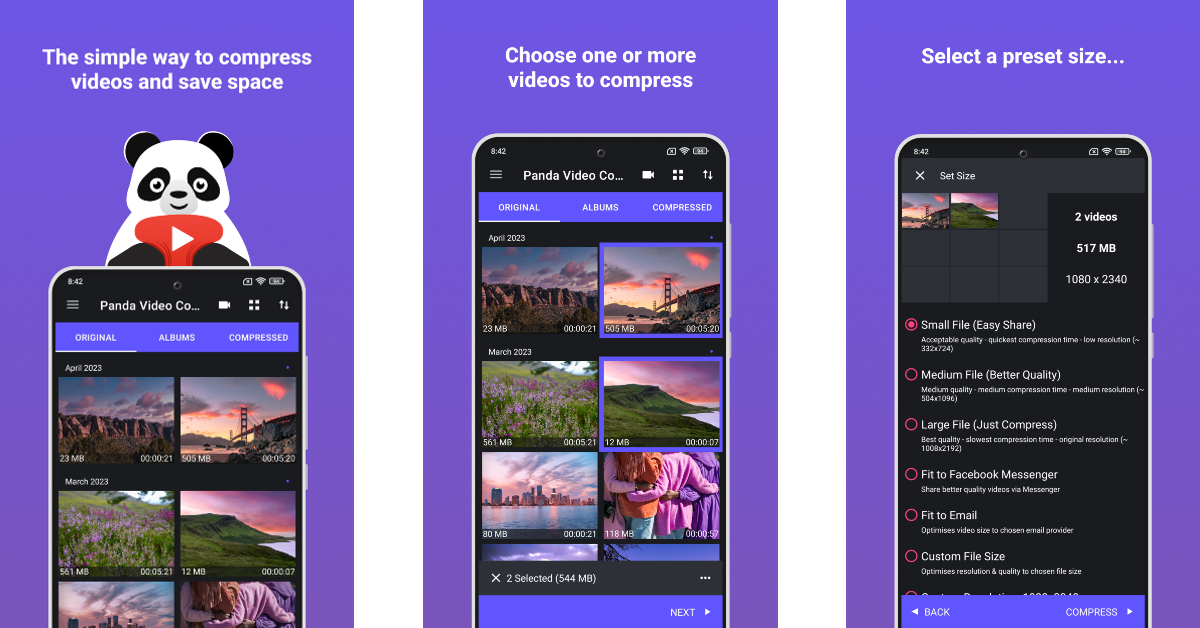 One of the reasons why Panda Resizer grabs the top spot in this list is because of its accessibility and ease of use. If you don’t want to select a custom resolution for the final video, Panda Resizer has multiple presets that will compress it to a size that suits apps like Facebook, Instagram, YouTube, WhatsApp, Telegram, WeChat, and more. Once a file has been compressed, you can play it alongside the original video to see if there are any changes to the final product. Subscribing to a premium membership gives you ad-free access to the app and lets you compress multiple videos at once.
Video Dieter 2 – trim & edit
Download from Google Play Store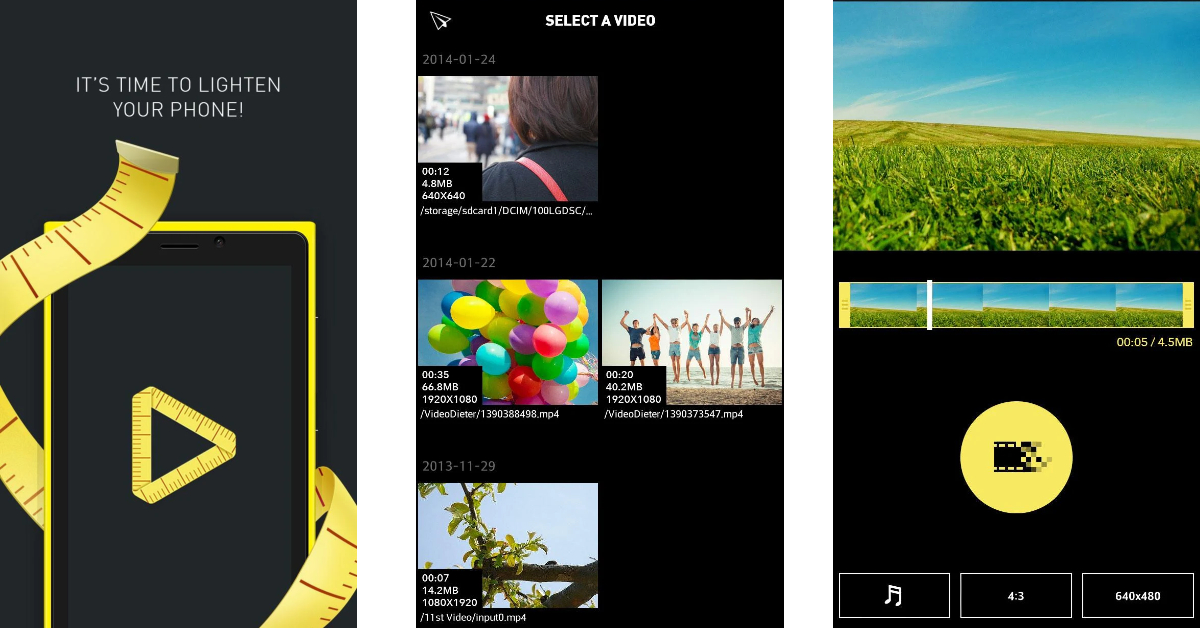 With over a million downloads and a rating of 4.2 stars on the Play Store, the Video Dieter 2 is one of the best video compressor apps for Android. Video Dieter 2 keeps things simple and gets rid of all the bells and whistles that may confuse the average user. You can set the resolution of the output video and easily view its file size and playtime. This app also allows you to resize a video by trimming it. You can also set background music to the video and convert it to a time-lapse or a slo-mo video.
ShrinkVid
Download from Google Play Store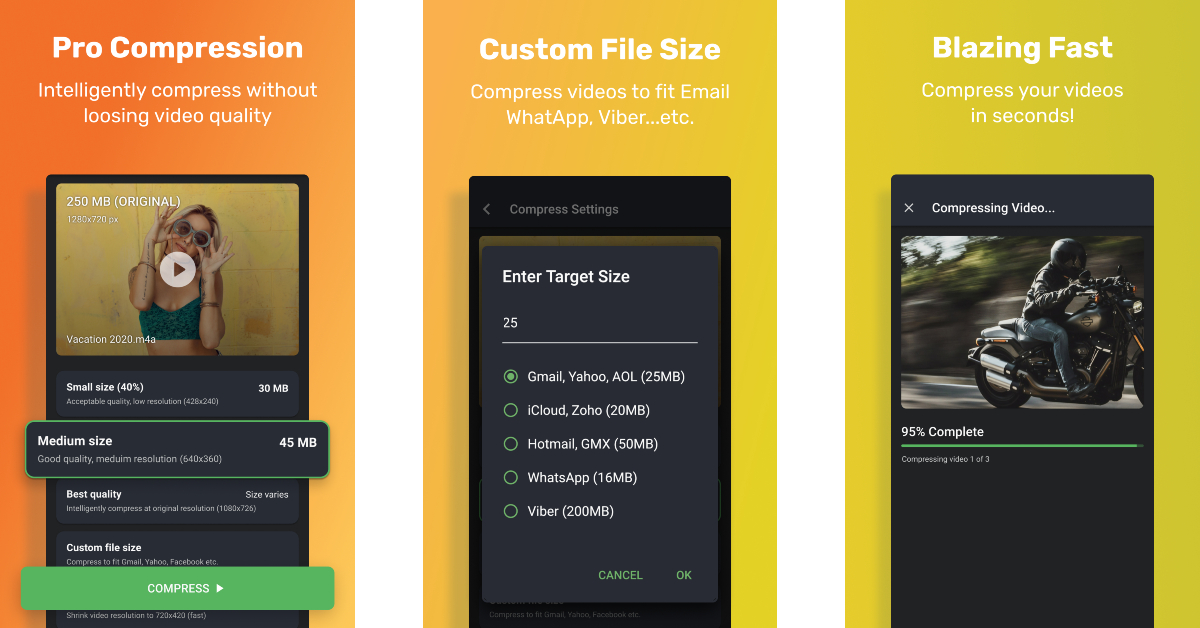 ShrinkVid does a great job of compressing videos while maintaining their original quality. This app supports compression for all major video formats like MOV, MP4, FLV, MKV, AVI, 3GP, etc. Another good reason to use ShrinkVid is that it carries out the entire compression process on your device, without outsourcing the video to the cloud. You can choose a custom resolution for the output video or select a preset option that will resize the video according to the chosen platform’s size limit.
Compress Video: Downsize Video
Download from Google Play Store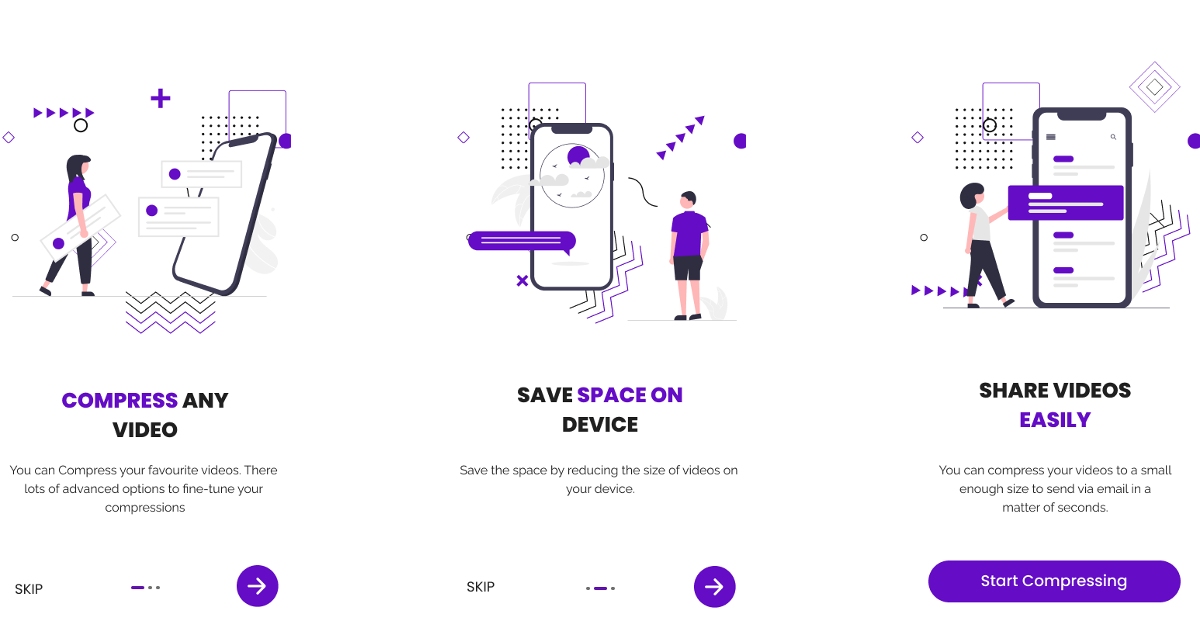 Apart from compressing and resizing your videos to a chosen resolution, the Compress Video app also lets you trim and crop unwanted parts of the video, convert it to an audio file, and apply time-lapse and slo-mo effects. The app is well-equipped to compress multiple videos at once. Once the video is compressed to a desirable file size, you can share it to any platform directly from the app. Compress Video also offers a very handy ‘Fit to Email’ preset that automatically adjusts the size of the video to that of an email attachment.
Video Compressor & Video Cutter
Download from Google Play Store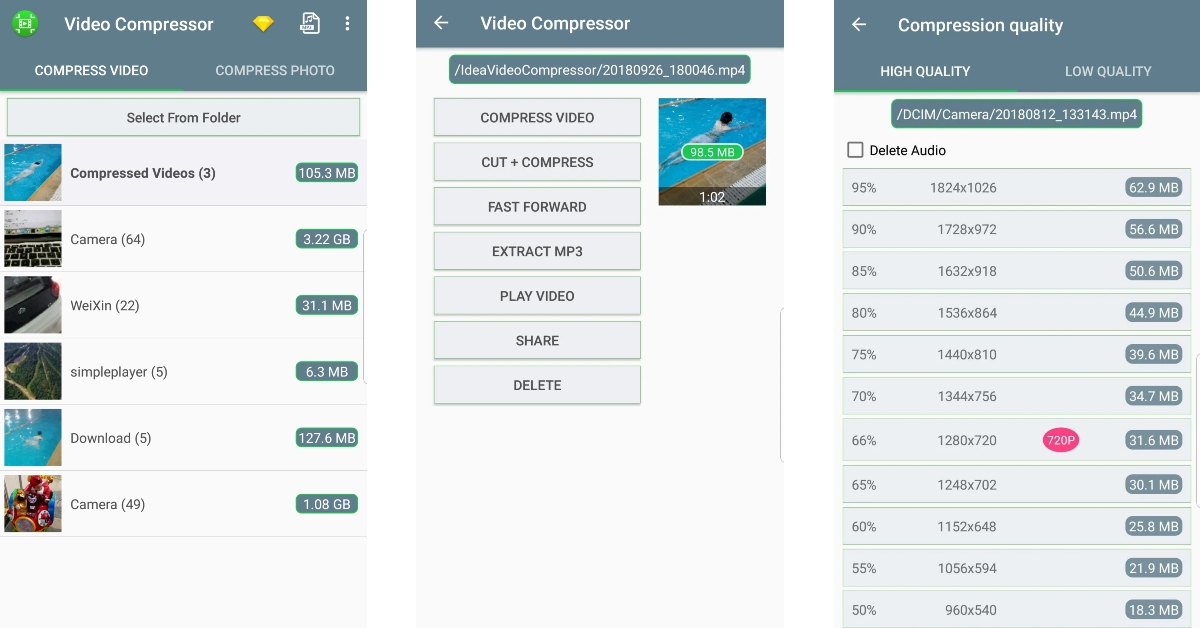 The Video Compressor & Video Cutter app has over 10 million downloads on the Google Play Store and a rating of 4.1 stars from over 100K reviews. Needless to say, this app is one of the best video compression tools around. While compressing a video, you can select a resolution for the output video. The corresponding file size is mentioned next to every resolution. Apart from basic compression tasks, you can convert the video to an MP3 audio file or cut the audio from the compressed video file altogether.
Video Compressor – Reduce Size
Download from Google Play Store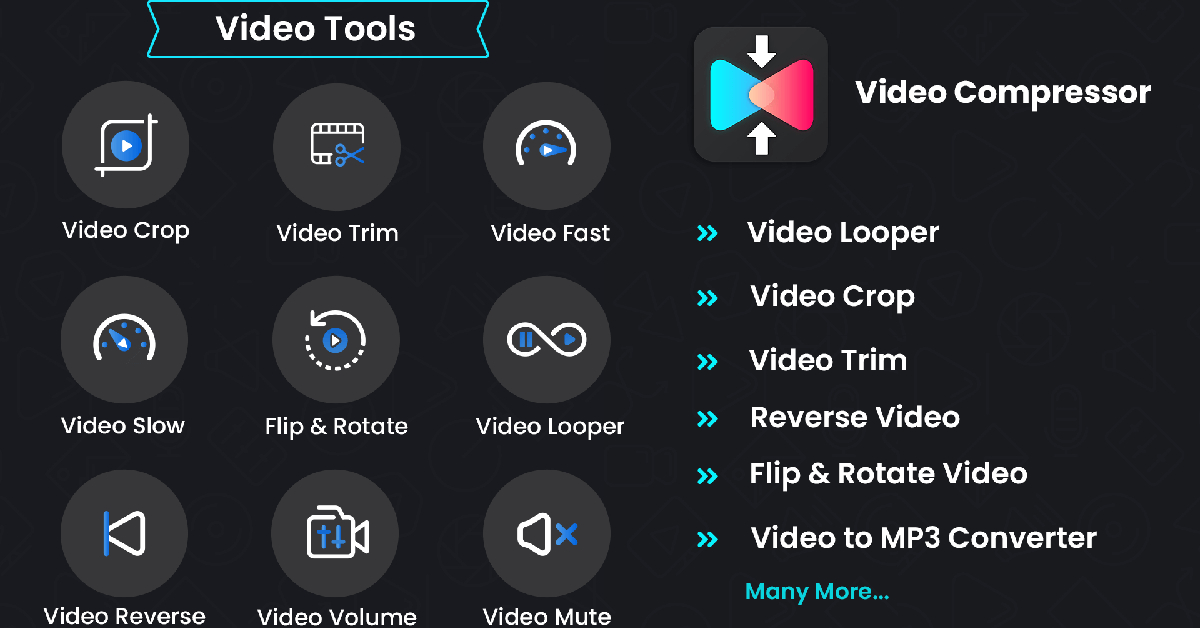 The Video Compressor – Reduce Size makes it to our list because of the exhaustive range of features that it offers. Apart from lossless compression, you can also convert the format of the video, convert it to a GIF or MP3 file, and carry out other basic editing tasks like cropping, looping, flipping, rotating, accelerating, and more. Once the video has been compressed to your desired size, it can be directly shared from the app itself.
Videos & Movies Compressor
Download from Google Play Store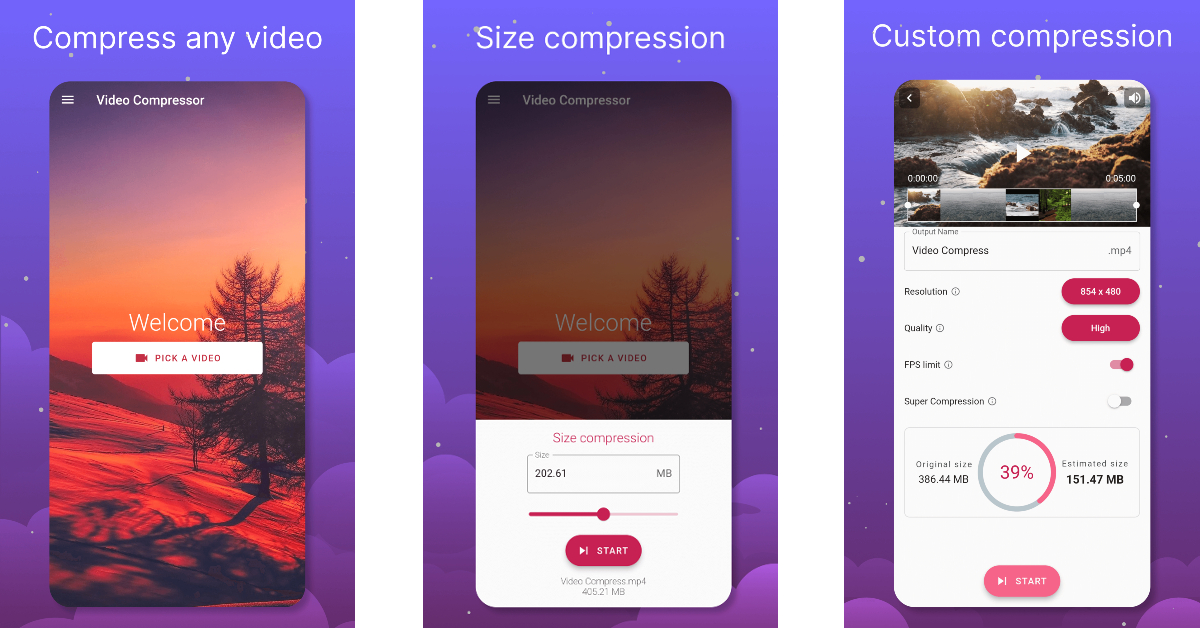 The Videos & Movies Compressor app shrinks your selected videos to a more desirable size without losing the video quality. The process to compress the video is the same as the other apps on this list: select a video from your device’s gallery, set the resolution for the output video and hit the compress button. What we like about this app is that it can compress an entire movie or TV episode with ease. If you like to save movies offline on your device, this app will help you save a lot of storage space.
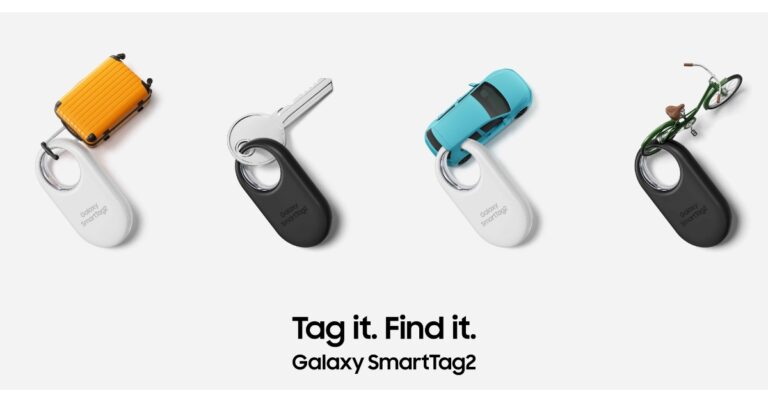
Read Also: Samsung Galaxy SmartTag2 with new Lost Mode and improved features announced
The Videos & Movies Compressor app shrinks your selected videos to a more desirable size without losing the video quality. The process to compress the video is the same as the other apps on this list: select a video from your device’s gallery, set the resolution for the output video and hit the compress button. What we like about this app is that it can compress an entire movie or TV episode with ease. If you like to save movies offline on your device, this app will help you save a lot of storage space.
Read Also: Samsung Galaxy SmartTag2 with new Lost Mode and improved features announced















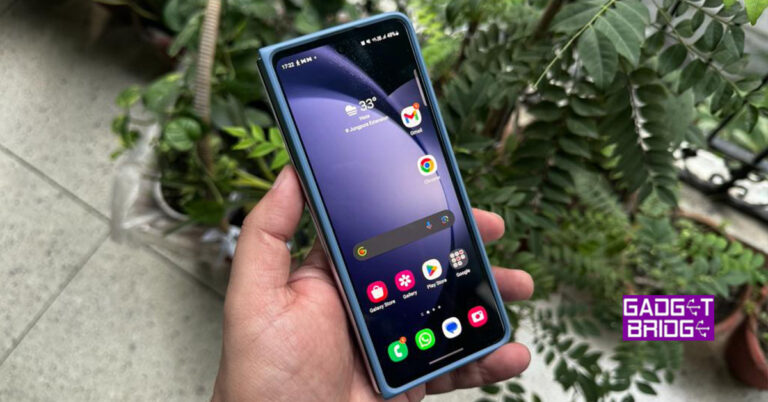
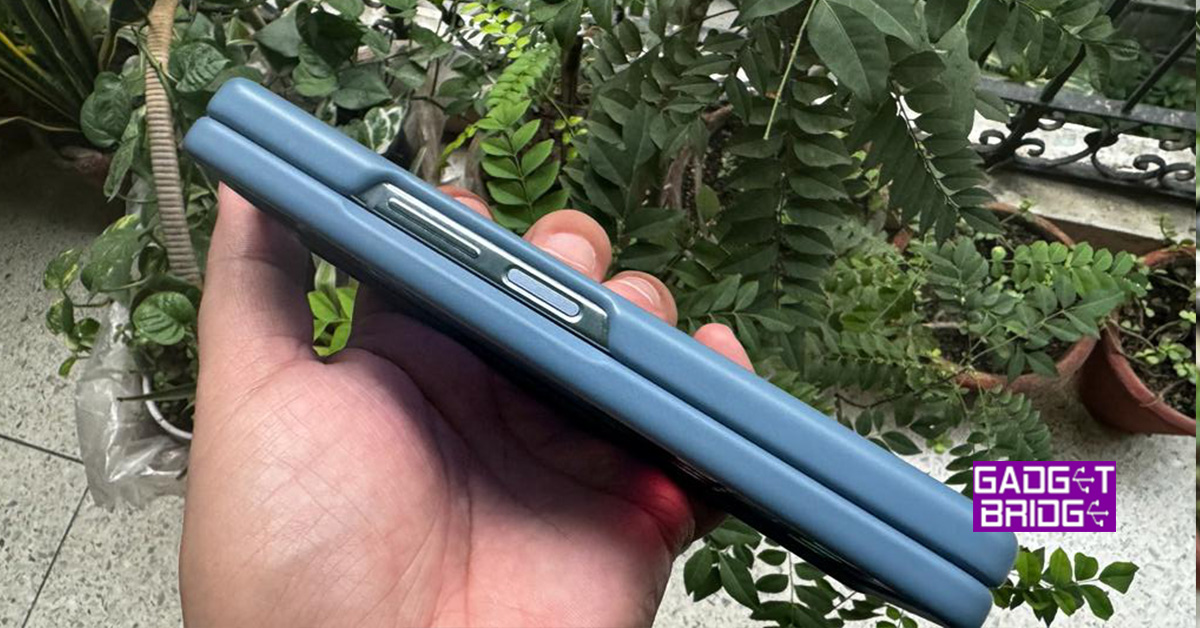
 When folded the front has a large 6.2-inch display and on its right, you will get all the buttons including the power button that doubles up as a fingerprint sensor, and the volume rocker key. Both are nicely placed for one-handed operation. On the left side, you will find the robust chrome spine with Samsung Branding on it. Also, you get 4 mics located on the top and bottom with twin loudspeaker grilles for stereo sound.
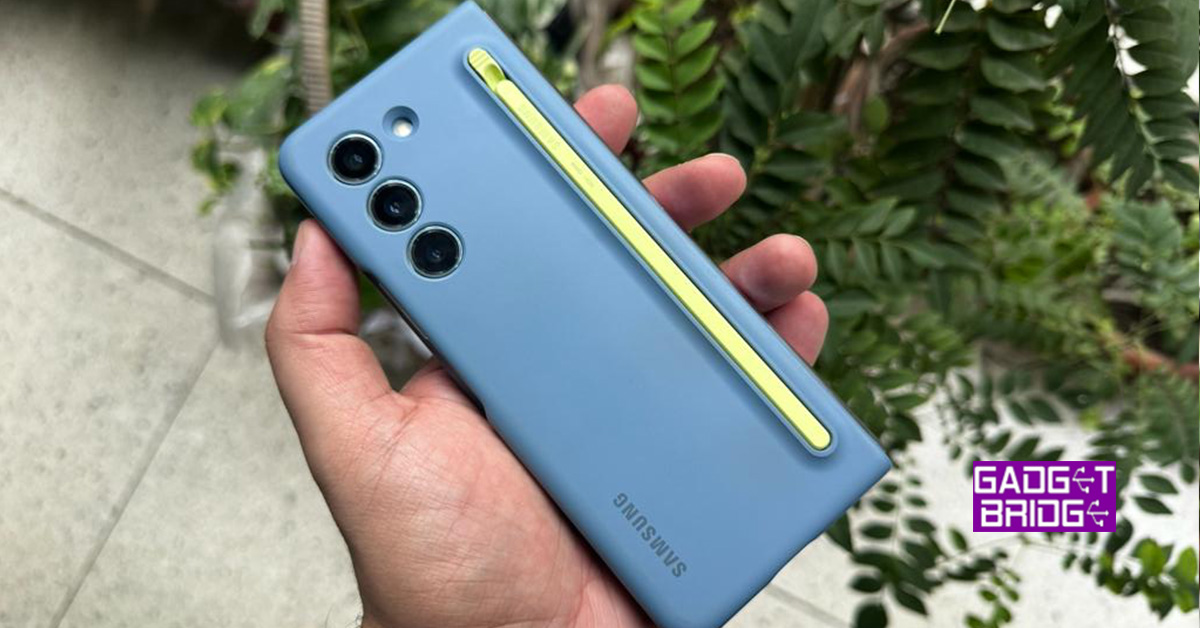
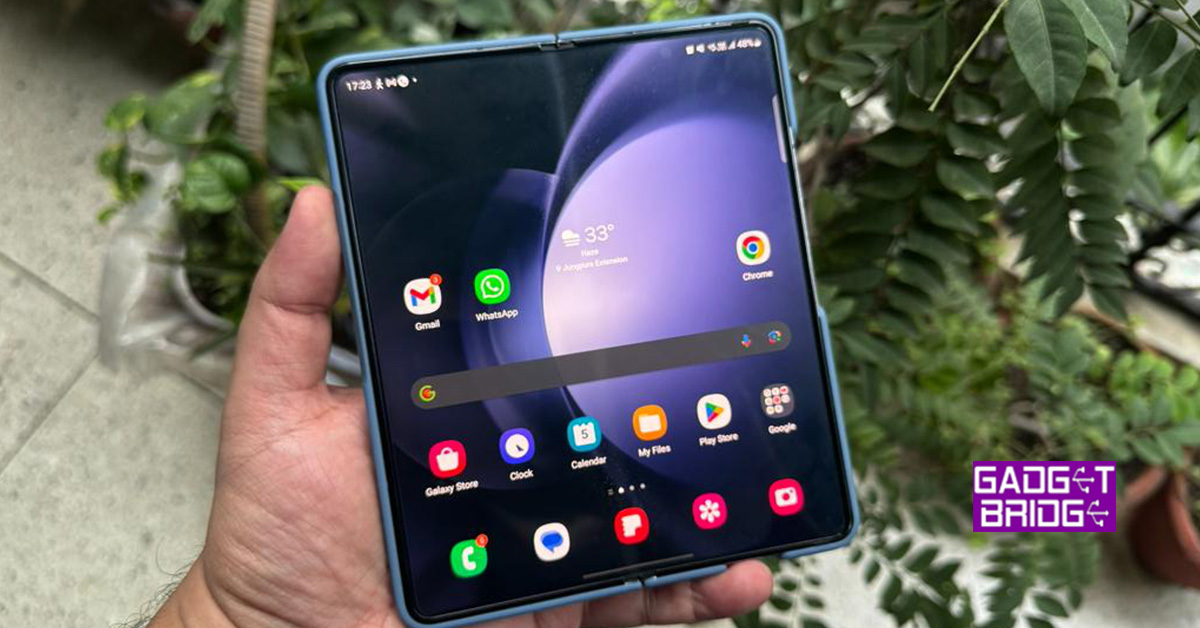
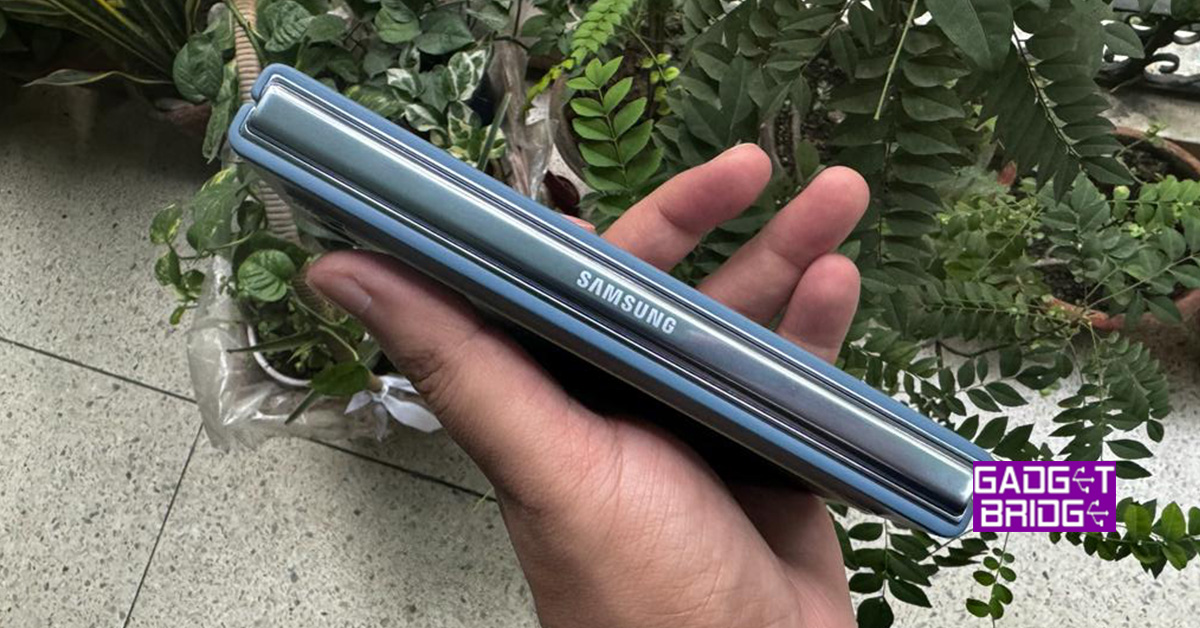 Inside, you get a large 7.6-inch foldable display, which also has another selfie camera hidden behind the screen.
So, let’s go ahead and talk about the screens and their quality and whether are they the best bang for your buck?
Let’s start with the outer screen first. The outside display has Corning Gorilla Glass Victus 2 protection on it, but no screen protector has been placed here. You do get it (screen protector) on some of the mid-range smartphones by Samsung. This is a dynamic AMOLED screen with 904 x 2,316 pixel resolution. 16M colour depth and 120Hz refresh rate are also what you get here.
This screen is slimmer than the usual smartphones, however, it is far superior in terms of quality and colours. We loved every bit of it as 40% of the time we were on this screen and the rest 60% on the larger one. The colours here are vivid and you get deep blacks. Over that, the text is crisp and the brightness is very very good.
Moving to the inside screen, the continuity display comes to Samsung Galaxy Z Fold 5 too, which means if you are working on an app on the outside screen and then unfold the device, the same app will be open on the inside display too. The inner display is as good as the outside one, if not better. The screen’s pixel ratio is set at max 2,176 x 1,812 pixels. 120Hz refresh rate and HDR 10+ capabilities are part of this screen too. This one is an AMOLED screen too, so all the brilliant colours and deep blacks you see on the outside screen are available on the large one as well.
The text characters are crisp, and we did not face any sunlight legibility issues (on both screens). We played a lot of things on these displays and not once did they give us a chance to squabble. Everything from Netflix shows to YouTube films to video games were played on the AMOLED displays and Samsung Galaxy Z Fold 5 kept performing at its best.
Overall, it was a delight to work on the dual screens and both displays do perfect justice to the device and the name of Samsung with its superior performance.
Read also:
Inside, you get a large 7.6-inch foldable display, which also has another selfie camera hidden behind the screen.
So, let’s go ahead and talk about the screens and their quality and whether are they the best bang for your buck?
Let’s start with the outer screen first. The outside display has Corning Gorilla Glass Victus 2 protection on it, but no screen protector has been placed here. You do get it (screen protector) on some of the mid-range smartphones by Samsung. This is a dynamic AMOLED screen with 904 x 2,316 pixel resolution. 16M colour depth and 120Hz refresh rate are also what you get here.
This screen is slimmer than the usual smartphones, however, it is far superior in terms of quality and colours. We loved every bit of it as 40% of the time we were on this screen and the rest 60% on the larger one. The colours here are vivid and you get deep blacks. Over that, the text is crisp and the brightness is very very good.
Moving to the inside screen, the continuity display comes to Samsung Galaxy Z Fold 5 too, which means if you are working on an app on the outside screen and then unfold the device, the same app will be open on the inside display too. The inner display is as good as the outside one, if not better. The screen’s pixel ratio is set at max 2,176 x 1,812 pixels. 120Hz refresh rate and HDR 10+ capabilities are part of this screen too. This one is an AMOLED screen too, so all the brilliant colours and deep blacks you see on the outside screen are available on the large one as well.
The text characters are crisp, and we did not face any sunlight legibility issues (on both screens). We played a lot of things on these displays and not once did they give us a chance to squabble. Everything from Netflix shows to YouTube films to video games were played on the AMOLED displays and Samsung Galaxy Z Fold 5 kept performing at its best.
Overall, it was a delight to work on the dual screens and both displays do perfect justice to the device and the name of Samsung with its superior performance.
Read also: 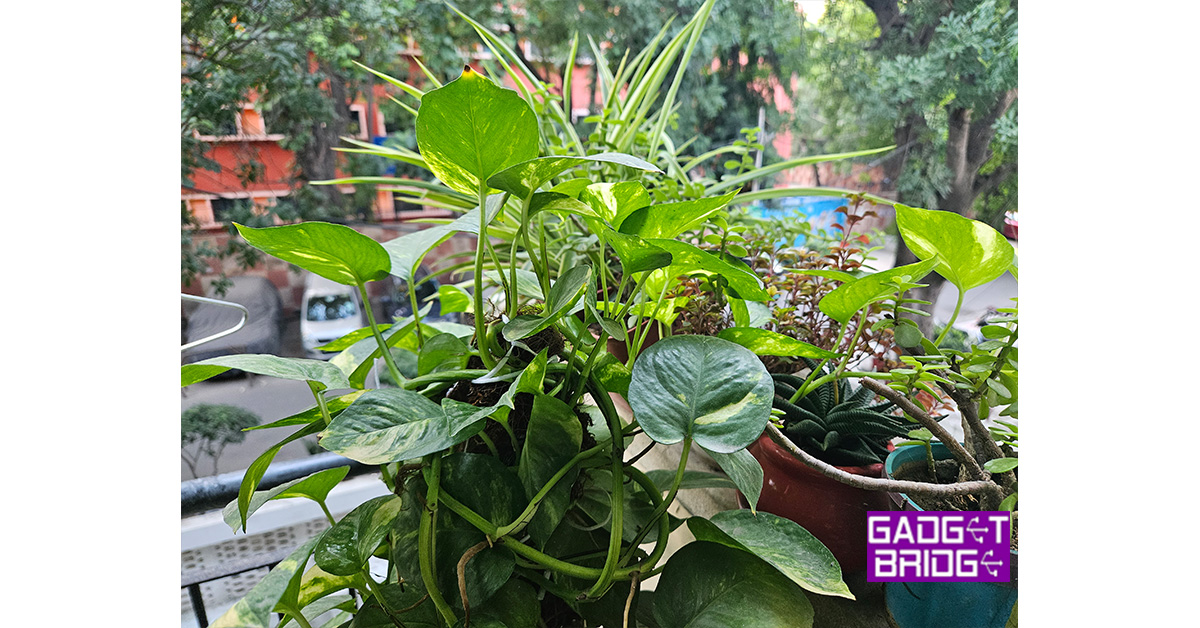
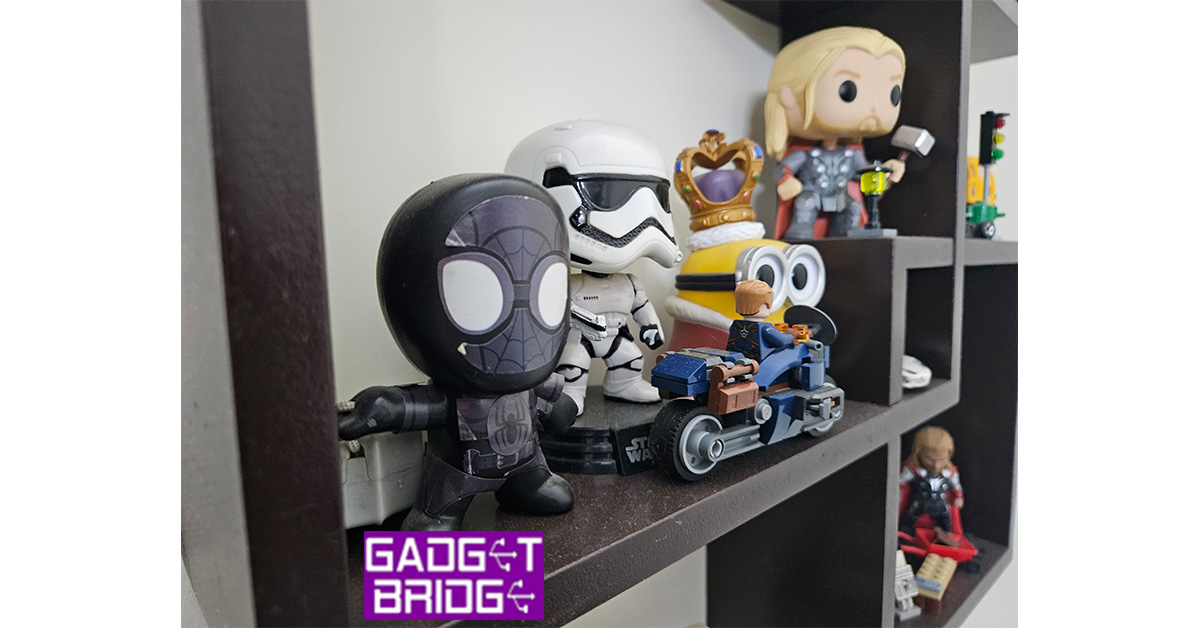 Night photography is another powerful mode in the system, which gets you very good results. We clicked quite a few images from the main camera and were quite happy with what the Samsung Galaxy Z Fold 5 had to spin out. If you are in extremely dark places like the nightclub, we recommend using the flash as that does a superb job at night.
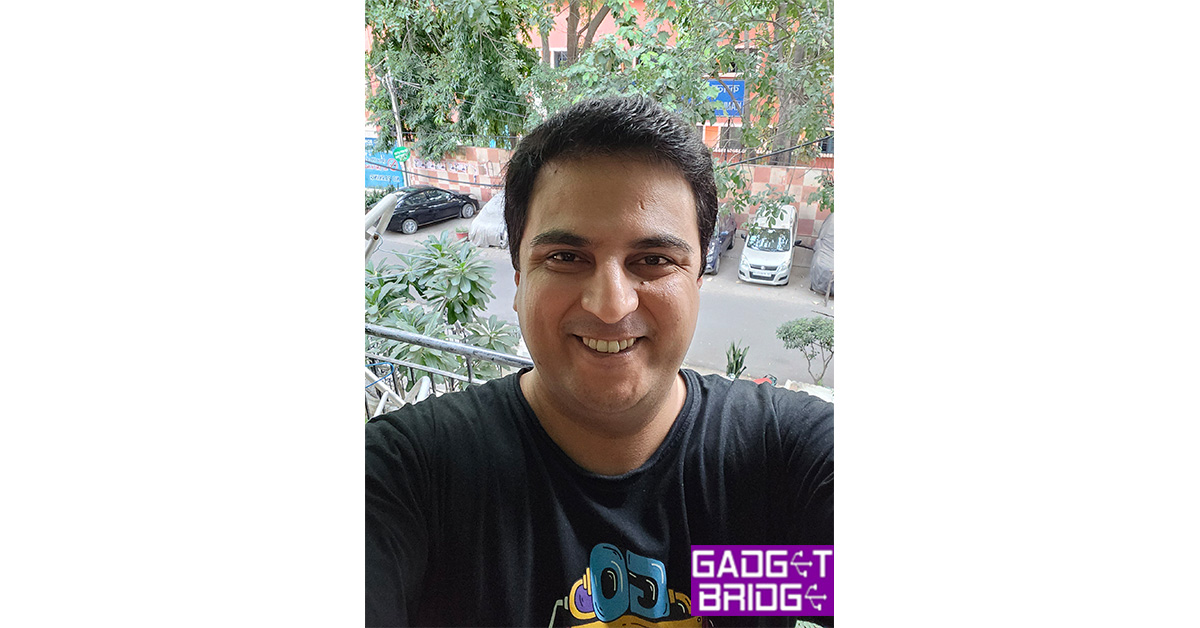
We were happy with the front selfie camera as well. The 10MP wide-angle lens does a good job in both day and low-light shots. In extreme darkness, you will lose a lot of details and colours. The internal display has a 4MP camera hidden behind the screen, which we would say, use only if you are in good outdoor lighting, else (indoors) it fetches a lot of picture noise. Use the 10MP front one instead. So, that is a good thing, you have options.
Videos from the main rear camera system can be recorded at 8K at 30FPS. This got us superb results, however, if you turn on the steady mode, the resolution drops down to QHD. So, if you do not mind a slight jerk in your videos, we do recommend the 8K mode that fetches vivid lifelike moving imagery.
Coming to the battery life of Samsung Galaxy Z Fold 5, we managed to squeeze out 22 hours of battery life with its 4,400 mAh battery. If you keep the power saving mode on, you can get more than 30 hours. However, that will water down a lot of performance and display abilities. Nonetheless, 22 hours is not bad at all, as that includes our whole workday and this we have been extensively testing. One thing that irks still is that only 25W fast charging is supported, which does bring the phone to about 49% in under 30 minutes, but to get it to a full hundred it takes over an hour. So nighttime charging is recommended.
Another thing we loved about the Samsung Galaxy Z Fold 5 is its audio output. You get twin stereo speakers on the smartphone that deliver brilliant resonance. No matter what you are viewing on the device they deliver great lively sound.
Night photography is another powerful mode in the system, which gets you very good results. We clicked quite a few images from the main camera and were quite happy with what the Samsung Galaxy Z Fold 5 had to spin out. If you are in extremely dark places like the nightclub, we recommend using the flash as that does a superb job at night.
We were happy with the front selfie camera as well. The 10MP wide-angle lens does a good job in both day and low-light shots. In extreme darkness, you will lose a lot of details and colours. The internal display has a 4MP camera hidden behind the screen, which we would say, use only if you are in good outdoor lighting, else (indoors) it fetches a lot of picture noise. Use the 10MP front one instead. So, that is a good thing, you have options.
Videos from the main rear camera system can be recorded at 8K at 30FPS. This got us superb results, however, if you turn on the steady mode, the resolution drops down to QHD. So, if you do not mind a slight jerk in your videos, we do recommend the 8K mode that fetches vivid lifelike moving imagery.
Coming to the battery life of Samsung Galaxy Z Fold 5, we managed to squeeze out 22 hours of battery life with its 4,400 mAh battery. If you keep the power saving mode on, you can get more than 30 hours. However, that will water down a lot of performance and display abilities. Nonetheless, 22 hours is not bad at all, as that includes our whole workday and this we have been extensively testing. One thing that irks still is that only 25W fast charging is supported, which does bring the phone to about 49% in under 30 minutes, but to get it to a full hundred it takes over an hour. So nighttime charging is recommended.
Another thing we loved about the Samsung Galaxy Z Fold 5 is its audio output. You get twin stereo speakers on the smartphone that deliver brilliant resonance. No matter what you are viewing on the device they deliver great lively sound.