Garena Free Fire Redeem Codes Today 14 October 2023: Here is how to claim them

Garena Free Fire is a battle royale game with regular awards and tournaments to keep players interested. If you play Garena Free Fire, you should be aware of the redeem codes that are released on a daily basis. However, because the battle royale game is banned in India, players from other countries can use the Free Fire Redeem codes daily. If you’re unfamiliar with the Garena Free Fire redeem codes or don’t know how to get them, we’ve put together a step-by-step guide to help you redeem them. Check out Garena Free Fire Redeem Codes for 14 October 2023. The Free Fire redeem codes are a great way to get free stuff. These are 12-digit codes that contain alphabets and numbers, as well as an expiration date and time. Because the Garena FF redeem codes cannot be used more than once, you should hurry to the redemption page to claim your free reward before someone else does. To get a free reward, all you have to do is go to reward.ff.garena.com/en, which is the official redemption page. Also, keep an eye on this space for daily updates on Garena Free Fire redemption codes and rewards.

Garena Free Fire Redeem Codes Today 14 October 2023

UVX9PYZV54AC ZZZ76NT3PDSH NPYFATT3HGSQ XZJZE25WEFJJ FF10617KGUF9 FFCMCPSJ99S3 EYH2W3XK8UPG 6KWMFJVMQQYG V427K98RUCHZ MCPW2D2WKWF2 BR43FMAPYEZZ FFCMCPSUYUY7E MCPW3D28VZD6 PCNF5CQBAJLK FFCMCPSEN5MX FF11NJN5YS3E FFCMCPSGC9XZ HNC95435FAGJ MCPW2D1U3XA3

How to Get Free Fire Redeem Codes for Garena on 14 October 2023?

  • Visit the Garena Free Fire game’s official website at reward.ff.garena.com.
  • Use your Facebook, Google, VK, Apple ID, Huawei ID, or Twitter account to log in.
  • You’ll be taken to a valid redemption code (s)
  • Copy and paste the 12-digit redemption code into the text box.
  • On the screen, a dialogue box will appear.
  • ‘Ok’ should be selected.
For the latest gadget and tech news, and gadget reviews, follow us on TwitterFacebook and Instagram. For newest tech & gadget videos subscribe to our YouTube Channel. You can also stay up to date using the Gadget Bridge Android App. You can find the latest car and bike news here.

Top 4 Ways to Automatically Forward Text Messages to Another Phone or PC

1
Checking your phone for new messages while you’re at work can hamper your productivity if you get sucked into checking other apps as well. There is a simple fix to this problem – forward all your texts to your PC or work mobile. There are several ways you can go about it. Some messaging apps, like Google Messages, offer multi-device support. You can also use a dedicated SMS forwarding app to accomplish this task. In this article, we bring you the top 4 ways to automatically forward text messages to another phone number or PC. Read Also: OnePlus Open India launch to take place on October 19

Forward your text messages to another device by pairing it with Google Messages

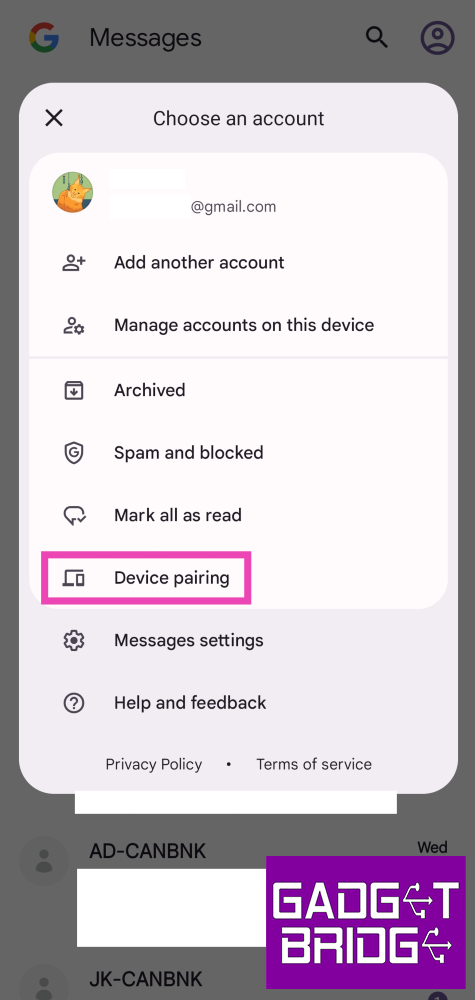
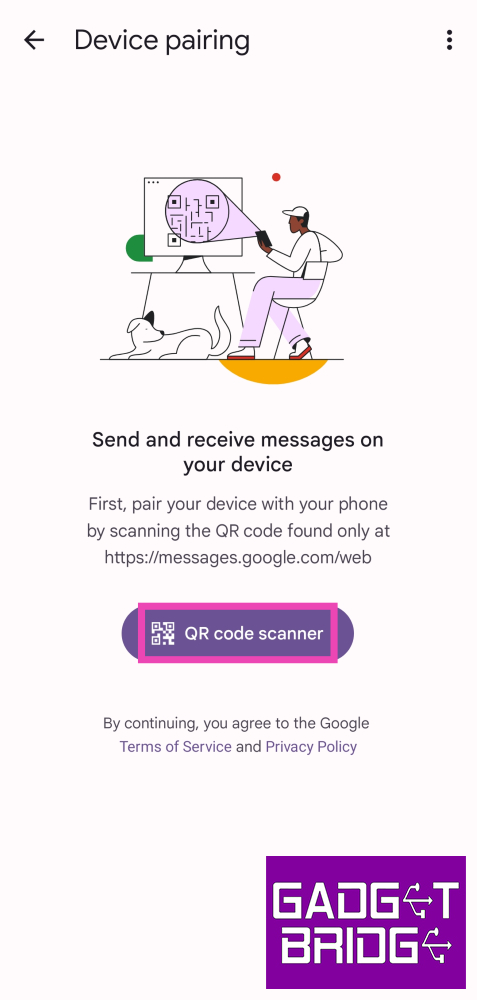
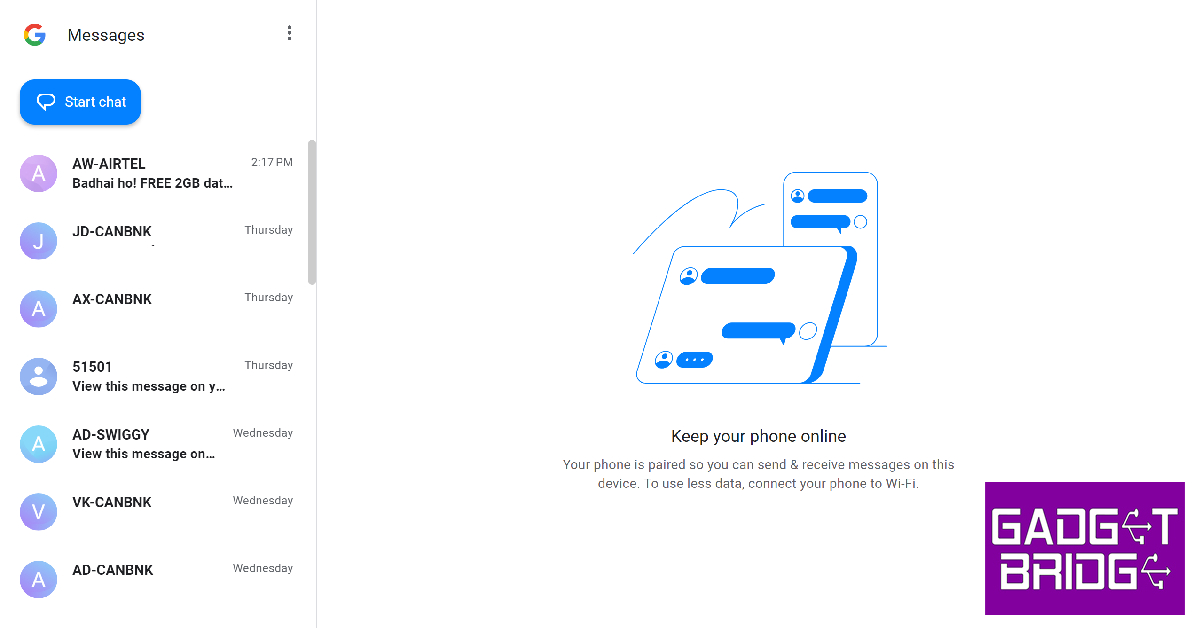
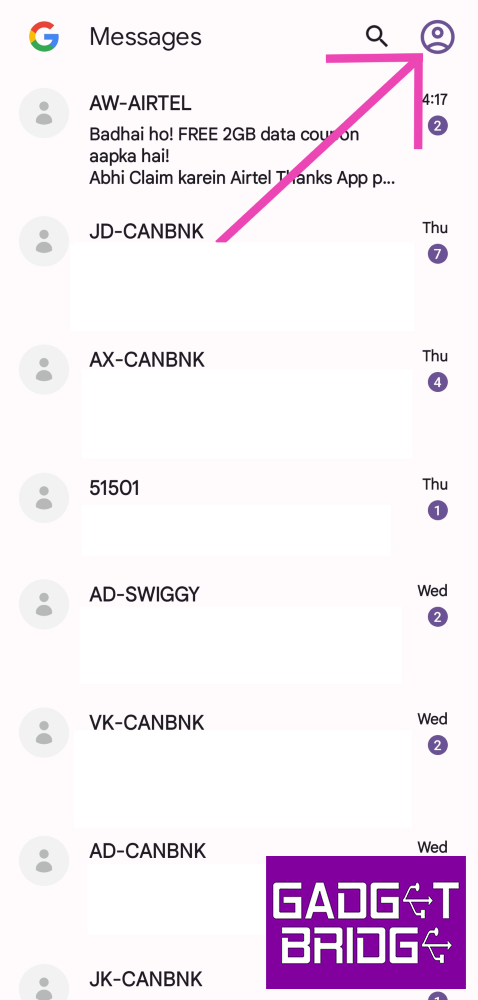
Step 1: Launch the Google Messages app on your smartphone. Step 2: Tap the profile icon at the top right corner of the screen. Step 2: Tap the profile icon at the top right corner of the screen. Step 3: Tap on Device pairing. Step 3: Tap on Device pairing. Step 4: Now go to https://messages.google.com/web/ on your secondary device. Step 5: Select the QR code scanner option on the Google Messages app. Step 5: Select the QR code scanner option on the Google Messages app. The two devices will be paired together. You will be able to receive all text messages on your PC or secondary mobile. The two devices will be paired together. You will be able to receive all text messages on your PC or secondary mobile.

Use the Link to Windows app to automatically forward text messages to your PC

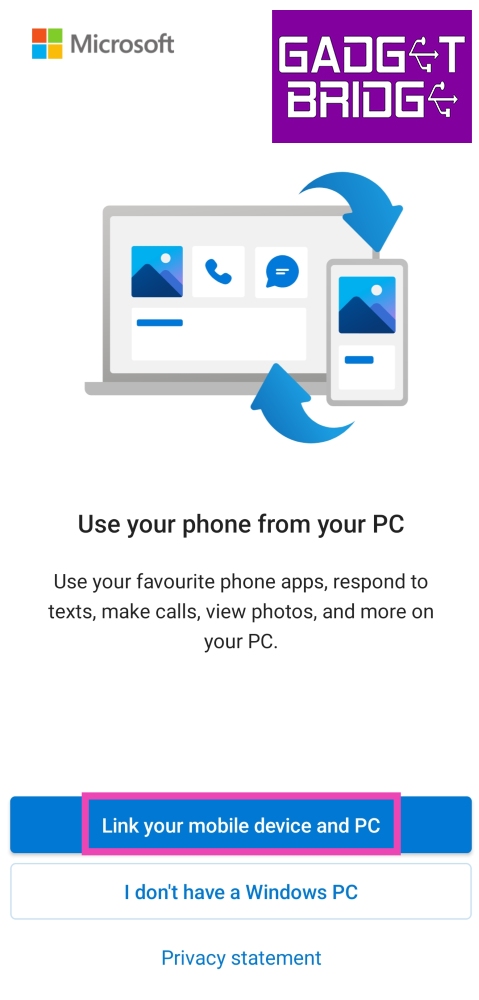
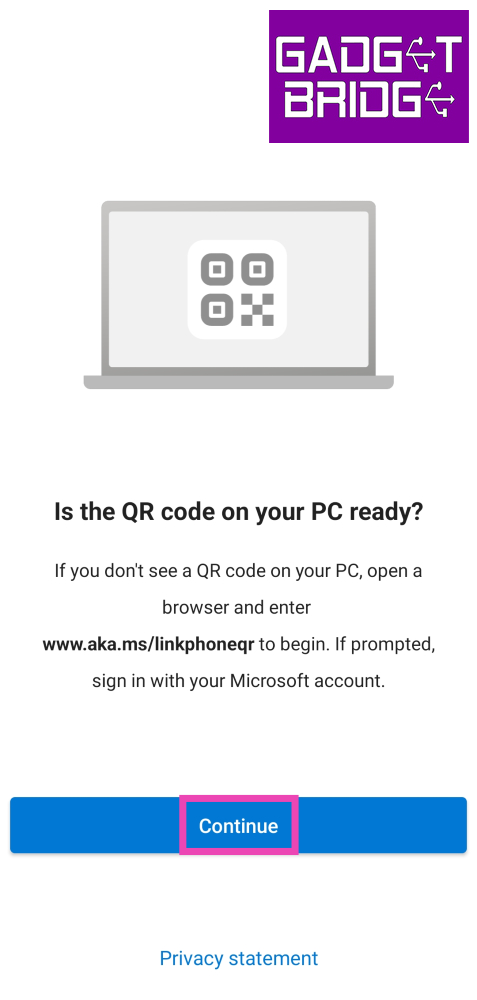
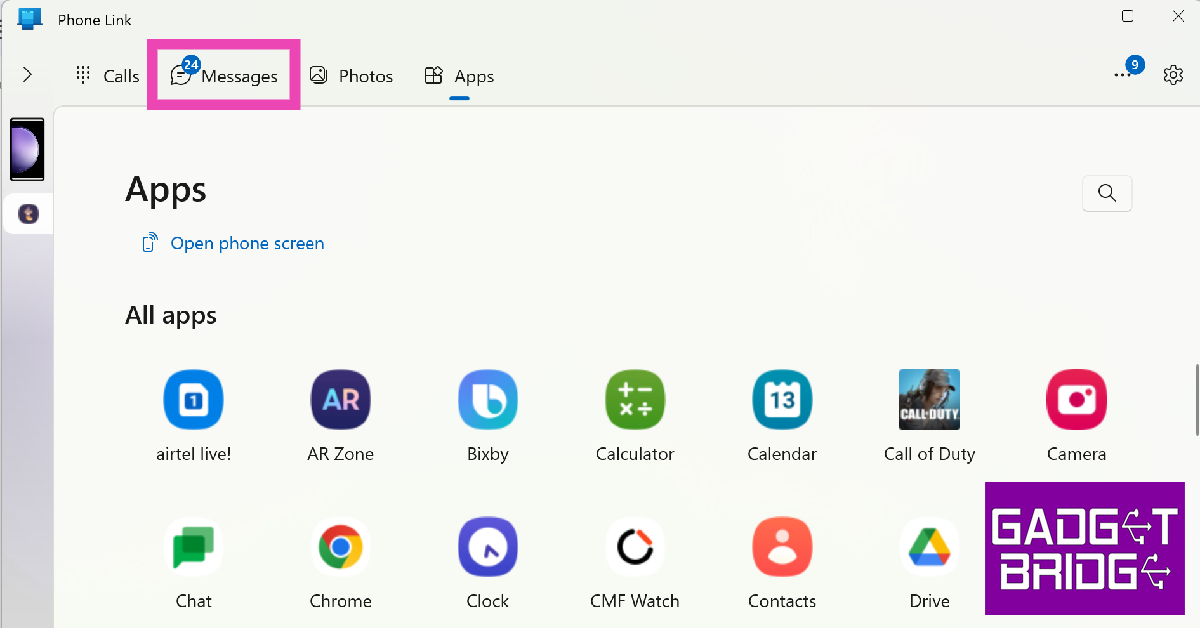
Step 1: Swipe down from the status bar and tap on the Link to Windows tile. Step 2: Open the Phone Link app on your Windows PC and log into your Microsoft Account. Step 2: Open the Phone Link app on your Windows PC and log into your Microsoft Account. Step 3: Use the QR Code to pair your smartphone to your PC. Step 3: Use the QR Code to pair your smartphone to your PC. Step 4: Give the Link to Windows app the necessary permissions. Step 5: Click on the Messages tab in the Phone Link app on your PC to access all your messages. Step 5: Click on the Messages tab in the Phone Link app on your PC to access all your messages.

Automatically forward messages to another phone or mobile number using IFTTT

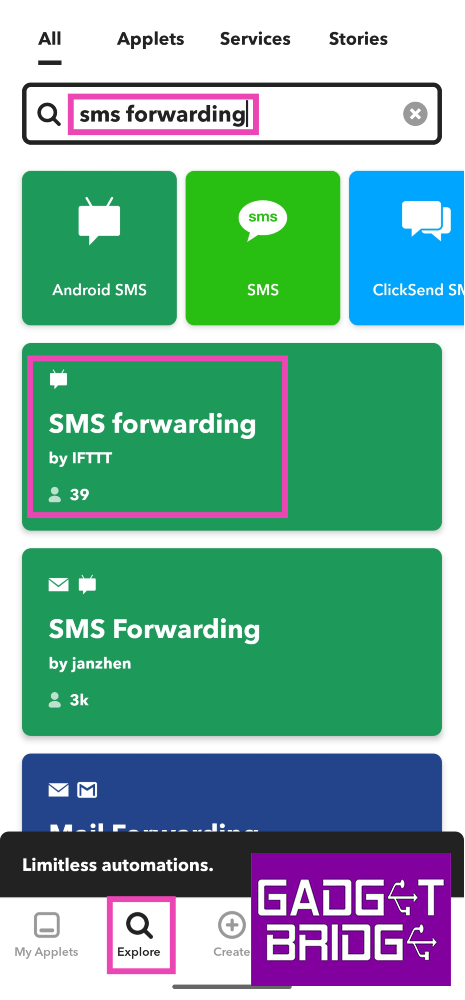
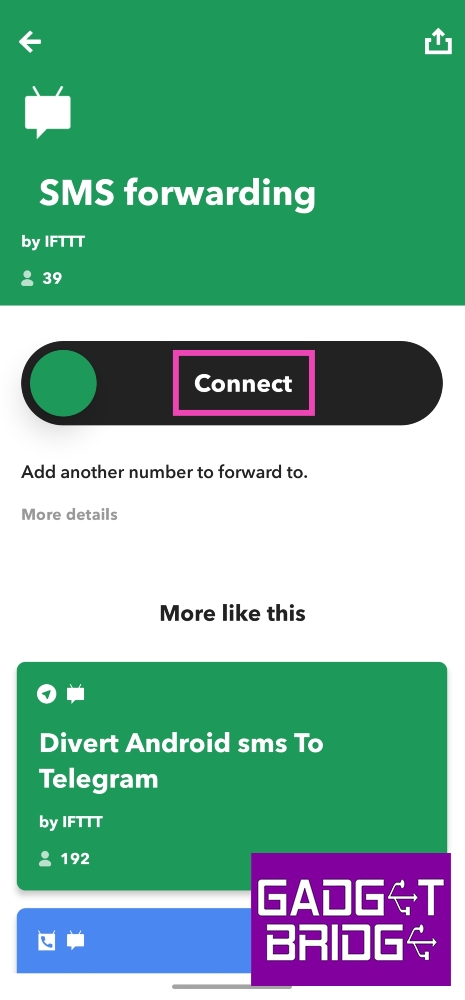
Step 1: Install the IFTTT app on your phone. Step 2: Login using your preferred account and switch to the Explore tab. Step 3: Search for SMS forwarding and select the applet created by IFTTT. Step 3: Search for SMS forwarding and select the applet created by IFTTT. Step 4: Tap on Connect. Step 4: Tap on Connect. Step 5: Enter the phone number to which you want to forward your text messages. Step 5: Enter the phone number to which you want to forward your text messages. Top 4 Ways to Automatically Forward Text Messages to Another Phone or PC Step 6: Hit Done.

Use the SMS Forwarder app to automatically forward texts to another number or email

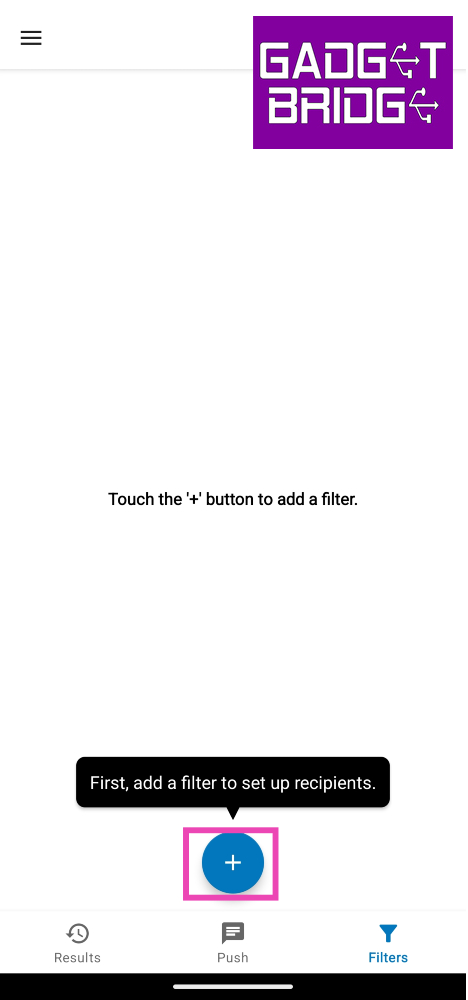
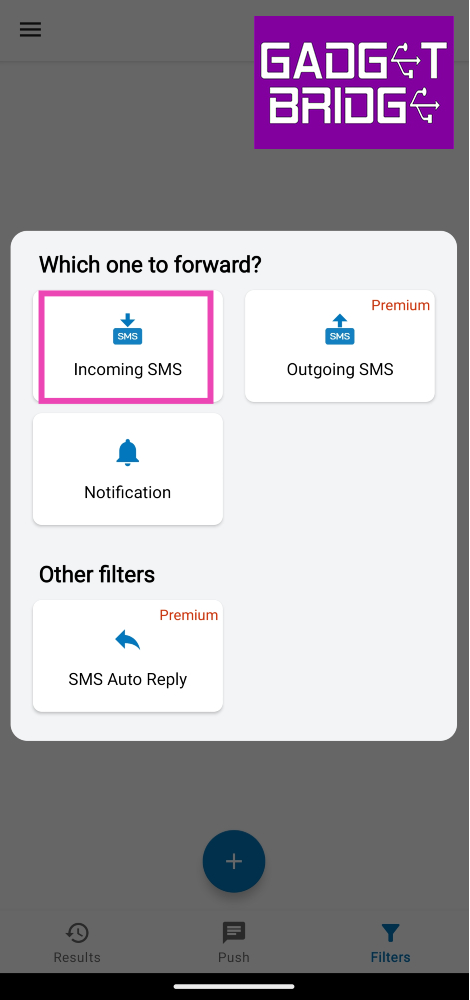
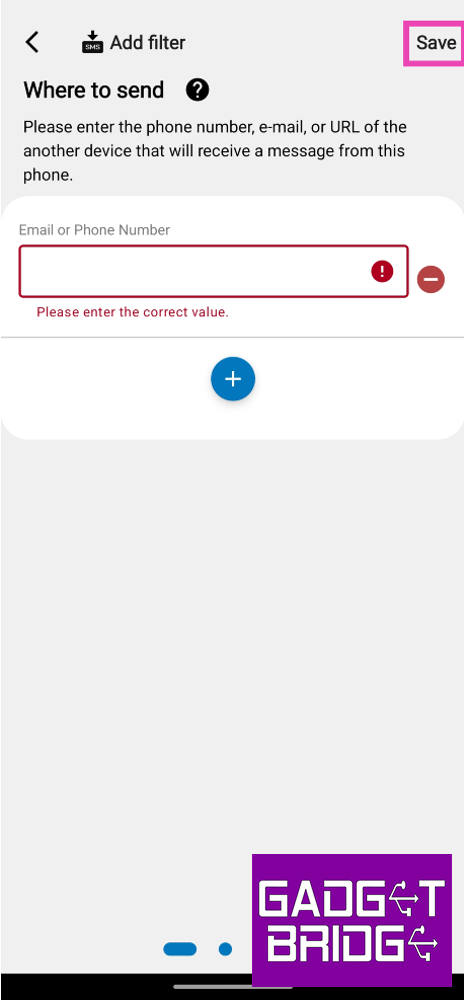
Step 1: Install the SMS Forwarder app on your Android smartphone. Step 2: Launch the app and hit the plus icon at the bottom of the screen. Step 2: Launch the app and hit the plus icon at the bottom of the screen. Top 4 Ways to Automatically Forward Text Messages to Another Phone or PC Step 3: Tap on Incoming SMS. Step 3: Tap on Incoming SMS. Top 4 Ways to Automatically Forward Text Messages to Another Phone or PC Step 4: Enter the email or phone number to which you want to forward the text messages. Step 4: Enter the email or phone number to which you want to forward the text messages. Top 4 Ways to Automatically Forward Text Messages to Another Phone or PC Step 5: Hit Save at the top right corner of the screen. To make sure the app works as intended, allow it to run in the background and deactivate battery optimisation for it.

Frequently Asked Questions (FAQs)

Is it possible to forward all my text messages to another phone number?

You can forward your text messages to another device or phone number by using the IFTTT app. If you don’t wanna sign up for the IFTTT app, the SMS Forwarder app can accomplish the same task.

How do I access the text messages on my phone on my PC?

Use the Link to Windows app on your phone to access your text messages, calls, photos, apps, and more on your PC.

Can I use my Google Messages account on two devices?

The Google Messages app allows you to link your account to multiple devices using a QR Code. Read Also: Oppo Find N3 Flip with an Alert Slider debuts in India

Conclusion

These are the top 4 ways to automatically forward text messages to another phone number or PC. Instead of using a phone number, the SMS forwarding apps can also relay all incoming messages from your phone to your email. If you know another way of auto-forwarding texts, let us know in the comments! For the latest gadget and tech news, and gadget reviews, follow us on Twitter, Facebook and Instagram. For newest tech & gadget videos subscribe to our YouTube Channel. You can also stay up to date using the Gadget Bridge Android App. You can find the latest car and bike news here.

Samsung Galaxy A05s India launch set for October 18, specs revealed

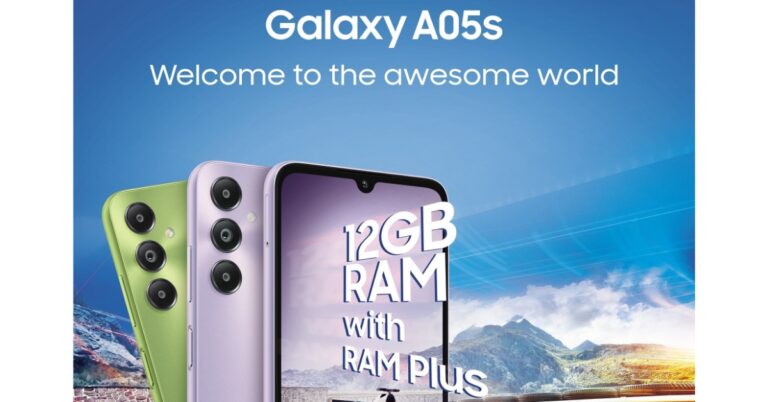
Samsung is all set to announce a new entry-level smartphone in the Indian market. The company has officially confirmed that the Samsung Galaxy A05s will debut in the country on October 18. Even before the official announcement the specs and design of the upcoming phone recently surfaced online. The device CAD renders were also leaked in the past. The company has confirmed that the phone will sport a 50-megapixel triple rear camera setup Samsung Galaxy A05s launch in India is set for October 18. Rumours and leaks of the forthcoming device are already doing rounds on the internet. However, the teasers have revealed the design of the phone but the company has also revealed the key specs and the colour options of the device. Samsung Galaxy A05s India launch set for October 18, specs revealed As per the company, Samsung Galaxy A05s will be available in three refreshing colours – light green, light violet and black. It is said to feature a refined build and finish and will carry forward Samsung’s signature Galaxy design. It has been revealed that the Samsung Galaxy A05s will be highlighted with a massive 6.7-inch FHD+ display for an immersive viewing experience. The bezels on the sides are slim while the chin is noticeable. For taking pictures and videos the handset will come with a triple rear camera set up positioned vertically at the left corner along with a circular LED flash unit. The camera system will include a 50-megapixel primary shooter that is said to offer vivid and rich pictures, even in low light conditions. The camera module will also include a 2-megapixel depth sensor and another 2-megapixel macro lens. The details about the selfie camera have not been disclosed but the teaser image reveals a centre-aligned waterdrop notch. Also Read: Google Pixel 8 Series first sale in India begins: Pricing and offer details inside The Samsung Galaxy A05s is confirmed to be powered by a Qualcomm Snapdragon 680 processor built on 6nm process technology offering better multitasking between the apps. Recently the phone was spotted at Google Play Console listing with codename a05ssnndxx. The listing suggests an octa-core Qualcomm Snapdragon 680 SoC paired with an Adreno 610 GPU along with 6GB of RAM. Galaxy A05s may include a full-HD+ display with 1080 x 2400 pixels of resolution. It is likely to pack a 4,000mAh battery with 25W fast charging support. Android 13-based OneUI 5.1 will be shipped out of the box. Moreover, the device is speculated to sport a side-mounted fingerprint sensor. For the latest gadget and tech news, and gadget reviews, follow us on TwitterFacebook and Instagram. For newest tech & gadget videos subscribe to our YouTube Channel. You can also stay up to date using the Gadget Bridge Android App. You can find the latest car and bike news here.

Western Digital announced heavy discounts on WD SSDs and other storage devices

Western Digital a popular name in manufacturing Flash and HDD franchises has announced massive discounts on its SSDs and SD cards during the ongoing festive sales in India. WD storage devices will be available at discounted rates on e-commerce platforms, Amazon and Flipkart. Amazon Great Indian Sale and Flipkart Big Billion Days Sale in on and Western Digital is offering good bargains to its customers. As per the company buyers at Amazon and Flipkart can get enjoy discounts of up to 75% on SanDisk SSDs, SanDisk 128GB & above memory cards, and Pendrives. During the Sale, SanDisk 1TB and 2TB Extreme Portable SSDs are getting massive discounts. The SSDs 1TB will be available for as low as Rs 7,199 down from Rs 32,000. On the other hand, its 2TB variant will now come at Rs 11,299, which was initially selling at Rs 55,000. It is compatible with PCs, Mac Computers, Smartphones, and tablets. The SSD comes with IP65 water and dust resistance and up to 3 meters of drop protection. Also Read: JioBharat B1 4G phone with JioPay launched in India The Western Digital 5TB My Passport hard drive offers automatic backup and comes with all necessary cables it is formatted for Windows 10+ to deliver plug-and-play storage out of the box. During the Amazon Great Indian Sale and Flipkart Big Billion Days Sale, the device will not sell at its original price of Rs 20,00 but will be available at Rs 10,499. The storage device comes with USB 3.0 with Automatic Backup. It is 256 Bit AES Hardware Encryption and Password Protection. The hard drive works with Windows and Mac, External HDD-Black. WD 1.5TB Elements Hard Drive will be selling at Rs 4,999 instead of its original price of Rs 5,600. The storage device has USB 3.0 with high-capacity storage and fast data transfer rates, universal connectivity and massive capacity. This device is compatible with Windows PCs and Windows PCs. However, it is not encrypted nor password-protected For the latest gadget and tech news, and gadget reviews, follow us on TwitterFacebook and Instagram. For newest tech & gadget videos subscribe to our YouTube Channel. You can also stay up to date using the Gadget Bridge Android App. You can find the latest car and bike news here.
Vivo V29 Pro Review: The complete camera smartphone?

After launching the V27 Pro in March, Vivo has swiftly refreshed its camera-centric midrange series with a new offering. Launched earlier this month, the Vivo V29 Pro gets a key upgrade to its camera module and some minor tweaks to the design. We reviewed the Vivo V27 Pro earlier this year and were quite happy with the camera performance that it delivered. What we like about the new V29 Pro is that it ditches the gimmicky 2MP macro sensor for a more useful 12MP telephoto lens. As of now, both smartphones are priced at Rs 39,999 (8GB RAM + 256GB storage). With the festive season right around the corner, expect some lucrative deals on these smartphones in the coming weeks. But for now, let’s take a good look at how the Vivo V29 Pro performed in our review. Read Also: Oppo Find N3 Flip with an Alert Slider debuts in India

Vivo V29 Pro review: Design and Display

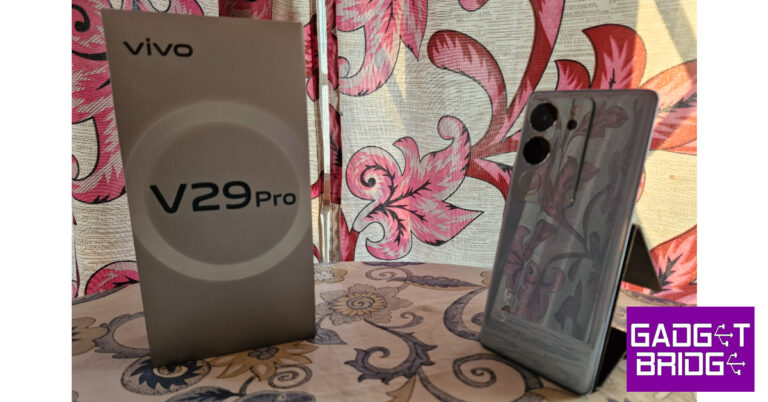
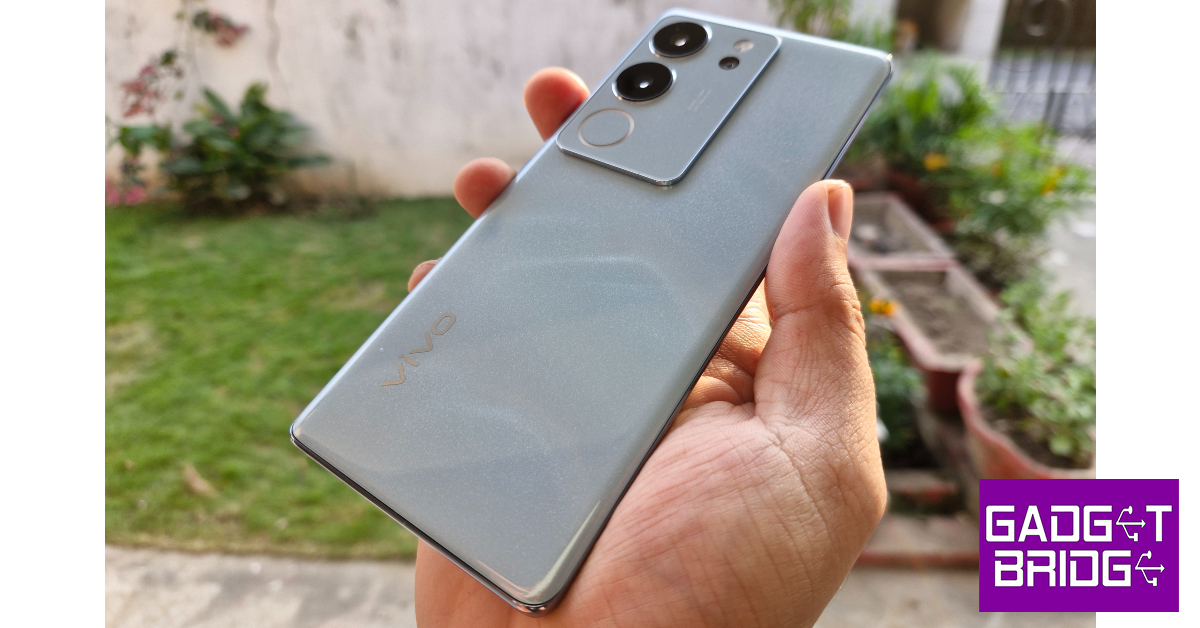
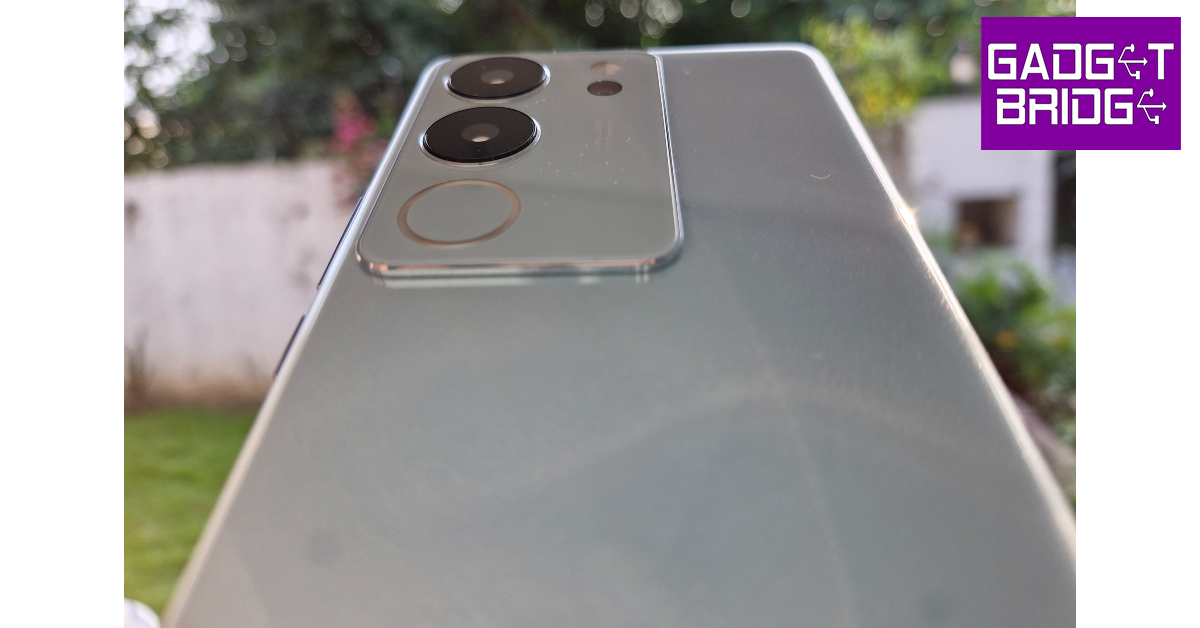
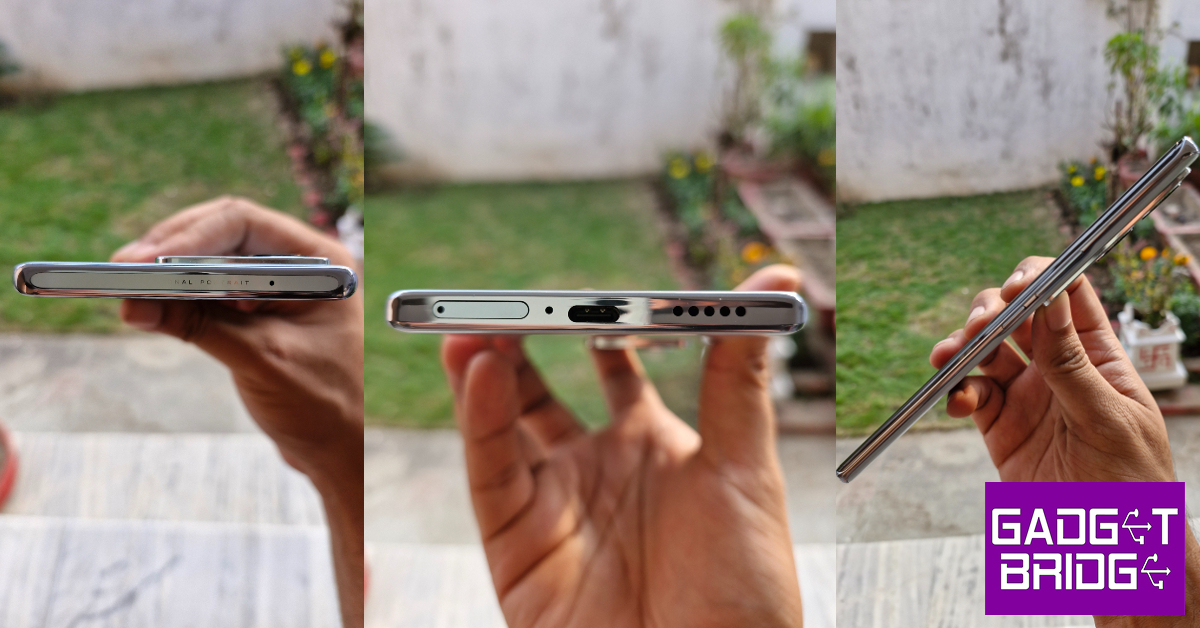
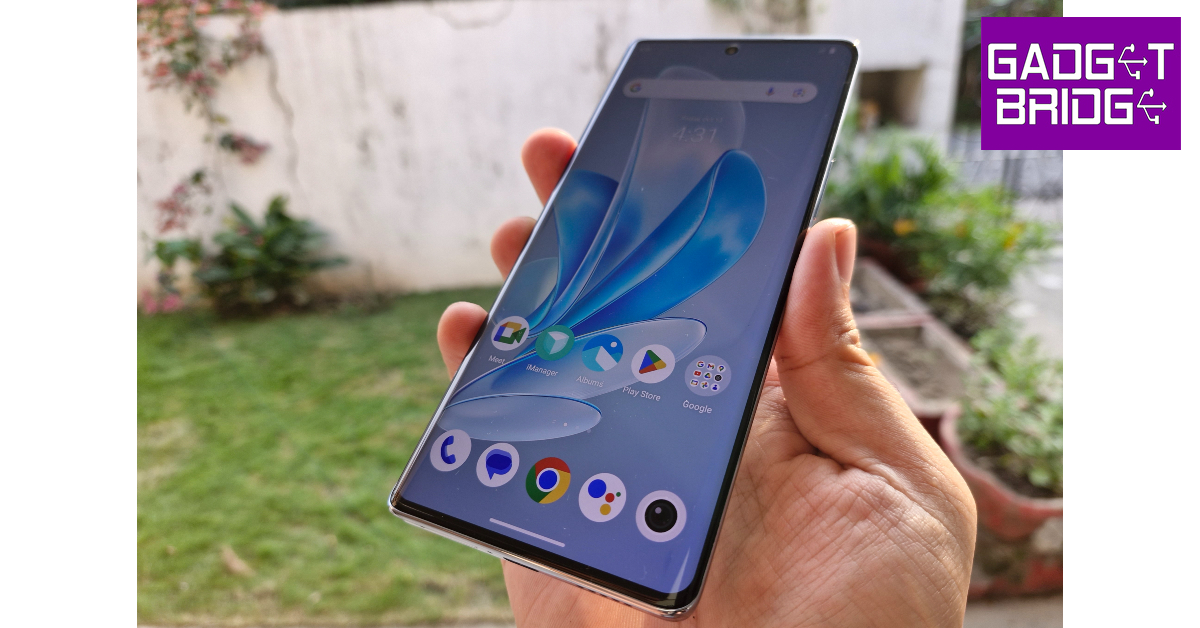
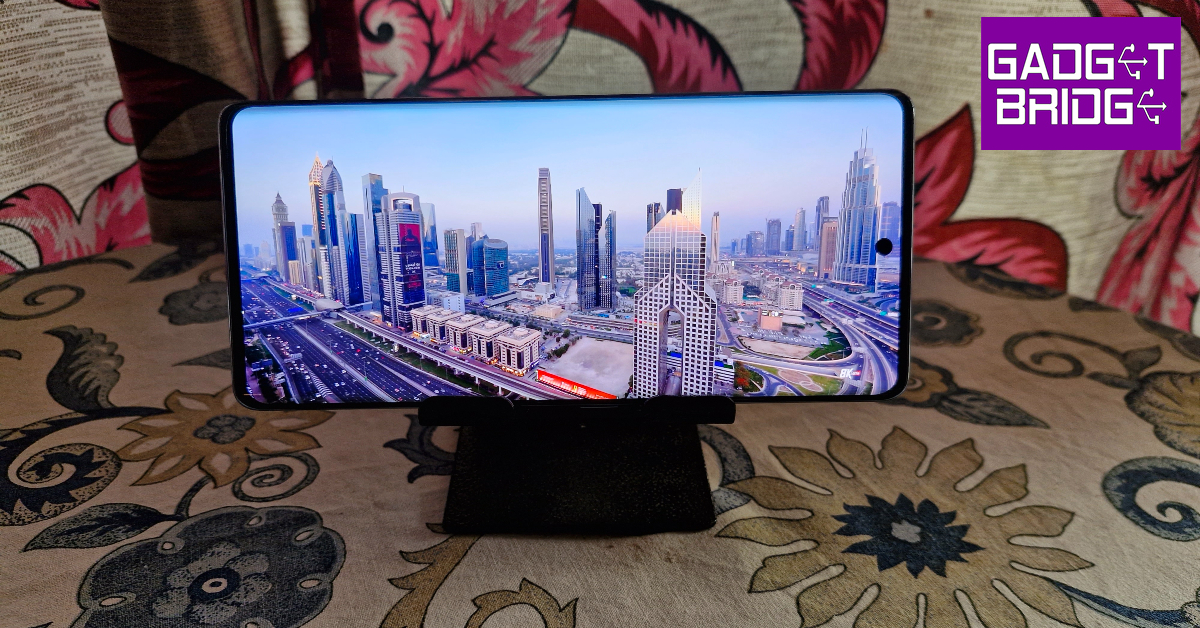
The unboxing experience of the Vivo V29 Pro is similar to its predecessor. Inside the retail box, you get the smartphone, a clear plastic case, a power adapter, a USB Type-C charging cable, a SIM ejector tool, a quick start guide, and a warranty booklet. Vivo V29 Pro review: Design and Display Vivo likes to experiment with the back panels on its midrange V Series. The V27 Pro featured a matte finish glass back that could change its colour when exposed to UV light. While some may dismiss colour-changing back panels as a gimmick, we quite like the splash of personality they bring to the devices. The new V29 Pro employs what Vivo calls ‘3D Particle Technology’ to produce an effect that resembles snowy mountain peaks on the back panel. While it may sound dramatic, it looks quite tasteful. It gives off the appearance of a sandstone texture, but it is entirely glossy. No matte finish for the V29 Pro.   Vivo V29 Pro review: Design and Display The rectangular camera module gets a few key design tweaks as well. The Aura light is now wider and more refined. It is placed below the ultrawide lens. A new telephoto lens also finds its way into this camera module, making the smartphone’s camera setup very well-rounded. The LED flash sits above the telephoto lens. Vivo V29 Pro review: Design and Display The metal frame around the smartphone houses the volume rocker and power key on its left edge. The SIM tray, primary microphone, USB charging port, and speaker grille are positioned on the bottom edge. The left side of the frame is left buttonless and the top edge gets a secondary microphone and ‘Professional Portrait’ lettering. The 6.78-inch curved AMOLED display on the V29 Pro is the same size as its predecessor but gets a small bump in resolution. The 2800 x 1260p FHD+ panel has a maximum refresh rate of 120Hz. To conserve the battery life, the refresh rate can be dialled down to 60Hz. The smartphone also has a ‘Smart Switch’ feature for adaptive refresh rate. The selfie camera is housed in a punch-hole cutout at the top of the display. The touch response offered by the curved AMOLED display on the V29 Pro is quite smooth, even though it is a step behind the flagship displays. Flicking through apps and navigating the phone using swipe gestures is a seamless experience. We streamed HD content on this smartphone across different OTT apps. The performance was very similar to the V27 Pro. The images produced on the screen were detailed, crispy, and packed with a lot of vibrant colours. The only letdown is the single speaker grille, which produces a tinny output that is devoid of any significant low end. A stereo speaker setup would have massively elevated the content-watching experience.

Vivo V29 Pro Review: Performance and Cameras

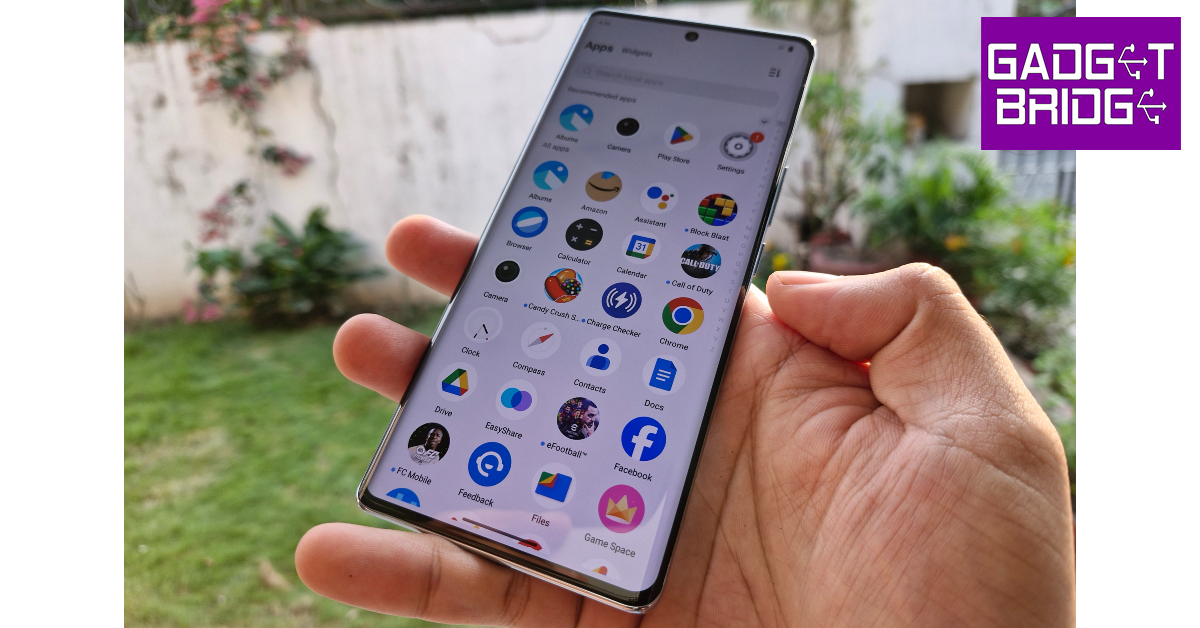
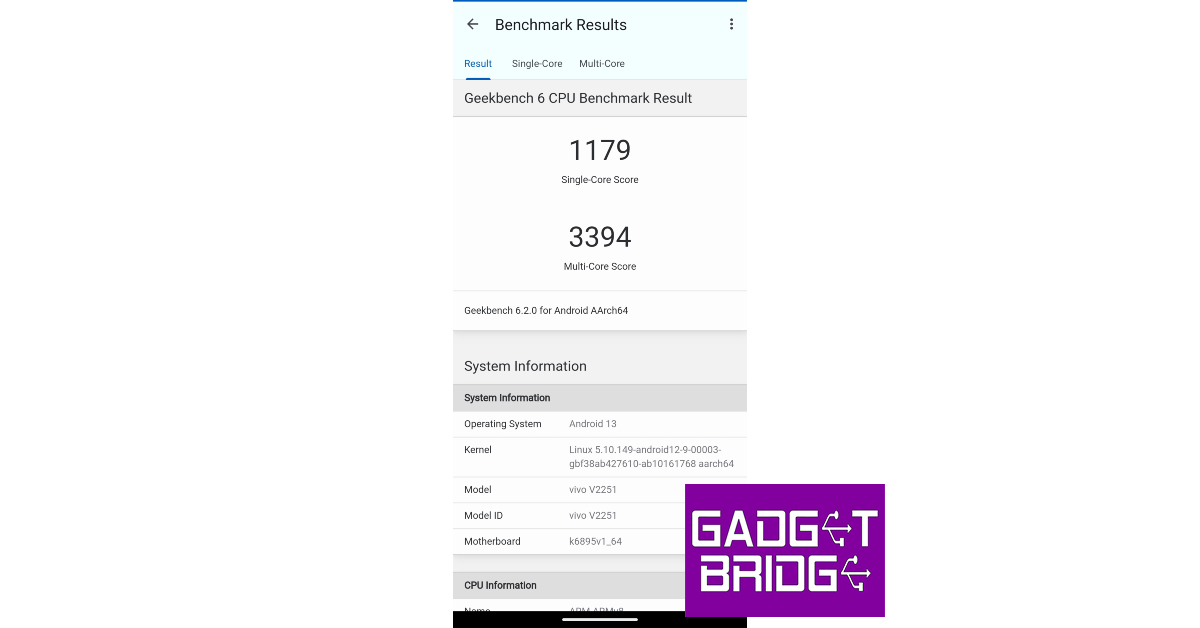
The V29 Pro retains the MediaTek Dimensity 8200 SoC and gets rid of the 128GB base variant. The smartphone is available with a fixed 256GB storage capacity with 2 RAM options – 8GB and 12GB. The higher RAM variant is priced at Rs 42,999 – the same as its V27 Pro counterpart. We used the 12GB RAM variant of the Vivo V29 Pro for this review. Vivo V29 Pro Review: Performance and Cameras Even though there are no changes to the chipset, the smartphone performs marginally better on the Geekbench 6 test. It scored 1,179 points on the single-core test and 3,394 points on the multi-core test. In comparison, Vivo V27 Pro scored 1,151 and 3,099 points respectively. The smartphone handles everyday tasks like web browsing, instant messaging, video calling, and media playback with the utmost ease. While using the V29 Pro for a week, we never felt that the phone was struggling to keep up with the tasks we threw at it. Vivo V29 Pro Review: Performance and Cameras Even tried a fair bit of gaming on the smartphone. Its Ultra Large Vapor Chamber Bionic Cooling System facilitates fluid dissipation of heat and ensures that the internal temperature of the smartphone is kept in check during intense gaming sessions. We played Call of Duty Mobile and eFootball 2024 on this smartphone. During our review period, the Vivo V29 Pro did not present any major issues. There were no significant frame drops or stutters during gameplay. OS duties on the Vivo V29 Pro are handled by Android 13 skinned with Funtouch 13. The significant bloatware on the device robs it of a clean look. The constant notifications from Vivo’s app market and browser are nothing but spam. We’d suggest getting rid of all the bloatware apps on the device before you begin using it. Bloatware issues aside, Funtouch OS offers all the essential features you expect on an Android phone. We like the personalisation options for the lock screen that the OS has to offer. The dynamic effects for the fingerprint scanner, charging animation, and other functions are also quite fun. Moving on, Vivo has also updated the battery specs on the V29 Pro. While it carries forward the 4,600 mAh battery pack, it now supports 80W fast charging. The power brick supplied in the retail box can charge the smartphone to 50% in under 20 minutes. It took us only 40 minutes to charge the phone from 15% to 100%. The 4,600 mAh battery pack is good enough to last an entire day on moderate to heavy usage. Vivo’s V Series is known for its exemplary camera performance, and the V29 Pro is no different. As we mentioned earlier, the smartphone’s camera module gets a key upgrade in the form of a 12MP telephoto lens. The 50MP primary camera and the 8MP ultrawide lens have been carried forward from the V27 Pro.
Vivo V29 Pro Review: Performance and Cameras
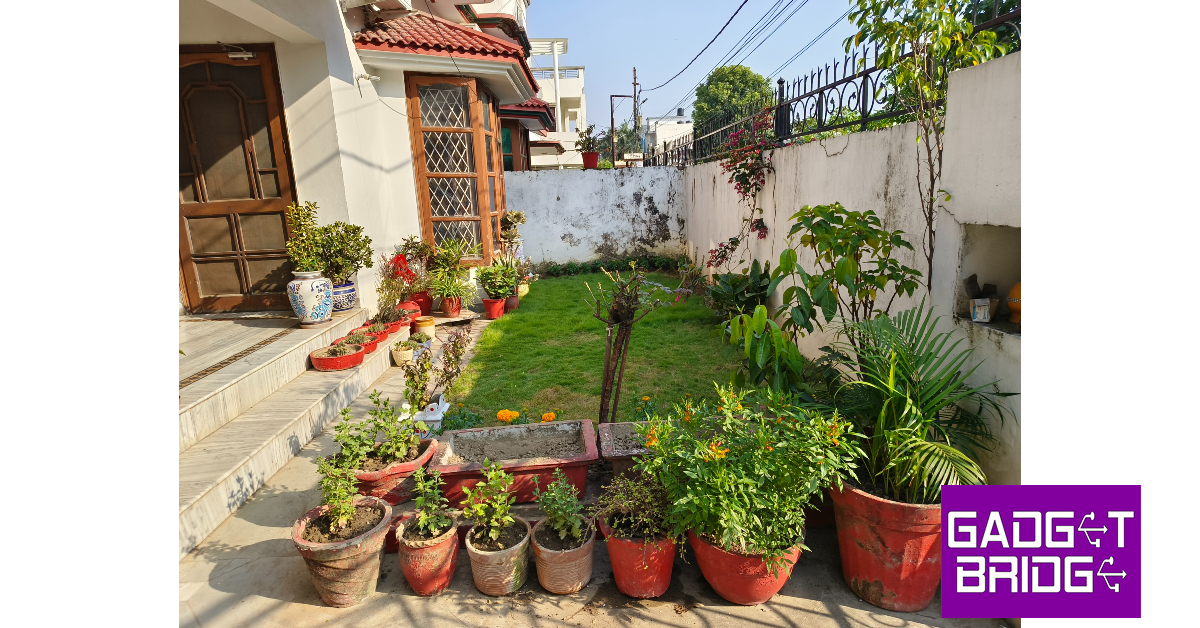
Indoor Shot
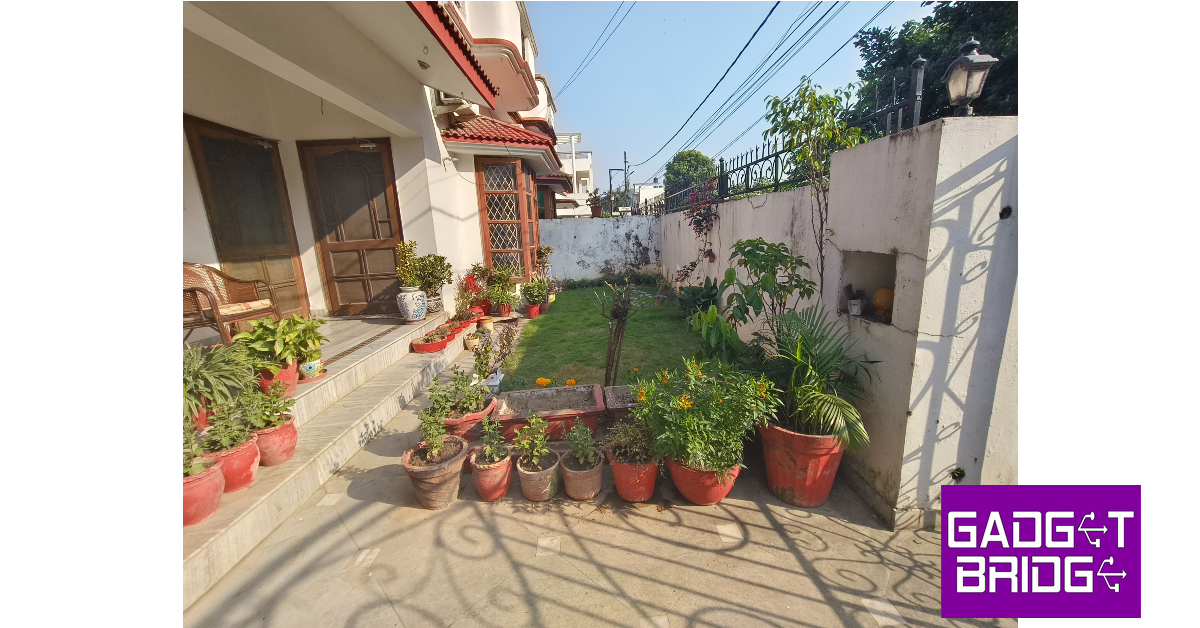
The 50MP primary shooter produces brilliant results in outdoor lighting. The images taken with this camera are very vibrant and have a good dynamic range without coming across as overprocessed. In limited lighting conditions, the sensor lets in ample light to capture all the essential details and the night mode efficiently creases all the grain from the images. The image processing, again, is on point when rendering pictures taken at night. The V29 Pro also features a brighter, more refined ‘Aura light’. What felt like a gimmick on the V27 Pro now finds some purpose on the V29 Pro. For starters, you can control its warmth from the camera app (1,800K to 4,500K), depending on the kind of shot you want. The light can go from a warm red tone to a cool yellowish-white. In dimly lit conditions, the Aura light does make a difference while taking portrait shots. We’re excited to see how Vivo further develops it in future generations of the smartphone.
Vivo V29 Pro Review: Performance and Cameras
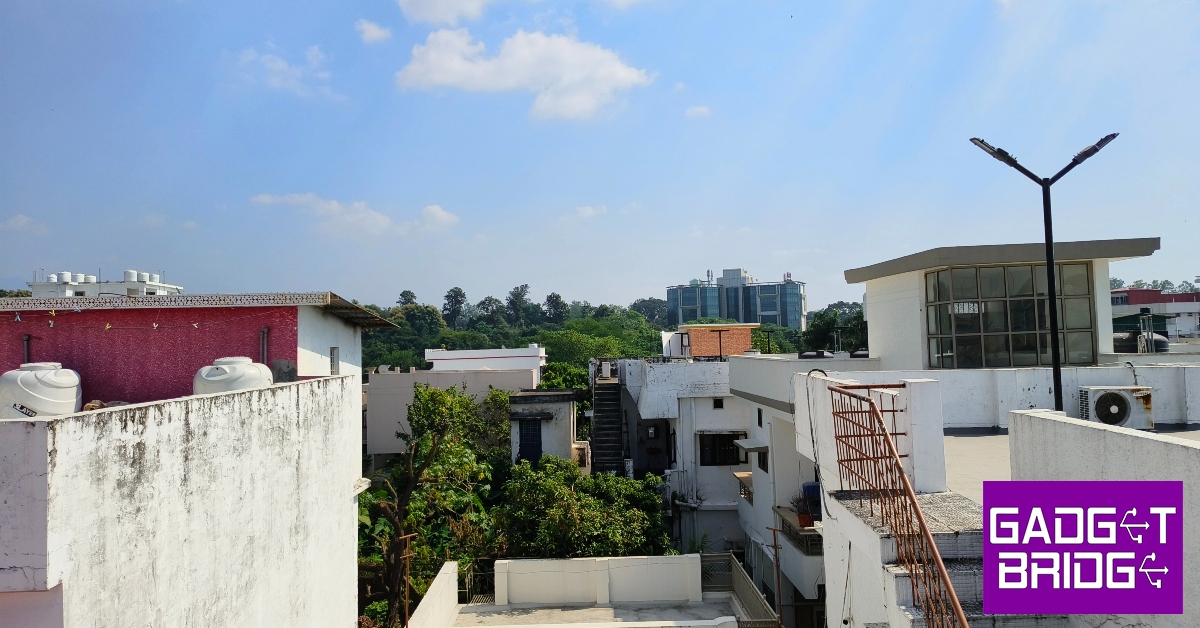
Indoor Ultrawide Shot
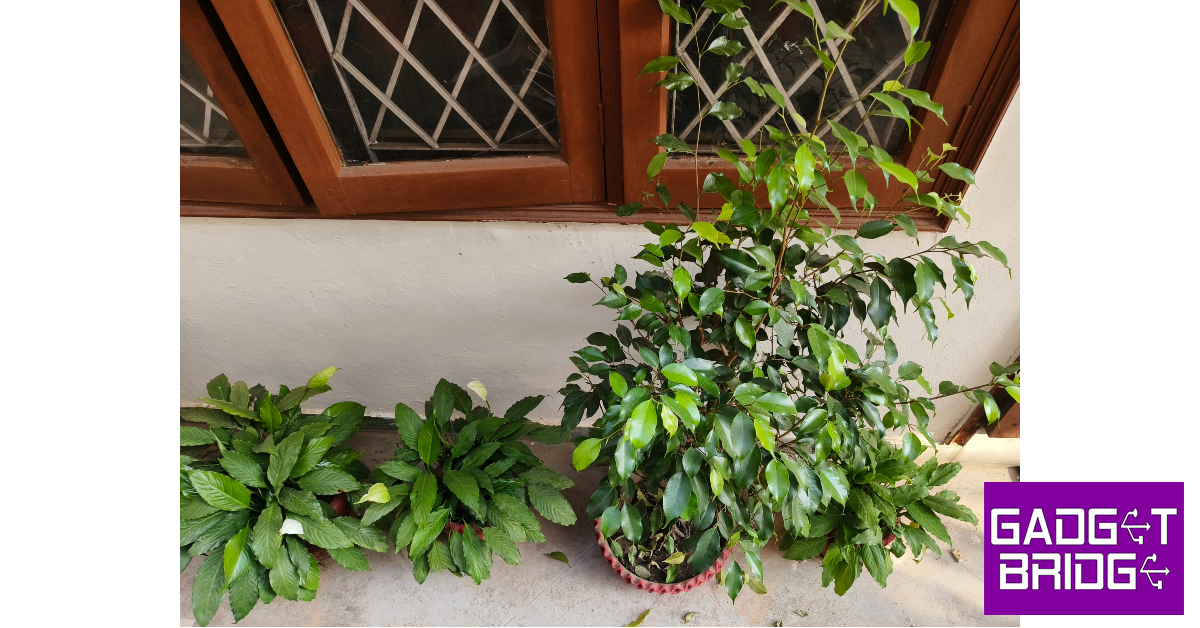
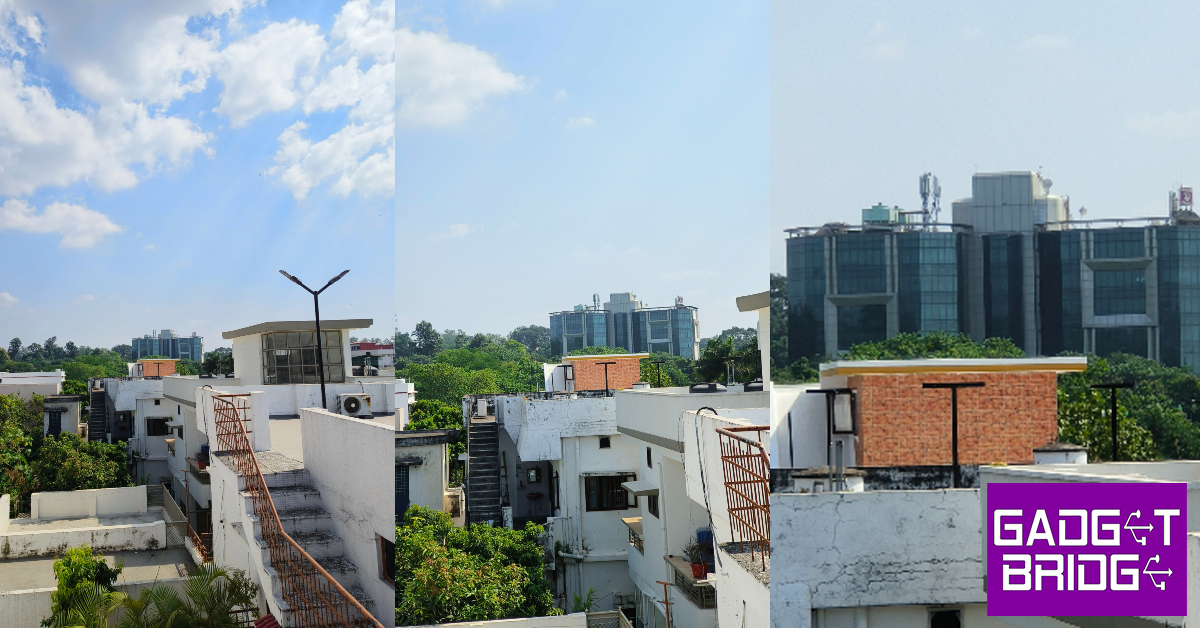
Vivo V29 Pro Review: Performance and Cameras Pictures taken from the 8MP ultrawide lens are still a bit soft, but it is quite decent overall. The colours seem a little washed when compared to the primary lens, but it is something you expect from the ultrawide shooters in this price range. On the bright side, this lens takes well-lit shots in limited lighting, which is where other ultrawide sensors often seem to fail. Suffice it to say, you will keep returning to this lens for wide-angle shots. The new 12MP telephoto lens is a stark improvement over the 2MP macro lens. Its performance is still akin to a lot of entry-level telephoto shooters but it still finds a lot of use compared to the macro lens.
1x vs 2x vs 6x zoom
Portrait Mode
Vivo V29 Pro has an India-exclusive ‘Wedding’ portrait effect which brings out the vividness in colour and shoots up the contrast between the subject and the background. This effect is ideal when you’re in a colourful environment. The normal portrait mode takes good shots, effectively separating the subject from the background and applying an appropriate amount of blur. The 50MP selfie camera tends to struggle with capturing accurate skin tones but takes good-quality images. This selfie camera can record 4K videos at 30 and 60fps, much like the main sensor. Read Also: Google is replacing passwords with passkeys default login

Conclusion

The Vivo V29 Pro is one of the best camera-focused smartphones you can buy right now. The changes that Vivo has made to the camera module have paid off quite well. The refreshed Aura light serves its purpose by taking great portrait shots in limited lighting. We also like that you can control its colour temperature from the camera app. The new 12MP telephoto lens is a massive improvement over the 2MP macro sensor. The curved AMOLED display is a delight to use but the lack of a stereo speaker is a bit of a letdown.

Vivo V29 Pro: Pros

  • Great camera performance
  • Attractive design
  • Aura light

Vivo V29 Pro: Cons

  • Lacks a stereo speaker
  • No IP rating
  • Lots of bloatware
For the latest gadget and tech news, and gadget reviews, follow us on Twitter, Facebook and Instagram. For newest tech & gadget videos subscribe to our YouTube Channel. You can also stay up to date using the Gadget Bridge Android App. You can find the latest car and bike news here.
JioBharat B1 4G phone with JioPay launched in India

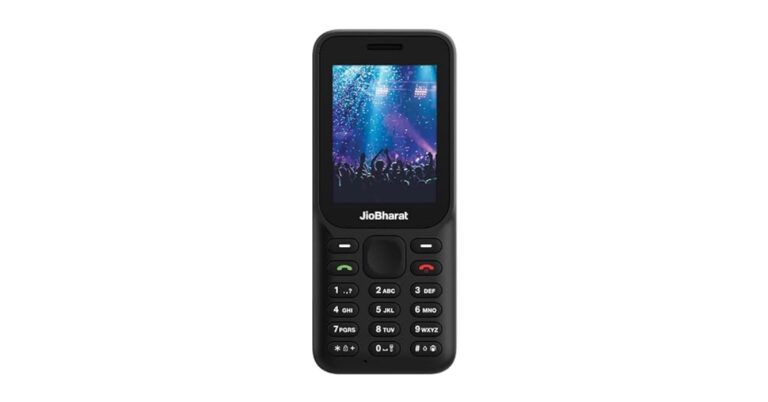
Reliance Jio has unnoticed introduced the JioBharat B1 series in India. The device replaces the JioBharat V2 and K1 Karbonn. It comes with a 2,000mAh battery and a 2.4-inch display. It is a basic feature phone with an alphanumeric keypad with multi-lingual support. The handset supports 4G connectivity. As of now, the telco has presented a single phone but it may bring more mobile phones to the series. JioBharat B1 price in India and sale details

JioBharat B1 price in India and sale details

Reliance has introduced JioBharat B1 in a single variant priced at Rs 1,299. The phone is made available in a lone black colour option. It can be purchased via the company’s official website as well as via Amazon in the country.

JioBharat B1 specifications and features

Starting with the design JioBharat B1 sports a shiny and matte finish. The back panel has the company’s log while the rear camera is sitting inside a rectangular module which also has a speaker grille. It has a single nano SIM slot. The mobile phone has a 2.4-inch rectangular QVGA display. It runs on Threadx RTOS. The device comes with a 0.05GB of RAM. While the internal storage can be expanded up to 128GB using a microSD card. There is a provision of Bluetooth, Wi-Fi, and USB. Additionally, the phone includes 4G connectivity. JioBharat B1 price in India and sale details JioBharat B1 has a 2,000mAh battery that is touted to provide up to 343 hours of standby time. The mobile phone comes pre-loaded with JioCinema and JioSaavn. The device includes a rear camera setup and the resolution of the lens is unspecified. It has a 3.5mm headphone jack. The 4G phone has an alphanumeric keypad that is said to support 23 languages, including several regional Indian dialects. Not just that it comes loaded with JioPay, which allows users to make UPI payments. For the latest gadget and tech news, and gadget reviews, follow us on TwitterFacebook and Instagram. For newest tech & gadget videos subscribe to our YouTube Channel. You can also stay up to date using the Gadget Bridge Android App. You can find the latest car and bike news here.

Top 4 ways to hide apps on an Android smartphone (2023)

0
The option to hide apps on your smartphone is offered by every major Android-based OS these days. For a lot of users, this is an essential feature that helps them keep their financial and personal apps away from prying eyes. Hiding an app also ensures that your personal files are secure in case your phone falls into malicious hands. In this article, we bring you the top 4 ways to hide apps on an Android smartphone. Read Also: How to Sync Apps between Android devices automatically?

Hide apps on a Samsung smartphone

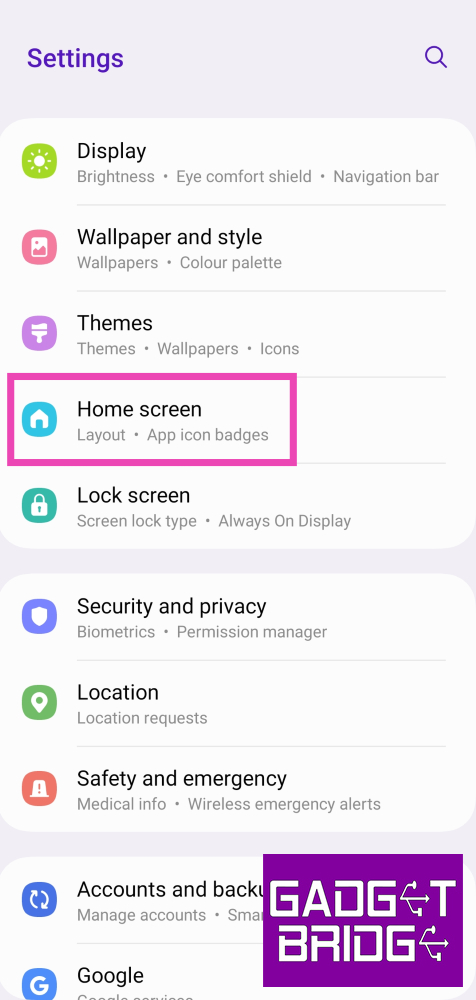
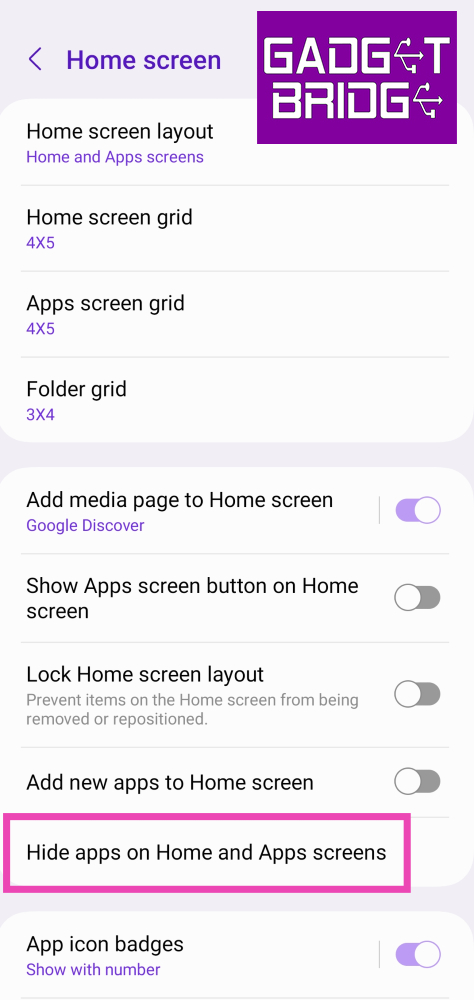
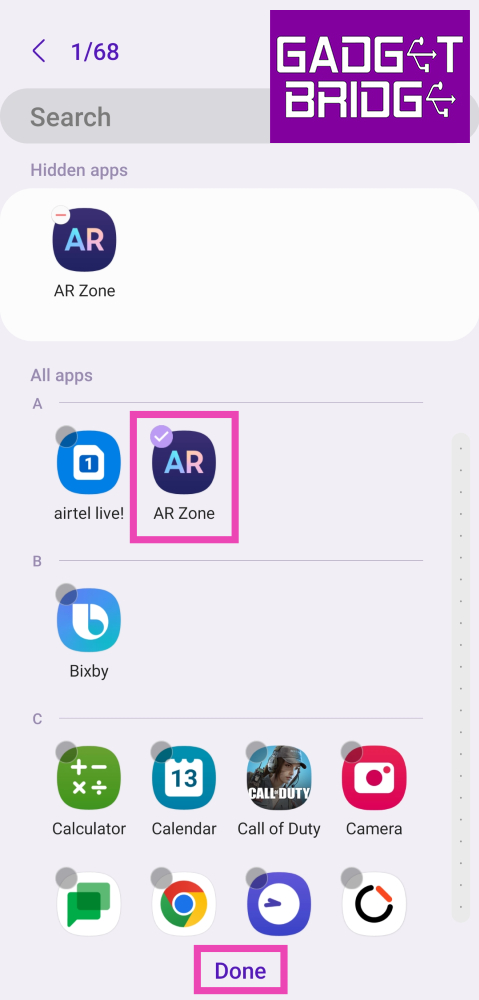
Step 1: Go to Settings and select Home screen. Step 1: Go to Settings and select Home screen. Step 2: Select Hide apps on Home and Apps screens. Step 3: Select the app you want to hide and hit Done. Step 3: Select the app you want to hide and hit Done.

Hide apps on a Vivo or iQOO smartphone

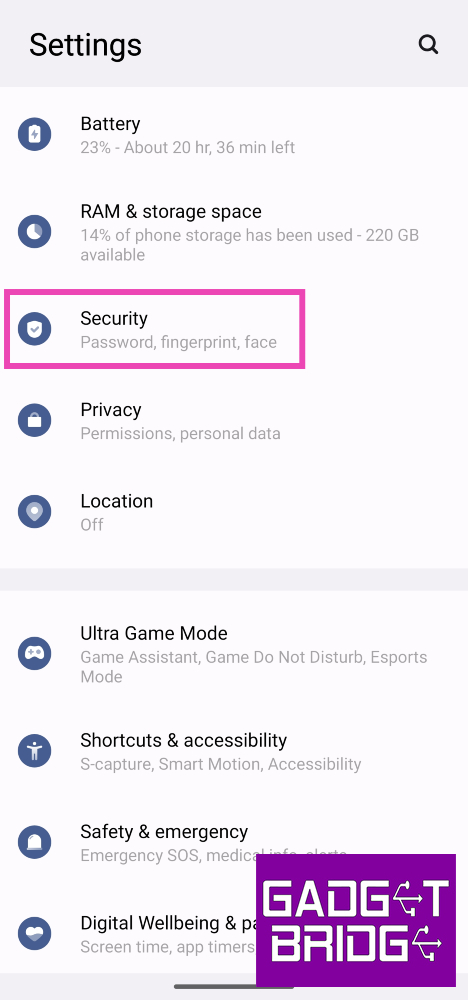
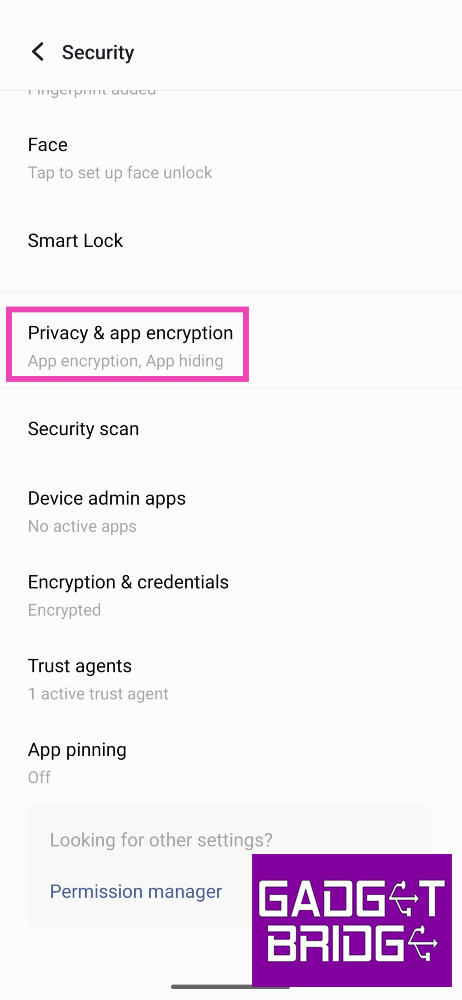
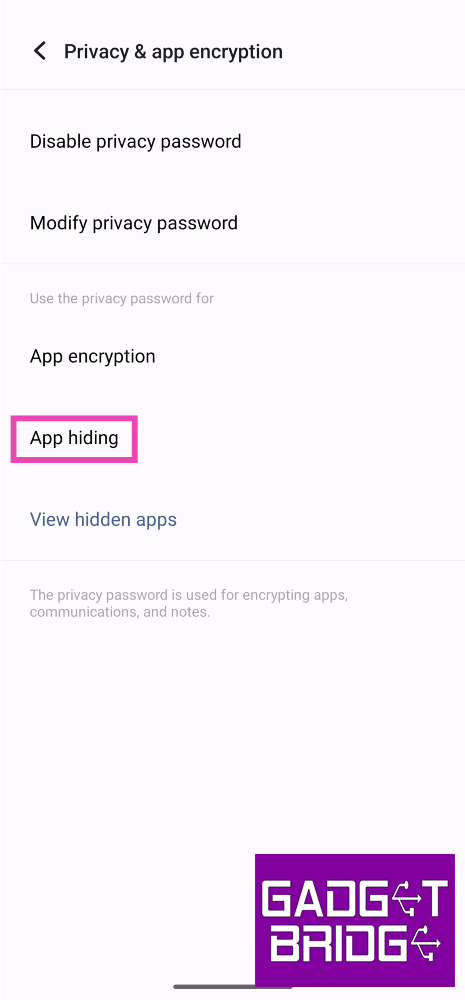
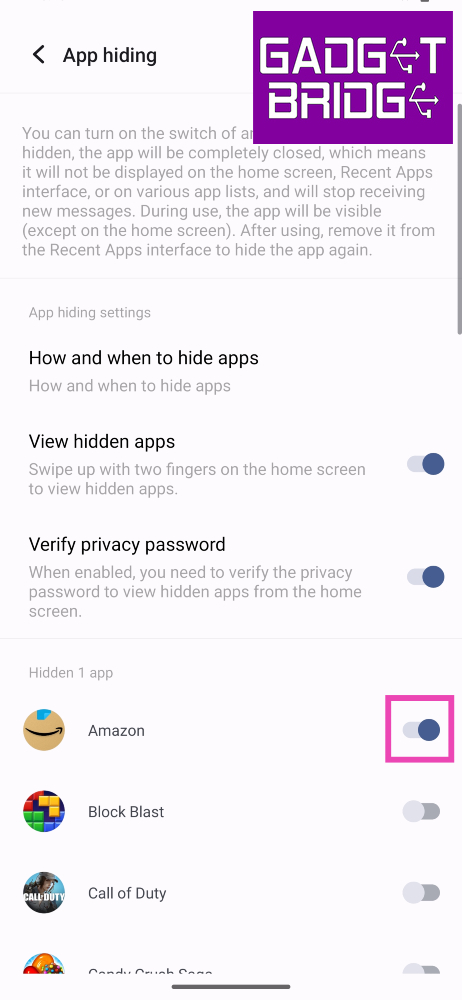
Step 1: Go to Settings and select Security. Step 1: Go to Settings and select Security. Step 2: Scroll down and select Privacy & app encryption. Step 2: Scroll down and select Privacy & app encryption. Step 3: Enter your privacy password. Step 4: Tap on App hiding. Step 4: Tap on App hiding. Step 5: Turn on the toggle switch for the apps you want to hide.   Step 5: Turn on the toggle switch for the apps you want to hide. Step 6: Turn on the toggle switch for View hidden apps to easily access them by swiping up with two fingers on the home screen.

Hide apps on a Xiaomi or Redmi smartphone

Xiaomi 13 Pro review: Design and Display Step 1: Go to Settings and select Apps. Step 2: Select App lock. Step 3: Set up a password or enter the pre-existing password. Step 4: Switch to the Hidden Apps tab. Step 5: Turn on the toggle switch for the apps you want to hide.

Use a third-party app to hide apps on Android

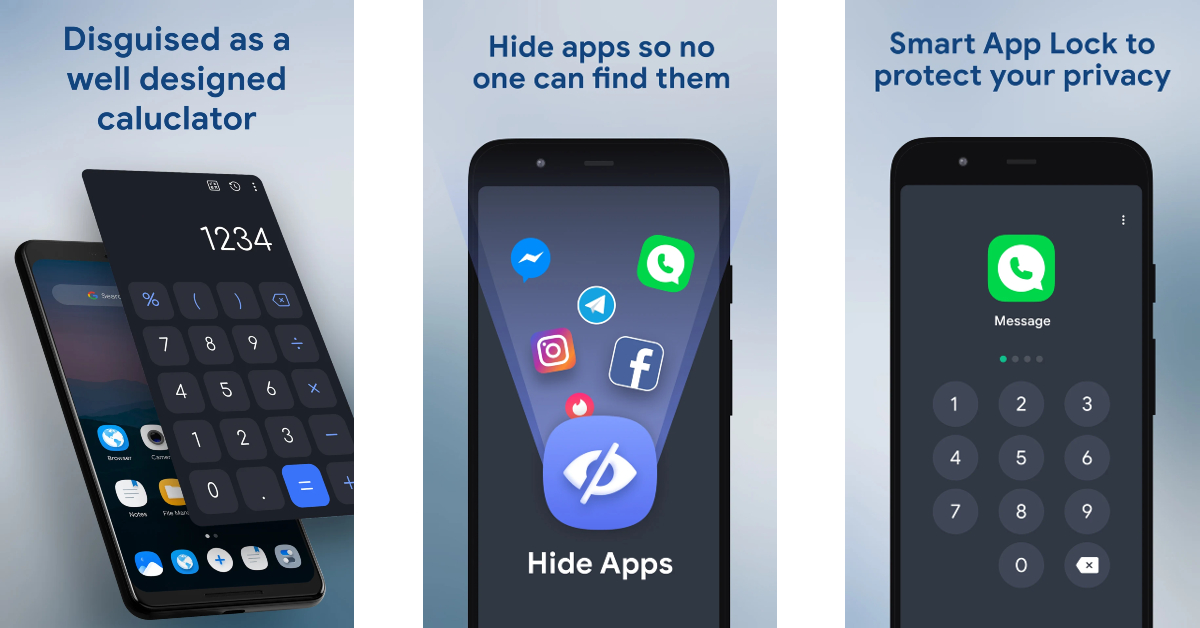
Use a third-party app Step 1: Install the HideU: Calculator Lock app on your Android smartphone. Step 2: Set up a 4-digit PIN. Hit the = sign when you’re done. Step 3: Tap on Hide apps. Step 4: Select the app you want to hide. Step 5: Make HideU your default home screen app. Your phone’s home screen will no longer display the selected apps.

Frequently Asked Questions (FAQs)

How do I access hidden apps on Android?

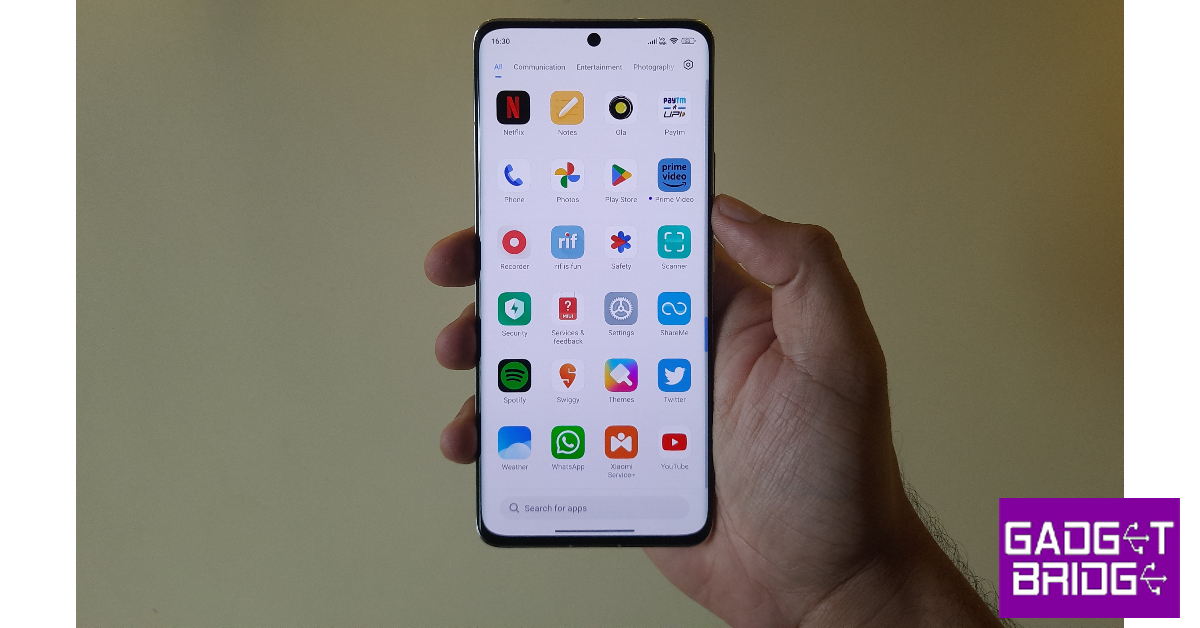
Every Android skin has its own way of letting you access hidden apps. MIUI and Funtouch OS let you view hidden apps by swiping sideways and upwards on the home screen with two fingers respectively. On Samsung devices, you need to unhide the apps to access them again.

What are some good third-party app hiders for Android?

HideU: Calculator Lock, App Hider, and Private Zone are some of the best third-party app hiders for Android.

How do I unhide an app on Android?

To unhide an app on Android, go to the app hiding and encryption feature and turn off the toggle switch for the app you want to unhide. Read Also: Google Pixel 8 Series first sale in India begins: Pricing and offer details inside

Conclusion

These are the top 4 ways to hide apps on Android smartphones across different manufacturers. Hiding an app is different from password-protecting it. Depending on the Android skin, your phone may ask you for the password before letting you access hidden apps. However, certain skins like OneUI let you view hidden apps without a password. Check out this article to learn how you can password-protect an app on Android. For the latest gadget and tech news, and gadget reviews, follow us on Twitter, Facebook and Instagram. For newest tech & gadget videos subscribe to our YouTube Channel. You can also stay up to date using the Gadget Bridge Android App. You can find the latest car and bike news here.

OnePlus Open India launch to take place on October 19

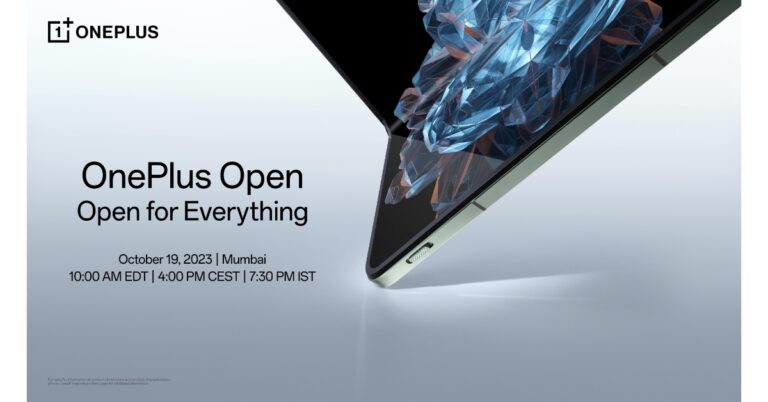
Some days back OnePlus confirmed the India launch of its upcoming foldable. The company has now confirmed that the OnePlus Open will make its debut in the country on October 19 which is next week. The company has not revealed the specs nor the design of its foldable, but it has been teasing the upcoming device through teasers. Also, the specs details and features of the OnePlus Open have been doing the rounds on the web for a long. Multiple reports have also surfaced on the internet sharing some glimpses of the device. OnePlus has officially confirmed that its first foldable OnePlus Open will launch in India on October 19. The same day its sister company Oppo will also hold a global launch of the Oppo N3 Fold and Oppo N2 Flip. The OnePlus Open India launch event will take place in Mumbai, India. As per the media invite the event is set to begin at 7.30 PM. As we said earlier the company has not revealed the specs and features of its foldable. But the official teaser gives us a glimpse of the device. The teasers show the phone slightly opened. Based on the teaser, we should expect the phone will be available in black, with further colour options available. Moreover, an Alert Slider on the left edge can also be seen. Moreover, there are volume rocker and a power button on the right side of the frame. Leaked images also suggest a circular rear camera module on the upper side of the back panel at the centre. The device is likely to come with rounded corners and a lychee-like leather finish. OnePlus Open is likely to sport a 7.82-inch OLED primary display with 2,440×2,268 pixels of resolution. On the other hand, there could be a 6.31-inch OLED outer display with 1,116 x 2,484 pixels of resolution. Both the screen may support a refresh rate of 120Hz. The device is expected to be powered by an octa-core Qualcomm Snapdragon 8 Gen 2 SoC along with 16GB of RAM and up to 1TB of storage. The foldable phone is speculated to feature a circular camera module with three camera sensors arranged inside it. The camera system consists of a 48-megapixel primary lens, a secondary 48-megapixel sensor, and a 64-megapixel telephoto sensor with 3x optical zoom. It might also include a 32-megapixel or a 20-megapixel front-facing camera. The device may also include a 4,805mAh battery with support for 100W wired fast charging. For the latest gadget and tech news, and gadget reviews, follow us on TwitterFacebook and Instagram. For newest tech & gadget videos subscribe to our YouTube Channel. You can also stay up to date using the Gadget Bridge Android App. You can find the latest car and bike news here.

Garena Free Fire Redeem Codes Today 13 October 2023: Here is how to claim them

Garena Free Fire is a battle royale game with regular awards and tournaments to keep players interested. If you play Garena Free Fire, you should be aware of the redeem codes that are released on a daily basis. However, because the battle royale game is banned in India, players from other countries can use the Free Fire Redeem codes daily. If you’re unfamiliar with the Garena Free Fire redeem codes or don’t know how to get them, we’ve put together a step-by-step guide to help you redeem them. Check out Garena Free Fire Redeem Codes for 13 October 2023. The Free Fire redeem codes are a great way to get free stuff. These are 12-digit codes that contain alphabets and numbers, as well as an expiration date and time. Because the Garena FF redeem codes cannot be used more than once, you should hurry to the redemption page to claim your free reward before someone else does. To get a free reward, all you have to do is go to reward.ff.garena.com/en, which is the official redemption page. Also, keep an eye on this space for daily updates on Garena Free Fire redemption codes and rewards.

Garena Free Fire Redeem Codes Today 13 October 2023

updating…

How to Get Free Fire Redeem Codes for Garena on 13 October 2023?

  • Visit the Garena Free Fire game’s official website at reward.ff.garena.com.
  • Use your Facebook, Google, VK, Apple ID, Huawei ID, or Twitter account to log in.
  • You’ll be taken to a valid redemption code (s)
  • Copy and paste the 12-digit redemption code into the text box.
  • On the screen, a dialogue box will appear.
  • ‘Ok’ should be selected.
For the latest gadget and tech news, and gadget reviews, follow us on TwitterFacebook and Instagram. For newest tech & gadget videos subscribe to our YouTube Channel. You can also stay up to date using the Gadget Bridge Android App. You can find the latest car and bike news here.

Oppo Find N3 Flip with an Alert Slider debuts in India

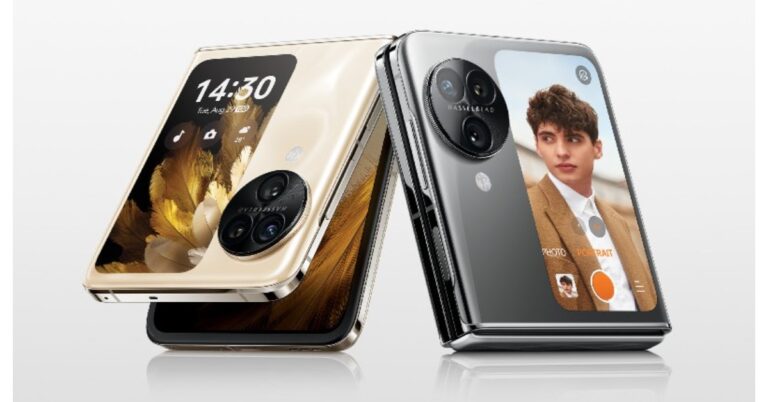
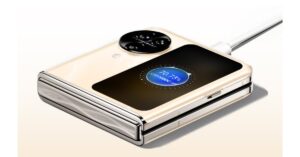
Oppo Find N3 Flip has finally arrived in India. The device is currently up for pre-order in the country. It has a vertically positioned cover screen and a circular-shaped camera module. There is an alert slider as well on the phone. The device will take on its rivals Samsung and Motorola who have already launched their clamshell design phone in India.

Oppo Find N3 Flip price in India and availability

The Oppo Find N3 Flip price in India is set at Rs 94,999 for the 12GB RAM with 256GB storage option. The flip phone come in two colour Sleek Black and Cream Gold. To recall the foldable device was made available in three colour options of Mirror Night, Mist Rose, and Moonlight Muse. Oppo Find N3 Flip price in India and availability The device is scheduled to go on sale on October 22. It can be purchased via the company’s official online store and Flipkart starting at 6 PM. The pre-order window has also opened. Also Read: Google Pixel 8 Series first sale in India begins: Pricing and offer details inside There will be up to Rs 12,000 cashback on SBI cards, ICICI Bank cards and more. Up to 12 months, no no-cost EMI options are available. Oppo customers can upgrade to the new Flip Phone with an exchange bonus of up to Rs 8,000. Also, there is a one-time screen replacement offer on the handset along with Oppo Premium Services. The buyers will also get to enjoy a  3-month trial of YouTube Premium and 6 6-month free trial of Google One.

Oppo Find N3 Flip features and specs

Oppo Find N3 Flip’s primary display features an AMOLED 6.80-inch screen with 1,080×2,520 pixels of resolution. There is support for a dynamic refresh rate that ranges between 1Hz to 120Hz. The clamshell-style foldable phone has an additional 3.26-inch cover display, akin to its predecessor, and is vertically positioned with 382×720 pixels of resolution. The cover screen supports over 40 native cover screen apps. In addition to this, there is an alert slider on the side. An octa-core MediaTek Dimensity 9200 SoC powers the phone along with 256GB of UFS 4.0 internal storage and 12GB of LPDDR5X RAM. The device comes with colorOS 13 out of the box. The company is promising 4 years of major OS updates and 5 years of security patches. Oppo Find N3 Flip features and specs The Find N3 Flip sports triple rear cameras arranged inside a circular module which sits beside the cover screen. The camera system consists of a 32-megapixel telephoto sensor, an 8-megapixel ultra-wide-angle sensor, and a 50-megapixel Sony IMX890 main lens with OIS feature. The smartphone further features a 32-megapixel front camera for taking selfies and making video calls. Also Read: Samsung Galaxy Z Flip 5 Review: Flip it good! The Oppo Find N3 Flip is fuelled by a 4,300mAh battery with 44W supervooc wired charging support. To unlock the device the Find N3 Flip has a side-mounted fingerprint scanner. A gravity sensor, gyroscope, compass and an ambient light sensor are also available on the phone. The Oppo Find N3 Flip has 5G, Wi-Fi, Bluetooth, and NFC connectivity options. For the latest gadget and tech news, and gadget reviews, follow us on TwitterFacebook and Instagram. For newest tech & gadget videos subscribe to our YouTube Channel. You can also stay up to date using the Gadget Bridge Android App. You can find the latest car and bike news here.

Google is replacing passwords with passkeys default login

Google has started to ask its users to start setting up passkeys on their devices for secure login across its products. This move will eliminate the need to remember tricky and difficult passwords for logging into Google Services. Hence the logins will become much easier, secure and faster as they will require a fingerprint, face scan, or PIN. You no longer need to remember or establish a tricky password with alphanumeric and unique characters to secure your online accounts. Google is completely removing the complicated password system as it has finally implemented passkeys across all its services. According to the company, Google Passkeys are more secure and 40 percent faster than traditional passwords. So now when you log in to your accounts online you will be asked to create and use passkeys, simplifying your future sign-ins. You also have the option to “Skip password when possible” option toggled on in your Google Account settings. Passkey requires a fingerprint, face scan or PIN to unlock your device. As per the tech giant, it relies on a type of cryptography which is more secure. what is a passkey “But while they’re a big step forward, we know that new technologies take time to catch on — so passwords may be around for a little while. That’s why people will still be given the option to use a password to sign in and may opt out of passkeys by turning off “Skip password when possible.” Google noted in its blog post. As per the company even if you use a strong password with special characters, numbers and alphabets they are now phishing resistant in contrast to Google Passkeys.

What is a passkey?

A passkey is a FIDO credential that is stored on your computer or phone and is used to sign in on online accounts. As per the company logging in is more secure thanks to the passkey. It makes use of public key cryptography, and proof of possession is only shown to your online account when you unlock your phone. It uses biometrics such as a fingerprint or face scan, or a screen lock PIN, to securely log you into your accounts across the web. Passkeys take care of securely completing authentication with a service on your behalf, so you don’t have to remember passwords for sign-in. For the latest gadget and tech news, and gadget reviews, follow us on TwitterFacebook and Instagram. For newest tech & gadget videos subscribe to our YouTube Channel. You can also stay up to date using the Gadget Bridge Android App. You can find the latest car and bike news here.

How to Sync Apps between Android devices automatically?

0
Earlier this year, Google introduced the feature to automatically sync apps between two Android devices. This comes in quite handy if you use multiple phones or tablets for work and recreation. Any app you download on one device will be installed on the other as well. You can select which devices on which you want the apps to automatically sync. The only condition is that you need to be logged into the same Google account on both devices. So, without further ado, here is how you can sync apps between Android devices automatically. Read Also: Top 3 Ways to Update Apps on Android Phone or Tablet Manually

Sync apps between Android devices

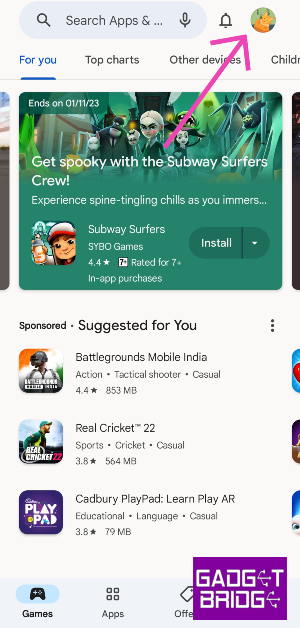
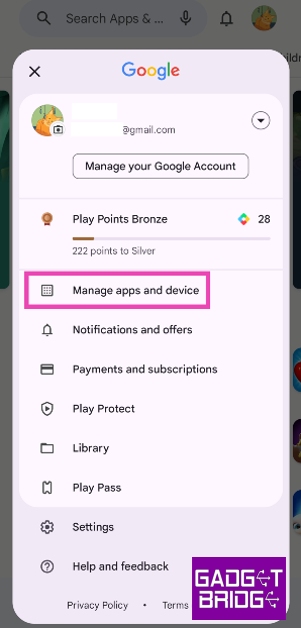
Step 1: Launch the Google Play Store app on the Android device from which you want to sync your apps. Step 2: Tap your profile picture at the top right corner of the screen. Step 2: Tap your profile picture at the top right corner of the screen. Step 3: Select Manage apps and device. Step 3: Select Manage apps and device. Step 4: Tap on Sync apps to devices. Step 4: Tap on Sync apps to devices. Step 5: Select the device to which you want to sync your installed apps. Any apps you install on your current device will also be installed on the selected device. Step 5: Select the device to which you want to sync your installed apps. Any apps you install on your current device will also be installed on the selected device.

Frequently Asked Questions (FAQs)

Does auto-sync install all my older apps on the device?

No. Once you turn on syncing between two Android devices, only the apps that you install after the feature is enabled will be synced to the other device.

Can I manually install an app on another device?

If you are logged into the same Google account on both devices, you can remotely install a particular app on any one of them. Simply go to the app’s Play Store page and hit the arrow next to the Install button. Select the device on which you want to install the app.

Does auto-syncing consume a lot of data?

Yes, once you turn on auto-syncing, it will consume twice as much data for app installations since they are being downloaded on two devices. Read Also: Oppo Find N3 Flip expected to launch at this pricing

Conclusion

This is how you can sync apps between Android devices automatically. Instead of using auto-sync, you can manually install an app remotely on another device. You just need to be logged into the same Google account across both devices. You can use your PC to download any app on your phone simply by selecting its device model on the app’s page on the Google Play Store. For the latest gadget and tech news, and gadget reviews, follow us on Twitter, Facebook and Instagram. For newest tech & gadget videos subscribe to our YouTube Channel. You can also stay up to date using the Gadget Bridge Android App. You can find the latest car and bike news here.

Google Pixel 8 Series first sale in India begins: Pricing and offer details inside

Google Pixel 8 Series debuted in India last week. The new smartphone series by the tech giant includes two models Pixel 8 and Pixel 8 Pro. They both feature the iconic Pixel design. Under the hood, there is a Tensor G3 processor by Google. They run on the Android 14 operating system.

Google Pixel 8, Pixel 8 Pro price in India, sale details

Pixel 8 price in India and colour options

  • 8GB RAM with 128GB storage: Rs 75,999
  • 8GB RAM with 128GB storage: Rs 82,999
  • Colour options: Hazel, Obsidian and Rose

Pixel 8 Pro price in India

  • 12GB RAM with 128GB storage: Rs 1,06,999
  • Colour options: Bay, Obsidian and Porcelain
Both devices are not available on Flipkart in the country. There will be an instant discount of up to Rs 8,000 on ICICI, Kotak Mahindra, and Axis Bank card transactions on Pixel 8. Rs 3,000 off can be availed in exchange for an old phone. There will be up to  Rs 9,000 discount on select bank cards on the purchase of the Pro variant along with  Rs 4,000 exchange discount.
Pixel 8 price in India
Pixel 8

Pixel 8 Series specifications

The Pixel 8 comes with a 6.2-inch FHD+ Actua display with 1080 x 2400 pixels of resolution. The OLED screen has an Adaptive refresh rate ranging between 60Hz and 120Hz and supports 2,000 nits of peak brightness. Also Read: New Pixel 8, Pixel 8 Pro unleashed: Price in India, availability details Whereas the Pixel 8 Pro is highlighted with a 6.7-inch Super Actua display with 1344 x 2992 resolution. It supports an Adaptive refresh rate ranging from 1Hz to 120Hz and 20:9 aspect The LTPO OLED features a peak brightness of 2,400 nits. The front panel is protected with Corning Gorilla Glass Victus 2. There is a temperature sensor on the back of the Pro model. Both smartphones are powered by Google Tensor G3 SoC with Titan M2 security coprocessor. They run on Android 14 with Pixel-exclusive features onboard. For photos and videos, the Pixel 8 Series includes a similar 10.5-megapixel Dual PD sensor on the front panel for taking selfies. The selfie camera on the Pixel 8 has a fixed focus while the Pixel 8 Pro has an autofocus.
Pixel 8 Pro price in India
Pixel 8 Pro
The Pixel 8 and Pixel 8 Pro have a primary 50MP Octa PD sensor with f/1.68 aperture. The secondary camera on the vanilla variant is a 12 MP ultrawide camera with an auto-focus. Whereas the pro variant comes with a 48 MP Quad PD ultrawide camera with autofocus. The Pro’s camera system also includes a third 48 MP Quad PD telephoto lens with 5x optical zoom. The Google Pixel 8 boasts a 4,485mAh battery with 24W wired and 12W wireless fast charging support. On the other hand the Pixel 8 Pro sports a 4,950mAh battery. For the latest gadget and tech news, and gadget reviews, follow us on TwitterFacebook and Instagram. For newest tech & gadget videos subscribe to our YouTube Channel. You can also stay up to date using the Gadget Bridge Android App. You can find the latest car and bike news here.

Top 5 Ways to Download Reddit Videos on Your Phone with Sound

0
Reddit is one of the biggest content-aggregating websites in the world. The platform has millions of niche communities called ‘subreddits’ that generate discourse about the subject they are based on. One of the most underrated features of Reddit is the ability to download videos directly to your device. Users who are new to the platform or have just started using the official smartphone app may not be aware of this feature. In this article, we bring you the top 5 ways to download Reddit videos on your smartphone with sound. Read Also: Oppo Find N3 Flip expected to launch at this pricing

Download Reddit videos on your phone from the official app

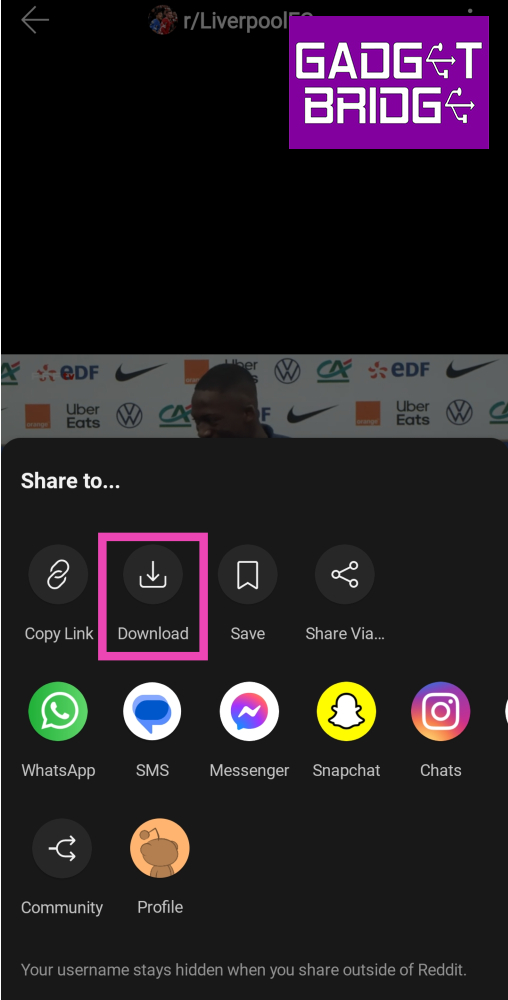
Step 1: Launch the official Reddit app on your smartphone. Step 2: Open the video you want to download. Step 3: Hit the Share icon. Step 3: Hit the Share icon. Step 4: Tap on Download. Step 4: Tap on Download.

Another way to download Reddit videos on your phone

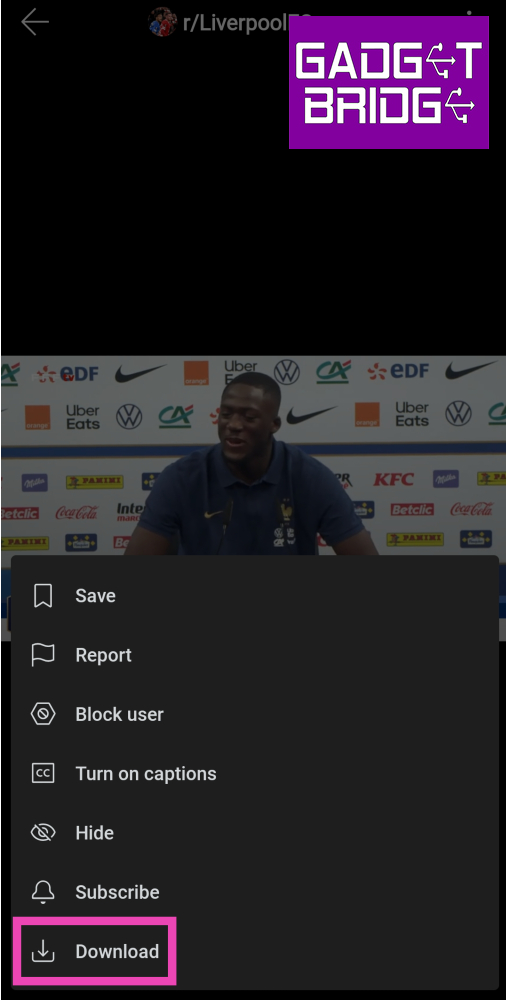
Step 1: Launch the official Reddit app on your smartphone. Step 2: Open the video you want to download. Step 3: Tap the ellipses at the top right corner of the screen. Step 3: Tap the ellipses at the top right corner of the screen. Step 4: Select Download. Step 4: Select Download. Top 5 Ways to Download Reddit Videos on Your Phone with Sound

Use a third-party tool

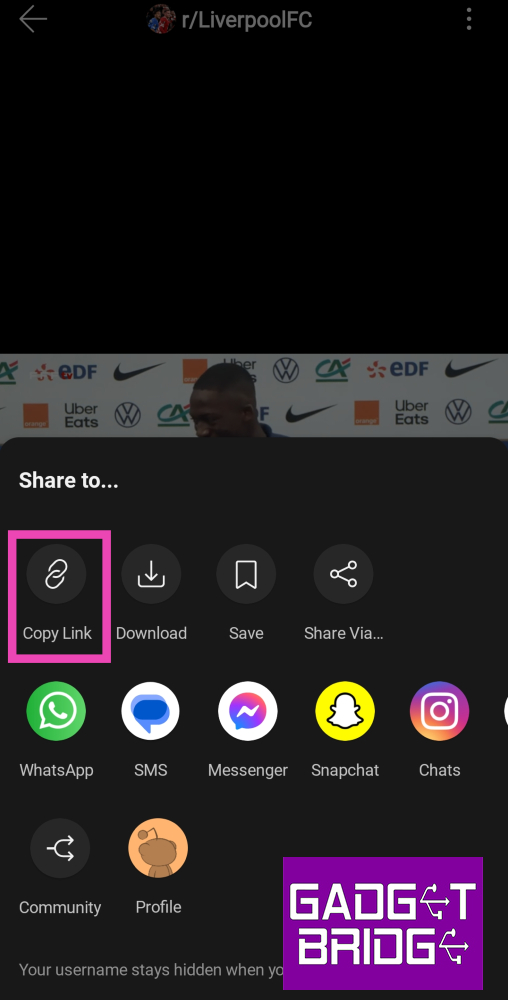
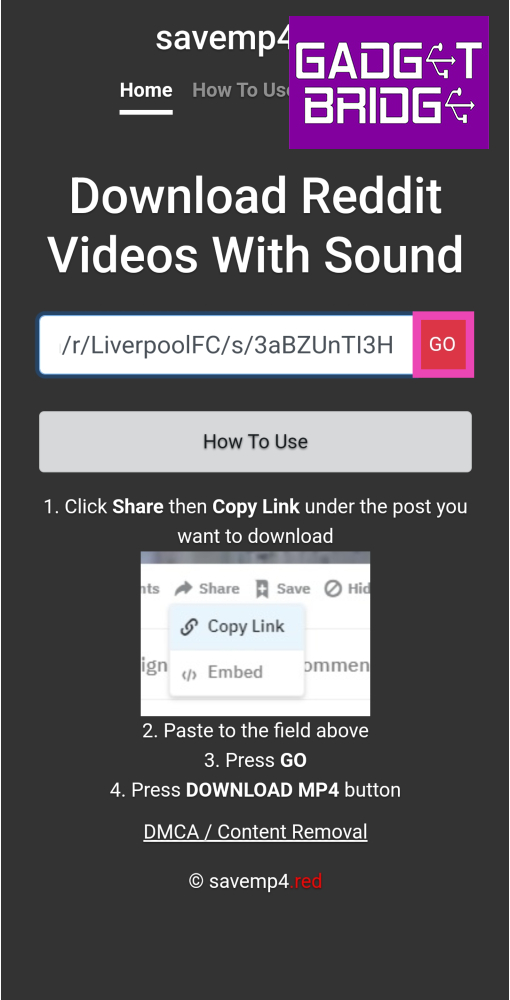
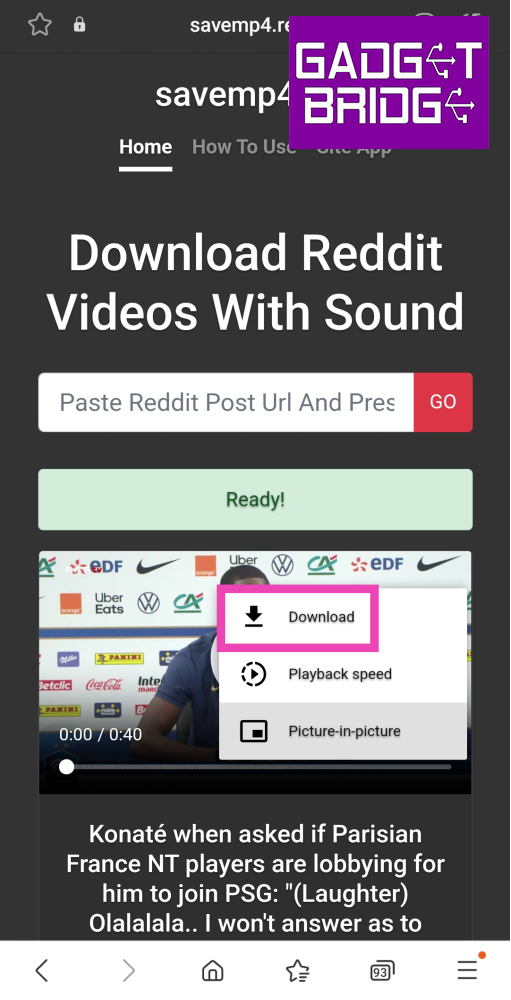
Step 1: Launch the official Reddit app on your smartphone. Step 2: Open the video you want to download. Step 3: Hit the Share icon. Step 3: Hit the Share icon. Top 5 Ways to Download Reddit Videos on Your Phone with Sound Step 4: Tap on Copy Link. Step 4: Tap on Copy Link. Top 5 Ways to Download Reddit Videos on Your Phone with Sound Step 5: Launch your preferred web browser on your smartphone. Step 6: Go to https://savemp4.red/. Step 7: Paste the link in the website’s address box and hit Go. Step 7: Paste the link in the website’s address box and hit Go. Top 5 Ways to Download Reddit Videos on Your Phone with Sound Step 8: Tap the ellipses in the video player and hit Download. Step 8: Tap the ellipses in the video player and hit Download. Top 5 Ways to Download Reddit Videos on Your Phone with Sound

Use the u/SaveVideo bot

Reddit’s native download option may not always work on every video. If you don’t want to use a third-party online tool or app to download the video on your device, you can use a Reddit bot instead. Simply go to the video post and comment u/SaveVideo. The bot will respond to your comment with a downloadable link to the video. If you don’t receive a comment with the link right away, wait for some time as the bot may be flooded with requests. You can also check if someone else in the comments has summoned the bot. In that case, you can simply download the video using the link in the commenter’s reply thread.

Use a third-party app

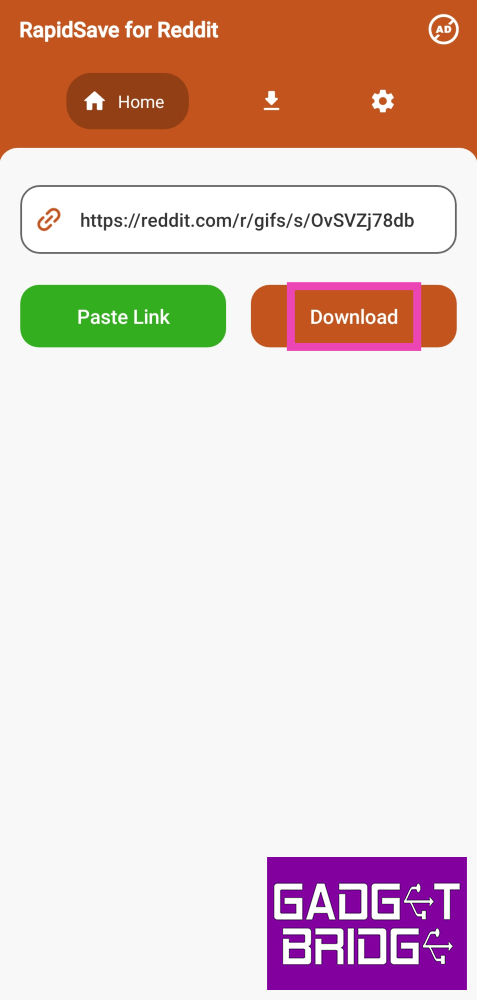
If the Reddit video you’re trying to download is posted on another platform (like Gfycat), you will need a third-party app to download it on your device. Here’s how. Step 1: Download the Video Downloader for Reddit app from the Google Play Store. Step 2: Launch the app and paste the link to the video. Step 3: Hit the Download button. Step 3: Hit the Download button. Top 5 Ways to Download Reddit Videos on Your Phone with Sound The Reddit video will be saved on your device.

Frequently Asked Questions (FAQs)

Does the official Reddit app let you download videos with sound?

Yes, you can download videos from Reddit by tapping the ellipses or share icon and selecting ‘Download’.

Why can’t I hear any sound on Reddit videos?

Most videos on Reddit are muted by default. To play sound on a video, tap the speaker icon at the bottom right corner of the screen.

I don’t see the download button on Reddit. How do I download a video to my device?

If you are unable to access Reddit’s native download feature, simply paste the video link to a third-party tool or app like savemp4.red. The video will be downloaded to your device. You can also comment u/SaveVideo on the post and the bot will respond to your comment with a downloadable link to the video. Read Also: Great India Festival: Best camera smartphone deals under Rs 20,000 on Amazon

Conclusion

These are the top 5 ways to download Reddit videos with sound on your smartphone. If you are unable to play the sound on any Reddit video, check out this article to learn how to fix the issue. Got any other new ways of downloading videos from Reddit? Let us know in the comments! For the latest gadget and tech news, and gadget reviews, follow us on Twitter, Facebook and Instagram. For newest tech & gadget videos subscribe to our YouTube Channel. You can also stay up to date using the Gadget Bridge Android App. You can find the latest car and bike news here.

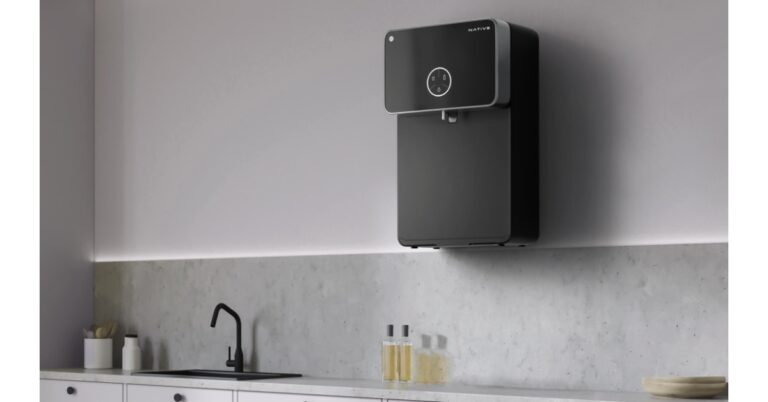
Urban Company launched a new range of smart RO Native M1, Native M2

Home services platform Urban Company has announced the launch of a new range of smart RO water purifiers under the sub-brand Native. Two models Urban Company Native M1 and Native M2 have been introduced. As per the company both the water filters come with superior filters and ‘rapid reverse rinse’ technology, so you don’t need filter changes or servicing for 2 years. In addition to this, the UC is offering a 2-year ‘zero-cost’ comprehensive warranty covering all filters, and membranes along with spare parts. Also Read: Spotify is disabling some features for free users in India

Urban Company Native M1 and Native M2 Price and Availability

The Urban Company Native M2 Water Purifier has been launched at an introductory price of Rs 17,499. On the other hand, the Native M1 will be available at a launch price of Rs 13,499. The Urban Company smart RO can be purchased via the company’s app and website as well as on Amazon. Additionally, it will also be selling offline on Croma stores soon. Urban Company Native M1 and Native M2 Price and Availability

Urban Company Native M1 and Native M2 water purifier features

Urban Company Native Water Purifier can give 12000 litres of pure water without needing their filters changed. Also, there is no need for servicing for 2 years. The Native M1 and Native M2 are equipped with ‘rapid reverse rinse’ technology, and multi-micron filter surfaces that increase the longevity of smart RO for two years. The Urban Company Native M2 comes with an IoT feature that allows users to keep a tab on TDS levels in real time along with water consumption and filter life status. This can be easily monitored on the UC app. In addition to this, the water filters are provided with a ‘zero-cost’ warranty that includes filters, membranes and all other spare parts for the two-year period. The Urban Company RO have a tank with a capacity of 8 litres. Both the water filters have the latest design. The M2 offers a mirror design with a brushed metal finish. It sports 3 preset dispensing modes and a breathing LED indicator that displays IoT pairing status. On the other hand, the Native M1 boasts 9 stages of filtration (RO + UV + UF + MTDS Minerals and Alkaline Filters) that is capable of eliminating 99.99% impurities including chemical contaminants like metal ions, chromium, lead, and sodium and reducing arsenic, radium, fluoride, sulphate, magnesium, amongst others. Whereas Native M2 has 10 stages of filtration, with all the stages of the M1 device + copper-charged filters.  For the latest gadget and tech news, and gadget reviews, follow us on TwitterFacebook and Instagram. For newest tech & gadget videos subscribe to our YouTube Channel. You can also stay up to date using the Gadget Bridge Android App. You can find the latest car and bike news here.

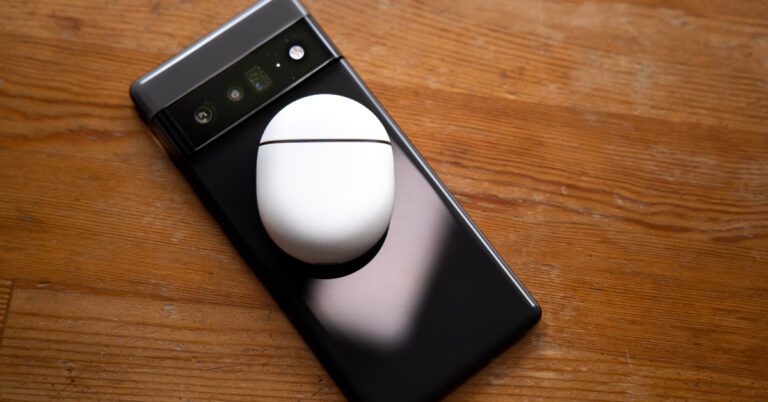
Top 3 Ways to Check If Your Smartphone Supports Reverse Wireless Charging

0
Reverse wireless charging may not be a feature that you use every day, but it can come in handy on certain occasions. If your smartwatch runs out of charge and you don’t have access to its charger, you can simply place it on your smartphone’s back panel to juice it up. Power sharing capabilities of most devices are limited to 4-5W, which means charging another device can be a slow process. But in times of emergency, it can make all the difference. Oftentimes, users believe that if their phone supports wireless charging, it must be able to share its battery wirelessly with other devices too. This is certainly not true, as the latter is a feature found only on midrange and premium devices. In this article, we bring you the top 3 ways to check if your smartphone supports reverse wireless charging. Read Also: Top 3 Ways to Automatically Upload Photos to Google Photos on Android

Use device settings to check if your smartphone supports reverse wireless charging

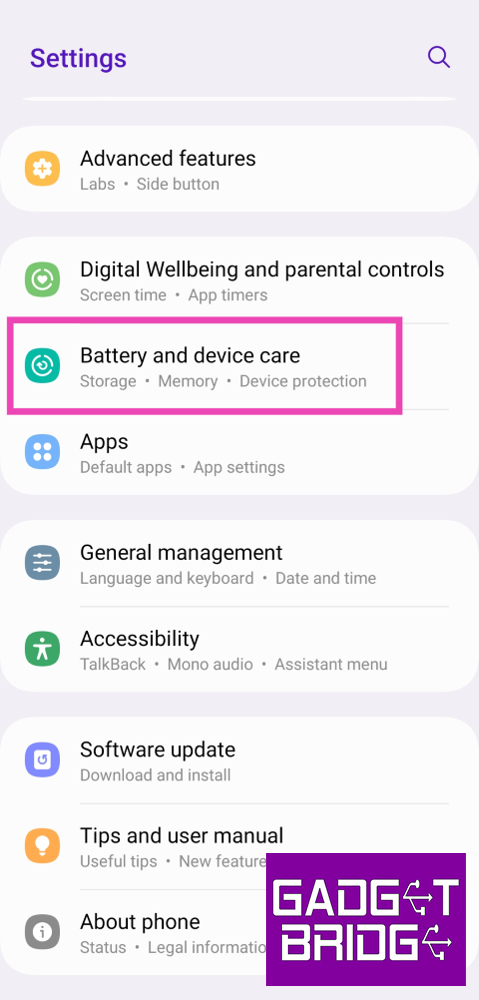
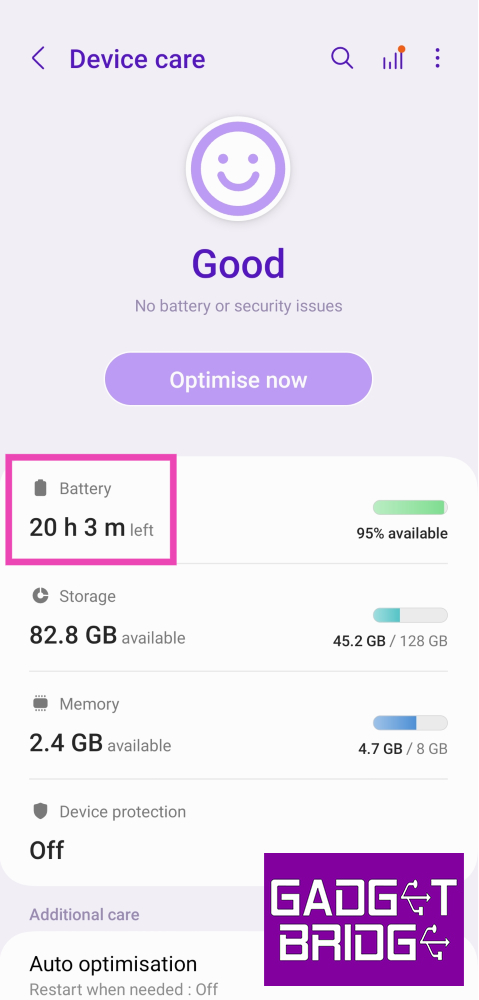
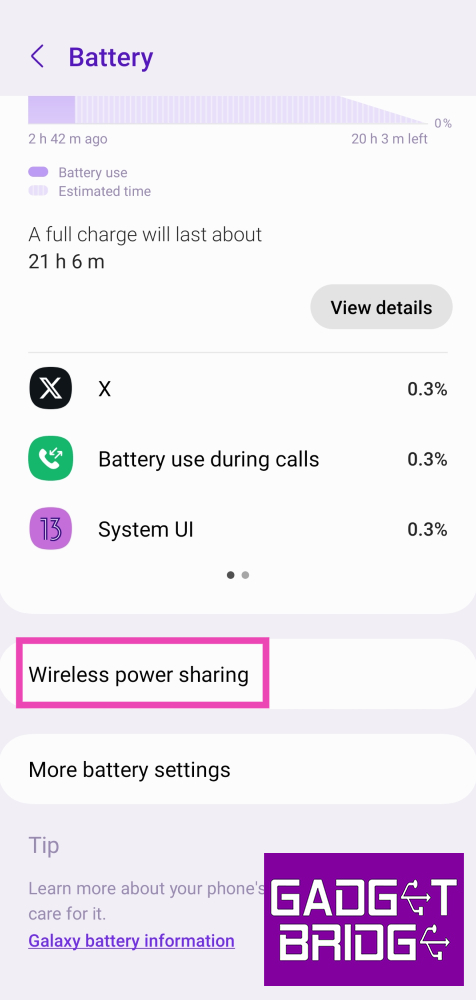
Step 1: Go to Settings and select Battery and device care. Step 1: Go to Settings and select Battery and device care. Step 2: Tap on Battery. Step 2: Tap on Battery. Step 3: If your smartphone supports reverse wireless charging, this page will have an option to enable it. On Samsung phones, this option is called Wireless Power Sharing. Step 3: If your smartphone supports reverse wireless charging, this page will have an option to enable it. On Samsung phones, this option is called Wireless Power Sharing.

Check the smartphone manufacturer’s website

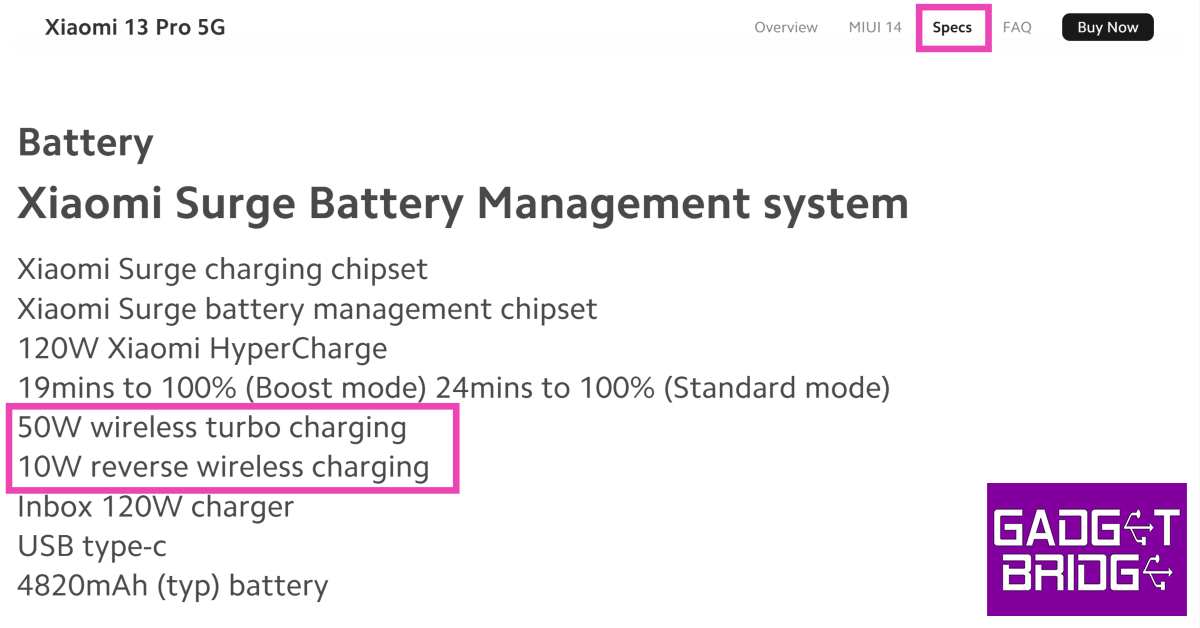
Check the manufacturer’s website Your smartphone’s product page on its manufacturer’s website contains all the information regarding its specs. Go through these specifications to check if your device supports reverse charging. If your phone is a few years old, it may not be listed on the manufacturer’s website. In this case, move on to the next method.

Check your smartphone’s Amazon page

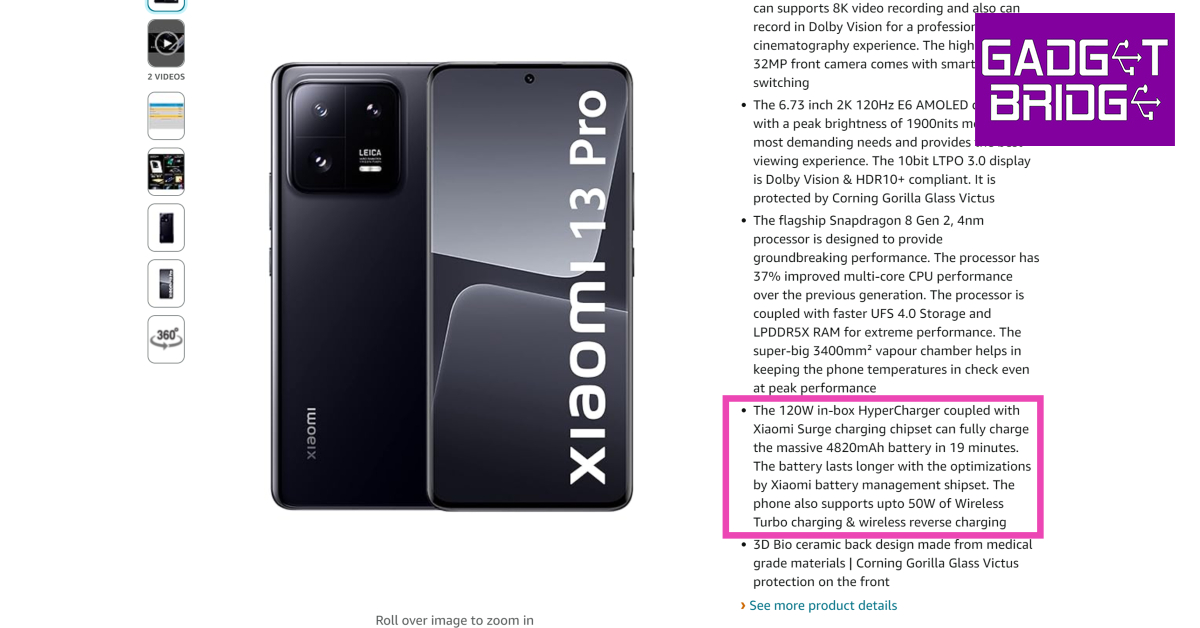
Check the smartphone’s Amazon page If you can’t find any information regarding wireless power sharing on your smartphone manufacturer’s website, give its Amazon product page a shot. Go to Amazon’s official webpage and search for your phone. Its product page will list detailed specifications about the device. Browse these specs for reverse wireless charging.

Frequently Asked Questions (FAQs)

What is reverse wireless charging?

As the name suggests, reverse wireless charging allows you to wirelessly charge another device using your smartphone. This can be done by placing the device on your smartphone’s back panel and turning on wireless power sharing.

Does the iPhone 15 have reverse wireless charging?

While the recent iPhones support wireless charging, they do not have the reverse wireless charging feature yet.

How do I turn on wireless power sharing on my smartphone?

Go to Settings>Battery and device care>Battery>Wireless Power Sharing to turn on reverse wireless charging on your Android smartphone. Read Also: Fast and Best Ways to Create Reels from Instagram Stories

Conclusion

These are the top 3 ways to check if your smartphone supports reverse wireless charging. If it doesn’t there is another way you can share its battery with another device. Simply use an OTG adapter or a Type-C to Type-C USB cable to connect your smartphone to the device you want to charge. The charge will flow from the device with the higher battery level to the one with the low battery. For the latest gadget and tech news, and gadget reviews, follow us on Twitter, Facebook and Instagram. For newest tech & gadget videos subscribe to our YouTube Channel. You can also stay up to date using the Gadget Bridge Android App. You can find the latest car and bike news here.

Oppo Find N3 Flip India launch today: How to watch the event live

Oppo is all set to launch a new foldable phone in India today. After launching in China in August this year Oppo Find N3 Flip will hit the India shore today. The device comes with a completely new design compared to the Samsung Galaxy Flip 5. The upcoming flip phone features a vertically positioned cover display and a round camera module beside it. The phone has a 3.26-inch cover and a 6.80-inch primary AMOLED screen. A MediaTek Dimensity 9200 SoC will power the clamshell design phone.

How the watch the Oppo Find N3 Flip launch event livestream

Oppo Find N3 Flip is scheduled to debut in India today. The company will be hosting a dedicated launch event to present the device. The launch live stream will start at 7 PM via the company’s official YouTube channel as well as via its official social media channels. However you can also watch the launch event live here on our website, we are embedding a link below.

Oppo Find N3 Flip Price in India expected

Ahead of the official announcement the price of Find N3 Flip has been leaked. According to a tipster, the Oppo Find N3 Flip price in India will start at Rs 94,999 for the 12GB RAM with 256GB storage option. The tipster claims that after the discount the device will be available at Rs 89,622. Also Read: Great India Festival: Best camera smartphone deals under Rs 20,000 on Amazon

Oppo Find N3 Flip specifications

Oppo Find N3 Flip is highlighted with an AMOLED primary display measuring 6.80 inches with a 120Hz refresh rate. There is a 3.26-inch vertical cover display, like its predecessor. The handset is powered by an octa-core MediaTek Dimensity 9200 SoC that powers the clamshell-style foldable phone along with up to 512GB of internal storage and 12GB of RAM. Oppo Find N3 Flip Price in India expected The Find N3 Flip features a circular camera set-up beside its outer display that includes a triple rear camera arrangement. The camera system consists of a 32-megapixel telephoto sensor, an 8-megapixel ultra-wide-angle sensor, and a 50-megapixel Sony IMX890 main lens with OIS capability. The phone includes a 32-megapixel front camera for taking selfies and making video calls. The clamshell design phone has a side-mounted fingerprint scanner. A gyroscope and an ambient light sensor are also present. The Oppo Find N3 Flip has 5G, Wi-Fi, Bluetooth, and NFC connectivity options. The phone sports a 4,300mAh battery with 44W wired charging support. For the latest gadget and tech news, and gadget reviews, follow us on TwitterFacebook and Instagram. For newest tech & gadget videos subscribe to our YouTube Channel. You can also stay up to date using the Gadget Bridge Android App. You can find the latest car and bike news here.

Top 3 Ways to Update Apps on Android Phone or Tablet Manually

0
If you use a lot of apps on your Android phone, automatic updates can eat up a lot of mobile and WiFi data. This is why some users prefer selectively updating the apps that they use the most. Google Play Store makes it easy to pick and choose the apps you want to update at any given time. In this article, we bring you the top 3 ways to manually update apps on your Android phone and tablet. Read Also: Global PC shipments fell 7.6% YoY in Q3 2023: Report

Update Android apps manually from the Google Play Store

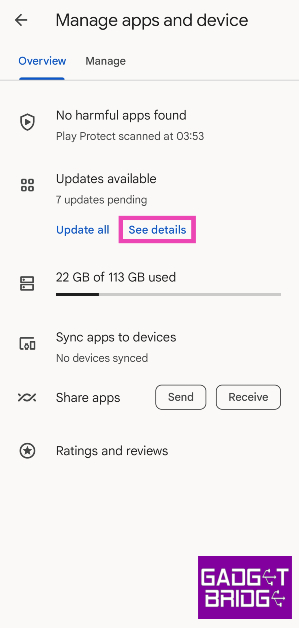
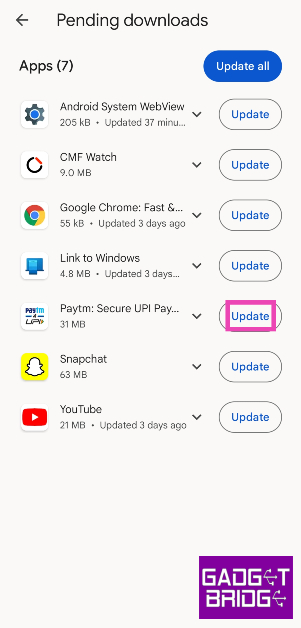
Step 1: Launch the Google Play Store app on your Android phone or tablet. Step 2: Tap your profile icon at the top right corner of the screen. Step 2: Tap your profile icon at the top right corner of the screen. Step 3: Select Manage apps and device. Step 3: Select Manage apps and device. Step 4: Tap on See details under Updates available. Step 3: Select Manage apps and device. Top 3 Ways to Update Apps on Android Phone or Tablet Manually Step 5: Hit the Update button next to the app you want to update. Step 5: Hit the Update button next to the app you want to update. Top 3 Ways to Update Apps on Android Phone or Tablet Manually

Manually update a single app on Android

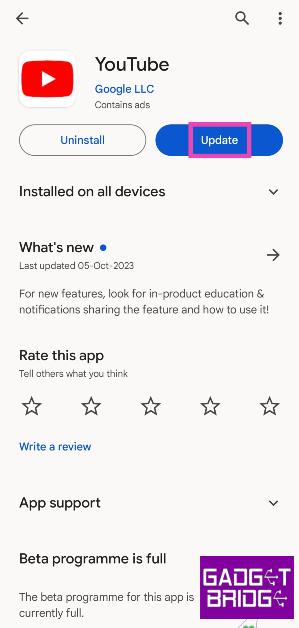
Step 1: Launch the Google Play Store app on your Android phone or tablet. Step 2: Search for the app you want to update. Step 3: Open the app’s page. Step 3: Open the app’s page. Top 3 Ways to Update Apps on Android Phone or Tablet Manually Step 4: Hit Update.

Use a third-party app marketplace

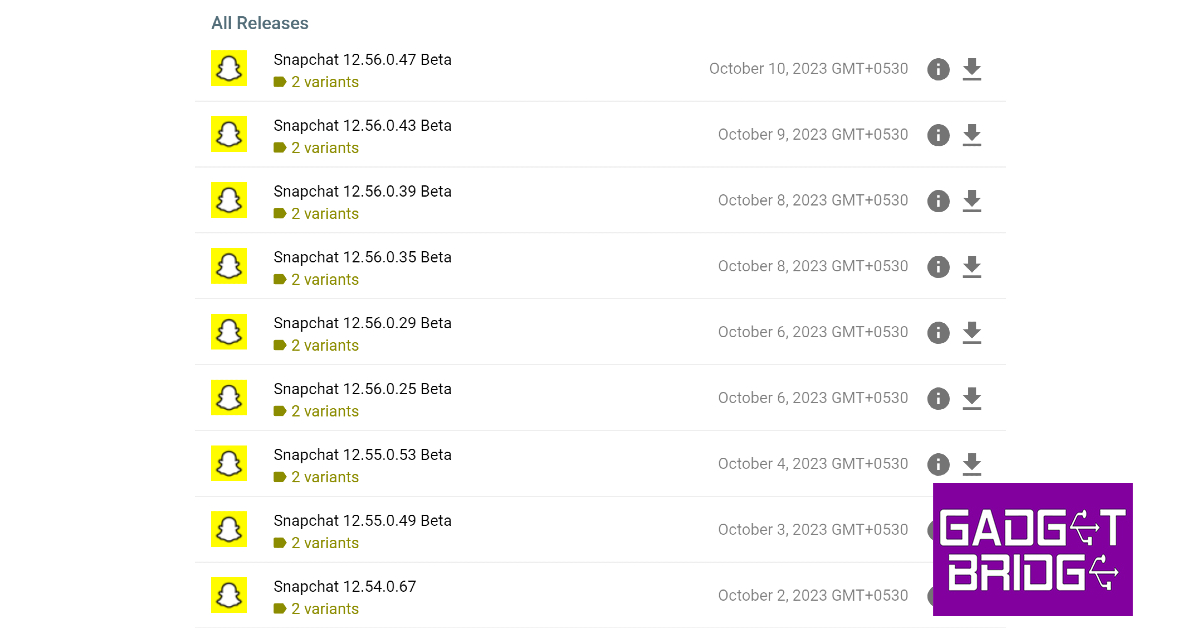
Step 4: Uninstall Snapchat from your device and download an older version from a third-party marketplace. Top 4 Ways: How to Get Dark Mode in Snapchat on Android and iOS? If you are reluctant to use the Google Play Store on your Android device, you can always check out third-party marketplaces like APKMirror, Softonic, and F-Droid for the latest versions of your favourite apps. One of the advantages of using third-party marketplaces is that they also let you download older versions of the apps. This cannot be done on the Google Play Store. Before you install the downloaded APK on your Android device, make sure to allow installations from unknown sources in device settings.

Frequently Asked Questions (FAQs)

How do I update all my apps at once?

To update all the apps on your Android phone at once, go to Google Play Store>Manage apps and device and select Update all.

How do I turn on auto-updates for just one app on my Android device?

If you want to turn on automatic updates for a particular app on Android, go to the app’s page on Google Play Store, hit the ellipses on the top right corner of the screen and select the check box for auto-updates.

What are some of the most trusted websites for third-party app downloads on Android?

APKMirror, Uptodown, APKPure, F-Droid, and Softonic are some of the most trusted third-party app marketplaces for Android. Read Also: Nokia G42 5G new variant now available in India

Conclusion

These are the top 3 ways to manually update apps on your Android phone or tablet. It is recommended that you keep the apps on your phone updated at all times since the latest versions of the apps are generally more secure and do not contain any pesky bugs that may be plaguing the older versions. For the latest gadget and tech news, and gadget reviews, follow us on Twitter, Facebook and Instagram. For newest tech & gadget videos subscribe to our YouTube Channel. You can also stay up to date using the Gadget Bridge Android App. You can find the latest car and bike news here.

Garena Free Fire Redeem Codes Today 12 October 2023: Here is how to claim them

Garena Free Fire is a battle royale game with regular awards and tournaments to keep players interested. If you play Garena Free Fire, you should be aware of the redeem codes that are released on a daily basis. However, because the battle royale game is banned in India, players from other countries can use the Free Fire Redeem codes daily. If you’re unfamiliar with the Garena Free Fire redeem codes or don’t know how to get them, we’ve put together a step-by-step guide to help you redeem them. Check out Garena Free Fire Redeem Codes for 12 October 2023. The Free Fire redeem codes are a great way to get free stuff. These are 12-digit codes that contain alphabets and numbers, as well as an expiration date and time. Because the Garena FF redeem codes cannot be used more than once, you should hurry to the redemption page to claim your free reward before someone else does. To get a free reward, all you have to do is go to reward.ff.garena.com/en, which is the official redemption page. Also, keep an eye on this space for daily updates on Garena Free Fire redemption codes and rewards.

Garena Free Fire Redeem Codes Today 12 October 2023

8F3QZKNTLWBZ B6IYCTNH4PV3 X99TK56XDJ4X FF1164XNJZ2V FF11NJN5YS3E W0JJAFV3TU5E MCPTFNXZF4TA FF11HHGCGK3B WLSGJXS5KFYR FF11DAKX4WHV ZYPPXWRWIAHD VNY3MQWNKEGU ZZATXB24QES8 U8S47JGJH5MG FFIC33NTEUKA YXY3EGTLHGJX FF10GCGXRNHY SARG886AV5GR Y6ACLK7KUD1N FF10617KGUF9 FF11WFNPP956 ZRJAPH294KV5 FF119MB3PFA5

How to Get Free Fire Redeem Codes for Garena on 12 October 2023?

  • Visit the Garena Free Fire game’s official website at reward.ff.garena.com.
  • Use your Facebook, Google, VK, Apple ID, Huawei ID, or Twitter account to log in.
  • You’ll be taken to a valid redemption code (s)
  • Copy and paste the 12-digit redemption code into the text box.
  • On the screen, a dialogue box will appear.
  • ‘Ok’ should be selected.
For the latest gadget and tech news, and gadget reviews, follow us on TwitterFacebook and Instagram. For newest tech & gadget videos subscribe to our YouTube Channel. You can also stay up to date using the Gadget Bridge Android App. You can find the latest car and bike news here.

Oppo Find N3 Flip expected to launch at this pricing

Oppo Find N3 Flip is set to launch in India on October 12. Ahead of the official announcement the price of the clamshell design phone has been leaked. The Flip phone has a 3.26-inch cover and a 6.80-inch primary AMOLED screen. The device is powered by MediaTek Dimensity 9200 SoC. It comes with a circular camera module. The price of the Oppo Find N3 Flip in India has been leaked just one day ahead of the official announcement. As per a tipster price of the upcoming flip phone will start at Rs 94,999 for the 12GB RAM with 256GB storage option. The tipster claims that after the discount the device will be available at Rs 89,622.

Oppo Find N3 Flip specifications

Oppo Find N3 Flip features an AMOLED primary display measuring 6.80 inches with a 120Hz refresh rate. There is a 3.26-inch vertical cover display, like its predecessor. The handset is powered by an octa-core MediaTek Dimensity 9200 SoC that powers the clamshell-style foldable phone along with up to 512GB of internal storage and 12GB of RAM. The Find N3 Flip has a circular camera set-up beside its outer display that includes a triple rear camera arrangement. The camera system consists of a 32-megapixel telephoto sensor, an 8-megapixel ultra-wide-angle sensor, and a 50-megapixel Sony IMX890 main lens with OIS capability. The phone includes a 32-megapixel front camera for taking selfies and making video calls. The Find N3 Flip has a side-mounted fingerprint scanner. A gyroscope and an ambient light sensor are also present. The Oppo Find N3 Flip has 5G, Wi-Fi, Bluetooth, and NFC connectivity options. The phone sports a 4,300mAh battery with 44W wired charging support. The company will be hosting a dedicated launch event tomorrow that will be live-streamed at 7 PM in the evening. Interested ones can join the webcast on YouTube or via the company’s official social media channels in the country. For the latest gadget and tech news, and gadget reviews, follow us on TwitterFacebook and Instagram. For newest tech & gadget videos subscribe to our YouTube Channel. You can also stay up to date using the Gadget Bridge Android App. You can find the latest car and bike news here.

Great India Festival: Best camera smartphone deals under Rs 20,000 on Amazon

The Amazon Great India Festival is live. It is currently offering huge discounts on smartphones from brands like Samsung, OnePlus, Xiaomi, iQOO, Tecno, and many more. Check out some of the top deals now available for camera smartphones under Rs 20,000 during Amazon’s Great Indian Festival Sale.

Here is a list of the camera smartphones under Rs 20,000 if you’re on the lookout for a phone with outstanding camera features during the Great India Festival Sale on Amazon.

OnePlus Nord CE 3 Lite review: Design and Display

OnePlus Nord CE 3 Lite

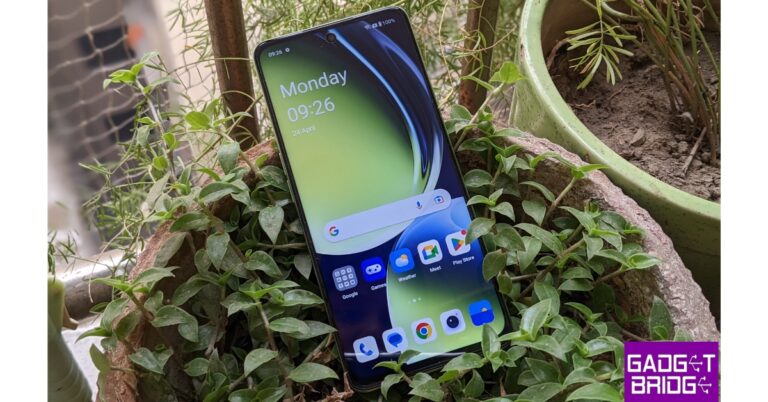
On Amazon, the OnePlus Nord CE 3 Lite is available at a starting price of Rs 19,999 for the 8GB RAM with 128GB storage option during the ongoing Great India Festival Sale. The smartphone features a triple rear camera setup that includes a 108-megapixel Samsung HM6 sensor with an f/1.75 aperture and EIS support. It also consists of a 2-megapixel macro lens and another 2-megapixel depth sensor. There is a 16-megapixel front-facing camera for selfies. The Nord CE 3 Lite is fuelled by an octa-core Snapdragon 695 SoC with Adreno 619 GPU for graphics. It is highlighted with a 6.72-inch full-HD+ LCD display with 1,080×2,400 pixels of resolution. The phone packs a 5,000mAh battery that supports 67W SuperVOOC fast charging. Samsung Galaxy M34 5G with 6,000mAh battery launched in India

Samsung Galaxy M34 5G

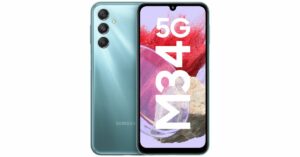
Samsung Galaxy M34 5G on the other hand is listed at Rs 15,999 for the 6GB RAM with 128GB storage model. The smartphone features a Full HD+ 6.5-inch display. The device runs OneUI 5.1, an Android 13-based operating system. The 5G phone is powered by Exynos 1280 SoC with a Mali-G68 MP4 GPU. It has a triple rear camera setup that includes a 50-megapixel primary sensor, a 2-megapixel macro sensor and an 8-megapixel ultra-wide angle camera. For selfies, there is a 13-megapixel sensor front-facing camera. A 6,000mAh battery powers the device. Redmi Note 12 5G, Redmi Note 12 Pro 5G, and Redmi Note 12 Pro+ 5G goes official in India

Redmi Note 12 5G 

Redmi Note 12 5G is currently made available at Rs 17,499 for the 6GB RAM with 128GB storage on Amazon. It features a 6.67-inch display with a 120Hz refresh rate. The phone operates on MIUI 13 based on Android 12 and is powered by Qualcomm Snapdragon 4 Gen 1 octa-core SoC. The Note 12 5G comes with a 48-megapixel primary sensor and a 2-megapixel depth sensor. There is an 8-megapixel front camera for selfies. It also houses a 5,000mAh battery that comes with 33W fast charging support. Vivo Y27 with MediaTek Helio G85 SoC launched in India

Vivo Y27

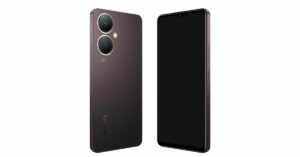
Vivo Y27 is listed at Rs 14,999 on Amazon for the 6GB RAM with 128GB storage. The phone has a 6.64-inch FHD+ LCD Sunlight display. It runs on FunTouch OS 13 which is based on the Android 13 operating system. Under the hood, there is MediaTek Helio G85 chipset and its Extended RAM 3.0 functionality. The smartphone comes with a dual rear camera setup that includes a 50 MP primary camera and a 2 MP bokeh camera. It has a variety of camera functions, including Bokeh Flare Portrait, Super Night Mode, and Super Night Selfie Mode. It has an 8 MP front camera with the Aura Screen Light function for selfies, ensuring sharp, high-resolution selfies in any setting. It includes a 5000mAh battery and a quick 44W FlashCharge.
Vivo T2 5G
Vivo T2 5G

Vivo T2 5G

Vivo T2 5G can be bought at Rs 17,999 for 6GB RAM with 128GB storage on Amazon. The device includes a 6.38-inch AMOLED display with 1,080×2,400 pixels of resolution. The smartphone is powered by a Snapdragon 695 SoC. dual rear camera setup that includes a 64-megapixel primary sensor with f/1.79 aperture and a 2-megapixel bokeh sensor with f/2.4 aperture. In addition to this, there is a 16-megapixel sensor with f/2.0 aperture. It further includes a 4500mAh battery, with 44W fast charging support. iQoo Z7s 5G powered by Qualcomm Snapdragon 695 SoC launched in India

iQoo Z7s 5G

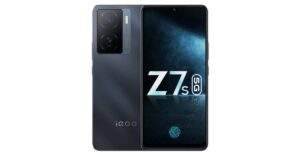
iQOO Z7s 5G is currently selling at Rs 17,999 for the 8GB RAM with 128GB storage on Amazon. The handset is highlighted with a 6.38-inch full-HD+ display. Funtouch OS 13 on top of Android 13 operates the phone. Under the hood is an octa-core Qualcomm Snapdragon 695 5G SoC and Adreno 619L GPU. The 5G smartphone features a dual rear camera setup a 64-megapixel primary sensor and a 2-megapixel sensor. In addition to this, there is a 16-megapixel front-facing camera for taking selfies. The phone has a 4,500mAh battery and support for 44W wired Flash Charging. Tecno Pova 5 Pro 5G Review: A good value-for-money smartphone

Tecno Pova 5 Pro 5G

Last on the list is Tecno Pova 5 Pro 5G which is currently up for sale at Rs 15,999 for the 8GB RAM storage option. This smartphone features a 6.78-inch full-HD+ display. The device is powered by MediaTek Dimensity 6080 5G SoC and Mali-G57 MC2 GPU. The smartphone comes pre-installed with HiOS 13.1, an Android 13-based operating system. It has a dual rear camera setup that includes a 50-megapixel main sensor and a secondary AI camera. It further sports a 16-megapixel front-facing camera. The phone also boasts a 5,000mAh battery. Amazon is also offering Easy financing options from reputable partner institutions like SBI Bank; 10% Instant Discount on SBI Credit and Debit Cards & EMI Transactions, Free EMI on Credit and Debit Cards, Exciting Offers from Other Top Credit/Debit Cards, and Much More For the latest gadget and tech news, and gadget reviews, follow us on TwitterFacebook and Instagram. For newest tech & gadget videos subscribe to our YouTube Channel. You can also stay up to date using the Gadget Bridge Android App. You can find the latest car and bike news here.

Top 3 Ways to Automatically Upload Photos to Google Photos on Android

0
Backing up the pictures and videos on your device to a cloud server is a great way to make sure you don’t lose them in case your phone stops working or gets stolen. Android’s stock gallery app, Google Photos, makes it incredibly easy to backup all your media on Google’s cloud server. The process is seamless and doesn’t take much time. In this article, we bring you the top 3 ways to automatically upload photos to Google Photos on Android. Read Also: Nokia G42 5G new variant now available in India

Automatically upload or backup photos to Google Photos on Android

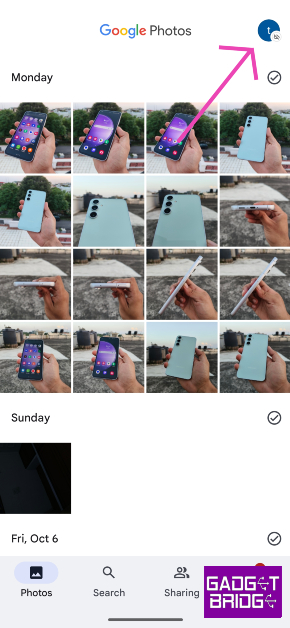
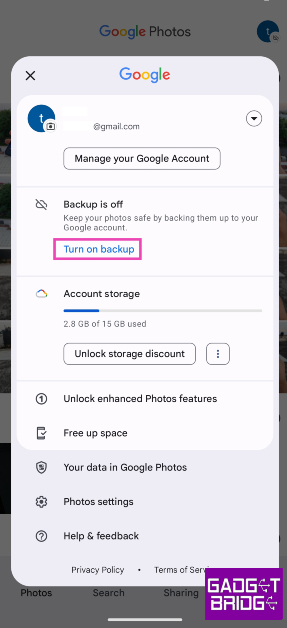
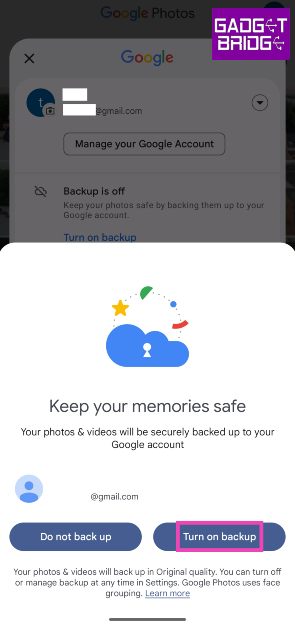
Step 1: Launch the Google Photos app on your Android smartphone. Step 2: Hit the profile icon at the top right corner of the screen. Step 2: Hit the profile icon at the top right corner of the screen. Step 3: Tap on Turn on backup. Step 3: Tap on Turn on backup. Step 4: In the popup box, select Turn on backup. Step 4: In the popup box, select Turn on backup. Google Photos will automatically start backing up the pictures in your gallery to the cloud. Any new pictures you take on your phone will be backed up on Google Photos.

Another method to automatically upload or backup photos to Google Photos on Android

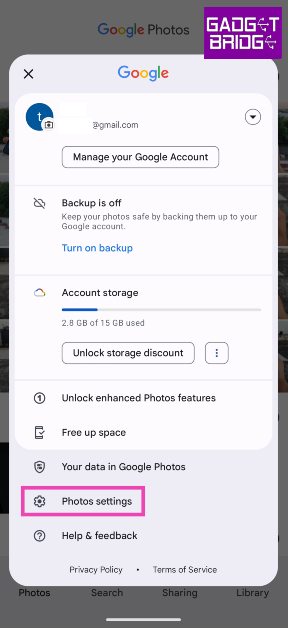
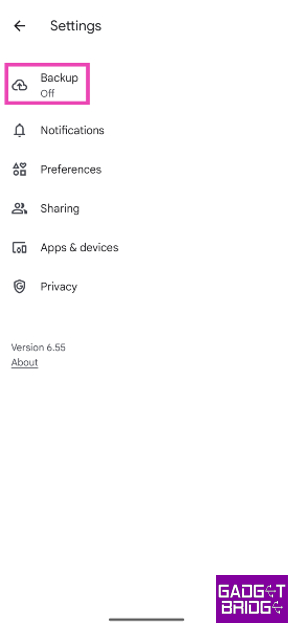
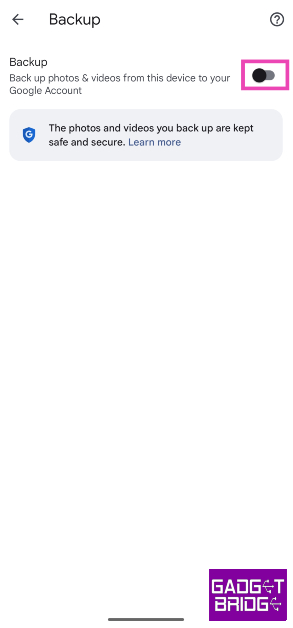
Step 1: Launch the Google Photos app on your Android smartphone. Step 2: Hit the profile icon at the top right corner of the screen. Step 2: Hit the profile icon at the top right corner of the screen. Step 3: Tap on Photos settings. Step 3: Tap on Photos settings. Step 4: Select Backup. Step 4: Select Backup. Step 5: Turn on the toggle switch for Backup. Step 5: Turn on the toggle switch for Backup.

Turn on automatic backup for Google Photos using device settings

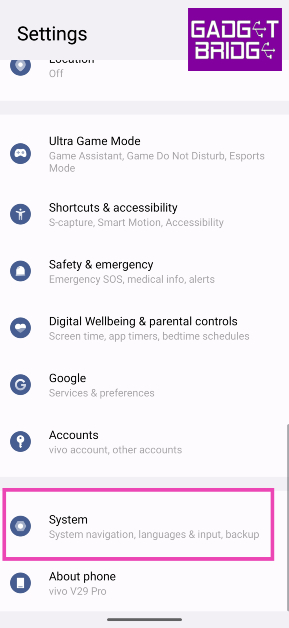
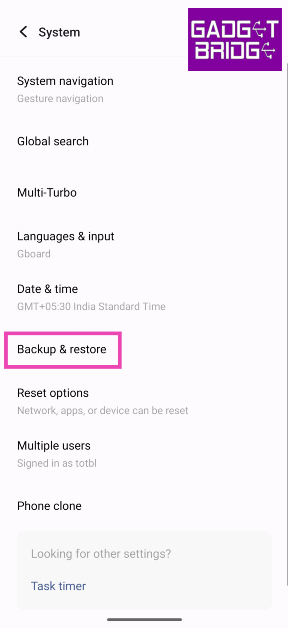
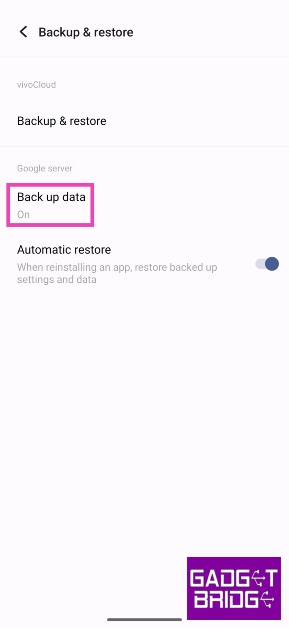
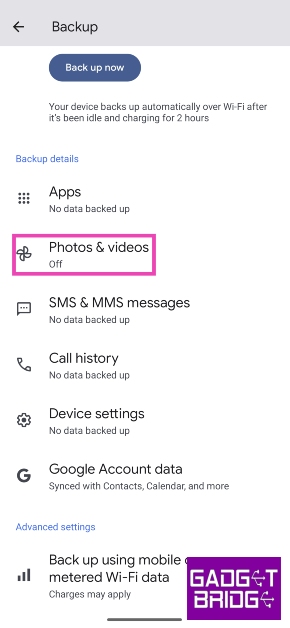
Step 1: Go to Settings and select System. Step 1: Go to Settings and select System. top 3 ways to automatically upload and backup photos to Google Photos on Android. Step 2: Tap on Backup & restore. Step 2: Tap on Backup & restore. top 3 ways to automatically upload and backup photos to Google Photos on Android. Step 3: Tap on Back up data under the Google server section. Step 3: Tap on Back up data under the Google server section. top 3 ways to automatically upload and backup photos to Google Photos on Android. Step 4: Tap on Photos & videos. Step 4: Tap on Photos & videos. top 3 ways to automatically upload and backup photos to Google Photos on Android. Step 5: Turn on the toggle switch for Backup. Step 5: Turn on the toggle switch for Backup. top 3 ways to automatically upload and backup photos to Google Photos on Android.

Frequently Asked Questions (FAQs)

Where does my phone back up my photos and videos?

You can choose to back up your photos and videos on Google Photos or your smartphone manufacturer’s native cloud service.

How much cloud storage does Google Photos offer?

Every Google Account gets 15GB of free cloud storage. This storage spans different services like Google Photos, Gmail, Google Drive, and more.

How do I turn on automatic backup for pictures on my Android device?

Go to Google Photos and tap the profile icon at the top right corner of the screen, tap on Turn on backup to enable automatic backup and syncing of pictures on your Android device. Read Also: Truke Clarity Five TWS Review: Great sound quality

Conclusion

This is how you can automatically upload or backup photos to Google Photos on Android. Since Google offers only 15GB of storage space per account, it is nearly not enough to backup all your pictures. Luckily, smartphone manufacturers like Samsung, Vivo, OnePlus, and more offer their own cloud storage as well. Check out your device’s settings to know more. For the latest gadget and tech news, and gadget reviews, follow us on Twitter, Facebook and Instagram. For newest tech & gadget videos subscribe to our YouTube Channel. You can also stay up to date using the Gadget Bridge Android App. You can find the latest car and bike news here.

Fast and Best Ways to Create Reels from Instagram Stories

0
Even though they share the same bite-sized form, Instagram Stories and Reels could not be more different. Stories are personal and meant to be shared with your friends while Reels are shared to a wider audience across the app (if your profile is public). Once you post a Reel, it shows up in your followers’ feed. Meanwhile, a Story can only be accessed from the home page header. Recently, Instagram quietly added the option to share your Story as a Reel. In this article, we bring you the best ways to create Reels from Instagram Stories. Read Also: Truke Clarity Five TWS Review: Great sound quality

Create Reels from Instagram Stories

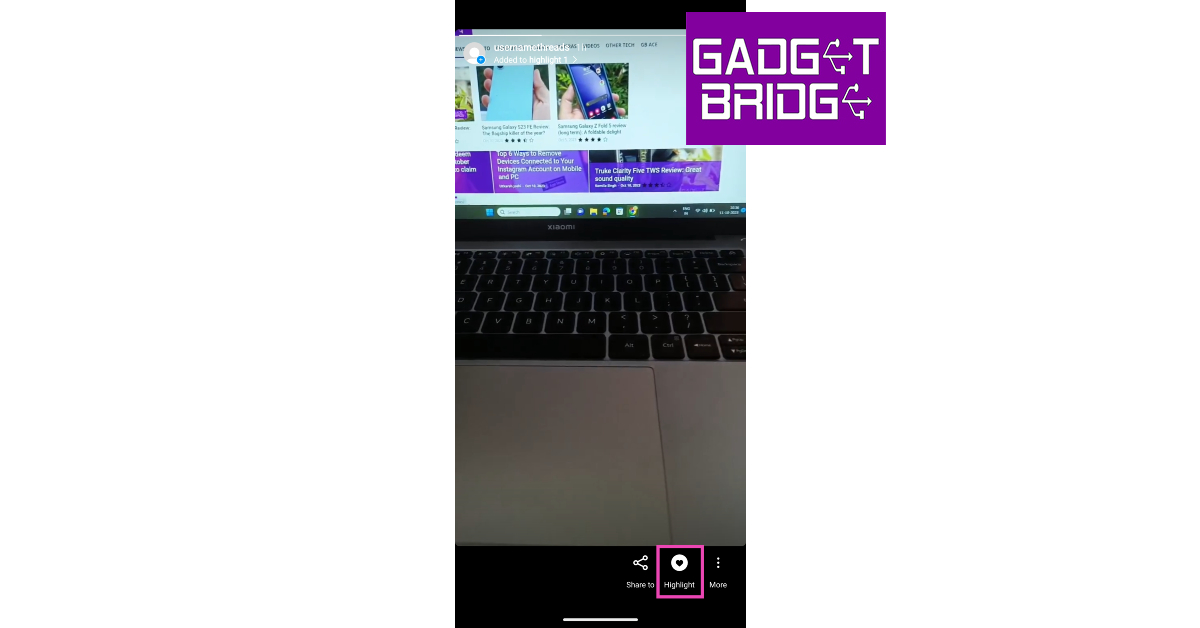
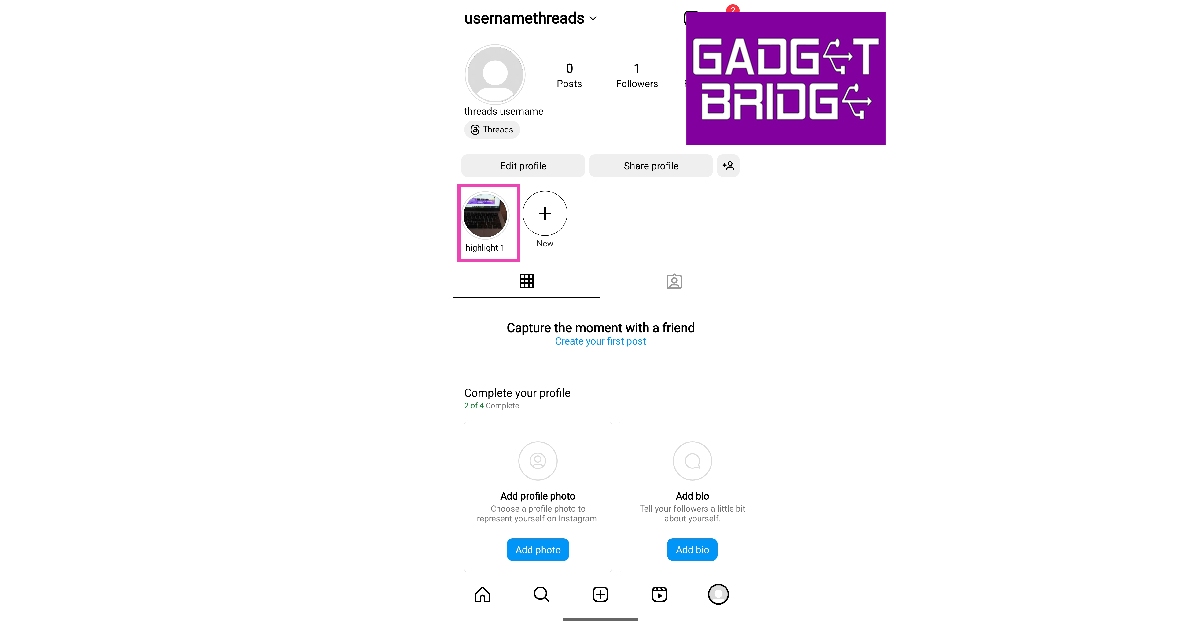
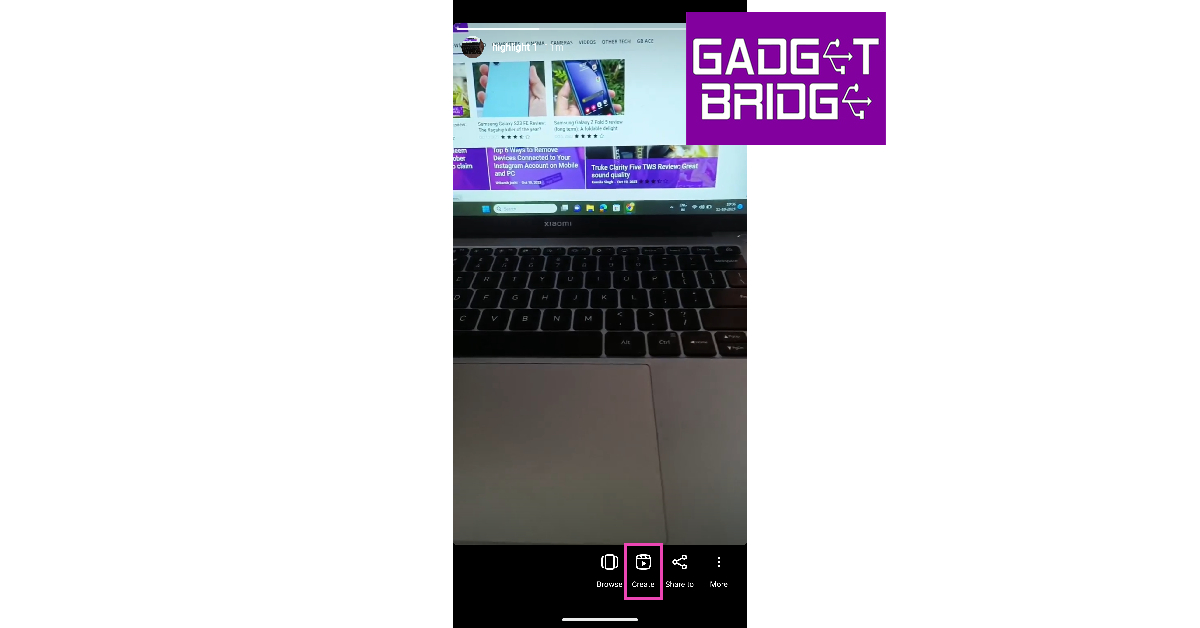
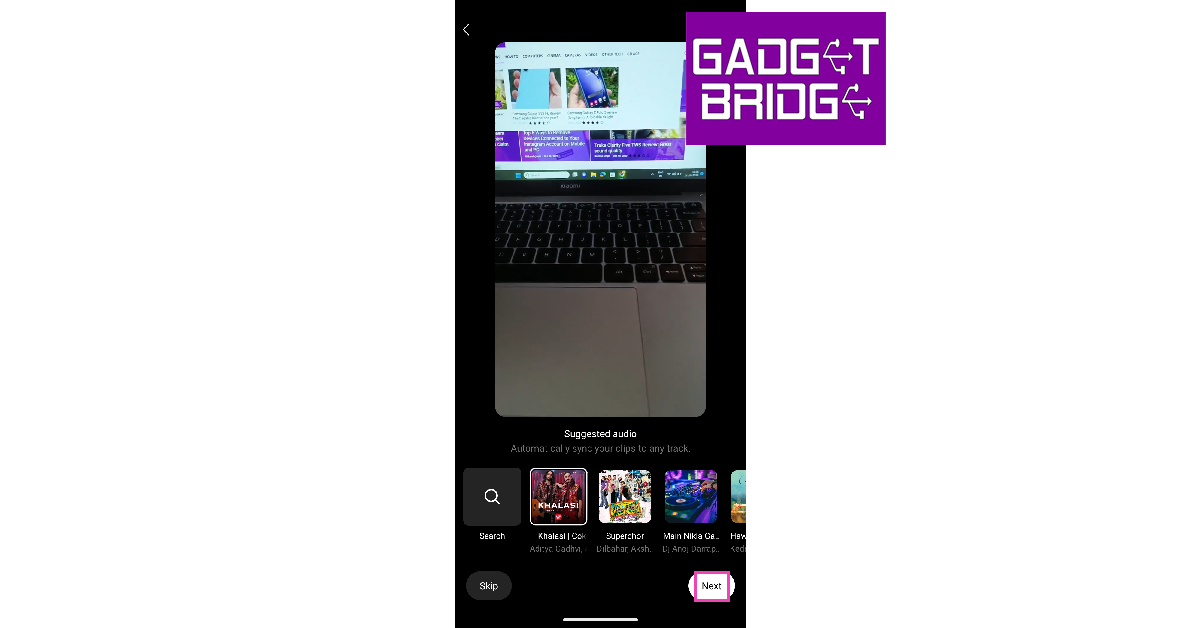
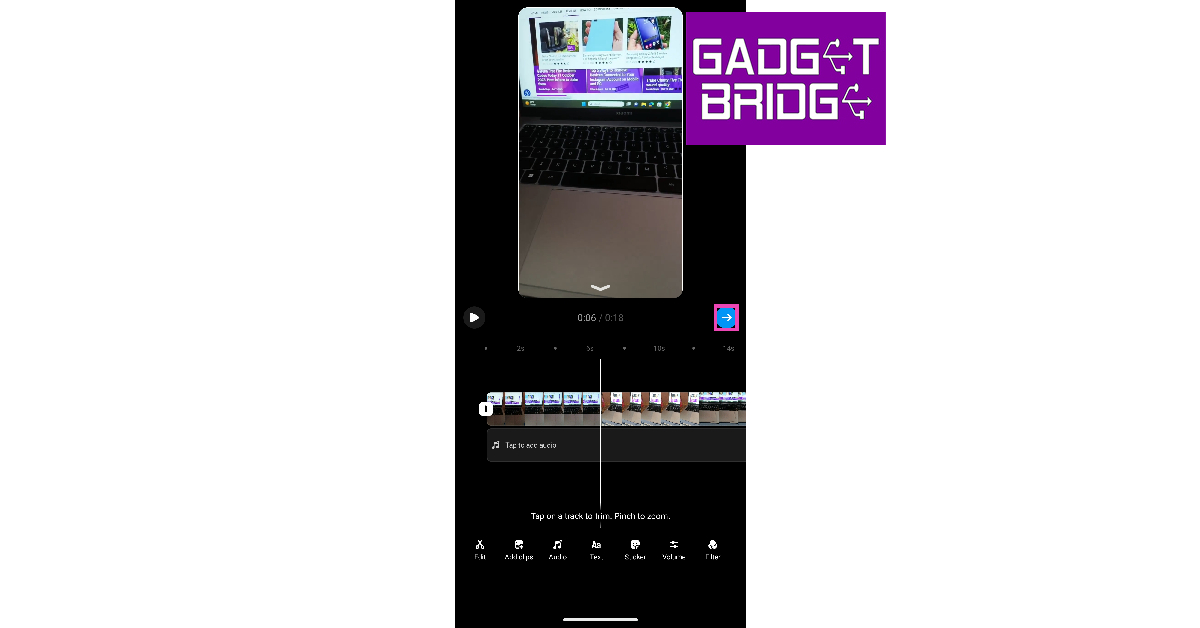
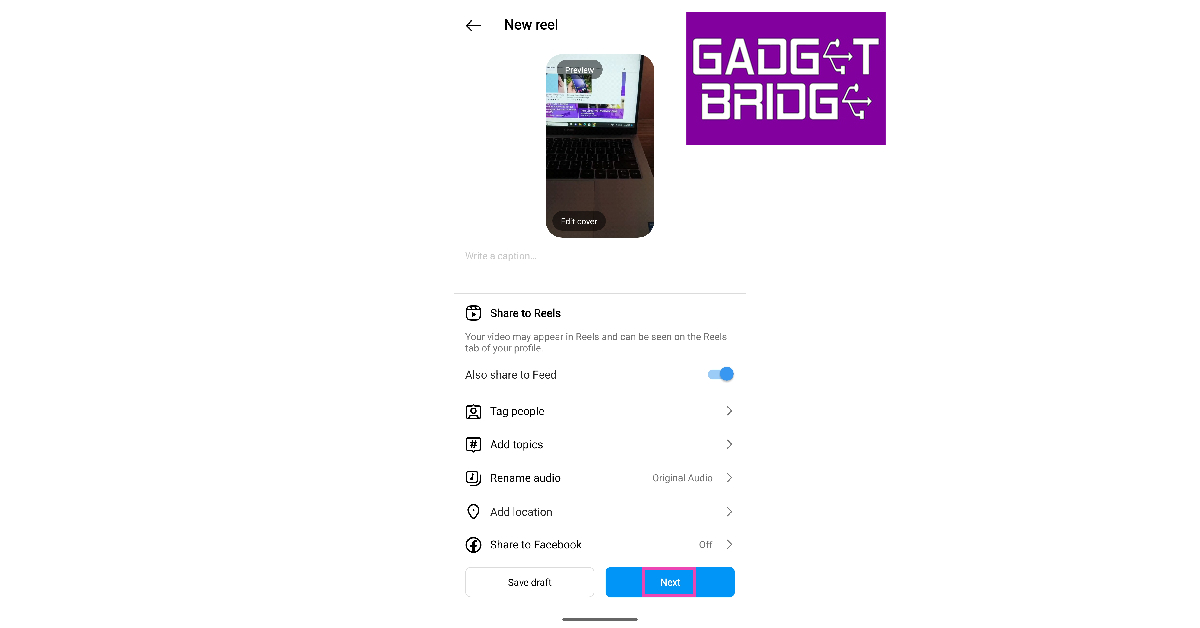
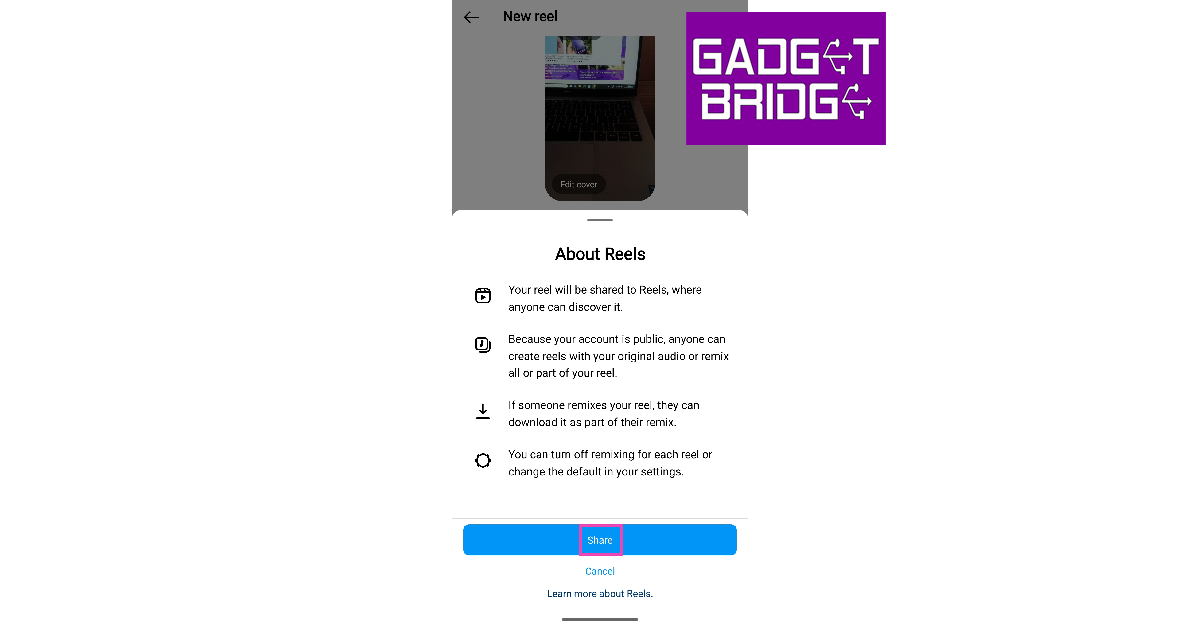
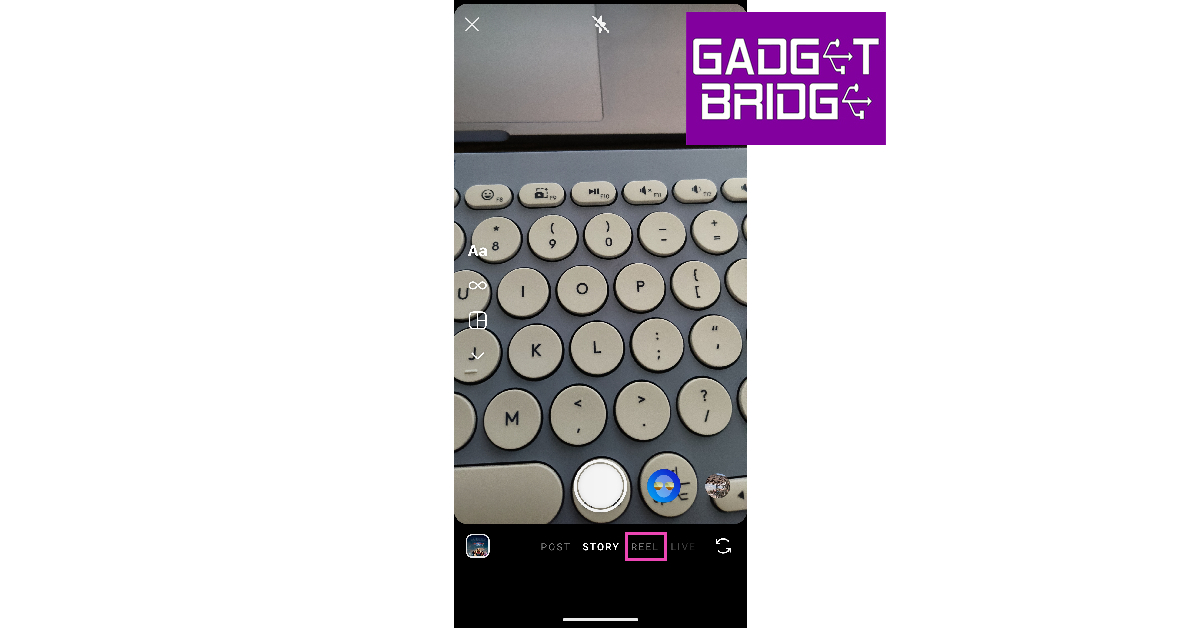
Instagram now lets you create Reels directly from Story Highlights. Here’s how you can go about it. Step 1: Tap on your Story and hit the Highlight icon at the bottom of the screen. Add the Story to a Highlight compilation. Step 1: Tap on your Story and hit the Highlight icon at the bottom of the screen. Add the Story to a Highlight compilation. Step 2: Open the Highlight. Step 2: Open the Highlight. Step 3: Tap on Create. Step 3: Tap on Create. Step 4: Add a song to your Reel from Instagram’s recommended list. You can also choose to skip this step. Step 4: Add a song to your Reel from Instagram’s recommended list. You can also choose to skip this step. Step 5: Edit your Reel on the following page. Hit the blue arrow icon when you’re done. Step 5: Edit your Reel on the following page. Hit the blue arrow icon when you’re done. Step 6: Write a caption and add a thumbnail for your Reel. You can also tag other people and control other visibility settings from this page. Hit Next. Step 6: Write a caption and add a thumbnail for your Reel. You can also tag other people and control other visibility settings from this page. Hit Next. Step 7: Hit Share. Step 7: Hit Share.

Another way to post your Instagram Story as a Reel

Step 1: Open your Instagram Story and tap the ellipses at the bottom right corner of the screen. Step 2: Tap on Save video. The video will be saved to your Camera Roll. Step 2: Tap on Save video. The video will be saved to your Camera Roll. Step 3: Swipe right from your homepage and switch to the Reel tab. Step 3: Swipe right from your homepage and switch to the Reel tab. Step 4: Tap the Gallery icon at the bottom left corner of the screen and upload the Story you just saved on your device. Step 4: Tap the Gallery icon at the bottom left corner of the screen and upload the Story you just saved on your device. Fast and Best Ways to Create Reels from Instagram Stories Step 5: On the following page, edit the video and add text, music, stickers, or filters to it. You can also add location to your Reel. Hit Next when you’re done. Step 5: On the following page, edit the video and add text, music, stickers, or filters to it. You can also add location to your Reel. Hit Next when you’re done. Fast and Best Ways to Create Reels from Instagram Stories Step 6: Add a caption and edit the Reel cover. Hit Share. Step 6: Add a caption and edit the Reel cover. Hit Share. Fast and Best Ways to Create Reels from Instagram Stories Your Instagram Story will be shared as a Reel.

Bonus Tip: How to add an Instagram Reel to your Story

Step 1: Launch the Instagram app and open the Reel you want to share as a Story. Step 2: Tap the Share icon. Step 2: Tap the Share icon. Fast and Best Ways to Create Reels from Instagram Stories Step 3: Select Add reel to your story. Step 3: Select 'Add reel to your story'. Fast and Best Ways to Create Reels from Instagram Stories

Frequently Asked Questions (FAQs)

What is the time limit for Instagram Reels?

Instagram Reels have a time limit of up to 90 seconds. In comparison, an Instagram Story has a time limit of 60 seconds.

How do I share an Instagram Story as a Reel?

Post the Instagram Story as a Highlight on your profile, then open the Highlight and hit the Create option at the bottom of the screen.

How do I download an Instagram Reel on my phone without using a third-party app?

If the Instagram Reel is up to 60 seconds long, you can download it on your device by adding it to your Story and selecting More>Save. Read Also: Top 4 Ways: How to Get Dark Mode in Snapchat on Android and iOS?

Conclusion

This is how you can create Reels from Instagram Stories. To make your Reel more appealing and increase its visibility, add the trending songs suggested by Instagram and edit it cleverly to hold the attention of the viewer. If you found this article helpful, let us know in the comments! For the latest gadget and tech news, and gadget reviews, follow us on Twitter, Facebook and Instagram. For newest tech & gadget videos subscribe to our YouTube Channel. You can also stay up to date using the Gadget Bridge Android App. You can find the latest car and bike news here.

Spotify is disabling some features for free users in India

Unfortunately, Spotify is making changes to its free service in India. From now onwards the free users of the Audio Streaming app will not be able to access a few features. Now those features will only be accessible to Premium users in the country. After imposing a cap following features will not be accessible. Now users who have not subscribed to Spotify premium subscription will no longer to able to avail benefits of other features of the free services. The Application is now limiting the users to play songs in any order, or repeating songs/or on a loop and tapping back to the previous song. However, the users will still be able to access to the artists, albums and playlists they like with song recommendations mixed in. Also Read: Global PC shipments fell 7.6% YoY in Q3 2023: Report All of these features have been available to free users since its launch. But now after imposing a limit, the company says these restrictions were being put to make the free experience more uniform across the globe. Spotify is disabling some features for free users in India A pop-up has started to show up on the Spotify app for those who are not paying a subscription. There three of the above-listed features have been locked and will now only be unlocked if you opt for the premium service. So now the users have the choice to pay and benefit. The Spotify Premium subscription in India starts at Rs 119. After you have opted for the paid service you will get access to on-demand and ad-free music listening, offline music downloads, and quality music streaming. It should be noted that for several months, we at Gadget Bridge were also unable to access the option that allowed us to choose a specific section of a song, or to play our playlist in the order that it was organised.

Spotify Premium offer a total of four plans:

Mini Play starts at Rs 7 per day where only one account on mobile is accessible. Users have access to Ad-free music listening on mobile, Group Sessions and Download 30 songs on 1 mobile device. Whereas the only Individual Plan/monthly starts at Rs 119. Along with access to Ad-free music listening and Group Sessions, you will also be able to download 10k songs/device on 5 devices. Duo Plan as the name suggest allow two accounts to access the Spotify Premium Service starting at Rs 149 per month. This is suitable for couples having access for Ad-free music listening, Group Sessions and downloading 10k songs/device, on 5 devices per account. Lastly, the Family pack starts at Rs 179 per month where 6 family members can be added. This plan offers all the basic features but provide the functionality to block explicit music. For the latest gadget and tech news, and gadget reviews, follow us on TwitterFacebook and Instagram. For newest tech & gadget videos subscribe to our YouTube Channel. You can also stay up to date using the Gadget Bridge Android App. You can find the latest car and bike news here.

Global PC shipments fell 7.6% YoY in Q3 2023: Report

According to research by IDC Tracker, global PC shipments show a decline again in the third quarter of 2023 despite signs of market improvement. The shipment is down by 7.6% year over year with 68.2 million PCs shipped. The preliminary results from the International Data Corporation (IDC) Worldwide Quarterly Personal Computing Device Tracker show demand and the global economy are still weak. Shipments, however, rose in each of the previous two quarters, decreasing the yearly decline and proving that the market is no longer at the bottom of the trough. Also Read: Nokia G42 5G new variant now available in India In the past few months PC inventory has also become less substantial and is now close to healthy levels in most channels. As per the analyst the consumer and business sectors are experiencing downward pricing pressure that is anticipated to stay around.
Global PC shipments fell 7.6% YoY in Q3 2023: Report
Image Courtesy: IDC
The top 5 vendors saw double-digit decreases throughout the quarter but Apple’s huge loss was caused by challenging YoY comparisons as the company recovered from a COVID-related production halt during the third quarter of 2022. On the other hand, HP’s growth was mostly the result of inventory returning to normal. But this not going to last long as the PC sector is still recovering slowly. Reportedly the device refresh cycle and end of support for Windows 10 will help drive sales in the second half of 2024 and beyond. Unfortunately, the PC industry will continue to suffer meanwhile. As per Jitesh Ubrani, research manager for IDC’s Mobility and Consumer Device Trackers, “The slowness in the industry is giving the supply chain an opportunity to explore procurement and production options outside China and this will likely remain a key issue going forward, second only to the advancement of AI within PCs.”
Global PC shipments fell 7.6% YoY in Q3 2023: Report
Image Courtesy: IDC
“While the Generative AI could be a watershed moment for the PC industry,” said Linn Huang, research vice president, of Devices & Displays at IDC. “While use cases have yet to be fully articulated, interest in the category is already strong. AI PCs promise organizations the ability to personalize the user experience at a deeper level all while being able to preserve data privacy and sovereignty. As more of these devices launch next year, we expect a significant boost to overall selling prices.” For the latest gadget and tech news, and gadget reviews, follow us on TwitterFacebook and Instagram. For newest tech & gadget videos subscribe to our YouTube Channel. You can also stay up to date using the Gadget Bridge Android App. You can find the latest car and bike news here.