In This Article
Remove Connected Devices on Instagram using the mobile app
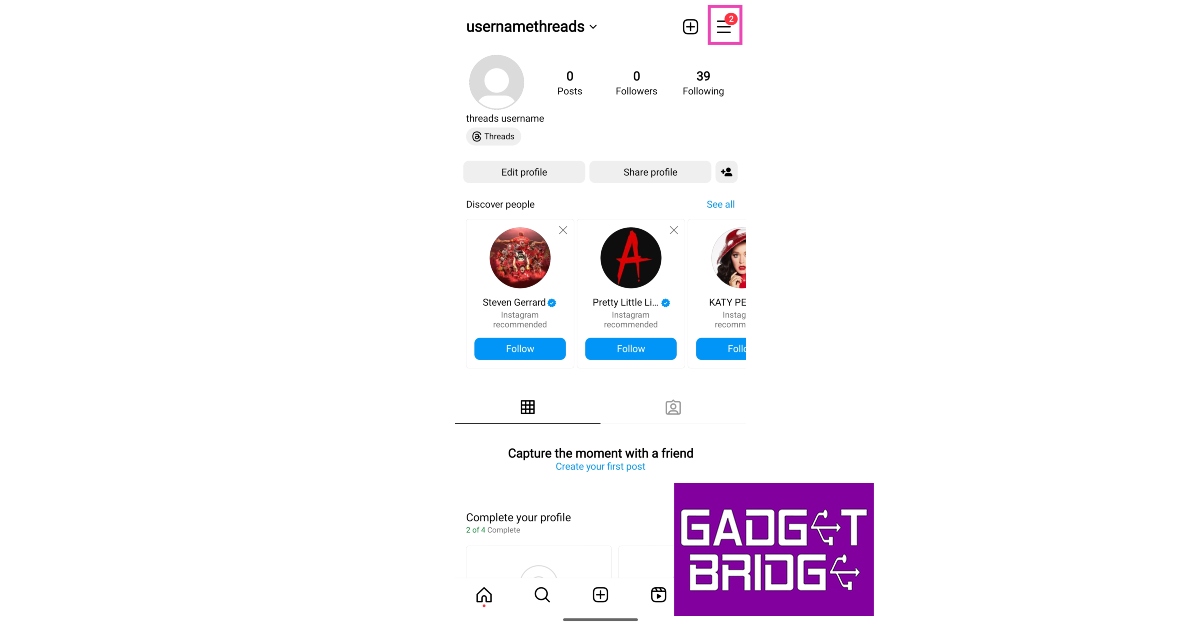
Step 1: Launch the Instagram app on your smartphone and tap the profile icon at the bottom right corner of the screen. Step 2: Hit the hamburger menu icon at the top right corner of the screen.
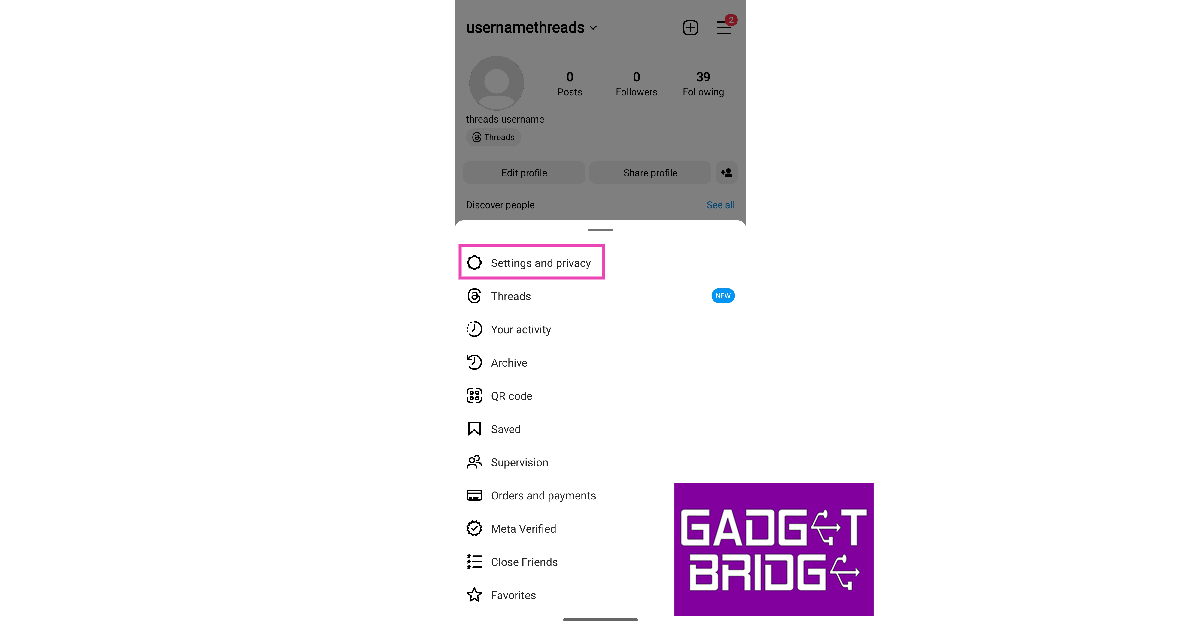
 Step 3: Select Settings and privacy.
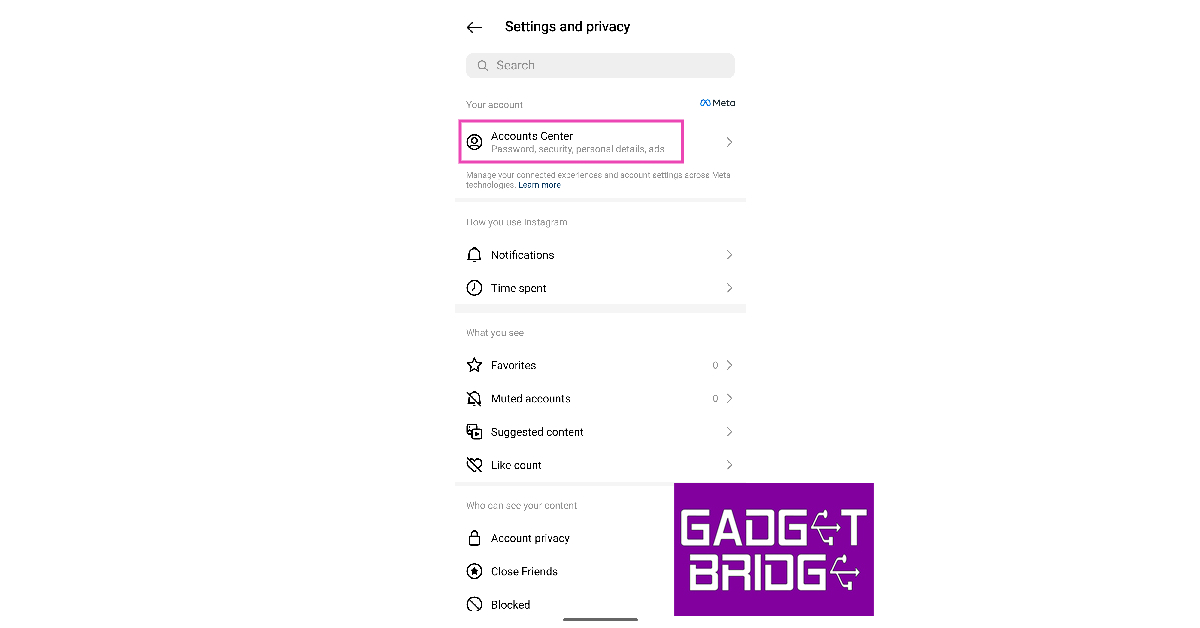
 Step 4: Tap on Accounts Centre.
 Step 5: Select Password and security.
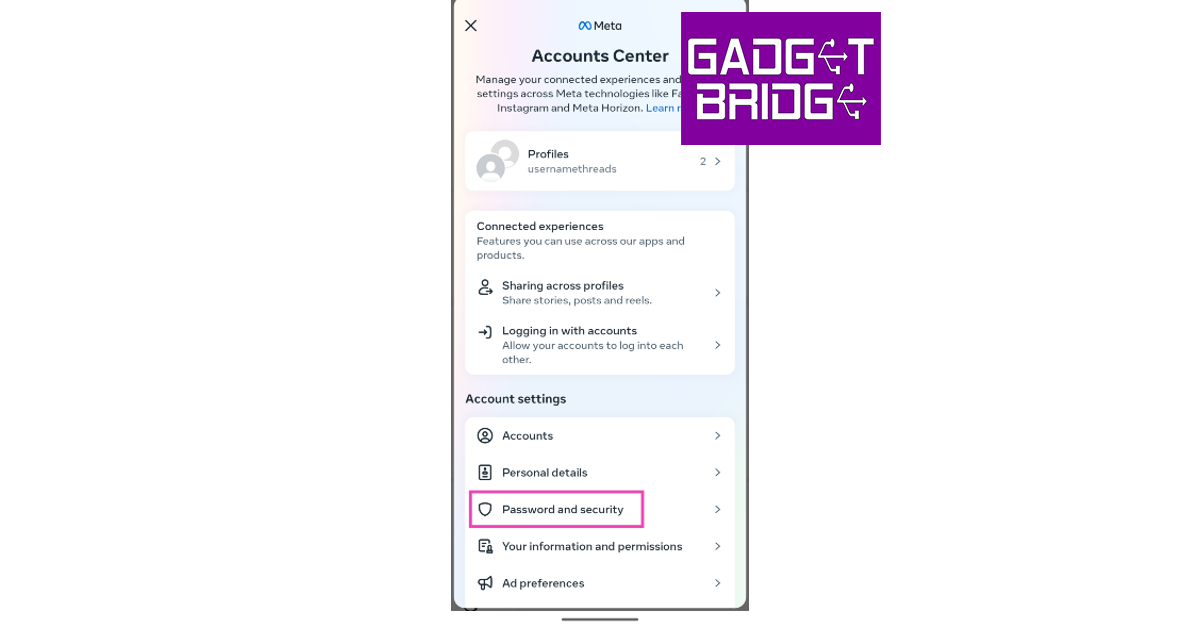 Step 6: Tap on Where you’re logged in.
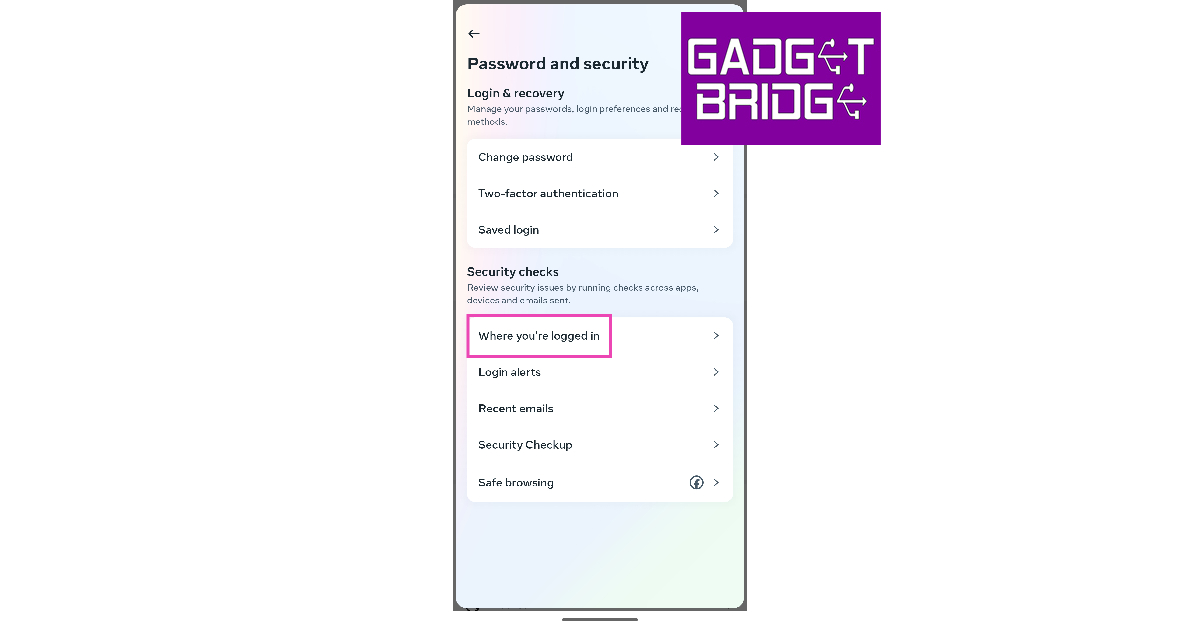 Step 7: Select your account.
Step 8: Scroll down and tap on Select devices to log out.
Step 7: Select your account.
Step 8: Scroll down and tap on Select devices to log out.
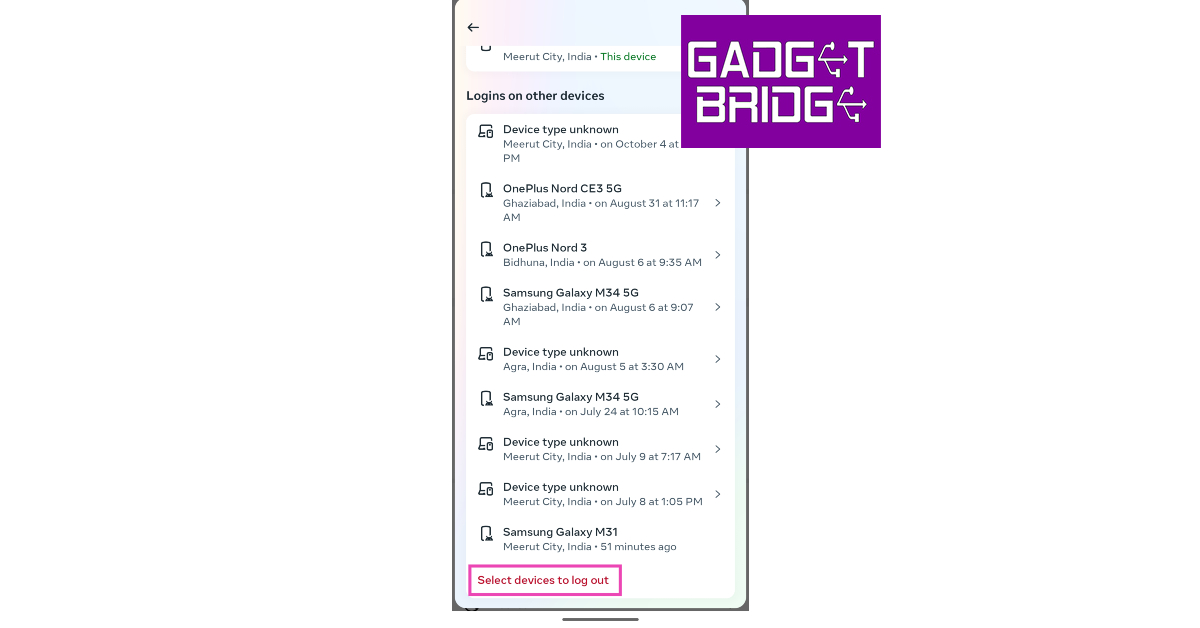 Step 9: Tap on the connected device(s) you want to remove from your Instagram account.
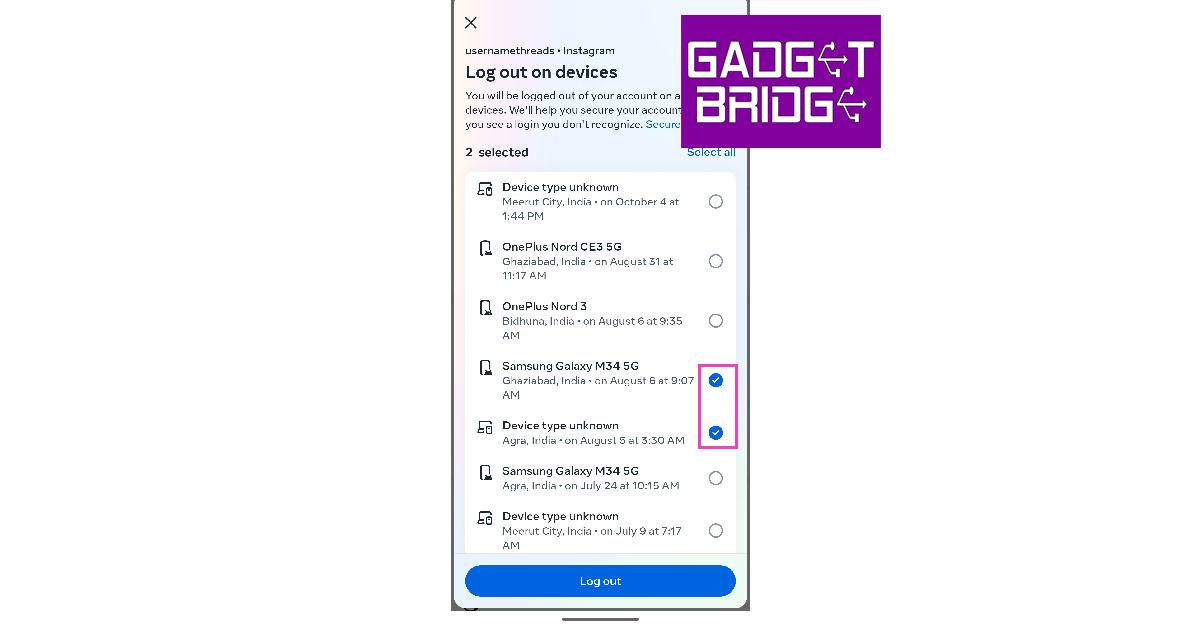 Step 10: Select Log out.
Remove Connected Devices on Instagram using its PC website
Step 1: Launch your PC’s web browser and log into Instagram’s website using your account credentials. Step 2: Click on the More option on the left and select Settings.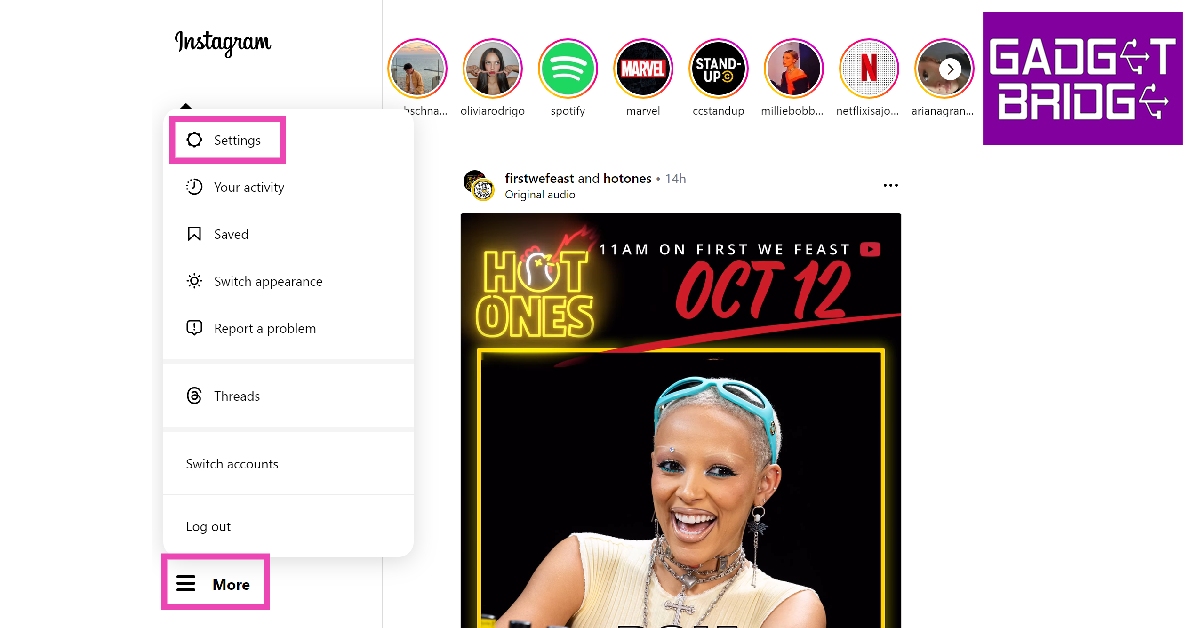 Step 3: Select See more in Accounts Centre.
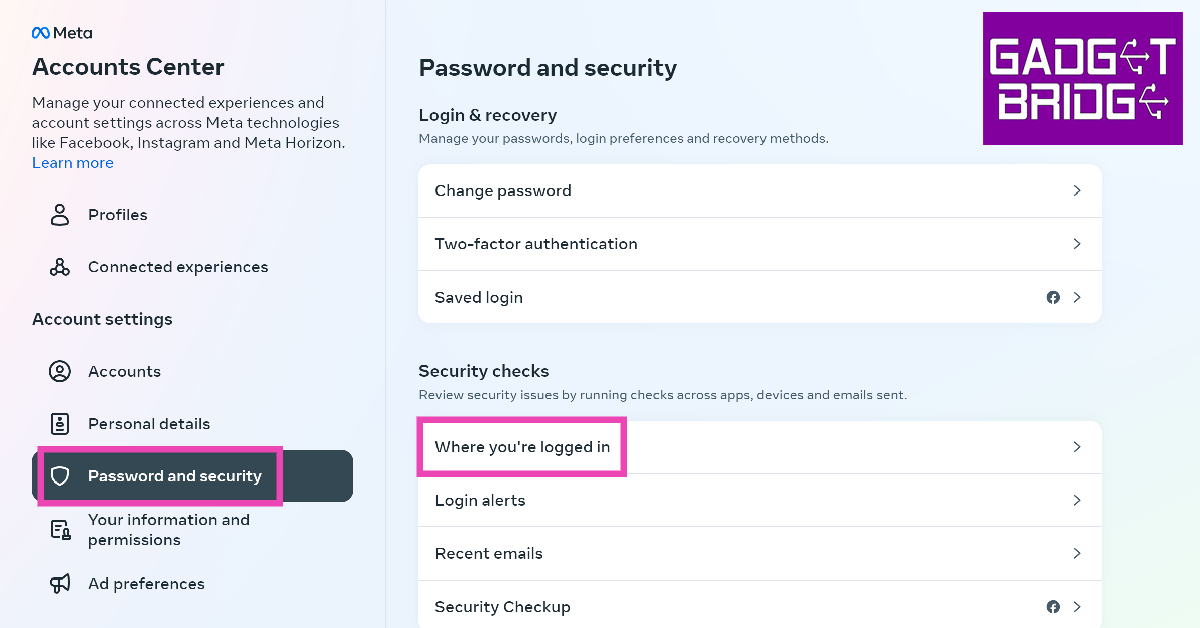
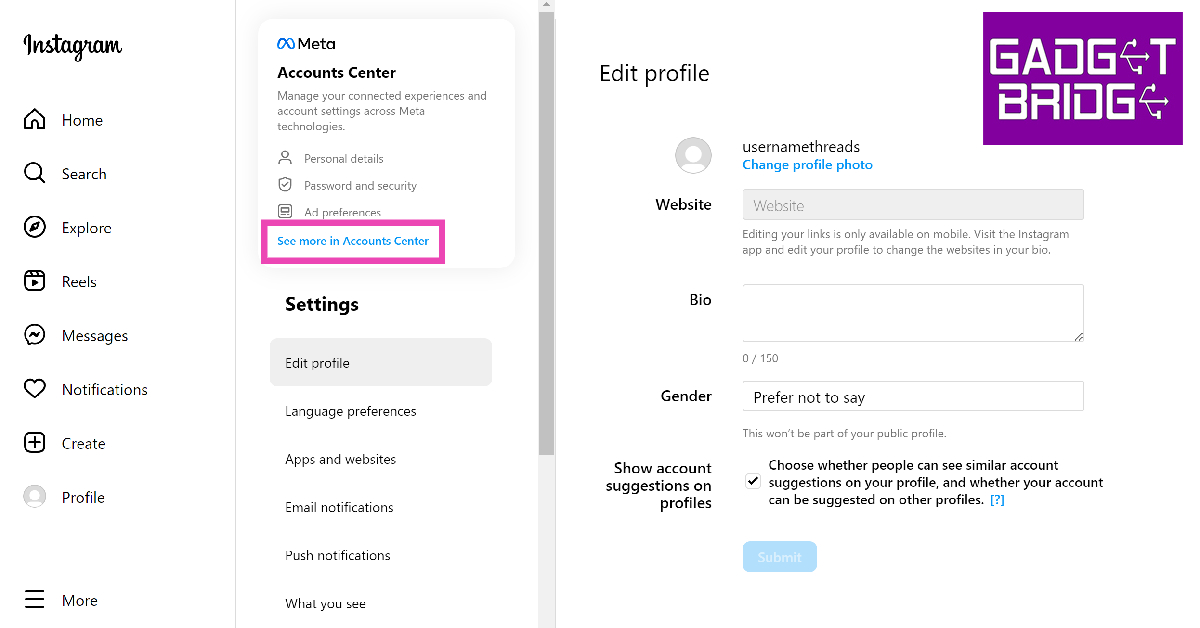 Step 4: Switch to the Passwords and security tab and click on Where you’re logged in.
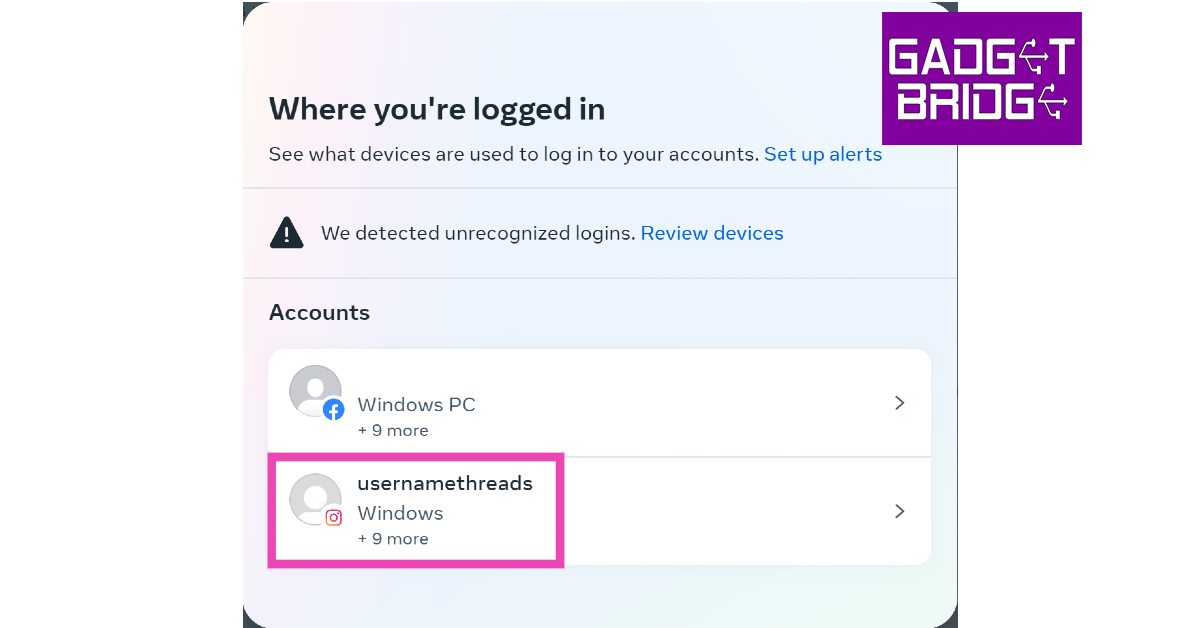
 Step 5: Select your account.
 Step 6: Click on Select devices to log out.
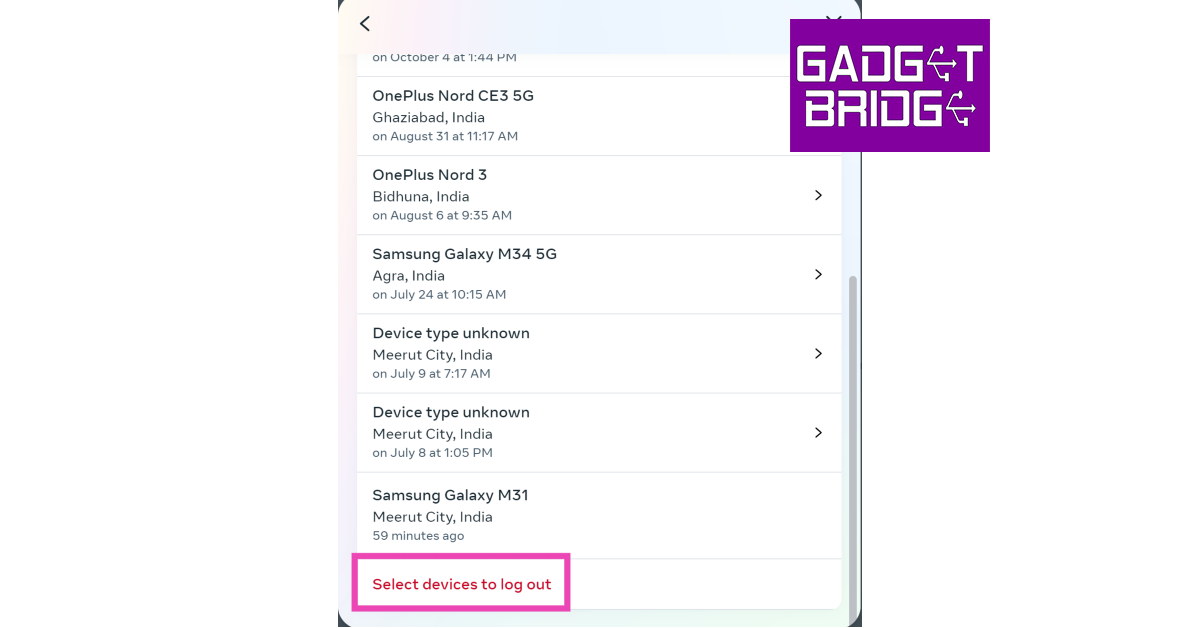 Step 7: Click on the device(s) you want to remove from your Instagram account and hit Log out.
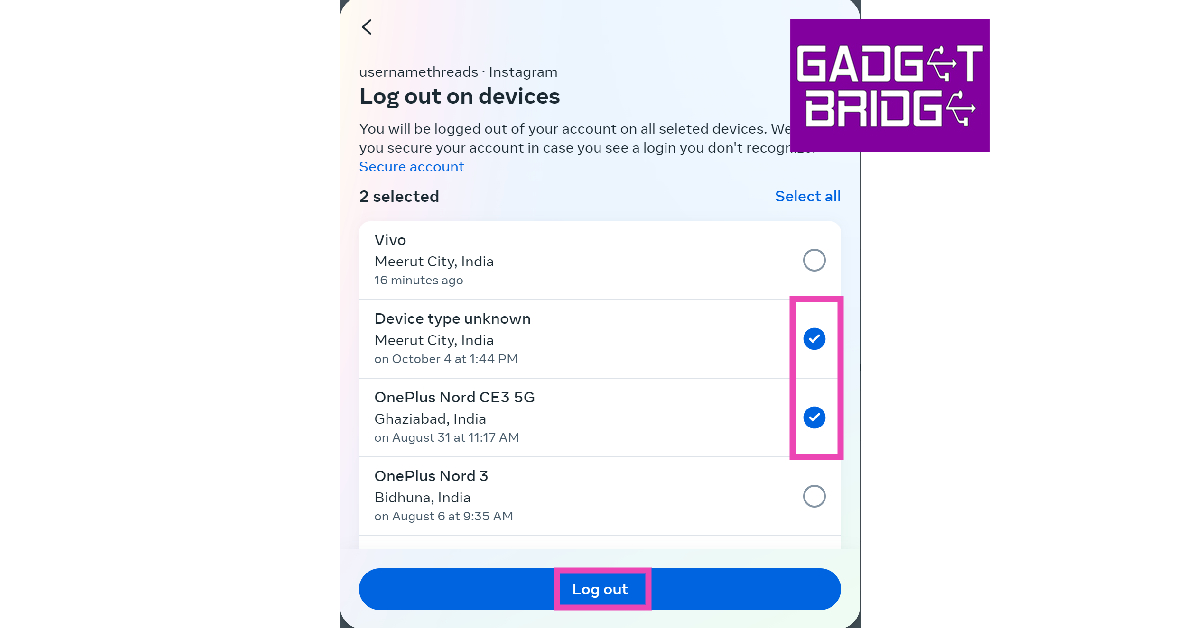
Remove Connected Devices on Instagram using the mobile website
Step 1: Launch your preferred web browser app on your smartphone and go to the Instagram website. Log into your Instagram account. Step 2: Tap the profile icon at the bottom right corner of the screen.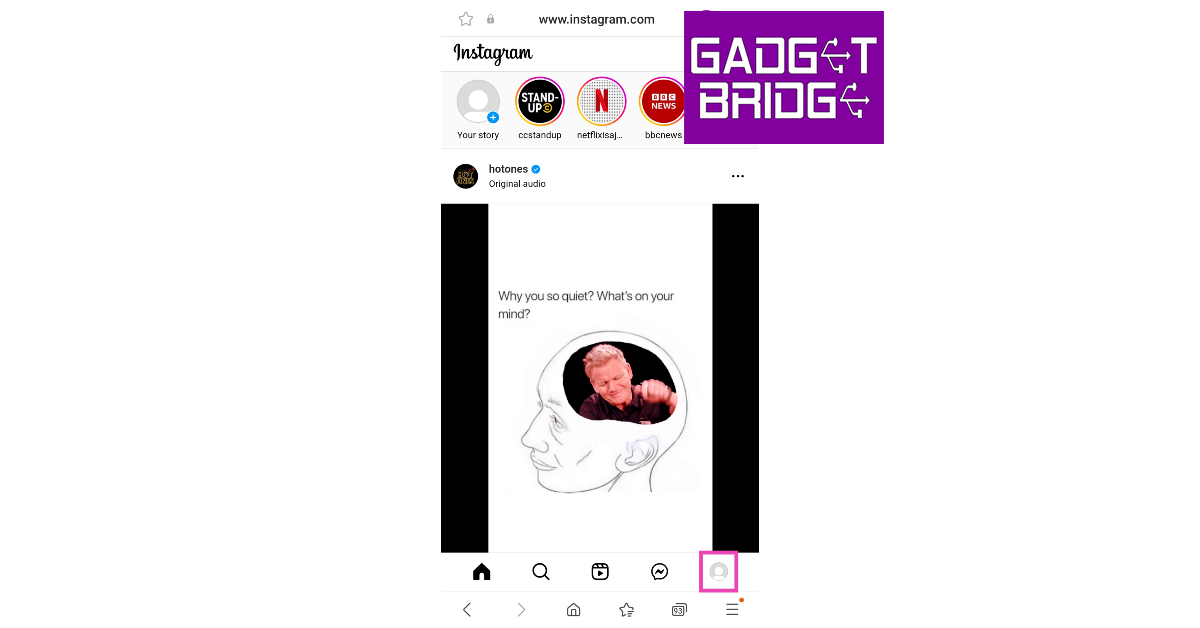 Step 3: Hit the gear icon at the top left corner of the screen.
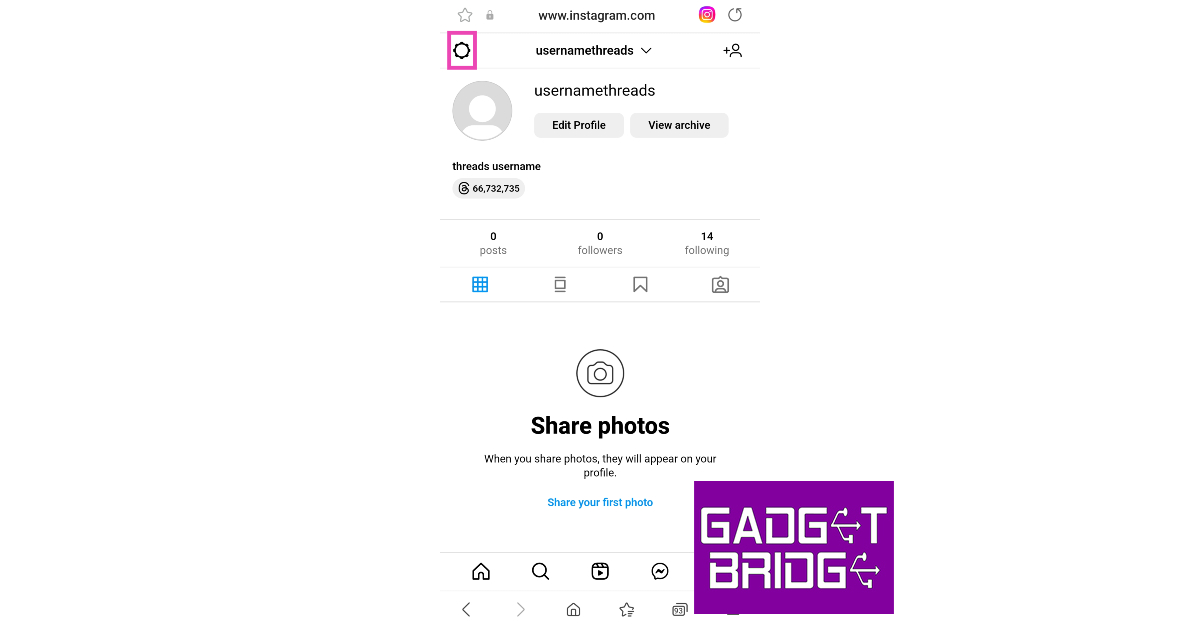 Step 4: Tap on See more in Accounts Centre.
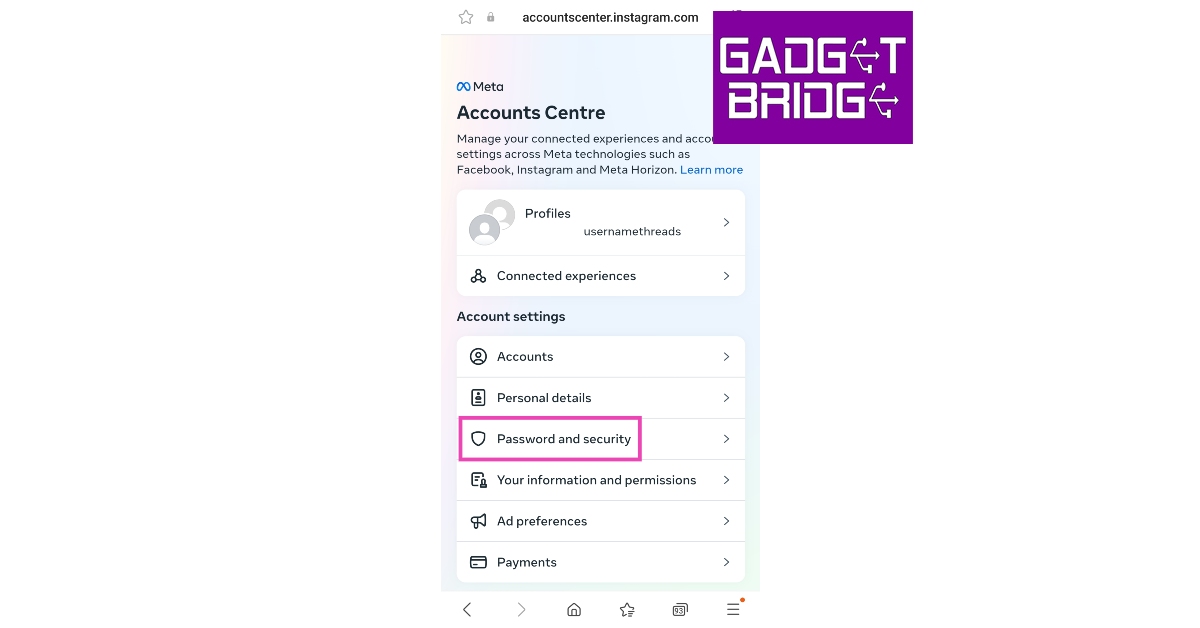
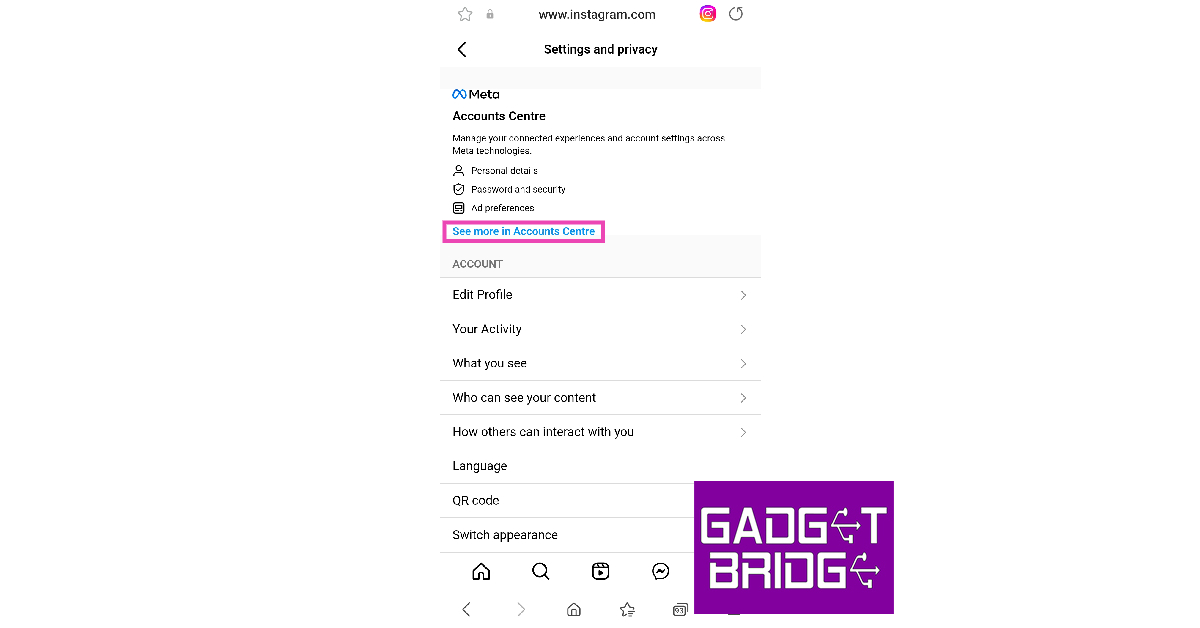 Step 5: Select Password and security.
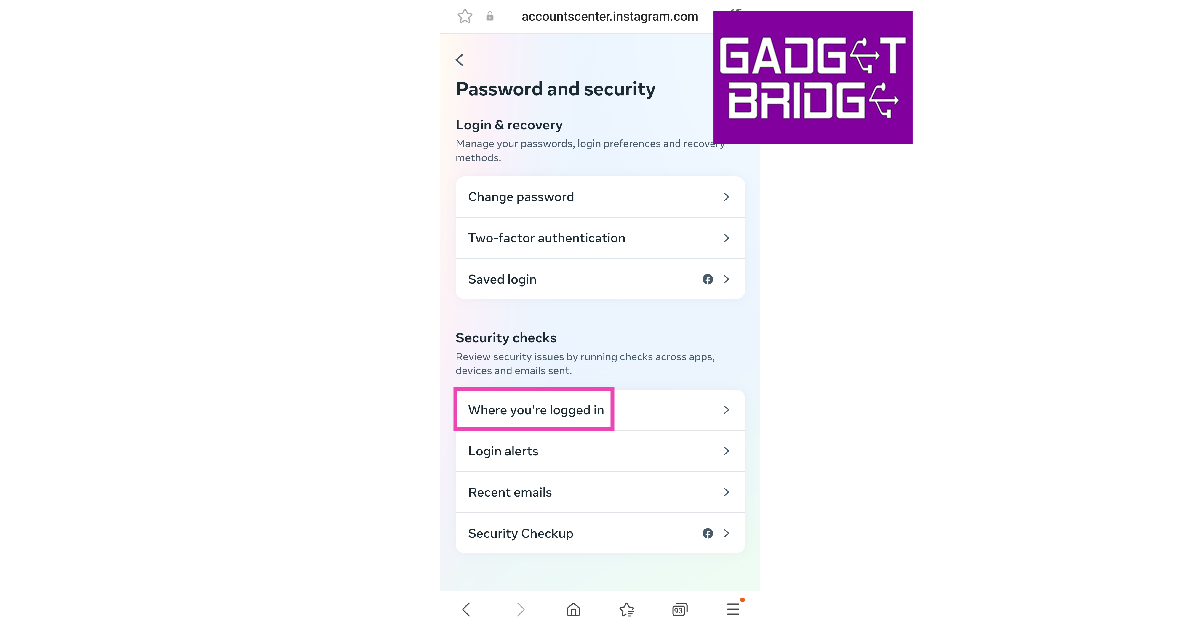
 Step 6: Tap on Where you’re logged in.
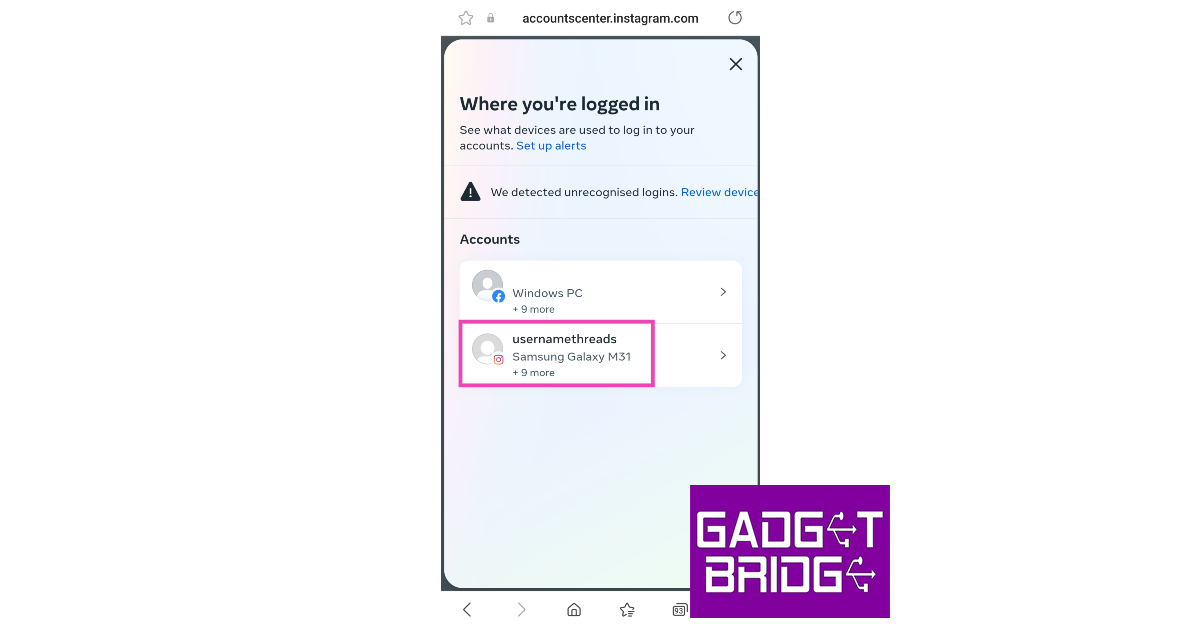
 Step 7: Select your account.
 Step 8: Scroll down and tap on Select devices to log out.
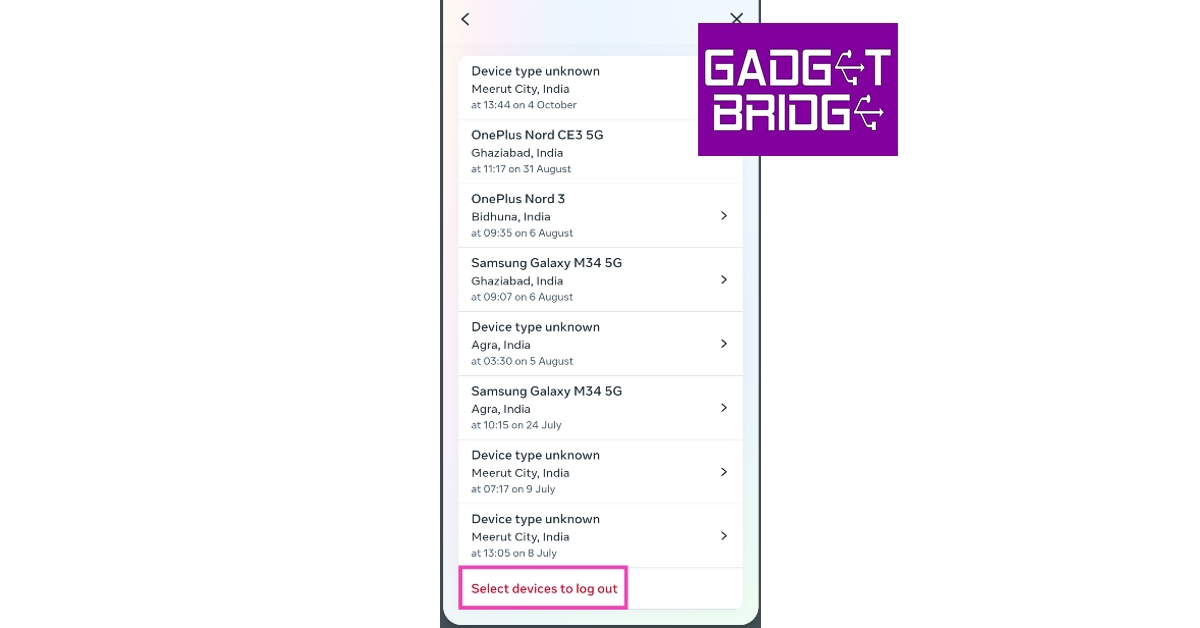 Step 9: Tap on the connected device(s) you want to remove from your Instagram account.
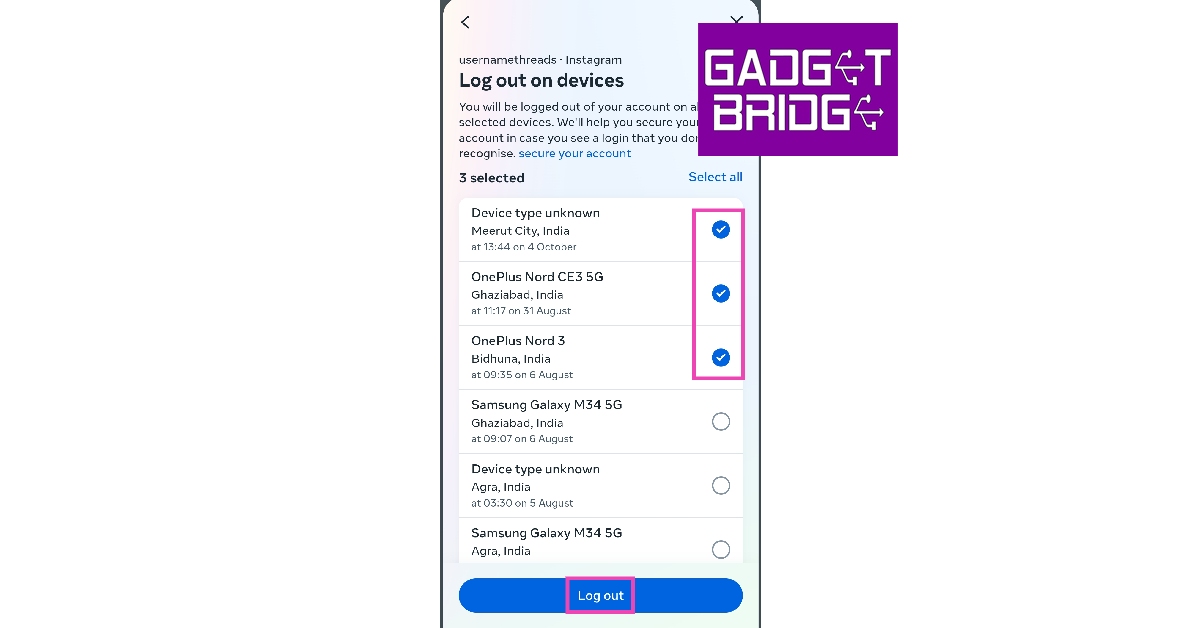 Step 10: Select Log out.
Remove all Connected Devices to your Instagram account by changing its password
Step 1: Launch the Instagram app on your smartphone and tap the profile icon at the bottom right corner of the screen.
Step 2: Hit the hamburger menu icon at the top right corner of the screen.
Step 3: Select Settings and privacy.
Step 4: Tap on Accounts Centre.
Step 5: Select Password and security.
Step 6: Tap on Change password.
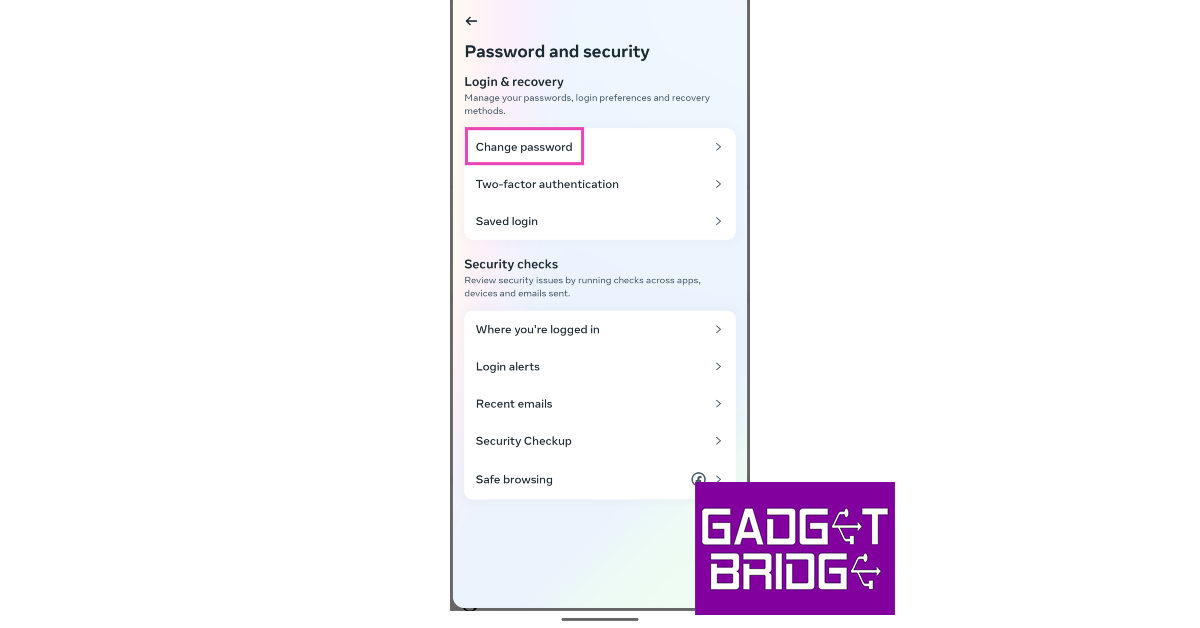 Step 7: Select your account.
Step 8: Type your current password, then enter a new password and retype it. Tap on Change Password when you’re done.
You will be logged out of Instagram across all devices.
Step 7: Select your account.
Step 8: Type your current password, then enter a new password and retype it. Tap on Change Password when you’re done.
You will be logged out of Instagram across all devices.
Change your Instagram password on PC
Step 1: Launch your PC’s web browser and log into Instagram’s website using your account credentials. Step 2: Click on the More option on the left and select Settings.
Step 3: Select See more in Accounts Centre.
Step 4: Switch to the Passwords and security tab and click on Change password.
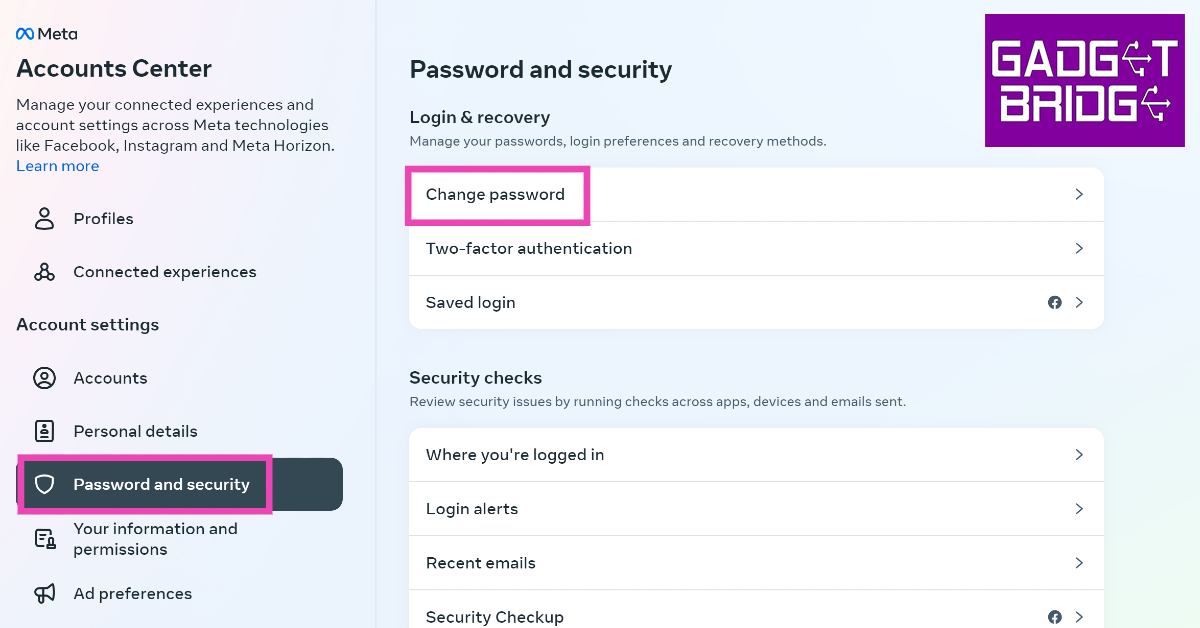 Step 5: Select your account.
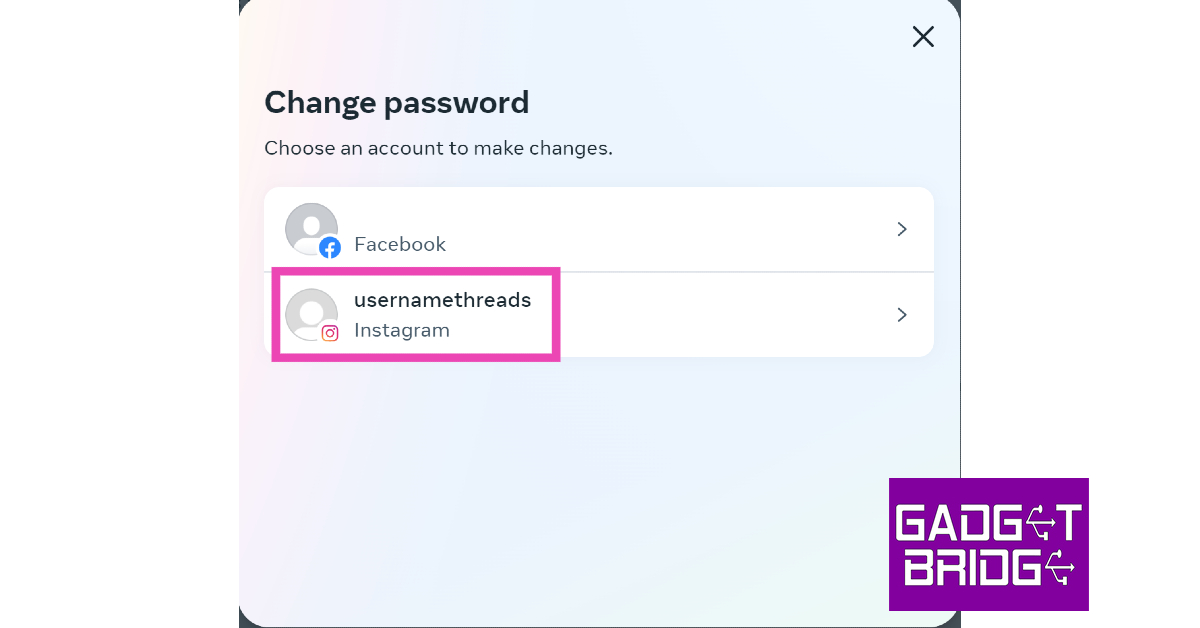 Step 6: Type your current password, then enter a new password and retype it. Tap on Change Password when you’re done.
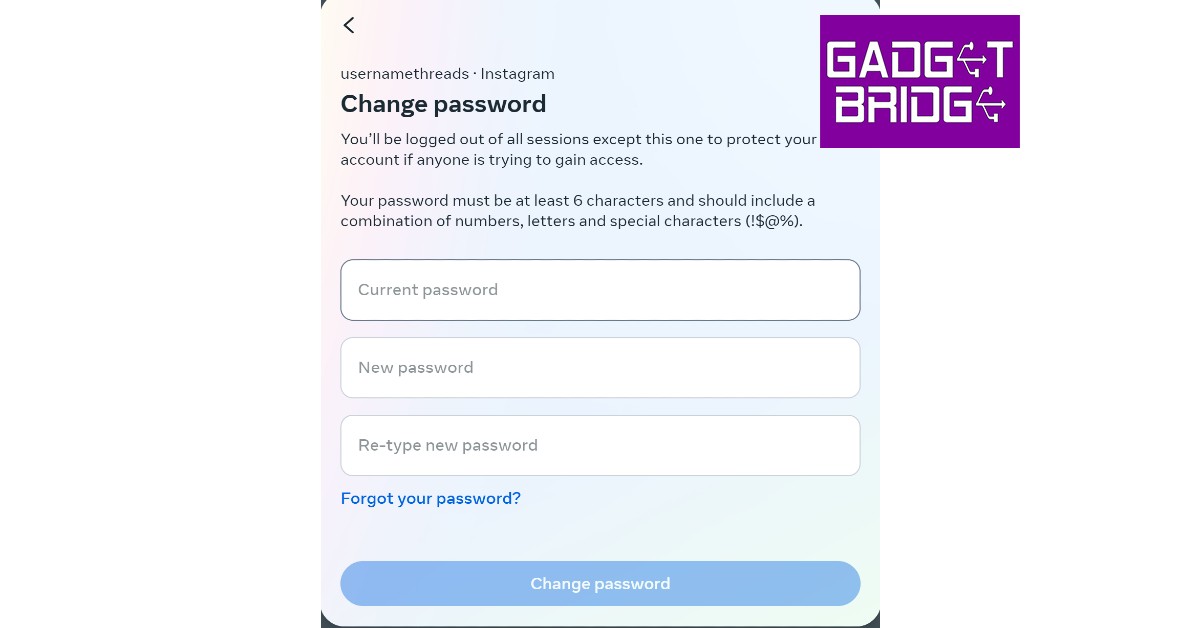
Change your Instagram password on the mobile website
Step 1: Launch your preferred web browser app on your smartphone and go to the Instagram website. Log into your Instagram account. Step 2: Tap the profile icon at the bottom right corner of the screen.
Step 3: Hit the gear icon at the top left corner of the screen.
Step 4: Tap on See more in Accounts Centre.
Step 5: Select Password and security.
Step 6: Tap on Change password.
Step 7: Select your account.
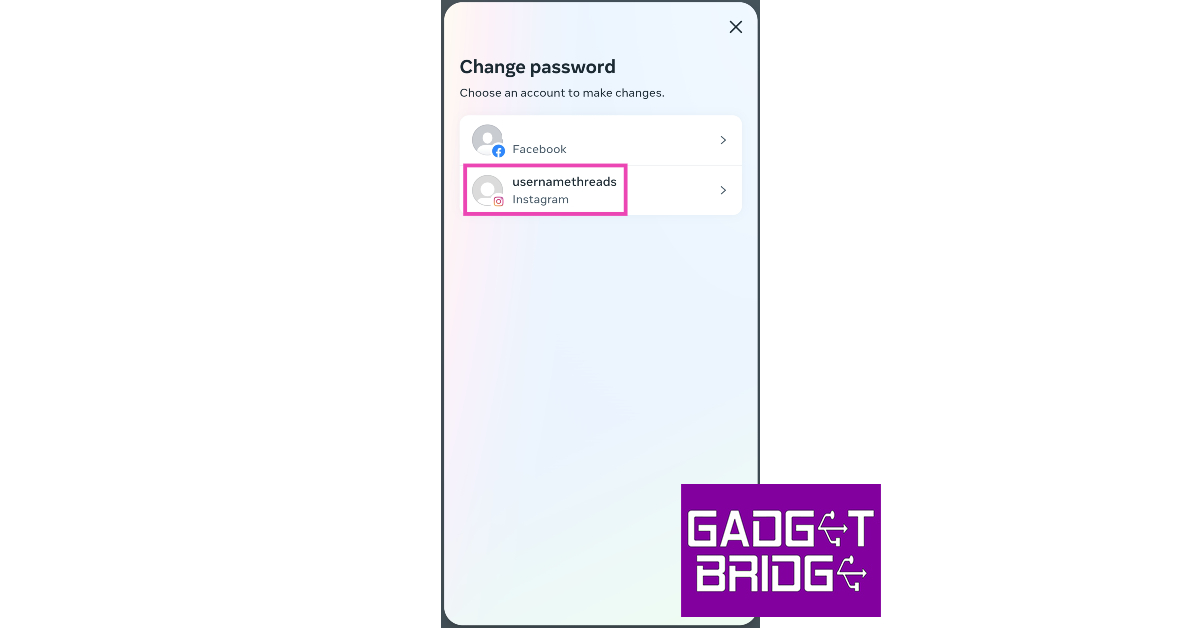 Step 8: Type your current password, then enter a new password and retype it. Tap on Change Password when you’re done.
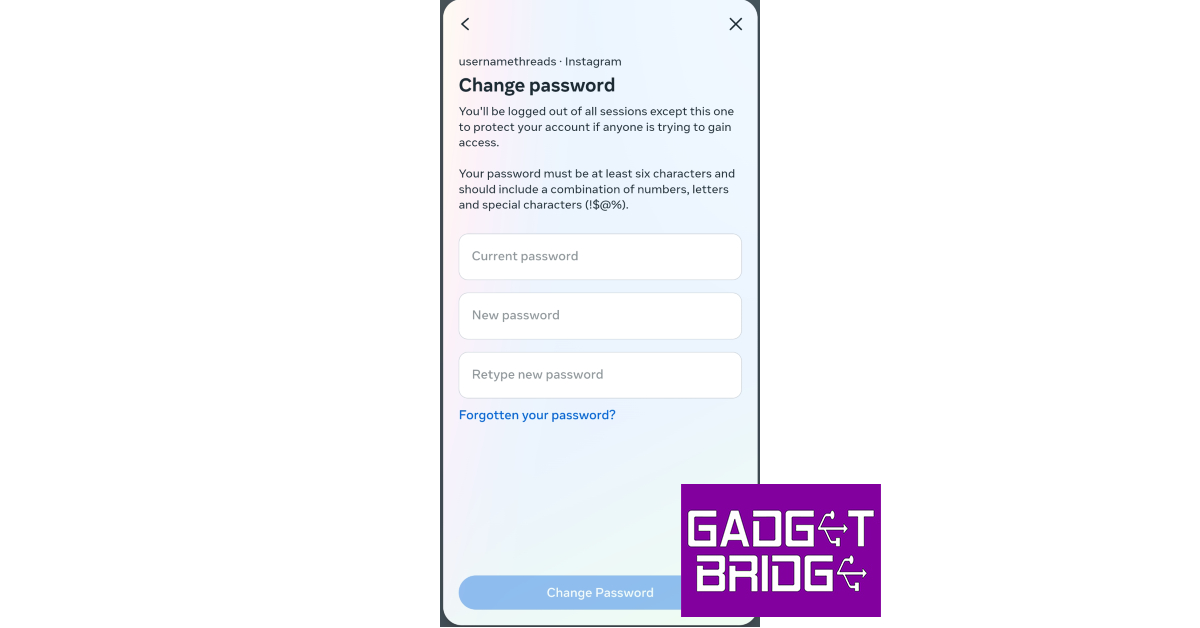




 Step 5:
 Step 3:
 Step 3:
 Step 4:
 Step 5: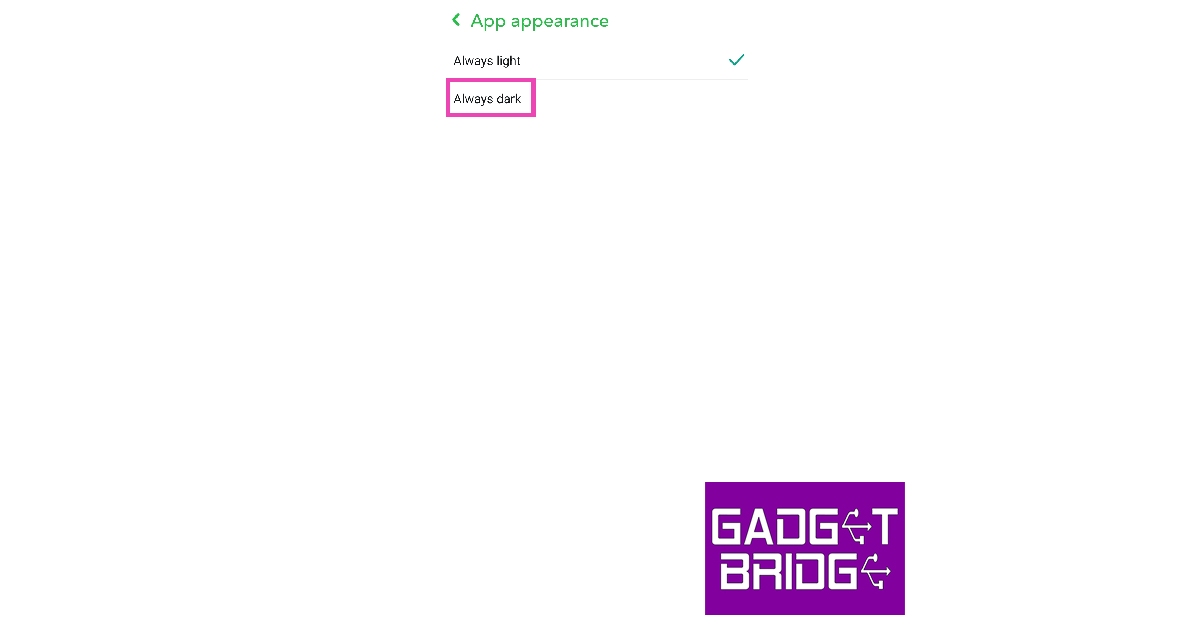
 Step 2:
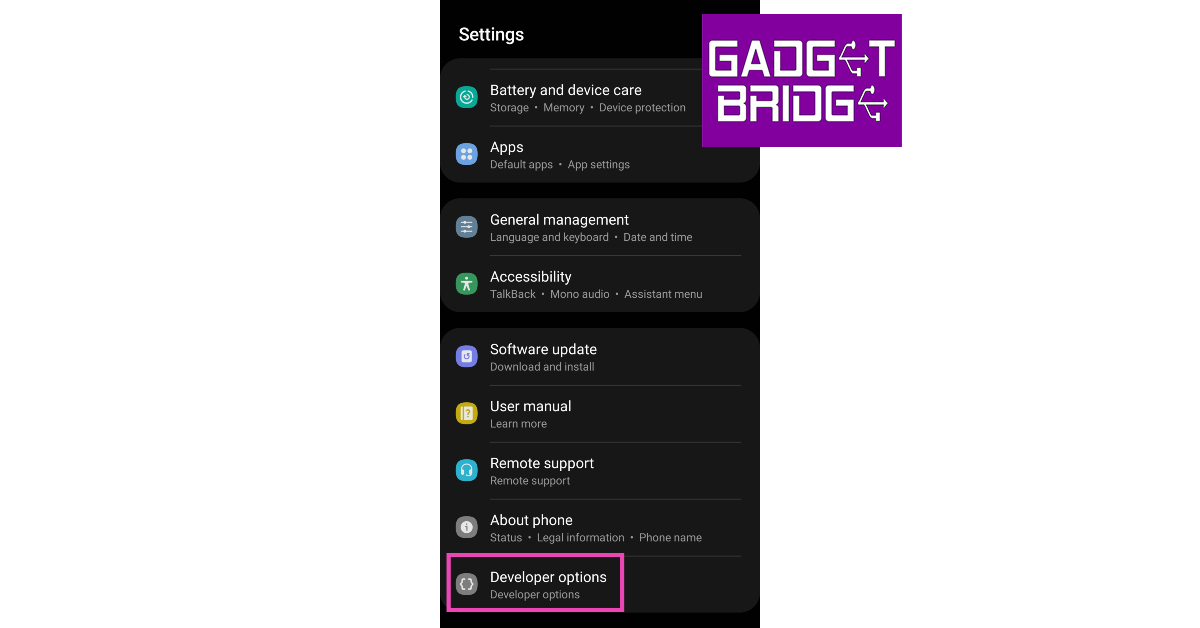 Step 3:
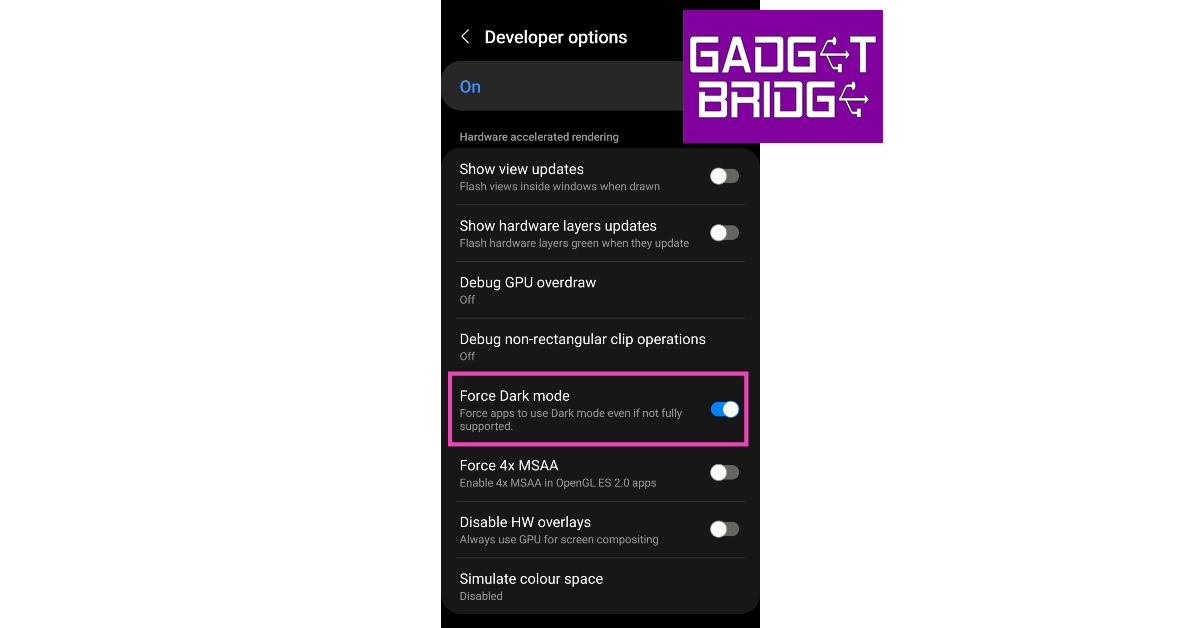 Step 4: Uninstall
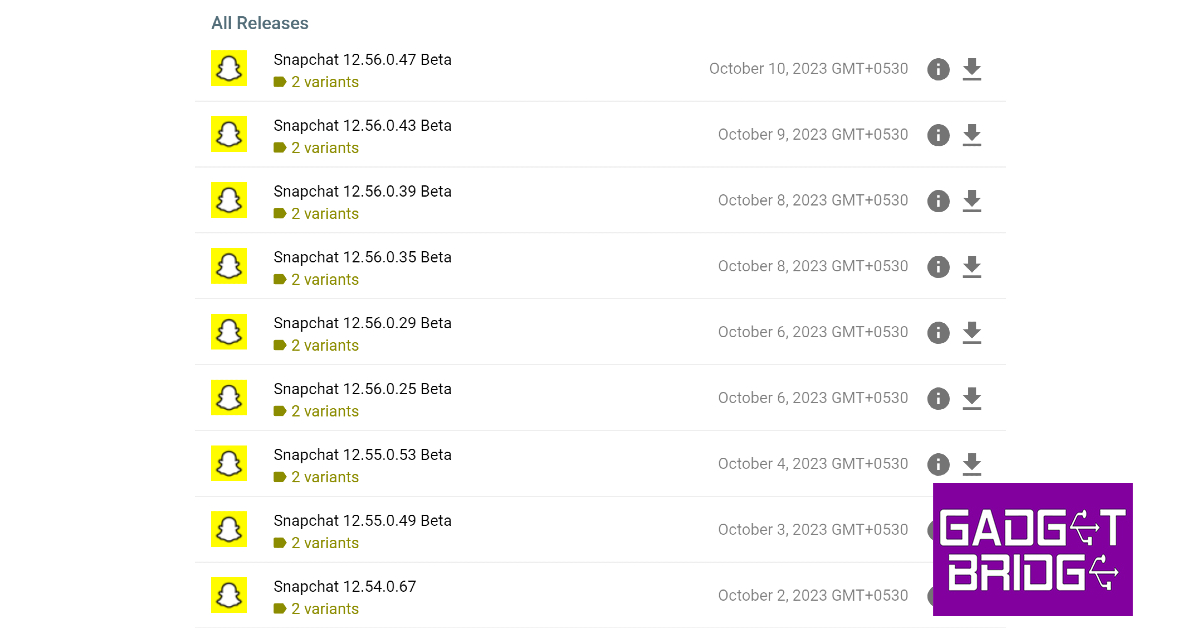 Step 5: Launch
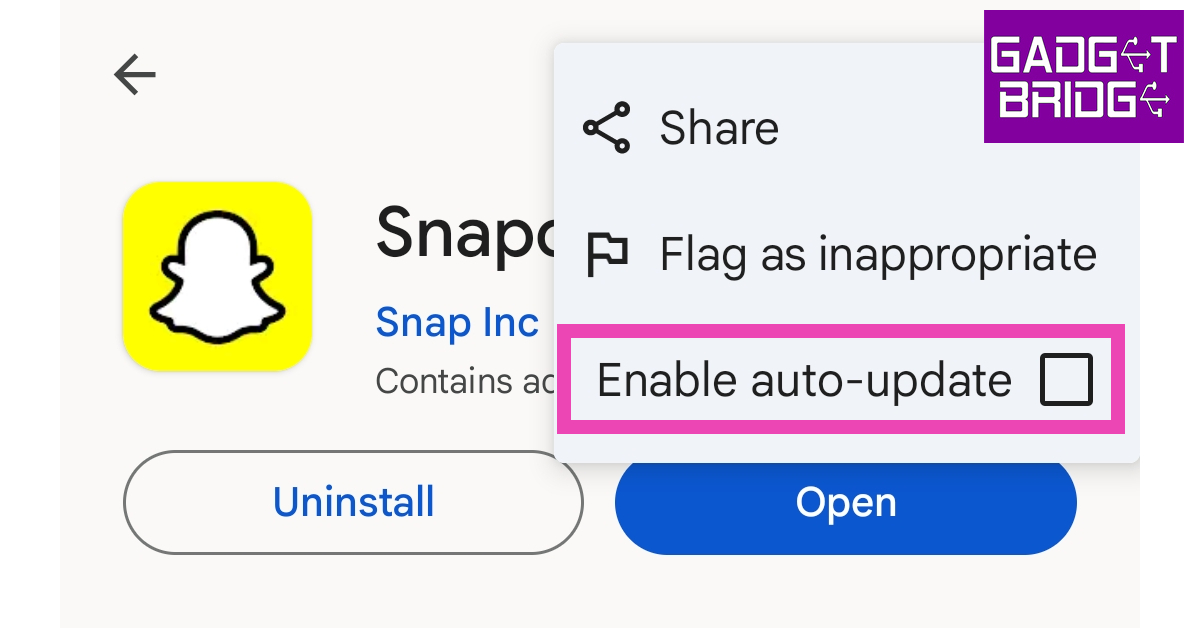 Step 7: Launch




 Step 3:
 Step 3:
 Step 3:
 Step 5:
 Step 6:









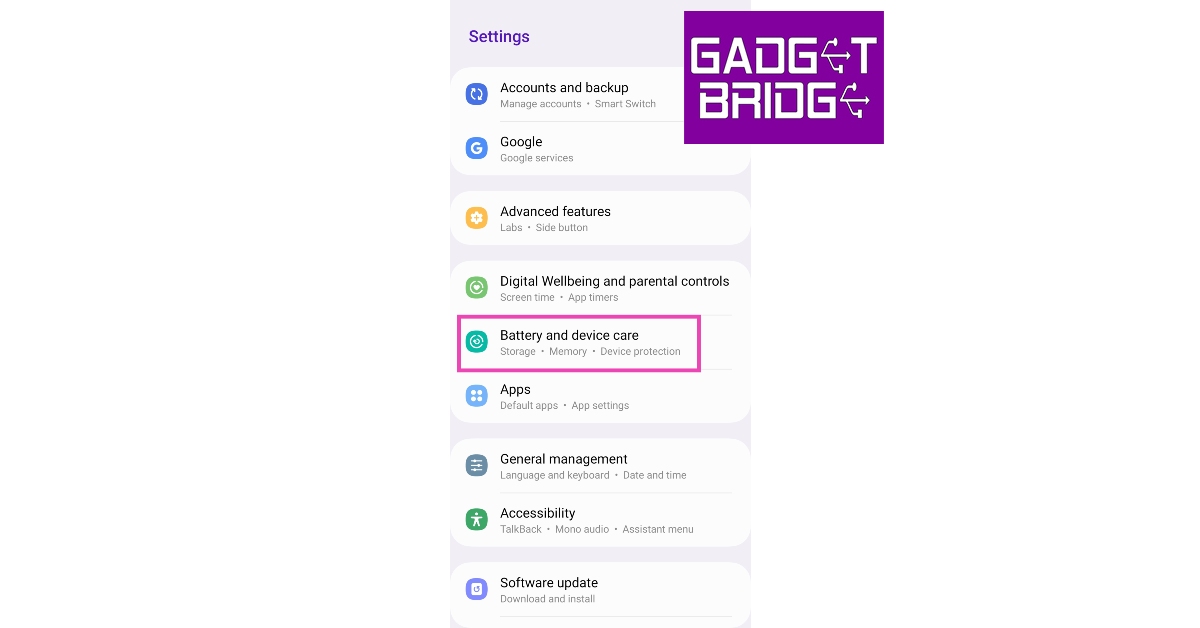 Step 2:
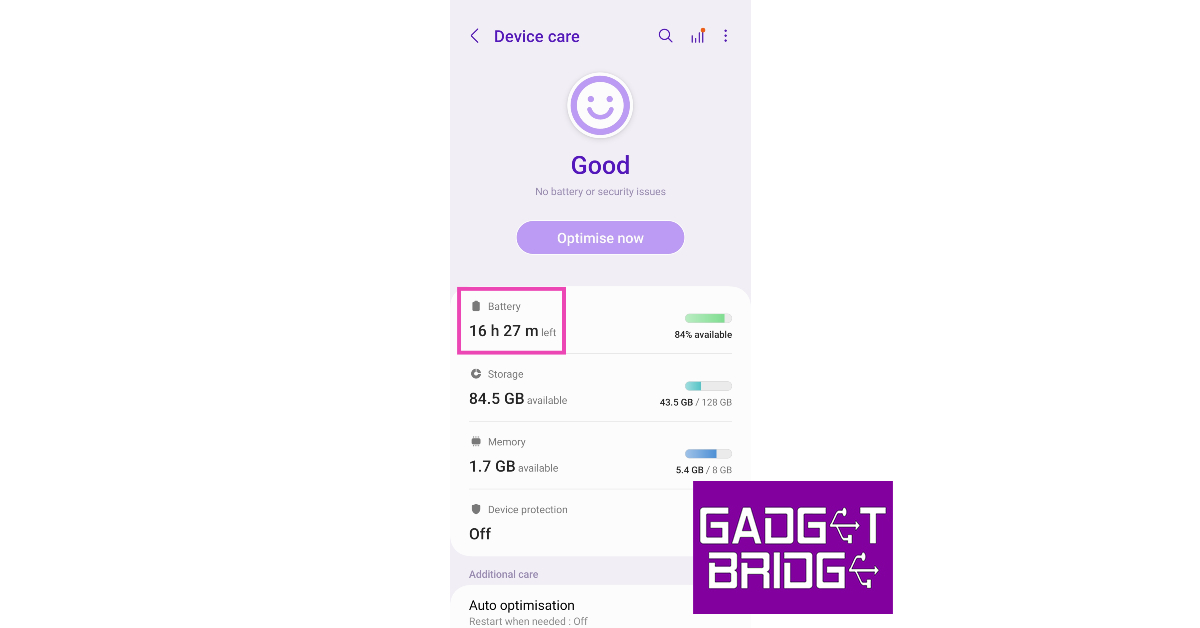 Step 3:
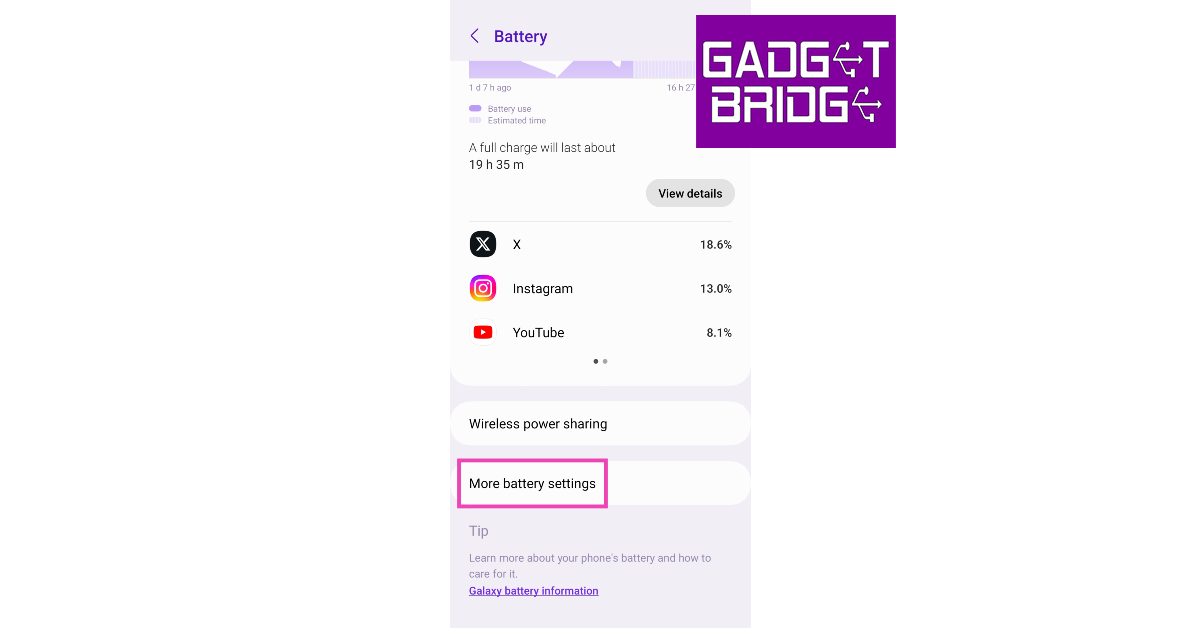 Step 4: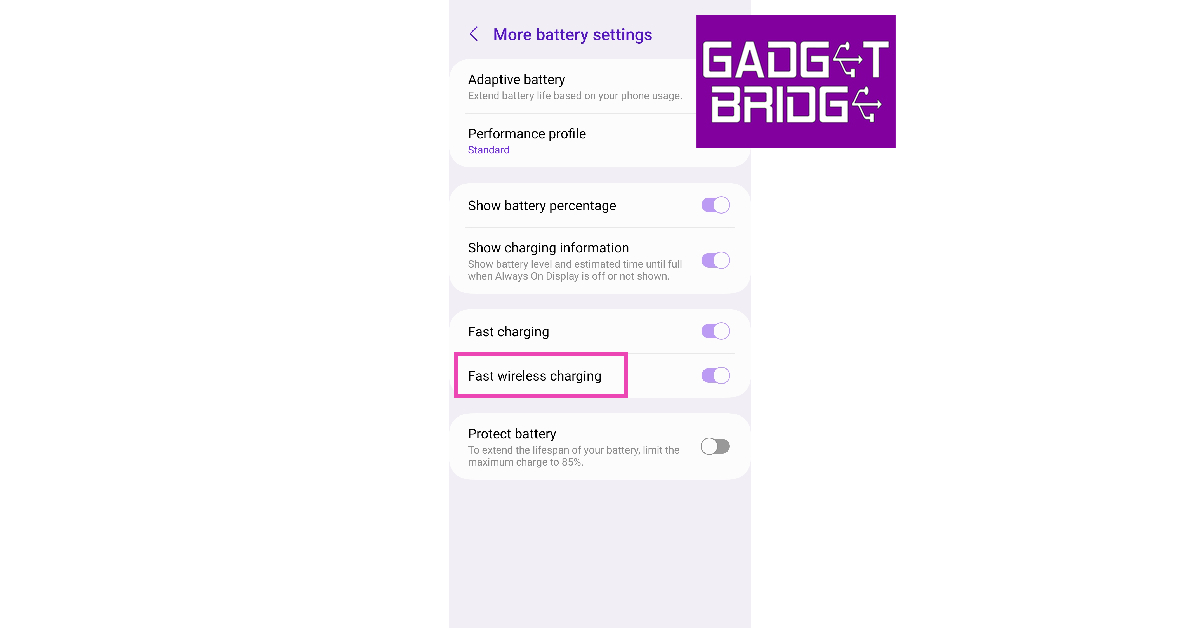
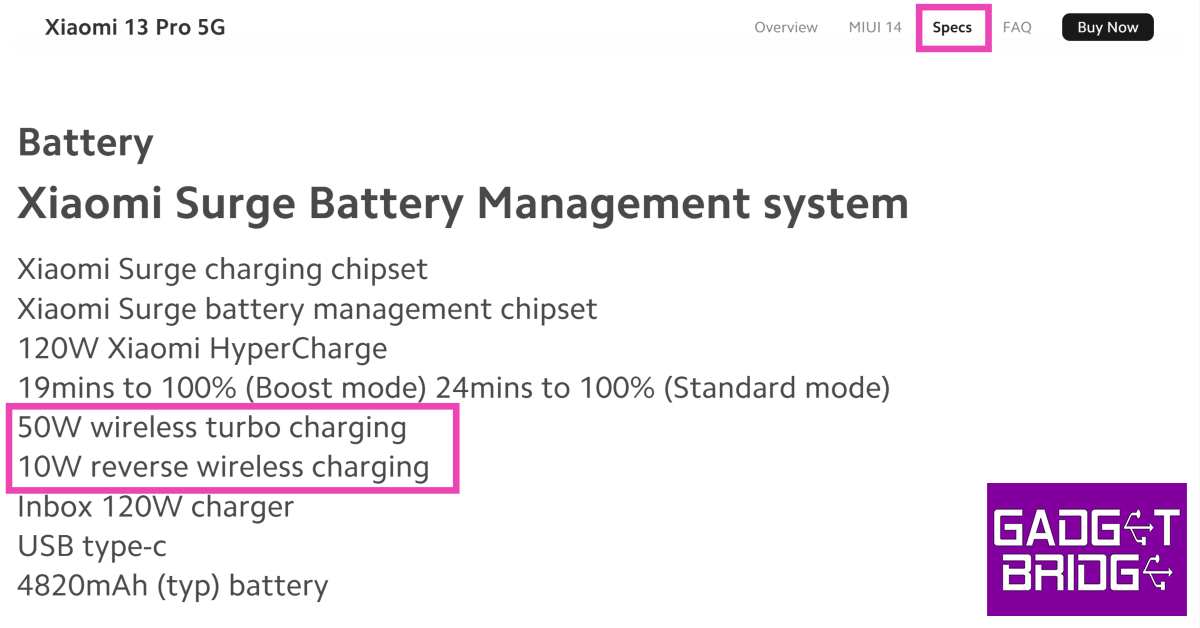
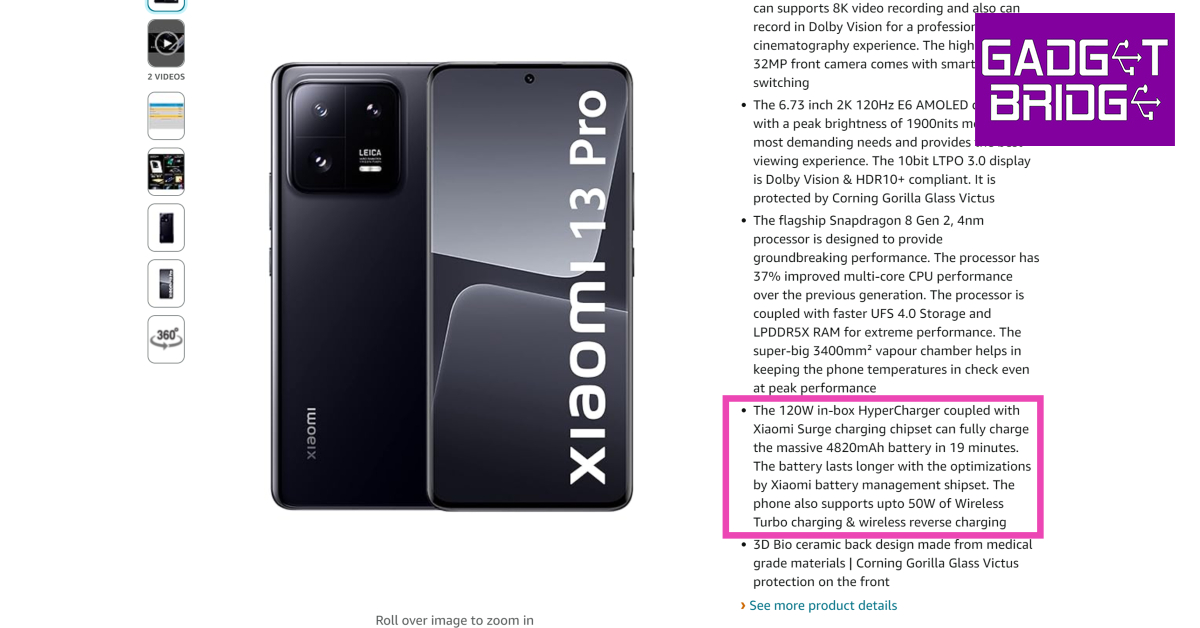
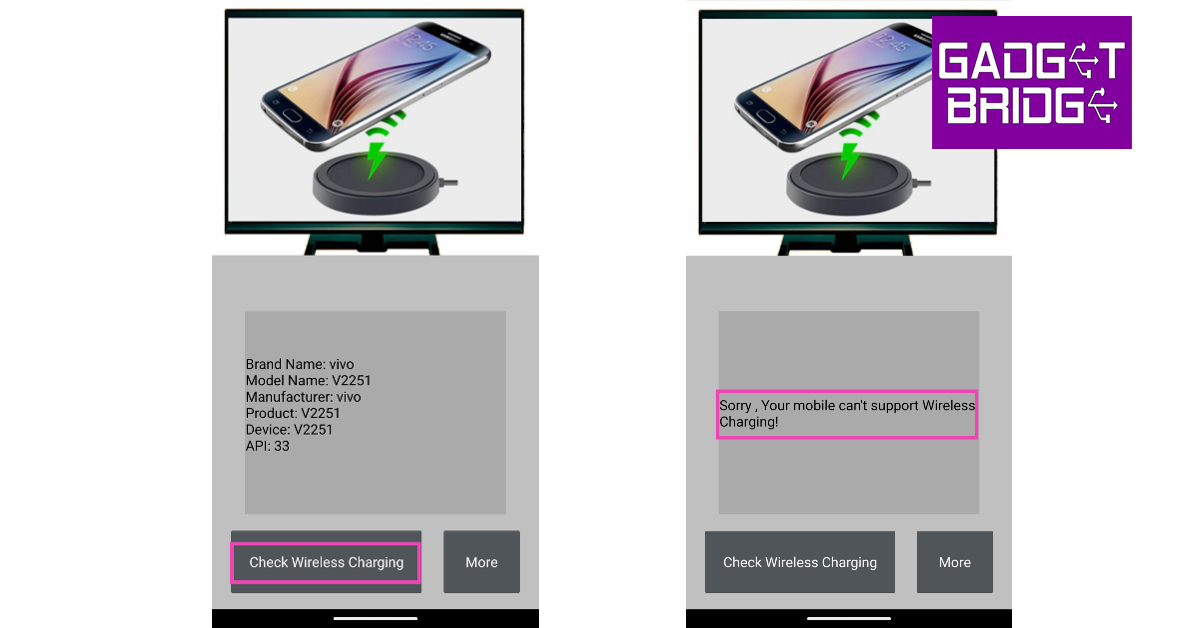
 Qi is a wireless charging standard that is used on a lot of smartphones. Go to the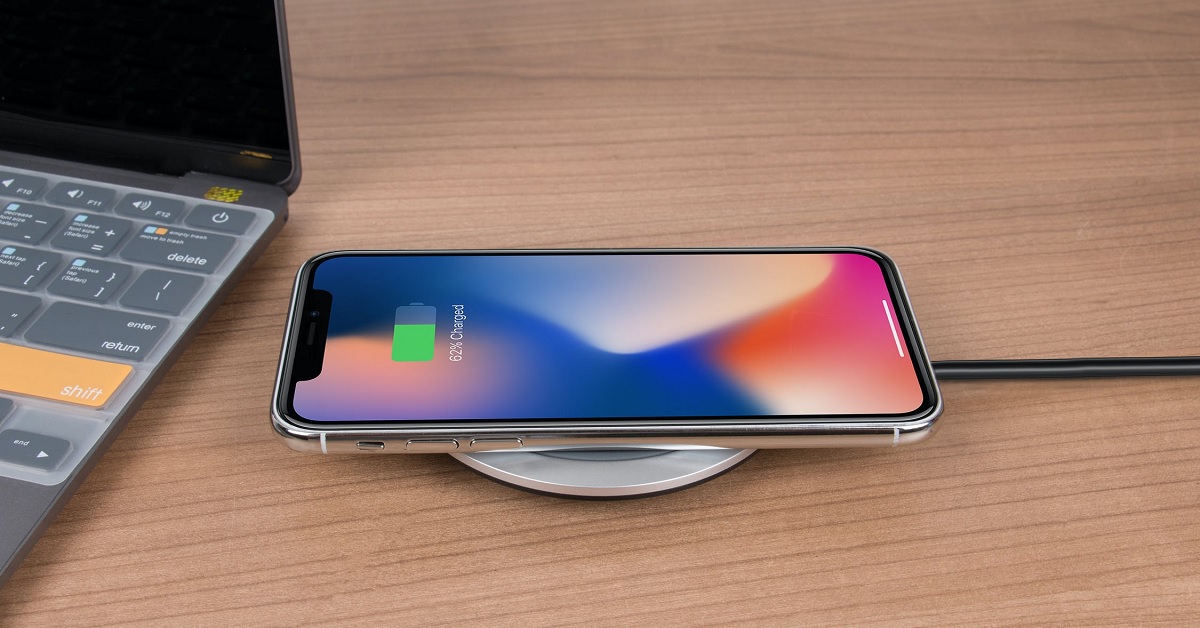


 Step 3:
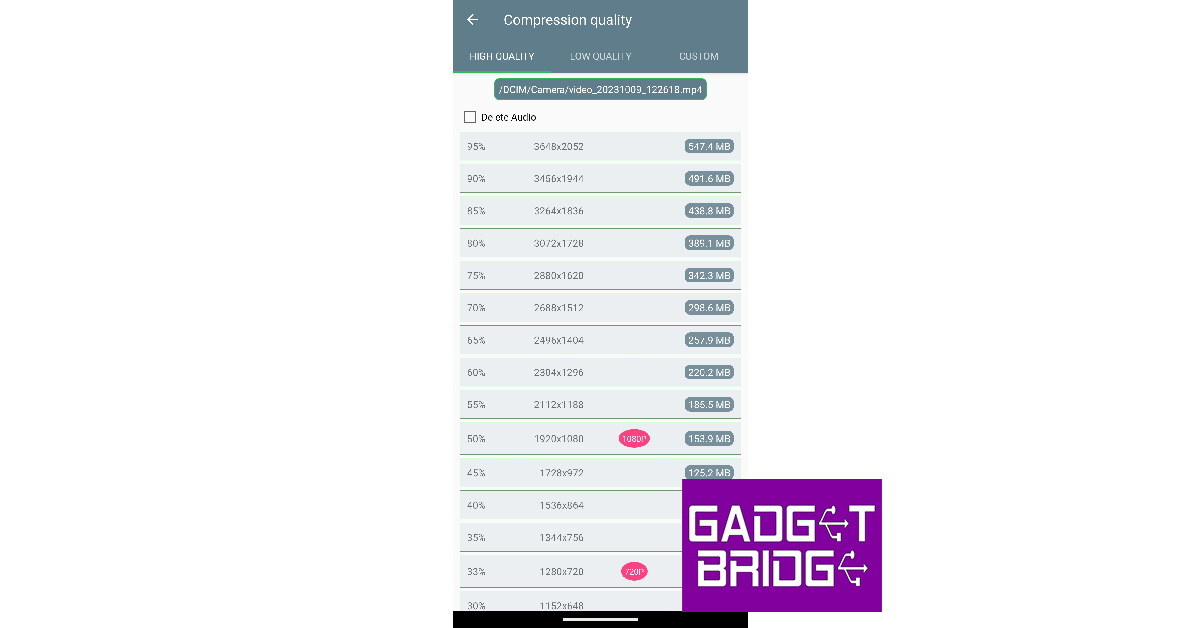 Step 4:
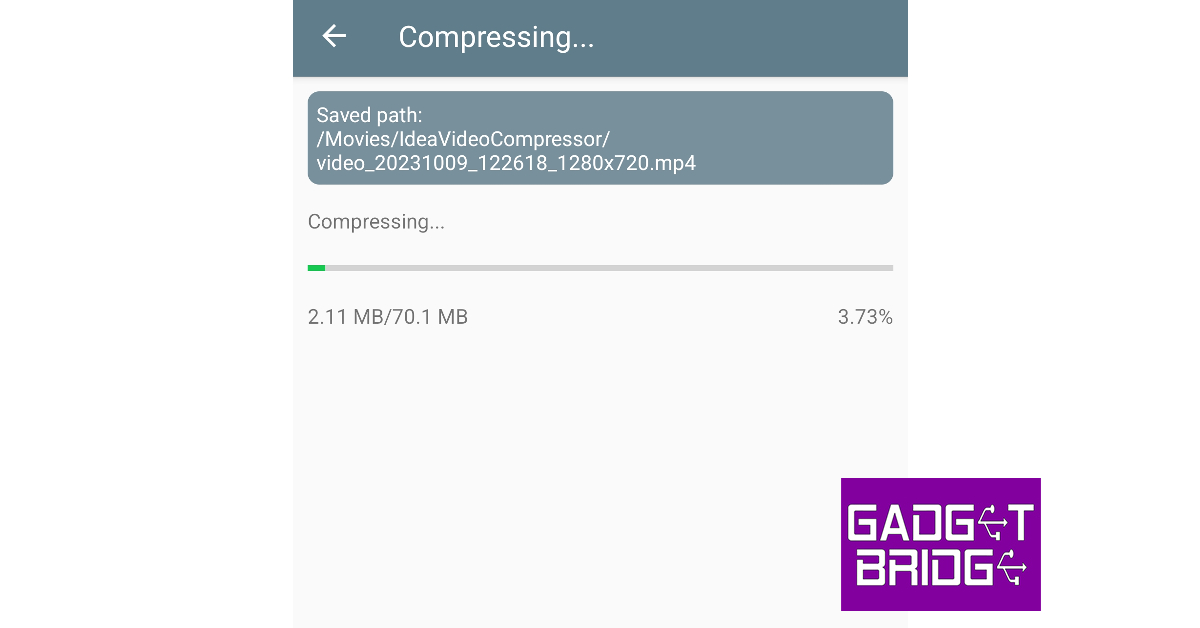 Step 5:
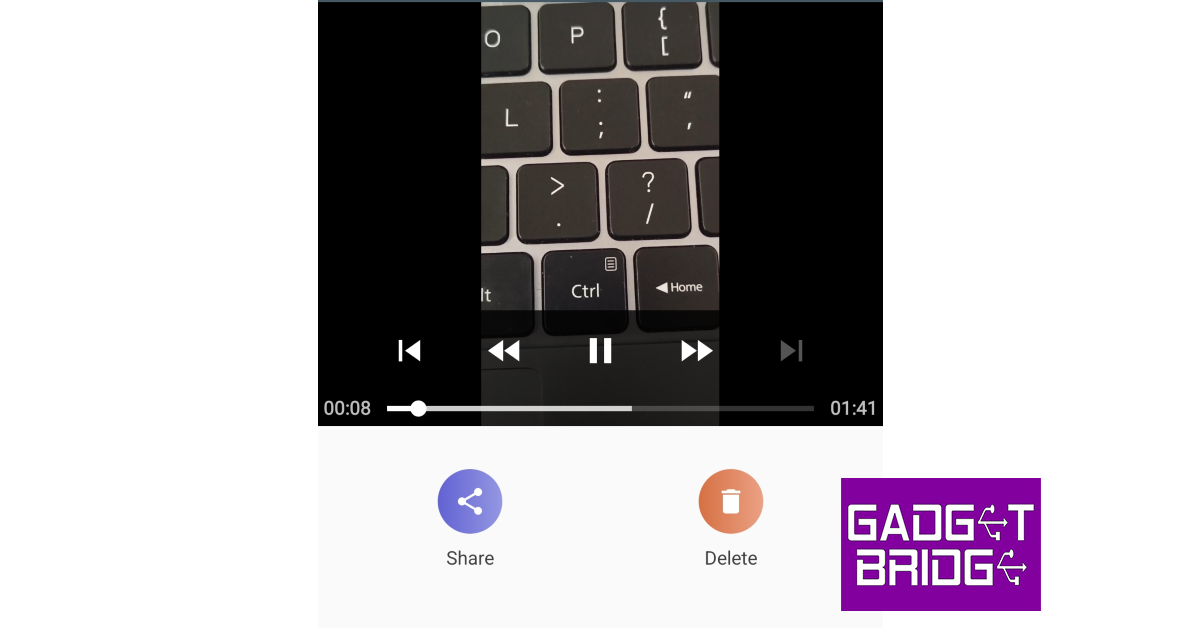 Step 6: