HP today introduced a new range of Pavilion Plus laptops in India. The series includes Pavilion Plus 16 and Pavilion Plus 14 laptops. They are powered by the latest 13th Gen Intel Core processors and up to NVIDIA RTX 3050 graphics. In addition to this, they have an IMAX-enhanced display for a superior viewing experience. They are equipped with HP Presence 2.0 for smart AI features plus a 5MP IR camera with a manual camera shutter enhances privacy and security in the hybrid world.
In This Article
HP Pavilion Plus 16 and Pavilion Plus 14 price in India
The HP Pavilion Plus 16 comes with a 16-inch WQXGA IPS display with 2560 x 1600 pixels of resolution. The screen supports a refresh rate of 120Hz. It has a screen-to-body ratio of 89.74% and a peak brightness of 400 nits. The HP laptop runs on Windows Home 11 and is powered by a 13th Gen Intel Core i7-13700H processor with up to Nvidia GeForce RTX 3050 graphics. The machine is available with 16 GB LPDDR5x RAM, up to 1TB PCIe Gen4 NVMe TLC M.2 SSD storage and 1TB PCIe Gen4 NVMe TLC M.2 SSD storage.The HP Pavilion Plus 16 comes equipped with a 68Wh battery. It has Wi-Fi 6E AX211 (2×2) and Bluetooth 5.3 for wireless connectivity along with Thunderbolt 4 with USB Type-C, port, 1 USB Type-C port, two USB Type-A ports, a 3.5mm audio jack, an AC smart pin, an HDMI 2.1 port for connectivity.
HP Pavilion Plus 14 specifications
HP Pavilion Plus 14 features a 14-inch IMAX enhanced 2.8K OLED display with 2880 x 1800 pixels of resolution. The screen has a 16:10 aspect ratio along with 88% screen-to-body ratio. It supports up to 120Hz refresh rate and 400nits (SDR) and 500 (HDR) brightness. The laptop comes pre-installed with Windows 11 Home Edition. Under the hood, there is a 13th gen Intel Core i7 1355U processor/ up to an AMD Ryzen 7 7840H processor with Intel Iris Xe graphics. It comes with up to 16 GB LPDDR5x RAM and 1 TB PCIe NVMe M.2 SSD.The HP Pavilion Plus 14 is fuelled by a 68Wh battery that supports fast charging. The device comes with a manual camera shutter along with Windows Hello for added privacy.
For the latest gadget and tech news, and gadget reviews, follow us on Twitter, Facebook and Instagram. For newest tech & gadget videos subscribe to our YouTube Channel. You can also stay up to date using the Gadget Bridge Android App. You can find the latest car and bike news here.
Google Maps is one of the most important apps on your phone. You can never be truly lost if you know how to use this app. While the app is simple to use, all the symbols and signs on the map can be hard to decipher at times. It doesn’t help that new signs are constantly added to the app. To make things easier, here is the meaning behind all the major icons and symbols on Google Maps.Read Also:Best smartwatch deals to look out for under Rs 5,000 on Amazon
In This Article
Map Page Icons
Target icon: The icon shaped like an aim or a target is the Recentre button that takes you to your current location as soon as it is pressed.Blue icon with an arrow: This icon is placed right below the target icon. Tapping this icon takes you to the journey page, where you can find the route by setting your current location and destination.Compass icon: This is pretty self-explanatory. The red end of the compass points towards the North. Tapping on this compass realigns the map in the proper direction.Layer icon: This icon is placed above the compass icon on the map page. Tapping it lets you change the style of the map. If you want to access Google Street View or Satellite View, this is the button you should hit.
Journey Icons
Yellow road: State and national highways are represented with a yellow road on the map.Colour-coded road passage: A blue passage on the map represents that there is minimal traffic on that stretch of the road. Meanwhile, an orange passage means there’s mild traffic on the road and a red passage symbolises stagnant traffic.Red car icon: When you see this icon, it means that there has been a crash or a collision on the road.Exclamation Mark: This icon means that the road ahead is closed.Shovel sign: This icon comes up when the road ahead is under construction.Red icon with a minus sign: This means that the road ahead is closed.Two arrows: Tap this icon to see the bird’s eye view of the route to your destination.Loudspeaker icon: This icon can be used to mute the voice directions.Magnifying glass icon: Searches locations along the route.Plus icon in a chat bubble: This button can be used to add a report about a collision, congestion, roadwork, or any other event along the way.Recentre: This button takes you to your current location.
Icons and Symbols for places on Google Maps
Yellow pin with a star: All your saved locations on the map will be marked by this pin.Fork and Knife pin: This pin marks any restaurant or eatery in the area. Tap on the pin to learn more about the restaurant. You can even set it as a destination. Man sleeping on bed pin: This pin is used to mark all the hotels, motels, and hostels on the map. Tap on this pin to get to know all the details about the hotel including availability, price, etc.Academic cap pin: This pin is used for schools, colleges, and other places of learning.Gas pump pin: This pin marks all the petrol pumps on the map.Shopping bag pin: Marks the convenience stores, grocery stores, and shopping malls on the map.Shopping cart pin: Used for denoting local markets on the map.H pin: Hospitals and medical clinics.Places like banks, tourist spots, post offices, parks, sports stadiums, and other places have their exclusive pins too.
Frequently Asked Questions (FAQs)
How do I use navigation on Google Maps to find a route to my desired destination?
Launch the Google Maps app on your phone and tap the blue icon with a right arrow to set your current location and destination. Once that’s done, tap Start to begin navigation.
How do I report a car crash on Google Maps?
To report a car crash on Google Maps, tap the chat bubble icon with a plus icon and select ‘Crash’.
Apple has officially announced the launch of an affordable version of Apple Pencil but limited features. Now what’s new about this stylus is that it comes with a USB-C port for charging. Also, it is specially designed for students to take notes on their iPads. It has no pressure sensitivity or double tap to change tools as these features are specifically for artists or designers. Also, it lacks wireless pairing and free engraving. It still attaches magnetically to your iPad but cannot charge wirelessly.
The new Apple Pencil is an affordable variant of Apple Pencil (2nd gen). The device is even cheaper than Apple Pencil (1st gen). It works with all iPad models that have a USB-C port. The device is attached magnetically to the iPad thanks to the flat edge. However, it cannot be charged wirelessly unlike the upper variant of the Stylus. So one needs to pair and charge it to the iPad using a USB cable by sliding the cap on the top. The new Apple Pencil also has a matte finish. According to the company, the device when magnetically attached to an iPad for storage, enters into a sleep state to preserve battery life.It can be used for note-taking, sketching, annotating, journaling, and more but cannot be used by artists or designers. That’s because it lacks some important features like pressure sensitivity or double tap-to-change tools. It also works with iPadOS features like Scribble, and Quick Note, and when collaborating with others in Freeform. Users can sketch and illustrate with even greater precision when used with M2 models of iPad Pro, the new Apple Pencil supports hover.The newly launched Apple Pencil is also compatible with iPad (10th generation) and can also be paired with all iPad models that have a USB-C port, including iPad Pro, iPad Air, and iPad mini. For the latest gadget and tech news, and gadget reviews, follow us on Twitter, Facebook and Instagram. For newest tech & gadget videos subscribe to our YouTube Channel. You can also stay up to date using the Gadget Bridge Android App. You can find the latest car and bike news here.
Garena Free Fire is a battle royale game with regular awards and tournaments to keep players interested. If you play Garena Free Fire, you should be aware of the redeem codes that are released on a daily basis. However, because the battle royale game is banned in India, players from other countries can use the Free Fire Redeem codes daily. If you’re unfamiliar with the Garena Free Fire redeem codes or don’t know how to get them, we’ve put together a step-by-step guide to help you redeem them. Check out Garena Free Fire Redeem Codes for 18 October 2023.The Free Fire redeem codes are a great way to get free stuff. These are 12-digit codes that contain alphabets and numbers, as well as an expiration date and time. Because the Garena FF redeem codes cannot be used more than once, you should hurry to the redemption page to claim your free reward before someone else does. To get a free reward, all you have to do is go to reward.ff.garena.com/en, which is the official redemption page. Also, keep an eye on this space for daily updates on Garena Free Fire redemption codes and rewards.
In This Article
Garena Free Fire Redeem Codes Today 18 October2023
updating soon…
How to Get Free Fire Redeem Codes for Garena on 18 October2023?
One of the most underrated features of your home WiFi router is remote management. This function allows you to access the router no matter where you are. You don’t need to be connected to the home network to change the router’s password or monitor who is actively using the network. If you’ve got elderly parents at home who don’t know how to navigate their way around the router’s settings, this feature will come in extremely handy. So, without further ado, here are the best ways to access your home WiFi router remotely.Read Also:How to Create a Link for PDF with SwifDoo PDF?
In This Article
Turn on Remote Management on your WiFi Router’s gateway
Step 1: Type http://192.168.1.1/ on your web browser and hit Enter to access your WiFi router‘s gateway page.Step 2:Log in using the valid credentials.Step 3: Go to the Management tab and click on System Admin. Then select Admin.Step 4: Turn on the toggle switch for Enable Remote Management.Step 5: Note your Remote Admin Port Number.Step 6: Hit Save.Step 7:Launch the web browser on another device that is not connected to your WiFi.Step 8: Enter the IP address of your router followed by ‘:Remote Admin Port number’ and hit Enter. For example, if your IP address is 192.168.1.254 and the Management Port number is 8080, type 192.168.1.254:8080 in the address bar and hit Enter.Make sure your Management Port number and login credentials are unique so no one else can log into your WiFi network.
Use Dynamic DNS to access your WiFi router remotely
Step 1:Log in to your WiFi router’s gateway using the proper credentials.Step 2: In the Application section, select DDNS. The placement of the DDNS page may vary among different router gateways.Step 3: Click on Enable DDNS and set it up by entering the ISP, Domain name, username, and password.Step 4:Enter the domain name on another device that isn’t connected to your WiFi network to manage your router.
Frequently Asked Questions (FAQs)
Is it possible to manage my WiFi router even if I am not connected to the network?
After enabling Remote Management on your WiFi router’s gateway page, enter its IP address in the web browser followed by ‘:’ and the Remote Admin Port number.
Oppo has officially revealed the Oppo Festive Offer on its platform ahead of Diwali. Customers will get exciting discounts on its smartphones including till November 19. According to the company, those purchasing devices during the sale period will automatically qualify for a bumper Diwali raffle and other incredible prizes.Oppo has announced ‘OPPO Festive Offer’ from October 16 to November 19 in India. The company will be offering discounts up to Rs 6000 on its smartphones with a 10% instant discount. As per Oppo buyers can save up to Rs 13000 on IoT products. In addition to this, there will be up to 83 percent off on accessories.Oppo Reno 10, Oppo A18, Oppo A38, Oppo A58 and Oppo A78 are some of the smartphones that will be part of the festive deals.
Also Read:Best smartwatch deals to look out for under Rs 5,000 on AmazonAs mentioned earlier those making purchases during the Oppo Festive Offer Sale will be eligible for a special Diwali raffle and win exciting prizes.Oppo customers have the chance to win 5 cash prizes of Rs 10 lakh each. The grand prize of Rs 10 lakhs will be credited to the winner’s account after verification, with applicable TDS deductions according to IT Act regulations.Also, two lucky winners can win 2 motorbikes. Oppo will also be giving away 9 tickets to the ICC semi-final or final match.There are also chances to win 10 gold coins and 5 Oppo Pads. Consumers can also win 500+ coupons, ranging from Rs 50 to Rs 100. 100 reward points on every purchase, which can be used in the OPPO Store.Note that the names of all winners will be announced on the My OPPO app. Lucky winners will be notified through email. Physical rewards will be delivered to the provided customer addresses.How to Qualify for the Campaign?To participate, simply follow the steps below:
Great Indian Festival sale on Amazon is currently live. Smartwatches and other products are heavily discounted on the e-commerce platform. So this is the right time to upgrade your smartwatch. So that you don’t miss out on these excellent deals we have listed down a few smartwatch offers under Rs 5,000 that you may keep an eye out for during the festive sale on Amazon
In This Article
Here are the top deals on smartwatches available.
OnePlus Nord Watch
The original cost of the OnePlus Nord Watch in India is set at Rs 4,999. But at Amazon during the Great Indian Festival Sale, the device can be purchased for Rs 3,999. It comes in Deep Blue and Midnight Black colour variants.The OnePlus Nord Watch features a 1.78-inch HD AMOLED touchscreen display which supports a 60Hz refresh rate and a maximum brightness of 500 nits. It runs on RTOS and is powered by an SF32LB555V4O6 chipset. The smartwatch comes with 105 sports modes and includes heart rate and stress monitoring, as well as measuring SpO2 and sleep. The GPS functionality is embedded into the smartwatch. The device has a 230mAh battery which is said to last up to 10 days and a standby time of up to 30 days. Additionally, it is compatible with both Android smartphones and iPhone models running iOS 11 and later, as well as Android 6 on Android devices.
Redmi Watch 3 Active
Redmi Watch 3 Active was launched at Rs 2,999 but on Amazon, it can be purchased at Rs 2,599. The company offers it in two colour options – Platinum Grey and Charcoal Black and Olive Green strap.The Redmi Watch 3 Active comes with a 1.83-inch LCD screen and 450-nit screen brightness. The device is 5ATM water resistant. It includes over 100 sports modes. Apart from this, it includes blood oxygen level sensors, heart rate monitors, and sleep-tracking technology. There is a 289mAh battery on the watch which is said to last up to 12 days with moderate use and up to 8 days under heavy use. It can be paired with Android 6.0 and iOS 12 mobile devices. Additionally, the Redmi watch can store up to 10 contacts and allows users to view recent call logs with up to 20 entries.
Redmi Watch 2 Lite
Redmi Watch 2 Lite arrived in India with a price tag of Rs 4,999. But currently, it is selling at Rs 1,799 during the Amazon Great Indian Festival Sale. It is offered in Ivory, Black, and Blue colour variants.The Redmi Watch 2 Lite comes with a 1.55-inch TFT display with a maximum brightness of 450 nits. There are 100 fitness modes on the smartwatch. It is only compatible with Android devices. Also, the watch is water-resistant up to 50 metres and supports snorkelling, diving, and rafting.Also Read:Samsung Galaxy Z Flip 5 is now available in a new shade: The price of the new colour variantThe Redmi watch includes built-in GPS tracking. There is a blood oxygen saturation level (SpO2) scanner, 24-hour heart rate monitoring, sleep and stress monitoring, and other features.The Redmi Watch 2 Lite sports a 262mAh battery that is touted to last for 14 hours with continuous GPS-enabled and up to 10 days when turned off.
Amazfit Bip 3 Pro
Amazfit Bip 3 Pro is now selling at Rs 3,999 on Amazon.The Amazfit Bip 3 Pro comes with a 1.69-inch TFT display with 2.5D tempered glass with anti-fingerprint coating protection. The smartwatch includes 0 sports modes including indoor and outdoor workouts. The smart wearable supports GPS tracking. It includes all the health-related features such as heart rate monitoring, blood oxygen saturation (SpO2) monitoring, stress and sleep tracking, breathing exercises, and female health tracking. The 280mAh battery on the watch is claimed to offer up to 14 days of battery life on a single charge. It is compatible with iOS and Android.
CrossBeats Ignite Surge
The CrossBeats Ignite Surge is priced at Rs 3,499 but currently, it is available at Rs 2,999 on Amazon. There are three colour options for the watch Black, Gold and Silver.CrossBeats Ignite Surge includes a 1.8-inch edge-to-edge AMOLED display with 1,000 nits of screen brightness. It comes with more than 00 interchangeable watch faces. The smartwatch is compatible with iOS and Android devices. There are 25 training modes and AI health monitoring on the smartwatch. It comes with a 300mAh battery that provides up to five days of battery life. For the latest gadget and tech news, and gadget reviews, follow us on Twitter, Facebook and Instagram. For newest tech & gadget videos subscribe to our YouTube Channel. You can also stay up to date using the Gadget Bridge Android App. You can find the latest car and bike news here.
Passkey authentication is quickly becoming the norm for app security. Back in June, Google rolled out passkey support for the wider audience, allowing users to log into their Google Account using their fingerprint, lock screen PIN, or face unlock. Passkeys save the trouble of remembering multiple passwords for the different apps and services you use on your device. Since passkeys are stored on your device itself, they are harder to reach for hackers. WhatsApp is the most recent platform to adopt passkey support. In this article, we show you how to create and disable a passkey on WhatsApp.Read Also:Vivo Y200 confirmed to launch in India on October 23
In This Article
Create a passkey on WhatsApp
Step 1:Launch the WhatsApp app on your device and tap the ellipses at the top right corner of the screen.Step 2: Tap on Settings.Step 3: Select Account.Step 4: Tap on Passkeys.Step 5: Select Create a Passkey.Step 6: Choose what kind of passkey you want to create. You can set up a PIN, fingerprint, or face unlock. You can set up the same PIN as your phone’s lock screen or choose a different code.If you already use fingerprint or face unlock for your phone’s lock screen, you won’t have to set them up again for the passkey.Step 7: To disable a passkey on WhatsApp, simply go back to Passkeys in Account settings and hit Revoke.
Frequently Asked Questions (FAQs)
What is a passkey on WhatsApp?
A passkey allows you to access your WhatsApp account using your fingerprint, face unlock, or lock screen PIN.
How is a passkey different from an app lock?
An app lock is specific to the app on your phone, meanwhile, a passkey is a security feature for your account. If you log into WhatsApp on another device, you will need to authenticate it using your passkey.
The much-awaited Counter-Strike 2 is finally here and it can easily be deemed an instant success. If you haven’t dived into the game yet, it’s best to do so with a dedicated gaming mouse that can handle the demands of intense FPS gaming. For new gamers, an expensive gaming accessory may be out of the question. So, today we bring you the top 5 gaming mice under $50 for playing Counter-Strike 2.Read Also:Best Flip Phones in India (2023) to buy this festive season
In This Article
SteelSeries Rival 3
Price: $39.99 on SteelSeries.comSteelSeries Rival 3 is one of the best gaming mice under $50 that you can buy for playing Counter-Strike 2 right now. This gaming mouse gets a ‘TrueMove’ sensor that has an adaptable sensitivity within a range of 200 to 8,500 CPI. The Rival 3 weighs just 77g and has an ergonomic design that doesn’t strain your hand or arm during extended gaming sessions. You can save the polling rate, keybinds, and up to 5 CPIs directly on the mouse.
Logitech G203 Lightsync
Price: $29.99 on Logitechg.comIf you’re looking for a complete gaming mouse under $30, the Logitech G203 Lightsync is an excellent choice. It gets 6 customisable buttons, an adaptable resolution of up to 8,000 DPI, onboard memory to save your customisations on the device itself, and clean RGB lighting bordering the mouse. Logitech also offers a 2-year limited hardware warranty on this mouse.
Razer DeathAdder Essential
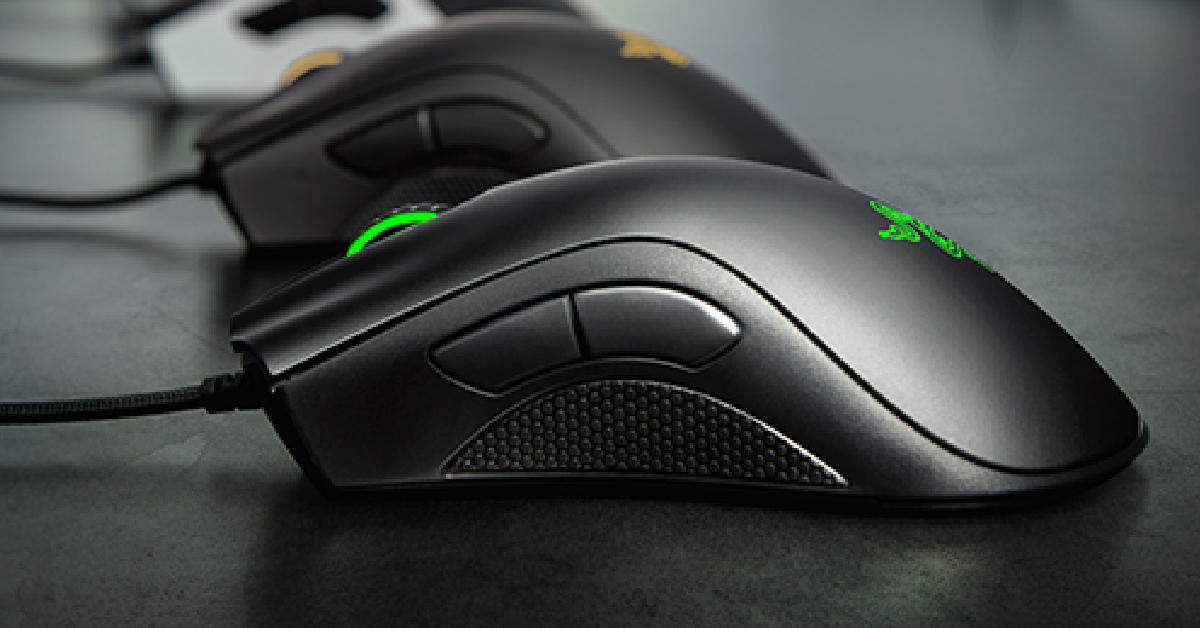
Price: $24.58 on AmazonThe Razer DeathAdder Essential gaming mouse has a 6,400 DPI gaming sensor, an ergonomic design, and 5 programmable buttons. The DPI can be adjusted using one of the dedicated keys on the mouse. The durable mechanical switches on this device are tested to support up to 10 million clicks. Razer also offers a 2-year warranty on these switches. In true DeathAdder fashion, this gaming mouse gets minimal RGB lighting that doesn’t look too gaudy.
EVGA X12
Price: $19.99 on AmazonThe EVGA X12 may just be one of the best-looking gaming mice in this price range. It gets a LOD (Lift Off Distance) sensor along with a Pixart 3389 optical sensor. It has a maximum sensitivity of 16K DPI, a tracking speed of 400 IPS, an 8000 Hz polling rate, and 50g acceleration. There are 8 programmable buttons on this mouse and it can store up to 5 profiles on the device itself. The 3-zone RGB lighting on the mouse can also be customised using the Unleash RGB software.
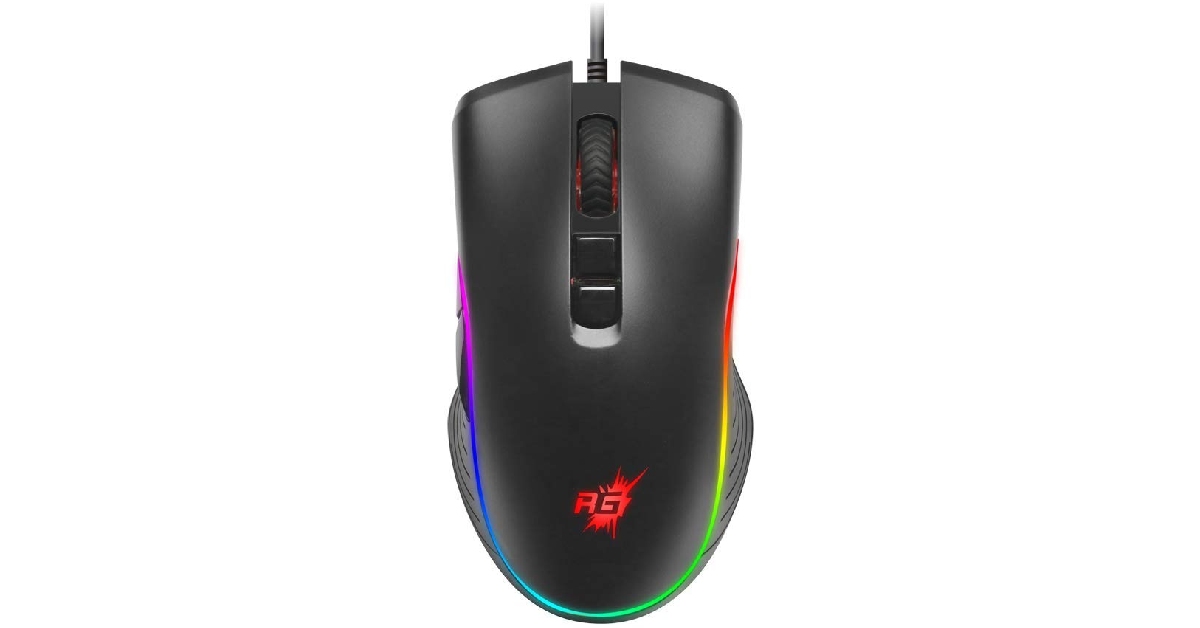
Redragon M612 Predator
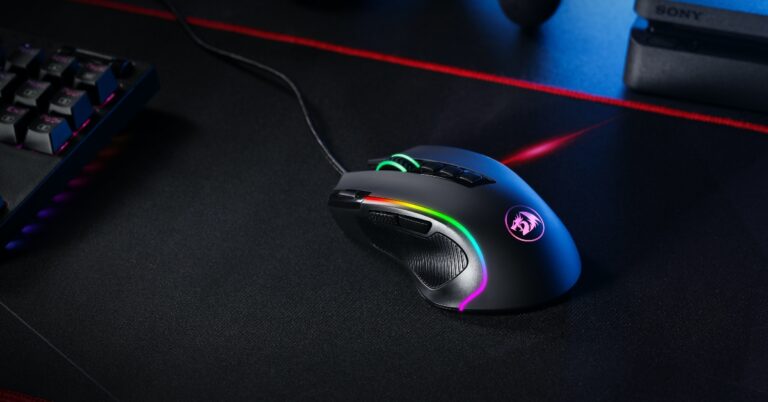
Price: $13.99 on AmazonThe Redragon M612 Predator is one of the most affordable gaming mice you can buy right now for playing Counter-Strike 2. It gets 5 adjustable DPI levels – 500, 1,000, 2,000, 3,000, and 4,000. The 11 buttons on this mouse are all customisable. One of the best features of this mouse is its ergonomic design and the skin-friendly finish with satisfying texture on the left side for the thumb. The RGB lighting on this mouse has 5 backlit modes for different situations.Read Also:CMF Watch Pro Review: A ‘Nothing’ special rather than nothing special
The South Korean brand Samsung has introduced its new Flip phone in a new colour variant. Samsung Galaxy Z Flip 5 was introduced in India two months ago. At the time of the launch, four colours were introduced but a new colour has been added to the collection. The new Yellow shade for Galaxy Z Flip 5 is now available with the existing Cream, Graphite, Mint, and Lavender colour variants.
In This Article
Samsung Galaxy Z Flip 5 new colour variant price in India
The Samsung Galaxy Z Flip 5 has been released in a new Yellow colour variant. The device was earlier available in four different colour options — Cream, Graphite, Mint, and Lavender. The price of the new shade remains the same as the previous ones.The Samsung Galaxy Z Flip 5 is available in two distinct configurations: 8GB RAM with 256GB storage and 8GB RAM with 512GB storage. Both versions are priced at Rs 99,999 and Rs 109,999 in India, respectively.Also Read:Best Flip Phones in India (2023) to buy this festive season The company will be offering 5% off (Rs 5200 Cart discount) when you buy a Flipsuit case with Galaxy Z Flip5. In addition to this, there will be a Rs 7000 Instant bank discount along with Samsung Assured Buyback included free of cost with your purchase. Also, there will be an upgrade bonus of Rs 7,000 on the Flip phone.
Samsung Galaxy Z Flip 5 specifications
Samsung Galaxy Z Flip 5 has a 6.7-inch FHD+ Dynamic AMOLED 2X Infinity Flex primary display along with a 3.4-inch Super AMOLED cover screen. The new Flex Window is 3.78 times larger than the previous version and includes a variety of both old and new capabilities. The device operates on Android 13 with OneUI 5.The Galaxy Z Flip 5 is powered by the Snapdragon 8 Gen 2 Mobile Platform for Galaxy and 8GB of RAM. With two storage options, the Z Flip 5 has an internal storage capacity of up to 512GB. The storage capacity cannot be increased using MicroSD cards.There is a dual rear camera setup on the Flip Phone that includes a 12-megapixel ultra-wide primary sensor and a 12-megapixel wide-angle camera. A 10-megapixel selfie camera for selfies is featured on the front of the foldable display of the Galaxy Z Flip 5.The foldable device packs a 3,700mAh battery with 25W rapid charging.
For the latest gadget and tech news, and gadget reviews, follow us on Twitter, Facebook and Instagram. For newest tech & gadget videos subscribe to our YouTube Channel. You can also stay up to date using the Gadget Bridge Android App. You can find the latest car and bike news here.
Competitive gaming, often known as esports, has become a worldwide phenomenon, attracting players and viewers from all over the world. Having the correct gadgets can make a major difference in this highly competitive arena. The correct equipment, whether it’s a lightning-fast mouse, a responsive keyboard, or top-tier headphones, may offer gamers the advantage they need. With huge alternative markets like bitcoin betting at Cloudbet, there are plenty of reasons to get that competitive edge, and gadgets can help to bridge the gap here.
We’ll look at some of the greatest gadgets for competitive gaming and help evolve your game.
In This Article
Gaming Mice
A high-performance gaming mouse is a must-have accessory for any competitive player. The precision and speed it provides can make or break a game in crucial moments. A mouse with a high DPI (dots per inch) sensor for precise tracking, programmable buttons for rapid operations, and a pleasant ergonomic design to prevent discomfort during lengthy gaming sessions are all desirable.
There are diminishing returns to be aware of as some popular brands step into the obscene price category, but there are some fantastic options that can be found on a reasonable budget.
Gaming Keyboard
For competitive gaming, a responsive and accurate gaming keyboard is essential. Many gamers prefer mechanical keyboards due to their tactile feedback and faster response times. Look for anti-ghosting (the ability to press several keys at the same time), configurable RGB illumination, and a comfortable layout.
Most importantly the keyboard has to stand up to a lot of punishment, a huge number of keystrokes and remain accurate. It’s certainly worth spending a little more here for a quality product that will last.
Gaming Headset
A good gaming headset is necessary for clear communication with teammates as well as an immersive gaming experience. For successful communication during intense gaming sessions, look for headphones with outstanding sound quality, a comfortable fit, noise cancellation, and a good microphone.
Depending on the game you play, a solid gaming headset could be your most valuable purchase with games like Valorant and Counter-Strike having sound as one of their most important aspects.
Gaming Monitor
Because the monitor serves as a window into the gaming environment, having a high-performance gaming monitor is essential for competitive play. Look for a monitor with a high refresh rate (144Hz or greater) for better pictures, a low input lag for less latency, and a fast response time to eliminate motion blur.
The monitor is often considered to be one of the most substantial upgrades any player can make, going from 60hz to 144hz cannot be understated in terms of how it impacts game performance, just remember to change your settings to enable the higher refresh rate!
Gaming Mouse Pad
A high-quality gaming mouse pad is often ignored, but it can make or break your gaming experience. It creates a smooth surface for precise mouse movements and can lengthen the life of your mouse feet.
A properly designed mouse mat will also help with mouse tracking, can impact things like lift height for the mouse, and just give space to move around. These are often much cheaper when it comes to making a change, so can be a fantastic place to start when comfort is the upgrade in mind.
Investing in the appropriate competitive gaming gear can drastically improve your performance and overall gaming experience. Whether it’s increasing precision with a high-performance mouse or increasing comfort with a high-quality gaming chair, the correct equipment can provide you with the competitive edge you need to excel in the fascinating world of competitive gaming.
For the latest gadget and tech news, and gadget reviews, follow us on Twitter, Facebook and Instagram. For the newest tech & gadget videos subscribe to our YouTube Channel. You can also stay up to date using the Gadget Bridge Android App. You can find the latest car and bike news here.
Today, PDFs are used in every organization due to their simplicity and compatibility. Sharing important information through PDFs is easier since they open with almost any device. However, the problem arises when you have a large amount of information and need to share it with multiple users in a busy workplace, as social platforms limit a specific file size.
But you need not fret. You can share your PDF documents as direct links without attachments.
Wonder how?
This post discusses all the details of creating a link for local and online PDFs on Windows computers without hassle in a short time to make your work easier. Stick around to learn the quick process.
In This Article
Why Need to Create a URL for a PDF?
While you have the PDF file on your device, creating its URL (.pdf) is still necessary to make it accessible and downloadable for anyone with the link. Several other reasons include:
#1. Share with multiple users: URL saves time and effort to share PDF files and documents with multiple users. Simply create a link and share it with everyone simultaneously.
#2. Overcome file restrictions: Email and social media platforms generally impose restrictions and limits on large file sizes. But by creating a URL link, you can share it across multiple platforms without worries about file size restrictions.
#3. Easy sharing: Sharing large-sized PDF files is challenging. However, creating a link makes sharing easier and more convenient through online platforms for more extensive accessibility.
How to Make a URL Link for a PDF File or Document on Windows?
SwifDoo PDF is a compact, lightweight, powerful, fast PDF creator and editor that lets you perform all PDF-related functions. You can even create a link to a PDF within your file or document using the versatile PDF software.
Create a Local PDF Link
Check the quick steps to create a link to a local PDF within the PDF document.
Step 1: Install SwifDoo PDF software for free and open the PDF file for which you want to create a link. Either tap the Open button or drag and drop the desired PDF file into the software to open and access it.
Step 2: Tap Edit in the top menu bar and select the Link tab. Then click the Add or Edit link option from the drop-down menu.
Step 3: Draw a rectangle where you must create a URL, and a dialogue box for Add Links will appear.
Step 4: Choose Open a File at the bottom and browse your PC to select the target PDF. Click OK to create a link to your selected PDF document.
This way, you can not only add a link to a PDF but also create a link to a particular page in your PDF document. In fact, the SwifDoo PDF software also lets you link a PDF to multiple other file types and web pages and enables you to edit or delete the links at any time.
Create an Online PDF Link
SwifDoo PDF also lets you create a link to an online published PDF. Here’s how.
Step 1: Download and open the SwifDoo PDF app and open the PDF you want to create a URL for.
Step 2: Click Edit and select Link. Choose the Add or Edit link option.
Step 3: Draw an area where you want to add the link using your cursor and tap the Open a Web option.
Step 4: Type and enter the PDF link address or URL and click OK.
That’s it. Following the abovementioned process, you can create a link to open an online downloadable PDF document. Besides adding, the software also lets you remove links from PDFs.
After creating a link to the desired PDF file, select where the link is added, and the linked PDF will automatically open. Now, you can easily edit it despite the link being created on a PDF file stored on your system or the web.
Edit PDF Link
Here’s how to modify or edit a link with the SwifDoo PDF.
Step 1: Click the Edit option in the top menu bar and tap Link. Select the Add or Edit link option.
Step 2: Right-click the link to be modified and click Edit Link. Step 3: Change or remove the link as per your requirements.
Create a Link to a Specific PDF Page
Check out how to create a link to a specific PDF page than the whole PDF file/document.
Step 1: Tap the Go to a Page View option or Go to a Certain Page option in the link-adding dialogue.
Step 2: Type a page number. Alternatively, scroll to determine the specific page to be linked.
You can also use the SwifDoo PDF’s PDF to HTML converter feature to convert a PDF into an HTML file to share and open.
What else can SwifDoo PDF do for you?
SwifDoo PDF is the ultimate PDF file solution that performs all PDF functions from creation to editing. Instead, you can use its free templates to make greeting cards, add attachments, and add images, stickers, GIFs, and text to your PDF document.
Suppose you have a piece of critical information but in some other file type like Word, Excel, etc. In that case, the software also lets you convert PDF and vice versa with original formatting to add password protection and secure it from unauthorized access.
SwifDoo PDF software is an all-in-one PDF creator and editor for Windows users to view, edit, annotate, compress, merge, translate, add hyperlinks, and digitally sign a document. You can crop PDF pages, insert text boxes, search for a word, and replace everything in your PDF.
Final words
PDF is a widely used format to share documents due to its versatility, compatibility, and flexibility. You can easily upload your file to the website and easily share large amounts of information with unlimited users at once. We have already shared the necessary steps to create a link with SwifDoo PDF for easy sharing. Download and use SwifDoo PDF, as it is a secure and reliable PDF creator that guarantees your PDF security without data leaks. It lets you open your files in a flash and perform the necessary tasks as required.
For the latest gadget and tech news, and gadget reviews, follow us on Twitter, Facebook and Instagram. For newest tech & gadget videos subscribe to our YouTube Channel. You can also stay up to date using the Gadget Bridge Android App. You can find the latest car and bike news here.
Garena Free Fire is a battle royale game with regular awards and tournaments to keep players interested. If you play Garena Free Fire, you should be aware of the redeem codes that are released on a daily basis. However, because the battle royale game is banned in India, players from other countries can use the Free Fire Redeem codes daily. If you’re unfamiliar with the Garena Free Fire redeem codes or don’t know how to get them, we’ve put together a step-by-step guide to help you redeem them. Check out Garena Free Fire Redeem Codes for 17 October 2023.The Free Fire redeem codes are a great way to get free stuff. These are 12-digit codes that contain alphabets and numbers, as well as an expiration date and time. Because the Garena FF redeem codes cannot be used more than once, you should hurry to the redemption page to claim your free reward before someone else does. To get a free reward, all you have to do is go to reward.ff.garena.com/en, which is the official redemption page. Also, keep an eye on this space for daily updates on Garena Free Fire redemption codes and rewards.
In This Article
Garena Free Fire Redeem Codes Today 17 October2023
updating soon
How to Get Free Fire Redeem Codes for Garena on 17 October2023?
Ever since Facebook (Meta Inc) acquired Instagram, the two platforms have come together to facilitate the seamless sharing of content. After linking the two profiles, you can easily log into Instagram using your Facebook account. Any post, story, or reel you upload on Instagram can also be shared automatically to your Facebook profile. If you’re facing issues with sharing, it may be due to one of several possible reasons. In this article, we bring you 5 easy fixes to the ‘Instagram not sharing to Facebook’ issue.Read Also:Top 4 ways to clear app and browser cache on iOS
In This Article
Are your Instagram and Facebook profiles linked?
Sharing between Instagram and Facebook is only possible when the profiles are linked. Sometimes, the two profiles may disconnect from each other when you change the password to one of them. In this case, you will need to re-link your Facebook to your Instagram. Here’s how you can check whether your Instagram and Facebook profiles are connected.Step 1: Launch the Instagram app and tap on your profile picture at the bottom right corner of the screen.Step 2: Tap on the hamburger menu icon at the top right corner of the screen.Step 3: Select Settings and privacy.Step 4: Tap on Accounts Center.Step 5: Select Accounts.Step 6: Check if your Facebook account is displayed on the page. If it is not, re-link it to your Instagram profile.
Turn on automatic sharing for your Instagram content
Step 1: Launch the Instagram app and tap on your profile picture at the bottom right corner of the screen.Step 2: Tap on the hamburger menu icon at the top right corner of the screen.Step 3: Select Settings and privacy.Step 4: Tap on Accounts Center.Step 5: Select Connected experiences.Step 6: Tap on Sharing across profiles.Step 7: Select your Instagram profile.Step 8: Turn on the toggle switches for Instagram story, posts, and reels.
Clear Instagram and Facebook’s app cache
Step 1: Go to Settings and select Apps.Step 2: Select Instagram.Step 3: Tap on Storage.Step 4: Select Clear cache.Follow the same process for Facebook as well.
Log out and log in to Instagram
If you aren’t able to share your Instagram content on Facebook, it could be an account-related issue. Simply log out of Instagram and log back in to solve this problem. Here’s how.Step 1: Launch the Instagram app and tap on your profile picture at the bottom right corner of the screen.Step 2: Tap on the hamburger menu icon at the top right corner of the screen.Step 3: Select Settings and privacy.Step 4: Scroll all the way down and select Log out [profile handle].
Unlink and Re-link your Facebook account to your Instagram profile to facilitate sharing
Step 1: Launch the Instagram app and tap on your profile picture at the bottom right corner of the screen.Step 2: Tap on the hamburger menu icon at the top right corner of the screen.Step 3: Select Settings and privacy.Step 4: Tap on Accounts Center.Step 5: Select Accounts.Step 6: Tap the Remove button next to your Facebook account.Step 7: Finally, select Add accounts and re-add your Facebook account.
Frequently Asked Questions (FAQs)
How do I link my Facebook account to my Instagram profile?
On the Instagram app, go to Profile>Menu>Settings and privacy>Accounts Center>Accounts and add your Facebook account using the proper credentials.
Can I log into my Facebook account using my Instagram profile?
You can log into your Instagram profile using your Facebook account but not vice versa.
Why are my Instagram posts not being automatically shared on Facebook?
To enable automatic sharing between Instagram and Facebook, go to Profile>Menu>Settings and privacy>Accounts Center>Connected experiences>Sharing across profiles. Select your Instagram profile and turn on the toggle switches for story, posts, and reels.Read Also:Top 10 Ways to Fix YouTube App Crashing or Not Working On Android
Vivo Y200 renders, design, specs and features are doing rounds on the web. The launch date for the said phone was not known but today it now has a launch date. The Chinese smartphone brand today announced that Vivo Y200 will make its India debut on October 23. The device’s colour option and design renders were leaked recently.Vivo today officially announced that its upcoming phone Vivo Y200 is set for a launch in India on October 23. The device is a predecessor of the Y100 that was launched last year. The company has not yet revealed the specs or its pricing. But the teaser image suggests the phone to arrive in two shades.Also Read: Best Flip Phones in India (2023) to buy this festive season Vivo Y200 is likely to come with a price tag of Rs 24,000 for the 8GB RAM with 128GB storage option.According to a report the Vivo Y200 is likely to come in two colour options of Desert Gold and Jungle Green. As we mentioned earlier the leaked design renders of the phone suggest an Aura Light feature which is basically a small ring light. Along with this, there is a dual rear camera setup and an LED flashlight.The alleged phone is said to have rounded corners and flat edges. The leaked renders also suggest a volume rocker and power button on the right side of the frame. Coming to the front, the panel has a punch-hole camera placed at the top centre.Previously the handset was rumoured to come with a 6.67-inch full-HD+ AMOLED display with 2,400 x 1,080 pixels of resolution. The upcoming phone may also include a Qualcomm Snapdragon 4 Gen 1 SoC and operate on Funtouch OS with Android 13 on top.In addition to this speculations also suggests a 64-megapixel primary sensor with OIS and a secondary 2-megapixel sensor. For selfies, it may also include a 16-megapixel front-facing camera.Moreover, the upcoming phone is likely to pack a 4,800mAh battery with 44W wired fast charging support.
For the latest gadget and tech news, and gadget reviews, follow us on Twitter, Facebook and Instagram. For newest tech & gadget videos subscribe to our YouTube Channel. You can also stay up to date using the Gadget Bridge Android App. You can find the latest car and bike news here.
Are you looking for a smartphone with a more compact form factor? Then you should look for Flip Phones, which are essentially foldable, and do come with that capability. When opened, they expand into a full-sized display and fold to fit in your pocket. As of now, the majority of the brands, including Samsung, Motorola, Xiaomi, Oppo, Vivo, and Tecno have foldable devices and soon, OnePlus, are jumping on board. Note that Apple the company behind the iPhone, the king of smartphones, has yet to enter the foldable phone market. So if you are looking to buy a new foldable phone here is a list of Flip Phones available in India.The festive sale is live on all the e-commerce platforms including Amazon and Flipkart in the country. Smartphone brands like Xiaomi, Vivo, Samsung, and Oppo are also hosting their individual sales on their platform. So this is the best time to buy a Flip Phone in India. If you are looking for one then here is a list of Flip Phones in India you can look out for this festive season.
In This Article
Samsung Galaxy Z Flip 5
Samsung Galaxy Z Flip 5 (Review)is the first Flip phone on the list which you can absolutely go for without giving a second thought. It features a 6.7-inch FHD+ Dynamic AMOLED 2X Infinity Flex Display and a 3.4-inch Super AMOLED cover screen. The primary panel supports a 120Hz refresh rate and the external display has a refresh rate of 60Hz. The device comes with an IPX8 grade for water resistance.This Flip phone comes with a dual rear camera unit with a 12-megapixel ultra-wide main sensor and a 12-megapixel wide-angle camera. The Galaxy Z Flip 5 boasts a 10-megapixel selfie camera on the front of the folding display for selfies.In addition to this, the phone boasts a 3,700mAh battery that supports 25W quick charging.The new Flex Window offers a variety of both old and new capabilities and is now 3.78 times bigger than the previous iteration. It offers greater customization choices, including informative and graphical clocks that can match the face design of a user’s Galaxy Watch 6 series, as well as stylish frames. The device runs on OneUI 5.1.1 on top of Android 13.Samsung Galaxy Z Flip 5 is available in two different configurations 8GB RAM with 256GB storage and 8GB RAM with 512GB storage. The price of both variants in India is set at Rs 99,999 and Rs 109,999, respectively.
Oppo Find N3 Flip
Oppo Find N3 Flip features a 6.80-inch AMOLED primary display with a dynamic refresh rate that ranges between 1Hz to 120Hz. There is a 3.26-inch cover display vertically positioned. The device is powered by an octa-core MediaTek Dimensity 9200 SoC along with 256GB of UFS 4.0 internal storage and 12GB of LPDDR5X RAM. The device comes with colorOS 13 out of the box. The company is promising 4 years of major OS updates and 5 years of security patches.For photos and videos, there is a triple rear camera that includes a 32-megapixel telephoto sensor, an 8-megapixel ultra-wide-angle sensor, and a 50-megapixel Sony IMX890 main lens with OIS feature. The Flip Phone also sports a 32-megapixel front camera for taking selfies and making video calls.It packs a 4,300mAh battery with 44W supervooc wired charging support.The Oppo Find N3 Flip comes in a single 12GB RAM with 256GB storage option priced at Rs 94,999.
Tecno Phantom V Flip
Tecno Phantom V Flip features a 6.9-inch LTPO AMOLED primary screen with a 144Hz refresh rate. There is a 1.32-inch outer display. The device is powered by MediaTek Dimensity 8050 with 8GB RAM and 256GB storage. For photos and videos, the device includes a 64-megapixel primary camera and a 13-megapixel ultrawide camera. For selfies, it includes a 32-megapixel front-facing shooter.The Flip Phone by Tecno boasts a 4,000mAh battery that comes with 45W fast charging support. Also, this device is not IP-certified.The device comes with a price tag of Rs 49,999.
Motorola Razr 40 and Motorola Razr 40 Ultra
Motorola Razr 40, and Motorola Razr 40 Ultra features 6.9-inch foldable pOLED screens with a refresh rate of 165Hz. The Motorola Razr 40 Ultra model has a larger 1.5-inch cover display whereas the Razr 40 has a 3.6-inch pOLED outer screen. Both the devices are IP52 rated.The Motorola Razr 40 and Motorola Razr 40 Ultra are powered by Snapdragon 7 Gen 1 and Snapdragon 8+ Gen 1 processors respectively.The Motorola Razr 40 features a 64-megapixel primary sensor and a 12-megapixel ultra wide-angle camera. Whereas Razr 40 Ultra includes a 13-megapixel secondary ultra-wide-angle camera and a 12-megapixel primary sensor. However both the devices sport a 32-megapixel front-facing camera for selfies.There is a 3,800mAh and a 4,200mAh battery on the Motorola Razr 40 and Motorola Razr 40 Ultra, respectively.The Motorola Razr 40 Ultra comes with a price tag of Rs 89,999 for the 8GB RAM with 256GB storage model. On the other hand, Razr 40 price is set at Rs 59,999. For the latest gadget and tech news, and gadget reviews, follow us on Twitter, Facebook and Instagram. For newest tech & gadget videos subscribe to our YouTube Channel. You can also stay up to date using the Gadget Bridge Android App. You can find the latest car and bike news here.
A new player in the consumer tech world, Nothing has garnered a lot of praise and popularity with its smartphone and TWS releases. After launching the second iteration of the Nothing Phone this summer (our review here), the brand has come out with a fresh line of products under a new banner. CMF (Colour, Material, Finish) by Nothing ditches the brand’s iconic transparent design philosophy for a minimal and polished aesthetic. The subsidiary brand’s catalogue comprises affordable products meant for the average consumer. Consider it Nothing’s very own ‘Nord’, if you will. Eager to gauge CMF’s ambitions, we got our hands on its recently released Watch Pro and Buds Pro. Nothing fans expecting a transparent wearable may have to wait some more for a flagship release, but this smartwatch is certainly no pushover. We have been using the CMF Watch Pro for the last 10 days, here is our in-depth review.Read Also:Top 3 ways to clear app cache on Android
In This Article
CMF Watch Pro review: Design and Display
Nothing’s novel approach to unboxing has been carried forward to its subsidiary brand as well. The CMF Watch Pro ships inside a sleek, squarish cardboard box which has three visible cutouts jutting out of the bottom end. Flipping open the package, you will find the smartwatch, the silicone watch strap, a magnetic clip charger, and a user guide inside.As far as looks go, the CMF Watch Pro looks like your average smartwatch. The square dial houses a 1.96-inch AMOLED display that can reach a peak brightness of 600+ nits. This display has a resolution of 410 x 502p and a pixel density of 332ppi. The touch response offered by this AMOLED display is very satisfying. We like that it isn’t super sensitive to light touches.Encasing this display is an aluminium alloy shell that is surprisingly light. The Watch Pro weighs just 47g with the silicone strap. The right edge of the aluminium frame houses the side key and the speaker grille. The dial’s underside houses the accelerometer, heart rate & blood oxygen saturation sensor, magnetic pin slots for charging, and a microphone. The entire shell has a matte finish, which feels quite premium and polished.Always On DisplayThe pin buckle silicone strap wraps snugly around the wrist, using the pin buckle mechanism to seal the fit. Once you fasten the buckle, the strap goes under the slit. We’ve struggled with this kind of fit in the past, especially while wearing the watch to bed, but the CMF Watch Pro is able to pull it off quite well. Wearing the watch for days on end, we did not experience any major discomfort. The watch is rated IP68 for dust and water resistance, which means it is dust and water resistant. However, it is not meant for swimming.
CMF Watch Pro review: Performance
Pairing the CMF Watch Pro to your smartwatch is a seamless process. The watch dial displays a QR code that directs you to the CMF Watch app download page. You can also install the app from the Google Play Store or App Store.Readings from the heart rate monitor and SpO2 sensor are consistent with medical-grade equipment. The Watch Pro routinely measures maximum, minimum, and resting heart rate throughout the day, accurately plotting it on a graph. You can view your daily, weekly, monthly, and yearly graphs on the CMF Watch app. The same goes for blood oxygen measurement. You can also set up low/high heart rate and low blood oxygen level alerts. The watch also gauges your stress level every thirty minutes. We cannot speak to the accuracy of the stress reading as CMF does not divulge its formula for assigning the score.Sport and fitness tracking on the Watch Pro is near impeccable, apart from one small issue. The watch does not auto-detect your workouts. We went on a few hikes and runs, and while the watch updated the daily step count, the numbers did not reflect as a part of an exercise. On the bright side, the Watch Pro has in-built GPS support, which means you can leave your phone at home and the watch will still be able to track your run on a map.The Watch Pro can track over 100 sports, exercises, and workout routines. This includes exercises like pilates, CrossFit, & strength training and leisure activities like Zumba, ballet, street dance, skating, kite flying, and more. The watch can accommodate up to 36 exercise and workout routines at one time. These exercises can be selected from the ‘Usual sports’ section in the CMF Watch app.Things take an interesting turn on the OS front as we finally get to see what makes this watch a Nothing product. The Watch Pro’s user interface is influenced by Nothing OS 2.0. Nothing’s black and orange colour palette dominates the look of the OS. The app grid is greyed out and the watch faces have a distinct ‘Nothingness’ to them. The dot matrix font further stamps Nothing’s personality on the device. You can’t customise the watch faces, which is probably something that the brand restricts on purpose so as to not throw off the aesthetic it has carefully curated.This minimality in design scores brownie points from us for several reasons. Firstly, a distinct look and personality is something that not a lot of devices can boast about, especially at a time when uniformity is taking over every smart device. The watches that do break the norm go towards the direction of simulating a smartphone experience for the wrist. This is where the CMF Watch Pro does justice to the genre. It keeps things simple and nails to perfection the things it sets out to do.Lastly, the battery life on this watch is nothing short of amazing. The 340mAh battery unit can power the smartwatch for 13 days, as claimed by Nothing. With the Always On Display turned on at all times, the CMF Watch Pro lasted 10 days during the review period. The watch has a cool Wrist Detection feature that turns off AOD and 24-hour heart rate and SpO2 tracking as soon as you take it off your wrist. This can push the battery life closer to its claimed range.Read Also:Top 10 Ways to Fix YouTube App Crashing or Not Working On Android
Conclusion
The CMF Watch Pro is undoubtedly a Nothing product through and through even though it doesn’t get the brand’s signature transparent design. For an average consumer who wants a finished product over a range of customisations, the Watch Pro is an excellent choice. It does a splendid job of health & fitness tracking and has great app support for smartphones. We would have liked to see features like automatic workout detection and customised watch faces, but their absence is certainly not a dealbreaker. At Rs 4,499 the CMF Watch Pro is one of the best smartwatches in its segment.
OnePlus Open is set to launch in India on October 19. But ahead of the official announcement the price of the OnePlus Open for India has leaked. In addition to this, the key specs of the foldable phone include the camera and display specifications. The device is likely to come with a triple rear camera setup. In addition to this, there will be a 2K resolution display. Keep reading to know more about the phone pricing and specs.According to a tipster, OnePlus Open is likely to be priced in India at Rs 1,39,999. The foldable phone is claimed to go on sale in India from October 27.Also Read:Apple India announces festive sale ahead of Diwali with up to Rs 10,000 savings on Apple productsOn the other hand, a Chinese tipster has shared the key specs of OnePlus Open. He took to Weibo to share the camera and display specs of the phone. According to him the foldable will be featuring a BOE panel with a 2K resolution. In addition to this, it may support a refresh rate of 120Hz and 1440Hz PWM dimming. The display will come with a peak brightness of 2,800 nits.Furthermore, the Chinese tipster has also shared that the OnePlus Open could include a triple rear camera setup. The camera module may include a 48-megapixel dual-layer transistor outsole primary lens. Moreover, it may also include a secondary 64-megapixel periscope lens with 3x optical zoom or 6x lossless zoom and a tertiary 48-megapixel ultrawide lens. TheThe foldable phone is said to come with OxygenOS 13 out of the box. The OnePlus Open is also claimed to support 67W fast charging however it might not get support for wireless charging. The device may ship with a 100W charger.OnePlus Open is confirmed to be available in a black colour option. The device will come with a volume rocker and a power button on the right side of the frame. Moreover, an Alert Slider on the left edge.According to leaks, the foldable may feature a 7.82-inch OLED primary display with 2,440×2,268 pixels of resolution. On the other hand, there could be a 6.31-inch OLED outer display with 1,116 x 2,484 pixels of resolution. Both the screen may support a refresh rate of 120Hz. The phone is expected to be powered by an octa-core Qualcomm Snapdragon 8 Gen 2 SoC along with 16GB of RAM and up to 1TB of storage. The upcoming device is expected to sport a 4,805mAh battery.
For the latest gadget and tech news, and gadget reviews, follow us on Twitter, Facebook and Instagram. For newest tech & gadget videos subscribe to our YouTube Channel. You can also stay up to date using the Gadget Bridge Android App. You can find the latest car and bike news here.
One of the easiest ways of freeing up the storage space on your iPhone is by clearing the cache of all the apps and web browsers you use. Offloading an app helps as well. The apps on your iPhone can add massively to the cache and occupy a significant portion of the storage space over a period of time. Wiping out the cached memory of all the apps can take some time since you will need to go through every app individually. But, it is a very easy process. In this article, we bring you the top 4 ways to clear app and browser cache on iOS.Read Also:Demystified: What Happens When You Remove or Block a Follower on Instagram?
In This Article
Clear app cache on iOS
Step 1: Go to Settings and select the app for which you want to clear the cache.Step 2: Scroll down and select ‘Background App Refresh’.Step 3: Go back to the home page close and re-launch the app.The cache of the app will be cleared as soon as it is launched.
Offload an app on iOS
Step 1: Go to Settings and select General.Step 2: Tap on iPhone Storage.Step 3: Select the app for which you want to clear the cache.Step 4: Tap on Offload App.Step 5:Confirm your selection in the popup box.
Clear Safari’s app cache on iOS
Step 1: Go to Settings and select Safari.Step 2: Tap on Clear History and Website Data.Step 3:Confirm your selection in the popup box.
Clear Google Chrome’s app cache on iOS
Step 1:Launch the Google Chrome app on your iPhone.Step 2: Tap the ellipses at the bottom right corner of the screen.Step 3: Tap on Clear Browsing Data.Step 4: Set a Time Range. Make sure you select Cached Images and Files as one of the items you want to delete.Step 5: Hit Clear Browsing Data.
Frequently Asked Questions (FAQs)
What is the difference between Offloading an app and clearing its cache?
Offloading an app and clearing its cache are great ways to free up storage space on your device. Clearing an app’s cache deletes all the temporary files it has stored on your device. Offloading an app uninstalls it from your iPhone but retains its data in case you install it again.
What does cache mean?
A cache is a set of temporary files that an app or website stores on your device for instant access. This keeps it from downloading those files every time you visit the app or webpage.
How often should I clear the app cache on my iPhone?
If you haven’t used an app in a long time, you should clear its cache. Typically, you should clear the cache of every app once every two to three weeks.Read Also:Top 5 Gaming Mouse Under Rs 1,000 for Counter-Strike 2
Apple Festive Sale in India has begun and the company is offering exciting deals across its product portfolio ahead of Diwali. Apple iPhones, iPads, MacBooks and AirPods will be up on the official Apple Stores with good offers and discounts. In addition to this, the Cupertino-based company will also provide No-cost EMI for three or six months from leading banks.While announcing the Apple Festive Sale in India the tech firm said, “Get ready to celebrate this festive season with Apple. Exciting offers are coming your way on 15 October.”Apple will be offering up to Rs 10,000 off to those making payments using HDFC Bank credit cards. There will be discounts of up to Rs 5,000 on the latest iPhone 15 and iPhone 15 Plus models. In contrast, HDFC card owners can get an instant discount of Rs 6,000 on purchasing iPhone 15 Pro and iPhone 15 Pro Max.Also Read:Poco M6 Pro 5G Review: One of the best affordable 5G smartphonesThe last year’s iPhone 14 and iPhone 14 Plus will bring you a discount of Rs 4,000 if the transaction is made through an HDFC Bank card. Likewise, there will be discounts of Rs 10,000 on MacBooks including MacBook Air M2 13-inch and 15-inch models, MacBook Pro 13-inch, 14-inch, and 16-inch models, and Mac Studio.The HDFC Bank card holders can receive a discount of up to 2,000 in addition to 3-6 months of no-cost EMI on the purchase of Apple HomePod and AirPods Pro. Moreover, buyers can also get an additional subscription to Apple Music for 6 months.However, there are great deals on Amazon and Flipkart on iPhones but there are some perks of purchasing Apple products from the Apple Store. Buyers can get six months of Apple Music for free when they buy an iPhone, AirPods, or HomePod. In addition to this, shoppers will also get a chance to personalise their iPad, AirPods, AirTag, Apple Pencil (2nd gen), or AirTag Air for free. They can get engraved emojis, names, or numbers on their devices. Choose from Hindi, Bengali, Marathi, Tamil, Kannada, Gujarati, Telugu, and English.Apart from this, you can choose to pay in low monthly instalments with EMI. As a part of its festive sale, Apple will provide No-cost EMI offers for three or six months through leading banks in the country.On the website, the company says, “Exchange your current eligible device with Apple Trade-In, and get instant credit towards your new purchase.”Apple is also offering great trade-in deals to its customers during the sale. Customers can easily trade any qualified smartphone through Apple Trade in for instant credit toward a new iPhone where people can exchange their devices for up to Rs 67,800. Note that the offer cannot be combined with Apple Store for Education or Corporate Employee Purchase Plan pricing. To entice more customers.How Apple Trade In works:
Click here to evaluate the worth of the phone which you want to exchange.
Then select your new device and then answer a few questions to get your estimated trade-in value. You can use that value as instant credit to save on your new iPhone.
Apple will also provide doorstep pickup and delivery. Just exchange your smartphone when we deliver your new iPhone.
Delivery options
As mentioned earlier Apple is also offering doorstep delivery as well as pickup options to choose from. Express Delivery is available on in-stock items. In this option, your product will automatically ship as it becomes available. A signature may be required at the time of delivery. For prepaid orders, the courier will issue a One one-time password to the phone number provided at the time of checkout. The second option is Scheduled Delivery. However, this option is only applicable for specific PIN codes; you can choose a scheduled delivery method for each item on your order.
Apple is also offering a 3-month subscription to Apple TV+ and Apple Arcade for free on the purchase of Apple products.
Besides this Apple is also organising festive events at its retail locations in Mumbai as well as at Delhi.
From October 19 to November 14, Apple BKC is hosting “Light Up Mumbai” a series of free talks and workshops to spark the creativity of customers this festive season. Interested customers can sign up and learn from leading artists from the worlds of music, film, design and beyond and get creative on iPhone.
Session lineup at Apple BKC for October 2023:
Thursday, October 19
Talk: KING
Timing: 7:30 pm–9:00 pm
Join rap sensation KING at the Apple BKC where he’ll share the stories behind his music and upcoming album New Life.
Thursday, October 26
Talk: Behind Bollywood with Vikramaditya Motwane
Timing: 7:30 pm–9:00 pm
Filmmaker Vikramaditya Motwane will share screenings of his incredible back catalogue and the stories behind them — focusing on the role played by technology including the iPhone.
Tuesday, October 31
Workshop: Find Your Voice with NaadSadhana on iPhone
Timing: 7:30 pm–9:00 pm
Music-making app NaadSadhana creator Sandeep Ranade shares the thinking behind its collaborative design.
For the latest gadget and tech news, and gadget reviews, follow us on Twitter, Facebook and Instagram. For newest tech & gadget videos subscribe to our YouTube Channel. You can also stay up to date using the Gadget Bridge Android App. You can find the latest car and bike news here.
Garena Free Fire is a battle royale game with regular awards and tournaments to keep players interested. If you play Garena Free Fire, you should be aware of the redeem codes that are released on a daily basis. However, because the battle royale game is banned in India, players from other countries can use the Free Fire Redeem codes daily. If you’re unfamiliar with the Garena Free Fire redeem codes or don’t know how to get them, we’ve put together a step-by-step guide to help you redeem them. Check out Garena Free Fire Redeem Codes for 16 October 2023.The Free Fire redeem codes are a great way to get free stuff. These are 12-digit codes that contain alphabets and numbers, as well as an expiration date and time. Because the Garena FF redeem codes cannot be used more than once, you should hurry to the redemption page to claim your free reward before someone else does. To get a free reward, all you have to do is go to reward.ff.garena.com/en, which is the official redemption page. Also, keep an eye on this space for daily updates on Garena Free Fire redemption codes and rewards.
In This Article
Garena Free Fire Redeem Codes Today 16 October2023
If you use a lot of apps on your phone, its cached data can occupy a significant portion of your device’s memory over a period of time. An app’s cache serves an important purpose in its smooth and swift functioning. Every app reaches its cached memory to pull out the frequently used items instead of downloading them all over again. Over a period of time, these items can become outdated and therefore useless. It is recommended that you clear your phone’s cache every few weeks. In this article, we bring you the top 4 ways to clear the app cache on your Android phone.Read Also:Top 4 Ways to Automatically Forward Text Messages to Another Phone or PC
In This Article
What happens when you clear an app’s cache? How often should you clear it?
An app’s cache stores temporary information that can be immediately presented to the phone whenever you launch it. This makes the app load faster. Things are app layout, thumbnails, search history, and other kinds of information are stored in the cache. When you clear an app’s cache, this data gets deleted from your phone’s memory. When you launch an app after clearing its cache, it will take slightly longer to load.
Over a period of time, an app’s cache can get bulky. Collectively, the caches of several apps can occupy a significant part of your phone’s storage. At this point, the space that the cache occupies on the ROM can slow down the device. Therefore, it is advised that you delete the cache of your most used apps whenever you notice sluggishness on your phone.
Sometimes, clearing an app’s cache can help with fixing its functional issues. Remember when we said that a cache stores temporary files related to the app layout, thumbnails, search queries, and more? These temporary files are known to get corrupted. For example, if an app just changed its layout, yet your phone reaches to the cache for the old one, it may throw up some error. Clearing the temporary memory can help with that.
Clear app cache on Android
Step 1: Go to Settings and select Apps.Step 2:Select the app for which you want to clear the cache.Step 3: Tap on Storage.Step 4: Select Clear cache.
Clear browser cache on Android
Step 1: Launch the Google Chrome browser app on your smartphone.Step 2: Tap the ellipses at the top right corner of the screen and select History.Step 3: Select Clear Browsing Data.Step 5: Check the boxes next to Cached images and files.Step 6: Tap on Clear data.
Clear the cache using in-app settings
Some apps have the option to clear the cache integrated into their settings menu. Snapchat is one example. Here’s how you can clear its cache.
Step 1: Launch the app and head over to its Settings.
Step 2: Scroll down and look for the Clear Cache option. Select it.
Step 3:Confirm your selection in the popup box.
Clear the cache of all the apps at once using a third-party app
Step 1:Install the 1Tap Cleaner app on your Android phone.Step 2:Launch the app and give it the necessary permissions.Step 3: Tap on Cache Cleaner.Step 4: Select if you want to clear the memory of apps with large cache or all apps at once. Hit the broom icon.Step 5: Tap the checkbox for the apps up for cache clearing.Step 6: Give 1Tap Cleaner full control of your phone by turning on its toggle switch in Accessibility settings. This will 1Tap Cleaner to individually go through every app and clear its cache.Step 7: Once the necessary accessibility permission has been given, 1Tap Cleaner will automatically go through every app in App Settings and clear its cache.
Frequently Asked Questions (FAQs)
What does cache mean on Android?
A cache is a collection of the most frequently used files that an app locally stores on your device for quick and smooth functioning. For example – a web browser may store the banner images from a website you visit frequently, making the webpage load faster every time you visit it.
What does clearing the cache do on Android?
Clearing the cache on your phone frees up much-needed storage space and gets rid of old files that may be prone to corruption.
These are the top 4 ways to clear the app cache on your Android phone. While there are no native ways to clear the cache of all apps at once, third-party apps like 1Tap Cleaner make it possible to carry out that task. If you know another way of clearing the app cache on your phone, let us know in the comments!
There is nothing more annoying than YouTube going down while you’re enjoying watching videos from your favourite content creators. Sometimes, these issues may not even be network-related. Users often report that the YouTube app on their smartphones crashes seemingly at random. There are multiple things that can cause this malfunction. In this article, we bring you the top 12 ways to fix the ‘YouTube app crashing or not working’ issue on Android.Read Also:Samsung Galaxy A05s India launch set for October 18, specs revealed
In This Article
Reasons why YouTube might be crashing on your phone
App crashes are not uncommon on Android phones. They can happen due to a variety of reasons, some of which are listed below.
Insufficient storage: If your phone’s internal storage is filled to the brim, it will struggle with opening apps. There needs to be some breathing space in the internal storage for the apps to work smoothly on your phone.
Poor network: The YouTube app requires strong internet connectivity to stream videos without any hiccups. If there’s trouble with the network, the app will struggle to load the videos, often leading to unexpected crashes.
Outdated app: Older app versions of YouTube are riddled with bugs that can cause it to crash. Make sure you’re using the updated version at all times to bypass this issue.
Software glitches: Your phone’s OS can sometimes glitch in weird ways and cause apps to crash unexpectedly. A quick restart typically fixes this.
Other third-party apps: Modded apps and third-party clients for YouTube can interfere with the functioning of the main app, causing it to crash.
Force Stop the YouTube app
Step 1: Go to Settings and select Apps.Step 2: Select YouTube.Step 3: Tap on the Force Stop option at the bottom of the screen and confirm your selection in the following dialogue box.
Clear YouTube Cache
Step 1: Go to Settings and select Apps.Step 2: Select YouTube.Step 3: Tap on Storage.Step 4: Select Clear cache from the bottom toolbar.
Give YouTube the necessary permissions
Step 1: Go to Settings and select Apps.Step 2: Select YouTube.Step 3: Tap on Permissions.Step 4:Sanction the necessary permission.
Check your phone’s storage
If your phone’s storage is close to full, it may lead to unexpected app crashes. Here’s how you can clear your phone’s storage to make more room.Step 1: Go to Settings and select Battery and device care.Step 2: Tap on Storage.Step 3: Tap the category from which you want to delete certain files.Step 4: Long press a file to select it. Hit the Delete icon at the bottom to remove it and clear up space.
Restart your smartphone
A quick restart can sort out most of the background issues with your device. If the YouTube app on your phone keeps crashing randomly, try rebooting your phone. Press and hold the side key to access the power menu, then hit Restart. If pressing the side key triggers the voice assistant, press and hold the side key and volume up key together to access the power menu.
Reset Google Play Services
Step 1: Go to Settings and select Apps.Step 2: Tap on Google Play Services.Step 3: Select Storage.Step 4: Tap on Manage Storage.Step 5: Select Clear all data.
Disable your VPN service
Oftentimes, VPNs can interfere with the general functioning of YouTube and cause it to unexpectedly crash. If your VPN service is turned on, disable it for a while and check if the issue springs up again. To disable the VPN, launch the VPN app and hit the Disconnect button.
Uninstall and Reinstall the YouTube app
Sometimes, removing the YouTube app from your device and then reinstalling it can fix minor background issues causing it to crash. To uninstall YouTube from your device, long press its icon in the app drawer and hit Uninstall. Go to Google Play Store, search for YouTube, and tap on Install to reinstall it on your device.
Update the YouTube app
If you’re using an older version of YouTube it may be the culprit behind random crashes. Old versions of apps are known to be riddled with bugs that are usually creased out in later updates. To update the YouTube app on your device, go to the Google Play Store, search for YouTube, and hit Update.
Open YouTube in the mobile web browser
If the YouTube app keeps crashing on your phone, you can always watch videos on its website instead. App-related issues can be bypassed by opening YouTube in Google Chrome and searching for the video you want to watch. If you want to easily access the website, you can pin its browser shortcut on your phone’s home screen.
Check if YouTube is down
YouTube’s servers being down can lead to inadvertent crashes. Go to Downdetector.in and search for YouTube to check if this is the case. If you notice a spike in recent user reports, it means that YouTube is experiencing a server outage. The only thing you can do in this situation is wait for Google to restore its servers.
Update your phone’s OS
Step 1: Connect your phone to a WiFi network and plug in its charger.Step 2: Go to Settings and select Software update.Step 3: Tap on Download and Install. Your smartphone will check for any new updates.Step 4: If an update is available, tap on Install Now. You can also schedule the update for a later time.
Frequently Asked Questions (FAQs)
Why does the YouTube app keep crashing on my Android phone?
There could be multiple reasons behind this problem. YouTube is known to crash due to bugs in the app, lack of storage space, corrupted cache, and other network-related issues.
How do I keep the YouTube app from crashing on my Android phone?
To prevent the YouTube app from crashing on your Android phone, force stop and restart it, clear its cache, disable your VPN, and restart your device.
How do I check if YouTube is down?
To check if YouTube is experiencing a server outage, go to DownDetector.in and search for YouTube.
Why does YoluTube stop playing when I exit the app?
These are the top 12 ways to fix the ‘YouTube app crashing or not working’ issue on Android. If the above fixes didn’t work for you, try performing a factory reset of your device. Make sure your personal data is backed up as a complete reset of the device will erase all data on it. If you found this article helpful, let us know in the comments!
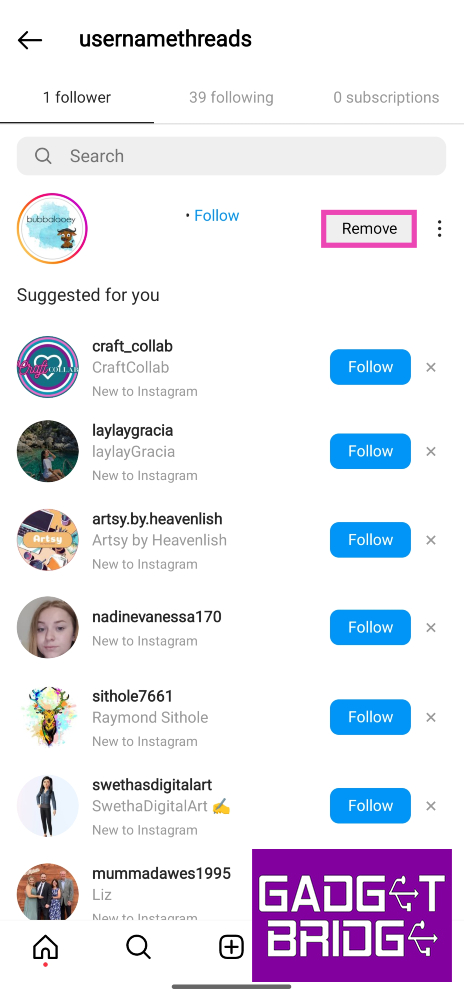
Step 1:Launch the Instagram app and tap your profile picture at the bottom right corner of the screen.Step 2: Tap on the Followers section of your profile.Step 3: Hit the Remove button next to the follower you want to remove.
What happens when you remove a follower on Instagram?
Once you remove a follower on Instagram, they will no longer be able to view your posts, Stories, or Reels in their feed. If your profile is set to private, they will lose access to all the content you have uploaded on Instagram. If you have a public profile, they will be able to view and interact with your content. Non-followers can send you DMs on Instagram, but they show up in the ‘Requests’ folder.
How to block someone on Instagram?
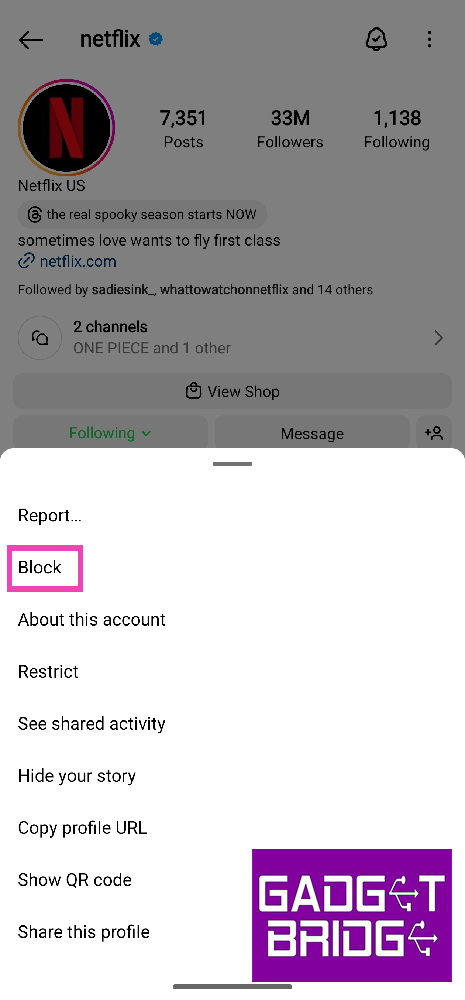
Step 1:Launch the Instagram app and hit the search icon at the bottom of the screen.Step 2: Search the handle of the Instagram profile you want to block.Step 3: Once you land on their profile, tap the ellipses at the top right corner of the screen and hit Block.
What happens when you block someone on Instagram?
Blocking someone is a hard measure that makes sure they lose access to your profile and are not able to interact with your content in any capacity. Blocked users will also not be able to send your direct messages on Instagram. If someone reposts your content on their Story, your blocked users will not be able to see it. Instagram does not notify the user when you block them on the platform. If you think blocking is a hard measure, Instagram also allows you to ‘Restrict’ users. Once you restrict a user, their comments on your posts are put on a buffer until you flag them. Until then, only the restricted user will be able to see their comment on your profile. Instagram does not send read receipts of DMs to restricted users.
Frequently Asked Questions (FAQs)
Does Instagram notify the other person when you remove them as a follower?
No, users do not get notified when they are removed as a follower by someone else.
When you remove a follower can they still see your posts?
Non-followers can view your posts and stories if your profile is public. To limit access to your profile, either post exclusively for close friends or make your profile private.
How do I remove followers in bulk?
To remove multiple followers in bulk, simply head over to the ‘follower’ section on your Instagram profile and hit ‘Remove’ next to every profile while scrolling down.Read Also:Vivo V29 Pro Review: The complete camera smartphone?
Conclusion
This is what happens when you remove a follower or block someone on Instagram. There are certain third-party apps that claim to let you know whether you have been blocked by someone on Instagram. These apps are usually malicious and push malware on your device under the disguise of being a useful tool. There is no way to know for sure whether someone has blocked you on Instagram. Here are some pointers that can help you determine whether you have been blocked by a particular user.For the latest gadget and tech news, and gadget reviews, follow us on Twitter, Facebook and Instagram. For newest tech & gadget videos subscribe to our YouTube Channel. You can also stay up to date using the Gadget Bridge Android App. You can find the latest car and bike news here.
Launched for the public last month, the new Counter-Strike 2 builds upon the legacy of CS:GO and brings its own special flair to the gameplay. Users can play Counter-Strike 2 by simply updating CS:GO on Steam. The 5th iteration in the Counter-Strike series, CS2 is already gaining wide popularity among the gaming audience. If you plan on playing the game for the first time, it will be much more enjoyable with a dedicated gaming mouse. In this article, we bring you the top 5 gaming mouse under Rs 1,000 for Counter-Strike 2.Read Also:Vivo V29 Pro Review: The Complete Camera Smartphone?
In This Article
Razer DeathAdder Essential Wired Gaming Mouse
Price: Rs 998 on AmazonThe Razer DeathAdder Essential wired gaming mouse is available for Rs 998 on Amazon right now, making it an amazing deal. This gaming mouse has a powerful 6,400 dpi optical sensor that facilitates fast movement and super quick swipes. The 5 hyper response buttons on this mouse can be programmed to suit your style of play. These buttons have been lab-tested for up to 10 million clicks. The DeathAdder also has a very ergonomic design, making it ideal for long gaming sessions.
Cosmic Byte Spectrum RGB
Price: Rs 649 on AmazonCosmic Byte Spectrum is the best ‘honeycomb’ design mouse you can buy for under Rs 1,000. The honeycomb design makes the mouse lightweight and easy to control in intense gameplay. The DPI level of this mouse can be set anywhere between 200-12800 using the accompanying software. This software can be used to customise the RGB lighting on the mouse as well. With a maximum tracking speed of 60IPS and 20G acceleration, the Cosmic Byte Spectrum RGB is a great choice for a gaming mouse under Rs 1,000 for Counter-Strike 2.
Ant Esports GM600
Price: Rs 429 on AmazonThe Ant Esports GM600 has 6 adjustable DPI levels – 800, 1600, 2400, 3200, 4800, and 7200. There are 14 customisable RGB backlights. Users can change the intensity and speed of these backlights using the accompanying software. There are 7 programmable buttons on this mouse. Its ergonomic design and convenient thumb rest immensely help in maintaining a good grip and cutting down on fatigue.
Zebronics Transformer M
Price: Rs 299 on AmazonThe Zebronics Transformer M is one of the most popular and affordable gaming mice out there. It gets a 3200 DPI sensor with adjustable DPI levels (1000, 1600, 2400, 3200), 6 programmable buttons, dedicated forward and backwards buttons, a braided cable, and RGB lighting that supports 7 colours. The efficient sensor on this mouse can track on most surfaces. The device is entirely plug-and-play.
Redgear A-20 Wired Gaming Mouse
Price: 229 on AmazonPriced at just Rs 229, the Redgear A-20 is one of the cheapest gaming mice you can buy right now. This mouse gets a 4800 DPI sensor, adjustable DPI levels, 7 programmable buttons, durable switches, and 16.8 million colour customisation options for the RGB through the companion software. The 1.8m braided cable attached to the mouse is durable and efficient. The design of the Redgear A-20 is ergonomic and meant for prolonged gaming sessions.Read Also:JioBharat B1 4G phone with JioPay launched in India


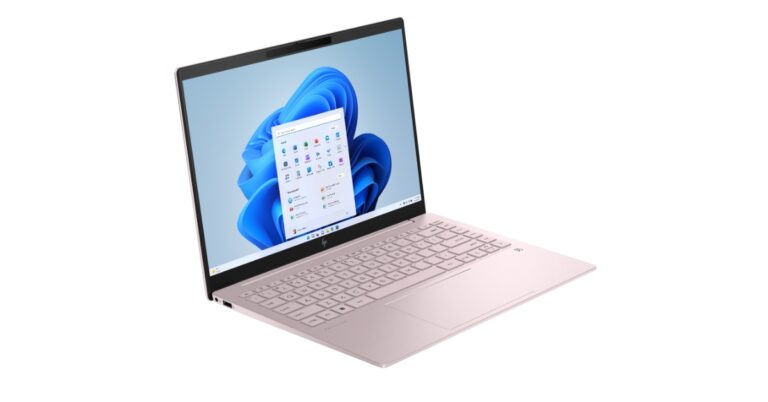
 Also Read: Apple introduces new affordable Apple Pencil with USB-C: Here is what you should know about the new Apple Pencil
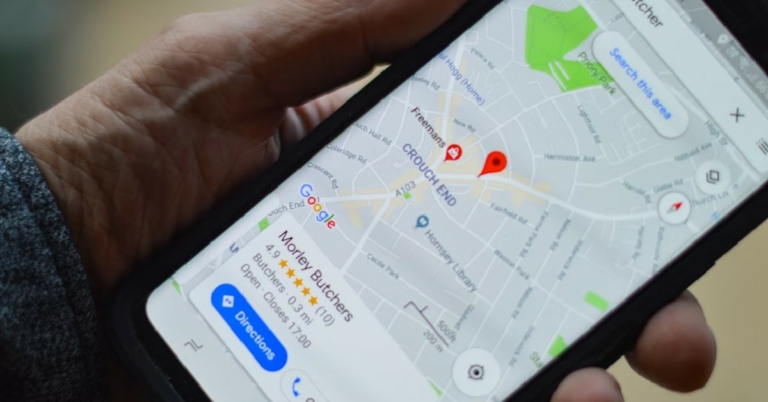
 Target icon:
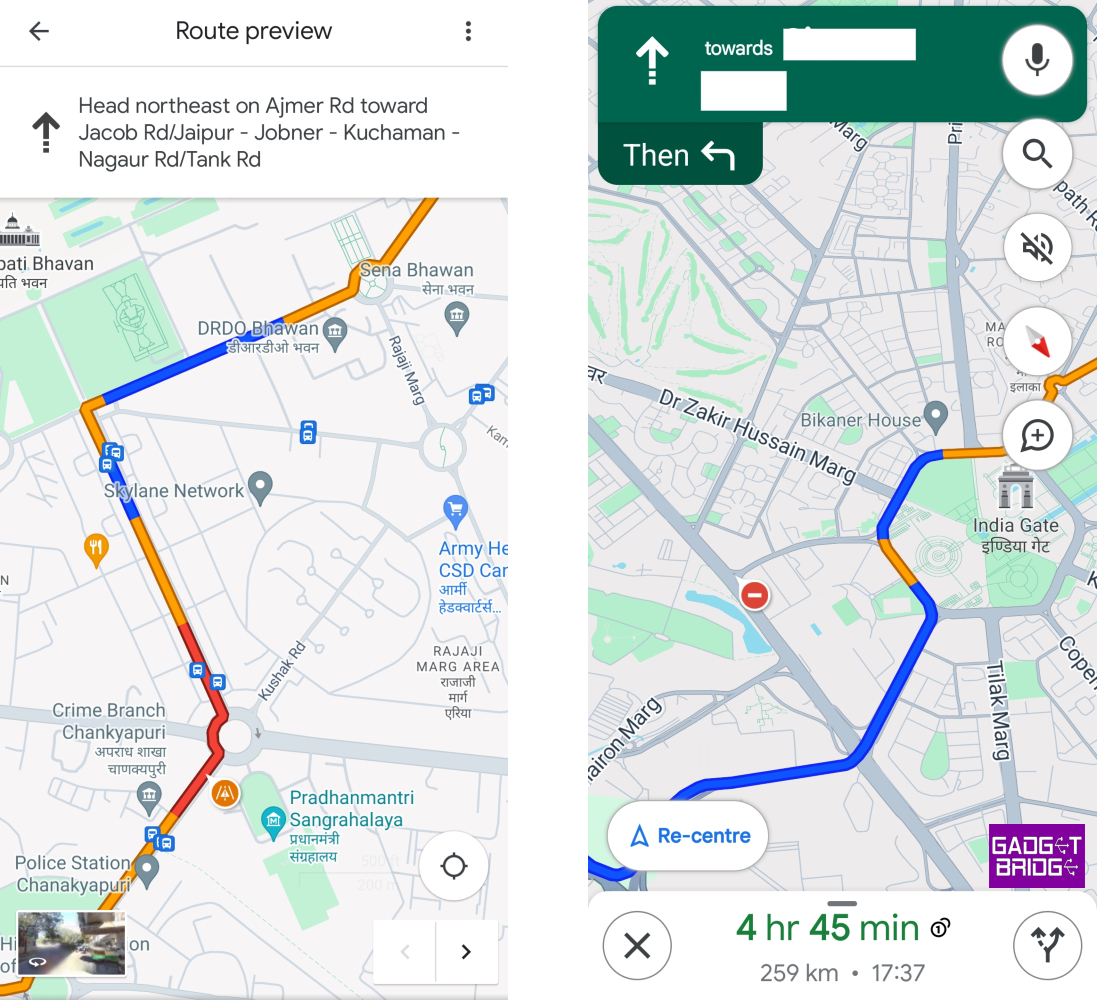 Yellow road:
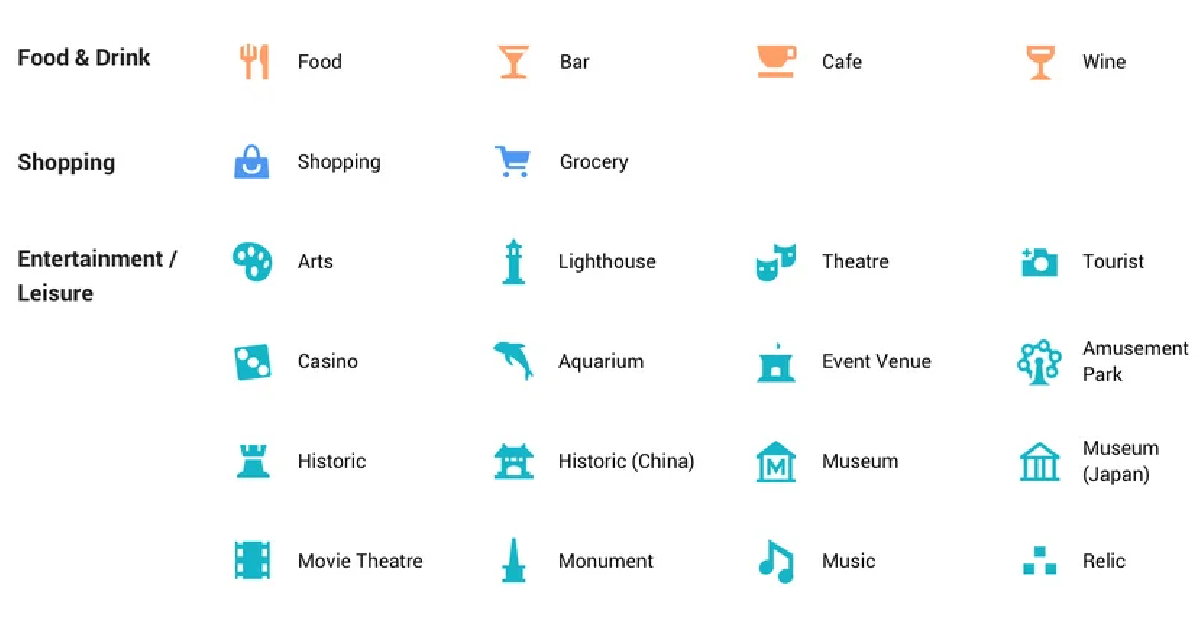 Yellow pin with a star:
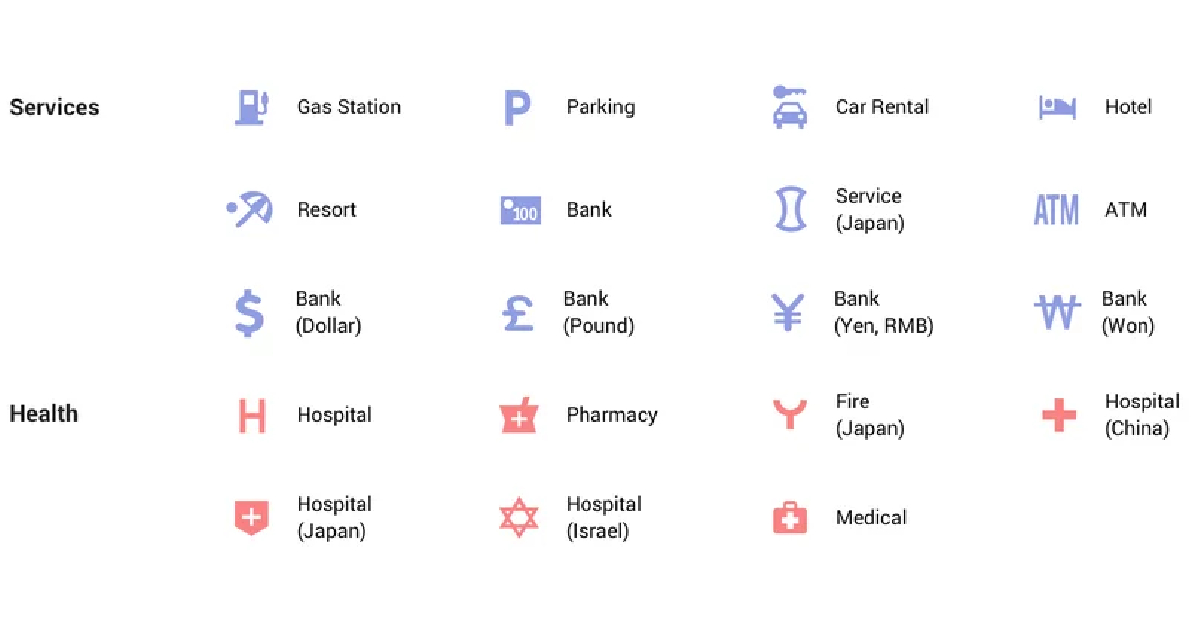 Man sleeping on bed pin:
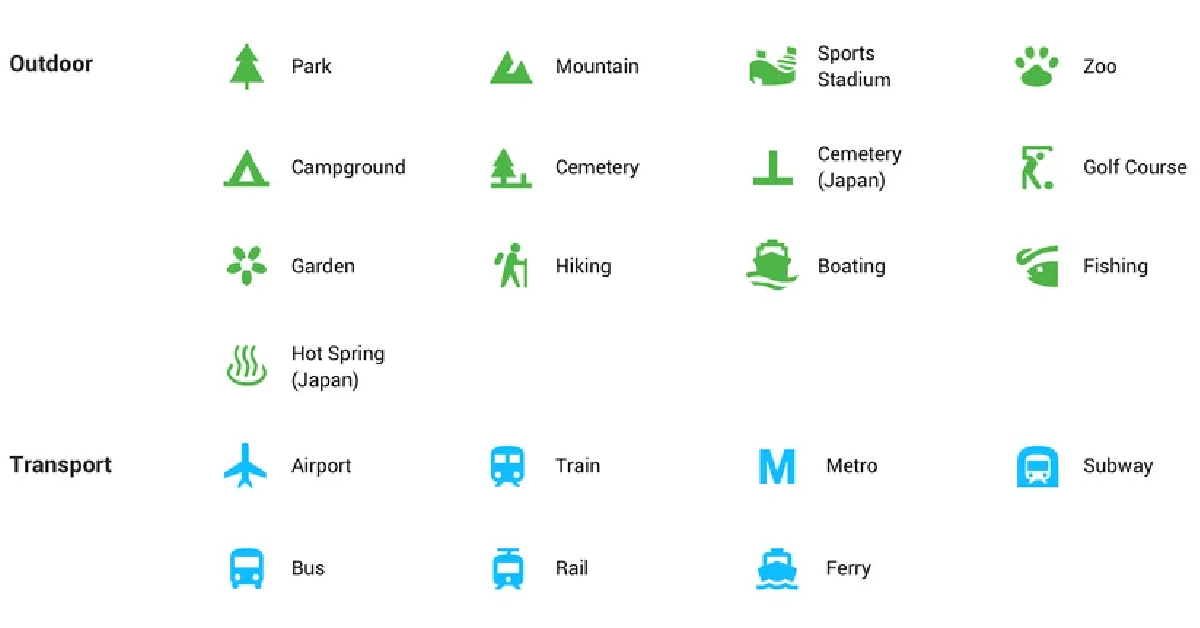 Gas pump pin:
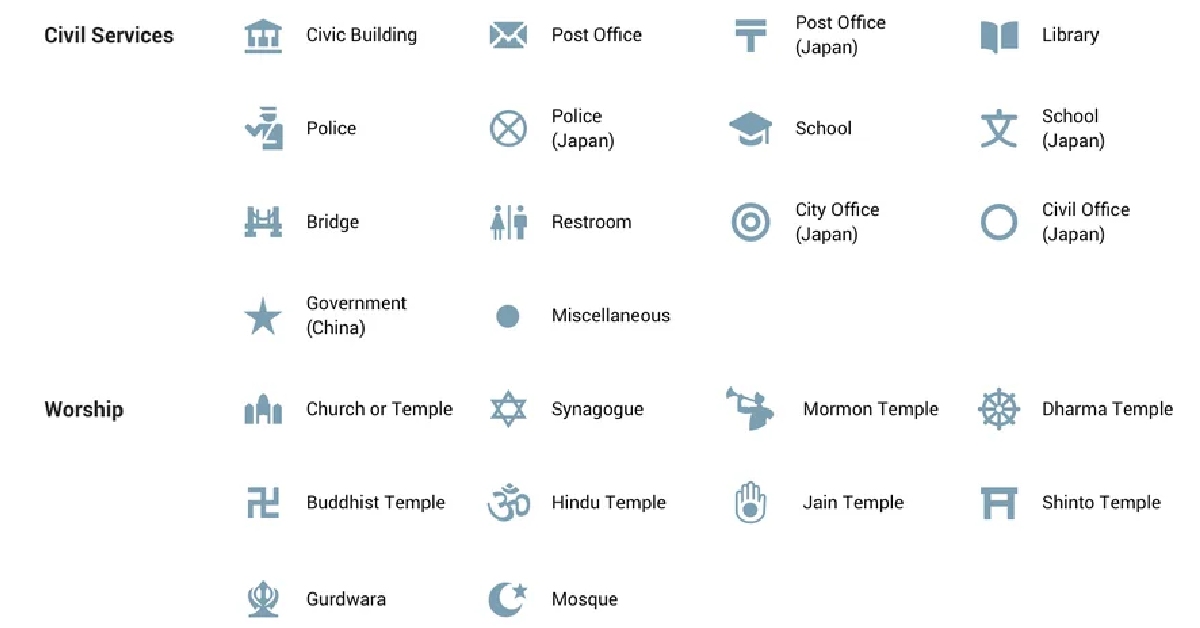 Shopping cart pin: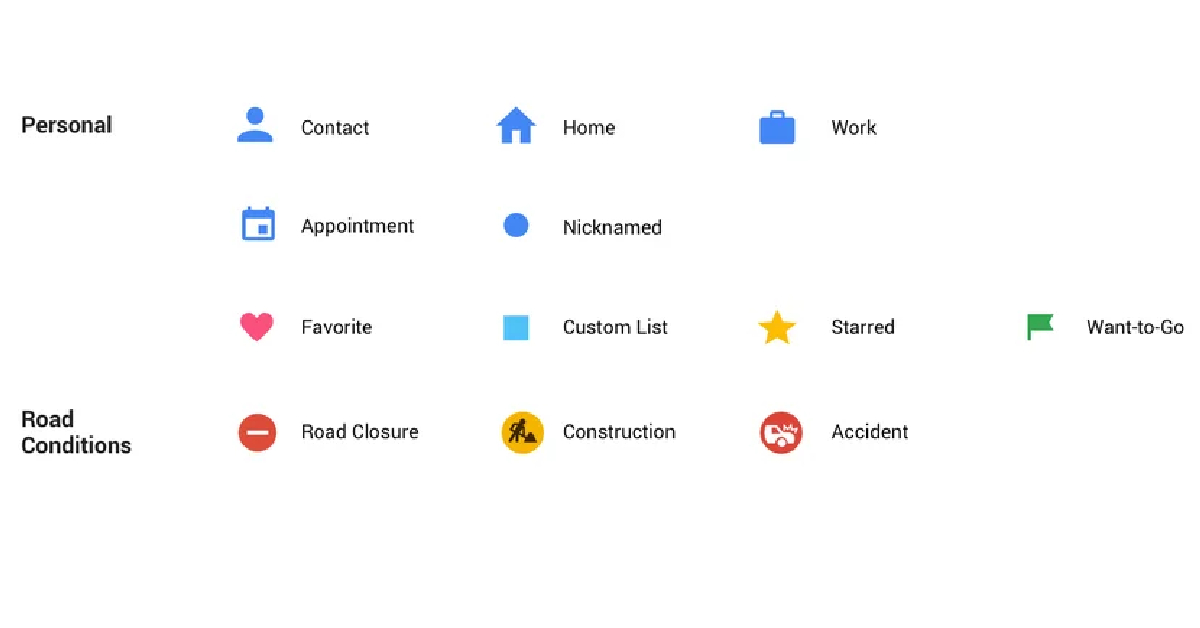
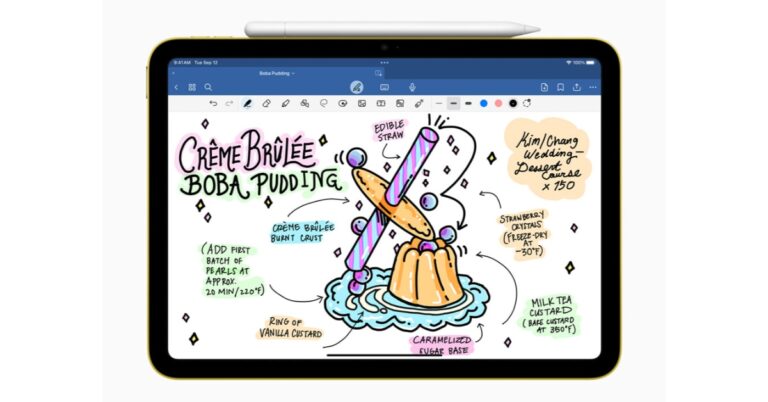
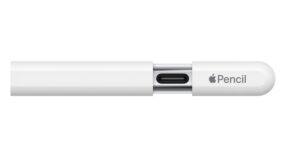

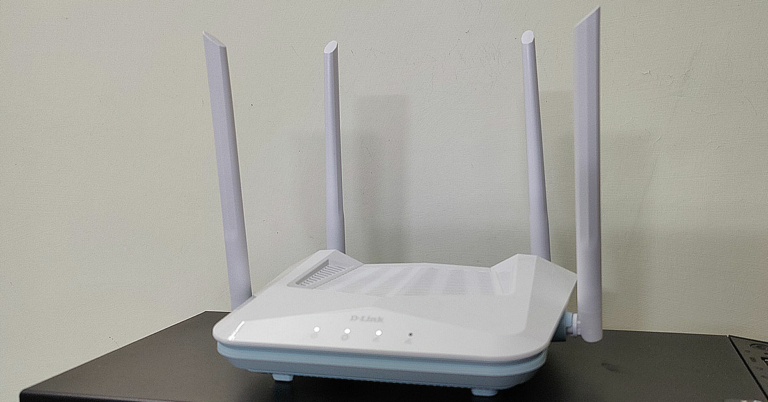
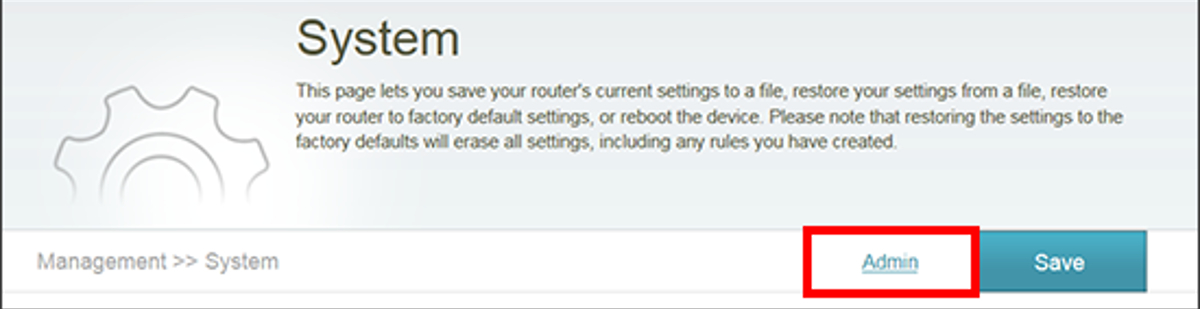 Step 4:
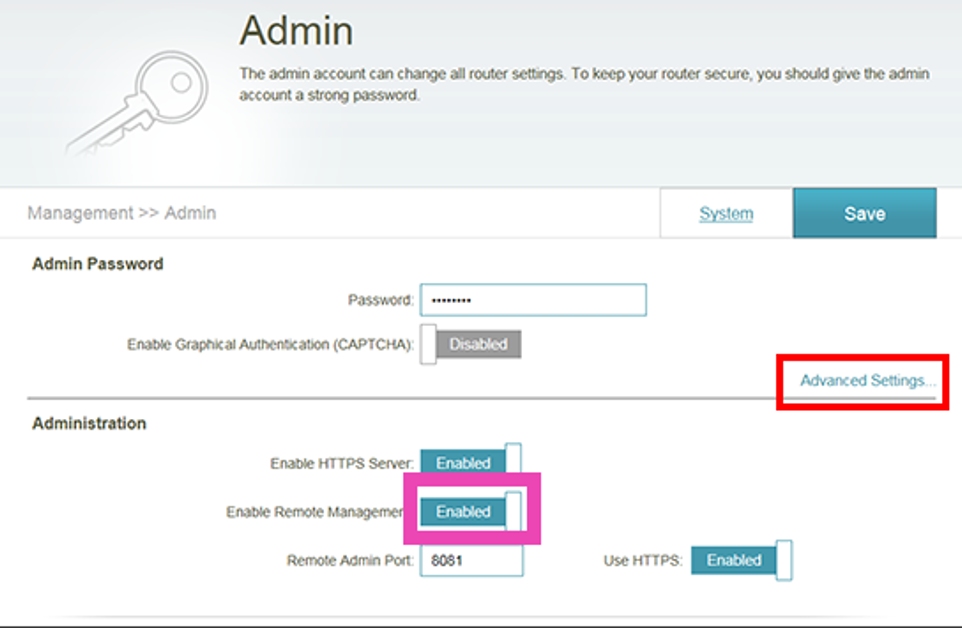 Step 5:
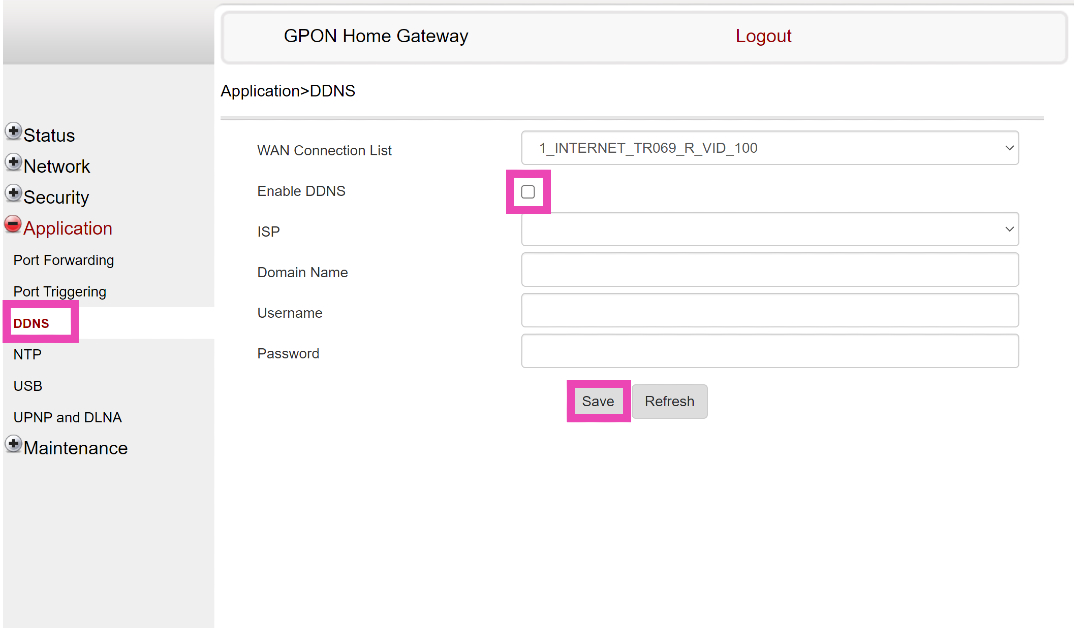 Step 4: Enter
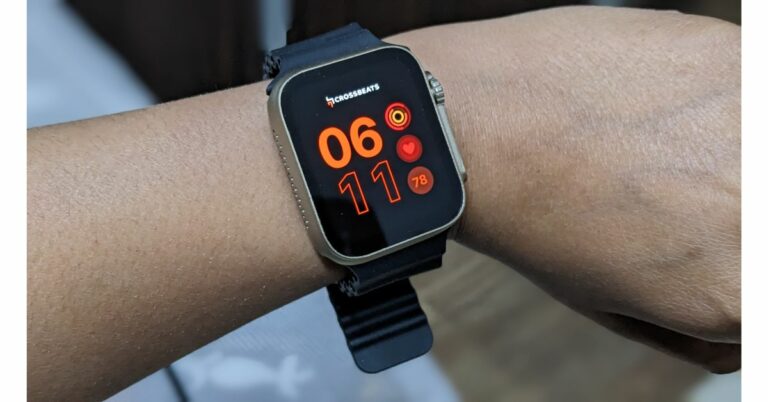




 Step 1: Launch
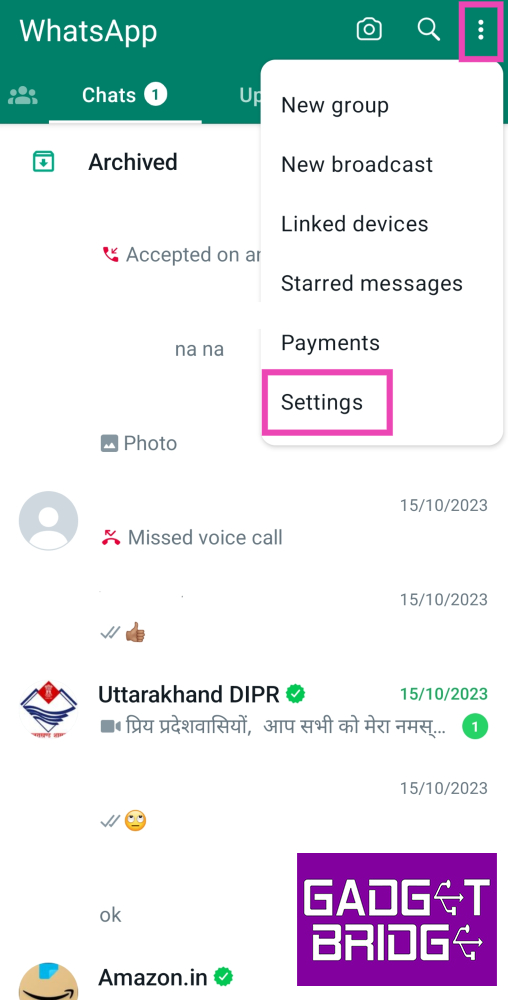 Step 3:
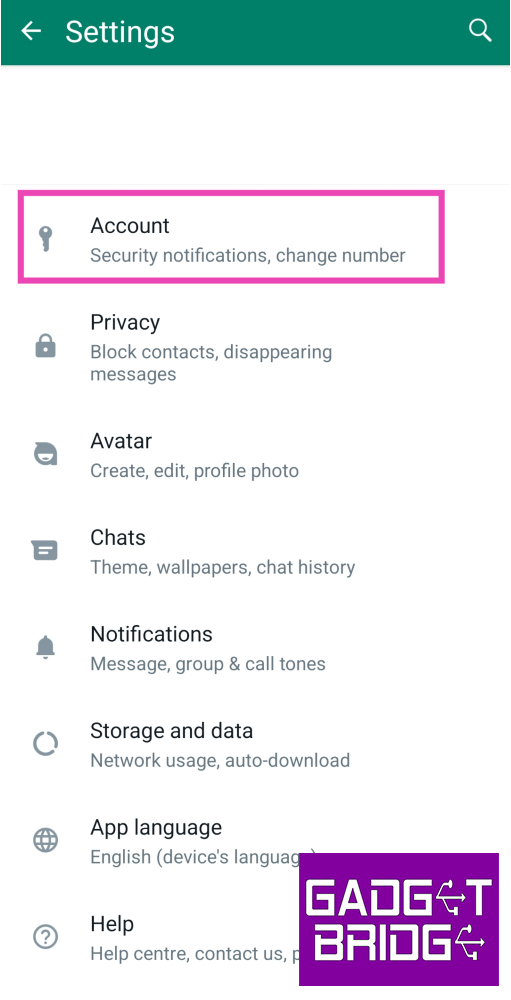 Step 4: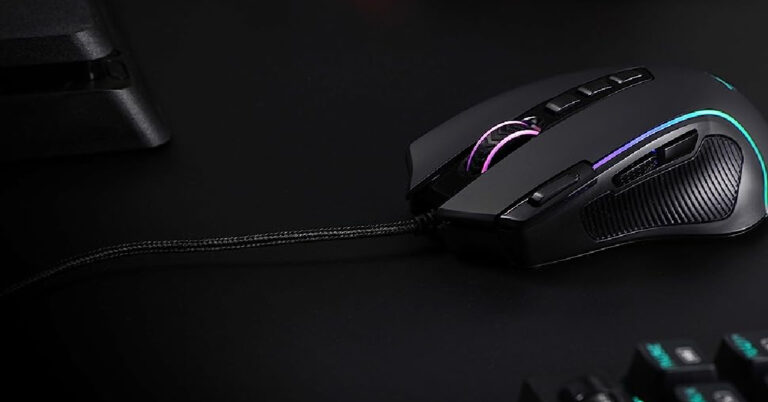

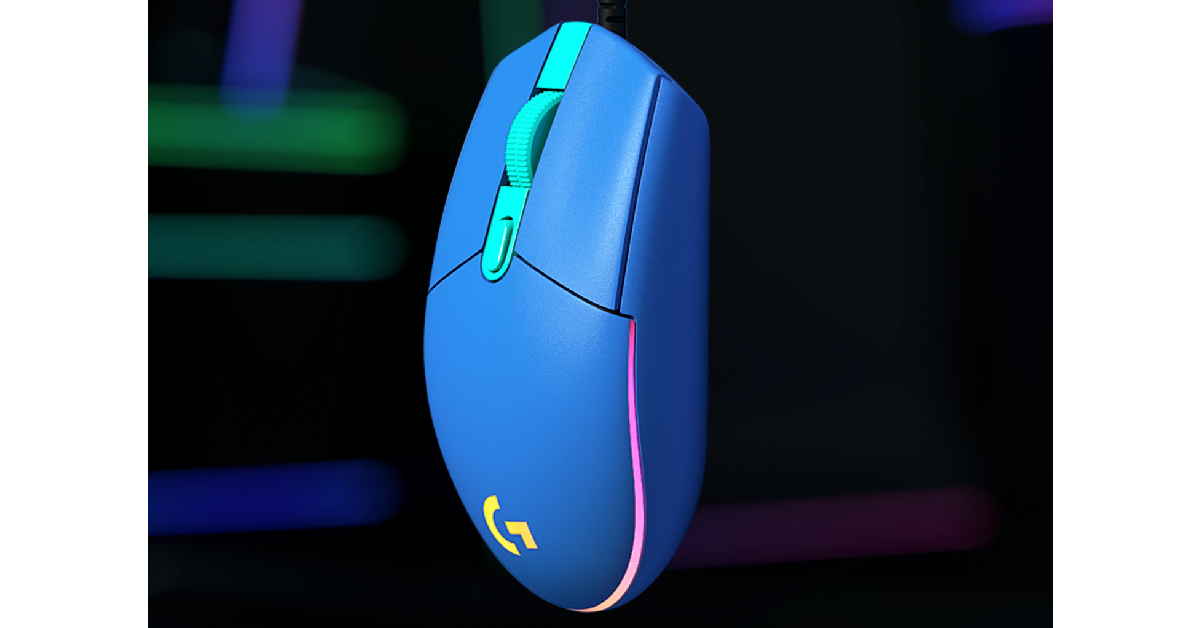
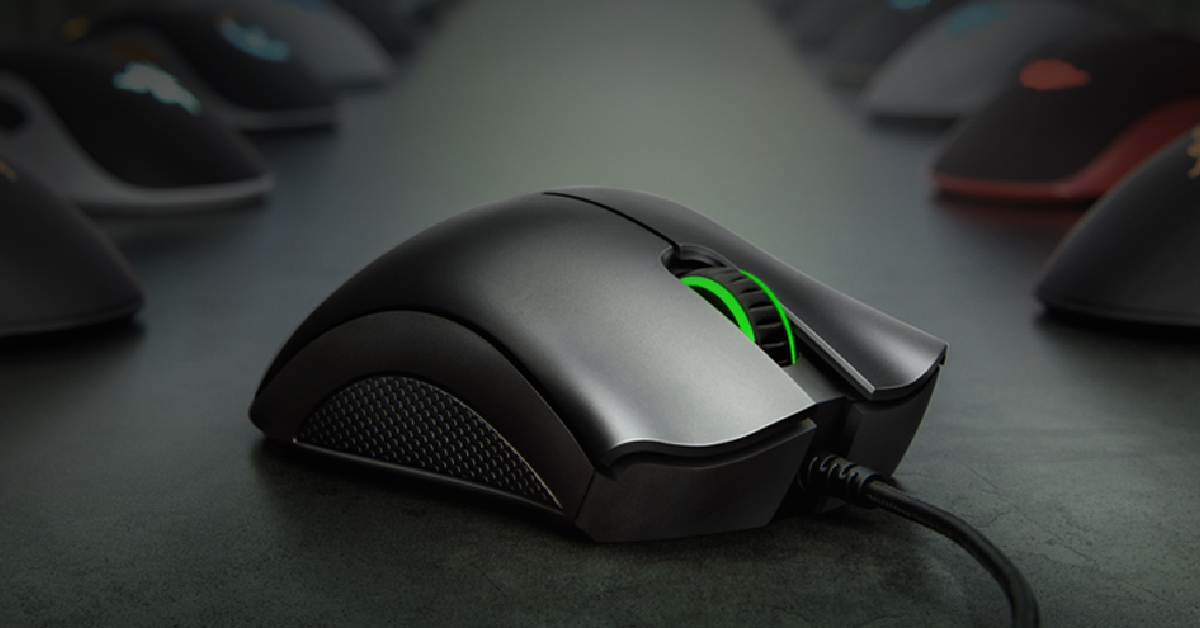
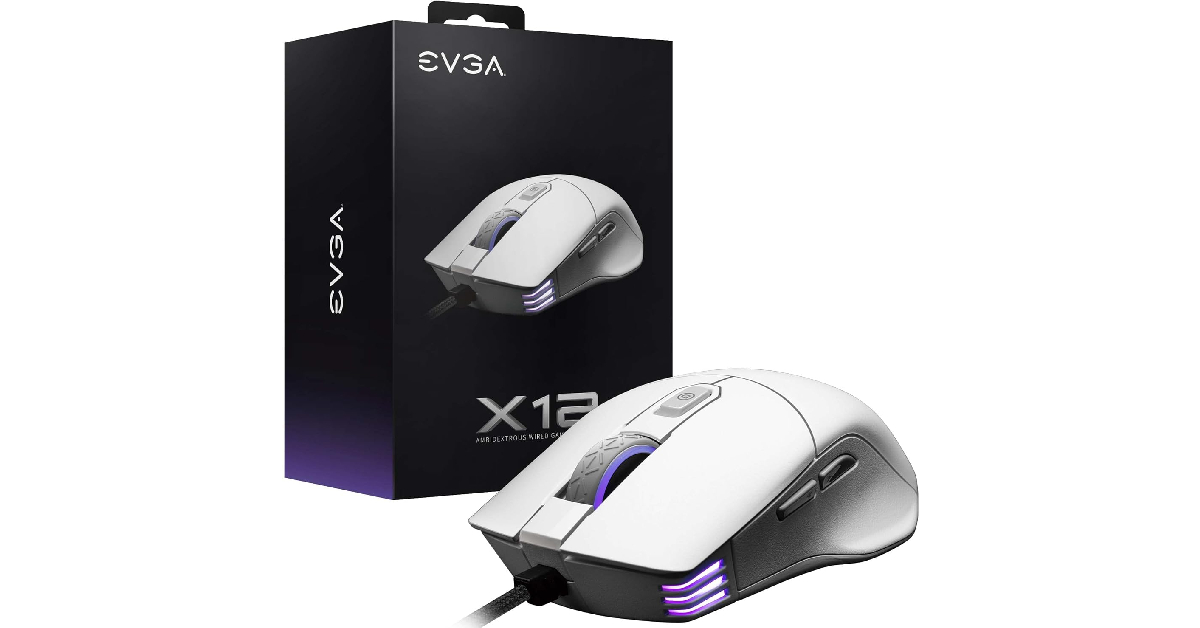
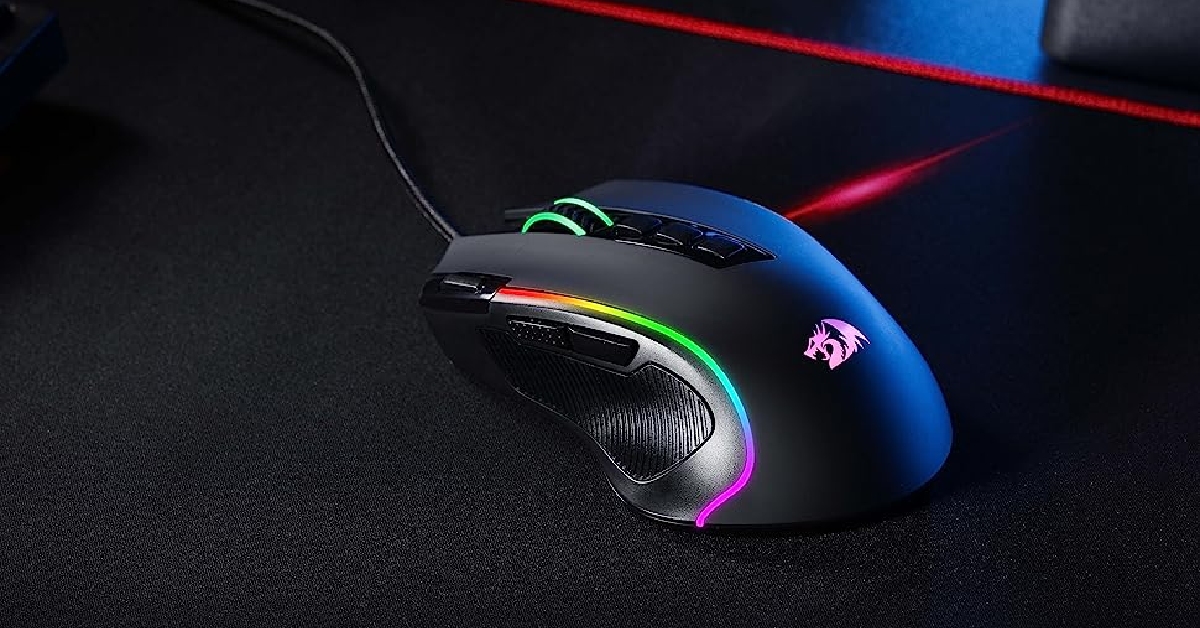
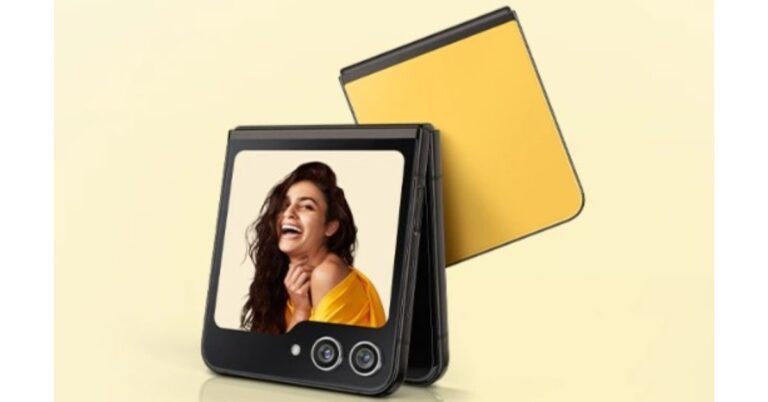

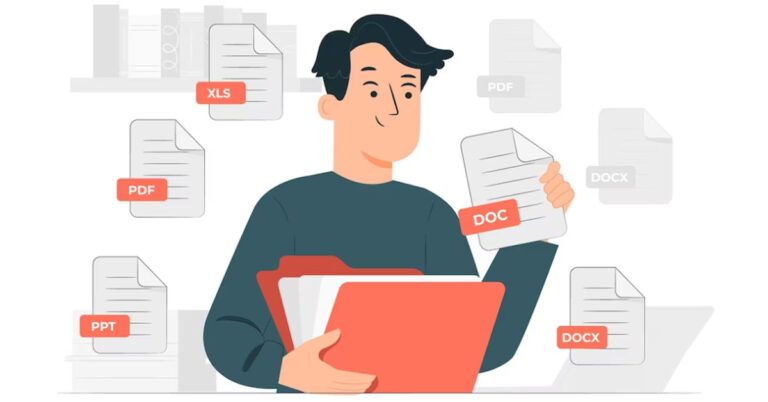
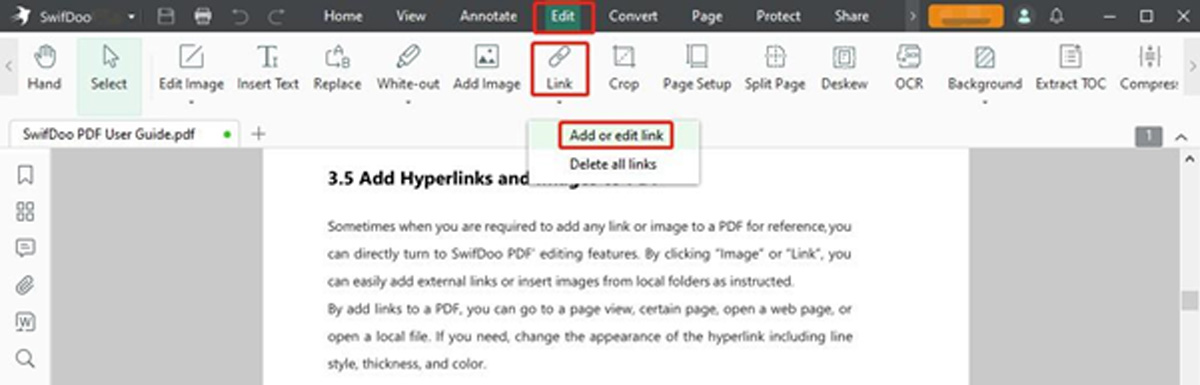 Step 3: Draw a rectangle where you must create a URL, and a dialogue box for Add Links will appear.
 Step 4: Choose Open a File at the bottom and browse your PC to select the target PDF. Click OK to create a link to your selected PDF document.
This way, you can not only add a link to a PDF but also create a link to a particular page in your PDF document. In fact, the SwifDoo PDF software also lets you link a PDF to multiple other file types and web pages and enables you to edit or delete the links at any time.
Step 4: Choose Open a File at the bottom and browse your PC to select the target PDF. Click OK to create a link to your selected PDF document.
This way, you can not only add a link to a PDF but also create a link to a particular page in your PDF document. In fact, the SwifDoo PDF software also lets you link a PDF to multiple other file types and web pages and enables you to edit or delete the links at any time.
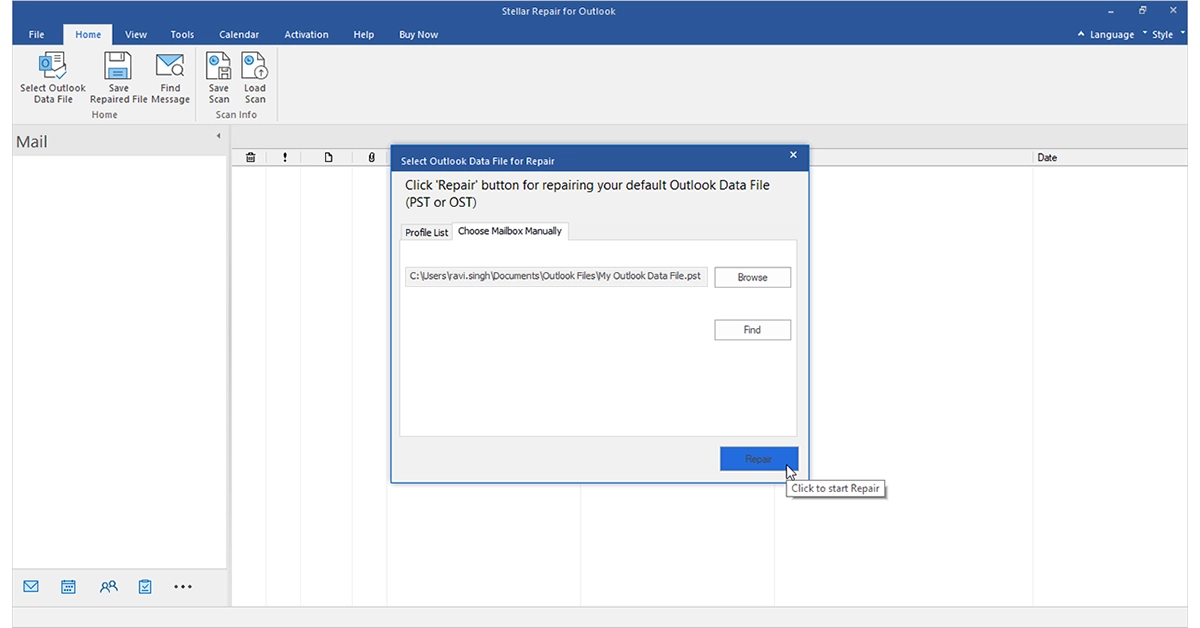 Step 2: Click Edit and select Link. Choose the Add or Edit link option.
Step 3: Draw an area where you want to add the link using your cursor and tap the Open a Web option.
Step 4: Type and enter the PDF link address or URL and click OK.
That’s it. Following the abovementioned process, you can create a link to open an online downloadable PDF document. Besides adding, the software also lets you remove links from PDFs.
After creating a link to the desired PDF file, select where the link is added, and the linked PDF will automatically open. Now, you can easily edit it despite the link being created on a PDF file stored on your system or the web.
Step 2: Click Edit and select Link. Choose the Add or Edit link option.
Step 3: Draw an area where you want to add the link using your cursor and tap the Open a Web option.
Step 4: Type and enter the PDF link address or URL and click OK.
That’s it. Following the abovementioned process, you can create a link to open an online downloadable PDF document. Besides adding, the software also lets you remove links from PDFs.
After creating a link to the desired PDF file, select where the link is added, and the linked PDF will automatically open. Now, you can easily edit it despite the link being created on a PDF file stored on your system or the web.
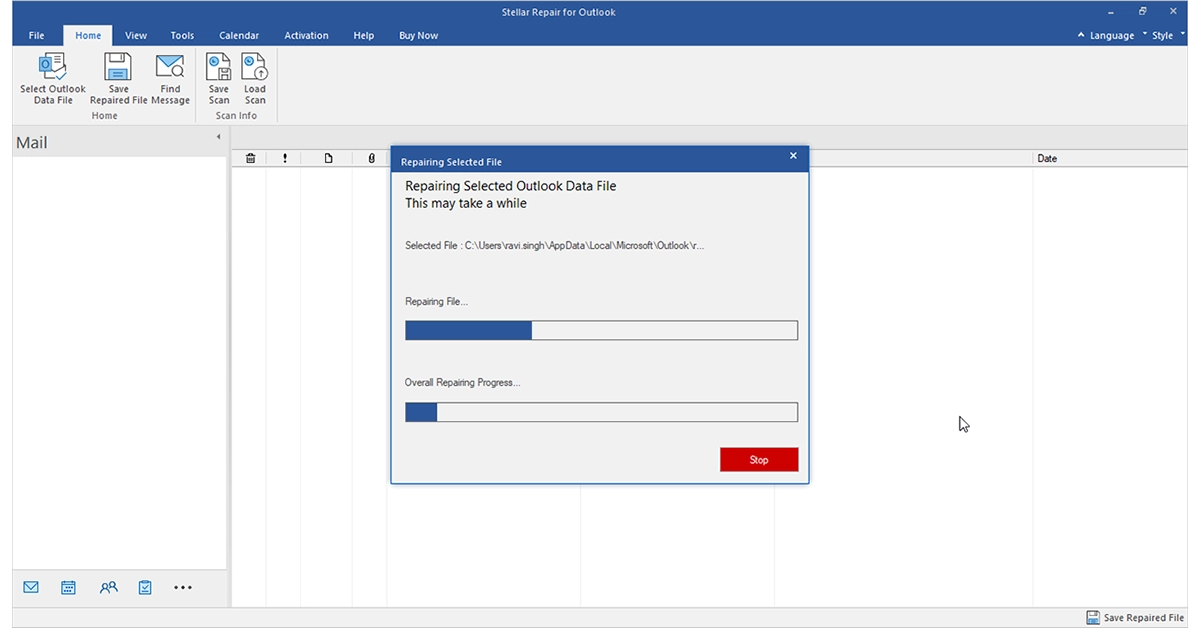 Step 2: Right-click the link to be modified and click Edit Link.
Step 3: Change or remove the link as per your requirements.
Step 2: Right-click the link to be modified and click Edit Link.
Step 3: Change or remove the link as per your requirements.
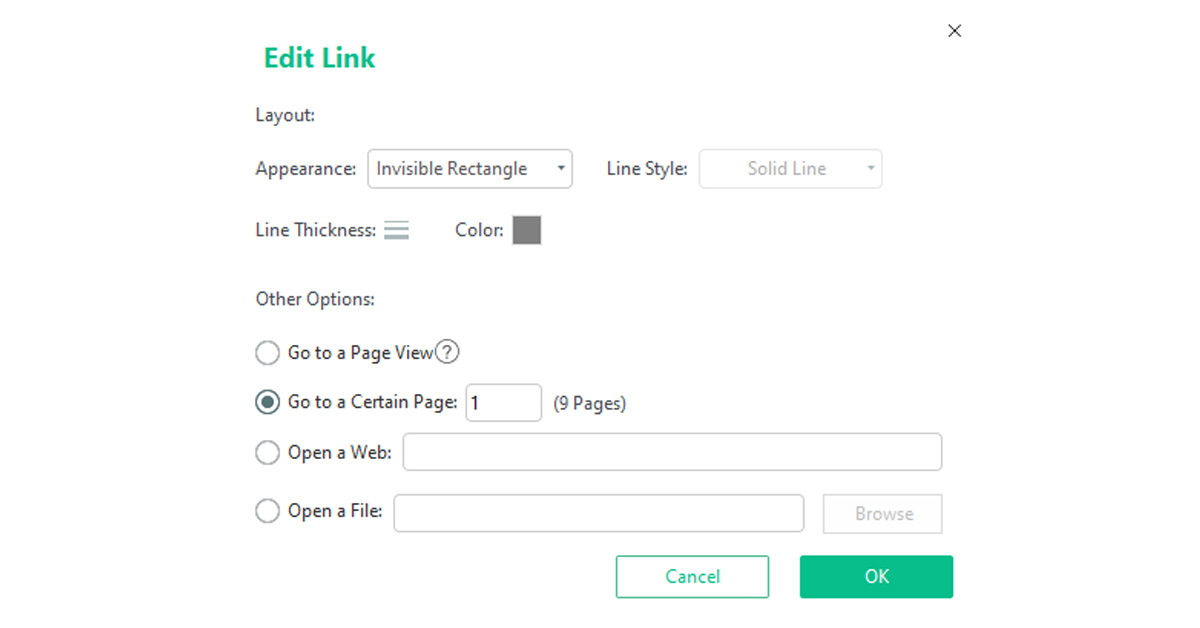 Step 2: Type a page number. Alternatively, scroll to determine the specific page to be linked.
You can also use the SwifDoo PDF’s PDF to HTML converter feature to convert a PDF into an HTML file to share and open.
Step 2: Type a page number. Alternatively, scroll to determine the specific page to be linked.
You can also use the SwifDoo PDF’s PDF to HTML converter feature to convert a PDF into an HTML file to share and open.


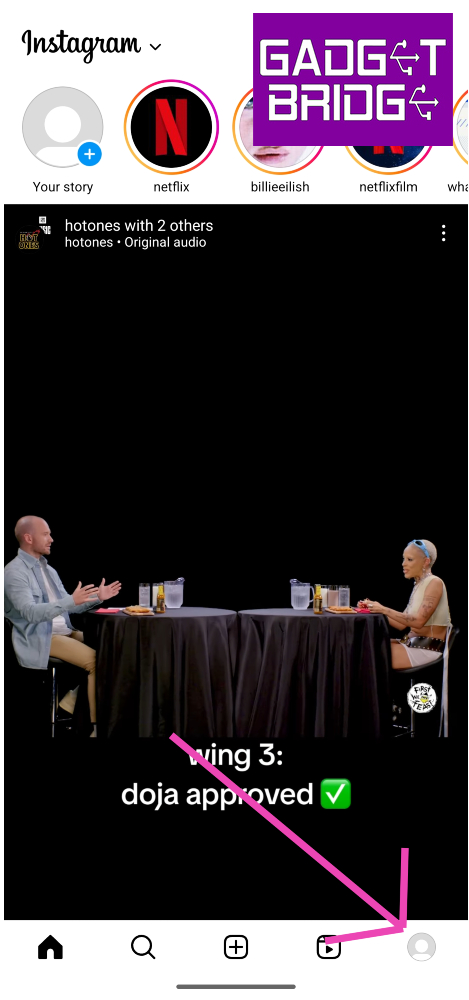 Step 2:
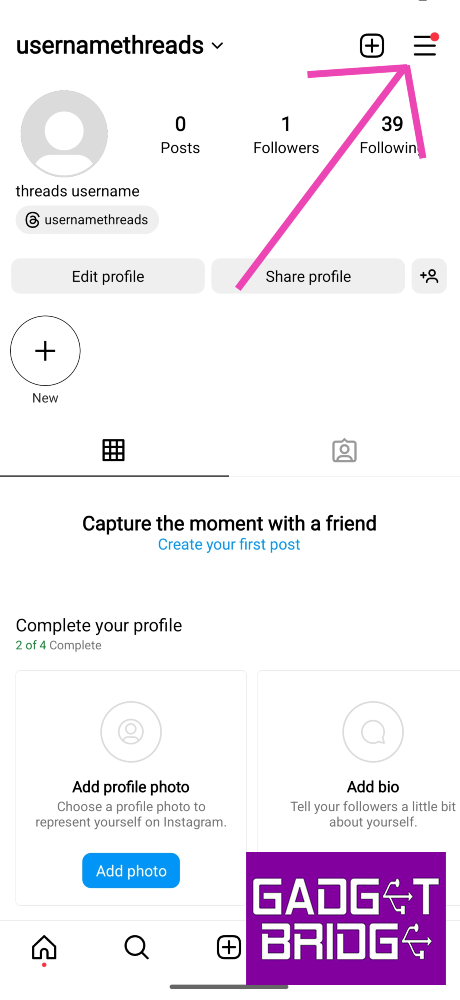 Step 3:
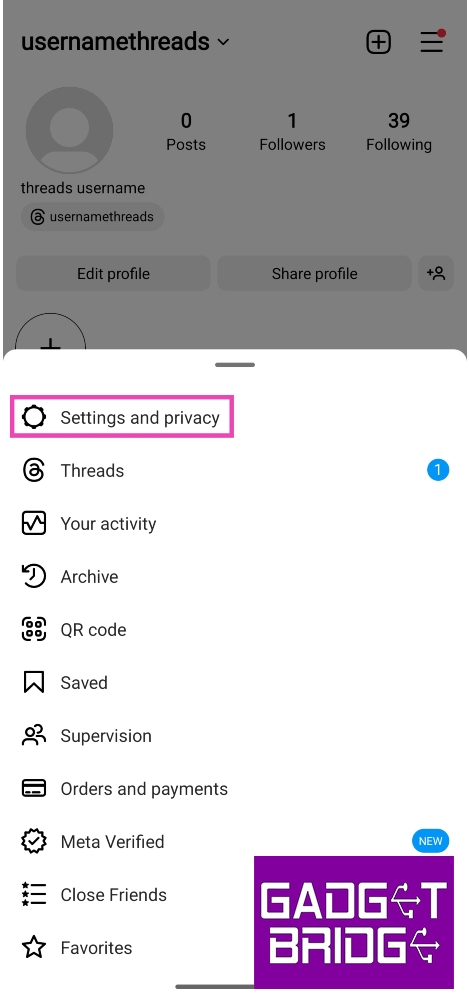 Step 4:
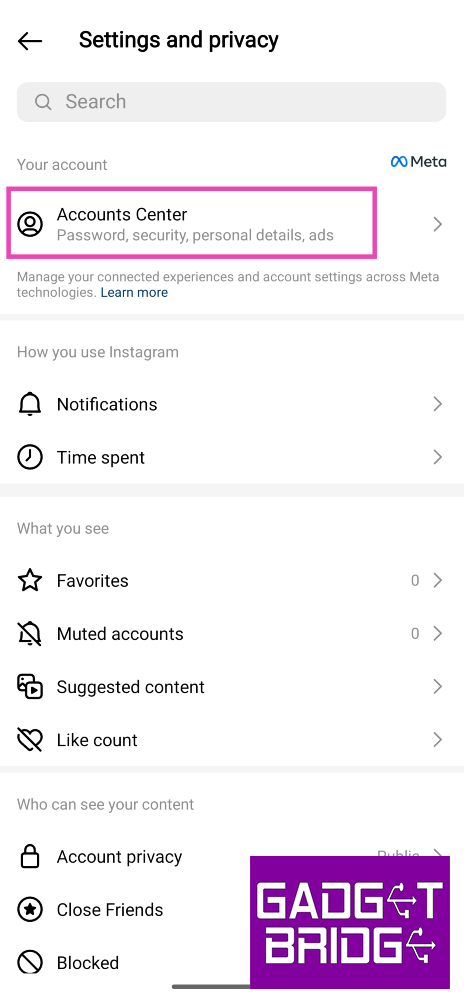 Step 5:
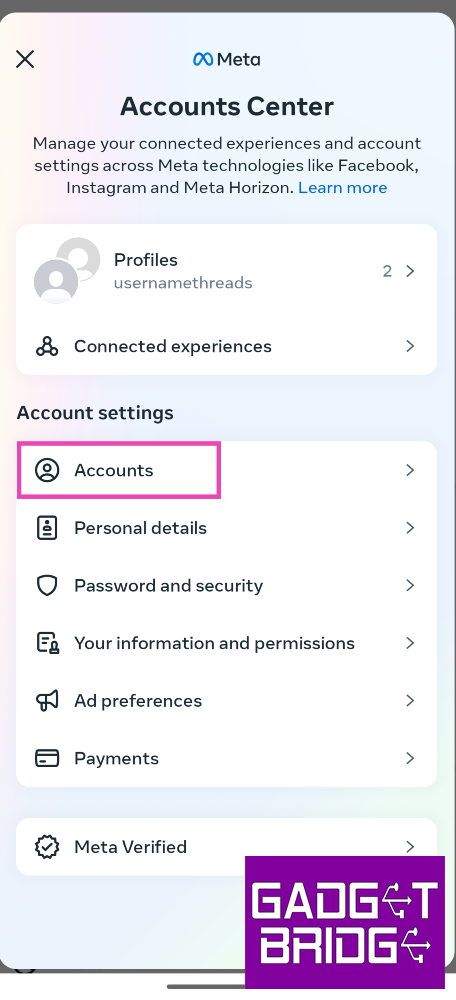 Step 6: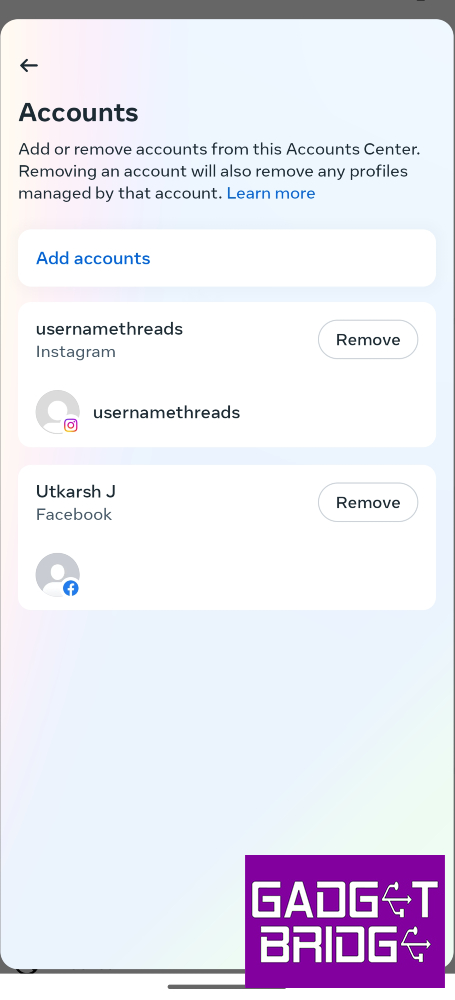
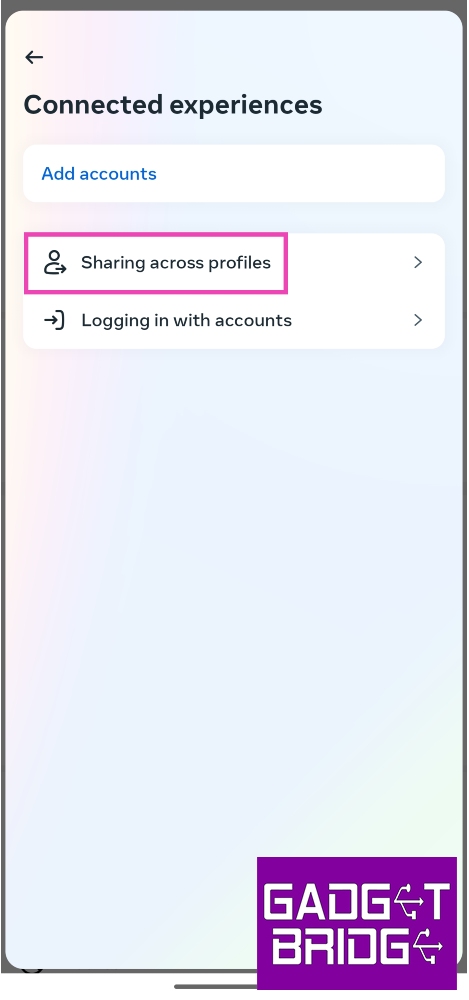 Step 7:
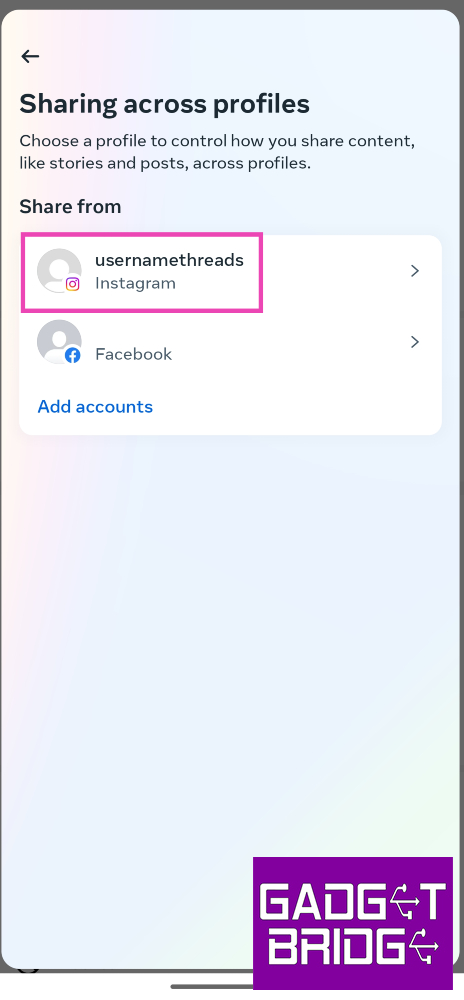 Step 8: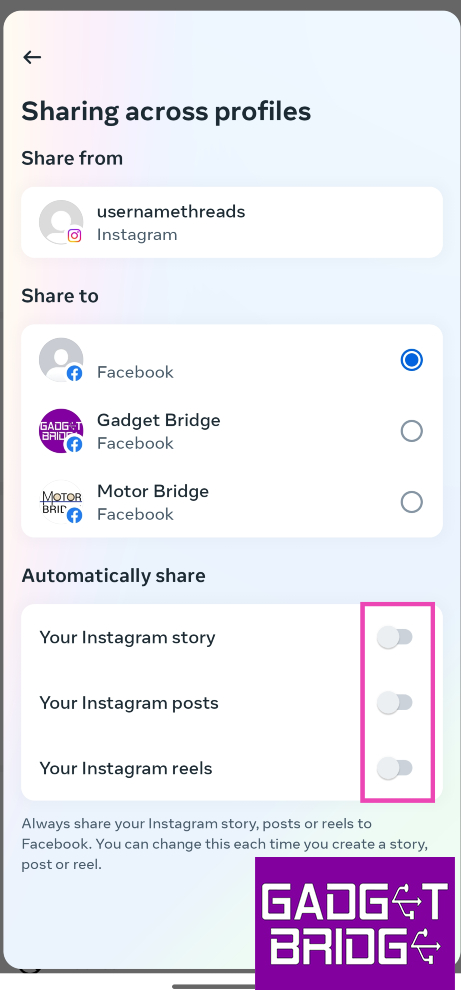
 Step 2:
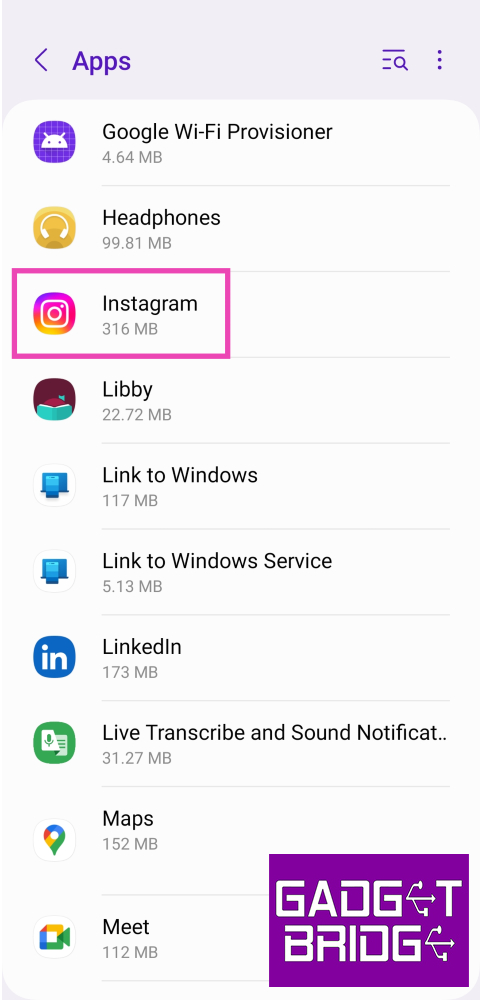 Step 3:
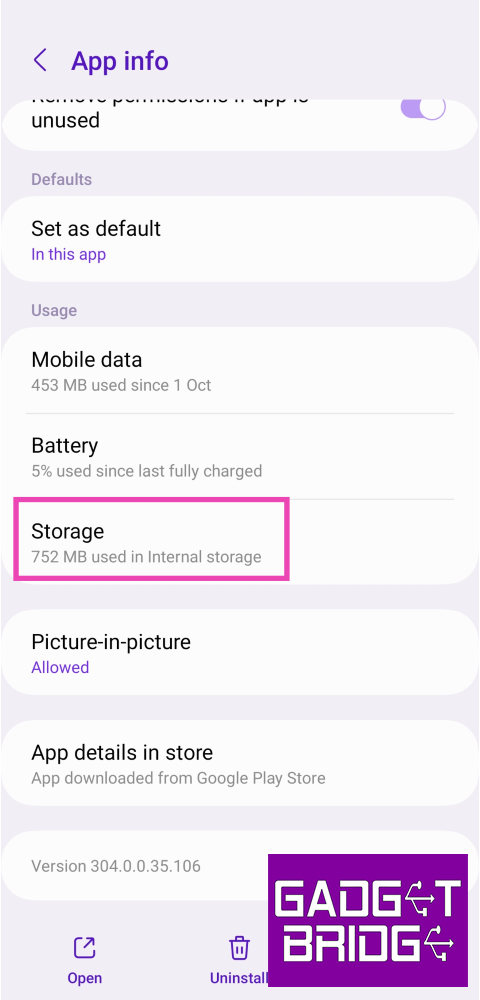 Step 4: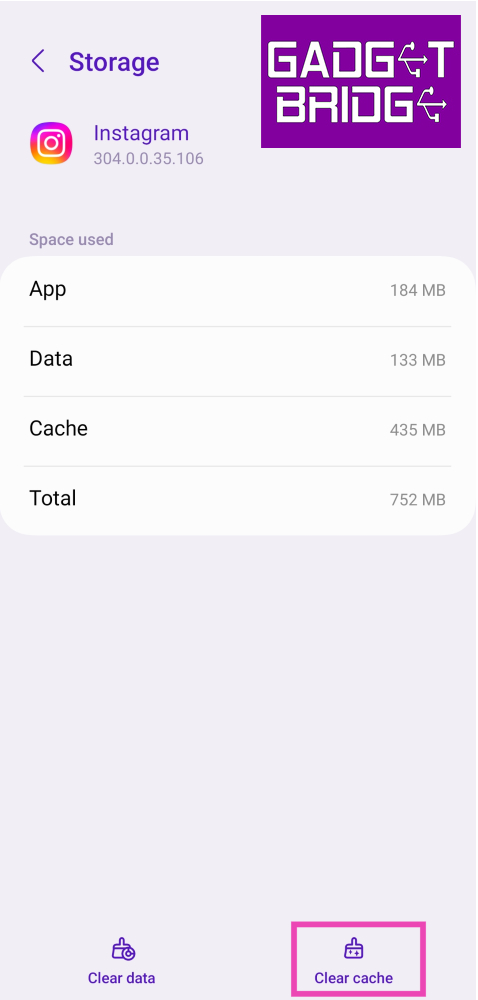
![Step 4: Scroll all the way down and select Log out [profile handle]. Instagram not sharing to Facebook? Try these 5 easy fixes](https://www.gadgetbridge.com/wp-content/uploads/2023/10/infb11.jpg)
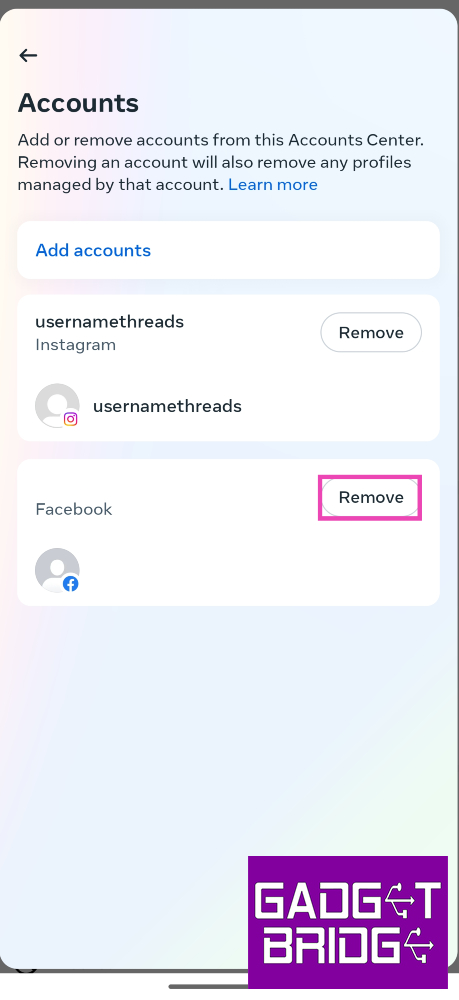 Step 7:
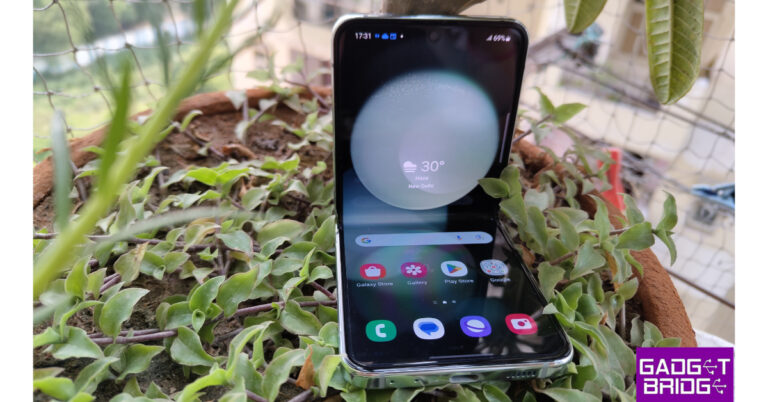


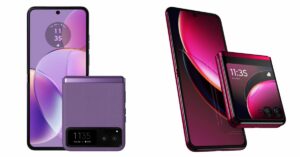
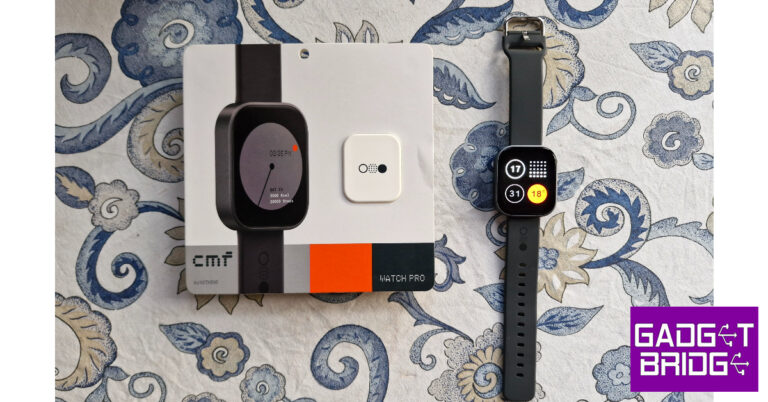
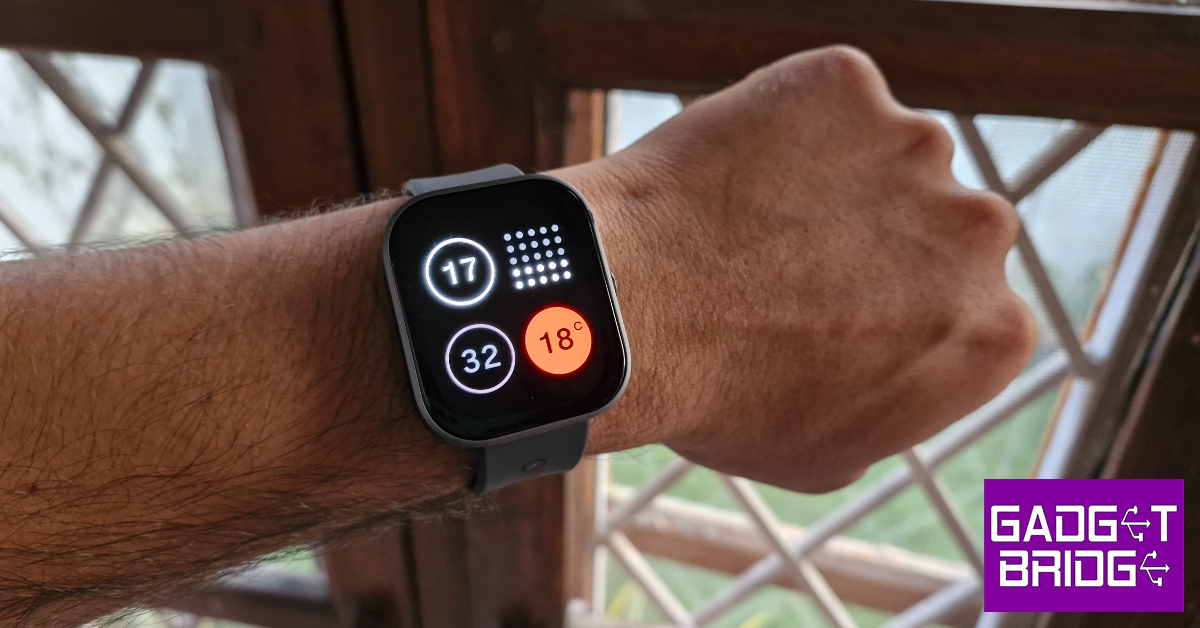
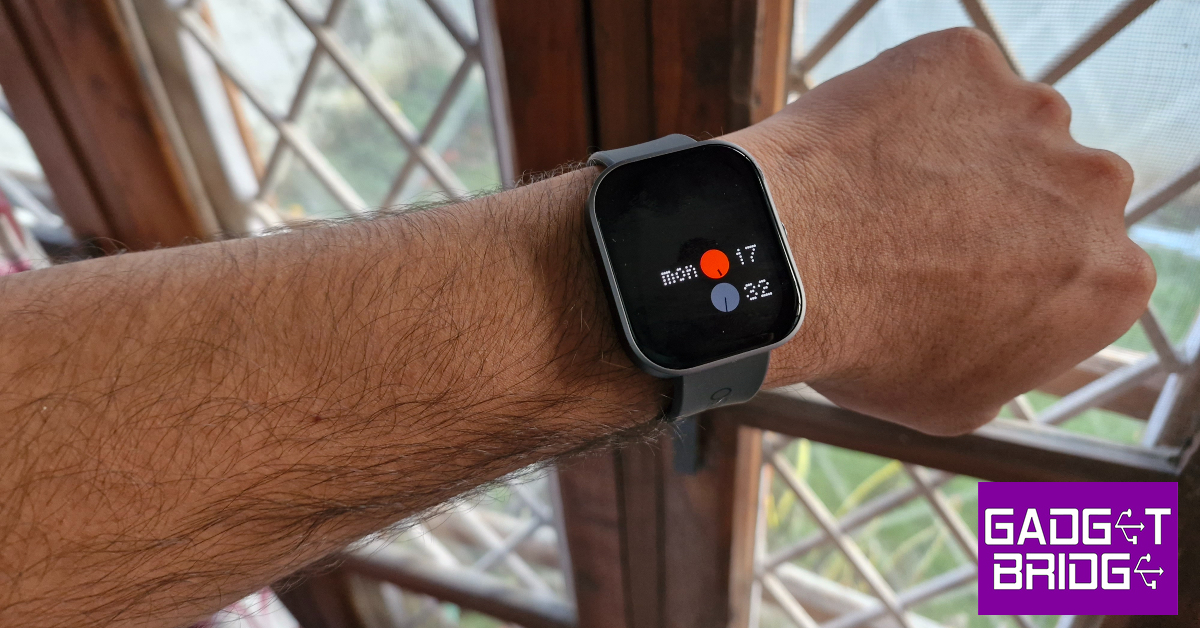
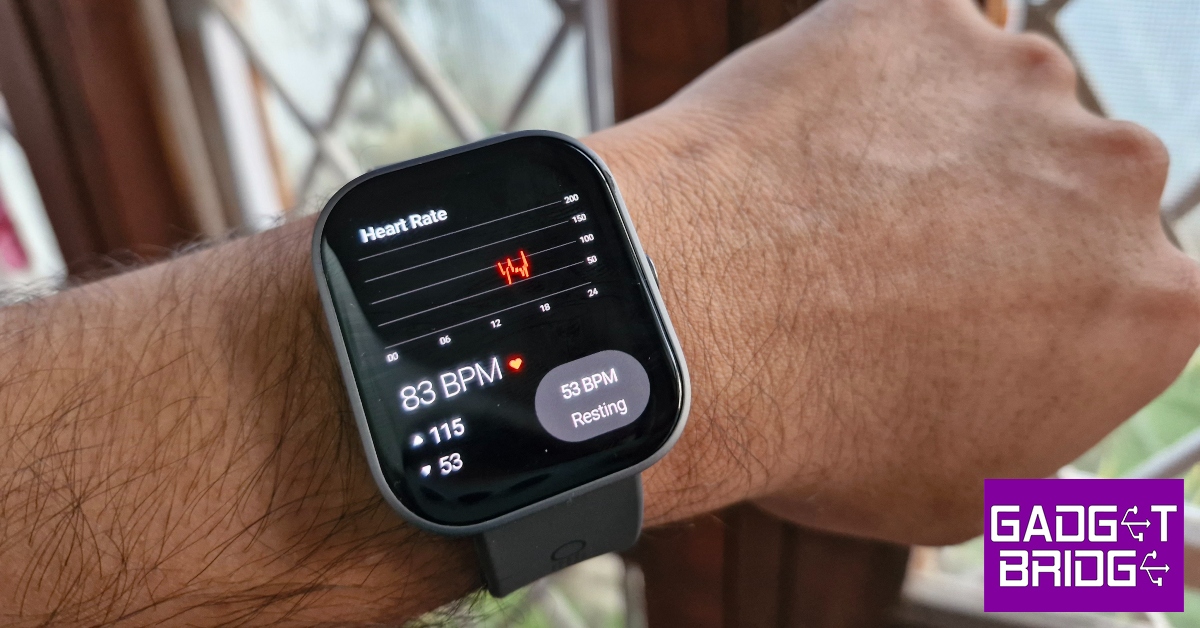
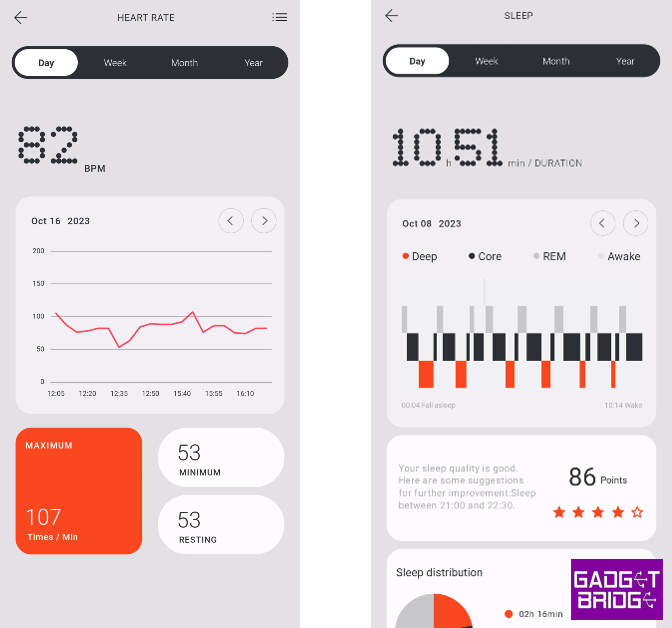
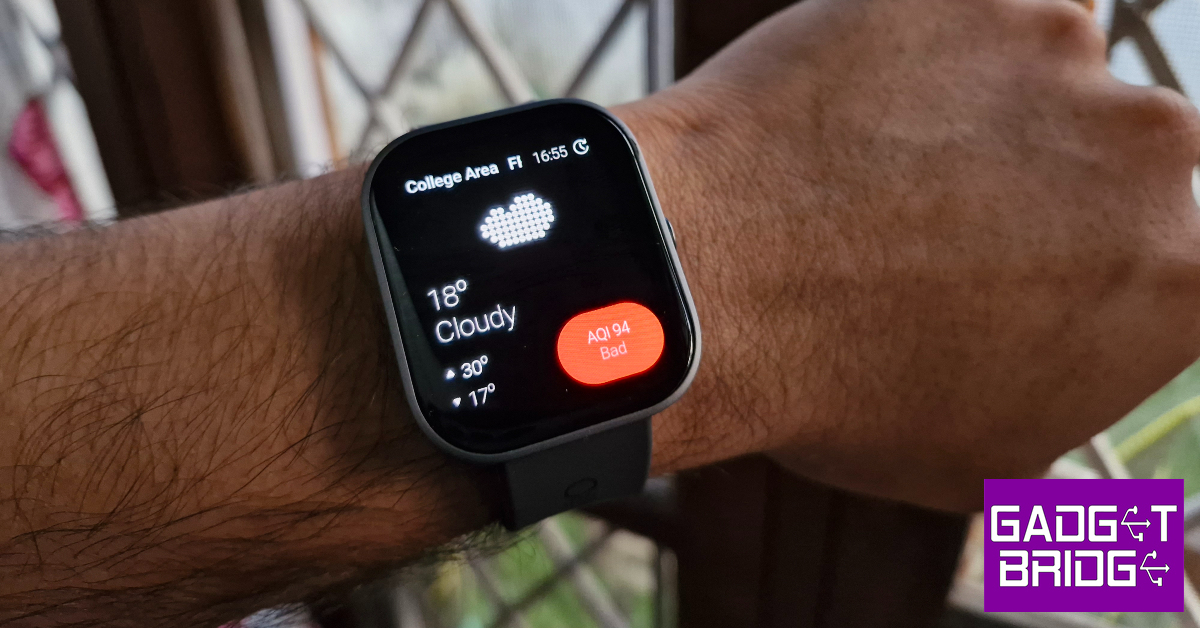
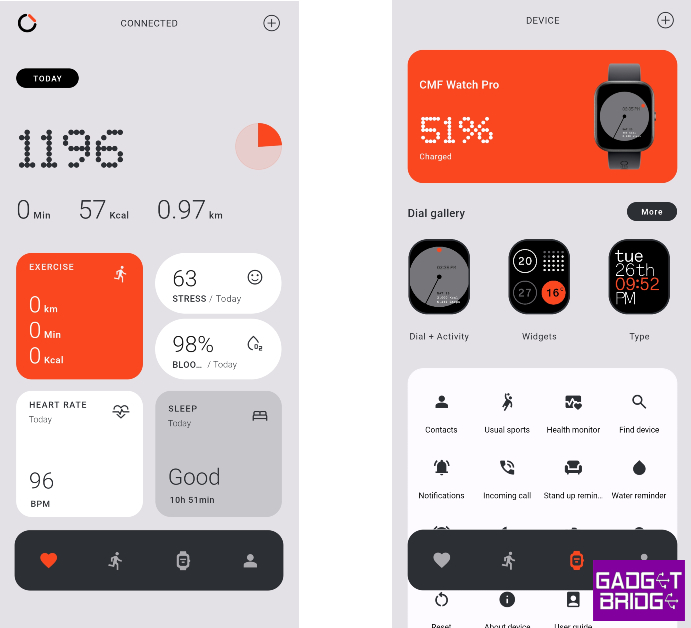
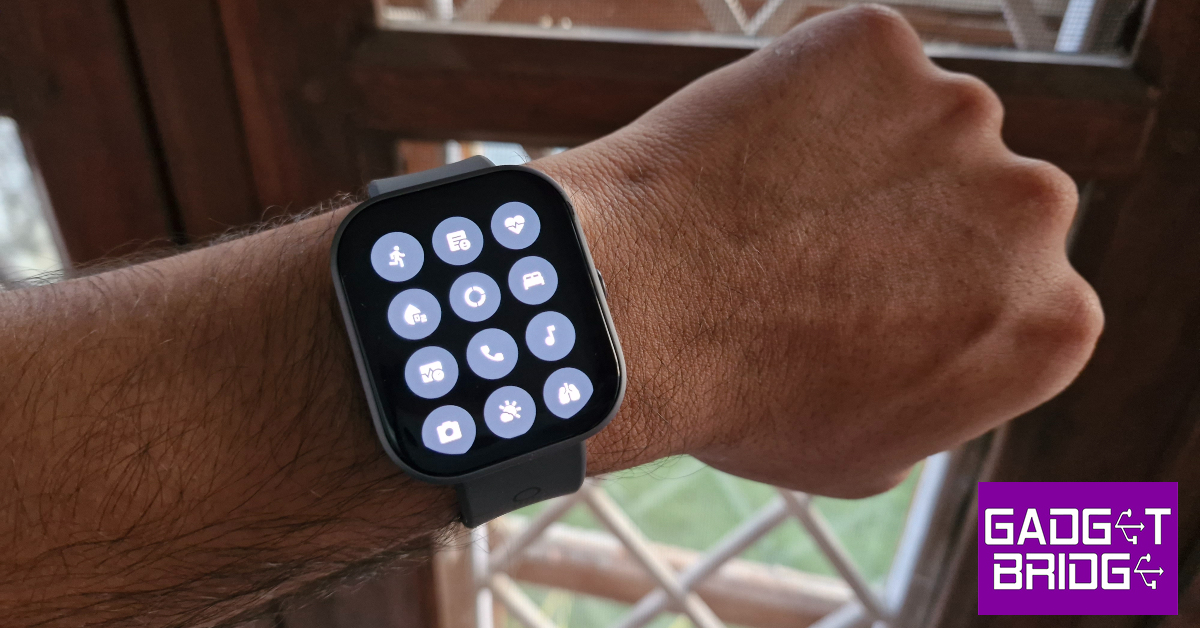
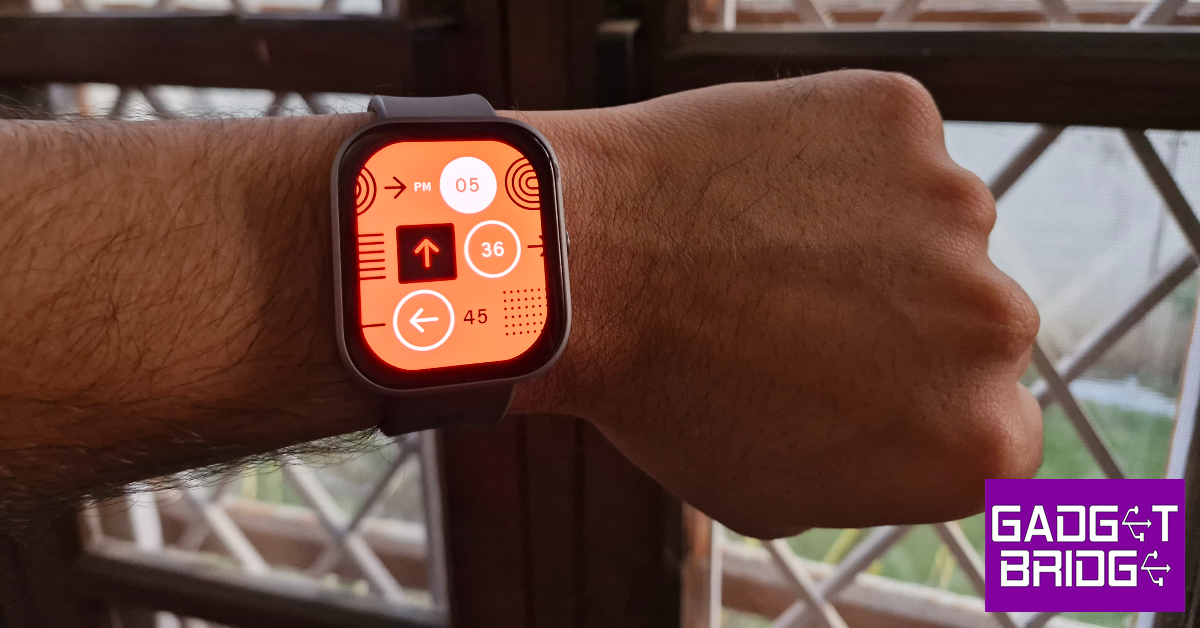

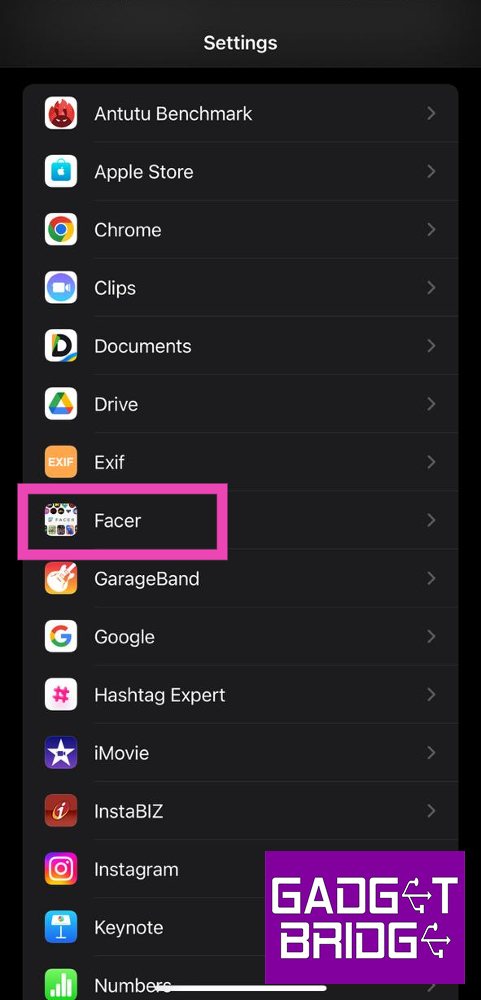 Step 2:
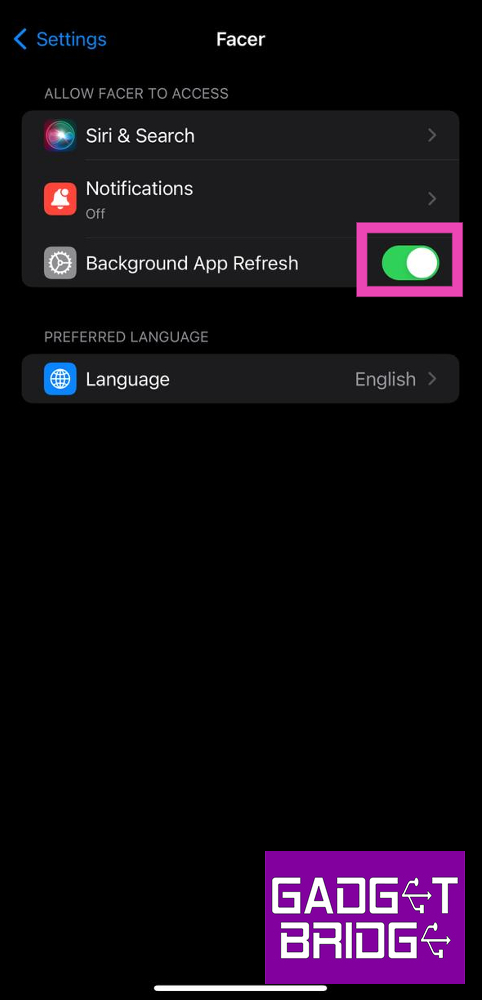 Step 3:
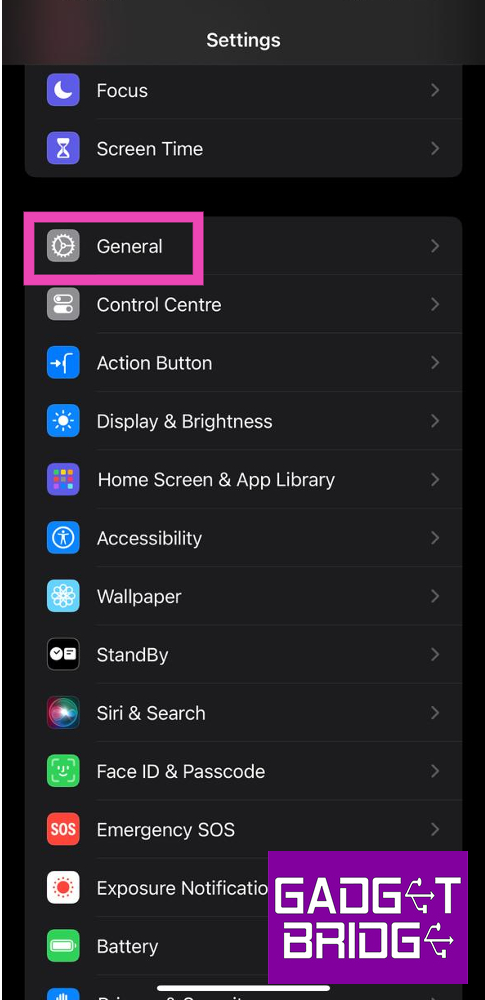 Step 2:
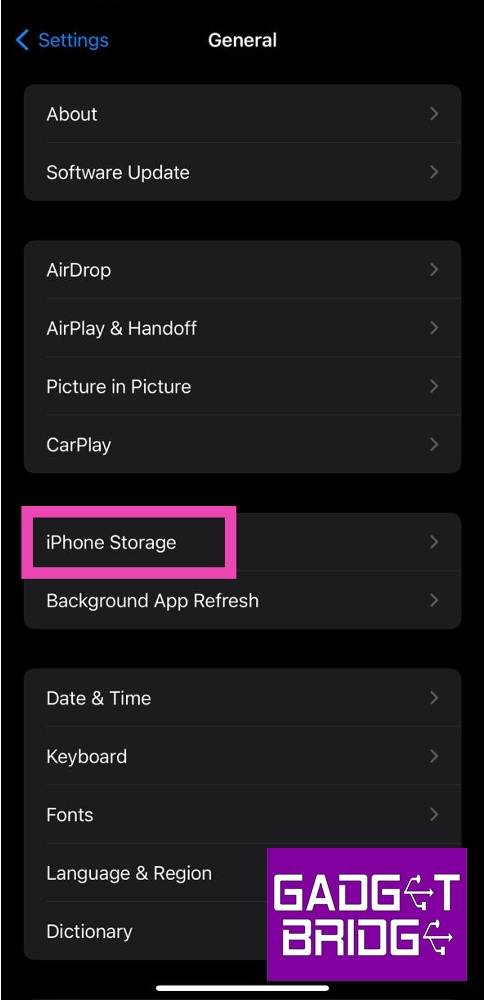 Step 3:
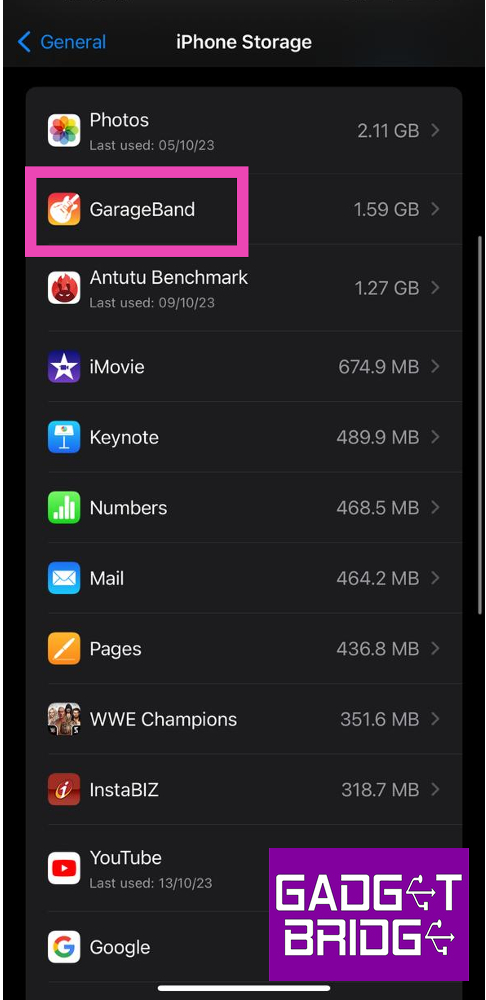 Step 4:
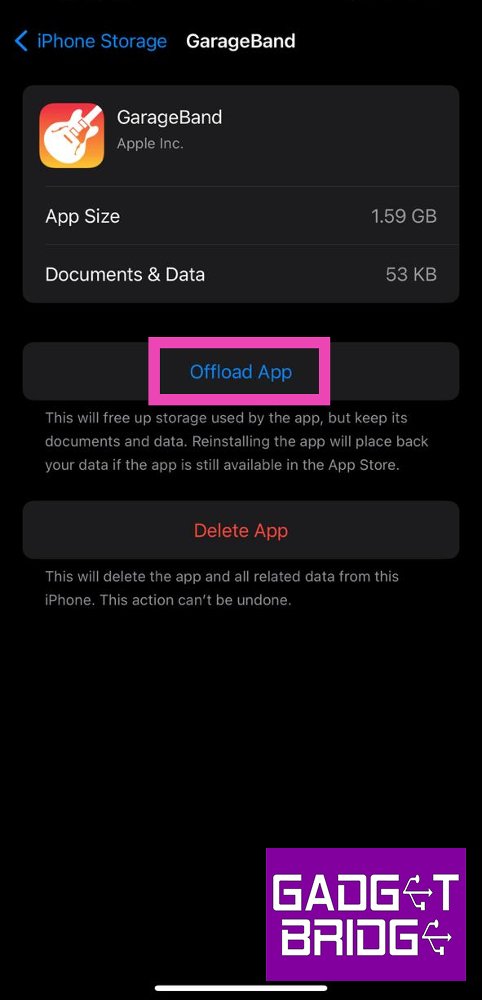 Step 5: Confirm
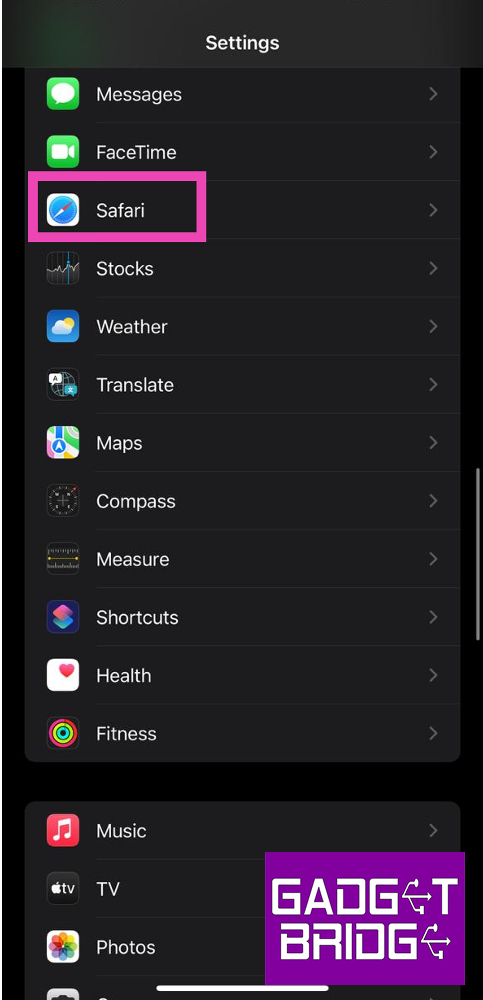 Step 2:
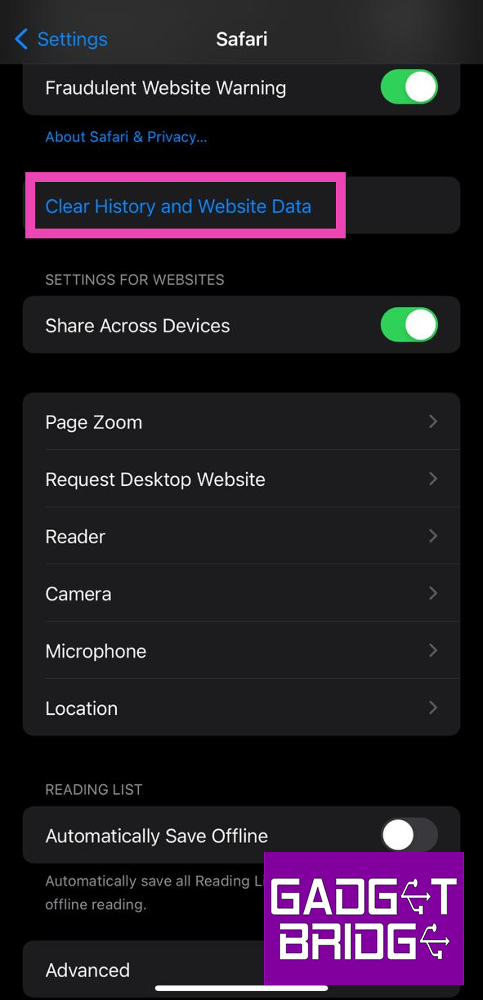 Step 3: Confirm
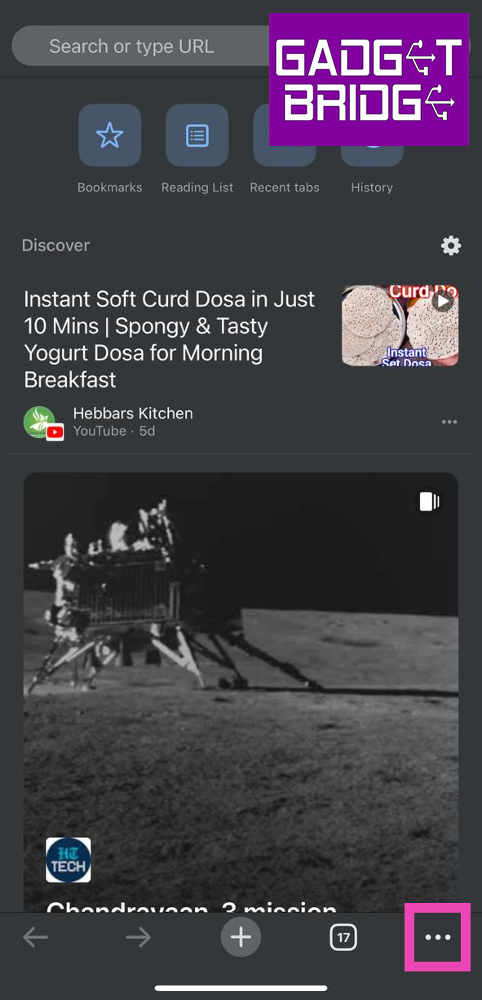 Step 3:
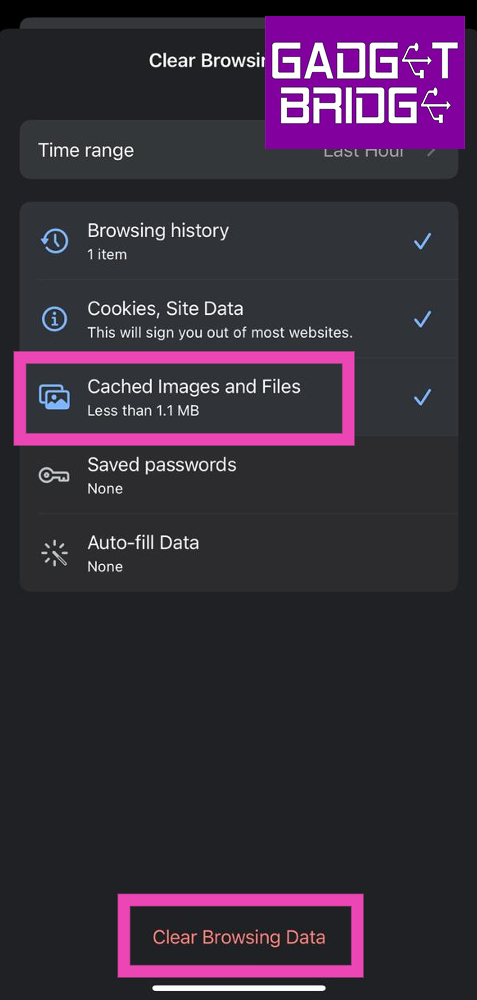 Step 5:
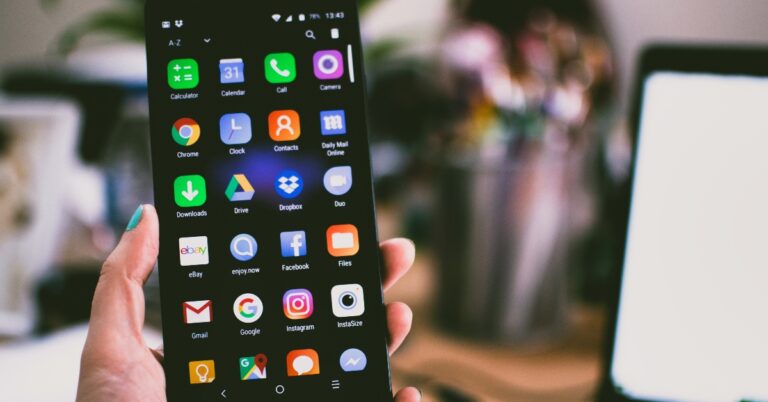
 Step 3:
 Step 4: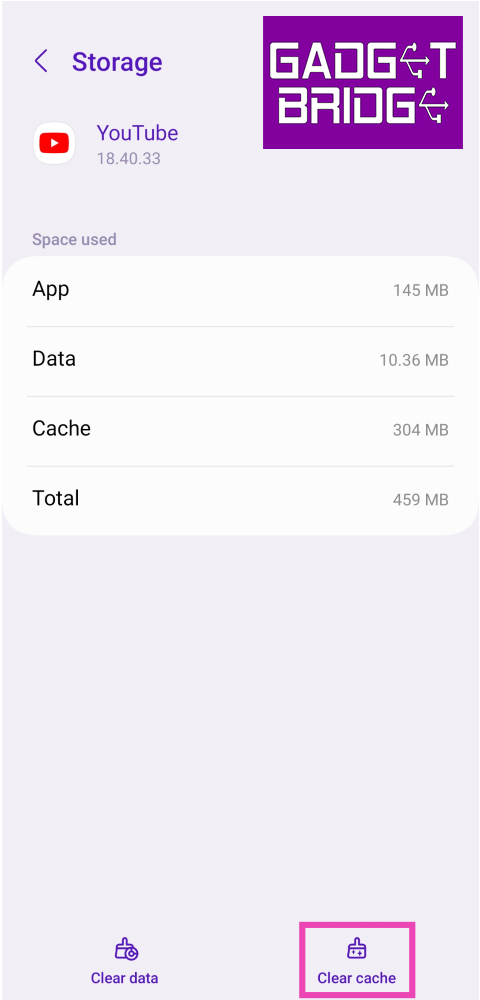
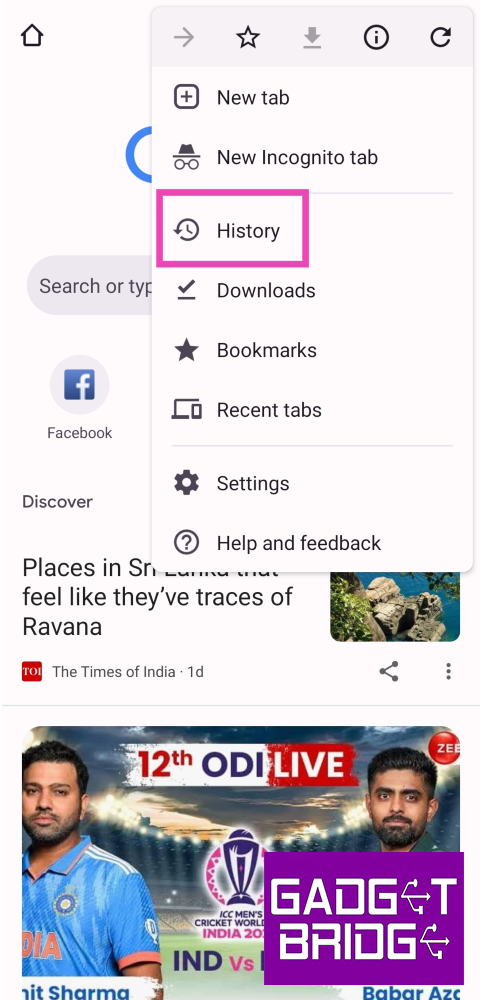 Step 3:
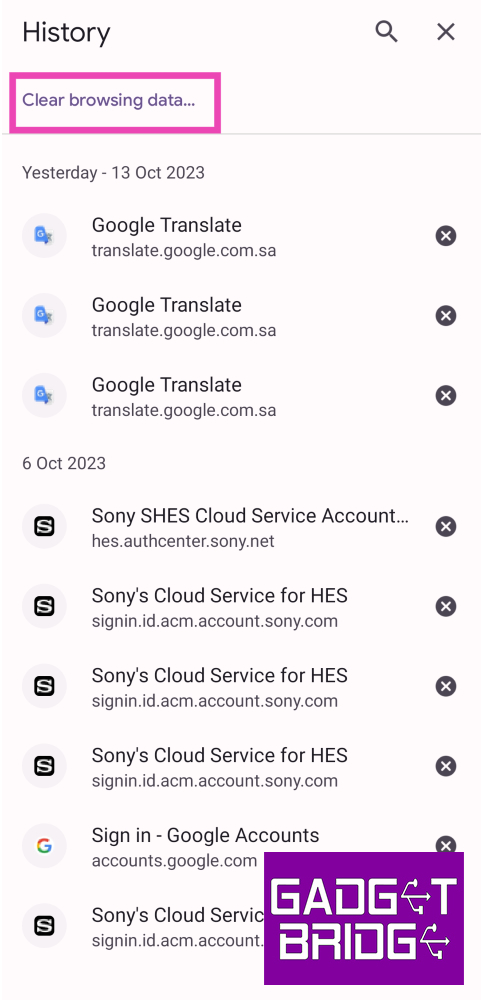 Step 5:
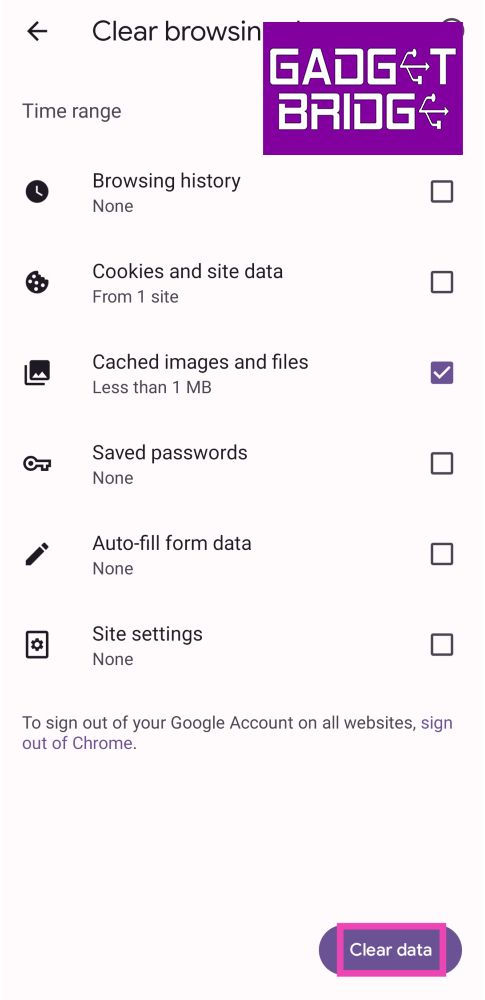 Step 6:
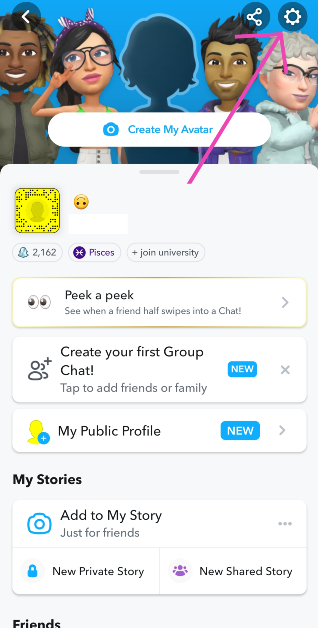 Step 2: Scroll down and look for the Clear Cache option. Select it.
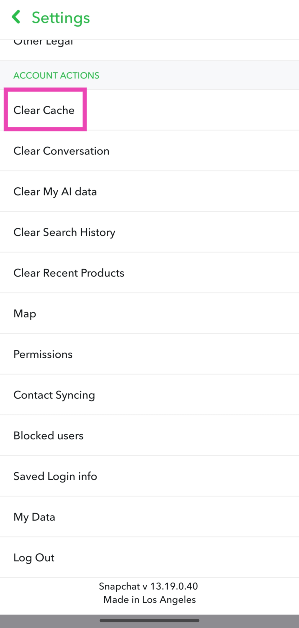 Step 3: Confirm your selection in the popup box.
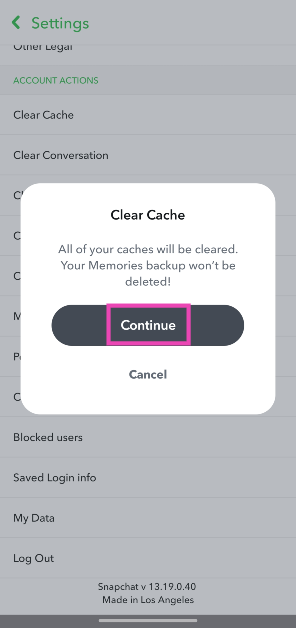
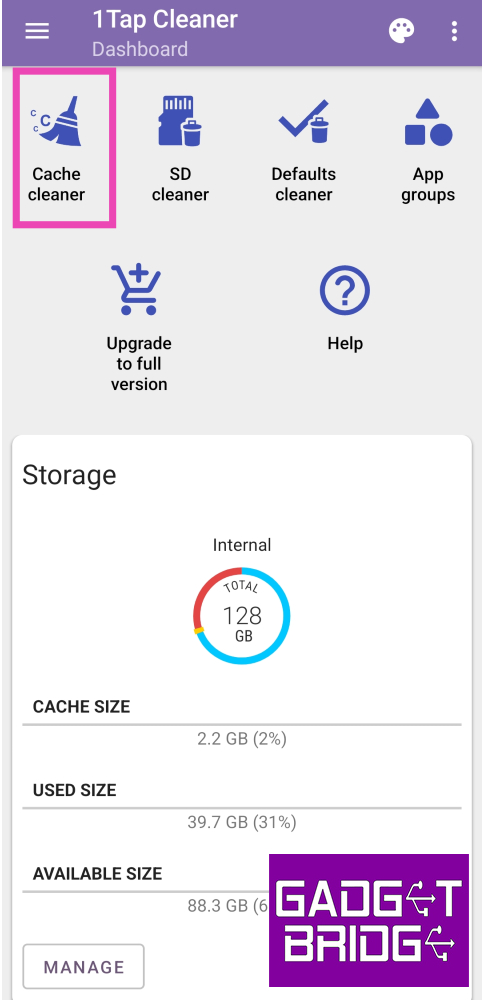 Step 4:
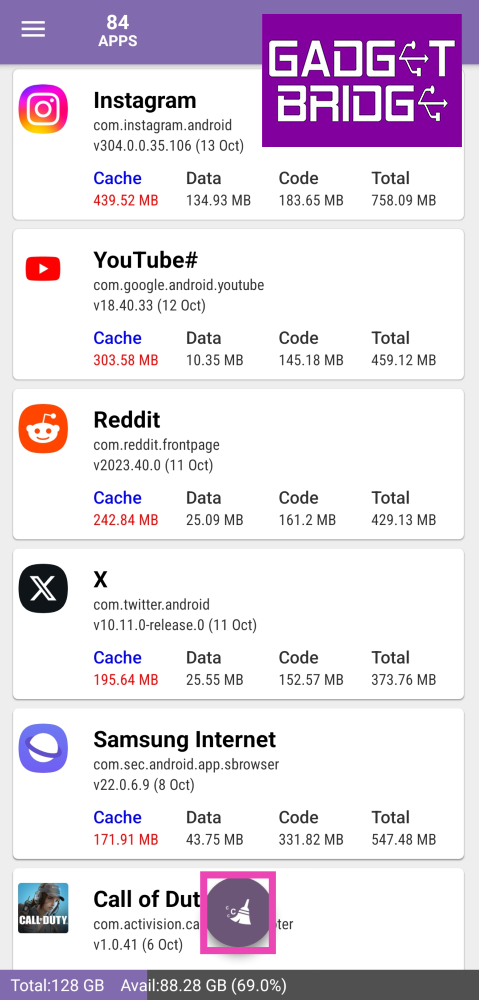 Step 5:
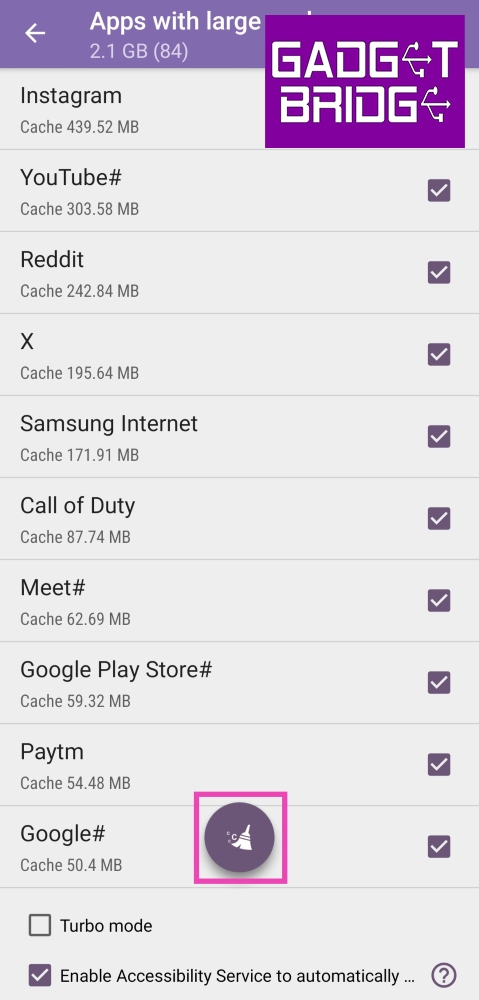 Step 6:
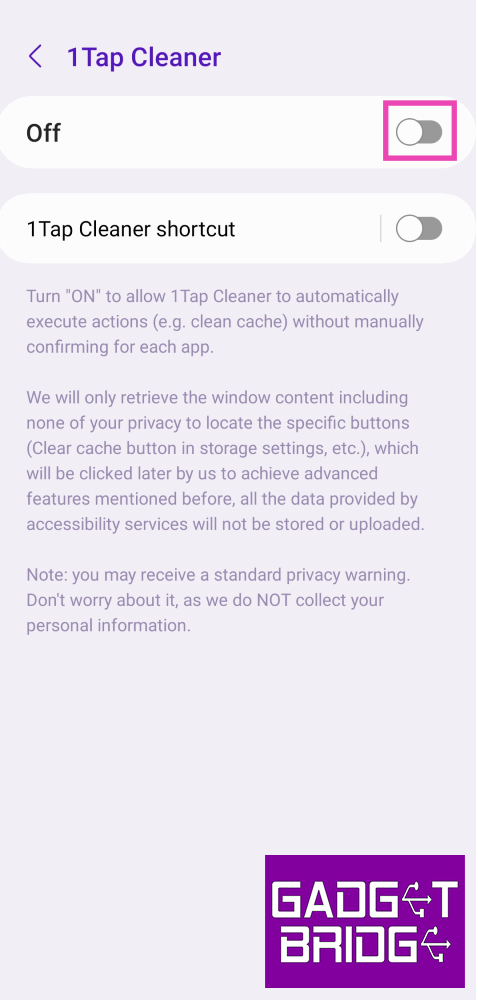 Step 7: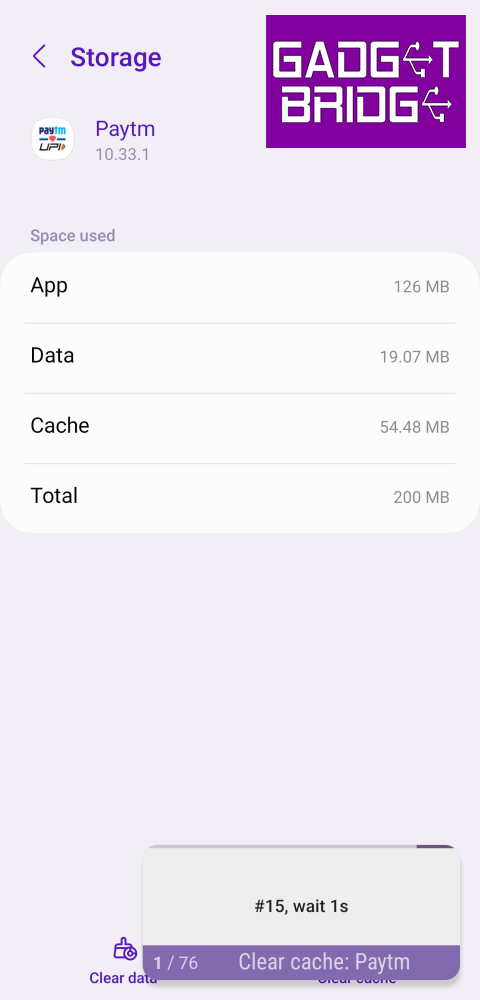
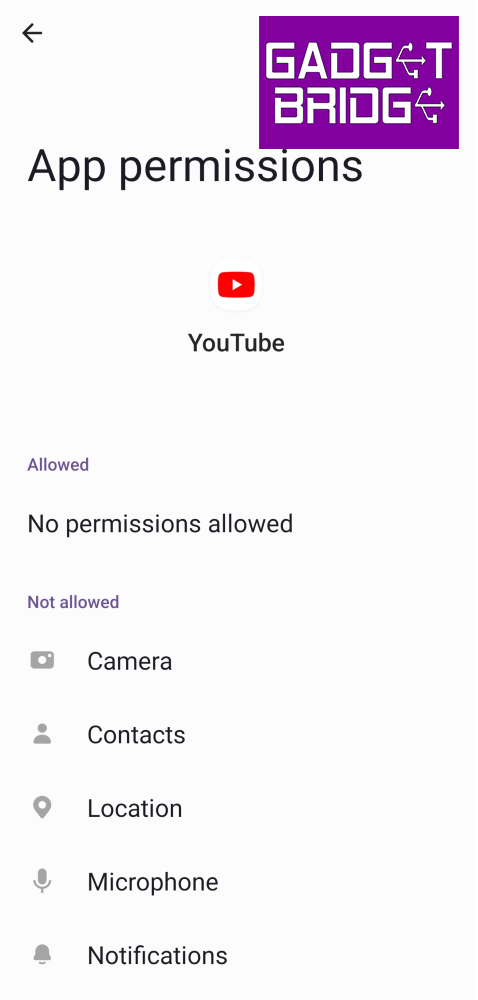
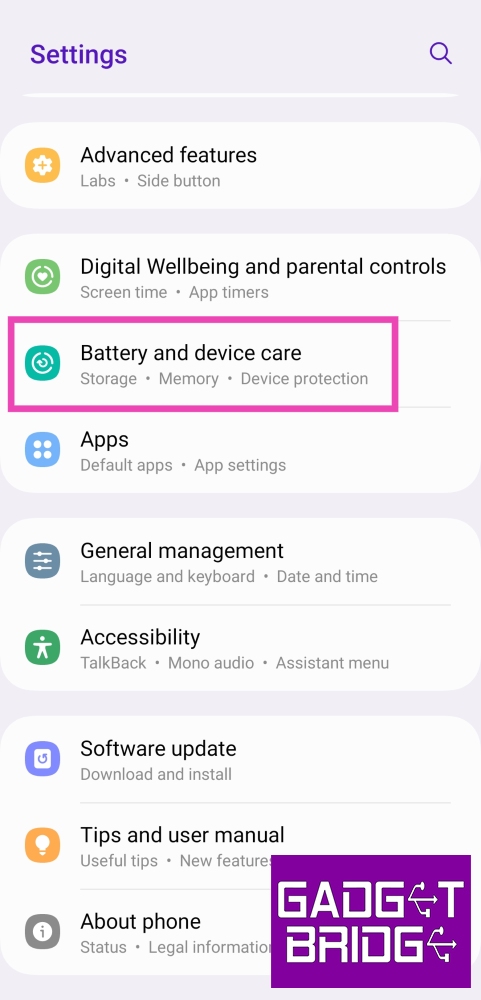 Step 2:
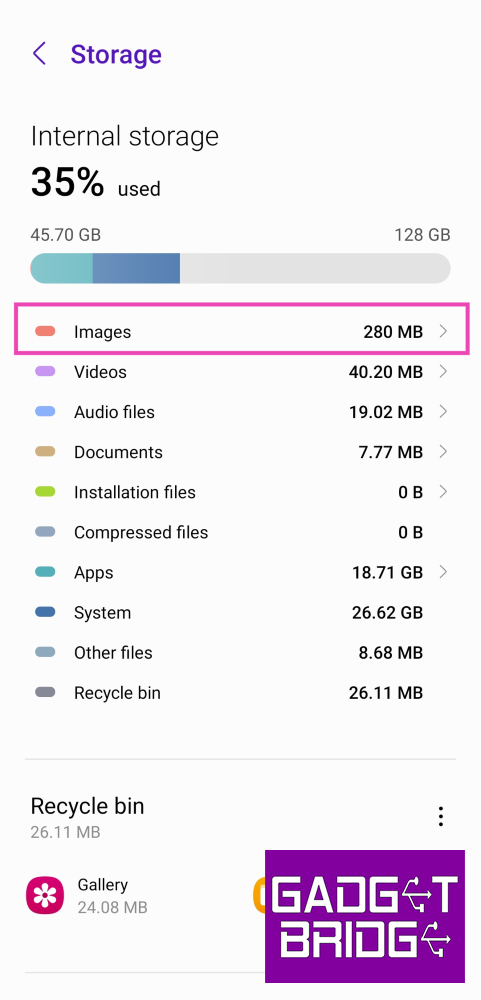 Step 4: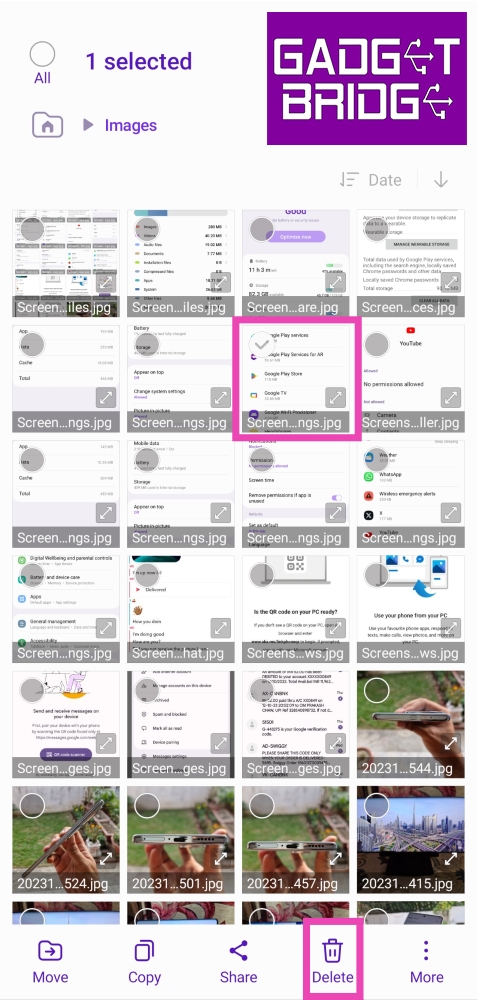

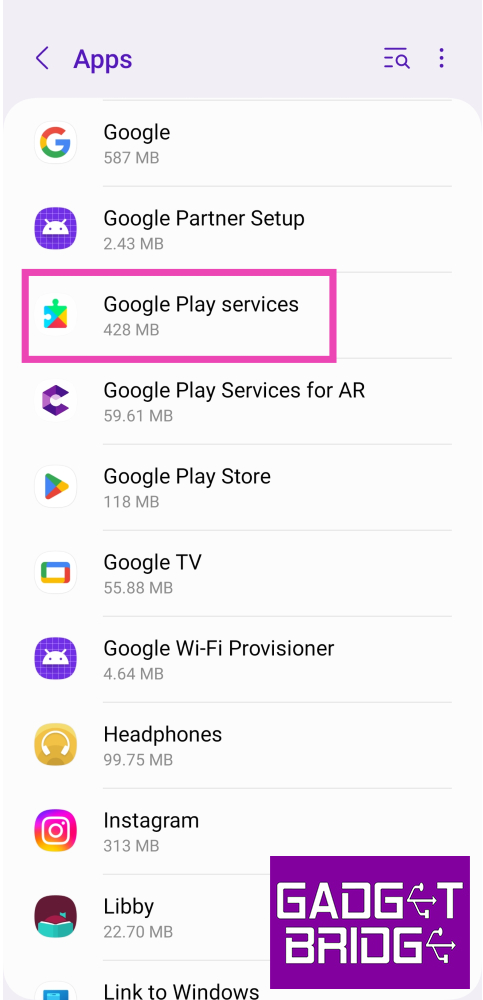 Step 3:
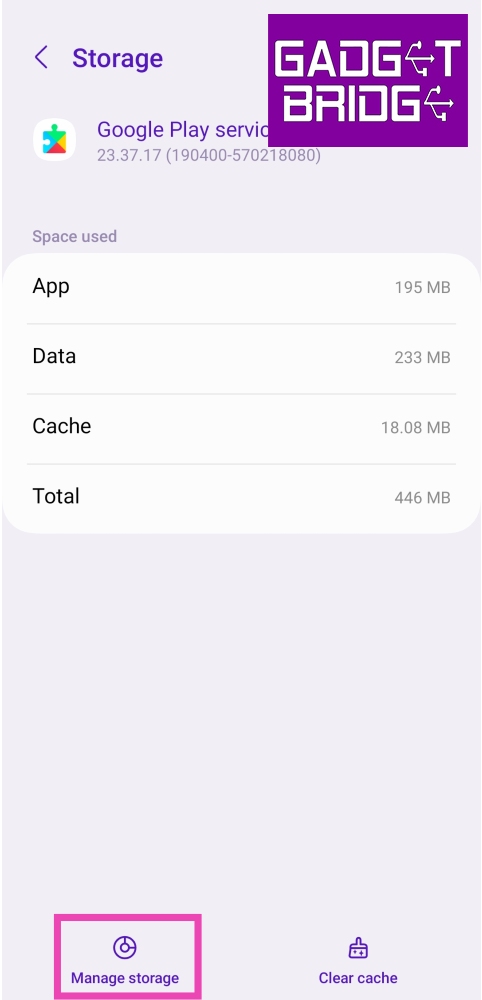 Step 5: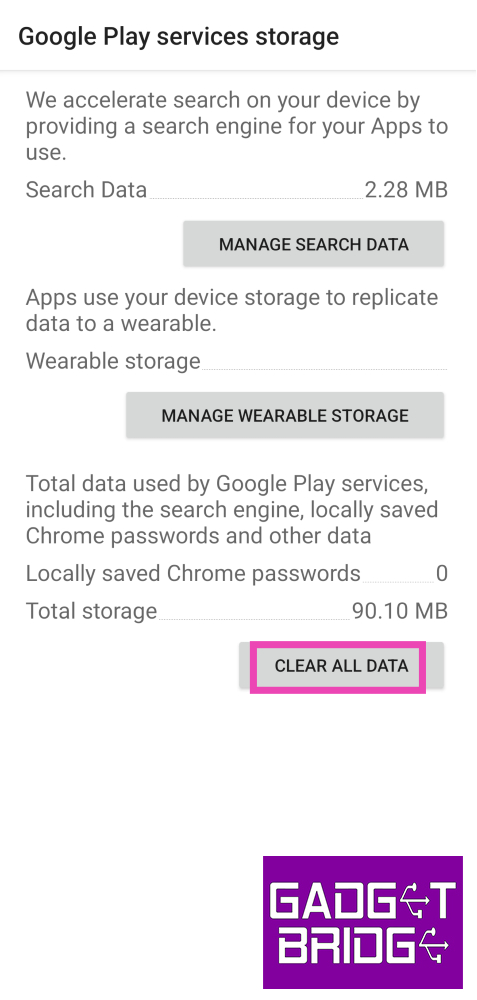



 If the YouTube app keeps crashing on your phone, you can always watch videos on its website instead. App-related issues can be bypassed by opening YouTube in Google Chrome and searching for the video you want to watch. If you want to easily access the website, you can pin its browser shortcut on your phone’s home screen.
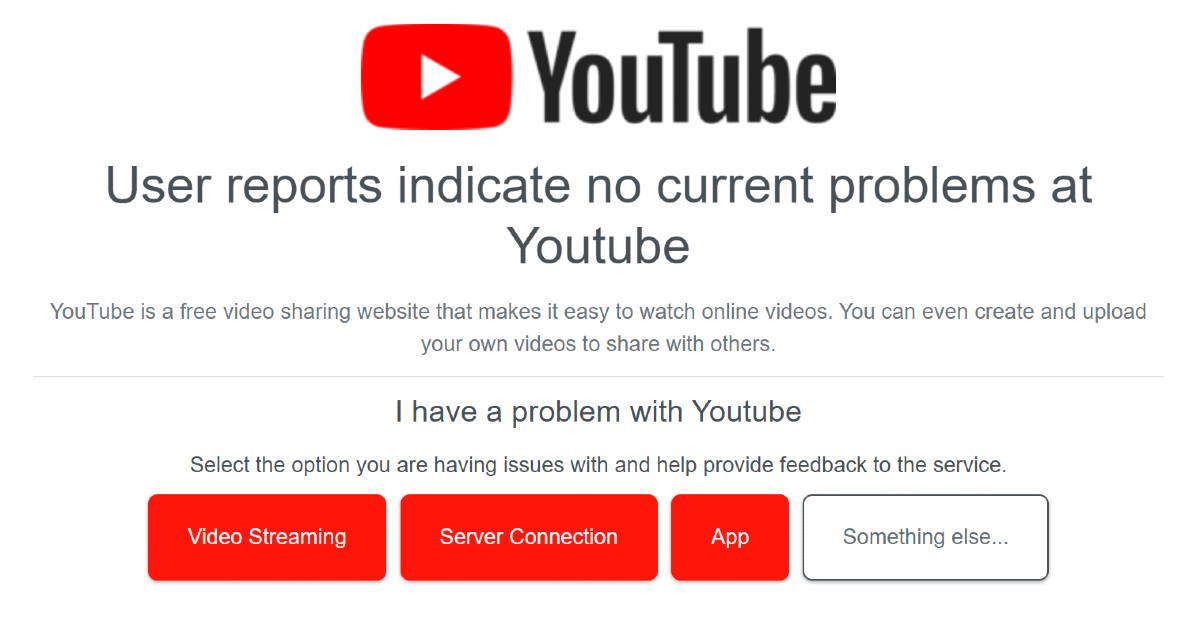 YouTube’s servers being down can lead to inadvertent crashes. Go to
  Step 3:
 Step 4:
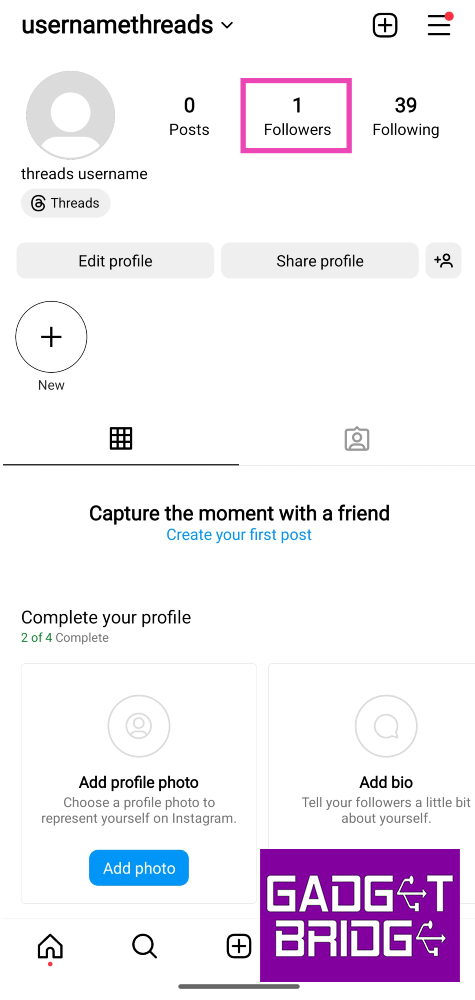 Step 3: