Fixed: the Disk Structure is Corrupted and Unreadable [2024]

When attempting to access important files on your USB drive or SD card, you may encounter the frustrating error message ‘The disk structure is corrupted and unreadable.’ It typically indicates that there is an issue with the file system or the physical structure of your storage device.

However, there’s no need to worry. In this post, we’ll delve into the reasons behind this problem, offering you seven effective methods to address the issue. Additionally, we’ll also provide preventive measures to help you steer clear of similar situations in the future. So, let’s get started and say goodbye to any worries about the ‘Disc structure is corrupted and unreadable’ error.

Part 1: Why Does the ‘Disk Structure is Corrupted and Unreadable’ Error Occur?

Many users often ask questions like ‘the disk structure is corrupted and unreadable fix’ on help forums, but they are not interested in understanding the fundamental cause of this error.

  • File System Corruption

Over time, file systems on storage devices can become corrupted due to improper shutdowns, power outages, or software issues.

  • Outdated or Incompatible Drivers

Outdated or incompatible drivers may not only lead to file system issues but also have security vulnerabilities that can be exploited by malware.

  • Bad Sectors

Physical damage to the storage medium, such as the presence of bad sectors, can lead to the ‘Disc structure is corrupted and unreadable’ error.

  • Improper Disk Operations

You may have abruptly disconnected the storage device during read/write operations or file transfer.

  • Virus or Malware Attacks

Malicious software can infect and corrupt files, including those crucial for the proper functioning of the file system

Part 2: Recover Data from the Drive with the ‘Disk Structure is Corrupted and Unreadable’ Error

When encountering the ‘disc structure is corrupted and unreadable’ error, the primary step is to promptly recover the data on the problematic disk. This not only minimizes data loss caused by damage to the disk structure but also enables you to back up data in advance before performing any repairs.

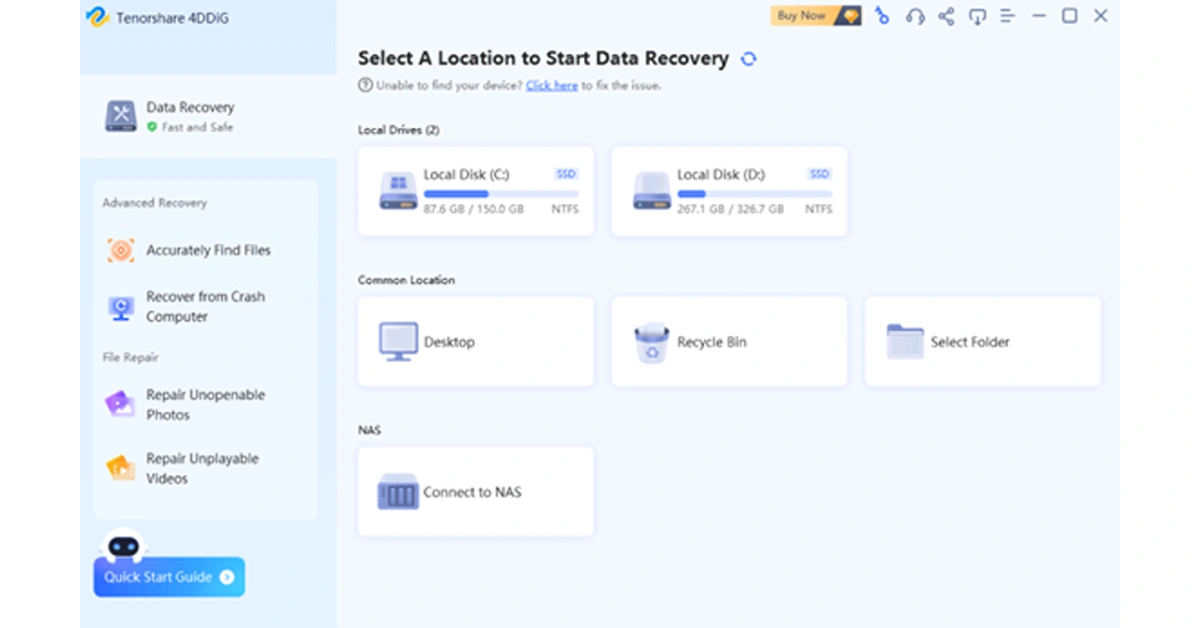
Tenorshare 4DDiG, a professional and free data recovery software, can restore your lost files from over 2000 storage devices. Whether data is lost due to accidental deletion, formatting, system crashes, virus attacks, or any other reasons, this tool is your most reliable ally. In addition, the intuitive interface and straightforward data recovery process make it easy for users without technical knowledge to effortlessly get started.

Here is how to use it to recover lost date before resolving the ‘disk structure is corrupted and unreadable’ issue:

Step 1: Install and launch the 4DDiG Data Recovery tool on your computer. Then, choose the affected drive from the main interface and click on the “Scan” button.
Step 1

Step 2: The tool will promptly start scanning for all lost files on the selected drive. During this process, you have the option to view files in either File View or Tree View. Additionally, you can pause or stop the scanning process once you’ve identified the necessary files.
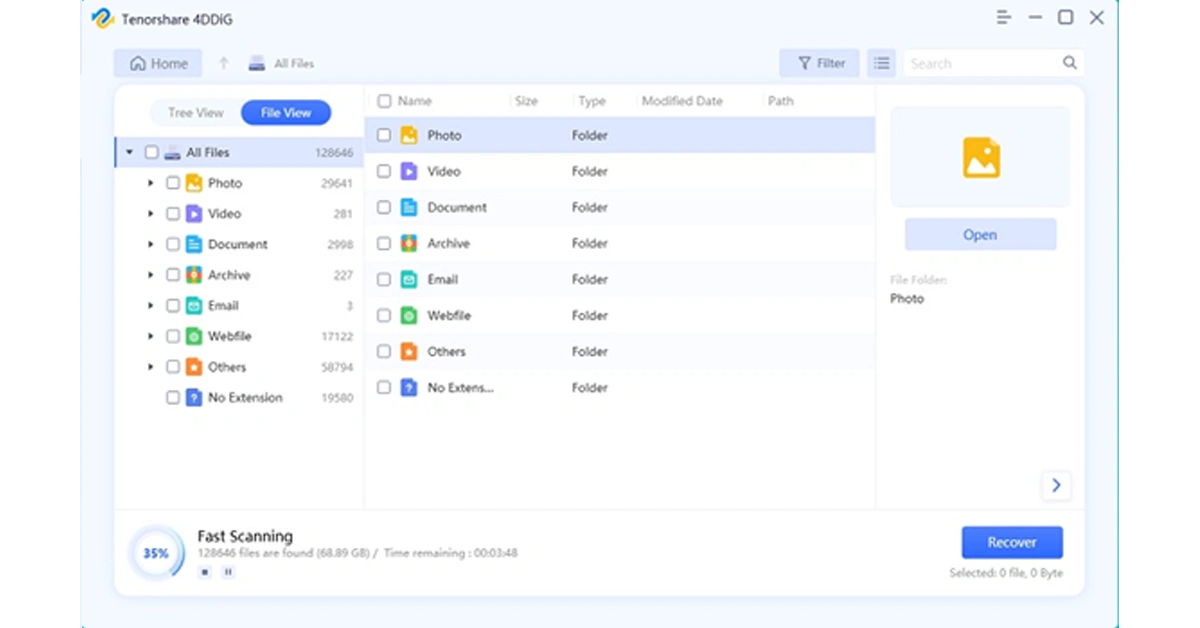
Step 2

Step 3: Now, select the lost files and simply click on the “Recover” button. Remember to back up these files to a safe location.
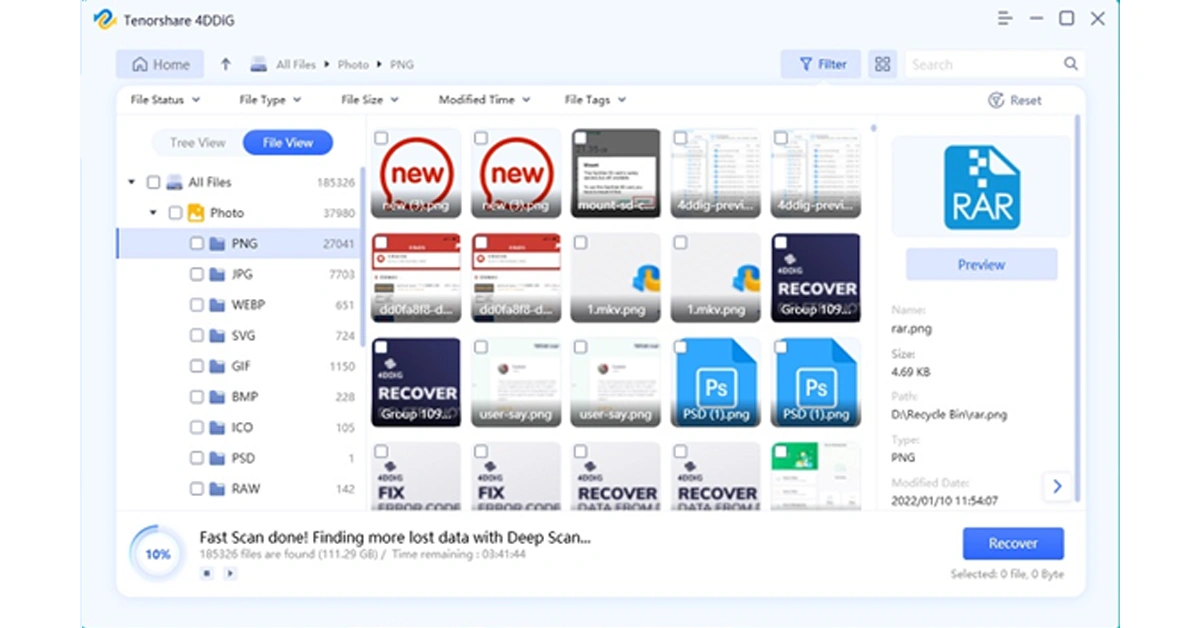
Step 3

Currently, the software provider is hosting an exciting Christmas promotion. Anyone participating in the event has the chance to win free Amazon e-gift cards and a brand-new iPad.

Part 3: 6 Ways to Fix the ‘Disk Structure is Corrupted and Unreadable’ Error

Solution 1: Perform Some Basic Checks

It’s often simple to repair ‘Disk structure corrupted unreadable’ error. Let’s begin with some basic checks:

  • Sometimes, you only need to restart your computer and reconnect the disk.
  • You can also try changing the drive port or connecting your device to another computer.
  • If the disk has suffered severe physical damage, we strongly recommend seeking professional assistance.

If the error persists, move on to other advanced solutions.

Solution 2: Check and Repair Disk Errors

You can easily fix the ‘Disc structure is corrupted and unreadable’ error using CHKDSK. This built-in tool can scan the disk and provides information about the disk’s status and the file system’s health. If any issues are found, CHKDSK automatically attempts to repair them. Follow these steps:

Step 1: press Win + S, type “cmd”, right-click, and choose to run as administrator.
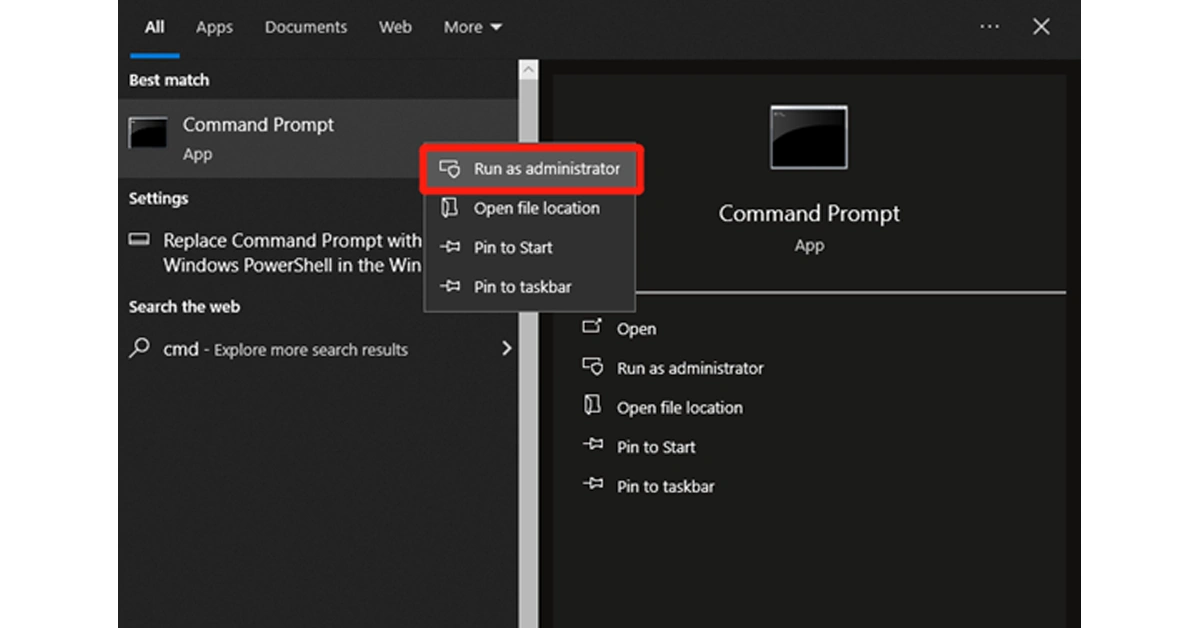
Chkdsk

Step 2: Then, enter the “chkdsk /f /r X:” command and hit the Enter key. Remember to replace X: with your actual drive letter.
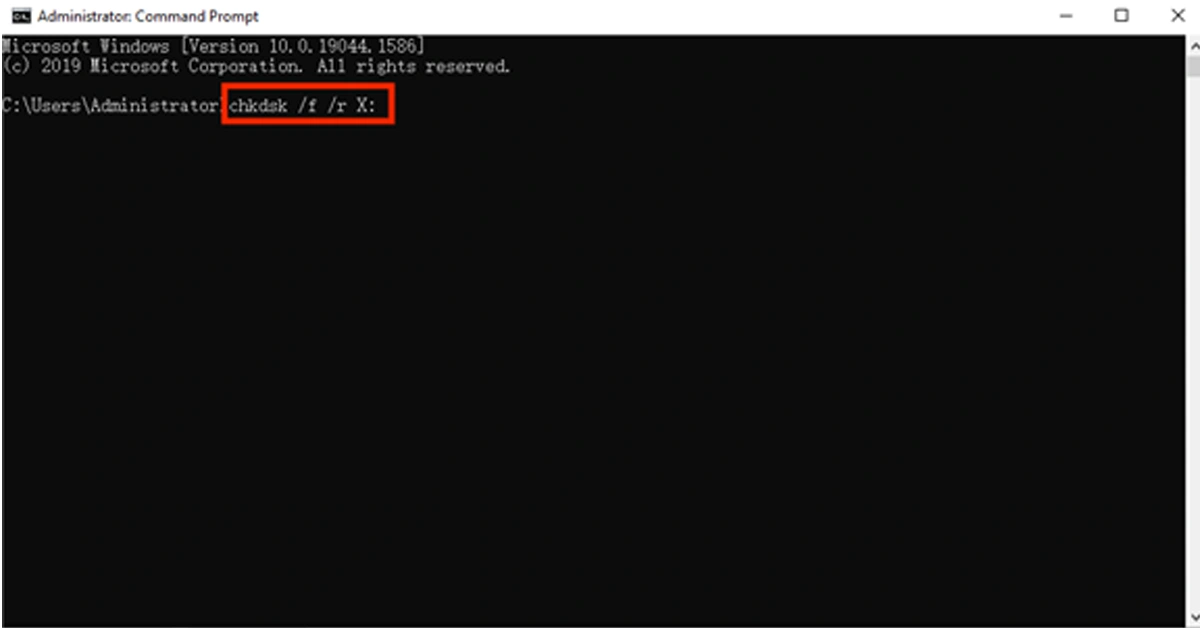
Step 3: If necessary, restart your computer to complete the repair process.

Solution 3: Update or Reinstall Disk Driver

As mentioned before, outdated or corrupted disk drivers can be the culprit of the ‘Disc structure is corrupted and unreadable’ error. To address this issue, you can update or reinstall the drivers by following these steps:

Update Disk Driver

Step 1: Perform a right-click on the Start menu and select “Device Manager.”

Step 2: Locate the disk drives section and expand it. Then, right-click on the problematic disk drive and opt for “Update driver.”

Step 3: Choose the option to search automatically for updated driver software.

Read Also: Best 6 ways to Fix ‘App Not Installed’ Error on Android? (2023)

Reinstall Disk Driver

Step 1: In the Device Manager, right-click on the disk drive and select “Uninstall device.” Then, restart your computer.

Step 2: Reconnect the affected disk, and Windows should automatically reinstall the drivers.

Step 3: If not, go back to the Device Manager, right-click, and choose “Scan for hardware changes.”

Solution 4: Run the Troubleshooter

Another simple method to address the ‘Disc structure is corrupted and unreadable’ issue is by running the hardware troubleshooter. Similar to CHKDSK, it also can automatically detect and resolve common hardware-related issues. Here is how:

Step 1: Press Win + I to open the Settings app and choose “Update & Security.”

Step 2: In the left sidebar, click on the “Troubleshoot” option.

Step 3: locate and select the “Hardware and Devices” option. Then, hit the “Run the troubleshooter” button.

Solution 5: Assign a Proper File System

It’s no surprise to receive the error message ‘The disk structure is corrupted and cannot be read’ when the partition is in RAW format or unallocated. In such case, you can try the following steps to resolve the issue:

Step 1: Press the Win + X keys and select “Disk Management.”

Step 2: Look for your problematic drive in the lower section of the window. If this drive is not initialized, right-click on it and choose “Initialize Disk.”

Step 3: Follow the on-screen instructions to initialize it.

Step 4: Right-click on the unallocated space and select “New Simple Volume.”

Step 5: Follow the wizard to create a new partition, assign a drive letter, and choose the file system (NTFS).

Solution 6: Format Your Drive

If all else fails to repair ‘Disk structure corrupted unreadable’ error, it may be time to format the problematic disk. You don’t need to worry about potential data loss because Tenorshare 4DDiG can help you get back deleted files in an eye of blink. Here is how:

Step 1: Open File Explorer by pressing the Win + E keys. Then, find and right-click on the affected drive. Click on “Format” to proceed.

Step 2: In the pop-up window, choose the file system (typically NTFS) and allocation unit size (recommended to use default). Additionally, make sure that the “Quick Format” option is checked.

Step 3: Click the “Start” button and then click “Yes” to initiate the formatting process.

Part 4: Preventing Data Loss Caused by the ‘Disk Structure is Corrupted and Unreadable’ Error

While there are several solutions for the ‘Disc structure is corrupted and unreadable’ error, you also need to take proactive measures to prevent data loss in the future.

  • Regularly back up your important data to cloud storage or another device.
  • Use a reliable disk monitoring tool to keep an eye on the health of your hard drives.
  • Always eject your external drives properly before disconnecting them.
  • Choose a reputable antivirus program and install it on your computer.
  • choose the proper file system when formatting your drive.

Bottom Line

Now, you should no longer be puzzled by the question ‘the Disk structure is corrupted and unreadable fix.’ Before attempting any repairs, take some time to consider the specific circumstances and causes behind the error. If you experience data loss during the repair process, especially when formatting the disk, give Tenorshare 4DDiG a try.
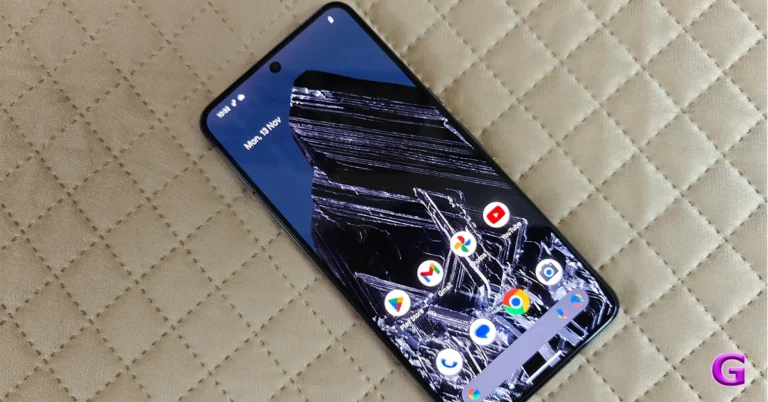
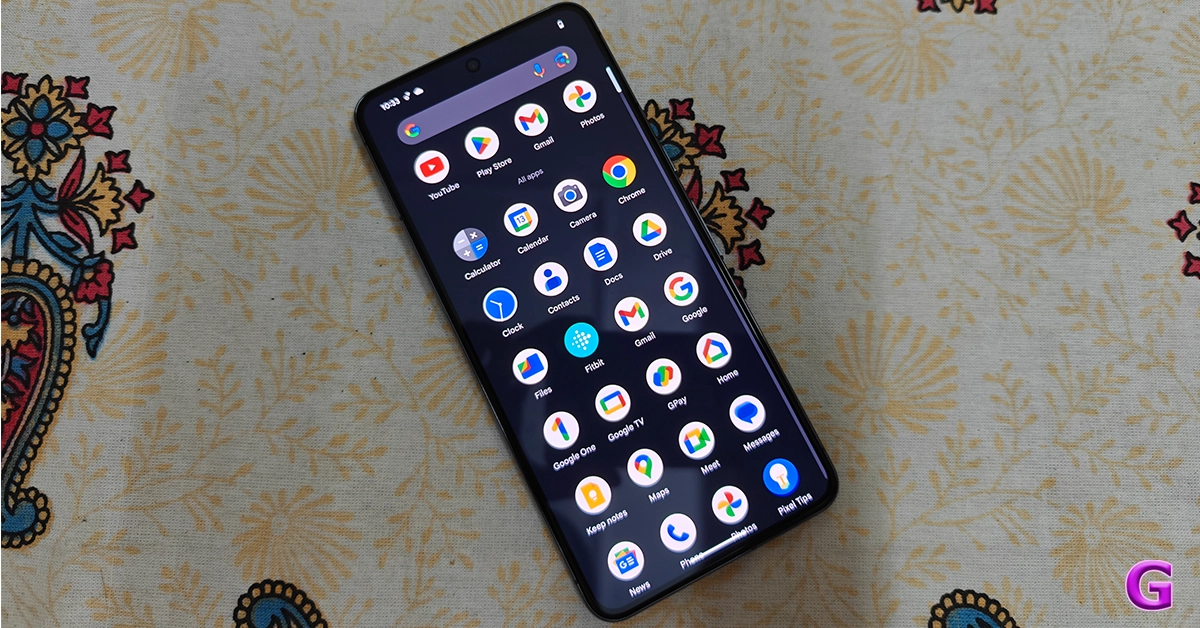
How to use the Audio Magic Eraser on Google Pixel 8 Series

0

Recording videos outdoors is always challenging. There are a lot of factors that you need to take into account before hitting the record button. The most difficult aspect to manage is the surrounding noise. Even if you get the proper shot, an intrusive noise emanating from the background can ruin it all. Seasoned editors can fix these errors, but the average person may find it hard to do the same. Well, not anymore. Especially if you have the newest Pixel. Today, we show you how to use the Audio Magic Eraser on the Google Pixel 8 Series.

Read Also: Mic Not Working On Your Android Phone? Here are the 11 quick fixes

What is the Audio Magic Eraser?

Every year, the Google Pixel smartphones create waves in the tech world with their software magic. With AI being the next big thing in tech, this year’s Pixel 8 Series lost no step in utilising its potential in unique and useful ways. The result is Audio Magic Eraser, which is easily our favourite tool from the new Pixel smartphones. You may be familiar with the ‘magic’ that Google’s Magic Eraser does in removing unwanted objects from your pictures. Similarly, the Audio Magic Eraser applies AI sorcery to suppress unwanted noise from your videos.

It does this by using advanced machine learning models to study the video and extract all the different kinds of noise in it. This is also made possible by the new Google Tensor G3 processor on the Pixel 8 Series. Your Pixel can recognise sounds like wind, speech, crowd noise, sounds of nature, music, and more in any video. These sounds are then laid out in different tracks, which can then be controlled individually. Pretty neat, huh? Take a look at how you can use it on your Pixel smartphone.

Here’s how you can use the Audio Magic Eraser on Google Pixel 8 and 8 Pro

review of Google Pixel 8 Pro How to use the Audio Magic Eraser on Google Pixel 8 Series

Step 1: Launch the Photos app and open the video you want to edit.

Step 2: Hit the Edit button at the bottom of the screen.

Step 3: Switch to the Audio tab and select Audio Eraser.

Step 4: The Audio Eraser tool will separate the different kinds of noises (like wind, speech, noise, etc) found in the video using its AI skills.

Step 5: Select the kind of noise you want to reduce and use the slider to turn it down.

Step 6: If you don’t want to carry out the task manually, tap the Auto option. Your smartphone will intelligently suppress the noise in the video.

Step 7: Tap the play icon in the preview window to check the result.

Step 8: When you’re happy with the result, tap Save Copy at the bottom right corner of the screen.

Read Also: How to find or track your iPhone if it’s switched off?

Frequently Asked Questions (FAQs)

What does the Audio Magic Eraser on the Google Pixel 8 do?

The Audio Magic Eraser tool on the Pixel 8 and Pixel 8 Pro uses AI to recognise the different sounds in a video and then lets you control their volume. If you don’t like an intrusive sound in your video, you can use this tool to completely suppress it.

Is the Magic Audio Eraser available on Google Pixel 7?

As of now, the Magic Audio Eraser tool is only available on the Google Pixel 8 Series. However, the tech giant may roll out the feature on other Pixel smartphones in the coming months.

Where can I find the Audio Magic Eraser on my Pixel smartphone?

If you own a Google Pixel 8 or 8 Pro, you can find the Audio Magic Eraser in the Photos app. Simply, open a video and hit the edit button to access this tool.

Read Also: How to See Who Viewed Your Video on Facebook

Conclusion

This is how you can use the Audio Magic Eraser on Google Pixel 8 Series smartphones. Check out this article to learn how you can use the Magic Eraser to remove unwanted objects from your pictures on your Pixel smartphone. Apart from the Audio Magic Eraser, the Pixel 8 Series also debuted new features like Best Take, Face Unblur, AI Wallpapers, and more. Let us know what your favourite feature is in the comments!

How to find or track your iPhone if it’s switched off?

0

Losing your iPhone can be a huge problem, and not just because they’re expensive. From credit card info to driver’s license, your iPhone contains vital personal information that you wouldn’t want to fall into malicious hands. While you should certainly file a police report for your missing iPhone, the first thing you should do is locate it yourself. Today, we show you how to find or track your lost iPhone even when it is switched off.

Read Also: How to See Who Viewed Your Video on Facebook

Here’s what you should do once you realise your iPhone is missing

Locating a missing iPhone is fairly easy if you’ve enabled Find My iPhone on it. Apple’s Find My app also supports other devices like AirPods, Mac, iPad, and even your Beats headphones. But is it possible for Find My to track your iPhone even if it is switched off? While it can’t give you a live location of your device, you can certainly find out its last recorded location right before its battery died. If your iPhone is lost, not stolen, this information can be very crucial.

Apart from tracking your lost iPhone, you can also display your contact information on its screen, in case someone finds it and wants to reach out to you to return it. This option is available on the Find My Devices webpage once you mark your iPhone as lost. If your iPhone does not have access to the Internet, Apple’s ‘Find My network’ feature can help you locate it using the Bluetooth data of all the iPhones near your device.

Read Also: How to use the Audio Magic Eraser on Google Pixel 8 Series

Enable Find My iPhone

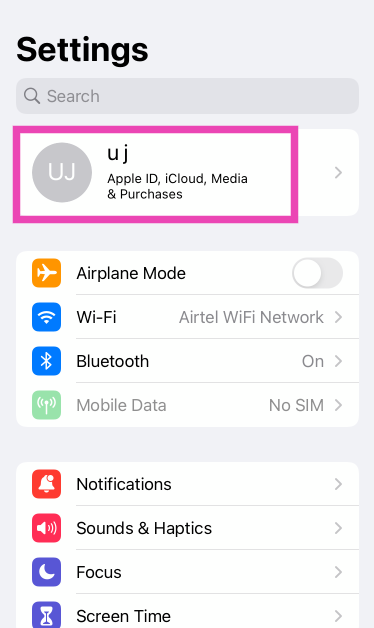
Step 1: Go to Settings and tap on your name at the top of the screen.

Step 1: Go to Settings and tap on your name at the top of the screen.

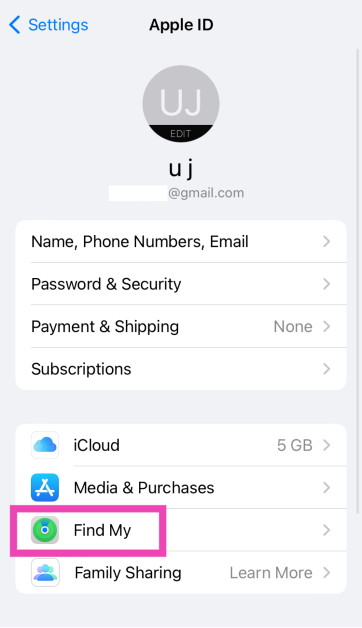
Step 2: Select Find My.

Step 2: Select Find My.

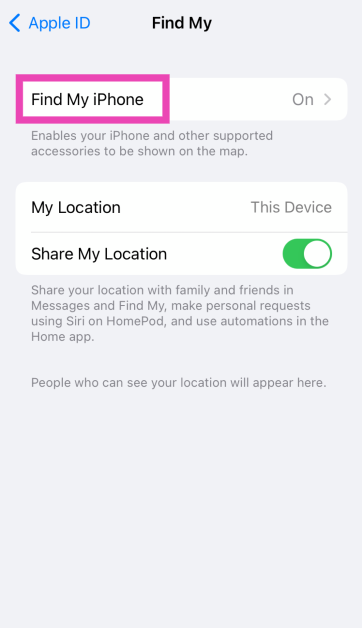
Step 3: Tap on Find My iPhone.

Step 3: Tap on Find My iPhone.

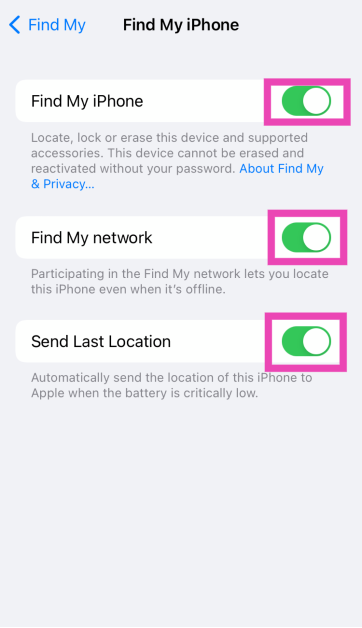
Step 4: Turn on the toggle switch for Find My iPhone, Find My Network, and Send Last Location.

Step 4: Turn on the toggle switch for Find My iPhone, Find My Network, and Send Last Location.

Turning on ‘Find My network’ lets you locate your iPhone and enabling ‘Send Last Location’ makes sure the last location of your iPhone is recorded by Apple right before its battery is critically low.

Track your iPhone

Follow these steps to track your lost iPhone.

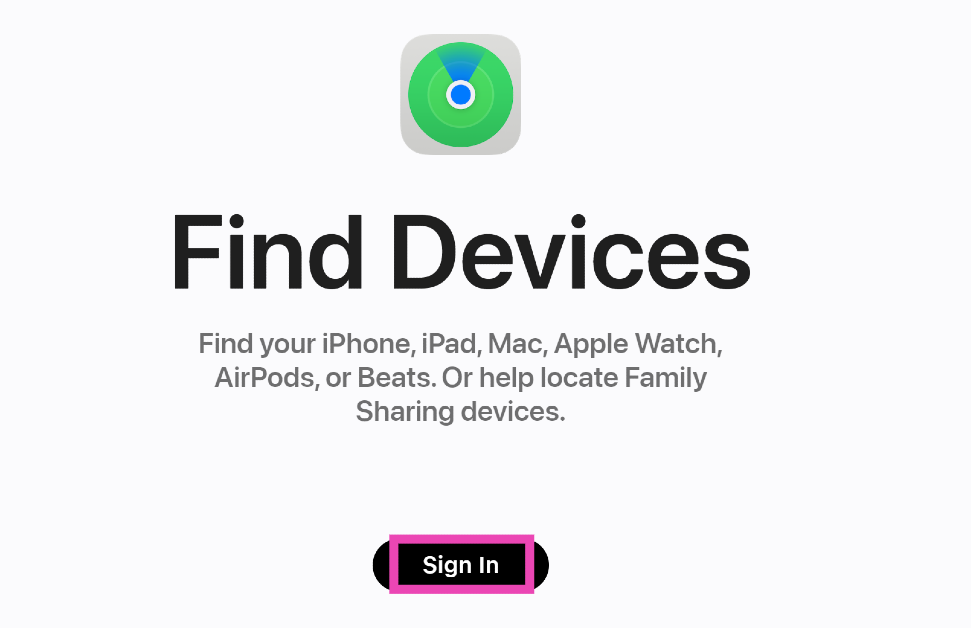
Step 1: Go to the iCloud Find Devices page.

Step 2: Sign in using your Apple ID.

Step 2: Log in using your Apple ID.

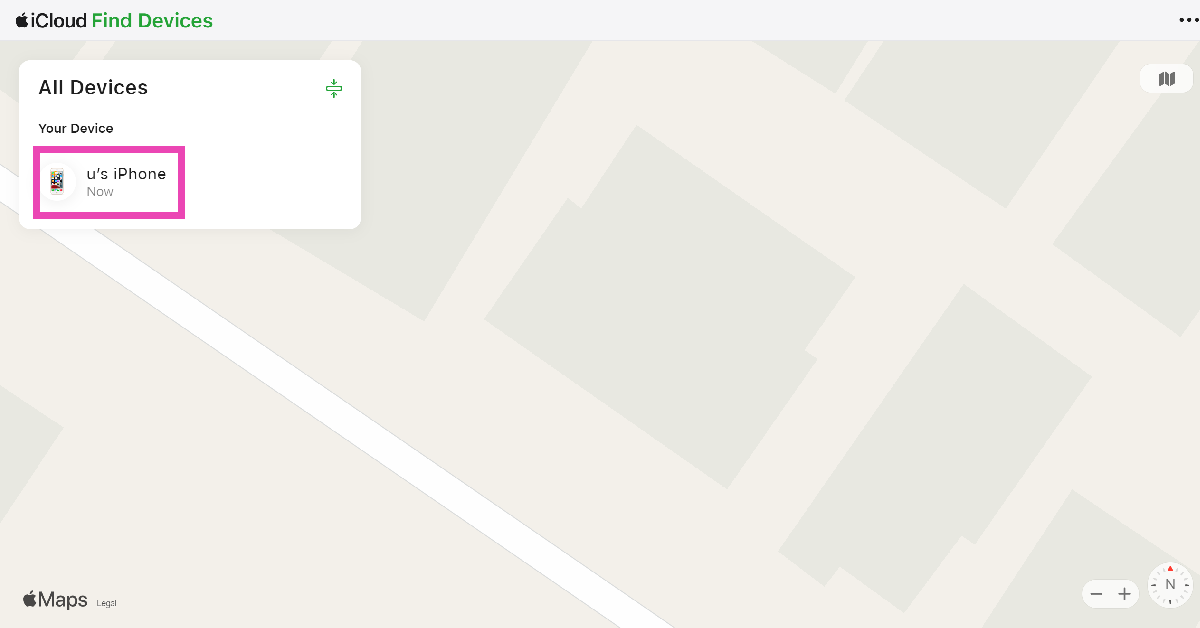
Step 3: Select your iPhone from the list of devices.

Step 3: Select your iPhone from the list of devices.

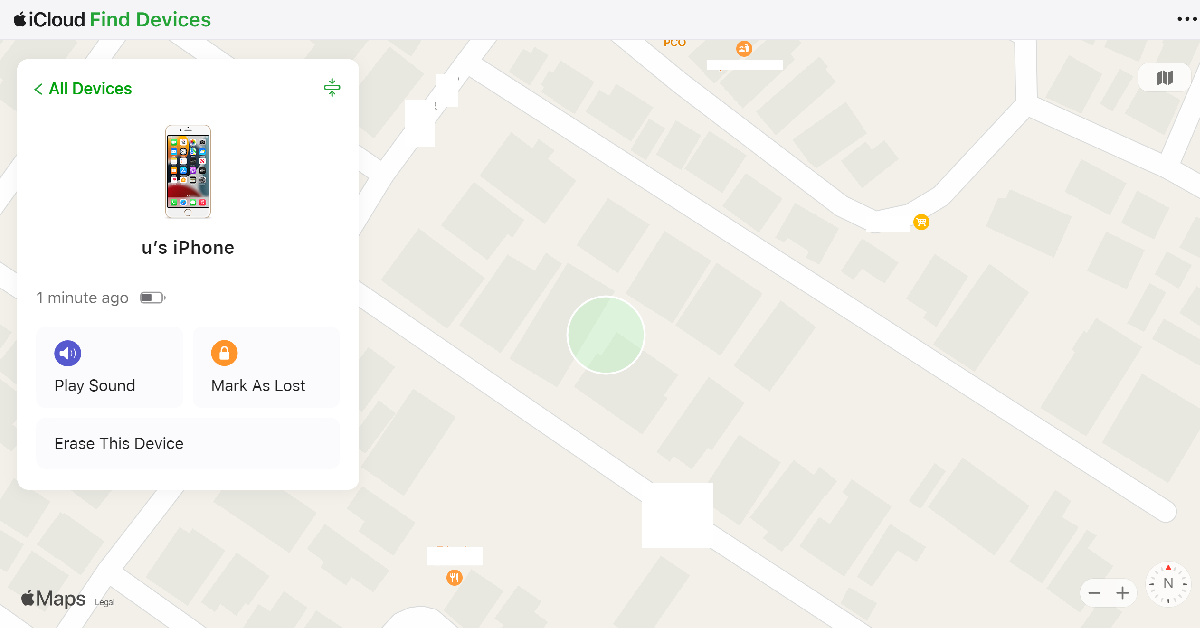
Step 4: Your iPhone’s location will be marked on the map. If your iPhone is switched off, you will be able to view its last recorded location.

Step 4: Your iPhone’s location will be marked on the map. If your iPhone is switched off, you will be able to view its last recorded location.

Frequently Asked Questions (FAQs)

How do I find or track my iPhone if it is switched off?

If the Find My service is enabled on your iPhone, you can track it from the Find Devices page on iCloud even if it is switched off. Go to Settings>Name>Find My>Find My iPhone and turn the toggle switch for ‘Send Last Location’.

What is ‘Find My network’ on iPhone?

Using ‘Find My network’ you can find your lost iPhone even if it is offline. Apple does this by using the Bluetooth sensors on its products to report the location data of lost devices near them. Apple claims the data is protected by end-to-end encryption so as to preserve the privacy of devices reporting the location.

How do I share my contact info on my lost iPhone?

Log into the iCloud Find Devices page and select your iPhone from the list. Select Mark as Lost>Activate from the menu. Once that’s done, you will be able to create a passcode for your iPhone if it doesn’t have one and display your contact info on the screen.

Read Also: Poco M6 5G debuts in India, price starts at Rs 10,499

Conclusion

This is how you can find or track your iPhone even when it’s switched off. Not only can you use the Find My app to locate your iPhone, but it also works for AirPods, Apple Watch, iPad, Mac, Beats headphones, and AirTag. The first thing you should do when you get your hands on a new iPhone (or any other Apple product) is turn on the Find My service. If you know any other ways to find a lost iPhone that’s switched off, let us know in the comments!

Best of 2023: Top 8 smartphones that came out this year

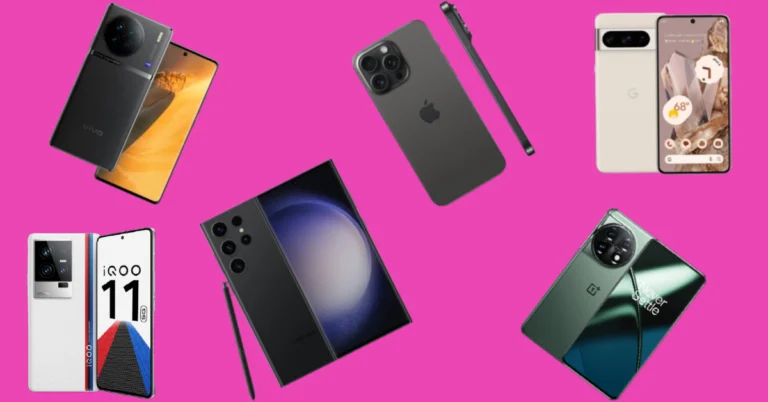
2023 was an exciting year in tech, especially if you’re a smartphone enthusiast. Samsung and OnePlus kicked off the proceedings early in the year, with the release of their flagship devices. This year also marked OnePlus’ entry into the folding phone segment, with the launch of the OnePlus Open. So, as we step into the last week of the year, we thought we’d bring you our picks for the top 8 smartphones that were released this year. Check them out!

Read Also: How to See Who Viewed Your Video on Facebook

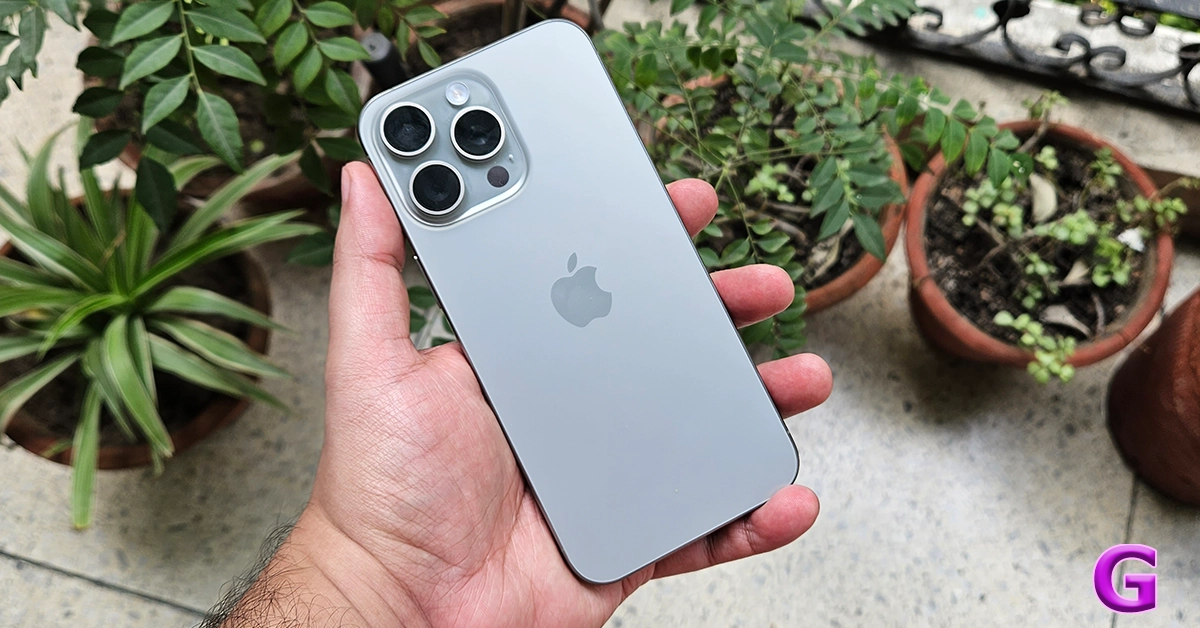
iPhone 15 Pro Max

Price: Rs 1,59,900 on Apple.com

Key Specs

Display 6.7-inch LTPO Super Retina XDR OLED
Chipset Apple A17 Pro
RAM 8GB
Storage 256GB, 512GB, 1TB
Battery 4,441 mAh

iphone 15 pro max rear

This should come as no surprise but the iPhone 15 Pro Max was one of the best smartphones to be released in 2023. Apple also made the switch to the USB Type-C port for the iPhone this year, leaving behind the exclusive lightning port. Powering the iPhone 15 Pro Max is the new A17 Pro chipset, an upgrade over last year’s A16 Bionic SoC which now finds its way into the non-Pro iPhone 15 models. Another key upgrade on the new iPhone is the action button, which replaces the ringer switch. This action button can be customised to carry out quick tasks like taking a picture, switching the sound profile, launching an app, and much more. The camera panel remains largely unchanged, apart from the new 5x optical zoom capability on the telephoto lens. Read our full review of the iPhone 15 Pro Max.

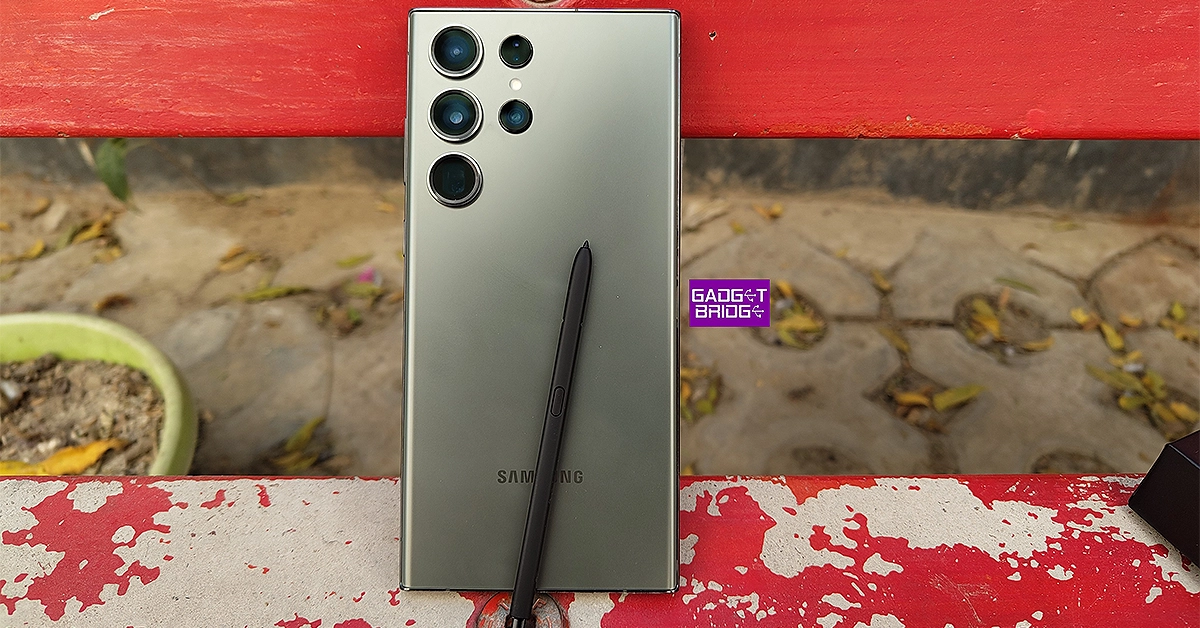
Samsung Galaxy S23 Ultra

Price: Rs 1,24,999 on Samsung.com

Key Specs

Display 6.8-inch Dynamic AMOLED
Chipset Snapdragon 8 Gen 2
RAM 8GB, 12GB
Storage 256GB, 512GB, 1TB
Battery 5,000 mAh

Samsung Galaxy S24 Series to come with AI features, trademark applications filed for ‘AI Phone' and ‘AI Smartphone'

At the start of every year, Samsung launches its flagship S series smartphone and leaves the rest of the Android pack behind with some serious catching up to do. This year was no different. Launched at Samsung’s ‘Galaxy Unpacked’ event in February, the S23 Ultra is undoubtedly the best that Android has to offer. It gets the new Snapdragon 8 Gen 2 SoC under the hood, which has been slightly customised for Samsung’s flagship product. In terms of design, the Samsung Galaxy S23 Ultra retains the vertical camera alignment and general form factor from its previous iteration. This design philosophy also made it to Samsung’s midrange and budget offerings this year. The 6.8-inch Dynamic AMOLED display is super punchy as usual, and one of the best ones around. Check out our full review of Samsung Galaxy S23 Ultra to know more about the smartphone.

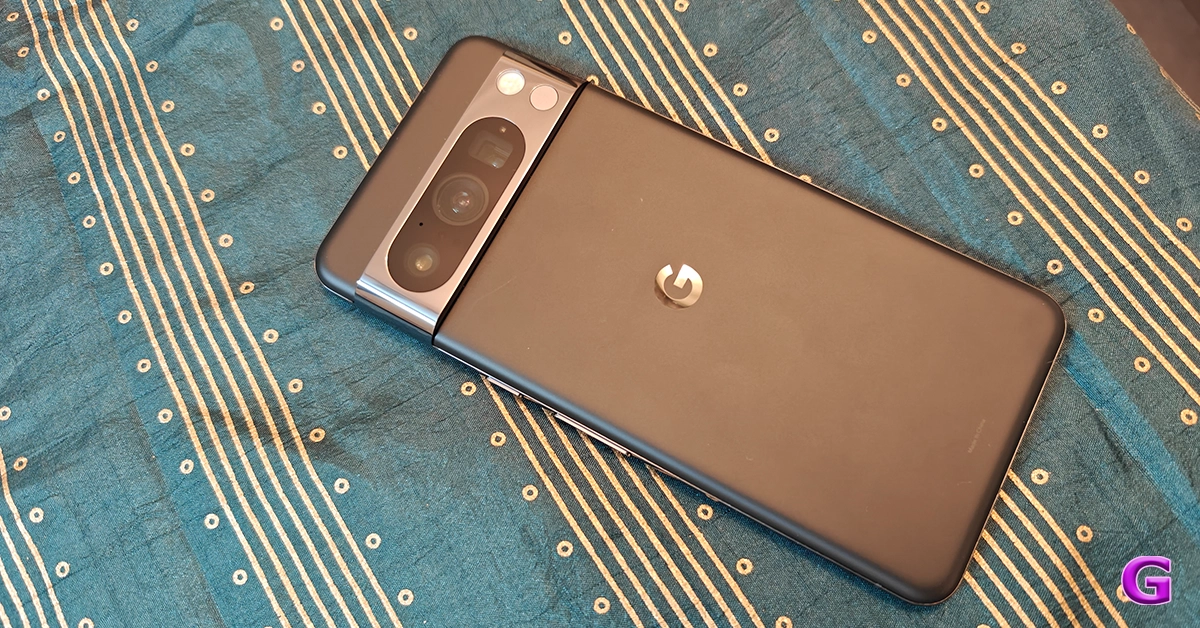
Google Pixel 8 Pro

Price: Rs 1,06,999 on Flipkart

Key Specs

Display 6.7-inch LTPO OLED
Chipset Google Tensor G3
RAM 12GB
Storage 128GB, 256GB, 512GB, 1TB
Battery 5,050 mAh

Google Pixel 8 Pro Review: Design and Display

Being Android’s parent company, you expect Google’s flagship to deliver more than the average smartphone. And it does precisely. The new Pixel 8 Pro may just be the smartest of all smartphones. The Google Tensor G3 may not be the most powerful chipset on a premium smartphone, but Google’s software magic bridges that divide with ease. Features like call screen, face unblur, video boost, and magic eraser are incredible to use on the new Pixel. However, what really earns the Pixel 8 Pro its spot on this list is state-of-the-art photo processing, which still remains unmatched. The images taken with the Pixel are punchy, super detailed, and noise-free. The ultra-wide and telephoto sensors also produce stunning results. Read more about them in our Google Pixel 8 Pro review.

OnePlus 11

Price: Rs 56,999 on OnePlus.in

Key Specs

Display 6.7-inch LTPO3 Fluid AMOLED
Chipset Snapdragon 8 Gen 2
RAM 8GB, 12GB, 16GB
Storage 128GB, 256GB, 512GB
Battery 5,000 mAh

review of OnePlus 11

After a lukewarm response to the OnePlus 10 Pro in 2022, the company pulled up its socks and produced one of the best smartphones of the year in 2023. The OnePlus 11 seems like a return to the enthusiast-favourite OnePlus that we all know and love. Talking about the specs, the OnePlus 11 gets a 120Hz, 6.7-inch LTPO3 AMOLED display, the Snapdragon 8 Gen 2 SoC, 50MP + 48MP + 32MP triple camera array, and a 5,000 mAh battery. While it lacks wireless charging, it doesn’t seem like a big miss on the smartphone because of its 100W fast-charging support. It takes just 25 minutes for the smartphone to charge from 1 to 100%. Read our OnePlus 11 review here.

iQoo 11

Price: Rs 54,999 on iQoo e-store

Key Specs

Display 6.78-inch LTPO4 AMOLED
Chipset Snapdragon 8 Gen 2
RAM 8GB, 12GB, 16GB
Storage 128GB, 256GB, 512GB
Battery 5,000 mAh

iQOO 11 Review: A real beast

Although it often gets shoehorned into the ‘gaming phone’ category, the iQoo 11 is a complete flagship. Launched in December 2022, it was one of the first smartphones to ship with the new Snapdragon 8 Gen 2 SoC. Its supreme thermal management system earns it its gaming phone rep, but the dual-axis haptic motor is just as impressive. The latter makes the gaming experience on the smartphone more immersive and fun. The V2 chip pulls its weight while capturing images in limited lighting, delivering well-processed images that pack a lot of detail. Talking about the charging chops, the iQoo 11 supports 120W fast charging and can be fully charged in just 25 minutes. Check out more in our iQoo 11 review!

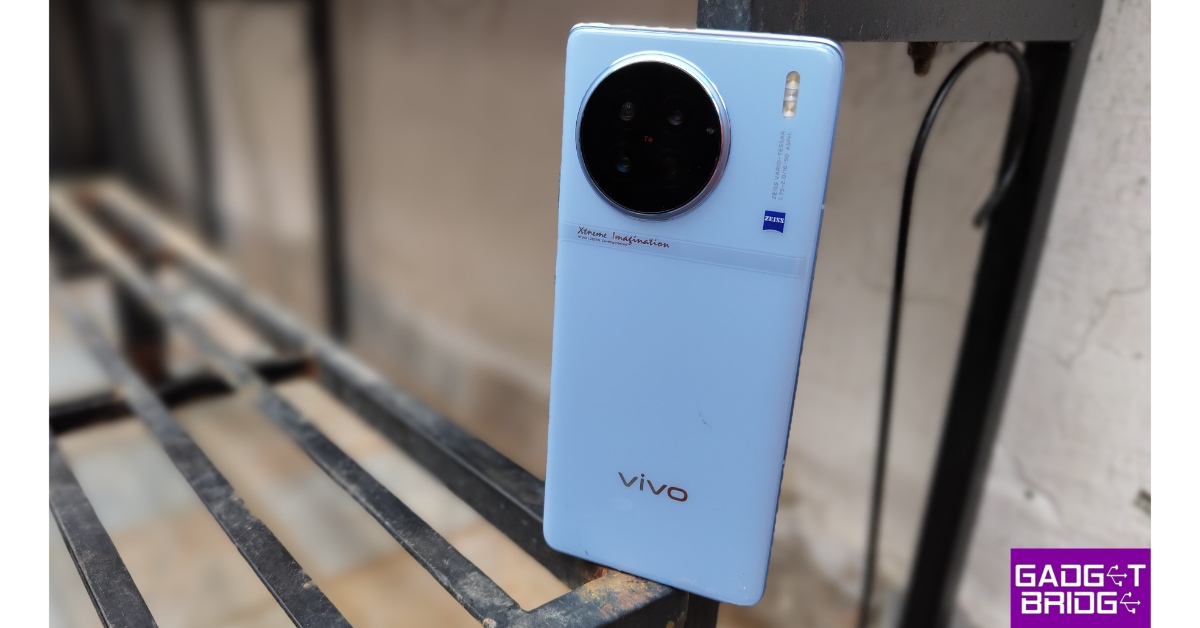
Vivo X90 Pro

Price: Rs 91,999 on Vivo e-store

Key Specs

Display 6.78-inch AMOLED
Chipset MediaTek Dimensity 9200
RAM 8GB, 12GB
Storage 256GB, 512GB
Battery 4,870 mAh

Vivo X90 review: Design and Display Best of 2023: Top 8 smartphones to come out this year

The Vivo X90 Pro is one of the few smartphones in the market to rock a leather finish on the back panel. This isn’t real leather of course, but rather ‘eco’ leather as Vivo likes to call it. The round camera setup is the highlight of the smartphone’s marvellous design. This camera array has been specially tuned by Zeiss. Needless to say, the results live up to the branding. The images taken with the X90 Pro are sharp, super detailed, and contrasty. Read more about them in our review of the smartphone

Xiaomi 13 Pro

Price: Rs 74,999 on Mi.com

Key Specs

Display 6.73-inch LTPO AMOLED
Chipset Snapdragon 8 Gen 2
RAM 8GB, 12GB
Storage 128GB, 256GB, 512GB
Battery 4,820 mAh

Xiaomi 13 Pro Best of 2023: Top 8 smartphones to come out this year

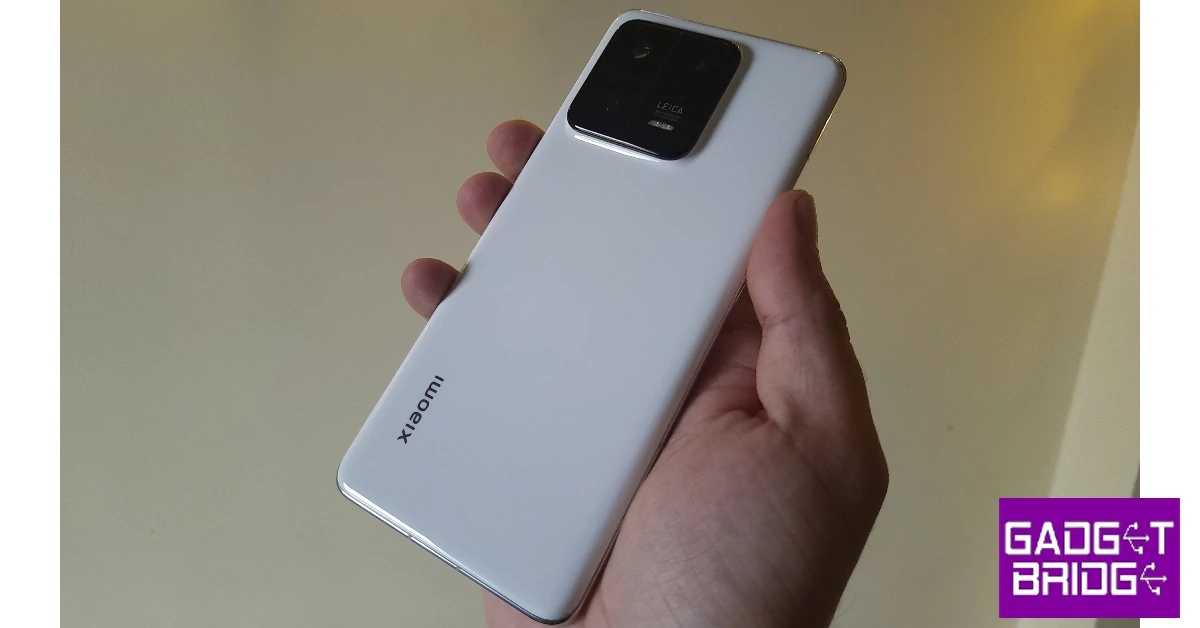
In 2023, Xiaomi shrugged off its midrange and budget smartphone manufacturer reputation and put out one of the most powerful smartphones of the year. The Chinese brand is finally here to play with the big boys. The Xiaomi 13 Pro is powered by the Snapdragon 8 Gen 2 SoC and runs Android 14 skinned with MIUI14. The ceramic glass back panel brings a lot of personality to the device. While reviewing the device, we were completely floored by its 1-inch primary sensor. This incredible camera produced stunning results even in extremely limited lighting. Since its camera setup is tuned by Leica, the smartphone offers two exclusive Leica profiles for shooting pictures – Leica Vibrant and Leica Authentic. You can check out the results in our Xiaomi 13 Pro review.

OnePlus Open

Price: Rs 1,39,999 on OnePlus.in

Key Specs

Display Cover Display: 6.31-inch LTPO3 OLED

Inner Display: 7.82-inch LTPO3 AMOLED

Chipset Snapdragon 8 Gen 2
RAM 16GB
Storage 512GB
Battery 4,805 mAh

OnePlus Open Review Best of 2023: Top 8 smartphones to come out this year

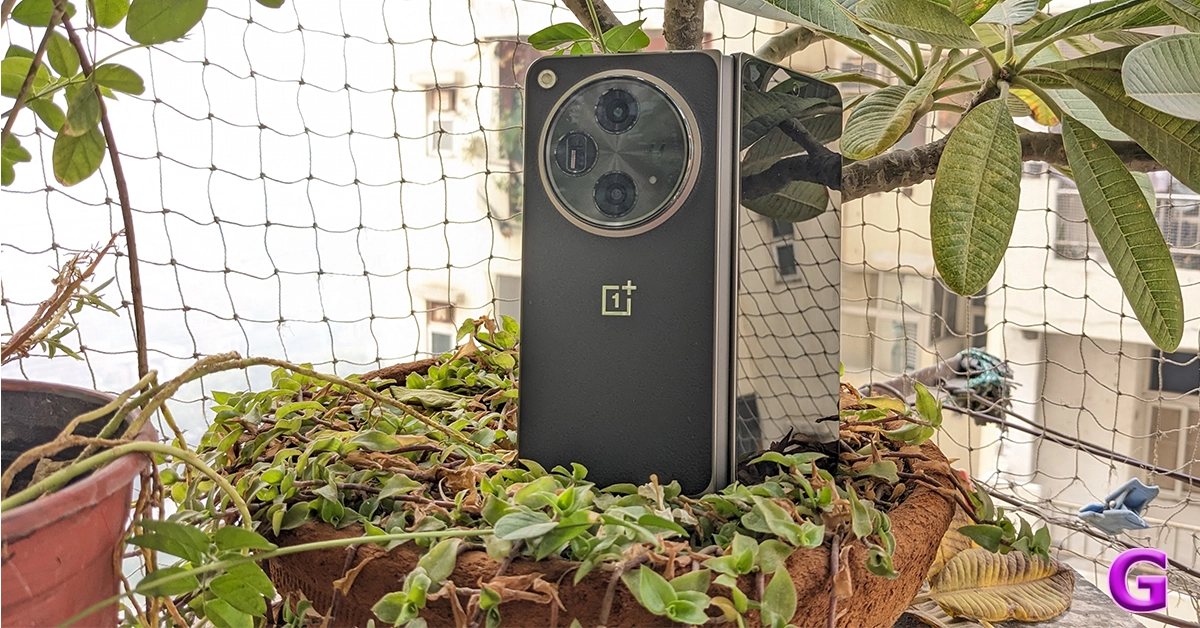
We’re saving the ‘Best Folding Phones of 2023’ for next week, but we’d be remiss if we didn’t mention the OnePlus Open in the best smartphone category. Even though it is OnePlus’ debut foldable, the Open goes toe to toe with its peers and even edges ahead in some departments. OnePlus certainly took some pointers from its sister company Oppo’s folding phones over the years in producing stellar hardware for the Open. The smartphone spans 7.2 inches in its unfolded form. The 6.31-inch cover display perfectly replicates a regular smartphone. The rear camera panel houses a 48MP primary shooter, another 48MP ultrawide lens, and a 64MP telephoto sensor. Read more about the OnePlus Open in our review of the device.

Read Also: Poco M6 5G debuts in India, price starts at Rs 10,499

Conclusion

That’s it, folks! Hope you agree with our picks for the top 8 smartphones to come out in 2023. If you think we missed out on a smartphone, make the case for it in the comments! Watch this space for more lists next week, as we pick the best foldables, midrange phones, TVs, and laptops to come out this year. Also, make sure to cast your vote in the Gadget Bridge Awards 2023!

Top 4 Easy Ways to Access and Manage the Clipboard on your Android Phone

0

A clipboard is a location on your device’s memory that stores copied text items for a short time. Clipboards are designed to store one entry at a time. The moment you copy something on the clipboard, it erases the previous entry. But it doesn’t always have to be this way. Your Android phone can do more with the clipboard and tap into its full potential. Want to know more? Here are the top 4 easy ways to access and manage the clipboard on your Android phone.
Read Also: Gadget Bridge Awards 2023: The biggest, best consumer technology and gadget awards nominations

Harness the full potential of your Android phone’s keyboard

Many of you may be wondering what’s the purpose of managing the clipboard on your Android device. After all, its sole purpose is to store a piece of text for a small period. While you may be correct about that, the clipboard can do more than just that. Remember how you always need to go back and forth between the notes app and the browser while filling in the key details on an online form? If you knew what your phone’s clipboard was capable of, you wouldn’t have to do that.

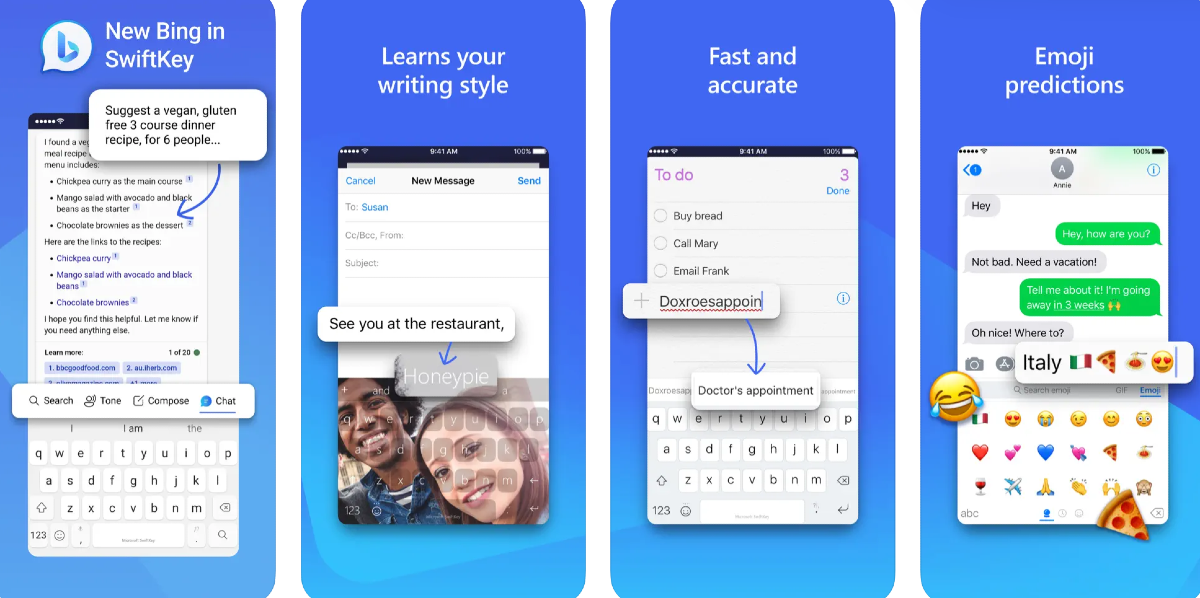
Keyboard apps like Gboard and SwiftKey allow users to copy multiple items on the clipboard. You can access these items from the keyboard itself and delete them at any time. Filling out an online form that requires your bank account details, full address, passport-sized photograph and more? Instead of opening the notes app multiple times, you can individually copy these entries to the keyboard and paste them wherever necessary. Yes – even your photographs. If you don’t want to switch to another keyboard, you can use a third-party clipboard app for the same task.
Use the native Notes app on your Android phone

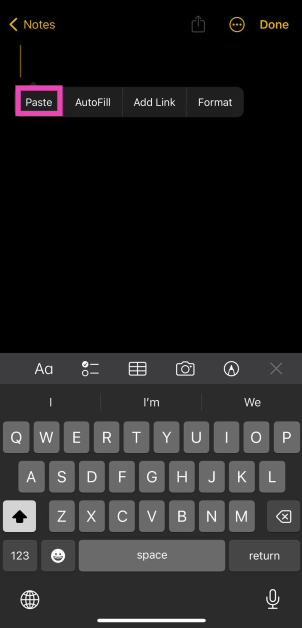
The easiest way to check what’s on your Android phone’s clipboard is by pasting its contents on an empty document. Every Android phone comes with a native ‘Notes’ app that can be used for this task. Here’s how.

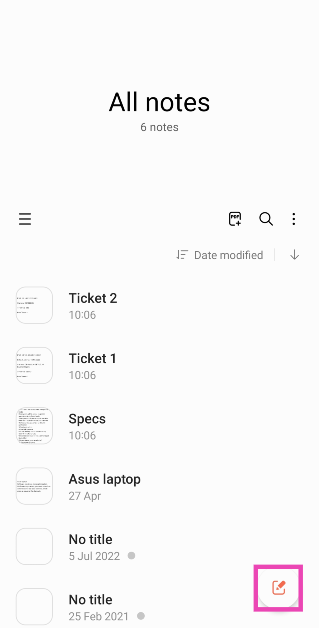
Step 1: Launch the native Notes app on your Android phone.

Step 2: Tap the pad and pencil icon at the bottom right corner of the screen to create a new note.

Step 2: Tap the pad and pencil icon at the bottom right corner of the screen to create a new note.

Step 3: Long-press anywhere on the screen and select paste from the popup menu.

Step 3: Long-press anywhere on the screen and select paste from the popup menu.

The latest entry in your phone’s clipboard will be pasted on the note.

Use Gboard to access the clipboard on your Android phone

If you want to store multiple things in your phone’s clipboard, the Gboard app will come in very handy. But first, you need to enable clipboard history for the keyboard. Here’s how you can do that.
Step 1: Make Gboard the default keyboard on your Android phone.

Step 2: Tap any text box that triggers the keyboard.

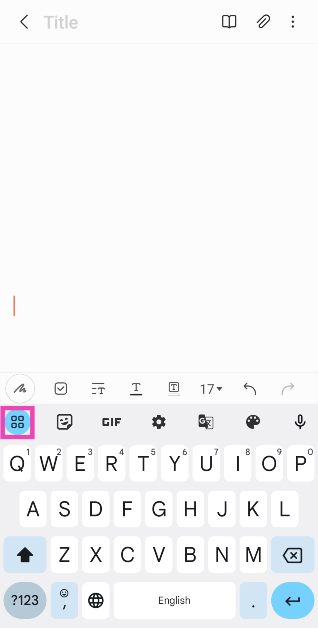
Step 3: Hit the menu icon at the top left corner of the keyboard.

Step 3: Hit the menu icon at the top left corner of the keyboard.

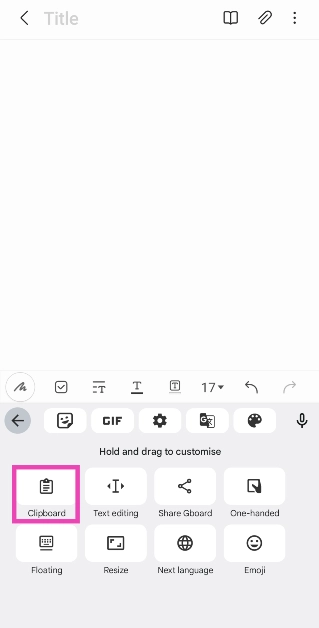
Step 4: Select Clipboard.

Step 4: Select Clipboard.

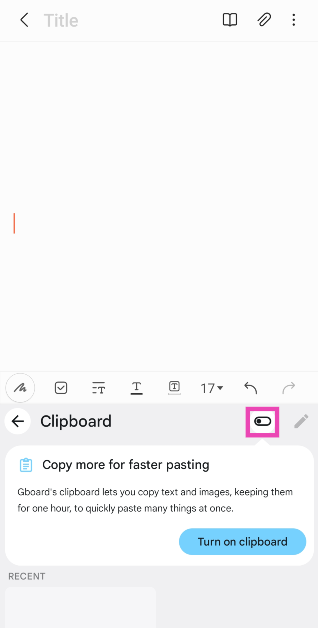
Step 5: Turn on the toggle switch for the clipboard.

Step 5: Turn on the toggle switch for the clipboard.

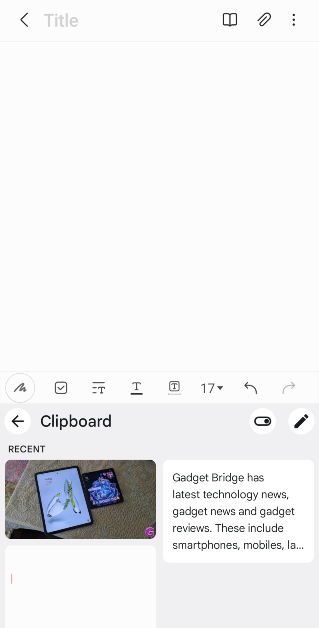
The contents you copy on the clipboard stay there for one hour. You can copy anything from text to links and images on the Gboard clipboard. Follow these steps to access the clipboard on your Android phone.

Step 1: Tap on a text box that triggers the onscreen keyboard.

Step 2:  Hit the menu icon at the top left corner of the keyboard.

Step 3: Hit the menu icon at the top left corner of the keyboard.

Step 3: Select Clipboard.

Step 4: Select Clipboard.

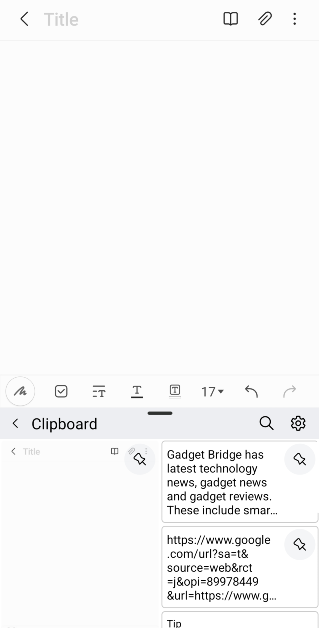
Step 4: Tap on an entry to paste it. Long press an entry to pin or delete it.

Step 4: Tap on an entry to paste it. Long press an entry to pin or delete it.

Use Microsoft SwiftKey keyboard

Like Gboard, the Microsoft Switfkey keyboard also lets you access and manage your Android phone’s clipboard.

Step 1: Download and install the Microsoft SwiftKey keyboard on your phone from the Google Play Store.

Step 2: Set SwiftKey as the default keyboard on your phone.

Step 3: Tap any text box to trigger the SwiftKey keyboard.

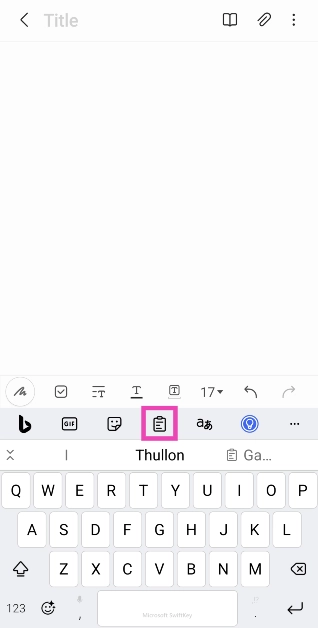
Step 4: Hit the clipboard icon at the top of the keyboard.

Step 4: Hit the clipboard icon at the top of the keyboard. Top 4 Ways to Access & Manage Clipboard on an Android Phone

Step 5: Tap on an entry to paste it.

Step 5: Tap on an entry to paste it. Top 4 Ways to Access & Manage Clipboard on an Android Phone

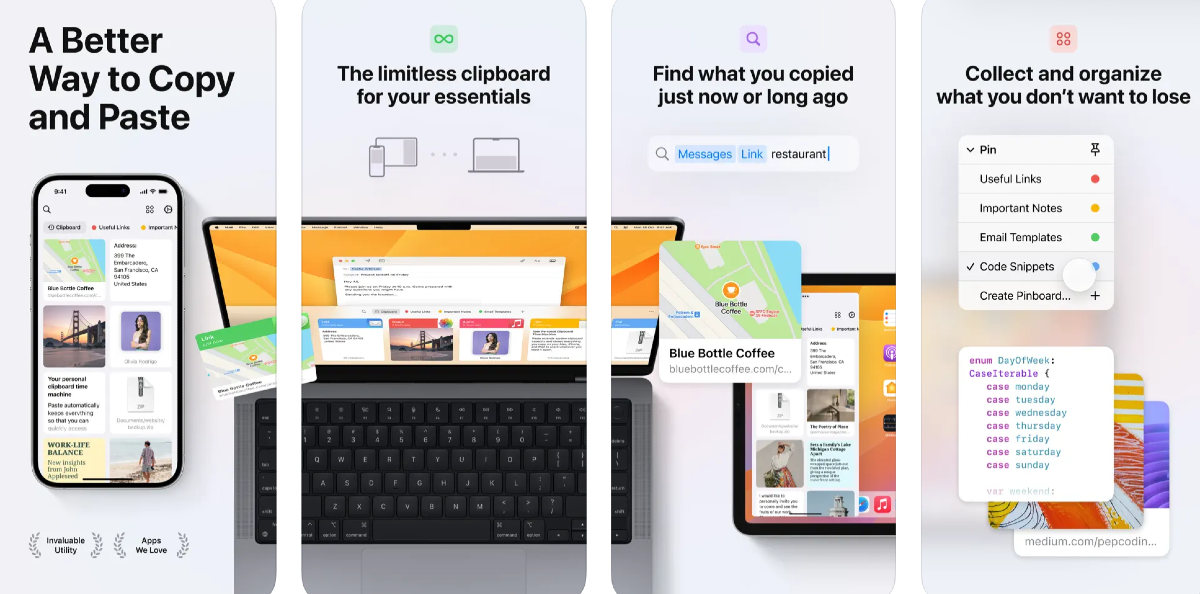
Use a third-party app: Clipboard – Copy Paste & Notes

Step 1: Download and install the Clipboard – Copy Paste & Notes app from the Google Play Store.

Step 2: Launch the app and give it permission to display over other apps.

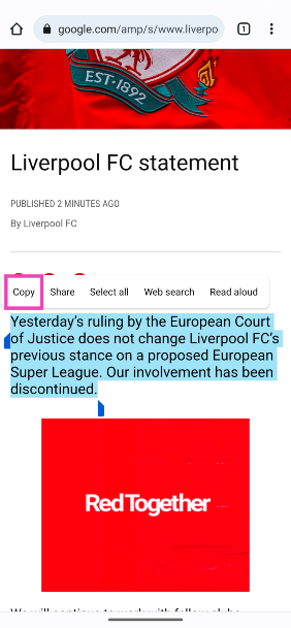
Step 3: Long press any text and select copy.

Step 3: Long press any text and select copy. Top 4 Ways to Access & Manage Clipboard on an Android Phone

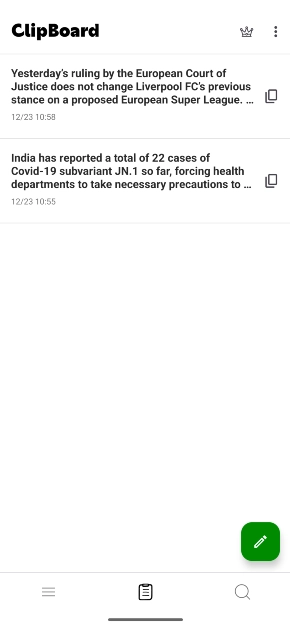
Step 4: The text will be copied to the clipboard and saved in the Clipboard app for future use. You can copy multiple entries on the app.

Step 4: The text will be copied to the clipboard and saved in the Clipboard app for future use. You can copy multiple entries on the app. Top 4 Ways to Access & Manage Clipboard on an Android Phone

Frequently Asked Questions (FAQs)

How do I save multiple things on my Android phone’s keyboard?

Use Gboard or Microsoft SwiftKey keyboard to save multiple items on your Android phone’s keyboard. Both keyboards have a special ‘Clipboard’ category that lets you copy multiple entries and access them instantaneously.

Can my Android phone’s clipboard copy images?

Yes, your Android phone’s clipboard can copy any content ranging from text to images and links.

How do I access and manage my Android phone’s clipboard?

Use a third-party app like Clipboard – Copy Paste & Notes to manage your Android phone’s clipboard like a pro. Dedicated clipboard apps make it easier to store and sort through all the items that you have copied in the past.

Read Also: Poco M6 5G debuts in India, price starts at Rs 10,499

Conclusion

These are the top 4 ways to access and manage your Android phone’s clipboard. Most native Android keyboards come with a dedicated clipboard option capable of storing multiple entries. If the default keyboard on your device lacks this feature, you can always switch to Gboard or SwiftKey. If you don’t want to change the keyboard, a third-party clipboard app is your best option. These apps usually require access to your clipboard and permission to draw over other apps to work as intended.

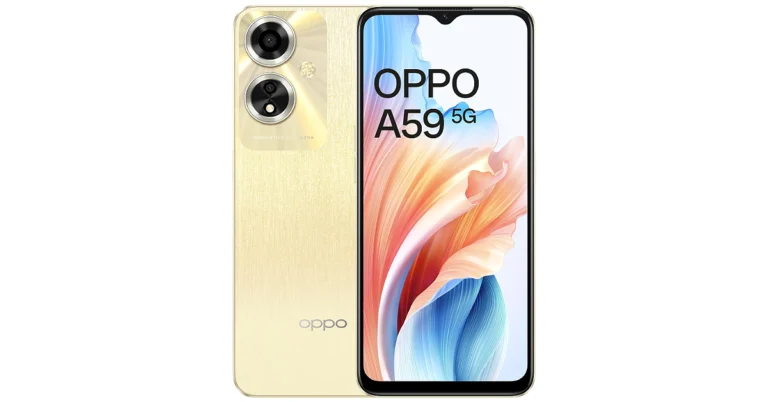
Oppo A59 5G with 5,000mAh battery and 33W SUPERVOOC flash charging launched in India

Key Highlights

  • Oppo A59 5G is a successor to Oppo A58 5G.
  • There is an All-Day Charging Protection, powered by AI on the phone.
  • The smartphone features a dual rear camera setup.

The Chinese smartphone manufacturer Oppo has arrived with a new smartphone in India. The company has launched Oppo A59 5G in the country which succeeds Oppo A58 5G. The device features a 90Hz display and is powered by MediaTek Dimensity 6020 SoC. In addition to this, it packs a 5,000mAh battery and operates on ColorOS 13.1 based on Android 13 out-of-the-box. Also, there is a dual rear camera setup consisting of a 13-megapixel primary lens.

Oppo A59 5G price in India, sale details

Oppo A59 5G price in India begins at Rs 14,999 for the base 4GB RAM with 128GB storage. The 6GB RAM and 128GB storage is priced at Rs 16,999. The phone comes in two colour options of Silk Gold and Starry Black. It is scheduled to go on sale from December 25 via OPPO store, Flipkart, Amazon, and other retail outlets in the country.
Buyers can take advantage of the following offers on the purchase of OPPO A59 5G:

Customers can avail a cashback of up to Rs 1,500 and no-cost EMI for up to 6 months from SBI Cards, IDFC First Bank, Bank of Baroda credit card, AU Finance Bank and One Card from mainline retail outlets and the OPPO Store.

Oppo A59 5G price in India, sale details

Attractive EMI payment options are available starting from just Rs 1,699 through leading financiers.

As part of My OPPO Exclusive, consumers can win assured gifts on the purchase of OPPO A59 5G

Additionally, as a part of the New Year Bonanza smart savings offer- OPPO has introduced attractive discounts and offers on purchases of selected A series products. Customers can avail of cashback of up to 10%, no-cost EMI for up to 6 months, along a Zero down payment option on selected partners.

Also Read: Poco M6 5G debuts in India, price starts at Rs 10,499

Oppo A59 5G specifications

The Oppo A59 5G features a 6.56-inch HD+ Waterdrop Display with 1612×720 pixels. The screen supports a 90Hz refresh rate, 750 nits of peak brightness and 96 per cent NTSC high colour gamut. The smartphone is IP54-rated for dust and water resistance,

It runs on ColorOS 13.1 with Android 13 out-of-the-box. Under the hood, there is a MediaTek Dimensity 6020 processor with Mali-G57 MC2 GPU. The device is available with up to 6GB of RAM and 128GB of internal storage. The RAM expansion feature allows for flexible adjustments up to 6GB.

For the optics, the Oppo A59 5G is highlighted with a dual rear camera setup that includes a 13-megapixel primary sensor with an f.2.2 aperture and a 2-megapixel bokeh camera with a f/2.4 aperture. There is an 8-megapixel front-facing camera with an f/2.0 aperture for taking selfies and video calling.

The Oppo A59 5G is backed by a 5,000mAh battery with 33W SUPERVOOC flash charging support. As per the company, there is All-Day Charging Protection, powered by AI, which adapts to users’ charging patterns by developing a segmented charging plan for the day. It intelligently pauses charging at 80%, resumes when needed and prevents battery degradation. Additionally, the device also features the Superpower Saving Mode and Ultimate Standby at Night Mode.

Garena Free Fire Redeem Codes Today 23 December 2023: Here is how to claim them

Garena Free Fire is a battle royale game with regular awards and tournaments to keep players interested. If you play Garena Free Fire, you should be aware of the redeem codes that are released on a daily basis. However, because the battle royale game is banned in India, players from other countries can use the Free Fire Redeem codes daily. If you’re unfamiliar with the Garena Free Fire redeem codes or don’t know how to get them, we’ve put together a step-by-step guide to help you redeem them. Check out Garena Free Fire Redeem Codes for 23 December 2023.

The Free Fire redeem codes are a great way to get free stuff. These are 12-digit codes that contain alphabets and numbers, as well as an expiration date and time. Because the Garena FF redeem codes cannot be used more than once, you should hurry to the redemption page to claim your free reward before someone else does. To get a free reward, all you have to do is go to reward.ff.garena.com/en, which is the official redemption page. Also, keep an eye on this space for daily updates on Garena Free Fire redemption codes and rewards.

Garena Free Fire Redeem Codes Today 23 December 2023

FNFVJIX76AT5QRF

FW3EV4BTN6YHBIU

FVYHCGBDNJR56NY

FKIBUV7YCTXZVAB

FHJUQW736T4FVRF

FESRBGDRTYJI7JH

FGFWRSGFFUSEDRE

FTBGVKISEUYGTVC

FNIU4YH5RGBNKIU

FSYWGTEBVRTNYMH

How to Get Free Fire Redeem Codes for Garena on 23 December 2023?

  • Visit the Garena Free Fire game’s official website at reward.ff.garena.com.
  • Use your Facebook, Google, VK, Apple ID, Huawei ID, or Twitter account to log in.
  • You’ll be taken to a valid redemption code (s)
  • Copy and paste the 12-digit redemption code into the text box.
  • On the screen, a dialogue box will appear.
  • ‘Ok’ should be selected.

For the latest gadget and tech news, and gadget reviews, follow us on TwitterFacebook and Instagram. For newest tech & gadget videos subscribe to our YouTube Channel. You can also stay up to date using the Gadget Bridge Android App. You can find the latest car and bike news here.

Mic Not Working On Your Android Phone? Here are the 12 quick fixes

0

Your Android phone is capable of handling dozens of tasks at once, but they can all come crumbling down if there’s something wrong with the microphone. If you’re too reliant on the voice assistant, losing the microphone even for a day can get very annoying. Not to mention, it would make it nearly impossible to manage your device while driving. More often than not, the cause of this issue can be easily resolved. Here are the top 12 fixes for the ‘Mic not working’ problem on your Android phone.

Read Also: Top 10 Tech Gifts for Christmas (2023)

Get to the bottom of the issue before moving to the fixes

If you notice something wrong with your Android phone’s mic, don’t jump to fixing it right away. First, you need to figure out what’s causing it to malfunction. It can take some time to determine the root cause of the issue when it is as general and open-ended as this one. If you’re experiencing microphone issues only on call, it could likely be due to a network-related issue. However, if other apps are replicating this behaviour, the network isn’t to blame.

If your phone’s hardware is at fault, these fixes will be of no help. In this scenario, you will need to take your phone to an authorised service centre. But how does one verify that this is the case? The answer is simple. Launch the native voice recorder app on your phone and record a sample. If the microphone isn’t able to pick up any sound at all, the issue likely lies with the hardware. You can also download a diagnostic app from the Play Store to know if it is a hardware-related issue for sure.

Restart your phone

Restart Your Phone

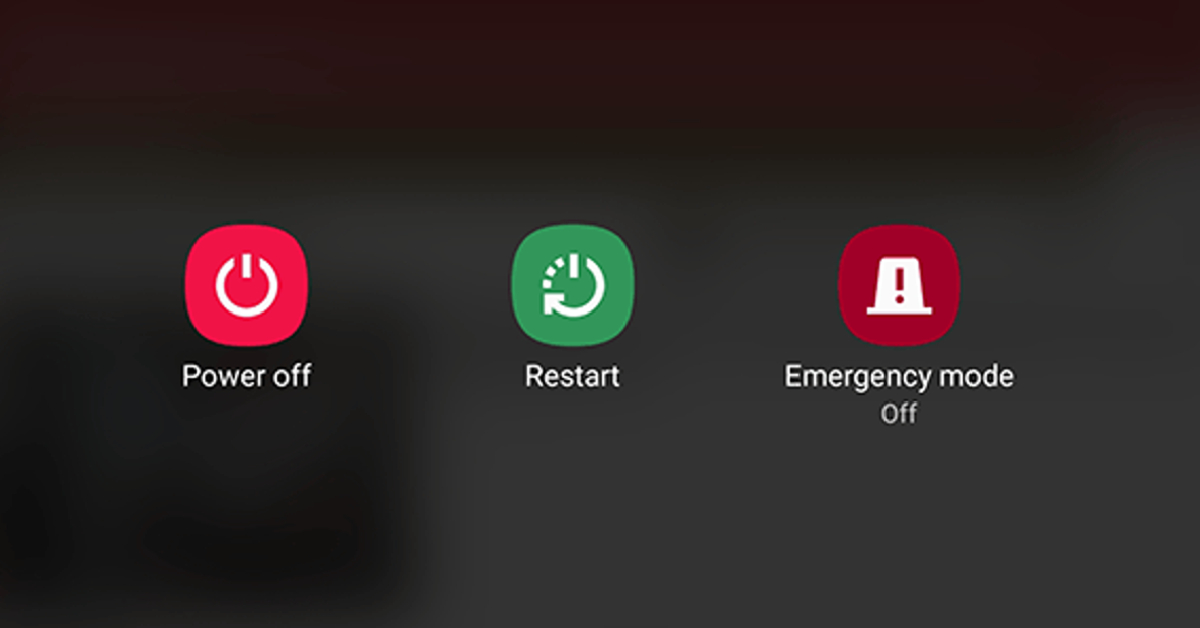
The first thing you should do upon encountering a problem with your microphone is restart the device. This will resolve any background glitches that may be causing the microphone to act up. To restart your smartphone, long-press the side key and select Restart from the power menu. You can also access this menu by tapping the power icon from the Quick Settings Menu. If long-pressing the side key triggers the voice assistant on your phone, press it along with the volume-up key to go to the power menu.

Clean the microphone

Vivo V29 Pro review: Design and Display Mic Not Working On Your Android Phone? Here are the 11 quick fixes

Accumulation of dirt and dust particles on your phone’s microphone can cause it to diminish the quality of recorded voice. This is more likely to happen if you haven’t cleaned your device in a while. Grab a microfibre cloth and wipe the area around the microphone. Blow some air into the tiny aperture and use a small needed to pry out the settled dirt particles. Be careful to not push the needle too far as this may end up damaging the microphone.

Remove the phone case

Poorly designed cases and cheap knock-offs of popular covers can cover the microphone in a manner that renders it unusable. If your voice on calls and recorded audio is muffled, this may be the case. Take off the phone cover and try again. If the quality doesn’t improve, the cover is not at fault and you should proceed to other fixes in this list.

Check if your phone is connected to any Bluetooth TWS or microphone

Sony WF-1000XM5: Performance Mic Not Working On Your Android Phone? Here are the 11 quick fixes

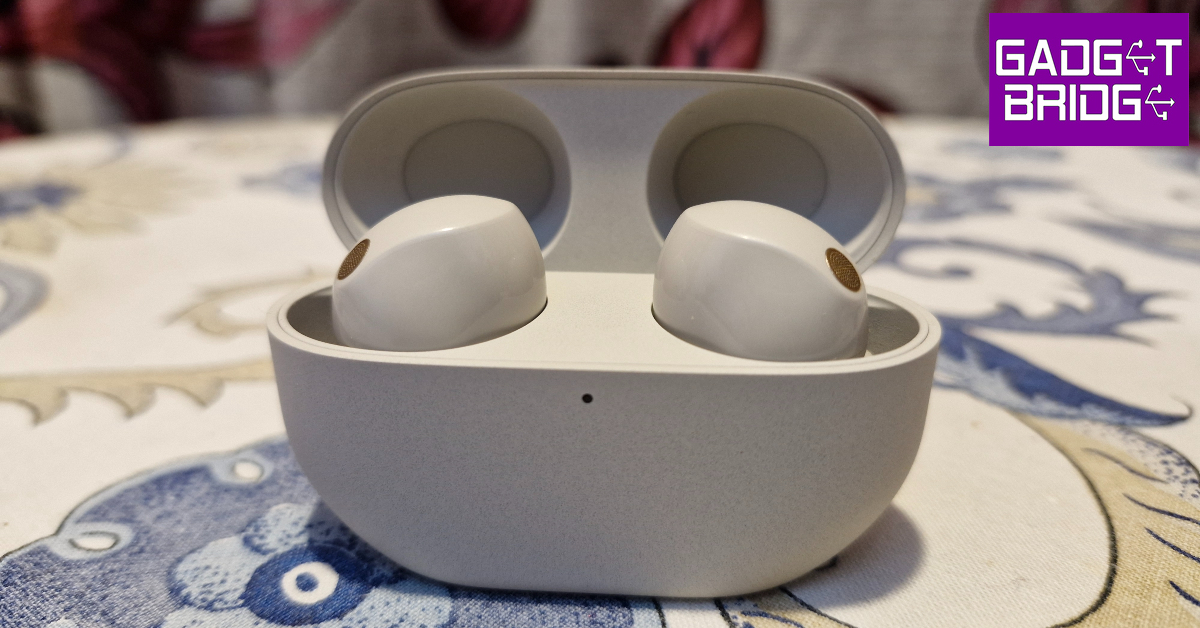
If your phone is connected to a TWS, it will use the integrated microphone on the earbuds. If your earbuds aren’t near the phone, the quality of the audio recording will take a massive hit. It is quite common to connect your phone to a TWS device and then forget about it. If the microphone stops working out of the blue, check your phone for any paired devices. You can do this by swiping down from the status bar and long-pressing the Bluetooth tile in the Quick Settings Menu.

Allow microphone access

If access to your microphone is turned off, you won’t be able to use it on any app. Here’s how you can allow microphone access.

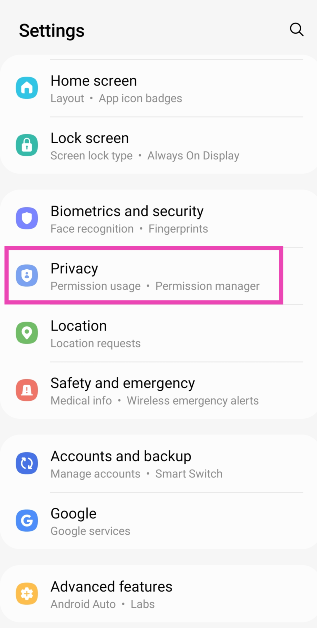
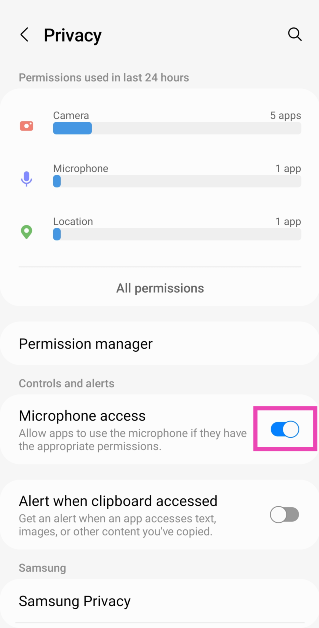
Step 1: Go to Settings and select Privacy.

Step 1: Go to Settings and select Privacy.

Step 2: Scroll down and turn on the toggle switch for Microphone access.

Step 2: Scroll down and turn on the toggle switch for Microphone access. Mic Not Working On Your Android Phone? Here are the 11 quick fixes

Allow microphone access to a particular app

If your Android phone’s mic isn’t working for a particular app, make sure it has the necessary permission. Here’s how you can allow an app microphone access.

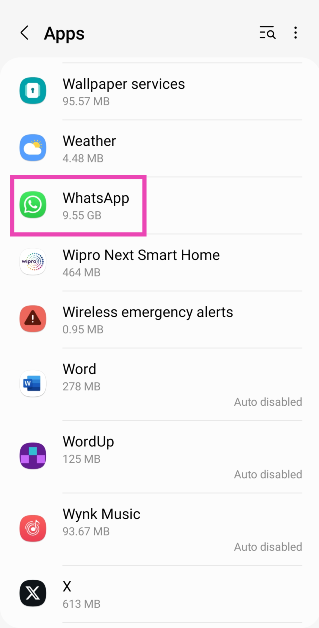
Step 1: Go to Settings and select Apps.

Step 2: Select the app in question.

Step 2: Select the app in question. Mic Not Working On Your Android Phone? Here are the 11 quick fixes

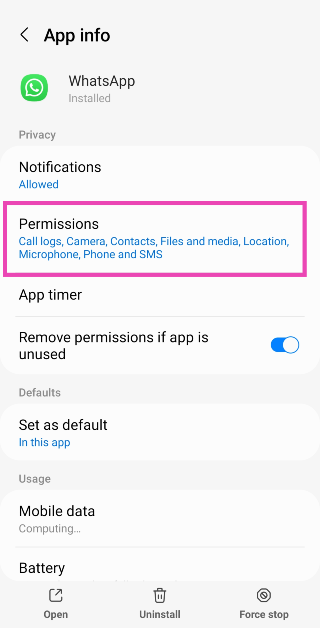
Step 3: Tap on Permissions.

Step 3: Tap on Permissions. Mic Not Working On Your Android Phone? Here are the 11 quick fixes

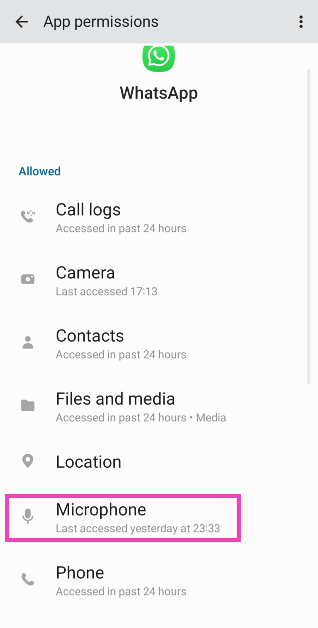
Step 4: Select Microphone and tap on Allow only while using the app.

Step 4: Select Microphone and tap on Allow only while using the app. Mic Not Working On Your Android Phone? Here are the 11 quick fixes

Test your phone’s mic on the voice recording app

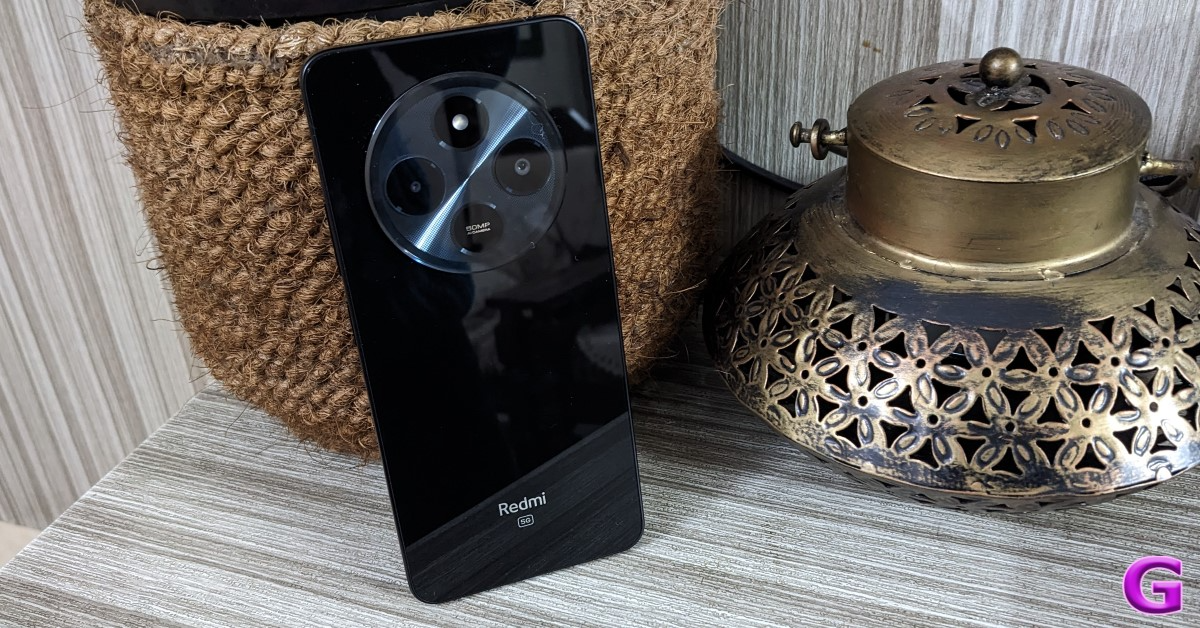
Redmi A4 5G Review: A fantastic budget smartphone

If you’re facing microphone trouble on cellular calls, try recording a sample voice note on the voice recorder app to confirm that the mic is at fault. If the voice note has no aberrations and is recorded in perfect quality, there is nothing wrong with your phone’s microphone. The fault may lie with the cellular network.

Disable Noise Reduction

Some apps have a ‘Noise Reduction’ feature that helps suppress the background noise while you’re on a call. This may sometimes affect the call quality as well. Here’s how you can turn it off if your Android phone’s mic isn’t working.

Step 1: Go to Settings and select Sound/Call.

Step 2: Scroll down and turn off the toggle switch for Noise Reduction.

Restart your phone in Safe Mode

Reboot your phone in Safe Mode

If you suspect that a third-party app is causing the app to malfunction, restart your phone in Safe Mode to confirm that this is the case. When Safe Mode is turned on, your phone is stripped to its bare bones. All third-party apps on the device are disabled and you can only use its native features. If you still experience any problems with the microphone, the third-party apps are not to blame. To restart your phone in Safe Mode, press and hold the Power Off option. Once ‘Safe Mode’ pops up on the screen, tap on it.

Update your phone’s OS

Step 1: Go to Settings and select Software update.

Go to Settings and select Software update. 10 top ways to fix unable to answer calls on Android phone

Step 2: Tap on Download and install.

tap on download and install 10 top ways to fix unable to answer calls on Android phone

Step 3: Select Install now.

Select Install now. 10 top ways to fix unable to answer calls on Android phone

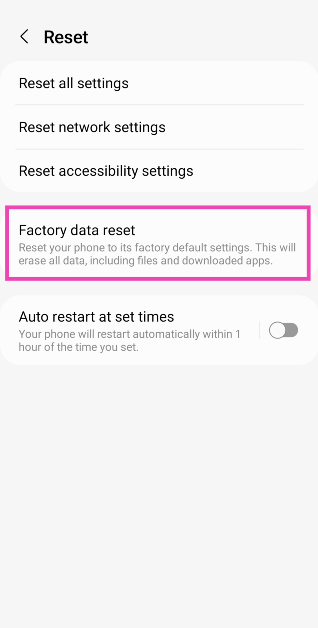
Perform a Factory Reset

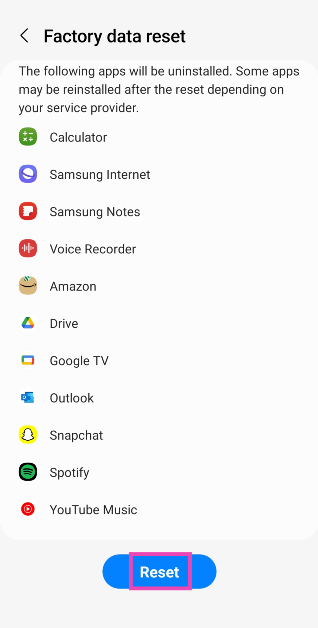
If nothing works, you can perform a factory reset on your phone. This will wipe all data from the device, so make sure you create a backup before proceeding. Here’s how you can restore your device to its factory settings.

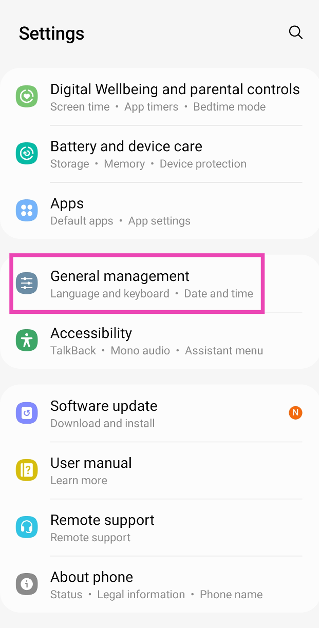
Step 1: Go to Settings, scroll down and select General management.

Step 1: Go to Settings, scroll down and select General management. Best 5 ways to fix ‘Phone Screen Turning Green’

Step 2: Tap on Reset.

Step 2: Tap on Reset. Best 5 ways to fix ‘Phone Screen Turning Green’

Step 3: Select Factory data reset.

Step 3: Select Factory data reset.

Step 4: Scroll down and tap on Reset.

Step 4: Scroll down and tap on Reset.

Turn off Bixby Voice (Samsung only)

Sometimes, the Bixby voice assistant on your Samsung phone can cause the microphone to malfunction. Here’s how you can turn it off.

Step 1: Go to Settings and select Apps.

Step 2: Scroll down and select Bixby Voice.

Step 3: Turn off the toggle switches for Voice Wake-Up, Use While Phone is Locked, and Marketing Notifications.

Step 4: Hit Unlink Device.

Frequently Asked Questions (FAQs)

Where is the microphone on my Android smartphone?

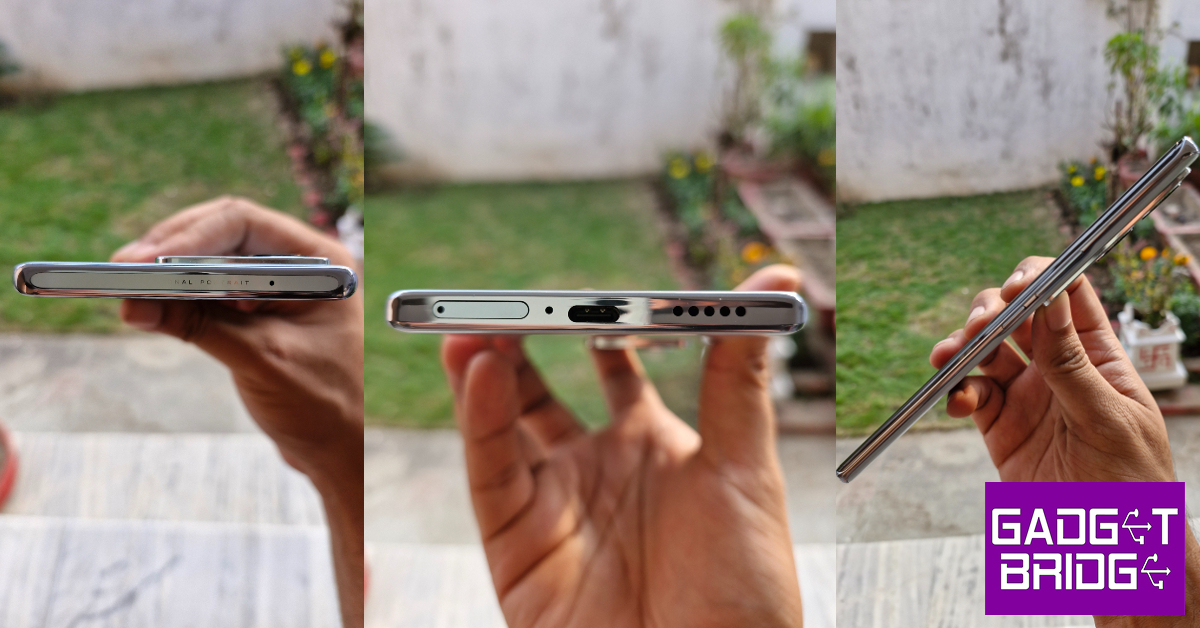
On most Android smartphones, the primary microphone is housed right next to the USB port at the bottom edge. The secondary microphone is present on the top edge of the frame.

Why is the microphone not working on my Android phone?

If you aren’t able to use the microphone on your Android phone, it is likely because you revoked the mic access and forgot about it. You can restore the former settings from the Privacy section in device settings. The mic also may not work if it is covered by the phone cover or if a significant amount of dirt has settled inside it.

Why is my mic not working during calls?

If your phone is connected to wireless headphones or TWS, its microphone will be disabled in favour of the mic on the audio device. Disconnect your phone from the earbuds to use the mic.

What to do if mic suddenly stops working?

If your phone’s mic suddenly stops working, perform a quick reboot to sort out the background issues causing this problem. Additionally, check that you have granted microphone access to your phone.

How do I revoke microphone access from all apps at once?

Go to Settings>Privacy and turn off the toggle switch for Microphone access.

Read Also: Top 7 Easy Methods to Fix the ‘Kindle Won’t Turn On’ Issue

Conclusion

These are the top 12 ways to fix the ‘Mic not working’ issue on your Android phone. If you can’t get the mic to work after trying the fixes mentioned in this article, the problem likely lies with your device’s hardware. Take your phone to an authorised repair centre for further diagnosis. If you know of any other ways to fix this problem, let us know in the comments!

How to See Who Viewed Your Video on Facebook

0

One of the most common questions that Facebook users have is if someone can view the videos posted on their profile. Users are also curious to know who visited their profile – a feature that will probably never make it to Facebook. A lot of people are less likely to watch content if they know a receipt will be sent to the person who posted it. Facebook Stories is the only place where the platform lets people know who viewed their stuff. Does the same go for Facebook Videos? Let’s find out.

Read Also: Top 10 Tech Gifts for Christmas (2023)

Is it possible to see who viewed my Facebook video?

There is no direct way to see who viewed your video on Facebook. What you can check is the number of times a video has been viewed. This view count can be found at the bottom right corner of the post. A video needs to be played for at least three seconds for a view to be counted. Once a video is uploaded to the platform, it may take some time for it to reflect the accurate view count. Check the video after a few hours to get a better idea of its view count. It may take some time for the platform to register an individual view.

Like the news feed videos, there is no way to check who viewed your Facebook Live video after the stream has ended. During the live stream, you can check out the live count of all the viewers as well as get to know who is watching. Simply go to the stream management page to view the list of people currently watching the broadcast. Facebook also sends you a notification when someone from your friend list tunes into the live broadcast.

There are a bunch of third-party apps that claim to tell you who visited your profile or viewed the videos uploaded on your Facebook profile. Do not trust these apps with your Facebook data. Once you install these apps, your device is at risk of being vulnerable to malware. Some scam artists may even get you to pay for the “feature” without offering anything in return.

How to check who viewed my Facebook Video?

How to check who viewed my Facebook Video?

There is one way that will let you know who viewed your Facebook video. You must be aware of how to check your Story viewers. Tapping the ‘Viewers’ option in the bottom left corner of a story presents the list of people who viewed it. This is the only place on the entire platform where you get the option to see who viewed your content. If you upload a small section of the video as a story, you will know who viewed it. Of course, this method doesn’t tell you who viewed the video on your profile, but you will get to know which people are now aware of the video. You can also post a link to the full video on your Story and check the viewers. While it may not be the ideal solution, it is the best tool you have at your disposal.

Frequently Asked Questions (FAQs)

Does Facebook let you see who viewed your video?

No, there is no option to see who viewed your video on Facebook. A lot of apps claim to reveal who viewed your content but their sole intention is to mislead you into watching ads or pushing malware on your device.

Can I see who viewed my Facebook live broadcast?

You can view the people who are tuned into your live broadcast from the stream management page but that information is rescinded as soon as your live stream ends.

How do I check who viewed my story?

Open a story and tap the view count at the bottom left corner to see who viewed it.

Read Also: OnePlus Pad Go Review: Works like a charm

Conclusion

This is how you can find out who viewed your Facebook video. Similar to how you can’t find out who viewed your video, other users have no way of knowing if you viewed their content. Even Facebook pages and content creators are not provided with special tools to check the viewers on their videos. The management tools let the creators know how many people their videos reached and the trajectory of their growth along with other insights. If you know of any other way, let us know in the comments!

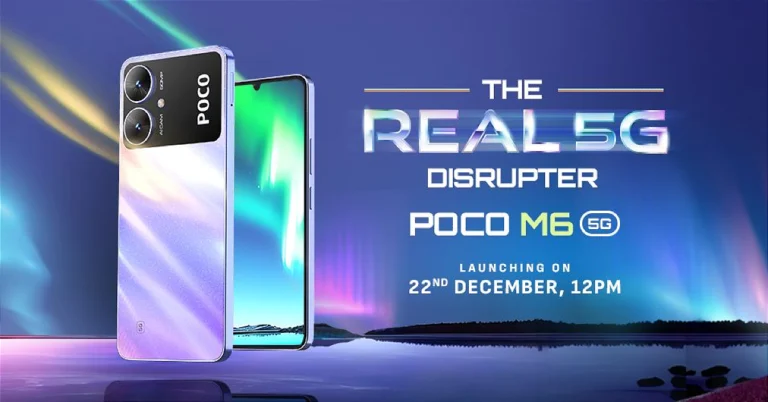
Poco M6 5G debuts in India, price starts at Rs 10,499

Key Highlights

  • Poco M6 5G has a 6.74-inch HD+ display.
  • The phone includes a 5,000mAh battery.
  • The device is powered by MediaTek Dimensity 6100+ SoC.

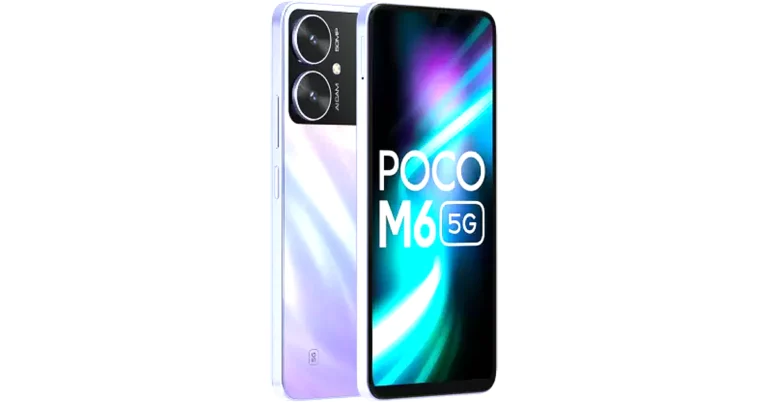
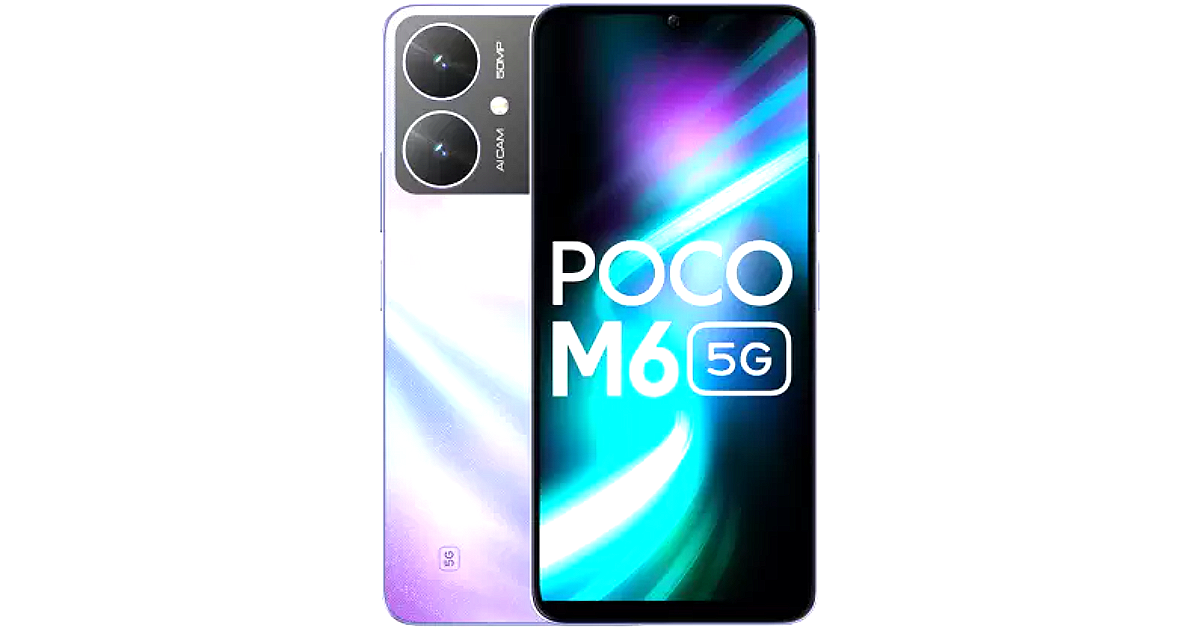
Poco M6 5G arrived in India today. The smartphone is a successor to Poco M5 and is a sibling to Poco M6 Pro 5G which launched in India in July this year. The smartphone operates on MIUI 14 on top of Android 13 out of the box. It is powered by MediaTek Dimensity 6100+ SoC. The device comes equipped with a 5,000mAh battery and a 90Hz HD+ display.

Poco M6 5G price in India, sale details

Poco M6 5G price in India starts at Rs 10,499 for the 4GB RAM with 128GB storage option. There are two more options 6GB RAM with 128GB storage priced at Rs 11,499 and 8GB RAM with 256GB storage at Rs 13,499. The device is being offered in two colours- Galactic Black and Orion Blue.

The Poco M6 5G will go on sale for the first time in India on December 26. The sale will be accessible via Flipkart starting at noon.

Poco M6 5G price in India, sale details

Customers can get the device at an exciting price of INR 9,499, INR 10,499 and INR 12,499 for the 4+128GB, 6+128GB and 8+256GB variants, respectively, after an INR 1,000 offer with ICICI Debit/ Credit cards/ EMI transactions or an equivalent product exchange offer.

Also Read: What to expect from CES 2024: All eyes on AI

Poco M6 5G specifications

The 6.74-inch HD+ display on the Poco M6 5G has a 1,600 x 720 pixels resolution. It supports a 90Hz refresh rate and a 180Hz touch sampling rate. The screen comes with a peak brightness of 600 nits, and 260ppi pixel density and is TÜV low blue light and flicker-free certified. Moreover, the display is protected with Corning Gorilla Glass 3.

Poco M6 5G runs on MIUI 14 with Android 13. It draws its power from MediaTek Dimensity 6100+ SoC with a Mali-G57 MC2 GPU. It comes with up to 8GB of LPDDR4X RAM and up to 256GB of UFS 2.2 storage. The RAM can be virtually expanded up to 8GB while the internal storage can also be further expanded up to 1TB using a microSD card.

The 5,000mAh battery comes packed inside the phone. The device supports 18W wired charging. For photos and videos, Poco M6 5G features a dual rear camera setup that includes an AI-powered 50-megapixel main sensor and another camera lens. There is a front-facing 5-megapixel selfie camera as well.

In terms of connectivity, there is 5G, 4G LTE, Wi-Fi 5, Bluetooth 5.3, GPS, and USB Type-C port for charging. The device comes with a side-mounted fingerprint sensor for phone unlocking.

Gadget Bridge Awards 2023: The biggest, best consumer technology and gadget awards nominations

In our triumphant 5th year of hosting the awards, we have seamlessly progressed from strength to strength! Our inaugural Consumer Tech and Gadget Awards in 2019 resonated with an overwhelmingly positive response, igniting the spark for what has now become an enduring tradition for Indian Gaming Awards globally. Originally conceived with the intent to acknowledge the epitome of excellence, Gadget Bridge Gadgets and Tech Awards have garnered immense admiration from industry promoters as we embark on our fifth consecutive year. The journey continues, and in 2023, we proudly present the 5.0 edition of the Gadget Bridge Awards (2023).

This year, witnessing flourishing businesses, we have perceived a proliferation of unique devices and technologies from diverse realms. Welcoming 2023 with renewed optimism, we extend our deepest gratitude to our unwavering supporters—our cherished readers, watchers, listeners, and well-wishers. Your steadfast support is the bedrock of our success, and we value every one of you.

Excitement peaks as we proudly declare ourselves the largest Consumer Tech Awards in Asia and across the entire planet. Featuring an extensive lineup of over 35 award categories in consumer technology, the Gadget Bridge Awards for 2023 promise to be an unparalleled spectacle. Despite the unusual circumstances, the year 2023 witnessed the release of several outstanding devices. Drawing inspiration from the previous year, my team and I have crafted an expanded list of 36 categories to encompass the evolving landscape of technology, ensuring that deserving innovators compete for top honours.

This year’s array of award categories is spectacular, with three special sections requiring your active participation in selecting the winners. Dear Gadget Bridge readers, watchers, and listeners, your voice matters in the Gadget Bridge People’s Choice Awards 2023. The voting is now live on GadgetBridge.com and our Twitter page across three distinct posts. Visit here, here, and here to cast your votes. The final tally, combining votes from Gadget Bridge Twitter and our Web/Mobile/App platforms, will determine the victors. Be sure to cast your votes by December 26, 2023, midnight IST.

Without further delay, we present the lineup of 36 categories, including the three where your votes decide—the #GadgetBridgeAwards23 People’s Choice.

Gadget Bridge Awards 5 (2023) Categories:

Best Smartphone Of The Year 2023

OnePlus Open

Vivo X90 Pro

Samsung Galaxy S23 Ultra

Xiaomi 13 Pro

Apple iPhone 15 Pro Max

  • Best Folding Smartphone Of The Year 2023

Best Folding Smartphone Of The Year 2023 - Gadget Bridge Awards 2023

OnePlus Open

Samsung Galaxy Fold 5

Samsung Galaxy Flip 5

Oppo Find N3 Flip

  • Best Budget Smartphone Of The Year 2023

Best Budget Smartphone Of The Year 2023 - Gadget Bridge Awards 2023

Realme 11X 5G

Redmi 12 5G

Moto G14

Nokia G42 5G

Samsung Galaxy M14

  • Best Mid-Range Smartphone Of The Year 2023

Gadget Bridge Awards 2023

Lava Agni 2

Nothing Phone 2

Realme 11Pro+ 5G

OnePlus Nord 3 5G

Oppo Reno 10

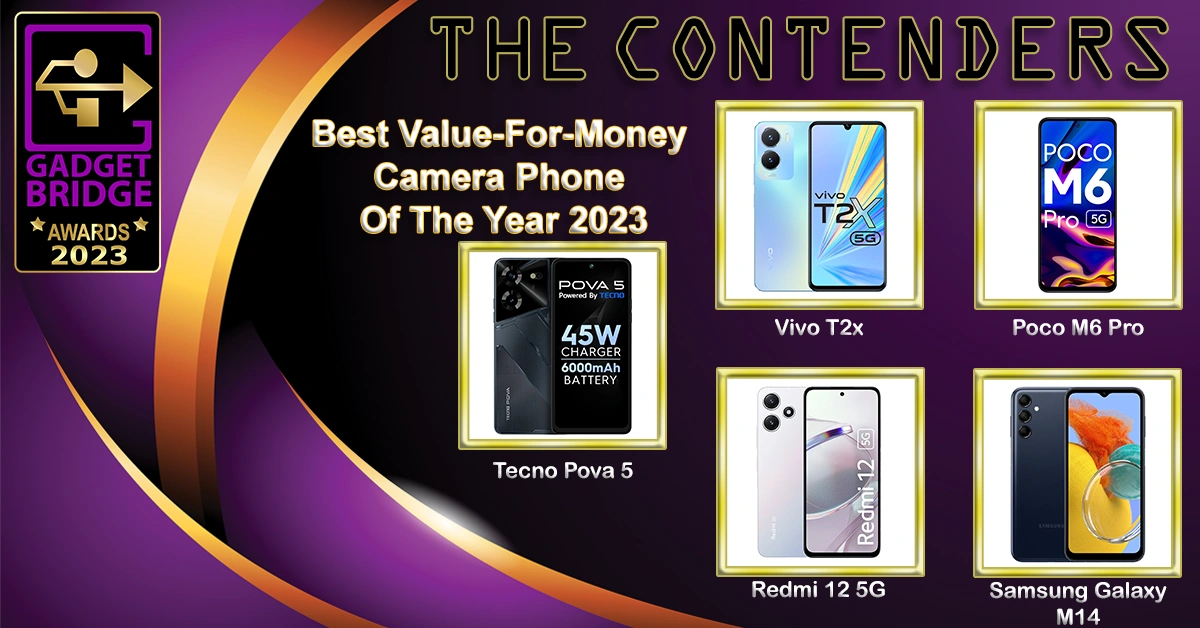
  • Best Value-For-Money Camera Phone Of The Year 2023

Value-For-Money Camera Phone - Gadget Bridge Awards 2023

Tecno Pova 5

Redmi 12 5G

Vivo T2x

Poco M6 Pro

Samsung Galaxy M14

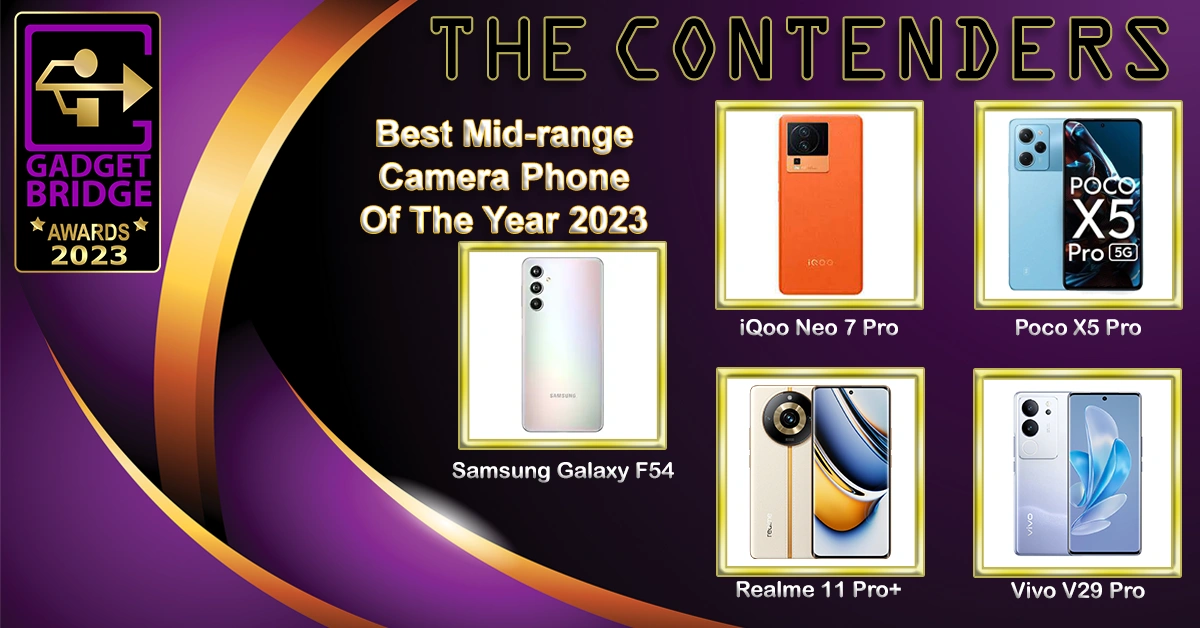
  • Best Mid-range Camera Phone Of The Year 2023

Mid-range Camera Phone - Gadget Bridge Awards 2023

Samsung Galaxy F54

Vivo V29 Pro

Realme 11 Pro+

iQoo Neo 7 Pro

Poco X5 Pro

  • Best Camera Phone Of The Year 2023

Camera Phone Of The Year 2023

Samsung Galaxy S23 Ultra

Vivo X90 Pro

Xiaomi 13 Pro

Google Pixel 8 Pro

OnePlus Open

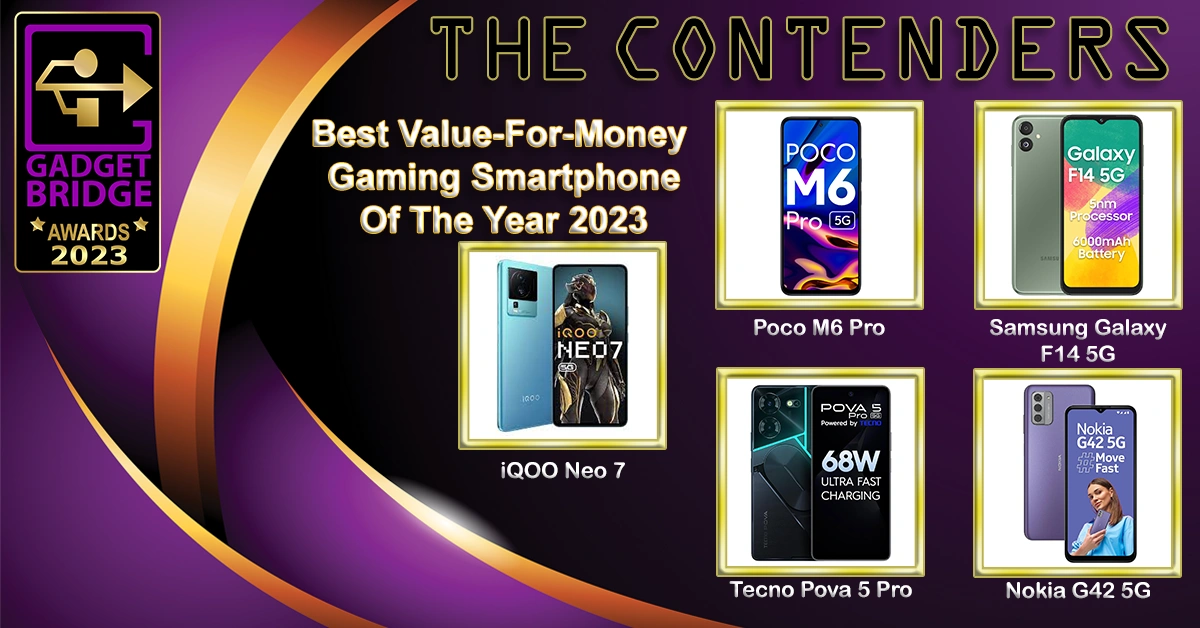
  • Best Value-For-Money Gaming Smartphone Of The Year 2023

Value-For-Money Gaming Smartphone

Poco M6 Pro

iQOO Neo 7

Samsung Galaxy F14 5G

Tecno Pova 5 Pro

Nokia G42 5G

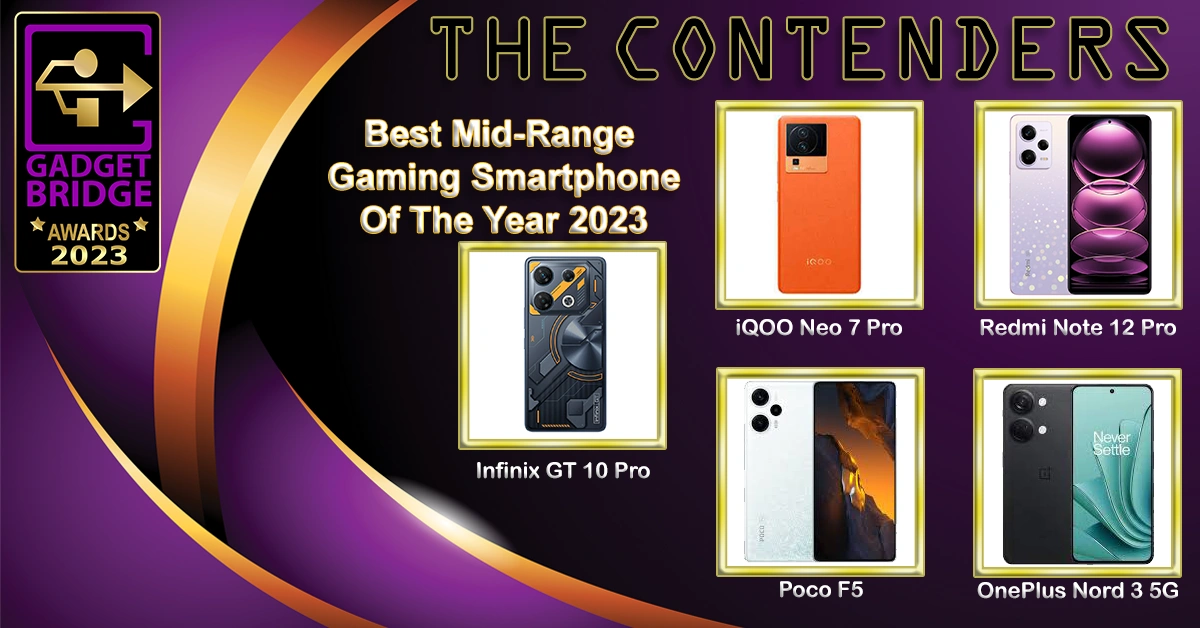
  • Best Mid-Range Gaming Smartphone Of The Year 2023

Infinix GT 10 Pro

iQOO Neo 7 Pro

Poco F5

Redmi Note 12 Pro

OnePlus Nord 3 5G

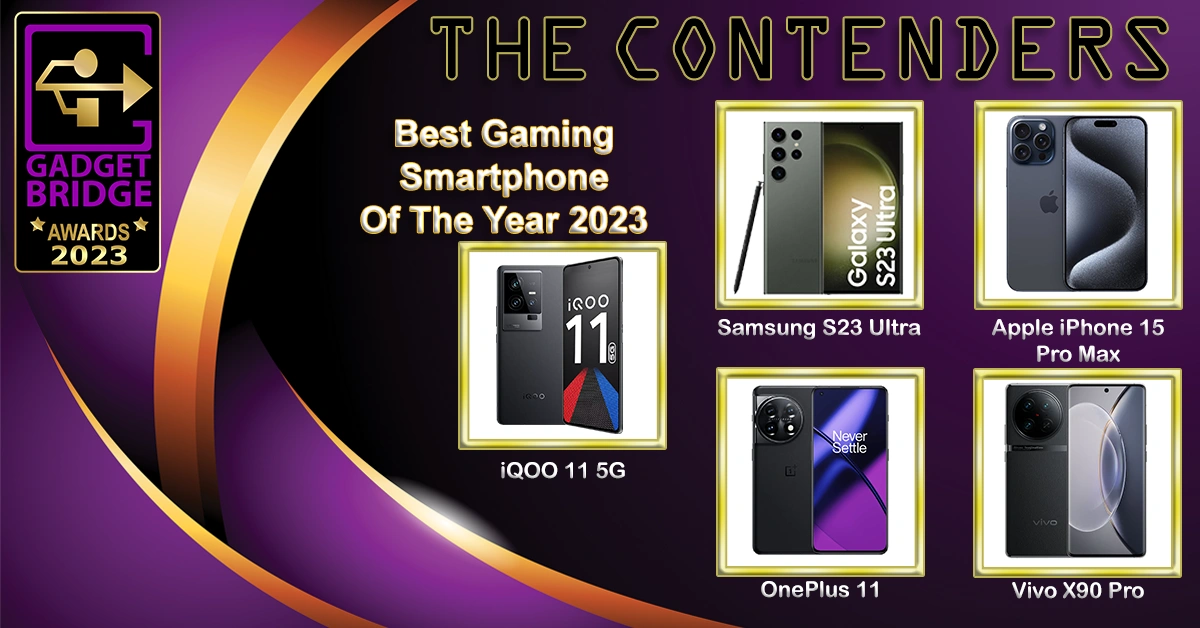
  • Best Gaming Smartphone Of The Year 2023

iQOO 11 5G

Samsung Galaxy S23 Ultra

Apple iPhone 15 Pro Max

OnePlus 11

Vivo X90 Pro

  • Best Selfie Smartphone Of The Year 2023

Apple iPhone 15 Pro Max

Samsung Galaxy S23 Ultra

Vivo V29 Pro

Google Pixel 8 Pro

Vivo X90 Pro

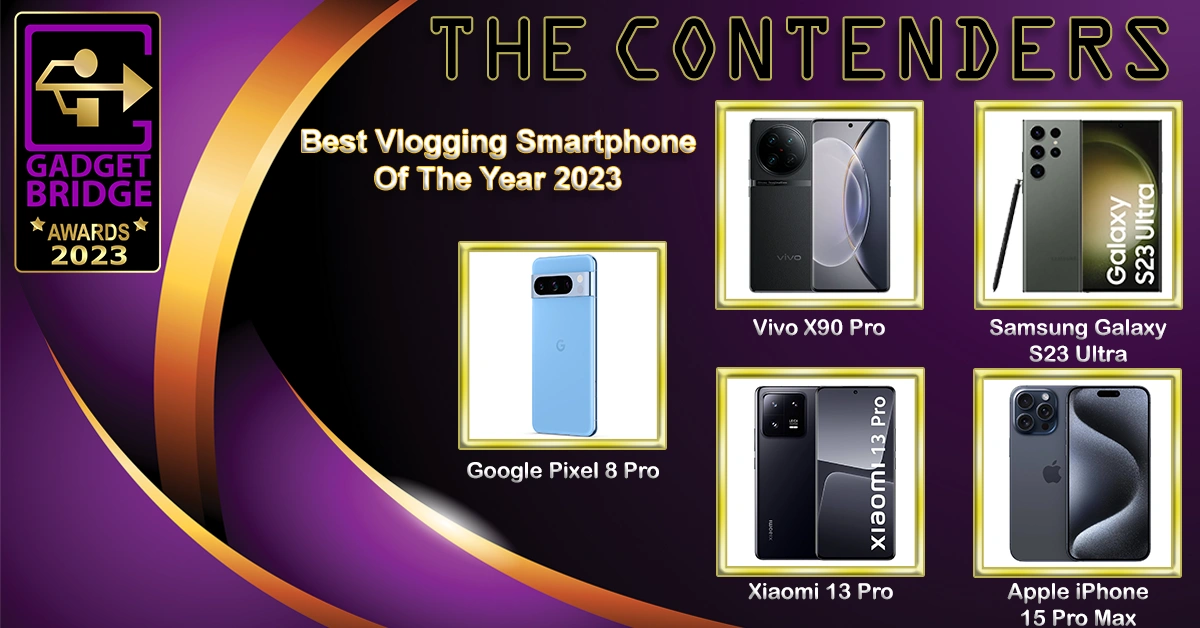
  • Best Vlogging Smartphone Of The Year 2023

Vlogging Smartphone

Samsung Galaxy S23 Ultra

Apple iPhone 15 Pro Max

Vivo X90 Pro

Google Pixel 8

Xiaomi 13 Pro

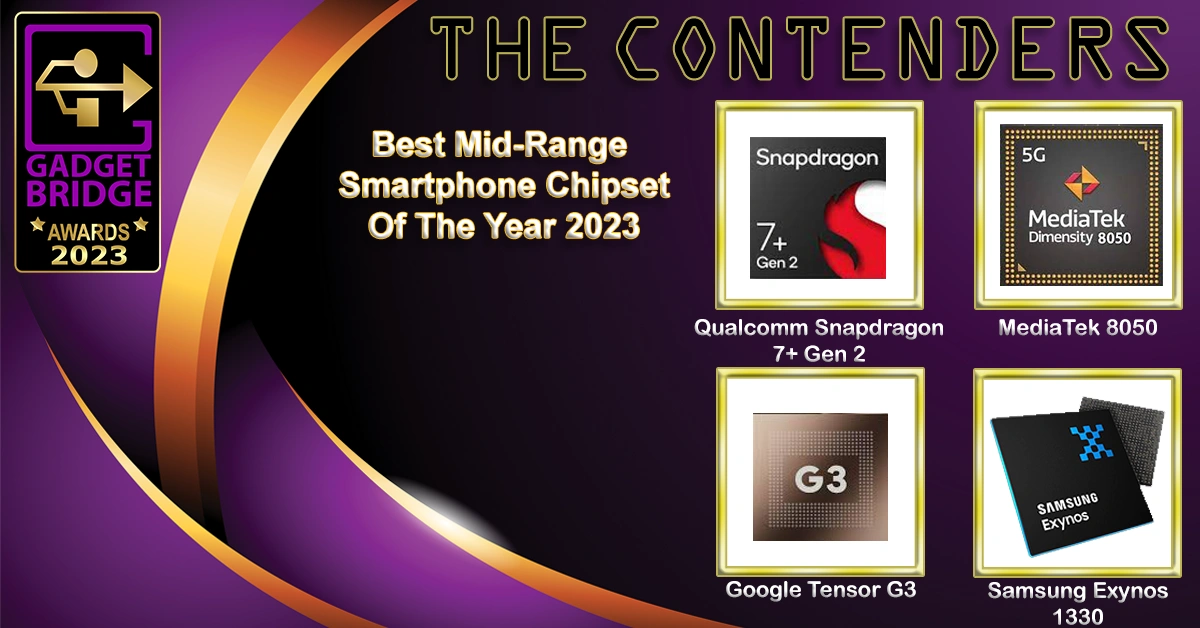
  • Best Mid-Range Smartphone Chipset Of The Year 2023

Qualcomm Snapdragon 7+ Gen 2

MediaTek 8050

Google Tensor G3

Samsung Exynos 1330

  • Best Premium Smartphone Chipset Of The Year 2023

Best premium Smartphone Chipset Of The Year 2023 - Gadget Bridge Awards 2023

Qualcomm Snapdragon 8 Gen 2

Apple A17 Pro

MediaTek Dimensity 9200+

  • People’s Choice Smartphone Of The Year 2023 

Samsung Galaxy S23 Ultra

Vivo X90 Pro

Apple iPhone 15 Pro Max

OnePlus Open

  • People’s Choice Gadget Of The Year 2023

Asus ROG Ally

Apple MacBook Air 15

HP E45c G5 Monitor

Samsung Galaxy Tab S9 Ultra

  • People’s Choice Brand Of The Year 2023 

Gadget Bridge Awards 2023

Samsung

Apple

Xiaomi

Vivo

  • Best Gadget Of The Year 2023

Gadget Bridge Awards 2023

OnePlus Open

Apple MacBook Air 15

Apple Watch Ultra 2

Samsung Galaxy Tab S9 Ultra

HP Pavilion X360

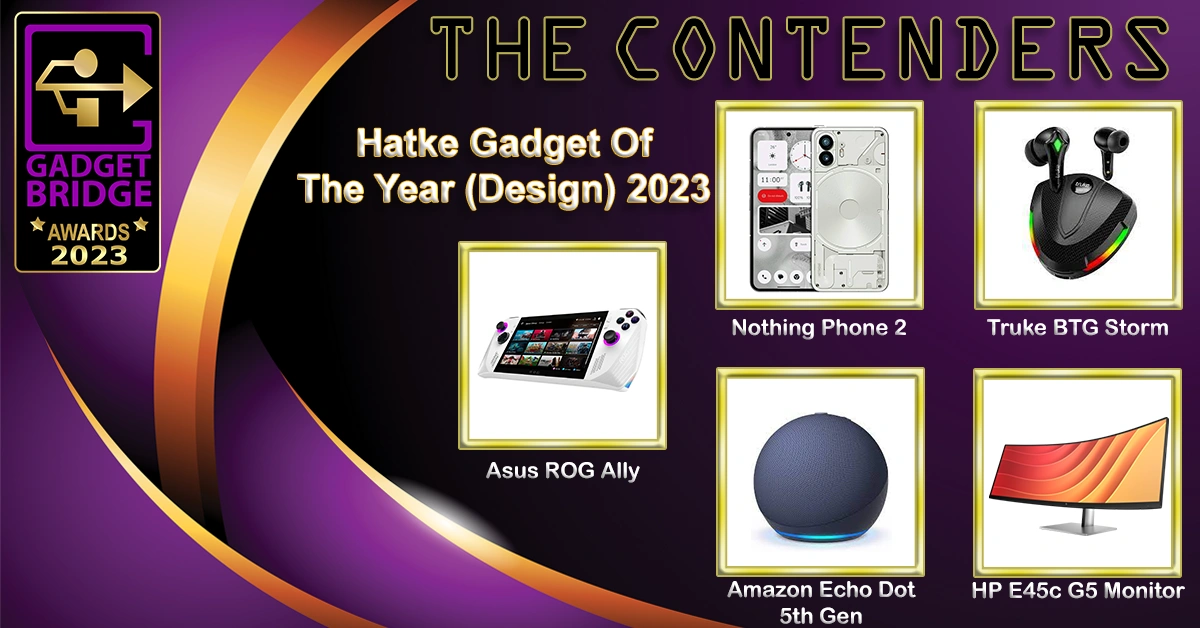
  • Hatke Gadget Of The Year (Design) 2023

Asus ROG Ally

Nothing Phone 2

Truke BTG Storm

Amazon Echo Dot 5th Gen

HP E45c G5 Monitor

  • Hatke Gadget Of The Year (Performance & Utility) 2023

Dyson Air Purifier Big + Quiet

Sennheiser Profile USB

Logitech MX Anywhere 3S

Xech Cerebro

Canon Powershot V10

  • Best Value-For-Money Laptop Of The Year 2023

Gadget Bridge Awards 2023

Acer Aspire Lite AMD

HP Chromebook 15.6 (2023)

Asus Vivobook Go 14

Lenovo IdeaPad Slim 3i

  • Best Mid-Range Laptop Of The Year 2023

Asus Zenbook 14 OLED (2023)

Asus Vivobook S15

Acer Swift Go AMD

HP Pavilion X360

  • Best Laptop Of The Year 2023

Gadget Bridge Awards 2023

Apple MacBook Air 15

Samsung Galaxy Book 3 Pro 360

Asus Zenbook 14 Flip OLED

HP Dragonfly G4

  • Best Mid-range Gaming Laptop Of The Year 2023

Asus TUF F15

Acer Nitro V

HP Victus 16

MSI Katana 15

  • Best Gaming Laptop Of The Year 2023

Acer Predator Helios 16

HP Omen 16

Lenovo Legion Pro 7 (2023)

Asus Strix Scar 17

  • Best Tablet Of The Year 2023

Best Tablet Of The Year 2023 copy

Samsung Galaxy Tab S9 FE

Samsung Galaxy Tab S9 Ultra

Xiaomi Pad 6

OnePlus Pad

  • Best Value-For-Money Smart TV Of The Year 2023

Redmi Smart Fire TV 43

Kodak CA Pro Series 55-inch

Blaupunkt QLED TV 55

Westinghouse 55-inch 4K TV

  • Best Mid-Range Smart TV Of The Year 2023

Acer I Series Google TV

Samsung Crystal Vision 4K

TCL P635 Pro

Thomson OPMAX 9033 4K TV

  • Best TV Of The Year 2023

Gadget Bridge Awards 2023

LG OLED G3

Xiaomi X Series 65

OnePlus Q2 Pro

Hisense Mini LED TV

  • Best Projector Of The Year 2023

Best projector Of The Year 2023 copy 2

Optoma UHZ50+

Optoma L1+

Viewsonic M1 Pro

BenQ V500i

  • Best Home Improvement Device Of The Year 2023

Home Improvement Device Of The Year 2023

Qubo Smart Door Lock Elite

Xiaomi Robot Vacuum Mop 2i

Mivi Fort S300

Amazon Echo Pop

Dyson V12s Detect Slim Submarine

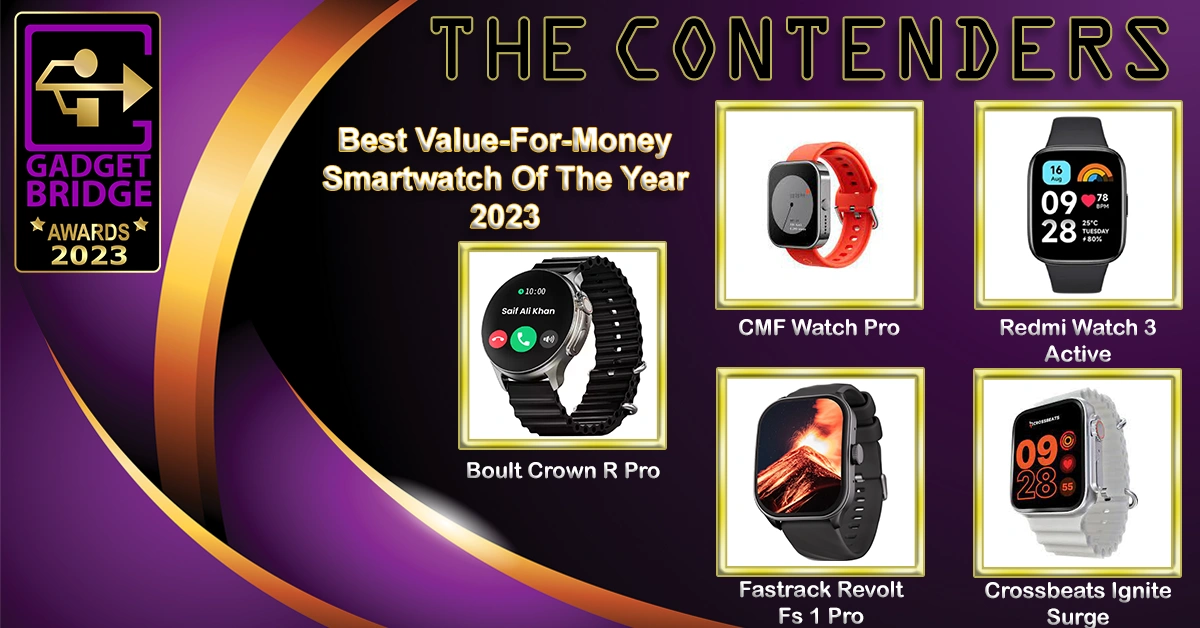
  • Best Value-For-Money Smartwatch Of The Year 2023

Best Value-For-Money Smartwatch Of The Year 2023 copy

Boult Crown R Pro

CMF Watch Pro

Redmi Watch 3 Active

Fastrack Revolt Fs 1 Pro

Crossbeats Ignite Surge

  • Best Premium Smartwatch Of The Year 2023

Premium smartwatch gadget bridge awards 2023

Apple Watch Ultra 2

Apple Watch 9

Samsung Watch 6 Pro

Titan Crest

  • Best Headphones Of The Year 2023

34 Best Headphones Of The Year 2023 gadget bridge awards 2023

Sony WH-CH720N

Sonic Lamb Headphones

Sennheiser HD 660S2

Audio Technica ATH-M50xBT2

Dyson Zone Absolute

  • Best Wireless Earphones Of The Year 2023

Best Wireless Earphones Of The Year 2023 - Indian Gadget Bridge Awards 2023

Nothing Ear 2

OnePlus Buds Pro 2

LG ToneFree Fit TF7

Sony WF-1000XM5

Redmi Buds 4 Active

  • Best PC/Laptop Accessory Of The Year 2023

pc laptop accessory of the year 2023 gadget bridge awards 2023

Logitech G Pro X Superlight 2

WD Blue SN580 NVMe SSD

ViewSonic VP16OLED

Asus ProArt Mouse MD300

What to expect from CES 2024: All eyes on AI

Key Highlights

  • CES 2024 will be hosted in Las Vegas.
  • It will begin on January 9.
  • Amazon, Asus, Dell, Google, Samsung, Sony, LG, Mercedes-Benz, Hyundai, NVIDIA, Intel, Qualcomm, AMD and more companies showed their innovations at the tech show.

The Consumer Technology Association (CTA) will host CES 2024 in the first week of January. In the second week of January, the Consumer Technology Association (CTA) will host CES 2024. The largest technology event in the world will bring together visitors, attendees, experts, and the press from all around the globe starting on January 9. We will engage with international brands from all over the world and witness the newest technological advancements as well as product releases.

The CES has served as a global platform for innovation, enabling companies to introduce breakthroughs on a global scale. The second week of January is when the Consumer Electronics Show will take place this year. It will be hosted in Las Vegas that will begin on January 9 at 8:30 a.m. PT. Annually, several firms like Amazon, Asus, Dell, Google, Samsung, Sony, LG, Mercedes-Benz, Hyundai, NVIDIA, Intel, Qualcomm, AMD, and others will showcase their products and initiatives. Artificial Intelligence will be the primary focus of this year’s tech exhibition.

Here is what you can expect from CES 2024:

We anticipate a few phones at CES 2024 this year. According to rumours, Samsung, a South Korean brand, may display the newest technology and features that will be included in the future Samsung Galaxy S24 Series. However, the phones’ other functions and design specifics won’t be revealed until they officially launch. On the other hand, OnePlus, Vivo, and Xiaomi will showcase their most recent flagship phones, the OnePlus 12, Vivo X100, and Xiaomi 14, respectively

In addition, Samsung might unveil its newest laptops, TVs, monitors, and much more. Samsung is currently working on implementing QD-OLED, the newest technology, for its forthcoming televisions. As it updates Television, LG is anticipated to follow suit and possibly incorporate QD-OLED technology.

However, the Japanese tech giant Sony, which sells a wide range of Bravia televisions and audio products, is also expected to launch televisions that are equipped with the recently enhanced Cognitive XR processor. We can also expect some PlayStation-related news from the company.

If you are a tech enthusiast or working in this industry you know that this year this year was greatly impacted by AI. Nothing new, but since Chat GPT launched, generative AI has advanced significantly in particular.

Also Read: OnePlus Pad Go Review: Works like a charm

At the Consumer Tech expo, Qualcomm will display all of its most recent flash chips, including the upcoming ones. This time, on-device AI computing will be the main focus.

On the other side, Intel will launch its AI-powered 14th-generation mobile chips.
At CES 2024, other significant firms like AMD and Nvidia will also showcase their computing capabilities.

Companies such as Lenovo, Acer, Asus, and others might release the newest gaming consoles, laptops, and monitors that are equipped with AMD’s Hawk Point and Intel’s Meteor Lake CPUs.

We may also see some AI-powered stuff from Amazon and more. It will present some new features coming to Alexa.

Stay Tuned to Gadget Bridge as we bring to you more fascinating news about the newest technological advancements showcased when CES 2024 begins.

8 Easy Methods to Fix the ‘Kindle Won’t Turn On’ Issue

0

The consensus on Amazon Kindle being the best e-reader in the market is pretty much unanimous. Its form factor, resolution, and e-ink technology make it the ideal reading device. Over the years, Amazon has built upon the product and added lots of exciting new features to it. You can even browse the internet on your Kindle and log your books to your Goodreads account directly from the device. Even though it is the complete product, your Kindle isn’t immune to malfunctions. Sometimes users report that the device comes to a grinding halt and refuses to restart. So, here are the top 8 easy methods to fix the ‘Kindle won’t turn on’ issue.

Read Also: Poco M6 5G Indian pricing leaked just before official announcement

Why is my Kindle not turning on?

If you can’t get your Kindle to turn on, there are three likely reasons behind it.

  • Your Kindle has run out of charge.
  • The corrupted files on the device are keeping it from turning on.
  • The battery is no longer functional.

9 times out of 10, your Kindle doesn’t turn on because of a lack of charge. This is the easiest problem to fix. However, dealing with a dead battery unit can be tricky. Most third-party vendors don’t know how to change the battery pack on a Kindle. The battery unit’s availability is another factor that makes this situation problematic.

While trying out the methods mentioned below, always press the power button for a good 10-15 seconds after every step. This is especially helpful when your Kindle has been stashed away for months. Make sure the charging port has not accumulated any dirt or dust particles. Blow some air on it to make sure it’s clean.

Charge your Kindle

Charge your Kindle

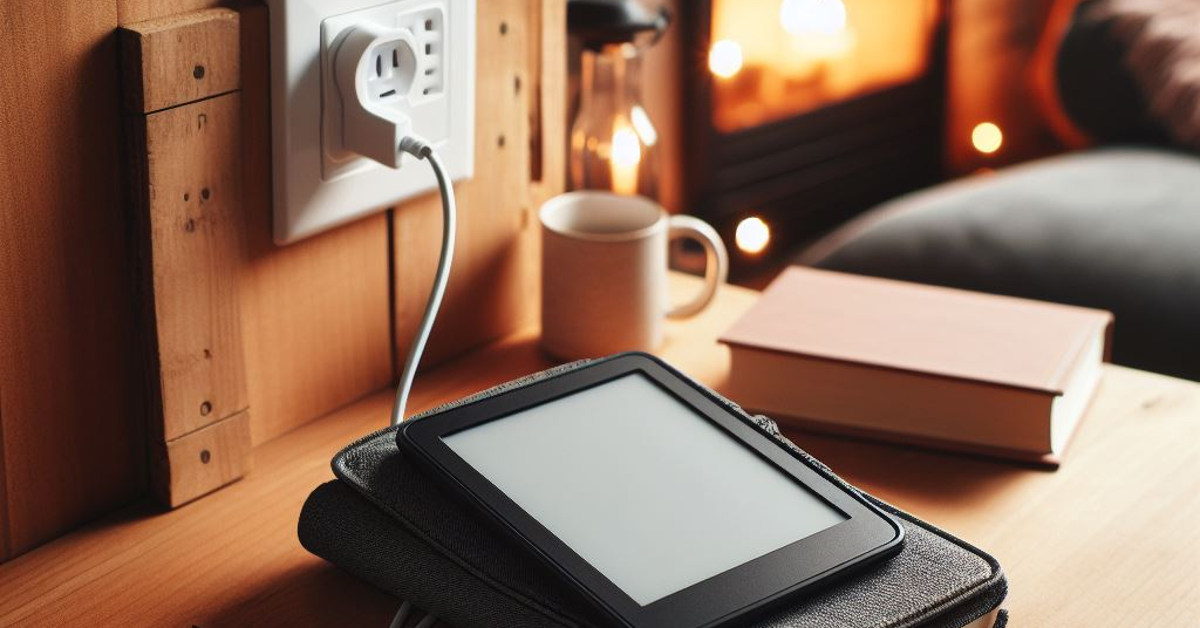
If your Kindle won’t turn on, it is likely because it is out of charge. The battery life on a Kindle is incredible, offering a minimum 7-day battery life even if you’re a voracious reader. When you don’t need to charge your device frequently, it is easier to forget that it has run out of juice. To turn on your Kindle, simply plug in its USB charger and wait for a few minutes for it to boot.

Connect the charger to a wall outlet

Connect the charger to a wall outlet

So, what happens if plugging in the charger does nothing? You can try charging your Kindle using a power adapter plugged into a wall outlet instead of your laptop. The latter trickle charges your Kindle while a proper power adapter can accomplish the feat rather quickly. Sometimes, the charge flowing into your device while it is connected to your laptop may not be enough to turn it on.

Check the power adapter and USB cable

Check the power adapter and USB cable

If connecting your Kindle to a proper charger doesn’t work either, you may need to inspect the adapter and charging cable separately. Connect the charger to your smartphone to check whether it’s working fine. Make sure you note the speed of the charge as well. If the charger doesn’t work for your phone, it is the likely culprit here. Try using a different cable and see if it works. If your Kindle still fails to charge, grab another power adapter and repeat the process.

Leave the Kindle to charge overnight

If your Kindle’s battery got depleted after sitting unused for months, it may take some time to turn on. Be patient after connecting it to a charger. After a few minutes, the battery symbol will appear on the screen. This symbol denotes that your Kindle is charging. Do not try to start your Kindle right away. Make sure it has charged to a sufficient level before pressing the power button. You may even need to leave it to charge overnight to gain the optimum battery level.

Delete corrupted files from your Kindle

Delete corrupted files from your Kindle

It is possible that a corrupt file may be keeping your Kindle from turning on. So, how do you delete the corrupted file in this situation? One thing you can do is connect your Kindle to your laptop and see if you can access its internal files. This is usually the case when the Kindle’s display is affected by the file in question. While you may not be able to see anything on the screen, you will be able to access the device’s library from your laptop. Go through the downloaded files and delete all suspicious items.

Update your Kindle

How to fix the yellow line issue on Amazon Kindle Coloursoft

If your Kindle keeps shutting down even though there’s enough charge on it, you may need to update its firmware to fix it. Go to Amazon’s software update page for Kindle and download the update for your model. Now, connect your Kindle to your PC using a USB cable and transfer the software update file to the e-reader. Disconnect your Kindle after the transfer has completed and go to Menu>Settings>Ellipses>Update your Kindle.

Perform a Factory Reset

Perform a Factory Reset

If your Kindle only turns on for a short period of time before turning off again, try resetting it to its factory settings. This will log you out of all accounts and delete all files on the device. Here’s how you can go about it.

Step 1: Go to Settings.

Step 2: Select Device Options.

Step 3: Tap on Reset.

Contact Amazon Support

If the problem lies with your e-reader’s battery, you will need to contact Amazon Support to get it replaced. It is very rare to find third-party vendors that can fix a Kindle. Going the official route for repairs is a good option anyway. To contact Amazon Support, go to Your Account>Contact Us and choose whether you want to chat with the support staff online or have them call you regarding the issue.

Frequently Asked Questions (FAQs)

Why is my Kindle not turning on and how do I fix it?

If you aren’t able to turn on your Amazon e-reader, it is likely because it has run out of charge. Connect it to a charger and try again.

Why won’t my Kindle turn on even after connecting it to a charger?

If your e-reader has been lying around unused for a while, it may take some time to start again. Be patient and let it charge for a good amount of time before initiating the start-up process.

How do you force a Kindle to turn on?

To force start your Kindle, press and hold the power button until the screen goes blank or a dialogue box appears on the screen. Keep holding the power button for another 40 seconds and then release it.

How do I check if my Kindle’s battery is dead?

If your e-reader keeps shutting down as soon as you unplug its charger, it means that its battery is dead.

How long does the Amazon Kindle’s battery last?

Amazon’s e-reader can last up to a week if you use it for 5-7 hours every day.

Read Also: Truke Clarity Six TWS Earbuds with Six-Mics Adv. ENC launched in India

Conclusion

These are the top 8 ways to fix the ‘Kindle won’t turn on’ issue. If you are forced to perform a factory reset on the e-reader as a last-ditch save, you can easily restore all your books and magazines from Amazon’s cloud library later. If you know of any other fixes to this problem, let us know in the comments!

Top 10 Tech Gifts for Christmas (2023)

Christmas is almost here, which means you should be done with shopping for gifts. But if you’ve been putting the task off for a later date, now would be the time to dust off your credit card and hop on Amazon to evaluate your options. Shopping for Christmas gifts can be hard, especially when you’re looking at tech products. It’s very easy to get confused while comparing spec sheets and wondering if you’re getting the best deal. Luckily, we’re here to hash out any confusion. Here are our picks for the top 10 tech gifts for Christmas.

Read Also: Truke Clarity Six TWS Earbuds with Six-Mics Adv. ENC launched in India

Apple iPhone 15 Pro Max

Price: Rs 1,59,900 on Apple.com

Rear

You can never go wrong by gifting your loved ones the best smartphone around. This year’s iPhone Pro models get some refreshing new changes. The most notable ones are the USB Type-C port and the action button. The latter replaces the ringer switch and brings a whole of customisation options for your iPhone. You can use this button to switch to a different sound profile, take a picture, launch an app, and other things. Read this article to learn how you can program the action button. Another cool thing about the iPhone 15 Pro Max is its titanium case. The presence of titanium brings more durability to the phone and also makes it a bit lighter! Read our full review of the iPhone 15 Pro Max here.

Logitech G Pro X Superlight 2

Price: Rs 15,495 on Amazon.in

Logitech G Pro X Superlight 2 Review: For elite gaming

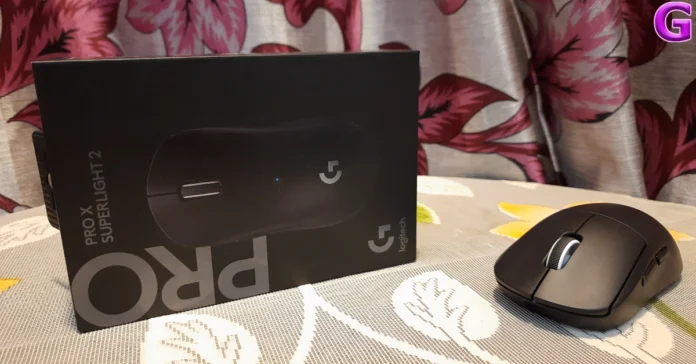
Logitech is one of the most trustworthy names in the world of gaming peripherals. Its newly released G Pro X Superlight 2 gaming mouse would make an excellent gift for a gamer buddy. This wireless gaming mouse weighs just 60 grams and features a very minimal, streamlined design. While reviewing the mouse, we really enjoyed the quick response offered by the new Lightforce switches. There is no click latency to be found and the PTFE feet underneath the mouse are ideal for fast-paced FPS games. The 32,000 DPI Hero 2 sensor on the Superlight 2 has a polling rate of 2,000 Hz. Get to know more about this mouse in our review.

Philips HSP3500 Indoor Security Camera

Price: Rs 3,599 on Philips.co.in

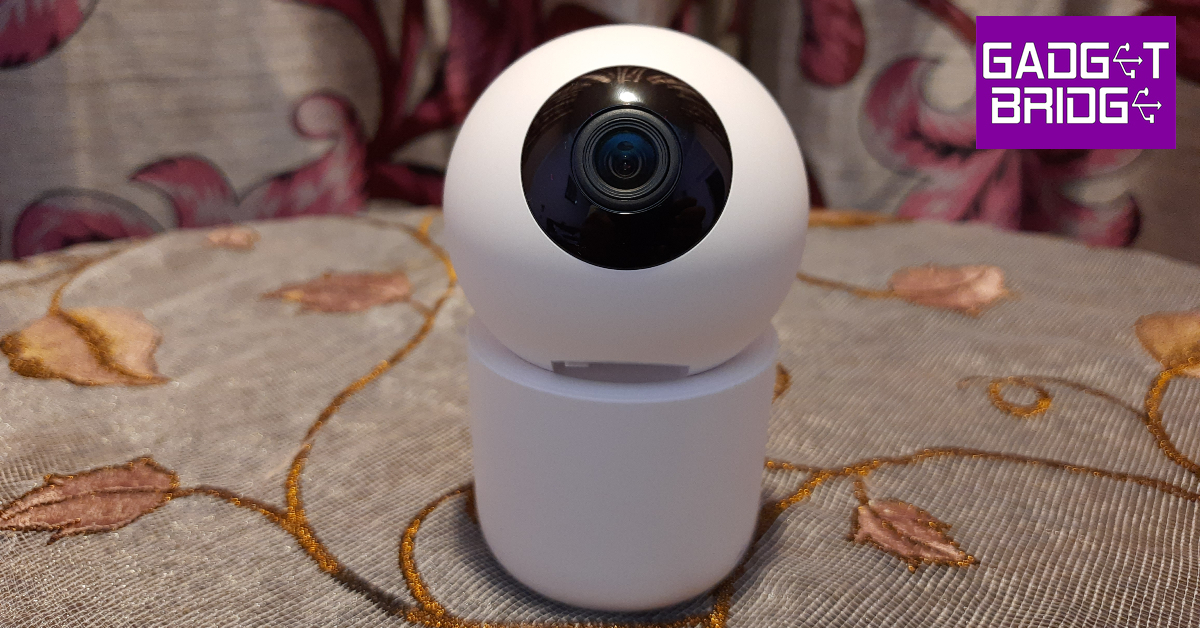
While buying an indoor security camera, you need to consider three things: ease of installation, clarity of footage, and the range of functions offered by the device. We reviewed the Philips HSP3500 in September and were pleased to see that it ticked all three boxes. Starting off with the installation process, the HSP3500 can either be fixed to the ceiling or placed on any flat surface. The round orb containing the 3MP wide-angle lens also has a USB Type-B port and a memory card slot. The HSP3500 can record videos in 2304 x 1296p resolution. Using its companion app, the security camera can be made to pan and tilt in any direction. You can tune into the live footage at any given time and even have two-way communication with someone on the other end. If you’re away, you can view the recorded highlights of movements near the camera’s vicinity. Certainly one of the best tech gifts you can give to someone this Christmas.

Samsung Galaxy Watch6 Classic

Price: Rs 36,999 on Samsung.in

Samsung Galaxy Watch6 Classic Review: A supreme health tracker that does not compromise on style

The Galaxy Watch6 brings back the crowd-favourite rotating bezel, adding a lot of style to its already-established performance chops. The Watch6 Classic may carry a hefty price tag, but it is also the Android smartwatch around, without a shadow of a doubt. With a new W930 SoC onboard, the Watch6 Classic is quicker, faster, and can handle anything you throw at it with ease. One of our favourite features of the One UI Watch 5 OS is that it allows you to use your Watch6 with multiple smartphones, without needing to clear the data. The health and fitness tracking features of the Watch6 are top-notch. We checked the Watch6’s SpO2 and heart rate measurements against medical-grade equipment and found them to be accurate. You can read more about the smartwatch in our review.

Dhwazz Digital Picture Frame

Price: Rs 11,999 on Amazon.in

Dhwazz Digital Picture Frame

This inexpensive digital photo frame would make a fine addition to any home. The Dhwazz digital picture frame is very accessible to elderly people who aren’t familiar with tech in general. If you want to make the gift more special, upload your favourite pictures with the loved one to the frame before gifting. These pictures can be put on a slideshow. The Frameo companion app for the digital frame can be used to manage the picture library and add new entries to it using your smartphone. The device easily connects to your home WiFi making photo management easier.

Sony WH-1000XM5

Price: Rs 27,990 on Amazon.in

Sony-WH-1000XM5-case

Considered by many to be the best wireless headphones around, the Sony WH-1000XM5 unsurprisingly carries a heavy price tag. What you get for the price is something that is unmatched by its competitors. The 8 microphones on the WH-1000XM5 along with the HD NC Processor Q1 work together to create state-of-the-art active noise cancellation. The Integrated V1 Processor holds everything together and delivers a thumping audio. You get up to 30 hours of playtime with the ANC turned on. With ANC turned off, the Sony WH-1000XM5 can last up to 40 hours on a single charge. Check out our review of these premium headphones here.

USB Hand Warmer

Price: Rs 399 on Amazon.in

USB Hand Warmer Top 10 Tech Gifts for Christmas (2023)

If you’re looking for a cute, thoughtful gift for a friend, this super adorable cat paw hand warmer takes the cake. Made out of ABS, this hand warmer offers heating on both sides. The material warms up in seconds, offering instant resistance from the surrounding cold. You can hold it in your hands and easily warm the surface of your palms within seconds. There are two temperature levels on this device (50°C and 55°C), which can be easily toggled with a handy switch. A single full charge can power the device for up to 360 minutes.

OnePlus Open

Price: Rs 1,39,999 on OnePlus.in

OnePlus Open performance Top 10 Tech Gifts for Christmas (2023)

Folding phones have been around for a few years, but OnePlus’ debut in this segment has been nothing short of a revelation. From the form factor to the operating system, the Open Plus looks like a complete product. The 6.3-inch cover display is very close to what you would find on a regular smartphone. But the 7.82-inch LTPO3 AMOLED display is where the magic happens. While reviewing the smartphone, we enjoyed the neat tricks embedded within the software. Working on two apps at once was a breeze. You can even add a third app to the mix to increase your productivity. With the Snapdragon 8 Gen 2 SoC on board, the OnePlus Open never seems to run out of power. Overall, the OnePlus Open is one of the best gifts you can give to a tech or smartphone enthusiast this Christmas.

CMF Buds Pro

Price: Rs 2,699 on Flipkart

CMF Buds Pro review: Design Top 10 Tech Gifts for Christmas (2023)

Nothing’s subsidiary brand CMF released a trio of interesting products this year. Targeting the budget category, these products offer a lot of value for the money. Our pick of the lot has to be the CMF Buds Pro. From the hockey puck design to the finely tuned soundstage, everything about these wireless earbuds is tasteful without being overindulgent. The matte finish on the charging case is a nice touch as well. Another great thing about the CMF Buds Pro is that they can be controlled with the Nothing X app, which is one of our favourite TWS companion apps. Learn more about these wireless earbuds in our review.

Maono DM30 USB Condenser Microphone

Price: Rs 3,999 on Amazon.in

Top 10 Tech Gifts for Christmas (2023)

If you’ve got a friend who loves to livestream but hasn’t gotten around to building a full streaming setup yet, a microphone would make an excellent Christmas gift for them! The Maono DM30 USB condenser is a great option that is well within budget. This USB microphone can be plugged into a PC, laptop, or even a smartphone if you’re on the go. The cardioid pickup pattern on this mic keeps the speaker’s voice in focus while efficiently cancelling out the surrounding noise. The audio input can be monitored in real time by plugging in headphones into the microphone. Read our review of the Maono DM30 to learn more.

Read Also: Poco M6 5G confirmed to launch in India on December 22

Conclusion

These are our picks for the top 10 tech Christmas gifts for your friends and loved ones this year. These gifts cover a diverse range of genres, segments, and price points. If you’re ordering them online, look out for year-end deals and Christmas discounts on the major e-commerce platforms. If you’re looking for something very niche, let us know what’s on your mind and we will recommend you a suitable product in the comments!

OnePlus Pad Go Review: Works like a charm

This year, OnePlus launched two new tablets, a more premium OnePlus Pad earlier in February and a OnePlus Pad Go a few weeks ago. This one is a more affordable tablet from the Chinese tech company priced around 20k. To meet the pricing, the corporation made several settlements. The OnePlus latest low-cost tablet is a must-have if you’re seeking a multimedia tablet for your children to use for online classes or office work without breaking the bank. So let’s see how good the OnePlus Pad Go tablet is for this price segment in our review.

OnePlus Pad Go Review: Design and Display

OnePlus Pad Go Review: Design and Display

So first let’s talk about the design aspect of this tablet. It is worth noting that there are many design similarities, especially with the camera module, which has a striking resemblance to the more expensive OnePlus Pad. In comparison to other tablets on the market, it is very lightweight due to its extremely slim chassis. Since this is a budget tablet, the fact that the bezels are not particularly tiny is understandable. They are positioned to provide you with the ideal amount of room to hold it without obstructing the screen on all sides. Overall, there is nothing wrong with this tablet.

The in-hand feel of the tablet is good and has a nice overall fit and finish. We appreciate that it has round curve edges since they make it much more comfortable to grip and use for extended periods. This tablet feels much lighter because of its excellent and balanced weight management.

OnePlus Pad Go Review: Design and Display

The volume rocker key is available on the right side of the frame. The antennas on both corners are also visible. There is a two-speaker grille and a USB Type-C port at the bottom. By the way, there is a quad speaker system; the other two speakers are on the other side at the top along with a hybrid SIM tray (two nano SIMs or one nano SIM and a micro SD card) and the power button. Unfortunately, unlike the more expensive OnePlus Pad, the OnePlus Pad Go lacks a stylus and isn’t compatible with the OnePlus keyboard; nevertheless, you may use any third-party keyboard.

OnePlus Pad Go Review: Works like a charm

The back panel has a meta chassis with a dual-tone finish and OnePlus is calling this Twin Mint. When the tablet is held horizontally, the centre of the device features a camera module with a shiny finish, and the company’s logo is located directly beneath it. There are some fingerprints and smudges drawn to the glossy part. Also, the positioning of the camera is perfect when you want to record in landscape mode and do video calling.

Moving on to the display, now OnePlus Pad Go comes with an 11.35-inch 2.4K LCD with 2,408 x 1,720 pixels of resolution. The screen features a 90Hz refresh rate, a 7.5 aspect ratio and a touch sampling rate of 180Hz. Furthermore, the panel has a pixel density of 220 ppi and a peak brightness of 400 nits. The display supports Dolby Vision and HDR10+ and is protected against blue light with TuV Rheinland filters.

OnePlus Pad Go

The display size is ideal when using a Word document or browsing the web. More information can be displayed on the screen due to the increased amount of vertical space available.

Regarding its audio, the tablet has a quad-speaker setup (as said) that is supported by Dolby Atmos. The resonance is top-notch and gives spectacular sound to any type of viewing.

OnePlus Pad Go Review: Performance and Cameras

The OnePlus Pad Go is powered by MediaTek Helio G99 octa-core SoC with Mali-G57 MP2 GPU. It will be available in Wi-Fi and LTE variants with up to 8GB LPDDR4X RAM with 256GB UFS 2.2 storage options. It operates on Android 13-based OxygenOS 13.1. The OxygenOS feels like a stock Android. There are no unwanted bloatware apps and overall users get a very smooth experience. 

Given that it is a tablet the operating system OxygenOS is kind of optimised for the tablet experience and comes with some extra capabilities like split screen, play through, and screen mirroring—features that are typically found on OnePlus devices. 

OnePlus Pad Go

The UI experience is more akin to that of OnePlus phones. Customising the lock screen and home screen is quite easy. There is an option called special features offering features like a Taskbar for seeing recently opened apps. In addition to this, there is a Split screen option for easy multitasking, flexible windows, dual windows and even more.

As we mentioned earlier the tablet supports screen mirroring, which mirrors your OnePlus device for quick access. The OnePlus cross-device function will allow you to copy and paste stuff from one device to another, manage Gallery, and open apps. The tablet also comes with all the Google App Suite and even Microsoft Office apps- Word, Excel and PowerPoint which we are pretty much sure most people are going to use.

OnePlus Pad Go is an excellent tablet available for watching movies and entertainment purposes. Full-resolution streaming of Netflix and Prime Videos is made possible via Widevine L1 certification. It features an excellent, sharp, and crisp display in addition to very outstanding sound quality, even while streaming over-the-top content. 

OnePlus Pad Go

By the way, the OnePlus Pad Go has one of the largest displays available in this price range, so it’s rather excellent in terms of visual experience. It performs well in terms of brightness levels. 

Because of the excellent, vivid, and colourful display, this tablet is primarily focused on multimedia. 

Also Read: OnePlus Pad review: The Android tablet we’ve all been waiting for!

The quad speakers with Dolby Atmos capabilities enhance the experience. The sound quality is outstanding and the performance is excellent for entertainment purposes. It’s amazing how well the instrument’s separation from the vocals is clear.  Also, the speakers adjust their position based on how the tablet is held giving you a completely immersive experience. 

Review of OnePlus Pad Go

However, the device lacks a fingerprint scanner and uses face unlocking. Therefore, one has to depend on the face unlock or PIN/pattern.   

Since the Helio G99 is not a performance-focused chip, its performance is kind of mediocre. Saying that it does a great job managing all your day-to-day tasks like browsing, using Word Documents and binge-watching well. The apps open instantly, multitasking is excellent and launching multiple apps and Windows functions flawlessly. Also, most recently used apps are always stored in memory. When compared to the OnePlus Pad, navigating between the apps and other features was not the best experience. Furthermore, OnePlus markets this one as an entertainment tablet rather than a performance tablet. So bear that in mind when purchasing.

When it comes to the aforementioned tasks, it does rather well; however, gaming is not its strong suit. Though we did play BGMI, the Helio G99’s performance is not suited for high-end gaming, hence it is not a gaming device. There were no lags or frame dropouts, and we were able to achieve roughly 30FPS. Thus, you will experience a weak performance if you plan to run a lot of high-end games and editing apps. 

Due to the tablet’s 4G connectivity and dialer application, calls can be placed and received using it. 

Now let’s talk about the cameras, here you get a single 8-megapixel sensor placed right at the rear centre and a front-facing 8-megapixel selfie camera. We did give it a quick test for WhatsApp and Google Meet. There was hardly any noise and the video quality was crystal clear and clean. Additionally, it features a wide viewing angle in case there are more participants in the video chat. Of course, this can be used for video calls, but tablets aren’t meant for taking pictures. The cameras are of very average quality however 1080p video may be recorded with both the front and rear cameras.

Also Read: Xiaomi Pad 6 Review: Is this the best midrange Android tablet around?

Let’s now talk about endurance. The OnePlus Pad Go packs an 8,000mAh with 33W SuperVOOC charging support. The 33W charger took about two hours to fully charge the tablet; there was no problem with the charging process. Though the charging speed is not the fastest available, this is still acceptable. We are also impressed with the battery’s endurance. It easily lasted us for 2-3 days with average to high usage. 

Verdict

The OnePlus Pad Go bridges the gap between high-end and low-cost tablets. Essentially, the multimedia experience is its primary focus, and it truly shines in that area. In terms of split screen, mirroring, copy and paste, gallery access, opening apps, and other functions, this OnePlus device is fairly good. 

Both the front and rear cameras produce average-quality photos, although the tablet camera’s primary function is making video calls. You also get a good battery life if you travel a lot and consume OTT content. 

OnePlus Pad Go is undoubtedly an excellent tablet if you’re looking for one for everyday use. For those who want a performance-oriented tablet, this is not the one to go for. The OnePlus Pad Go is one of the best available in the market in the mid to budget segment. 

Pros

  • Sleek metallic design
  • Good build quality
  • Crisp display 
  • Software experience is also good
  • Long battery life

Cons

  • Above average performance
  • Only 400 nits of peak brightness
  • Not a gaming tablet
  • Average camera performance

Lava Storm 5G powered by MediaTek Dimensity 6080 SoC launched in India

Key highlights

  • Lava Storm 5G features an IPS 2.5D display with a 120Hz refresh rate.
  • The phone comes with Android 14 out of the box.
  • The device includes a 5,000mAh battery with 33W fast charging support.

Indian smartphone brand Lava has announced the launch of a new budget smartphone- Lava Storm 5G. The newly arrived phone is powered by MediaTek Dimensity 6080 SoC. It features a 120Hz display and a 5,000mAh battery with 33W fast charging. The phone runs on Android 14 and includes a 50-megapixel dual rear camera setup. In addition to this, the phone also supports virtual RAM functionality.

Lava Storm 5G price in India, sale details

The Lava Storm 5G has been launched in India with a price tag of Rs 13,499. The device will be available in a single 8GB RAM with a 128GB storage option. However, the phone will be offered at an introductory price of Rs 11,999. The smartphone will go on sale from December 28 via Amazon and the company’s official website. The budget mobile phone will be offered in two colour options Black and Green.

Lava Storm 5G price in India, sale details

Lava Storm 5G specifications

Lava Storm 5G sports a 6.78-inch full-HD+ IPS 2.5D display with 1,080×2,460 pixels of resolution. The screen supports a refresh rate of 120Hz. Regarding software, the phone comes pre-installed with Android 14 out of the box. The company promised to provide two years of security updates on the device. Under its hood is a MediaTek Dimensity 6080 SoC with 8GB RAM and 128GB storage option. The device includes a virtual RAM expansion feature that allows you to expand the RAM up to 16GB using unused internal storage. The internal memory can be expanded up to 1TB using a microSD card.

Also Read: Poco M6 5G Indian pricing leaked just before official announcement

For the photos and videos, Lava Storm 5G boasts a dual rear camera setup that includes a 50-megapixel primary sensor with an 8-megapixel ultra wide-angle lens and an LED flashlight. In terms of selfies, the 5G phone features a 16-megapixel front-facing camera with screen flash.

The device has a side-mounted fingerprint sensor for authentication. It further includes an accelerometer, ambient light sensor, gyroscope, magnetometer, and proximity sensor. The smartphone is backed by a 5,000mAh battery which is claimed to offer up to 25 hours of talktime and up to 300 hours of standby time when fully charged. The phone also supports 33W fast charging tech. When it comes to connectivity the smartphone supports 5G, Wi-Fi 802.11 b/g/n/ac, Bluetooth 5, GPRS, OTG, a 3.5mm audio jack, GLONASS, and a USB Type-C port for charging.

Garena Free Fire Redeem Codes Today 22 December 2023: Here is how to claim them

Garena Free Fire is a battle royale game with regular awards and tournaments to keep players interested. If you play Garena Free Fire, you should be aware of the redeem codes that are released daily. However, because the battle royale game is banned in India, players from other countries can use the Free Fire Redeem codes daily. If you’re unfamiliar with the Garena Free Fire redeem codes or don’t know how to get them, we’ve put together a step-by-step guide to help you redeem them. Check out Garena Free Fire Redeem Codes for 22 December 2023.

The Free Fire redeem codes are a great way to get free stuff. These are 12-digit codes that contain alphabets and numbers, as well as an expiration date and time. Because the Garena FF redeem codes cannot be used more than once, you should hurry to the redemption page to claim your free reward before someone else does. To get a free reward, all you have to do is go to reward.ff.garena.com/en, which is the official redemption page. Also, keep an eye on this space for daily updates on Garena Free Fire redemption codes and rewards.

Garena Free Fire Redeem Codes Today 22 December 2023

MHM5D8ZQZP22
FFAC2YXE6RF2
FFCMCPSBN9CU
FFBBCVQZ4MWA

How to Get Free Fire Redeem Codes for Garena on 22 December 2023?

  • Visit the Garena Free Fire game’s official website at reward.ff.garena.com.
  • Use your Facebook, Google, VK, Apple ID, Huawei ID, or Twitter account to log in.
  • You’ll be taken to a valid redemption code (s)
  • Copy and paste the 12-digit redemption code into the text box.
  • On the screen, a dialogue box will appear.
  • ‘Ok’ should be selected.

For the latest gadget and tech news, and gadget reviews, follow us on TwitterFacebook and Instagram. For newest tech & gadget videos subscribe to our YouTube Channel. You can also stay up to date using the Gadget Bridge Android App. You can find the latest car and bike news here.

Poco M6 5G Indian pricing leaked just before official announcement

Key Highlights

  • Poco M6 5G is rumoured to be a rebadged variant of Redmi 13C 5G.
  • The price of the Poco phone has been leaked through the community page.
  • The handset will be powered by MediaTek’s Dimensity 6100+ SoC.

Poco M6 5G price in India has leaked just days ahead of the actual launch. The smartphone launch in the country is set for December 22. The handset is a sibling to the Poco M6 Pro 5G which was launched in July this year and is a successor to the Poco M5. Some of the specs and design details of the smartphone have already been revealed by the company through teasers and microsites. It will come with a dual rear camera setup with a 50-megapixel sensor. In addition to this, it is teased to be powered by MediaTek’s Dimensity 6100+ SoC.

It is confirmed that the Poco M6 5G will launch on December 22 in India. Just ahead of the official launch, the price of the smartphone has been revealed. MySmartPrice allegedly discovered a teaser that the business put on Poco Community, hinting that the next Poco M6 5G will cost Rs 9,4XX. This means that the upcoming phone will be priced below 10K. However, the company has now removed the teaser.

Also Read: Poco M6 5G confirmed to launch in India on December 22

Poco M6 5G has already been listed on the e-commerce platform Flipkart. The landing page has revealed that the upcoming phone will come in two colourways Orion Blue and Galactic Black. The smartphone is confirmed to be powered by MediaTek Dimensity 6100+ SoC. It features a dual rear camera system that will include a 50-megapixel primary sensor.

The device is rumoured to be a rebranded model of Redmi 13C 5G.

The Redmi 13C features a 6.74-inch HD+ LCD screen with 1,600 x 720 pixels of resolution. The display comes with a 90Hz refresh rate and 180Hz touch sampling rate support. The device is powered by MediaTek Dimensity 6100+ SoC with 8GB of LPDDR4X RAM and 256GB of UFS2.2 internal storage. The storage can be expanded up to 1TB using a microSD card. The phone boots Android 13-based MIUI 14 out of the box.

The device has a dual rear camera setup including a 50-megapixel primary camera (f/1.8 aperture) and a secondary sensor for collecting depth data while Portrait mode is in use. In terms of selfies, the company has provided a 5-megapixel camera with f/2.2 aperture.

Besides this, there is a 5,000mAh battery onboard with 18W charging support.

Connectivity options: 5G, Wi-Fi ac, Bluetooth 5.3, GPS, 3.5mm audio port, and a USB Type-C port.

Truke Clarity Six TWS Earbuds with Six-Mics Adv. ENC launched in India

Key Highlights

  • Truke Clarity Six TWS Earbuds will go on sale from December 26.
  • The device will be available at an introductory pricing in the beginning.
  • The earphones include 13mm Titanium Speaker drivers.

Truke, an Indian consumer electronics brand, has announced the launch of new TWS earbuds in India. The company has introduced Truke Clarity Six TWS Earbuds. The audio device is economically priced and features 13mm Titanium Speaker drivers. In addition to this, its six mics set-up supports ENC. The in-ear design earbuds have dual pairing options and are claimed to provide 80 hours of music playback. Besides this, the earphones include 3 Preset Equalizer Modes to offer a tailored listening experience.

Truke Clarity Six TWS Earbuds price in India and sale details

Truke Clarity Six TWS Earbuds have been launched in India with a price tag of Rs 1,499. However, the earbuds will be sold at an introductory price of Rs 1,299. The audio product will be available for purchase from December 26 onwards via leading e-commerce platforms Amazon and Flipkart along with Truke.in.

Truke Clarity Six TWS Earbuds price in India and sale details

Additionally, the firm provides 12 months of warranty and customers will be able to access 350+ active service centres nationwide, ensuring a seamless and premium after-sales experience.

Also Read: Truke BTG Neo Review: A feature-packed gaming TWS under Rs 1,500 

Truke Clarity Six TWS Earbuds specifications and features

Truke Clarity Six TWS Earbuds come equipped with 13mm Titanium Speaker drivers that are claimed to produce rich, high-fidelity sound with deep bass and clear treble. In addition to this, the device has a Game Mode which provides up to 35ms low latency for a responsive gaming experience with minimal delay in the audio output. The six mics setup on the True Wireless Earphones offers Advanced Environmental Noise Cancellation (Adv. ENC) technology.

There are 3 Preset Equalizer Modes- Dynamic, Movie and Bass Boost that allow users to customise audio as per their preferences and enjoy optimised listening for various music genres or content types. For hands-free voice assistance, the TWS supports Google Assistant and Apple Siri.

Also Read: Truke Clarity Five TWS Review: Great sound quality

The Truke Clarity Six can deliver playtime of up to 80 hours with the charging case. In addition to this on a charge it can last up to 10 hours. The product comes with advanced Bluetooth 5.3 technology and 1-Step Pairing Technology. For easy pairing, open the case, and the earbuds automatically connect to the device.

Lastly, the dual-connectivity feature allows users to effortlessly switch between two devices.

Poco M6 5G confirmed to launch in India on December 22

Key Highlights

  • Poco M6 5G will debut in India on December 22.
  • The smartphone will come with a dual rear camera setup.
  • The device will be powered by MediaTek Dimensity 6100+ SoC.

A few months ago Poco India introduced the Poco M6 Pro 5G in India. The company is now all set to announce its sibling Poco M6 5G very soon. The official teasers have revealed the design of the upcoming phone. In addition to this, the company has also created a dedicated page which highlights the key features of the smartphone. The device is said to be a rebranded variant of Redmi 13C 5G which arrived in India this month.

Poco took to X to announce the launch date of its upcoming smartphone in India. According to the company’s announcement, the Poco M6 5G will debut in India on December 22. The launch event will begin at noon in the country. The company has also created a dedicated launch event page on Flipkart to tease the availability of the device post-launch.

The design of the smartphone is being showcased before the actual launch. In addition to this, the Poco M6 5G can be seen donned in two colour options silver and charcoal black. The back panel has a huge camera module consisting of two camera sensors.
The landing page also revealed that the Poco smartphone will be powered by MediaTek Dimensity 6100+ SoC.

Apart from this, rumours suggest that the upcoming phone will be a rebranded variant of Redmi 13C 5G which debuted in India this month.

Also Read: Poco M6 Pro 5G is now available in a new 8GB RAM with 256GB storage variant in India

If rumours are to be believed then Poco M6 5G will feature a 6.74-inch HD+ LCD screen with 1,600 x 720 pixels of resolution. The display might support a 90Hz refresh rate and 180Hz touch sampling rate. The phone is likely to be powered by MediaTek Dimensity 6100+ SoC and will run on Android 13-based MIUI 14 out of the box.

The dual rear camera setup on the phone may include a 50-megapixel primary camera (f/1.8 aperture) and a secondary sensor for collecting depth data while Portrait mode is in use. In terms of selfies, the company has provided a 5-megapixel camera with f/2.2 aperture.

Also Read: Poco M6 Pro 5G Review: One of the best affordable 5G smartphones 

Moreover, a 5,000mAh battery with 18W charging support is expected to be housed inside the Poco M6 5G.

Connectivity options: 5G, Wi-Fi ac, Bluetooth 5.3, GPS, 3.5mm audio port, and a USB Type-C port.

Garena Free Fire Redeem Codes Today 21 December 2023: Here is how to claim them

Garena Free Fire is a battle royale game with regular awards and tournaments to keep players interested. If you play Garena Free Fire, you should be aware of the redeem codes that are released on a daily basis. However, because the battle royale game is banned in India, players from other countries can use the Free Fire Redeem codes daily. If you’re unfamiliar with the Garena Free Fire redeem codes or don’t know how to get them, we’ve put together a step-by-step guide to help you redeem them. Check out Garena Free Fire Redeem Codes for 21 December 2023.

The Free Fire redeem codes are a great way to get free stuff. These are 12-digit codes that contain alphabets and numbers, as well as an expiration date and time. Because the Garena FF redeem codes cannot be used more than once, you should hurry to the redemption page to claim your free reward before someone else does. To get a free reward, all you have to do is go to reward.ff.garena.com/en, which is the official redemption page. Also, keep an eye on this space for daily updates on Garena Free Fire redemption codes and rewards.

Garena Free Fire Redeem Codes Today 21 December 2023

F6U7ITKJGYUJF6YU

FVYHFT6HYJT67LYP

FDYHGBNE5RDTGE87

FRJNTR67UH675Y4E

FKJIT67UWEYHT4H4

FUTYJT5I78OI5CF2

FUKTY7UJIE56RYHI

FBVFTYJHR67UY4IT

FKY89OLKJFH56GRG

FV7CYTGDRTUNMJEK

FYHJMKRT76HYR56C

F6Y6FHRTJ67YHR57

FTDRU7HY5R6FEDG3

FYHJTY7UKJT678U4

FTGBHDTRYHB56GRK

FYH6JY8UKY7JYGFH

FRYHGVTWFBUE45HS

FOGFUYJN67UR6OBI

How to Get Free Fire Redeem Codes for Garena on 21 December 2023?

  • Visit the Garena Free Fire game’s official website at reward.ff.garena.com.
  • Use your Facebook, Google, VK, Apple ID, Huawei ID, or Twitter account to log in.
  • You’ll be taken to a valid redemption code (s)
  • Copy and paste the 12-digit redemption code into the text box.
  • On the screen, a dialogue box will appear.
  • ‘Ok’ should be selected.

For the latest gadget and tech news, and gadget reviews, follow us on TwitterFacebook and Instagram. For newest tech & gadget videos subscribe to our YouTube Channel. You can also stay up to date using the Gadget Bridge Android App. You can find the latest car and bike news here.

Best Phones for Online Games in India

Online gaming is a popular and thrilling kind of entertainment in India, particularly among the young and tech-savvy population. Online gaming includes a wide range of genres, modes, and platforms, including action, adventure, strategy, multiplayer, mobile, PC, console, and so on. However, it requires a significant amount of resources, like internet speed, battery life, storage space, and processor power. As a result, online gamers want the best range of devices to fulfil their gaming demands and preferences, as well as to improve their gaming experience and performance.

In this article, we will look at four of the best phones for online gaming in India, that belong to different brands, models, and price ranges, but share the same passion and ambition for casino apps and online gaming.

Google Pixel 7a

The Google Pixel 7a is a smartphone that is designed by Google, one of the most innovative and influential tech companies in the world. The Google Pixel 7a is a smartphone that offers a lot of features and benefits for online gaming, such as:

  • Display: The Google Pixel 7a sports a 6.2-inch OLED display with a high resolution, fast refresh rate, and high brightness that may provide a dazzling and seamless visual experience for online gaming. The Google Pixel 7a also sports a punch-hole design, which reduces bezels and increases the screen-to-body ratio, allowing for a more immersive and engaging gaming experience.
  • Performance: The Qualcomm Snapdragon 765G CPU in the Google Pixel 7a provides excellent speed, efficiency, and performance, allowing it to manage any online game with ease and elegance. The Google Pixel 7a also boasts 6GB RAM and 128GB storage, which provides ample memory and storage capacity to handle several programs such as online games without lag or malfunction.
  • Battery: The Google Pixel 7a features a 4500 mAh battery that provides excellent power and endurance and can continue for an extended period without interruption or worries. The Google Pixel 7a also offers a fast charging capability, which allows the battery to be charged quickly and easily, saving time and effort.

Read Also: Poco F5 Review: Almost flagship-level performance in a budget

Samsung Galaxy A53 5G

The Samsung Galaxy A53 5G is a smartphone that is designed by Samsung, one of the most popular and trusted tech brands in the world. The Samsung Galaxy A53 5G is a smartphone that offers a lot of features and benefits for online gaming, such as:

  • Display: The Samsung Galaxy A53 5G features a 6.5-inch Super AMOLED display with a high resolution, fast refresh rate, and strong contrast to provide a vibrant and seamless visual experience for online gaming. The Samsung Galaxy A53 5G also features an Infinity-O design, which reduces the notch while increasing the screen-to-body ratio, allowing for a more immersive and engaging gaming experience.

    Performance: The Samsung Galaxy A53 5G is powered by a MediaTek Dimensity 720 processor, which provides excellent speed, efficiency, and performance, allowing it to tackle any online game with ease and elegance. The Samsung Galaxy A53 5G also boasts 6GB RAM and 128GB storage, which provide ample memory and storage capacity to run various programs and games without any lag or delay.

  • Battery: The Samsung Galaxy A53 5G has a 5000 mAh battery, that offers high power and a high endurance, that can last for a good time for gaming.

POCO F5

The POCO F5 is a smartphone that is designed by POCO, one of the most affordable and powerful tech brands in the world. The POCO F5 is a smartphone that offers a lot of features and benefits for online gaming, such as:

  • Display: The POCO F5 has a 6.7-inch AMOLED display, that offers a high resolution, a high refresh rate, and a high contrast, that can deliver a vibrant and smooth visual experience for online gaming. The POCO F5 also has a punch-hole design, that minimizes the bezels and maximizes the screen-to-body ratio, which can offer a more immersive and engaging gaming experience.
  • Performance: The POCO F5 has a MediaTek Dimensity 1100 processor, that offers a high speed, a high efficiency, and a high performance, that can handle any online game with ease and grace. The POCO F5 also has 8GB RAM and 256GB storage, which offer high memory and a high capacity.
  • Battery: The POCO F5 has a 4500 mAh battery, that offers high power and a high endurance, that can last for a long time without any interruption or worry. The POCO F5 also has a fast charging feature, that can charge the battery quickly and conveniently, which can save time and hassle.

Conclusion

Online gaming is a popular and thrilling kind of entertainment in India, particularly among the young and tech-savvy population. The smartphone is one of the most popular and handy gadgets for online gaming since it allows gamers to play at any time, from any location, and with anybody. These phones provide several advantages and benefits for online gaming, including high resolution, high refresh rate, high performance, high power, and high quality.

Google Maps for India gets AI-powered features, now supports Lens and Live view

Key Highlights

  • Google introduced Lens in Maps and Live View Walking Navigation to its mapping service in India.
  • The company will also enable fuel-efficient routing for the users in the country.
  • Google Maps also added Address Descriptors.

An update to Google Maps for India will bring AI-powered capabilities. The update brings new features like Lens in Maps, Live View Walking Navigation, fuel-efficient routing and address descriptors. In addition to this Google has also partnered with ONDC and Namma Yatri to help digitise public transport at scale.

Miriam Karthika Daniel, VP – Google Maps Experiences, elaborated on the company’s priorities for the country, saying, “AI has accelerated our ability to build solutions that can scale to the diversity and complexity of a country like India. As we look to the future of Google Maps, we’re committed to building a map that helps people go from knowing about a place to truly experiencing it. We’re also focused on catering to India’s diverse mobility needs, from sustainable journeys to public transport. We are delighted to partner with ONDC and Namma Yatri to enable a more digitised public transport experience accessible to all users. India is rapidly transforming, and at Google Maps, and we are excited by the opportunities ahead of us.”

Lens in Maps
Lens in Maps

Google Maps for India is adding live view walking, Lens in Maps, and other features to Google Maps Street View. These features are made possible by advanced AI and AR technologies. The lens in Maps is to help users quickly identify useful information about nearby cafes and restaurants, including details like opening hours, ratings, reviews, and images, by just pointing the camera down a street. Whereas the live view walking will assist users in quickly figuring out which way to head by seeing arrows, directions, and distance markers overlaid on the Maps screen.

Also Read: Best Camera Phone Of The Year 2023: Our recommendations

Live View Walking Navigation

Along with improvements for train travel and public transport, Maps will now support local trains in Mumbai and Kolkata thanks to the Where Is My Train feature. It will provide real-time train locations, schematic maps, platform numbers and more, with additional cities coming soon.

Also Read: Legion Tower 5i and LOQ Tower Gaming desktops and more launched in India

Google has also introduced Address Descriptors that makes it easier for users to make it easier for users to identify locations based on landmarks. When you drop a pin while sharing a location Google Maps uses a combination of machine learning signals to identify up to five of the most relevant landmarks and display the landmark reference.

fuel-efficient routing

Google has also announced the new fuel-efficient routing feature coming to India to help people make more sustainable choices across two-wheelers and four-wheelers. Maps will determine the route that uses the least amount of fuel.

The company is going to roll out this feature for two-wheelers in India and Indonesia.

Top 3 Ways to Recover and Access Your Old Hotmail Account

0

If you’re an older millennial, you must remember signing up for AOL or Hotmail back in the early 2000s. If you want to go on a nostalgia trip, you should go through your old email inbox. Unfortunately, Hotmail isn’t around anymore, after being discontinued in 2013 and being rebranded to Outlook. But there still may be a way to access your old emails. Today, we bring you the top 3 ways to recover and access your old Hotmail account.

Read Also: Apple Arcade to add three new titles to its library

What happened to Hotmail?

Acquired by Microsoft in 1997, Hotmail was one of the biggest email service providers of the early 2000s. In 2005, Microsoft integrated it with its Windows Live suite of products. Fast forward 7 years, in 2012 Microsoft decided that another rebrand was necessary. Most Windows Live products were assimilated with the Windows OS. These products became the ‘apps’ on Windows 8 and 10.

As a part of this rebranding, Hotmail was renamed to Outlook. But there was one catch. While existing Hotmail users were allowed to retain their email addresses, new users could not sign up for an email account using the hotmail.com domain name. Outlook added new features to the existing Hotmail architecture and continues as Microsoft’s primary email client to this day.

Use Microsoft’s Account Recovery Form

Use Microsoft’s Account Recovery Form

For this method to work, two-step authentication needs to be activated on your account.

Step 1: Launch the web browser on your PC and go to this page to access the Microsoft Account Recovery Form.

Step 2: Enter your Hotmail email address in the first field and your current email in the second field.

Step 3: Enter the CAPTCHA and hit Next.

Once you have submitted all the details, Microsoft will let you know the recovery process within the next 24 hours.

Use Outlook to access your Hotmail account

Use Outlook to access your Hotmail account

You can access your old Hotmail account by linking it to Outlook. Here’s how.

Step 1: Launch Microsoft Outlook on your PC.

Step 2: Click on File and select Add Account under Account Information.

Step 3: Enter your Hotmail email address and password.

Your Hotmail account will be linked to Outlook. You can access it from the sidebar.

Read Also: Top 5 Easy Ways to Access the Clipboard on Your iPhone

Use Gmail to access your Hotmail account

Use Gmail to access your Hotmail account

Step 1: On your PC, log into your Gmail account.

Step 2: Hit the gear icon at the top right corner of the screen and select See all settings.

Step 3: Switch to the Accounts and Import tab.

Step 4: Click on Import from another address.

Step 5: Sign into your Hotmail account and follow the onscreen instructions to import your emails.

It will take some time to load all of your Hotmail emails, but once the process is finished, you will be able to access them from the sidebar.

Frequently Asked Questions (FAQs)

Is Hotmail no longer active?

Hotmail was Microsoft’s email service from the early 2000s, which was discontinued in 2013. The process of phasing out the email client first began in 2011. Hotmail was later migrated into Outlook.

Is there a way to recover my Hotmail account?

You can use Microsoft’s Account Recovery Form to recover your Hotmail account. However, for this to work, two-step authentication must be enabled on your account.

Where can I access my old Hotmail emails?

You can import your old Hotmail emails to its new avatar Outlook or your Gmail account.

Read Also: 7 Best Free Apps to Video Chat Between iPhone and Android (2024)

Conclusion 

These are the top 3 ways to recover and access your old Hotmail account. If your Hotmail account was inactive long before the service was discontinued, it may be harder to retrieve it. Once you import your Hotmail emails to Gmail, you can download them individually to your PC’s storage. If you know any other way to recover and access your old Hotmail account, let us know in the comments!

Top 5 Easy Ways to Access the Clipboard on Your iPhone

0

A lot of people rely on the Notes app to save important information that they may need to access frequently. This includes banking info, account passwords, signatures, and more. Once you copy something, the content remains stored on the clipboard until you overwrite it with something else. Most of the time, people forget about the clipboard after copying their passwords. If their phone ends up in someone else’s hands, they can easily access the password simply by pasting it on a note. Therefore, it is vital to ensure that your clipboard doesn’t contain any sensitive info. Today, we bring you the top 5 easy ways to access and manage the clipboard on your iPhone.

Read Also: 7 Best Free Apps to Video Chat Between iPhone and Android (2024)

The problem with your iPhone’s clipboard

Your iPhone is very versatile when it comes to copying and pasting content across apps. Not only can you copy the text from any app or webpage, but you can also extract the subject from an image and copy it to your clipboard right away. You can then post the isolated subject to a note or any messaging app that supports it.

There is one small catch, though. Even though the native iPhone clipboard gets the basics right, it cannot save multiple entries at once. This may be a very niche demand, but once you get used to it, you will never want to go back. For instance, on a clipboard that records multiple entries, you can store a URL, some text, and a couple of images for instantaneous access. So, how do you make it work on an iPhone? We have a couple of answers.

Use the Notes app to access your iPhone clipboard

The easiest way to view the contents of your iPhone clipboard is by using the Notes app. The versatility of the Notes app on your iPhone allows all kinds of content to be posted on it, be it text, links, or images. Here’s how you can use it.

Step 1: Launch the Notes app on your iPhone.

Step 2: Tap the pencil and pad icon at the bottom right corner of the screen to create a note.

Step 2: Tap the pencil and pad icon at the bottom right corner of the screen to create a note.

Step 3: Tap and hold any empty spot on the note.

Step 4: Hit Paste in the popup menu.

Step 4: Hit Paste in the popup menu.

The clipboard’s content will be pasted into the note.

Use the Shortcuts app

Step 1: Launch the Shortcuts app on your iPhone and switch to the Gallery tab.

Step 1: Launch the Shortcuts app on your iPhone and switch to the Gallery tab.

Step 2: Search for the ‘Adjust Clipboard’ shortcut.

Step 3: Hit the plus icon on the shortcut’s tile to add it.

Step 3: Hit the plus icon on the shortcut’s tile to add it. Top 5 Easy Ways to Access the Clipboard on Your iPhone

Step 4: Now, go back to the Shortcuts tab and select My Shortcuts.

Step 5: Select the Adjust Clipboard shortcut to view the contents of your iPhone’s clipboard and edit them.

Read Also: Top 3 Ways to Recover and Access Your Old Hotmail Account

Use Microsoft SwiftKey Keyboard

Use Microsoft SwiftKey Keyboard Top 5 Easy Ways to Access the Clipboard on Your iPhone

The Microsoft SwiftKey Keyboard has a very handy button to access the clipboard at any given time. Here’s how you can use it.

Step 1: Install the Microsoft SwiftKey Keyboard app from the App Store.

Step 2: Go to Settings and select General.

Step 3: Select Keyboard, then go to Keyboards>Add New Keyboard.

Step 4: Select Microsoft SwiftKey. Allow it full access.

Step 5: Launch an app that triggers the keyboard.

Step 6: Hit the globe icon at the bottom and switch to SwiftKey.

Step 7: Tap the plus icon and select the clipboard emoji to view its contents.

Step 8: You can save multiple entries to the clipboard and delete them from this section.

Use a third-party app: Paste

Use a third-party app: Paste Top 5 Easy Ways to Access the Clipboard on Your iPhone

Paste is a brilliant third-party app to manage and sync the clipboard across all your Apple devices. Here’s how you can use it on your iPhone.

Step 1: Download and install Paste from the App Store.

Step 2: Launch the app and tap the ellipses at the top right corner of the screen.

Step 3: Select Settings.

Step 4: Turn on the toggle switches for ‘When App Becomes Active’ and ‘When Keyboard Becomes Active’.

Since iOS restricts app background access to your clipboard, you will need to open Paste whenever you want it to record the contents of the clipboard. Every time you copy content from a new app, Paste will ask for the appropriate permission. To view all the content you have posted to the app, simply tap on ‘Clipboard History’.

Use a widget

Most third-party clipboard apps provide widget support, which can make the entire process of copying and accessing content seamless. Here’s how you can add a clipboard widget to Today View.

Step 1: Go to your iPhone’s home screen and swipe right to access Today View.

Step 2: Hit Edit and select Customise.

Step 3: Select the clipboard app of your choice from the list by tapping the green plus icon next to it.

Step 4: Tap Done at the top right corner of the screen.

The clipboard widget will be added to Today View.

Frequently Asked Questions (FAQs)

Can I copy multiple things at once on my iPhone?

No, your iPhone clipboard can only hold one entry at any given time. Once you copy something, it replaces the previous entry on the clipboard. The only solution to this issue is to use the Microsoft SwiftKey Keyboard or a dedicated third-party clipboard app.

How do I access my iPhone clipboard?

You can paste the contents of your clipboard on any note by simply long-pressing the screen and selecting ‘Paste’. The Adjust Clipboard shortcut lets you view what’s on your clipboard as well.

Which are some good third-party clipboard management apps for iPhone?

Paste, OneBoard, Clip+, and Copy Better are some of the best clipboard management apps for iPhone.

Read Also: Motorola Razr 40, Razr 40 Ultra gets a massive price drop in India

Conclusion

These are the top 5 easy ways to access and manage the clipboard on your iPhone. If you want a safe place to store your login credentials and passwords, you should your iPhone’s default password manager. Leaving your login info unguarded in a clipboard management app is not a good idea. Check out this article to know our top 5 password manager apps for iPhone.