BGMI redeem codes for 29 June 2023, claim and receive rewards and benefits

After being banned for nearly ten months, Battleground Mobile India, aka BGMI, is officially available again in India. BGMI fans are looking for ways to improve their game experience and one such method is the usage of redemption codes, which offers a variety of rewards and advantages using BGMI redeem codes players can gain access to new skins, outfits, loot crates, weapons and free UC and diamonds. As mentioned earlier, these codes give users the chance to earn unique rewards and gain extra benefits while playing the game. This includes GUN SKINS (M4, AKM, M416, AWM, M24, UZI, KAR98K), free character voucher, Andy, Carlo, Sara, Victor character for free, free Anna Character on completing the mission and UC or Royal Pass Discount. So here we have gathered a list of the most recent BGMI redeem codes as of 29 June 2023. Also, redeem these codes asap as these are only valid for a limited duration.

BGMI Redeem Codes for 29 June 2023

  • BBKRZBZBF9- Free Cannon Popularity
  • UCBYSD600- 600 UC
  • DKJU9GTDSM- Thousand Silver Fragments
  • VETREL2IMHX- Bumble Bee Set
  • BVDJZBZ8NC- Free PAN Skin
  • BTOQZHZ8CQ- Any New Skin
  • DKJU5LMBPY- Silver Fragments
  • BBVNZBZ4M9- Football and Chicken Popularity
  • RNUZBZ9QQ- Any Random Outfit
  • LEVKIN2QPCZ- Gold Racer Set
  • TQIZBZ76F- Motor Vehicle Skin
  • BMTCZBZMFS- Pretty in Pink Headpiece, Pretty in Pink Set
  • BOBR3IBMT- Desert Ranger Set
  • BBKVZBZ6FW- Two Red Tea Popularity
  • SIWEST4YLXR- Assassin Suit or Bottom
  • EKJONARKJO- M41 Gun Skin (For 1st 500 users)
  • TJXFTNLZMYS- Assassin Bottom/ Suit
  • BAPPZBZXF5- UMP 45 Gun Skin
  • 7HVKDSKFAWEK- Unknown Rewards
  • MIDASBUY- Free Rename and Room Card

How to get free Redeem Codes for BGMI on 29 June 2023?

  • Launch BGMI on your device.
  • Then select the Redeem Code option from the main menu.
  • Next, click on the Redeem code tab.
  • A new window will open, requesting the redemption code.
  • Now enter your BGMI code.
  • Confirm and click on the “Redeem” tab.
  • If your redeem code is valid then you will get a message confirming that your rewards were successfully redeemed.
(Note that these codes are case-sensitive, so be sure to type them correctly to prevent any errors.) For the latest gadget and tech news, and gadget reviews, follow us on TwitterFacebook and Instagram. For newest tech & gadget videos subscribe to our YouTube Channel. You can also stay up to date using the Gadget Bridge Android App. You can find the latest car and bike news here.

How can you tell if an online casino is safe in 2023?

Technology is something that underpins much of our daily lives and this is certainly true for how we stay entertained globally. While this can be seen in how tech has transformed the way we listen to music or how we watch movies, it is perhaps the changes it has brought to casino gaming that are most impressive. This is especially true in the UK, where gaming at the latest internet casinos is a very popular way of filling in spare time. It is key to know what you are doing before you dive in, though, and this means being able to gauge whether an online casino is safe in 2023 is crucial. But what should you be looking for?

Check out online casino review sites

If you don’t fancy manually checking out details around every casino you are thinking of gaming at, this is a good option to consider. Online casino review sites might also list top platforms to game at that you would not have come across otherwise or thought about playing at. But what are these websites all about? In simple terms, they are trusted online resources that bring together the most reputable iGaming platforms to sign up within 2023 in one handy place. Casino review sites will also usually give in-depth details on each site to look over and help you decide which is best for your own personal gaming tastes. This new list found on Top 10 Casino Sites shows not only what to look for in terms of Internet casino review platforms but also just how useful these sites can be.

Check licensing and security features

To find a safe internet casino to game at in 2023, you must only choose one that is fully regulated and licensed to operate by a top gaming authority (such as the UK Gambling Commission) If you head to an online casino’s website to look over what they offer, make sure to check this out. It should not be hard to find the information, as all legitimate casinos will clearly show – usually somewhere on their homepage – who they are licenced with. This is also something that online casino reviews tend to include and this is another place you can check this key detail. You should also only play at casinos online that have the latest and toughest online security features to protect your cash and details. This should include measures such as two-factor account authentication and effective firewalls. Cybersecurity features like this help keep hackers at bay and make the site more secure to play at.

Provably fair games and top developers

This is another excellent piece of advice when looking at how to be sure an iGaming site is safe to play at in 2023. All secure online casinos will only work with respected, reputable software providers. This includes some of the top names in the sector, such as NetEnt, Microgaming and Pragmatic Play. By looking for operators that carry games from top studios like this, you can be sure their games are fair and safe to play. In addition, it is also worth looking out for certifications an online casino might have for provably fair games. eCOGRA is perhaps the most well-known and any site that carries this seal of approval can be relied on to offer honest games. Whether you game on a desktop or a mobile device like the Redmi A2+, this is a top piece of advice to remember.

Legit payment options

Knowing whether an online casino is safe to play at in 2023 does not need to be a hassle. One quick way to get a feel for this is by looking at the list of payment options any site has. If they offer a good choice of well-known, secure payment choices, then it is a positive sign. This is because the best iGaming payment providers are not likely to work with unsafe or scam sites. Payment options from the safest providers also mean you can be sure of fair, secure transactions when playing at a casino online. Good payment methods to look out for include top e-wallets (such as Skrill or PayPal), well-known debit card brands (like Visa) and legit crypto coins such as Bitcoin or Ethereum.

Finding a safe and honest online casino in 2023

When thinking about the impact of tech on modern life, you have to consider the huge changes that online casinos have brought for entertainment globally. This is certainly true in the UK, where more people than ever love to play the latest casino games online. If you plan to do this, though, knowing how to find a safe iGaming site to log on to is a must. This guide shows UK gamers what to look out for and what to keep in mind when finding a casino to register with. For the latest gadget and tech news, and gadget reviews, follow us on TwitterFacebook and Instagram. For newest tech & gadget videos subscribe to our YouTube Channel. You can also stay up to date using the Gadget Bridge Android App. You can find the latest car and bike news here.

Google says its new, upcoming AI could outsmart ChatGPT

0
Technology giant Google is reported to be working on a new AI system called Gemini that, the company claims, will rival or even surpass ChatGPT. According to the Wired, the new AI technology is being developed in Google’s DeepMind laboratory. In order to get ahead of ChatGPT, DeepMind developers are planning to integrate an old AI program called AlphaGo into the upcoming LLM, or language learning model. It is worth noting that AlphaGo is based on reinforcement learning meaning that the software deals with complicated problems through trial and error. But while making repeated attempts to solve the problem, the AI learns from its failures to improve its performance for the future. Read Also: What is ChatGPT? How to use the viral chatbot like a pro? DeepMind is aiming to create Google‘s future language learning model with the ability to solve complex problems. But then, Gemini does have the potential to become more intelligent than any other artificial intelligence in the world, considering it has the ability to get and reformat information from the internet into text that sounds more natural. According to DeepMind’s co-founder and CEO Demis Hassabis, “if done correctly, (Gemini) will be the most beneficial technology for humanity ever.” However, he has also added that the new AI is currently under development and it is a “a process that will take a number of months.” It should also be mentioned that it is going to cost Google a lot of money to develop this as it can range from hundreds to millions of dollars. Even ChatGPT took more than $100 million to be developed. In another news, ChatGPT app on iOS now lets customers who pay $20 per month for its service get up-to-date information from Microsoft Bing. This comes after Microsoft made a multi-billion dollar investment into OpenAI earlier this year. It was at its Build Conference in May this year that the company announced that its Bing browser would become the default search engine for ChatGPT. Read Also: Google announced Bard a new AI chatbot and ChatGPT competitor It should be noted that the integration has been rolled out to Plus users as a beta in the web version of the ChatGPT app which “knows when and how to browse the internet to answer questions about recent topics and events.” However, the free version of the app is only capable of surfacing information that was available up to 2021. If you wish to switch on web-browsing with Bing on ChatGPT (iOS), you would have to turn on the Browsing option in the ‘New Features’ section of the app. Then select GPT-4 and once you enter the dropdown menu, pick the option of ‘Browse with Bing’. The feature will “soon” come to the Android version of the app too. For the latest gadget and tech news, and gadget reviews, follow us on Twitter, Facebook and Instagram. For newest tech & gadget videos subscribe to our YouTube Channel. You can also stay up to date using the Gadget Bridge Android App. You can find the latest car and bike news here.

DoorDash adds hourly payments, enhances safety features for couriers

0
Food ordering and delivery service DoorDash has announced a big change to the payment of couriers. The company has said that going forward, its couriers will have the ability to earn hourly rates besides the tips they receive. The couriers will now see a new option called ‘Earn by Time’ and the reason it is good for them is because this would guarantee an hourly minimum rate they would earn for the time they spend making deliveries. The time would start as soon as a courier accepts an order and will end only when the order is dropped to the customer. Read Also: Microsoft rolls out limited preview of its Family Safety app on iOS and Android This is a huge change from the current system where couriers earn a base pay on the basis of factors like time taken, distance and desirability. It is worth pointing out though that even now, not every order will have the option of ‘Earn by Time’. Also, couriers would have to enable the option of earning hourly rates at the start of every order that is applicable. In addition to this, the company is also rolling out a feature for location-sharing that would enable couriers to share their live-location with up to five contacts. This enhances the existing safety features of the service that include a way for couriers to not serve rude customers and reminders for customers to switch on the lights of the porch when a courier is expected. Besides this, another update called ‘Dash Along the Way’ has also been added that enables couriers to pick up orders while they are on their way to a specific destination. A new way of tipping is also there now which lets customers add a tip or boost up the one that they have already paid even after checking out. Read Also: The best way to download YouTube videos in your iPhone camera roll That’s not all. There are some updates that would benefit the customers as well. This includes a new search option that enables customers to look for items across various grocery stores, restaurants and retail outlets. A new Browse tab has also been added with which customers can sift through different categories of products like drinks, beauty items, food supplies, etc in case they are not sure what they want to shop for. One of the best new features is the option of multiple carts using which customers can put different products in different carts and the app will save the progress each time. This can prove to be extremely helpful while customers are preparing orders all through the week. Another useful feature that is being added is support for online SNAP/EBT payments at select stores like Aldi, Safeway, 7-Eleven and Meijer. For the latest gadget and tech news, and gadget reviews, follow us on Twitter, Facebook and Instagram. For newest tech & gadget videos subscribe to our YouTube Channel. You can also stay up to date using the Gadget Bridge Android App. You can find the latest car and bike news here.

Tecno Camon 20 Pro 5G gets a flat Rs 2,000 discount: Details inside

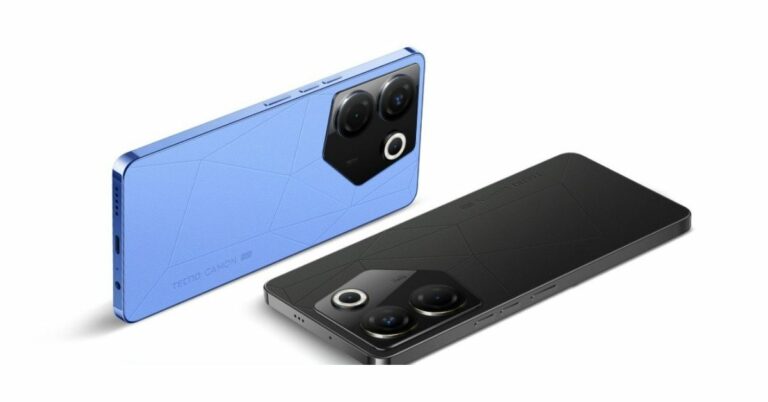
Tecno Camon 20 Pro 5G debuted in India later last month. The company has announced that the device is now available at a discounted price of Rs 2,000. The 5G smartphone features a 120Hz AMOLED display. It is powered by MediaTek Dimensity 8050 SoC. In addition to this, the phone has a triple rear camera setup and a 5,000mAh battery. Tecno Camon 20 Pro 5G can be purchased for a little bit lesser price thanks to the recent bank offer which the company is offering. In addition to this, the firm is also offering payment-based discounts and exchange offers on the purchase of the smartphone. Tecno is providing an instant discount of Rs 2,000 if the transaction is made using all bank cards. As a result, the 8GB RAM with 128GB storage variant cost Rs 17,999, while the 8GB RAM with 256GB storage variant will cost Rs 19,999. Note that the discount offer will be available through June 30 in the country. There is also an exchange offer with an Rs 18,999 maximum. Options for cost-free EMIs begin at Rs. 1,667. Also Read: Here is everything about the newly launched Qualcomm Snapdragon 4 Gen 2 mobile platform: Specifications, availability To recall Tecno Camon 20 Pro 5G was launched at Rs 19,999 for the base GB RAM with 128GB storage variant and the price of the 8GB of RAM and 256GB of storage was set at Rs 21,999.

Tecno Camon 20 Pro 5G specifications

The Tecno Camon 20 Pro 5G features a 6.67-inch full-HD+ AMOLED display. The screen supports a refresh rate of 120Hz. It operates on HiOS 13.0 with Android 13 on top. Under the hood, there is a 6nm MediaTek Dimensity 8050 SoC paired with 8GB of RAM and up to 256GB of internal storage. There is a triple rear camera setup on the phone which includes a 64-megapixel RGBW primary sensor. In addition to this, there is a 2-megapixel macro and a depth sensor. Upfront there is a 32-megapixel selfies camera. Also read: Nothing Phone 2 will officially launch in India on this date: Checkout the details Tecno Camon 20 Pro 5G includes a 5,000mAh battery with support for 33W wired charging. Also, the phone includes an in-display fingerprint sensor. For the latest gadget and tech news, and gadget reviews, follow us on TwitterFacebook and Instagram. For newest tech & gadget videos subscribe to our YouTube Channel. You can also stay up to date using the Gadget Bridge Android App. You can find the latest car and bike news here.

Best 6 Methods to Fix SSL Connection Errors on Android Phones

0
SSL stands for Secure Sockets Layer and plays a crucial role in creating an encrypted connection between your web browser and the web server hosting the website. If a website does not have an SSL certificate, your browser will return an SSL error. There are several kinds of SSL errors for different situations. In this article, we bring you the 6 best methods to fix SSL connection errors on Android phones. Read Also: Purchased a Costly Cell Phone? Think About Getting It Insured

Check your phone’s date and time

Typically, your Android phone automatically updates the date and time using your mobile network. However, if you have turned off this setting, your phone may display the incorrect date and time if it has been in a dead state for a long time. Certain apps (like WhatsApp) won’t work unless you enter the correct date and time. The same applies to websites. You may get the SSL Connection error in this scenario. To fix this issue, go to Settings>General Management>Date and Time and enter the correct information.

Check your Internet connection

You may get an SSL connection error if you are using public WiFi. Switch to mobile internet or connect to your home WiFi to ensure that the issue is not network-related. You can also try opening the website on another device connected to the same network to verify the root of the problem. If the website does not load on the other device either, the network connection is to blame.

Clear browsing data

Clearing your default web browser’s browsing data can help fix SSL connection errors on an Android phone. Here’s how you can fix Chrome’s browsing data. Step 1: Launch the Google Chrome app on your smartphone. Step 2: Tap the ellipses on the top right corner of the screen. Step 2: Tap the ellipses on the top right corner of the screen. Step 3: Select ‘History’. Step 3: Select ‘History’. Step 4: Tap the cross icon next to a website entry to delete it from your browsing history. Step 5: To delete all of your browsing history, tap on ‘Clear browsing data’. Step 5: To delete all of your browsing history, tap on ‘Clear browsing data’. Step 6: Set the time range to ‘All time’ and select ‘Clear data’. Step 6: Set the time range to ‘All time’ and select ‘Clear data’.

Disable the Antivirus app

If you use an Antivirus app for your phone, disable it and try loading the website again. Sometimes, antivirus apps can cause your browser to return one of the SSL errors, even when there is nothing wrong with the website. You can disable the antivirus by force-stopping it from settings, or uninstalling it while you’re using the website the question.

Update your web browser

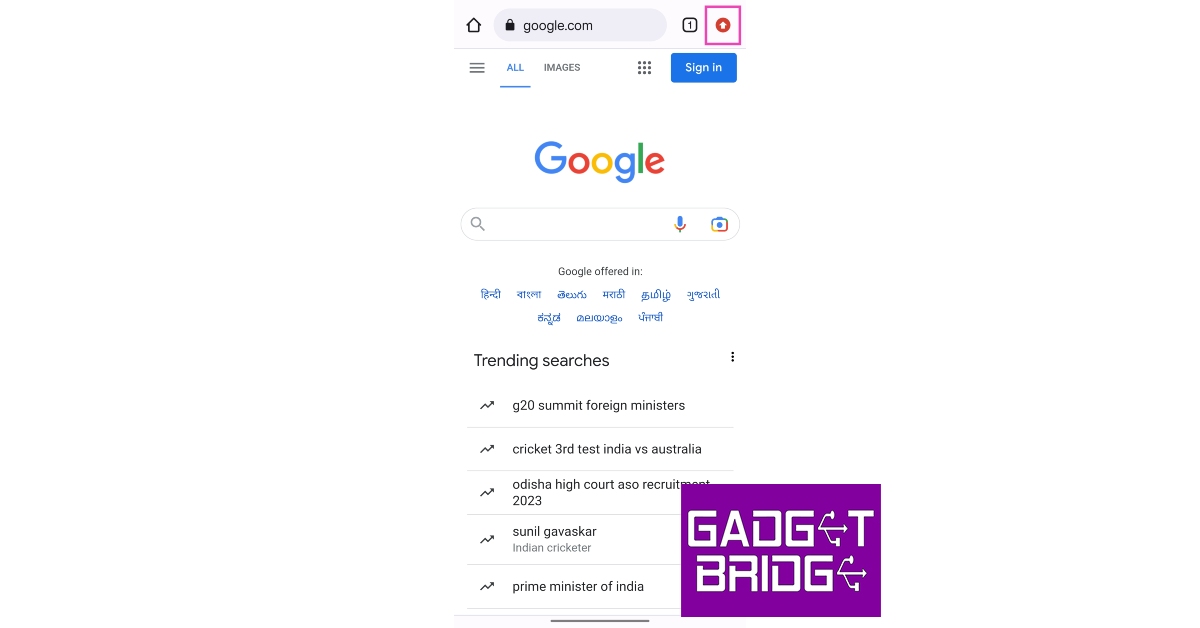
Older versions of web browsers are often not compatible with new web pages. This may be because the website is optimised for a newer version of the browser you are using. Here’s how you can update Google Chrome on Android. Step 1: Open the Google Chrome app on your smartphone. Step 2: Tap on the upward arrow icon at the top right corner of the screen. This arrow appears when a new update for Chrome is available. Tap on the upward arrow icon Step 3: Tap on ‘Update Chrome’. Step 3: Tap on ‘Update Chrome’. Best 6 Methods to Fix SSL Connection Errors on Android Phones Step 4: You will be redirected to the app’s page on Google Play Store. Tap on ‘Update’ to update Chrome to its latest version. Tap on ‘Update’ to update Chrome to its latest version. Best 6 Methods to Fix SSL Connection Errors on Android Phones

Reset network settings

If none of the fixes mentioned in this list were helpful, your last resort would be resetting the network settings on your device. Here’s how you can go about it. Step 1: Go to Settings and select ‘General Management’. Step 1: Go to Settings, scroll down and select General management. Best 6 Methods to Fix SSL Connection Errors on Android Phones Step 2: Scroll down and select ‘Reset’. Step 2: Tap on ‘Reset.’ Android Connected To WiFi But No Internet. Best 6 Methods to Fix SSL Connection Errors on Android Phones Step 3: Tap on ‘Reset Network Settings’. Step 3: Tap on ‘Reset Network Settings’. Android Connected To WiFi But No Internet Best 6 Methods to Fix SSL Connection Errors on Android Phones Step 4: Select ‘Reset Settings’. Step 4: Select ‘Reset Settings’. Best 6 Methods to Fix SSL Connection Errors on Android Phones Step 5: Enter your PIN to confirm your selection.

Frequently Asked Questions (FAQs)

What is an SSL error on Android?

When your phone’s web browser cannot verify a website’s Secure Sockets Layer (SSL) Certificate, it returns an SSL error. An SSL certificate verifies that the website is legitimate.

How do I fix the SSL connection error on my phone?

To fix an SSL connection error on your device, make sure it has the correct date and time and clear all your browsing data.

How do I install an SSL certificate on Android?

To install an SSL certificate, go to Settings>Security and Privacy>Other security settings>Install from device storage. Read Also: Top 3 Ways to Change iPhone Wallpaper Automatically

Conclusion

This is how you can fix SSL connection errors on Android phones. To view an SSL certificate, go to Settings>Security and Privacy>Other security settings>View Security Certificates. If you found this article helpful, let us know in the comments! For the latest gadget and tech news, and gadget reviews, follow us on Twitter, Facebook and Instagram. For newest tech & gadget videos subscribe to our YouTube Channel. You can also stay up to date using the Gadget Bridge Android App. You can find the latest car and bike news here.

Nothing Phone 2 pre-orders starting tomorrow: Deets inside

Nothing Phone 2 is launching in India and globally on July 11. The device will replace the Nothing Phone 1 that debuted in July 2022. In addition to teasing the device’s features, the company will also start to take pre-orders for its upcoming smartphone from tomorrow. Phone 2 will be driven by Qualcomm’s Snapdragon SoC and run on the Nothing OS, and like its predecessor, it will include a transparent rear panel. The London-based consumer technology company Nothing has stated that customers may now pre-order the second generation smartphone on Flipkart, starting tomorrow at 12 PM. The device is scheduled to officially launch in India on July 11. Also Read: Nothing Phone 2 will officially launch in India on this date: Checkout the details The company has also created a dedicated microsite on Flipkart ahead of the Phone 2 debut. Those who are interested may pay a refundable deposit of Rs 2,000 to pre-order. On the day of launch which is July 11, the buyers will be able to select the configuration/ model of their choice and pay the remaining payment to secure the purchase between 9 PM IST on July 11 and 11:59 PM IST on July 20.

Here’s how to pre-order Phone (2) on Flipkart.

  • Pay a refundable INR 2,000 deposit to secure the order.
  • Come back between 11 July 9 PM IST – 20 July 11:59 PM IST
  • Choose your variant
  • Pay the remaining balance and claim your exclusive pre-order offers.
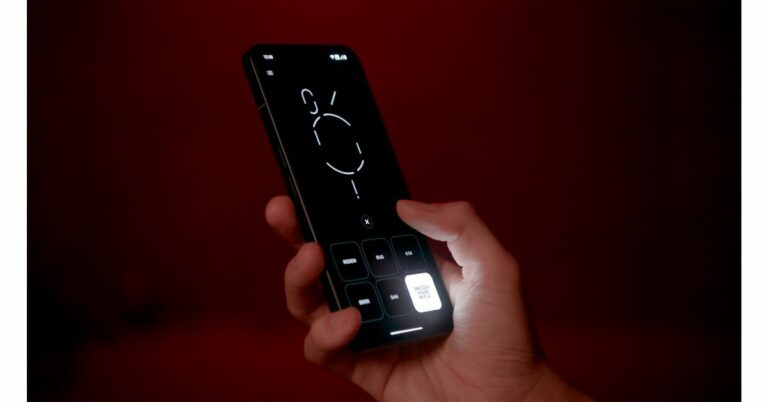
In addition to this, the company is also offering a 50% discount on the Nothing Ear Stick. While pre-ordering Nothing Phone 2 there will be an instant discount from leading banks. Customers can receive savings of up to Rs 2,400 on the Nothing Accessories box. Also Read: Here is everything about the newly launched Qualcomm Snapdragon 4 Gen 2 mobile platform: Specifications, availability Nothing has collaborated with the Swedish house music DJ trio to produce a Glyph Sound Pack that is only available for the Phone (2) and Phone (1). The customised ringtones can be created using the “Glyph Composer,” a brand-new function. Nothing Phone 2 will be powered by Qualcomm Snapdragon 8+ Gen 1 SoC. The upcoming phone will feature a 6.7-inch display. It is also confirmed to boast a 4,700mAh battery. Besides this, there will be a triple rear camera aligned horizontally this time. The camera module will include a 50MP primary sensor with OIS. While on the front there will be a 16MP selfie camera. For the latest gadget and tech news, and gadget reviews, follow us on TwitterFacebook and Instagram. For newest tech & gadget videos subscribe to our YouTube Channel. You can also stay up to date using the Gadget Bridge Android App. You can find the latest car and bike news here.
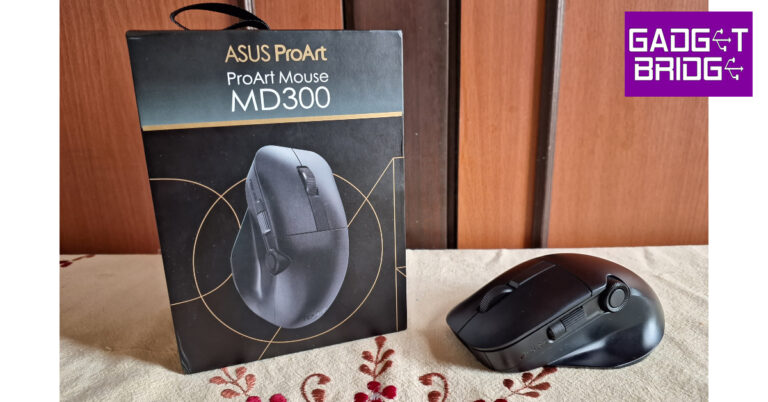
Asus ProArt Mouse MD300 Review: Get the most out of every click

Launched in March 2023, the Asus ProArt Mouse MD300 carries a hefty price tag of Rs 8,499 but offers some unique features that may make it a bargain. The Asus Dial, which can also be found on other Asus ProArt devices, makes its way to the MD300. Asus has tried to incorporate clever software tricks to get the most out of this dial. We’ve been using this productivity mouse for the last week, testing it in different scenarios. If you’re thinking of upgrading your mouse, make sure you read our Asus ProArt Mouse MD300 review first. Read Also: Costway Folding Treadmill: Why We Think It Is A Convenient And Versatile Exercise Solution

Asus ProArt Mouse MD300 review: Design

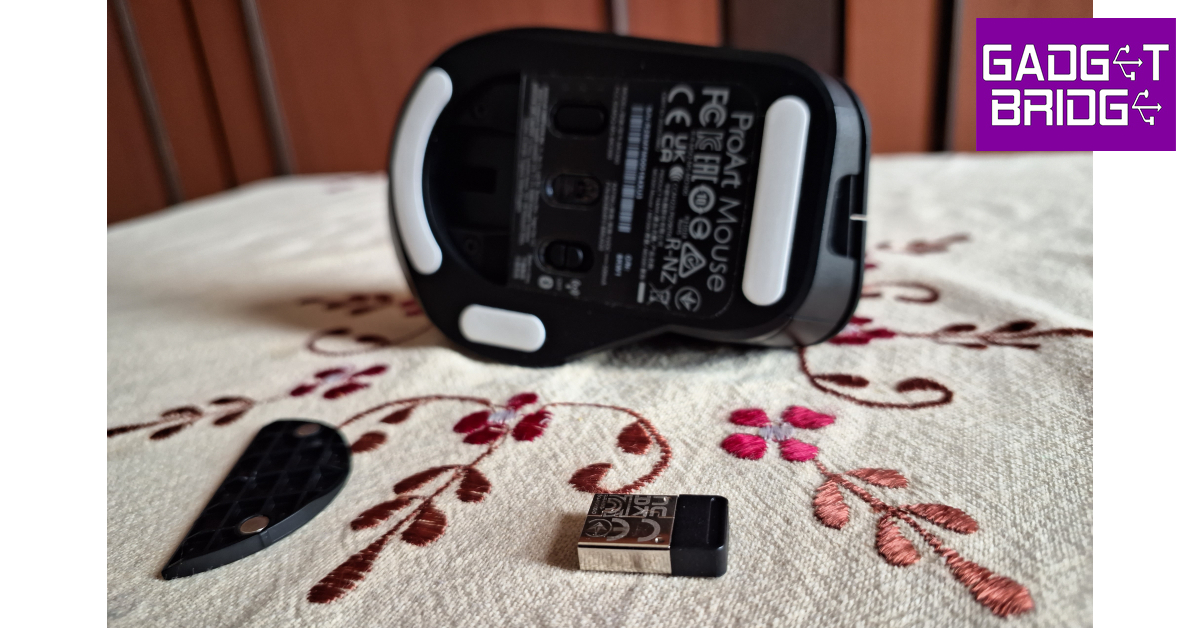
Inside the box, you get the MD300 mouse, a 2.4GHz USB receiver (inside the mouse), a USB Type-C to Type-A cable, a USB Type-C adapter, a Quick Start Guide, and a Warranty Card. The mouse weighs 109g without the USB dongle. Dimensionally, the mouse is 118mm long, 73mm wide, and 43mm tall. We really like the build of the ProArt MD300. Even though its shell is made out of plastic, the matte black finish on the body gives it the premium feel you expect from a mouse in this price category. While the mouse may be slightly on the heavier side, its weight does not hinder any routine tasks. Asus ProArt Mouse MD300 review: Design The Asus ProArt Mouse MD300 has an ergonomic design without being too bulky or flashy. The thumb rest on the left side of the device is of the appropriate width. The size of the mouse caters to all hand sizes. Apart from the standard vertically aligned scroll wheel at the centre of the mouse, you also get a horizontal scroll wheel along the side. Also present is the unique Asus Dial right alongside the horizontal scroll wheel. The Asus Dial offers more resistance than the other two wheels to reduce any accidental touches. There are a total of six programmable buttons on this mouse. The horizontal and vertical scroll wheels have integrated clicks, and there’s an additional button in the Asus Dial as well. The right-click and left-click have satisfying feedback. There’s another button right below the main scroll wheel, too. Interestingly, there are no dedicated back and forward buttons on this mouse, which a mouse of this stature should have had.  There are three big feet on the bottom panel that keep the mouse in place. The pairing button and power button are placed on either side of the optical sensor. The USB receiver is housed inside a small cavity on the lower side of the panel that does not hinder its movement.

Asus ProArt Mouse MD300 review: Performance

Pairing the Asus ProArt Mouse MD300 to your PC is super easy via Quick Pairing. As soon as you turn on the mouse, its pairing notification pops up on your PC. To connect the mouse to another device, all you have to do is press the pairing button at the bottom. The ProArt MD300 can connect to a maximum of 3 devices at one time. Asus ProArt Mouse MD300 review: Performance The 4,200 DPI sensor on this mouse is bang on the money. You can easily use this mouse on any surface. We even tried using it on a glass table, where the mouse performed admirably well. While tracking was not an issue, the scrolling experience could have been better. For starters, there is no option to put the mail scrolling wheel in a free scroll mode. If you want to quickly scroll to the bottom of a spreadsheet or a long web page, you will have to put up with the resistance of the wheel. Asus ProArt Mouse MD300 review: Performance The side scroll wheel is not programmed to work on Excel and Google Docs by default. Horizontal scrolling is something you have to enable using Asus’ customisation software. Ideally, a mouse should be optimised in a way that doesn’t require you to install additional software to map the basic actions. The Asus Dial is programmed to control the volume by default. You can program it to carry out actions like zooming in/out, altering the exposure, managing brightness and more, using Asus’ Armoury Crate software. This dial is a great tool for users that spend a lot of time editing photos and videos. While it is prone to accidental touches, its high resistance makes sure that it only pursues an action when the proper pressure is applied. You can also map other keys using Armoury Crate. Even if you’re not a power user, assigning multimedia controls to the scroll wheels and the Asus Dial will come in very clutch. Once you get a hang of the mouse, you can set it up to carry out routine tasks seamlessly. You can also download firmware updates for the mouse from Armoury Crate. Equipped with an 800mAh battery, Asus claims the MD300 can last for 150 days on a single charge. We did not use the mouse long enough to test this claim, but in our one week of use the battery drop-off was very minimal. Charging the mouse is also super easy, with a Type-C port provided at the front. One minute of quick charge powers this mouse for 8 hours of light use or 3 hours of heavy use. Read Also: Embracing The Digital Revolution: The Impact of High-Quality Odds Calculators and Converters

Verdict

When it comes to hardware and design, the Asus ProArt Mouse MD300 does not disappoint. The mouse has a very premium in-hand feel and the ergonomic design ensures you do not feel any fatigue even after using it for several continuous hours. The Asus Dial is a nice addition, and we’d like to see it get more functions in future updates. The lack of a free scroll mode does dampen the experience a bit, but if you don’t mind that, the ProArt MD300 is a solid buy for Rs 8,499.

Asus ProArt Mouse MD300 Pros

  • Great in-hand feel
  • Compact, ergonomic design
  • Asus Dial is pretty fun to use

Asus ProArt Mouse MD300 Cons

  • No free scroll mode
  • Bit pricey
For the latest gadget and tech news, and gadget reviews, follow us on Twitter, Facebook and Instagram. For newest tech & gadget videos subscribe to our YouTube Channel. You can also stay up to date using the Gadget Bridge Android App. You can find the latest car and bike news here.
Noise ColorFit Vision 3 with up to 7 days of battery life launched in India

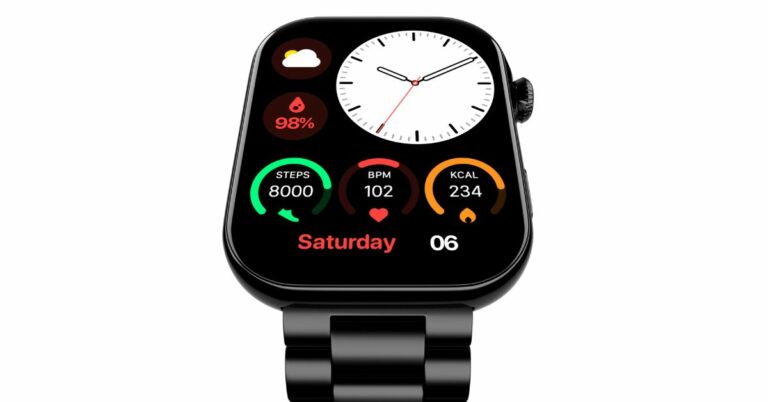
Noise ColorFit Vision 3 smartwatch is the latest offering by the Indian lifestyle brand. The fitness tracker has a metal body and features an AMOLED screen which supports ‘always on’ display mode. In addition to this, the device incorporates Gesture Control. It offers 100+ sports modes and 150+ watch faces with the app.

Noise ColorFit Vision 3 price in India and availability

The price of the Noise ColorFit Vision 3 smartwatch is set at Rs 4,999. The watch will be available in 5 different colour options: Jet Black, Classic Brown, Forest Green, Jet Black: Elite Edition, and Glossy Silver: Elite Edition. It can be purchased via Flipkart and gonoise.com in the country. Noise ColorFit Vision 3 with up to 7 days of battery life launched in India

Noise ColorFit Vision 3 specifications, features

The metal-bodied Noise ColorFit Vision 3 sports a 1.96-inch AMOLED screen with a resolution of 410×502 pixels. The screen has an ‘always on’ display mode with four customizable watch-face options and a brightness of 500 nits. The smartwatch has a functioning crown. With two menu UI options, users can alter their interface based on whether they prefer a list view or a grid view. Additionally, it has Auto Sports Detection for walking and running outside. Also Read: Sennheiser Profile USB Microphone Streaming Set review: Pro sound on a budget ColorFit Vision 3 features BT v5.3 and TruSync-enabled calling. The wristwatch also features Gesture Control and Smart DND, which let it recognise when the wearer is asleep and not vibrate/ring with new notifications. Noise ColorFit Vision 3 with up to 7 days of battery life launched in India The fitness tracker pairs easily with the NoiseFit App and comes with 150+ watch faces in addition to 100+ sports modes. With the Noise Health Suite, which is included with the ColorFit Vision 3, customers can effortlessly monitor heart rate, SpO2, sleep patterns, stress levels, and breathing exercises. Daily reminders and weather forecasts are always available to you thanks to the integrated Productivity Suite. Also Read: Here is everything about the newly launched Qualcomm Snapdragon 4 Gen 2 mobile platform: Specifications, availability The device is claimed to offer up to 7 days of battery life. Additionally, IP68 water and dust resistance provide longevity in any setting. Up to 10 contacts can be saved by Noise Buzz, and users have access to recent call histories. For the latest gadget and tech news, and gadget reviews, follow us on TwitterFacebook and Instagram. For newest tech & gadget videos subscribe to our YouTube Channel. You can also stay up to date using the Gadget Bridge Android App. You can find the latest car and bike news here.

4 Best Ways to Share Screen on Chromebook

0
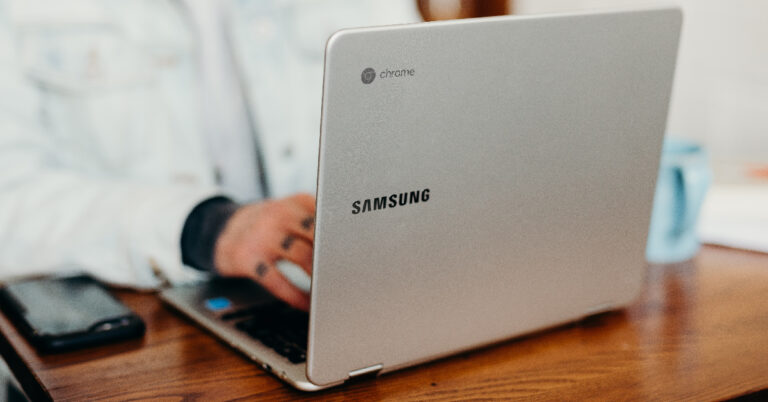
Chromebooks may not have the processing power of a PC, but the screen size on offer leaves no room for complaints. You may already be using your Chromebook primarily for media consumption. But did you know you can also cast your phone and PC’s display on your device? In this article, we bring you the 4 best ways to share your PC’s or Android phone’s screen on Chromebook. Read Also: Embracing The Digital Revolution: The Impact of High-Quality Odds Calculators and Converters

Use Chrome Remote Desktop

Use Chrome Remote Desktop Step 1: Go to remotedestop.google/support on both devices. Step 2: Click the download icon and install the Chrome Remote Desktop app. Step 3: Click on +Generate Code on the device you want to mirror. Step 4: Chrome Remote Desktop will generate a 12-digit code. Enter this code on the destination device (your Chromebook). Find the Connect to another computer panel in the Remote Desktop home screen and paste the code there. Step 5: On the device you want to mirror, click on Share. Give Chrome Remote Desktop the necessary permissions to share your screen. You will now be able to view and control the screen of the other device on your Chromebook.

Use a third-party app to mirror your smartphone’s display on Chromebook

Use a third-party app to mirror your smartphone’s display on Chromebook Sharing your Android phone’s screen is a very easy process if you’re using a third-party app. For this to work, your phone and Chromebook need to be connected to the same Wi-Fi network. Here’s how you can share your Android phone’s screen on Chromebook. Step 1: Install the Screen Mirroring & Sharing app on your Android smartphone. Step 2: Launch the app and tap the Cast icon. Step 3: On your Chromebook, go to screenmirrorapp.com. Step 4: Use the in-app QR code scanner on your phone to scan this QR code. Step 5: Tap on Start Now. Your Android phone’s screen will be shared on your Chromebook.

Use Vysor to mirror and control your phone’s screen on Chromebook

Use Vysor to mirror and control your phone’s screen on Chromebook. share your PC’s or Android phone’s screen on Chromebook While the app mentioned in the previous method shares your Android phone’s screen with your Chromebook, it does not let you control it. Use Vysor if you want to mirror and control your phone’s display on your Chromebook. Before you begin, make sure you have enabled USB debugging. Here’s how. Step 1: Install Vysor on your Chromebook. Step 2: Launch the Vysor app on your Chromebook and select View. Step 3: Your Android phone will appear on the list of available devices if it is connected to the same network as your Chromebook. Once you click View, you will be able to see and control its display on your Chromebook.

Use Allcast to mirror media on your Chromebook

Use Allcast to mirror media on your Chromebook. share your PC’s or Android phone’s screen on Chromebook Mirroring your phone to a bigger display has its advantages but sometimes it can be a privacy risk. Some users may not want to share every screen of their phone with everyone. This is where Allcast comes in. Using this app, you will be able to share the media screen with your Chromebook and leave everything else hidden. Here’s how you can use it. Step 1: Install Allcast on your Chromebook from the Chrome Web Store. Step 2: On your Android device, install Allcast from Google Play Store. Step 3: Launch the app on both devices and set your Chromebook as the destination device. Once you begin playing media on your Android phone, it will be mirrored on your Chromebook.

Frequently Asked Questions (FAQs)

How do I mirror my desktop’s screen on my Chromebook?

To share your desktop’s screen on your Chromebook, you will need to use the Chrome Remote Desktop app for both devices.

How do I mirror my Android phone’s display on my Chromebook?

Apps like Vysor and Screen Mirroring & Sharing make it possible to cast your Android phone’s display to a Chromebook. Both devices need to be connected to the same network for this to happen.

How do I stream media on my Chromebook using my phone?

Use the Allcast app to stream movies and videos from your phone on your Chromebook. Read Also: Soon, you will be able to play games on YouTube

Conclusion

This is how you can share your PC’s or Android phone’s screen on Chromebook. Read this article to know how you can mirror your Android phone’s display on your PC. Tools like Scrcpy also work for Chromebook, depending on the model. If you found this article to be helpful, let us know in the comments! For the latest gadget and tech news, and gadget reviews, follow us on Twitter, Facebook and Instagram. For newest tech & gadget videos subscribe to our YouTube Channel. You can also stay up to date using the Gadget Bridge Android App. You can find the latest car and bike news here.