Amazon Quiz Answers Today 20 June 2023: Participate to win Rs 500

Amazon is back with another quiz on its mobile platform. The 20 June 2023 Amazon Quiz is now live on its platform and today’s Amazon Quiz will give you a chance to win Rs 5,000 Amazon pay Balance. Every day Amazon brings a fresh questionnaire that comprises 5 questions. These questions are based on current affairs and general knowledge. The quiz can be played from 8 AM to 11:59 PM and the contestants need to answer correctly to enter into a lucky draw. In today’s Amazon Quiz the participants will get a chance to win Rs 5,000 Amazon Pay Balance. Today’s Amazon Quiz Prize – Rs 5,000 Amazon Pay Balance Quiz Date – 20 June 2023 Daily Timing – 12 AM to 11:59 PM Winner Announcement – Today at 12 PM

Amazon Quiz Answers Today 20 June 2023

Question 1: Who was the player of the match in the very first game of the 2023 Women’s Premier League? Answer: Harmanpreet Kaur Question 2: The Amazon Prime show ‘The Terminal List’ stars which of these actors in the lead role? Answer: Chris Pratt Question 3: Mount Kilimanjaro is the highest peak in which continent? Answer: Africa Question 4: This famous structure is located in which city in the southern hemisphere? Answer: Sydney Question 5: This photograph is taken in which of these places is famous for a mangrove forest? Answer: Sundarbans

How To Play Amazon Quiz

Only app users are eligible to play the Amazon quiz every morning from 12 AM to 11:59 PM. The quiz is not available on the desktop. For those who are unaware of how to play the Amazon quiz below are the steps, you can follow to take the quiz.
  • Firstly download the Amazon app from Google Play Store or App Store
  • Now fill in the required information through the Sign Up option.
  • You need to log in to the Amazon app and scroll down on the home screen to find the Amazon Quiz banner.
  • Tap on the Amazon Quiz banner and tap on the Start button to start the Quiz.
  • Now you will get 5 questions and you need to answer them correctly. One wrong answer will eliminate you from the Quiz.
  • After answering all the questions correctly you are now eligible for a Lucky Draw.
  • The winner’s name will be announced today at 12 PM.
For the latest gadget and tech news, and gadget reviews, follow us on TwitterFacebook and Instagram. For newest tech & gadget videos subscribe to our YouTube Channel. You can also stay up to date using the Gadget Bridge Android App. You can find the latest car and bike news here.

How to Export a WhatsApp Chat: Complete guide for Android

Being the most popular instant messenger in the world, WhatsApp is used for everything under the sun, be it sending messages or payments. Even if you want to leave the app for good, there is a considerable amount of information stored in the chats that you may need access to in future. For instance, your message thread with yourself may contain your passwords, itinerary, and other important stuff. If you’re done with WhatsApp, it is a good idea to export your most important chats before leaving. In this article, we show you how to export a WhatsApp chat on an Android smartphone. Read Also: 3 Ways to Limit Screen Time on Android Devices

Export WhatsApp chats from your Android device

Step 1: Launch WhatsApp on your Android smartphone. Step 2: Open the conversation you want to export. Step 3: Tap on the ellipses at the top right corner of the screen. Step 3: Tap on the ellipses at the top right corner of the screen. Step 4: Hit ‘More’ and then select ‘Export Chat’. Step 4: Hit ‘More’ and then select ‘Export Chat’. Step 5: Select whether you want to export the chat with or without media. WhatsApp can export up to 10,000 messages with media included. Excluding media increases this number to 40,000. Select whether you want to export the chat with or without media. chat pdf whatsapp Step 6: Select the destination for the text file. You can choose to send the file to another contact on WhatsApp or any other instant messenger. If you want to save the file on your device, first export it to Google Drive and then download it on your phone. Select the destination for the text file. chat pdf whatsapp Your WhatsApp chat will be exported in txt format. You can convert this file to the PDF format using an online tool. Read this article to find out how you can save a Google Docs file as a PDF

Frequently Asked Questions

Does the other person know if you export your WhatsApp chat with them?

WhatsApp does not notify the other person when you export your WhatsApp Chat with them.

What happens when I export a chat?

Exporting a WhatsApp chat creates a text file of your conversion with a contact.

Is it safe to export a chat?

Exporting a WhatsApp chat is a safe process. However, if you save the chat on a third-party cloud service, anyone with your login credentials or access to your device will be able to view it. Read Also: 5 Best Tablets you can buy under Rs 30,000 in India

Conclusion 

This is how you can export a WhatsApp chat on an Android smartphone. Currently, there is no way to export all your WhatsApp chats at once. You will have to go through each individual thread to export it as a text file. The size of an export file depends on the number of messages being exported as well as the presence of media in the conversation. For the latest gadget and tech news, and gadget reviews, follow us on Twitter, Facebook and Instagram. For newest tech & gadget videos subscribe to our YouTube Channel. You can also stay up to date using the Gadget Bridge Android App. You can find the latest car and bike news here.

Top 3 Ways To Automatically Delete Old Text Messages On Android and iOS

2
If loads of unread messages and spam texts on your smartphone bother you, you’re not alone. Cellular network providers are notorious for pushing a tremendous volume of spam texts on your phone. On top of that, OTP messages for commonly used services also pile up on the messaging app after a certain period of time. If you hate having a disorganised and cluttered text inbox, there are a couple of things you can do about it. In this article, we bring you the top 3 ways to automatically delete old text messages on Android and iOS. Read Also: Google Lens gets skin condition detection support

Automatically delete old text messages on Android

Step 1: Launch your smartphone’s native messaging app and hit the ellipses to reveal the options. Step 2: Select Settings. Step 2: Select ‘Settings’. Step 3: Tap on ‘More Settings’. Step 3: Tap on ‘More Settings’. Step 4: Switch on the toggle bar for ‘Delete old messages’. Once you hit 1,000 text messages, the oldest message will be deleted to accommodate any new incoming text. Step 4: Switch on the toggle bar for ‘Delete old messages’. Once you hit 1,000 text messages, the oldest message will be deleted to accommodate any new incoming text.

Automatically delete OTPs after 24 hours using Google Messages

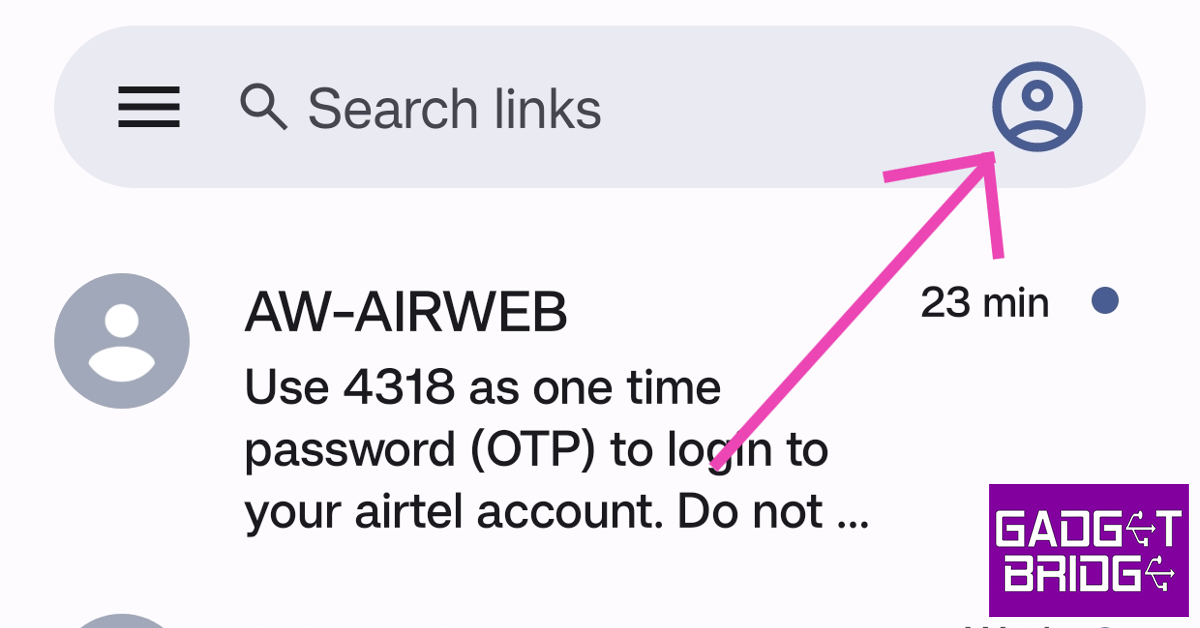
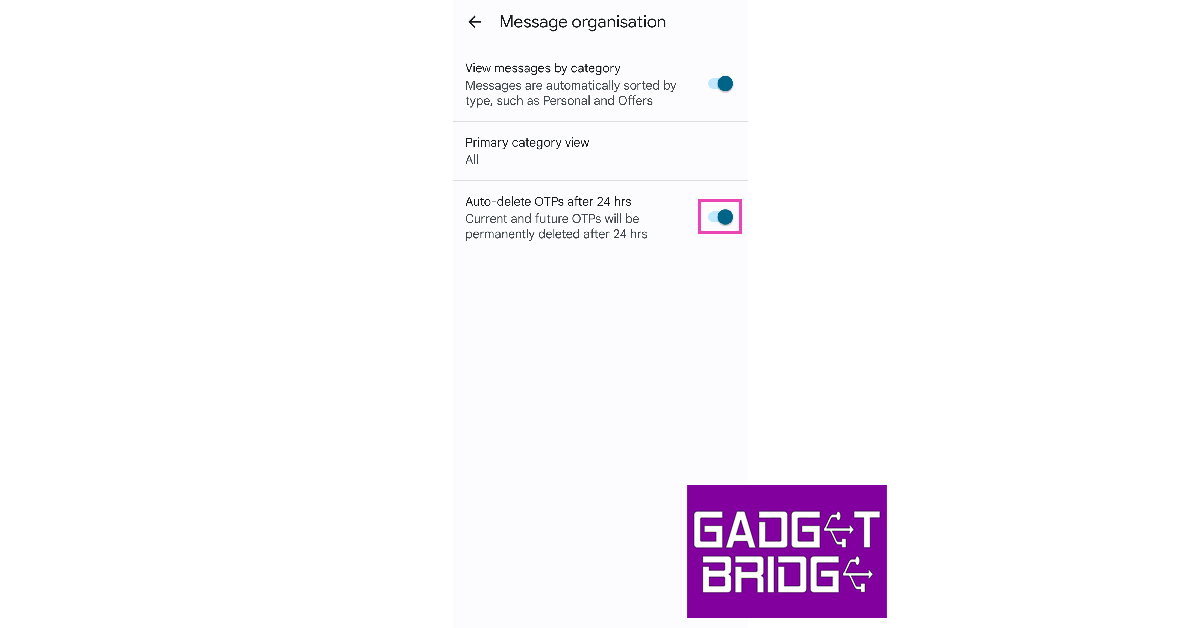
Step 1: Launch the Google Messages app on your smartphone. Step 2: Tap your profile icon next to the search bar. Step 2: Tap the profile icon at the top right corner of the screen. Step 3: Select ‘Message Settings’. Step 3: Select ‘Message settings’. Step 4: Tap on ‘Message organisation’. Step 4: Tap on ‘Message organisation’. Step 5: Switch on the toggle bar for ‘View messages by category’. Step 5: Switch on the toggle bar for ‘View messages by category’. Step 6: Switch on the toggle bar for ‘Auto-delete OTPs after 24 hours’. Step 6: Switch on the toggle bar for ‘Auto-delete OTPs after 24 hours’.

Automatically delete old messages on iOS

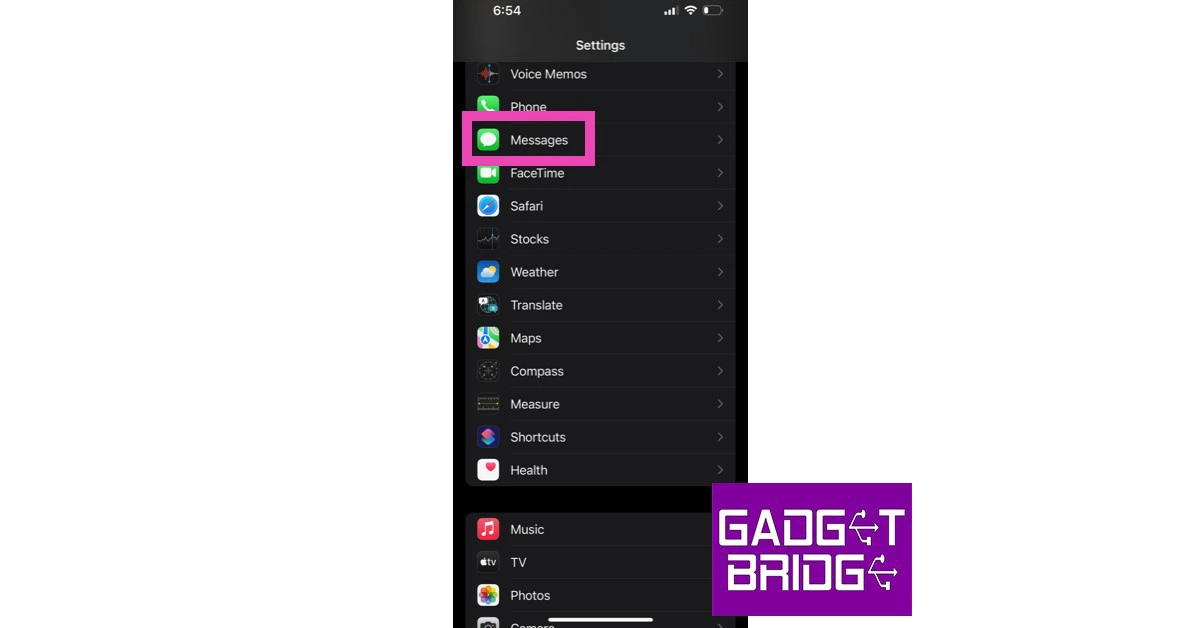
Step 1: Go to Settings and select Messages. Step 1: Go to Settings and select Messages. best ways to block spam text messages on android and iphoneTop 3 Ways To Automatically Delete Old Text Messages On Android and iOS Step 2: Tap on ‘Keep Messages’ in the Message History section. Step 2: Tap on ‘Keep Messages’ in the Message History section. Top 3 Ways To Automatically Delete Old Text Messages On Android and iOS Step 3: Select the time period for deletion. Step 3: Select the time period for deletion. Top 3 Ways To Automatically Delete Old Text Messages On Android and iOS Step 4: Hit ‘Delete’. Step 4: Hit ‘Delete’. Top 3 Ways To Automatically Delete Old Text Messages On Android and iOS Your old text messages will be deleted after the selected number of days.

Frequently Asked Questions

How do I set my Android phone to automatically delete old text messages?

To automatically old text messages on your Android smartphone, go to Messages>Settings>More Settings and switch on the toggle bar for ‘Delete old messages’.

How do I automatically delete old messages on my iPhone?

To automatically delete old text messages on your iPhone, go to Settings>Messages>Keep Messages and set the time period of auto-deletion.

How do I automatically delete OTPs on my phone?

To automatically delete old OTPs on your smartphone, go to Google Messages>Message Settings>Message Organisation and switch on the toggle bar for ‘Auto-delete OTPs after 24 hours’. Read Also: Samsung to launch Galaxy S23 Ultra in two new colour variants

Conclusion 

These are the best ways to automatically delete old text messages on Android and iOS. Tired of receiving spam messages? Check out these 9 ways to block spam text messages on Android and iPhone. Which messaging app do you use as the default messenger on your smartphone? Let us know in the comments! For the latest gadget and tech news, and gadget reviews, follow us on Twitter, Facebook and Instagram. For newest tech & gadget videos subscribe to our YouTube Channel. You can also stay up to date using the Gadget Bridge Android App. You can find the latest car and bike news here.

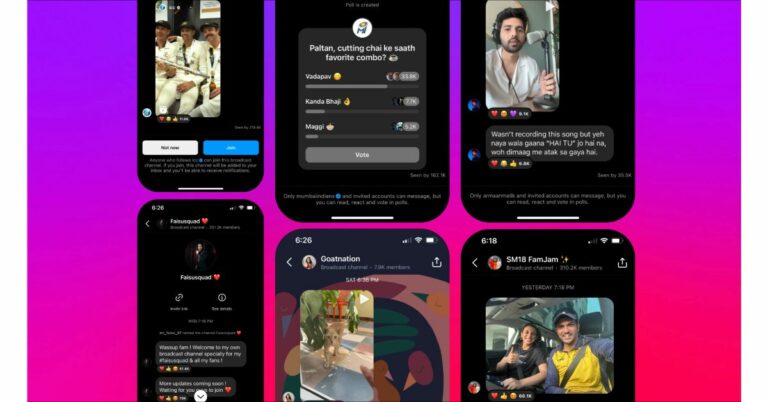
Instagram makes broadcast channels available globally to assist creators strengthen their connection with their followers

Meta announced the global rollout of the Broadcast Channels. The broadcast channels function was previously under testing and prior to its global rollout, the capability was only available to a small number of users and content creators. Those who have received this feature can message and invite their followers. The followers of a channel will be notified whenever the author posts new content. Channels from accounts in India like MC Stan, ICC and Mumbai Indians have already garnered a large following. Recent news on the introduction of the Channels features for message broadcasting came from Meta for Instagram. Besides this, the company has also enabled creators to invite other creators (or fans) to participate in their broadcast channel. While announcing the feature Meta said, “Today we’re expanding Instagram broadcast channels globally, giving millions of creators a new way to directly engage with their followers at scale. We’re also highlighting a few channels that are live in India already, which you can choose to join.” For those who don’t know Creators can invite all of their followers into broadcast channels. where they can publish text, video, and photo updates. Additionally, creators can use voice notes to discuss the newest developments and behind-the-scenes moments. They can even make polls to get input from fans. Followers can respond to content and cast their votes in polls, but only creators can send messages through broadcast channels. Instagram parent Meta has also shared updates on new and upcoming features: A function called Collaborators has also started to roll out on Instagram. As a result, creators will be able to invite other producers or fans to join them on their broadcast channel. Fans can listen in on chats between their favourite creators and their special guests, whether it be during a formal interview or a casual hangout. The social media platform has also started testing new features, including a dedicated channels tab in the inbox where users can quickly access their subscribed channels and find new ones, and the option for creators to use question prompts to solicit feedback and responses from followers. These are currently being tested and are not yet accessible in India. Last but not least, Instagram is looking into new tools to help creators promote and manage their broadcast channels, including the ability to set an expiration date and time, add a moderator to help manage users, messages, and content and share a link or even a sneak peek in Stories to entice followers to join. For the latest gadget and tech news, and gadget reviews, follow us on TwitterFacebook and Instagram. For newest tech & gadget videos subscribe to our YouTube Channel. You can also stay up to date using the Gadget Bridge Android App. You can find the latest car and bike news here.
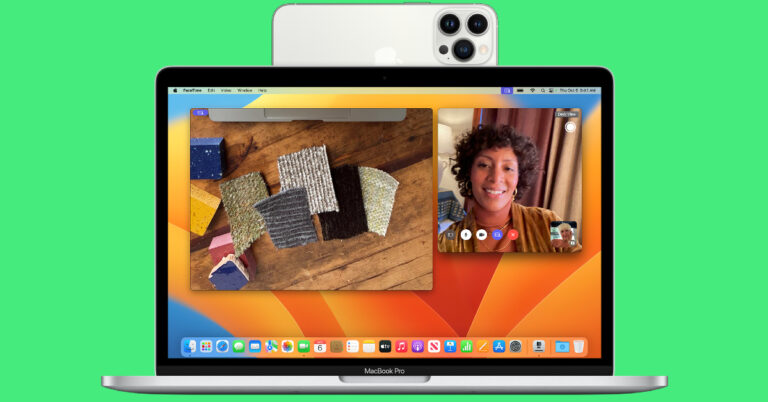
How to Use Your iPhone or Android Phone as a Webcam?

0
This shouldn’t surprise anyone but laptop webcams are dreadful to work with. If you routinely attend virtual meetings or take video calls on your computer, you may be considering investing in a good external webcam to improve the quality of your video feed. Luckily, you don’t have to splurge any extra money as you already have a great camera on your smartphone. Even the best webcams for your laptop pale in comparison to your smartphone’s camera. In this article, we show you how to use your iPhone or Android phone as a webcam on your Mac and Windows PC.  Read Also: Samsung to launch Galaxy S23 Ultra in two new colour variants

Use Continuity Camera to use your iPhone as a webcam

Apple offers a native way for its users to use the iPhone as a webcam for Mac. This feature is only available on devices that run iOS 16 and macOS 13 Ventura or higher. You also need to make sure that your Mac and iPhone are logged in to the same iCloud account and are connected to a common WiFi network. For Continuity Camera to work, Bluetooth should be enabled on both devices. Here’s how you can use Continuity Camera on your Apple devices. Step 1: Unlock your iPhone and go to Settings. Step 2: Tap on ‘General’ and select ‘AirPlay & Handoff’. Step 2: Tap on ‘General’ and select ‘AirPlay & Handoff’. Step 3: Turn on Continuity Camera and Handoff.  Step 3: Turn on Continuity Camera and Handoff.  Step 4: Mount your iPhone on your Mac. There are several MagSafe mounts you can buy for your iPhone. Step 5: Launch your desired calling app on your Mac. Step 6: Set your iPhone as the video source. You can also choose to use your iPhone’s mic for the call. Step 6: Set your iPhone as the video source. You can also choose to use your iPhone’s mic for the call. Step 7: Select the ‘Desk View’ option to use the ultrawide lens. If you want to blur your background, choose the ‘Portrait’ option.

Use your Android phone as a webcam

Since Android does not have a native method that allows the phone’s camera to be used as a webcam, you will have to rely on a third-party app to carry out this particular task. Luckily, there are tons of apps to choose from. Here’s how you can use your Android phone as a webcam with Reincubate Camo. Step 1: Install Camo Studio on your Windows laptop and the Camo app on your Android phone. Step 1: Install Camo Studio on your Windows laptop and the Camo app on your Android phone. Step 2: Launch Camo Studio on your Windows device and make sure it is connected. Camo will list all the webcam options for your device. Step 3: Launch the Camo app on your Android phone and tap on ‘Get Started’. Step 3: Launch the Camo app on your Android phone and tap on ‘Get Started’. Step 4: On the Camo Studio client for your Windows laptop, click on the plus icon to open the pairing window. You will see a QR code in this window. Step 5: On the Camo app for your Android phone, tap the wireless connection button and scan the QR code displayed on your laptop. Step 5: On the Camo app for your Android phone, tap the wireless connection button and scan the QR code displayed on your laptop. Step 6: Now that the two devices are connected, you can use your Android phone as a webcam. Instead of a wireless connection, you can also use a USB cable to connect your Android phone to your Windows laptop with Camo. Before you proceed, make sure you have enabled USB debugging from Developer Settings. A wired connection provides lower latency and keeps your phone charged while it is being used as a webcam.

Frequently Asked Questions

Can you use your phone as a webcam?

People tuned into the Apple ecosystem can use their iPhone as a webcam for their Mac with Continuity Camera. Android users have to rely on third-party apps like DroidCam and Camo for the same task.

Is DroidCam free?

DroidCam can be downloaded for free from Google Play Store. Its Windows client is free to download and use as well. Some third-party webcam applications may require a subscription to unlock premium features.

Can you use DroidCam without WiFi?

DroidCam and other third-party webcam applications work over a WiFi connection as well as a wired USB connection. Before you proceed with the latter, make sure you have enabled USB debugging on your smartphone. Read Also: Google Lens gets skin condition detection support

Conclusion 

This is how you can use your iPhone and Android phone as a webcam on your Mac or Windows laptop. Apps like Camo, DroidCam, and EpocCam work on PCs as well as Macs. While a wireless connection is more convenient, to make sure you don’t experience any latency issues, connect your phone to your computer using a USB cable.  For the latest gadget and tech news, and gadget reviews, follow us on Twitter, Facebook and Instagram. For newest tech & gadget videos subscribe to our YouTube Channel. You can also stay up to date using the Gadget Bridge Android App. You can find the latest car and bike news here.

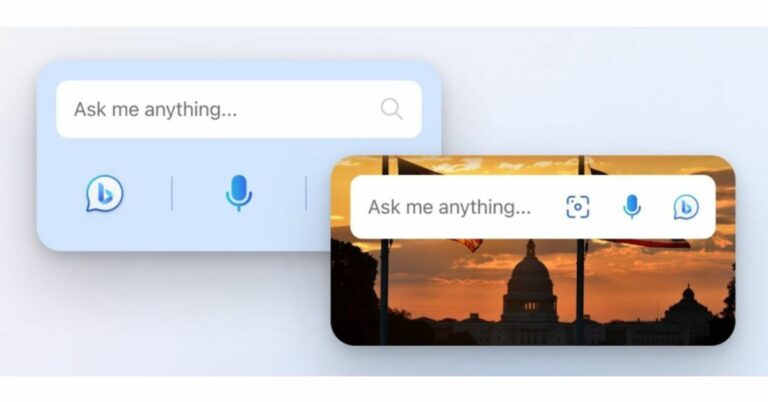
Microsoft’s AI-powered Bing Chatbot received a new iOS Widget and more

The AI-powered chatbot Bing Chat now has a new iOS widget and expanded text-to-speech support for more Indian languages, according to tech giant Microsoft. iOS users could interact with the chatbot immediately without opening the app thanks to the new feature. Moreover, additional languages supported by Microsoft’s text-to-speech expansion include Hindi, Gujarati, Marathi, Telugu, and Urdu. The company via its blog post said, “We continue to ship previously announced features and respond to your product feedback. Some of these features may temporarily appear in your Bing Chat experience as we experiment with them. These Release Notes will update you on which features have shipped and are fully available to everyone as of today.” Bing Chat is now accessible to iPhone and iPad users via a dedicated iOS widget. Users can start a chat once it is installed from their Home screen. According to a Microsoft blog post-Bing Chat is now accessible to iPhone and iPad users via a dedicated iOS widget. Users can start a chat once it is installed from their Home screen. The company said iOS users might find instructions for adding widgets to their iOS device’s Home screen here (this feature is also available on Android, as was previously mentioned). Microsoft has also released text-to-speech support for even more languages: Arabic, Bulgarian, Catalan, Croatian, Czech, Danish, Dutch, Estonian, Filipino, Finnish, Greek, Gujarati, Hebrew, Hindi, Hungarian, Icelandic, Indonesian, Irish, Italian, Korean, Latvian, Lithuanian, Maltese, Marathi, Norsk Bokmål, Polish, Portuguese, Romanian, Russian, Slovak, Spanish, Swedish, Tamil, Telugu, Thai, Turkish, Ukrainian, and Urdu. The latest update also brings improvements to its AI-powered chatbot Bing Chat. The company has improved the performance of the voice input button on the Bing mobile app for iOS and Android. It should now indicate it’s listening instantly once you tap it.  For the latest gadget and tech news, and gadget reviews, follow us on TwitterFacebook and Instagram. For newest tech & gadget videos subscribe to our YouTube Channel. You can also stay up to date using the Gadget Bridge Android App. You can find the latest car and bike news here.

3 Ways to Limit Screen Time on Android Devices

0
Android smartphones may do a great job of handling everyday tasks, but it’s very easy to get sucked into the web of apps. Luckily there are a bunch of ways you can manage your screen time. Limiting your screen time is necessary if you want to focus on other tasks or even get a good night’s sleep. In this article, we bring you 3 ways to limit screen time on Android devices. Read Also: Motorola Razr 40 Ultra and Razr 40 will be available via Amazon in the country

Use App timer

To limit your screen time, your Android smartphone lets you add a timer for the apps on your device. Here’s how you can set an app timer from settings. Step 1: Go to Settings and select Apps. Step 1: Go to Settings and select Apps. Step 2: Select the app for which you want to set the timer. Step 2: Select the app for which you want to set the timer. Step 3: Select ‘Screen time’. Step 3: Select ‘Screen time’. Step 4: Select ‘App timer’ under screen time. Step 4: Select ‘App timer’ under screen time. Step 5: Set the timer for the app. The app will be locked after you’ve used it for the designated time. Step 5: Set the timer for the app. The app will be locked after you’ve used it for the designated time.

Use Digital Wellbeing

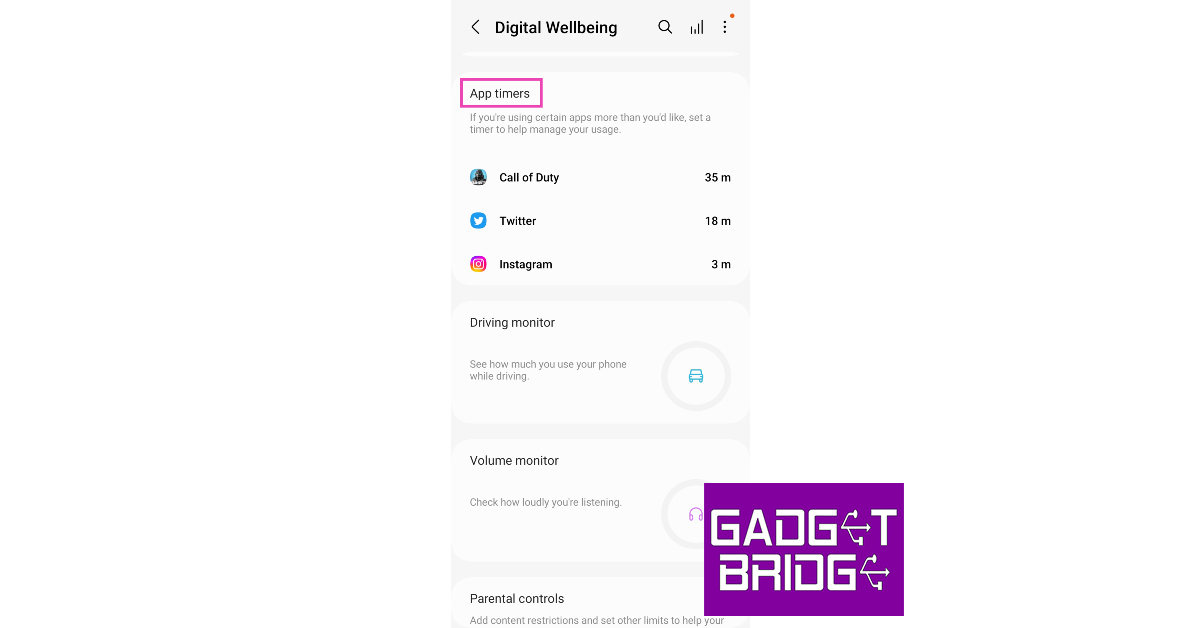
Digital Wellbeing has a greyscale mode that turns your device’s display grey to discourage you from constantly checking your phone. It also has other features like ‘focus’ mode and ‘bedtime’ mode, which act like DND with better customisations. You can also set an app timer using Digital Wellbeing. Here’s how. Step 1: Go to Settings and select ‘Digital Wellbeing and parental controls’. Step 1: Go to Settings and select ‘Digital Wellbeing and parental controls’. Step 2: Scroll down and select App Timers. Step 2: Scroll down and select App Timers. Step 3: Select an app and tap on the hourglass icon. Step 3: Select an app and tap on the hourglass icon. Step 4: Set the timer and hit ‘Done’. Step 4: Set the timer and hit ‘Done’.

Use a third-party app

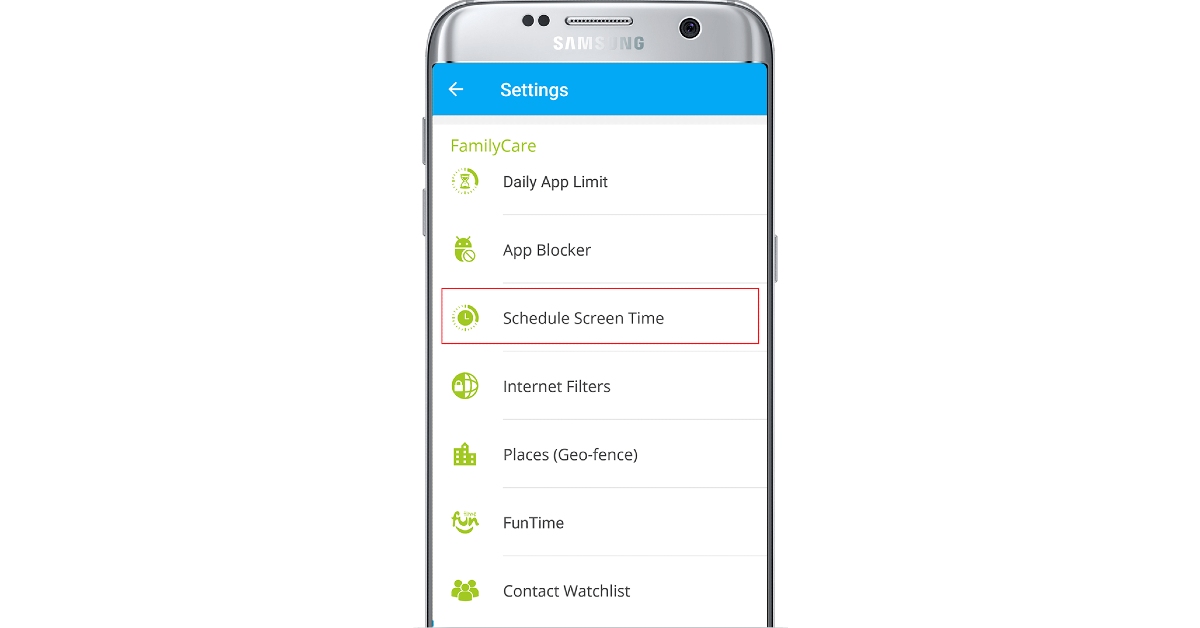
If you want more control over the time your kid spends on their phone, there are several third-party parental control apps you can use. Here’s how you can limit screen time on an Android phone using the Family Time app. Step 1: Log into the Family Time dashboard app. You can also log in using the web dashboard. Step 1: Log into the Family Time dashboard app. You can also log in using the web dashboard. 3 Ways to Limit Screen Time on Android Devices Step 2: Select a profile and tap on ‘Settings’. Step 2: Select a profile and tap on ‘Settings’. 3 Ways to Limit Screen Time on Android Devices Step 3: Select ‘Schedule Screen Time’ in the FamilyCare section. Step 3: Select ‘Schedule Screen Time’ in the FamilyCare section. 3 Ways to Limit Screen Time on Android Devices Step 4: Tap the plus sign to create a new schedule. Step 4: Tap the plus sign to create a new schedule. 3 Ways to Limit Screen Time on Android Devices Step 5: Select the start time and the end time. Step 5: Select the start time and the end time. 3 Ways to Limit Screen Time on Android Devices Step 6: Turn on the toggle switch for the schedule. The Family Time app will lock the device once the schedule kicks in. Step 6: Turn on the toggle switch for the schedule. The Family Time app will lock the device once the schedule kicks in. 3 Ways to Limit Screen Time on Android Devices

Frequently Asked Questions

Does Android have a screen time feature?

You can check and limit your screen time on Android devices using Digital Wellbeing features.

Does Android have screen time limits?

Android phones allow you to set time and usage limits for individual apps. Go to Settings>Apps>App Timer to limit your screen time.

How do I set a screen limit on my Android phone?

To set a screen limit for an app, go to Settings>Digital Wellbeing>App timers and set a schedule. Read Also: Samsung to launch Galaxy S23 Ultra in two new colour variants

Conclusion

These are the 3 best ways to limit screen time on Android devices. Digital Wellbeing has a bunch of features that let you limit your screen activity. Focus Mode and Bedtime Mode are excellent tools to limit your screen time if you have a habit of constantly checking your phone even at odd hours. For the latest gadget and tech news, and gadget reviews, follow us on Twitter, Facebook and Instagram. For newest tech & gadget videos subscribe to our YouTube Channel. You can also stay up to date using the Gadget Bridge Android App. You can find the latest car and bike news here.

5 Best Tablets you can buy under Rs 30,000 in India

The Xiaomi Pad 6 was just unveiled in India. The gadget is available in two different configurations for less than Rs 30,000. It is an excellent device however there are a number of tempting substitutes that each have their own distinct advantages. Even if there are many more releases planned for the second half of 2023, some of the tablets that have already been introduced will undoubtedly make the year-end list. We present to you in this article the 5 best tablets available in India for less than Rs 30,000. Xiaomi Pad 6 with Snapdragon 870 SoC launched in India

Xiaomi Pad 6

Xiaomi Pad 6 comes with an 11-inch 2.8K IPS LCD screen that supports refresh rates of up to 144Hz (30Hz, 48Hz, 50Hz, 60Hz, 90Hz, 120Hz, and 144Hz depending on the playing content). Under the hood, there is Snapdragon 870 SoC. Pad 6 also includes a front-facing 8-megapixel camera with a 105-degree field of view and a 13-megapixel back camera. Additionally, the tablet has an 8,840mAh battery that supports 33W cable charging and takes 100 minutes to recharge fully.
Display 11-inch 2.8K IPS LCD screen
Processor Qualcomm Snapdragon 870 SoC
Battery 8,840mAh battery
Cameras 13 MP(back) and 8MP(front)
 
  • Price starts at Rs 26,999
  • Sale starts on June 21 via mi.com
Samsung Galaxy Tab S6 Lite review

Samsung Galaxy Tab S6 Lite

Samsung Galaxy Tab S6 Lite features a 10.4-inch WUXGA TFT display. The device is powered by an octa-core processor. It comes with an 8-megapixel rear camera with auto-focus and can record videos in 1080p at 30fps. On the front, there is a 5-megapixel selfie camera housed inside a punch-hole design display.  The tablet also packs a 7,040mAh battery that delivers video playback time of up to 13 hours. Additionally, the Tablet is supported by an S Pen with a 0.7mm tip and is 7.03 grams in weight.  Also Read: Samsung Galaxy Tab S6 Lite review: The company’s solid iPad rival
Display 10.4-inch WUXGA TFT display
Processor an octa-core processor
Battery 7,040mAh battery
Cameras 5MP(front) and 8MP(rear)
 
  • Price starts at Rs 27,999
  • Buy it on Amazon
Oppo Pad Air price in India and specifications

Oppo Pad Air

Oppo Pad Air is highlighted with a 10.36-inch display. The device runs on Android 12 with ColorOS 12.1 for Pad on top. An octa-core 6nm Snapdragon 680 SoC, and an Adreno 610 GPU power the tablet. Oppo Pad Air includes a single 8-megapixel camera sensor with an f/2.0 lens on the back. It has a 5-megapixel front-facing camera sensor with an f/2.2 lens for selfies and video calls. In addition to this, there is a 7,100mAh battery that comes with 18W charging support.
Display 10.36-inch display
Processor Qualcomm Snapdragon 680 SoC
Battery 7,100mAh battery
Cameras 5MP (front) and 8MP(back)
 
  • Price starts at Rs 15,999
  • Buy it on Amazon
Redmi Pad with 8,000mAh battery launched in India

Redmi Pad

Redmi Pad has a 10.61-inch display with a peak brightness of 400 nits and a refresh rate of 90Hz. A MediaTek Helio G99 SoC with up to 6GB of RAM powers the tablet. In addition, Redmi Pad has an 8-megapixel camera that can record films and images at a resolution of 1080p. For selfies and video chats, it has an 8-megapixel front-facing camera with a 105-degree field of vision. The Redmi tablet has an 8,000mAh battery that supports 18W rapid charging.
Display 10.61-inch display
Processor MediaTek Helio G99 SoC
Battery 8,000mAh battery
Cameras 8MP front and back camera
 
  • Price starts at Rs 17,999
  • Buy it on Amazon
Lenovo Tab P11 5G with Snapdragon 750G 5G launched in India

Lenovo Tab P11

Lenovo Tab P11 has an 11-inch 2K display resolution of 2000 x 1200 pixels and supports Dolby Vision. The display is also certified by TÜV Rheinland. This Android tablet is powered by Qualcomm Snapdragon 750 5G processor. It boasts a 13MP camera sensor with autofocus on the back. At the front, there is an 8MP camera with a time of flight (ToF) capability. In addition to this, there is a 7700mAh battery and quad JBL speakers with Lenovo Premium Audio (LPA) Solution design, optimised with Dolby Atmos.
Display 11-inch 2K display
Processor Qualcomm Snapdragon 750 5G processor
Battery 7700mAh battery
Cameras 13MP(back) and 8MP(front)
 
  • Price starts at Rs 21,490
  • Buy it on Amazon
For the latest gadget and tech news, and gadget reviews, follow us on TwitterFacebook and Instagram. For newest tech & gadget videos subscribe to our YouTube Channel. You can also stay up to date using the Gadget Bridge Android App. You can find the latest car and bike news here.

BGMI redeem codes for 19 June 2023, claim and receive rewards and benefits

After being banned for nearly ten months, Battleground Mobile India, aka BGMI, is officially available again in India. BGMI fans are looking for ways to improve their game experience and one such method is the usage of redemption codes, which offers a variety of rewards and advantages using BGMI redeem codes players can gain access to new skins, outfits, loot crates, weapons and free UC and diamonds. As mentioned earlier, these codes give users the chance to earn unique rewards and gain extra benefits while playing the game. This includes GUN SKINS (M4, AKM, M416, AWM, M24, UZI, KAR98K), free character voucher, Andy, Carlo, Sara, Victor character for free, free Anna Character on completing the mission and UC or Royal Pass Discount. So here we have gathered a list of the most recent BGMI redeem codes as of 19 June 2023. Also, redeem these codes asap as these are only valid for a limited duration.

BGMI Redeem Codes for 19 June 2023

UKUZBZGWF – Free Fireworks TIFZBHZK4A – Free Outfit RNUZBZ9QQ – AKM Glacier Skin PGHZDBTFZ95U – M416 Skin R89FPLM9S – Companion 5FG10D33 – Falcon and Free Emotes GPHZDBTFZM24U – UMP9 Skin KARZBZYTR – Free Outfit JJCZCDZJ9U – Golden Pan BMTCZBZMFS – Pretty in Pink set and Pretty in Pink Headpiece 5FG10D33 – Outfit for Free SD14G84FCC – Free Skin for KAR98 Sniper Gun RNUZBZ9QQ – AKM Glacier Skin BTOQZHZ8CQ – New! TQIZBZ76F – Vehicle Skin TQIZBz76F – 3 Free Motorcycle BMTFZBZQNC – Free Drifter Set

How to get free Redeem Codes for BGMI on 19 June 2023?

  • Launch BGMI on your device.
  • Then select the Redeem Code option from the main menu.
  • Next, click on the Redeem code tab.
  • A new window will open, requesting the redemption code.
  • Now enter your BGMI code.
  • Confirm and click on the “Redeem” tab.
  • If your redeem code is valid then you will get a message confirming that your rewards were successfully redeemed.
(Note that these codes are case-sensitive, so be sure to type them correctly to prevent any errors.) For the latest gadget and tech news, and gadget reviews, follow us on TwitterFacebook and Instagram. For newest tech & gadget videos subscribe to our YouTube Channel. You can also stay up to date using the Gadget Bridge Android App. You can find the latest car and bike news here.

Garena Free Fire Redeem Codes Today 19 June 2023: Here is how to claim them

Garena Free Fire is a battle royale game with regular awards and tournaments to keep players interested. If you play Garena Free Fire, you should be aware of the redeem codes that are released on a daily basis. However, because the battle royale game is banned in India, players from other countries can use the Free Fire Redeem codes daily. If you’re unfamiliar with the Garena Free Fire redeem codes or don’t know how to get them, we’ve put together a step-by-step guide to help you redeem them. Check out Garena Free Fire Redeem Codes for 19 June 2023. The Free Fire redeem codes are a great way to get free stuff. These are 12-digit codes that contain alphabets and numbers, as well as an expiration date and time. Because the Garena FF redeem codes cannot be used more than once, you should hurry to the redemption page to claim your free reward before someone else does. To get a free reward, all you have to do is go to reward.ff.garena.com/en, which is the official redemption page. Also, keep an eye on this space for daily updates on Garena Free Fire redemption codes and rewards.

Garena Free Fire Redeem Codes Today 19 June 2023

  • J3ZKQ57Z2P2P
  • B3G7A22TWDR7X
  • WEYVGQC3CT8Q
  • HHNAT6VKQ9R7
  • WD2ATK3ZEA55
  • 4TPQRDQJHVP4
  • HFNSJ6W74Z48
  • V44ZZ5YY7CBS
  • 2FG94YCW9VMV
  • 4ST1ZTBE2RP9
  • XFW4Z6Q882WY

How to Get Free Fire Redeem Codes for Garena on 19 June 2023?

  • Visit the Garena Free Fire game’s official website at reward.ff.garena.com.
  • Use your Facebook, Google, VK, Apple ID, Huawei ID, or Twitter account to log in.
  • You’ll be taken to a valid redemption code (s)
  • Copy and paste the 12-digit redemption code into the text box.
  • On the screen, a dialogue box will appear.
  • ‘Ok’ should be selected.
For the latest gadget and tech news, and gadget reviews, follow us on TwitterFacebook and Instagram. For newest tech & gadget videos subscribe to our YouTube Channel. You can also stay up to date using the Gadget Bridge Android App. You can find the latest car and bike news here.