In order to keep your privacy intact, Android devices give you the option to hide any installed device. You can also choose to password-protect the hidden apps. While this is a nifty feature, it can prove to be a hurdle for parents who don’t want their kids accessing certain apps. In this article, we bring you the best 6 ways to find hidden apps on Android devices.Read Also:5 Best 55-Inch TVs under your budget in India
Find Hidden apps from Settings
The easiest way to find all hidden apps on your device is by going through the home screen settings. Here’s how.Step 1: Go to Settings and select Home Screen.Step 2: Scroll down and select ‘Hide apps’.Step 3: You’ll be able to see the list of hidden apps. You can choose to hide more apps or unhide the hidden apps in this window.
Find Hidden apps using the app list
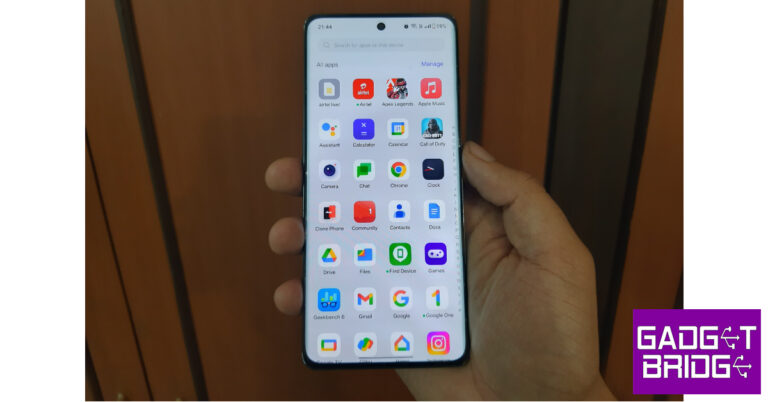
Your Android smartphone lets you view all the installed apps on your device in one place. You can find the hidden apps on this list too. Here’s how.Step 1: Go to Settings.Step 2: Select Apps.Step 3: Go through the list of apps and look for the ones that aren’t present in the app drawer.
Look for a trick app
The problem with using the default Android method to hide apps is that any other Android user can easily figure out how to unhide them. This is why Google Play Store is full of privacy apps that have their own way of hiding apps on your device. Certain apps pose like system apps (like a Calculator or Photo Gallery) on your device and do not give you access to the hidden contents until you enter a code. A privacy app disguised as a calculator will function like a calculator until you punch in a particular code. To find hidden apps on an Android device, closely inspect the system apps and go through their app info in Settings to see if they were published by a third-party developer.
Go through the downloaded APKs
Another way to look for hidden apps is by going through the list of downloaded APKs on an Android device. Of course, this only works for apps downloaded from a third-party marketplace. This method won’t lead you to the installed app, but it will give you an idea about the apps that may be hidden on a device. To go through the list of APKs on an Android phone, go to the file manager and select the ‘Apps’ or ‘APK’ folder.
Use a third-party app launcher
If you can’t figure out the mechanism used to hide an app on an Android device, you can use a third-party app launcher like Nova Launcher or Apex Launcher. Upon downloading an app launcher, run it on your device and access the ‘hidden apps’ section. Any previously hidden apps will be visible here.
Check app permissions
If you’re worried that there’s a hidden spy app installed on your device, you can go through the permission list on your device and see which apps have the clearance to use your phone’s camera, media, microphone, location, and more. Apps which are usually hidden from the home screen or app drawer will be visible here. To go through the list of permissions go to Settings>Apps>Options (three dots)>Permissions.
Frequently Asked Questions
How do I find all the hidden apps?
To find the hidden files on your device, go to Settings>Home Screen and select ‘Hide Apps’. You can also browse through the app list to see every installed app on a device.
How do I unhide an app?
Go to Settings>Home Screen>Hide Apps and tap on the app you want to unhide.
In India, the affordable smartphone market saw a lot of new additions this year. Numerous low-cost smartphones have been released in the nation by Chinese smartphone manufacturers like Xiaomi, Redmi, Poco, Nokia, and others. Home-grown firm Lava too came up with interesting additions to this category. So if you want to purchase a device with all the features you want without breaking the bank here are some options. These are the 5 best budget smartphones under Rs 8,000 that we found for you after doing some research.
Poco C50
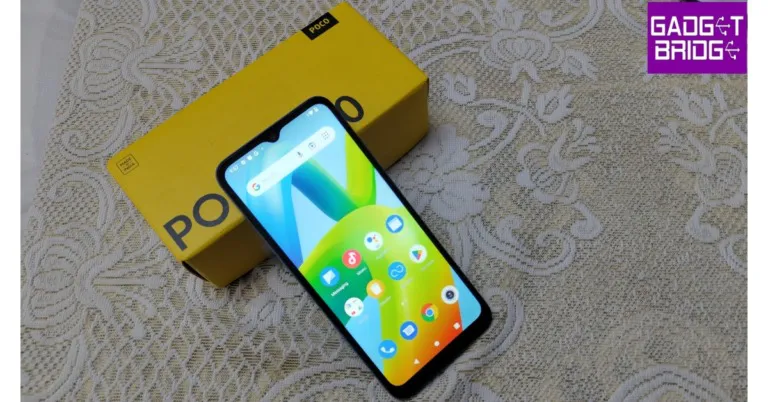
Poco C50 features a 6.52-inch HD+ display with a 1,600×700 pixel resolution. It runs on Android 12(Go Edition) and is powered by an octa-core MediaTek Helio A22 SoC. The device comes with a waterproof and dust-resistant finish and has a dedicated microSD slot for memory expansion. The Poco C50 (Review) has a dual rear camera system with AI support that includes an 8-megapixel primary sensor. A 5-megapixel sensor is located at the front of the device for selfies and video calls. In addition to this, it packs a 5,000mAh battery.
The Redmi A2 comes with a 6.52-inch HD+ LCD display with 1600 x 720 pixels. The device run on Android 13 out of the box. Under the hood, there is MediaTek Helio G36 SoC. The phone includes 5,000mAh with 10W fast charging support. For the optics, there is a dual rear camera setup, including an 8-megapixel primary sensor along with a QVGA camera. The smartphone also features a 5-megapixel selfie sensor.
Redmi 10A comes with a 6.53-inch HD+ display with a resolution of 720×1,600 pixels. it runs on MIUI 12.5 on top. Under the hood, there is an octa-core MediaTek Helio G25 processor. This phone also supports memory expansion. The device comes with a single 13-megapixel camera sensor with an LED flash. The budget smartphone has a 5-megapixel selfie camera sensor on the front for selfies and video chats. The Redmi 10A is powered by a 5,000mAh battery that can be charged at a standard 10W.
Nokia C12 features a 6.3-inch HD+ display. It operates on Android 12 Go Edition and comes with two years of quarterly security updates. The phone comes with an octa-core Unisoc 9863A1 SoC. The internal storage can be expanded via microSD up to 256GB. In addition to this, it includes a single 8-megapixel camera sensor with autofocus and an LED flash on the back. For selfies and video calls the Nokia C12 (Review)has a 5-megapixel front-facing camera. The smartphone houses a removable 3,000mAh battery that comes with 5W rapid charging.
The Lava Blaze 2 is also a wise pick if you can increase your budget a little by Rs 1,000. It highlights a 6.5-inch IPS LCD display with 720×1600 pixels of resolution and 90Hz refresh rate support. The phone runs on Android 12 and is driven by an octa-core Unisoc T616 processor SoC. In addition to this, the internal storage can also be expanded via a microSD card. The Lava Blaze 2 comes with a dual rear camera setup that includes a 13-megapixel primary sensor and a secondary 2-megapixel lens. There is an 8-megapixel front-facing camera for taking selfies and video calling. The device also includes a 5,000mAh battery that supports 18W charging.
Garena Free Fire is a battle royale game with regular awards and tournaments to keep players interested. If you play Garena Free Fire, you should be aware of the redeem codes that are released on a daily basis. However, because the battle royale game is banned in India, players from other countries can use the Free Fire Redeem codes daily. If you’re unfamiliar with the Garena Free Fire redeem codes or don’t know how to get them, we’ve put together a step-by-step guide to help you redeem them. Check out Garena Free Fire Redeem Codes for 30 May 2023.The Free Fire redeem codes are a great way to get free stuff. These are 12-digit codes that contain alphabets and numbers, as well as an expiration date and time. Because the Garena FF redeem codes cannot be used more than once, you should hurry to the redemption page to claim your free reward before someone else does. To get a free reward, all you have to do is go to reward.ff.garena.com/en, which is the official redemption page. Also, keep an eye on this space for daily updates on Garena Free Fire redemption codes and rewards.
Garena Free Fire Redeem Codes Today 30 May 2023
FU9O89OHG9FAQT
FCAVBQNJMKI345
FUTYHBIUCYHXBD
FNMER5LTYPOKMK
FO9I8DURH56KYL
F5KJMYKO9IKMKI
FO9IJNAJUQ6YT2
FGFVFGTR3F45BN
F6JMK789NBV765
FFDSFR6UHTJYU8
FB4N3KOI8UY6TV
FGCHNJXIUYZRFD
FUOUYX543QED2C
F2RFD3C4RVBGHV
FUYCTXRFCSDEBJ
How to Get Free Fire Redeem Codes for Garena on 30 May 2023?
Amazon is back with another quiz on its mobile platform. The Amazon Quiz is conducted every day for its customers. Customers from different parts of the country are participating in the daily quiz. Today’s Amazon quiz is now live on the Amazon App. The customers who participate in the 30 May 2023 Amazon Quiz will get a chance to win Rs 1,250 Amazon pay Balance.The Amazon Quiz can be played from 12 AM to 11:59 PM. For those who are unaware of the quiz, the e-commerce platform brings a fresh quiz on a daily basis which consists of five questions related to general knowledge and current affairs. The participants need to answer all the questions correctly and their names will be selected for a lucky draw. The winner will be announced at the end of the month. One wrong answer could eliminate you from the quiz. Only app users are eligible to participate in the Quiz. Check Out 30 May 2023 Amazon Quiz Answers.Amazon Quiz Today Prize – Rs 1,250 Amazon Pay BalanceQuiz Date – 30 May 2023Daily Timing – 12 AM to 11:59 PMWinner Announcement – Today 12 PM
Amazon Quiz Answers Today 30 May 2023
Question 1: India will host the Asian Champions Trophy ______ tournament for the first time in 2023.Answer: HockeyQuestion 2: Which fast bowler, who plays for Royal Challengers Bangalore, became the fastest Indian to take 100 wickets in IPL?Answer: Harshal PatelQuestion 3: In 2023, which African country launched its first operational Earth observation satellite named ‘Taifa-1’?
Answer: KenyaQuestion 4: What enables this species of frog to protect itself?Answer: PoisonousQuestion 5: This exhibit is located at which palace in Italy?Answer: Palazzo Strozzi
How To Play Amazon Quiz
Only app users are eligible to play the Amazon quiz every morning from 12 AM to 11:59 PM. The quiz is not available on the desktop. For those who are unaware of how to play the Amazon quiz below are the steps, you can follow to take the quiz.
Firstly download the Amazon app from Google Play Store or App Store
Now fill in the required information through the Sign Up option.
You need to log in to the Amazon app and scroll down on the home screen to find the Amazon Quiz banner.
Tap on the Amazon Quiz banner and tap on the Start button to start the Quiz.
Now you will get 5 questions and you need to answer them correctly. One wrong answer will eliminate you from the Quiz.
After answering all the questions correctly you are now eligible for a Lucky Draw.
The winner’s name will be announced today at 12 PM.
Taking a screenshot is one of the easiest things you can do on your Android smartphone. It is the quickest and easiest way to share information with a contact. While you may be familiar with the traditional way of taking a screenshot, you would be surprised to know just how many ways there are to go about this task. In this article, we bring you the best 7 ways to take screenshots and share them on an Android smartphone.Read Also:Best 5G Smartphones under $800 in USA
Use key shortcuts
The standard way to take a screenshot on an Android smartphone is by pressing the Power + Volume Down buttons. This works for most Android devices. However, if you’re using an old Android device with a dedicated home button, press Power Key + Home Button to take a screenshot. Make sure you press both buttons at the same time to take a screenshot. Pressing either button even a tiny bit earlier will not capture the screenshot.Once the screenshot has been taken, you can tap the downward arrow on the toolbar to scroll down and capture more of the screen. Tap the share icon to share the screenshot directly from the preview window. Some smartphones automatically delete the screenshot after it has been shared. Explore your phone’s settings to see if it offers this feature.
Use Gestures
Depending on your smartphone manufacturer, there are certain special gestures you can use to take a screenshot. Samsung users can swipe their palm across the screen to take a quick screenshot, while OnePlus users can capture the screen by dragging three fingers from the top of the display. To enable the gesture on your Samsung smartphone, go to Settings>Advanced Features>Motions and Gestures and enable ‘Palm swipe to capture’. On your OnePlus smartphone, go to Settings>Additional Settings>Screenshot and enable ‘3-finger swipe down’.
Take a screenshot using the Quick Settings Menu
The Quick Settings Menu on your Android smartphone has a dedicated tile for taking a screenshot. Simply swipe down from the status bar and tap on ‘Screenshot’. Once you press on the tile, your smartphone will capture the screen you are on after rolling up the quick settings menu. You can also choose to take a partial screenshot or a rolling screenshot.
Take a screenshot from the app preview screen
Android smartphones allow you to take a screenshot of an app without opening it. You can carry out this task from the app preview screen itself. Use the gesture control or dedicated navigation icon to go to the app carousel/preview screen. Hit the ‘Screenshot’ option below an app’s card to take a screenshot of its current page.
Take a screenshot using Google Assistant
If Google Assistant is enabled on your device, you can simply ask it to take a screenshot. Using this method does not even require you to touch your smartphone. Simply say ‘Hey Google, take a screenshot’ and the Assistant will capture your device’s screen. This method is super helpful when you are driving and cannot handle your smartphone.
Take a screenshot using Quick Tap
Google Pixel users can take a screenshot by tapping the back panel of the smartphone twice. To enable this feature go to Settings>System>Gestures>Quick Tap and select ‘Take screenshot’.
Use a third-party app
There are plenty of third-party apps that let you take a screenshot on your device. These apps overlay an assistive ball on your smartphone’s display, letting you capture the screen whenever you want. This method comes in handy when there’s something wrong with the physical buttons on your smartphone. Screenshot Touch and Screen Master are some of the best apps you can use for this task.
Frequently Asked Questions
Can Google Assistant take a screenshot?
If you want to capture your phone’s screen in hands-free mode simply say ‘Hey Google, take a screenshot’ and Google Assistant will do the job for you.
How do I take a screenshot on my phone?
There are several ways to take a screenshot on your phone. The simplest method is by pressing the power key and the volume down button.
Why won’t my phone take any screenshots?
If your smartphone isn’t able to take a screenshot, check the available storage on your device. You should also know that your phone won’t take screenshots on apps like Netflix, where the content is copyrighted. Taking screenshots on the incognito tab or certain payment apps is also not allowed.Read Also:ChatGPT iOS app is now available in India, expanded to more countries
Conclusion
These are the top 7 ways to take a screenshot on your Android smartphone. As mentioned earlier, you can easily share the screenshot straight from its preview window. You can also edit the screenshot to adjust its size, crop it, or draw on it before sharing it with your friends. Which method do you use to take a screenshot on your phone? Let us know in the comments!
Because of major competition, many different brands in India have been selling Smart Television for less than Rs 50,000. These televisions provide top-of-the-line technology and software in affordable televisions. Here is our list of the 5 Best 55-inch TVs available in India you can buy under your budget in India.
Westinghouse 55 inches Quantum Series 4K Ultra HD Smart Certified Android LED TV
The first on our list is this Westinghouse 55 inches Quantum Series 4K Ultra HD Smart Certified Android LED TV that comes with HDR 10+ and 1 billion colours. It has a 60 Hz refresh rate ensuring smooth and buttery motion. In terms of connectivity, there are 3 HDMI and 2 USB ports. The speakers on the Television offer 40 watts sound output, Dolby Digital Plus, Dolby MS 12 and DTS Trusurround. The device runs on the Android TV platform, to access your favourite streaming services like Netflix, Prime Video, and more.Price: Rs 28,999Buy via Amazon
Vu 139 cm Premium Series 4K Ultra HD Smart LED Google TV 55CA
Next comes this Vu 139 cm (55 inches) Premium Series 4K Ultra HD Smart LED Google TV 55CA. As the name suggests the Television supports 4K resolution, 60Hz refresh rate, 400 Nits Brightness, HDR10 I HLG and AI Picture Booster. The television has 50 watts of powerful sound, featuring pure sound, surround sound, and more. There is support for Google TV, Chromecast, and a range of smart features. In terms of connectivity, there is HDMI ports, USB ports, Wi-Fi, and Bluetooth. Price: Rs 33,990Buy via Amazon
Redmi 55 inches 4K Ultra HD Android Smart LED TV X55
The Redmi 55 inches 4K Ultra HD Android Smart LED TV X55 has 3840 x 2160 pixels of resolution. It refreshes at 60Hz and offers 178 degrees of viewing angle. The 4K LED panel, Dolby Vision, HDR10+, HLG, and Vivid Picture Engine. The 55-inch TV offers 30 watts output and supports Dolby Audio, DTS Virtual: X, Dolby Atmos pass-through eARC and DTS-HD. For connectivity, there is dual-band Wi-Fi, Bluetooth 5.0, 3 HDMI ports, and 2 USB ports. It runs on Android TV 10 and includes PatchWall, Kids Mode, Universal Search, and support for popular apps like Netflix and Prime Video. Price: Rs 36,999Buy via Amazon
Sansui 55 inches 4K Ultra HD Certified Android LED TV
The Sansui 55 inches 4K Ultra HD Certified Android LED TV has 3840×2160 pixels of resolution and refreshes at 60Hz. This smart TV is powered by Android 10.0 and comes with Google Assistant and Alexa support and is powered by a quad-core processor. For connectivity, there are multiple HDMI and USB ports, along with Bluetooth, Wi-Fi, and more. In terms of audio, the Sansui TV supports Dolby Audio, DTS technology and offers 20 Watts Audio Output.Price: Rs 32,970Buy via Amazon
Acer 55 inches I Series 4K Ultra HD Android Smart LED TV
The Acer 139 cm (55 inches) I Series 4K Ultra HD Android Smart LED TV has 3840×2160 pixels of resolution and it comes with a refresh rate of 60Hz with Dolby Vision support. Connect all your devices effortlessly with multiple HDMI and USB ports, along with Bluetooth and Ethernet. There are 60-watt HiFi speakers with Dolby Atmos support. The 55-inch Android TV further includes Google Assistant, Chromecast built-in, and a voice-controlled smart remote. Price: Rs 35,999Buy via Amazon
For the latest gadget and tech news, and gadget reviews, follow us on Twitter, Facebook and Instagram. For newest tech & gadget videos subscribe to our YouTube Channel. You can also stay up to date using the Gadget Bridge Android App. You can find the latest car and bike news here.
If your Android phone refuses to function at all and displays the ‘Qualcomm Crash Dump Mode’ message on the screen, it means that its partition is corrupted. This may happen while installing a custom ROM or a software update on your device. In this article, we bring you the best 3 ways to fix the ‘Qualcomm Crash Dump Mode’ on Android phones.Read Also:Best 5G smartphones under $500 in USA (2023)
Fix Qualcomm Crash Dump Mode by rebooting your Android phone
A simple reboot can be enough to exit Crash Dump Mode on your Android smartphone. If you are a OnePlus user, press and hold the side key and volume up button for 15 seconds to shut down your phone. Once your phone has shut down, long-press the side key to power it on again. Your phone should reboot normally. If it doesn’t move on to the next method.
Exit Crash Dump Mode through FastBoot Mode
If a normal reboot didn’t fix the Crash Dump Mode on your Android device, try booting it in FastBoot Mode instead. Press and hold the side key + volume down + volume up buttons at once to initiate FastBoot mode in OnePlus devices. This key combination may vary between different smartphones. Simply Google the combination for your smartphone to proceed further. Here are the key combinations for major smartphone manufacturers.Samsung: Power Button + Volume Down + Home/Volume UpXiaomi: Power Button + Volume Down keyGoogle: Power Button + Volume Down keyOnce the FastBoot Mode is initiated, use the volume keys to navigate up and down. Select ‘Start’ and hit the power key to enter your selection. Your phone will boot after some time.
Use MSM Tool to flash your phone’s firmware
Step 1: Launch Command Prompt on your PC or laptop.Step 2: Enter the following command and hit Enter: bcdedit /set testsigning onStep 3: Restart your laptop/PC.Step 4: Download and install Qualcomm USB Drivers for your PC/laptop.Step 5: Download the MSM flash file for your smartphone model. You will have to Google your phone’s model number to find its MSM flash file.Step 6: Extract the file and launch the MSMDownloadTool.Step 7: Click on ‘Target’ and select your region. Step 8: Turn off your smartphone. Connect it to your PC/laptop.Step 9: Press and hold the Volume Up + Volume Down buttons. Do not let them go.Step 10: Click on Enum and check whether your phone is connected to your PC/laptop.Step 11: Click on ‘Start’.Step 12: Once the progress bar appears on the screen, let go of the buttons.Step 13: It will take a few minutes for the MSM Tool to flash your phone’s firmware. Once that is done, the Qualcomm Crash Dump Mode will be fixed on your Android device.
Frequently Asked Questions
Why is my phone showing Qualcomm crash dump mode?
If your phone is displaying the ‘Qualcomm crash dump mode’ message on the screen, it means that the partition of the device is corrupted and it is unable to boot the OS.
How do I fix Qualcomm Crash Dump Mode on Android?
To get your phone out of crash dump mode, try booting it on FastBoot mode. If that doesn’t work, you will need to flash its firmware.
Does flashing a smartphone’s ROM clear all the data?
Android is the biggest mobile operating system in the world, but its usage is limited to ARM-architecture devices (mostly smartphones). This is why Android OS is largely absent from laptops or PCs, which use the x86 architecture. If you want to play an Android game on your PC, you have to rely on an Android emulator like Bluestacks, MeMU, or Android Studio. If you want the full Android experience on your PC, you will have to download Android-x86. Android-x86 is an open-source project that ports Android OS to devices that utilise x86 architecture. In this article, we show you how to install the complete Android OS on a PC.Read Also:Best 5G smartphones under $500 in USA (2023)
Here’s how you can install Android-x86 on your PC
Step 1: Download the Android-x86 ISO file from here and burn it to a CD. You can also create a bootable USB drive for the OS.Step 2: Use the USB/CD to boot your PC and select ‘Install Android-x86 to hard disk’.Image Source: Android-x86.orgStep 3: Choose a partition to install Android-x86. You can also create a new partition.Image Source: Android-x86.orgStep 4: If you want to keep the existing data on your PC, select ‘Do not re-format’. Your PC can run Android OS along with Windows. If you wish to erase the data on the system, choose a format type from the list.Image Source: Android-x86.orgStep 5: Confirm your selection.Image Source: Android-x86.orgStep 6: Select ‘Yes’ to install boot loader Grub.Image Source: Android-x86.orgStep 7: Hit ‘Yes’ for a read-write system directory. This is necessary for debugging, rooting, and getting rid of bloatware packages.Image Source: Android-x86.orgStep 8: Wait for the installation to end.Image Source: Android-x86.orgStep 9: Select ‘Run Android-x86’. The Android OS will load on your PC.Image Source: Android-x86.org
Frequently Asked Questions
How can I run Android on my PC without an emulator?
If you do not want to use a third-party Android emulator on your PC, you can install Android-x86 OS in just a few simple steps.
Bluestacks is one of the best Android emulators out there and is completely safe to run on your PC. However, its performance may differ depending on the processor you are using.Read Also:How to hide your Snapscore from other people on Snapchat?
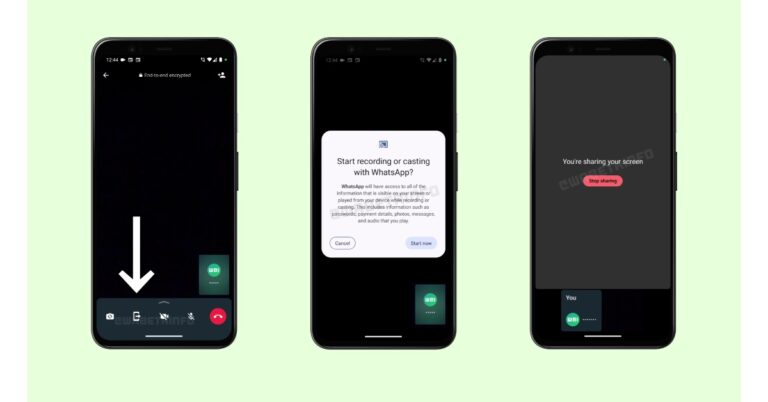
To provide a better user experience WhatsApp recently rolled out new features on its platform. Recently the Meta-owned instant chatting app was spotted testing screen-sharing feature similar to Zoom and Google Meet. As the name suggests users will be able to share their screen’s contents with callers. Currently, this functionality is available on the beta version of the Android app.
According to a report by WABetaInfo, few beta testers have access to WhatsApp’s upcoming screen-sharing feature during a video call, which also includes a new location for tabs in the bottom navigation bar. Reportedly this feature is available to some beta testers that install the latest WhatsApp beta for Android 2.23.11.19 update from the Google Play Store.
Also Read:WhatsApp Editing feature is now rolling out to users
Users will be asked to share their screen if they tap the new icon in the call control pane, as shown in the shared screenshot. According to the WaBetaInfo report whatever is on the screen will be recorded and shared with the recipient when you choose to share it. Notably, this feature might not be available on older Android versions, screen-sharing might not function in lengthy group calls, and the recipient might not be able to see what is on your screen if an old version of WhatsApp is being used. Additionally, even if the screen content is continuously transmitted throughout the video call, you can pause it anytime. Additionally, this function is only activated if you agree to share the information on your screen.
Not just that the WhatsApp beta for Android 2.23.11.19 update also brings a few small modifications to the new bottom navigation bar may be apparent for certain users after installation. The bottom navigation bar’s tabs, in particular, have been organised in a certain way that chats, Calls, Communities, and Statuses may now appear in this sequence in the bottom navigation bar for some users.
“The ability to share the content of your screen, along with the new placement for tabs within the bottom navigation bar, is available to some beta testers after installing the latest WhatsApp beta for Android update from the Google Play Store, and it is rolling out to more users over the coming weeks,” as per WABetaInfo.
For the latest gadget and tech news, and gadget reviews, follow us on Twitter, Facebook and Instagram. For newest tech & gadget videos subscribe to our YouTube Channel. You can also stay up to date using the Gadget Bridge Android App. You can find the latest car and bike news here.
Flagship smartphones are priced ludicrously high these days. If you’re looking for a high-end phone, it’ll cost you anywhere between $1,000 to $1,200. However, if you’re willing to compromise on a couple of premium features without sacrificing the performance, there are plenty of options under $800 that you may fancy. This price category consists of entry-level flagships as well as ‘flagship killers’. So, without further ado, let’s take a look at the best 5G smartphones you can buy for under $800 in the USA.Read Also:Best 5G smartphones under $500 in USA (2023)
iPhone 15
Price: $799
Key Specs
Display
6.1-inch Super Retina XDR OLED
Chipset
Apple A16 Bionic
RAM
6GB
Storage
128GB, 256GB, 512GB
Battery
3,279 mAh
The entry-level model in Apple’s latest iPhone 15 series is priced at $799. The new iPhone 15 gets an improved A16 Bionic chipset that was found in last year’s Pro models. If you want to harness the power of the latest A17 Pro chipset, you will need to shell out extra money for the Pro variants. One of the biggest changes on the new iPhone 15 is the USB Type-C port replacing Apple’s lightning port for charging and data transfer. Since the entry-level model employs USB Type-C 2.0, don’t expect super high charging and data transfer speeds. The camera module on the iPhone 15 finally gets the update that first featured on last year’s Pro variants. The primary shooter is now a 48MP sensor, while the ultrawide camera retains the 12MP sensor. The notch on the display has now been replaced with the Dynamic Island.
iPhone 14
Price: $699Key Specs
Display
6.1-inch OLED
Chipset
A15 Bionic
RAM
6GB
Storage
128GB, 256GB, 512GB
Battery
3,279 mAh
The iPhone 14 lineup starts at $699 for the entry-level model. The smartphone retains the A15 Bionic chipset from the previous series. The superior A16 Bionic processor is only available on the Pro models. It also carries forward the notch on display. While it may look very similar to the iPhone 13, the iPhone 14 is still one of the best smartphones you can buy for under $800 in the USA. One of the biggest highlights of the 14 series is the Emergency SOS which allows users to connect to the nearest satellite in case of an emergency. The smartphone sports a 6.1-inch Super Retina XDR OLED display that can reach a peak brightness of 1,200 nits. Talking about the camera specs, the new iPhone 14 gets the all-familiar 12 MP wide and ultrawide lens at the back and a 12MP selfie camera up front.
Samsung Galaxy S23
Price: $799Key Specs
Display
6.1-inch Dynamic AMOLED
Chipset
Snapdragon 8 Gen 2
RAM
8GB
Storage
128GB, 256GB, 512GB
Battery
3,900 mAh
Samsung Galaxy S23 is without a doubt the best compact Android smartphone you can buy right now. The smartphone gets a stunning 6.1-inch Dynamic AMOLED display that can reach up to 1,750 nits of peak brightness. Powering the Galaxy S23 is this year’s Qualcomm flagship SoC, Snapdragon 8 Gen 2. The triple camera unit at the back features a 50MP primary shooter, a 10MP telephoto lens, and a 12MP ultrawide lens. With 25W wired charging, the 3,900 mAh battery on this smartphone can be boosted to 50% in 30 minutes.
Motorola Edge+ (2023)
Price: $799Key Specs
Display
6,67-inch OLED
Chipset
Snapdragon 8 Gen 2
RAM
8GB
Storage
512GB
Battery
5,100 mAh
Motorola Edge+ gets a 6.67-inch curved OLED display with a maximum refresh rate of 165Hz and peak brightness of 1,300 nits. The smartphone is available in a single storage variant of 512GB and 8GB RAM. There are three rear cameras on this device – a 50MP primary shooter, a 12MP telephoto lens, and a 50MP ultrawide lens. At the front, you get a 60MP selfie camera. Motorola offers an almost stock Android experience on this device, with three years of OS upgrades. Powering the Motorola Edge+ is the flagship Snapdragon 8 Gen 2 SoC.
Google Pixel 7 Pro
Price: $749Key Specs
Display
6.7-inch LTPO AMOLED
Chipset
Tensor G2
RAM
8GB, 12GB
Storage
128GB, 256GB, 512GB
Battery
5,000 mAh
Google’s flagship Pixel 7 Pro is powered by the company’s in-house Tensor G2 processor and carries forward the signature design that first made an appearance on Pixel 6. The rear camera band on the Pixel 7 Pro houses a 50MP primary shooter, a 12MP ultrawide lens, and a 48MP telephoto lens. Computational photography still continues to be the biggest highlight of the Pixel. We reviewed the smartphone last year and were thoroughly impressed with its camera performance. Other than that, the stock Android OS experience is also one of the reasons why you should get this phone.
Motorola Edge 30 Ultra
Price: $759Key Specs
Display
6.67-inch P-OLED
Chipset
Snapdragon 8+ Gen 1
RAM
8GB, 12GB
Storage
128GB, 256GB, 256GB
Battery
4,610 mAh
Motorola Edge 30 Ultra was one of the best smartphones to come out last year. It features the Snapdragon 8+ Gen 1 SoC, a 6.67-inch curled P-OLED display, Corning Gorilla Glass 5 front and back, and a whopping 200MP primary camera. The rear camera unit also features a 12MP telephoto and 50MP ultrawide lens. The smartphone can charge at an amazing 125W using a wired charger. There is also 50W support for wireless charging.
OnePlus 11
Price: $700Key Specs
Display
6.7-inch LTPO3 fluid AMOLED
Chipset
Snapdragon 8 Gen 2
RAM
8GB, 12GB, 16GB
Storage
128GB, 256GB, 512GB
Battery
5,000 mAh
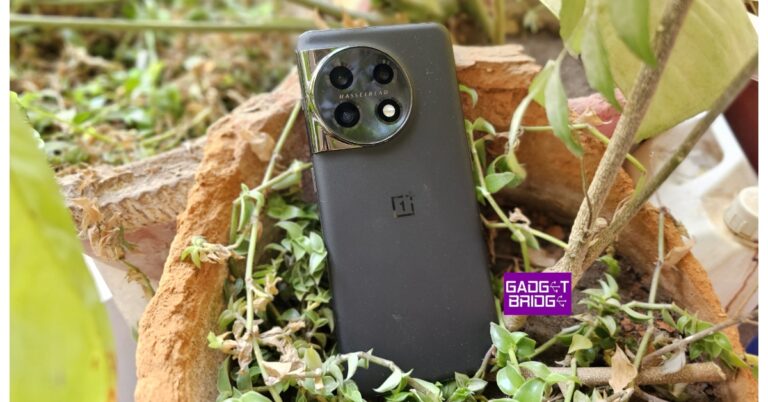
After the mild response that the OnePlus 10T received last year, the smartphone manufacturer delivered a solid product in the form of their flagship OnePlus 11. Launched in February 2023, the OnePlus 11 is one of the better Android smartphones to come out this year. On paper, the OnePlus 11 features great specs. It gets the flagship Snapdragon 8 Gen 2 SoC, a 6.7-inch LTPO3 fluid AMOLED display, UFS 4.0 storage, 100W wired charging, and more. The camera unit on the OnePlus 11 tuned by Hasselblad consists of a 50MP primary shooter, a 48MP ultrawide lens, and a 32MP telephoto lens. Up front, you get a 16MP selfie camera. Read our full review of OnePlus 11 here.
Lenovo ThinkPhone by Motorola
Price: $699Key Specs
Display
6.6-inch P-OLED
Chipset
Snapdragon 8+ Gen 1
RAM
8GB, 12GB
Storage
128GB, 256GB, 512GB
Battery
5,000 mAh
If you like the Lenovo ThinkPad notebook a little too much, you’ll be pleased to know about this collaboration between Lenovo and Motorola. The ThinkPhone is a $700 smartphone that carries the aesthetics of a Lenovo ThinkPad with the functionality of a Motorola smartphone. And yes, it does have a customisable red side key. The ThinkPhone is a rock-solid smartphone, it is rated IP68 for dust and water resistance and has an amarid fibre back along with an aluminium frame. It is MIL-STD-810H compliant as well. Since it is made in collaboration with Lenovo, it comes with some ‘Ready for PC’ features like a shared clipboard, seamless drag and drop transfer, phone mirroring, and using the smartphone camera as your PC’s webcam. If you’re an Android and Lenovo enthusiast, the Thinkphone is one of the best smartphones you can buy for under $800 in the USA.Read Also:How to hide your Snapscore from other people on Snapchat?
Conclusion
These are the best smartphones you can buy for under $800 in USA. While the ‘Pro’ variants of Samsung and Apple flagships may cost over $1,000, you can grab the previous iterations at a lower price. The same goes for foldable smartphones. Which smartphone do you think offers the greatest value at this price point? Let us know in the comments!For the latest gadget and tech news, and gadget reviews, follow us on Twitter, Facebook and Instagram. For newest tech & gadget videos subscribe to our YouTube Channel. You can also stay up to date using the Gadget Bridge Android App. You can find the latest car and bike news here.


 Step 2: Scroll down and select ‘Hide apps’.
 Step 3: You’ll be able to see the list of hidden apps. You can choose to hide more apps or unhide the hidden apps in this window.

 Step 3: Go through the list of apps and look for the ones that aren’t present in the app drawer.
 Another way to look for hidden apps is by going through the list of downloaded APKs on an Android device. Of course, this only works for apps downloaded from a third-party marketplace. This method won’t lead you to the installed app, but it will give you an idea about the apps that may be hidden on a device. To go through the list of APKs on an Android phone, go to the file manager and select the ‘Apps’ or ‘APK’ folder.
 If you can’t figure out the mechanism used to hide an app on an Android device, you can use a third-party app launcher like Nova Launcher or Apex Launcher. Upon downloading an app launcher, run it on your device and access the ‘hidden apps’ section. Any previously hidden apps will be visible here.
 If you’re worried that there’s a hidden spy app installed on your device, you can go through the permission list on your device and see which apps have the clearance to use your phone’s camera, media, microphone, location, and more. Apps which are usually hidden from the home screen or app drawer will be visible here. To go through the list of permissions go to Settings>Apps>Options (three dots)>Permissions.




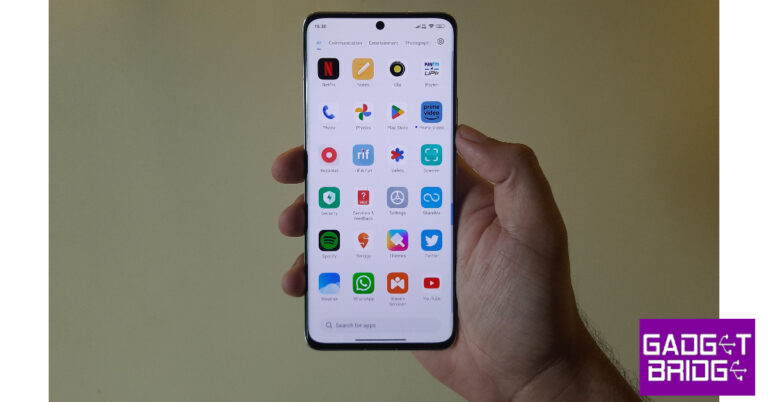


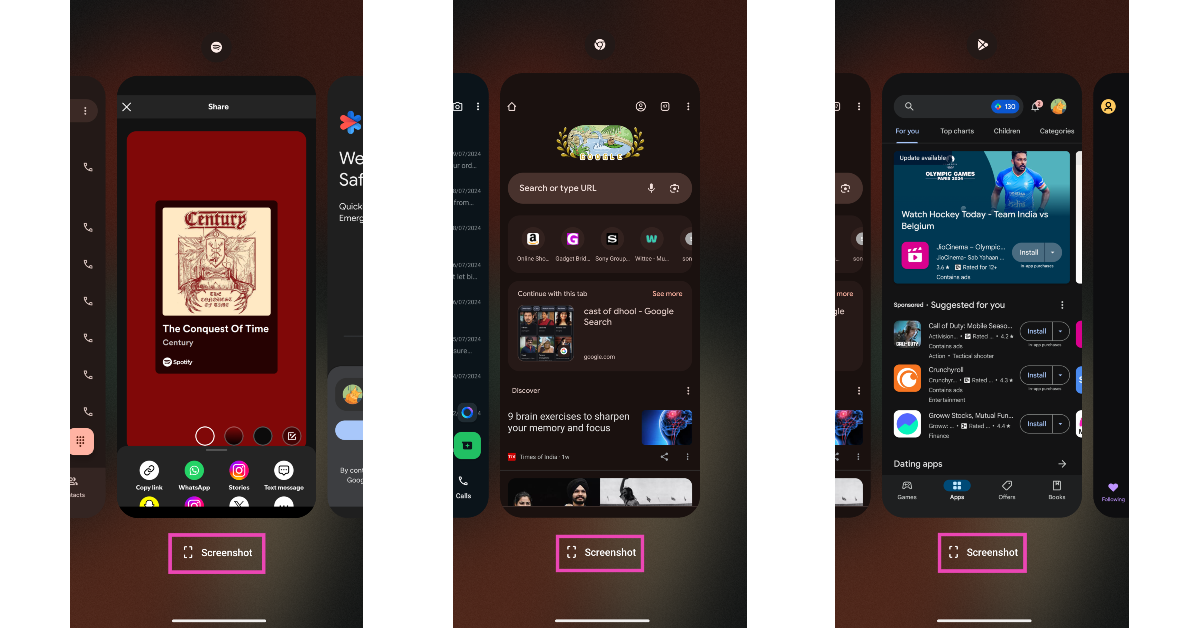 Android smartphones allow you to take a screenshot of an app without opening it. You can carry out this task from the app preview screen itself. Use the gesture control or dedicated navigation icon to go to the app carousel/preview screen. Hit the ‘Screenshot’ option below an app’s card to take a screenshot of its current page.




![[Working] Fix Qualcomm Crash Dump Mode on Android phones: Best 3 ways](https://www.gadgetbridge.com/wp-content/uploads/2023/05/cdm-768x402.jpg "[Working] Fix Qualcomm Crash Dump Mode on Android phones: Best 3 ways")
 Step 1: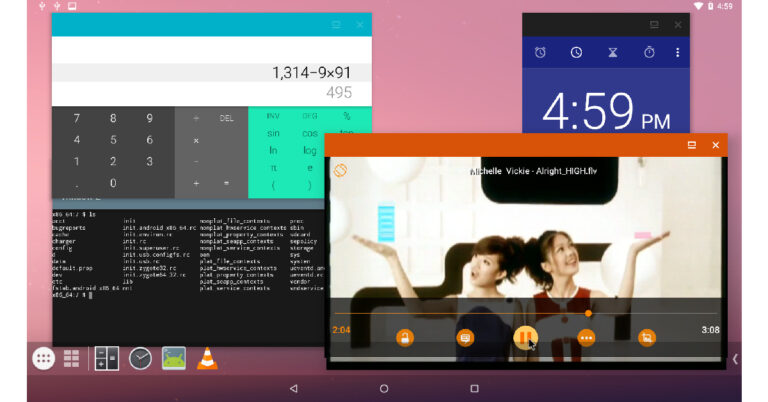


 Key Specs
 Key Specs
 Key Specs
 Key Specs
 Key Specs
 Key Specs
 Key Specs
 Key Specs