Garena Free Fire Redeem Codes Today 10 March 2023: Here is how to claim them

Garena Free Fire is a battle royale game with regular awards and tournaments to keep players interested. If you play Garena Free Fire, you should be aware of the redeem codes that are released on a daily basis. However, because the battle royale game is banned in India, players from other countries can use the Free Fire Redeem codes daily. If you’re unfamiliar with the Garena Free Fire redeem codes or don’t know how to get them, we’ve put together a step-by-step guide to help you redeem them. Check out Garena Free Fire Redeem Codes for 10 March 2023. The Free Fire redeem codes are a great way to get free stuff. These are 12-digit codes that contain alphabets and numbers, as well as an expiration date and time. Because the Garena FF redeem codes cannot be used more than once, you should hurry to the redemption page to claim your free reward before someone else does. To get a free reward, all you have to do is go to reward.ff.garena.com/en, which is the official redemption page. Also, keep an eye on this space for daily updates on Garena Free Fire redemption codes and rewards.

Garena Free Fire Redeem Codes Today 10 March 2023

  • UVX9PYZV54AC
  • BR43FMAPYEZZ
  • MCPW3D28VZD6
  • NPYFATT3HGSQ
  • FFCMCPSGC9XZ
  • MCPW2D2WKWF2
  • ZZZ76NT3PDSH
  • FFCMCPSJ99S3
  • V427K98RUCHZ
  • MCPW2D1U3XA3
  • FFCMCPSUYUY7E
  • MCPW3D28VZD6
  • EYH2W3XK8UPG
  • XZJZE25WEFJJ
  • FFCMCPSEN5MX
  • HNC95435FAGJ
  • 6KWMFJVMQQYG

How to Get Free Fire Redeem Codes for Garena on 10 March 2023?

  • Visit the Garena Free Fire game’s official website at reward.ff.garena.com.
  • Use your Facebook, Google, VK, Apple ID, Huawei ID, or Twitter account to log in.
  • You’ll be taken to a valid redemption code (s)
  • Copy and paste the 12-digit redemption code into the text box.
  • On the screen, a dialogue box will appear.
  • ‘Ok’ should be selected.
For the latest gadget and tech news, and gadget reviews, follow us on TwitterFacebook and Instagram. For newest tech & gadget videos subscribe to our YouTube Channel. You can also stay up to date using the Gadget Bridge Android App. You can find the latest car and bike news here.

Amazon Quiz Answers Today 10 March 2023: Participate to win Rs 2500

10 March 2023 Amazon Quiz has gone live. Customers from different parts of the country are participating in the daily quiz. The quiz begins from 12 AM to 11:59 PM. Those participating in the quiz can win exciting prizes by answering all the questions correctly. Today participants have a chance to win a Rs 2500 Amazon Pay Balance. Amazon quiz brings an opportunity for its customers to win Amazon Pay Balance ranging from Rs 1,000 to Rs 50,000. The Quiz can be played from 12 AM to 11:59 PM. The e-commerce platform brings a fresh quiz on a daily basis which consists of five questions related to general knowledge and current affairs. The participants need to answer all the questions correctly and their names will be selected for a lucky draw. The winner will be announced at the end of the month. One wrong answer could eliminate you from the quiz. If you manage to answer all the questions correctly you can stand a chance to win a Rs 2500 Amazon Pay Balance today. Only app users are eligible to participate in the Quiz. Check Out 10 March 2023 Amazon Quiz Answers. Amazon Quiz Today Prize – Rs 2500 Amazon Pay Balance Quiz Date – 10 March 2023 Daily Timing – 12 AM to 11:59 PM Winner Announcement – Today 12 PM

Amazon Quiz Answers Today 10 March 2023

Question 1: Which franchise in the Women’s Premier League has named Alyssa Healy as captain? Answer: UP Warriorz Question 2: Which of these musicians was awarded the Padma Vibhushan in 2023? Answer: Zakir Hussain Question 3: Victory City’ is a new novel by which famous author? Answer: Salman Rushdie Question 4: This famous car brand was founded in which country? Answer: Japan Question 5: This is a famous character from which franchise? Answer: Dragonball

How To Play Amazon Quiz

Only app users are eligible to play the Amazon quiz every morning from 12 AM to 11:59 PM. The quiz is not available on the desktop. For those who are unaware of how to play the Amazon quiz below are the steps, you can follow to take the quiz.
  • Firstly download the Amazon app from Google Play Store or App Store
  • Now fill in the required information through the Sign Up option.
  • You need to log in to the Amazon app and scroll down on the home screen to find the Amazon Quiz banner.
  • Tap on the Amazon Quiz banner and tap on the Start button to start the Quiz.
  • Now you will get 5 questions and you need to answer them correctly. One wrong answer will eliminate you from the Quiz.
  • After answering all the questions correctly you are now eligible for a Lucky Draw.
  • The winner’s name will be announced today at 12 PM.
For the latest gadget and tech news, and gadget reviews, follow us on TwitterFacebook and Instagram. For newest tech & gadget videos subscribe to our YouTube Channel. You can also stay up to date using the Gadget Bridge Android App. You can find the latest car and bike news here.

Best Online Puzzles to Train Your Brain

Do you need help remembering names, dates, or where you parked your car? You’re not alone. Many seek ways to keep our brains sharp and improve our cognitive abilities. One of the best ways to do that is by solving puzzles. But don’t worry; you don’t have to be a genius to get started. Thanks to the vast array of online puzzles, you can train your brain and have fun simultaneously. The beauty of online puzzles is that they are accessible from anywhere with an internet connection. This means you can enjoy a brain workout during your lunch break, on the train, or even in bed before you sleep. Whether you’re a Sudoku pro, a crossword enthusiast, or just looking for something new and challenging, we’ve compiled a list of the best online puzzles to help you give your grey matter a workout. So, please grab a cup of coffee, sit back, and let’s get puzzled!

Top Online Puzzle Game Picks For You

Crossword Puzzle

Crossword is a classic word puzzle game that has been around for over a century. It involves filling in words based on clues that intersect with each other. Crosswords may seem like a fun way to pass the time, but they offer many benefits for your brain.

How does Crossword help your brain?

One of the main benefits of playing crosswords is that it helps to improve your vocabulary. As you encounter new words in the clues and answers, you expand your language knowledge. This can be especially helpful for those learning a new language or improving their communication skills. Another benefit of playing crosswords is that it can help to reduce stress and anxiety. Focusing on a puzzle can be a great way to distract yourself from everyday worries and promote relaxation. Additionally, the sense of accomplishment you feel when you finish a challenging puzzle can boost your mood and self-confidence.

I’m a Puzzle

Jigsaw puzzles have long been a beloved pastime for people of all ages, and good reason. They are not only enjoyable and satisfying to complete, but they can also provide a range of benefits for your brain. “I’m a Puzzle” is a website that offers a diverse selection of jigsaw puzzles that can help train your brain and improve your cognitive abilities.

How I’m a puzzle helps your brain?

One of the primary benefits of completing jigsaw puzzles is that it can help to improve your spatial awareness and visual-spatial reasoning skills. By piecing together the different shapes and colours of the puzzle pieces, you’re engaging your brain in a challenging and rewarding activity that requires you to think critically and strategically. In addition to boosting your spatial reasoning skills, completing jigsaw puzzles can also help to enhance your memory and concentration. As you focus on finding the right piece and completing the puzzle, you also strengthen your ability to concentrate and recall information.

Brain Test: Tricky Puzzles

Brain teasers are a puzzle that challenges your cognitive abilities and problem-solving skills. They can come in many forms, from riddles and puzzles to mathematical equations and logic problems. Regardless of the specific type, brain teasers offer a fun and engaging way to train your brain and improve cognitive function.

How do brain teasers helps your brain?

One of the primary benefits of solving brain teasers is that it can help to improve your critical thinking and reasoning skills. Working through a challenging puzzle or riddle engages your brain in a thought-provoking activity that requires you to think creatively and strategically. In addition to improving your critical thinking skills, solving brain teasers can also help to enhance your memory and concentration. As you work to solve a problem or remember a sequence of numbers or letters, you’re strengthening your ability to concentrate and recall information.

Logic Puzzles

Logic games are puzzle games that challenge your ability to think critically and solve problems. They can come in many forms, from classic games like chess and Sudoku to newer games like logic puzzles and strategy games. Regardless of the specific type, logic games offer a fun and engaging way to train your brain and improve your cognitive abilities.

How will Logic Puzzle Games help train your brain?

One of the primary benefits of playing logic puzzle games is that they can improve your logical reasoning skills. You are working through complex puzzles or games that require you to think logically and strategically, strengthening your ability to solve problems and connect between different pieces of information. In addition to improving your logical reasoning skills, playing logic games can also help to enhance your memory and concentration. As you focus on finding the right move or solution to a puzzle, you also strengthen your ability to concentrate and recall information. Logic puzzles can range in difficulty from easy to incredibly challenging, and there’s a game out there for everyone, regardless of their skill level. Whether you’re looking for a quick and simple game or a more complex puzzle to work through, logic games offer a fun and rewarding way to train your brain.

Sudoku

Sudoku has been a popular puzzle game for years, and for a good reason. Not only is it fun and addictive, but it also offers many benefits for your brain. Sudoku is a number puzzle game that requires you to fill a 9×9 grid with numbers so that each row, column, and 3×3 subgrid contains all the digits from 1 to 9. It may seem simple initially, but progressing to more challenging puzzles becomes an excellent exercise for your brain.

How Sudoku Trains Your Brain?

Sudoku requires a combination of logic and critical thinking skills. It helps to improve your problem-solving skills, concentration, and memory. In addition, Sudoku can help to reduce stress and anxiety. The game’s repetitive nature can help calm your mind and promote relaxation, which can be particularly helpful in today’s fast-paced world. Whether you’re a seasoned Sudoku player or just starting, it’s a game worth adding to your daily routine. Start with easier puzzles and work your way up to more challenging ones. You’ll be amazed at how quickly your brain adapts and improves. So, the next time you’re looking for a brain workout, grab a pencil and a Sudoku puzzle, and get to work!

Final Thoughts

There are a variety of brain games and puzzles that can help improve your cognitive function. From Sudoku and crosswords to jigsaw puzzles and logic games, each game offers unique benefits for enhancing cognitive skills such as memory, spatial reasoning, concentration, and problem-solving abilities. Incorporating these brain games into your routine can be a fun and engaging way to train your brain and improve your overall cognitive health. For the latest gadget and tech news, and gadget reviews, follow us on TwitterFacebook and Instagram. For newest tech & gadget videos subscribe to our YouTube Channel. You can also stay up to date using the Gadget Bridge Android App. You can find the latest car and bike news here.

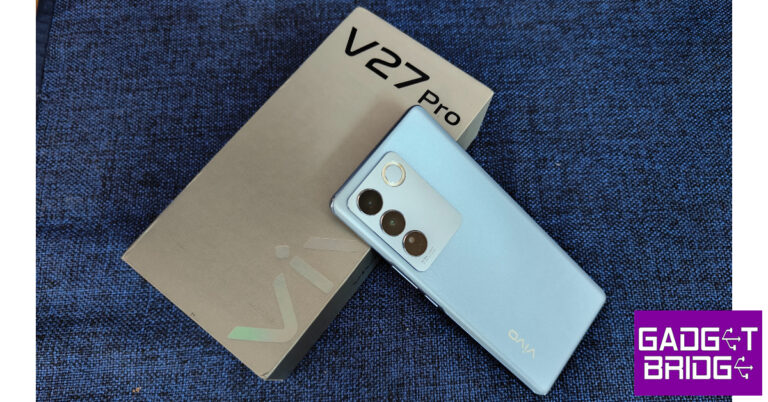
Vivo V27 Pro Review: More than just a camera focussed smartphone

Vivo’s V-series is back with another solid midranger that is rightfully making headlines for being the best camera phone in its category. But with the addition of the latest MediaTek Dimensity 8200, the V27 Pro could very well be an all-rounder that even gives some flagships a run for their money. We got our hands on the smartphone as soon as it launched and have been playing around with it for about a week. So, without further ado, here is our comprehensive Vivo V27 Pro review. Read Also: Best ways to mirror your Android smartphone to a Smart TV

Vivo V27 Pro review: Design and Display

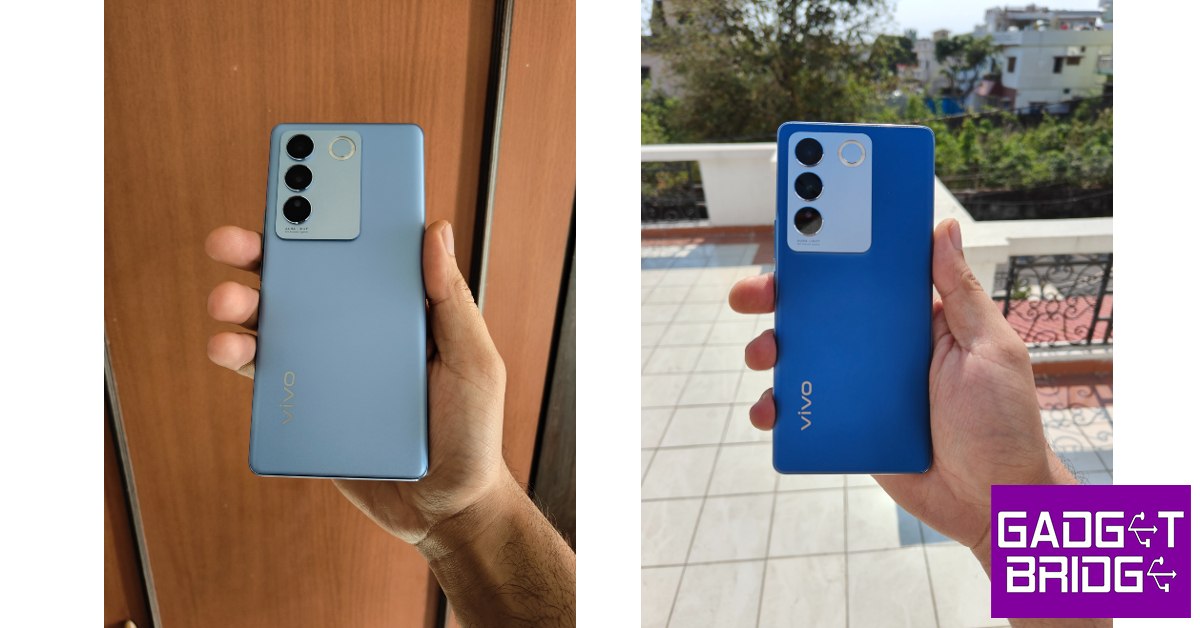
The Vivo V27 Pro comes packed in a rectangular grey box. Inside, you will find the smartphone, a clear plastic case, a power adapter, USB Type-C charging cable, a quick start guide, a warranty card, and a SIM ejector tool. The smartphone display comes with a preinstalled protective covering out of the box. Vivo V27 Pro review: Design and Display The 6.78-inch curved AMOLED display has a peak refresh rate of 120Hz and comes with HDR10+ support. With 2400 x 1080p resolution and ~388ppi density, the image clarity is top-notch. Speaking of notches, you won’t find any on the V27 Pro. The selfie camera is housed in a punch-hole cutout and there are minimal bezels surrounding the screen. The screen-to-body ratio is 90.4%, which is ideal for immersive viewing. Vivo V27 Pro review: Design and Display We streamed content across several platforms on the V27 Pro and were satisfied with the results. The image quality is sharp with balanced colour contrast. We were pleased by the lucidity and the level of detail that the display was able to present while streaming HD content. The smartphone also offers a ‘Visual enhancement’ feature which optimises the colour and contrast of the on-screen images, giving the vividness a solid boost. This feature can be enabled for individual apps and doesn’t need to be applied system-wide. Vivo V27 Pro review: Design and Display Moving on, the curved glass back panel retains its colour-changing prowess. It takes about 5 seconds under direct sunlight for the glass back to change its colour from light blue to a darker tone. With a portable UV light and a stencil, you can create original designs on the back, although they won’t last long. This is a fun party trick at best and if you find it to be too gimmicky, there’s a non-colour-changing Noble Black variant on offer as well. Vivo V27 Pro review: Design and Display The matte finish on the curved back feels quite premium and does not attract any fingerprints or smudges at all. The camera island gets a giant cutout at the top and houses three cameras – a 50MP primary shooter, an 8MP ultrawide lens, and a 2MP macro sensor. Sitting next to the vertical camera array is the ring-shaped LED flashlight which Vivo chooses to call the ‘Aura light’.  One of the highlights of the V27 Pro is its sleek form factor. The smartphone is just 7.4mm thick and weighs only 182g. The top and bottom edges of the frame are flat while the side edges have a slight curvature to heighten the aesthetic appeal of the device. While the in-hand feel of the device is tremendous, it can be challenging to grip for some. Using a case for the phone fixes this issue, but compromises the look of the smartphone. The volume rocker keys and the power button can be found on the right edge of the frame while the left side has been left completely empty. Up top, you’ll find the secondary microphone along with ‘Professional Portrait’ branding. The SIM card slot, primary microphone, USB Type-C port, and speaker grille have been housed at the bottom part of the frame. There is no secondary speaker on the V27 Pro which is a bit of a bummer. The under-display fingerprint scanner works lightning-fast. Vivo offers a bunch of visual effects that you can use for the fingerprint scanner and the lock screen in general. However, the haptic feedback leaves a lot to be desired. Turned off by default, you will need to activate touch vibrations from settings. Once enabled, the haptic triggers missed the mark for us. While using the keyboard, the vibration feedback was a bit too overwhelming, hampering the flow of typing. There is haptic feedback for waking up the lock screen but none for the fingerprint scanner. Overall, the haptics seem poorly thought out. Like its predecessors, the V27 Pro does not come with an IP rating. Although the smartphone seems resistant to minor splashes, we wouldn’t recommend exposing it to rainy conditions.

Vivo V27 Pro review: Performance and Cameras

Powering the Vivo V27 Pro is the new MediaTek Dimensity 8200 SoC. Already a significant improvement over the MediaTek Dimensity 1300 on the V25 Pro, the MediaTek Dimensity 8200 is a versatile chipset and a great addition to midrange smartphones. This is the same SoC as the iQOO Neo 7 which is being marketed as a gaming smartphone. The V27 Pro is available in three RAM and storage options: 8GB + 128GB, 8GB + 256GB, and 12GB + 256GB. We used the former for this review. Vivo V27 Pro review: Performance and Cameras After thorough usage across a week, we don’t have much to complain about when it comes to the performance of the smartphone. The V27 Pro handled basic tasks with absolute ease. Firstly, the 120Hz refresh rate offers a smooth scrolling experience. Even with multiple apps running in the background, the smartphone doesn’t break a sweat and carries on crushing the tasks that are thrown at it. We used the smartphone in split screen mode, playing YouTube videos in one panel while using the other to browse Twitter, Reddit, and other social media apps. We did not experience any stutters or lags in our entire duration of use.  Moving on to the OS, the Vivo V27 Pro comes with Android 13 with Funtouch 13 on top. Unfortunately, the OS experience is severely hampered by the amount of bloatware on the phone. Some apps like V-Appstore cannot be uninstalled from the device and regularly send pesky notifications that occupy the notification bar. While you can restrict the notifications from these apps, it still isn’t a great look for the smartphone. The native browser app is also guilty of pushing unnecessary notifications. Once you move past the bloatware, Funtouch 13 OS offers some cool features. If you use your smartphone for health and fitness tracking, you will notice that the default lock screen gradually changes its look as you rack up the steps through the day. You also get a widget panel which you can use to gain quick access to the music player, calendar, weather, and other functions. The dynamic effects for the lock screen, notifications, fingerprint scanner, charging, and face recognition are also pretty cool. There is also an ambient lighting feature on board. When paired with music apps, you can lock your screen and let the lighting take over. It may consume a bit more power from the battery, but the effects are quite appealing. Other than that, you also get the Ultra Game Mode which provides a handy toolbar while gaming. We played games like Call of Duty Mobile and Asphalt 9 on the V27 Pro and the overall experience was much better than we expected. The phone maintains the ideal temperature for about half an hour after which it starts to heat up a little. Once it heats up, the smooth matte finish on the back can make it a bit slippery. We did not come across any major stutters or frame drops while gaming, although at higher temperatures the performance takes a shot. On the Geekbench 6 benchmark, the V27 Pro scored 1151 points in the single-core test and 3099 points in the multi-core test. Vivo V27 Pro review: Performance and Cameras The 4,600mAh battery is a step down from the 4,830mAh battery pack on the V25 Pro, but the performance does not take a hit as the SoC is able to efficiently manage the power. After a day of medium to heavy usage, we were left with a 15-20% charge on the device. With 66W fast charging support, the Vivo V27 Pro can be fully charged in under 50 minutes. Finally, the cameras on the Vivo V27 Pro are absolutely spectacular for a midrange device. This doesn’t surprise us as the V23 and V25 Pro were also brilliant camera phones. The V27 Pro gets a 50MP primary shooter at the rear along with an 8MP ultrawide and a 2MP macro lens. Up front, you get a 50MP selfie camera. 
Vivo V27 Pro review: Performance and Cameras
Outdoor shot with Vivo V27 Pro’s primary camera
The 50MP Sony IMX766V lens produces stunning results in different lighting conditions. The images produced can easily match the results of some flagship phones. Vivo’s image processing remains superior to its rivals in this segment. In bright daylight, the images replicated the dynamic range of colours without being overprocessed. The level of detail captured by the main sensor is quite amazing and is aptly reflected in the vividness of the photographs. Even indoors, the primary shooter did justice to the frame and captured the subject with ease.  Vivo V27 Pro review: Performance and Cameras
Indoor shot
The ultrawide lens does some heavy lifting in the camera setup as well. While the images are a little soft compared to the primary lens, the range of colours is still very diverse and there is minimal noise in the photographs. We were also quite pleased with how the two lenses exposed the sky. The resulting images are pretty rich in tones.
Ultrawide shot
Vivo V27 Pro review: Performance and Cameras
Ultrawide shot
In limited lighting conditions, the primary shooter captures a lot of detail and you will rarely find yourself using the Night Mode. The images come out well-lit, without looking overprocessed or overly brightened. The image processing is top-notch in this regard. While shooting the subject against the night sky, the camera managed to light up the subject perfectly while also capturing the ideal colour tone of the sky. The images taken at night had minimal blur thanks to OIS. However, in ultrawide mode, the images have a fair bit of noise.
Lowlight photography
Ultrawide shot in Night Mode
Night Mode
The images are ‘social media ready’, but you can also opt for natural colours. The photographs lose a bit of punchiness in this setting, but you get results that are closer to reality. If you like to have more control while editing your images, you should go for the natural control setting. You will also find a ton of features within the camera app. We liked the ‘Micro Movie’ feature which essentially allows you to make Reels in the camera app itself. After filming a shot, you can pause a recording and resume it later with a different set of effects applies to the frame. Like Instagram, you can save your unfinished ‘Micro movie’ in the draft folder.
Portrait Mode: Outdoor vs Indoor
The Vivo V27 Pro offers a ‘Supermoon’ mode as well, although it’s mostly just AI sorcery.
The selfie camera takes brilliant images in different lighting conditions. But what we like the most about this 50MP sensor is that it can record 4K videos at 60fps. This will particularly appeal to vloggers and content creators that are looking for an excellent front-camera device to go with their shooting rig. That being said, the OIS does not work for 4K videos taken using the selfie camera. The rear camera allows OIS support for 4K videos taken at 30fps but not 60fps. Read Also: Moto G73 5G price in India and key details leaked, launching on March 10

Conclusion

Starting at Rs 37,999, the Vivo V27 Pro certainly has one of, if not the best camera units in its category. On top of that, the smartphone offers a brilliant curved AMOLED display along with a sleek form factor that elevates the overall look of the device. With the MediaTek Dimensity 8200 onboard, the V27 Pro has something in store for gaming enthusiasts as well. An IP rating, stereo speakers, and less bloatware would have pushed the smartphone to near perfection, but for a midrange smartphone priced under Rs 40k, this is as good as it gets.

Pros

Brilliant display  Stunning camera performance Ideal for content creators Good chipset

Cons

No stereo speakers No IP rating Significant bloatware Haptics could have been better For the latest gadget and tech news, and gadget reviews, follow us on Twitter, Facebook and Instagram. For newest tech & gadget videos subscribe to our YouTube Channel. You can also stay up to date using the Gadget Bridge Android App. You can find the latest car and bike news here.

How to check if your AADHAAR is linked to your PAN card?

0
In case you missed the notification, the Central Govt of India has made it mandatory to link your AADHAAR to your PAN Card by March 31 2023. The deadline was extended last year with an added penalty fee of Rs 1,000. Failure to link your AADHAAR with your PAN card will render your PAN card useless. Don’t remember whether you linked the two already? In this article, we bring you two quick ways to check if your AADHAAR is linked to your PAN card. Read Also: Best ways to mirror your Android smartphone to a Smart TV

Check status via SMS

Step 1: Launch the native ‘Messages’ app on your phone and create a new message. Step 2: Type ‘UIDPAN’ (without the quotes) followed by your AADHAAR card number (12 digits) and PAN card number (10 digits). All entries must be separated by a space between them. Refer to the format below. UIDPAN [AADHAAR card number] [PAN card number] Step 3: Send the SMS to 567678 or 56161. Step 3: Send the SMS to 567678 or 56161. Step 4: You will receive a message telling you whether your AADHAAR is linked to your PAN card or not.

Check status via UTI web portal

Step 1: Visit the UTI portal to check AADHAAR linking status. Click here to visit the website. Step 2: Enter your PAN number, date of birth, and the captcha in their appropriate fields. Step 2: Enter your PAN number, date of birth, and the captcha in their appropriate fields. Step 3: Hit Submit. Step 4: Your AADHAAR and PAN card linking status will be displayed on the screen. Step 4: Your AADHAAR and PAN card linking status will be displayed on the screen. Read Also: ATM Finder: How to find the nearest ATM using Google Maps?

Conclusion 

These are 2 quick ways to check if your AADHAAR is linked to your PAN card. As mentioned earlier, the deadline to link your AADHAAR to your PAN card is March 31 2023. If you haven’t linked the two yet, head over to the UIDAI portal and carry out the necessary process. For the latest gadget and tech news, and gadget reviews, follow us on Twitter, Facebook and Instagram. For newest tech & gadget videos subscribe to our YouTube Channel. You can also stay up to date using the Gadget Bridge Android App. You can find the latest car and bike news here.

7 Best Ways to Block Spam Text Messages on Android & iPhone

0
No matter how much you try to avoid it, there is no dodging spam. One of the biggest issues that Android and iOS users have with spam texts is that they clutter their phone’s native messaging app and make it hard to locate important messages and conversations. Deleting spam texts individually is a time-consuming task, so your best hope is to intercept them before they get delivered to your device. In this article, we bring the 7 best ways to block spam text messages on Android and iPhone. Read Also: ATM Finder: How to find the nearest ATM using Google Maps?

Enable spam protection on Google Messages

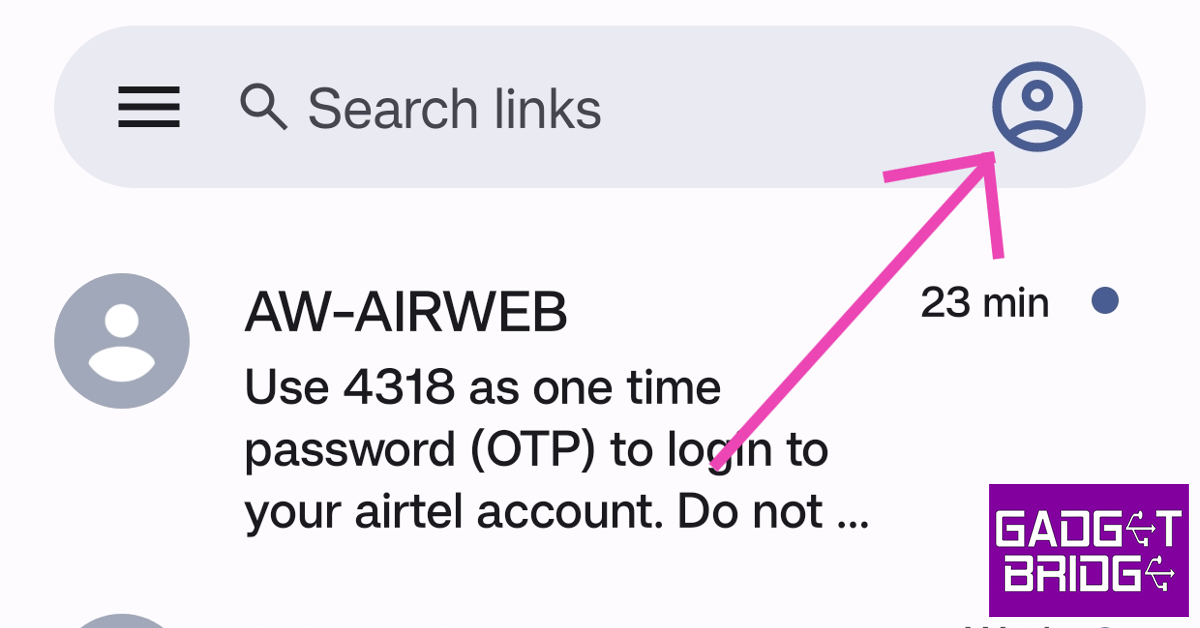
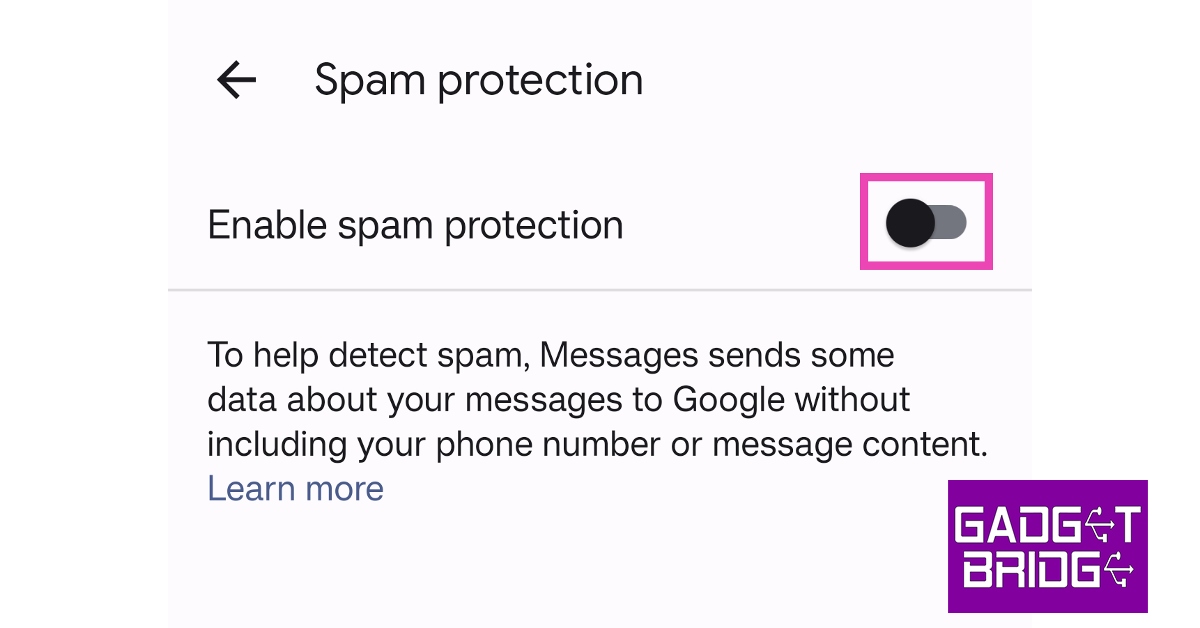
Google’s messaging app has a special feature that recognises spam on your phone and keeps it from flooding your inbox. It works for most spam messages, but some may still get past the filter. Here’s how you can enable spam protection on Google Messages. Step 1: Install and launch Google Messages on your smartphone. Step 2: Tap the profile icon at the top right corner of the screen. Step 2: Tap the profile icon at the top right corner of the screen. Step 3: Select ‘Message settings’. Step 3: Select ‘Message settings’. Step 4: Scroll down and tap on ‘Spam protection’. Step 4: Scroll down and tap on ‘Spam protection’. Step 5: Turn the toggle bar on for ‘Enable spam protection’. Step 5: Turn the toggle bar on for ‘Enable spam protection’.

Block spam senders individually

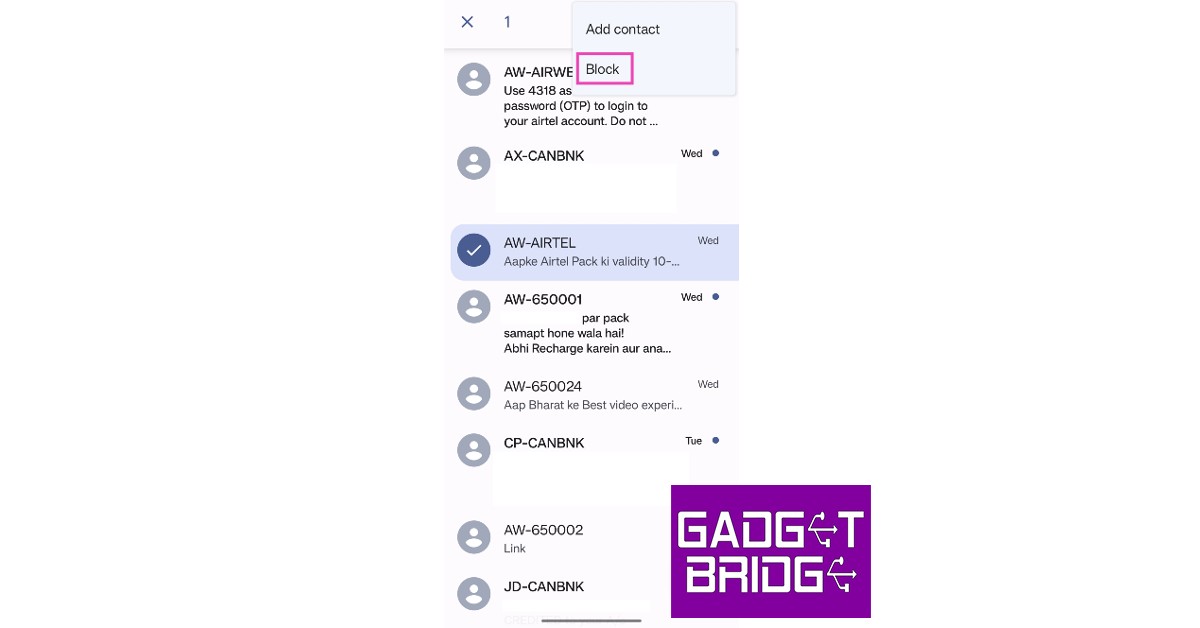
This may feel like an arduous task, but over a period of time, you will be able to reduce a large portion of spam by individually blocking all the senders. Here’s how you can individual spam messages and senders on an Android smartphone. Step 1: Long press a message from the sender you want to block. Step 2: Tap on the ellipses (three dots) at the top right corner of the screen. Step 2: Tap on the ellipses (three dots) at the top right corner of the screen. Step 3: Select ‘Block’. Step 3: Select ‘Block’. You will not receive any messages from the sender in future. You can view the messages from spam and blocked senders by tapping on the hamburger menu and selecting ‘Spam and blocked’.

Turn on spam protection on Samsung smartphones

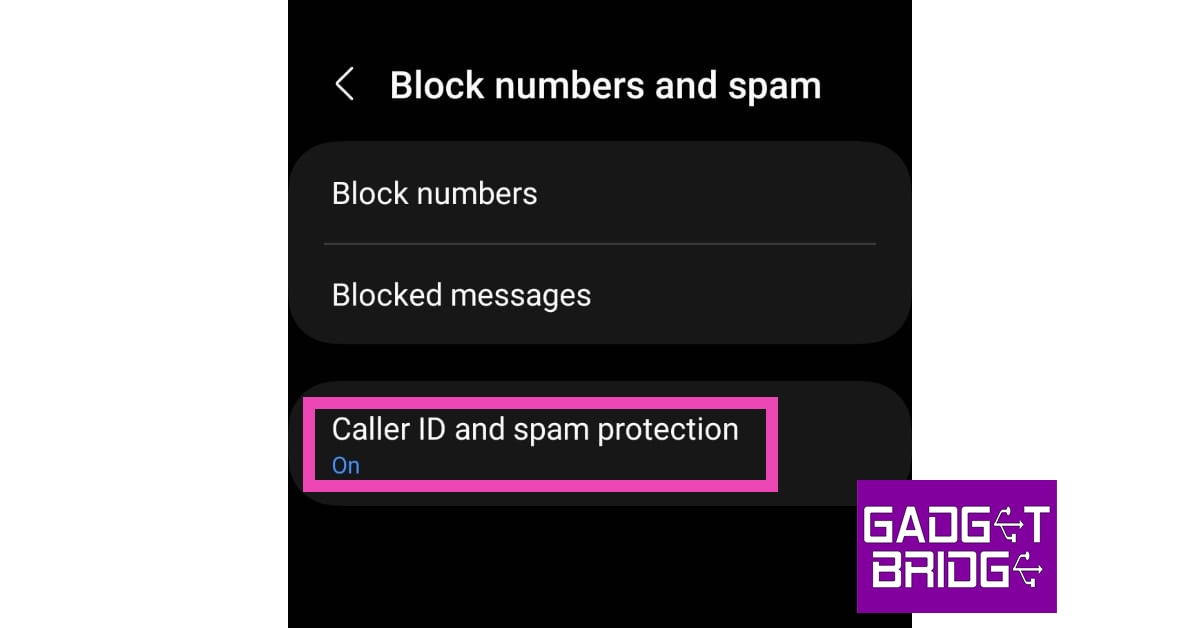
Samsung’s One UI comes with a helpful spam filter as well. This feature is excluded from the One UI ‘Core’ version which is usually found in budget Samsung phones. Here’s how you can enable it on the flagship One UI OS. Step 1: Launch the messages app and tap on the ellipses at the top right corner of the screen. Step 2: Select ‘Settings’. Step 2: Select ‘Settings’. Step 3: Tap on ‘Block numbers and spam’. Step 3: Tap on ‘Block numbers and spam’. Step 4: Select ‘Caller ID and spam protection’. Step 4: Select ‘Caller ID and spam protection’. Step 5: Turn the toggle bar on for ‘Caller ID’ and ‘Block spam and scam calls’. Step 5: Turn the toggle bar on for ‘Caller ID’ and ‘Block spam and scam calls’.

Use your network provider’s DND service

If you’re tired of receiving spam texts and calls, you can filter them out using your network provider’s Do Not Disturb service. Most network providers give you the option to create a blacklist and a whitelist of numbers that can contact you. You can add recurring spam senders to the blacklist. Here’s how you can sign up for DND on Airtel. Step 1: Visit the DND section on Airtel’s website. Click here to be directed to the DND page. Step 2: Scroll down and select ‘Click here’ in the ‘Airtel Mobile Services’ section. Step 2: Scroll down and select ‘Click here’ in the ‘Airtel Mobile Services’ section. best ways to block spam text messages on android and iphone Step 3: Enter your number and select ‘Get OTP’. Step 4: Enter the OTP in the relevant field and click on ‘Validate’.  Step 4: Enter the OTP in the relevant field and click on ‘Validate’. best ways to block spam text messages on android and iphone  Step 5: Select the kind of messages you want to block in the following screen. You can choose to block all messages from unknown senders (except transactional messages) or block all promotional messages sent to your number. In order to reduce spam without risking filtering messages from legitimate senders that aren’t in your contact list, we would suggest the latter option. You can also choose to filter your senders by category. Select the kind of messages you want to block in the following screen. best ways to block spam text messages on android and iphone Step 6: Hit ‘Submit’ once you’re done. You can also activate DND on your Airtel number by sending ‘START 0’ to 1909 or call 1909 and following the instructions relayed to you on call.

Use a third-party app

There are several third-party apps on the Google Play Store that will help you tackle and cut down spam messages. While the good ones may require a premium plan or download fee, some apps like SpamHound SMS Spam Filter are free to use. TextKiller, SMS Spam Stopper, True Caller, and SMS Shield are some other apps that provide the same service. Most spam killer apps let you create a blacklist of spam and use the keywords from those messages to block any new spam senders. The process may take some time, but the results get much better as more data is collected.

Block text messages from spam senders on iPhone

Here’s how you can block spam senders on your iPhone. Step 1:  Launch the Messages app. Step 2: Open a text message from the sender you want to block. Step 3: Tap the profile icon of the sender. Step 3: Tap the profile icon of the sender. best ways to block spam text messages on android and iphone Step 4: Tap on the info icon. Step 5: Select the info icon again from the sender’s profile. Step 5: Select the info icon again from the sender’s profile. best ways to block spam text messages on android and iphone Step 6: Select ‘Block this Caller’. Step 6: Select ‘Block this Caller’. best ways to block spam text messages on android and iphone The sender won’t be able to call you or send texts to your number.

Filter messages from unknown senders on iPhone

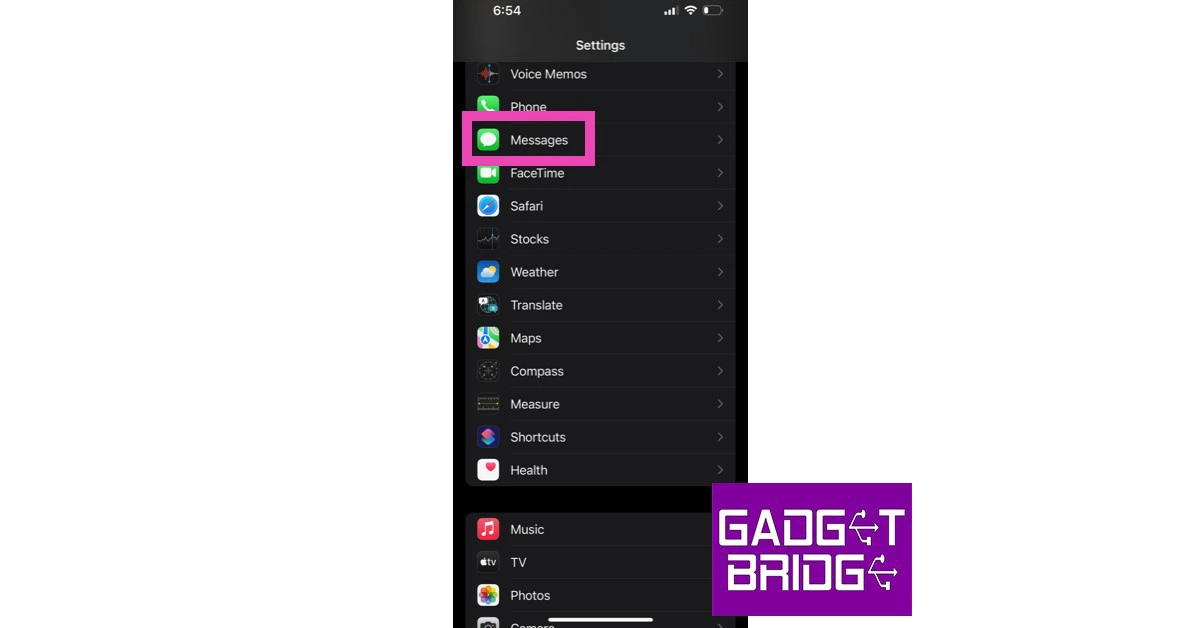
A great way to reduce spam texts on your iPhone is by filtering messages from unknown senders. Here’s how you can do that. Step 1: Go to Settings and select Messages. Step 1: Go to Settings and select Messages. best ways to block spam text messages on android and iphone Step 2: Tap on ‘Unknown & Spam’ in the Message Filtering section. Step 2: Tap on ‘Unknown & Spam’ in the Message Filtering section. best ways to block spam text messages on android and iphone Step 3: Turn the toggle bar on for ‘Filter Unknown Senders’. Step 3: Turn the toggle bar on for ‘Filter Unknown Senders’. best ways to block spam text messages on android and iphone Step 4: Make sure you’ve selected the ‘SMS Filter’ option. Read Also: Moto G73 5G price in India and key details leaked, launching on March 10

Conclusion 

These are the 7 best ways to block spam text messages on Android and iPhone. With every OS update, spam protection is getting better on Android and iOS devices. Some Android smartphones have a dedicated section for messages from your contacts in their native messaging apps. This offers a very clean texting experience, without letting spam ruin your conversations. For the latest gadget and tech news, and gadget reviews, follow us on Twitter, Facebook and Instagram. For newest tech & gadget videos subscribe to our YouTube Channel. You can also stay up to date using the Gadget Bridge Android App. You can find the latest car and bike news here.
How to Change Your Twitter Handle on Android, iPhone or Web

0
Your ‘Twitter handle’ is basically your username on Twitter and is unique to your profile. It is the name that people type in the search box to be directed to your profile. While you may change your screen name multiple times, frequently changing your Twitter handle isn’t something that is advised because it may confuse people who want to look you up. That being said, you may want to change your username if a handle that you always wanted has been let go by its previous owner and is not available. In this article, we show you how to change your Twitter handle on an iPhone, an Android device, and a web browser. Read Also: International Women’s Day 2023: Tech gift ideas for her

How to change your Twitter handle using the Android app

Step 1: Launch the Twitter app on your Android smartphone and swipe open the side menu.  Step 2: Select ‘Settings & Support’ and tap on ‘Settings and privacy’. Step 2: Select ‘Settings & Support’ and tap on ‘Settings and privacy’. Step 3: Select ‘Your account’. Step 3: Select ‘Your account’. Step 5: Tap on ‘Account Information’ and then ‘Username’. Step 5: Tap on ‘Account Information’ and then ‘Username’. Step 6: Enter your new Twitter handle name and select ‘Done’. Step 6: Enter your new Twitter handle name and select ‘Done’. Your Twitter handle will be changed.

How to change your Twitter handle using the website

Step 1: Launch the web browser on your PC or smartphone and log in to Twitter. Step 2: Click on the ‘More’ option in the side menu. Step 2: Click on the ‘More’ option in the side menu. Step 3: Expand the ‘Settings and Support’ section. Step 3: Expand the ‘Settings and Support’ section. Step 4: Click on ‘Settings and privacy’. Step 3: Expand the ‘Settings and Support’ section. Step 5: Click on ‘Account Information’. Step 5: Click on ‘Account Information’. How to Change Your Twitter Handle on Android, iPhone or Web Step 6: Enter your password to proceed further. Step 7: Click on ‘Username’. Step 6: Enter your password to proceed further. How to Change Your Twitter Handle on Android, iPhone or Web Step 8: Enter your new username and hit Save. Your Twitter handle will be changed.

How to change your Twitter handle on an iPhone

Step 1: Launch the Twitter app on your iPhone. Step 2: Swipe open the side menu and select ‘Settings and privacy’. Step 2: Swipe open the side menu and select ‘Settings and privacy’. How to Change Your Twitter Handle on Android, iPhone or Web Step 3: Tap on Your Account > Account Information. Step 3: Tap on Your Account > Account Information. How to Change Your Twitter Handle on Android, iPhone or Web Step 4: Select ‘Username’. Step 5: Add your new username and hit ‘Done’ at the top right corner of the screen. Your Twitter handle will be changed. Read Also: Moto G73 5G price in India and key details leaked, launching on March 10

Conclusion 

This is how you can change your Twitter handle on Android, iPhone, or a Web browser. Your Twitter handle needs to be at least 4 characters long. It cannot exceed more than 15 characters. While updating your handle, if you see a red cross next to your newly chosen handle, it means that it is already taken. You will need to select a new username. Once you notice a green tick next to your username, it means that it is available. For the latest gadget and tech news, and gadget reviews, follow us on Twitter, Facebook and Instagram. For newest tech & gadget videos subscribe to our YouTube Channel. You can also stay up to date using the Gadget Bridge Android App. You can find the latest car and bike news here.

Acer Swift Go 14 powered by AMD Ryzen 7000 series CPU launched in India

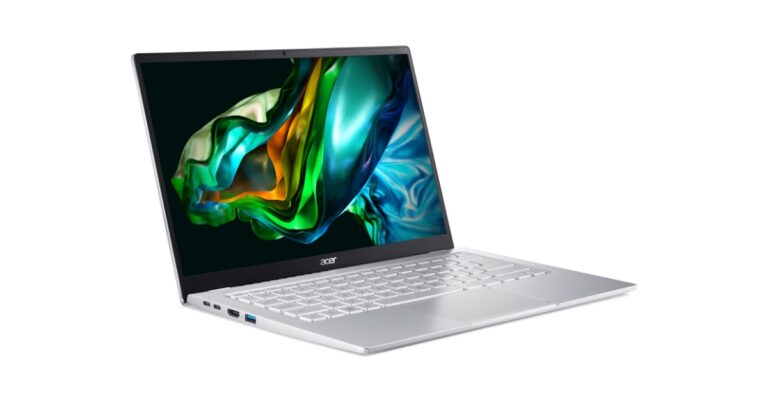
The Taiwanese electronics giant has announced the launch of the Acer Swift Go 14 laptop in the Indian market. It features a Full-HD display with an 86% screen-to-body ratio. The Acer laptop is powered by the most recent AMD Ryzen 7000 series CPUs. It comes with a twin fan system, dual D6 copper heat pipes, and an air-inlet keyboard that dissipates heat to keep temperatures cool.

Acer Swift Go 14 price in India and sale details

Acer Swift Go 14 has been launched in India with a price tag of Rs 62,990. The device will be available for purchase via all Acer exclusive stores, Acer E-store, Croma and Amazon. Acer Swift Go 14 price in India and sale details

Acer Swift Go 14 specifications

Acer Swift Go 14 sports a 14-inch Full-HD OLED screen with 2.8K resolution. The display offers an 86% screen-to-body ratio and comes with Acer Exacolor feature that is said to deliver real colours by optimising display colour temperature close to D65 through an advanced colour tracking process. It also boasts Acer PurifiedVoice technology with AI noise reduction, producing sharp, clear visuals and audio for conference and classroom use. In addition to this, the AMD Ryzen 7000 series CPU that powers the Acer Swift Go 14 is paired with up to 16GB of LPDDR5 Memory. Moreover, the Swift Go 14 can support up to a 2 TB PCIe Gen 4 SSD and up to 8GB or 16GB of LPDDR5 RAM. Also Read: Westinghouse Quantum Series and the Pi Series TVs to launch in India on March 8, price starting at Rs 6,999 According to the company, the new TNR solution captures the best quality images by detecting and diagnosing noisy pixels and blends them into other frames over time producing improved images even in low-light conditions for clear video conferencing. As said earlier the device has a twin fan system, dual D6 copper heat pipes, and an air-inlet keyboard that dissipates heat to keep temperatures cool. It further includes WiFi 6E, USB Type-C, USB Type-A, and HDMI 2.1. The users can use it for up to 4 hours after just 30 minutes of charging thanks to quick battery technology. The Acer laptop uses AI noise reduction, Acer purified voice feature reduces background noise for both users, allowing working from home a hassle-free experience. “Swift Go 14 is a new addition to our thin and light category. We are constantly attempting to deliver unique and sophisticated products with the latest technology to the market. With this launch, we hope to give our customers the optimum combination of performance, security, and durability. The new Swift Go 14 not only looks fantastic but also includes advanced features and technologies such as high-resolution displays, long-lasting batteries, and dual fan designs that provide a smooth and better thermal performance. The laptop’s pricing, design, and display are tailored to GenZ, students, and freelancers looking for stylish laptops with cutting-edge technology.” says Sudhir Goel, Chief Business Officer, Acer India. For the latest gadget and tech news, and gadget reviews, follow us on TwitterFacebook and Instagram. For newest tech & gadget videos subscribe to our YouTube Channel. You can also stay up to date using the Gadget Bridge Android App. You can find the latest car and bike news here.

Westinghouse Quantum Series and the Pi Series TVs to launch in India on March 8, price starting at Rs 6,999

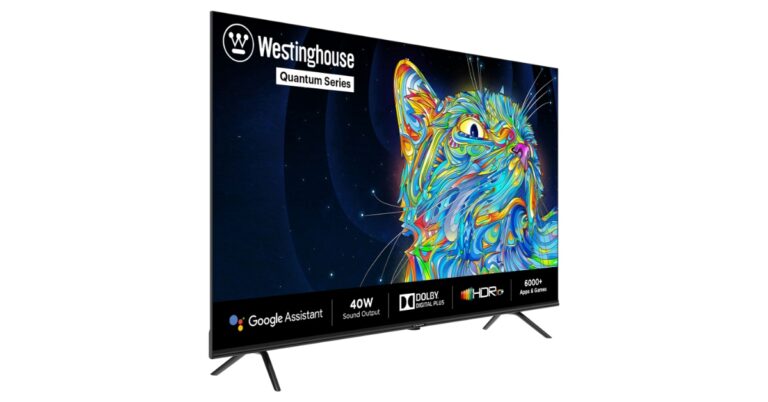
A US-based consumer electronics company Westinghouse announced that it will be launching its new TV models in the Quantum Series and the Pi Series in India. According to the company the new devices in the Pi Series will feature 24-inch and 40-inch displays running Linux and a 55-inch Quantum series operating on Android. Westinghouse TV will launch the 24-inch and 40-inch Pi series, as well as the 55-inch Quantum Series on March 8 in the Indian market. Only on Amazon can you get Quantum Series and Westinghouse Pi. The price of 24-inch, 40-inch and 50-inch Pi series models is set at Rs 6,999, 13,4999 and Rs 29,999 respectively.
Westinghouse Quantum Series and the Pi Series TVs to launch in India on March 8, price starting at Rs 6,999
quantum series
The Pi Series 24 Inches HD Ready TV has a resolution of 1366 x 768 pixels. The 40-inch Full HD variant has a resolution of 1920×1080 pixels. The 24-inch and 40-inch variants come with 512 MB of RAM, 4 GB of ROM, 2 HDMI connectors, and 2 USB ports. It includes bottom-firing type 2 speakers that offer digital audio output using coaxial technology, with 20W in 24 inches and 30W in 40 inches. These models come with up to 300 Nits of brightness and include a Digital Noise Filter. The Westinghouse TVs house A35*4 Processor (Chipset), and an A+ Panel. The Smart HD Ready TV has access to the Google Play Store which offers a wide selection of apps and games for Smart HD Ready TV users. In addition to this users can also access Zee5, Sony Liv, YouTube, and Amazon Video, to mention a few.
Westinghouse Quantum Series and the Pi Series TVs to launch in India on March 8, price starting at Rs 6,999
Pi Series
Last but not least, a Quantum 50-inch 4K Ultra HD model comes with a bezel-less design. It has a DLED Screen type with 4K Ultra HD offering 3840×2160 pixels of resolution is available for an immersive experience. The Android TV has an A35*4 Processor (Chipset), and a home screen Digital Noise Filter. It includes 3 HDMI connectors, 2 USB ports, 2 GB of RAM, and 8 GB of ROM. Speaking on the launch, Pallavi Singh Marwah, Vice President, Super Plastronics PVT LTD (SPPL), an exclusive brand licensee of Westinghouse TV in India said, “A few months back, we introduced Pi series in India and launched 32 inches & received phenomenal response from the beloved consumers. The new additions in the Pi series and the launch of the new series, Quantum, will help in achieving our objective of giving Indian consumers access to premium TVs at competitive costs in the e-commerce marketplace.” For the latest gadget and tech news, and gadget reviews, follow us on TwitterFacebook and Instagram. For newest tech & gadget videos subscribe to our YouTube Channel. You can also stay up to date using the Gadget Bridge Android App. You can find the latest car and bike news here.

Best ways to mirror your Android smartphone to a Smart TV

0
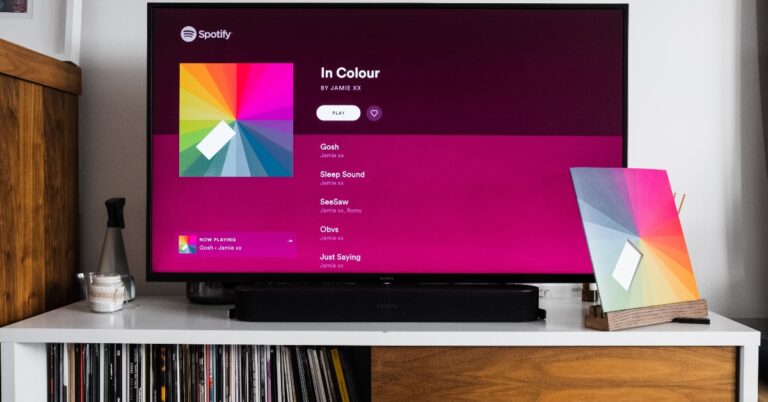
Mirror your smartphone’s display to your Smart TV has a lot of advantages. If you want to show a video on your smartphone to multiple people, the easier way to go about it would be by casting it on your TV. Want to view the pictures from a trip on a bigger screen? You don’t need to transfer any files to an external storage device. Simply mirror your phone’s display on the TV screen and open your gallery to view the images. In this article, we bring you the best ways to mirror or cast your Android smartphone’s display or screen to a Smart TV.  Read Also: Itel Pad One tablet with a 6,000mAh battery and built-in Chromecast launched in India

Use the native screen mirroring feature on your smartphone

Most Android smartphones come with a native screen mirroring feature that allows you to mirror the device’s display on a TV. The only prerequisite is that your TV and smartphone need to be connected to the same WiFi network. You can access this feature from the quick settings panel on your smartphone. Samsung smartphones call this feature ‘Smart View’ while it may simply be named ‘Screen Mirroring’ on other smartphones. Here are the steps you need to follow in order to mirror your smartphone’s screen. Step 1: Turn on your TV and enable screen mirroring from Settings. Some TVs may have a screen mirroring option in the HDMI input section. Step 2: Swipe down from the status bar on your smartphone and turn on screen mirroring. Step 2: Swipe down from the status bar on your smartphone and turn on screen mirroring. Step 3: Connect to your TV from your smartphone. Step 3: Connect to your TV from your smartphone. Step 4: Your smartphone’s display will be mirrored on your TV.

Use Google Chromecast

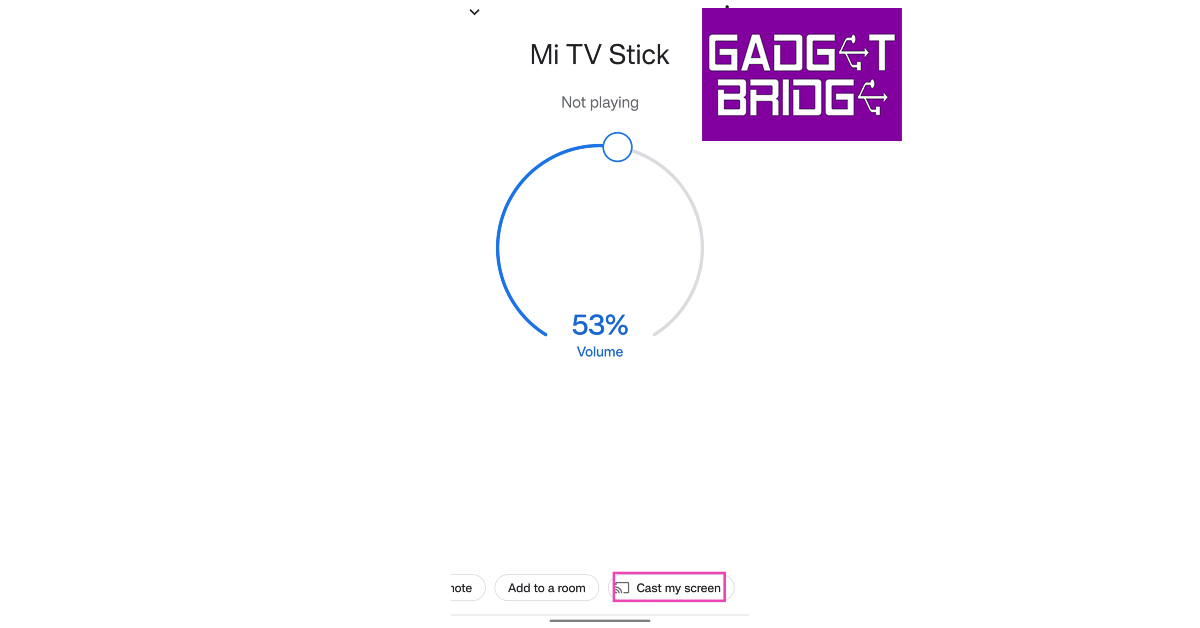
Follow these steps to mirror your phone’s display to your TV using Google Chromecast. If your TV doesn’t support Chromecast, you will need a Chromecast device in order to use this method. Step 1: Pair your smartphone with your TV from the Google Home app. Step 2: Go to the homepage and select the device you want to mirror your display on. Step 2: Go to the homepage and select the device you want to mirror your display on. Step 3: Select ‘Cast my Screen’ from the list of options at the bottom. Step 3: Select ‘Cast my Screen’ from the list of options at the bottom.

Use the Google TV app

You can also use the Google TV app to cast your phone’s display to your Android TV. Here’s how. Step 1: Launch the Google TV app on your smartphone. Step 2: Select the screencast icon on the search bar. Step 2: Select the screencast icon on the search bar. screen mirroring android smartphone to tv Step 3: Select the device for casting. Step 3: Select the device for casting. screen mirroring android smartphone to tv Step 4: Once the cast icon is filled in, it means that your device is ready to cast.

Cast YouTube videos on your TV

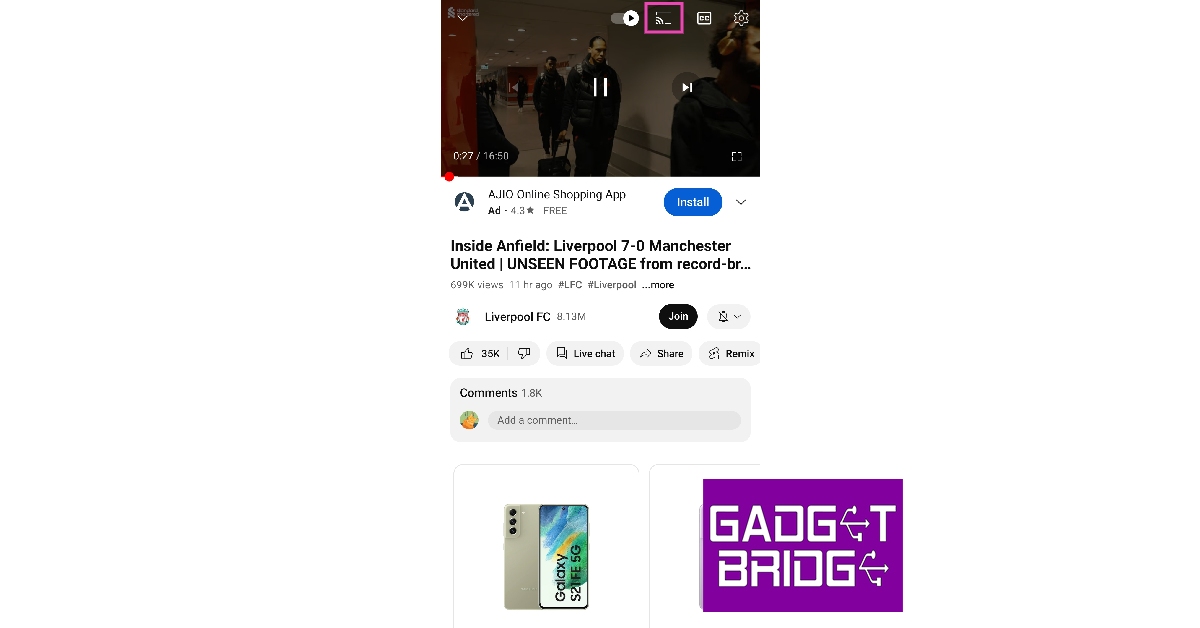
The YouTube app has a handy casting feature that you can use to mirror the video you are watching on your smartphone. By using this feature, you can pick up the video on your TV while minimising the app on your smartphone. So while it may technically not be ‘casting’, it still gets the job done. Here’s how you can go about it. Step 1: Launch the YouTube app on your smartphone and select the video you want to cast. Step 2: Tap on the casting icon at the top right corner of the YouTube video player. Step 2: Tap on the casting icon at the top right corner of the YouTube video player. screen mirroring android smartphone to tv Step 3: Select the device for casting. Step 3: Select the device for casting. screen mirroring android smartphone to tv Step 4: The YouTube video will be continued on your TV’s YouTube app. You can now minimise the app on your smartphone and perform other tasks. Read Also: Xiaomi 13 Pro early access sale gone live in India: Offer details inside

Conclusion

These are the best ways to mirror or cast your Android smartphone’s display or screen to a Smart TV. There are a bunch of third-party apps that will allow you to do the same, but we wouldn’t suggest them as long as the native screen mirroring feature and Google Chromecast work on your phone. If your TV has a USB port, you can connect your smartphone to it as an external storage device and stream any kind of media on it. For the latest gadget and tech news, and gadget reviews, follow us on Twitter, Facebook and Instagram. For newest tech & gadget videos subscribe to our YouTube Channel. You can also stay up to date using the Gadget Bridge Android App. You can find the latest car and bike news here.