One of the biggest link aggregator websites in the world, Reddit, recently started hosting videos on its platform not too long ago. While the transition has worked favourably for the website, with a large chunk of the front page filled with video content, some users often report not being able to hear the sound on videos when they click on the post. In this article, we bring you the best ways to fix the ‘sound not working on Reddit videos’ issue in the Reddit app and website.Read Also: How to easily Translate WhatsApp Messages on Android to any language: Top 3 ways
Check if the video is muted
Most videos on Reddit are muted by default. This is because Reddit is primarily a text-based platform that people use at work. Since unexpected sounds can create unnecessary distractions, you will find that most videos on the platform are muted by default. If you’re not able to hear the sound on videos, all you need to do is unmute the video by clicking on the loudspeaker icon at the bottom right corner of the video player. Once you unmute the video, you can access the volume controls. Adjust the slider to set the ideal volume.
Unmute the video on the official Reddit app
Official Reddit app users can unmute the videos on the platform by tapping on the speaker icon at the bottom right corner of the post. You can also open the video and unmute it by tapping on the speaker icon next to the seek bar. Once you unmute the video, it will remain unmuted when you return to the feed. Every video you scroll past will have its sound turned on until you mute it again.
Check your device’s volume
If you cannot hear the sound on a Reddit video, it is possible that your device may be on mute. If you are using the Reddit app, simply press the Volume Up key on your smartphone to turn up the volume. If you’re browsing Reddit on your computer, check your system volume by clicking on the speaker icon on the right corner of the toolbar.
Clear app cache
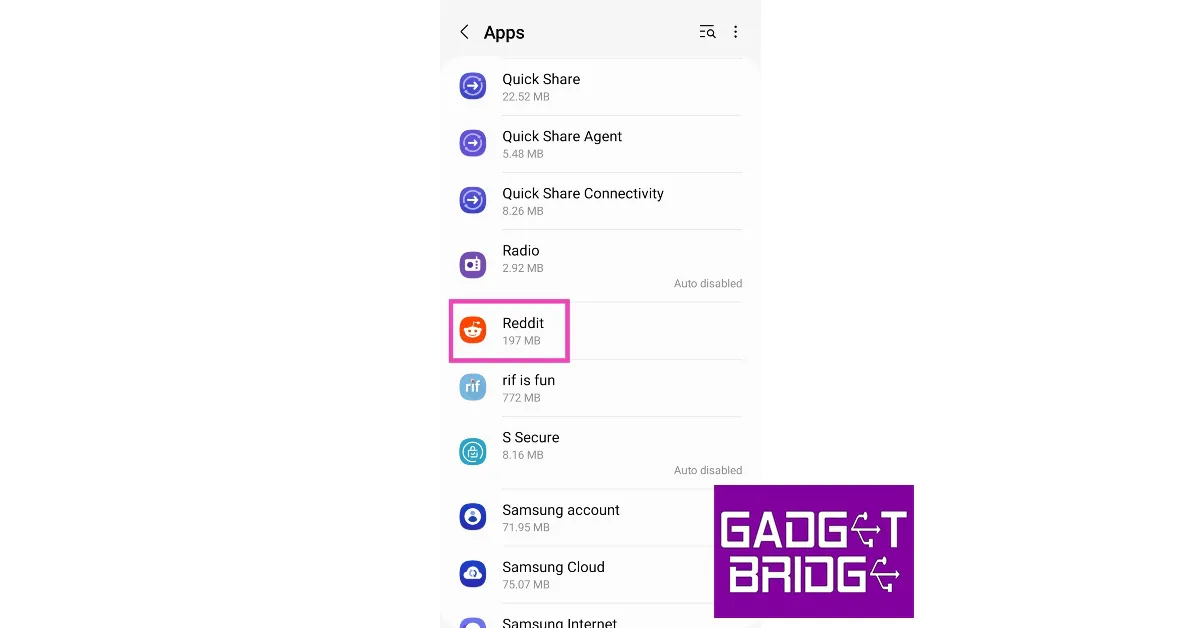
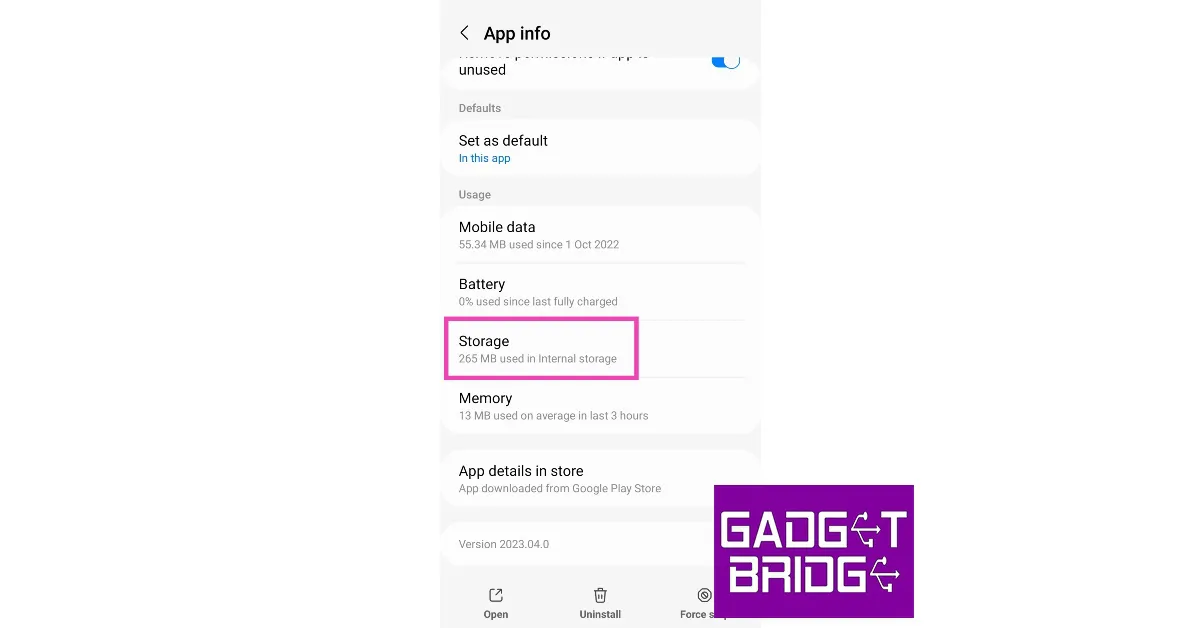
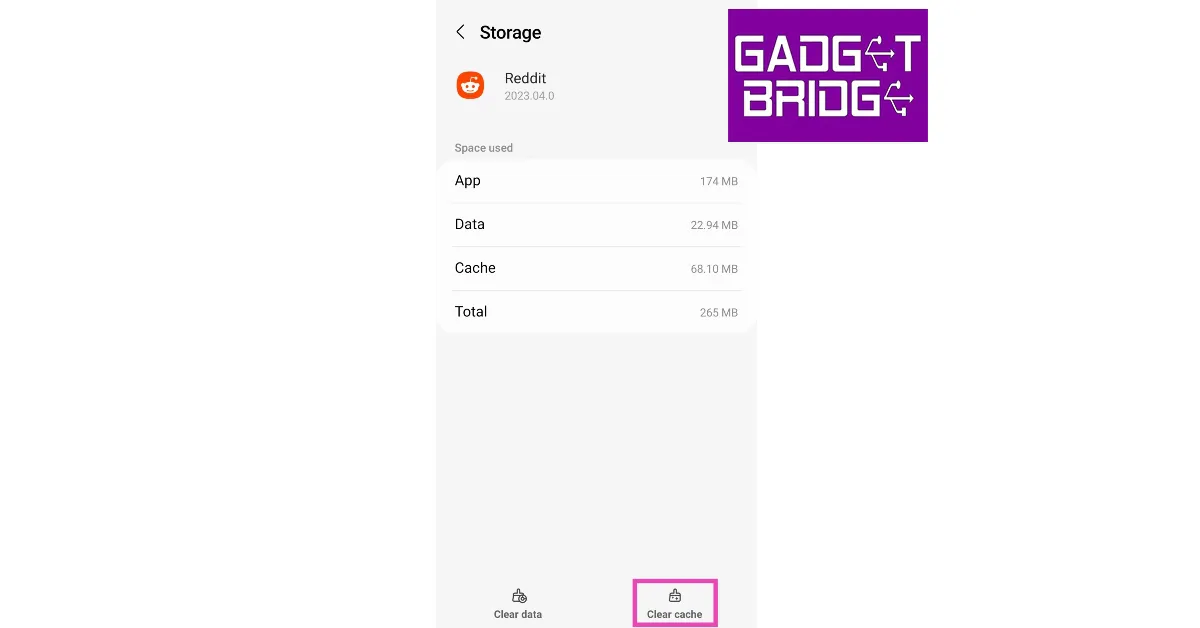
Temporary files in the cache are always prone to get corrupted. Once this happens, they may meddle with the basic functioning of the app. Simply clear the app cache to resolve this issue. Here’s how you can do that.Step 1: Go to Settings and select Apps.Step 2: Scroll down and select Reddit.Step 3: Tap on Storage.Step 4: Select Clear cache.
Update the app
Older versions of apps can sometimes malfunction out of the blue in weird ways. If you haven’t updated the Reddit app in a while, now would be a good time to do it. Go to the Google Play Store, search for Reddit, open its app page, and hit the ‘Update’ button. You can also update the app by going to the ‘Manage apps and device’ section in Play Store settings.
Delete and reinstall the app
Some app functions can fail to work correctly if the app is not installed properly. Uninstall the app and reinstall it to resolve these issues. Long-press the Reddit app icon in your phone’s app drawer and hit the bin icon to delete it. Then, install the app using the Google Play Store.
Log out and log back in
If the volume issue is account-related, logging out and then logging back into Reddit can resolve it. Launch the app, tap the profile icon at the top right corner of the screen, hit the arrow next to your username, then tap on your username and select ‘Log out’. Use your account credentials to log back in.
Use a third-party Reddit client
Reddit’s third-party client apps for smartphones have been around longer than the official app. Encountering bugs on the official Reddit app is a common occurrence. Since the third-party clients have been around for a while, they do not face the same issues as the official app and offer a smoother browsing experience. Ever since Reddit started charging an exorbitant amount for its API, the list of third-party clients has thinned out. But, you can still use apps like Nara and Infinity.
Frequently Asked Questions (FAQs)
Why is sound not working on Reddit videos?
Reddit videos are muted by default. Tap the speaker icon at the bottom right corner of the screen to unmute the video. If you don’t see the speaker icon, it means you’re watching a GIF which has no sound.
Why are Reddit videos muted by default?
Since Reddit is still majorly a text-based platform, the videos are muted by default so as to not alarm the users who casually tap on the post.
These are the best ways to fix sound not working on Reddit videos in the app and browser. If the problem still persists after trying all the fixes mentioned above, chances are that the issue lies with the video file uploaded to Reddit. Sometimes users upload videos without any sound on them. To verify if this is the case, check the comments of the post to see if other people have reported the same issue.
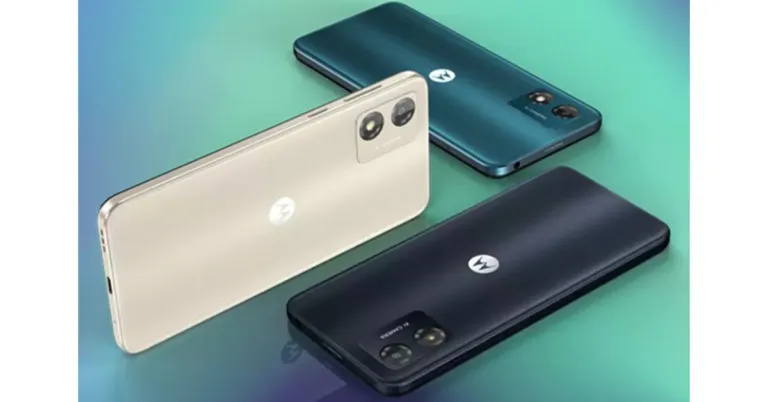
Lenovo-owned smartphone company Motorola introduced a new smartphone in the Budget category. The company has launched Moto E13 which is powered by an octa-core Unisoc T606 SoC and a Mali-G57 MP1 GPU. The device comes with a 5,000mAh battery that is claimed to last over 36 hours on a single charge. In addition to this, there is an IPS LCD display and Dolby Atmos speakers. The phone runs on the latest Android 13 (Go edition).
Moto E13 price in India and sale details
The Moto E13 has been launched in India with a starting price of Rs 6,999 for the base 2GB RAM with a 64GB storage option. There is another 4GB RAM with a 64GB storage model priced at Rs 7,999. The device is being offered in three colour options of Aurora Green, Cosmic Black, and Creamy White. Beginning February 15, the smartphone will be available for purchase on Flipkart and Motorola.in.For both new and existing customers, a flat cashback of Rs 700 is offered if they choose to use the Jio network for a set amount of time within 15 days of the device’s activation.Also Read:Comparison: Poco X5 Pro Vs Redmi Note 12 Pro
Moto E13 specifications
The 6.5-inch HD+ IPS LCD screen on the Moto E13 has a 20:9 aspect ratio. It has an octa-core Unisoc T606 SoC, up to 4GB of LPDDR4x RAM, 64GB of built-in storage, and up to 1TB of extendable storage through a microSD card. The graphics processor is a Mali-G57 MP1 GPU and the device uses Android 13. (Go edition).In terms of optics, The Moto E1 has a front-facing 5-megapixel selfie camera and a single 13-megapixel camera sensor. The 13MP camera knows when everyone in the frame is smiling and takes a photo when that happens thanks to intelligent features like Auto Smile Capture. Other tools, like Face Beauty and Portrait mode, automatically improve your photosThe low-cost smartphone has a 5,000mAh battery and supports 10W cable charging. It also has 2×2 MIMO and comes with a 10W charger. It is stated to support playback of videos for up to 23 hours. Along with this, the phone has an IP52 water-repellent build to keep your phone safe from spills and splashes while you’re out and about.Wi-Fi dual-band (5GHz and 2.4GHz), the USB Type-C 2.0 connector, and Bluetooth 5.03 wireless technology are all supported in terms of connectivity. Additionally, the smartphone’s speaker is Dolby Atmos compatible.
For the latest gadget and tech news, and gadget reviews, follow us on Twitter, Facebook and Instagram. For newest tech & gadget videos subscribe to our YouTube Channel. You can also stay up to date using the Gadget Bridge Android App. You can find the latest car and bike news here.
If you do not have a laptop on hand, you can still print any document straight from your iPhone. Your iPhone has a feature called ‘AirPrint’ that lets it connect to any compatible printer over WiFi. This cuts out the need to mail yourself the documents and then access them on your laptop to print them out. The whole process of printing from your iPhone doesn’t take more than a few minutes. If you do not wish to use AirPrint, there are a couple of other methods you can employ to print any document, file, or image. In this article, we bring you three quick ways to print from iPhone with and without WiFi.Read Also:OnePlus TV 65 Q2 Pro, Keyboard 81 Pro introduced in India
Print from iPhone using AirPrint
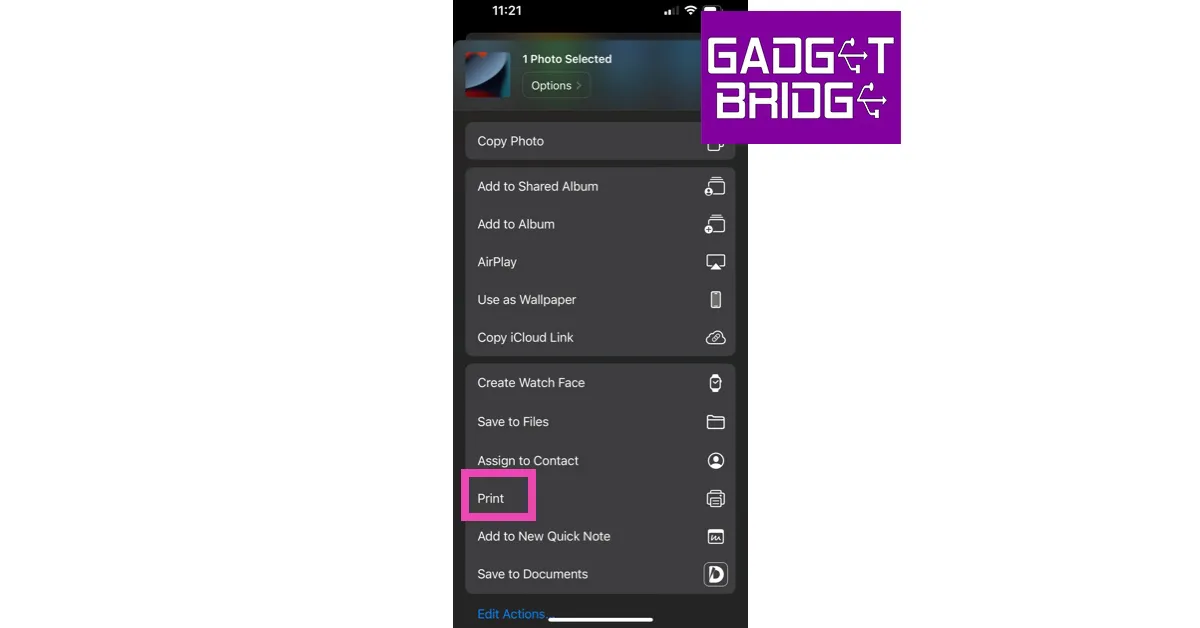
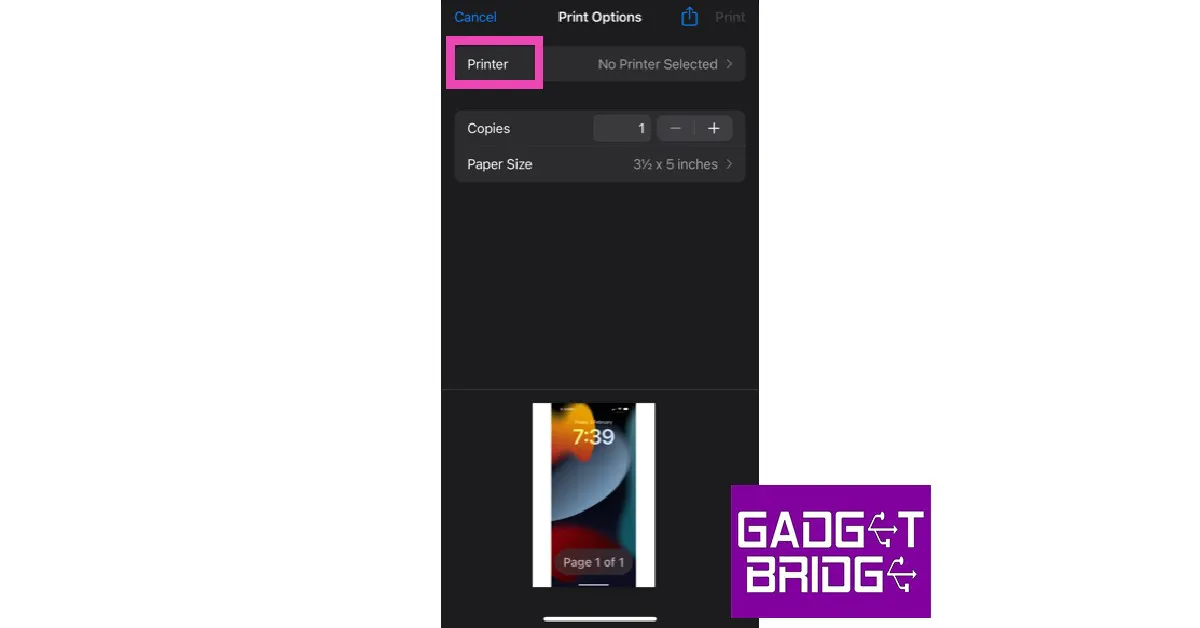
When your iPhone and printer are connected to the same WiFi network, printing any document is a breeze. iPhone’s AirPrint feature makes it easy to print any document, file, or photo over WiFi. Here’s how you can go about it.Step 1: Make sure your iPhone and printer are connected to the same WiFi network.Step 2: Open the document, picture, or file your need to print.Step 3: Tap on the Share icon at the bottom left corner of the screen.Step 4: Select ‘Print’.Step 5: In the ‘Print Options’ window, tap on ‘Printer’.Step 6: This is where you will see all the printers on your WiFi network. Select the printer you want to use for the task.Step 7: Select the presets, print quality, and the number of copies. Then select ‘print’.Your document, file, or image will be printed over WiFi.
Print from iPhone using a personal hotspot
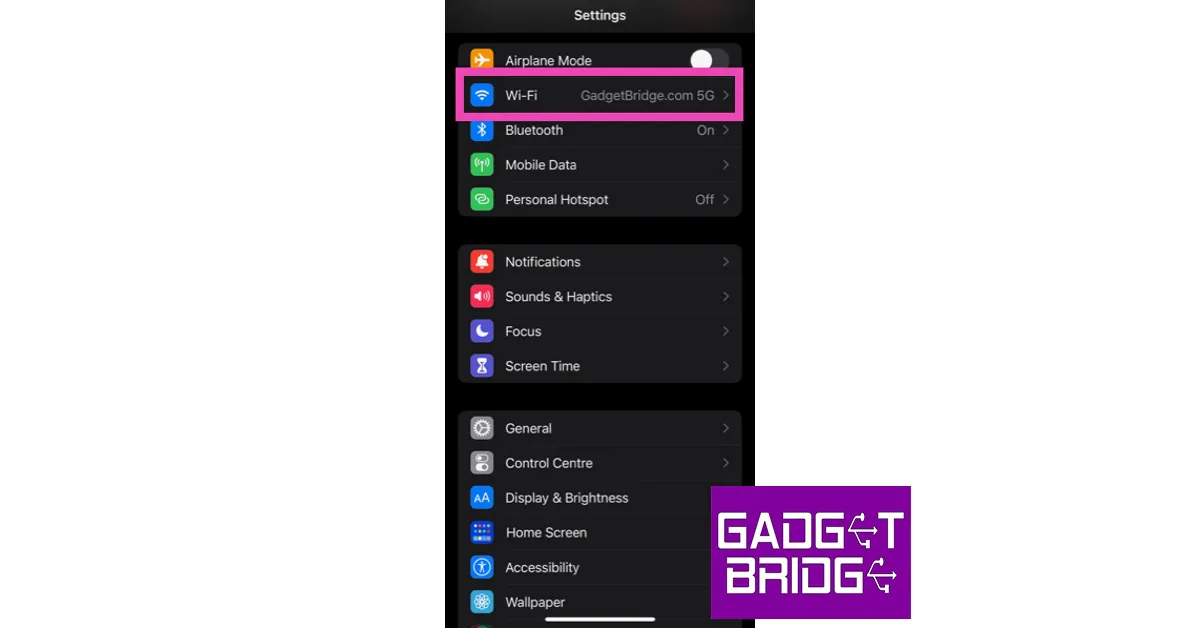
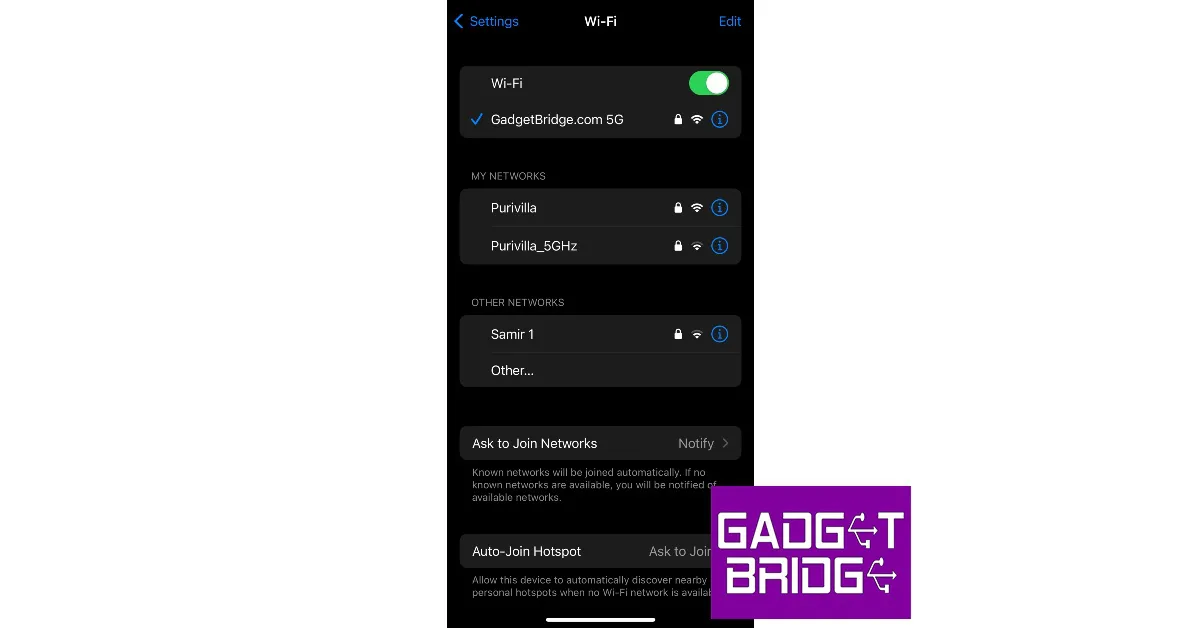
If your iPhone and printer are not connected to a WiFi network, you can still print out documents wirelessly. Many AirPrint-compatible printers can also create a personal hotspot that you can connect to and carry out any printing job. Here’s how you can go about it.Step 1: Open Settings and select WiFi.Step 2: Select your Printer from the list of networks. Step 3: Once connected, open the document you wish to print.Step 4: Tap on the Share icon at the bottom left corner of the screen.Step 5: Select ‘Print’.Step 6: Your printer will already be selected.Step 7: Select the presets, print quality, and the number of copies. Then select ‘print’.
Print from iPhone using an OTG cable
Another way of printing from an iPhone without WiFi is by using an OTG cable. If you don’t know what an OTG cable is or what it does, read our article here. Once you’ve connected your iPhone to a printer using an OTG cable, follow these steps.Step 1: Once your iPhone and printer are connected with an OTG cable, open the document you wish to print.Step 2: Tap on the Share icon at the bottom left corner of the screen.Step 3: Select ‘Print’.Step 4: Your printer will already be selected.Step 5: Select the presets, print quality, and the number of copies. Then select ‘print’.Read Also: Google announced Bard a new AI chatbot and ChatGPT competitor
The Poco X5 Pro was unveiled in India earlier this week. The product rivals the Redmi Note 12 Pro in terms of specs and price. If you’re confused between the Poco X5 Pro and Redmi Note 12 Pro, have a look at our comparison. It might help you understand how the phones are different from one another.
Poco X5 Pro: Triple rear camera setup includes: 108-megapixel ISOCELL HM2 main sensor, 2-megapixel macro camera and an 8-megapixel ultra-wide angle lensRedmi Note 12 Pro: Triple rear camera setup includes: 50-megapixel Sony IMX766 sensor, 8-megapixel ultra wide-angle sensor and a 2-megapixel macro sensor
Poco X5 Pro: 5,000mAh batteryRedmi Note 12 Pro: 5,000mAh battery
Operating system
Poco X5 Pro: MIUI 14 for Android 12Redmi Note 12 Pro: MIUI 13 based on Android 12
Starting Price
Poco X5 Pro: Rs 22,999Redmi Note 12 Pro: Rs 24,999
Our verdict
Both the Poco X5 Pro and Redmi Note 12 Pro have a matte-finished polycarbonate back. Notably, the rear of the Poco phone from the previous generation is made of glass rather than plastic. It features a flatter design than the Redmi Note 12 Pro, and the camera island resembles the Redmi phone. The displays on the two phones are identical.The Poco X5 Pro sports a Snapdragon 778G SoC that is two years old, whereas the Redmi Note 12 Pro has a MediaTek Dimensity 1080 chipset. In contrast to the MediaTek chipset, the Snapdragon chipset performs and plays games far better. While the Poco X5 Pro is limited to 8GB of RAM, the Redmi Note 12 Pro offers up to 12GB of RAM. The 5,000mAh battery in both devices supports 67W fast charging.Redmi Note 12 Pro settles for a 50MP primary camera, while Poco X5 Pro boasts a 108MP primary sensor. Be aware that the Redmi phone supports optical image stabilisation, however, the Poco’s camera sensor does not.Which one should you buy?The Redmi Note 12 Pro is an excellent option if you enjoy playing casual video games and are searching for a phone for everyday usage. But the Poco X5 Pro is an obvious choice if you’re a gamer searching for the most affordable phone.
For the latest gadget and tech news, and gadget reviews, follow us on Twitter, Facebook and Instagram. For newest tech & gadget videos subscribe to our YouTube Channel. You can also stay up to date using the Gadget Bridge Android App. You can find the latest car and bike news here.
Garena Free Fire is a battle royale game with regular awards and tournaments to keep players interested. If you play Garena Free Fire, you should be aware of the redeem codes that are released on a daily basis. However, because the battle royale game is banned in India, players from other countries can use the Free Fire Redeem codes daily. If you’re unfamiliar with the Garena Free Fire redeem codes or don’t know how to get them, we’ve put together a step-by-step guide to help you redeem them. Check out Garena Free Fire Redeem Codes for 9 February 2023.The Free Fire redeem codes are a great way to get free stuff. These are 12-digit codes that contain alphabets and numbers, as well as an expiration date and time. Because the Garena FF redeem codes cannot be used more than once, you should hurry to the redemption page to claim your free reward before someone else does. To get a free reward, all you have to do is go to reward.ff.garena.com/en, which is the official redemption page. Also, keep an eye on this space for daily updates on Garena Free Fire redemption codes and rewards.
Garena Free Fire Redeem Codes Today 9 February 2023
SARG886AV5GR
ZYPPXWRWIAHD
8F3QZKNTLWBZ
WOJJAFV3TUSE
WLSGJXS5KFYR
FF11HHGCGK3B
FF119MB3PFA5
B61YCTNH4PV3
FF11NJN5YS3E
Y6ACLK7KUD1N
YXY3EGTLHGJX
FF1164XNJZ2V
MCPTFNXZF4TA
X99TK56XDJ4X
FF10GCGXRNHY
FF11WFNPP956
ZRJAPH294KV5
FF11DAKX4WHV
FF10617KGUF9
How to Get Free Fire Redeem Codes for Garena on 9 February 2023?
9 February 2023 Amazon Quiz has gone live. Customers from different parts of the country are participating in the daily quiz. The quiz begins from 12 AM to 11:59 PM. Those participating in the quiz can win exciting prizes by answering all the questions correctly. Today participants have a chance to win a Rs 2,500 Amazon Pay Balance.Amazon quiz brings an opportunity for its customers to win Amazon Pay Balance ranging from Rs 1,000 to Rs 50,000. The Quiz can be played from 12 AM to 11:59 PM. The e-commerce platform brings a fresh quiz on a daily basis which consists of five questions related to general knowledge and current affairs. The participants need to answer all the questions correctly and their names will be selected for a lucky draw. The winner will be announced at the end of the month.One wrong answer could eliminate you from the quiz. If you manage to answer all the questions correctly you can stand a chance to win a Rs 5,000 Amazon Pay Balance today. Only app users are eligible to participate in the Quiz. Check Out 9 February 2023 Amazon Quiz Answers.Amazon Quiz Today Prize – Rs 2,500 Amazon Pay BalanceQuiz Date – 9 February 2023Daily Timing – 12 AM to 11:59 PMWinner Announcement – Today 12 PM
Amazon Quiz Answers Today 9 February 2023
Question 1: After his brilliant performances against New Zealand, who recently became the No.1 ranked ODI bowler in the world?Answer: Mohammad SirajQuestion 2: All that Breathes’ from India secured an Oscar nomination in which category?
Answer: Best Documentary Feature FilmQuestion 3: The famous Bharatpur bird sanctuary is located in which Indian state?Answer: RajasthanQuestion 4: What is the name of the primary mascot of this company?Answer: Ronald McdonaldQuestion 5: Which planet is shown in this visual?
Answer: Jupiter
How To Play Amazon Quiz
Only app users are eligible to play the Amazon quiz every morning from 12 AM to 11:59 PM. The quiz is not available on the desktop. For those who are unaware of how to play the Amazon quiz below are the steps, you can follow to take the quiz.
Firstly download the Amazon app from Google Play Store or App Store
Now fill in the required information through the Sign Up option.
You need to log in to the Amazon app and scroll down on the home screen to find the Amazon Quiz banner.
Tap on the Amazon Quiz banner and tap on the Start button to start the Quiz.
Now you will get 5 questions and you need to answer them correctly. One wrong answer will eliminate you from the Quiz.
After answering all the questions correctly you are now eligible for a Lucky Draw.
The winner’s name will be announced today at 12 PM.
Zoom is a popular video conferencing system that allows you to remotely meet with others. It works on a variety of platforms, including desktop PCs and Apple and Android smartphones. It now provides a web-based option for remote meetings as well. But there are many good software out there which are better than Zoom. We found one great option in the form of Waveroom.
Why would someone need to replace Zoom with such a feature-rich house? The reasoning is as follows.
Zoom’s free plan is insufficient, video quality frequently falls short due to internet connection limitations, and the tool does not always offer HD video quality. This is a major disadvantage for individuals who want to record podcasts and distant interviews. Zoom’s video call and recording standard is 720p, and HD video is basically only available for small group calls.
Furthermore, if a participant is using the desktop software, there is no ability to record their audio and video locally.
Other complaints include data security, a lack of customer assistance, and limited recording capabilities in the free tier.
So, which is our pick?
We found a great application, Waveroom, which is an online recording studio great to record online meetings and podcasts.
What are Waveroom’s neat features and pricing?
Organizing online video meetings.
We have audio-only calls.
During the meeting, local audio and video recordings were made.
Using an invitation link, you can invite up to four visitors to the meeting.
The ability to enter the recording room during the recording.
Individual workstations with personal rooms that you can delete and rename to make it easier to browse between guests and prior calls.
The quality of the recording is unaffected by your internet connection: a slow or inconsistent network will not disrupt your meeting. The local recording provides you with high-quality digital audio and video files of each participant.
Following the session, you will receive video files in 4K HD definition with clean, uncompressed audio.
So far, the tool is completely free.
Pricing?
The utility is now available for free to all users.
How to Use Waveroom to Record an Online Interview etc.
Step 1: Open Google Chrome and go to the Waveroom website.
Step 2: To sign up for the service, locate the Get started icon in the top right corner of the screen and click on it.
Step 3: Fill out the signup form or sign-up using Facebook or your Gmail account.
Step 4: After registering, you’ll be sent to your personal area where you can begin an audio-only or video meeting online. Meetings are referred to as Rooms.
Step 5: Press Create Room or the Plus button in the upper-left corner of your screen to launch a new podcast.
Step 6: At the top of the page, type the name of your room.
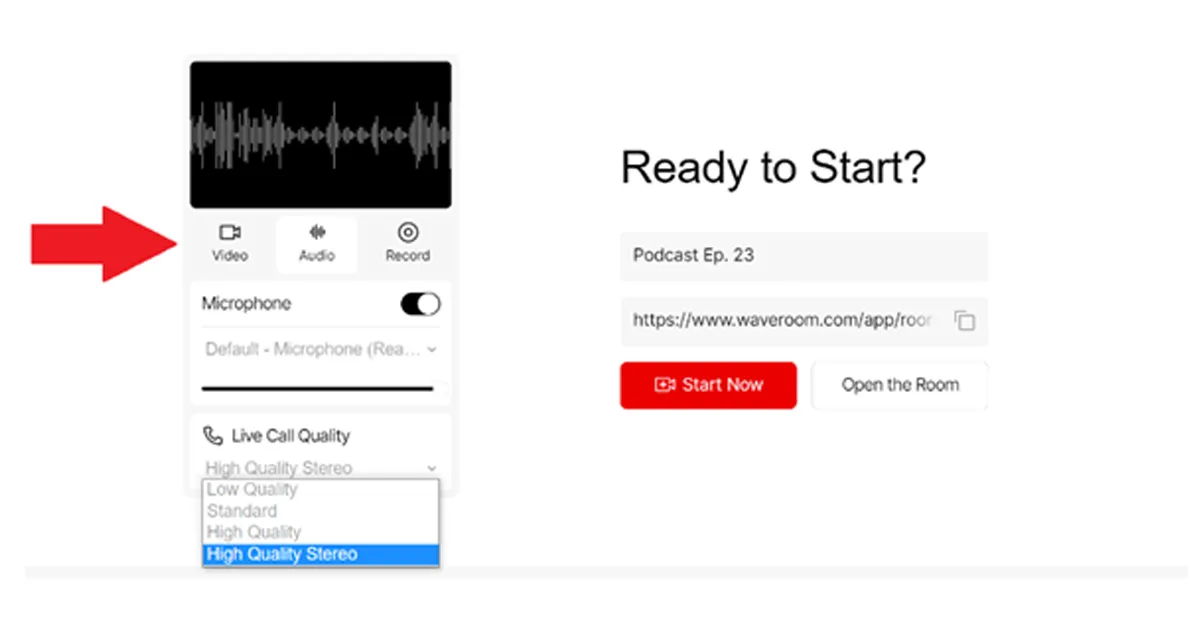
Step 7: Your computer should be equipped with the greatest webcam and microphone you can find. It will assist you in obtaining excellent results.
Step 8: Under the video preview, choose your settings for Video, Audio, and Record. You can select an audio-only room, a video conference, or the Record option, which will record audio, video, or both.
Step 9: Copy the invitation link. Send it to the individuals you wish to participate as podcast speakers.
Step 10: To access your room, click the Start Now option.
Step 11: When you are prepared to begin the podcast, click the Start Recording option.
Step 12: To end the session after the podcast is finished, press the hang-up phone icon.
Step 13: Wait for a little period while the meeting recording saves.
Step 14: In the top left corner of the page, click the ‘All Rooms’ button.
Step 15: Click the space you just left. You can download each podcast guest’s locally recorded audio and video files here.
The recording can be found in your individual dashboard. After that, you can store it as an MKV file on your PC. Soon, more formats will be added.
Being the largest Instant Messaging platform in the world, WhatsApp has broken down several barriers to communication. While the app doesn’t have many shortcomings, it still isn’t able to translate messages on its platform. If you use an Android smartphone, this shouldn’t be too much trouble and you can easily work around this issue with the help of several translation apps. In this article, we show you how to easily translate WhatsApp messages on Android to any language.Read Also: Top ways to Fix Galaxy S22 Screenshot Not Working Issue
Translate WhatsApp messages using Google Translate
Instead of opening the web browser every time you need to translate a message, you can download the Google Translate app and make things easier. Here’s how you can translate WhatsApp messages using the Google Translate app.Step 1: Download and install the Google Translate app on your smartphone.Step 2: Launch the Google Translate app, tap on your profile icon, and select Settings.Step 3: Select Tap to Translate.Step 4: Turn the toggle bars on for Use Tap to Translate, Show floating icon, and Auto-translate copied text. You will need to give Google Translate permission to draw over other apps in order to use the floating icon.Step 5: Head over to WhatsApp and open the conversation you want to translate. Step 6: Long press a message and select the copy icon from the toolbar at the top of the screen.Step 7: Tap on the floating icon. The message will automatically be translated into your desired language. In order to change the language, simply tap on the language name and choose another language.
Translate WhatsApp messages using Gboard
Step 1: DownloadGboard from the Google Play Store and use it as your default keyboard.Step 2: Launch WhatsApp and open the conversation you want to translate. Step 3: Long press a text and copy it to the clipboard.Step 4: Tap on the message box to make Gboard appear on the screen.Step 5: Select the Google Translate icon on the Gboard toolbar.Step 6: Paste the text you want to translate in the box that says Type here to translate.Step 7: The text will be translated into your desired language and will show up in the message box.
Live Translate WhatsApp messages on Google Pixel 6 or above
If you own a Google Pixel smartphone, you don’t need to go through a third party to translate the text on the screen. This is a relatively new feature by Google that is only available on Google Pixel 6 and above. Here’s how you can use Live Translate.Step 1: Open Settings on your Pixel and select System.Step 2: Select Live Translate.Step 3: Turn on the toggle bar for Live Translate.Step 4: Choose the default language for translation.Step 5: Now, head over to WhatsApp and open the conversation you want to be translated.Step 6: Tap on the translate icon at the top.Step 7: Any messages in a language that is different from the default system language of your phone will be translated to the language you entered in the Live Translate section above. You may have to download a language pack for some languages.
Use Chat Translator for WhatsApp
Step 1:Download and install the Chat Translator for WhatsApp app from the Google Play Store.
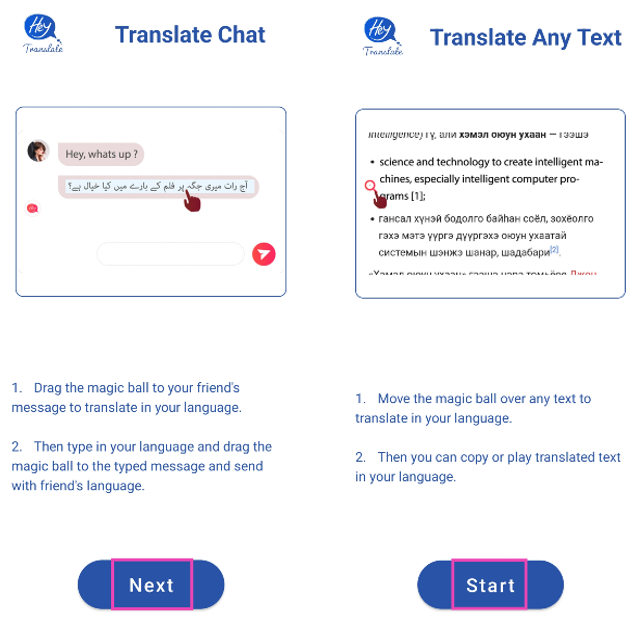
Step 2: Launch the app and hit Next. Then tap Start.
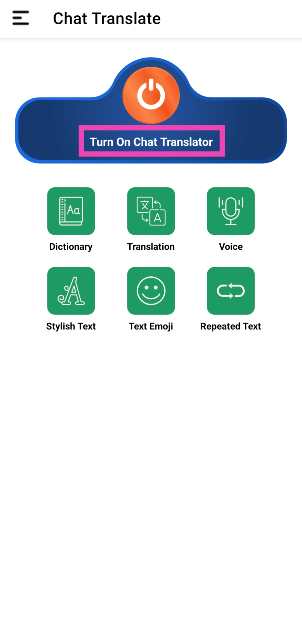
Step 3: Select Turn on Chat Translator.
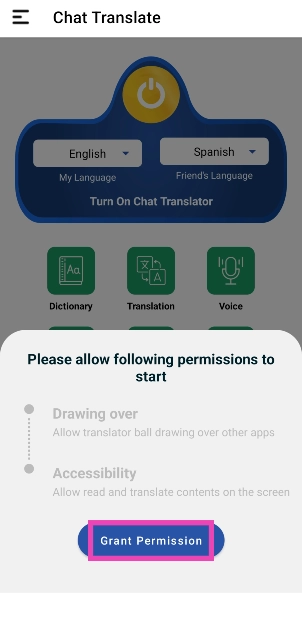
Step 4: Grant the app the necessary permissions.
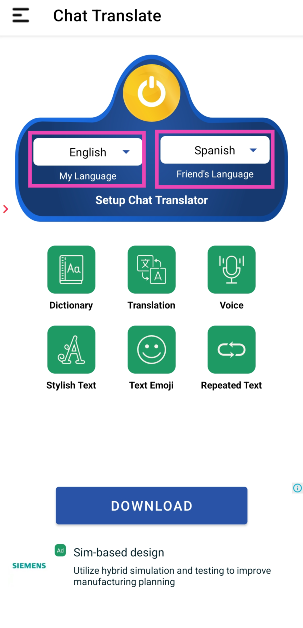
Step 5:Select your language and the language that needs to be translated.
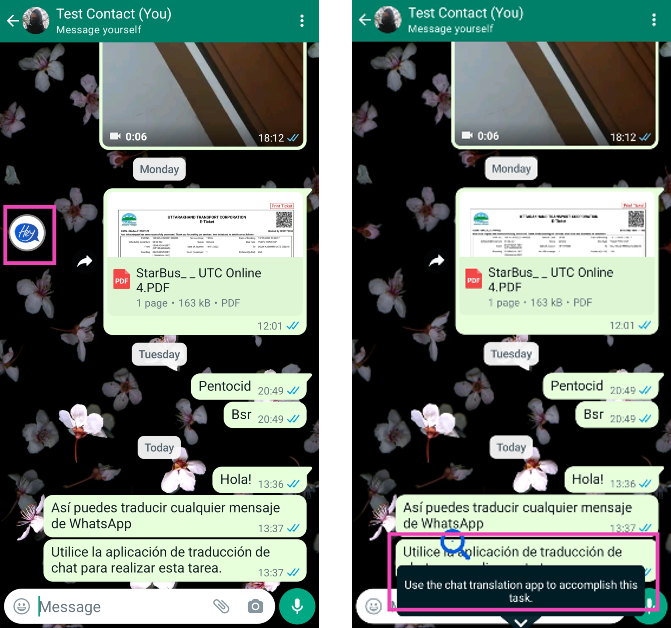
Step 6: Drag the ‘Hey‘ ball to the message that you want to translate.
Frequently Asked Questions (FAQs)
Can I translate WhatsApp messages within the app itself?
Yes, you can translate WhatsApp messages within the app using Gboard. Simply hit the Translate icon on the keyboard and paste the message there. The translated text will appear in the message box.
Does Live Translate work for WhatsApp?
Live Translate is only available for Pixel (6 and above) smartphones at the moment. You can turn on this feature from device settings and use it to translate messages on WhatsApp.
Is there a good third-party app to translate WhatsApp messages on Android?
The ‘Chat Translator for WhatsApp’ app carries out this task fairly well. Once you’ve installed the app and granted it the necessary permissions, all you need to do is drag the assistive ball on top of the text to convert it to your desired language.
Read Also: OnePlus Pad, company’s first tablet launches in India: Price and availability details
Conclusion
These are the four quick ways to translate WhatsApp messages on Android to any language. If you wish to send messages in another language on WhatsApp you can easily do so by using Gboard. All you need to do is tap on the translate icon, type your message, and translate it to your desired language. The translated message will automatically show up in the WhatsApp message box.
Apart from launching the OnePlus 11 5G, OnePlus 11R, OnePlus Buds Pro 2, and the OnePlus Pad in India, the Chinese company has also announced more products like OnePlus TV 65 Q2 Pro and Keyboard 81 Pro. The television comes with a refresh rate of 120Hz and runs on OxygenPlay 2.0. The keyboard features Keychron technology, which has a double gasket design and will prevent loud typing sounds.
OnePlus TV 65 Q2 Pro specifications
The 65-inch 4K QLED display on the OnePlus TV 65 Q2 Pro has a resolution of 3840 x 2160 pixels. It has a 120Hz refresh rate and a 97 percent DCI-P3 colour space coverage. Additionally, the display has 120 local dimming zones and a peak brightness of 1200 nits. The smart TV with WiFi capability also has Bluetooth functionality.In addition to Dolby Atmos sound capabilities, the OnePlus TV 65 Q2 Pro supports the video formats AVI, MKV, MP4, and WMV. The OnePlus TV’s 70W 2.1 channel soundbar is front firing rather than motorised and features Dynaudio-tuned audio. OxygenPlay 2.0 is installed on top of Android TV on the OnePlus TV.
OnePlus Keyboard 81 Pro specifications
The OnePlus Keyboard is the brand’s first mechanical keyboard that can be customised. The OnePlus Keyboard is the company’s first mechanical keyboard with customization options. The hot-swappable capability on one of them enables customers to swap out switches for distinctive personalization. The keyboard also comes with the alert slider that was taken from OnePlus smartphones. The inclusion of open-source firmware from businesses like QMK and VIA is an additional feature. It boasts Keychron technology, which uses a double gasket construction to produce a precisely timed, softer motion with a pleasant sound. Aluminum was used in the keyboard’s construction to make it portable and lightweight. It also functions with Linux, Mac, and Windows. The design is identical to a MacBook’s, even though it may also be used with Microsoft Windows. The keyboard’s Marble-mallow keycaps come in two colour options: Winter Bonfire and Summer Breeze.
OnePlus TV 65 Q2 Pro, Keyboard 81 Pro price in India, sale details
Search giant Google has announced its own ChatGPT competitor- Bard. The new chatbot is driven by artificial intelligence (AI). The tool would respond to users’ questions and participate in conversations.The company’s CEO via blog post announced the initiative. ” AI is the most profound technology we are working on today. Whether it’s helping doctors detect diseases earlier or enabling people to access information in their own language, AI helps people, businesses and communities unlock their potential. And it opens up new opportunities that could significantly improve billions of lives. That’s why we re-oriented the company around AI six years ago — and why we see it as the most important way we can deliver on our mission: to organise the world’s information and make it universally accessible and useful.”According to Google, it has been developing Bard, an experimental LaMDA-based conversational AI service. Prior to making it more broadly accessible to the public in the upcoming weeks, Google is making it available to reliable testers.Also Read:What is ChatGPT? How to use the viral chatbot like a pro?The business claims that Bard aims to bring together the depth of knowledge found throughout the world with the strength, acumen, and creativity of Google’s expansive language models. It uses data from the internet to deliver original, excellent answers. Bard can serve as a creative release and a springboard for inquiry, enabling you to impart new scientific findings from NASA’s James Webb Space Telescope to a 9-year-old or learn more about the top football strikers of the moment before receiving training to hone your abilities.Google is initially making it available using LaMDA’s lightweight variant. The company claims that because the much smaller device uses a lot less computational power, it can scale to accommodate more users and collect more input. To ensure that Bard’s responses reach a high standard for quality, safety, and information found in real-world data, it will integrate external feedback with its own internal testing.“We’re excited for this phase of testing to help us continue to learn and improve Bard’s quality and speed,” the company noted.Since its November 2022 launch, ChatGPT, the most recent initiative from OpenAI, has generated significant online buzz. For those who are unaware, OpenAI developed ChatGPT, a language model tool that effectively forms phrases and simulates human-like conversations by sifting through huge text data sets using deep learning algorithms. Several language model tools existed before ChatGPT, but none of them was as precise as OpenAI’s chatbot. Additionally, ChatGPT supports user interaction using OpenAI, which has propelled its online popularity.
For the latest gadget and tech news, and gadget reviews, follow us on Twitter, Facebook and Instagram. For newest tech & gadget videos subscribe to our YouTube Channel. You can also stay up to date using the Gadget Bridge Android App. You can find the latest car and bike news here.



 Most videos on Reddit are muted by default. This is because Reddit is primarily a text-based platform that people use at work. Since unexpected sounds can create unnecessary distractions, you will find that most videos on the platform are muted by default. If you’re not able to hear the sound on videos, all you need to do is unmute the video by clicking on the loudspeaker icon at the bottom right corner of the video player. Once you unmute the video, you can access the volume controls. Adjust the slider to set the ideal volume.
 Official Reddit app users can unmute the videos on the platform by tapping on the speaker icon at the bottom right corner of the post. You can also open the video and unmute it by tapping on the speaker icon next to the seek bar. Once you unmute the video, it will remain unmuted when you return to the feed. Every video you scroll past will have its sound turned on until you mute it again.
 Step 2: Scroll down and select Reddit.
 Step 3: Tap on Storage.
 Step 4: Select Clear cache.
 Older versions of apps can sometimes malfunction out of the blue in weird ways. If you haven’t updated the Reddit app in a while, now would be a good time to do it. Go to the Google Play Store, search for Reddit, open its app page, and hit the ‘Update’ button. You can also update the app by going to the ‘Manage apps and device’ section in Play Store settings.


 Step 5:
 Step 6: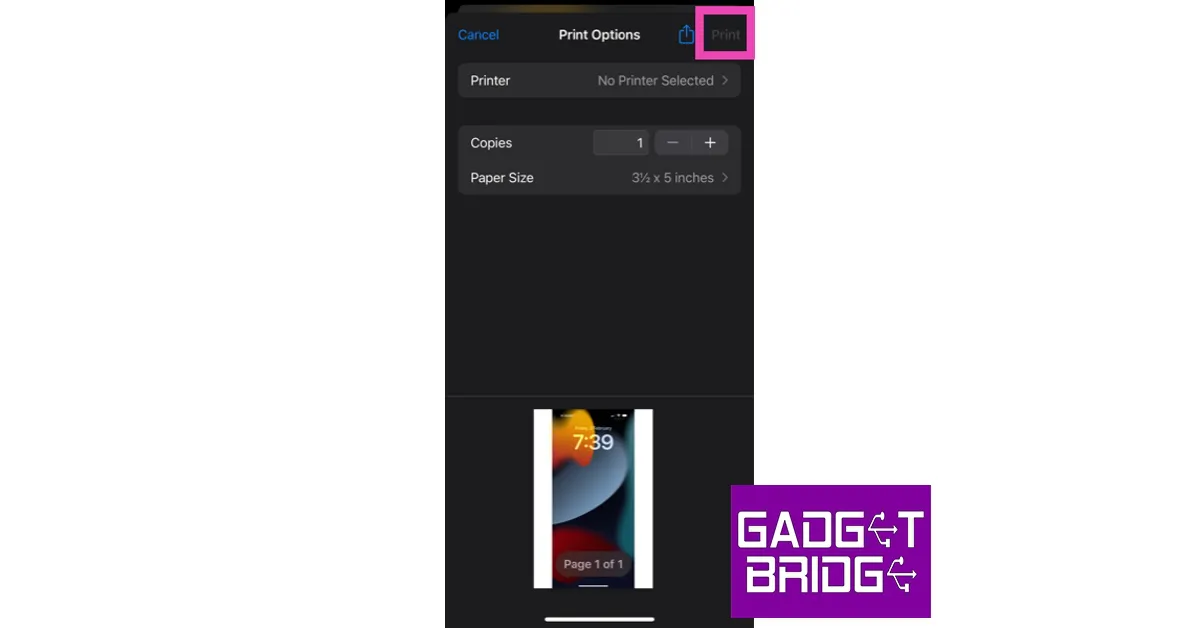
 Step 2:
 Step 3: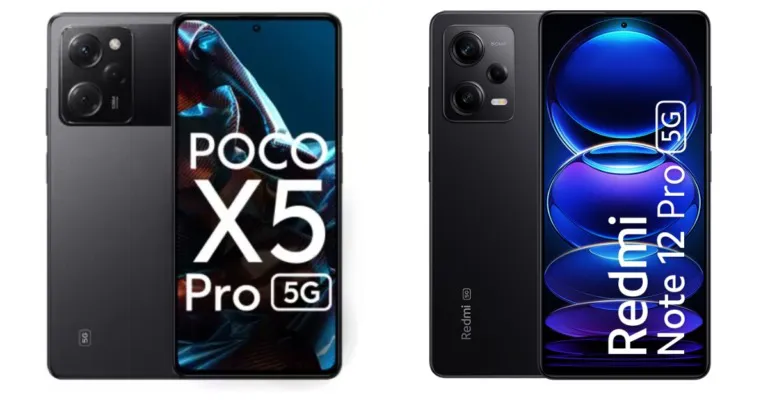


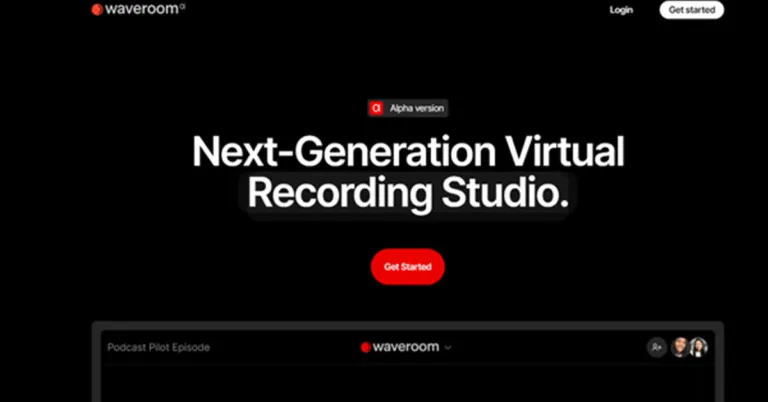
 Step 2: To sign up for the service, locate the Get started icon in the top right corner of the screen and click on it.
Step 3: Fill out the signup form or sign-up using Facebook or your Gmail account.
Step 2: To sign up for the service, locate the Get started icon in the top right corner of the screen and click on it.
Step 3: Fill out the signup form or sign-up using Facebook or your Gmail account. Step 4: After registering, you’ll be sent to your personal area where you can begin an audio-only or video meeting online. Meetings are referred to as Rooms.
Step 5: Press Create Room or the Plus button in the upper-left corner of your screen to launch a new podcast.
Step 4: After registering, you’ll be sent to your personal area where you can begin an audio-only or video meeting online. Meetings are referred to as Rooms.
Step 5: Press Create Room or the Plus button in the upper-left corner of your screen to launch a new podcast. Step 6: At the top of the page, type the name of your room.
 Step 7: Your computer should be equipped with the greatest webcam and microphone you can find. It will assist you in obtaining excellent results.
Step 8: Under the video preview, choose your settings for Video, Audio, and Record. You can select an audio-only room, a video conference, or the Record option, which will record audio, video, or both.
Step 9: Copy the invitation link. Send it to the individuals you wish to participate as podcast speakers.
Step 10: To access your room, click the Start Now option.
Step 11: When you are prepared to begin the podcast, click the Start Recording option.
Step 12: To end the session after the podcast is finished, press the hang-up phone icon.
Step 7: Your computer should be equipped with the greatest webcam and microphone you can find. It will assist you in obtaining excellent results.
Step 8: Under the video preview, choose your settings for Video, Audio, and Record. You can select an audio-only room, a video conference, or the Record option, which will record audio, video, or both.
Step 9: Copy the invitation link. Send it to the individuals you wish to participate as podcast speakers.
Step 10: To access your room, click the Start Now option.
Step 11: When you are prepared to begin the podcast, click the Start Recording option.
Step 12: To end the session after the podcast is finished, press the hang-up phone icon.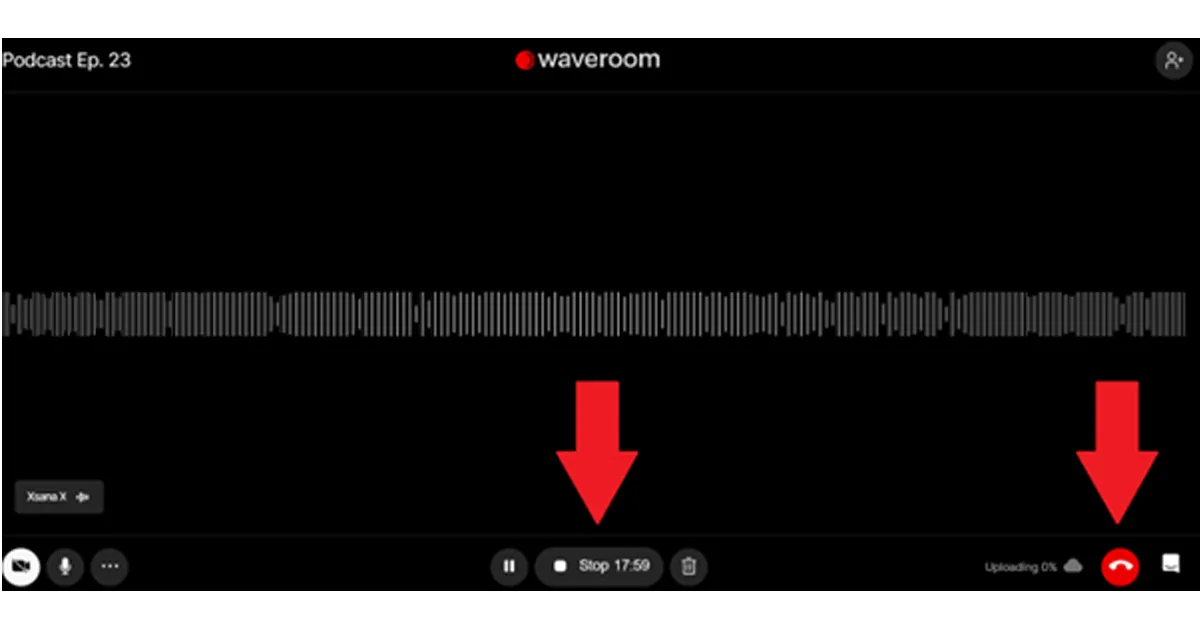 Step 13: Wait for a little period while the meeting recording saves.
Step 14: In the top left corner of the page, click the ‘All Rooms’ button.
Step 15: Click the space you just left. You can download each podcast guest’s locally recorded audio and video files here.
The recording can be found in your individual dashboard. After that, you can store it as an MKV file on your PC. Soon, more formats will be added.
Step 13: Wait for a little period while the meeting recording saves.
Step 14: In the top left corner of the page, click the ‘All Rooms’ button.
Step 15: Click the space you just left. You can download each podcast guest’s locally recorded audio and video files here.
The recording can be found in your individual dashboard. After that, you can store it as an MKV file on your PC. Soon, more formats will be added.
 Step 3:
 Step 4:
 Step 5:
 Step 7:
 Step 6:
 Step 7:
 Step 2:
 Step 4:
 Step 7:
 Step 3: Select Turn on Chat Translator.
 Step 4: Grant the app the necessary permissions.
 Step 5: Select your language and the language that needs to be translated.
 Step 6: Drag the ‘Hey‘ ball to the message that you want to translate.