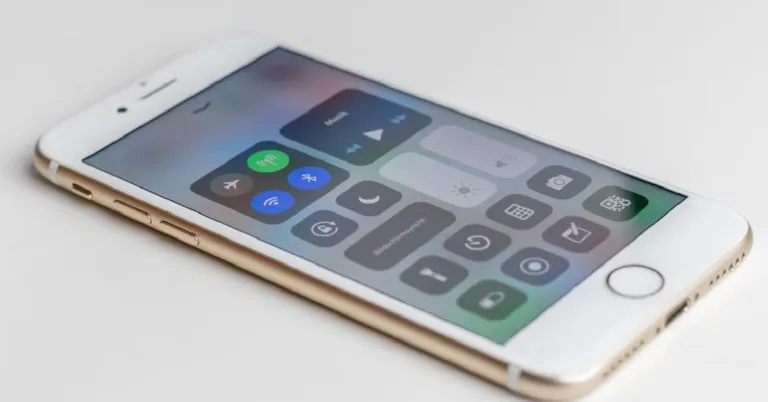
Most iPhone users often report that the Bluetooth on their phone automatically turns on even after they’ve turned it off. This situation may arise if you use the Control Center to turn the Bluetooth off. Swiping down from the status bar and using the Control Center to turn Bluetooth off simply disconnects your iPhone from the devices paired to it via Bluetooth. It doesn’t actually turn off Bluetooth entirely. In this article, we show you how to stop Bluetooth from automatically turning on on your iPhone.Read Also: OnePlus 11R with 100W SUPERVOOC flash fast charging announced in India
Turn off Bluetooth from Settings
If you want to switch off Bluetooth on your iPhone for good, you need to do it from Settings. Here’s how.Step 1: Go to Settings and select Bluetooth.Step 2: Turn the toggle bar next to ‘Bluetooth’ off.Step 3: Select ‘Turn off’ from the popup box.
Turn off Airdrop
Airdrop uses your phone’s Bluetooth connection to transfer a file to another device. Once you send a file using Airdrop, it automatically turns on Bluetooth on your iPhone. Follow these steps to turn off AirDrop on your iPhone.
Step 1: Swipe down from the top right corner of the phone to reveal the Control Center.
Step 2: Long press the connection tiles folder to expand it.
Step 3: Select AirDrop.
Step 4: Tap on ‘Receiving off’.
Use Siri to turn Bluetooth off
This is probably the quickest way to turn Bluetooth off on your iPhone. You don’t need to navigate to Settings or Control Center to carry out the job. Activate Siri and simply say “Hey Siri, turn Bluetooth off” and Apple’s voice assistant will execute the command instantaneously.
Reset Network Settings
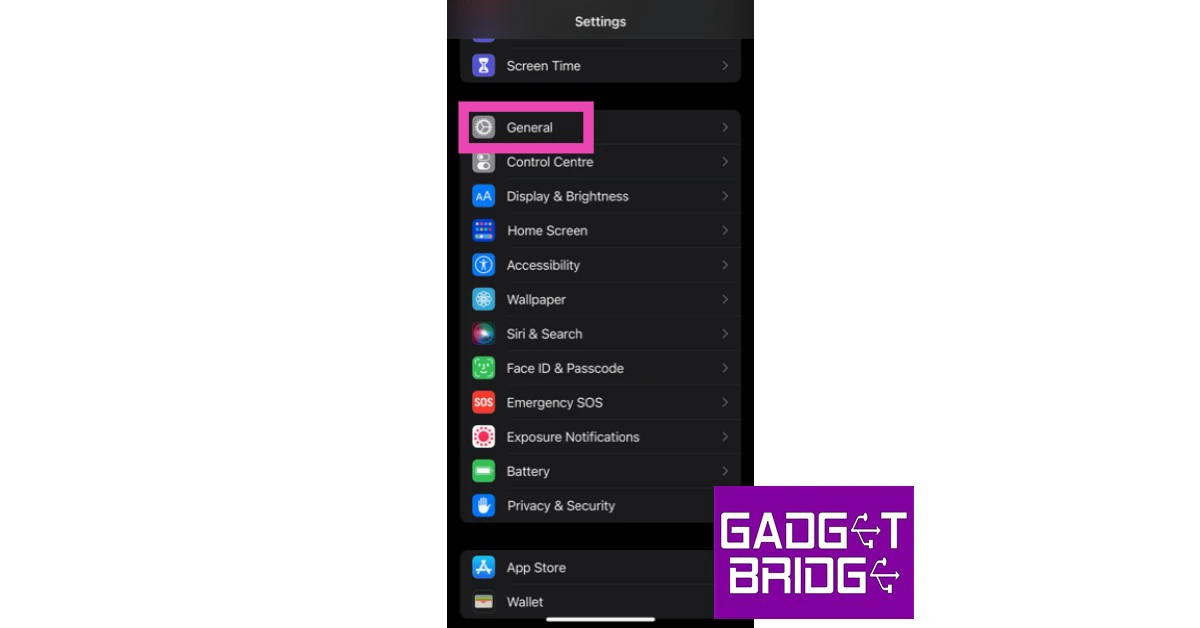
Step 1: Go to Settings and select ‘General’.
Step 2: Scroll down and select ‘Transfer or reset iPhone’.
Step 3: Select ‘Reset’ followed by ‘Reset Network Settings’.
Update iOS
If you are using an older version of iOS, this problem may be arising due to a software bug. These bugs are usually fixed in the updated OS version. Go to Settings>General>Software update to check for any pending updates and install them on your device.
How to turn Bluetooth back on?
Once you’ve turned the Bluetooth off on your iPhone, you won’t be able to connect to your AirPods or any other Bluetooth device. In order to turn Bluetooth back on, simply swipe down from the top of the screen and tap on the Bluetooth icon in the Control Center. Once the icon turns blue, it means that Bluetooth has been turned on. Alternatively, you can go to Settings>Bluetooth and turn the toggle switch on. You can also use Siri to turn the Bluetooth back on. Simply activate the voice assistant and say “Her Siri, turn Bluetooth on”.
Frequently Asked Questions (FAQs)
Why does the Bluetooth on my iPhone keep turning on?
Whenever you send a file to another through AirDrop, it automatically turns on Bluetooth. Your iPhone’s Bluetooth may also turn on automatically if there’s a Shortcut programmed to do so.
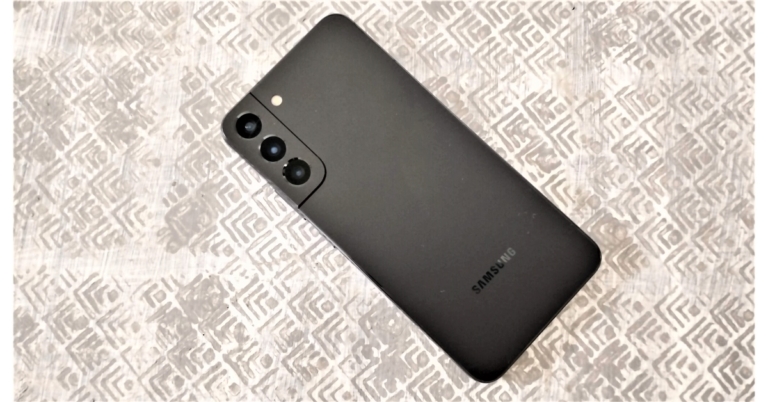
Taking a screenshot is one of the easiest things you can do with your smartphone. On Samsung Galaxy S22, all you need to do is press the volume down and power keys to take a quick screenshot. Using the popup toolbar at the bottom, you can either extend the screenshot to cover multiple pages or quickly edit it before saving. Oftentimes, users report that their Galaxy S22 is unable to take a screenshot. In this article, we bring you the top ways to fix the ‘Samsung Galaxy S22 screenshot not working’ issue.Read Also: Oppo A78 5G Review: How does it stand out in its category?
App restrictions
Certain apps on your Galaxy S22 restrict it from taking a screenshot when they are running on the screen. You will run into this issue with OTT apps like Netflix, Disney+ Hotstar, and others. Apart from apps, Chrome’s Incognito window also doesn’t allow you to take screenshots. If you were issued the smartphone by your institution/workplace then the feature to screenshot may inherently be locked.
Restart your phone
Restarting your smartphone is the quickest way to fix any background issues or bugs. A quick restart should be the first step you take in fixing any problem you come across on your smartphone. To restart your Samsung Galaxy S22, simply press and hold the power button and then select ‘Restart’ from the screen.
Take a screenshot from the drop-down menu
Your S22 may not be taking screenshots due to a faulty volume or power key. A quick workaround to this issue is taking a screenshot from the drop-down menu. Simply go to the page you want to screenshot and swipe down from the status bar. Select the screenshot tile. This will take a screenshot of the page under the drop-down menu. Certain smartphones running previous versions of Android also allow you to take a screenshot from the app switcher.Take a screenshot using Google Assistant
Another really handy way of taking a screenshot on your Galaxy S22 is by asking Google Assistant to do it. This does not require using any physical buttons at all. It is also a great way of taking a screenshot while you’re driving, so as to not get distracted by your phone. Simply say “OK Google, take a screenshot” and let Google Assistant do the rest.
Check the storage space
If your Samsung Galaxy S22’s storage space is at full capacity, it won’t be able to take a screenshot since there’s no place to store it. To take a screenshot, clear up the storage space by going to Settings>Battery and device care>Storage. You will find a detailed breakdown of your phone’s storage space there.
Take a screenshot in Safe Mode
Rebooting your phone in Safe Mode confirms whether the issue you are experiencing is related to a third-party app or not. If you are able to take a screenshot in Safe Mode it means that one of the third-party apps is probably keeping you from taking one in regular mode. To enter Safe Mode, press and hold the power button and volume down button. Once the power menu pops up on the screen, press and hold the power icon until the Safe Mode option shows up. Once you enter Safe Mode, take a screenshot using the volume down and power keys.
Use a third-party app
There are several third-party apps you can use to take a screenshot on your phone. Apps like Assistive Touch overlay a convenient icon on your screen to access all the important functions and apps. You can edit these functions to include taking a quick screenshot. Other apps like Screenshot Touch and Screenshot Easy are specialised towards taking and editing screenshots using different customisable gestures and touches.
Enable media storage
Step 1: Go to Settings and select Apps.
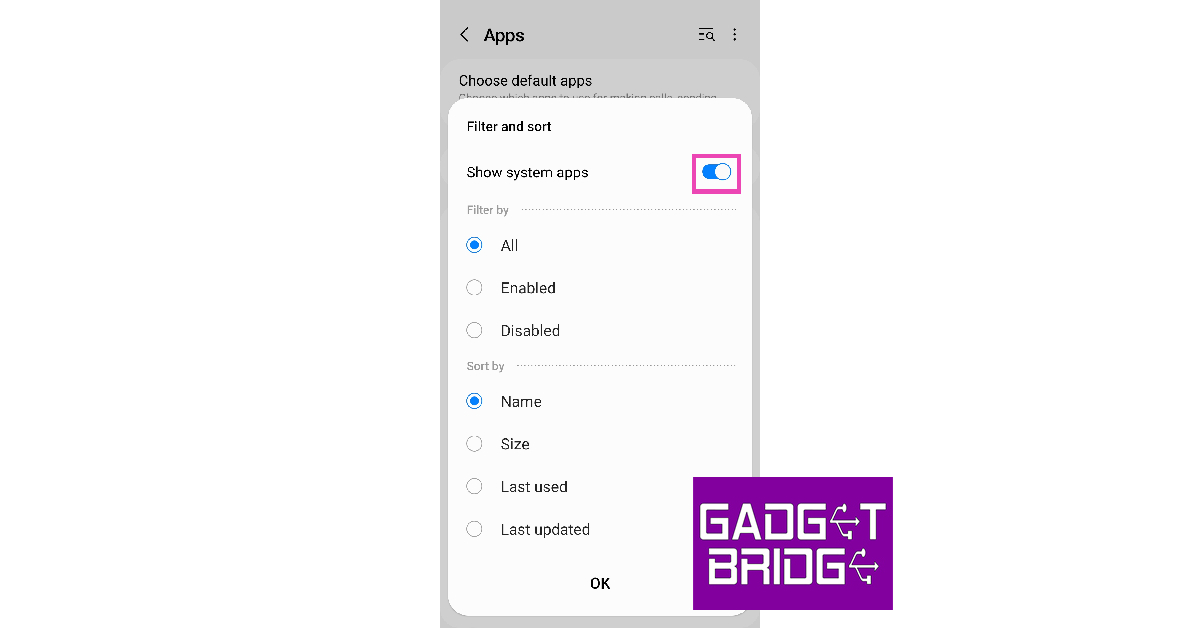
Step 2: Tap the filter and sort icon next to Your apps.
Step 3: Switch on the toggle bar for Show system apps.
Step 4: Scroll down and select Media Storage.
Step 5: If it is disabled, select Enable.
Why can I not take screenshots on my Samsung Galaxy S22?
Certain apps restrict you from taking screenshots of their pages. This includes Chrome’s Incognito window. Your phone may also stop taking screenshots if its physical buttons are faulty or if its internal storage is at peak capacity.
How do I fix my phone if it isn’t taking screenshots?
If your phone isn’t taking screenshots, make sure there’s enough space in the device’s internal memory. Restart your phone in Safe Mode to figure out whether the issue is related to a third-party app.
How do I take a screenshot without using buttons?
To take a screenshot without using buttons, simply tap the Screenshot tile in the Quick Settings Menu. You can also take a screenshot using Google Assistant.
Conclusion
These are the top ways to fix the ‘Samsung Galaxy S22 screenshot not working’ issue. If you decide to perform a factory reset on your phone, back up all your data as you will lose it in the process. If you cannot take a screenshot even after performing a factory reset, take your S22 to an authorised service centre for further diagnosis.For the latest gadget and tech news, and gadget reviews, follow us on Twitter, Facebook and Instagram. For newest tech & gadget videos subscribe to our YouTube Channel. You can also stay up to date using the Gadget Bridge Android App. You can find the latest car and bike news here.
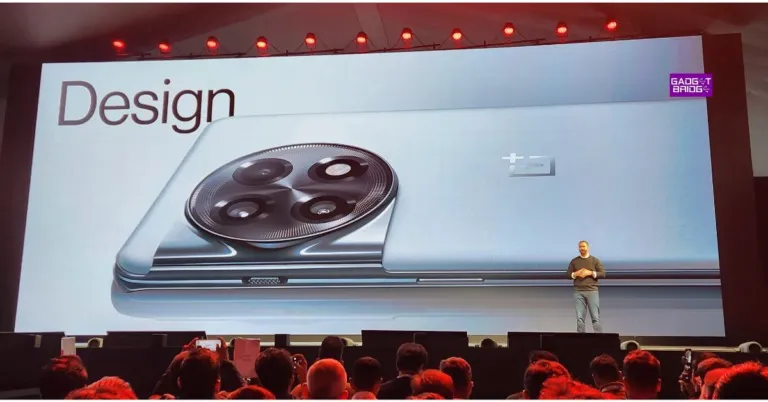
At its Cloud 11 event which was held in New Delhi OnePlus upgraded its entire portfolio with the addition of new products. While the company introduced new successors to its flagship smartphone, audio, and Smart TVs, the firm also introduced brand new devices at the event. The company released its first-ever OnePlus Pad and OnePlus Keyboard 81 Pro in the Indian market along with the OnePlus 11 5G, the OnePlus 11R, the OnePlus Buds Pro 2, and OnePlus TV 65 Q2 Pro. The OnePlus Pad has a large screen and a premium aesthetic. The bezels around the 11.6-inch display on the front of the OnePlus tablet are fairly thin.
OnePlus Pad price in India and sale details
The OnePlus Pad will be available in a single Wi-Fi variant. The price of the OnePlus Pad is yet to be announced in India. However, the company has revealed that the tablet will open up for pre-orders in the country in the month of April. In addition to India, the company has also announced the availability of the device in North America, Europe and the Middle East.Also Read: OnePlus 11R with 100W SUPERVOOC flash fast charging announced in India
OnePlus Pad specifications
The screen on the OnePlus Pad is large, and it looks expensive. It features an 11.61-inch display with a refresh rate of 144Hz, a resolution of 2800×2000, a pixel density of 296 ppi, and a brightness of 500 nits. On the front of the OnePlus tablet, the bezels around the screen are relatively thin. The tablet sports 2.5D curved glass, a 7:5 screen ratio, and an 88 percent screen-to-body ratio. The four speakers provide an Omnibearing sound field, and depending on how the tablet is held, the speakers can switch between the left and right channels. Dolby Atmos and Dolby Vision are also included on the tablet.5G cellular sharing with smartphones is available on the OnePlus Pad. It is equipped with a MediaTek Dimensity 9000 chipset, which supports up to 12GB of LPDDR5 RAM. The Tab runs on Android 13 out of the box.Also Read:OnePlus Buds Pro 2 with Spatial Audio technology launched in India, OnePlus Buds Pro 2R also introducedIt has a 9,510mAh battery with 67W SUPERVOOC capability, which is said to provide up to one month of standby time. The OnePlus tab has an 8-megapixel selfie camera and a single 13-megapixel back camera with an LED flash. In addition to this, the device is supplied with a magnetic keyboard and a stylus.
For the latest gadget and tech news, and gadget reviews, follow us on Twitter, Facebook and Instagram. For newest tech & gadget videos subscribe to our YouTube Channel. You can also stay up to date using the Gadget Bridge Android App. You can find the latest car and bike news here.
Garena Free Fire is a battle royale game with regular awards and tournaments to keep players interested. If you play Garena Free Fire, you should be aware of the redeem codes that are released on a daily basis. However, because the battle royale game is banned in India, players from other countries can use the Free Fire Redeem codes daily. If you’re unfamiliar with the Garena Free Fire redeem codes or don’t know how to get them, we’ve put together a step-by-step guide to help you redeem them. Check out Garena Free Fire Redeem Codes for 8 February 2023.The Free Fire redeem codes are a great way to get free stuff. These are 12-digit codes that contain alphabets and numbers, as well as an expiration date and time. Because the Garena FF redeem codes cannot be used more than once, you should hurry to the redemption page to claim your free reward before someone else does. To get a free reward, all you have to do is go to reward.ff.garena.com/en, which is the official redemption page. Also, keep an eye on this space for daily updates on Garena Free Fire redemption codes and rewards.
Garena Free Fire Redeem Codes Today 8 February 2023
Updating Soon
How to Get Free Fire Redeem Codes for Garena on 8 February 2023?
8 February 2023 Amazon Quiz has gone live on its mobile app platform. Customers from different parts of the country are participating in the daily quiz. The daily quiz is conducted by the company brings an opportunity for the customers to win exciting prizes. The quiz begins from 12 AM to 11:59 PM. In today’s quiz participants have a chance to win Rs 5,000 Amazon Pay Balance by answering all the questions correctly.Every day Amazon brings a fresh set of questions for its customers that contains five easy questions. Amazon quiz brings an opportunity for its customers to win Amazon Pay Balance ranging from Rs 1,000 to Rs 50,000. which consists of five questions related to general knowledge and current affairs.The participants need to answer all the questions correctly and their names will be selected for a lucky draw. The winner will be announced at the end of the month. One wrong answer could eliminate you from the quiz. If you manage to answer all the questions correctly you can stand a chance to win Rs 1,000 Amazon Pay Balance today. Only app users are eligible to participate in the Quiz. Check Out 8 February 2023 Amazon Quiz Answers.Amazon Quiz Today Prize – Rs 5,000 Amazon Pay BalanceQuiz Date – 8 February 2023Daily Timing – 12 AM to 11:59 PMWinner Announcement – Today at 12 PM
Amazon Quiz Answers Today 8 February 2023
Question 1: In 2023, Lionel Messi and Cristiano Ronaldo faced off against each other in a football match played in which city?Answer: RiyadhQuestion 2: In the Marvel Cinematic Universe, Paul Rudd plays the role of which superhero?Answer: Ant-Man
Question 3: Which astronaut, part of the Apollo- 11 mission recently got married at the age of 93?
Answer: Buzz AldrinQuestion 4: Who succeeded him as president of the USA?Answer: Joe BidenQuestion 5: This is the flag of which Asian country?Answer: Malaysia
How To Play Amazon Quiz
Only app users are eligible to play the Amazon quiz every morning from 12 AM to 11:59 PM. The quiz is not available on the desktop. For those who are unaware of how to play the Amazon quiz below are the steps, you can follow to take the quiz.
Firstly download the Amazon app from Google Play Store or App Store
Now fill in the required information through the Sign Up option.
You need to log in to the Amazon app and scroll down on the home screen to find the Amazon Quiz banner.
Tap on the Amazon Quiz banner and tap on the Start button to start the Quiz.
Now you will get 5 questions and you need to answer them correctly. One wrong answer will eliminate you from the Quiz.
After answering all the questions correctly you are now eligible for a Lucky Draw.
The winner’s name will be announced today at 12 PM.
At the company’s Cloud 11 launch event today, the OnePlus 11R was introduced in India. The product is a less expensive variant of the recently unveiled premium OnePlus 11 5G model and a rebranded variant of the OnePlus Ace 2 which was also launched in China today. The phone is powered by Qualcomm’s Snapdragon 8+ Gen 1 5G SoC. The smartphone features a 6.74-inch Full-HD+ curved AMOLED display. Just like its elder sibling the 11R also comes with a 5,000mAh battery that supports 100W SUPERVOOC flash fast charging.
OnePlus 11R specifications
The 6.74-inch Full-HD+ curved AMOLED display on the OnePlus 11R stands out thanks to its 2772 x 1240 pixel resolution. The screen’s dynamic adaptive refresh rate ranges from 40Hz to 120Hz. Additionally, it offers 450 ppi and a maximum brightness of 1,450 nits. The touch response rate of the display is up to 1000Hz. The Snapdragon 8+ Gen 1 5G chipset, along with up to 16GB of RAM and up to 256GB of internal storage, power the OnePlus 11R.Also Read:OnePlus 11 5G with Hasselblad branded cameras and Snapdragon 8 Gen 2 SoC launched in IndiaA 50MP Sony IMX890 main sensor is one of three back cameras on the OnePlus 11R. It also has a 4 cm macro camera with a 120-degree ultra-wide lens, an 8 MP ultra wide-angle sensor, and other features. The gadget has a 10x digital zoom but no optical zoom capabilities. Because it supports both electronic and optical image stabilisation, the OnePlus 11R’s rear camera can capture videos in 4K quality at 30 frames per second and is shake-free. A hole-punch notch at the top of the display houses the 16MP front camera.The device’s connectivity options include 5G, 4G, Wi-Fi, Bluetooth 5.3, NFC, and GPS. A 5,000mAh battery within the OnePlus 11R supports 100W SUPERVOOC flash fast charging.Also Read:OnePlus Buds Pro 2 with Spatial Audio technology launched in India, OnePlus Buds Pro 2R also introduced
OnePlus 11R price in India, sale details
However, the OnePlus 11R may share a lot of similarities with the flagship OnePlus 11 5G but it will be sold at a much-reduced price in India. The company has set the price of the device at Rs 39,999 for the 8GB RAM with 128GB storage option. Whereas the 16GB RAM with 256GB storage option can be bought for Rs 44,999. The handset is being offered in Sonic Black, and Galatic Silver colour options and the preorders will begin on February 21. Moreover, it can be purchased from February 28 onwards via the company’s official website, Amazon and other retail outlets in the country.
For the latest gadget and tech news, and gadget reviews, follow us on Twitter, Facebook and Instagram. For newest tech & gadget videos subscribe to our YouTube Channel. You can also stay up to date using the Gadget Bridge Android App. You can find the latest car and bike news here.
One of the more underrated features of Instagram is searching by location. Planning a trip somewhere and want to check out what it looks like from a traveller’s perspective? Simply look it up on the search tab and you will find hundreds of posts by Instagram users. If you want one of your posts to show up in that tab, you need to add the location to it. In this article, we show you how to add a location to your Instagram posts, Reels, and Stories.Read Also: Amazon Fire TV Streaming Trends Report 2022: Most searched content by Indians
Add location to Instagram Post
Step 1: Launch the Instagram app on your smartphone and swipe left to access the Story creation window. Now, tap on ‘Post’ to create an Instagram post.Step 2: Take a picture or video for your Instagram post. Additionally, you can choose an image or file from your Gallery to upload to your profile.Step 3: Once you’ve selected a picture, tap the blue arrow at the top right corner of the screen.Step 4: Select a filter or edit the image according to your liking. Once you’re done, tap the blue arrow at the top right corner of the screen again.Step 5: In the following window, select ‘Add location’.Step 6: You can either manually search for a location or give the Instagram app location access to suggest places near you.Step 7: Write a caption for your post. You can also add background music to it. Tap the blue arrow at the top right corner of the screen once you’re done.The location will be added to your Instagram post and will appear below your handle in the post overview.
Add location to Reels
Step 1: Launch the Instagram app on your smartphone and swipe left to access the Story creation window. Tap on ‘Reel’ to create an Instagram Reel.Step 2: Tap ‘Next’ once you’ve created a Reel.Step 3: In the following window, tap on ‘Next’.Step 4: Select ‘Add location’.Step 5: You can either manually search for a location or give the Instagram app location access to suggest places near you.Step 6: Write a caption for your Reel. Tap the Share button once you’re done.The location will be added to your Reel.
Add location to Instagram Story
Step 1: Launch the Instagram app on your smartphone and swipe left to access the Story creation window.Step 2: Take a picture or video for your Instagram Story. Additionally, you can choose an image or file from your Gallery to upload to your Story.Step 3: Once you’ve taken a picture, tap on the sticker icon at the top.Step 4: Select the Location sticker. Step 5: You can either manually search for a location or give the Instagram app location access to suggest places near you.Step 6: Once you’ve selected a location, it will appear as a sticker on your story. You can drag it to adjust its placement on the image.Step 7: Tap on the forward arrow at the bottom right corner of the screen and select ‘Share’ to post the Story.The location will be added to your Instagram Story.Read Also: Best Bluetooth speakers for outdoor pool parties (2023)
Conclusion
This is how you can add a location to your Instagram posts, Reels, and Stories. Once you’ve added a location, you can tap on it to view posts of other people in that location. You can also go to Instagram’s search window and look up any location to see the recent posts from there. If you do not want your location to be public, make sure your posts can be viewed only by your followers.For the latest gadget and tech news, and gadget reviews, follow us on Twitter, Facebook and Instagram. For newest tech & gadget videos subscribe to our YouTube Channel. You can also stay up to date using the Gadget Bridge Android App. You can find the latest car and bike news here.
At today’s OnePlus Cloud 11 event in India, the company introduced its brand new OnePlus Buds Pro 2. Google’s Spatial Audio technology, developed for Android 13, is present in true wireless earphones. Additionally, by supporting Android’s Fast Pair feature, the smartphone will instantly pair with other Android devices with only a single tap. MelodyBoost Dual Drivers, which Dynaudio co-developed, are included in the TWS. Each earbud has a 6mm tweeter and an 11mm woofer.
OnePlus Buds Pro 2 specifications
A 6mm tweeter and an 11mm woofer are featured on the OnePlus Buds Pro 2. The OnePlus Buds Pro 2’s Bluetooth v5.3 connectivity supports LHDC, AAC, SBC, and LC3 as audio codecs. Both earphones have three microphones with AI noise-reduction technology. The OnePlus Buds Pro 2 also has touch controls for calling and managing music playing. The IP55 designation for water and dust protection applies to these earbuds.Also Read:OnePlus 11 5G with Hasselblad branded cameras and Snapdragon 8 Gen 2 SoC launched in IndiaThe OnePlus Buds Pro 2 features the well-known spatial audio technology created by Google for Android 13. A multidimensional experience is created inside a set of tiny earbuds as a result. Because of this, the sound always comes from a fixed position and has the same 3D audio quality as in a movie theatre, regardless of movement.They have improved the spatial audio in conjunction with Google to imitate the immersive, three-dimensional experience enjoyed in theatres. By utilising OnePlus’ spatial rendering algorithm and IMU sensor, the OnePlus Buds Pro 2 improves the spatial audio capability while enhancing stability, compatibility with programme expansions, and opening up its technology to other apps.Thanks to Android’s audio-switching capability, the Buds Pro 2 can connect to two Android smartphones simultaneously and automatically switch the audio between them based on your actions, all without having to fiddle with Bluetooth settings.The ANC function allegedly has a 48dB noise reduction capacity. They also assist spatial audio for a realistic virtual surround sound experience.They claim that it takes an hour to fully recharge their charging case’s 520mAh battery. They also support Qi wireless charging. With a few extra charges in the case, the Buds Pro 2 offers up to 39 hours of worry-free audio playback. Contrarily, the Buds Pro 2 series’ dual connection with Bluetooth 5.3 LE audio ensures that your Bluetooth streaming experience will be quick and seamless.
OnePlus Buds Pro 2 price in India, sale details
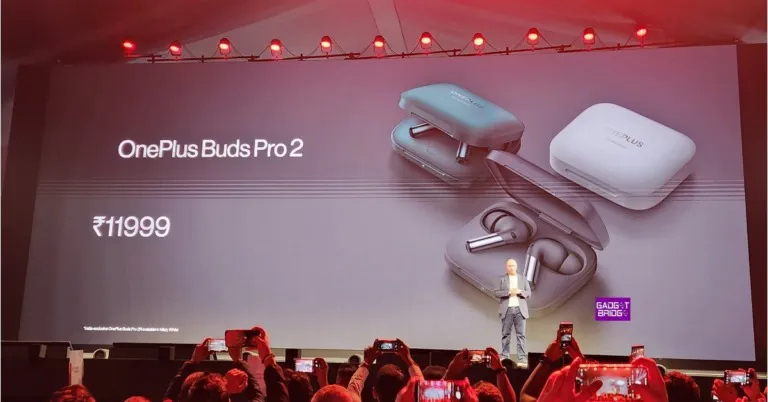
OnePlus has launched two variants of its latest True wireless earphones in India. The first one is the OnePlus Buds Pro 2 which will be available for Rs 11,999. The earphone will come in two colour options of Arbor Green and Obsidian Black and Pre-orders begin today. On February 14 the open sale will begin via the official OnePlus India website, Amazon India, Flipkart, Myntra, the OnePlus Store app, and other hand-picked partners.On the other hand, the OnePlus Buds Pro 2R, a specially designed version of the earphones for India, cost Rs. 9,999. In March, this variation will be put up for sale.
For the latest gadget and tech news, and gadget reviews, follow us on Twitter, Facebook and Instagram. For newest tech & gadget videos subscribe to our YouTube Channel. You can also stay up to date using the Gadget Bridge Android App. You can find the latest car and bike news here.
At the OnePlus Cloud event today, the company introduced the much-awaited OnePlus 11 5G in India. A 2K resolution, 120Hz, LTPO 3.0 AMOLED screen is included with the smartphone. It is powered by the Qualcomm Snapdragon 8 Gen 2 SoC and includes a 100W SuperVOOC quick charging capability. The device comes pre-installed with OxygenOS 13 on top of Android 13.
OnePlus 11 5G specifications
The OnePlus 11 5G’s 6.7-inch Samsung LTPO 3.0 AMOLED display offers a 1,440 x 3,216-pixel resolution. The screen’s aspect ratio is 20.1:9, and it can adaptively refresh at up to 120Hz. The panel supports always-on displays with a resolution of 525 ppi and a maximum brightness of 1300 nits. As protection, a Corning Gorilla Glass 7 is employed. The display is capable of playing codecs in HDR and Dolby Vision. The gadget runs Android 13.0 in addition to ColorOS 13.0. The new phone has an Adreno 740 GPU, up to 16GB of LPDDR5x RAM, and an octa-core 4nm Snapdragon 8 Gen 2 SoC. A maximum of 256GB of UFS4.0 storage is available with the OnePlus 11 5G.There is a 5,000mAh dual-cell battery in the OnePlus 11 5G. Support for 100W SuperVOOC charging is available. A fingerprint reader is also incorporated into the display. It supports Dolby Atmos and has two speakers.One of the three rear cameras on the OnePlus 11 5G has an optical image stabilisation (OIS) sensor with a 50-megapixel resolution (f/1.8 aperture) from Sony. The camera unit also features a 48-megapixel Sony IMX58 extreme wide-angle sensor (f/2.2 aperture and 115-degree field of view) in addition to a 32-megapixel portrait sensor. A 16-megapixel sensor ( f/2.4 aperture) is located on the device’s front for selfies and video calls.There are also connectivity choices for 5G, 4G LTE, Wi-Fi 6, Bluetooth v5.3, Beidou, Glonass, Galileo, GPS, NFC, and other systems. In addition to a proximity sensor, gyroscope, g-sensor, rear colour temperature sensor, and Qualcomm sensor core, there are several other sensors on board.
OnePlus 11 5G price in India and sale details
Priced at Rs 56,999 for the 8GB model with 128GB storage and Rs 61,999 for the 12GB model with 256GB storage, the OnePlus 11 5G is now available in India. It will be available for purchase starting on February 14 through Amazon, the OnePlus web store, and other retail partners. The device will come in two colours options Eternal Green and Titan Black.
For the latest gadget and tech news, and gadget reviews, follow us on Twitter, Facebook and Instagram. For newest tech & gadget videos subscribe to our YouTube Channel. You can also stay up to date using the Gadget Bridge Android App. You can find the latest car and bike news here.
Telegram is always adding new capabilities to its messaging platform in order to enhance user experience. The instant messaging platform has now released its first significant update of the year, which included some important feature additions. The most recent update offers capabilities like profile picture maker, translating entire chats, and emoji categories, among others.In its first update of the year, Telegram introduces 10 significant features. Users can now rapidly transform any sticker or animated emoji into a profile picture for their accounts, groups, or channels thanks to the introduction of a new profile picture maker. Even those without Telegram Premium can utilise animated and customised emoji for these images. Try changing a contact’s information on Telegram to see how you can set or recommend profile pictures for your contacts.By tapping the Translate bar at the top, Premium users can now quickly translate entire chats, groups, and channels. You can choose which languages are translated and hide the bar using the settings menu. Individual messages can be translated by choosing them and hitting “Translate” for all users.Emoji and stickers are now organised in the panel and when selecting replies or statuses by categories. To zoom and get a better view before sending, hold any emoji. With detailed pie charts for Wi-Fi and mobile data, you can monitor how much data Telegram has consumed and change your auto-download settings to suit your data limit.Depending on the size, type, and chat from whence the material was received, you can choose when it automatically saves to your gallery. You can now save only the items you want because this menu now accepts exceptions as well. You don’t have to keep everything on your device when using Telegram. You can always re-download files from your Telegram cloud account after deleting them from your phone’s storage.Administrators can control which of the nine different media kinds, such as video or audio messages, group members are permitted to send. They can also turn off text messages to form groups that are just for the media.In addition to this, prepaying for a full year of premium features will save you up to 40% on your Telegram Premium subscription. The Telegram upgrade now gives developers of bots the opportunity to add special buttons that let users select channels, groups, or individuals who match certain criteria. The bot may be instantly added to a group where topics are enabled and the user is the admin, for instance.Additionally, individuals who have logged out can easily re-login using their Apple ID or Google ID without entering an SMS code. You must still enter your 2-Step Verification password if you have one set.Additionally, Telegram has included hundreds of symbols created specifically for group and profile pictures. From the new trending section at the top of your emoji panel, you may browse and add any of these packs.
For the latest gadget and tech news, and gadget reviews, follow us on Twitter, Facebook and Instagram. For newest tech & gadget videos subscribe to our YouTube Channel. You can also stay up to date using the Gadget Bridge Android App. You can find the latest car and bike news here.


 Step 2: Turn the toggle bar next to ‘Bluetooth’ off.
 Step 3: Select ‘Turn off’ from the popup box.
 Airdrop uses your phone’s Bluetooth connection to transfer a file to another device. Once you send a file using Airdrop, it automatically turns on Bluetooth on your iPhone. Follow these steps to turn off AirDrop on your iPhone.
Step 1: Swipe down from the top right corner of the phone to reveal the Control Center.
Step 2: Long press the connection tiles folder to expand it.
Step 3: Select AirDrop.
Step 4: Tap on ‘Receiving off’.
Airdrop uses your phone’s Bluetooth connection to transfer a file to another device. Once you send a file using Airdrop, it automatically turns on Bluetooth on your iPhone. Follow these steps to turn off AirDrop on your iPhone.
Step 1: Swipe down from the top right corner of the phone to reveal the Control Center.
Step 2: Long press the connection tiles folder to expand it.
Step 3: Select AirDrop.
Step 4: Tap on ‘Receiving off’.
 Step 2: Scroll down and select ‘Transfer or reset iPhone’.
 Step 3: Select ‘Reset’ followed by ‘Reset Network Settings’.

 If you are using an older version of iOS, this problem may be arising due to a software bug. These bugs are usually fixed in the updated OS version. Go to Settings>General>Software update to check for any pending updates and install them on your device.
 Once you’ve turned the Bluetooth off on your iPhone, you won’t be able to connect to your AirPods or any other Bluetooth device. In order to turn Bluetooth back on, simply swipe down from the top of the screen and tap on the Bluetooth icon in the Control Center. Once the icon turns blue, it means that Bluetooth has been turned on. Alternatively, you can go to Settings>Bluetooth and turn the toggle switch on. You can also use Siri to turn the Bluetooth back on. Simply activate the voice assistant and say “Her Siri, turn Bluetooth on”.


 Step 2: Tap the filter and sort icon next to Your apps.
 Step 3: Switch on the toggle bar for Show system apps.
 Step 4: Scroll down and select Media Storage.
 Step 5: If it is disabled, select Enable.
 Step 2: Tap on Reset.
 Step 3: Select Factory data reset.
 Step 4: Scroll down and tap on Reset.
 Read Also: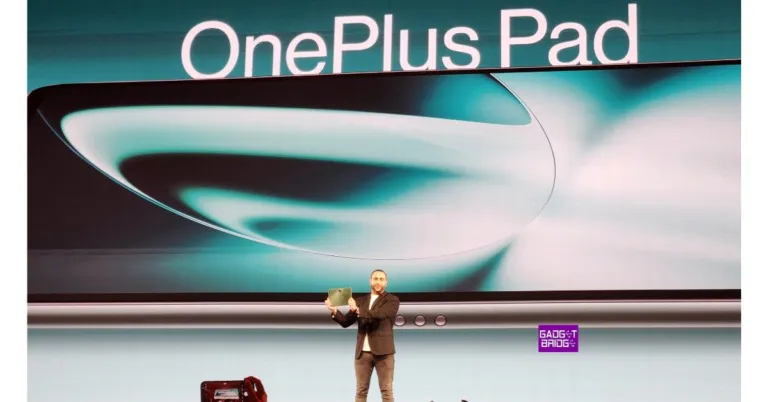
 Also Read:



 Step 2:
 Step 4:
 Step 5:
 Step 6:
  Step 7:
 Step 2:
 Step 3:
 Step 5:
 Step 4:
 Step 5: