Garena Free Fire is a battle royale game with regular awards and tournaments to keep players interested. If you play Garena Free Fire, you should be aware of the redeem codes that are released on a daily basis. However, because the battle royale game is banned in India, players from other countries can use the Free Fire Redeem codes daily. If you’re unfamiliar with the Garena Free Fire redeem codes or don’t know how to get them, we’ve put together a step-by-step guide to help you redeem them. Check out Garena Free Fire Redeem Codes for 25 February 2024.The Free Fire redeem codes are a great way to get free stuff. These are 12-digit codes that contain alphabets and numbers, as well as an expiration date and time. Because the Garena FF redeem codes cannot be used more than once, you should hurry to the redemption page to claim your free reward before someone else does. To get a free reward, all you have to do is go to reward.ff.garena.com/en, which is the official redemption page. Also, keep an eye on this space for daily updates on Garena Free Fire redemption codes and rewards.Also Read: Sennheiser Accentum Plus wireless headphones with Hybrid Adaptive Noise Cancellation launched
Garena Free Fire Redeem Codes Today 25 February 2024
While predictive text is an extremely handy feature on modern smartphones, some users do not like that extra strip on top of their onscreen keyboards. Luckily, most Android keyboards allow you to turn off this feature. On iPhone, disabling word predictions is pretty straightforward too. Today, we bring you the top 4 ways to turn off predictive text on Android and iPhone.Read Also:How to Fix Bluetooth Audio Delay on Android? Top 8 Ways
How does predictive text work?
As the name suggests, predictive text suggests words that you are most likely to type while texting. Once you type a word, predictive text will automatically come up with a suggestion. These suggestions appear in the topmost strip of the keyboard. You can tap on a word to use it in your sentence. If used correctly, it can increase your typing speed and bring a nice flow to the overall typing experience.So, how does predictive text work? To explain it simply, your smartphone’s onscreen keyboard examines your typing pattern via machine learning and recognises the words you use the most. It uses language models to make sure its suggestions are grammatically sound and make sense in the sentence you are typing. If you accept a suggestion from your phone, it will assume that the word that it suggested is correct. This helps it come up with better suggestions in future.
Turn off predictive text on Gboard (Android)
Step 1: Tap on a text field to trigger Gboard.Step 2: Hit the cog wheel icon to access settings.Step 3: Tap on Text correction.Step 4: Turn off the toggle switch for Next-word suggestions.Step 5: If you want to get rid of the suggestion bar altogether, turn off the toggle switch for ‘Show suggestion strip’.
Turn off predictive text on Samsung Keyboard (Android)
Step 1: Tap on a text field to trigger the Samsung Keyboard.Step 2: Hit the cog wheel icon to access settings.Step 3: Turn off the toggle switch for Predictive text.
Turn off ‘Quick prediction insert’ on Microsoft SwiftKey (Android)
There is no way to turn off the predictive bar on Microsoft SwiftKey. However, you can turn off the ‘Quick prediction insert’ feature. Here’s how.Step 1: Tap on a text field to trigger Microsoft SwiftKey.Step 2: Hit the ellipses on the top right section of the keyboard.Step 3: Select Settings.Step 4: Tap on Typing.Step 5: Turn off the toggle switch for Quick prediction insert.
Turn off predictive text on an iPhone
Step 1: Go to Settings and select General.Step 2: Scroll down and tap on Keyboard.Step 3: Turn off the toggle switch for Predictive.
Frequently Asked Questions (FAQs)
How do I turn off predictive text on Gboard (Android)?
Hit the Settings icon, go to Text correction, and turn off the toggle switch for ‘Next-word suggestions’.
Is there a way to turn off predictive text on Microsoft SwiftKey?
Microsoft SwiftKey does not allow users to turn off text suggestions from the keyboard. At best, you can turn off the ‘Quick prediction text’ option from settings.
These are the top 4 ways to turn off predictive text on Android and iPhone. Check out this article to learn how you can use Galaxy AI features on your Samsung Keyboard. Which is your preferred keyboard for your smartphone? Let us know in the comments!
No one likes audio delays. Even a slight lag in audio output while watching a movie or playing a video game can completely ruin the experience. This issue is more prevalent in Bluetooth headphones and earbuds. Luckily, even the most basic, entry-level wireless headsets have a low-latency mode to manage this problem. But what if even that doesn’t work? Try these top 11 ways to fix Bluetooth audio delay on your Android smartphone.Read Also:Top 6 ways to fix ‘Instagram Stories Music Not Working’
Why do Bluetooth headsets have an audio delay?
Bluetooth headsets rely on a wireless signal from the source device to produce an audio output. By its very nature, some latency is bound to creep in. This issue is not prevalent in wired headphones. The audio latency in wired headphones is less than 10 milliseconds. This delay is minuscule and impossible to notice. However, wireless earbuds and headphones may have a latency of more than 100ms (even 300ms in some cases), creating a visible lag between the audio output and the visuals on the screen.The Low Latency Mode in Bluetooth headsets does help in minimising this delay. But there are other factors at play here, too. These factors can be controlled to prevent the audio lag. If you use your Bluetooth headphones for gaming, you may want to check out what you can do to ensure a smooth, lag-free gaming experience.
Turn on Low Latency Mode
Turning on the Low Latency Mode on your Bluetooth headphones or earbuds can help in fixing the audio delay. On some headphones, it may be called ‘Gaming Mode’ or ‘Low Lag Mode’. The process of turning on this mode is different for every headset. If you use a companion app for your earbuds, you will find this setting in the audio profile section. Some TWS devices allow users to turn on the Low Latency Mode directly from the earbuds. Check out the user manual to learn the dedicated controls.
Make sure your phone is within the functional range of the Bluetooth headset
One of the perks of using a Bluetooth headset is that you can keep your phone in one place and still listen to music while walking around the room. However, Bluetooth headsets and earbuds have a functional range of around 30 feet (10 metres). If you stray outside of this range, you may experience an audio delay. Make sure you are in the vicinity of the connected device to prevent this from happening.
Charge your Bluetooth headphones
When your TWS headset drops to a low charge level, its performance takes a hit. The intensity of the audio output diminishes significantly, and so does the strength of the audio signal. You may experience a slight audio delay in this situation. To fix it, simply charge your Bluetooth headphones. Once charged, the latency will likely be gone.
Re-pair your phone with your headphones
Step 1: Swipe down from the status bar and long-press the Bluetooth tile in the Quick Settings Menu.Step 2: Hit the cog wheel icon next to the connected TWS.Step 3: Hit Unpair.Step 4: Put your TWS in pairing mode.Step 5: Go to the previous page on your smartphone and re-pair the TWS.
Reduce the interference
If there’s a significant distance between your phone and the Bluetooth headphones, the wireless signals (Bluetooth and WiFi) from other devices in the vicinity can cause interference. These devices may include your laptop, TV, WiFi router, and more. Latency in audio output is one of the effects of interference. Disable the device that is causing interference to fix the Bluetooth audio delay. You can also bring your phone close to your Bluetooth headset to fix this problem.
Change the Bluetooth Codec
Modern Bluetooth headphones support multiple codecs. By default, your phone chooses the SBC audio codec. If you’re experiencing latency issues, switching to AAC, LDAC (Sony), or aptX codecs may help. You can change the audio codec from the companion app for your TWS or the device settings in the Bluetooth menu. If your headset doesn’t support multiple codecs, move on to the other fixes in this list to fix the Bluetooth audio delay.
Disable Power Saving Mode on your smartphone
Android smartphones automatically enable the Power Saving Mode when they are running low on charge. This may affect your Bluetooth headset’s performance. Turn off the Power Saving Mode to fix the Bluetooth audio delay. Here’s how.Step 1: Go to Settings and select Battery.Step 2: Turn off the toggle switch for Power Saving.
Use the Sound Assistant app (Samsung)
If you own a Samsung smartphone, use the Sound Assistant plugin for Good Lock to sync up the Bluetooth audio output and the visuals on the screen.
Step 1:Download and install the Sound Assistant app from the Galaxy Store.
Step 2:Launch the Good Lock app on your phone and switch to the Plugins tab.
Step 3: Select Sound Assistant.
Step 4: Go to Bluetooth metronome.
Step 5: Use the slider to match the audio.
Clear the Bluetooth cache
Step 1: Go to Settings and select Apps.
Step 2: Hit the filter icon and turn on the toggle switch next to Show system apps.
Step 3: Scroll down and select Bluetooth.
Step 4: Go to Storage.
Step 5: Select Clear cache.
Turn off HD/Lossless audio
If you’re facing latency issues on a music streaming platform, try disabling HD/Lossless audio to see if it fixes the issue. Here’s how you can go about it on Spotify.
Step 1:Launch the Spotify app on your phone.
Step 2: Tap your profile picture in the top left corner of the screen.
Step 3: Select Settings and privacy.
Step 4: Go to Media quality.
Step 5: Select any option but lossless.
Update your TWS’s firmware
Updating your wireless earbuds’ firmware fixes any bug-related issues, including Bluetooth audio delay. The process to update the firmware is fairly simple. Launch the companion app for your earbuds and go to the ‘About’ section. Find the software info category and check for any firmware updates. Install the latest OTA update for your device.
Frequently Asked Questions (FAQs)
What is the ideal audio latency for gaming?
If your Bluetooth audio headset has a latency under 100ms, it should not create any delay while gaming. However, an audio latency between 20-50ms is considered ideal for gaming.
How do I update my wireless earbuds’ firmware?
You can update the firmware of your wireless earbuds by launching the companion app for your smartphone and navigating to the software info section. This is where you will find the pending OTA updates.
How do I decrease the audio lag on my Bluetooth headphones?
To fix the audio delay on your Bluetooth headphones, make sure they are charged and the low-latency mode is turned on. Additionally, make sure the power saving mode on your phone is disabled, and the two devices are within the functional range of each other.
How do I change the Bluetooth audio codec on my phone?
Go to Settings>Connections>Bluetooth, hit the gear icon next to the connected Bluetooth headset and select your preferred audio codec on the following page.
These are the top 11 ways to fix the Bluetooth audio delay on your Android smartphone. Typically, this problem does not arise while using wired headphones. If you’re looking for a wireless gaming headset, always make sure that it offers low latency (<50ms). If you know of any other way to fix this issue, let us know in the comments!
Adding music to your Instagram Story gives it an edge and makes it more interesting to watch. Even the most basic pictures can be brought to life with a good background song. Instagram’s music sticker for Stories works great for the most part, but it isn’t immune to malfunctions. Today, we bring you the top 11 ways to fix the ‘Instagram Stories music not working’ issue on your smartphone.Read Also:Samsung Keyboard not working? Try these 11 fixes
Is there a way to add music to my Stories without using the Instagram sticker?
Instagram has a diverse music library for Stores, Reels, and posts. In the Story Creator, this music library can be accessed using the music sticker. However, if you’re looking for some niche or underground song, the chances of you finding it there are very slim. Luckily, there is a way you can still embed that song in your Story.Instead of using Instagram’s Story Creator, you will need to install a video editing app on your phone. You will also need an MP3 file of the song to set it as the background music for your Story. In the photo editing app, use the ‘Add background music’ option to attach the song to the Story. You can also add the music on a separate track if you want greater editorial control. Once the song has been added to the video, you can upload it as a Story on Instagram. You can use this trick to upload your own music in your Story as well.
Switch your account type from Business to Personal or Creator
Due to copyright restrictions, Instagram does not allow Business accounts to use its music library for commercial use. Switch your account type to Personal or Creator to use music in your Stories. Here’s how.Step 1: Launch the Instagram app and hit your profile icon at the bottom right corner of the screen.Step 2: Hit the hamburger menu icon at the top right corner of the screen.Step 3: Select Settings and privacy.Step 4: Tap on Business tools and controls.Step 5: Select Switch account type.Step 6: Tap on Switch to personal/creator account.
Update the app
Instagram isn’t immune to bug-related problems. Luckily, developers are quick to pack these issues with an update. If you can access Instagram’s music library for your Stories or the music is always muted when you make a post, try updating the app as a quick fix. Go to the Google Play Store, search for Instagram, and open its page. Hit the ‘Update’ button and wait for your phone to download the update.
Log out and log in
Giving your Instagram account a quick refresh is not a bad idea if you can’t get the music library to work in the app. You can do this by logging out and then logging back in. Go to Profile>Menu>Settings and privacy, scroll all the way down, and hit ‘Log out’. Log back in using the correct account credentials.
Uninstall and reinstall the app
If the Instagram app on your phone is corrupted, deleting and reinstalling it may fix the issue. Long-press the Instagram app icon in the app drawer and select ‘Uninstall’. Alternatively, you can go to Settings>Apps>Instagram and hit ‘Uninstall’ in the bottom toolbar to remove the app from your phone. Once deleted, reinstall the app from the Google Play Store.
Save music from another Reel
If you’re unable to find a viral song in Instagram’s music library, you can simply pull it from another Reel. Here’s how.
Step 1: Open the Reel with the song.
Step 2: Tap the song title at the bottom of the page or hit the box icon in the bottom right corner of the screen. This will take you to the song’s page.
Step 3: Hit Save.
Step 4: Create your Reel and hit the music note icon.
Step 5: Switch to the Saved tab.
Step 6: Tap the song title.
Disable VPN
Are you using a VPN to access Instagram? Instagram’s music library may be geo-locked for some countries. If you are connected to a server from one of those countries, you will not be able to use music on your Instagram Stories. Disconnect the VPN or connect to another server and try again.
Clear Instagram’s cache
Step 1: Go to Settings and select Apps.
Step 2: Tap on Instagram.
Step 3: Select Storage and cache.
Step 4: Hit Clear Cache.
Restart your phone
It is possible that the issue lies with your smartphone, not your Instagram account. A quick restart can fix the background glitches causing this problem. Long-press the side button (or the side button + volume up key) to reveal the power menu. Select ‘Restart’ from the list.
Update your phone
Step 1: Go to Settings and select Software update.
Step 2: Tap on Download and install.
Step 3: Select Install now.
Use a different device
If you’re using an old Android smartphone, chances are that Instagram hasn’t rolled out its latest features on it yet. It is unlikely that new features like Instagram music stickers will be rolled out on your device if they aren’t available already. Log in to your Instagram on a relatively newer device to use the full spectrum of features, including background music for Instagram stories.
Check if Instagram is down
Can’t get Instagram to work at all? Maybe the app is experiencing a server outage. To confirm, go to Downdetector.in and search for Instagram. If you see a spike in recent user reports, it means that the app is currently down. The only thing you can do in this situation is wait until the servers are restored. Downdetector also lets you know if any specific features of the app are not working.
Frequently Asked Questions (FAQs)
Why am I not able to use music in my Instagram Stories?
Instagram prevents Business accounts from using copyrighted music in their Stories for commercial use. Switch to a Personal or Creator account to start using music again.
How can I add music to my Instagram Stories?
Upload a Story, then tap the sticker icon and select ‘Music’ to add a song.
How do I find trending songs for Instagram Reels?
Watch the trending Reels in your country and see which songs they are using by hitting the waveform box at the bottom right corner of the screen. The song title usually shows up at the bottom of the Reel as well.
How do I send music via Instagram DMs?
Go to your Instagram DMs, open a conversation, tap the sticker icon, select ‘Music’, enter the song title and tap on it to send it in the chat.
These are the top 11 ways to fix the ‘Instagram Stories music not working’ on your smartphone. If the problem won’t go away, contact Instagram support and report the problem. If you know of any other way to fix this issue, let us know in the comments!
Garena Free Fire is a battle royale game with regular awards and tournaments to keep players interested. If you play Garena Free Fire, you should be aware of the redeem codes that are released on a daily basis. However, because the battle royale game is banned in India, players from other countries can use the Free Fire Redeem codes daily. If you’re unfamiliar with the Garena Free Fire redeem codes or don’t know how to get them, we’ve put together a step-by-step guide to help you redeem them. Check out Garena Free Fire Redeem Codes for 24 February 2024.The Free Fire redeem codes are a great way to get free stuff. These are 12-digit codes that contain alphabets and numbers, as well as an expiration date and time. Because the Garena FF redeem codes cannot be used more than once, you should hurry to the redemption page to claim your free reward before someone else does. To get a free reward, all you have to do is go to reward.ff.garena.com/en, which is the official redemption page. Also, keep an eye on this space for daily updates on Garena Free Fire redemption codes and rewards.Also Read: Sennheiser Accentum Plus wireless headphones with Hybrid Adaptive Noise Cancellation launched
Garena Free Fire Redeem Codes Today 24 February 2024
One of the perks of using a Samsung Galaxy smartphone is the availability of the Samsung Keyboard alongside the ol’ trusted Gboard. While most Android users find it hard to imagine ever making the switch from Gboard, Samsung users swear by the native keyboard on their phones. With the release of the new Samsung Galaxy S24 Series, the tech giant introduced the Galaxy AI to their keyboard app as well. If the Samsung Keyboard is not working on your phone, try these 14 fixes.Read Also:Sony SRS-XV500 portable party speaker with up to 25 hours of battery life launched in India
What’s new on the Samsung Keyboard?
Samsung’s Galaxy AI has rejuvenated the native keyboard app on select Galaxy smartphones with fun and helpful features. The most important of them all is ‘Chat Translate’, which you can trigger on any conversation thread on your device. Once enabled, this feature translates the conversation to any language of your choice. The translator tool in Samsung Keyboard is capable of auto-translating your messages to another language. The entire process is seamless and smooth.Apart from translating your messages, Galaxy AI also performs a basic spell check and corrects the grammar of your messages before you hit send. This feature can also be accessed by tapping the Galaxy AI icon on the Samsung Keyboard. On top of that, you can use the AI to change the tone and style of your messages. You can read more about these new features in this article.
Set Samsung Keyboard as the default keyboard app
Step 1: Go to Settings and select General management.Step 2: Select Keyboard list and default.Step 3: Tap on Default keyboard and select Samsung Keyboard.
Restart your smartphone
If tapping on a text field doesn’t trigger the onscreen keyboard, a quick restart of your device can help fix the problem. Rebooting your phone resolves any minor background glitches that may be causing it to malfunction. Press and hold the side button on your Samsung smartphone and hit the ‘Restart’ sign on the screen. You can also access the power menu by swiping down from the status bar and tapping the power icon in the Quick Settings Menu.
Remove third-party keyboard apps
Sometimes, a third-party keyboard app may interfere with the functioning of your phone’s native keyboard. Uninstall the third-party keyboard and check if it resolves the issue. To do this, locate the keyboard’s app icon in the app drawer, long-press it, and select ‘Uninstall’.
Optimise your phone with Device Care
Step 1: Go to Settings and tap on Device care.
Step 2: Select Optimise now.
The background apps will be closed and the device’s settings will be optimised.
Restart your phone in Safe Mode
If an intrusive third-party app is causing your Samsung keyboard to malfunction, you will have to remove it from your device to resume normalcy. To confirm whether the issue with the keyboard is caused by a third-party app, restart your smartphone in Safe Mode. You can do this by going to the power menu, tapping and holding the power icon, and then selecting Safe Mode. If your keyboard is working fine in Safe Mode, it means that one of the third-party apps is at fault.
Disconnect your Bluetooth keyboard
Once you pair a Bluetooth keyboard with your smartphone, it keeps the onscreen keyboard from popping up whenever you select a text field. If you want to go back to using the onscreen keyboard on your Samsung smartphone, disconnect the Bluetooth keyboard. You can do this by swiping down from the status bar and long-pressing the Bluetooth tile in the Quick Settings Menu. Tap the name of the keyboard to disconnect it from your phone. Disabling the Bluetooth altogether works too.
Use the default home launcher
Do you use a third-party launcher to give your smartphone’s home screen a unique look? It may be the reason why the Samsung Keyboard is not working. Switch to the default home launcher and check if the issue has been resolved. Here’s how.Step 1: Go to Settings and select Apps.Step 2: Tap on Choose default apps.Step 3: Tap on Home app.
Step 4: Select One UI Home.
Clear Samsung Keyboard’s cache
Step 1: Tap on a text field to trigger the Samsung Keyboard.Step 2: Hit the cog wheel icon to access keyboard settings.Step 3: Tap on Reset to default settings.Step 4: Hit Clear cache.
Force Stop and Restart the Samsung Keyboard
Step 1: Go to Settings and select Apps.Step 2: Select Samsung Keyboard.Step 3: Hit Force Stop.Step 4: Tap on a text field to restart it.
Reset keyboard settings
Step 1: Tap on a text field to trigger the Samsung Keyboard.Step 2: Hit the cog wheel icon to access keyboard settings.Step 3: Tap on Reset to default settings.Step 4: Hit Reset keyboard settings.Step 5:Confirm your selection in the pop-up box.
Remove and re-add your Samsung account
Step 1: Go to Settings and select Accounts and backup.
Step 2: Tap on Manage accounts and select your Samsung account.
Step 3: Tap on Remove account and confirm your selection in the pop-up box.
Step 4: Hit Sign out.
Step 5: Once you’ve been signed out, go to Settings and tap the Samsung option at the top of the screen to log back in.
Clear your phone’s internal storage
If your phone’s internal storage is full, it can keep the onscreen keyboard from working properly. Here’s how you can manage the storage.Step 1: Go to Settings and select Device care.Step 2: Tap on Storage.Step 3: Empty the recycle bin and delete the unused apps, large files, and duplicate files.
Update OS
If a bug-related problem is the reason why the Samsung Keyboard is not working, a software update can fix it. Developers are quick to push these OTA updates to wipe out any unexpected bugs from the system. Here’s how you can go about it.Step 1: Go to Settings, scroll down and select Software update.Step 2: Tap on Download and install.Step 3: Hit Install Now.
Reset all settings
If you customised a system setting recently and suspect it is causing the keyboard to malfunction, resetting it can help fix the issue. But what if you don’t remember which setting you changed? Luckily, your phone allows you to reset all settings at once. Here’s how.Step 1: Go to Settings and select General Management.Step 2: Tap on Reset.Step 3: Select Reset all settings.
Frequently Asked Questions (FAQs)
How do I clear my Samsung Keyboard’s cache to fix it?
Tap a text field to trigger the Samsung Keyboard, tap the settings icon, and go to Reset to default settings>Clear cache.
How do I make Samsung Keyboard the default keyboard on my phone?
Go to Settings>General management>Keyboard list and default>Default keyboard and select Samsung Keyboard.
Is there a way to update the keyboard on my Android phone?
Your phone’s native keyboard gets updated when you update the OS. There is no isolated way to update the keyboard itself. Go to Settings>Software update to update the OS.
How do I enter Safe Mode on my Samsung phone?
Go to the power menu by pressing and holding the volume down and side keys. Long-press the power off icon until you see the Safe Mode icon. Tap this icon to restart your phone in Safe Mode.
How do I start Safe Mode while my Samsung phone is switched off?
Turn on your phone and long-press the Volume Down button when the Samsung logo appears on the screen. Keep holding the button until you see the ‘Safe Mode’ label in the bottom left corner of the screen.
Read Also:Airtel launched in-flight roaming packs, starting at Rs 195
Conclusion
These are the top 14 ways to fix the ‘Samsung Keyboard not working’ issue on your smartphone. Typically, a quick restart of your device and clearing the keyboard cache should address the common issues. If you know of any other fixes for this problem, let us know in the comments!
Sony India today announced the launch of a new portable party speaker in India. Sony SRS-XV500 has debuted in the country and has been specially tuned for India. The speaker is claimed to offer up to 25 hours of battery life. The device features ambient lighting that can be customised. Moreover, it is IPX4 rated (splashproof) with karaoke and guitar input along with echo and key control on the rear panel. Additionally, the party speaker includes two X-Balanced speaker units and two tweeters.
Sony SRS-XV500 price in India, sale details
Sony SRS-XV500 has been launched in India at Rs 31,990. The party speaker will go on sale from February 24 via Sony retail stores (Sony Center and Sony Exclusive), the www.ShopatSC.com portal, major electronic stores, and other e-commerce websites in India.
Sony SRS-XV500 specifications
In terms of build, Sony’s recycled plastic is used in the body of the SRS-XV500. The ambient light feature of the SRS-XV500 contributes to the party mood. You can customise the illumination with the Fiestable mobile app. With an IPX4 water resistance rating, the SRS-XV500 can be carried outdoors and is safe to use even if a few raindrops fall. The speaker is easy to travel thanks to its integrated handle. Furthermore, the SRS-XV500’s ability to be positioned vertically or horizontally allows it to adapt to any setting. In addition to maximising speaker diaphragm size, the non-circular diaphragm boosts sound pressure for punchier, deeper bass, reduced distortion, and improved vocal clarity.Sony SRS-XV500 features X-Balanced Speaker Units, which produce deep, punchy bass with less distortion and two tweeters that offer crisp vocals and a wider soundstage. You can easily insert a karaoke microphone. With a second input, you can increase the intensity of your performance by playing a guitar or doing a duet on a second microphone with a friend. There is individual mixing for both inputs. One can also customise the sound of the device with the Echo and Key Control located on the back panel.Also Read:Airtel launched in-flight roaming packs, starting at Rs 195Also Read:Samsung to roll out One UI 6.1 update next month, to bring Galaxy AI feature to more devicesThe Sony SRS-XV500 portable party speaker has an easy-to-use touch panel to adjust your lighting, modes, and settings. With USB connectivity, you may plug in and listen to music. You can also use the SRS-XV500 to charge other devices, such as smartphones. The new SRS-XV500 is compatible with both Sony | Music Center and Fiestable apps. With Sony | Music Center, you can select playlists, and change lighting patterns and sound modes all from the dance floor. From a distance, you may control the centre’s lighting, sound, and playlist options. Fiestable gives you access to entertaining features like making a playlist, karaoke functions including Voice Changer and Echo, plus DJ control to add sound effects.
Airtel has launched in-flight services comprising voice, data and SMS services to enhance the on-board travel experience.
Airtel in-flight roaming plans will be available for both prepaid and postpaid customers.
The Airtel in-flight roaming packs will start at Rs 195.
To help its customers stay connected when on a flight, telecom service provider Airtel has brought new prepaid and postpaid plans for customers. The company has introduced in-flight roaming packs with tariffs starting as low as Rs. 195. Please find details of prepaid and postpaid plans on which it can be availed below.Telecommunications service provider Bharti Airtel has introduced in-flight roaming plans for customers that will allow them to stay connected while on-board Airtel customers will be able to take advantage of a variety of activities, including high-speed internet browsing and talking to loved ones. Consumers who purchase roaming packs priced at Rs 3999 for postpaid and above or Rs 2997 for prepaid would immediately be eligible for free in-flight roaming.Commenting on the launch, Amit Tripathi – Director – Customer Experience and Marketing, Bharti Airtel, said, “Airtel has been at the forefront of providing seamless mobile connectivity to customers across the country. Today, we are thrilled to bring the same service on board a flight through our in-flight roaming packs that will allow customers to enjoy high-speed internet and seamless voice calling that will help them stay connected with their loved ones while on a flight.”As mentioned earlier, Airtel in-flight roaming packs start at Rs 195 for both postpaid and prepaid users and will receive 250MB of data, 100 minutes of outgoing talk time and 100 outgoing SMS.Also Read:Samsung to roll out One UI 6.1 update next month, to bring Galaxy AI feature to more devicesFor Rs 295, you may upgrade to get 500MB of data. The inflight roaming pack will include 100 minutes of free talking and 100 outgoing SMS.At Rs 595 the customers will receive 1GB of data together with 100 minutes of outgoing talk time, and 100 outgoing SMS. Note that all the inflight packs come with a validity of 24 hours. Also, there is no need to buy an additional recharge pack in its roaming packs as Bharti Airtel already includes the same prepaid and postpaid advantages.Also Read:Vivo Y200e 5G powered by Qualcomm Snapdragon 4 Gen 2 SoC launched in IndiaPrepaid plans priced at Rs 2,997 and more come with 100 SMS, 250MB of Internet, and 100 minutes of free outgoing talktime. In the same way, postpaid users can also get in-flight roaming plans benefits for Rs 3,999.
Additionally, to provide a seamless travel experience Airtel and Aeromobile have partnered to provide the best in-flight connectivity across 19 airlines flying across different international sectors.
Samsung has announced the availability of Galaxy AI features on more Galaxy devices.
AI-supported models will be able to access features such as Circle to Search, Note Assist, Browsing Assist, Transcript Assist, Chat Assist, Live Assist and more.
South Korean electronics giant Samsung will be rolling out a new OS upgrade, which is based on Android 14. The company has said to release the One UI 6.1 update for more Galaxy devices including Galaxy S23 series, S23 FE, Z Fold5, Z Flip5 and Tab S9 series. The upcoming software update will land on your devices by the end of March.Samsung’s One UI 6.1 update is planned for the Galaxy S23 series, S23 FE, Z Fold5, Z Flip5 and Tab S9 series. The much-discussed AI features on the S24 series will be included in the One UI 6.1 upgrade.With AI-supported models, even more Galaxy users will now be able to benefit from the communication-enhancing Galaxy AI capabilities. As per the company starting at the end of March, the update will be available for the Galaxy S23 series, S23 FE, Z Fold5, Z Flip5, and Tab S9 series.“The broader integration of Galaxy AI across the Galaxy ecosystem also enables a seamless user experience in day-to-day tasks on AI-supported models, driving new levels of efficiency” the company noted in its announcement.Among the features is the option to use Chat Assist to translate messages into 13 other languages and change the tone of messages. Users of the Galaxy can take advantage of Live Translate, which offers text and voice translations during phone calls, to fully engage in real-time conversations. Because Interpreter’s split-screen capability creates text translations for live chats, users can even strike up impromptu talks with locals while travelling.Circle to Search with Google enhanced search capabilities by producing clear search results with a quick circle motion. Note Assist, which lets users make formats, summarise, and translate notes; Browsing Assist, on the other hand, helps people generate comprehensive summaries of news articles. Moreover, Transcript Assist makes summaries and translations with ease while transcribing meeting recordings.Also Read:Vivo Y200e 5G powered by Qualcomm Snapdragon 4 Gen 2 SoC launched in IndiaTM Roh, President and Head of Mobile eXperience Business at Samsung Electronics said, “Our goal with Galaxy AI is not only to pioneer a new era of mobile AI but also to empower users by making AI more accessible. This is only the beginning of Galaxy AI, as we plan to bring the experience to over 100 million Galaxy users within 2024 and continue to innovate ways to harness the unlimited possibilities of mobile AI.”Also Read:Meta launched Instagram’s Creator Marketplace where brands and creators can connectSamsung’s One UI 6.1 update will also step up user’s creative potential using Galaxy AI. The most recent version of Galaxy offers a collection of Galaxy AI tools that support creative freedom even after a photo is taken. Through Generative Edit, AI-supported devices can easily resize, reposition or re-align objects in photos to perfect a great shot. Users can also polish any photo faster and easier than ever with Edit Suggestion. Edit Suggestion makes it quicker and simpler for users to edit any photo. Instant Slow-mo can generate additional frames for slow-motion videos to capture action-packed moments, negating the need for several retakes.Customizing Galaxy devices is even easier than before through AI-generated wallpapers, enabling AI-supported devices to bring users’ creativity to life.
Back in January, OnePlus released its flagship smartphone for 2024 (our review here) at a starting price of Rs 65,000. Released alongside the flagship was the OnePlus 12R, a powerful mid-ranger that punches well above its weight. The 12R continues OnePlus’ tradition of offering flagship-level performance at a relatively affordable price. In true R Series fashion, it gets rid of the bell and whistles to appeal to an audience that wants a powerhouse in their hands without splurging an exorbitant amount of money. In India, the smartphone is priced at Rs 40,000. Unlike the OnePlus 11R, its successor gets a US release this year, where it costs $500. We’ve been using the smartphone for a week and have been really impressed by it. Could it be the flagship killer of the year? Find out in our OnePlus 12R review.Read Also:Top 5 Ways to Change App Icon and Name on Android
OnePlus 12R review: Design and Display
One of the better things about buying a OnePlus smartphone is the set of accessories you get inside the box. The OnePlus 12R retail package contains the smartphone, a 100W power adapter, a USB Type-A to Type-C charging cable, a body-coloured silicone cover, a SIM ejector tool, some stickers, a Red Cable Club membership card, phone hole seal stickers (for installing the screen protector), a safety guide, and a quick start guide. The smartphone is available in two colour variants – Cool Blue and Iron Gray.Our ‘Cool Blue’ OnePlus 12R review unit came with a blue silicone cover, which we used quite a bit to prevent the glossy back panel from accumulating fingerprints. If you don’t prefer using a case with your phone, we’d suggest getting the Iron Gray colour variant for its frosted glass back panel with a matte-like finish. It needs to be said that the quality of the silicone case provided in the box was very good, something you don’t see quite often in this price category.The design language of the OnePlus 12R is similar to its flagship counterpart. The two-step camera module at the back is aligned to the left and blends into the frame of the smartphone. The ‘Hasselblad’ tuning is reserved for the flagship device, which is why you won’t find its branding on 12R’s camera island. The OnePlus branding is present in the familiar central position on the curved glass back panel.The aluminium frame of the smartphone holds the volume rocker keys and the power button on its right edge. On the left lies the iconic alert slider. The SIM card tray, USB Type-C port, primary microphone, and speaker grille are positioned at the bottom edge of the frame. Up top, lie the secondary speaker, IR blaster, and the secondary microphone.The 6.78-inch LTPO4 AMOLED display on this smartphone can go as bright as 4,500 nits, which is simply astounding. The display doesn’t lose any legibility under direct sunlight. Being a curved panel, the bezels along the sides of the display are minimal and OnePlus has kept a good job of keeping their size in check along the vertical borders too. The smartphone has a 90.9% screen-to-body ratio. A refresh rate of 120Hz ensures a smooth browsing and gaming experience (more on that later). The touch response is snappy and fun. OnePlus has also fixed the position of the in-display fingerprint scanner. The OnePlus 11R (our review here) had it at the bottom of the screen. It is now aligned with the natural movement of the thumb.The colours produced by this LTPO4 AMOLED panel are punchy and vivid. There are 4 colour modes on offer – Vivid, Natural, Cinematic, and Brilliant. On top of that, you can use the Image Sharpner and Video Colour Boost to enhance the quality of the images on the screen. Watching video content on the OnePlus 12R is a delightful experience. The smartphone has Widevine L1 support, which means you can play HD content across all streaming platforms. The stereo speaker is loud but produces a slightly boxy output.OnePlus needs to pull up its socks when it comes to dust and water resistance. The OnePlus 12R has an IP64 rating which protects it against minor water splashes. Even the flagship OnePlus 12 does not offer flagship-grade water resistance with its limited IP65 rating.
OnePlus 12R review: Performance and Cameras
Powering the OnePlus 12R is the Snapdragon 8 Gen 2 SoC, which was the flagship chipset from Qualcomm last year. The smartphone is available in two RAM and storage variants – 8GB + 128GB (Rs 40,000) and 16GB + 256GB (Rs 46,000). On the Geekbench 6 app, the 12R scored 1,560 points in the single-core test and 4,533 points in the multi-core test.Snapdragon 8 Gen 2 is a rock-solid processor. After an impressive showing in last year’s flagship smartphones like the Samsung Galaxy S23 Ultra, Xiaomi 13 Pro, OnePlus 11, iQOO 11 and more, it upholds its reputation on the OnePlus 12R. We did not experience any lags or delays while using the smartphone. General, everyday tasks like web browsing, instant messaging, video calling, navigation, and media playback were handled expertly. Multitasking on this device is a seamless experience. If you’re looking for a reliable performer, this smartphone is it.Its versatile performance continues in the gaming department as well. This is where the display’s 120Hz refresh rate came in clutch as the OnePlus 12R managed to run titles like Call of Duty Mobile, BGMI, and Asphalt 9 in high settings. The cooling chamber within the smartphone does a good job of heat dissipation. Even after extended gaming sessions, the smartphone’s internal temperature remained at an acceptable level. There were no jitters or frame drops to be seen either.Android 14-based Oxygen OS 14 provides a clean software experience on the OnePlus 12R. There is no bloatware on the device apart from the Netflix app, which can be easily uninstalled. We like the range of customisation options offered by OnePlus. You can personalise the AOD screen with your Bitmoji, a canvas of your face, or even a text and image of your choice.We also like the privacy features offered by Oxygen OS 14. Our favourite is the ‘System Cloner’ which lets you set up a different password for a fresh system interface. The app lock and private safe are easily accessible as well. One of the underrated features of OnePlus smartphones is the ‘IR Remote’ app which lets you control household devices like the TV, AC, and music system with your smartphone.The battery performance of this smartphone is phenomenal. It packs a massive 5,500 mAh battery, which lasts more than a day on moderate usage. If you use the smartphone conservatively, you can push its battery backup to two days. During the review period, we used the OnePlus 12R for watching video content, instant messaging, video calling, and a range of other tasks. You can get between 6-7 hours of Screen On Time on a single charge. The 100W SuperVOOC power adapter charges the phone in just over 30 minutes. There is no support for wireless charging, which is one of the tradeoffs that OnePlus has made to keep the cost down.The rear camera module on the 12R comprises a 50MP primary shooter, an 8MP ultrawide lens, and a 2MP macro sensor. The 50MP main camera is delightful to use, no matter the lighting condition. The outdoor shots taken in ample daylight displayed vivid colours and a superb dynamic range. The pictures were detailed and well-exposed. The lack of Hasselblad tuning is visible if you compare the results with the flagship OnePlus 12, but it does not amount to being a dealbreaker.The 8MP ultrawide lens does a good job of maintaining the colour composition in the images. Granted, it is a step behind its flagship counterparts, but the images taken with it are not soft at all. We found ourselves using this camera a lot. We were even impressed by how well it exposed the sky and maintained the colour richness. You can see the results for yourself down below.Ultrawide ShotPrimary Shooter vs Ultrawide LensThe Night Mode kicks in automatically when you take images in limited lighting conditions. It does a good job of brightening the subject and minimising the grain in the images. OnePlus’ photoprocessing ability deserves all the credit here. We were surprised with how well the Night Mode functioned while taking pictures with the ultrawide camera.Night Mode: Primary Shooter vs Ultrawide LensPortrait shots taken with the OnePlus 12R are focused and detailed. The camera does a good job of separating the subject from the background and applying the correct degree of blur. The 2MP macro camera doesn’t find much use in this camera module, and it is baffling that OnePlus continues to shoehorn it in there. An entry-level telephoto lens would have been ideal.Portrait ModeSelfies taken with the 12MP front-facing camera are certainly ‘social media ready’, but don’t come across as overprocessed. This camera can take 1080p videos at 30 fps while the rear camera can record 4K videos at 30/60 fps.Read Also:Vivo Y200e 5G powered by Qualcomm Snapdragon 4 Gen 2 SoC launched in India
Verdict
We’re still only a couple of months into 2024, but we can already see the OnePlus 12R being the bargain of the year. At Rs 40,000 you get an excellent processor, a vivid display, delightful cameras, and a clean software experience. The 12R is a solid package that performs well across the board. An IP67 rating and a telephoto lens would certainly have been ideal, but given the price of the smartphone, we aren’t too fussed about missing those premium features. OnePlus 12R is an easy recommendation from us.
One of the best things about owning an Android phone is the diverse range of customisation options that come along with it. You can change the layout of your home screen, use a custom icon for an app, and even change its name. If you want your smartphone’s home screen to look different from other Android devices, you should change the way the app icons look. In this article, we bring you the top 6 ways to change app icons and names on Android.Read Also:Meta launched Instagram’s Creator Marketplace where brands and creators can connect
Before you begin
The process to change the app icon and name on Android devices differs vastly among manufacturers. While OnePlus smartphones offer a native way to change the name of an app, this option is not present on Samsung devices. However, every manufacturer has a diverse library of icon packs for its native apps. These icon packs can be downloaded from the ‘Themes’ section on your phone.You can also choose to go with a monochromatic look for the app icons on your device. Your smartphone draws the major colour from the home screen wallpaper and applies it to the app icons. Most of the third-party Android apps are also covered by this thematic option. Lastly, if you want full control over how an app looks on your phone, there are certain apps that let you upload an image from your phone’s gallery as the app icon. Read along to find out how you can do that.
Change the app icon and name on a OnePlus smartphone
Step 1:Long-press the app you want to customise.Step 2: Tap on Edit.Step 3: Hit the app icon to select a different one from another icon pack.Step 4: Tap on the App name section and type a new name.Step 5: Hit Save.
Change the Icon Pack on OnePlus
Step 1: Go to Settings and select Wallpapers & style.Step 2: Tap on Icons.Step 3: This is where you can choose the shape and size of app icons. Hit More.Step 4: Select an icon pack from the list. Some of the options may require a small payment.Step 5: Select Buy or Free Trial (5 minutes).The icon pack will be applied to all the native OnePlus apps on your phone.
Change the app name on a Realme phone
Step 1: Long-press the app you wish to edit.
Step 2: Tap on Edit.
Step 3: Tap the text box and enter the new name.
Step 4: Hit Save.
Change the app icon on a Samsung smartphone
Step 1: Go to Settings and select Themes.Step 2: Switch to the Icons tab.Step 3: Select an app icon pack from the list. You will find some free icon packs at the bottom of the list.Step 4: Hit Download.Step 5: Select Apply.The app icon pack will be applied to all the native Samsung apps on your phone.
Make app icons monochromatic on Android
Step 1: Go to Settings and select Wallpaper and style.Step 2: Tap on Colour palette.Step 3: Turn on the toggle switch for Colour palette.Step 4: Select a colour for the system and app icons.Step 5: Turn on the toggle switch for ‘Apply palette to app icons’ and hit Apply.
Use a third-party app (X Icon Changer)
Step 1:Download the X Icon Changer app from the Google Play Store.Step 2: Launch the app and select the app you wish to customise.Step 3: Select an icon for the app from the list. You can even choose to upload a thumbnail from your phone’s gallery.Step 4: Tap the name of the app to change it.Step 5: Hit OK at the top right corner of the screen.Step 6: Add the app icon to the home screen. No changes will be made to the app icon in the app drawer.Your changes will be saved.
Frequently Asked Questions (FAQs)
How do I make the app icons on my Android phone monochromatic?
Go to Settings>Wallpaper and style>Colour palette and turn on the toggle switches for ‘Colour palette’ and ‘Apply palette to app icons’. Choose a colour from the list.
How do I change the app icon and name on an Android phone?
Download the X Icon Changer app and select the app you want to customise from the list. You can choose a picture from your phone’s gallery for the app icon or select from the X Icon Changer’s library. Tap the name of the app to change it.
How do I change the app icon and name on a OnePlus smartphone?
This is how you can change app icons and names on your Android phone. Downloading a launcher like Nova or Niagara can also help you accomplish this task, but if you want to keep things simple, use X Icon Changer. If you know any other methods to go about this task, let us know in the comments!
Vivo has launched a new smartphone Vivo Y200e 5G in India.
The smartphone runs on Android 14-based FuntouchOS 14 out of the box.
The device features a 50-megapixel dual rear camera setup.
Vivo Y200e 5G has officially made its debut in the Indian market. The smartphone is available in two different design variations: one has a textured plastic back and intersecting lines, while the other has a vegan leather finish. The handset features a 120Hz refresh rate display. Under the hood, there is Qualcomm’s Snapdragon 4 Gen 2 SoC. There is a rectangle camera module on the rear consisting of three camera sensors alongside a tiny LED flashlight.
Vivo Y200e 5G price in India, sale details
Vivo Y200e 5G has launched in India with a starting price of Rs 19,999 for the base 6GB RAM with 128GB storage option. The price of the 8GB RAM with 128GB storage option comes with a price tag of Rs 20,999. The phone is available in two colour options Black Diamond and Saffron Delight.The handset is presently up for pre-order on the Vivo India website. The device is likely to go on sale on March 1 via Flipkart in the country. The buyers can receive an instant discount of Rs 1,000 in full or an EMI payment if the transaction is made through HDFC and ICICI Bank cards. a no-cost EMI for up to six months is also available to select bank customers.Also Read:Meta launched Instagram’s Creator Marketplace where brands and creators can connect
Vivo Y200e 5G specifications
The 6.67-inch full-HD+ AMOLED display on the Vivo Y200e offers 2,400 x 1,080 pixels of resolution. The screen has a peak brightness of 1,800 nits and supports a 120Hz refresh rate. It has an IP54 certification for dust and splash resistance.The device is powered by a Qualcomm Snapdragon 4 Gen 2 SoC, 128GB of UFS 2.2 internal storage, and up to 8GB of LPDDR4x RAM. The RAM can be virtually enlarged to hold an extra 8GB. Additionally, the storage can be expanded using a microSD card to hold up to 1 TB. In terms of software, the mobile phone comes preinstalled with FuntouchOS 14, an Android 14 overlay.Also Read:CMF Neckband Pro and CMF Buds to launch in India next month: Here is whenThe Vivo Y200e 5G sports a dual rear camera unit with a 50-megapixel main sensor and a 2-megapixel secondary sensor. The 16-megapixel front camera is located within a hole-punch slot that is centrally located at the top of the display. It also boasts a 5,000mAh battery with 44W wired fast charging support. In addition, the phone has USB Type-C, Bluetooth 5.0, GPS, Wi-Fi, 5G, and 4G connection.
Garena Free Fire is a battle royale game with regular awards and tournaments to keep players interested. If you play Garena Free Fire, you should be aware of the redeem codes that are released on a daily basis. However, because the battle royale game is banned in India, players from other countries can use the Free Fire Redeem codes daily. If you’re unfamiliar with the Garena Free Fire redeem codes or don’t know how to get them, we’ve put together a step-by-step guide to help you redeem them. Check out Garena Free Fire Redeem Codes for 23 February 2024.The Free Fire redeem codes are a great way to get free stuff. These are 12-digit codes that contain alphabets and numbers, as well as an expiration date and time. Because the Garena FF redeem codes cannot be used more than once, you should hurry to the redemption page to claim your free reward before someone else does. To get a free reward, all you have to do is go to reward.ff.garena.com/en, which is the official redemption page. Also, keep an eye on this space for daily updates on Garena Free Fire redemption codes and rewards.Also Read: Sennheiser Accentum Plus wireless headphones with Hybrid Adaptive Noise Cancellation launched
Garena Free Fire Redeem Codes Today 23 February 2024
Instagram’s creator marketplace helps brands find the right creators and helps creators get discovered by brands.
This service will offer even more ways for brands and creators to connect, partner, and grow.
Instagram announced today that it is bringing its Creator Marketplace to 8 new markets with features to connect thousands of brands and creators. As per the social media platform, this will allow brands and creators to engage in sponsored collaborations or advertisements. India is among the eight countries where marketplace service will be available.This Instagram’s Creator Marketplace will be available to new markets in the UK, Australia, New Zealand, Canada, Japan, India, and Brazil. While expanding the service Meta said, “From branded content to partnership ads, Instagram is one of the best places for brands and creators to collaborate — and today, we’re excited to announce how we’re making it easier to work together. In 2022, we began testing the creator marketplace in the US, a new destination where brands and creators can more easily connect and collaborate around partnership opportunities. Since then, we’ve introduced new features and onboarded thousands of creators and brands in the US to the creator marketplace.”The company will be inviting creators and brands based in Canada, Australia, New Zealand, UK, Japan, India and Brazil to join Instagram’s creator marketplace. Chinese export brands will also be invited to connect with onboarded creators in countries outside of China.Instagram’s creator marketplace makes it simple for brands to find relevant creators for any type of partnership for collaboration. In order to expand their collaborations, advertisers can amplify content using a creator or other partner’s handle through partnership ads, formerly known as branded content ads. Partnership ads are the most transparent and effective approach for advertisers and creators to run ads together and Instagram’s creator marketplace helps brands discover creators to partner with.According to Instagram, it has started testing a new feature in the US called machine learning-based recommendations. This feature leverages Instagram data to help brands more easily discover creators who are the best fit for their campaigns. Over the next few months, eligible brands will get access to these recommendations on Instagram’s creator marketplace in Meta Business Suite.
How Instagram’s Creator Marketplace Works
Firstly Brands sign up for the Meta Business Suite creator marketplace on Instagram. Creators join from their professional dashboards in the Instagram app. There, creators can indicate brands and interests relevant to them. A portfolio is another tool available to creators to showcase their talent.Brands can communicate with creators through a special Partnership Messages folder located at the Primary tab’s top.Also Read: CMF Neckband Pro and CMF Buds to launch in India next month: Here is whenBrands have two options when interacting with creators: they may either build a project and submit it to several creators, explaining the possibilities for branded content or partnership ads. Within the Instagram app, creators have access to the opportunity’s specifics, requirements, and rates.Advertisers can boost organic Instagram content as partnership ads, including branded content with the paid partnership label, or they can create new partnership ads in Ads Manager.
CMF Neckband Pro and CMF Buds are set to launch in India on March 5.
Both the devices support ANC.
The devices are compatible with the Nothing X app.
Nothing’s sub-brand CMF is bringing new products to India. The company has announced to introduce two devices- CMF Neckband Pro and CMF Buds on March 5. The audio devices will debut alongside Nothing Phone 2a same day at Nothing Event: Fresh Eyes.The newest audio products from Nothing’s sub-brand, CMF Neckband Pro and CMF Buds are set to launch in India on March 5. These two gadgets will be unveiled together with the forthcoming Nothing Phone 2a. The launch event Fresh Eyes will be live-streamed at 5:00 PM IST.Similar to the company’s previous offerings, these products will be sold in the nation through Flipkart.In terms of design, the CMF Neckband Pro and CMF Buds are teased to come in orange, silver and white colourways.CMF by Nothing has also started to disclose some of the details of these products ahead of their arrival. As per the company CMF Neckband Pro, the first 50 dB Hybrid ANC device in this category, will be available for purchase in India and select markets.Also Read:iQoo Neo 9 Pro powered by Qualcomm Snapdragon 8 Gen 2 SoC launched in IndiaHowever, according to information released by the company, the CMF Neckband Pro, would have five microphones for AI-assisted noise reduction during calls. Whereas, MF Buds will have a 12.4mm driver with biofibre and custom TPU materials. The Truly Wireless earphones are said to support ANC. Additionally, the company has disclosed that the CMF Neckband Pro and CMF Buds will both be compatible with the Nothing X app. This will provide five bass levels using a slider as part of the company’s Ultra Bass Technology 2.0.As we mentioned earlier, Nothing Phone 2a will also launch along with CMF audio products on March 5. The smartphone is the company’s affordable version of Nothing Phone 2 which launched last year. The company has not yet revealed but the upcoming phone is tipped to feature a dual pill-shaped rear camera setup placed horizontally. Just like the previous module, Glyph lights are supposed to be arranged around the camera module. As per the leaks, it will be surrounded by three LED strips. Two of them appear to be curled and positioned on the left. Also, there will be a vertically straight strip positioned on the right. The vertically oriented company branding is visible towards the bottom-left corner.Nothing has confirmed that MediaTek Dimensity 7200 SoC will power the Nothing Phone 2a. The chipset is said to be specially co-engineered by MediaTek for the upcoming device.
iQoo Neo 9 Pro will go on sale via Amazon in the country.
The smartphone features an LTPO AMOLED screen with up to 144Hz refresh rate.
The handset includes a dual rear camera setup.
iQoo today officially unveiled a brand new smartphone iQoo Neo 9 Pro in the Indian market. The gaming smartphone is powered by Qualcomm Snapdragon 8 Gen 2 mobile chipset. It runs on Funtouch OS 14 with Android 14. The device features a 6.78-inch LTPO AMOLED display and packs a 5,160mAh battery. In addition to this, there is a dual rear camera led by a 50-megapixel primary sensor.
iQoo Neo 9 Pro specifications
iQoo Neo 9 Pro features a 6.78-inch 1.5K LTPO AMOLED display with 1,260×2,800 pixels of resolution. When gaming, the screen’s refresh rate increases to 144Hz from 120Hz in everyday use. Additionally, the screen has iQoo’s Wet Touch technology, which enables users to carry out specific operations with damp fingertips. The device has an IP54 rating for dust and splash resistance.Qualcomm’s Snapdragon 8 Gen 2 mobile processor, up to 12GB of LPDDR5X RAM and up to 256GB of UFS 4.0 storage powers the device. The smartphone operated on Android 14-based Funtouch OS 14 out-of-the-box. The company is promising to provide 3 years of software updates and 4 years of security fixes.iQoo Neo 9 Pro comes with a dual rear camera setup that includes a 50-megapixel 1/1.49-inch Sony IMX920 sensor (optical image stabilisation (OIS) and an f/1.88 aperture) and an 8-megapixel OmniVision OV08D10 ultrawide-angle camera with f/2.2 aperture. In terms of selfies, there is a 16-megapixel Samsung S5K3P9SP04-FGX9 sensor with f/2.5 aperture.The gaming phone by iQoo packs a 5,160mAh battery with support for 120W SuperVOOC charging. The sensors onboard include an optical fingerprint scanner, accelerometer, ambient light sensor, e-compass, proximity sensor, and gyroscope. For connectivity, there is 5G, 4G LTE, Wi-Fi 7, Bluetooth 5.3, GPS, and a USB Type-C port.Also Read:OnePlus Watch 2 India launch date announced, pre-booking open
iQoo Neo 9 Pro price in India, sale details
iQoo Neo 9 Pro has been launched with a starting price of Rs 37,999 for the 8GB RAM with 256GB storage variant. There is another 12GB RAM with 256GB storage option priced at Rs 39,999. The smartphone comes with a unique dual-tone rear panel design. It is being offered in Conqueror Black and Fiery Red. The handset is scheduled to go on sale on February 22 at 1 PM via Amazon in the country.Also note that there is a third 8GB RAM with 128GB storage variant priced at Rs 35,999 that will be available for purchase starting March 21.Launch offersCustomers may also take advantage of HDFC Bank and ICICI Bank discounts, which lower the cost of the phone by Rs 2,000. There’s a deal that ends on February 26 that will knock an extra Rs 1,000 off the price.
Have you ever wondered what it would be like if your pets could speak? Or maybe you want to see an old Renaissance painting come to life. While these tasks may have required hours of editing in the past, more recent AI tools can deliver the results within seconds. The great thing is that these apps are getting better every passing day. Today, we bring you the top 5 AI apps to make your photos sing on your iPhone.Read Also:OnePlus Watch 2 India launch date announced, pre-booking open
Avatarify: AI Face Animator
Download from the App StoreAvailable on Android and iOS platforms, Avatarify is one of the best apps to make your photos sing. It does this by processing the image through a neural network and syncing the facial movements with the rhythm of the song. You can feed the image of any celebrity or fictional character and have them say anything you like. Apart from pictures of people, Avatarify also works on images of pets and toddlers. You can also feed an artwork into the app and have it come up with stunning animations.
Revive: AI Photo Animation
Download from the App StoreWith the Revive app, you can make pictures break into a melody and create hilarious short videos. It is one of the rare AI apps that lets you create duet videos as well. Apart from songs, you can add voice to images and apply funny face filters on them. The singing videos are perfectly synced with the music. The photo generator tool in the app lets you make amazing AI avatars for yourself and your friends. If you don’t want to upload images from your phone’s photo gallery, you can use Revive’s extensive gallery of famous celebrities through the decades.
Face Dance: AI Photo Animator
Download from the App StoreAs the name suggests, Face Dance brings your still pictures to life with amazing animations that are perfectly in tune with the background music. Face Dance pays special attention to the minute facial movements, making the image move like it would in reality. The detail on the eyelid and lip movements is surreal. You can also upload old, black-and-white images on this app and rejuvenate them with an injection of colour. The AI avatar tool on the app creates amazing animated avatars using your pictures.
Ritmo Video: Make Photos Sing
Download from the App StoreEnding this list is the ‘Ritmo Video: Make Photos Sing’ app for iPhone. Apart from making still images sing, Ritmo also lets you expand your images using AI. If you have a close-up image which you would like to see against a wider background, upload it on Ritmo and let AI do the magic. The results are surprisingly accurate and the app does a good job of extracting the key details from the image and applying them to the wider background. You can also use this app to produce 3D cartoon videos using your images.
Face Swing: AI Photo Animator
Download from the App StoreThe Face Swing app for iPhone has hundreds of animations in its library that you can use to make your photos sing. You will find hundreds of trending songs on the app. If you don’t want to use your images, you can choose from the portraits of popular celebrities and historical figures from the app itself. The audio library on Face Swing gets updated every day, so you don’t have to worry about missing any of the new trends.Read Also:iPhone 16 Series: Everything we know so far
Conclusion
These are the top 5 AI apps to make your photos sing on your iPhone. These apps are great to play a prank on your friends and kill some time. Check out this list of Android apps that can carry out the same task. If we missed out on an app that you like to use, let us know in the comments!
iQoo Neo 9 Pro will be available for purchase via Amazon in India.
The smartphone is confirmed to come with a Snapdragon 8 Gen 2 SoC.
It will feature a dual-tone rear panel.
Vivo’s sub-brand iQoo is all prepped up to launch a brand new smartphone in India today. iQoo Neo 9 Pro will make its way to the Indian market after it made its debut in China in December last year. The device is confirmed to be powered by a Qualcomm Snapdragon 8 Gen 2 SoC. The handset will come with a dual-tone rear panel. The firm has not officially disclosed but ahead of the official release, the price of the upcoming phone surfaced on the web. The company will also be hosting a livestream of the launch event checkout details below on how to watch iQoo Neo 9 Pro launch.
How to watch live stream of the iQoo Neo 9 Pro launch
iQoo Neo 9 Pro is going to launch in India today. The launch event will kick off at noon. Fans and interested people can watch the event live on the company’s official YouTube channel and social media platforms. We have embedded the watch link below for your convenience.
iQoo Neo 9 Pro price in India expected
The company has not officially revealed the price of the iQoo Neo 9 Pro but according to a tipster the device is likely to launch at Rs 34,999 for the 8GB RAM with 256GB storage. The tipster shared a screenshot of the product page which also mentions a bank offer of Rs 3,000. The upcoming smartphone is also tipped to come in a 12GB RAM with 256GB storage option which is expected to be priced around Rs 40,000.Also Read:OnePlus Watch 2 India launch date announced, pre-booking open
iQoo No 9 Pro specs and features expected
According to the company, the Qualcomm Snapdragon 8 Gen 2 SoC has been used for the iQoo Neo 9 Pro in India instead of the MediaTek Dimensity chipset used for the Chinese variant. Yes, under the hood of the Neo 9 Pro in China is a MediaTek Dimensity 9300 SoC. It is likely to come with a 6.78-inch LTPO AMOLED display with a 144Hz refresh rate. The display will offer 3,000 nits of peak brightness. It is expected to house a 5,160mAh battery with 120W wired fast charging support.Neo 9 Pro will be featuring a dual-tone rear panel. The back of the phone is confirmed to sport a leather finish in shades of grey and vibrant red. In addition, there is a dual camera on the back panel which is expected to include a 50-megapixel IMX920 primary sensor with OIS and an 8-megapixel ultra-wide lens.As per the official listing, the device will come in two colour options of Conqueror Black with a shiny finish and Fiery Red with a dual-tone faux leather finish.
Garena Free Fire is a battle royale game with regular awards and tournaments to keep players interested. If you play Garena Free Fire, you should be aware of the redeem codes that are released on a daily basis. However, because the battle royale game is banned in India, players from other countries can use the Free Fire Redeem codes daily. If you’re unfamiliar with the Garena Free Fire redeem codes or don’t know how to get them, we’ve put together a step-by-step guide to help you redeem them. Check out Garena Free Fire Redeem Codes for 22 February 2024.The Free Fire redeem codes are a great way to get free stuff. These are 12-digit codes that contain alphabets and numbers, as well as an expiration date and time. Because the Garena FF redeem codes cannot be used more than once, you should hurry to the redemption page to claim your free reward before someone else does. To get a free reward, all you have to do is go to reward.ff.garena.com/en, which is the official redemption page. Also, keep an eye on this space for daily updates on Garena Free Fire redemption codes and rewards.Also Read: Sennheiser Accentum Plus wireless headphones with Hybrid Adaptive Noise Cancellation launched
Garena Free Fire Redeem Codes Today 22 February 2024
The company has revealed the design of the upcoming smartwatch.
The device is now also available for pre-booking.
OnePlus is all set to launch a new smartwatch in the Indian market. The company has confirmed to introduce the OnePlus Watch 2 in the Indian market next week. To recall, the device is a successor of the OnePlus Watch which was launched around three years ago. Since then the company has not yet introduced any new smartwatch or tracker. The company has revealed the design and battery life details of the upcoming watch the Pre-booking has also opened. Check out the OnePlus Watch 2 pre-reserve details.OnePlus Watch 2 is set to launch in India on February 26. The smart wearable will make its debut at the Mobile World Congress (MWC) in Barcelona at 4:00 pm CET (8:30 pm IST).Kinder Liu, the COO and President of OnePlus said, “After a three-year hiatus and a reflective pause following the OnePlus Watch 1, the Watch 2 re-emerged, and we are more confident than ever about this product. This confidence is not unfounded, it’s built on a foundation of substantial advancements in our technological ecosystem and capabilities. Watch 2 indicates our determination to transform from “Flagship Killer” to “Ecosystem builder”. It will provide you with experience that’s not just improved, but transformed.”OnePlus did disclose some information regarding its design and battery life, but not key specifications. OnePlus Watch 2 is said to deliver up to 100-hour battery life in Smart Mode.The smartwatch will come with a stainless-steel chassis and a sapphire crystal watch face that offers both timeless elegance and resilience against the trials of daily life. The OnePlus Watch 2 draws inspiration from the distinctive K-shaped curves of the OnePlus 12 series, the OnePlus Watch 2 features a round watch face which mirrors the camera design of the series. The device is said to be made available in two colour options Black Steel and Radiant Steel.Also Read:iPhone 16 Pro and iPhone 16 Pro Max colour options tipped, likely to arrive by the second half of 2024“With its avant-garde features and exceptional design, the OnePlus Watch 2 is more than just a comeback—it’s a revolution in the smartwatch market. OnePlus is not just returning; it’s redefining what a flagship smartwatch can be,” the company said.Also Read:Samsung’s Bixby gets Galaxy AI support, will enable voice-enabled AI capabilitiesThe pre-booking window for the OnePlus Watch 2 is also open now. The users will be able to purchase a pre-reserve pass at just INR 99 exclusively on OnePlus.in. The pass guarantees a discount of Rs 1000 on the purchase of the OnePlus Watch 2 along with a free OnePlus Bullets Wireless Z2 ANC.
The base variants of the iPhone 16 Series will be powered by the Apple A17 Pro chipset from last year’s Pro models.
The new Pro models are expected to get bigger displays and a new ‘Capture’ button.
Expect the new iPhone lineup to demand a small premium.
It has only been half a year since the launch of the iPhone 15 Series, but the Internet is already abuzz with rumours about the new iPhone 16. As is tradition, Apple will reveal its latest flagship smartphone at its annual fall event in September. Leading up to the launch, more rumours are expected to surface online. If you’ve been holding out on upgrading from your older iPhone, you may want to see what Apple has in store for you this year. Here is everything we know about the upcoming iPhone 16 Series.Read Also:How to Make a Minecraft Potion of Weakness? Best Ways (2024)
iPhone 16 and iPhone 16 Plus
iPhone 15Apple’s strategy since 2022 has been to introduce premium features of the ‘Pro’ iPhone models to the base variants in the following year. The iPhone 14 and 14 Plus carried forward the A15 Bionic processor from the iPhone 13 Series while the Pro Models were equipped with the updated A16 Bionic chipset. In 2023, the base variants of the iPhone 15 Series were finally updated with the A16 Bionic chipset while the Pro models were powered by the latest Apple A17 Pro. The camera upgrades and Dynamic Island also took a year to arrive on the base models.Following this pattern, the iPhone 16 and 16 Plus will inherit the new Apple A17 Pro chipset from the Pro models in the iPhone 15 Series. They will also receive the Grade 5 Titanium frame and the ‘Action’ button. The mute switch will finally be replaced by the Action button which can customised to carry out a range of actions. You can read about it here. Rumours also suggest that Apple will finally upgrade the refresh rate of the base model displays to 120Hz.Leaked renders suggest that Apple may also go back to the vertical layout pattern for the rear cameras, which will now be packed inside a smaller two-step panel. This panel will likely be pill-shaped to accommodate the vertical layout. If this is the case, the LED flash will be placed outside the new panel.
iPhone 16 Pro and iPhone 16 Pro Max
iPhone 15 ProLast year’s Pro models (our review here) saw Apple switch to a Grade 5 Titanium frame. The new frame rocked a new ‘Action’ button. This year, the iPhone 16 Pro models are rumoured to get a new ‘Capture’ button which will lie on the lower end of the left side of the frame. To accommodate this change, the mmWave 5G cutout will be moved to the right edge of the frame, alongside the volume rocker. The Capture button will act as a traditional shutter button to click pictures. It may have different pressure levels for focus adjustment.The iPhone 16 Pro models are set to get bigger this year. The iPhone 16 Pro will have a 6.27-inch display while the iPhone 16 Pro Max will feature a 6.85-inch panel. The current Pro models have 6.1-inch and 6.7-inch displays respectively. The larger displays will allow for a bigger battery inside both the Pro models. With Samsung introducing an anti-reflective display on the latest Galaxy S24 Ultra (our review here), Apple could also bring the technology to its upcoming iPhone 16 Pro Models.The Apple A18 Pro chipset will make its debut in the new Pro models of the upcoming iPhone series. Apple is expected to equip the two smartphones with WiFi 7 tech which provides 2.4x faster speeds than the outgoing WiFi 6. Not much is known about the camera specs of the upcoming iPhone Pro models, but we wouldn’t be surprised if the camera module remains unchanged. Some rumours suggest that the telephoto lens on the iPhone 16 Pro will support 5x zoom, which is a feature that is limited to the Pro Max model on the iPhone 15 Series. More details are expected to emerge as we get closer to launch.Read Also:How to use Truecaller on your PC? (2024)
Final thoughts: Colours and Pricing
Apple usually plays it safe with colour options for the iPhone and isn’t known to experiment a lot. We don’t expect any outrageous colour schemes for the 2024 iPhone 16 series. However, the Cupertino tech giant may introduce two new colours for the Pro models of its flagship smartphone – Desert Titanium (Deep Yellow) and Titanium Gray.Apple has kept a tight lid on the pricing of the iPhone 16 so far. No leaks have emerged about what the new iPhones may cost. However, if previous trends are to be believed, all four iPhone models will demand a small premium over the outgoing models. This means the base iPhone 16 model will finally cross the $800 barrier while the iPhone 16 Pro will cost upwards of $1,000.
Items and Ingredients needed to make a Potion of Weakness on Minecraft
Crafting Table: Requires 4 Wood Planks
Brewing Stand: Requires 1 Blaze Rod and 3 Cobblestone Blocks
Water Bottle: Can be made with Glass Blocks
Fermented Spider Eye: Harvest sugar and brown mushrooms. Kill spiders for spider eyes. Use the three ingredients to make a Fermented Spider Eye.
Blaze Powder: Add 1 Blaze Rod to the crafting bench to get 2 Blaze Powders.
Make a Potion of Weakness on Minecraft (1:30)
Step 1: Open the Brewing Stand.Image courtesy: DigMinecraftStep 2: Add the Blaze Powder to the box on the left. This activates the Brewing Stand.Step 3: Place a Water Bottle in one of the boxes at the bottom of the Brewing Stand. You can make up to 3 potions at once by placing 3 Water Bottles.Step 4: Pick the Fermented Spider Eye from the inventory and place it in the topmost box on the Brewing Stand.Step 5:Wait for the brewing to finish. When it is done, the potion will appear in one of the bottom boxes.
Make a Potion of Weakness on Minecraft that lasts longer (3:00)
Step 1: Place Redstone in the top box of the Brewing Stand.Step 2: Add the Potion of Weakness to the bottom box. Your new, longer-lasting (3:00) Potion will be ready.
Make a Splash Potion of Weakness on Minecraft
Step 1: Place the Potion of Weakness in the bottom box of the Brewing Stand.Step 2: Add Gunpowder to the top box.Step 3: Wait for the process to complete. Your Potion will be ready.
Make a Lingering Potion of Weakness on Minecraft
Step 1: Place Dragon’s Breath in the top box of the Brewing Stand.Step 2: Add a Splash Potion to the bottom box.After the process is over, the Lingering Potion will be ready.
Frequently Asked Questions (FAQs)
What does a Potion of Weakness do?
Using a Potion of Weakness on yourself reduces your attack damage by 4x for 1 minute and 30 seconds. However, you can use it to create a splash potion of weakness to use on others.
How do I make a Potion of Weakness on Minecraft?
Open the Brewing Stand and add the Blaze Powder to the left box. Place a Water Bottle in the bottom box and a Fermented Spider Eye in the topmost box to create the potion.
How do I make a Potion of Weakness that lasts for 3 minutes?
On the Brewing Stand, add the Redstone in the top box and the regular potion in the bottom box to make a potion that lasts for 3 minutes.Read Also:How to use Truecaller on your PC? (2024)
Conclusion
This is how you can make a Potion of Weakness on Minecraft. You can deploy this potion by simply tapping and holding it on your phone. PC players right-click and hold the potion to use it. If you have any questions related to brewing this potion, let us know in the comments!
iPhone 16 Pro and iPhone 16 Pro Max images leaked suggesting two new colour options.
The phones are said to be available in Grey and Gold options.
Pricing and design details of the iPhone 16 line have also been tipped before.
Recently we came across iPhone 16 renders which suggested a revamped camera setup. Now more images have surfaced on the web regarding colour options for the iPhone 16 Pro and iPhone 16 Pro Max. The alleged devices are seen in leaked renders with new grey and gold finishes. The new iPhone series is expected to arrive by the second half of 2024.Based on information provided by a tipster via X, Apple might launch two new colorways for iPhone 16 Pro and iPhone 16 Pro Max in the second half of 2024. The gold colourway is unavailable for Apple’s current line of iPhone 15 Pro models. But as per the leaked renders the upcoming Pro model might be offered in a new Cement Gray and Desert Yellow finishes.The current iPhones are available in four colour options- Black Titanium, Blue Titanium, Natural, and White Titanium. As per the tipster the new colour options will be called Titanium Grey and Desert Titanium.While sharing the renders he said, “Based on the information I was able to find, the new colours of the iPhone 16 Pro could be Desert Yellow (Desert Titanium) similar to the gold of the iPhone 14 Pro but deeper and heavier Cement Gray (Titanium Gray) a shade of space gray similar to that used on iPhone 6. Other possible colours are also discussed, however they seem to be less plausible and I preferred to avoid reporting them. Do not take this information as 100% accurate or real, it is just a rumour”Some days ago iPhone 15 Series renders appeared on the web suggesting a redesigned rear camera layout. It is claimed to feature a vertical rear camera module. To support the claim the tipster also posted an image of the alleged iPhone 16 camera module featuring a pill-shaped dual rear camera setup.The iPhone 16 lineup is also tipped to include five models- iPhone 16 SE, iPhone 16 Plus SE, iPhone 16, iPhone 16 Pro, and iPhone 16 Pro Max.Also Read:Samsung’s Bixby gets Galaxy AI support, will enable voice-enabled AI capabilitiesSimilar to iPhone X the renders depict a single pill-shaped rear camera module with a flash for the iPhone 16 SE and iPhone 16 Plus SE. Whereas the iPhone 16 camera module has a dual rear camera setup. The iPhone 16 Pro and iPhone 16 Pro Max, on the other hand, can be seen featuring a triple rear camera setup similar to that of the Samsung Galaxy S24 and S24 Plus.Also Read:Nothing Phone 2a confirmed to be powered by MediaTek Dimensity 7200 SoC, renders leakedPricing of iPhone 16 has also been tipped before. The iPhone 16 SE 128GB model is likely to retail at $699. Whereas the iPhone 6 SE Plus may cost $799 for the 256GB variant. The 256GB version of the vanilla iPhone 16 may retail for $699.The 256GB models of the iPhone 16 Pro and iPhone 16 Pro Max are rumoured to be priced at $999 and $1099 respectively.
Truecaller started out as a Caller ID app for identifying unknown callers. Over the years, the app has not only introduced helpful spam filters but also evolved to become a well-rounded dialer and texting app. The messages in your Truecaller inbox are filtered from spam, leading to a clean, clutter-free texting experience. The app recently introduced a new feature which allows you to access your Truecaller inbox on your PC. Interested? Here is how you can use Truecaller on your PC.Read Also:Samsung’s Bixby gets Galaxy AI support, will enable voice-enabled AI capabilities
What’s new on Truecaller?
Keeping up with major instant messaging apps like WhatsApp and Telegram, Truecaller has launched a web portal which allows users to link their accounts to their PCs. Once the devices have been linked, users can access their text messages from their PC’s web browser without needing to pick up and unlock their phones. The messages displayed on your PC’s web browser are filtered from spam and blocked contacts. The process is simple and isn’t different from apps like WhatsApp and Telegram.Since device linking is still a beta feature, it is not available for all Truecaller users yet. Currently, it is available for beta testers of the app. Once the feature has been officially launched, it will be rolled out to larger audiences in a phased manner. In the meantime, you can use Google Messages to access your text messages on your PC. You can read about it here.
Link your device to Truecaller Web to start texting on a PC
Step 1:Launch the Truecaller app on your smartphone.Step 2: Switch to the Messages tab and hit the ellipses (three dots) at the top right corner of the screen.Step 3: Tap on Link Device.Step 4: On your PC, go to https://web.truecaller.com/linkdevice.Step 5: Scan the QR Code on your PC using your phone.Step 6: Your device will be linked to Truecaller’s web portal. All your messages will appear on your PC.
Frequently Asked Questions (FAQs)
How do I link my Truecaller account to my PC?
Launch the Truecaller app on your phone and go to Messages>Ellipses>Link Device. Then, go to https://web.truecaller.com/linkdevice on your PC and scan the QR code using your phone.
How do I access Google Messages on my PC?
Launch the Google Messages app on your phone, tap your profile picture, and select ‘Device Pairing’. On your PC, go to https://messages.google.com/web/ and log in using your Google Account. Match the emojis on the two devices to link them.
Can I send messages using Truecaller?
Settings Truecaller as your default messaging app allows you to send text messages from your phone. You can now link your Truecaller account to your PC and start sending texts from there as well.Read Also:Top 7 Ways to Fix Horizontal Lines on a Computer Screen (2024)
Conclusion
This is how you can link your Truecaller account to your PC. Since this feature is being rolled out in a phased manner, you may not be able to see it on your device yet. Make sure the Truecaller app on your device is updated in order to receive the feature in time. If you have any queries regarding this feature, let us know in the comments!
This will enable users to operate some of its features using simple voice commands.
South Korean electronics giant Samsung during the launch of Galaxy S24 Series unveiled Galaxy AI, a range of AI-powered capabilities like Call Assist, Interpreter mode, Transcript Assist, and more. In a new development, the company has announced that it has merged its AI capabilities with its built-in virtual assistant Bixby. This will quickly activate Galaxy AI features on the devices for hands-free operations through simple voice commands.Samsung stated in a statement released through a blog post, “In a world increasingly supported by artificial intelligence, Samsung is taking steps to enable easy and seamless AI usability in Galaxy users’ day-to-day lives with its voice assistant Bixby.”With the integration of Galaxy AI to Bixby, users will be able to quickly activate Bixby’s voice activation capabilities just by speaking. This will immediately quickly bring up and activate Galaxy AI features hands-free. So there is no need to search through your device to find the feature of your choice.As per Samsung using Bixby it will be easier to use Galaxy’s intuitive voice-oriented features, like Live Translate. Users will also be able to explore features such as real-time translation, spelling correction, and creation of web page summaries and automated note covers.Also Read:Alienware 32 4K QD-OLED (AW3225QF) and Alienware 27 360Hz QD-OLED (AW2725DF) gaming monitors launched in India“Let’s take Interpreter as an example. Next time you find yourself in conversation with someone who speaks another language, no longer do you need to take a moment to find and click into the Interpreter feature – simply say, “Hi Bixby, turn on Interpreter,” and you’re off.”Also Read:Nothing Phone 2a confirmed to be powered by MediaTek Dimensity 7200 SoC, renders leakedYou won’t have to slow down to access the feature you require. With just a single voice command, you may take advantage of these new possibilities, which include increased productivity along with barrier-free communication.As per the company, Bixby activation of Galaxy AI will be applied to all supporting languages: Chinese, English (US, UK, and India), French, German, Italian, Korean, Portuguese (Brazil), Spanish (Spain) and Spanish (Latin America).


 Step 3:
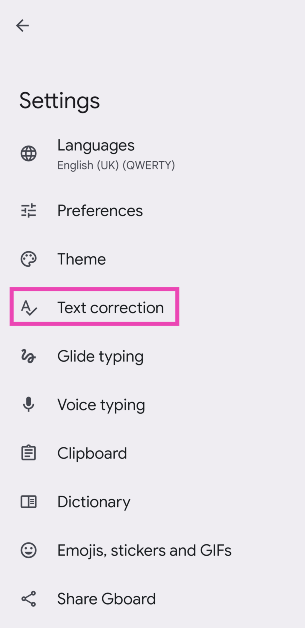 Step 4:
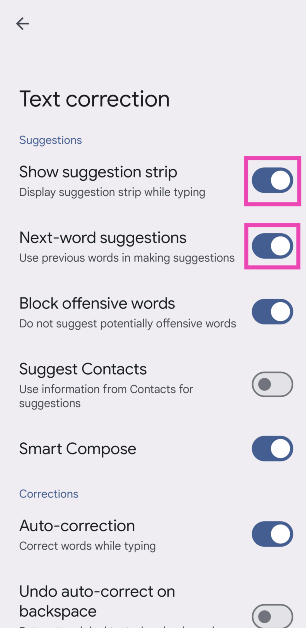 Step 5:
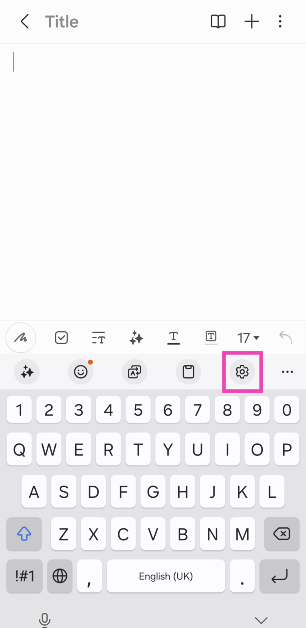 Step 3: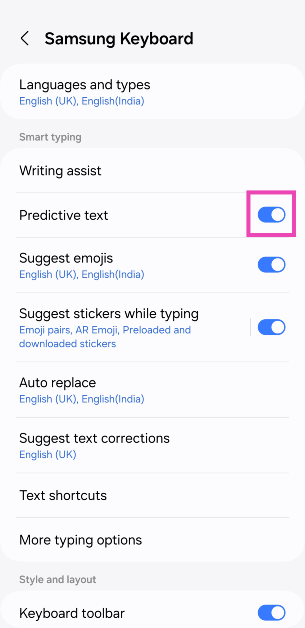
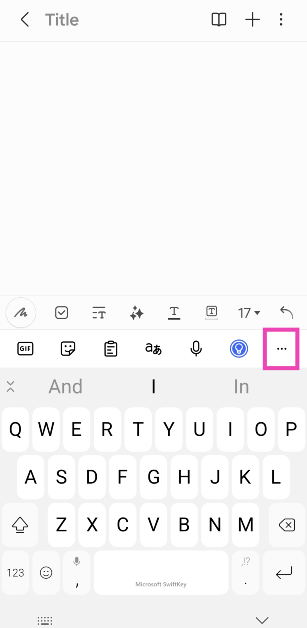 Step 3:
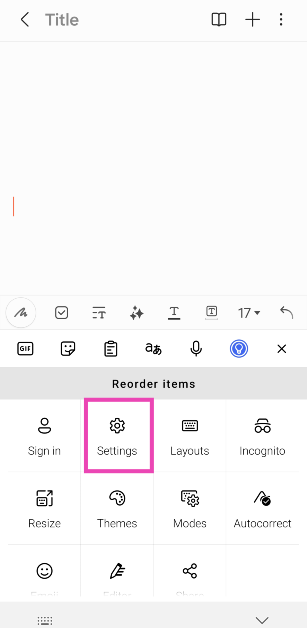 Step 4:
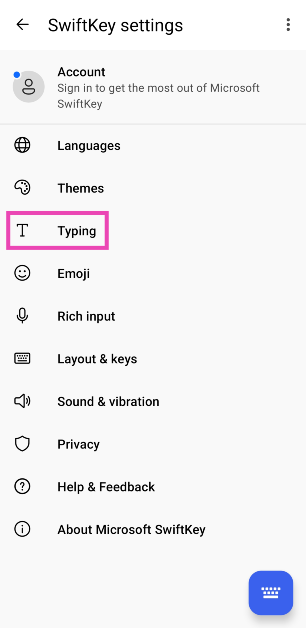 Step 5: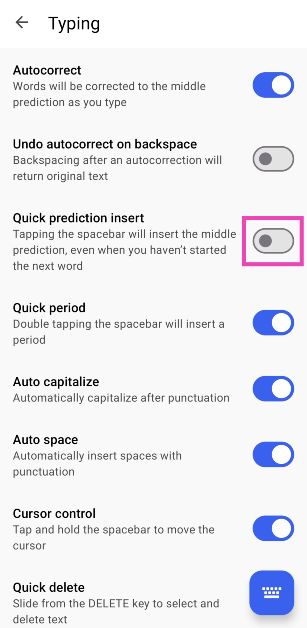
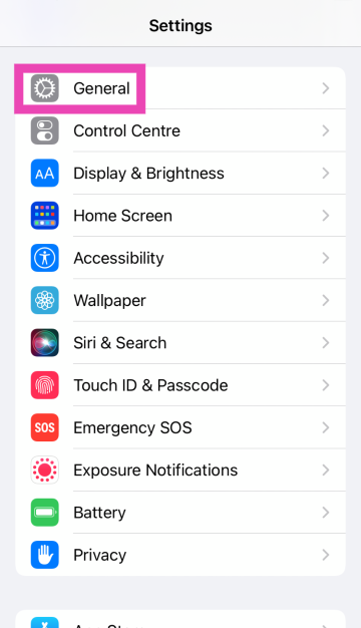 Step 2:
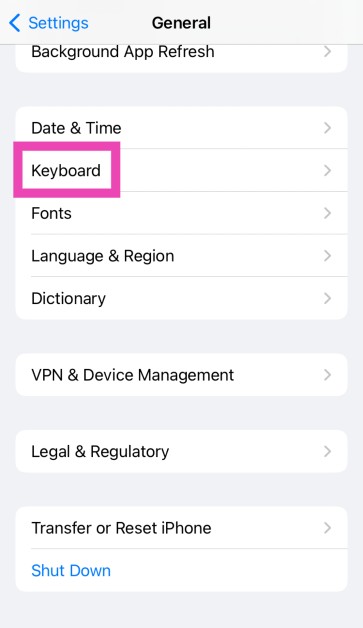 Step 3: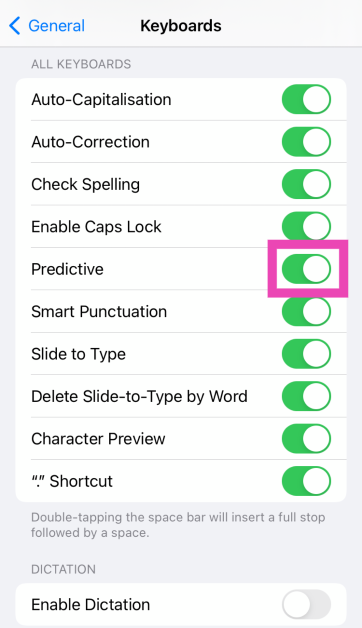
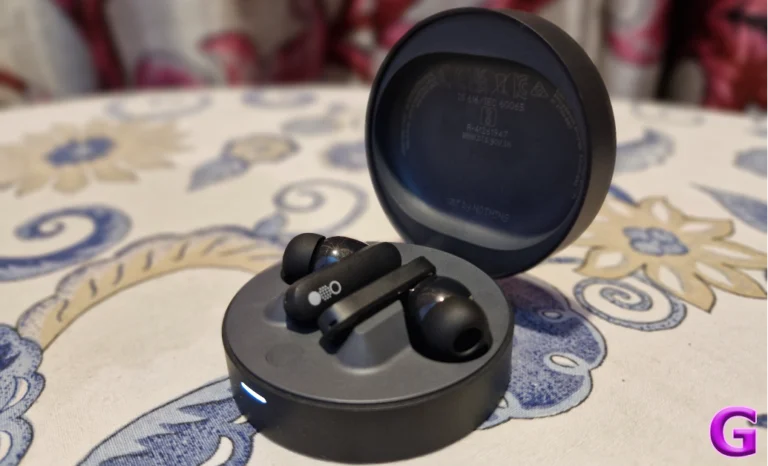
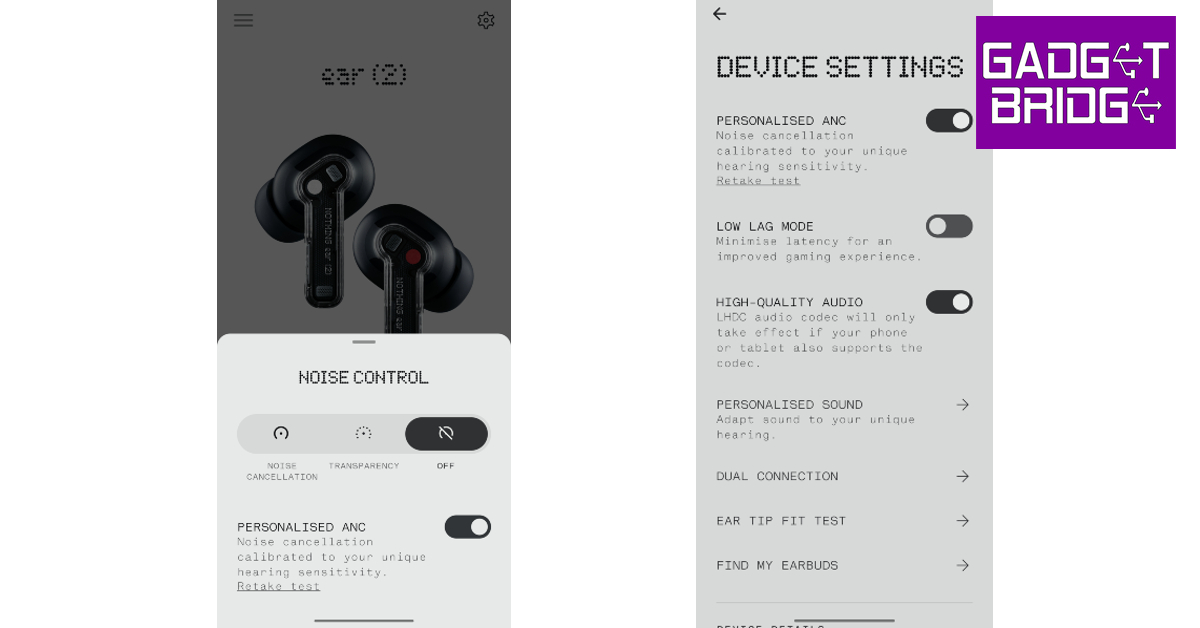
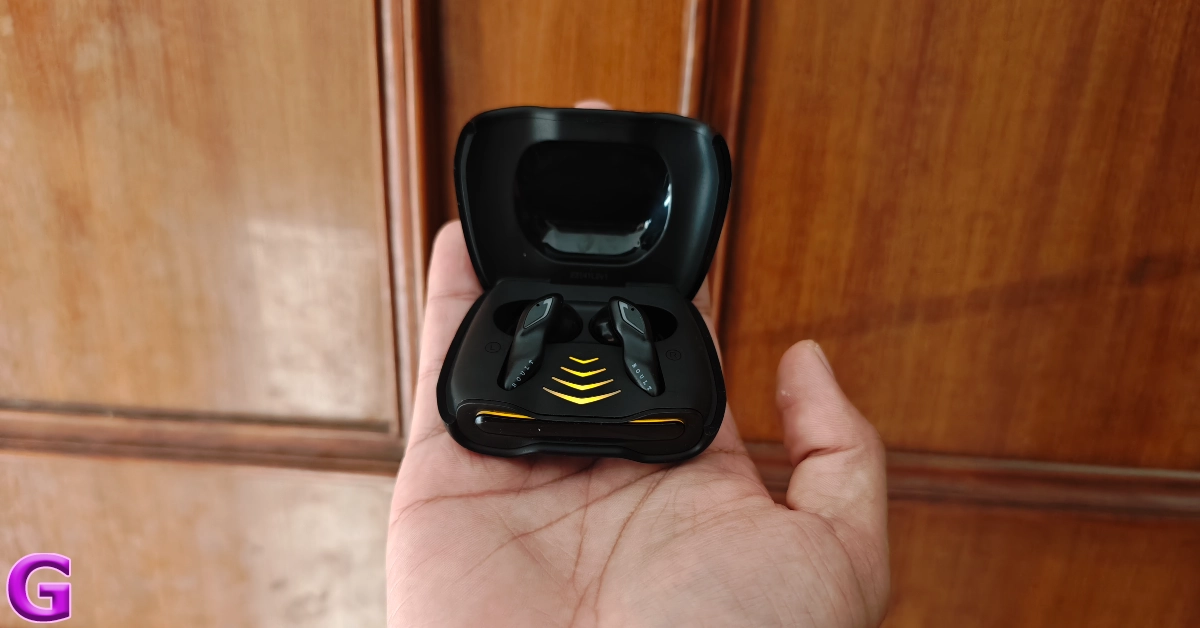
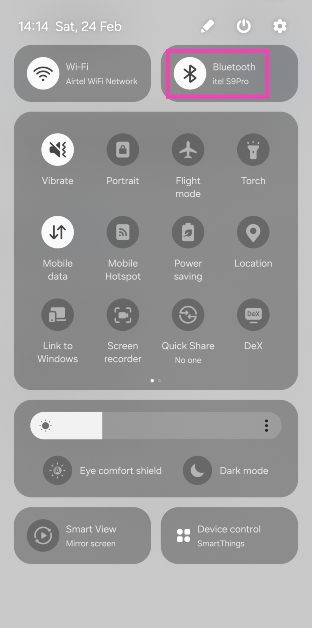 Step 2:
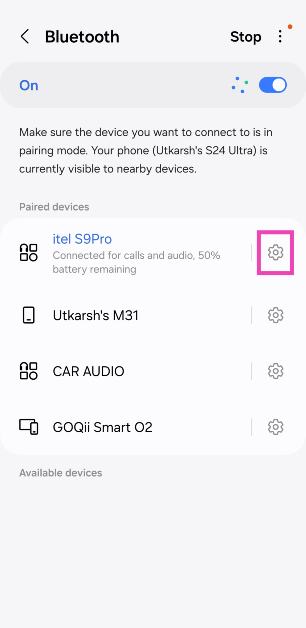 Step 3:
 Step 4:
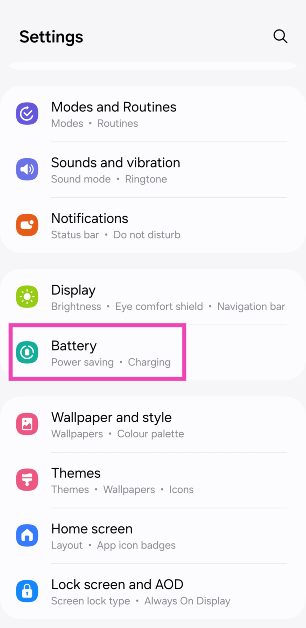 Step 2: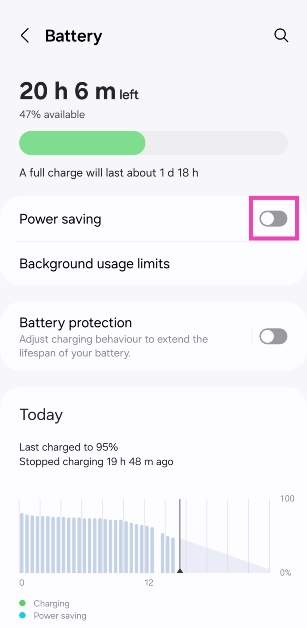
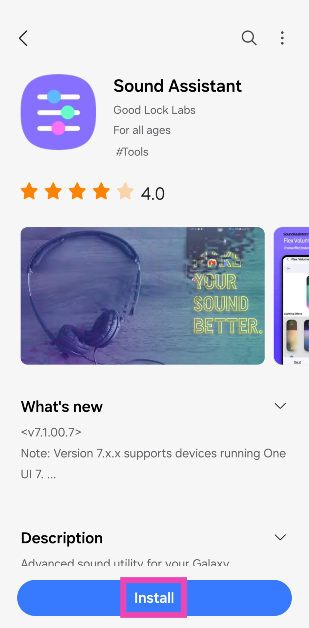 Step 2: Launch the
 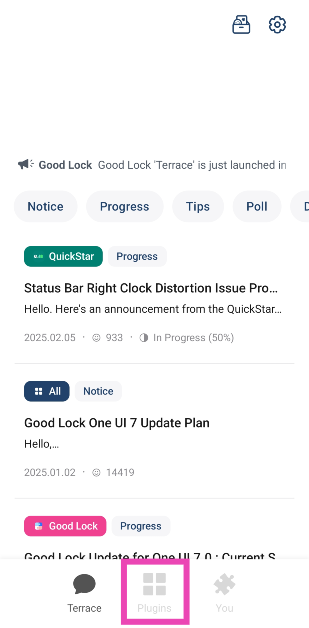 Step 3: Select Sound Assistant.
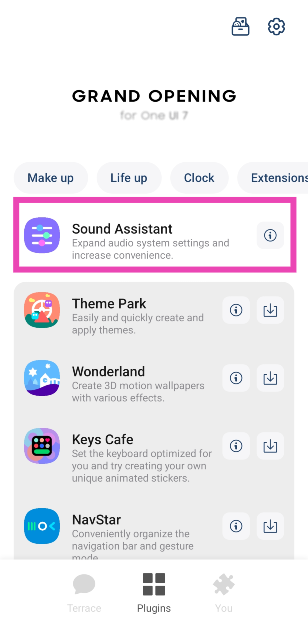 Step 4: Go to Bluetooth metronome.
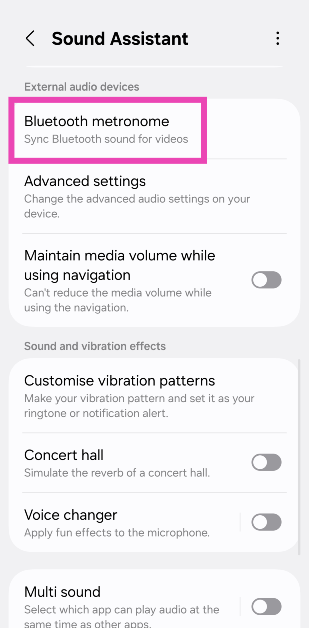 Step 5: Use the slider to match the audio.
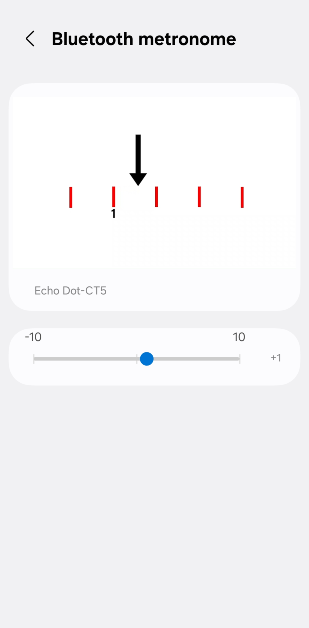
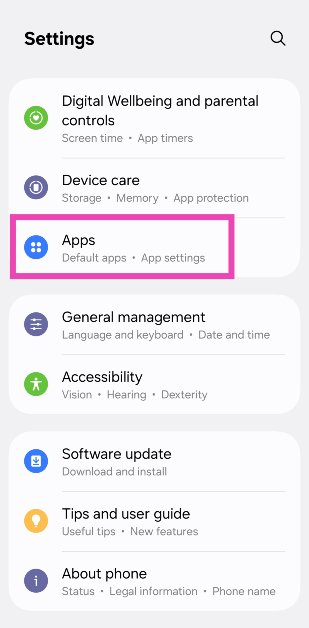 Step 2: Hit the filter icon and turn on the toggle switch next to Show system apps.
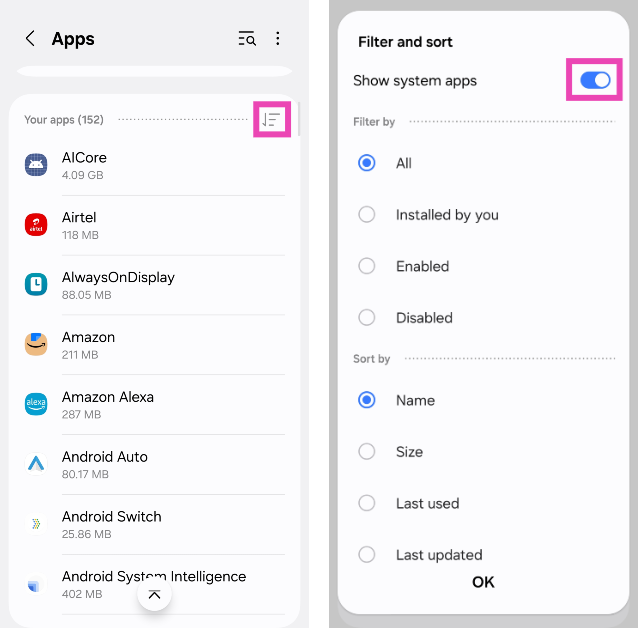 Step 3: Scroll down and select Bluetooth.
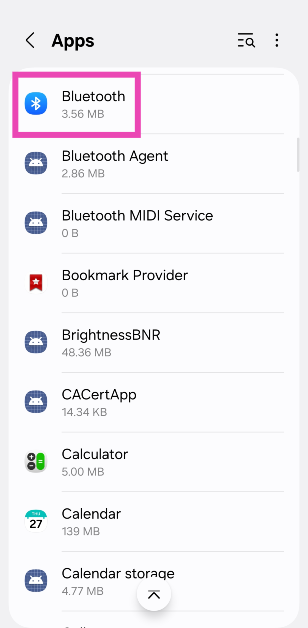 Step 4: Go to Storage.
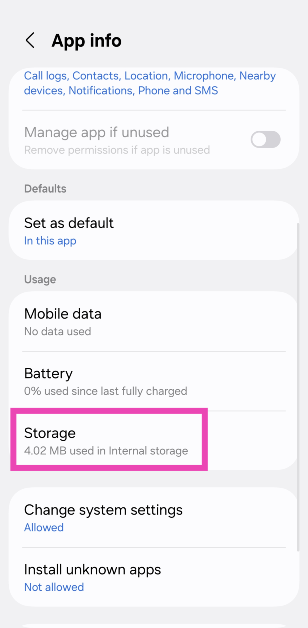 Step 5: Select Clear cache.

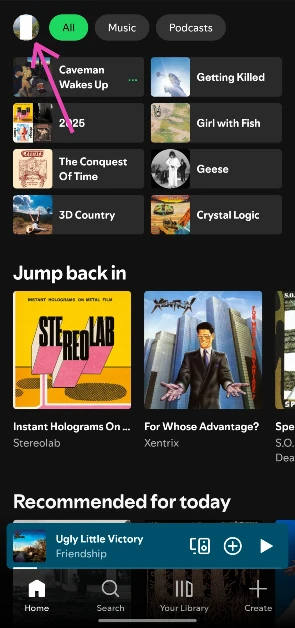 Step 3: Select Settings and privacy.
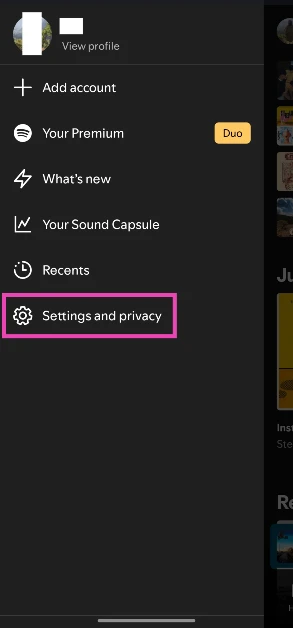 Step 4: Go to Media quality.
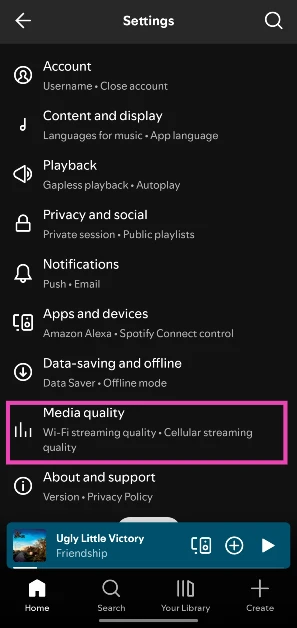 Step 5: Select any option but lossless.
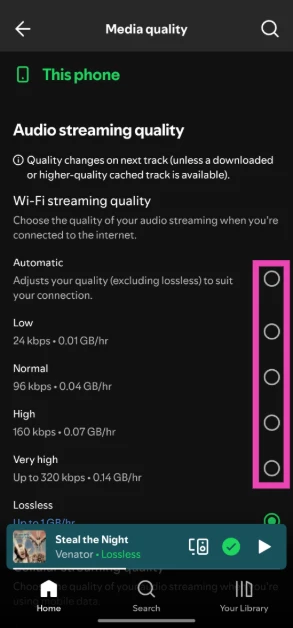
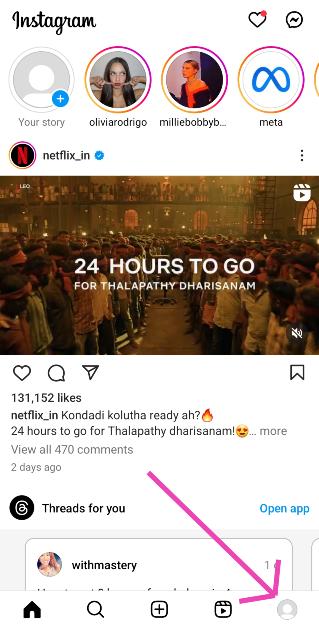 Step 2:
 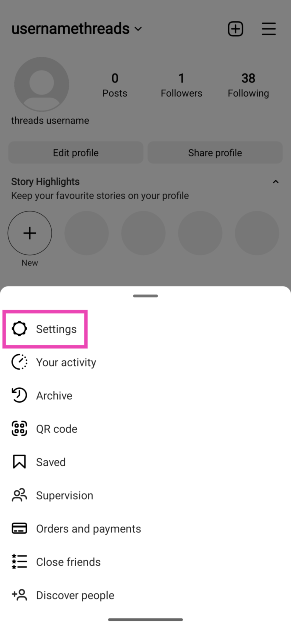 Step 4:
 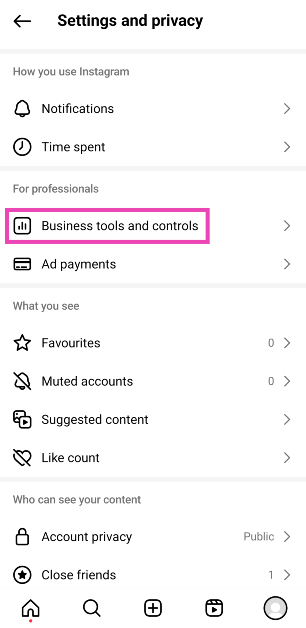 Step 5:
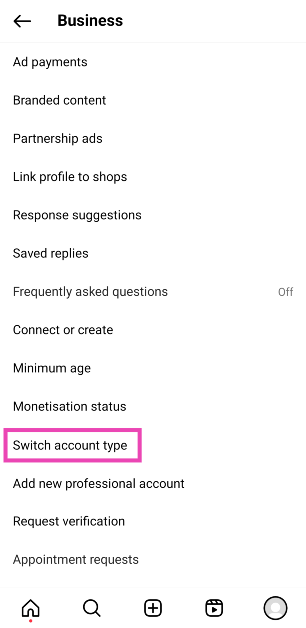 Step 6: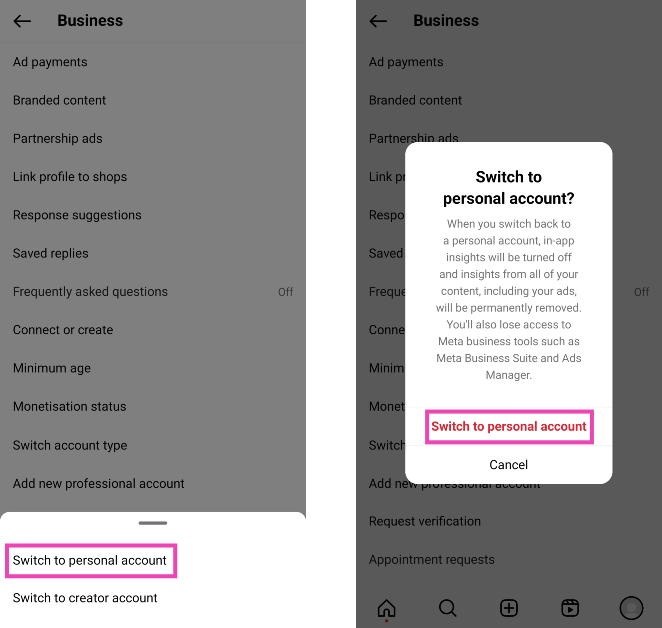


 Step 3: Hit Save.
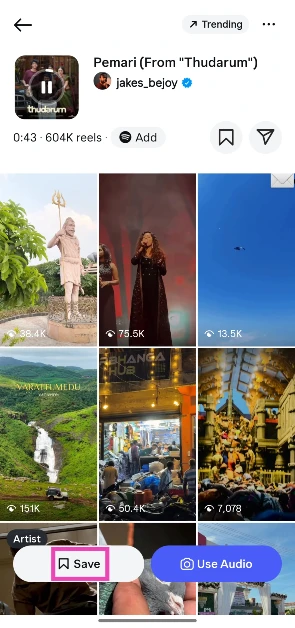 Step 4: Create your Reel and hit the music note icon.
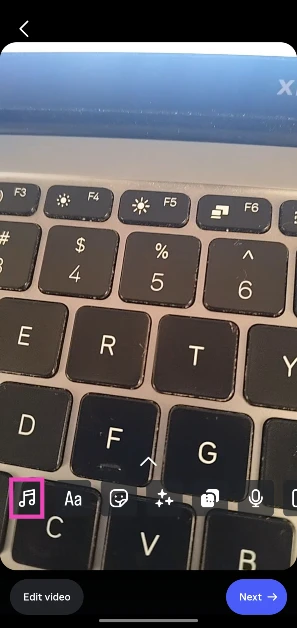 Step 5: Switch to the Saved tab.
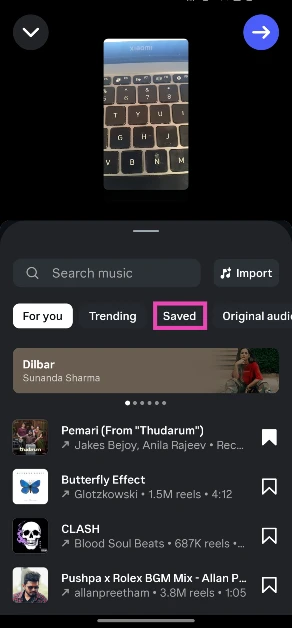 Step 6: Tap the song title.

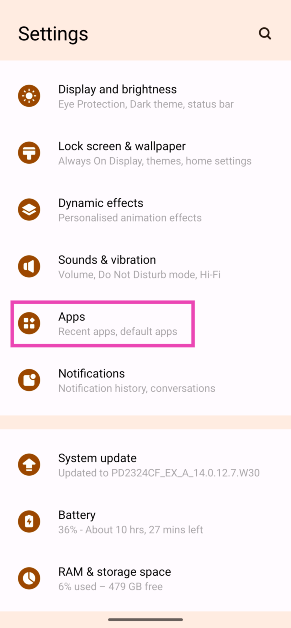 Step 2: Tap on Instagram.
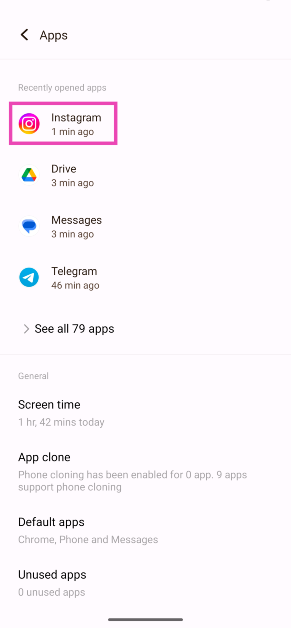 Step 3: Select Storage and cache.
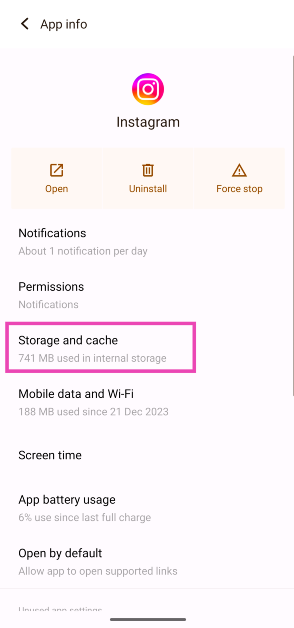 Step 4: Hit Clear Cache.
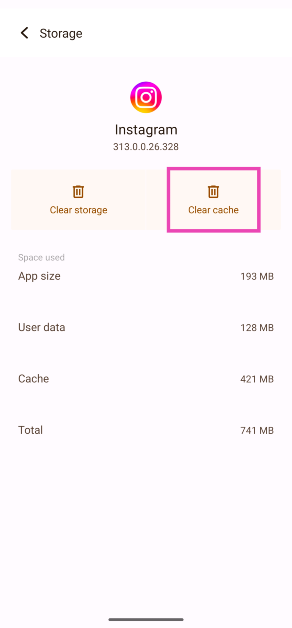
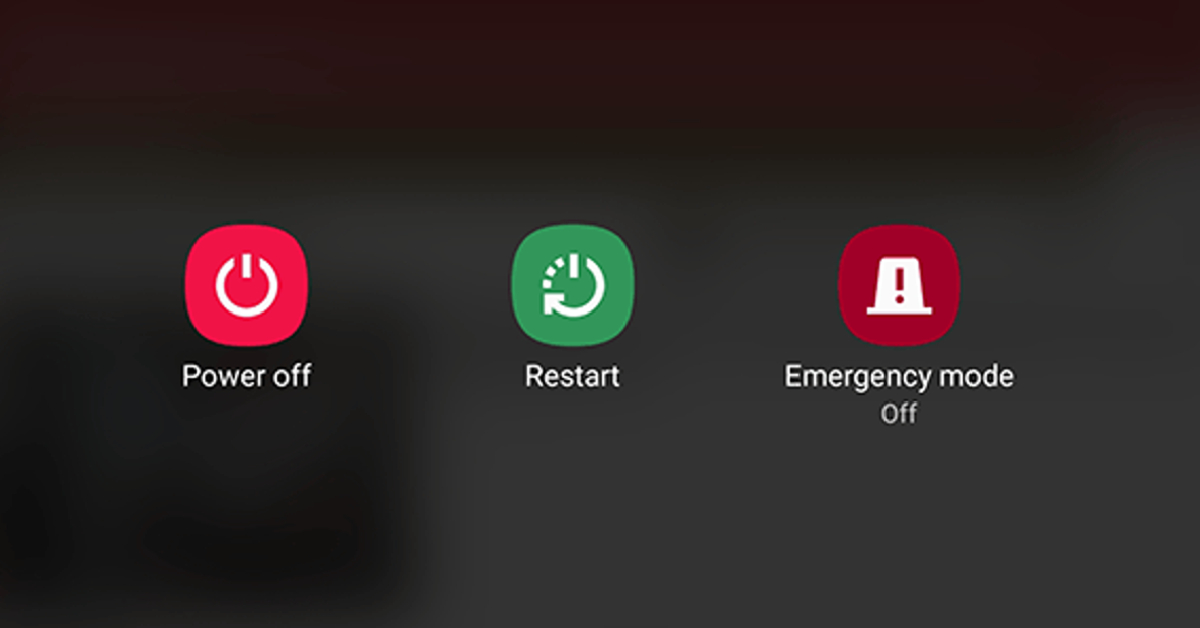 It is possible that the issue lies with your smartphone, not your Instagram account. A quick restart can fix the background glitches causing this problem. Long-press the side button (or the side button + volume up key) to reveal the power menu. Select ‘Restart’ from the list.
 Step 2: Tap on Download and install.
 Step 3: Select Install now.

 If you’re using an old Android smartphone, chances are that Instagram hasn’t rolled out its latest features on it yet. It is unlikely that new features like Instagram music stickers will be rolled out on your device if they aren’t available already. Log in to your Instagram on a relatively newer device to use the full spectrum of features, including background music for Instagram stories.
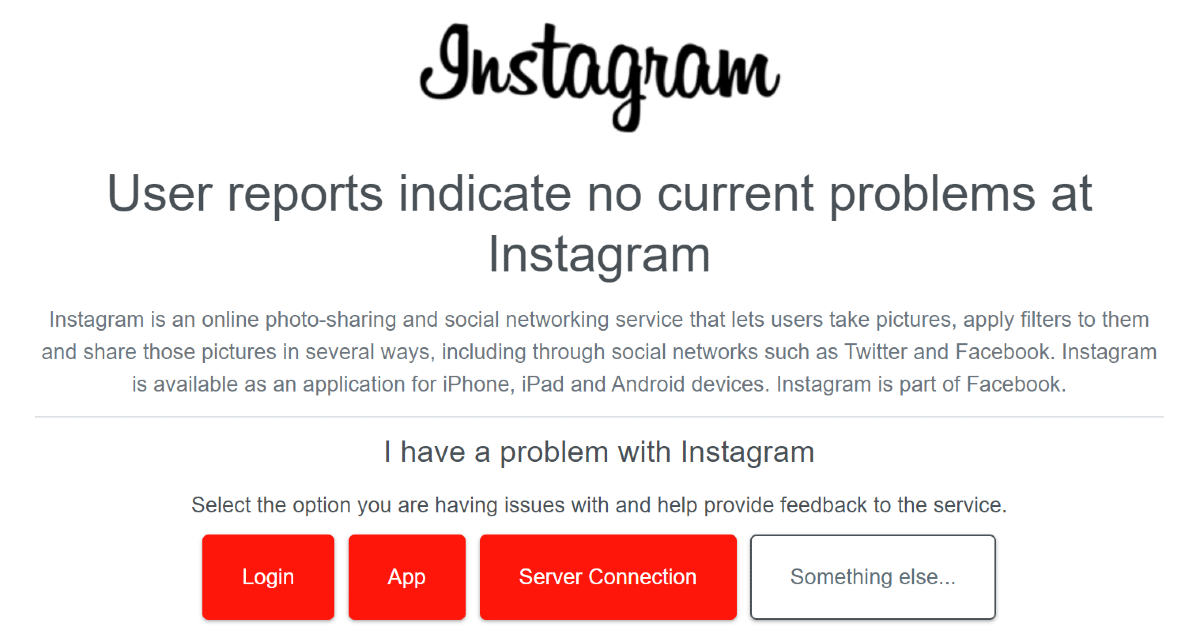


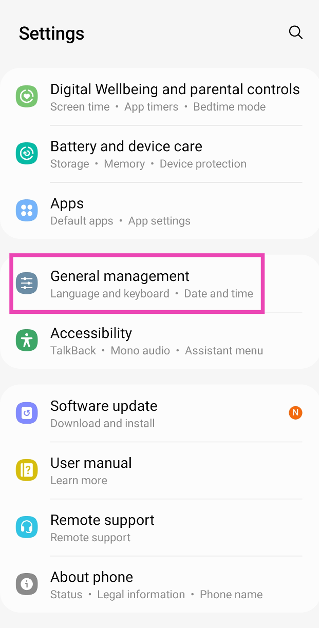 Step 2:
 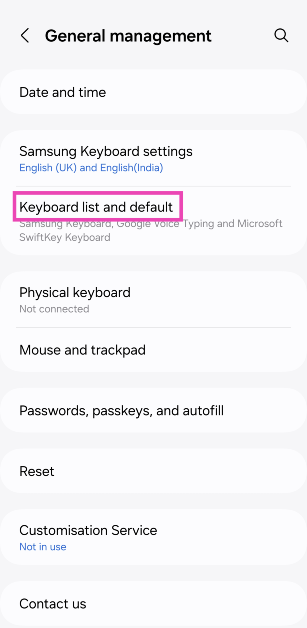 Step 3: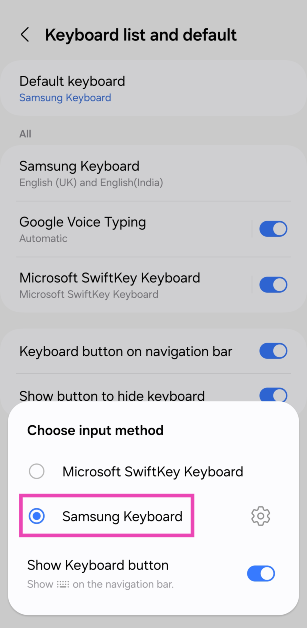
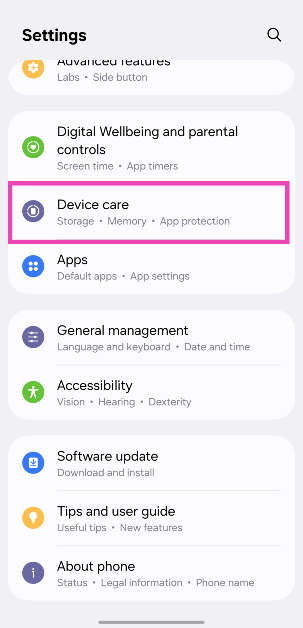 Step 2: Select Optimise now.
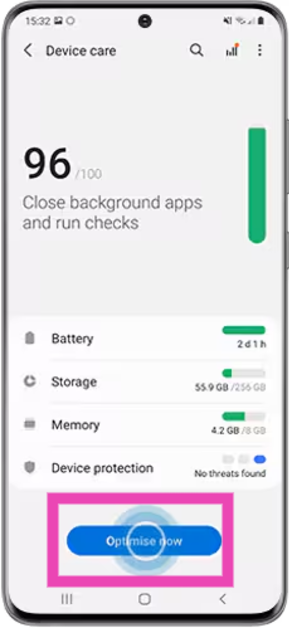 The background apps will be closed and the device’s settings will be optimised.
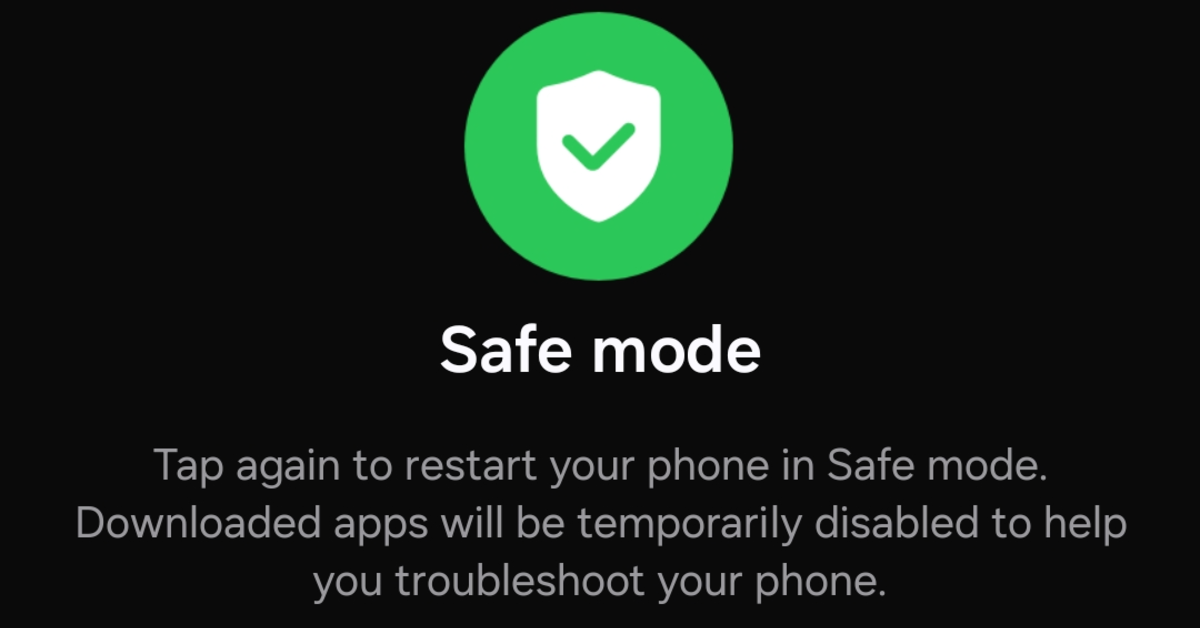 If an intrusive third-party app is causing your Samsung keyboard to malfunction, you will have to remove it from your device to resume normalcy. To confirm whether the issue with the keyboard is caused by a third-party app, restart your smartphone in Safe Mode. You can do this by going to the power menu, tapping and holding the power icon, and then selecting Safe Mode. If your keyboard is working fine in Safe Mode, it means that one of the third-party apps is at fault.
 Step 2:
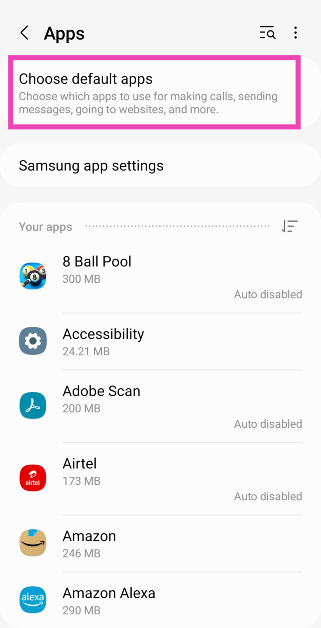 Step 3: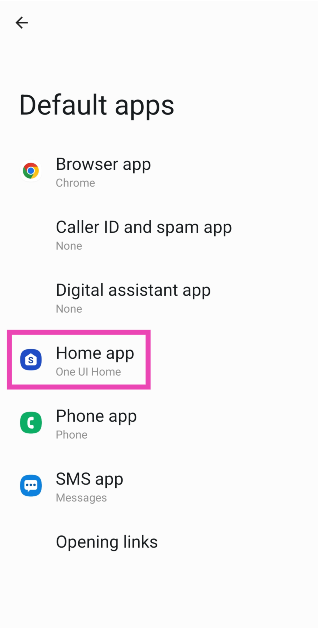
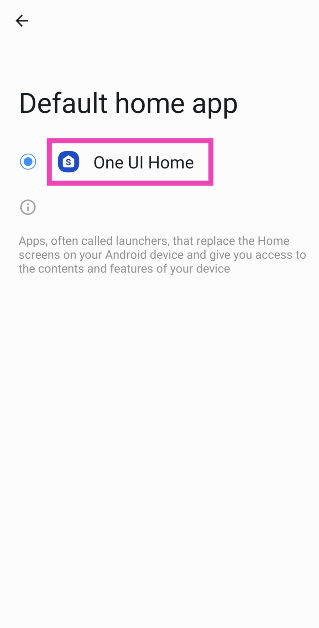
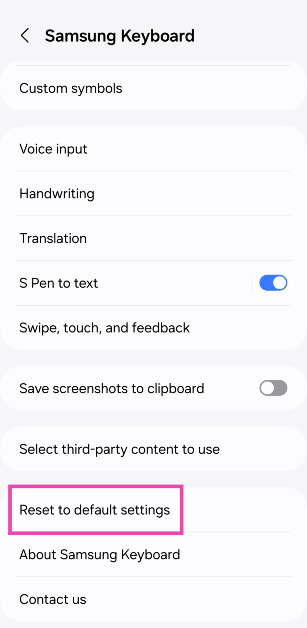 Step 4: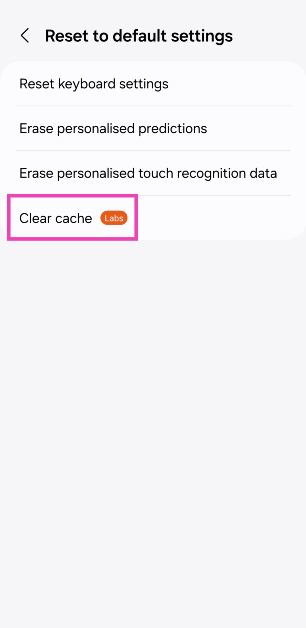
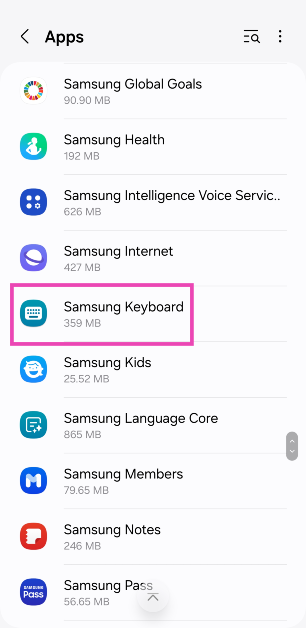 Step 3:
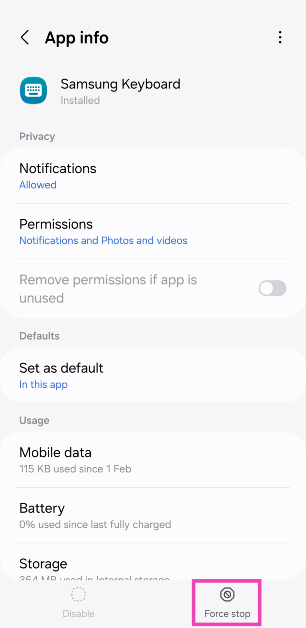 Step 4:
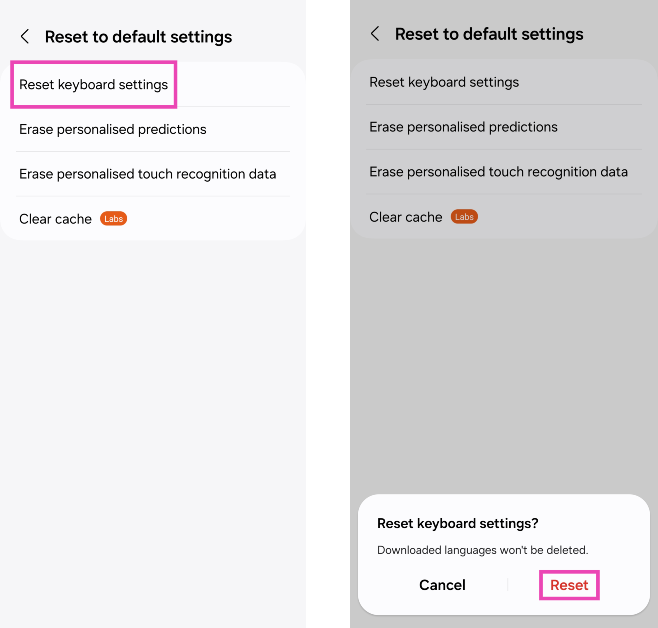 Step 5: Confirm
 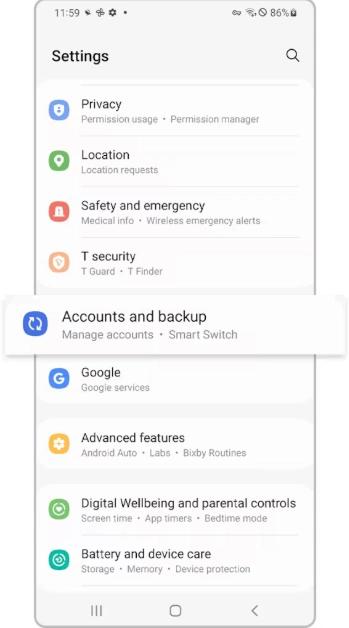 Step 2: Tap on Manage accounts and select your Samsung account.
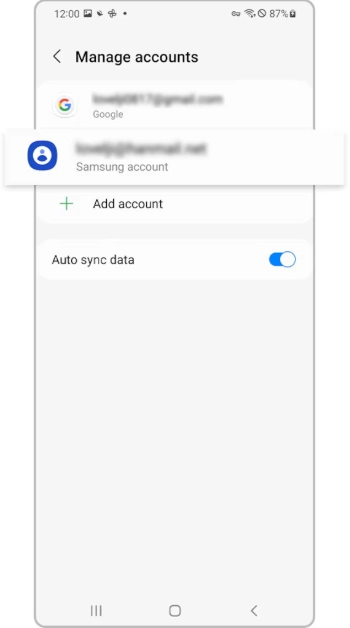 Step 3: Tap on Remove account and confirm your selection in the pop-up box.
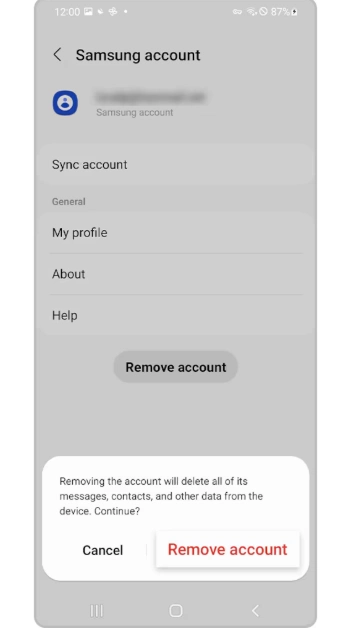 Step 4: Hit Sign out.
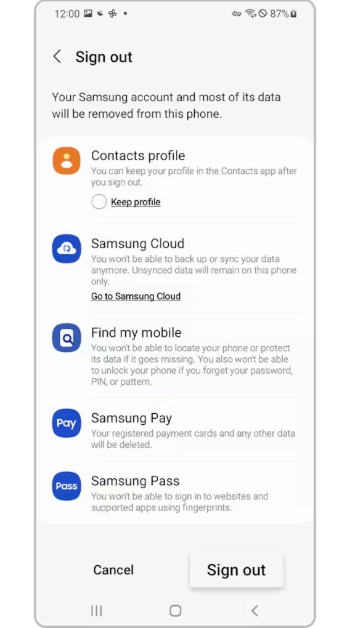 Step 5: Once you’ve been signed out, go to Settings and tap the Samsung option at the top of the screen to log back in.
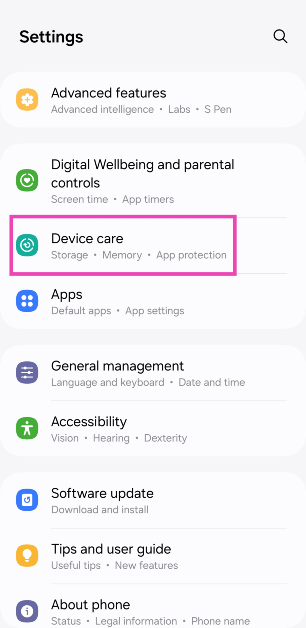 Step 2:
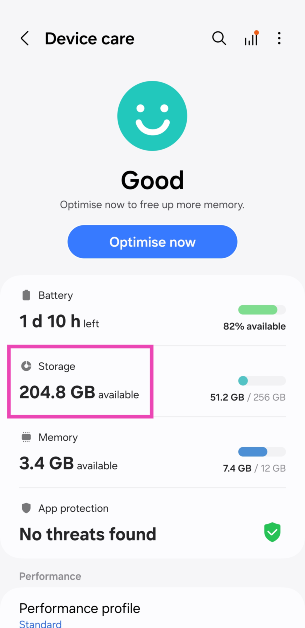 Step 3: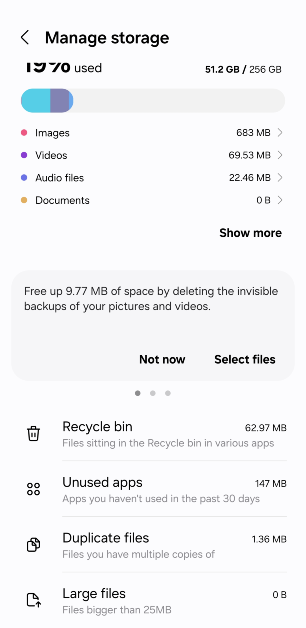
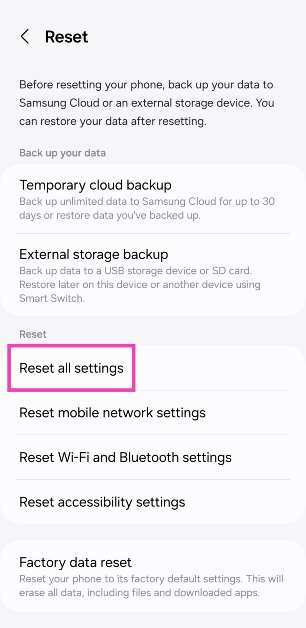
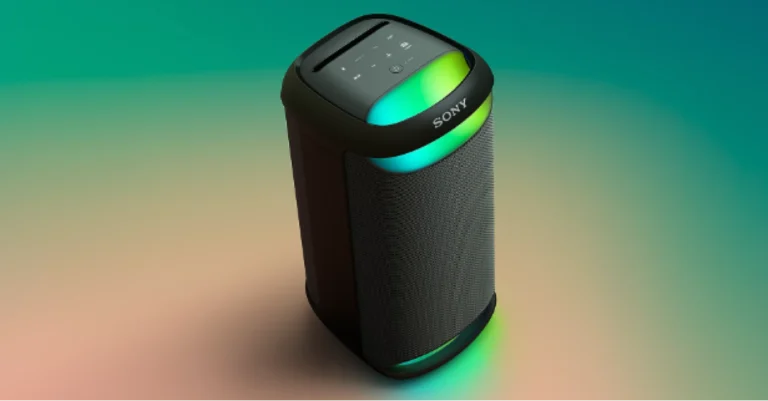
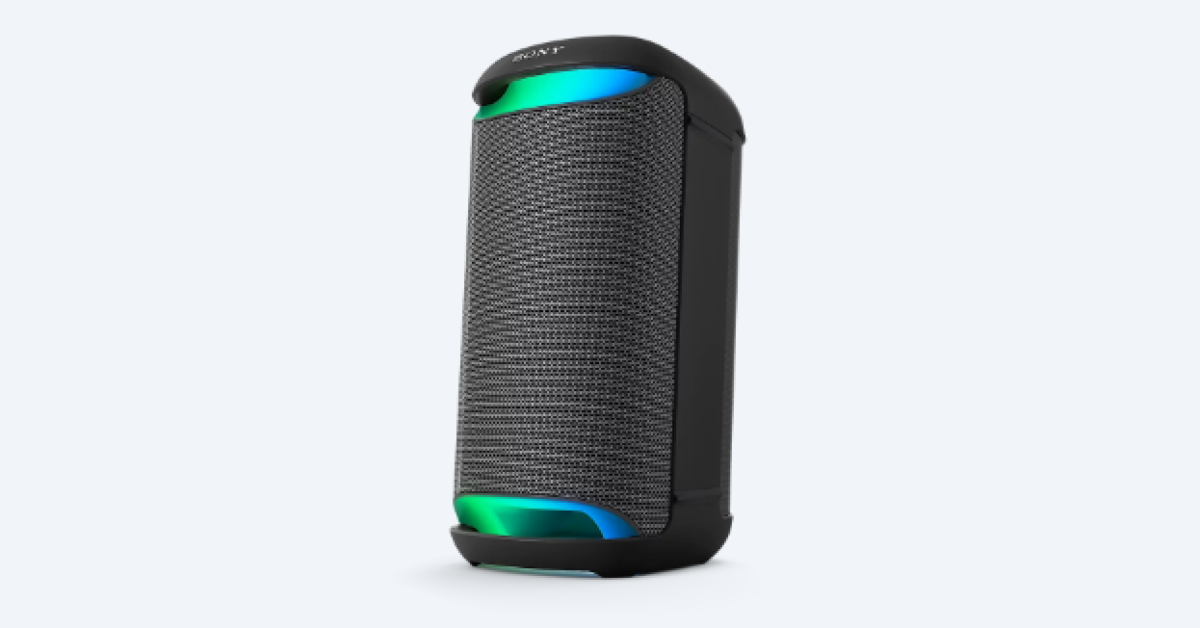
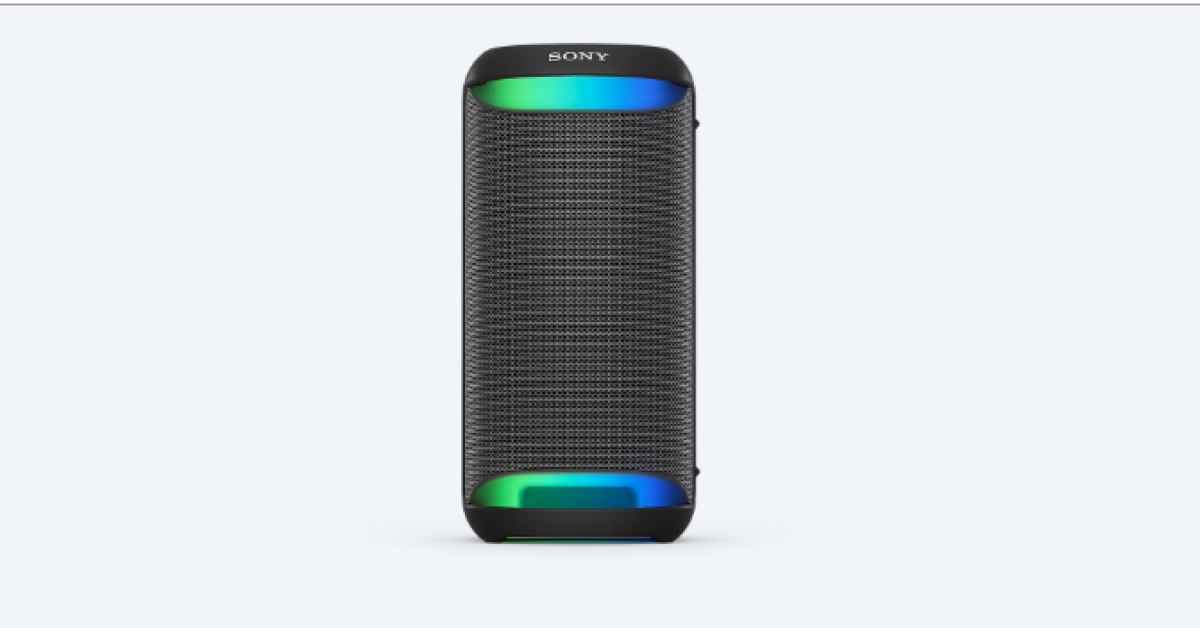
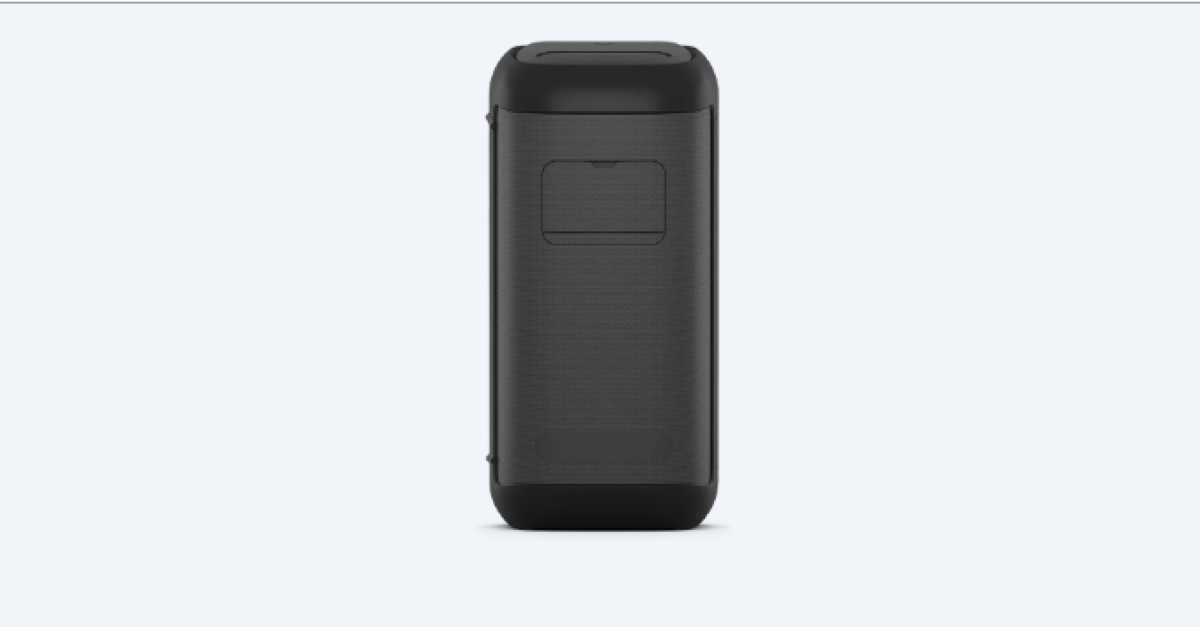 Also Read:
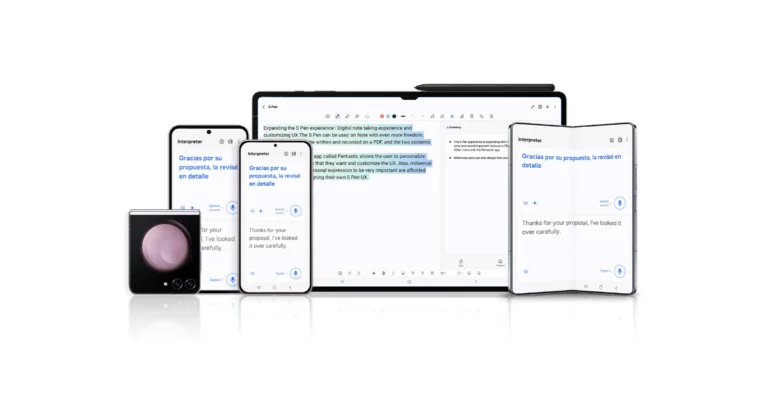
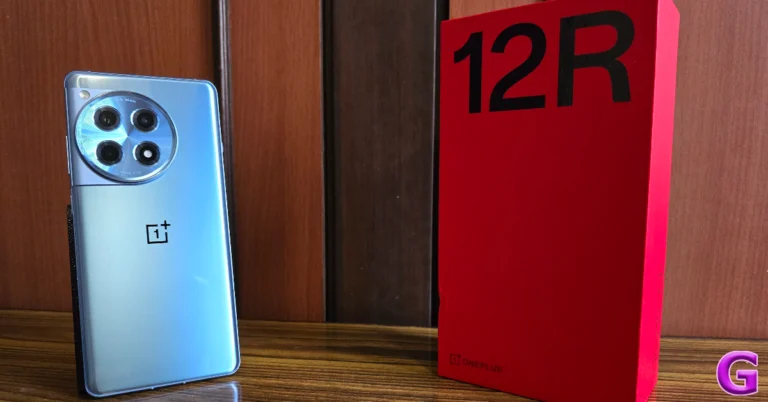
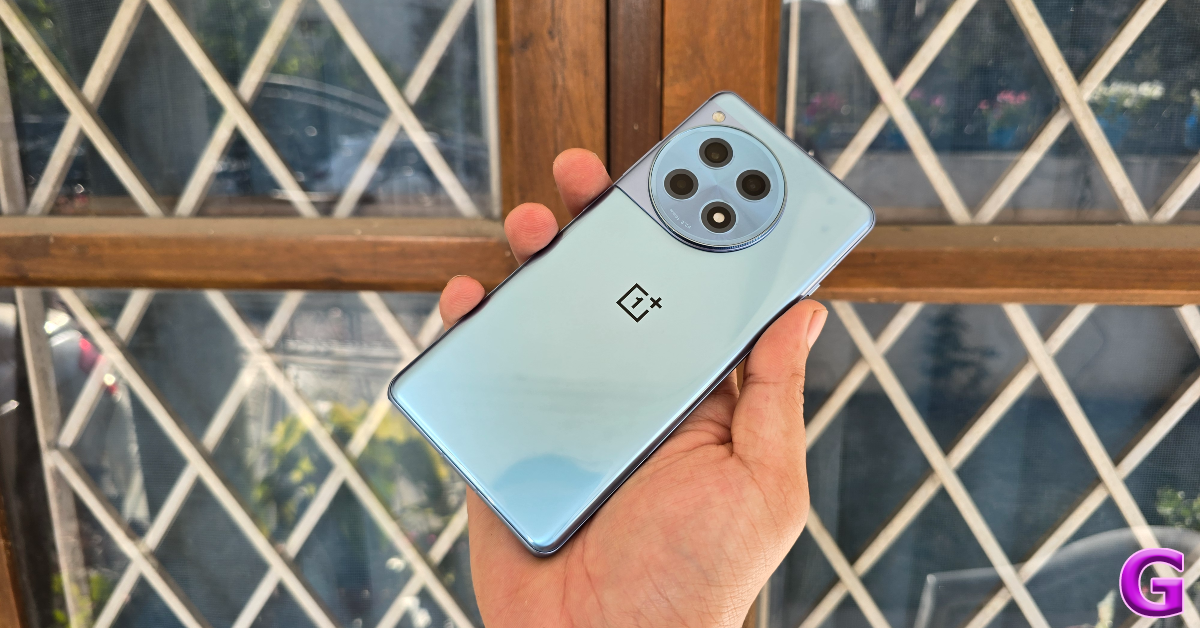
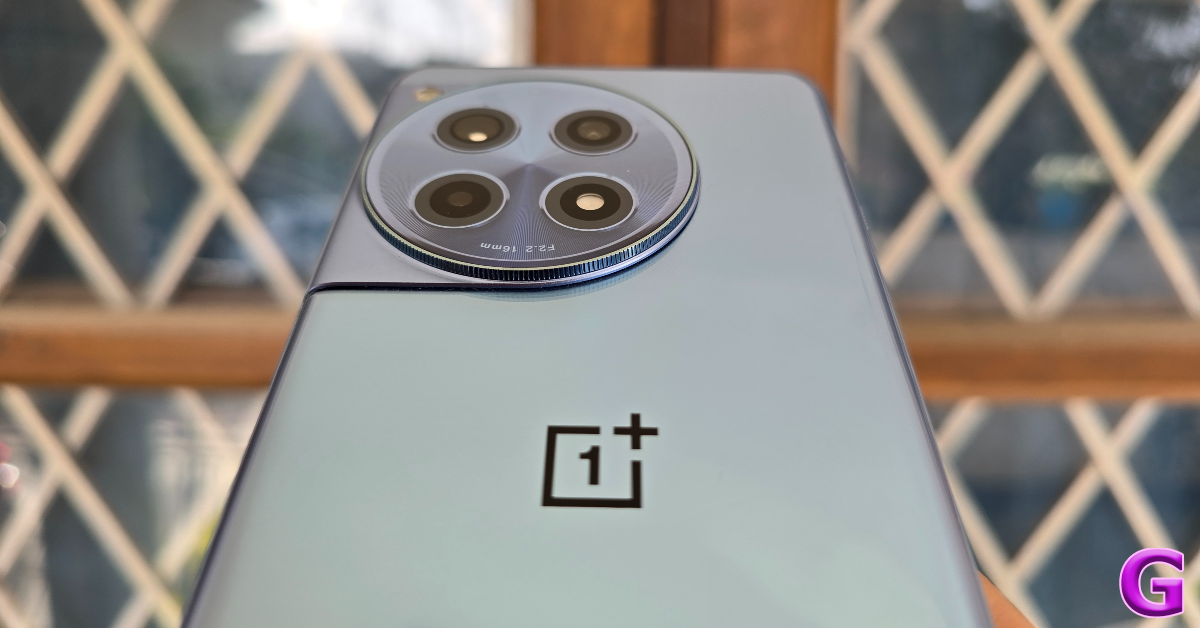
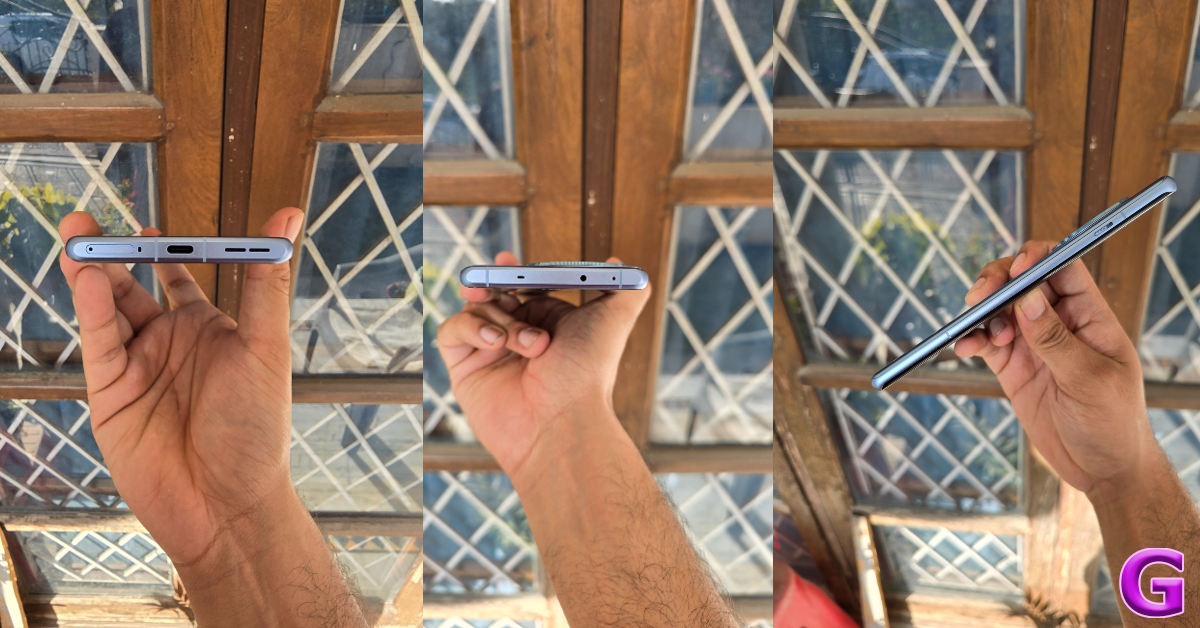
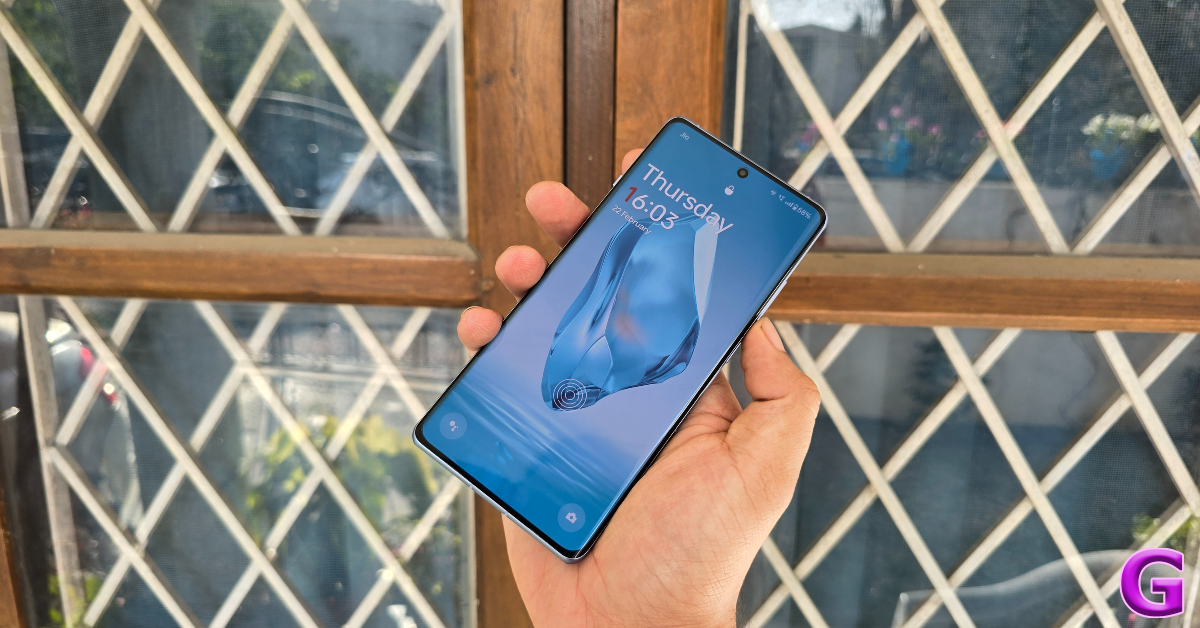
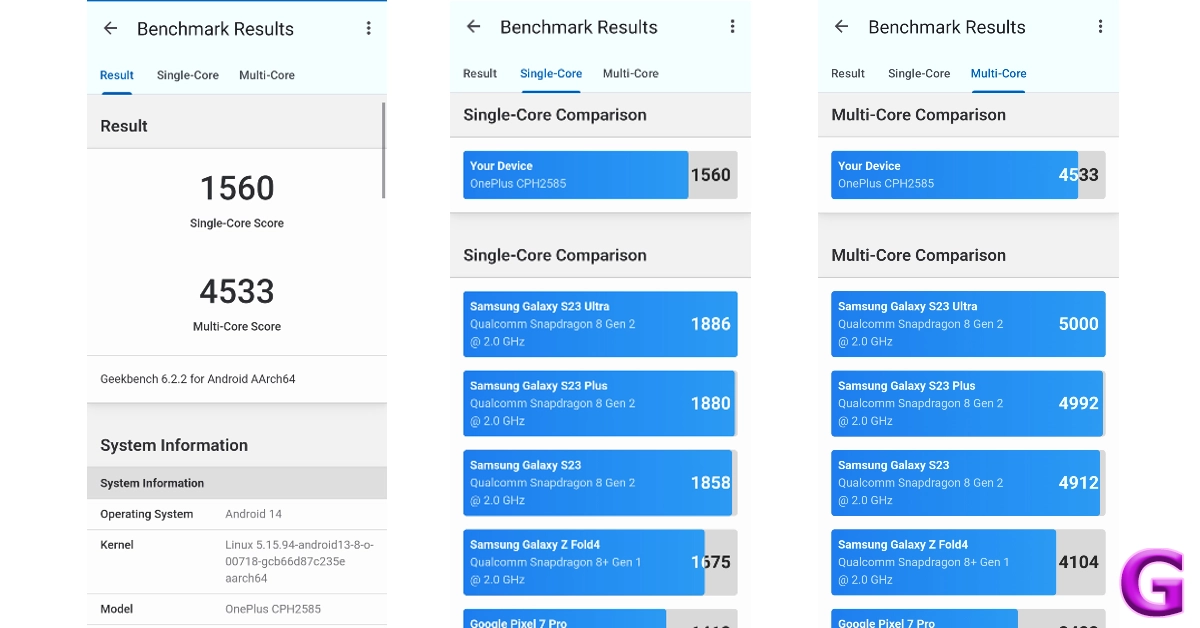
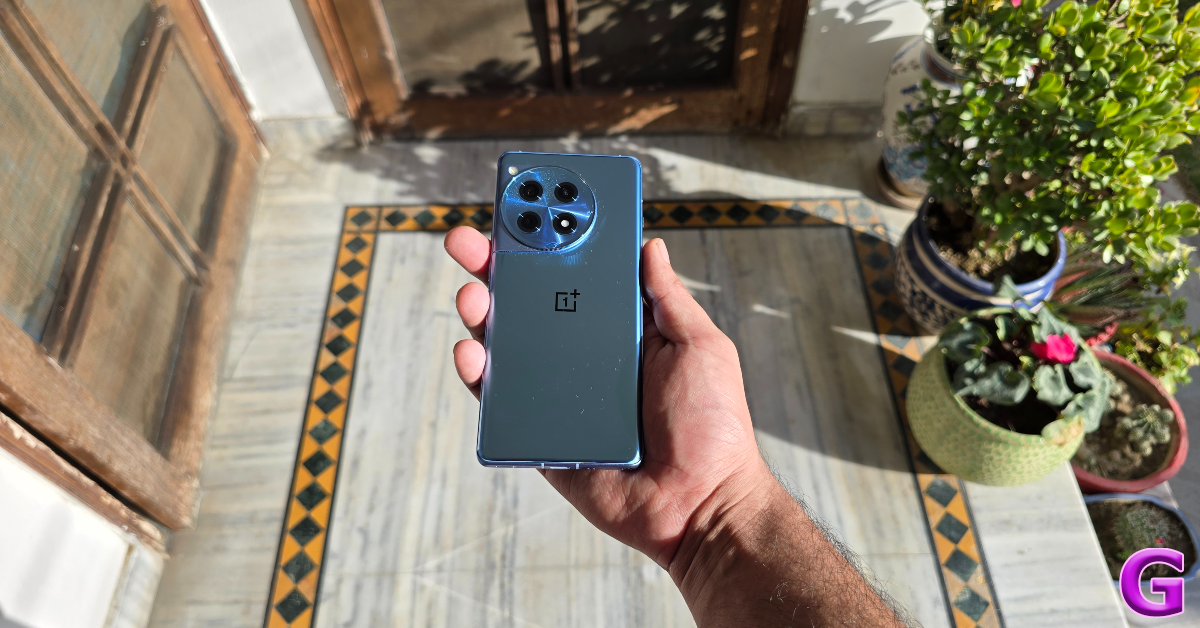
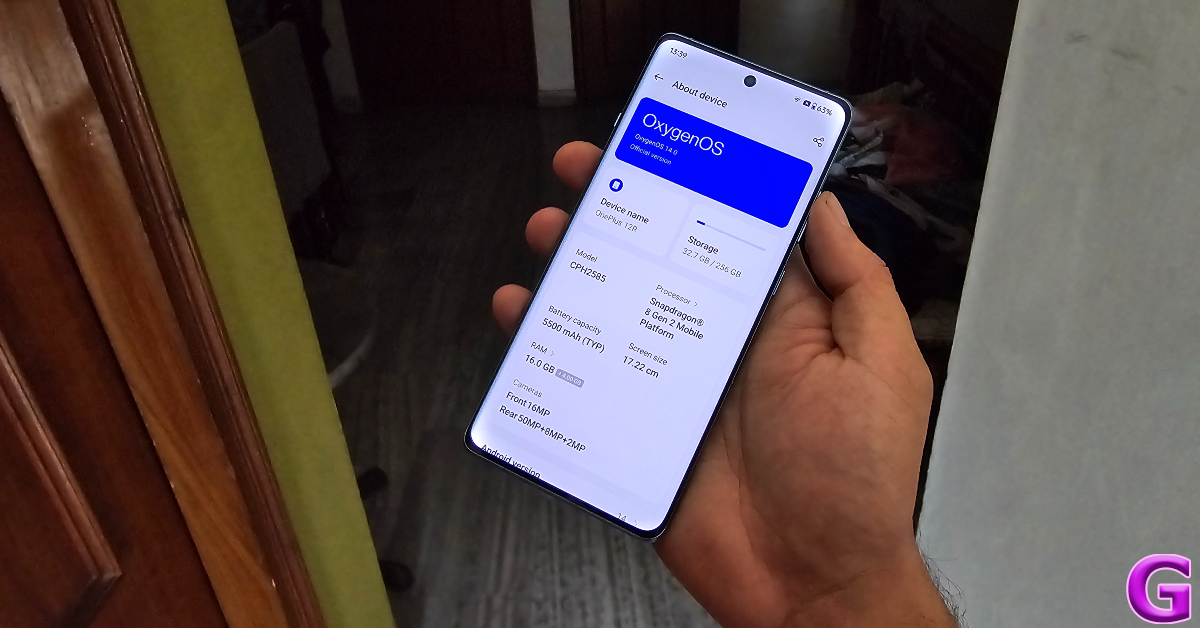







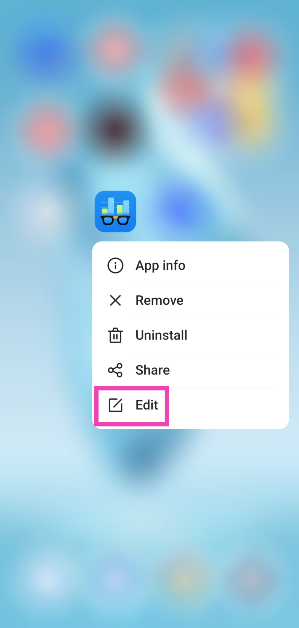 Step 3:
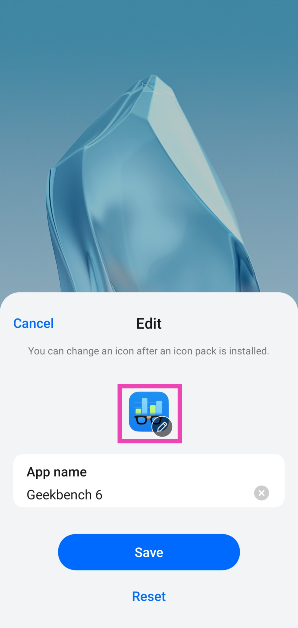 Step 4:
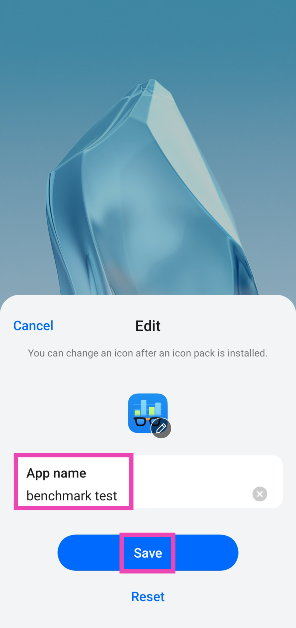 Step 5:
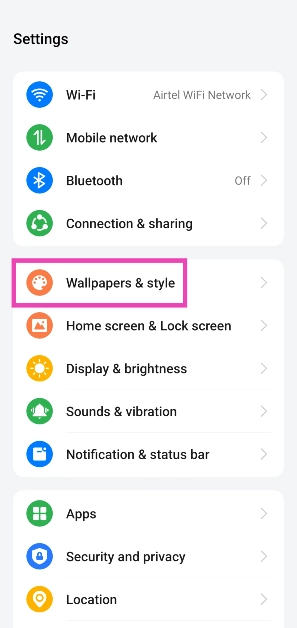 Step 2:
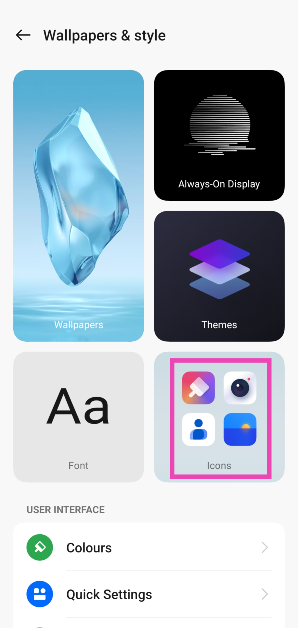 Step 3:
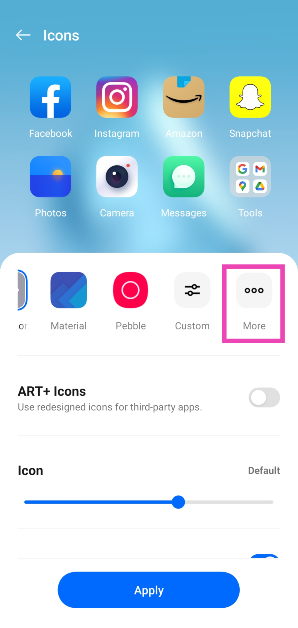 Step 4:
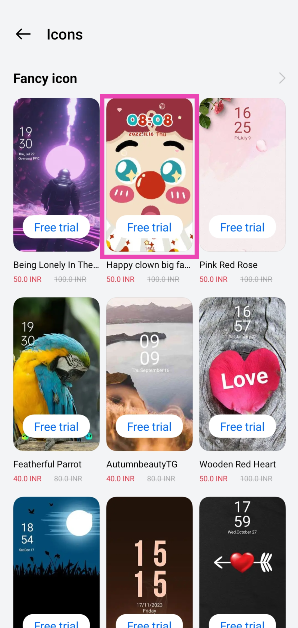 Step 5: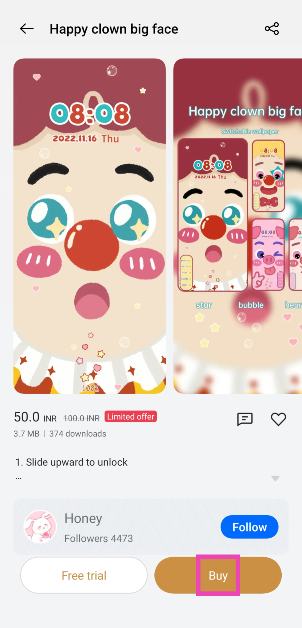
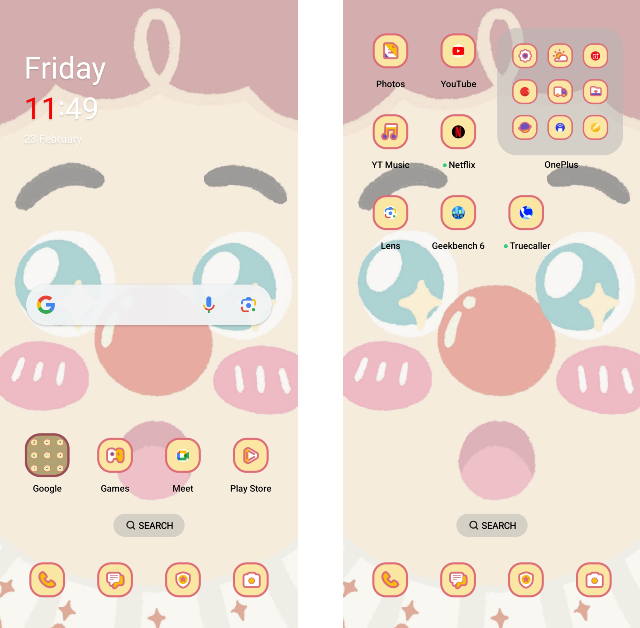
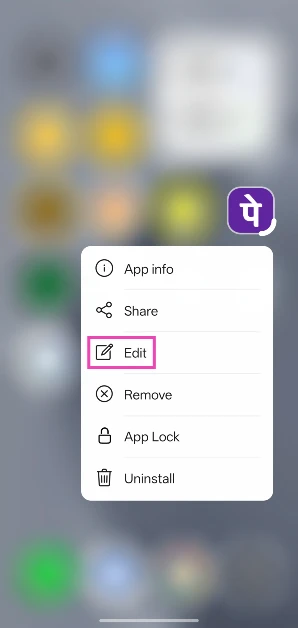 Step 3: Tap the text box and enter the new name.
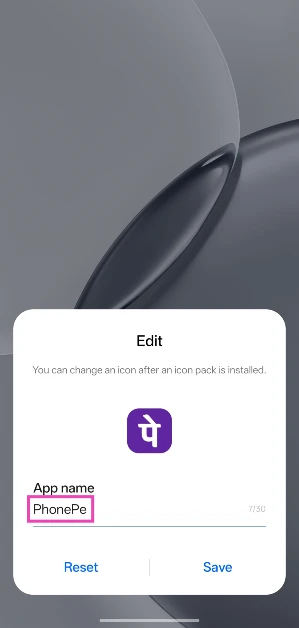 Step 4: Hit Save.
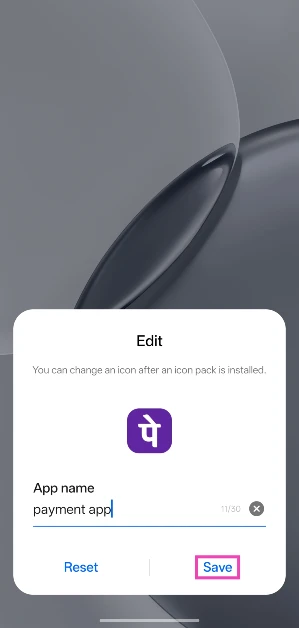
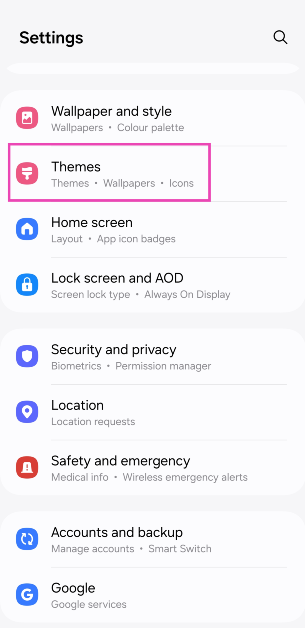 Step 2:
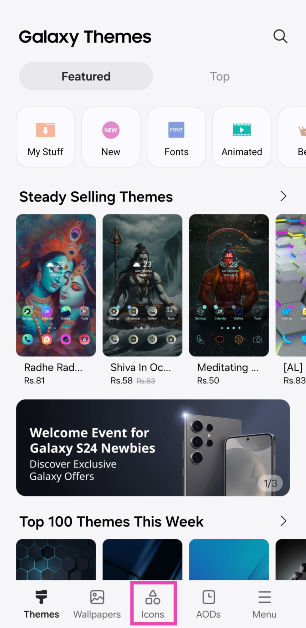 Step 3:
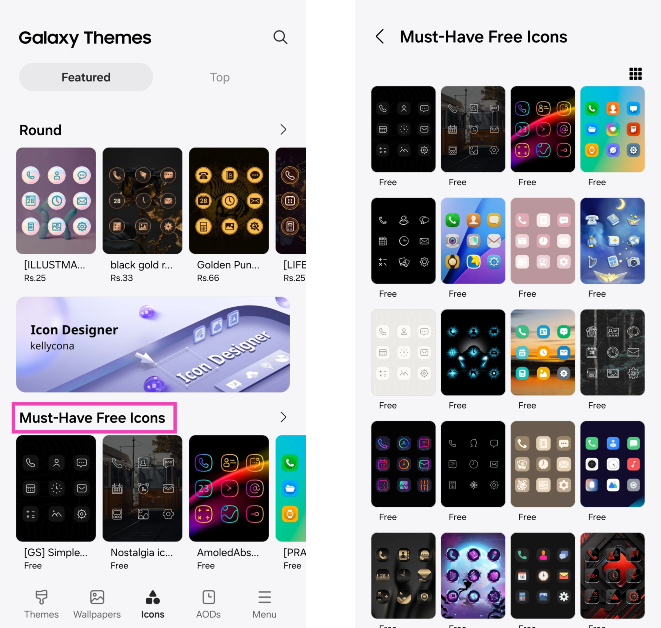 Step 4:
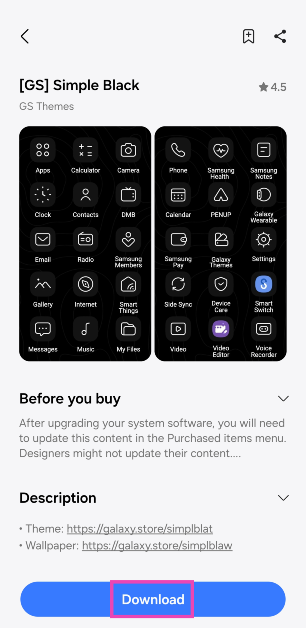 Step 5: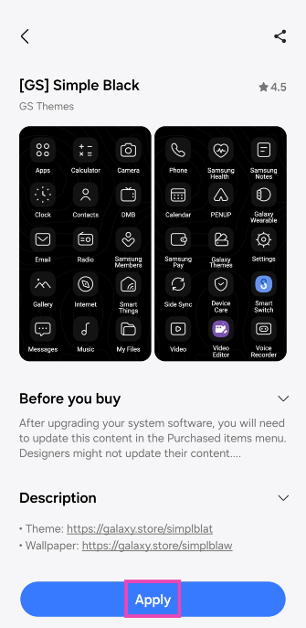
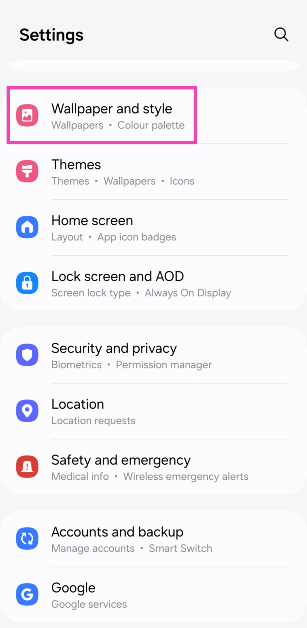 Step 2:
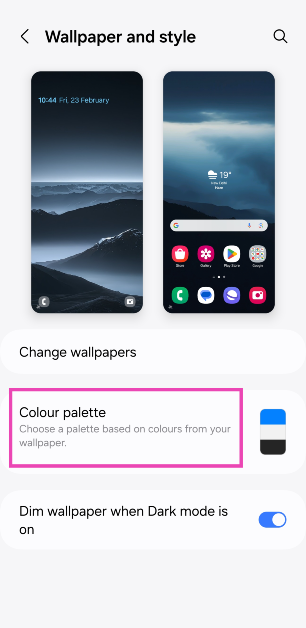 Step 3:
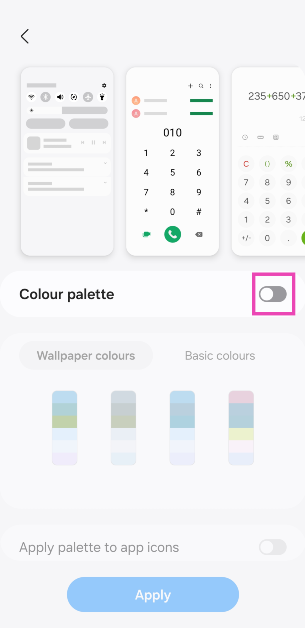 Step 4:
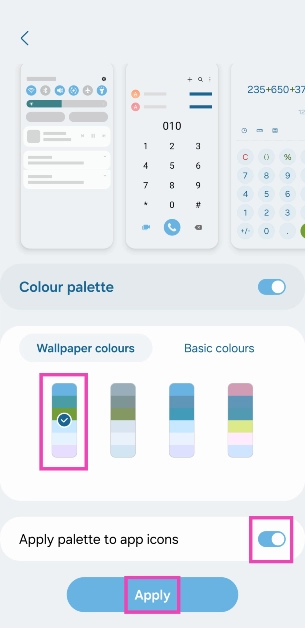 Step 5:
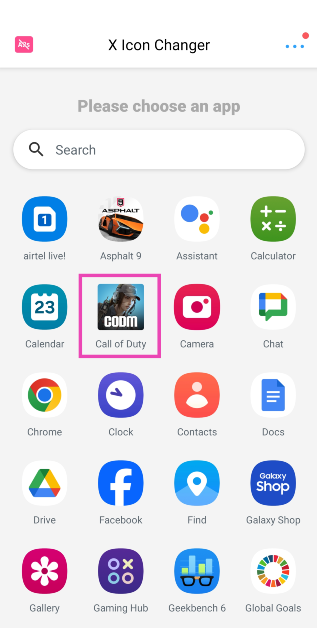 Step 3:
 Step 4:
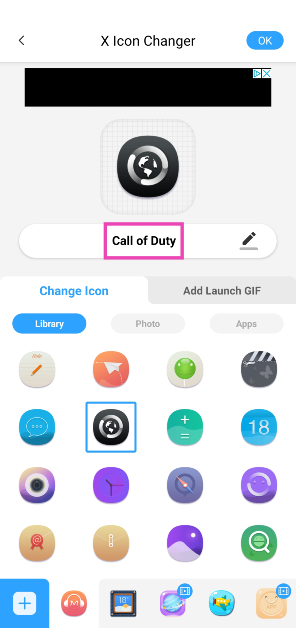 Step 5: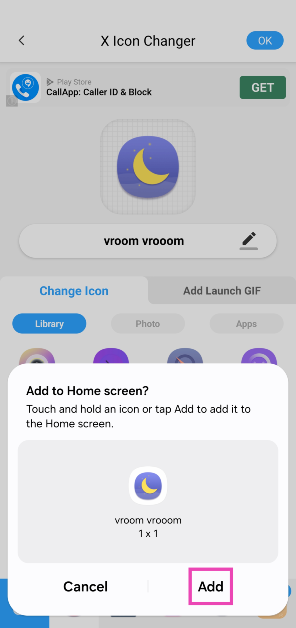
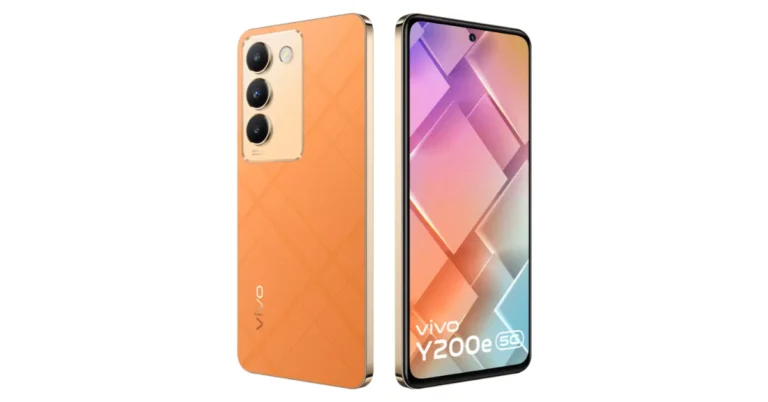
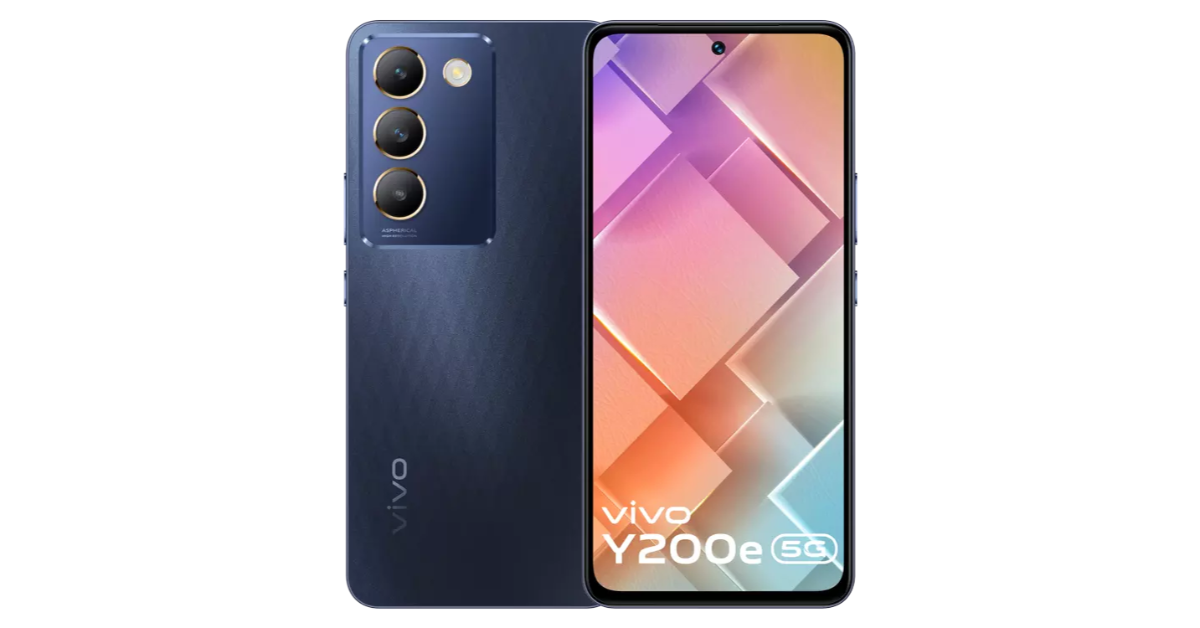

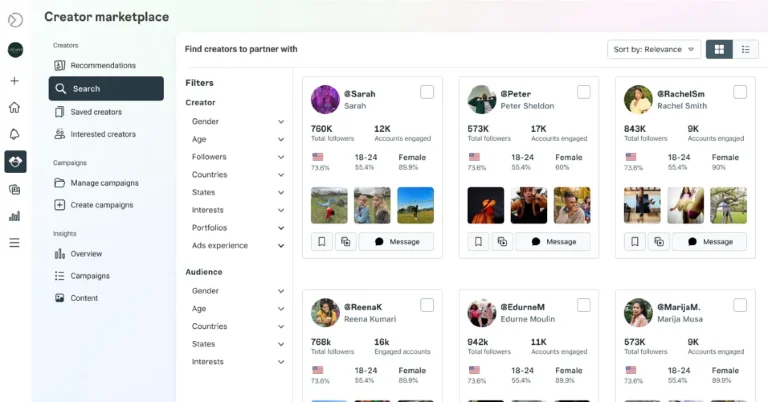
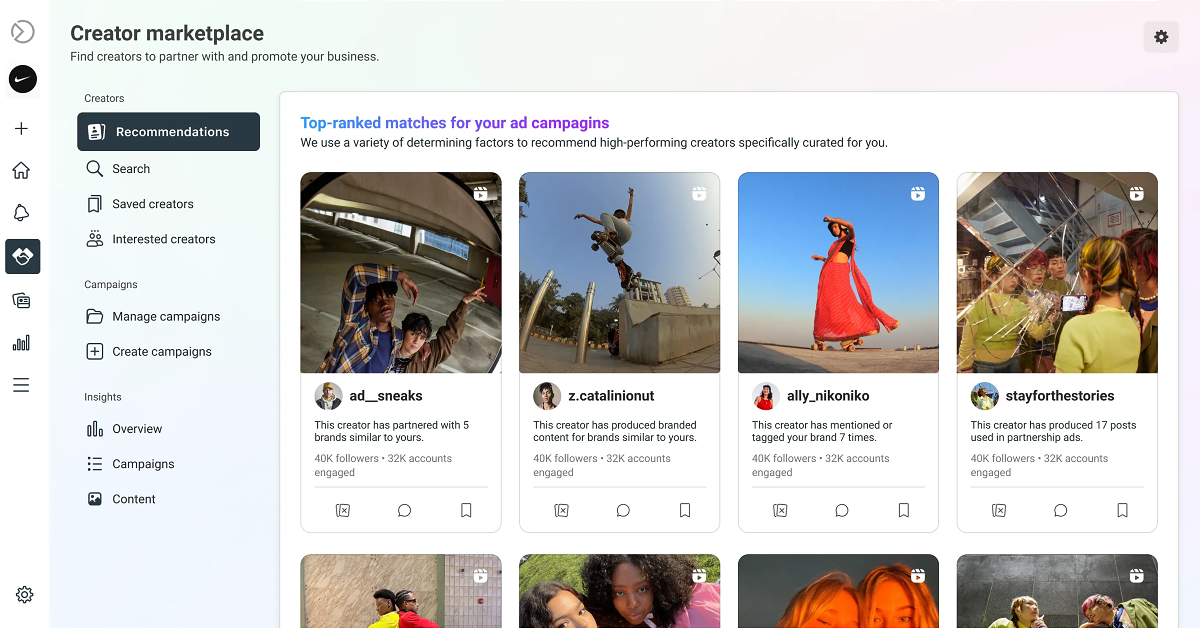
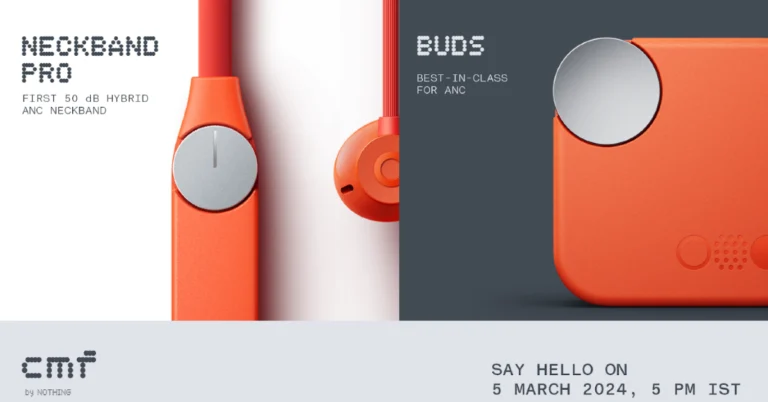
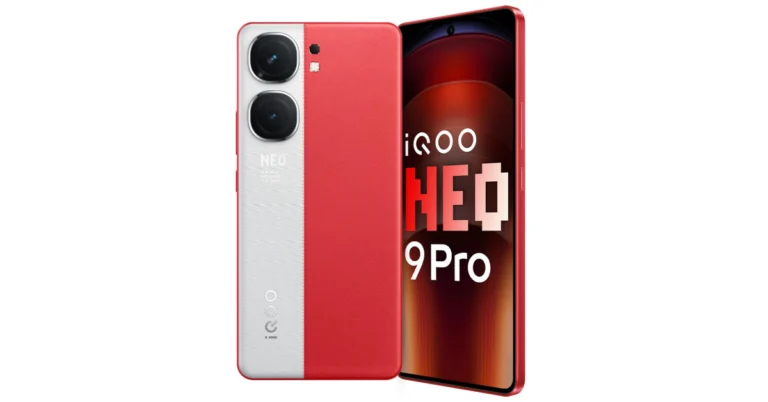
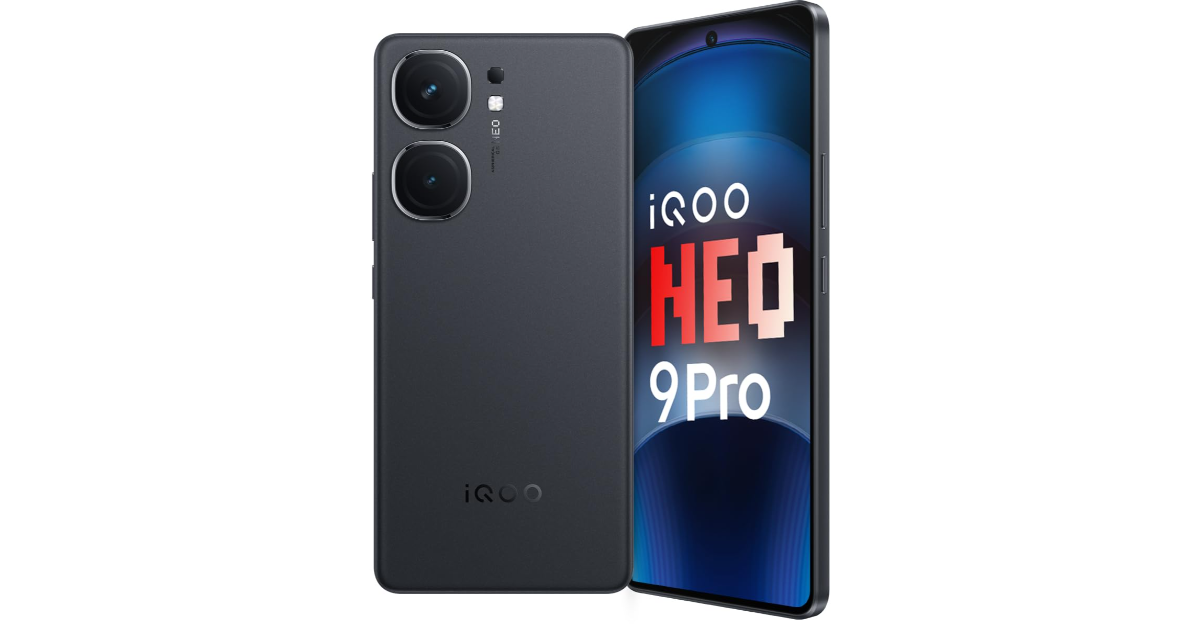

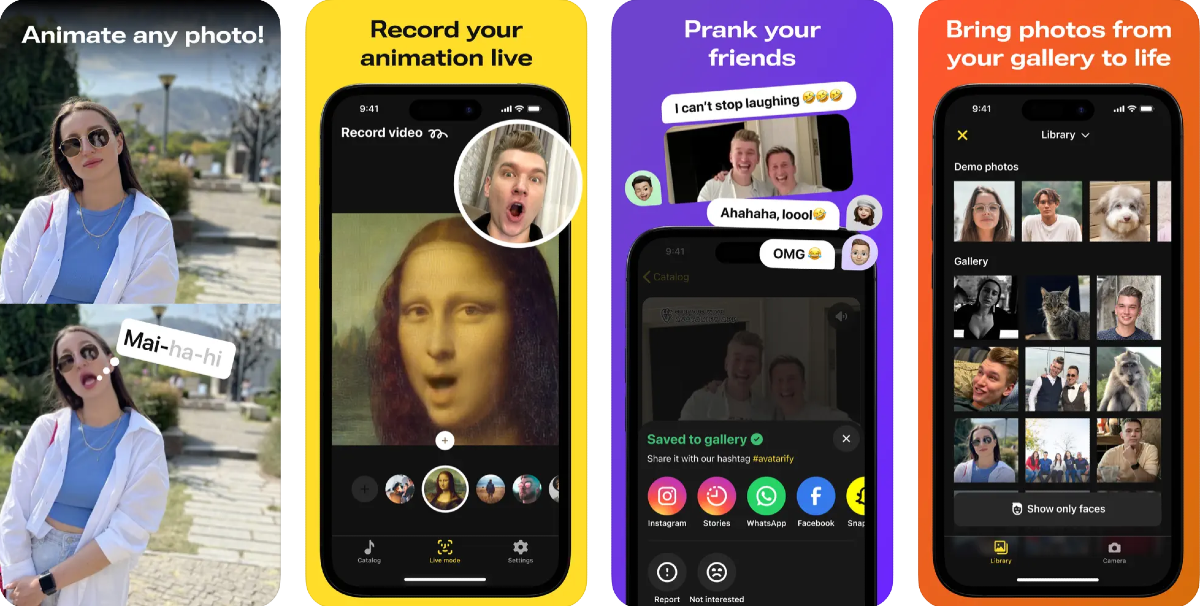
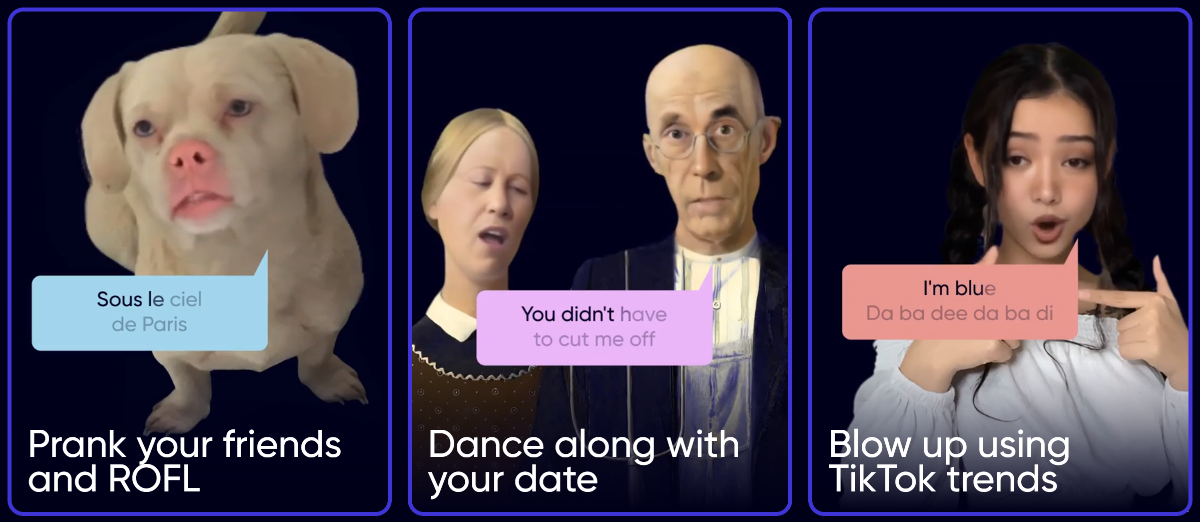
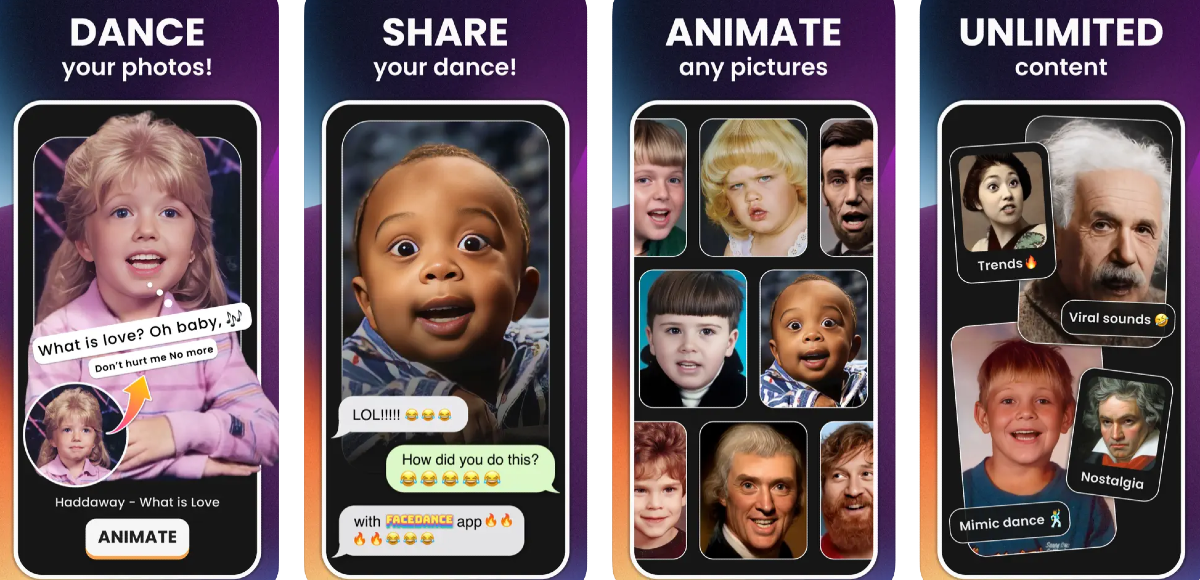
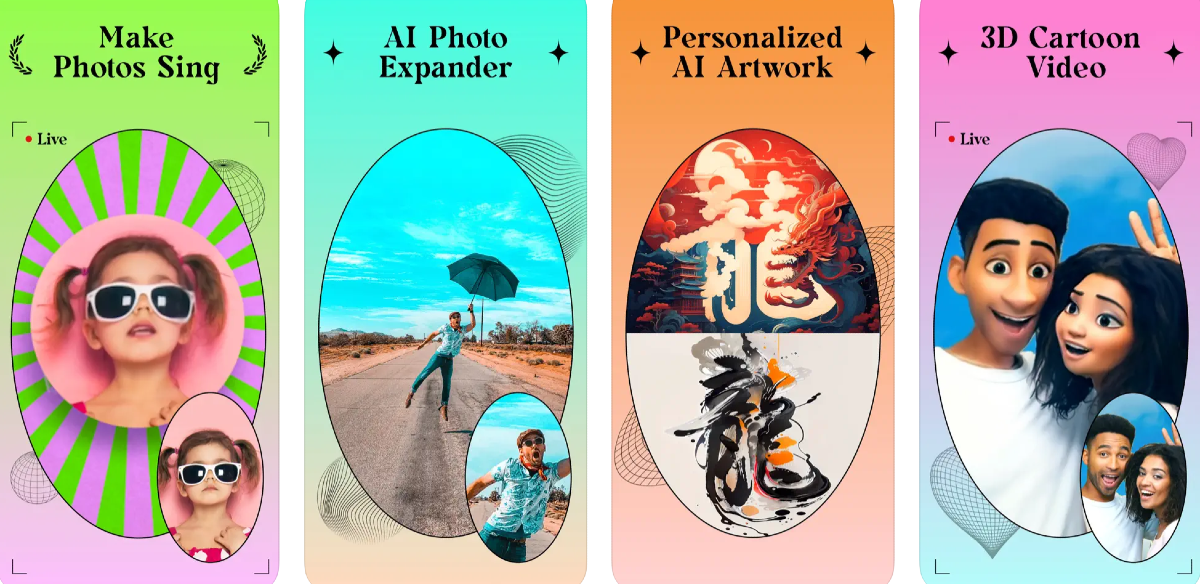
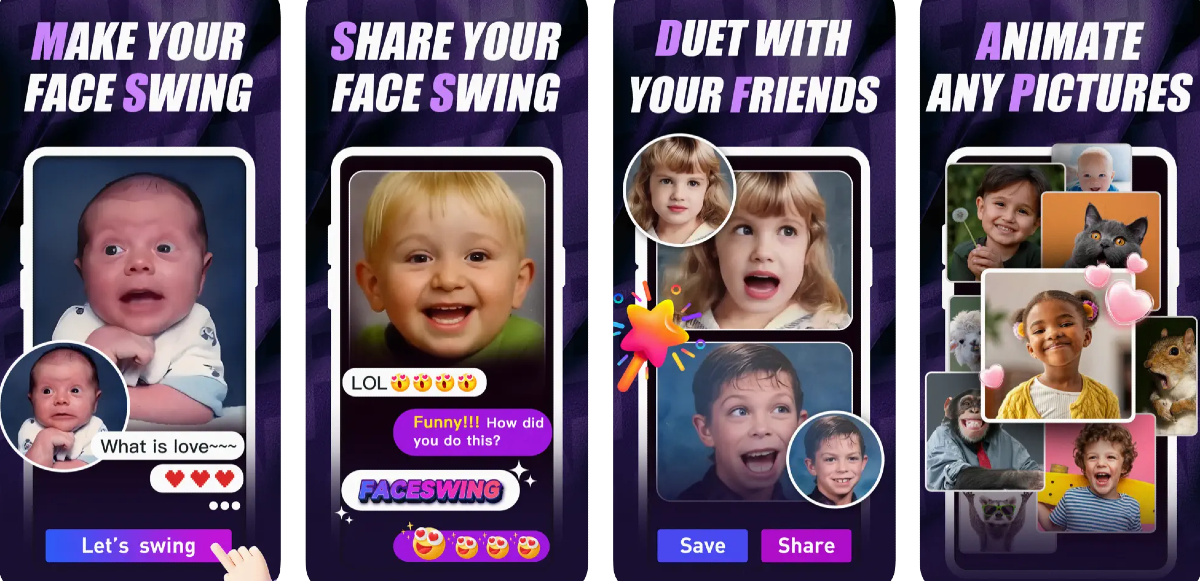
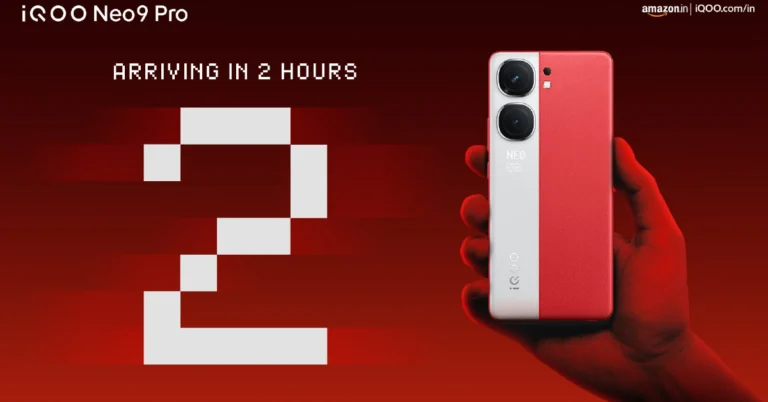

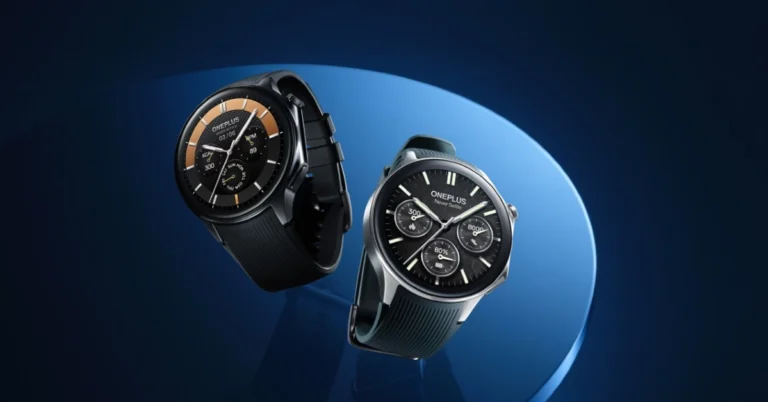
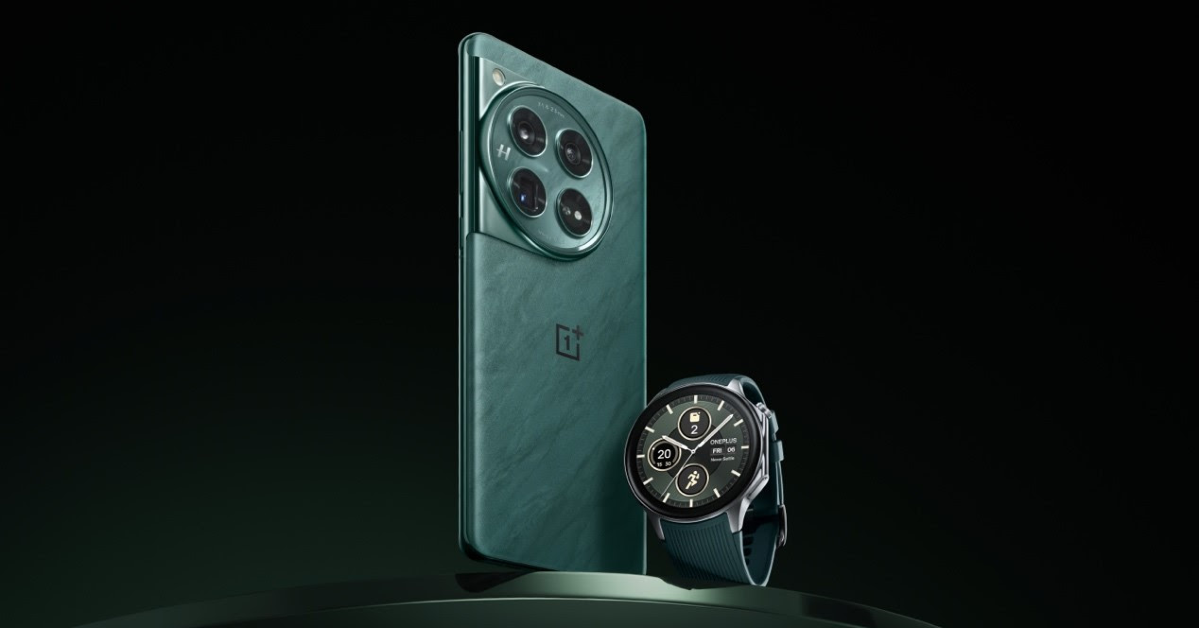
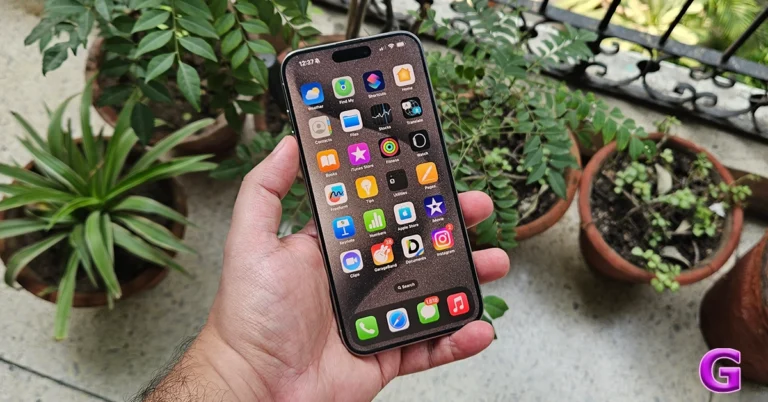
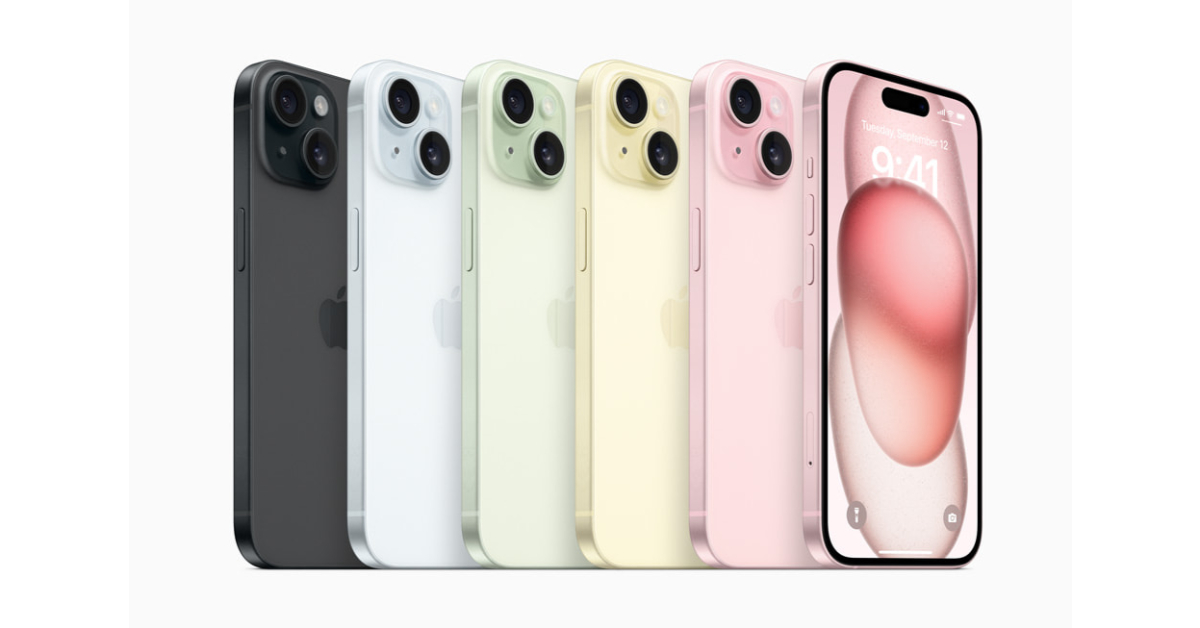
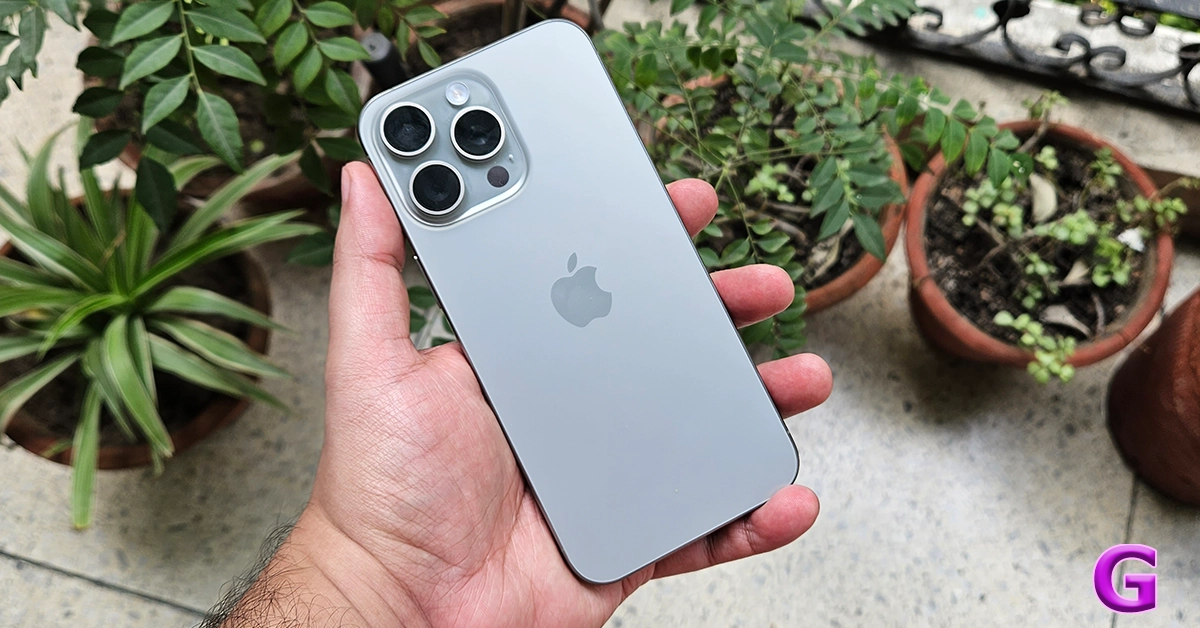


 Step 3:
 Step 4:
  Step 5: Wait
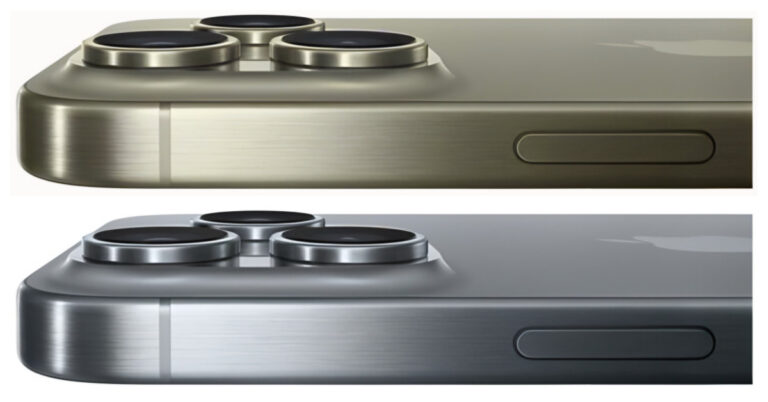

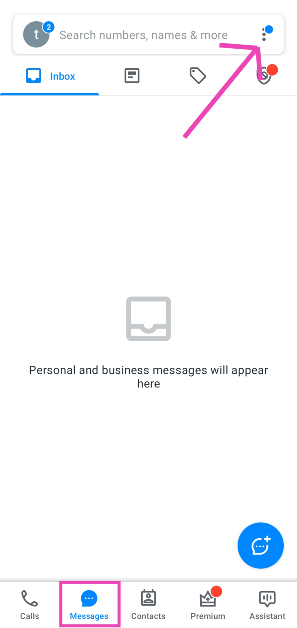 Step 3:
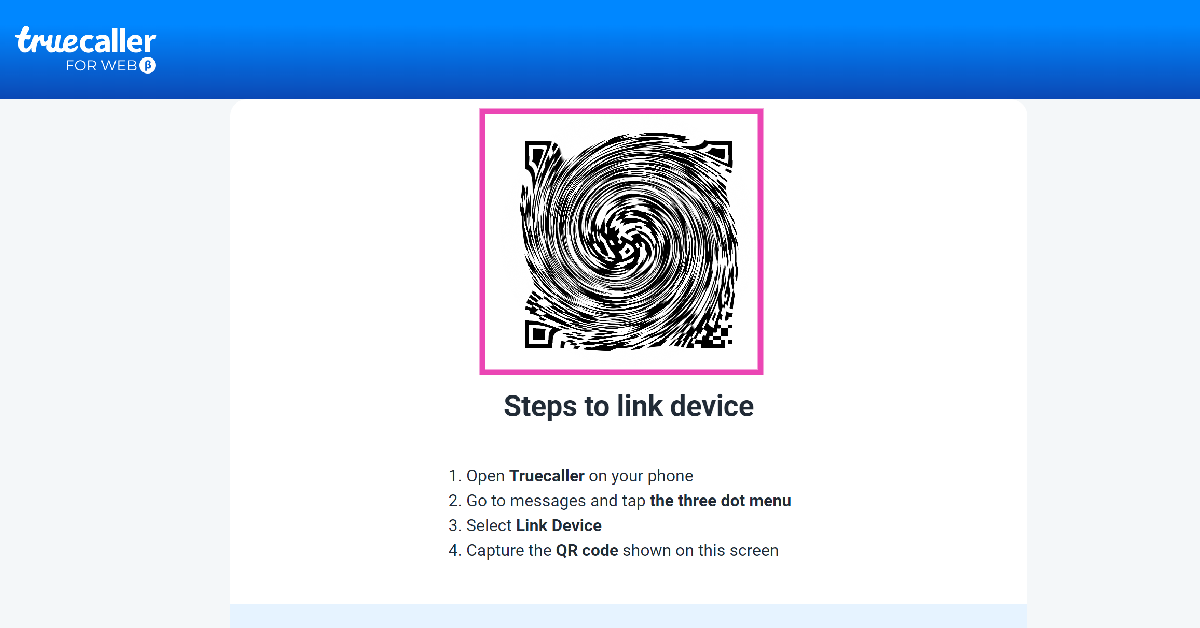 Step 6: