Garena Free Fire is a battle royale game with regular awards and tournaments to keep players interested. If you play Garena Free Fire, you should be aware of the redeem codes that are released on a daily basis. However, because the battle royale game is banned in India, players from other countries can use the Free Fire Redeem codes daily. If you’re unfamiliar with the Garena Free Fire redeem codes or don’t know how to get them, we’ve put together a step-by-step guide to help you redeem them. Check out Garena Free Fire Redeem Codes for 29 February 2024.The Free Fire redeem codes are a great way to get free stuff. These are 12-digit codes that contain alphabets and numbers, as well as an expiration date and time. Because the Garena FF redeem codes cannot be used more than once, you should hurry to the redemption page to claim your free reward before someone else does. To get a free reward, all you have to do is go to reward.ff.garena.com/en, which is the official redemption page. Also, keep an eye on this space for daily updates on Garena Free Fire redemption codes and rewards.Also Read: Sennheiser Accentum Plus wireless headphones with Hybrid Adaptive Noise Cancellation launched
Garena Free Fire Redeem Codes Today 29 February 2024
For users who have been on Facebook for several years, the platform also serves as an archive of their pictures and media. If you’re looking for a specific older picture, it is a good idea to check if you uploaded it on Facebook. If you ever end up losing your old pictures, you can always download them from Facebook. The platform makes it easy to download your profile data, including the media you uploaded to your posts, stories, reels, and more. So, let’s take a look at how you can download all your Facebook photos on PC and Android.Read Also:Top 4 Ways to Access Archived Emails in Outlook (2024)
What are your options?
Luckily, Facebook offers a native way to download all of your profile information either locally or to a different destination. You don’t need to rely on third-party apps and websites to do the same. The option to download your profile info is tucked away in the Accounts Centre and can be accessed by going to Settings and privacy>Settings>See more in Accounts Centre.You can also download an individual picture on Facebook without accessing your entire profile info. However, if you want to download an individual Facebook video, you will need to seek the help of a third-party service. Photos on Facebook may offer a native download option but videos do not. Websites like Fdown.net, Snapsave, and Savefrom let you download any video from the platform to your device.
Download All Photos from your Facebook Profile (PC)
Step 1: Open Facebook on your PC’s web browser and log into your profile.Step 2: Hit the Profile icon at the top right corner of the screen and select Settings and privacy.Step 3: Click on Settings.Step 4: Open the Accounts Centre by clicking See more in its sidebar section.Step 5: Click on Your information and permissions.Step 6: Select Download your information.Step 7: Click on Download or transfer information.Step 8: Select the account or profilefrom which you want to download the images.Step 9: Hit Next.Step 10: In the following window, click on Specific types of information.Step 11: Click on See All under Your Facebook activity.Step 12: Select Posts, Pages, Stories, and Reels. This should cover all of the media you’ve uploaded on your profile.Step 13: Hit Next.Step 14: If you want to download the photos locally to your device, select Download to device and hit Next.Step 15: Click on Date range and select All time. Select your preferred media quality as well.Step 16: Click on Format and select JSON if you want to browse the files on your PC instead of a web browser.Step 17: Hit Create files.The download request will be sent to Facebook. The download activity can be tracked from the Accounts Centre.
Download All Photos from your Facebook Profile (Android)
Step 1: Launch the Facebook app on your Android smartphone and hit your profile icon at the top right corner of the screen.Step 2: Tap on Settings and privacy and go to Settings.Step 3: Tap on See more in Accounts Centre.Step 4: Select Your information and permissions.Step 6: Tap on Download your information.Step 7: Tap on Download or transfer information.Step 8: Select the account or profile from which you want to download the images.Step 9: Hit Next.Step 10: On the following page, click on Specific types of information.Step 11: Click on See more under Your Facebook activity.Step 12: Select Posts, Pages, Stories, and Reels. This should cover all of the media you’ve uploaded on your profile.Step 13: Tap Next.Step 14: If you want to download the photos locally to your device, select Download to device and tap Next.Step 15: Tap on Date range and select All time. Select your preferred media quality as well.Step 16: Tap on Format and select JSON if you want to browse the files on your phone instead of a web browser.Step 17: Tap on Create files.
Frequently Asked Questions (FAQs)
How do I download a picture from Facebook?
Open the picture, select the ellipses at the top-right corner of the screen and hit Save Photo/Download.
How do I download a photo album from Facebook?
Go to your profile, select Photos, open the album, hit the ellipses, and select Download album.
How do I download all of my pictures on Facebook?
You will need to go to the Accounts Centre and select Your information and permissions>Download your information to get started on downloading your Facebook data.Read Also:Nothing Phone 2a will look like this: Design revealed
Conclusion
This is how you can download all your Facebook photos on your PC and Android smartphone. The iPhone app for Facebook follows the same process as its Android counterpart. Instead of creating a local backup of your images, you can also choose to transfer them to another destination. If you found this article helpful, let us know in the comments!
Today Samsung announced the availability of a new 6GB RAM, 128GB storage variant for Galaxy A15 5G in India.
The smartphone was already available in two RAM and storage options.
Samsung released the Galaxy A15 5G in India in December of last year. The company today introduced a new memory variant for the smartphone. The device will now be available in three varieties since it was initially offered in two different configurations. The handset features an AMOLED screen which supports a refresh rate of Hz. The phone comes with a 50-megapixel triple rear camera setup. It packs a 5,000mAh battery as well.Samsung Galaxy A15 5G will now be available in a new 6GB RAM with 128GB storage option priced at Rs 17,999. The device already comes with 8GB RAM with 128GB storage priced at Rs 19,499. There is another 8GB RAM with 256GB storage model which comes with a price tag of Rs 22,499.Consumers can avail bank cashback worth Rs 1500 on Galaxy A15 5G 6GB RAM with 128GB storage variant bringing the price down to Rs 16,499. Galaxy A15 5G is available across retail stores, Samsung.com, and other online players. The phone comes in Blue Black, Blue and Light Blue colour options.Also Read:Meta rolls out Save on Threads features, allowing bookmark favourite postsThe Samsung Galaxy A15 5G is highlighted with a 6.5-inch full-HD+ Super AMOLED screen with 1,080×2,408 pixels of resolution. The display comes with a 90Hz refresh rate and 800 nits of peak brightness. The phones run on One UI 5 on top of Android 13. The company is said to provide up to 4 years of software upgrades and five years of security fixes. The device is powered by an unnamed octa-core chipset with up to 8GB of RAM and up to 256GB of internal storage.Galaxy A15 5G features a triple rear camera setup led by a 50-megapixel primary camera with optical image stabilisation (OIS), a 5-megapixel secondary sensor and a 2-megapixel lens. In addition to this, it includes a 13-megapixel front-facing camera for selfies and video calling.Also Read:Nothing Phone 2a will look like this: Design revealedThe Samsung phone is backed by a 5,000mAh battery with 25W fast charging support. In terms of connectivity, there is 5G, Wi-Fi, Bluetooth, GPS, a 3.5mm headphone jack, and a USB Type-C port for charging. The sensors on both phones include accelerometers, a gyro sensor, a geomagnetic sensor, a light sensor, a virtual proximity sensor and a side-mounted fingerprint scanner.
Text-based conversation app linked to Instagram Threads has released saved post features to all the users. The users will be able to use Save on Threads to bookmark their favourite posts for later. The feature was undergoing user testing and will be widely available to all the users on the platformUsers of Threads will soon be able to favourite their favourite posts thanks to a new feature Save on Threads. With the current widespread rollout, more users should soon be able to access the feature on their app.Instagram Head Adam Mosseri posted on Threads to announce the rollout. He said, “We’re rolling out Save on Threads more broadly starting today, so you can bookmark your favourite posts for later.” Adam Mosseri has also confirmed that saving posts on Threads could affect the algorithm and feed on the social media platform. Also, bookmarking helps you stay organised with the posts you’re viewing on the platform.To save a post on Threads, select Save from the list of options by clicking on the three-dot menu that is located in the upper-right corner of each post. As soon as you save a post on Threads a message verifying that the post has been saved will show up at the top of the page. In order to access your Saved Threads post all you have to do is go to the settings menu, navigate to your profile, tap the double horizontal line icon, and then select Saved. The process of saving Threads posts is easy and convenient just like how we save posts and access posts on Instagram.Apart from this Threads was also recently spotted testing a new feature that would display trending postings to some users in a manner akin to X’s trending page. Reportedly the company is working on a new Today’s Topics section that will show real-time trending posts. But on Threads, the trending topics don’t need to have a hashtag or a tag attached to them.The topics with a heading are displayed as plain text, along with what seems to be a top post that covers the subject matter. Mosseri claims that AI decides on both the heading and the subjects.Head Adam Mosseri also shared a post announcing the testing of this feature. He said, “Today’s topics on Threads will be on the search page and in the For You feed. The topics are determined by our AI systems based on what people are engaging with right now on Threads.”
Archiving emails is easy, but looking for the Archived folder can be a tricky task. If you’re used to Gmail’s layout and are new to Outlook, it may take some time getting used to things. Or maybe you’re used to the Outlook app for Windows and are out of your element on Android. Today, we bring you the top 4 ways to find and access archived emails in Microsoft Outlook.Read Also:Nothing Phone 2a will look like this: Design revealed
Why you should archive your emails
No one likes a messy email inbox. With the barrage of newsletters, junk, and spam that users receive in their inboxes every day, keeping track of important emails can be quite a challenge. Unsubscribing from promotional mail and mass deleting spam are good techniques to manage your inbox, but even when you’re left with important emails, the inbox can seem daunting to look at.This is where the ‘Archived’ folder comes in. You can use this folder to stash older emails that are important but not urgently required. This keeps your inbox from having a cluttered look and makes sure the necessary emails are still around. This is a much better option than deleting the emails to bring a cleaner look to your inbox.Archiving an email on Outlook is easy. All you need to do is right-click the email and select ‘Archive’ from the list of options. If you’re an Android user, you need to long-press the email, tap the ellipses (three dots) at the top-right corner of the screen, select ‘Move to folder’, and tap on ‘Archive’.
Access Archived Emails on the Outlook Website
Step 1: Go to www.outlook.live.com and sign in using your Outlook/Microsoft Account.Step 2: Click on Archive in the left sidebar to view all your archived emails.
Access Archived Emails in the Outlook app
Step 1:Launch the Outlook app on your Windows PC.Step 2: Click the arrow icon next to your email account.Step 3: Select Archive.
Use Windows Mail to access Archived Outlook Emails
The native ‘Mail’ app on your Windows PC lets you access your Outlook emails. Here’s how you can view your archived emails on it.Step 1: Hit the Start button on the taskbar and select Mail.Step 2: Sign into the Mail app using your Outlook account.Step 3: Click the folder icon in the left sidebar.Step 4: Select Archive.
Access Archived Outlook Emails in the Android app
Step 1:Launch the Outlook app on your Android phone.Step 2: Hit the profile icon at the top left corner of the screen.Step 3: Select Archive from the list.
Frequently Asked Questions (FAQs)
How do I archive an email on Outlook?
To archive an email, simply right-click on it and select ‘Archive’. Android users need to long press the email, tap the ellipses at the top right corner of the screen, and select Move to folder>Archive.
How do I view the ‘Archive’ folder on Outlook?
The ‘Archive’ folder can generally be found in the left sidebar. On the Windows Outlook app, you need to click the arrow icon next to your email to view the folder. Android users simply need to tap the profile icon at the top left corner of the screen to access it.
These are the top 4 ways to find and access archived emails on Outlook. If you can’t find the folder in the Outlook app for Windows and Android, try updating the app to its latest version. Once that’s done, follow the steps mentioned above to view your archived emails.
Nothing Phone 2a design has been revealed by the company before the March 5 launch.
The company has released a teaser unveiling the design of the upcoming smartphone.
The device is also being showcased at MWC 2024.
Before the March 5 launch event for the Nothing Phone 2a in India, the device was on display worldwide at MWC 2024. In addition to this, the company has also revealed the device through an official teaser posted on its social media channel. Currently, this is one of the most anticipated smartphones and there has been a lot of buzz about it as the upcoming Nothing smartphone will be a more affordable, more subdued version of the Nothing Phone 2 which was released last year. Here is everything that we know about it.On March 5, Nothing Phone (2a) will launch internationally and in India. Ahead of the official release, the company has not only officially unveiled its design but has also been put on display at the ongoing mega tech event Mobile World Congress which is being held in Barcelona, Spain. The official renderings corroborate the prior, leaked images and include several notable design changes.The Nothing Phone 2a is teased in its White colour option, although a Black version is also anticipated. Its transparent body reminded us of the Nothing Phone 2. But this one has fewer glyphs compared to their older siblings. The glyph interface is limited to the device’s upper portion.
See the world through fresh eyes.
Phone (2a) is a product of daring design decisions and meticulous engineering.
And, the biggest design change it received is the dual-camera arrangement, now positioned in the centre and surrounded by three LED lights. One of these units is positioned vertically on the right side of the rear panel, while the other two are arranged in circular patterns.Although it lacks a full-fledged Glyph interface it has a transparent back panel with patterns. It also has flat corners.The Nothing Phone 2a is confirmed to run on a MediaTek Dimensity 7200 Pro SoC reportedly combined with 12GB of RAM and an extra 8GB of virtual RAM.Recently, Nothing CEO Carl Pei verified that Phone 2a handsets supplied in India will be produced here only.Also Read:New generative AI-based features coming to Android devices, including smartwatchesAdditionally, the Nothing Phone 2a’s key specifications were leaked earlier. It’s anticipated that the phone will ship with NothingOS 2.5 and run Android 14. Finally, a 6.7-inch full-HD+ OLED display with a refresh rate of 120Hz is anticipated to be included with the device.Also Read:Krafton’s latest Indian-themed game Garuda Saga launched A 50-megapixel primary and a 50-megapixel ultra-wide angle lens are expected to be included in the dual rear camera configuration of the Nothing Phone 2a. It may also have a 32-megapixel front-facing camera for taking selfies. The battery’s capacity is unclear, but it may charge at 45W wired fast charging.
The most common problems are often the trickiest to fix. This is because it is hard to figure out what’s causing the malfunction to occur. While something as general as not being able to make a phone call may seem easy to fix, trying to find the root cause of the problem requires delving into different aspects of your phone. In this article, we bring you the top 11 ways to fix an Android phone that can’t make or receive phone calls.Read Also:Krafton’s latest Indian-themed game Garuda Saga launched
Why won’t my Android phone make or receive calls?
Whenever you face a network and connectivity issue on your smartphone, it is a good idea to check if it is because of one of the usual suspects. The lack of optimum balance and talk time can render all calling services on your phone moot. The incoming calls to your phone number are also suspended when it hasn’t been recharged in a long time.Software issues rarely affect your phone’s network connectivity, but it is possible you may have turned on the Airplane or Flight Mode on your phone and forgotten about it. The same goes for DND and Call Barring. You need to check all the supplementary services for your number to make sure they aren’t causing this issue.Lastly, it is also possible that your SIM card has been phased out by the network provider. This only happens with really old SIM cards that are more than a decade old. Luckily, the process of replacing a SIM card is very easy and doesn’t require more than a few minutes to get reactivated. All you need to do is visit your network provider’s service centre with the proper documentation and request a new SIM card.
Restart your phone
The first thing you should do when you hit a network-related problem is to give your phone a quick restart. Not only does this refresh the network, but it also resolves any background glitches that may be causing your phone to malfunction. Press and hold the side key to access the power menu and hit ‘Restart’. If pressing the Side key triggers the voice assistant, long-press the Volume Up key and Side key simultaneously. You can also access the power menu by tapping the power icon in the Quick Settings Menu.
Make sure the SIM card is inserted properly
Use the SIM ejector tool to pop out the SIM tray and re-insert the SIM card after wiping it clean. Give the tray a thorough wipe, too. Make sure the SIM card is positioned correctly on the tray. If you’re using a very old card, you may need to get a replacement.
Turn off Airplane Mode
Your phone disables the cellular network connection once Airplane Mode is turned on. In this mode, you cannot make or receive any calls on your Android phone. To turn it off, swipe down from the status bar and tap the tile with an airplane on it. On some phones, it may be called ‘Flight Mode’.
Turn off Do Not Disturb
If your phone is in Do Not Disturb mode, it won’t notify you about incoming calls. DND mode only allows calls from whitelisted callers. Other calls only get through when the caller rings you multiple times. To disable DND, swipe down from the status bar and hit the Do Not Disturb tile. You can also disable it by going to Settings>Notifications>Do Not Disturb and turning off the toggle switch.
Make sure you’re in an area with optimal network reception
If you’re in an area with poor signal strength, the call services on your phone will fail to function. Elevators, basements, and high elevation areas are some of the places where you may face this issue. Move to an open area with better network reception to make or accept a call.
Restart your phone in Safe Mode
The third-party apps on your phone can often disrupt its regular functioning. Sometimes, the apps downloaded from sketchy sources push malware on your device, causing erratic behaviour. To confirm if this is the case, restart your phone in safe mode. Go to the power menu, long-press the power off icon, and hit ‘Safe Mode’. This will restart your phone and disable all the third-party apps. If you’re still unable to make or receive calls, it means the third-party apps on your phone are not causing the issue.
Disable and re-enable SIM
Step 1: Go to Settings and select Connections.Step 2: Tap on SIM manager.Step 3: Turn off the toggle switch for your SIM card.Step 4: Wait for a few seconds and then turn the switch back on.
Turn off WiFi calling
If the WiFi connection is experiencing issues, WiFi calling can impede your cellular phone calls. You can either turn it off by tapping its tile in the Quick Settings Menu or disable it from settings. Here’s how.Step 1: Go to Settings and select Connections.Step 2: Turn off the toggle switch for WiFi Calling.
Clear Dialer’s cache
Step 1: Go to Settings and select Apps.Step 2: Select the dialer app.Step 3: Tap on Storage.Step 4: Hit Clear Cache.
Reset network settings
Step 1: Go to Settings and General Management.Step 2: Tap on Reset.Step 3: Select Reset mobile network settings.Step 4: Hit Reset settings.
Update your phone’s OS
Step 1: Go to Settings and select Software update.Step 2: Tap on Download and install.Step 3: Select Install now.
Frequently Asked Questions (FAQs)
Why won’t my Android phone make any calls?
A SIM malfunction can cause your Android phone to stop making or receiving calls. Apart from that, all cellular network-related services are paused when Airplane Mode is turned on.
Why is my Android phone automatically rejecting calls?
Enabling Do Not Disturb can lead to incoming calls getting rejected automatically on your Android phone. Swipe down from the status bar and hit the DND tile to disable it.
Why is SIM not receiving calls?
Your phone stops receiving calls when the validity of the calling pack/talk time expires. Recharge your phone to restore incoming call service.
What does resetting the network settings do on Android?
Performing a network settings reset unpairs all your connected Bluetooth devices and WiFi networks. It restores all network settings to factory default. The personal data on your phone remains untouched.
These are the top 11 ways to fix an Android phone that can’t make or receive calls. To maintain connectivity, make sure your phone number has the optimum balance and talk time validity. If you know of any other way to fix this issue, let us know in the comments!
Google has rolled out 9 new Android features that rely on generative AI.
Users will get new casting controls for Spotify and AI-generated captions for images.
Tech Giant Google has rolled out nine new generative artificial intelligence (AI)-based features for Android devices. The upcoming features will be accessible for tablets, smartphones, smartwatches, and automobiles intended for use with other products, including the Messages app, Android Auto, and Wear OS.Google has pushed out additional features for smartphones, Android Auto, and Wear OS, albeit they are still under beta testing. The majority of the new capabilities are AI-based and intended for use with different devices. The company via blog post made the announcement which said, “Today, we’re rolling out Android updates to help you simplify your day and get more done — whether on your phone, tablet or Wear OS smartwatch or in your Android Auto-compatible car.”Android Auto may automatically summarise lengthy texts or active group discussions with the help of generative artificial intelligence (AI). Users will be able to send messages, share ETA or start a call by tapping once. In addition to this, it will also recommend pertinent responses and actions.Users will be able to listen to auto-generated AI descriptions of photos, online images and pictures included in messages with image captions in Lookout on Android. This feature is being rolled out globally in English and has been designed with blind and low-vision communities.Also Read:Nubia Flip 5G foldable phone introduced at MWC 2024Google’s latest update will now also bring enhanced screen reader support for Lens in Maps. This functionality will aid in exploring nearby and identifying places like ATMs, restaurants and transit stations. One can also point their camera at the surroundings and TalkBack will read out the details about the location, including its business hours, rating, and driving directions.On the other hand, users can now use their finger or stylus to add handwritten annotations to Google Docs from their Android phone or tablet thanks to Google Docs markups. With a selection of markup tools to choose from, like different pen colours and highlighters, reviewing documents and providing feedback is fast, flexible and easy.Spotify now provides more screen-casting settings thanks to Google. The output switcher on Android’s home screen lets you move effortlessly between your devices when playing YouTube music on Android’s home screen: your phone’s speaker, headphones, smart speakers, or TV. You may now use Spotify in the same way. Thus, Spotify Connect devices will now be displayed on the output switcher when you are playing media on Spotify.Also Read:Krafton’s latest Indian-themed game Garuda Saga launchedThrough Health Connect, users are now able to see a more complete picture of their health right in the redesigned Fitbit app through Health Connect– with data from their favourite wearables and apps like AllTrails, Oura Ring and MyFitnessPal. To see data from connected apps next to your Fitbit data, go to the You tab in the Fitbit app on your Android phone. In the Today tab, you can see data like exercise, steps, calories burned, floors climbed and distance travelled from Health Connect-compatible apps.One can now also access boarding passes, event tickets, gym memberships, loyalty cards and more from their wrist with Google Wallet passes now available on Wear OS watches. Choose which passes to hide or display so they’re ready to use right when you need them.Users may leave their phones in their pockets and check their wrists to make sure they catch their bus, train or ferry using public transit directions on Google Maps for Wear OS. Get compass-guided navigation directions to your destination after checking out the departure times directly from your smartwatch. If you prefer your phone, you can also mirror directions to your watch and navigate hands-free.You may access Gemini directly in Google Messages on your Android phone starting this week in English beta. Chat with Gemini to draft messages, brainstorm ideas, plan events or simply have a fun conversation without leaving the Messages app.
Garena Free Fire is a battle royale game with regular awards and tournaments to keep players interested. If you play Garena Free Fire, you should be aware of the redeem codes that are released on a daily basis. However, because the battle royale game is banned in India, players from other countries can use the Free Fire Redeem codes daily. If you’re unfamiliar with the Garena Free Fire redeem codes or don’t know how to get them, we’ve put together a step-by-step guide to help you redeem them. Check out Garena Free Fire Redeem Codes for 28 February 2024.The Free Fire redeem codes are a great way to get free stuff. These are 12-digit codes that contain alphabets and numbers, as well as an expiration date and time. Because the Garena FF redeem codes cannot be used more than once, you should hurry to the redemption page to claim your free reward before someone else does. To get a free reward, all you have to do is go to reward.ff.garena.com/en, which is the official redemption page. Also, keep an eye on this space for daily updates on Garena Free Fire redemption codes and rewards.Also Read: Sennheiser Accentum Plus wireless headphones with Hybrid Adaptive Noise Cancellation launched
Garena Free Fire Redeem Codes Today 28 February 2024
The Krafton India team and Alchemist Games worked together to curate characters and elements inspired by Indian themes.
About three weeks have passed since the game’s first announcement and the pre-registration period began on February 5th.
BGMI developer Krafton has launched its new game called Garuda Saga. It is a roguelike mobile game, tailored exclusively for the Indian audience.Anuj Sahani, Head of KRAFTON Incubator Program & Garuda Saga Lead, “Garuda Saga is a uniquely engaging game and tailoring it for the Indian audience has been an exhilarating adventure. With close collaboration between Alchemist Games and the Krafton India team, we’ve intricately woven the vibrant essence of India into every aspect of the game, from its storyline to its characters, truly bringing Garuda Saga to life. We look forward to delivering more unforgettable gaming experiences that captivate and inspire players throughout India.”Krafton India and Alchemist Games have teamed up to introduce a new game in an effort to increase their market share in the nation. Krafton has announced the launch of its first India-themed game namely Garuda Saga. The game is now available to download and play on Android and iOS for Indian users.About three weeks have passed since the game’s first announcement and the pre-registration period began on February 5th.Also Read:Nubia Flip 5G foldable phone introduced at MWC 2024According to Krafton, its India team worked with Alchemist Games, a South Korean mobile game production company to curate characters and elements inspired by Indian themes. Players can customise their RPG experience in Garuda Saga to fit their own play style. Drawing inspiration from rich Indian themes, players assume the role of Garuda. Equipped with a reliable bow and unmatched speed, Garuda progresses through levels, conquering monsters, and acquiring new skills with each victory.Also Read:Motorola’s complete lineup of smartphones will have Corning Gorilla GlassKipum Jun, CEO, Alchemist Games said, “Collaborating with KRAFTON for Garuda Saga has been a journey of discovery and innovation. Garuda Saga’s charm lies in blend of Indian themes layered with fun gameplay mechanics. We look forward to the community experiencing the magic of Garuda Saga and to creating more groundbreaking games that resonate with Indian players.”
Nubia has launched a pocket-sized foldable design- Nubia Flip 5G.
It features a 6.9-inch 120Hz internal display.
It houses a 4310mAh battery with 33W charging support.
The handset has a 50MP AI dual camera.
The ZTE-owned smartphone brand Nubia has unveiled its first foldable- Nubia Flip 5G at the Mobile World Congress 2024. It is anticipated to compete alongside Samsung, Motorola, Oppo and Tecno’s foldable devices in the market. The newly launched clamshell design phone features a 120 Hz foldable OLED display. Qualcomm’s Snapdragon 7 Gen 1 powers the phone. The handset includes a dual rear camera setup led by a 50-megapixel sensor.
Nubia Flip 5G pricing and sale details
The Nubia Flip 5G will retail for $599, or approximately Rs 50,000. The latest foldable phone will be available in two colour options- Black and Gold. Nubia hasn’t yet disclosed the new flip phone’s availability information, but it is likely to be released soon.
Nubia Flip 5G specifications
Nubia Flip 5G flaunts a 6.9-inch FHD+ AMOLED foldable display with 2790 x 1188 pixels of resolution. The primary display supports a 120Hz refresh rate. It also comes with a 1.43-inch AMOLED circular cover display with 466×466 pixels of resolution. Users won’t need to unfold their phones to access various apps thanks to the circular cover screen. It makes use of a dual-rail suspended hinge.Also Read:Motorola’s complete lineup of smartphones will have Corning Gorilla GlassUnder the hood, there is a Qualcomm Snapdragon 7 Gen 1 (4nm) Mobile Platform with Adreno 644 GPU. It includes up to 8GB RAM and 256GB UFS 3.1 storage. It operates on Android 13. For photos and videos, there is a dual rear camera setup that includes a 50-megapixel primary sensor and a 2-megapixel depth sensor with f/2.2 aperture along with an LED flash. It has an impressive 16-megapixel front-facing camera for selfies and video chats.Also Read:OnePlus Watch 2 with WearOS 4 and RTOS launched in IndiaIt has a 4,310mAh battery that can be charged at 33 watts. It comes with a side-mounted fingerprint sensor for authentication. In terms of connectivity, there is 5G SA/NSA, Dual 4G VoLTE, Wi-Fi 6 802.11 ax, Bluetooth 5.3, GPS/GLONASS, USB Type-C, and NFC.
Samsung’s compact offering in its flagship Galaxy S24 Series should be the go-to choice for users who want a one-handed usage experience without sacrificing the device’s performance. The ‘compact’ monicker is a bit of a stretch nowadays as even the Galaxy S24 flaunts a big 6.2-inch display and sports dimensions of 147mm x 70.6mm x 7.6mm. But, if you’re looking for a small flagship, this is as good as it gets. The India variant of the Samsung Galaxy S24 carries one key change under the hood. Instead of the Snapdragon 8 Gen 3 SoC as the Ultra variant, it is equipped with Samsung’s in-house Exynos 2400 chipset. Find out what this difference means for the Samsung Galaxy S24 in our review of the smartphone.Read Also:Motorola’s complete lineup of smartphones will have Corning Gorilla Glass
Samsung Galaxy S24 review: Design and Display
Inside the Samsung Galaxy S24 retail package, you get the smartphone, a SIM ejector, a USB Type-C cable, and a quick start guide. The smartphone is available in three colours – Amber Yellow, Cobalt Violet, and Onyx Black. Ordering the device directly from Samsung’s official website unlocks two more colour options – Sapphire Blue and Jade Green.We used the Amber Yellow colour variant of the Samsung Galaxy S24 for this review. The very light shade of yellow with its pastel aesthetic feels a little boring on a smartphone that costs Rs 80,000. The same can be said about the other shades on offer.The form factor of the Galaxy S24 remains mostly unchanged from last year’s S23 Series. The vertical layout for the individual camera cutouts is Samsung’s design language for the second year in a row. The flat edges of the aluminium frame lend it an iPhone-like feel. Unlike its ‘Ultra’ counterpart, this titanium-free frame rocks rounded corners and a polished finish.The left edge of the aluminium frame houses the volume rocker keys and the power button. The SIM card slot, primary microphone, USB Type-C port, and primary speaker are positioned at the bottom edge. Up top lie the secondary microphone and speaker. A small punch-hole cutout at the centre of the display contains the selfie camera.The 6.2-inch Dynamic LTPO AMOLED 2X display on the Galaxy S24 is the best in the business. The touch response offered by this 120Hz panel remains unmatched by its Android peers. With a compact form factor, this display is an absolute delight to use. Under direct sunlight, it can push its brightness to a staggering 2,600 nits.Widevine L1 support means that you can consume high-definition content on this device across all the major streaming platforms. The colours produced on the screen are vivid and punchy and the images are incredibly detailed. We were particularly pleased by the intensity of the display and how quickly it adapted to the surrounding light. The stereo speaker setup does a good job of producing a balanced audio output.Samsung Galaxy S24 is rated IP68 dust and water resistance. This rating is something we’ve come to expect from most flagships. The smartphone can handle being submerged up to 1.5m for 30 minutes. The front and back panels are protected by Gorilla Glass Victus 2 and can easily absorb light knocks.
Samsung Galaxy S24 review: Performance and Cameras
This year’s Indian variant of the Samsung Galaxy S24 is powered by the company’s in-house Exynos 2400 SoC instead of Qualcomm’s 2024 flagship Snapdragon 8 Gen 3 chipset. The latter is only available in the S24 Series sold in the USA, Canada, and China. In India, the S8G3 SoC only powers the Ultra variant of the Galaxy S24 (our review here).The reputation of Exynos chipset is certainly not on par with their Snapdragon peers, something Samsung’s European users can easily attest to. However, on paper, the Exynos 2400 processor produces impressive results; scoring 2,085 points in the single-core test and 6,572 points in the multi-core test on Geekbench 6. In comparison, the Ultra variant scored 2,165 and 6,416 points respectively.Benchmark results don’t always tell the full story. We ran a series of tasks on the Galaxy S24 and it handled them with ease. Routine tasks like video calling, photo editing, web browsing, and video recording, presented no problems. Even with multiple apps active in the background, the smartphone did not appear to be slugging even for a moment. When it comes to everyday tasks, the difference between the Exynos 2400 and Snapdragon 8 Gen 3 chipsets is unnoticeable.The gaming performance of the Galaxy S24 is excellent, although not on par with the Ultra variant. The smartphone can play games like Call of Duty Mobile and Asphalt 9 at the highest settings. The vapour chamber does a good job of dissipating the heat and keeping the internal temperature down, but the back panel does tend to warm up after hitting 30-40 minutes of consistent gameplay. The smartphone also heats up while video recording for an extended period of time in outdoor conditions. In both situations, the heating was more noticeable around the camera array. This is something we did not experience in the Ultra variant.Samsung’s suite of AI tools, dubbed Galaxy AI, has been grabbing a lot of headlines this year after the tech giant unveiled it at the grand ‘Unboxed’ event last month. The good news is that these tools are available across all three Galaxy S24 variants and will be rolled out for last year’s Galaxy S and Z series next month. We’ve discussed these features at length in our review of the S24 Ultra, so do give it a read!While some features of the Galaxy AI may cater to a niche group of users, the entire package is far from a gimmick. Our favourite of the lot, Generative Photo Editor, lets users move the objects in a picture. The AI tool fills the empty spaces left behind by the displaced objects with relevant imagery that doesn’t seem out of place. You’d think this feature would be a hit or miss, but it is surprising how reliable it is. You can use this feature on downloaded images as well. Also, it needs to be said that the Ultra variant is slightly faster than the regular Galaxy S24 at generative photo editing.The translation tool in Samsung Keyboard’s ‘Chat Assist’ features lets you auto-translate messages on any chat thread seamlessly. The live translator for cellular voice calls works smoothly too. The smartphone lets you mute the caller’s voice, so you only hear the translated message. There is a small lag despite the live translation, but you get used to it pretty quickly. Perhaps, the only ‘gimmick’ in the entire Galaxy AI suite is the ‘Writing Style’ tool, which lets you change the tone of your texts. It feels quite contrived at the moment, but we hope that is not the case in its future iterations.Circle to Search and Generative AI Wallpapers are two features that we hope to see on more Android phones this year. The Pixel 8 Series already has the latter and will be getting Circle to Search pretty soon. If you’re familiar with Google Lens’ ‘Search Screen’ feature, then you already know everything about ‘Circle to Search’. The latter just makes the tool more accessible. Instead of summoning Google Assistant, you can simply long-press the home button (or the navigation handle) and search what’s on your screen.Generative AI WallpapersThe overall software experience offered by Android 14-based One UI 6 is clean and beautiful. Apart from Netflix and Facebook, there is no bloatware to be found in this device. If you end up buying this smartphone, we highly recommend using Samsung’s Good Lock app for a diverse range of personalisation options. This app isn’t natively installed in the device, you will have to download it from the Galaxy Store. Once installed, you get access to a good library of free and paid themes, along with personalisation options for the Always On Display, lock screen, Samsung Keyboard, navigation bar, and more.Equipped with a 4,000 mAh battery pack, the Galaxy S24 offers a standard one-day power backup. While the Ultra variant lasts over a day, it has the advantage of accommodating a larger battery pack. During the review period, used the Samsung Galaxy S24 for instant messaging, video calling, browsing social media, emailing, watching videos, and even gaming. The smartphone left us with a respectable 20% charge at the end of each day. The battery performance tends to get better after using the device for a couple of days. On the downside, the peak wired charging speed is limited to 25W, which means it takes over an hour to fully charge the S24.Moving on, the Galaxy S24’s camera performance is absolutely stellar, despite lacking the Ultra variant’s camera specs. Instead of the 200MP primary shooter found on the S24 Ultra, the S24 gets a 50MP sensor. The 12MP ultrawide and the 10MP 3x telephoto lenses remain the same, but as is tradition, the two lower variants of the Galaxy S Series miss out on the periscope telephoto lens.In outdoor lighting conditions, the images taken with the 50MP primary shooter are packed with a lot of detail and finely processed to reproduce natural, vivid colours. We were stuck with a bit of an overcast sky this past week, but the S24 remained unfazed by the diffused lighting. We had no complaints about the colour richness and dynamic range in the images. In limited lighting, the Night Mode in the default camera app does a splendid job of brightening the subject, removing the grain, and injecting the appropriate colours in the images. We were particularly pleased with the colour tuning for the night sky.Primary Shooter: Without Night Mode vs With Night ModeThe 12MP ultrawide camera produces solid images with a colour richness that is on par with the primary shooter. This camera even manages to capture distant reflections with their sharpness relatively intact. Something you can’t say about a lot of ultrawide cameras in this segment. It retains its rock-solid performance in limited lighting as well, where it relies on the Night Mode to smoothen the grain in the images.Ultrawide ShotUltrawide Camera: Without Night Mode vs With Night ModeThe 10MP 3x telephoto lens can be summoned when you need to zoom into far-away objects. The 3x optical zoom is reliable and produces well-composed images with a good amount of detail. Even at 10x digital zoom, we were happy with the way the images were processed and smoothed out. However, you do tend to hit the point of diminishing returns pretty quickly.1x vs 3x10x vs 30xThe 12MP selfie camera takes good pictures with popping colours. The camera app has some fun filters for you to use in case you don’t want to install a third-party app. This 12MP front-facing camera can record 4K videos at 30/60 fps. The main camera can record impressive 8K videos at 30fps.Portrait Mode: 1x vs 3x3x Optical ZoomRead Also:Best Ways to Make a Furnace in Minecraft? (2024)
Verdict
As far as compact smartphones go, there is no reason why you should pick anything other than the Samsung Galaxy S24. It rocks one of the best display panels we’ve seen on an Android smartphone and offers a snappy performance across the board. The lack of Qualcomm’s Snapdragon 8 Gen 3 SoC sure hurts a little, but the Exynos 2400 chipset crushes whatever task you throw at it. The difference in performance between the two chipsets is very minute and barely noticeable to the casual eye. At Rs 80,000 the Samsung Galaxy S24 is a very good deal.
In the latter part of the year, Gorilla Glass protection will be incorporated into the Motorola smartphones.
The company also introduced Smart Connect which makes it simple for customers to pair Lenovo laptops with Motorola devices.
Lenovo-owned smartphone brand Motorola at MWC 2024, announced its new partnership with Corning. As per the deal, Gorilla Glass will feature on every Motorola smartphone that launches in the second half of 2024 and beyond. This will cover tablets and smartphones that come out this year. Additionally, the business launched Smart Connect, a piece of software that creates a single ecosystem connecting tablets, PCs, and cellphones.Motorola said, “At Motorola, we’re dedicated to delivering cutting-edge technology, and ensuring it is accessible across all franchises. Today, to further our commitment to durability, we’re excited to announce that the entire 2024 portfolio of Motorola devices will feature Corning Gorilla Glass, starting in the second half of this year.”This is thought to be the best glass protection available for current smartphone displays. Gorilla Glass was developed by Corning Incorporated and is already a feature of many Motorola smartphones. As per the smartphone maker including Gorilla Glass on a selection of Lenovo laptops and tablets, this relationship expands on Lenovo and Corning’s previous work together in the laptop and tablet markets.Leading smartphone makers trust Corning Incorporated from all around for offering remarkable resistance to scratches and drops while maintaining sensitive touch sensitivity and immersive user experiences.Also Read:OnePlus Watch 2 with WearOS 4 and RTOS launched in IndiaMotorola’s Head of Customer Experience, Ruben Castano said, “Consumers today continue to demand reliability and durability without compromising on sleek, modern design. By using Corning Gorilla Glass across all Motorola franchises, we aim to lead the industry by ensuring that every consumer has access to the durability and peace of mind that comes with this cutting-edge technology.”Also Read:Samsung presented the Galaxy Ring at MWC 2024, BarcelonaBesides this Lenovo and Motorola have also introduced Smart Connect, a software solution that unifies digital ecosystems to create a multi-device experience. It connects essential devices like PCs, tablets, and phones with ease, preventing interruptions when switching between compatible devices. Instead of buying more devices with the same operating system to suit their demands, customers can seamlessly switch between tasks and maintain an uninterrupted workflow on their existing devices.
One of the most essential things you need in Minecraft is a Furnace. A furnace smelts objects like Iron Ore and Clay into useful items like Iron Ingots and Bricks. But, its most important purpose is to cook food and ensure your survival. You can use the furnace to cook raw meats. Apart from these important uses, a furnace can also be used as a light source on dark nights. Today, we bring you the best ways to make a Furnace in Minecraft.Read Also:Top 3 Ways to Reset a Ring Doorbell (2024)
Ingredients needed to make a Furnace
Here are all the ingredients you need to make this item in Minecraft.
Crafting Table: Chop wood and turn it into planks in the crafting area. Use four planks to make a crafting table.
8 Cobblestones: First, make a pickaxe using two sticks and three planks in the Crafting Table. Use it to mine Cobblestone from stones in the mountainsides. To make a furnace, you will need 8 Cobblestones. Make sure the Cobblestones are not cracked or mossy.
Make a furnace in Minecraft
Step 1: Right-click on the Crafting Table to open it.Step 2: Fill every square in the Crafting Table except the middle one with Cobblestones. You will require 8 Cobblestones for this.Step 3: Once the Furnace appears in the results area, drag it to your inventory.
Make a Blast Furnace in Minecraft
Step 1: Open the Crafting Table.Step 2: Drag 3 Iron Ingots and put them in the top row.Step 3: Put the Furnace in the middle box on the second row.Step 4: Place 2 Iron Ingots on either side of the Furnace in the second row.Step 5: Place 3 Smooth Stones in the bottom row.Step 6: Once the Blast Furnace appears in quick results, drag it to your inventory.
How to Smelt using a Furnace?
Now that you’ve made a Furnace, you can use it to smelt and cook things. It converts Iron Ore to Iron Ingots, Sand to Glass, Clay to Brick, Raw Food to Cooked Food, and more. Here’s how you can use it.Step 1:Right-click the Furnace to open it.Step 2: Add the item you wish to smelt or cook in the top box.Step 3: You need fuel to smelt and cook things so add a fuel item in the bottom box. You can use items like Coal and Wood as fuel for the furnace.Step 4: Make sure the furnace doesn’t run out of fuel while it is smelting objects. Add more fuel whenever necessary.Step 5: Once the smelting process is complete, the final object will appear in the box on the right.
Frequently Asked Questions (FAQs)
How do I make a Furnace in Minecraft?
Stack 8 Cobblestones inside all the squares in the Crafting Table apart from the middle one. The Furnace will appear in the results area after a while.
How do I make a Potion of Weakness in Minecraft?
Open the Brewing Stand, add Blaze Powder to the box on the left, a water bottle in one of the boxes at the bottom, and Fermented Spider Eye in the topmost box. The Potion of Weakness will be ready in a few seconds.
This is how you can make a Furnace in Minecraft. If you know any other way to go about this task, let us know in the comments! While you’re here, read this article to learn how to create a potion of weakness and a splash/lingering potion of weakness in Minecraft.
When it comes to video doorbells and home surveillance devices, Ring is one of the best in the game. The company has a diverse portfolio covering wired and battery-operated door cams. While some may not be a fan of a subscription model for their doorbells, Ring’s cutting-edge smart features like motion detection zones are hard to pass on. Today, we bring you the top 3 ways to reset your Ring doorbell.Read Also:OnePlus Watch 2 with WearOS 4 and RTOS launched in India
Why you should reset your Ring doorbell
While troubleshooting your Ring doorbell for a connectivity or functional problem, you should consider performing a factory reset. This restores your doorbell to the settings that it had out of the box. A factory reset is a rock-solid method for checking whether the problem you’re facing is hardware or software-related. If the issue persists after the reset, there’s not much you can do to reprogram it to normalcy.When you factory reset your Ring doorbell, your user account is removed from the device. All of the device settings, including the saved WiFi password, will be erased from it. However, you can choose to keep your saved videos on your account. If you want to erase them too, select ‘Delete Events’ while performing the reset through the Ring app. Once the doorbell has been reset, the initial setup process will need to be carried out again.
Reset an older Ring doorbell
Step 1: Remove the screws from the bottom of the doorbell using the screwdriver that was provided in the box. You can also use a T6 Torx-head screwdriver for this task.Step 2: Remove the faceplate once the screws are undone.Step 3: Flip the doorbell around and press the orange button at the back for 10-15 seconds.Step 4: Release the button once the LED light around the camera starts flashing.Step 5: To set up the doorbell again, scan the QR code on the device using the Ring app on your smartphone.
Reset a newer Ring doorbell
Step 1: Use a T15 Torx-head screwdriver to remove the screw at the bottom of the doorbell.Step 2: Remove the faceplate.Step 3: Locate the orange reset button in the front panel.Step 4: Press and hold the reset button for 10-15 seconds.Step 5: Once you see the LED flashing on the doorbell, it means that it has been reset and is now in setup mode. Use the Ring app to set it up.
Use the Ring app to reset the doorbell
Step 1:Launch the Ring app on your smartphone.Step 2: Hit the menu icon at the top right corner of the screen.Step 3: Tap on Devices and select your doorbell from the list.Step 4: Tap on Device Settings.Step 5: Go to General Settings.Step 6: Select Remove This Device.
Frequently Asked Questions (FAQs)
How much does a Ring subscription cost?
The Ring Protect Basic plan costs $3.99/month, the Protect Plus plan is priced at $10/month while the Protect Pro plan fetches $20/month.
How much does a Ring doorbell cost?
The Wired Doorbell Pro from Ring costs $229.99, while the Elite Video Doorbell fetches $349.99. Ring also has a selection of entry-level video doorbells as well as battery-operated wireless video doorbells.
How do I reset my Ring doorbell?
Launch the Ring app, go to Menu>Devices>Your doorbell>Device Settings>General Settings and select ‘Remove This Device’.Read Also:Top 8 Ways to Fix Low Call Volume on iPhone (2024)These are the top 3 ways to reset your Ring doorbell. If you know of any other way to carry out this task, let us know in the comments! To pair your doorbell with your smartphone, scan the QR code at the back using the official Ring app. The doorbell relies on a home WiFi connection to function properly.
OnePlus Watch 2 has a dual-engine architecture that supports two operating systems.
Users of the Watch 2 can alternate between RTOS and WearOS 4.
It is stated to provide a battery life of up to 100 hours in Smart Mode and up to 12 days in Power Saving Mode.
All the popular tech brands are exhibiting their most recent inventions and products. How is OnePlus able to fall behind in this case? Thus, the business unveiled its newest smartwatch- OnePlus Watch 2. The OnePlus Watch, the smartwatch’s predecessor, made its debut in 2021 and was replaced by this one three years later. Users of the OnePlus Watch 2 have the option to switch between WearOS 4 and RTOS on a dual-engine design as it has a dual-frequency GPS connection. The smartwatch is IP68 rated and boasts 5ATM technology so it can be taken inside water or for performing water sports. The 500mAh battery powers the OnePlus Watch 2.
OnePlus Watch 2 price in India, availability
The OnePlus Watch 2 price in India has been set at Rs 24,999. The device will be available in two colour options- Black Steel and Radiant Steel. The wearable can be purchased via Amazon, Flipkart, Reliance, Croma and OnePlus Experience stores in the country. It is scheduled to go on sale on March 4 at noon via an open sale.The OnePlus Watch 2 is available for purchase in the US for $299.99 (about Rs 24,862), in the EU for €329 (roughly Rs 29,577), and in the UK for £299 (roughly Rs 31,419).
Launch offers
Customers who use ICICI Bank and OneCard to purchase the OnePlus Watch 2 can receive an instant bank discount of Rs 2,000. Moreover, buyers can take advantage of no-cost EMI on the OnePlus Watch 2 with top banks from March 4–10 for up to 12 months, and from March 11–31 for 6 months. Flagship customers who link their device to Red Cable Club between February 26 and March 31 can receive an additional Rs 1000 discount through the RCC benefit section. The first three consumers to buy the OnePlus Watch 2 through the OnePlus Store App or OnePlus.in will also receive a free OnePlus Keyboard 81 Pro. As per the company’s limited number of customers who successfully purchase the OnePlus Watch 2 first via OnePlus.in or the OnePlus Store App will also get a Free Shoulder bag.Also Read:Xiaomi Watch S3, Watch 2, and Smart Band 8 Pro announced at MWC 2024
OnePlus Watch 2 specifications
OnePlus Watch 2 comes with a rugged design featuring a round 1.43-inch AMOLED display with 466 x 466 pixels of resolution. Its High Brightness Mode (HBM) offers a peak brightness of 1000 nits and a 60Hz flash rate. The 2.5D sapphire crystal screen of the smart wearable is combined with a stainless steel body. The watch strap is secured with a stainless steel buckle and is composed of fluoro rubber. It meets MIL-STD-810H durability requirements and has a water resistance rating of 5ATM+IP68.Note that this design aspect bears resemblance to the OnePlus 12‘s rear camera module.Under the hood, the Qualcomm Snapdragon W5 and BES2700 power a Dual Engine Architecture. It works with Android handsets running Android 8.0 and GMS 23.45.23 or later with ease because of its operation on Google’s Wear OS 4. A 500mAh battery is used to power the smartwatch, which can last up to 100 hours. The watch can reportedly be charged from zero to 100 percent in 60 minutes using the device’s 7.5W VOOC fast charging capability.Also Read:Samsung presented the Galaxy Ring at MWC 2024, BarcelonaIn addition to more than 100 sports modes and more than 11 professional modes, the device has modes for cycling, walking, and running, among other physical activities. In addition, the watch has a pulse oximeter sensor, an optical heart rate monitor, and a sleep cycle and stress tracking feature. Acceleration, gyroscope, optical pulse oximeter, optical heart rate, light, geomagnetic, and barometer sensors are among the sensors on board. L1+L5 GPS, Bluetooth, Wi-Fi, and USB Type-C are all supported by the OnePlus Watch 2.
Garena Free Fire is a battle royale game with regular awards and tournaments to keep players interested. If you play Garena Free Fire, you should be aware of the redeem codes that are released on a daily basis. However, because the battle royale game is banned in India, players from other countries can use the Free Fire Redeem codes daily. If you’re unfamiliar with the Garena Free Fire redeem codes or don’t know how to get them, we’ve put together a step-by-step guide to help you redeem them. Check out Garena Free Fire Redeem Codes for 27 February 2024.The Free Fire redeem codes are a great way to get free stuff. These are 12-digit codes that contain alphabets and numbers, as well as an expiration date and time. Because the Garena FF redeem codes cannot be used more than once, you should hurry to the redemption page to claim your free reward before someone else does. To get a free reward, all you have to do is go to reward.ff.garena.com/en, which is the official redemption page. Also, keep an eye on this space for daily updates on Garena Free Fire redemption codes and rewards.Also Read: Sennheiser Accentum Plus wireless headphones with Hybrid Adaptive Noise Cancellation launched
Garena Free Fire Redeem Codes Today 27 February 2024
Being a premium flagship device, the calling experience on an iPhone is impeccable. Even in a noisy environment, the smartphone does well to extract your voice from the surrounding noise and efficiently relay it to the call recipient. However, sometimes users complain about the call volume being extremely low. For a problem as general as this, the range of causes is quite wide. Let’s take a look at what’s causing the call volume on your iPhone to be so low and how you can fix the issue.Read Also:Samsung presented the Galaxy Ring at MWC 2024, Barcelona
Why is the call volume so low on your iPhone?
This problem can arise from one of three major areas. The hardware of your device, the network reception, and software issues. If there is something wrong with the earpiece on your iPhone, you will need to get it checked at an authorised repair centre. However, what you can do at home is clean the earpiece and see if it improves the call volume.Software-related issues are generally trickier to nail down. Perhaps you are using an older iOS version on your iPhone, leading to a bug popping up. Or maybe your iPhone is failing to switch the audio output to the earpiece when your AirPods are still connected to the device. These issues can be fixed once the cause has been identified.Lastly, problems with the network reception can also impact the call quality. If you are not receiving an optimum signal, the sound of the speaker can come across as muffled and shoddy. The fixes to this issue are out of your hands as well. At best, you can toggle the Airplane Mode on your device and hope for the network reception to improve.
Restart your iPhone
Sometimes an unexpected background glitch can cause the call volume on your iPhone to drop low. Luckily, these kinds of glitches can be fixed with a quick restart of the device. Press and hold the side key along with either volume key to access the power menu. Swipe the power slider across the screen to turn off your iPhone. After a few seconds, press and hold the side key to turn the iPhone back on.
Turn off Noise Cancellation
The Noise Cancellation feature on your iPhone reduces the surrounding noise on phone calls, so you can hear the speaker clearly. Sometimes, this feature can go rogue and suppress the entire audio output. Here’s how you can turn it off.Step 1: Go to Settings.Step 2: Tap on Accessibility.Step 3: Select Audio/Visual.Step 4: Turn off the toggle switch for Phone Noise Cancellation.
Check the network coverage
If you’re in a location with poor network coverage, the call quality will go down. Not only will you hear muddled voices, but the volume will take a hit too. Move to a spot with optimum network coverage to improve the call quality.
Switch to your phone’s speaker
If you are connected to your AirPods, all audio output will be diverted to it. This could be the reason why you’re not able to hear the call on your iPhone’s earpiece. The fix is really simple. Tap on the speaker icon on the call screen and select your iPhone. If you want to attend the call on your phone’s loudspeaker, tap on ‘Speaker’. Disconnecting your AirPods from your iPhone automatically switches the channel of the audio output to your iPhone’s earpiece. To confirm that the audio output on the call is diverted to your iPhone’s speaker, swipe down from the top right corner of the status and check if there’s a triangle with concentric circles logo on the screen.
Remove the iPhone case
If you use a protective case or cover on your iPhone, it could be blocking the device’s earpiece. Typically, this issue only arises with knock-off iPhone covers that aren’t Apple-authorised. A poorly installed screen protector can also cause a similar problem. Take off the cover and the screen guard and check if the call volume has improved. While buying an iPhone case, always make sure it isn’t obstructing any of the essential components of the device, like the volume rocker, side key, microphone, and earpiece.
Clean the earpiece
Over a period of time, dust and grime can collect on your iPhone’s earpiece, leading to a lower call volume. To fix this, you need to give it a thorough clean. Use a small brush to gently unsettle the dust particles on the earpiece and lightly tap the iPhone against a hard surface to remove the grime. Carry out the same process for the speaker grille. This will vastly improve the calling experience on your smartphone.
Play a speaker cleaning tone
If cleaning the earpiece didn’t do the trick, try playing a speaker cleaning tone to unsettle the dirt particles. You can easily find these tones on YouTube. Operating at a high frequency, these tones move the speaker membrane at a fast pace, leading to the stubborn dirt particles getting dislodged without any physical intervention on your part. This trick also works for ejecting water particles out of the earpiece and speaker.
Toggle the Airplane Mode
Toggle the Airplane Mode on and off to refresh the cellular network. You can do this by going to settings and turning on the toggle switch next to Airplane Mode. Alternatively, you can swipe down from the top-right section of the status bar and tap the plane icon. Once Airplane Mode has been enabled, wait for 15-20 seconds and turn it off.
Update iOS
If the low call volume is caused by a software-related bug on your iPhone, updating it to the latest iOS version will help. Here’s how you can do it.Step 1: Make sure your iPhone is connected to a WiFi network and plug in its charger.Step 2: Go to Settings and select General.Step 3: Select Software Update.Step 4: Tap on Download and Install.
Perform a factory reset
If nothing works, performing a factory reset will restore the settings that your iPhone came with out of the box. If there is no hardware issue with the device, a complete reset will fix the issue at hand. However, you will need to back up all your apps and personal data as a reset will clear everything from your iPhone.Step 1: Go to Settings and select General.Step 2: Tap on Transfer or Reset Device.Step 3: Hit Reset.Step 4: Select Reset All Settings.
Frequently Asked Questions (FAQs)
How do I turn off Phone Noise Cancellation on my iPhone?
Go to Settings>General>Accessibility>Audio/Visual and turn off the toggle switch for Phone Noise Cancellation.
Why is the call volume so low on my iPhone?
The call volume on your iPhone can drop low over a period of time due to the accumulation of dust and grime on the earpiece. Clean it with a brush to improve the volume.
Why can’t I hear the person calling me on my iPhone?
The lack of optimum network strength is the main reason behind poor call quality. If you’re unable to hear the caller, move to an area with better network coverage.
How do I clean my iPhone’s speaker?
Grab a toothbrush and dip the end of its bristles in isopropyl alcohol. Gently scrub it along the earpiece and the speaker to unsettle the dust and grime particles. Use a hair dryer to blow out the unsettled dirt.
How do I switch the audio output from my AirPods to my iPhone during a call?
These are the top 10 ways to fix the low call volume issue on your iPhone. If the problem is hardware-related, you will need to get your iPhone repaired from an Apple-authorised repair centre. Check out this article to learn how you can make an appointment at the Genius Bar or any other authorised service centre.
Samsung showcased the Galaxy Ring at the Mobile World Congress 2024.
MWC is currently being held in Barcelona.
Samsung Galaxy Ring which was first teased at the Galaxy S24 launch event last month has finally made its debut at MWC 2024, Barcelona. The device will rely heavily on the Samsung Health platform. In addition to this, the company also announced that it is expanding Galaxy AI features across the Samsung portfolio.Samsung Galaxy Ring is being shown to the public for the first time at Mobile World Congress 2024. During its Galaxy Unpacked event, the firm showcased the ring in a silver colour option. While presenting the smart ring the company revealed that it will be available in three colour options.TM Roh, President and Head of Mobile eXperience Business at Samsung Electronics, “Our latest Galaxy products and innovations unlock the power of mobile AI to empower users in their everyday lives to open up new possibilities. At MWC this year, we’re excited to showcase Galaxy AI across our portfolio, including the Galaxy S24 series, proving just how powerful these devices are in enabling a better, more intelligent and connected future.”The company has displayed its intelligent health lineup at MWC. As per the company, it is said to provide more personalized and seamless health experiences with the transformative power of AI, across even more devices to users. Galaxy Ring, Samsung’s latest smart ring will make daily wellness easier and support smarter, better living through a more connected digital wellness platform called Samsung Health. The company withheld further information on the Galaxy Ring, including its specifics. But as far as we know, it last year filed for a patent on the gadget.Also Read:Xiaomi 14 Ultra and Xiaomi 14 with next-gen Leica optics launched at MWC 2024When it comes to measuring health data, the Galaxy Ring is anticipated to be more precise than its other wearables and smartphones. This is most likely since it fits more snugly than a watch, and stays considerably nearer and longer in the body.It might have smart home controls, PPG tracking, and an ECG.Also Read:Xiaomi Watch S3, Watch 2, and Smart Band 8 Pro announced at MWC 2024Samsung will also showcase upcoming features related to intelligent health. For instance, My Vitality Score offers personalized health insights based on multiple factors including Sleep, Activity, Heart Rate and Heart Rate Variability, while Booster Card helps make each day healthier by tracking predefined goals and delivering actionable insights. According to the company, before their general release later this year, visitors will be able to experience the advantages of these capabilities on a Galaxy Watch 6 series coupled with a Galaxy S24.
Xiaomi presented its new lineup of smart wearables- Xiaomi Watch S3, Watch 2, and Smart Band 8 Pro.
All the watches are pre-installed with Wear OS out-of-the-box.
Along with the brand new Xiaomi 14 Series the company at MWC 2024, Barcelona introduced its new smart wearables- Xiaomi Watch 2, Xiaomi Watch S3, and Xiaomi Smart Band 8 Pro. As per the company, all the devices will soon be made available to users. Checkout the details below:
Xiaomi Watch S3, Watch 2, and Smart Band 8 Pro pricing
The Xiaomi Watch 2 is available for purchase for EUR 199, or about Rs 17,900. The Xiaomi Watch S3, on the other hand, will retail for EUR 149, or Rs 13,400.There are two colour options available for the three Xiaomi smartwatch bodies: black and silver.The Xiaomi Smart Band 8 Pro comes with a price tag of EUR 69 which is approximately Rs 6,200.The models will soon be accessible in a few select regions after beginning to roll out in a few European marketplaces.Also Read:Xiaomi 14 Ultra and Xiaomi 14 with next-gen Leica optics launched at MWC 2024
Xiaomi Watch 2 features
Xiaomi Watch 2 features a 1.43-inch AMOLED display with 466×466 pixels. The display comes with up to 600 nits of peak brightness. The device has replaceable traps that come in Pine Green TPU Strap, White Leather Strap and Recycled Braided Strap. The watch has an aluminium alloy build and is 5ATM water resistant. The smartwatch comes equipped with Qualcomm Snapdragon W5+ Gen 1 chipset with 2GB of RAM, and 32GB of onboard storage. It runs on Google’s WearOS.The Xiaomi Watch 2 is equipped with over 160 sports modes, stress level monitoring, blood oxygen saturation, heart rate tracking, and more. In addition to more, it features a new theme for environmental protection and camera remote preview. With just one charge, the watch’s battery lasts for up to 65 hours.
Xiaomi Watch S3 features
The Xiaomi Watch S3 flaunts a 1.43-inch circular AMOLED display with 466×466 pixels resolution. The display has 600 nits of peak brightness. The smartwatch is 5ATM water resistant. The 486mAh battery that comes with it has a 15-day battery life. Additionally, it supports fast charging, giving you up to two days of battery life in just five minutes. It is connected by Bluetooth 5.2 and supports NFC.Also Read: Xiaomi 14 Ultra and Xiaomi 14 with next-gen Leica optics launched at MWC 2024
Xiaomi Smart Band 8 Pro features
Xiaomi Smart Band 8 Pro features a 1.74-inch AMOLED display with 336 x 480 pixels resolution. The screen has a max brightness of 600 nits and is protected by Corning Gorilla Glass. There are more than 200 watch faces included. There are 150 sports modes available on smart bands. The 289mAh battery that comes with it should last for up to 14 days. In addition, the Smart Band 8 Pro has vital health indicators for blood oxygen levels, heart rate, sleep patterns, and menstruation.
Using a voice assistant can seem weird at first, but once you get used to it, there is nothing quite like it. If you don’t like depending on your smartphone for every little task, you can use an Amazon Echo speaker to set an alarm, play music, control home devices, answer phone calls, and more without mediating the tasks through a screen. Amazon Alexa is vital in carrying out these voice commands. Your Amazon Echo is as good as a normal speaker if Alexa stops working. So, here are the top 9 ways to fix the ‘Alexa is not responding’ issue on your Amazon Echo device.Read Also:Top 4 Ways to Share a YouTube Video at a Specific Start Time
Why is Alexa not responding on your Amazon Echo speaker?
The most likely reason why Alexa is not responding to your voice commands is the lack of internet connectivity. You need a reliable WiFi connection for Alexa to work. While shifting the location of the Echo device, it is important to take into account the strength of the WiFi signal in the new spot. A shoddy signal can cause several inconsistencies while trying to use the voice assistant. You can carry out an internet speed test in the new spot using your smartphone to judge the strength of the WiFi signal.If internet connectivity is not the issue, it is possible that the device isn’t able to register your voice due to a lot of surrounding noise. Make sure your voice commands are loud and clear. A cyan-blue ring around the Echo speaker means that it is listening to your command. This ring only appears once the ‘Alexa’ wake word has been registered. If it doesn’t carry out your command after that, it means that the device doesn’t support the command or your voice did not reach it.
Restart your Amazon Echo Device
The first thing you should do while troubleshooting any problem is to restart the device. A quick restart fixes any minor glitches in the background and refreshes the device. The process to restart an Amazon Echo speaker is very simple. Simply turn off the power socket that it is connected to, wait for a few seconds, and then turn it back on. The speaker will take a few seconds to reboot. Once it is up and running, check if the Alexa issue has been resolved.
Make sure you’re using the original power adapter
Amazon insists that you use the power adapter that came with your Echo device. Substituting it with an off-brand 12V unit is bound to create issues. If you damaged the original adapter, look for the official Echo adapter on Amazon. It will cost more than other aftermarket replacements, but it will not throw any unwarranted problems your way.
Check your WiFi Connection
Your Amazon Echo speaker relies upon a WiFi connection to carry out the voice commands given to it. If there is an issue with the WiFi, the Alexa commands won’t register on the device. To make sure this is the case, use your smartphone or PC to connect to the WiFi. Load a webpage to check if the internet is working as intended. If the webpage fails to load, you will need to fix your WiFi connection for Alexa to respond to your voice commands.
Move the Echo Device Closer to the WiFi Router
For Alexa to work smoothly, it needs unfettered internet access. If your Echo device is placed far away from the WiFi router, it may not receive a healthy signal. Move the Echo device closer to the router to ensure better connectivity.
Ensure your Phone and Echo Device are on the Same WiFi Network
If you want to play music on your Echo device using your phone, you need to ensure they are on the same WiFi network first. This also applies to other tasks, including changing the device settings. If your smartphone is using mobile data, switch to your home WiFi network to communicate with Alexa.
Unmute the Echo Device
Every Amazon Echo device has a dedicated mute button which turns off its microphone, rendering the voice commands moot. Once the Echo speaker is out on mute, the LED light around it turns red. If you notice this red light on the speaker, press the mute button again to turn on the microphone. Once that’s done, you will be able to use Alexa on the smart speaker again.
Did You Change the Wake Word?
Everyone knows that ‘Alexa’ is the iconic trigger word for Amazon devices. But did you know that you can change it to ‘Echo’, ‘Amazon’, or ‘Computer’ as well? By default, Echo devices are set to respond to ‘Alexa’. But your device might not be responding to it if you changed the Wake Word and forgot about it. Here’s how you can change it back to Alexa.Step 1:Launch the Amazon Alexa app on your smartphone.Step 2: Switch to the Devices tab.Step 3: Tap on your Echo device.Step 4: Hit the Settings icon at the top right corner of the screen.Step 5: Scroll down to the General section and select Wake Word.Step 6: Tap on Alexa.
Review Voice History
If Alexa isn’t responding to your voice commands, it is a good idea to check whether it is registering your intended command. Here’s how you can go about it.
Step 1:Launch the Amazon Alexa app and switch to the More tab.
Step 2: Tap on Alexa Privacy.
Step 3: Select Review Voice History to view recent voice commands.
Reset the Amazon Echo Speaker
If everything else fails, it may be a good idea to give your Echo Speaker a thorough reset. This will sign you out of your Amazon account and unpair the device from the WiFi and other connected devices. Here’s how you can do it.Step 1:Launch the Amazon Alexa app on your smartphone.Step 2: Switch to the Devices tab.Step 3: Tap on your Echo device.Step 4: Hit the Settings icon at the top right corner of the screen.Step 5: Scroll down and select Factory Reset.You can also factory reset your 1st-gen Echo device by pressing the reset button with a paper clip for 8 seconds.
Frequently Asked Questions (FAQs)
How do I change the Wake Word on my Amazon Echo device?
Go to the Amazon Alexa app on your phone and select Device>Settings>Wake Word. Choose your preferred Wake Word and go back.
Why is my Amazon Echo Dot not responding to the Alexa command?
If your WiFi connection is not working, your Amazon Echo device will not respond to the Alexa voice commands.
What is the listening range of an Amazon Echo speaker?
Amazon Echo speakers can register voice commands within a range of 20-25 feet.
How do I view the voice command history on my Amazon Echo device?
Launch the Amazon Alexa app and go to More>Alexa Privacy>Review Voice History.
Why can’t I play music on my Amazon Echo device using my phone?
If you want to play music on your Echo device using your phone, both devices need to be on the same WiFi network. If you’re using your Echo device as a Bluetooth speaker, make sure it is connected to your phone via Bluetooth.
Read Also:Top 7 Mechanical Keyboards under $200 in the USA
Conclusion
These are the top 9 ways to fix the ‘Alexa not responding’ issue on your Amazon Echo speaker. While commanding the smart speaker, make sure you utter the Wake Word loudly and lucidly. It helps if there is no surrounding noise. If you know any other way to fix this problem, let us know in the comments!
Over the years, YouTube has evolved to become the biggest video-sharing platform on the Internet, hosting incredible creators and tons of engrossing content. As the platform has evolved, so has the storytelling. Creators on YouTube divide their videos into different chapters, making it easy for the viewer to follow the content. If there’s a particular part in the video that you want to share with your friends, you don’t need to make them navigate to it. By sharing a timestamped link, the YouTube video will start at a specific time decided by you. Here’s how you can do that.Read Also:Top 7 Mechanical Keyboards under $200 in the USA
Why sending timestamped links is important
Back when YouTube was still new to the scene and the word ‘content creator’ was still finding its meaning, the videos on the platform used to be short and succinct. Now, better infrastructure and incredible connection speeds allow creators to upload longer videos. While this is great if you want to watch a long-form video essay, it does come with its drawbacks.If you want to watch a short video, wading through the annoying intros and ad reads can be very tedious. If you like the video and want to share it with a friend, you can save them the hassle of navigating to the part where the video starts. This is where timestamping comes in. Not only does it cut the clutter, but it is also a great tool to refer to certain parts of the video while tuning out the rest of the content.
Share a YouTube Video at a Specific Start Time (PC)
Step 1: Open the YouTube video on your PC’s web browser.Step 2: Hit the Share button.Step 3: Click the check box for ‘Start at’.Step 4: Enter the timestamp.Step 5: Click on the Copy button next to the video URL. You can also choose to directly share the video on the platform of your choice.Step 6:Paste the link. Once someone clicks on the link, the video will start at the specified time.
Use the video player options on a PC
Looking for a quicker way to share timestamped YouTube videos on your PC? Here’s one method.Step 1: Open the YouTube video on your PC’s web browser.Step 2:Navigate to the part you wish to share.Step 3: Pause the video and right-click on the video player.Step 4: Click on Copy video URL at current time.Step 5:Share the URL.Read Also:OnePlus 12R Review: Flagship-grade performance at a mid-range price
Share a timestamped YouTube Video (Mobile)
There is no direct way to share a timestamped video from the YouTube mobile app. However, there is one trick you can use to get around this roadblock.Step 1: Open the video in the YouTube app and hit the Share button.Step 2: Tap on Copy Link.Step 3: Open the Notes app on your phone and paste the link inside a new document.Step 4: Add the time stamp at the end of the URL. There are two ways to go about this. Let’s say you want the video to start at 6 minutes and 30 seconds.
For unshortened links: add &t=6m30s.
For shortened links: add ?t=6m30s.
You can also add the timestamp in seconds. Instead of 6m30s, adding 390s is perfectly acceptable.Step 5: Share the link. The person who clicks on the link will be taken to the timestamped part.
Use the desktop site for YouTube on mobile
Although the YouTube app for mobile does not have the option to share timestamped video links, you can still use the PC methods by requesting the desktop side on Chrome (or your preferred web browser). Launch Chrome and load the YouTube video you wish to share. Hit the ellipses and tap on ‘Desktop Site’. Once the desktop site opens up, use the first two methods in this list.
Frequently Asked Questions (FAQs)
Can you get a YouTube link with a timestamp?
To timestamp a YouTube video link, simply add ‘&t=’ or ‘?t=’ at the end of the URL followed by the specific time. For example, if you want the link to jump to 5 minutes and 17 seconds, add ‘&t=5m17s’.
How do you start a YouTube video at a specific time?
On PC, hit the ‘Share’ button for the video and tick the box for ‘Start at’. Mention the time at which you want the video to start and share it on the platform of your choice.
How much does a YouTube Premium subscription cost?
These are the top 4 ways to share a YouTube link that starts the video at a specific time on PC and mobile. If you know of any other way to share timestamped YouTube videos, let us know in the comments! YouTube also allows users to leave timestamps in the comments.
There’s nothing quite like the satisfying tactile feedback from a high-end mechanical keyboard. While you can get a decent one for less than $50, if you’re looking for the most premium switches and exquisite frames on a keyboard, you will need to splurge some extra cash. For $200, you can even customise certain elements like the switch type, keycaps, plates, and more. So, without further ado, here are the top 7 mechanical keyboards under $200 that you can buy in the USA right now.Read Also:Xiaomi 14 Ultra and Xiaomi 14 with next-gen Leica optics launched at MWC 2024
Logitech MX Mechanical
Price: $169.99 on Logitech.comLogitech’s flagship MX Mechanical keyboard is one of the best in business. Logitech also offers a ‘mini’ version of this keyboard without the NUM pad. The MX Mechanical can be had in one of three switch types – Tactile Quiet, Clicky, and Linear. The backlit automatically turns on when your hands approach the keyboard. It is tuned to adapt to the surrounding light. The MX Mechanical Keyboard can be paired with up to 3 devices at one time. On a full charge, it can last up to 15 days. With backlighting turned off, this can be pushed to 10 months. The backlighting and other aspects of the keyboard can be customised using the Logi Options+ app. Check out our review here.
Razer Pro Type Ultra
Price: $159.99 on Razer.comBuilt for maximising productivity, the Razer Pro Type Ultra features silent yellow mechanical switches that are perfect to be used in an office environment. Its ergonomic design, leatherette wrist rest, and a soft-touch coating on the keycaps bring a whole lot of ease and comfort to the typing experience. The Razer Pro Type Ultra has multi-connection which allows it to pair with a maximum of 4 devices at once. It can last up to 214 hours without backlighting turned on and up to 13 hours with the backlighting on full brightness. Certainly one of the best mechanical keyboards under $200 that you can buy in the USA right now.
Keychron Q1 Max
Price: $209 on Keychron.comThis full-metal custom mechanical keyboard supports a 2.4GHz wireless connection and a 1000Hz polling rate. The Keychron Q1 Max is available in two colour variants – Carbon Black and Shell White. There are three switch types on offer – Gateron Jupiter Red, Gateron Jupiter Brown, and Gateron Jupiter Banana. The double gasket design and PBT keycaps elevate the premium factor of this keyboard. With Bluetooth 5.1 support you can connect the Q1 Max to 3 devices at once. The RGB backlighting on this keyboard can be customised by the user. The Keychron Q1 Max may cost slightly more than $200, but it is worth the price.
NuPhy Gem80
Price: $149.95 on NuPhy.comThe wired version of Nuphy Gem80 fetches $149.95 and the wireless (Bluetooth) variant fetches $20 more. There are five colour options on offer – Cosmic Mocha, Mystic Indigo, Obsidian Black, Airy Lilac, and Inca Rose. The keyboard has a 1,000 Hz polling rate and QMK/VIA support. Its polished aluminium chassis gives it a premium, refined look. It comes with the Silicone Socket gasket mount preinstalled by default with the option to change it to Silicone Bean, Silicone Strip, and Screw & Silicone. Other aspects of the keyboard like the switch type, keycap, plates, and wrist rest can be customised as well.
Logitech Pro X TKL
Price: $199 on Logitechg.comPriced just under $200, the Logitech Pro X TKL is one of the best gaming mechanical keyboards you can buy in the USA. This compact keyboard sports a tenkeyless design. Being a gaming keyboard, it features LIGHTSYNC RGB lighting which can be customised by the user. The Pro X can store multiple lighting profiles on the keyboard itself. A 1ms report rate makes it ideal for tournament gaming. The Pro X offers up to 50 hours of battery life on a single charge. Apart from a wireless connection, it can also be connected to your PC using a USB cable. A carrying case, USB LIGHTSPEED adapter, adapter extension, and a 6ft charging cable are provided in the box.
SteelSeries Apex 7
Price: $169.99 on Steelseries.comThe SteelSeries Apex 7 is available with three switch options – Red, Blue, and Brown. All three switches have a 2.0mm actuation point and are durable up to 50 million keypresses. The OmniPoint switch, with an actuation point of 0.4mm, is available on the Apex Pro model. The Apex 7 has an integrated OLED smart display that notifies the user whenever they switch to a different profile or change a setting. The keyboard can store up to 5 profiles on board. The premium magnetic wrist rest brings a lot of comfort to the user during long gaming sessions.
MSI Vigor GK41 Dusk
Price: $49 on MSI StoreLooking for something cheap and affordable? The MSI Vigor GK41 Dusk is your guy. It features Kailh Red Mechanical Switches and per-key RGB with additional lightbars. The keyboard can be adjusted to accommodate three resting angles – 0°, 3°, or 7°. The feedback offered by the mechanical keys is satisfying and precise. Users can store up to 3 profiles on the keyboard, using the MSI Center app. This app can also be used to customise the macro keys, adjust the settings, and control the RGB lighting pattern on the keyboard.Read Also:Top 3 ways to copy text from images on Android and iPhone? (2024)
Conclusion
These are the top 7 mechanical keyboards under $200 that you can buy in the USA. If you think we missed out on a keyboard that deserves to be on this list, give it a shout-out in the comments! While you’re here, check out this article to learn how to clean your mechanical keyboard and fix a broken key.
The lineup includes- Xiaomi 14 Ultra and Xiaomi 14.
Xiaomi is also scheduled to launch Xiaomi 14 on March 7 in India.
Chinese smartphone maker Xiaomi has officially launched its latest flagship smartphone series Xiaomi 14 series. The company showcased two smartphones under the lineup Xiaomi 14 and Xiaomi 14 Ultra at MWC 2024. Both the devices are powered by the Qualcomm Snapdragon 8 Gen 3 processor. The phones come with Leica optics. In India, the company will launch the regular variant on March 7.
Xiaomi 14 Series price and availability
The Xiaomi 14 Ultra is offered in Black or White with 16GB RAM with 512GB of storage for EUR 1,499, or roughly Rs 1.3 lakh. It will be available in two colour options Black or White.
On the other hand, the pricing for the Xiaomi 14 begins at EUR 999, or around Rs 89,700. It will come in available in Black, White, and Jade Green colour options.
Xiaomi 14 Ultra specifications
Xiaomi 14 Ultra features a 6.73-inch QHD+ LTPO OLED display with 3200 x 1440 pixels of resolution. It has a Xiaomi Shield Glass Front with Xiaomi nano-tech vegan leather back. The screen has support for 120Hz refresh rate and 240Hz touch sampling rate. The display comes with HDR10+, Dolby Vision support and 3000 nits peak brightness. The device is powered by a Qualcomm Snapdragon 8 Gen 3 processor with up to 16GB LPDDR5x RAM and 1TB UFS 4.0 storage. It runs on a HyperOS interface with Android 14 out of the box.For optics, the 14 Ultra features a quad-camera setup developed in coordination with German camera maker Leica. The setup includes a 50MP Sony LYT900 primary sensor, a 50MP Sony IMX858 telephoto zoom lens (Supports 10cm macro photography), a 50MP Sony IMX858 telephoto zoom lens (Supports 5cm macro photography) and a 50MP ultra wide-angle camera. For selfies, it flaunts a 32MP front-facing camera.Also Read:Airtel launched in-flight roaming packs, starting at Rs 195The Ultra is backed by a 5,300mAh battery with 90W wired charging and 80W wireless charging support. Regarding connectivity, there is 5G, Wi-Fi, Bluetooth, GPS, NFC, and a USB-C Type-C port.
Xiaomi 14 Specifications
Xiaomi 14 has a 6.36-inch 1.5K C8 LTPO OLED display with 1,200×2,670 pixels of resolution. It has an adaptive refresh rate ranging from 1Hz to 120Hz and up to 240Hz touch sampling rate. Moreover, the screen features 3,000 nits of peak brightness and HDR10+ support. It has a Corning Gorilla Glass Victus front and 3D curved glass back. It operates on Android 14-based HyperOS. Under the hood, there is a Qualcomm Snapdragon 8 Gen 3 chipset with Adreno GPU. It includes up to 16GB of RAM and 1TB of storage.In terms of cameras, there is a triple rear camera setup that includes a 50MP Light Hunter 900 sensor with OIS, a 50MP telephoto camera (Supports 10cm macro photography) and a 50MP ultrawide camera. The selfie camera is the same as the Ultra variant.Also Read:Sony SRS-XV500 portable party speaker with up to 25 hours of battery life launched in IndiaIn terms of battery, Xiaomi 14 includes a 4,610mAh capacity battery with 90W fast charging and 50W wireless charging support. For connectivity, there is 5G, Wi-Fi 7, NFC, Bluetooth 5.4, GPS, Galileo, GLONASS, Beidou, NavIC, and a USB Type-C port for charging
Garena Free Fire is a battle royale game with regular awards and tournaments to keep players interested. If you play Garena Free Fire, you should be aware of the redeem codes that are released on a daily basis. However, because the battle royale game is banned in India, players from other countries can use the Free Fire Redeem codes daily. If you’re unfamiliar with the Garena Free Fire redeem codes or don’t know how to get them, we’ve put together a step-by-step guide to help you redeem them. Check out Garena Free Fire Redeem Codes for 26 February 2024.The Free Fire redeem codes are a great way to get free stuff. These are 12-digit codes that contain alphabets and numbers, as well as an expiration date and time. Because the Garena FF redeem codes cannot be used more than once, you should hurry to the redemption page to claim your free reward before someone else does. To get a free reward, all you have to do is go to reward.ff.garena.com/en, which is the official redemption page. Also, keep an eye on this space for daily updates on Garena Free Fire redemption codes and rewards.Also Read: Sennheiser Accentum Plus wireless headphones with Hybrid Adaptive Noise Cancellation launched
Garena Free Fire Redeem Codes Today 26 February 2024




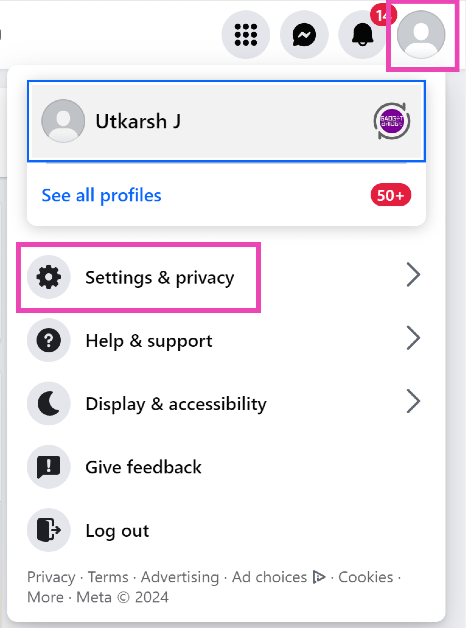 Step 3:
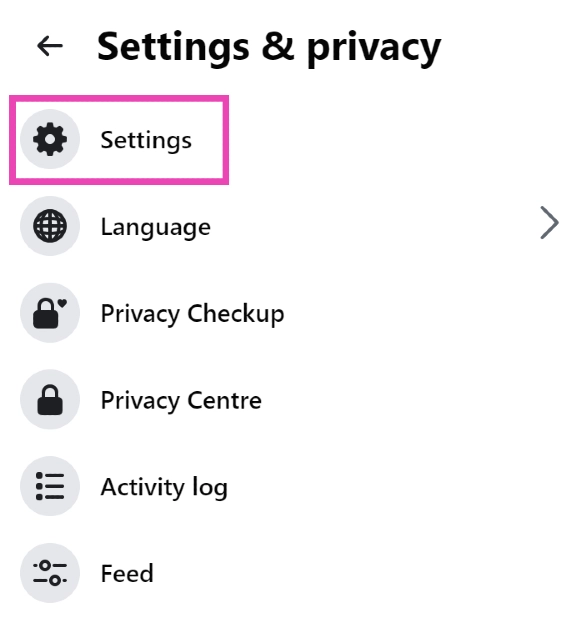 Step 4:
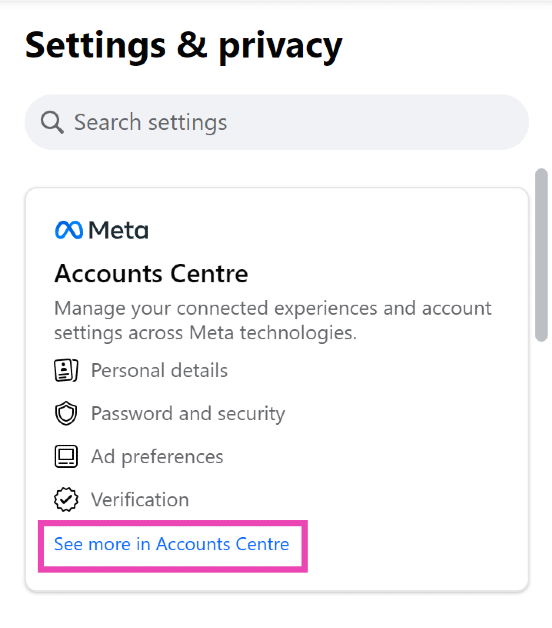 Step 5:
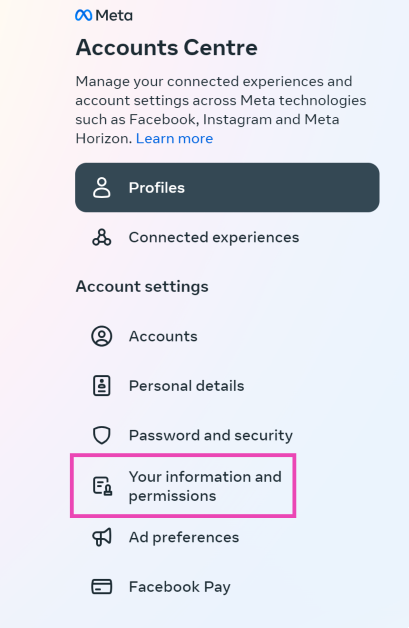 Step 6:
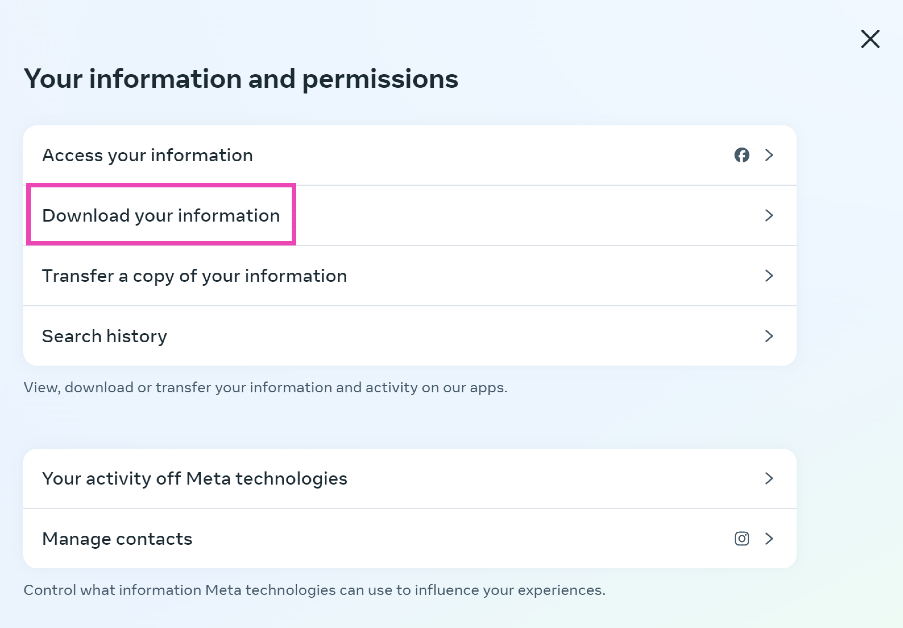 Step 7:
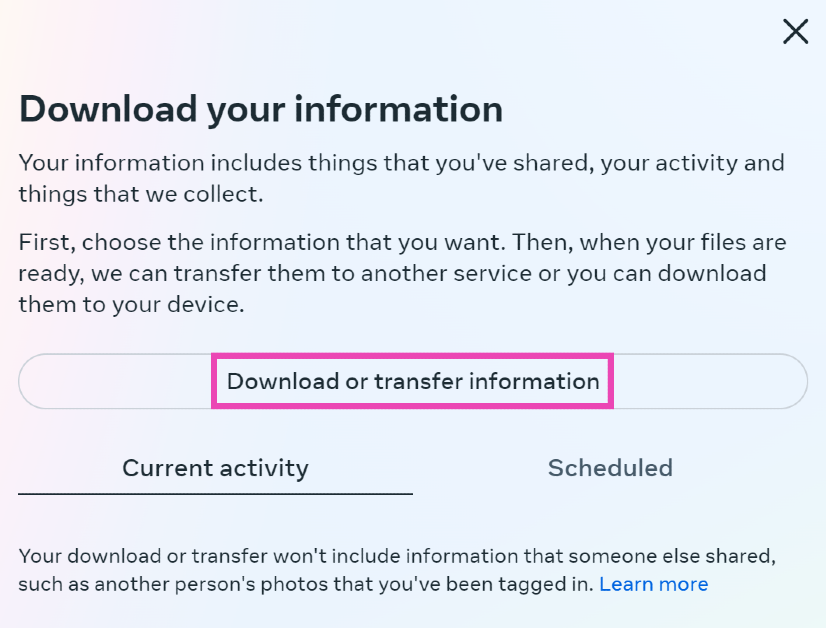 Step 8:
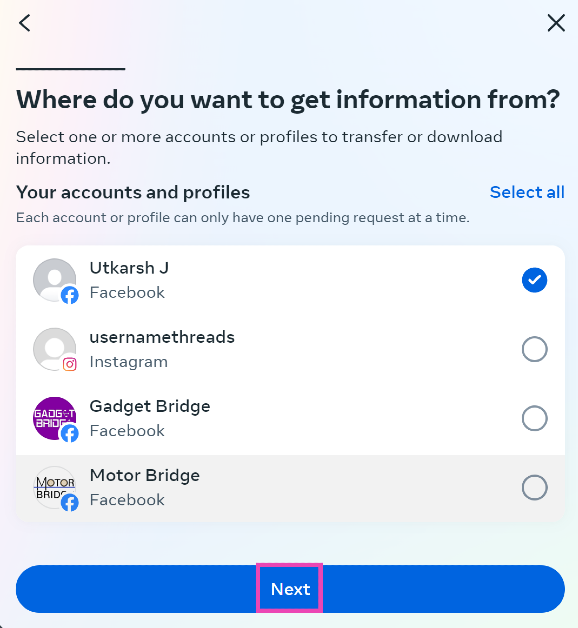 Step 9:
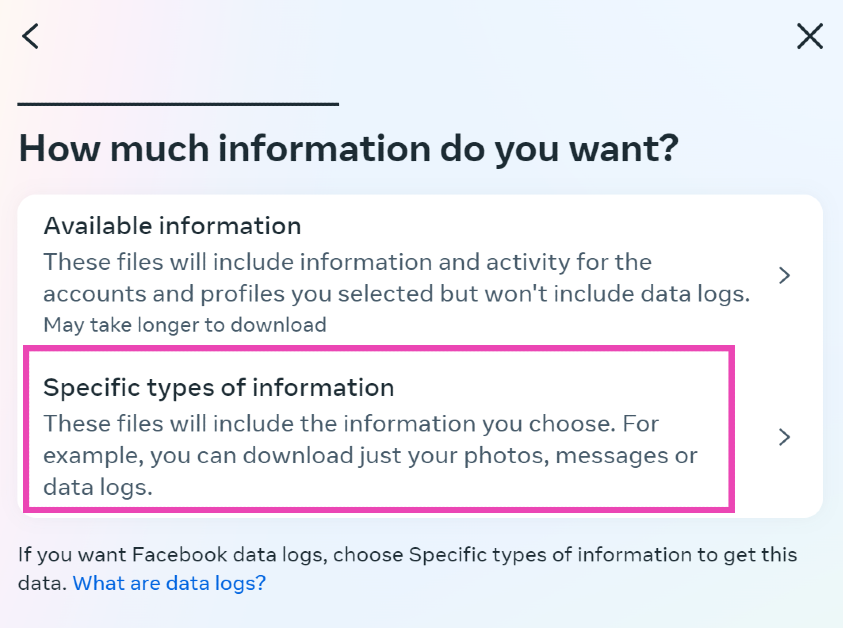 Step 11:
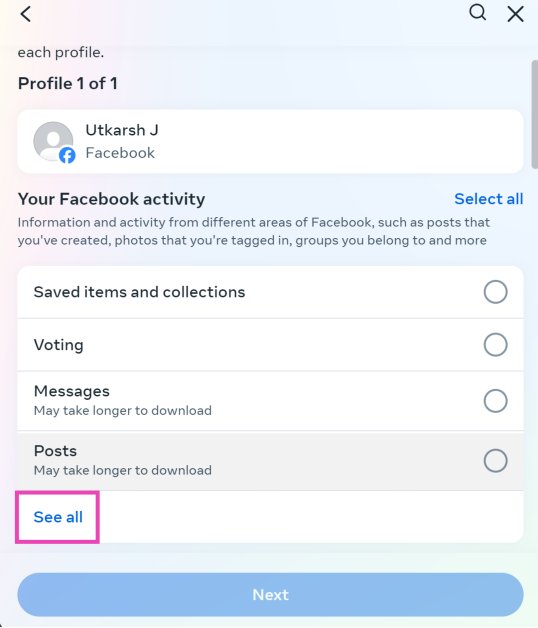 Step 12:
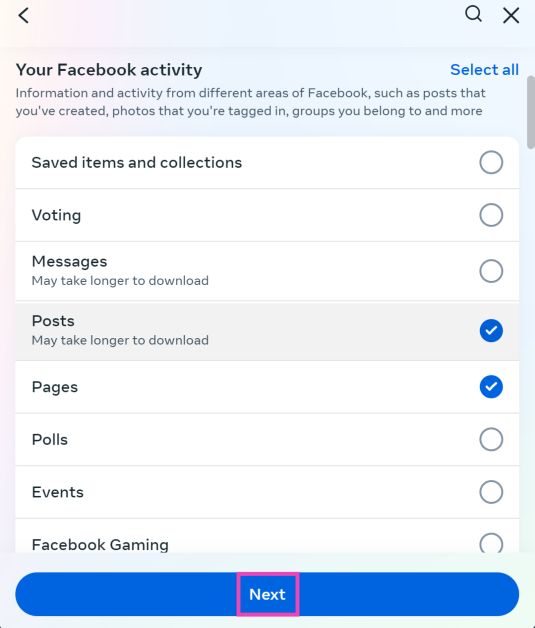 Step 13:
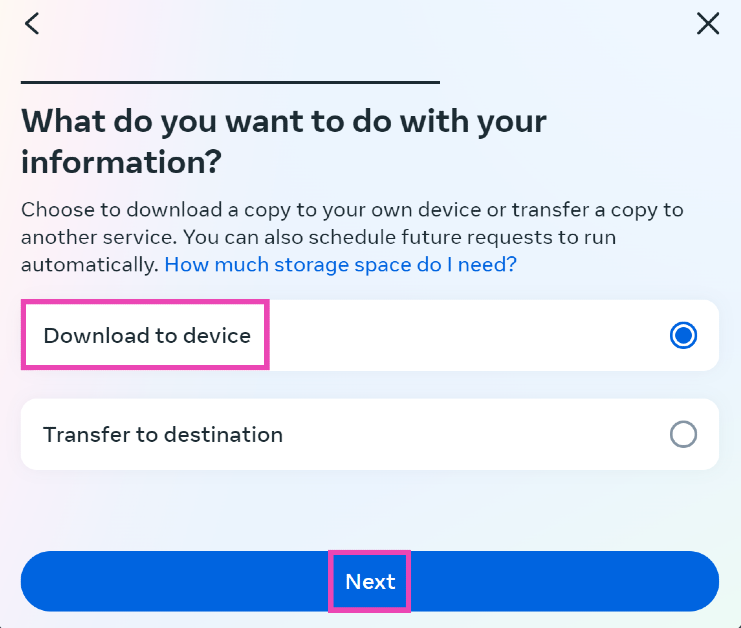 Step 15:
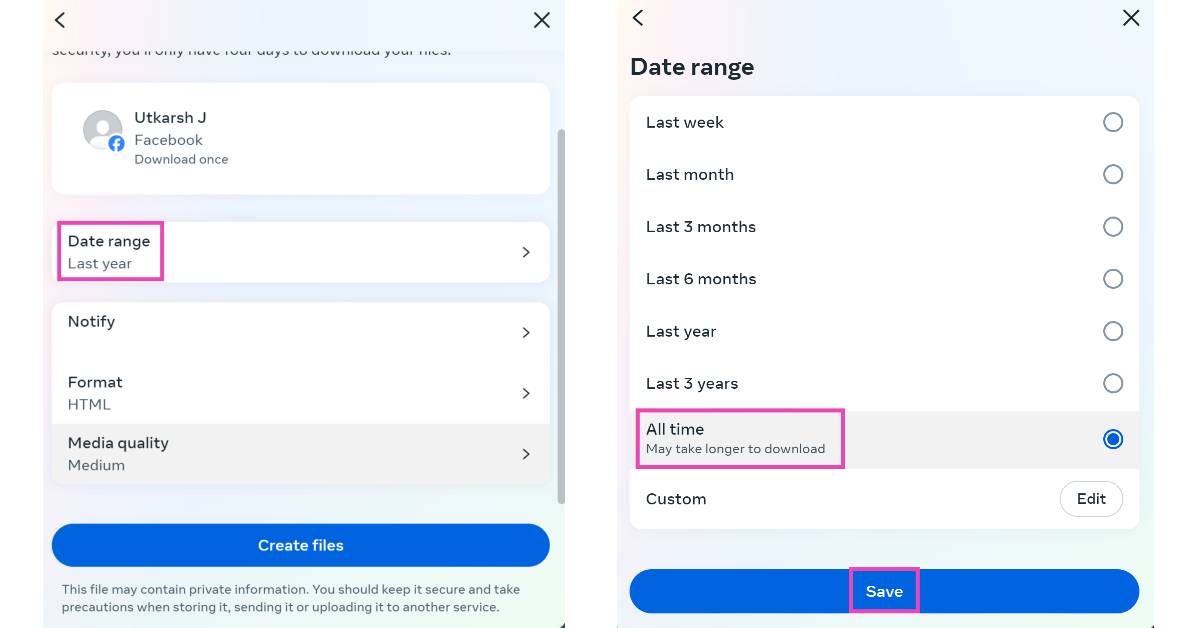 Step 16: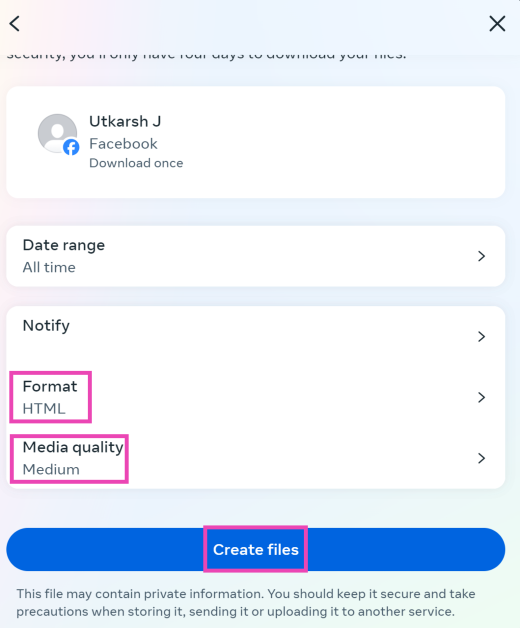
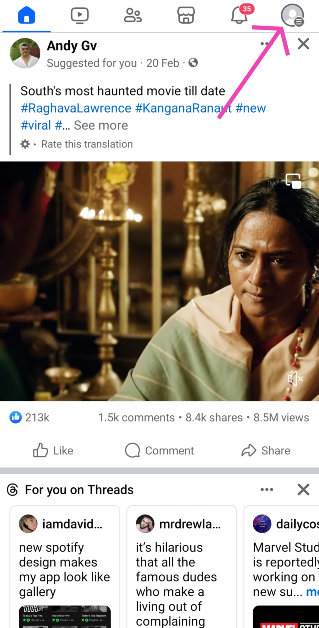 Step 2:
 Step 3:
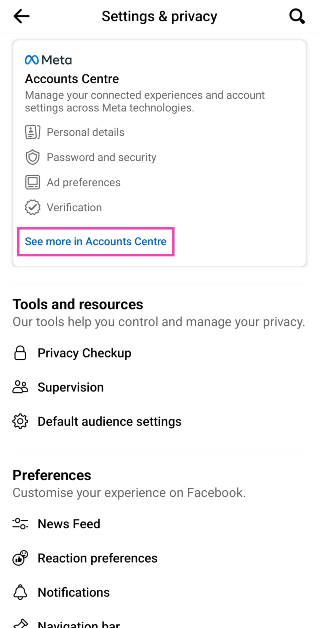 Step 4:
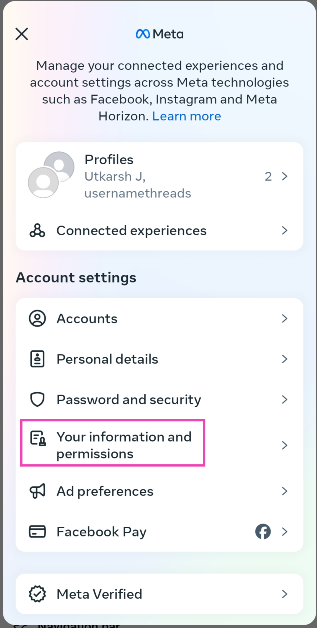 Step 6:
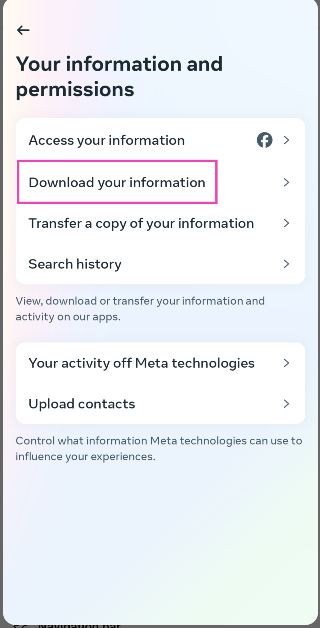 Step 7:
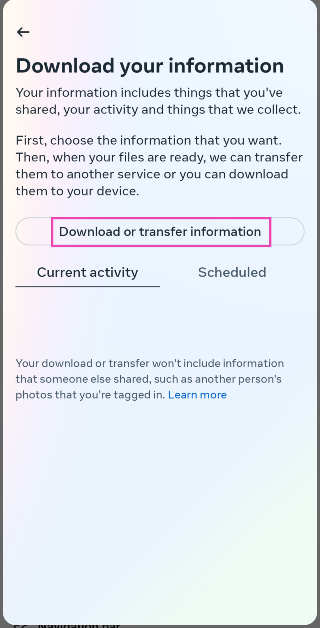 Step 8:
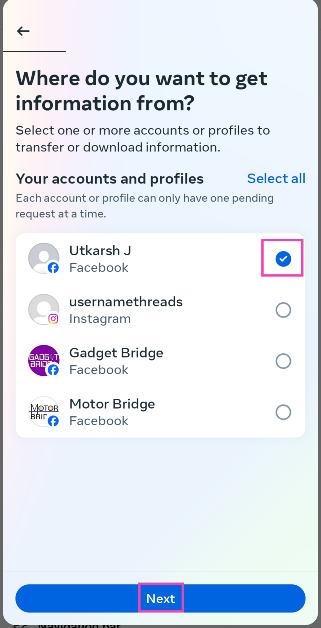 Step 9:
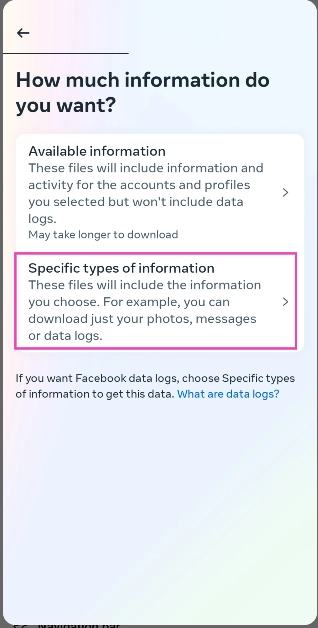 Step 11:
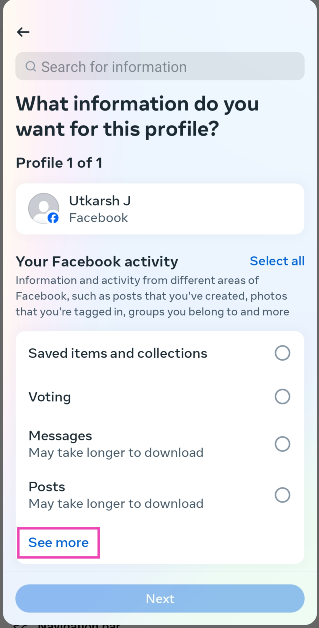 Step 12:
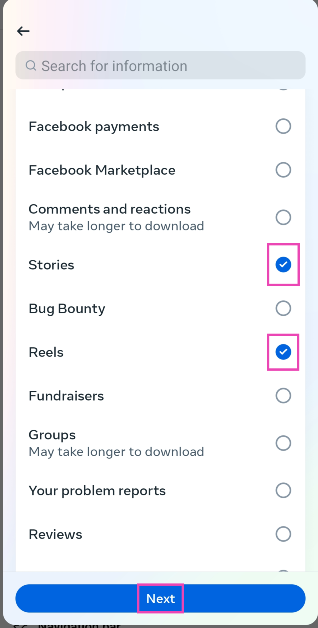 Step 13:
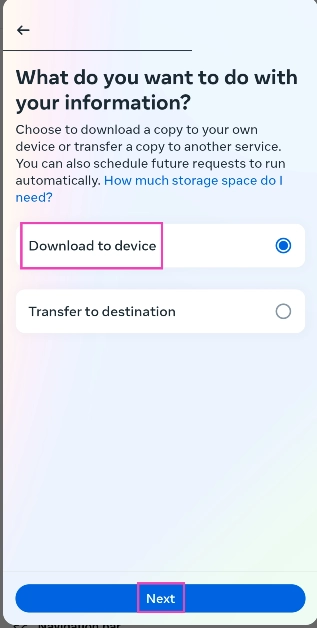 Step 15:
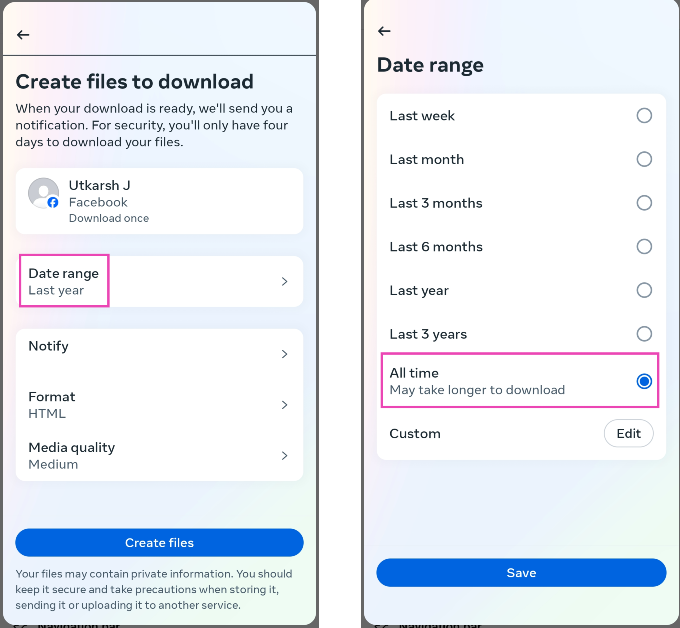 Step 16: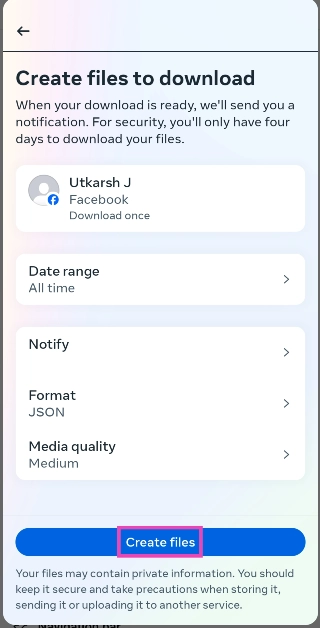
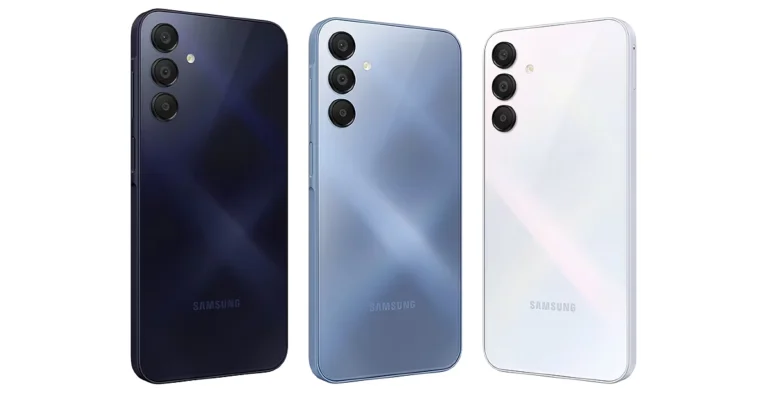
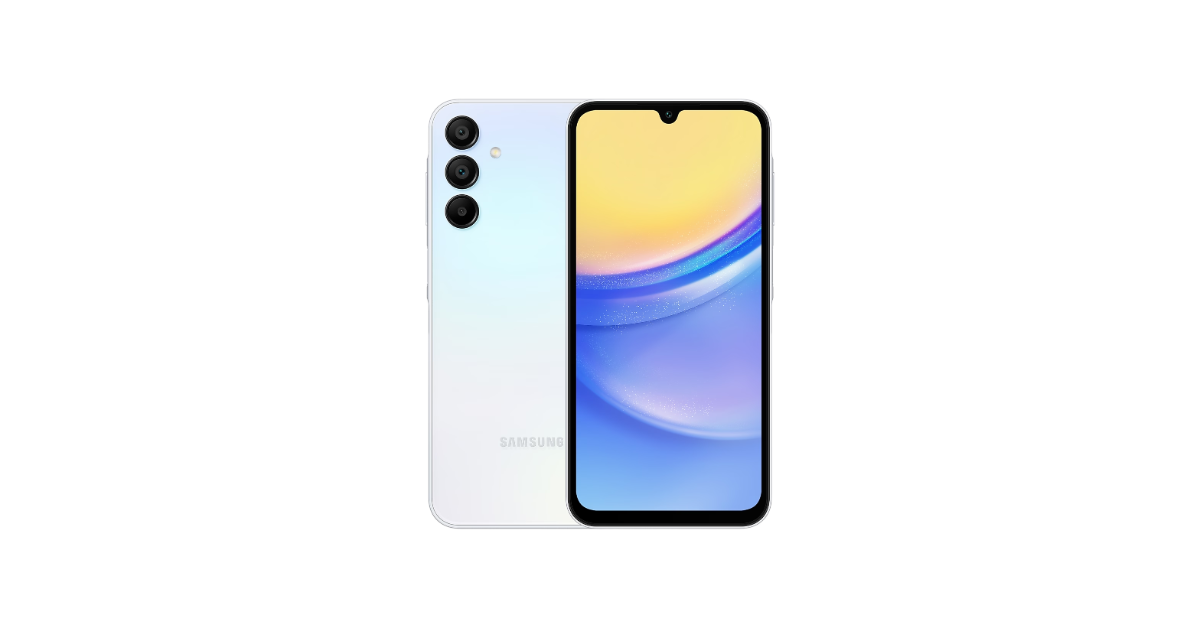
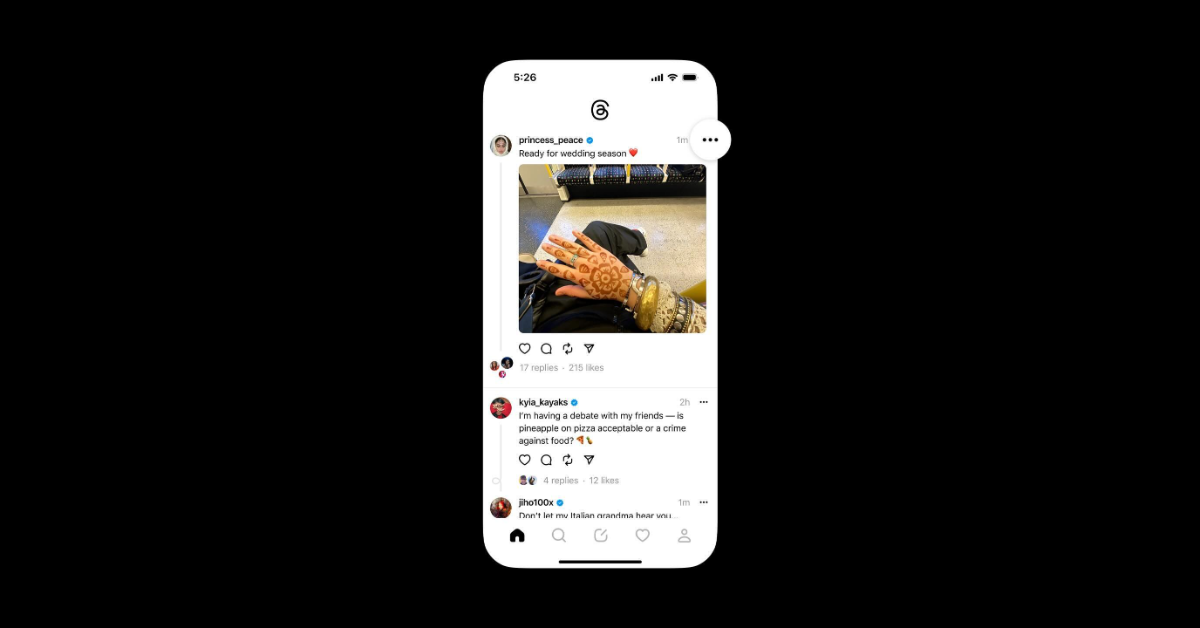
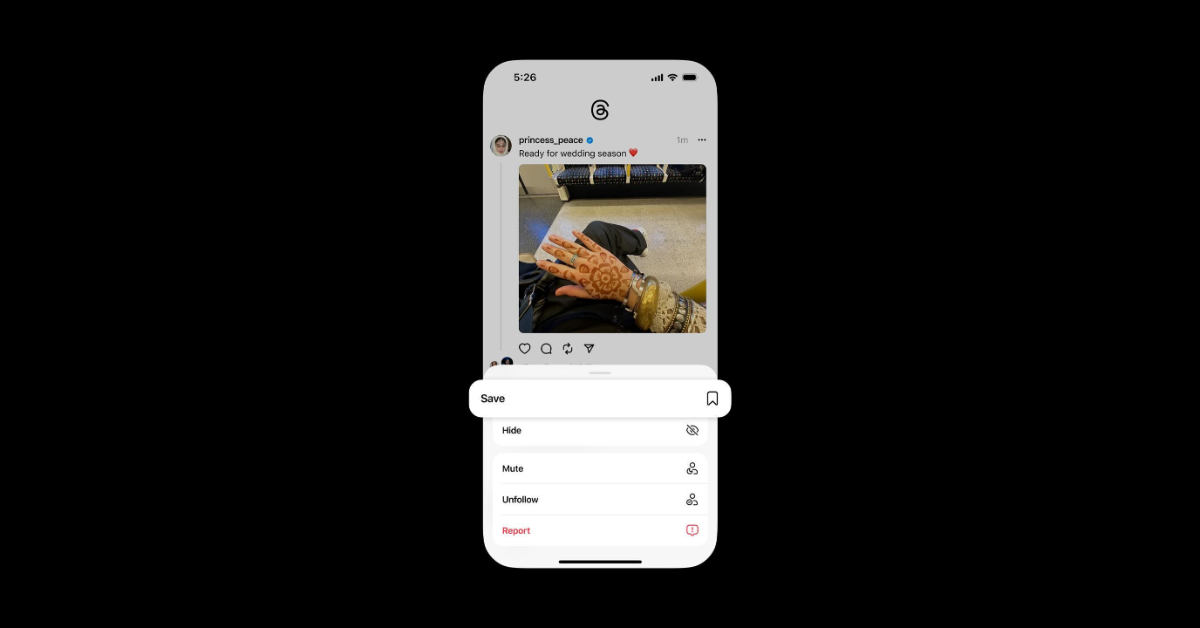
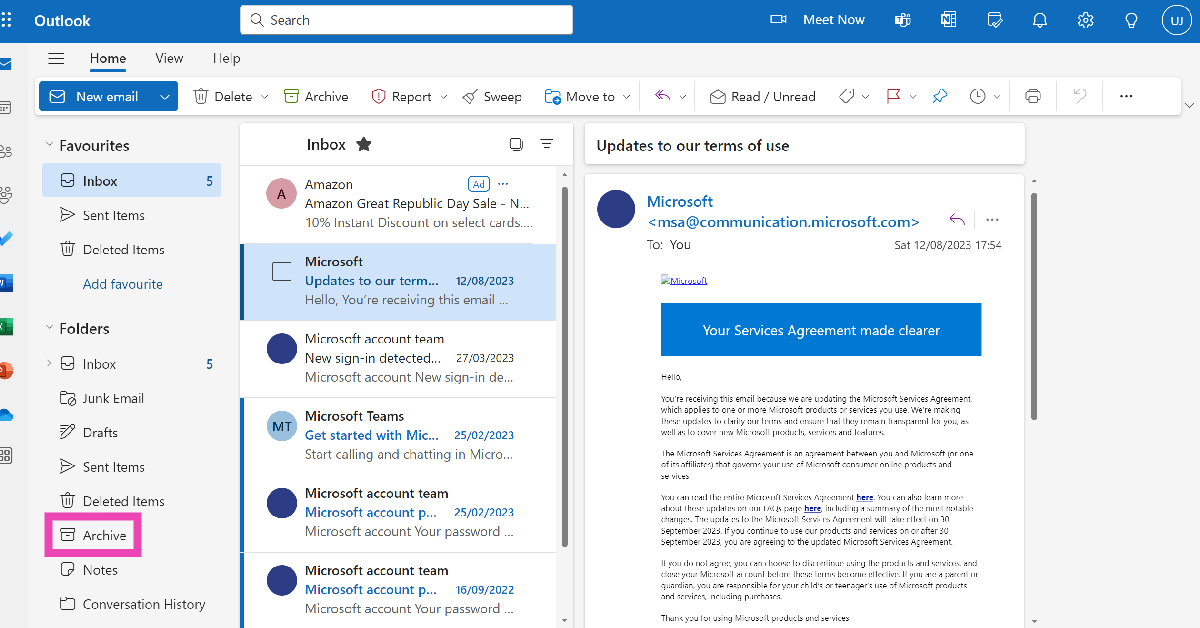
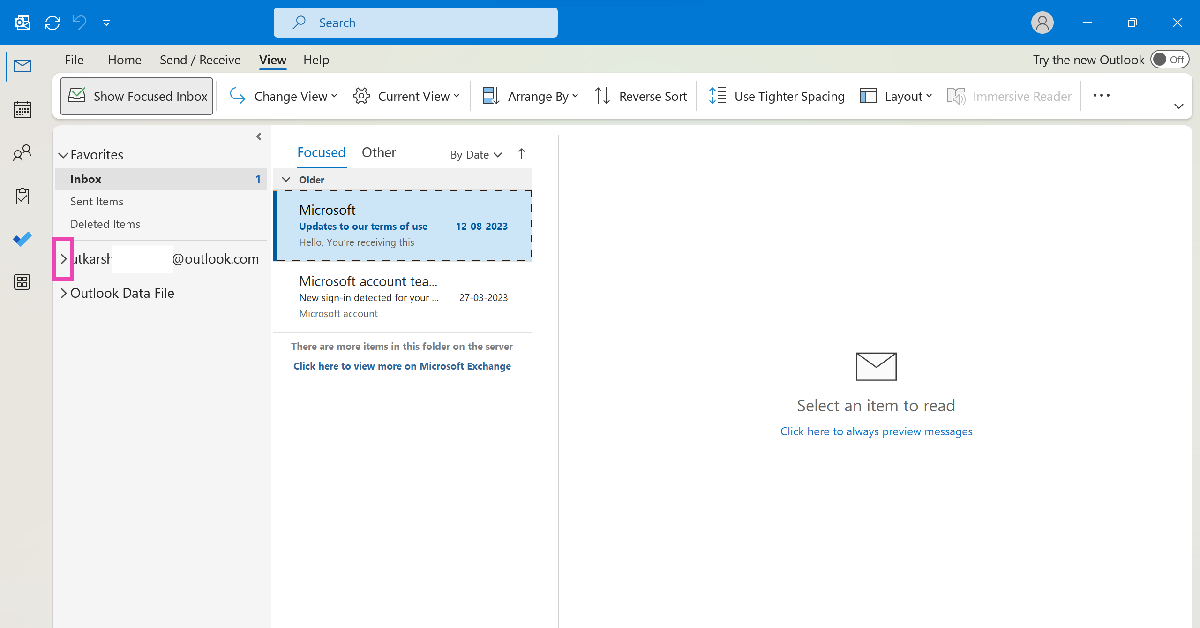 Step 3: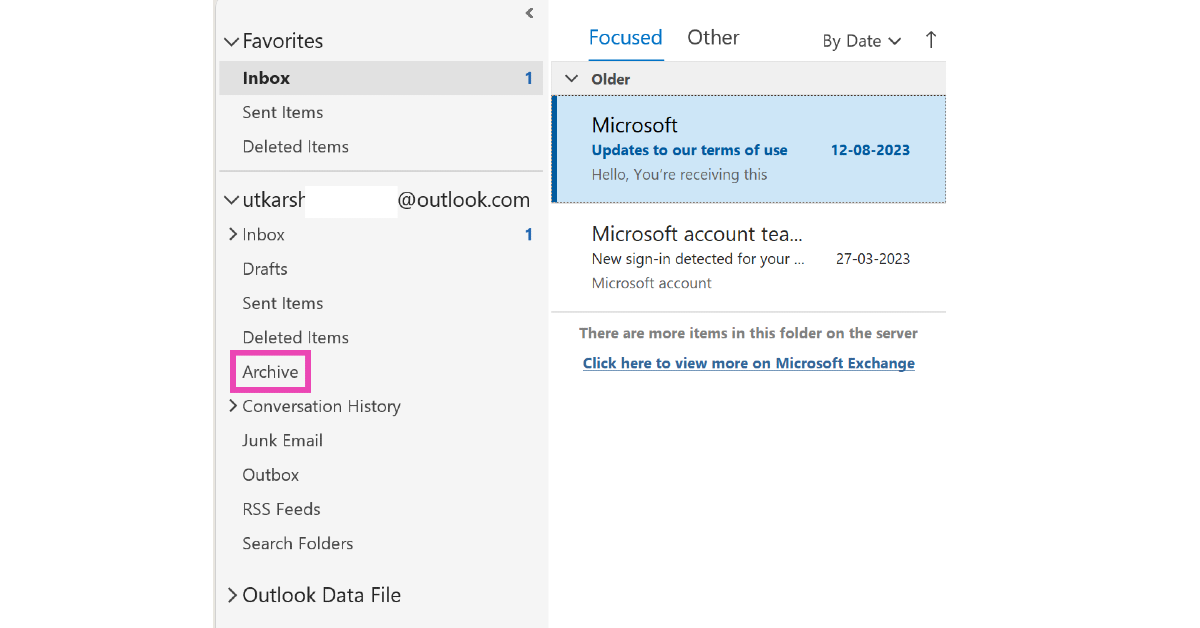
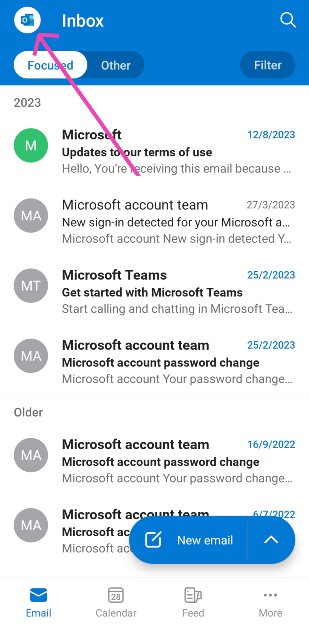 Step 3: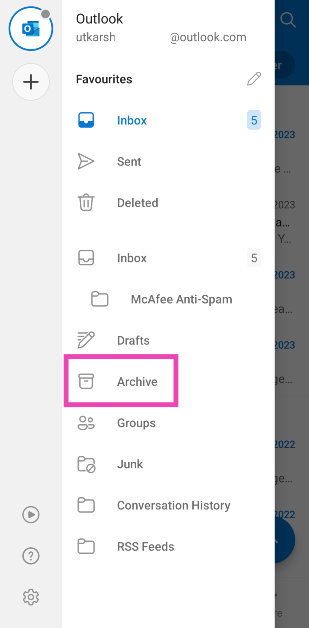
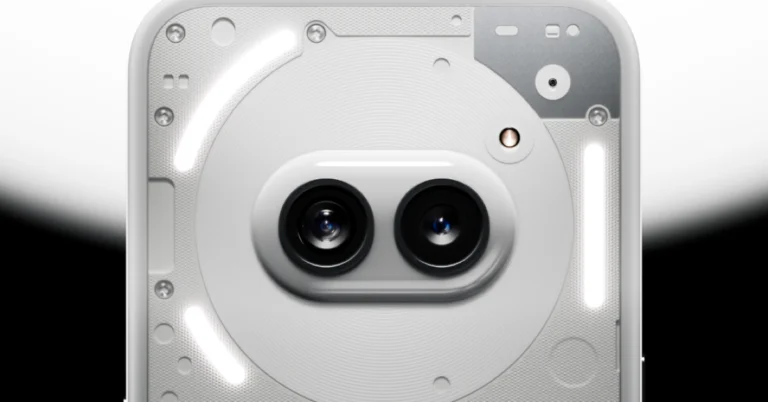
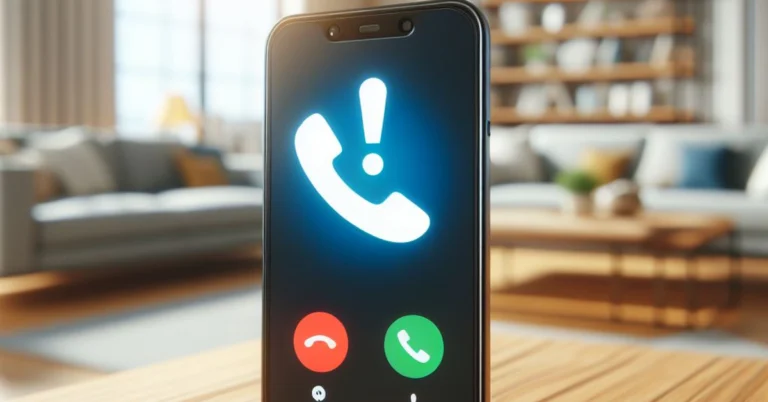
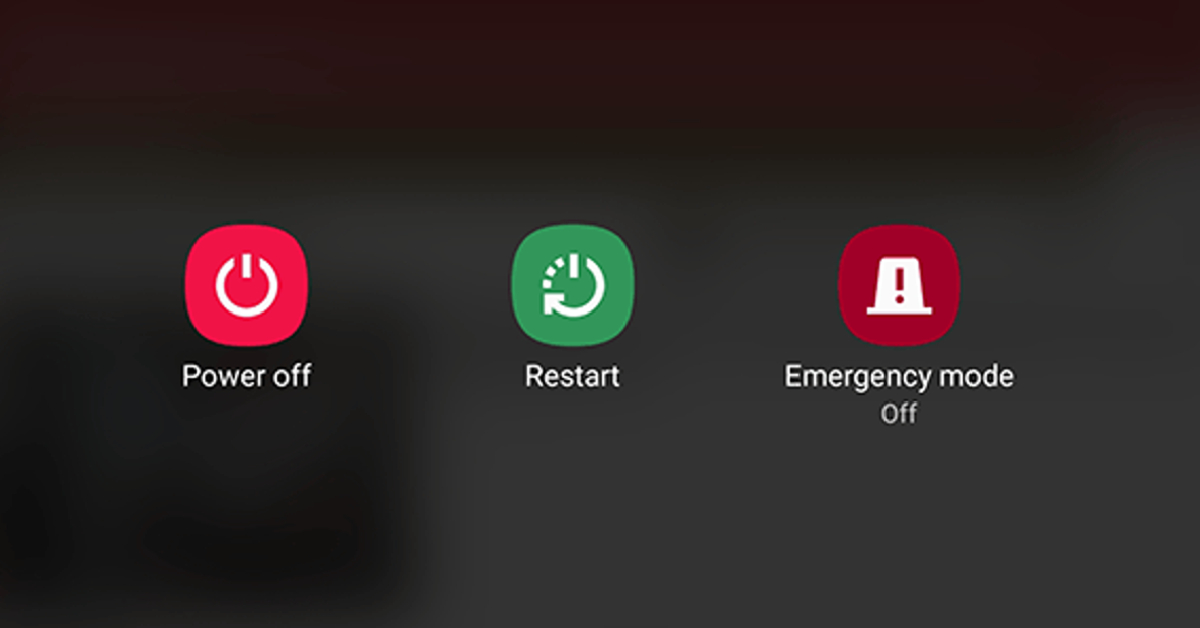


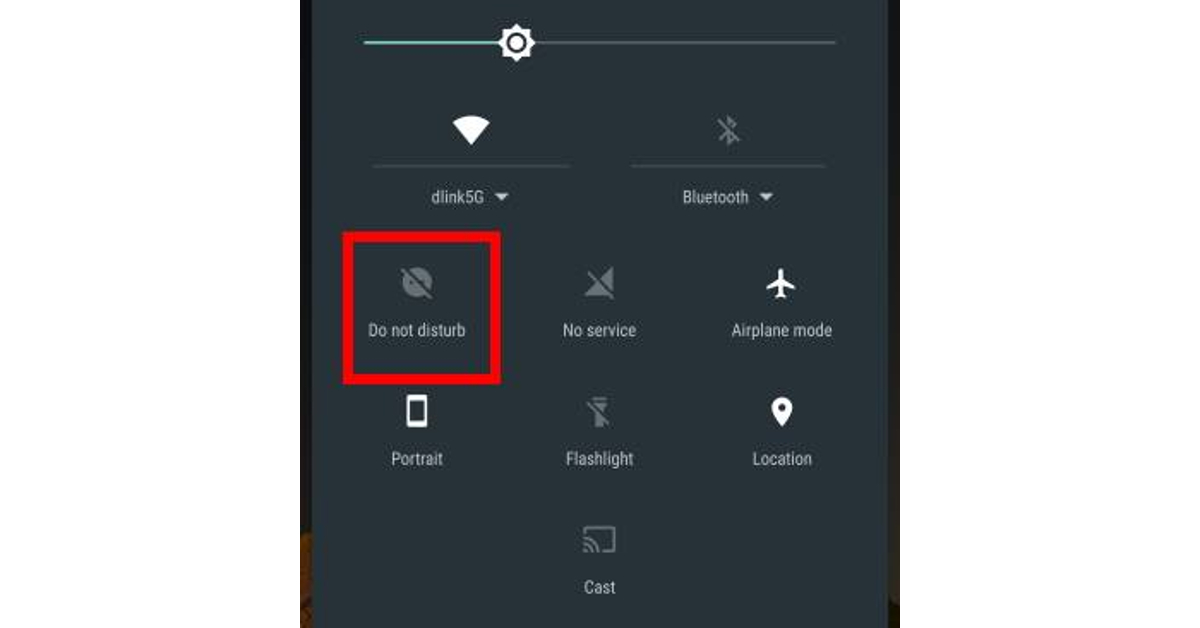 If your phone is in Do Not Disturb mode, it won’t notify you about incoming calls. DND mode only allows calls from whitelisted callers. Other calls only get through when the caller rings you multiple times. To disable DND, swipe down from the status bar and hit the Do Not Disturb tile. You can also disable it by going to Settings>Notifications>Do Not Disturb and turning off the toggle switch.
 If you’re in an area with poor signal strength, the call services on your phone will fail to function. Elevators, basements, and high elevation areas are some of the places where you may face this issue. Move to an open area with better network reception to make or accept a call.
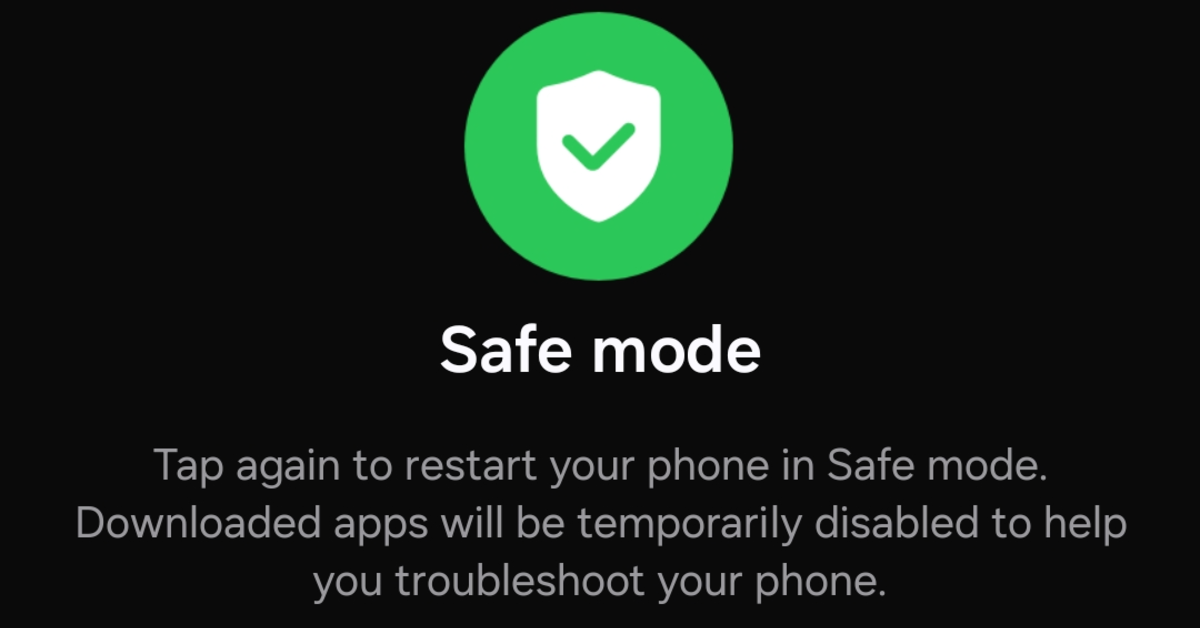 The third-party apps on your phone can often disrupt its regular functioning. Sometimes, the apps downloaded from sketchy sources push malware on your device, causing erratic behaviour. To confirm if this is the case, restart your phone in safe mode. Go to the power menu, long-press the power off icon, and hit ‘Safe Mode’. This will restart your phone and disable all the third-party apps. If you’re still unable to make or receive calls, it means the third-party apps on your phone are not causing the issue.
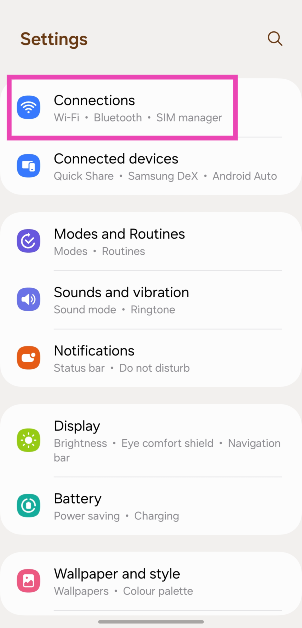 Step 2:
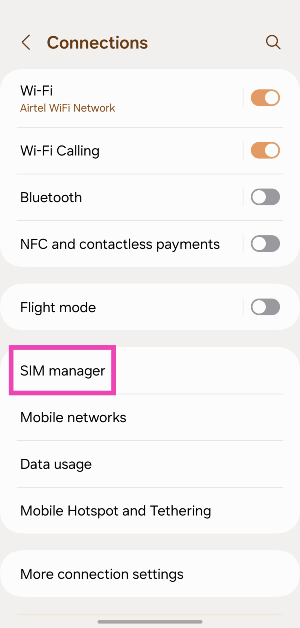 Step 3:
 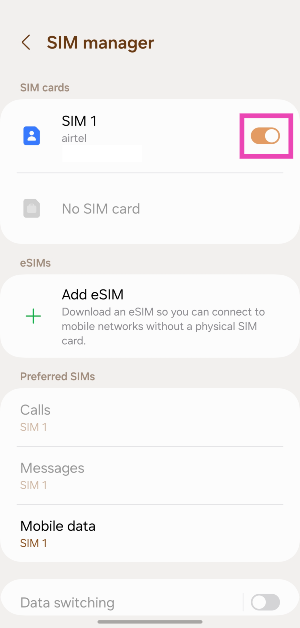 Step 4: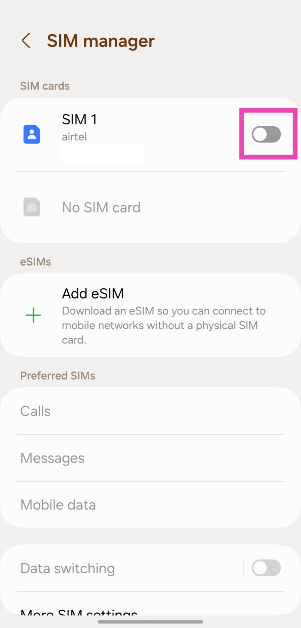
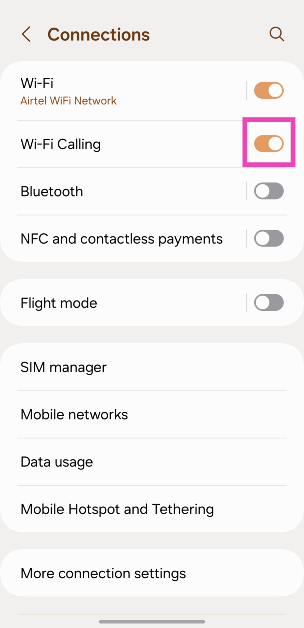
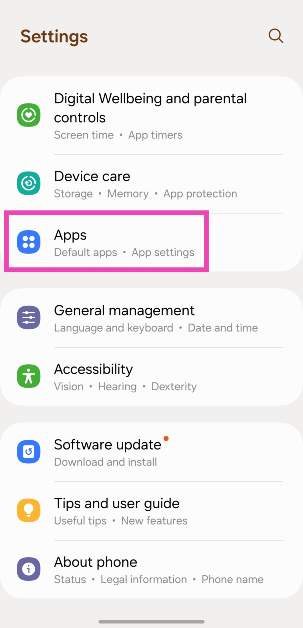 Step 2:
 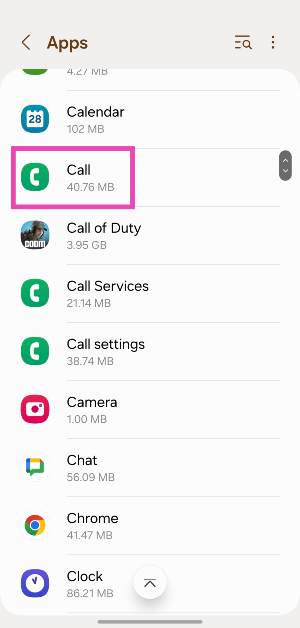 Step 3:
 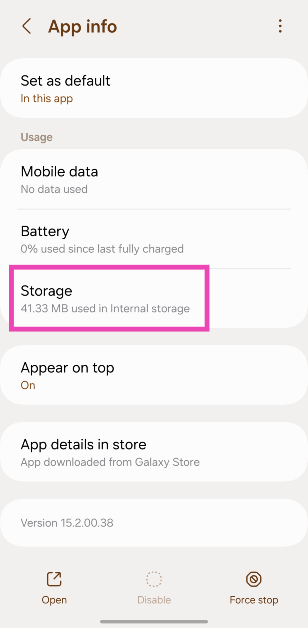 Step 4: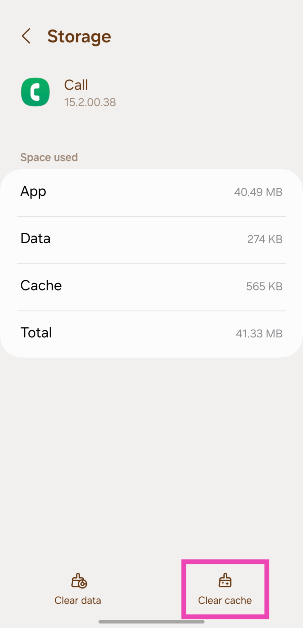
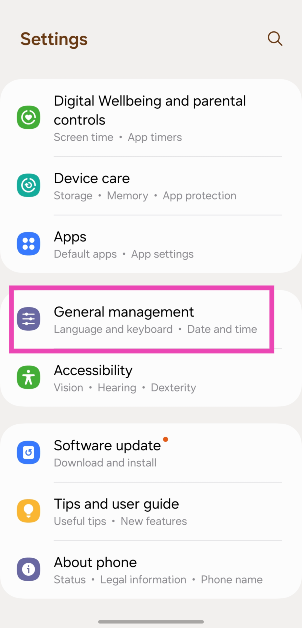 Step 2:
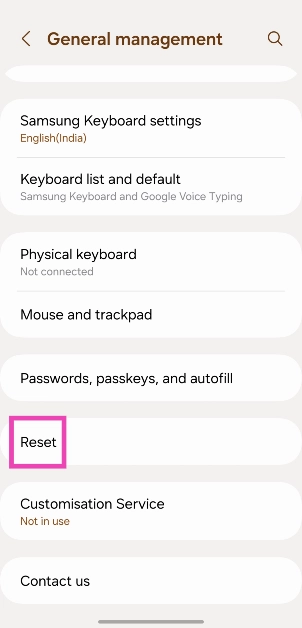 Step 3:
 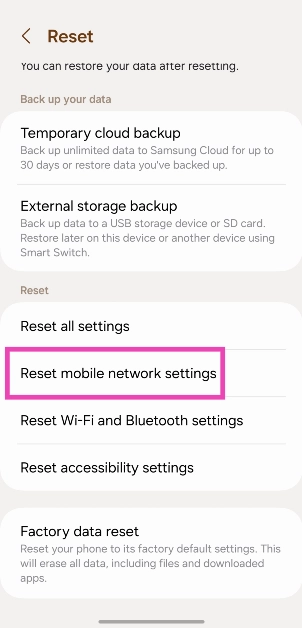 Step 4: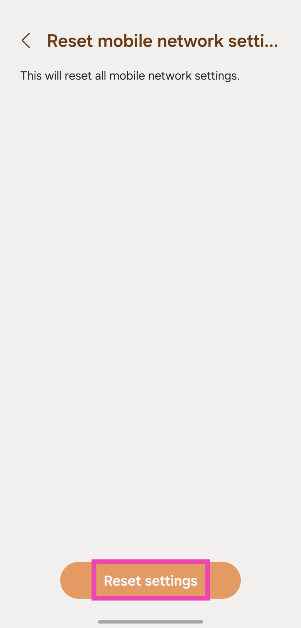
 Step 2:
 Step 3:
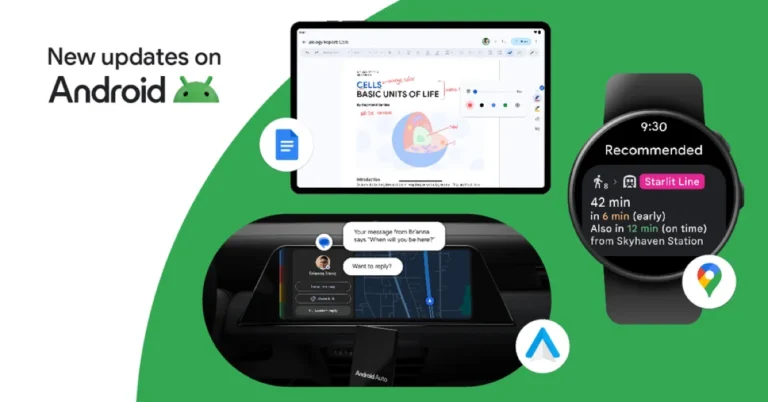


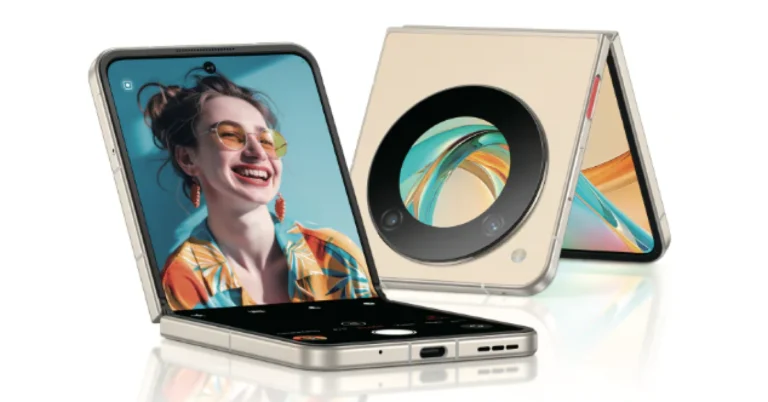
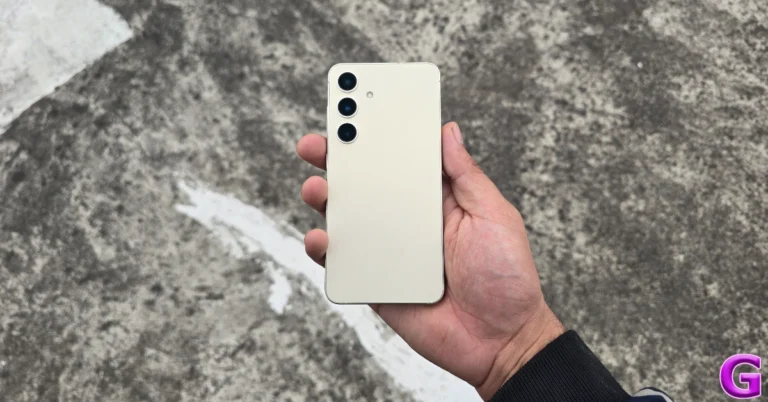


 Step 1:
 Step 1:
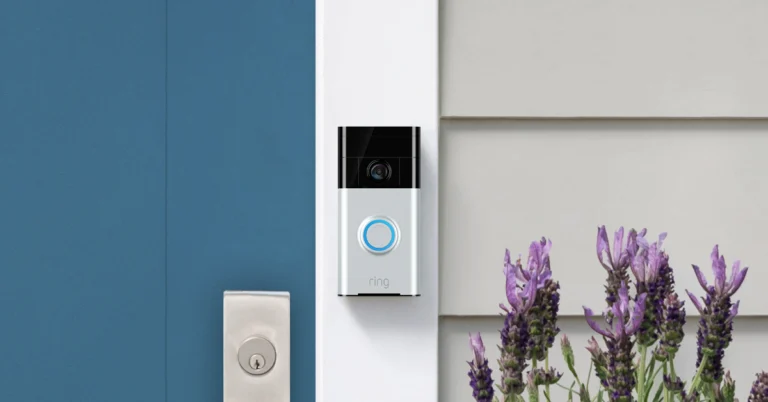
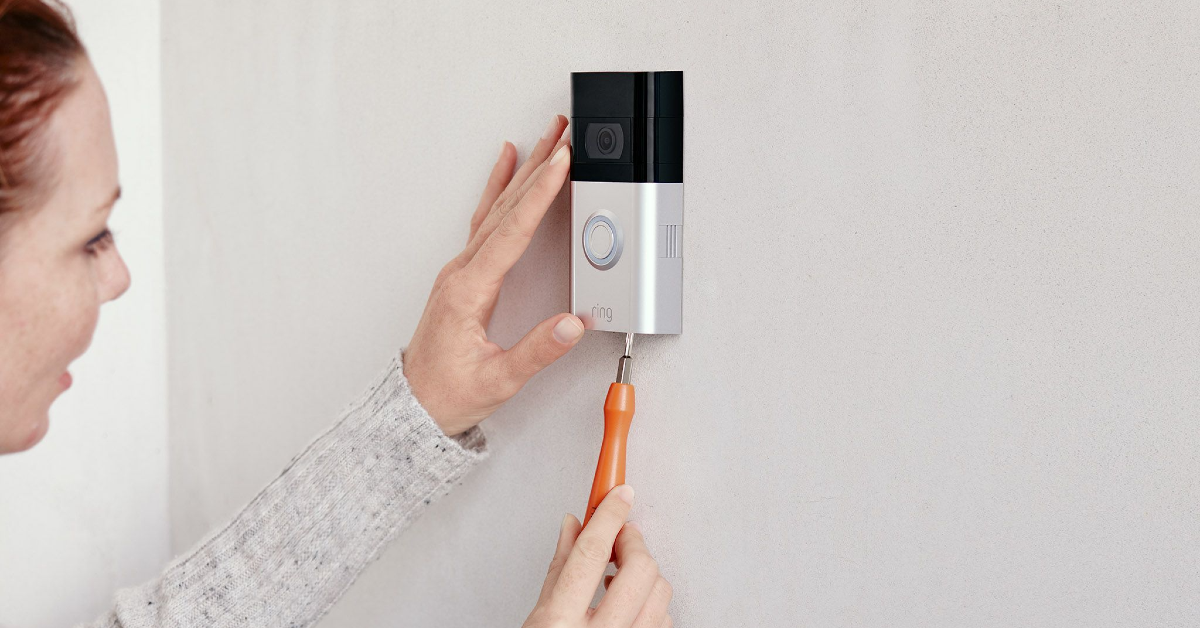 Step 1:
 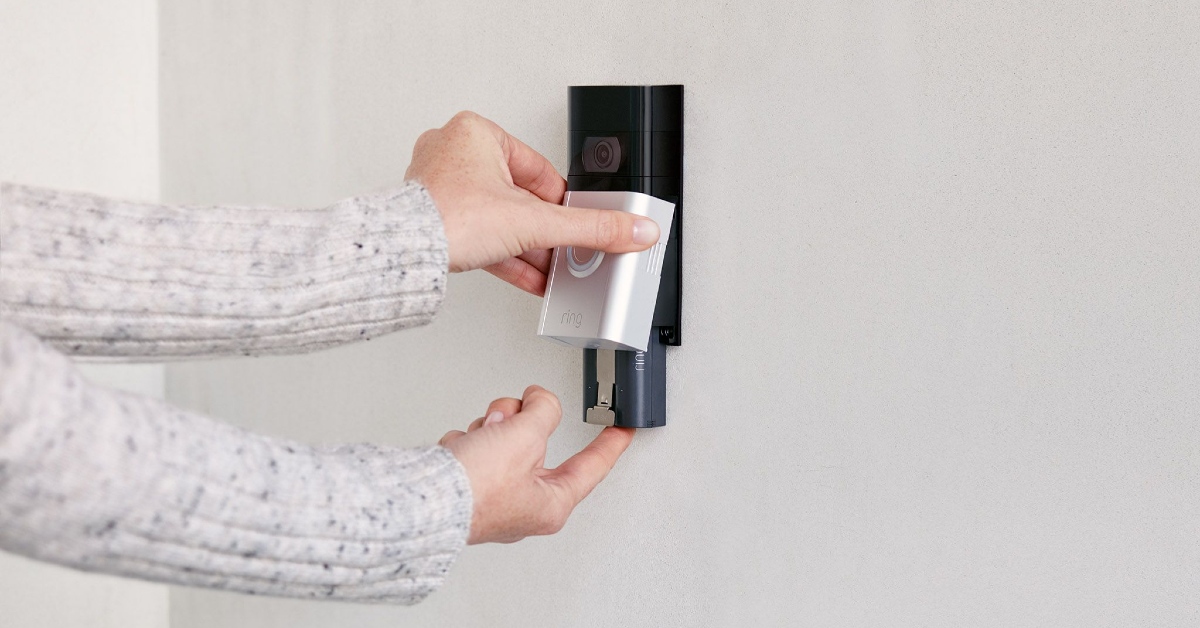 Step 1:
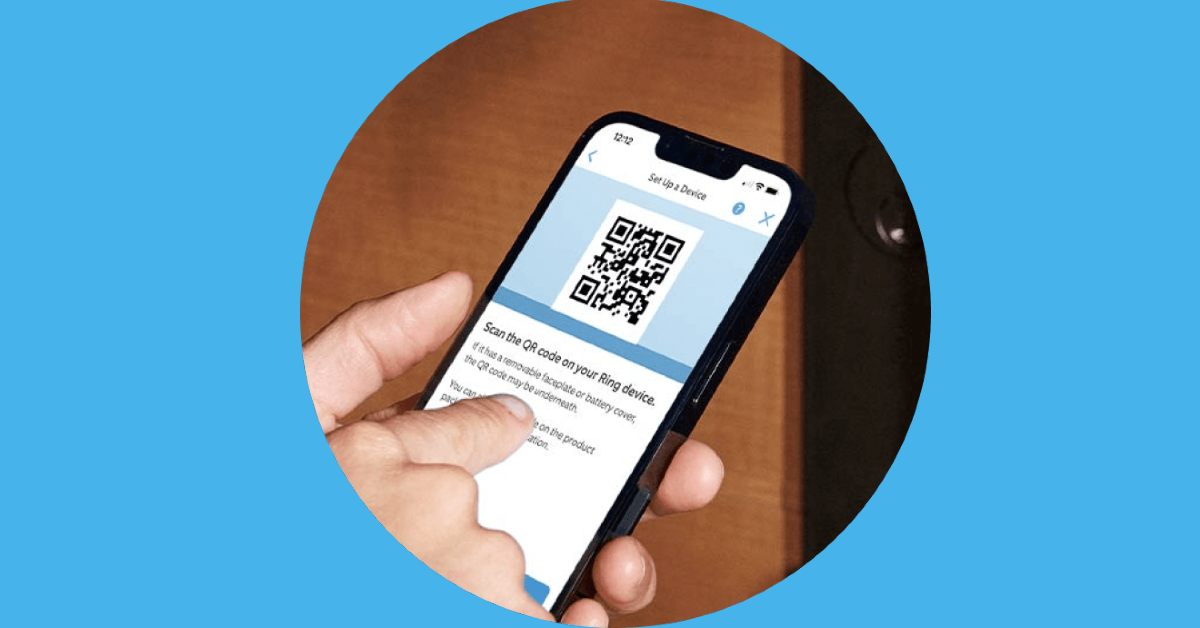 Step 1: Launch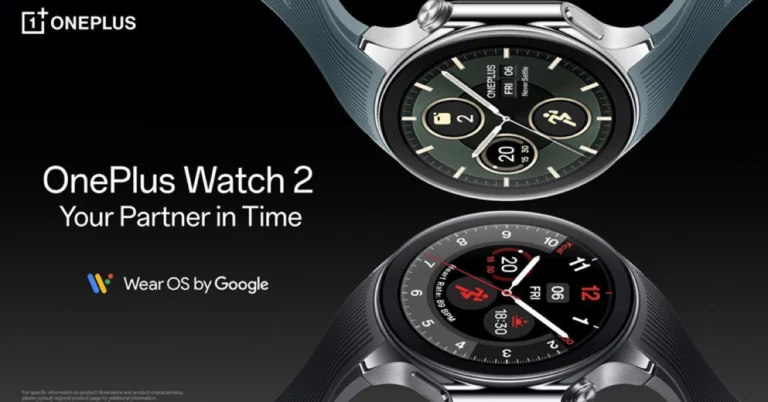
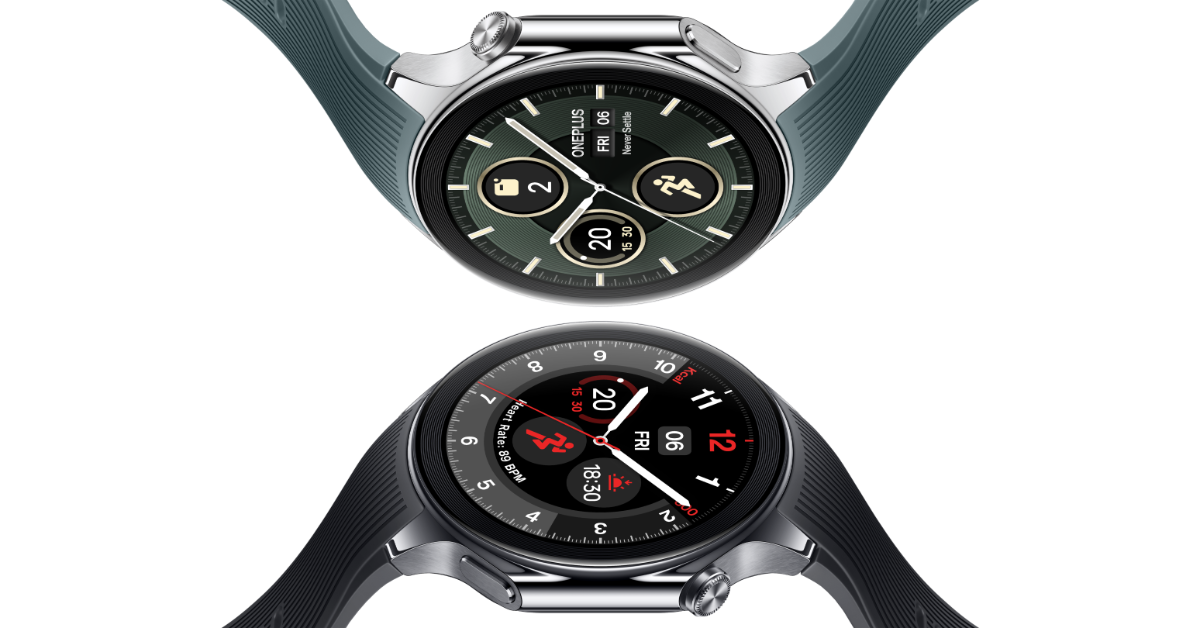
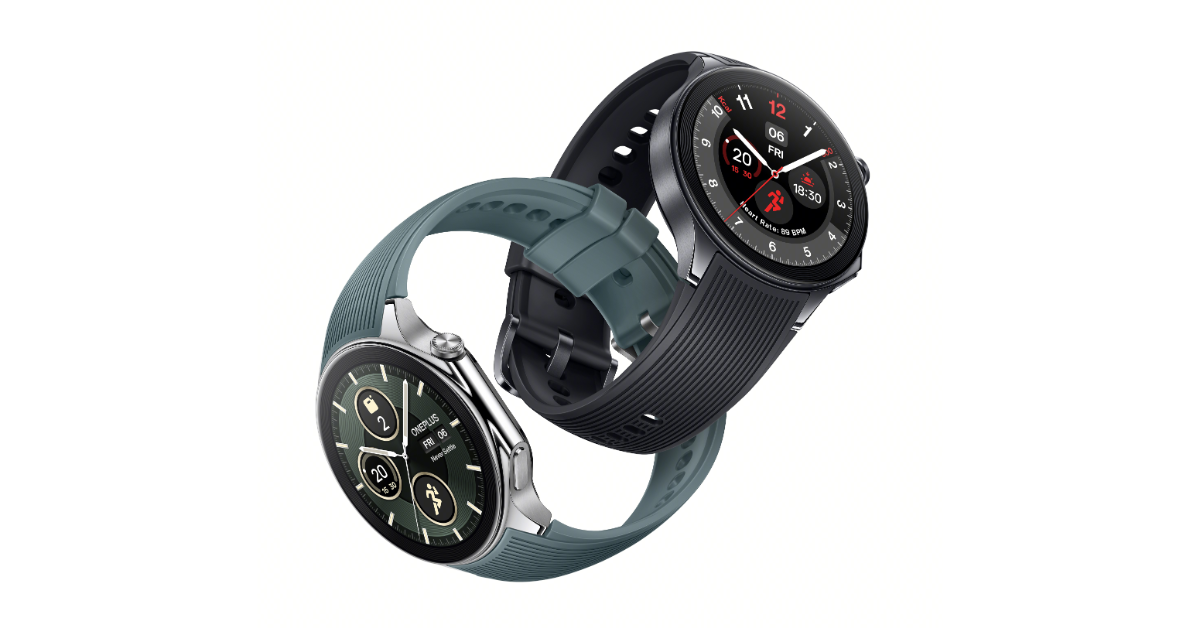



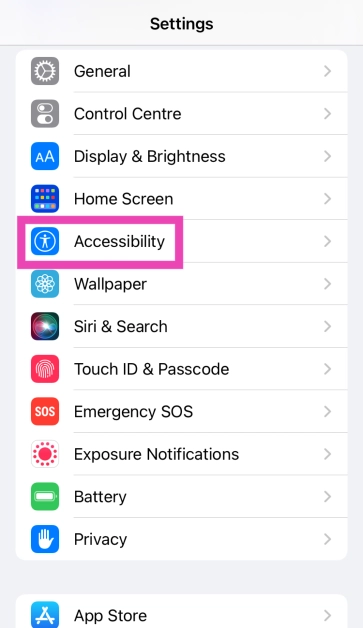 Step 3:
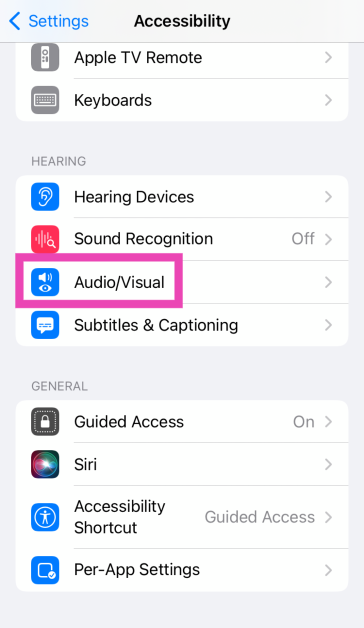 Step 4: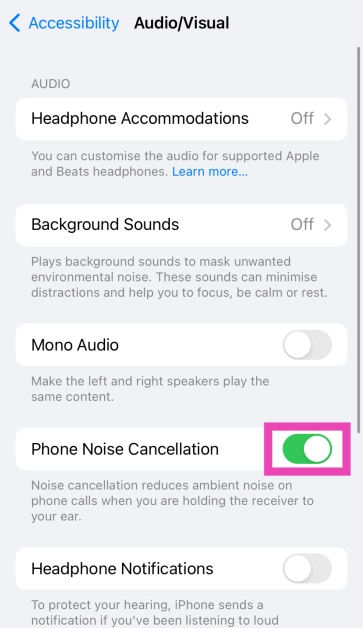
 If you’re in a location with poor network coverage, the call quality will go down. Not only will you hear muddled voices, but the volume will take a hit too. Move to a spot with optimum network coverage to improve the call quality.


 If cleaning the earpiece didn’t do the trick, try playing a
 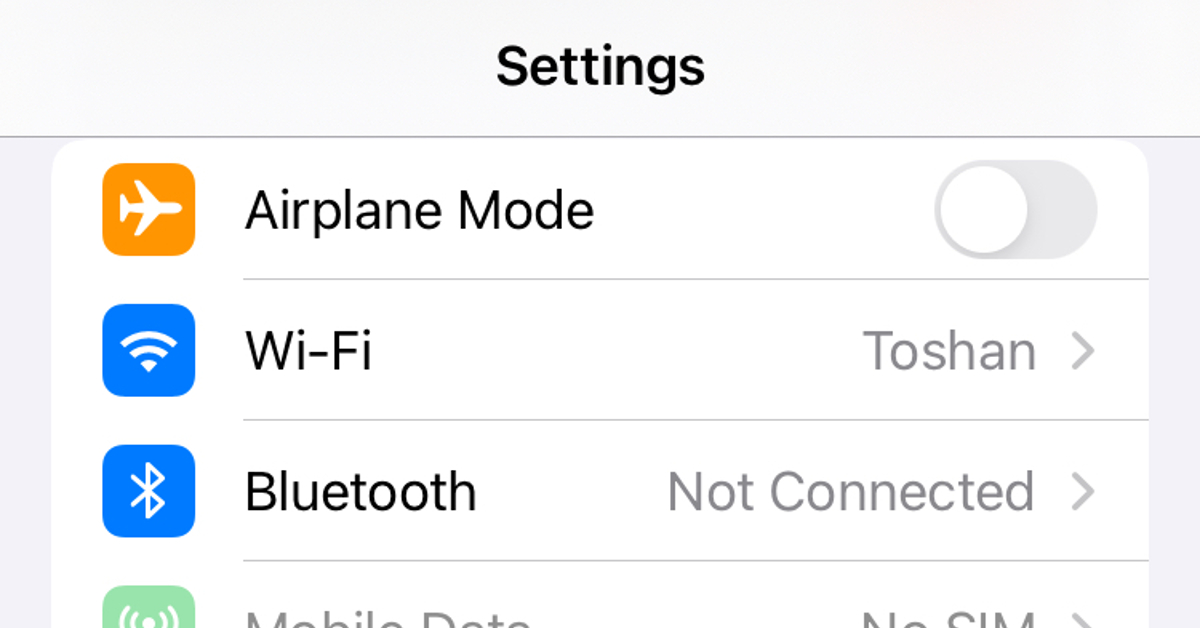 Toggle the Airplane Mode on and off to refresh the cellular network. You can do this by going to settings and turning on the toggle switch next to Airplane Mode. Alternatively, you can swipe down from the top-right section of the status bar and tap the plane icon. Once Airplane Mode has been enabled, wait for 15-20 seconds and turn it off.
 Step 3:
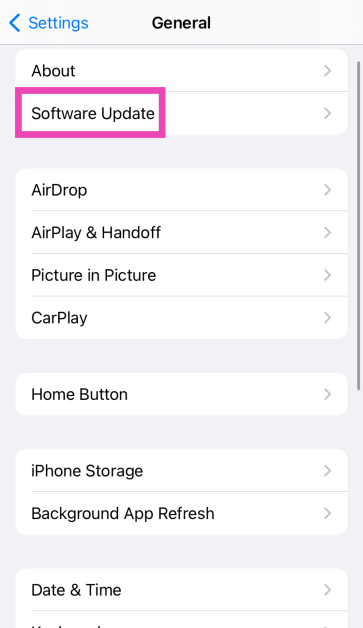 Step 4: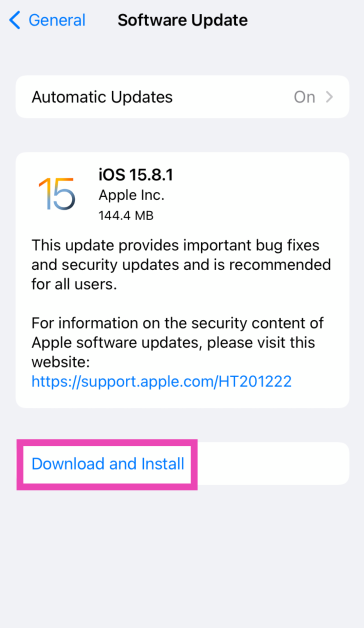
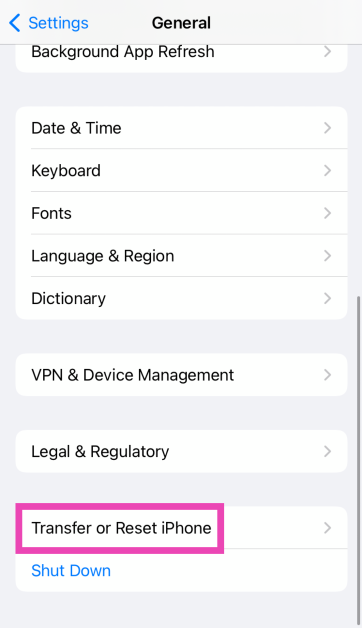 Step 3:
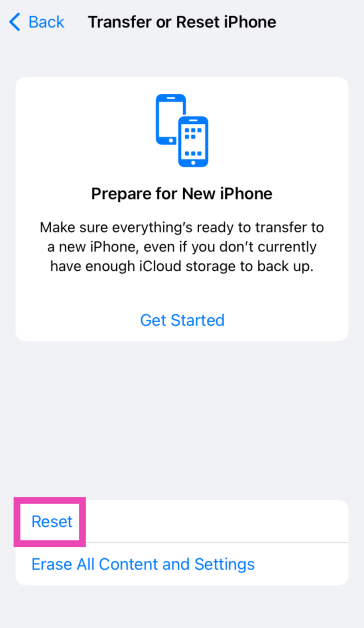 Step 4: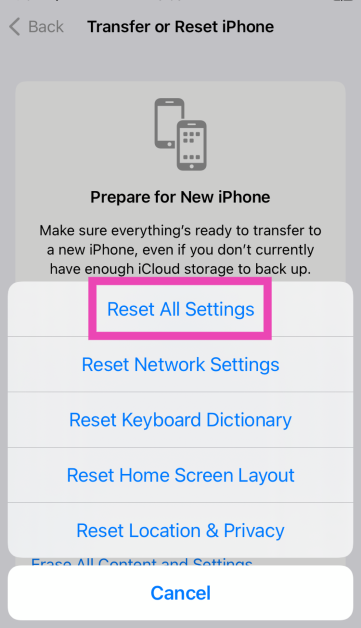
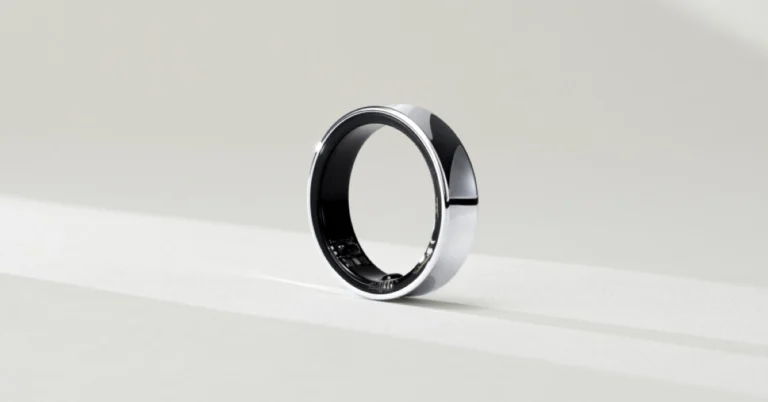
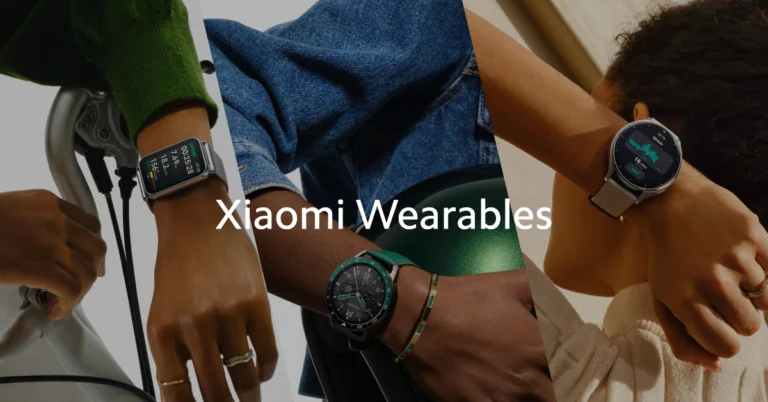

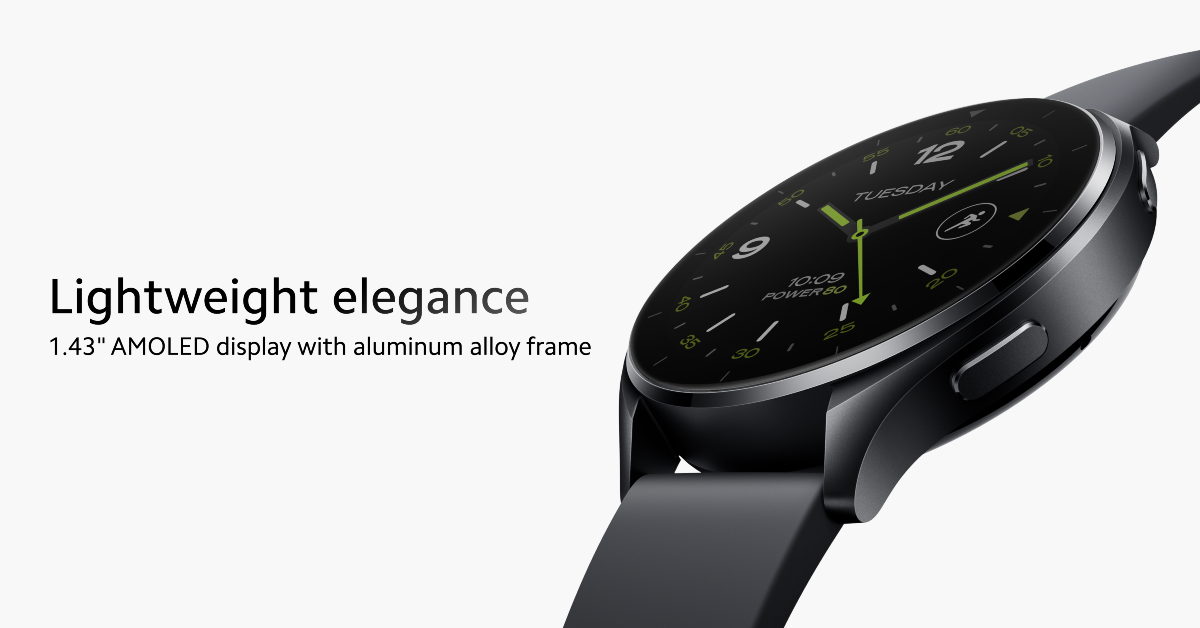
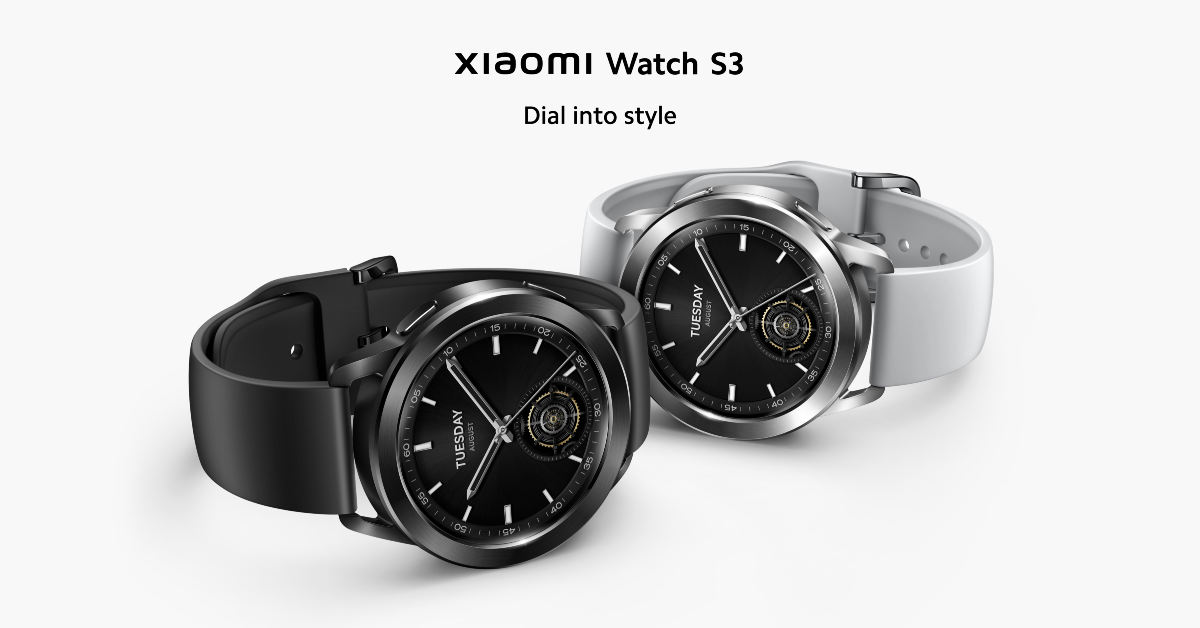
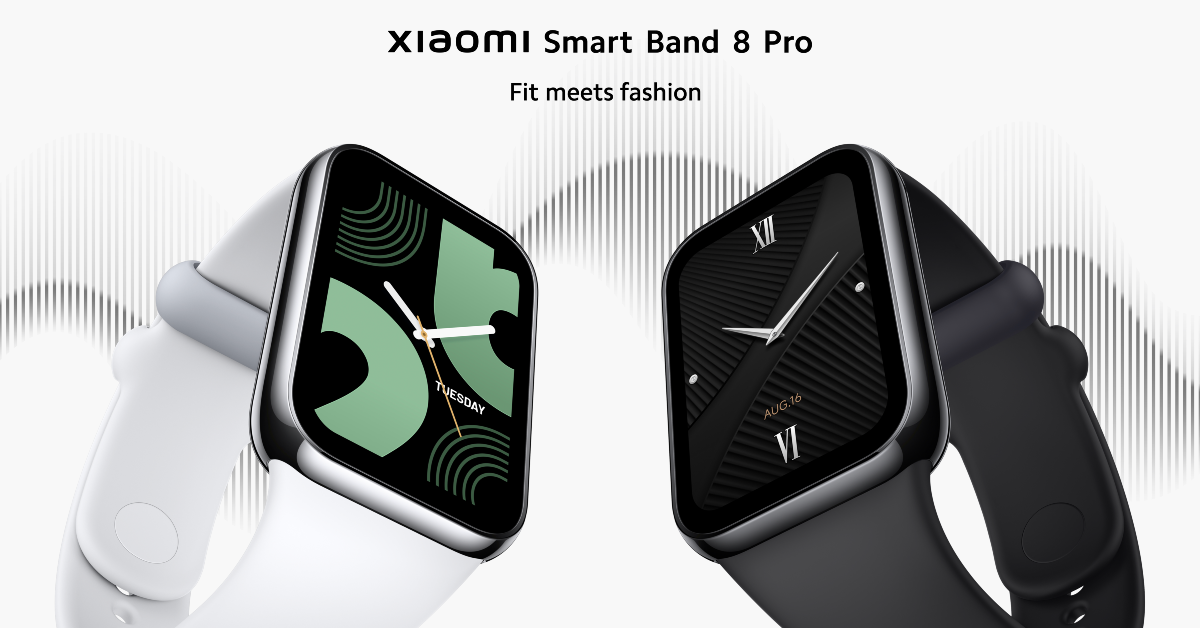
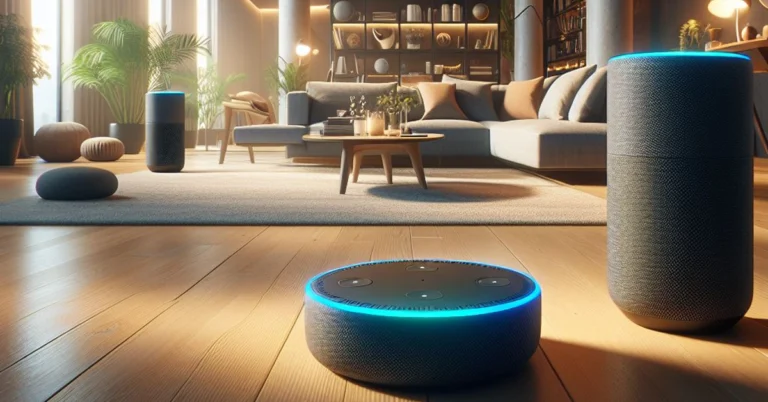

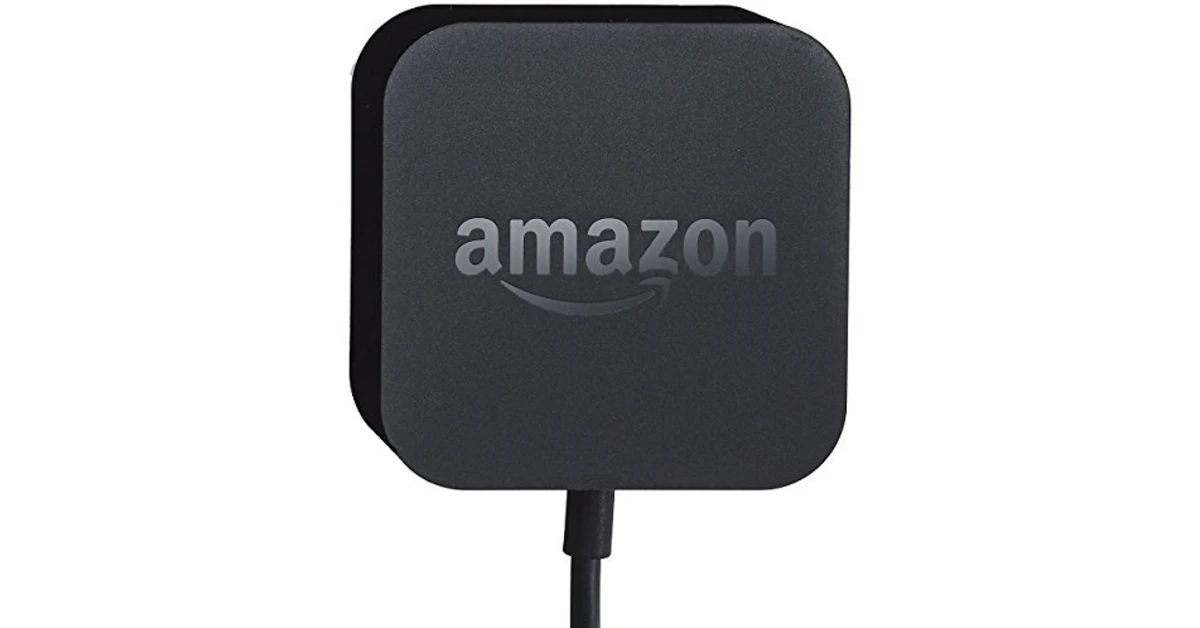 Amazon insists that you use the power adapter that came with your Echo device. Substituting it with an off-brand 12V unit is bound to create issues. If you damaged the original adapter, look for the official Echo adapter on Amazon. It will cost more than other aftermarket replacements, but it will not throw any unwarranted problems your way.

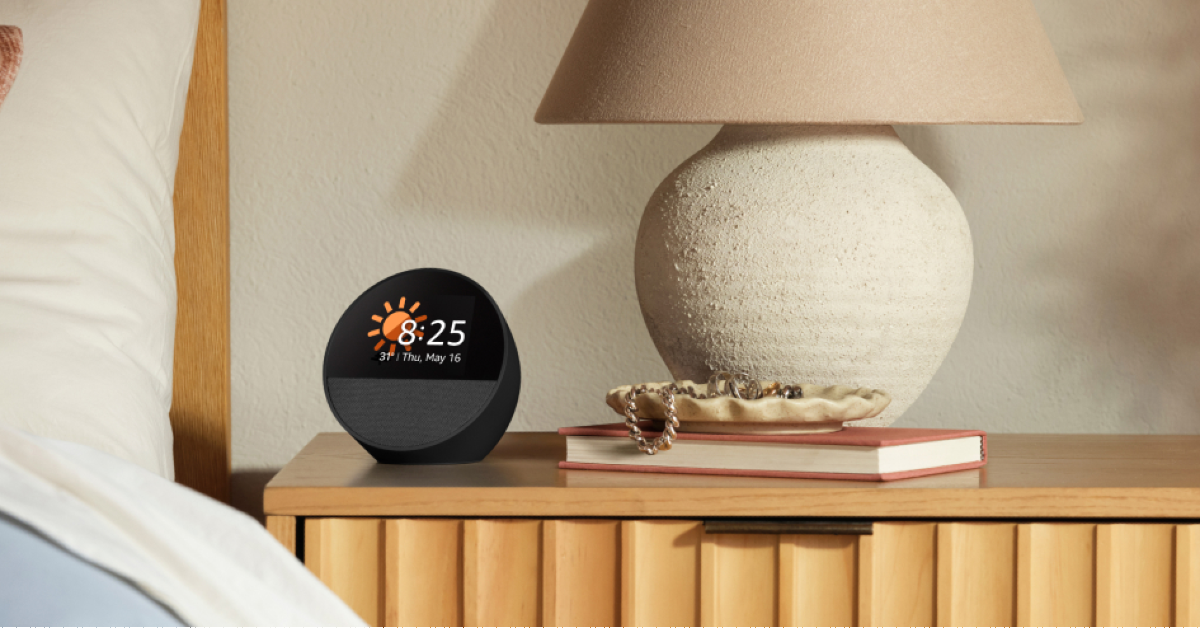 For Alexa to work smoothly, it needs unfettered internet access. If your Echo device is placed far away from the WiFi router, it may not receive a healthy signal. Move the Echo device closer to the router to ensure better connectivity.
 If you want to play music on your Echo device using your phone, you need to ensure they are on the same WiFi network first. This also applies to other tasks, including changing the device settings. If your smartphone is using mobile data, switch to your home WiFi network to communicate with Alexa.
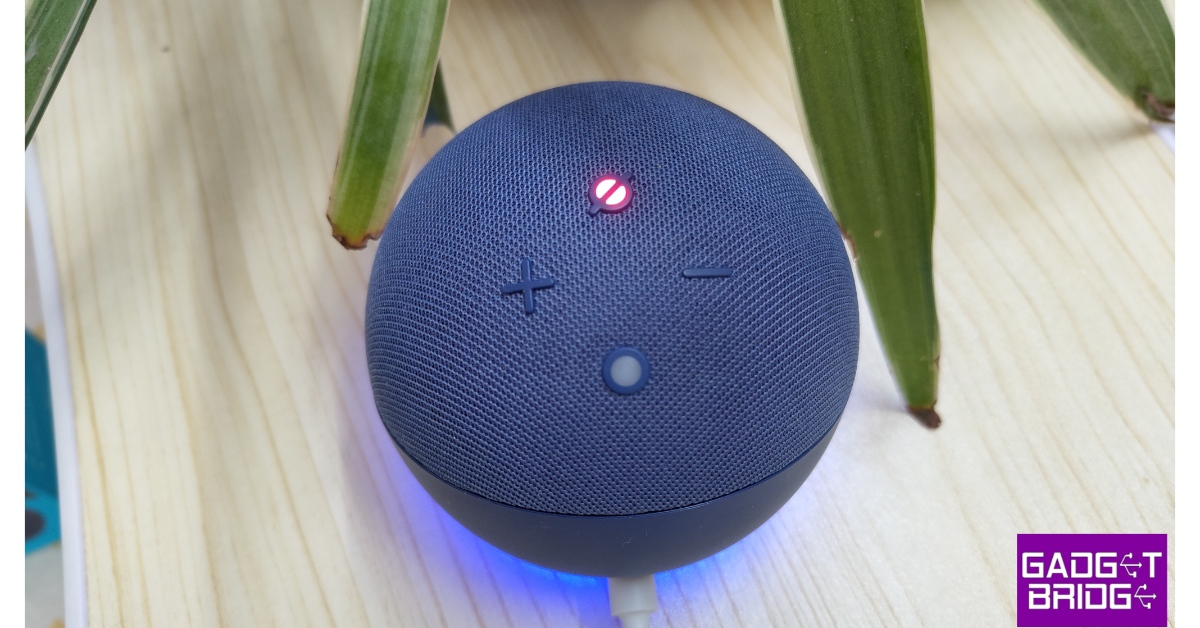
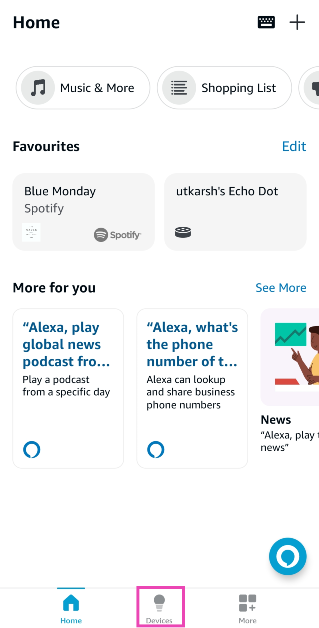 Step 3:
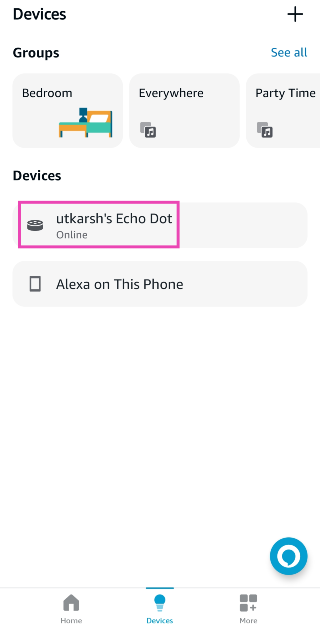 Step 4:
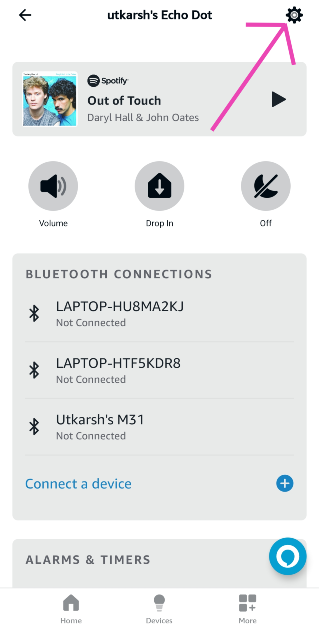 Step 5:
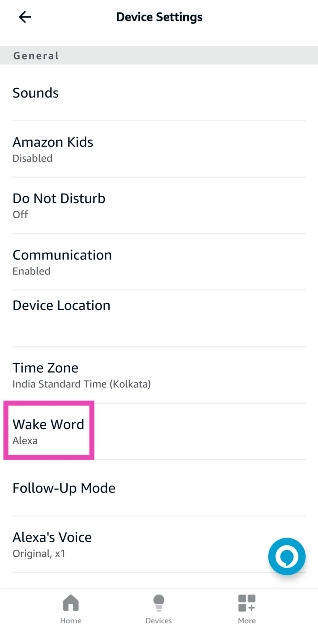 Step 6: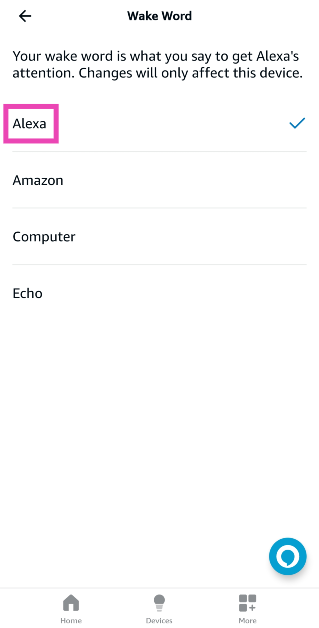
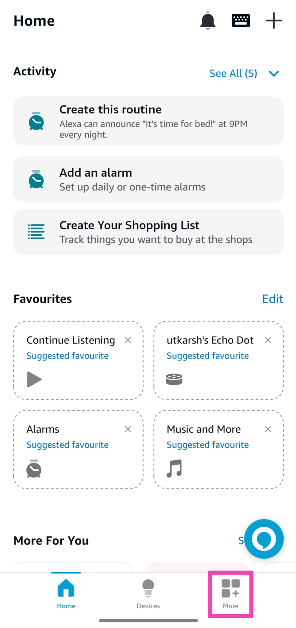 Step 2: Tap on Alexa Privacy.
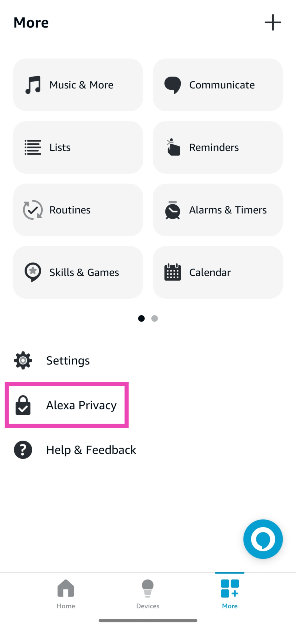 Step 3: Select Review Voice History to view recent voice commands.
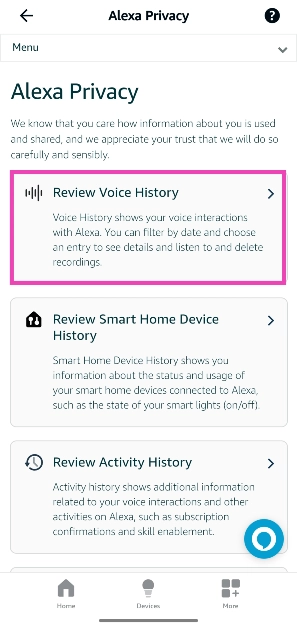

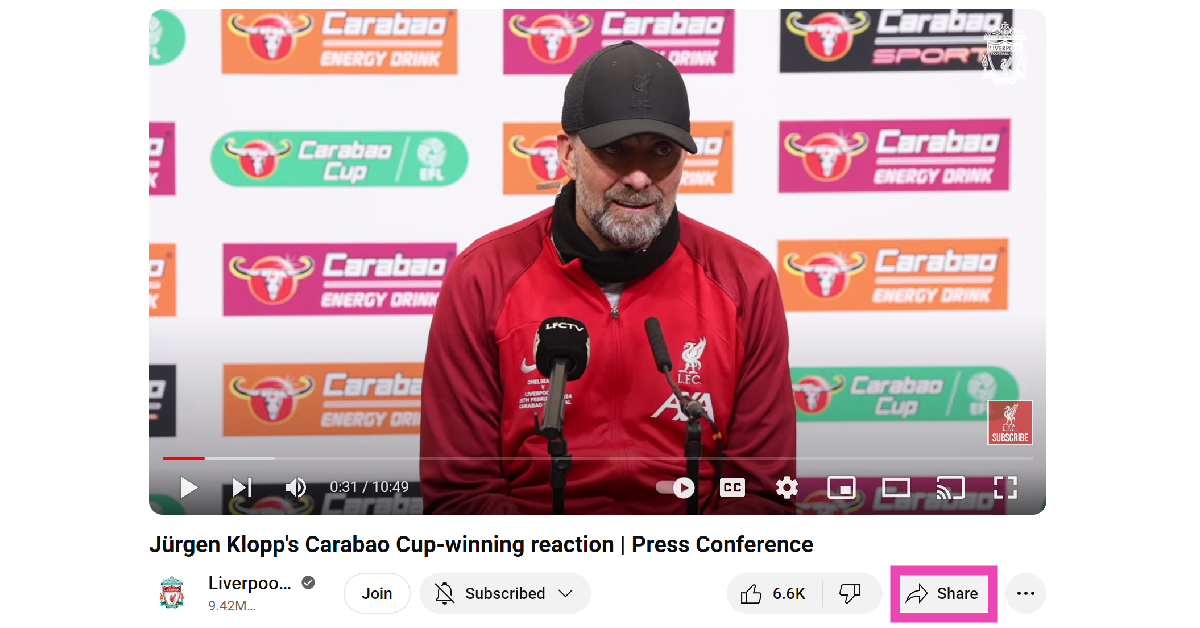 Step 3:
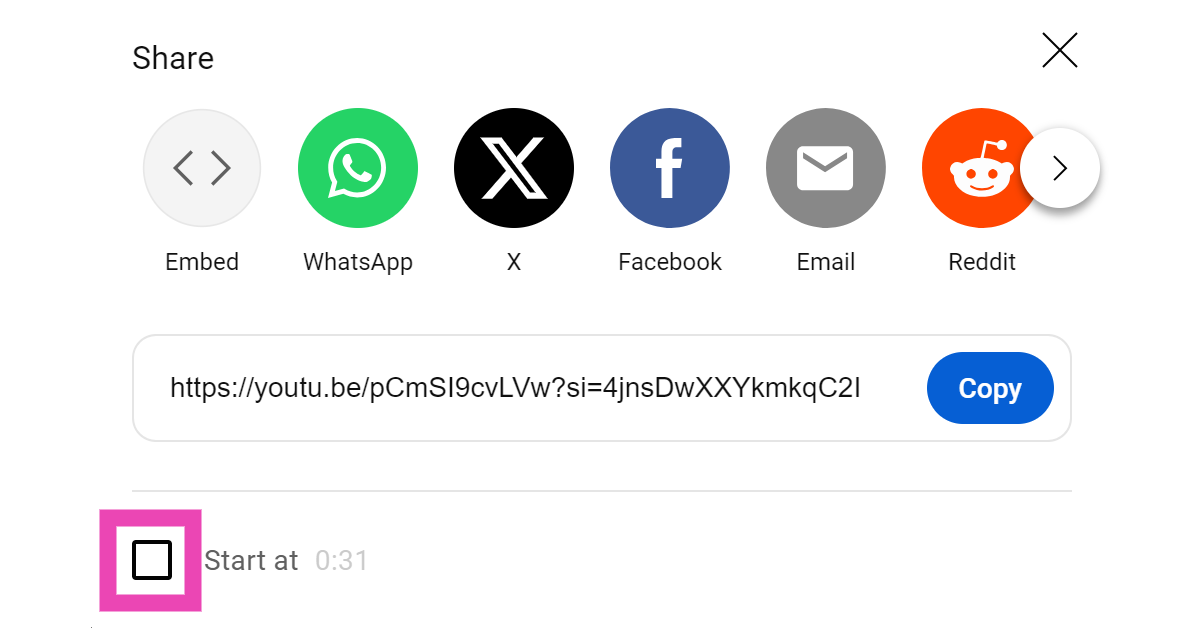 Step 4:
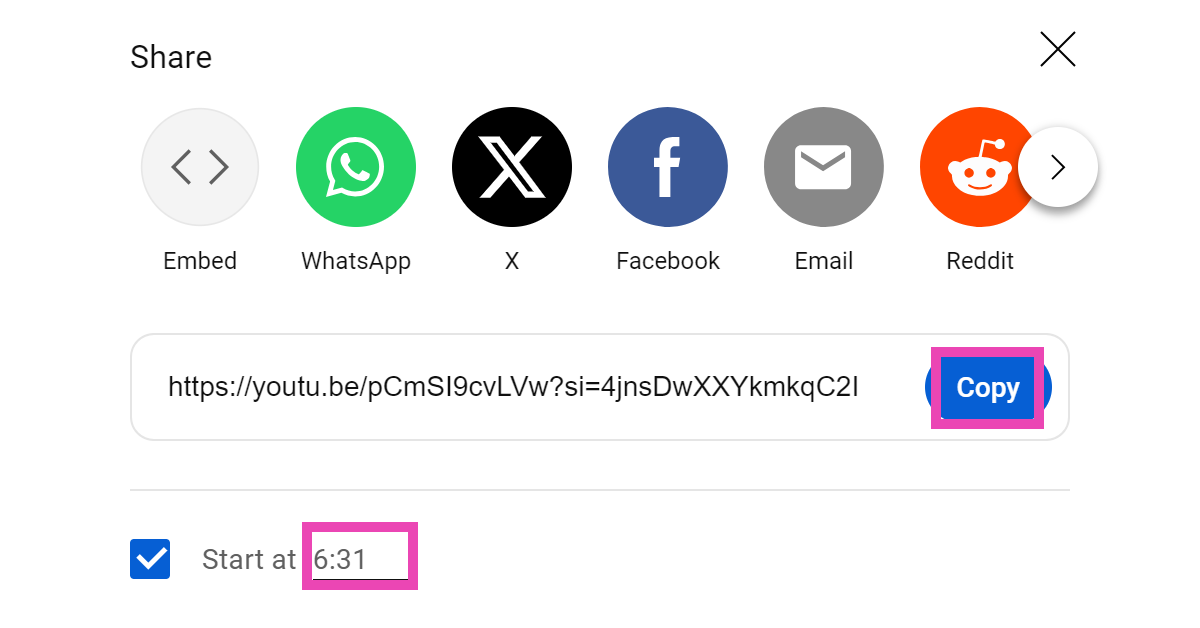 Step 5:
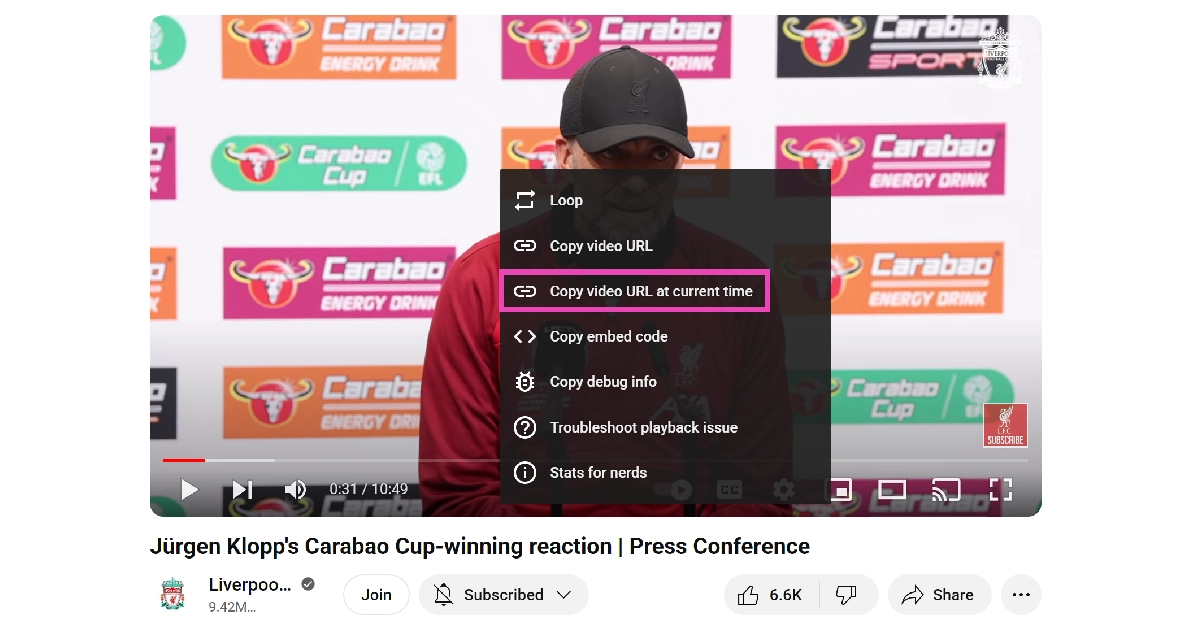 Step 5: Share
 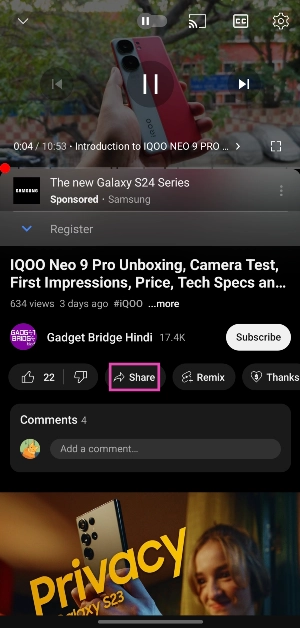 Step 2:
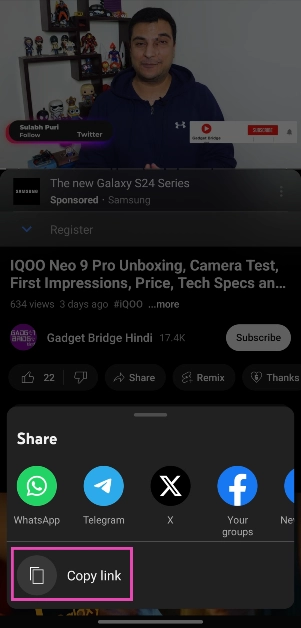 Step 3:
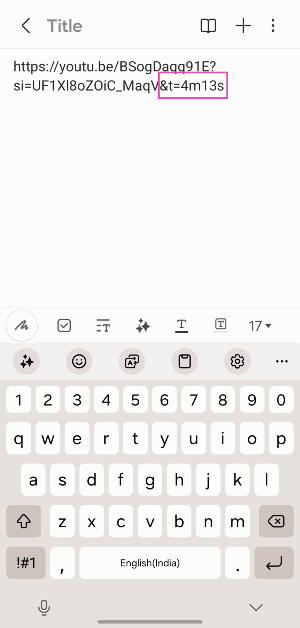 Step 5: