How often should you upgrade your Android smartphone?

A question that pervades every smartphone owner’s mind is how often should they upgrade their Android smartphone. Smartphone companies and their marketing campaigns will have you believe that it is time to trade in your current smartphone for the new flagship that just rolled out, but is changing your device every year the right choice? On the other end of the spectrum, many users believe in getting the most miles out of their smartphones before discarding them.  Is it a good idea to stick with a phone that has been sidelined by the manufacturer and does not receive any updates? In this article, we discuss how often should you upgrade your Android smartphone. Read Also: When is the right time to upgrade your PC?

Security and Phone Updates

Security and Phone Updates If the manufacturer has stopped providing updates for your Android smartphone, it may be time to move on to a new one. Most smartphones get software updates for about two to three years after their release. Not only do these updates offer new features, but also patch any prevailing security issues and ensure your data is safe from getting into the hands of third parties. Older phones with outdated software are more susceptible to malware attacks. If you own a budget phone, you may stop receiving updates even earlier than three years. Most manufacturers offer a three-year update guarantee only on their flagship products. Alternative: Use anti-malware apps like Malwarebytes and ad blockers like AdGuard to keep your phone safe from any malicious activity. While this is not a sure fix to all the protection issues, it still is better than using an old phone with security vulnerabilities.

Battery Life

Battery Life It is no secret that the strength of your smartphone’s battery diminishes over time. When you first buy a phone, a full charge can easily get you through the day. But after years of rigorous use, you may find yourself plugging in the charger halfway through the day. A reduced battery backup can get pretty annoying and is one of the major reasons why users switch to a new phone. Even if the aspects of your smartphone work fine, it doesn’t really matter much if it gets drained every 6 hours. Alternative: Monitor your phone’s battery from the beginning. Notice which apps are draining the battery faster and put unused apps to sleep. Use the power-saving mode when you’re not actively using your device. If possible, get a battery upgrade.

Performance Decline and App Issues
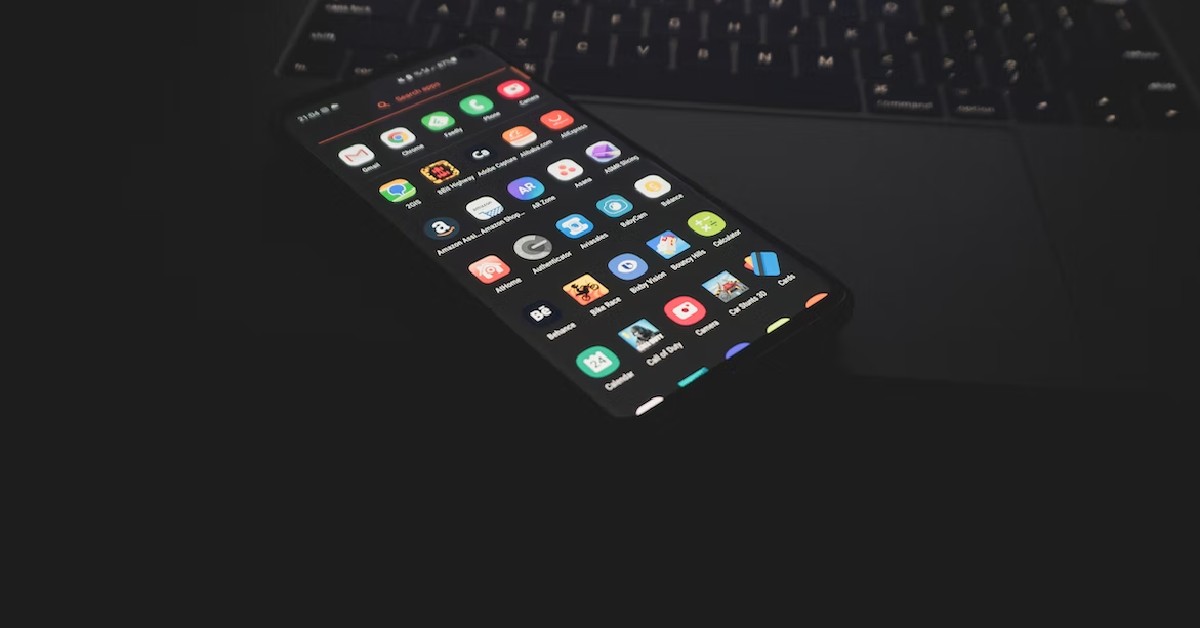
Performance Decline and App Issues Most modern devices aren’t built to last and your smartphone is no exception. A performance drop is bound to occur after years of use. Apps may take longer to load and you may experience delays in the most basic of tasks. As your phone gets older, apps are more prone to crashes. After a certain period of time, some apps may become incompatible with your phone. If you’re facing one of these issues, it may be time to get a new phone. You will notice what you’ve been missing out on right away. The touch receptivity will be quick and apps will take no time to load.  Alternative: Keep your phone optimised and scan it regularly for viruses, background app activity, high battery usage, and unreported app crashes.

New Features

New Features. How often should you upgrade your Android smartphone? Even if you don’t care about the novelty of a device, the allure of new features is hard to ignore. Manufacturers are constantly bringing out new features on their flagships every year, be it powerful cameras or an enhanced interface. If you’re someone that likes to be on top of all the new tech, you’re bound to miss out on a lot if you don’t change your smartphone for a while. What you can do is trade in your device for a new one. If the smartphone you’re using is relatively new and in good shape, you can get a good price for it. Certain manufacturers also offer great buyback schemes. Read Also: Pete Lau Makes a Hint to a Future OnePlus Foldable Phone
If you experience some of the issues mentioned above, it may be time to upgrade your Android smartphone. At the end of the day, what matters is how happy you are with your device. Every smartphone is susceptible to wear and tear, and eventual breakdown. It is a good idea to notice the warning signs early and trade it in for a good price and move to a better device.
  For the latest gadget and tech news, and gadget reviews, follow us on TwitterFacebook and Instagram. For newest tech & gadget videos subscribe to our YouTube Channel. You can also stay up to date using the Gadget Bridge Android App. You can find the latest car and bike news here.
Pete Lau Makes a Hint to a Future OnePlus Foldable Phone

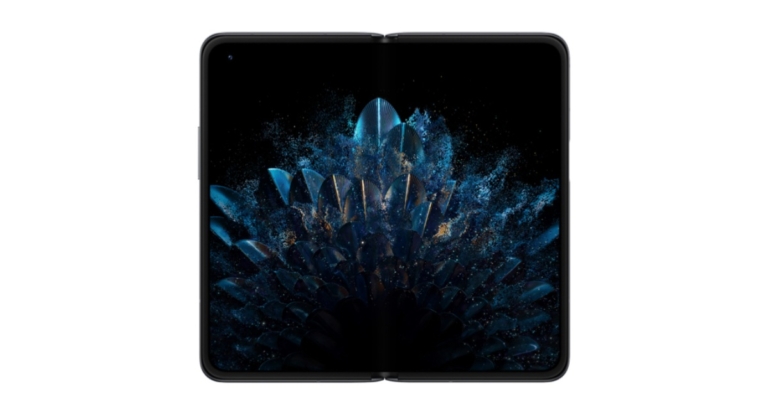
According to reports, OnePlus will introduce its first foldable smartphone soon. Also, Pete Lau, a co-founder of OnePlus, provided an update on its next product. The company’s head posted images of a hinge on Twitter however he did not confirm the name or other specifics of the OnePlus foldable phone. “What do you think this is?” was the caption on photos that Pete Lau posted on Twitter. The OnePlus foldable phone that will be released soon may use this as the hinge for its folding screen. The OnePlus Fold might soon come out, however, the company hasn’t officially confirmed anything. OnePlus hasn’t yet provided any information but the OnePlus Fold is said to include Android 13 out of the box. Oppo’s Find N, which debuted in December 2021, may share some characteristics with it. In terms of foldable smartphones, Samsung is now in the lead. It recently unveiled its 4th gen of foldable phones Galaxy Z Fold 4 and Z Flip 4 in the market. At the same time, Xiaomi released the Xiaomi Mix Fold 2. Even Motorola also launched Moto Razr 2022 but in China. Even Oppo also established its position in the foldable smartphone market by introducing Oppo Find N. Earlier this year a report also surfaced on the web stating Google Pixel Foldable phone will also have Oppo Find N-like design.

Oppo Find N specifications

On the outside, the smartphone has a 5.49-inch OLED display with an aspect ratio of 18:9. When unfolded, the Oppo Serene Display, an inward folding display, measures 7.1 inches. It boasts LTPO technology, a 1,000 nit maximum brightness, a 120Hz refresh rate, and Corning Gorilla Glass Victus protection. It is driven by a Qualcomm Snapdragon 888 SoC and has up to 512GB of storage and 12GB of RAM available. Optically, the Oppo Find N includes three rear cameras: a 13-megapixel telephoto lens, a 16-megapixel ultra-wide angle lens, and a 50-megapixel Sony IMX766 main sensor. A 32-megapixel camera on both the inner and outer screens, and a 32-megapixel camera on the inner screen. Other notable features of the phone include a 4,500mAh battery with 33W SuperVOOC cable charging capability, For the latest gadget and tech news, and gadget reviews, follow us on TwitterFacebook and Instagram. For newest tech & gadget videos subscribe to our YouTube Channel. You can also stay up to date using the Gadget Bridge Android App. You can find the latest car and bike news here.

Amazon Quiz Answers Today 16 August 2022: Participate to win Rs 20,000

Amazon Quiz for 16 August 2022 has gone live on the company’s mobile platform. The daily quiz contest brings an opportunity for Amazon users to win exciting prizes. In today’s Amazon Quiz the participants have the chance to win Rs 20,000 Amazon Pay Balance. All they have to do is answer all the questions correctly. A fresh question is posted on the Amazon app daily which consists of five simple questions based on general knowledge and current events. The quiz can be played on the Amazon App from 12 AM to 11:59 PM. You have to answer all the questions correctly. Then the participants will be shortlisted for a lucky draw. The result of the lucky draw will be announced at the end of the month. The participants can win Amazon Pay Balance to up to Rs 50,000. Check out the 16 August 2022 Amazon Quiz question and their answers to win Rs 20,000 Amazon Pay Balance. Amazon Quiz Today Prize – Rs 20,000 Amazon Pay Balance Quiz Date – 16 August 2022 Daily Timing – 12 AM to 11:59 PM Winner Announcement – Today 12 PM

Amazon Quiz Answers Today 16 August 2022

Question 1: During the India vs West Indies ODI series in July 2022, which of these cricketers made his ODI debut? Answer- Avesh Khan Question 2: In the Hindi adaptation of Forrest Gump, what is the name of the character being played by Aamir Khan? Answer- Laal Singh Chaddha Question 3: Which of these airlines cancelled over 1000 flights recently due to ground staff walkout? Answer- Lufthansa Question 4: What famous tourist location has been shown here? Answer- Santorini Question 5: The animal who inspires the name of this article of clothing is a/an ____. Fill in the blanks Answer- Reptile

How To Play Amazon Quiz

Only app users are eligible to play the Amazon quiz every morning from 12 AM to 11:59 PM. The quiz is not available on the desktop. For those who are unaware of how to play the Amazon quiz below are the steps, you can follow to take the quiz.
  • Firstly download the Amazon app from Google Play Store or App Store
  • Now fill in the required information through the Sign Up option.
  • You need to log in to the Amazon app and scroll down on the home screen to find the Amazon Quiz banner.
  • Tap on the Amazon Quiz banner and tap on the Start button to start the Quiz.
  • Now you will get 5 questions and you need to answer them correctly. One wrong answer will eliminate you from the Quiz.
  • After answering all the questions correctly you are now eligible for a Lucky Draw.
  • The winner’s name will be announced today at 12 PM.
For the latest gadget and tech news, and gadget reviews, follow us on TwitterFacebook and Instagram. For newest tech & gadget videos subscribe to our YouTube Channel. You can also stay up to date using the Gadget Bridge Android App. You can find the latest car and bike news here.
How to Bypass Samsung FRP Lock After Reset?

Our smartphones are one of the most personal devices in our lives. That is why built-in security is so important. However, sometimes, the built-in security features can be a small nuisance. Especially after a factory reset. Google’s account verification system might ask you for a password after a reset. What if you forgot it? We have a complete step-by-step tutorial to help you bypass it. In this guide, we will talk about what is the verification code of a Google account and more.

Learn About Factory Reset Protection

You might be wondering What is the Verification Code of a Google Account. It is a super helpful security feature to avoid any unauthorized access. After factory resetting a Samsung phone, you will be asked for your Google account password. This FRP or Factory Reset Protection feature is automatically enabled on Samsung’s Android devices when you log in with your Google Account. It is enabled on Android 5.1 and later versions. After knowing the means of Google Account Verification, you are also curious about can the FRP lock be removed? While the FRP system is great it might become a slight annoyance if you forget your Google Account password. You might be locked out of your phone after a factory reset. But there are three effective methods to bypass it.

How to Bypass Google’s FRP Verification After Reset on Samsung?

If you have been locked out of your Samsung phone after a factory reset, there are certain ways of bypassing the verification. All these are pretty safe and easy to do as well. Just follow these methods to bypass Google Account Samsung.

Method 1: Bypass Google Verification on Samsung without Password

Using a reliable and easy bypass tool like Tenorshare 4uKey for Android is your best bet. It is super easy to use and will help you bypass within minutes the lock no matter the reason.

Step 1: Download Tenorshare 4uKey for Android

Firstly, download and install Tenorshare 4uKey for Android from the official website. Run the tool and select the ‘Remove Google Lock (FRP)’ option. Bypass Samsung FRP Lock

Step 2: Connect Your Samsung Phone and Select Android Version

Connect your Samsung phone to your PC with a USB cable. And select your Android version. Then just click on ‘Start’.

Step 3: Follow On-screen Instructions

The tool will conveniently show you the process on the screen. Tap “Emergency Call” from the welcome page. Dial *#0*# to bring up the diagnostic menu.Bypass Samsung FRP Lock

Step 4: Allow Access to Your PC

You will see a notification popup on your phone for USB debugging permission. Check the box for ‘Always allow from this computer and tap ‘Allow’.

Step 5: Let Tenorshare 4uKey for Android Do Its Magic

Click ‘Ok’ on your PC. Now just wait for the tool to finish its job. Unlocking the FRP will not take that long. And voila! This is how you bypass Google account lock after a factory reset.Bypass google FRP Lock

Method 2: Unlock Samsung FRP Lock Using SIM Card

Another method for FRP Lock bypass is using your SIM card. It is a straightforward way to bypass the lock. Follow these steps to do it: Step 1: Take your SIM card out of your phone. Step 2: Now restart your phone. You can ignore the SIM alert notification. Step 3: Select your preferred language from the welcome screen. Step 4: When your phone asks for your email and password, just tap on hold the @ key for a couple of seconds. Step 5: Select Google Keyword Settings. Step 6: Then, press the Back and Home button to bring up Google search. Step 7: Search for Settings on the search bar and tap on the Settings app.Bypass google FRP Lock Step 8: From the Settings app, simply disable Auto Restore and Saving backups. Step 9: Do a hard reset on your phone. After that, you will be able to access your Samsung phone. 

Method 3: Bypass FRP Lock on Samsung Phones Without PC

Wondering about how to bypass google account verification after resetting Samsung? This section will be helpful for those who do not have access to a PC. Step 1: Tap and hold the @ symbol on your keyboard. Step 2: The Settings menu will pop up. Now, choose Google Keyboard Settings. Step 3: On the upper right-hand corner, tap on the three dots. Step 4: Select the ‘Help & Feedback’ option and the relevant item from the list. Step 5: Then from the Help Page, tap on ‘Using Google KeyboardStep 6: Long press the texts to select it. And then tap the ‘Web Search’ option. Then search for ‘Settings’. Step 7: From the Settings app, go to your phone’s About section. Step 8: Tap on the Build Number seven times to unlock developer mode. Step 9: Finally, from the Developer options, just turn on OEM unlocking and press the back button twice. Now, you can restart your phone and set it up as a new device.

Why Choose Tenorshare 4uKey for Android?

The best thing about our software Tenorshare 4uKey for Android is just how powerful it is. Here are the top 5 features you will love:
  • It works for Windows and Mac operating systems
  • It can remove any kind of lock screen issues with a few taps
  • It supports a lot of different Android versions
  • It would avoid bricking your phone thanks to the advanced auto system detection.
  • It is easy and simple to use

Related Questions About Bypassing Google Verification

Q1. Does 4uKey for Android support Android 12? Ans. Yes, it does! It supports android versions 12/11/10/9/8/7/6. So, you are covered no matter which version you are on. And guess what? It even supports the latest Galaxy S22 series as well. Q2: What would cause FRP Lock? If you logged in using your Google account and then factory reset your Samsung phone, it will cause the FRP lock to activate.

Key Takeaway

If you forget your Google password, you will always need to bypass the FRP lock after a factory reset. Luckily, now you know the verification code of Google account and how to bypass FRP. And you can use Tenorshare 4uKey for Android to bypass the FRP lock easily in just minutes. The best part is it is completely safe, free and super easy to use. For the latest gadget and tech news, and gadget reviews, follow us on TwitterFacebook and Instagram. For newest tech & gadget videos subscribe to our YouTube Channel. You can also stay up to date using the Gadget Bridge Android App. You can find the latest car and bike news here.

How does Android Auto Work? All the new features you will get in Android Auto 2022

0
First released in 2015, Android Auto is a native Android app developed by Google to provide greater accessibility while driving a car, by mirroring your smartphone to the car’s infotainment system. Ever since its launch, Android Auto has become an essential part of the driving experience as most modern cars come equipped with Android Auto connectivity. In this article, we explain how Android Auto works and what new features will you get in Android Auto 2022. Read Also: How to track steps on Android?

How does Android Auto work?

How does Android Auto work? Android Auto mirrors your smartphone display to your car’s infotainment unit and provides ease of accessibility while driving. Once connected, the display unit in your car will get the functionalities of your phone, like making or hanging up calls, GPS navigation, music player, and even apps like WhatsApp and Audible. Your phone’s display gets adjusted for the car’s infotainment unit, with large app icons that can be easily controlled using touch gestures. The handsfree mode can be selected by turning on Google’s Voice Assistant. This ensures greater safety by getting rid of any unwanted distractions. You can also decide which apps show up on your car’s display using Android Auto. If you do not want to pair your smartphone to your car’s infotainment unit, you can use Android Auto as a standalone app on your mobile. Simply open the app and mount it on your dashboard. The screen will display large icons that can easily be controlled with touch gestures.  In order to use Android Auto, your smartphone must be running on Android 6 or above. You’ll also need a USB cable to connect your smartphone to your car, but if your car already comes with Android Auto connectivity, this step won’t be necessary. You’ll be asked to confirm pairing codes on your phone when you’re pairing it with your car for the first time. You will also be asked to grant access to certain apps. Once the initial setup is complete, your smartphone will automatically connect to your car the moment you step in. 

What new features will you get in Android Auto 2022?

With Android Auto 2022 you will get the following new features.
  • New interface for Android Auto that will increase accessibility during navigation and media control.
  • Split screen mode that will enable users to control other apps along with navigation.
  • Suggested auto-replies and location sharing added to Google Voice Assistant.
Read Also: How to Recover Deleted Files from Android without Root Android Auto is hugely beneficial in providing a distraction-free driving experience. Using the hands-free mode, drivers do not need to look at their smartphones at all. Android Auto also gets the most out of your car’s infotainment system by allowing you to mirror your smartphone on it.
For the latest gadget and tech news, and gadget reviews, follow us on TwitterFacebook and Instagram. For newest tech & gadget videos subscribe to our YouTube Channel. You can also stay up to date using the Gadget Bridge Android App. You can find the latest car and bike news here.

How to track steps on iPhone like a pro?

0
Unlike Android smartphones, iPhone has a native Health app that tracks your physical activity, including your step count. The Health app automatically counts your steps, walking, and running distances. You can even sync this data with your Apple Watch and Mac. The Health app can also be used to chart other physical activities like swimming, cycling, and climbing. In this article, we show you how to track steps on your iPhone. Read Also: How to track steps on Android?

Here’s how you can track steps on your iPhone

Step 1: Go to the Health app on your iPhone. Step 2: Tap the Summary tab. You will be presented with the highlights of your physical activity including your step count. Tap the Summary tab. Step 3: In order to add Steps to your favourite categories, tap on edit and select the blue star next to ‘Steps’. tap on edit and select the blue star next to ‘Steps’. Step 4: To get detailed info on your step count, tap browse on the bottom of the screen and go to Acitivity>Steps. tap browse on the bottom of the screen and go to Acitivity>Steps. iPhone automatically records all your physical activity, so you will get a detailed account of how many steps you’ve taken every day. Read Also: How to Recover Deleted Files from Android without Root

Frequently Asked Questions

Which apps share information with the Health app?

Which apps share information with the Health app? You can choose which apps share information with the Health app. Simple open your Health profile and select Privacy>Apps. You will see the list of apps that are compatible with the Health app. If you want an app to track certain health categories, select it from the list and turn on the tracking function.

Is my Health data secure?

Apple stores your Health data in iCloud, which is end-to-end encrypted. You can turn on the two-factor authorisation as well. If you do not want your Health data backed up on iCloud go to Settings>[Your Name]>iCloud and turn off Health.

How does the Health app handle data from different sources?

The Health app derives data from different sources like your iPhone, Apple Watch, any Bluetooth device, or the manual data that you enter into the app. The Health app prioritises data in this order:
  1. Health data entered manually in the app.
  2. Data from iPhone, iPod Touch, and Apple Watch.
  3. Data from other apps and Bluetooth devices.
How does the Health app handle data from different sources? how to track steps on iphone If you want to prioritise a data source for a particular activity, select the category and then tap a subcategory. Scroll down and select Data Sources and Access. Tap edit and drag the data source accordingly on the list.
For the latest gadget and tech news, and gadget reviews, follow us on TwitterFacebook and Instagram. For newest tech & gadget videos subscribe to our YouTube Channel. You can also stay up to date using the Gadget Bridge Android App. You can find the latest car and bike news here.

How to Find the IP Address of Your Printer? 5 simple methods

While most printers are pretty easy to connect, sometimes your computer may ask you for the printer’s IP address. An IP (Internet Protocol) address is a unique address assigned to a device which serves as its identifier when some other device or network wants to reach it. A unique IP address ensures that the communication reaches the desired device safely. In this article, we show you how to find the IP address of your printer. Read Also: How to find your local and external IP address?

Use the Menu on the printer’s screen

If your printer comes with a display unit go to ‘Settings’ and select ‘Network Settings’. You will find the IP address of the printer there. This may vary for different printers. The IP address may be in the ‘Setup’ or ‘Network Setup’ option in some printers. Navigate your way through the menu and you will find the IP address. If your printer does not come with a display unit, follow the methods given below.

Find the IP Address of your printer using your computer

Step 1: Go to Settings>Devices. Step 1: Go to Settings>Devices. Step 2: Click on ‘Printers and Scanners’ and select the printer whose IP address you want to find. Step 2: Click on ‘Printers and Scanners’ and select the printer whose IP address you want to find. Step 3: Click on ‘Manage’ and select ‘Properties’. Step 4: Click on the general tab. You will find the IP address in the location section. Step 4: Click on the general tab. You will find the IP address in the location section.

Use the router

If a printer is shared between a network of computers, you can find its IP address using the router it is connected to. The way to access the router menu varies among different routers. Most home routers allow you to access the menu using the web browser. Once you’ve opened the menu check for the device list to find the IP address of your printer.

Print a configuration sheet

Most printers have the option to print a test page which contains all the specs and configurations of the printer, including the IP address. You can print the configuration page using the on-screen menu on the printer. If your printer does not have an on-screen menu, press and hold the power button for 5-10 seconds and it will print the configuration page.

Use Command Prompt

You can find the IP address of your printer using the command prompt. Just follow these simple steps. Step 1: Press the Windows key and type ‘cmd’ on the search bar. Select Command Prompt. Step 2: On the cmd screen type ‘netstat -r’ and press enter. Step 2: On the cmd screen type ‘netstat -r’ and press enter. Step 3: You will be presented with a complete list of devices connected to your computer along with their IP address. Read Also: How to change the IP Address on a PC or a smartphone? These are the 5 simple ways to find the IP address of your printer. We’ve picked these 5 methods to cover the diverse range of printers on the market, no matter how different their setup might be. If you still can’t find it, let us know the model number in the comments and we’ll help you out.
For the latest gadget and tech news, and gadget reviews, follow us on TwitterFacebook and Instagram. For newest tech & gadget videos subscribe to our YouTube Channel. You can also stay up to date using the Gadget Bridge Android App. You can find the latest car and bike news here.

How to colour-correct pictures on Android?

0
When shooting outdoors, there are a lot of factors that influence the shots you take on your phone’s camera. The lighting is perhaps the most important one, and can radically affect how the pictures come out. In an outdoor environment, you have no control over the lighting. At best, you can try shooting at certain parts of the day, when the lighting is favourable, but even then things may go south. In order to give your pictures a more natural appearance, you will need to colour-correct them in the editing process. Colour correction balances the colours in a picture and can be used to bring them closer to the ‘real’ scene that you saw with your naked eye or convey a specific mood. Here is how you can colour-correct pictures on Android. Read Also: How to track steps on Android?

Colour Correct Pictures on Android using Adobe Lightroom App

lightroom Adobe Lightroom is one of the best photo editing apps you can use on Android. It is highly rated among critics and users alike and can be downloaded for free from the Google Play Store. Here is how you can colour correct your pictures using Adobe Lightroom. Step 1: Download and install Adobe Lightroom from Google Play Store. Step 2: Import the image you want to edit by clicking on the blue icon at the bottom right of your screen. Import the image you want to edit Step 3: Select ‘All Photos’ and click on the image you imported. Select ‘All Photos’ and click on the image you imported. Step 4: Tap on ‘Colour’ from the bottom menu. Use the White Balance options to control the underlying tone of your image. For example, if you shot the image in the bright afternoon sunlight, you can decrease the temperature to simmer down the brightness and give it a different tone. Tap on ‘Colour’ from the bottom menu. How to colour-correct pictures on Android? colour correction using adobe lightroom Step 5: Tap on ‘Mix’ to further control how different colours appear on your image. You can individually select a colour and change its ‘Hue’, ‘Saturation’, and ‘Luminance’ on the image. Manually control the slider until you feel you’ve reached the result that matches the scene you saw with the naked eye. Tap on ‘Mix’ to further control how different colours appear on your image. How to colour-correct pictures on Android? colour correction using adobe lightroom Step 6: Once you’re satisfied with the result, save the image. Read Also: How to Recover Deleted Files from Android without Root This is how you can colour-correct pictures on Android. Colour correction also comes in handy while editing videos, since the lighting conditions are rarely uniform while shooting the footage. With colour correction, you can bring consistency to the video by balancing all the colours. You can even add a colour tone to the entire video, giving it a certain mood and making it more appealing.
For the latest gadget and tech news, and gadget reviews, follow us on TwitterFacebook and Instagram. For newest tech & gadget videos subscribe to our YouTube Channel. You can also stay up to date using the Gadget Bridge Android App. You can find the latest car and bike news here.

Samsung Galaxy Watch 5 and Galaxy Watch 5 Pro price in India announced

After announcing them globally the prices for the Samsung Galaxy Watch 5 and Galaxy Watch 5 Pro in India have been made public. Additionally, Samsung revealed that pre-orders for the new smartwatches will open on August 16. The BioActive sensor included with the Galaxy Watch5 series allows for effective digital health tracking and sleep monitoring.

Price, Offers and Availability

The cost of the Galaxy Watch 5 (40mm) in Bluetooth-only and LTE versions is respectively Rs 27,999 and Rs 32,999. The pricing of the 44mm Bluetooth-only version is Rs 30,999, and the price of the LTE variant is Rs 35,999. The 40mm version of the Watch will be sold in the colours Graphite, Pink Gold, and Silver. The wearable’s 44mm Watch 5 edition is available in the colours Graphite, Sapphire, and Silver at launch. All reputable banks are offering customers a reward of Rs 3,000 when they purchase a smartwatch. Priced at Rs 44,999 for the Bluetooth-only Galaxy Watch 5 Pro (45mm) and Rs 49,999 for the LTE model. The Watch 5 Pro will also be sold in the colours Black Titanium and Grey Titanium. Customers who are interested can receive a rebate of Rs 5,000 from all major banks. On the other hand, the Galaxy Buds 2 are available for Rs 2,999 to those who pre-book the Galaxy Watch 5 series. Customers can exchange their old equipment for up to Rs 5000 and would be eligible for simple financing options. Beginning August 16, customers can pre-order the recently released Galaxy Watch 5 and the Galaxy Watch 5 Pro, on Samsung.com and at a number of top online and physical retailers.

Samsung Galaxy Watch 5 Pro specifications

The 1.4-inch Super AMOLED always-on display on the Samsung Galaxy Watch 5 Pro features a 450 x 450 pixel resolution. One UI Watch 4.5, which is based on WearOS 3.5, powers the Samsung wristwatch. A dual-core Exynos W920 SoC, 1.5GB of RAM, and 16GB of internal storage power it. Watch5 Pro is built to withstand any adventure, from cycling to trekking, because of its premium materials. In addition to a strong titanium shell that protects the screen with a protruded bezel design, it boasts an upgraded Sapphire Crystal that is more resistant to harm. The Galaxy Watch5 Pro comes with the new D-Buckle Sport Band18, which offers a secure fit and long-lasting durability. With the largest battery of any Galaxy Watch, the Galaxy Watch5 Pro is built to last. The battery capacity is 590 mAh.

Samsung Galaxy Watch 5 specifications

A 1.4-inch Super AMOLED display with 450450 pixels (44mm) and a 1.2-inch Super AMOLED display with 396396 pixels resolution are both featured on the Samsung Galaxy Watch 5. (40mm). There is an always-on display in both versions. It is powered by a dual-core Exynos W920 SoC and 1.5GB of RAM. The Galaxy Watch 5 also has 16GB of internal storage. One UI Watch 4.5 serves as the smartwatch’s operating system. The Galaxy Watch 5 has a 5 ATM IP68 rating for water and dust resistance. The Galaxy Watch5’s BioActive Sensor, created by Samsung, is what powers the upcoming generation of digital health monitoring. The Galaxy Watch4 series introduced the BioActive Sensor, which combines three effective health sensors—optical heart rate, electrical heart signal, and bioelectrical impedance analysis—on a single, specialised chip to provide detailed readings that include heart rate, blood oxygen level, and even stress level. Users can also check their blood pressure and ECG from their wrists to get a better idea of how their hearts are doing. The 44mm Galaxy Watch 5 has a 410mAh battery within. The 40mm Galaxy Watch 5 has a smaller 284mAh battery. Both versions work with wireless charging that is based on the WPC standard. For the latest gadget and tech news, and gadget reviews, follow us on TwitterFacebook and Instagram. For newest tech & gadget videos subscribe to our YouTube Channel. You can also stay up to date using the Gadget Bridge Android App. You can find the latest car and bike news here.

How to track steps on Android?

0
If you’re trying to switch to a healthier lifestyle, keeping a track of your physical activity can be helpful in charting your progress. You can start by tracking your steps on your Android smartphone. Most Android smartphones do not have a native step counter, and you will need to download an app to track your steps. In this article, we show you how to track your steps on an Android smartphone using Google Fit. Read Also: How to Recover Deleted Files from Android without Root

Here’s how you can track your steps on an Android smartphone

google fit Step 1: Download and install the Google Fit app from the Google Play Store. Step 2: Sign in using your Google Account and set up your profile. Step 3: Set up a daily goal for step counter and heart activity points. Set up a daily goal Step 4: Start walking. As long you have your smartphone on you, Google Fit will track your step count. Google Fit will track your step count. Step 5: Click on ‘Steps’ to see your step count. You can also select ‘Track Workout’ to see a live count of your steps. Click on ‘Steps’ to see your step count. You can even add a Google Fit widget to your phone’s home screen so you don’t have to open the app every time you want to check your progress. Apart from tracking your steps, Google Fit also measures the calories burned, distance covered, and elevation gained. You can even manually enter your weight periodically and track your progress. You can even use Google Fit on your smartwatch, although it isn’t totally necessary if you’re tracking your steps. Wearing a smartwatch can be beneficial since you’re wearing it most of the time, which allows Google Fit to record every activity. Read Also: International left-handers day: Top Products specifically made for left-handers

Frequently Asked Questions

How does Google Fit measure calories burned?

Google Fit uses a combination of your activity, gender, height, and weight to estimate how many calories you burned in one session. The ‘calories burned’ counter includes the calories you burned during your workout as well as your Basal Metabolic Rate (BMR). While the results aren’t totally accurate, it still provides a good estimate. 

Does Google Fit track steps if you’re travelling in a car?

No. Google detects when users are doing activities that shouldn’t contribute to their step count and removes these from the final step count.

Will Google Fit track additional steps if I’m using it on my smartphone and smartwatch simultaneously?

No, Google Fit will remove any duplicate data from the final metrics. You can wear your smartwatch and keep your smartphone in your pocket without worrying about any additional steps being added to the step count. This is how you can track your steps on an Android smartphone. If you do not want to use Google Fit, there are other step tracking apps you can use, like StepSetGo, Pedometer, and Step Counter.
For the latest gadget and tech news, and gadget reviews, follow us on TwitterFacebook and Instagram. For newest tech & gadget videos subscribe to our YouTube Channel. You can also stay up to date using the Gadget Bridge Android App. You can find the latest car and bike news here.