If you’ve just started using Microsoft Excel, there are a host of functions that you might not be aware of. These functions are super easy to use and will make your Excel experience much easier. One of these functions lets you combine the data within two cells. This saves you the hassle of manually entering merged data into a third cell. You can also combine two entire columns. Today, we will show you how to combine two columns in Microsoft Excel.Read Also:How to create a checklist in Excel
Using the Ampersand Symbol (&) to combine two columns in Microsoft Excel
Step 1: Select the cell in which you want to place the combined data.Step 2: Type ‘=’ and select the first cell you wish to combine.Step 3: Type ‘&’ followed by quotation marks (“ “) with a space enclosed between them. This is done to separate your data entries with a space. If you do not want a space between your entires, skip the quotation marks.Step 4: Select the other cell you want to combine. For example – if you’re combining the data of A3 and B3 cells, your formula must look like =A3&” “B3.Step 5: Press Enter. Excel will merge your data.
Using the CONCAT function to combine two columns in Microsoft Excel
Step 1: Select the cell in which you want to place the combined data.Step 2: Type =CONCAT(Step 3: Select the first cell you want to combine followed by a comma to register the entry.Step 4: Place two quotation marks (“ “) with a space within them in order to separate your entries with a space. Skip this step if you do not wish to do so.Step 5: Enter the second cell you want to combine and close the parentheses. Instead of picking another cell, you can also type any text you wish to combine with the first cell.Step 6: Hit Enter. Your two selected cells will be merged.Once you’ve combined two cells, you can combine the two respective columns simply by double-clicking the bottom right corner of the filled cell. You can also left-click the bottom right corner and drag it down to populate the entire column.Read Also:Microsoft Excel for iPhone can now click photos of spreadsheetsApart from merging two columns, there are a lot of other tips and tricks that you can use to simplify your task. Excel can even recognize patterns of data on your spreadsheet and autofill it for you using ‘Flash Fill’. On top of that, you can use basic math functions to carry out calculations between individual cells, or even entire columns.
For the latest gadget and tech news, and gadget reviews, follow us on Twitter, Facebook and Instagram. For newest tech & gadget videos subscribe to our YouTube Channel. You can also stay up to date using the Gadget Bridge Android App.
Today, MediaTek unveiled the Dimensity 9000+, an upgrade to its top-tier 5G smartphone chipset. The new chipset is the successor to the Dimensity 9000. The new mobile processor supports 180Hz full-HD+ screens and the most recent Bluetooth and Wi-Fi connectivity. It has an inbuilt 5G modem and supports camera sensors of up to 320 megapixels.The new Dimensity 9000+ system-on-chip (SoC) combines a single ultra-Cortex-X2 core running at up to 3.2GHz (vs 3.05GHz with the Dimensity 9000) with three super Cortex-A710 cores and four efficiency Cortex-A510 cores in a 4nm octa-core process. Higher than 5% more CPU performance and more than 10% more GPU performance are delivered by the new chipset’s integrated Arm Mali-G710 MC10 graphics processor and improved CPU architecture.The newest member of the premium Dimensity 9000 family of smartphone chipsets, which were created to meet the rising bandwidth requirements of the mobile market, is the Dimensity 9000+. 8MB of L3 CPU cache and 6MB of system cache are supported by the inbuilt LPDDR5X. Furthermore, MediaTek’s fifth-generation Application Processor Unit (APU 5.0) is integrated into the chipset enabling advanced AI computing capabilities in a power-efficient design.The flagship Dimensity 9000+ 18-bit HDR-ISP provides 320MP and concurrent triple camera 18-bit HDR video recording. The potent 9Gpixel/s ISP also supports 4K HDR Video + AI noise reduction, enabling the best results even in extremely low light conditions.Utilizing 3CC Carrier Aggregation (300MHz) and supporting R16 UL enhancement, the integrated 5G modem boosts sub-6GHz performance up to 7Gbps downlink. For increased efficiency, the Dimensity 9000+ also has MediaTek’s 5G UltraSave 2.0 power-saving enhancement suite and 5G/4G Dual SIM Dual Active compatibility.With MediaTek’s Intelligent Display Sync 2.0 technology, the Dimensity 9000+ maximises power economy while supporting the most recent 144Hz WQHD+ displays or lightning-fast 180Hz FullHD+ screens. Additionally, 4K60 HDR10+ video can be supported by MediaTek’s most recent Wi-Fi Display technology.The chip’s support for the most recent Wi-Fi, Bluetooth, and GNSS standards allows smartphone users to experience seamless communication.
For the latest gadget and tech news, and gadget reviews, follow us on Twitter, Facebook and Instagram. For newest tech & gadget videos subscribe to our YouTube Channel. You can also stay up to date using the Gadget Bridge Android App. You can find the latest car and bike news here.
Ever looked at a funny video and wanted to know where it’s from? Or come across a certain scene from a movie but can’t find what it’s called? Sometimes Google doesn’t provide the answer to every search query, especially when it’s a video you’re looking for. While the Google reverse image search is an excellent tool for searching the source location of images, Google does not have a reverse video search yet. Luckily, we have a few tricks that will help you search using video to find the video source.Read Also:How To Google Reverse Image Search On Mobile? Everything You Need To Know
Which method is best for you?
There are multiple ways you can go about reverse-searching a video on your device. While there is no search engine that lets you upload a video file to find the source, you can search for singular frames. This is where Google’s reverse image search comes in. You can also use alternatives like TinEye and Berify.
If you’re on your phone, there is a much more seamless way of going about this task. Instead of taking a screenshot and uploading it to a search engine, you can simply summon Circle to Search and let it do the rest. If you choose to focus the search on an object in the frame, Circle to Search will bring up mostly shopping results for that particular object. If you want to search the source of the video, you will need to expand the frame to cover the entire shot.
Reverse search on Google
While Google does not offer a Reverse video search yet, you can still make use of its Reverse image search function to find your desired video. All you need to do is take multiple screenshots of the video you want to search and upload them to the reverse image search bar. Just follow these simple steps.Step 1: Take multiple screenshots of your video.Step 2: Go to images.google.comStep 3: In the search bar, click on the camera icon. This is the ‘search by image’ option.Step 4: Click on Upload an Image.Step 5: Upload the screenshot.Step 6: Google will find the source location of your video. If this doesn’t work, try again with a different screenshot.
Reverse search on Bing
Step 1: Go to bing.com/imagesStep 2: Click on the camera icon on the search bar. This is the ‘search by image’ option.Step 3: Click on Browse.Step 4: Upload your screenshot.Step 5: Bing will find the source location of your video. If it doesn’t work, try again with a different screenshot.
Use Google Lens
The Google Lens feature on the Photos app works surprisingly well to find the source of a video from just a couple of snippets. Here’s how you can use it.
Step 1: Take a couple of screenshots of the video on your phone.
Step 2: Launch the Google Photos app and open one of the screenshots.
Step 3: Tap the Lens option at the bottom of the screen.
Step 4: Use the cropping tool to cover the entire image.
Step 5: Switch to the Search tab at the bottom.
Step 6: Pull up the tab to view all the results. You will be able to determine the source of the video from the results.
Step 7: If this process doesn’t work, try it again on another still from the video.
Use Circle to Search
Step 1:Play the video you wish to search.
Step 2: Long-press the navigation bar at the bottom of the screen.
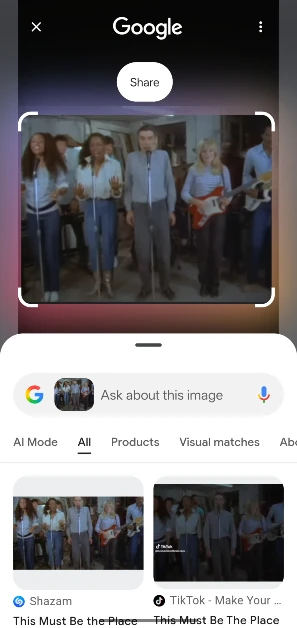
Step 3: Select the video frame.
Step 4: Pull up the search results.
Use TinEye to search using video to find the video source
Using TinEye you can track and search images on the internet. Its efficient AI almost always finds a match for your search query. Just follow these easy steps.Step 1: Go to tineye.comStep 2: Select the Upload option next to the search bar.Step 3: Upload the video screenshot and hit search.Step 4: Tineye will explore the web for a match and list the video location.
Use Berify to search using video to find the video source
Berify is a reverse image search tool that can also be tweaked to find your desired video. Here’s how you can use Berify to find the video location.Step 1: Go to berify.comStep 2: Click on the search bar and upload the video screenshot.Step 3: Berify will reverse search the screenshot and come up with a relevant result.Read Also:Microsoft revamps Bing Maps and adds hosts of new features
Frequently Asked Questions (FAQs)
How do I reverse-search Google for a video?
Since you cannot perform a reverse search for a video on Google, reverse searching for an image is the only option you have. Take a few screenshots from the video and use Google Reverse Image Search to look them up.
How do I find the source of a video on my phone?
Take a screenshot of a video and open it in the Google Photos app. Hit the Lens option at the bottom and use the search tab to find the relevant results. If you are unable to find the source of the video, repeat the process with another screenshot.
What are some good alternatives to Reverse Image Search on Google?
Websites like TinEye and Berify offer a great way to look up the source of images on their search engine. If you cannot find relevant results on Google, these websites may be of help to you.
Can I reverse search a video using Circle to Search?
You can use Circle to Search to reverse search a frame of a video and find its source.
How do I search for a song using Circle to Search?
Long-press the navigation bar and hit the music icon to search for the name of the song playing on your phone or nearby you.
Final Thoughts
If you’re still unable to find the video location, you can type a short video description and search for it on Google. When the results come up, click on the video category, and you might find what you’re looking for. If you’re still unhelpful, asking for help on social media websites like Twitter and Reddit may be a good idea. Subreddits like r/tipofmytongue and r/askreddit are quite helpful in locating your search queries.
The rise of homestay rental services like Airbnb has also led to an increase in malicious practices that property owners might use on their guests. It is best to be precautionary and take basic safety measures, especially when you’re unsure of the safety of your hotel room. You can never be too sure when you are out on a third-party property with your family. These ill sources can be found everywhere. So precaution is always better than cure. In this article, we will show you how you can find any hidden cameras in hotel rooms using your mobile phone.Read Also:Oyo is now valued at $10 billion: Here are the details
How to find a hidden camera using your mobile phone camera
Step 1: Turn off all the lights in the room. Draw the curtains and turn off all sources of light, including TV, laptop screen, etc. Make sure the room is pitch dark.Step 2: Turn on the camera on your smartphone and point it towards suspicious places where you think a camera might be hidden. This includes clocks, vases, bookshelves, mirrors, showerheads, or any object or location where a camera can be discreetly hidden.Step 3: Look out for any flashes of light on your phone screen. Hidden cameras emanate Infrared light, which can be detected by your camera lens leading to small flares of light. Step 4: If you notice a light on your screen, do a close inspection of the area and look for any hidden cameras.
How to find a hidden camera using your mobile phone flashlight
Step 1: Turn off all lights in the room and ensure it is pitch dark.Step 2: Turn on the flashlight on your smartphone and point it toward any suspicious objects.Step 3: Look for any light reflections. The hidden camera has a lens that reflects light at a certain angle. Make sure you keep changing the angle at which you’re pointing your flashlight in order to be thorough.Step 4: If you notice a reflection, do a close physical inspection for any hidden cameras.Read Also:Online dating app Tinder now launches an in-app Safety Center in IndiaYou can also use apps like Detectify and Radarbot to find any hidden devices. If you want to go the extra mile you can also purchase a Radio Frequency (RF) detector. An RF detector will scan the room for any radio waves. Usually, a hidden camera transmits its feed to another device, which can be picked up by an RF detector. If you find a hidden camera, immediately report it to the police. Finding any recording device on such premises is incriminating evidence.
For the latest gadget and tech news, and gadget reviews, follow us on Twitter, Facebook and Instagram. For newest tech & gadget videos subscribe to our YouTube Channel. You can also stay up to date using the Gadget Bridge Android App. You can find the latest car and bike news here.
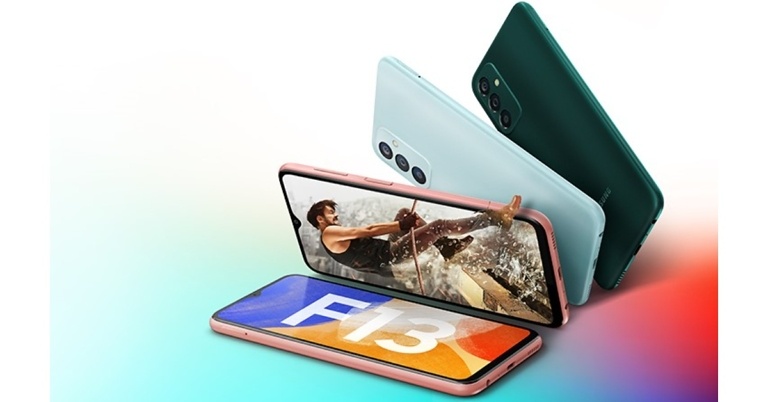
Samsung has upgraded with F-Series with the launch of a new smartphone in the Indian market. The company has announced Samsung Galaxy F13 featuring a 6,000mAh battery and triple rear cameras. The handset is powered by an octa-core Exynos 850 SoC.
Samsung Galaxy F13 price in India, availability
The starting pricing for the 4GB RAM with 64GB storage edition of the Samsung Galaxy F13 in India is set at Rs 11,999. The phone is also offered in a 4GB with 128GB option, which costs Rs 12,999. It comes in the colours Nightsky Green, Sunrise Copper, and Waterfall Blue. Starting on June 29, it will be available for purchase on Flipkart, Samsung.com, and in a few physical stores.Customers who have an HDFC Bank card can take advantage of Rs 1,000 instant bank discount as part of the Samsung Galaxy F13’s launch promotions. Along with the discounted prices on the new Samsung phone, Flipkart is also offering the Google Nest Mini and Nest Hub.
Samsung Galaxy F13 specifications
The 6.6-inch full-HD+ display with 1,080×2,408 pixels of resolution. The new budget smartphone operates on Android 12. Together with 4GB of RAM, the Exynos 850 SoC powers the phone. Additionally, the RAM Plus feature allows you to use the built-in storage to virtually enlarge the memory. It has internal storage that can hold up to 128GB and can be expanded with a microSD card up to 1TB via a specific slot.The triple rear camera system on the Samsung Galaxy F13 includes a 50-megapixel primary sensor, a 5-megapixel ultra-wide camera, and a 2-megapixel depth sensor. The device has an 8-megapixel camera sensor up front for selfies and video calls.The 6,000mAh battery on the Samsung Galaxy F13 supports 15W fast charging. For optimised performance, Galaxy F13 supports adaptive power-saving and AI Power Management that puts apps unused for three days in Sleep mode and apps unused for one month in Deep Sleep mode.The Samsung Galaxy F13 offers 4G LTE, Wi-Fi 802.11ac, Bluetooth v5.0, GPS/A-GPS, USB Type-C, and a 3.5mm headphone port as connectivity options. An accelerometer, ambient light sensor, magnetometer, and proximity sensor are among the sensors on board. A side-mounted fingerprint sensor is also included with the phone.There is an Auto Data Switching feature for seamless connectivity. The segment-first feature helps users stay connected with their loved ones even when the primary SIM is in a no-network area through the data of the secondary SIM.
For the latest gadget and tech news, and gadget reviews, follow us on Twitter, Facebook and Instagram. For newest tech & gadget videos subscribe to our YouTube Channel. You can also stay up to date using the Gadget Bridge Android App. You can find the latest car and bike news here.
Those amongst you who belong to the category of taxpayers of the country know how tedious and cumbersome the entire tax filing process is. But the real struggle is to find various means and ways and understand different financial policies so that you can save a few bucks from income tax. There are millions of apps available on the Google Play Store today. So how can there not be some for managing your budget and income tax? We have handpicked for you, the top 4 apps that can help you save income tax in 2022. These apps make the entire process of financial planning, investment and tax filing, extremely hassle-free.
Money Manager Expense & Budget
The first on our list of the top 4 apps that help you save income tax is the Money Manager expense and budgeting application for Android. It helps you with financial planning and review, expense tracking and personal asset management, all through a single platform. It simplifies the management of your personal or business finances by recording your transactions, generating spend reports, and offering a budget planner. You can review your assets on a daily, weekly or monthly basis. It even provides you with credit or debit card management services and allows the transfer of assets efficiently. Download Money Manager.Read also: Apps That Save Time: Top 10 Android Apps That Help You Get Your Work Done Faster
Income Tax Filing By TaxBuddy
TaxBuddy is an income tax filing application which covers all your tax-related requirements. It is suitable for all individuals including salaried professionals, business people as well as SMEs. The GST and Income Tax Return (ITR) filing services provided by the platform are claimed to be guided by Chartered Accountants. It provides end-to-end tax advisory services and even provides live tax expert advice whenever needed. The platform offers AI-based tax planning services and guarantees tax savings of up to 26%. Download TaxBuddy.
Black By ClearTax
Next on our list of the 4 best apps that help you save income tax in 2022 is the Black app by ClearTax. It serves the dual purpose of making financial investments in the form of Mutual Funds as well as filing Income Tax Returns (ITR). It offers various tax-saving investment options like ELSS mutual funds that help you save income tax. You can get tax-saving recommendations and detailed insights about each mutual fund plan to make a well-informed investment decision. Download ClearTax Black.Read also: Top 15 Best Android TV Apps You Should be Using In 2022
MyTax: Tax Calculator India 2022
Our final recommendation for the best tax-saving applications to use in 2022 is MyTax. It is one of the highest-rated tax apps on the Play Store and provides you with an easy-to-use interface for efficient tax calculation and planning. It puts forward the old and the new tax regimes so that a user can understand income tax calculation and tax-saving opportunities, and choose the one that best fits them. Download MyTax.So those were our top picks for the best 4 income tax saving apps that you can use in 2022. We would love to hear about your experience with these applications. We would also be delighted to get more recommendations from your side, for apps that help in saving income tax. Do write to us in the comments section below. For the latest gadget and tech news and gadget reviews, follow us on Twitter, Facebook and Instagram. For newest tech & gadget videos subscribe to our YouTube Channel. You can also stay up to date using the Gadget Bridge Android App. You can find the latestcar and bike news here.
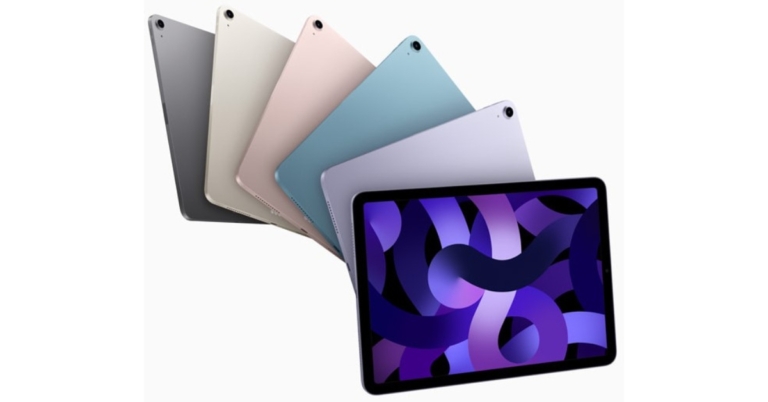
Apple’s iPads are continuing to improve every year, but they are still way behind smartphones, in terms of popularity. Apparently, there are around 81 million iPad users in the USA, compared to more than 113 million iPhone owners. However, it’s common knowledge that one of the primary uses of the iPad is gaming and so, with this in mind, developers could surely improve the quality of game offerings to boost future sales of the iPad.
In particular, if iPads were more compatible and inclusive of augmented reality-powered games, there’d be massive potential to entice new players. Indeed, if the burgeoning AR technology enters the mainstream, as it is forecasted to, iPads could act as a portal to allow multiple users to play games together. The result of this would be a significant boost in iPad users and worthy competition for other AR-offering contenders on the market.
iPads Have Always Been Popular for Gaming
One of the primary reasons that iPads came about was to cater to the growing mobile gaming audience that emerged with the smartphone boom in the early 2010s. The gaming industry on portable devices was worth more than $116 million in 2021, and a lot of this revenue is thanks to iPad users. With a sleek larger screen, but all the same functionality as Apple smartphones (apps, OSs, and more), the iPad has become a convenient on-the-go device for playing video games in style.
Undoubtedly, certain offshoots of mobile gaming have helped to drive it forward, with developers considering the iPad and tablet audience carefully when they make their games. Casino games, for instance, have played a huge part in boosting the mobile gaming industry. There are now so many online casino game-touting websites that online directories play a huge part in helping players differentiate between the good, the bad, and the outright ugly from all the options on the market.
Reputable brands such as CasinoSmash compile comprehensive lists that break down the promotions offered, customer reviews, and the range of games available for each of their ranked online casinos. This independent directory reassures players who are looking for the best quality products and the best bang for their buck.
A prime example of this is their list of ranked casino apps: each name in this selection of the best online slot sites has been tested for both iOS and Android mobile devices because that’s where people want to play them, making it an important factor for those browsing new games. These independent reviews are invaluable as they help players to navigate the overwhelming number of options online.
Augmented Reality Could be Integrated with iPads
While some games have found great success on iPads, there are certainly developments that could make the devices even better. Right now, there’s not much difference between smartphone and tablet gaming. The larger screen size is obviously a factor, but smartphone developers are working on solving that problem with foldable phones.
If iPad app developers can work out exciting ways to integrate AR, it could set the devices apart from smartphones. There have already been some cool uses of AR on the devices, such as allowing storybooks to come to life. However, there is so much more potential for the future.
AR glasses are expected to come into fashion in the next few years, and these will allow solo users to see things in front of them. There hasn’t yet been any talk about communal AR experiences, however. This is a concept that is likely to be explored, but the main question is to do with how developers will go about it.
One idea could be for the iPad to transmit signals that two AR headset wearers can both view at the same time. For example, two users could sit opposite each other with an iPad in the middle, using it to play a fantasy card game or a 3D version of chess. It’s a cool concept that has been touted before as the next step for board games.
With Apple reportedly working on its AR glasses and set to release them in 2023 or 2024, it will be looking at ways to integrate its other devices with groundbreaking technology. This could lead to a new wave of AR iPad games designed to appeal to multiple players.
For the latest gadget and tech news, and gadget reviews, follow us on Twitter, Facebook and Instagram. For newest tech & gadget videos subscribe to our YouTube Channel. You can also stay up to date using the Gadget Bridge Android App. You can find the latest car and bike news here.
Garena Free Fire is a battle royale game with regular awards and tournaments to keep players interested. If you play Garena Free Fire, you should be aware of the redeem codes that are released on a daily basis. However, because the battle royale game is banned in India, players from other countries can use the Free Fire Redeem codes daily. If you’re unfamiliar with the Garena Free Fire redeem codes or don’t know how to get them, we’ve put together a step-by-step guide to help you redeem them. Check out Garena Free Fire Redeem Codes for June 22.The Free Fire redeem codes are a great way to get free stuff. These are 12-digit codes that contain alphabets and numbers, as well as an expiration date and time. Because the Garena FF redeem codes cannot be used more than once, you should hurry to the redemption page to claim your free reward before someone else does. To get a free reward, all you have to do is go to reward.ff.garena.com/en, which is the official redemption page. Also, keep an eye on this space for daily updates on Garena Free Fire redemption codes and rewards.
Garena Free Fire Redeem Codes Today 22 June 2022
Z2FBHASU3VXS
4UBYXPTWERES
FXDSTSWYQTJ9
BKSKECCMJZEB
L8LNF5WK2YPN
TPNAMS84ZE8E
26JT3G6RQVAV
A46NU6UFQ2JP
6LU69JJZJ7S8
FAG4LHKD92GZ
RHUVSWWVN9G4
FBJ9MTXB9XAP
5R9SAGS5MCK5
2K5AWHD3FKWB
XKVJM65ANPUQ
AMCT7DU2K2U2
LQ6Q2A95G29F
HDQKXDFJ7D4H
QA97CXS2JOFO
W73D61AWNGL2
UK2PZ3NFGV5U
NLCB6S92K2DE
How to Get Free Fire Redeem Codes for Garena on June 22?
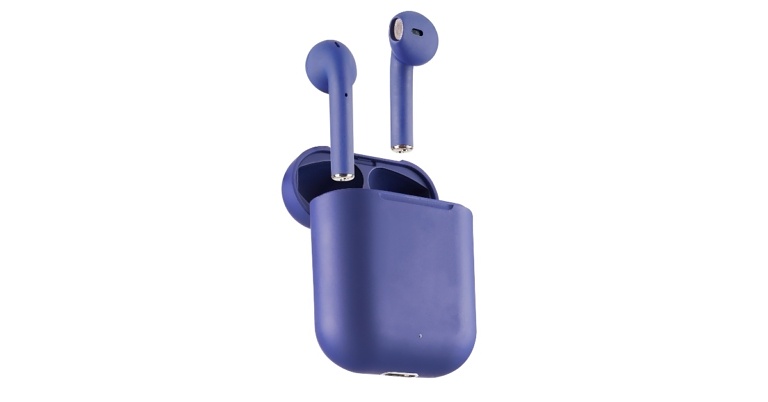
Tunez, a brand of lifestyle consumer electronics goods, has announced three new E10, E20, and E30 truly wireless earbuds (TWS) in the Indian market. The TWS series are sweatproof and have Bluetooth V5.0+EDR, making them the ideal option for summer and particularly for exercise sessions. The earbuds have a battery capacity of 300mAh to 320mAh.
Pricing and availability
In more than 200 stores spread throughout five states in the south, the Elements E10, E20, and E30 earphones will be offered. Soon, Tunez will expand to other regions of India. Additionally, it will be for sale on www.flipkart.com and www.amazon.in. Prices for the earbuds range from Rs 1,399 to Rs 2500.
Tunez E10 truly wireless earbuds (TWS)
A 300mAh battery powers the Tunez E10 truly wireless earphones, providing up to 5 hours of gameplay and 100 hours of standby. With 1-2 hours of charging time, it has a talk duration of up to 8 hours. It works with both iOS and Android. The earphones support HSP/HFP/A2DP/AVRCP and have a working range of 10-15 metres. Its USPs are comfort and CE & RoSH certification. Smart touch controls that fit comfortably, anti-scratch material, voice assistance support, and a charging case that prevents hand perspiration are some of the features of Tunez E10 truly wireless earbuds.
Tunez E20 truly wireless earbuds (TWS)
On the other hand a 320mAh polymer lithium battery powers the Tunez E20 truly wireless earbuds, providing up to 10 hours of playback at 60% volume and 200 hours of standby time. The earphones support HSP/HFP/A2DP/AVRCP and have a working range of 10-15 metres. With 50 minutes for the earphones and 1.5 hours for charging, it offers a talk time of up to 8 hours. It works with both iOS and Android. It is available in Black and White. The earbuds are CE & RoSh certified and its USPs are Ergonomic comfort fit with Voice Assistance. These come with IPX4 Water and Sweatproof rating, Smart touch controls, Volume control with touch options on the earbuds, and a long-lasting battery.
Tunez E20 truly wireless earbuds
Lastly, a 380mAh polymer lithium battery powers the Tunez E20 truly wireless earbuds, providing up to 22 hours of music playback at 60 percent volume and 200 hours of standby time. The earbuds support HSP, HFP, A2DP, and AVRCP and have a working range of 10-15 metres. With a promising conversation duration of up to 24 hours after charging the case for 1.5 hours and the earbuds for 50 minutes. It works with both iOS and Android. It is available in Black and White. Its USPs include Built for Hustle, IPX 5 Sweat & Water Resistant, 35gs lightweight, and 10mm Dynamic drive speaker for Crystal Clear Sound. It is CE & RoSh certified.
For the latest gadget and tech news, and gadget reviews, follow us on Twitter, Facebook and Instagram. For newest tech & gadget videos subscribe to our YouTube Channel. You can also stay up to date using the Gadget Bridge Android App. You can find the latest car and bike news here.
Indian wearable brand Noise Labs has announced the launch of its first pair of smart eyewear, the ‘i1’ With this release the company aims to provide consumers with a smart, innovative, and fashion-forward digital experience. The new Noise i1 smart eyewear comes with high-quality speakers.
Noise i1 smart eyewear price in India and availability
The new Noise i1 smart eyewear has been launched in India with a price tag of Rs 5,999. According to the company, the affordable smart glasses will be limited edition and can be purchased through gonoise.com.
Noise i1 smart eyewear specifications and features
The Motion Estimation, Motion Compensation (MEMS) Mic for calling, magnetic Charging, and hands-free voice control capabilities of the Made in India smart eyewear i1 provide design, comfort, and a unique audio experience.Noise i1 features a guided audio design that ensures the music reaches your ears. Furthermore, it isolates you from outside sounds, allowing you to enjoy a truly immersive audio experience. On a single charge, the device provides over 9 hours of gameplay. It also features the most up-to-date Bluetooth 5.1 connectivity, which ensures that your eyewear connects to your phone as soon as the temples are opened, avoiding the need to unlock your phone and providing exceptional sound quality up to 10 metres away. On a 15-minute charge, it can provide 120 minutes of fun.Users may accept and reject calls, regulate music, and activate the voice assistant with the smart eyewear’s multi-functional touch controls. It’s a comprehensive solution, with UVA/B 99 percent UV protection in sunglasses lenses and changeable blue light filtering transparent lenses for reducing eye strain and giving clear vision when using laptops, computers, and other electronic devices.The cutting-edge smart eyewear has an ingress protection rating of IPX4, making it water-resistant. This feature is ideal for those who live an active, outdoor lifestyle because it can be carried without the danger of getting wet. Siri and Google Assistant are built-in voice assistants. The beautiful style is ideal for a variety of activities such as hiking, driving, golfing, and so on.
For the latest gadget and tech news, and gadget reviews, follow us on Twitter, Facebook and Instagram. For newest tech & gadget videos subscribe to our YouTube Channel. You can also stay up to date using the Gadget Bridge Android App. You can find the latest car and bike news here.



 Step 2: Type ‘=’ and select the first cell you wish to combine.
Step 3: Type ‘&’ followed by quotation marks (“ “) with a space enclosed between them. This is done to separate your data entries with a space. If you do not want a space between your entires, skip the quotation marks.
Step 4: Select the other cell you want to combine. For example – if you’re combining the data of A3 and B3 cells, your formula must look like =A3&” “B3.
Step 2: Type ‘=’ and select the first cell you wish to combine.
Step 3: Type ‘&’ followed by quotation marks (“ “) with a space enclosed between them. This is done to separate your data entries with a space. If you do not want a space between your entires, skip the quotation marks.
Step 4: Select the other cell you want to combine. For example – if you’re combining the data of A3 and B3 cells, your formula must look like =A3&” “B3.
 Step 5: Press Enter. Excel will merge your data.

 Step 2: Type =CONCAT(
 Step 3: Select the first cell you want to combine followed by a comma to register the entry.
Step 4: Place two quotation marks (“ “) with a space within them in order to separate your entries with a space. Skip this step if you do not wish to do so.
Step 5: Enter the second cell you want to combine and close the parentheses. Instead of picking another cell, you can also type any text you wish to combine with the first cell.
Step 3: Select the first cell you want to combine followed by a comma to register the entry.
Step 4: Place two quotation marks (“ “) with a space within them in order to separate your entries with a space. Skip this step if you do not wish to do so.
Step 5: Enter the second cell you want to combine and close the parentheses. Instead of picking another cell, you can also type any text you wish to combine with the first cell.
 Step 6: Hit Enter. Your two selected cells will be merged.
 Once you’ve combined two cells, you can combine the two respective columns simply by double-clicking the bottom right corner of the filled cell. You can also left-click the bottom right corner and drag it down to populate the entire column.
Read Also: Microsoft Excel for iPhone can now click photos of spreadsheets
Apart from merging two columns, there are a lot of other tips and tricks that you can use to simplify your task. Excel can even recognize patterns of data on your spreadsheet and autofill it for you using ‘Flash Fill’. On top of that, you can use basic math functions to carry out calculations between individual cells, or even entire columns.
For the latest gadget and tech news, and gadget reviews, follow us on Twitter, Facebook and Instagram. For newest tech & gadget videos subscribe to our YouTube Channel. You can also stay up to date using the Gadget Bridge Android App.
Once you’ve combined two cells, you can combine the two respective columns simply by double-clicking the bottom right corner of the filled cell. You can also left-click the bottom right corner and drag it down to populate the entire column.
Read Also: Microsoft Excel for iPhone can now click photos of spreadsheets
Apart from merging two columns, there are a lot of other tips and tricks that you can use to simplify your task. Excel can even recognize patterns of data on your spreadsheet and autofill it for you using ‘Flash Fill’. On top of that, you can use basic math functions to carry out calculations between individual cells, or even entire columns.
For the latest gadget and tech news, and gadget reviews, follow us on Twitter, Facebook and Instagram. For newest tech & gadget videos subscribe to our YouTube Channel. You can also stay up to date using the Gadget Bridge Android App. 

 Step 3:
 Step 5:
 Step 2:
 Step 4:
 Step 4: Use the cropping tool to cover the entire image.
Step 5: Switch to the Search tab at the bottom.
Step 4: Use the cropping tool to cover the entire image.
Step 5: Switch to the Search tab at the bottom.
 Step 6: Pull up the tab to view all the results. You will be able to determine the source of the video from the results.
 Step 7: If this process doesn’t work, try it again on another still from the video.
 Step 3: Select the video frame.
 Step 4: Pull up the search results.

 Step 2:
 Step 2:
 Step 2:
 Step 3:
 Step 3: