Connecting your phone to a bigger screen has tons of advantages. Linking your phone to your TV allows you to stream the videos on your phone on a bigger screen. Want to show the photos in your gallery to a room full of people? Mirroring your phone’s display to a TV is the way to go. In this article, we bring you the top 5 ways to connect your iPhone or Android phone to your TV.Read Also:Best TV Shows and Movies to Watch This Week on Apple TV+
Connect your iPhone to your TV using AirPlay
AirPlay is Apple’s native mechanism for casting your iPhone’s display to another screen. Initially, AirPlay was only compatible with Apple TV streaming box, but over the years, more devices from other manufacturers have been added to the ecosystem. This includes Smart TVs from LG, Samsung, Sony, and more. Here’s how you can use AirPlay to mirror your iPhone’s display on a TV.Step 1: Connect your iPhone and your TV to the same WiFi network.Step 2: Launch the video you want to cast on your TV.Step 3: Some streaming apps have a dedicated AirPlay icon on their video player. Tap on it.Step 4: If you don’t see the AirPlay icon, tap on ‘Share’ and then select AirPlay.Step 5: Choose your TV from the list.To stop streaming on your TV, tap the AirPlay icon on your iPhone and deselect the device on which the video is being cast.
Use screen mirroring to cast your iPhone’s display on your TV
The method mentioned above is good for casting content from a streaming platform or selected apps. If you want to use your iPhone on a bigger screen, mirroring its entire display is a better option. Here’s how you can go about it.Step 1: Connect your iPhone and TV to the same WiFi network.Step 2: Swipe down from the upper right corner of the screen to reveal the Control Center.Step 3: Tap on the Screen Mirroring icon.Step 4: Select your TV’s name from the list.Step 5: A code will appear on your TV. Enter it on your iPhone.Your iPhone’s display will be mirrored on your TV. To stop mirroring, go to Control Center>Screen Mirroring>Stop Mirroring.
Mirror your Android phone’s display on a Smart TV
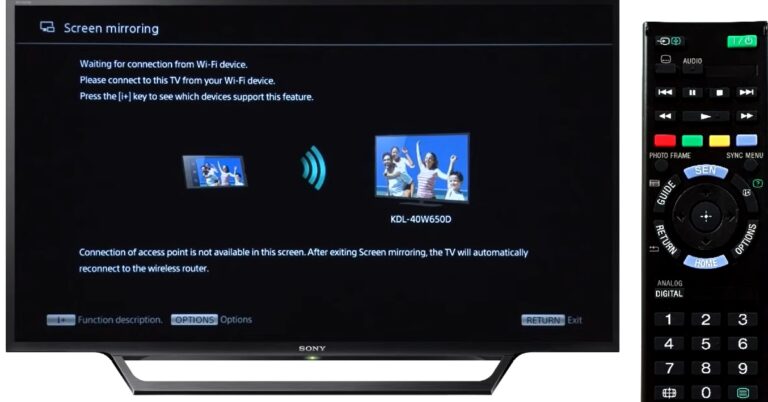
Step 1: Make sure your TV and Android phone are connected to the same WiFi network.Step 2: Select ‘Screen Mirroring’ from your TV’s system settings. Some TVs may have a screen mirroring function in the HDMI input menu.Step 2: Swipe down from the status bar on your smartphone and turn on screen mirroring. This may be called ‘Smart View’ on Samsung phones or ‘Cast’ on phones from other manufacturers.Step 3: Connect to your TV from your smartphone.Step 4: Your smartphone’s display will be mirrored on your TV.
Use the Google TV app for Android
If you use the Google TV app to manage your Smart TV, you can use it to cast your phone’s display on the big screen. Here’s how.Step 1: Launch the Google TV app on your smartphone.Step 2: Select the screencast icon on the search bar.Step 3: Select the device for casting.Step 4: Once the cast icon is filled in, it means that your device is ready to cast.
Use Chromecast for Android
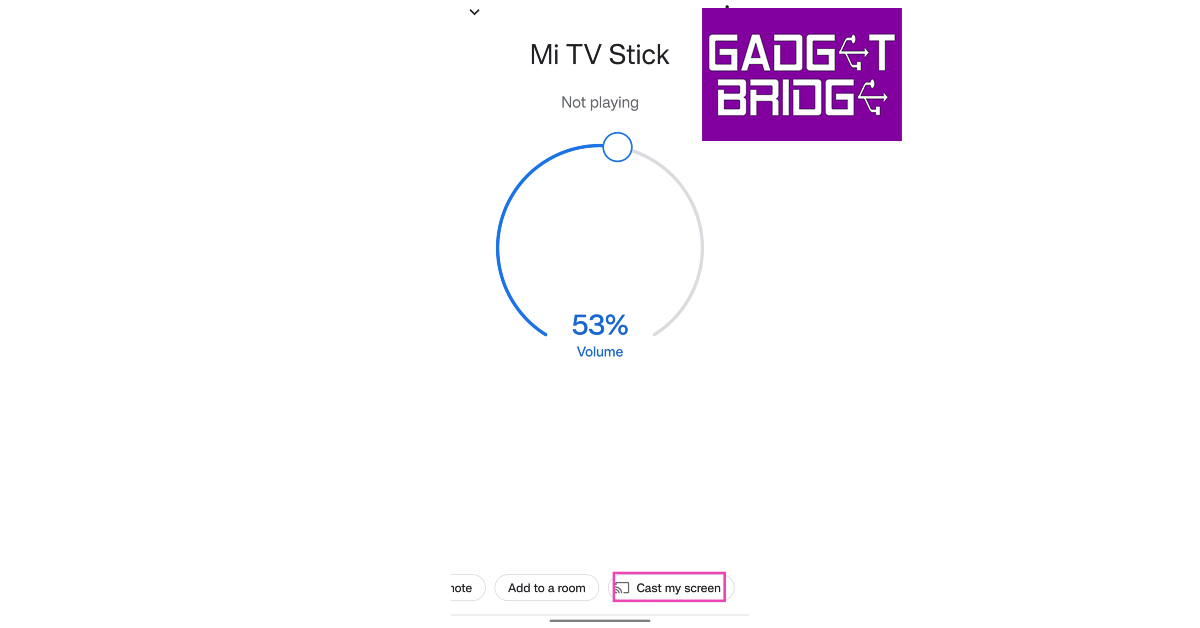
If your Smart TV has Chromecast support, you can use this method to cast your Android phone’s display to it. If not, you will need a Chromecast device for your TV to use this method.Step 1: Pair your smartphone with your TV from the Google Home app.Step 2: Go to the homepage and select the device you want to mirror your display on.Step 3: Select ‘Cast my Screen’ from the list of options at the bottom.
Frequently Asked Questions
How do I do screen mirroring?
Make sure your TV and phone are connected to the same WiFi network. On your iPhone, tap on ‘Screen Mirroring’ in the Control Center and select your TV from the list. Android phones have the screen mirroring option in the quick settings menu. In Samsung phones, this feature is called ‘Smart View’.
Can you screen mirror to PC?
Yes, you can mirror your phone’s display to your PC using MIracast. Read this article to know more.
These are the top 5 ways to wirelessly connect your iPhone and Android phone to your TV. If a common home WiFi network is not available, you can go the old-school route and connect your phone to your TV using an HDMI cable. For this, you will need an HDMI to lightning/USB C adapter. The only downside to this method is that you can only take your phone as far away from the TV as the HDMI cable allows.For the latest gadget and tech news, and gadget reviews, follow us on Twitter, Facebook and Instagram. For newest tech & gadget videos subscribe to our YouTube Channel. You can also stay up to date using the Gadget Bridge Android App. You can find the latest car and bike news here.
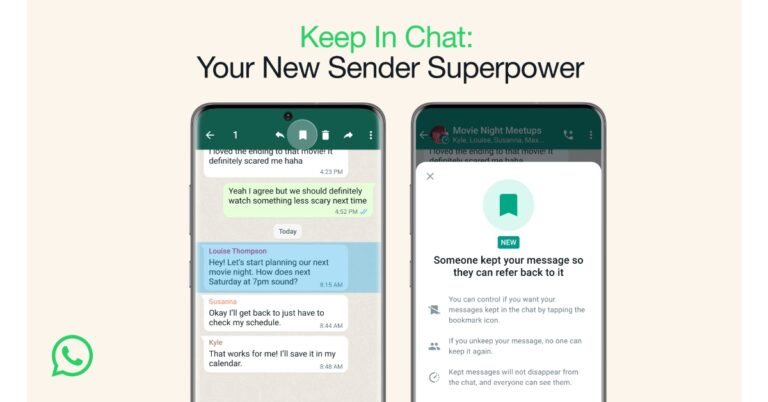
WhatsApp Disappearing Messages was launched in December 2021. This allows received messages in chats to automatically delete after a set time duration. However, the company has been working for a long time which allows the user to keep a particular message saved even after disappearing messages is turned on. The Meta-owned messaging platform has now rolled out a new functionality dubbed Kept Messages to allow users to save messages in disappearing chat.According to the latest announcement by WhatsApp, it is now rolling out the Keep in Chat function that allows users to save a message received in disappearing chat for later access. Users can keep messages that are about to disappear in chats if a user has the disappearing messages feature enabled during a conversation. The sender has control over which messages the receiver can keep or save which is the catch here.Also Read:Sony BRAVIA X75L television with X1 4K Processor launched in IndiaAccording to WhatsApp sender will be informed when someone keeps the chat and will have the power to veto the choice. If you decide that someone else cannot keep your message, your decision is final, no one else may keep it, and the message will be removed after the timer expires. By doing this, you have the last say in how messages you send are safeguarded.“We believe if you’ve sent the message, it’s your choice whether others in the chat can keep it for later,” the blog post noted.The saved WhatsApp messages can be accessed from the Kept Messages folder. The saved message will be identified by a bookmark icon.As per the company, the Kept messages feature will be rolled out globally over the next few weeks.A few days ago WhatsApp also added new security features in order to improve user security on the app. The additional security features added to the platform include Account Protect, Device Verification and Automatic Security Codes. According to the company, these three additional features will make your chats as private and secure as an in-person conversation. The additional security features are said to be added to WhatsApp in the coming months.
For the latest gadget and tech news, and gadget reviews, follow us on Twitter, Facebook and Instagram. For newest tech & gadget videos subscribe to our YouTube Channel. You can also stay up to date using the Gadget Bridge Android App. You can find the latest car and bike news here.
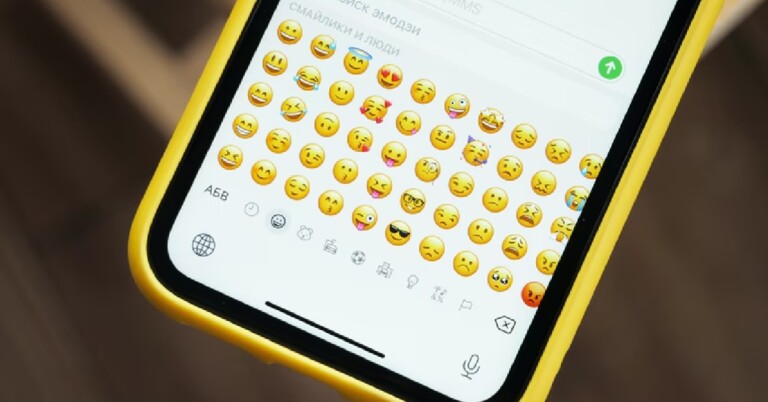
Emojis are an essential part of the texting experience. There is no substitute for the flair that emojis provide during texting. While iOS and Android have very similar emojis for the most part, sometimes even the most subtle change can make a world of difference. Not to mention, emojis are constantly updated and sometimes you may see a square box instead of the emoji on your platform. In this article, we show you how to get iOS or iPhone emojis on any Android device.
Read Also:Samsung Galaxy Watch 5 series can track menstrual cycles using skin temperature: Update
Use iOS Emojis Keyboard
There are plenty of third-party keyboard apps that will give you access to iPhone or iOS emojis on your Android device. Apps like FancyKey, Green Apple Keyboard, Kika Keyboard, and more are constantly updated with new emojis as soon as they are released on the iOS platform. Another great app that lets you use iPhone emojis on your Android phone is ‘iOS emojis keyboard’. Here’s how you can use it.Step 1: Download and install the ‘iOS emojis keyboard’ app from Google Play Store.Step 2: Launch the app and tap on ‘Enable iOS emojis keyboard’.Step 3: Tap on the ‘off’ button next to iOS Emojis Keyboard to switch it to ‘on’.Step 4: Return to the previous screen and tap on ‘Switch iOS emojis keyboard’.Step 5: In the ‘Choose input method’ popup box, select ‘iOS emojis Keyboard’.Step 6: Go to any messaging app and tap on the message box. You will be able to view and use the iPhone emojis in the chat.
Use Emoji Fonts Message Maker
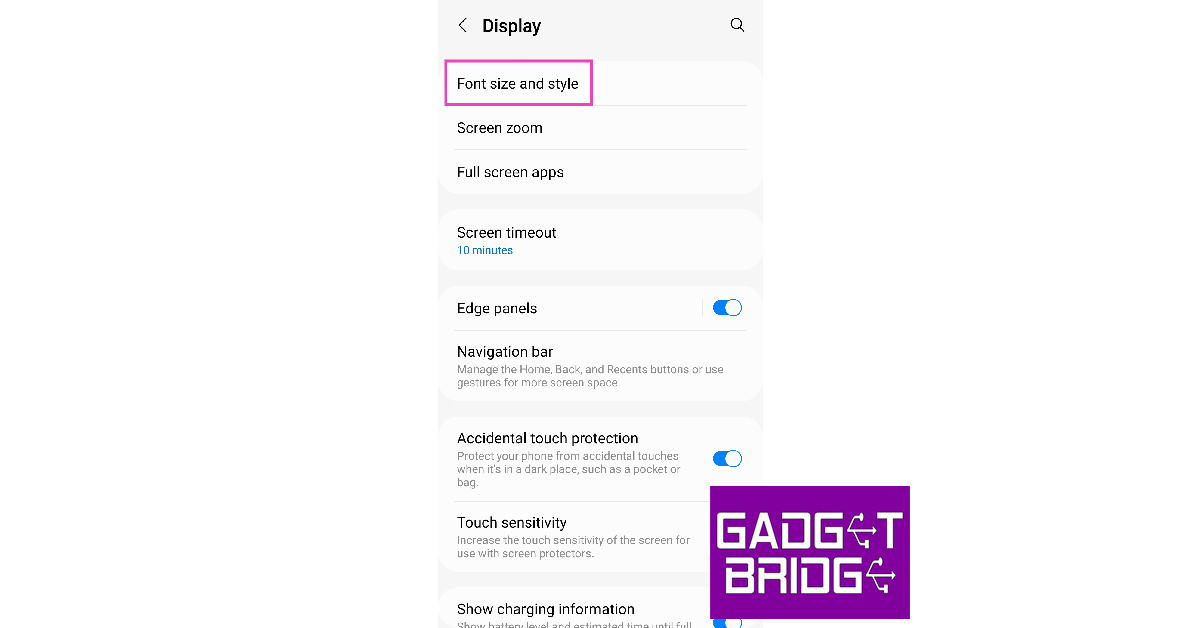
Another way to switch to iPhone-style emojis on your Android phone is by changing the emoji font on your device. This is only possible on devices that let the user download custom fonts from non-native sources. Here’s how you can use the ‘Emoji Fonts Message Maker’ to switch to iPhone emojis.Step 1: Download and install the Emoji Fonts Message Maker app on your Android phone.Step 2: Go to Settings and select Display.Step 3: Tap on ‘Font size and style’.Step 4: Select ‘Font Style’.Step 5: Select ‘EmojiFont10’.You will be able to view and send iPhone emojis on your Android device.
Frequently Asked Questions
Can I get iPhone emojis on my Android?
Yes, you can get iPhone emojis on your Android by using a third-party keyboard app like Green Apple Keyboard, Kik Keyboard, FancyKey, or iOS emojis keyboard. You can also use an iOS emojis font on your Android device to use all the iPhone emojis.
Can I get memoji on Android?
While you cannot create an Apple memoji on Android, there are plenty of apps that will help you create your own avatar that can be used across different apps and platforms. You can use a third-party app like Bitmoji or native apps like Samsung’s AR Zone.
Are iPhone emojis different from Android?
Due to licensing and copyright, the emojis on iPhone are slightly different from the ones on Android. This is also why no two apps have the same emoji set. While they may convey the same meaning, the emojis on the two platforms are not entirely the same.Read Also:Microsoft Edge vs Google Chrome: Here’s Why Edge May Be Better for You
When you open a webpage on your Android phone, what you see is the mobile version of the website. The design and layout of a mobile site are more suited to the dimensions of your smartphone. If a website does not have a mobile version, it may struggle to fit in your phone’s display. Sometimes, you may feel the need to use the desktop version of a site over the mobile site. This may be because the mobile is poorly optimised the layout is all over the place. A desktop version may also unlock some features that aren’t included in the mobile site. In this article, we bring you the 7 best ways to view a full desktop site on an Android phone.Read Also:Sony BRAVIA X75L television with X1 4K Processor launched in India
Here’s how you can view a full desktop site on Chrome
Step 1: Launch the Chromeapp on your smartphone and open a webpage.Step 2: Tap on the three dots (ellipses) at the top right corner of the screen.Step 3: Tap on Desktop Site.The webpage will reload and you will be able to see the desktop version of the website.
Enable Desktop Mode for all websites on Google Chrome for Android
Step 1:Launch the Google Chrome app on your Android smartphone.
Step 2: Tap the ellipses at the top right corner of the screen and select Settings.
Step 3: Scroll down and select Site Settings.
Step 4: Scroll down and select Desktop site.
Step 5: Switch on the toggle bar for Desktop site.
How to view a full desktop site on Samsung’s native browser
Step 1: Launch the Internet app on your Samsung smartphone.Step 2: Open a web page.Step 3: Tap on the hamburger menu icon at the bottom right corner of the screen.Step 4: Select Desktop site.The page will reload in a few seconds and you will be presented with the desktop version of the website.
View a full desktop site on the native OnePlus/Oppo web browser
Step 1: Launch the Internet app on your OnePlus smartphone.
Step 2: Tap the ellipses at the top right corner of the screen.
Step 3: Switch on the toggle bar for Desktop website.
How to view a full desktop site on Duck Duck Go
Duck Duck Go is popular among users who value their privacy over everything else. The browser goes above and beyond to ensure your browsing experience is safe and that you remain untracked. While DDG’s search optimisation may suffer because of this, the browser still offers basic functions like the option to load desktop sites. Here’s how you can do that.Step 1: Launch the Duck Duck Go browser on your Android smartphone.Step 2: Open a web page.Step 3: Tap on the ellipses (three dots) at the top right corner of the screen.Step 4: Select Desktop Site.The desktop version of the site will load on the screen in a few seconds.
View a desktop site on Microsoft Edge for Android
Step 1:Launch the Microsoft Edge browser on your Android phone and open a website.
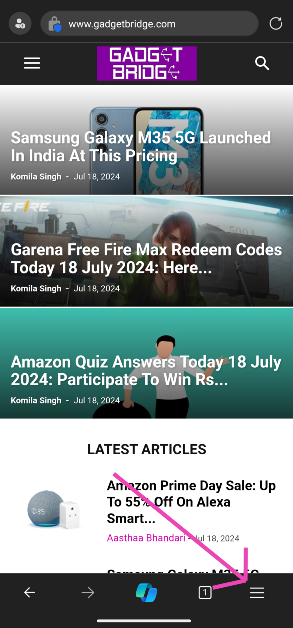
Step 2: Hit the hamburger menu at the bottom right corner of the screen.
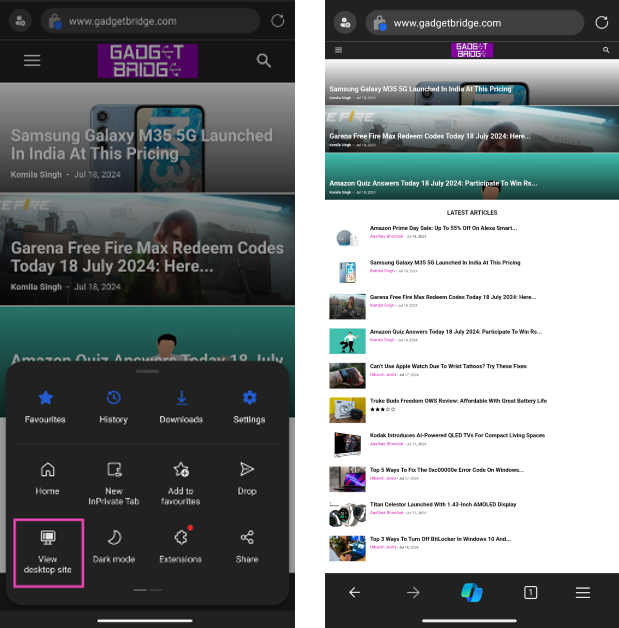
Step 3: Tap on View desktop site. The desktop site will open on the browser.
View a desktop site on Opera for Android
Step 1:Launch the Opera browser on your Android phone and go to the website of your choice.
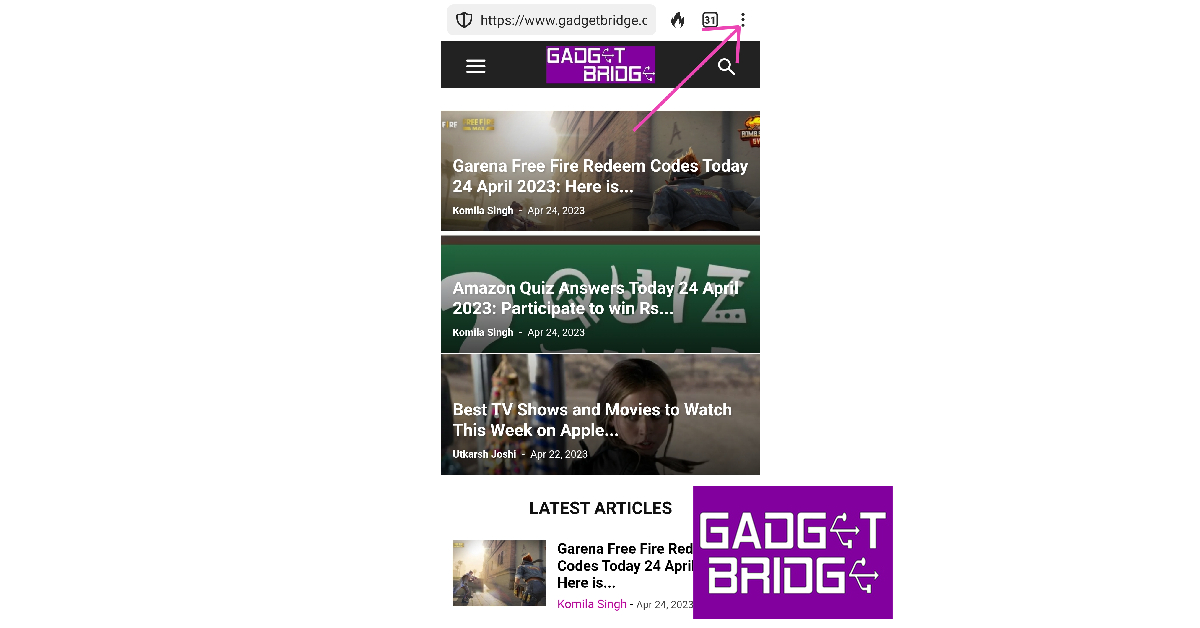
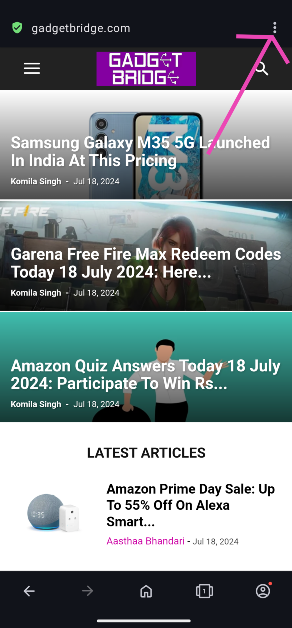
Step 2: Hit the ellipses at the top right corner of the screen.
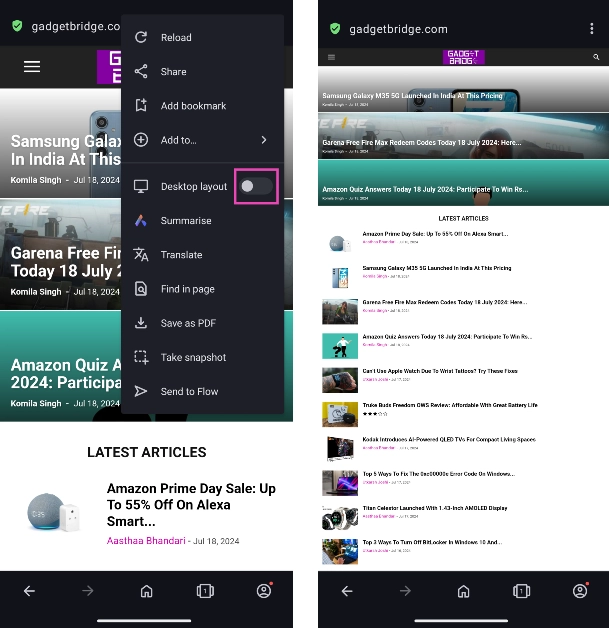
Step 3: Turn on the toggle switch for Desktop layout. The desktop website will load on the screen.
Frequently Asked Questions
How do I view desktop sites on mobile?
To view a desktop site on mobile, simply load the web page on Chrome, tap the ellipses and select ‘Desktop site’. Most web browsers for Android give you the option to load a desktop site.
How do I turn on desktop sites on Android?
To turn off a desktop site and go back to the mobile format, simply undo the checkbox for the desktop site. Tap on the ellipses (three dots) and tap on ‘desktop site’ again.
What is a desktop site?
A desktop site is the version of a website you see on your PC or laptop. This is the ‘full version’ of the website. If you open the web page on a smartphone, you will be presented with a version of the website that is optimised for mobile usage.Read Also:Acer announced Acerpure Pro Vero Air Purifier with 3-in-1 + HEPA Filter
Conclusion
These are the 7 best ways to view a full desktop site on an Android phone. If you need to fill up a form or upload an important document, it is advised that you use the desktop version of the website. Browsing a desktop site may consume more mobile data than its mobile version.
Garena Free Fire is a battle royale game with regular awards and tournaments to keep players interested. If you play Garena Free Fire, you should be aware of the redeem codes that are released on a daily basis. However, because the battle royale game is banned in India, players from other countries can use the Free Fire Redeem codes daily. If you’re unfamiliar with the Garena Free Fire redeem codes or don’t know how to get them, we’ve put together a step-by-step guide to help you redeem them. Check out Garena Free Fire Redeem Codes for 24 April 2023.The Free Fire redeem codes are a great way to get free stuff. These are 12-digit codes that contain alphabets and numbers, as well as an expiration date and time. Because the Garena FF redeem codes cannot be used more than once, you should hurry to the redemption page to claim your free reward before someone else does. To get a free reward, all you have to do is go to reward.ff.garena.com/en, which is the official redemption page. Also, keep an eye on this space for daily updates on Garena Free Fire redemption codes and rewards.
Garena Free Fire Redeem Codes Today 24 April 2023
Updating Soon
How to Get Free Fire Redeem Codes for Garena on 24 April 2023?
24 April 2023 Amazon Quiz has gone live. Customers from different parts of the country are participating in the daily quiz. The quiz begins from 12 AM to 11:59 PM. Those participating in the quiz can win exciting prizes by answering all the questions correctly. Today participants have a chance to win a Rs 1,000 Amazon Pay Balance.Amazon quiz brings an opportunity for its customers to win Amazon Pay Balance ranging from Rs 1,000 to Rs 50,000. The Quiz can be played from 12 AM to 11:59 PM. The e-commerce platform brings a fresh quiz on a daily basis which consists of five questions related to general knowledge and current affairs. The participants need to answer all the questions correctly and their names will be selected for a lucky draw. The winner will be announced at the end of the month.One wrong answer could eliminate you from the quiz. If you manage to answer all the questions correctly you can stand a chance to win a Rs 1,000 Amazon Pay Balance today. Only app users are eligible to participate in the Quiz. Check Out 24 April 2023 Amazon Quiz Answers.Amazon Quiz Today Prize – Rs 1,000 Amazon Pay BalanceQuiz Date – 24 April 2023Daily Timing – 12 AM to 11:59 PMWinner Announcement – Today 12 PM
Amazon Quiz Answers Today 24 April 2023
Question 1: Every year, the King of Norway awards the Abel Prize to acknowledge exceptional contributors in which field?Answer: MathematicsQuestion 2: ‘Mircha’ Rice from West Champaran recently received GI tag. From which state is it?
Answers: Bihar
Question 3: Which Indian won the men’s air pistol gold in the 2023 ISSF Pistol/Rifle World Cup?
Answer: Sarabjot SinghQuestion 4: This bird is the national bird of which country?Answer: UKQuestion 5: Who brought this beverage to India?Answer: Baba Budan
How To Play Amazon Quiz
Only app users are eligible to play the Amazon quiz every morning from 12 AM to 11:59 PM. The quiz is not available on the desktop. For those who are unaware of how to play the Amazon quiz below are the steps, you can follow to take the quiz.
Firstly download the Amazon app from Google Play Store or App Store
Now fill in the required information through the Sign Up option.
You need to log in to the Amazon app and scroll down on the home screen to find the Amazon Quiz banner.
Tap on the Amazon Quiz banner and tap on the Start button to start the Quiz.
Now you will get 5 questions and you need to answer them correctly. One wrong answer will eliminate you from the Quiz.
After answering all the questions correctly you are now eligible for a Lucky Draw.
The winner’s name will be announced today at 12 PM.
If you haven’t got an Apple TV+ subscription yet, you are missing out on some of the freshest content across all media streaming platforms. Apart from the highly popular and acclaimed Ted Lasso, Apple TV+ has a range of TV shows and movies across different genres on its platform. Haven’t made up your mind yet? Here are all the best TV shows and movies you can watch this week on Apple TV+.Read Also:New Acer Chromebook Spin 714 laptops with 13th Gen Intel Core processors launched
Ghosted
Starring Ana de Armas and Chris Evans, Ghosted is one of the highly anticipated Apple TV+ releases this year. This romantic action-adventure movie is available for streaming from Friday, April 21. Chris Evans portrays Cole who falls for Sadie, played by Ana de Armas. Upon the shocking revelation that Sadie is a secret agent, Cole finds himself with Sadie in the midst of an international adventure to save the world.
Drops of Gold
This eight-episode multi-lingual French drama is set around the world of gastronomy and fine wines. Based on the Japanese manga of the same name, Drops of Gold brings Fleur Gefflier (Elle) and Tomohisa Yamashita (The Head) against each other in a wine-tasting duel with Fleur’s inheritance on the line. Fleur, who knows nothing about wine tasting must battle it out with her father’s spiritual successor to claim the greatest wine collection in the world.
Big Beasts
From the makers of ‘Tiny Worlds’ comes ‘Big Beast’, a ten-part docuseries narrated by Tom Hiddleston. Big Beasts takes the viewers to distant parts of the world to meet some of the largest animal species known to mankind including the grey whale, the elephant seal, the giant otter, the brown bear, and more. Big Beasts was filmed across 17 countries over four and a half years.
Extrapolations
This star-studded drama features Kit Harrington, Meryl Streep, Sienna Miller, Daveed Diggs, Edward Norton, Diane Lane, Tahar Rahim, David Schwimmer, Marion Cotillard, Forest Whitaker, Indira Varma, Tobey Maguire, and more. Extrapolations is set in the near future where humanity is reeling from the effects of climate change. The season finale of Extrapolations is currently streaming on Apple TV+.
The Last Thing He Told Me
Based on the New York Time #1 Bestselling Book by the same name, The Last Thing He Told Me is another star-studded Apple TV+ series featuring Jennifer Garner, Nikolaj Coster-Waldau, Angourie Rice, Aisha Tyler, Augusto Aguilera, Geoff Stults and John Harlan Kim. In this gripping TV series, Hannah (played by Garner) tries to forge a relationship with her 16-year-old stepdaughter to investigate the mysterious disappearance of her husband. New episodes of The Last Thing He Told Me premiere every Friday.
The Big Door Prize
This fresh comedy series starring Chris O’Dowd, Gabrielle Dennis, Ally Maki, Josh Segarra, Damon Gupton, Crystal Fox, Sammy Fourlas and Djouliet Amara has already been renewed for a second season. A mysterious machine appears in the general store of this small town and promises to reveal each resident’s true life potential. The sixth episode of The Big Door Prize is currently streaming on Apple TV+ with new episodes every Wednesday.
Ted Lasso
This Emmy award-winning hit from Apple TV+ needs no introduction. Ted Lasso an American football coach, played by Jason Sudeikis, finds himself coaching a British soccer team across the pond. This comedy-drama stars Jason Sudeikis, Hannah Waddingham, Brendan Hunt, Jeremy Swift, Juno Temple, Brett Goldstein, Phil Dunster, Nick Mohammed and Sarah Niles. New episodes every Wednesday.
Silo
Created by Emmy-nominated screenwriter Graham Yost, Silo is set in a dystopian where the last ten thousand surviving humans live burrowed in a mile-deep Silo. Amidst the confusion, Juliette (played by Rebecca Ferguson) sets out to find some answers about the murder of a loved one and uncovers a whole new mystery. Silo will debut on Apple TV+ on May 5.Read Also:Snap brings its AI chatbot to all Snapchat users for free
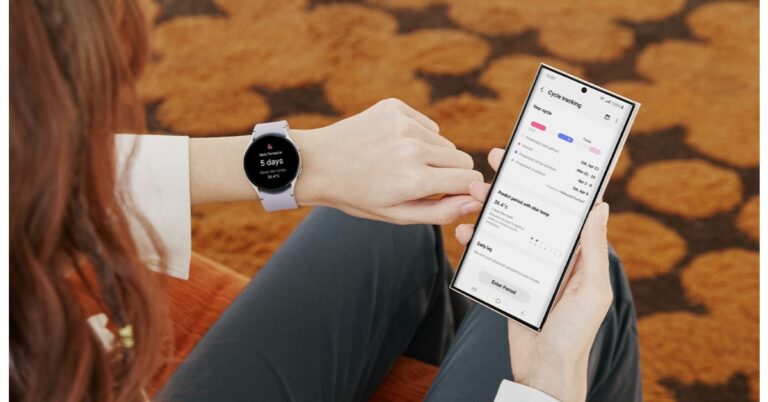
Samsung has rolled out an important health feature for Samsung Galaxy Watch 5 Series. The lineup includes two devices Galaxy Watch 5 and Galaxy Watch 5 Pro. The users of the Samsung smartwatch may now better track their menstrual cycles while they sleep by using the temperature sensor. The new health tracker will be gradually rolled out starting today via upgrades to the Samsung Health app in Korea, the US, and 30 European markets.According to Samsung’s latest announcement, it has added skin-based temperature measurement to its calendar-based cycle tracking feature. Both Galaxy Watch5 and Galaxy Watch5 Pro can get even more detailed information to manage their menstrual cycles and overall health.Hon Pak, Vice President and Head of the Digital Health Team, MX Business at Samsung Electronics said, “Samsung’s holistic view of wellness has been further advanced by our sensor innovations, delivering in-depth health insights that empower users. The new infrared temperature sensor on Galaxy Watch5 broadens our whole health offerings, providing more convenient ways to track and understand personal health.”Also Read:Samsung Galaxy Watch 5 Pro review: Is it an ideal smartwatch?The feature on the Galaxy watches will be accessible in 32 nations, including 30 different European regions, the US, and Korea. India presently lacks access to the Galaxy Watch 5’s new Menstrual Cycle tracker feature. According to the company, basal body temperature (BBT) varies by menstrual phase. So one needs to measure BBT immediately after waking and prior to any physical activity or impact from surroundings.The company explained that it would be inconvenient and perhaps even forgotten to measure the BBT first thing in the morning to get accurate BBT readings. So the new feature on the smartwatch will now automate this procedure for the user’s convenience.Natural Cycle is the software that will be doing the Menstrual cycle tracking function. It is integrated with Samsung’s sensor tech and is going to monitor variations in skin temperature during sleep right from the wrist, which is said to be a reliable indicator of basal body temperature. The Galaxy Watch 5 and Watch 5 Pro comes with infrared technology to provide readings that are more accurate even when environmental circumstances vary. Users may track ovulation with Cycle Tracking, which also improves period prediction.
For the latest gadget and tech news, and gadget reviews, follow us on Twitter, Facebook and Instagram. For newest tech & gadget videos subscribe to our YouTube Channel. You can also stay up to date using the Gadget Bridge Android App. You can find the latest car and bike news here.
Garena Free Fire is a battle royale game with regular awards and tournaments to keep players interested. If you play Garena Free Fire, you should be aware of the redeem codes that are released on a daily basis. However, because the battle royale game is banned in India, players from other countries can use the Free Fire Redeem codes daily. If you’re unfamiliar with the Garena Free Fire redeem codes or don’t know how to get them, we’ve put together a step-by-step guide to help you redeem them. Check out Garena Free Fire Redeem Codes for 22 April 2023.The Free Fire redeem codes are a great way to get free stuff. These are 12-digit codes that contain alphabets and numbers, as well as an expiration date and time. Because the Garena FF redeem codes cannot be used more than once, you should hurry to the redemption page to claim your free reward before someone else does. To get a free reward, all you have to do is go to reward.ff.garena.com/en, which is the official redemption page. Also, keep an eye on this space for daily updates on Garena Free Fire redemption codes and rewards.
Garena Free Fire Redeem Codes Today 22 April 2023
WEYVGQC3CT8Q
X99TK56XDJ4X
EYH2W3XK8UPG
4ST1ZTBE2RP9
FFCMCPSUYUY7E
8F3QZKNTLWBZ
MCPW2D2WKWF2
GCNVA2PDRGRZ
FF7MUY4ME6SC
UVX9PYZV54AC
BR43FMAPYEZZ
B3G7A22TWDR7X
6KWMFJVMQQYG
NPYFATT3HGSQ
FFCMCPSGC9XZ
How to Get Free Fire Redeem Codes for Garena on 22 April 2023?
Have you participated in the Amazon Quiz today? If not then participate in the 22 April 2023 Amazon Quiz as it has already gone live on the app. The daily quiz can be played from 12 AM to 11:59 every day on the mobile app platform. Today e-commerce is giving the chance to win Rs 2,500 Amazon Pay Balance.Every day Amazon brings a fresh quiz for its customers. By participating in the quiz the participants can win an Amazon Pay Balance of up to Rs 50,000. The quiz can only be played on the mobile app as it is not available for the desktop platform. The quiz contains five easy questions and you have to answer all the questions correctly. The participants will then be shortlisted for a lucky draw to select a winner. Whereas the results are declared at the end of the month. Check out today’s Amazon quiz answers to win Rs 2,500.Amazon Quiz Today Prize – Rs 2,500 Amazon Pay BalanceQuiz Date – 22 April 2023Daily Timing – 12 AM to 11:59 PMWinner Announcement – Today 12 PM
Amazon Quiz Answers Today 22 April 2023
Question 1: Which country recently reported polio cases for the first time in 30 years?Answer: BurundiQuestion 2: What is the name of the ESA’s project that aims to comprehend the present nature and formation of the Milky Way?
Answer: Gaia missionQuestion 3: The International Telecommunication Union opened the ITU Area Office and Innovation Centre in which Indian city?Answer: New DelhiQuestion 4: What did the ancient Egyptians associate this bird with?
Answer: Afterlife
Question 5: Where does the Indian government have a centre dedicated to the husbandry of these animals?
Answer: Dirang
How To Play Amazon Quiz
Only app users are eligible to play the Amazon quiz every morning from 12 AM to 11:59 PM. The quiz is not available on the desktop. For those who are unaware of how to play the Amazon quiz below are the steps, you can follow to take the quiz.


 Step 4: If you don’t see the AirPlay icon, tap on ‘Share’ and then select AirPlay.
Step 5: Choose your TV from the list.
Step 4: If you don’t see the AirPlay icon, tap on ‘Share’ and then select AirPlay.
Step 5: Choose your TV from the list.
 To stop streaming on your TV, tap the AirPlay icon on your iPhone and deselect the device on which the video is being cast.
 Step 4: Select your TV’s name from the list.
 Step 5: A code will appear on your TV. Enter it on your iPhone.
Your iPhone’s display will be mirrored on your TV. To stop mirroring, go to Control Center>Screen Mirroring>Stop Mirroring.
Step 5: A code will appear on your TV. Enter it on your iPhone.
Your iPhone’s display will be mirrored on your TV. To stop mirroring, go to Control Center>Screen Mirroring>Stop Mirroring.
 Step 3: Connect to your TV from your smartphone.
 Step 4: Your smartphone’s display will be mirrored on your TV.
 Step 3: Select the device for casting.
 Step 4: Once the cast icon is filled in, it means that your device is ready to cast.
 Step 3: Select ‘Cast my Screen’ from the list of options at the bottom.
 Step 3:
 Step 4:
 Step 6:
 Step 3:
 Step 4:
 Step 5:
 Step 3:
 Step 3: Scroll down and select Site Settings.
 Step 4: Scroll down and select Desktop site.
 Step 5: Switch on the toggle bar for Desktop site.

 Step 4:
 Step 3: Switch on the toggle bar for Desktop website.

 Step 4:
 Step 3: Tap on View desktop site. The desktop site will open on the browser.
 Step 3: Turn on the toggle switch for Desktop layout. The desktop website will load on the screen.