It should surprise no one that Google Chrome enjoys the bulk of the web browser market share. The web browser’s popularity speaks for itself in this regard. While everyone may have laughed Internet Explorer off the discussion, Microsoft seems to be making a comeback with Edge. Upon shifting to Chromium, Edge has been making waves again, and turning some heads towards it. If you’re reading this article, you may be thinking if Edge is the better browser for you. So, let’s take a deep dive and see how Microsoft Edge racks up against Google Chrome. Read Also:Snap brings its AI chatbot to all Snapchat users for free
Speed
While it may be general consensus that Edge (and earlier, Internet Explorer) is pretty slow, the evidence points to the contrary. Google Chrome is notorious for hoarding a lot of RAM, even when there aren’t a lot of active tabs open on the browser. Microsoft Edge is a lot more efficient at managing RAM, resulting in slightly faster speeds. While RAM consumption entirely depends on your usage, Microsoft Edge generally tends to utilize up to 500MB less RAM than Google Chrome. What’s surprising is that Microsoft’s web browser narrowly edges out Chrome in benchmark tests like WebXPRT 3.
Security
Since Microsoft Edge is based on Chromium, both browsers are pretty evenly matched when it comes to Security. However, Microsoft’s Defender SmartScreen gives Edge added protection against malware, malicious downloads, and other harmful threats to your system. You can also choose the level of tracking protection and personalised ads prevention on Chrome. While your browser is always prone to threats, Microsoft’s product seems like the safer choice here.
Extensions
It is hard to imagine a web browsing experience without browser extensions. You can thank Chrome for that. Up until recently, Edge (previously Internet Explorer) had little to offer when it came to extensions, or as Microsoft calls it – add-ons. But Edge’s shift to Chromium changed that. Now you can add any extension from the Chrome Web Store to Microsoft Edge. Both web browsers are pretty evenly matched in this regard.
User Interface
One of the reasons why you may not want to switch from Google Chrome is the familiarity of the UI. Chrome is very accessible to use, even for beginners. Its intuitive design makes the browser very easy to use on a daily basis. However, if Chrome’s pleasant user interface is the only thing that’s keeping you from moving to Edge, then it shouldn’t be a problem. Both browsers look similar to each other. Both offer dark themes and have accessible icons for the most used features. Looking for something different? Microsoft Edge also lets you place your tabs vertically for easier access and a more unique look.
Syncing
Another reason why you wouldn’t want to leave Google Chrome is its unique capability to sync your data across different devices. Well, that feature isn’t so unique anymore. Microsoft Edge can sync everything from bookmarks and extensions to settings, tabs, passwords, and browser history across multiple devices. Of course, you will need an active Microsoft Account for this. But if you intend to use Edge on your PC, then you probably already have a Microsoft Account. Microsoft’s ecosystem on PC will work even better when you add Edge into the mix.
AI Integration
Earlier this year, Microsoft announced that it will be bringing AI integration to Microsoft Edge, along with Skype, Bing, and SwiftKey. Microsoft is one of the biggest investors in ChatGPT, and has been successful in using AI to improve its products. The AI is being rolled out in a phased manner, so it may not be available for your device just yet. While Google has been focussing on using AI for Gmail, Docs, and Sheets, Microsoft is already making strides in making the web browsing experience more fun for users.Read Also:How to disable ads on a Xiaomi smartphone?
Conclusion
When it comes to these major web browsing aspects, it’s fair to say that Microsoft Edge narrowly beats Google Chrome in speed, performance, security, privacy, and AI integration, while matching it in other parameters like extensions and user interface. If you have been on the fence about switching to Microsoft Edge, the browser’s integration with ChatGPT will surely help you in making your final decision.For the latest car and bike news, car reviews/bike reviews, and auto features follow us on Twitter and Facebook. You can find the latest gadget and tech news, and gadget reviews here.
Sony today introduced the new BRAVIA X75L television series in India today. The new lineup features a 4K Ultra HD LED display. The Smart TV is powered by an X1 4K Processor and Live Colour technology. The device comes with Google TV and there is support for PS5. In addition to this Sony BRAVIA X75L is shipped with a voice-enabled remote.
Sony BRAVIA X75L Series specs and features
The Sony BRAVIA X75L comes in four sizes 43-inch, 50-inch, 55-inch and 65-inch. All the models are powered by X1 Picture Processor which uses advanced algorithms to cut noise and boost detail while the Live Colour technology help is offering 4K resolution with natural colours. In addition to this, 2K and Full HD pictures are upscaled close to 4K resolution by 4K X-Reality PRO using a unique 4K database.BRAVIA X75L Series features open baffle down firing twin speakers that deliver 20-Watt powerful sound with Dolby Audio which is ideal for low-end sounds like movies, sports and music. According to the company, the clear phase technology BRAVIA uses a powerful computer model to analyze and compensate for inaccuracies in speaker responses. It does this by ‘sampling’ the speaker frequency with higher precision.Also Read:Acer announced Acerpure Pro Vero Air Purifier with 3-in-1 + HEPA FilterMoreover Sony BRAVIA X75L Series includes Google TV giving access to over 10,000 apps and seeing 700,000+ movies and TV episodes. The BRAVIA X75L also supports Apple Home Kit and AirPlay that integrates Apple devices like iPads and iPhones with the TV. It also includes a function for the PS5 that, together with Auto HDR Tone Mapping and Auto Genre Picture Mode, completely changes the way you play video games. Additionally, it allows gaming with Auto Low Latency Mode (ALLM) thanks to its compatibility with HDMI 2.1.The Smart TV comes with a voice-enabled remote with built-in microphones allowing Google Assitant to access the TV with voice command.
Sony BRAVIA X75L Series price and availability
The Sony BRAVIA X75L Series comes in four models. The price of the KD-43X75L is set at Rs 69,900. Whereas the model number KD-50X75L, and KD-65X75L will be available with a price tag of Rs 85,900 and Rs 139,900 respectively. The price of the KD-55X75L variant is yet to be announced.All the Smart TVs will be available for purchase starting April 24 Sony Centers, major electronic stores, and e-commerce portals in India.
For the latest gadget and tech news, and gadget reviews, follow us on Twitter, Facebook and Instagram. For newest tech & gadget videos subscribe to our YouTube Channel. You can also stay up to date using the Gadget Bridge Android App. You can find the latest car and bike news here.
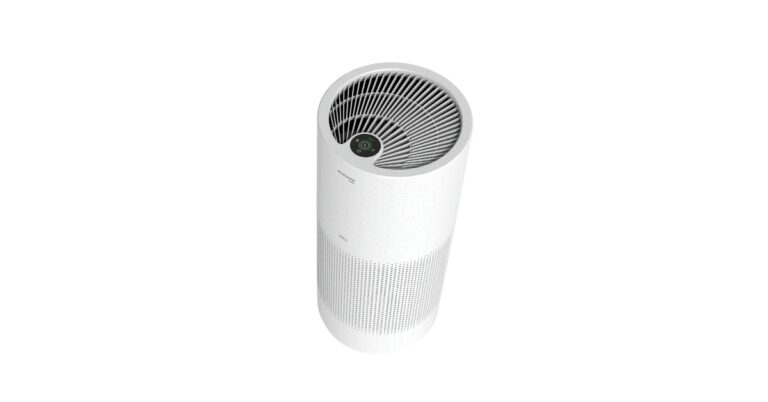
The Acerpure Pro Vero Air Purifier has debuted in the market. The air purification device is made up of 33% post-consumer recycled (PCR) materials in the chassis and decreases CO2 emissions by up to 20% during production. It features an Energy-saving Green mode and includes an advanced 3-in-1 + HEPA Filter and anti-formaldehyde filter coating. This is claimed to eliminate up to 99% of PM2.5 particles and formaldehyde in the air.
Acerpure Pro Vero Air Purifier specs and features
The Pro Vero Air Purifier features a space-saving exterior, a clean, matte white finish, and an intuitive LED touch panel. The Air Purifier comes with a PM2.5 air quality sensor that can identify suspended particles indoors and can automatically be switched to the appropriate operating mode in real-time. In addition to this, there are three different light indicators that notify users of the current air quality. Whereas the Geen mode on the device is said to self-adjust its purification power based on the surrounding conditions.Powered by a 3-in-1 + HEPA Filter, the Pro Vero Air Purifier can remove bacteria and 99.9% of suspended PM2.5 particles in the air. The 4-layer protection system filters out harmful gases and allergensAlso Read:New Acer Chromebook Spin 714 laptops with 13th Gen Intel Core processors launchedThe activated carbon cotton-infused filter with an anti-formaldehyde coating can remove 99% of formaldehyde and other harmful substances in the surrounding.
Acerpure Pro Vero Air Purifier price and availability
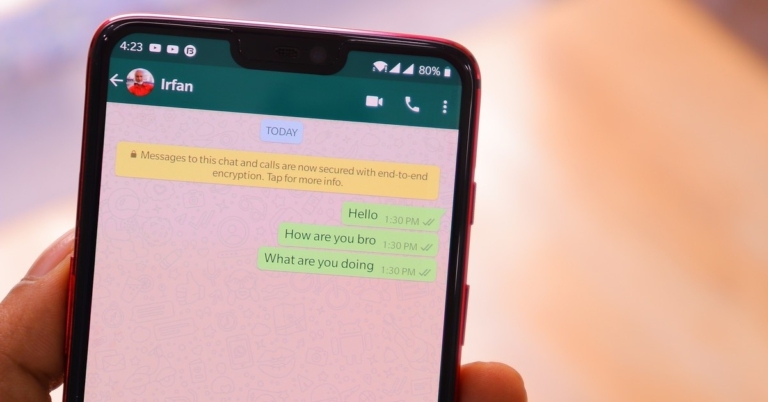
One of the cool features of WhatsApp is link previews in the chat. Every time you send the link to a website in a chat, WhatsApp loads a small preview card, giving the user some idea about the link that has been sent to them. These previews are best utilised for YouTube links, as they allow the receiver to see the thumbnail and title of the video. Sometimes, these previews don’t work as intended. Users also report that WhatsApp often has trouble loading YouTube links that are sent to them. In this article, we bring you the top 6 ways to fix the ‘YouTube links or previews not opening or loading in WhatsApp’ issue on your smartphone.Read Also:How to disable ads on a Xiaomi smartphone?
Load YouTube links in the browser
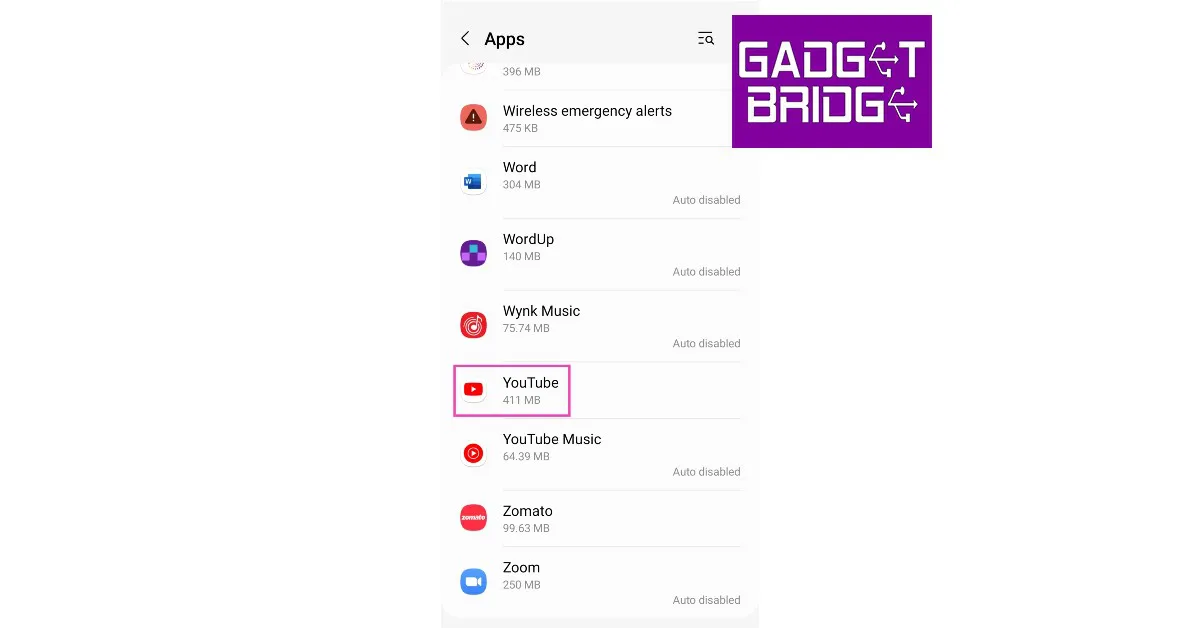
Clicking on a YouTube link on WhatsApp redirects you to the YouTube app. If the YouTube app is malfunctioning on your phone, the video may not load. To get around this issue you can try loading the YouTube link on a web browser. To reduce the extra effort of copying the link and pasting it to the browser’s address bar, here’s how you can get a YouTube link on WhatsApp to open directly in a browser.Step 1: Go to Settings and select Apps.Step 2: Select YouTube.Step 3: Tap on Set as default.Step 4: Turn the toggle bar off for Open supported links.
Clear YouTube’s app cache
A cache is a storage location for temporary files. Sometimes these files get corrupted and interfere with the functioning of the app. Here’s how you can clear YouTube’s app cache.Step 1: Go to Settings and select Apps.Step 2: Select YouTube.Step 3: Tap on Storage.Step 4: Select Clear cache from the toolbar at the bottom of the screen.
Make sure the YouTube app is compatible with shortened and mobile URLs
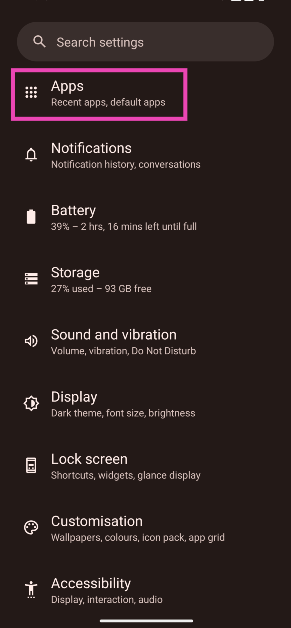
Step 1: Go to Settings and select Apps.
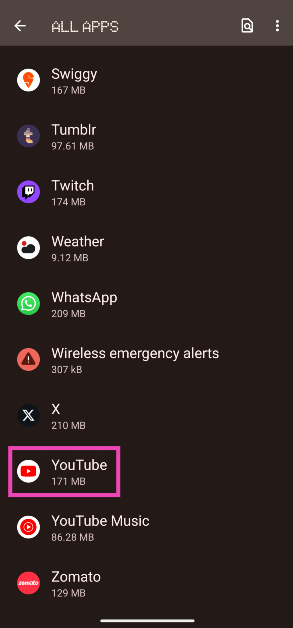
Step 2: Tap on YouTube.
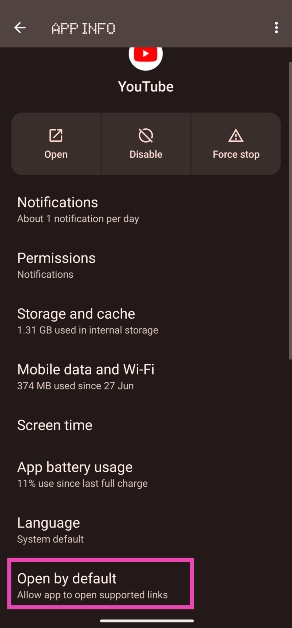
Step 3: Tap on Open by default.
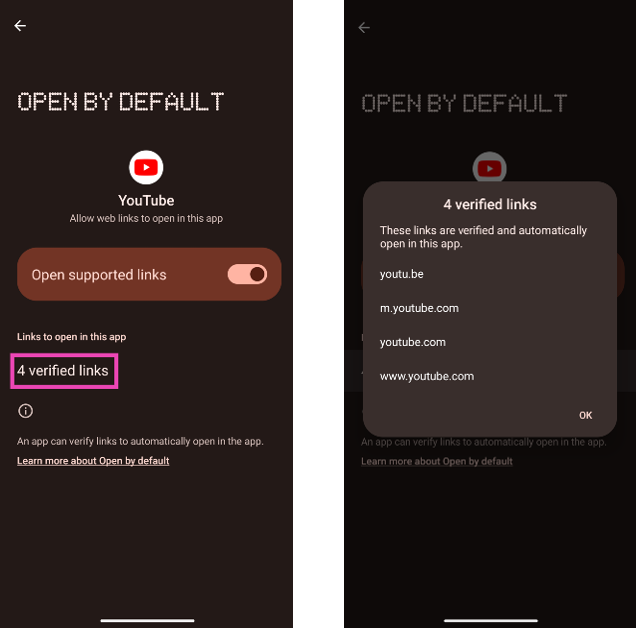
Step 4: Tap on verified links and make sure they contain the shortened (youtu.be) as well as mobile (m.youtube.com) links.
YouTube previews not working on WhatsApp? Try these fixes
There’s an annoying bug on WhatsApp that pops up every now and then. While doesn’t affect the essential functions of the app, it is frustrating to deal with as it prevents YouTube previews from loading in the conversation when you send a link to a video. Here are some common fixes to this issue.
Force Stop WhatsApp
Force-stopping WhatsApp will put an end to all background processes and activity. Any background glitches that may be preventing the preview from loading will now be resolved. Here’s how you can force-stop WhatsApp on your smartphone.Step 1: Go to Settings and select Apps.Step 2: Select WhatsApp.Step 3: Tap on Force Stop from the toolbar at the bottom.Step 4: Confirm your selection in the popup box.
Try sending the link through WhatsApp Web
If the WhatsApp app on your smartphone refuses to load YouTube previews, you can try sending the link through WhatsApp Web on your PC. Here’s how you can login to WhatsApp Web.Step 1: Open the WhatsApp Web portal on your PC’s web browser.Step 2: Launch WhatsApp on your phone. Tap on the ellipses and select Linked devices.Step 3: Tap on Link a device and scan the QR code displayed on the WhatsApp Web portal.You will be logged in to WhatsApp on your PC. Open the relevant conversation and paste the YouTube link. The preview should load in the chat.
Clear WhatsApp’s app cache
Step 1: Go to Settings and select Apps.Step 2: Tap WhatsApp.Step 3: Select Storage.Step 4: Select Clear cache from the toolbar at the bottom of the screen.
Frequently Asked Questions
How do I fix ‘WhatsApp not opening YouTube links’?
If you can’t open YouTube links on WhatsApp, try loading them in the web browser. Go to Settings>Apps>YouTube>Set As Default and turn the toggle bar off ‘Open Supported Links’.
Why is WhatsApp not showing a preview of YouTube links?
To fix this issue, update WhatsApp and YouTube on your phone. If WhatsApp still doesn’t preview YouTube links in the chat, force stop the app and try again. You can also try sending the link through WhatsApp Web.
This is how you can fix the YouTube links not loading or opening in WhatsApp issue on your smartphone. If your WhatsApp and YouTube apps aren’t updated make sure they are. Developers usually fix recurring bugs with a quick update. Go to the Google Play Store and update the app. If you found this article helpful, let us know in the comments!
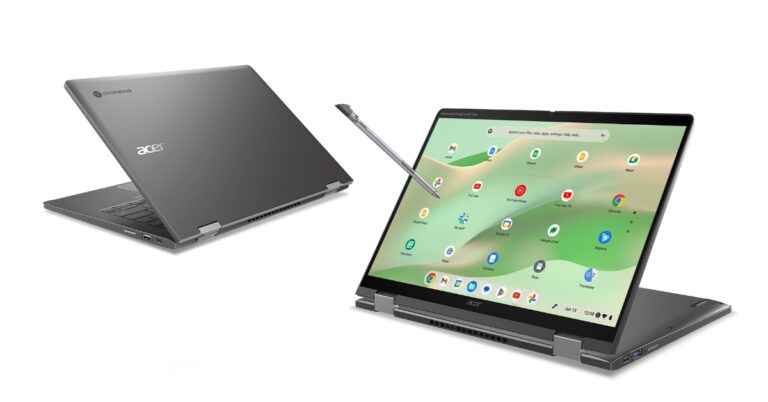
The Acer Chromebook Spin 714 and Acer Chromebook Enterprise Spin 714 laptops were introduced at the GPC 2023. The device features a convertible design and comes with the latest 13th Gen Intel Core processors and Intel vPro. They include a 14-inch WUXGA (1920×1200) display and a QHD 2K webcam. These machines are said to offer 10 hours of battery life.
The Acer Chromebook Spin 714 and Chromebook Enterprise Spin 714 come with flexible 360-degree convertible modes with an optional USI stylus that is claimed to offer 4,096 different levels of pressure and tilt sensitivity for a natural feel and precise strokes when sketching or note-taking on the display.The device features a 14-inch WUXGA display having 1920 x 1200 pixels of resolution. The 16: 10 screen comes with a 100% sRGB colour range and is protected with Antimicrobial Corning Gorilla Glass to protect it from scratches while resisting stains and odour-causing bacteria. Under the chassis, there are up to 13th Gen Intel Core i7 processors.According to the company Chromebook Enterprise Spin 714 enables business users to access Chrome Enterprise Upgrade, which unlocks ChromeOS’s built-in business features.Both Chromebooks run on ChromeOS and support web-based and Google Play apps.They further include a QHD 2K webcam with temporal noise reduction technology for video conferencing. The webcam has a physical shutter to protect privacy. In addition to this, the laptop has dual microphones and dual upward-facing speakers with DTS Audio and a built-in smart amplifier, which provides higher-quality, distortion-free sound, and deeper bass.In terms of connectivity, there is Wi-Fi 6E, Bluetooth 5.2, HDMI and two Thunderbolt 4 ports. In addition to this, there is an optional fingerprint reader for biometrics. The Acer Chromebooks also come with a backlit keyboard and Corning Gorilla Glass touchpad.
Acer Chromebook Spin 714 and Chromebook Enterprise Spin 714 price and availability
Discord offers a lot of integrations on its platforms, making it one of the most feature-rich IMs to chat with your friends. If you want to make it easy for your friends to follow you across social media platforms, you can individually link them to your Discord profile. But that’s not where the integration ends, you can even host a music listening party with your friends on Discord. In this article, we show you how to link or add your Spotify to your Discord account and how to host a listening party with your friends.Read Also:How to record a video while playing music on an iPhone?
Here’s how you can add your Spotify to your Discord profile
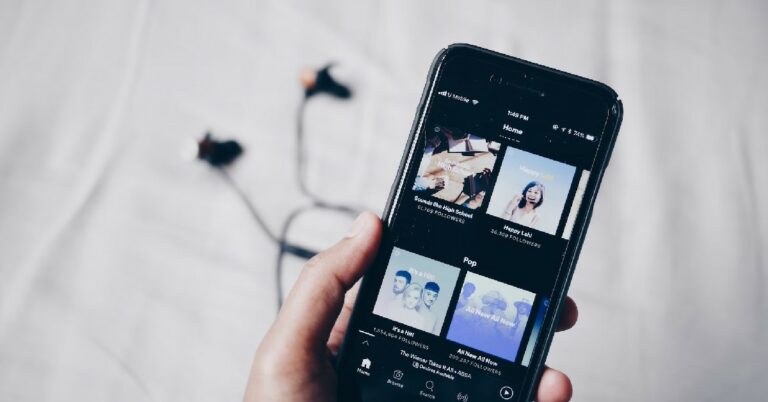
Step 1: Launch the Discord app on your smartphone and tap on your profile icon at the bottom right corner of your screen.Step 2: Select ‘Connections’.Step 3: Tap on ‘Add’ at the top right corner of the screen.Step 4: Scroll down and select Spotify.Step 5: Login to Spotify using your registered email and password.Step 6: Give Discord access to your Spotify account.Step 7: Go back to the Discord app.Step 8: Your Spotify will be linked to your Discord profile. You can choose whether you want to display your Spotify account on your profile or as your status.
How to listen to music with Discord friends using Spotify?
Step 1: Launch Discord on your PC. Make sure your Spotify profile is linked to your Discord.Step 2: Play a song on Spotify.Step 3: Open the conversation with the friend you want to listen along with.Step 4: Click on the plus icon next to the message box.Step 5: Click on ‘Invite to listen to Spotify’.Step 6: Add a comment if you want and click on ‘Send Invite’.
Frequently Asked Questions
How do you show what you are listening to on Spotify on Discord?
First, you need to link your Spotify account to your Discord. To do this, go to Profile>Connections>Add>Spotify. Allow Discord access to your Spotify account and enable the toggle bar for ‘Display on Profile’ and ‘Display Spotify as your status’.
Can you listen to Spotify together on Discord?
Once you’ve linked your Spotify with your Discord account, you can listen to music together with your friends. Simply open a conversation and click on the plus icon. Send a listening invite in order to listen to music with your friends.
This is how you can link or add your Spotify to your Discord account. Once you’ve chosen to display Spotify as the status on your Discord account, your friends will be able to see what song you are listening to on Spotify at any given moment. You can also listen to music along with a friend even if they don’t have a Spotify Premium account.For the latest gadget and tech news, and gadget reviews, follow us on Twitter, Facebook and Instagram. For newest tech & gadget videos subscribe to our YouTube Channel. You can also stay up to date using the Gadget Bridge Android App. You can find the latest car and bike news here.
At its Snap Partner Summit 2023, Snap announced that it is making its “My AI” chatbot running on OpenAI’s GPT technology available to all its Snapchat users for free. In addition to this. To recall Snap introduced My AI chatbot for Snapchat+ subscribers just a few months back. At the event, the company also introduced several new features for the creators along with new options to story formats and Calling lenses. In addition to this Snap has also added location-sharing options for the Snap Map.Snapchatter can now customise the AI chatbot with a custom Bitmoji and a new name. In addition to this, My AI can be added to conversations with friends by simply @ mention My AI and asking a question on behalf of the group. You can also ask My AI to suggest weekend activities for your family or get the perfect Lens recommendation to wish a friend a happy birthday.Moreover sharing Snaps with MY AI is also getting easier as our community can send Snaps to My AI and receive a chat reply. According to the company soon Snapchat+ subscribers will be able to Snap My AI and get a unique generative Snapback.Apart from making AI chatbot available to all its users the company at its Snap Partner Summit 2023 announced a slew of new features. It has introduced new-gen Lenses powered by Generative AI, now available globally. Snapchatter will be able to transform themselves and the world around them into an animated sci-fi scene through the Cosmic Lens.Also Read:Snap introduces its own version of OpenAI’s GPT technology My AIThe social media app will begin recommending Lenses that fit with the context of a photo or video a Snapchatter has captured. According to Snap, Snapchat users will find more Lens recommendations when people or pets are captured in the frame.Snapchat is also experimenting with ways to bring AR to Memories more quickly. As per the company, the users will be able to view their most recent shots alongside Lenses in the Snapchat Camera. Lens Carousel ranking algorithms to recommend Lenses based on Snapchatters’ unique preferences and updated the AR Bar has also been improved. Users can find hundreds of suggested Lenses organised by category, right on the Camera screen.New Calling Lenses from Snap have also been released. This will allow users to appear in the same frame during video calls without using a grid. In addition to this communities and After Dark are two new options for Stories.A new location-sharing feature with 3D landmarks has also been added to Snap Map. When you share your live location with a friend they will see your Bitmoji.
For the latest gadget and tech news, and gadget reviews, follow us on Twitter, Facebook and Instagram. For newest tech & gadget videos subscribe to our YouTube Channel. You can also stay up to date using the Gadget Bridge Android App. You can find the latest car and bike news here.
Garena Free Fire is a battle royale game with regular awards and tournaments to keep players interested. If you play Garena Free Fire, you should be aware of the redeem codes that are released on a daily basis. However, because the battle royale game is banned in India, players from other countries can use the Free Fire Redeem codes daily. If you’re unfamiliar with the Garena Free Fire redeem codes or don’t know how to get them, we’ve put together a step-by-step guide to help you redeem them. Check out Garena Free Fire Redeem Codes for 21 April 2023.The Free Fire redeem codes are a great way to get free stuff. These are 12-digit codes that contain alphabets and numbers, as well as an expiration date and time. Because the Garena FF redeem codes cannot be used more than once, you should hurry to the redemption page to claim your free reward before someone else does. To get a free reward, all you have to do is go to reward.ff.garena.com/en, which is the official redemption page. Also, keep an eye on this space for daily updates on Garena Free Fire redemption codes and rewards.
Garena Free Fire Redeem Codes Today 21 April 2023
Updating soon
How to Get Free Fire Redeem Codes for Garena on 21 April 2023?
Daily Amazon brings a fresh quiz for its customers with exciting rewards on its platform. The Amazon quiz can be played every day from 12 AM to 11:59. 21 April 2023 Amazon Quiz has gone live on its platform and the e-commerce platform Amazon is today giving you a chance to win Rs 5,000 Amazon Pay Balance.To participate all you need to do is log in to your Amazon app on your device and give answers. Daily a new set of questions are presented to the participants which gives them a chance to win exciting prizes. The questionnaire consists of five easy questions that are usually based on general knowledge and current affairs. You can submit the correct answers and can win an Amazon Pay Balance of up to Rs 50,000. It should be noted that the quiz is not accessible on the web platform instead you have to participate only through the dedicated app.Amazon Quiz Today Prize – Rs 5,000 Amazon Pay BalanceQuiz Date – 21 April 2023Daily Timing – 12 AM to 11:59 PMWinner Announcement – Today 12 PM
Amazon Quiz Answers Today 21 April 2023
Question 1: For which country’s President has the International Criminal Court issued an arrest warrant?Answer: RussiaQuestion 2: Which state launched the first women’s cooperative fund named ‘Mahila Nidhi’?
Answer: Rajasthan
Question 3: In 2023, which Indian became the oldest player to win the ATP Masters 1000 title?Answer: Rohan Bopanna
Question 4: This specific genus of parrot is concentrated in which continent?Answer: AfricaQuestion 5: Where did this company establish its first factory in India?
Answer: Pune
How To Play Amazon Quiz
Only app users are eligible to play the Amazon quiz every morning from 12 AM to 11:59 PM. The quiz is not available on the desktop. For those who are unaware of how to play the Amazon quiz below are the steps, you can follow to take the quiz.
Firstly download the Amazon app from Google Play Store or App Store
Now fill in the required information through the Sign Up option.
You need to log in to the Amazon app and scroll down on the home screen to find the Amazon Quiz banner.
Tap on the Amazon Quiz banner and tap on the Start button to start the Quiz.
Now you will get 5 questions and you need to answer them correctly. One wrong answer will eliminate you from the Quiz.
After answering all the questions correctly you are now eligible for a Lucky Draw.
The winner’s name will be announced today at 12 PM.
At last count, there are some 350,000 games available for iOS, and 480,000 currently up for grabs on the Google Play Store. That’s an impressive selection, however, not every game is worth your time or money. In truth, for every memorable and innovative title, there are 20 clones or knock-offs out there, and telling them apart can be a real challenge. Fortunately, there are options available for cutting through the noise, from scouring review platforms to checking out the rotating selection of Editor’s Choices in-app.
But for the more enterprising gamer, there’s another way to spread your wings on the mobile platform. That’s by forgoing the limitations of the official app stores all together and checking out what the wider world of mobile gaming has to offer in 2023. Let’s take a look at some compelling alternatives to try out below.
Browser-Based Gaming
We take our web browsers for granted at our peril. While there’s no escaping the fact that smartphone apps make up a huge part of our digital diet nowadays, we can sometimes forget that there are many diverse experiences and options available to us on our smartphones by way of the ‘open internet’.
For example, there’s a whole world of HTML5 and Flash-emulated minigames available online, many of which have never found their way into the app stores. We don’t just mean the likes of 8 Ball Pool—captivating as it is—but full-fledged indie marvels like Supergiant Games’ award-winning RPG, Bastion.
Likewise, certain gameplay sectors are historically underrepresented in the app stores. This is especially the case when it comes to iGaming. In 2023, browser access remains the best and most popular way to play online casino games on the mobile platform, and with a huge array of offers and bonuses out there provided by leading comparison platforms, it’s never been more affordable to explore this diverse world of compelling titles.
Sideloading
The app stores are subject to licensing agreements and the regulatory frameworks outlined by Apple and Google. This is natural, but it does mean that certain gamers can lose out when it comes to accessing the games they want to play on their own devices. Sideloading—the practice of installing apps and games on a smartphone outside of an app store—is an invaluable means of wrestling back control from these platforms.
There are various reasons why you may want to sideload a game. The most common is that the game you’re looking to install is region-locked for your country or part of the world. Sideloading, in this case, lets you get around this arbitrary limitation.
Another reason why people like to sideload games is that it enables them to play different or discontinued versions of existing games. Flappy Bird, for example, can still be installed and played on your device using this method, even though it’s no longer available in the app stores.
Finally, ongoing legal disputes between publishers and platform curators can result in games being removed from the app stores. This is precisely what has happened with Epic Games’ immensely popular Fortnite. However, with sideloading you can easily install this game to your device and play in peace.
Open Source Gaming
There are many reasons why someone may want to explore gaming outside of the official app stores. One great use case is for those with concerns about privacy. The Google Play Store, and the App Store, are both closed software libraries. This means that you cannot see the source code of the apps you’re installing. This can be problematic, especially given that many popular apps, like the social network TikTok, have been found to ship with spyware concealed in their source code.
F-Droid, on the other hand, is an example of an open-source app store. There, every app is free to install, and all source code can be inspected by anyone who may wish to. While you won’t find big-budget productions on F-Droid, there are a surprising number of entertaining and well-supported games worth your time and attention there.
For the latest gadget and tech news, and gadget reviews, follow us on Twitter, Facebook and Instagram. For newest tech & gadget videos subscribe to our YouTube Channel. You can also stay up to date using the Gadget Bridge Android App. You can find the latest car and bike news here.



 While it may be general consensus that Edge (and earlier, Internet Explorer) is pretty slow, the evidence points to the contrary. Google Chrome is notorious for hoarding a lot of RAM, even when there aren’t a lot of active tabs open on the browser. Microsoft Edge is a lot more efficient at managing RAM, resulting in slightly faster speeds. While RAM consumption entirely depends on your usage, Microsoft Edge generally tends to utilize up to 500MB less RAM than Google Chrome. What’s surprising is that Microsoft’s web browser narrowly edges out Chrome in benchmark tests like WebXPRT 3.
 Since Microsoft Edge is based on Chromium, both browsers are pretty evenly matched when it comes to Security. However, Microsoft’s Defender SmartScreen gives Edge added protection against malware, malicious downloads, and other harmful threats to your system. You can also choose the level of tracking protection and personalised ads prevention on Chrome. While your browser is always prone to threats, Microsoft’s product seems like the safer choice here.
 It is hard to imagine a web browsing experience without browser extensions. You can thank Chrome for that. Up until recently, Edge (previously Internet Explorer) had little to offer when it came to extensions, or as Microsoft calls it – add-ons. But Edge’s shift to Chromium changed that. Now you can add any extension from the Chrome Web Store to Microsoft Edge. Both web browsers are pretty evenly matched in this regard.
 One of the reasons why you may not want to switch from Google Chrome is the familiarity of the UI. Chrome is very accessible to use, even for beginners. Its intuitive design makes the browser very easy to use on a daily basis. However, if Chrome’s pleasant user interface is the only thing that’s keeping you from moving to Edge, then it shouldn’t be a problem. Both browsers look similar to each other. Both offer dark themes and have accessible icons for the most used features. Looking for something different? Microsoft Edge also lets you place your tabs vertically for easier access and a more unique look.
 Another reason why you wouldn’t want to leave Google Chrome is its unique capability to sync your data across different devices. Well, that feature isn’t so unique anymore. Microsoft Edge can sync everything from bookmarks and extensions to settings, tabs, passwords, and browser history across multiple devices. Of course, you will need an active Microsoft Account for this. But if you intend to use Edge on your PC, then you probably already have a Microsoft Account. Microsoft’s ecosystem on PC will work even better when you add Edge into the mix.
 Earlier this year, Microsoft announced that it will be bringing AI integration to Microsoft Edge, along with Skype, Bing, and SwiftKey. Microsoft is one of the biggest investors in ChatGPT, and has been successful in using AI to improve its products. The AI is being rolled out in a phased manner, so it may not be available for your device just yet. While Google has been focussing on using AI for Gmail, Docs, and Sheets, Microsoft is already making strides in making the web browsing experience more fun for users.
Read Also: How to disable ads on a Xiaomi smartphone?
Earlier this year, Microsoft announced that it will be bringing AI integration to Microsoft Edge, along with Skype, Bing, and SwiftKey. Microsoft is one of the biggest investors in ChatGPT, and has been successful in using AI to improve its products. The AI is being rolled out in a phased manner, so it may not be available for your device just yet. While Google has been focussing on using AI for Gmail, Docs, and Sheets, Microsoft is already making strides in making the web browsing experience more fun for users.
Read Also: How to disable ads on a Xiaomi smartphone?


 Step 2:
 Step 3:
 Step 4:
 Step 4:
 Step 2: Tap on YouTube.
 Step 3: Tap on Open by default.
 Step 4: Tap on verified links and make sure they contain the shortened (youtu.be) as well as mobile (m.youtube.com) links.
 Step 3:
  Step 4:
 Step 3:
 Step 4:
 Step 2:
 Step 3:
 Step 4:
 Step 5:
 Step 6:
 Step 7:
 Step 8:
 Step 5:
 Step 6: