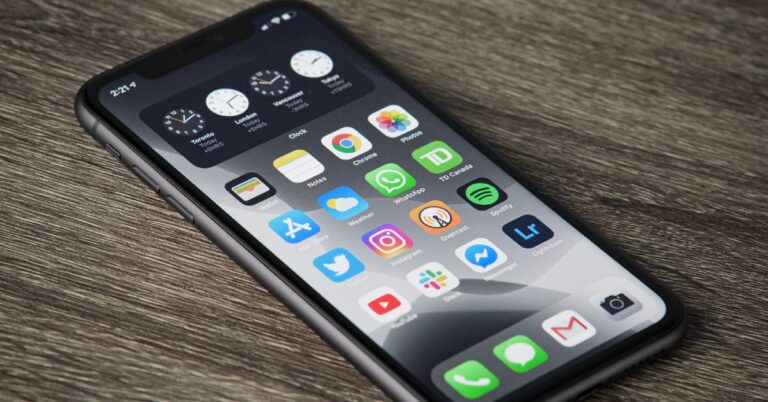
If you’ve got an app for everything then you must struggle with keeping your iPhone’s home screen clean and organised. One of the ways to manage the aesthetic of your iPhone’s home screen is by hiding the apps you use the least. This will prevent the app from showing up on the home screen without deleting it from your phone. In this article, we show you how to hide and unhide apps on an iPhone.Read Also: Lenovo announced ThinkBook Plus Gen 3 laptop in India
Here’s how you can hide an app on your iPhone
Step 1: Locate the app you want to hide and tap and hold it until the quick menu pops up on the screen.Step 2: Select ‘Remove App’ from the menu.Step 3: In the following box select ‘Remove from home screen’. The app will not be deleted from your phone, but will no longer be visible on the home screen.Step 4: Alternatively, you can press and hold anywhere on the home screen and tap the minus icon on the app you want to hide. Select ‘Remove from home screen’ in order to hide it.Any hidden apps can be accessed by searching for them in the App Library. Here’s how you can prevent the app from showing up in search results.Step 5: Go to Settings and select ‘Siri & Search’.Step 6: Select the app in you want to prevent from showing up in search results.Step 7: Under the ‘On Home Screen’ section, turn the toggle bar off for ‘Show app in search results’.
Here’s how you can unhide an app on your iPhone
Step 1: Go to the home screen and scroll all the way to the right.Step 2: Search for the app in the search bar. If you have prevented the app from showing up in search results, go ahead and change that setting.Step 3: Once the app shows up in search results, long press it and drag it to the left. The app will be moved to the home screen.Step 4: Adjust the app’s position on the home screen by pressing and dragging it. Tap ‘Done’ once you’re done.Read Also: Samsung Galaxy S23 Ultra Review: A true flagship
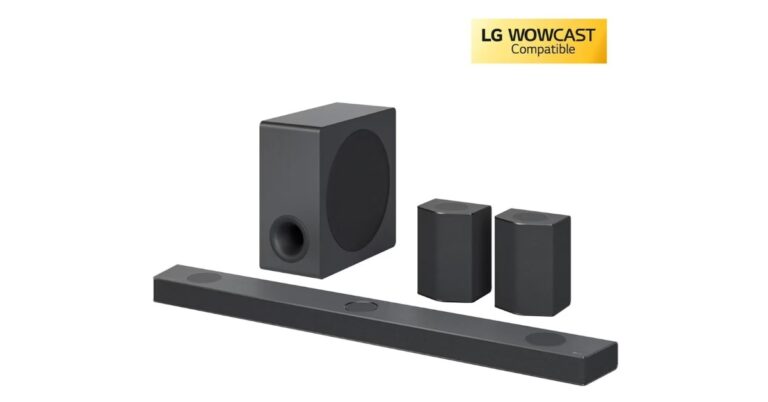
LG has expanded its audio portfolio with the release of its new lineup of soundbars for 2023. The series includes the top-tier S95QR, SC9S, S75Q, S40Q, and SH7Q models. The soundbars have a centre up-firing speaker that improves speech clarity and more precisely “places” sounds in space to give movies and other media a more realistic sense.
LG S95QR, SC9S, S75Q, S40Q, and SH7Q soundbar price and availability
The premium LG S95QR retails for Rs 1,09,990. Whereas the price of the S75Q is set at Rs 50,990, and that of the SC9S is Rs 59,990. The cost of the new LG S40Q is Rs 22,990, and that of the SH7Q is Rs 47,990. While the SC9S and SH7Q won’t be available until April 2023, the other versions are already available for purchase on the business’ website.
Features
The S95QR, the line’s top model for 2023, has an 810W output, 9.1.5 channels, and centre-firing speakers. In order to create a wide-ranging, dynamic soundscape that surrounds users and draws them deeper into the on-screen action and to further enhance the immersion of Meridian, Dolby Atmos, DTS:X, and IMAX enhanced content, LG’s top-of-the-line soundbar has a total of five up-firing channels, three of which are on the soundbar itself and two of which are in the wireless rear speakers.Also Read:Samsung Galaxy S23 Ultra Review: A true flagshipThis year’s enhanced wireless rear speakers, which have six channels instead of the four of its predecessors, are another highlight of the high-end S95QR. The S95QR’s rear speakers include triple up-firing drivers in addition to four front/side drivers, and they provide music equally over an extremely wide 135-degree angle. Users now have more placement options for speakers thanks to this improved functionality, which is especially practical for people with limited space.A more sensitive receiver, included in the S95QR and other select 2023 LG Soundbars, enables longer distances between the soundbar, subwoofer, and rear speakers without degrading audio quality.The 2023 soundbars can up-mix two-channel audio to 9.1.5 channels in Music Mode using Meridian Audio’s Horizon technology for more lifelike acoustic surround sound.With the support of IMAX Enhanced, Dolby Atmos, and DTS:X2, LG’s most recent high-end models enable moviegoers to enjoy real cinematic experiences in the comfort of their own living rooms or home theatres. LG’s soundbars now support MERIDEAN, a new feature for this year that adds a new level of aural three-dimensionality when playing compatible content.Together with a variable refresh rate (VRR) and auto low latency mode (ALLM), which flawlessly sync sound and on-screen action to increase immersion in console gaming. The finest image quality will be provided via the 4K/120Hz pass-through, which is also included.Using TV speakers, the soundbar’s WOW Orchestra feature creates a rich surround experience. For connecting external audio devices, it also has a better volume UI interface. The AI Room Calibration feature on the 2023 soundbars intelligently calibrates low-frequency performance to the room’s dimensions for the best possible sound output. In order to enhance the harmony and volume of the voice, its frequency range has been increased from 200Hz to 400Hz.
For the latest gadget and tech news, and gadget reviews, follow us on Twitter, Facebook and Instagram. For newest tech & gadget videos subscribe to our YouTube Channel. You can also stay up to date using the Gadget Bridge Android App. You can find the latest car and bike news here.
Microsoft has formally announced the release of updated smartphone preview versions of the Bing and Edge browser apps. Microsoft Skype app is also getting support for AI capabilities. Also, Bing may be added to a group chat so that users can ask queries and receive visible responses.The new Bing and Edge mobile apps’ preview release has been announced by Microsoft. The amazing capabilities of the new Bing and Edge on your smartphone are starting to roll out along with some intriguing new features, such as voice input. A new chat experience is also being developed by the business, starting with Skype, to improve social interactions with your friends and family.Also Read:AI-powered Magic Eraser is coming to all Pixel users and Google One SubscribersAlso, the business is introducing brand-new Bing and Edge mobile apps to act as your copilot for the web even when you are not on your PC. The Bing mobile app delivers a new design and experience and is currently available on iOS and Android devices. You can participate in a chat session in all the same ways as on a desktop by tapping the Bing icon at the bottom. Ask basic or difficult queries, and you’ll get responses along with citations. Select whether you want your responses to be displayed in the text, bullet points, or both. For help with your search, or to write an email, poem, or list, explore the Bing chat experience.Voice is now included in the new Bing mobile app. Voice search, which is accessible on both mobile and desktop, gives you more flexibility in how you may ask Bing questions and get its responses. Also, users of the preview will be able to access the redesigned Bing experience from the Microsoft Edge mobile app’s home page.Microsoft is also releasing Bing for Skype, which is driven by AI, to help you when you are communicating with friends and family. Some beneficial and enjoyable new scenarios and capabilities will be made possible by the new Bing.Also Read:Samsung Galaxy S23 Ultra Review: A true flagshipYou can decide whether to have your responses displayed in the text, bullet points, or as a simplified response. Your preferences can be accommodated by Bing. Bing, who speaks more than 100 languages well and can translate between them, can add something special to this instrument for international communications.The new Bing in Skype, which the company says is currently available worldwide in preview, can give you all the answers you need in a timely manner. If you’re currently using the Bing preview experience, you can use these capabilities. When testing these mobile experiences for the first few days, you could occasionally run into network problems in low-bandwidth scenarios.
For the latest gadget and tech news, and gadget reviews, follow us on Twitter, Facebook and Instagram. For newest tech & gadget videos subscribe to our YouTube Channel. You can also stay up to date using the Gadget Bridge Android App. You can find the latest car and bike news here.
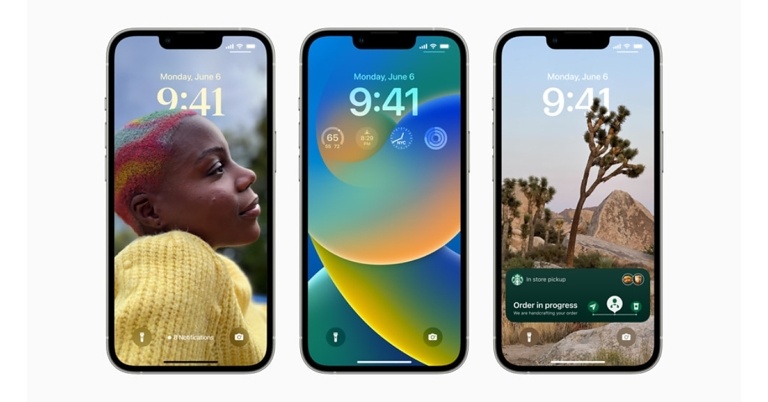
Apple rolled out iOS 16 with the launch of the new iPhone 14 series last year. While iOS 16 grabbed the headlines for Always On Display and lock screen customisations, there were a lot of features that went under the radar. Some of these were a long time coming and others pleasantly surprised us with their practicality and ease of use. So, without further ado, here are the top 10 hidden features in iOS 16 that you should check out right now!Read Also: Samsung Galaxy S23 Ultra Review: A true flagship
Remove background and copy objects from images
Earlier, you needed a third-party tool to remove the background from your images. Now, on iOS 16 you can do that with just one tap. Simply open the image on the Photos app and long-press on the object your want to isolate. Your iPhone’s software will recognise the edges of the object and extract it from the image, allowing you to paste it anywhere. You can easily create stickers and emoticons using this trick. Need to quickly save the extracted object? Simply paste it on a Note and edit it later.
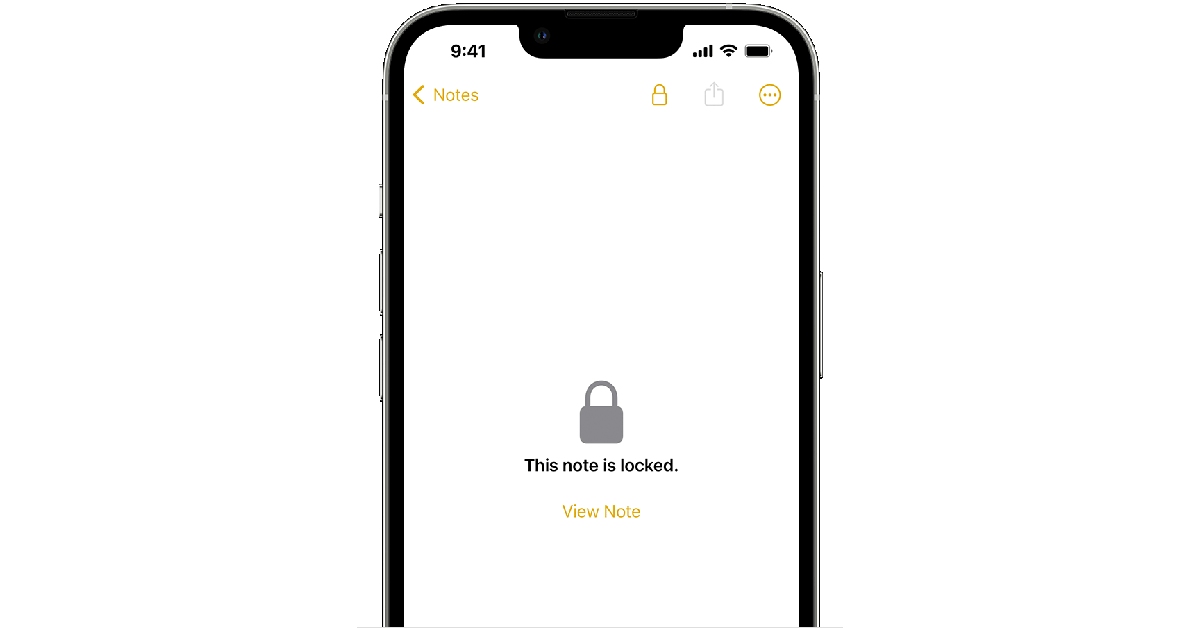
Keep your Notes password protected
Talking about Notes, iOS 16 now lets you secure them with your iPhone’s pin. If you store all your passwords and login credentials in your Notes folder, now you won’t have to worry about someone accessing them without authorisation. All you need to do is launch the Notes app on your iPhone, tap the ellipses (three dots) at the top right corner of the screen, and select ‘Lock’.
New improved Dictation
For a lot of people, the Dictation function on iPhone comes in clutch when they need to send an important text while also focusing on the road while driving. Dictation allows speech-to-text functionality for your iPhone, which greatly improves its ease of accessibility. In iOS 16 you can use Dictation while you’re typing on your phone. This wasn’t possible in the previous versions of iOS 16, as Dictation would halt as soon as you touched the screen.
Metric conversions made easy
iOS 16 instantly recognises any measurement units and allows you to instantly convert them to the unit of your choice without leaving the app. While texting on iMessage, all units of measurement are underlined in the chat thread. Simply tap the figure and you will get the option to convert it into the unit of your choice. While typing a text, press and hold the unit and tap on the arrow at the end of the popup menu to convert it into the unit of your choice. If you find a foreign currency mentioned in a menu, all you need to do is point the camera at it and tap on the scan icon on the screen. This will allow you to convert it into your desired currency.
Translate any language
The Live Text feature on iOS 16 doesn’t just convert measurements and currencies, it can even translate a language! This will come in handy when you’re travelling abroad and having trouble understanding the menus or city maps. Simply point your camera at the text, tap on the scan icon on the screen, and translate it into your desired language. You can also translate the text on saved images using Live Text. The translations may not be 100% accurate but they will be helpful in getting the basic message across.
See the battery percentage in the status bar
This may be the tiniest of upgrades but it is certainly one of the most useful ones. Previous iOS versions did not display the battery percentage in the status bar itself, making you swipe down to view the amount of charge left on your iPhone. iOS 16 displays the battery percentage in the battery icon at the top right corner of the screen. To activate this feature, go to Settings>Battery and turn the toggle bar on for Battery Percentage.
Merge Duplicate Images
We’ve talked about this feature in the past, but it is too good to not mention it in this list. If you take multiple images at once and pick the best of the lot, deleting the additional images can be a daunting chore. Now, you can let your phone take care of it. iOS 16 intelligently selects the best images out of the bunch and eliminates the rest. To merge duplicate images, go to Photos>Albums>Duplicates and select Merge. Earlier, you would need a third-party app to do this task.
Schedule Mails and Undo send ones
Another handy feature that you will be using a lot on iOS 16 is scheduling your emails. After you’re done writing an email in the Mail app, simply press and hold the arrow icon and select ‘Send later’. Accidentally sent the email to the wrong person? Now you can undo it within seconds. To activate this feature, go to Settings>Mail and select ‘Undo Send Delay’ to set the time limit to undo send emails.
Send screenshots without saving them
Screenshots may not take a significant portion of the storage space, but they make your image gallery look like a mess. Most of the time, you only take a screenshot to send to a friend. Now you can do this without having to save the screenshot on your phone. Simply tap on the preview popup upon taking a screenshot and select ‘Copy and Delete’. Paste the screenshot in the conversion thread and send it to your friend without saving it to your phone.
Prevent the side button from ending the call
Do you accidentally hang up on people by pressing the side key? Now you can avoid this problem. Go to Settings>Accessibility>Touch and turn the toggle bar on for Prevent Lock to End Call. Now you won’t have to worry about accidentally pressing the side key while you’re on a call.Read Also: Lenovo announces ThinkBook Plus Gen 3 laptop in India
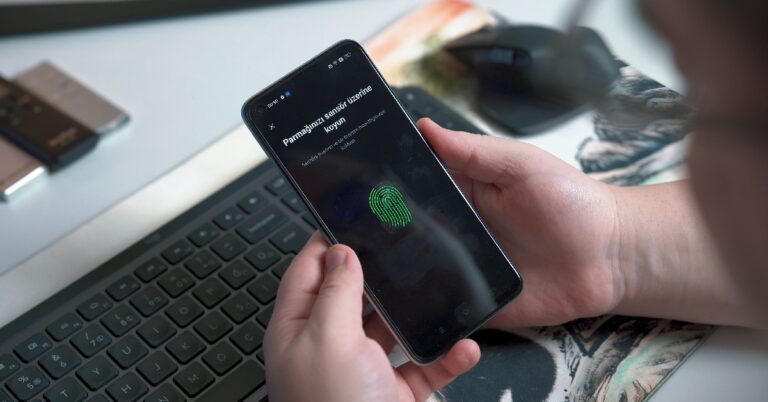
If you’re looking for an added layer of security for the contents of your phone, you should look into securing important files and apps with a password. In case your phone gets lost or stolen, you won’t have to worry about personal documents like your Driver’s License, Aadhar Card, and PAN card from getting into the hands of malicious entities. In this article, we show you how to add a password to any file or app on Android.Read Also: Samsung Galaxy S23 Ultra Review: A true flagship
How to password-protect any file on Android
Step 1: Launch the Files app by Google on your smartphone. If you do not have this app on your phone, download it from Google Play Store.Step 2: In the ‘Browse’ tab, select ‘Safe folder’.Step 3: Choose a lock for your files. You can either add a pin or a pattern lock.Step 4: Go to the file or document you want to secure and tap the ellipses (three dots) next to it.Step 5: Select ‘Move to safe folder’.Step 6: Enter the pin or pattern you just created.Your file will be moved to the safe folder and can only be accessed when you enter the pin or pattern. You will need to move the file out of the secure folder to open it.
How to password-protect any app on Android
Step 1: Launch the S Secure app on your smartphone. This is one of Samsung’s native apps. If you use any other Android device, check if the manufacturer offers a Secure Folder for apps.Step 2: You can also access this feature by opening Settings and selecting ‘Advanced Features’.Step 3: Tap on ‘Lock and mask apps’.Step 4: Select ‘Locked apps’.Step 5: Add the app your want to protect with a password.Step 6: Hit back when you’re done. Your changes will be saved.Step 7: Tap the password-protected app. You will need to enter your pin, password, or pattern to access it.Read Also: Lenovo announced ThinkBook Plus Gen 3 laptop in India
Google plans to make Magic Eraser available to all Google One subscribers on both Android and iOS. Also, new HDR video effects and custom collage designs are being made available along with other cutting-edge editing options. Orders from the print store are shipped for free to Google One subscribers.The AI-powered Magic Eraser feature was only available on the Pixel 6 and Pixel 7. The firm just declared that users of Google One would soon be able to use Magic Eraser on any device. Also, it will be free to use for anyone with a Pixel 5a or earlier without the need for a Google One subscription. In addition to this, the company is also making more latest editing tools like exclusive collage styles and HDR video effects available for Pixel users with no need for a Google One subscription for free.
Magic eraser
Magic Eraser can quickly and easily remove photo distractions like photobombers and power lines by identifying them in your images and detecting them. Other items can be circled or painted over with the Magic Eraser to make them disappear. Moreover, Camouflage in Magic Eraser allows you to adjust the colour of items in your shot so they organically blend in with the background, allowing you to concentrate on what is really important.Also Read:Apple Watch to study the heart in a way that has never been done before
New HDR effect
In order to capture every detail, you can already utilise the HDR effect on images to balance out dark foregrounds and bright backgrounds (or vice versa). You may now improve the brightness and contrast throughout your films by using the HDR effect.
New collage editor designs
Google is making a few tweaks to the collage editor in Google Photos to give users even more options when creating collages. The collage editor now allows all Google Photos users to apply Styles to a single shot. Second, there will be a variety of additional Styles available in the collage editor for Google One subscribers and Pixel users, giving you more options when creating your collages.
Free shipping on print orders
In the United States, Canada, the European Union, and the United Kingdom, Google One members can get free shipping on orders from the print store as of right now.
We don’t have to tell you how annoying bloatware on your smartphone can be. From occupying a significant chunk of storage to spamming notifications, bloatware apps on your device can turn out to be a real nuisance. While getting rid of these apps is the first thing most users carry out on their new smartphones, sometimes it can be trickier than you think. In this article, we show you how to fix the ‘Can’t Delete Apps’ issue on Android smartphones and tablets.Read Also:Lenovo announced ThinkBook Plus Gen 3 laptop in India
Disable Apps
Certain apps on your phone cannot be uninstalled. Apps like Google Play Store are essential to the working of your device; deleting them would defeat the purpose of a smartphone. Generally, the ‘Google Services’ apps are quite challenging to get rid of. While most bloatware can be completely uninstalled from a device, some apps like Facebook may be stubborn and refuse to be deleted. However, there is a way of disabling them.Step 1: Go to Settings and select Apps.Step 2: Select the app you want to disable.Step 3: Select Disable from the bottom menu.The app will be disabled on your device and you won’t see it on the app drawer anymore.
Uninstall apps using the Google Play Store
If you can’t find the option to disable or delete an app on your Android smartphone’s settings menu, try using the Google Play Store before moving on to other fixes. This method will work for bloatware apps but not for native apps like Calculator, Phone, Contacts, etc. Launch the Google Play Store, go to your profile, select ‘Manage apps and device’, switch to the ‘Manage’ tab, select the apps you wish to uninstall, and hit the trash icon at the top right corner of the screen. We found this method to work for Google’s suite of apps.
Revoke admin privileges from the app
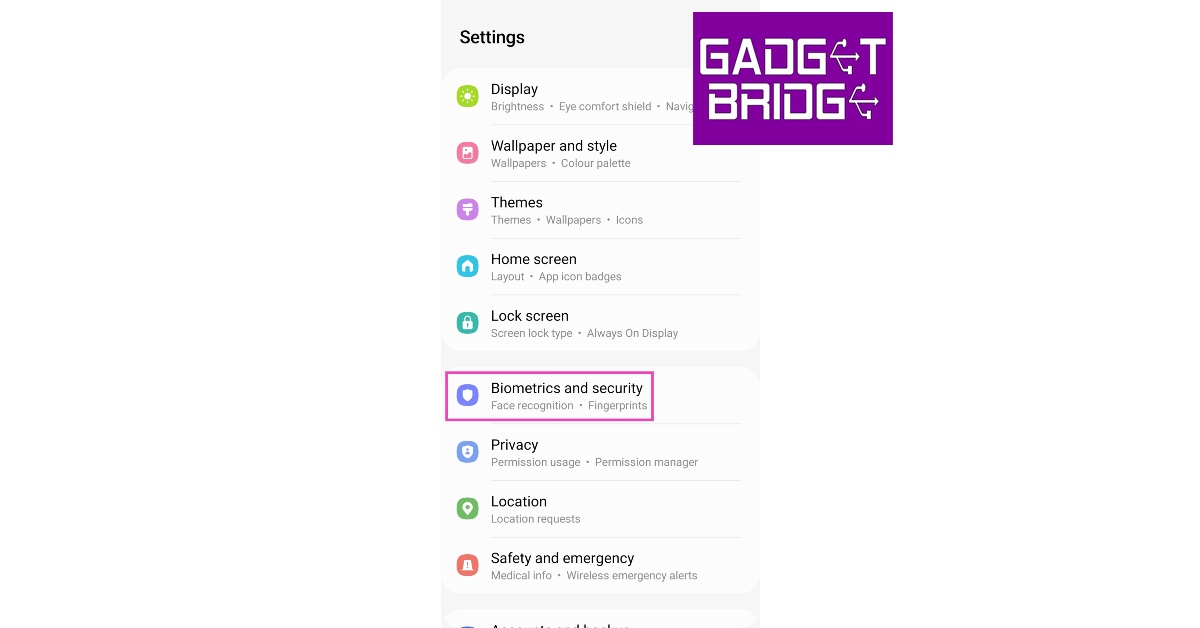
Some apps require admin privileges in order to carry out their tasks effectively. Most antivirus and mobile tracking apps fall into this category. If you want to uninstall these apps, you will need to revoke their admin status first. Here’s how you can go about it. Step 1: Go to Settings and select Biometrics and Security.Step 2: Scroll down and tap on Other Security Settings.Step 3: Select Device admin apps.Step 4: Turn the toggle bar off for the app you want to uninstall. This will revoke the app’s adminprivileges.Step 5: Hit the back button and go to Apps.Step 6: Scroll down and select the app you want to uninstall.
Use ADB to delete apps
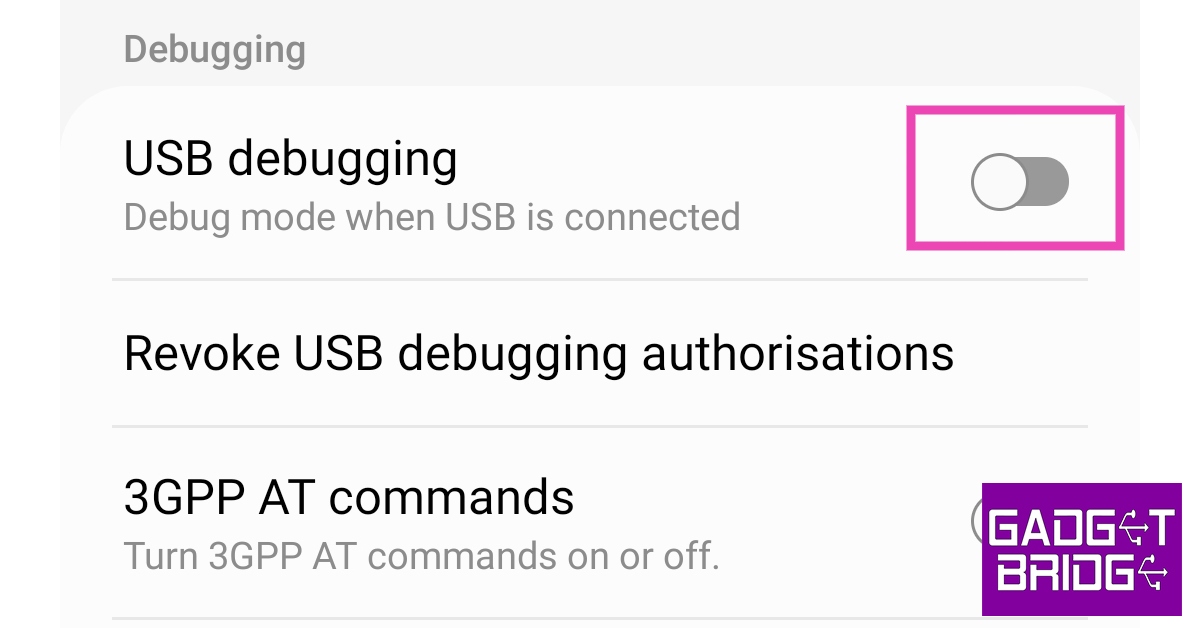
This method may require some effort but it will remove the stubborn apps that refuse to be deleted even after trying the two methods mentioned above. Here’s how you can remove them using ADB.Step 1: Go to Settings and select About Phone.Step 2: Select Software Information.Step 3: Tap on Build Number 7 times to enter Developer Mode.Step 4: Go back to Settings, scroll all the way down, and select Developer options.Step 5: Scroll down to the Debugging section and turn the toggle bar on for USB debugging.Step 6: Connect your smartphone to your PC and allow USB debugging from the popup that shows up on your phone.Step 7: Here’s where the important part begins. First, you will need to download the official ADB driver for your PC. You can download it from this page. Step 8: Extract the package, press Shift + right-click anywhere on the screen and select Open PowerShell Window here. Step 9: In the following Window, type ./adb uninstall followed by a space and the name of the package. If you don’t know the name of the app package, use the ‘App Inspector’ app to find it. The apps from that package will be successfully removed from your device.
Frequently Asked Questions (FAQs)
Why can’t I uninstall some apps from my phone?
Most midrange and affordable phones come with pre-installed bloatware apps. Some of these apps cannot be removed from the device.
How do I delete the apps that cannot be uninstalled from my phone?
If an app cannot be deleted from your phone, you can choose to disable it. If you wish to completely get rid of the app, download ADB on your PC, connect your phone, run Powershell, and use the ./adb uninstall + [package name] command.
How do I mass delete apps from my phone?
Go to the Google Play Store, select your profile, tap on ‘Manage apps and device’, switch to the ‘Manage’ tab, select the apps you wish to delete, and tap the trash icon at the top right corner of the screen.
Read Also: Top 5 apps to keep track of festivals in India
Conclusion
These are the top 4 ways to fix the ‘Can’t Delete Apps’ issue on Android smartphones and tablets. These three fixes cover all kinds of apps and don’t require rooting your phone or performing a jailbreak. While disabling may not get rid of the app entirely, using the ADB tool will surely take care of it.
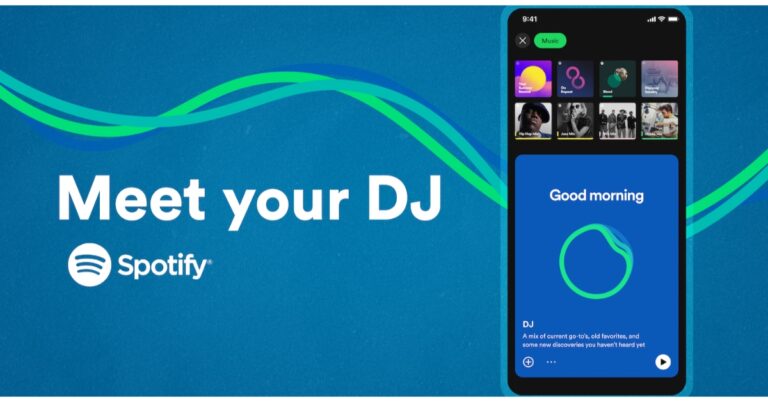
The introduction of AI-DJ has been announced by Spotify. Users will be able to get automatically generated playlists based on their listening interests, tastes, and history thanks to a recently introduced artificial intelligence-powered functionality.“We’re building on that innovation by harnessing the power of AI in an entirely new way. And today, we’re excited to share that we’re taking our personalization to a whole new level with DJ,” the company said via blog post.An AI-DJ capability will soon be available on Spotify. According to the company, the feature is presently accessible on Spotify‘s beta apps for iOS and Android. The DJ is a customised AI companion that is so familiar with you and your musical preferences that it can choose the music to play for you. This feature will give a carefully selected playlist of music combined with commentary about the songs and artists we believe you’ll enjoy in a beautifully realistic voice.Also Read:Spotify launched New Year’s Hub feature, making party music easily accessibleIt will look back at some of your old favourites and sort through the newest music, perhaps even bringing up a song you haven’t heard in a while. Then it will go over potential interests and present a stream of songs selected especially for you. Also, the lineup is continually updated based on your feedback.If you’re not feeling it, just hit the DJ button, and it will switch things up, the business claims. The DJ’s selections get better the more you listen and let him or her know what you enjoy (and don’t like!).“To create the DJ we reimagined the way users listen on Spotify. The DJ knows you and your music taste so well that it will scan the latest releases we know you’ll like, or take you back to that nostalgic playlist you had on repeat last year. Never before has listening felt so completely personal to each and every user.”Also Read:3 Simple Ways to Cancel Spotify Premium SubscriptionSpotify collaborated with Xavier “X” Jernigan, its Head of Cultural Partnerships, to develop the voice model for the DJ. The Get Up, Spotify’s inaugural (and personalised) morning programme, included X as one of the hosts. His persona and voice connected with its listeners, building a devoted audience for the podcast. His voice serves as the DJ’s initial prototype.AvailabilityFor Spotify Premium subscribers in the United States and Canada, Spotify AI DJ is presently available in English.Where to find the Spotify AI DJ?
On your iOS or Android smartphone, open the Spotify mobile app and go to your Music Feed on Home.
On the DJ card, press Play.
The DJ will play a selection of music and provide a brief analysis of the songs and artists chosen just for you.
To change the genre, artist, or mood, simply click the DJ button in the bottom right corner of the screen.
Garena Free Fire is a battle royale game with regular awards and tournaments to keep players interested. If you play Garena Free Fire, you should be aware of the redeem codes that are released on a daily basis. However, because the battle royale game is banned in India, players from other countries can use the Free Fire Redeem codes daily. If you’re unfamiliar with the Garena Free Fire redeem codes or don’t know how to get them, we’ve put together a step-by-step guide to help you redeem them. Check out Garena Free Fire Redeem Codes for 24 February 2023.The Free Fire redeem codes are a great way to get free stuff. These are 12-digit codes that contain alphabets and numbers, as well as an expiration date and time. Because the Garena FF redeem codes cannot be used more than once, you should hurry to the redemption page to claim your free reward before someone else does. To get a free reward, all you have to do is go to reward.ff.garena.com/en, which is the official redemption page. Also, keep an eye on this space for daily updates on Garena Free Fire redemption codes and rewards.
Garena Free Fire Redeem Codes Today 24 February 2023
XFW4Z6Q882WY
2FG94YCW9VMV
FFDBGQWPNHJX
V44ZZ5YY7CBS
4TPQRDQJHVP4
VNY3MQWNKEGU
FFIC33NTEUKA
TDK4JWN6RD6
HFNSJ6W74Z48
WD2ATK3ZEA55
E2F86ZREMK49
FFBBCVQZ4MWA
FFCMCPSBN9CU
FFAC2YXE6RF2
HHNAR6VKQ9R7
ZZATXB24QES8
U8S47JGJH5MG
How to Get Free Fire Redeem Codes for Garena on 24 February 2023?
24 February 2023 Amazon Quiz has gone live on its platform. The quiz timings are 12 AM to 11:59 PM. The Amazon App users can participate in the quiz daily and all they have to do is submit correct answers to the questions asked on the e-commerce platform. Today’s participants can get a chance to win Rs 5,000 Amazon Pay Balance.By participating in the Amazon Quiz the participants can win Amazon Pay Balance ranging from Rs 1,000 to Rs 50,000 every day while sitting at home. To win the participants must answer five questions correctly that are based on current events and general knowledge. One wrong answer can eliminate you from the quiz. The results will be announced at the end of the month. Today’s question will let you win Rs 5,000 Amazon Pay Balance. Check below for today’s Amazon quiz answers.Amazon Quiz Today Prize – Rs 5,000 Amazon Pay BalanceQuiz Date – 24 February 2023Daily Timing – 12 AM to 11:59 PMWinner Announcement – Today 12 PM
Amazon Quiz Answers Today 24 February 2023
Question 1:Bhairon Singh Rathore is a war hero from which of these battles?
Answer: Battle of LongewalaQuestion 2: Sundaresh Menon sat on the Supreme Court of India bench headed by CJI D Y Chandrachud. He is the chief justice of which country?Answer: SingaporeQuestion 3: Which famous author referred to Shah Rukh Khan as “a great actor, legend, and king” in a tweet?
Answer: Paulo CoelhoQuestion 4: Where was this bird first seen in the AmericasAnswer: BarbadosQuestion 5: Which species of this animal is found in the mainland USA?
Answer: Jackson’s
How To Play Amazon Quiz
Only app users are eligible to play the Amazon quiz every morning from 12 AM to 11:59 PM. The quiz is not available on the desktop. For those who are unaware of how to play the Amazon quiz below are the steps, you can follow to take the quiz.
Firstly download the Amazon app from Google Play Store or App Store
Now fill in the required information through the Sign Up option.
You need to log in to the Amazon app and scroll down on the home screen to find the Amazon Quiz banner.
Tap on the Amazon Quiz banner and tap on the Start button to start the Quiz.
Now you will get 5 questions and you need to answer them correctly. One wrong answer will eliminate you from the Quiz.
After answering all the questions correctly you are now eligible for a Lucky Draw.
The winner’s name will be announced today at 12 PM.


 Step 3: In the following box select ‘Remove from home screen’. The app will not be deleted from your phone, but will no longer be visible on the home screen.
 Step 4: Alternatively, you can press and hold anywhere on the home screen and tap the minus icon on the app you want to hide. Select ‘Remove from home screen’ in order to hide it.
 Any hidden apps can be accessed by searching for them in the App Library. Here’s how you can prevent the app from showing up in search results.
Step 5: Go to Settings and select ‘Siri & Search’.
Any hidden apps can be accessed by searching for them in the App Library. Here’s how you can prevent the app from showing up in search results.
Step 5: Go to Settings and select ‘Siri & Search’.
 Step 6: Select the app in you want to prevent from showing up in search results.
Step 7: Under the ‘On Home Screen’ section, turn the toggle bar off for ‘Show app in search results’.
Step 6: Select the app in you want to prevent from showing up in search results.
Step 7: Under the ‘On Home Screen’ section, turn the toggle bar off for ‘Show app in search results’.
 Step 2: Search for the app in the search bar. If you have prevented the app from showing up in search results, go ahead and change that setting.
Step 3: Once the app shows up in search results, long press it and drag it to the left. The app will be moved to the home screen.
Step 2: Search for the app in the search bar. If you have prevented the app from showing up in search results, go ahead and change that setting.
Step 3: Once the app shows up in search results, long press it and drag it to the left. The app will be moved to the home screen.
 Step 4: Adjust the app’s position on the home screen by pressing and dragging it. Tap ‘Done’ once you’re done.




 Step 3:
 Step 6:
 Step 3:
 Step 4:
 Step 5:
 Step 6: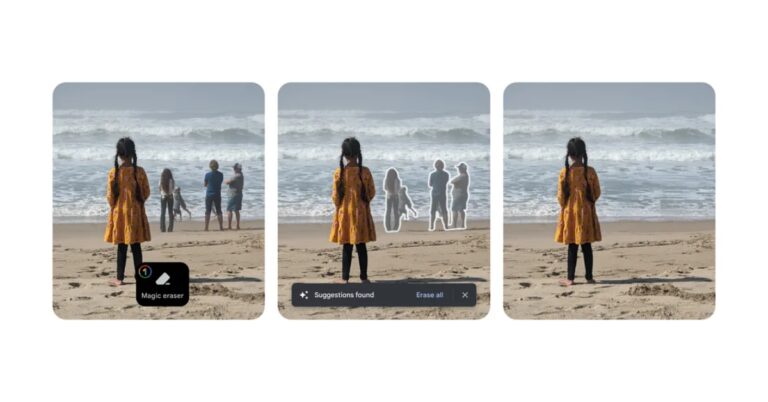
 Step 2:
 Step 3:
 If you can’t find the option to disable or delete an app on your Android smartphone’s settings menu, try using the Google Play Store before moving on to other fixes. This method will work for bloatware apps but not for native apps like Calculator, Phone, Contacts, etc. Launch the Google Play Store, go to your profile, select ‘Manage apps and device’, switch to the ‘Manage’ tab, select the apps you wish to uninstall, and hit the trash icon at the top right corner of the screen. We found this method to work for Google’s suite of apps.
 Step 2:
 Step 3:
 Step 4:
 Step 5:
 Step 2:
 Step 3:
 Step 4:
 Step 5:
 Step 6:
 Step 9: