Best Ways To Remove Duplicate Icons On Android

0
If you own an older smartphone that has stopped receiving security updates, you may notice some weird glitches from time to time. Some Android users report that their smartphone’s home screen gets filled with duplicate icons for a certain app out of the blue. There may be several reasons behind this problem. In this article, we bring you the best ways to remove duplicate app icons on your Android smartphone. Read Also: Playfit Flaunt Smartwatch Review: A worthy contender in the budget smartwatch category

Check for Malware

Malware alert: CERT-In cautions Indian Bank users of Drinik Android Malware promising Income tax refunds Suspicious malware can creep into your phone from various sources and severely inhibit your smartphone’s ability to function properly. As a general rule of thumb, don’t download apps from third-party marketplaces and don’t click on shady links to reduce the risk of a malware attack. To scan your smartphone for malware, download the Malwarebytes Mobile Security app. Perform a deep scan of your smartphone using the app and remove all the malware you find on it.

Clear app cache

Clear the cache of the app that is producing duplicate icons on the home screen. Temporary files in the cache are known to corrupt over time and create unnatural issues on your phone. Here’s how you can clear the app cache. Step 1: Go to Settings and select Apps. Go to Settings>Apps Step 2: Select the app that is malfunctioning. Choose the App whose cache you want to clear. Step 3: Select Storage. Click on Storage Step 4: Tap on ‘Clear Cache’. Click on ‘Clear cache’

Reinstall the app

If you are seeing duplicate icons for one particular app, it is possible that the apk file of the app installed on your phone may be faulty. Corrupted files can act unnaturally and create duplicate icons. To fix this, simply uninstall the app from your phone and download it again from the Google Play Store. You can uninstall the app from Settings or by simply long-pressing the icon on the app drawer and selecting ‘Uninstall’.

Update the app

Perhaps the issue lies with the app version and not the apk file. It is not uncommon for unexpected bugs to spring up from time to time. Usually, app developers fix these bugs with a swift update. To update an app, simply go to the Google Play Store, search for the app, and select ‘Update’ from the app page.

Update the OS

If the issue doesn’t like on the app’s end, it is possible that your phone’s OS may be at fault. This can be fixed by updating the system OS from Settings. Here’s how you can do that. Step 1: Go to Settings. Step 2: Scroll down and select ‘About Phone’. Step 2: Scroll down and select ‘About Phone’. best ways to remove duplicate app icons android Step 3: Select ‘Software Information’. This is where you’ll be able to see the Android version running on your smartphone.  Select ‘Software Information’. best ways to remove duplicate app icons android Step 4: To update the OS to the latest version, go to Settings and select ‘Software Update’. Step 2: Scroll down and select Software Update. best ways to remove duplicate app icons android Step 5: Click on ‘Download and update’ to install the latest OS version on your smartphone.  Step 3: Tap on ‘Download and Install’. best ways to remove duplicate app icons android

Uninstall third-party launchers

Nova Launcher. best ways to remove duplicate app icons android If you use any third-party Android launchers or app drawer substitutes, uninstall them from your phone. Apps like Nova Launcher, Niagra Launcher, and Smart Launcher are fun to use, but they may cause your app icons to duplicate when they start malfunctioning. Go to Settings>Apps>[Your Android Launcher] and tap on Uninstall at the bottom of the screen. Read Also: EZVIZ EB3 & EZVIZ CB3 battery cameras launched in India

Conclusion

These are the best ways to remove duplicate app icons from your Android smartphone. You can also try performing a factory reset as a last-ditch measure. Make sure you back up your phone’s data before factory resetting it. If the issue still persists after you’ve tried all these fixes, take your phone to a professional repair centre for further diagnosis.  For the latest gadget and tech news, and gadget reviews, follow us on Twitter, Facebook and Instagram. For newest tech & gadget videos subscribe to our YouTube Channel. You can also stay up to date using the Gadget Bridge Android App. You can find the latest car and bike news here.

Vivo V27 coming soon to India, launch teased

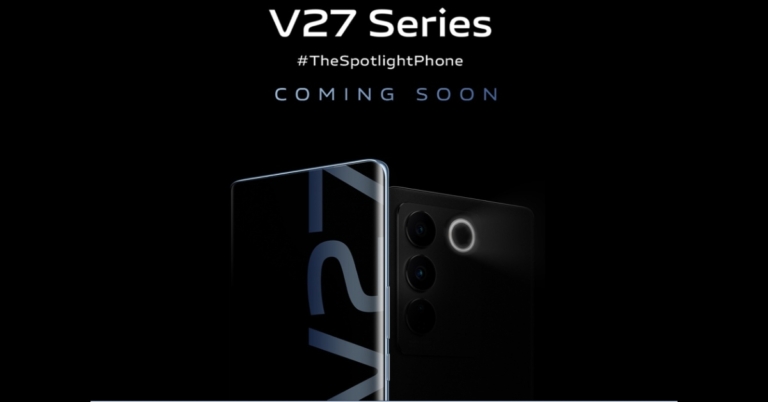
Vivo is all set to launch its next flagship smartphone in India. The company today teased the Vivo V27 series via its social media channels and has also created a dedicated microsite. The Vivo V27 and Vivo V27 Pro could be included in the lineup. The official teaser showcases the design of the upcoming series. The devices will be featuring a triple rear camera with a ring LED flash. Vivo is hinting at the release of new V-series smartphones in India. The company took to Twitter to tease the arrival of the Vivo V27 series. The basic Vivo V27 and Vivo V27 Pro could be offered. The company has also created a dedicated microsite and it has also been confirmed that Flipkart would sell these in India. The dedicated microsite teases the appearance of the upcoming phones. The company has not yet revealed a specific launch date instead said coming soon. The notify me button is also live. The black colour variant of the Vivo V27 has been teased. The upcoming smartphones also feature a curved display. Moreover, a triple rear camera arrangement is also easily noticeable. There is a ring LED flash and it appears that rings have been placed around each sensor. On the left spine, one can see where the power button and volume rockers are located. The company has also not revealed pricing but previously it was reported Vivo V27 5G in India could be priced at Rs 35,000. Whereas the Pro variant is claimed to be available at Rs 40,000. The base model of the Vivo V25 5G was released in India with a starting price of Rs 27,999, while the base model of the Vivo V25 Pro was priced at Rs 35,999. According to reports, a MediaTek Dimensity 7200 SoC powers the Vivo V27 5G. Whereas MediaTek Dimensity 8200 SoC may be found within the Vivo V27 Pro. They are reported to be available with 8GB RAM and 128GB storage or 12GB RAM and 256GB storage. For the latest gadget and tech news, and gadget reviews, follow us on TwitterFacebook and Instagram. For newest tech & gadget videos subscribe to our YouTube Channel. You can also stay up to date using the Gadget Bridge Android App. You can find the latest car and bike news here.

Garena Free Fire Redeem Codes Today 15 February 2023: Here is how to claim them

Garena Free Fire is a battle royale game with regular awards and tournaments to keep players interested. If you play Garena Free Fire, you should be aware of the redeem codes that are released on a daily basis. However, because the battle royale game is banned in India, players from other countries can use the Free Fire Redeem codes daily. If you’re unfamiliar with the Garena Free Fire redeem codes or don’t know how to get them, we’ve put together a step-by-step guide to help you redeem them. Check out Garena Free Fire Redeem Codes for 15 February 2023. The Free Fire redeem codes are a great way to get free stuff. These are 12-digit codes that contain alphabets and numbers, as well as an expiration date and time. Because the Garena FF redeem codes cannot be used more than once, you should hurry to the redemption page to claim your free reward before someone else does. To get a free reward, all you have to do is go to reward.ff.garena.com/en, which is the official redemption page. Also, keep an eye on this space for daily updates on Garena Free Fire redemption codes and rewards.

Garena Free Fire Redeem Codes Today 15 February 2023

  • FFAC2YXE6RF2
  • ZYPPXWRWIAHD
  • FF10617KGUF9
  • FF11HHGCGK3B
  • Y6ACLK7KUD1N
  • W0JJAFV3TU5E
  • B6IYCTNH4PV3
  • FF11NJN5YS3E
  • ZRJAPH294KV5
  • FF119MB3PFA5
  • SARG886AV5GR
  • MCPTFNXZF4TA
  • WLSGJXS5KFYR
  • FF1164XNJZ2V
  • FF11DAKX4WH
  • YXY3EGTLHGJX
  • FF11WFNPP956
  • 8F3QZKNTLWBZ
  • FF10GCGXRNHY
  • FF9MJ31CXKRG
  • FFCO8BS5JW2D

How to Get Free Fire Redeem Codes for Garena on 15 February 2023?

  • Visit the Garena Free Fire game’s official website at reward.ff.garena.com.
  • Use your Facebook, Google, VK, Apple ID, Huawei ID, or Twitter account to log in.
  • You’ll be taken to a valid redemption code (s)
  • Copy and paste the 12-digit redemption code into the text box.
  • On the screen, a dialogue box will appear.
  • ‘Ok’ should be selected.
For the latest gadget and tech news, and gadget reviews, follow us on TwitterFacebook and Instagram. For newest tech & gadget videos subscribe to our YouTube Channel. You can also stay up to date using the Gadget Bridge Android App. You can find the latest car and bike news here.
Amazon Quiz Answers Today 15 February 2023: Participate to win Rs 1,250

15 February 2023 Amazon Quiz has gone live on its platform. The quiz timings are 12 AM to 11:59 PM. The Amazon App users can participate in the quiz daily and all they have to do is submit correct answers to the questions asked on the e-commerce platform. Today’s participants can get a chance to win Rs 1,250 Amazon Pay Balance. Amazon brings a fresh questionnaire that contains 5 questions daily. These questions are based on current affairs and general knowledge. The quiz can be played from 8 AM to 11:59 PM and the contestants need to answer correctly to enter into a lucky draw. Only one person is declared a winner and the results will be announced at the end of every month. And to make sure that you give correct answers to all 5 questions Gadget Bridge everyday updates all the answers to the Amazon Quiz. Do check out 15 February 2023 Amazon Quiz Answers to win a Rs 1,250 Amazon pay Balance. Amazon Quiz Today Prize – Rs 1,250 Amazon Pay Balance Quiz Date – 15 February 2023 Daily Timing – 12 AM to 11:59 PM Winner Announcement – Today 12 PM

Amazon Quiz Answers Today 15 February 2023

Question 1: Who recently set the record for the highest score by an Indian in a T20 international? Answer: Shubhman Gill Question 2: Colin Farrell has got an Oscar nomination in 2023 for ‘Best Actor in a Leading Role’ for which film? Answer: The Banshees of Inisherin Question 3: In the news research firm, Hindenburg Research is based in which country? Answer: USA Question 4: Closeup of which animal? Answer: Camel Question 5: View of which European capital? Answer: Rome

How To Play Amazon Quiz

Only app users are eligible to play the Amazon quiz every morning from 12 AM to 11:59 PM. The quiz is not available on the desktop. For those who are unaware of how to play the Amazon quiz below are the steps, you can follow to take the quiz.
  • Firstly download the Amazon app from Google Play Store or App Store
  • Now fill in the required information through the Sign Up option.
  • You need to log in to the Amazon app and scroll down on the home screen to find the Amazon Quiz banner.
  • Tap on the Amazon Quiz banner and tap on the Start button to start the Quiz.
  • Now you will get 5 questions and you need to answer them correctly. One wrong answer will eliminate you from the Quiz.
  • After answering all the questions correctly you are now eligible for a Lucky Draw.
  • The winner’s name will be announced today at 12 PM.
For the latest gadget and tech news, and gadget reviews, follow us on TwitterFacebook and Instagram. For newest tech & gadget videos subscribe to our YouTube Channel. You can also stay up to date using the Gadget Bridge Android App. You can find the latest car and bike news here.

How can I download and install Google Chrome on Mac?

0
Google Chrome is the most popular browser in the world, surpassing Microsoft’s Edge and Apple’s Safari. If you recently bought a Mac, you probably want to use Google Chrome on it as well. Apple doesn’t include Google Chrome on its devices, in favour of its native browser, Safari. In this article, we show you how to download and install Google Chrome on a Mac.  Read Also: How to use two WhatsApp accounts on one Android smartphone in 2023?

Here’s how you can download and install Google Chrome on Mac

Here’s how you can download and install Google Chrome on Mac Step 1: Open Safari and go to https://www.google.com/chrome/. Step 2: Click on ‘Download Chrome’. Step 3: Open the downloaded file. It should be titled ‘googlechrome.dmg’. Step 4: Follow the onscreen installation instructions. Step 5: Drag the Chrome icon to the Applications folder. You may be asked to enter the Admin password in this step. Step 6: Go to the Applications folder and click on Chrome.  Google Chrome browser will launch on your Apple Mac. Read Also: OnePlus 11 5G with Snapdragon 8 Gen 2 SoC first sale today

Conclusion

This is how you can easily install Google Chrome on a Mac. Once you’ve installed Chrome on your Mac, you may want to set it as the default browser. To do that, launch Chrome and click on the ellipses (three dots) at the top right corner of the screen. Go to Settings and select ‘Make Default’ in the ‘Default Browser’ category. For the latest gadget and tech news, and gadget reviews, follow us on Twitter, Facebook and Instagram. For newest tech & gadget videos subscribe to our YouTube Channel. You can also stay up to date using the Gadget Bridge Android App. You can find the latest car and bike news here.

What Is Incognito Mode on YouTube and How to Use it like a Pro in 2023?

1
If you frequently use the incognito tab on Chrome to watch videos on YouTube, you will be surprised to know that YouTube has an Incognito Mode of its own. This comes in handy when you’re watching videos on your smartphone, since it doesn’t require opening Chrome every time you want to enter incognito mode. In this article, we explain what Incognito Mode on YouTube is and how to use it like a pro in 2023. Read Also: OnePlus 11 5G with Snapdragon 8 Gen 2 SoC first sale today

What is Incognito Mode on YouTube?

What is Incognito Mode on YouTube? Turning on Incognito Mode on YouTube allows you to browse and watch videos anonymously, without reflecting the results in your search and watch history. The videos you watch will not have any effect on your YouTube feed and suggestions, which is a big plus. Similarly, if you want to have a look at the general YouTube feed outside of your suggestions, log into incognito mode. Earlier, you would have to log out of your YouTube account to view a neutral feed and watch videos without being bombarded with similar suggestions. Now you can simply turn on incognito mode for a private viewing session. It goes without saying but you cannot like a video or comment on it while you’re in incognito mode. You cannot subscribe to a YouTube channel either.

Here’s how you can turn on Incognito Mode on YouTube

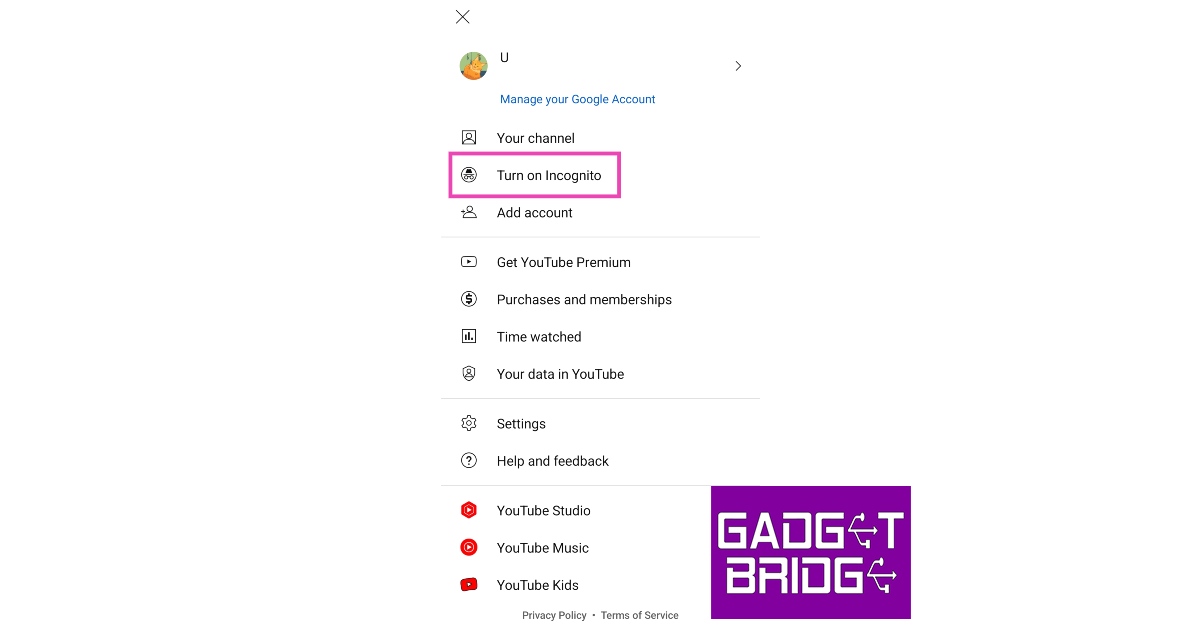
Step 1: Launch the YouTube app on your smartphone. Step 2: Tap on your profile icon at the top right corner of the screen. Step 2: Tap on your profile icon at the top right corner of the screen. Step 3: Select ‘Turn on Incognito’ and confirm your selection in the popup box. Step 3: Select ‘Turn on Incognito’ and confirm your selection in the popup box. Step 4: Incognito mode will now be turned on for YouTube. Step 5: To turn off Incognito Mode, simply tap on your profile icon again and select ‘Turn off incognito’. Step 5: To turn off Incognito Mode, simply tap on your profile icon again and select ‘Turn off incognito’. Read Also: How to use OTG on iPhone and iPad?

Conclusion

This is how you can use Incognito Mode on YouTube like a pro in 2023. If you’re using a desktop, simply press Ctrl + Shift + N to launch an incognito window on Chrome. Open the YouTube website to watch videos anonymously. For the latest gadget and tech news, and gadget reviews, follow us on Twitter, Facebook and Instagram. For newest tech & gadget videos subscribe to our YouTube Channel. You can also stay up to date using the Gadget Bridge Android App. You can find the latest car and bike news here.

Playfit Flaunt Smartwatch Review: A worthy contender in the budget smartwatch category

In the ever-expanding affordable smartwatch segment, new players are constantly dropping products that can match any of the established brands in terms of specs and even undercut them in pricing. Playfit, with its line of Indian-manufactured smartwatches and fitness bands, is looking to carve out a niche for itself in this segment. We got our hands on Playfit’s most recent release, Flaunt, and used it for over a week. Here is our Playfit Flaunt review. Read Also: OnePlus 11 5G with Snapdragon 8 Gen 2 SoC first sale today

Playfit Flaunt review: Design

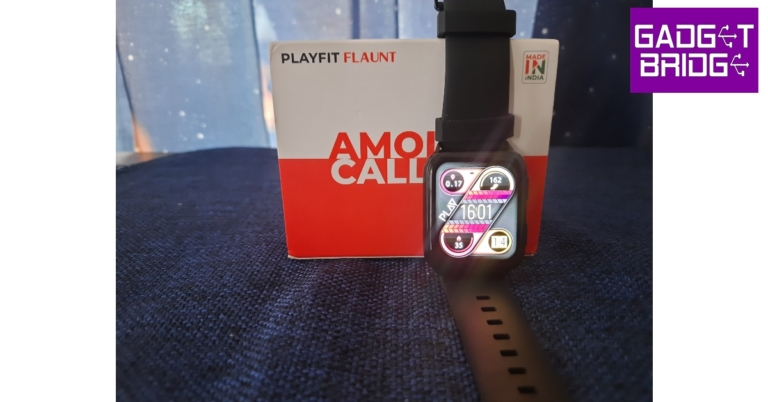
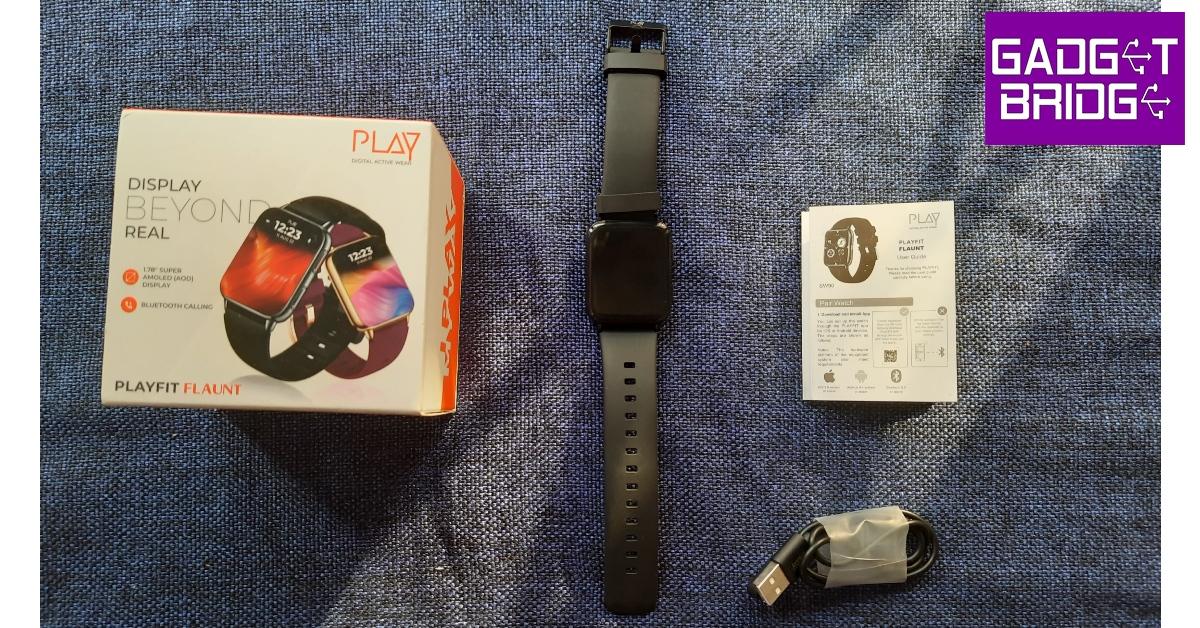
Inside the box, you’ll find the Playfit Flaunt with the straps already attached to it, a 2-pin magnetic charging cable, and a user manual + warranty card. There is no power adapter inside the box. The smartwatch is available in Champagne & Black, and Black colour options. We used the latter for this review. Playfit Flaunt review: Design The biggest highlight of the smartwatch is its 1.78-inch Super AMOLED display. Surrounded by very slim bezels, the display is fun to use and looks fairly good compared to its rivals in this category. A peak brightness of 550 nits ensures that you have no problem viewing the display in direct sunlight. However, the touch response could have been a little better. On the right side of the dial, you will find the home key and a dedicated key to enter Workout Mode. The top key isn’t as clicky as the bottom one, which feels a bit weird while using the smartwatch. The microphone has been housed on the right side of the bottom. At the bottom, you will find the health sensors along with the magnetic charging port. Playfit Flaunt review: Design The Playfit Flaunt has a traditional watch strap, which is actually a pretty good thing given how many smartwatches are drifting towards the ‘over-under’ strap style. The watch provides a comfortable, snug fit and you can wear it all day without feeling any unnatural skin irritation. With an IP67 rating, you don’t have to worry about any damage due to water splashes or dusty conditions. Sweaty workouts do not impede the performance of the Playfit Flaunt at all.

Playfit Flaunt review: Performance

The Playfit Flaunt smartwatch is powered by the Realtek chipset and comes with its own customised OS. Connecting the smartwatch to your phone takes no time at all. All you need to do is install the Playfit IoT app and give it the necessary permissions to connect to your smartwatch. Once connected, you can get a detailed breakdown of the data collected by your smartwatch on the app. Playfit Flaunt review: Performance The OS and general usability are a bit of a mixbag. There are some aspects where the watch truly shines. The range of functions offered with the Playfit Flaunt is truly impressive and increases the value for money you are getting on this device. The OS is pretty accessible and the user interface is pretty fun to play around with. There are a bunch of themes and menu layouts on offer. The calling feature is impeccable as well. You can either use the watch dialer to make a call or choose from the list of your favourite contacts on the watch itself. The quality of the microphone is decent and the speaker on the watch is perfect for calling in an indoor environment. You can even pick up WhatsApp calls using the smartwatch. New text notifications get relayed to the smartwatch as well, but replying to them will require your smartphone. You can also choose to receive calendar entries and emails, WhatsApp, and Facebook notifications on the Playfit Flaunt. Playfit Flaunt review: Performance The Playfit app allows you to make your own custom Watch Face and the level of customisation offered here is pretty impressive. You can even use the smartwatch to control the music on your phone. Another thing we liked about the smartwatch is that you can set up a lock pin for an extra layer of security. Not many smartwatches offer this feature. Moving on to the not-so-impressive bits, the Playfit Flaunt does not have a ‘tap to wake’ feature. This means you will have to rely on pressing the home button every time you want to use the watch. While there is an Alarm app on the watch, it does not sync with the alarms on your phone. So, you will need to manually set up individual alarms on the watch in order to use them. During our use, we encountered a bug in the ‘Find Phone’ feature on the smartwatch. The idea behind this feature is to use the smartwatch to ring your phone in case you can’t find it. While the Playfit Flaunt does ring your smartphone, there is no option to turn off the ringtone when you do find your phone. Even disconnecting the smartwatch from the phone does not help. The only way out is by restarting your smartphone. As a fitness tracker, the Playfit Flaunt delivers a good performance. The smartwatch is equipped to track 100+ workouts which also include different sports like Tennis, Cricket, Hockey, and more. The data gathered by Playfit Flaunt was close to accurate. While walking, we found that the smartwatch was clocking up to 10 more steps, which isn’t too bad. Health monitoring features like SpO2 count and Heart rate monitor were accurate as well. Our one small complaint here is that the smartwatch does not collect health data automatically at regular intervals. You will need to visit the appropriate widget and wait for the smartwatch to calculate the health function in order to get a reading. The sleep tracking could use better tuning as well, as the watch kept tracking more sleep hours even after waking up. Playfit Flaunt review: Performance The Playfit app is decent enough to have an in-depth look at all the data collected by the watch. The data is presented in the form of basic charts which are pretty easy to follow. The app’s UI seems a bit dated and we hope Playfit will fix that with a future update. Other than that, the performance is pretty much on par with what you get at this price point. The battery life on this smartwatch is very impressive. On a single charge, the Playfit Flaunt can easily last up to 5 days without the Always On Display turned on. The standby time on a single charge is 15 days. The magnetic clip charger can fully replenish the battery in under 2 hours. Read Also: How to use OTG on iPhone and iPad?

Conclusion 

At Rs 3,999, the Playfit Flaunt is a decent buy. The wide range of functionality alone makes it worth the price. The bright AMOLED display is the show stopper here, and the overall design of the watch works in its favour. If Playfit manages to iron out certain bugs, you’re looking at a smartwatch that could give any other device in this segment a run for its money. 

Pros

Super AMOLED display Bluetooth Calling Customisation options

Cons

Tracks extra hours of sleep even after waking up Minor bugs No ‘tap to wake’ For the latest gadget and tech news, and gadget reviews, follow us on Twitter, Facebook and Instagram. For newest tech & gadget videos subscribe to our YouTube Channel. You can also stay up to date using the Gadget Bridge Android App. You can find the latest car and bike news here.

Confirmed: OnePlus 11R 5G to get three years of Android updates and four years of security patches

The OnePlus 11R 5G which is an affordable version of the flagship OnePlus 11 5G debuted in India a week ago. The company has now shared details related to its Android updates and security patches. The information has been revealed via a reply to a tweet. Qualcomm’s Snapdragon 8+ Gen 1 5G SoC powers the phone. A 6.74-inch Full-HD+ curved AMOLED display is available on the smartphone. The 11R has a 5,000mAh battery that supports 100W SUPERVOOC flash rapid charging. A tweet sent in response to a subscriber’s concern by the official OnePlus Support Twitter account revealed that the company will provide up to four years of security patches in addition to three years of Android updates. This means the OnePlus 11R users would be getting updates up to Android 17. Note that the device comes with OxygenOS 13, an Android 13-based operating system right out of the box.

OnePlus 11R specifications

The OnePlus 11R’s 6.74-inch Full-HD+ curved AMOLED display is notable for its 2772 x 1240 pixel resolution. The dynamic adaptive refresh rate of the screen varies between 40Hz and 120Hz. It also has 1,450 nits of maximum brightness and 450 ppi. The display has a touch response rate of up to 1000Hz. The OnePlus 11R is powered by the Snapdragon 8+ Gen 1 5G chipset and has an internal storage capacity of up to 256GB and up to 16GB of RAM. Also Read: OnePlus 11R with 100W SUPERVOOC flash fast charging announced in India The OnePlus 11R has three back cameras, one of which has a 50MP Sony IMX890 primary sensor. Along with other capabilities, it contains a 4 cm macro camera with a 120-degree ultra-wide lens and an 8 MP ultra wide-angle sensor. The device lacks optical zooming capabilities but has a 10x digital zoom. The OnePlus 11R’s rear camera is shake-free and supports both electronic and optical image stabilisation, allowing it to record videos in 4K quality at 30 frames per second. The 16MP front camera is located in a notch at the top of the display. The device has 5G, 4G, Wi-Fi, Bluetooth 5.3, NFC, GPS, and other connectivity options. The OnePlus 11R’s 5,000mAh battery supports 100W SUPERVOOC flash rapid charging. For the latest gadget and tech news, and gadget reviews, follow us on TwitterFacebook and Instagram. For newest tech & gadget videos subscribe to our YouTube Channel. You can also stay up to date using the Gadget Bridge Android App. You can find the latest car and bike news here.

EZVIZ EB3 & EZVIZ CB3 battery cameras launched in India
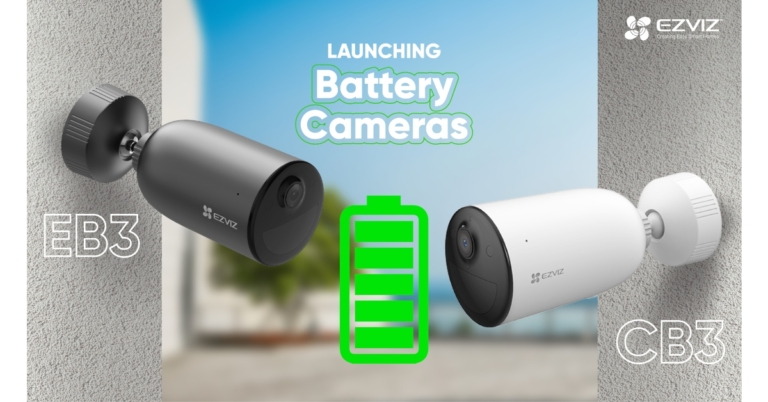
Indian smart home security company EZVIZ has announced the launch of two new CCTV cameras EZVIZ EB3 & EZVIZ CB3 in the Indian market. The device has been launched as part of their standalone smart home battery camera segment. The recently released EZVIZ EB3 and EZVIZ CB3 cameras, according to the manufacturer, are built to be eco-friendly and have a variety of features, including smart human motion detection based on a local, built-in algorithm, weatherproof design, smart integration with Google Assistant and Amazon Alexa, colour night vision, two-way talk, active defence with siren and strobe light, and customizable voice alerts. The EZVIZ EB3 & EZVIZ CB3 cameras have outstanding performance for outdoor security with 2K and 1080p resolution, respectively, and are remarkably easy to use. They have a 5200 mAh rechargeable battery built in, which can run continuously for up to 120 days on a single charge. Additionally, a solar charging panel that will support longer-term camera charging is soon to be available. However, this is dependent on usage and will consequently permit 40 triggers daily for motion detection. As a result, the cameras can basically go wherever that is close to the users’ homes, like the neighbourhood or the residential area, without intricate wiring or expensive installation. Additionally, these battery cameras provide far-reaching, colour night vision with a range of up to 15 metres. Users can choose between colour mode and infrared mode depending on their preferences. Furthermore, it is able to distinguish between people and running animals or other moving objects thanks to the PIR sensor and person shape detecting algorithm. Users may also store their captured moments on a microSD card that can hold up to 256GB locally, or they can subscribe to EZVIZ CloudPlay for fully secured cloud storage for even more data security. Either of these easily accessible options can be used by any home that needs an extra degree of security. EZVIZ EB3 & CB3 battery cameras are priced Rs 8000 and will be available for purchase via offline and online platforms. For the latest gadget and tech news, and gadget reviews, follow us on TwitterFacebook and Instagram. For newest tech & gadget videos subscribe to our YouTube Channel. You can also stay up to date using the Gadget Bridge Android App. You can find the latest car and bike news here.

How to use two WhatsApp accounts on one Android smartphone in 2023?

0
For people with two active phone numbers, managing two WhatsApp accounts on different phones can be an arduous process. Luckily, most smartphones allow you to use two WhatsApp accounts by cloning the app. The upcoming Android 14 version is rumoured to have this feature as standard across all devices. So, without further ado, here’s how you can use two WhatsApp accounts on one Android smartphone in 2023. Read Also: A new tool for sending high-quality images is being developed by WhatsApp

Use Dual Messenger

Most Android smartphones offer the ‘Dual Messenger’ feature that allows users to clone an Instant Messaging app to run two accounts in one phone. Here’s how you do that. Step 1: Go to Settings and select Advanced Features. Step 1: Go to Settings and select Advanced Features. How to use two whatsapp accounts on one android smartphone Step 2: Scroll down and select Dual Messenger. Step 2: Scroll down and select Dual Messenger. How to use two whatsapp accounts on one android smartphone Step 3: Turn the toggle bar on for WhatsApp. Step 3: Turn the toggle bar on for WhatsApp. How to use two whatsapp accounts on one android smartphone Step 4: Install a clone app for WhatsApp. Step 4: Install a clone app for WhatsApp. How to use two whatsapp accounts on one android smartphone Step 5: Now, go to the app drawer and select the clone WhatsApp app. It will have a small orange sign on it as the distinguishing factor. go to the app drawer and select the clone WhatsApp app. How to use two whatsapp accounts on one android smartphone Step 6: Set up your account. This will require choosing a language and entering your phone number. Set up your account. Step 7: Once you’ve registered your number, you will be able to use two WhatsApp accounts on your phone. The ‘Dual Messenger’ feature may be named something different on your phone, depending on the manufacturer. On OnePlus phones, this feature is called Parallel Apps. Xiaomi phones call it Dual Apps, while in Vivo and Oppo phones it is known as App Clone and App Cloner respectively.

Use WhatsApp Web

If you want to run a secondary WhatsApp account that’s also active on another device, you will have to jump through a few hoops. WhatsApp does not allow one number to be signed into two devices unless it is through their web portal. If you’re okay with using WhatsApp on your phone’s web browser, you can easily activate an account there. If you’re already using Dual Messenger on your phone, this trick can help you run a third WhatsApp account on your phone. Here’s how. Step 1: Open www.web.whatsapp.com on your phone or tablet’s web browser. Step 2: Tap on the ellipses at the top right corner of the screen and select ‘Desktop site’. Step 2: Tap on the ellipses at the top right corner of the screen and select ‘Desktop site’. You can now use the WhatsApp Web portal similar to how you use it on a PC. Use your primary phone with the WhatsApp account to link your secondary device. Step 3: Open WhatsApp on your primary smartphone and tap the ellipses at the top right corner of the screen. Select ‘Linked Devices’. Select ‘Linked Devices’. Step 4: Tap on ‘Link a device’ and scan the QR code on your secondary smartphone or Android tablet. Tap on ‘Link a device’. how to use whatsapp account on multiple devices scan the QR code. how to use whatsapp account on multiple devices You will now be able to use your WhatsApp account on the secondary smartphone or Android tablet. Read Also: Comparison: Moto E13 Vs Samsung Galaxy A04

Conclusion 

These are the two ways you can use two WhatsApp accounts on one Android smartphone in 2023. Some smartphones running stock Android OS may not come with a Dual Messenger feature. In this case, you can use a third-party app cloner like Parallel App or DoubleApp. You can also download the WhatsApp Business app on your phone and register your secondary number as a business account. For the latest gadget and tech news, and gadget reviews, follow us on Twitter, Facebook and Instagram. For newest tech & gadget videos subscribe to our YouTube Channel. You can also stay up to date using the Gadget Bridge Android App. You can find the latest car and bike news here.