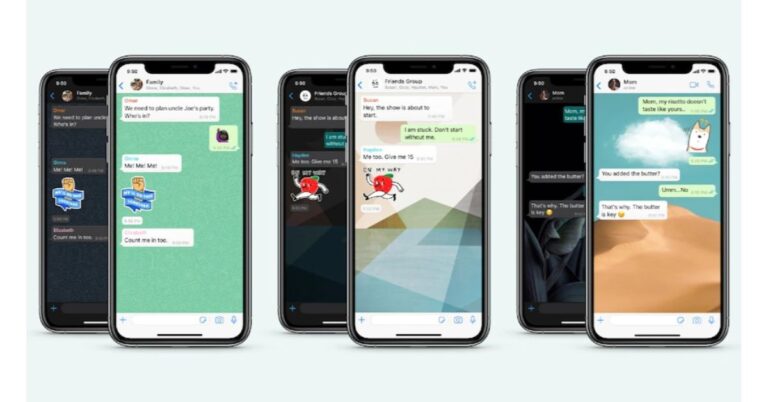
WhatsApp offers a lot of customisation options to its users, in order to bring a more personalised experience to the app. If you’re bored of WhatsApp’s default theme, you can always make things interesting by changing the chat wallpaper for your conversations on the app. In this article, we bring you the top ways to change the WhatsApp chat theme on an iPhone.Read Also: Samsung Galaxy Book 3 Ultra pre-order begins in India: Deets inside
Enable Dark Mode from System Settings
Step 1: Go to your iPhone’s Settings and select ‘Display & Brightness.’Step 2: Tap on ‘Dark’ under the Appearance section.Step 3: Turn the toggle bar on for Automatic if you want the Dark Mode to kick in at a certain time.
Enable Dark Mode
Here’s how you can enable dark mode for WhatsApp on an iPhone.Step 1: Launch WhatsApp on your iPhone.Step 2: Tap on the Settings tab at the bottom of the screen.Step 3: Select ‘Chats’.Step 4: Tap on ‘Theme’.Step 5: Select the Dark Theme.
Change the Chat Wallpaper
Here’s how you can change the background wallpaper for all the chats on WhatsApp.Step 1: Launch WhatsApp on your iPhone.Step 2: Tap on the Settings tab at the bottom of the screen.Step 3: Tap on ‘Chats’.Step 4: Select ‘Chat Wallpaper’.Step 5: Choose a chat wallpaper from WhatsApp’s wallpaper library. You can also upload a wallpaper or image from your phone’s gallery. You can choose a wallpaper for dark mode as well.Step 6: Have a look at the preview to see how the wallpaper will look on the chat page. Tap on ‘Save’ to confirm your selection. If you want to browse more wallpapers, select ‘Cancel’.Your changes will apply to every chat on WhatsApp. When you change the chat background, only you will be able to view the new wallpaper. The changes won’t apply to other people in the conversation.Read Also: How to use two WhatsApp accounts on an iPhone? (2023)
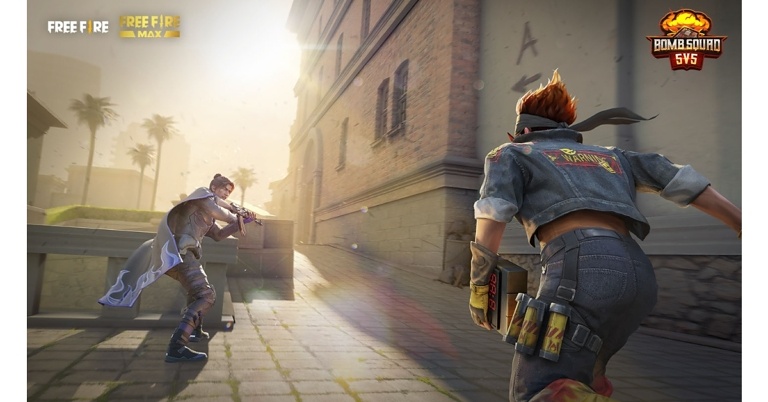
Garena Free Fire is a battle royale game with regular awards and tournaments to keep players interested. If you play Garena Free Fire, you should be aware of the redeem codes that are released on a daily basis. However, because the battle royale game is banned in India, players from other countries can use the Free Fire Redeem codes daily. If you’re unfamiliar with the Garena Free Fire redeem codes or don’t know how to get them, we’ve put together a step-by-step guide to help you redeem them. Check out Garena Free Fire Redeem Codes for 16 February 2023.The Free Fire redeem codes are a great way to get free stuff. These are 12-digit codes that contain alphabets and numbers, as well as an expiration date and time. Because the Garena FF redeem codes cannot be used more than once, you should hurry to the redemption page to claim your free reward before someone else does. To get a free reward, all you have to do is go to reward.ff.garena.com/en, which is the official redemption page. Also, keep an eye on this space for daily updates on Garena Free Fire redemption codes and rewards.
Garena Free Fire Redeem Codes Today 16 February 2023
FKY89OIKJH2RGD
GYU4AZVXNJHYN
FYUKL09OKATQRD
E2WCFVGEBHFJU
BHCXZJDOLR5TK
OYG9KIJ8UHGTAF
RQDE12CF3EGRFJ
FIVUBYHDENMTYH
FOL9XZKO8A5RQ
FF6C2F3EVRFBNI
FVUYTXFZSFEIKN
F5TGOWINR32BYT
FWVGBRFNGOL54
FEKMTGJNVHBUY
FESF4RFS8NTYHY
How to Get Free Fire Redeem Codes for Garena on 16 February 2023?
Daily Amazon brings a fresh quiz for its customers with exciting rewards on its platform. The Amazon quiz can be played every day from 12 AM to 11:59. 16 February 2023 Amazon Quiz has gone live on its platform and the e-commerce platform Amazon is today giving you a chance to win Rs 5,000 Amazon Pay Balance.To participate all you need to do is log in to your Amazon app on your device and give answers. Daily a new set of questions are presented to the participants which gives them a chance to win exciting prizes. The questionnaire consists of five easy questions that are usually based on general knowledge and current affairs. You can submit the correct answers and can win an Amazon Pay Balance of up to Rs 50,000. It should be noted that the quiz is not accessible on the web platform instead you have to participate only through the dedicated app.Amazon Quiz Today Prize – Rs 5,000 Amazon Pay BalanceQuiz Date – 16 February 2023Daily Timing – 12 AM to 11:59 PMWinner Announcement – Today 12 PM
Amazon Quiz Answers Today 16 February 2023
Question 1: Jofra Archer recently picked up his first 6 wicket haul in ODI cricket against which country?Answer: South AfricaQuestion 2: Siddharth Malhotra and Rashmika Mandanna can be seen together in a spy thriller film titled Mission _____ . Fill in the blanks
Answer: Majnu
Question 3: The Adani group recently acquired the important port of Haifa in which country?Answer: IsraelQuestion 4: This is ‘The Temple of Heaven’ in which city?Answer: BeijingQuestion 5: This animal is found on the logo of which organizationAnswer: WWF
How To Play Amazon Quiz
Only app users are eligible to play the Amazon quiz every morning from 12 AM to 11:59 PM. The quiz is not available on the desktop. For those who are unaware of how to play the Amazon quiz below are the steps, you can follow to take the quiz.
Firstly download the Amazon app from Google Play Store or App Store
Now fill in the required information through the Sign Up option.
You need to log in to the Amazon app and scroll down on the home screen to find the Amazon Quiz banner.
Tap on the Amazon Quiz banner and tap on the Start button to start the Quiz.
Now you will get 5 questions and you need to answer them correctly. One wrong answer will eliminate you from the Quiz.
After answering all the questions correctly you are now eligible for a Lucky Draw.
The winner’s name will be announced today at 12 PM.
How Do I Move Windows 11 Without Losing My Data? You may use a 100% secure OS transfer tool. PassFab 4EasyPartition is an excellent system migration tool for transferring Windows to a new hard drive.
Transfer/Migrate Windows 11 to New Hard Drive in 2023 [NEW]
The answer is that you can transfer Windows to a new hard drive. Making a backup image of your current Windows 11 installation, copying it to the new hard drive, and setting up the boot settings to start from the new drive are the steps involved in moving an operating system to a new hard drive. This procedure can assist you in maintaining a backup copy of your operating system, upgrading to a bigger hard drive, or replacing a problematic hard disc. You may find detailed instructions on how to move Windows 11 to a new hard drive in this article.
Can I Transfer Windows 11 to New Hard Drive
Continue reading if you wish to migrate Windows to a new drive. Transferring Windows 11 to a new hard drive may not be a particularly difficult task if you are familiar with the steps involved in making an operating system backup image, setting up the boot settings, and restoring an image to a new hard drive. The procedure can, however, become more challenging if you are unfamiliar with these processes or run into any technical difficulties along the way.
The software can make the process of moving Windows 11 to a new hard drive easier since it frequently has an intuitive user interface and can automate many of the tasks.
Why I Need to Transfer Windows to New Hard Drive
You might need to copy Windows to a new hard drive for several reasons:
Adding a new hard drive: The quantity of data on your computer’s hard disk might increase as you utilize it. increasing the size of the hard disc.
Replacing a bad hard drive: There are many different types of mechanical, wear-and-tear, and power surge-related reasons why hard drives might break down over time.
Keeping a backup copy: You may get a backup copy of your operating system and data by moving Windows 11 to a new hard drive.
Increasing performance: Installing Windows 11 on a fresh hard drive might also make your machine run faster.
Ultimate Choice-Transfer Windows to New Hard Drive with 4EasyPartition
Transferring Windows 11 to a new hard drive may be made easier with the help of many available tools. These tools offer a user-friendly interface and can assist in automating many of the necessary tasks.
There is a third-party partition management system called PassFab 4EasyPartition that may be used to move Windows 11 to a new hard drive. The best partition manager for Windows, PassFab 4EasyPartition, aims to increase disc performance. It provides secure OS migration to SSD/HDD in a matter of clicks. You may migrate with just one click rather than having to spend hours reinstalling operating systems and apps.
Key Features of PassFab 4EasyPartition:
Direct data transfer without reinstalling the application. Save time and increase productivity.
When users switch to a more efficient OS, make sure there are no service interruptions. Applications, system configuration files, and other items don’t need to be installed.
Move your data, operating system, and apps securely and effectively without losing any data.
Swap out your HDD for an SSD for the quickest and easiest method to boot
System migration is just only a few steps thanks to an intuitive UI and a step-by-step tutorial.
Steps to transfer Windows to a new hard drive using PassFab 4EasyPartition:
Step 1: Launch PassFab 4EasyPartition after downloading it, then select “Start” to begin the procedure.Note: The new USB flash drive, HDD, or SSD that you wish to migrate to must be connected to your computer.
Step 2: Click “Start” to move forward after choosing the source disc from which to migrate and the destination disc you wish to migrate to.Step 3: A warning pop-up window will appear. To move on to the next stage, select “Sure.”Step 4: Please verify the details for the source disc and the target disc in the preview interface before clicking “Start” to begin system migration. It won’t take long for the migration.Result: Your system was successfully migrated. To finish the procedure, click “Finish.”
People Also Ask
How to transfer windows from one SSD to another?
Ans: For the majority of users, replacing a hard drive is challenging since it entails a number of challenging processes, including reinstalling the operating system and certain other essential software. Fortunately, PassFab 4EasyPartition allows you to move the operating system to another SSD without having to reinstall Windows.
2. Can I move Windows from HDD to SSD without reinstalling?Ans: Without having to reinstall the operating system, you may transfer Windows from a normal hard disc drive (HDD) to a solid-state drive (SSD). This method of producing a backup image of your existing Windows system is called cloning. The tool PassFab 4EasyPartition can help to simplify the procedure.
3. How do I transfer Windows 11 to a new SSD?Ans: To completely copy a hard drive to a new SSD, including the operating system, applications, and data, utilise PassFab 4EasyPartition for Disk Clone. It is therefore the perfect tool for moving Windows 11 to a fresh SSD. A suitable choice for people who are unfamiliar with the hard disc cloning procedure.
4. Does Windows 11 have a cloning tool?Ans: Although there isn’t a built-in cloning tool for Windows 10, there are a number of third-party software that may be used to copy a hard drive, including your data and operating system. Your operating system and data may be quickly transferred to a new hard drive with PassFab 4EasyPartition.
Conclusion
Windows may be transferred to a new hard disc. There are various ways to do this, one of which is to use third-party software to clone the hard disc. Manually transferring Windows to a new hard drive is not always simple or dependable. System restoration in Windows 11/10 may occasionally fail with an error message. PassFab 4EasyPartition is one such program that can be used to transfer Windows 10 to a new hard drive.
Features including data migration, boot disc creation, disc cloning, and a user-friendly interface are available with PassFab 4EasyPartition.
For the latest gadget and tech news, and gadget reviews, follow us on Twitter, Facebook and Instagram. For newest tech & gadget videos subscribe to our YouTube Channel. You can also stay up to date using the Gadget Bridge Android App. You can find the latest car and bike news here.
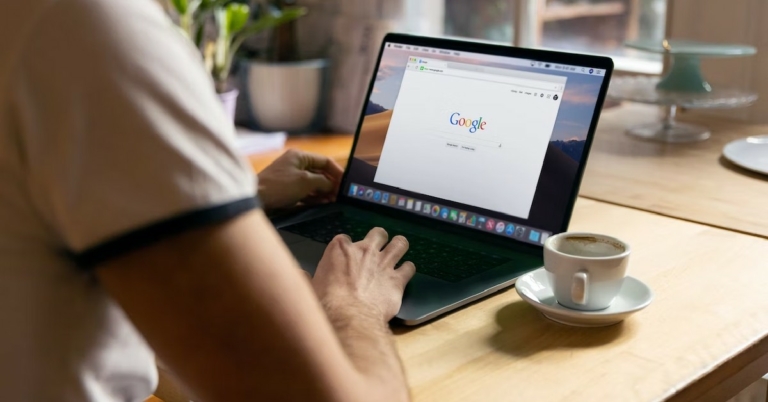
Google’s native password manager is an excellent tool to store all your passwords in one place and sync them across multiple devices. Every time you enter a password on Chrome or any other third-party client, Google Password Manager asks your permission to save the password on your Google Account. However, if you want to manually save a password, it will require some additional steps. In this article, we show you how to manually add passwords in Chrome Password manager.Read Also:Best Ways To Remove Duplicate Icons On Android
Add a password manually on Chrome
Step 1: Launch Google Chrome on your laptop and click on the ellipses (three dots) at the top right corner of the screen. Click on Settings.Step 2: Select Autofill from the side menu and click on ‘Password Manager.’Step 3: Select ‘Add’ from the ‘Saved Passwords’ section.Step 4: In the following window, enter the name of the website, your username, and your password. Hit Save once you’re done.
Add a password on Chrome for mobile
Step 1: Launch Google Chrome on your smartphone.Step 2: Tap the ellipses (three dots) at the top right corner of the screen and select Settings.Step 3: Tap on ‘Password Manager’.Step 4: Tap the plus icon next to the ‘Search passwords’ field.Step 5: Enter the name of the website or select the app from the option given below. Add your username and password as well.Step 6: Hit Save at the top right corner of the screen.Read Also: Vivo V27 coming soon to India, launch teased
Xiaomi has officially announced the launch of its newest streaming device in India. The company has released the Xiaomi TV Stick 4K in the nation which was first introduced in China in December last year. It is an upgraded version of Mi TV stick. The new model supports 4K streaming and also comes pre-installed with Android TV 11 and Dolby Vision. The streaming has built-in compatibility with Chromecast.
Xiaomi TV Stick 4K price in India and sale details
The new streaming device, Xiaomi TV Stick 4K, has a compact design and promises to produce excellent colours for a lifelike and immersive viewing experience. The Xiaomi TV Stick 4K delivers an immersive and clear home theater-quality audio experience thanks to Dolby Atmos technology.Android TV, which is preinstalled on the Xiaomi TV Stick 4K, offers a user-friendly but immersive experience. Customers can access more than 10,000 apps from Google Play and find more than 400,000 movies and TV series on their favourite apps.The Xiaomi TV Stick 4K comes with the Mi Voice Remote, which has a unique Assistant button. The remote has shortcut buttons for each app as well as a built-in Chromecast. The streaming gadget helps turn a conventional TV into a Smart TV by supporting Dolby Atmos and Dolby Vision for improved movie playback. Amazon Prime Video, Netflix, and YouTube are already preinstalled on the smart device.It is equipped with a Mali-G31 MP2 GPU, a quad-core Cortex-A35 processor, and 2GB of RAM. The Xiaomi TV Stick 4K has the same amount of storage as the previous model but has more RAM. The stick has 2GB RAM with 8GB of internal memory. You may access more than 400,000 movies and TV shows from all of your favourite apps thanks to the system’s use of Android TV 11. 7000+ apps are available on Google Play. Play music and games, cast from any device, and more.The smart home device supports dual-band Wi-Fi 802.11 ac and Bluetooth v5.2 for wireless networking. It also contains an HDMI port for connecting to a television and a Micro-USB port for charging.The most recent PatchWall version is also included on the streaming device. Now, users may find YouTube Music Playlists right from the PatchWall Music Tab.Customers will now have access to 30+ foreign and Indian content partners, as well as intelligent suggestions and content in more than 10 different languages. PatchWall, which was created especially for Indian users, has a tonne of features, such as IMDb integration, 300+ live channels, a dedicated sports section, and a Universal Search.Users may project entertainment from all of their chosen apps to a range of devices, including smartphones, laptops, and tablets because it comes with Chromecast.
For the latest gadget and tech news, and gadget reviews, follow us on Twitter, Facebook and Instagram. For newest tech & gadget videos subscribe to our YouTube Channel. You can also stay up to date using the Gadget Bridge Android App. You can find the latest car and bike news here.
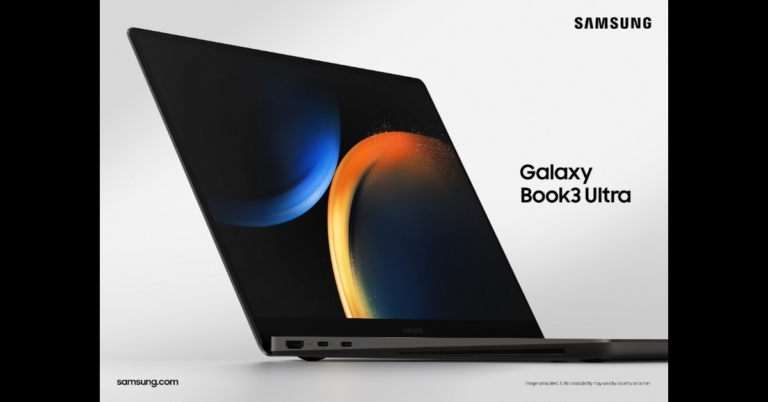
The Samsung Galaxy Book 3 Ultra is now available for pre-booking in India. The device was launched earlier this month alongside the Galaxy S23 series in the country. At the time of the launch, the company introduced three models the Galaxy Book 3 Ultra, Book 3 Pro 360, and Book 3 Pro. The laptops are powered by up to 13th Gen Intel Core CPUs and come integrated with Intel Iris Xe graphics.Global pre-orders for the Galaxy Book 3 Pro and Book 3 Pro 360 began on February 1. However, the business has recently declared that pre-orders for the Samsung Galaxy Book 3 Ultra are officially open. The 16-inch Graphite version of the Galaxy Book 3 Ultra will include 1TB of storage.Also Read:Samsung Galaxy Book 3 Series: Price in India, availability details and launch offers revealedThe cost of the Book 3 Ultra is Rs 28,1990. Customers who purchase the Book 3 Ultra will receive a bank cashback of Rs 10,000. Customers can choose no-cost EMIs for up to 24 months as well. Additionally, customers can receive an M8 Smart Monitor worth Rs 50099 at a discounted price of Rs 1999 just as part of special pre-book deals when they purchase a Book 3 Ultra. The device will be available via the company’s official website as well as via leading retail stores in India from today onwards.
Samsung Galaxy Book 3 Ultra specifications
The 16-inch 3K Dynamic AMOLED 2X display of the Galaxy Book 3 Ultra has a resolution of 2,880 by 1,800 pixels. The screen has an adjustable refresh rate of 120 Hz and a 400 nit brightness rating.The Galaxy Book 3 Ultra’s backlit keyboard has a three-row numeric layout. The Book 3 Ultra immediately starts Windows 11. Additionally included with this laptop are AKG quad speakers with Dolby Atmos. Additionally featured are a full-HD webcam and a dual mic setup. Depending on the model, it is powered by an Intel Core i7 or Core i9 processor from the 13th generation.Additionally, it has an integrated Nvidia GeForce RTX 4050 and GeForce RTX 4070 graphics card for laptops. There are possibilities for up to 1TB of SSD storage and 32GB of LPDDR5 RAM. The Book 3 Ultra sports a 76Wh battery and a 100W USB Type-C rapid charging connection. There are two wireless connectivity options: Wi-Fi 6E and Bluetooth 5.1.
For the latest gadget and tech news, and gadget reviews, follow us on Twitter, Facebook and Instagram. For newest tech & gadget videos subscribe to our YouTube Channel. You can also stay up to date using the Gadget Bridge Android App. You can find the latest car and bike news here.
Unlike Android, Apple does not have an app cloner for Instant Messaging apps on its platform. This limits users from managing two messenger accounts on one iPhone. While most people don’t feel the need to have more than one WhatsApp account, some may want to manage their personal and work accounts on one phone. Luckily, there are a couple of tricks that can help you with this problem. In this article, we show you how to use two WhatsApp accounts on an iPhone. (2023)Read Also: How can I download and install Google Chrome on Mac?
Use WhatsApp Business
WhatsApp has a separate app on the App Store for business accounts. The good news is that you don’t have to be a registered business in order to use it. You can easily register your secondary phone number on WhatsApp Business and use it like a regular app. Here’s how.Step 1: Download and Install WhatsApp Business from the App Store.Step 2: Launch WhatsApp Business and agree to the terms and conditions.Step 3: If you are already using WhatsApp on your iPhone, you will be prompted to use the same number for WhatsApp Business. Select ‘Use a different number’ instead.Step 4: You will receive an OTP on the number you just registered. Enter it on the app.Step 5: Tap on ‘Done’ at the top-right corner of the screen.Step 6: WhatsApp will give you the option to restore your chat history. If this is the first time you are registering this number on WhatsApp, you may not get this message.Step 7: Set up your profile. Step 8: In the business category, choose ‘Not a business’ and select ‘Done’.Step 9: Select Next. You will be prompted to add more details about your business. Choose ‘Not now’.Once you set up a profile on WhatsApp Business, your contacts will see the ‘Business Account’ tag under your profile name in chat threads.
Use a third-party app
There are several third-party apps that let you mirror your WhatsApp account on your phone. Messenger Duo for WhatsApp lets you link two accounts to your iPhone and offers a bunch of exclusive features like converting voice messages to texts, chat lock, quick send, fancy fonts, message scheduler, and more. In order to link a secondary account all you need to do is scan the QR code on the app using the ‘linked devices’ option on the WhatsApp app. This is similar to how you log in to the official WhatsApp Web Portal. As you may have already guessed by now, this method will require your WhatsApp account to be active on a secondary device at the time of login.Read Also: Playfit Flaunt Smartwatch Review: A worthy contender in the budget smartwatch category
If you always find yourself running out of storage space on your Android smartphone, deleting some images and videos is the quickest way of freeing up the memory on your device. Some Android smartphones suggest users take multiple images at once so they can select the best shot out of the lot. The problem with this is that the remaining redundant shots end up occupying a lot of space on your device. Multiple images received through WhatsApp also add to this problem. Luckily, the fix is easier than you think, and won’t require spending too much time browsing through the gallery. In this article, we bring you the top 3 ways to remove duplicate images on your Android smartphone.Read Also: How can I download and install Google Chrome on Mac?
Remove Duplicate Images from Settings
Step 1: Go to Settings and select ‘Battery and device care’.Step 2: Select Storage.Step 3: Scroll down and tap on ‘Duplicate Files’. This is where you will find all the duplicate files on your phone, including images.Step 4: Manually select the duplicate images and delete them.
Use Files by Google
Google’s Files app is one of the more popular file managers around. While it is a native fixture on phones running stock Android, other OS skins do not usually come with this app. You can easily download it from the Google Play Store and use it to delete any duplicate files on your phone. Here’s how.Step 1: Download and install Files by Google from the Play Store.Step 2: Launch the app and give it the necessary permissions to function on your phone.Step 3: Tap on the ‘Clean’ tab at the bottom of the screen.Step 4: If your phone has any duplicate images, this is where you will be prompted to delete them.Step 5: Select the duplicate images and delete them from your device.
There are the top 3 ways to remove duplicate images on your Android smartphone. Removing duplicates will free up much-needed space on your phone, and as a result, boost its speed and performance. It also helps in keeping your photo gallery neat and organised. While removing duplicate images, it is a good idea to manually go through the photos and keep the best shot while deleting the rest.For the latest gadget and tech news, and gadget reviews, follow us on Twitter, Facebook and Instagram. For newest tech & gadget videos subscribe to our YouTube Channel. You can also stay up to date using the Gadget Bridge Android App. You can find the latest car and bike news here.
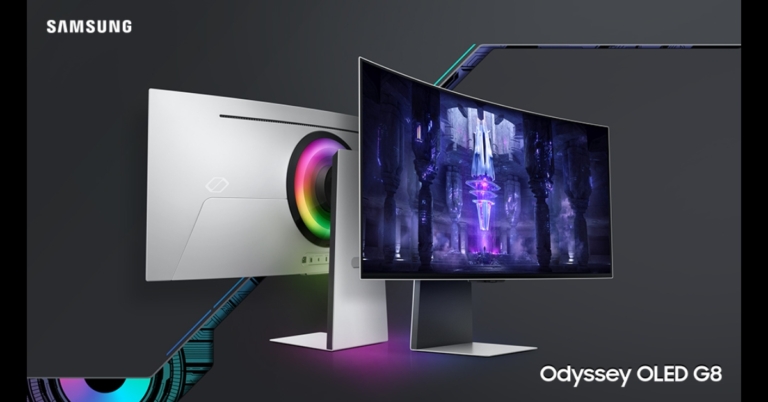
Samsung unveiled the newest lineup of Odyssey Gaming monitors. The newest models in the Odyssey Gaming Monitor line include the Odyssey OLED G8, Odyssey G7, and G7 Neo. The new gaming monitors come with Neo Quantum CPU, HDR true black 400, Smart entertainment, and AMD FreeSync Premium Pro.
Odyssey OLED G8
The Odyssey OLED G8, the fastest OLED gaming display in the Odyssey lineup, offers a realistic viewing experience thanks to the Samsung Neo Quantum Processor that is housed inside. The picture quality on the 34-inch screen is unmatched thanks to its ultra-wide QHD resolution (3,440 x 1,440) and 21:9 aspect ratio. It has a DCI-99.3% colour gamut and 100% colour volume. With a GTG of 0.1ms and a refresh rate of 175Hz, the Odyssey OLED G8 offers the fastest response time out of the whole Odyssey lineup. This is improved with a 1800R curvature for the ideal playing vision and a million-to-one static contrast ratio to bring out the finest details for increased immersion.Since the Odyssey OLED G8 monitor is VESA DisplayHDR 400 True Black Certified, the content will be reproduced with correct colour and contrast reproduction and will appear vivid and lifelike. The Odyssey OLED G8 monitor is further improved with AMD FreeSync Premium for fluid gameplay.Price: Rs 175,000
Odyssey Neo G7
Samsung’s first flat Mini-LED model with a novel form factor is the Odyssey Neo G7. It features a 43-inch 4K resolution display (3,840 x 2,160). The VESA Display HDR600 comes with HDR 10+ certification. Samsung’s Quantum Matrix Technology, which utilises Quantum Mini LEDs to offer incredibly fine and exact control over the tightly packed LEDs, is highlighted by the Odyssey Neo G7.The 1ms (GTG) reaction time and up to 165Hz refresh rate that the Odyssey Neo G7 offers to provide a quick, fluid response and enable precise mouse movements. The Odyssey Neo G7 maintains incredibly smooth and quick action gameplay even during the most intense scenes and lowers stuttering, input latency, and screen tearing thanks to AMD FreeSync Premium Pro compatibility.Price: Rs 100,000 (32-inch) and Rs 130,000 (43-inch)
Odyssey G7
A high-end flat UHD gaming monitor, the Odyssey G7 features a 144Hz refresh rate and an IPS panel with a clean image via a 178° wide viewing angle. Additionally, it has an impressive array of internal capabilities, such as a 1ms response time and a QLED display with stunning clarity, to meet the demands of gamers for fluid and compelling gameplay.The 28-inch Odyssey G7 features a cutting-edge design, an ultra-wide game view, Auto source switch+, and G-sync compatibility. By synchronising the illumination with the game’s on-screen colours, the CoreSync technology gives players a more immersive gaming experience.Price: Rs 75,000
For the latest gadget and tech news, and gadget reviews, follow us on Twitter, Facebook and Instagram. For newest tech & gadget videos subscribe to our YouTube Channel. You can also stay up to date using the Gadget Bridge Android App. You can find the latest car and bike news here.


 Step 2: Tap on ‘Dark’ under the Appearance section.
 Step 3: Turn the toggle bar on for Automatic if you want the Dark Mode to kick in at a certain time.

 Step 3: Tap on ‘Chats’.
 Step 4: Select ‘Chat Wallpaper’.
 Step 5: Choose a chat wallpaper from WhatsApp’s wallpaper library. You can also upload a wallpaper or image from your phone’s gallery. You can choose a wallpaper for dark mode as well.
 Step 6: Have a look at the preview to see how the wallpaper will look on the chat page. Tap on ‘Save’ to confirm your selection. If you want to browse more wallpapers, select ‘Cancel’.
Your changes will apply to every chat on WhatsApp. When you change the chat background, only you will be able to view the new wallpaper. The changes won’t apply to other people in the conversation.
Read Also: How to use two WhatsApp accounts on an iPhone? (2023)
Step 6: Have a look at the preview to see how the wallpaper will look on the chat page. Tap on ‘Save’ to confirm your selection. If you want to browse more wallpapers, select ‘Cancel’.
Your changes will apply to every chat on WhatsApp. When you change the chat background, only you will be able to view the new wallpaper. The changes won’t apply to other people in the conversation.
Read Also: How to use two WhatsApp accounts on an iPhone? (2023)

![How to Move Windows 11 to Another Drive [2023 Updated]](https://www.gadgetbridge.com/wp-content/uploads/2023/02/laptop-windows-microsoft-768x402.jpg "How to Move Windows 11 to Another Drive [2023 Updated]")
 Note: The new USB flash drive, HDD, or SSD that you wish to migrate to must be connected to your computer.
Step 2: Click “Start” to move forward after choosing the source disc from which to migrate and the destination disc you wish to migrate to.
Note: The new USB flash drive, HDD, or SSD that you wish to migrate to must be connected to your computer.
Step 2: Click “Start” to move forward after choosing the source disc from which to migrate and the destination disc you wish to migrate to. Step 3: A warning pop-up window will appear. To move on to the next stage, select “Sure.”
 Step 4: Please verify the details for the source disc and the target disc in the preview interface before clicking “Start” to begin system migration. It won’t take long for the migration.
 Result: Your system was successfully migrated. To finish the procedure, click “Finish.”
 Step 2:
 Step 3:
 Step 4:
 Step 3:
 Step 4:
 Step 5:
 Step 6: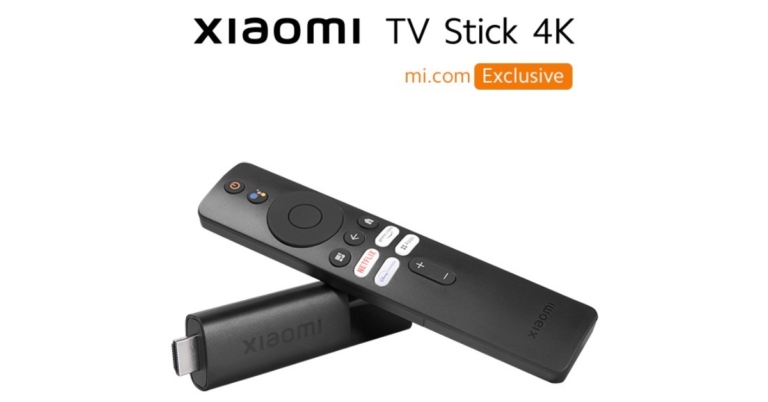
 Step 3:
 Step 8:
 Step 2:
 Step 3:
 Step 4:
 Step 4:
 Step 5: