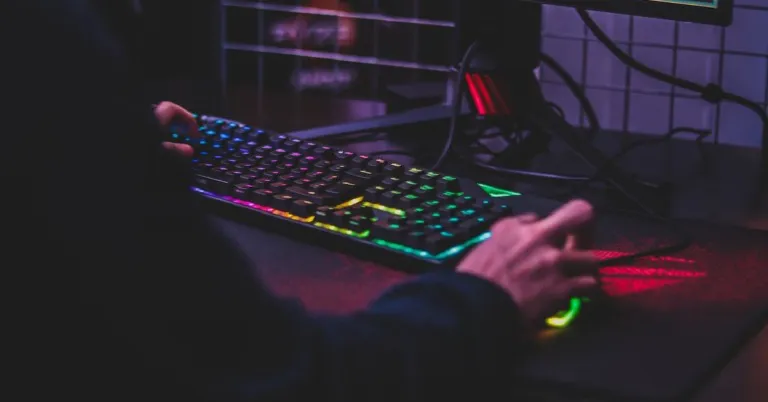
If you’re building a gaming rig for yourself, a good mechanical keyboard is something you cannot compromise on. If you’re looking for a mechanical keyboard with RGB lighting, the sheer number of options may overwhelm you. The good news is that you don’t have to splurge a lot to get your hands on a decent RGB keyboard. In this article, we bring you the best RGB mechanical keyboards for gaming that you can buy right now for under Rs 3,000.Read Also: How to turn on the flashlight on iPhone without unlocking it: 3 best ways
Redragon Kumara K552
Price: Rs 2,299The Redragon Kumara K552 is a compact ten key-less mechanical gaming keyboard that is incredibly popular among gamers that are looking for an efficient keyboard on a budget. The Kumara K552 gets 19 different lighting effects and a bunch of user customisation options. The keys on Kumara K552 have been tested to 50 million keystrokes and feature Cherry Red MX Equivalent switches. The keyboard base is made out of a metal alloy, and the keycaps are ergonomically designed to handle tough gaming conditions.
EvoFox Katana Pro
Price: Rs 2,499Amkette’s EvoFox Katana Pro comes with 16 million RBG lights that are fully customisable using the company’s Windows app. Once customised, the onboard software remembers your changes and can utilise them when you connect the keyboard to another device. The Katana Pro comes with 4 customisable Game Mode LED presets, 16 Breathing effects, Single Click White Key Mode, and more. The customisation options aren’t just limited to the RGB lighting as EvoFox Katana Pro allows you to customise all 87 keys on the keyboard. On top of that, the Katana Pro features Otemu red switches and keycaps that have been tested for 50 million keystrokes.
Cosmic Byte CB-GK-02
Price: Rs 1,149Our most affordable entry in this list is the Cosmic Byte CB-GK-02. This entry-level gaming keyboard features a 7-colour RGB backlight with 4 levels of brightness and 9 backlight effects. One of the coolest features of this keyboard is ‘Sonic Spectrum’, where the RBG lighting responds to the surrounding sounds like an equaliser. The keyboard is able to achieve this with the help of an inbuilt microphone. The elevated keys provide decent tactile feedback and are scratch resistant. Cosmic Byte claims a 10 million keystroke life for the keycaps.
Redgear Shadow Blade
Price: Rs 2,499Redgear Shadow Blade is considered by many to be one of the best value-for-money keyboards in the market. This keyboard is equipped with mechanical clicky blue switches and floating keycaps. The Shadow Blade also comes with a palm rest, allowing you to game for several hours on end. The RGB lighting has a 22-spectrum LED mode that can be adjusted according to your liking. To add to the uniqueness, this keyboard also gets an integrated volume knob to control media playback.
Ant Esports MK1300
Price: Rs 2,504One of the most compact keyboards in this price range, the Ant Esports MK1300 is a 61-key compact 60% mechanical keyboard. The MK1300 provides great tactile feedback with the help of the Otemu blue switches. There are 14 LED modes on the MK1300 with adjustable speed levels. This keyboard is compatible with Windows and Mac devices without needing any installation software or driver. Simply plug in the USB Type-C cable and start playing.
Redragon K617
Price: Rs 2,899Closing out this list is the Redragon K617, which is a 60% compact mechanical keyboard with 61 keys. The hot-swappable red key switches are built to last up to 50 million keystrokes. The RGB lighting has 20 preset backlighting modes that can be selected from the keyboard itself. The brightness and flowing speed can also be adjusted from the keyboard. On top of that, you can also design your own new modes and effects. Read Also: Oppo Enco Air 3 with 13.4mm drivers launched in India
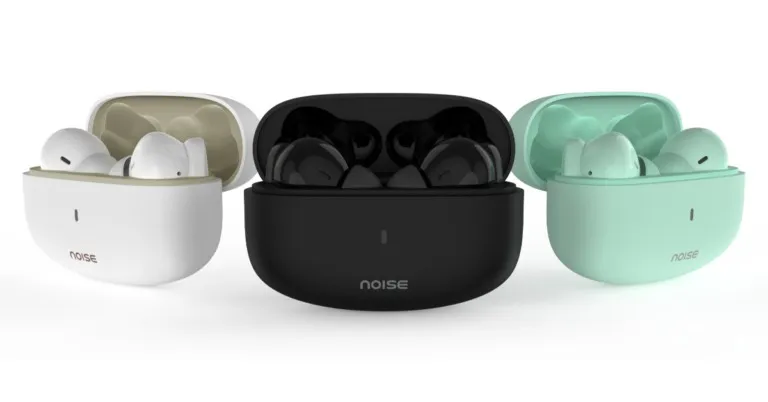
Indian lifestyle brand Noise has unveiled yet another pair of reasonably priced true wireless earphones- Noise Buds Connect. The TWS earphones come with 13mm drivers and have a quad mic The audio device promises enormous battery life and has a total battery life of up to 50 hours.
Noise Buds Connect price in India and availability details
Noise Buds Connect TWS earphones have been launched in India with a price tag of Rs 1,299. The audio device will be offered in three colour options of Carbon Black, Mint Green and Ivory White. The TWS earphones will be available for purchase via the e-commerce platform Amazon and via the company’s official website in the country.Also Read:Poco C50 Review: A good budget smartphone for basic use
The Noise Buds Connect specifications
The IPX5 sweat and water resistance feature on the Noise Buds Connect makes them safe to use when exercising or close to water. They also have a USB Type-C charging socket. The 13mm drivers maintain the highs and lows of the song while delivering a deep, rich bass. The Noise Buds Connect includes Quad Mic ENC (Environmental Noise Cancellation), which offers an uninterrupted calling experience at the callers’ end, along with Instacharge, a brand-exclusive and market-leading technology that offers up to 50 hours of total playtime. Thanks to the single-bud playtime of 10 hours, users can now spend time with friends or go to meetings. Also Read:Fitbit Sense 2 Review: Wonderful smartwatch for the beginnersThe Noise TWS earphones come with a quad mic with Environmental Noise Cancellation (ENC) ensures crystal-clear calls, virtual meetings, and seamless communication by removing obtrusive surround sound.When you open the charging case for Buds Connect, the earbuds automatically enter pairing mode thanks to HyperSync technology. The earphones are turned off by this technology’s power-saving feature as soon as you put them inside the charging case and seal the lid.Commenting on the launch, Amit Khatri, Co-Founder, Noise, said, “With the aim to introduce products that are an amalgamation of technology, innovation, performance and style, we are thrilled to expand our TWS portfolio with the launch of Noise Buds Connect. The latest addition is in line with our belief to bring together feature-rich products packaged in an ergonomic design, making Buds Connect ideal for the youth.”
For the latest gadget and tech news, and gadget reviews, follow us on Twitter, Facebook and Instagram. For newest tech & gadget videos subscribe to our YouTube Channel. You can also stay up to date using the Gadget Bridge Android App. You can find the latest car and bike news here.
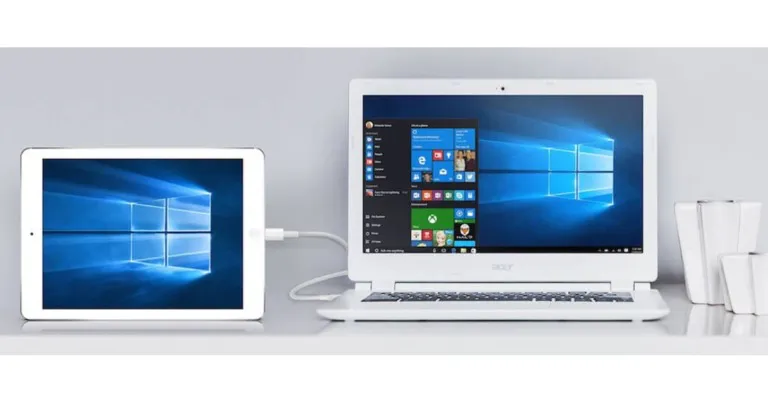
If you have an old Android tablet or smartphone lying around, you can use it as a second monitor for your PC. Once connected, you can either mirror or extend your PC’s display to the tablet. Having a second display is pretty convenient and can vastly improve your productivity. In this article, we bring your the top 4 methods to use your Android tablet as a second monitor for your PC.Read Also: Oppo Enco Air 3 with 13.4mm drivers launched in India
Use Spacedesk
In order to use Spacedesk your PC and Android tablet must be connected to the same Wi-Fi network or have a connection established through a USB cable.Step 1: Download the Spacedesk Driver Software for Windows on your PC from the Spacedesk website.Step 2: Open the driver software and install it on your PC by following the onscreen instructions.Step 3: Install the Spacedesk app on your Android tablet or smartphone from the Google Play Store.Step 4: Launch the Spacedesk app on your Android tablet or smartphone and tap on the plus icon.Step 5: Enter your PC’s IP address. If your PC is already listed on the app, tap on its name.Step 6: Select ‘Connect’.Your Android tablet’s screen will now act as a second monitor for your PC. You can either mirror your PC’s monitor or extend it to your tablet from Display Settings.
Use Splashtop
Step 1: Download the Splashtop desktop agent for Windows from the official website.Step 2: Install the desktop agent on your PC by following the onscreen instructions.Step 3: Install the Splashtop Wired XDisplay app on your Android tablet or smartphone.Step 4: Allow USB Debugging from Developer Options. In order to enter Developer Mode, go to About Phone>Software Information and tap on Build Number 7 times. Now go back to Settings, scroll down to the bottom and select Developer Options. Turn on USB Debugging.Step 5: Make sure your PC and tablet are connected by a USB cable.After a connection has been established between your Android tablet and the desktop agent, your PC’s display will be mirrored on your tablet.
Use Super Display
The Super Display app costs $14.99 but comes with a free 3-day trial period. All you need to do is download the app on your tablet or smartphone and the Windows driver on your PC from the Super Display website. Connect your Android tablet to your Windows PC using a USB cable and launch the Super Display app on your phone. Your PC’s screen will be mirrored on your tablet instantly. One of the advantages of using Super Display is that it provides no lag whatsoever and is ideal for drawing and other creative tasks.
Use iDisplay
iDisplay was initially designed as software for Apple devices to share their display. If you own a Mac and iPad, you can use this app to mirror Mac’s display on the iPad. iDisplay now also allows connectivity for Android devices. Following the same process as all the display agents above, you will be able to use iDisplay on your PC and tablet. One thing you need to ensure is that your PC and tablet are connected by a USB cable as iDisplay does not work over a WiFi connection.Read Also: 6 simple ways to fix YouTube video and audio not in sync on Android
Conclusion
These are the top 4 methods to use your Android tablet as a second monitor for your PC. If you are interested in creating digital art, then having a second monitor will greatly improve your creative output. Having a second monitor greatly improves your work output and elevates accessibility to a whole new level.For the latest gadget and tech news, and gadget reviews, follow us on Twitter, Facebook and Instagram. For newest tech & gadget videos subscribe to our YouTube Channel. You can also stay up to date using the Gadget Bridge Android App. You can find the latest car and bike news here.
Poco X5 5G and Poco X5 Pro 5G are scheduled to launch in India today. The new smartphone series from Xiaomi’s spinoff has also been advertised on Flipkart to tease its availability. The business will also have a virtual launch event. The specifications and cost, which are currently a trade secret, have not been made public by the firm. However, prior to the formal release, details including the estimated cost and the product’s characteristics have already appeared online.
Poco X5 series India Launch Livestream details
At 5.30 PM, the firm will have a live online launch event. The online occasion will be broadcast live on Facebook, Twitter, and Poco’s official YouTube channel, among other social media sites. However, if you click the link below, you may view it live right here on our website.
Poco X5 5G and Poco X5 Pro 5G price in India expected
Sources claim that there will be three storage options for the Poco X5 Pro 5G accessible in India: 6GB RAM with 128GB storage, 8GB RAM with 128GB storage, and 8GB RAM with 256GB storage. Additionally, the price is anticipated to range from Rs 21,000 to Rs 23,000.Also Read:Poco X5 5G, Poco X5 Pro 5G to debut in India on February 6
Specification expected
As per official information by the company Snapdragon 778G SoC is expected to be used in the Poco X5 Pro 5G. A 120Hz Xfinity AMOLED display will also be featured on the phone. A 108-megapixel primary camera will also be featured on the Poco X5 Pro 5G. The specifications of the standard Poco X5 are still a secret. But according to a leak, the smartphone will have a rectangular module to hold three camera sensors on the back. The X5 5G is expected to include a 6.67-inch AMOLED display with a 1,080×2,400 resolution, a refresh rate of 120Hz, a contrast ratio of 4500000:1, and be 100% DCI P3. Furthermore, the display will probably have a touch sampling rate of 240Hz, 1200nits of brightness and will be Low Blue Light certified.Also Read:Poco C50 Review: A good budget smartphone for basic useThe device is said to be available in three colour options of Silver, blue, and green. A Snapdragon 695 CPU would power the Poco X5 5G and will feature a triple rear camera setup that is likely to include a 48-megapixel primary sensor, an 8-megapixel wide-angle lens, and a 2-megapixel macro lens. According to the leak, the front camera has a 13-megapixel lens and is located in a punch-hole slot. It is anticipated to have a 5,000mAh battery and support 33W rapid charging with MMT technology.
For the latest gadget and tech news, and gadget reviews, follow us on Twitter, Facebook and Instagram. For newest tech & gadget videos subscribe to our YouTube Channel. You can also stay up to date using the Gadget Bridge Android App. You can find the latest car and bike news here.
Garena Free Fire is a battle royale game with regular awards and tournaments to keep players interested. If you play Garena Free Fire, you should be aware of the redeem codes that are released on a daily basis. However, because the battle royale game is banned in India, players from other countries can use the Free Fire Redeem codes daily. If you’re unfamiliar with the Garena Free Fire redeem codes or don’t know how to get them, we’ve put together a step-by-step guide to help you redeem them. Check out Garena Free Fire Redeem Codes for 6 February 2023.The Free Fire redeem codes are a great way to get free stuff. These are 12-digit codes that contain alphabets and numbers, as well as an expiration date and time. Because the Garena FF redeem codes cannot be used more than once, you should hurry to the redemption page to claim your free reward before someone else does. To get a free reward, all you have to do is go to reward.ff.garena.com/en, which is the official redemption page. Also, keep an eye on this space for daily updates on Garena Free Fire redemption codes and rewards.
Garena Free Fire Redeem Codes Today 6 February 2023
X99TK56XDJ4X
FF7MUY4ME6SC
WEYVGQC3CT8Q
3IBBMSL7AK8G
J3ZKQ57Z2P2P
FFDBGQWPNHJX
TDK4JWN6RD6
4TPQRDQJHVP4
GCNVA2PDRGRZ
XFW4Z6Q882WY
HFNSJ6W74Z48
HHNAT6VKQ9R7
2FG94YCW9VMV
4ST1ZTBE2RP9
8F3QZKNTLWBZ
V44ZZ5YY7CBS
WD2ATK3ZEA55
E2F86ZREMK49
B3G7A22TWDR7X
MCPW3D28VZD6
FFCMCPSGC9XZ
FFCMCPSEN5MX
ZZZ76NT3PDSH
EYH2W3XK8UPG
FFCMCPSUYUY7E
NPYFATT3HGSQ
MCPW2D2WKWF2
V427K98RUCHZ
MCPW2D1U3XA3
FFCMCPSJ99S3
6KWMFJVMQQYG
BR43FMAPYEZZ
UVX9PYZV54AC
XZJZE25WEFJJ
HNC95435FAGJ
How to Get Free Fire Redeem Codes for Garena on 6 February 2023?
Amazon is back with another quiz on its mobile platform. The Amazon Quiz is conducted every day for its customers. Customers from different parts of the country are participating in the daily quiz. Today’s Amazon quiz is now live on the Amazon App. The customers who participate in the 6 February 2023 Amazon Quiz will get a chance to win Rs 500 Amazon pay Balance.The Amazon Quiz can be played from 12 AM to 11:59 PM. For those who are unaware of the quiz, the e-commerce platform brings a fresh quiz on a daily basis which consists of five questions related to general knowledge and current affairs. The participants need to answer all the questions correctly and their names will be selected for a lucky draw. The winner will be announced at the end of the month. One wrong answer could eliminate you from the quiz. Only app users are eligible to participate in the Quiz. Check Out 6 February 2023 Amazon Quiz Answers.Amazon Quiz Today Prize – Rs 500 Amazon Pay BalanceQuiz Date – 6 February 2023Daily Timing – 12 AM to 11:59 PMWinner Announcement – Today 12 PM
Amazon Quiz Answers Today 6 February 2023
Question 1: Who among these has made 30 ODI centuries?
Answer: Rohit SharmaQuestion 2: The movie Pathaan is part of a ‘Spy Universe’ developed by which production house?
Answer: Yashraj FilmsQuestion 3: An island has been named after Param Vir Chakra awardee Captain Vikram Batra in which Union Territory?Answer: Andaman & Nicobar IslandsQuestion 4: This is a picture taken in the famous Times Square in which city?Answer: New YorkQuestion 5: Name this famous monumentAnswer: Hawa Mahal
How To Play Amazon Quiz
Only app users are eligible to play the Amazon quiz every morning from 12 AM to 11:59 PM. The quiz is not available on the desktop. For those who are unaware of how to play the Amazon quiz below are the steps, you can follow to take the quiz.
Firstly download the Amazon app from Google Play Store or App Store
Now fill in the required information through the Sign Up option.
You need to log in to the Amazon app and scroll down on the home screen to find the Amazon Quiz banner.
Tap on the Amazon Quiz banner and tap on the Start button to start the Quiz.
Now you will get 5 questions and you need to answer them correctly. One wrong answer will eliminate you from the Quiz.
After answering all the questions correctly you are now eligible for a Lucky Draw.
The winner’s name will be announced today at 12 PM.
Your iPhone’s LED flash is bright enough to illuminate any dark areas in case you don’t have a torchlight on you. Apple has made it really convenient to quickly turn on the flash without even needing to unlock your phone. If used moderately, your iPhone’s flashlight doesn’t consume too much battery. However, if you’re going out for a hike, bringing a torch is ideal. In this article, we show you how to turn on the flashlight on your iPhone without unlocking it.Read Also: Samsung Galaxy Book 3 Series: Price in India, availability details and launch offers revealed
Use Siri
Need to locate your iPhone in the dark? Simply ask Siri to turn on your iPhone’s flashlight. This is the only way you can turn on the flashlight on your iPhone without even touching it. All you need to do is say, “Hey Siri, turn on the flashlight”. The voice assistant will turn on the flash instantly. Conversely, to turn off the flashlight, simply say “Hey Siri, turn off the flashlight.
Turn on the flashlight from the lock screen
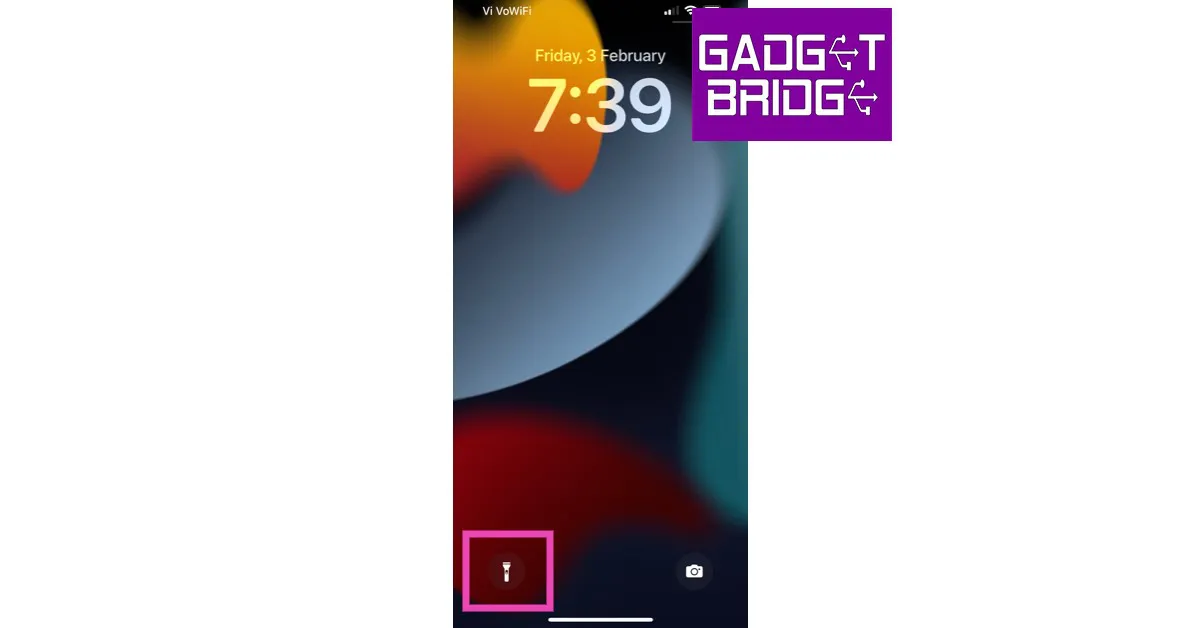
You don’t need to unlock your iPhone to turn on the flashlight. All you need to do is tap on the screen to wake it and then tap on the flashlight icon to turn it on. Tap the icon again to turn it off. If ‘Raise to Wake’ is activated on your iPhone, you wouldn’t even need to touch the screen to wake it. Simply pick up your iPhone and tap on the flashlight icon on the lock screen.
Use a Vocal Shortcut
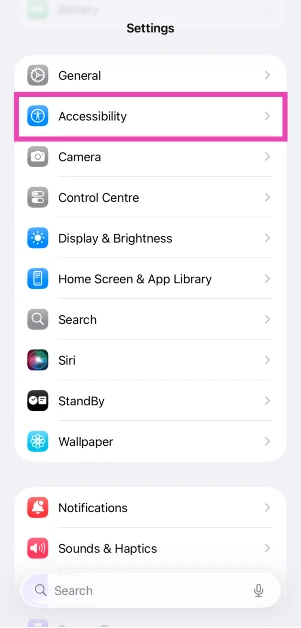
Step 1: Go to Settings and select Accessibility.
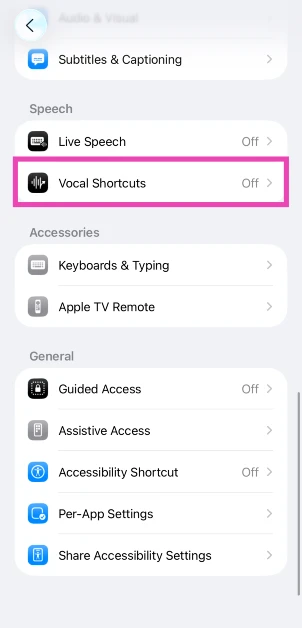
Step 2: Tap on Vocal Shortcuts.
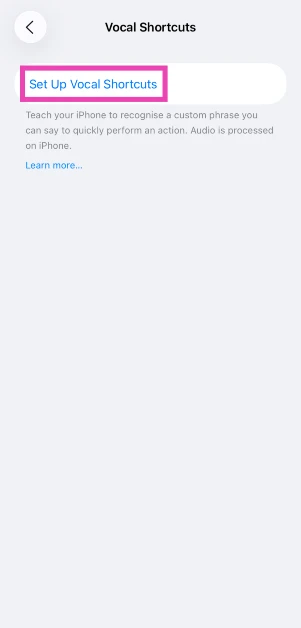
Step 3: Tap on Set Up Vocal Shortcuts.
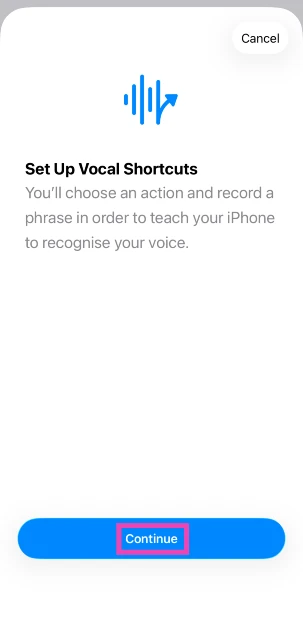
Step 4: Hit Continue.
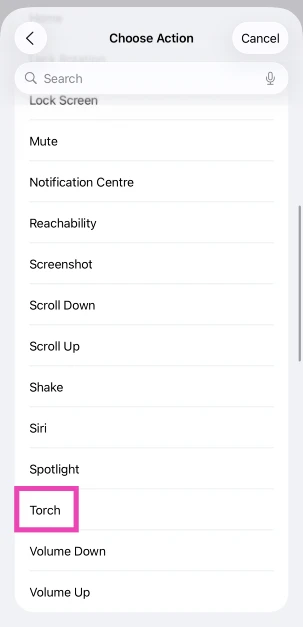
Step 5: Scroll down and select Torch.
Step 6: Enter a command name.
Step 7: Say the command name 3 times.
Step 8: Hit Continue.
Step 9: Say the vocal command to trigger the flashlight.
Turn on the flashlight by tapping the iPhone’s back
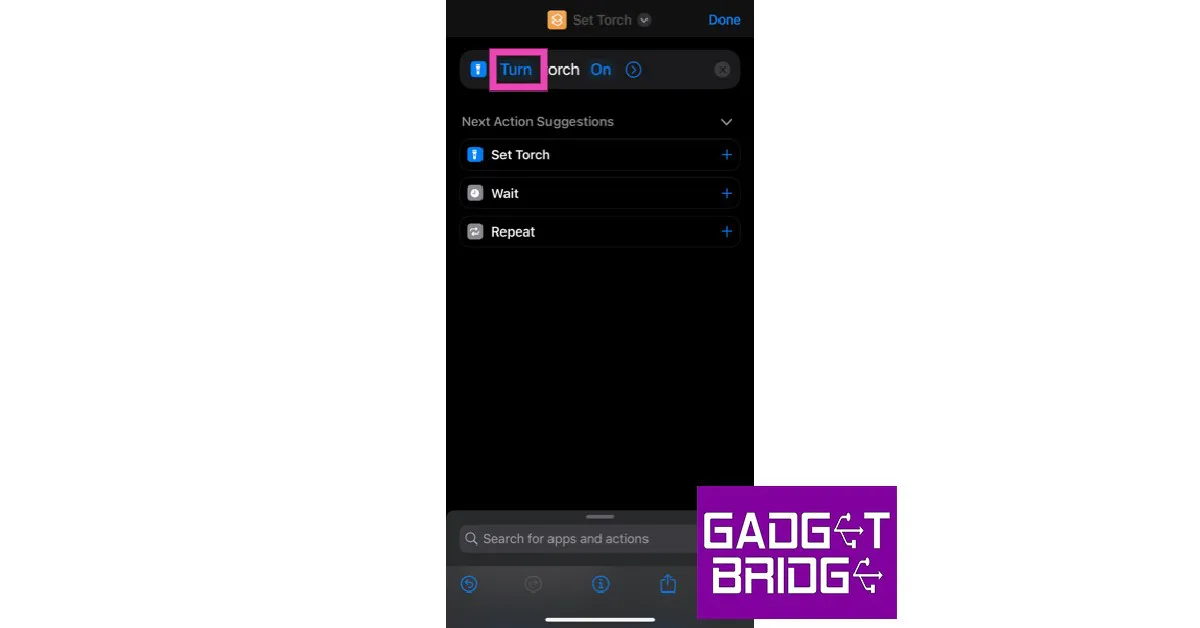
One of the most convenient and quick ways to turn on the flashlight on your iPhone is by tapping the smartphone’s back. Here’s how you can enable this feature.Step 1: First, you’ll need to create a Shortcut to toggle the flashlight. Launch the Shortcuts app on your iPhone and tap on My Shortcuts.Step 2: Tap the plus sign at the top right corner of the screen and select Add Action.Step 3: Type flashlight in the search bar and select the Set Flashlight icon.Step 4: Tap on Turn and select Toggle from the pop-up box.Step 5: Tap Next on the top right corner of the screen. Give a title to the Shortcut.Step 6: Tap on Done.Now, you need to link this Shortcut to the back tap. Here’s how you can do that.Step 7: Go to Settings and select Accessibility.Step 8: Select Touch and then select Back Tap.Step 9: Choose a tap gesture to activate the flashlight. Ideally, you should select double-tap if you want to turn on the flashlight quickly.Step 10: Once you choose a tap gesture, select the FlashlightShortcut you just created to link it to the back tap.Now you can easily turn the flashlight on and off with a simple double back tap.
Don’t see the flashlight icon on the Control Centre?
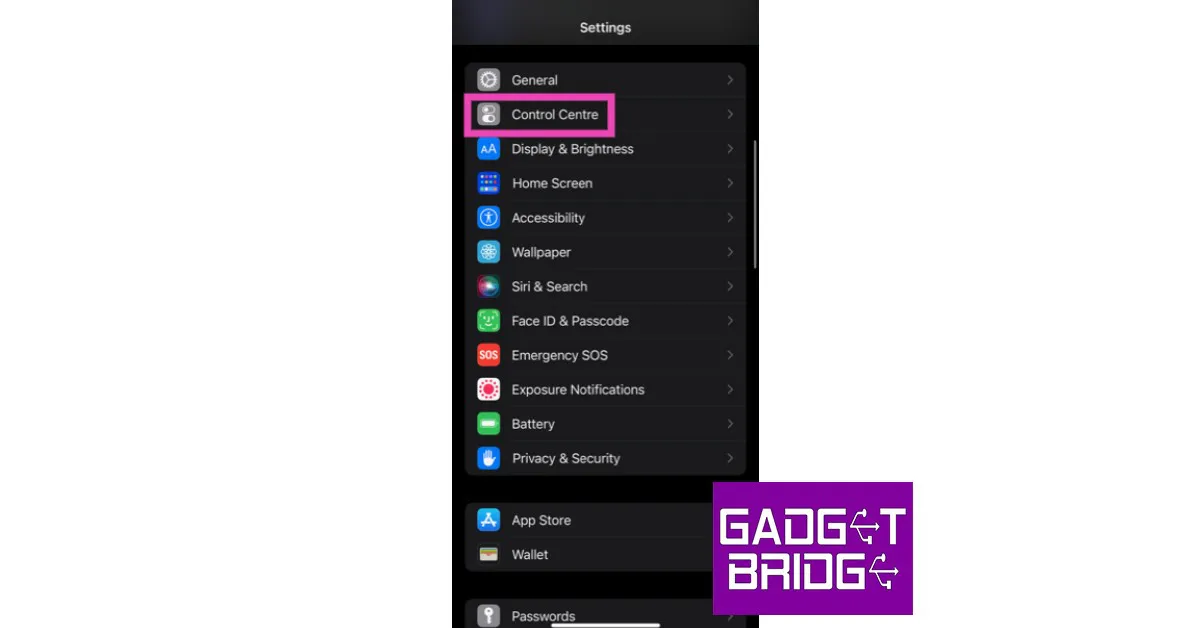
If your iPhone is already unlocked and you want to turn the flashlight on, you can find it in the Control Centre. All you need to do is swipe down from the status bar and select the flashlight icon. If you do not find the flashlight icon in the Control Centre, you can add it there by following these steps.Step 1: Go to Settings and select Control Centre.Step 2: Tap the green plus symbol next to Flashlight.The flashlight icon will be added to the Control Centre.Read Also: Oppo Reno 8T 5G India launch today: Expected specifications and pricing
Final Thoughts
These are three quick ways you can turn on the flashlight on your iPhone without unlocking it. Android allows users to program the side key to turn on the flash while the smartphone is locked. However, Apple hasn’t implemented this feature yet. Bored of using the same old flashlight? Check out these flashlight apps for your phone.
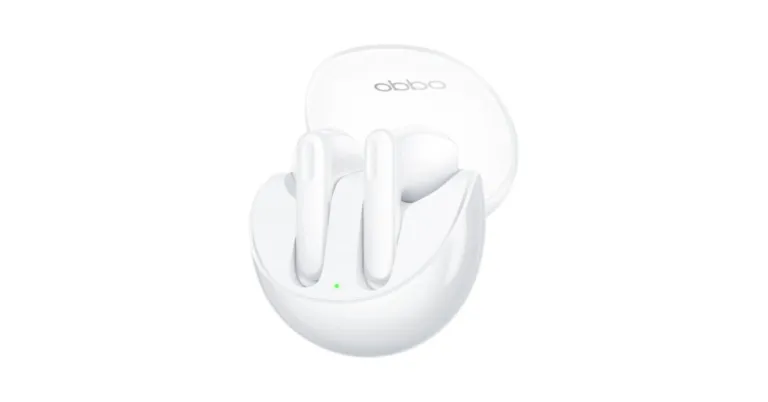
Oppo has introduced two new products in the Indian market today. The company has brought Oppo Reno 8T and Oppo Enco Air 3 TWS earbuds in the country. The newly launched earphones come with an IP54 rating for dust and water resistance. It features 13.4mm drivers and is powered by Cadence HiFi5 DSP. The audio device claimed to offer 50 percent longer battery life than its predecessor.
Oppo Enco Air 3 TWS price in India and availability
Oppo Enco Air 3 TWS has been launched in India with a price tag of 29,999. The device will be available for purchase via Flipkart, OPPO Store and Mainline Retail Outlets in the country from February 10 onwards.According to the company, the customer who buys Oppo Reno 8T will get Rs 500 off on the purchase of the newly launched TWS. However this offer can only be availed till February 16.Also Read:Oppo Reno 8T 5G with Qualcomm Snapdragon 695 5G launched in IndiaOppo Reno 8T has also been launched alongside the TWS and is priced at Rs 29,999 and can be purchased via Flipkart, OPPO Store and Mainline Retail Outlets from February 10.
Oppo Enco Air 3 TWS specifications
When compared to their predecessors, the Enco Air 3 TWS earbuds have a few different design features. A brand-new transparent lid design is included with the new True wireless earphones. It features 13.4mm drivers and has a maximum battery life of 6 hours per charge. It has a casing that enables four further complete recharges, giving you a maximum playback length of 25 hours.The Cadence HiFi5 DSP (Digital Signal Processor), which improves speech recognition for rich voice-based interactions, powers the IP54-rated pair. Regardless of the manufacturer of the phone or audio player, Oppo Alive Audio improves the audio output for movie theatre-quality surround sound.Also Read:Poco X5 5G, Poco X5 Pro 5G to debut in India on February 6In dedicated game mode, the OPPO Enco Air 3 also supports a low latency rate of 47 ms. The TWS, which works with SBC and AAC codecs, pairs with up to two devices simultaneously and connects to a smartphone through Bluetooth v5.3.When the case is added, the earphones’ weight jumps to 37.4gm from their individual weight of 3.75gm.
For the latest gadget and tech news, and gadget reviews, follow us on Twitter, Facebook and Instagram. For newest tech & gadget videos subscribe to our YouTube Channel. You can also stay up to date using the Gadget Bridge Android App. You can find the latest car and bike news here.
Even though YouTube is one of the most popular apps across all platforms and undoubtedly the biggest video-sharing platform on the Internet, it is still prone to certain issues. Oftentimes, users report that the videos on YouTube do not sync up with the audio output correctly. This may not entirely be an issue on YouTube’s end and the problem could lie with your phone. In this article, we bring you 10 simple ways to fix the ‘YouTube video and audio not in sync’ issue on Android.Read Also: Samsung Galaxy Book 3 Series: Price in India, availability details and launch offers revealed
Restart your phone
A quick restart fixes any glitches or background issues that may be interrupting your phone from carrying out a task. If you are constantly experiencing audio or video lag on YouTube, restart your smartphone. This should be your first step toward fixing any issue with your phone. To restart your phone, long press the power button and tap on ‘Restart’.
Clear YouTube app cache
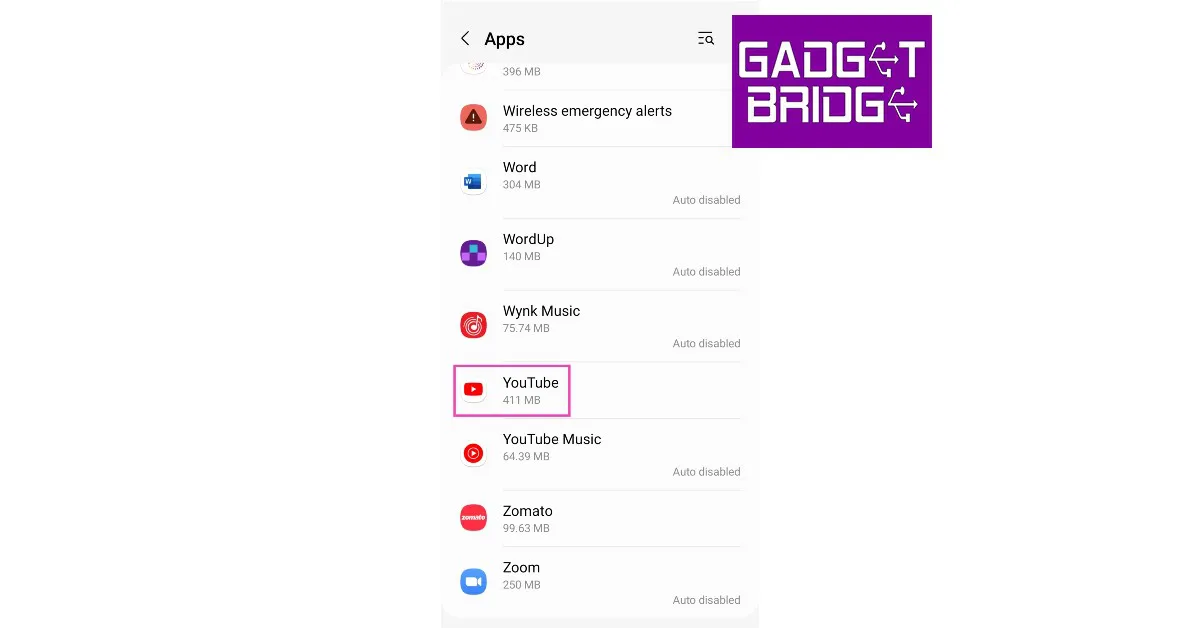
If you haven’t cleared the YouTube app’s cache in a while, some temporary files may have gotten corrupted, leading to the audio and video getting out of sync. Here’s how you can clear the YouTube app’s cache on your Android smartphone.Step 1: Go to Settings and select Apps.Step 2: Select YouTube.Step 3: Tap on Storage.Step 4: Select ‘Clear cache’ from the bottom toolbar.
Force stop YouTube
Force-stopping an app halts its background activity and turns it off until you restart it. This can fix any glitches with the app. Here’s how you can fix YouTube on your Android smartphone.Step 1: Go to Settings and select Apps.Step 2: Select YouTube.Step 3: Tap on the ‘Force Stop’ option at the bottom of the screen and confirm your selection in the following dialogue box.
Disconnect your TWS device
If you are using wireless headphones to watch YouTube videos, they may be causing the audio and video to be out of sync. Some Bluetooth headphones struggle with latency issues and take some additional time to receive the audio from your phone. This causes the videos and games to be out of sync with the audio you’re hearing. To fix this, turn on the ‘low latency mode’ on your headphones, if there is any. Some headphones may call it the ‘gaming mode’. If your TWS doesn’t offer a low latency you will need to disconnect it in order to get the audio and video on YouTube to sync again.
Switch to a lower resolution
If you’re on a weak internet connection, HD videos on YouTube can generate a slight lag, leading to their audio getting out of sync. To minimise this problem, switch to a lower resolution until the signal strength gets better. Hit the cog wheel icon in the YouTube video player, tap on Quality, select Advanced, and choose 144p or 240p resolution.
Update the YouTube app
If the issue lies on YouTube’s end, chances are that it will be fixed by a quick update. Software bugs aren’t too uncommon and they are fixed as soon as they are noticed by the developers. If you are experiencing a lag issue, chances are that it has already been fixed by an update. Simply go to Google Play Store, search for YouTube, and tap on ‘Update’.
Did you try watching another video?
Maybe the issue does not lie with the YouTube app on your phone, but with the video you are watching. Content creators are not impervious to errors. It is possible that the creator may have accidentally uploaded a corrupted file on YouTube, leading to this problem. Check the comments of the video to see if other people are experiencing this issue as well. You can also try watching another video to make sure that it is not your device that is at fault.
Reinstall YouTube
If you are already using the latest version of the YouTube app, uninstalling and reinstalling might help with this problem. To remove the YouTube app from your device, simply press and hold its icon in the app drawer and select ‘Uninstall’. For a simpler method, head over to the YouTube app page on Google Play Store and hit ‘Uninstall’. Once the app has been deleted from your phone, hit ‘Install’ on the same page.
Clear Google Chrome’s cache
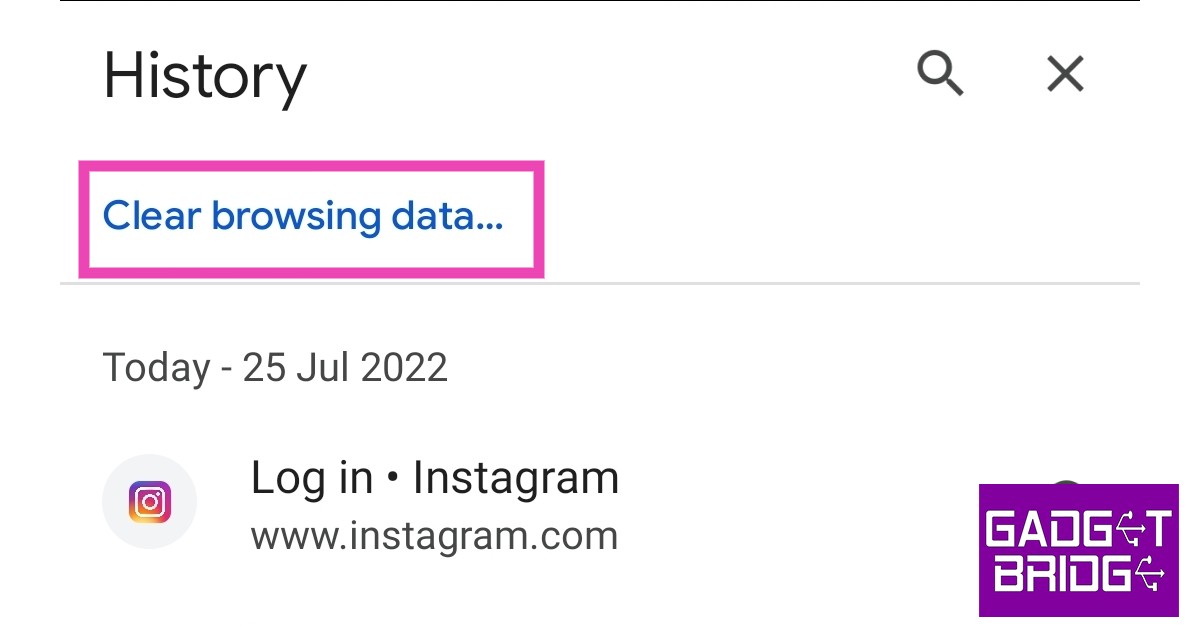
If you are experiencing this issue on the Chrome web browser, clear the browser cache to fix it. Here’s how.Step 1: Launch Google Chrome on your smartphone.Step 2: Tap the three dots at the top right corner and select ‘History’.Step 3: Select ‘Clear Browsing Data’.Step 4: Choose the time range for data deletion. If you want to delete everything, select ‘All Time’.Step 5: Check the boxes next to ‘Cookies and Site data’ and ‘Cached images and files’.Step 6: Tap ‘Clear data’.
Update your smartphone
It is possible that the problem lies with your phone’s OS and not the YouTube app itself. Oftentimes, older OS versions tend to give rise to minor glitches. These glitches are fixed with a quick patch from the developers. Here’s how you can go about it.
Step 1: Go to Settings and select Software Updates.
Step 2: Tap on Download and Install. Your smartphone will check for any new updates.
Step 3: If an update is available, tap on Install Now. You can also schedule the update for later.
Frequently Asked Questions (FAQs)
Why is YouTube video and audio not in sync on my phone?
If you are using Bluetooth headphones to watch YouTube videos on your phone, you may experience a slight lag in the audio. This is because some wireless headphones have high latency. To fix this issue, enable game mode or low latency mode on your headphones.
How do I sync YouTube’s audio and video?
Clear YouTube’s app cache and make sure the app is updated. If you are watching YouTube on Google Chrome, clear its cache as well.
These are 10 simple ways to fix the ‘YouTube video and audio not in sync’ issue on your Android smartphone. If the issue still persists after you’ve tried all these fixes, it is entirely possible that something may be wrong with the video itself. Maybe the video file that was uploaded to YouTube has a lag issue. Try viewing another video and see if it has a lag as well.
The Oppo Reno 8T 5G has officially debuted in India today. A few months ago, Oppo Reno 8 Pro was released and the 8T is a scaled-down version of that device. The phone features a 6.7-inch micro-curved AMOLED screen with a 120Hz refresh rate. A 4,800mAh battery inside the phone supports 67W fast charging. It is powered by Qualcomm Snapdragon 695 5G chips and has a 108-megapixel primary camera in addition to other features.
Oppo Reno 8T 5G specifications
A 6.7-inch micro-curved AMOLED with a 1,080 x 2,412-pixel resolution is included with the Oppo Reno 8T. It has a refresh rate of 120Hz, a screen-to-body ratio of 93%, and a 10-bit colour depth that can render 1.07 billion different colours. For extended viewing fatigue prevention, the device uses an AI Adaptive Eye Protection System. Additionally, it has Widevine L1 certification, which enables you to stream HD content from Netflix and Amazon Prime. The smartphone comes with ColorOS 13.0 preloaded, which includes features like Smart Always-On Display for speedy notifications, Auto Pixelate for privacy when sharing chat screenshots, and an improved Private Safe for better use and security.The Qualcomm Snapdragon 695 5G SoC, 8GB of RAM, a storage choice of 128GB, and a microSD card slot supporting up to 1TB of storage are all included in the Reno 8 T 5G. By borrowing 8GB from the device’s storage, users can increase RAM with OPPO’s RAM Expansion technology. The phone has a 4,800mAh battery that can be fully charged using OPPO’s 67W SUPERVOOC fast-charging technology in under 45 minutes. As a result of the company’s use of its patented Battery Health Engine technology, which increases charge cycles to 1,600, the Reno8 T 5G will continue to run admirably for at least four years.A 108MP primary sensor is part of the Oppo Reno 8T 5G’s triple rear camera system. The camera setup also includes a 2MP macro sensor as well as a 2MP depth sensor. a selfie camera with a 32MP resolution on the front for video calls. Additionally, a number of features are available, including Selfie HDR, Bokeh Flare Portrait, and Dual-View Video for vlogging.Also Read:Samsung Galaxy Book 3 Series: Price in India, availability details and launch offers revealedThe smartphone features connectivity options like USB Type-C, Bluetooth 5.1, Wi-Fi 5, GPS/A-GPS, USB OTG, and 5G. Additionally, the phone contains a fingerprint reader and support for facial recognition. Other sensors on the device include a pedometer, an e-compass, a gravity sensor, a light sensor, an accelerometer, a geomagnetic sensor, and a proximity sensor.
Price and Availability
The Oppo Reno 8T costs Rs 29,999 in India for a single model with 8GB of RAM and 128GB of storage. The pre-reservation is open and the sale will begin on February 10 via Flipkart, OPPO Store, and Mainline Retail Outlets.When buying a Reno8 T 5G through Kotak Bank, HDFC, Yes Bank, or SBI, online customers can receive a bank discount of up to 10% as well as an exchange offer of up to Rs 3,000. An EMI up to six months will also be available.Mainline retail outlets customers can enjoy a 10% cash back and no-cost EMI for up to 6 months on ICICI Bank, SBI Cards, Kotak Mahindra Bank,Yes Bank, IDFC First Bank, One Card, AU Small Finance Bank, IndusInd Bank. EMI Schemes are also available from leading financiers like Bajaj Finserv, ICICI Bank, TVS Credit, IDFC First Bank, HDB financial services, HDFC Bank, Kotak Mahindra Bank, HomeCredit, Zest Money and Mahindra Finance. In addition to this buyers can avail of up to Rs 2000 Exchange Bonus + Rs 1000 Loyalty Bonus by upgrading to an OPPO phone through Cashify.Also Read:Poco X5 5G, Poco X5 Pro 5G to debut in India on February 6Customers of major retailers can take advantage of 10% cash back offers and no-cost EMIs for up to six months on ICICI Bank, SBI Cards, Kotak Mahindra Bank, Yes Bank, IDFC First Bank, One Card, AU Small Finance Bank, and IndusInd Bank products. Leading lenders like Bajaj Finserv, ICICI Bank, TVS Credit, IDFC First Bank, HDB Financial Services, HDFC Bank, Kotak Mahindra Bank, HomeCredit, Zest Money, and Mahindra Finance will also offer appealing EMI schemes. Additionally, customers who upgrade to an OPPO phone through Cashify can receive up to Rs 2000 in exchange bonuses and Rs 1000 in loyalty bonuses.
For the latest gadget and tech news, and gadget reviews, follow us on Twitter, Facebook and Instagram. For newest tech & gadget videos subscribe to our YouTube Channel. You can also stay up to date using the Gadget Bridge Android App. You can find the latest car and bike news here.


 The Redragon Kumara K552 is a compact ten key-less mechanical gaming keyboard that is incredibly popular among gamers that are looking for an efficient keyboard on a budget. The Kumara K552 gets 19 different lighting effects and a bunch of user customisation options. The keys on Kumara K552 have been tested to 50 million keystrokes and feature Cherry Red MX Equivalent switches. The keyboard base is made out of a metal alloy, and the keycaps are ergonomically designed to handle tough gaming conditions.
 Amkette’s EvoFox Katana Pro comes with 16 million RBG lights that are fully customisable using the company’s Windows app. Once customised, the onboard software remembers your changes and can utilise them when you connect the keyboard to another device. The Katana Pro comes with 4 customisable Game Mode LED presets, 16 Breathing effects, Single Click White Key Mode, and more. The customisation options aren’t just limited to the RGB lighting as EvoFox Katana Pro allows you to customise all 87 keys on the keyboard. On top of that, the Katana Pro features Otemu red switches and keycaps that have been tested for 50 million keystrokes.
 Our most affordable entry in this list is the Cosmic Byte CB-GK-02. This entry-level gaming keyboard features a 7-colour RGB backlight with 4 levels of brightness and 9 backlight effects. One of the coolest features of this keyboard is ‘Sonic Spectrum’, where the RBG lighting responds to the surrounding sounds like an equaliser. The keyboard is able to achieve this with the help of an inbuilt microphone. The elevated keys provide decent tactile feedback and are scratch resistant. Cosmic Byte claims a 10 million keystroke life for the keycaps.
 Redgear Shadow Blade is considered by many to be one of the best value-for-money keyboards in the market. This keyboard is equipped with mechanical clicky blue switches and floating keycaps. The Shadow Blade also comes with a palm rest, allowing you to game for several hours on end. The RGB lighting has a 22-spectrum LED mode that can be adjusted according to your liking. To add to the uniqueness, this keyboard also gets an integrated volume knob to control media playback.
 One of the most compact keyboards in this price range, the Ant Esports MK1300 is a 61-key compact 60% mechanical keyboard. The MK1300 provides great tactile feedback with the help of the Otemu blue switches. There are 14 LED modes on the MK1300 with adjustable speed levels. This keyboard is compatible with Windows and Mac devices without needing any installation software or driver. Simply plug in the USB Type-C cable and start playing.
 Closing out this list is the Redragon K617, which is a 60% compact mechanical keyboard with 61 keys. The hot-swappable red key switches are built to last up to 50 million keystrokes. The RGB lighting has 20 preset backlighting modes that can be selected from the keyboard itself. The brightness and flowing speed can also be adjusted from the keyboard. On top of that, you can also design your own new modes and effects.
Read Also: Oppo Enco Air 3 with 13.4mm drivers launched in India
Closing out this list is the Redragon K617, which is a 60% compact mechanical keyboard with 61 keys. The hot-swappable red key switches are built to last up to 50 million keystrokes. The RGB lighting has 20 preset backlighting modes that can be selected from the keyboard itself. The brightness and flowing speed can also be adjusted from the keyboard. On top of that, you can also design your own new modes and effects.
Read Also: Oppo Enco Air 3 with 13.4mm drivers launched in India

 Step 2:
 Step 3:
 Step 5:
 Step 6:
 Step 2:
 Step 5: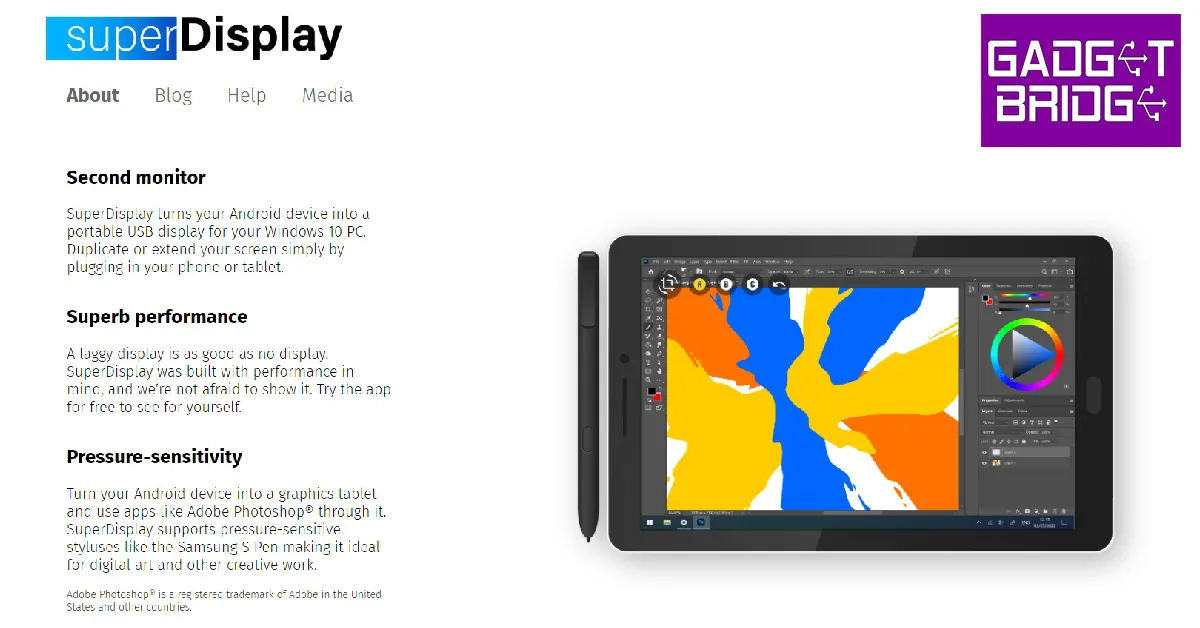




 Step 2: Tap on Vocal Shortcuts.
 Step 3: Tap on Set Up Vocal Shortcuts.
 Step 4: Hit Continue.
 Step 5: Scroll down and select Torch.
 Step 6: Enter a command name.
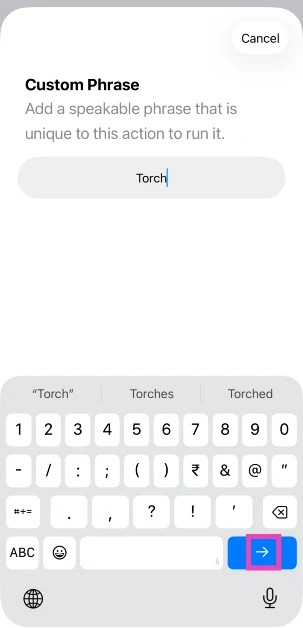 Step 7: Say the command name 3 times.
Step 8: Hit Continue.
Step 7: Say the command name 3 times.
Step 8: Hit Continue.
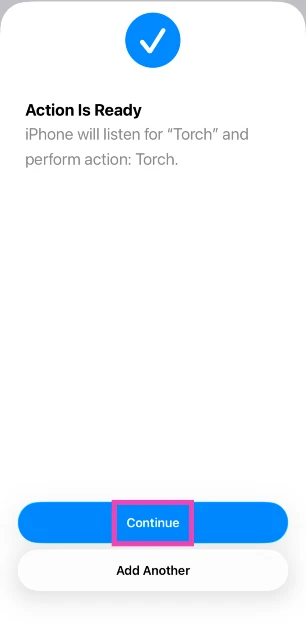 Step 9: Say the vocal command to trigger the flashlight.
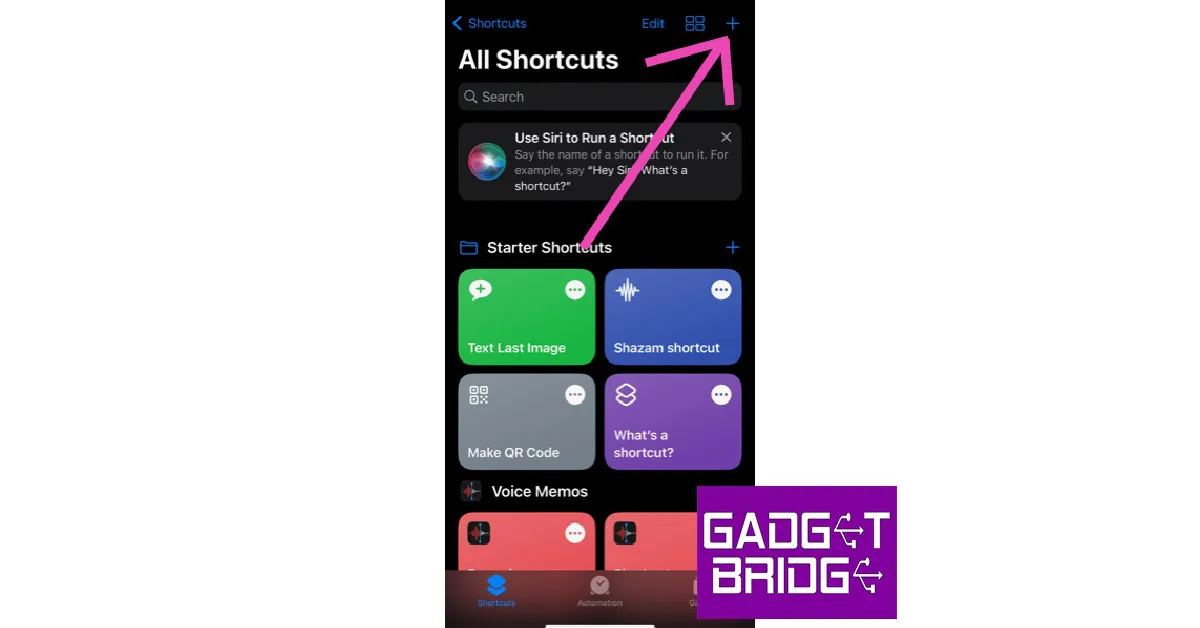 Step 2:
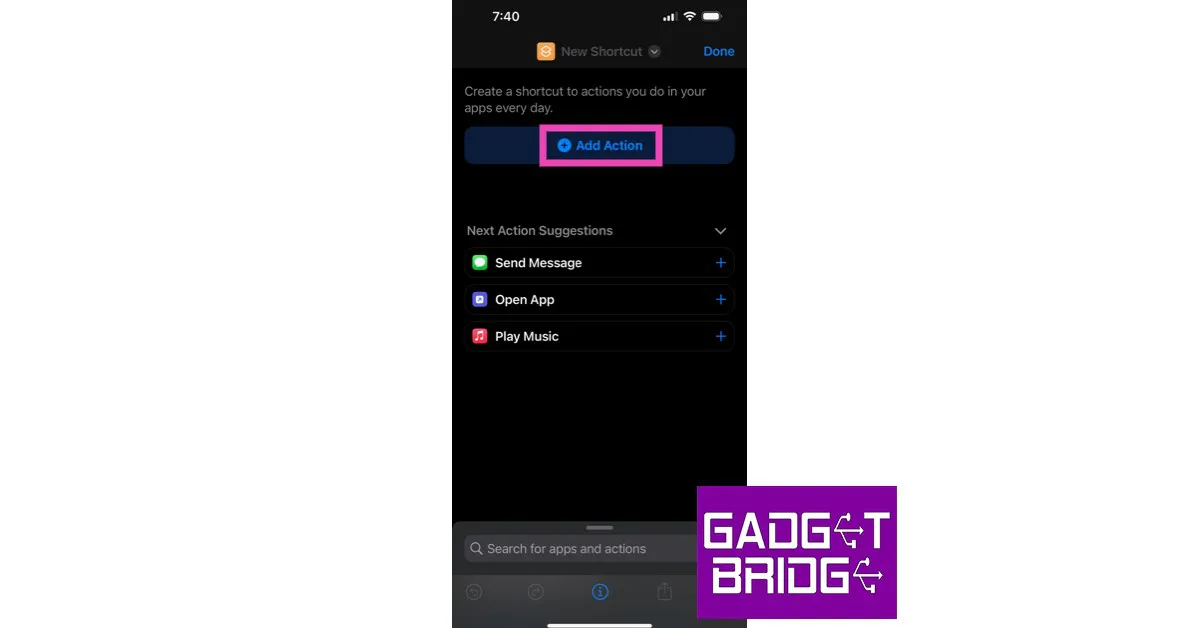 Step 3:
 Step 5:
 Step 8:
 Step 9: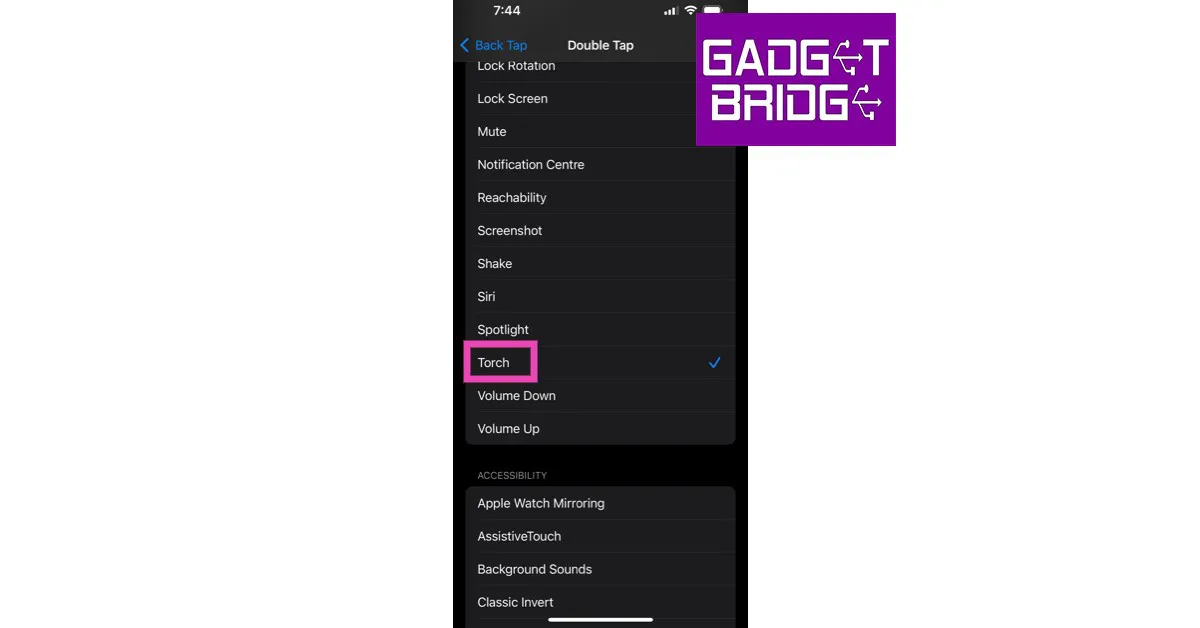
 Step 2: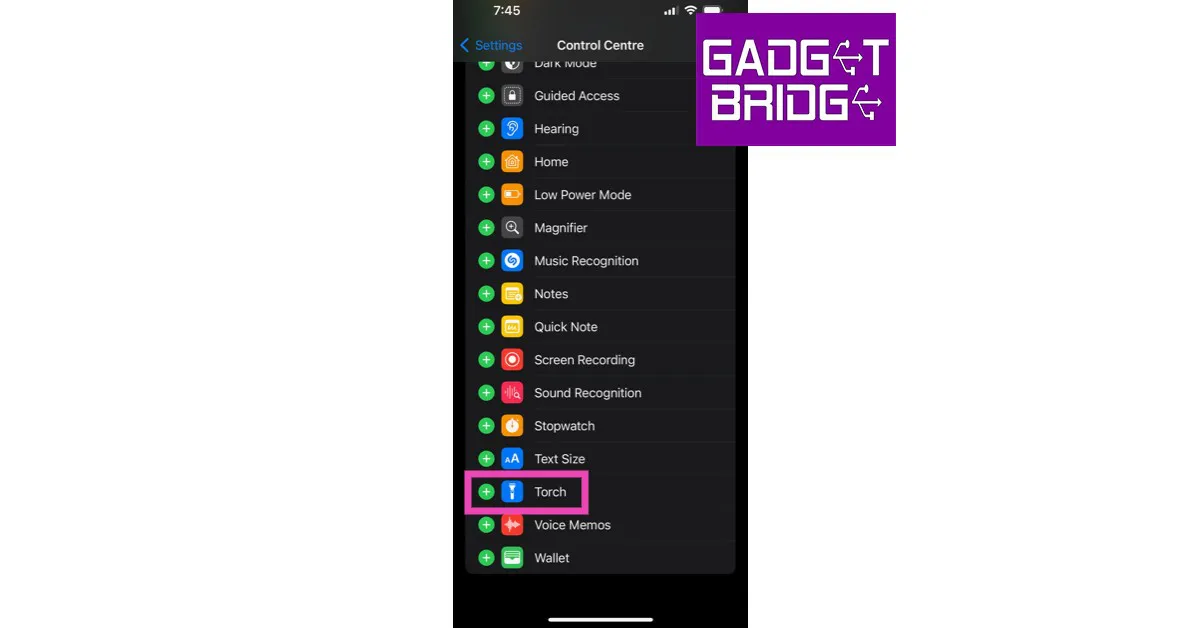



 Step 2:
 Step 3:
 Step 4:



 Step 3:
 Step 4:
 Step 5:
 Step 2: Tap on Download and Install. Your smartphone will check for any new updates.
 Step 3: If an update is available, tap on Install Now. You can also schedule the update for later.