How to disable Always On Display on Apple Watch and Watch Ultra?

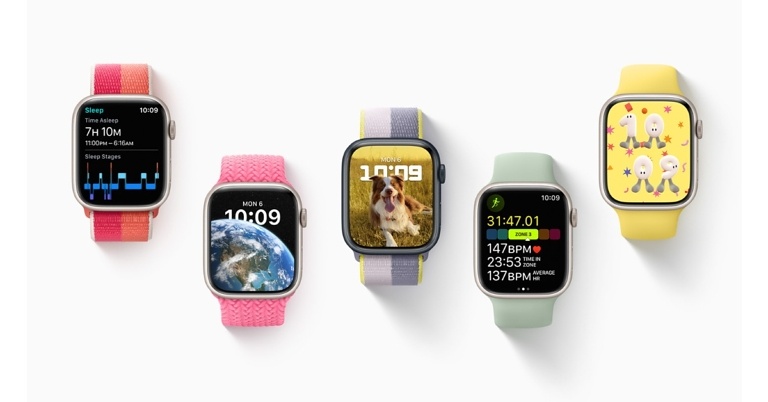
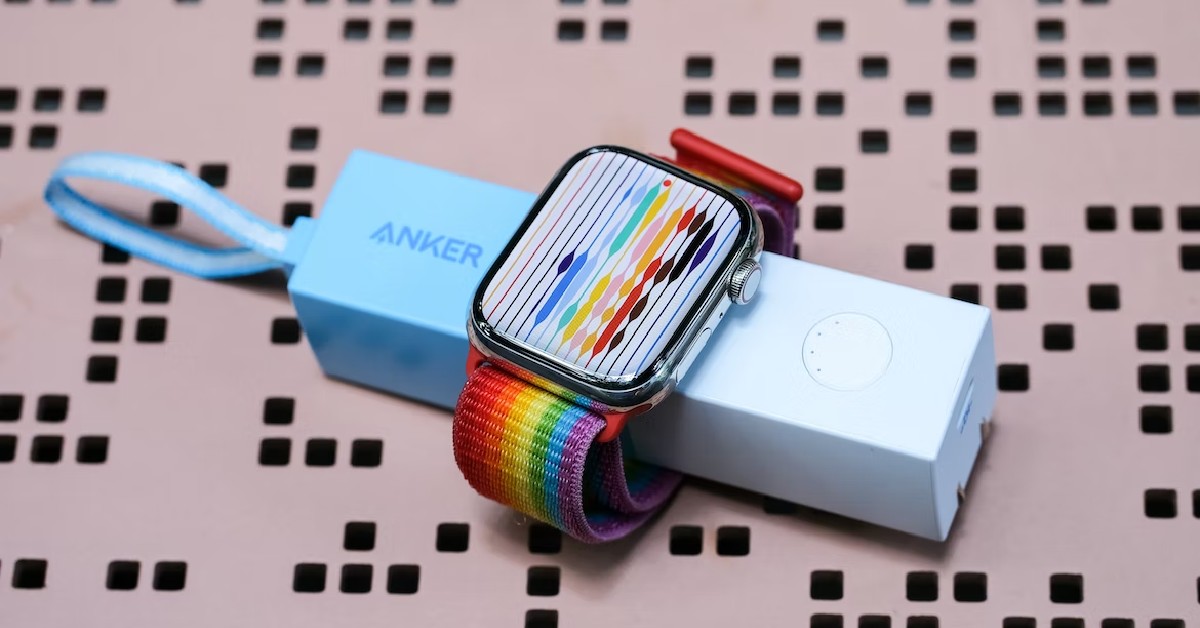
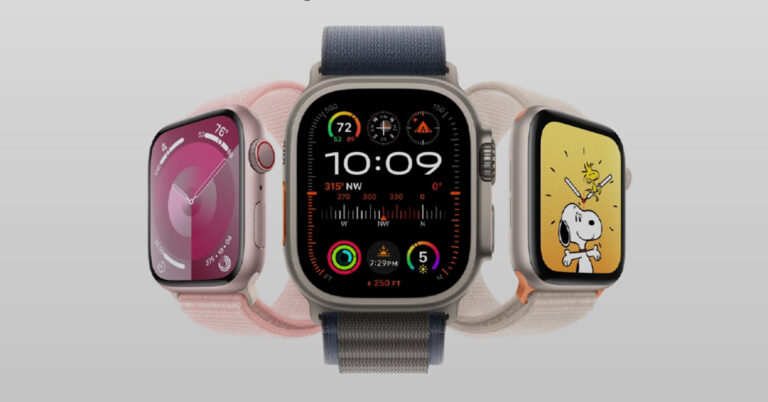
The Always On Display is one of the most important features of your Apple Watch. First introduced on the Watch Series 5, the Always On Display allows you to glance at the time on your watch without needing to unlock it. You can also see if there are any pending unread notifications that you need to attend to. As handy as this feature is, it drains your smartwatch’s battery considerably quicker. This is because it is reliant on an active display, no matter how low its refresh rate may be. Active displays are notorious for draining the battery the most. If you want to extend your Apple Watch’s battery life, here is how you can turn off or disable Always On Display. Read Also: Samsung to open 15 Pop-Up stores across India

Disable Always On Display directly from your Apple Watch

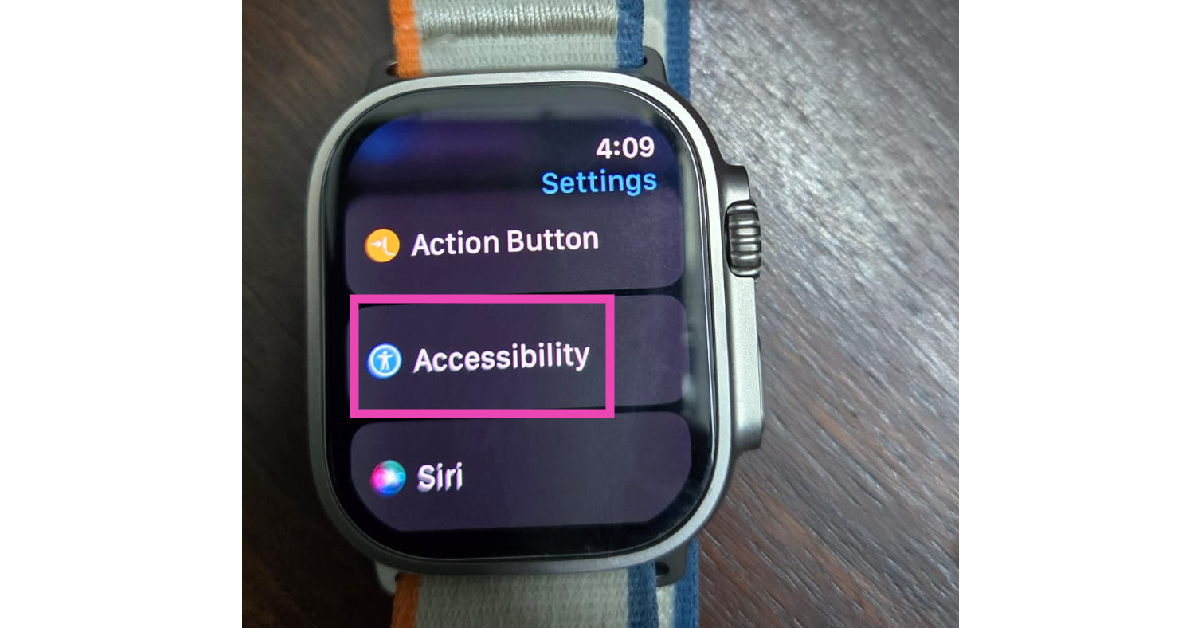
Apple Watch Series 9, Watch Ultra 2, and Watch SE unveiled at Apple’s ‘Wonderlust’ Event Step 1: Unlock your Apple Watch and launch the Settings app. Step 2: Tap on Display & Brightness. Step 3: Select Always On. Step 4: Turn off the toggle switch to disable Always On Display.

Turn off Always On Display using the Apple Watch app on your iPhone

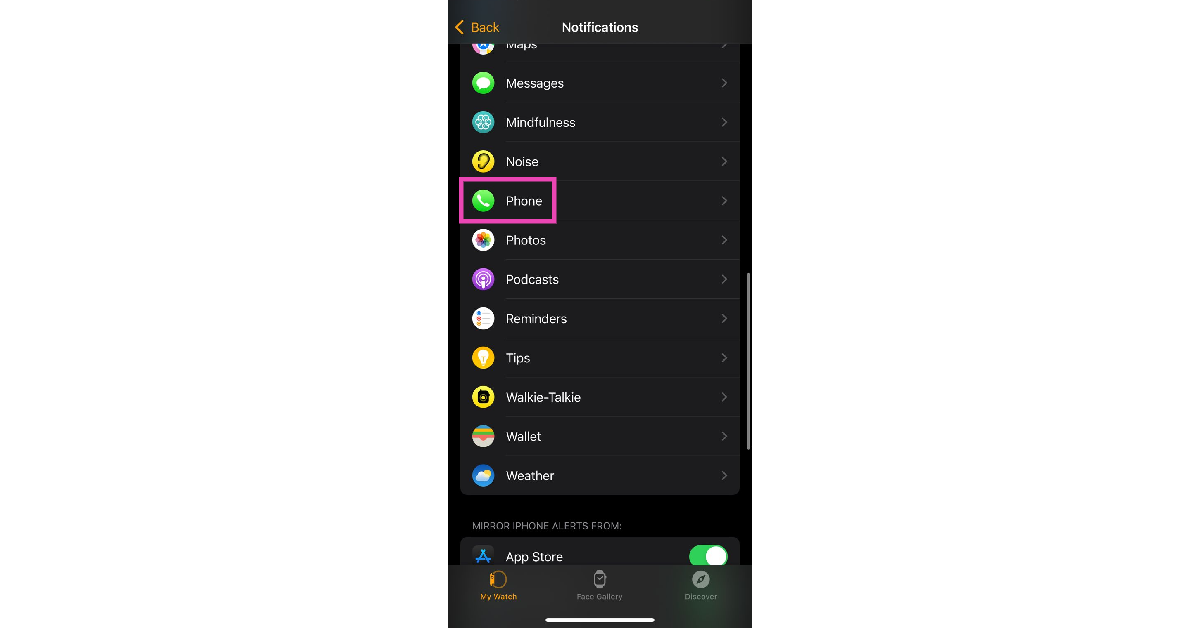
Best ways to Fix 'Sleep Tracking Not Working' on Apple Watch Step 1: Launch the Apple Watch app on your iPhone. Step 2: Tap on Display & Brightness. Step 3: Select Always On. Step 4: Turn off the toggle switch to disable Always On Display.

Frequently Asked Questions (FAQs)

What is Always on Display?

Always On Display on your Apple Watch and iPhone allows you to view key information on the display without activating it with a tap. You can customise the Always On Display screen to show an analogue or digital clock along with key notifications.

How long does an Apple Watch last with Always On Display turned enabled?

With the Always On Display turned on, an Apple Watch can last up to 18 hours. The battery life also depends on the volume of your usage.

Can I shower with my Apple Watch with the Always on Display enabled?

Performing any water-related activities while wearing the Apple Watch requires turning on the Water Lock. When the Water Lock is turned on, your watch’s display shuts off, including the Always On Display. When the Water Lock is turned off, it ejects any trace of water from the speaker.

How do I disable AOD on my Apple Watch?

On your Apple Watch, go to Settings>Display & Brightness>Always On and turn off the toggle switch for Always On Display.

What is the advantage of using AOD on an Apple Watch?

With the Always On Display turned on, you can always view the time on your Apple Watch’s screen, even when the screen is locked. You can also customise the AOD screen to let you view unread notifications. Always On Display allows your Apple Watch to function more like a regular watch, with the ability to show the time even when the display is turned off. Read Also: Apple Watch won’t charge past 80%? Try these 5 fixes

Conclusion

This is how you can turn off or disable Always On Display on your Apple Watch or Watch Ultra. Check out this article to learn how to make your Apple Watch vibrate for notifications. If you found this article helpful, do let us know in the comments! For the latest gadget and tech news, and gadget reviews, follow us on Twitter, Facebook and Instagram. For newest tech & gadget videos subscribe to our YouTube Channel. You can also stay up to date using the Gadget Bridge Android App. You can find the latest car and bike news here.

Top 4 Ways to Download and Use Offline Maps on Apple Maps

0
On the latest iOS 17, Apple introduced a very important feature that went completely under the radar. Unlike Google Maps, Apple Maps did not allow users to download the maps for specific locations. That has now changed on iOS 17. Users can now download any portion of the map for offline use. This is particularly useful when you’re planning a trip or vacation to a place that doesn’t get good network reception. With an offline map, you will always have access to the correct directions on your phone. In this article, we show you how to download, edit, and delete offline maps on the Apple Maps app on your iPhone. Read Also: How to add multiple links to your Instagram bio?

Download offline maps on the Apple Maps app on your iPhone

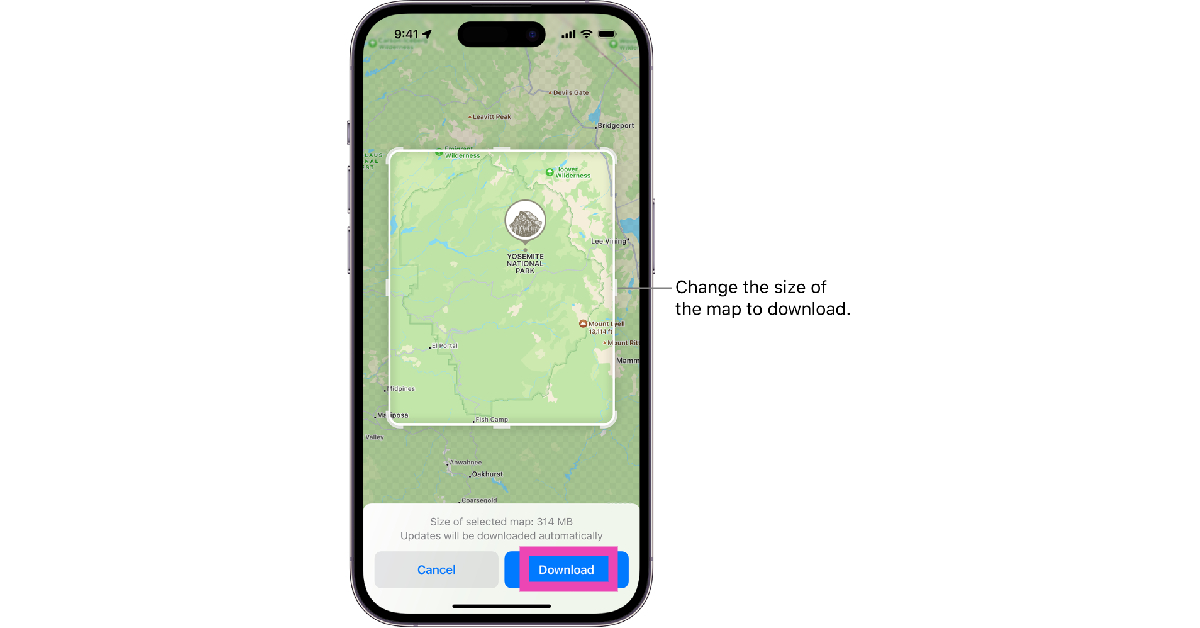
Step 1: Launch the Apple Maps app on your iPhone. Step 2: Tap your initials or picture at the bottom right corner of the screen. Step 3: Tap on Offline Maps. Step 4: Select Download New Map. Step 5: Type the location for which you want to download the map. Step 6: On the following page, adjust the size of the map you want to download. You can also use this page to select a completely different area on the map, in case it didn’t pop up in the search results on the previous page. Remember, a larger area will increase the size of the map. Step 7: Hit the Download button. Step 7: Hit the Download button.

Download an Apple Map by searching for it

Step 1: Launch the Apple Maps app on your iPhone. Step 2: Tap the search bar at the bottom of the screen and search for your desired location. Step 2: Tap the search bar at the bottom of the screen and search for your desired location. Step 3: Tap the Download button at the bottom of the screen. If the map is not available offline, you won’t see this download button. Step 7: Hit the Download button. Top 4 Ways to Download and Use Offline Maps on Apple Maps Step 4: Adjust the size of the map by dragging the borders of the box. Step 5: Hit Download to save the map offline.

Download an Apple Map by dropping a pin

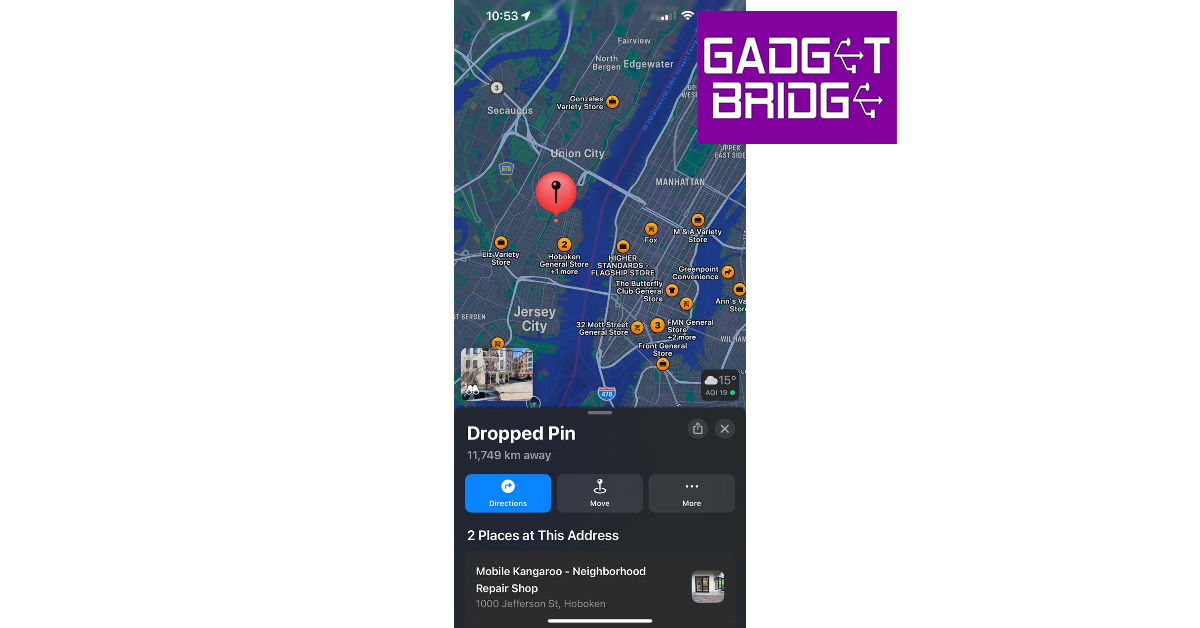
Step 1: Launch the Apple Maps app on your iPhone. Step 2: Scroll through the map to navigate to your desired location. Step 3: Tap on a location to drop the pin. Step 3: Tap on a location to drop the pin. Top 4 Ways to Download and Use Offline Maps on Apple Maps Step 4: Tap the Download button at the bottom of the screen. Step 7: Hit the Download button. Top 4 Ways to Download and Use Offline Maps on Apple Maps Step 5: Adjust the area of the map by dragging the borders of the box marking the selected area. Step 6: Hit the Download button again.

How to open or edit an offline map that you have downloaded on Apple Maps

How to open or edit an offline map that you have downloaded on Apple Maps Step 1: Launch the Apple Maps app on your iPhone. Step 2: Tap your initials or picture at the bottom right corner of the screen. Step 3: Select Offline Maps. Step 4: Tap on one of the downloaded maps. Step 5: Hit the resize icon to change the area covered by the map. Step 6: Tap on Delete Map to remove it from your device’s storage.

Frequently Asked Questions (FAQs)

Can I download offline maps in Apple Maps?

Apple allows users to download offline maps in the Apple Maps app on iOS 17. An offline map can occupy a significant amount of storage space on your iPhone.

How do I download a map in Apple Maps?

Launch the Apple Maps app, tap on your picture or initials, then go to Offline Maps>Download New Map. Select the location for which you want to download the map, adjust its size, and hit Download.

How do I delete an offline map that I downloaded on Apple Maps?

To delete an offline map go to the Apple Maps app, tap on your picture or initials, and go to Offline Maps>Map>Delete Map. Read Also: Boult Crown R Pro Review: A perfect blend of style and sportiness

Conclusion

This is how you can download, edit, and delete an offline map on the Apple Maps app on your iPhone. Offline maps tend to get outdated after a period of time as new businesses, locations, roads, and passages are always popping up in different localities. You can update all your downloaded maps at once from the Offline Maps section in the Apple Maps app. For the latest gadget and tech news, and gadget reviews, follow us on Twitter, Facebook and Instagram. For newest tech & gadget videos subscribe to our YouTube Channel. You can also stay up to date using the Gadget Bridge Android App. You can find the latest car and bike news here.

Amazon Great Indian Festival (GIF) to begin on October 8: Festive Sale details inside

Amazon has officially announced that its festive sale ‘Great Indian Festival’ will begin on October 8 offering sellers and partners a chance to connect with millions of customers throughout India. The Prime Members will get exclusive early access to the sale 24 hours before the sale begins on October 7.  During the Amazon Great Indian Festival sale, customers will have access to fantastic bargains and discounts across a wide range of categories which involves smartphones, fashion apparel, home stuff, electronics, grocery and beauty products from various brands as well as new launches. Also Read: Spotify unveiled Jam for real-time listening with friends Customers will be able to make their purchases in 8 languages of their choice (English, Hindi, Tamil, Telugu, Malayalam, Kannada, Bangla, and Marathi) Buyers across the nation will be able to browse for products from brands like Samsung, OnePlus, iQOO, LG, Sony, boAt, Intel, Tissot, Fastrack, Tommy Hilfiger, Wipro, Eureka Forbes, Asian Paints, Gillette, Huggies and more.  Amazon will also offer up to 55% off on Echo smart speakers, Fire TV devices, Kindle e-readers, and Alexa smart home combos. During the sale, the E-commerce giant will be offering a wide range of finance options from SBI bank debit or credit cards and get a 10% instant discount. Buyers can get an instant credit of up to INR 1 lakh using Amazon Pay Later to shop now and pay next month.  Additionally, ICICI Bank credit card owners can receive 5% unlimited cashback, those applying for the card also get welcome rewards worth Rs 2,500. Amazon will also offer other options such as exchange and no-cost EMI. Also, there will be 10% back on purchasing Amazon Pay Gift Cards With Amazon Pay ‘Everybody can fly’. Customers can plan their festive and winter holiday travel and get up to 40% off hotels, flights to domestic and international locations, train tickets and more. Apart from that, the e-retail platform has also launched Amazon Live offering 1,000+ streams through a curated list of over 300 influencers across tech, gaming, fashion, lifestyle, home, sports, and beauty to help customers make an informed purchase decision. Also Read: Blaupunkt 43-inch QLED and 55-inch 4K Google TV launched in India Customisation options will be available offering visual design tools to patrons to personalize products. Shoppers will be able to customise a wide range of products as per their creative requirements.  Buyers will also be able to gain access to Amazon Home Services for a variety of products across 19,000 pin codes. These services include installation, troubleshooting and repair In 45 cities, customers can also avail installation at the time of delivery, however, this is available for a selected range of products. So, who is ready to buy some products? As we have seen these sales do really well, especially around the Diwali festive season. For the latest gadget and tech news, and gadget reviews, follow us on TwitterFacebook and Instagram. For newest tech & gadget videos subscribe to our YouTube Channel. You can also stay up to date using the Gadget Bridge Android App. You can find the latest car and bike news here.

BGMI redeem codes for 30 September 2023, claim and receive rewards and benefits

After being banned for nearly ten months, Battleground Mobile India, aka BGMI, is officially available again in India. BGMI fans are looking for ways to improve their game experience and one such method is the usage of redemption codes, which offers a variety of rewards and advantages using BGMI redeem codes players can gain access to new skins, outfits, loot crates, weapons and free UC and diamonds. As mentioned earlier, these codes give users the chance to earn unique rewards and gain extra benefits while playing the game. This includes GUN SKINS (M4, AKM, M416, AWM, M24, UZI, KAR98K), free character voucher, Andy, Carlo, Sara, Victor character for free, free Anna Character on completing the mission and UC or Royal Pass Discount. So here we have gathered a list of the most recent BGMI redeem codes as of 30 September 2023. Also, redeem these codes asap as these are only valid for a limited duration.

BGMI Redeem Codes for 30 September 2023

updating soon…

How to get free Redeem Codes for BGMI on 30 September 2023?

  • Launch BGMI on your device.
  • Then select the Redeem Code option from the main menu.
  • Next, click on the Redeem code tab.
  • A new window will open, requesting the redemption code.
  • Now enter your BGMI code.
  • Confirm and click on the “Redeem” tab.
  • If your redeem code is valid then you will get a message confirming that your rewards were successfully redeemed.
(Note that these codes are case-sensitive, so be sure to type them correctly to prevent any errors.) For the latest gadget and tech news, and gadget reviews, follow us on TwitterFacebook and Instagram. For newest tech & gadget videos subscribe to our YouTube Channel. You can also stay up to date using the Gadget Bridge Android App. You can find the latest car and bike news here.

Garena Free Fire Redeem Codes Today 30 September 2023: Here is how to claim them

Garena Free Fire is a battle royale game with regular awards and tournaments to keep players interested. If you play Garena Free Fire, you should be aware of the redeem codes that are released on a daily basis. However, because the battle royale game is banned in India, players from other countries can use the Free Fire Redeem codes daily. If you’re unfamiliar with the Garena Free Fire redeem codes or don’t know how to get them, we’ve put together a step-by-step guide to help you redeem them. Check out Garena Free Fire Redeem Codes for 30 September 2023. The Free Fire redeem codes are a great way to get free stuff. These are 12-digit codes that contain alphabets and numbers, as well as an expiration date and time. Because the Garena FF redeem codes cannot be used more than once, you should hurry to the redemption page to claim your free reward before someone else does. To get a free reward, all you have to do is go to reward.ff.garena.com/en, which is the official redemption page. Also, keep an eye on this space for daily updates on Garena Free Fire redemption codes and rewards.

Garena Free Fire Redeem Codes Today 30 September 2023

F5E1R6H9A72L4K X3V7G1T9Q5P2W4 S6D2Z8C0M4N1J5 R3T5W2E6A7D9FG H4N8Y2G6T17X5E P5Q2F9G3C7W1X6 T8V6E2D7S3Z5Y1 N4K1R7X3H9W2L8 M6J0B5C2F8G4Q1 M9B3V1C7Z58L0Q U2I4O8V63A5T7W L7K8I4J2R3E9Y6 O1U7A5T3H8N6B4

How to Get Free Fire Redeem Codes for Garena on 30 September 2023?

  • Visit the Garena Free Fire game’s official website at reward.ff.garena.com.
  • Use your Facebook, Google, VK, Apple ID, Huawei ID, or Twitter account to log in.
  • You’ll be taken to a valid redemption code (s)
  • Copy and paste the 12-digit redemption code into the text box.
  • On the screen, a dialogue box will appear.
  • ‘Ok’ should be selected.
For the latest gadget and tech news, and gadget reviews, follow us on TwitterFacebook and Instagram. For newest tech & gadget videos subscribe to our YouTube Channel. You can also stay up to date using the Gadget Bridge Android App. You can find the latest car and bike news here.

Spotify unveiled Jam for real-time listening with friends

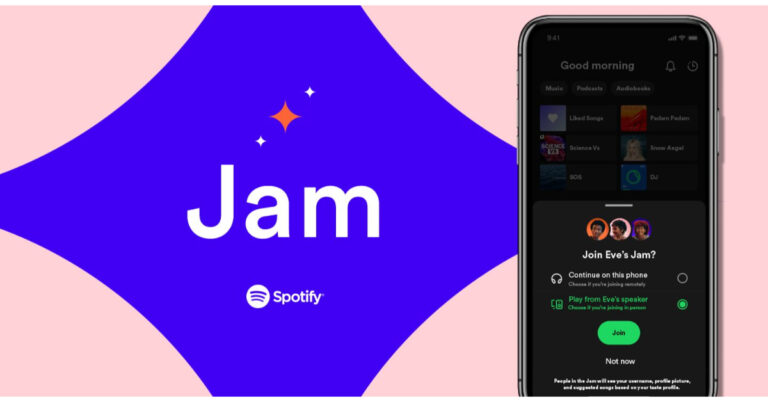
Music streaming platform Spotify has launched a new feature called Jam on its platform. It is a new collaborative playlist feature which will be accessible to all the users. It will allow users to contribute a session through a shared queue. Notably, the feature will also be accessible if users are connected to the same Wi-Fi network. Spotify already offers more features like Collaborative Playlists and Blend. A personalised real-time listening session called Jam has been launched by Spotify. According to the company Jam improves real-time listening with friends by building on some of the company’s well-liked social features and blending them with its personalization technology. Through a shared queue, Premium subscribers will be able to invite others to participate in Jam and contribute to a musical experience that has been developed specifically for everyone who is listening. Also Read: LG Tone Free Fit (DTF7Q) Review: Clean listening experience Spotify is rolling out Jam to all the users across the globe. Premium listeners can start a Jam and anyone on Spotify can join. Simply invite your group, and Jam will assist you in selecting the ideal songs to add to the queue. “You’ll have the ability to see who’s added which track so you know whom to thank for that crowd pleaser, whether you’re prepping food together in the kitchen or enjoying games in the backyard,” the company in its blog post said. Once a Jam has been started, you can invite a group of friends or family to take part whether they are Free or Premium users or a mix—so they can share the experience. As per Spotify listeners will be able to join no matter where they are. Choose a song or playlist you’ll see a “Start a Jam” button by clicking the speaker icon at the bottom of your screen or by tapping the three-dot menu within your favourite playlist or song. In addition to this, you can also choose whether to play the music on your speaker or phone. When they open Spotify, users at a household using your shared Wi-Fi will also be asked to join the Jam. Everyone in the Jam can add songs to the queue, see who added which song, and receive recommendations using their own devices. The host can also choose who’s in the jam, rearrange it or remove a song. For the latest gadget and tech news, and gadget reviews, follow us on TwitterFacebook and Instagram. For newest tech & gadget videos subscribe to our YouTube Channel. You can also stay up to date using the Gadget Bridge Android App. You can find the latest car and bike news here.

LG Tone Free Fit (DTF7Q) Review: Clean listening experience

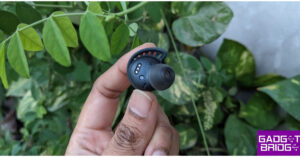
One thing that has concerned us consistently is how easily some of the TWS earbuds fall off while exercising vigorously or dancing. This is due to the fact that they do not offer a tight or even ideal fit, allowing them to stay on more firmly. To address this issue LG released the LG Tone Free Fit- DTF7Q, a new pair of sports TWS earbuds. These are supposed to have swivel grip technology that is safe and comfortable. If you were looking for such earphones these could be your new go-to earbuds. Let’s dive into the LG Tone Free Fit (DTF7Q) Review.

LG Tone Free Fit (DTF7Q) Review: Design

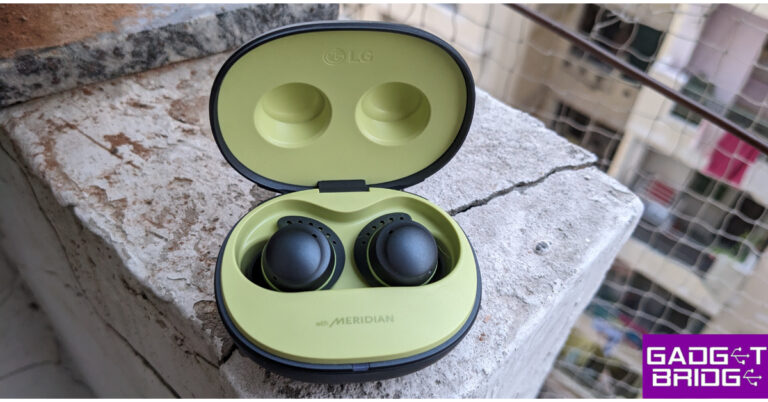
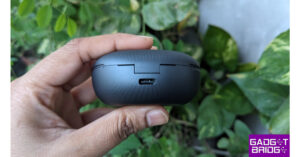
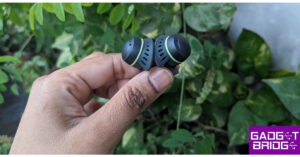
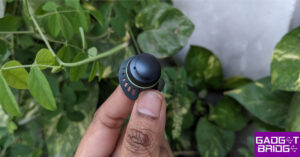
So the LG Tone Free Fit comes with a very sporty look. Its colour scheme is dark grey and lime. Inside the box, there are Tone Free earbuds, extra ear gels/ 2 pairs of ear hooks, a user manual, a UVnano charging case and a USB Type C charging cable. LG Tone Free Fit (DTF7Q) Review: Design The charging case features a pebble-shaped design, and the top of the lid has a pattern that keeps it from slipping out of the hands. Nice! The company has paid attention to this textured finish because during workouts you get sweaty hands and the device with a glossy finish is prone to slip easily. When the lid is opened, an LED light starts to glow. UV technology is included in the LG Tone Free Fit for it to stay germ-free. LG Tone Free Fit (DTF7Q) Review: Design Given that they are designed for athletics, you can also use them on a treadmill and the wire-free fit gives you a lot more freedom of movement. Because they lack any external hooks or means to wrap around the ear, these sporty earphones are also not overly large or bulky. These fit really nicely and let you concentrate on your activity. The hook inserts into your outer ear for a snug fit that is pressure-free and comfortable. Simply attach the wireless earphones into your outer ear using a gentle swivel. This easy move secures the earbuds so they remain in place during your whole workout, from warmup to cooldown. You won’t have to worry if you do happen to get a little sweaty while working out because the earbuds are IP67 dust and waterproof. LG Tone Free Fit Review The UV nanotech in the casing works hand in hand with the medical-grade quality of the earbud gels. This means that after just a 10-minute charge, the UV nano will disinfect your earbuds by penetrating both the inner ear mesh and the ear gels to remove bacteria by up to 99.9 percent. Also Read: Samsung to open 15 Pop-Up stores across India

LG Tone Free Fit (DTF7Q) Review: performance

How does LG Tone Free Fit actually sound? We’ve been using these earbuds for about a month with a variety of music styles, categories, videos and podcasts as well as and they sound fantastic no matter what you’re listening to. They have a 6mm driver unit that sounds amazing even when you are listening to bass-heavy or acoustic music. LG Tone Free Fit Review Well, these TWS earphones have excellent Active Noise Cancellation as well. With the help of the ANC, the audio device was able to cancel out background noise, and the overall deep fit of the earbuds contributed to higher audio quality. Moreover, each earbud has Headphone Spatial Processing (HSP) built in, which gives you the impression of clear spatial sound. LG Tone Free Fit TF7 Review The LG earphones offer touch capabilities, and we have never encountered such excellent touch sensitivity on any other TWS we have tested up to this point. A beep or tone that indicates your command has been heard when you touch or press them, and it is extremely rapid and responsive. You can select how to listen and change the Noise Cancelling options, too. By allowing more of the ambient noise to reach your ears, Listening Mode helps you be aware of your surroundings and hear passing vehicles or other pedestrians. Whereas, the Conversation Mode on the device amplifies other persons’ sound so you may easily converse with a companion while riding a bike or running without taking out your earphones. Also Read: HP to manufacture Chromebooks in India together with Google Finally, you can connect them to the LG Tone Free App to adjust the EQ, ANC, earbud settings, and listening modes. LG Tone Free Fit TF7 Review They are simple to connect to a PC or an Android smartphone. The Google Fast Pair pop-up will display right away to provide you with clear instructions. The best thing is that these have multi-point capability that lets you connect wirelessly with up to 5 devices using the LG TONE Free app. The LG Tone Free Fit (DTF7Q) offers 10 hours of playback on a single charge (20 additional hours with the case), giving you a total of 30 hours of battery life. You can also play them for an hour with just a simple 5-minute charge. LG Tone Free Fit TF7 Review

Verdict

The LG Tone Free Fit priced at Rs 12,989 sanitises the earphones and has a beautiful athletic appearance. The swivel hook gently tucks into your ear and secures them there. Overall, the LG earphones have greatly impressed us. We adored the fit in the ear and the sound quality. These earbuds are genuinely excellent for both everyday use and sports. So once again, we urge you to check them out if you’re searching for some excellent-sounding earbuds with strong ANC. LG Tone Free Fit Pros
  • Comfortable fit
  • Excellent sound quality
  • Strong Active Noise Cancellation
LG Tone Free Fit Cons
  • Lid is tight
For the latest gadget and tech news, and gadget reviews, follow us on TwitterFacebook and Instagram. For newest tech & gadget videos subscribe to our YouTube Channel. You can also stay up to date using the Gadget Bridge Android App. You can find the latest car and bike news here.

3 ways to add multiple links to your Instagram bio

0
One of the most requested features on Instagram finally found its way to the app earlier this year. Users with more than one platform to plug in their profile finally get to add more than one link to their Instagram bio. Now you can add your Xbox gamertag, YouTube channel, and Discord server together in your Instagram bio. In this article, we show you how to add multiple links to your Instagram bio. Read Also: HP to manufacture Chromebooks in India together with Google

Here’s why you should add links to your Instagram bio

The reason why you should add links to your Instagram bio is pretty simple — it is one of the few places on Instagram that supports clickable links. As you’re probably aware, adding a link to your Instagram post or Reel serves little purpose as it cannot be clicked on. Instagram Stories allow users to add clickable links but they vanish after 24 hours. If you want a link to reach a large number of people without expiring after a short period of time, adding it to your bio is the best option. Initially, Instagram allowed users to add only 1 link to their bio. Now, this limit has been expanded to 5. This lets users add multiple social media accounts and links to other cool stuff that they want their audience to check out. If you’re a small vendor, you can use your bio to showcase different products you make alongside the marketplaces where you sell them. If the 5-link limit isn’t enough for you, you can use third-party link-hosting services like Linktree.

Add multiple links to your Instagram bio

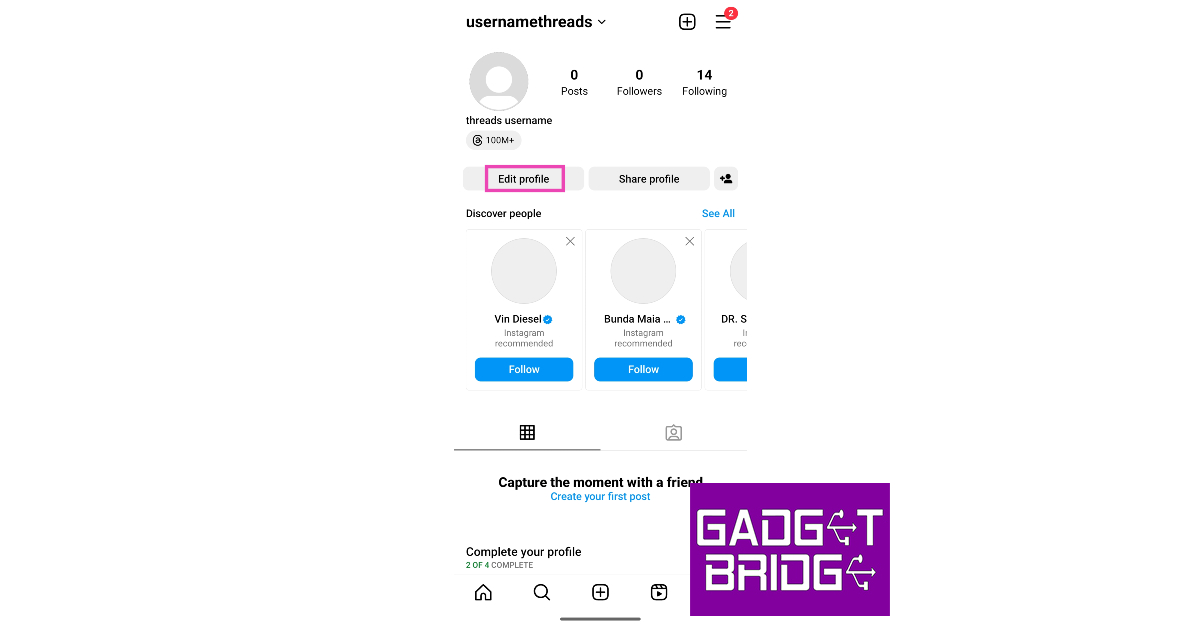
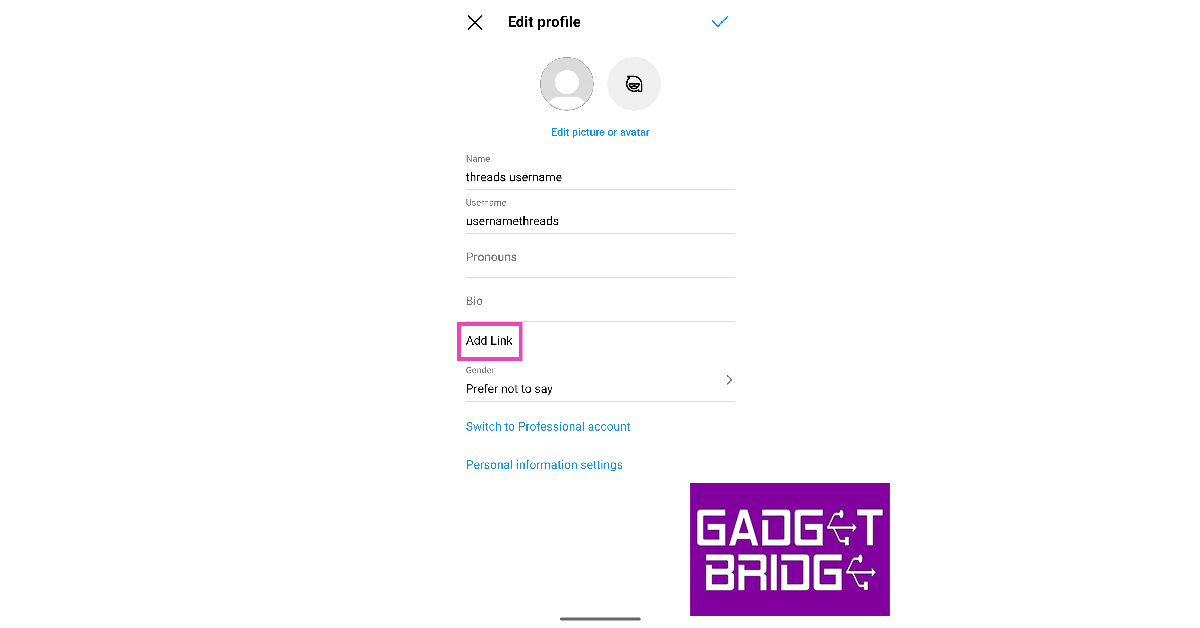
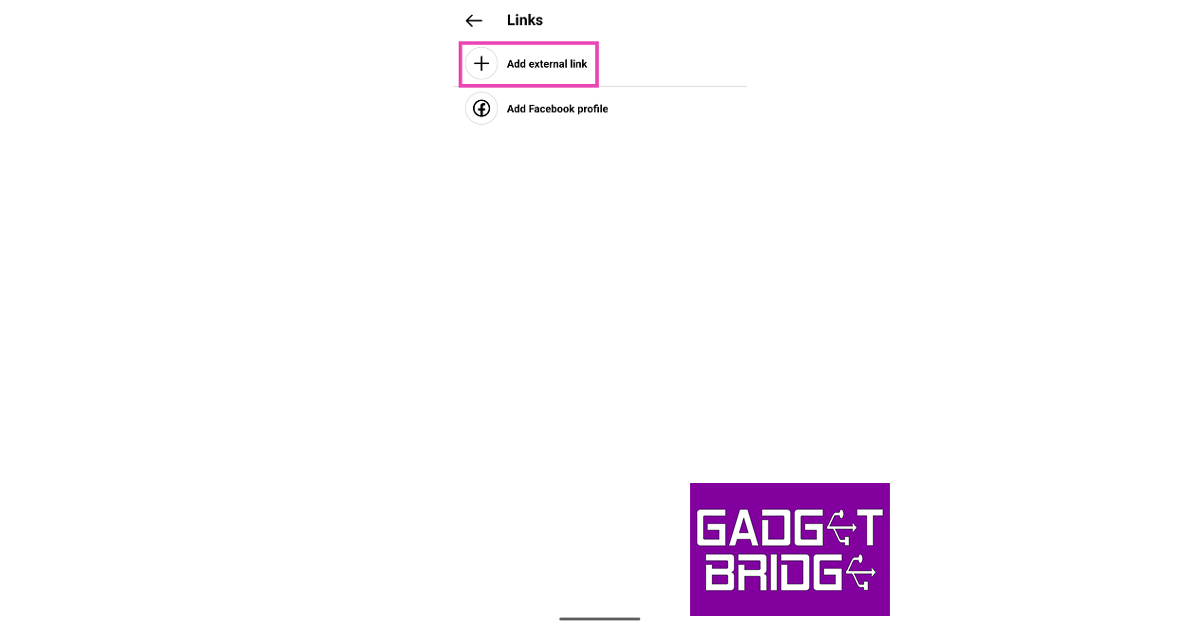
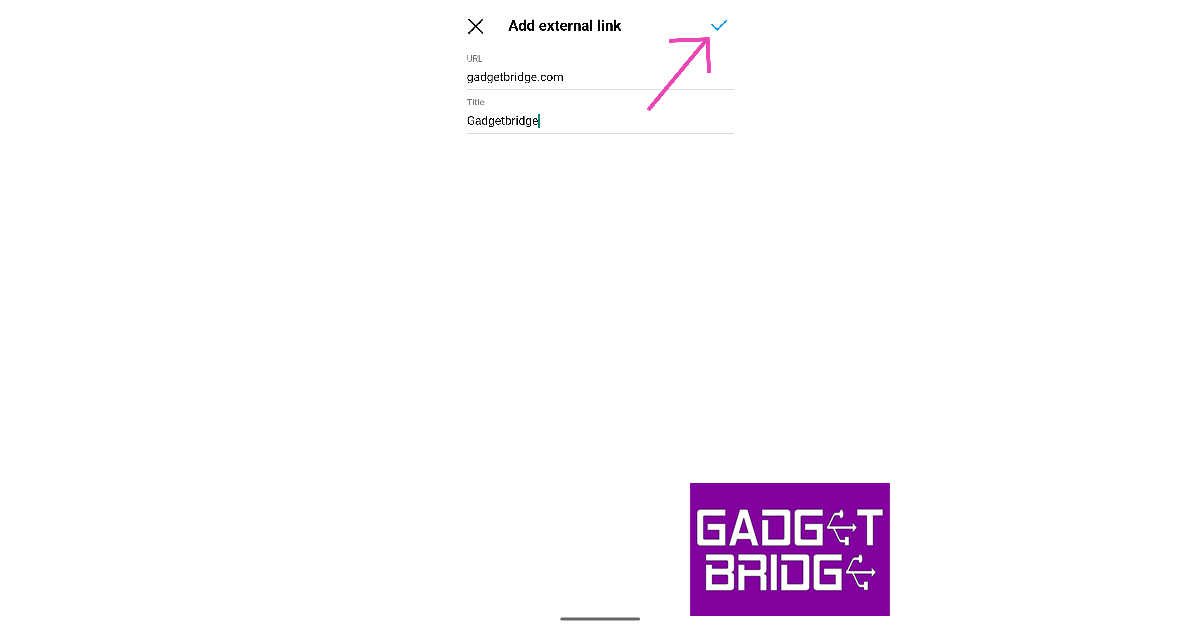
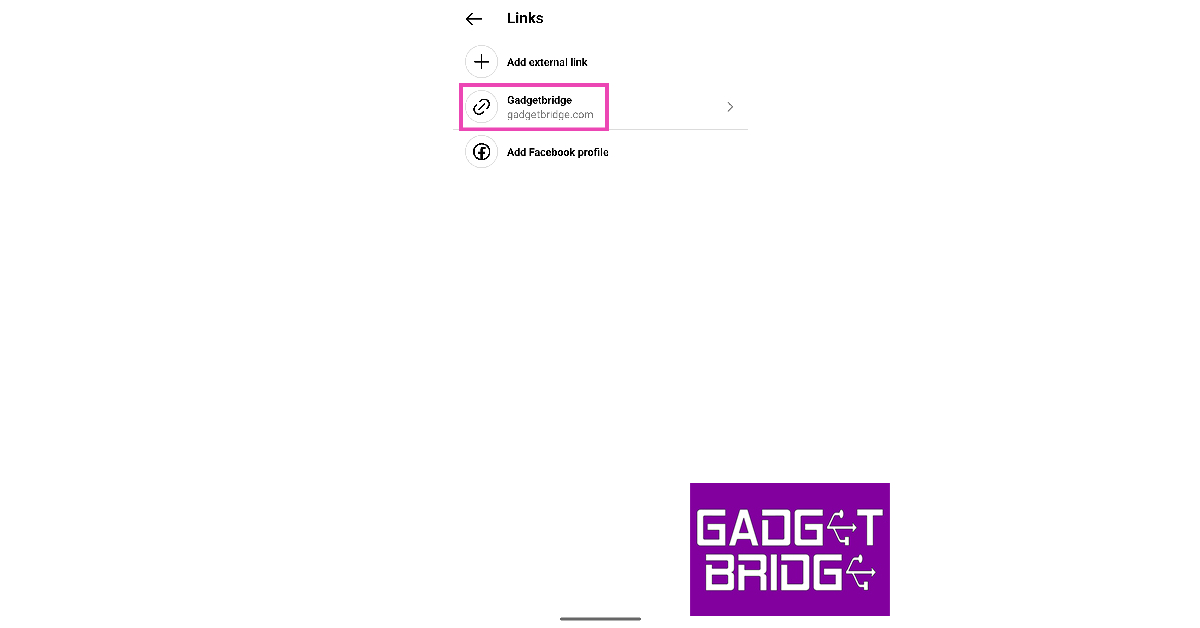
Step 1: Launch the Instagram app on your smartphone. Step 2: Tap the profile icon at the bottom right corner of the screen to go to your profile. Step 1: Launch the Instagram app and tap the profile icon at the bottom right corner of the screen. Step 3: Select Edit Profile. Step 3: Select Edit Profile. Step 4: Tap on Add Link. Step 4: Tap on Add Link. Step 5: Tap on Add External Link. Step 5: Tap on Add External Link. Step 6: Enter the URL and the title. Step 7: Hit the tick icon at the top right corner of the screen. Step 7: Hit the tick icon at the top right corner of the screen. You can add a maximum of 5 different links to your Instagram bio including the one for your Facebook profile.

Use Linktree to add more than 5 links to your Instagram bio

If the 5-link limit is not enough for you, use Linktree as a landing page for all your links. This old-school method still works pretty well for those who have a lot of platforms to plug. Here’s how you can create a links page on Linktree. Step 1: Go to https://linktr.ee/ and sign up using your email account. Step 2: Choose your Linktree username and hit Continue. Step 2: Choose your Linktree username and hit ‘Continue’. how to add links in bio on instagram and twitter Step 3: Add your name and categories of interest. Step 4: Select a subscription plan. If you’re only interested in creating a landing page for all your links, you don’t need a subscription plan. The website offers this service free of cost. Select a subscription plan. how to add links in bio on instagram and twitter Step 5: Click on Add link. Step 5: Click on ‘Add link’. how to add links in bio on instagram and twitter Step 6: Enter the URL you want to publish on your profile. Step 6: Enter the URL you want to publish on your profile. Step 7: To share your Linktree landing page, click on Share at the top right corner of the screen. Step 7: To share your Linktree landing page, click on ‘Share’ at the top right corner of the screen. how to add links in bio on instagram and twitter Step 8: Select the social media platform. You can also simply copy the Linktree URL at the bottom and add it to your Instagram or Twitter bio yourself.

Use FloDesk to add multiple links to your bio

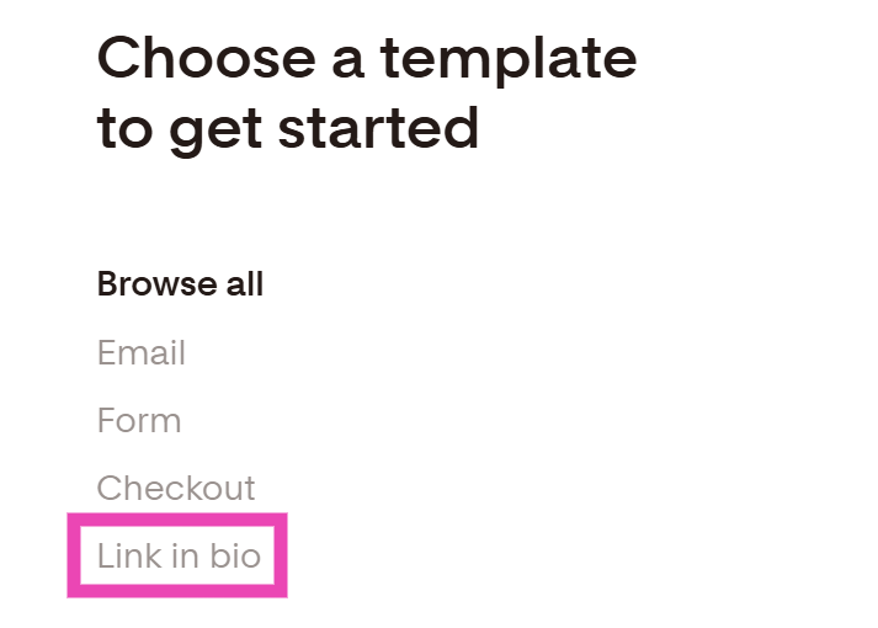
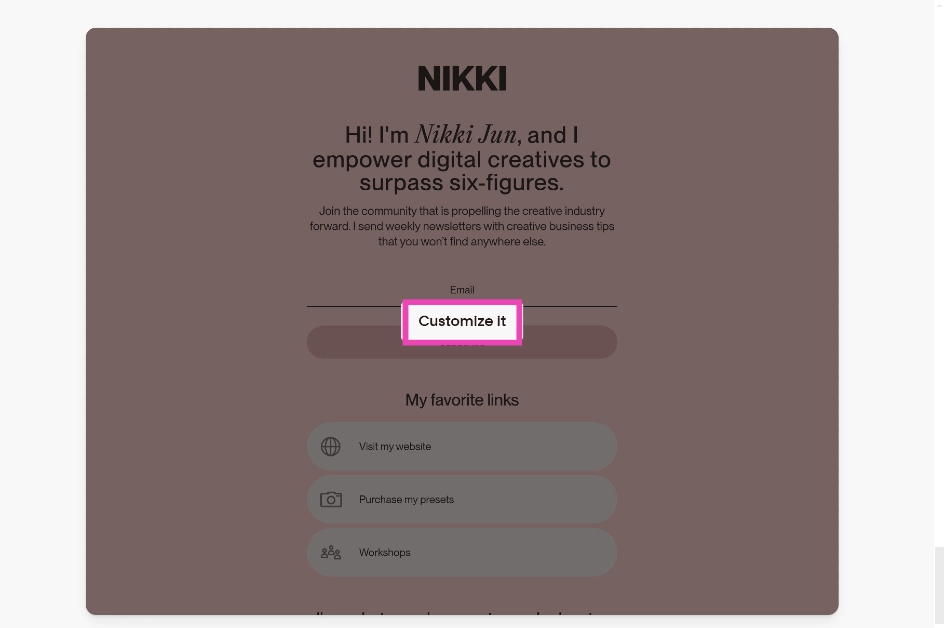
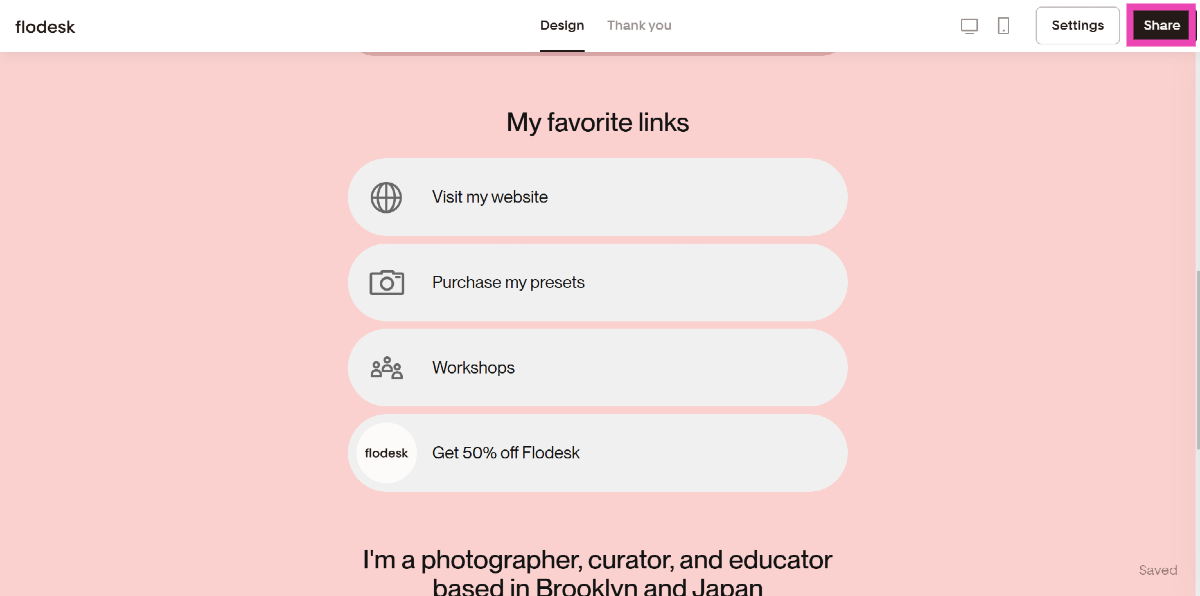
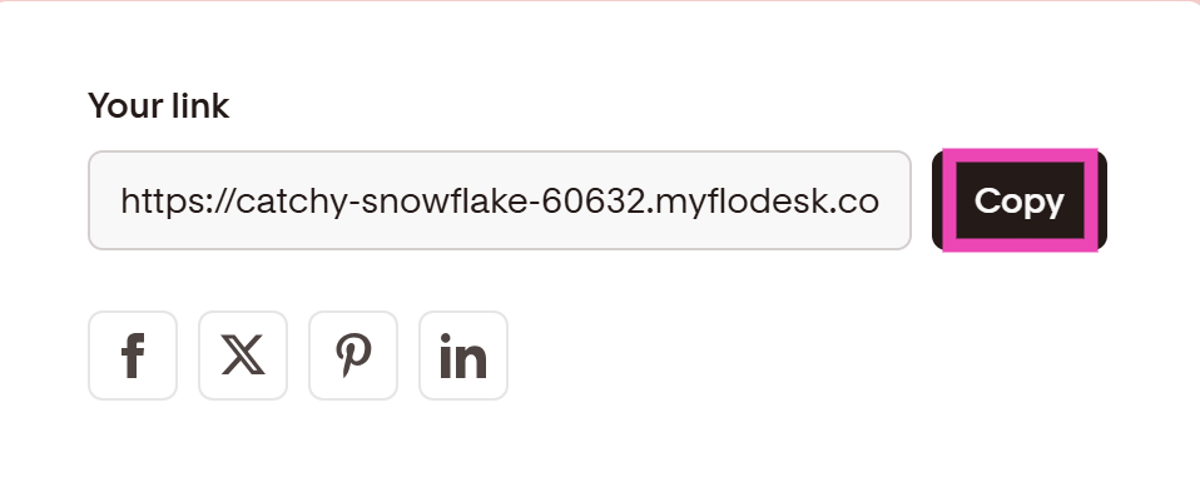
Step 1: Go to https://flodesk.com/ and sign up using your email. Step 2: Select Link in Bio from the list of templates. Step 2: Select Link in Bio from the list of templates. Step 3: Select a card template that suits your preferences and click on Customise it. Step 3: Select a card template that suits your preferences and click on Customise it. Step 4: Add your logo, name, description, links, and other details to the card. You can also customise the design and colour theme of the card. Step 4: Add your logo, name, description, links, and other details to the card. You can also customise the design and colour theme of the card. Step 5: Check the mobile and web previews of the card. Step 6: Hit Share once you’re done. Step 6: Hit Share once you're done. Step 7: Copy the link in the box and paste it into your Instagram bio. Step 7: Copy the link in the box and paste it into your Instagram bio.

Delete a link from your Instagram bio

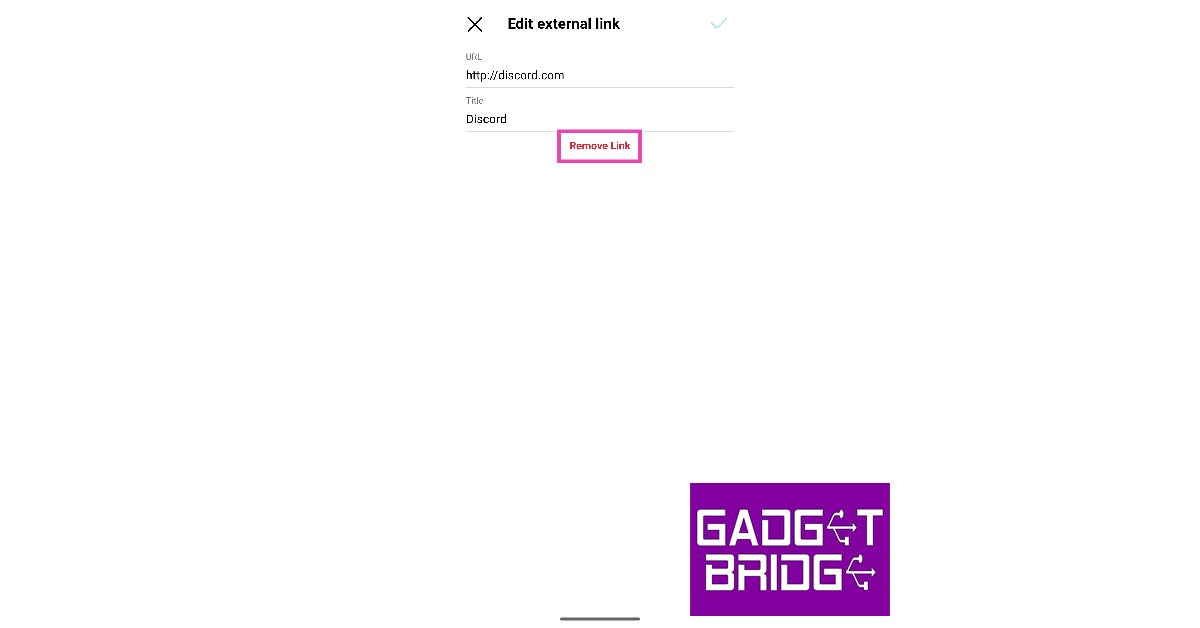
Step 1: Launch the Instagram app on your smartphone. Step 2: Tap the profile icon at the bottom right corner of the screen to go to your profile. Step 1: Launch the Instagram app and tap the profile icon at the bottom right corner of the screen. How to add multiple links to your Instagram bio? Step 3: Select Edit Profile. Step 3: Select Edit Profile. How to add multiple links to your Instagram bio? Step 4: Tap on Add Link. Step 4: Tap on Add Link. How to add multiple links to your Instagram bio? Step 5: Select the link you want to delete. Step 5: Select the link you want to delete. How to add multiple links to your Instagram bio? Step 6: Tap on Remove Link and confirm your selection in the popup box. Step 6: Tap on Remove Link and confirm your selection in the popup box. How to add multiple links to your Instagram bio?

Frequently Asked Questions (FAQs)

Are links allowed in Instagram bio?

Your profile bio is one of the few places on Instagram that supports clickable links. You can natively add up to 5 links in your bio.

How do I add multiple links to my Instagram bio?

Go to Profile>Edit Profile>Add Links and tap on Add External Link. You can add up to 5 links to your bio, including your Facebook profile.

How do I add more than 5 links to my Instagram bio?

To add more than 5 links to your Instagram bio, create a profile on Linktree and use it as a landing page for all your links. Once you’ve added all the links to your Linktree profile, paste your profile URL in the link category on your Instagram profile.

Why is my bio not clickable on Instagram?

All links in your profile should be added to the ‘External Link’ section. Any link entries added to the pronouns, name, and bio section do not show up as clickable.

How do I remove a link from my Instagram bio?

Go to Profile>Edit Profile>Add Links>Add External Link, select the link you want to delete and hit Remove Link. Read Also: Blaupunkt 43-inch QLED and 55-inch 4K Google TV launched in India

Conclusion

This is how you can add multiple links to your Instagram bio. The link to your Facebook profile gets a different icon on your Instagram bio, even though it occupies one of the links out of the total limit. Once you tap on the link in your bio, the other links will show up in a list. If you found this article helpful, let us know in the comments!

Boult Crown R Pro Review: A perfect blend of style and sportiness

Typically known for its audio products, Boult has enjoyed a good run in the smart wearables segment for some time now. The tech outfit has a plethora of exciting smartwatches in the under Rs 2,000 category. The newly launched Boult Crown R Pro smartwatch is slightly pricier than the rest, fetching Rs 2,899. On paper, this smartwatch sports all the essential specs you expect from a wearable in this price range. But how does it fare in everyday use? We’ve got the smartwatch strapped around our wrists for the last two weeks and may have some answers for you. So, without further ado, here is our in-depth Boult Crown R Pro review. Read Also: Blaupunkt 43-inch QLED and 55-inch 4K Google TV launched in India

Boult Crown R Pro review: Design

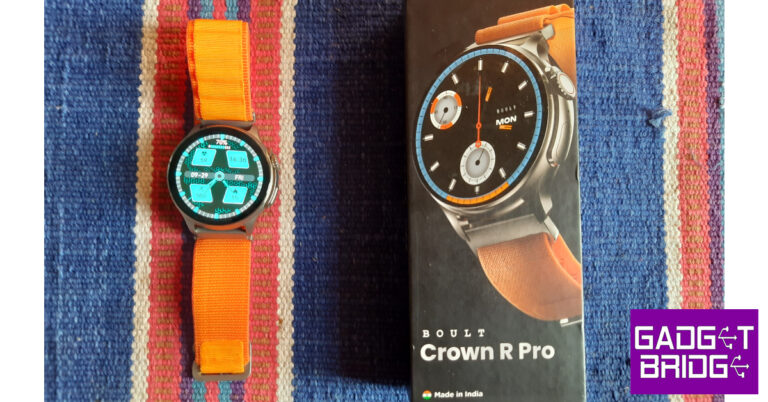
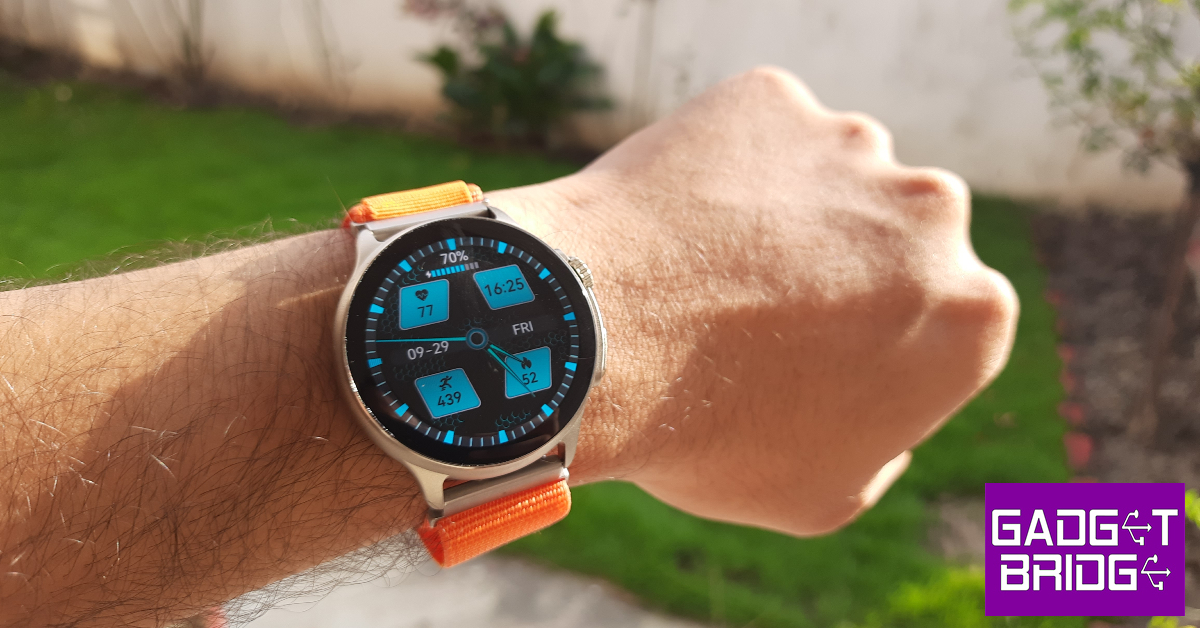
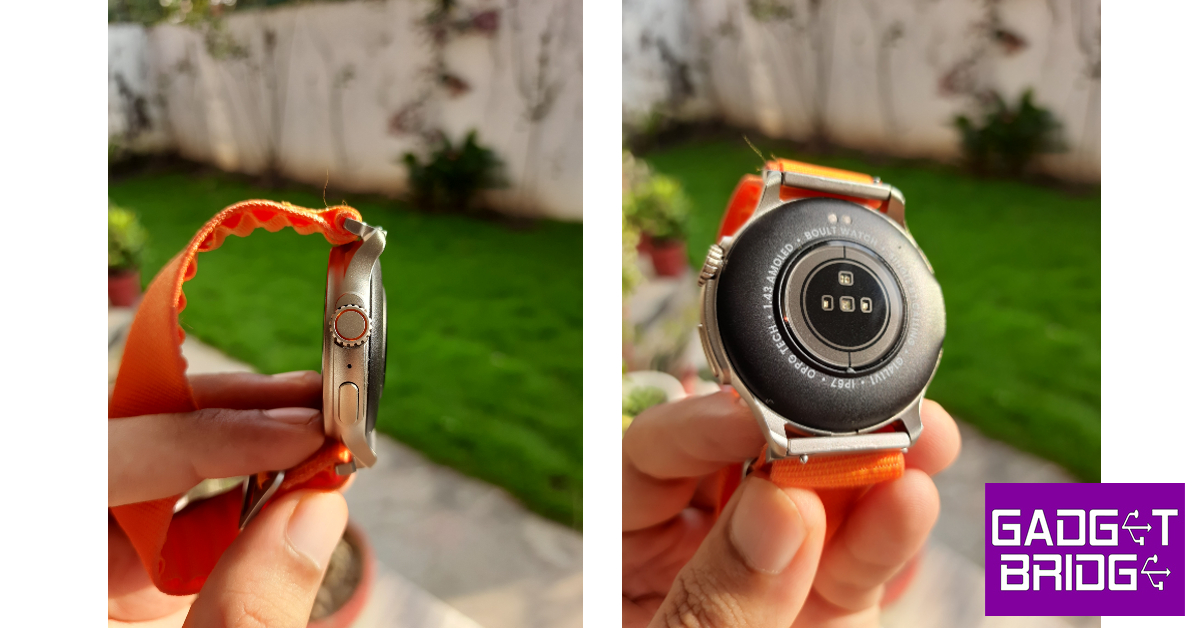
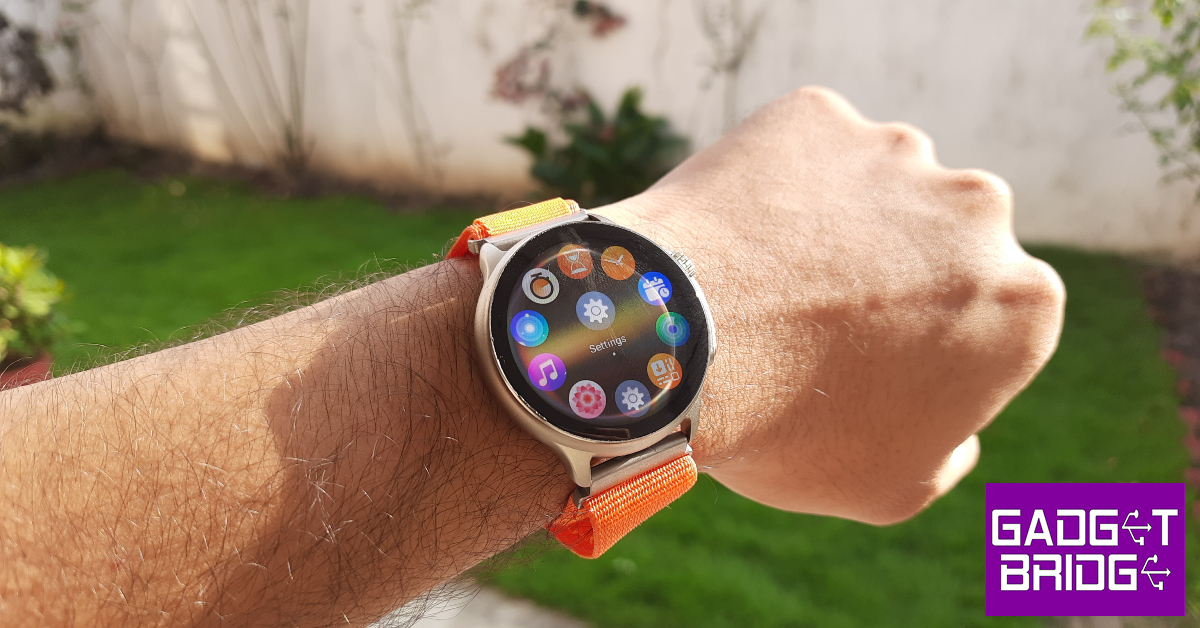
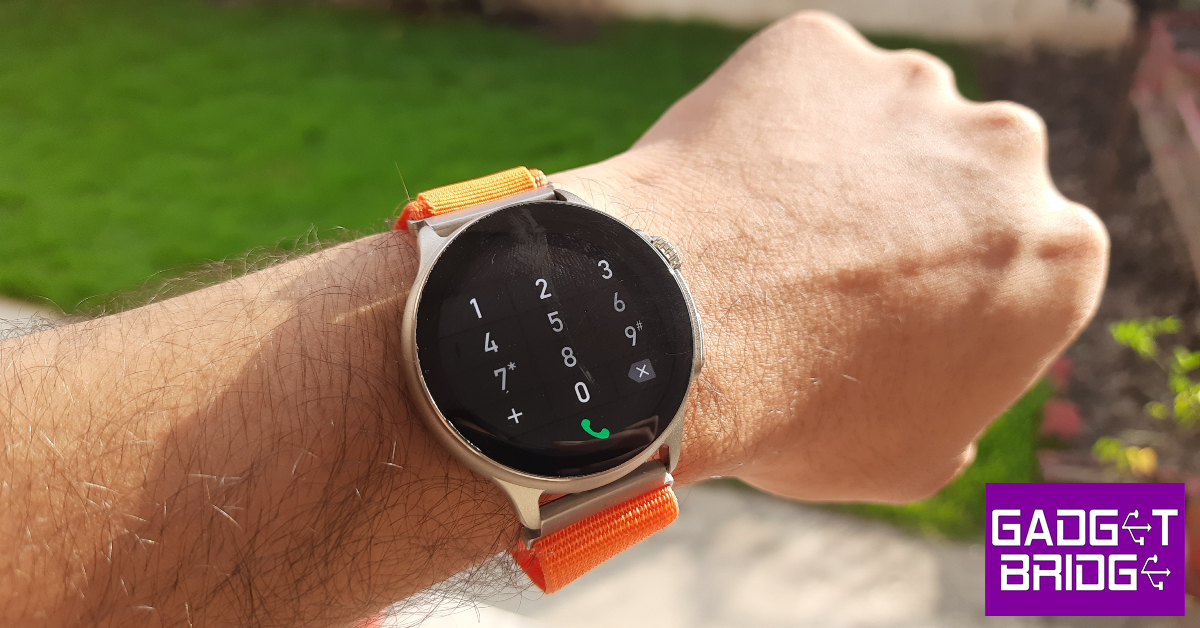
For a company that started out with audio products, Boult has taken no time to perfect the styling and design of its smartwatches. The Crown R Pro does not look out of place even when you compare it with wearables above its price range. The star of the show is the 1.43-inch AMOLED display that can reach a peak brightness of 600 nits. The touch response here is ideal and not the stuttering mess we often experience in other smartwatches in this price category. Encasing this display is a zinc alloy shell that houses a crown and an action button on the right side. Right in the middle of the two control buttons lies the solitary microphone. The left side of the frame is completely buttonless. This zinc alloy shell feels quite sturdy and capable of taking a knock. For something that’s made out of a metal alloy, it is quite lightweight. The shell’s texture is not glossy at all, which we really like. The rotating crown reminds us of the Apple Watch Ultra. The feedback that it delivers is very satisfying and makes it very hard to not fidget with it. Boult Crown R Pro review: Design Another highlight of the smartwatch is its watch band options. While we don’t mind silicone straps on most smartwatches, they can cause sweatiness and skin irritation after a certain point. This is why Boult’s choice of going with the nylon strap earns them extra points from us. Even during sweaty workouts, this strap functions like a charm and does not cause any irritation or unnecessary strain. Boult also has a metallic strap option for more casual users. Boult Crown R Pro review: Design On the other side of the dial, you will find the health monitors right at the centre and two slots for the magnetic charging pin charger. There’s a small speaker on the right side of the base for audio calls and listening to music. The smartwatch is rated IP67 and is water resistant up to 1m for 30 minutes. This means that sweaty workouts and light rainfall will not damage the smartwatch in any capacity but it is certainly not meant for swimming.

Boult Crown R Pro review: Performance

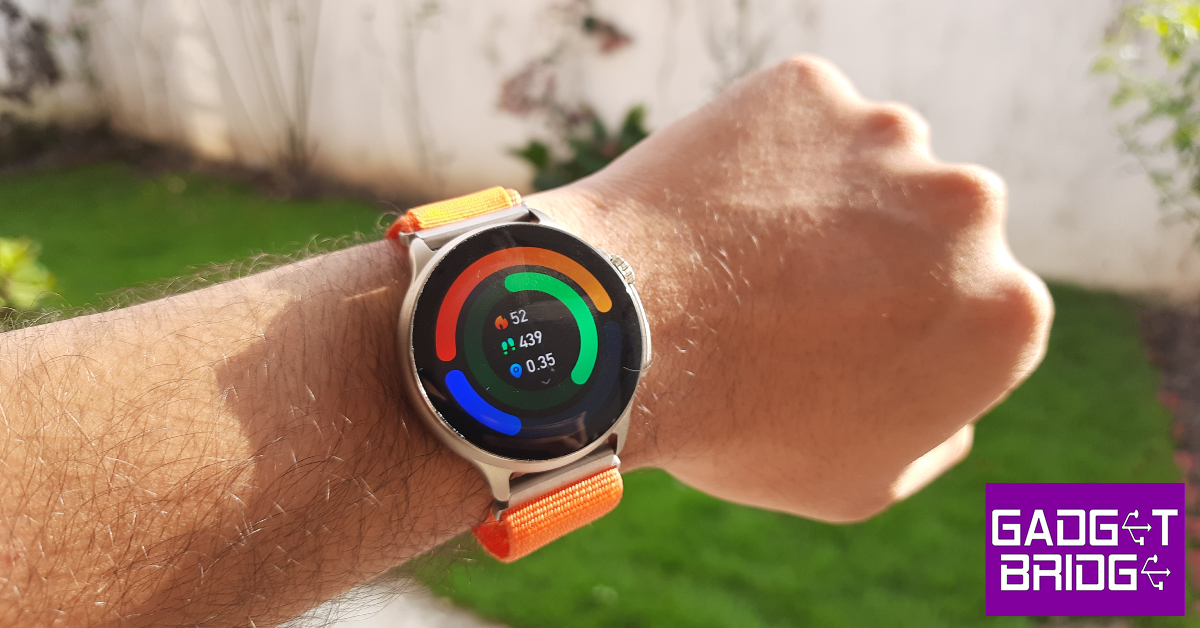
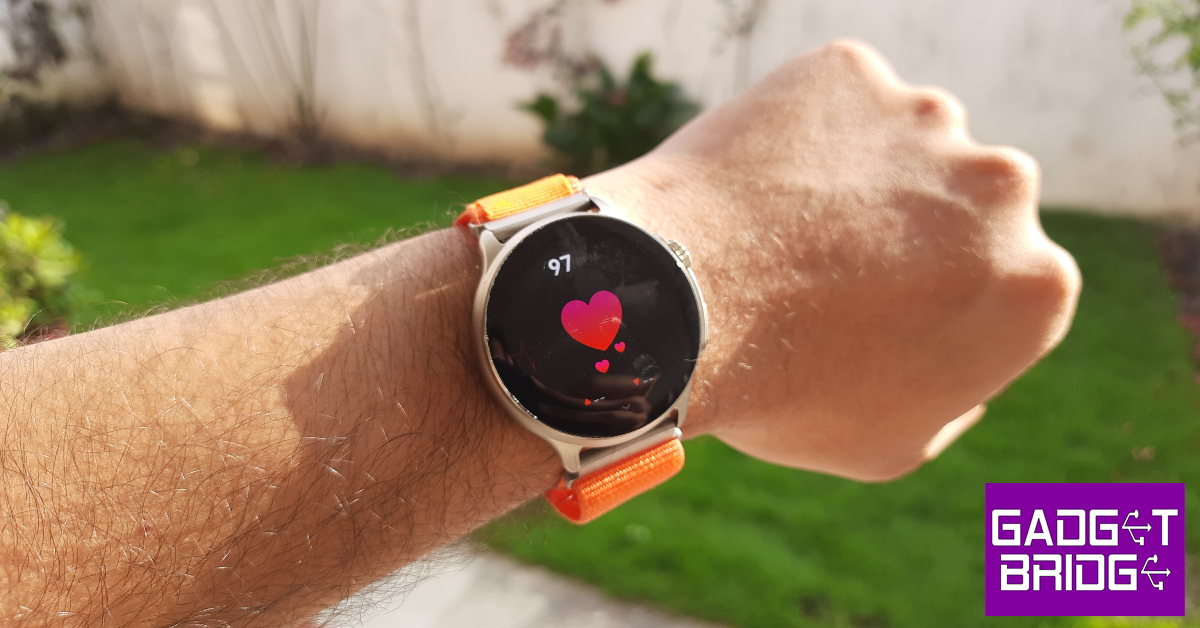
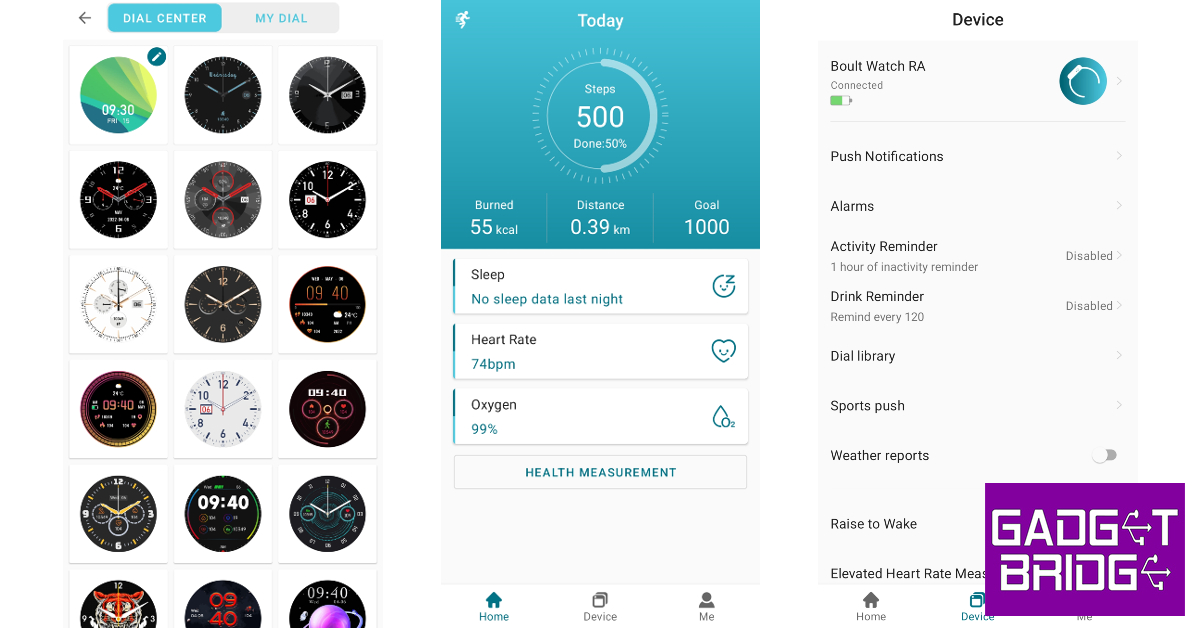
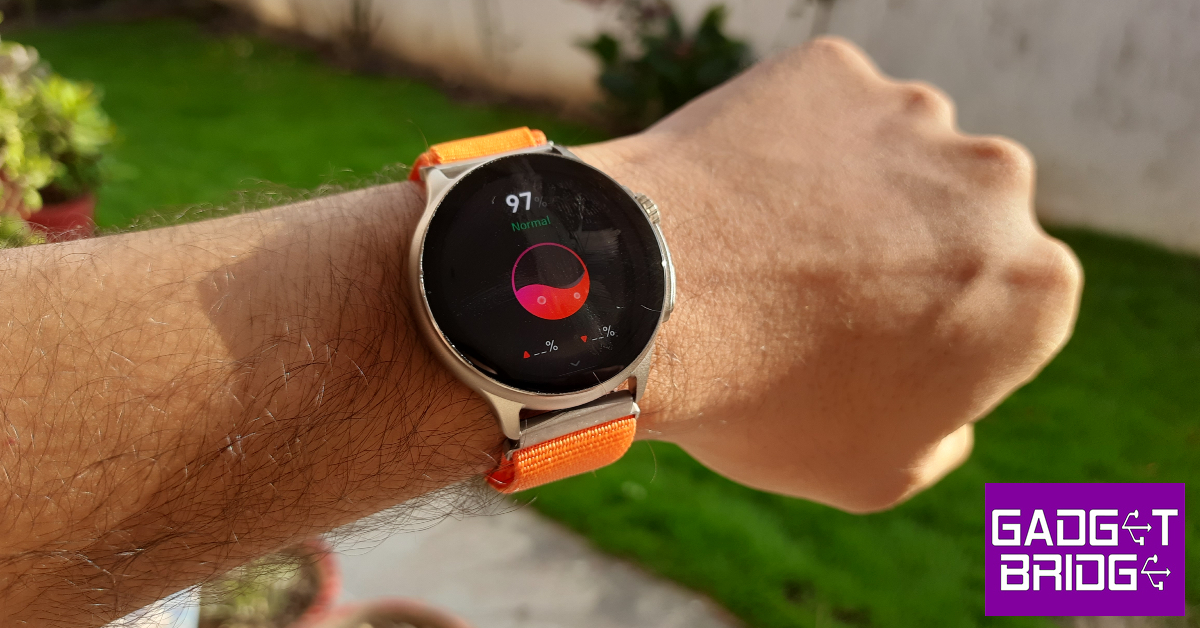
Setting the great design and styling aside, the Boult Crown R Pro is a health and fitness tracker at its heart. The smartwatch can measure the blood oxygen level and heart rate up to medical-grade accuracy. Every once in a while the readings were slightly off, but these cases were the exception rather than the norm. Boult Crown R Pro review: Performance The step counter on this smartwatch works phenomenally as well. The Crown R Pro did a good job of counting the steps and calculating the total distance travelled. While tracking hikes and runs, the smartwatch also calculates your heart rate, calories burnt, and steps walked per minute. We don’t trust the calorie count of any smartwatch, but the heart rate and step counter on this smartwatch were consistent with other premium smartwatches (we used the Samsung Galaxy Watch 6 Classic for comparison).  Boult Crown R Pro review: Performance The Boult Crown R Pro can track more than 120 exercises, workouts, sports, and other routines. However, you can’t access all of these sport modes at once on the smartwatch. You need to use the BoultTrack app to load your desired exercise on the watch. At a given time, the smartwatch only holds just over 20 workout and sport routines on the device. The BoultTrack app could use some work, but it gets the basics right. Since the Crown R Pro does not have an in-built GPS, this app can be used to chart your hikes, walks, and runs on the map. The homepage displays your daily goal progress along with the sleep breakdown, last recorded heart rate, and the last recorded SpO2 reading. If you need to change your smartwatch’s dial face, you can explore your options in the app’s Dial Library. We found most of the watch faces to be quite tacky and over the top, but there were a few that we really enjoyed. Apart from being a health and fitness tracker, the Boult Crown R Pro is also a Bluetooth-calling smartwatch. When it is connected to your phone, the watch can be used to make and receive audio calls with ease. The sound and microphone quality is beyond satisfactory. In an indoor setting, you don’t need to put the watch close to your mouth to be audible on the other end. The speaker on the right side of the watch does a good job of relaying the speaker’s audio, but a little boost to the low end would have been nicer. This speaker can also be used to play music on your watch, but the sound quality on all smartwatches in general isn’t comprehensive enough to enjoy listening to music. The Boult Crown R Pro’s OS is a bit of a mixbag. While it is colourful and very easy to navigate, it could use a little tuning. The biggest gripe we have is with the functionality of the rotating crown. While we like that it can quickly toggle between the watch faces without needing to browse to a specific panel, its controlling chops in other places are very limited. For example, rotating the crown while you’re on the music panel does nothing. We expected it to alter the volume but it isn’t programmed to do that. You can use the crown to switch among different watch functions, but pressing the crown button takes you back to the home page. If you want to select a particular function, you need to tap on its icon on the display. Boult Crown R Pro review: Performance Apart from the inconsistencies with the crown button, there were a few other random things that caught our attention. The Boult Crown R Pro surprisingly lacks adaptive brightness for the display. Once you set the brightness to a particular intensity, it cannot adapt according to the surrounding light. The battery indicator only displays the charge in multiples of ten. Hopefully, Boult can fix these issues with an update. Other than these minor kinks, the OS does a good job of getting the most out of the hardware at hand. Talking about the battery life, the Boult Crown R Pro can last up to 5 days on a single charge if you are a conservative user. We kept the Always on Display turned on at all times and tracked our workouts on a regular basis, which gave us a battery coverage of 3 days. Boult claims the Crown R Pro can be fully charged in 90 minutes, which we found to be consistent while testing the watch in the review period. Read Also: Itel S23+ with 3D curved AMOLED display launched in India

Verdict

The Boult Crown R Pro gives you the best of both worlds. It is an efficient health and fitness tracker that does not compromise on style. There are a lot of things to like about this smartwatch. The 1.43-inch AMOLED display is smooth and highly responsive to even the lightest of gestures. The nylon and metallic watch band options are perfect for switching between work and play. The calling and other traditional ‘smartwatch’ features leave no room for complaints either. The OS could have been tuned better, but the issues can be easily patched with an update.

Boult Crown R Pro: Pros

  • Excellent display
  • Comfortable nylon watch band
  • Very satisfying clicky feedback on the crown button
  • Good health and fitness tracker

Bould Crown R Pro: Cons

  • The OS does not fully tap into the crown button’s potential
For the latest gadget and tech news, and gadget reviews, follow us on Twitter, Facebook and Instagram. For newest tech & gadget videos subscribe to our YouTube Channel. You can also stay up to date using the Gadget Bridge Android App. You can find the latest car and bike news here.

Samsung to open 15 Pop-Up stores across India

It has been officially stated that 15 Samsung Pop-Up stores will be opening all over India. With this, the recently launched devices Galaxy Z Fold5, Galaxy Z Flip5, Galaxy Watch6 series, and Galaxy Tab S9 series will benefit. The company received 150,000 pre-orders of Galaxy Z Fold5 and Z Flip5 smartphones which is 1.5 times more than the previous generation of foldables. According to Samsung, it will open 15 Pop-Up stores across India. The first five Samsung Pop-Up stores have been opened in the first phase in Tier 1 cities including Delhi-NCR, Mumbai, Bangalore, and Hyderabad. Samsung will later move these Pop-Up stores to additional areas, including tier II cities, in order to meet the increased demand during this holiday season. The recently released Galaxy Z Fold5, Galaxy Z Flip5, Galaxy Watch6 series, and Galaxy Tab S9 series will benefit as a result of this. Also Read: HP to manufacture Chromebooks in India together with Google Customers visiting Samsung’s Pop-Up stores will be able to use Samsung’s fifth generation of foldable smartphones. They not only get to experience the device but will also get to see the Galaxy ecosystem at play. In addition to this customers will get the opportunity to join exclusive live demo sessions and a chance to grab some exciting giveaways. Furthermore, they will also learn interesting tips and tricks about the new Galaxy Z series. As per Samsung, smaller towns and cities have shown a strong demand for foldables and the company expects that the new Pop-Up stores will help to reach out to a wider set of consumers who want to experience the foldable technology. Products at Pop-Up Stores
  • Foldable Phones: Galaxy Z Flip5 & Z Fold5
  • Smart Wearables: Galaxy Watch6 & Watch6 Classic as well as Galaxy Buds2 Pro
  • Laptops: Galaxy Book3 Pro 360
  • Tablet: Galaxy Tab S9 Ultra
Products such as Galaxy Z Flip5 Limited Edition Box and NFC-enabled SMAPP Cards and many more will also be exclusively available at these pop-up stores. Those purchasing Samsung products from these Pop-Up stores will get exciting offers on the products and free goodies too. For the latest gadget and tech news, and gadget reviews, follow us on TwitterFacebook and Instagram. For newest tech & gadget videos subscribe to our YouTube Channel. You can also stay up to date using the Gadget Bridge Android App. You can find the latest car and bike news here.

3 Great Reasons To Buy The New itel S23+

In a world overflowing with smartphones, it takes something truly exceptional to stand out. The itel S23+ has not only managed to stand out but has set new standards for smartphones in the sub-15K segment. Packed with innovative features and stylish aesthetics, itel’s latest offering, the S23+, is redefining what we can expect from a smartphone in this price range. Here are three compelling reasons why you should consider buying the itel S23+, which is priced under Rs 15,000:

#1. Stylish Design and Lightweight Build

Dazzling 3D Curved AMOLED Display: The smartphone features a captivating 6.78″ FHD+ 3D AMOLED curved screen that immerses you in vivid visuals. With a remarkable 240Hz touch sampling rate, it’s perfect for high-end gaming and productivity. The display is also protected by Gorilla Glass 5, providing four times more resistance to drops than standard screens, ensuring your phone stays safe. Ultra-Sleek and Lightweight: The itel S23+ is not just a powerhouse of technology; it’s also a style statement. With a slim body measuring just 7.9mm in thickness and a feather-light weight of only 180 grams, itel has created one of the lightest smartphones in its class. Carrying it around or slipping it into your pocket is a breeze. The sleek design not only looks premium but also feels great in your hand.

#2. Cutting-Edge Security with In-Display Fingerprint Sensor

Unique In-Display Fingerprint Sensor: In a remarkable feat of technology, the itel S23+ boasts an exclusive in-display fingerprint sensor. This feature is usually reserved for higher-end smartphones but is now available in the sub-15K segment, thanks to itel. This cutting-edge security measure not only adds a layer of protection to your device but also enhances the overall user experience. Unlocking your phone has never been more secure or convenient.

#3. Stunning Photography with 32MP Ultra-Clear Front Camera

Exceptional 32MP Front Camera with Flash: For selfie enthusiasts and photography aficionados, the itel S23+ offers an unprecedented 32MP ultra-clear front camera with a flash. This is a first in its segment, and it elevates your selfie game to a whole new level. Say goodbye to poorly lit selfies – the front flash ensures that your selfies are well-lit and full of detail. With customized beauty enhancements and multiple modes, you can capture stunning selfies that truly reflect your personality. Powerful 50MP Rear Camera: It’s not just about selfies. The S23+ also packs a powerful 50MP rear camera that captures life’s moments with unmatched clarity. Whether you’re capturing landscapes, portraits, or anything in between, this camera delivers exceptional results, turning every photo into a work of art.

Conclusion

The itel S23+ is a game-changer in the sub-15K smartphone segment, offering a blend of cutting-edge technology, exceptional photography capabilities, and a sleek design that sets it apart from the competition. Don’t miss the opportunity to experience this premium and unparalleled smartphone that’s tailor-made for the discerning tastes of the youth demographic. It’s time to upgrade your smartphone experience with the itel S23+. For the latest gadget and tech news, and gadget reviews, follow us on TwitterFacebook and Instagram. For newest tech & gadget videos subscribe to our YouTube Channel. You can also stay up to date using the Gadget Bridge Android App. You can find the latest car and bike news here.

Apple Watch won’t charge past 80%? Try these 7 fixes

An average Apple Watch user usually puts their smartwatch on charge at night. This means sacrificing its sleep tracking feature, but if you’re more interested in its round-the-clock health and fitness tracking features, this is the tradeoff you’re going to have to make. While putting their watch on charge throughout the night, users often report a strange issue where the smartwatch does not charge beyond 80%. In this article, we bring you the top 7 fixes for the ‘Apple Watch won’t charge past 80%’ issue. Read Also: Itel S23+ with 3D curved AMOLED display launched in India

Here’s why your Apple Watch may be facing charging issues

The simple truth of the matter is that rechargeable batteries wear down with age. If you’re using an old version of the Apple Watch, its battery performance won’t match up to a new model. The wear and tear that comes with hundreds of charge cycles takes a toll on the efficiency of the battery. They lose their ability to retain charge for a longer period of time. In some cases, the battery pack does not fully charge. However, if you notice that your Apple Watch stops charging at precisely 80%, it could be due to an internal setting. Users who prefer charging their watch overnight may have noticed this. This feature is called ‘Optimized Battery Charging’ and it can be disabled from settings. Other than that, here are some reasons why your Apple Watch may not be charging to 100%:
  • Sharp rise in internal temperature while charging
  • Charger not connected correctly
  • Dirt and grime layer on the charging puck/connection points
  • Physical damage to the charger
  • Physical damage to the watch
  • Outdated OS

Disable Optimized Battery Charging

Similar to your iPhone, your Apple Watch also uses Optimized Battery Charging to retain its battery health. The watch learns your schedule over a period of time, accurately gauging the time you wake up and it off the charger. Once you put your smartwatch on charge, it boosts the battery to 80% at a normal pace, then trickle charges at a pace that makes sure the device hits 100% right when you wake up. If your Apple Watch won’t charge past 80%, Optimized Battery Charging is most likely the culprit. Here’s how you can turn it off. Step 1: Go to Settings on your Apple Watch and select Battery. Step 2: Tap on Battery Health. Step 3: Turn off the toggle switch for Optimized Battery Charging. Step 3: Turn off the toggle switch for Optimized Battery Charging.

Let the Watch cool down if overheated

How to Get a Cracked Apple Watch Screen Fixed? Your Apple Watch may pause charging if its internal temperature rises beyond a certain threshold. This is done to prevent the internal components of the smartwatch from permanent damage. While charging your watch will very rarely present this circumstance, it is not totally unavoidable, especially in situations when the surrounding temperature is very high. Disconnect the watch from the charger and let it cool down before plugging it in again.

Is the charger connected correctly?

What Do IP6X And WR50 Ratings On Apple Watch Series 7 stand for? And how do they help? Apple Watch’s magnetic charger easily snaps onto the base of the smartwatch, facilitating a smooth charging process. However, it can get easily disconnected with an accidental shove. If your Apple Watch suddenly stops charging, make sure the charger is connected correctly. To make sure that you’ve got all your bases covered, wipe the charging dock and the base of the watch with a clean cloth before connecting them.

Check the charger for damage

10 Apps that you should install in your new Apple Watch Series 7 If your Apple Watch isn’t charging at a rapid pace, it could be due to physical damage to the charger. Check the charging puck and the wire connected to it for any damage. If the wire has frayed ends, the charging speed will fall drastically. Replace the damaged part with Apple-authorised accessories to restore the charging speed and make your smartwatch charge past 80%.
Restart your Apple Watch

Best ways to Fix 'Sleep Tracking Not Working' on Apple Watch Sometimes an internal glitch or background software issue can keep the Apple Watch from charging properly. Performing a simple restart can fix the background issues with ease. Long press the side button on your Apple Watch to access the power menu, hit the power icon at the top right corner of the screen, and swipe the power slider to the right to switch off the watch. Press and hold the side button again to restart it.

Update the WatchOS

Apple Watch Ultra 2 Step 1: Go to Settings on your Apple Watch and select General. Step 2: Tap on Software Update. Step 3: Select Download and Install.

Take your Apple Watch to the authorised service centre

How to make a Genius Bar appointment at an Apple Store in the USA or UK? (2024) If the methods mentioned above don’t work out for you, take your Apple Watch to an authorised service centre. It is possible that the issue is hardware-related. You can book an appointment at the Genius Bar or simply walk in when it isn’t crowded. If your Watch is covered under AppleCare, the technicians will fix it without any extra charge. However, you will need to pay an additional price if there’s hardware damage caused by physical impact and your device isn’t covered by AppleCare+.
Frequently Asked Questions (FAQs)

Why is my Apple Watch not charging beyond 80%?

Your Apple Watch utilizes Optimized Battery Charging to trickle charge it once it hits 80%. This is done to reduce the battery wear due to overheating. To turn it off go to Settings>Battery>Battery Health and turn off the toggle switch for Optimized Battery Charging.

Why is my Apple Watch not charging to 100%?

If the temperature of your Apple Watch rises sharply while charging, it will cut off the flow of the current to the battery. A faulty charger and outdated OS are other reasons why it may not be charging to 100%.

Should I charge my Apple Watch to 100%?

There are no downsides to charging your Apple Watch to 100%. However, to reduce wear and tear to the battery unit, keep the charge level between 30-70% at all times.

How long does the Apple Watch take to fully charge?

On average, it takes around 2.5 hours to fully charge an Apple Watch.

How much does the cheapest Apple Watch cost?

The entry-level Apple Watch Series 9 is priced at Rs 41,900. Read Also: Vivo Y16 and Vivo Y02T price in India dropped by Rs 500

Conclusion

These are the top 7 fixes for the ‘Apple Watch won’t charge past 80%’ issue. If you’re facing a similar issue on your iPhone or iPad, turn off Optimized Battery Charging from settings. If you found this article helpful, let us know in the comments!

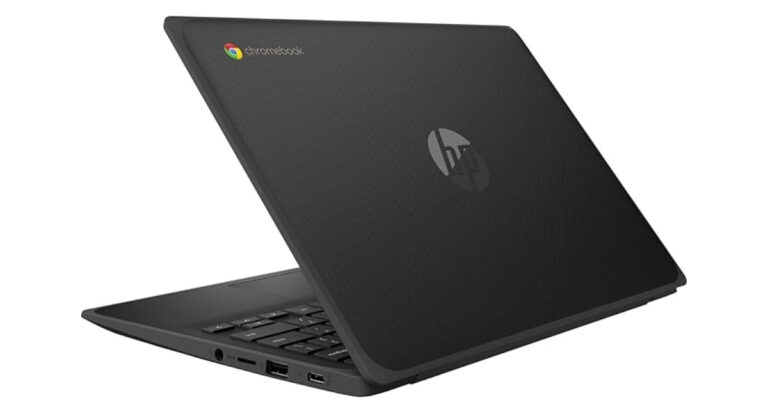
HP to manufacture Chromebooks in India together with Google

HP and Google have come together to manufacture Chromebooks in India starting next month. As per the company, it will be produced at the company’s Flex Facility, which is close to Chennai, and Tamil Nadu. With this, the firm aims to support the digital education ecosystem in India. The production is said to begin on October 2 in the country.  Locally manufactured Chromebooks by HP, in collaboration with Google, will soon be available in India, reaffirming its commitment to the government’s Make in India initiative. As per the company, this partnership will advance a shared aim to support the digital education ecosystem in India and assist more students in enhancing their learning by offering inexpensive, safe, and high-quality computing equipment to educational authorities, schools, and institutions. HP to manufacture Chromebooks in India together with Google Vickram Bedi, Senior Director – Personal Systems, HP India, said, “HP is committed to advancing digital equity, and we have been driving many initiatives to enable digital education across India. Manufacturing Chromebook laptops in India will allow Indian students to get easy access to affordable PCs. By further expanding our manufacturing operations, we continue to support the Make in India initiative of the Government.” Also Read: Blaupunkt 43-inch QLED and 55-inch 4K Google TV launched in India The Chromebooks by HP in collaboration with Google will be produced at the Flex Facility outside of Chennai.  The production of Chromebooks will begin in India on October 2. HP has been making a variety of laptops and desktops since August 2020. A wide range of laptops including  HP EliteBooks, HP ProBooks, and HP G8 series notebooks since December 2021. Moreover, HP added several kinds of desktop mini towers (MT), mini desktops (DM), small form factor (SFF) desktops, and a variety of All-in-One PCs to its lineup of locally produced commercial desktops. These products include a variety of consumer segments and offer both Intel and AMD processor options. According to HP, These ChromeOS-equipped devices offer built-in accessibility and security features to deepen classroom connections and keep user information safe.  Bani Dhawan, Head of Education – South Asia, Google, said, “At Google, we’ve been working closely with the local education ecosystem, supporting them in their transition to digital-first learning experiences through our products and teacher programs. The local production of Chromebooks with HP marks an important step in our efforts to continue supporting the digital transformation of education in India. We hope this collaboration will help accelerate the adoption of technology in more schools so that every student and educator have access to the tools and skills to pursue their personal potential.” For the latest gadget and tech news, and gadget reviews, follow us on TwitterFacebook and Instagram. For newest tech & gadget videos subscribe to our YouTube Channel. You can also stay up to date using the Gadget Bridge Android App. You can find the latest car and bike news here.

BGMI redeem codes for 29 September 2023, claim and receive rewards and benefits

After being banned for nearly ten months, Battleground Mobile India, aka BGMI, is officially available again in India. BGMI fans are looking for ways to improve their game experience and one such method is the usage of redemption codes, which offers a variety of rewards and advantages using BGMI redeem codes players can gain access to new skins, outfits, loot crates, weapons and free UC and diamonds. As mentioned earlier, these codes give users the chance to earn unique rewards and gain extra benefits while playing the game. This includes GUN SKINS (M4, AKM, M416, AWM, M24, UZI, KAR98K), free character voucher, Andy, Carlo, Sara, Victor character for free, free Anna Character on completing the mission and UC or Royal Pass Discount. So here we have gathered a list of the most recent BGMI redeem codes as of 29 September 2023. Also, redeem these codes asap as these are only valid for a limited duration.

BGMI Redeem Codes for 29 September 2023

updating soon…

How to get free Redeem Codes for BGMI on 29 September 2023?

  • Launch BGMI on your device.
  • Then select the Redeem Code option from the main menu.
  • Next, click on the Redeem code tab.
  • A new window will open, requesting the redemption code.
  • Now enter your BGMI code.
  • Confirm and click on the “Redeem” tab.
  • If your redeem code is valid then you will get a message confirming that your rewards were successfully redeemed.
(Note that these codes are case-sensitive, so be sure to type them correctly to prevent any errors.) For the latest gadget and tech news, and gadget reviews, follow us on TwitterFacebook and Instagram. For newest tech & gadget videos subscribe to our YouTube Channel. You can also stay up to date using the Gadget Bridge Android App. You can find the latest car and bike news here.

Garena Free Fire Redeem Codes Today 29 September 2023: Here is how to claim them

Garena Free Fire is a battle royale game with regular awards and tournaments to keep players interested. If you play Garena Free Fire, you should be aware of the redeem codes that are released on a daily basis. However, because the battle royale game is banned in India, players from other countries can use the Free Fire Redeem codes daily. If you’re unfamiliar with the Garena Free Fire redeem codes or don’t know how to get them, we’ve put together a step-by-step guide to help you redeem them. Check out Garena Free Fire Redeem Codes for 29 September 2023. The Free Fire redeem codes are a great way to get free stuff. These are 12-digit codes that contain alphabets and numbers, as well as an expiration date and time. Because the Garena FF redeem codes cannot be used more than once, you should hurry to the redemption page to claim your free reward before someone else does. To get a free reward, all you have to do is go to reward.ff.garena.com/en, which is the official redemption page. Also, keep an eye on this space for daily updates on Garena Free Fire redemption codes and rewards.

Garena Free Fire Redeem Codes Today 29 September 2023

updating soon…

How to Get Free Fire Redeem Codes for Garena on 29 September 2023?

  • Visit the Garena Free Fire game’s official website at reward.ff.garena.com.
  • Use your Facebook, Google, VK, Apple ID, Huawei ID, or Twitter account to log in.
  • You’ll be taken to a valid redemption code (s)
  • Copy and paste the 12-digit redemption code into the text box.
  • On the screen, a dialogue box will appear.
  • ‘Ok’ should be selected.
For the latest gadget and tech news, and gadget reviews, follow us on TwitterFacebook and Instagram. For newest tech & gadget videos subscribe to our YouTube Channel. You can also stay up to date using the Gadget Bridge Android App. You can find the latest car and bike news here.

Safety Tips to Remember When Playing Online Poker

Online poker has reached a new height of popularity these days. Since it provides convenience and accessibility to players across the world, more and more players are joining this digital platform. However, just like any online activity involving money, players need to exercise caution and implement smart safety practices. There are lots of scams online that are waiting to trap new players. Plus, players can get carried away when playing this card game. So, here are some important safety tips that players can use to be safe when playing poker online.

Use Unique and Complex Passwords

One of the first lines of defence is creating strong passwords that are unique for each poker site. Avoid using simple passwords based on dictionary words, names, birthdays, or patterns like “123456”. Ideal passwords are 12-14 characters long, with a mix of random letters, numbers, and symbols. Consider using a password manager app to generate and store complex passwords. Enable two-factor authentication as an added layer of security.

Limit Personal Information Shared

When signing up on poker sites, provide only necessary personal details like name, email, and contact number. Avoid sharing sensitive information like government IDs, social security numbers, or financial documents unless absolutely mandatory for legal compliance. Be wary of random requests for personal data. Check the authenticity and security of payment options before entering your credit card or bank details.

Use E-Wallet Services for Transactions

When you want to play poker hands at an online poker platform, you should use e-wallets as a payment option. Linking poker site accounts directly to bank accounts or cards can expose your financial information. For deposits and withdrawals, use intermediary e-wallet services like PayPal, Neteller, or Skrill. This adds a layer of separation between gambling transactions and personal accounts. Keep a limit on the e-wallet balance to contain losses.

Install Antivirus and Firewall Software

Reputable antivirus software like Norton or McAfee and a firewall are essential to guard against viruses, malware, and cyberattacks aimed at stealing personal data. Schedule regular scans to detect threats. Keep software updated and enable auto-updates. On mobile, only use official poker apps from Google Play Store or Apple App Store. Avoid sideloading risky third-party apps. Plus, check the website name carefully as scammers tweak a few alphabets to pose as a reputable site.

Be Wary of Suspicious Links and Downloads

Exercise caution before clicking on links or downloading attachments sent via chat on poker sites. These could direct to phishing sites or contain malware. Verify the sender’s identity before engaging. Check the URL for misspellings or odd domains. Scan files using antivirus software before opening. When in doubt, delete immediately. Fraudsters lure players with exciting bonuses and promotional offers. One should check all terms and conditions and the genuineness of the bonuses before hitting that sign-up button.

Activate VPN Protection

Activating a Virtual Private Network (VPN) encrypts your internet traffic and masks your IP address and location. Use VPNs when playing on mobile phones. This prevents snooping on your online activities and blocks geo-restricted poker sites. VPNs also provide malware and phishing protection. Look for premium VPNs that do not store user logs or activity data. There are lots of free VPN services, but we suggest using the premium to get assured protection.

Avoid Public Wi-Fi for Poker Apps

Public Wi-Fi hotspots like cafes are extremely risky for playing poker apps or accessing accounts. Avoid logging in or making transactions, as the connection is unsecured and prone to eavesdropping or man-in-the-middle attacks. Never access sensitive information or online platforms, including monetary transactions, on such unsecured networks. Only play poker on reputable private Wi-Fi or secure cellular data.

Monitor Your Credit Reports

Routinely check credit reports from Equifax, Experian, and TransUnion for any unrecognized accounts or transactions related to identity theft. Place a credit freeze if needed. Immediately report unauthorized activity or accounts opened in your name. Additionally, keep checking your poker account for suspicious withdrawals.

Research the Reputation of Poker Sites

Only create accounts and play on regulated online poker sites with transparent ownership, licensing, and responsible gambling policies. Research sites on forums for red flags. Registered sites display licensing details on their home pages. Be wary of brand-new sites with no reputation – these have higher risks. This doesn’t mean that new poker sites are reputable. However, one should do detailed research and read real customer reviews and YouTube videos before wagering real money.

Gamble Responsibly Within Your Budget

Never play with rent or grocery money in hopes of winning big. Only use discretionary income that would not severely impact your life if lost completely. Set a strict budget for poker spending and loss limits. Take regular breaks, and do not chase losses irrationally. Seek help if gambling becomes unhealthy. Online poker offers an addictive rush but also requires players to implement prudent safety measures. From strong passwords to protected internet connections and gambling budgeting, various steps can help minimize the risks involved. Being informed is key – diligently follow these tips here for a secure, responsible, and enjoyable online poker experience. For the latest gadget and tech news, and gadget reviews, follow us on TwitterFacebook and Instagram. For newest tech & gadget videos subscribe to our YouTube Channel. You can also stay up to date using the Gadget Bridge Android App. You can find the latest car and bike news here.

Blaupunkt 43-inch QLED and 55-inch 4K Google TV launched in India

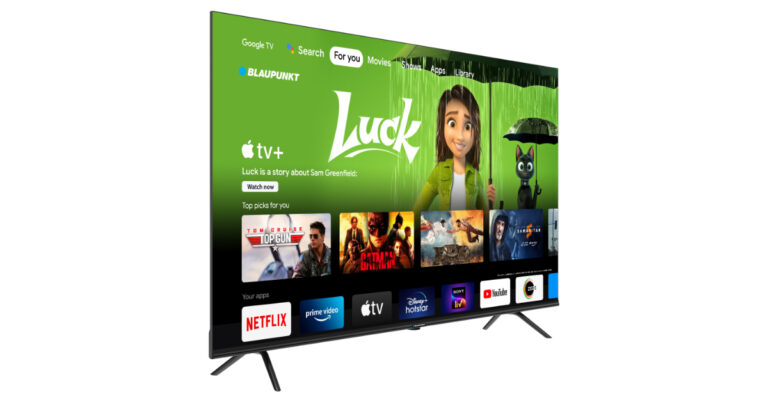
The popular German brand, Blaupunkt, has announced to launch of a brand-new model of QLED and Google TV in India. The company has introduced 43-inch QLED and 55-inch 4K Google TV. Both the television will be available for Flipkart Customers at heavy discounts.

Blaupunkt 43-inch QLED and 55-inch 4K Google TV price in India, sale details

The price of the Blaupunkt 43-inch QLED TV (43QD7050) launched in India at Rs 28,999. Whereas the price of the 55-inch 4K Google TV (55CSGT7023) is set at Rs 34,999. As per the company, the newly launched TV can be purchased via Flipkart. Both the TVs will come in attractive festive sale prices this launch. Buyers can get a 10% instant discount when using ICICI, Kotak, and Axis Bank Cards. Also Read: Itel S23+ with 3D curved AMOLED display launched in India
Blaupunkt 43-inch QLED TV

Blaupunkt 43-inch QLED TV

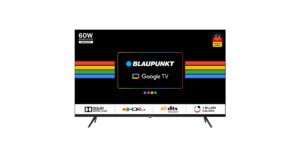
As the name suggests the Blaupunkt 43-inch QLED TV comes with a QLED 4K display. The screen has support for HDR10+ and Dolby Vision. In addition to this, it offers 1.1 billion colour options, a sophisticated black design, and Dolby-certified audio with Dolby Atmos and Dolby Digital Plus. The Television can be connected wirelessly with Bluetooth 5.0 and Dual-Band Wi-Fi, and navigate more easily with the Google Assistant-enabled remote. There is built-in Airplay and Chromecast allowing users to access more than 1000 apps. With DTS TruSurround sound, a 50-watt speaker the TV provides an immersive and personalised watching experience. Blaupunkt 55-inch Google TV

Blaupunkt 55-inch Google TV

Blaupunkt’s 55-inch Google TV is ideal for customers looking for an immersive experience. The Televison features a bezel-less design and comes with a metal stand. The 4K display offers HDR10+ with 1.1 billion colours. With the help of Dolby Digital Plus and a powerful 60W stereo box speaker system with DTS TruSurround technology, it produces audio with a cinematic quality.  The Google Assistant-powered remote allows you to navigate with ease. The TV can be connected wirelessly over Bluetooth 5.0 and Dual-Band Wi-Fi. The Blaupunkt 55-inch Google TV supports Airplay and Chromecast offering access to more than 10,000 apps. For connectivity, there are three HDMI connectors (with ARC and CEC), two USB ports, and compatibility with DVB-C, DVB-T, and T2. The television is powered by an MT9062 processor with Mali-G52 GPU paired with 2GB of RAM and 16GB of ROM. For the latest gadget and tech news, and gadget reviews, follow us on TwitterFacebook and Instagram. For newest tech & gadget videos subscribe to our YouTube Channel. You can also stay up to date using the Gadget Bridge Android App. You can find the latest car and bike news here.

Itel S23+ with 3D curved AMOLED display launched in India

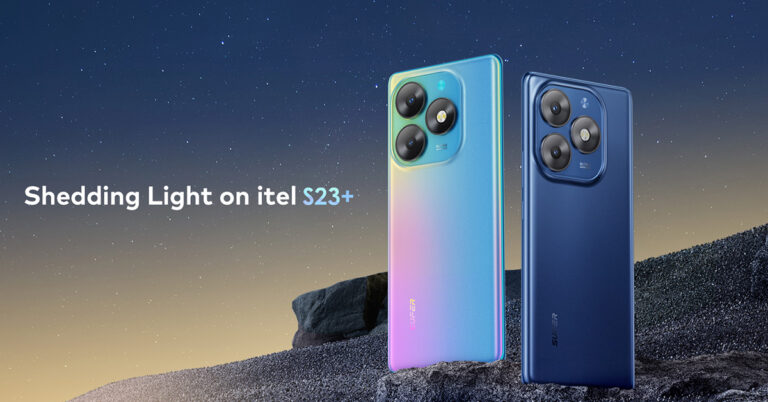
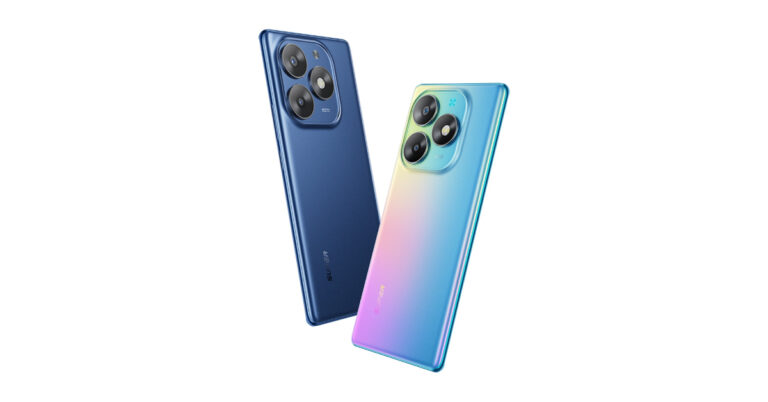
Itel S23+ is a Chinese company’s latest offering in India. The latest budget smartphone comes with a 3D curved AMOLED display. The device is powered by Unisoc T616 4G SoC and has Dynamic RAM Expansion technology. The smartphone includes a dual rear back camera and a 5,000mAh battery as well.

Itel S23+ price in India, sale details

Itel S23+ has been launched in India with a price tag of Rs 13,999 for the single 8GB RAM with 256GB storage option. The budget phone is offered in two colour options of Elemental Blue and Lake Cyan. Itel S23+ price in India, sale details The smartphone is scheduled to go on sale on October 6 in the country via Amazon, with retail availability in the last week of the same month. Buyers can register their interest through the “Notify Me” link on Amazon. The device is available on Consumer finance options with leading NBFC (Bajaj & Home Credit) and payment aggregators (Pine labs, PayTM and Ezetap).

Itel S23+ specifications

Itel S23+ is highlighted with a 6.78-inch full HD+ 3D curved AMOLED display. The screen offers 1,080×2,400 pixels of resolution and 93 percent ultra-high screen-to-body ratio. The AMOLED display has 500 nits of peak brightness and 99 percent DCI-P3 colour gamut. In addition to this, the curved display is protected with Corning Gorilla Glass 5. The device runs on Itel OS 13 on top of Android 13. Under the hood, there is a 12nm Unisoc T616 SoC, coupled with up to 8GB of RAM and up to 256GB of internal storage. The phone also features dynamic RAM Expansion technology. Also Read: Vivo Y16 and Vivo Y02T price in India dropped by Rs 500 The Itel S23+ has a 5,000mAh battery with 18W wired charging support. The phone includes a dual rear camera setup that consists of a 50-megapixel sensor with an f/1.6 aperture and an AI camera sensor. Additionally, the budget smartphone features a 32-megapixel front-facing camera for taking selfies and video calling. In terms of connectivity, there is Wi-Fi, Bluetooth, GPS, 4G, a 3.5mm audio jack, and a USB Type-C port. The phone also includes an in-display fingerprint sensor to unlock the device. For the latest gadget and tech news, and gadget reviews, follow us on TwitterFacebook and Instagram. For newest tech & gadget videos subscribe to our YouTube Channel. You can also stay up to date using the Gadget Bridge Android App. You can find the latest car and bike news here.

Vivo Y16 and Vivo Y02T price in India dropped by Rs 500

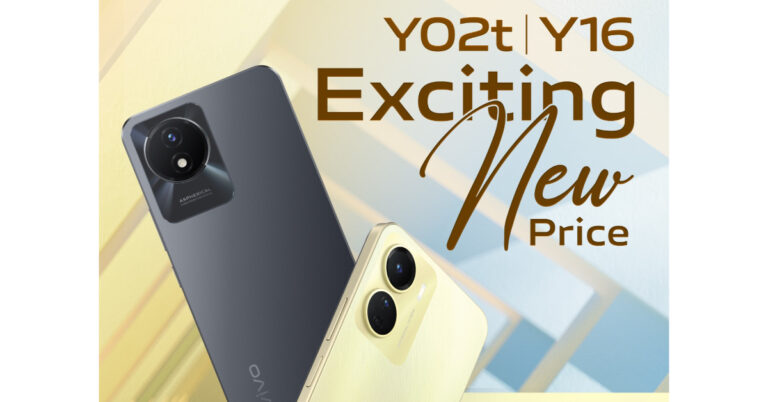
The price of Vivo Y16 and Vivo Y02T has been reduced. Both smartphones are seeing a price cut of Rs 500. This is not the first time that both phones have received a price cut. Vivo Y16 price was revised in June while the price of Vivo Y02T was reduced to Rs 1,000 earlier this month. After price revision, the Vivo Y16 is available at Rs 10,499 for the 4GB RAM with 64GB storage option whereas the price of 4GB RAM with 128GB storage will be selling at Rs 11,999. Before the price cut the phone was available at Rs 10,999 and Rs 12,499 respectively. The device comes in two colour options Drizzling Gold and Stellar. On the other hand, the Vivo Y02T can not be purchased at a reduced price of Rs 8,999 dropping from 9,999 for the single 4GB RAM with 64GB storage option. It is also seeing a price of Rs 500. Also Read: Itel P55 5G budget smartphone launched in India The smartphones with the new effective price will be available for purchase at vivo India e-store, Flipkart, Amazon and across all partner retail stores. Vivo Y16 launched in India at Rs 9,999

Vivo Y16 specifications

Vivo Y16 is highlighted with a 6.51-inch HD+ IPS LCD screen with 720×1,600 pixels of resolution. Additionally, by successfully filtering blue light and changing the screen’s colours to warmer ones, the Eye Protection Mode helps to lessen eye strain. The phone runs on Funtouch OS 12 on top of Android 12 out of the box. Under the hood, there is MediaTek Helio P35 SoC with up to 4GB RAM with a 128GB storage option. The device comes with a dual rear camera setup that includes a 13-megapixel primary sensor and a 2-megapixel secondary sensor. A 5-megapixel front-facing camera for selfies and video chats is also included. The device has capabilities including Time-Lapse, Live Photo, Face Beauty, and Panorama. Vivo Y16 packs a 5,000mAh battery with 10W wired charging. The handset has a side-mounted fingerprint sensor and 2.5D curved corners. Additionally, it adds Multi Turbo and Ultra Game Mode, which offer the smartphone’s gaming performance an additional boost. For the latest gadget and tech news, and gadget reviews, follow us on TwitterFacebook and Instagram. For newest tech & gadget videos subscribe to our YouTube Channel. You can also stay up to date using the Gadget Bridge Android App. You can find the latest car and bike news here.

From Classroom to Digital Campus: The Role of Virtual Reality in Modern Education

In recent years, the world of education has seen a profound and transformative shift. From traditional classroom settings to the dynamic landscape of digital learning. One of the most revolutionary technologies driving this transformation is Virtual Reality (VR). This article explores in-depth the transformative impact of virtual reality in the classroom. And its pivotal role in creating immersive, engaging, and effective learning experiences. We will delve into various applications of VR in the classroom. But also the benefits of virtual reality. And its boundless potential to reshape the modern educational landscape.

The Power of Immersion: A New Dimension of Learning

Virtual reality is, at its core, an immersive technology. It enables educators to transcend the limitations of traditional teaching methods. How? By creating experiences that immerse students in the subject matter. Through VR headsets, students can embark on virtual field trips to historical sites. They can explore distant planets. Or journey back in time to witness pivotal historical events. This level of immersion fosters a deep emotional connection with the material. And empowers educators to turn learning into an unforgettable adventure. Which is something every educator from a college or university should do. Indeed, students have essays to write on these topics. They can get help and pay for essay when they need guidance. But Virtual Reality would help them see with their eyes what they are reading about in books.

Interactive Learning and Hands-On Experiences: Learning by Doing

One of the core advantages of VR in education is its ability to ease interactive learning. Students can engage in immersive simulations that were before inaccessible. Or too costly to arrange in the real world. For example, in the field of science, VR enables students to conduct intricate experiments. In a safe and controlled virtual environment. Where they can make mistakes and learn from them without real-world consequences. Medical students can practice surgical procedures without any risks to patients. This hands-on approach enhances comprehension. It enhances retention and the development of practical skills. Which are essential for real-world applications.

Enhanced Student Engagement and Motivation: Active Participation

Traditional lectures often struggle to maintain student engagement, leading to passive learning experiences. VR addresses this challenge by making education captivating and exciting. With virtual reality, students become active participants in their learning journeys. They can explore complex subjects through gamified experiences. They can solve interactive puzzles, and collaborate with peers in virtual spaces. The result is higher motivation. Increased participation, and a deeper understanding of the material. Moreover, VR allows educators to design scenarios. Scenarios that challenge students to think critically. To problem-solve, and apply knowledge in real-world contexts.

Personalized Learning: Tailoring Education to Individual Needs

VR technology enables personalized learning experiences. Students can learn at their own pace. They can revisit challenging topics or progress through familiar ones. Moreover, VR systems can adapt content based on individual learning styles. Ensuring that each student receives personalized instruction. This individualized approach fosters a deeper understanding of subjects. And helps educators cater to the diverse needs and learning preferences of their students. VR’s data analytics can also provide valuable insights into student performance. Which helps educators make data-driven instructional decisions.

Notable Examples of VR Integration

Many educational institutions and organizations have embraced VR technology. So that it enhances their teaching methodologies. For instance, the Stanford Virtual Human Interaction Lab utilizes VR. How? To create empathy-building experiences. Which is allowing students to walk in others’ shoes. And gain a deeper understanding of various perspectives. In the realm of history, The Anne Frank House offers a virtual tour of the secret annexe. The annexe where Anne Frank and her family hid during World War II. Which is providing an immersive and impactful history lesson.

Challenges and Future Potential

While the potential of VR in education is undeniable, it comes with its own set of challenges. Cost remains a significant barrier, as high-quality VR equipment can be expensive. Ensuring fair access for all students, regardless of their socioeconomic backgrounds, is crucial. It is essential so that we avoid creating educational disparities. Additionally, the development of educational VR content requires collaboration between educators and technologists. As well as ongoing research to assess its effectiveness. Looking forward, the future of education seems poised to embrace virtual reality. VR technology has become more accessible and affordable. And its integration into classrooms across the globe will likely continue to grow. Augmented reality (AR) and mixed reality (MR) come with new possibilities. And make the possibilities for immersive learning experiences limitless. Education is evolving. From the confines of traditional classrooms to encompass dynamic digital campuses. Where virtual reality is leading the way, redefining how we teach and learn in the 21st century. Virtual reality is not a tool; it represents a paradigm shift in education. Its capacity to immerse students in rich, interactive environments. To enhance engagement. And to personalize learning experiences marks a new era in modern education. While challenges exist, the potential benefits far outweigh them. We transition from traditional classrooms to digital campuses. Virtual reality is taking centre stage. It’s reshaping the educational landscape. And revolutionizing the way we teach and learn in the 21st century. It is a journey from the classroom to a digital campus. Where the boundaries of learning are boundless. For the latest gadget and tech news, and gadget reviews, follow us on TwitterFacebook and Instagram. For newest tech & gadget videos subscribe to our YouTube Channel. You can also stay up to date using the Gadget Bridge Android App. You can find the latest car and bike news here.

BGMI redeem codes for 28 September 2023, claim and receive rewards and benefits

After being banned for nearly ten months, Battleground Mobile India, aka BGMI, is officially available again in India. BGMI fans are looking for ways to improve their game experience and one such method is the usage of redemption codes, which offers a variety of rewards and advantages using BGMI redeem codes players can gain access to new skins, outfits, loot crates, weapons and free UC and diamonds. As mentioned earlier, these codes give users the chance to earn unique rewards and gain extra benefits while playing the game. This includes GUN SKINS (M4, AKM, M416, AWM, M24, UZI, KAR98K), free character voucher, Andy, Carlo, Sara, Victor character for free, free Anna Character on completing the mission and UC or Royal Pass Discount. So here we have gathered a list of the most recent BGMI redeem codes as of 28 September 2023. Also, redeem these codes asap as these are only valid for a limited duration.

BGMI Redeem Codes for 28 September 2023

updating soon…

How to get free Redeem Codes for BGMI on 28 September 2023?

  • Launch BGMI on your device.
  • Then select the Redeem Code option from the main menu.
  • Next, click on the Redeem code tab.
  • A new window will open, requesting the redemption code.
  • Now enter your BGMI code.
  • Confirm and click on the “Redeem” tab.
  • If your redeem code is valid then you will get a message confirming that your rewards were successfully redeemed.
(Note that these codes are case-sensitive, so be sure to type them correctly to prevent any errors.) For the latest gadget and tech news, and gadget reviews, follow us on TwitterFacebook and Instagram. For newest tech & gadget videos subscribe to our YouTube Channel. You can also stay up to date using the Gadget Bridge Android App. You can find the latest car and bike news here.

Garena Free Fire Redeem Codes Today 28 September 2023: Here is how to claim them

Garena Free Fire is a battle royale game with regular awards and tournaments to keep players interested. If you play Garena Free Fire, you should be aware of the redeem codes that are released on a daily basis. However, because the battle royale game is banned in India, players from other countries can use the Free Fire Redeem codes daily. If you’re unfamiliar with the Garena Free Fire redeem codes or don’t know how to get them, we’ve put together a step-by-step guide to help you redeem them. Check out Garena Free Fire Redeem Codes for 28 September 2023. The Free Fire redeem codes are a great way to get free stuff. These are 12-digit codes that contain alphabets and numbers, as well as an expiration date and time. Because the Garena FF redeem codes cannot be used more than once, you should hurry to the redemption page to claim your free reward before someone else does. To get a free reward, all you have to do is go to reward.ff.garena.com/en, which is the official redemption page. Also, keep an eye on this space for daily updates on Garena Free Fire redemption codes and rewards.

Garena Free Fire Redeem Codes Today 28 September 2023

updating soon…

How to Get Free Fire Redeem Codes for Garena on 28 September 2023?

  • Visit the Garena Free Fire game’s official website at reward.ff.garena.com.
  • Use your Facebook, Google, VK, Apple ID, Huawei ID, or Twitter account to log in.
  • You’ll be taken to a valid redemption code (s)
  • Copy and paste the 12-digit redemption code into the text box.
  • On the screen, a dialogue box will appear.
  • ‘Ok’ should be selected.
For the latest gadget and tech news, and gadget reviews, follow us on TwitterFacebook and Instagram. For newest tech & gadget videos subscribe to our YouTube Channel. You can also stay up to date using the Gadget Bridge Android App. You can find the latest car and bike news here.

12 Ways to Make Your Apple Watch Vibrate for Notifications

If you’ve always got your Apple Watch strapped around your wrist, you probably don’t need to turn on sound notifications for it. The haptic feedback on your Apple Watch works like a charm to alert you of any incoming notifications. Sound alerts can get annoying very quickly if you’ve got your iPhone nearby as well. In this article, we bring you the top 12 ways to make your Apple Watch vibrate for notifications. Read Also: How to delete your X (Twitter) account on Android, iOS, and PC?

Haptic Feedback on Apple Watch

If you’re not a fan of putting your iPhone in the ‘Loud’ sound profile, your Apple Watch can help you get through the day with haptic alerts. It is quite common to miss vibrational notifications on your smartphone, especially if it isn’t in direct contact with your body. This is where the Apple Watch comes in quite handy. If you keep the smartwatch strapped around your wrist throughout the day, you’ll never miss a haptic alert. Once you’ve set up the haptic alerts for your Apple Watch, you can put your iPhone on silent and get notified about calls, messages, emails, and other things with vibrational feedback on your wrist. You can even customise the notification settings for each app on your phone. For example, if you don’t like the constant notifications from Uber, you can silence the notifications from the app while receiving alerts from other apps.

Enable Haptic Alerts on your Apple Watch

Step 1: Launch the Settings app on your Apple Watch. Step 2: Tap on Sounds & Haptics. Step 2: Tap on Sounds & Haptics. Step 3: Turn on the toggle switch for Hapic Alerts. Step 3: Turn on the toggle switch for Hapic Alerts.

Enable Haptic Alerts from the Apple Watch app on your iPhone

Step 1: Launch the Apple Watch app on your iPhone. Make sure the Watch and your iPhone are connected. Step 2: Tap on Sounds & Haptics. Step 2: Tap on Sounds & Haptics. Step 3: Turn on the toggle switch for Haptic Alerts. Step 3: Turn on the toggle switch for Haptic Alerts.

Increase the intensity of notification vibrations on your Apple Watch

Step 1: Launch the Settings app on your Apple Watch. Step 2: Tap on Sounds & Haptics. Step 2: Tap on Sounds & Haptics. Top 4 Ways to Make Your Apple Watch Vibrate for Notifications Step 3: Under the Haptics section, tap on Prominent. Step 3: Under the Haptics section, tap on Prominent. Top 4 Ways to Make Your Apple Watch Vibrate for Notifications

Increase the intensity of vibrations on your Apple Watch using your iPhone

Step 1: Launch the Apple Watch app on your iPhone. Make sure the Watch and your iPhone are connected. Step 2: Tap on Sounds & Haptics. Step 2: Tap on Sounds & Haptics. Top 4 Ways to Make Your Apple Watch Vibrate for Notifications Step 3: Select Prominent under the Haptics section. Step 3: Select Prominent under the Haptics section. Top 4 Ways to Make Your Apple Watch Vibrate for Notifications

Enable System Haptics on your Apple Watch

Step 1: Go to Settings on your Apple Watch. Step 2: Tap on Sound & Haptics. Step 2: Tap on Sounds & Haptics. Step 3: Turn on the toggle switch next to System Haptics. Step 3: Turn on the toggle switch next to System Haptics.

Enable System Haptics on your Apple Watch using your iPhone

Step 1: Launch the Apple Watch app on your iPhone. Ensure that your watch and smartphone are connected. Step 2: Tap on Sound & Haptics. Step 2: Tap on Sounds & Haptics. Top 4 Ways to Make Your Apple Watch Vibrate for Notifications Step 3: Scroll down and turn on the toggle switch next to System Haptics. Step 3: Scroll down and turn on the toggle switch next to System Haptics.

Set your Apple Watch to Vibrate Only

If you enable Silent Mode on your Apple Watch while the Haptic Alerts are turned on, it will be set to ‘Vibrate Only’. Use the methods mentioned above to enable Haptic Alerts on your watch. Once that’s done, use these steps to turn on Silent Mode. Step 1: Swipe up from the watch face to access the Control Centre. Step 2: Tap the bell icon to enable Silent Mode. Step 2: Tap the bell icon to enable Silent Mode. Alternatively, you can go to Settings>Sound & Haptics and turn on the toggle switch next to Silent Mode.
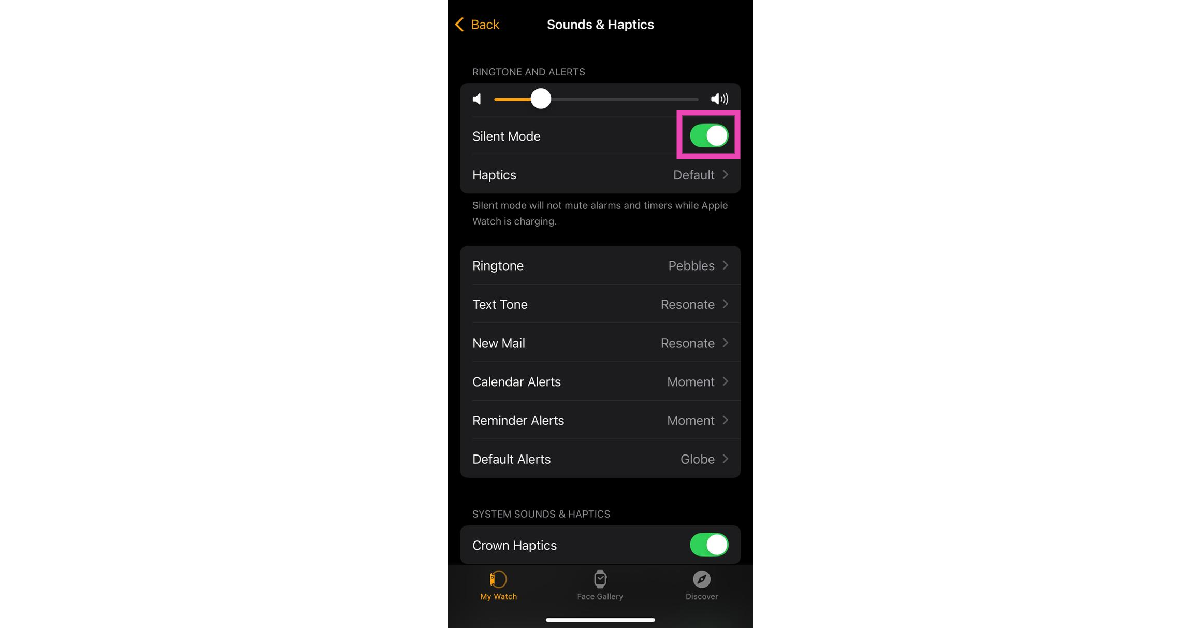
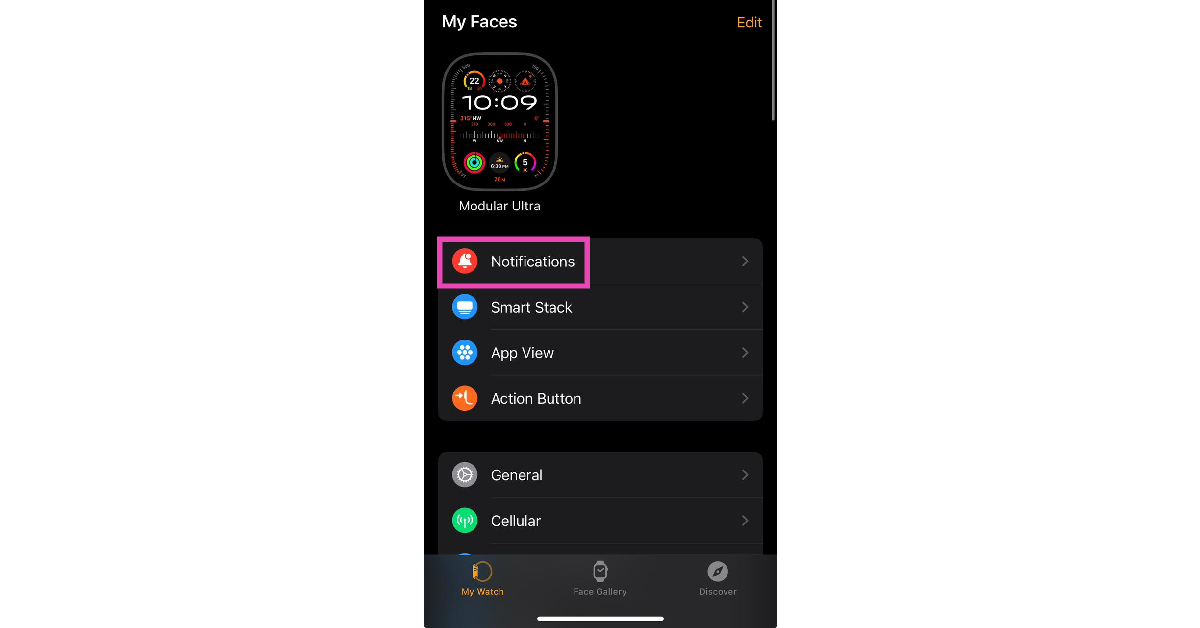
Set your Apple Watch to Vibrate Only using your iPhone

Step 1: Launch the Watch app on your iPhone. Make sure your smartwatch and smartphone are connected. Step 2: Go to Sound & Haptics. Step 2: Tap on Sounds & Haptics. Top 4 Ways to Make Your Apple Watch Vibrate for Notifications Step 3: Turn on the toggle switch next to Silent Mode. Step 3: Turn on the toggle switch next to Silent Mode.

Enable vibrational notifications for a specific app

If turning on Haptic Alerts doesn’t do the trick, here’s how you can individually turn on the vibrational alerts for apps. Step 1: Launch the Watch app on your iPhone. Make sure your smartphone and smartwatch are connected. Step 2: Tap on Notifications. Step 2: Tap on Notifications. Step 3: Select an app. Step 3: Select an app. Step 4: Tap on Custom. Step 4: Tap on Custom. Step 5: Make sure there’s a tick next to Allow Notifications. Step 6: Scroll down and turn on the toggle switch next to Haptic.   Step 5: Make sure there's a tick next to Allow Notifications.
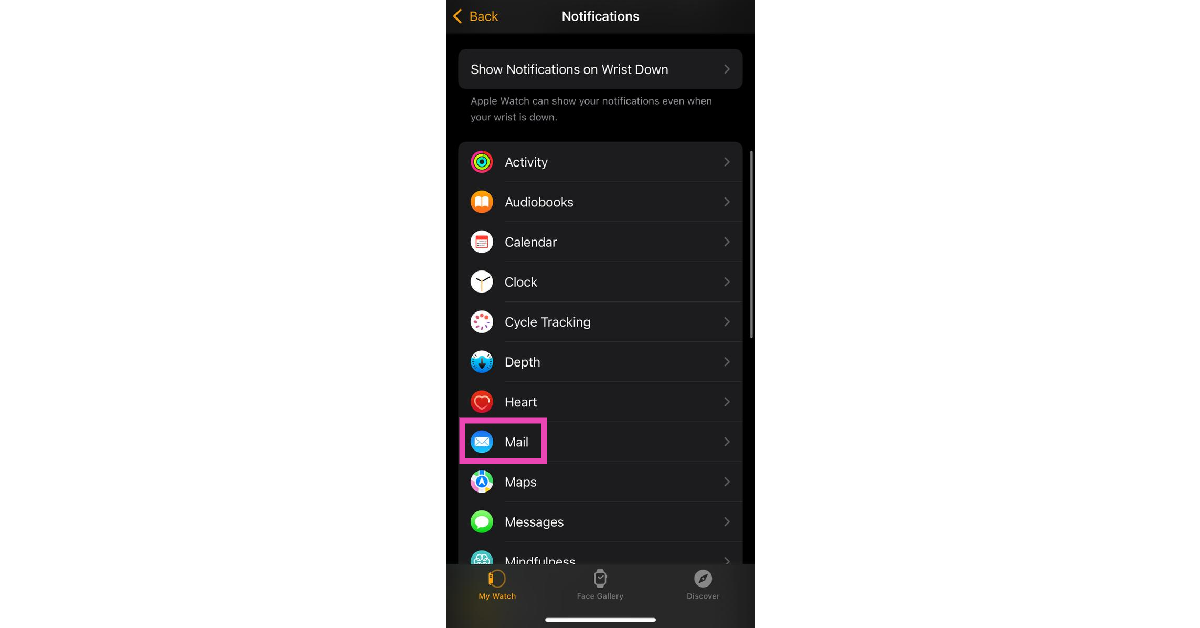
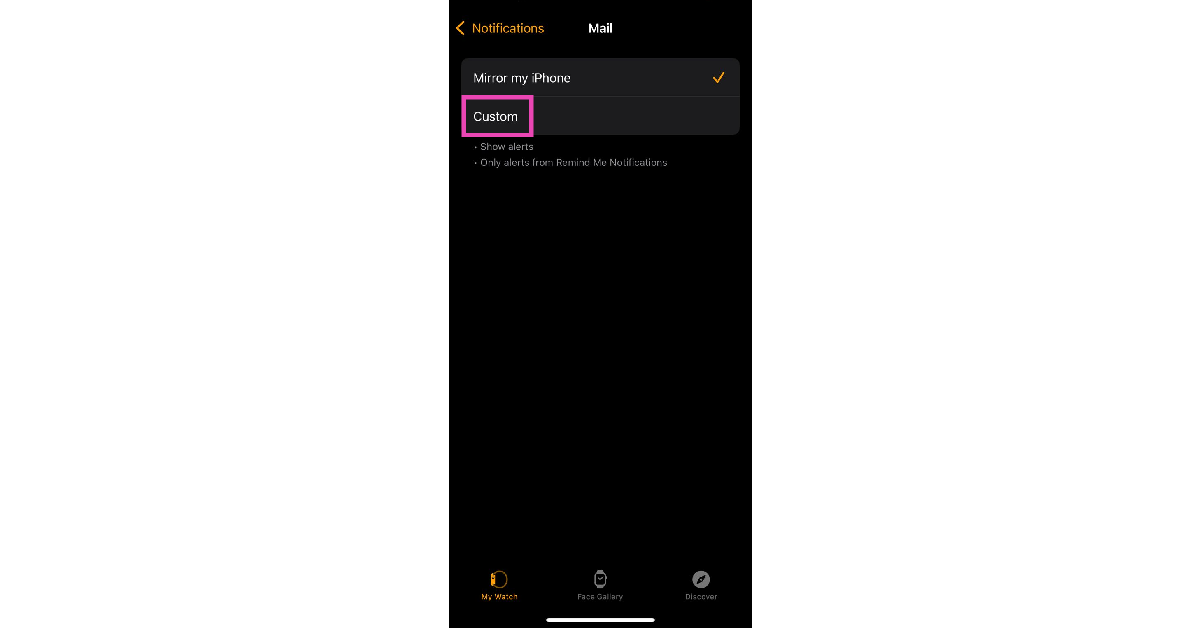
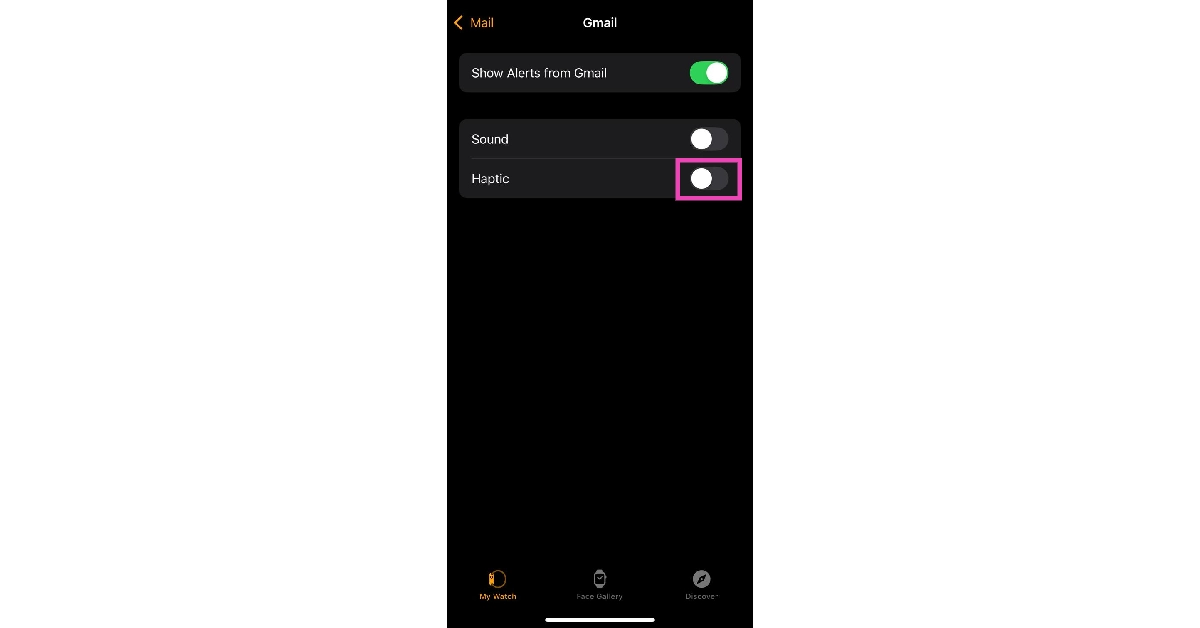
Receive only haptic alerts from a particular app

Step 1: Launch the Watch app on your iPhone. Make sure your smartphone and smartwatch are connected. Step 2: Tap on Notifications. Step 2: Tap on Notifications. Step 3: Select an app. Step 3: Select an app. Step 4: Tap on Custom. Step 4: Tap on Custom. Step 5: Make sure there’s a tick next to Allow Notifications. Step 6: Turn on the toggle switch next to Haptic and turn off the toggle switch next to Sound. Step 6: Scroll down and turn on the toggle switch next to Haptic. 12 Ways to Make Your Apple Watch Vibrate for Notifications
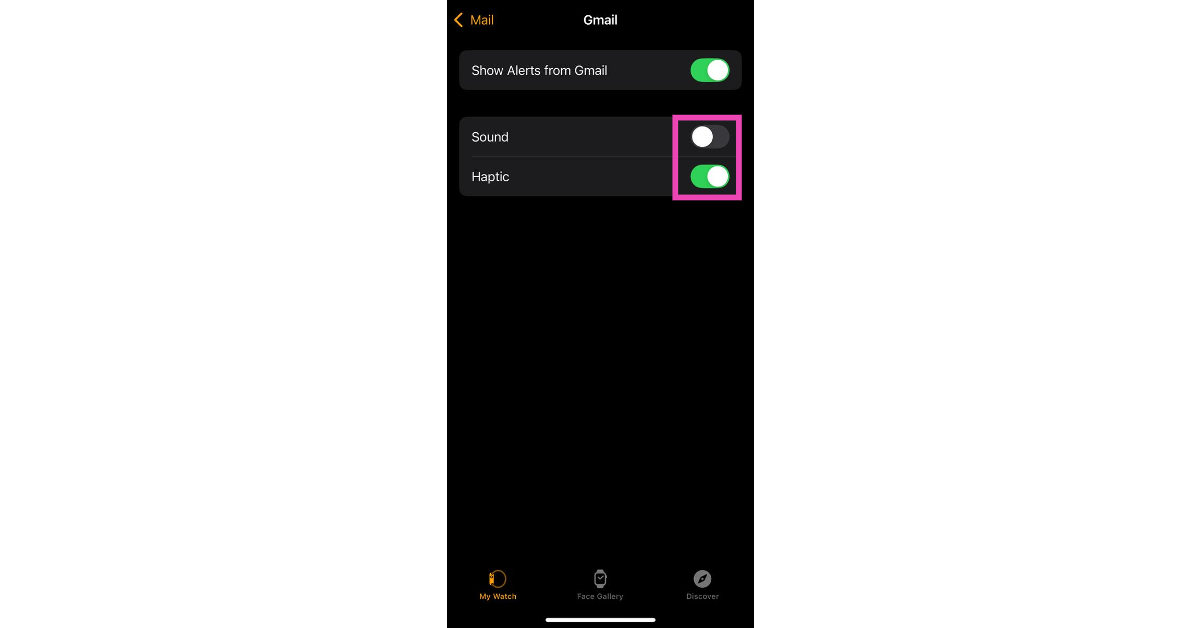
Enable Haptic Alerts for notifications but not for calls

Step 1: Launch the Watch app on your iPhone. Make sure your smartphone and smartwatch are connected. Step 2: Tap on Notifications. Step 2: Tap on Notifications. 12 Ways to Make Your Apple Watch Vibrate for Notifications Step 3: Select the Phone app. Step 3: Select the Phone app. 12 Ways to Make Your Apple Watch Vibrate for Notifications Step 4: Tap on Custom. Step 4: Tap on Custom. 12 Ways to Make Your Apple Watch Vibrate for Notifications Step 5: Turn on the toggle switch next to Sound and turn off the toggle switch next to Haptic. Step 5: Turn on the toggle switch next to Sound and turn off the toggle switch next to Haptic. 12 Ways to Make Your Apple Watch Vibrate for Notifications
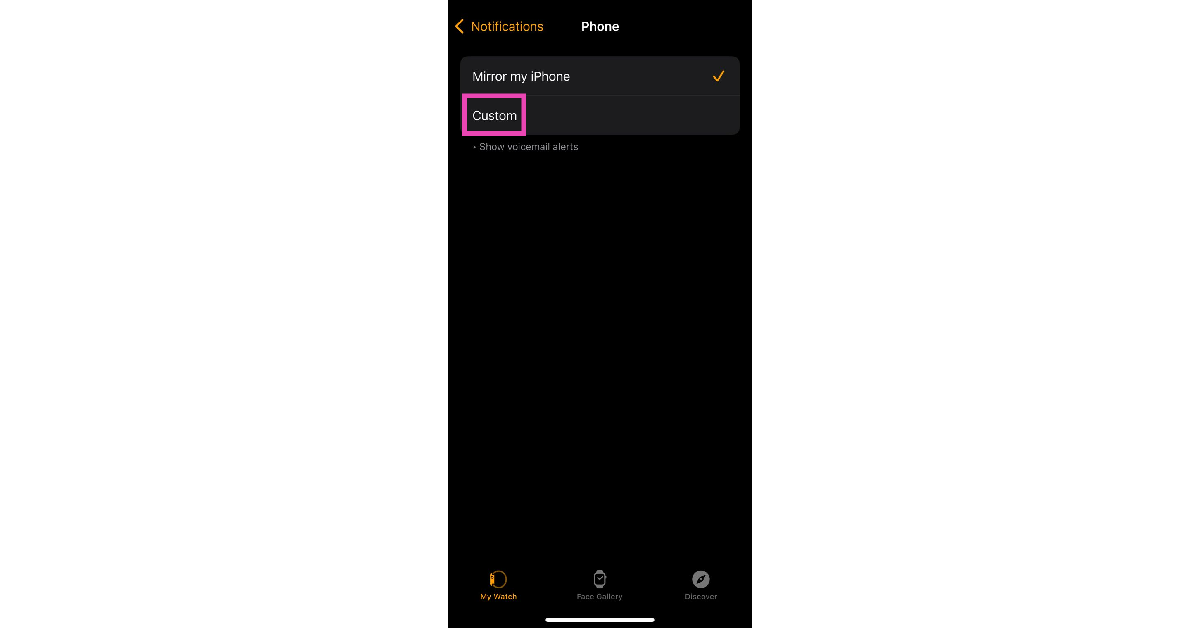
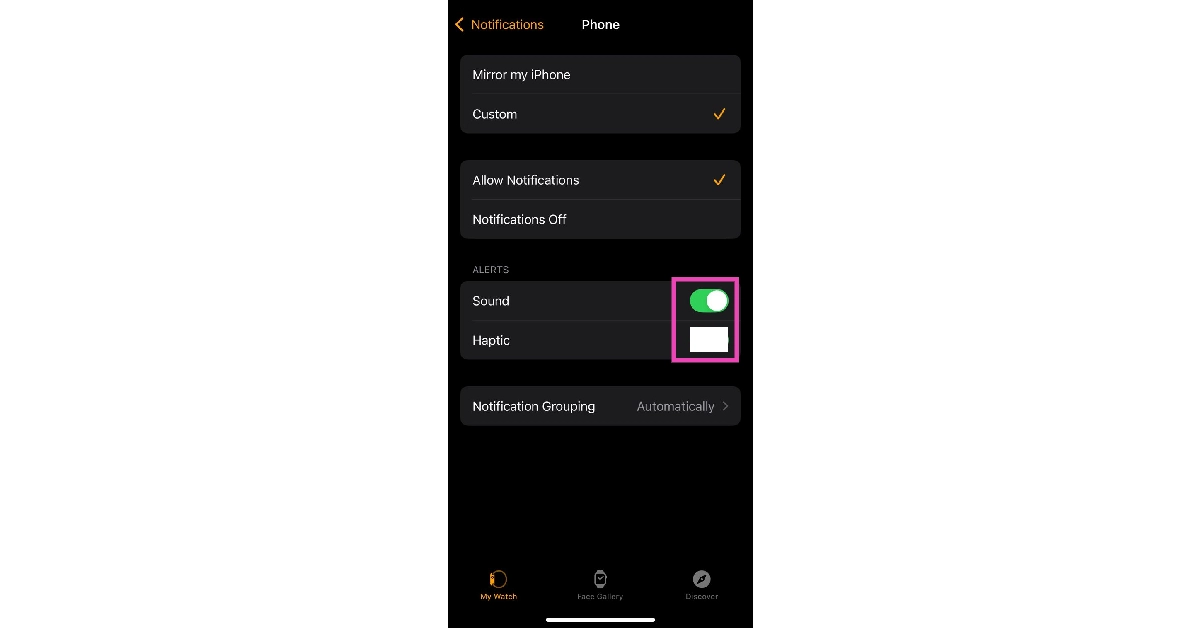
Set periodic vibrational alerts on your Apple Watch

You can get your Apple Watch to vibrate at regular intervals. Here’s how. Step 1: Go to Settings and tap on Accessibility. Step 1: Go to Settings and tap on Accessibility. 12 Ways to Make Your Apple Watch Vibrate for Notifications Step 2: Tap on Chimes. Step 2: Tap on Chimes. 12 Ways to Make Your Apple Watch Vibrate for Notifications Step 3: Turn on the toggle switch next to Chimes. Step 3: Turn on the toggle switch next to Chimes. 12 Ways to Make Your Apple Watch Vibrate for Notifications Step 4: Tap on Schedule. Step 5: Set the frequency for vibrational alerts.
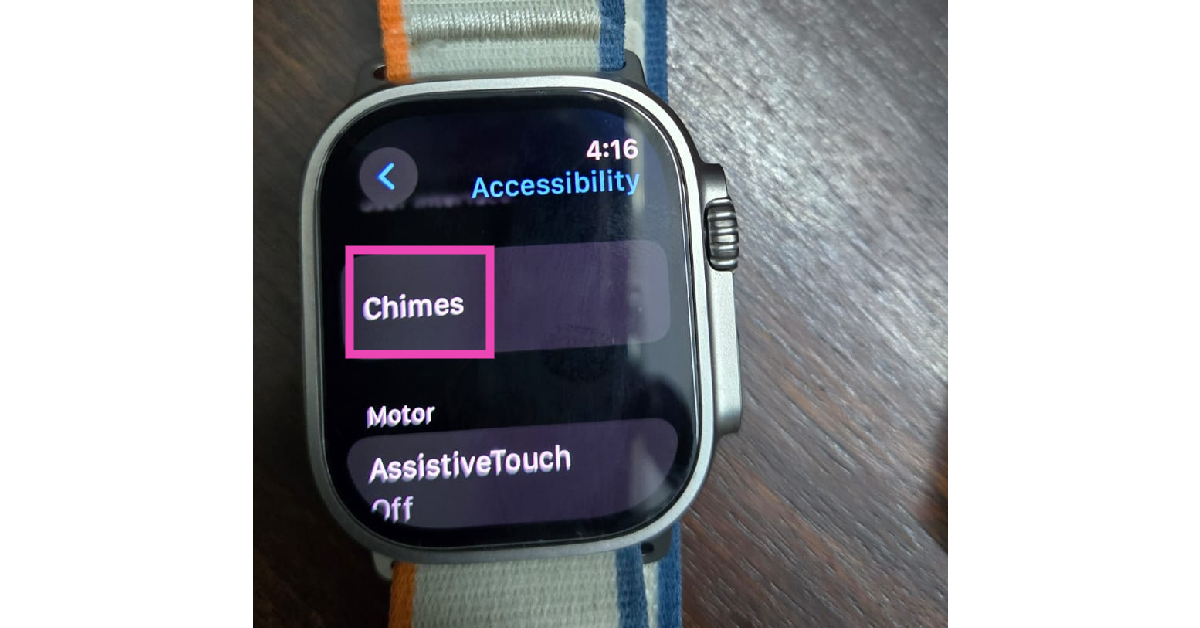
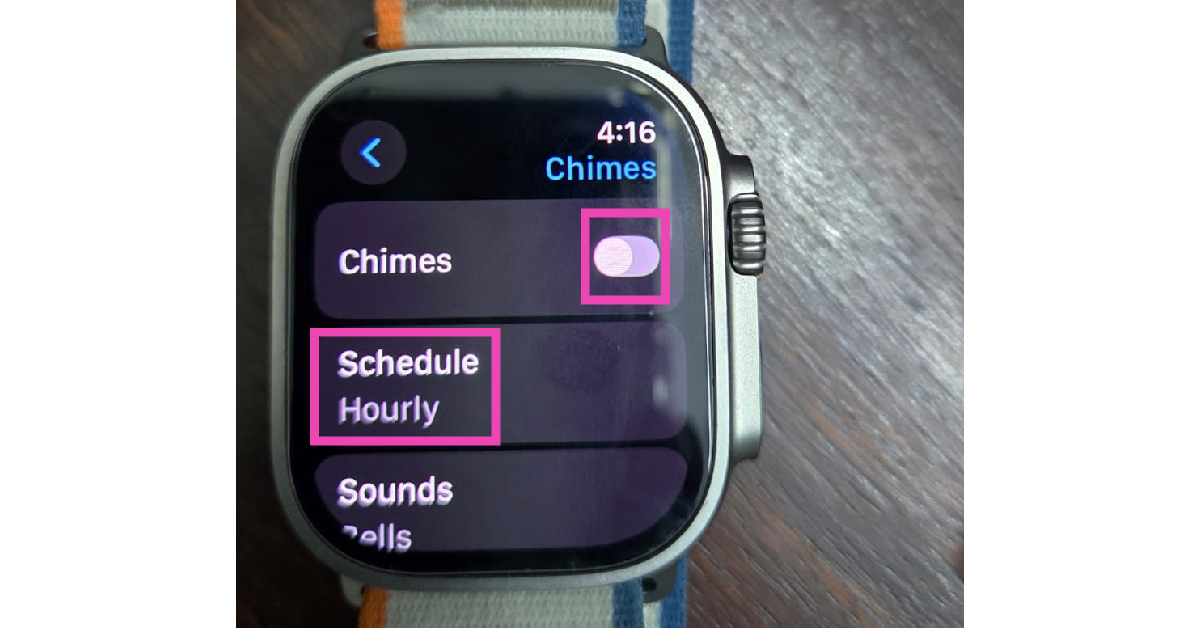
Frequently Asked Questions (FAQs)

How do I turn on the vibrational feedback on my Apple Watch?

Go to Settings>Sound & Haptics and turn on the toggle switch for Haptic Alerts on your Apple Watch.

How do I turn off the vibrational feedback for a particular app on my Apple Watch?

If you don’t want vibrational feedback for the notifications from a particular app, simply launch the Apple Watch app on your iPhone and select the app in question in the Notifications settings. Tap on Custom and turn off the toggle switch for Haptic.

How do I put my Apple Watch on vibrate only?

If you don’t want any sound alerts for your Apple Watch, go to Settings>Sound & Haptics and turn on the toggle switch for Silent Mode. This will not turn off haptic alerts.

Why is my Apple Watch not vibrating?

Your Apple Watch stops vibrating as soon as ‘Haptic Alerts’ are turned off. Go to Settings>Sound & Haptics, and turn on the toggle switch next to System Haptics.

Does the Apple Watch vibrate on calls?

You can set your Apple Watch to vibrate on calls by going to the Watch app on your iPhone, navigating to Notifications>Phone and turning on the toggle switch next to ‘Haptics’. Read Also: Poco M6 Pro 5G Review: One of the best affordable 5G smartphones

Conclusion

These are the top 12 ways to make your Apple Watch vibrate for notifications. If your Apple Watch mirrors your iPhone’s notification settings, the large volume of alerts can get annoying. Go to the Apple Watch app on your iPhone and use the notifications settings to limit the apps that can send you alerts on your Watch.

Itel P55 5G budget smartphone launched in India

The Chinese smartphone company, Itel, owned by Transsion Holding has announced the launch of the latest budget smartphone in the Indian market. The company has introduced Itel P55 5G powered by MediaTek Dimensity 6080 SoC. The device comes with an Android 13 out of the box. It features an HD display and packs a 5,000mAh battery. Keep on reading to know more about the budget phone.

Itel P55 5G price in India, sale details

Itel P55 5G price in India has been set at Rs 9,999 for a single 8GB RAM with 128GB storage option. The budget smartphone by the Chinese tech company will be offered in two colour options of Blue and Green. The device is scheduled to go on sale via Amazon starting October 4. Itel P55 5G price in India, sale details For the consumers purchasing the itel P55 5G from retail, the smartphone is available on Consumer finance options with leading NBFC (Bajaj & Home Credit) and payment aggregators (Pine labs, PayTM and Ezetap).

Itel P55 5G specifications

When it comes to specifications, Itel P55 5G features a 6.6-inch HD+ display with 1600 x 700 pixels of resolution. The screen supports a refresh rate of 90Hz. The budget smartphone operates on Android 13 out of the box. Under the hood, there is an octa-core MediaTek Dimensity 6080 SoC coupled with an ARM Mali-G57 MC2 GPU. The phone comes in a single 8GB of RAM and 128GB of storage. The internal storage can be further expanded to 256GB using a microSD card. For the photos and videos Itel P55 5G sports a dual rear camera setup. The camera system includes a 50-megapixel primary sensor and an AI secondary camera. For taking selfies and video calling the handset consists of an 8-megapixel front-facing sensor. The Itel P55 comes equipped with a 5,000mAh battery along with 18W wired fast charging support. For connectivity 5G, 4G VoLTE, Wi-Fi, Bluetooth 5.1, GPS, a 3.5mm jack and USB Type-C port for charging. In addition to this, there is a side-mounted fingerprint sensor for authentication. Commenting on the launch, CEO, itel India, Mr. Arijeet Talapatra, said, “itel has been at the forefront in driving the digital revolution in Bharat, successfully facilitating seamless transition of customers from 2G to 4G. As India is poised to welcome approximately 150 million 5G users by 2024, flagging off a big digital revolution, we are determined to democratize 5G technology making it accessible and affordable for the masses in Bharat. The itel P55 Power 5G redefines technology supremacy under 10K segment by offering 5G connectivity with NRCA technology, combined with the powerful MediaTek D6080 chipset, creating a perfect synergy of swift connectivity and outstanding performance. With its ground-breaking features, we aim to elevate the smartphone experience for our valued customers,” said Arijeet. For the latest gadget and tech news, and gadget reviews, follow us on TwitterFacebook and Instagram. For newest tech & gadget videos subscribe to our YouTube Channel. You can also stay up to date using the Gadget Bridge Android App. You can find the latest car and bike news here.

How to disable NameDrop or Contact Sharing on iOS 17?

iOS 17 brings a new intuitive method of exchanging contact information with other iPhone users. You may have already seen videos of this new feature doing the rounds on the Internet. While it may seem fun at first, it can get annoying pretty quickly if you own two iPhones. If you’re tired of accidentally triggering NameDrop every time you put your iPhones together, here’s how you can disable the feature on iOS 17. Read Also: Poco M6 Pro 5G Review: One of the best affordable 5G smartphones

What is NameDrop?

What is NameDrop? Making its debut on the new iOS 17, NameDrop is Apple’s new contact-sharing feature. In order to share your contact card with another iPhone user, all you need to do now is bring the top part of the two iPhones together. When NameDrop is initiated, a special glow animation plays on the two devices. The two users can choose to share their contact information with each other or simply receive the other person’s contact card. While it may seem like sorcery, NameDrop simply makes use of AirDrop to exchange contact information between two devices. While it is a nifty little feature, it can get accidentally triggered when two iPhones are placed together with their top sides facing each other. This can get annoying for people who own more than one iPhone. Luckily, you don’t have to turn off AirDrop entirely to disable NameDrop. If you navigate to your iPhone’s settings, you will find a separate option to put a halt to the NameDrop trigger. At this point, iOS 17 does not have the option to mute the trigger for devices that have already swapped contact information previously. But if you want to disable NameDrop completely, check out how you can go about it below.

Here’s how you can disable NameDrop on iOS 17

Step 1: Go to Settings and select General. Step 1: Go to Settings and select General. Step 2: Tap on AirDrop. Step 2: Tap on AirDrop. How to disable NameDrop or Contact Sharing on iOS 17? Step 3: Turn off the toggle switch for Bringing Devices Together under the ‘Start Sharing By’ section. Step 3: Turn off the toggle switch for Bringing Devices Together under the ‘Start Sharing By’ section. How to disable NameDrop or Contact Sharing on iOS 17?

Frequently Asked Questions (FAQs)

How does NameDrop work on iOS 17?

NameDrop uses AirDrop to share contact information between two iPhones when their top side are brought close to each other.

How do I make a Contact Poster on iOS 17?

To create your Contact Poster on iOS 17, launch the Contacts app and tap on My Card at the top of the screen. Tap on Contact Photo and Poster to set it up.

How do I turn off NameDrop on iOS 17?

To disable NameDrop or Contact Sharing on iOS 17, go to Settings>General>AirDrop and turn off the toggle switch for Bringing Devices Together. Read Also: Top 3 ways to hide a chat on Telegram for Android, iOS, and Desktop

Conclusion 

This is how you can disable NameDrop or Contact Sharing on iOS 17. When sharing your contact information through NameDrop, you can choose which details you want to send to the other person from the sharing window itself. For NameDrop to work, you and the recipient must be signed into iCloud. Check out this article to learn more about other iOS 17 features! For the latest gadget and tech news, and gadget reviews, follow us on Twitter, Facebook and Instagram. For newest tech & gadget videos subscribe to our YouTube Channel. You can also stay up to date using the Gadget Bridge Android App. You can find the latest car and bike news here.