Windows 10 is a highly robust operating system. However, it may still face issues like a file system corruption that may be caused by several reasons. These include power loss, unsafe removal of a drive, or system crash.
System Restore is a process that is opted to restore the file system to a previous snapshot and thus, prevent data loss. When data corruption or an installation failure occurs, the System Restore command takes the file system to a previously saved state so that you do not need to reinstall the Windows again.
When does System Restore become necessary?
The System Restore command is useful when a computer virus damages your system’s file system. When the file system gets corrupted, you face issues in accessing your files and folders. The System Restore feature reinstates a previous image of the file system. Modern malicious programs like Ransomware block the Safe mode. As a result, you cannot restore your file system from the Control Panel. The only way left is to use the Command Prompt.
How to run the System Restore command using the Command Prompt?
The System Restore command works the same across different Windows versions including Windows 10, Windows 8, and Windows 7. To execute the System Restore using the Command Prompt, follow these steps.
Go to the Start Menu and search for Command Prompt. Launch the App. Alternatively, press the Windows + R key combination. Type ‘cmd’ and hit Enter.
Launch the Command Prompt
Type the command: rstrui.exe
Press Enter to open the System Restore wizard. It must be noted that some versions of Windows may not demand you to add the suffix ‘.exe’ in the command.
Type the command: rstrui.exe and hit Enter
Follow the on-screen instructions to navigate through the System Restore process.
What you must know about rstrui.exe?
The rstrui.exe is located in the folder with path, C:\Windows\System32\rstrui.exe. This tool is present by default in your Windows operating system. However, you must beware of files with a similar name. Since system restoration is a widely opted task, several malicious programs are being created with a similar name. Thus, if your find any file named rstrui.exe, don’t run it as it can be a computer virus. To prevent fake files, ensure that your anti-virus is updated.
For the latest gadget and tech news, and gadget reviews, follow us on Twitter, Facebook and Instagram. For newest tech & gadget videos subscribe to our YouTube Channel. You can also stay up to date with the Gadget Bridge Android App.
Last year Google rolled out AI features for its Google Photos app, which includes allowing users to search for text within the photos as well as screenshots. The Google Lens feature permits the user to copy the text that appears in the photos and paste that text onto a document or a note also known as OCR. Now in a new development, the search giant is extending this feature for Google Photos on desktop Web browsers. According to a report by 9to5Google the tech major is now making Google Lens available for Google Photos on desktop Web browsers. This will allow users to use the feature to copy the text in the images or screenshots and further paste it into a document or a note file. The functionality used in optical character recognition (OCR) is capable of copying text from any image. The option to copy the text from the image will appear on the left along with other options such as share, edit, zoom and others. Once you find the photo you’re looking for, click the Lens button to easily copy and paste the text. Earlier this feature was available for the mobile-based app version on Android and iOS both, but now the AI-powered Lens camera identifies the context of a picture. The functionality is now widely rolled out to the desktop web inside Google Photos, too. As per the publisher, the AI feature does not help people explore their images and memories. When you open an image including words will show up a “Copy text from image” suggestion chip that features the Lens logo as well as the remove button. Tapping on it will enable the Google Lens with the same analysis animation of pulsating dots appearing over the picture for a brief second. Moreover, you can also “Deselect text” from the top-right corner in order to just highlight specific passages and copy with a floating button over the image.Whereas for the mobile platform, you need to tap on the search bar and type the text that you are searching for. For instance, you are looking for a photo that you took some time ago of a name card. All you have to do is type the name in the search bar.When doing so Google will show up the text found within the image then tap on it. Then you need to tap on the Google lens button placed at the bottom of the screen. Now whatever you have searched will appear in a text highlighted in the photo or the screenshot. Tap on the text that you searched, copy the text and paste it on the document or a note or either on the web browser.
For the latest gadget and tech news, and gadget reviews, follow us on Twitter, Facebook and Instagram. For newest tech & gadget videos subscribe to our YouTube Channel. You can also stay up to date using the Gadget Bridge Android App
Mozilla Corporation, a free software community, recently announced that its free and open-source web browser, Firefox will cease to support the Amazon Echo Fire TV and the Echo Show devices starting from April 30, 2021.
According to Mozilla Corporation, “If you have Firefox set as your default browser on Echo Show, you will be redirected to Amazon Silk for web browsing starting April 30, 2021″.
Why does Mozilla want to end its support to the Amazon Fire TV?
Mozilla released its support to the Amazon Fire TV in the backdrop of delisting of YouTuube from all Amazon devices in 2017. Google had stated that the decision was based on the “lack of reciprocity.”
At the time, a spokesperson of Google had said, “Amazon doesn’t carry Google products like Chromecast and Google Home, doesn’t make Prime Video available for Google Cast users, and last month stopped selling some of Nest’s latest products.”
Why does Mozilla want to end its support to the Amazon Fire TV?
As soon as YouTube was pulled down from all Amazon devices, the users began to stream YouTube videos through the Mozilla Firefox browser. However, in 2019, YouTube was brought back to the Fire TV. This led to the decline in the usage of Firefox as the users can directly access YouTube.
What changes will be observed by the Amazon Fire TV users?
Several users of the Amazon Fire TV have received notifications regarding the Firefox browser. According to Amazon, after the end of the support, the Firefox app will be deleted from the Amazon Appstore. As a result, users using the Fire TV will not be able to install Firefox. Moreover, the users no longer receive updates regarding the application.
What changes will be observed by the Amazon Fire TV users?Buy Fire TV Stick on Amazon
It must be noted that YouTube is still not available on Echo devices. After the Mozilla Firefox ceases to exist on the Echo devices, the users will have to use the Silk browser to watch content on YouTube. Silk is a web browser designed by Amazon and was released in 2011 on Kindle Fire and Fire Phone. The Fire TV version of the app was launched in 2017. To access the app, users just need to say, “Alexa, open Silk”.
For the latest gadget and tech news, and gadget reviews, follow us on Twitter, Facebook and Instagram. For newest tech & gadget videos subscribe to our YouTube Channel. You can also stay up to date with the Gadget Bridge Android App.
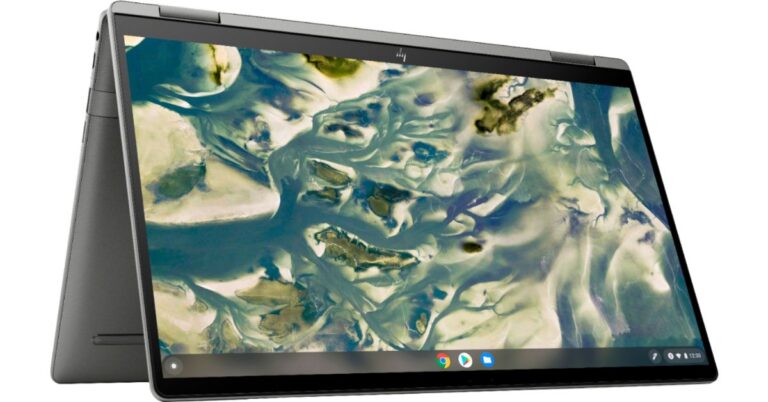
HP Chromebook x360 14c (2021) has been updated with new Intel processors. The latest version comes with a convertible design featuring a full HD screen with Corning’s Gorilla Glass 5 protection. In addition to this, it includes a 720p HD webcam with a cover for privacy and a fingerprint reader. To recall, the convertible laptop is an upgraded version of the model that was launched last year which had the 10th Generation Intel Core i3 processor.HP Chromebook x360 14c (2021) tech specsThe HP Chromebook x360 14c is the premium convertible laptop being offered by the company in the market, which offers more powerful features and the latest processors compared to its predecessor. The laptop is aimed at students and remote workers powered by an 11th-generation Intel Core i3-1115G4 processor clocking at 4.1GHz. It comes with 8GB of DDR4 RAM and 128GB of SSD storage. This HP laptop offers convertibility and features a 14-inch full-HD touch-enabled LED display with 1,920×1,080 pixels. The device is protected with Gorilla Glass 5 layering and the hinges allow it to double up as a tablet.The HP Chromebook x360 14c (2021) runs on Chrome OS. The convertible laptop is USI Pen-enabled for the Pen stylus. There is a 720p HD webcam that comes with a built-in privacy cover. This computer also has a touchpad with multitouch gesture support. In addition to this, it includes a fingerprint sensor and a backlit keyboard. Backed by a 3-cell, 58Wh lithium-ion polymer battery the HP Chromebook x360 14c (2021) supports 45W charging. The charger is claimed to charge from 0 to 50% in about 45 minutes. While the battery life has worsened from 13.5 hours, which last year’s model delivered, to 10.5 hours in this model. However, the company has also included it with dual speakers fine-tuned by Bang & Olufsen. For connectivity, it includes USB 2.0 port and two USB Type-C ports, WiFi and Bluetooth.HP Chromebook x360 14c (2021) price and availabilityHP Chromebook x360 14c comes with a starting price of $649.99 that translates to Rs 48,600. The HP convertible laptop has been listed on an online retailer’s website while the company is yet to announce sale details of the device. When it goes on sale in the US it will be available via HP official website or via Best Buy. This premium laptop will come with a configuration of up to a Core i5 processor with 256GB of PCIe SSD storage.
For the latest gadget and tech news, and gadget reviews, follow us on Twitter, Facebook and Instagram. For newest tech & gadget videos subscribe to our YouTube Channel. You can also stay up to date using the Gadget Bridge Android App
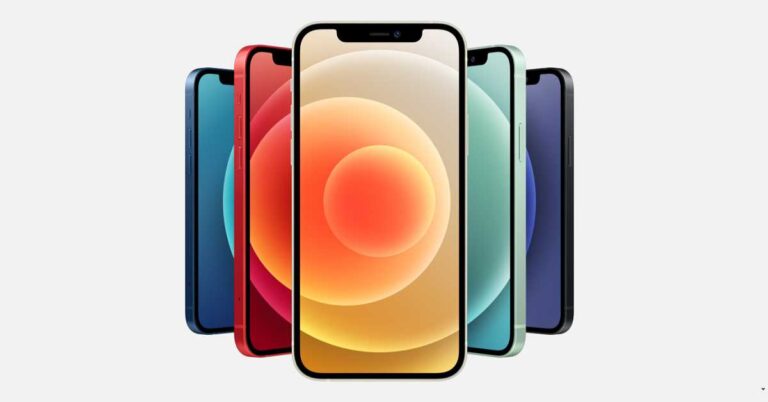
Rumours are rife regarding the upcoming iPhone have started to surface as Apple’s launch event is approaching. In the past eight years, the 2020 launch event was the only one without an iPhone. As a result, the speculations regarding the launch of the iPhone 13 may turn into reality.
What are the rumoured features of the iPhone 13?
Design
The design of the iPhone 13 is rumoured to be like that of its predecessor. Moreover, the company may release the smartphone in the same size variants as the iPhone 12. The notch is a peculiar feature of the iPhone. However, in the upcoming smartphone, we may find a much thinner notch.
Display
Apple iPhone 13 may get an always-on display as we find in the Apple Watch. It may always display the time and the remaining battery percentage, and notifications. The smartphone may feature a 120Hz display that would enhance the scrolling and gaming experiences. The display may be designed with LTPO technology to consume minimum power.
Camera
The zoom feature of the iPhone 12 was a major drawback as compared to other premium smartphones like the Samsung S21 Ultra. The iPhone 12 offers an optical zoom of only 2.5x while the latter provides a zooming capability of up to 100x. The iPhone 12 may get an enhanced zoom feature. Moreover, the company is rumoured to be working on an ultrawide-angle lens with a larger aperture.
Touch ID
Touch ID used to be a renowned feature of the iPhone. However, Apple’s iPhone 11, iPhone 12, iPhone 12 Pro and iPhone 12 Pro Max feature the Face ID and not the Touch ID. Rumours suggest that the iPhone 13 may get an under-display touch sensor. This will serve as an alternate ID to the FaceID.
What are the rumoured features of the iPhone 13? (Image: iPhone 12)
How soon can we expect the iPhone 13 to arrive?
Apple generally launches its iPhones after a week of its announcement. However, the official announcement regarding the upcoming smartphone is yet to come. The launch of iPhones usually takes place in September. Considering that the launch event takes place on a Tuesday or Wednesday, the iPhone 13 may get released around September 15, 2021.
How much will the iPhone 13 cost?
The price of the iPhone 12 starts at ₹ 67,100 for the Mini version and reaches as high as ₹ 139,900 for the Pro Max version. The iPhone 13 is rumoured to be an improvement over its predecessor. It may just come equipped with features that the iPhone 12 lacked like Touch ID, 120Hz display, and enhanced zoom. Since the iPhone 13 is not expected to be a major upgrade, the price range will not vary much.
For the latest gadget and tech news, and gadget reviews, follow us on Twitter, Facebook and Instagram. For newest tech & gadget videos subscribe to our YouTube Channel. You can also stay up to date with the Gadget Bridge Android App.
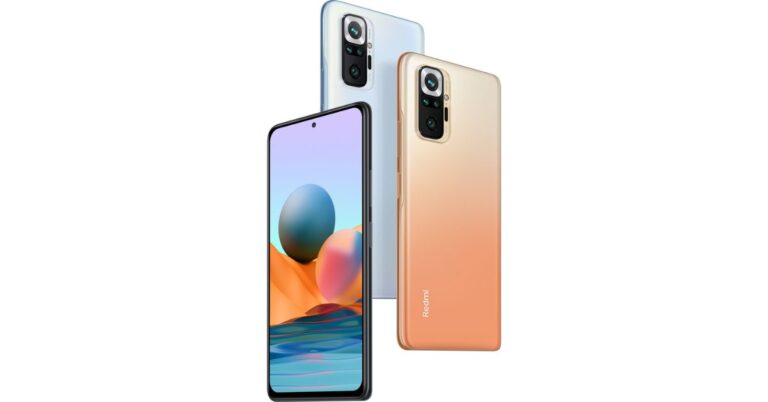
Xiaomi’s Redmi Note 10 Series landed in India last month. Unexpectedly, several users have come across numerous issues related to the performance of the devices. The series includes three devices namely Redmi Note 10, Note 10 Pro and Note 10 Pro Max. The users have recently started reporting issues related to the display. All the devices have reportedly encountered similar issues, while the company acknowledged the problem and promised to look into this matter on top priority.The early users of the Redmi Note 10 series have taken to social media to report touchscreen issues, occasional screen flickering and slowing of handsets. These issues seem to have shown up in all the three models Redmi Note 10, Note 10 Pro and Note 10 Pro Max. Many of the users have complained of Redmi Note 10 have become slow while also encountering some typing issues. On the other hand, several Redmi Note 10 Pro and the standard variant users are complaining online about the touchscreen response, therefore, becoming unresponsive. Over that, a user who recently got his Redmi Note 10 device replaced suggested to have complained about similar touch response issues even after getting his unit replaced with a new device. On repeatedly raising this issue to the service centre he was asked to wait for a further software fix, which is said to arrive in one or two months.Redmi has issued a statement and has also acknowledged the issue but said that only less than 0.001 per cent of users had faced these issues. The company said that “We are aware of the issues that a few users are facing on Redmi Note 10 Pro. These issues have been reported by less than 0.001% of Note 10 series user base. We are working to find a solution at the earliest. As a committed brand, our endeavour is to continue delivering on our consumer expectations. Our devices go through rigorous tests with a 10-point quality check, to ensure that we meet the highest quality standards. We are looking into the matter on top priority and regret the inconvenience caused to our consumers.”Besides touch response and slowing down of handsets the Redmi Note 10 Pro users have also pointed out that they are facing screen flickering when the refresh rate was set to 120Hz. The flickering issue seems to be more prominent in the Pro series as it comes with a 120Hz screen refresh rate. When the users dialled down the refresh rate to 60Hz the flicker issue disappeared. While another user reported that this issue was more noticeable when dark mode is enabled.The company’s spokesperson stated that “Our devices go through rigorous tests with a 10-point quality check, to ensure that we meet the highest quality standards. We are looking into the matter on top priority and regret the inconvenience caused to our consumers,”
Building a gaming PC is like for many people. Although it an exciting task, it requires the skill of distributing your budget among different components. You’ve to ensure the components are compatible with each other and the visual outcome is optimum. We’ve come up with a list of all components that you need to build your gaming PC for under ₹ 1 lakh.
1) Processor: AMD Ryzen 5 3600 Desktop Processor
The processor is the heart and soul of a PC. When it comes to gaming, you have to selective while choosing a processor. The AMD Ryzen 5 3600 provides you with the processing capabilities that you expect from a gaming PC. It comes with 6 cores that can handle 12 threads. You get a base clock speed of 3.6GHz and a max boost clock of up to 4.2GHz. The processor offers 35MP of cache memory and Thermal Design Power (TDP) of 95W.
AMD Ryzen 5 3600 Desktop Processor
Price: ₹ 18,149
Buy on Amazon
2) Motherboard: ASUS TUF B450-Plus Gaming Motherboard
You can’t imagine a PC without a motherboard. A motherboard is like a skeleton that binds together all the components including the processor and the GPU. The ASUS TUF B450-Plus Gaming Motherboard comes with military-grade TUF Components like TUF LAN guard, TUF Capacitors, and TUF MOSFETs for enhanced performance and durability. The motherboard provides firm slots and protection against overvoltage. You also get RGB lighting to uplift the appearance of your gaming setup.
ASUS TUF B450-Plus Gaming Motherboard
Price: ₹ 9,990
Buy on Amazon
The Graphics processing unit (GPU) is a critical component in a gaming PC. The Zotac NVIDIA GAMING GeForce RTX 2060 is designed on the NVIDIA Turing architecture to render realistic graphics. The GeForce RTX platform seamlessly performs complex processing including ray-tracing, DLSS AI Acceleration, and programmable shading. The graphics card comes packed with a GDDR memory and supports the DirectX 12 driver.
ZOTAC NVIDIA GAMING GeForce RTX 2060
Price: ₹31,500
Buy on Flipkart
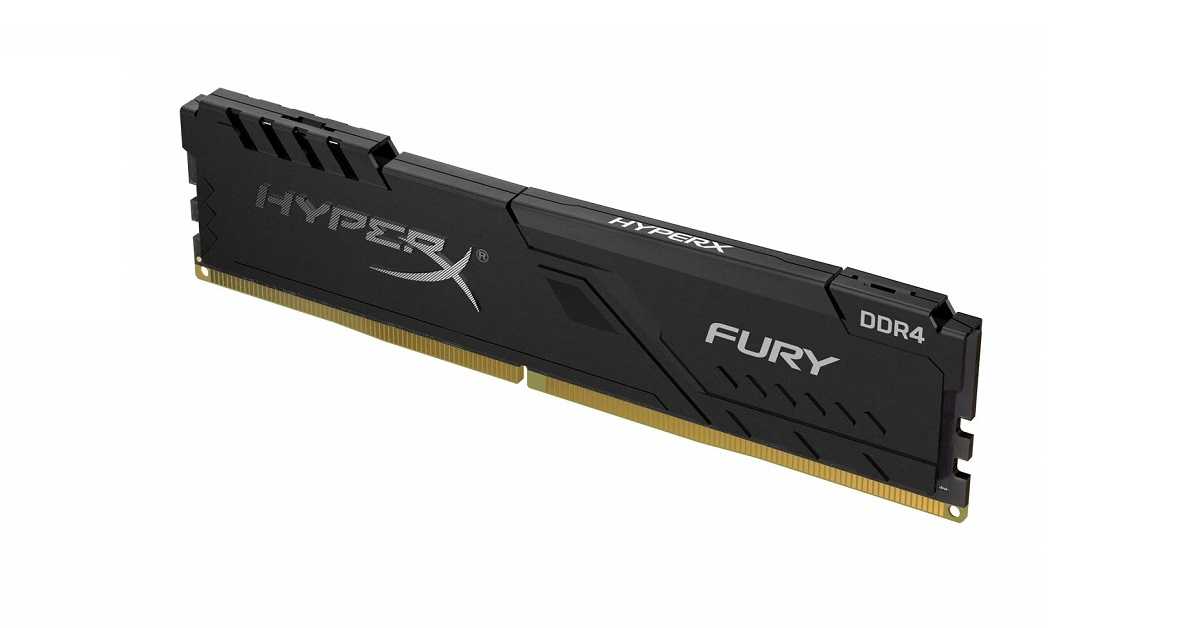
The HyperX FURY DDR4 RAM comes with a Plug N Play capability and can get overclocked up to a frequency of 3466MHz. The Memory fully supports the latest Intel and AMD processors. Besides its elegant appearance, the RAM stays cool owing to its low-profile geat-spreader. It comes tested at different speeds to offer you a lag-free gaming experience. The HyperX Fury RAMs are available in single module capacities ranging from 4GB to 16GB.
HyperX Fury 8GB 3200MHz DDR4 CL16 DIMM 1Rx8 Black XMP Desktop Memory
Price: ₹ 4,508
Buy on Amazon
5) SSD: Crucial BX500 3D NAND SATA 2.5-Inch Internal SSD Solid State Drive
An internal SSD is necessary for the quick loading of video games. The Crucial BX500 internal SSD ensures that your system boots up faster and enhance the overall response time of your system. The memory goes through rigorous testing to offer you a glitch-free gaming experience. You get a 3-year limited warranty and a guide to install the SSD on your PC. It offers a storage capacity of 120GB with 540MB/s read speed and 500MB/s write speed.
Crucial BX500 3D NAND SATA 2.5-Inch Internal SSD Solid State Drive
Price: ₹ 2,000
Buy on Amazon
6) HDD: Seagate Barracuda 1TB Desktop SATA Internal Hard Drive
The internal hard drive from Seagate provides you 1TB of space to keep your data including your video games. For fast data fetching, it provides an I/O transfer rate of up to 600Mbps. The Seagate Barracuda 1TB Desktop SATA Internal Hard Drive is designed using the latest Seagate AcuTrac technology that ensures consistent read-write performance. Moreover, it consumes low power and saves energy when it is idle.
Seagate Barracuda 1TB Desktop SATA Internal Hard Drive
Price: ₹ 2,979
Buy on Amazon
7) Cooler: DEEPCOOL GAMMAXX GTE V2 Black CPU Air Cooler
Gaming is a resource-intensive task and liberates excessive heat. To prevent the motherboard reach burning temperatures, a powerful cooler is necessary. The DEEPCOOL GAMMAXX comes with a 120mm PWM fan that efficiently expels the heat within the cabin. The advanced copper pipes enhance the heat transfer to improve the overall life of the CPU. The fan cooler works without creating noise and has attractive RGB lighting.
DEEPCOOL GAMMAXX GTE V2 Black CPU Air Cooler
Price: ₹ 2,742
Buy on Amazon
8) PC Cabinet: Ant Esports ICE-100TG Mid Tower Gaming Cabinet
The Ant Esports ICE 100 GT comes with a unique design and a black glossy finish to enhance the gaming ambience. The gaming cabinet is designed for hassle-free assembly and disassembly. You get a removable dust filter for PSU housing. For easy installation of the SSD and HDD, the Ant Esports ICE-100TG Mid Tower Gaming Cabinet is equipped with sliders. There is a fully functional interface with I/O features including USB 3.0, speaker, and power.
Ant Esports ICE-100TG Mid Tower Gaming Cabinet
Price: ₹ 2,802
Buy on Amazon
9) Power supply: Ant Esports VS500L Power Supply
A power supply unit (PSU) receives the mains AC power and converts the current to low-voltage regulated DC power. The Ant Esports VS500L consists of a 120mm silent fan that functions without noise and effectively dissipates heat. The power supply is made of high-quality components for stable output. It comes with durable connectors for different components including the motherboard, CPU, and PCI-E.
Power supply: Ant Esports VS500L Power Supply
Price: ₹ 1,889
Buy on Amazon
10) Monitor: Acer KG271 27 inch Full HD TN Panel Gaming Monitor
The quality of a monitor can make or break your gaming experience. The Acer KG271 seamlessly renders the visual data delivered by the CPU. You get a resolution of 1920×11080 pixels with a refresh rate of 75Hz. The screen has a luminance rating of Nits 400 so that you easily view the obstacles in your gameplay. The monitor has a quick response time for a lag-free gaming experience.
Acer KG271 27 inch Full HD TN Panel Gaming Monitor
Price: ₹15,999
Buy on Flipkart
Finding a gaming mouse is always a challenge. A gaming mouse should not just have quick and precise responses, but also it should be comfortable to use. The Razer DeathAdder features a 6,400 DPI optical sensor that offers precise swipes and fast response. The Hyperesponse buttons are programmed independently for seamless control. The ergonomic design ensures a firm grip so that you don’t feel to handle it during marathon gaming sessions.
Razer DeathAdder Essential – Right-Handed Wired Gaming Mouse with 6,400 DPI Optical Sensor
Price: ₹ 1,599
Buy on Amazon
12) Keyboard: Logitech G213 Gaming Keyboard
The Logitech G213 is a high-performance gaming keyboard that offers up to 4x faster click responses. It comes with individual lighting zones that offer a spectrum of up to 16.8 million colours. Each key is crafted to deliver a tactile experience and the anti-ghosting gaming matrix ensures optimal gaming performance. The device is spill-proof so that you can have refreshments while you’re indulged in gameplay.
Logitech G213 Gaming Keyboard
Price: ₹ 3,495
Buy on Amazon
What is the total cost of the gaming PC?
Summing up all the prices of all the above components, the total cost of your gaming PC would be ₹97,652. The remaining money in your budget can be utilised to buy the tools needed to assemble a PC like a screwdriver, anti-static wrist strap and cables.
What games can you run on this PC?
The gaming PC has a GeForce RTX 2060 graphics card with supported components. As a result, you can run all PC games that require up to DirectX 12 driver. Considering 1080p resolution, the maximum achieved frame rates for various games are given below.
The e-commerce website Flipkart is hosting Daily Trivia Quiz. Every day it brings a bunch of new questions for its users. By answering them correctly you can win exciting prizes. The questionnaire is based on questions related to general knowledge. Also, the users can win free vouchers and super coins, among other offers via the daily quiz. April 12 Flipkart Daily Trivia Quiz Answers has already gone live on its platform.
The participant should be at least 18 years old and should have a valid login ID. The Quiz is available on the mobile platform and not the web version. E-commerce conducts the quiz on daily basis and goes live at 12:00 AM IST and runs till 11:59 PM IST. The winners are announced within 15 days from the date of participation that can be viewed under the Gems/Rewards section in the app.
How to participate in the Flipkart Daily Trivia Quiz
To participate download the Flipkart app on your phone. Then open the Flipkart app then head to Game Zone. Now click on the Daily Trivia Banner or search for Daily Trivia. Enter the game and answer all 5 questions with correct answers.
April 12 Flipkart Daily Trivia Quiz Answers
Question 1: The inaugural match of IPL 2021 was played in which city?
Answer: Chennai
Question 2: Who hit the longest six (106 m) in the IPL 2020 season?
Answer: Nicholas Pooran
Question 3: Who among these took a hat trick in the IPL 2020 season?
Answer: No One
Question 4: For the 2021 season, Cheteshwar Pujara was bought by CSK for his base price of
Answer: 50 Lakhs
Question 5: Identify this Rajasthan Royals player.
Answer: Rahul Tewatia
Get ready to answer a new set of questions as the April 12 Amazon Quiz is live on its platform. The e-commerce platform brings a daily quiz on its mobile platform, which every day gives chance to millions of people across the country to win exciting prizes. The quiz goes live at 8 AM and runs till 12 noon. Today’s Amazon Quiz prize is Rs 10,000.
By participating in Amazon Quiz every day you can stand a chance to win prizes such as iPhone X, iPhone Xs, Seagate HDD, GoPro Hero 8 Camera, LG Smartphones, Samsung Galaxy S20, Air Purifier, Oppo smartphones, Amazon Pay Balance among others. Every day Amazon brings a fresh new quiz on its app, here we would like to mention that the quiz is not available for desktop users, only app users can participate in the daily quiz.
The company puts 5 questions based on general knowledge and current affairs to which the contestants have to answer all the questions correctly. A wrong answer will eliminate you from the quiz. After giving correct answers to all the questions, your name will get further selected for a lucky draw. The results of the lucky draw will be announced at the end of the month. So today’s quiz winner’s name will be declared at the end of the month. We have updated today’s five questions with their correct answers below so that you can win Amazon Quiz and get Rs 10,000.
April 12 Amazon Quiz Answers
Question 1: According to the Hurun Global Rich List 2021, which country leads with the most number of billionaires at 1058?The answer is- China
Question 2: Hosting nearly 62,000 people, the Al Hol camp is one of the largest refugee camps in which conflict ridden country?
The answer is- Syria
Question 3: Which is the first dedicated commercial mission of NewSpace India Limited?
The answer is- Amazonia-1
Question 4: This is a cosplay of a DC character, named what?
The answer is- Diana
Question 5: Which technology company produces this product?
The answer is- Microsoft
There are several methods to run Android on your PC like using an Android emulator. An Android emulator runs inside your primary operating system. You can also install Android independently of your primary operating system i.e. Windows. If you like playing Android games, you can enjoy them on your PC using Google Play Games. Today, we bring you the top 3 ways to run Android apps on your Windows PC without using an emulator.
Read Also:Poco F6 5G will be the first smartphone to debut in India with Qualcomm Snapdragon 8S Gen 3
Why would you need to install Android on your PC?
Although, a majority of developers release cross-platform applications. Still, there are several apps that are specifically designed to run on a specific platform like Android or iOS. Installing Android on your PC enables you to enjoy Android-exclusive games including The Room Series, Summer Catchers, and Ordia.
What Is Phoenix OS?
Phoenix OS is an Android 7-based operating system that can be installed on your PC alongside your Windows operating system. You can also install the Phoenix OS on a USB flash drive to run it on any computer.
How to Install the Android Phoenix operating system on your PC?
To Install the Android Phoenix operating system on your PC, follow these steps.
Go to your Downloads folder and launch the Phoenix OS installer.
In the installation window, choose the Make U-Disk option if you wish to install the Phoenix OS on a USB drive.
To install the Phoenix OS directly on your PC, choose the desired drive and click Next.
Assign the desired space to the Phoenix OS. The more storage space you reserve, the more Android apps you can install on it.
Click the install button and wait for the setup to complete the process.
As soon as the Phoenix OS is installed on your PC, you’ll be prompted to disable secure boot.
How to Install the Android Phoenix operating system on your PC? (Image Source: FileHorse.com)
How to run Android apps on the Phoenix OS?
To run Android apps on the Phoenix OS, follow these steps.
Reboot your PC and on the start-up, choose to load the Phoenix OS.
If you’re running the Phoenix OS on a laptop, you may need to connect an external mouse as the operating system is not compatible will all the trackpads.
By default, the Play Store comes pre-installed in the Phoenix OS. Thus, you can directly install apps. Moreover, you can sideload the application through APK files.
Use the Microsoft Store
A lot of Android apps are available for Windows PCs on the Microsoft Store. Almost every major instant messaging app (like WhatsApp, Telegram, Snapchat, Line, and more) has a Windows client as well. Games like Candy Crush and Minecraft can be downloaded from the Microsoft Store as well. If you only want to use a handful of apps on your PC, downloading them from the Microsoft Store may be a better option than using Phoenix OS.
Use Google Play Games
Android gamers who prefer playing their favourite titles on the big screen using PC controls need to check out Google Play Games for PC. Currently in the Beta stage, Google Play Games is available for users in Australia, India, Thailand and other countries. Not only can you play your favourite Android games on PC but you can also sync your progress across all your devices. You can find games like Call of Dragon, CookieRun, Dragon Mania Legends, eFootball, Evony, and more on this platform.
Frequently Asked Questions (FAQs)
How do I use Android Apps on my Windows PC without downloading an emulator?
You can use Phoenix OS to run Android apps on your PC or download their Windows counterparts from the Microsoft Store.
Can I play Android games on my Windows PC without using an emulator?
Yes, you can play Android games on your Windows PC by downloading them from Google Play Games.
These are the top 3 ways to run Android apps on your Windows PC without using an emulator. If you want to play old SNES games on your iPhone, this article will guide you through the process. If you found this article helpful, let us know in the comments!
















 A lot of Android apps are available for Windows PCs on the Microsoft Store. Almost every major instant messaging app (like WhatsApp, Telegram, Snapchat, Line, and more) has a Windows client as well. Games like Candy Crush and Minecraft can be downloaded from the Microsoft Store as well. If you only want to use a handful of apps on your PC, downloading them from the Microsoft Store may be a better option than using Phoenix OS.
 Android gamers who prefer playing their favourite titles on the big screen using PC controls need to check out