OnePlus Pad review: The Android tablet we’ve all been waiting for!

Android users have been longing for an exceptional tablet for quite some time now. Sure, you’ve got the Samsung S8 with its high-end display and powerful specs, but you also have to break the bank for it. And while brands like Lenovo and Xiaomi have put out some decent tablets in recent years, neither of them has been able to put a dent in the hold that the iPad has over this segment. Right when it seemed that the tablet game might be slipping away from Android, OnePlus (which has been on a bit of a comeback spree lately) announced its arrival on the scene. There are a lot of things to like about the OnePlus Pad. We’d go so far as to say that it has all the makings of a classic OnePlus product of the yesteryears. The Pad offers delightful flagship specs at a very competitive price. You can get it for as low as Rs 37,999 for the 8GB RAM + 128GB storage variant, while the 12GB + 256GB variant will fetch you Rs 39,999. We’ve been using the latter variant of this tablet for the last two weeks, let’s take a deep dive into our OnePlus Pad review. Read Also: iQoo Neo 7 Pro India launch could happen by the end of June

OnePlus Pad review: Design and Display

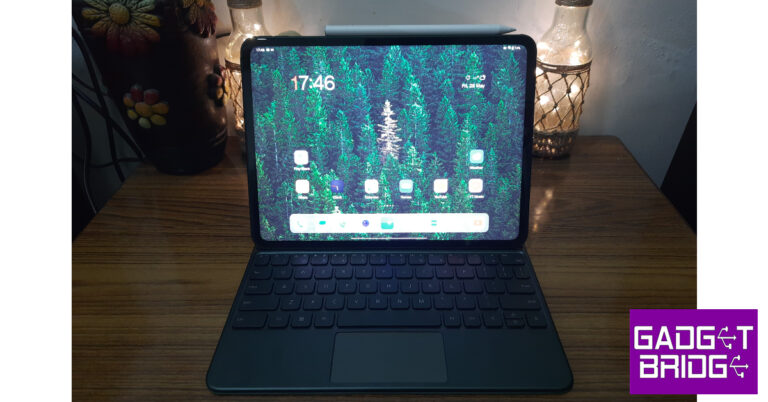
Pulling the OnePlus Pad out of its packaging, you will immediately notice its unique 7:5 aspect ratio. The tablet is designed to be used primarily in landscape mode but you will not find any discomfort while using it in portrait orientation. It sports a sleek design with rounded curves and edges. The aluminium frame holding everything together offers a nice in-hand feel. Upon further inspection, you will notice the radial design pattern that sprouts from the camera unit on the back panel. This panel has a metal finish and can attract some smudges and fingerprints upon extended use. OnePlus Pad review: Design and Display There’s only one colour option on offer – Halo Green. OnePlus offers the same colour on its flagship smartphone as well. While a black colour option would have been nice, the green is inoffensive and doesn’t take anything away from the overall looks of this device. The camera unit at the back is circular – another design element that it shares with its smartphone counterpart. It is a smart decision to have a uniform design language for your flagship smartphone and tablet, the two devices look pretty cool when placed side by side. When holding the tablet in a landscape position, the volume rocker and microphone fall on the top edge. On the right end of this edge is a small magnetic strip to rest the pen (or as OnePlus calls it, the Stylo) for charging. The quad speakers have been placed in pairs on the side edges. The USB-Type C is positioned right in the middle of the speakers on the right edge. The power button has been placed at the top of the left edge, close to the volume rocker. At the bottom edge lie the magnetic pins that connect the tablet to the keyboard folio case. There is no SIM slot on this tablet and neither does it come with expandable storage. You will have to rely on a WiFi connection to use the internet on the Pad.
Landscape vs Portrait
The OnePlus Pad uses an 11.6-inch IPS LCD display with HDR10+ support and a maximum refresh rate of 144 Hz. Surrounding this display are slim bezels, which are just the right size to nullify any accidental touches when you are holding the tablet with both hands. The 8MP selfie camera is housed in the top bezel. Surprisingly, there is no under-display fingerprint scanner or even a side-mounted sensor on this device. This is definitely not a dealbreaker but you miss the unlocking capability. Nevertheless, you do get face unlock on the Pad. Let’s talk about the display for a moment. While on paper it offers a 144Hz refresh rate, most apps are locked on 60 or 120fps. In our testing, only Google Chrome produced a steady framerate of 144fps. Even OnePlus’ native gallery app operates at 120fps. While watching content, we noticed that Netflix and YouTube were locked at 60fps. Numbers aside, the display panel offers a very good touch response. There are no stutters or lags to be found. We used this tablet for reading ebooks and were satisfied with the clarity of the text and the overall scrolling experience. OnePlus Pad review: Design and Display The real highlight is the content-watching experience. The LCD panel produces punchy colours and well-detailed images. The balanced contrast and versatile dynamic range made for enjoyable and immersive viewing. But what truly takes the experience to the next level is the quad speaker setup. These speakers are powerful enough to fill up a room. The Dolby Atmos surround sound plays its part in producing an enveloping sound. Even with a noisy ceiling fan running on full blast, we never felt the need to reach for our headphones. If you’re looking to buy a tablet for the primary purpose of watching videos on a bigger display, the OnePlus Pad is the device we’d recommend.

OnePlus Pad review: Performance

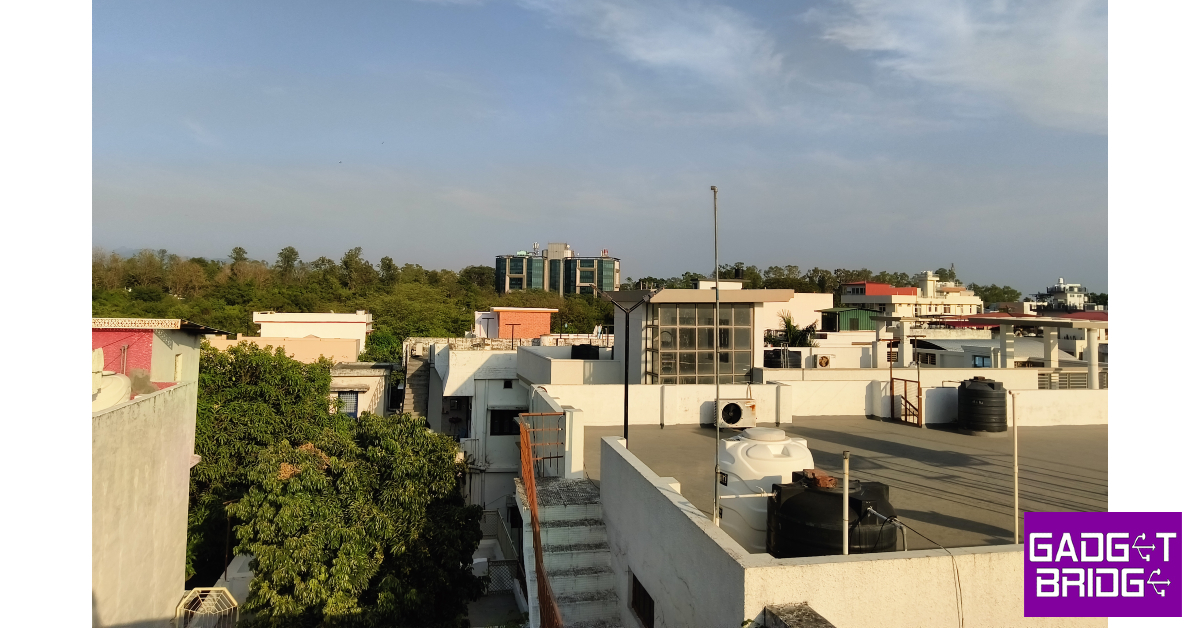
OnePlus’ debut tablet certainly looks the part. But what’s under the hood of the Pad determines whether it can truly hang with Apple and Samsung’s flagship tablets. Powering the Pad is last year’s premium MediaTek Dimensity 9000 SoC. On the Geekbench 6 test, the tablet attained a single-core score of 1,078 points and a multi-core score of 3,191 points. OnePlus Pad review: Performance Everyday tasks like multimedia playback, social media browsing, instant messaging, and video calls are handled expertly by the processor. Even with multiple apps running in the background, the OnePlus Pad does not break a sweat. Kicking things up a notch, we ran multiple apps in split-screen mode and never once felt the need to hit the brakes. Switching over to gaming mode, we played Call of Duty Mobile on maximum graphics settings. Interestingly, the framerate for COD is capped at 60fps when it’s set to maximum graphics and 90fps on low graphics. Luckily, there are no frame drops or stutters during gameplay and the tablet showed minimal signs of heating around the camera bump after 40 minutes. OS duties are handled by Android 13 skinned with OnePlus’ OxygenOS. Good software is necessary to get the most out of the real estate provided by the giant display, and OxygenOS does a decent job here. OnePlus gets the basics right on its debut tablet. The split screen mode, which most people generally ignore on smartphones, finds immense utility here. Android’s Material You theme looks great on a big display and offers a range of customisation options. The tablet’s interface is easy to navigate, and if you are already a OnePlus user, you will have no difficulty settling in. Now, let’s talk about the parts we did not like. There is no taskbar to be found here. This comes as a surprise because Android offers that functionality for tablets. OxygenOS could use a little more optimisation for tablets, it is not all the way there yet. The tile for Mobile Data in the quick settings menu has no business being there on a tablet that does not come with a SIM slot. The ‘Shelf’ for widgets has not been changed to match the aspect ratio of the tablet. It could’ve been a great feature on this tablet if it made proper use of the large display. Also on offer along with the OnePlus Pad are the keyboard and stylus accessories. The keyboard is a part of the folio case for this tablet and snaps onto the magnetic pins at the bottom. There’s a small magnetic strip for the Stylo on the top edge of the device. We have to mention that the magnets on this thing are really strong. You don’t have to worry about the accessories coming off with minimal application of force. Putting on the keyboard folio case on the Pad is very easy. The magnets connect to the bottom edge and around the camera bump. This arrangement limits the tablet to just one viewing angle. The keys offer a nice travel and the overall typing experience is pretty good. We found the keyboard good enough to write emails and respond to messages on WhatsApp. If you have large hands, it may get tiring after a while. The keyboard may be fine for typing and general browsing, but it is several limited when it comes to shortcut availability. This is an Android issue rather than a OnePlus issue. Even Google’s apps aren’t optimised to be used with a keyboard. While browsing the web on Chrome, you have to hard press the trackpad to open a link on a new tab instead of just tapping it with two fingers. These issues are prevalent on other apps as well. OnePlus Pad review: Performance The OnePlus Stylo, on the other hand, is a great accessory overall. It’s fun to play around with, and if you’re an artist you will be able to get the most out of it. The weight on the pen is evenly distributed and it has a flat edge that snaps onto the magnetic strip for charging while also preventing it from rolling off when placed on a desk. One glitch we noticed was that the keyboard stops typing when the Stylo notification pops up on the screen. You can only resume typing once you swipe past the notification. The OnePlus Pad has a 13MP camera at the back and an 8MP selfie camera up front. The rear camera does a good job of taking pictures in well-lit conditions but there’s nothing to write home about. We don’t expect a high-end camera on a tablet, to begin with. The one present on this tab does what is asked of it. It is good to take a couple of casual pictures every now and then. The colours are bright and vibrant, but the finer details are missing. You can also shoot 4K videos at 30fps using this camera. OnePlus Pad review: Performance The 8MP selfie camera is more useful on this device. It covers a wide area and has a nifty auto-tracking feature that centres the moving subject in the frame during video calls. Most video-calling apps like WhatsApp and Google Meets are able to make use of this feature. We were satisfied with the video quality relayed by this selfie camera on WhatsApp calls. OnePlus Pad review: Performance Lastly, the 9,510 mAh battery on this tablet delivers a stellar performance. OnePlus claims that the Pad can last up to 30 days on standby mode. We didn’t use the tablet long enough to test that out, but the battery drain at night never exceeded more than 5%. We were easily able to push the battery life on this tablet for two days. Our tasks included checking emails, an hour of watching videos, a few gaming sessions, social media browsing, and taking the odd video call. You get a 100W charging brick inside the box, which can fast charge the tablet at 67W. It took us almost 90 minutes to fully charge the OnePlus Pad. A good performance considering the massive battery this tablet packs. Read Also: Amazon Fire Max 11 with an 11-inch screen and Alexa support launched
Verdict

The OnePlus Pad is the Android tablet that we’ve been waiting for a long time. At a midrange price of Rs 40,000, the Pad delivers a flagship-grade performance. This is an ideal tablet for watching content and browsing the web. Taking video calls on this device is also a breeze and an overall enjoyable experience. Sure, it can use some improvements on the software end, but let’s not forget this is OnePlus’ debut tablet. We also like that the accessories are ridiculously overpriced (looking at you, Apple). Overall, at this price, this is the Android tablet to beat.

OnePlus Pad review: Pros

  • Great display for watching content
  • The Stylo works smoothly
  • Sleek design
  • Great price

OnePlus Pad review: Cons

  • Very limited keyboard shortcuts
  • OxygenOS needs a little more optimisation for tablets
For the latest gadget and tech news, and gadget reviews, follow us on Twitter, Facebook and Instagram. For newest tech & gadget videos subscribe to our YouTube Channel. You can also stay up to date using the Gadget Bridge Android App. You can find the latest car and bike news here.

Lenovo Tab M9 with 5,100mAh battery launched in India

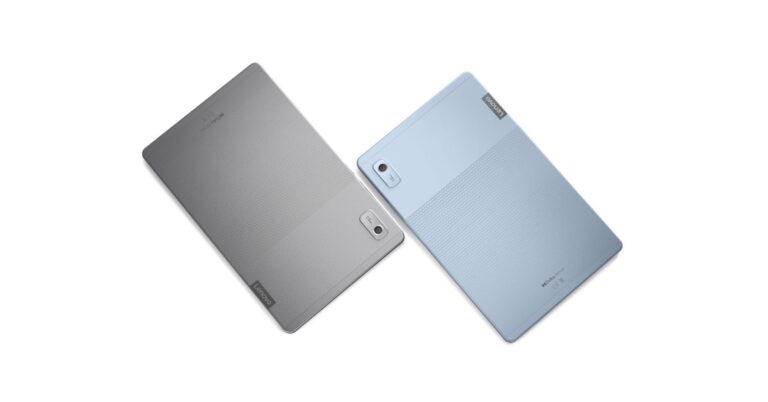
The Chinese tech company Lenovo today introduced its new tablet in the Indian market. The company has launched Lenovo Tab M9. The device is powered by MediaTek Helio G80 SoC. It comes with a 9-inch display and has HD support. In addition to this, the Tablet runs on Android 12 and comes with dual speakers that support Dolby Atmos.

Lenovo Tab M9 price in India and availability

The Lenovo Tab M9 price in India starts at Rs 12,999. The device will be available in a single Frost Blue colour option. The Lenovo Tablet is scheduled to go on sale from June 1 however it is up for pre-orders via Lenovo.com and leading online channels like Amazon.in and Flipkart, and offline retail stores like Reliance Digital and Croma. Lenovo Tab M9 price in India and availability

Lenovo Tab M9 specifications

Lenovo Tab M9 features a 9-inch HD LCD TFT display with 800 X 1,340 pixels of resolution. The screen has 400 nits of peak brightness with Netflix HD support. According to the company the display comes with a Reading Mode and has TÜV Rheinland eye care certification, to help protect the eyes. Taking into account the users’ security needs, the device is secured with a face-unlock feature, allowing for convenient and safe log-ins. The tablet runs on Android 12 out of the box. Under the hood, there is a MediaTek Helio G80 Octa-Core processor and integrated ARM Mali-G52 MC2 GPU. The device is available in two different configurations of 64GB RAM with 32GB storage and 3GB RAM with 32GB storage options. The internal storage can be expanded up to 128GB using a microSD card. For photos and videos, Lenovo Tab M9 includes an 8-megapixel rear camera with autofocus and a 2-megapixel front-facing camera for taking selfies and video calling. The Lenovo tablet further includes a dual speaker optimised with Dolby Atmos. In addition to this, the tab packs a 5,100mAh battery. According to the company it is claimed to provide 13 hours of video playback, 12 hours of web browsing and 15 hours of music playback. In terms of connectivity, there is 4G LTE, Wi-Fi 802.11AC, Bluetooth 5.1, a headphone port, and a USB Type-C port. Sumati Sahgal, Head – Tablets and Smart Devices, Lenovo India said, “At Lenovo, we consistently innovate products that are designed for all the spaces and places in line with the on-the-go lifestyle of today’s consumers. Our new Lenovo Tab M9 is one of the best entry-level Android devices, and it’s the perfect entertainment powerhouse for consumers looking for some downtime away from the stress of work and school. This tablet encapsulates next-generation functionality, reliability, and a satisfying multimedia experience at an incredible value, thus paving the way to a significantly enhanced user experience.” For the latest gadget and tech news, and gadget reviews, follow us on TwitterFacebook and Instagram. For newest tech & gadget videos subscribe to our YouTube Channel. You can also stay up to date using the Gadget Bridge Android App. You can find the latest car and bike news here.

Nothing Phone 2 global launch set for July, more specs revealed

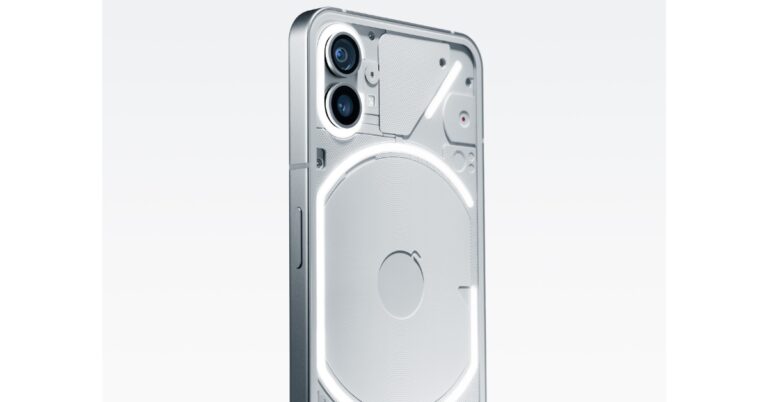
Recently the London-based tech company Nothing confirmed that Nothing Phone 2 is coming this summer. The news is rife, Carl Pei-led Nothing has officially confirmed that its next phone is coming this July. Previously the hardware information was revealed by the firm. It is confirmed that the Nothing Phone 2 will launch in July globally. In an interview, the company’s CEO Carl Pei discussed about the upcoming launch of the smartphone. However, the exact date of the launch still remains a mystery. He further revealed that the Phone 2 will have a longer endurance as it will be backed by a 4,700mAh battery. The battery capacity of the smartphone is on the higher side compared to the Phone 1 which has a 4,500mAh battery. Previously Nothing Phone 2 was revealed to be powered by the Snapdragon 8+ Gen 1 SoC. The device was also spotted listed on Geekbench with the Qualcomm Snapdragon CPU dubbed Taro, which is believed to be Snapdragon 8+ Gen 1 processor. The CPU runs at 3.0GHz, with four efficiency cores running at 1.8GHz and three performance cores running at 2.5GHz. The device also managed to score 1253 and 3833 points in the single-core and multi-core tests of Geekbench 5. As per the listing, the phone has 12GB of RAM and runs Nothing OS 1.5 over Android 13. Also, Nothing Phone 2 also bagged BIS certification. It was listed with model number AIN065. According to the BIS certification site, the device will feature a 120Hz refresh rate FHD+ AMOLED display. The Phone 2 will include a Snapdragon 8+ Gen 1 SoC with up to 12GB RAM and up to 256GB storage, according to the BIS listing. In addition, the device probably runs Nothing OS, which is based on Android 13. A 50-megapixel primary camera with OIS capability could potentially be included.

Nothing Phone 1 specs

The Nothing Phone 1 was the first product of its kind in the market to have a glyph-based interface and a transparent design. This device has a 6.55-inch, 10-bit OLED screen. It has two 50MP cameras on the back: one with a primary Sony IMX766 sensor with OIS and EIS and the other with a Samsung JN1 ultrawide sensor with a 140-degree field of view. A 16MP Sony IMX471 sensor with a 2.45 aperture is located up front. The Snapdragon 778G CPU powers the smartphone. For the latest gadget and tech news, and gadget reviews, follow us on TwitterFacebook and Instagram. For newest tech & gadget videos subscribe to our YouTube Channel. You can also stay up to date using the Gadget Bridge Android App. You can find the latest car and bike news here.

Best Ways to Connect Your Digital Piano to a PC/iPad/Android Device

0
If you’ve just started piano lessons, one of the first things you should learn is how to connect your phone or laptop to your keyboard. There are a lot of fun apps that can speed up the learning process and also carry out a lot of other tasks. A regular USB Type-A connection isn’t sufficient to relay the data from your keyboard to your phone. If you’re looking to play along to your favourite tune with the help of an app, a MIDI or USB Type-B connection between your device and keyboard is absolutely necessary. In this article, we bring you the best ways to connect your digital piano to a PC, iPad, iPhone, or Android device. Read Also: AMD Radeon RX 7600 graphics card with support for 1080P gaming launched

Wired Connection

A wired connection between your smart device and digital piano offers low latency and takes no time to set up. Before you proceed, you need to check the ports on your keyboard as well as your laptop, iPad, or Android device. Older keyboards may come with a traditional 5-pin MIDI port, while the newer ones will have a USB Type-B port. If your keyboard has a 5-pin MIDI port, you will need to purchase a MIDI to USB adapter for it. Here’s how you can connect your digital piano to your smart device.

Laptop

Best Ways to Connect Your Digital Piano to a PC/iPad/Android Device Connecting your laptop to your digital piano is a straightforward process. All you need is a USB Type-B to Type-A cable and you’re good to go. Plug the ends of the cable in their respective ports and you can start playing right away.

Android smartphones and iPads

What Is USB OTG? 5 great ways to use It on Android devices Android phones and tablets with a USB-Type C port require an OTG adapter to connect to a digital piano. Plug in the OTG (Type-C to Type-A) adapter in the USB Type-C port and connect the USB Type-A to Type-B cable to it. The Type-B end goes into your keyboard. Since iPads have a USB Type-C port, this process can be applied to them as well.

iPhone

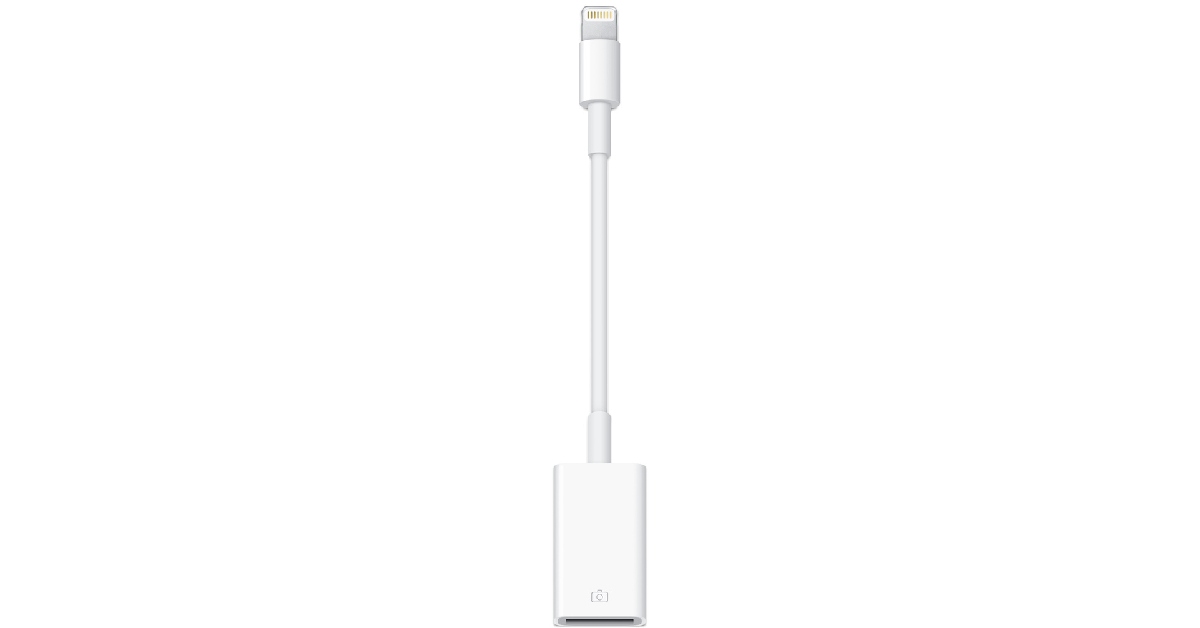
Access external storage drives on your iPhone and iPad using OTG Connecting your iPhone to your digital piano will require a Lightning to USB adapter instead of an OTG adapter. Once you’ve plugged the adapter into the lighting port of your iPhone, you can connect it to your keyboard using a USB Type-B to Type-A cable.

Wireless connection

Best Ways to Connect Your Digital Piano to a PC/iPad/Android Device Modern digital pianos have Bluetooth support which allows them to connect to most smart devices. All you need to do is turn on the Bluetooth on your smartphone or PC and search for your keyboard. Pair the two together and you’re good to go. If your keyboard does not have Bluetooth support, there are a few Bluetooth adapters available on the market that you can use. These adapters plug into the MIDI port on your keyboard and make it discoverable to other Bluetooth devices. Here is one that you can get on Amazon.

Frequently Asked Questions

How do I connect my digital piano to my Android phone?

To connect your digital piano to your Android device, you will need an OTG adapter and a USB Type-A to Type-B cable. Plug the Type-A end into the OTG and the Type-B end into your keyboard. Then connect the OTG to your smartphone.

How do I connect my digital piano to my iPhone?

You can connect your iPhone to your digital piano using a Lightning to USB adapter and a USB Type-A to Type-B cable. The Type-B end goes inside the keyboard and the Type-A end goes in the adapter. Plug the adapter into your iPhone and you’re good to go.

How do I connect my digital piano to my smartphone wirelessly if it doesn’t have Bluetooth?

If your digital piano does not have Bluetooth you can still connect it to your smartphone wirelessly using a MIDI to Bluetooth adapter. Read Also: What You Need to Know About Online Casino Software

Conclusion

This is how you can connect your digital piano to your PC, iPad, iPhone, or Android device with ease. Your keyboard may have a USB Type-A port but it is not sufficient to relay MIDI data. A MIDI or USB Type-B connection is important if you want to transcribe what you’re playing. Most play-along apps also require a MIDI or Type-B connection. For the latest gadget and tech news, and gadget reviews, follow us on Twitter, Facebook and Instagram. For newest tech & gadget videos subscribe to our YouTube Channel. You can also stay up to date using the Gadget Bridge Android App. You can find the latest car and bike news here.

Google’s Chrome desktop web browser gets new customisation features

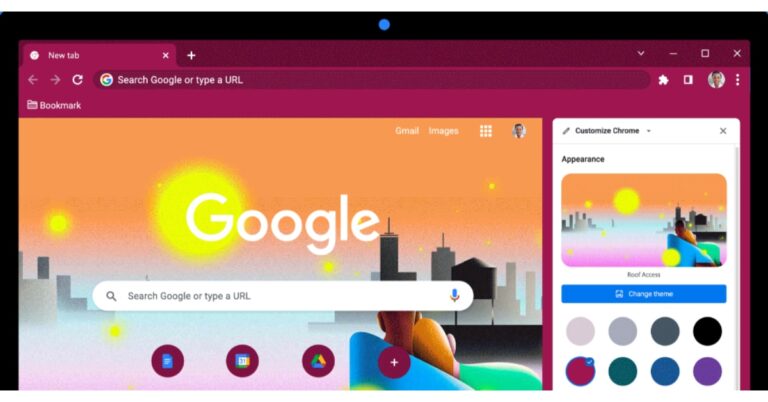
Google Chrome has rolled out a fresh update for desktops. The latest updates to Chrome on the desktop brings improvements and make it simpler to customise the look and feel of your browser to your specific preferences. New personalization capabilities for Google’s Chrome desktop web browser offer different themes and colours and recommend customisation options that the users will like. According to Google, Chrome desktop users are the only ones who can currently use these new customizations. One can now try out different colours, themes and settings in real-time by opening a new tab in Chrome and clicking the “Customize Chrome” icon in the bottom right corner. A new side panel will also bring a lot of customisation features. Desktop users will be able to test out various features and easily see how they will appear on their New Tab page as changes are made without having to worry about saving their work because the side panel will remember your customization tweaks as you go. The Google Chrome latest update comes loaded with hundreds of images across different categories you can easily browse from the side panel by clicking “Change theme.” From categories like “Landscapes” to “Seascapes,” you’ll find countless images where you can pick the perfect option for you. Additionally, by selecting any theme collection and enabling the “Refresh daily” button, you may enjoy a rotating background if you’re having difficulties choosing just one image. Besides this, you can use Profiles to separate your personal and professional accounts, consider giving each Profile a distinctive background and colour to help you distinguish between them. Black Artists Collection, Latino Artists Collection, LGBTQ Artists, Native American Artists, and LGBTQ Artists are some of the new categories Chrome users can choose from when selecting a background image. Your themes can also be customised with different colours. Additionally, choose a theme and the browser changes its colour to match it. You can also choose a different colour on the overview page if the default doesn’t suit your tastes. For the latest gadget and tech news, and gadget reviews, follow us on TwitterFacebook and Instagram. For newest tech & gadget videos subscribe to our YouTube Channel. You can also stay up to date using the Gadget Bridge Android App. You can find the latest car and bike news here.

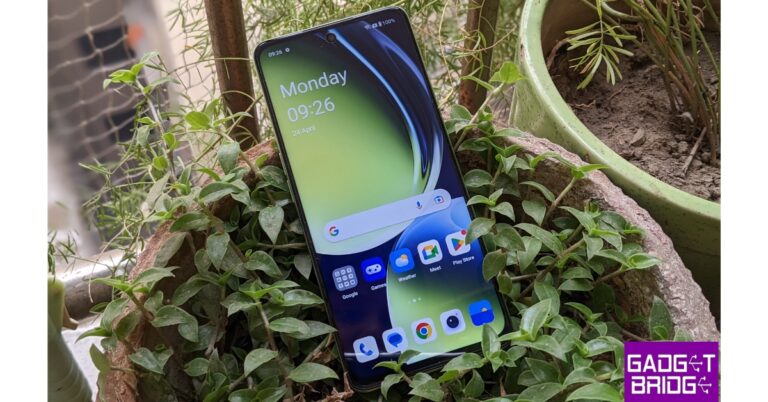
iQoo Neo 7 Pro India launch could happen by the end of June

iQoo Neo 7 Pro launch in India is likely to take place at the end of June. The device’s India launch was recently teased by CEO Nipun Marya. It is going to be an upgraded version of the iQoo Neo 7 5G that was launched in India in February. The upcoming smartphone is expected to be powered by Snapdragon 8+ Gen 1 SoC. In addition to this, it may also feature an AMOLED display with 120Hz refresh rate support and pack a 5,000mAh battery with 120W fast charging support. The iQoo Neo 7 Pro is expected to make its India debut at the end of June. Ahead of the official announcement the phone has been leaked several times therefore revealing the the key specifications and the pricing. The upcoming smartphone is likely to be priced under Rs 40,000 which is obviously on the higher side than its younger sibling iQoo Neo 7 5G which was launched with a starting price of Rs 29,999 in February this month. Similar to its sibling the handset will definitely be available for purchase via Amazon in the country. Leaks suggest that iQoo Neo 7 Pro will be powered by Qualcomm Snapdragon 8+ Gen 1 chipset. It may run on Android 13 out of the box. The device is said to feature a 6.78-inch FHD+ Samsung E5 AMOLED display which is likely to get 120Hz refresh rate support. In terms of cameras, the iQoo Neo 7 Pro could also include a 50-megapixel Samsung GN5 sensor with OIS support. Detail related to other cameras are now known, In addition to this the iQoo phone is also expected to house a 5,000mAh battery and may get 120W fast charging support. To recall the iQoo Neo 7 Pro upcoming launch was teased by CEO Nipun Marya. At that time the company did not reveal the name of the smartphone instead hinted at the Neo 7 Pro moniker. For the latest gadget and tech news, and gadget reviews, follow us on TwitterFacebook and Instagram. For newest tech & gadget videos subscribe to our YouTube Channel. You can also stay up to date using the Gadget Bridge Android App. You can find the latest car and bike news here.

How to turn off safe mode on your Android phone?

1
While looking for solutions and fixes for common smartphone-related problems you may have come across the suggestion to reboot your phone in Safe Mode. Restarting your phone in this mode disables all the third-party apps on your device to make it easier for you to locate the source of the issue. If the problem persists in Safe Mode it means that third-party apps are not responsible for it. Once you’ve figured that out, you would want to return to regular mode where you can use all the installed apps. In this article, we bring you a few different ways to turn off Safe Mode on your Android phone or tablet. Read Also: OnePlus 11 5G Marble Odyssey colour variant revealed, available soon

How to enter Safe Mode?

Step 1: Press and hold the side key until you see the power options. Step 2: Tap and hold the ‘Power off’ option.   Step 3: The ‘Safe Mode’ option will now appear on the screen. Tap on it. how to Fix Galaxy S22 Screenshot Not Working Issue Your Android smartphone will reboot in Safe Mode.

How to turn off Safe Mode?

Once Safe Mode is enabled, there are a couple of ways you can disable it. When you’re done troubleshooting your phone, here’s how you can take it off Safe Mode.

Turn off Safe Mode by restarting your phone

Restart your phone The easiest way to disable Safe Mode is by restarting your smartphone. Simply press and hold the side key and select ‘Restart’ from the list of options. Your phone will automatically reboot in normal mode this time. If long-pressing the side key triggers the Google Assistant on your smartphone, press the side key and volume up button together to access the power options.

Turn off Safe Mode from the notification panel

Turn off Safe Mode from the notification panel Another quick way to exit Safe Mode on your Android smartphone is through the option on the notification panel. All you need to do is swipe down from the status bar and tap on the notification to turn off Safe Mode. Confirm your selection in the following popup box.

Unable to turn off Safe Mode? Try this method

If your phone refuses to reboot normally upon trying the two methods mentioned above, you will need to factory reset your smartphone. If your phone is malfunctioning in Safe Mode as well, it means that the third-party apps are not the culprit. There is something wrong with the system files on your device. A factory reset will restore your device to the settings it had out of the box. It will also clear all your personal data on the smartphone. Once your phone has been reset, it will restart and you will have to log in using your Google Account again.

Frequently Asked Questions

How do you remove Safe Mode?

To disable Safe Mode on your Android smartphone, simply restart your device by pressing the side key and selecting ‘Restart’ from the power options. You can also turn it off from the notification panel.

Why can’t I turn Safe Mode off?

If the system files of your phone have been corrupted, it may refuse to get out of Safe Mode. You will need to factory reset your smartphone in this scenario.

What happens in Safe Mode?

When your phone is in Safe Mode, it disables all the third-party apps that you have installed on it. This is helpful for troubleshooting your device. Read Also: Canon EOS R100 and RF Mount RF28mm f/2.8 STM lens launched in India

Conclusion

This is how you can turn off Safe Mode on your Android phone or tablet. You can use Safe Mode to figure out if a third-party app is the reason behind any unexpected malfunctioning on your smartphone. If your phone works fine in Safe Mode, it means that one of the third-party apps is to blame. Go through your list of apps and start by deleting the most recent ones. It is a bit of a hit and trial to figure out which app is the cause of the issue. If you don’t want to go through that, simply factory reset your device. For the latest gadget and tech news, and gadget reviews, follow us on Twitter, Facebook and Instagram. For newest tech & gadget videos subscribe to our YouTube Channel. You can also stay up to date using the Gadget Bridge Android App. You can find the latest car and bike news here.

Amazon Fire Max 11 with an 11-inch screen and Alexa support launched

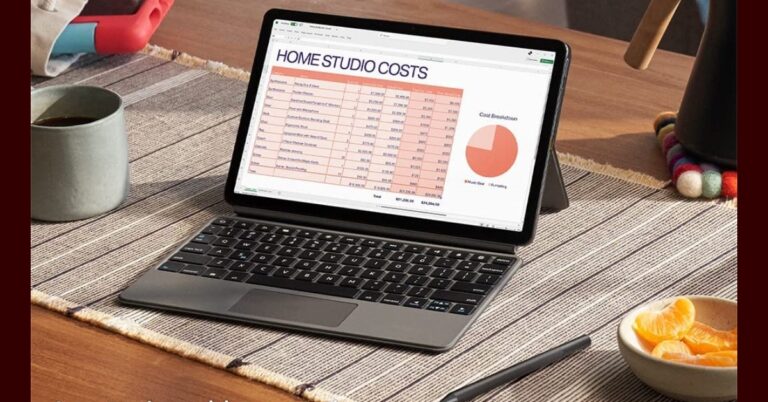
Amazon Fire Max 11- the company’s biggest and most powerful tablet has been launched in the US. It comes with support for an easy-to-attach full-size magnetic keyboard and stylus. The Amazon tablet also features an 11-inch display and is powered by a 2.2 GHz octa-core processor with 4GB of RAM. In addition to this, it has an 8-megapixel front camera and supports Wi-Fi 6 connectivity and up to 128GB of built-in storage. The device is claimed to offer 14 hours of battery life.

Amazon Fire Max 11 price and sale details

Amazon Fire Max 11 has debuted in the US in two different configurations. The price of the 4GB RAM with 64GB storage is set at $229 that translates to Rs 18,942. Whereas the 4GB RAM with 128GB storage model will cost $279 which is approximately Rs 23,078. The optional magnetic attach keyboard and stylus variant will be available at $329.99. It comes in a single gray colour variant and is currently up for sale in the US via Amazon. Amazon Fire Max 11 price and sale details

Amazon Fire Max 11 specifications

Coming to the specifications, the Amazon Fire Max 11 features an 11-inch display having a resolution of 2,000 x 1,200 pixels. The screen comes with blue light certification and has an aspect ratio of 5:3. The Amazon Tablet runs is shipped with Fire OS 9 which is based on Android 11. Under the hood, there is an unspecified octa-core MediaTek MT8188J processor with up to 4GB of RAM and 128GB of internal storage. The inbuilt memory can be expanded up to 1TB using a MicroSD card. For the optics, the Amazon Fire Max 11 has an 8-megapixel camera sensor on the rear and an 8-megapixel front-facing camera for taking selfies and video calling. Both cameras support 1080p HD video recording. For connectivity, it supports Wi-Fi 6, and Bluetooth 5.3 and includes a USB Type-C port. The sensors on the tab include an accelerometer, ambient light sensor, hall effect, and a fingerprint scanner. Stream videos on Prime Video, Disney+, Netflix, Hulu, or Max, with the 14-hour long-lasting battery and immersive Dolby Atmos surround sound. With Amazon Luna cloud gaming service, stream your favourite games like Fortnite straight to your Fire Max 11. In addition to this there is Alexa support and the Device Dashboard on the home screen, seamlessly control your Alexa-enabled smart home devices. The tablet comes with support for up to two adult and four child profiles. For the latest gadget and tech news, and gadget reviews, follow us on TwitterFacebook and Instagram. For newest tech & gadget videos subscribe to our YouTube Channel. You can also stay up to date using the Gadget Bridge Android App. You can find the latest car and bike news here.

AMD Radeon RX 7600 graphics card with support for 1080P gaming launched

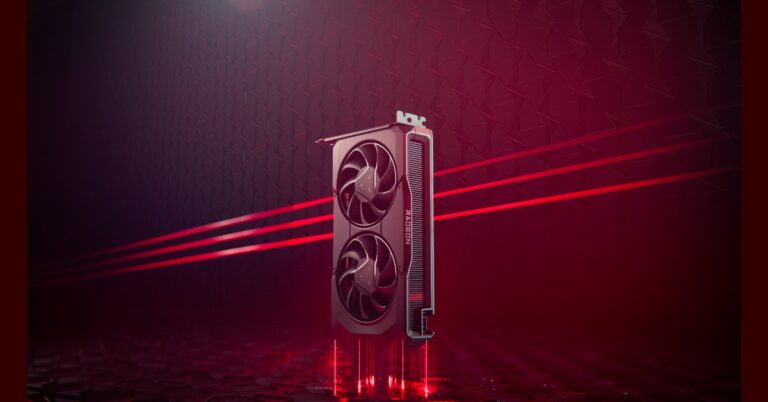
AMD has announced the AMD Radeon RX 7600 graphics card for PCs to support gaming at a resolution of 1080P. The new graphics card is based on the AMD RDNA 3 architecture featuring redesigned compute units with unified raytracing and AI accelerators and second-generation AMD Infinity Cache technology. It comes with an improved AMD encoder with AMD AI and content-adaptive machine learning technology integrated. The AMD Radeon RX 7600 graphics card is based on the AMD RDNA 3 architecture, which has new compute units with integrated raytracing and AI accelerators and second-generation AMD Infinity Cache technology. Its new graphics card is meant to give 1080p gaming experiences, enabling titles at 60+ FPS at 1080p and streaming in high fidelity using AV1 technology. It unlocks new multi-media experiences with full AV1 encode/decode support, wide colour gamut and high-dynamic range enhancements. With only 128-bit memory and an 18 Gbps clock speed, the 8GB of GDDR6 memory has a 288 GB/s bandwidth. AMD Radeon RX 7600 graphics card with support for 1080P gaming launched According to AMD, the Radeon RX 7600 graphics card offers 29% higher 1080p gaming performance on average than the AMD Radeon RX 6600 graphics card and 34% higher performance on average than the NVIDIA GeForce RTX 3060 8GB at max settings. In addition to this AMD’s new graphics card enables 100+ FPS on average in today’s top 10 PC esports titles while delivering faster AI performance than the previous generation and higher average performance in select content creation applications. AMD Radeon RX 7600 graphics card with support for 1080P gaming launched A single 8-pin connector powers the card, which has a total board power of 165W. The AMD Radeon RX 7600 supports DisplayPort 2.1 on select models and HDMI 2.1a-based displays for ultra-high resolutions and high refresh rates for gaming and content creation workloads. It also features 12-bit HDR and full REC2020 Color Space for colour accuracy at up to 8K video playback. AMD.com and top AMD board partners like ASRock, ASUS, Biostar, Gigabyte, MSI, Sapphire, PowerColor, Vastarmor, XFX, and Yeston are anticipated to start selling AMD Radeon RX 7600 graphics cards today for a starting price of $269 USD. For the latest gadget and tech news, and gadget reviews, follow us on TwitterFacebook and Instagram. For newest tech & gadget videos subscribe to our YouTube Channel. You can also stay up to date using the Gadget Bridge Android App. You can find the latest car and bike news here.

Garena Free Fire Redeem Codes Today 26 May 2023: Here is how to claim them

Garena Free Fire is a battle royale game with regular awards and tournaments to keep players interested. If you play Garena Free Fire, you should be aware of the redeem codes that are released on a daily basis. However, because the battle royale game is banned in India, players from other countries can use the Free Fire Redeem codes daily. If you’re unfamiliar with the Garena Free Fire redeem codes or don’t know how to get them, we’ve put together a step-by-step guide to help you redeem them. Check out Garena Free Fire Redeem Codes for 26 May 2023. The Free Fire redeem codes are a great way to get free stuff. These are 12-digit codes that contain alphabets and numbers, as well as an expiration date and time. Because the Garena FF redeem codes cannot be used more than once, you should hurry to the redemption page to claim your free reward before someone else does. To get a free reward, all you have to do is go to reward.ff.garena.com/en, which is the official redemption page. Also, keep an eye on this space for daily updates on Garena Free Fire redemption codes and rewards.

Garena Free Fire Redeem Codes Today 26 May 2023

FFBBCVQZ4MWA FFCMCPSJ99S3 MCPW2D2WKWF2 XZJZE25WEFJJ V427K98RUCHZ MCPW2D1U3XA3 FFAC2YXE6RF2 FAGTFQRDE1XCF FFAC2YXE6RF2 FFCMCPSBN9CU BR43FMAPYEZZ NPYFATT3HGSQ FFCMCPSGC9XZ

How to Get Free Fire Redeem Codes for Garena on 26 May 2023?

  • Visit the Garena Free Fire game’s official website at reward.ff.garena.com.
  • Use your Facebook, Google, VK, Apple ID, Huawei ID, or Twitter account to log in.
  • You’ll be taken to a valid redemption code (s)
  • Copy and paste the 12-digit redemption code into the text box.
  • On the screen, a dialogue box will appear.
  • ‘Ok’ should be selected.
For the latest gadget and tech news, and gadget reviews, follow us on TwitterFacebook and Instagram. For newest tech & gadget videos subscribe to our YouTube Channel. You can also stay up to date using the Gadget Bridge Android App. You can find the latest car and bike news here.