D-Link EXO AX AX5400 (DIR-X5460) Router Review: An unstoppable force!

For a lot of consumers, D-Link is the go-to choice when it comes to network equipment. The brand boasts a vast catalogue spanning CCTV cameras, mobile hotspots, adapters, switches, mini UPS, and of course, WiFi routers. If you’re thinking about upgrading your home or office router, it is always a good idea to look at what D-Link’s next-gen products have to offer. The new EXO AX AX5400 router from D-Link supports WiFi 6 and offers a bunch of interesting features. Right now, this router is priced at Rs 11,000 for the Indian market. We’ve been testing it out for the last week to see if it’s worth the price tag. So, without further ado, let’s take a deep dive into our D-Link EXO AX AX5400 DIR-X5460 router review. Read Also: Vivo X90 review: Won’t disappoint

D-Link EXO AX AX5400 DIR-X5460 Router review: Design

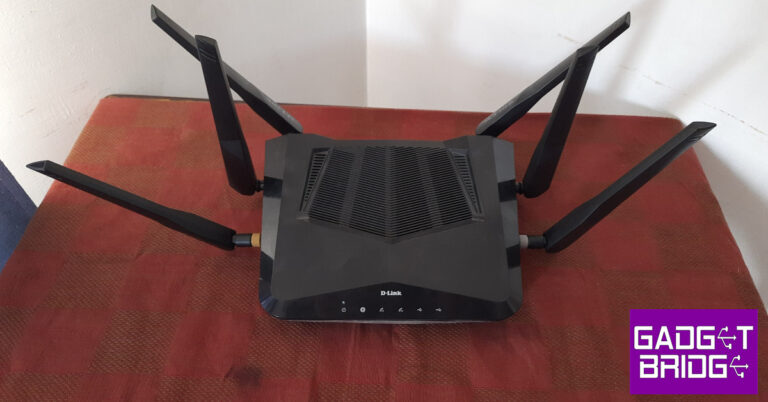
The D-Link DIR-X5460 WiFi router prioritises functionality over aesthetics when it comes to the design of the product. We don’t have any complaints here, you don’t buy a router for the looks. The DIR-X5460 has an all-plastic build, all the way from the body panels to the antennas. D-Link EXO AX AX5400 DIR-X5460 Router review: Design Covering the width of the top section of the router is a large air vent. The front end of the device has LED indicators for power, internet connectivity, 2.4GHz and 5GHz band connectivity, and USB storage status. The AX5400 does not have any internal fans, so it is absolutely necessary for it to have large air vents. The bottom panel is all vents along with four feet that keep the device in place. The two mounts near the centre can be used to prop the router on a wall. There are four antennas along the sides of the router, two on either side. You need to screw in the front two antennas while setting up the device. They can be found inside the package with the rest of the accessories. Two antennas protrude from the back panel, taking the total number of antennas to 6. At the back of the router, you will also find all the connection ports. These include 2 USB ports (USB 2.0 + USB 3.0), 4 Gigabit LAN ports, and 1 Gigabit WAN port. There’s also a power input port at the far right end of the panel along with the power button, a WPS security key, and the reset punch hole. D-Link EXO AX AX5400 DIR-X5460 Router review: Design The overall design is much more extravagant than the average WiFi router provided by your Internet Service Provider. The only minor issue we have here is with the horizontal power adapter. It tends to hoard a lot of space when plugged into an extension board. This won’t be an issue if you’ll be plugging the adapter into a solitary wall outlet.

D-Link EXO AX AX5400 DIR-X5460 Router review: Performance

D-Link has made it incredibly easy to set up the EXO AX AX5400 DIR-X5460 router. Once you take it out of the box, you need to attach the two antennas and plug in the ethernet and power cables in their allotted ports at the back. Once that is done, you need to download the D-Link app on your smartphone and follow the on-screen instructions. You can find the default password and WPS pin of the router on the sticker at the bottom. The D-Link DIR-X5460 is capable of working in a mesh network, which means you can easily connect it to an extender or another router. D-Link EXO AX AX5400 DIR-X5460 Router review: Performance With the latest WiFi 6 technology on board, the D-Link EXO AX AX5400 DIR-5460 router promises ultra-fast speeds with a wider network coverage than any previous-gen router. With OFDMA and two-way MU MIMO technology, the DIR-X5460 can communicate with multiple devices simultaneously and allocate the data flow accordingly. One of the better things about this WiFi router is that you don’t need to sign in to the 2.4GHz and 5GHz band networks separately. Once you’re connected to the main network, the router will automatically upgrade you to the 5GHz band when the device is in its vicinity. The D-Link EXO AX AX5400 DIR-X5460 can provide speeds of up to 4,800 Mbps on the 5Ghz band and 600 Mbps on the 2.4GHz band. You can easily stream 4K videos on multiple devices connected to the network. Even with one device downloading heavy files, the speeds on other devices are mostly unaffected. We did not experience any hiccups or unnecessary stutter during our use. The router managed to provide exceptional coverage even in the distant corners of the house. The signal strength we received on the first floor was remarkable. The router even managed to reach some sections of the roof. D-Link EXO AX AX5400 DIR-X5460 Router review: Performance We suggest you spend some more time on the D-Link app or web interface after setting up the router. There are a lot of interesting features here that you may find useful. One of the better features is parental control, which allows you to block certain websites and filter content on the network. You don’t have to pay any additional costs for this service, which is a big plus in our book. The router also comes with an integrated Ookla speed test, which can be accessed from the web interface. Since the router is the one conducting this speed test, it can apply these results to the QoS (Quality of Service) and prioritise the connection strength for different devices on the network. If there’s a dip in connection speed, the DIR-X5460 will automatically prioritise the active devices connected to the network.  If you’re using the D-Link EXO AX AX5400 DIR-X5460 as a part of a mesh network in your office, you can choose to set it up in router mode or in extender mode. If you plan on using it as a home router, you can create different profiles for different users. You can also set up a different profile for guests. The guest profile can have a different password and restricted access to the wider network. Finally, you can also connect the DIR-X5460 to your Amazon Echo or Google Home device for voice control. Read Also: How to Check Laptop Battery Health in Windows 11: Top 3 Ways

Verdict

If you’re looking to upgrade from the free WiFi router provided by your ISP, the D-Link EXO AX AX5400 DIR-X5460 is a brilliant choice. You will notice an immediate bump in speeds and signal strength. The range of features offered by this router is also commendable. However, the Rs 11,000 price tag is still something that would pinch a lot of users. Let’s be honest, an average does not want to splurge more than Rs 10k on a piece of equipment that their ISP already provides for free. But if the price is not a factor for you, the D-Link EXO AX AX5400 DIR-X5460 will make a great addition to your home or office.

D-Link EXO AX AX5400 DIR-X5460 router: Pros

  • Incredible speeds
  • Good coverage
  • Helpful features like parental controls, guest profile, voice control, and more.

D-Link EXO AX AX5400 DIR-X5460 router: Cons

  • Expensive
For the latest gadget and tech news, and gadget reviews, follow us on Twitter, Facebook and Instagram. For newest tech & gadget videos subscribe to our YouTube Channel. You can also stay up to date using the Gadget Bridge Android App. You can find the latest car and bike news here.

Microsoft Build 2023 highlights: Here are the big announcements from Microsoft

After Google I/O Microsoft kicked off its flagship event Microsoft Build 2023. The annual developer’s conference will end on May 25. At the Build the tech giant made some major announcements and the keynote was presented by Satya Nadella, the CEO of Microsoft along with 19 other speakers. This year’s Microsoft Build was all about AI (Artificial Intelligence). The CEO revealed how its products will be benefited from AI. It showcased how AI will fuel Windows with its own Copilot by introducing Windows Copilot. In addition to this, it is also extending the Bing Chat plugin to Windows and announced a new Hybrid AI tool.
Microsoft launched Windows Copilot making it the first PC platform to centralise AI assistance.
OpenAI released ChatGPT plugins in March of this year. Recently Microsoft also announced Bing plugins which allow ChatGPT and Bing Chat to assist you in finding and making a restaurant reservation using an OpenTable plugin. Similarly, the company has announced that it will adopt the same open plugin standard that OpenAI introduced for ChatGPT. Developers may now create plugins for business and consumer surfaces like ChatGPT, Bing, Dynamics 365 Copilot, Microsoft 365 Copilot, and Windows Copilot using a single platform. Microsoft also disclosed that Bing will become ChatGPT’s default search engine. As part of this shared plugin platform, Bing is adding to its support for plugins. In addition to previously announced plugins for OpenTable and Wolfram Alpha, we will also have Expedia, Instacart, Kayak, Klarna, Redfin and Zillow, among many others in the Bing ecosystem. According to the company, developers will now be able to extend Microsoft 365 Copilot with plugins. The ChatGPT, Bing, Teams message extensions and Power Platform connectors are just a few of the plugins for Microsoft 365 that will allow developers to make the most of their current investments. In addition to this by making use of the Microsoft Teams Toolkit for Visual Studio Code and Visual Studio, developers can also create new plugins with ease. During the announcement, Microsoft also revealed that now developers will be able to integrate their apps and services into Microsoft 365 Copilot with plugins. The ChatGPT, Bing, Teams message extensions and Power Platform connectors are just a few of the plugins for Microsoft 365 Copilot. Moreover, they can also use the Microsoft Teams Toolkit for Visual Studio Code and Visual Studio to quickly create new plugins for Microsoft 365 Copilot. By integrating their data into the Microsoft Graph and contextualizing relevant and useful information using the recently introduced Semantic Index for Copilot, developers may further develop Microsoft 365 Copilot. More than 50 plugins from partners will be available for customers as part of the early access program, including Atlassian, Adobe, ServiceNow, Thomson Reuters, Moveworks and Mural, with thousands more available by the general availability of Microsoft 365 Copilot. The company also launched Azure AI Studio which will allow developers to quickly and easily use their own data to support robust conversational AI models like OpenAI’s ChatGPT and GPT-4. Employees, customers, and partners may use natural language-based app interfaces to search through massive amounts of text, photos, and data to find information using Azure OpenAI Service on Your Data, which will soon be available in public preview, and Azure Cognitive Search. Additionally, Microsoft said that Azure Cognitive Search, which is now in private preview, will power vectors in Azure. This technology will enable search applications to be stored, indexed, and delivered through vector embeddings of organisational data, including text, photos, audio, video, and graphs. The tech giant has also introduced Windows Copilot for Windows 11. With this launch, Windows will be the first PC platform to centralise AI assistance. As per the company “With Bing Chat and first- and third-party plugins, users can focus on bringing their ideas to life, completing complex projects and collaborating instead of spending energy finding, launching and working across multiple applications.” A preview of Windows Copilot will start to become available for Windows 11 in June. For the latest gadget and tech news, and gadget reviews, follow us on TwitterFacebook and Instagram. For newest tech & gadget videos subscribe to our YouTube Channel. You can also stay up to date using the Gadget Bridge Android App. You can find the latest car and bike news here  

WWDC23: World Wide Developers Conference schedule released, to kick off from June 5

The official schedule for WWDC23 events has been released by Apple. The eagerly anticipated World Wide Developers Conference (WWDC) 2023 will begin on June 5 and go until June 9. Apple is anticipated to present new software, including iOS, iPasOS WatchOS and more, at the conference. In addition to this, the company is also likely to introduce its first mixed-reality headset. The Cupertino-based corporation said that this year’s upcoming tech event will once again be streamed online. Apple finally announced the exact date and timing of WWDC 2023. The complete list of the five-day event’s scheduled programmes has finally been made public. Further providing details Apple revealed that its annual Worldwide Developers Conference will be held from June 5 and will end on June 9. It will be free for all developers, however again this year the WWDC23 will take place in an online format. On the first day, developers and students will have the chance to celebrate in person at a special event at Apple Park. Developers may learn about the newest technologies, tools, and frameworks coming to iOS, iPadOS, macOS, tvOS, and watchOS during the 5-day long event. According to the programme, the 2023 World Wide Developers Conference (WWDC) will begin on June 5 at 10 a.m. PDT (10:30 p.m. IST) with a keynote address by Apple CEO Tim Cook. The keynote address will be available via apple.com, the Apple Developer app, the Apple TV app, and YouTube, with on-demand playback available after the conclusion of the stream. In addition to this on the 2nd day of WWDC23, Apple will be hosting Platforms State of the Union that will start at 1:30 PM PDT and will be streamed via the Apple Developer app and the Apple Developer website. Developers may learn how to enhance their apps by delving deeper into the latest tools, technologies, and advancements across Apple platforms. On the same day Apple will announce this year’s Apple Design Awards to recognise and celebrate the art, craft, creativity, and technical expertise of Apple’s developer community. According to the company, this year’s Apple Design Award winners will be unveiled via the Apple Developer app and website. During the expert session, developers can get answers to their technical, design, and App Store questions. Moreover, Apple engineers and designers will host online events in Slack for developers to participate in technical conversations, get solutions to their queries, and network with one another.  For the latest gadget and tech news, and gadget reviews, follow us on TwitterFacebook and Instagram. For newest tech & gadget videos subscribe to our YouTube Channel. You can also stay up to date using the Gadget Bridge Android App. You can find the latest car and bike news here.

Best 5 Easy Methods to Clear Amazon Prime Video Watch and Search History

0
If you share your Amazon Prime Video account with friends and family, they can access your profile and go through your watch and search history. While you may not prefer this, your watch history serves a purpose. Prime Video is able to generate better recommendations for you based on the stuff that you watch on the platform. If that’s not a good enough reason to keep it, here are the best 5 methods to clear Amazon Prime Video watch and search history on your PC and smartphone. Read Also: Vivo Y100 and Vivo Y100A get a price cut of Rs 1,000

Clear Watch History from Account Settings

Step 1: Log into the Amazon Prime Video website with your Prime account. Step 2: Click on the profile icon at the top-right corner of the screen and select ‘Accounts and Settings’. Step 2: Click on the profile icon at the top-right corner of the screen and select ‘Accounts and Settings’. Step 3: Click on the ‘Watch History’ tab. Step 3: Click on the ‘Watch History’ tab. Step 4: Click on ‘Delete movie from Watch History’ next to a title to remove it. Step 4: Click on ‘Delete movie from Watch History’ next to a title to remove it. The movie/TV show will be removed from your watch history on Amazon Prime Video in a few days.

Remove a title from the Amazon Prime Video home screen

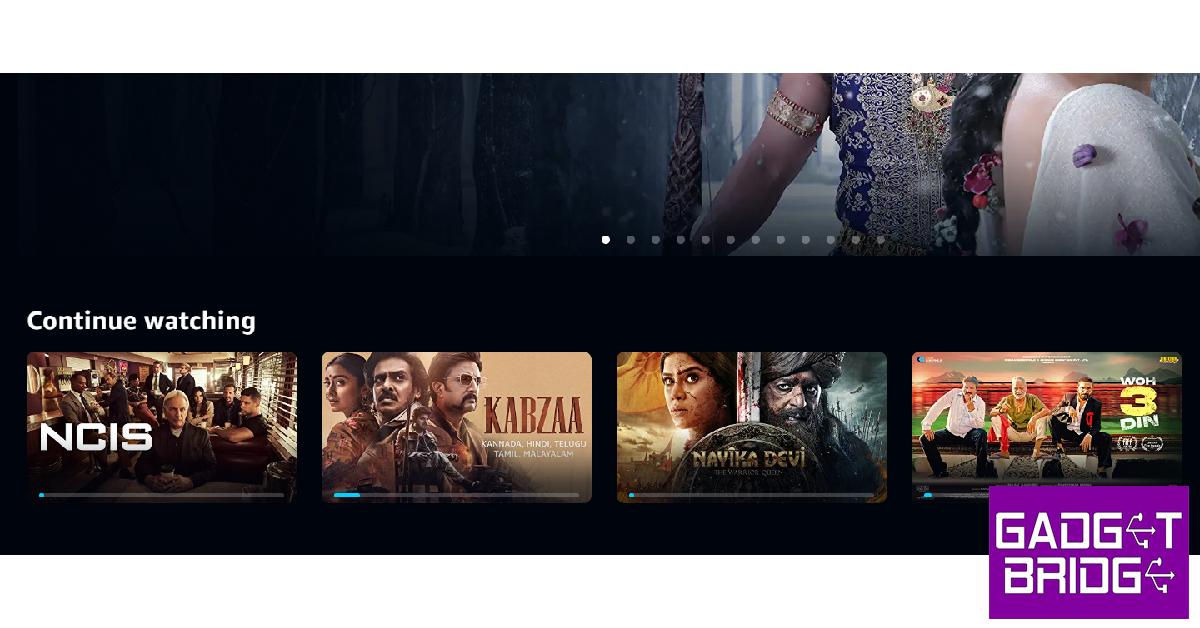
Here’s how you can remove a TV show or movie from the ‘Continue Watching’ section. Step 1: Log into Amazon Prime and scroll to the Continue Watching section. Best 5 Easy Methods to Clear Amazon Prime Video Watch and Search History Step 2: Hover your cursor on the show or movie you want to remove. Step 3: Click the cross icon on the title you want to remove from the Continue Watching section. Step 3: Click the cross icon on the title you want to remove from the Continue Watching section. Best 5 Easy Methods to Clear Amazon Prime Video Watch and Search History The title will be removed instantly.

Remove a title from Amazon Prime Video Watchlist

Adding a video to your watchlist saves it for future viewing and also helps the streaming platform to curate recommendations more aligned to your taste. If you changed your mind about a particular title, here’s how you can remove it from your watchlist. Step 1: Log into Amazon Prime Video on your PC browser. Step 2: Click on ‘My Stuff’ and select ‘Watchlist’. Step 2: Click on ‘My Stuff’. Best 5 Easy Methods to Clear Amazon Prime Video Watch and Search History Step 3: Move your cursor to the title you want to delete and click on the check/tick icon next to the play button.  Step 3: Move your cursor to the title you want to delete and click on the check/tick icon next to the play button.  Best 5 Easy Methods to Clear Amazon Prime Video Watch and Search History If you accidentally removed the wrong title, you can undo your action before refreshing the page.

Clear Search History from the Amazon Prime Video app

Step 1: Launch the Amazon Prime Video app on your smartphone. Step 2: Tap on the profile icon on the top right corner of the screen. Step 2: Tap on the profile icon on the top right corner of the screen. Best 5 Easy Methods to Clear Amazon Prime Video Watch and Search History Step 3: Tap on the gear icon at the top-right corner of the screen. Step 3: Tap on the gear icon at the top-right corner of the screen. Best 5 Easy Methods to Clear Amazon Prime Video Watch and Search History Step 4: Select ‘Clear video search history’. Step 4: Select ‘Clear video search history’. Best 5 Easy Methods to Clear Amazon Prime Video Watch and Search History Your search history will be wiped from your Amazon Prime Video profile.

Remove items from the Watch Next section

Don’t like a particular recommendation? Here’s how you can remove it from the Watch Next category. Step 1: Launch the Prime Video app on your smartphone. Step 2: Scroll to the Watch Next category and long-press the title you want to remove. Step 3: Tap on ‘Hide this video’ or ‘Not Interested’. Step 3: Tap on ‘Hide this video’ or ‘Not Interested’. Best 5 Easy Methods to Clear Amazon Prime Video Watch and Search History The movie or TV show will be removed from the Watch Next section.

Frequently Asked Questions

Can I clear my Amazon Prime Video watch history from the app?

You can only clear the watch history on your Prime Video account using the website. Log into your Prime Video account and go to Accounts & Settings>Watch History to remove a particular title.

How do I clear my search history on Amazon Prime Video?

To clear your search history on Amazon Prime Video, simply launch the app on your smartphone and go to My Stuff>Clear Video Search History.

Why does Prime Video record my Watch History?

Amazon Prime Video uses your watch history to get an idea of the kind of stuff you like to watch. This helps its algorithm in generating better recommendations. Read Also: Nokia C32 with 5,000mAh battery launched in India at this price

Conclusion

These are the best ways to clear your Amazon Prime Video watch and search history on PC and smartphone. In order to get better recommendations from Prime Video, you should go through your watch and search history every once in a while and clear out the titles you don’t like. Read this article to learn how you can clear your Netflix watch history. For the latest gadget and tech news, and gadget reviews, follow us on Twitter, Facebook and Instagram. For newest tech & gadget videos subscribe to our YouTube Channel. You can also stay up to date using the Gadget Bridge Android App. You can find the latest car and bike news here.

RuPay credit cards can now link to Google Pay to make UPI payments

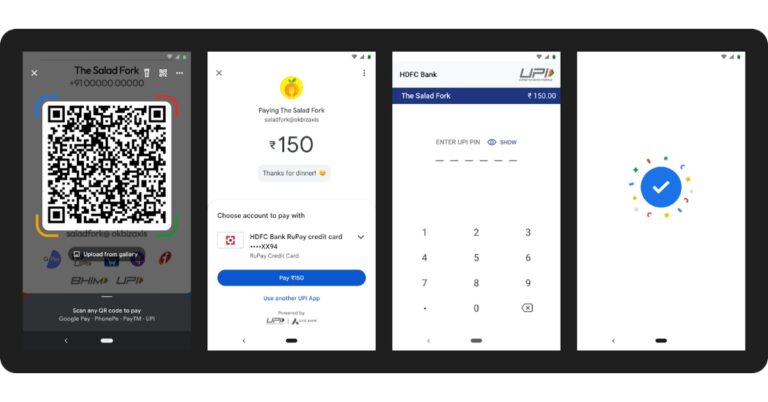
Google Pay and the National Payments Corporation of India (NPCI) announced on Tuesday that users would be able to make UPI payments using RuPay credit cards. Therefore users can now conveniently pay at any online and offline merchant that accepts RuPay credit cards by linking their RuPay credit cards to Google Pay.   Speaking about the rollout, Sharath Bulusu, Director of Product Management from Google, said, “Google Pay is a partner to India’s financial ecosystem – enabling millions of users to safely and conveniently make digital payments every day. This latest announcement is a reflection of our commitment to contribute to the Government’s vision to boost digital payments in India and play a significant role in the country’s credit journey. This feature will give Google Pay users more flexibility and choice in making payments, and will drive greater adoption of digital payments in the country.” Google Pay and NPCI have introduced the option for customers to make UPI payments with RuPay credit cards, capitalising on the rising popularity of UPI and the rising need for dependable credit in India. Users will be able to now link their RuPay credit cards to Google Pay to pay easily at any online and offline merchants that accept RuPay credit cards as a result of this improvement.  According to reports, UPI transactions increased significantly in India. The number of UPI transactions reached 8.7 billion in March 2023, according to NPCI, which caused a significant increase in monthly transactions. The Reserve Bank of India (RBI) additionally permitted the linking of RuPay credit cards to the UPI platform in June 2022 in order to further support the expansion of digital payments in the nation. According to Google, this feature is currently rolling out to RuPay credit card holders of Axis Bank, Bank of Baroda, Canara Bank, HDFC Bank, Indian Bank, Kotak Mahindra Bank, Punjab National Bank and Union Bank of India. More banks will follow very soon. This initiative is believed to be a huge step for the nation’s millions of RuPay credit card users towards gaining access to the ease of digital payments. How to activate RuPay credit cards on Google Pay

How to activate RuPay credit cards on Google Pay

In order to activate RuPay credit cards on Google Pay, Axis Bank, Bank of Baroda, Canara Bank, HDFC Bank, Indian Bank, Kotak Mahindra Bank, Punjab National Bank and Union Bank of India customers need to add the RuPay credit card to Google Pay. They are required to tap on the “RuPay credit card on UPI” option in their profile and select the bank which issued their RuPay credit card.  After this RuPay credit cards holder will need to set a unique UPI PIN by (a) entering the last six digits of the card number and expiry, (b) entering the OTP from their bank For the latest gadget and tech news, and gadget reviews, follow us on TwitterFacebook and Instagram. For newest tech & gadget videos subscribe to our YouTube Channel. You can also stay up to date using the Gadget Bridge Android App. You can find the latest car and bike news here.

Vivo X90 review: Won’t disappoint

Vivo recently improved the X-Series, a line of smartphones renowned for their outstanding photography performance. As the Vivo X90 has been introduced in the Indian market, it has a magnificent triple camera configuration powered by Zeiss optics. The smartphone not just has good cameras, but it also boasts top-notch hardware. Let’s see how this smartphone performs in the flagship category. This is the Vivo X90 review you should not miss. 

Vivo X90 review: Design and Display

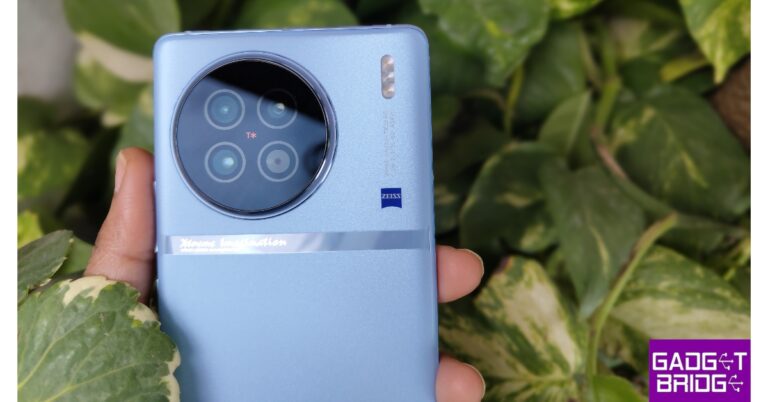
Talking about the Vivo X90’s construction and design first. We have Breeze Blue as our test unit, which is a lovely tint. In contrast to the leather finish on the Pro model, which undoubtedly appears refined and elegant, the X90 has a shiny gradient surface. If you prefer a gadget that feels more premium, you can also take that option into account. The smartphone resists light scratches and is not a fingerprint magnet. Vivo X90 review: Design and Display Although the gadget is less broader than it is tall, we truly appreciate how this phone feels in our hands. It is perceptive, svelte, and appears exquisite. Despite being a little slippery, it is lighter. With metal frames surrounding it, both sides are smoothly curved. The camera module really stands out and unlike others, it does not wobble at all when placed on a flat surface. Vivo X90 review: Design and Display Vivo X90 review: Design and Display Three camera sensors and an LED flash are included in the module. On the back panel’s top-right corner is a Zeiss logo. In addition, a bright chrome strip with “Xtreme Imagination” written on it is located beneath the camera module. The phone has an IP64 rating for water and dust protection. Vivo X90 review: Design and Display The 6.78-inch curved AMOLED display of the X90 features a 1,260 x 2,800-pixel resolution. The screen-to-body ratio of the gadget is 93.53 percent, the aspect ratio is 20:9, and the refresh rate can reach 120 Hz. DCI-P3 colour gamut support has been validated for the screen. It incorporates an in-display fingerprint sensor that is accurate and quick and has no side bezels. Also Read: OnePlus Nord CE 3 Lite review: Is it a fully loaded package? Whether viewing a video, browsing the web, or even navigating through your favourite social media apps, the 120Hz AMOLED display is a treat. You may use it outdoors with ease because of its terrific brightness. The high-quality twin speakers further improve the overall usability of this phone.

Vivo X90 review: Performance and Camera

Performance is enhanced with the MediaTek Dimensity 9200 SoC. We did not observe any lag or stuttering, and the overall experience was pleasant. It has the ability to easily manage practically all daily duties. We played Call of Duty and Asphalt 9 in terms of gaming, and surprisingly, the experience was almost identical to that of the Snapdragon 8 Gen 2 CPU. Thanks to the large vapour chamber cooling system, we were able to play the games at their highest settings with consistent gameplay and very little heating near the camera module. Vivo X90 review: Design and Display The Vivo X90 comes pre-installed with the most recent Funtouch OS 13 version based on Android 13. Of course, some bloatware applications are pre-installed, but you may quickly remove those that you don’t require. Also Read: 5 Best Photography smartphones in India: Ditch the DSLR The triple back camera system of the Vivo X90 features Zeiss lenses. f/1.75 lens with a 50-megapixel main Sony IMX866 sensor with OIS and laser autofocus. A 12-megapixel Sony IMX663 telephoto portrait camera with an f/2.0 lens and 2x optical zoom as well as a 12-megapixel Sony IMX663 ultra-wide-angle camera with an f/2.0 lens are also included in the camera arrangement. For taking selfies, the smartphone has a 32-megapixel front-facing camera with an f/2.45 aperture. Vivo X90 camera review Look at the images taken during the day, first. The primary sensor can provide excellent details and sharpness in daylight, especially in direct sunlight, thanks to the Zeiss alliance. When you zoom into the photos, it becomes clear that their images are rich in depth. There are several problems with saturation, and the colours seem vivid rather than natural. Although the dynamic range is fairly good, it is inconsistent because it fails to activate even in Auto mode. The pictures were indeed underexposed, and the shadows are occasionally not very well controlled. Vivo X90 camera review Vivo X90 camera review The Vivo X90 performs reasonably well in terms of detailing in the daytime, with the exception of saturation problems that can be partially resolved by using Zeiss’s natural colour mode. Vivo X90 camera review Moving on, the ultra-wide angle lens generated excellent details and an excessive amount of crispness. Again, the colour is close to that of the primary camera, and the image colour reproduction is consistent, but the colour is prone to be oversaturated. Vivo X90 camera review The phone’s 12-megapixel telephoto portrait lens, which has a 2x optical zoom capability, does an excellent job bringing out details while maintaining good clarity levels. The images taken with a 2x optical zoom are also sharp and detailed.
Vivo X90 camera review
Without/with Zeiss natural colour mode
Vivo X90 camera review
Without/with Zeiss natural colour mode
Since Zeiss and the camera setup were collaboratively developed, you can now use the Zeiss natural colour mode. When you activate the Zeiss natural colour mode, the colour does improve but is still not realistically natural. The photos produced in the regular mode are a little saturated and appear unnatural at times. However, the X90-produced photos are mostly vibrant.
Vivo X90 camera review
macro
The X90 performs admirably with regards to details and sharpness levels in the close-up photos, and colour conveys the same message. Again, they appear to be enhanced and do not appear natural, which many of us will like. The smartphone can also take macro photos, and the pictures have good colour and detail quality here too.  
Vivo X90 camera review
Portrait
The USP of the Vivo X90 is its amazing portrait photography. With the help of Zeiss, a variety of bokeh options are available. The edge detection is perfect, and the portraits are excellent. The skin tone appears to be natural as well. We loved taking shots here.  
Vivo X90 camera review
Low light
Vivo X90 camera review
without/with night mode on
Now let’s talk about low-light photography. The X90 can produce good photos with very little noise and excellent resolution when in low-lit areas. Additionally, the sharpness levels are excellent. It is preferable to switch to night mode in extremely low light conditions, and this is where the V2 chip also plays a crucial role. Extremely low light conditions don’t affect the quality of the details. This time, the colours are decent. The clarity levels are remarkable, and there was nothing about the low-light photography that we could fault. Well done Vivo! Well done!
Vivo X90 camera review
Selfies
Finally, let’s talk about the phone’s selfie camera, which has a 32-megapixel sensor and produces good to great selfies. The skin tones are good, and if you turn off the beauty mode, you can still take sharp selfies with a great dynamic range. Additionally, edge detection is excellent. Along with astrophotography, there are additional capabilities like landscape and architecture modes. We did take some pictures and were able to catch some stars, but the fact is that you need a completely clear sky for that. When it comes to video recording, the Vivo X90 supports 4K at 60 frames per second with optical image stabilisation. There is some shake, but it is not a huge issue and the video quality is nice and sharp. Once again, the colours are dazzling. EIS is supported in 4K videos at 30 frames per second, and this stabilisation performs excellently. Both the sharpness levels and the details are good. While making videos, you can also optically zoom in by two times. The ultra-wide camera has good stabilisation and can shoot in 4K at 30 frames per second. The X90 also offers a cinematic mode, which performs wonderfully. The front camera only supports a maximum resolution of 1080p@30fps and does not support 4K recording. The Vivo X90 also supports 120W rapid charging and has a 4,810mAh battery. The battery will last up to 22.2 days in standby mode, according to the manufacturer. At medium to heavy usage, we were able to obtain an entire day’s supply of endurance. You have the choice to enable fast charging in the settings. You can find it by selecting the battery option. In order to use the full 120W rapid charge, one must enable the fast charging option. The included 120W charger can fully charge the phone in around 30 minutes.

Verdict

The collaboration with Zeiss has really elevated the Vivo X90’s cameras above and beyond, what you would expect from a flagship series. You can obtain outstanding low-light shots, good macros, great portraits, and a great choice for video recording with it. The colour saturation is the only problem, though. When it comes to performance, the device is lightning quick, the way it looks and the display experience definitely won’t let you down.

Vivo X90 Pros:

  • Premium design
  • Excellent display
  • 120W fast charging
  • Excellent cameras

Vivo X90 Cons:

  • The colours in the pictures tend to be a bit saturated.
For the latest gadget and tech news, and gadget reviews, follow us on TwitterFacebook and Instagram. For newest tech & gadget videos subscribe to our YouTube Channel. You can also stay up to date using the Gadget Bridge Android App. You can find the latest car and bike news here.

Garena Free Fire Redeem Codes Today 24 May 2023: Here is how to claim them

Garena Free Fire is a battle royale game with regular awards and tournaments to keep players interested. If you play Garena Free Fire, you should be aware of the redeem codes that are released on a daily basis. However, because the battle royale game is banned in India, players from other countries can use the Free Fire Redeem codes daily. If you’re unfamiliar with the Garena Free Fire redeem codes or don’t know how to get them, we’ve put together a step-by-step guide to help you redeem them. Check out Garena Free Fire Redeem Codes for 24 May 2023. The Free Fire redeem codes are a great way to get free stuff. These are 12-digit codes that contain alphabets and numbers, as well as an expiration date and time. Because the Garena FF redeem codes cannot be used more than once, you should hurry to the redemption page to claim your free reward before someone else does. To get a free reward, all you have to do is go to reward.ff.garena.com/en, which is the official redemption page. Also, keep an eye on this space for daily updates on Garena Free Fire redemption codes and rewards.

Garena Free Fire Redeem Codes Today 24 May 2023

B3G7A22TWDR7X FFCMCPSJ99S3 MCPW3D28VZD6 ZZZ76NT3PDSH XZJZE25WEFJJ V427K98RUCHZ 6KWMFJVMQQYG 3IBBMSL7AK8G J3ZKQ57Z2P2P GCNVA2PDRGRZ

How to Get Free Fire Redeem Codes for Garena on 24 May 2023?

  • Visit the Garena Free Fire game’s official website at reward.ff.garena.com.
  • Use your Facebook, Google, VK, Apple ID, Huawei ID, or Twitter account to log in.
  • You’ll be taken to a valid redemption code (s)
  • Copy and paste the 12-digit redemption code into the text box.
  • On the screen, a dialogue box will appear.
  • ‘Ok’ should be selected.
For the latest gadget and tech news, and gadget reviews, follow us on TwitterFacebook and Instagram. For newest tech & gadget videos subscribe to our YouTube Channel. You can also stay up to date using the Gadget Bridge Android App. You can find the latest car and bike news here.

Amazon Quiz Answers Today 24 May 2023: Participate to win Rs 2,500

24 May 2023 Amazon Quiz has gone live on its platform. The quiz timings are 12 AM to 11:59 PM. The Amazon App users can participate in the quiz daily and all they have to do is submit correct answers to the questions asked on the e-commerce platform. Today’s participants can get a chance to win Rs 2,500 Amazon Pay Balance. By participating in the Amazon Quiz the participants can win Amazon Pay Balance ranging from Rs 1,000 to Rs 50,000 every day while sitting at home. To win the participants must answer five questions correctly that are based on current events and general knowledge. One wrong answer can eliminate you from the quiz. The results will be announced at the end of the month. Today’s question will let you win Rs 2,500 Amazon Pay Balance. Check below for today’s Amazon quiz answers. Amazon Quiz Today Prize – Rs 2,500 Amazon Pay Balance Quiz Date – 24 May 2023 Daily Timing – 12 AM to 11:59 PM Winner Announcement – Today 12 PM

Amazon Quiz Answers Today 24 May 2023

Question 1: Kiara Advani married whom at the stately wedding venue of Suryagarh Jaisalmer? Answer: Sidharth Malhotra Question 2: Who became the most expensive purchase at the inaugural Women’s Indian Premier League (WIPL) 2023 auction? Answer: Smriti Mandhana Question 3: Which of these food items appeared on a Google Doodle released in 2023? Answer: Bubble tea Question 4: In Japan, this insect symbolism which season? Answer: Autumn Question 5: What is the most widespread species of this animal? Answer: Red Fox

How To Play Amazon Quiz

Only app users are eligible to play the Amazon quiz every morning from 12 AM to 11:59 PM. The quiz is not available on the desktop. For those who are unaware of how to play the Amazon quiz below are the steps, you can follow to take the quiz.
  • Firstly download the Amazon app from Google Play Store or App Store
  • Now fill in the required information through the Sign Up option.
  • You need to log in to the Amazon app and scroll down on the home screen to find the Amazon Quiz banner.
  • Tap on the Amazon Quiz banner and tap on the Start button to start the Quiz.
  • Now you will get 5 questions and you need to answer them correctly. One wrong answer will eliminate you from the Quiz.
  • After answering all the questions correctly you are now eligible for a Lucky Draw.
  • The winner’s name will be announced today at 12 PM.
For the latest gadget and tech news, and gadget reviews, follow us on Twitter, Facebook and Instagram. For newest tech & gadget videos subscribe to our YouTube Channel. You can also stay up to date using the Gadget Bridge Android App. You can find the latest car and bike news here.

How to Check Laptop Battery Health in Windows 11: Top 3 Ways

0
It should come as no surprise that your laptop’s battery deteriorates over time. Lithium-ion batteries, which are found in most laptops, wear down due to the heat generated with every charge cycle. If you’re wondering if your laptop’s battery performance has gone down recently, you can get generate a detailed report to get a better idea of the situation. In this article, we bring you the top 3 ways to check laptop battery health in Windows 11. Read Also: Top 4 Ways to Download Pictures From Facebook to Your Android Phone

Use Command Prompt to get Battery Report

Step 1: Click on the search bar at the bottom toolbar and search for ‘Command Prompt’. Step 2: Right-click on the Command Prompt icon and select ‘Run as Administrator’. Step 3: Type the following command and hit Enter. powercfg /batteryreport Step 3: Type the following command and hit Enter.

powercfg /batteryreport Step 4: Your laptop’s battery report will be saved to the ‘System32’ folder in the C drive. Locate the report and open it. Step 4: Your laptop’s battery report will be saved to the ‘System32’ folder in the C drive. Locate the report and open it. How to Check Laptop Battery Health in Windows 11: Top 3 Ways You can view the original and current battery capacity under the ‘Installed Batteries’ section. You can also view the battery capacity history to track the change in capacity over a greater period of time.

Use a third-party app or software

Use a third-party app or software. How to Check Laptop Battery Health in Windows 11: Top 3 Ways There are several third-party apps that can give you a detailed account of the battery health of your Windows 11 laptop. Apps like BatteryCat, BatteryInfoView, and HWinfo generate battery health reports for your laptop, giving you exact figures related to the wear level, current capacity, charge discharge rate, and more.

View Battery Usage Per App

View Battery Usage Per App. How to Check Laptop Battery Health in Windows 11: Top 3 Ways There is a native way to view how much battery every app uses on your laptop. Simply open Settings and click on the System settings. Switch to the Battery tab and you will be able to see the percentage of battery each utilised by every app on your laptop.

Frequently Asked Questions

How do I get battery report on Windows 11?

To view your Windows 11 laptop’s battery report, launch Command Prompt as administrator and run the following command: powercfg /batteryreport. Go to C:/>Windows>System32 and click on the Battery Report HTML file.

Is Windows 11 battery report accurate?

The battery report generated by Windows 11 for your PC is very accurate and reliable. While some third-party apps may generate false numbers, you can count on Windows 11’s report to be accurate.

How can I view the battery consumed by every app on my Windows 11 laptop?

To view a breakdown of the battery consumed by each app on your Windows laptop, go to Settings>System>Battery and scroll down to ‘Battery usage per app’. Read Also: 5 Best smart door locks for home security under Rs 10,000

Conclusion

These are the 3 best ways to check your laptop’s battery health in Windows 11. There are some practices you must imbibe in order to maximise the battery life of your laptop. Always ensure that the battery on your laptop doesn’t get drained out. While charging, do not boost the battery to 100%. Always plug your laptop in to charge when it’s at 20-25% battery and charge it to 80-85%. The surrounding temperature also has a big impact on battery life. For the latest gadget and tech news, and gadget reviews, follow us on Twitter, Facebook and Instagram. For newest tech & gadget videos subscribe to our YouTube Channel. You can also stay up to date using the Gadget Bridge Android App. You can find the latest car and bike news here.

Vivo Y100 and Vivo Y100A get a price cut of Rs 1,000

Vivo Y100 and Vivo Y100A are the two smartphones that were launched in India this year. Y100 debuted in India in February whereas the Y100A got released earlier this year. Now both smartphones are seeing a price drop of Rs 1,000. According to the company the Vivo Y100’s 8GB RAM with 128GB storage option is now available at a new price of Rs 23,999. On the other hand, the Vivo Y100A will come at Rs 25,999 for the 8GB RAM with 256GB storage option. These devices with the new effective price can be purchased starting today via Flipkart, vivo India e-store and across all partner retail stores. In addition to this, buyers can also avail cashback of up to Rs 2,000 using ICICI, SBI, Yes Bank, IDFC First Bank etc. Additionally, there are zero down payment options with select finance partners and additional benefits like vivo V-Shield Protection Plans for every purchase. Vivo Y100 price in India and sale details

Vivo Y100 specifications

Vivo Y100 features a 6.38-inch AMOLED Display. The screen supports a 90Hz refresh rate, 360Hz High touch sampling rate, supports peak brightness at 1300 nits and HDR10+ certification. The phone runs on FunTouch OS 13, which is based on Android 13. An octa-core MediaTek Dimensity 900 SoC built using a 6nm technology powers the device. The Vivo Y100 also includes UFS 2.2 and 8GB of additional RAM with Extended RAM 3.0, which speeds up and improves the experience of moving between apps. The 64-megapixel primary back camera on board the Vivo Y100 has optical image stabilisation. Dual 2-megapixel sensors are there in addition to this. A 16-megapixel front camera on the phone is used for selfies and video calls. It has a 4,500mAh battery inside that can be charged quickly at 44W. Vivo Y100A with 90Hz AMOLED display launched in India

Vivo Y100A specifications

Vivo Y100 comes with a 6.38-inch full-HD+ AMOLED display with 2400 × 1080 resolution. The screen of the phone offers 1300 nits of peak brightness. Additionally, the display comes with 90Hz refresh rate support. The phone runs on Android 13-based FunTouch OS 13 out of the box. Under the hood, there is an octa-core Qualcomm Snapdragon 695 SoC with an expandable RAM feature. The device comes in a single 8GB RAM with up to 128GB storage option. The internal memory is expandable via a microSD card. For the optics, the Vivo Y100A features a triple rear camera setup that includes a 64-megapixel primary sensor with OIS support. Moreover, the setup also consists of 2-megapixel sensors along with an LED flash. The phone comes with a 16-megapixel front-facing camera for taking selfies and video calling. The phone also houses a 4,500mAh battery with support for 44W flash charging. For the latest gadget and tech news, and gadget reviews, follow us on TwitterFacebook and Instagram. For newest tech & gadget videos subscribe to our YouTube Channel. You can also stay up to date using the Gadget Bridge Android App. You can find the latest car and bike news here.