A faulty touchscreen pretty much renders your smartphone useless. There’s not much you can do on your smartphone if the touchscreen does not work. Sure, you can still access some functions using voice commands or an external keyboard, but these are just temporary fixes to a pressing issue. Before taking your phone to a professional repair centre, there are some things you can do at home to recover its touchscreen. In this article, we bring you the top 12 ways to fix an unresponsive touchscreen on an Android phone.Read Also:How to reset your Twitter password on Android and iPhone?
Restart your phone
If your phone’s touchscreen started malfunctioning out of the blue without any signs of physical damage, the issue is most likely software-related. The touchscreen may stop responding at times due to a background glitch. The easiest way to resolve these glitches is by quickly rebooting your phone. Simply long-press the side key to reveal the power options. Select ‘Restart’ from the list of options. If long pressing the side key triggers the voice assistant on your device, press the side and Volume Up keys to reveal power options.
Restart the phone in Safe Mode
It is common for corrupt third-party apps to mess with the basic functioning of your phone. Before you perform a factory reset or uninstall certain apps from your device, it is a good idea to restart your phone in Safe Mode to confirm whether third-party apps are an issue. Restarting your phone in Safe Mode limits the activity of third-party apps and runs only the basic system apps on the device. If you are facing the touchscreen in Safe Mode as well, it means that third-party apps are not to blame.To enter Safe Mode, press and hold the power button and volume down button. Once the power menu pops up on the screen, press and hold the power icon until the Safe Mode option shows up.
Run a system diagnosis
Your Android smartphone is equipped with certain diagnosis tools for different parts of the device. You can run a check for touchscreen issues as well. These checks can be triggered by entering certain codes on the dialer app. To run a touchscreen check on a Samsung phone, launch the Dialer app and enter *#0*#. Run the different tests on your touchscreen to diagnose the issue. If you own a smartphone from a different manufacturer, simply Google the test codes for that device.
Use the Display Tester app
The Display Tester app performs a thorough test on your phone’s touchscreen and diagnoses dead pixels with ease. Install the Display Tester app from the Google Play Store. Launch the app and switch to the ‘Tests’. Run all the available tests on your device to figure out what is wrong with it.
Increase touch sensitivity
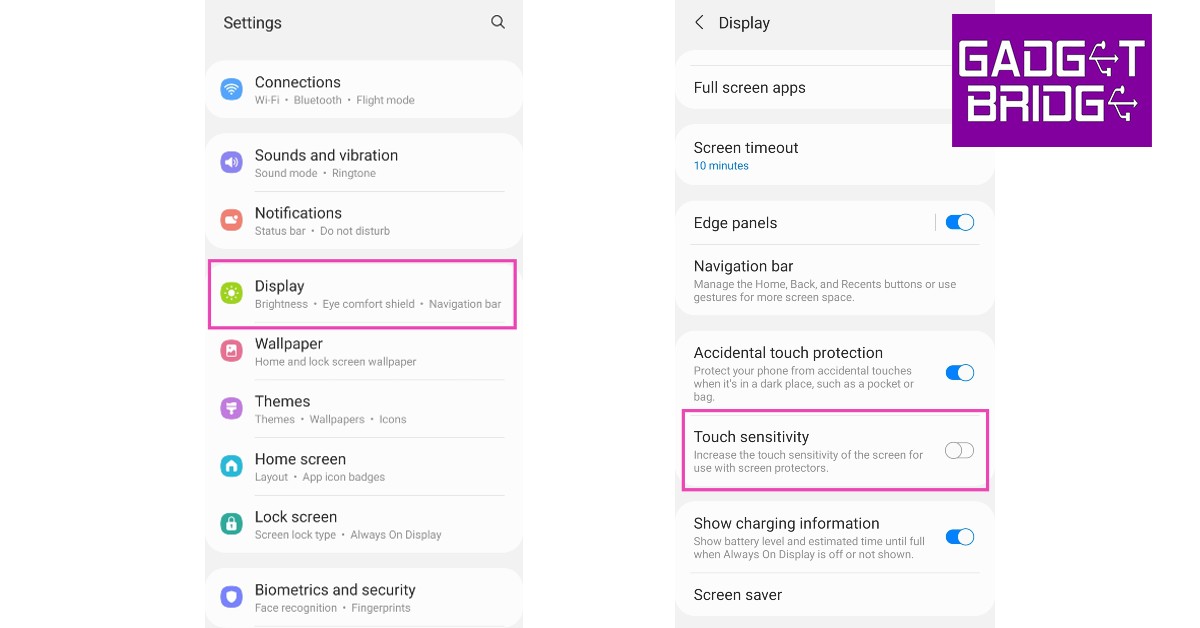
If your touchscreen started being unresponsive after you installed a screen protector on it, you need to increase the touch sensitivity of your device. With heightened sensitivity, your phone’s touchscreen can pick up the faint touches that would otherwise go unnoticed because of the screen protector getting in the way. You can increase the touchscreen sensitivity by going to Settings>Display and turning the toggle bar on for ‘Touch sensitivity.’
Clean the touch screen
Sometimes, dust particles can collect around your smartphone’s display, causing it to malfunction. If you use a screen protector on your phone, grime can collect around its borders. Thoroughly clean the display to ensure that dust build-up is not the reason behind this issue. First, wipe the display with a clean and microfibre cloth. Then, spray an isopropyl alcohol-based cleaning mixture on the display and thoroughly with it off with the microfibre cloth.
Turn off Developer Mode
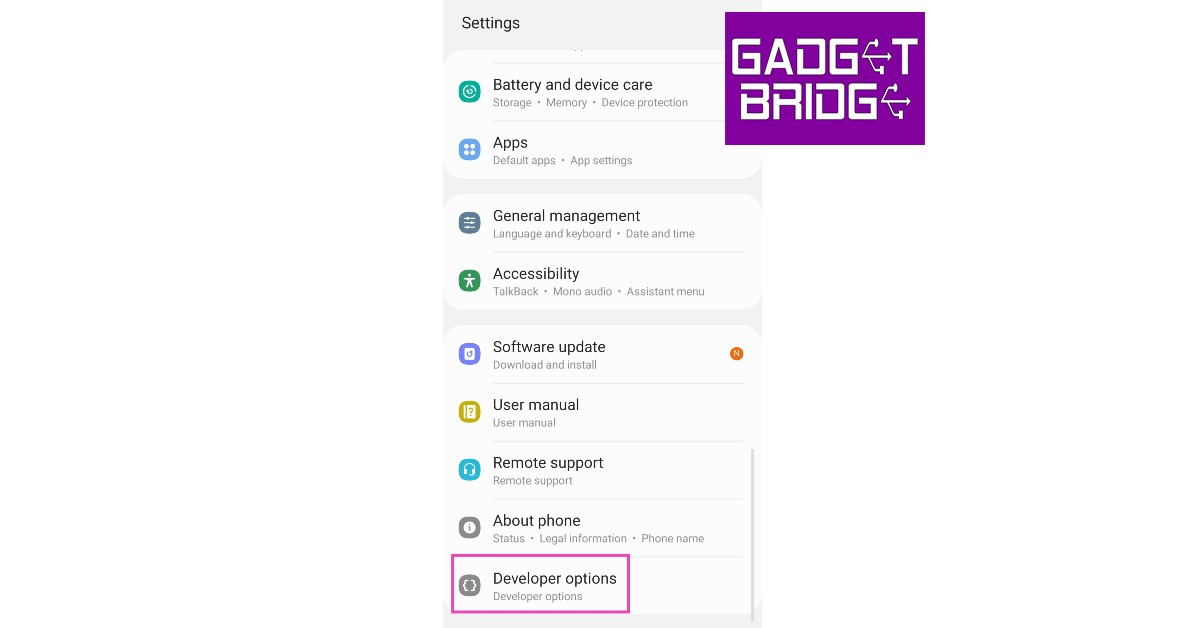
The Developer Mode on your phone can be activated by tapping the build number seven times. It unlocks a host of options, giving you greater control over the functioning of your phone. However, over a period of time, it can create certain malfunctions. If your phone’s touchscreen becomes unresponsive all of a sudden, try turning off the Developer Mode. Here’s how.
Step 1: Go to Settings.
Step 2: Scroll all the way down and tap on Developer Options.
Step 3: Switch off the toggle bar for Developer Options.
Remove the screen protector
If increasing the touch sensitivity of your device does not restore the normal functioning of the touchscreen, remove the screen protector. Before buying a screen protector, make sure that is it compatible with your smartphone. If it isn’t, it can render the touchscreen unusable. Certain screen protectors prevent the under-display fingerprint scanner from working correctly. If you are using an old screen protector, the air bubbles inside it can often cause the touchscreen to not register the touch gestures.
Water damage? Let your phone dry
If your phone’s touchscreen isn’t working due to water-related damage, there are a few methods you can employ to fix it. First, turn your phone off instantly and do not launch it until all traces of water have been removed from the device. The best way to absorb all water from your smartphone is by covering it with packets of silicate. You can read our complete guide to removing water from your smartphone here.
Take out the memory card
Not all touchscreen malfunctions are related to hardware issues. Sometimes, corrupted files in the smartphone’s memory can lead to the phone becoming unresponsive at random times. To make sure whether this is the case, take out the memory card along with the SIM and restart your phone. If the issue resolves itself, format the memory card and insert it again.
Update your phone’s OS
You may need to update your Android phone’s OS to fix its unresponsive touchscreen if the problem arises out of a software bug. Here’s how you can go about it.
Step 1: Go to Settings and select Software update.
Step 2: Tap on Download and install.
Step 3: Select Install now.
Perform a factory reset
Step 1: Go to Settings, scroll down and select General Management.
Step 2: Tap on Reset.
Step 3: Select Factory data reset.
Step 4: Scroll down and tap on Reset.
Frequently Asked Questions
How do I fix my phone’s unresponsive touchscreen?
If your phone’s touchscreen stopped responding without taking any physical damage, run the device in Safe Mode to check if it’s a third-party app-related issue. You can also use apps like Display Tester to check for any dead pixels.
What causes the touchscreen to stop working?
Your phone’s touchscreen may stop working after taking physical damage or accidentally getting dipped in water. It can also become unresponsive due to a software glitch or because of the presence of dead pixels.
How can I use my phone without touching the screen?
These are the best 12 ways to fix an unresponsive touchscreen on an Android phone. If these fixes do not work for you, take your phone to an authorised repair centre for further diagnosis. If your phone is under warranty, you can get a free screen replacement if there are no signs of physical or water damage on your phone.
Google today officially stated that the Pixel 7a’s launch date in India has been scheduled for May 11. The device will be available for purchase via Flipkart in the country the company revealed. Note that the device will debut on the second day of the upcoming Google I/O event that will begin on May 10. Ahead of the official announcement the upcoming Pixel phone has already been seen online a few times, revealing the pricing, design as well as specification.Google Pixel 7a is all set to launch in India on May 11 which was quite expected and was being speculated as the Google I/O, the company’s annual flagship event is set to begin on May 10 where we are expected to see important announcements. The smartphone is the successor to the Pixel 6A and the low-cost option to the flagship Pixel 7 that was launched last year.
Google Pixel 7a specification and design expected
The launch was teased via a teaser poster. A smartphone has been teased in a blue colour variant. The phone was previously spotted on several certification sites and other platforms, therefore, suggesting the key specs, design and pricing. Pixel 7A’s images were leaked via tipster on Twitter. He shared the phone in two colour options of Arctic Blue and Charcoal Black. The phone can be seen with a rectangular camera model horizontally placed on the back panel having an LED flash unit. The company’s Logo is also visible on the rear at the centre.
The Pixel 7A is expected to feature a 6.1-inch full-HD+ OLED. The screen will come with a refresh rate of 90Hz. The device is likely to be powered by the Tensor G2 SoC, paired with 8GB of LPDDR5 RAM and 128GB of UFS 3.1 storage. It is said to include a dual rear camera setup. The system is speculated to consist of a 64-megapixel primary sensor with optical image stabilization (OIS) support and a 12-megapixel ultra-wide lens. In addition to this, there will be a 10.8-megapixel front-facing camera for taking selfies and video calling. Reportedly the handset may include a 4,400mAh battery with 20W wired charging support.
If you want to accelerate the process of learning a language, you must practice writing it as well. Luckily, the keyboard on your smartphone makes it easier to type in a second language using predictive text. Japanese learners who find it hard to grapple with the script will find typing on an onscreen keyboard way easier than physically writing the language. In this article, we bring you the top 3 ways to type Japanese characters on your iPhone and Android phone.Read Also:How to reset your Twitter password on Android and iPhone?
Type Japanese Characters on your Android Phone
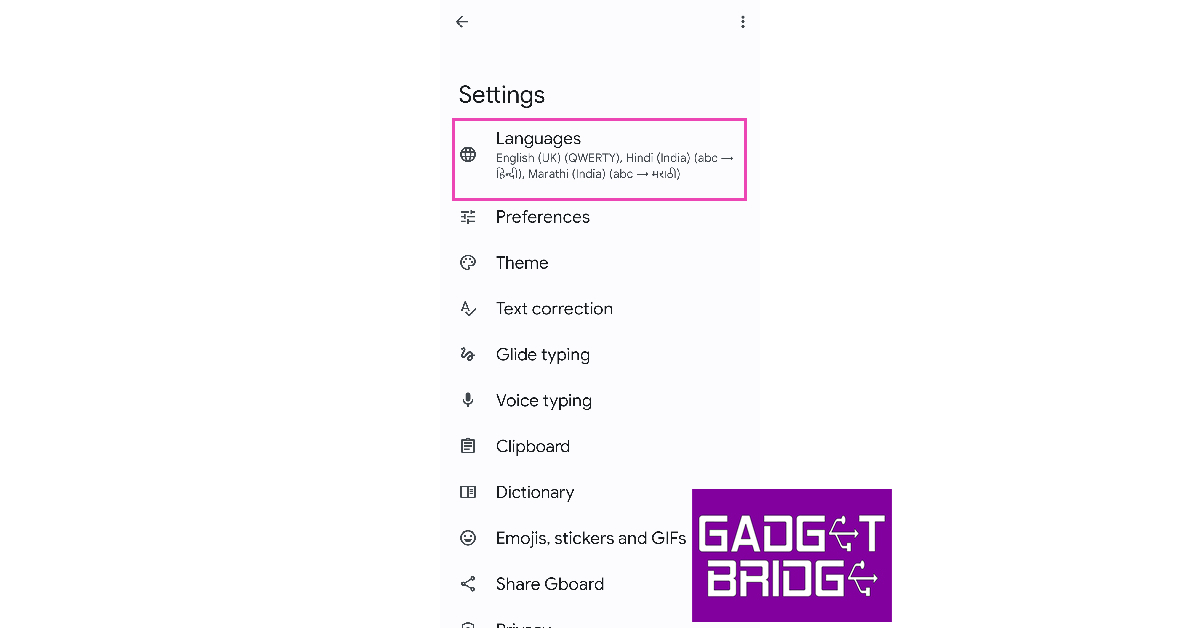
Gboard (Google Keyboard) is the default keyboard in most Android smartphones. This keyboard is extremely versatile and has integrated support for the major languages of the world. Here’s how you can type Japanese characters on Gboard.Step 1: Go to Settings and select General Management.Step 2: Tap on ‘Keyboard list and default’ and select Gboard as the default keyboard.Step 3: Go back and tap on ‘Gboard settings’.Step 4: Tap on ‘Languages’.Step 5: Select ‘Add Keyboard’.Step 6: Scroll down and select ‘Japanese’.Step 7: Select the keyboard layout and tap on ‘Ok’. Japanese will be added to the list of languages supported by Gboard.Step 8: To type in Japanese, go to a text box and long-press the spacebar on Gboard.Step 9: Select Japanese from the list. The keyboard will now display Japanese characters and you will be able to type them on the screen.
Type Japanese Characters on your iPhone
Use these steps to add Japanese characters to the default keyboard on your iPhone.Step 1: Go to Settings and select General.Step 2: Select ‘Keyboard’ and tap on ‘Keyboards’.Step 3: Tap on ‘Add new Keyboard’.Step 4: Scroll down and select Japanese.Step 5: Choose the Japanese writing system for your keyboard. By default, you get the option to add ‘Kana’ and ‘Romaji’. You can add both of them to the keyboard.Step 6: To type in Japanese, go to a text box and tap the globe icon on the keyboard. Select Japanese from the list of languages.
Type Japanese Characters using Microsoft SwiftKey keyboard
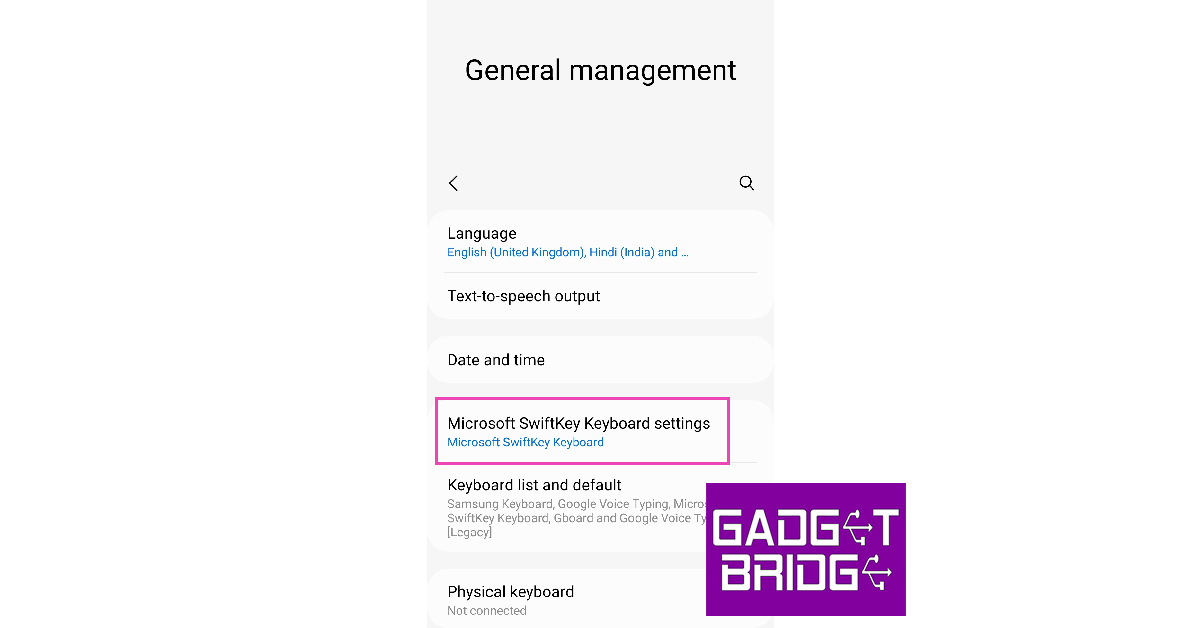
If you’re a SwiftKey user, you will be pleased to know that Microsoft’s keyboard app has support for most major languages across the world, including Japanese. Here’s how you can type in Japanese on the Microsoft SwiftKey keyboard.Step 1: Go to Settings and select General Management.Step 2: Select ‘Keyboard list and default’ and set SwiftKey as your default keyboard. If you don’t find SwiftKey on the list, download it from Google Play Store.Step 3: Tap on ‘Microsoft SwiftKey Settings’.Step 4: Select ‘Languages’.Step 5: Tap on ‘All Languages’ and select Japanese.Step 6: SwiftKey will download the language pack and integrate it with the keyboard.
Frequently Asked Questions
How do I type in Japanese on my phone?
To type in Japanese on your phone’s onscreen keyboard, simply go to Settings>General Settings and add Japanese to the list of languages on your keyboard.
Which keyboard offers Japanese typing on Android?
Google Keyboard and Microsoft SwiftKey Keyboard offer Japanese support on Android. You can also download special third-party keyboard apps to exclusively type in Japanese.
How do I type in Japanese on WhatsApp?
Once you switch to Japanese on your onscreen keyboard, you will be able to type Japanese characters on any app, including WhatsApp. To change WhatsApp’s app language to Japanese, go to WhatsApp>Settings>App Language and select Japanese from the list.Read Also:14 mobile apps linked to terrorist groups banned in India
Conclusion
This is how you can type Japanese characters on your iPhone or Android phone. You can easily switch back and forth between languages on your onscreen keyboard by tapping on the globe icon or long-pressing the spacebar. If there’s another Japanese keyboard app that you like to use, let us know in the comments!For the latest gadget and tech news, and gadget reviews, follow us on Twitter, Facebook and Instagram. For newest tech & gadget videos subscribe to our YouTube Channel. You can also stay up to date using the Gadget Bridge Android App. You can find the latest car and bike news here.
Samsung has officially announced the Fab Grab Fest 2023 on its website. Customers can benefit from discounts and cashback on a variety of Samsung digital appliances, as well as Galaxy smartphones, tablets, laptops, accessories, and wearables. The festival offers will be accessible on Samsung.com and at Samsung Exclusive Stores located all throughout the nation. Select deals are live now as early access to the sale is open, however, the sale will go live on May 4.During the Fab Grab Fest, select models of the Galaxy S Series, A Series, M Series, F Series, and Flip 3 smartphones will be discounted by up to 57%, and select models of the Galaxy Tablets will be discounted by up to 40%.Additionally, the company will offer discounts of up to 45% on consumer electronics items and up to 59% on monitors.Get additional cashback of up to 22.5% on credit and debit cards from renowned banks. The HDFC and ICICI Bank customers can also receive an additional cashback of up to 14%.Also Read:You can now easily share files between Windows PC and Android devices using Google’s Nearby Share feature
Samsung Fab Grab Fest Offers and Discounts
The Galaxy F14, Galaxy F23, flagship Galaxy S21 FE 5G, Galaxy Z Flip3, and recently released Galaxy M14 will all be discounted by up to 57%, according to Samsung. The company will be providing discounts of up to 29% on Samsung laptops such as the Galaxy Book2, Galaxy Book Go, and the recently released Galaxy Book3 and Galaxy Book3 Pro 360. You can save up to 40% on Samsung tablets, accessories, and wearables such as the Galaxy S6 Lite WiFi, Galaxy A8 WiFi, and Galaxy Watch4.Select Samsung TV models, including the flagship Neo QLED and The Frame TVs and the Crystal UHD series, will be discounted by up to 45%. The “Fab Grab Fest” 2023 will also provide never-before discounts and offers on a variety of electronic devices, including air conditioners, refrigerators, washing machines, microwaves, and monitors.The most expensive Side-By-Side refrigerators from Samsung will be discounted up to 40%. The customers can also get 32-inch Samsung smart TV worth Rs 15,990 when they purchase certain Side-By-Side refrigerators, in addition to an additional 40% savings. Up to 30 percent off will be available on select models of washing machine models, as well as a free 28-litre microwave oven.There will be up to 35 percent off on other digital appliances like microwaves and up to 40 percent off on select models of Air Conditioners. According to Samsung, debit and credit cards from ICICI, Axis, Kotak, and other top banks will also be eligible for an additional cashback of up to 22.5% with a maximum of Rs 25,000. In addition to this, consumers buying two or more of Samsung’s latest range of WindFree ACs can get an additional 10% off on the final price.Apart from discounts and offers 1st-time buyers on Samsung Shop App can avail of benefits up to Rs 2000 on select Galaxy devices & up to 3000 on Select TV & home appliances. ShopApp welcome vouchers can be availed over and above the Fab Grab Fest offers.There will be an additional 10% cashback over and above fab Grab Fest offers if the transaction is made through a Samsung Axis bank credit card.Customers making two or more purchases from categories including accessories listed under the Buy More Save More offer on Samsung.com and Samsung Shop App are eligible to get an additional 5 percent off.
For the latest gadget and tech news, and gadget reviews, follow us on Twitter, Facebook and Instagram. For newest tech & gadget videos subscribe to our YouTube Channel. You can also stay up to date using the Gadget Bridge Android App. You can find the latest car and bike news here.
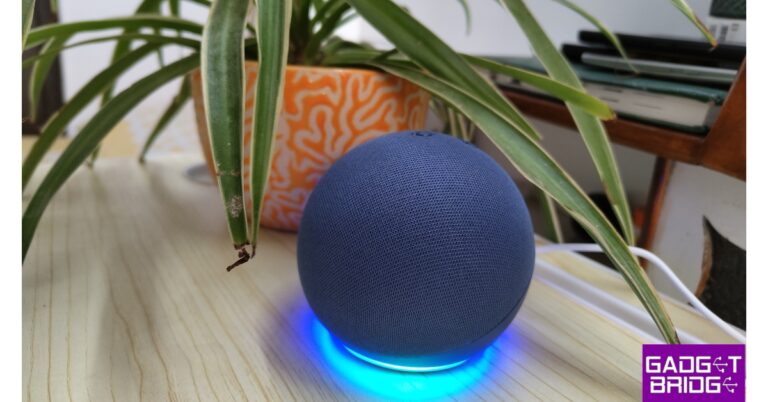
After roughly two years, Amazon released the fifth-generation Echo Dot speaker in India a few weeks ago. The device, which has improved functionalities but a mostly similar form factor to the 4th Gen Alexa-powered speaker, is its replacement. It is asserted that the entry-level smart speaker sounds better. Additionally, it has motion detection, ultrasound sensors, and temperature sensors. Our edition of the Echo Dot 5 costs Rs 5,499; can it live up to the expectations? Read our Amazon Echo Dot 5th Gen review to find out.
Amazon Echo Dot 5th Gen Review: Design
Hey, that looks exactly like the previous generation model, we thought when we first saw the Amazon Echo Dot 5th Gen speaker. To distinguish between the two generations, there is a small difference, though. The 3.5mm audio jack, which was a not needed addition in our opinion, has been eliminated by the business from the fifth generation.Amazon Echo Dot 5th Gen features a spherical design, which looks neat and has four physical buttons on the top. There is an action button to turn on/off the Accelerometer, a mute mic button and two to control the volume. We have the blue colour variant, however, it is available in two more colours – white and black. Since it lacks a battery, it cannot be used on the go; instead, it must be constantly plugged in to function.The dedicated light on the speaker’s bottom illuminates in various colours to show whether Alexa is listening, on mute, trying to connect to WiFi, or in setting mode. The bottom of the speaker is flat and covered with rubber for a better grip. The power socket is still there, despite the absence of the 3.5mm headphone jack, as we have mentioned.
Amazon Echo Dot 5th Gen Review: Performance
The device has an accelerometer that allows you to snooze the alarm, play/pause music, and even stop the timer by tapping on the top of the device. Actually, it’s quite good. More often than we anticipated, we found ourselves unintentionally stopping the music. Therefore, the action button saves the day. When the button is pressed, the accelerometer is not activated. Alexa can be asked to play or pause music instead, which is more effective. In the App settings, you can also disable the play and pause music tap gesture, but you can still keep it on to stop alarms and timers. However, the tap gesture many times failed during our testing, which was a bit odd.Most of the time the tap gesture never worked to resume the music if it accidentally gets paused. We had to tap it multiple times.Let’s discuss ultrasound motion detection, another improvement over the 4th generation Echo Dot. Yes, the Echo Dot 5 has motion detection. The built-in microphones capture background noise that can be tweaked to meet your needs. For instance, you can programme it to automatically turn off the lights in the room when no one is present and turn them on when it senses someone is around. All you need to do is visit the Alexa App to personalise this. An option for ultrasonic motion detection is available in the settings. You may adjust the sensitivity range here and many other things if you turn that on.Additionally, it has a built-in temperature sensor, and just like ultrasound motion detection, you can programme a routine for this as well. The air conditioner will automatically turn on if the room temperature exceeds your preset level. You can also set a threshold to switch off the air conditioning. If your AC is a Smart AC, you must manually switch it off.The Echo Dot 5 has a 1.73-inch audio driver. The smart speaker has excellent bass quality. You can easily use it to operate your Smart home equipment in addition to listening to music.Wi-Fi connections at 2.4GHz and 5GHz are available for connectivity. It takes several minutes to connect initially to the Wifi but the connectivity is stable and has a good range. It works with Alexa App, which is available on both Apple App Store and Google Play Store. We only used the App while setting up the device and to link appliances and music streaming services. Also, the Echo Dot supports music streaming services like Amazon Prime Music, Jiosaavan, Spotify, Hungama and more.In terms of cost, the Amazon Echo Dot 5 is available for Rs 5,499. which is more expensive than the previous generation, which costs only Rs 4,499 today.
Verdict
The real question is whether you would spend an extra Rs 1,000 to get the tap feature, ultrasound motion detection, and temperature sensor built-in. If you ask us, we will say “Maybe.” The tap functionality did not impress us because it frequently failed and because our listening pleasure was ruined by unintended touches.The temperature sensor, however, is a welcome addition, but again, if you have a Smart AC at home or at work, this feature is not much of use. The Echo Dot 5’s audio quality has become much better, and there’s no denying that the bass on this model is excellent. At just Rs 4,499, the 4th generation is, in our opinion, is a great investment. The Echo Dot 5 is a superb option if you want to replace your 4th generation or older device and want new-age sensors.Price: Rs 5,499Buy HereAmazon Echo Dot 5th Gen Pros
Garena Free Fire is a battle royale game with regular awards and tournaments to keep players interested. If you play Garena Free Fire, you should be aware of the redeem codes that are released on a daily basis. However, because the battle royale game is banned in India, players from other countries can use the Free Fire Redeem codes daily. If you’re unfamiliar with the Garena Free Fire redeem codes or don’t know how to get them, we’ve put together a step-by-step guide to help you redeem them. Check out Garena Free Fire Redeem Codes for 2 May 2023.The Free Fire redeem codes are a great way to get free stuff. These are 12-digit codes that contain alphabets and numbers, as well as an expiration date and time. Because the Garena FF redeem codes cannot be used more than once, you should hurry to the redemption page to claim your free reward before someone else does. To get a free reward, all you have to do is go to reward.ff.garena.com/en, which is the official redemption page. Also, keep an eye on this space for daily updates on Garena Free Fire redemption codes and rewards.
Daily Amazon brings a fresh quiz for its customers with exciting rewards on its platform. The Amazon quiz can be played every day from 12 AM to 11:59. 2 May 2023 Amazon Quiz has gone live on its platform and the e-commerce platform Amazon is today giving you a chance to win Rs 1,000 Amazon Pay Balance.To participate all you need to do is log in to your Amazon app on your device and give answers. Daily a new set of questions are presented to the participants which gives them a chance to win exciting prizes. The questionnaire consists of five easy questions that are usually based on general knowledge and current affairs. You can submit the correct answers and can win an Amazon Pay Balance of up to Rs 50,000. It should be noted that the quiz is not accessible on the web platform instead you have to participate only through the dedicated app.Amazon Quiz Today Prize – Rs 1,000 Amazon Pay BalanceQuiz Date – 2 May 2023Daily Timing – 12 AM to 11:59 PMWinner Announcement – Today 12 PM
Amazon Quiz Answers Today 2 May 2023
Question 1: In April 2023, who became the highest wicket-taker in the T20I format?
Answer: Shakib Al Hasan
Question 2: India built the Buzi Bridge in which African country?
Answer: MozambiqueQuestion 3: Fumio Kishida, who visited India in March 2023, is the PM of which country?Answer: JapanQuestion 4: What island are these animals native to?
Answer: MadagascarQuestion 5: What is the name of the highest building located in this city?Answer: CN Tower
How To Play Amazon Quiz
Only app users are eligible to play the Amazon quiz every morning from 12 AM to 11:59 PM. The quiz is not available on the desktop. For those who are unaware of how to play the Amazon quiz below are the steps, you can follow to take the quiz.
Firstly download the Amazon app from Google Play Store or App Store
Now fill in the required information through the Sign Up option.
You need to log in to the Amazon app and scroll down on the home screen to find the Amazon Quiz banner.
Tap on the Amazon Quiz banner and tap on the Start button to start the Quiz.
Now you will get 5 questions and you need to answer them correctly. One wrong answer will eliminate you from the Quiz.
After answering all the questions correctly you are now eligible for a Lucky Draw.
The winner’s name will be announced today at 12 PM.
If you ever forget your Twitter password, you don’t need to worry about losing your account. Twitter makes it easy to reset your password once it is able to verify your identity. You can reset your Twitter password using your email or your phone number. For the latter, your phone number needs to be registered to your account. So, without further ado, here are the two ways you can reset your Twitter password on Android and iPhone.Read Also:Infinix Smart 7 HD with 5,000mAh battery launched in India
How to reset your Twitter password via email
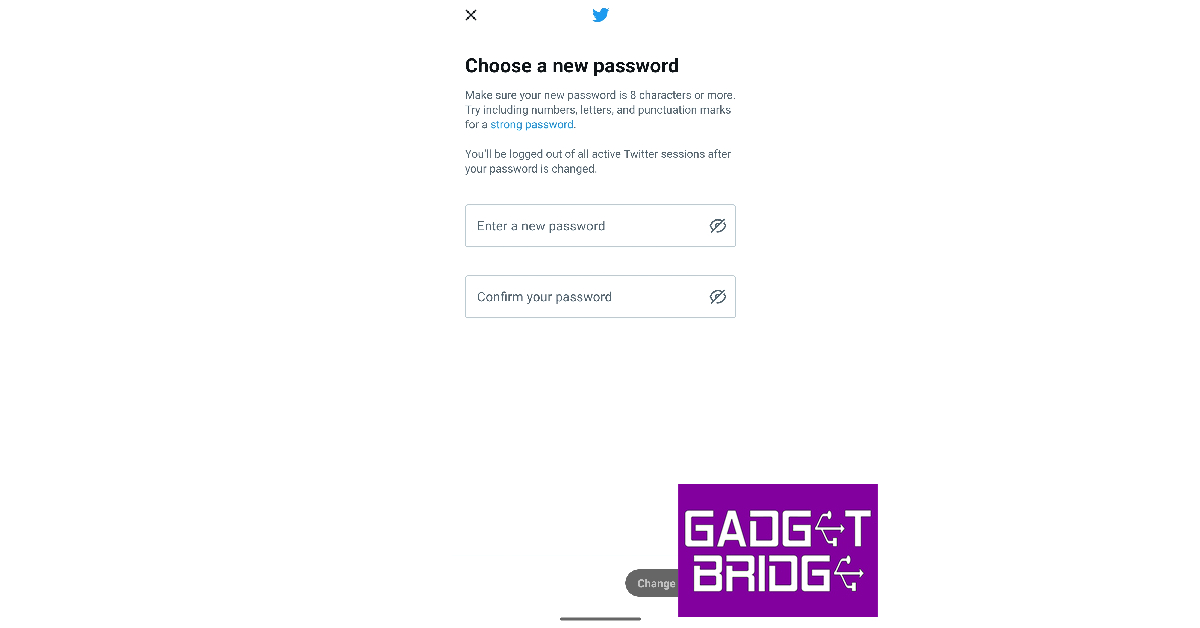
Step 1: Launch the Twitter app on your phone and tap on ‘Log in’.Step 2: Tap on ‘Forgot password?’Step 3: Enter your email or username in the relevant field. You can also use your phone number if it is linked to only one account.Step 4: Choose the email where you want to receive the confirmation code to verify your identity. Tap on ‘Next’.Step 5: Check your email inbox for the verification code. Enter it on the Twitter app.Step 6: Your password will be reset and you will now be asked to create a new password.Step 7: Set a new password for Twitter and tap on ‘Change Password’.
How to reset your Twitter password via text
Step 1: Launch the Twitter app on your phone and tap on ‘Log in’. Step 2: Tap on ‘Forgot password?’Step 3: Enter your registered email, phone number, or Twitter username.Step 4: Enter your phone number and hit ‘Search’.Step 5: Twitter will show you a few digits of your registered number. If you still have access to this number, tap on ‘Continue’.Step 6: A reset code will be sent to your number. Enter it in the Twitter app and tap on ‘Submit’.Step 7: Your Twitter password will be reset. You can now create a new password for your account.
Frequently Asked Questions
I tried resetting my Twitter password but still can’t log into my account. What should I do?
If you can’t get access to your Twitter account even after resetting your password, you may have been locked out of your account due to a security issue. It is also possible that you received a temporary ban. Check your email for any ban notifications and contact Twitter Support for more information.
I’m not receiving any verification codes from Twitter, what should I do?
If you are unable to receive the verification code via text, check if you are using the phone number that is registered on the Twitter app. Make sure you are receiving ample network coverage and that the Twitter number isn’t blocked.
Why do I keep getting password reset emails?
If you keep getting password recovery codes from Twitter, it means someone is trying to gain access to your account. Do not share the verification code with anyone as it will give them access to your account. You can also beef up the security by adding two-factor authentication to your account.Read Also:How to use WhatsApp without a phone number?
Conclusion
These are the two ways you can reset your Twitter password on Android and iPhone. If you know your password and simply want to change it, you don’t need a verification code to do so. Simply go to Settings>Your Account>Change your password and type your current password followed by the new password of your choice. To add extra protection to your account, set up two-factor authentication for Twitter. Here is how you can do it for free.For the latest gadget and tech news, and gadget reviews, follow us on Twitter, Facebook and Instagram. For newest tech & gadget videos subscribe to our YouTube Channel. You can also stay up to date using the Gadget Bridge Android App. You can find the latest car and bike news here.
The Government of India has banned 14 mobile apps in the country. These applications were mostly utilised in Jammu and Kashmir for the dissemination of terror. Some terrorist groups were using these apps for fostering terrorism in J&K. On the advice of security and intelligence agencies, the decision to ban the apps was made.
Below is the list of mobile apps that have been banned in India:
Crypviser
Enigma
Safeswiss
Wickrme
Mediafire
Briar
BChat
Nandbox
Conion
IMO
Element
Second line
Zangi
Threema
As we mentioned earlier the action was taken on the recommendation of intelligence agencies. The request for banning these apps was made known to the relevant ministry along with a list of apps that constitute a threat to national security. The 14 mobile apps have been banned under Section 69A of the Information Technology Act of 2000. According to sources, these applications were used by terror groups linked to Pakistan in Jammu and Kashmir to stay in touch with their supporters and Over Ground Workers (OGW) and to receive orders from Pakistan. “Agencies keep track of channels used by Overground workers (OGWs) and terrorists to communicate among themselves. While tracking down one of the communication, agencies found that the mobile application does not have representatives in India and it is difficult to track down activities happening on the app. Thereafter, with the help of other intelligence agencies operating in the valley, a list of such apps was prepared that pose a threat to national security and do not follow Indian laws,” according to ANI.In the past, more than 200 apps, including TikTok, PUBG Mobile, and others, were banned in India. A quick recap: 59 Chinese apps were subject to the initial ban. TikTok, Shareit, Shein, WeChat, Club Factory, and more apps were on the list at that time. Under Section 69A of the Information Technology Act, more than 118 apps, including PUBG, were blacklisted in the second round.
For the latest gadget and tech news, and gadget reviews, follow us on Twitter, Facebook and Instagram. For newest tech & gadget videos subscribe to our YouTube Channel. You can also stay up to date using the Gadget Bridge Android App. You can find the latest car and bike news here.
WhatsApp is constantly updating its features to provide the best possible user experience. Recently the company was spotted testing a Lock chat feature to boost privacy on its platform. In a new development, the instant messaging platform is working on a data transfer feature. A new WhatsApp chat transfer feature is currently rolling out to allow users to move user’s accounts to another device without using Google Drive, and it is available to some lucky beta testers.According to a report by WaBetainfo, a new chat transfer feature is now available to selected beta testers (WhatsApp beta for Android 2.23.9.19 update) and is likely to be available to more users over the coming weeks. Reportedly the users won’t need to back up their chat history to Google Drive if they are willing to transfer their accounts to new Android devices.Image Courtesy: WaBetaInfoAccording to a shared screenshot, the chat transfer option is available within WhatsApp Settings > Chats. It will enable users to migrate their chat history to a new Android device. One must scan the QR code after choosing this option to start the process of transferring our chat history to the new Android device.The new chat transfer feature will offer the option to avoid manually backing up chats history to Google Drive, in case the chat history is large. Users can move their chat history from an old Android smartphone to a new Android device by just scanning the QR code. This eliminates the need for backup and restoration procedures as the migration is automatic.Also Read:WhatsApp released Lock Chats feature to boost privacy: Details inside“In case this feature is not available for your WhatsApp account, there is nothing wrong with your device: WhatsApp often releases new features gradually to a limited number of beta testers before making them available to everyone. This approach helps WhatsApp to identify and fix any issues or bugs with the feature before it is widely released.”As per the report, the chat transfer feature is currently available to some selected beta testers that install the latest update of WhatsApp beta for Android from the Google Play Store. The company is likely to roll out the feature to more users over the coming week.
For the latest gadget and tech news, and gadget reviews, follow us on Twitter, Facebook and Instagram. For newest tech & gadget videos subscribe to our YouTube Channel. You can also stay up to date using the Gadget Bridge Android App. You can find the latest car and bike news here.


 If your phone’s touchscreen started malfunctioning out of the blue without any signs of physical damage, the issue is most likely software-related. The touchscreen may stop responding at times due to a background glitch. The easiest way to resolve these glitches is by quickly rebooting your phone. Simply long-press the side key to reveal the power options. Select ‘Restart’ from the list of options. If long pressing the side key triggers the voice assistant on your device, press the side and Volume Up keys to reveal power options.
 It is common for corrupt third-party apps to mess with the basic functioning of your phone. Before you perform a factory reset or uninstall certain apps from your device, it is a good idea to restart your phone in Safe Mode to confirm whether third-party apps are an issue. Restarting your phone in Safe Mode limits the activity of third-party apps and runs only the basic system apps on the device. If you are facing the touchscreen in Safe Mode as well, it means that third-party apps are not to blame.
To enter Safe Mode, press and hold the power button and volume down button. Once the power menu pops up on the screen, press and hold the power icon until the Safe Mode option shows up.
It is common for corrupt third-party apps to mess with the basic functioning of your phone. Before you perform a factory reset or uninstall certain apps from your device, it is a good idea to restart your phone in Safe Mode to confirm whether third-party apps are an issue. Restarting your phone in Safe Mode limits the activity of third-party apps and runs only the basic system apps on the device. If you are facing the touchscreen in Safe Mode as well, it means that third-party apps are not to blame.
To enter Safe Mode, press and hold the power button and volume down button. Once the power menu pops up on the screen, press and hold the power icon until the Safe Mode option shows up.
 Your Android smartphone is equipped with certain diagnosis tools for different parts of the device. You can run a check for touchscreen issues as well. These checks can be triggered by entering certain codes on the dialer app. To run a touchscreen check on a Samsung phone, launch the Dialer app and enter *#0*#. Run the different tests on your touchscreen to diagnose the issue. If you own a smartphone from a different manufacturer, simply Google the test codes for that device.
 The Display Tester app performs a thorough test on your phone’s touchscreen and diagnoses dead pixels with ease. Install the Display Tester app from the Google Play Store. Launch the app and switch to the ‘Tests’. Run all the available tests on your device to figure out what is wrong with it.
 If your touchscreen started being unresponsive after you installed a screen protector on it, you need to increase the touch sensitivity of your device. With heightened sensitivity, your phone’s touchscreen can pick up the faint touches that would otherwise go unnoticed because of the screen protector getting in the way. You can increase the touchscreen sensitivity by going to Settings>Display and turning the toggle bar on for ‘Touch sensitivity.’
 Step 3: Switch off the toggle bar for Developer Options.

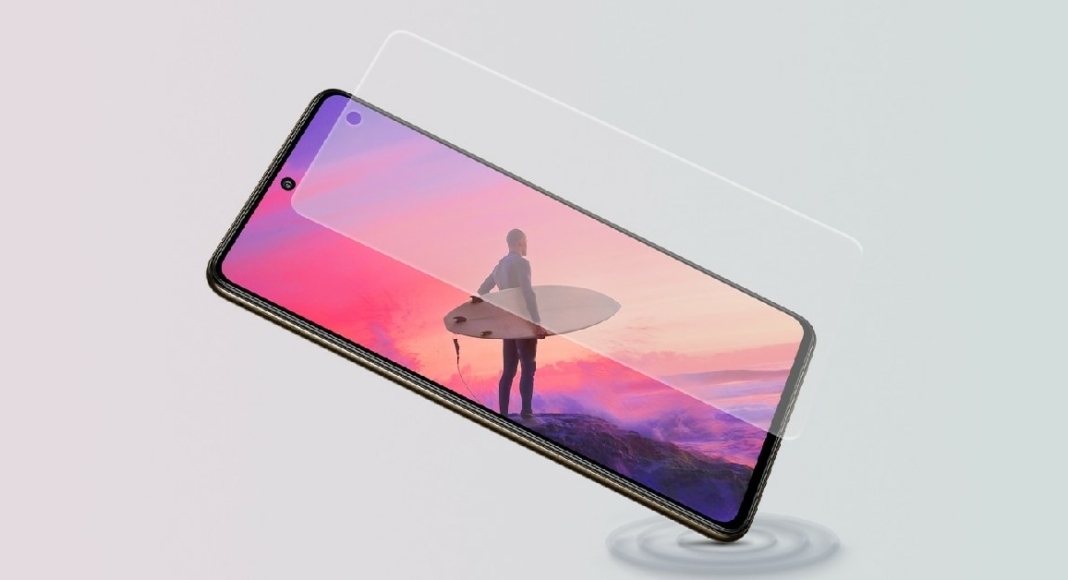 If increasing the touch sensitivity of your device does not restore the normal functioning of the touchscreen, remove the screen protector. Before buying a screen protector, make sure that is it compatible with your smartphone. If it isn’t, it can render the touchscreen unusable. Certain screen protectors prevent the under-display fingerprint scanner from working correctly. If you are using an old screen protector, the air bubbles inside it can often cause the touchscreen to not register the touch gestures.
 If your phone’s touchscreen isn’t working due to water-related damage, there are a few methods you can employ to fix it. First, turn your phone off instantly and do not launch it until all traces of water have been removed from the device. The best way to absorb all water from your smartphone is by covering it with packets of silicate. You can read our complete guide to removing water from your smartphone here.
 Not all touchscreen malfunctions are related to hardware issues. Sometimes, corrupted files in the smartphone’s memory can lead to the phone becoming unresponsive at random times. To make sure whether this is the case, take out the memory card along with the SIM and restart your phone. If the issue resolves itself, format the memory card and insert it again.
 Step 2: Tap on Download and install.
 Step 3: Select Install now.

 Step 2: Tap on Reset.
 Step 3: Select Factory data reset.
 Step 4: Scroll down and tap on Reset.


 Step 2:
 Step 3:
  Step 4:
 Step 5:
 Step 6:
 Step 7:
  Step 8:
 Step 2:
 Step 3:
 Step 4:
 Step 5:
 Step 6:
 Step 3:
 Step 4:
 Step 5:
 Step 6:




 Step 2:
 Step 3:
 Step 4:
  Step 5:
 Step 6:
 Step 7: