After unveiling its flagship Galaxy S series in February, Samsung turned its focus to the midrange segment in March, expanding its A series portfolio. The Samsung Galaxy A54 and A34 are finally here, competing in a segment full of flagship killers and value-for-money smartphones. The higher-priced Galaxy A54 locks horns with the OnePlus 11R (review here) and Vivo V27 Pro (review here). While the 11R brings a powerful processor (Snapdragon 8+ Gen 1) to the table, the V27 Pro offers a stellar camera performance. Needless to say, the Galaxy A54 has its task cut out for it. We used the Samsung Galaxy A54 5G for about a week, here is our in-depth review.Read Also:Redmi A2, A2+ with MediaTek Helio G36 & 500mAh battery launched
Samsung Galaxy A54 5G review: Design and Display
The Samsung Galaxy A54 ships inside the signature compact rectangular Samsung box, which is a dead giveaway that there isn’t a power adapter in there. The contents have been kept to a minimum. Inside the box, you will find the smartphone, a USB Type-C to Type-C charging cable, a SIM ejector tool, and a quick start guide. The phone does not come with a plastic case neither there is any protective covering on the display out of the box.Pulling the device out of its plastic covering, you’ll notice that Samsung has made some noticeable upgrades on the build and form factor. You may remember last year’s Galaxy A53 (review here) sporting a plastic back. Well, that’s not the case with the A54 as it gets a flat glossy glass back panel. This dramatically elevates the in-hand feel of the device, something that you expect when you’re paying almost Rs 40,000 for a smartphone.In terms of design, Samsung seems to be sticking with S23’s camera array setup on this year’s A series. We saw this earlier with the Galaxy A14 (review here) as well. A welcome addition, although some may argue it robs the smartphone of its uniqueness. The design in itself is pretty minimal, the three camera lenses are arranged vertically on the top left section of the back panel. While the lenses stick out a bit further compared to the S23 series, the smartphone doesn’t wobble while resting on a flat surface. The plastic material used on the frame is a stark departure from the premium feel of the glass back. The frame is quite chunky, and if you move your finger from the display to the edges, you will be able to feel the raised borders of the frame. Having said that, the matte-like texture on the frame provides a nice grip. The volume rocker and the power key are positioned on the right side of the frame while the left side has been left empty. The USB port, speaker grille, and microphones are housed at the bottom of the phone. The secondary speaker and SIM tray are placed at the top.Samsung continues to knock it out of the park with its stellar displays. The 6.4-inch Super AMOLED display has a 120Hz refresh rate and a peak brightness of 1000 nits. Even under bright sunlight, the display is perfectly legible. The touch receptivity is as smooth as it gets, which makes the browsing experience extremely satisfying. The under-display fingerprint works fine but could have been a bit quicker. The sizeable bezels around the display are a disappointment, especially when you consider that the A54 costs Rs 39,000.Once you get past the bezels, the Samsung Galaxy A54 is pretty good when it comes to watching content. The images produced on the screen are vibrant, well-composed, and pack a lot of details. While Samsung doesn’t mention HDR support for this display, the YouTube app is able to play HDR videos. The same doesn’t apply to Netflix.Another aspect where the Galaxy A54 pulls ahead of its competitors is dust and water resistance. With an IP67 rating, you don’t have to worry about any water damage in case you accidentally spill something on the phone or take it out in rainy conditions. While we’re talking about protection, the Corning Gorilla Glass 5 is also a pretty good piece of hardware to have.
Samsung Galaxy A54 5G review: Performance and Cameras
Let us get the specs out of the way first. The Samsung Galaxy A54 5G is powered by the new Exynos 1380 SoC and comes with Android 13 out of the box. The OS is skinned with One UI 5.1. GPU duties are handled by the Mali G-68 MP5. The smartphone comes in two storage variants (128GB and 256GB) with 8GB RAM. The 256GB variant has been priced at Rs 40,999.The new Exynos 1380 SoC is a decent chip on paper, but it is certainly a step behind its Snapdragon counterparts. In this price segment, a better SoC would’ve made all the difference. Compare this to the OnePlus 11R which comes with last year’s flagship Snapdragon 8+ Gen 1 SoC, which is a tremendous processor on all accounts. This isn’t to say that the Exynos 1380 is a bad chip by any means, but it pales in comparison to the competition. The Exynos 1380 SoC handles the basics pretty well. Browsing through the apps is met with no delays or lags, although a slight dip in performance is noticeable when you overload the system with multiple apps running in the background. While this scenario may not present itself in everyday use, the other processors in this price range are able to handle it pretty well. Talking about benchmarks, the Samsung Galaxy A14 scored 1010 points on the single-core Geekbench 6 test. The multi-core test returned 2820 points. In comparison, the OnePlus 11R scored 888 points and the Vivo V27 Pro scored 1151 points.We played Call of Duty Mobile on the Samsung Galaxy A54 5G and the performance was decent. The only drawback when it comes to gaming is that some games, including Call of Duty, do not run in the maximum graphics setting. This may not bother casual gamers but if you’re looking for a serious gaming smartphone, there are better options out there. While playing COD we noticed slight overheating around the camera array after 30 minutes of gameplay. The gaming performance was not affected right away, but as the back panel got hotter, frame drops also increased in frequency.Samsung’s One UI remains one of the best Android skins out there. The A54 gets the full One UI experience, with only a few premium features (like Samsung Dex) held back. There is some bloatware on the phone, which isn’t a good look at this price point. One UI comes with integrated ‘Link to Windows’ connectivity, which makes it easy to remotely access your phone’s functions from your PC. Samsung’s Secure Folder and Maintenance Mode are two great privacy features that we liked on this device. Samsung has promised 4 years of major OS updates along with 5 years of security updates with the A54, which is incredible to see.Samsung Galaxy A54’s battery performance is quite satisfactory. Packed with a 5,000 mAh battery unit, the smartphone can easily last a day with 5-6 hours of screen-on time. On moderate to heavy usage, we were consistently left with a 15-20% charge by the end of the day. With 25W charging support, the smartphone takes around 90 minutes to fully juice up. Faster charging would have been ideal here.Moving on, the camera performance is one of the bigger highlights of this device. Samsung seems to have done its homework and presented a well-rounded camera unit that doesn’t leave much room for complaints. The rear camera array sports a 50MP primary shooter, a 12MP ultrawide lens, and a 5MP macro lens.The primary 50MP camera produces some beautiful images for us in daylight conditions. We were particularly impressed by the perfect exposure level on the images. The camera managed to capture the sky in its ideal tone without overexposing it. Even the background objects were captured with a good amount of detail.Ultrawide ShotThe colours produced in the images are simply amazing. The saturation levels are on point and the colours are punchy. The camera manages to capture the full range of dynamic colours and the smartphone nails the image processing aspect perfectly. Even the ultrawide lens did not compromise on the colour profile.Ultrawide ShotThis exceptional camera performance continues in lowlight conditions. With the Night Mode on, the A54 reduced the grain on the images and brightened them up pretty well. The colours were well-balanced and close to real even with the Night Mode on. We were impressed that the brightening effect did not mess with the colour of the subject.Without Night Mode vs With Night ModeNight ModeNight ModePortrait ModeIn Portrait Mode, the smartphone did a great job of recognising the edges and isolating the subject from the background. The results are stunning, especially when there’s an optimum amount of light falling on the subject. The 32MP selfie camera produces good results as well. The skin tone of the subject is aptly reproduced in the images and the overlaying effects have been kept to a minimum. The selfie camera can record videos in 4K resolution as well.Read Also:Explained: Why do smartphones with big batteries offer average battery life?
Verdict
With Samsung Galaxy A54 you get a stunning display that you simply can’t put down. The glass back panel brings an exquisite in-hand feel to the smartphone, something that is only matched by flagship devices. The camera performance is delightful and matches some of the best camera-centric phones in this category. However, when you’re paying Rs 39,000 for a smartphone, you expect slimmer bezels around the display. We would have preferred this smartphone with a Snapdragon SoC, but casual users will not mind the Exynos processor. Having said that, certain features like an IP76 rating and four years of major OS updates make the Samsung Galaxy A54 an attractive device for everyday users.
Samsung Galaxy A54: Pros
Brilliant display
Great camera performance
IP67 rating
Four years of major OS upgrades + 5 years of security patches
Samsung launched its new range of premium house cleaning products in India today. This new lineup of vacuum cleaners features two variants of the Bespoke Jet along with the new Jet Bot+. Designed for Indian households, Samsung’s new range of vacuum cleaners claims a 99.99% dust-free cleaning experience with its Multi-layered Filtration System. Read Also:Top 6 ways to Play Android Games and Run Apps on PC
Samsung Bespoke Jet and Jet Bot+ offer efficient cleaning with cutting-edge looks
Under its ‘Bespoke’ monicker, Samsung puts out home appliances with a special focus on design and aesthetics. Initially limited to refrigerators and microwaves, Samsung has now added vacuum cleaners under the Bespoke banner. Samsung Bespoke Jet Pet has been priced at Rs 79,900 while the Bespoke Jet Pro Extra costs Rs 89,900. The Jet Bot+ fetches Rs 65,900.The Bespoke Jet comes in two variants: Bespoke Jet Pet and Bespoke Jet Pro Extra. Both variants offer a suction capacity of 210W for deep cleaning. The 2-unit battery ensures that the Bespoke Jets last for up to 2 hours at one stretch. The Bespoke Jet Pro Extra comes with a vacuum as well as a mop. The Bespoke Jet Pet is a dry vacuum. The former is available in Midnight Blue colour while the latter comes in Woody Green shade.The ‘All-in-One Clean Station’ charges the Bespoke Jet and automatically empties its dustbin using Samsung’s Air Pulse technology. The multi-layered filtration system ensures only clean is released from the station. The display on the Bespoke Jet shows important info like the charging level, suction power, running time, maintenance, and error guides. The dustbin on this vacuum cleaner is fully washable. Read Also:Redmi A2, A2+ with MediaTek Helio G36 & 500mAh battery launchedThe new Jet Bot+ is Samsung’s first robotic vacuum cleaner in India. The cleaning bot comes with the same All-in-One cleaning station as the Bespoke Jet, along with other smart features like smartphone connectivity, voice recognition, and LiDAR sensor-based navigation. The Jet Bot+ can be remotely controlled through Samsung’s SmartThings app. Users can assign no-go zones and view live cleaning reports through the app.“Consumer focus towards a hygienic lifestyle has increased multi-folds. Our new line-up of vacuum cleaners has been designed to address consumer needs for hygiene and convenience along with great aesthetics, and best-in-class technology. An all-in-one clean station, 99.999% multi-layered filtration system, Wi-Fi connectivity, voice control, and LiDAR sensor-based navigation make our vacuum cleaners the best choice for modern consumers. With our Bespoke Jet™ and Jet Bot+ vacuum cleaners, we are confident to improve the lifestyle of consumers by making cleaning more convenient,” said Mohandeep Singh, Senior Vice President, Consumer Electronics Business, at Samsung India.For the latest gadget and tech news, and gadget reviews, follow us on Twitter, Facebook and Instagram. For newest tech & gadget videos subscribe to our YouTube Channel. You can also stay up to date using the Gadget Bridge Android App. You can find the latest car and bike news here.
If you find yourself running out of storage space on your smartphone, we don’t blame you. As smartphone cameras and processors get more powerful, the size of the apps and media files is rapidly increasing too. A single 4K video can easily occupy hundreds of megabytes worth of storage on your device. This is why you’ll see smartphone variants with up to 1TB of storage space these days. Apart from having access to higher storage, there are a few other things you can do to manage the storage capacity of your device. In this article, we bring you the top 8 ways to free up space on your iPhone and Android phone.Read Also:Easily protect yourself from Instagram scams: Best 6 ways
Clear the cache
Clearing the cache memory on your device can help you free up a significant chunk of space. The web browser and apps store temporary files in the cache memory to speed up the load time. Individually delete the cache of each app to increase the available storage on your smartphone. Here’s how.
Clear cache on Android
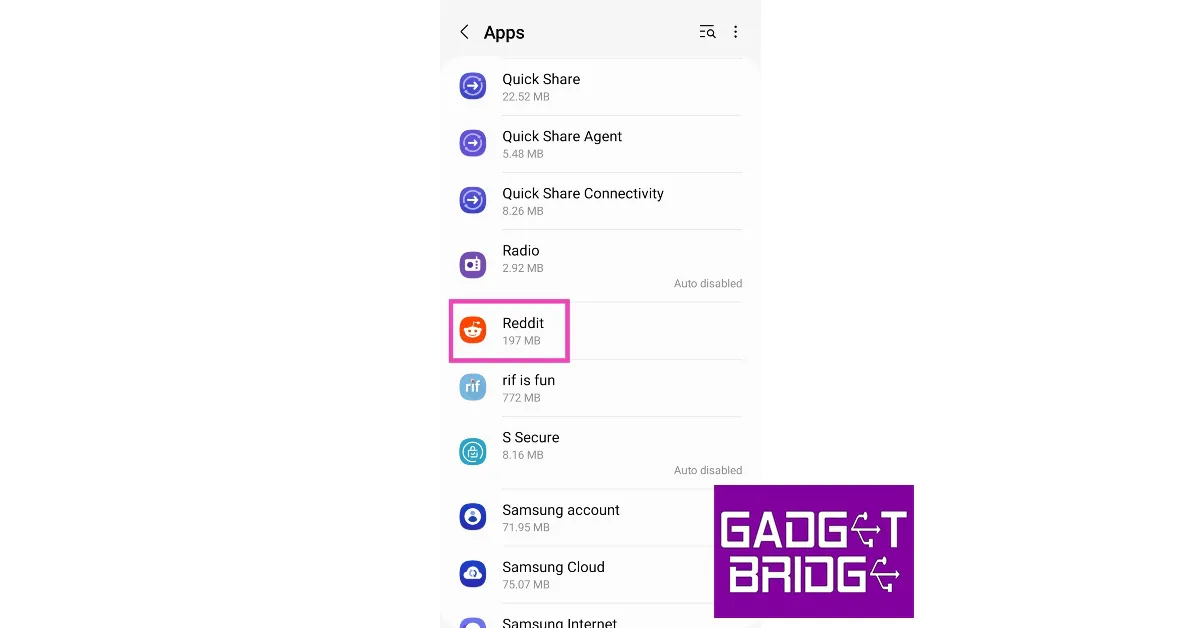
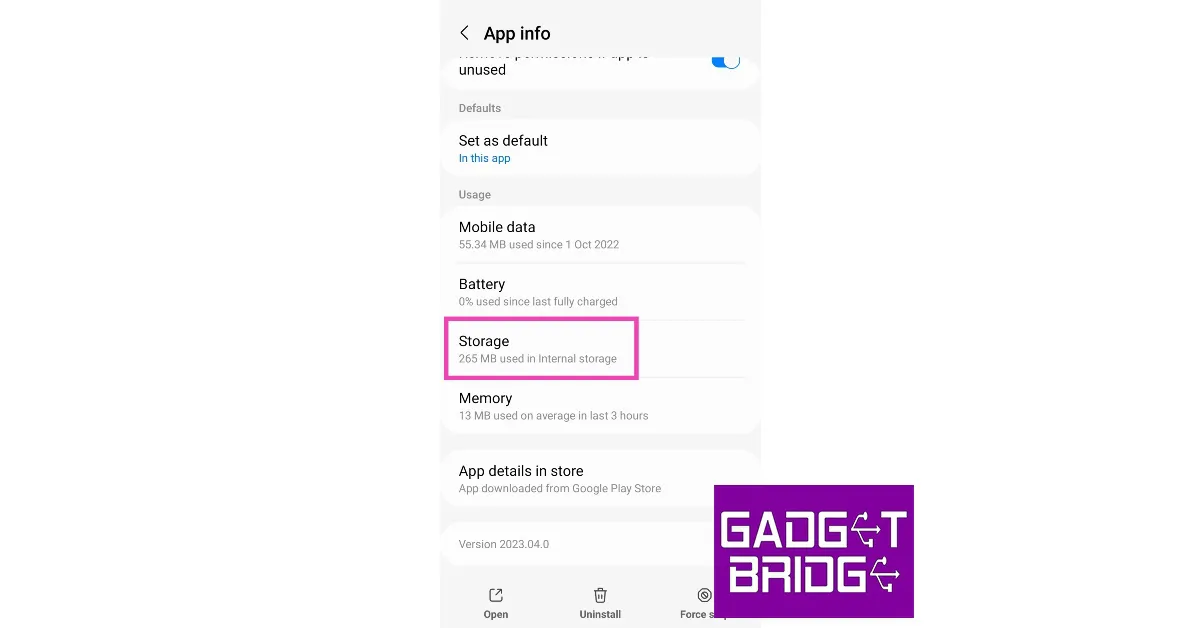
Step 1: Go to Settings and select Apps.Step 2: Scroll down and select an app.Step 3: Tap on Storage.Step 4: Select ‘Clear cache’.
Clear browser cache on iPhone
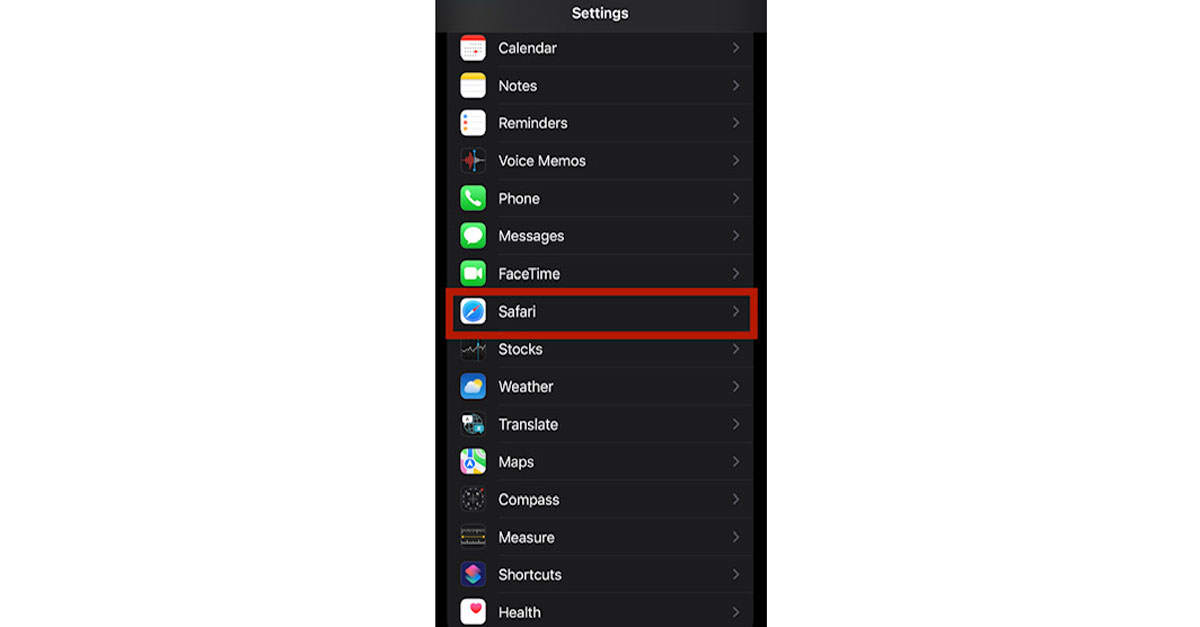
Step 1: Go to Settings and select Safari.Step 2: Select ‘Clear history and website data’.
The browser cache will be cleared.
Clear app data
Have you ever wondered why the size of a particular app rises dramatically over a period of time? This is because the apps on your smartphone store a lot of personal data like account information, database, files, and preference settings. If you don’t use an app all that much, you may want to cleat its data to save some storage space. Here’s how.Step 1: Go to Settings and select Apps.Step 2: Select the app from which you want the data cleared.Step 3: Tap on Storage.Step 4: Select ‘Clear data’ at the bottom.
Free up space using the Files app on Android
Android’s native Google Files app has a clean-up tool that can help you remove redundant and old data on your device. Here’s how you can free up storage space using the Files app. Step 1: Launch the Files app and tap on the ‘Clean’ tab.Step 2: Go through the cleaning suggestions. Delete duplicate images and old apps on your device.Step 3: Tap on ‘Select files’ under a particular category to choose which files you want to delete.Step 4: Tap on ‘Move to bin’ to clear the file and free up space.
Delete unused apps on your device
There’s no point in keeping apps that you hardly ever use. Deleting an app can help you recover some much-needed space on your device’s storage. Here’s how you can delete unused apps on your device.
Delete unused apps on Android
Step 1: Go to Google Play Store and tap on your profile icon at the top right corner of the screen.Step 2: Select ‘Manage apps and device’.Step 3: Switch to the ‘Manage’ tab.Step 4: Tap on the filer options and select ‘Least Used’.Step 5: Mark the apps you want to remove and tap the delete icon at the top right corner of the screen.
Offload unused apps on iPhone
iPhone’s ‘Offload unused apps’ feature routinely checks your phone for inactive apps and deletes them from the system. You will still see the app icon on your home screen, but it will need to be downloaded before you can use it. You can check how much space you can save by offloading apps by going to Settings>General>iPhone Storage and checking the ‘Recommended’ section. Here’s how you can enable app offloading on your iPhone.Step 1: Go to Settings and select App Store.Step 2: Turn the toggle bar on for ‘Offload Unused Apps’.
Create a backup of your media
For most smartphone users, photos and videos take up most of the storage space on their devices. Your smartphone camera can capture a lot of detail in the images and videos it shoots. While the output may be great, even a regular image can take up to 5MB of storage space. Videos can take up more space depending on their resolution and duration.It is a good idea to create a backup of the media on your device and delete the older images and videos that you don’t view frequently. You can back up your data using a cloud service like iCloud and Google Drive or create a local backup on a memory card or an external hard drive.
Optimize photo storage on your iPhone
While most users are on board with creating a backup of media files, they still don’t want to part with the images and videos on their iPhones. This is understandable as having local access to the media is very convenient and one of the reasons why people enjoy using smartphones in the first place. But what if you could back up images to the cloud while also accessing a version of the image that doesn’t take up much space on your phone? Well, your iPhone can do precisely that. Here’s how you can optimise photo storage on your iPhone.Step 1: Go to Settings and select Photos.Step 2: Under iCloud, select the option to optimise iPhone storage.
Frequently Asked Questions
How do I free up space on my phone?
The easiest way to free up space on your phone is by deleting duplicate files and unused apps.
Why is my phone storage always full?
Your phone’s storage can fill up over a period of time. This is because the apps on your device are always accumulating data. Clear app data to restore storage space.
How do I clear space on my phone without losing data?
Slot providers are an essential part of the online gambling industry. They provide players with games they can play on their favourite casino sites via a game software solution. Since significant gaming companies like Playtech, Microgaming, and NetEnt produce the games, slot providers play an important role by offering them on the market.
However, many slot providers are active on the market. Finding out which is best suited for your needs and whichever might offer unfair conditions for casinos or suppliers can be challenging. This guide will provide the essential facts about slots providers in service today and make recommendations based on that.
Major Non-Gamstop Casino Providers
Here is a list of some of the industry’s most well-known non Gamstop casino providers.
NetEnt
It is a Swedish online casino software provider. NetEnt company was founded in 1996, headquartered in Stockholm, Sweden. NetEnt operates under the license of the Malta Gaming Authority.
Furthermore, Its portfolio includes over 500 games that gamblers can access through desktop or mobile platforms. The company also offers live dealer games, which Evolution Gaming and Betsoft Gaming provide.
NetEnt has been among the biggest gaming companies in the industry and continues to maintain its position as one of the top providers of online slots.
Microgaming
It is among the oldest slot providers in the world. Microgaming was founded in 1994 and has ever been leading in online gaming. They offer high-quality games, graphics and excellent customer service.
There are over 400 Microgaming games available to play online, so you can always find something that suits your tastes. Their games are available on desktop computers, mobile phones, tablets, and television screens. They also have several different payment options, so players can deposit money into their accounts using various methods, including credit cards, debit cards, and PayPal accounts.
Playtech
Playtech is based in Gibraltar and provides its services to players across the globe. It has operated since 1999, providing services to players from over 150 countries. It is among the leaders in online gambling software development and has evolved operating systems for some of the biggest names in online gambling.
The company offers slots, video poker, and table games. They also offer live dealer games, becoming popular with players who prefer an interactive online gambling experience.
Furthermore, the company works with regulators and has taken measures to ensure all its customers can access fair play.
Popular Non-Gamstop Slot Games
Starburst From NetEnt
Starburst is among the popular non-Gamstop slot games that are easy to play and have a simple, colourful design, making it attractive to all players. The game has ten pay lines, so you can choose how much to bet per spin. All you need to do is choose your bet, hit the spin, and land three or more matching symbols across a line. Your rewards will be greater if you use more pay lines.
Mega Moolah From Microgaming
The Mega Moolah slot games’ unique theme and innovative features have made them a massive hit among players, and they’re still going strong even after all these years.
The games range from classic slots to progressive jackpot slots, each with a unique style. The graphics are top-notch, with high-quality animations and characters that will keep you entertained for hours. The sound effects are also significant, so if you like listening to bells ringing in your ears while you play, these games are worth checking out.
Age of the Gods From Playtech
Age of the Gods is a mini-game from Playtech. It is based on Greek mythology and has a multi-level progressive jackpot that you can win by landing three or more scatter symbols on reels 1, 3, and 5 in addition to any other combination of symbols. You can win the jackpot when you land five scattered ‘Minos’ symbols.
Age of the Gods also offers a chance at winning one of four progressive jackpots. These are pooled between all Age of the Gods games for even bigger payouts.
Bonanza From Big Time Gaming
Big Time Gaming’s Bonanza slot game features state-of-the-art graphics and seamless HTML5 technology, enabling a single game build for desktops and mobiles. Players can enjoy the same experience across desktop, tablet, and big panel TVs using Google Apps or Apple TV Airplay.
Bonanza has incredible features, including many pay line options and multiple bonus rounds. It is a great game for new players looking for something to keep them entertained and for more experienced players who want something interesting to play at home or on the go.
Discover the Top Online Casino Slot Providers
From classic to themed slots, non-Gamstop providers offer variants with impressive RTP. Providers such as Playtech, Microgaming, and NetEnt have had studios making games for decades. Furthermore, what’s more important, is their technical knowledge and experience in casino gaming. The gambling industry is a competitive environment, and the quality of slot games must be current. It is where these three providers are miles ahead of their competitors in the quality of graphics and slot types available.
For the latest gadget and tech news, and gadget reviews, follow us on Twitter, Facebook and Instagram. For newest tech & gadget videos subscribe to our YouTube Channel. You can also stay up to date using the Gadget Bridge Android App. You can find the latest car and bike news here.
Fresh rivalries are being forged in the AI chatbot sphere as the competition for giants like Open AI, Microsoft, and Google seems to be strengthening with the emergence of new players. According to a recent Bloomberg report, Microsoft warned two search engines that it will cut off access to Bing’s search data if they continue to use it for their AI tools. The report did not reveal which search engines received this warning.Read Also:Redmi A2, A2+ with MediaTek Helio G36 & 500mAh battery launched
AI chatbot rivalries are beginning to take shape
Microsoft currently licenses Bing’s search data to other search engines like DuckDuckGo, You.com, Neeva, and even Yahoo. These search engines utilise Bing’s data to save resources and pull faster results from the web. By issuing this warning, Microsoft has made it clear that the license to use Bing’s index doesn’t extend to feeding search data to rival AI tools and chatbots. Flouting this new guideline could result in Microsoft cutting access to its search engine altogether. While the report does not make it clear which search engines received this warning, DuckDuckGo, You.com, and Neeva have put out AI tools recently. DuckDuckGo launched ‘Duck Assist’ earlier this month, an AI tool that provides natural language responses to search queries using Wikipedia. You.com’s YouWrite lets users write short content for blog posts and emails. Neeva’s AI tool provides short summaries for your search queries and cites all the sources used in its response.Microsoft’s AI-powered Bing chatbot offers the same natural language query response as its competition. The tech giant seems determined to gain a stronghold in the chatbot sphere even if it means terminating existing licenses. Microsoft also remains one of the biggest stakeholders in Open AI, investing more than $1 billion in the artificial intelligence project.Read Also:Top 7 ways to Add Extra Storage to Your Android and iOS devicesThe new AI-powered Bing and Edge were launched last month, in a bid to recover some of the market share that the company has lost to Google over the years. Speaking on the launch, Satya Nadella, Chairman and CEO, Microsoft, said, “AI will fundamentally change every software category, starting with the largest category of all – search. Today, we’re launching Bing and Edge powered by AI copilot and chat, to help people get more from search and the web.”For the latest gadget and tech news, and gadget reviews, follow us on Twitter, Facebook and Instagram. For newest tech & gadget videos subscribe to our YouTube Channel. You can also stay up to date using the Gadget Bridge Android App. You can find the latest car and bike news here.
Instant Messaging app WhatsApp is working on a new ‘Audio Chats’ feature for Android and could release it in a future update. The new feature was spotted during the beta tests of the 2.23.7.12 version of the app. While there’s not much known about this new feature yet, it seems to be WhatsApp’s version of Twitter Spaces.Read Also:Top 7 ways to Add Extra Storage to Your Android and iOS devices
How are WhatsApp ‘Audio Chats’ different from voice calls?
In the recently surfaced screenshots, the waveform icon for audio chats finds its way to the chat header, right next to the video call icon. Tapping on the waveform icon reveals the option to call the group or open the ‘audio chat’. Another screenshot shows the ‘end call’ icon on top of the chat header. There is some free space on the left side of the icon and will likely be filled out with some graphics. It is believed that this could the audio chat toolbar, where a live waveform would be visible during an ongoing audio chat. Users will be able to browse the app while the toolbar stays fixed on top of the screen.Image Source: WABetaInfoSo how are audio chats different from regular voice calling on WhatsApp? While a voice call makes every single group member an active call participant, audio chats will allow group members to listen to a conversation without joining it. Listeners will be able to drop in and out of the conversation at any time. This is similar to how Twitter Spaces and Clubhouse work. Unlike a regular group voice call, you won’t receive a constant ringing notification for an audio chat.As of now, the feature seems to be in its early stages of development. It is evident from the screenshots that the UI isn’t close to being finished. The toolbar still needs some additions and WhatsApp may even reposition certain functions on the chat header. It is also possible that this feature may not see an official release. WhatsApp could very well scrap it in the beta testing phase.Read Also:Explained: Why do smartphones with big batteries offer average battery life?While there is a lot of speculation around this new feature, it makes sense to integrate it with the Communities section that was introduced recently by WhatsApp. While voice calls will remain the staple form of audio conversations among small groups, audio chats will cater to large communities where moderating a group voice call can prove to be a tedious effort.For the latest gadget and tech news, and gadget reviews, follow us on Twitter, Facebook and Instagram. For newest tech & gadget videos subscribe to our YouTube Channel. You can also stay up to date using the Gadget Bridge Android App. You can find the latest car and bike news here.
Keeping your smartphone updated at all times is essential in ensuring its security. Not only do you get new OS features with every major update, smartphone manufacturers routinely push minor security patches to fix any vulnerable areas of your device. Newer security patches make it hardware for malware and viruses to infiltrate your device. In this article, we bring you the best ways to manually update an Android device’s OS.Read Also:Explained: Why do smartphones with big batteries offer average battery life?
Manually update your Samsung smartphone from Settings
It is recommended you connect your phone to a WiFi network before proceeding to download an update.Step 1: Go to Settings and select ‘Software updates’.Step 2: Tap on ‘Download and Install’. Your smartphone will check for any new updates.Step 3: If an update is available, tap on ‘Install Now’. You can also schedule the update for a later time.
Manually update your Samsung smartphone using your computer
Step 1: Download Kies, Samsung’s desktop software, from the official Samsung website. Click here for the quick download link.Step 3: Download the Android update package from Samsung’s official website.Step 2: Connect your Samsung smartphone to your PC and launch the Kies software.Step 3: Click on ‘Tools’ on the top menu and select ‘Update’.Step 4: Open the software update package you previously downloaded from Samsung’s website.Step 5: Follow the onscreen instructions to install the update on your Samsung smartphone.
Manually update your Xiaomi smartphone from Settings
Step 1: Go to Settings and select ‘About Phone’.Step 2: Tap on the MIUI version icon.Step 3: Select ‘Check for updates’. Your Xiaomi smartphone will check for any pending updates.Step 4: Download the latest package of updates on your phone.
Frequently Asked Questions
How can I update my smartphone?
You can update your smartphone locally from device settings, or use the manufacturer’s PC suite to install an update using your computer.
Why is my phone not updating?
If your phone’s software update is stuck midway, check your internet connection and try again. It is recommended you connect to a WiFi network while downloading an update.
Mobile gaming has seen a huge surge in popularity over the last few years. While first-person shooter games were always popular among PC and console users, strategy games like Clash of Clans have cultivated a smartphone-exclusive following for themselves. If you want to experience mobile gaming on a bigger screen, there are a bunch of options you can try that won’t require much effort. Not too keen on downloading a third-party tool? There are some ways to play Android games on a PC without using an emulator. In this article, we bring you the top 6 ways to play Android games and run apps on your PC. Read Also:Canon launches 16 new advanced printers in India: Prices start at Rs 10,325
Use an Android Emulator
The best way to run Android games and apps on your PC is by using an Android emulator. Since Google Play Store isn’t directly available on Windows OS yet, an emulator is your closest alternative for playing Android games on your computer. Android emulators like Android Studio and MuMu Player allow you to effectively simulate the Android experience on your PC. But of all the emulators, Bluestacks is undoubtedly the best of the lot. Here’s how you can run Android games and apps on your PC using Bluestacks.Step 1: Download the Bluestacks emulator on your PC from the official website.Step 2: Install the Bluestacks application on your PC.Step 3: Sign in to Google Play Store using a Google Account. You will need a Google Account to use Bluestacks.Step 4: Search for a game or an app on Google Play Store.Step 5: Install the app or game on your PC using Bluestacks.
Mirror your smartphone’s display on your PC
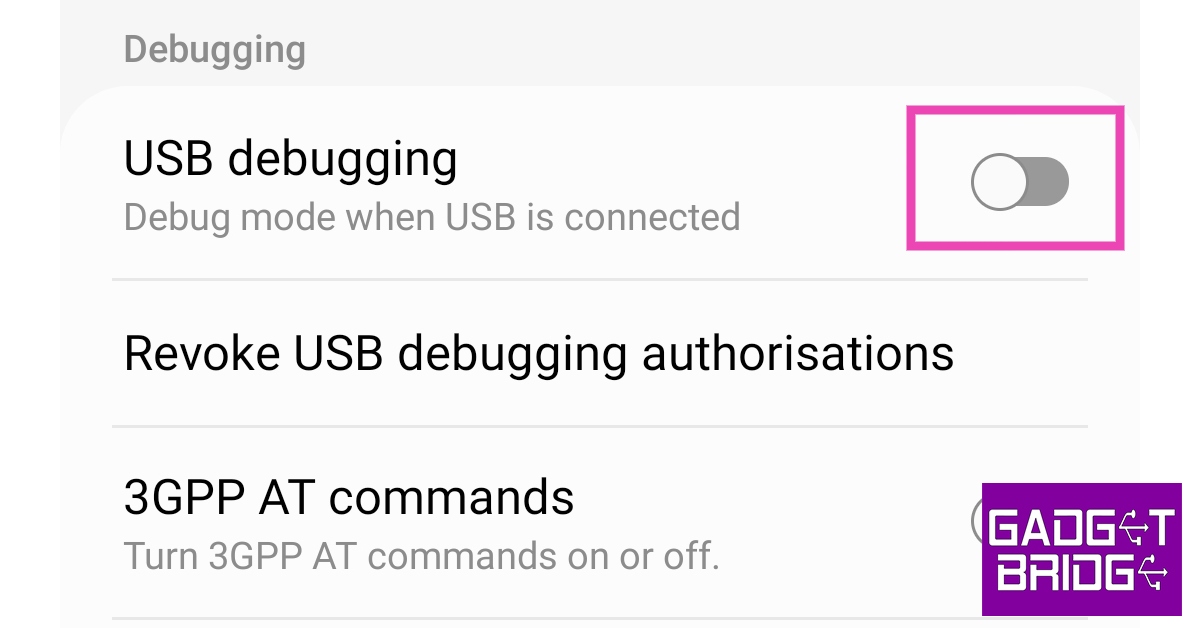
If you don’t want to go through the hassle of downloading an emulator but still want to enjoy your Android games and apps on the big screen, mirroring your phone’s display on your PC is your best option. Here’s how you can go about it.First, you need to enable USB debugging on your smartphone from developer settings. Here’s how.Step 1: Go to Settings and select About Phone.Step 2: Select ‘Software Information’.Step 3: Tap on ‘Build Number’ 7 times to enter Developer Mode.Step 4: Go back to Settings, scroll all the way down, and select ‘Developer options’.Step 5: Scroll down to the Debugging section and turn the toggle bar on for ‘USB debugging’.Now that you’ve enabled USB debugging on your smartphone, you can proceed with the rest of the steps.Step 6: Download the Scrcpy file on your PC or laptop from its GitHub page here.Step 7: Connect your Android smartphone to your Windows device via USB.Step 8: Extract the Scrcpy file on your Windows device.Step 9: Run the Scrcpy application.Step 10: Confirm USB debugging on the window that pops up in your phone.Step 11: Scrcpy will detect your Android smartphone and mirror its display on your Windows device.For more ways to cast your Android phone’s display on your PC or laptop, read our article here.
Use Microsoft’s Phone Link app
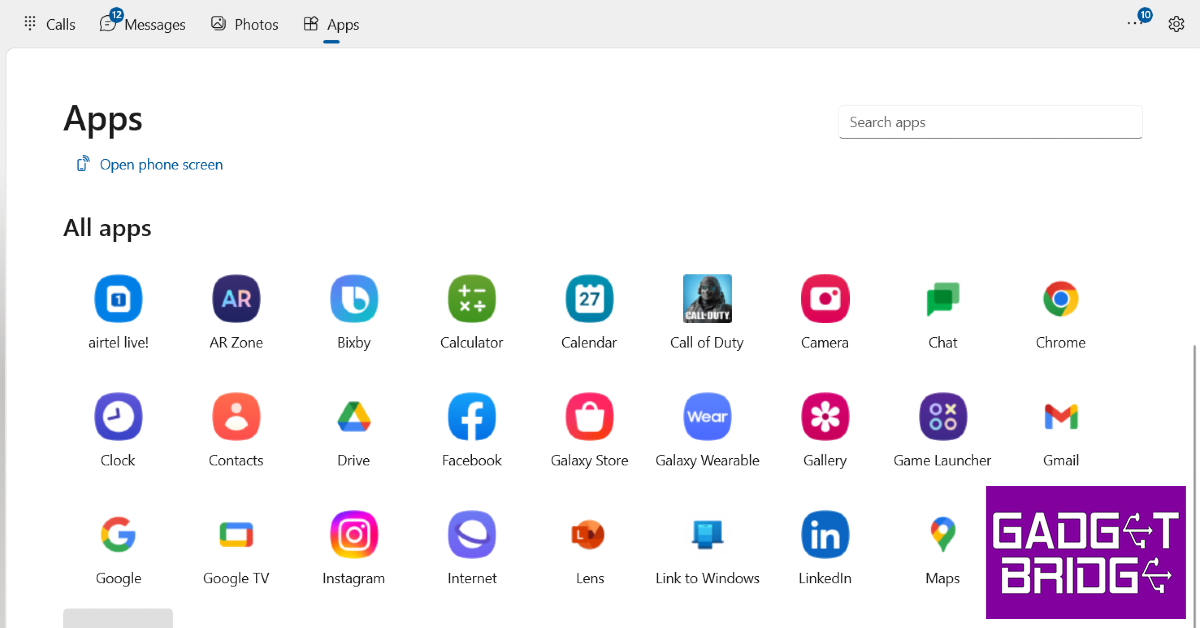
Most Samsung smartphones have Microsoft’s Phone Link app natively embedded in their OS. You can access it from the quick settings menu by swiping down from the status bar. If your Android phone doesn’t have this functionality then download Microsoft’s Link to Windows app from Google Play Store. Once the app is installed on your smartphone, open the ‘Phone Link’ app on your PC and scan the QR code using your phone. Once your phone is linked, select the apps tab on the Phone Link app on your PC.
Download apps and games from Microsoft Store
While they may not be running on an Android platform, Microsoft Store has several Android apps that are designed to be used on your PC. Apps like WhatsApp, Telegram, Netflix, Spotify, Instagram, and more can be found on the Microsoft Store. This is the closest ‘native’ way to run Android apps and games on your PC.
Use Amazon Appstore
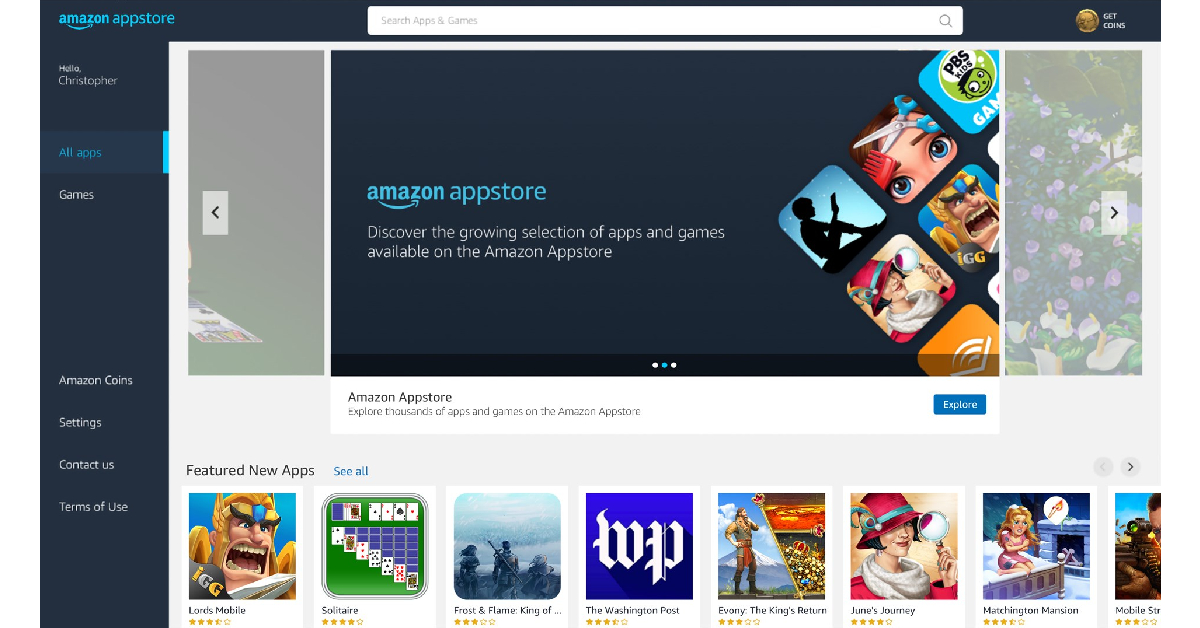
Amazon Appstore is currently only available to Windows 11 users. The collection of apps on the Amazon Appstore is still growing, it is nowhere close to Play Store’s library. But if you find what you are looking for, it will bypass the need for an emulator and save you the hassle of mirroring your phone’s display. Download the Amazon Appstore on your PC from here.
Use Google Play Games on PC
While it may not be publicly available yet, you can still sign up to use the beta version of Google Play Games. Currently, Google Play Games is only available in Australia, Brazil, Canada, Hong Kong, Indonesia, South Korea, Malaysia, Taiwan, Thailand, Mexico, the Philippines, and the USA. Once you sign up, you will be put on a waitlist. After you’ve been cleared to test the beta version, go to https://play.google.com/googleplaygames to play your favourite Android games on PC. Currently, over 100 games are available on Google Play Games.
Frequently Asked Questions
Are Android Emulators safe to use?
Emulators like BlueStacks and Android Studio are safe to use on your PC.
When will Google Play Games be released officially?
Right now Google is testing Google Play Games in different regions. The official release will be carried out in a phased manner across the world.
My phone does not have the Link to Windows app. What should I do?
These are the top 6 ways to play Android games and run Android apps on your PC. If you can’t find a particular app on the official Microsoft Store for PC, you can try visiting the developer’s website to see if they have a Windows version of their app. Want to play Android games on your PC but don’t want to use an emulator? Linking or phone or mirroring its display on your PC is your best option. If you found this article helpful, let us know in the comments!
Instagram is one of the liveliest social media platforms on the Internet, but unfortunately, it is also rife with malicious activity. Apart from fake product marketing, it is also common for scammers to directly contact you on the platform. If you’ve ever gone through your Hidden Messages on Instagram, you will know what we’re talking about. In this article, we bring you the top 6 ways to easily protect yourself from Instagram scams. Use these tips and tricks to avoid Instagram scams.Read Also:Canon launches 16 new advanced printers in India: Prices start at Rs 10,325
Don’t share your login credentials with anyone
If you’re being scammed by someone on Instagram, chances are they’re going to ask you for your login credentials at some point. Oftentimes, someone may pretend to be from Instagram Security, asking you for your password to verify your profile. You should know that Instagram doesn’t ever approach you for your password. Sharing your password may give scammers access to your account and they may lock you out of it.
Don’t interact with unverified accounts pretending to be large companies
One of the biggest scams on Instagram involves scammers approaching people for modelling work under the guise of a big fashion company. Always be careful while conversing with unverified profiles claiming to be recruitment handles for big companies.
Do not conduct business with unverified sellers
Instagram is a great platform for small businesses to market their product. A lot of people use Instagram to commission artwork and buy artisanal products from small creators. Oftentimes, malicious entities may notice your interactions with small businesses and pretend to sell you a product they do not own. Always make it a point to not do business with unverified sellers as it may lead to you getting scammed out of your money.
Do not click on suspicious links
As a general rule, you should not be clicking on suspicious links anywhere on the Internet. But this applies more so on Instagram. If you go through your hidden messages, you will notice messages containing weird-looking links. These links are most likely phishing scams and are solely created to get your personal information. Sometimes, clicking on these links may also download malware-ridden files on your device.
Keep your Instagram profile private
Public Instagram profiles attract a lot of scammers since they are able to go through all your posts and are able to verify that you are active on the platform. Public profiles also receive a greater volume of messages. If scammers have more information about you, it makes it easier for them to create a scamming scheme for you. To make your Instagram profile private, go to Settings>Privacy and turn the toggle bar on for ‘Private Account’.
Keep an eye out for fake promotions
If you have a decent following on Instagram, chances are you will be approached by brands to market their product. While promoting products can earn you some money, not all promotions are legitimate. Instagram influencers often report not being paid even after promoting a product. It is advised to ask for money upfront when getting into a marketing deal.Read Also:boAt Nirvana Ion wireless earbuds launched at an introductory price of Rs 1,999
Conclusion
These are the six easy ways to avoid getting scammed on Instagram. Use these methods to avoid all kinds of Instagram scams. If you ever do get scammed out of money, the first thing you should do is report the activity to your bank and freeze your account. Next, report the profile on Instagram so the admin staff can take action against the scammers.For the latest gadget and tech news, and gadget reviews, follow us on Twitter, Facebook and Instagram. For newest tech & gadget videos subscribe to our YouTube Channel. You can also stay up to date using the Gadget Bridge Android App. You can find the latest car and bike news here.
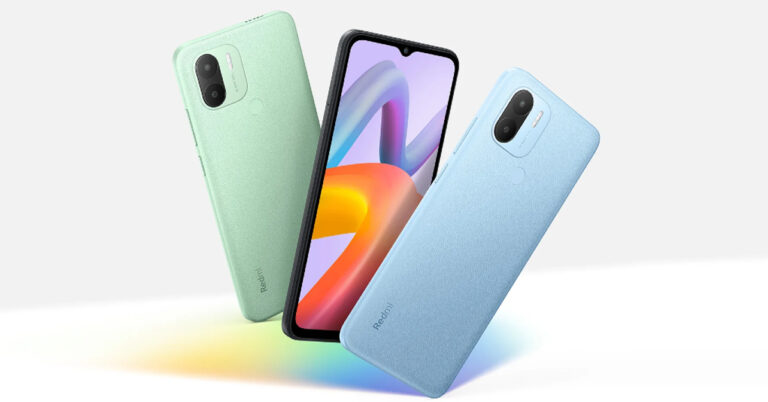
Xiaomi’s subsidiary Redmi has launched two new entry-level smartphones today. The Redmi A2 and A2+ smartphones will feature the MediaTek Helio G36 SoC and will come with Android 12 (Go Edition) OS. Android’s Go Edition is a light version of the OS designed for entry-level devices. Xiaomi has not announced the prices for the two smartphones yet.Read Also:boAt Nirvana Ion wireless earbuds launched at an introductory price of Rs 1,999
Redmi A2, A2+: Specs, features, and possible pricing
Redmi A2 and A2+ feature a 6.52-inch IPS LCD display with a resolution of 720 x 1600p. Surrounding the display are thick bezels, with the screen-to-body ratio coming out at 81.0%. Powering the two smartphones is the MediaTek Helio G36 SoC. The smartphones have a fixed internal storage of 32GB and will be made available in 2GB and 3GB RAM variants. OS duties are handled by the Android 12 Go Edition. A microSD slot has been made available on the two phones.The camera panel at the back consists of an 8MP primary shooter along with a 0.08MP depth sensor. Also present is a Dual-LED flash. The 8MP primary camera can record 1080p videos at 30fps. Up front, you get a 5MP selfie camera that can also record 1080p videos at 30fps.Redmi A2 and A2+ get a 5,000 mAh battery which should be enough to provide a full day’s worth of charge. The battery can be charged using a micro-USB cable. There is no USB Type-C port on either smartphone. Both phones can charge at 10W speed. The Redmi A2 and A2+ smartphones do not offer 5G connectivity. Read Also:10 Best ways to Remove Photo Metadata (Windows, Mac, Android, & iOS)While Xiaomi has not revealed the pricing of the two smartphones yet, the A2 and A2+ are expected to cost under Rs 10,000. The only difference between the two phones is the biometric fingerprint which can be found on the back of the A2+. Redmi has not confirmed whether it will launch the two smartphones in India.For the latest gadget and tech news, and gadget reviews, follow us on Twitter, Facebook and Instagram. For newest tech & gadget videos subscribe to our YouTube Channel. You can also stay up to date using the Gadget Bridge Android App. You can find the latest car and bike news here.


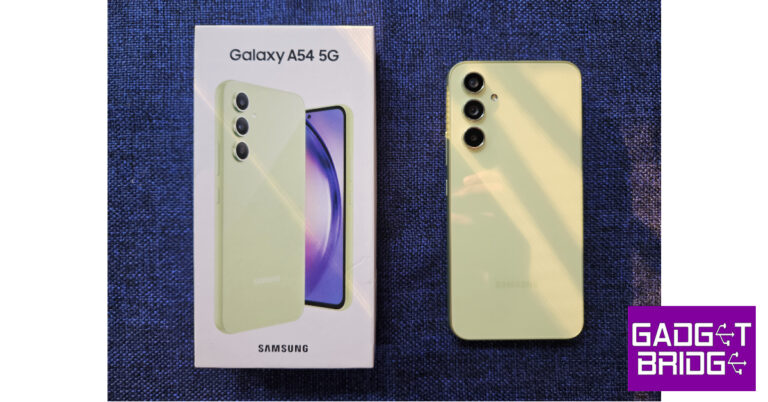
 Pulling the device out of its plastic covering, you’ll notice that Samsung has made some noticeable upgrades on the build and form factor. You may remember last year’s Galaxy A53 (review here) sporting a plastic back. Well, that’s not the case with the A54 as it gets a flat glossy glass back panel. This dramatically elevates the in-hand feel of the device, something that you expect when you’re paying almost Rs 40,000 for a smartphone.
 In terms of design, Samsung seems to be sticking with S23’s camera array setup on this year’s A series. We saw this earlier with the Galaxy A14 (review here) as well. A welcome addition, although some may argue it robs the smartphone of its uniqueness. The design in itself is pretty minimal, the three camera lenses are arranged vertically on the top left section of the back panel. While the lenses stick out a bit further compared to the S23 series, the smartphone doesn’t wobble while resting on a flat surface.
The plastic material used on the frame is a stark departure from the premium feel of the glass back. The frame is quite chunky, and if you move your finger from the display to the edges, you will be able to feel the raised borders of the frame. Having said that, the matte-like texture on the frame provides a nice grip. The volume rocker and the power key are positioned on the right side of the frame while the left side has been left empty. The USB port, speaker grille, and microphones are housed at the bottom of the phone. The secondary speaker and SIM tray are placed at the top.
In terms of design, Samsung seems to be sticking with S23’s camera array setup on this year’s A series. We saw this earlier with the Galaxy A14 (review here) as well. A welcome addition, although some may argue it robs the smartphone of its uniqueness. The design in itself is pretty minimal, the three camera lenses are arranged vertically on the top left section of the back panel. While the lenses stick out a bit further compared to the S23 series, the smartphone doesn’t wobble while resting on a flat surface.
The plastic material used on the frame is a stark departure from the premium feel of the glass back. The frame is quite chunky, and if you move your finger from the display to the edges, you will be able to feel the raised borders of the frame. Having said that, the matte-like texture on the frame provides a nice grip. The volume rocker and the power key are positioned on the right side of the frame while the left side has been left empty. The USB port, speaker grille, and microphones are housed at the bottom of the phone. The secondary speaker and SIM tray are placed at the top.
 Samsung continues to knock it out of the park with its stellar displays. The 6.4-inch Super AMOLED display has a 120Hz refresh rate and a peak brightness of 1000 nits. Even under bright sunlight, the display is perfectly legible. The touch receptivity is as smooth as it gets, which makes the browsing experience extremely satisfying. The under-display fingerprint works fine but could have been a bit quicker. The sizeable bezels around the display are a disappointment, especially when you consider that the A54 costs Rs 39,000.
 Once you get past the bezels, the Samsung Galaxy A54 is pretty good when it comes to watching content. The images produced on the screen are vibrant, well-composed, and pack a lot of details. While Samsung doesn’t mention HDR support for this display, the YouTube app is able to play HDR videos. The same doesn’t apply to Netflix.
 Another aspect where the Galaxy A54 pulls ahead of its competitors is dust and water resistance. With an IP67 rating, you don’t have to worry about any water damage in case you accidentally spill something on the phone or take it out in rainy conditions. While we’re talking about protection, the Corning Gorilla Glass 5 is also a pretty good piece of hardware to have.
 The new Exynos 1380 SoC is a decent chip on paper, but it is certainly a step behind its Snapdragon counterparts. In this price segment, a better SoC would’ve made all the difference. Compare this to the OnePlus 11R which comes with last year’s flagship Snapdragon 8+ Gen 1 SoC, which is a tremendous processor on all accounts. This isn’t to say that the Exynos 1380 is a bad chip by any means, but it pales in comparison to the competition.
The Exynos 1380 SoC handles the basics pretty well. Browsing through the apps is met with no delays or lags, although a slight dip in performance is noticeable when you overload the system with multiple apps running in the background. While this scenario may not present itself in everyday use, the other processors in this price range are able to handle it pretty well. Talking about benchmarks, the Samsung Galaxy A14 scored 1010 points on the single-core Geekbench 6 test. The multi-core test returned 2820 points. In comparison, the OnePlus 11R scored 888 points and the Vivo V27 Pro scored 1151 points.
The new Exynos 1380 SoC is a decent chip on paper, but it is certainly a step behind its Snapdragon counterparts. In this price segment, a better SoC would’ve made all the difference. Compare this to the OnePlus 11R which comes with last year’s flagship Snapdragon 8+ Gen 1 SoC, which is a tremendous processor on all accounts. This isn’t to say that the Exynos 1380 is a bad chip by any means, but it pales in comparison to the competition.
The Exynos 1380 SoC handles the basics pretty well. Browsing through the apps is met with no delays or lags, although a slight dip in performance is noticeable when you overload the system with multiple apps running in the background. While this scenario may not present itself in everyday use, the other processors in this price range are able to handle it pretty well. Talking about benchmarks, the Samsung Galaxy A14 scored 1010 points on the single-core Geekbench 6 test. The multi-core test returned 2820 points. In comparison, the OnePlus 11R scored 888 points and the Vivo V27 Pro scored 1151 points.
 We played Call of Duty Mobile on the Samsung Galaxy A54 5G and the performance was decent. The only drawback when it comes to gaming is that some games, including Call of Duty, do not run in the maximum graphics setting. This may not bother casual gamers but if you’re looking for a serious gaming smartphone, there are better options out there. While playing COD we noticed slight overheating around the camera array after 30 minutes of gameplay. The gaming performance was not affected right away, but as the back panel got hotter, frame drops also increased in frequency.
Samsung’s One UI remains one of the best Android skins out there. The A54 gets the full One UI experience, with only a few premium features (like Samsung Dex) held back. There is some bloatware on the phone, which isn’t a good look at this price point. One UI comes with integrated ‘Link to Windows’ connectivity, which makes it easy to remotely access your phone’s functions from your PC. Samsung’s Secure Folder and Maintenance Mode are two great privacy features that we liked on this device. Samsung has promised 4 years of major OS updates along with 5 years of security updates with the A54, which is incredible to see.
Samsung Galaxy A54’s battery performance is quite satisfactory. Packed with a 5,000 mAh battery unit, the smartphone can easily last a day with 5-6 hours of screen-on time. On moderate to heavy usage, we were consistently left with a 15-20% charge by the end of the day. With 25W charging support, the smartphone takes around 90 minutes to fully juice up. Faster charging would have been ideal here.
Moving on, the camera performance is one of the bigger highlights of this device. Samsung seems to have done its homework and presented a well-rounded camera unit that doesn’t leave much room for complaints. The rear camera array sports a 50MP primary shooter, a 12MP ultrawide lens, and a 5MP macro lens.
We played Call of Duty Mobile on the Samsung Galaxy A54 5G and the performance was decent. The only drawback when it comes to gaming is that some games, including Call of Duty, do not run in the maximum graphics setting. This may not bother casual gamers but if you’re looking for a serious gaming smartphone, there are better options out there. While playing COD we noticed slight overheating around the camera array after 30 minutes of gameplay. The gaming performance was not affected right away, but as the back panel got hotter, frame drops also increased in frequency.
Samsung’s One UI remains one of the best Android skins out there. The A54 gets the full One UI experience, with only a few premium features (like Samsung Dex) held back. There is some bloatware on the phone, which isn’t a good look at this price point. One UI comes with integrated ‘Link to Windows’ connectivity, which makes it easy to remotely access your phone’s functions from your PC. Samsung’s Secure Folder and Maintenance Mode are two great privacy features that we liked on this device. Samsung has promised 4 years of major OS updates along with 5 years of security updates with the A54, which is incredible to see.
Samsung Galaxy A54’s battery performance is quite satisfactory. Packed with a 5,000 mAh battery unit, the smartphone can easily last a day with 5-6 hours of screen-on time. On moderate to heavy usage, we were consistently left with a 15-20% charge by the end of the day. With 25W charging support, the smartphone takes around 90 minutes to fully juice up. Faster charging would have been ideal here.
Moving on, the camera performance is one of the bigger highlights of this device. Samsung seems to have done its homework and presented a well-rounded camera unit that doesn’t leave much room for complaints. The rear camera array sports a 50MP primary shooter, a 12MP ultrawide lens, and a 5MP macro lens.

 The primary 50MP camera produces some beautiful images for us in daylight conditions. We were particularly impressed by the perfect exposure level on the images. The camera managed to capture the sky in its ideal tone without overexposing it. Even the background objects were captured with a good amount of detail.


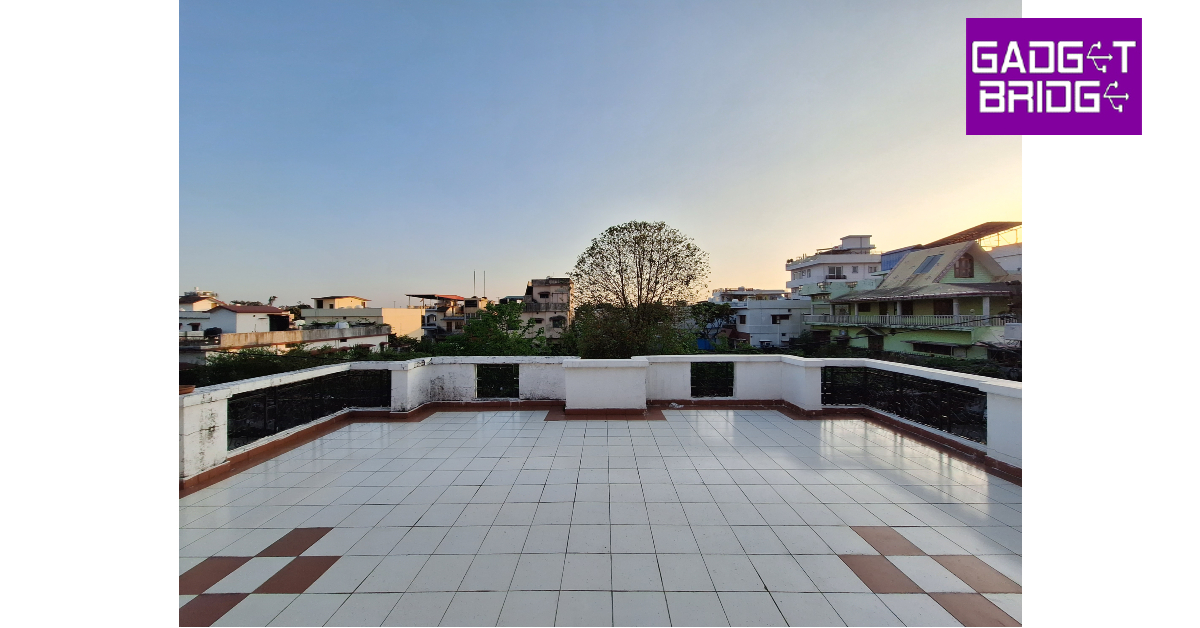
 This exceptional camera performance continues in lowlight conditions. With the Night Mode on, the A54 reduced the grain on the images and brightened them up pretty well. The colours were well-balanced and close to real even with the Night Mode on. We were impressed that the brightening effect did not mess with the colour of the subject.




 Step 2:
 Step 3:
  Step 4: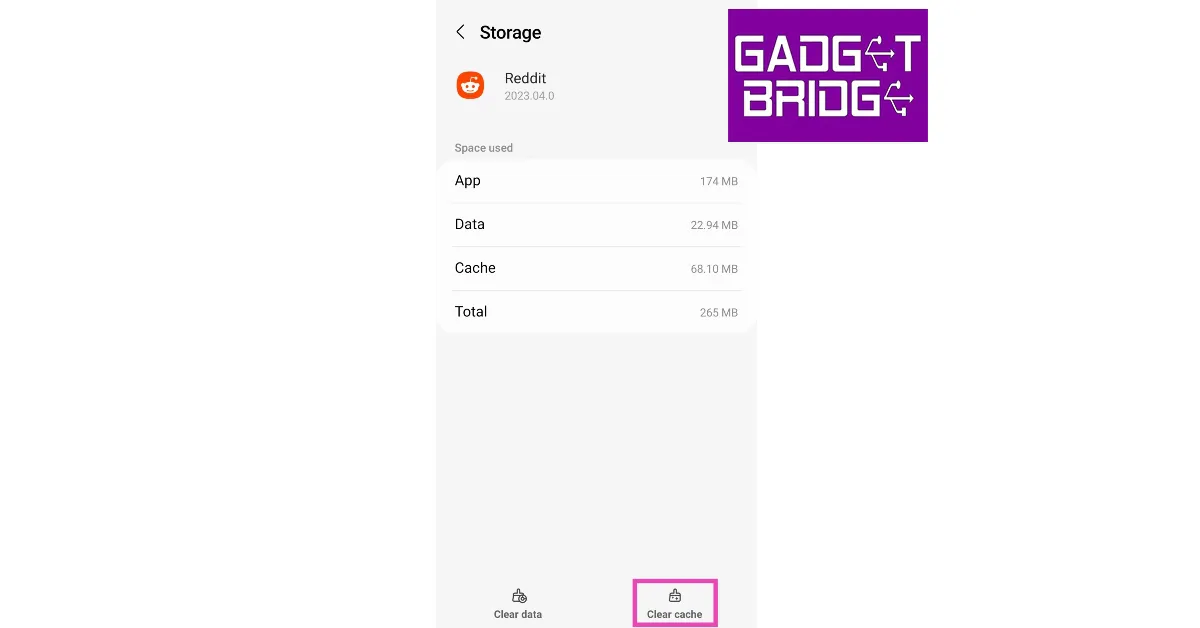
 Step 2:
 The browser cache will be cleared.
 Step 2:
  Step 3:
 Step 4: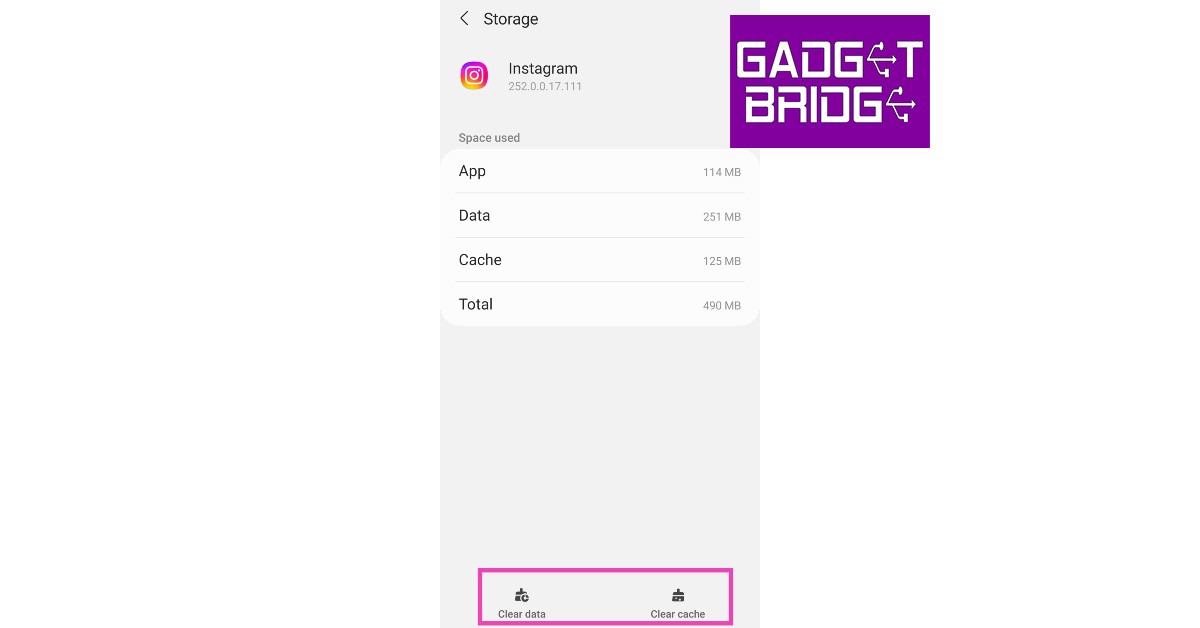
 Step 2:
 Step 3:
 Step 4:
 Step 5:
 Step 2:
 Step 2:





 Step 2:
 Step 3:
 Step 3:
 Step 4:
 Step 2:
 Step 3:
 Step 4: