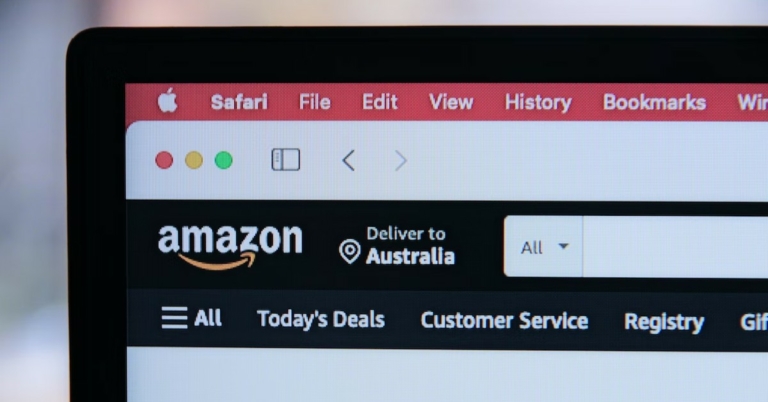
Being the biggest e-commerce platform in the world, Amazon is available in most major languages. Changing your language on Amazon is a fairly easy process. You can even select another region and explore the products available there. If you’re in India, you can use Amazon in multiple local and regional languages. In this article, we show you how to change the language on Amazon from the website and the app.Read Also:How to upload a TikTok video using a PC or Mac? The simplest way
Change language on the Amazon website
Step 1: Go to www.amazon.com.Step 2: Click on the flag next to the search bar.Step 3: Select the language you want.Step 4: Scroll down and select ‘Save Changes.’Instead of clicking the flag, you can also hover your cursor over it and quickly select the language you want.
Change language on the Amazon app
Step 1: Open the Amazon app on your smartphone.Step 2: Tap on the hamburger menu at the bottom left corner of the screen.Step 3: Scroll down and select ‘Language’ from Settings.Step 4: Choose the language you want.Step 5: Scroll down and hit ‘Continue.’If you want to choose a foreign language, select ‘Country & Language’ and select the region and language you want.
Bonus Tip
How to buy a gift card on Amazon?
Step 1: Go to the Amazonwebsite and select ‘Gift cards’ from the top menu.Step 2: Choose the type of gift card you want. Step 3: Select the gift card amount. You can also enter the amount of your choice.Step 4: Fill in other details like Your Name, Recipient’s email, Date of Delivery, Quantity, and additional message. Step 5: Click on ‘Add to cart’ and then select ‘Proceed to checkout.’Step 6: Fill in the payment information and select ‘Continue’.Step 7: Select ‘Place your order.’Read Also: Snapchat not loading snaps? Here are easy 7 fixes
Conclusion
This is how you can change the language on Amazon. Changing the language by region will also change the currency. Once you change the location, international shipping costs will apply. If you found this article helpful, let us know in the comments!
Instagram was initially launched as a photo-sharing app and the majority of its users still use it in that form. Instagram can also be accessed using its website. For a long time, Instagram’s website offered a very limited set of features. There was nothing much you could do other than browse your feed. Over a period of time, Instagram slowly rolled out more features for its websites, including the ability to upload videos and view stories. In its present form, the Instagram website offers a decent experience but still lacks a few functions. In this article, we show you how to upload an Instagram Reel using a PC or Mac. Read Also:MediaTek announced T800 Modem, alongside Kompanio 520 and Kompanio 528 chipsets for midrange Chromebooks
Upload a Reel to Instagram using the web browser
Step 1: Go to www.instagram.com and log in to your Instagram profile.Step 2: Click on the Create button on the side menu.Step 3: Upload the Reel from your computer. Make sure the Reel is edited as Instagram’s website does not let you edit it any further. Step 4: Crop the video to an aspect ratio of 9:16 by clicking on the icon at the bottom left corner of the panel. Click on ‘Next.’Step 5: Select a Cover photo for your Reel. You can pick a thumbnail from the video itself or upload a picture from your computer. Trim the Reel and hit Next. Step 6: Write a caption for your Reel. You can also choose to turn off comments and hide the like counter. Once you’re done, select ‘Share.’Your Reel will be published on your Instagram profile.
Use a third-party tool
There are several third-party tools and software you can use to upload a Reel on Instagram from your PC or Mac. Clients like Sked Social, Gramblr, and Ramme help you manage your Instagram account and offer advanced features like post-scheduling, insights, and more. Some clients also allow you to edit your Reel before you upload it on Instagram. Make sure the third-party client is trusted and well-reviewed before using it to log in to Instagram. For enhanced safety, turn on the two-factor authorisation for your Instagram account. Read Also:Snapchat not loading snaps? Here are easy 7 fixes
Conclusion
This is how you can upload an Instagram Reel using a PC or Mac. While Instagram’s website is much better than before, it still lacks some important features like letting users upload a Story. If you find the methods mentioned above helpful, let us know in the comments. For a full guide on how to use the recently launched Instagram Avatar, read our article here.
12 November 2022 Amazon Quiz has gone live. Customers from different parts of the country are participating in the daily quiz. The quiz begins from 12 AM to 11:59 PM. Those participating in the quiz can win exciting prizes by answering all the questions correctly. Today participants have a chance to win a Rs 1,000 Amazon Pay Balance.Amazon quiz brings an opportunity for its customers to win Amazon Pay Balance ranging from Rs 1,000 to Rs 50,000. The Quiz can be played from 12 AM to 11:59 PM. The e-commerce platform brings a fresh quiz on a daily basis which consists of five questions related to general knowledge and current affairs. The participants need to answer all the questions correctly and their names will be selected for a lucky draw. The winner will be announced at the end of the month.One wrong answer could eliminate you from the quiz. If you manage to answer all the questions correctly you can stand a chance to win a Rs 1,000 Amazon Pay Balance today. Only app users are eligible to participate in the Quiz. Check Out 12 November 2022 Amazon Quiz Answers.Amazon Quiz Today Prize – Rs 1,000 Amazon Pay BalanceQuiz Date – 12 November 2022Daily Timing – 12 AM to 11:59 PMWinner Announcement – Today 12 PM
Amazon Quiz Answers Today 12 November 2022
Question 1: Which of these is a name is given to the Border Security Force’s increased surveillance along the Pakistan border in Rajasthan?
Answer: Sard HawaQuestion 2: Petr Fiala has been sworn in as the new Prime Minister of which country?
Answer: Czech Republic
Question 3: The Konyaks are among the largest tribes in which state?
Answer: NagalandQuestion 4: Who among these is an Arjuna award winner in this sport, who was part of an Asian Games bronze medal winning side?Answer: Jimmy GeorgeQuestion 5: This is a famous character from which movie franchise?
Answer: Pirates of the Caribbean
How To Play Amazon Quiz
Only app users are eligible to play the Amazon quiz every morning from 12 AM to 11:59 PM. The quiz is not available on the desktop. For those who are unaware of how to play the Amazon quiz below are the steps, you can follow to take the quiz.
Firstly download the Amazon app from Google Play Store or App Store
Now fill in the required information through the Sign Up option.
You need to log in to the Amazon app and scroll down on the home screen to find the Amazon Quiz banner.
Tap on the Amazon Quiz banner and tap on the Start button to start the Quiz.
Now you will get 5 questions and you need to answer them correctly. One wrong answer will eliminate you from the Quiz.
After answering all the questions correctly you are now eligible for a Lucky Draw.
The winner’s name will be announced today at 12 PM.
Koo app has announced the launch of four new features on its platform. It now allows users to schedule Koos, save drafts and add up to 10 profile photographs. Recently multilingual microblogging network Koo App has surpassed 50 million downloads. Users of the Koo app can now post up to 10 profile pictures. When a user views their profile, these images begin to play automatically. With a drag-and-drop feature, it is simple to change the order of these images.Whereas a Koo can now be scheduled for a later time and date by power creators. This makes it simple for producers who enjoy writing down several ideas at once but scheduling them for different times to avoid clogging their followers’ feeds. A planned Koo can also be edited or rescheduled by users.The save draft feature can be used by creators who want to continue editing a draft before publishing it. They are free to make adjustments indefinitely before uploading thanks to it.Instead of normal responses like Like, Comment, Re-Koo, or Share, users can now save a Koo. Only the user can see saved Koos, which are accessible from their profile page. Users who want to revisit their favourite or significant Koos without having to respond to the Koo can take advantage of this feature. There are no other microblogs that offer this feature.Mayank Bidawatka, Co-founder, Koo, said, “We are very happy to announce new features to millions of our users. Some of these are a first in the social space. We are the first ones to enable users to upload up to 10 profile pictures. We’ve made it extremely easy for power creators to now save a draft and schedule Koos for a future date and time. Saving a Koo functionality is not available in any other microblog. Users have taken really well to these features. We are happy to have crossed the 50 million user mark on the back of these enriching features. We have a very user-focused culture internally and with our ears close to the ground, we will keep building best-in-class features that users need to express themselves and connect with each other.”
For the latest gadget and tech news, and gadget reviews, follow us on Twitter, Facebook and Instagram. For newest tech & gadget videos subscribe to our YouTube Channel. You can also stay up to date using the Gadget Bridge Android App. You can find the latest car and bike news here.
Recently, Boult Audio has announced the launch of its True Wireless Stereo earbuds X30 and X50 in India. Both the TWS earphones come with 10mm drivers. The Boult X30 and X50 also feature Combat gaming mode while also offering 40 hours of playtime. The audio device has 45ms ultra-low latency gaming mode and Quad Mic ENC.The brand-new Boult X30 earbuds have three equaliser modes, lightning-fast charging, and a whopping 40 hours of battery life. The Boult X50 earbuds also have a 40-hour battery life, 45-millisecond low latency combat mode for gaming, and quad microphone environmental noise cancellation.The X30 and X50 earbuds are a dream come with 40 hours of non-stop playback and 100 minutes of playtime in just 10 minutes of charging. Music lovers can select the ideal sound for the appropriate genres thanks to the three equaliser modes function, which includes HiFi, Rock, and Bass Boost settings. Additionally, the X30 and X50 offer a greater audio experience for conversations and music thanks to the built-in 10 mm drivers.The Boult Audio X30 and X50 earphones have improved Bluetooth 5.1 technology built-in with support for SBC and AAC. In addition to being flexible and light, the IPX5-enabled earphones are also water- and sweat-resistant. You may wear the X30 and X50 without worrying, whether you’re working out hard or going for a run outside. The pair comes in portable, lightweight cases that are always prepared to wow you as soon as you pop the lids open. Not to mention the 45ms low-latency Combat Gaming Mode, which will satisfy your inner gamer.Boult X30 and X50 have been launched with a price tag of Rs 999. The X30 comes in two colour options of Blue and Warm Grey whereas the Boult X50 will be available in Black and white colour options. Both audio devices will be available for purchase via Amazon and Flipkart respectively.
For the latest gadget and tech news, and gadget reviews, follow us on Twitter, Facebook and Instagram. For newest tech & gadget videos subscribe to our YouTube Channel. You can also stay up to date using the Gadget Bridge Android App. You can find the latest car and bike news here.
TikTok’s rise as a video-sharing platform has been nothing short of astonishing. Within just a few years, the platform has gained global popularity and boasts over a billion monthly active users. Some users may not know this, but TikTok can be accessed from its website as well. While the experience isn’t as seamless and fun as its smartphone app, you can still carry out the basic functions through the website. In this article, we show you how to upload a TikTok video using a PC or a Mac. Read Also: Qubo Car Air Purifier is now available for purchase via Amazon
Here’s how you can upload a video on TikTok using a PC or Mac
Step 1: Open the web browser on your laptop and go to www.tiktok.com.Step 2: Click on ‘login’ at the top right corner of the screen and enter your username and password to sign in.Step 4: Click on the upload button with the plus sign.Step 5: Select a video from your computer. The video must be in mp4 or WebM format and have a resolution of 720 x 1280p or higher. You can upload videos up to 10 minutes in duration. File size must be below 2GB. Make sure the video is edited before you upload it, as TikTok’s web portal does not allow you to edit videos.Step 6: Enter a caption and select a cover picture. You can also select who can view the video. Step 7: Click on the post button to publish your video.Read Also: How to change the phone number linked to your Apple ID
Conclusion
This is how you can upload a video to TikTok from a PC or Mac using a web browser. Since TikTok’s website does not allow users to edit the videos, you will need to edit them on your laptop before uploading. There are a lot of video editing tools and software for Windows and Mac that you can use for your TikTok videos. You can check out our list of the top 10 free video editing software for Windows here.
The T800 chipset which supports both sub-6GHz and mmWave 5G networks has been introduced by the Taiwanese chip manufacturer MediaTek. The T800 chipset is for Industrial Internet of Things (IIoT), Machine-to-Machine (M2M), and always-connected PCs which promise speeds of up to 7.9Gbps. There are also Kompanio 520 and Kompanio 528 chipsets for midrange Chromebooks and one for high-end 4K TVs that have been announced by MediaTek.
MediaTek T800
With the new T800 chipset solution for sub-6GHz and mmWave 5G networks, MediaTek is advancing 5G applications and experiences. Following the release of MediaTek’s T700 5G modem, this quick and energy-efficient 5G solution will enable cutting-edge 5G “beyond smartphone” applications including Industrial IoT, M2M, and always-connected PCs.The latest T800 chip from MediaTek provides download rates of up to 7.9Gbps and upload speeds of up to 4.2Gbps. With the T800, users can browse, stream, and play games for a longer period of time thanks to MediaTek’s most recent 5G UltraSave power-efficiency technologies, which are optimised for all 5G connection situations.According to the company, the fully integrated architecture of the T800 contributes to faster time to market and cheaper development costs. The chipset solution includes an envelope tracking module, FR1 transceivers, and a small modem with a fully integrated 3GPP Release-16 5G cellular modem.“Consumers today want the ability to access 5G speeds from anywhere. MediaTek’s newest 5G chipset solution allows end users to enjoy high-speed, low-latency 5G wherever they are – offering true computing freedom,” said JC Hsu, Corporate Vice President at MediaTek. “The T800 stands out with super fast, reliable 5G speeds in a highly efficient design that maximises battery life for an all-around great user experience.”
Kompanio 520 and Kompanio 528
The Kompanio 520 and Kompanio 528 are two new Kompanio chipsets from MediaTek that are designed for Chromebooks. It is said to offer a seamless experience so customers can browse, play cloud games, stream content, and utilise Google Play apps while enjoying all-day battery life thanks to the improved computational performance and battery life for low-level Chromebooks.For slick and quick performance, the Kompanio 520 and Kompanio 528 both incorporate two premium Arm Cortex-A76 CPU cores within an octa-core CPU in addition to an updated dual-core graphics engine. The chip supports eMMC 5.1 storage and LPDDR4X RAM (up to 3,733Mbps). The Kompanio 520 and Kompanio 528’s Arm Cortex-A76 cores can run at speeds of up to 2GHz and 2.2GHz, respectively while enhancing battery life so that users may go longer between charges. Each chipset incorporates a dual-core AI processing unit (APU) to provide applications with enhanced AI advancements and AI camera functions.Additionally, marketers may pair the Kompanio chipsets with MediaTek’s Filogic Wi-Fi 6 solutions for quick and dependable connectivity when customers are streaming and playing cloud games.A Mali-G52 MC2 2EE GPU and a multimedia engine that can decode VP9 and H.265 videos are responsible for handling graphics. A HiFi-5 DSP for low-power microphone audio processing is also supported. It comes with compatibility for cameras up to 32 MP.The processor can also control an external monitor and supports FHD+ onboard displays with resolutions of up to 2,520 x 1,080 pixels at 60 frames per second.By 1H 2023, Chromebooks with the Kompanio 520 and Kompanio 528 chipsets will be marketed.
For the latest gadget and tech news, and gadget reviews, follow us on Twitter, Facebook and Instagram. For newest tech & gadget videos subscribe to our YouTube Channel. You can also stay up to date using the Gadget Bridge Android App. You can find the latest car and bike news here.
Even though it is one of the biggest messaging apps in the world, it is not uncommon for Snapchat to stop working out of the blue. Users often report that they are unable to load any new snaps. If you ever find yourself in this situation, there are a few easy steps you can take to resolve it. In this article, we bring you 10 easy fixes for when Snapchat does not load snaps. (2023)Read Also: How to Free Extract Subtitles from Videos in 2022
Check your Internet connection
If you’re unable to load any snaps there may be a network connection issue on your smartphone. Snapchat usually downloads some of the snaps when you receive them. These snaps can be viewed even if you are not connected to the internet. However, if you receive a series of snaps you will need a stable internet connection to view all of them. In order to check your internet connection, use another app to see if you’re able to send messages, or open a webpage on your phone’s web browser to check if the internet is still working.
Check if Snapchat’s servers are down
If the Internet connection on your phone is working fine, you may want to check if the problem lies on Snapchat’s end. Server outages are way more common than you think. In order to check whether Snapchat’s servers are down, simply go to the Down Detector website and search for Snapchat. The website will let you know if other users are experiencing similar issues as well.
Update the Snapchat app
If you haven’t updated the Snapchat app in a while, it is possible that the current version has been phased out and is no longer functional. Simply update the app and you will be able to use it like before. In order to update the app, go to Google Play Store, search for Snapchat, and hit the Update button.
Check app permissions
Snapchat needs certain permissions from your phone in order to work properly. Some of the essential permissions include camera, microphone, and files & media. If these permissions are denied you may not be able to use some of the features of the app. In order to check which permissions you’ve given to Snapchat, go to Settings>Apps>Snapchat>Permissions. You can select which permissions you want to give to Snapchat.
Clear app cache
Clearing the app cache can remove any corrupted files that may be keeping the app from functioning correctly. The cache stores temporary files that help load the app faster. When certain files stay too long in the cache, they may get corrupted and affect the functioning of the app. It is always a good idea to clear the cache from time to time. In order to clear the cache open the Snapchat app and go to your Profile>Settings>Clear Cache.
Force Stop the app
If the Snapchat app hangs or shuts down while loading a new snap, simply force stop and restart the app again. Restarting the app can fix any minor background issues. In order to Force Stop Snapchat go to Settings>Apps>Snapchat and tap the ‘Force Stop’ option at the bottom part of your phone’s screen. To restart, simply open Snapchat from the app drawer again.
Logout and log back in
Logging out and then logging into Snapchat can fix the annoying temporary issues that you are facing with the app. To log out of Snapchat, tap your profile icon at the top right corner of the screen and select the gear icon. Once you’re on the Settings page, scroll all the way down and hit ‘Log out’. You will need your registered number, email, or Snapchat username to log back in.
Clear Snapchat Conversations
If you’re having trouble loading snaps sent to you by one specific contact, you should try clearing that conversation. This method will not erase any saved messages, but all the unread and unsaved messages will be deleted. To clear a particular Snapchat conversation, click on your profile icon at the top right corner of the screen and go to Settings. Scroll down and select ‘Clear Conversations’, then tap the cross icon next to the conversation you want to clear.
Check your phone’s storage
If your phone is running out of storage space, Snapchat may halt some of its integral functions like sending and loading snaps until you free up some memory. Go to Settings>Battery and device care>Storage to check the memory status on your device. Delete some unused apps and files to create more space. You can also use an external memory card to expand the storage space on your device.
Disable VPN and try again
If you’re using a VPN to access Snapchat, try disabling it and trying again. The VPN may be connected to an IP address from a country where Snapchat is not available or outright banned. Connect to a different IP address and see if it works.
Frequently Asked Questions
Why are snaps on Snapchat not loading?
Snapchat may not be loading snaps because your internet is down or your phone is running out of storage space. Check your internet connection and make enough space on your phone for Snapchat to function.
What happens if I clear my Snapchat cache?
Clearing Snapchat cache clears the temporary files stored in your device’s memory and gets rid of any issues caused by the corrupt files. It does not clear your messages or account data.
Is Snapchat down in India right now?
To check if Snapchat is down, go to DownDetector.in and search for Snapchat. If other users are experiencing an issue with Snapchat, it will be reported on the website.
Read Also: Keyboard stopped working? Here are some simple fixes
Conclusion
These are some quick fixes for when Snapchat doesn’t load snaps. If the issue still persists after trying all the methods mentioned above, try uninstalling the app from your smartphone and reinstalling it from the Google Play Store. If you found these fixes to be helpful, let us know in the comments!
A password manager for your smartphone can make your life much easier. Remembering passwords can get tricky when you use a different one for every account you have. This is where a password manager can be of tremendous help. Your Android smartphone uses Google’s password manager as default. Google’s password manager triggers a popup window, asking you to save the password any time you log in somewhere on the internet. You can view all your passwords in one place if you ever need to log in using another device. In this article, we bring you two ways to view saved passwords on your Android smartphone.Read Also: Asus Zenbook 17 Fold OLED laptop launched in India: Price and specs revealed
How to view a password using a web browser
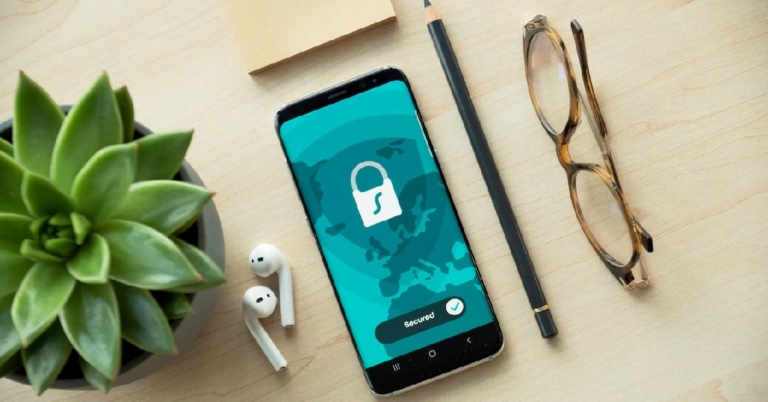
Step 1: Go to passwords.google.com.Step 2: Sign in using your Google Account.Step 3: Select the website/account you want the password for.Step 4: Verify your identity by entering your Google Account password or your phone’s lock screen code.Step 5: Tap the eye icon to view your password.Step 6: To update a password tap on ‘Edit’ and enter the new password.Step 7: To delete a password, tap on ‘Delete.’
How to view a saved password using Google Chrome
Step 1: Open Google Chrome on your Android Smartphone and tap the ellipses (three dots) at the top right corner of the screen.Step 2: Go to Settings and select Passwords.Step 3: Tap any website/account to reveal the password.Step 4: You can copy the password to paste and store it somewhere else. To delete the password, tap the bin icon next to it.Read Also: Football Manager 2023 Touch makes its debut on Apple Arcade
Conclusion
This is how you can view saved passwords on your Android smartphone. There are several other password managers you can use apart from the one offered by Google. Before you select a password manager make sure it is rated well by its users and does not have any data breaches in its record.
Xplore Health Technologies has created a revolutionary respiratory muscle training (RMT) gadget called the Airofit PRO in partnership with Airofit, Denmark. The device’s ability to train both the inspiratory and expiratory breathing muscles in the same breath makes it the most efficient and user-friendly training equipment. The introduction of Airofit PRO is appropriate given that winter pollution is already having a negative impact on people’s lungs and general health. All training with Airofit can be done hands-free. It comes with over 17 different breathing exercises, Airofit PRO provides unmatched real-time live guidance and tracking.Several respiratory and lung conditions, such as COPD, asthma, Emphysema, Interstitial Lung Disease, Lung Cancer, Sleep Apnea, Tuberculosis, Bronchitis, Pneumonia, and Covid19 Pneumonia, are claimed to be prevented or treated with Airofit training.When used in conjunction with a smartphone, Airofit PRO allows users to truly customise their breathing exercises, building faster, stronger, and more effective respiratory muscles. Another distinctive characteristic of the apparatus is that it can train both the muscles used for inspiration and expiration. According to the company, the gadget essentially works by exercising the diaphragm and other breathing muscles through the use of resistance wheels that provide adjustable but constrained airflow to the user. To put it another way, since resistance makes breathing muscles tired, their vigour is increased by the growth of muscle tissue, allowing for deeper and longer breaths.The device elevates tailored training by considering baseline vital lung capacity and breathing muscle strength in addition to age, size, gender, and preference, all of which are crucial inputs prior to beginning any training. Every day, the device measures Vital Lung Capacity and tracks key lung health improvement metrics. The device features a real-time live guidance platform that leads a user through all exercises and sessions while monitoring his progress using real-time data, and it offers 17 different breathing sessions. Additionally, the gadget targets various associated aspects of breathing, such as respiratory strength, vital capacity, anaerobic threshold, and relaxation, in addition to simple respiratory muscle training (RMT).It just takes 10 minutes of training commitment per day with Airofit, a simple gadget made to be used apart from other physical activity, and after a few months of consistent training, the likelihood of running out of breath nearly disappears. The business has introduced a 90-day free trial of its premium features, including goal-specific training sessions, for new customers of the product. The Airofit PRO in India is priced at Rs 34,990
For the latest gadget and tech news, and gadget reviews, follow us on Twitter, Facebook and Instagram. For newest tech & gadget videos subscribe to our YouTube Channel. You can also stay up to date using the Gadget Bridge Android App. You can find the latest car and bike news here.


 Step 3: Select the language you want.
 Step 4: Scroll down and select ‘Save Changes.’
Instead of clicking the flag, you can also hover your cursor over it and quickly select the language you want.
Step 4: Scroll down and select ‘Save Changes.’
Instead of clicking the flag, you can also hover your cursor over it and quickly select the language you want.

 Step 3: Scroll down and select ‘Language’ from Settings.
 Step 4: Choose the language you want.
 Step 5: Scroll down and hit ‘Continue.’
If you want to choose a foreign language, select ‘Country & Language’ and select the region and language you want.
Step 5: Scroll down and hit ‘Continue.’
If you want to choose a foreign language, select ‘Country & Language’ and select the region and language you want.
 Step 2: Choose the type of gift card you want.
 Step 3: Select the gift card amount. You can also enter the amount of your choice.
 Step 4: Fill in other details like Your Name, Recipient’s email, Date of Delivery, Quantity, and additional message.
Step 5: Click on ‘Add to cart’ and then select ‘Proceed to checkout.’
Step 4: Fill in other details like Your Name, Recipient’s email, Date of Delivery, Quantity, and additional message.
Step 5: Click on ‘Add to cart’ and then select ‘Proceed to checkout.’
 Step 6: Fill in the payment information and select ‘Continue’.
Step 7: Select ‘Place your order.’
Read Also: Snapchat not loading snaps? Here are easy 7 fixes
Step 6: Fill in the payment information and select ‘Continue’.
Step 7: Select ‘Place your order.’
Read Also: Snapchat not loading snaps? Here are easy 7 fixes

 Step 3:
 Step 4:
  Step 5:
 Step 6:





 Step 4:
 Step 5: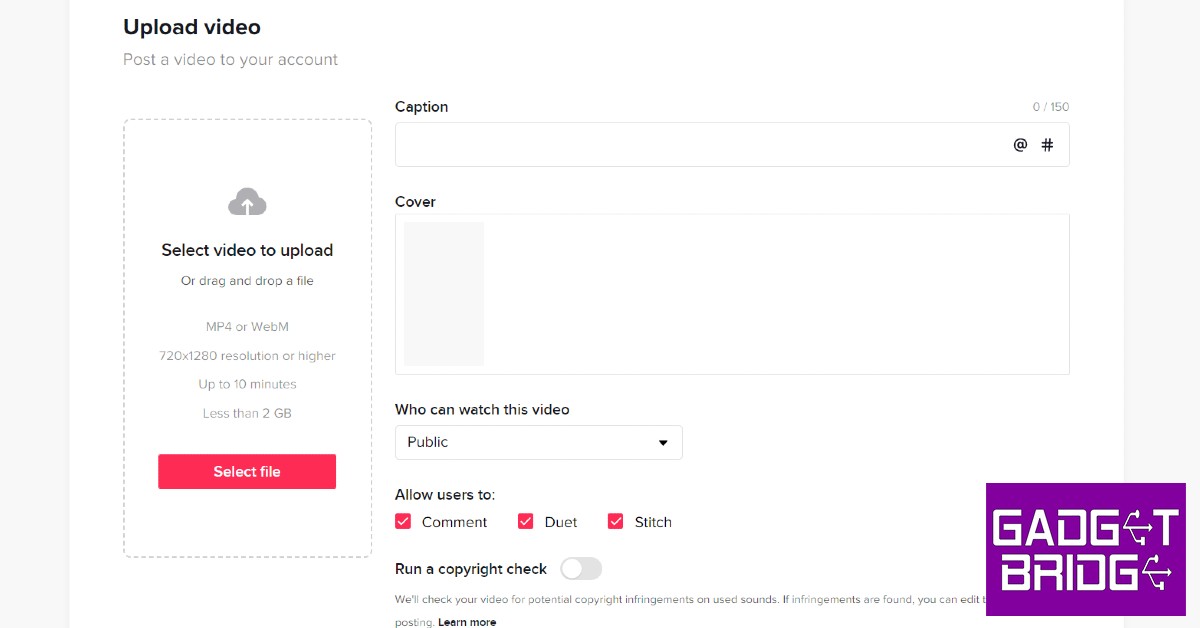




 Logging out and then logging into Snapchat can fix the annoying temporary issues that you are facing with the app. To log out of Snapchat, tap your profile icon at the top right corner of the screen and select the gear icon. Once you’re on the Settings page, scroll all the way down and hit ‘Log out’. You will need your registered number, email, or Snapchat username to log back in.
 If you’re having trouble loading snaps sent to you by one specific contact, you should try clearing that conversation. This method will not erase any saved messages, but all the unread and unsaved messages will be deleted. To clear a particular Snapchat conversation, click on your profile icon at the top right corner of the screen and go to Settings. Scroll down and select ‘Clear Conversations’, then tap the cross icon next to the conversation you want to clear.
 If your phone is running out of storage space, Snapchat may halt some of its integral functions like sending and loading snaps until you free up some memory. Go to Settings>Battery and device care>Storage to check the memory status on your device. Delete some unused apps and files to create more space. You can also use an external memory card to expand the storage space on your device.
 Step 4:
  Step 5:
 Step 6:
  Step 7:
 Step 2:
 Step 3:
 Step 4: