WhatsApp and Instagram’s ‘Last Seen’ status allows your followers and contacts to see when you were last active on the app. While this is a handy feature that gives the sender an idea of whether their message was read (in case you have the blue ticks turned off), some people prefer keeping it hidden. Luckily, both Instagram and WhatsApp let you hide your ‘Last Active’ and ‘Last Seen’ statuses. Recently, WhatsApp also started giving users the option to hide their online status. In this article, we show you how to hide your ‘last active’ status on Instagram and WhatsApp.Read Also: Go Paperless To Improve Your Document Workflow
Here’s how you can hide your ‘Last Active’ status on Instagram
Step 1: Go to your Instagram profile and tap on the hamburger menu icon at the top right corner of the screen.Step 2: Go to Settings.Step 3: Tap on ‘Privacy’ and select ‘Activity Status.’Step 4: Turn the toggle bar off for ‘Show Activity Status.’Instagram will hide your online status and ‘last seen’ on your profile. The green dot that appears when you’re online will be hidden on your profile.
Here’s how you can hide your ‘Last Seen’ status on WhatsApp
Step 1: Open WhatsApp and tap on the ellipses (three dots) at the top right corner of the screen.Step 2: Select Settings.Step 3: Tap on ‘Privacy’ and select ‘Last seen and online.’Step 4: Select your required privacy setting for who can see your ‘last seen’ and online status. Select ‘nobody’ if you want your last seen and online to be hidden from everyone. Your ‘last seen’ and online status will be changed accordingly.Read Also: How to Download and Install Skins in Minecraft?
Conclusion
This is how you can hide your ‘last active’ and ‘last seen’ statuses on Instagram and WhatsApp. Once you hide your online and last seen status, you will not be able to view your contacts’ statuses either. You can also turn off the blue ticks on WhatsApp which signify that you’ve read the sender’s message. However, there is no option to turn the read receipts off on Instagram.
Did you know that you can set a custom profile picture as your Netflix profile icon? If you’re bored of the same profile picture, you can make your Netflix account stand out by putting up a custom picture. While the official Netflix app or website does not let you upload a custom picture, you can still do it with an easy workaround. In this article, we show you how you can set a custom profile picture on Netflix in just a few easy steps. Read Also: Go Paperless To Improve Your Document Workflow
Here’s how you can set a custom profile picture for your Netflix account
Netflix has a bunch of pre-set profile picture options that you can use on your account across different devices. However, if you want a custom profile picture, you will need to use a Chrome extension tool. The custom profile picture can only be viewed on PC and not the Netflix app on your smartphone or Smart TV. Follow these steps to set a custom profile picture for Netflix.Step 1: Download the ‘Custom profile photo for Netflix’ extension for your Google Chrome web browser.Step 2: Once the extension is installed, you will be redirected to the Netflix sign-in page.Step 3: Click on the ‘Custom profile photo for Netflix’ extension from the toolbar. Step 4: Choose the profile for which you want to put up a new customised picture.Step 5: Upload a picture from your picture. Make sure the image size is less than 5MB.Step 6: Select the image alignment.Your customised profile picture will be uploaded to your Netflix account.
How to change your profile picture on the Netflix app
You can also change your profile picture from the Netflix app on your smartphone. Netflix provides its users with a range of profile picture options to choose from. These changes will be reflected on the Netflix app for your smartphone, Smart TV and PC as well. Simply follow the steps mentioned below. Step 1: Open the Netflix app on your smartphone.Step 2: Tap on the pencil icon at the top right corner of the screen.Step 3: Tap the pencil again on your profile icon.Step 4: Select the template you want to set as your profile picture.Read Also: How to Download and Install Skins in Minecraft?
Conclusion
This is how you can set a custom profile picture on Netflix. Remember that you will only be able to see the custom picture on your profile when you log in using your PC. The changes will not be reflected on your smartphone or TV app. However, Netflix allows you to choose your profile picture from a range of templates on the TV and smartphone app.
The rumour mills are churning fast when it comes to Apple iPhone SE 4. Cupertino-based giant, Apple, is working on an update to the low-cost iPhone SE 3. It is expected to undergo significant upgrades in order to align with the premium iPhone line-up. Apple discontinued the first edition iPhone SE in September 2018. The iPhone SE (2020), its successor, was unveiled in March 2020, and the third edition was released on March 8, 2022. So, chances are the next version will also come in March.
Here are some possible upgrades for the next-generation iPhone SE 4 when it is released in March or April of 2023.
Apple iPhone SE 4: Design
All current iPhone SE iterations are based on prior iPhone models. The current iPhone SE (3rd gen) comes striding in with a 4.7-inch display with a TouchID Home button and is based on the iPhone 8. According to a popular tipster, the future Apple iPhone SE 4 may have the same design as the iPhone XR. It could have rounded corners. The business is rumoured to be getting rid of TouchID and maybe be switching to another type of verification.
With the next iPhone SE 4, Apple is also said to include a notch in the iPhone SE family. Although the front camera will be located in the notch, it is unclear if it will support FaceID authentication or not. Though some reports do suggest there will be FaceID.
Read Also:You may now buy iPhone SE 2022 for as low as Rs 28,900, Here is
Apple iPhone SE 4: Display
Apple’s fourth-gen iPhone SE 2023 might still have a small display. 4.7 to 5.2-inch screen is what some reports suggest. However, Apple is apparently exploring another display size for the iPhone SE 4 that falls between 5.7 and 6.1 inches. According to Apple analyst Ming-Chi Kuo, the phone could have a 6.1-inch display, and according to Ross Young, the company is considering both a 6.1-inch and 5.7-inch display for the product.
Read Also:Comparison: iPhone SE 2022 Vs iPhone 13 mini
Apple iPhone SE 4: Hardware
The A15 Bionic chipset used in the iPhone 13 series powers the current iPhone SE 3. The A16 chip, which currently powers the highest models of the iPhone 14 series and is anticipated to power the regular iPhone 15, is most likely to power the Apple iPhone SE 4. And no, there might not be any USB Type-C support in the Apple iPhone SE 4. Three versions of the smart should be available at the time -128GB, 256GB and 512GB.
There is nothing more annoying than trying to remember the name of a song that is stuck in your head. Some of you may remember the popular music app Shazam, which could identify any song that was playing nearby. If that still isn’t enough, Google can now identify a song even if you hum the melody or the lyrics into your phone. It’s that easy. In this article, we show you how to find a song simply by humming the melody into your smartphone.Read Also: How to Download and Install Skins in Minecraft?
Use the Google app to find a song just by humming
Step 1: Open the Google app or search widget on your phone and tap on the mic icon next to the search bar.Step 2: In the following window tap on ‘Search for a song.’Step 3: Bring your phone closer to the audio source of the song or simply hum the melody or lyrics to the song.Step 4: Google will search for the song using the melody and bring up matching results. Step 5: Tap on the result to see where you can listen to the song.
Use Google Voice Assistant to find a song just by humming
Step 1: Tap the home icon or say ‘Hey Google’ to trigger Google Voice Assistant.Step 2: Ask ‘What’s this song?’Step 3: Play the song on another device or hum its melody or lyrics. Step 4: Google will search for the song using the melody and bring up matching results.
Use Soundhound to find a song
If Google Assistant fails to bring up any results, you can use the Soundhound app to find the song you are looking for. Soundhound works in the same way, all you need to do is bring the mic closer to the song that you want to find the name of. You can also hum, whistle, or sing the lyrics to the song and Soundhound will identify it for you. You can download the Soundhound app from Google Play Store. Open the app on your smartphone and the orange button to search for a song. Hum for at least 10 seconds to ensure the results are accurate.Read Also: Simple ways to Change Language on Amazon?
Conclusion
This is how you can find or identify any song simply by humming the melody into your smartphone. If Google does not find the song on the first go, make sure you are humming the melody clearly and accurately. You can also try humming other parts of the song for a better result. If you found this article helpful, let us know in the comments!
Can’t figure out what to watch this month? We’ve got you covered. OTT platforms across the spectrum will be teeming with new releases this month. In order to sort through the titles with ease, we’ve compiled a list of the best releases in November. So without further ado, here are our picks for the 10 best movies and TV shows coming out this month on Netflix, Amazon Prime Video, Disney+ Hotstar, and more.Read Also:Simple ways to Change Language on Amazon?
Released just two weeks before the World Cup, FIFA Uncovered dives into the world of corruption, scandal, and infamy that controls the beautiful game at the biggest stage. The documentary charts FIFA’s corrupt history regarding handing out the rights to host the World Cup. FIFA’s corruption has been a public spectacle for the last few years, especially with Sepp Blatter at the helm. With the 2022 WC in Qatar set to kick off later this month, FIFA Uncovered is by no means a bombshell but a reminder of how the biggest sports organisation in the world is complicit in sportwashing and the extent to which the scandal runs in the governing body.
The Crown (Season 5)
Released after the passing of Queen Elizabeth II, The Crown picks up from where it left off, charting the events around the Royal family of England in the 20th century. The Crown is one of Netflix’s most popular original productions and stars Claire Foy, Olivia Colman, and Imelda Staunton. Certainly one of the best releases among other TV shows and movies on Netflix this month.
Dead To Me (Season 3)
The dark comedy featuring Christina Applegate, Linda Cardellini, and James Marsden returns for the third and final season on Netflix. The show follows the blossoming friendship between recently widowed real estate agent Judy (Christina Applegate) and Judy (Linda Cardellini), who she meets at a grief support group. The final season of Dead To Me promises several ups and downs before finally saying goodbye.
Ancient Apocalypse
British journalist Graham Hancock takes viewers on a journey through the world as he gathers evidence for a lost civilisation that could have existed up to 12,000 years back. While it may require a suspension of belief in certain parts, Ancient Apocalypse is an interesting view of our history and lost civilisations through an alternate perspective.
Based on the horror novel by Stephen King, Firestarter is a gripping tale of a couple trying to hide their daughter from a mysterious federal agency that wants to exploit and harness her power of pyrokinesis. As her parents try to keep her under the radar, Charlie finds her power impossible to control and her frequent outbursts make it harder for the family to maintain their cover.
My Policeman
One of the most anticipated releases of the year, My Policeman, featuring Harry Styles, finally makes its way to Amazon Prime. Set in the 1950s, the movie tells the story of a gay policeman played by Styles as he marries a schoolteacher played by Gina McKee, while still being in a relationship with a museum curator played by Rupert Everett. My Policeman explores the social attitudes towards homosexuality through a tale of a forbidden romance that spans decades.
After its theatrical release in September, Ranbir Kapoor and Alia Bhatt starrer Brahmastra finally makes its way to Disney+ Hotstar this month. The mythological drama follows the story of Shiva, played by Ranbir Kapoor, who cannot be harmed by fire. Grossing over Rs 425 crore globally, a sequel for Brahmastra is reportedly already in the works. The movie can now also be enjoyed on OTT.
Grey’s Anatomy
Popular American medical drama Grey’s Anatomy moves on to its 19th season and shows no sign of slowing down. The show can now be watched in its entirety on Disney+ Hotstar. The 19th season marks the end of the chapter for Meredith Grey as she departs Grey Sloan Memorial in Seattle to take up a job with the Catherine Fox Foundation doing research for an Alzheimer’s cure.
Directed by Prakash Raj and starring Nana Patekar, Ali Fazal, Shriya Saran, and Tapsee Pannu, Tadka is a romantic comedy/drama that follows the life of a middle-aged man who finds love through his passion for food. Written by Prakash Raj, Tadka is a remake of the popular 2011 Malayalam movie, Salt n Pepper.
Anjali Menon’s Wonder Women is a story of a group of pregnant women that befriend each other at a prenatal class. What follows is a story full of intrigue as we are let into the lives of this group of friends, following their stories and arcs of personal growth. Out on November 18, Wonder Women will certainly be one of the better releases of the year.Read Also: Koo app now allows users to add 10 profile pictures, more features announced
Conclusion
These are the 10 best movies and TV shows to look out for this month on Netflix, Amazon Prime Video, Disney+ Hotstar, and other OTT platforms. Let us know in the comments which movie or TV show you are looking forward to the most!
Betting is a favorite activity for many sports fans. The ability to predict the outcome adds excitement to the sport-watching experience. When mobile devices are widely available and mainstream, betting apps gain immense popularity. Sports enthusiasts can easily access Ohio sportsbook apps from the comfort of their own homes without having to go to a physical establishment.
How to use betting apps safely
Betting apps work similarly to casinos. You can instantly access real-time odds when you download your favorite betting app. The apps are convenient, offering you various betting options and the necessary information to make a better decision.
To use a betting app, you need to sign up and create an account. After you set up your profile with personal information, you will need to enter your deposit. You can also choose your preferred method for depositing and withdrawing money. The apps are available for iPhone, iPad, and Android, but you need to ensure they have a version for your particular device.
These are the basic things that you need to know about betting apps. However, some will go a step forward and offer unique features to stand out in the competitive market.
How to make sure you always use safe apps? We have a few tips to share with you.
Check licenses
Sports betting is regulated by law. Each country has a specific set of rules applied to this industry. Therefore, the betting app needs to have a license. Make sure the app you intend to use is legal and has proper certification that confirms it operates by the local laws. With this, you are protected as a customer.
Payment methods
Every betting app comes with available payment methods. Most will offer different options for your convenience, and you can choose according to your preferences. Make sure that your favorite app offers your preferred payment methods. Wire transfers are a primary option, and almost every app provides them. However, apps will offer additional payment options such as Skrill or Paypal. But also, some apps might offer crypto as an additional option available. Make sure to go with reliable payment methods to make sure your financial information stays safe.
Cybersecurity
Since you enter personal and financial information, you must choose a reliable app to ensure online safety. Check their reputation and license to get to know the app better. Also, check their historical records and see if they have any violations. A reliable app should provide cyber security options to keep the customer’s data safe.
Customer support
When you are a new user of a betting app, you might need assistance. Therefore, the app should provide customer support for you. They can offer different contact options, such as email, phone, or live chat. With this, you can choose your preferred method of obtaining assistance. The best betting apps should provide 24/7 online support since problems can arise at any time of the day.
For the latest gadget and tech news, and gadget reviews, follow us on Twitter, Facebook and Instagram. For newest tech & gadget videos subscribe to our YouTube Channel. You can also stay up to date using the Gadget Bridge Android App. You can find the latest car and bike news here.
WhatsApp, which is owned by Meta, is testing a new feature called ‘Companion mode’ for Android. The companion mode, which is presently available to a few beta testers, allows users to join existing accounts on secondary Android mobile devices. WhatsApp now allows existing accounts to be linked to up to four devices. It enables users to use WhatsApp services on the linked device even if the primary registered device is out of network range or has no internet access.
However, at the moment, the companion mode is confined to a web client and a PC application. Support for tablets and smartphones has long been planned, and Android’s companion mode is a step in the right direction. So, what’s new with Android’s companion mode, and how does it work? Here is what you need to know:
A little backgrounder
According to the WABetaInfo website, which follows WhatsApp’s planned features, buddy mode has been given out to some beta testers. WhatsApp is exploring companion mode for mobile phones by enabling the feature for some beta testers, according to the company. WhatsApp gives consumers the ability to link a second smartphone via the ‘Link Device’ option. The connection will take place using the standard QR code.
According to the report, once you connect another smartphone, your conversation history will sync to that new device as well, allowing you to view and respond to messages and calls on it simultaneously. With this, beta testers can now connect up to four devices – two smartphones, one tablet, and a desktop machine.
Here are the steps to activate the companion mode on Android:
Step 1: Download and install WhatsApp desktop software on your PC or Mobile device.
Step 2: Tap on ‘Link a device’ to get the QR code required for account connecting, if it is already not showing.
Step 3: Now, open WhatsApp on your primary registered mobile.
Step 4: Go to Settings and tap on ‘Linked Devices’.
Step 3: Inside Linked Devices, tap on ‘Link a Device’.
Step 4: Point the phone camera to scan the QR code visible on the secondary mobile or desktop screen.
Step 5: Once the link is established, the companion mode is activated on secondary mobile or PC.
When you attach a WhatsApp account to a new phone, the chat history of the primary device is synced across all linked devices. As said, when you use WhatsApp from a linked cell phone, all personal messages and calls are end-to-end encrypted. When someone sends you a message, it is distributed to all associated devices as well, ensuring that encryption is always retained.
Read Also:How to use the same WhatsApp on two or more smartphones?
But beware, some functions may still be unavailable while this new update is being tested. For example, viewing live locations and managing broadcast lists and stickers may be unavailable.
Amazon is back with another quiz on its mobile platform. The 14 November 2022 Amazon Quiz is now live on its platform and today’s Amazon Quiz will give you a chance to win Rs 2,500 Amazon pay Balance.Every day Amazon brings a fresh questionnaire that comprises 5 questions. These questions are based on current affairs and general knowledge. The quiz can be played from 8 AM to 11:59 PM and the contestants need to answer correctly to enter into a lucky draw. In today’s Amazon Quiz the participants will get a chance to win Rs 2,500 Amazon Pay Balance.Today’s Amazon Quiz Prize – Rs 2,500 Amazon Pay BalanceQuiz Date – 14 November 2022Daily Timing – 12 AM to 11:59 PMWinner Announcement – Today at 12 PM
Amazon Quiz Answers Today 14 November 2022
Question 1: Which country’s parliament elected Dimitar Kovacevski as the new prime minister in January 2022?Answer: North MacedoniaQuestion 2: UAE’s Ahmed Naser Al-Raisi recently got elected as the president of which international organization?
Answer: INTERPOLQuestion 3: The red umbrella is a symbol for which group of people’s rights around the world?
Answer: Sex workers
Question 4: Apart from the Chicago Bulls, this legendary basketball player also played for which NBA franchise?Answer: Washington WizardsQuestion 5: This is the super saiyan form of which ‘Dragon Ball Z’ character?
Answer: Goku
How To Play Amazon Quiz
Only app users are eligible to play the Amazon quiz every morning from 12 AM to 11:59 PM. The quiz is not available on the desktop. For those who are unaware of how to play the Amazon quiz below are the steps, you can follow to take the quiz.
Firstly download the Amazon app from Google Play Store or App Store
Now fill in the required information through the Sign Up option.
You need to log in to the Amazon app and scroll down on the home screen to find the Amazon Quiz banner.
Tap on the Amazon Quiz banner and tap on the Start button to start the Quiz.
Now you will get 5 questions and you need to answer them correctly. One wrong answer will eliminate you from the Quiz.
After answering all the questions correctly you are now eligible for a Lucky Draw.
The winner’s name will be announced today at 12 PM.
The world is transitioning to a paperless environment in all its departments. While seeking to go paperless, they are looking forward to using the right tools that will allow them to easily perform this transition. As this is majorly performed based on managing environmental concerns, this transformation will also help improve the document workflow.
For this article, we shall be looking into how a free PDF editor helps you in going paperless and help you manage documents with ease. The provided details will help you understand why it is essential to perform this action and how it is done with the help of Wondershare PDFelement, an effective PDF editing solution.
Part 1: Wondershare PDFelement – The Ultimate Solution to Go Paperless
There are many PDF editors available in the market providing services for managing digital documents. With simple tools to work with, these PDF editors are not quite extensive in resolving different problems involving documents. Wondershare PDFelement is designed to answer all prevailing concerns of editing PDF documents and helping you in going paperless.
This free PDF editor operates with a vast set of features that can be used to design the perfect PDF document, which looks even better than a printed document. While you make use of the essential editing tools provided on the platform, you can make use of the efficient and diverse tools available for creating and editing PDFs. While it accompanies you in converting PDFs, you can translate and perform multiple functions, such as OCR PDFs. You can also find batch processing on PDFelement, another great highlight of this PDF editor.
Wondershare PDFelement is highly compatible, as it allows editing PDFs on Windows, Mac, iOS, and Android. Such diversity is highly encouraged, as it helps users work through their documents without putting up the effort of transferring, printing, and managing paper documents. PDFelement is the perfect option for going paperless in your offices, homes, and all other places involving document management.
Part 2: Why Should One Consider Going Paperless?
Why does one need to go paperless to manage documents in a better way? Printing documents and using paper systems has been in the market for a while; however, paperless systems have outperformed this in all departments. Let’s help out people understand the benefits of shifting to a paperless system:
1. Reduction in Costs
The cost of managing paper documents is exceptionally high if appropriately observed. From the cost of space to the management of the paper documents by stocking them properly, the entire price is relatively high to manage. While you shift to paperless systems, the cost of managing the documents reduces to a single storage space, which is quite exceptional.
2. Increase in Efficiency of Operations
If you ever find something from a stack of papers, you must go through every piece. This is not only time-taking but highly frustrating to cover. A paperless environment will increase efficiency in operations, as finding documents is simple and easy on such systems. A simple search and you will have your required result on the front.
3. Enhances Collaboration on Platforms
Ever thought of sharing a document with another person through fax or parcel? While it is complicated to cover daily, you would never support this process and would feel tardy in going through this again and again. Going to a paperless system will allow you to share documents with other users easily through emails and other communication sources. Collaboration is much easier with a paperless system.
4. Improves Security of Documents
Documents stocked in a room are never secure. While they can be stolen with no hint of them being removed from the room, they are vulnerable to fire and other hazards that can destroy all data in minutes. Using a paperless model will help increase the security of the documents, where you can protect the storage devices from illegal access. Securing the documents will also protect them from threats of being destroyed. You have to keep backups of the documents, which does not take considerable space or cost in a paperless model.
5. Eco-Friendly System
Using a paperless system protects the environment, which was one of the most prominent factors in adopting this system. As the paper is a primary environmental concern that was not being addressed for years, it is time to realize the need to change to an eco-friendly system to make the environment sustainable for the people who will come ahead of us.
6. Saves Space in Places
Another vital clause that involves using a paperless model is its ability to save space. To save year-long documents, you will need a separate cupboard and a separate room to manage a decade-long document log of your office. This can be reduced to a small hard drive that does not take space more than a few centimeters.
Part 3: How Does PDFelement Support the Transition to a Paperless Environment?
There are many ways PDFelement is helping users to transition their systems to a paperless environment. While you create an editable PDF with this efficient tool, you are taking the next step to a paperless model. Let’s see how PDFelement helps you in setting up the precedent with its features:
1. Organize PDFs
PDFelement helps you organize PDF documents, which means you can log your data and set PDFs according to your requirements. With the option of splitting documents, deleting pages, inserting, and extracting pages from PDFs, PDFelement provides the perfect setup for organizing PDFs to your liking. You can also rearrange the documents and rotate them to manage their orientations.
2. Convert PDFs
The option of converting PDFs is exceptionally great on PDFelement. With the option of converting your PDFs to different Office formats, you can easily edit your documents and convert them to the required format without going through different functions. The conversion tool of this free PDF editor is highly efficient, with the ability to help users convert their documents into multiple supported formats without disrupting the document’s formatting.
3. OCR PDF
PDFelement comes with an OCR tool that supports detecting more than 20 languages on PDF documents. While it helps convert scanned PDFs to editable and searchable PDFs, you do not need to go across any other platform to edit your files. The OCR PDF tool provided by PDFelement recognizes the text in the images or scanned documents and converts the photographic content to a machine-related format.
4. PDF Form
You can also manage different forms on PDFelement. Rather than printing out forms to fill them out for a particular task, you can edit the complete forms on the PDF tool. This is exceptionally great, as it influences the paperless model to perfection. PDFelement servers as a great PDF filler that allows you to fill out PDFs by recognizing the editable locations in a form.
5. Sign PDF
The option of signing documents on PDF files is straightforward on PDFelement. As you can upload, type, and draw the signatures to add to PDF documents, you can ensure the legal boundaries of signing documents. With that, you will never have to print out documents for signing pages.
6. Edit and Annotate PDFs
If you seek to make changes to a PDF or mark something important on the document, you can easily use the editing and annotation features provided by PDFelement. Easily edit the text, pictures, and links on the PDFs and annotate them as desired. With highlighting tools, commenting structures, and several other annotation elements, PDFelement is the best option available for such things.
Verdict
It is time to shift to a paperless system in your office. While it covers every disadvantage of paper systems, it provides efficiency and sustainability of excellent caliber. Using tools like Wondershare PDFelement is a great catalyst for this process. This free PDF editor provides effective tools that can be used to shift to a paperless mode in no time. The results are exceptional with such tools, as they allow you to manage your documents on a single platform with ease.
For the latest gadget and tech news, and gadget reviews, follow us on Twitter, Facebook and Instagram. For newest tech & gadget videos subscribe to our YouTube Channel. You can also stay up to date using the Gadget Bridge Android App. You can find the latest car and bike news here.
Minecraft is one of the most popular games on the planet, enjoyed by people across all age groups. Players can customise a lot of aspects of their character and other parts of the game. With the right skin and unique attributes, you can make your in-game character stand out. There are an endless number of customised skins you can find online as well. In this article, we show you how to download and install skins for your Minecraft character on a PC.Read Also: How to upload a TikTok video using a PC or Mac? The simplest way
Choose a premade skin for your Minecraft character
Step 1: Launch Minecraft on your PC.Step 2: Go to your character and select ‘Dressing Room.’Step 3: Click on the menu icon at the top-left corner of the screen and select Classic Skins.Step 4: Choose a new skin for your character. This window will display all the skins that you currently own. To view more skins select ‘Get More Skins.’
Choose a customised skin for your Minecraft character
Step 1: Select a skin from Minecraft Marketplace and download it by clicking the button on the right side of the page.Step 2: Go to https://minecraft.net/en-us/profile/skin and log into your minecraft.net account.Step 3: Click on ‘Select file’ under ‘Upload custom skin.’Step 4: Upload the skin that you just downloaded.Step 5: Open the game on your PC. Your character will be wearing the skin.Read Also:Boult X30 and X50 TWS earphones with 40 hours of playtime launched in India
Conclusion
This is how you can download and install skins for your Minecraft character on a PC. These methods more or less remain the same for every edition of Minecraft, be it Bedrock, Java, or Pocket Edition. If you want a skin that is unique to your character, you can make one of your own using Skindex’s Skin Editor.



 Step 2: Go to Settings.
 Step 3: Tap on ‘Privacy’ and select ‘Activity Status.’
 Step 4: Turn the toggle bar off for ‘Show Activity Status.’
 Instagram will hide your online status and ‘last seen’ on your profile. The green dot that appears when you’re online will be hidden on your profile.
 Step 2: Select Settings.
Step 3: Tap on ‘Privacy’ and select ‘Last seen and online.’
Step 2: Select Settings.
Step 3: Tap on ‘Privacy’ and select ‘Last seen and online.’
 Step 4: Select your required privacy setting for who can see your ‘last seen’ and online status. Select ‘nobody’ if you want your last seen and online to be hidden from everyone.
 Your ‘last seen’ and online status will be changed accordingly.
Read Also: How to Download and Install Skins in Minecraft?
Your ‘last seen’ and online status will be changed accordingly.
Read Also: How to Download and Install Skins in Minecraft?

 Step 5:
 Step 6:
 Step 3:
  Step 4:
 Read Also: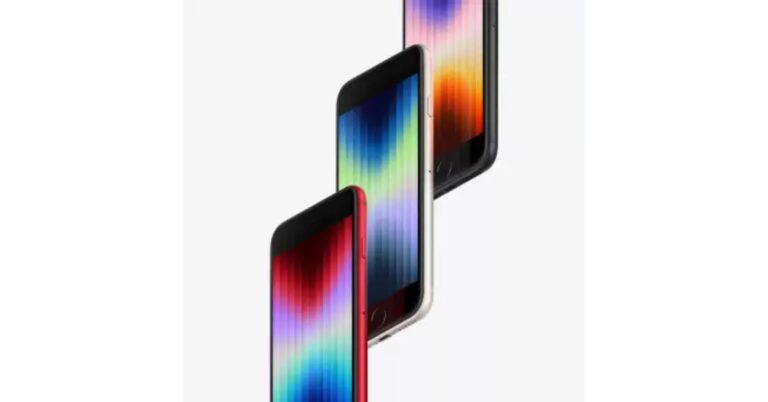
 Step 2:
 Step 3:
 Step 4:
 Step 5:
 Step 3:
  Step 4: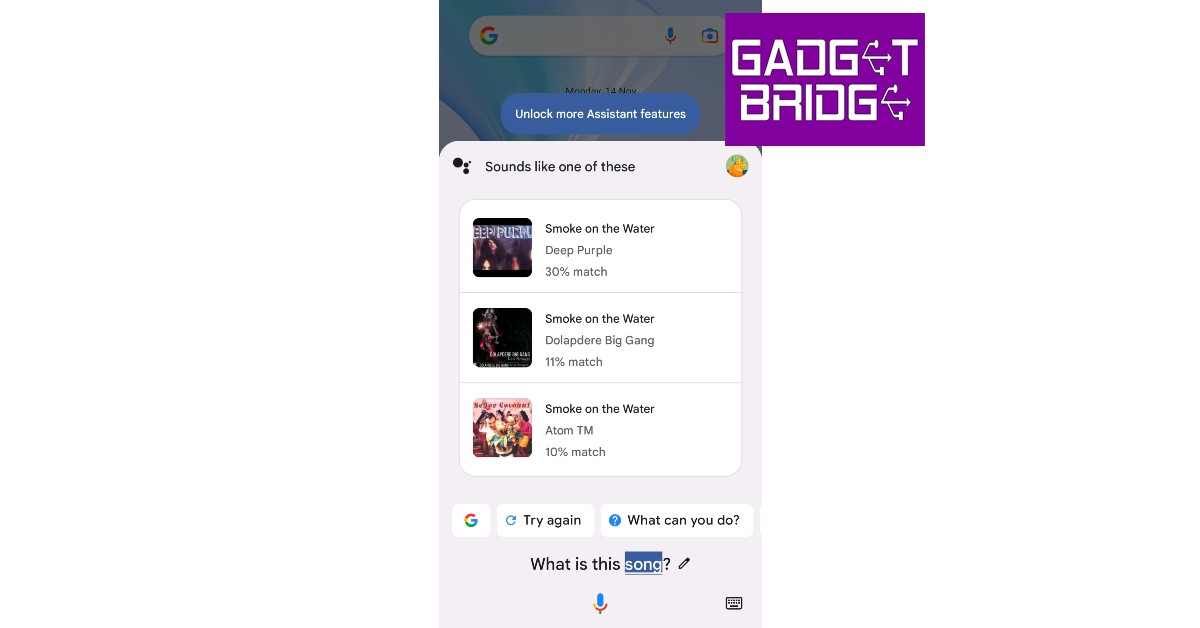












 Step 1:
  Step 2:
  Step 4:
 Step 5: