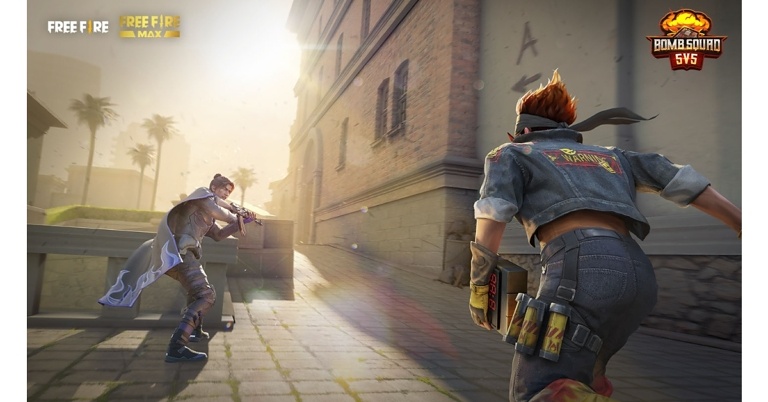
Garena Free Fire is a battle royale game with regular awards and tournaments to keep players interested. If you play Garena Free Fire, you should be aware of the redeem codes that are released on a daily basis. However, because the battle royale game is banned in India, players from other countries can use the Free Fire Redeem codes daily. If you’re unfamiliar with the Garena Free Fire redeem codes or don’t know how to get them, we’ve put together a step-by-step guide to help you redeem them. Check out Garena Free Fire Redeem Codes for November 2.The Free Fire redeem codes are a great way to get free stuff. These are 12-digit codes that contain alphabets and numbers, as well as an expiration date and time. Because the Garena FF redeem codes cannot be used more than once, you should hurry to the redemption page to claim your free reward before someone else does. To get a free reward, all you have to do is go to reward.ff.garena.com/en, which is the official redemption page. Also, keep an eye on this space for daily updates on Garena Free Fire redemption codes and rewards.
Garena Free Fire Redeem Codes Today 11 November 2022
Updating Soon…
How to Get Free Fire Redeem Codes for Garena on November 11?
11 November 2022 Amazon Quiz has gone live on its platform. The quiz timings are 12 AM to 11:59 PM. The Amazon App users can participate in the quiz daily and all they have to do is submit correct answers to the questions asked on the e-commerce platform. Today’s participants can get a chance to win Rs 500 Amazon Pay Balance.By participating in the Amazon Quiz the participants can win Amazon Pay Balance ranging from Rs 1,000 to Rs 50,000 every day while sitting at home. To win the participants must answer five questions correctly that are based on current events and general knowledge. One wrong answer can eliminate you from the quiz. The results will be announced at the end of the month. Today’s question will let you win Rs 500 Amazon Pay Balance. Check below for today’s Amazon quiz answers.Amazon Quiz Today Prize – Rs 500 Amazon Pay BalanceQuiz Date – 11 November 2022Daily Timing – 12 AM to 11:59 PMWinner Announcement – Today 12 PM
Amazon Quiz Answers Today 11 November 2022
Question 1: Which institution has launched “Saa₹thi” – a mobile app on investor education?
Answer: SEBIQuestion 2: In January 2021, which Asian country launched its first-ever National Security Policy?Answer: PakistanQuestion 3: In which state did Prime Minister Narendra Modi inaugurate the Saryu Canal National Project?
Answer: Uttar PradeshQuestion 4: Name this animal which exhibits a rare characteristic among mammals?Answer: EchidnaQuestion 5: In the NBA each quarter of this game is of how many minutes?
Answer: 12 minutes
How To Play Amazon Quiz
Only app users are eligible to play the Amazon quiz every morning from 12 AM to 11:59 PM. The quiz is not available on the desktop. For those who are unaware of how to play the Amazon quiz below are the steps, you can follow to take the quiz.
Firstly download the Amazon app from Google Play Store or App Store
Now fill in the required information through the Sign Up option.
You need to log in to the Amazon app and scroll down on the home screen to find the Amazon Quiz banner.
Tap on the Amazon Quiz banner and tap on the Start button to start the Quiz.
Now you will get 5 questions and you need to answer them correctly. One wrong answer will eliminate you from the Quiz.
After answering all the questions correctly you are now eligible for a Lucky Draw.
The winner’s name will be announced today at 12 PM.
Subtitles have become a mandatory element while watching movies and TV shows. The main attention behind creating subtitles is to help people understand the language used in the video. Moreover, if some individual is unable to hear your audio, subtitles can work as an aid. Subtitles also increase video comprehension and SEO, which can benefit you in engaging with the audience.
If you are inexperienced about adding subtitles to videos, this article will address some of the easiest ways. We will shed light on offline and online autosubtitle generators that are capable of adding subtitles with high precision.
A Brief Introduction to Wondershare UniConverter Toolkit
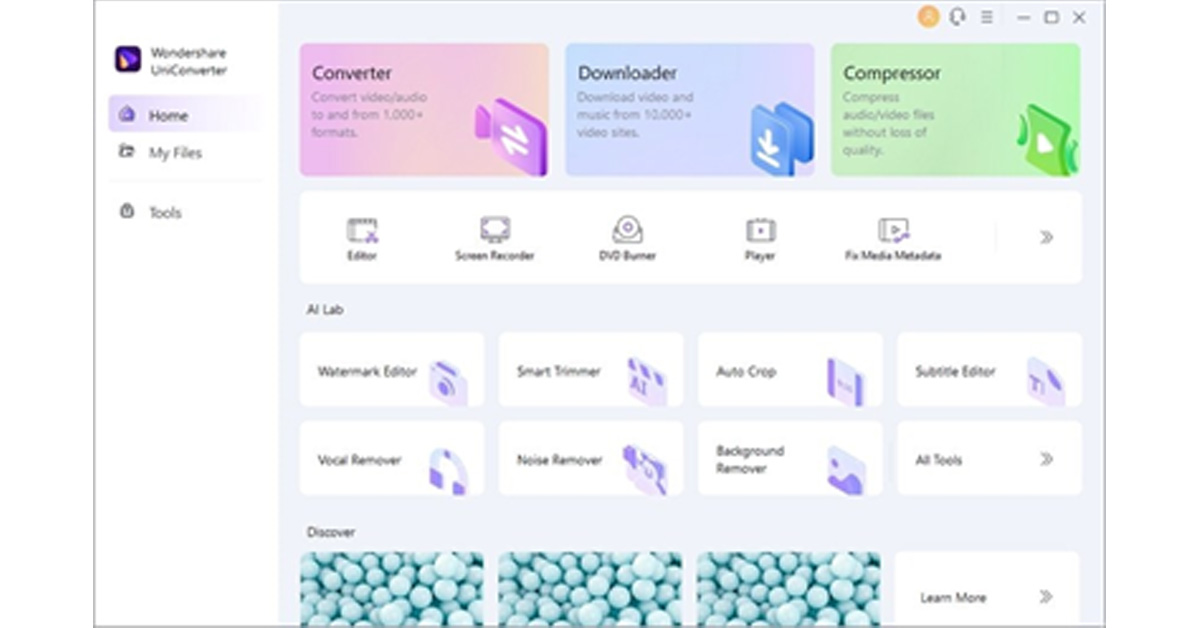
Wondershare UniConverter is a famous tool as it produces instant results of high quality. Using this free video converter, you can execute video conversion without changing the original quality of your video file. You can also download your favourite songs or video clips through its “Downloader” feature. Furthermore, it can also work as a proficient screen recorder that can assist you in capturing your specific application, full-screen, or custom screen.
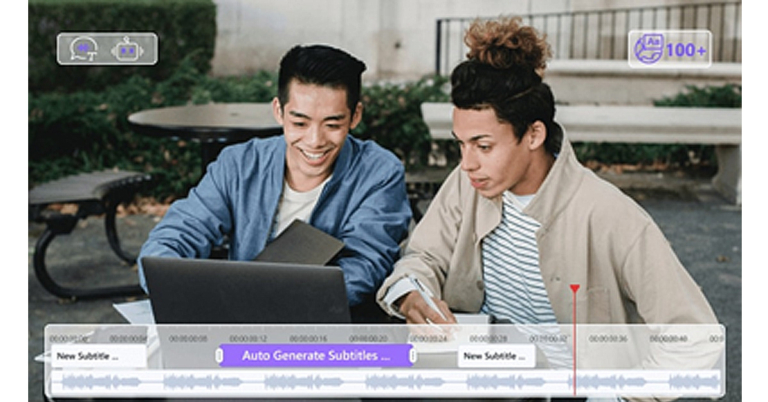
It also contains great editing tools that can help you in modifying your video. Besides being a quality video editor, UniConverter also functions as an efficient subtitle editor. You can write subtitles on your own manually on this tool by choosing a preferred font, style, colour, and alignment. It can convert text into subtitles and allows you to upload a subtitle file. For more comfort, this subtitle editor can also auto-generate subtitles by transcribing the voice. This feature supports more than 100 languages which means that it can handle video files of any language and type.
How to Extract Subtitles from Videos with UniConverter
UniConverter functions as a compatible subtitle editor available for both Windows and Mac users. Its auto-subtitle generator can produce results with 100% accuracy. If you want to extract subtitles from the auto-generator of UniConverter, check the following instructions given below:
Step 1: Proceed to Subtitle Editor
Launch UniConverter on your system and proceed to its “Subtitle Editor” from the main interface. This will open a new window on your screen instantly. Click on the “Add File” button to upload your video from your PC or MacBook. You can also drag the desired video and drop it in the interface on this tool.
Step 2: Select Auto-Subtitle Generator
Once you have imported the desired video file to this tool successfully, select “Auto-Subtitle Generator” from the right section. After some seconds, the tool will create the subtitles for your video automatically. You can check the results of this auto-subtitle generator from the preview window.Step 3: Edit and Save Subtitles
To edit the subtitles, navigate to the “Styles” tab and select font, outline width, opacity, position, and font size. After adjusting the settings, go to the “File Location” tab and choose your destination folder. Now hit the “Export” button to save the file in the desired folder.
How to Extract Subtitles from Videos with Media.io
When it comes to online tools, many people like to rely on Media.io. You can perform various functions on your video files using this online platform. For example, you can use its video compressor to deal with large file sizes. To make your videos engaging, you can add text boxes and customize them according to your need. The converting feature of Media.io can convert to and from more than 1000 file formats while preserving the high quality of your video.
Media.io also contains a subtitle editor that offers an advanced auto-subtitle creator. Through this feature, you can quickly generate subtitles without putting any effort. It also provides a translation tool that can efficiently translate your subtitles into more than 120 languages. Thus, you can use this reliable online platform to edit videos and extract subtitles from them with the help of its distinct features.
Steps to Extract Subtitles from Videos with Media.io
Through Media.io, you can also upload your subtitle file directly into this tool. Moreover, if you want to write some brief subtitles manually, Media.io gives you this freedom completely. To generate instant subtitles without wasting time, you can try its auto-subtitle generator. This generator supports up to 90 languages, such as English, Chinese, German, etc. To learn how to use this feature, check the below steps:
Step 1: Import Video File
Begin by accessing the website of Media.io and click on “Start to Edit.” Afterwards, select “Upload Media” and browse the video file from your device.
Step 2: Navigate to Subtitles
Once done uploading, click on “Subtitles” displayed in the left section. Now tap on “Auto Subtitles” and choose the language used in the video. Afterwards, select the video from the timeline in which you want to create subtitles. Once done, click on “Start auto-subtitle.”Step 3: Export the Video File
Now you can see the auto-generated subtitles on your screen. You can also change the font, color, size, transparency, and border of your subtitles. Afterwards, select the aspect ratio for your video and hit the “Export” button to select the format and resolution for your edited video before downloading it.
Verdict
There are various subtitle editors in the market that can create subtitles for your videos instantly. However, not every tool provides accurate results. If you are interested in an online tool, Media.io functions as the best subtitle editor. Without making a user account, you can use its auto-subtitle generator to extract subtitles for your video. Moreover, it does not require you to install any software to create subtitles.
On the other hand, for people who want to use a subtitle editor for the longer run, we recommend using Wondershare UniConverter. It’s a compatible desktop tool that you can run on your systems without a Wi-Fi connection. It can also automatically create subtitles by transcription of the voice. Also, it works as a free video converter and video editor that can assist you in eliminating the flaws in your video.
For the latest gadget and tech news, and gadget reviews, follow us on Twitter, Facebook and Instagram. For newest tech & gadget videos subscribe to our YouTube Channel. You can also stay up to date using the Gadget Bridge Android App. You can find the latest car and bike news here.
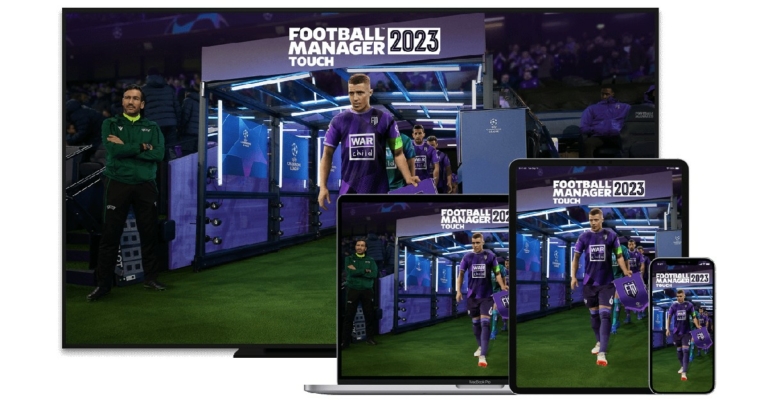
The global bestseller gaming title, Football Manager 2023 Touch, has finally made its debut on Apple Arcade. The game is available across all Apple devices on Apple’s game subscription service. Football Manager 2023 Touch is based on the classic PC football strategy game of the same name. Players can build their own teams and control every aspect of management like training routines, player transfers, career growth and more. The game now also features a new 3D match engine for the first time on iPhone. Football Manager is touted by many to be the closest thing to being a real football club manager.Football Manager 2023 Touch is the newest addition to Apple Arcade’s portfolio of sporting games, which includes the likes of NBA 2K23 Arcade Edition. Apart from the addition of FM 2023, Apple Arcade has also introduced two highly requested modes – Endless and Expert – in one of its most popular titles, Mini Motorways. The Endless Mode lets you start a new city and continue after ‘Game Over.’ Expert mode encourages a more strategic play style, by making road tiles and upgrades permanent.Read Also:SENS Hendriks 1 review: A decent entry-level TWS Other popular titles like LEGO Star Wars: Castaways, Fruit Ninja Classic+, Garden Tails: Match and Grow, SongPop Party, Gibbon: Beyond the Trees, and Frogger and the Rumbling Ruins also get an upgrade. Here are some of the major upgrades available right now.Mini Motorways – Two new game modes added: Endless and Expert. An Expert Mode leaderboard has also been added to each map, allowing players to compete for the top spot.LEGO Star Wars: Castaways – The game now features a new monthly event based on The Mandalorian TV series, featuring all-new cosmetic items, emotes, sandcastles, and microfighters. A new Arena mode, Challenge Levels, and Alien Species player customization option have also been added.Garden Tails: Match and Grow – Explore a brand new sixth garden in the game, including new levels, 25 new plants, and six new animals.SongPop Party – Two new playlists – 2000s Heartthrob and 2000s Pop Divas – have been added.Gibbon: Beyond the Trees – The update packs new level blocks, more achievements, and an in-game collectible encyclopedia.Frogger and the Rumbling Ruins – An all-new Dungeon, The Sky Ruins, featuring 22 new stages, has been added.Crayola Create and Play+ – Kicks off Thanksgiving-theme in-game event, and also adds a new How to Draw video (How to Draw a Turkey).
Tech giant Asus has come out with the world’s first 17.3-inch OLED laptop, dubbed the Asus Zenbook 17 Fold OLED. The laptop will be launched in India at the price of Rs 3,29,990. The Zenbook 17 Fold comes equipped with the 12th Generation Intel Core i7-1250U processor. Designed with 10 cores (2 performance and 8 efficiency cores), the i7-1250U can clock up to 4.7 max frequency. The laptop also comes with 16GB LPDDR5 RAM and 1TB SSD.Read Also: YouTube Shorts Are Arriving on Smart TVs: Details Inside
Asus Zenbook 17 Fold OLED: All the details
Sporting a unique foldable design, the Asus Zenbook 17 Fold offers users 2 display choices: a large 17.3-inch OLED touchscreen with an aspect ratio of 4:3 which can be folded to produce two 12.3-inch displays with an aspect ratio of 3:2. Asus claims the hinge has been tested to withstand 30,000 open and shut cycles. The versatility of the display allows the laptop to be used in several different modes: Desktop, Laptop (with Bluetooth keyboard), Laptop (with Virtual keyboard), Tablet, Reader, and Extended.The Asus Zenbook 17 Fold OLED comes with two Thunderbolt 4 ports that are capable of supporting a 4k display output, 40Gbps data transfer, and charging. The Type-C ports can support up to 65W of fast charging as well. The audio on the Zenbook 17 fold has been tuned by Harmon-Kardon and comes with Dolby Atmos certification. Moving on, the Zenbook 17 Fold is equipped with state-of-the-art security features. The Asus Adaptive Lock powered by Intel’s Visual Sensing Controller uses the HD infrared camera to dim or lock the screen depending on the user’s proximity to it. The screen automatically dims if the user looks away, to conserve battery life. If the user walks away from the laptop, the screen automatically locks itself and only wakes up when the user returns. Read Also: MediaTek Dimensity 9200 SoC announced for flagship 5G smartphones
Conclusion
Commenting on the launch Arnold Su, Business Head, Consumer and Gaming PC, System Business Group, ASUS India, said, “We are thrilled to announce our stellar innovation Zenbook 17 Fold OLED in the Indian market. It is the world’s first 17.3” foldable laptop that uses a proprietary foldable hinge design. Co-developed with Intel and BOE, it delivers a transformative experience that merges the productivity of a desktop with the portability of a laptop. This laptop eliminates the need to compromise when working in different environments — in the office, at home, while travelling or when relaxing — by stylishly incorporating two screen sizes and multiple usage modes into one highly portable device.”The Asus Zenbook 17 Fold OLED can be bought online at the official Asus e-shop or on other platforms like Amazon, Flipkart, Croma, Reliance Digital, and Vijay Sales. The laptop will also be available for purchase at Asus-authorised dealerships across the country.
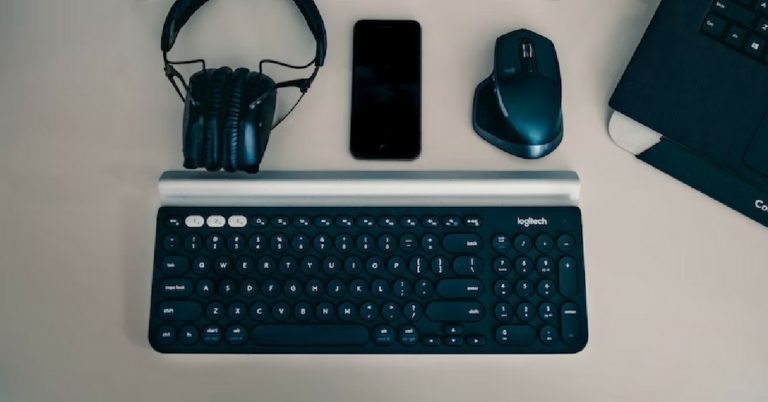
There’s nothing more annoying than a dysfunctional keyboard. Even a faulty key can disrupt your workflow and hamper your productivity. For PC gamers, an unresponsive key can completely prevent them from playing a game. You can try using an onscreen keyboard for any small tasks, but you will need to fix your keyboard at some point. In this article, we bring you 10 simple fixes for when your keyboard stops working.Read Also: MediaTek Dimensity 9200 SoC announced for flagship 5G smartphones
Reboot your computer
Restarting your computer can fix minor background issues or software glitches that may be keeping it from carrying out the basic functions. Rebooting your computer should be the first step in diagnosing any problem. Click on the Windows icon at the bottom left corner of the screen and select ‘Restart’ from the power options. Check if your keyboard is working properly after the reboot. If the issue still persists, scroll down for other fixes.
Check the power switch on your keyboard
If you use a wireless keyboard, it is very likely that it comes with a power switch. This switch disabled your keyboard when it is not in use. It comes in handy when your computer is turned on but you are not using your keyboard. Turning off the keyboard can help save you a significant amount of battery. It is very likely that you turned the power switch off on your keyboard and forgot to turn it on. Check if the switch is turned on before trying out other fixes on this list.
Clean the USB port
It is common for dirt and dust particles to accumulate in and around the USB port on your PC, hampering the connection with the keyboard. This may cause the keyboard to stop functioning altogether. Unplug the keyboard and use a small brush to clean the USB port. Blow some air into it to clean out the finer particles. Once that is done, plug in your keyboard again and check if it works.
Try using a different USB port
It is possible that your keyboard stopped working due to a faulty USB port on your computer. Try connecting the keyboard to a different USB port to see if it works. If the keyboard still doesn’t work, it is either a hardware issue related to your issue or a software issue on the PC’s end.
Unpair and re-pair your keyboard
Wireless keyboard users can try unpairing and then re-pairing their keyboard with their PC. Doing this refreshes the connection and gets rid of any temporary glitches that may be keeping the keyboard from working. You can use the dedicated keyboard app or simply go to Settings>Devices on your PC to unpair the keyboard.
Turn off Filter Keys
Step 1: Open Control Panel and select Ease of Access.
Step 2: Click on ‘Change how keyboard works’.
Step 3: De-select ‘Turn on Filter keys’.
Step 4: Click on ‘Apply’ and then save your changes by clicking on ‘Ok’.
Enter the BIOS mode on your computer
Entering the BIOS mode is a quick way to figure out whether the issue is hardware or software related. To enter BIOS, simply press the F2 or Delete key repeatedly while your PC is rebooting. The key may vary for different PCs, so it is advised to do a quick Google search for which key works on your computer. If you are unable to enter BIOS, the issue is hardware related.
Disable fast startup
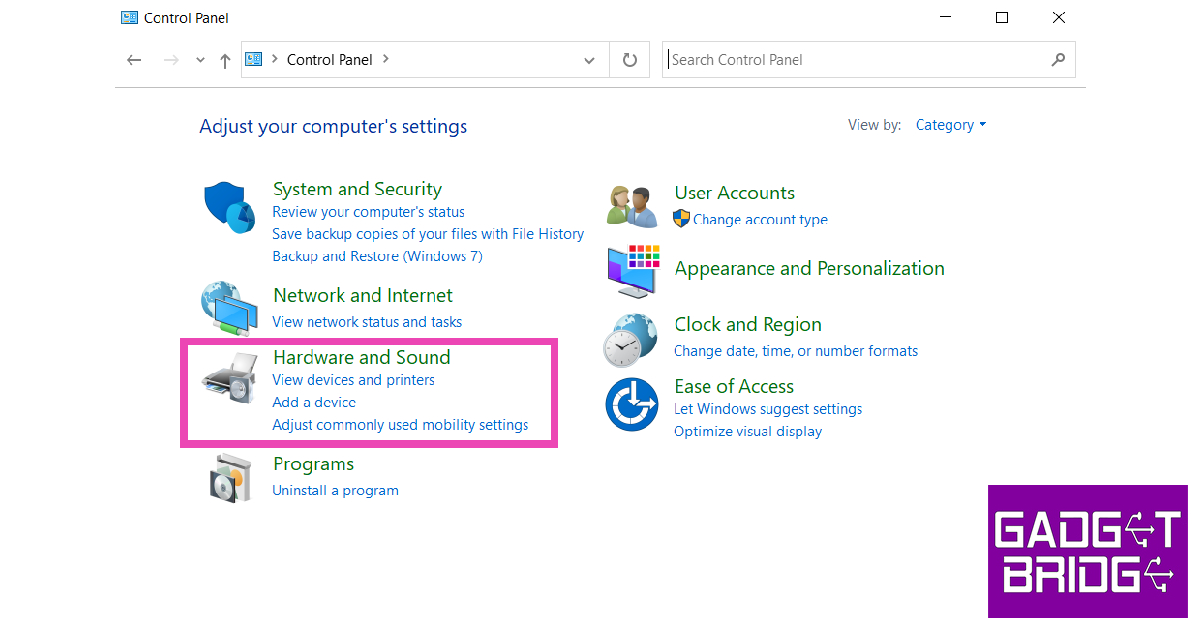
Step 1: Launch the Control Panel and select Hardware and Sound.
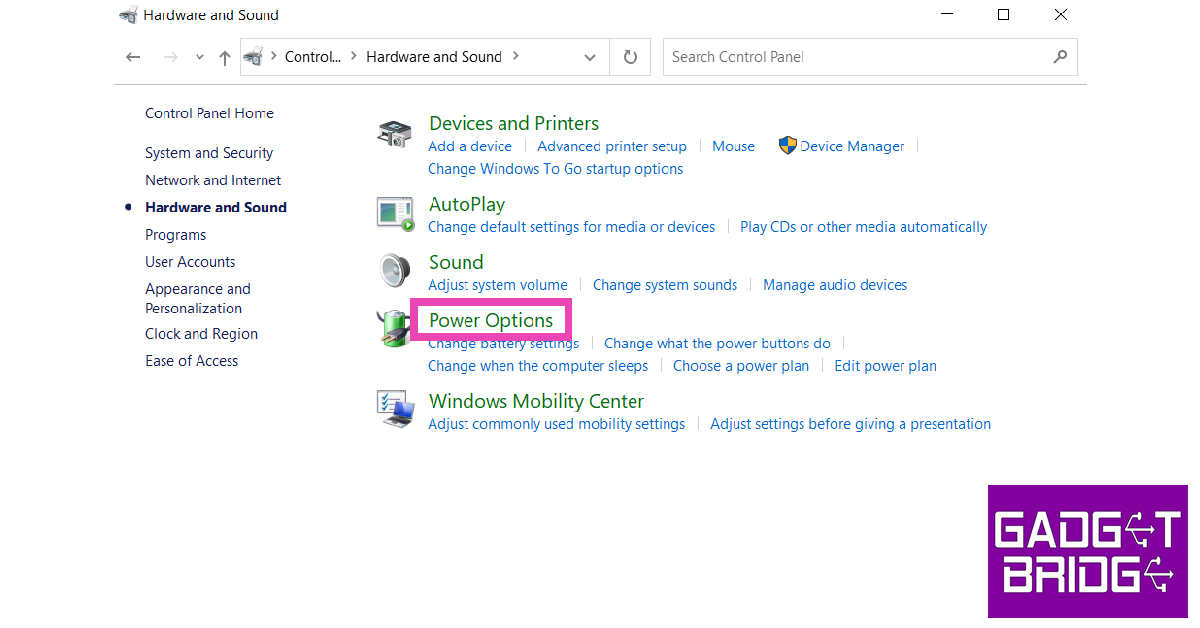
Step 2: Click on Power Options.
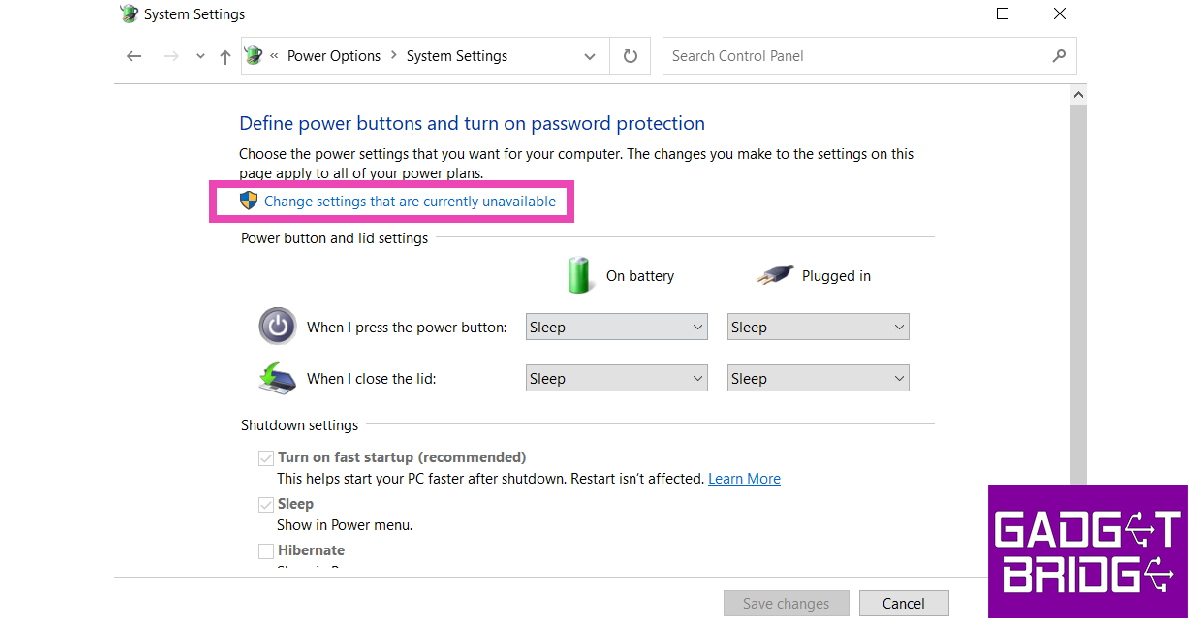
Step 3: Select ‘Choose what power buttons do’ from the side menu.
Step 4: Click on ‘Change settings that are currently unavailable’.
Step 5: De-select ‘Turn on fast startup’ and save changes.
Clean your keyboard
You’d be surprised how often keyboards stop working because they accumulate too much dirt. It is very common for dust particles and other kinds of dirt to settle beneath the keys on your keyboard. If you want to thoroughly clean your keyboard, check out our full guide here. For easy cleanup, simply reach for the dirt below the keys using a small brush and gently tap your keyboard on the table to push the dirt out. Clean your keyboard with a microfiber cloth and see if it is working again.
Update or reinstall keyboard drivers
Step 1: Type in ‘Device Manager’ in the search bar at the bottom left corner of your screen and select it.Step 2: Click on ‘Keyboard’ to expand the section.Step 3: Right-click on the keyboard listed on the list and select ‘Update driver’. Follow the onscreen instructions and the driver will be updated.If your keyboard still doesn’t work, try uninstalling the driver by clicking on ‘Uninstall device’ instead of ‘Update driver.’ Restart your computer. The operating system will automatically download the necessary driver for your keyboard.
Frequently Asked Questions
Why is my keyboard not working?
Your keyboard may stop working due to a hardware malfunction or because of outdated drivers. Make sure your keyboard is clean and dust free at all times.
How do I know if my keyboard is locked?
Hold the right shift key button for 8 seconds. If the filer keys icon appears on the taskbar, it means that your keyboard is locked.
There are 10 simple fixes for when your keyboard stops working. If you’ve tried all the fixes mentioned above and your keyboard still doesn’t work, you may need to take it to a repair centre to get it fixed or buy a new one. If you found these fixes to be useful, let us know in the comments!
Changing the phone number linked to your Apple ID is a pretty simple process. You may have noticed that the number linked to your Apple ID by default is the one that you are currently using with your iPhone. This is because Apple ID recognises your iPhone as a ‘trusted device’ and registers the number on it as a ‘trusted phone number’ as soon as your turn on the two-factor authorisation. You can always add more trusted phone numbers to your account. In this article, we show you how to change the phone number linked to your Apple ID. Read Also: What to expect from the new Twitter acquisition?
Change the phone number linked to your Apple ID using your iPhone
Step 1: Go to Settings on your iPhone and tap on the top banner that contains your name.Step 2: Select Password and Security.Step 3: Scroll down to the ‘Trusted Phone Number’ section and tap on ‘Edit.’Step 4: Select the ‘minus’ icon next to the number you want to remove and tap on ‘Delete.’Step 5: Tap on ‘Add a trusted phone number.’Step 6: You will be prompted to enter your device code. After that, enter the phone number you want to link to your Apple ID. Step 7: Verify the phone number using a text message or phone call. Your Apple ID phone number will be changed once it gets verified.
Change the phone number linked to your Apple ID using a web browser
Step 1: Go to https://appleid.apple.com/ on your web browser and sign in to your Apple ID account.Step 2: Go to ‘Sign-in and Security’ and click on ‘Account Security.’Step 3: In the following window, click the plus icon next to the ‘trusted phone number’ section.Step 4: Add the number you want to link to your Apple ID. Verify the number using a text message or phone call.Step 5: Once the number has been verified, it will be linked to your Apple ID. You can now remove the previously linked number by clicking on the minus icon next to it.Read Also: Havells Meditate air purifier with Alexa and Google home support launched in India
Conclusion
This is how you can change the phone number linked to your Apple ID. Instead of deleting the previously linked number, you can simply add more trusted numbers to your Apple ID. However, if the previous number is not in use anymore, we would suggest deleting it. If you change your number on iMessage it will also be reflected on your Apple ID. If you want to change the email address linked to your Apple ID, read our instructional guide here.
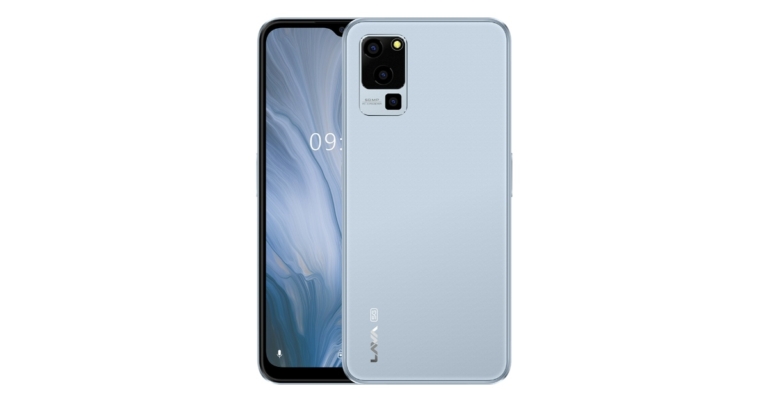
Indian smartphone manufacturer Lava has announced the pricing and availability details of the new budget 5G smartphone Lava Blaze 5G. The handset was first unveiled at the October India Mobile Congress 2022 (IMC). MediaTek Dimensity 700 SoC powered the phone and the built-in RAM can virtually be increased by an additional 3GB.. It features a triple rear camera setup supported by AI, with a 50-megapixel primary sensor. The device is fuelled by a 5,000mAh battery and it runs on Android 12 out of the box.
Lava Blaze 5G price in India and availability
Lava Blaze 5G’s single 4GB RAM with 128GB storage model is available at an introductory price Rs 9,999. There are two colour choices available for it: Glass Blue and Glass Green.No information is available on the duration of the introductory offer. Amazon will be the place where the phone is sold. Lava Blaze 5G’s release date hasn’t been made official in all its details.
Lava Blaze 5G specifications
The Lava Blaze 5G runs Android 12 and is powered by a 7nm MediaTek Dimensity 700 SoC with a top clock speed of 2.2GHz. It contains 4GB of RAM that may be expanded by an additional 3GB using available storage. It has 128GB of inbuilt UFS 2.2 storage that can be increased to 256GB using a microSD card. The screen is 6.51 inches HD+ IPS and refreshes at a rate of 90Hz. The device’s display has Widevine L1 capabilities. The phone has 128GB of internal storage and a side-mounted fingerprint sensor for authentication.An AI-backed triple rear camera array with a 50-megapixel primary sensor for images and videos distinguishes the Lava Blaze 5G. A front-facing 8-megapixel camera for selfies and video calls is present on the 5G smartphone.The Lava Blaze 5G is powered by a 5,000mAh battery. The handset has a USB Type-C port, Wi-Fi 802.11 b/g/n/ac, GPRS, Bluetooth V5.1, GLONASS, 3.5mm audio jack, and 5G connectivity choices. An accelerometer, ambient light, gyroscope, magnetometer, and proximity sensor are among the inbuilt sensors. Addition there is a face unlock and a side mounted fingerprint sensor for biometrics.
For the latest gadget and tech news, and gadget reviews, follow us on Twitter, Facebook and Instagram. For newest tech & gadget videos subscribe to our YouTube Channel. You can also stay up to date using the Gadget Bridge Android App. You can find the latest car and bike news here.
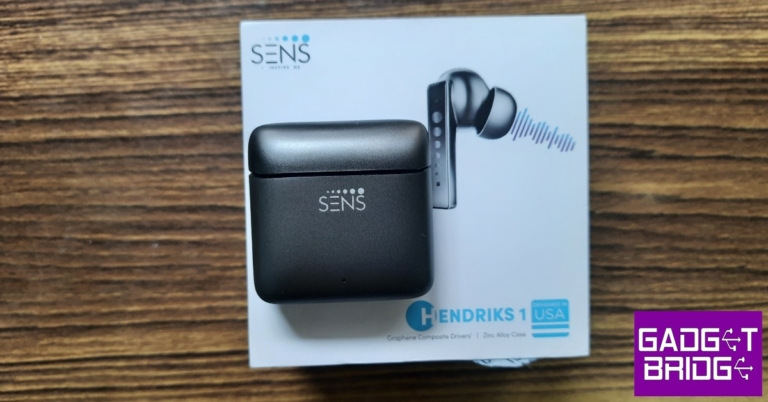
SENS is a relatively new brand in India, which is only just foraying into the smart wearables and TWSmarket with a diverse portfolio of Indian-made products. SENS’ audio products are named after famous musicians (‘Hendriks’, ‘Cnatra’, ‘Alvis’, and ‘MJ’), and their smartwatches take their names from scientists (‘Edyson’ and ‘Nuton’). We used their entry-level TWS product, the SENS Hendriks 1 and tested it for about a week. The wireless headset can currently be purchased at an introductory price of Rs 1,699. Here is our SENS Hendriks 1 review.Read Also: How to Repair Your Corrupted AAC File Format for Mac
SENS Hendriks 1 review: Design
The SENS Hendriks 1 comes in a compact square box that contains the charging case with earbuds inside, a USB Type-C charging cable, extra silicone tips, a user manual, a warranty card, and a product catalogue.The build and overall design are the highlights of the TWS. The charging case is made entirely out of metal (zinc alloy) and comes in a ‘Gun Metal Grey’ colour. The case feels quite sturdy and capable of withstanding a lot of damage. The lid easily flips open and shut with one finger and the hinge feels quite strong. Since it’s made out of metal, the charging case will get cold pretty quickly in low temperatures. While it may be heavier compared to other TWS, you can easily walk around with the case in your pocket. The design has been kept quite minimal on the Hendriks 1. There’s a small border around the lid that extends all the way back to the hinge, essentially dividing the case into two segments. In the lower segment, just below the lid, you will find the SENS logo printed on the case. A small notification light has been housed at the lower part of the front panel. The charging port makes its way to the bottom of the case. While the charging case may weigh around 70 grams, the earbuds feel extremely light, weighing just 3.5 grams each. You will barely notice them in your ear and can easily keep them in for hours at a time. There is a small notification on the touch panel of each earbud. The make is entirely plastic.The in-ear design along with the silicone tips provides a very comfortable, snug fit in the ear. For those that don’t find the fit to be comfortable, the TWS is shipped along with a small pack of extra tips with varying size options. The horizontal stems are touch sensitive and can be used for music and call control.With an IPX5 rating, the earbuds can withstand a low-pressure water spray without taking any damage. For a TWS in the entry-level category, this is an impressive rating. We used the TWS while working out and they handled the task expertly. The fit remained undisturbed throughout the workout, even when things got sweaty. The touch controls are easy to use and we were quite surprised to see very minimal accidental touch detection.
SENS Hendriks 1 review: Performance
While the Hendriks 1 certainly impressed us in terms of build, design, and usability, we were left wanting some more improvements in terms of performance. Let’s deep dive into what our experience with the SENS Hendriks 1 was like after a week of use.The Hendriks 1 is equipped with 10mm drivers on each earbud and claims a connection range of 12 metres. However, we experienced certain drops and lags after moving 5-6 metres away from the connected device. If you intend to use these earbuds with your smartphone, the range won’t be an issue as long as you carry your smartphone along with you at all times.Moving on to the most important part of the review, the sound profile of the SENS Hendriks 1 is slightly underwhelming. The audio output sounds a bit boxy and muffled. While it works well for casual listening, the Hendriks 1 didn’t manage to produce a lot of detail in its sound profile. The bass is constantly overridden by the higher frequencies. The overall mix feels like it lacks some depth, which would’ve been present had the lower frequencies been given more prominence. The ideal volume range for listening on the Hendriks 1 is 40-60% beyond which you will notice a slight increase in distortion of the sound profile. The audio quality while calling was decent and the microphone performs well in quiet surroundings, relaying the voice to the recipient without much disturbance. Both earbuds are equipped with a microphone each, so you can use one earbud to call while the other one charges inside the box. The touch controls work smoothly while listening to music or during a call. Since there is no dedicated app for the TWS, you cannot customise the controls. Single touches on either earbud alter the volume of the music while a double touch can be used to play or pause the track. A long touch can be used to skip back and forth between tracks. The Hendriks 1 also comes with Voice Assistant support, which can be activated by a triple touch on the stem.SENS claims a battery backup of up to 4.5 hours on either earbud with an additional 30 hours in the case. These figures were consistent with our tests, as we got over 4 hours of battery life even when playing music at a higher volume. The 450mAh charging case was good enough to provide 5-6 charge cycles. The case can get fully charged in around 90 minutes, while the earbuds can reach a 20% charge in 20 minutes. Read Also:Vivo X90 Pro+ has received 3C certification, to 80W fast charging
Verdict
At the price of Rs 1,699, the SENS Hendriks 1 is not a bad deal for casual music listeners. If you’re looking for an affordable, sturdy pair of earbuds that provide a great battery life, you can look into the Hendriks 1 TWS. However, if you don’t want to make any compromise on the audio output, there may be a few better contenders that are only a few hundred rupees pricier than the Hendriks 1.
Pros
Sturdy buildClean designBattery life
Cons
Sound profile has room for improvementConnection quality drops beyond 5-6 metres
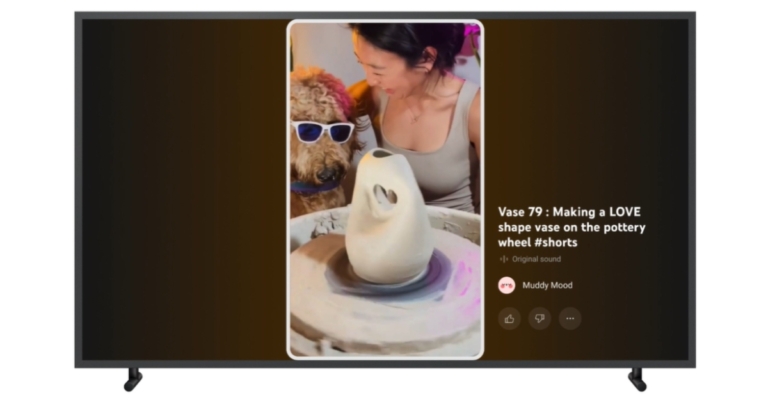
The TV debut of YouTube Shorts has been officially announced. As of right now, viewers will be able to watch these brief video clips (60 seconds or less) at home on a huge screen. Over the next several weeks, YouTube Shorts will become available for smart TVs (models 2019 and later) and newer gaming consoles.Neal Mohan, Chief Product Officer said “Bringing Shorts to our community has transformed the way people create and watch videos on YouTube. When we introduced this new format, we optimised the experience for the mobile creator and viewer. Today, we’re expanding viewing access to Shorts to our fastest-growing surface: the TV screen. While this may seem like a natural next step, an incredible amount of thought and care has gone into bringing this vertical, mobile-first experience to the big screen. In this next instalment of our Innovation Series, you’ll hear from two of the user experience (UX) design leads who made this leap a reality.”YouTube Shorts for TV will be positioned with a white border in the centre of the screen. While the background theme will be based on the primary colour of the Shorts clip. The specific Shorts’ information will be displayed on the video’s side.Its product managers, engineers, designers, and researchers from the Shorts and TV teams got together to talk about how to bring this new video format to the big screen, the business claimed in a statement announcing the launch. It was crucial that the Shorts experience on TV seemed both organic on a larger screen and aligned with what the community views on mobile.YouTube has adopted a unique approach to our research and invited participants to write either “Love” or “Breakup” letters to describe their thoughts about short-form material on TV right now. The “love letters” revealed that consumers like watching stuff they enjoy conveniently with friends and family. The “breakup letters” revealed that users thought the platform may be awkward, sluggish to load, or lacking in essential capabilities like sharing.As per the company, there are unique perks of watching Shorts on the big screen. Firstly YouTube Shorts are easier to watch with others, and the larger screen makes it a more comfortable viewing experience. In order to preserve the essence of Shorts with vertical videos on wide-screen TVs it has created three very different design concepts.“We wanted to know if the unique feel of Shorts could be conveyed in our conventional video player (Option A) or if it should be customized to better fill the blank spaces on either side of the video (Option B). We also considered a divergent option — the “Jukebox” style (Option C)— where multiple Shorts would fill the screen at the same time, taking full advantage of the TV screen’s additional space,” YouTube blog post stated.According to YouTube, feedback from the second round of study revealed that the Jukebox style (Option C) departed too much from the core of Shorts, which focuses on one video at a time, and that the delight of Shorts is lost in the consistent video player (Option A). The customized Shorts experience offers the best of both worlds: a simple design while maximising the additional space provided by the widescreen.Moreover, users of YouTube Shorts on smart TVs must manually select the next Shorts using the remote because the videos do not automatically play. YouTube built two highly detailed prototypes of a customised Shorts video player using input from its most recent round of research. The business is currently attempting to strike a balance between a pure viewing experience and features that users have come to anticipate from Shorts and YouTube, such as comments, community actions (such as like and subscribe), and finding related videos.
For the latest gadget and tech news, and gadget reviews, follow us on Twitter, Facebook and Instagram. For newest tech & gadget videos subscribe to our YouTube Channel. You can also stay up to date using the Gadget Bridge Android App. You can find the latest car and bike news here.



 Step 3: Edit and Save Subtitles
To edit the subtitles, navigate to the “Styles” tab and select font, outline width, opacity, position, and font size. After adjusting the settings, go to the “File Location” tab and choose your destination folder. Now hit the “Export” button to save the file in the desired folder.
Step 3: Edit and Save Subtitles
To edit the subtitles, navigate to the “Styles” tab and select font, outline width, opacity, position, and font size. After adjusting the settings, go to the “File Location” tab and choose your destination folder. Now hit the “Export” button to save the file in the desired folder.
 Step 3: Export the Video File
Now you can see the auto-generated subtitles on your screen. You can also change the font, color, size, transparency, and border of your subtitles. Afterwards, select the aspect ratio for your video and hit the “Export” button to select the format and resolution for your edited video before downloading it.
Step 3: Export the Video File
Now you can see the auto-generated subtitles on your screen. You can also change the font, color, size, transparency, and border of your subtitles. Afterwards, select the aspect ratio for your video and hit the “Export” button to select the format and resolution for your edited video before downloading it.

 Read Also: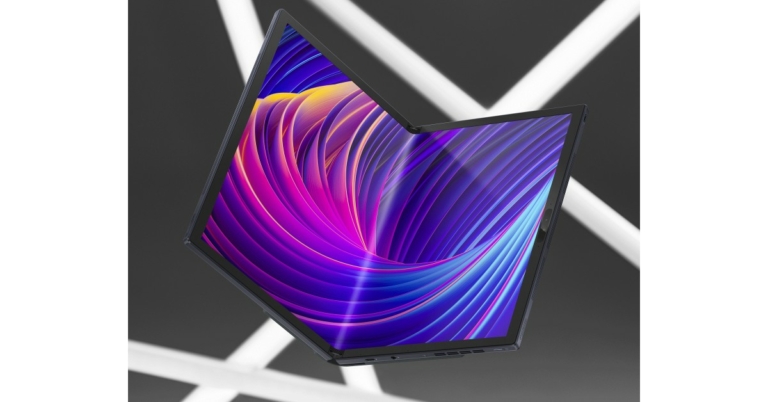


 Step 2: Click on ‘Change how keyboard works’.
 Step 3: De-select ‘Turn on Filter keys’.
 Step 4: Click on ‘Apply’ and then save your changes by clicking on ‘Ok’.
 Step 2: Click on Power Options.
 Step 3: Select ‘Choose what power buttons do’ from the side menu.
Step 4: Click on ‘Change settings that are currently unavailable’.
Step 3: Select ‘Choose what power buttons do’ from the side menu.
Step 4: Click on ‘Change settings that are currently unavailable’.
 Step 5: De-select ‘Turn on fast startup’ and save changes.


 Step 3:

 Step 3:
  Step 4:
  Step 5:
  Step 7:
 Step 2:
 Step 3: